

Page 1

MAINTENANCE AND OPERATION
INSTRUCTION MANUAL
DB8008
Digital Silence Monitor
with MP3 and IP Audio Backup Players
Publish Date: 06-Feb-2020
Page 2

Contents
Introduction ........................................................................................................................................ 5
Typographic conventions .................................................................................................................. 6
General Information .......................................................................................................................... 7
Product Features ................................................................................................................................ 8
Technical Specications .................................................................................................................. 9
Block Diagram .............................................................................................................................. 11
Safety Precautions ............................................................................................................................ 12
Before you start ................................................................................................................................ 13
Mains Voltage Selector ................................................................................................................. 13
Power Cord .................................................................................................................................. 13
Operating Recommendations ....................................................................................................... 14
Radio Frequency Interference (RFI) ............................................................................................. 14
Unpacking and Inspection ............................................................................................................... 15
Mounting .......................................................................................................................................... 15
Rack Requirement ......................................................................................................................... 15
Heat Dissipation ........................................................................................................................... 15
Panel Indicators and Connectors ................................................................................................... 16
Front Panel.................................................................................................................................... 16
Rear Panel ..................................................................................................................................... 17
GPIO Connector Pinouts .............................................................................................................. 18
Electrical Characteristics of Optocouplers .............................................................................. 18
Navigation Through LCD Menu .................................................................................................... 19
The Basics ..................................................................................................................................... 19
Menu Structure .............................................................................................................................. 20
Restore Factory Defaults............................................................................................................... 28
Connecting DB8008 ........................................................................................................................ 29
Analog Audio Inputs ..................................................................................................................... 29
Digital Audio Input ....................................................................................................................... 29
LAN Port ....................................................................................................................................... 29
Operation .......................................................................................................................................... 30
Manual IP Identication ............................................................................................................... 30
Network Discovery ........................................................................................................................ 32
DB8008 WEB interface menu pages .............................................................................................. 34
Status ............................................................................................................................................. 34
Input .............................................................................................................................................. 35
Main and AUX Input ................................................................................................................ 35
IP Audio Client ......................................................................................................................... 36
Backup ........................................................................................................................................... 37
Audio Loss and Audio Recovery ............................................................................................... 37
Audio Monitor Mode ................................................................................................................ 37
MP3 Audio Player .................................................................................................................... 37
MP3 Files Upload via FTP ..................................................................................................... 37
Jingle Player ............................................................................................................................. 38
Jingle Files Upload via FTP .................................................................................................... 38
How can a playlist le be made? .............................................................................................. 38
Page 3

Output ............................................................................................................................................ 39
Analog Audio .................................................................................................... 39
Digital Audio ............................................................................................................................ 39
Headphones .............................................................................................................................. 39
IP Voice Announcement ............................................................................................................ 39
Dayparts ........................................................................................................................................ 40
General .......................................................................................................................................... 41
Network ......................................................................................................................................... 42
Network..................................................................................................................................... 42
E-mail ....................................................................................................................................... 42
HTTP Server ............................................................................................................................. 43
FTP Server ................................................................................................................................ 43
SNMP Agent ............................................................................................................................. 43
Other ............................................................................................................................................. 44
Firmware Update ..................................................................................................................... 44
Storage ...................................................................................................................................... 44
Factory Defaults ....................................................................................................................... 44
Reboot ....................................................................................................................................... 44
System Log ................................................................................................................................ 45
UPnP discovery in Local Networks ................................................................................................46
UPnP Activation ............................................................................................................................... 47
Appendix A .......................................................................................................................................48
List of DB8008 Jumper Settings for Analog Signals ..................................................................... 48
DB8008 Jumpers Location ............................................................................................................ 49
DB8008 Conguration with Impedance 10kΩ and 0dBu analog Input and Output Range 50
DB8008 Conguration with Impedance 600Ω and +18dBu analog Input and Output Range 51
APPENDIX B ................................................................................................................................... 52
Download/Upload les via FTP .................................................................................................... 52
WARRANTY TERMS AND CONDITIONS ................................................................................. 54
Product Registration Card .............................................................................................................. 55
Page 4

THIS PAGE
IS INTENTIONALLY
LEFT BLANK
Page 5

65 Aleksandar Stamboliyski Str., 8000 Bourgas, Bulgaria
E-mail: of[email protected] ,Web: www.devabroadcast.com
Tel: +359 56 820027, Fax: +359 56 836700
Introduction
DEVA Broadcast Ltd. is an international communications and high-technology manufacturing
organization, its corporate headquarters and facility located in Burgas, Bulgaria. The company
serves the broadcast and corporate markets worldwide – from consumers and small businesses to
the largest global organizations. It is dedicated to the research, design, development and provision
of advanced products, systems and services. DEVA launched its own brand back in 1997 and has
nowadays evolved to become known as a market leader and internationally reputed manufacturer
of user-friendly, cost-effective and innovative broadcast products.
Creativity and innovation are deeply woven into DEVA corporate culture. Through successful
engineering, marketing and management our team of dedicated professionals creates futureoriented solutions to improve customers’ performance. You may rely that all issues communicated
to our crew would be addressed accordingly. We pride ourselves on our pre and post-sales support
and purchase services, which along with the outstanding quality of our radio gear have won us due
respect and the market authority position.
DEVA best-of-breed solutions have become the best sellers for our partners. The strategic
partnerships which have been formed with industry leaders during all these years that we have been
operating on the broadcasting market, have proved us a reliable business partner and a valuable
asset, as our dealers worldwide would conrm. In constant pursuit of precision and long-term
satisfaction, DEVA enhances the reputation of our partners and clients alike. Furthermore, we have
already a proven merit as a credible partner provider.
Our portfolio offers complete line of high quality and competitive products for FM and Digital
Radio, Radio Networks, Telecommunication Operators and regulation authorities. For almost
two decades of intensive software and hardware development, we have achieved a unique priceperformance and endurance of our product lines. Our company’s multitude of equipment and
services is in line with the latest technologies and key trends. The most recognizable characteristics
attributed to DEVA products are their clear-cut, streamlined design, easiness of use and costeffectiveness: simplicity of forms but multiplicity of functions.
For us there is no stage when we deem that we have reached the most satisfactory level in our
work. Our engineers are in constant pursuit of new ideas and technologies to be captured in DEVA
solutions. Simultaneously, a strict control is being exercised at each step of any new development.
Experience and hard work are our fundament but the continuous improving process is what we
never leave aside. DEVA participates on a regular basis in all landmark broadcasting events, not
only to promote its products, but to exchange valuable know-how and experience. We are also
engaged in international large-scale projects involving radio and audio solutions which makes us
even more competitive on the global market.
All DEVA products are developed and produced in accordance with the latest ISO 9001 quality
control standards.
- 5 -
Page 6
65 Aleksandar Stamboliyski Str., 8000 Bourgas, Bulgaria
E-mail: of[email protected] ,Web: www.devabroadcast.com
Tel: +359 56 820027, Fax: +359 56 836700
Typographic conventions
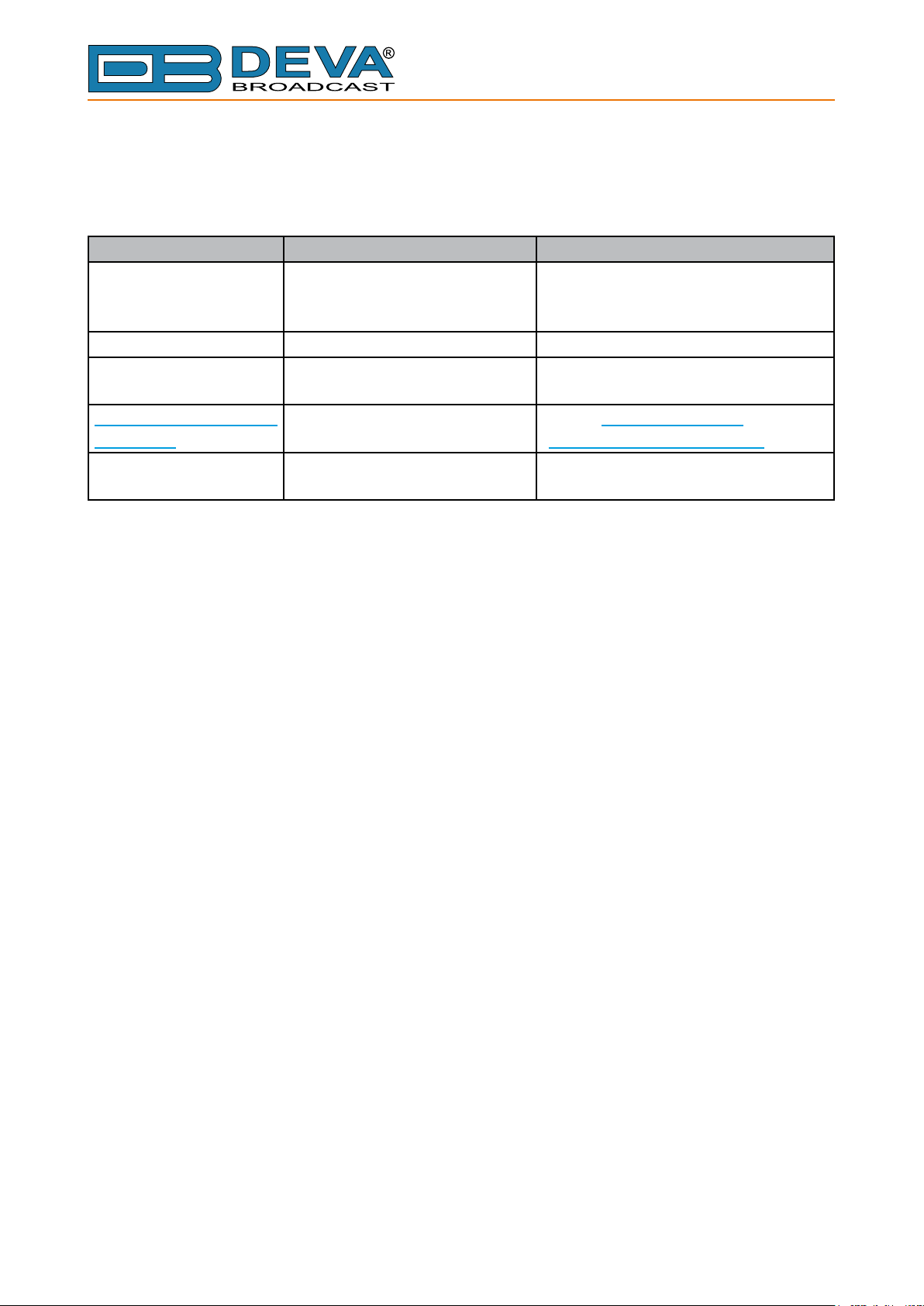
The following table describes important conventions used in the manual.
Convention and Style Description Examples
Menu > Sub Menu >
Menu Command
[Button] Interface Interactive buttons Press [OK] to save the changes
NOTE
“Reference Name” on
Page XXX
Example
A menu item(s) and menu
Click Settings > General
command that you need to click
in sequence
Important notes and
recommendations
NOTE: The notication will appear
only once
References and links refer to “New Connection”
(see “Monitoring” on page 56)
Used when example text is cited Example for E-mail Notication:
Date: 04 Nov 2013, 07:31:11
- 6 -
Page 7

65 Aleksandar Stamboliyski Str., 8000 Bourgas, Bulgaria
E-mail: of[email protected] ,Web: www.devabroadcast.com
Tel: +359 56 820027, Fax: +359 56 836700
General Information
DEVA’s DB8008 is a exible and reliable tool, designed by our engineers specically with
the aim of solving one of the most signicant problems in the radio industry – the one of radio
silence. DEVA’s smart and highly practical solution detects signal loss and immediately switches
the output to one of two alternative built-in backup players – MP3 or IP Audio. As an additional
advantage, it also allows for easy integration into the existing setups of a single station and large
radio networks alike.
The MP3 backup audio les and playlists can be uploaded to the device using any FTP client,
making this model not only efcient but also easy to use. The audio storage capacity of the unit is
an impressive 2GB for over 24 hours of audio playback without repetition. Moreover, the backup
sources priority is selected by users themselves.
The DB8008 features a fully DSP-based core, professional AES/EBU digital audio inputs and
outputs, and additionally allows for TCP/IP remote monitoring and control via SNMP and the WEB
Interface, which means that the device can also be used for local content or regional advertisement
spots. Another option provided by the model is the alert notications via email, SNMP or analog
opto-coupled outputs in case of signal loss.
Developed to provide users with a tool for an infallible and constant audio feed, the DB8008
is trademark DEVA device offering a simple and subtle solution to the problem of radio silence.
- 7 -
Page 8

65 Aleksandar Stamboliyski Str., 8000 Bourgas, Bulgaria
E-mail: of[email protected] ,Web: www.devabroadcast.com
Tel: +359 56 820027, Fax: +359 56 836700
Product Features
• Fully DSP based core
• Intelligent Silence Detector and Backup Audio Switcher
• Scheduler for disabling the Silence Detector and Forcing the Source for predened period
of time
• User selectable backup audio sources priority
• Conguration and Monitoring via SNMP, WEB, Front Panel LCD and Keyboard
• Alert Notications via E-mail, SNMP, Analog opto-coupled Outputs
• Lots of Storage for over 24 hours of non-repeating audio playback
• Always Fresh Backup Audio Tracks with Embedded FTP server
• Professional Balanced Stereo analog inputs and outputs on XLR connectors
• Professional AES/EBU Digital audio inputs and output on XLR connectors
• Consumer S/PDIF Digital audio inputs and output on Optical and Coaxial connectors
• Headphones Jack on the front panel for local monitoring of the Audio Signal
• TCP/IP Remote monitoring and control via SNMP and WEB Interface
• Variety of Audio Sources
• Multiformat IP Audio Stream (three separate sources)
• Multiformat Real-Time Transport Protocol (RTP) Stream Receiver
• Multiformat Icecast compatible Stream Receiver
• Built-in SD Card MP3 Player
• External or internal Digital clock sync
• Digital Volume Control of all Audio Sources
• Protected access to the device settings
• UPnP for easy discovery in Local Networks
• Professional 19 inches, 1U aluminum rack mount chassis
• Wide Range Internal Power Supply 100-240VAC 50-60Hz
• Easy installation and operation
• Remote Firmware Upgrade for future-proof operation
- 8 -
Page 9
65 Aleksandar Stamboliyski Str., 8000 Bourgas, Bulgaria
E-mail: of[email protected] ,Web: www.devabroadcast.com
Tel: +359 56 820027, Fax: +359 56 836700
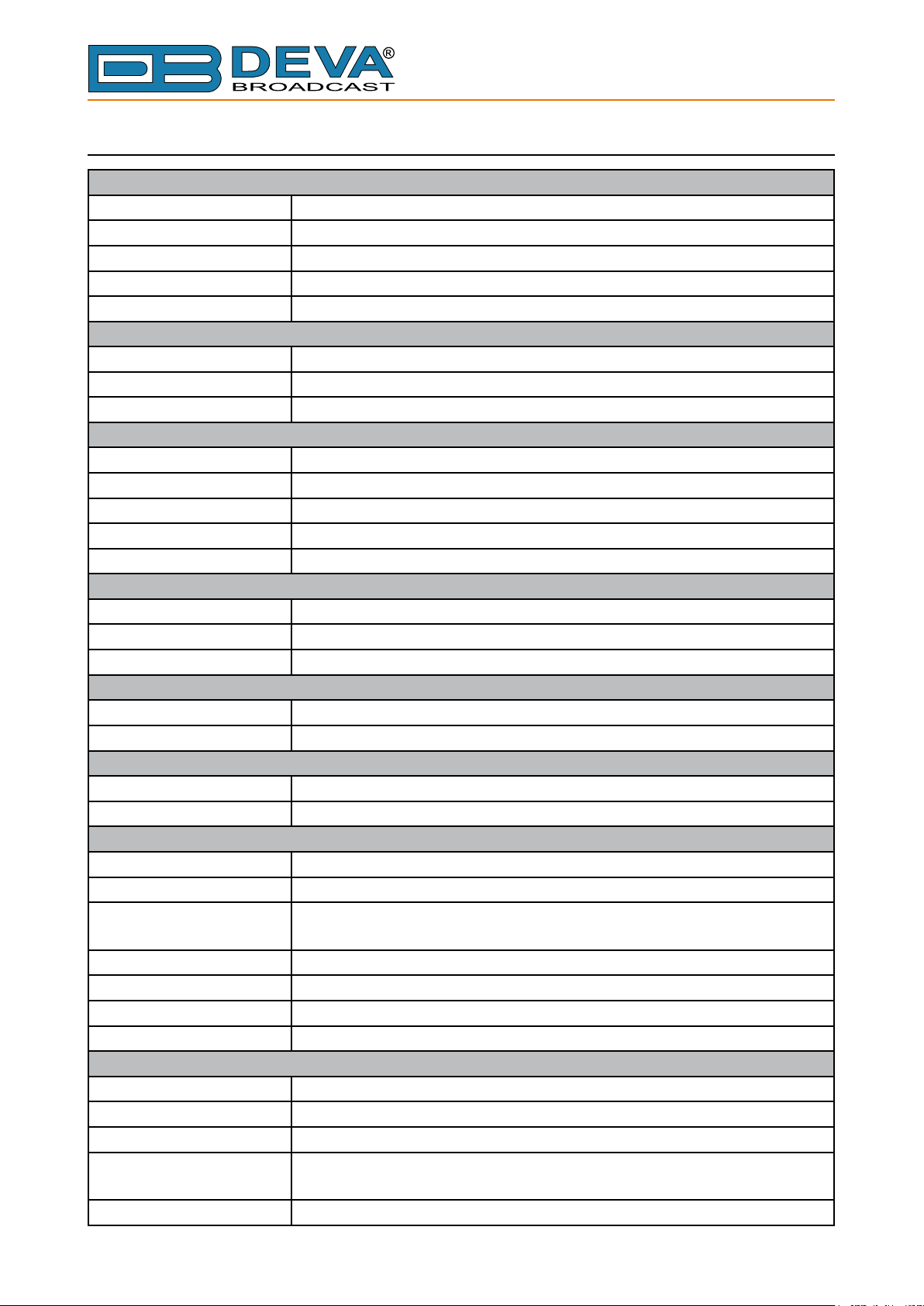
TECHNICAL SPECIFICATIONS
MAIN ANALOG AUDIO INPUTS
Connectors Balanced XLR
Impedance 600Ω or high impedance
Level 0dBu or +18dBu Jumper selectable, with digital gain adjustments
Dynamic range >80dB
Digital Gain Adjust -10dB to +10dB
MAIN DIGITAL AUDIO INPUTS
Connectors Balanced XLR, Coaxial, Optical
Sample Rates 32, 44.1, 48 and 96kHz
Digital Gain Adjust -10db to +10dB
AUX ANALOG AUDIO INPUTS
Connectors Balanced XLR
Impedance 600Ω or high impedance
Level 0dBu or +18dBu Jumper selectable, with digital gain adjustments
Dynamic range >80dB
Digital Gain Adjust -10dB to +10dB
AUX DIGITAL AUDIO INPUTS
Connectors Balanced XLR, Coaxial, Optical
Sample Rates 32, 44.1, 48 and 96kHz
Digital Gain Adjust -10dB to +10dB
RTP RECEIVER
Stream Formats MP3, AAC
Bit Rates All standard bit rates, including VBR
ICECAST PLAYER
Stream Formats PCM (32, 44.1, 48kHz), MPEG1 Layer 3 (MP3), HE-AAC (v.1 and v.2)
Bit Rates All standard bit rates, including VBR
IP AUDIO SOURCE
Number of Streams one main and two alternative streams with auto-switch on failure
Stream Clients shoutcast, icecast
Stream Formats PCM, MPEG1 Layer 3 (MP3), HE-AAC (v.1 and v.2); all at 32, 44.1,
48kHz only
Bit Rates All standard bit rates, including VBR
Number of Channels Mono, Stereo
Buffer Size Adjust 5Kb to 64Kb
Digital Gain Adjust -10dB to +10dB
BUILT-IN MP3 PLAYER
Storage Capacity 2Gb on SD Card
Supported encoders HE-AAC (v.1 and v.2), MPEG-1 Layer 3
MP3 bit rates 32-320 kbps and VBR
Sample rates All sampling frequencies specied by MPEG1 L1/L2/L3 (32, 44.1 and
48kHz)
Supported le types *.MP3, *.AAC, *.M4A, *.M3U
- 9 -
Page 10

65 Aleksandar Stamboliyski Str., 8000 Bourgas, Bulgaria
E-mail: of[email protected] ,Web: www.devabroadcast.com
Tel: +359 56 820027, Fax: +359 56 836700
Playback modes Alphabetical ascending and descending, Shufe, Playlist and Shufed
playlist
Remote le management Build-in FTP server
Digital Gain Adjust -10dB to +10dB
ANALOG AUDIO OUTPUT
Connector Balanced XLR
Frequency response ±0.5dB, 5Hz-20kHz
Distortion <0.01% THD+N
Level 0dBu or +18dBu Jumper selectable, with digital gain adjustments
Dynamic range >80dB
Digital Gain Adjust -10dB to +10dB
DIGITAL AUDIO OUTPUTS
Connectors Balanced XLR, Coaxial, Optical
Sample rates 32, 44.1, 48kHz
Digital Gain Adjust -10dB to +10dB
PHONES AUDIO OUTPUT
Connector 1/4” (6.3mm) jack, stereo
Type Headphones
SILENCE DETECTOR
Threshold Adjustable from -40dBfs to -5dBfs
Trigger time 10-250 sec
Scheduler for disabling Silence Detector and Forcing Audio Source to predened
Source or Silence
USER INTERFACE
Indicators 5 LEDs on front panel, 2 LEDs on rear panel
Web interface control, conguration and status information
SNMP interface control, conguration and status information
Front Panel LCD with Keyboard
Pin Input Pin Input (DB9 Connector on Rear Panel) to externally force the audio
source to predened source
ALARM NOTIFICATIONS
Notify via SNMP, E-mail or Output Pins on DB9 Connector (Rear Panel)
NETWORK
Connector RJ-45
Type Ethernet
Device Discovery UPnP support
OPERATING CONDITIONS
Temperature 10°C - 45°C
Humidity < 75%, non-condensing
POWER REQUIREMENTS
Power supply 115/230V AC (internal switch), 18VA
Connector IEC320, rear panel
SIZE AND WEIGHT
Dimension (W x H x D) 1U, 19” x 1.7” x 6.9”, 483 x 45 x 160 mm
Weight 8 lbs, 3kg
- 10 -
Page 11
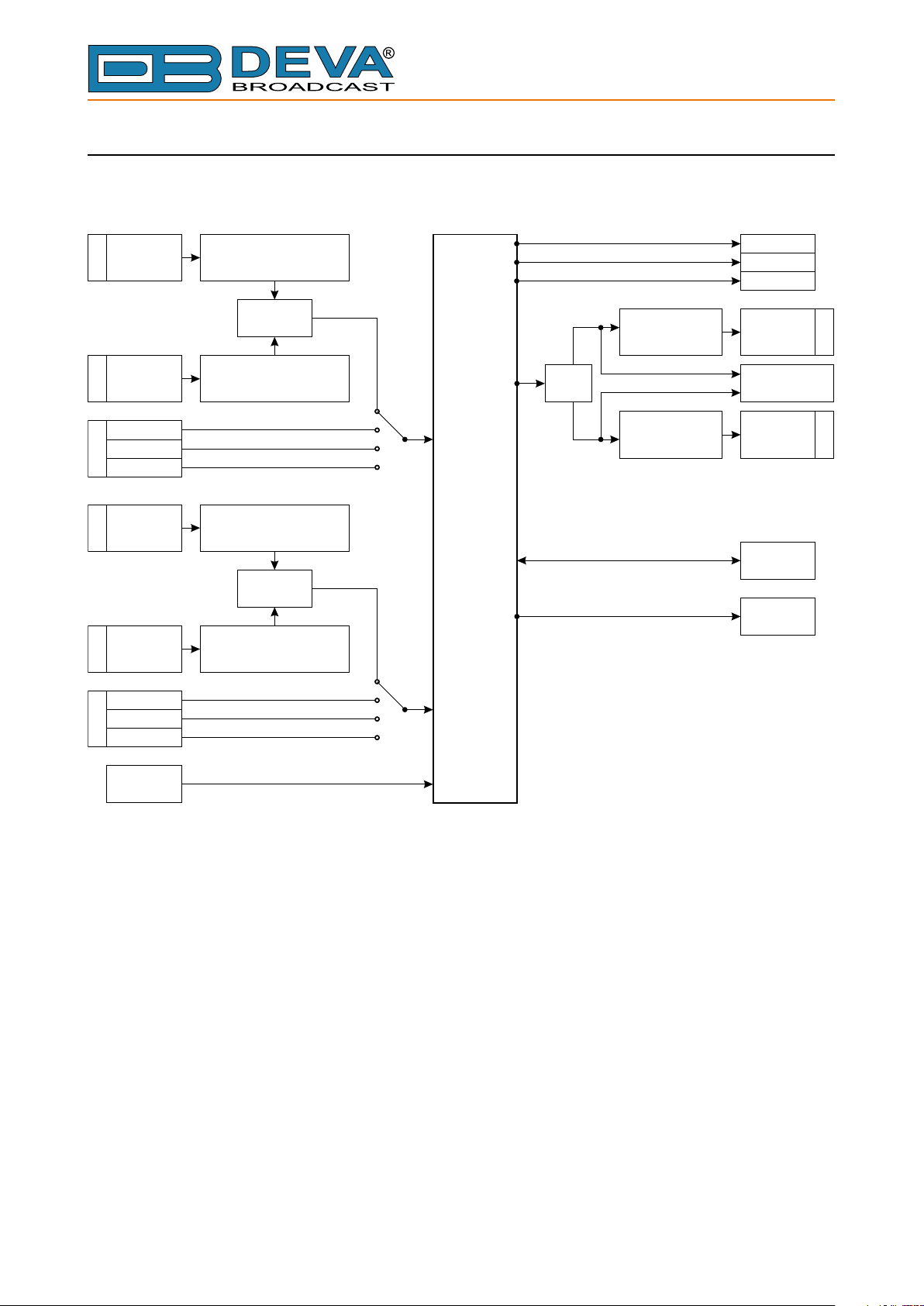
BLOCK DIAGRAM
A simplied block diagram of DB8008 is shown below
65 Aleksandar Stamboliyski Str., 8000 Bourgas, Bulgaria
Tel: +359 56 820027, Fax: +359 56 836700
E-mail: of[email protected] ,Web: www.devabroadcast.com
L
R
MAIN IN
L
R
MAIN
INPUT
MAIN
INPUT
AES/EBU
S/PDIF
OPTICAL
AUX
INPUT
AUX
INPUT
JUMPERS
Range: 0 dBu / +18 dBu
Impedance: 600Ω / 10kΩ
ADC
JUMPERS
Range: 0 dBu / +18 dBu
Impedance: 600Ω / 10kΩ
JUMPERS
Range: 0 dBu / +18 dBu
Impedance: 600Ω / 10kΩ
ADC
JUMPERS
Range: 0 dBu / +18 dBu
Impedance: 600Ω / 10kΩ
DSP
DAC
JUMPERS
Range:
0 dBu / +18 dBu
JUMPERS
Range:
0 dBu / +18 dBu
AES/EBU
S/PDIF
OPTICAL
ANALOG
OUTPUT
PHONES
ANALOG
OUTPUT
LAN
ALARM
OUTPUT
L
R
AES/EBU
S/PDIF
AUX IN
OPTICAL
SYNC
INPUT
Because of the all-digital, minimalist-discrete-component nature of device circuitry, we have
not provided schematic diagrams of the DB8008 in this Manual. Please, note that:
NO USER-SERVICEABLE COMPONENTS INSIDE.
REFER ALL SERVICING TO
QUALIFIED TECHNICAL PERSONNEL.
- 11 -
Page 12

65 Aleksandar Stamboliyski Str., 8000 Bourgas, Bulgaria
E-mail: of[email protected] ,Web: www.devabroadcast.com
Tel: +359 56 820027, Fax: +359 56 836700
Safety Precautions
IMPORTANT: Carefully read this paragraph as it contains important instructions concerning
operator safety and directions regarding the installation, operation and maintenance of the
equipment. Failure to observe the safety instructions and information given in this manual
constitutes an infringement of the safety rules and design specications provided for this piece
of equipment. DEVA Broadcast Ltd. declines all responsibility if any one of the safety rules given
herein is not observed. DEVA Broadcast Ltd. declines all responsibility if the end-user resells the
product. The equipment is to be used by people capable of operating it in a trouble-free manner
and it is assumed that they are aware of the following safety rules.
◊ Keep this manual with the utmost care and close at hand so that it can be consulted whenever
needed
◊ After unpacking the equipment, check its condition.
◊ Avoid banging the equipment.
◊ The packing material (plastic bags, polystyrene, nails, etc.) must never be left within reach of
children, as these items are potential sources of danger.
◊ Do not use the equipment in places where the temperature is not within the recommended
range, as specied by the manufacturer.
◊ Before connecting the equipment, make sure the nameplate specications correspond to the
mains electricity supply (the nameplate is located on the equipment enclosure).
◊ Do not remove the sticker from the equipment as it contains important specications and the
relevant serial number.
◊ To join the equipment to the mains supply, use the power cord purchased with the equipment.
◊ The equipment must be used only for the purposes it was designed for.
◊ Abuse or misuse of the equipment is extremely dangerous for people, pets and property. The
manufacturer declines all responsibility for damage and injury resulting from improper use and
mishandling.
◊ Certain basic safety rules must be observed when using electrical equipment, in particular:
- Never touch the equipment with wet and/or damp hands or other parts of the body.
- Keep the equipment away from drops of water or sprinkling systems.
- Never use the equipment near high heat sources or explosive material.
- Do not introduce any extraneous matter into the equipment.
- Do not allow children or untrained people to use the equipment.
◊ Before cleaning or servicing the equipment outside, disconnect its power supply and wait at
least 2 seconds before working on it, as recommended by current safety regulations.
◊ In the event of faults and/or improper operation, turn off the equipment, shut off the electrical
power and call your dealer.
◊ Do not attempt to make repairs and/or adjustments when covers/guards or circuit boards are to
be removed.
◊ Call your dealer for any repairs and be certain original spare parts are used. Failure to observe
this rule may adversely affect the safety level of your equipment.
◊ The equipment is to be connected to the mains supply and provided with adequate and efcient
earth conductors.
◊ When installing, leave a clearance of at least 1 cm around the equipment to allow air to pass
freely.
- 12 -
Page 13
65 Aleksandar Stamboliyski Str., 8000 Bourgas, Bulgaria
E-mail: of[email protected] ,Web: www.devabroadcast.com
Tel: +359 56 820027, Fax: +359 56 836700
Before you start
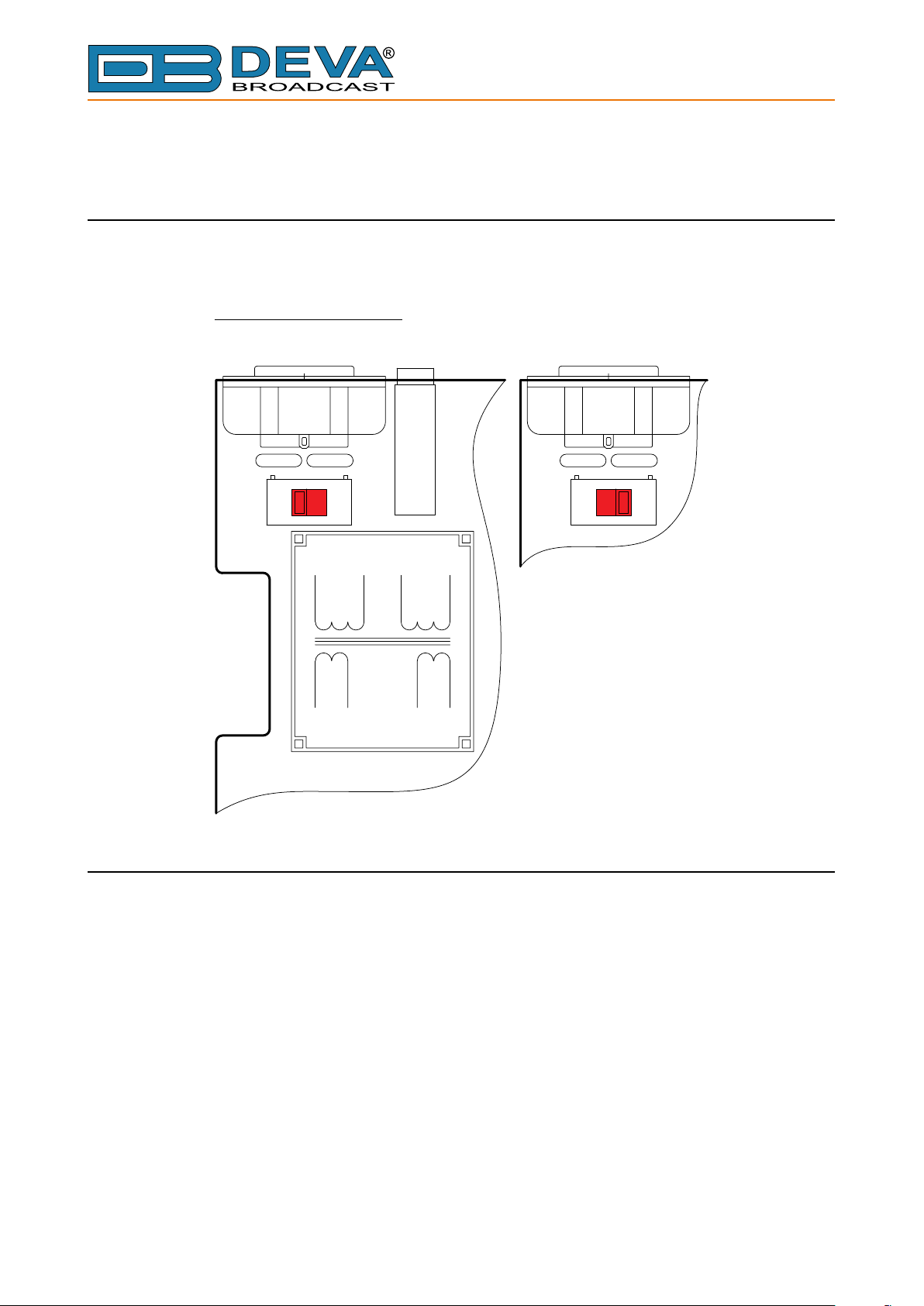
MAINS VOLTAGE SELECTOR
Unless specically requested at time of order, the DB8008 is set at the factory for operation
from 230V, 50/60Hz AC mains. To change the mains voltage for 115V operation, rst remove the
top cover of the unit. A clearly marked slide switch is next to the AC mains connector on the device
circuit board. With power disconnected, use a small screwdriver to change the setting from 230V
to 115V.
230V
115V
POWER CORD
The detachable IEC-type power cord is supplied with the unit. The individual cord conductors
may be color-coded in either of two ways:
1) In accordance with US standards:
BLACK = AC “HOT”
WHITE = AC NEUTRAL
GREEN = EARTH GROUND
2) To European CEE standards:
BROWN = AC “HOT”
BLUE = AC NEUTRAL
GREEN/YELLOW = EARTH GROUND
- 13 -
Page 14

65 Aleksandar Stamboliyski Str., 8000 Bourgas, Bulgaria
E-mail: of[email protected] ,Web: www.devabroadcast.com
Tel: +359 56 820027, Fax: +359 56 836700
OPERATING RECOMMENDATIONS
For the normal and reliable operation of the DB8008 device we recommend to follow the next
list of instructions:
• Please, install the unit only in places with good air conditioning. The unit has been designed
for operation within an ambient temperature range extending from 10 to 50°C. But because
adjacent, less efcient equipment may radiate substantial second-hand heat, be sure that the
equipment rack is adequately ventilated to keep its internal temperature below the specied
maximum ambient. When installing, leave a clearance of at least 1 cm around the equipment
to allow air to pass freely.
• We do not recommend installation in rooms with high humidity, dusty places or other
aggressive conditions.
• Although it is expected that a DB8008 will be installed close to exciters (or transmitters of
even higher-power!), please practice reasonable care and common sense in locating the unit
away from abnormally high RF elds.
• Please, use only already checked power supply cables and sources. The shielded cables
usage is strongly recommended.
• We strongly recommend connecting the device only to reliable power supply sources. In
case of unstable power supply, please use UPS (Uninterruptible Power Supply).
• Please, use the device only with placed top cover to avoid any electromagnetic anomalies
which may cause problems of the normal functionality of the unit.
• Please, connect DB8008 only to good quality Internet connection. This is very important for
the normal remote operation of the unit.
• Please, check if your network settings pass through all the data trafc required for the normal
operation of the DB8008 unit.
RADIO FREQUENCY INTERFERENCE (RFI)
Although we have anticipated DB8008 installation in the immediate proximity of broadcast
transmitters, please do practice some care using the unit away from abnormally high RF elds.
- 14 -
Page 15

65 Aleksandar Stamboliyski Str., 8000 Bourgas, Bulgaria
E-mail: of[email protected] ,Web: www.devabroadcast.com
Tel: +359 56 820027, Fax: +359 56 836700
Unpacking and Inspection
IT IS VERY IMPORTANT that the Warranty Registration Card found at the front of this
Manual be completed and returned. Not only does this assure coverage of the equipment under
terms of the Warranty and provide a means of tracing lost or stolen gear, but the user will be sent
specic SERVICE OR MODIFICATION INSTRUCTIONS issued by DEVA Broadcast Ltd.
As soon as the equipment is received, inspect carefully for any shipping damage. If damage is
suspected, notify the carrier at once, and then contact DEVA Broadcast Ltd.
We recommend that you retain the original shipping carton and packing materials, just in
case return or reshipment becomes necessary. In the event of return for Warranty repair, shipping
damage sustained as a result of improper packing for return may invalidate the Warranty!
Mounting
RACK REQUIREMENT
The DB8008 mounts in a standard 19-inch equipment rack and requires only 1¾ inches (1U) of
vertical rack space. The use of plastic washers is recommended to protect the painted nish around
the mounting holes.
HEAT DISSIPATION
Consuming less power than the light in a refrigerator, the DB8008 itself generates negligible
heat. The unit is specied for operation within an ambient temperature range extending from
freezing to 120°F/50°C. But because adjacent, less efcient equipment may radiate substantial
heat, be sure that the equipment rack is adequately ventilated to keep its internal temperature
below the specied maximum ambient.
- 15 -
Page 16
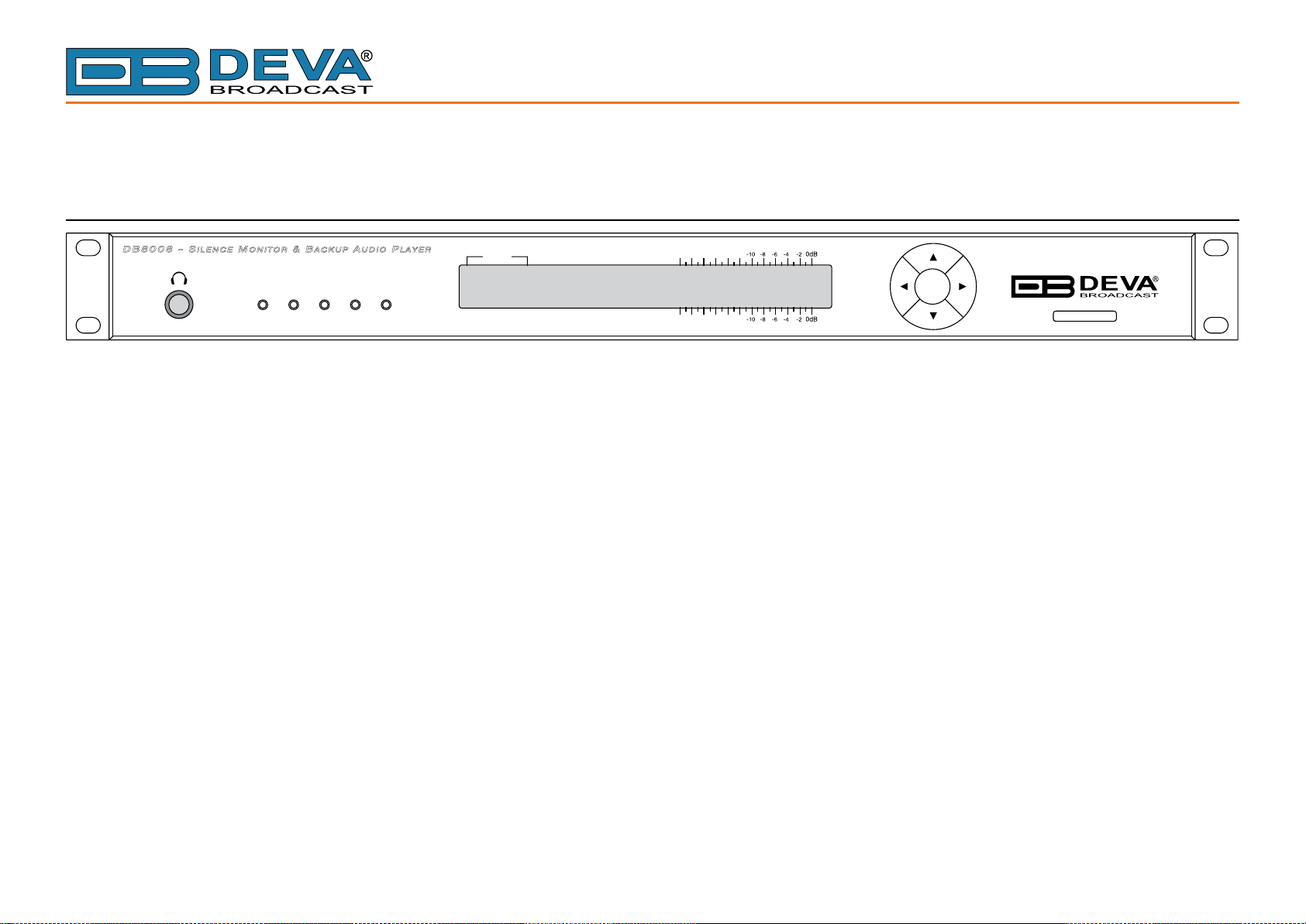
FRONT PANEL
65 Aleksandar Stamboliyski Str., 8000 Bourgas, Bulgaria
Tel: +359 56 820027, Fax: +359 56 836700
E-mail: of[email protected] ,Web: www.devabroadcast.com
Panel Indicators and Connectors
DB8008 - S
ILENCEMONITOR
PHO NE S
& B
ACKUPAUDIOPLAYER
LAN AUX
MP3
SOURCE
MEMORYIP AUDIO
-40
-40
-20
-30
-35
-25
-15
-20
-30
-35
-25
-15
PHONES – Stereo 1/4” (6.3 mm) jack output for headphones;
LAN – indicates LAN presence;
MP3 – indicates MP3 Player active;
IP AUDIO - indicates IP Audio Stream active;
AUX – indicates Auxiliary Source Input active;
MEMORY – blinks when the SD Card is in use, or when the Card is full (memory overow);
SD CARD - 2Gb SD Card for MP3 Audio Backup
OK
SD CARD
- 16 -
Page 17
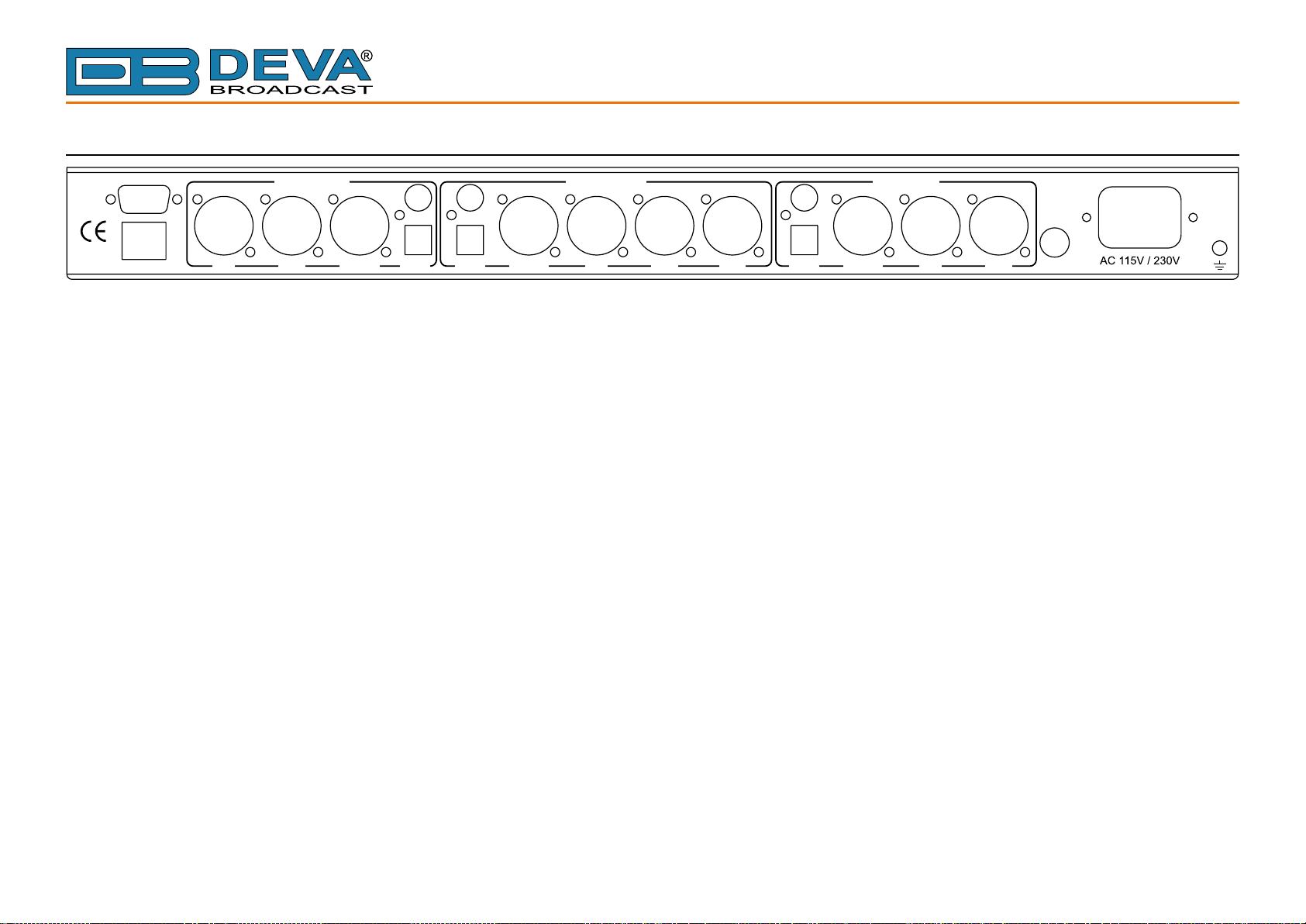
REAR PANEL
65 Aleksandar Stamboliyski Str., 8000 Bourgas, Bulgaria
Tel: +359 56 820027, Fax: +359 56 836700
E-mail: of[email protected] ,Web: www.devabroadcast.com
MADE IN
BULGARIA
ALARM OUT
LAN
LEFT
AUX AUDIO INPUT
RIGHT
AES/EBU S/PDIF
MAIN AUDIO INPUT AUDIO OUTPUT
AES/EBUS/PDIF
LEFT
RIGHT
SYNC
AES/EBUS/PDIF
LEFT
RIGHT
FUSE
ALARM OUT - DB9 connector;
LAN – RJ-45 connector for TCP/IP connection;
AUX AUDIO INPUTS: Analog Inputs (Left and Right) - XLR Type; Digital Inputs - AES/EBU, S/PDIF and Optical;
MAIN AUDIO INPUTS: Analog Inputs (Left and Right) - XLR Type; Sync Input - XLR Type; Digital Inputs - AES/EBU, S/PDIF and Optical;
AUDIO OUTPUT: Analog Outputs (Left and Right) - XLR Type; Digital Outputs - AES/EBU, S/PDIF and Optical;
AC 115V/230V – Mains connector, IEC320 type;
FUSE - 1A (equipped at factory)
GND
- 17 -
Page 18
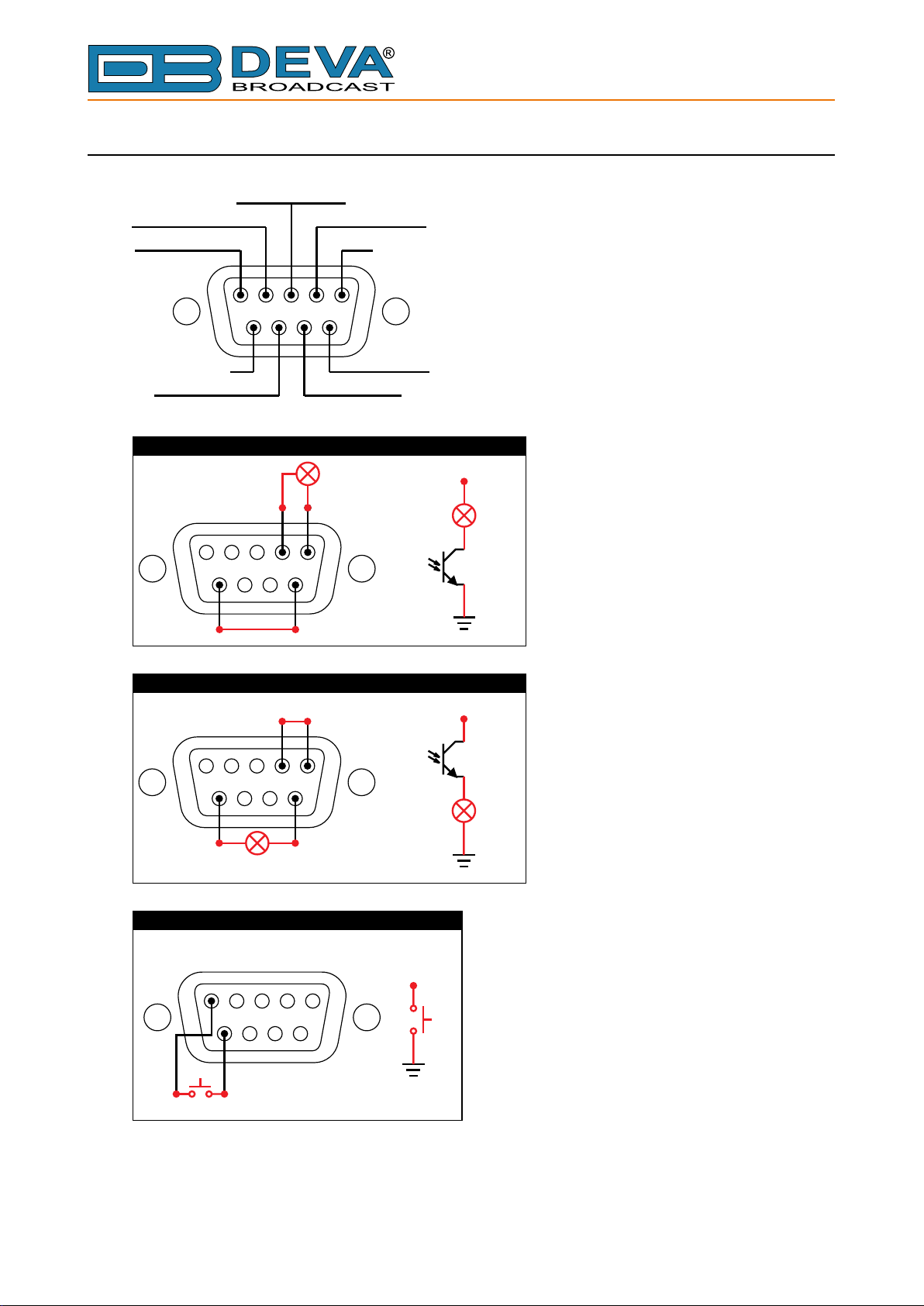
GPIO CONNECTOR PINOUTS
Aux Loss (Collector)
IP Audio Loss (Collector)
GP IN (GPI Selector)
Main Loss (Collector)
+3.3V
12345
6789
65 Aleksandar Stamboliyski Str., 8000 Bourgas, Bulgaria
Tel: +359 56 820027, Fax: +359 56 836700
E-mail: of[email protected] ,Web: www.devabroadcast.com
GND
GND
Main (C)
Main (C)
Main Loss (Emitter)
Aux Loss (Emitter)IP Audio Loss (Emitter)
Main - Active +
LOAD
+3.3V
Main (E)
Main - Active 0
+3.3V
+3.3V
LOAD
Main
GND
+3.3V
Main
LOAD
GND
LOAD
Main (E)
GPI Selector - Normally Open
GP IN
GND
GP IN
GND
Electrical Characteristics of Optocouplers
Vec < 6V Ic < 50mA
Vce < 70V Pd < 150mW
GND
- 18 -
Page 19
65 Aleksandar Stamboliyski Str., 8000 Bourgas, Bulgaria
E-mail: of[email protected] ,Web: www.devabroadcast.com
Tel: +359 56 820027, Fax: +359 56 836700
Navigation Through LCD Menu
THE BASICS
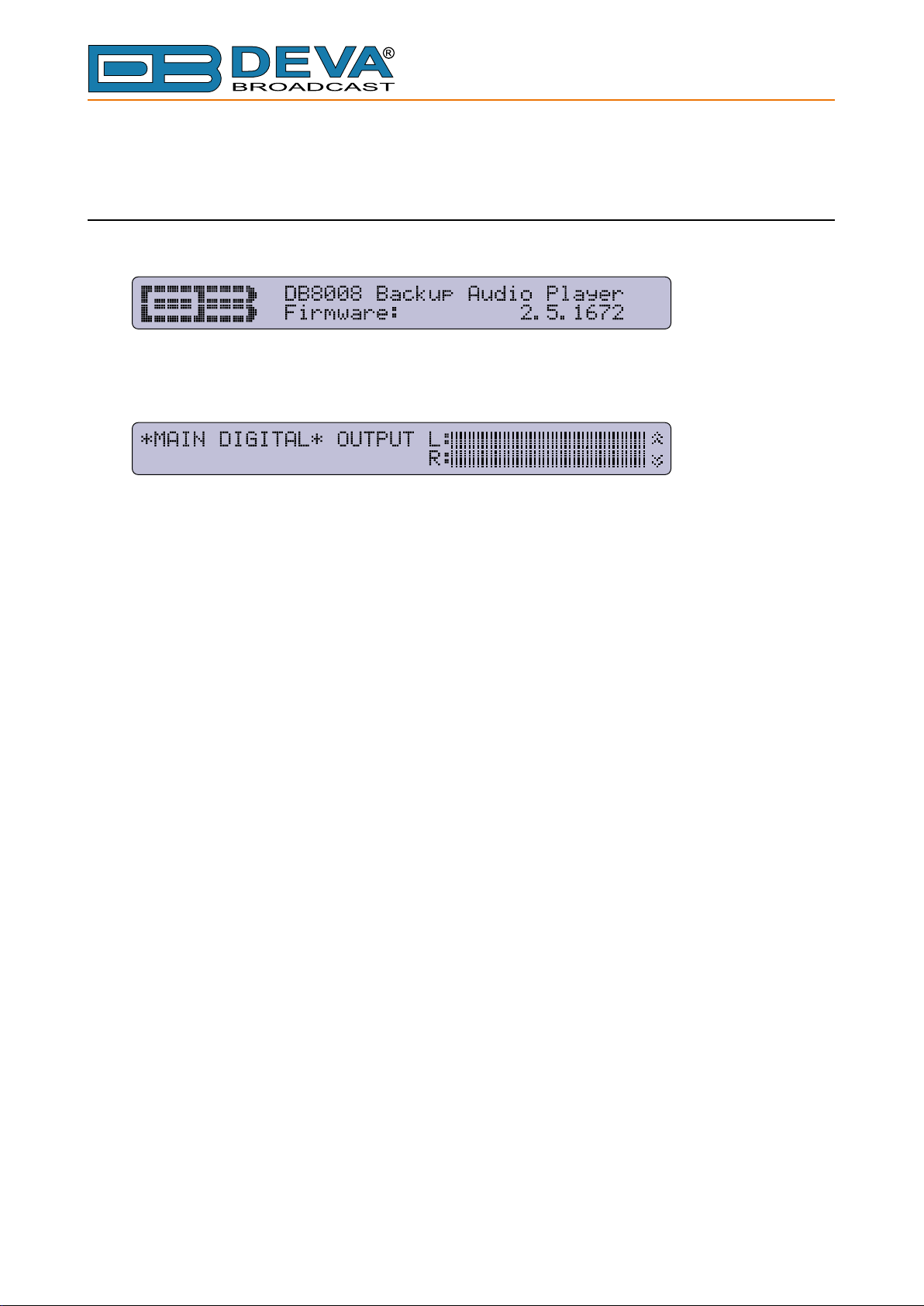
Upon power-up, the LCD Screen shows the Company Logo and the model of the device.
After the Initial screen disappears (in a few seconds), it will be replaced by the Main Menu
readings.
This is the starting point of the navigation process.
Prior to proceeding further in the menu structure, it is important to note the basic functionality
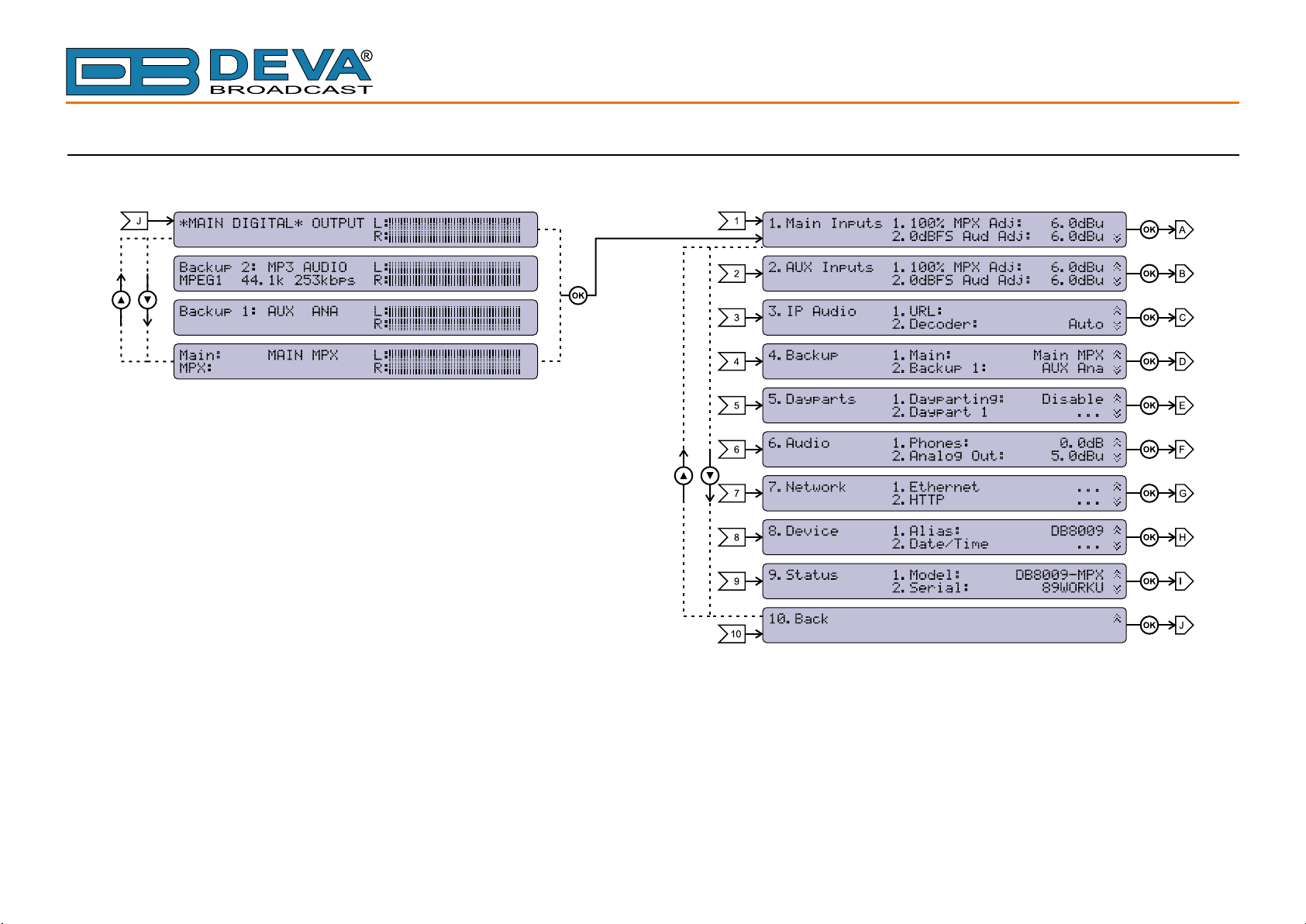
- the keyboard (placed on the right of the LCD Screen) consists of [Up], [Down], [Left], [Right]
and [OK] buttons. The Main Menu structure has an up-and-down basis, expanded with left-to-right
branches.
- 19 -
Page 20
65 Aleksandar Stamboliyski Str., 8000 Bourgas, Bulgaria
E-mail: of[email protected] ,Web: www.devabroadcast.com
Tel: +359 56 820027, Fax: +359 56 836700
MENU STRUCTURE
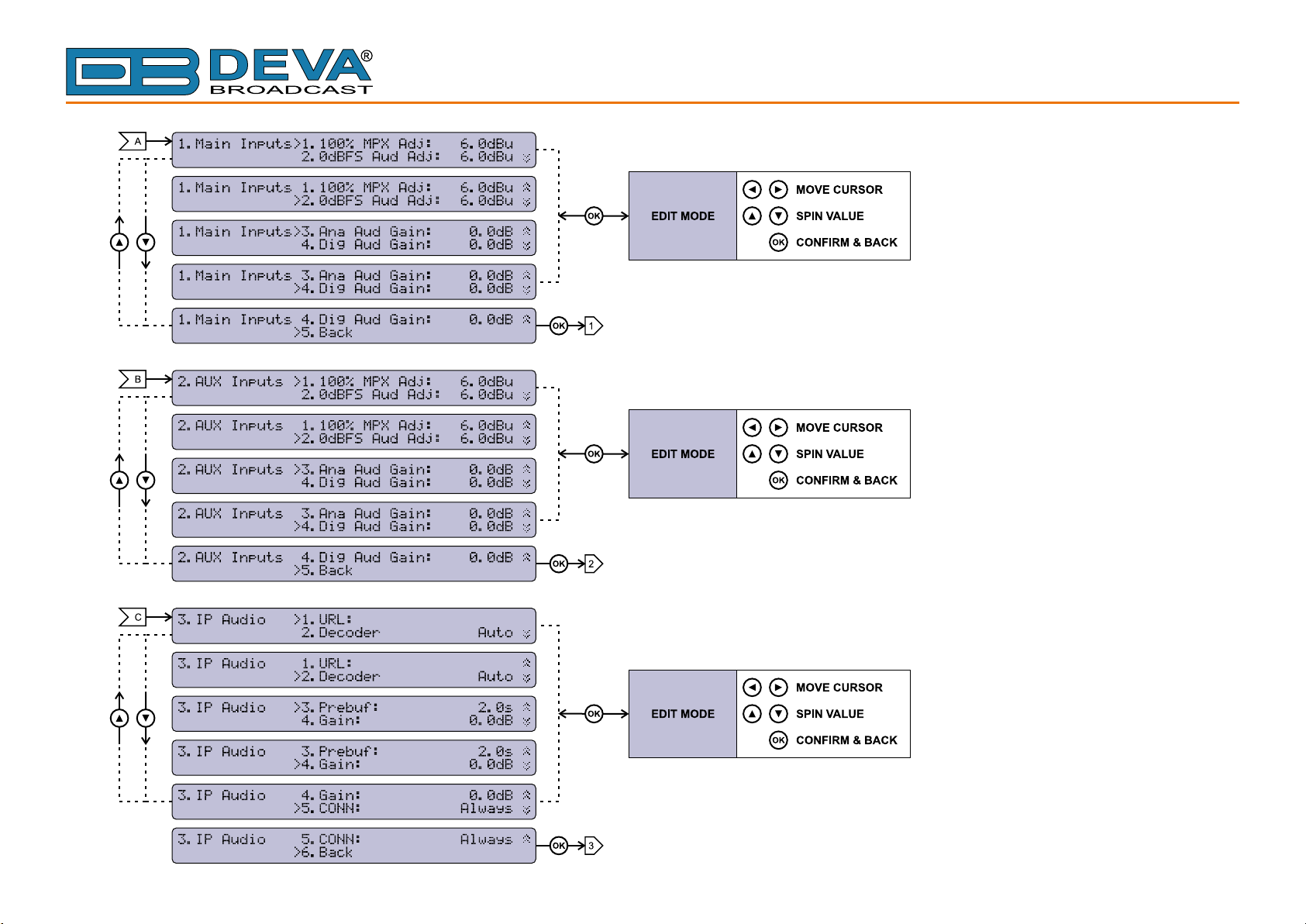
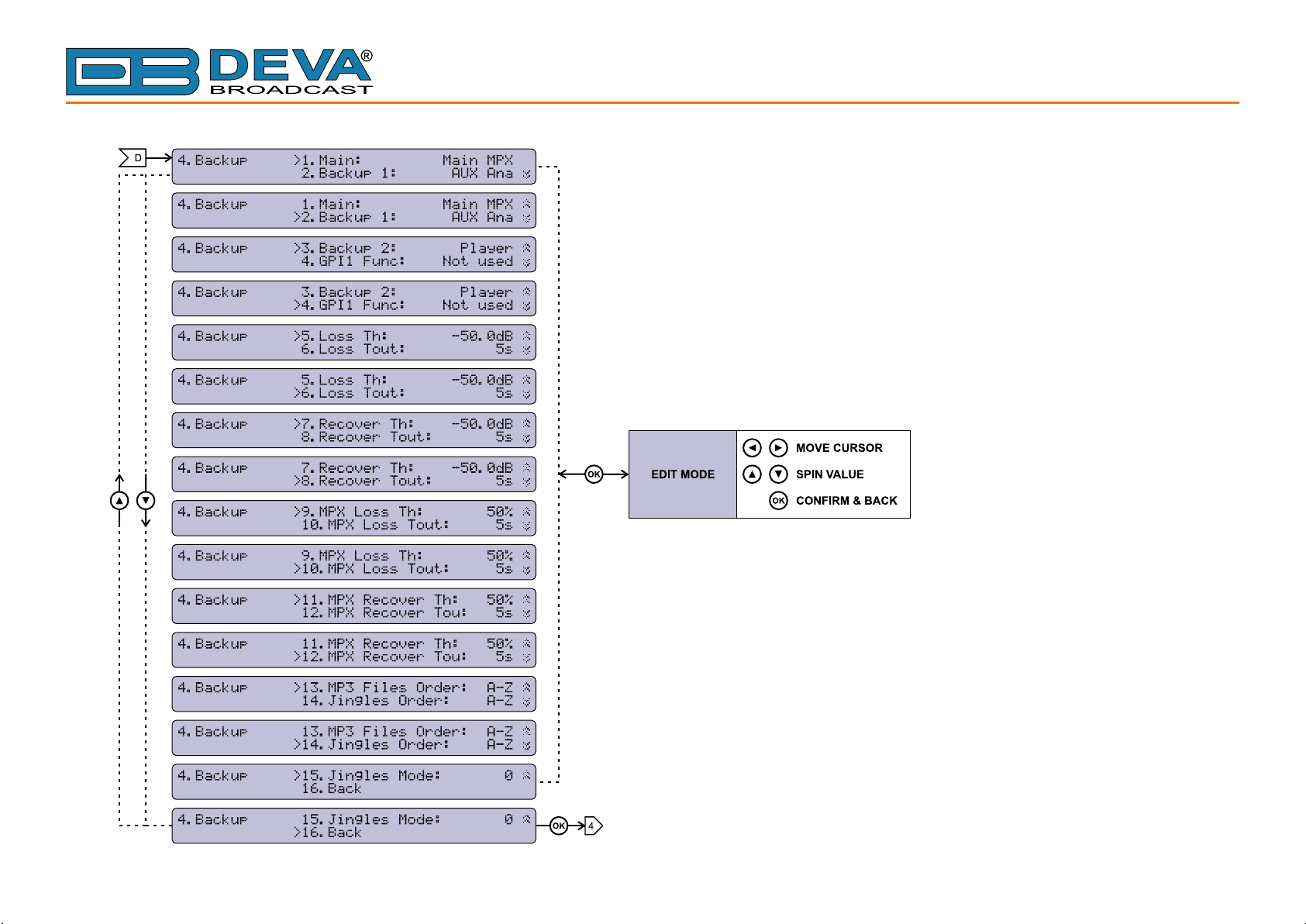
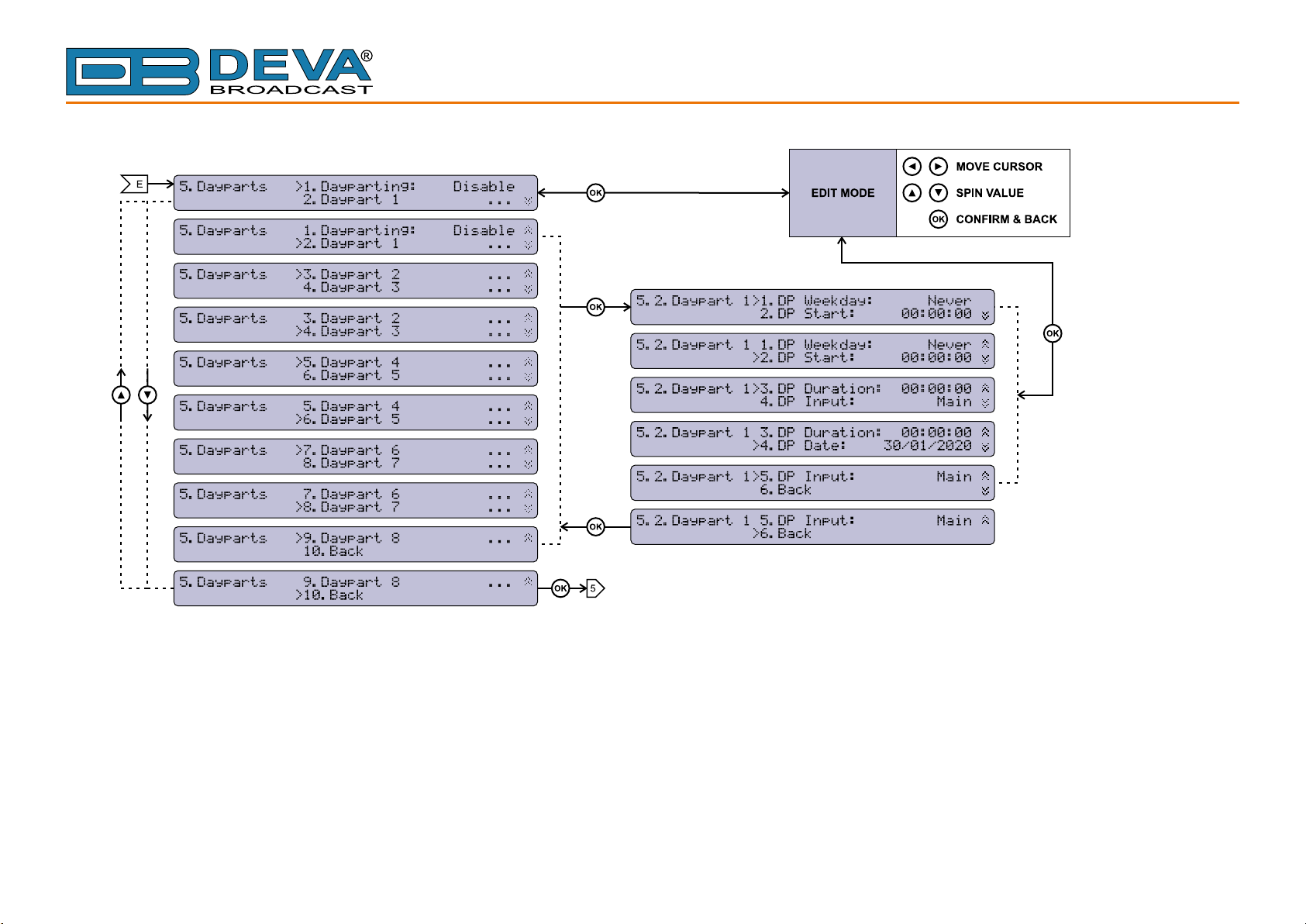
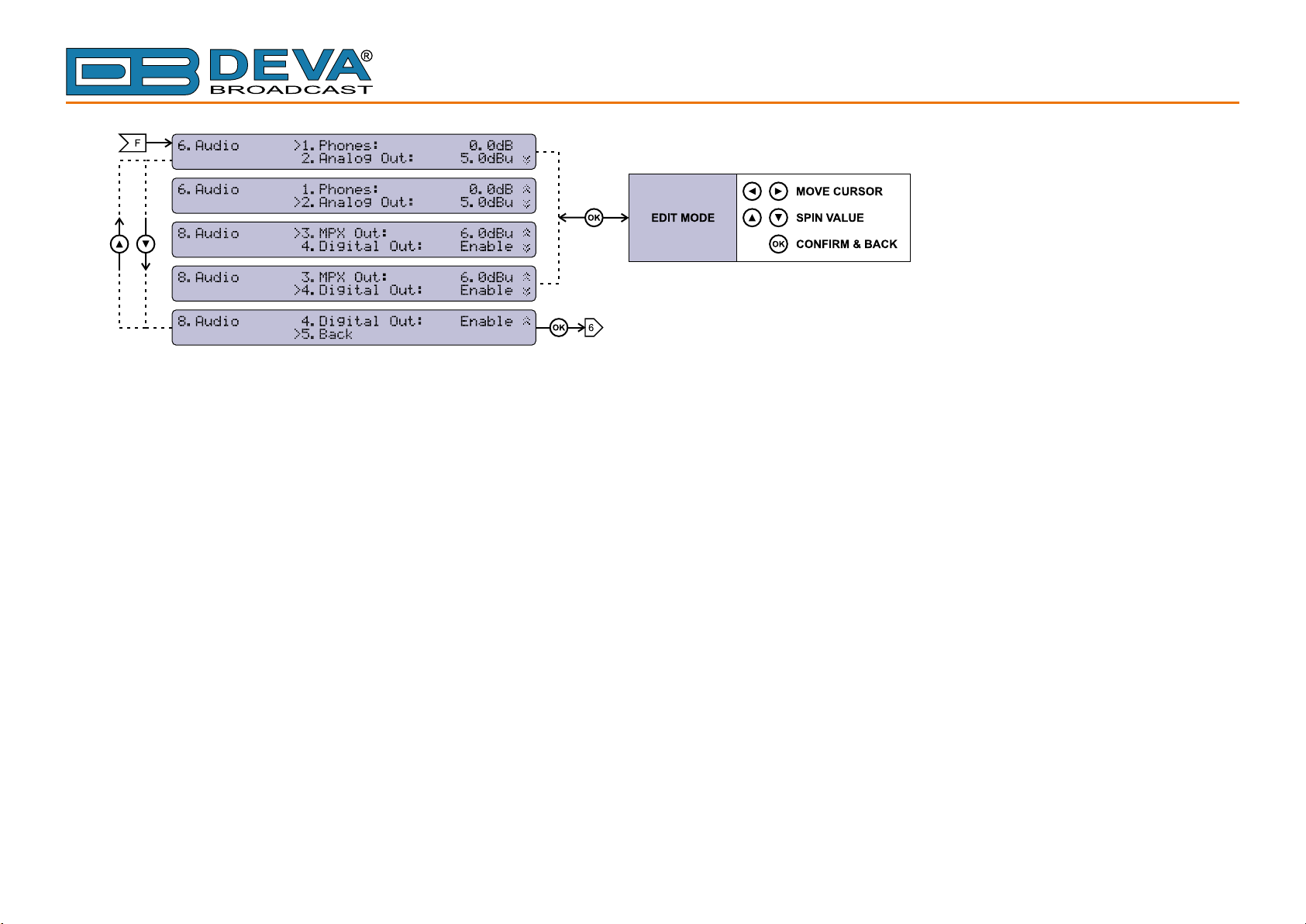
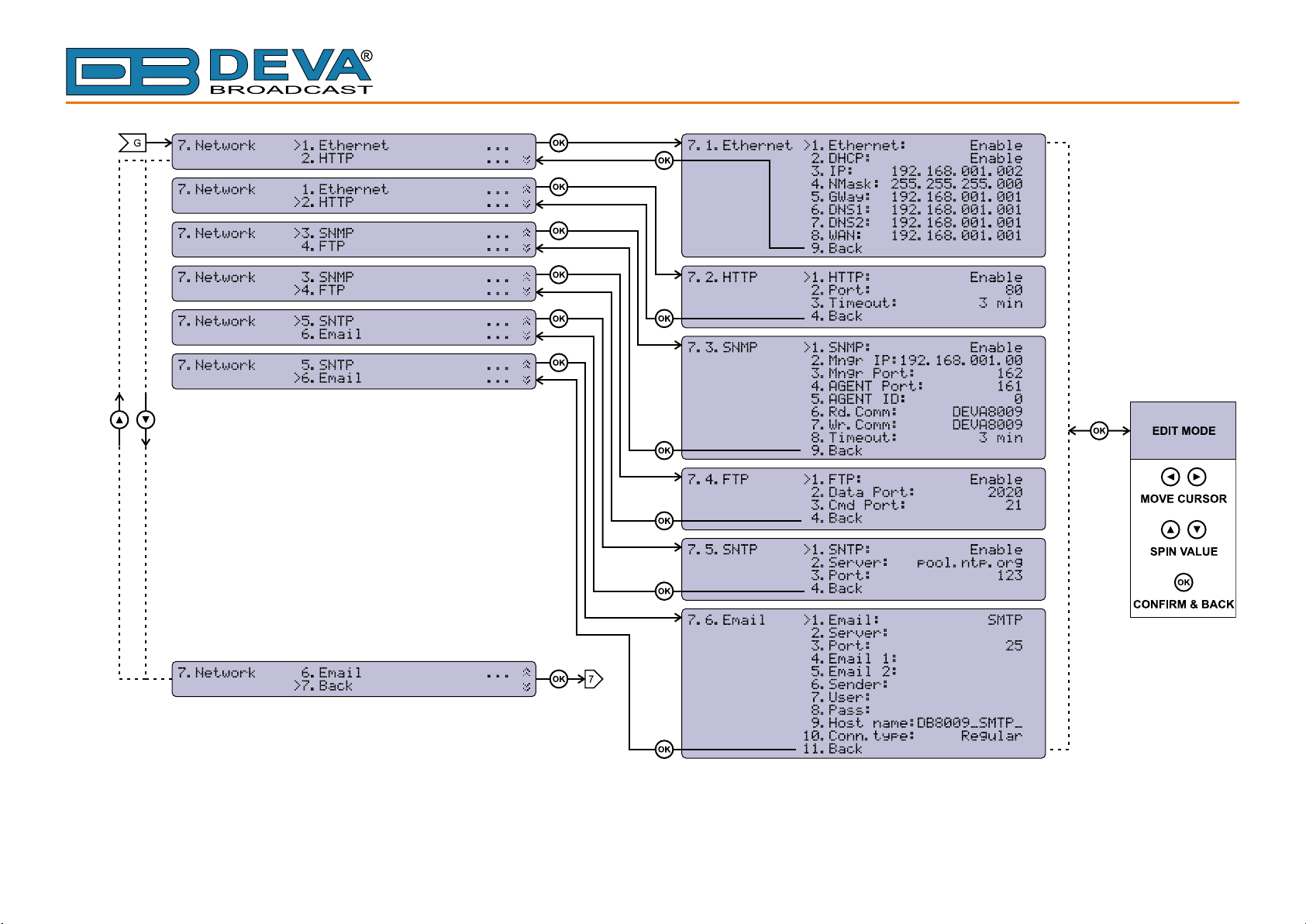
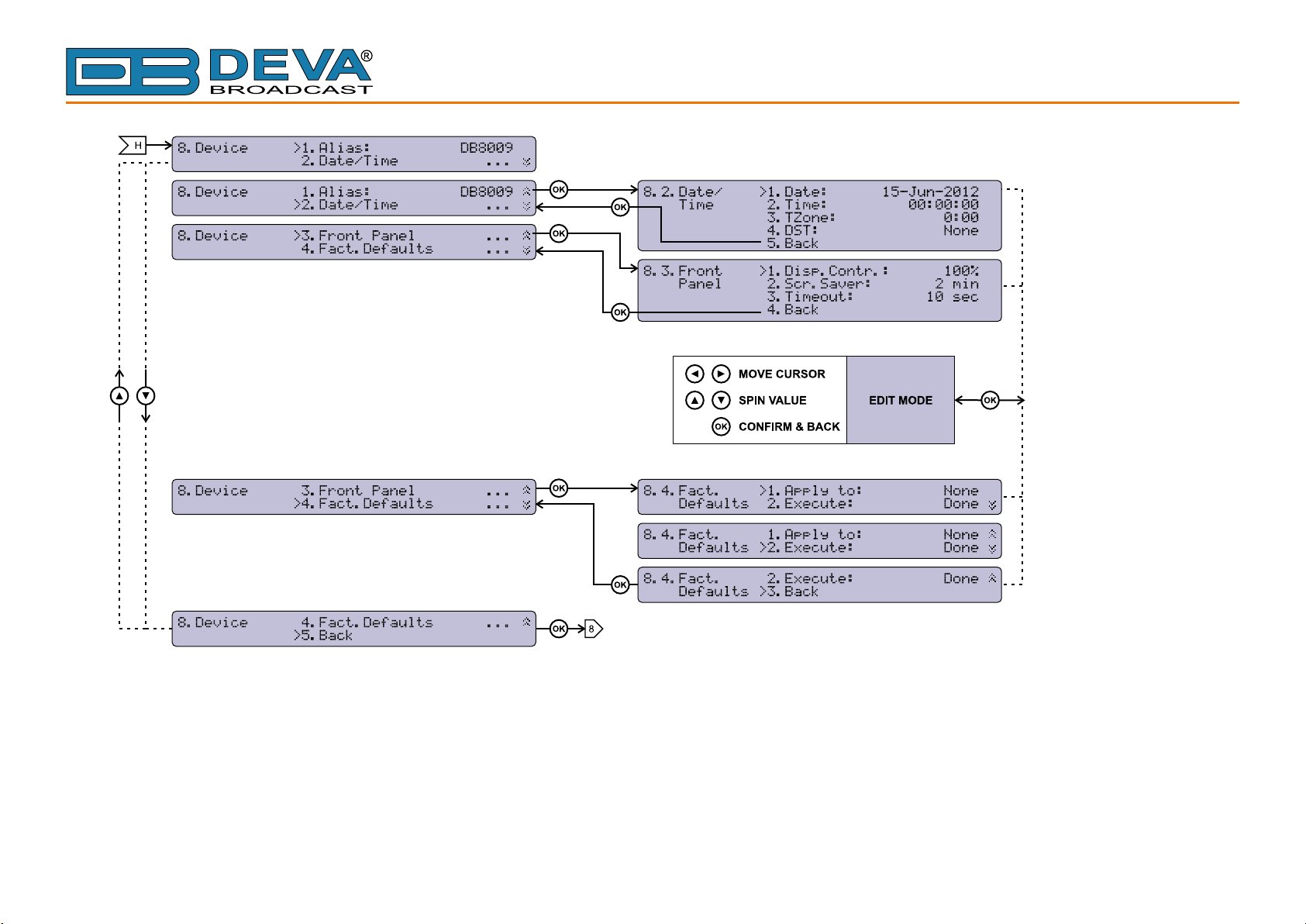
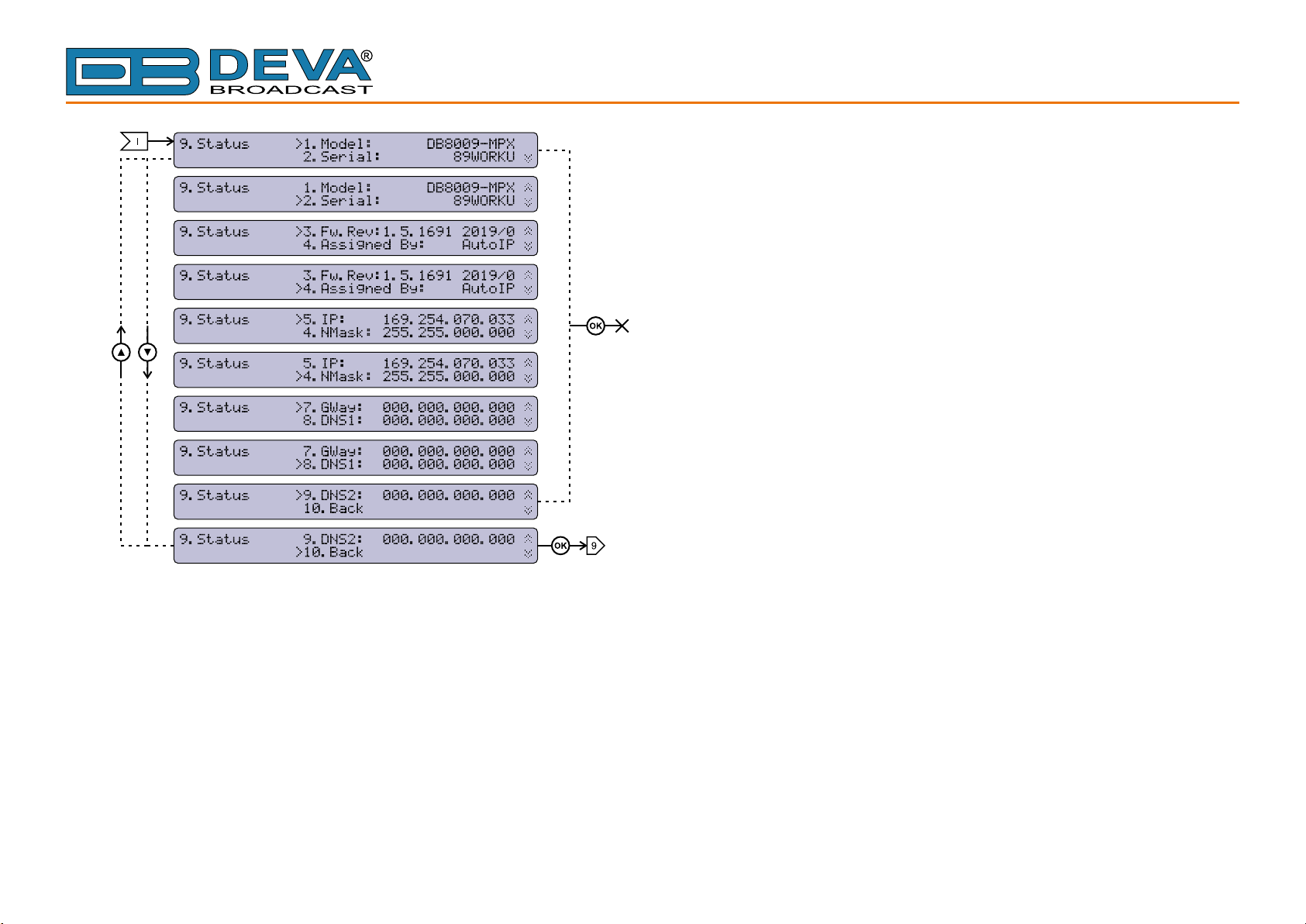
The following block diagram shows expanded view of the menu structure. To switch between the different pages use the denoted Buttons.
- 20 -
Page 21
65 Aleksandar Stamboliyski Str., 8000 Bourgas, Bulgaria
E-mail: of[email protected] ,Web: www.devabroadcast.com
Tel: +359 56 820027, Fax: +359 56 836700
- 21 -
Page 22
65 Aleksandar Stamboliyski Str., 8000 Bourgas, Bulgaria
E-mail: of[email protected] ,Web: www.devabroadcast.com
Tel: +359 56 820027, Fax: +359 56 836700
- 22 -
Page 23
65 Aleksandar Stamboliyski Str., 8000 Bourgas, Bulgaria
E-mail: of[email protected] ,Web: www.devabroadcast.com
Tel: +359 56 820027, Fax: +359 56 836700
- 23 -
Page 24
65 Aleksandar Stamboliyski Str., 8000 Bourgas, Bulgaria
E-mail: of[email protected] ,Web: www.devabroadcast.com
Tel: +359 56 820027, Fax: +359 56 836700
- 24 -
Page 25
65 Aleksandar Stamboliyski Str., 8000 Bourgas, Bulgaria
E-mail: of[email protected] ,Web: www.devabroadcast.com
Tel: +359 56 820027, Fax: +359 56 836700
- 25 -
Page 26
65 Aleksandar Stamboliyski Str., 8000 Bourgas, Bulgaria
E-mail: of[email protected] ,Web: www.devabroadcast.com
Tel: +359 56 820027, Fax: +359 56 836700
- 26 -
Page 27
65 Aleksandar Stamboliyski Str., 8000 Bourgas, Bulgaria
E-mail: of[email protected] ,Web: www.devabroadcast.com
Tel: +359 56 820027, Fax: +359 56 836700
- 27 -
Page 28

65 Aleksandar Stamboliyski Str., 8000 Bourgas, Bulgaria
E-mail: of[email protected] ,Web: www.devabroadcast.com
Tel: +359 56 820027, Fax: +359 56 836700
RESTORE FACTORY DEFAULTS
If an emergency recover is necessary, the DB8008 can Restore Factory Defaults from its nonvolatile memory. The step-by-step process can be found below:
1. Disconnect/Remove all external cables and etc. except the Mains Power.
2. Using the keyboard, navigate to 8.Device > 8.4.Factory Defaults.
3. Press the [OK] Button and select one of the following options - All, Keep COM,
Chans. Press [OK];
4. Press the [Down] button and then [OK] to select the Execute menu. Then using the
[Down] button select Yes and press [OK].
5. The device will be returned to its factory defaults.
WARNING: When the device is returned to its Factory defaults, remote users would not be
aware, and may cease to communicate with device.
- 28 -
Page 29

65 Aleksandar Stamboliyski Str., 8000 Bourgas, Bulgaria
E-mail: of[email protected] ,Web: www.devabroadcast.com
Tel: +359 56 820027, Fax: +359 56 836700
Connecting DB8008
ANALOG AUDIO INPUTS
Using a cable ending with two standard XLR connectors connect the analog signal source to the
analog audio inputs of DB8008.
WARNING: Do not exceed maximum input level. This may permanently damage DB8008.
DIGITAL AUDIO INPUT
Using a cable ending with a standard XLR connectors connect the AES/EBU signal source to
the digital audio input of DB8008.
NOTE: As only one input can be managed by the encoder at a time, please select the preferred
signal source input – either analog or digital one. Selecting the preferred input can be performed
under SETTINGS menu (see “Input” on page 35).
LAN PORT
In order for the normal operation of the device to be guaranteed, it is necessary the encoder to
be connected to a local network or the Internet by a cable with RJ-45 connector.
- 29 -
Page 30
65 Aleksandar Stamboliyski Str., 8000 Bourgas, Bulgaria
E-mail: of[email protected] ,Web: www.devabroadcast.com
Tel: +359 56 820027, Fax: +359 56 836700
Operation
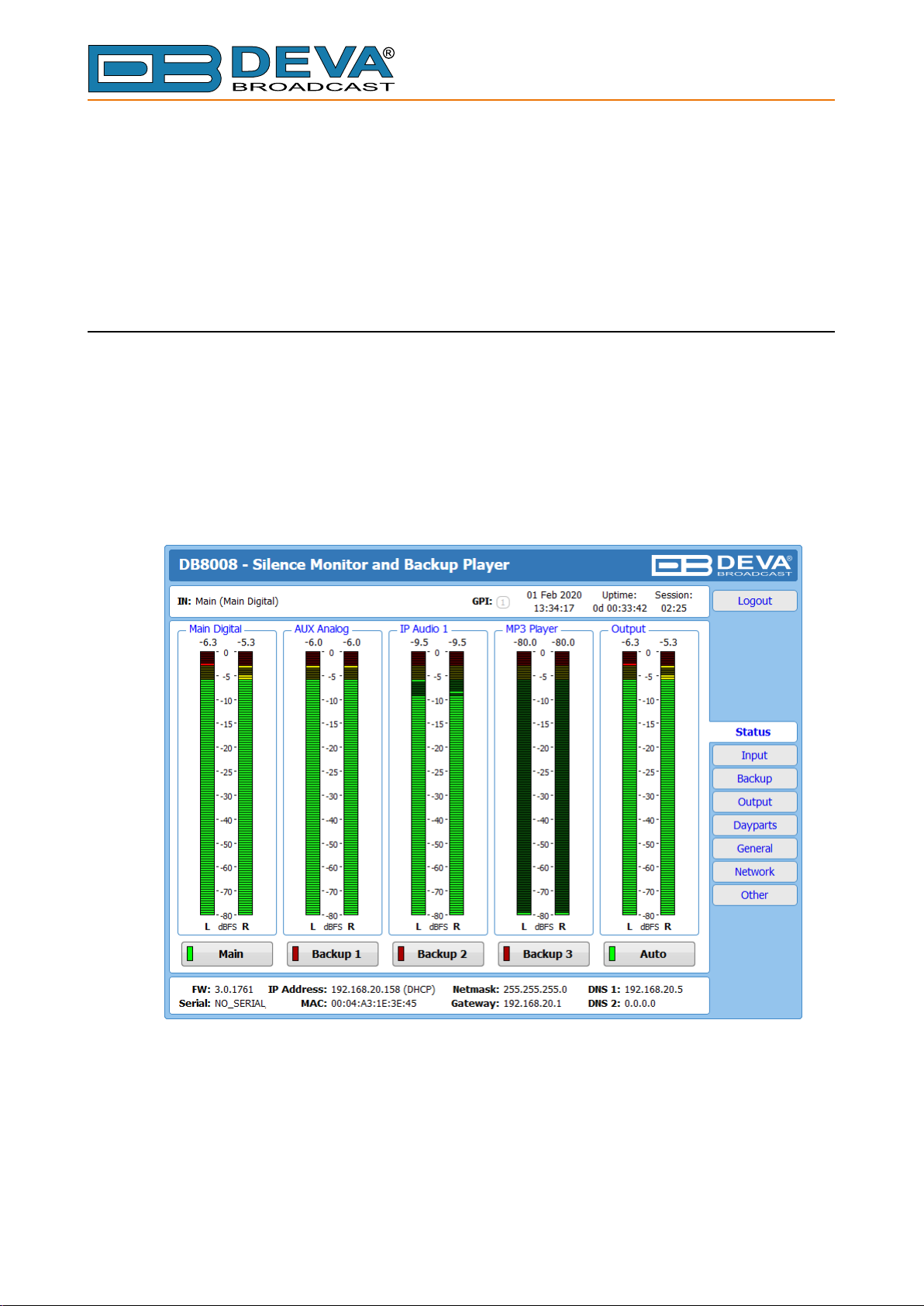
DB8008 is controlled trough a build in WEB Server and a standard Web browser can be used
to monitor its status or to make some adjustments. To operate the device you need to know its
IP Address. In case you are not aware of it, you can use the Network discovery feature at Local
networks or the front panel navigational menu (Manual IP Identication).
MANUAL IP IDENTIFICATION
1. Connect the device to the local network or to the Internet by LAN cable;
2. Using the front panel navigation menu press [OK] button to enter the device Menu;
3. Using the navigation buttons nd the 7.Network – press [OK] – navigate to 7.1.
Ethernet – press [OK] – navigate to 3. IP;
4. A screen containing information about the 2. DHCP Mode and the 3. IP Address
of the device will appear.
Open a new WEB Browser and enter the device IP address in the address eld then press
[Enter]. A new WEB browser with DB8008’s Main window will appear.
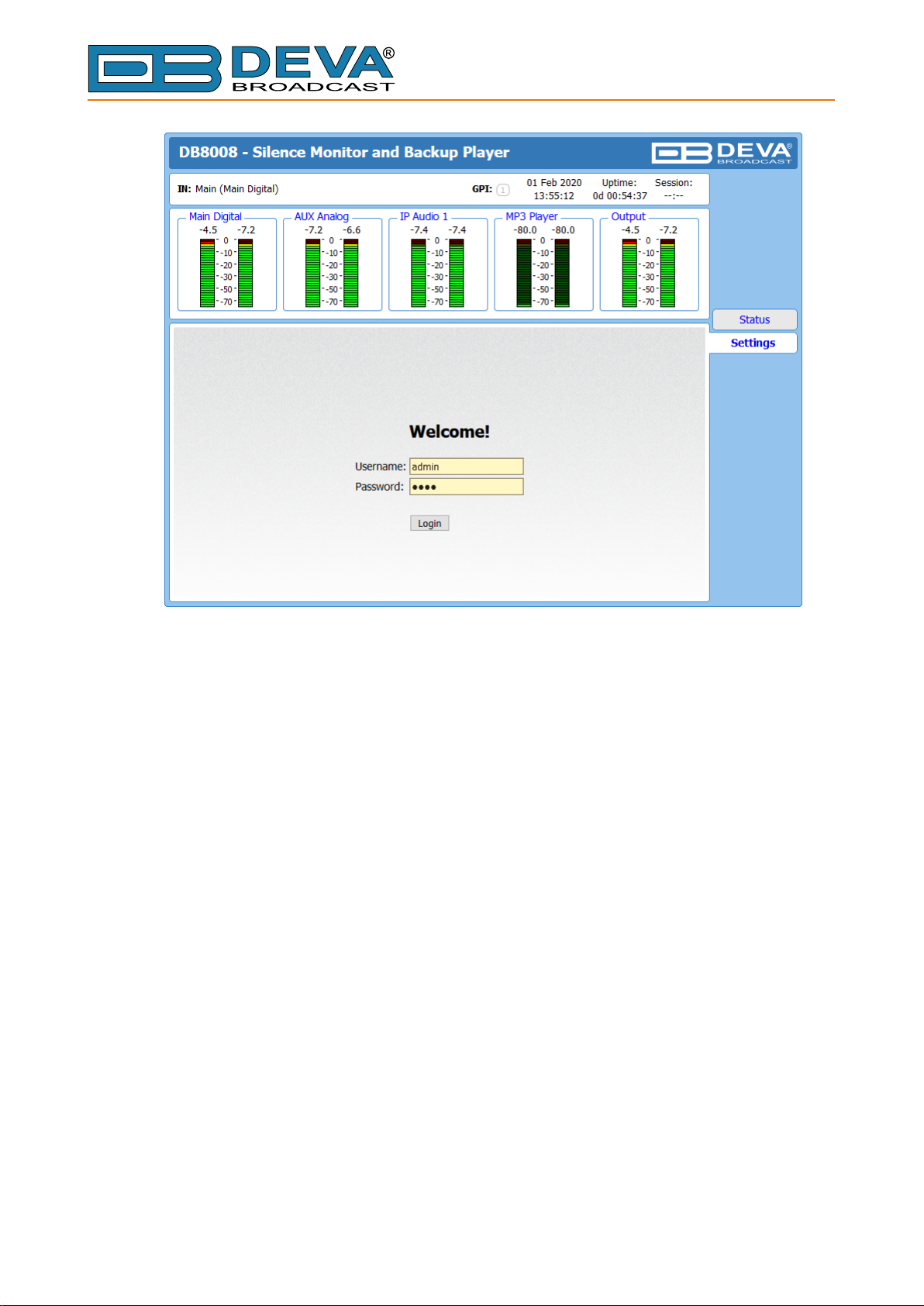
To access the device’s settings press [Settings], the default values are username: admin and
password: pass.
- 30 -
Page 31
65 Aleksandar Stamboliyski Str., 8000 Bourgas, Bulgaria
E-mail: of[email protected] ,Web: www.devabroadcast.com
Tel: +359 56 820027, Fax: +359 56 836700
NOTE: Due to the inability of some WEB Browsers to read the IP address format displayed
on the screen of the device, the numbers included in the IP Address must be written without the
leading zeros. For example: 192.168.020.068 must be written as 192.168.20.68
- 31 -
Page 32
65 Aleksandar Stamboliyski Str., 8000 Bourgas, Bulgaria
E-mail: of[email protected] ,Web: www.devabroadcast.com
Tel: +359 56 820027, Fax: +359 56 836700
NETWORK DISCOVERY
1. Open Advanced sharing settings by clicking the Start button, and then on “Control Panel”.
In the search box, type “network”, click “Network and Sharing Center”, and then, in the left
panel click “Change advanced sharing settings”.
2. Select your current network prole.
3. Click Turn on network discovery, and then click Save changes. If you’re prompted for an
administrator password or conrmation, type the password or provide conrmation.
4. To access the device open a new Explorer bar and click on Network. If you have successfully
enabled the network discovery option, the device will be displayed. Double click on DB8008
will open a new WEB browser with the Main window.
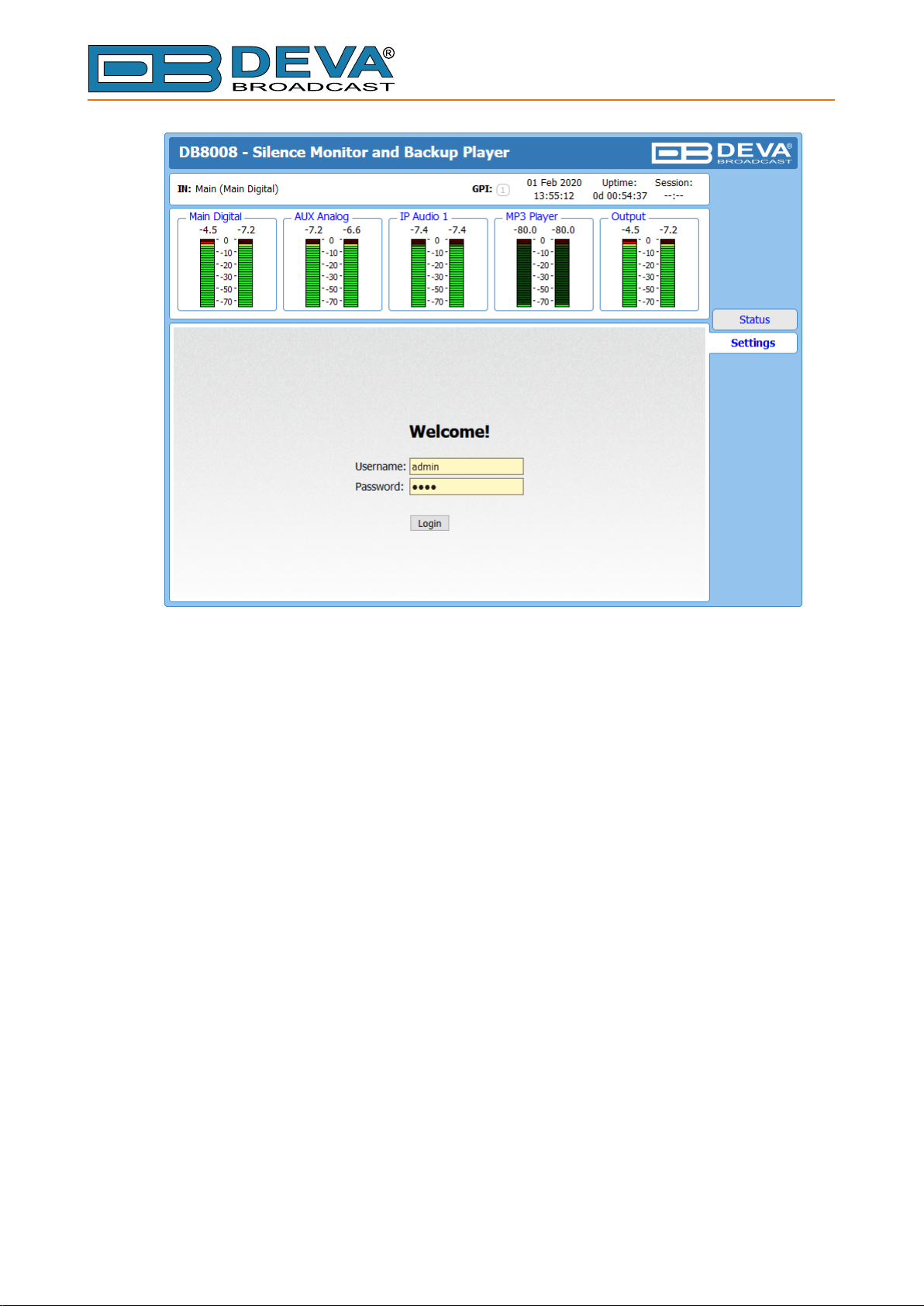
To access the device’s settings press [Settings], the default values are username: admin and
password: pass.
- 32 -
Page 33
65 Aleksandar Stamboliyski Str., 8000 Bourgas, Bulgaria
E-mail: of[email protected] ,Web: www.devabroadcast.com
Tel: +359 56 820027, Fax: +359 56 836700
NOTE: If you have already enabled this function on your computer just open a new Explorer
bar and click on Network. The device must be displayed. If not follow the instructions described
above.
- 33 -
Page 34
STATUS
65 Aleksandar Stamboliyski Str., 8000 Bourgas, Bulgaria
Tel: +359 56 820027, Fax: +359 56 836700
E-mail: of[email protected] ,Web: www.devabroadcast.com
DB8008 WEB interface menu pages
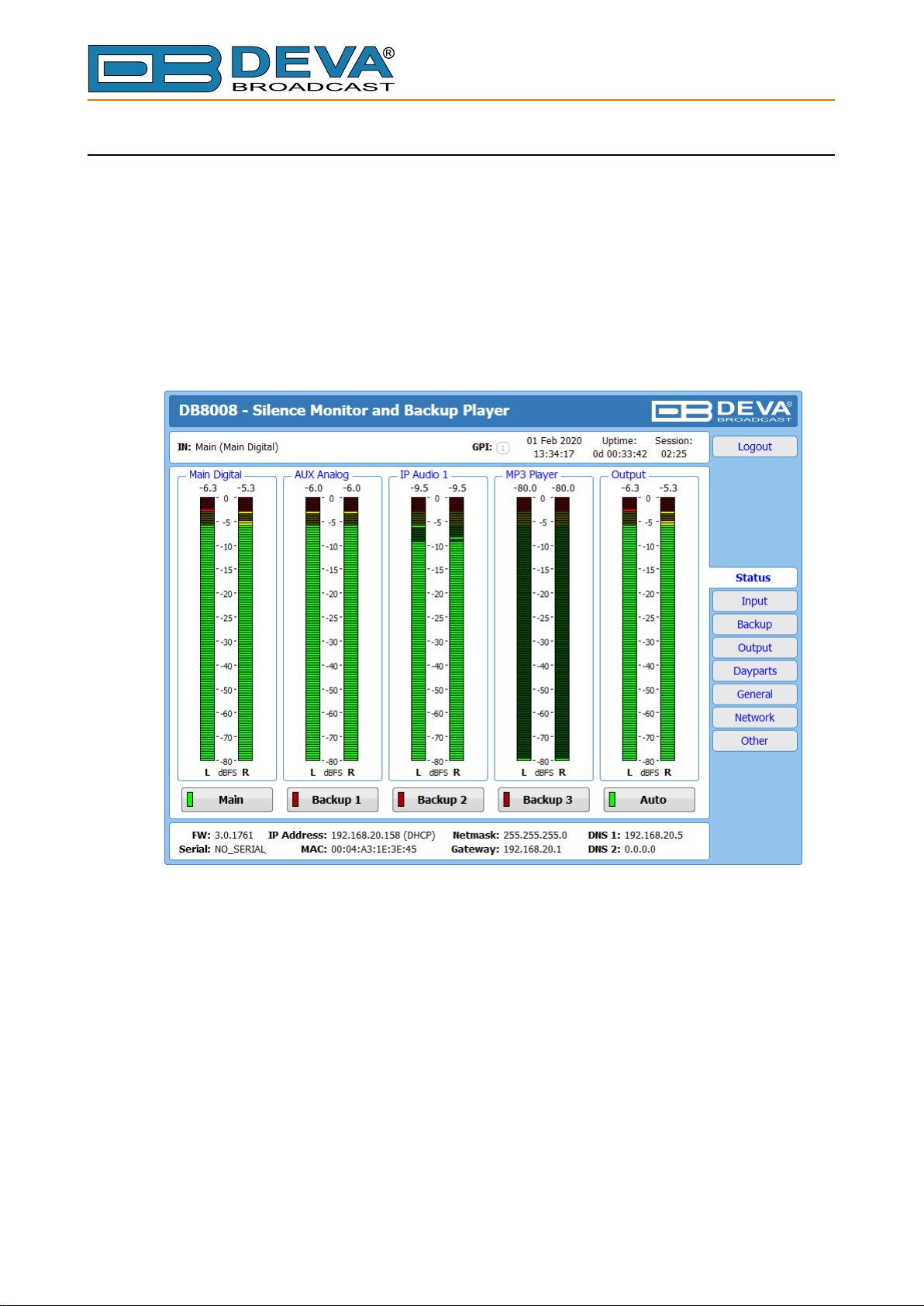
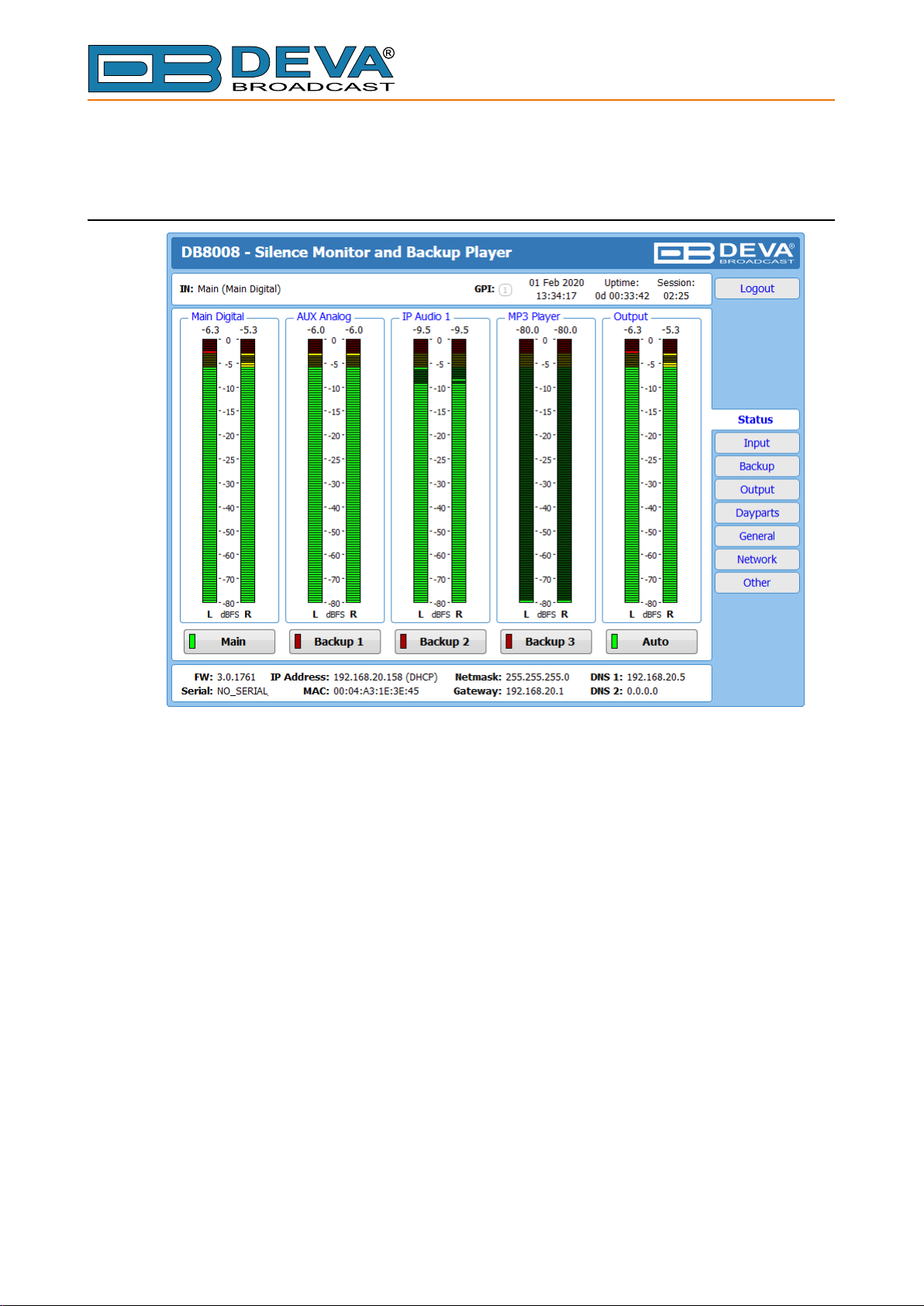
The Status screen contains information about the source levels. You can easily select the
preferred audio source by using the source selection buttons.
By selecting the interactive [Auto] button, the DB8008 will automatically select audio source
in accordance with the applied Audio Backup Settings.
At the bottom of the control window is an information bar, gathering all the important connection
parameters – Firmware Version in use, Serial Number, IP Address, and etc.
Upon change of the Web Interface screens, the main status window will resize automatically
and become a constant part of each tab. Thus, allowing reading at a glance of all the mandatory
parameters.
If a Backup Source is currently active, a warning message will indicate it (as depicted above).
- 34 -
Page 35
INPUT
65 Aleksandar Stamboliyski Str., 8000 Bourgas, Bulgaria
Tel: +359 56 820027, Fax: +359 56 836700
E-mail: of[email protected] ,Web: www.devabroadcast.com
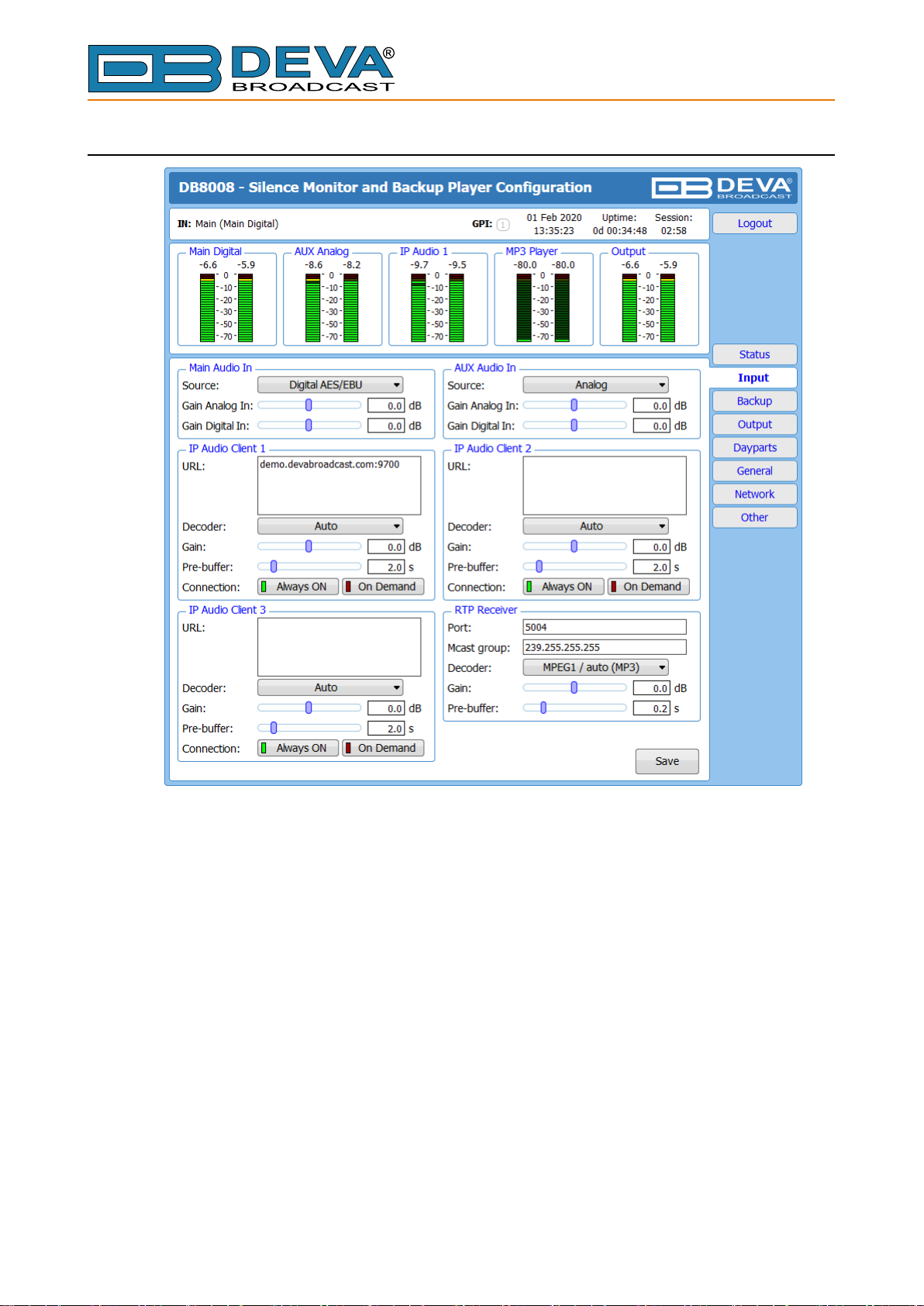
Main and AUX Input
• Source – Select input type: Analog, Digital AES/EBU, Digital S/DIF or Digital Optical
• Gain Analog In – Audio gain adjust from -10 to 10 dB. Default value is 0dB.
• Gain Digital In – Audio gain adjust from -10 to 10 dB. Default value is 0dB.
- 35 -
Page 36

65 Aleksandar Stamboliyski Str., 8000 Bourgas, Bulgaria
E-mail: of[email protected] ,Web: www.devabroadcast.com
Tel: +359 56 820027, Fax: +359 56 836700
IP Audio Client
Set Decoder from the drop-down menu, and URL of the stream server.
• Decoder (+ Sample rate) – Select decoder and sample rate. It can be set to Auto or set manually
to preferred decoder and sample rate. In Auto Mode, the DB8008 will adjust decoder and
sample rate, using stream supplied information. For PCM (uncompressed) sample rate can
be 32, 44.1 or 48 kHz. For MPEG1 the sample rate is determined automatically from the
stream.
• Pre-buffer – The minimum amount of time in which the unit will pre-buffer before playing
starts in order for problems with the connection to be prevented.
• Connection - Select connection type. On Demand will instruct IP Audio Client to establish
a connection only when it is the current audio source, otherwise it will stay disconnected.
This mode is useful for metered Internet connections. When set to Always ON the IP Audio
Client will keep the connection active even when it is not the current source.
NOTE: On Demand does not apply if IP Audio Client is the Main backup priority. In this case
it will work in Always ON mode.
NOTE: If Silence is detected while in On Demand mode, DB8008 will switch to the next
backup priority and will disconnect the IP Audio Client connection. It will not return to IP Audio
Client again before it switches to Main rst.
WHEN APPLYING NEW SETTINGS – In order new settings to take effect, it is necessary
to press the [Save] button. Please keep in mind that some of the new settings can reset DB8008.
- 36 -
Page 37
BACKUP
65 Aleksandar Stamboliyski Str., 8000 Bourgas, Bulgaria
Tel: +359 56 820027, Fax: +359 56 836700
E-mail: of[email protected] ,Web: www.devabroadcast.com
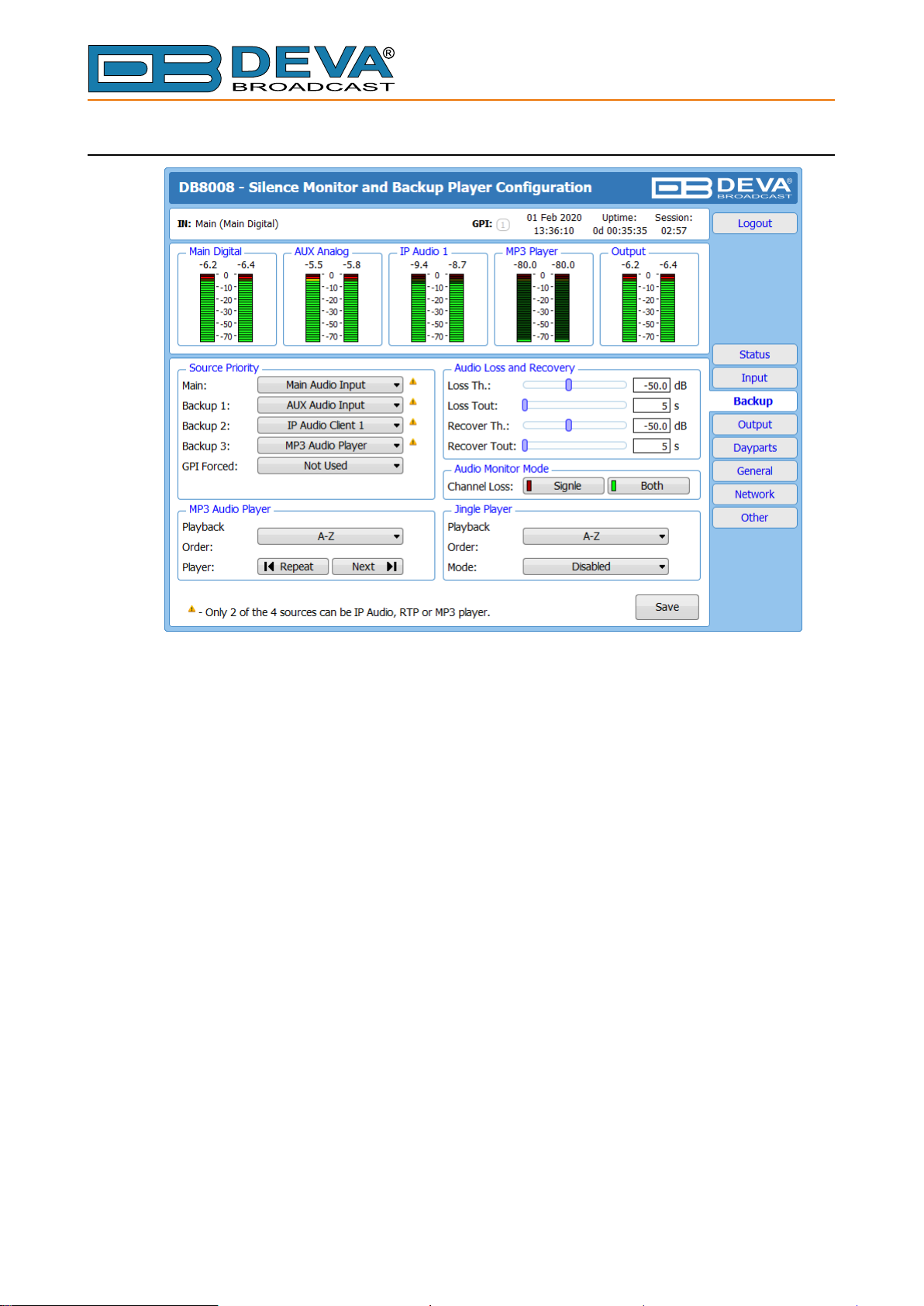
The backup sources priority is user-dened and can be set through the Source Priority section.
If the audio from the main source disappears, the DB8008 will automatically switch to the rst
backup source; if it also fails, the unit will switch to the second. Once a source with higher priority
is restored, the unit will switch back to it. The GPI Forced option will force selected audio input
(Main, Backup 1 or Backup 2) via GPI pin.
Audio Loss and Audio Recovery
Allow you to select the appropriate levels of loss and recovery of the audio signal. Do not forget
to set the corresponding timeouts.
Audio Monitor Mode
Denes which channel will be monitored for silence and respectively switch over. The following
options are available:
• Single – Loss is triggered if one of the channels is below the threshold. Recover is triggered
when both channels are above the threshold.
• Both – Loss is triggered if both channels are below the threshold. Recover is triggered when
one of channels is above the threshold.
MP3 Audio Player
The Playback Order can be changed from here. The following options are available: A-Z, Z-A,
Shufe, Playlist, and Shufed Playlist. Information on the used and available SD card storage
respectively, could also be found in this section. [Repeat] and [Next] button to navigate through
the playlist if need be, are also available.
MP3 Files Upload via FTP
Through the use of a standard FTP client, you have the opportunity to update the backup content
at will via any PC. The supported format is .mp3. An important requirement for the MP3 Player
conguration is that all MP3 les should be stored in a folder named Audio (no sub-folders are
allowed). The folder should be located in the root of the SD Card. The playlist le must be named
playlist.m3u.
- 37 -
Page 38

65 Aleksandar Stamboliyski Str., 8000 Bourgas, Bulgaria
E-mail: of[email protected] ,Web: www.devabroadcast.com
Tel: +359 56 820027, Fax: +359 56 836700
Jingle Player
This option is available only when the audio source is set to MP3 Audio Player. The Jingle
player is designed for playing jingles (speech and music) at different intervals specied by the
user. The intervals are counted by songs. From the Mode drop down menu the number of songs
after which a jingle should be played is chosen. The Playback Order is also user-dened. Generally
speaking, the Jingle Player allows you to make a simple radio play out.
Jingle Files Upload via FTP
Through the use of a standard FTP client, you have the opportunity to update the backup content
at will via any PC. The supported format is .mp3. An important requirement is that all jingles
should be stored in a folder named ‘Jingles’ (no subfolders are allowed). The folder should be
located in the root of the SD Card. The playlist le must be named playlist.m3u. For information
on how the connection between the DB8008 and an FTP Client should be congured, please refer
to “Download/Upload les via FTP” on page 52.
Howcanaplaylistlebemade?
1. All backup audio les, and the play list must be located in a single folder named Audio.
2. Use a plain text editor to create a le named playlist.m3u.
3. The le should be stored in the same directory where the MP3 les are (folder Audio);
4. The play list should contain only the names of the les, without path. For example: Track1.
mp3
5. Each track name should be on a new line.
6. The song titles should be written in the order that should be played.
WHEN APPLYING NEW SETTINGS – In order new settings to take effect, it is necessary
to press the [Save] button. Please keep in mind that some of the new settings can reset DB8008.
- 38 -
Page 39
OUTPUT
65 Aleksandar Stamboliyski Str., 8000 Bourgas, Bulgaria
Tel: +359 56 820027, Fax: +359 56 836700
E-mail: of[email protected] ,Web: www.devabroadcast.com
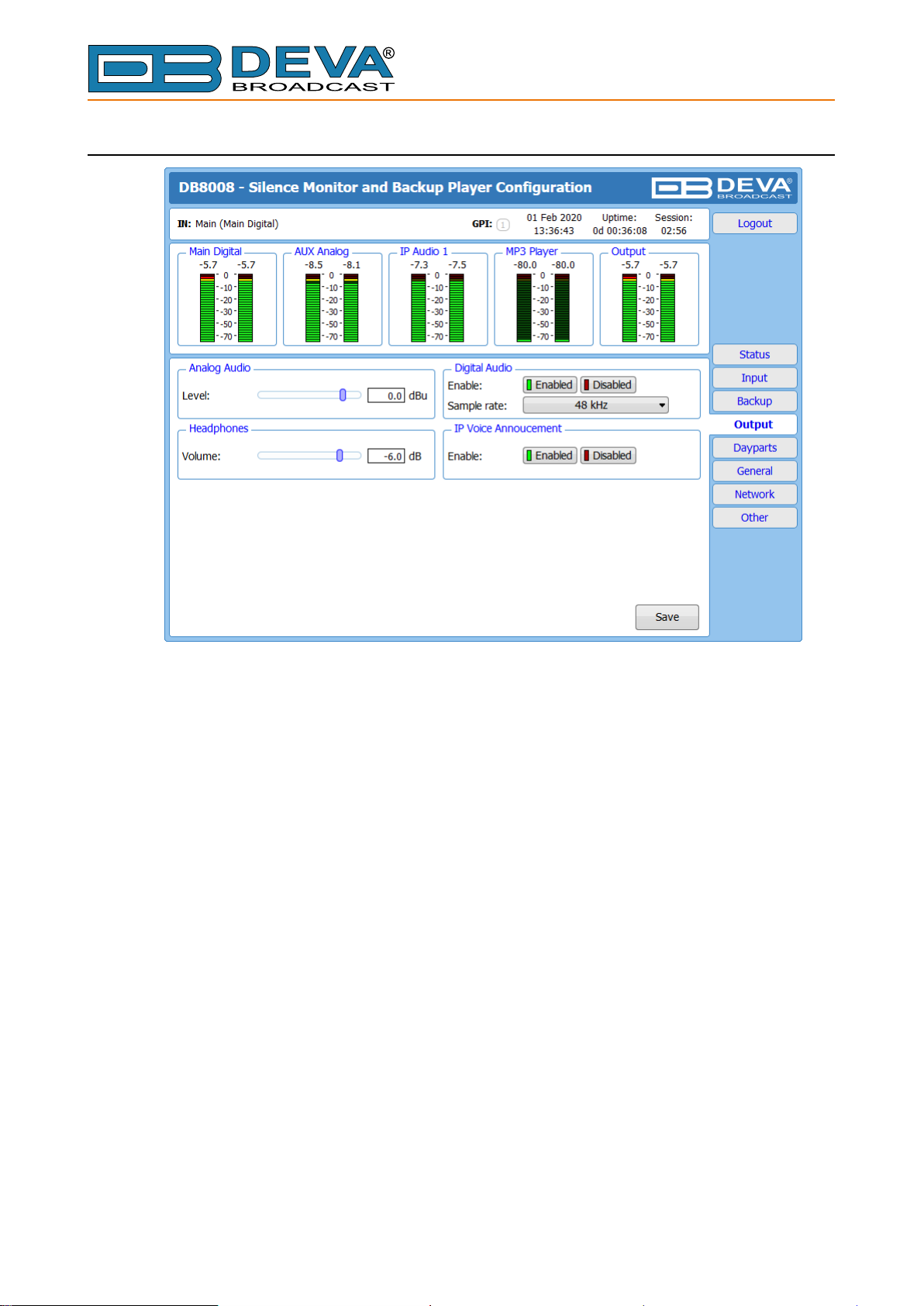
Analog Audio
– set the level of the Analog Audio output (in dBu).
Digital Audio
– enable or disable the Digital Audio output.
Headphones
– set the level of the Headphones. Only the selected Silence detection audio will be heard
trough the headphones.
IP Voice Announcement
– Enables or disables the IP Voice Announcement option. By default and to ease the set-up
process the option is enabled. Once the set-up process is completed, it is recommended the option
to be disabled. Otherwise, the IP Voice Announcement will continue to be played.
WHEN APPLYING NEW SETTINGS – In order new settings to take effect, it is necessary
to press the [Save] button. Please keep in mind that some of the new settings can reset DB8008.
- 39 -
Page 40
DAYPARTS
65 Aleksandar Stamboliyski Str., 8000 Bourgas, Bulgaria
Tel: +359 56 820027, Fax: +359 56 836700
E-mail: of[email protected] ,Web: www.devabroadcast.com
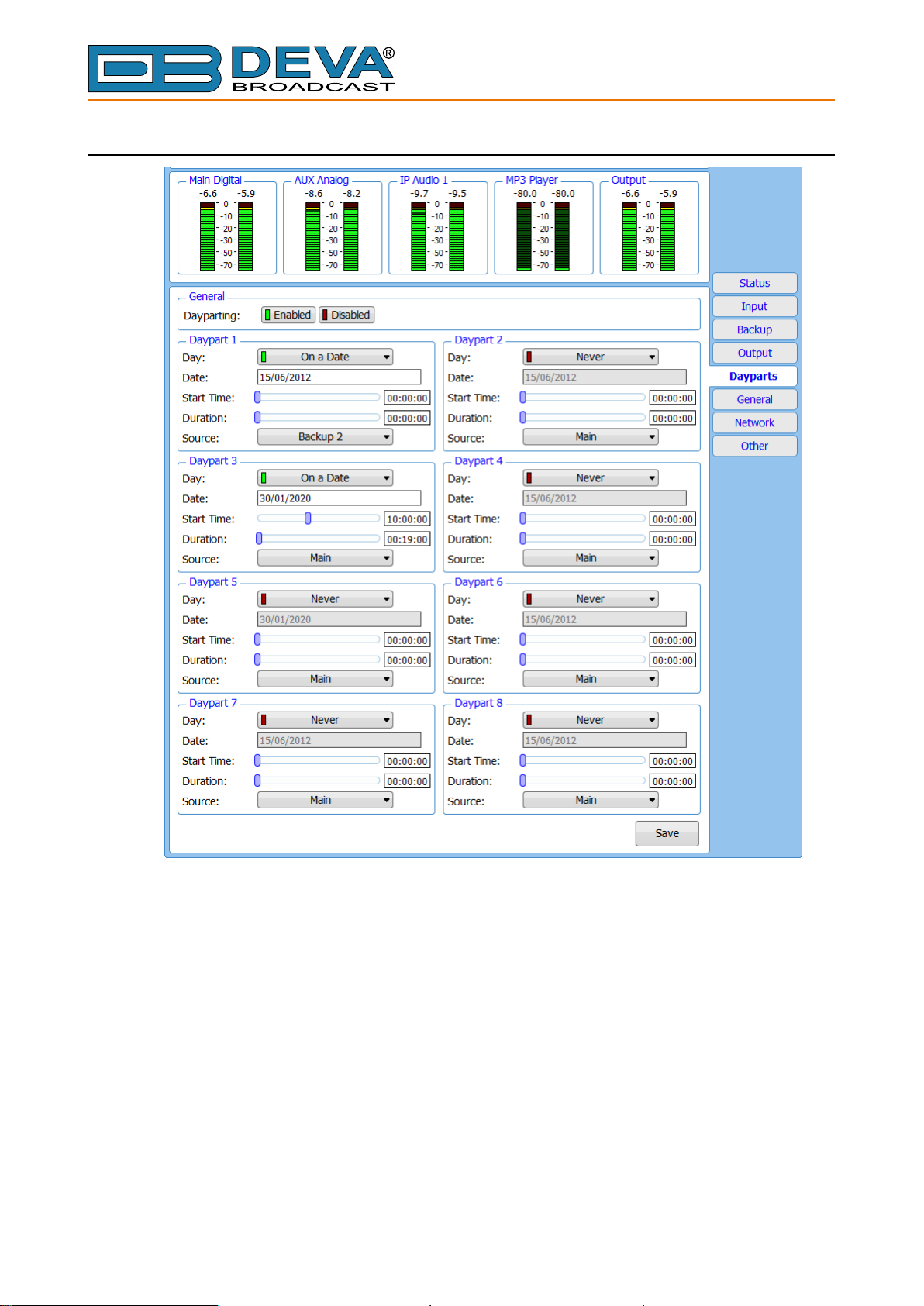
Dayparting is the practice of dividing the day into several parts, during which a different type
of audio preset to be used for the audio processing. This function will allow a processing pattern
based on the radio’s timetable to be made.
Generally enable the Dayparts function in order to use it. Please bear in mind that if the option
is generally disabled the function will not be used, nevertheless the applied settings in sections
Daypart 1 to Daypart 8.
There are nine positions at your disposal that can be set. The settings to be applied for each of
them are identical:
1. Select Daypart trigger day form the drop-down menu. It can be an exact date, a day of the
week or every day;
2. Set the Start Time and Duration;
3. To nalize the setup, select the preset that should be used during this time period.
Repeat the same procedure for each of the positions that should be used.
NOTE: It is recommended the unused dayparts to be set to Never. Also, please note that if the
Weekday is set to Never the relative daypart will not be used.
WHEN APPLYING NEW SETTINGS – In order new settings to take effect, it is necessary
to press the [Save] button. Please keep in mind that some of the new settings can reset DB8008.
- 40 -
Page 41
GENERAL
65 Aleksandar Stamboliyski Str., 8000 Bourgas, Bulgaria
Tel: +359 56 820027, Fax: +359 56 836700
E-mail: of[email protected] ,Web: www.devabroadcast.com
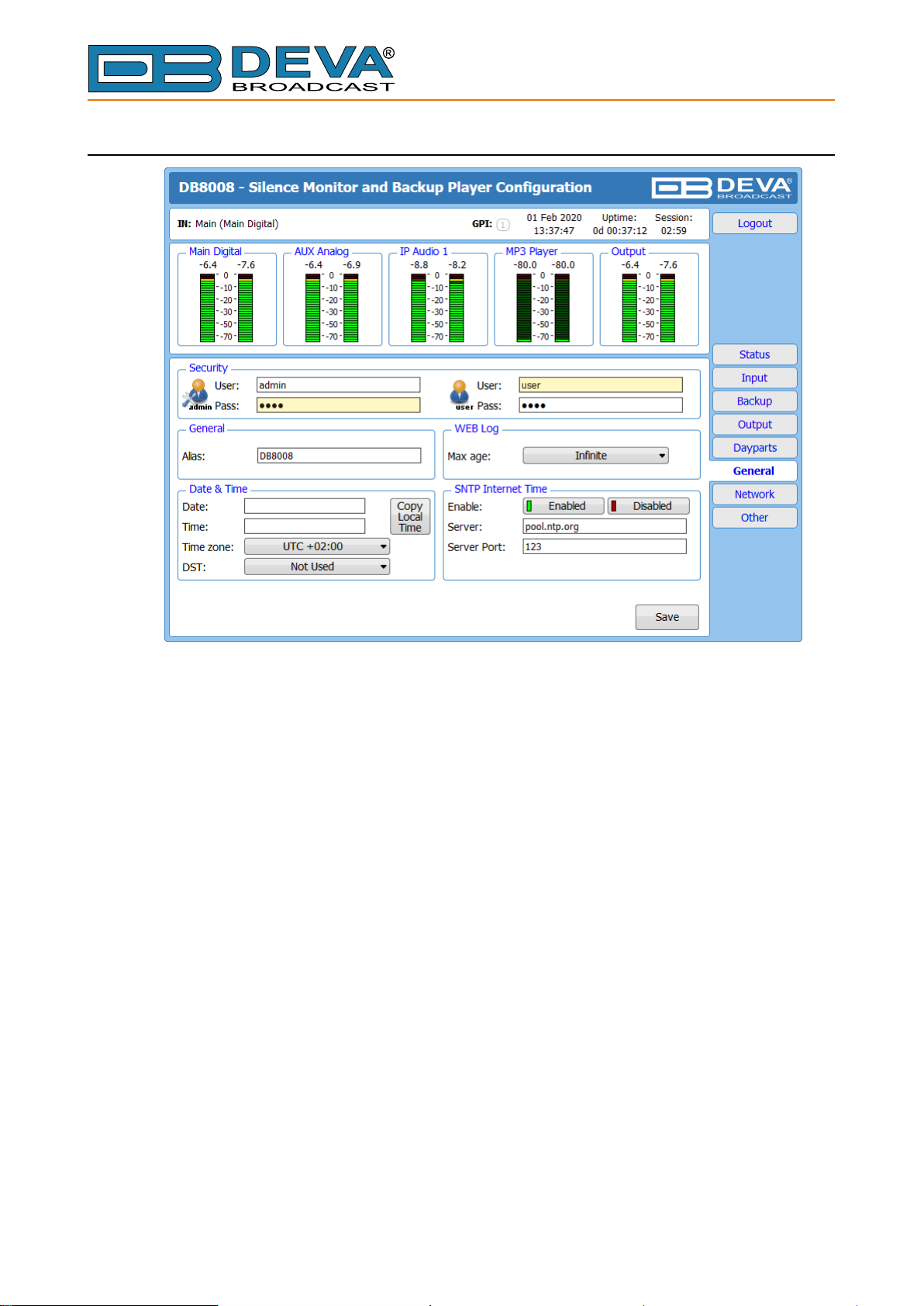
DB8008 provides you with protected access to the device settings. You can choose between two
types of log in.
• As an ADMINISTRATOR – It will give you full control over the device’s settings;
• As a USER – that will allow you to just monitor the device, while all the settings remain
locked.
In order for the security of DB8008 to be enhanced, new username and password could be set
from the Security section.
By choice, you can change the name of the device (General section). Later on, it will be used
as a title name on all WEB pages. Customizing the name will make the device more recognizable.
WEB Log – the maximum storage time of the log les is chosen from here. Log les older than
the specied will be permanently deleted.
Date & Time – used for manually determining the current date and time. [Copy Local Time]
button will set the Date & Time to correspond to that of your computer.
SNTP Internet Time – Synchronizes automatically DB8008’s clock time to a millisecond with
the Internet time server. Enable this function in order to use it (Specifying the server closest to your
location will improve the accuracy).
WHEN APPLYING NEW SETTINGS – In order new settings to take effect, it is necessary
to press the [Save] button. Please keep in mind that some of the new settings can reset DB8008.
- 41 -
Page 42
NETWORK
65 Aleksandar Stamboliyski Str., 8000 Bourgas, Bulgaria
Tel: +359 56 820027, Fax: +359 56 836700
E-mail: of[email protected] ,Web: www.devabroadcast.com
Network
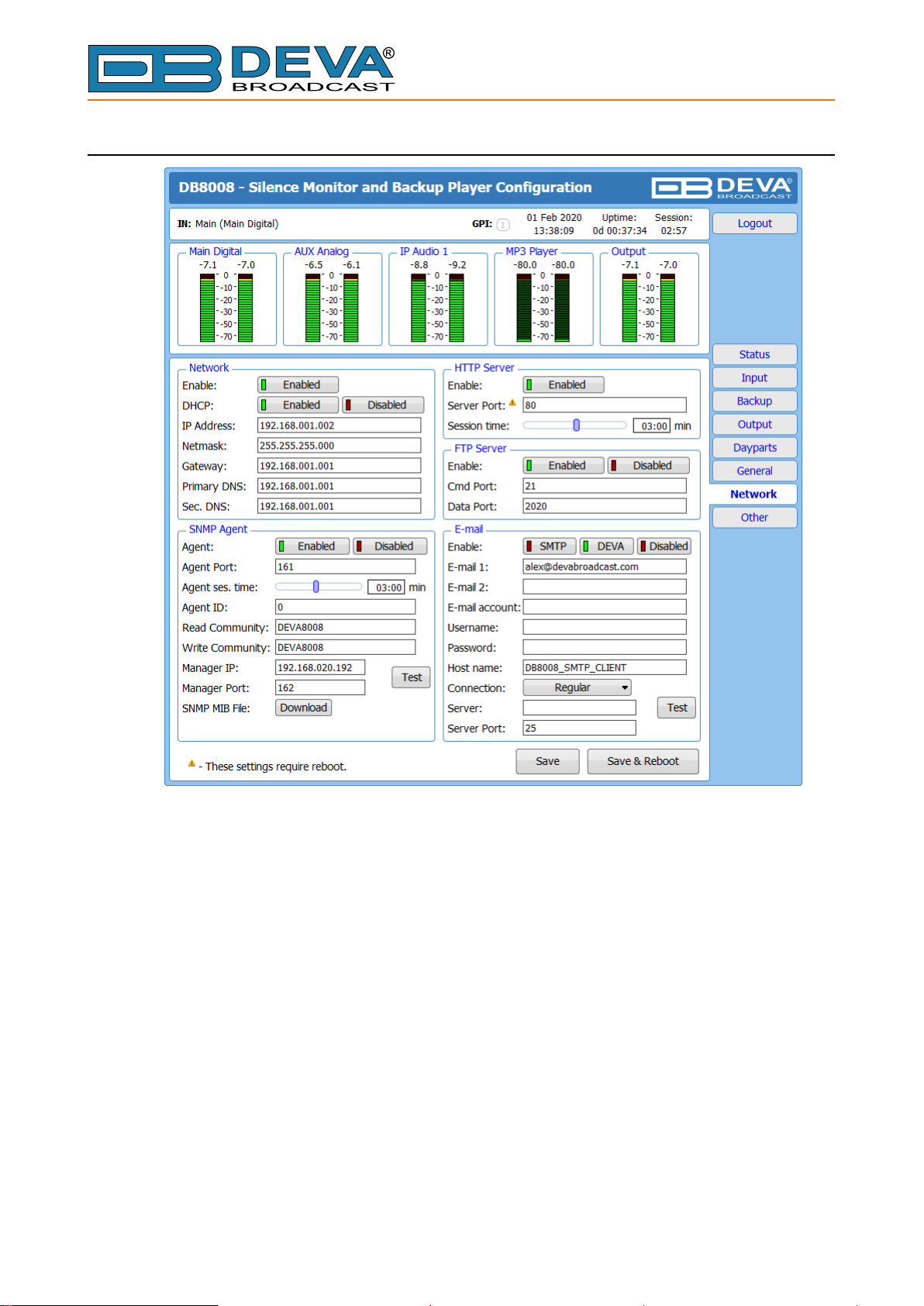
The network addresses could be set manually (static IP) or automatically via a DHCP Server.
To set static IP, Netmask, Gateway and DNS addresses, the DHCP should be disabled. In order for
the built-in DHCP client to be activated, the function should be enabled. When the DHCP client is
activated, all assigned values will be shown in the relevant elds on the “Status Screen”. If due to
any reason, the DHCP procedure cannot be completed, DB8008 will use Auto IP and will generate
an IP Address.
Enter the desired alarm recipients in E-mail 1 and/or E-mail 2 elds. Fill in your e-mail account
settings: Sender, Username and Password, Server, Server Port and Connection Type. If you
experience difculties in the set-up, or would like to use DEVA account for sending of alarm email
notications, press the [DEVA] button option, and complete the recipient emails (E-mail 1 and
E-mail 2) only. The other elds must be left blank, otherwise the email notication option will not
be working. Even though using the DEVA account eases the set-up process, we recommend user
account to be used for sending of email notications, and the DEVA account for test purposes.
When using DEVA account, please note that the stable 24/7 connection depends on the mail service
provider and cannot be guaranteed. We recommend you to use the [Test] button and generate a test
e-mail, which upon success will be delivered to the specied E-mail 1 and/or E-mail 2. Example
of Test E-mail Message:
- 42 -
Page 43

65 Aleksandar Stamboliyski Str., 8000 Bourgas, Bulgaria
E-mail: of[email protected] ,Web: www.devabroadcast.com
Tel: +359 56 820027, Fax: +359 56 836700
DB8009 Test Message.
Please do not reply to this e-mail.
HTTP Server
Enable/Disable the HTTP Server. Specify the Server Port and Session Timeout.
FTP Server
Enable/Disable the FTP Server. Specify the Command and Data Ports to be used. For information
on how the connection between the DB8009 and an FTP Client should be congured, please refer
to “Download/Upload les via FTP” on page 52.
SNMP Agent
Specify Agent ID, Agent Port, Read/Write Communities, Manager IP, Manager Port and Agent
Session Time.
Agent – enables/disables SNMP Agent.
Agent ID – is used for identication of the device among others, when an SNMP notication is
being sent. Once all needed settings are applied, use the Test button to generate a test notication,
which upon success will be received by the SNMP Manager. Press the [Download] button to
download the latest available DB8008 SNMP MIB le.
NOTE: The MIB le may vary from one rmware revision to another. Downloading this le
from the device, guarantees that you have the proper MIB le.
WHEN APPLYING NEW SETTINGS – In order new settings to take effect, it is necessary
to press the [Save] button. Please keep in mind that some of the new settings can reset DB8008.
- 43 -
Page 44
OTHER
65 Aleksandar Stamboliyski Str., 8000 Bourgas, Bulgaria
Tel: +359 56 820027, Fax: +359 56 836700
E-mail: of[email protected] ,Web: www.devabroadcast.com
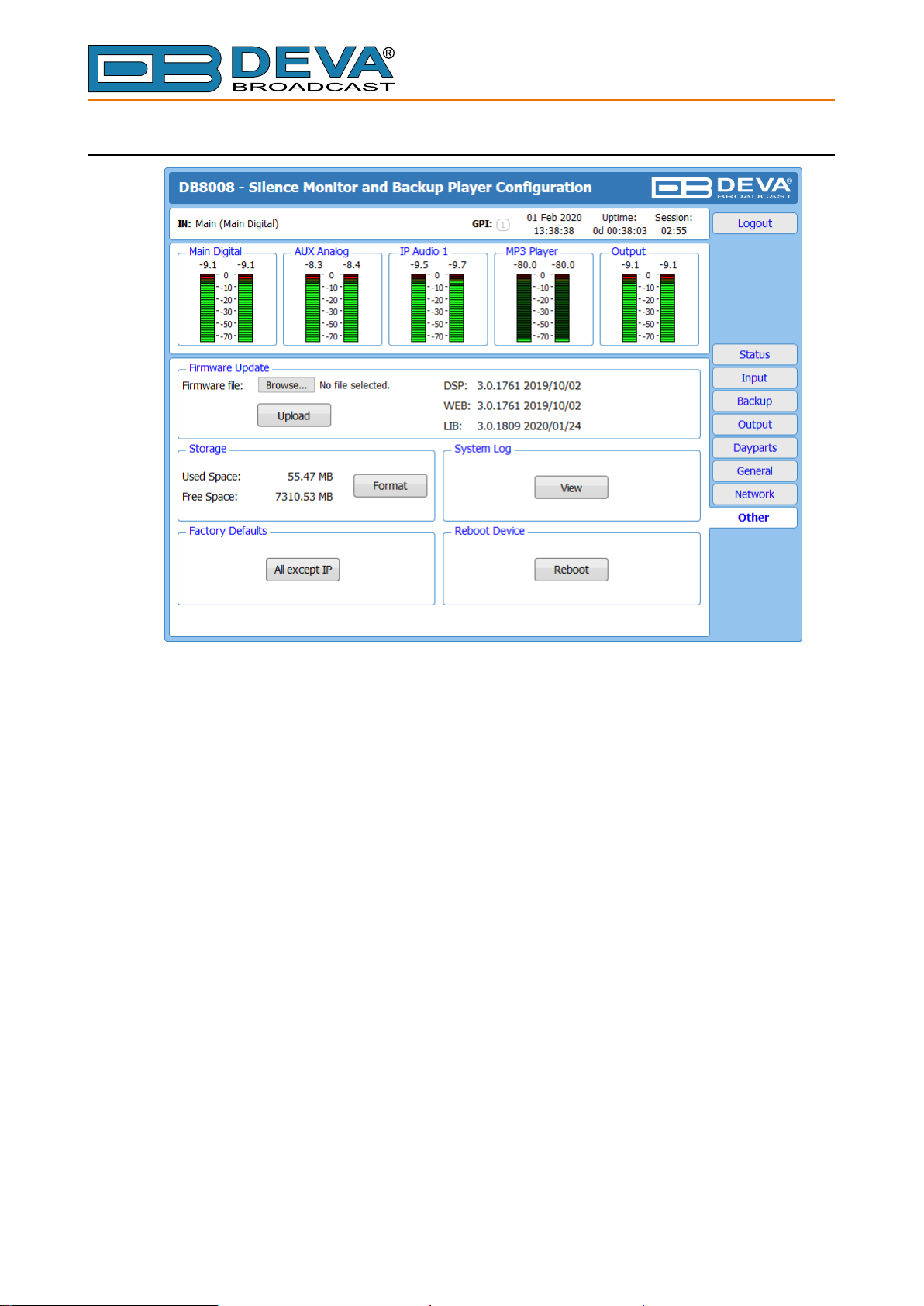
Firmware Update
To update the device rmware, select the new rmware le. After having pressed the [Upload]
button, a dialog window will appear. Conrm the rmware update and wait for the process to
complete.
Storage
Information about the device storage space is found in this section. The internal storage could
be deleted by pressing the [Format] button.
Factory Defaults
To restore DB8008 to its Factory Defaults press the [All except IP] button. A new window
will appear - conrm that you want to restore the factory defaults and wait for the process to
be completed. On completion of the process, the settings should have the proper default values,
except for the Network settings (IP Address) - they will be preserved.
NOTE: When the device is returned to its factory defaults, the DB8008 will automatically use
MP3 as current audio source. The device will return to its main audio source once it is restored.
Reboot
To start Rebooting of DB8008, press the [Reboot] button. A dialog warning window will appear.
Conrm that you want to reboot the device and wait for the process to be completed.
- 44 -
Page 45
65 Aleksandar Stamboliyski Str., 8000 Bourgas, Bulgaria
E-mail: of[email protected] ,Web: www.devabroadcast.com
Tel: +359 56 820027, Fax: +359 56 836700
System Log
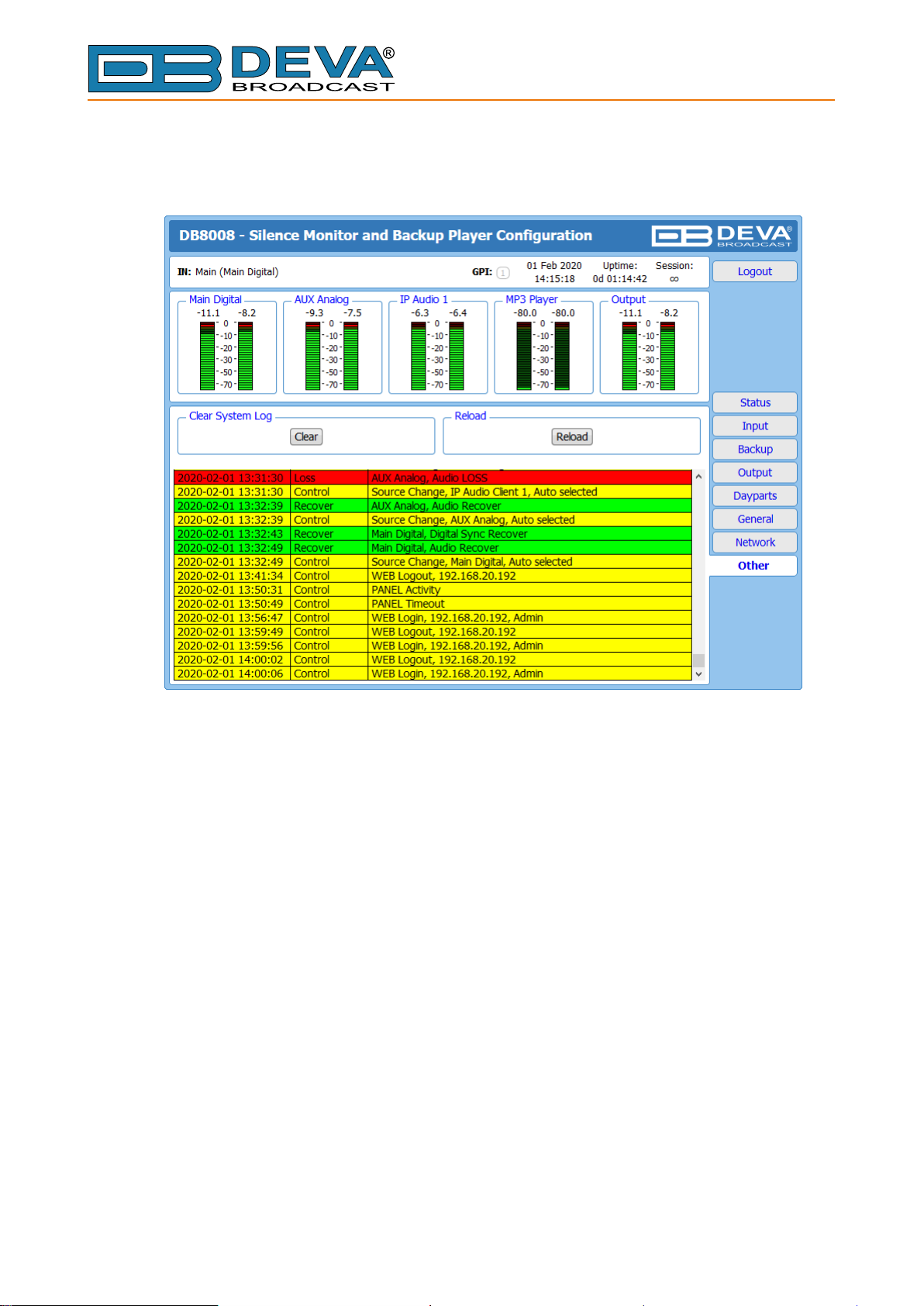
By pressing the [View] button, all recorded in the system log information will be depicted on
the screen. Pressing the [Clear] button will delete all recorded system log information. [Reload]
will reload the data.
To go back to the Other section, press the back button of your web browser.
- 45 -
Page 46
65 Aleksandar Stamboliyski Str., 8000 Bourgas, Bulgaria
E-mail: of[email protected] ,Web: www.devabroadcast.com
Tel: +359 56 820027, Fax: +359 56 836700
UPnP discovery in Local Networks
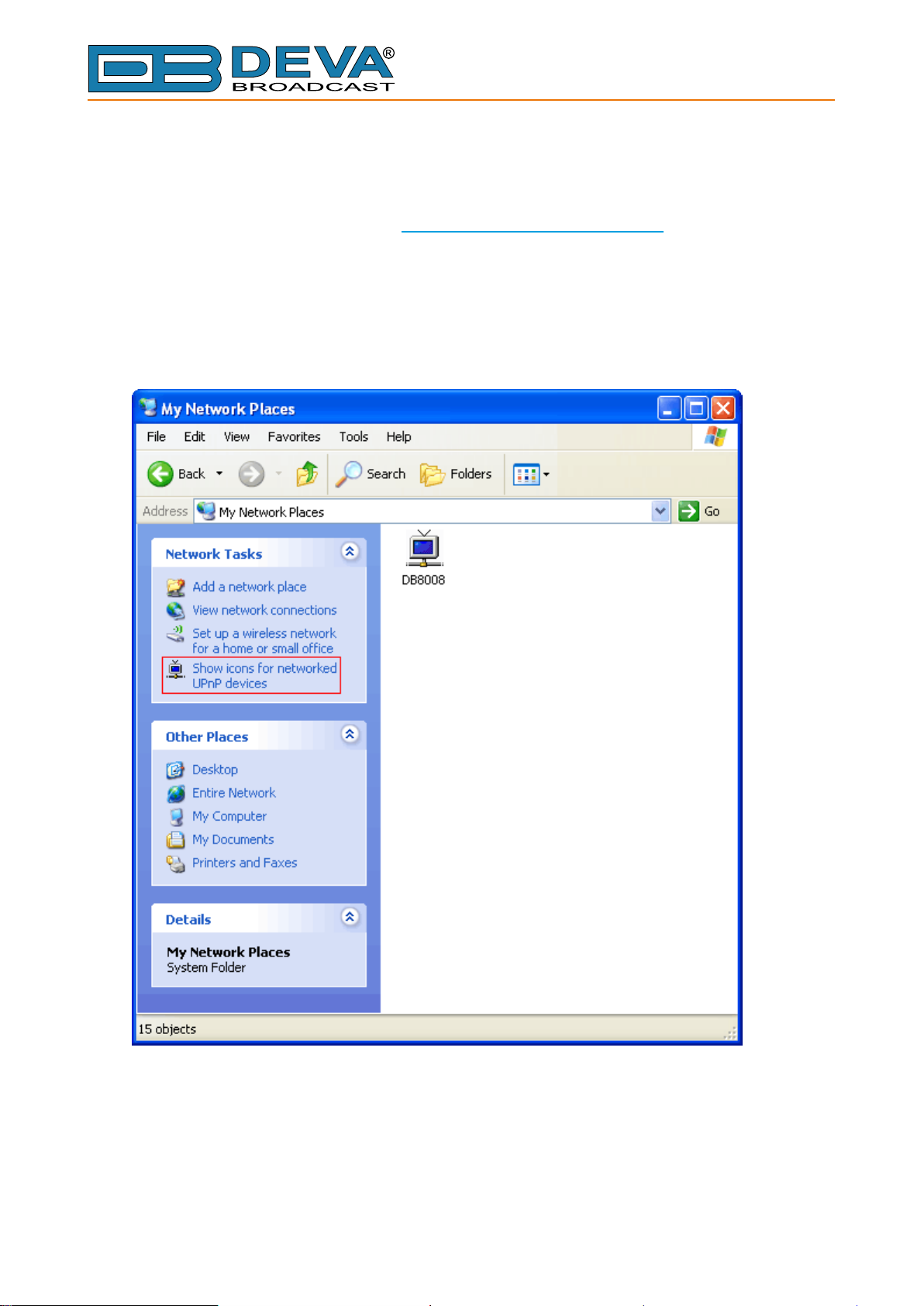
DB8008 implements UPnP which lets you easily nd it in your local network. For this purpose
your system should have UPnP enabled (see “UPnP Activation” on page 47). To discover the device
follow the next steps:
• Connect the device to the local network.
• Open “My Network Places” on your computer.
• Find the decoder’s icon.
• Double click it to open the DB8008 web interface.
- 46 -
Page 47
65 Aleksandar Stamboliyski Str., 8000 Bourgas, Bulgaria
E-mail: of[email protected] ,Web: www.devabroadcast.com
Tel: +359 56 820027, Fax: +359 56 836700
UPnP Activation
NOTE: The following explanations apply to Windows XP SP2 or SP3! If you use another
operating system, please contact your system administrator.
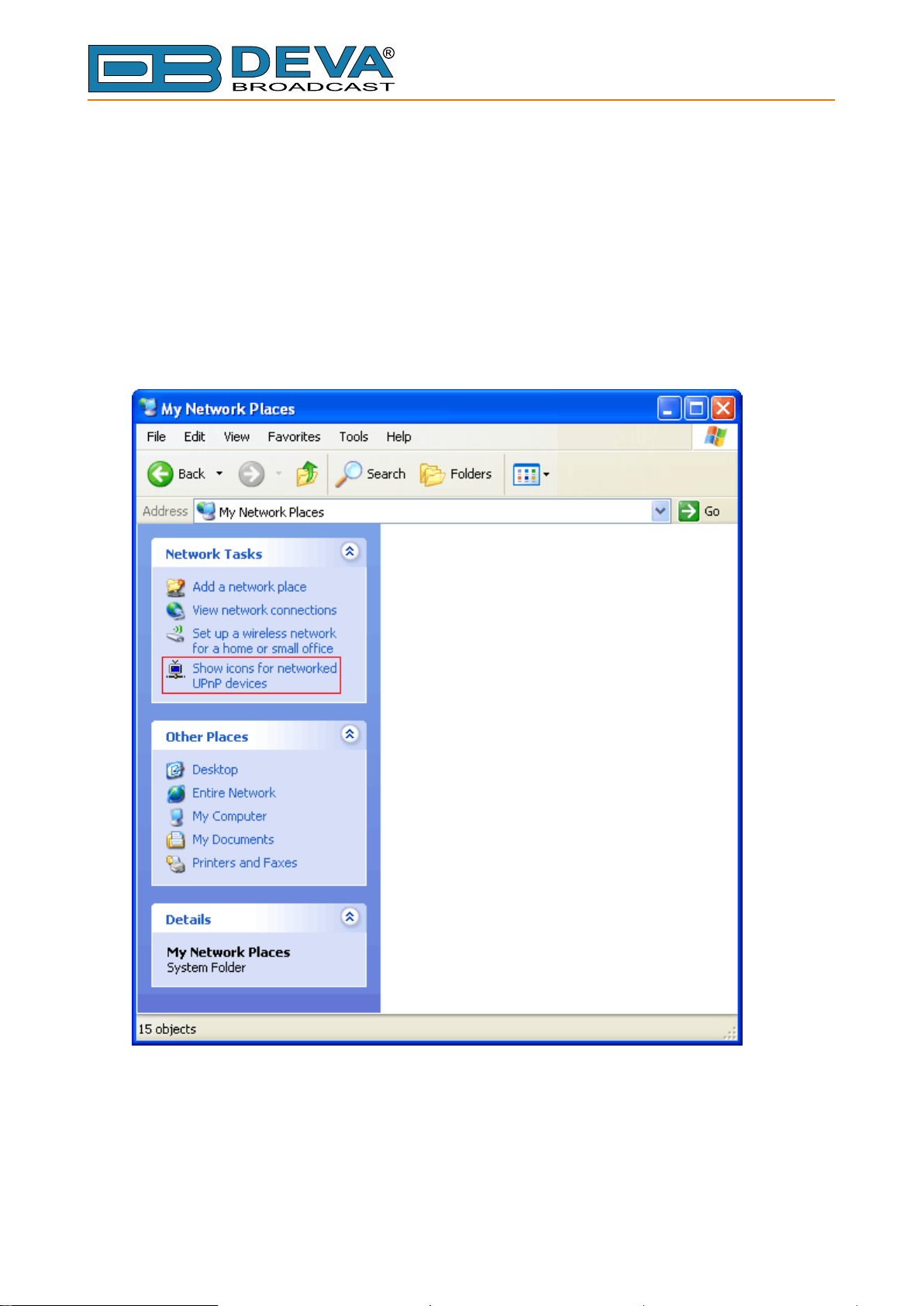
Open “My Network Places”. If you have the caption displayed in the picture below, click on it.
Then click “Yes” and wait for the process to complete. Now you should see the device. If you still
have troubles nding the device, please see
http://support.microsoft.com/kb/941206 or contact your system administrator.
- 47 -
Page 48
65 Aleksandar Stamboliyski Str., 8000 Bourgas, Bulgaria
E-mail: of[email protected] ,Web: www.devabroadcast.com
Tel: +359 56 820027, Fax: +359 56 836700
Appendix A
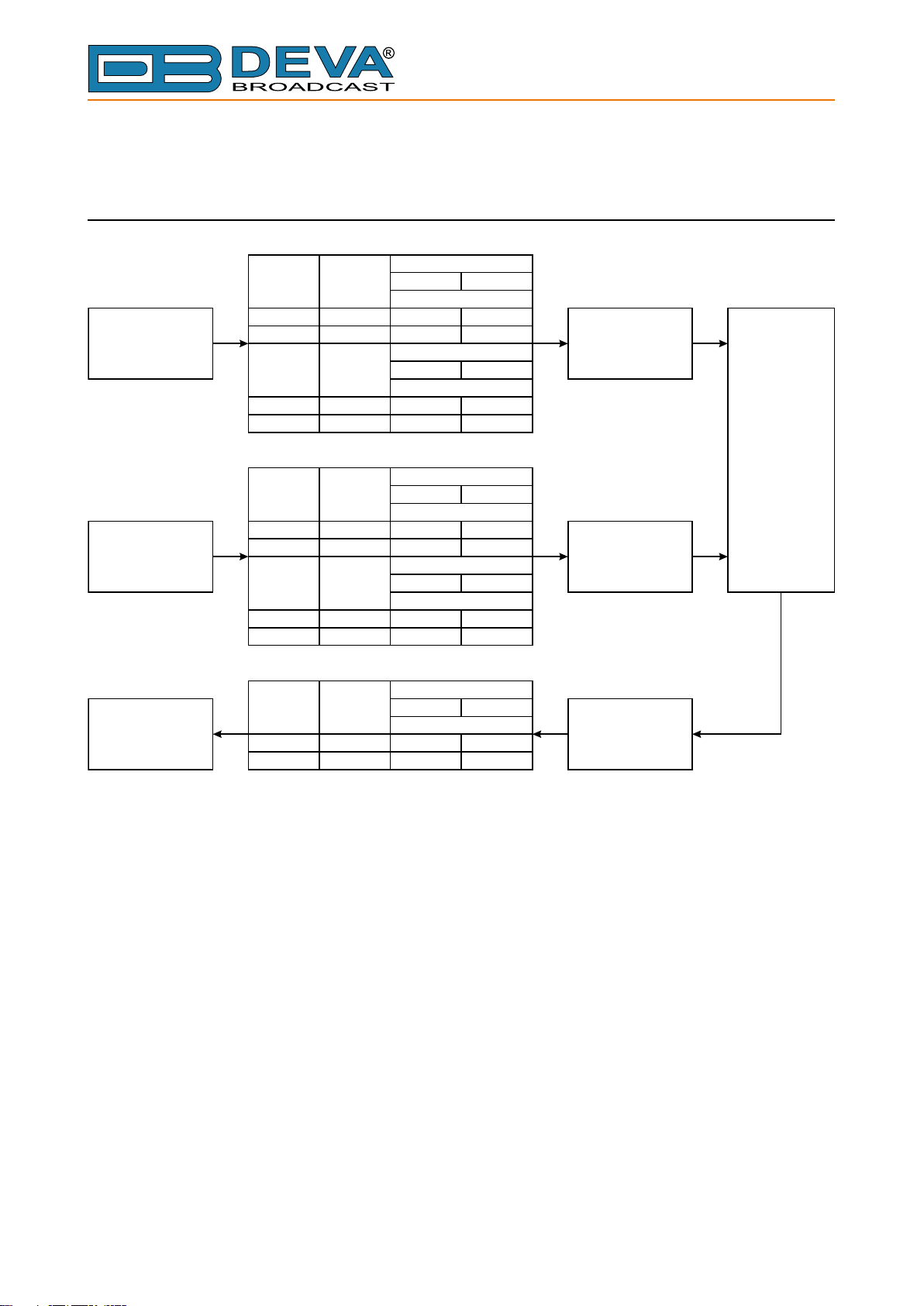
LIST OF DB8008 JUMPER SETTINGS FOR ANALOG SIGNALS
Input Range
MAIN INPUT
AUX INPUT
Channel
LEFT
RIGHT
Channel
LEFT
RIGHT
Channel
LEFT
RIGHT
Channel
LEFT
RIGHT
Jumpers
JP7, JP9
JP3, JP6
Jumpers
JP8
JP4
Jumpers
JP13, JP15
JP10, JP12
Jumpers
JP14
JP11
0 dBu
Position
Impedance
600Ω
Position
Input Range
0 dBu
Position
Impedance
600Ω
Position
+18 dBu
1-22-3
1-22-3
10kΩ
1-22-3
1-22-3
+18 dBu
1-22-3
1-22-3
10kΩ
1-22-3
1-22-3
ADC
ADC
DSP
OUTPUT
Channel
LEFT
RIGHT
Jumpers
JP2
JP1
Output Range
0 dBu
Position
+18 dBu
1-22-3
1-22-3
DAC
- 48 -
Page 49
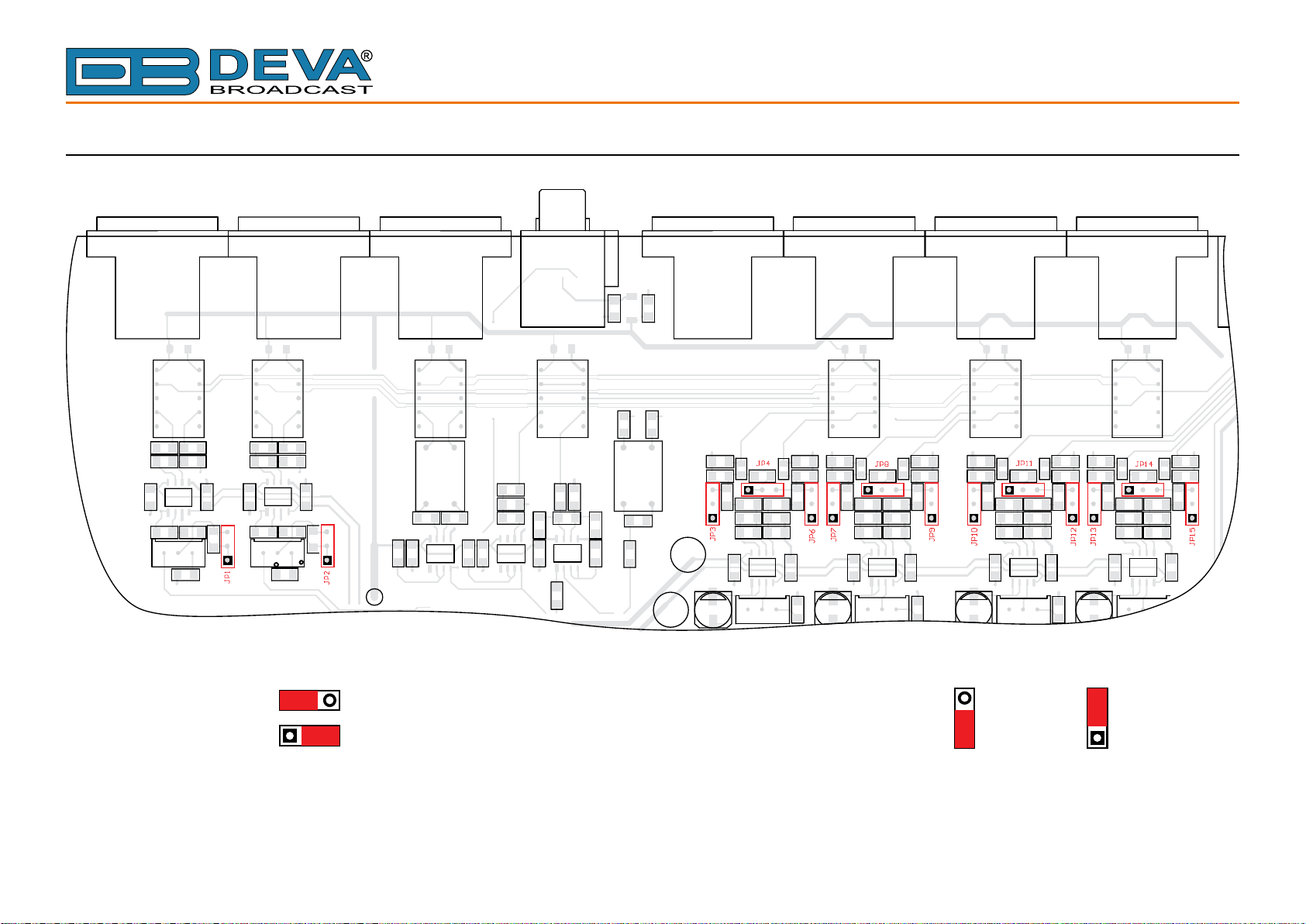
DB8008 JUMPERS LOCATION
1 2 3
65 Aleksandar Stamboliyski Str., 8000 Bourgas, Bulgaria
Tel: +359 56 820027, Fax: +359 56 836700
E-mail: of[email protected] ,Web: www.devabroadcast.com
1
2
3
JP4, JP8,
JP11, JP14
1 2 3
1
2
3
= 10 kΩ
= 600 Ω
- 49 -
1
2
3
321
JP1, JP2,
JP3, JP6,
JP7, JP9,
JP10, JP12,
1
2
3
321
JP13, JP15
1
2
3
1
2
3
1
2
3
= 0 dBu
321
1
2
3
1
2
3
321
= +18 dBu
1
2
3
Page 50
65 Aleksandar Stamboliyski Str., 8000 Bourgas, Bulgaria
1 2 3
E-mail: of[email protected] ,Web: www.devabroadcast.com
Tel: +359 56 820027, Fax: +359 56 836700
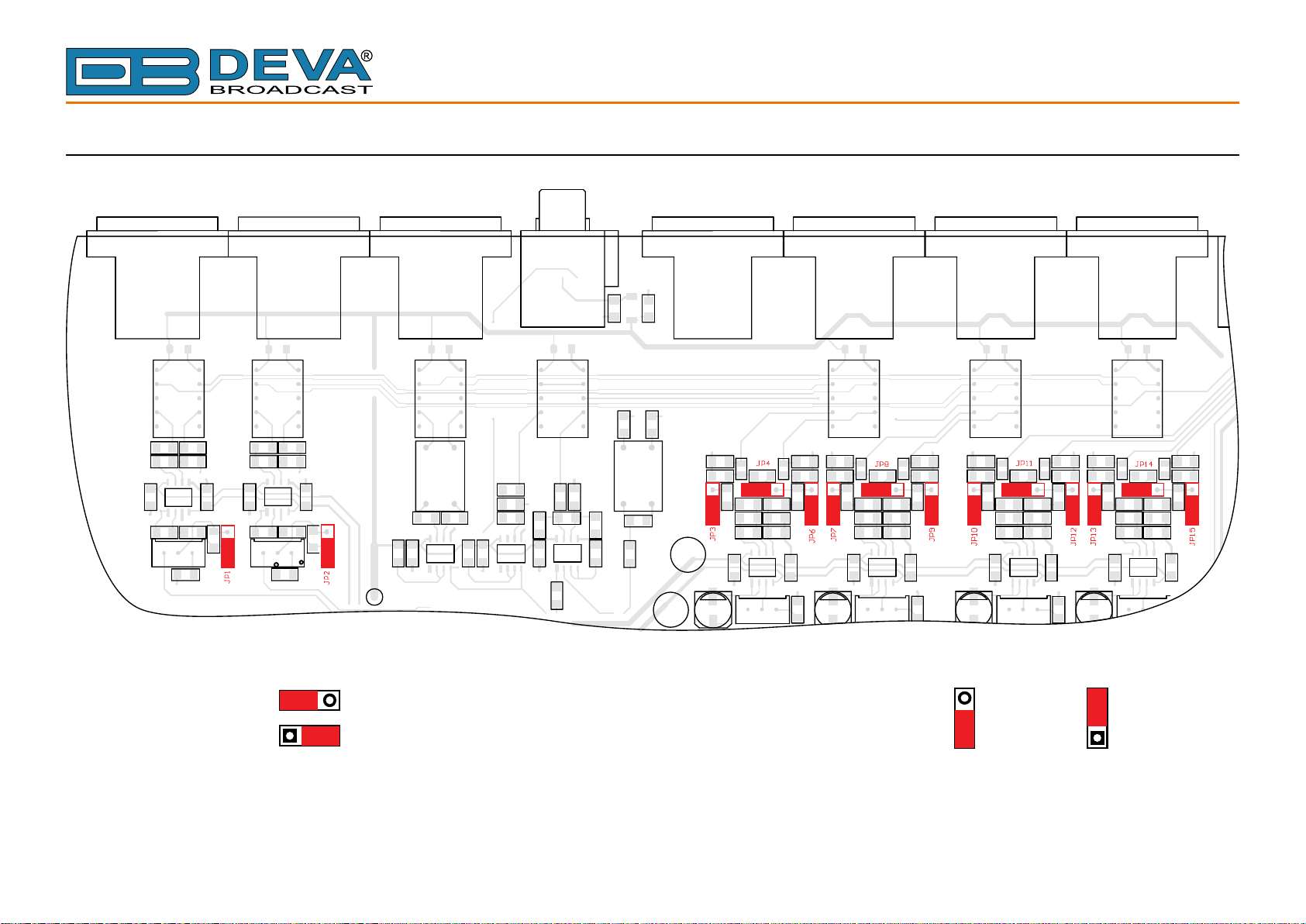
DB8008 CONFIGURATION WITH IMPEDANCE 10kΩ AND 0dBu ANALOG INPUT AND OUTPUT RANGE
1
2
3
JP4, JP8,
JP11, JP14
1 2 3
1
2
3
= 10 kΩ
= 600 Ω
- 50 -
1
2
3
321
JP1, JP2,
JP3, JP6,
JP7, JP9,
JP10, JP12,
1
2
3
321
JP13, JP15
1
2
3
1
2
3
1
2
3
= 0 dBu
321
1
2
3
1
2
3
321
= +18 dBu
1
2
3
Page 51
65 Aleksandar Stamboliyski Str., 8000 Bourgas, Bulgaria
1 2 3
E-mail: of[email protected] ,Web: www.devabroadcast.com
Tel: +359 56 820027, Fax: +359 56 836700
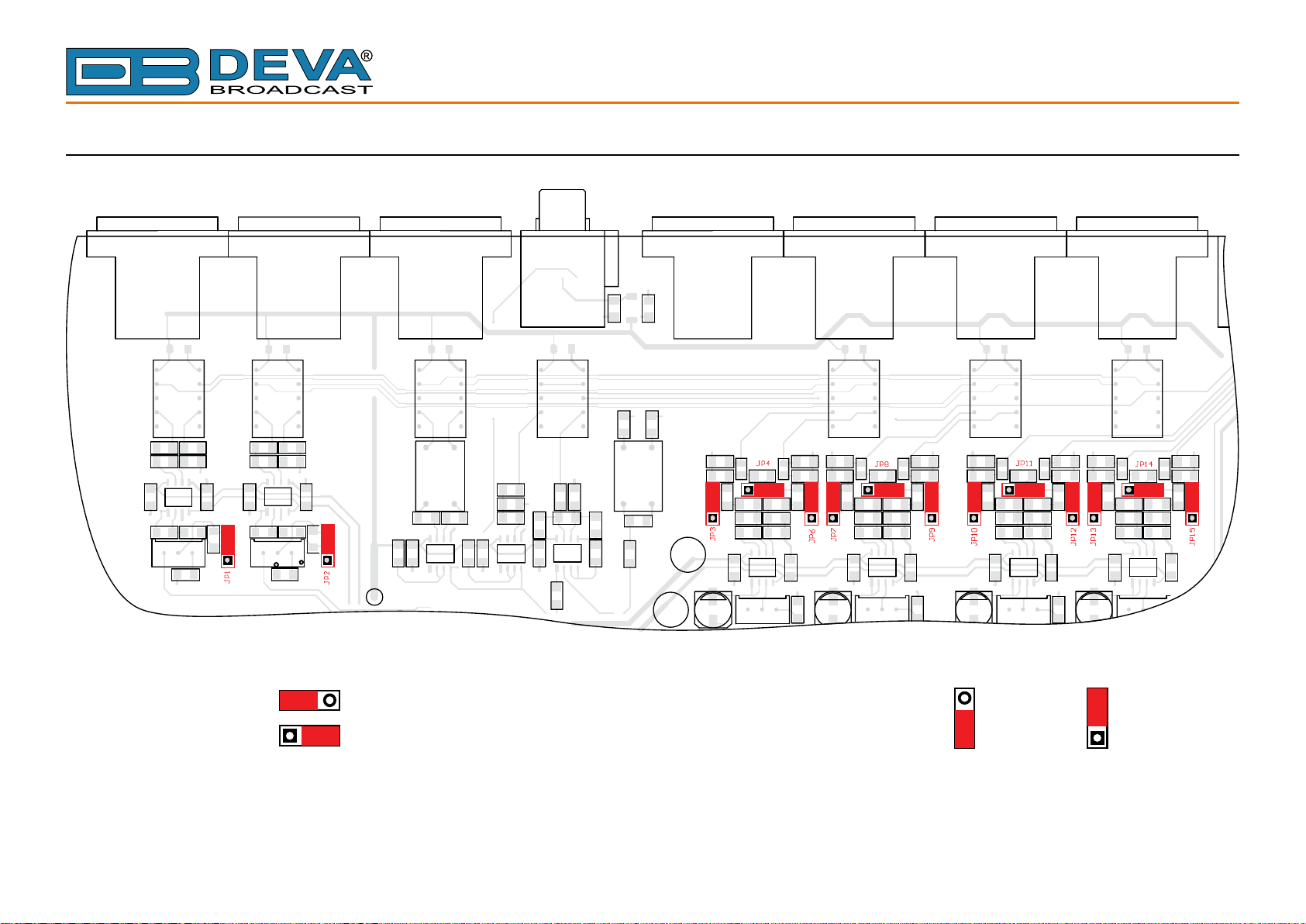
DB8008 CONFIGURATION WITH IMPEDANCE 600Ω AND +18dBu ANALOG INPUT AND OUTPUT RANGE
1
2
3
JP4, JP8,
JP11, JP14
1 2 3
1
2
3
= 10 kΩ
= 600 Ω
- 51 -
1
2
3
321
JP1, JP2,
JP3, JP6,
JP7, JP9,
JP10, JP12,
1
2
3
321
JP13, JP15
1
2
3
1
2
3
1
2
3
= 0 dBu
321
1
2
3
1
2
3
321
= +18 dBu
1
2
3
Page 52

65 Aleksandar Stamboliyski Str., 8000 Bourgas, Bulgaria
E-mail: of[email protected] ,Web: www.devabroadcast.com
Tel: +359 56 820027, Fax: +359 56 836700
APPENDIX B
DOWNLOAD/UPLOAD FILES VIA FTP
In order for a connection to be established the following setting should be applied:
1. FTP Server Settings
The built-in FTP Server has four important parameters that should be congured: Command
Port, Data Port, User name and Password. These parameters are to be used in the FTP client’s
connection conguration. Further information on how to change the FTP Server’s settings and
their respective default values can be found in the device’s User manual.
WE RECOMMEND the usage of FileZilla (https://lezilla-project.org). This is a widespread
open source software distributed free of charge, hence available for downloading from the Internet.
NOTE: The FTP Server can manage only one connection at a time. TheFTP Server works in
Passive mode. Hence, the FTP Client should also be set in passive mode.
2. IP Router and Port Translation Settings
If the connection to the device is made through a Network address translation (NAT) router or
rewall, the port forwarding feature of the router should be congured. The port forwarding is
usually set in the rewall section of the router’s menu. As each router has different port forwarding
procedure, we recommend you to refer to its complete manual. To allow proper data ow through
the router, the FTP Command and FTP Data ports should be open.
NOTE: The FTP port numbers to be used in the port forwarding feature conguration can be
found in the device.
- 52 -
Page 53
65 Aleksandar Stamboliyski Str., 8000 Bourgas, Bulgaria
E-mail: of[email protected] ,Web: www.devabroadcast.com
Tel: +359 56 820027, Fax: +359 56 836700
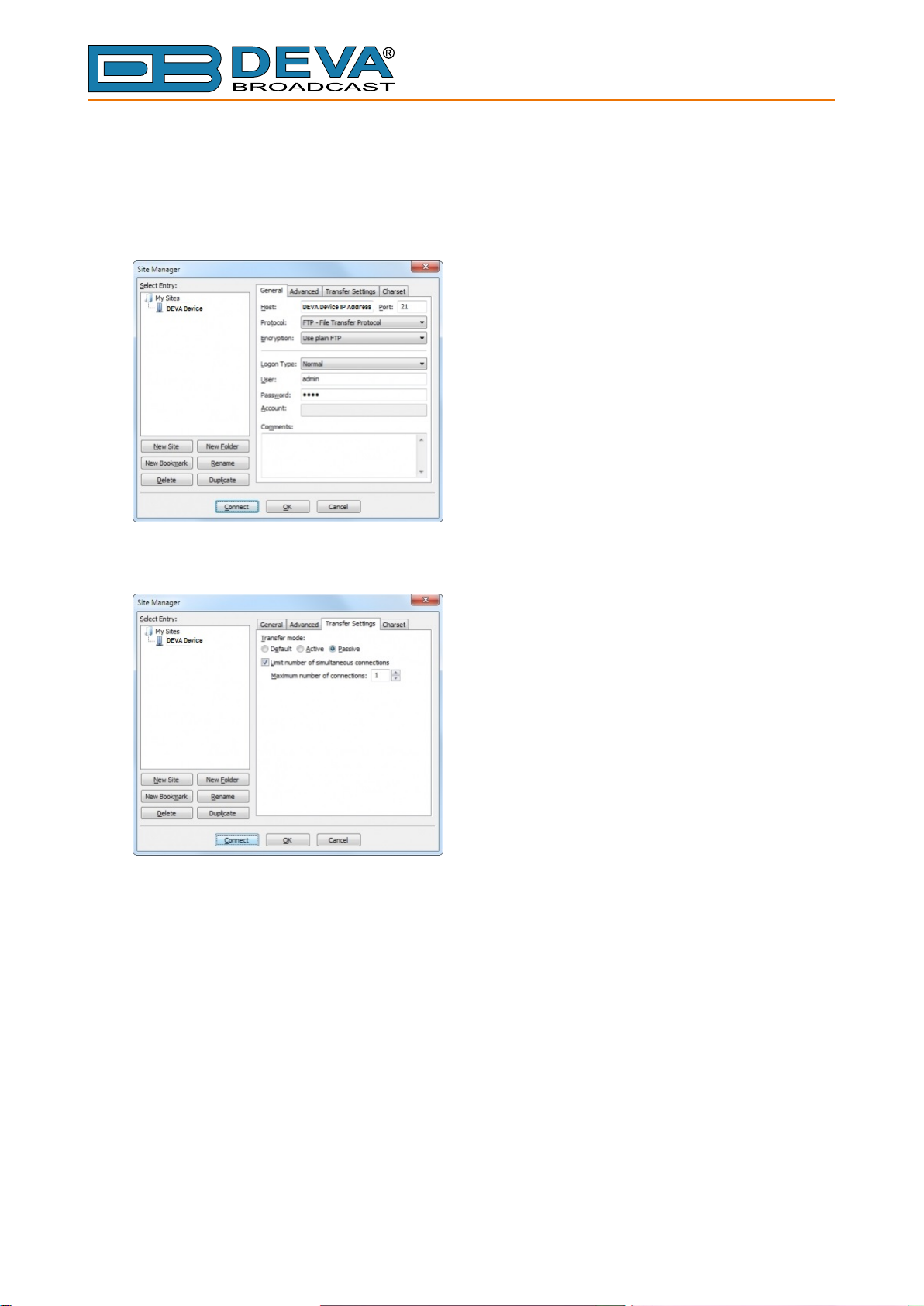
3. Example of FTP Client (FileZilla) Settings
In some cases, FileZilla’s “Quick connect” feature is not able to connect with the DEVA unit.
That is why we recommend the device to be assigned in the program manually.
Enter the FTP Client and go to: File> Site manager> New Site. A dialog box requiring obligatory
information about the device will appear. Fill in the needed information and press “OK”.
Select “Transfer Settings” sub-menu and apply the settings as shown below:
- 53 -
Page 54

65 Aleksandar Stamboliyski Str., 8000 Bourgas, Bulgaria
E-mail: of[email protected] ,Web: www.devabroadcast.com
Tel: +359 56 820027, Fax: +359 56 836700
WARRANTY TERMS AND CONDITIONS
I. TERMS OF SALE: DEVA Broadcast Ltd. products are sold with an understanding of “full
satisfaction”; that is, full credit or refund will be issued for products sold as new if returned to the
point of purchase within 30 days following their receipt, provided that they are returned complete
and in an “as received” condition.
II. CONDITIONS OF WARRANTY: The following terms apply unless amended in writing
by DEVA Broadcast Ltd.
A. The Warranty Registration Card supplied with this product must be completed and returned
to DEVA Broadcast Ltd. within 10 days of delivery.
B. This Warranty applies only to products sold “as new.” It is extended only to the original enduser and may not be transferred or assigned without prior written approval by DEVA Broadcast Ltd.
C. This Warranty does not apply to damage caused by improper mains settings and/or power
supply.
D. This Warranty does not apply to damage caused by misuse, abuse, accident or neglect. This
Warranty is voided by unauthorized attempts at repair or modication, or if the serial identication
label has been removed or altered.
III. TERMS OF WARRANTY: DEVA Broadcast Ltd. products are warranted to be free from
defects in materials and workmanship.
A. Any discrepancies noted within TWO YEARS of the date of delivery will be repaired
free of charge, or the equipment will be replaced with a new or remanufactured product at
DEVA Broadcast Ltd. option.
B. Parts and labor for factory repair required after the two-year Warranty period will be billed
at prevailing prices and rates.
IV. RETURNING GOODS FOR FACTORY REPAIR:
A. Equipment will not be accepted for Warranty or other repair without a Return Material
Authorization (RMA) number issued by DEVA Broadcast Ltd. prior to its return. An RMA number
may be obtained by calling the factory. The number should be prominently marked on the outside
of the shipping carton.
B. Equipment must be shipped prepaid to DEVA Broadcast Ltd. Shipping charges will be
reimbursed for valid Warranty claims. Damage sustained as a result of improper packing for return
to the factory is not covered under terms of the Warranty and may occasion additional charges.
- 54 -
Page 55

PRODUCT REGISTRATION CARD
• All elds are required, or warranty registration is invalid and void
Your Company Name
Contact
Address Line 1
Address Line 2
City
65 Aleksandar Stamboliyski Str., 8000 Bourgas, Bulgaria
Tel: +359 56 820027, Fax: +359 56 836700
E-mail: of[email protected] ,Web: www.devabroadcast.com
State/Province ZIP/Postal Code
Country
E-mail Phone Fax
Which DEVA Broadcast Ltd. product did you purchase?
Product Serial #
Purchase date / / Installation date / /
Your signature*
*Signing this warranty registration form you are stating that all the information provided to DEVA Broadcast Ltd. are truth and correct.
DEVA Broadcast Ltd. declines any responsibility for the provided information that could result in an immediate loss of warranty for
the above specied product(s).
Privacy statement: DEVA Broadcast Ltd. will not share the personal information you provide on this card with any other parties.
- 55 -
 Loading...