

Page 1

MAINTENANCE AND OPERATION
INSTRUCTION MANUAL
DB8000
Silence Monitor
&
Backup Audio Player
Publish Date: 04-Jan-2018
Page 2

Contents
Introduction ........................................................................................................................................ 4
Typographic conventions .................................................................................................................. 5
Product Description ........................................................................................................................ 6
Product Features ............................................................................................................................. 7
Technical Specications .................................................................................................................. 8
Before you start ................................................................................................................................ 10
Safety Precautions ......................................................................................................................... 10
Operating Environment Recommendations................................................................................... 11
Panel Indicators and Connectors ................................................................................................... 12
Front Panel.................................................................................................................................... 12
Rear Panel ..................................................................................................................................... 12
Installation and Interconnections ................................................................................................... 13
AC Input Voltage Selection ............................................................................................................ 13
Voltage Selector Switch & Fuse Holder’s location ....................................................................... 14
Menu Structure and Navigation ..................................................................................................... 15
Main Menu .................................................................................................................................... 15
Operation .......................................................................................................................................... 16
Audio Levels Adjustment of Backup Audio Sources ...................................................................... 16
Backup Source Priority Setting ..................................................................................................... 16
DTMF Settings .............................................................................................................................. 17
MP3 Player Settings ...................................................................................................................... 18
MP3 Player Mode Settings ....................................................................................................... 18
MP3 Player Equalizer Settings ................................................................................................ 19
Silence Detector Settings ............................................................................................................... 20
Network Settings ............................................................................................................................ 22
IP router and Port Translation ...................................................................................................... 23
Required ports for Server and Client services and applications .............................................. 23
FTP Server Settings ....................................................................................................................... 24
E-Mail Notications ...................................................................................................................... 26
SNMP Settings ............................................................................................................................... 27
Memory Card ................................................................................................................................ 28
Reset to Factory Defaults .............................................................................................................. 28
Device Info .................................................................................................................................... 29
Exit ................................................................................................................................................ 29
Firmware Upgrade ........................................................................................................................... 30
WARRANTY TERMS AND CONDITIONS ................................................................................. 31
Product Registration Card .............................................................................................................. 32
Appendix A .......................................................................................................................................33
List of DB8000 Factory Default Settings ...................................................................................... 33
Appendix B ....................................................................................................................................... 34
List of DB8000 Jumper Settings .................................................................................................... 34
DB8000 jumpers location ............................................................................................................. 35
DB8000 conguration with impedance 10 kΩ and gain 0 dB of the main and aux inputs 36
DB8000 conguration with impedance 600 Ω and gain -6 dB of the main and aux inputs 37
Page 3

THIS PAGE
IS INTENTIONALLY
LEFT BLANK
Page 4

65 Aleksandar Stamboliyski Str., 8000 Bourgas, Bulgaria
E-mail: of[email protected] ,Web: www.devabroadcast.com
Tel: +359 56 820027, Fax: +359 56 836700
Introduction
DEVA Broadcast Ltd. is an international communications and high-technology manufacturing
organization, its corporate headquarters and facility located in Burgas, Bulgaria. The company
serves the broadcast and corporate markets worldwide – from consumers and small businesses to
the largest global organizations. It is dedicated to the research, design, development and provision
of advanced products, systems and services. DEVA launched its own brand back in 1997 and has
nowadays evolved to become known as a market leader and internationally reputed manufacturer
of user-friendly, cost-effective and innovative broadcast products.
Creativity and innovation are deeply woven into DEVA corporate culture. Through successful
engineering, marketing and management our team of dedicated professionals creates futureoriented solutions to improve customers’ performance. You may rely that all issues communicated
to our crew would be addressed accordingly. We pride ourselves on our pre and post-sales support
and purchase services, which along with the outstanding quality of our radio gear have won us due
respect and the market authority position.
DEVA best-of-breed solutions have become the best sellers for our partners. The strategic
partnerships which have been formed with industry leaders during all these years that we have been
operating on the broadcasting market, have proved us a reliable business partner and a valuable
asset, as our dealers worldwide would conrm. In constant pursuit of precision and long-term
satisfaction, DEVA enhances the reputation of our partners and clients alike. Furthermore, we have
already a proven merit as a credible partner provider.
Our portfolio offers complete line of high quality and competitive products for FM and Digital
Radio, Radio Networks, Telecommunication Operators and regulation authorities. For almost
two decades of intensive software and hardware development, we have achieved a unique priceperformance and endurance of our product lines. Our company’s multitude of equipment and
services is in line with the latest technologies and key trends. The most recognizable characteristics
attributed to DEVA products are their clear-cut, streamlined design, easiness of use and costeffectiveness: simplicity of forms but multiplicity of functions.
For us there is no stage when we deem that we have reached the most satisfactory level in our
work. Our engineers are in constant pursuit of new ideas and technologies to be captured in DEVA
solutions. Simultaneously, a strict control is being exercised at each step of any new development.
Experience and hard work are our fundament but the continuous improving process is what we
never leave aside. DEVA participates on a regular basis in all landmark broadcasting events, not
only to promote its products, but to exchange valuable know-how and experience. We are also
engaged in international large-scale projects involving radio and audio solutions which makes us
even more competitive on the global market.
All DEVA products are developed and produced in accordance with the latest ISO 9001 quality
control standards.
- 4 -
Page 5

65 Aleksandar Stamboliyski Str., 8000 Bourgas, Bulgaria
E-mail: of[email protected] ,Web: www.devabroadcast.com
Typographic conventions
This manual uses the following typographic conventions:
Style Used for
NOTE
Example
“Menu” on page XX. References
[OK] Interface Interactive buttons.
Settings
Important notes and recommendations
Used when example text is cited
Menu paths are represented as follows: Settings> General> Backup
Tel: +359 56 820027, Fax: +359 56 836700
- 5 -
Page 6

65 Aleksandar Stamboliyski Str., 8000 Bourgas, Bulgaria
E-mail: of[email protected] ,Web: www.devabroadcast.com
Tel: +359 56 820027, Fax: +359 56 836700
PRODUCT DESCRIPTION
DB8000 Silence Monitor & Backup Audio Player is the best device to ght the dreaded dead
air problem. It is designed and built to be simple, exible, reliable and easy for integration with
the existing setups of any single station to a large radio network. The basic principle of DB8000
is that this unit can detect the silence and start playback of a preliminary created play list on the
built-in MP3 player.
The MP3 backup audio les and play lists can be uploaded in the DB8000 from your PC using
any FTP client. The audio storage capacity of DB8000 is 2 Giga Bytes.
The DB8000 provides additional security in case of loss of audio at the inputs. The audio
backup is presented as an integrated auxiliary audio input for external program backup audio
source and built-in MP3 audio player. Internal bass and treble controls module allow advanced
audio adjustment of the MP3 backup audio.
The unit has DTMF remote control features. Preliminary assigned up to 3 digits DTMF tone
combination can change the audio source input or just to start playing from the play list of the
built-in MP3 Audio Player. Through this feature DB8000 can be used for local content, regional
advertisement or sports insertion in the event of main input failure.
- 6 -
Page 7

65 Aleksandar Stamboliyski Str., 8000 Bourgas, Bulgaria
E-mail: of[email protected] ,Web: www.devabroadcast.com
Tel: +359 56 820027, Fax: +359 56 836700
PRODUCT FEATURES
• Automatic changeover to backup program line on main audio loss
• Automatic activation of continuous backup built-in MP3 Audio Player if the secondary
source is not available
• Response time adjustable from 1 second to 255 seconds
• Passive through audio switching
• Compatible with all analog program sources
• Selectable Backup Audio Source Priority
• Continuous backup from built-in MP3 Audio Player with 2GB Internal Memory
• Advance Bass and Treble controls for the MP3Audio Player
• Built-in DTMF remote control system for source selection
• Capable of over 24 hours of non-repeating audio playback
• SNMP Control and Notication
• E-mail Client
• Easy Device Remote Manager
• Professional Balanced Stereo analog inputs and outputs on XLR connectors
• Digital Volume Control of the Backup Sources
• Headphones Jack on the front panel for local monitoring of the Audio Signal
• Professional 19 inches, 1U aluminum rack mount chassis
• Wide Range Internal Power Supply 100-240VAC 50-60Hz
• Easy Installation and Operation
• Firmware Upgrade Enabled
- 7 -
Page 8
65 Aleksandar Stamboliyski Str., 8000 Bourgas, Bulgaria
E-mail: of[email protected] ,Web: www.devabroadcast.com
Tel: +359 56 820027, Fax: +359 56 836700
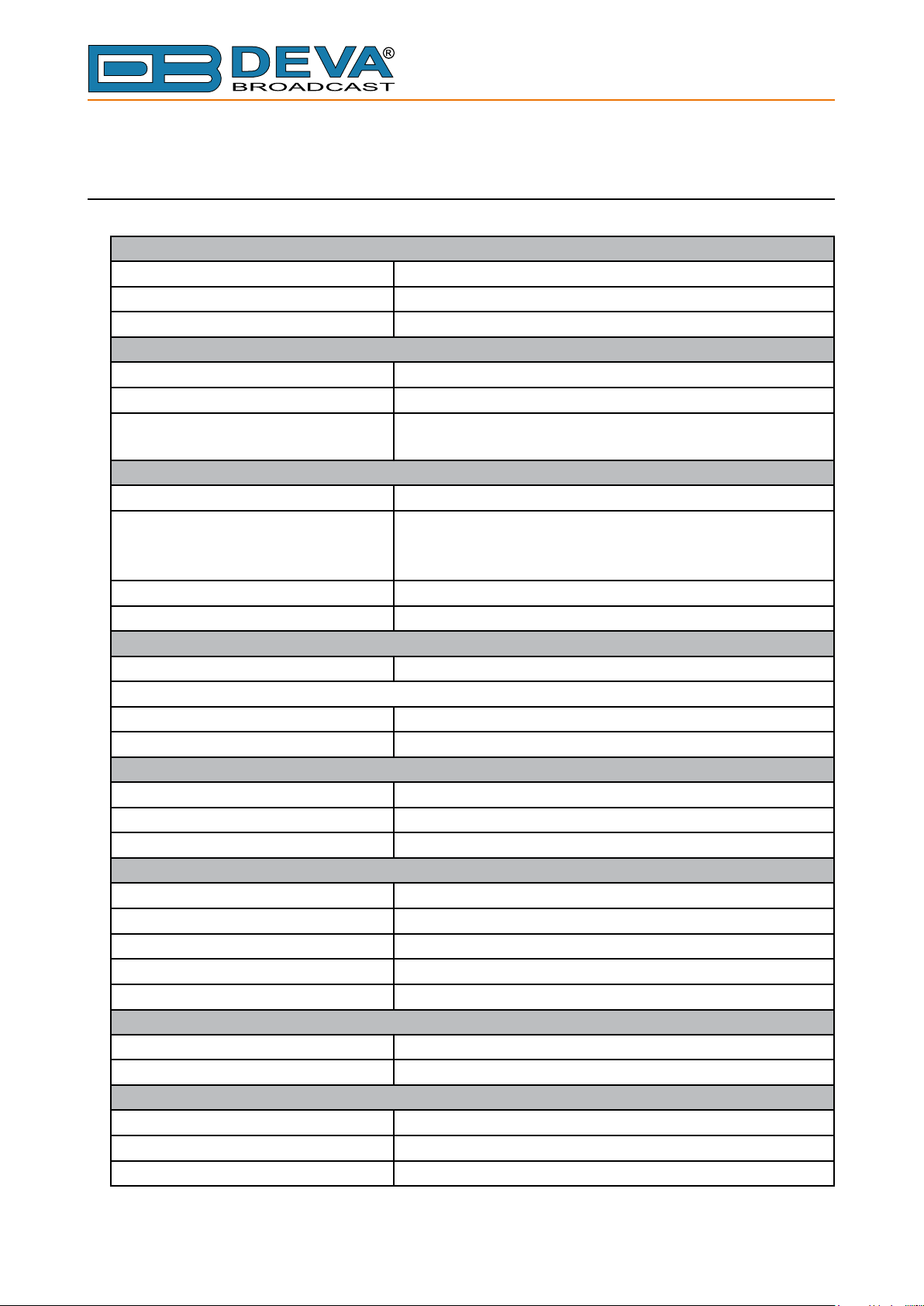
TECHNICAL SPECIFICATIONS
Main Audio Inputs
Connectors Balanced XLR-3
Input Impedance 600 Ω, Balanced with RF Filter
Normal Input circuit passively connected to the output
Auxiliary Audio Input
Connectors Balanced XLR-3
Input Impedance 600 Ω
Level 2 ranges: 0 dBu or +6 dBu
Jumper selectable, with software adjustments
Backup Audio MP3 Player Source
Storage Capacity 2GB Internal Memory SD Card
File types supported MPEG1 layer III
MPEG2 layer III
MPEG2.5
MP3 bit rates supported 8-320 kbps and VBR
Sample rates supported 48, 44.1, 32, 24, 22.05, 16, 12, 11.025, 8 kHz
Audio Output
Connectors Balanced XLR-3
Output Impedance
Normal output circuit Passively connected to main analog inputs
Backup output circuit Active, Balanced 600 Ω
Silence Detector Thresholds and Switching timers
Silence Sensitivity Range Adj. from -40 dBu to 0 dBu
Backup Start Time Adj. from 0 sec to 255 sec
Main Signal Recovery Time Adj. from 0 sec to 255 sec
Audio Performances
Frequency Response ±0.5 dB, 5 Hz-20 kHz
Audio Separation >90 dB (typically 100 dB)
Noise Better than -90 dB
Distortion <0.5%THD
Main Signal Recovery Time Adj. from 0 sec to 255 sec
Storage
Capacity 2GB Built in Memory Card
Data formats *.MP3; *.M3U for Playlists
User interface
Indicators 4 LEDs and Navigation Buttons (on front panel)
Headphone output 1/4” (6.35mm) phone jack (on front panel)
Display Superb 2x40 characters, LCD
- 8 -
Page 9
65 Aleksandar Stamboliyski Str., 8000 Bourgas, Bulgaria
E-mail: of[email protected] ,Web: www.devabroadcast.com
Tel: +359 56 820027, Fax: +359 56 836700
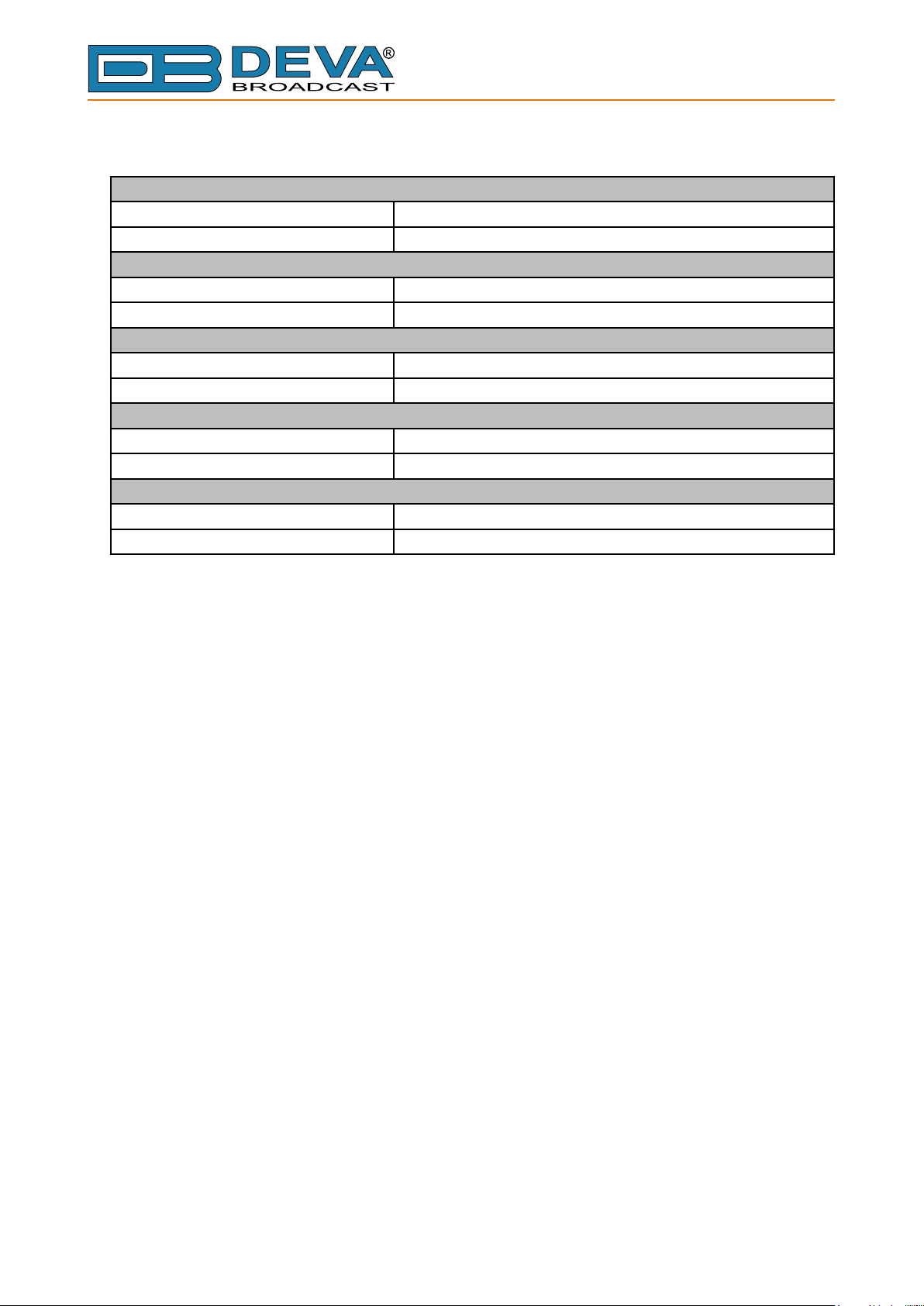
Operating conditions
Equipment operational between 10°C to 60°C
EMC immunity 6V/m
Front Panel’s Headphones Output
Connector Stereo, 1/4” (6.35mm) phone jack
Volume Adjustable
TCP/IP Communication
Type RJ45 Ethernet 10M Base-T Port
Connector RJ45, rear panel
Power Requirement
Power supply 110/220 V (internal switch)
Connector IEC320, rear panel
Size and Weight
Dimensions (W x H x D) 1U, 19” x 1.7” x 6.9”
Weight 8 lbs
- 9 -
Page 10

65 Aleksandar Stamboliyski Str., 8000 Bourgas, Bulgaria
E-mail: of[email protected] ,Web: www.devabroadcast.com
Tel: +359 56 820027, Fax: +359 56 836700
Before you start
SAFETY PRECAUTIONS
After removing any housing parts and electronic assemblies it is possible to get access to live
parts. It is essential to ensure that the subsequent safety rules are strictly observed:
• Servicing of electronic equipment must be performed by qualied personnel only.
• Before removing covers the equipment has to be switched off and the mains cable unplugged.
• When the equipment is open the power supply capacitors have to be discharged by the help
of a suitable resistor.
• During servicing unprotected and operating equipment:
- never touch bare wires or circuitry;
- use insulated tools only;
- never touch metal semiconductor cases because they may carry high voltages;
• For removing and installing electronic components, please follow the recommendations
concerning the handling of MOS components.
- 10 -
Page 11

65 Aleksandar Stamboliyski Str., 8000 Bourgas, Bulgaria
E-mail: of[email protected] ,Web: www.devabroadcast.com
Tel: +359 56 820027, Fax: +359 56 836700
OPERATING ENVIRONMENT RECOMMENDATIONS
For the normal and reliable operation of the DB8000 device we recommend to follow the next
list of instructions:
• Please, install the unit only in places with good air conditioning. The unit has been designed
for operation within an ambient temperature range extending from 10 to 60°C. But because
adjacent, less efcient equipment may radiate substantial second-hand heat, be sure that the
equipment rack is adequately ventilated to keep its internal temperature below the specied
maximum ambient temperature.
• We do not recommend installation in rooms with high humidity, dusty places or other
aggressive conditions.
• Although it is expected that DB8000 will be installed close to exciters (or transmitters of
even higher-power!), please practice reasonable care and common sense in locating the unit
away from abnormally high RF elds.
• Please, use only already checked power supply cables and sources. The shielded cables
usage is strongly recommended.
• We strongly recommend connecting the device only to reliable power supply sources.
• In case of unstable power supply, please use UPS (Uninterruptible Power Supply).
• Please, use the device only with placed top cover to avoid any electromagnetic anomalies
which may cause problems of the normal functionality of the unit.
• Please, connect DB8000 only to good quality Internet connection. This is very important for
the normal remote operation of the unit.
• Please, check if your network settings pass through all the data trafc required for the
normal operation of DB8000 unit.
- 11 -
Page 12
FRONT PANEL
S
ILENCEMONITOR
& B
ACKUPAUDIOPLAYER
E-mail: of[email protected] ,Web: www.devabroadcast.com
Panel Indicators and Connectors
SOURCE
+20dB-2-4-6-8-10-12-14-16-18-20
65 Aleksandar Stamboliyski Str., 8000 Bourgas, Bulgaria
Tel: +359 56 820027, Fax: +359 56 836700
MP3
AUX
MEMORY
LAN
PHONES
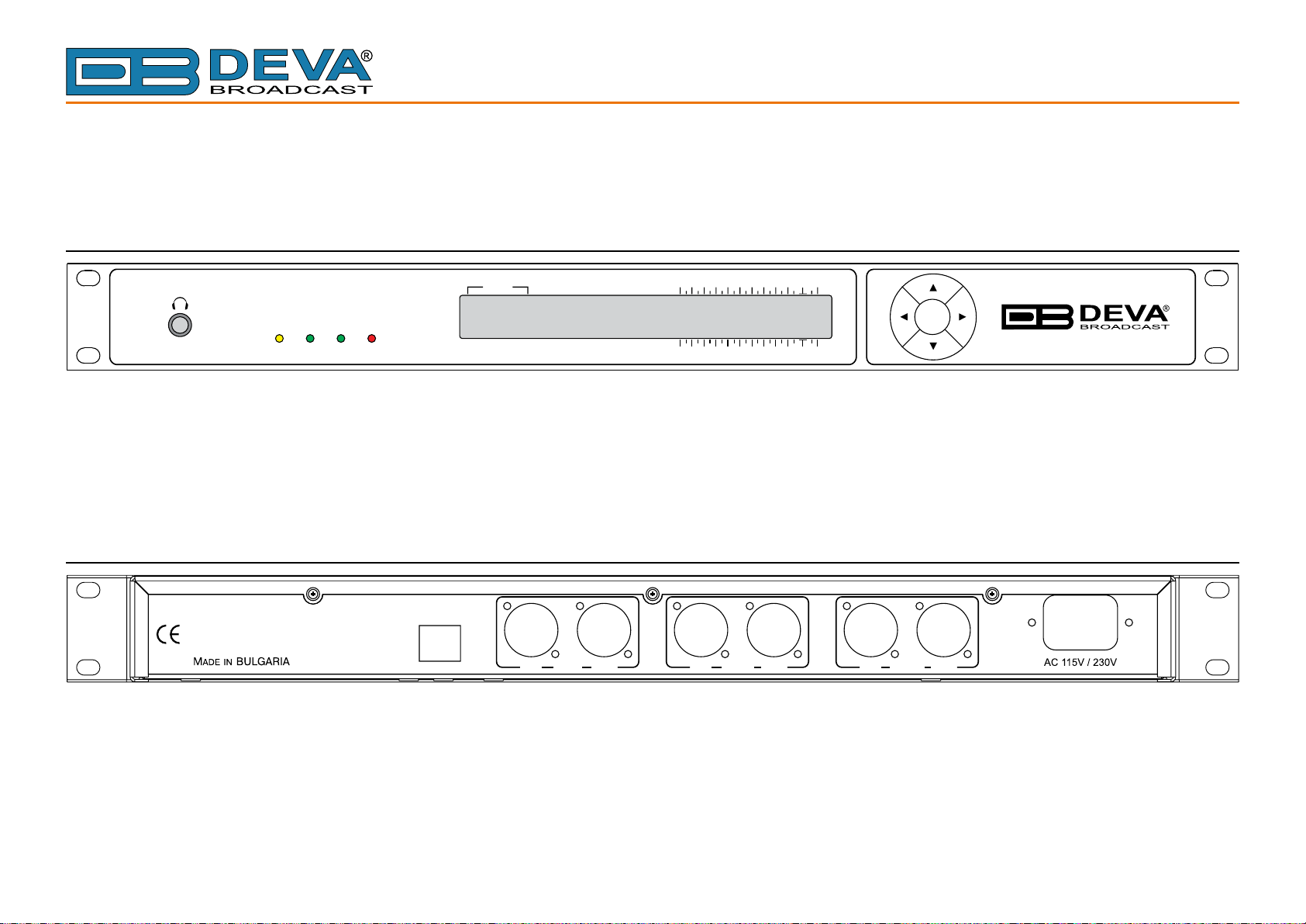
PHONES – Stereo 1/4” (6.3 mm) jack output for headphones;
LAN – indicates LAN presence;
MP3 – indicates MP3 Player active;
AUX – indicates Auxiliary Source Input active;
MEMORY – blinks when the MicroSD Card is in use, or when the Card is full (memory overow);
REAR PANEL
LAN
AUX IN
LEFT
RIGHT
LAN – RJ-45 connector for TCP/IP connection;
AUX IN (LEFT and RIGHT) – Auxiliary Source Input connectors, XLR type;
MAIN IN (LEFT and RIGHT) – Main Source Input connectors, XLR type;
OUTPUT (LEFT and RIGHT) – Output Connectors, XLR type;
AC 115V/230V – Mains connector, IEC320 type;
LEFT
MAIN IN
RIGHT
OK
M
ODEL
+20dB-2-4-6-8-10-12-14-16-18-20
OUTPUT
LEFT
RIGHT
DB8000
- 12 -
Page 13

65 Aleksandar Stamboliyski Str., 8000 Bourgas, Bulgaria
E-mail: of[email protected] ,Web: www.devabroadcast.com
Tel: +359 56 820027, Fax: +359 56 836700
Installation and Interconnections
Before connecting the AC Power, make certain that the internal Power Switch and the fuse
rating are in accordance with the mains supply at your location.
ATTENTION: DB8000 Power Supply Factory Settings are:
- 220 VAC
- 1-Amp fuse
CAUTION: permanent damage will result if improper AC supply voltage is applied to the
DB8000 device. Your warranty does not cover damage caused by applying improper supply
voltage, or use of an improper fuse.
Changing AC Input Voltage Selection requires only a screwdriver and is not difcult (see
below), but you should make sure the power supply is set up correctly before connecting power.
AC INPUT VOLTAGE SELECTION
- Disconnect the AC power cable from the AC outlet.
- Disconnect all cables from the DB8000’s rear panel.
- Remove the two screws from each side of the DB8000, and the three screws from the top edge
of the rear panel. Slide the top cover towards the rear, mindful not to damage the XLR connectors
on the rear panel and then remove the cover.
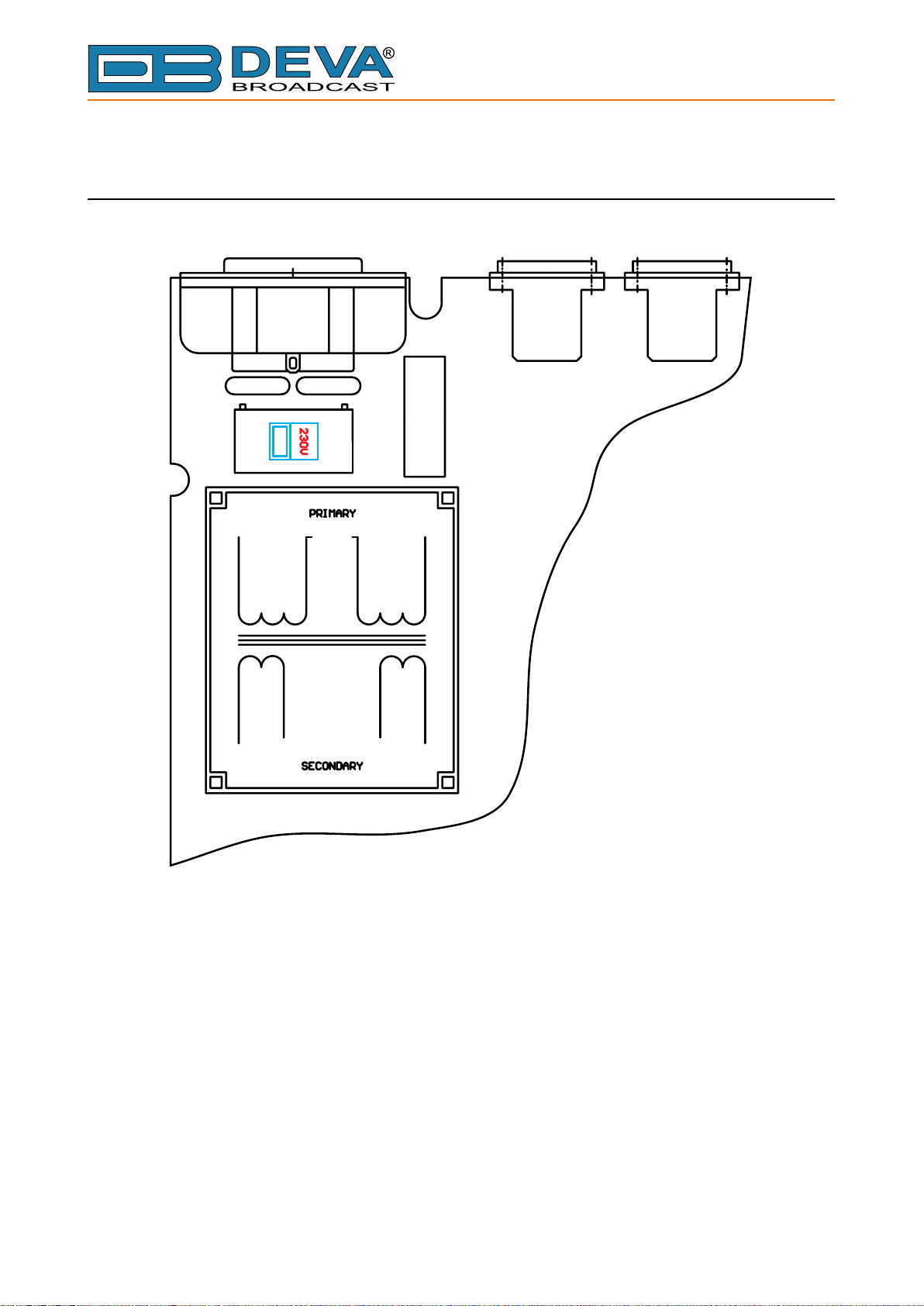
- Locate the Voltage Selector Switch. It is a clearly marked slide switch next to the IEC-320
power cable connector. Move it to the “115” position for operation from 100 – 120 VAC, or to the
“230” position for operation from 200 – 240 VAC.
- Locate the fuseholder (next to the Power Switch) and replace the fuse (if needed). Always use
fuses with the following ratings:
• 1-Amp for 220 VAC mains voltage;
• 2-Amp for 110 VAC mains voltage;
- Replace the top cover and its seven screws.
- 13 -
Page 14
65 Aleksandar Stamboliyski Str., 8000 Bourgas, Bulgaria
E-mail: of[email protected] ,Web: www.devabroadcast.com
Tel: +359 56 820027, Fax: +359 56 836700
VOLTAGE SELECTOR SWITCH & FUSE HOLDER’S LOCATION
FUSE
- 14 -
Page 15
65 Aleksandar Stamboliyski Str., 8000 Bourgas, Bulgaria
E-mail: of[email protected] ,Web: www.devabroadcast.com
Tel: +359 56 820027, Fax: +359 56 836700
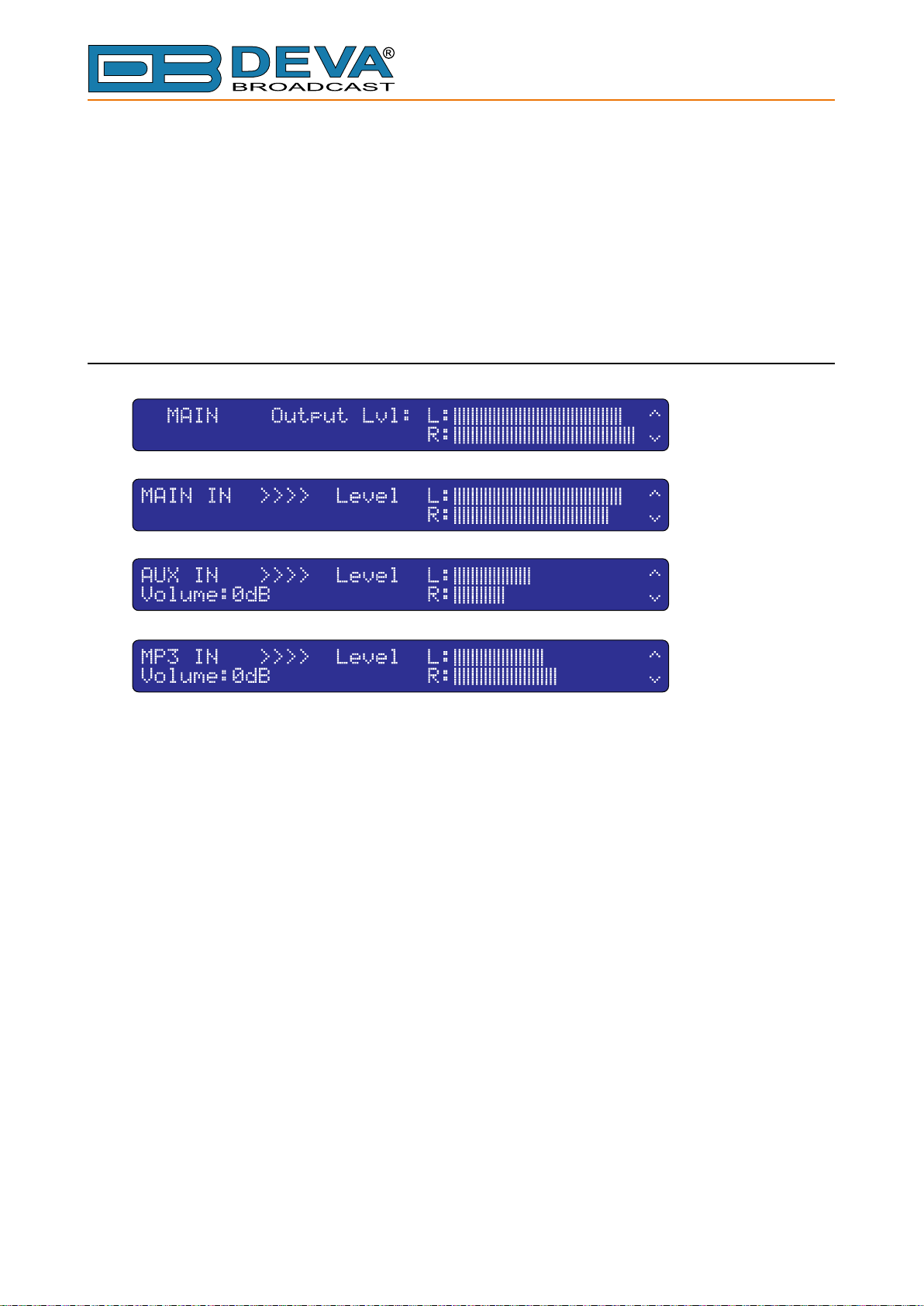
Menu Structure and Navigation
The DB8000’s Menu consists of Main Menu and Sub-menus accordingly. UP and DOWN,
LEFT and RIGHT keys on the Keyboard are used to navigate through menus. The “global” key
to exit a menu is LEFT. The User can exit from any Menu to the Main Menu by keeping pressed
the LEFT key for more than 2 seconds.
Operation of each of the Menus and Sub-menus will be explained in details below.
MAIN MENU
To reach any of the above menus press the UP or DOWN keys while in the Main menu.
- 15 -
Page 16
65 Aleksandar Stamboliyski Str., 8000 Bourgas, Bulgaria
E-mail: of[email protected] ,Web: www.devabroadcast.com
Tel: +359 56 820027, Fax: +359 56 836700
Operation
AUDIO LEVELS ADJUSTMENT OF BACKUP AUDIO SOURCES
Levels of the Backup Audio Signal Sources can be digitally adjusted. The range is -63dB to 0dB
for the AUX Input and -70dB to 0dB for the MP3 Player respectively. Additionally the output level
can be decreased by - 6dB using jumpers JP13 and JP14 (see “List of DB8000 Jumper Settings”
on page 34).
To perform Level Adjustment of both the Alternative Audio Signal Sources using the front
panel Keyboard, next steps are to be followed:
1. While in the Main Menu press the OK button;
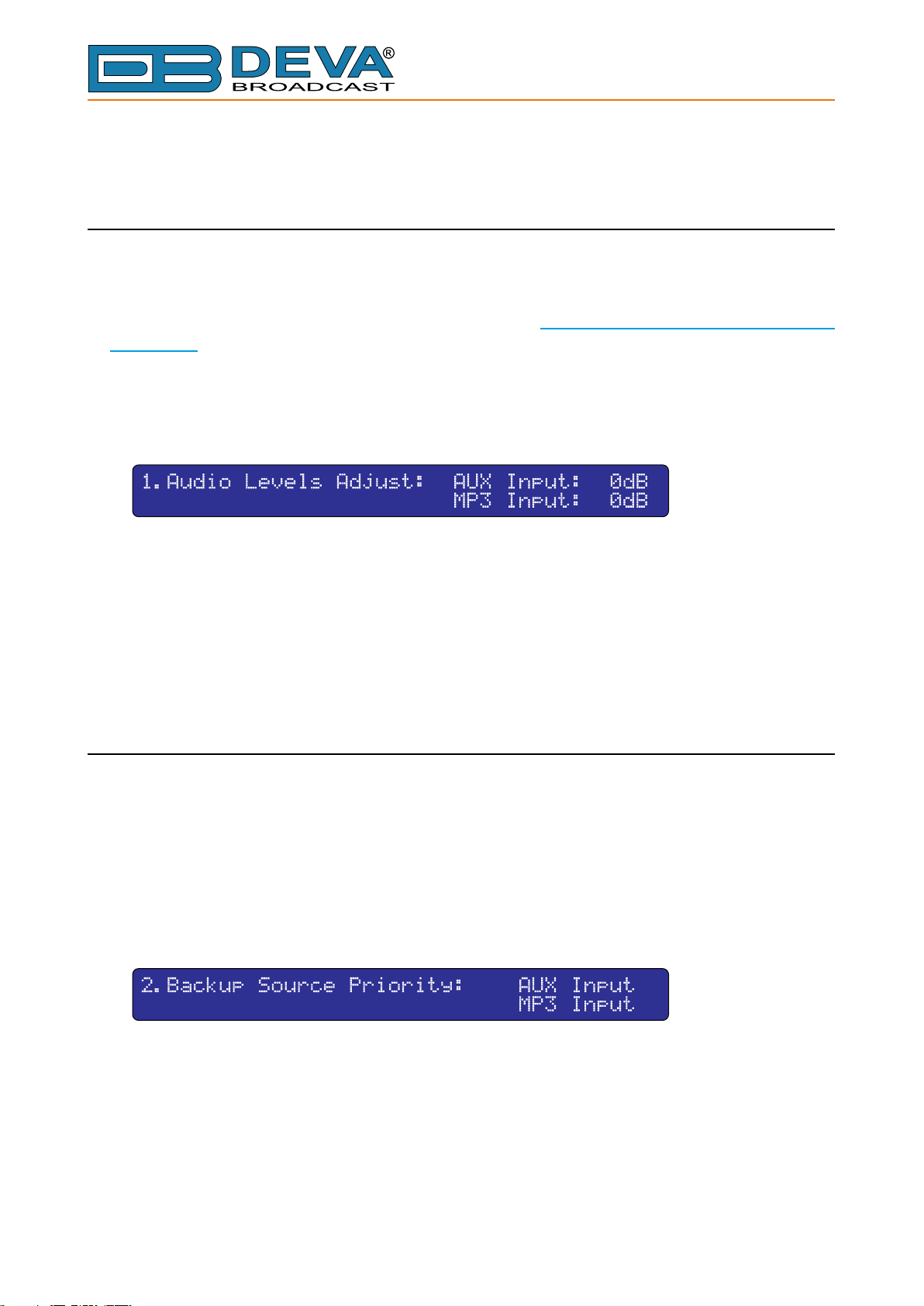
2. The following Sub-menu will open:
3. Press again the OK button;
4. By UP or DOWN keys move the cursor and select the Backup Source to be adjusted;
5. Press the OK button. Value to be edited will start blinking;
6. Using UP or DOWN keys enter a new value;
7. Press the OK button to conrm;
8. Press the LEFT key to exit to the Sub-menu or keep it pressed for more than 2 seconds to
exit to the Main Menu;
BACKUP SOURCE PRIORITY SETTING
One of the Backup Sources (Aux Input or MP3 Player) will be automatically fed to the DB8000
Output Circuit upon Main Signal interruption or when its level drops down below a specied
Threshold level. To select the priority of any of the two Backup Sources, next steps are to be
followed:
1. While in the Main Menu press the OK button;
2. Press the DOWN key and select Sub-menu 2.Backup Source Priority. The
Sub-menu that will be displayed looks as the one shown below:
3. Press again the OK button;
4. By UP or DOWN keys select the MP3 INPUT or AUX INPUT; Selected Backup
Audio Source will move up on the top;
5. Press the LEFT key to exit to the Sub-menu or keep it pressed for more than 2 seconds to
exit to the Main Menu;
- 16 -
Page 17
65 Aleksandar Stamboliyski Str., 8000 Bourgas, Bulgaria
E-mail: of[email protected] ,Web: www.devabroadcast.com
Tel: +359 56 820027, Fax: +359 56 836700
DTMF SETTINGS
There is a standard DTMF decoder built into DB8000 and connected to the MAIN Input.
Symbols that can be used are the standard ones for any DTMF decoder: – 0-9 gures, ‘A’ through
‘D’ letters and the special symbols * and #. By applying DTMF codes, the Backup Signal Sources
can be controlled. Codes that are used are “Start” and “Stop” and the following operations can be
performed:
- Aux Stat Code – the Aux Input Source will be activated and connected to the Output Circuit
of DB8000;
- Aux Stop Code – the Aux Input Source will be deactivated and the Main Input Signal Source
will be connected to the Output Circuit of DB8000;
- MP3 Start Code – the MP3 Player will be activated and connected to the Output Circuit of
DB8000;
- MP3 Stop Code – the MP3 Player will be deactivated and the Main Input Signal Source will
be connected to the Output Circuit of DB8000;
Please note there must be no coincidence between the codes for any of the above operations.
It must be noted that the Silence Detector (see “Silence Detector Settings” on page 20) will be
switched off anytime there is a DTMF Start Code sent to any of the Backup Signal Sources. The
Silence Detector will be activated back again at the time a DTMF Stop Code is received.
To perform DTMF Codes conguration next steps are to be followed:
1. While in the Main Menu press the OK button;
2. Press the DOWN key and select Sub-menu 3.DTMF Setting.
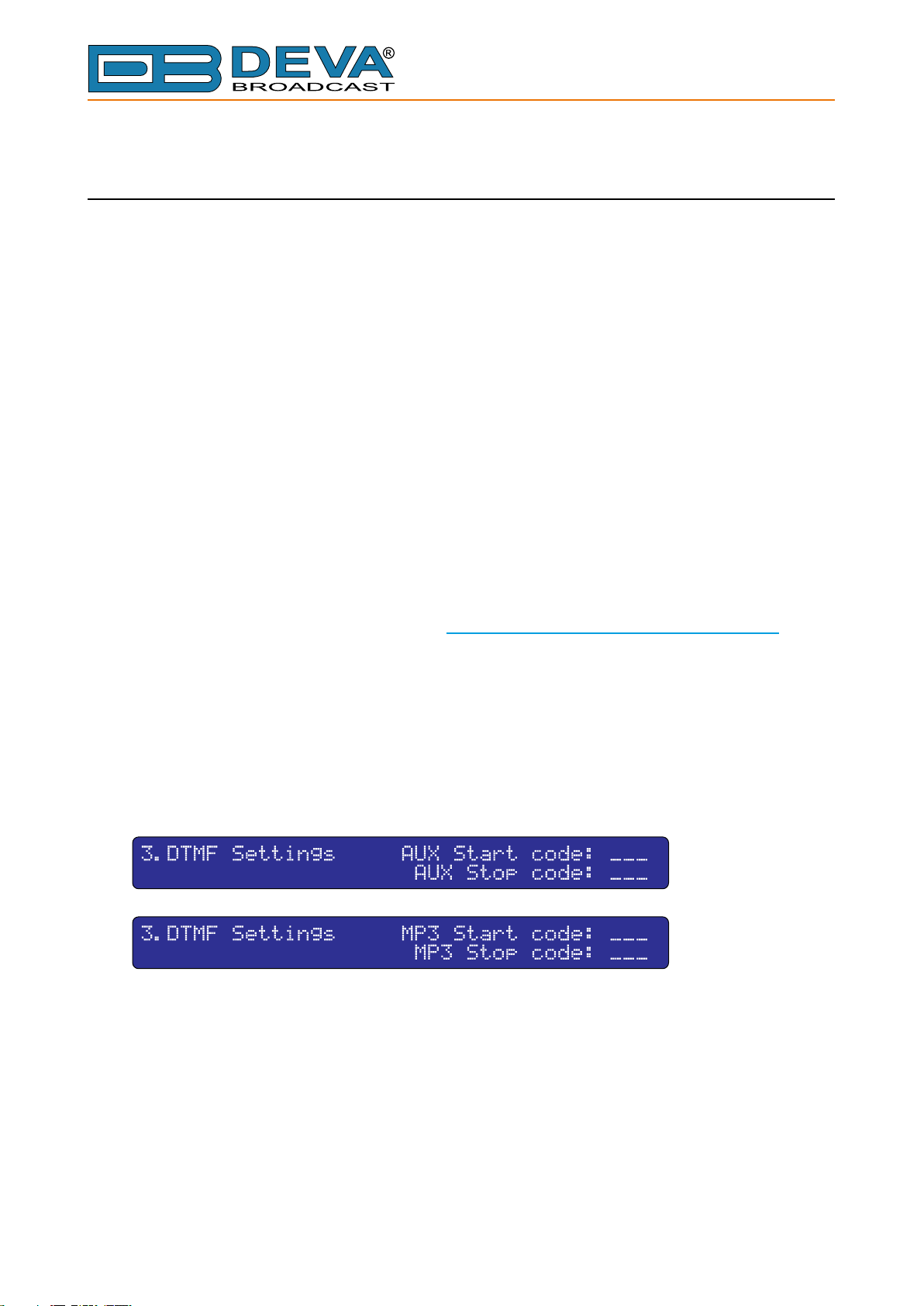
3. Press again the OK button. Now the DOWN key can be used to see the whole Sub-menu.
The DTMF Sub-menu looks as shown below:
4. Using UP or DOWN keys move the cursor to select the parameter to be edited.
5. Press the OK button once again and the editing eld will start blinking. Values that are
needed can be selected by UP or DOWN keys. To move between the parameter’s elds use LEFT
or RIGHT keys.
6. Press again the OK button to conrm selected code.
7. Press the LEFT key to exit to the Sub-menu or keep it pressed for more than 2 seconds to
exit to the Main Menu;
NOTE: DTMF Codes to control the Backup Signal Sources can be 2 or even 1 symbol instead
of 3 symbols .
- 17 -
Page 18
65 Aleksandar Stamboliyski Str., 8000 Bourgas, Bulgaria
E-mail: of[email protected] ,Web: www.devabroadcast.com
Tel: +359 56 820027, Fax: +359 56 836700
MP3 PLAYER SETTINGS
An important requirement for the MP3 Player conguration is that all MP3 les must be stored
in a folder named MP3. On the other hand the MP3 folder must be located in the Main directory
of the MicroSD Card.
The other compulsory requirement is to have a play list le whose name must be “playlist.m3u”
located in the MP3 folder. Except for playing the stored MP3 les in a sequence dened by the
User himself, this le is required for the normal operation of the MP3 Player.
It must be noted also, that the le names must be no longer that 8 symbols followed by 3
symbols extension. If there is a le whose name is longer than 8 symbols the MP3 Player will
return with Error Message and the le will not be accepted. If there is a pre-recorded le on the
MicroSD Card with a le name longer than 8 symbols, this le will be skipped for playing.
MP3 Player Mode Settings
There are two modes of MP3 playback:
- List – all the les will be played in the way they are stored in the “playlist.m3u“;
- Shufe – MP3 les will be played in random order from the “playlist.m3u“.
To perform MP3 Player Mode conguration, next steps are to be followed:
1. While in the Main Menu press the OK button;
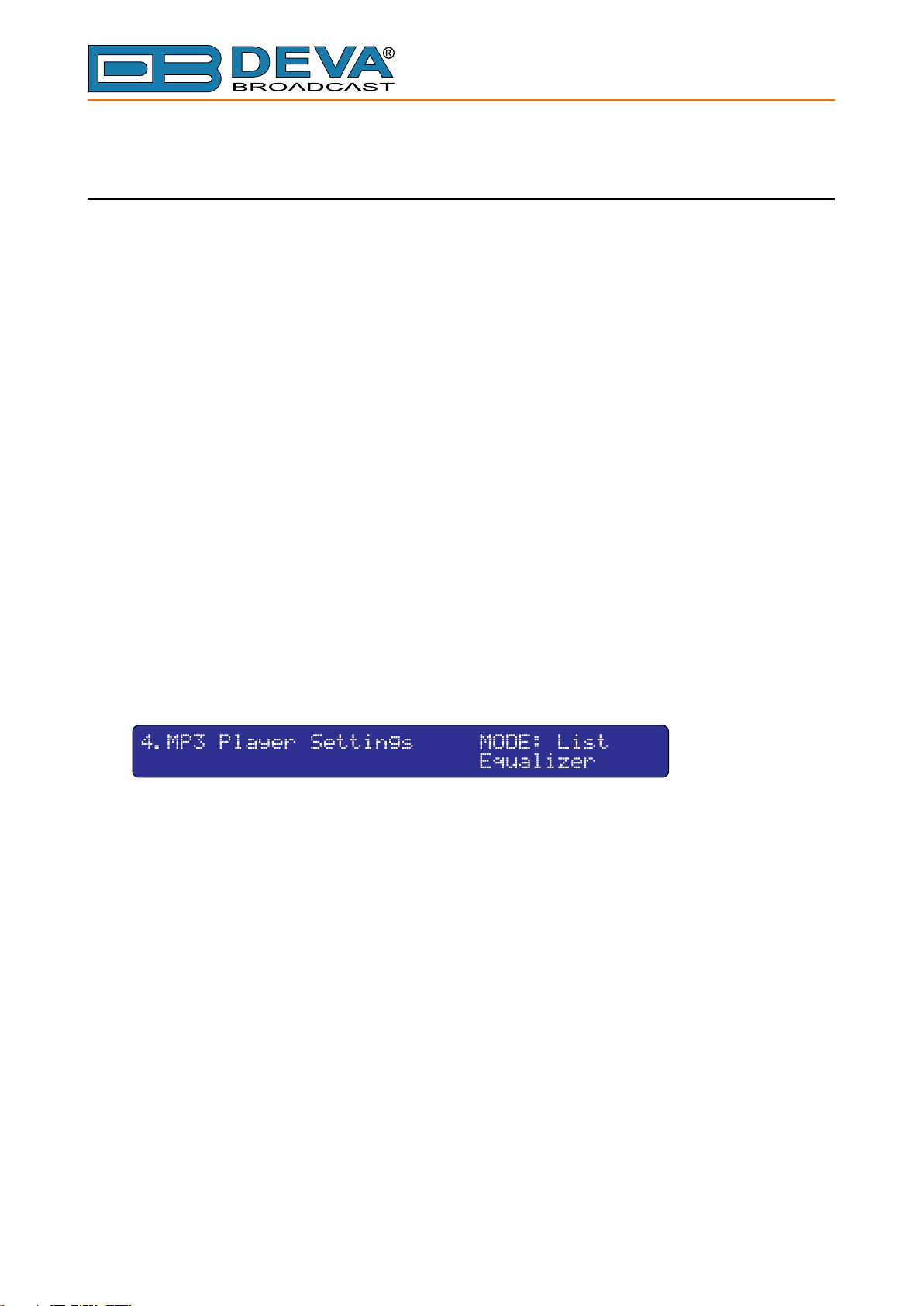
2. Press the DOWN key and select Sub-menu 4.MP3 Player Settings. The Sub-
menu that will appear looks as shown below:
3. Press the OK button;
4. Using UP or DOWN keys move the cursor and select Mode;
5. Press the OK key. Selected mode will start blinking;
6. Using UP or DOWN key select List or Shuffle;
7. Conrm selection by pressing the OK button;
8. Press the LEFT key to exit to the Sub-menu or keep it pressed for more than 2 seconds to
exit to the Main Menu;
- 18 -
Page 19
65 Aleksandar Stamboliyski Str., 8000 Bourgas, Bulgaria
E-mail: of[email protected] ,Web: www.devabroadcast.com
Tel: +359 56 820027, Fax: +359 56 836700
MP3 Player Equalizer Settings
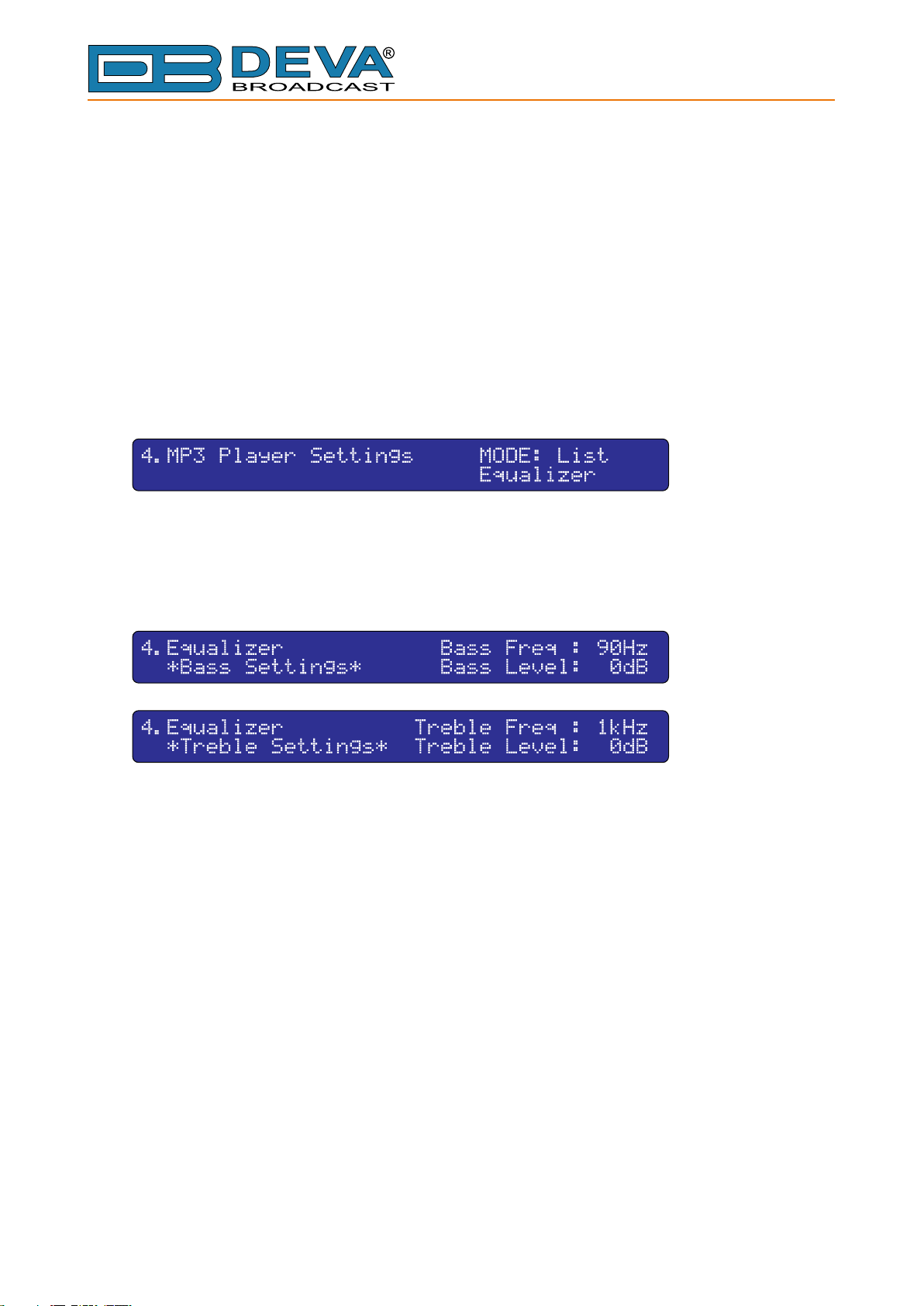
In order to improve the Output Audio Signal’s quality of the MP3 Player there are built-in
digital Bass and Treble Equalizers. Frequencies to be enhanced for the Bass Equalizer are ranging
from 20Hz to 150Hz and amplied between 0dB and 15dB. For the Treble Equalizer frequencies
to be enhanced are within the range of 1kHz to 15kHz and the levels are between -8dB to 7dB.
To congure the Bass and Treble Enhancers, next steps are to be followed:
1. While in the Main Menu press the OK button;
2. Press the DOWN key and select Sub-menu 4.MP3 Player Settings. The Sub-
menu that will appear looks as shown below:
3. Press the OK button;
4. Using UP or DOWN keys move the cursor down and select Equalizer;
5. Press the OK button. The DOWN key can be used to navigate through this Sub-menu. The
Equalizer’s Sub-menu looks like below:
6. Using UP or DOWN key move the cursor and select the parameter to be edited;
7. Press the OK button again and selected parameter will start blinking;
8. Using UP or DOWN key to enter the needed value;
9. Press the OK button to conrm the new value;
10. Press the LEFT key to exit to the Sub-menu or keep it pressed for more than 2 seconds to
exit to the Main Menu;
- 19 -
Page 20
65 Aleksandar Stamboliyski Str., 8000 Bourgas, Bulgaria
E-mail: of[email protected] ,Web: www.devabroadcast.com
Tel: +359 56 820027, Fax: +359 56 836700
SILENCE DETECTOR SETTINGS
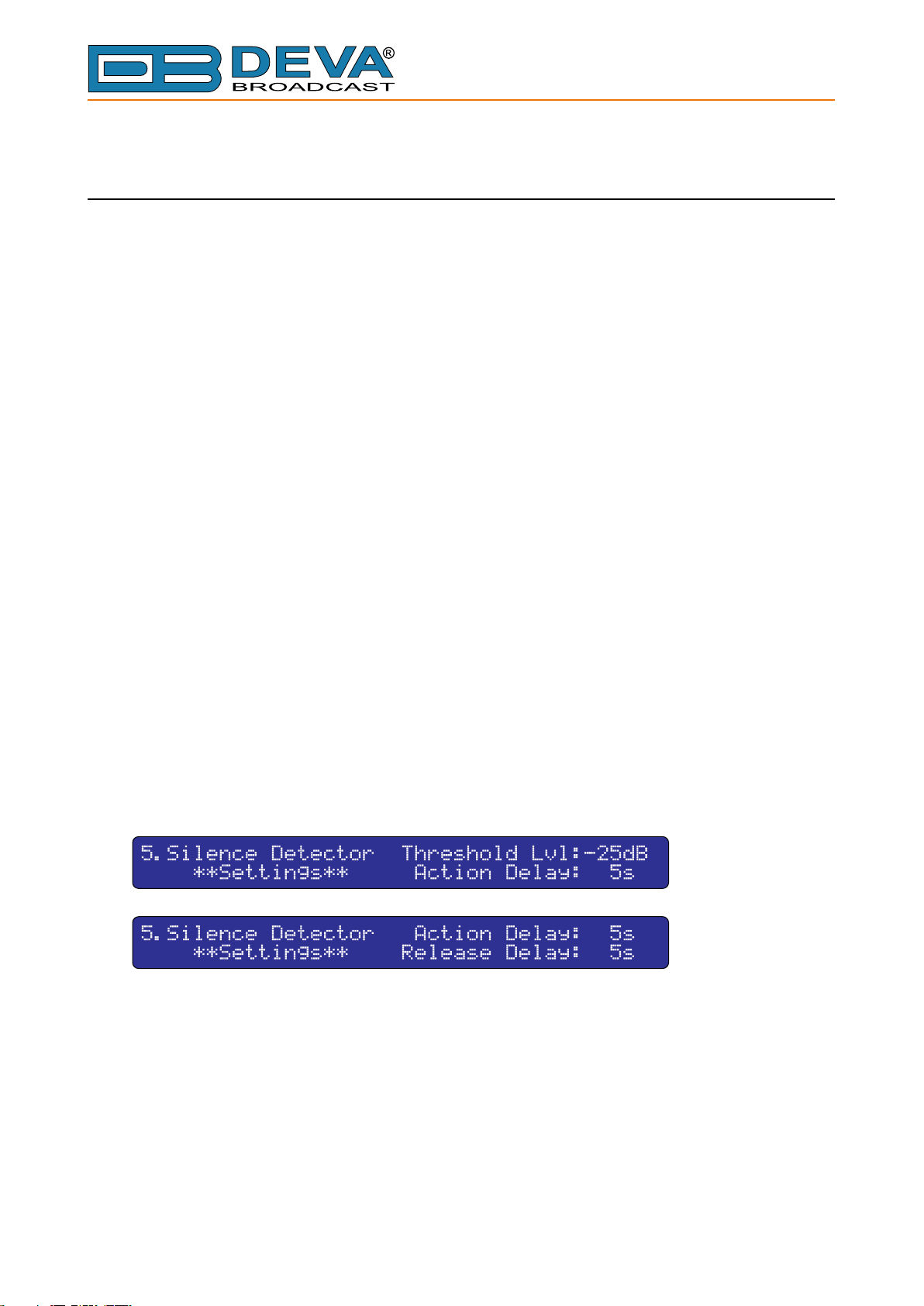
The Silence Detector is to watch the levels of the signals applied at the DB8000’s Inputs. The
Input Signal will be changed over from the Main Input to some of the Alternative Signal Sources
as dened by Priority Settings. Levels of the parameters affecting Silence Detector performance
are User denable and these parameters are as follows:
- Threshold Level (in dB)
- Action Delay (in seconds)
- Release Delay (in seconds)
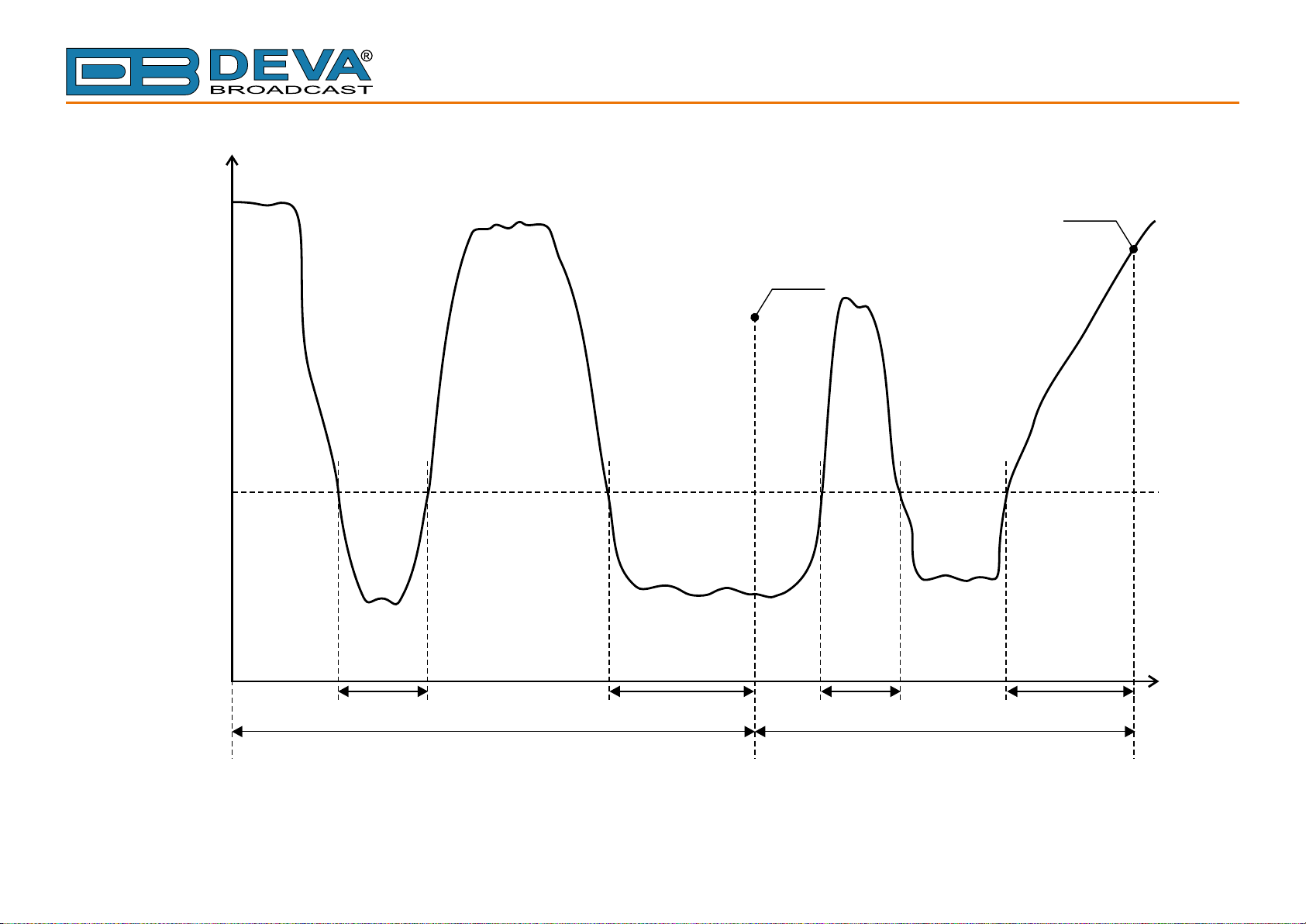
Whenever the Main Input Signal drops below the Threshold Level an Action Delay Timer will
be activated. Signal from the next Backup Source with the highest priority will be fed to the Output
Circuit of DB8000. The last operation will be carried out only if NO signal with level above the
Threshold Level appears at the Main Input for the time of Action Delay. Before switching over
to the Alternative Source Input, availability of signal there and its level will be veried. On the
contrary – the timer will be switched back to idle state if a signal passing over the Threshold Level
appears at the Main Input before time elapsing (as dened by Action Delay). Signal presence
and signal levels of the Inputs with higher priority will be continuously monitored for the time a
Backup Signal Source is in use.
On the other hand Release Delay will be activated whenever DB8000 starts using any of the
Backup Signal Sources. Release Delay is the time to elapse before switching from Backup Signal
Source to the Main Input (in case a signal passing through Threshold Level appears there).
To perform the setting of the above three parameters please follow the next steps:
1. While in the Main Menu press the OK button;
2. Press the DOWN key and select Sub-menu 5.Silence Detector.
3. Press the OK button. The DOWN key can be used to navigate through this Sub-menu which
looks like below:
4. Using UP or DOWN keys move the cursor and select the parameter to be edited;
5. Press the OK button again and the editing eld will start blinking. Values that are needed can
be selected by UP or DOWN keys;
6. Press again OK button to conrm selection;
7. Press the LEFT key to exit to the Sub-menu or keep it pressed for more than 2 seconds to
exit to the Main Menu;
A graphical view of Silence Detector performance is shown below:
- 20 -
Page 21
Main
Level
dBu
Threshold
Level
65 Aleksandar Stamboliyski Str., 8000 Bourgas, Bulgaria
Tel: +359 56 820027, Fax: +359 56 836700
E-mail: of[email protected] ,Web: www.devabroadcast.com
Switch to Main Input
Switch to Alternative Input
T1 < AD
T1
Main Input Alternative Input
AD - Action Delay, RD - Release Delay
T2 > AD
T2
- 21 -
T3 < RD T4 > RD
T3
T4
t
Page 22
65 Aleksandar Stamboliyski Str., 8000 Bourgas, Bulgaria
E-mail: of[email protected] ,Web: www.devabroadcast.com
Tel: +359 56 820027, Fax: +359 56 836700
NETWORK SETTINGS
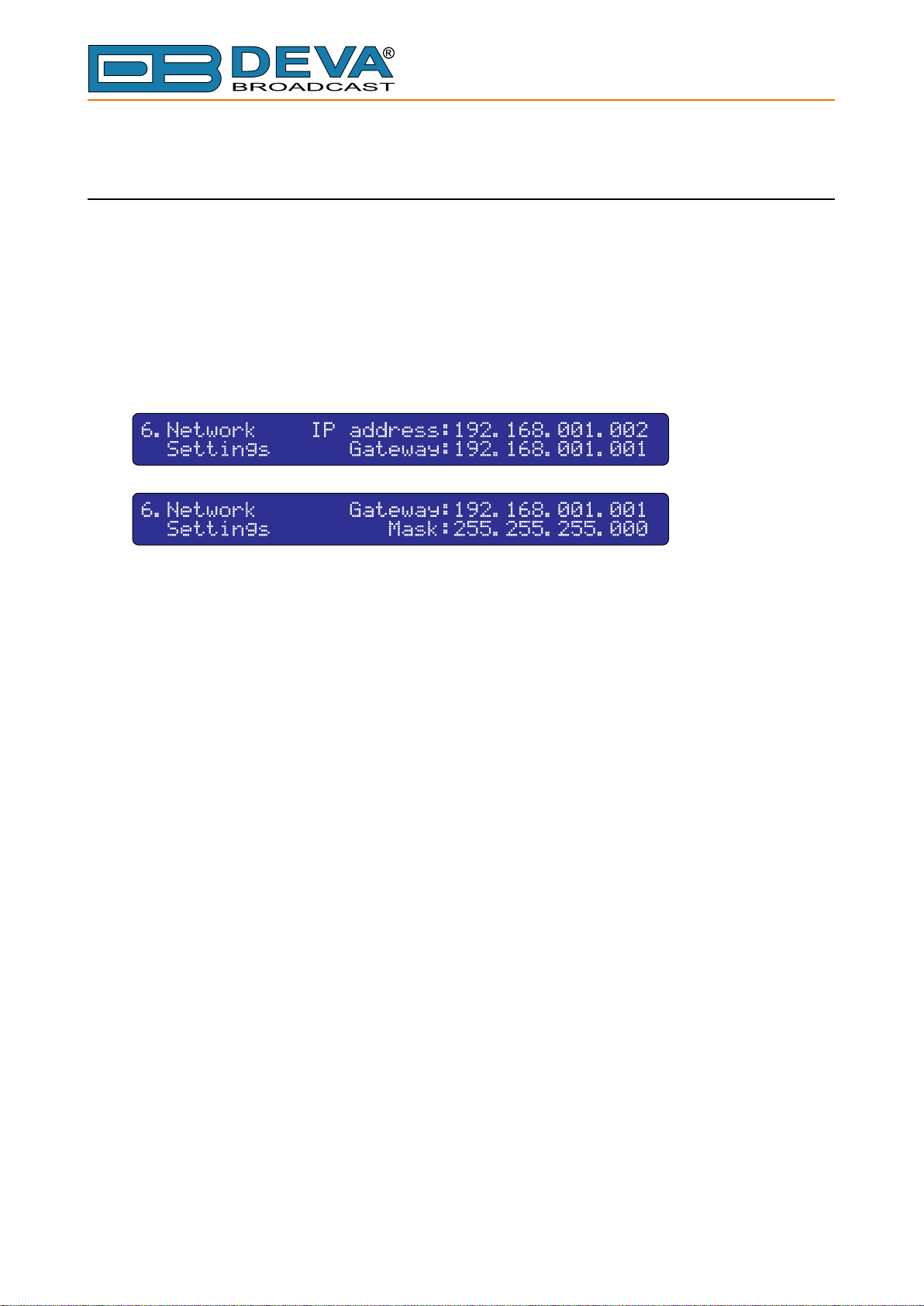
To join DB8000 to any Local Area Network (LAN) or Wide Area Network (WAN) and use the
built-in FTP Server, settings as IP address, Gateway and Subnet Mask must be dened. This can
be accomplished by following the next steps:
1. While in the Main Menu press the OK button;
2. Press DOWN key and select Sub-menu 6.Network Settings.
3. Press the OK button. The DOWN key can be used to navigate through this Sub-menu which
looks like below:
4. Using UP or DOWN keys move the cursor and select the parameter to be edited;
5. Press the OK button again and the editing eld will start blinking;
6. Enter needed values by UP or DOWN keys. To move between the parameter’s elds use the
LEFT or RIGHT keys;
7. Press again the OK button to conrm the selection made;
8. Press the LEFT key to exit to the Sub-menu or keep it pressed for more than 2 seconds to
exit to the Main Menu;
- 22 -
Page 23
65 Aleksandar Stamboliyski Str., 8000 Bourgas, Bulgaria
E-mail: of[email protected] ,Web: www.devabroadcast.com
Tel: +359 56 820027, Fax: +359 56 836700
IP ROUTER AND PORT TRANSLATION
Now that broadband Internet connections are so common and NAT routers are more widespread
than ever, your connection to the Internet might be going through a NAT router or a rewall. If
you have a home network or DSL service, you’re likely to have one of these. These devices can
improve the security of your computer, and can allow a single Internet address to be shared by
more than one computer on your network.
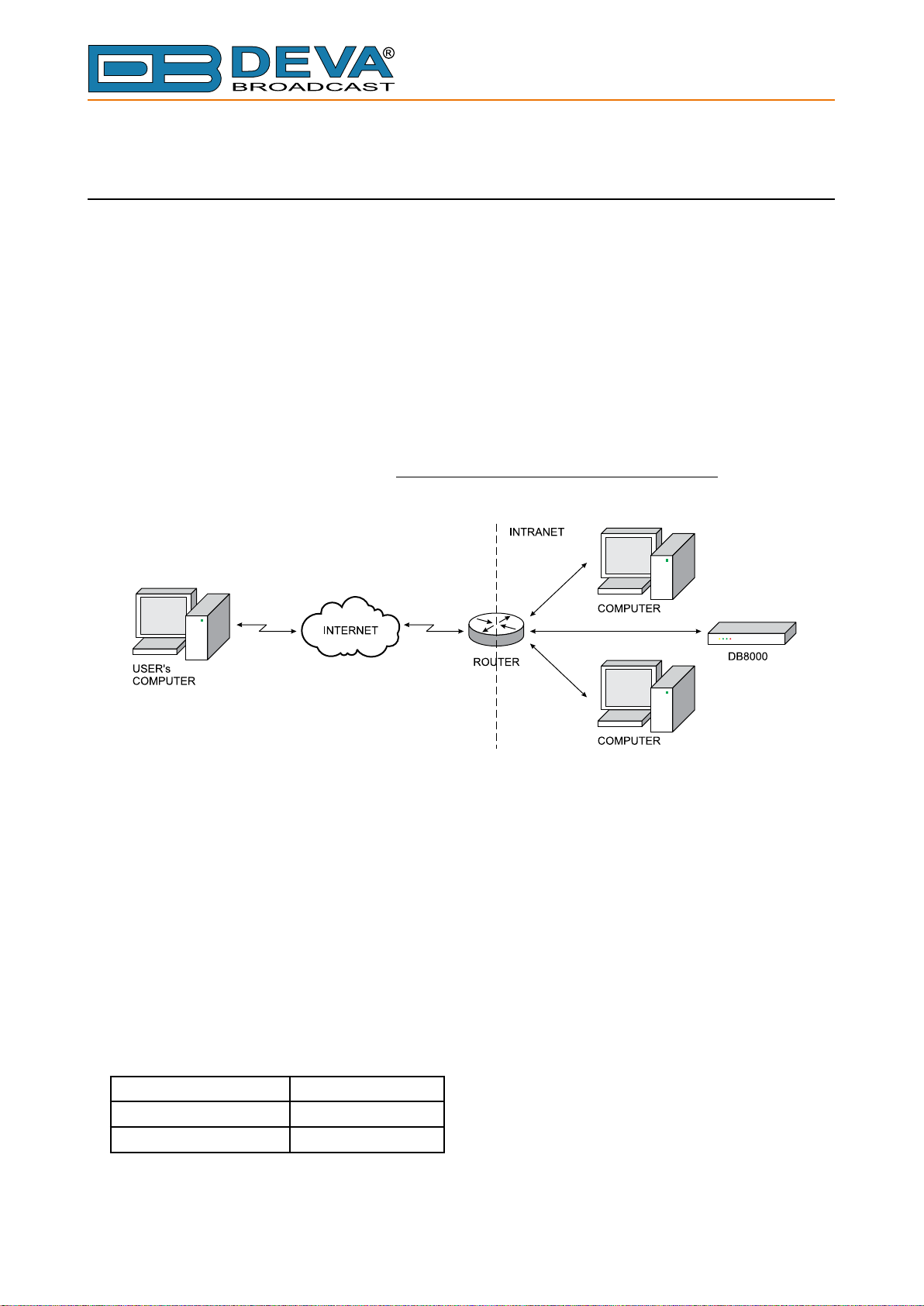
NAT stands for network address translation and allows multiple computers or devices to access
the internet through a single internet connection and single IP address. The computers or devices
on the inside of the network, known as an intranet, are given IP addresses that are non-routable
(meaning non-internet addresses). The router translates the outgoing requests from your computer
or device into requests from the single IP address on the WAN (or Internet side of the router). On
the other hand the router will NOT forward requests originating from the outside of the network
and pass them on to the local network unless very specically congured to do so.
On the picture below is presented an example of DB8000 to router connection:
In this way, the hardware router, designed not to permit any unsolicited packets from an external
host to be delivered to an internal host acts as a router rewall and can be a problem for client
programs to reach your distant Deva Broadcast’s device.
The solution to this problem is to congure the port forwarding feature of the router to allow
certain packets to reach the Deva Broadcast’s device. Аs each make and model of router has a
different procedure for setting up port forwarding, please refer to the specic router’s manual for
guidance and further details. Usually the port forwarding can be done in the NAT section from the
router’s menu.
Required ports for Server and Client services and applications
The following list shows the ports that must be open on your router or rewall to allow specic
types of data ows through the router:
Port Description DB8000 Defaults
FTP Command Port 21
FTP Data Port 20
NOTE: If you customize the DB8000 FTP ports, please consider the same port values must be
used to congure router’s forwarding.
- 23 -
Page 24
65 Aleksandar Stamboliyski Str., 8000 Bourgas, Bulgaria
E-mail: of[email protected] ,Web: www.devabroadcast.com
Tel: +359 56 820027, Fax: +359 56 836700
FTP SERVER SETTINGS
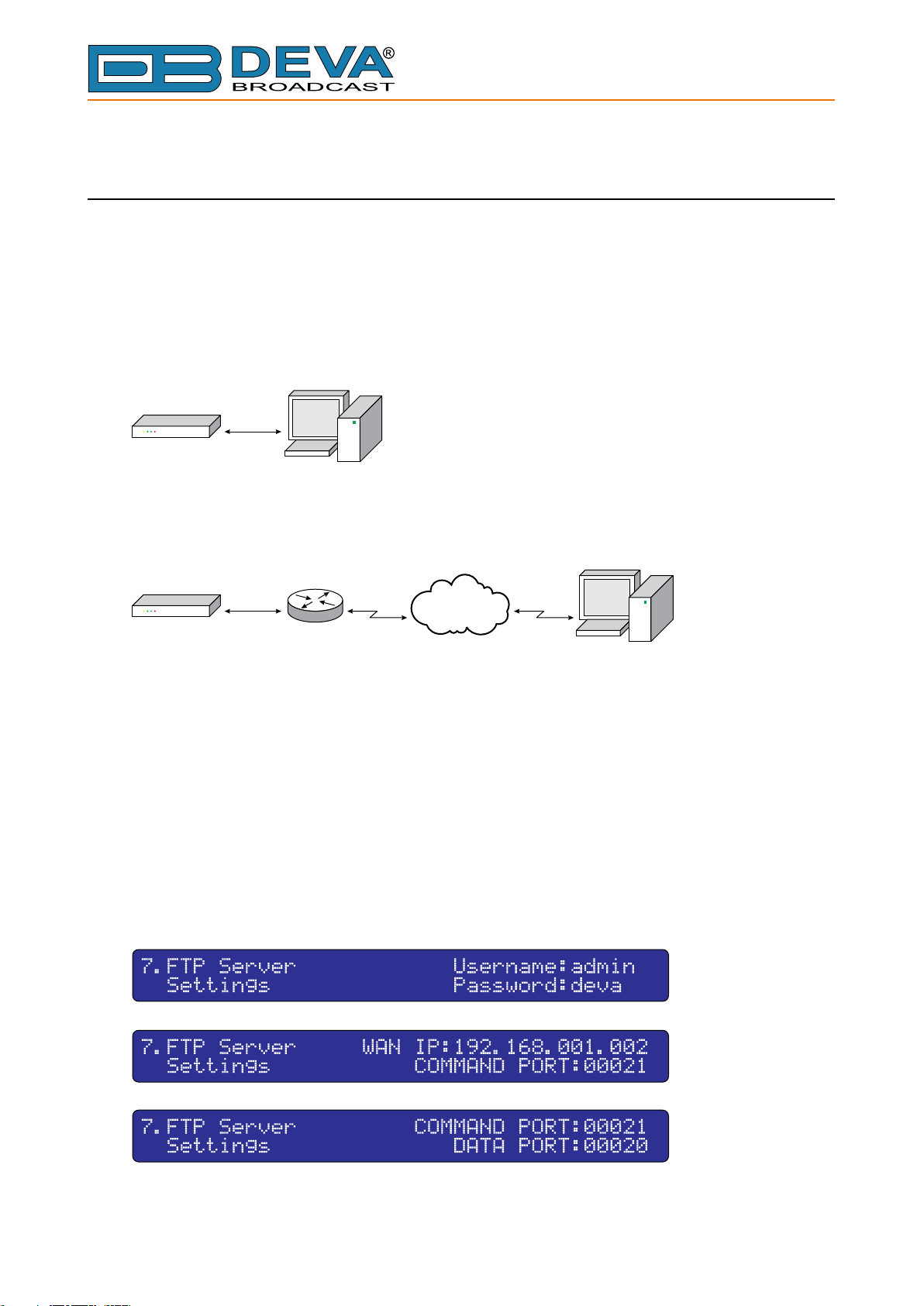
Access to the built-in FTP server is controlled by applying Username and Password with
maximum length of 6 symbols each of them. It must be noted that the FTP Server works in Passive
mode and it is necessary a Wide Area Network (WAN) address to be specied.
If DB8000 is connected directly to the computer where the FTP Client is installed then the
WAN IP Address must be equal to that of IP Address in Sub-menu 6.Network Settings
(WAN IP address = IP address). Direct DB8000 connection is illustrated below:
DB8000
WAN IP
FTP CLIENT
If a networking device (router for example) is used, then the DB8000 WAN IP Address must be
equal to that of the router as illustrated below:
NETWORK
DB8000
WAN IP
=
ROUTER
WAN IP
FTP CLIENT
Command and Data Ports are the other two parameters that must be specied in order to
establish FTP connection.
NOTE: As the DB8000’s FTP server can manage only one connection at a certain time, please
congure your FTP client to use only one simultaneous connection.
Conguration of the FTP Server can be accomplished following the next steps:
1. While in the Main Menu press the OK button;
2. Press the DOWN key and select Sub-menu 7.FTP Server Settings.
3. Press the OK button. The DOWN key can be used to navigate through this Sub-menu which
looks like below:
- 24 -
Page 25

65 Aleksandar Stamboliyski Str., 8000 Bourgas, Bulgaria
E-mail: of[email protected] ,Web: www.devabroadcast.com
Tel: +359 56 820027, Fax: +359 56 836700
4. Using UP or DOWN keys move the cursor and select the parameter to be edited;
5. Press the OK button once again and the editing eld will start blinking. Values that are
needed can be selected by UP or DOWN keys. To move between the parameter’s elds use LEFT
or RIGHT keys;
6. Press the OK button to conrm selection;
7. Press the LEFT key to exit to the Sub-menu or keep it pressed for more than 2 seconds to
exit to the Main Menu;
NOTE: Please note that the maximum length of Password and Username is 6 symbols.
- 25 -
Page 26
65 Aleksandar Stamboliyski Str., 8000 Bourgas, Bulgaria
E-mail: of[email protected] ,Web: www.devabroadcast.com
Tel: +359 56 820027, Fax: +359 56 836700
E-MAIL NOTIFICATIONS
DB8000 has built-in E-mail Client to perform an e-mail notications in case of Input Signal
source change. E-mails are sent to predened recipient and consist of short text describing source
change - Main, Aux or Backup. E-mail Client could be enabled or disabled at any time. Before
using E-mail Client, one must be congured properly, according to used E-mail Server. E-mail
Client could establish SSL connection if required.
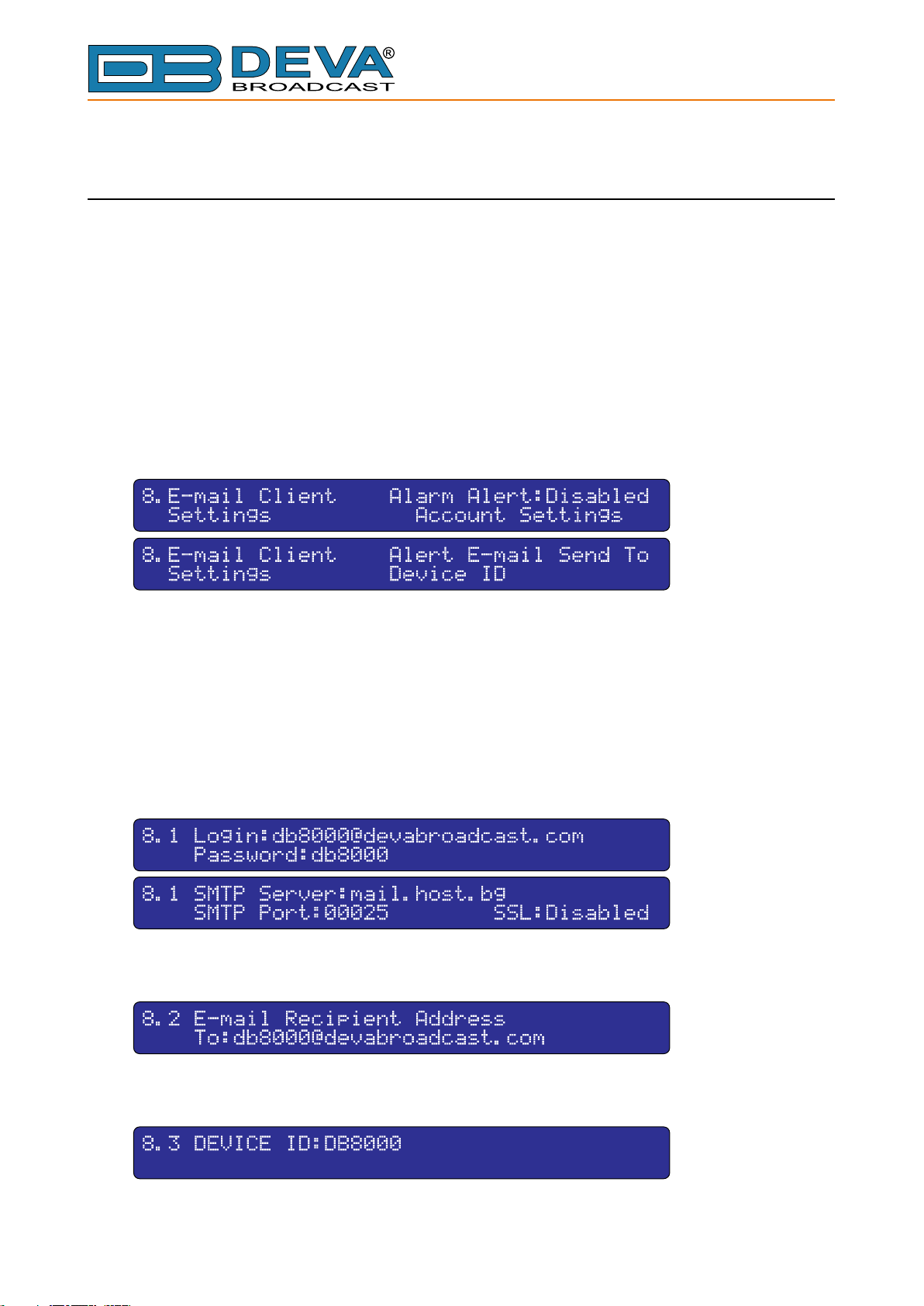
Conguration of the E-mail Client can be accomplished following the next steps:
1. While in the Main Menu press the OK button;
2. Press the DOWN key and select Sub-menu 8.E-mail Client Settings.
3. Press the OK button. The DOWN key can be used to navigate through this Sub-menu which
looks like below:
4. Using UP or DOWN keys move the cursor and select the parameter to be edited;
5. Press the OK button once again to enter the sub menu or the editing eld will start blinking.
Values that are needed can be selected by UP or DOWN keys. To move between the parameter’s
elds use LEFT or RIGHT keys;
6. Press the OK button to conrm selection;
7. Press the LEFT key to exit to the Sub-menu or keep it pressed for more than 2 seconds to
exit to the Main Menu;
Sub-menu for E-mail Client Account Settings looks like below:
Sub-menu for E-mail Recipient Address looks like below:
Sub-menu for Device ID looks like below:
Device ID is included into notication text and has meaning only to distinguish messages from
one device to another.
- 26 -
Page 27
65 Aleksandar Stamboliyski Str., 8000 Bourgas, Bulgaria
E-mail: of[email protected] ,Web: www.devabroadcast.com
Tel: +359 56 820027, Fax: +359 56 836700
SNMP SETTINGS
DB8000 supports Simple Network Management Protocol (SNMP) v2c. Using SNMP gives
exibility and more integration possibilities.
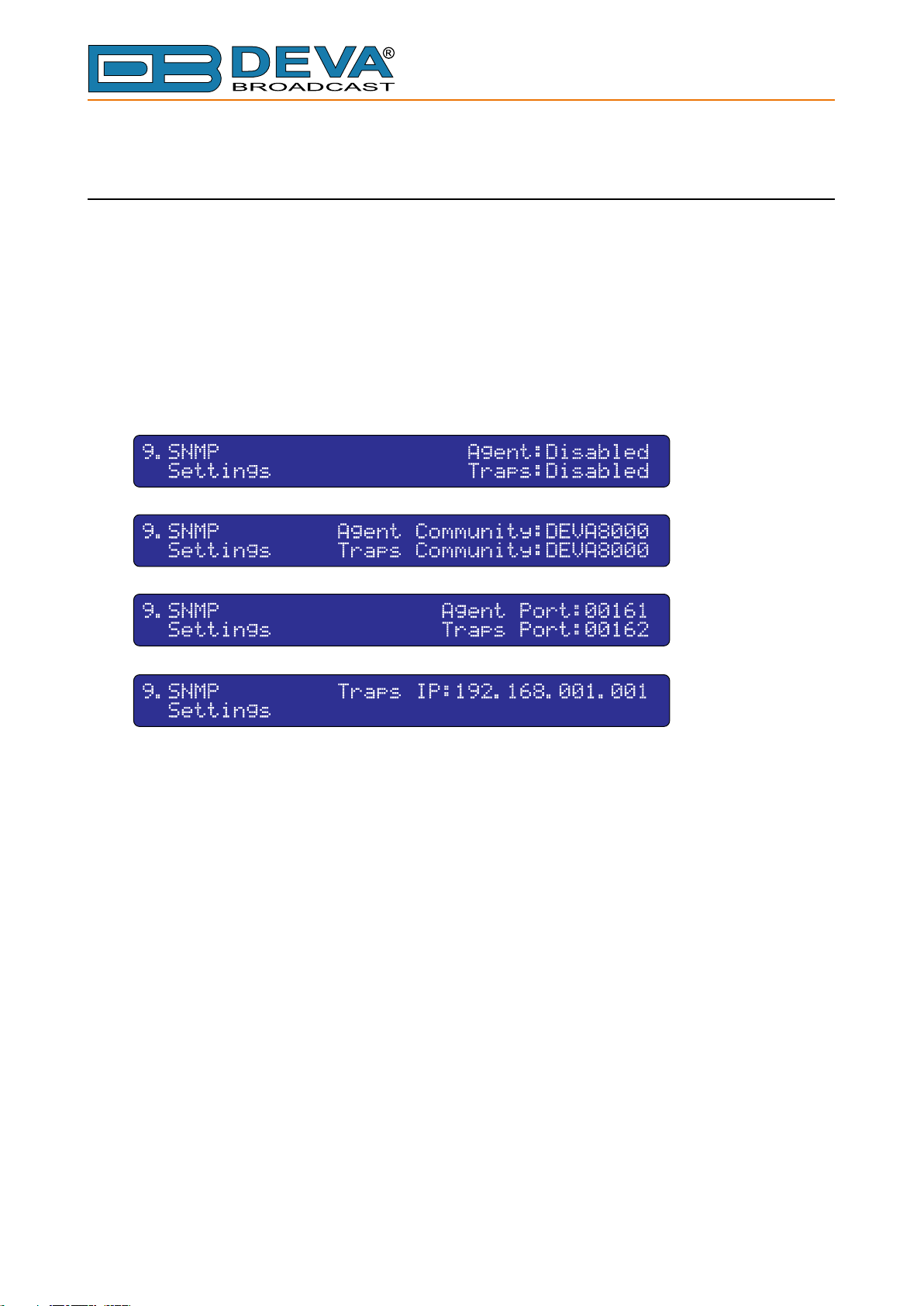
Conguration of the SNMP can be accomplished following the next steps:
1. While in the Main Menu press the OK button;
2. Press the DOWN key and select Sub-menu 9.SNMP Settings.
3. Press the OK button. The DOWN key can be used to navigate through this Sub-menu which
looks like below:
4. Using UP or DOWN keys move the cursor and select the parameter to be edited;
5. Press the OK button once again and the editing eld will start blinking. Values that are
needed can be selected by UP or DOWN keys. To move between the parameter’s elds use LEFT
or RIGHT keys;
6. Press the OK button to conrm selection;
7. Press the LEFT key to exit to the Sub-menu or keep it pressed for more than 2 seconds to
exit to the Main Menu;
NOTE: Device will send TRAP Alerts only when they are enabled.
- 27 -
Page 28
65 Aleksandar Stamboliyski Str., 8000 Bourgas, Bulgaria
E-mail: of[email protected] ,Web: www.devabroadcast.com
Tel: +359 56 820027, Fax: +359 56 836700
MEMORY CARD
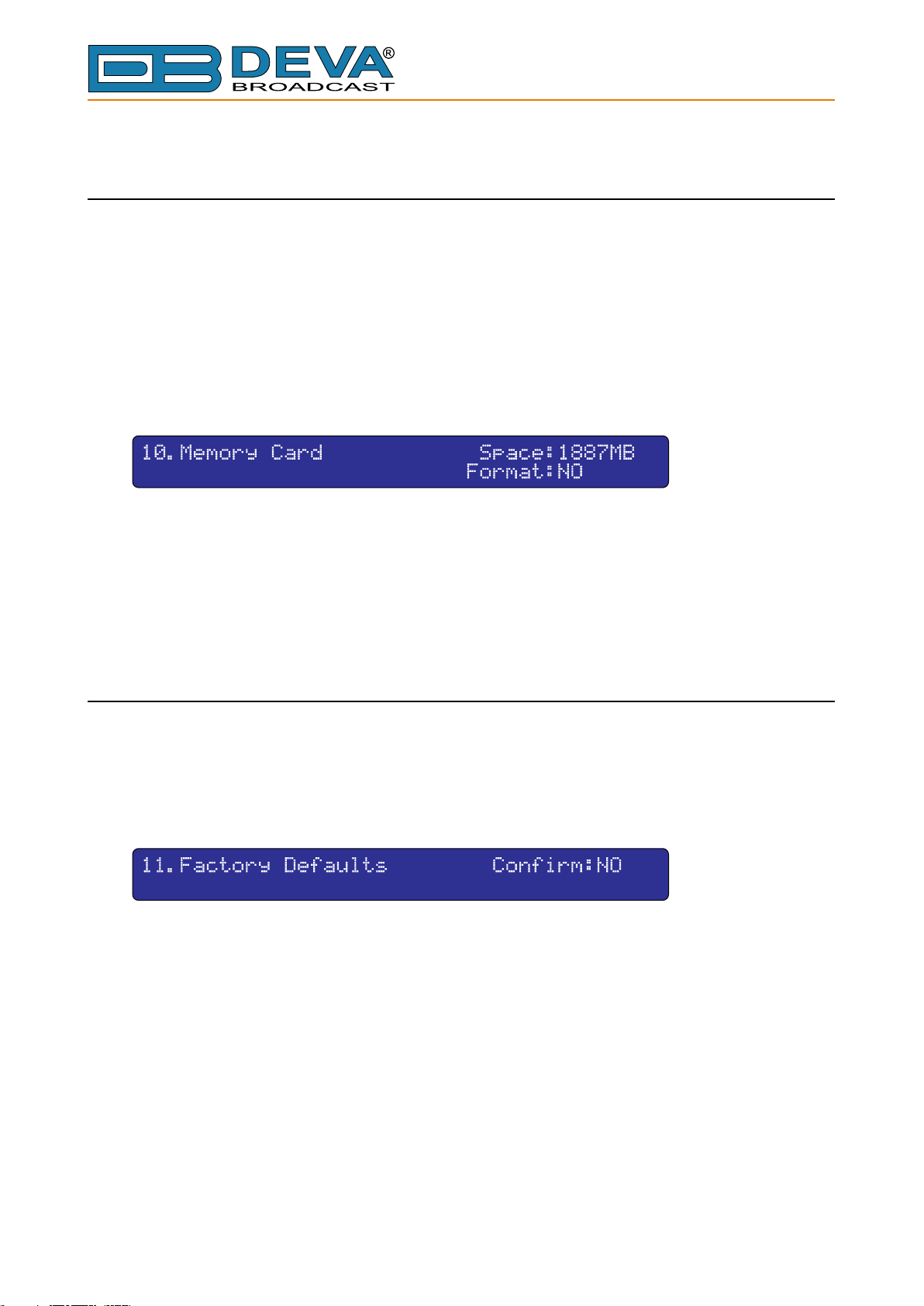
Formatting of the Memory Card can be accomplished by selecting Sub-menu 8.Memory
Card. Also free memory space could be checked selecting this Sub-menu.
Please note that FORMAT is the only parameter that could be edited within this Sub-menu and
SPACE is for informative purposes only.
To perform any of the above operations next steps are to be followed:
1. While in the Main Menu press the OK button;
2. Press the DOWN key and select Sub-menu 10.Memory Card. The following Submenu will be shown on the display:
3. Pressing the OK button will select Format;
4. Press the OK button one more time to make the parameter blinking;
5. Using UP or DOWN keys select YES or NO;
6. Press the OK button to conrm;
7. Press the LEFT key to exit to the Sub-menu or keep it pressed for more than 2 seconds to
exit to the Main Menu;
RESET TO FACTORY DEFAULTS
To reset DB8000 to its Factory Defaults next steps are to be followed:
1. While in the Main Menu press the OK button;
2. Press the DOWN key and select Sub-menu 11.Factory Defaults. The following
Sub-menu will be shown on the display:
3. Pressing the OK button will select Confirm:NO;
4. Press the OK button one more time and the parameter will start blinking;
5. Using UP or DOWN keys select YES or NO;
6. Press the OK button to conrm;
7. Press the LEFT button to exit to the Sub-menu or keep it pressed for more than 2 seconds to
exit to the Main Menu;
- 28 -
Page 29
65 Aleksandar Stamboliyski Str., 8000 Bourgas, Bulgaria
E-mail: of[email protected] ,Web: www.devabroadcast.com
Tel: +359 56 820027, Fax: +359 56 836700
DEVICE INFO
This is just an informative Sub-menu where is nothing to be edited. To select it next steps are
to be followed:
1. While in the Main Menu press the OK button;
2. Press the DOWN key and select Sub-menu 12.Device Info.
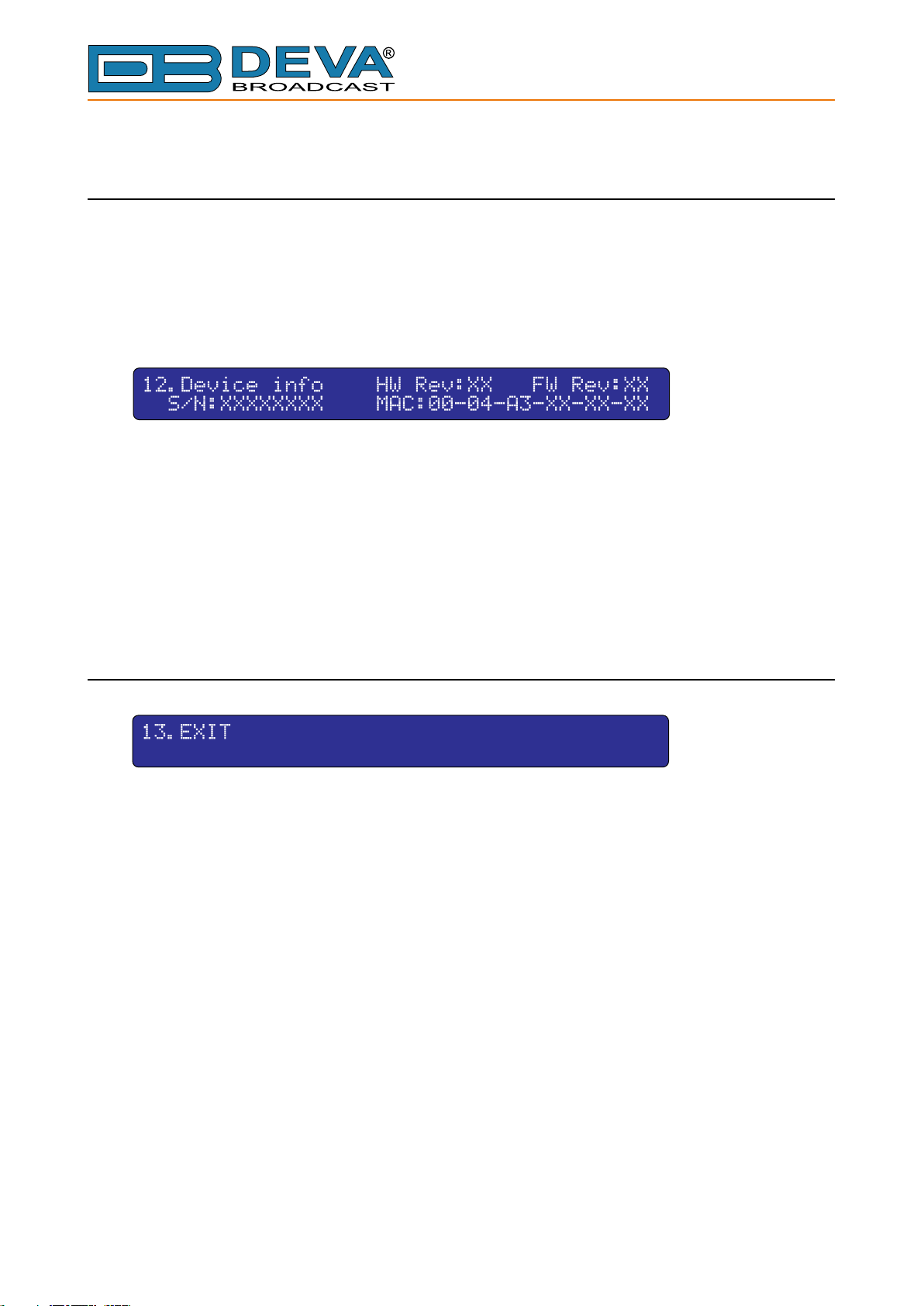
3. The following Sub-menu will be shown on the display:
4. To exit to the Main Menu press the LEFT key and keep it pressed for more than 2 seconds.
As seen the following information can be obtained from this Sub-menu:
- Serial Number;
- Hardware Version;
- Software Version;
- Firmware Version;
- MAC Address of the built-in NIC (Network Interface Card);
EXIT
By this menu the User will be turned back to the Main Menu. To perform it just press the OK
button.
- 29 -
Page 30

65 Aleksandar Stamboliyski Str., 8000 Bourgas, Bulgaria
E-mail: of[email protected] ,Web: www.devabroadcast.com
Tel: +359 56 820027, Fax: +359 56 836700
Firmware Upgrade
The DB8000 rmware can be upgraded if desired. By updating the rmware, new function(s)
can be added and the improvement of performance parameters can be obtained.
The latest rmware, the rm utility (software) and a document explaining the process of
rmware upgrade can be downloaded from the DEVA Broadcast Ltd. home page via the Internet.
You can check and download for the latest rmware versions at the download area of the DEVA
Broadcast’s web site: http://www.devabroadcast.com/
- 30 -
Page 31

65 Aleksandar Stamboliyski Str., 8000 Bourgas, Bulgaria
E-mail: of[email protected] ,Web: www.devabroadcast.com
Tel: +359 56 820027, Fax: +359 56 836700
WARRANTY TERMS AND CONDITIONS
I. TERMS OF SALE: DEVA Broadcast Ltd. products are sold with an understanding of “full
satisfaction”; that is, full credit or refund will be issued for products sold as new if returned to the
point of purchase within 30 days following their receipt, provided that they are returned complete
and in an “as received” condition.
II. CONDITIONS OF WARRANTY: The following terms apply unless amended in writing
by DEVA Broadcast Ltd.
A. The Warranty Registration Card supplied with this product must be completed and returned
to DEVA Broadcast Ltd. within 10 days of delivery.
B. This Warranty applies only to products sold “as new.” It is extended only to the original enduser and may not be transferred or assigned without prior written approval by DEVA Broadcast Ltd.
C. This Warranty does not apply to damage caused by improper mains settings and/or power
supply.
D. This Warranty does not apply to damage caused by misuse, abuse, accident or neglect. This
Warranty is voided by unauthorized attempts at repair or modication, or if the serial identication
label has been removed or altered.
III. TERMS OF WARRANTY: DEVA Broadcast Ltd. products are warranted to be free from
defects in materials and workmanship.
A. Any discrepancies noted within TWO YEARS of the date of delivery will be repaired
free of charge, or the equipment will be replaced with a new or remanufactured product at
DEVA Broadcast Ltd. option.
B. Parts and labor for factory repair required after the two-year Warranty period will be billed
at prevailing prices and rates.
IV. RETURNING GOODS FOR FACTORY REPAIR:
A. Equipment will not be accepted for Warranty or other repair without a Return Authorization
(RA) number issued by DEVA Broadcast Ltd. prior to its return. An RA number may be obtained
by calling the factory. The number should be prominently marked on the outside of the shipping
carton.
B. Equipment must be shipped prepaid to DEVA Broadcast Ltd.. Shipping charges will be
reimbursed for valid Warranty claims. Damage sustained as a result of improper packing for return
to the factory is not covered under terms of the Warranty and may occasion additional charges.
- 31 -
Page 32

PRODUCT REGISTRATION CARD
• All elds are required, or warranty registration is invalid and void
Your Company Name
Contact
Address Line 1
Address Line 2
City
65 Aleksandar Stamboliyski Str., 8000 Bourgas, Bulgaria
Tel: +359 56 820027, Fax: +359 56 836700
E-mail: of[email protected] ,Web: www.devabroadcast.com
State/Province ZIP/Postal Code
Country
E-mail Phone Fax
Which DEVA Broadcast Ltd. product did you purchase?
Product Serial #
Purchase date / / Installation date / /
Your signature*
*Signing this warranty registration form you are stating that all the information provided to DEVA Broadcast Ltd. are truth and correct.
DEVA Broadcast Ltd. declines any responsibility for the provided information that could result in an immediate loss of warranty for
the above specied product(s).
Privacy statement: DEVA Broadcast Ltd. will not share the personal information you provide on this card with any other parties.
- 32 -
Page 33

65 Aleksandar Stamboliyski Str., 8000 Bourgas, Bulgaria
E-mail: of[email protected] ,Web: www.devabroadcast.com
Tel: +359 56 820027, Fax: +359 56 836700
Appendix A
LIST OF DB8000 FACTORY DEFAULT SETTINGS
FTP Data Port 2020
FTP Command Port 2021
FTP User Name admin
FTP Password deva
IP Address 192.168.1.2
Gateway 192.168.1.1
Subnet Mask 255.255.255.0
WAN Address 192.168.1.2
AUX Level 0 dB
MP3 Level 0 dB
Source Priority MP3
Player Mode List
Bass Frequency 130 Hz
Bass Level 0 dB
Treble Frequency 5 kHz
AUX Start Code not assigned
AUX Stop Code not assigned
MP3 Start Code not assigned
MP3 Stop Code not assigned
Threshold Level -25 dB
Action Delay 5 sec
Release Delay 5 sec
E-mail Alarm Alert enabled
E-mail Login [email protected]
E-mail Password db8000
SMTP Server mail.host.bg
SMTP Port 25
SSL disabled
E-mail Recipient [email protected]
Device ID DB8000
SNMP Agent disabled
SNMP Traps disabled
Agent Community DEVA8000
Traps Community DEVA8000
Agent Port 161
Traps Port 162
Traps IP 192.168.1.1
- 33 -
Page 34
E-mail: of[email protected] ,Web: www.devabroadcast.com
Appendix B
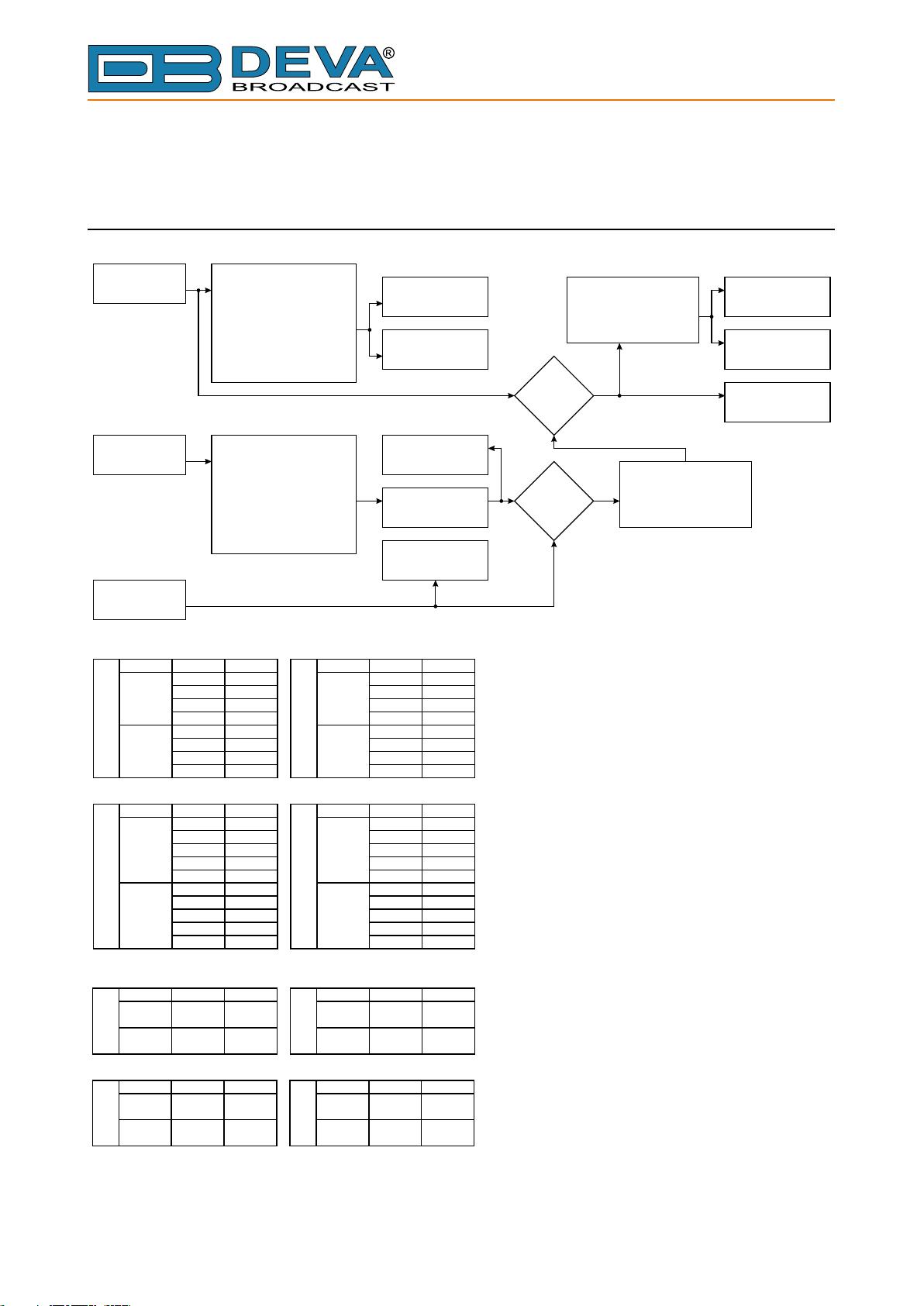
LIST OF DB8000 JUMPER SETTINGS
65 Aleksandar Stamboliyski Str., 8000 Bourgas, Bulgaria
Tel: +359 56 820027, Fax: +359 56 836700
MAIN IN
AUX IN
MP3
Decoder
Input Gain = 0 dB
Channel
LEFT
MAIN INPUT
RIGHT
Input Gain = 0 dB
Channel
LEFT
AUX INPUT
RIGHT
LEFT CHANNEL - JP 4,5
0dB / -6dB
RIGHT CHANNEL - JP 10,11
0dB / -6dB
LEFT CHANNEL - JP 6
10k 600ΩΩ /
RIGHT CHANNEL - JP 12
10kΩ / 600Ω
LEFT CHANNEL - JP 16, 17
0dB / -6dB
RIGHT CHANNEL - JP 18, 20
0dB / -6dB
LEFT CHANNEL - JP 15
10kΩ / 600Ω
RIGHT CHANNEL - JP 19
10kΩ / 600Ω
Jumper
JP10
JP11
Jumper
JP17
JP16
JP13
JP18
JP20
JP14
JP4
JP5
JP2
JP3
JP8
JP7
JP2
JP3
JP8
JP7
Position
1-2
1-2
1-2
1-2
1-2
1-2
1-2
1-2
Position
1-2
1-2
1-2
1-2
1-2
1-2
1-2
1-2
1-2
1-2
Input Gain = -6 dB
Channel
LEFT
MAIN INPUT
RIGHT
Input Gain = -6 dB
Channel
LEFT
AUX INPUT
RIGHT
DTMF Decoder
Potentiometer
MP3 Decoder
Jumper
JP4
JP5
JP2
JP3
JP10
JP11
JP8
JP7
Jumper
JP17
JP16
JP13
JP2
JP3
JP18
JP20
JP14
JP8
JP7
Main
Level Meter
AUX
Level Meter
Digital
Level Meter
Position
2-3
2-3
2-3
2-3
2-3
2-3
2-3
2-3
Position
2-3
2-3
2-3
2-3
2-3
2-3
2-3
2-3
2-3
2-3
LEFT CHANNEL - JP 2, 3
0dB / -6dB
RIGHT CHANNEL - JP 7, 8
0dB / -6dB
Relay
K1, K2
Relay
K3
LEFT CHANNEL - JP 13
0dB / -6dB
RIGHT CHANNEL - JP 14
0dB / -6dB
OUTPUT
Level Meter
PHONES
OUTPUT
Input Impedance = 600Ω
Channel
LEFT
RIGHT
MAIN INPUT
Input Impedance = 600Ω
Channel
LEFT
RIGHT
AUX INPUT
Jumper
JP6
JP12
Jumper
JP15
JP19
Position
2-3
2-3
Position
2-3
2-3
Input Impedance = 10kΩ
Channel
LEFT
RIGHT
MAIN INPUT
Input Impedance = 10kΩ
Channel
LEFT
RIGHT
AUX INPUT
Jumper
JP6
JP12
Jumper
JP15
JP19
Position
1-2
1-2
Position
1-2
1-2
- 34 -
Page 35
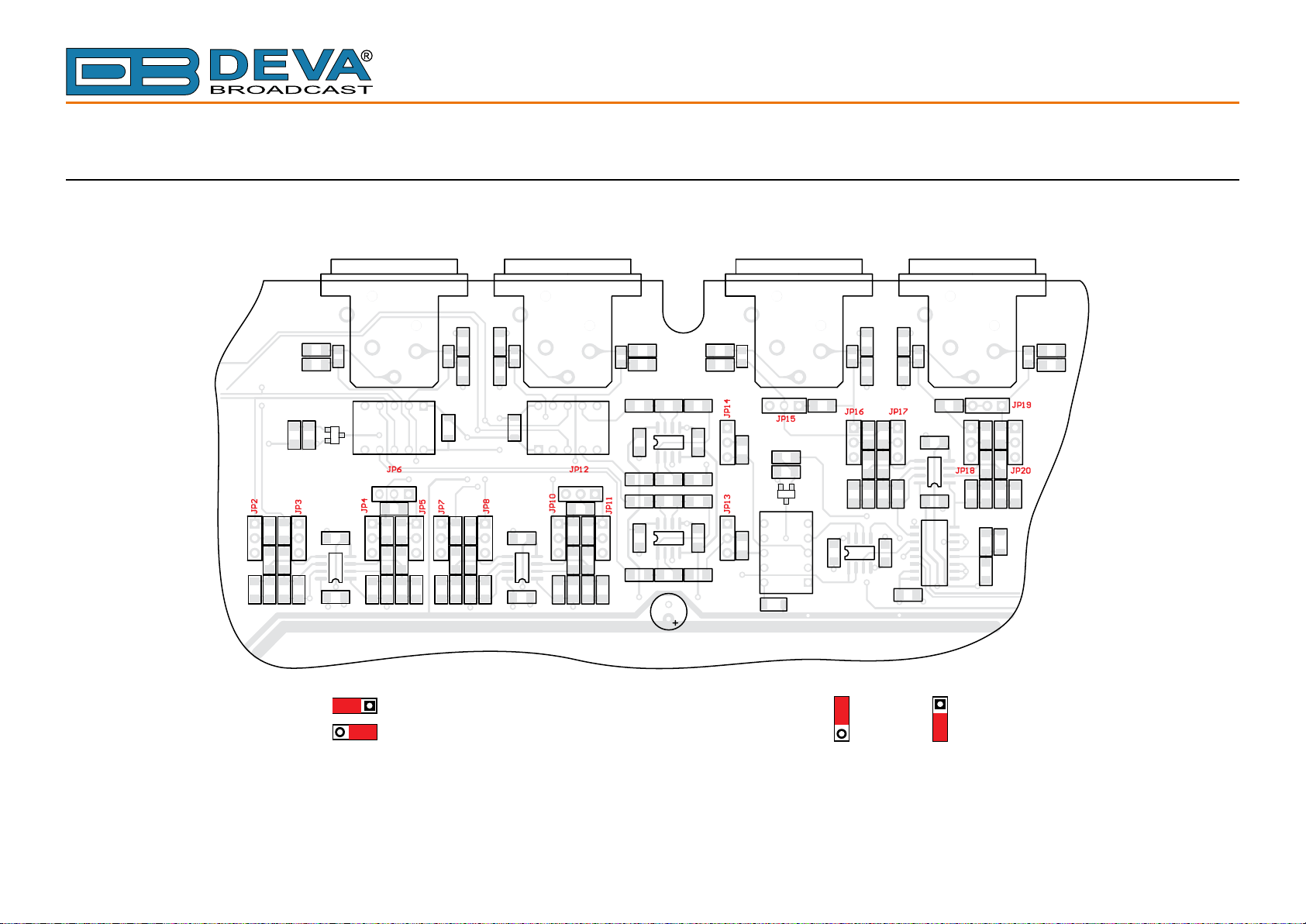
DB8000 JUMPERS LOCATION
JP6, JP12,
JP15, JP19
= 10 kΩ
= 600 Ω
JP2, JP3,
JP7, JP8,
JP13, JP14,
JP4, JP5,
JP10, JP11
JP16, JP17
JP18, JP20
= 0 dB = -6 dB
1
2
3
1
2
3
1
2
3
1
2
3
1
2
3
1
2
3
1
2
3
1 2 3 1 2 3
1 2 3 1 2 3
1
2
3
1
2
3
1
2
3
1
2
3
1
2
3
1
2
3
1 2 3
1 2 3
1
2
3
1
2
3
65 Aleksandar Stamboliyski Str., 8000 Bourgas, Bulgaria
Tel: +359 56 820027, Fax: +359 56 836700
E-mail: of[email protected] ,Web: www.devabroadcast.com
- 35 -
Page 36
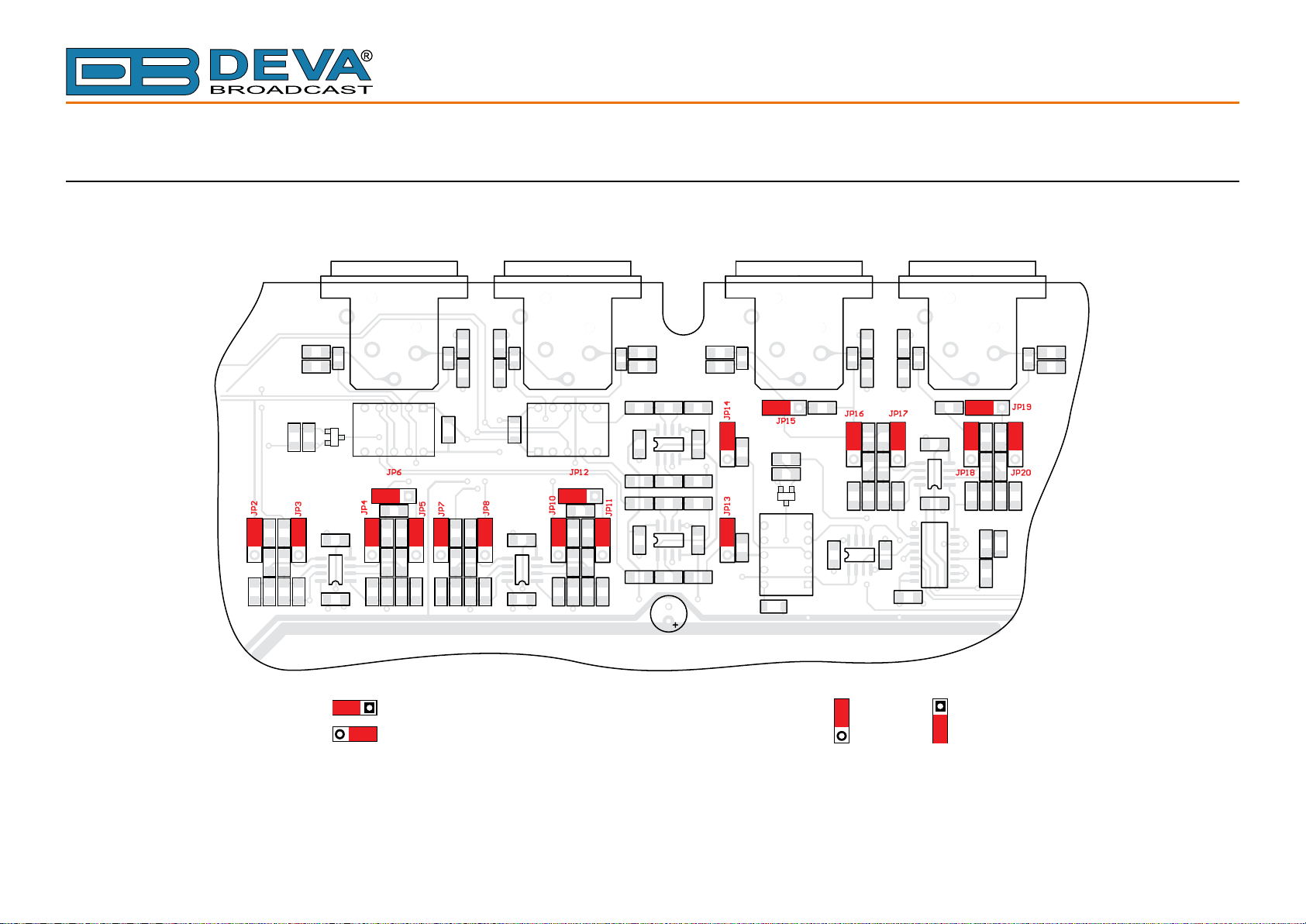
65 Aleksandar Stamboliyski Str., 8000 Bourgas, Bulgaria
JP6, JP12,
JP15, JP19
= 10 kΩ
= 600 Ω
JP2, JP3,
JP7, JP8,
JP13, JP14,
JP4, JP5,
JP10, JP11
JP16, JP17
JP18, JP20
= 0 dB = -6 dB
1
2
3
1
2
3
1
2
3
1
2
3
1
2
3
1
2
3
1
2
3
1 2 3 1 2 3
1 2 3 1 2 3
1
2
3
1
2
3
1
2
3
1
2
3
1
2
3
1
2
3
1 2 3
1 2 3
1
2
3
1
2
3
Tel: +359 56 820027, Fax: +359 56 836700
E-mail: of[email protected] ,Web: www.devabroadcast.com
DB8000 CONFIGURATION WITH IMPEDANCE 10 kΩ AND GAIN 0 dB OF THE MAIN AND AUX INPUTS
- 36 -
Page 37
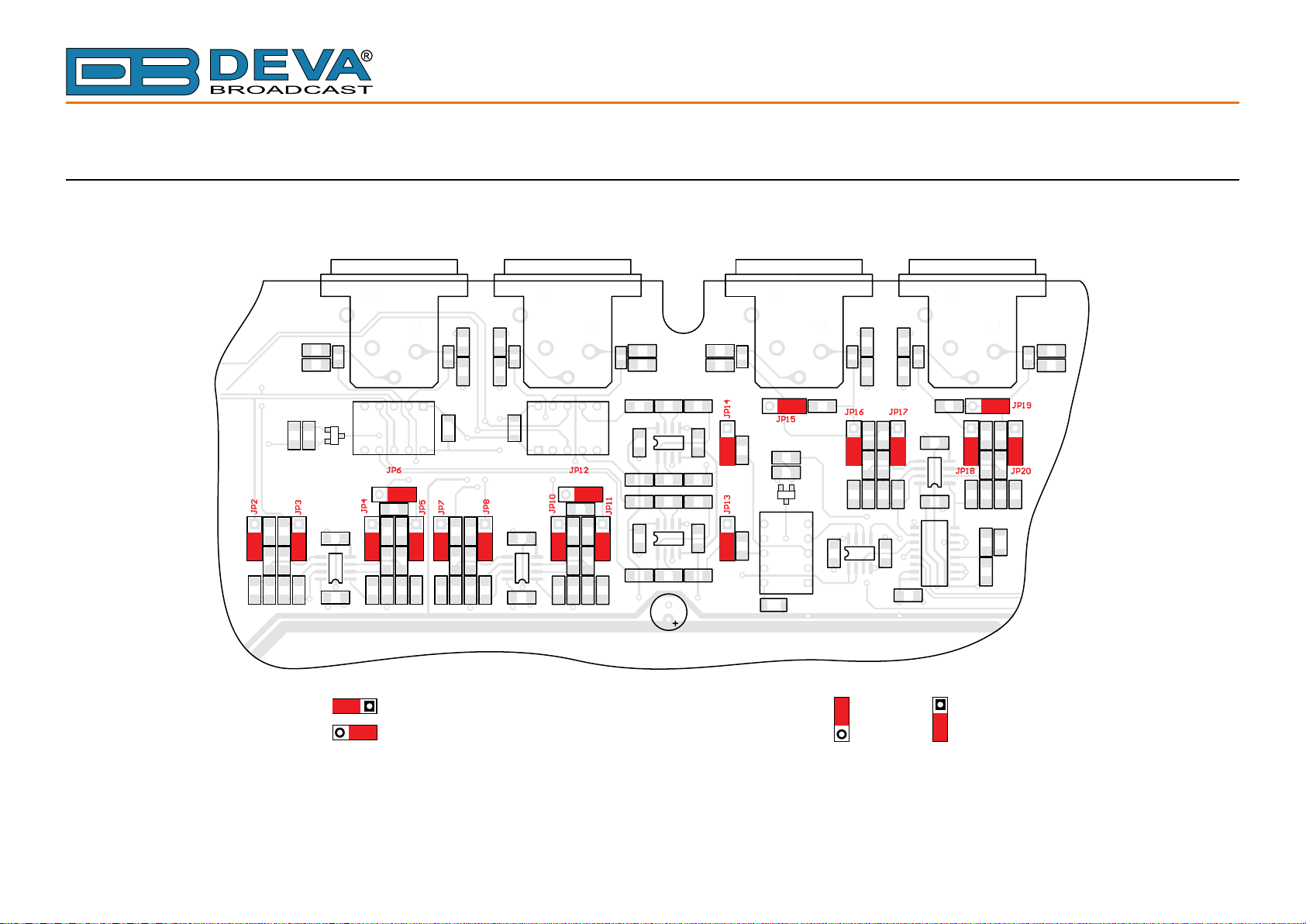
65 Aleksandar Stamboliyski Str., 8000 Bourgas, Bulgaria
JP6, JP12,
JP15, JP19
= 10 kΩ
= 600 Ω
JP2, JP3,
JP7, JP8,
JP13, JP14,
JP4, JP5,
JP10, JP11
JP16, JP17
JP18, JP20
= 0 dB = -6 dB
1
2
3
1
2
3
1
2
3
1
2
3
1
2
3
1
2
3
1
2
3
1 2 3 1 2 3
1 2 3 1 2 3
1
2
3
1
2
3
1
2
3
1
2
3
1
2
3
1
2
3
1 2 3
1 2 3
1
2
3
1
2
3
Tel: +359 56 820027, Fax: +359 56 836700
E-mail: of[email protected] ,Web: www.devabroadcast.com
DB8000 CONFIGURATION WITH IMPEDANCE 600 Ω AND GAIN -6 dB OF THE MAIN AND AUX INPUTS
- 37 -
 Loading...