

Page 1

Vostro 3582 (without optical drive)
Setup and specifications guide
Reg ula tor y M ode l: P75 F
Reg ula tor y T ype : P 75F 011
Nov emb er 202 0
Rev . A 01
Page 2

Notes, cautions, and warnings
NOTE: A NOTE indicates important information that helps you make better use of your product.
CAUTION: A CAUTION indicates either potential damage to hardware or loss of data and tells you how to avoid
the problem.
WARNING: A WARNING indicates a potential for property damage, personal injury, or death.
© 2018 - 2019 Dell Inc. or its subsidiaries. All rights reserved . D ell , E MC, and other trademarks are trademarks of Dell Inc. or its
subsidiaries. Other trademarks may be trademarks of their respec tiv e o wne rs.
Page 3

Contents
Chapter 1: Set up your computer................................................................................................... 4
Chapter 2: Create a USB recovery drive for Windows.................................................................... 6
Chapter 3: Chassis overview..........................................................................................................7
Display view...........................................................................................................................................................................7
Left view................................................................................................................................................................................ 7
Right view..............................................................................................................................................................................7
Palmrest view....................................................................................................................................................................... 7
Bottom view.......................................................................................................................................................................... 7
Chapter 4: Keyboard shortcuts......................................................................................................8
Chapter 5: Technical specifications...............................................................................................9
System information............................................................................................................................................................. 9
Processor...............................................................................................................................................................................9
Memory................................................................................................................................................................................ 10
Storage................................................................................................................................................................................. 10
Storage combinations....................................................................................................................................................... 10
Audio..................................................................................................................................................................................... 10
Media card-reader.............................................................................................................................................................. 11
Camera.................................................................................................................................................................................. 11
Wireless................................................................................................................................................................................. 11
Ports and connectors........................................................................................................................................................12
Video card............................................................................................................................................................................ 12
Display...................................................................................................................................................................................12
Keyboard.............................................................................................................................................................................. 13
Operating system............................................................................................................................................................... 13
Touchpad............................................................................................................................................................................. 13
Battery.................................................................................................................................................................................. 14
Power adapter.................................................................................................................................................................... 14
Dimensions and weight.....................................................................................................................................................15
Computer environment.....................................................................................................................................................15
Security................................................................................................................................................................................ 16
Security Software.............................................................................................................................................................. 16
Chapter 6: Software.................................................................................................................... 17
Downloading drivers.......................................................................................................................................................... 17
Chapter 7: Getting help............................................................................................................... 18
Contacting Dell................................................................................................................................................................... 18
Contents 3
Page 4
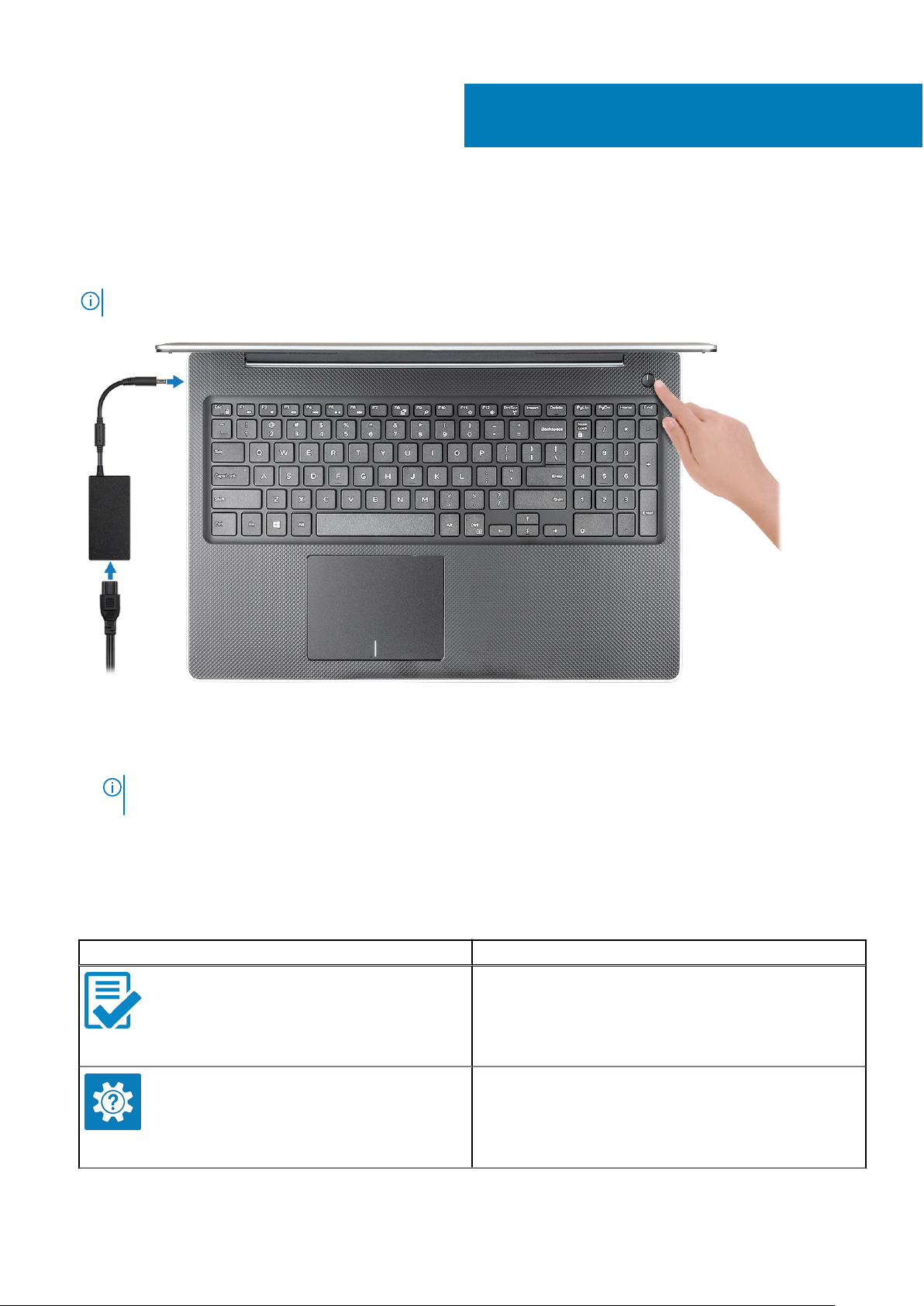
Steps
1. Connect the power adapter and press the power button.
NOTE: To conserve battery power, the battery might enter power saving mode.
1
Set up your computer
2. Finish Windows system setup.
Follow the on-screen instructions to complete the setup. When setting up, Dell recommends that you:
● Connect to a network for Windows updates.
NOTE:
If connecting to a secured wireless network, enter the password for the wireless network access when
prompted.
● If connected to the internet, sign-in with or create a Microsoft account. If not connected to the internet, create an
offline account.
● On the Support and Protection screen, enter your contact details.
3. Locate and use Dell apps from the Windows Start menu—Recommended
Table 1. Locate Dell apps
Dell apps Details
Dell Product Registration
Register your computer with Dell.
Dell Help & Support
Access help and support for your computer.
4 Set up your computer
Page 5
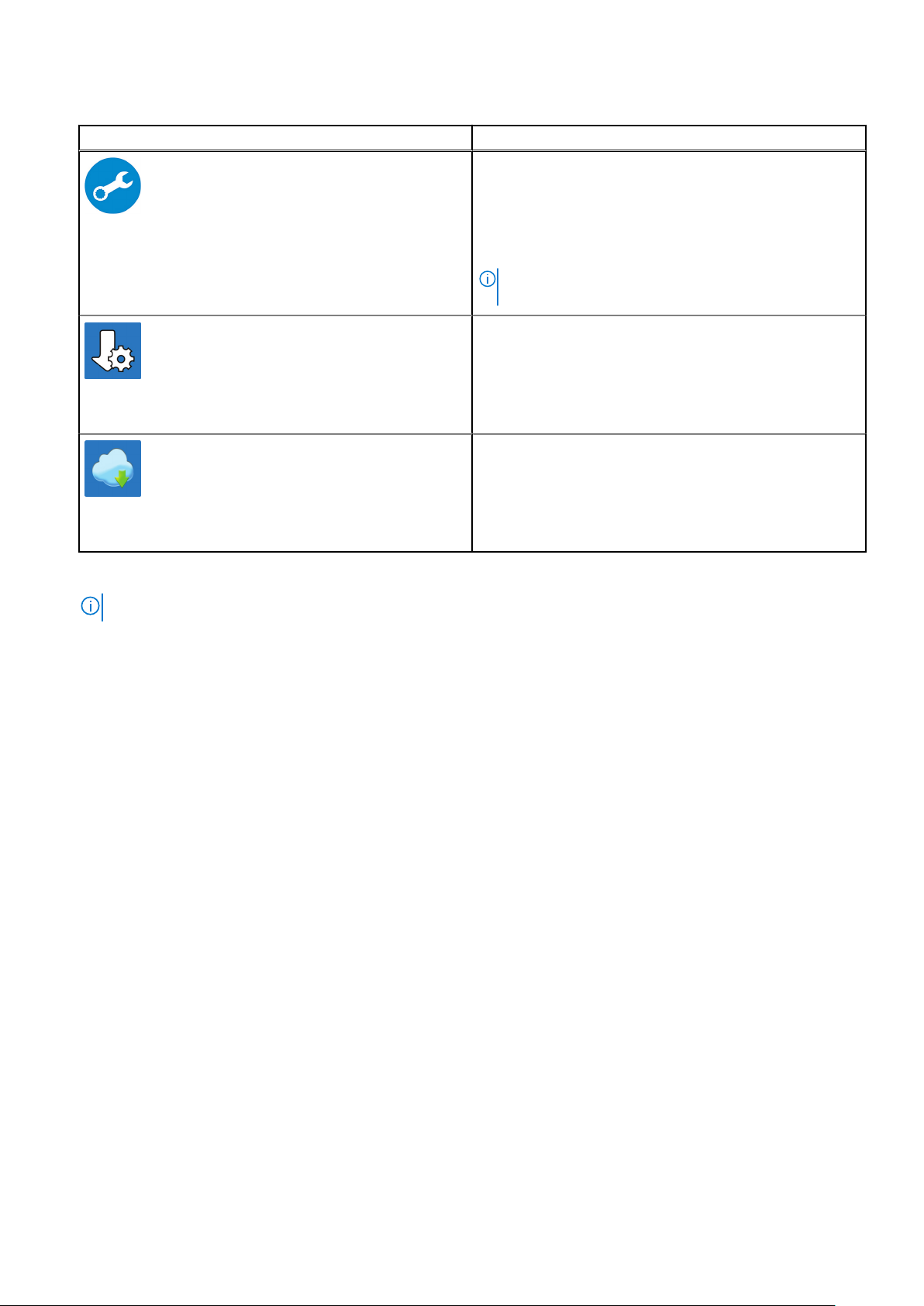
Table 1. Locate Dell apps (continued)
Dell apps Details
SupportAssist
Proactively checks the health of your computer’s hardware
and software.
NOTE: Renew or upgrade your warranty by clicking the
warranty expiry date in SupportAssist.
Dell Update
Updates your computer with critical fixes and important
device drivers as they become available.
Dell Digital Delivery
Download software applications including software that is
purchased but not pre-installed on your computer.
4. Create recovery drive for Windows.
NOTE: It is recommended to create a recovery drive to troubleshoot and fix problems that may occur with Windows.
For more information, see Create a USB recovery drive for Windows.
Set up your computer
5
Page 6

Create a USB recovery drive for Windows
Create a recovery drive to troubleshoot and fix problems that may occur with Windows. An empty USB flash drive with a
minimum capacity of 16 GB is required to create the recovery drive.
Prerequisites
NOTE: This process may take up to an hour to complete.
NOTE: The following steps may vary depending on the version of Windows installed. Refer to the Microsoft support site for
latest instructions.
Steps
1. Connect the USB flash drive to your computer.
2. In Windows search, type Recovery.
3. In the search results, click Create a recovery drive.
The User Account Control window is displayed.
4. Click Yes to continue.
The Recovery Drive window is displayed.
5. Select Back up system files to the recovery drive and click Next.
6. Select the USB flash drive and click Next.
A message appears, indicating that all data in the USB flash drive will be deleted.
7. Click Create.
8. Click Finish.
For more information about reinstalling Windows using the USB recovery drive, see the Troubleshooting section of your
product's Service Manual at www.dell.com/support/manuals.
2
6 Create a USB recovery drive for Windows
Page 7

Chassis overview
Topics:
• Display view
Left view
•
• Right view
• Palmrest view
• Bottom view
Display view
1. Camera 2. Camera-status light
3. Microphone 4. Display
Left view
3
Power adapter port 2. Battery status light
1.
3. HDMI port 4. Network port
5. USB 3.1 Gen 1 ports (2) 6. Headset port
Right view
1. SD card reader
2. USB 2.0 port
3. Security-cable slot
Palmrest view
1. Power button
2. Keyboard
3. Touchpad
Bottom view
1.
Speakers 2. Base cover
3. Service Tag label 4. Air vent
Chassis overview 7
Page 8
Keyboard shortcuts
NOTE: Keyboard characters may differ depending on the keyboard language configuration. Keys used for shortcuts remain
the same across all language configurations.
Table 2. List of keyboard shortcuts
Keys Description
4
Fn + Esc
Fn + F1
Fn + F2
Fn + F3
Fn + F4
Fn + F5
Fn + F6
Fn + F8
Fn + F9
Fn + F11
Fn + F12
Fn + PrtScr
Fn + Ctrl
Toggle Fn-key lock
Mute audio
Decrease volume
Increase volume
Play previous
Play / Pause
Play next
Switch to external display
Search
Decrease brightness
Increase brightness
Turn on/off wireless
Open application menu
8 Keyboard shortcuts
Page 9
Technical specifications
NOTE: Offerings may vary by region. The following specifications are only those required by law to ship with your
computer. For more information about the configuration of your computer, go to Help and Support in your Windows
operating system and select the option to view information about your computer.
Topics:
• System information
• Processor
• Memory
• Storage
• Storage combinations
• Audio
• Media card-reader
• Camera
• Wireless
• Ports and connectors
• Video card
• Display
• Keyboard
• Operating system
• Touchpad
• Battery
• Power adapter
• Dimensions and weight
• Computer environment
• Security
• Security Software
5
System information
Table 3. System information
Feature Specifications
Chipset
DRAM bus width
FLASH EPROM
PCIe bus
Intel Chipset
64-bit
16 MB
100 Mhz
Processor
Processor numbers are not a measure of performance. Processor availability is subject to change and may vary by
NOTE:
region/country.
Technical specifications 9
Page 10
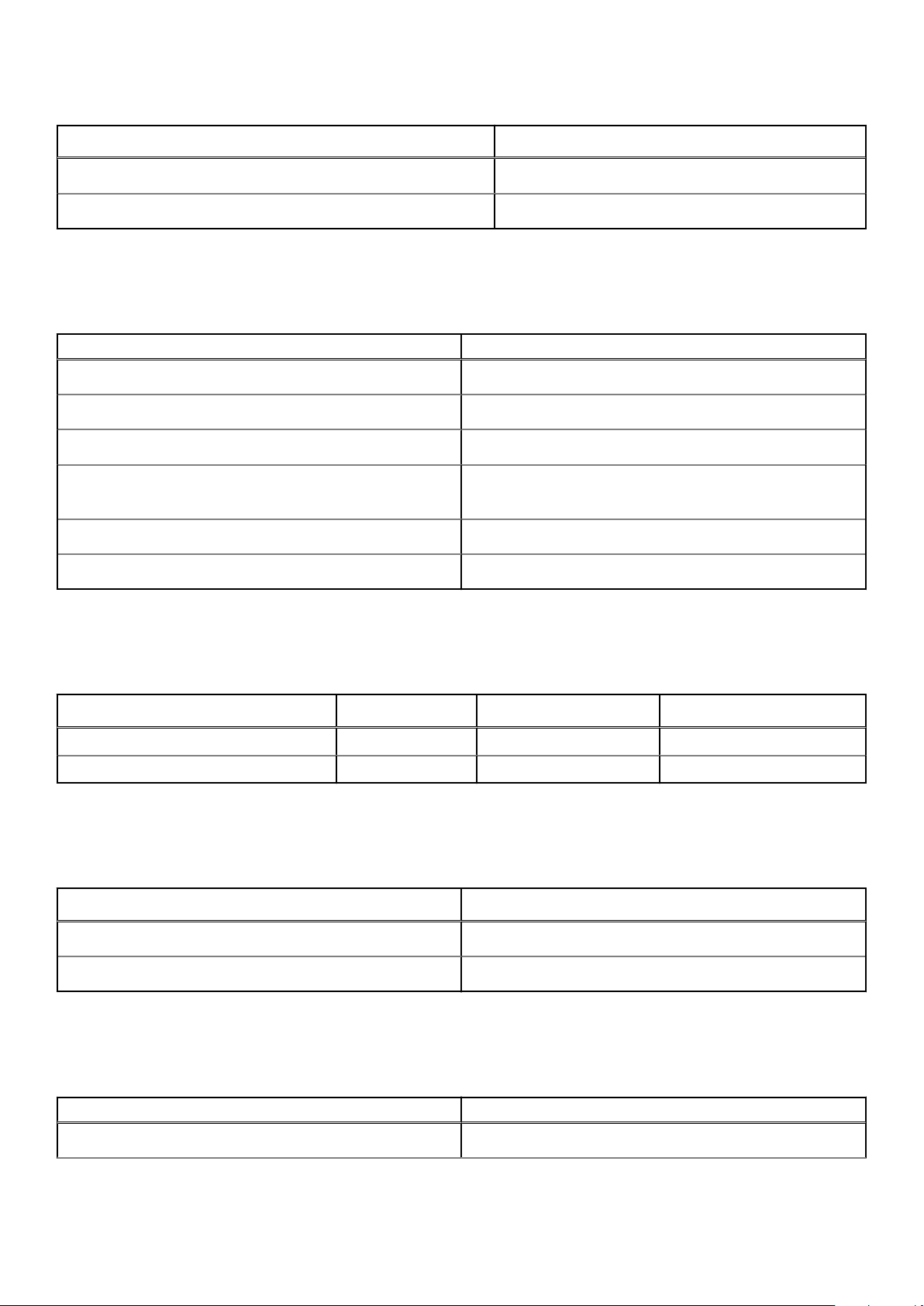
Table 4. Processor specifications
Type UMA Graphics
Intel Pentium Silver N5000 (4M Smart Cache, up to 2.6 GHz)
Intel Celeron Processor N4000 (2M Smart Cache, up to 2.6 GHz)
Intel UHD Graphics 605
Intel UHD Graphics 600
Memory
Table 5. Memory specifications
Feature Specifications
Minimum memory configuration
Maximum memory configuration
Number of slots
Memory options
Type
Speed
4 GB
8 GB
One SoDIMM
● 4 GB - 1 x 4 GB
● 8 GB - 1 x 8 GB
DDR4
2400 MHz
Storage
Table 6. Storage specifications
Type Form factor Interface Capacity
Solid-State Drive M.2 M.2 SSD Up to 256 GB
HDD 2.5 inch SATA Up to 2 TB
Storage combinations
Table 7. Storage combinations
Primary/Boot drive Secondary drive
1 x M.2 SSD 1 x 2.5 inch Drive
1 x 2.5 inch HDD None
Audio
Table 8. Audio specifications
Feature Specifications
Controller Realtek ALC3204 with Waves MaxxAudio Pro
10 Technical specifications
Page 11
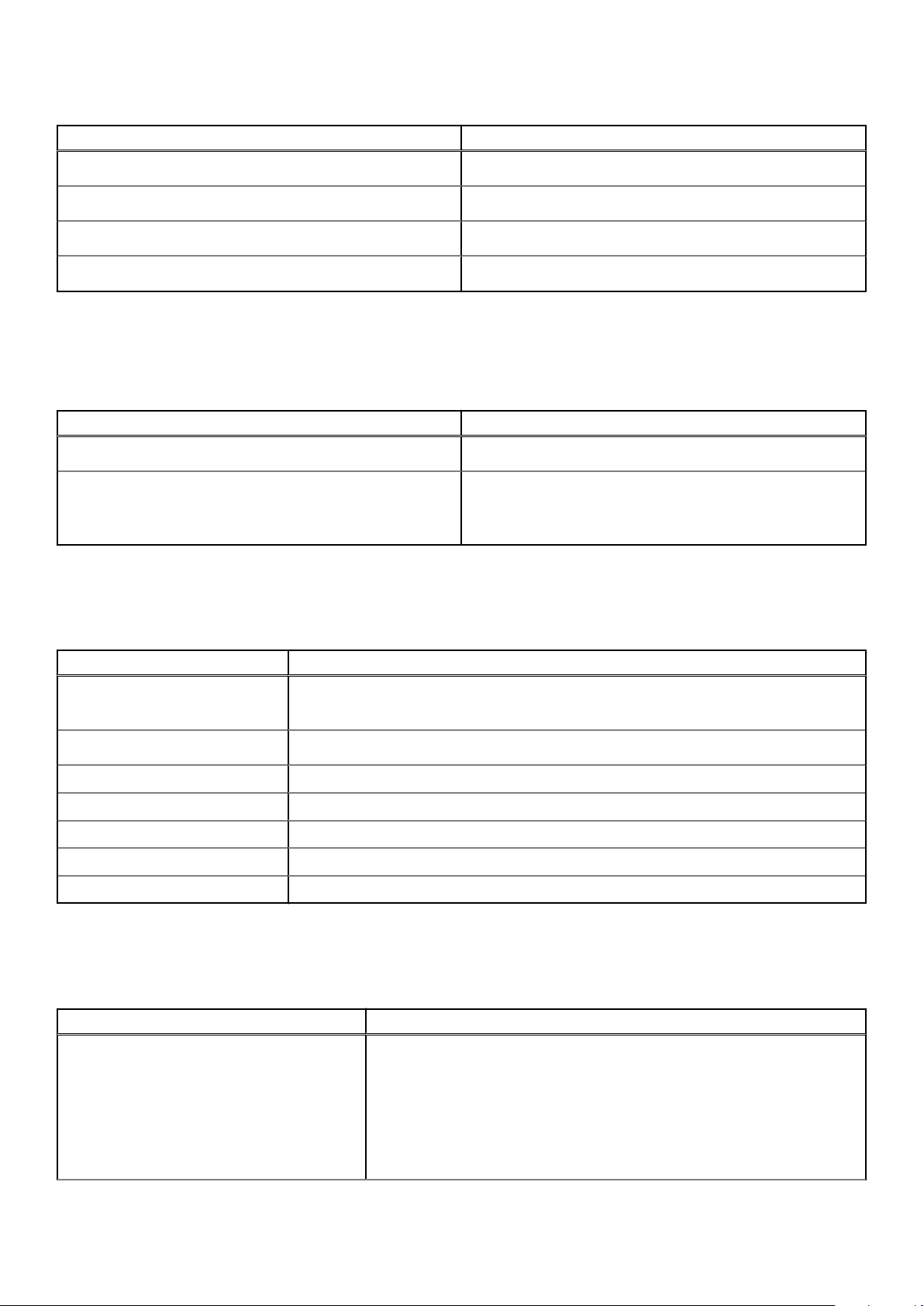
Table 8. Audio specifications (continued)
Feature Specifications
Type Two-channel high-definition audio
Speakers Two (Directional speakers)
Interface
Internal speaker amplifier 2 W (RMS) per channel
Intel HDA bus
Media card-reader
Table 9. Media card-reader specifications
Feature Specifications
Type One SD card slot
Supported cards
● SD
● SDHC
● SDXC
Camera
Table 10. Camera specifications
Feature Specifications
Resolution
Diagonal viewing angle
Number of cameras One front camera
Type HD fixed focus
Sensor type CMOS sensor technology
Video Max resolution 1280x720 (HD) at 30 fps
Still image max resolution 0.92 megapixel (HD)
● Still image: 0.92 megapixels (HD)
● Video: 1280x720 (HD) at 30 fps
78.6°
Wireless
Table 11. Wireless specifications
Feature Specifications
Type
● Qualcomm QCA9565, DW1707 802.11bgn (1x1) WiFi + Bluetooth 4.0
● Qualcomm QCA9377, DW1810 802.11ac Dual Band (1x1) WiFi + Bluetooth
4.1
● Qualcomm QCA61x4A, DW1820 802.11ac Dual Band (2x2) WiFi +
Bluetooth 4.1
● Intel 9560 - 802.11ac 2x2 WiFi & BT 5.0
● Intel 9462 - 802.11ac 1x1 WiFi & BT 5.0
Technical specifications 11
Page 12
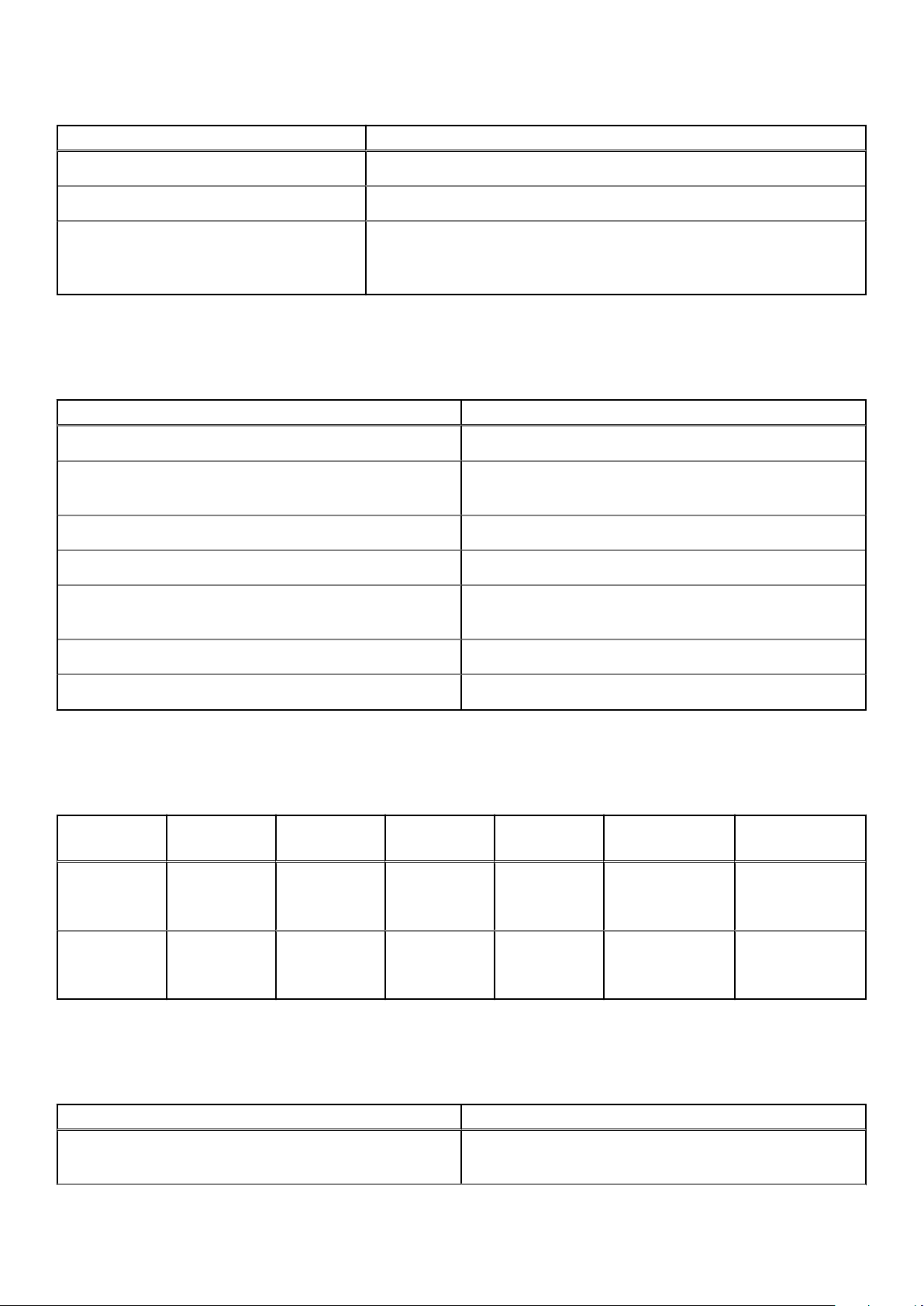
Table 11. Wireless specifications (continued)
Feature Specifications
Maximum transfer rate
Frequency bands
Encryption
867 Mbps
2.4 GHz/5 GHz
● 64-bit/128-bit WEP
● AES-CCMP
● TKIP
Ports and connectors
Table 12. Ports and connectors
Features Specifications
Memory card reader SD 3.0 memory card reader
USB
Security wedge lock slot
Docking port Dell USB 3.0 Dock (UNO)
Audio
● One USB 2.0 port
● Two USB 3.1 Gen 1 port
● Universal audio jack
● Noise reduction array microphone
Video
Network adapter One RJ-45 connector
HDMI 1.4b
Video card
Table 13. Video card specifications
Controller Type CPU
Intel UHD
Graphics 600
Intel UHD
Graphics 605
UMA Intel Celeron
UMA Intel Pentium
Dependency
N4000
processor
Silver N5000
processor
Graphics
memory type
Integrated Shared system
Integrated Shared system
Capacity External display
memory
memory
Display
Table 14. Display specifications
support
HDMI 1.4b 1920 x 1080
HDMI 1.4b 1920 x 1080
Maximum
resolution
Feature Specifications
Type
12 Technical specifications
● 15.6-inch HD (WXGA 1366x768) non-touch display
● 15.6-inch FHD (1920 x 1080) non-touch display
Page 13
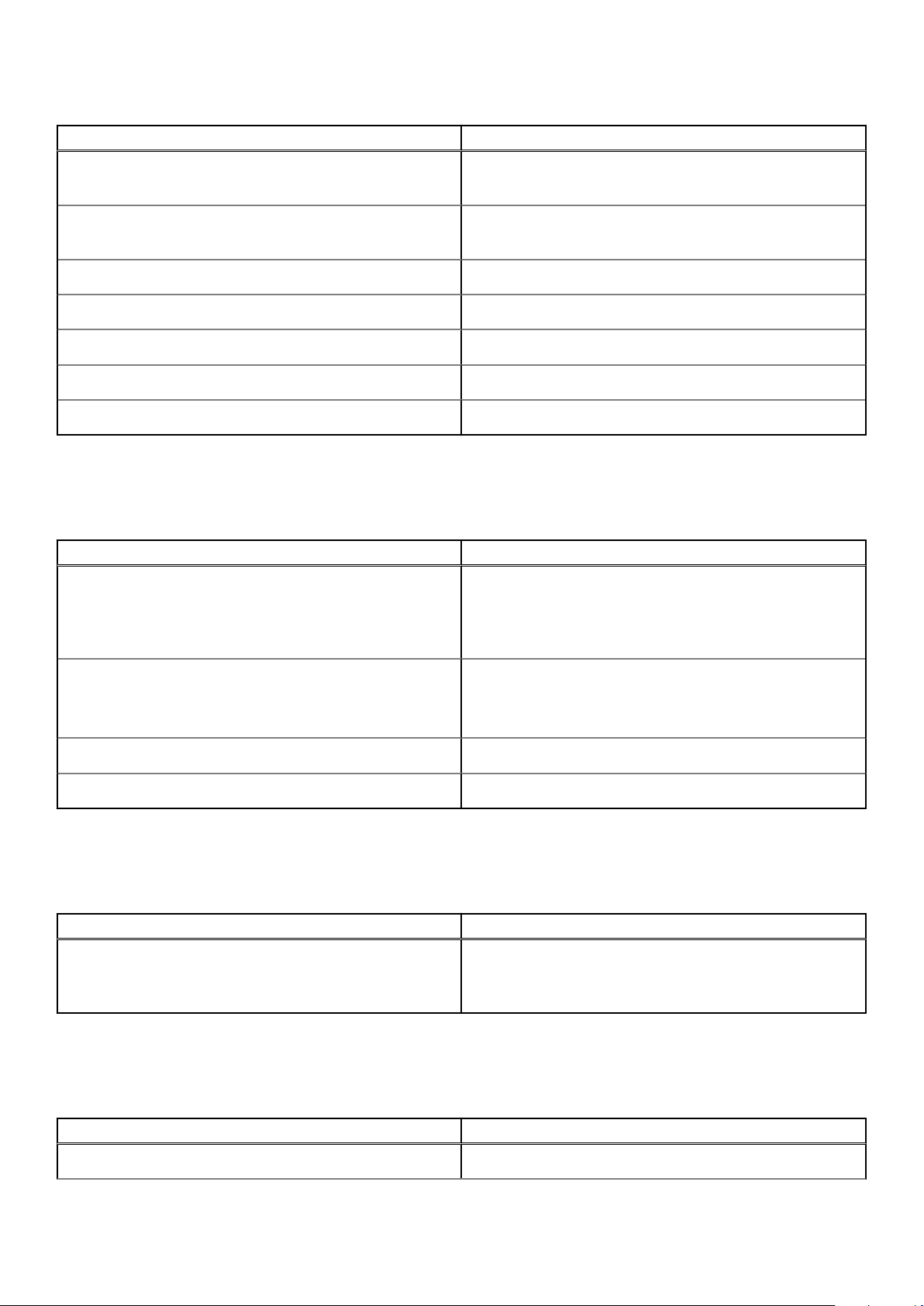
Table 14. Display specifications (continued)
Feature Specifications
Height (Active area)
Width (Active area)
Diagonal
Luminance/Brightness (typical)
Refresh rate
Horizontal viewing angle (min)
Vertical viewing angle (min)
● 344.22 mm (13.55 in)
● 344.16 mm (13.54 in)
● 193.62 mm (7.62 in)
● 193.59 mm (7.62 in)
396.24 mm (15.60 in)
400 nits max
60 Hz
+/- 40 degrees
+10/- 30 degrees
Keyboard
Table 15. Keyboard specifications
Feature Specifications
Number of keys
● 103 (U.S)
● 102 (UK)
● 104 (Brazil)
● 105 (Japan)
Size Full sized
● X= 19.00 mm key pitch
● Y= 19.00 mm key pitch
Backlit keyboard Optional
Layout QWERTY/AZERTY/Kanji
Operating system
Table 16. Operating system
Feature Specifications
Operating systems supported
● Windows 10 Home (64 bit)
● Windows 10 Pro (64 bit)
● Ubutnu
Touchpad
Table 17. Touchpad specifications
Feature Specifications
Resolution 1219 x 919
Technical specifications 13
Page 14
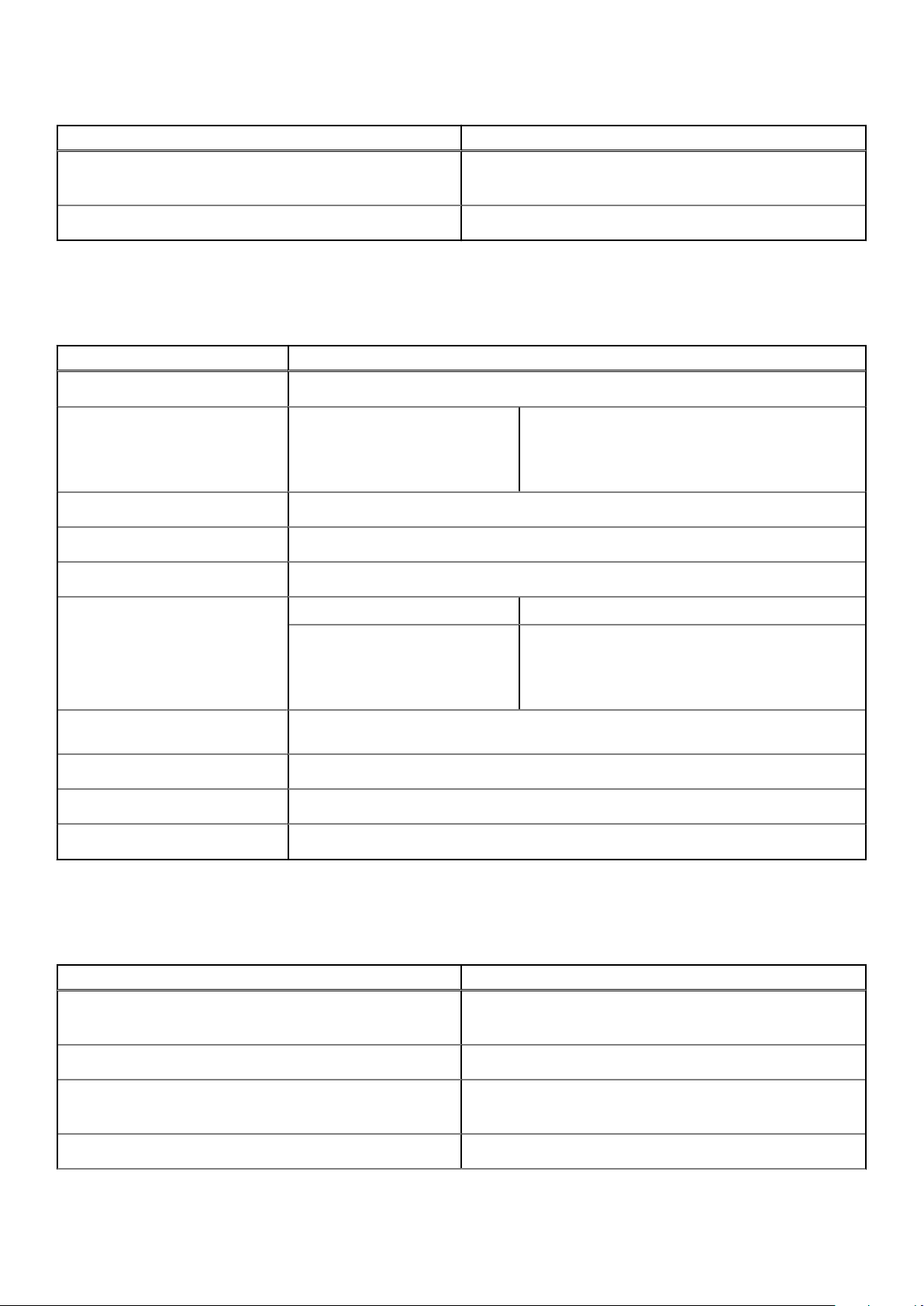
Table 17. Touchpad specifications (continued)
Feature Specifications
Dimensions
Multi-touch Supports five fingers
● Width: 4.13 inch (105 mm)
● Height: 3.14 inch (80 mm)
Battery
Table 18. Battery specifications
Feature Specifications
Type
Dimension Width
Weight (maximum)
Voltage
Life span
Charging time when the computer
is off (approximate)
Primatic/Polymer 3-cell 42 WHr
175.37 mm (6.9 in)
Depth
Height
0.2 kg (0.44 lb )
11.4 VDC
300 discharge / charge cycles
Standard charge 0°C to 60°C : 4 hours
Express Charge
90.73 mm (3.57 in)
5.9 mm (0.24 in)
0°C to 35°C : 4 hours
16°C to 45°C : 2 hours
46°C to 60°C : 3 hours
Operating time
Temperature range: Operating
Temperature range: Storage
Coin-cell battery
Varies depending on operating conditions and can significantly reduce under certain
power-intensive conditions
0°C to 35°C (32°F to 95°F)
-20°C to 65°C (-40°F to 149°F)
CR 2032
Power adapter
Table 19. Power adapter specifications
Feature Specifications
Type
Input Voltage
Input current (maximum)
Input frequency
● 45 W (UMA)
● 65 W (Discrete)
100 VAC - 240 VAC
● 1.3 A for 45 W
● 1.7 A for 65 W
50 Hz to 60 Hz
14 Technical specifications
Page 15
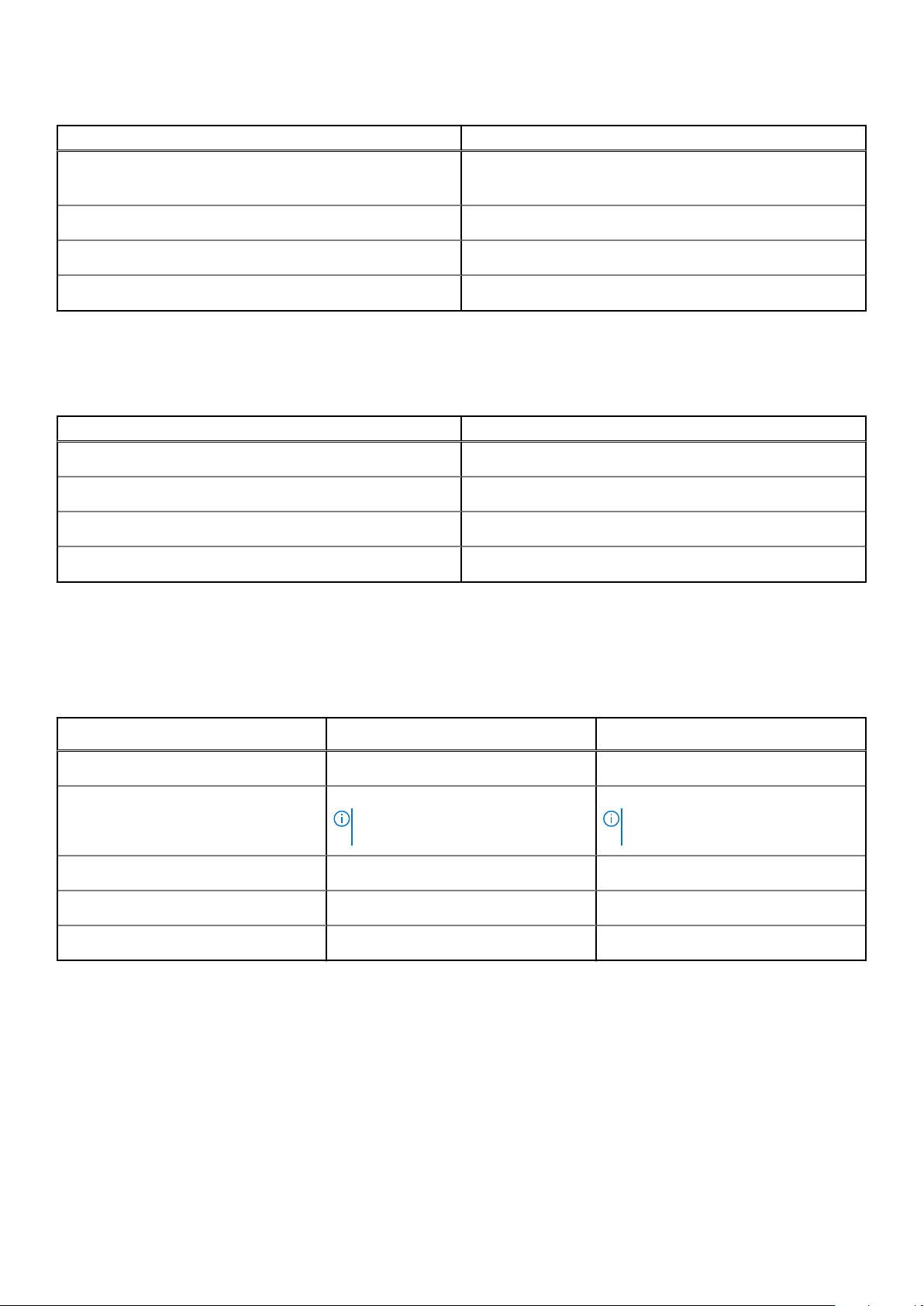
Table 19. Power adapter specifications (continued)
Feature Specifications
Output current
Rated output voltage
Temperature range (Operating)
Temperature range (Non-Operating)
● 2.31 A for 45 W
● 3.34 A for 65 W
19.5 VDC
0°C to 40° C (32°F to 104°F)
40°C to 70°C (-40°F to 158°F)
Dimensions and weight
Table 20. Dimensions and weight
Feature Specifications
Height 19.89 mm to 20 mm (0.783 inch to 0.787 inch)
Width 380 mm (14.96 inch)
Depth 258 mm (10.15 inch)
Weight 2 kg to 2.28 kg (4.4 lb to 5.02 lb )
Computer environment
Airborne contaminant level: G1 as defined by ISA-S71.04-1985
Table 21. Computer environment
Operating Storage
Temperature range
Relative humidity (maximum)
Vibration (maximum)
Shock (maximum)
Altitude (maximum)
* Measured using a random vibration spectrum that simulates user environment.
† Measured using a 2 ms half-sine pulse when the hard drive is in use.
‡ Measured using a 2 ms half-sine pulse when the hard-drive head is in parked position.
0°C to 40°C (32°F to 104°F) -40°C to 65°C (-40°F to 149°F)
10% to 90% (non-condensing)
NOTE: Maximum dew point
temperature = 26°C
0.66 GRMS 1.30 GRMS
†
140 G
0 m to 3048 m (0 ft to 10,000 ft) 0 m to 10,668 m (0 ft to 35,000 ft)
0% to 95% (non-condensing)
NOTE: Maximum dew point
temperature = 33°C
‡
160 G
Technical specifications
15
Page 16
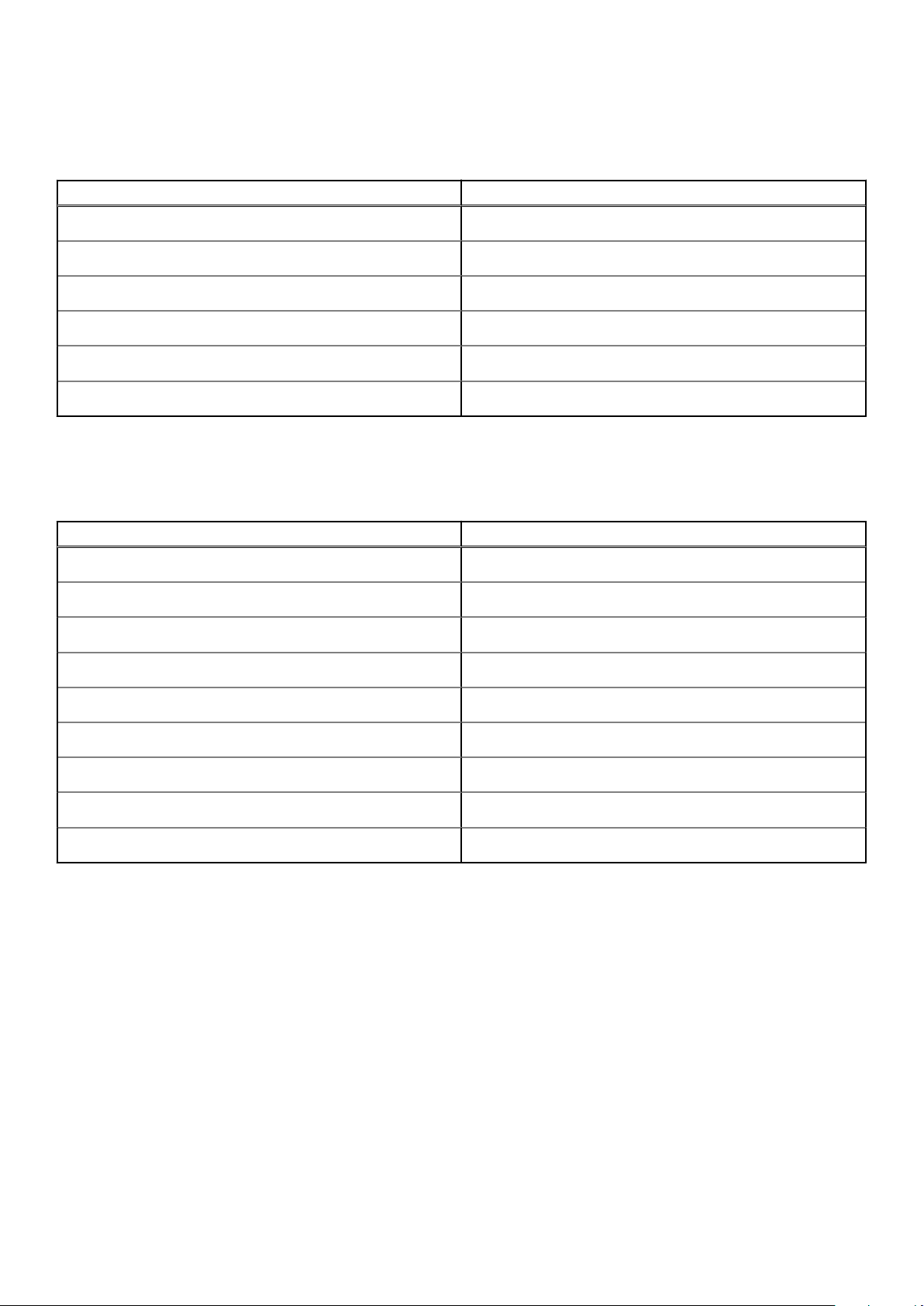
Security
Table 22. Security specifications
Feature Specifications
Trusted Platform Module (TPM) 2.0 Integrated on the system board
Discrete TPM Integrated on the system board
Windows Hello Support Optional
Cable cover Optional
Chassis intrusion switch Optional
Chassis lock slot and loop support Optional
Security Software
Table 23. Security Software specifications
Feature Specifications
Dell Endpoint Security Suite Enterprise Optional
Dell Data Guardian Optional
Dell Encryption (Enterprise or Personal) Optional
Dell Threat Defense Optional
RSA SecurID Access Optional
RSA NetWitness Endpoint Optional
MozyPro or MozyEnterprise Optional
VMware Airwatch/WorkspaceONE Optional
Absolute Data & Device Security Optional
16 Technical specifications
Page 17

Software
This chapter details the supported operating systems along with instructions on how to install the drivers.
Topics:
• Downloading drivers
Downloading drivers
Steps
1. Turn on the notebook.
2. Go to Dell.com/support.
3. Click Product Support, enter the Service Tag of your notebook, and then click Submit.
NOTE: If you do not have the Service Tag, use the auto detect feature or manually browse for your notebook model.
4. Click Drivers and Downloads.
5. Select the operating system installed on your notebook.
6. Scroll down the page and select the driver to install.
7. Click Download File to download the driver for your notebook.
8. After the download is complete, navigate to the folder where you saved the driver file.
9. Double-click the driver file icon and follow the instructions on the screen.
6
Software 17
Page 18

Getting help
Topics:
• Contacting Dell
Contacting Dell
Prerequisites
NOTE: If you do not have an active Internet connection, you can find contact information on your purchase invoice, packing
slip, bill, or Dell product catalog.
About this task
Dell provides several online and telephone-based support and service options. Availability varies by country and product, and
some services may not be available in your area. To contact Dell for sales, technical support, or customer service issues:
Steps
1. Go to Dell.com/support.
2. Select your support category.
3. Verify your country or region in the Choose a Country/Region drop-down list at the bottom of the page.
4. Select the appropriate service or support link based on your need.
7
18 Getting help
 Loading...