

Page 1

Dell Vostro 5481
Setup and specications guide
Regulatory Model: P92G
Regulatory Type: P92G001
Page 2

Notes, cautions, and warnings
NOTE: A NOTE indicates important information that helps you make better use of your product.
CAUTION: A CAUTION indicates either potential damage to hardware or loss of data and tells you how to avoid the problem.
WARNING: A WARNING indicates a potential for property damage, personal injury, or death.
© 2019 Dell Inc. or its subsidiaries. All rights reserved. Dell, EMC, and other trademarks are trademarks of Dell Inc. or its subsidiaries. Other trademarks
may be trademarks of their respective owners.
2019 - 02
Rev. A00
Page 3

Contents
1 Set up your computer.....................................................................................................................................5
2 Chassis overview........................................................................................................................................... 7
Front.....................................................................................................................................................................................7
Left.......................................................................................................................................................................................8
Right.................................................................................................................................................................................... 8
Palmrest.............................................................................................................................................................................. 9
Bottom...............................................................................................................................................................................10
3 Technical specications................................................................................................................................ 11
System information........................................................................................................................................................... 11
Processor............................................................................................................................................................................11
Memory..............................................................................................................................................................................12
Storage...............................................................................................................................................................................12
Intel Optane memory—optional......................................................................................................................................12
System board connectors................................................................................................................................................13
Media card-reader............................................................................................................................................................ 13
Audio...................................................................................................................................................................................13
Video card..........................................................................................................................................................................14
Camera...............................................................................................................................................................................14
Communication.................................................................................................................................................................15
Wireless..............................................................................................................................................................................15
Ports and connectors.......................................................................................................................................................15
Display................................................................................................................................................................................15
Keyboard............................................................................................................................................................................ 16
Touchpad............................................................................................................................................................................17
Operating system..............................................................................................................................................................17
Battery................................................................................................................................................................................17
Power adapter...................................................................................................................................................................18
Dimensions and weight.................................................................................................................................................... 18
Computer environment.................................................................................................................................................... 19
Security..............................................................................................................................................................................19
Security Software............................................................................................................................................................20
4 System setup............................................................................................................................................... 21
BIOS overview...................................................................................................................................................................21
General options................................................................................................................................................................ 22
System conguration.......................................................................................................................................................22
Video screen options....................................................................................................................................................... 24
Security............................................................................................................................................................................. 25
Secure boot.......................................................................................................................................................................27
Intel Software Guard Extensions options...................................................................................................................... 27
Performance.....................................................................................................................................................................28
Contents
3
Page 4

Power management.........................................................................................................................................................28
Post behavior................................................................................................................................................................... 30
Virtualization support....................................................................................................................................................... 31
Wireless options................................................................................................................................................................31
Maintenance......................................................................................................................................................................31
System logs.......................................................................................................................................................................32
SupportAssist system resolution....................................................................................................................................32
5 Getting help.................................................................................................................................................33
Contacting Dell.................................................................................................................................................................33
4 Contents
Page 5

Set up your computer
1 Connect the power cable and press the power button.
2 Follow the instructions on the screen to nish Windows setup:
a Connect to a network.
b Sign-in to your Microsoft account or create a new account.
1
Set up your computer 5
Page 6
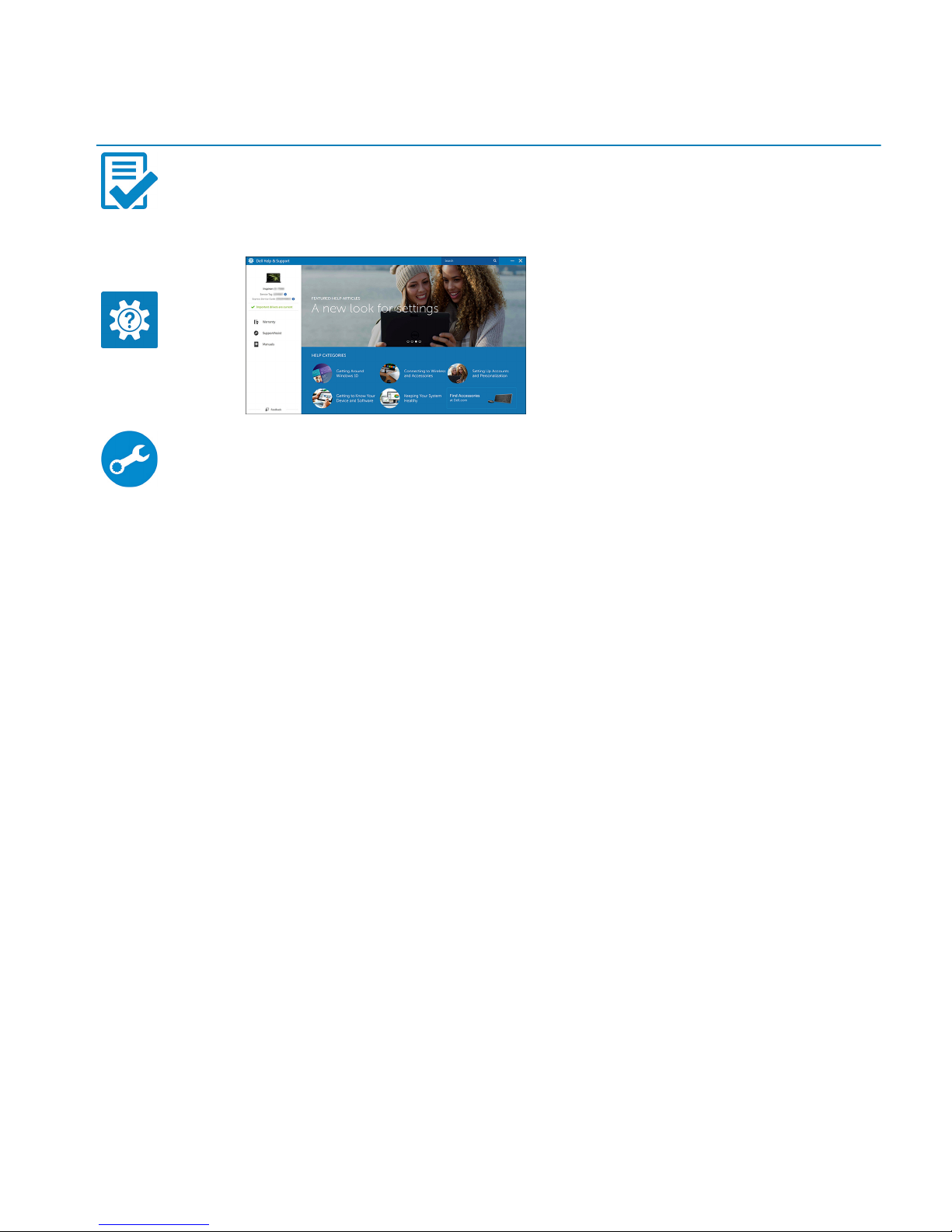
3 Locate Dell apps.
Table 1. Locate Dell apps
Features Specications
Register your computer
Dell Help & Support
SupportAssist — Check and update your computer
6 Set up your computer
Page 7
Chassis overview
Topics:
• Front
• Left
• Right
• Palmrest
• Bottom
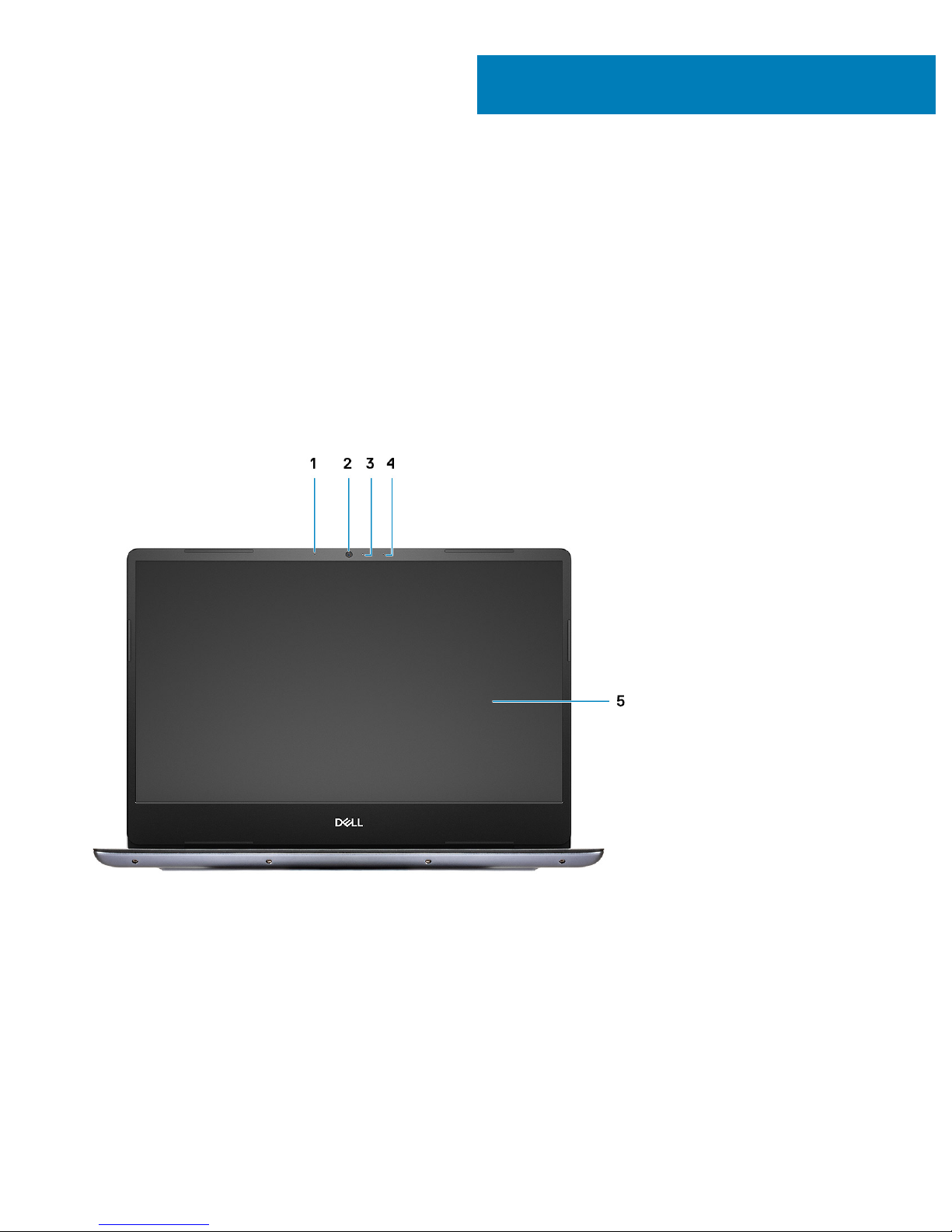
Front
1 Dual array microphone 2 Camera
3 Camera status light 4 Dual array microphone
5 Display panel
2
Chassis overview 7
Page 8
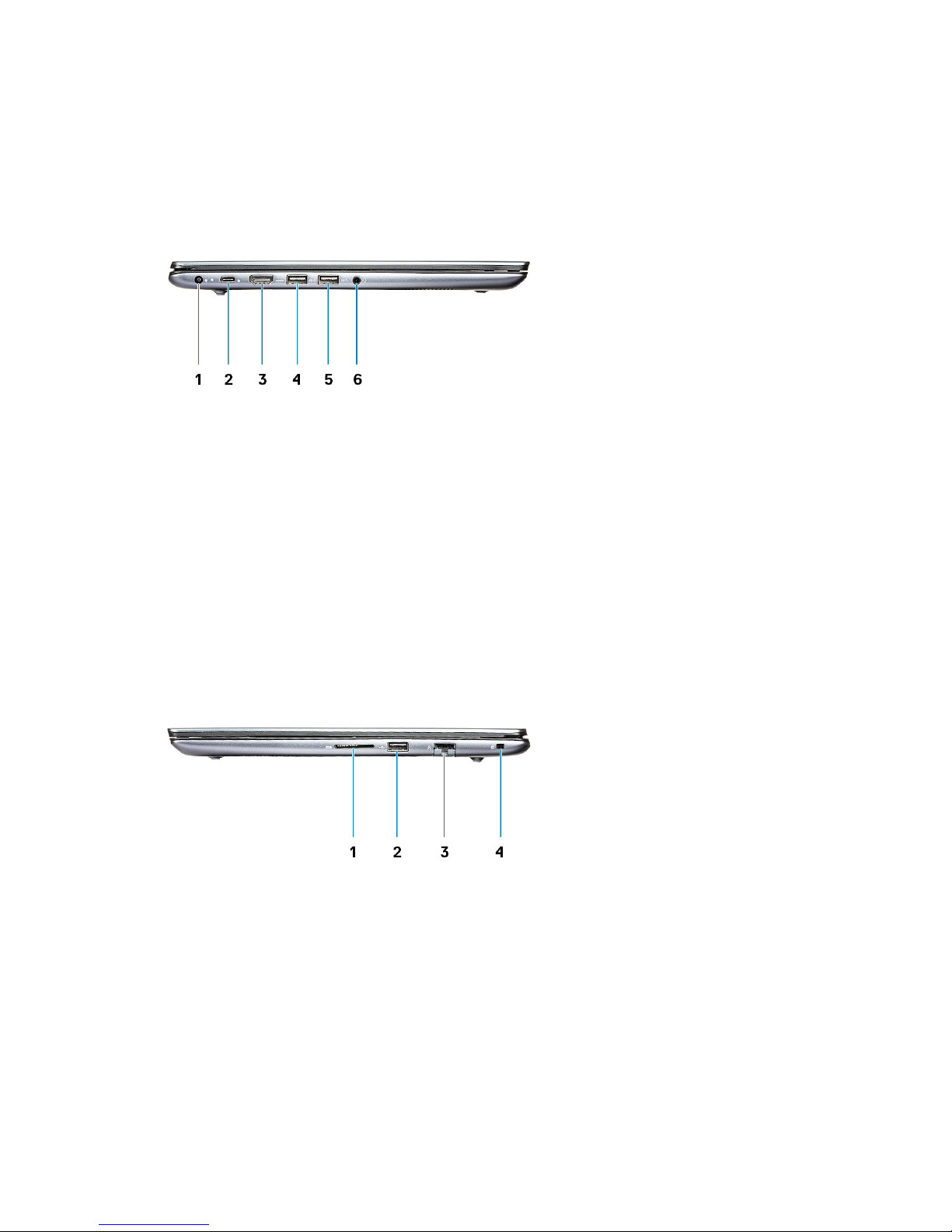
Left
1 Power‑adapter port 2 USB 3.1 Gen 1 (Type-C) port with Power Delivery/
DisplayPort
3 HDMI port 4 USB 3.1 Gen 1 (Type-A) port
5 USB 3.1 Gen 1 (Type-A) port 6 Headset port
Right
1
SD card reader 2 USB 2.0 (Type-A) port
3 Network connector 4 Noble security-cable slot
8 Chassis overview
Page 9
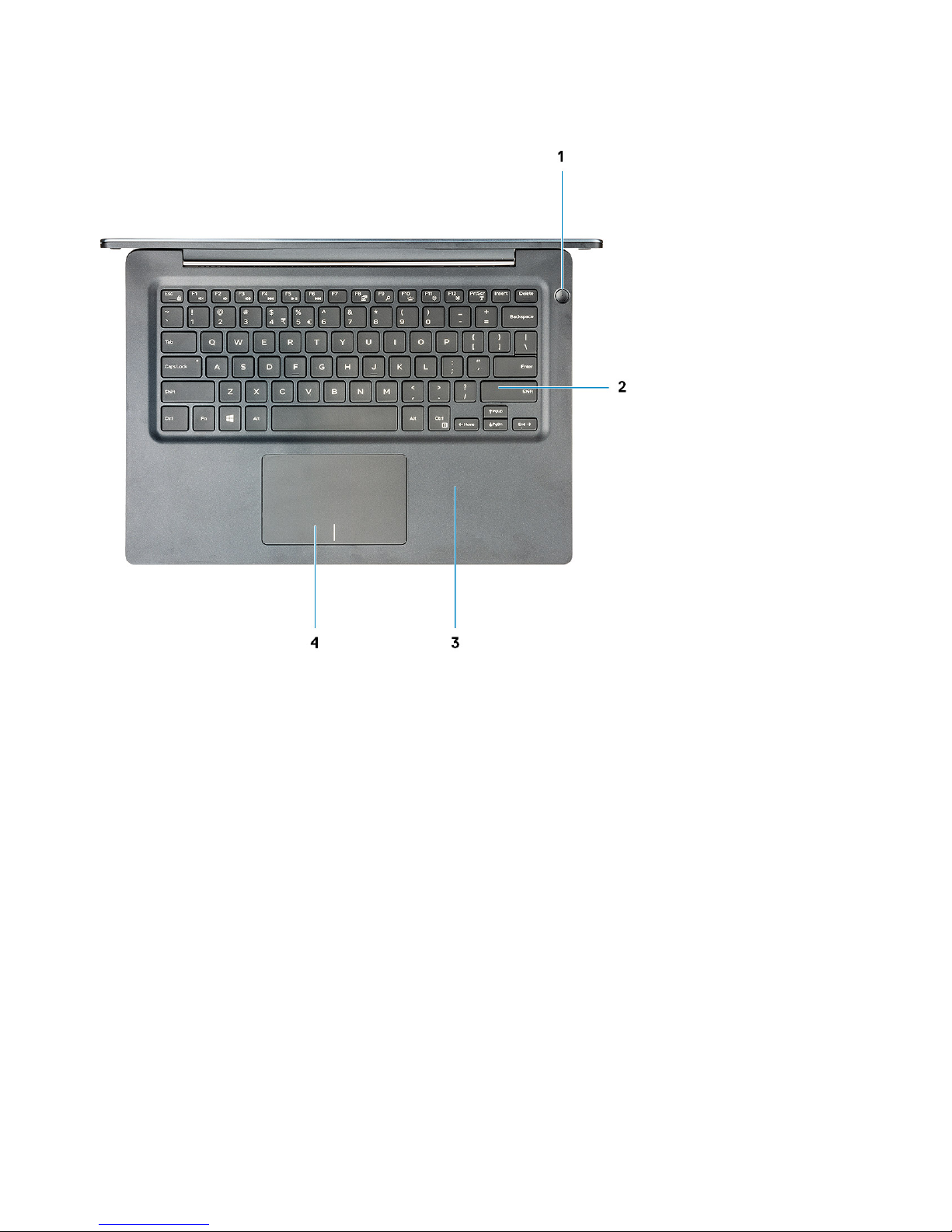
Palmrest
1 Power button with optional ngerprint reader 2 Keyboard
3 Palmrest 4 Touchpad
Chassis overview 9
Page 10
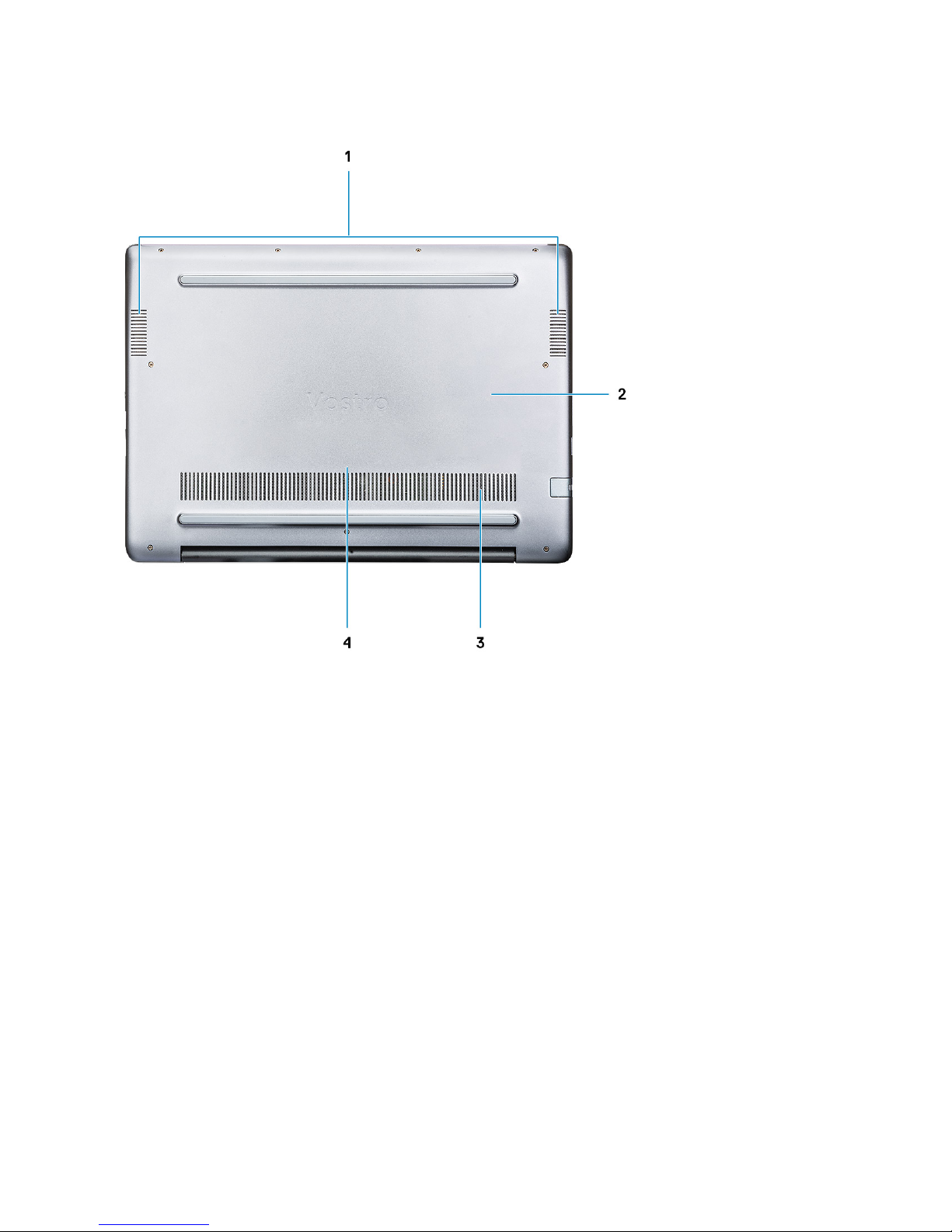
Bottom
1 Speakers 2 Back cover
3 Air vent 4 Service Tag label
10 Chassis overview
Page 11

Technical specications
NOTE: Oerings may vary by region. The following specications are only those required by law to ship with your computer. For
more information about the conguration of your computer, go to Help and Support in your Windows operating system and
select the option to view information about your computer.
System information
Table 2. System information
Feature Specications
Chipset
Integrated in the processor
DRAM bus width
64-bit
FLASH EPROM
16 MB
PCIe bus
Up to Gen3
External bus frequency
Up to 8 GT/s
Processor
NOTE
: Processor numbers are not a measure of performance. Processor availability is subject to change and may vary by region/
country.
Table 3. Processor specications
Type UMA Graphics Discrete Graphics
8th Gen Intel Core i7-8565U
processor(8 MB cache, 4 core
count/ 8 threads, 1.8 GHz to
4.6 GHz, 15 W TDP)
Intel UHD Graphics 620 Nvidia GeForce MX130 graphics
8th Gen Intel Core i5-8265U
processor(6 MB cache, 4 core
count/ 8 threads, 1.6 GHz to
4.1 GHz, 15 W TDP)
Intel UHD Graphics 620 Nvidia GeForce MX130 graphics
8th Gen Intel Core i3-8145U
processor(4 MB cache, 2 core
count/ 4 threads, 2.1 GHz to
3.9 GHz, 15 W TDP)
Intel UHD Graphics 620 Nvidia GeForce MX130 graphics
3
Technical specications 11
Page 12

Memory
Table 4. Memory specications
Feature Specications
Minimum memory conguration
4 GB
Maximum memory conguration
32 GB
Number of slots
2 x SoDIMM slots
Maximum memory supported per slot
16 GB
Memory options
• 4 GB(1 x 4 GB)
• 8 GB( 2 x 4 GB)
• 8 GB( 1 x 8 GB)
• 12 GB( 1 x 4 GB + 1 x 8 GB)
• 16 GB( 2 x 8 GB)
• 16 GB( 1 x 16 GB)
• 32 GB( 2 x 16 GB)
Type
Dual-channel DDR4
Speed 2666 Mhz
NOTE: The 2666 MHz memory functions at 2400 MHz for
8th Generation Intel Core processors.
Storage
Table 5. Storage
specications
Type Form factor Interface Capacity
Hard Disk Drive SATA SATA (5400 RPM) Up to 2 TB
PCIe NVMe Solid-State Drive
(Class 35)
M.2 SSD 2230 PCIe Gen 3x2 NVMe, up to 32
Gbps
Up to 512 GB
PCIe NVMe Solid-State Drive
(Class 40)
M.2 SSD 2280 PCIe Gen 3x4 NVMe, up to 32
Gbps
512 GB
Intel Optane memory—optional
Intel Optane memory functions only as a storage accelerator. It neither replaces nor adds to the memory (RAM) installed on your computer.
NOTE
: Intel Optane memory is supported on computers that meet the following requirements:
• 7th Generation or higher Intel Core i3/i5/i7 processor
• Windows 10 64-bit version or higher (Anniversary Update)
• Intel Rapid Storage Technology driver version 15.9.1.1018 or higher
12 Technical specications
Page 13

Table 6. Intel Optane memory specication
Feature Specications
Interface PCIe3x2 NVMe 1.1
Connector M.2 card slot (2230/2280)
Congurations supported
• 7th Generation or higher Intel Core i3/i5/i7 processor
• Windows 10 64-bit version or higher (Anniversary Update)
• Intel Rapid Storage Technology driver version 15.9.1.1018 or
higher
Capacity 16 GB
System board connectors
Table 7. System board connectors
Feature Specications
M.2 Connectors One M.2 2230/2280 Key-M Connector
Media card-reader
Table 8. Media-card reader
specications
Feature Specications
Type One SD-card slot
Supported cards
• Secure Digital (SD)
• MicroSD via transfer card
Audio
Table 9. Audio
specications
Feature Specications
Controller Realtek ALC3204 with Waves MaxxAudio Pro
Stereo conversion 24-bit DAC (Digital-to-Analog) and ADC (Analog-to-Digital)
Type HD Audio
Speakers Two
Interface Internal:
• Intel HDA (high-denition audio)
External:
• 7.1 channel output via HDMI
Technical specications 13
Page 14

Feature Specications
• Digital microphone input on camera module
• Headset combo jack (stereo headphones/microphone-in)
Internal speaker amplier Integrated in ALC3204 (Class-D 2W)
External volume controls Media-control shortcut keys
Speaker output: Average: 2 W
Peak: 2.5 W
Microphone Digital-array microphones
Video card
Table 10. Video card specications
Controller Type CPU
Dependency
Graphics
memory type
Capacity External display
support
Maximum
resolution
Intel UHD
Graphics 620
UMA
• Intel Core
i7-8565U
CPU
• Intel Core
i5-8265U
CPU
• Intel Core
i3-8145U
CPU
Integrated Shared system
memory
HDMI 1.4b port 1920x1200@60Hz
Nvidia GeForce
MX130
equivalent, 2 GB
Discrete NA GDDR5 2 GB HDMI1.4b port 1920x1200@60Hz
Camera
Table 11. Camera
specications
Feature Specications
Resolution Still image: HD resolution (1280x720)
Video: HD resolution (1280x720) at 30 fps
Diagonal viewing angle 74.9 degree
Sensor type CMOS sensor technology
14 Technical specications
Page 15

Communication
Table 12. Communication specications
Feature Specications
Network adapter Integrated Realtek RTL8111 10/100/1000 Mb/s Ethernet (RJ-45 )
Wireless
Table 13. Wireless specications
Specications
Intel Wireless-9462 802.11AC 1x1 Wi-Fi + BT V5.0 Wireless Card
Intel Wireless-9560 802.11AC 2x2 Wi-Fi + BT V5.0 Wireless Card
Dell Qualcomm QCA9377 (DW1810)
Dell Qualcomm QCA61x4A (DW1820)
Ports and connectors
Table 14. Ports and connectors
Feature Specications
Memory card reader One SD card reader
USB
• Two USB 3.1 Gen 1 (Type-A) ports
• One USB 2.0 (Type-A) port
• One USB 3.1 Gen 1 (USB Type-C) port /DisplayPort
Security
Noble wedge lock slot
Audio One headset (headphone and microphone combo) port
Video One HDMI 1.4b port (supports up to 2k)
Network adapter RJ-45, 10/100/1000, No LED indicator
Display
Table 15. Display
specications
Feature Specications
Type
• FHD: 14.0 inch, 1920 x 1080 (FHD IPS Low Specs Narrow AntiGlare), 16:9
Technical specications 15
Page 16

Feature Specications
• HD: 14.0 inch HD TN Narrow (3.25mm) Anti-Glare
Height (Active area) 173.99 mm (6.85 inches)
Width (Active area) 309.35 mm (12.18 inches)
Diagonal 355.60 mm (14 inches)
Megapixels 2.07
Pixels Per Inch (PPI) 157
Contrast ratio 600:1
Luminance/Brightness (typical) 220 nits
Refresh rate 60 Hz
Horizontal viewing angle (min) +/- 80 degrees
Vertical viewing angle (min) +/- 80 degrees
Power consumption (max) 3.5 W
Keyboard
Table 16. Keyboard
specications
Feature Specications
Number of keys
• 80 (U.S. and Canada)
• 81 (UK)
• 82 (Brazil)
• 84 (Japan)
Size Full sized
• X= 19.05 mm (0.75 inches) key pitch
• Y= 18.05 mm (0.71 inches) key pitch
Backlit keyboard Optional
Layout QWERTY
16 Technical specications
Page 17

Touchpad
Table 17. Touchpad specications
Feature Specications
Resolution 1229 x 749
Dimensions
• Width: 105 mm (4.13 inches)
• Height: 65 mm (2.56 inches)
Multi-touch Supports ve ngers
Operating system
Table 18. Operating system
Feature Specications
Operating systems supported
• Windows 10 Home (64-bit)
• Windows 10 Professional (64bit)
• Ubuntu
Battery
Table 19. Battery
Feature Specications
Type 3-cell “smart” lithium-ion (42 WHr)
Dimension Width
Depth
Height
97.15 mm (3.82 inches)
184.15 mm (7.25 inches)
5.90 mm (0.23 inches)
Weight (maximum) 0.2 kg (0.44 lb)
Voltage 11.40 VDC
Life span
300 discharge / charge cycles
Charging time when the computer is
o (approximate)
Standard charge 0°C to 60°C : 4 hours
Express Charge
0°C to 35°C : 4 hours
16°C to 45°C : 2 hours
46°C to 60°C : 3 hours
Operating time
Varies depending on operating conditions and can signicantly reduce under certain powerintensive conditions
Technical specications 17
Page 18

Feature Specications
Temperature range: Operating
0°C to 35°C (32°F to 95°F)
Temperature range: Storage
-20°C to 60°C (-40°F to 149°F)
Coin-cell battery
CR-2032
Power adapter
Table 20. Power adapter specications
Feature Specications (45 W) Specications (65 W)
Type
45 W 65 W
Input Voltage
100 VAC - 240 VAC 100 VAC - 240 VAC
Input current (maximum)
1.3 A 1.7 A
Adapter size Dimensions
In Inches: 1.02 x 1.57 x 3.7
In mm: 26 x 40 x 94
Dimensions
In Inches: 1.1 x 1.9 x 4.3
In mm: 28 x 47 x 108
Weight
0.17 kg (0.37 lbs) 0.29 kg (0.64 lbs)
Input frequency
50 Hz to 60 Hz 50 Hz to 60 Hz
Output current
2.31 A (continuous) 3.34 A (continuous)
Rated output voltage
19.5 VDC 19.5 VDC
Temperature range (Operating)
0°C to 40° C (32°F to 104°F) 0°C to 40° C (32°F to 104°F)
Temperature range (Non-Operating)
-40°C to 70°C (-40°F to 158°F) -40°C to 70°C (-40°F to 158°F)
Dimensions and weight
Table 21. Dimensions and weight
Feature Specications
Height Front: 18.13 mm (0.713 inches)
Rear: 18.2 mm (0.716 inches)
Width 324.9 mm (12.79 inches)
Depth 232.0 mm (9.13 inches)
Weight 1.55 kg (3.41 lbs)
18 Technical specications
Page 19

Computer environment
Airborne contaminant level: G1 as dened by ISA-S71.04-1985
Table 22. Computer environment
Operating Storage
Temperature range
0°C to 35°C (32°F to 95°F) -40°C to 65°C (-40°F to 149°F)
Relative humidity (maximum)
10% to 80% (non-condensing)
NOTE: Maximum dew point
temperature = 26°C
0% to 95% (non-condensing)
NOTE: Maximum dew point
temperature = 33°C
Vibration (maximum)
0.26 GRMS 1.37 GRMS
Shock (maximum)
105 G
†
40 G
‡
Altitude (maximum)
-15.2 m to 3048 m (-50 ft to 10,000 ft) -15.2 m to 10,668 m (-50 ft to 35,000 ft)
* Measured using a random vibration spectrum that simulates user environment.
† Measured using a 2 ms half-sine pulse when the hard drive is in use.
‡ Measured using a 2 ms half-sine pulse when the hard-drive head is in parked position.
Security
Table 23. Security
Feature Specications
Trusted Platform Module (TPM) 2.0 Integrated on the system board
Firmware TPM Optional
Windows Hello Support Yes, optional ngerprint on power button
Cable lock Noble lock
Chassis intrusion switch Optional
Dell Smartcard Keyboard Optional
Chassis lock slot and loop support Optional
Technical specications 19
Page 20

Security Software
Table 24. Security Software specications
Feature Specications
Dell Endpoint Security Suite Enterprise Optional
Dell Data Guardian Optional
Dell Encryption (Enterprise or Personal) Optional
Dell Threat Defense Optional
RSA SecurID Access Optional
RSA NetWitness Endpoint Optional
MozyPro or MozyEnterprise Optional
VMware Airwatch/WorkspaceONE Optional
Absolute Data & Device Security Optional
20 Technical specications
Page 21

System setup
System setup enables you to manage your notebook hardware and specify BIOS level options. From the System setup, you can:
• Change the NVRAM settings after you add or remove hardware
• View the system hardware conguration
• Enable or disable integrated devices
• Set performance and power management thresholds
• Manage your computer security
Topics:
• BIOS overview
• General options
• System conguration
• Video screen options
• Security
• Secure boot
• Intel Software Guard Extensions options
• Performance
• Power management
• Post behavior
• Virtualization support
• Wireless options
• Maintenance
• System logs
• SupportAssist system resolution
BIOS overview
CAUTION
: Unless you are an expert computer user, do not change the settings in the BIOS Setup program. Certain changes can
make your computer work incorrectly.
NOTE: Before you change BIOS Setup program, it is recommended that you write down the BIOS Setup program screen
information for future reference.
Use the BIOS Setup program for the following purposes:
• Get information about the hardware installed in your computer, such as the amount of RAM and the size of the hard drive.
• Change the system conguration information.
• Set or change a user-selectable option, such as the user password, type of hard drive installed, and enabling or disabling base devices.
4
System setup 21
Page 22

General options
Table 25. General
Option Description
System Information
This section lists the primary hardware features of your computer.
The options are:
• System Information
• Memory Conguration
• Processor Information
• Device Information
Battery Information Displays the battery status and the type of AC adapter connected
to the computer.
Boot Sequence
Allows you to change the order in which the computer attempts to
nd an operating system.
The options are:
• Windows Boot Manager
• Boot List Option:
Allows you to change the boot list options.
Click one of the following options:
– Legacy External Devices
– UEFI—Default
Advanced Boot Options
Allows you to Enable Legacy Option ROMs.
The options are:
• Enable Legacy Option ROMs—Default
• Enable Attempt Legacy Boot
UEFI Boot Path Security
Allows you to control whether the system prompts the user to enter
the Admin password when booting to a UEFI boot path.
Click one of the following options:
• Always, Except Internal HDD—Default
• Always
• Never
Date/Time
Allows you to set the date and time. The change to the system date
and time takes eect immediately.
System conguration
Table 26. System
Conguration
Option Description
Integrated NIC
Allows you to congure the integrated network controller.
22 System setup
Page 23

Option Description
Click one of the following options:
• Disabled
• Enabled
• Enabled w/PXE—Default
SATA Operation
Allows you to congure the operating mode of the integrated SATA
hard-drive controller.
Click one of the following options:
• Disabled
• AHCI
• RAID On—Default
NOTE: SATA is congured to support RAID
mode.
Drives
Allows you to enable or disable various drives on board.
The options are:
• SATA-0
• SATA-2
• M.2 PCIe SSD-0
All the options are set by default.
SMART Reporting
This eld controls whether hard drive errors for integrated drives
are reported during system startup. This technology is part of the
SMART (Self Monitoring Analysis and Reporting Technology)
specication. This option is disabled by default.
• Enable SMART Reporting
USB Conguration
Allows you to enable or disable the internal/integrated USB
conguration.
The options are:
• Enable USB Boot Support
• Enable External USB Ports
All the options are set by default.
NOTE: USB keyboard and mouse always work in the BIOS
setup irrespective of these settings.
Audio
Allows you to enable or disable the integrated audio controller. By
default, the Enable Audio option is selected.
The options are:
• Enable Microphone
• Enable Internal Speaker
This option is set by default.
Keyboard Illumination
This eld lets you choose the operating mode of the keyboard
illumination feature. The keyboard brightness level can be set from
0% to 100%.
System setup 23
Page 24

Option Description
The options are:
• Disabled
• Dim
• Bright—Default
Keyboard Backlight Tmeout on AC
Allows to dene the timeout value for the keyboard backlight when
an AC adapter is plugged in the system. The Keyboard Backlight
tiemout value is only in eect when the backlight is enabled.
• 5 seconds
• 10 seconds—Default
• 15 seconds
• 30 seconds
• 1 minute
• 5 minutes
• 15 minutes
• Never
Keyboard Backlight Tmeout on Battery
Allows to dene the timeout value for the keyboard backlight when
the system is running only on battery power. The Keyboard
Backlight tiemout value is only in eect when the backlight is
enabled.
• 5 seconds
• 10 seconds—Default
• 15 seconds
• 30 seconds
• 1 minute
• 5 minutes
• 15 minutes
• Never
Miscellaneous devices
Allows you to enable or disable various on board devices.
• Enable Camera—Default
• Enable Hard Drive Free Fall Protection—Default
• Enable Secure Digital (SD) Card—Default
• Secure Digital (SD) Card Boot
• Secure Digital Card (SD) Read-Only Mode
Video screen options
Table 27. Video
Option Description
LCD Brightness
Allows you to set the display brightness depending upon the power
source. On Battery(50% is default) and On AC (100 % default).
24 System setup
Page 25

Security
Table 28. Security
Option Description
Admin Password
Allows you to set, change, or delete the administrator(admin) password.
The entries to set password are:
• Enter the old password:
• Enter the new password:
• Conrm new password:
Click OK once you set the password.
NOTE: For the rst time login, "Enter the old password:" eld is marked to "Not set". Hence,
password has to be set for the rst time you login and then you can change or delete the
password.
System Password
Allows you to set, change, or delete the System password.
The entries to set password are:
• Enter the old password:
• Enter the new password:
• Conrm new password:
Click OK once you set the password.
NOTE: For the rst time login, "Enter the old password:" eld is marked to "Not set". Hence,
password has to be set for the rst time you login and then you can change or delete the
password.
Strong Password
Allows you to enforce the option to always set strong password.
• Enable Strong Password
This option is not set by default.
Password Conguration
You can dene the length of your password. Min = 4, Max = 32
Password Bypass
Allows you to bypass the System password and the Internal HDD password, when it is set, during a system
restart.
Click one of the options:
• Disabled—Default
• Reboot bypass
Password Change
Allows you to change the System password when the administrator password is set.
• Allow Non-Admin Password Changes
This option is set by default.
Non-Admin Setup Changes
Allows you to determine whether changes to the setup options are allowed when an Administrator
Password is set. If disabled the setup options are locked by the admin password.
• Allow Wireless Switch Changes
This option is not set by default.
System setup 25
Page 26

Option Description
UEFI Capsule Firmware
Updates
Allows you to update the system BIOS via UEFI capsule update packages.
• Enable UEFI Capsule Firmware Updates
This option is set by default.
TPM 2.0 Security
Allows you to enable or disable the Trusted Platform Module (TPM) during POST.
The options are:
• TPM On—Default
• Clear
• PPI Bypass for Enable Command—Default
• PPI Bypass for Disbale Command
• PPI Bypass for Clear Command
• Attestation Enable—Default
• Key Storage Enable—Default
• SHA-256—Default
Computrace (R)
Allows you to activate or disable the optional Computrace software.
The options are:
• Deactivate
• Disable
• Activate—Default
OROM keyboard Access
Allows you to enable or disable Option ROM conguration screens via hotkeys during boot.
• Enable—Default
• Disable
• One Time Enable
Admin Setup Lockout
Allows you to prevent users from entering Setup when an administrator password is set.
• Enable Admin Setup Lockout
This option is not set by default.
Master Password Lockout
Allows you to disable master password support.
• Enable Master Password Lockout
This option is not set by default.
NOTE: Hard Disk password should be cleared before the settings can be changed.
SMM Security Mitigation
Allows you to enable or disable additional UEFI SMM Security Mitigation protection.
• SMM Security Mitigation
This option is not set by default.
26 System setup
Page 27

Secure boot
Table 29. Secure Boot
Option Description
Secure Boot Enable
Allows you to enable or disable the Secure Boot Feature.
• Secure Boot Enable—Default
Secure Boot Mode
Changes to the Secure Boot operation mode modies the
behaviour of Secure Boot to allow evaluation of UEFI driver
signatures.
Choose one of the option:
• Deployed Mode—Default
• Audit Mode
Expert Key Management
Allows you to enable or disable Expert Key Management.
• Enable Custom Mode
This option is not set by default.
The Custom Mode Key Management options are:
• PK—Default
• KEK
• db
• dbx
Intel Software Guard Extensions options
Table 30. Intel Software Guard Extensions
Option Description
Intel SGX Enable
This eld species you to provide a secured environment for
running code/storing sensitive information in the context of the
main OS.
Click one of the following options:
• Disabled
• Enabled
• Software controlled—Default
Enclave Memory Size
This option sets SGX Enclave Reserve Memory Size
Click one of the following options:
• 32 MB
• 64 MB
• 128 MB—Default
System setup 27
Page 28

Performance
Table 31. Performance
Option Description
Multi Core Support
This eld species whether the process has one or all cores
enabled. The performance of some applications improves with the
additional cores.
• All—Default
• 1
• 2
• 3
Intel SpeedStep
Allows you to enable or disable the Intel SpeedStep mode of
processor.
• Enable Intel SpeedStep
This option is set by default.
C-States Control
Allows you to enable or disable the additional processor sleep
states.
• C states
This option is set by default.
Intel TurboBoost
Allows you to enable or disable the Intel TurboBoost mode of the
processor.
• Enable Intel TurboBoost
This option is set by default.
Hyper-Thread Control
Allows you to enable or disable the HyperThreading in the
processor.
• Disabled
• Enabled—Default
Power management
Table 32. Power Management
Option Description
AC Behavior
Allows you to enable or disable the computer from turning on automatically when an AC adapter is
connected.
• Wake on AC
This option is not set by default.
Enable Intel Speed Shift
Technology
Allows you to enable or disable the Intel Speed Shift Technology.
• Enabled—Default
28 System setup
Page 29

Option Description
Auto On Time
Allows you to set the time at which the computer must turn on automatically.
The options are:
• Disabled—Default
• Every Day
• Weekdays
• Select Days
This option is not set by default.
USB Wake Support
Allows you to enable USB devices to wake the system from standby.
• Enable USB Wake Support
This option is not set by default.
Wake on LAN
This option allows the computer to power up from the o state when triggered by a special LAN signal.
Wake-up from the Standby state is unaected by this setting and must be enabled in the operating
system. This feature only works when the computer is connected to AC power supply.
• Disabled—Default - Does not allow the system to power on by special LAN signals when it receives a
wake-up signal from the LAN or wireless LAN.
• LAN Only - Allows the system to be powered on by special LAN signals.
Block Sleep
This option minimizez AC power usage at times of peak demand.
Peak Shift
Allows you to block entering to sleep in OS environment.
Advanced Battery Charge
Conguration
This option enables you to maximize the battery health. By enabling this option, your system uses the
standard charging algorithm and other techniques, during the non-work hours to improve the battery
health.
Primary Battery Charge
Conguration
Allows you to select the charging mode for the battery.
The options are:
• Adaptive—Default
• Standard - Fully charges your battery at a standard rate.
• ExpressCharge- The battery charges over a shorter period of time using Dell’s fast charging
technology.
• Primarily AC use
• Custom
If Custom Charge is selected, you can also congure Custom Charge Start and Custom Charge Stop.
NOTE: All charging mode may not be available for all the batteries. To enable this option,
disable the Advanced Battery Charge Conguration option.
System setup 29
Page 30

Post behavior
Table 33. POST Behavior
Option Description
Adapter Warnings
Allows you to enable or disable the system setup (BIOS) warning messages when you use certain power
adapters.
• Enable Adapter Warnings—Default
Fn Lock Options
Allows you to let hot key combinations Fn + Esc toggle the primary behavior of F1–F12, between their
standard and secondary functions. If you disable this option, you cannot toggle dynamically the primary
behavior of these keys.
• Fn Lock—Default
Click one of the following options:
• Lock Mode Disable/Standard
• Lock Mode Enable/Secondary—Default
Fastboot
Allows you to speed up the boot process by bypassing some of the compatibility steps.
Click one of the following options:
• Minimal
• Thorough—Default
• Auto
Extended BIOS POST Time
Allows you to create an additional preboot delay.
Click one of the following options:
• 0 seconds—Default
• 5 seconds
• 10 seconds
Full Screen Logo
Allows you to display full screen logo, if your image matches screen resolution.
• Enable Full Screen Logo
This option is not set by default.
Warnings and Errors
Allows you to select dierent options to either stop, prompt and wait for user input, continue when
warnings are detected but pause on errors, or continue when either warnings or errors are detected during
the POST process.
Click one of the following options:
• Prompt on Warnings and Errors—Default
• Continue on Warnings
• Continue on Warnings and Errors
MAC Address Pass-Through
This feature replaces the external NIC MAC address with the selected MAC address from the system.
Click one of the following options:
• Passthrough MAC Address—Default
• Integrated NIC 1 MAC Address
• Disabled
30 System setup
Page 31

Virtualization support
Table 34. Virtualization Support
Option Description
Virtualization
This option species whether a Virtual Machine Monitor (VMM) can utilize the additional hardware
capabilities provided by the Intel Virtualization technology.
• Enable Intel Virtualization Technology
This option is set by default.
VT for Direct I/O
Enables or disables the Virtual Machine Monitor (VMM) from utilizing the additional hardware
capabilities provided by the Intel Virtualization technology for direct I/O.
• Enable VT for Direct I/O
This option is set by default.
Wireless options
Table 35. Wireless
Option Description
Wireless Switch
Allows to set the wireless devices that can be controlled by the
wireless switch.
The options are:
• WLAN
• Bluetooth
All the options are enabled by default.
Wireless Device Enable
Allows you to enable or disable the internal wireless devices.
The options are:
• WLAN
• Bluetooth
All the options are enabled by default.
Maintenance
Table 36. Maintenance
Option Description
Service Tag
Displays the service tag of your computer.
Asset Tag
Allows you to create a system asset tag if an asset tag is not already set.
This option is not set by default.
System setup 31
Page 32

Option Description
BIOS Downgrade
Allows you to ash previous revisions of the system rmware.
• Allow BIOS Downgrade
This option is set by default.
Data Wipe
Allows you to securely erase data from all internal storage devices.
• Wipe on Next Boot
This option is not set by default.
Bios Recovery
BIOS Recovery from Hard Drive—This option is set by default. Allows you to recover the corrupted BIOS
from a recovery le on the HDD or an external USB key.
BIOS Auto-Recovery— Allows you to recover the BIOS automatically.
NOTE: BIOS Recovery from Hard Drive eld should be enabled.
Always Perform Integrity Check—Performs integrity check on every boot.
System logs
Table 37. System Logs
Option Description
BIOS events
Allows you to view and clear the System Setup (BIOS) POST events.
Thermal Events
Allows you to view and clear the System Setup (Thermal) events.
Power Events
Allows you to view and clear the System Setup (Power) events.
SupportAssist system resolution
Table 38. SupportAssist System Resolution
Option Description
Auto OS Recovery
Threshold
This option controls the automatic boot ow for SupportAssist System Resolution console and for Dell OS
recovery Tool.
Click one of the options below:
• OFF
• 1
• 2—Default
• 3
SupportAssist OS Recovery
This option enables or disables the boot ow for SupportAssist OS Recovery tool in the event of certain
system errors.
32 System setup
Page 33

Getting help
Contacting Dell
NOTE: If you do not have an active Internet connection, you can nd contact information on your purchase invoice, packing slip,
bill, or Dell product catalog.
Dell provides several online and telephone-based support and service options. Availability varies by country and product, and some services
may not be available in your area. To contact Dell for sales, technical support, or customer service issues:
1 Go to Dell.com/support.
2 Select your support category.
3 Verify your country or region in the Choose a Country/Region drop-down list at the bottom of the page.
4 Select the appropriate service or support link based on your need.
5
Getting help 33
 Loading...