

Page 1

Dell™ E-Legacy Extender
User’s Guide
Model PR04X
www.dell.com | support.dell.com
Page 2

Notes, Notices, and Cautions
NOTE: A NOTE indicates important information that helps you make better use of
your computer.
NOTICE: A NOTICE indicates either potential damage to hardware or loss of data
and tells you how to avoid the problem.
CAUTION: A CAUTION indicates a potential for property damage, personal injury,
or death.
____________________
Information in this document is subject to change without notice.
© 2008 Dell Inc. All rights reserved.
Reproduction in any manner whatsoever without the written permission of Dell Inc. is strictly
forbidden.
Trademarks used in this text: Dell, the DELL logo, and the YOURS IS HERE
Dell Inc.
Other trademarks and trade names may be used in this document to refer to either the entities claiming
the marks and names or their products. Dell Inc. disclaims any proprietary interest in trademarks and
trade names other than its own.
Model PR04X
May 2008 Rev. A00
logo are trademarks of
Page 3

Contents
1 About Your E-Legacy Extender . . . . . . . . . 5
2 Using the E-Legacy Extender . . . . . . . . . . 7
Connecting Your Computer to the E-Legacy Extender . . 7
Removing the E-Legacy Extender from Your Laptop
. . . 8
3 Specifications . . . . . . . . . . . . . . . . . . . . . 11
4 Finding Information . . . . . . . . . . . . . . . . . 13
Glossary . . . . . . . . . . . . . . . . . . . . . . . . . . . . . 15
Contents 3
Page 4

4 Contents
Page 5
1
About Your E-Legacy Extender
The Dell™ E-Legacy Extender extends the capabilities of your E-Series
laptop by adding a serial port, a parallel port, two PS/2 ports, and two USB
ports to your laptop.
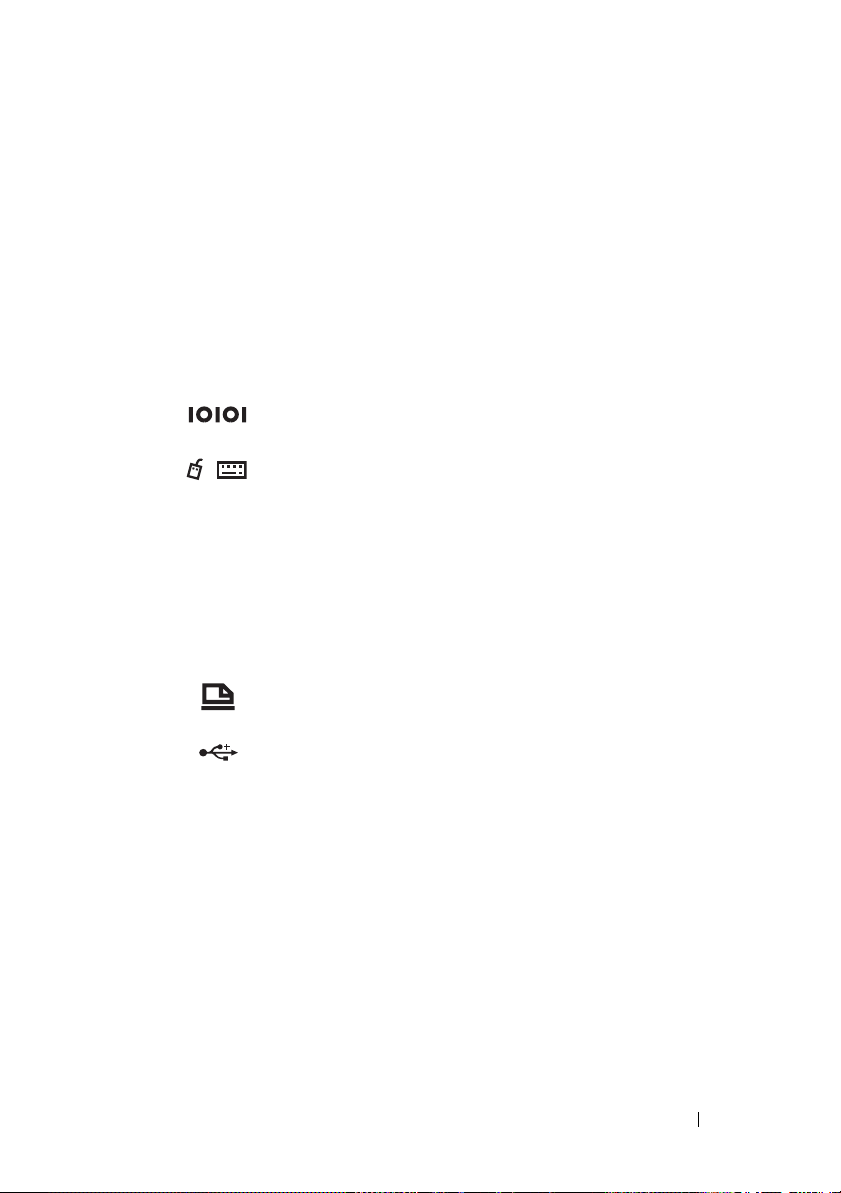
Connector Description
SERIAL CONNECTOR—Connects a serial device, such as a
serial mouse.
PS/2 CONNECTORS (2)—Connects PS/2-compatible
devices, such as a mouse, keyboard, or external
numeric keypad.
Shut down the computer before attaching or removing
a PS/2-compatible device. If the device does not work,
install the device drivers from the floppy disk or CD
that came with the device, and restart your laptop.
You can use the integrated keyboard and an external
keyboard at the same time.
PARALLEL CONNECTOR—Connects a parallel device, such
as a parallel printer.
USB 2.0 CONNECTORS—Connects up to two USB 2.0-
compliant devices to the back of the expansion station.
About Your E-Legacy Extender 5
Page 6
2
3
4
5
6
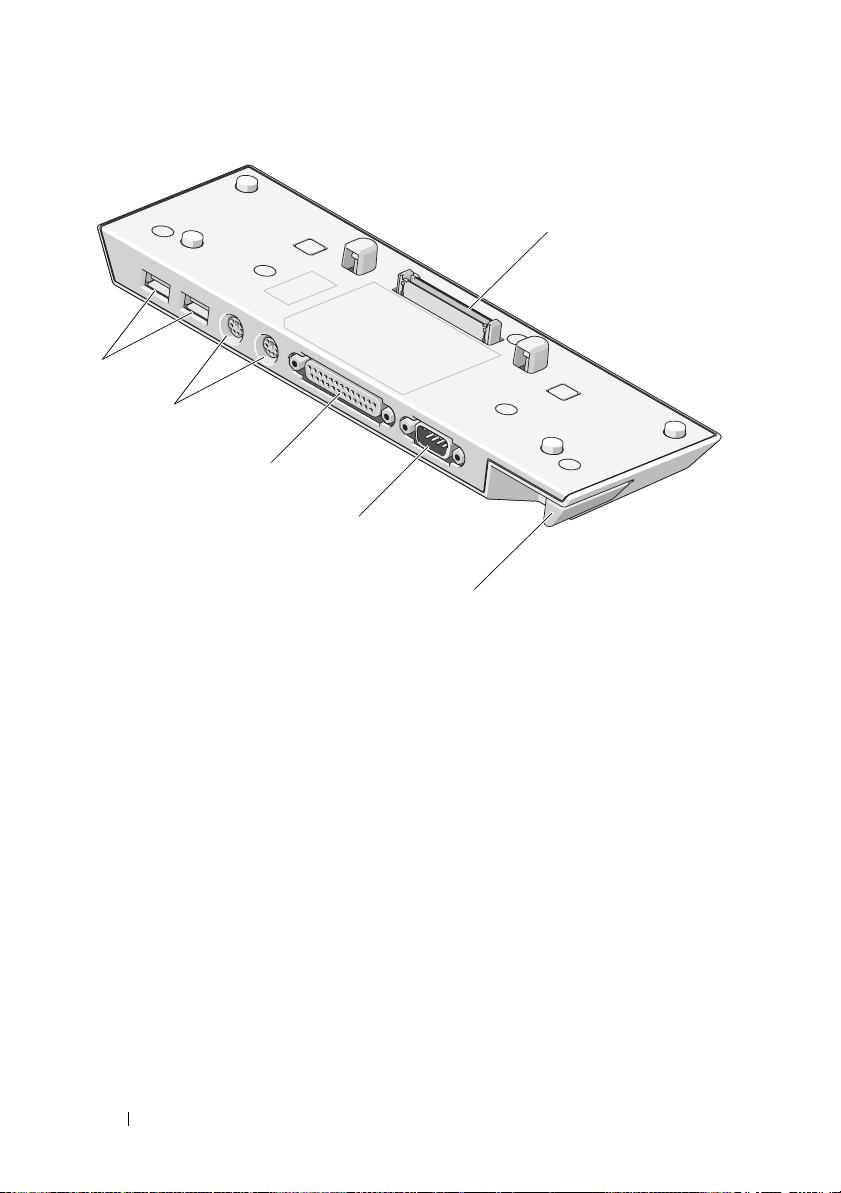
1 docking connector 2 USB ports (2)
3 PS/2 ports (2) 4 parallel port
5 serial port 6 eject lever
1
6 About Your E-Legacy Extender
Page 7
2
Using the E-Legacy Extender
CAUTION: Before you begin any of the procedures in this section, follow the
safety instructions that shipped with your computer.
Connecting Your Computer to the E-Legacy Extender
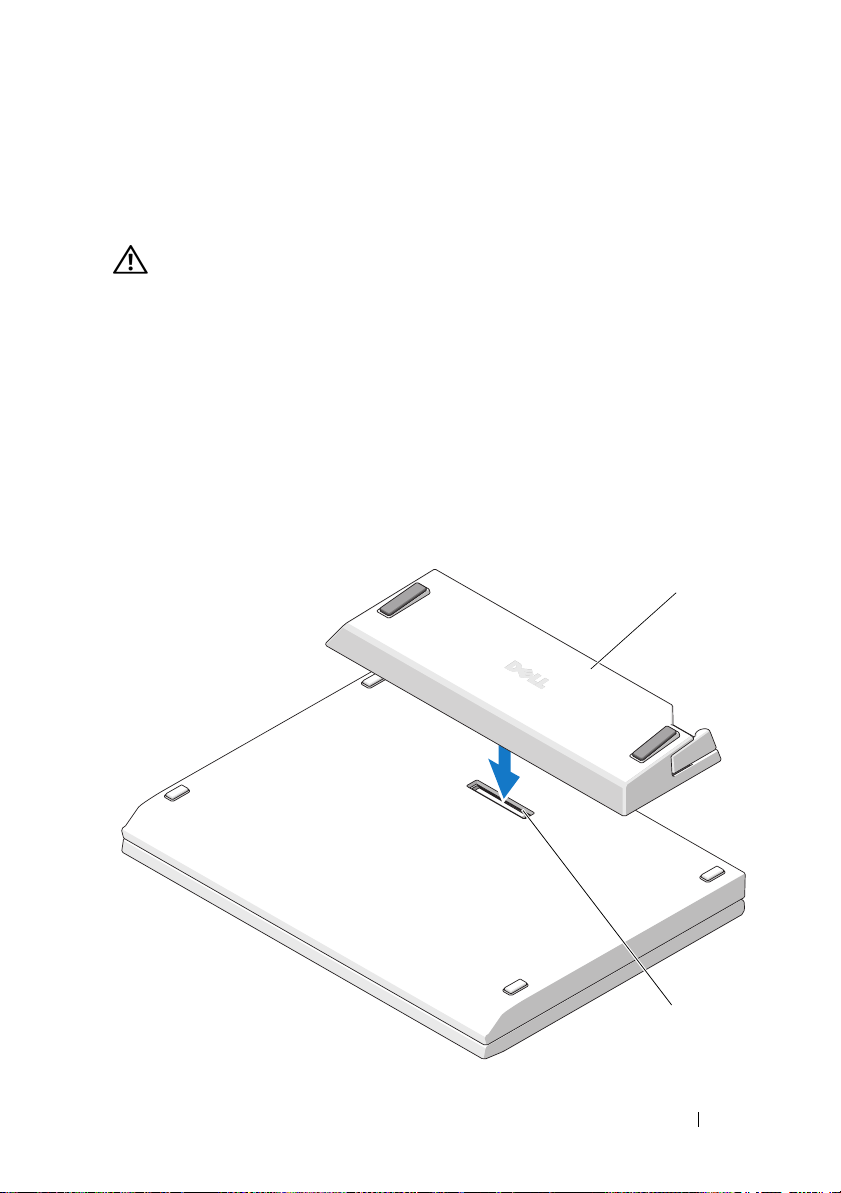
If your laptop is open, close it before connecting it to the E-Legacy Extender.
1
Tu r n
your
laptop upside down.
2
Align and center the
then connect the docking connector on the
docking connector on the bottom of the laptop.
E-Legacy Extender
with the back edge of the laptop,
E-Legacy Extender
to the
1
2
Using the E-Legacy Extender 7
Page 8
1 docking connector on the
E-Legacy Extender
2 docking connector on the bottom of a computer
Removing the E-Legacy Extender from Your Laptop
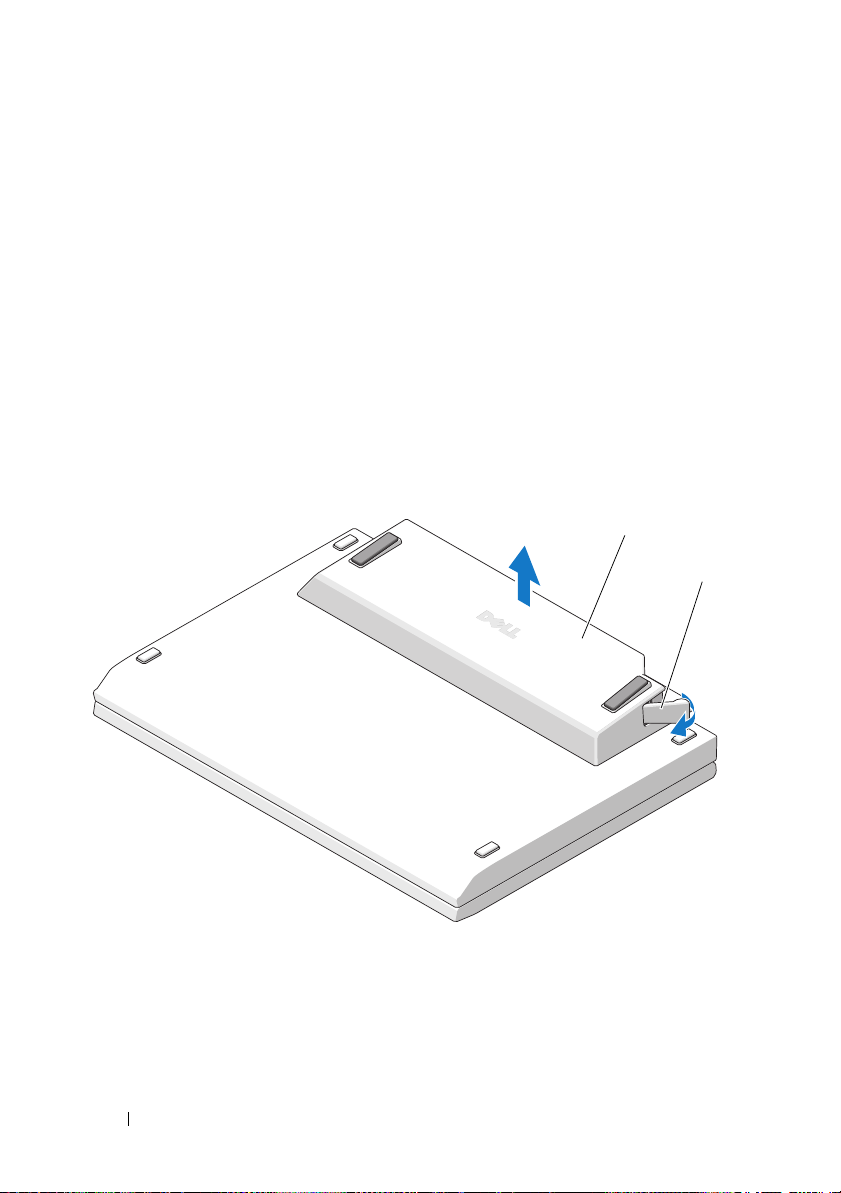
Close your laptop before removing the E-Legacy Extender.
You may want to disconnect any cables before turning your computer upside
down.
1
Turn your
2
Pull the eject lever to release the
3
Remove the
laptop
upside down.
E-Legacy Extender
E-Legacy Extender
.
from the laptop.
1
2
1 E-Legacy Extender 2 eject lever
8 Using the E-Legacy Extender
Page 9

Using the E-Legacy Extender 9
Page 10

10 Using the E-Legacy Extender
Page 11

3
Specifications
Physical
Height 19.9 mm (0.78 ")
Depth 79.3 mm (3.12")
Width 243.5 mm (9.59")
I/O Connectors
Serial (DTE) one 9-pin connector, 16550-compatible, 16-byte buffer
Parallel one 25-hole unidirectional, bidirectional, or ECP
connector
PS/2 two 6-pin mini-DIN connectors
USB two 4-pin, USB 2.0-compliant connectors
Dell™ E-Family docking
connector
one custom connector (Dell E-Family only)
Specifications 11
Page 12

12 Specifications
Page 13

Finding Information
Documents Contents
Safety, Regulatory, Warranty, and Support
Documentation
This type of information may have
shipped with your computer. For
additional regulatory information, see the
Regulatory Compliance Homepage on
www.dell.com at the following location:
www.dell.com/regulatory_compliance.
• Warranty information
• Terms and Conditions (U.S. only)
• Safety instructions
•Regulatory information
• Ergonomics information
• End User License Agreement
4
Finding Information 13
Page 14

14 Finding Information
Page 15

Glossary
A
AC — alternating current — The form of electricity that powers your computer when
you plug the AC adapter power cable in to an electrical outlet.
D
docking station — provides port replication, cable management, and security features
to adapt your notebook to a desktop workspace.
E
E-Legacy Extender — A device that provides serial, parallel, PS/2 and USB support by
connecting to a laptop computer docking connector.
I
I/O — input/output — An operation or device that enters and extracts data from your
computer. Keyboards and printers are I/O devices.
P
parallel connector — An I/O port often used to connect a parallel printer to your
computer. Also referred to as an LPT port.
PS/2 — personal system/2 — A type of connector for attaching a PS/2-compatible
keyboard, mouse, or keypad.
S
serial connector — An I/O port often used to connect devices such as a handheld
digital device or digital camera to your computer.
U
USB — universal serial bus — A hardware interface for a low-speed device such as a
USB-compatible keyboard, mouse, joystick, scanner, set of speakers, printer,
broadband devices (DSL and cable modems), imaging devices, or storage devices.
Glossary 15
Page 16

Devices are plugged directly in to a 4-pin socket on your computer or in to a multi-port
hub that plugs in to your computer. USB devices can be connected and disconnected
while the computer is turned on, and they can also be daisy-chained together.
16 Glossary
 Loading...