

Page 1

Inspiron 3668
Setup and Specifications
Computer Model: Inspiron 3668
Regulatory Model: D19M
Regulatory Type: D19M003
Page 2
Notes, cautions, and warnings
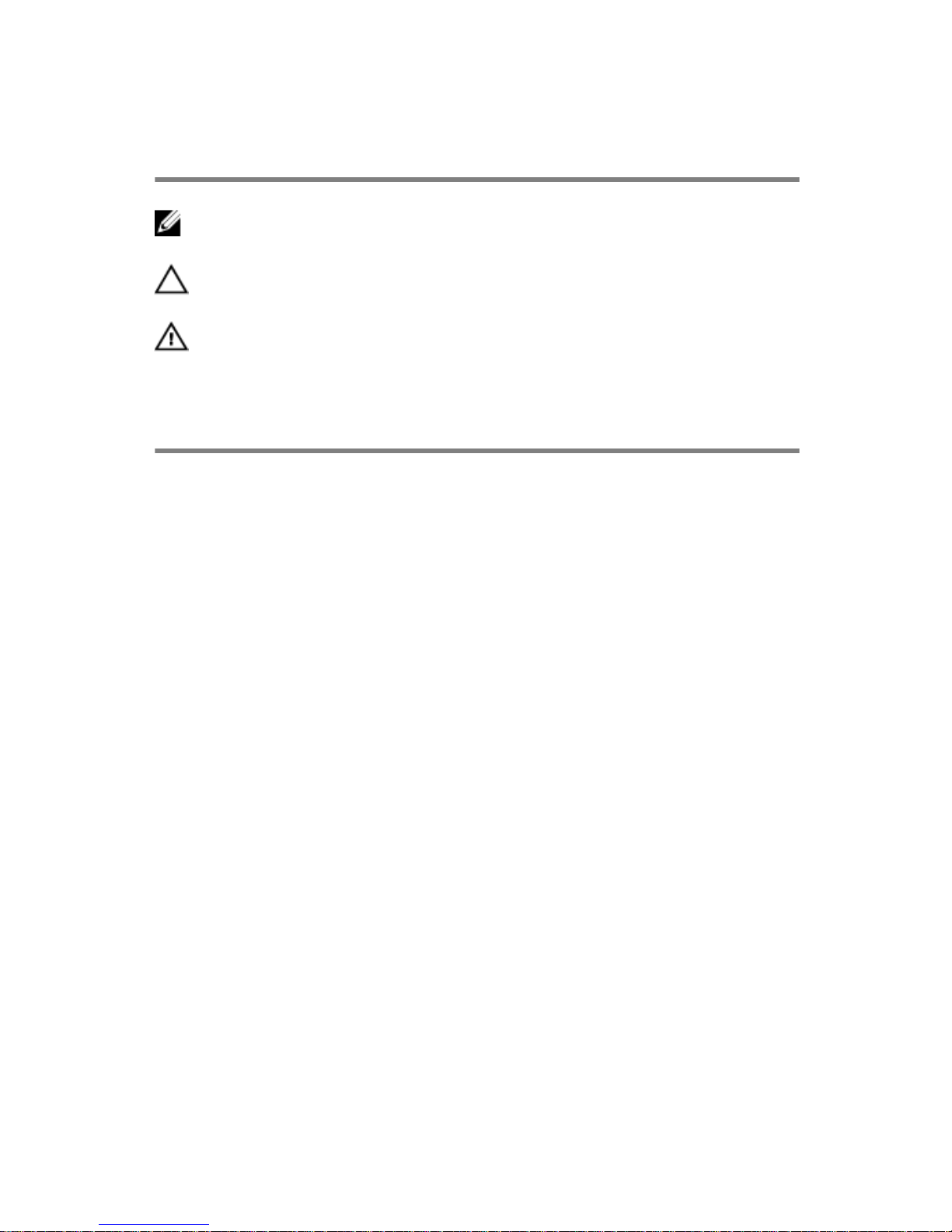
NOTE: A NOTE indicates important information that helps you make
better use of your product.
CAUTION: A CAUTION indicates either potential damage to hardware or
loss of data and tells you how to avoid the problem.
WARNING: A WARNING indicates a potential for property damage,
personal injury, or death.
Copyright © 2017 Dell Inc. or its subsidiaries. All rights reserved. Dell, EMC, and other
trademarks are trademarks of Dell Inc. or its subsidiaries. Other trademarks may be
trademarks of their respective owners.
2016 - 12
Rev. A00
Page 3

Contents
Set up your computer.................................................... 4
Views.............................................................................9
Front......................................................................................................... 9
Back......................................................................................................... 11
Back panel............................................................................................... 12
Specifications...............................................................14
Dimensions and weight............................................................................ 14
System information..................................................................................14
Memory................................................................................................... 14
Ports and connectors.............................................................................. 15
Media-card reader................................................................................... 15
Communications...................................................................................... 16
Audio........................................................................................................16
Storage....................................................................................................16
Power ratings...........................................................................................17
Video........................................................................................................17
Computer environment............................................................................17
Getting help and contacting Dell.................................. 19
Self-help resources..................................................................................19
Contacting Dell........................................................................................ 19
3
Page 4
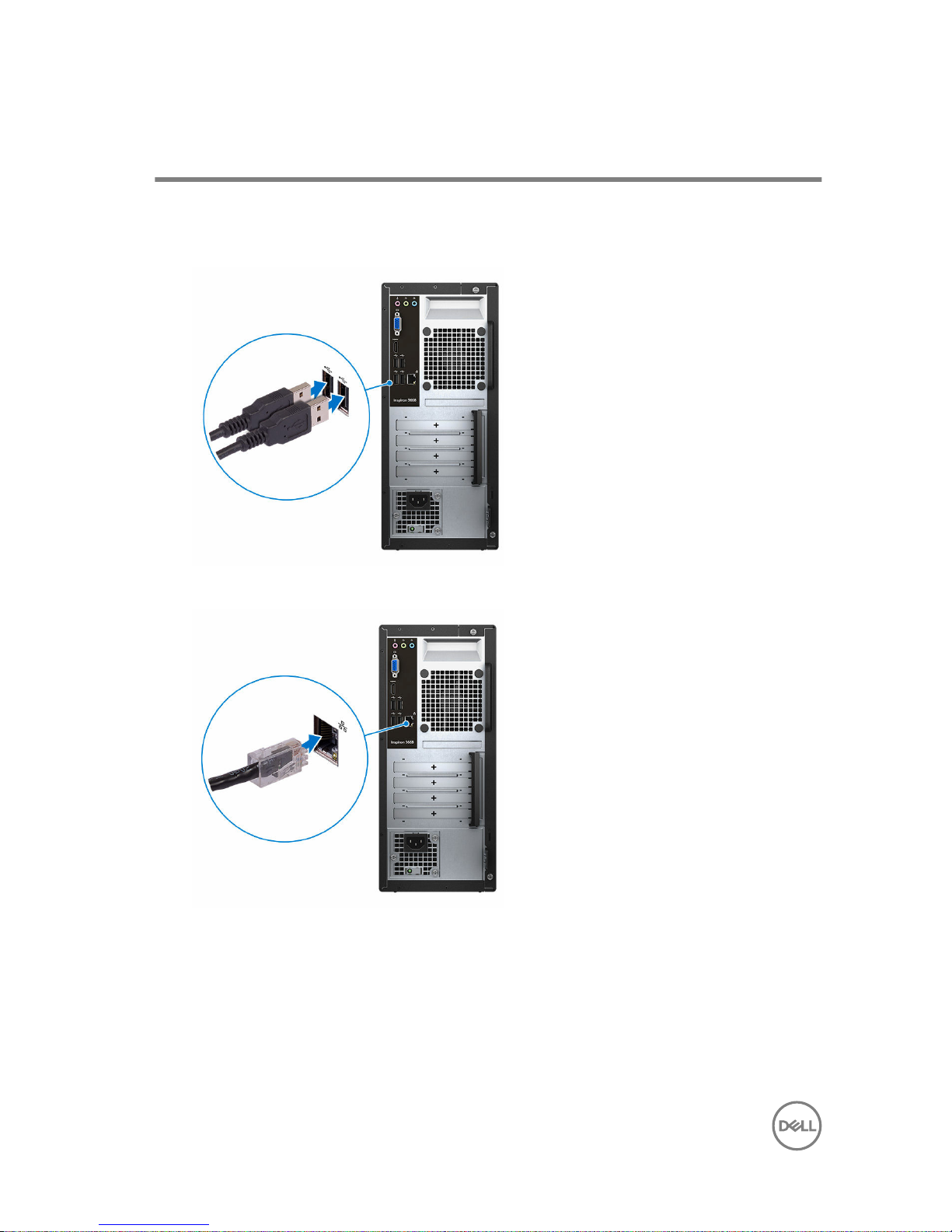
Set up your computer
1 Connect the keyboard and mouse.
See the documentation that shipped with the keyboard and mouse.
2
Connect the network cable — optional.
4
Page 5
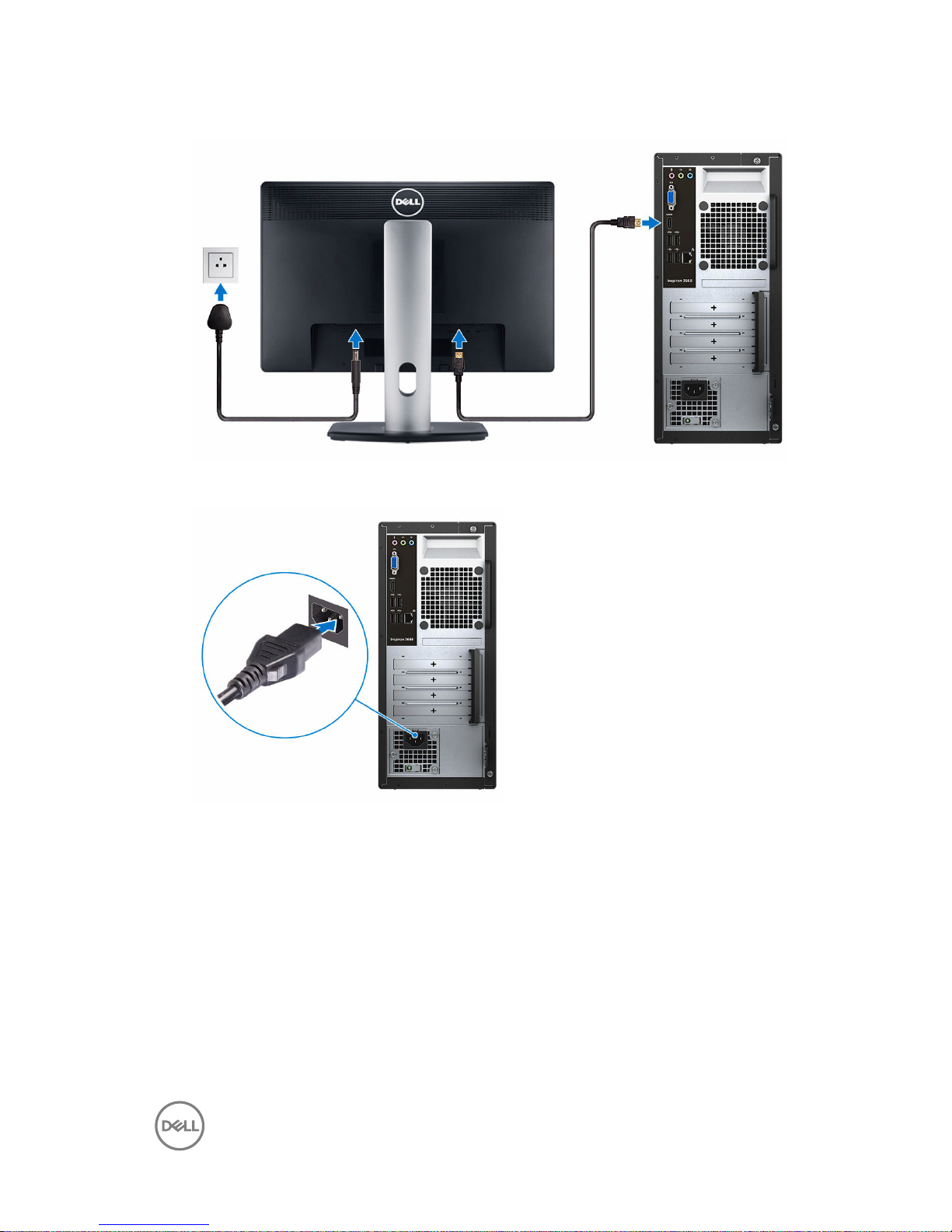
3 Connect the display.
4 Connect the power cable.
5
Page 6
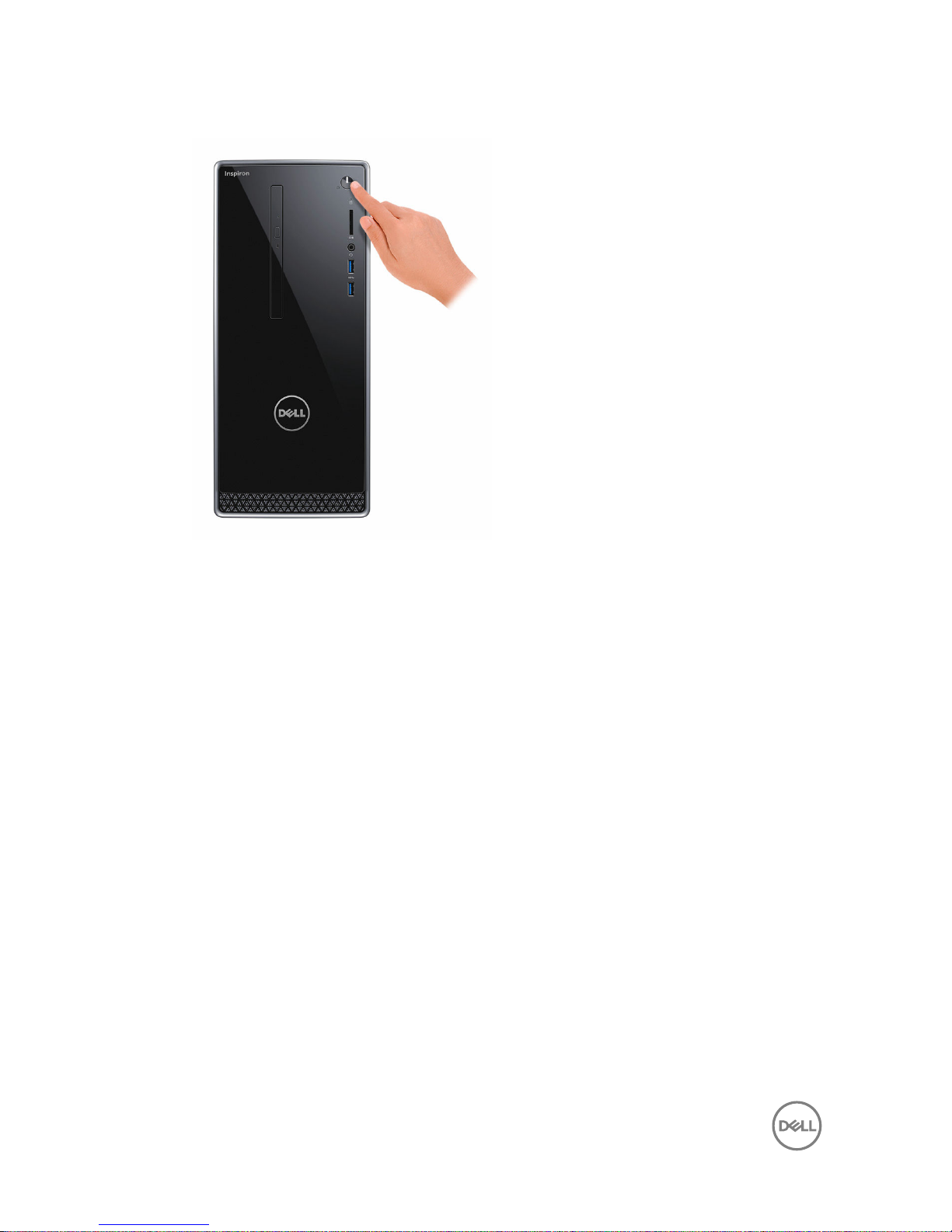
5 Press the power button.
6
Page 7
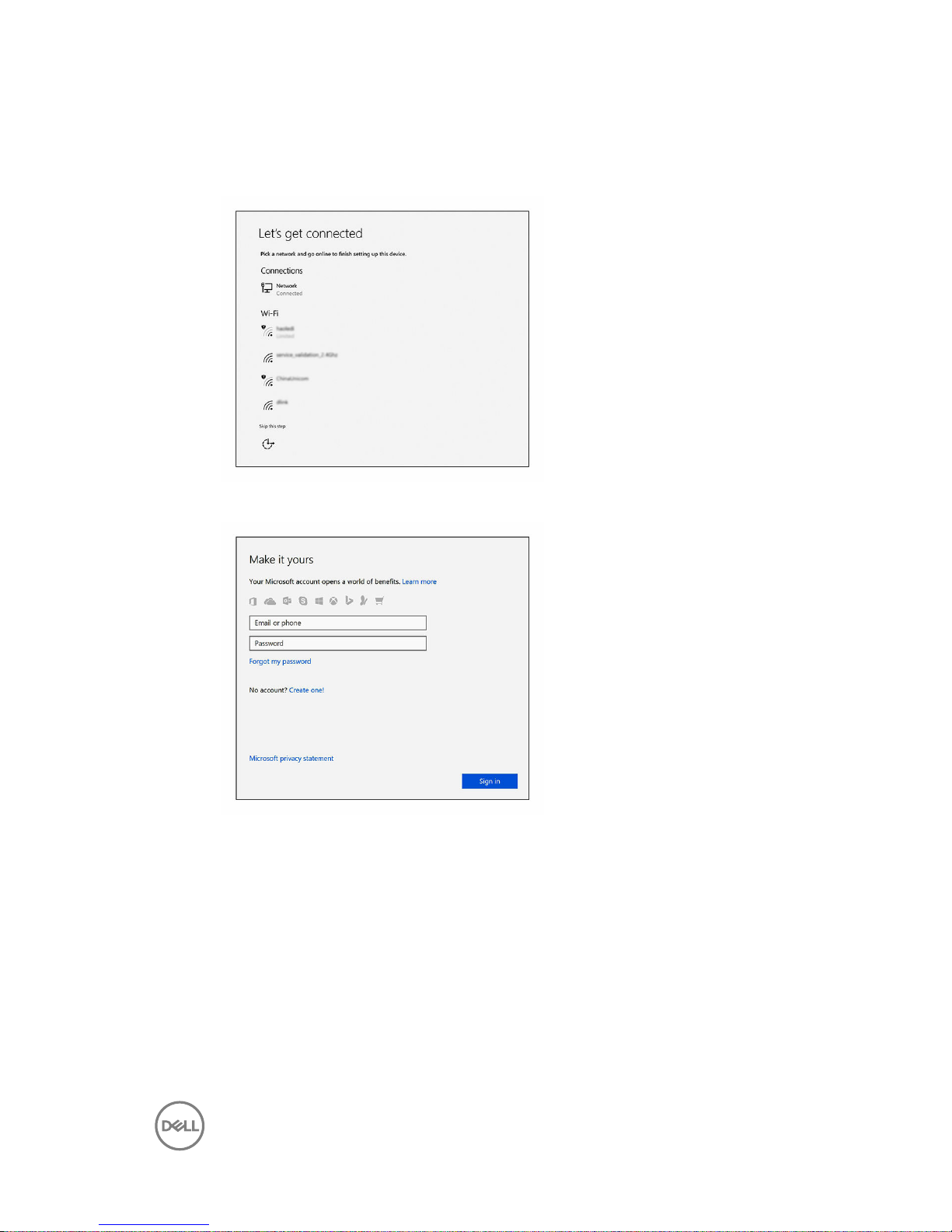
6 Finish operating system setup.
For Windows:
a) Connect to a network.
b) Sign-in to your Microsoft account or create a new account.
For Ubuntu:
Follow the instructions on the screen to finish setup.
7
Page 8
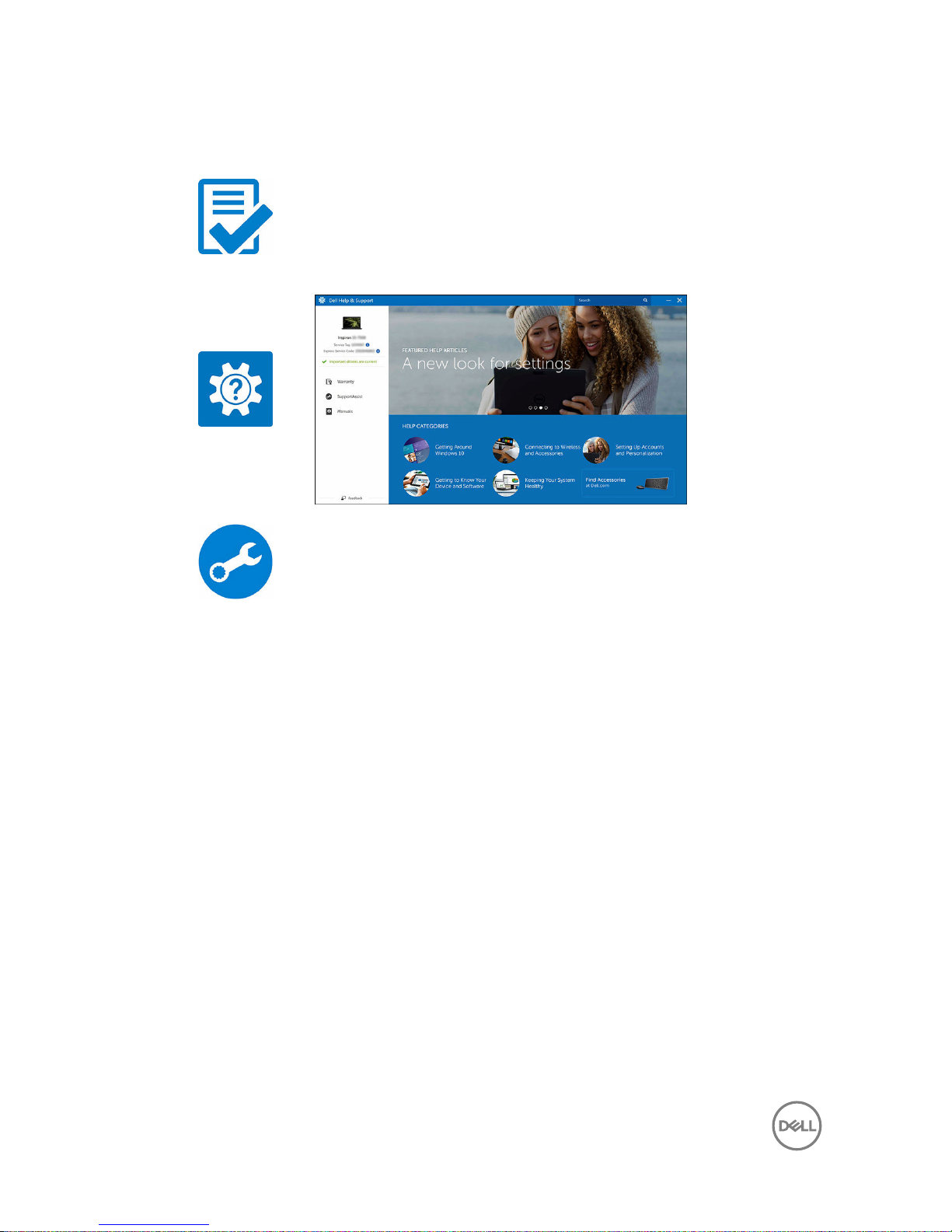
7 Locate Dell apps in Windows.
Table 1. Locate Dell apps
Register your computer
Dell Help & Support
SupportAssist—Check and update your computer
8
Page 9
Views
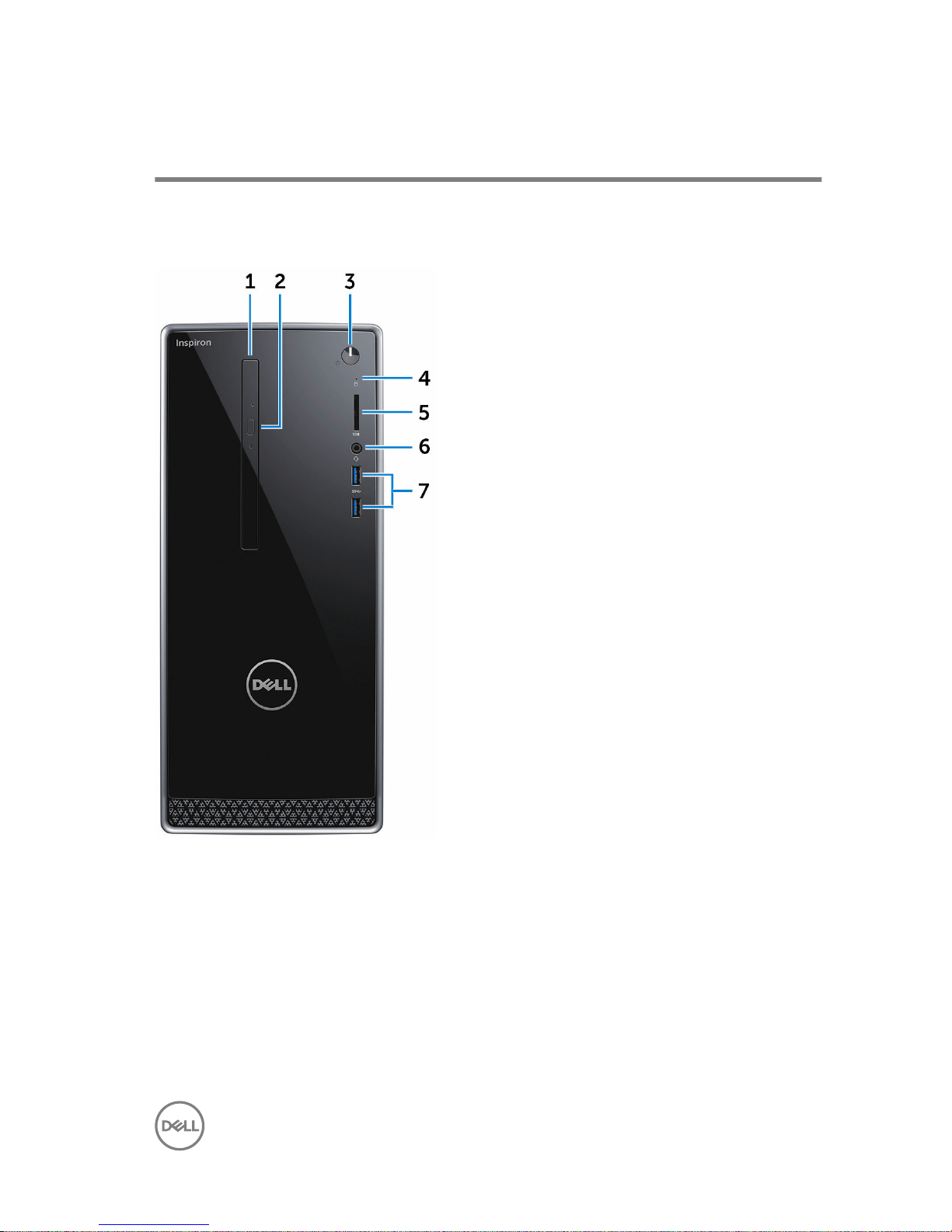
Front
1 Optical drive (optional)
Reads from and writes to CDs and DVDs.
2 Optical-drive eject button
Press to open or close the optical drive tray.
3 Power button
Press to turn on the computer if it is turned off, in sleep state, or in hibernate
state.
Press to put the computer in sleep state if it is turned on.
9
Page 10

Press and hold for 4 seconds to force shut-down the computer.
NOTE: You can customize the power-button behavior in Power
Options. For more information, see
Me and My Dell
at www.dell.com/
support/manuals.
4 Hard-drive activity light
Turns on when the computer reads from or writes to the hard drive.
5 Media-card reader
Reads from and writes to media cards.
6 Headset port
Connect a headphone or a headset (headphone and microphone combo).
7 USB 3.0 ports (2)
Connect peripherals such as storage devices and printers. Provides data
transfer speeds up to 5 Gbps.
10
Page 11
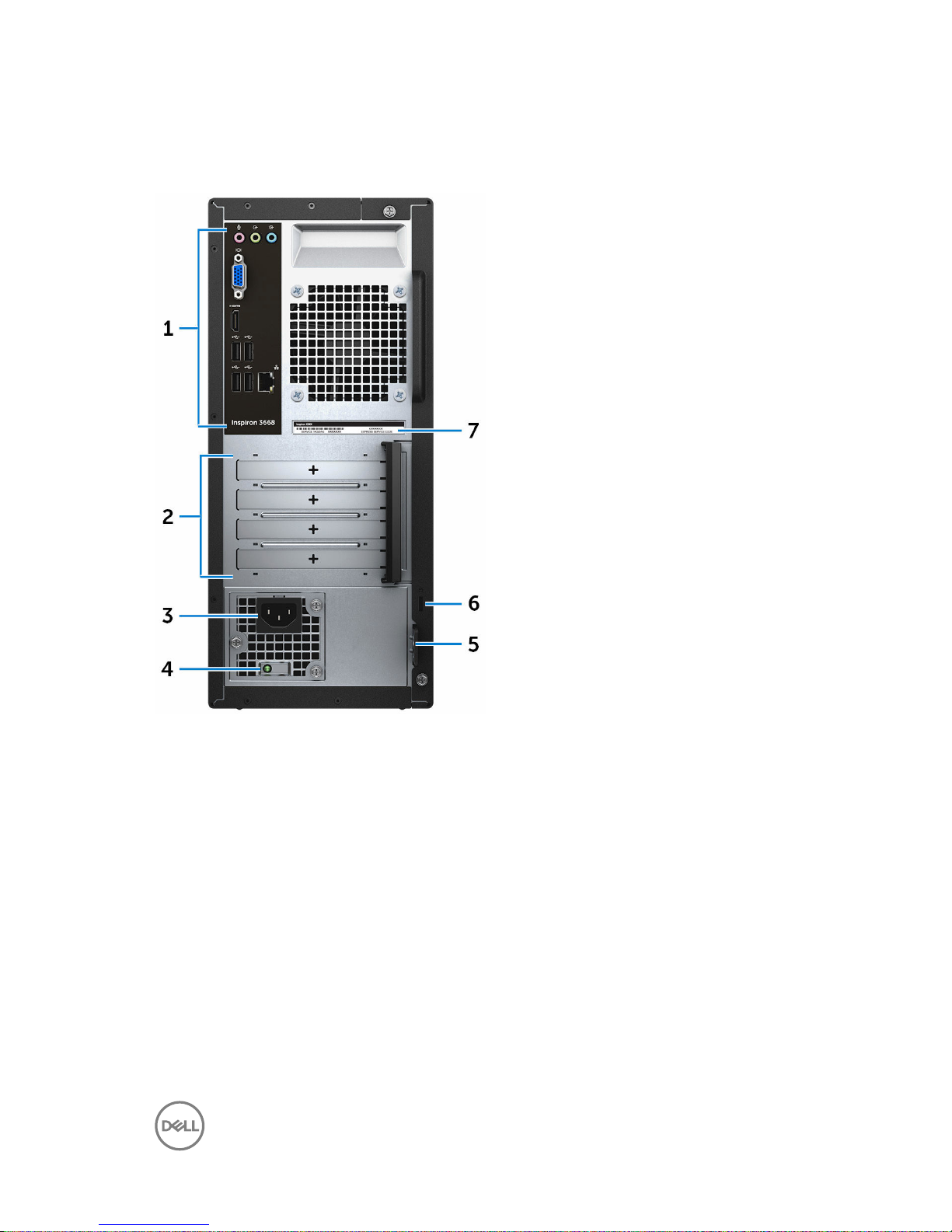
Back
1 Back panel
Connect USB, audio, video, and other devices.
2 Expansion-card slots
Provide access to ports on any installed PCI Express cards.
3 Power port
Connect a power cable to provide power to your computer.
4 Power-supply diagnostic light
Indicates the power-supply state.
5 Padlock rings
Attach a standard padlock to prevent unauthorized access to the interior of
your computer.
11
Page 12
6 Security-cable slot
Connect a security cable to prevent unauthorized movement of your computer.
7 Service Tag label
The Service Tag is a unique alphanumeric identifier that enables Dell service
technicians to identify the hardware components in your computer and access
warranty information.
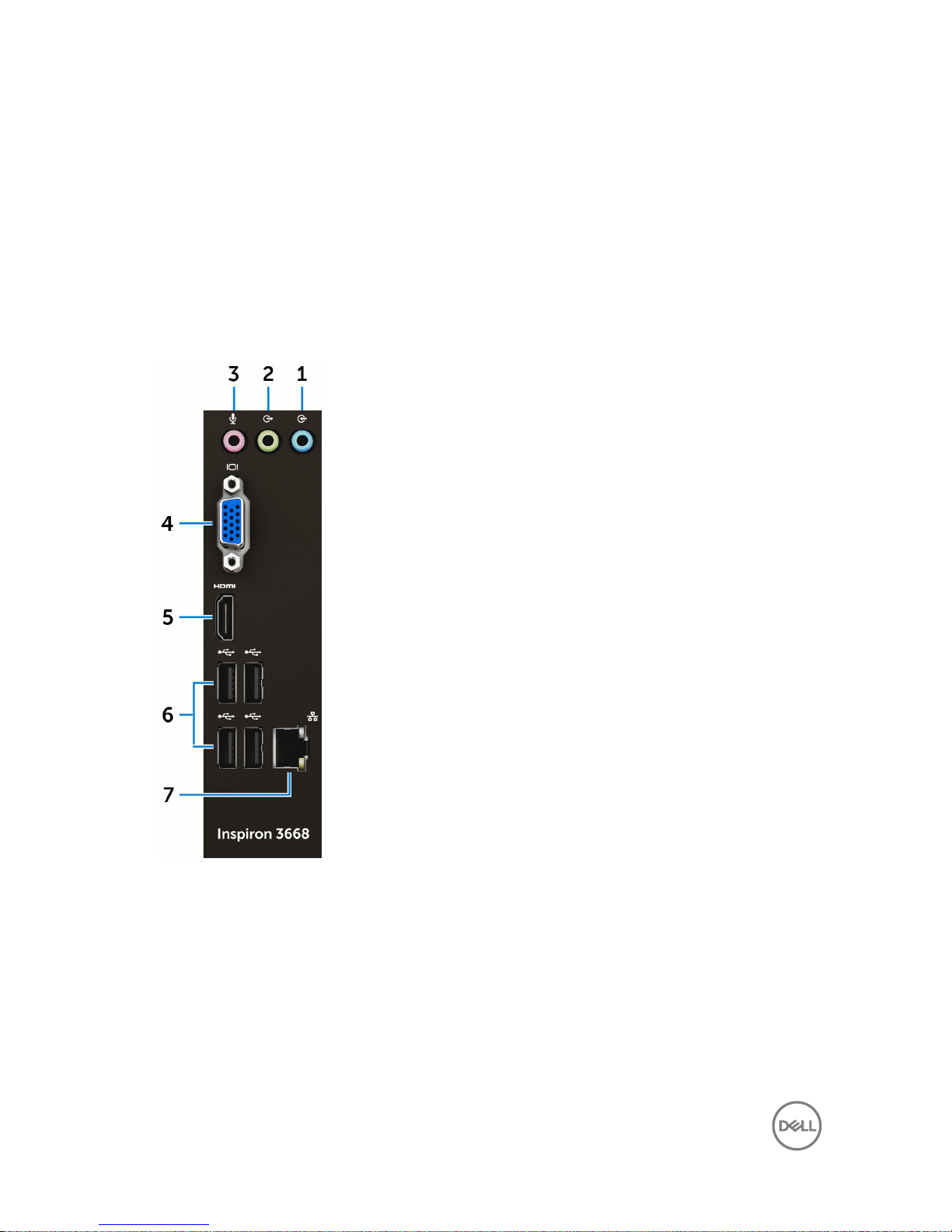
Back panel
1
Line-in port
Connect recording or playback devices such as a microphone or CD player.
2 Line-out port
Connect speakers.
3 Microphone port
Connect an external microphone to provide sound input.
12
Page 13

4 VGA port
Connect an external display or a projector.
5 HDMI port
Connect a TV or another HDMI-in enabled device. Provides video and audio
output.
6 USB 2.0 ports (4)
Connectperipherals such as storage devices and printers. Provides data
transferspeeds up to 480 Mbps.
7 Network port (with lights)
Connect an Ethernet (RJ45) cable from a router or a broadband modem for
network or internet access.
The two lights next to the connector indicate the connectivity status and
network activity.
13
Page 14
Specifications
Dimensions and weight
Table 2. Dimensions and weight
Height 352.90 mm (13.90 in)
Width 154 mm (6.06 in)
Depth 303 mm (11.93 in)
Weight (approximate) 5.90 kg (13.01 lb)
NOTE: The weight of your
computer varies depending on the
configuration ordered and the
manufacturing variability.
System information
Table 3. System information
Computer model Inspiron 3668
Processor
• Intel Core i3/i5/i7
• Intel Celeron
• Intel Pentium
Chipset Intel H110
Memory
Table 4. Memory specifications
Slots Two U-DIMM slots
Type DDR4
Speed
• 2133 MHz (Intel Celeron)
14
Page 15

• 2400 MHz (Intel Pentium and Intel
Core i3/i5/i7)
Configurations supported 2 GB, 4 GB, 6GB, 8 GB, 10 GB, 12 GB,
and 16 GB
Ports and connectors
Table 5. Ports and connectors
External:
Network One RJ45 port
USB
• Four USB 2.0 ports
• Two USB 3.0 ports
Audio/Video
• One headset port
• One microphone port
• One line-out port
• One line-in port
• One VGA port
• One HDMI port
Internal:
M.2 card One M.2 card slot for Wi-Fi and
Bluetooth combo card
PCIe slots
• Two PCIe x1 card slots
• One PCIe x16 card slot
Media-card reader
Table 6. Media-card reader specifications
Type One 5-in-1 slot
Cards supported
• SD card
15
Page 16

• SD High Capacity (SDHC) card
• SD Extended Capacity (SDXC) card
• MultiMediaCard (MMC)
• MultiMediaCard Plus (MMC Plus)
Communications
Table 7. Supported Communications
Ethernet 10/100/1000 Mbps Ethernet controller
integrated on system board
Wireless
• Up to Wi-Fi 802.11ac/n
• Bluetooth 4.0
Audio
Table 8. Audio specifications
Controller Realtek ALC3820
Type Integrated 5.1 channel Intel High
Definition Audio
Storage
Table 9. Storage specifications
Interface
• SATA 1.5 Gbps for optical drive
• SATA 6 Gbps for hard drive
Hard drive
• One 2.5-inch hard drive
• One 3.5-inch hard drive
Solid-state drive One 2.5-inch solid-state drive
Optical drive One 9.5-mm DVD+/-RW drive
16
Page 17
Power ratings
Table 10. Power ratings
Input voltage 100 VAC to 240 VAC
Input frequency 50 Hz to 60 Hz
Input current (maximum) 4.0 A
Video
Table 11. Video specifications
Integrated Discrete
Controller Intel HD Graphics
• NVIDIA GeForce
GT710FH
• NVIDIA GeForce
GT730
• NVIDIA GeForce
GTX750Ti
• AMD Radeon R9 360
Memory Shared system memory
• 2 GB DDR3
• 2 GB GDDR5
Computer environment
Airborne contaminant level: G2 or lower as defined by ISA-S71.04-1985
Relative humidity (maximum): 20% to 80% (non-condensing)
Table 12. Computer environment
Operating Storage
Temperature range 10°C to 35°C
(50°F to 95°F)
–40°C to 65°C
(–40°F to 149°F)
Vibration (maximum)
*
0.25 GRMS 2.20 GRMS
17
Page 18

Operating Storage
Shock (maximum)
40 G for 2 ms with a
change in velocity of 20
in/s (51 cm/s)†
50 G for 26 ms with a
change in velocity of 320
in/s (813 cm/s)‡
Altitude (maximum)
–15.24 m to 3048 m
(–50 ft to 10,000 ft)
–15.24 m to 10,668 m
(–50 ft to 35,000 ft)
* Measured using a random vibration spectrum that simulates user environment.
† Measured using a 2 ms half-sine pulse when the hard drive is in use.
‡ Measured using a 2 ms half-sine pulse when the hard-drive head is in parked position.
18
Page 19
Getting help and contacting Dell
Self-help resources
You can get information and help on Dell products and services using these self-help
resources:
Table 13. Self-help resources
Information about Dell products and
services
www.dell.com
Dell Help & Support app
Get started app
Accessing help In Windows search, type Help and
Support, and press Enter.
Online help for operating system www.dell.com/support/windows
www.dell.com/support/linux
Troubleshooting information, user
manuals, setup instructions, product
specifications, technical help blogs,
drivers, software updates, and so on.
www.dell.com/support
Learn about your operating system,
setting up and using your computer, data
backup, diagnostics, and so on.
See Me and My Dell at www.dell.com/
support/manuals.
Contacting Dell
To contact Dell for sales, technical support, or customer service issues, see
www.dell.com/contactdell.
19
Page 20
NOTE: Availability varies by country and product, and some services may
not be available in your country.
NOTE: If you do not have an active internet connection, you can find
contact information on your purchase invoice, packing slip, bill, or Dell
product catalog.
20
 Loading...