

Page 1

Creator C50X Single vehicle & OBDII Scanner
INDEX
1.Safety Precautions and Warnings
........................................
2
2. Using the Scan Tool
................................................................
4
3. C50X series Model description
............................................
7
4. Software Function
....................................................................
7
5. Diagnostics
..............................................................................
12
6. Software update
......................................................................
20
2.1 Tool Description
2.2 Specifications
2.3 Accessories Include
.................................................................
.....................................................................
...........................................................
2.4 Product Troubleshooting
4.1 System setting
A.SYSTEM INFORMATION
B.BEEPER
....................................................................................
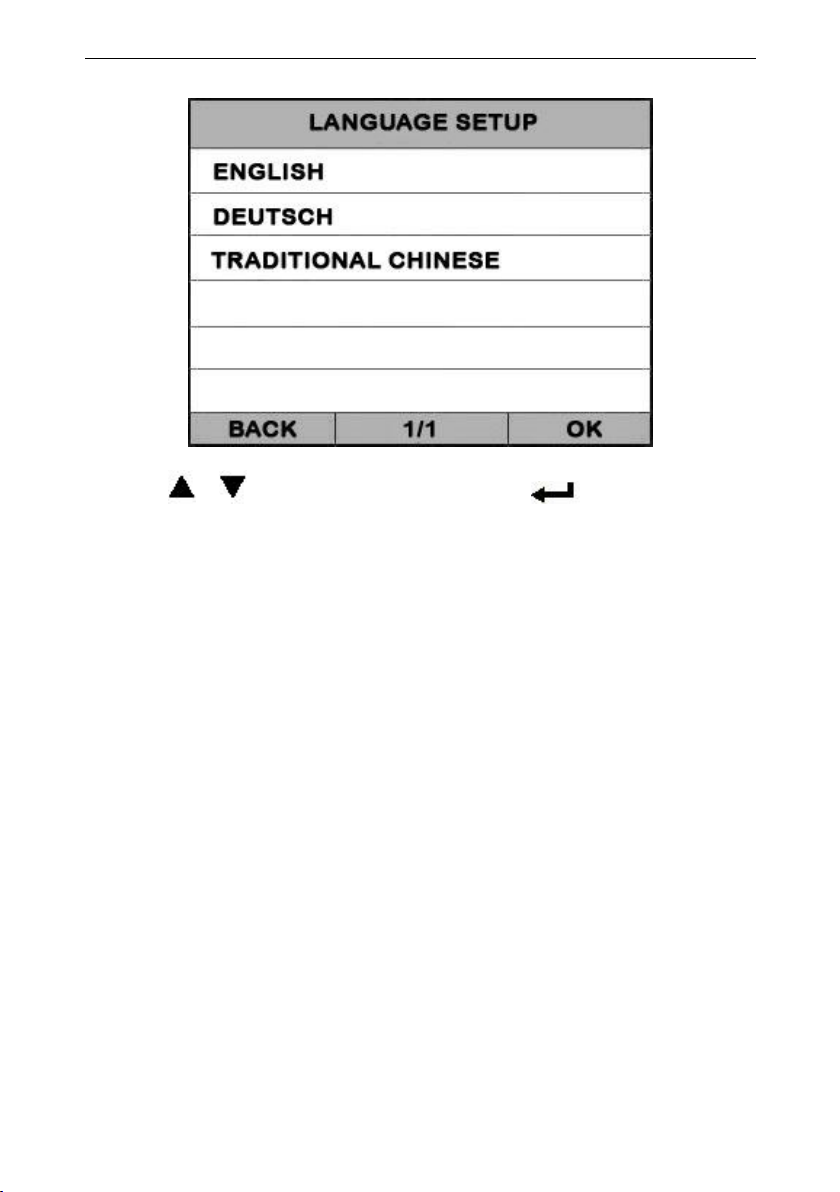
C.LANGUAGE SETUP
5.1 Strat Daignostic
5.2 Read Trouble Code
5.3 Erasing Codes
.....................................................................
..............................................................
....................................................................
...............................................................
.............................................................
.....................................................................
...................................................
4
5
5
6
9
9
10
10
12
15
16
5.4 Read DataStream
5.5 Vehicle Information
5.6 Quit Diagnostic
.................................................................
.........................................................
.................................................................
1
17
19
19
Page 2

Creator C50X Single vehicle & OBDII Scanner
1.Safety Precautions and Warnings
To prevent personal injury or damage to vehicles
and/or the scan tool. Read this instruction
manual first and observe the following safety
precautions at a minimum whenever working on a
vehicle.
·Always perform automotive testing in a safe
environment.
·Wear safety eye protection that meets ANSI
standards.
· Keep clothing, hair, hands, tools, test
equipment, etc. Away from all moving or hot
engine parts.
·Operate the vehicle in a well ventilated work
area: Exhaust gases are poisonous.
·Put blocks in front of the drive wheels and
never leave the vehicle unattended while
running tests.
·Use extreme caution when working around the
ignition coil, distributor cap, ignition
wires and spark plugs. Theses components
create hazardous voltages when the engine is
running.
·NEUTRAL (for manual transmission) and make
sure the sparking brake is engaged.
· Keep a fire extinguisher suitable for
2
Page 3

Creator C50X Single vehicle & OBDII Scanner
gasoline/chemical/electrical fires nearby.
· Don’t connect or disconnect any test
equipment while the ignition is on or the
engine is running.
· Keep the scan tool dry, clean, free from
oil/water or grease. Use a mild detergent on
a clean cloth to clean the outside of the scan
tool, when necessary.
3
Page 4
Creator C50X Single vehicle & OBDII Scanner
2. Using the Scan Tool
2.1 Tool Description
4
Page 5

Creator C50X Single vehicle & OBDII Scanner
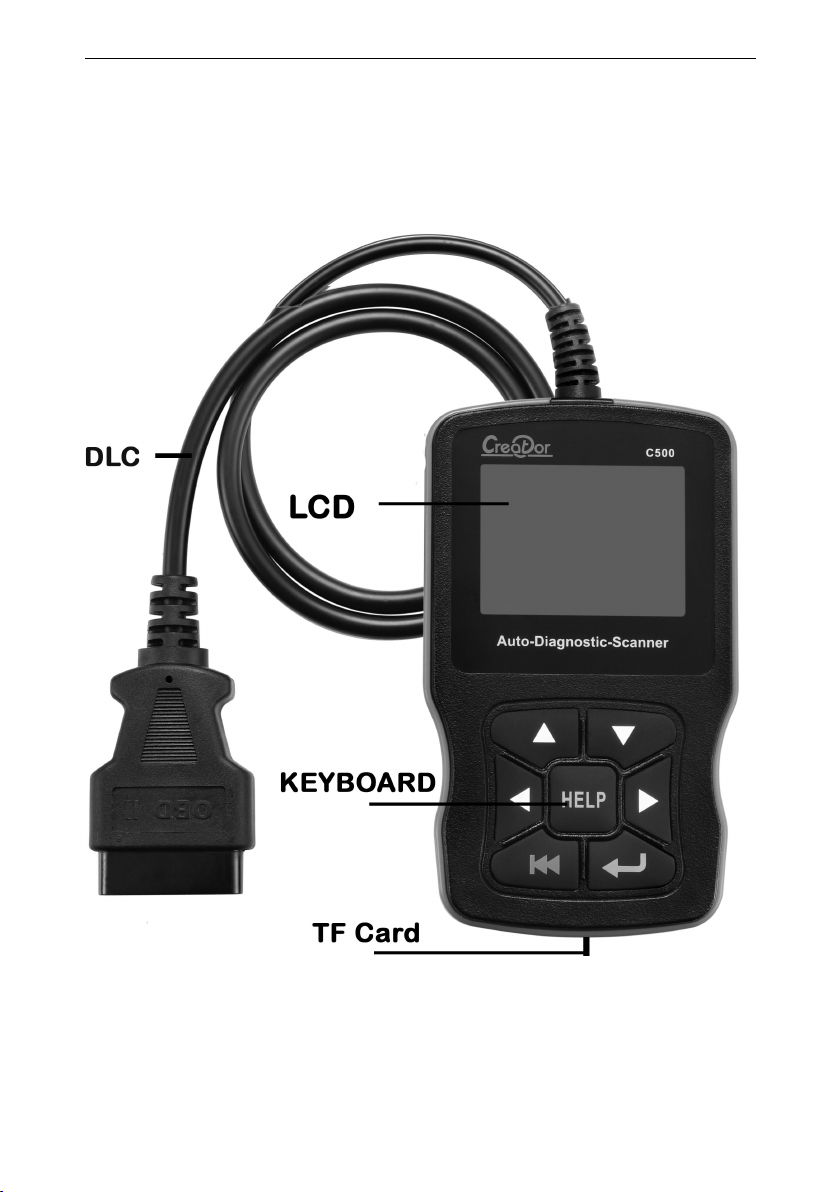
① DLC -- Data Link Connector (DLC), Use to
connect the scan tool to the vehicle;
② LCD DISPLAY -- Indicates test results. Color,
320 x 240 pixel display with contrast adjustment
③ KEY BROAD – include [ ][ ][ ][ ][ ]
[ ] [HELP]
④ TF card -- use to store the application
software;
2.2 Specifications
A) Display: Color, 320 x 240 pixel display with
contrast adjustment
B) Operation Temperature: - 20 ℃ -- 75 ℃
C) Storage Temperature: -40 ℃ -- 120 ℃
D) Power: 8V -- 24V
E) Dimensions:
Length
Width
Height
150mm
85mm
28mm
F) Weight
Net Weight: 350 g
Gross Weight: 500 g
2.3 Accessories Include
A) User’s Manual – Instructions on tool
operations.
B) TF card – use to store the application
software, Capacity: 1GB
5
Page 6

Creator C50X Single vehicle & OBDII Scanner
2.4 Product Troubleshooting
Vehicle Linking Error
A communication error occurs if the scan tool
fails to communicate with the vehicle’s ECU
(Engine Control Unit). You need to do the
following to check up:
A) Verify that the ignition is ON;
B) Check if the scan tool’s OBD II connector
is securely connected to the vehicle’s DLC;
C) Verify that the vehicle is OBD2 compliant;
D) Turn the ignition off and wait for about 10
seconds. Turn the
E) Ignition back to on and continue the testing.
F) Verify the control module is not defective
Scan tool doesn’t power up
If the scan tool won’t power up or operates
incorrectly in any other way, you need to do the
following to check up:
A) Check if the scan tool’s OBD II connector
is securely connected to the vehicle’s DLC;
B) Check if the DLC pins are bent or broken.
Clean the DLC pins if necessary.
C) Check vehicle battery to make sure it is still
good with at least 8.0 volts.
6
Page 7

Creator C50X Single vehicle & OBDII Scanner
3. C50X series Model description
Model
Support vehicle
C501
BMW & OBDII/EOBD
C502
BENZ & OBDII/EOBD
C507
HONDA/ACURA & OBDII/EOBD
C508
FIAT & OBDII/EOBD
…
…
4. Software Function
CATION: Don’t connect or disconnect any test
equipment with ignition on or engine running.
1) Turn the ignition off.
2) Locate the vehicle’s 16-pin Data Link
Connector (DLC)
3) Plug into the scan tool cable connector to the
vehicle's DLC ,the scan tool will be light.
As shown
4) Turn the ignition on. Engine can be off or
running
7
Page 8
Creator C50X Single vehicle & OBDII Scanner
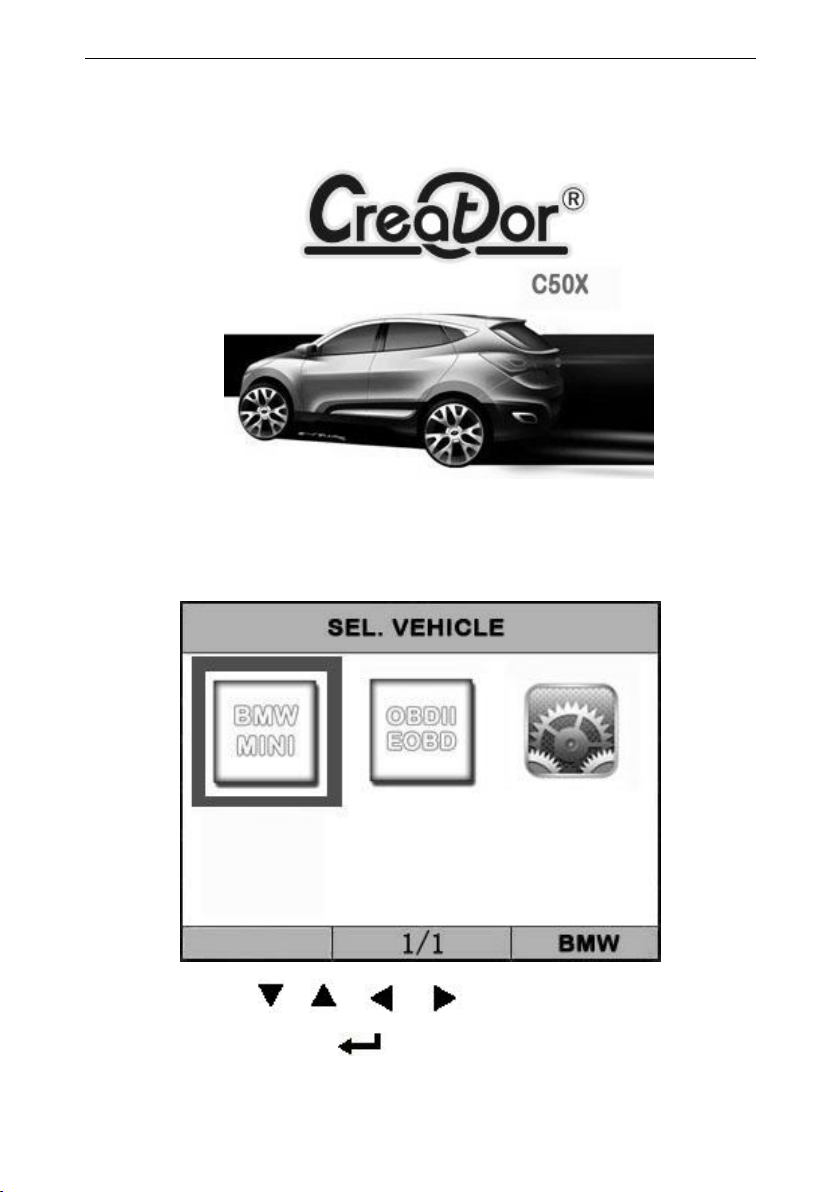
5) Wait for a moment to enter select vehicle menu
USE the key [ ][ ][ ][ ] to select in the [SEL.
VEHILCE] , and press [ ] to selection the vehicle which
you want to diagnostic
8
Page 9
Creator C50X Single vehicle & OBDII Scanner
4.1 System setting
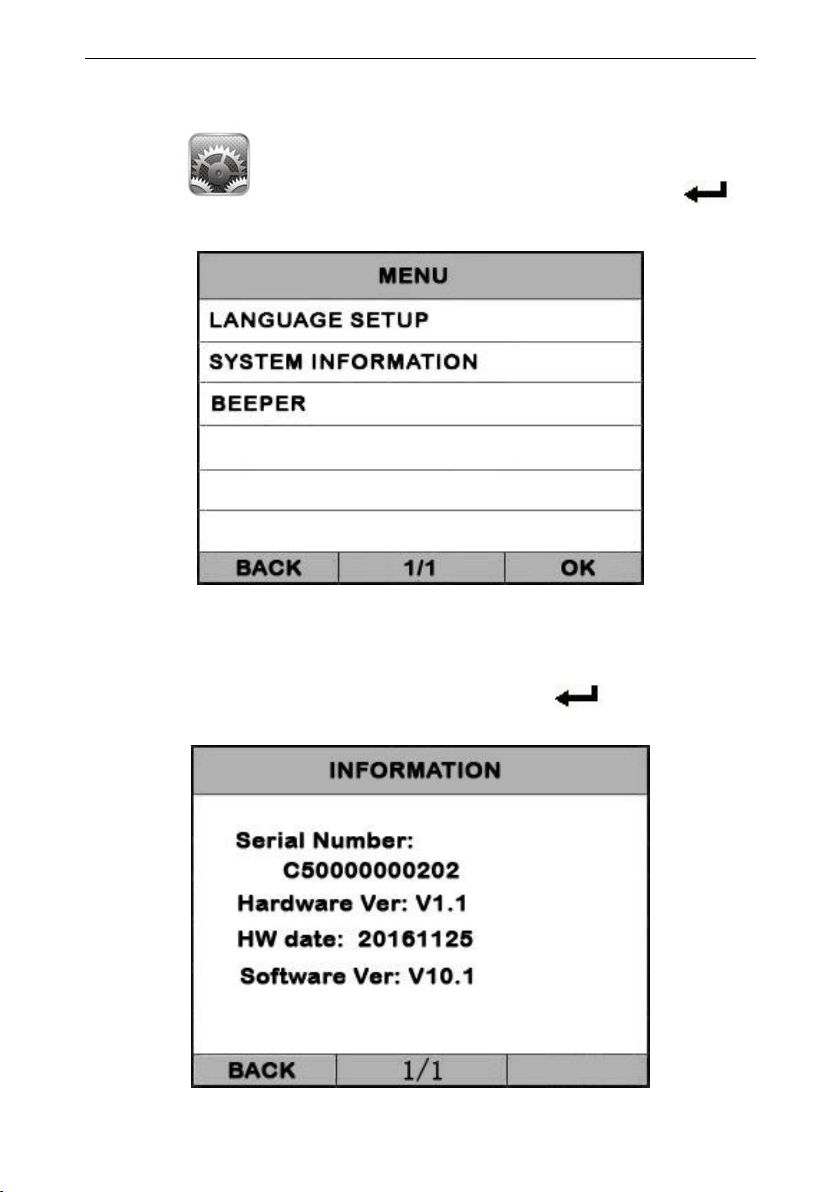
Select [ ] in the [SEL. VEHICLE] and press [ ].
The screen will display the interface as shown below:
The scanner allows you to make the following adjustments
settings;
A.SYSTEM INFORMATION
Choose [SYSTEM INFORMATION] and press [ ].
The screen will display the interface as shown below:
9
Page 10
Creator C50X Single vehicle & OBDII Scanner
Press [ ] or [ ] to return the [SYSTEM SETTING]
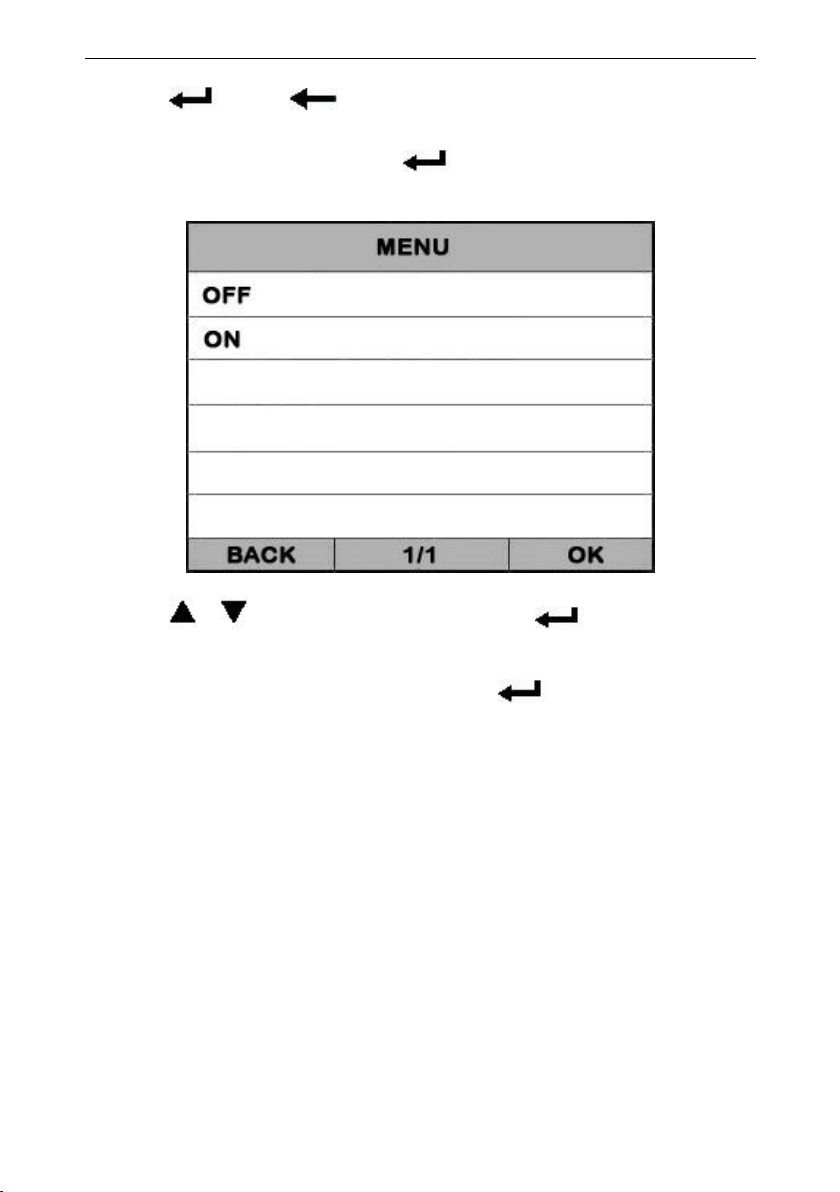
B.BEEPER
Choose [BEEPER] and press [ ], the screen will display
the interface as shown below:
Press [ ][ ] to select, and press [ ] to confirm.
C.LANGUAGE SETUP
Choose [LANGUAGE SETUP] and press [ ], the screen will
display the interface as shown below:
10
Page 11
Creator C50X Single vehicle & OBDII Scanner
Press [ ][ ] to select, and press [ ] to select the
language what you want to use.
11
Page 12
Creator C50X Single vehicle & OBDII Scanner
5.1 Strat Daignostic
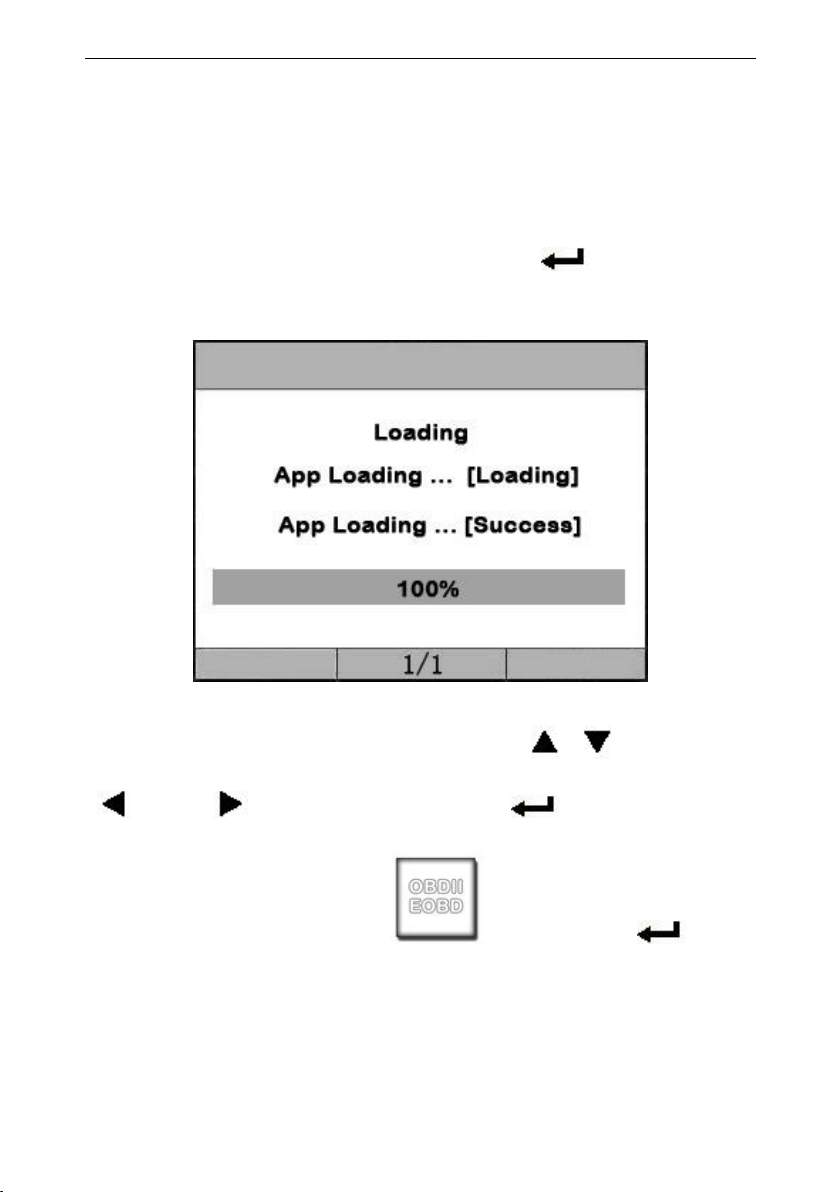
You can Select defference vehicle to Diagnostic, for
example, select [BMW&MINI] and press [ ].
The screen will display loading the App. ,the interface as
shown below:
When Loading sussce, it will enter the Menu for
Diagnostic,you can use the Keyboard [ ][ ] to select,
[ ] and [ ] to Page, and press [ ] to confirm.
For example , you select [ ],and press [ ], the
OBDII application software will be loaded , after Load
successfully, the screen will display he interface as shown
below:
5. Diagnostics
12
Page 13
Creator C50X Single vehicle & OBDII Scanner
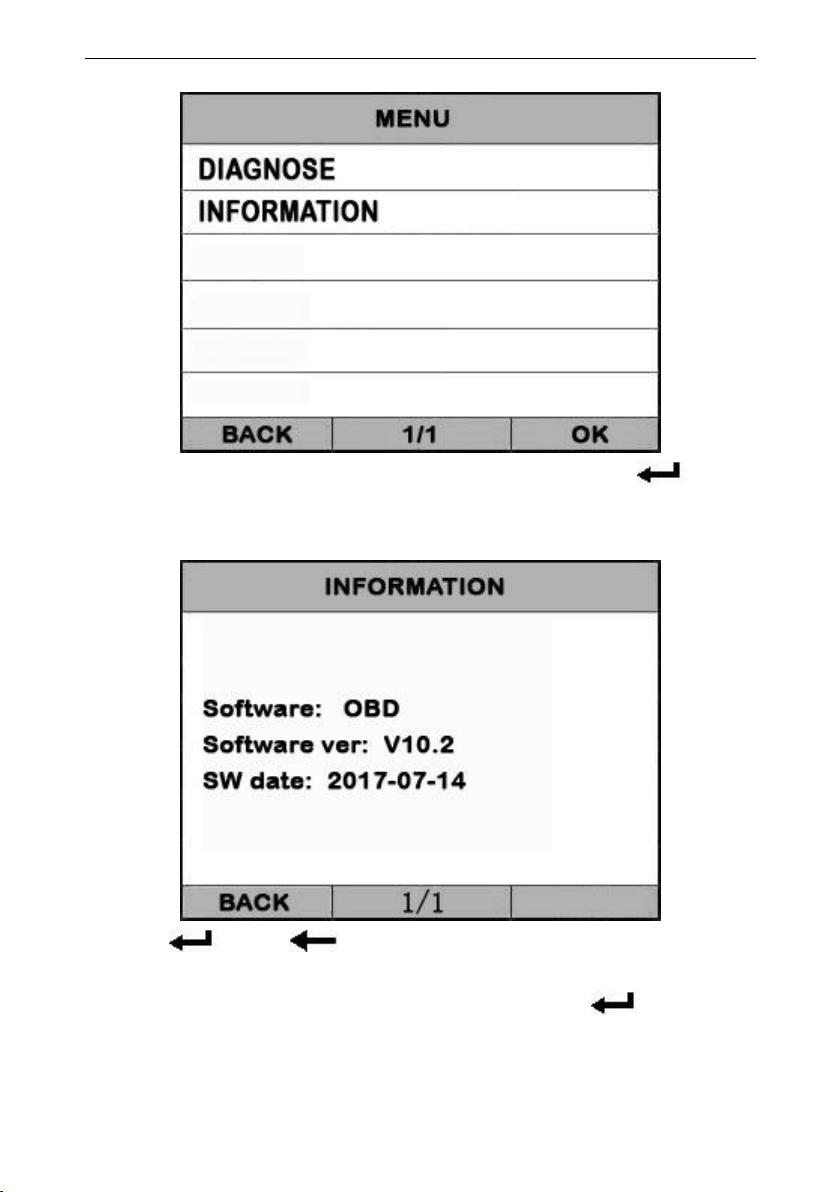
You can select the [INFORMATION] , and press [ ], the
screen will display the App software information as shown
below:
press [ ] or [ ] to return the first menu.
You can select the [DIAGNOSE] , and press [ ], the APP
software will start test the vehicle.as the screen display
below:
13
Page 14
Creator C50X Single vehicle & OBDII Scanner
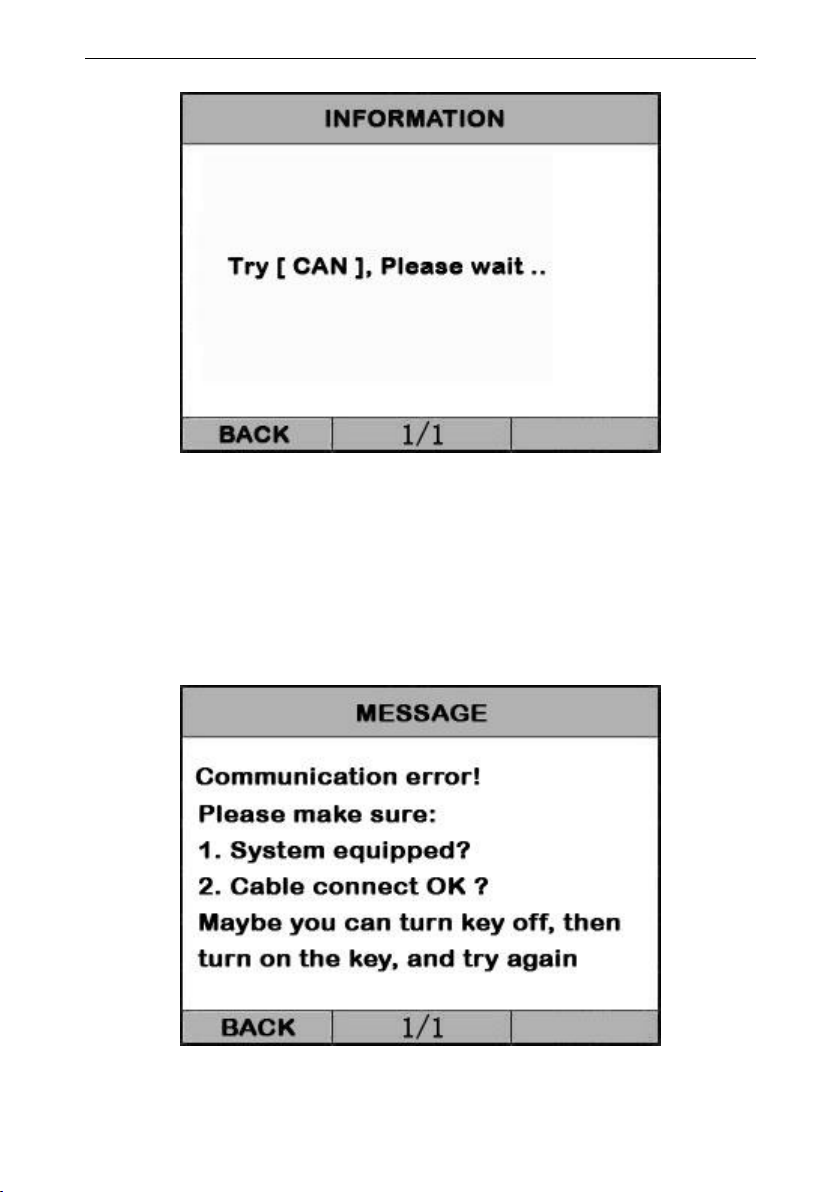
The tools will try different mode of communication, like
[CAN 11] , [CAN 29] , [J1850 VPW] , [J1850 PWM] , [ISO 9141],
[KWP 2000] etc.
◆ if the scan tool fails to communication with the
vehicle’s ECU, a “ERROR” message shows up on the display
14
Page 15
Creator C50X Single vehicle & OBDII Scanner
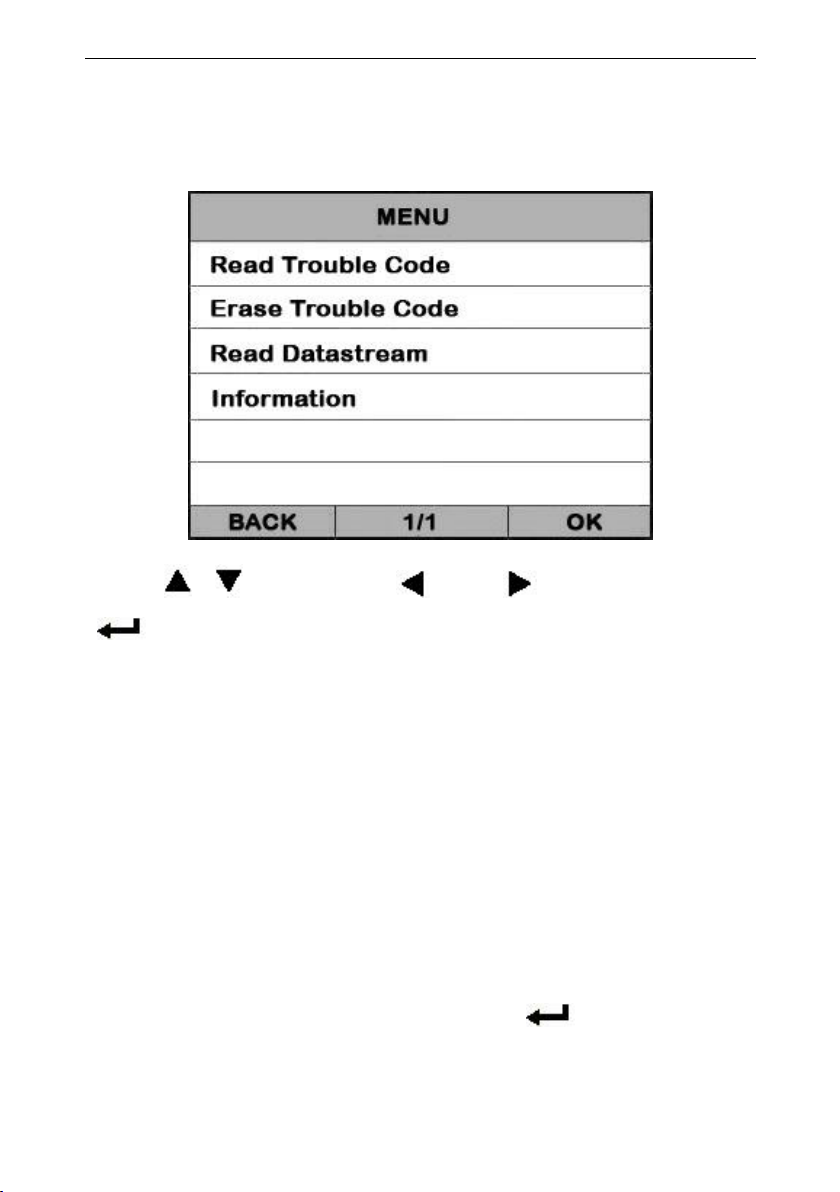
if the scan tool communicate with the vehicle, it will enter
the [function menu], the screen will display the interface
as shown below:
Press [ ][ ] to select, [ ] and [ ] to Page, and press
[ ] to confirm.
5.2 Read Trouble Code
◆Reading Codes can be done with the key on
engine off (KOEO) or with the key on engine
running (KOER).
◆Trouble codes cause the control module to
illuminate the malfunction indicator lamp (MIL)
when emission-related fault occurs.
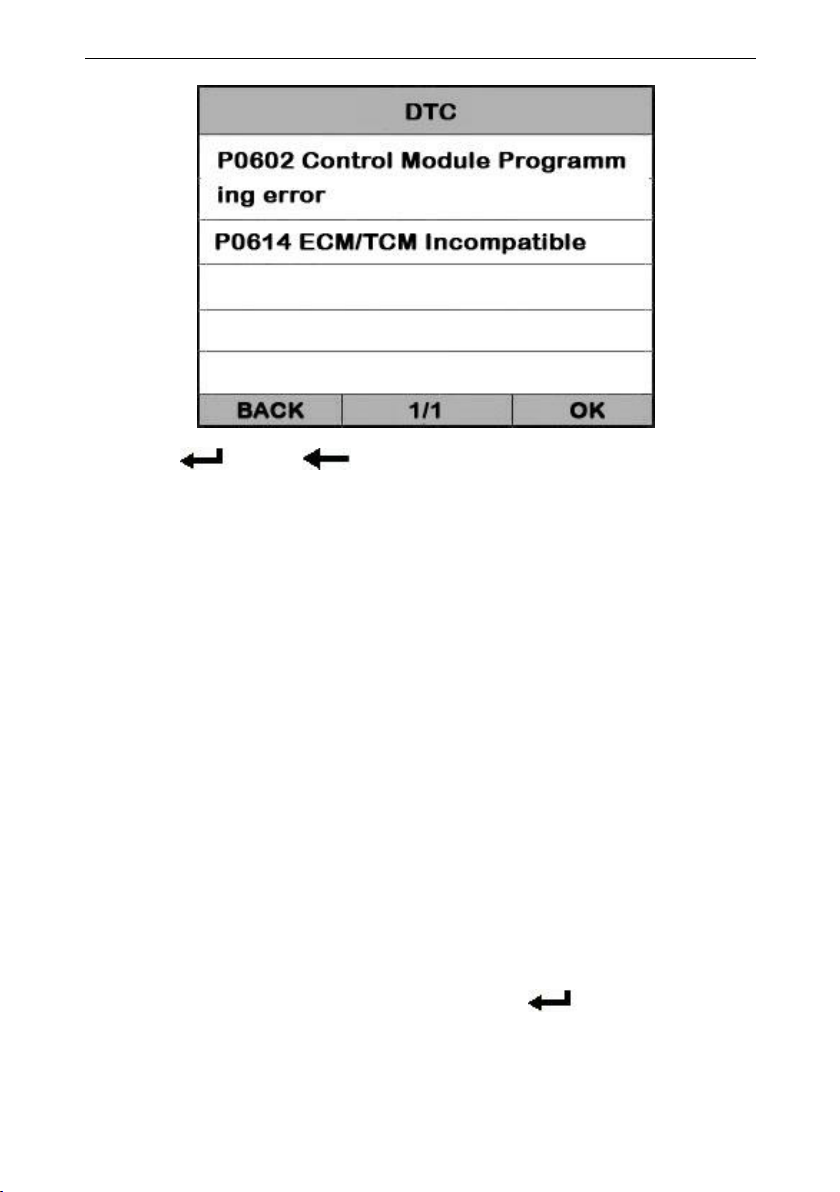
select [Read Trouble Code] and press [ ] in [Diagnostic
Menu]. If there are some codes, the screen will display
the codes as show below:
15
Page 16
Creator C50X Single vehicle & OBDII Scanner
Press [ ] or [ ] to return the [Diagnostic menu]
View DTCs and their definitions on screen.
If there are no Diagnostic Trouble Codes present, the
display indicates “No Trouble Code” Wait a few
seconds or press any OK to return to Diagnostic Menu.
The control module number, sequence of the DTCs,
total number of codes detected and type of codes
(Generic or Manufacturer specific) will be observed on
the upper right hand corner of the display.
5.3 Erasing Codes
CAUTION: Erasing the Diagnostic Trouble Codes
may allow the scan tool to delete not only the
codes from the vehicle’s on-board computer,
This function is performed with key on engine
off (KOEO). Do not start the engine.
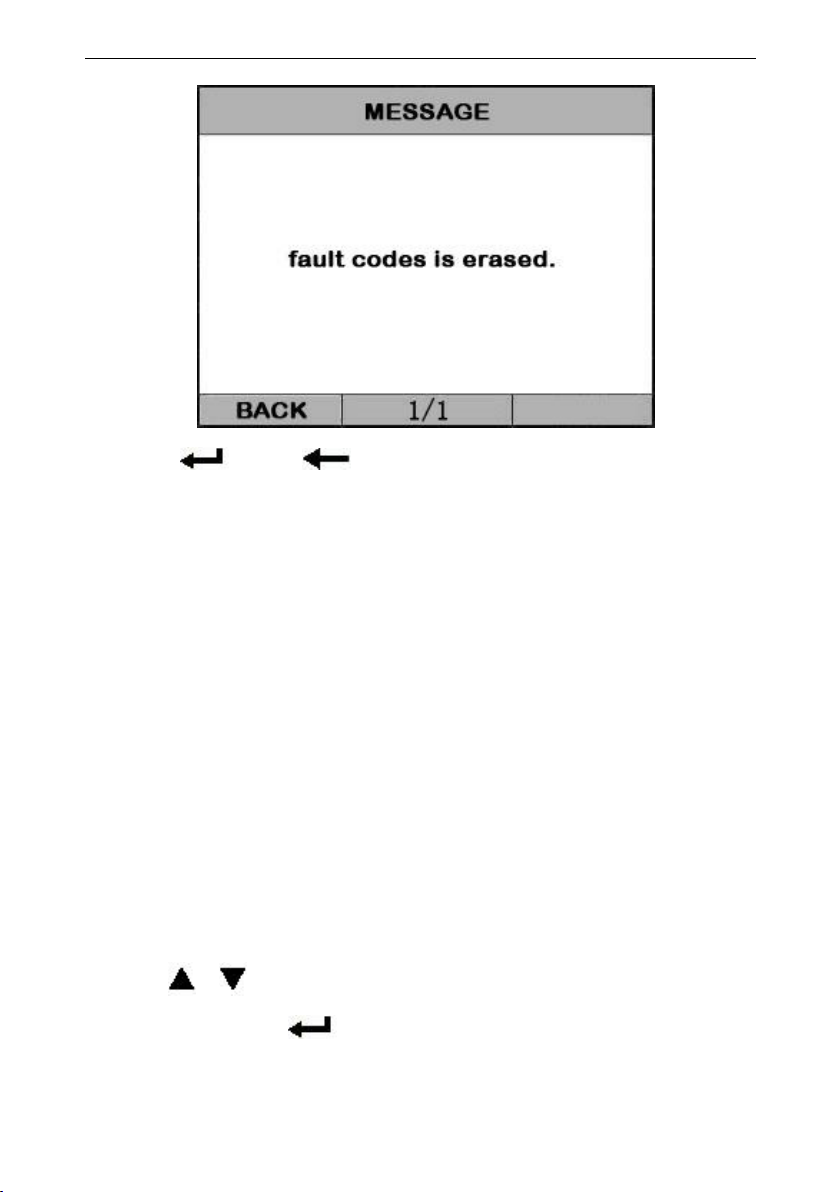
Select [Erase Trouble Code] and press[ ] in [Diagnostic
Menu]. the screen will display the interface as shown
below:
16
Page 17
Creator C50X Single vehicle & OBDII Scanner
Press [ ] or [ ] to return the [Diagnostic menu]
Notes:
* Before performing this function. Make sure to retrieve
and record the trouble codes.
* After clearing, you should retrieve trouble codes once
more or turn ignition on and retrieve codes again. If there
are still some trouble codes for hard troubles, please find
the reason caused the trouble code first, and then solve
the problem. Now, the trouble codes can be erased.
5.4 Read DataStream
The Read DataStream function allows viewing of
live or real time data of vehicle’s computer
module(s). This function is not supported for
some system.
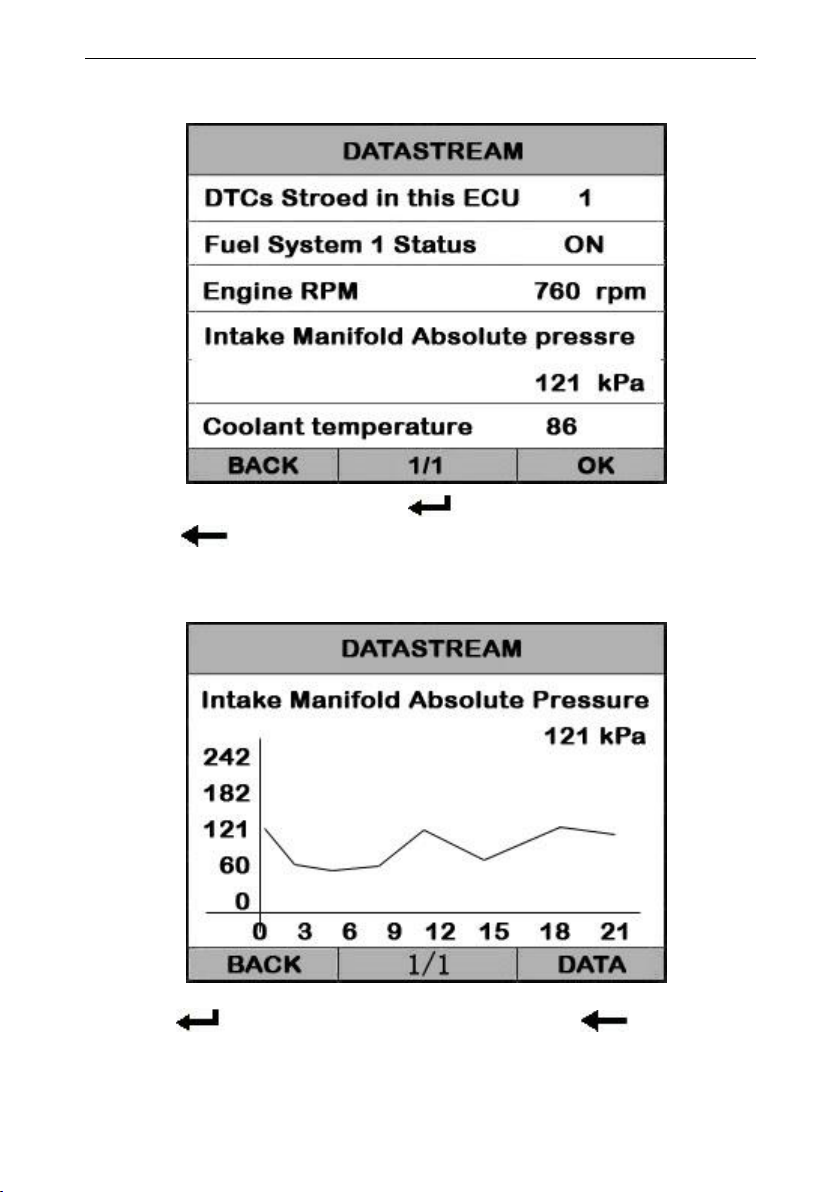
Press[ ][ ] to select [Read DataStream] in [Diagnostic
Menu] and press [ ] to confirm. The screen will display
the interface as shown below.
17
Page 18
Creator C50X Single vehicle & OBDII Scanner
Data model
If appear [GRAPH], Press [ ] to enter Graph mode.
Press [ ] to return [Diagnostic Menu]
the screen will display the interface as below:
Graph model
Press [ ] to return data model. Press [ ] to return
[DIAGNOSTIC MENU].
18
Page 19
Creator C50X Single vehicle & OBDII Scanner
5.5 Vehicle Information
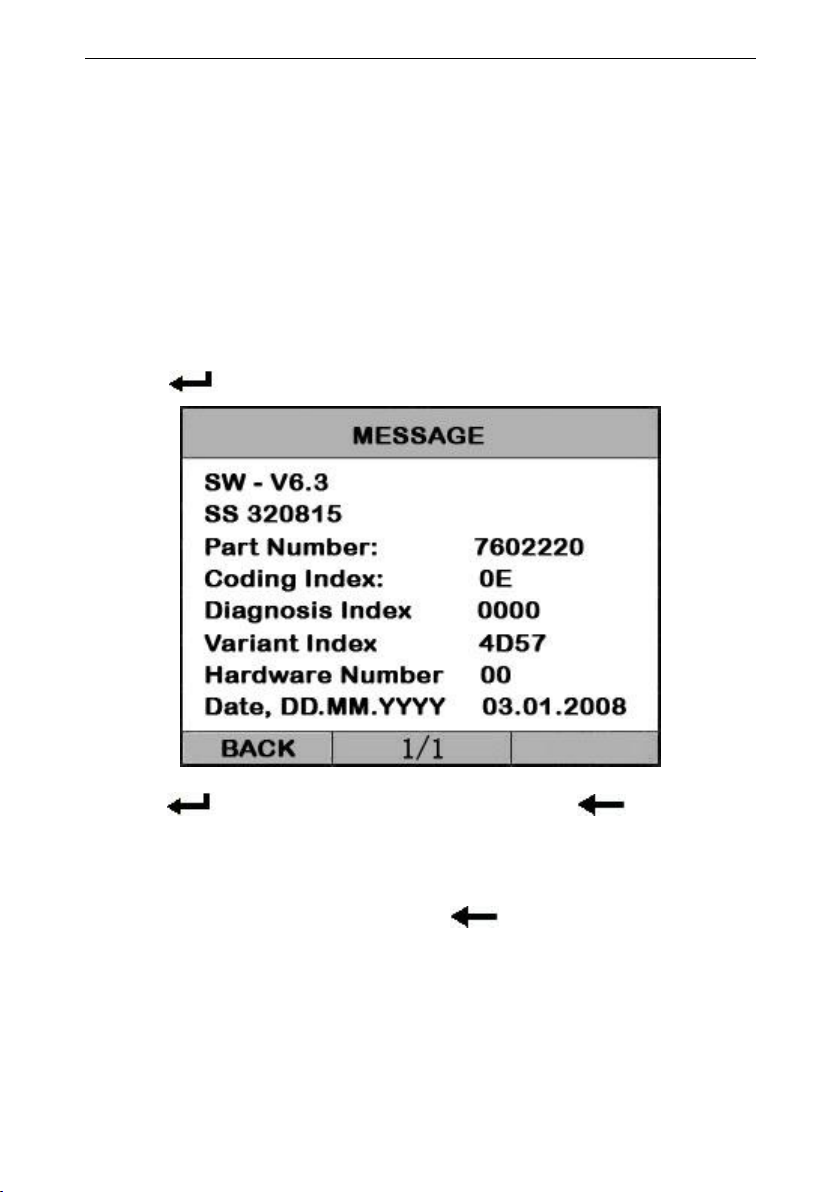
Vehicle Information function is to display the
ECU information, including Software version,
hardware version, diagnostic index, pro. Date,
part number ECT. This function is not supported
by some system.
Select [Vehicle information] in the [Diagnostic Menu], and
Press [ ]. The screen will display as shown below:
Press [ ] to return data model. Press [ ] to return
[DIAGNOSTIC MENU].
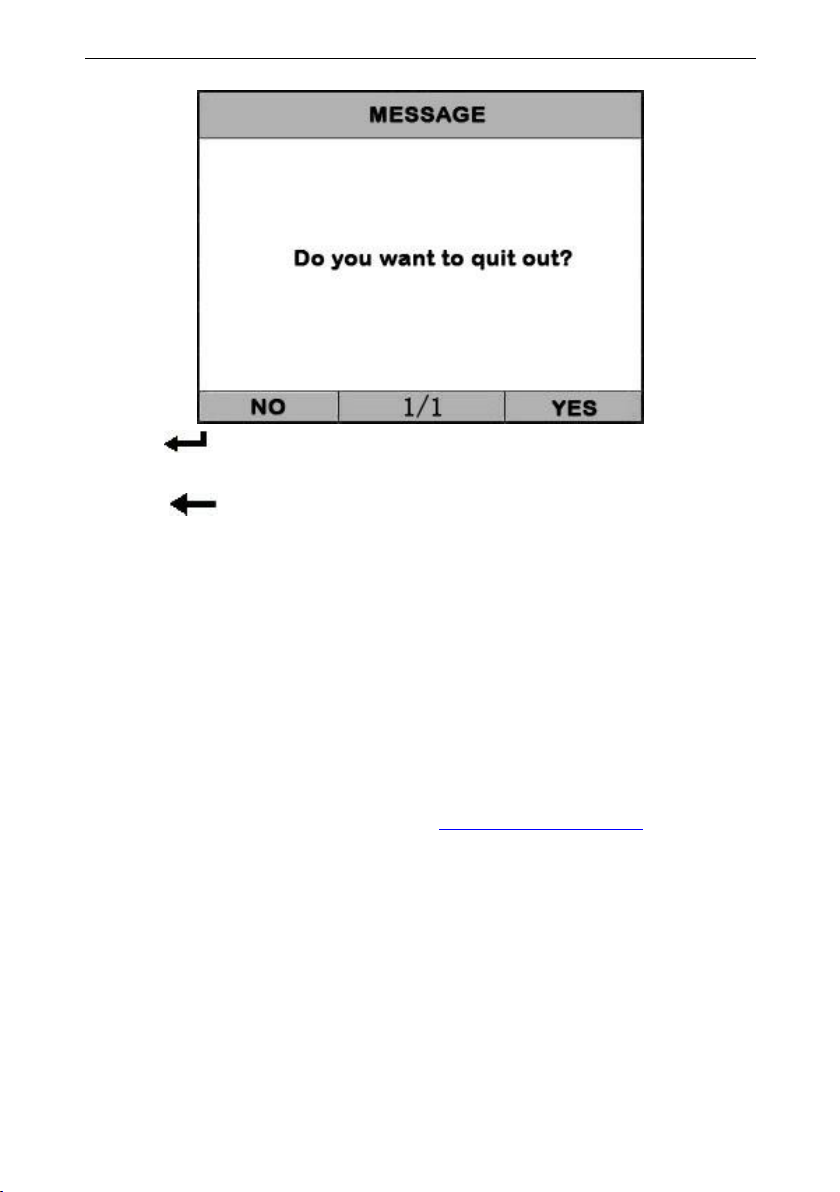
5.6 Quit Diagnostic
In the [DIAGNOSTIC MENU] press[ ] key, the screen will
display as shown below:
19
Page 20
Creator C50X Single vehicle & OBDII Scanner
Press [ ], it will quit out the Diagnostic App and return
the select vehicle menu.
Press [ ], it will return Diagnostic main menu
6. Software update
Please visit the website: www.szcreator.com and Read
the newe upgrade description about C50X.
20
 Loading...