

Page 1

About Your
Creative Sound Blaster PCI Compact Card
Contents
Introduction
Introduction............................................................................................................................. 1
Checki n g S y st em R eq u irements .. .. .. .......... .......... .. .......... .. .......... .......... .. .......... ... ......... ......... 2
Using This Guide ....................................................................................................................2
Preliminary Step for Windows 95 users.................................................................................. 3
On the Audio Card.................................................................................................................. 4
T o Install the Card and Related Hardware..............................................................................5
T o Install Creative Sound Blaster PCI Compact in Windows 95/98/ME ............................... 5
To Install Creative Sound Blaster PCI Compact in Windows NT 4.0/Wind ows 2000...........8
General Specifications ..........................................................................................................10
Congratulati ons on your purchase of Creati ve Sound Bla ste r PCI Compact audio card . W ith its
high PCI bus s peed and high-qual ity audio performance , Creative S ound Blaster PCI Compact
is the ideal choice for your computer.
Featuring 128-voice wave-table synthesis with high sample rate con vertors, Creative Sound
Blaster PCI Compact ensures a high level of audio quality and performance.
In addition, Creative Sound Bla s ter PCI Compact supports local ized three-dimensional sound
immersion and spat ial s ound enhan ceme nt in two-s pe aker en viron ments . Ful l duple x ope ration
also allows simultaneous audio recording and pla ybac k.
Page 2

Creative Sound Blaster PCI Compact's compatibility with Sound Blaster PCI ensures you of
near perfect Sound Bla ster compatibility on legacy applications. Its use of the Plug and Pl ay
(PnP) technology also helps make Creative Sound Blaster PCI Compact one of the easiest
audio car d s to install.
W e beli ev e your Creat i ve Soun d Bla ste r PCI Compac t card wi ll gi v e you yea rs of enj oy ment of
high-quality sound on your PC.
Checking System Requirements
Using This Guide
Getting More
Information
2 About Your Creative Sound Blaster PCI Compact Card
Your audio card requires at least:
❑ Pentium class 90MHz or 166MHz (recommended) computer with a free PCI slot for
Window s N T 4. 0 and Windows 95
❑ Pentium 166MHz and abov e computer with a free PCI slot for Windows 2000 and
Millennium Edition (ME)
❑ 16 MB RAM for Windows NT 4.0 and Windows 95/98/ME (32 RAM recommended)
64 MB RAM for Windows 2000
❑ Windows NT 4.0, Windows 2000 or Windows 95/98/ME
❑ Passive or amplified speakers (Cambr idge SoundWorks speakers recom me nded)
This guide expla ins the various hardware components on your audio card, and also shows you
how to install the card into you r com puter.
Refer to the online Creative Sound Blaster PCI Compact Help for more information and
instruction s on how to use the various applications found in your pa ckage.
Page 3
Document
Conventions
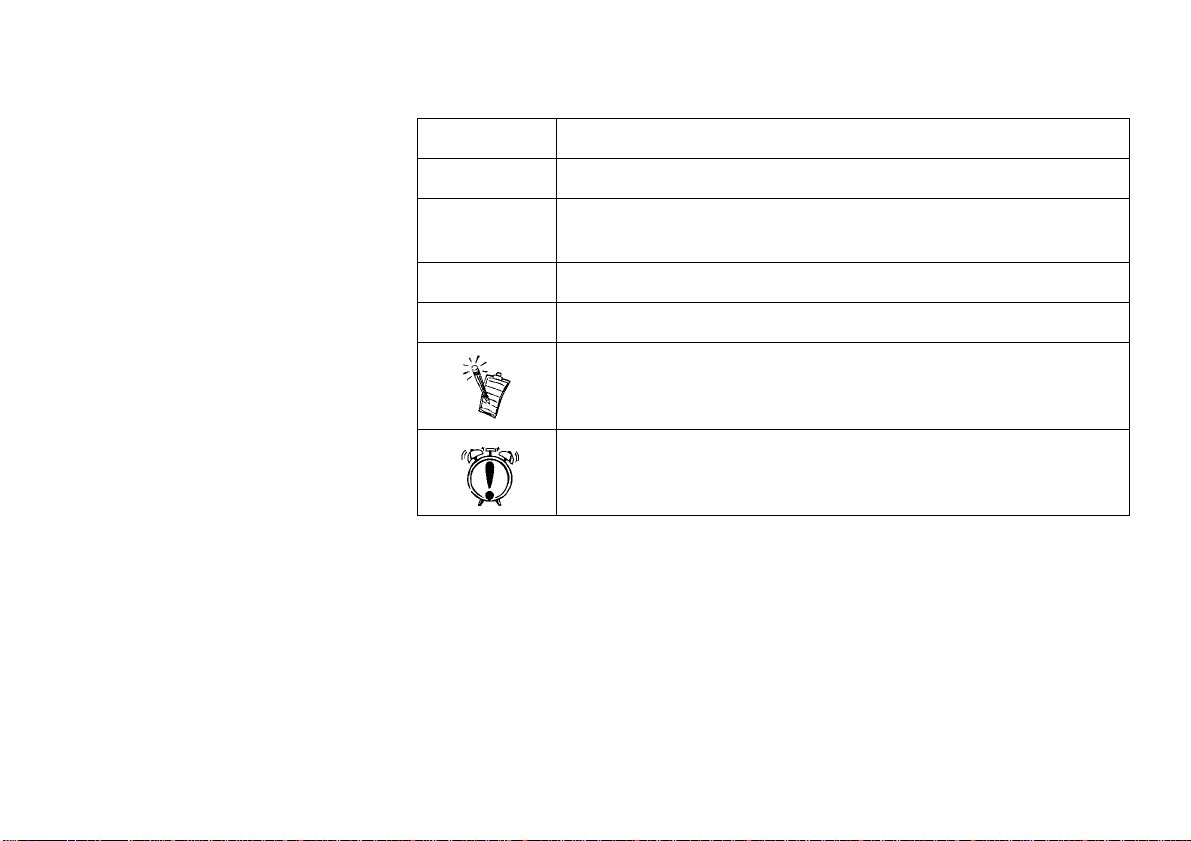
This guide uses the following conventions to help you locate and identify the information you
need:
Text In Repres en ts
bold T ext that must be entered exactly as it app ears.
Preliminary Step for Windows 95 users
italic
UPPERCASE Directory name, file name, or acronym.
< > Symbols, lette r s, and key names on the keyboard.
If you are using W indows 95, you need to find your W indows’ version number before you can
proceed to t he sect ion “To Insta ll Creat iv e Sound Blaster PCI C ompac t in W i ndo ws 9 5/98/ME ”
on page 5.
To find your Wi ndows’ version number:
1. Switch on your computer.
2. Click the Start button, point to Settings, and then click Control Panel.
Title of a book or a placeho lder, which re presents t he informati on you
mus t pr ovide.
The notepad icon indic ates information that is of particular
importance and sh ould be considered befor e continuing.
The alarm clock designates a caution or warning that can help you
avoid situations involving risk.
About Your Creative Sound Blaster PCI Compact Card 3
Page 4
3. In the Control Panel window, dou ble-click the System ic on.
Your W indows 95 version numb er is displayed in the General tabbed page of the System
Properties dialog box.
4. Note the version number.
The following are possible Windows 95 version number s :
❑ 4.00.950
❑ 4.00.950A
❑ 4.00.950B
❑ 4.00.950C
On the Audio Card
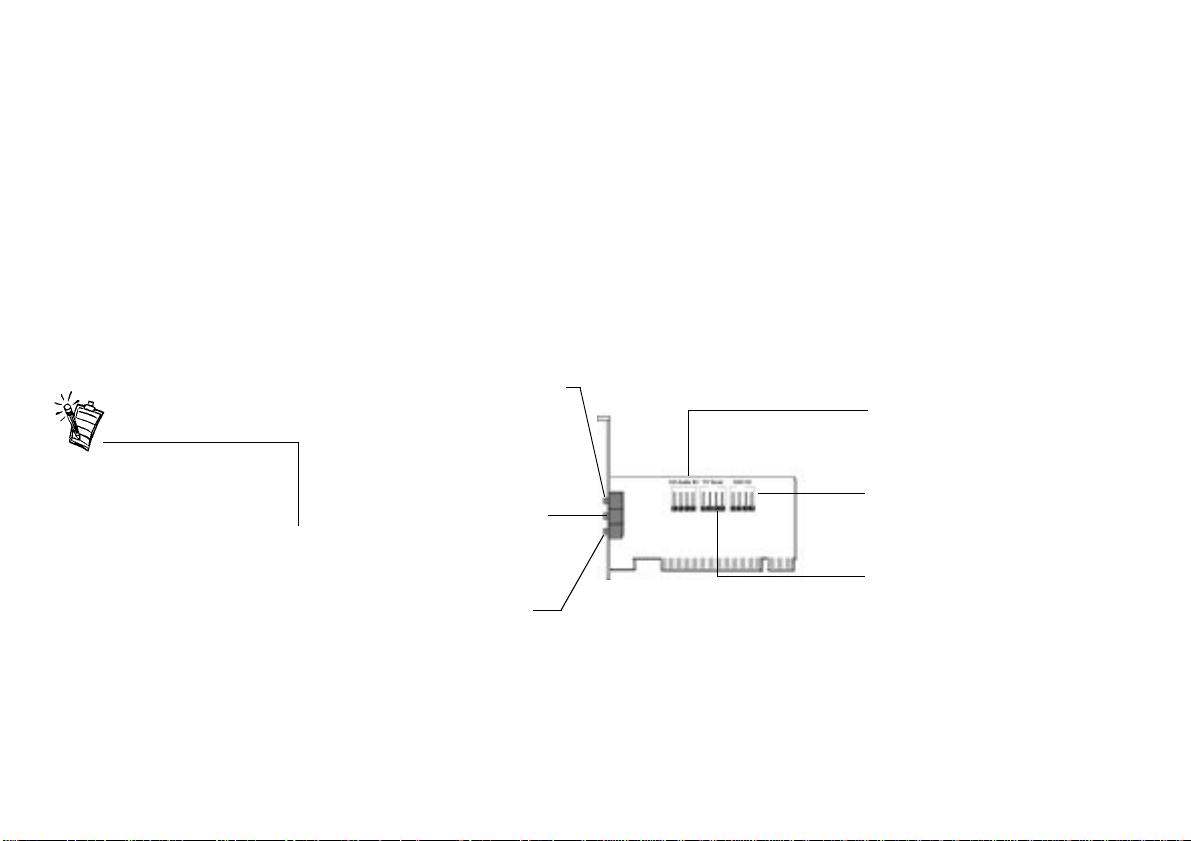
Your audio card has these jacks and connectors which allow you to attach other devices:
Line Out or SPDIF Out jack (Green/Lime)
Connects powered speakers or digital
devices. Refer to the online Help for the
SPDIF Out mode selection.
Jacks are one-hole connecting
interfaces whereas connectors are
multi-pin interfaces.
4 About Your Creative Sound Blaster PCI Compact Card
Line In jack (Black/Blue)
Connects external devices such as
cassette, DAT or Minidisc player for
playback and recording.
Micropho ne In jack (Red/Pink)
Connects an external microphone
for voice input.
CD Audio connector
Connects a CD-ROM drive using
an MPC-3 CD audio cable.
Telephone Answering Device/
Modem connector
Connects a voice modem to
transmit and receive audio
signals.
TV Tuner connector
Connects a TV card or second
CD-ROM drive.
Figure 1: Jacks and connectors on your audi o card.
Page 5

To Install the Card and Related Hardware
1. Switch off your system and all peripheral devices, and then touch a metal plate on your
computer to discharge any s t atic electricity.
2. Unplug the power cord from the wall outlet.
3. Remove the cover of your computer to expose the motherboard and PCI slots.
4. Find an available PCI slot. Remove the cover plate at the back of the computer to create an
opening for the audio card's jacks. Place the screw aside for later use.
5. Align your card's 32-bit slot connector with the expansion sl ot and press the card into the
slot gently and e v enly , with t he exte rnal jacks f acing the outside o f the computer. Ensure that
the bus connector has been pressed in as far as it will go and is sitting firmly inside the
expansion slot.
6. Plug the CD-ROM audio cable into the CD Audi o connector and plug the speakers in to the
Line Out/SPDIF Out jack (se e Figure 1). Mak e any other i nternal connec tions applic able for
your computer, including modem or video card connections.
7. Replace the computer c ove r . Plug al l compone nts back into thei r respecti ve outlets . You may
now start the computer.
To Install Creative Sound Blaster PCI Compact in Windows 95/98/ME
❑ To Install Audio Drivers
❑ For Version (4.00.950/A)
❑ For Version (4.00.950B/C)
❑ For Windows 98/ME
❑ To Install Software
❑ To Uninstall Creative Sound Blaster PCI Compact
Note: When you start your computer after installing the audio card, Windows 95/98/ME
automatically detects the audio car d insta lled in your comp uter.
About Your Creative Sound Blaster PCI Compact Card 5
Page 6

To Install Audio Drivers
For Version (4.00.950/A)
For Version 4.00.950B/C
For Windows 98/ME
1. In the audio card’s New Hardware Found dialog box, select the Driver From Disk
Provide d By H a rdw a re Manufact u rer option and click the OK button.
2. Insert the ins t allatio n CD into the CD-ROM dr ive.
3. In the Inst al l From Disk dialog bo x, type D:\AUDIO\Language\DRIVERS\WIN9XDRV
(where D: represents your CD-ROM drive and
that you want to install)
and click the OK button.
4. Follow the instructions on the screen to complete the audio driver ins tallation.
1. Insert the ins t allatio n CD into the CD-ROM dr ive.
2. In the Update Device Driver Wizard dialog box, click the Next button.
3. Click the Other Locat ions opt ion.
4. Type the path or click the Browse button to select the path of the drivers’ location (tha t is,
D:\ AUD IO\Langua ge\DRIVERS\WIN9XDR V, where D: represents your CD-ROM drive and
Language
and click the OK button.
5. Click the Finish butto n.
If the system promp ts you for the installa tion CD agai n, click t he OK b utton and repea t from
Step 4.
The audio drivers are copied to your syste m.
1. Insert the Creative Sound Blaster PCI Compact installation CD and click the Next button.
2. Select the Search For The Best Driver For Y our Device (Recommended) option and click
the Next button.
represents the language of the software that you wa nt to install)
Language
represents the language of the software
6 About Your Creative Sound Blaster PCI Compact Card
Page 7

3. Clear all check boxes and chec k only the Specify a Location check box. Type or click the
Browse button and point to the path of the drivers’ location (tha t is,
D:\AUDIO\Language\DRIVERS\WIN9XDRV, where D: represents your CD-ROM drive and
Language
and click the Next button.
4. Cl ic k the Next button to inst al l t he Wind ow s 98 dr ivers.
5. Cl ic k the Finish button when the installation is complete.
6. Restart your system when prompted.
represents the language of the software that you want to install)
To Install Software
To Uninstall Creative
Sound Blaster PCI
Compact
1. Make sure that the installation CD is in your CD-ROM drive. Double-click the My
Computer icon on your Windows Desktop, then doubl e-click on your CD-ROM drive
icon.
2. The Creative Sound Blaster PCI Compact installation s creen appears.
Clic k the OK button.
3. Follow the instructions on screen to complete the installation.
4. Restart your system when prompted.
1. Click Start -> Settings -> Control Panel.
2. Double-click the Add/Remove Programs icon.
3. On the Install/Uni nst a ll tabbed page, select Creative Sound Blaster PCI Compact.
4. Click the Add/Remove butto n, and then cl ick t he Yes button when prompted to remove the
software.
About Your Creative Sound Blaster PCI Compact Card 7
Page 8

To Install Creative Sound Blaster PCI Compact in Windows NT 4.0/ Windows 2000
❑ To Install Audio Drivers
❑ To Unin st all Creat ive S o un d Bl aster PC I Co mp act
❑ If a Windows NT 4.0 Service Cont rol Man age r error message appears ...
To Install Audio Drivers
1. Insert the installation CD into your CD-ROM drive.
The installation s creen appears.
2. Follow the instructions on the screen to complete the installation.
To Uninstall Creative
Sound Blaster PCI
Compact
Windows NT 4.0
Windows 2000
8 About Your Creative Sound Blaster PCI Compact Card
1. Click Start -> Settings -> Control Panel.
2. Double-click the Multimedia icon.
3. From the Audio Devices tabbed page, select any existing audio devices and then click
Remove. Click Yes when prompted to remove the driver.
4. Close the Multim edia Pro perties window and restart your computer.
1. Click Start -> Settings -> Control Panel.
2. In the Control Panel window, double-click the Add/Remove Programs icon.
3. In the Add/Remove Programs di alog box, sel ect the Creat iv e Ensoniq Audi oPCI entry , and
then click the Change/Remove button.
4. After the uninstallation, click the Close button.
Page 9

If a Windows NT 4.0
Service Control
Manager error message
appears ...
If error messages appear at system restart, it is because you removed an audio card from your
computer after you have successful ly installed the Creative Sound Blaster PCI Com pact card.
The drivers of the removed audio card cannot locate the card.
To solve this problem:
1. Log on to your computer as Administrator.
2. Click
3. Double-click the
4. In the list, under these entries
❑ Audio Devices
❑ MIDI Devices And Instruments
remov e all items except
❑ Audio for Creative Sound Blaster PCI Compact
❑ MIDI for Creative Sound Blaster PCI Compact
5. Cl ic k the OK button to close the dialog box.
The drivers are removed.
Start
->
Settings
->
Control Panel
Multimedia
.
icon, and then click the
Devices
tab.
About Your Creative Sound Blaster PCI Compact Card 9
Page 10

General Specifications
Wave-Table Synthesis
3D Audio Technology
Memory Subsystem
On-Board Connectors
Works With The Following
Standards
❑ Creative synthesis engine
❑ Digital effe cts engine for reverb and chorus
❑ 128-voice polyphony and mult i-timbral capabili ty
❑ 2MB, 4MB and 8MB sample sets included
❑ Support for Microsoft DirectSound and DirectSound3D audio technology in two-speaker
mode
❑ Multi-Algorithm reverb and chorus
❑ Utilizes system RAM for wa ve-tab le samples
❑ User configurable for 2MB, 4MB or 8MB
❑ Line In
❑ Microphone In
❑ Line Out/SPDIF Out
❑ Telephone Answering Device In/Out
❑ CD Audio In
❑ TV Tuner
❑ Ge neral MIDI
❑ Plug-and-Play
❑ Sound Blaster PCI
❑ Microsoft DirectSound, DirectSo und3D, and EAX
10 About Your Creative Sound Blaster PCI Compact Card
Page 11

Creative Mixer ❑ 6 Channel Mixer control for access to CD, TV T uner, Microphone, Line, Music Synt hesize r
and Digital Audio
❑ Spatial audio (3D) control for Digital Audio and Music Synthesizer
❑ Reverb and Chorus control for Music Synthesizer
About Your Creative Sound B laster PCI Compact Card 11
Page 12

No part of this publication may be reproduced or transmitted in any form or by any means without the prior written consent of Creative Technology Ltd.
Copyright © 2000 Creative Technology Lt d. All rights reserved.
Version 1.0
August 2000
Sound Blast er and Blaster ar e registered trademarks, and the Sound Blaster Live! logo, the Sound Blaster PCI logo, Environmental Audio, Creative Multi
Speaker Surround are trademar ks of Creativ e Technology Ltd. in the United States and/o r other countries.
Microsoft, MS-DOS, and Windows are registered trademarks of Microsoft Corporation.
All other pro ducts are trademar ks or registered trademarks of their respectiv e owners.
 Loading...