

Page 1
Contents
Introduction .................................................................................................................1
System Requirements .................................................................................................. 2
Your Live! Drive IR ..................................................................................................... 3
Installing Hardware ..................................................................................................... 7
Using Your Live! Drive IR ........................................................................................ 11
Installing Software..................................................................................................... 14
Using the RemoteCenter Remote Control................................................................. 15
General Specifications............................................................................................... 16
Troubleshooting......................................................................................................... 17
Introduction
Connect Live! Drive IR to your Sound Blaster Live! audio card to get the best audio solution
available for your music, digital audio content creation, games, movies and other Internet
entertainment. The Live! Drive IR has a front panel, which allows you to connect commonly
used audio sources to external devices easily. It conveniently allows you to plug in your
microphone and headphones, and adjust the gain/volume from the front panel. Live! Drive IR
also provides MIDI, as well as, digital input and output connectors for your audio recording
and content authoring purposes. The infrared receiver on the Live! Drive IR lets you control
your PC and perform tasks (such as playing audio CDs and video CDs) remotely from the
comfort of your sofa or bed by using the Creative RemoteCenter remote control.
Live! Drive IR Quick Start SB0010
Page 2

2 Live! Drive IR Quick Start SB0010
System
Requirements
The minimum system requirements for Live! Drive IR are:
❑ An installed Sound Blaster Live! (with an AUD_EXT expansion header)
❑ An available 5¼" PC drive bay
❑ Genuine Intel
®
Pentium® class processor:
166 MHz for Windows 95/98 or Windows Millennium Edition,
200 MHz for Windows NT 4.0 or Windows 2000
❑ Intel or 100% compatible motherboard chipset
❑ Windows 95, 98 or Millennium Edition, Windows NT 4.0 or Windows 2000
❑ 16 MB RAM for Windows 95/98 or Millennium Edition (32 MB RAM recommended),
32 MB RAM for Windows NT 4.0,
64 MB RAM for Windows 2000
❑ 160 MB of free hard disk space
❑ Headphones or amplified speakers (available separately)
❑ CD-ROM drive required for software installation
Page 3
Live! Drive IR Quick Start SB0010 3
Your Live! Drive IR
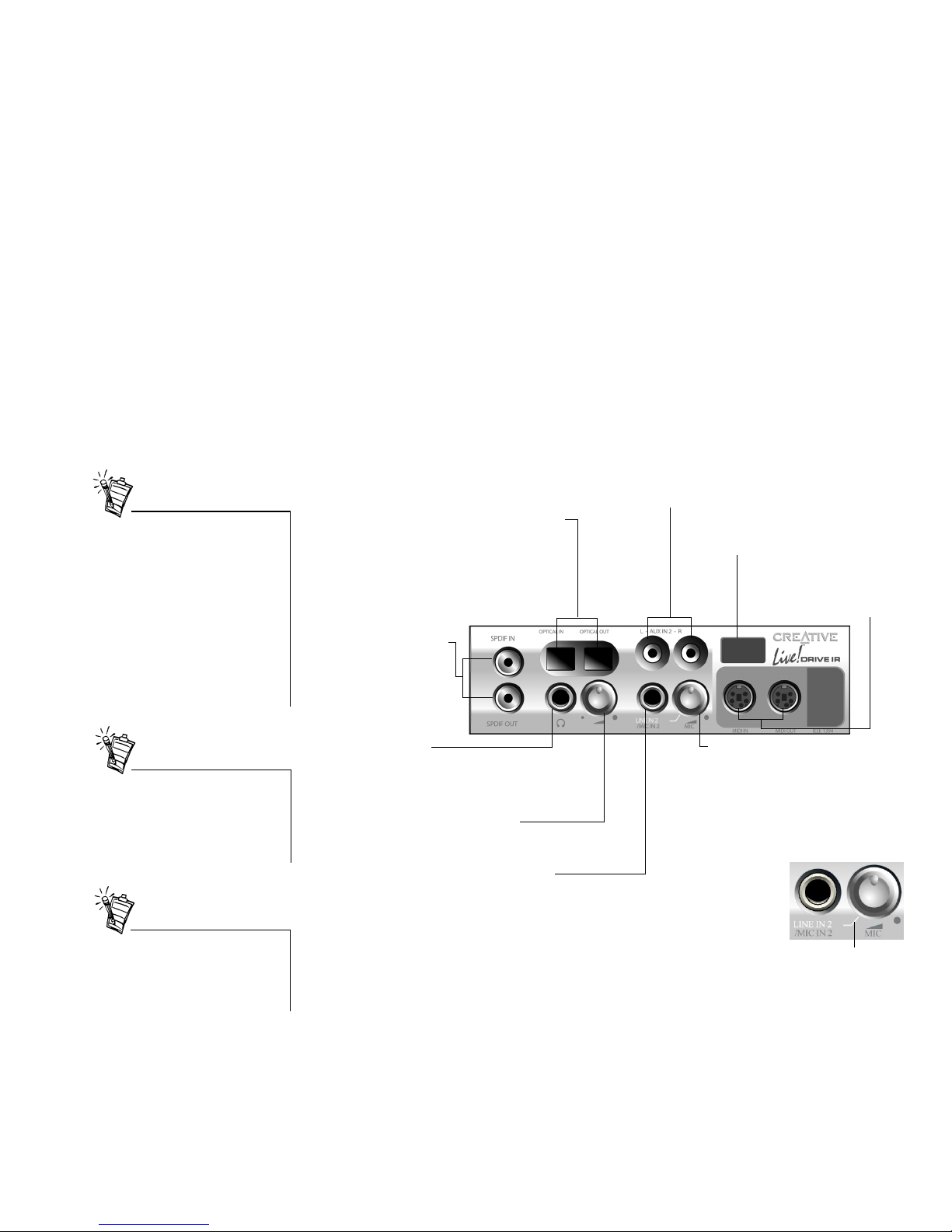
The front panel of your Live! Drive IR has these jacks, connectors and controls:
MIDI In/Out connectors
Connects to MIDI devices
using the Mini DIN-toStandard DIN cable provided
.
Line In 2/Mic In 2 selector
(Microphone Gain Control)
To switch to Line In 2, turn the knob
counter-clockwise over the Line In 2/Mic In
2 mode separator mark until a “click” sound
is heard. To switch back to Mic In 2, turn the
knob clockwise over the separator mark
until a “click” sound is heard. To control the
microphone gain, continue to turn
clockwise.
¼” Line In 2/Mic In 2 jack
Allows you to connect to a high-quality
dynamic microphone or audio device such
as an electric guitar, DAT, or MiniDisc player.
RCA Auxiliary In jacks
Connects to consumer equipment such as VCR,
TV and CD player, via RCA Auxiliary outputs.
Optical SPDIF In/Out connectors
Connects to digital audio devices
such as DAT and MiniDisc recorders,
via optical input/output.
Headphones Volume Control
Controls the headphones
output volume.
RCA SPDIF In/Out jacks
Connects to digital audio
devices such as DAT and
MiniDisc recorders, via
RCA input/output.
¼” Headphones jack
Allows you to connect to a pair of
high-quality headphones. Your
speaker output will be muted when
you connect the headphones.
Figure 1: Jacks, connectors and controls on the Live! Drive IR.
Line In 2/Mic In 2 mode
separator mark
Infrared Receiver
Lets you control your PC using the
RemoteCenter remote control.
If a particular INPUT source (for
example, Line In 2) is supported
by the Live! Drive IR as well as
the Digital I/O card, only the input
on the Live! Drive IR will be
enabled.
However, using the microphone
via the Line In 2/Mic In 2 input on
the Live! Drive IR will also
disable the Line In 2 input on the
Digital I/O card.
To connect to your existing
computer headphones and
microphone to the Live! Drive IR,
use the ¼” to 3.5mm adapter
provided.
It is recommended to lower the
gain level of the Mic In 2 jack to
the minimum before connecting a
microphone.
Page 4
4 Live! Drive IR Quick Start SB0010
Switching
Audio Input Sources
On your Sound Blaster Live! and Live! Drive IR, two audio input sources may share a
connection. In such cases, only one of the input source can be enabled and used at any one time.
If your audio card has an I
2
S connector, you can use only either one of the following inputs at
any one time:
❑ I
2
S
❑ Line In 2 or Line In 2/Mic In 2
To switch the audio input source:
1. Click Start -> Programs -> Creative -> Sound Blaster Live! -> Surround Mixer.
2. On the Mixer deck (lower portion of Surround Mixer), click any of the audio input source
icon, and then select either the I
2
S In or Line In 2/Microphone 2 icon.
3. Click the red plus sign above the I
2
S In or Line In 2/Mic In 2 icon.
4. In the Other Advanced Controls dialog box, select the Enable Line In 2/Mic In 2 check
box to enable the Line In 2/Mic In 2 input source. Clear the check box to enable I
2
S In.
If your Live! Drive IR has Aux In 2 connectors, you can use only either one of the following
inputs at any one time:
❑ Aux In 2
❑ SPDIF In (Coaxial or Optical)
To switch the audio input source:
1. Click Start -> Programs -> Creative -> Sound Blaster Live! -> Surround Mixer.
2. On the Mixer deck (lower portion of Surround Mixer), click any of the audio input source
icon, and then select either the SPDIF In or Auxiliary 2 icon.
3. Click the red plus sign above the SPDIF In or Auxiliary 2 icon.
4. In the Other Advanced Controls dialog box, select the Enable Auxiliary 2 check box to
enable the Auxiliary 2 input source. Clear the check box to enable SPDIF In.
You need to install the software
first before you can switch audio
input sources.
However, if the SPDIF Bypass
feature and Aux In 2 are both
enabled, both the SPDIF In and
Aux In 2 channels will be
available.
For details on the SPDIF Bypass
feature, see “Digital I/O” on page
14.
Page 5
Live! Drive IR Quick Start SB0010 5
Connecting Headphones There are two types of headphones which you can connect to the Live! Drive IR:
❑ Home audio or professional audio headphones, which are usually fitted with a ¼" stereo plug
.
❑ Personal stereo headphones, which are usually fitted with a 3.5mm stereo plug, such as those
used for portable audio players.
Connecting Microphone There are two types of microphone which you can connect to the Live! Drive IR:
❑ Dynamic microphone, which is usually fitted with a ¼" stereo plug, such as those used in
vocal performances
.
❑ Condenser microphone, which is usually fitted with a 3.5mm stereo plug, such as the
microphone bundled with Creative audio products.
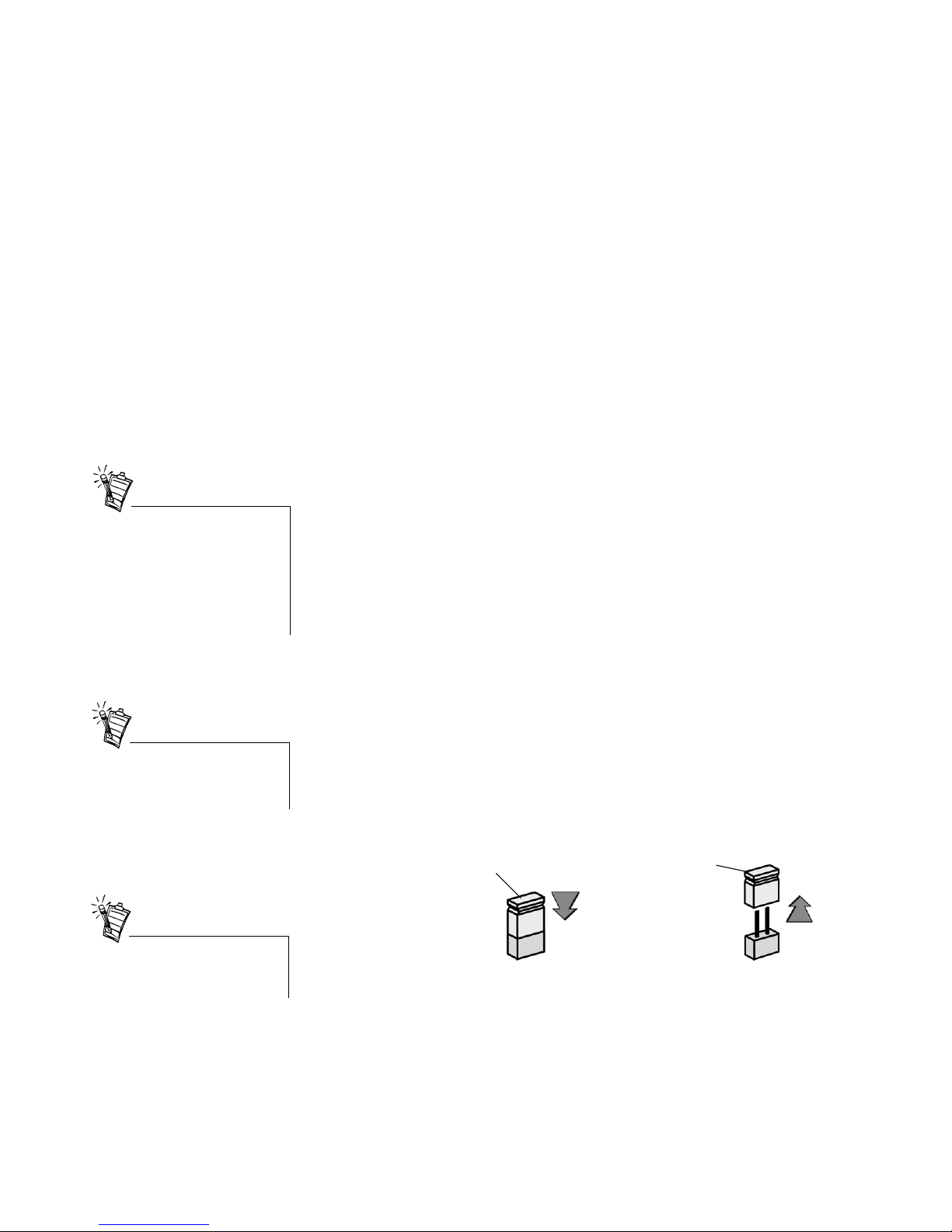
By default, Live! Drive IR is set for use with a condenser microphone. To use a dynamic
microphone, you must place the shunt (jumper cap) onto Jumper JP1 on the Live! Drive IR. See
Figure 4 on page 8 for the location of Jumper JP1 on the Live! Drive IR.
To listen to an analog source (e.g.
CD Audio) using headphones,
make sure that in Surround Mixer,
the recording source selected is
“What U Hear”. Otherwise, no
sound will be heard from the
headphones.
The shunt for Jumper JP1 can be
found together with the packet of
screws provided.
The Jumper JP1 may not be
available on certain models of
Live! Drive IR.
Shunt
Figure 2: Microphone jumper settings.
To use a dynamic
microphone,
place the shunt
onto Jumper JP1.
To use a condenser
microphone,
remove the shunt
from Jumper JP1
(default setting).
Jumper JP1
Jumper JP1
Shunt
Page 6
6 Live! Drive IR Quick Start SB0010
Adjusting Headphones
Volume and Microphone
Gain
If your headphones and microphone are attached to the Live! Drive IR, the headphones volume
and microphone gain can be adjusted in two ways.
Using the Live! Drive IR
Control Knobs
On the front panel of the Live! Drive IR, turn the respective control knob:
❑ Counter-clockwise to decrease the headphones volume or microphone gain.
❑ Clockwise to increase the headphones volume or microphone gain.
Using Creative Surround Mixer To adjust the headphones volume:
1. Click Start -> Programs -> Creative -> Sound Blaster Live! -> Surround Mixer.
2. On the Mixer deck (lower portion of Surround Mixer), if the button below the VOL slider is
not highlighted, click it to unmute the output sound.
3. Adjust the VOL slider.
To adjust the microphone gain:
1. Click Start -> Programs -> Creative -> Sound Blaster Live! -> Surround Mixer.
2. On the Mixer deck (lower portion of Surround Mixer), click any of the audio input source
icon, and then select the Line In 2/Microphone 2 icon.
3. If the button below the Line In 2/Microphone 2 slider is not highlighted, click it to unmute
the audio input source.
4. Adjust the slider under the Line In 2/Microphone 2 icon.
It is recommended that you set the
headphones volume level and
microphone gain level to 75% in
Surround Mixer, and use the
control knobs on the Live! Drive
IR to make further adjustments.
Even if you turn the control knob
on the Live! Drive IR to the
maximum, your headphones will
have no sound if you set the
headphones volume level to 0% or
mute it in Surround Mixer. The
same applies for your
microphone.
Page 7
Live! Drive IR Quick Start SB0010 7
Installing Hardware
To install your Live! Drive IR, you need to perform the following:
❑ Step 1: Prepare the System for Hardware Installation
❑ Step 2: Insert the Live! Drive IR into the System
❑ Step 3: Connect to the SB Live! Card
❑ Step 4: (Optional) Install the Digital DIN Metal Bracket (To connect to FPS2000, DTT2500
or DTT3500 digital speakers)
❑ Step 5: (Optional) Connect to the Digital I/O Card (Only if you have one)
❑ Step 6: Complete the Installation
Step 1:
Prepare the System for
Hardware Installation
1. Switch off your system and all peripheral devices.
2. Touch a metal plate on your system to ground yourself
and to discharge any static electricity, and then unplug
the power cord from the wall outlet.
3. Remove the cover from your system.
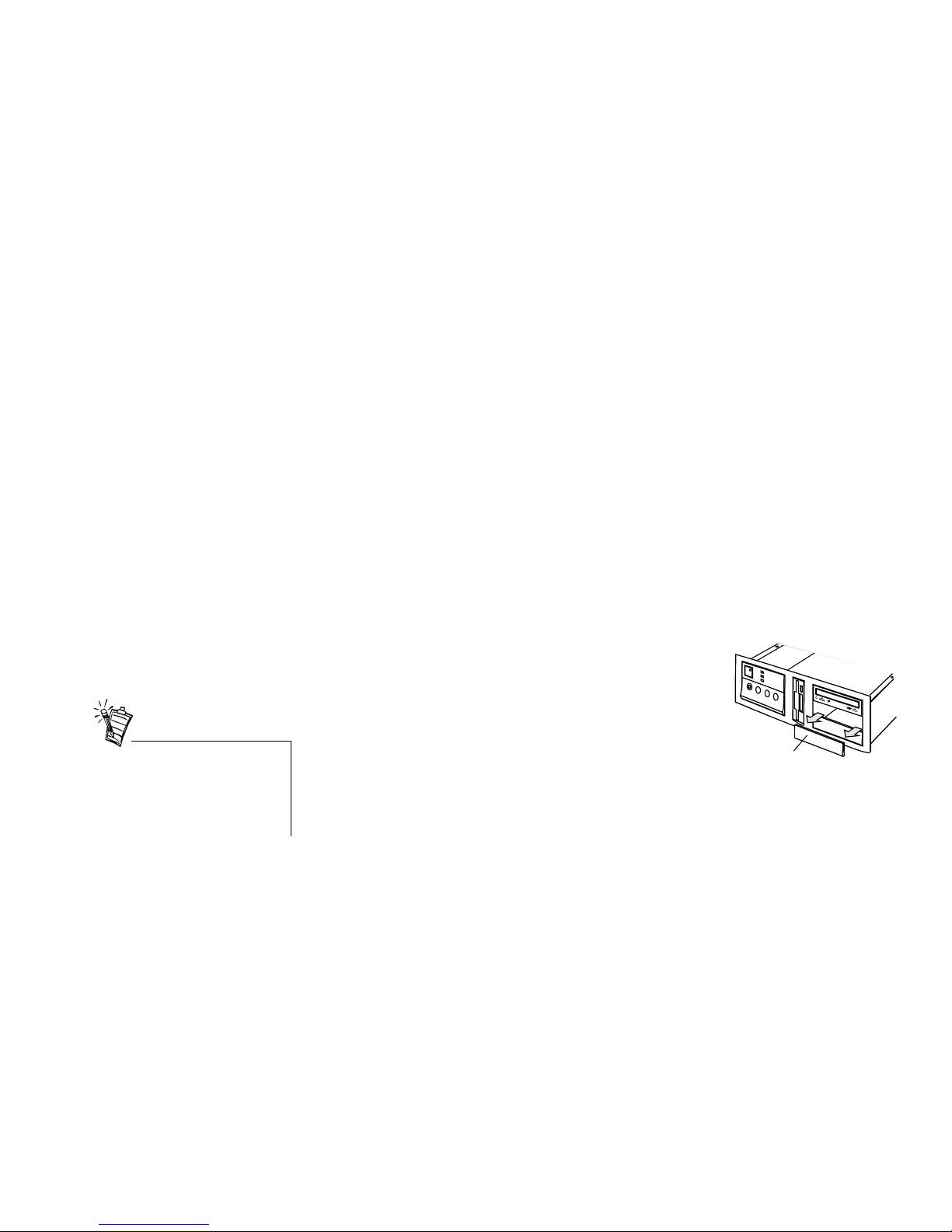
4. Remove the front panel cover from one unused 5¼"
drive bay.
Step 2:
Insert the Live! Drive IR
into the System
1. Pass the following cable ends from the inside of the casing through the vacant 5¼" drive bay,
and then leave the cables dangling halfway on the outside of the casing:
❑ Smaller end of the power splitter cable
❑ Dark grey flat cable end with a black circle near the connector
❑ (Optional) Any end of the light grey flat cable (if you want to connect to a Digital I/O
card from an earlier purchase)
❑ (Optional) Cable end of the Digital DIN metal bracket (if you want to connect to
FPS2000, DTT2500 or DTT3500 digital speakers)
Figure 3: Removing front panel cover.
Front panel cover
Place your CD-ROM/DVD-ROM
drive above the Live! Drive IR to
prevent dangling cables from the
front panel blocking access to the
drive tray.
Page 8
8 Live! Drive IR Quick Start SB0010
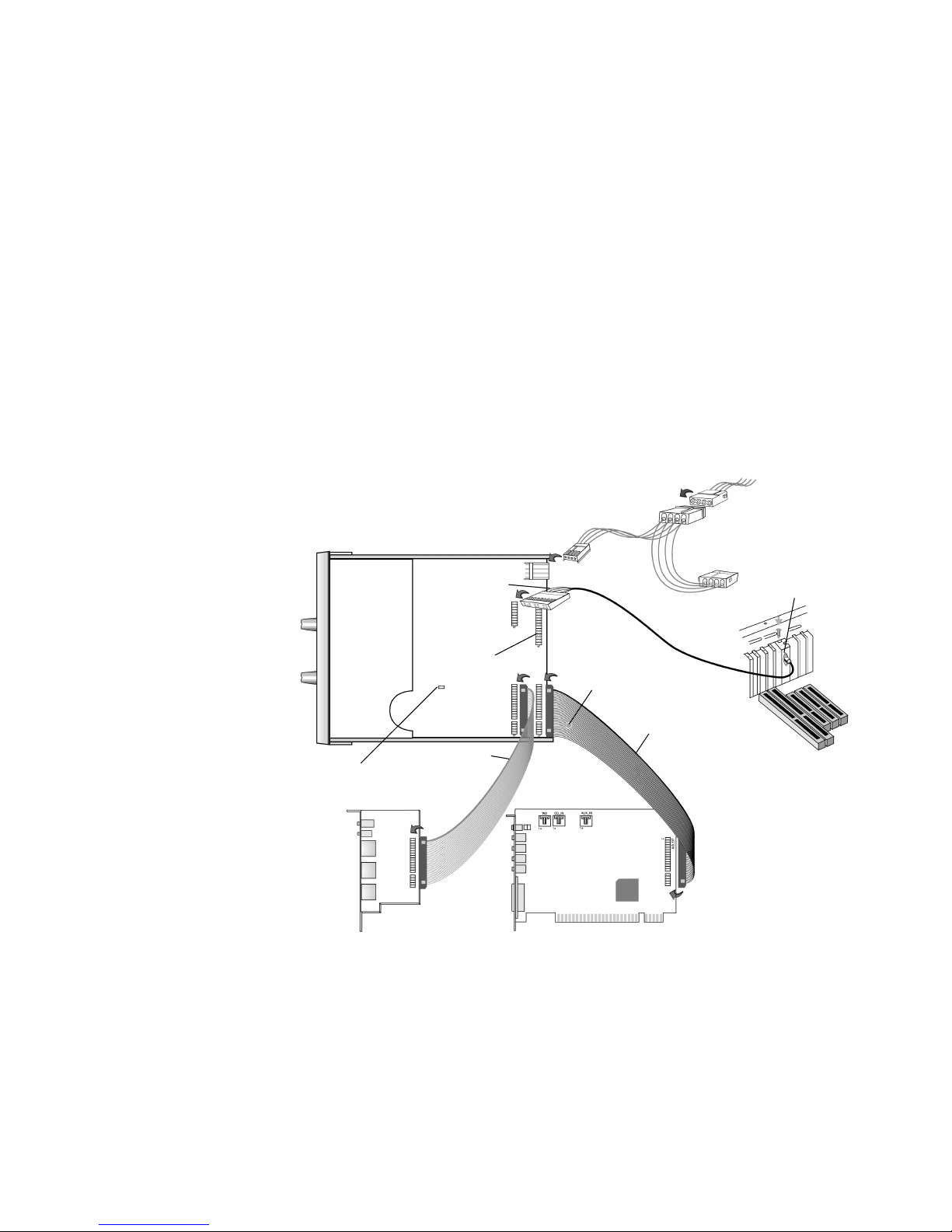
2. Connect the cables to the Live! Drive IR as shown in Figure 4.
3. Slide the Live! Drive IR into the vacant 5¼" drive bay, and then secure its sides to the casing
with the screws provided.
Figure 4: Connecting cables to the Live! Drive IR.
Dark grey
flat cable
Light grey
flat cable
Digital
DIN cable
Power splitter cable
Red-colored wire
Orange-colored wire
To system
power supply unit
Digital DIN
metal bracket
Live! Drive IR
Connector for
future upgrades
(Optical)
Digital I/O card
Sound Blaster Live! card
Black circle on the
underside of the cable
Red-colored wire
J1
J3
J2
Jumper for microphone
type selection
JP1
Page 9
Live! Drive IR Quick Start SB0010 9
Step 3:
Connect to the
SB Live! Card
Connect the dark grey flat cable to Sound Blaster Live!’s AUD_EXT header.
If you have difficulty connecting to the AUD_EXT header:
1. Remove the Sound Blaster Live! card from its PCI slot.
2. Connect the dark grey flat cable to Sound Blaster Live!’s AUD_EXT header.
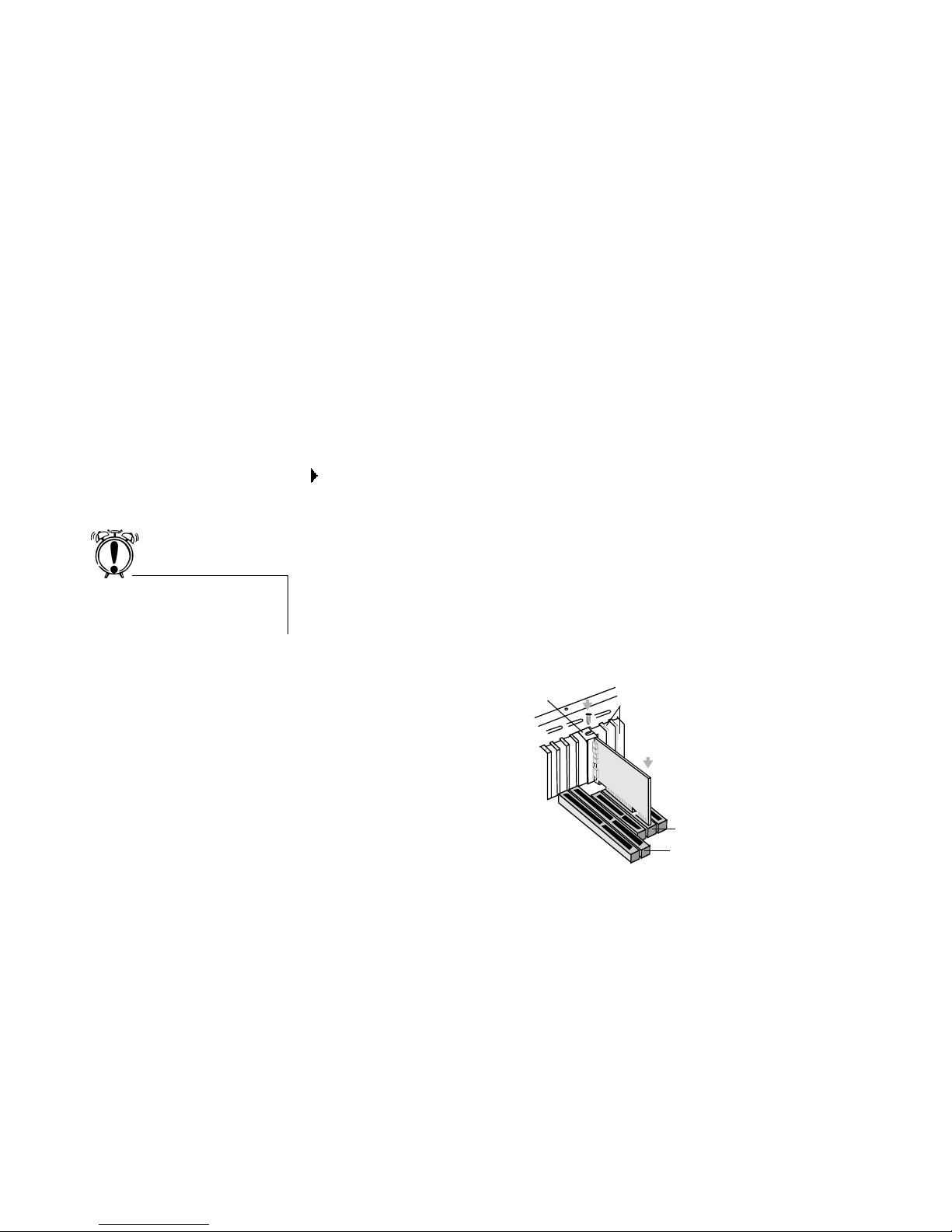
3. Align the Sound Blaster Live! card with the vacant PCI expansion slot. Press the card gently
and evenly into the slot as shown in Figure 5. Ensure that the card is seated firmly inside the
PCI expansion slot.
4. Secure the card to the expansion slot with a screw.
Do not force the audio card into
the slot. If it does not fit properly,
gently remove it and try again
.
Figure 5: Securing the audio card to the PCI
expansion slot.
Unused brackets
ii. Fasten the card
to the slot with a
screw.
i. Gently press the
audio card into
the slot.
PCI slot
ISA slot
Page 10

10 Live! Drive IR Quick Start SB0010
Step 4: (Optional)
Install the Digital DIN
Metal Bracket
(To connect to FPS2000,
DTT2500 or DTT3500
digital speakers)
1. Remove the metal plate from a vacant ISA or PCI expansion slot.
2. Align the Digital DIN metal bracket with the vacant expansion slot opening.
3. Secure the metal bracket to the system casing with a screw.
Step 5: (Optional)
Connect to the
Digital I/O Card
(Only if you have one)
Connect the light grey flat cable to the Digital I/O card’s AUD_EXT header.
If you have difficulty connecting to the AUD_EXT header:
1. Remove the Digital I/O card from the system.
2. Connect the light grey flat cable to the Digital I/O card.
3. Place the metal bracket of the Digital I/O card into the vacant bracket on the system casing.
4. Secure the card to the system casing with a screw.
Step 6:
Complete the Installation
1. Connect the power splitter cable to the system power supply unit.
2. Replace the cover onto your system.
3. Plug the power cord back into the wall outlet, and switch on the system.
Page 11
Live! Drive IR Quick Start SB0010 11
Using Your
Live! Drive IR
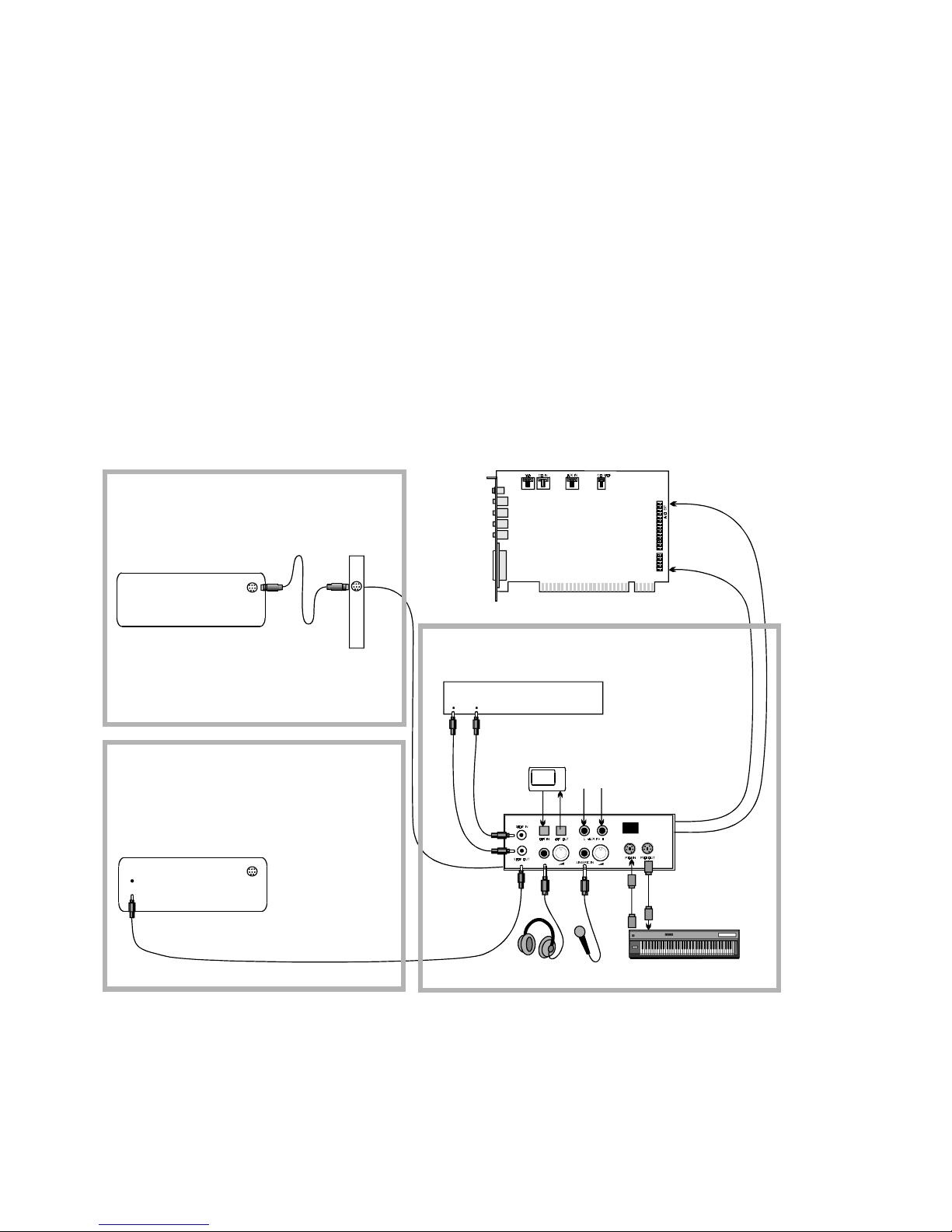
The Live! Drive IR will most undoubtedly give you endless hours of listening pleasure. The
following information and diagrams on the next two pages show how you can connect to your
Live! Drive IR to optimize your enjoyment.
Playing Games and Music,
and Watching Movies
❑ With FourPointSurround or DeskTop Theater 5.1 Digital Speaker System from Cambridge
SoundWorks, you can experience crystal clear gaming sequences or music from the Digital
DIN connection. If you want an even more immersive surround experience while watching
movies, get the Cambridge SoundWorks' DTT3500 5.1 Digital speakers.
Watching DVD Movies
Using SoftPC-DVD
❑ If you are using Creative SoftPC-DVD to watch DVD movies on your PC, connect from the
SPDIF Output of your Live! Drive IR to an external Dolby Digital (AC-3) decoder such as the
DeskTop Theater speaker systems.
Recording and Content
Authoring
❑ The Live! Drive IR fits into the standard 5¼" drive bay of your computer and thus allows you
easy access to the following connectors from its front panel:
• MIDI input/output connectors for connection to MIDI devices;
• A second analog Line In allows you to connect to an additional input device (e.g. a CD
player) for recording. Switchable to Microphone mode for a second microphone input,
with front panel volume control;
• A Headphones jack to connect to your headphones, with front panel volume control.
• A set of SPDIF (RCA) input/output jacks for recording to and from external digital
devices such as MiniDisc or DAT recorders
• A set of SPDIF Optical input/output jacks for recording to and from external digital
devices such as MiniDisc or DAT recorders via an optical connection.
• A set of Auxiliary input jacks for recording from consumer equipment such as television,
video cassette recorder and CD players.
❑ A Digital DIN connector for connection to digital speakers such as the FourPointSurround or
DeskTop Theater 5.1 Digital Speaker Systems.
❑ The Headphones and Microphone connections utilizes ¼" jacks for high-quality connectivity.
FourPointSurround and DeskTop
Theater 5.1 speaker systems,
Digital I/O Module, Digital
Output Module, Digital I/O card
and cables are available
separately.
Page 12
12 Live! Drive IR Quick Start SB0010
Playing Games and Music, and
Watching Movies
with 4.1 or 5.1 Digital Speaker
Systems
Watching DVD Movies
with Creative SoftPC-DVD and
DeskTop Theater 5.1 Digital Speaker System
Recording and Content Authoring
with Live! Drive IR
FourPointSurround
or DeskTop Theater
Digital Speakers
Sound Blaster Live! card
DeskTop Theater 5.1 Digital Speaker System
Digital
DIN
Dolby Digital
(AC-3)
SPDIF In
Digital
DIN
Live! Drive IR
MIDI devices
(e.g., MIDI keyboard)
MiniDisc
Digital device
(e.g., DAT)
SPDIF (RCA)
In Out
Digital DIN
Metal bracket
Headphones Microphone /
Line In
AUX input from
an analog source
(e.g., CD player
or tape deck)
via MiniDIN-tostandard DIN
adapter (provided)
Figure 6: Connecting peripherals to the Live! Drive IR.
Page 13
Live! Drive IR Quick Start SB0010 13
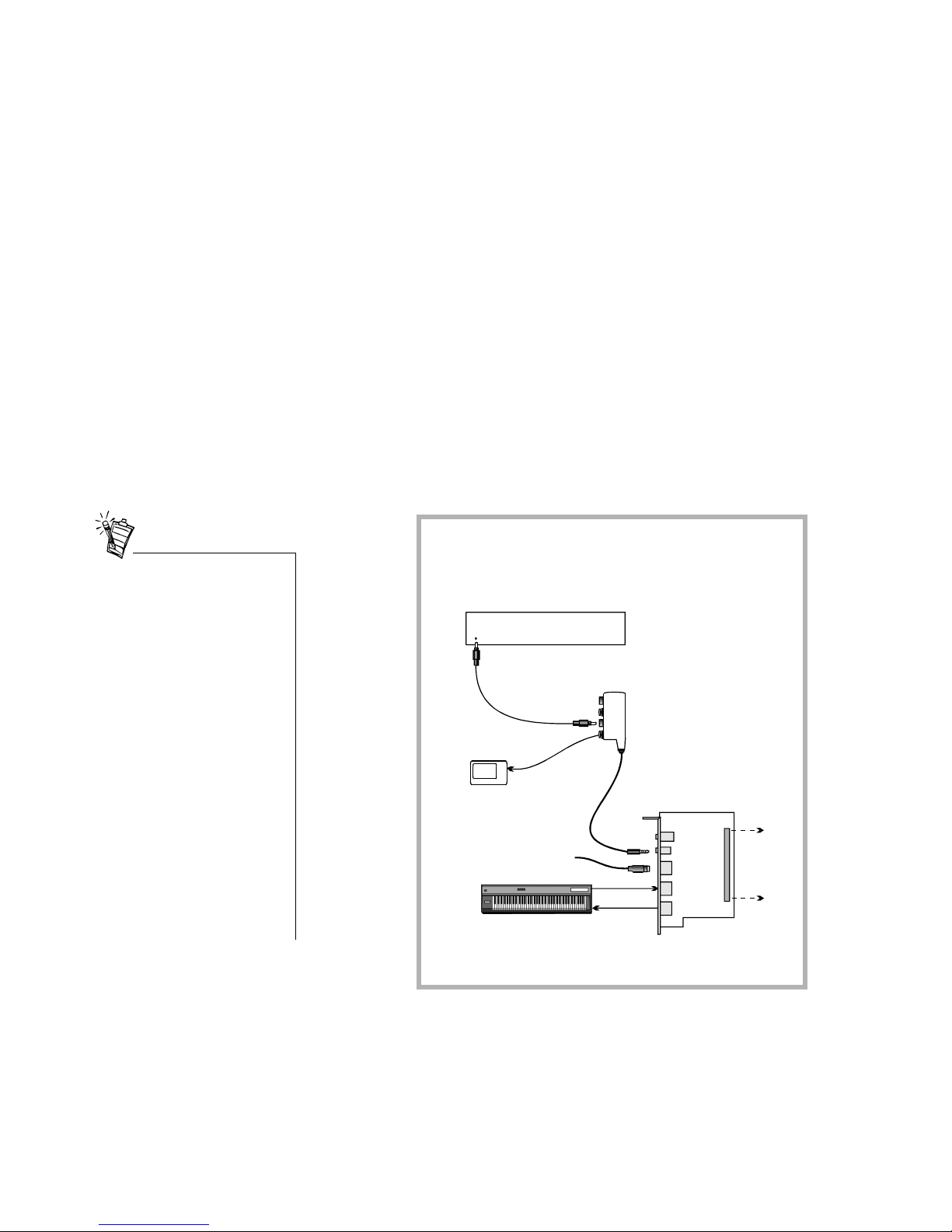
If you have an Optical Digital I/O card (or Digital I/O card) from an earlier purchase, you can
connect it to your Live! Drive IR. The figure below shows an alternative method for audio
recording and content authoring using the Optical Digital I/O card.
Digital I/O Module
(RCA/Optical SPDIF In and Out)
Optical
Digital I/O
card
Line In 2
Digital In/Out
Digital DIN
MIDI In
MIDI Out
Digital device
(e.g., DAT)
MiniDisc
Recorder
SPDIF (RCA)
In
Recording to or from an
external digital device
supporting RCA SPDIF
input/output
Recording and Content Authoring
with Optical Digital I/O card and
Digital I/O Module
Connects to
Live! Drive IR
Optical
Input
Optical
Output
To FourPointSurround
or DeskTop Theater 5.1
Digital Speaker Systems
Figure 7: Connecting peripherals to an Optical Digital I/O card.
SPDIF Out (RCA)
MIDI devices
(e.g., MIDI keyboard)
When you cascade your existing
Digital I/O card to the Live! Drive
IR, please note the following:
• On the Digital I/O card, only
the SPDIF Outputs are
available.
The SPDIF Inputs and 2nd
Line Input are available on the
Live! Drive IR. The SPDIF
Outputs are also available on
the Live! Drive IR.
• You can connect two MIDI
devices simultaneously to the
MIDI Input of the Live! Drive
IR and Digital I/O card.
However, at any one time, you
can only use the MIDI Input on
either the Live! Drive IR or the
Digital I/O card.
The MIDI Output is available
on both the Digital I/O card
and the Live! Drive IR.
Page 14
14 Live! Drive IR Quick Start SB0010
Installing Software
1. Insert the installation disc into your CD-ROM drive.
The disc supports Windows AutoPlay mode and starts running automatically.If not, see
“Troubleshooting” on page 17.
2. Follow the instructions on the screen to complete the installation.
Additional Features in
Device Controls
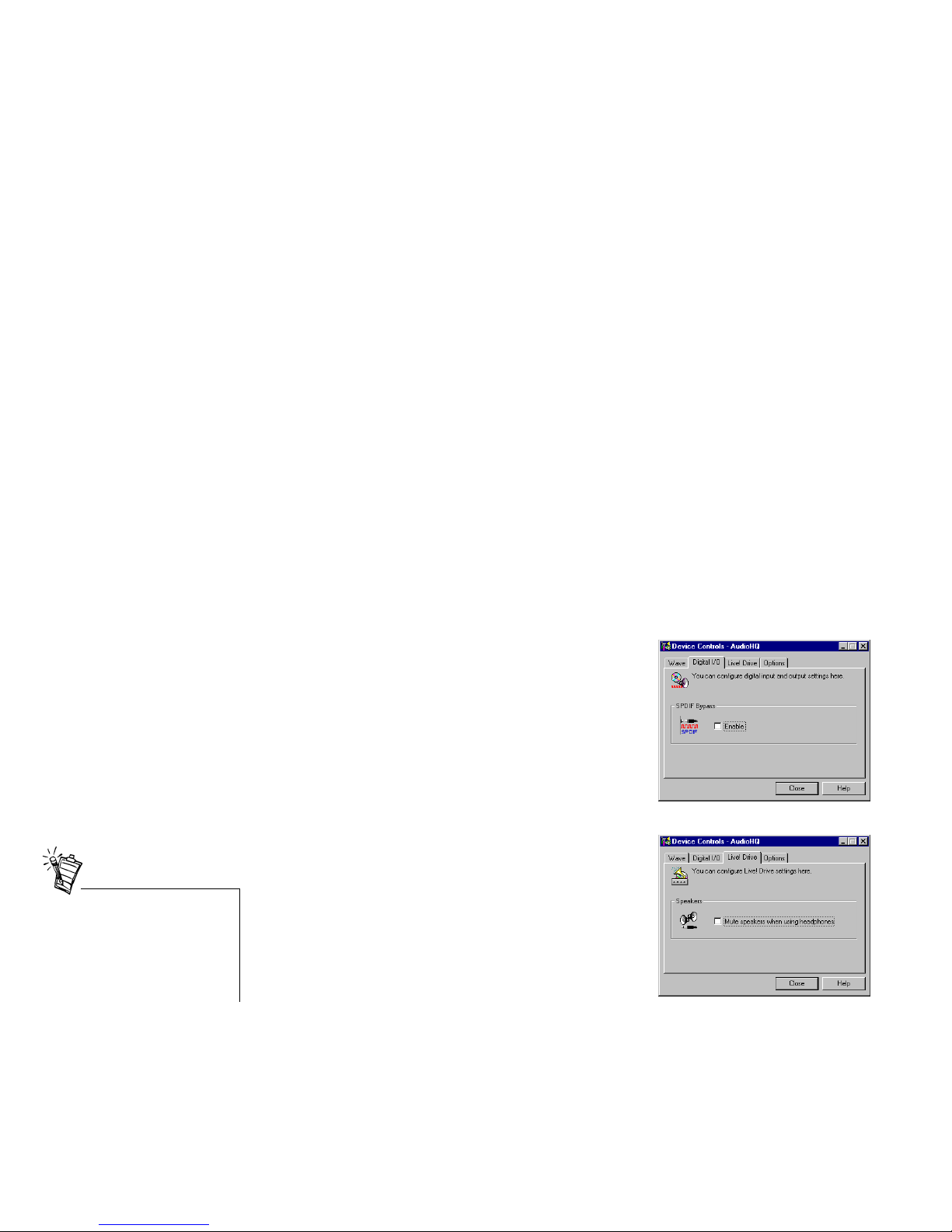
After you install the software for the Live! Drive IR, you will be able to enable the SPDIF
Bypass feature for your digital inputs and outputs, and mute your speakers when you plug your
headphones into Live! Drive IR. These two new features appears as two new tabbed pages in
Device Controls.
Digital I/O
To enable the SPDIF Bypass feature:
•On the Digital I/O tabbed page, select the Enable check
box to place a check mark in it.
SPDIF Bypass is required if you want audio signals
passing through SPDIF In to be routed directly to SPDIF
Out, without passing through the processor chip.
Live! Drive
To mute the speakers when using headphones:
•On the Live! Drive tabbed page, select the Mute
speakers when using headphones check box to place a
check mark in it.
When you enable this feature,
remove the ¼" to 3.5mm adapter
from the Headphones jack if you
are not using it. Otherwise, no
sound will be heard from the
speakers.
Page 15

Live! Drive IR Quick Start SB0010 15
Using the
RemoteCenter
Remote Control
Creative RemoteCenter converts your PC into an entertainment system, which you can control
remotely from the comfort of your bed or sofa. With the RemoteCenter remote control in your
hand, you can command your PC from a distance to play audio CDs, video CDs, DVDs using
the RemoteCenter Player, a simple but powerful multimedia player, which also plays most
media file formats. You no longer need to be directly in front of your PC to select or change
tracks because RemoteCenter comes with an On-Screen Display (OSD) system, which displays
the commands or functions available, viewable from a distance of 4 meters. RemoteCenter also
allows you to start and control your favorite Windows applications. For details, refer to the
RemoteCenter online help.
Page 16

16 Live! Drive IR Quick Start SB0010
General
Specifications
Audio Inputs and Outputs
On Front Panel
❑ Two RCA jacks for coaxial SPDIF input and output
❑ One Headphone output with auto detection via ¼" stereo jack with volume control
❑ One shared line-level analog Line/Microphone input via ¼" stereo jack. Shared input
selectable via switch with gain (or level) control
❑ Two mini DIN female connector for MIDI input and output
❑ Two RCA jacks for left and right channel stereo Auxiliary inputs (shared with SPDIF input)
❑ Two optical connectors for Optical SPDIF input and output
Interfaces
❑ Digital DIN pin header (J3) for rear metal bracket Digital DIN
❑ Power input connector to system power supply unit
❑ One AUD_EXT (SB LIVE! CARD) 2x20 pin header (J1) for connection to SB Live! card
❑ One DIGITAL I/O CARD 2x20 pin header (J2) for connection to Digital I/O card
❑ One Infrared receiver for receiving infrared signals from remote control
Page 17

Live! Drive IR Quick Start SB0010 17
Troubleshooting
Problems Installing Software
The installation does not start automatically after the CD-ROM is inserted.
Cause The AutoPlay feature in your Windows system may not be enabled.
Solution To start the installation program through the My Computer shortcut menu:
1. Double-click the My Computer icon on your Windows desktop.
2. In the My Computer window, right-click the CD-ROM drive icon.
3. On the shortcut menu, click Aut oPlay and follow the instructions on the screen.
Problems with Sound
No sound from the headphones.
Cause The headphones may not be connected or configured properly.
Solution Check the following:
❑ The headphones are connected to the Headphones jack.
❑ Under the Speaker view in the Main deck of Surround Mixer, make sure that
the Speaker mode selected is “Headphones”.
❑ In the Mixer deck of Surround Mixer, the recording source selected is “What U
Hear”.
❑ Jumper JP1 on the Live! Drive IR is set correctly for the type of microphone
you are using. See “Connecting Microphone” on page 5 for details.
No sound from the speakers.
Cause The speakers may not be connected properly, the mixer settings may not be
configured properly, or the headphones are connected to the Live! Drive IR.
Solution Check the following:
❑ The speakers are connected to your card's output.
❑ The correct source has been selected in the Mixer deck.
Page 18

18 Live! Drive IR Quick Start SB0010
❑ If the above conditions have been met and you still do not get any sound, click
the red plus sign above the VOL control and check whether the Digital Output
Only check box is selected. If it is, you are in the Digital Output Only mode and
so must connect to digital speakers to hear the sound from your audio card. See
the section on Digital Output Only in Surround Mixer’s online help for more
information.
❑ If your headphones and/or the ¼" to 3.5mm adapter are connected to the Live!
Drive IR, disconnect them. Alternatively, open the Device Controls applet in
AudioHQ, click the Live! Drive tab, and then clear the Mute speakers when
using headphones check box.
Page 19

Creative End-User Software License Agreement
Version 2.4, June 2000
PLEASE READ THIS DOCUMENT CAREFULLY BEFORE INSTALLING THE SOFTWARE. BY INSTALLING AND USING THE SOFTWARE, YOU AGREE TO BE BOUND BY THE TERMS OF
THIS AGREEMENT. IF YOU DO NOT AGREE TO THE TERMS OF THE AGREEMENT, DO NOT INSTALL OR USE THE SOFTWARE. PROMPTLY RETURN, WITHIN 15 DAYS, THE
SOFTWARE, ALL RELATED DOCUMENTATION AND ACCOMPANYING ITEMS TO THE PLACE OF ACQUISITION FOR A FULL REFUND.
This is a legal agreement between you and Creative Technology Ltd.
and its subsidiaries (“Creative”). This Agreement states the terms and
conditions upon which Creative offers to license the software sealed
in the disk package together with all related documentation and
accompanying items including, but not limited to, the executable
programs, drivers, libraries and data files associated with such
programs (collectively, the “Software”).
LICENSE
1. Grant of License
The Software is licensed, not sold, to you for use only under the
terms of this Agreement. You own the disk or other media on
which the Software is originally or subsequently recorded or fixed;
but, as between you and Creative (and, to the extent applicable, its
licensors), Creative retains all title to and ownership of the
Software and reserves all rights not expressly granted to you.
2. For Use on a Single Computer
The Software may be used only on a single computer by a single
user at any time. You may transfer the machine-readable portion of
the Software from one computer to another computer, provided
that (a) the Software (including any portion or copy thereof) is
erased from the first computer and (b) there is no possibility that
the Software will be used on more than one computer at a time.
3. Stand-Alone Basis
You may use the Software only on a stand-alone basis, such that the
Software and the functions it provides are accessible only to
persons who are physically present at the location of the computer
on which the Software is loaded. You may not allow the Software
or its functions to be accessed remotely, or transmit all or any
portion of the Software through any network or communication
line.
4. Copyright
The Software is owned by Creative and/or its licensees and is
protected by United States copyright laws and international treaty
provisions. You may not remove the copyright notice from any
copy of the Software or any copy of the written materials, if any,
accompanying the Software.
5. One Archival Copy
You may make one (1) archival copy of the machine-readable
portion of the Software for backup purposes only in support of
your use of the Software on a single computer, provided that you
reproduce on the copy all copyright and other proprietary rights
notices included on the originals of the Software.
6. No Merger or Integration
You may not merge any portion of the Software into, or integrate
any portion of the Software with, any other program, except to the
extent expressly permitted by the laws of the jurisdiction where
you are located. Any portion of the Software merged into or
integrated with another program, if any, will continue to be subject
to the terms and conditions of this Agreement, and you must
reproduce on the merged or integrated portion all copyright and
other proprietary rights notices included in the originals of the
Software.
7. Network Version
If you have purchased a “network” version of the Software, this
Agreement applies to the installation of the Software on a single
“file server”. It may not be copied onto multiple systems. Each
“node” connected to the “file server” must also have its own
license of a “node copy” of the Software, which becomes a license
only for that specific “node”.
8. Transfer of License
You may transfer your license of the Software, provided that (a)
you transfer all portions of the Software or copies thereof, (b) you
do not retain any portion of the Software or any copy thereof, and
(c) the transferee reads and agrees to be bound by the terms and
conditions of this Agreement.
9. Limitations on Using, Copying, and Modifying the Software
Except to the extent expressly permitted by this Agreement or by
the laws of the jurisdiction where you acquired the Software, you
may not use, copy or modify the Software. Nor may you sublicense any of your rights under this Agreement. You may use the
Software for your personal use only, and not for public
performance or for the creation of publicly displayed videotapes.
10.Decompiling, Disassembling, or Reverse Engineering
You acknowledge that the Software contains trade secrets and
other proprietary information of Creative and its licensors. Except
to the extent expressly permitted by this Agreement or by the laws
of the jurisdiction where you are located, you may not decompile,
disassemble or otherwise reverse engineer the Software, or engage
in any other activities to obtain underlying information that is not
visible to the user in connection with normal use of the Software.
11.For Software with CDDB features
This package contains software from CDDB, Inc.of Berkeley
California ("CDDB"). The software from CDDB (the "CDDB
Client") enables this application to do online disc identification
and obtain music-related information, including name, artist, track
and title information ("CDDB Data") from online servers ("CDDB
Servers") and to perform other functions.
You agree that you will use CDDB Data, the CDDB Client and
CDDB Servers for your own personal non-commercial use only.
You agree not to assign, copy, transfer or transmit the CDDB Client
or any CDDB Data to any third party. YOU AGREE NOT TO USE
OR EXPLOIT CDDB DATA, THE CDDB CLIENT,OR CDDB
SERVERS,EXCEPT AS EXPRESSLY PERMITTED HEREIN.
You agree that your non-exclusive license to use the CDDB Data,
the CDDB Client and CDDB Servers will terminate if you violate
these restrictions. If your license terminates, you agree to cease any
and all use of the CDDB Data, the CDDB Client and CDDB
Servers. CDDB reserves all rights in CDDB Data, the CDDB
Client and the CDDB Servers, including all ownership rights. You
agree that CDDB, Inc. may enforce its rights under this Agreement
against you directly in its own name.
The CDDB Client and each item of CDDB Data are licensed to you
"AS IS." CDDB makes no representations or warranties, express or
implied, regarding the accuracy of any CDDB Data from in the
CDDB Servers. CDDB reserves the right to delete data from the
CDDB Servers or to change data categories for any cause that
CDDB deems sufficient. No warranty is made that the CDDB
Client or CDDB Servers are error-free or that functioning of
CDDB Client or CDDB Servers will be uninterrupted. CDDB is
not obligated to provide you with any new enhanced or additional
data types or categories that CDDB may chose to provide in the
future.
CDDB DISCLAIMS ALL WARRANTIES EXPRESS OR
IMPLIED, INCLUDING, BUT NOT LIMITED TO, IMPLIED
WARRANTIES OF MERCHANTABILITY, FITNESS FOR A
PARTICULAR PURPOSE, TITLE AND NONINFRINGEMENT. CDDB does not warrant the results that will be
obtained by your use of the CDDB Client or any CDDB Server. IN
NO CASE WILL CDDB BE LIABLE FOR ANY
CONSEQUENTIAL OR INCIDENTIAL DAMAGES OR FOR
ANY LOST PROFITS, OR LOST REVENUES.
In particular, you agree not for any purpose to transmit the
Software or display the Software's object code on any computer
screen or to make any hardcopy memory dumps of the Software's
object code. If you believe you require information related to the
interoperability of the Software with other programs, you shall not
decompile or disassemble the Software to obtain such information,
and you agree to request such information from Creative at the
address listed below. Upon receiving such a request, Creative shall
Page 20

1. determine whether you require such information for a legitimate
purpose and, if so, Creative will provide such information to you
within a reasonable time and on reasonable conditions.
In any event, you will notify Creative of any information derived
from reverse engineering or such other activities, and the results
thereof will constitute the confidential information of Creative that
may be used only in connection with the Software.
TERMINATION
The license granted to you is effective until terminated. You may
terminate it at any time by returning the Software (including any
portions or copies thereof) to Creative. The license will also terminate
automatically without any notice from Creative if you fail to comply
with any term or condition of this Agreement. You agree upon such
termination to return the Software (including any portions or copies
thereof) to Creative. Upon termination, Creative may also enforce any
rights provided by law. The provisions of this Agreement that protect
the proprietary rights of Creative will continue in force after
termination.
LIMITED WARRANTY
Creative warrants, as the sole warranty, that the disks on which the
Software is furnished will be free of defects, as set forth in the
Warranty Card or printed manual included with the Software. No
distributor, dealer or any other entity or person is authorized to expand
or alter this warranty or any other provisions of this Agreement. Any
representation, other than the warranties set forth in this Agreement,
will not bind Creative.
Creative does not warrant that the functions contained in the Software
will meet your requirements or that the operation of the Software will
be uninterrupted, error-free or free from malicious code. For purposes
of this paragraph, “malicious code” means any program code
designed to contaminate other computer programs or computer data,
consume computer resources, modify, destroy, record, or transmit
data, or in some other fashion usurp the normal operation of the
computer, computer system, or computer network, including viruses,
Trojan horses, droppers, worms, logic bombs, and the like. EXCEPT
AS STATED ABOVE IN THIS AGREEMENT, THE
SOFTWARE IS PROVIDED AS-IS WITHOUT WARRANTY
OF ANY KIND, EITHER EXPRESS OR IMPLIED,
INCLUDING, BUT NOT LIMITED TO, ANY IMPLIED
WARRANTIES OF MERCHANTABILITY AND FITNESS
FOR A PARTICULAR PURPOSE. CREATIVE IS NOT
OBLIGATED TO PROVIDE ANY UPDATES, UPGRADES OR
TECHNICAL SUPPORT FOR THE SOFTWARE.
Further, Creative shall not be liable for the accuracy of any
information provided by Creative or third party technical support
personnel, or any damages caused, either directly or indirectly, by acts
taken or omissions made by you as a result of such technical support.
You assume full responsibility for the selection of the Software to
achieve your intended results, and for the installation, use and results
obtained from the Software. You also assume the entire risk as it
applies to the quality and performance of the Software. Should the
Software prove defective, you (and not Creative, or its distributors or
dealers) assume the entire cost of all necessary servicing, repair or
correction.
This warranty gives you specific legal rights, and you may also have
other rights which vary from country/state to country/state. Some
countries/states do not allow the exclusion of implied warranties, so
the above exclusion may not apply to you. Creative disclaims all
warranties of any kind if the Software was customized, repackaged or
altered in any way by any third party other than Creative.
LIMITATION OF REMEDIES AND DAMAGES
THE ONLY REMEDY FOR BREACH OF WARRANTY WILL
BE THAT SET FORTH IN THE WARRANTY CARD OR
PRINTED MANUAL INCLUDED WITH THE SOFTWARE. IN
NO EVENT WILL CREATIVE OR ITS LICENSORS BE
LIABLE FOR ANY INDIRECT, INCIDENTAL, SPECIAL OR
CONSEQUENTIAL DAMAGES OR FOR ANY LOST
PROFITS, LOST SAVINGS, LOST REVENUES OR LOST
DATA ARISING FROM OR RELATING TO THE SOFTWARE
OR THIS AGREEMENT, EVEN IF CREATIVE OR ITS
LICENSORS HAVE BEEN ADVISED OF THE POSSIBILITY
OF SUCH DAMAGES. IN NO EVENT WILL CREATIVE’S
LIABILITY OR DAMAGES TO YOU OR ANY OTHER
PERSON EVER EXCEED THE AMOUNT PAID BY YOU TO
USE THE SOFTWARE, REGARDLESS OF THE FORM OF
THE CLAIM.
Some countries/states do not allow the limitation or exclusion of
liability for incidental or consequential damages, so the above
limitation or exclusion may not apply to you.
PRODUCT RETURNS
If you must ship the software to Creative or an authorized Creative
distributor or dealer, you must prepay shipping and either insure the
software or assume all risk of loss or damage in transit.
U.S. GOVERNMENT RESTRICTED RIGHTS
All Software and related documentation are provided with restricted
rights. Use, duplication or disclosure by the U.S. Government is
subject to restrictions as set forth in subdivision (b)(3)(ii) of the
Rights in Technical Data and Computer Software Clause at 252.227-
7013. If you are sub-licensing or using the Software outside of the
United States, you will comply with the applicable local laws of your
country, U.S. export control law, and the English version of this
Agreement.
CONTRACTOR/MANUFACTURER
The Contractor/Manufacturer for the Software is:
Creative Technology Ltd
31, International Business Park
Creative Resource
Singapore 609921
GENERAL
This Agreement is binding on you as well as your employees,
employers, contractors and agents, and on any successors and
assignees. Neither the Software nor any information derived
therefrom may be exported except in accordance with the laws of the
U.S. or other applicable provisions. This Agreement is governed by
the laws of the State of California (except to the extent federal law
governs copyrights and federally registered trademarks). This
Agreement is the entire agreement between us and supersedes any
other understandings or agreements, including, but not limited to,
advertising, with respect to the Software. If any provision of this
Agreement is deemed invalid or unenforceable by any country or
government agency having jurisdiction, that particular provision will
be deemed modified to the extent necessary to make the provision
valid and enforceable, and the remaining provisions will remain in
full force and effect.
For questions concerning this Agreement, please contact Creative at
the address stated above. For questions on product or technical
matters, contact the Creative technical support center nearest you.
ADDENDUM TO THE MICROSOFT SOFTWARE LICENSE
AGREEMENT (WINDOWS 95)
IMPORTANT: By using the Microsoft software files (the “Microsoft
Software”) provided with this Addendum, you are agreeing to be
bound by the following terms. If you do not agree to be bound by these
terms, you may not use the Microsoft Software.
The Microsoft Software is provided for the sole purpose of replacing
the corresponding files provided with a previously licensed copy of
the Microsoft software product identified above (“ORIGINAL
PRODUCT”). Upon installation, the Microsoft Software files become
part of the ORIGINAL PRODUCT and are subject to the same
warranty and license terms and conditions as the ORIGINAL
PRODUCT. If you do not have a valid license to use the ORIGINAL
PRODUCT, you may not use the Microsoft Software. Any other use
of the Microsoft Software is prohibited.
SPECIAL PROVISIONS APPLICABLE TO THE EUROPEAN
UNION
IF YOU ACQUIRED THE SOFTWARE IN THE EUROPEAN
UNION (EU), THE FOLLOWING PROVISIONS ALSO APPLY
TO YOU. IF THERE IS ANY INCONSISTENCY BETWEEN THE
TERMS OF THE SOFTWARE LICENSE AGREEMENT SET OUT
EARLIER AND IN THE FOLLOWING PROVISIONS, THE
FOLLOWING PROVISIONS SHALL TAKE PRECEDENCE.
DECOMPILATION
You agree not for any purpose to transmit the Software or display the
Software’s object code on any computer screen or to make any hard
copy memory dumps of the Software’s object code. If you believe you
require information related to the interoperability of the Software with
other programs, you shall not decompile or disassemble the Software
Page 21

to obtain such information, and you agree to request such information
from Creative at the address listed earlier. Upon receiving such a
request, Creative shall determine whether you require such
information for a legitimate purpose and, if so, Creative will provide
such information to you within a reasonable time and on reasonable
conditions.
LIMITED WARRANTY
EXCEPT AS STATED EARLIER IN THIS AGREEMENT, AND
AS PROVIDED UNDER THE HEADING “STATUTORY
RIGHTS”, THE SOFTWARE IS PROVIDED AS-IS WITHOUT
WARRANTY OF ANY KIND, EITHER EXPRESS OR
IMPLIED, INCLUDING, BUT NOT LIMITED TO, ANY
IMPLIED WARRANTIES OR CONDITIONS OF
MERCHANTABILITY, QUALITY AND FITNESS FOR A
PARTICULAR PURPOSE.
LIMITATION OF REMEDY AND DAMAGES
THE LIMITATIONS OF REMEDIES AND DAMAGES IN THE
SOFTWARE LICENSE AGREEMENT SHALL NOT APPLY
TO PERSONAL INJURY (INCLUDING DEATH) TO ANY
PERSON CAUSED BY CREATIVE’S NEGLIGENCE AND
ARE SUBJECT TO THE PROVISION SET OUT UNDER THE
HEADING “STATUTORY RIGHTS”.
STATUTORY RIGHTS
Irish law provides that certain conditions and warranties may be
implied in contracts for the sale of goods and in contracts for the
supply of services. Such conditions and warranties are hereby
excluded, to the extent such exclusion, in the context of this
transaction, is lawful under Irish law. Conversely, such conditions and
warranties, insofar as they may not be lawfully excluded, shall apply.
Accordingly nothing in this Agreement shall prejudice any rights that
you may enjoy by virtue of Sections 12, 13, 14 or 15 of the Irish Sale
of Goods Act 1893 (as amended).
GENERAL
This Agreement is governed by the laws of the Republic of Ireland.
The local language version of this agreement shall apply to Software
acquired in the EU. This Agreement is the entire agreement between
us, and you agree that Creative will not have any liability for any
untrue statement or representation made by it, its agents or anyone
else (whether innocently or negligently) upon which you relied upon
entering this Agreement, unless such untrue statement or
representation was made fraudulently.
Safety & Regulatory Information
The following sections contain notices for various countries:
CAUTION: This device is intended to be connected by the user to a
CSA/TUV/UL certified/listed IBM AT or compatible personal
computers in the manufacturer’s defined operator access area. Check
the equipment operating/installation manual and/or with the
equipment manufacturer to verify/confirm if your equipment is
suitable for devices to be connected to it.
ATTENTION: Ce périphérique est destiné à être connecté par
l’utilisateur à un ordinateur IBM AT certifié ou listé CSA/TUV/UL ou
compatible, à l’intérieur de la zone d'accès définie par le fabricant.
Consulter le mode d’emploi/guide d'installation et/ou le fabricant de
l’appareil pour vérifier ou confirmer qu'il est possible de connecter
d'autres périphériques à votre sytème.
Notice for the USA
FCC Part 15: This equipment has been tested and found to comply
with the limits for a Class B digital device, pursuant to Part 15 of the
FCC Rules. These limits are designed to provide reasonable
protection against harmful interference in a residential installation.
This equipment generates, uses, and can radiate radio frequency
energy and, if not installed and used in accordance with the
instructions, may cause harmful interference to radio
communications. However, this notice is not a guarantee that
interference will not occur in a particular installation. If this
equipment does cause harmful interference to radio or television
reception, which can be determined by turning the equipment off and
on, the user is encouraged to try one or more of the following
measures:
❑
Reorient or relocate the receiving antenna.
❑
Increase the distance between the equipment and receiver.
❑
Connect the equipment to an outlet on a circuit different from
that to which the receiver is connected.
❑
Consult the dealer or an experienced radio/TV technician.
❑
Caution
To comply with the limits for the Class B digital device, pursuant to
Part 15 of the FCC Rules, this device must be installed in computer
equipment certified to comply with the Class B limits.
All cables used to connect the computer and peripherals must be
shielded and grounded. Operation with non-certified computers or
non-shielded cables may result in interference to radio or television
reception.
Modifications
Any changes or modifications not expressly approved by the grantee
of this device could void the user’s authority to operate the device.
Notice for Canada
This apparatus complies with the Class “B” limits for radio
interference as specified in the Canadian Department of
Communications Radio Interference Regulations.
Cet appareil est conforme aux normes de CLASSE “B” d’interférence
radio tel que spécifié par le Ministère Canadien des Communications
dans les règlements d’interférence radio.
Compliance
This product conforms to the following Council Directive:
❑
Directive 89/336/EEC, 92/31/EEC (EMC), 73/23/EEC (LVD)
Declaration of Conformity
According to the FCC96 208 and ET95-19,
Manufacturer/Importer’s Name:Creative Labs, Inc.
Manufacturer/Importer’s Address: 1901 McCarthy Boulevard
Milpitas, CA. 95035
United States
Tel: (408) 428-6600
declares under its sole responsibility that the product
Trad e Nam e: Creative Labs
Model Numbers: SB0010
has been tested according to the FCC / CISPR22/85
requirement for Class B devices and found compliant with
the following standards:
EMI/EMC: ANSI C63.4 1992, FCC Part 15 Subpart B
Complies with Canadian ICES-003 Class B.
This device complies with part 15 of the FCC Rules.
Operation is subject to the following two conditions:
1. This device may not cause harmful interference, and
2. This device must accept any interference received, including
interference that may cause undesirable operation.
Ce matériel est conforme à la section 15 des régles FCC.
Son Fonctionnement est soumis aux deux conditions suivantes:
1. Le matériel ne peut étre source D’interférences et
2. Doit accepter toutes les interférences reques, Y compris
celles pouvant provoquer un fonctionnement indésirable.
Compliance Manager
Creative Labs, Inc.
September 8, 2000
Page 22

No part of this publication may be reproduced or transmitted in any form or by any means without the prior written consent of Creative Technology Ltd.
Copyright © 2000 Creative Technology Ltd. All rights reserved.
Version 1.10
October 2000
Sound Blaster and Blaster are registered trademarks, and the Sound Blaster Live! logo, the Sound Blaster PCI logo, EMU10K1, EAX, Creative Multi
Speaker Surround and LAVA! are trademarks of Creative Technology Ltd. in the United States and/or other countries.
E-Mu and SoundFont are registered trademarks of E-mu Systems, Inc..
SoundWorks is a registered trademark, and MicroWorks, PCWorks and FourPointSurround are trademarks of Cambridge SoundWorks, Inc..
Microsoft, MS-DOS, and Windows are registered trademarks of Microsoft Corporation.
All other products are trademarks or registered trademarks of their respective owners.
 Loading...