

Page 1
INTRODUCING
The New Contour
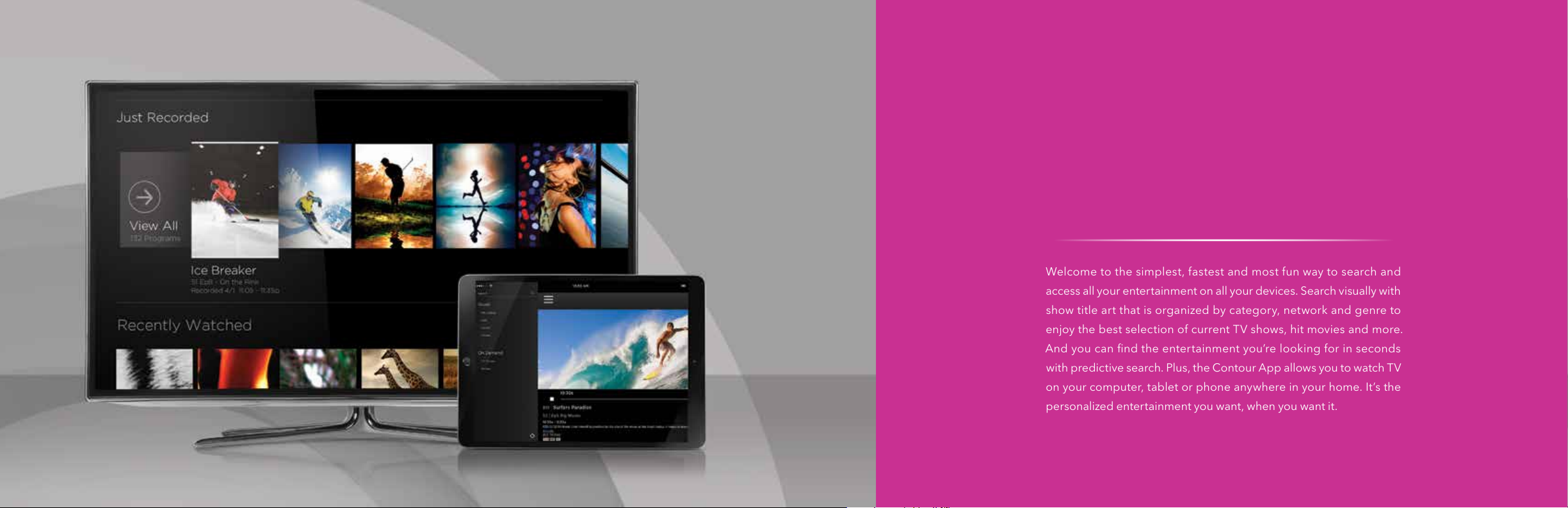
Welcome to the simplest, fastest and most fun way to search and
access all your enter tainment on all your devices. Search visually with
show title art that is organized by category, network and genre to
enjoy the best selection of current TV shows, hit movies and more.
And you can find the entertainment you’re looking for in seconds
with predictive search. Plus, the Contour App allows you to watch TV
on your computer, tablet or phone anywhere in your home. It’s the
personalized entertainment you want, when you want it.
®
11
11
Page 2

The new Contour’s innovative features deliver the easiest, quickest and most complete way to access all your entertainment on
all your devices.
Now, discovering the shows you love is part of the fun. The enhanced on-screen guide offers rich graphics and images that help
you quickly find the shows, movies and sports you are interested in. The Main Menu displays options for live TV, recorded shows,
On Demand,
SM
interactive apps and more. You get listings for what’s on now and up to 14 days in advance, over 10,000 On Demand
options to watch any time and personalized recommendations, and see the last channels or On Demand shows you’ve watched
with the touch of a button.
Use voice commands to change channels, find shows, get recommendations and more. The Contour® Voice Controlled Remote even
responds to popular phrases like “Show me movies” to help find your favorites.
Now you can find what you’re looking for in seconds. Just type the first few letters of a network, title, genre or actor on the remote control
and get instant search results across live TV, On Demand and your DVR. Over time, Contour learns the shows and events most often
searched for, so the search results become even more accurate.
When you add Record 6 DVR to your Contour service,
you’ll enjoy more of your favorite shows with the
ability to record up to 6 shows simultaneously. Save
more of your favorite entertainment with up to 1,000
hours of storage space and play recordings in any
room of your home.
A revolutionary mobile app for your tablet or smart
phone that allows you to stream live TV and access
On Demand shows and movies from any room in
your house.
With Contour, you can enjoy instant access to sports
scores, weather, stock information and more, all at
your finger tips and up on the TV screen.
13
Page 3

Contour® // Main Menu
To access the Main Menu, press the Contour button on your remote control. Then, use the Left Arrow
button or the Right Arrow button to browse through the menu options.
Choose from any of the following, and press the OK button on the remote to select it:
// GUIDE: Use this option to access the Contour grid guide and view program listings, channel
information, etc.
You can also access the grid guide by pressing the Guide button on your remote.
// SAVED: Use this option to access your saved DVR recordings, recording schedule, favorites list and
On Demand
watched shows and recommendations based on what you’ve watched.
// On Demand: Use this option to access On Demand TV shows and movies to watch any time.
// S E ARCH: Use this option to search for programs, favorite actors and directors, channels, etc.
// A P P S: Use this option to access in-TV apps like the spor ts app and weather app available
through your Contour receiver.
// SETTINGS: Use this option to manage the settings on your Contour receiver (parental controls,
closed captioning, guide settings, etc.).
To exit the menu, press the Exit button on your remote.
SM
purchases. This menu also includes “For You,” which has recently recorded programs,
15
Page 4

Turn your tablet, phone or computer into a personal TV screen with the Contour App. Stream live TV
and watch On Demand
SM
content from any room in the house.
STREAM LIVE TV
Watch your favorite shows and movies in and around
your home.
STREAM On Demand PROGRAMS
Stream programs from your On Demand library in and
around your home.
• Includes only On Demand movies and TV
shows that are free or part of your subscription
• Access thousands of hours of On Demand
content—on your tablet, smartphone or computer
• Movies may not be purchased using the Contour App
Continue. If you don’t have a Cox User ID and
Password, you can get them at cox.com/register
*For User ID and Password, please reference page 4
// Apple® devices must have iOS 7.0 or later
// Android
™
devices must have Android operating
system 4.0 or higher in order to find and download
the Contour App
// Compatible with iPhone,® iPad® and iPod touch®
// Compatible with all Android devices running
Android operating system 4.0 or higher
// Not available on Kindle Fire
™
// 5 devices can stream or download simultaneously
* The Contour App is available to residential video customers in Cox service areas. Access to some app features may vary by service level. Minimum Cox TV Essential, Cox High Speed Internet Starter, and compatible mobile or tablet
device required. DOCSIS 3.0 modem recommended for best viewing experience. Not all channels in TV service subscription may be available. Limited to in-home viewing via a WiFi home network. Other restrictions may apply.
17
Page 5
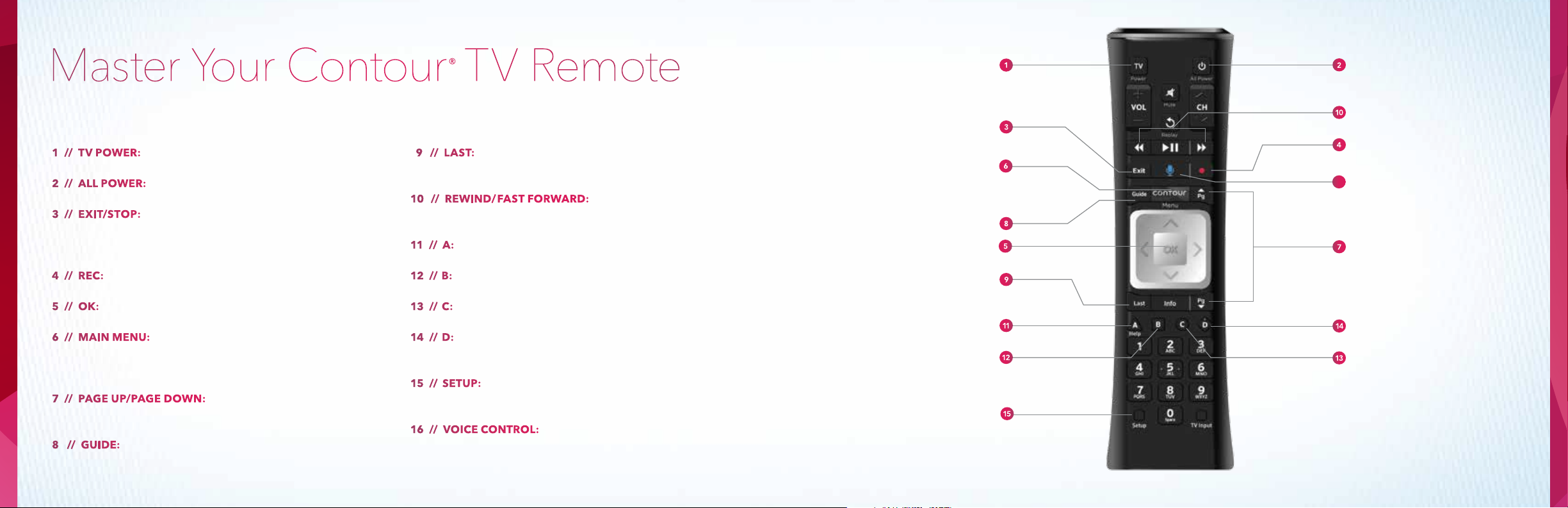
We’ve completely redesigned the Contour TV remote control to enhance your viewing experience, with a smaller,
easier-to-handle remote and buttons that help you find exactly the entertainment you want.
SM
watching, or stop the On Demand
or DVR recording
you’re watching
Menu. Here you’ll find your Guide, Saved (DVR recordings),
On Demand
Search, Apps and Settings categories
lists, and jump forward or back when watching a program
a guide view to filter listings
or view last channels/shows watched
16
a program, or skip ahead or back 24 hours in the Guide
recording or clear the history from Last Watched
audio device
channels, find shows, get recommendations and
more
19
Page 6
®
Exploring Contour
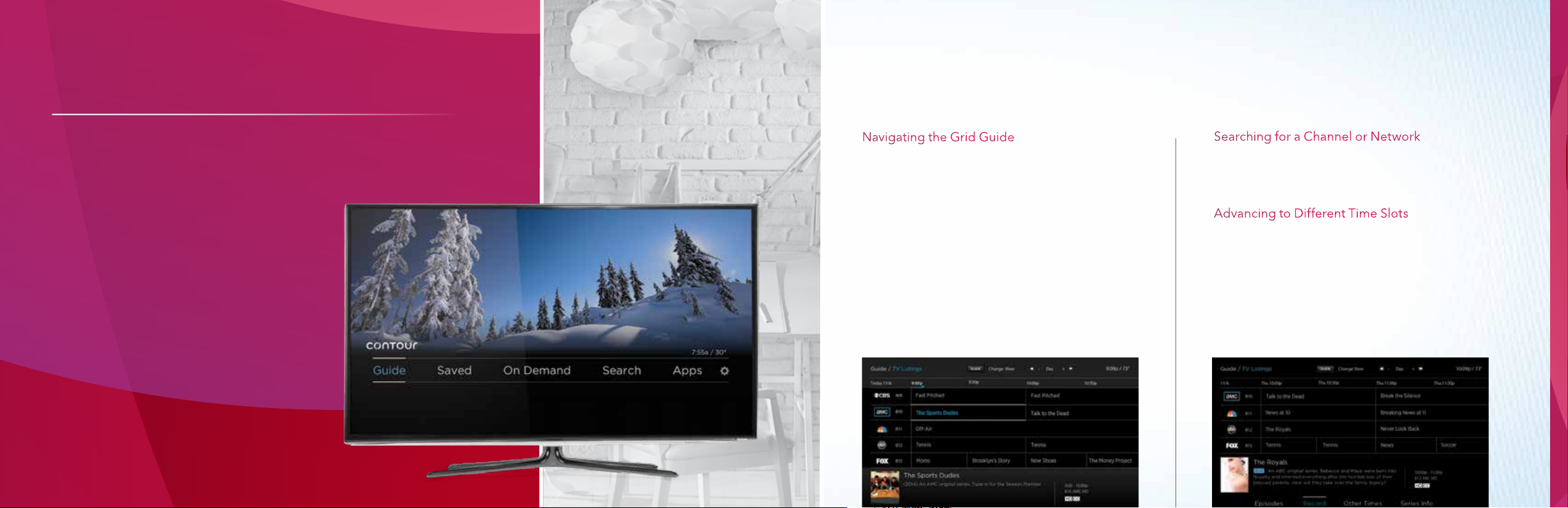
Never miss the action on live TV. Contour makes it easy to find movies and TV
shows airing right now.
To access the grid guide, press the Guide button
on the remote control.
To access the grid guide, press the Guide button
on the remote control.
About the Contour Guide
The Guide includes all of the channels’ programming
up to 2 weeks out. You can view information about TV
shows and movies, schedule recordings, set favorite
channels or find other times shows may be airing. If
an HD version of a channel is available, the Guide will
automatically choose that option over the SD version.
The Guide can be viewed with All Listings or filtered by
Favorite Channels, HD, Sports and more. There is even
an option to see just what’s on right now (press the
Right Arrow but ton) or see just what’s on the channel
you are watching (press the Right Arrow button twice).
To navigate up and down the channel listings in
the guide:
• Use the Up Arrow and Down Arrow buttons
to move one channel at a time
• Use the Page Up and Page Down buttons
to move several channels at a time
• Use the Right Arrow button to advance in the grid
one time slot at a time; use the Left Arrow button
to go back to the previous time slot
• Use the Fast Forward button to advance in the grid
one day at a time; use the Rewind button to go
back a day
Hit Exit to exit the Guide.
21
Page 7

The Contour® Guide allows you to filter your guide view to display only the types of channels you would like to see.
Here’s how to select a guide view.
On the remote, press the Guide button twice
to access the Select Your Guide View window.
Here you can filter your guide by your preferred
set of channels.
Use the Arrow buttons on the remote to select
your guide view and press OK. Choose from:
Use the Arrow buttons to select a program and
press OK.
Contour helps you find what you want faster by using voice commands to change channels, search for shows or movies,
get recommendations, even set a DVR recording.
Controlling your TV has never been easier, faster or more convenient. Just say it,
and see it. Simply press and hold the blue voice button on your remote; then speak
your command and release. Contour will quickly find what you’re looking for. Use
voice commands to change channels, find shows, get recommendations, launch
apps and more.
Search for your favorite actor, your local sports team, the channels you love or
just ask to see what’s on now. There is no need to memorize special commands,
because Contour understands plain English. You can say things like “Watch Food
Network,” “Show me kids’ movies,” or “Show my recording list.” You can even access
Contour Recommendations by asking “What should I watch?”
The Contour Voice Controlled Remote also makes accessibility even easier by
responding to commands like “Turn on closed captioning.” The Voice Controlled
Remote is the coolest new feature to enhance your entertainment experience.
23
Page 8

Find the entertainment you’re looking for with Contour’s great search options.
Here’s how to search the Contour On-Screen Guide using the search bar at the top of the Search menu.
Search by title, genre, sports team or actor, and
find content across live TV, On Demand
SM
and
your DVR. Use your remote to search from any
menu or while watching TV. Use the numbers
on your remote that correspond to the letters
on each button. Contour predicts what you
are looking for based on your inputs, so you
can get instant results with the entry of just
a few characters.
You can also find and tune to a channel by
typing in the channel name.
Press the Contour button on the remote.
Use the Arrow buttons to navigate to Search and press
OK to choose the letter. As you choose characters, they
appear at the top of the screen and the search will begin
to suggest titles that match your entry so far.
Use the Down Arrow button to highlight a search result
and press OK.
Press the Last button to go back to the search result list.
Press Exit to leave the Search screen.
25
Page 9

The Contour® Guide can recommend TV shows and movies based on what you like to watch. Here’s how to get recommendations
using the Contour On-Screen Guide.
Press the Contour button on your remote control.
Locate a TV show or movie by browsing in the Guide
or using the Search menu.
Use the Up, Down, Right or Left Arrow button on the
remote to highlight the name of the program, and press
the Info button.
Depending on the type of program you have selected,
use the Arrow buttons to highlight Series Info or Movie
Info and press OK.
Use the Down Arrow button to highlight More Like This.
Programs that are similar to the one you selected will
display. Use the Arrow buttons to select a program.
Press the Info button to view information about the
selected program.
Press the Last button to return to the original series
you selected.
27
Page 10

Parental Controls
Parental Controls allow you to limit the content viewable on your TV, including live TV, On DemandSM and
recorded programs. Parental Controls let you restrict access to content based on T V/Movie Ratings, Channels,
Titles and Services. You can also select days and times to “lock” access to your TV.
This sec tion provides details on how to set up your Parental Controls Locks PIN and turn Parental Controls
on or off using the Contour® On-Screen Guide.
Press the Contour button on your remote control.
Using the Right Arrow button, scroll over to highlight
Settings. Press the OK button.
Use the Down Arrow button to highlight Parental
Controls. Press OK.
Use the Down Arrow button to highlight Parental
Control PIN. Press OK to select On.
Enter a four-digit Locks PIN of your choosing.
Re-enter the Locks PIN to confirm.
Press the Exit key to return to regular TV viewing.
Previously setup PINs will remain the same. If you haven’t
previously set up a PIN, there may be a default PIN of 0000.
To find out more, visit welcome.cox.com.
29
Page 11

Using the Contour® DVR
Contour customers can record either 2 shows at once or up to 6 shows at once depending on the DVR they have
chosen. The Contour advanced DVRs do it all.
Watch TV in
any room
Record up to
6 shows at once
Store up to
1,000 shows
*
Pause or
rewind live TV
*Storage capacity based on 1,000 hours of SD programming with Record 6 DVR; capacity varies with mix of HD and SD recordings.
Watch your recordings on any TV in the house. You can even start watching in one room
and finish in another.
Now the whole family can record their favorite shows at once. Record up to 6 shows.
Schedule a program, series, personality or sports team to record. Specify record options to
end a recording late, record only new episodes or choose channel preferences (like HD).
Enjoy plenty of storage space, enough for hundreds of shows, so you don’t have to
delete your favorite shows to make room for new ones.
With your Contour DVR, live TV works just like a recording. You can pause what you
are watching, rewind it and advance back to live TV using your remote control.
31
Page 12

Press the Play/Pause button on the remote to pause the program you are watching. Press the
button again to resume watching.
that channel. You can rewind up to 90 minutes of standard-definition programming or
rewind up to 30 minutes of high-definition programming. The buffer begins when you
start watching a channel.
Play/Pause button
Note: You can also use the Page Down button to skip 5 minutes back while watching live TV.
Access playback controls for live TV with the Down Arrow button.
Press the Down Arrow twice; then use the Left Arrow and Right Arrow buttons to choose a control:
TV buffer—the last 90 minutes of a standarddefinition channel or the last 30 minutes of
a high-definition channel. The buffer begins when
you start watching a channel.
After you have rewound live TV, you can use the Fast Forward button to fast forward to a later
point in the program, all the way up to what is broadcasting live. You can also use the Page Up
button to skip 5 minutes forward while watching live TV.
After you have paused or rewound live TV, you can return to what is broadcasting live by
pressing the Exit button.
a channel now)
33
Page 13

Use these steps to record a program using your Contour® DVR.
Use these steps to record all episodes of a program using your Contour DVR. Record new episodes or repeats by choosing your
channel, star t and stop times.
Highlight a program on the Guide screen.
Select the Record button on the remote control, or select
the Record option on the program’s info panel.
Select Just This Episode, and the recording will be set.
Press the Guide button on the remote.
Select a program and press OK on the remote.
Highlight Record and press OK.
Highlight All Future Episodes and press OK.
Highlight Confirm and press OK.
35
Page 14

The Contour® DVR allows you to watch your saved
recordings at the time that is right for you. Follow
the steps to watch a saved recording.
Press the Contour button on your remote control.
In the menu, scroll to Saved using the Left Arrow and Right
Arrow buttons on the remote. Press the OK button on your
remote control.
Use the Up, Down, Left and Right Arrow buttons on the remote
to select a recording, and press OK on your remote control.
Scroll to Watch and press OK.
37
Page 15
Experience On Demand
With On Demand, enjoy instant access to thousands of hit movies, the latest episodes of the
top 100 shows and loads of entertainment for the kids.
Use On Demand, browse TV shows
and movie titles to find a show to
watch instantly. Discover new movies
and TV shows in an easy-to-use menu.
Or use filters and sorts to narrow
your choices.
SM
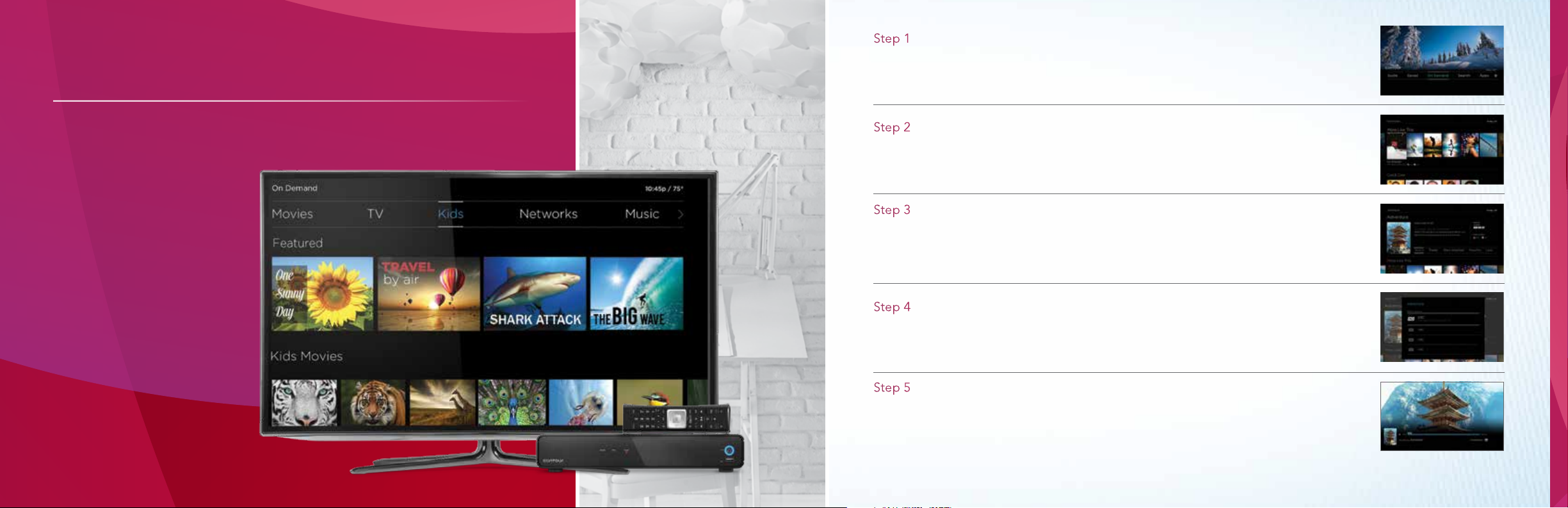
Press the Contour button on your remote control.
Use the Right Arrow or Left Arrow button to navigate to On Demand, and press the OK button
on the remote.
Use the Right Arrow or Left Arrow button to browse through the On Demand options at the
top of the screen (Featured, Movies, TV, Kids, Networks, etc.).
Highlight an option and press the OK button on the remote.
To select a single program, such as a movie, highlight the program and press the OK button
on the remote. To select a program that is part of a series, navigate to the desired episode
and press OK.
Highlight the Watch option and press OK.
Options are available to watch in
SD or HD.
If the program is available in both High Definition and Standard Definition, you will be
prompted to choose the version you wish to view. Use the Up Arrow or Down Arrow button
on the remote to choose your preferred version and press OK.
Your program will begin playing. You can use the Pause/Play and Rewind buttons to stop,
restart or rewind the program. For some programs, you can also use the Fast Forward button to
advance through the program. Or use the Page Up button to advance in 10-minute increments.
When you are finished watching, press the Exit button to exit the program and return to live TV.
Note: You can easily access the program again using the Last button (if the program is among the last 9 options viewed on your TV) or by accessing the Saved menu, choosing
“For You” and accessing the Recently Viewed category. If you have not viewed the entire program, the program can be resumed at the point where you left off.
39
Page 16
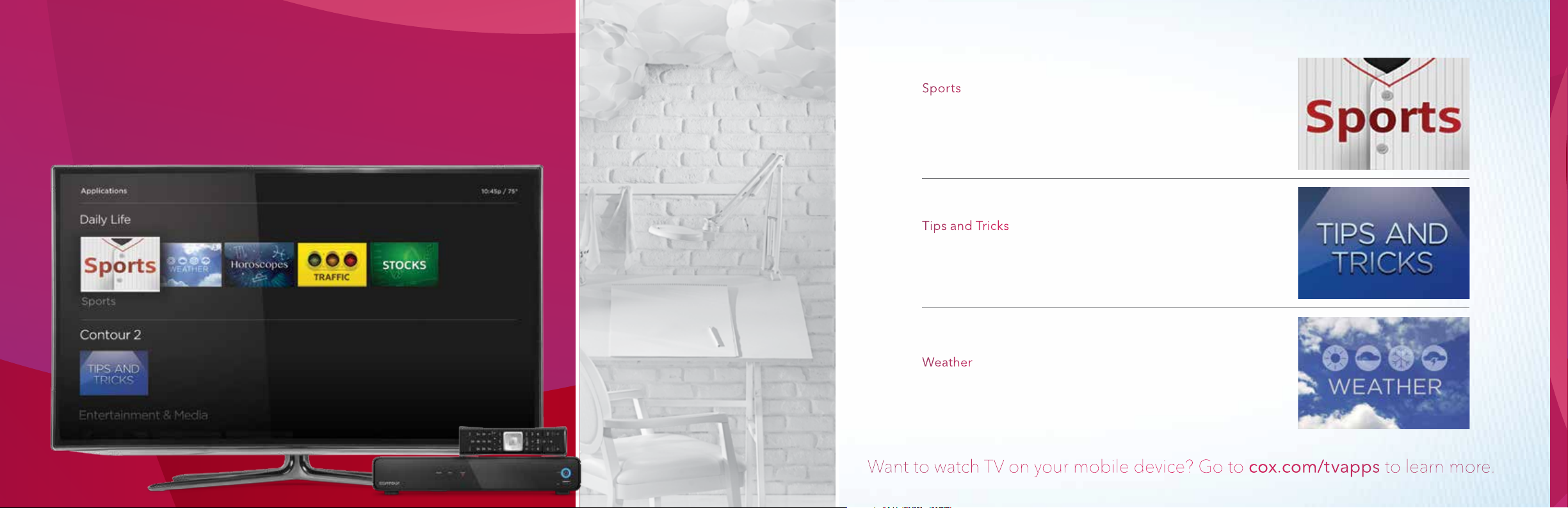
Apps Right on Your TV
Access sports scores, weather, traffic, user tips and more right on your TV.
Track the scores of multiple games at once and
keep up with your favorite teams’ schedules, all
while watching TV.
Get additional information on how to get the most
from Contour.®
Get the current and extended forecast.
41
Page 17

Using the Sports App with Contour® provides fast and easy access to live games on TV, live scores of all games currently
in progress, coverage of games you aren’t watching and upcoming game schedules. You can even watch TV and access
the Spor ts App at the same time!
While watching full-screen TV (not using the Guide), press the C key on your remote to open
the Sports App.
Press the Contour button on your remote control.
Using the Right Arrow button, scroll to highlight Apps. Press
the OK button.
Using the Right Arrow button, scroll to highlight Sports.
Press the OK button.
The app will launch on the right-hand side of the screen.
You will still be able to view the current live TV channel on
the left-hand side of the screen.
Press Exit once to return to the Apps menu, or press Exit
twice to return to standard TV viewing.
43
Page 18

A // This message may indicate that the TV is not tuned to the proper input or source. Press the “TV”
device button on the remote and then press the “INPUT” button to change the input selection.
A // This may be a signal issue. Check connections from the wall to the receiver to make sure they
are secure. The cable wire should be secured in the “Cable In” or “RF In” on the back of the
receiver. If they are secure and the problem persists, please visit us at www.cox.com/support
for additional assistance.
A // Try pressing the “CABLE” button and then “POWER.” If your receiver powers on or off, then try the
same thing by pressing the “TV” button and then “POWER.”
receiver, splitter, TV and other devices.
is damaged, contact support to schedule
a service visit.
by either unplugging the power cord from
the outlet or from the back of the cable box.
Then wait 15–30 seconds.
TV/ VIDEO, SOURCE or Antenna) on the TV
or the remote control that came with the TV.
on the screen. It may be labeled Cable TV, CATV,
CAB, Input 1, Video 1, Antenna 1, AV1, HDMI, DVI
or another name. Check your TV user manual.
from the digital receiver to the TV (such as cable,
AV, HDMI, DVI or component).
A // First, make sure the cable wire is secured tightly to the back of the receiver. Then unplug the
power from the receiver. Wait approximately 15–30 seconds before plugging the power back
into the receiver to begin the IPG downloading process. This will take about five minutes
to complete.
NOTE: While the Guide is downloading information, you can operate the remote control, but IPG
information may be unavailable for those five minutes.
plugging the power cord either back into the wall
outlet or into the back of the digital receiver.
to reset. When the clock on your digital receiver
activates, the reset is complete.
live TV to see if the option restored the picture.
45
 Loading...