

Page 1

ComproDVD2 User's Guide
Compro Technology, Inc.
www.comprousa.com
Page 2

Copyright © 2001-2005. Compro Technology, Inc. No part
of this document may be copied or reproduced in any form
or by any means without the prior written consent of
Compro Technology, Inc.
Compro, VideoMate, Poladyne, Play with Power, and the
Compro logo are trademarks of Compro Technology, Inc.
Other names and marks are trademarks of their respective
owners.
COMPRO makes no warranties with respect to this
documentation and disclaims any implied warranties of
merchantability, quality, or fitness for any particular purpose.
The information in this document is subject to change
without notice. COMPRO reserves the right to make
revisions to this publication without obligation to notify any
person or entity of any such changes.
Compro Technology, Inc.
Tel. +886 2 2918 0169, Fax +886 2 2915 2389
3/F, No.12, Alley 6, Lane 45, Pao Shin Road
Hsintein City, Taipei, Taiwan.
www.comprousa.com
Page 3

Table of Contents
Table of Contents
1 Introduction ..................................................... 1
Main Features ................................................... 2
2 Remote Control ............................................... 3
Definitions and Usage....................................... 3
3 ComproDVD User Interface............................ 6
Control Panel .................................................... 6
Configuration..................................................... 8
General Options............................................ 8
Video and Audio Options .............................. 9
Capture and Playlist Options ...................... 10
4 Using ComproDVD........................................ 11
Playing DVDs.................................................. 11
Playing VCD/SVCD..................................... 12
Right-Click Mouse Menu............................. 12
Playlist......................................................... 13
Capturing images........................................ 14
Playing Audio CD ........................................ 14
Viewing by bookmarks ................................ 14
Page 4
1 Introduction
1 Introduction
Stability, simplicity, and superiority. ComproDVD
epitomizes these traits to the maximum and gives users all
they wish for in a DVD player.
ComproDVD features include importing and exporting
bookmarks, creating personal video profiles, support for all
rewritable DVD formats available on this planet,
automatically resuming from the last scene and much,
much more!
So continue your amazing DVD journey with ComproDVD,
an experience that you had never thought possible, nor
imaginable. Life just got better.
1
Page 5

Main Features
z Deluxe, ergonomic, multi-function IR remote control.
z Supports full resolution video playback at 720x480 for
NTSC and 720x576 for PAL.
z Correct aspect ratio and deinterlaced video frame
capturing.
z Supports DVD (MPEG-2), DVD VR, VCD (MPEG-1),
SVCD, cDVD, cdDVD, miniDVD formats and DVD
files on hard disk drive (HDD) playback.
z Enriched playback smoothness and removal of
jitter/jerkiness.
z Supports audio CD and MP3 playback.
1 Introduction
z Title and chapter navigation through numerous and
blazing fast methods.
z Navigation slider allows a direct and instantaneous
link to any scene.
z Step frame feature incorporating both forward and
backward directions.
z Proprietary dual subtitles capability.
z Closed captioning support.
z Language and subtitles selection.
z Auto-Resume continues exactly where DVD playback
had left off previously.
z A-B repeat function that lets you set your favorite
scenes for instant repeat to your heart's delight.
z Import and export your bookmarks.
z Bookmark viewer provides a visual display of all
bookmarked scenes.
z Snapshot your favorite pictures.
z Create playlist along with shuffle and repeat functions
2
Page 6

2 Remote Control
2 Remote Control
Definitions and Usage
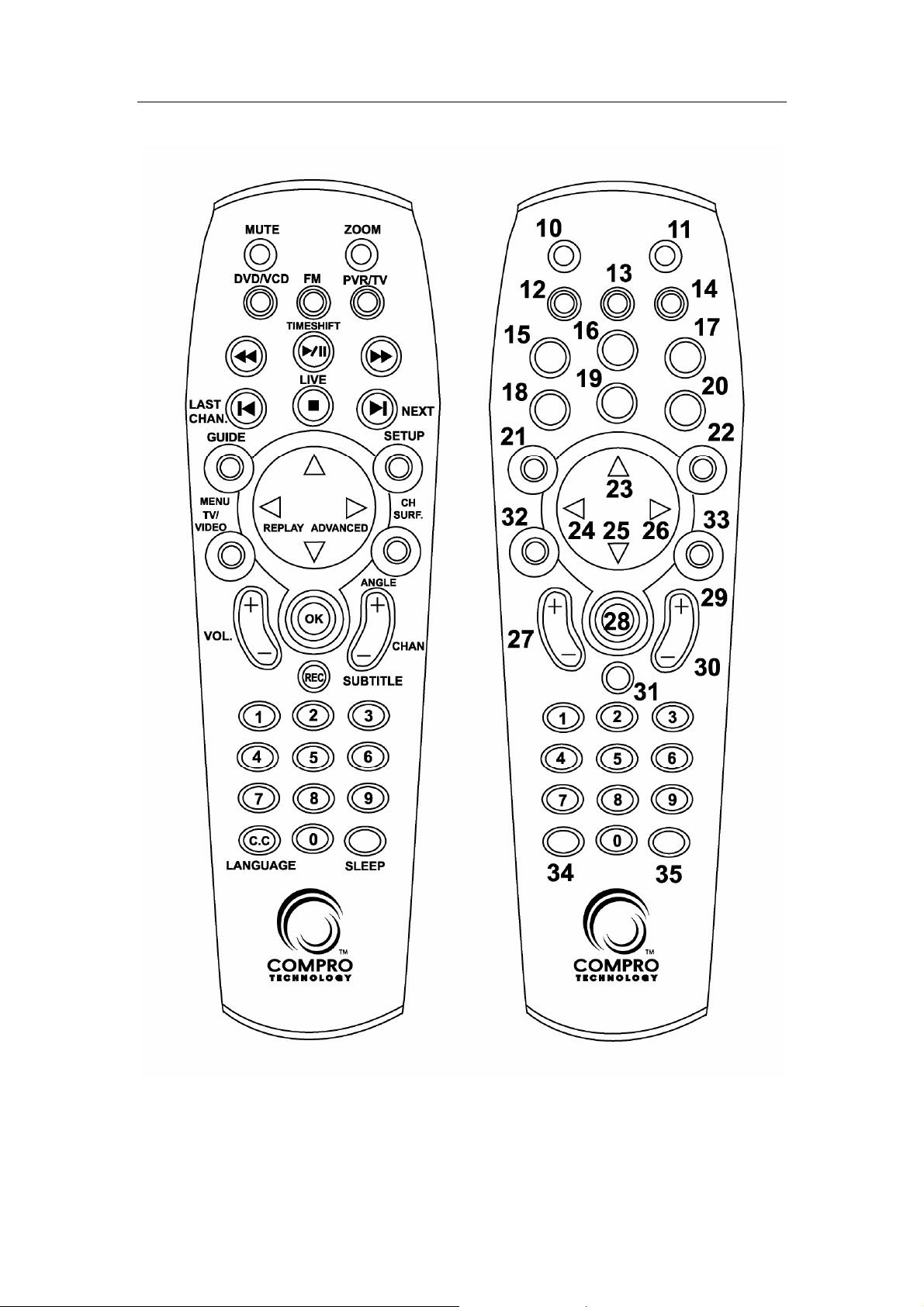
Remote control keypad lets you control the ComproDVD
application with a familiar, user-friendly interface.
The next two pages describe how to use the remote control
to operate ComproDVD.
Not all products support remote function. Please check the
description on the product box.
There are different kinds of remote controls. The following
illustrate one of the kinds only. Please refer the product
installation guide for more information.
Note
The Compro remote control cannot be reprogrammed to control other
appliances such as your VCR or satellite decoder box.
3
Page 7
2 Remote Control
4
Page 8

2 Remote Control
Key Number ComproDVD Function
0-9 Number Key (for CD player only)
10 Mute
11 Minimize/Maximize
12 Start/Stop ComproDVD
13 Start/Stop ComproFM (if available)
14 Start/Stop ComproPVR (if available)
15 Rewind (2 to 32 times speed)
16 Play/Pause during playback
17 Forward (2 to 32 times speed)
18 Jump to last chapter
19 Stop
20 Jump to next chapter
21 Main manual
22 Open properties setup dialog box
23 Up Arrow
24 Left Arrow
25 Down Arrow
26 Right Arrow
27 Volume Adjustment
28 OK
29 Choose DVD Angle (if available)
30 DVD subtitle select
31 Snapshot
32 Add to Bookmark
33 Go to Bookmark
34 Select Language
35 AB repeat (Set A / Set B to repeat / Cancel)
5
Page 9
3 ComproDVD User Interface
Control Panel
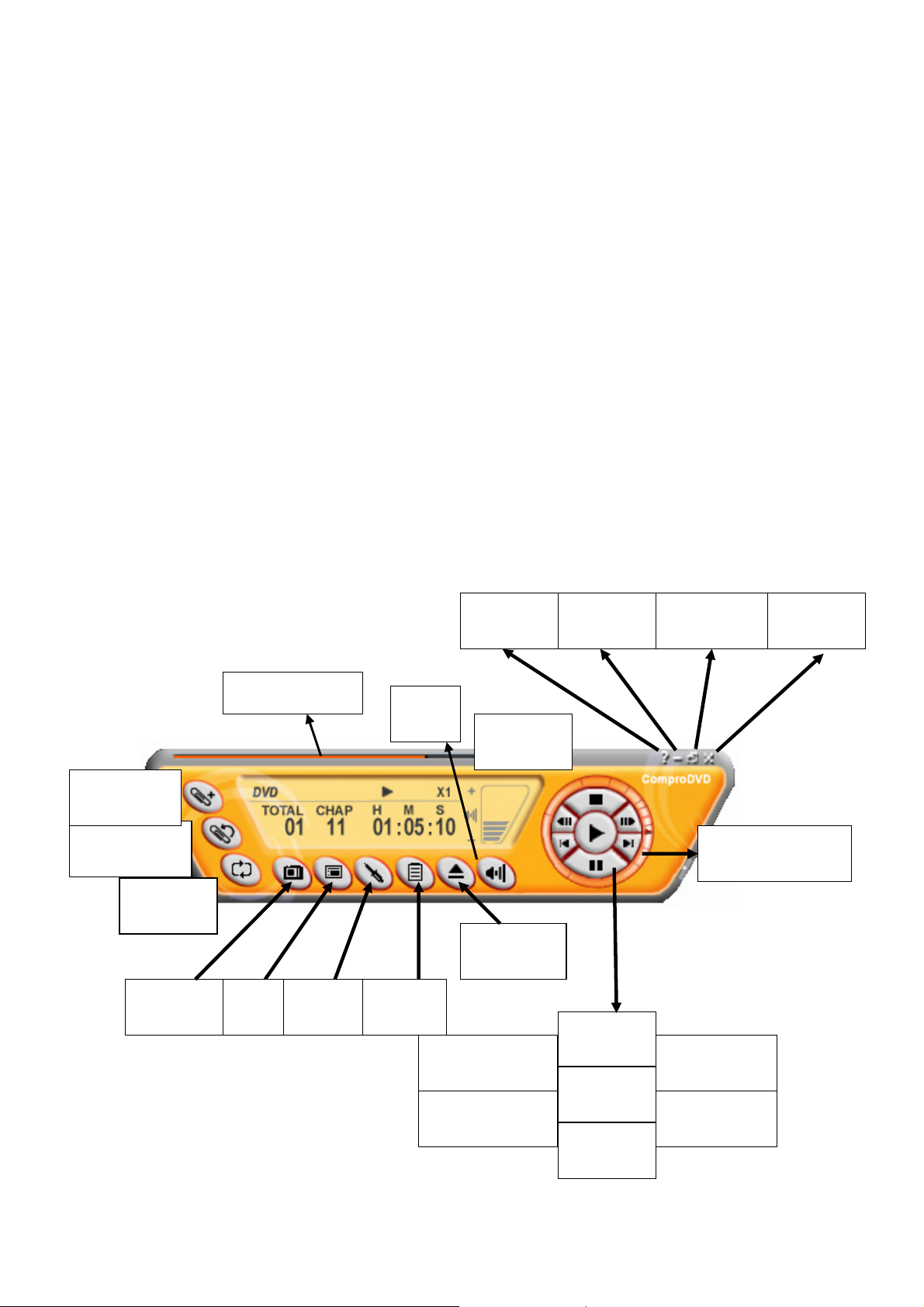
The ComproDVD control panel resembles the controls on a
VCR. Keep in mind that not all options are available at all
times, and may be grayed out or inaccessible depending on
your hardware setup and DVD services available. The
following pages describe the ComproDVD control panel
functions and usage tips
The following describe the ComproDVD control panel
functions, and tips for using ComproDVD. The following
figure gives you the function of the button with (Hot Key.)
Add Bookmark
(F6)
Go to Bookmark
(F5)
Repeat
(R)
Snapshot
(G)
Progress bar
Menu
(M)
Options
(E)
Mute
(M)
Media
Source
Help
(H)
Volume
(+, -)
Eject
(CTRL+E)
Step backward
( / )
Last chapter
( P )
Minimize
(CTRL+N)
Stop
(S)
Play
(Enter)
Pause
(Space)
Full Screen
(W)
Shuttle search
Controls
Step forward
( . )
Next chapter
( N )
Close
(CTRL+X)
6
Page 10
ComproDVD User interface
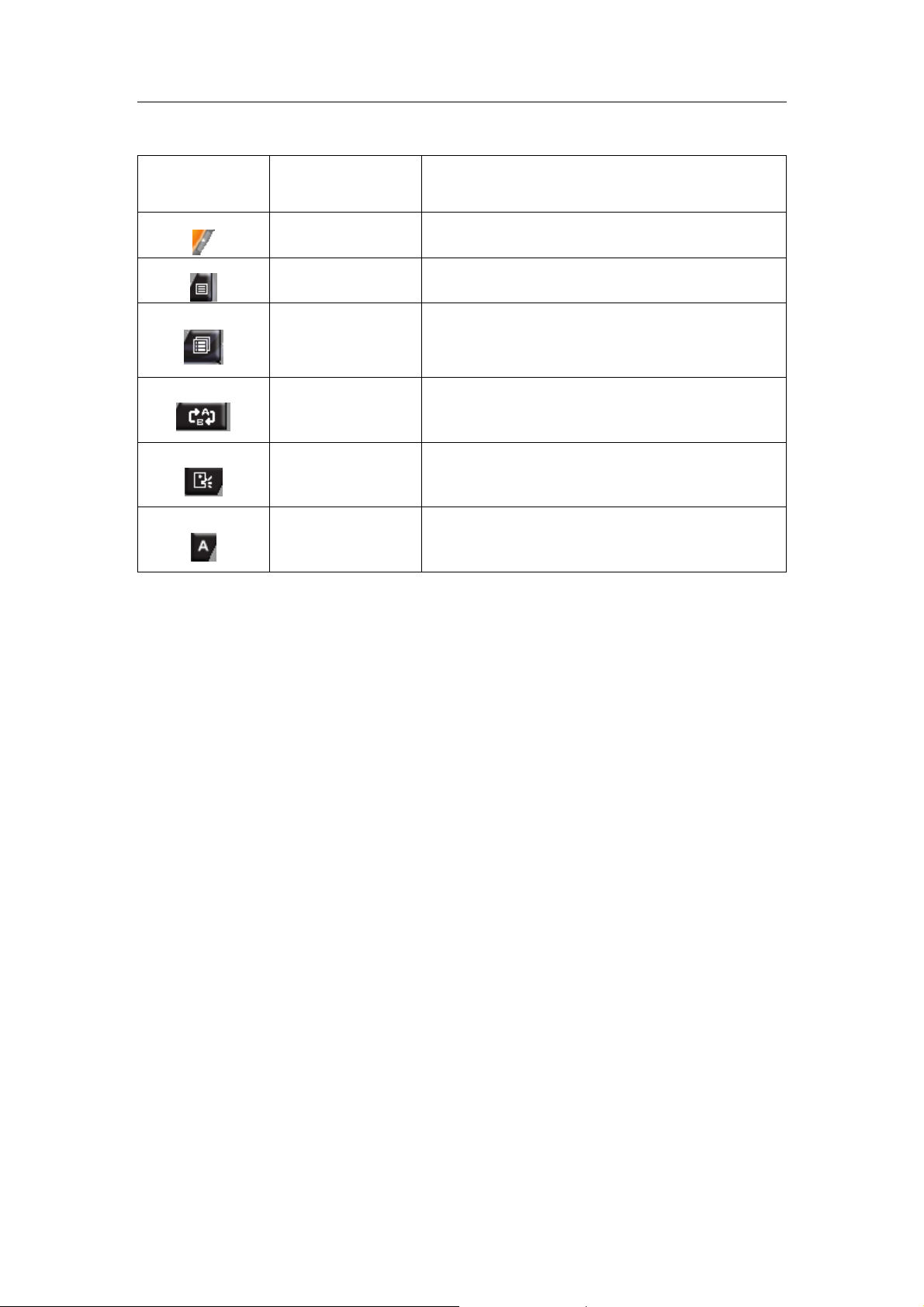
Icon Keyboard Description
n/a Show/Hide keypad
T Main menu
n/a All menus
AB repeat (Set A / Set B to repeat /
F4
Cancel)
L Select Language
U
Select Caption
7
Page 11
ComproDVD User interface
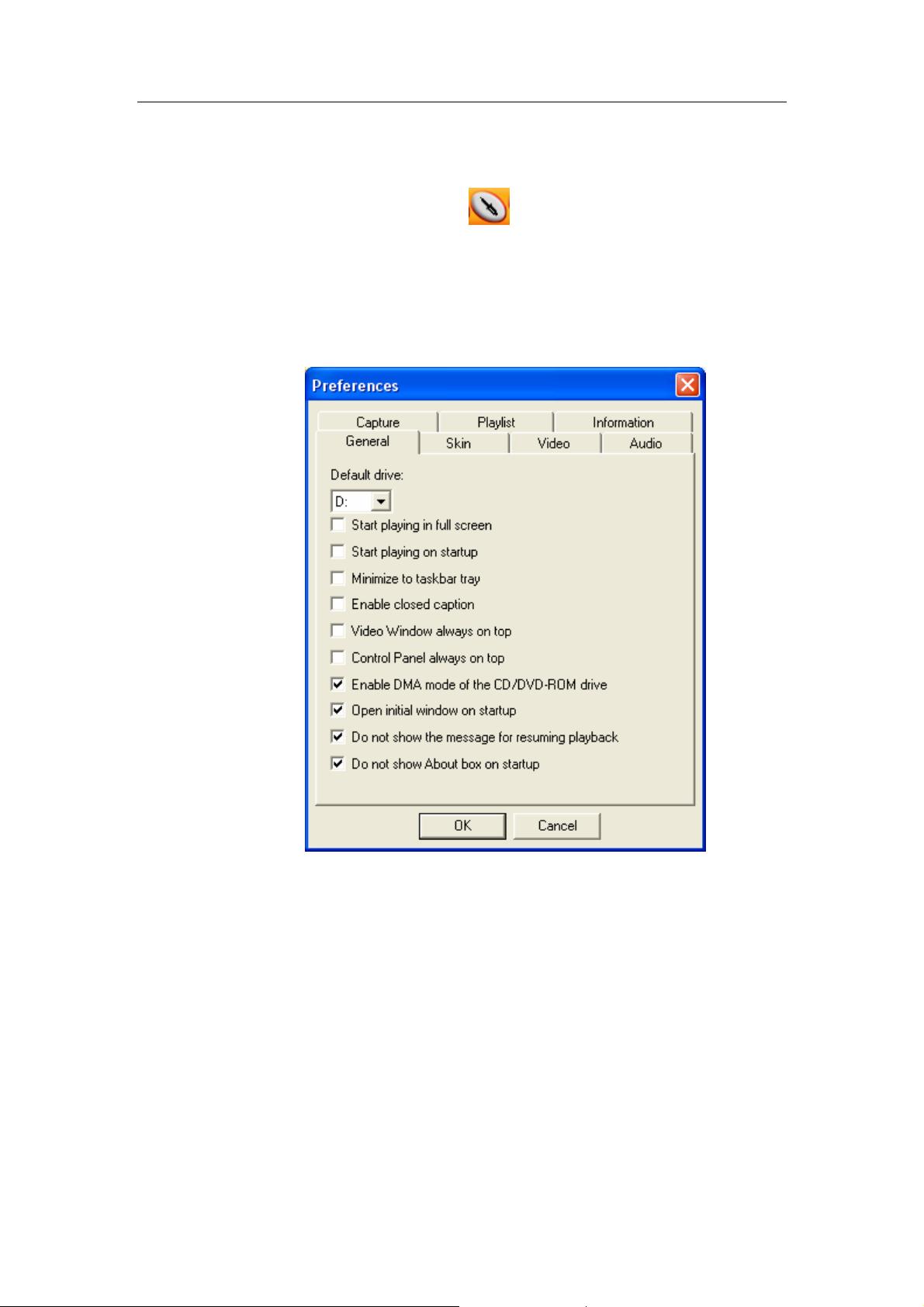
Preferences Configuration
Click on the Preferences button to open the
Preferences dialog box.
General Preferences
8
Page 12
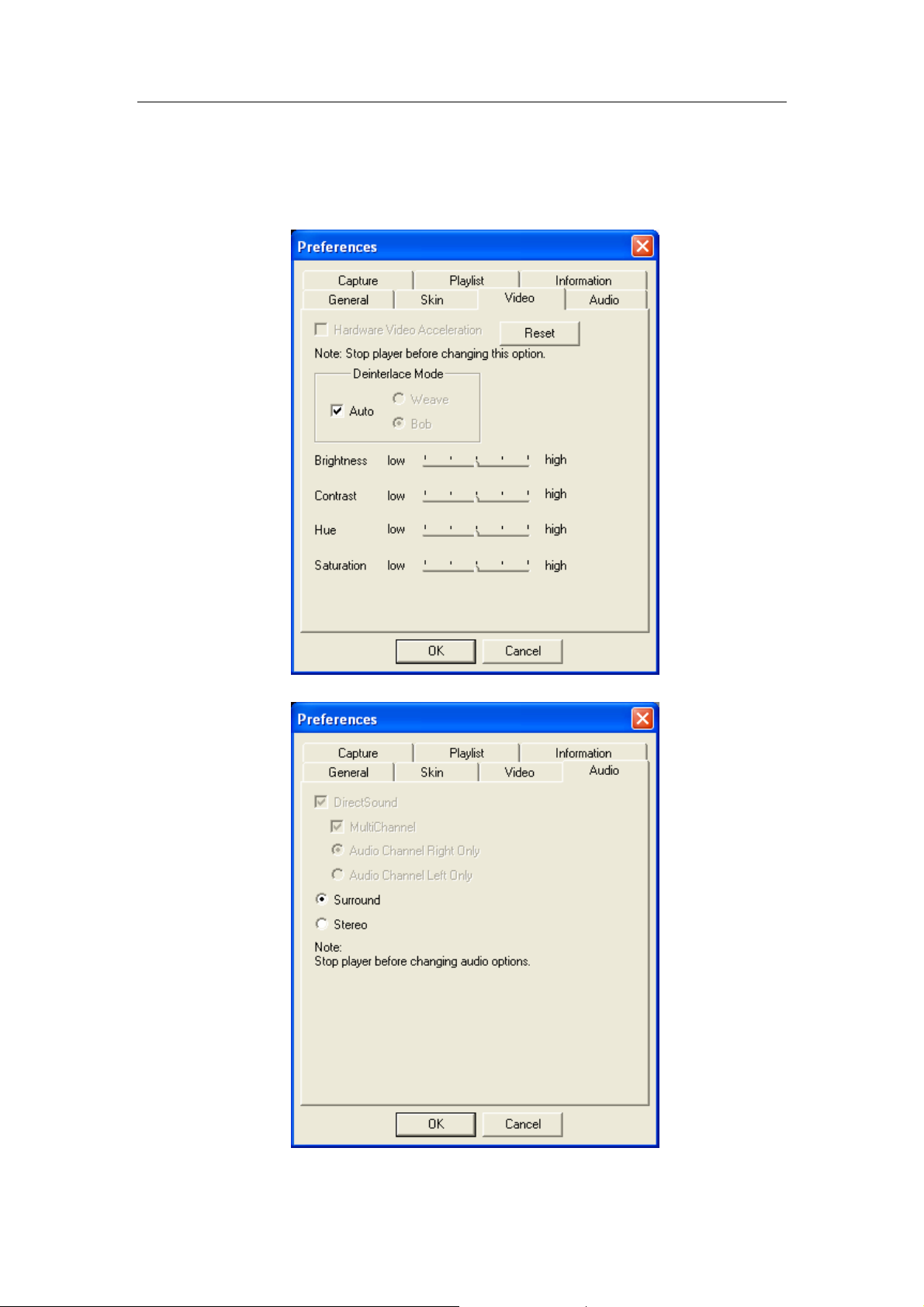
ComproDVD User interface
Video and Audio Preferences
9
Page 13
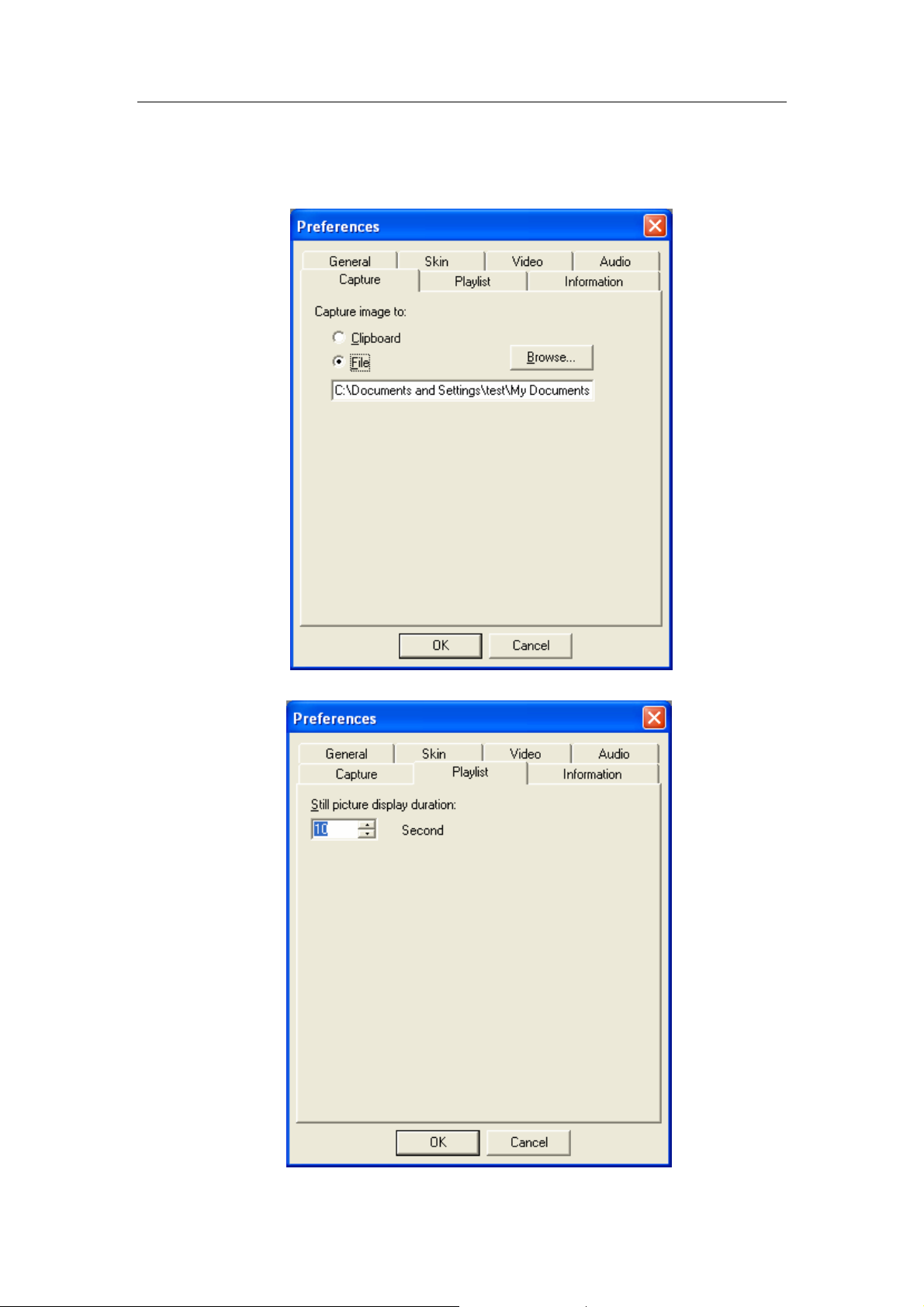
ComproDVD User interface
Capture and Playlist Preferences
10
Page 14

Using ComproDVD
4 Using ComproDVD
Playing DVDs
After the installation, just click the ComproDVD icon to play
your favorite DVD video. The functions are the same as
your VCR except more powerful. Navigate DVD with
Compro’s deluxe wireless remote control. Adjust volume,
full screen display, open and exit programs with one touch.
Insert your DVD disc and click Play. Be sure that the source
is correct. If not, click
After the promotional content, you will be presented with the
main menu. With your mouse, select by clicking once. The
DVD will begin playing.
to choose the right drive.
Navigating During Playback
If you would like to skip over certain chapters or return to
more exciting scenes, ComproDVD provides quick methods
of navigation.
Jump Functions
During playback, click Next and Previous during playback
or in pause mode to skip a chapter or return to the previous
one.
Step Frame Functions
These functions are available anytime.
During playback, click Step Forward to go to the next frame
or for the previous frame, click Step Backward.
After you have clicked on any of the Step functions,
playback will be paused.
11
Page 15
Playing VCD/SVCD
ComproDVD allows you to play practically anything with
digital content, and this includes VCD formats (Video CD
and Super Video CD) or audio CD. Of course, because of
VCD / SVCD’s inherent limitations, it will not be able to fully
utilize all DVD functions.
Keep in mind that SVCD is relatively a new format, and like
VCD, the authoring will be different title from title.
The VCD/SVCD will begin playing. Depending on the
VCD/SVCD title, some may offer a title menu. Depending
on your title, the on screen menu selection can be clicked
on directly or use the Number Pad to select.
All VCD / SVCDs will have the capability of navigating, so
put the navigational slider to full use and navigate as you
like.
Using ComproDVD
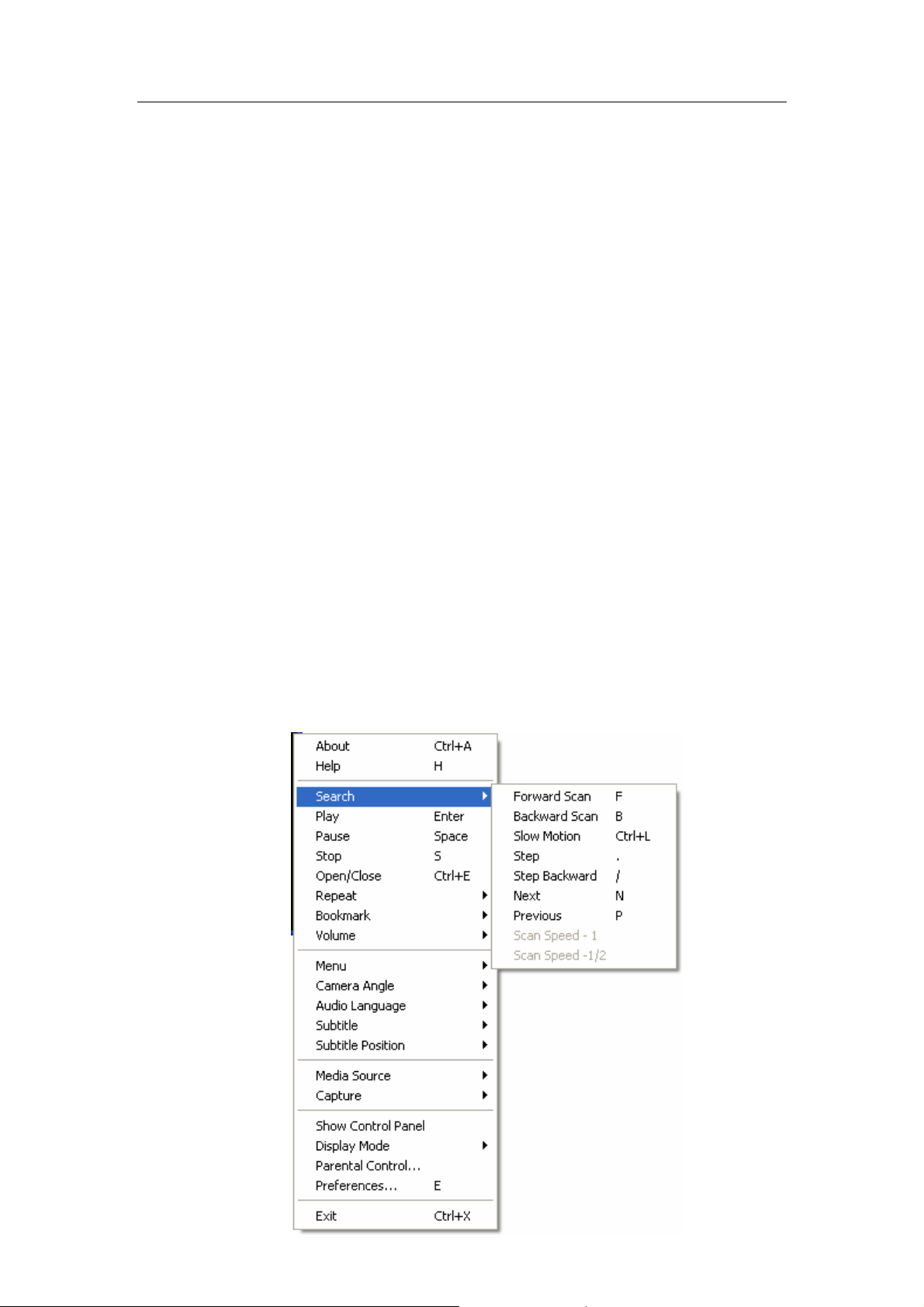
Right-Click Mouse Menu
If using mouse by right-clicking on the DVD screen, you can
see the menu below. There are many useful options for
your convenience.
12
Page 16
Playlist
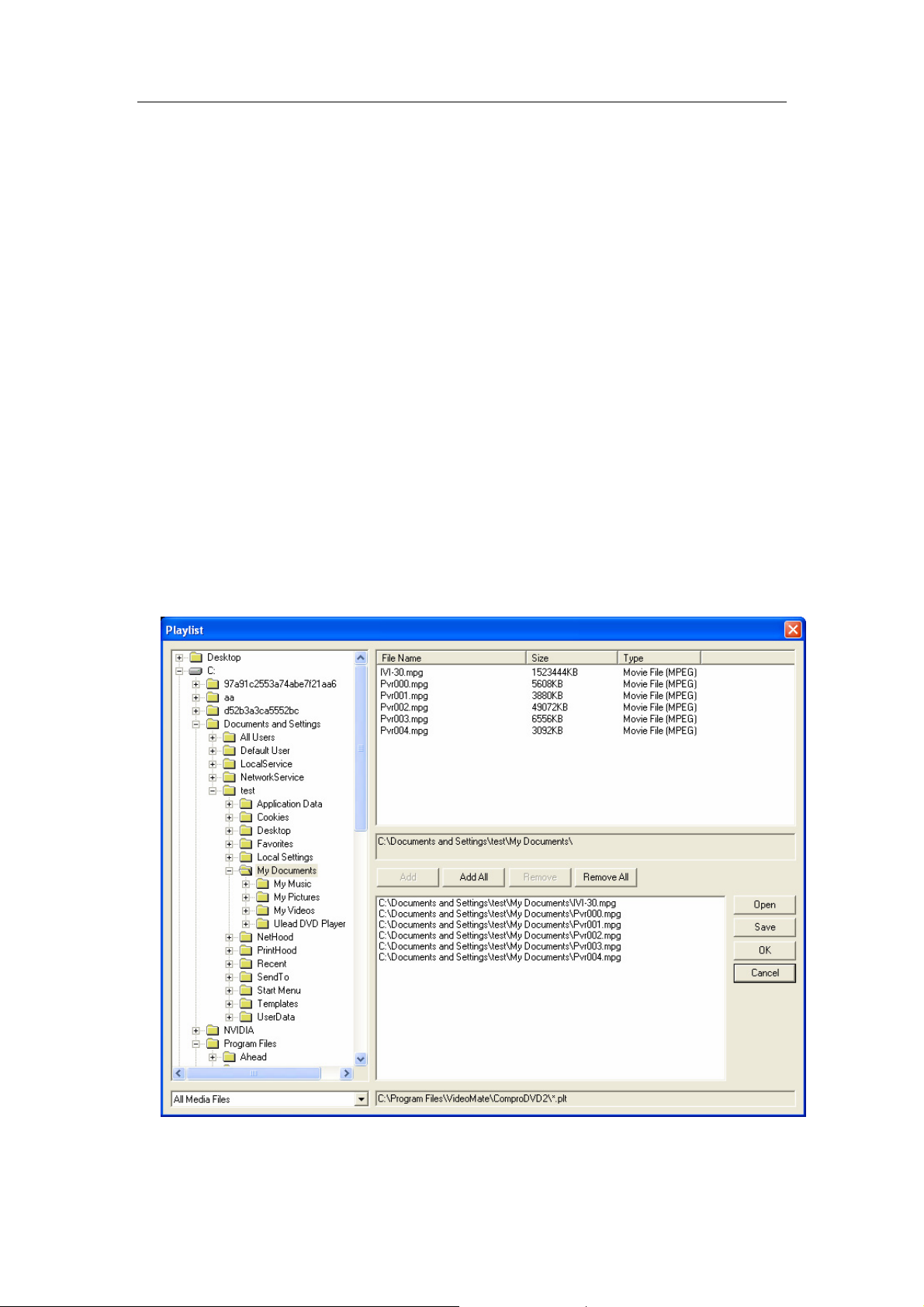
A Playlist is a series of media files that are played in
sequence.
To create a playlist:
1. Right-click the Control Panel or the Video Window and
2. Use the left pane to locate the folder(s) containing the
3. Select the file(s) from the upper pane and click Add or
4. Repeat steps 2 and 3 to add more files. Click Save to
Using ComproDVD
select Media Source: Playlist.
file(s) you want to add to the playlist.
Add All to add them to the playlist.
save the playlist.
5. Click OK to start playback. (Click Open to select an
existing playlist, and then click OK to start playback.)
13
Page 17

Capturing images
ComproDVD Player allows you to capture still images from
videos. To capture, select Capture: Capture Image [G] in
the right-click menu.
In the Preferences dialog box - Capture tab, you can
choose to either capture images to the clipboard or save
the images in your hard drive. Images are saved in the
BMP file format.
Playing Audio CD
Start ComproDVD, insert your audio CD and click Play.
To alter your Audio CD playlist, click Menu during playback
or during pause mode.
Using ComproDVD
For the default setting, your playlist will duplicate all the
tracks available on your audio CD, from the left window.
Click Clear to clear your playlist or Reset to return to the
default setting.
Viewing by bookmarks
Bookmarks are specific points in your video that you mark
so viewers can quickly go to those points in the video.
To create and use bookmarks, while the DVD is playing,
press [F5] (or select Bookmark: Add Bookmark in the
right-click menu) when you see a scene you want to add as
a bookmark. You can add as many bookmarks as you want.
Press [F6] (or select Bookmark: Go to Bookmark in the
right-click menu) to jump to a bookmarked scene.
14
Page 18
Using ComproDVD
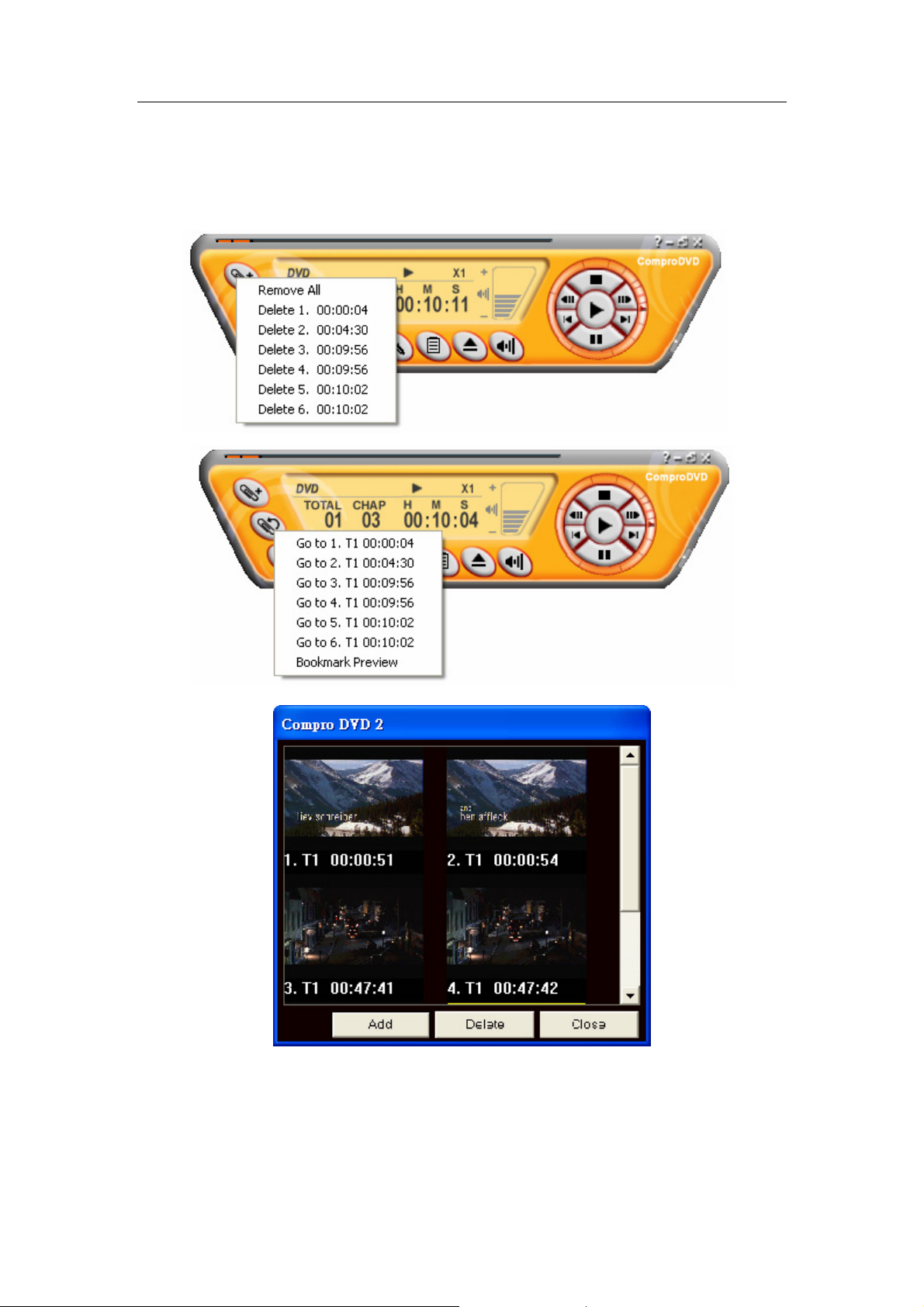
If you move mouse over the bookmark button, you will see
the follows.
15
 Loading...