

Page 1
AUDIO AND TELEMATICS GUIDE
Page 2

On-line handbook
If the "MyCITROËN" function is not available on the CITROËN public
website for your country, you can fi nd your handbook at the following
address:
http://service.citroen.com/ddb/
Find your handbook and the audio and telematic systems on the
CITROËN website, under "MyCITROËN".
Find your handbook and the audio and telematic systems on the
Find your handbook and the audio and telematic systems on the
Select:
Select one of the following means of access to view your handbook on-
line...
the language,
the vehicle, its body style,
the print edition of your handbook appropriate for the date of
registration of your vehicle.
Referring to the handbook on-line also gives you access to the latest
information available, easily identifi ed by the bookmark, associated with
this symbol:
Page 3
CITROËN Connect Nav
GPS satellite navigation - Applications - Multimedia audio - Bluetooth
®
®
telephone
Contents
First steps 2
Steering mounted controls 5
Menus 6
Voice commands 8
Navigation 14
Connected navigation 30
Applications 40
Radio Media 54
Telephone 66
Settings 78
Frequently asked questions 88
The system is protected in such a way
that it will only operate in your vehicle.
Displaying of the
Energy Economy
Mode
message signals that a change
to standby is imminent.
The different functions and settings
described vary according to the version
and configuration of your vehicle.
The link below gives access to OSS
(Open Source Software) codes for the
system.
http://www.psa-peugeot-citroen.com/oss
As a safety measure and because it
requires sustained attention by the
driver, the pairing of a Bluetooth mobile
telephone with the Bluetooth hands-
free system of your audio system must
be done with the
vehicle stationary
and the ignition on.
Audio and Telematics
.
1
Page 4
Audio and Telematics
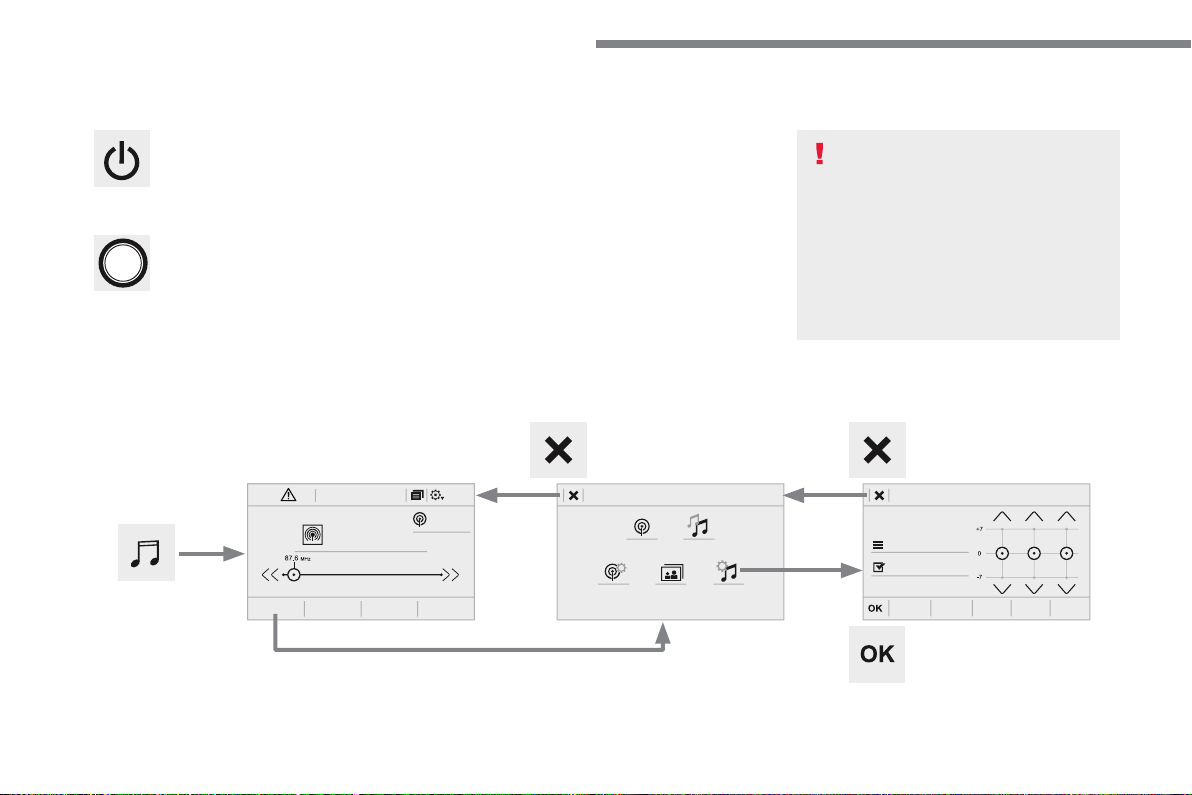
With the engine running, a press
mutes the sound.
With the ignition off, a press turns the
system on.
Volume.
Use the buttons either side of or below the
touch screen for access to the menus, then
press the virtual buttons in the touch screen. All
of the touch areas of the screen are white.
Press the cross to go back a level.
Press "OK" to confirm.
The touch screen is of the "capacitive"
type.
To clean the screen, use a soft, non-
abrasive cloth (spectacles cloth) with
no additional product.
Do not use sharp objects on the
screen.
Do not touch the screen with wet
hands.
First steps
FM/87.5 MHz
87.5MHz
12:1318,5 21,523 °C
2
Page 5
Audio and Telematics
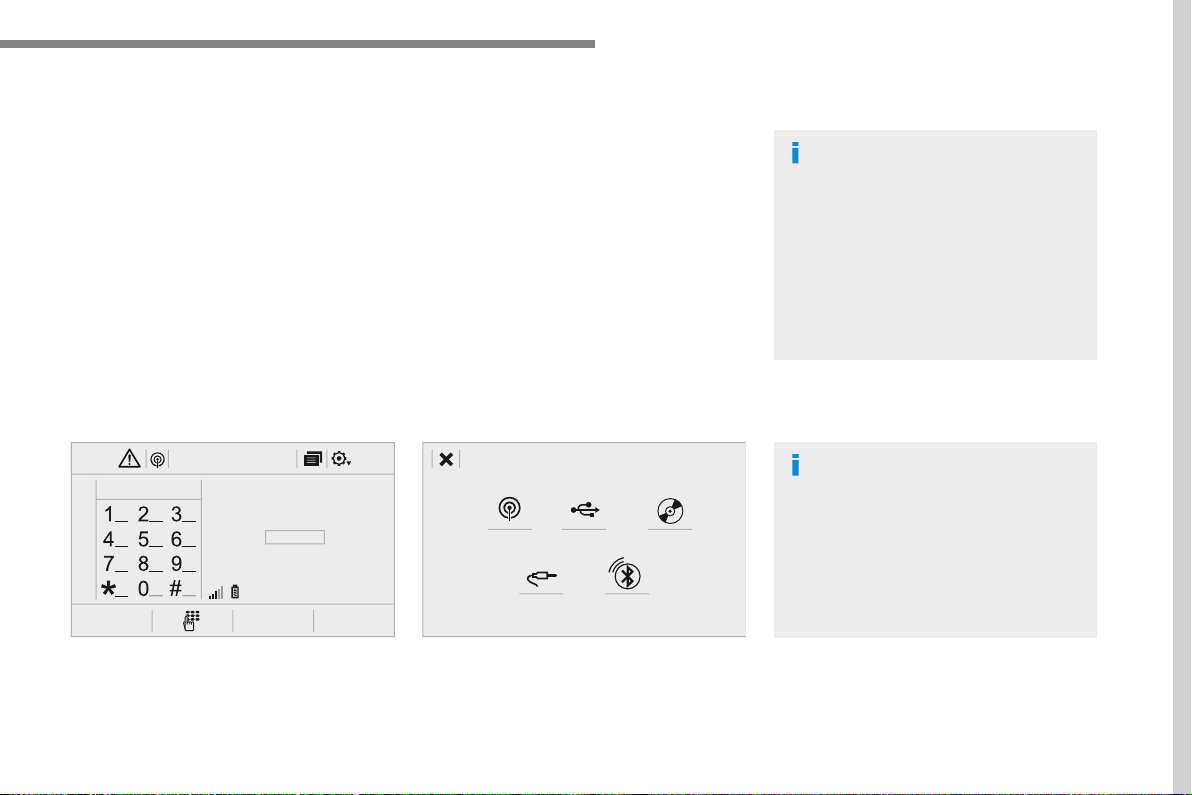
Select the audio source (depending on
version):
- FM / DAB * / AM * radio stations.
- USB memor y stick.
- CD player.
- Media player connected via the auxiliary
socket (Jack, cable not supplied).
- Telephone connected by Bluetooth * using
Bluetooth * audio streaming.
* Depending on equipment.
Certain information is displayed permanently in
the upper band of the touch screen:
- Reminder of the air conditioning
information and direct access to the
corresponding menu.
- Go directly to the selection of the audio
source, to the list of radio stations (or list of
titles depending on the source).
- Go to the message notifications, emails,
map updates and, depending on the
services, the navigation notif ications.
- Go to the settings for the touch screen and
the digital instrument panel.
In very hot conditions, the volume may
be limited to protect the system. It may
go into standby (screen and sound off)
for at least 5 minutes.
The return to normal takes place when
the temperature in the passenger
compartment has dropped.
In the "Settings" menu you can create
a profile for just one person or a group
of people with common points, with
the possibility of entering a multitude
of settings (radio presets, audio
settings, navigation history, contact
favourites, ...); these settings are taken
into account automatically.
12:1318,5 21,523 °C
.
3
Page 6

Page 7
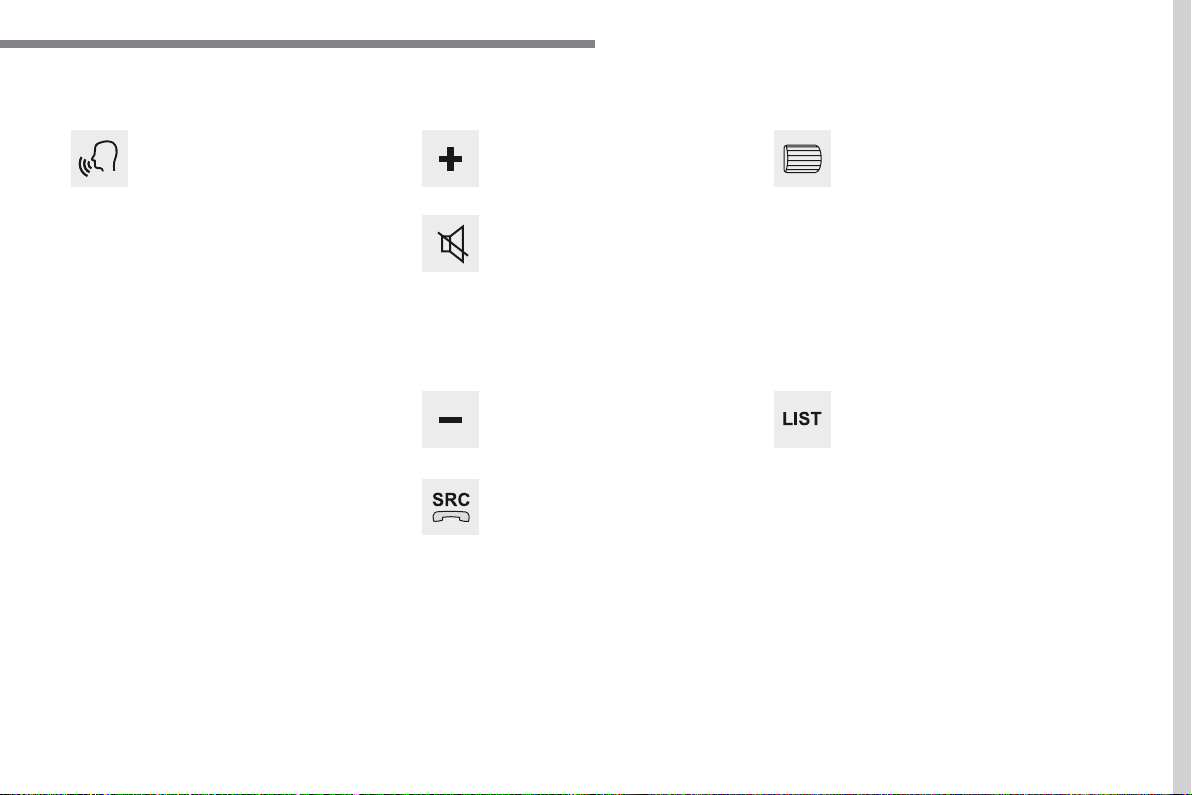
Steering mounted controls
Media
(short press): change the
multimedia source.
Telephone
(short press): call.
Call in progress
(short press):
access to telephone menu.
Telephone
(long press): reject an
incoming call, end call, access to
telephone menu.
Decrease volume.
Voice commands
:
Short press, system voice
commands.
Long press, smar tphone voice
commands via the system.
Mute / Restore the sound.
Or
Mute by pressing the volume
increase and decrease buttons
simultaneously.
Restore the sound by pressing one of
the two volume buttons.
Radio
(rotate): automatic search for
the previous / next station.
Media
(rotate): previous / next track,
move in a list.
Short press
: confirm a selection;
other than selection, access to
presets.
Radio
: display the list of stations.
Media
: display the list of tracks.
Radio
(press and hold): update the
list of stations received.
Increase volume.
Audio and Telematics
.
5
Page 8
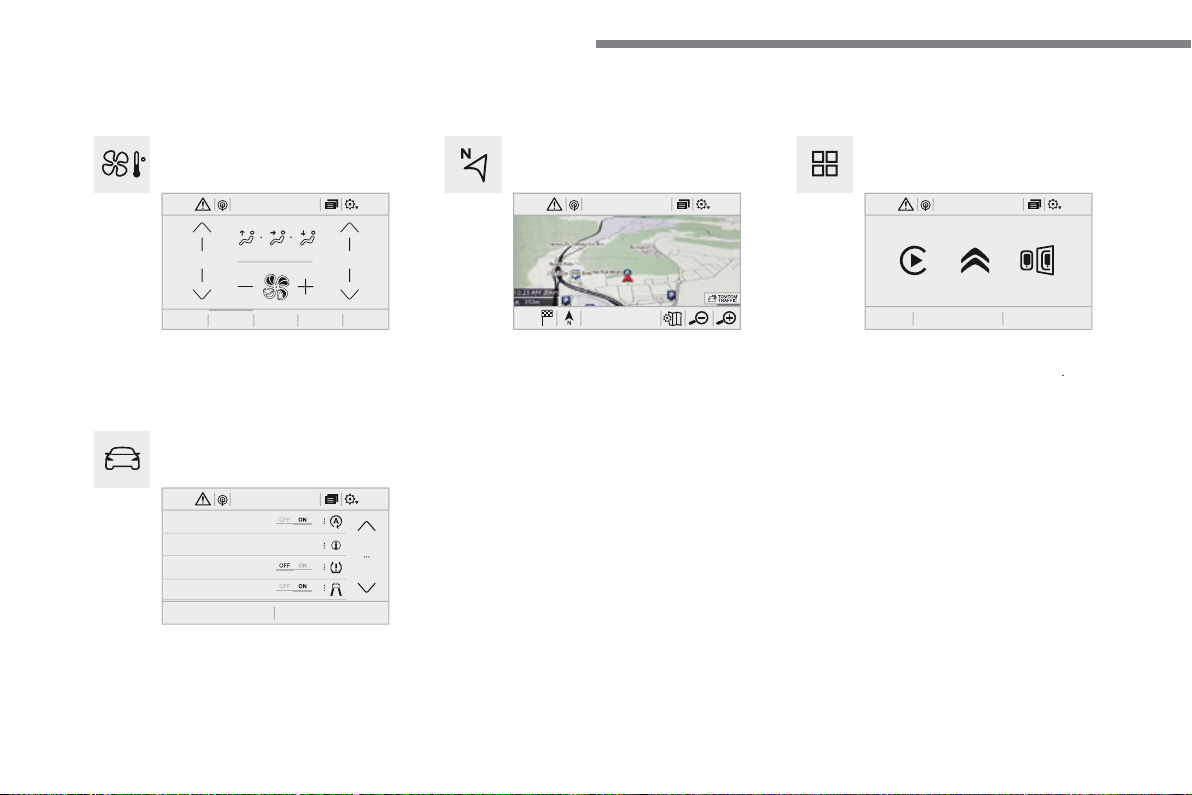
Audio and Telematics
Connected navigation
Driving
Applications
Enter navigation settings and choose a
destination.
Use ser vices available in real time, depending
on equipment.
Activate, deactivate and configure certain
vehicle functions.
Operate certain applications on a smartphone
connected via CarPlay
®
or MirrorLink
Check the state of the Bluetooth
®
and Wi-Fi
connections.
Air conditioning
Manage the various temperature and air flow
settings.
A c c o r d i n g t o v e r s i o n
Menus
6
12:1323 °C 12:1318,5 21,523 °C
21,518,5
12:1318,5 21,523 °C
12:1318,5 21,523 °C
Page 9
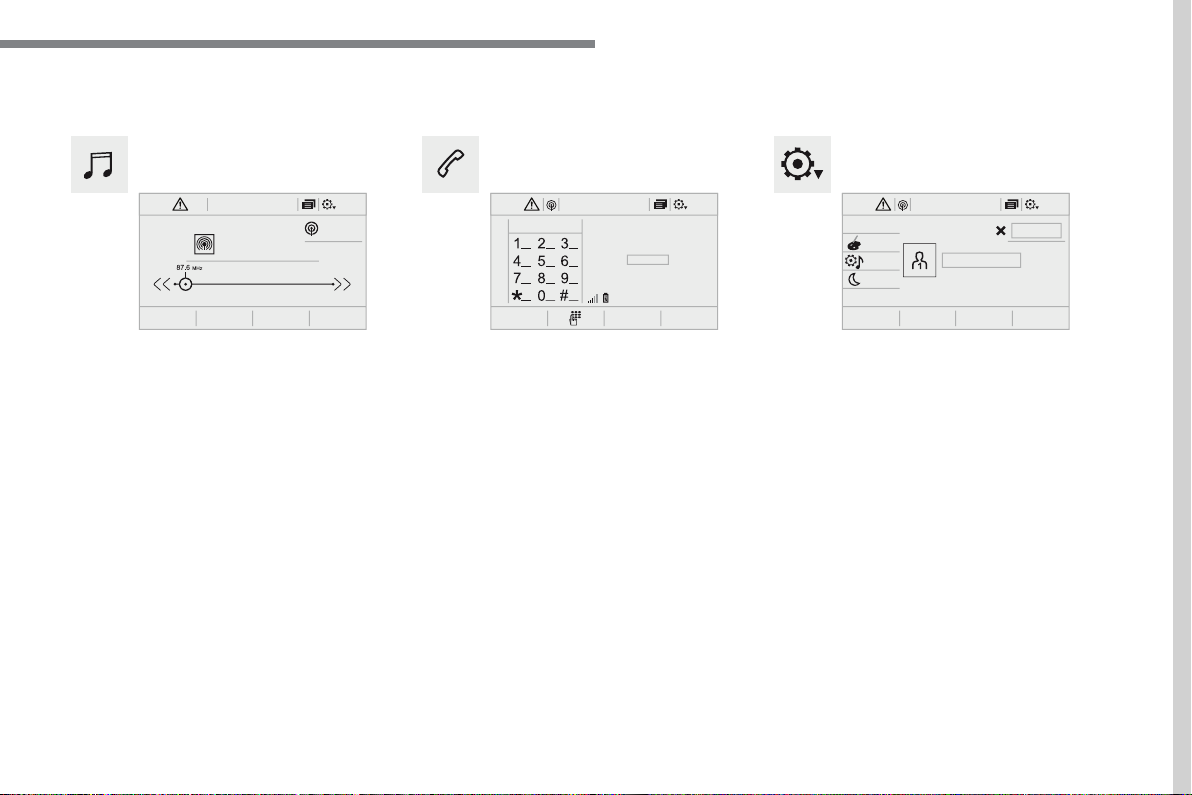
FM/87.5 MHz
Settings
Radio Media
Telephone
Conf igure a personal profile and/or configure
the sound (balance, ambience, ...) and the
display (language, units, date, time, ...).
Select an audio source, a radio station, display
photographs.
Connect a telephone by Bluetooth
®
, read
messages and emails and send quick
messages.
87.5MHz
Audio and Telematics
12:1318,5 21,523 °C 12:1318,5 21,523 °C 12:1318,5 21,523 °C
.
7
Page 10
Audio and Telematics
First steps
Steering mounted controls
Information - Using the system
Press the Push To Talk
button and tell me what you'd
like after the tone. Remember
you can interrupt me at any
time by pressing this button. If you
press it again while I'm waiting for you
to speak, it 'll end the conversation. If
you need to start over, say "cancel".
You can set the dialogue mode to
To ensure that voice commands are
- speak in a normal tone without
- always wait for the "beep" (audible
- for best operation, it is
- before making a voice command,
The voice commands, with a choice
Arabic, Brazilian), are made using the
The voice commands in Arabic for:
Alternative synonyms can be used for
E.g. Guide to / Navigate to / Go to /...
Example of a "voice command" for
.
Example of a "voice command" for
Example of a "voice command" for
.
Pressing this button activates the
Voice commands
8
Page 11
Audio and Telematics
Global voice commands
These commands can be made from any screen page after pressing the "Voice command" or "Telephone" button located on the steering
wheel, as long as there is no telephone call in progress.
There are lots of topics I can help you with.
You can say: "help with phone", "help with navigation", "help with media" or "help with
Voice command help
Select "beginner" or "expert " mode.
Select profile <...>
Select profile 1, 2 or 3.
Yes
Say "yes" if I got that right. Otherwise, say "no" and we'll star t that again.
.
9
Page 12
Audio and Telematics
"Navigation" voice commands
These commands can be issued from any screen page after pressing the " Voice command" or "Telephone" button on the steering wheel, as
Depending on the country, give the destination instructions (address) in the language used by the system.
To start guidance or add a stopover, say "navigate to" and then the address or contact
You can specify if it's a preferred or recent destination.
To get information about your current route, you can say "tell me the remaining time",
Arrival time
10
Page 13
Audio and Telematics
"Radio Media" voice commands
These commands can be issued from any screen page after pressing the " Voice command" or "Telephone" button on the steering wheel, as
You can pick a radio station by saying "tune to" and the station name or frequency.
What's playing
To display the details of the current "track", "artist " and "album", you can say "What's
Use the command "play" to select the type of music you'd like to hear.
You can pick by "song", "artist ", or "album".
Media voice commands are available only for a USB connection.
.
11
Page 14
Audio and Telematics
To make a phone call, say "call" followed by the contact name, for example: "Call David
You can also include the phone type, for example: "Call David Miller at home". To make a
You can check your voicemail by saying "call voicemail".
*
*
* This function is available only if the telephone connected to the system suppor ts downloading of contacts and recent calls and if the download has
"Telephone" voice commands
If a telephone is connected to the system, these voice commands can be issued from any main screen page after pressing the "Telephone"
If there is no telephone connected by Bluetooth, a voice message announces: "Please first connect a telephone" and the voice session will be
12
Page 15
Audio and Telematics
To hear your messages, you can say "listen to most recent message".
Please say "call" or "send quick message to", and then select a line from the list.
*
"Test message" voice commands
If a telephone is connected to the system these voice commands can be issued from any main screen page after pressing the "Telephone"
If no telephone has been connected by Bluetooth, a voice message announces: " Please first connect a telephone" and the voice session will be
* This function is only available if the telephone connected to the system suppor ts downloading of contacts and recent calls and if the download has
The system only sends pre-recorded "Quick messages".
.
13
Page 16
Audio and Telematics
A c c o r d i n g t o v e r s i o n
Navigation
12:1318,5 21,523 °C
12:1318,5 21,523 °C
12:1318,5 21,523 °C
14
Page 17
Audio and Telematics
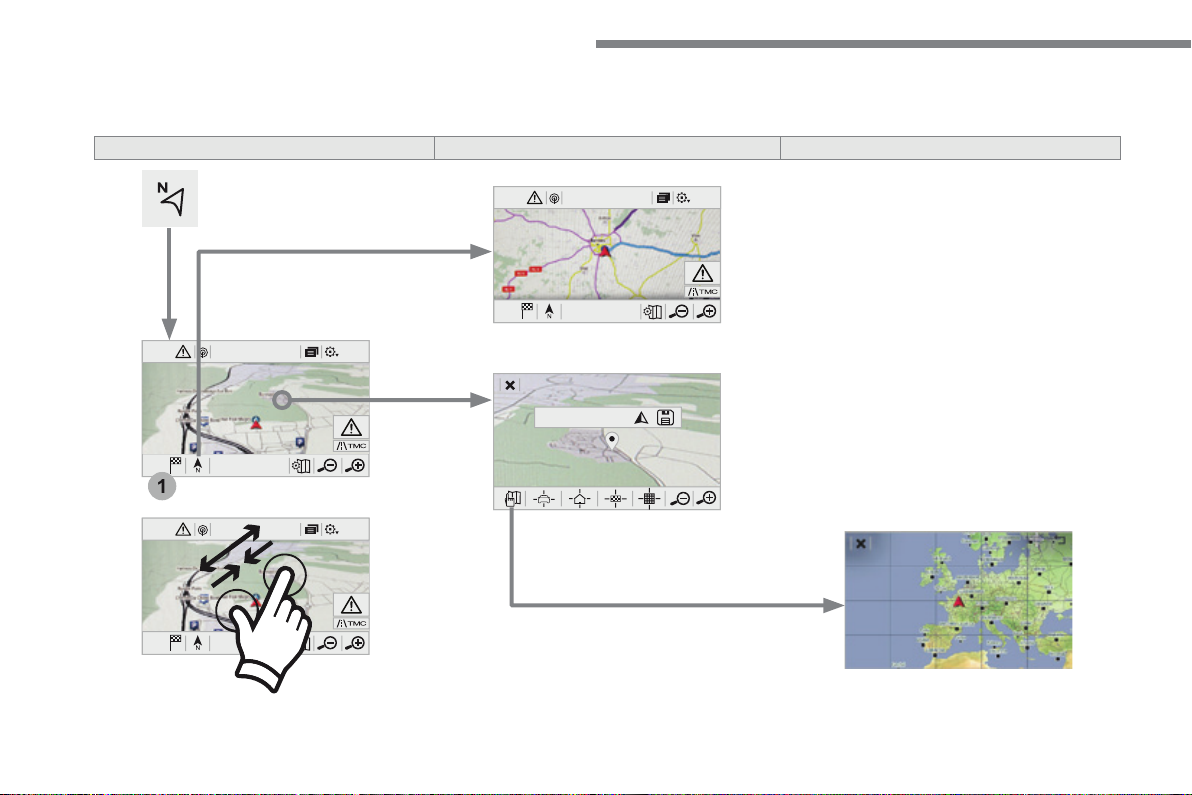
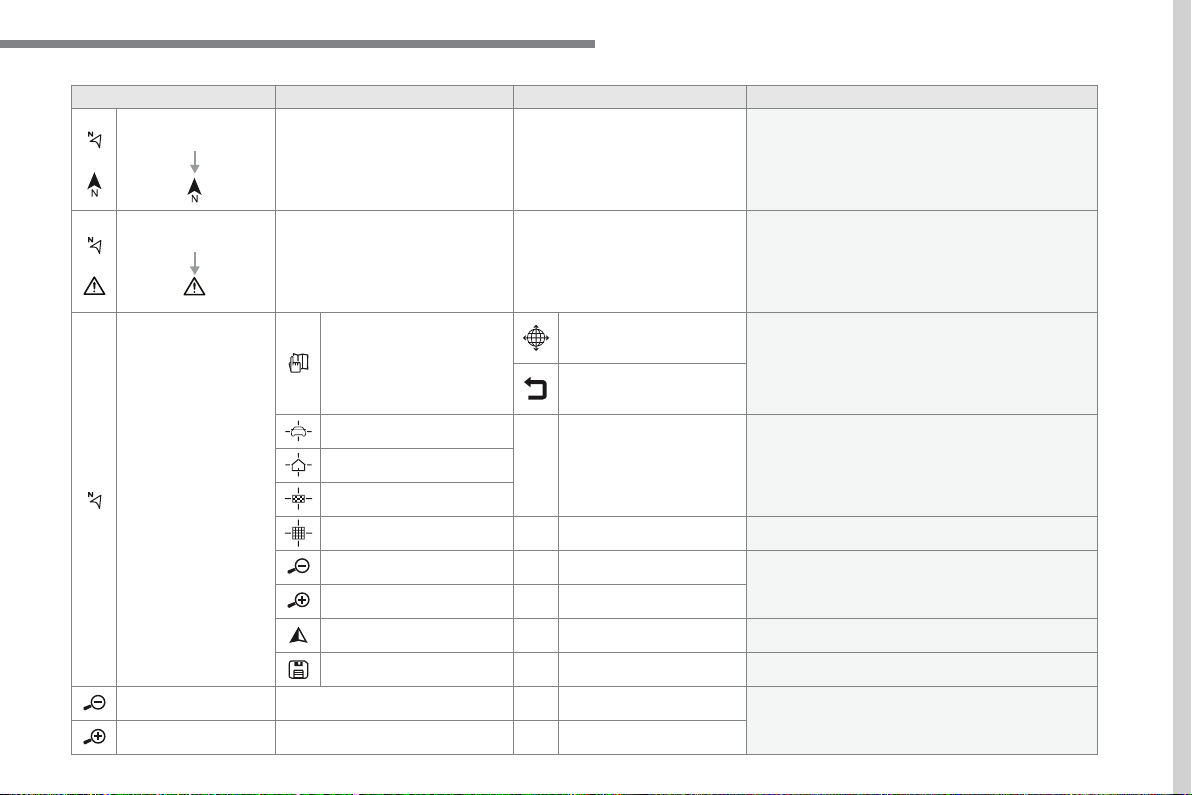
Select the orientation of the map; north up,
Display the traffic information available.
World map
Manually locate an area on the world map or enter
Around the vehicle
Display the location criteria selected.
Around home
Around the destination
2D mode
Switch to a 2D map.
Zoom out / zoom in using the touch buttons or
with two fingers on the screen.
Star t navigation to the current address.
Save the current address.
Zoom out / zoom in using the touch buttons or
with two fingers on the screen.
.
15
Page 18
Audio and Telematics
12:1318,5 21,523 °C
12:1318,5 21,523 °C
16
Page 19
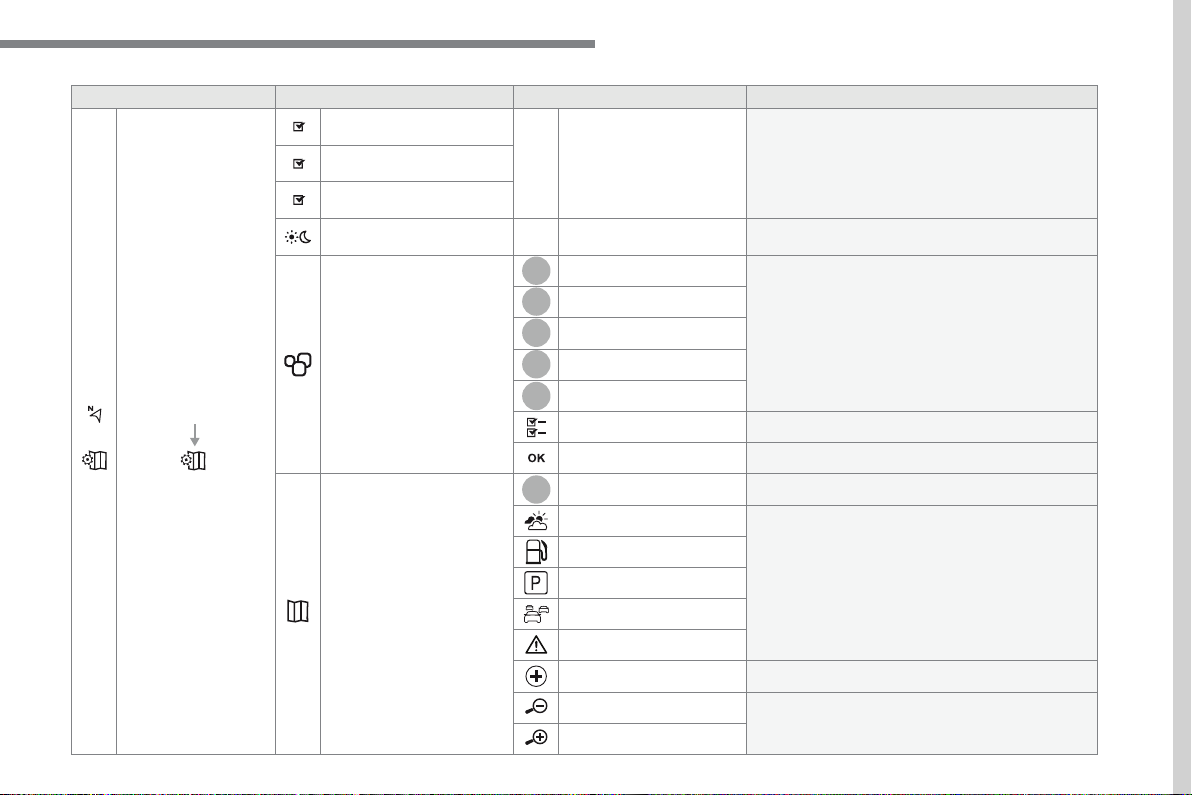
Audio and Telematics
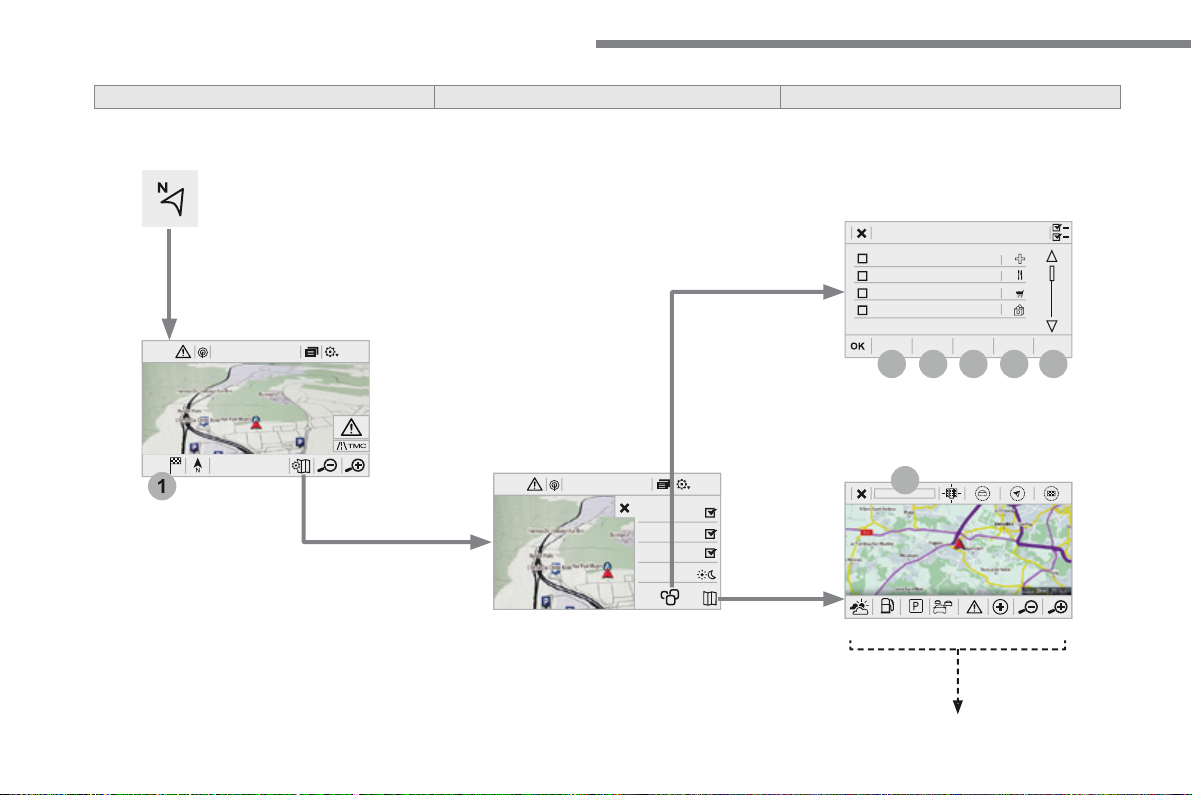
Activate or deactivate the content available
Select day or night mode for display of the map.
Travel
Select the POIs available.
Active life
Commercial
Public
Geographic
Select all
Select or deselect all.
Save your choice or selection.
View map
Modify city
Select or modify a city.
Weather
Display on the map the content available in non-
Petrol Station
Car park
Tra f f ic
Danger area
Select POI
Select from the POIs available.
Zoom out / zoom in using the touch buttons or
with two fingers on the screen.
.
17
Page 20
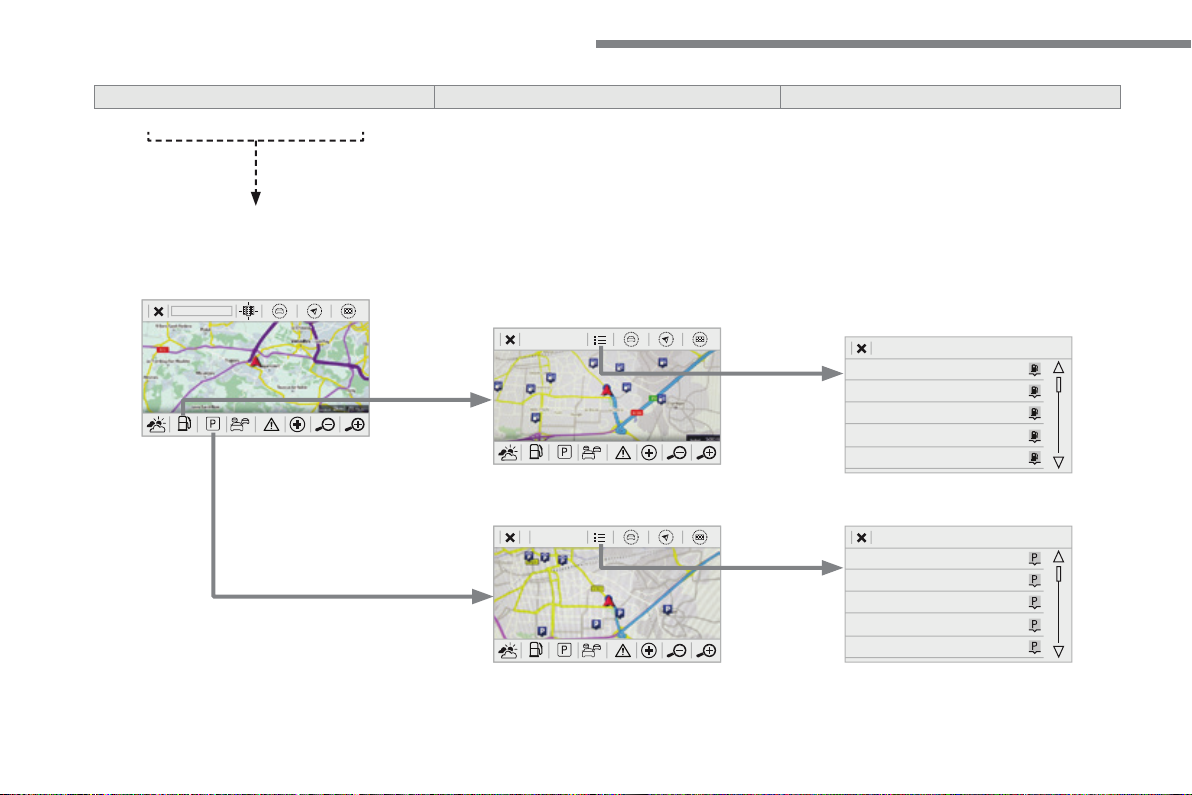
Audio and Telematics
18
Page 21
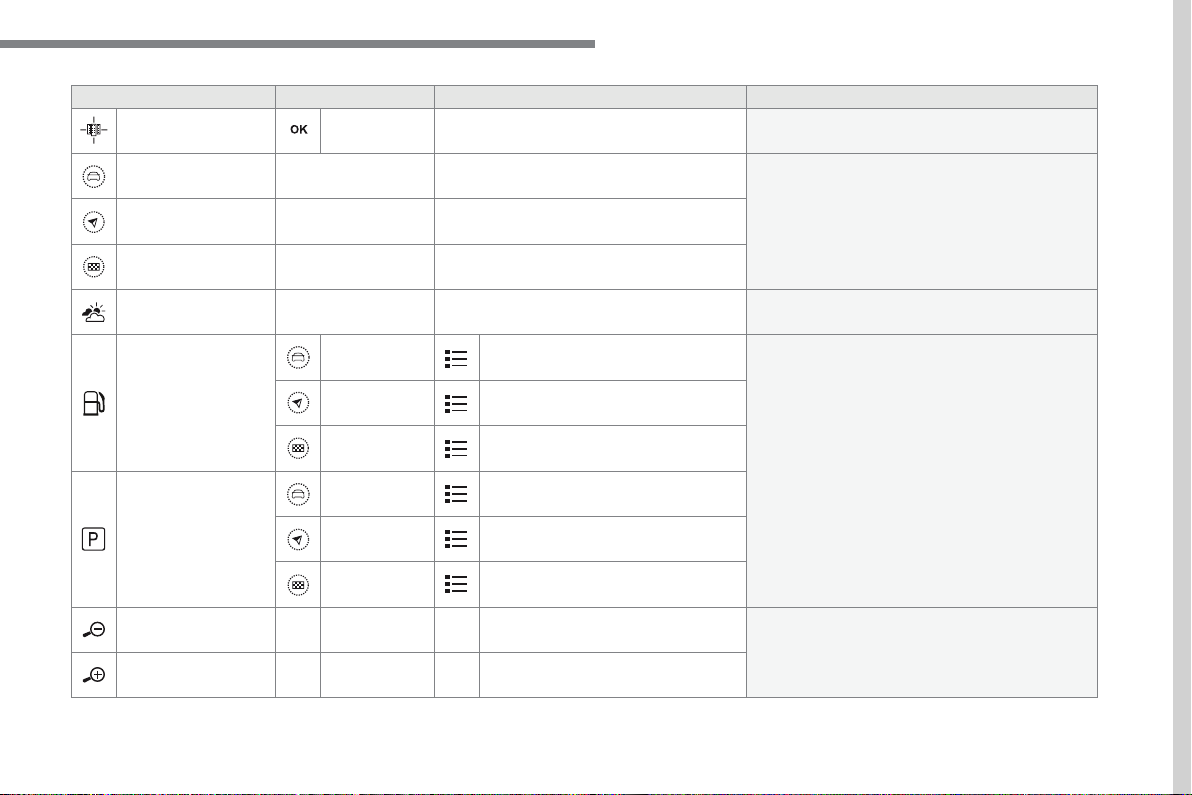
Audio and Telematics
Zoom in
Zoom in around the city selected.
Around the vehicle
Select a location option.
On the route
At the destination
Weather
Weather information transmitted in TMC mode.
Filling stations
Filling stations around the vehicle
Display the list of POIs.
Filling stations on the route
Filling stations at the destination
Car park
Car parks around the vehicle
Car parks on the route
Car parks at the destination
Zoom out / zoom in using the touch buttons or
with two fingers on the screen.
.
19
Page 22
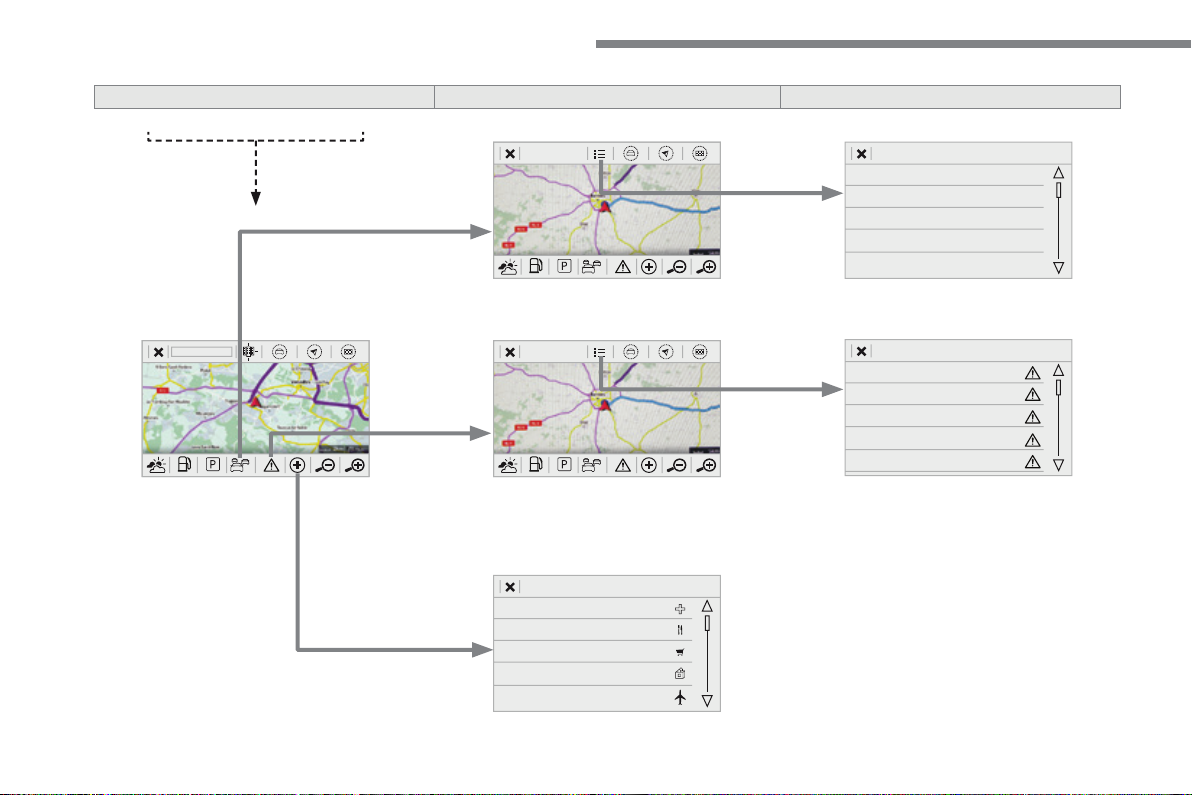
Audio and Telematics
20
Page 23
Audio and Telematics
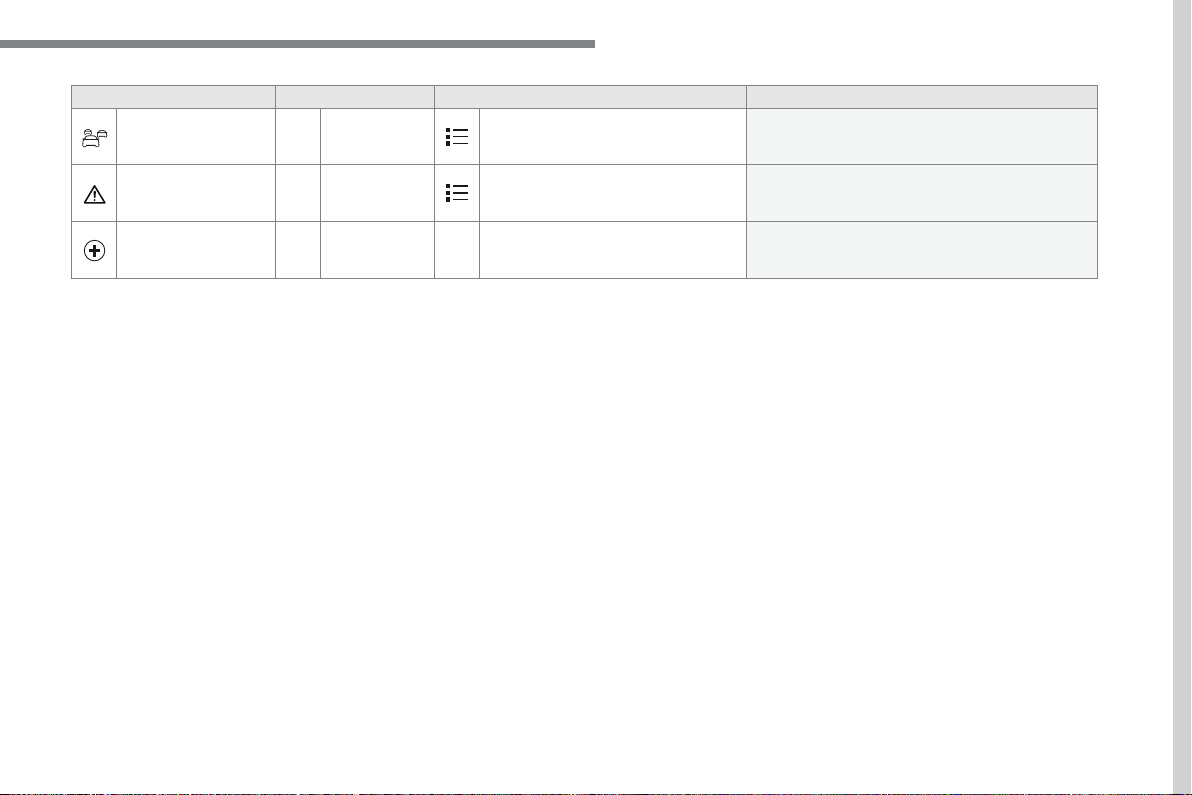
Tra f f ic
Traffic observed
Traffic information sent in real time.
Danger area
List of danger areas
Display the list of danger areas (roadworks,
Select POI
Configure a category of POI to display.
.
21
Page 24
Audio and Telematics
22
Page 25
Audio and Telematics
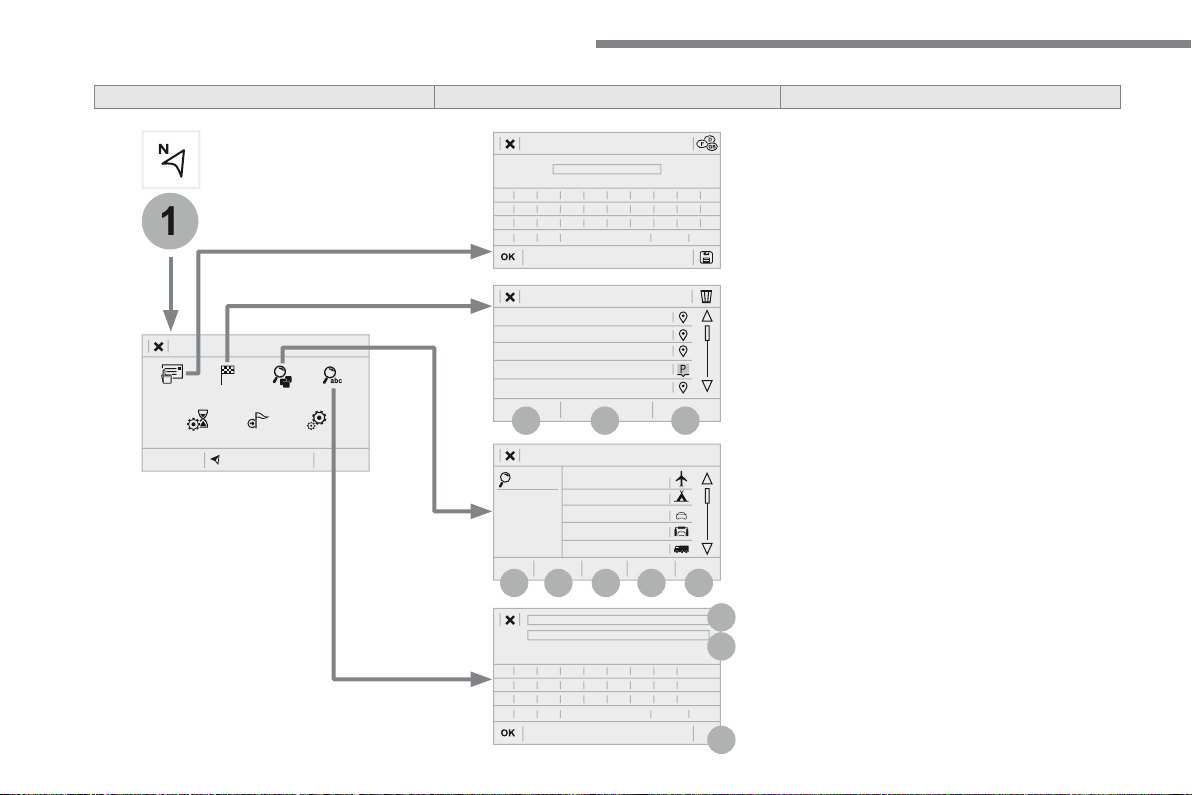
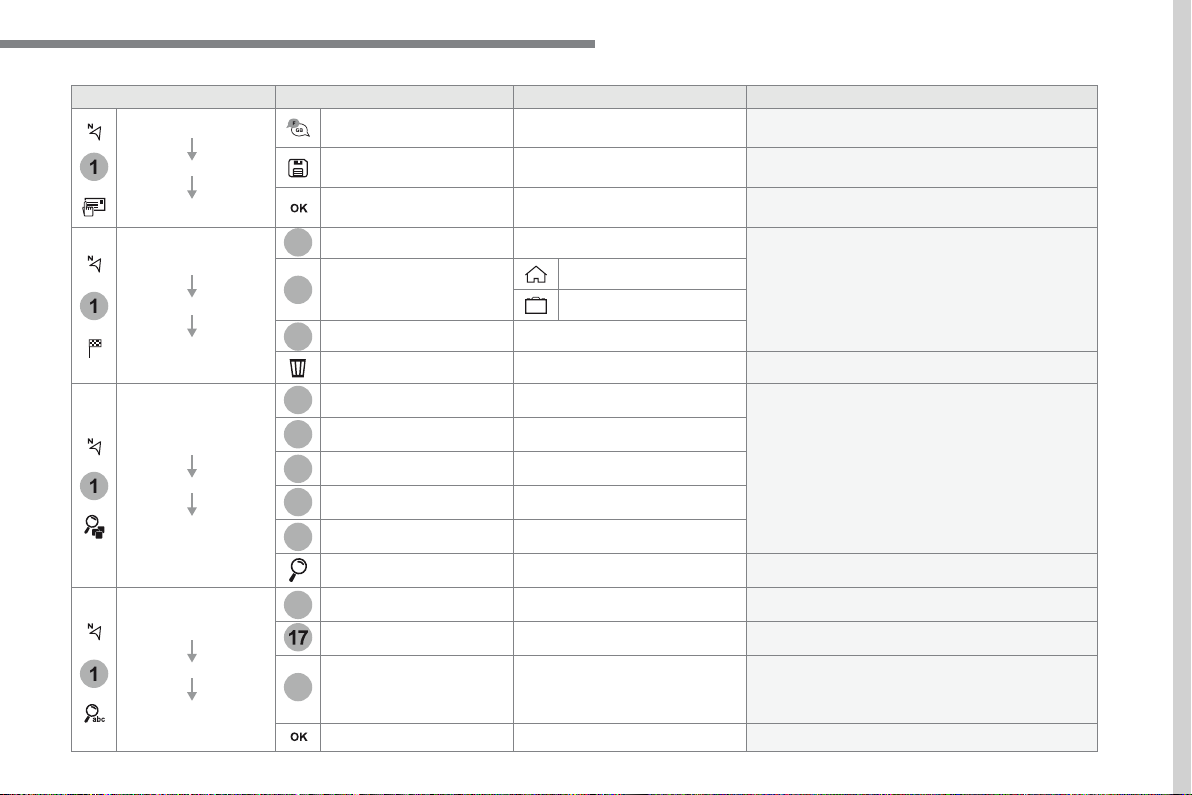
Select the country.
Save the current address.
Confirm the current address.
Display the lists of destinations and start
My home
My work
Delete one or more destinations.
List of categories available.
After selection of category, select the point of
Active life
Search for a point of interest.
Enter a point of interest.
Address
Enter the address of a point of interest.
/
Enter settings for the POI search mode in a local
Confirm the entry.
.
23
Page 26
Audio and Telematics
24
Page 27
Audio and Telematics
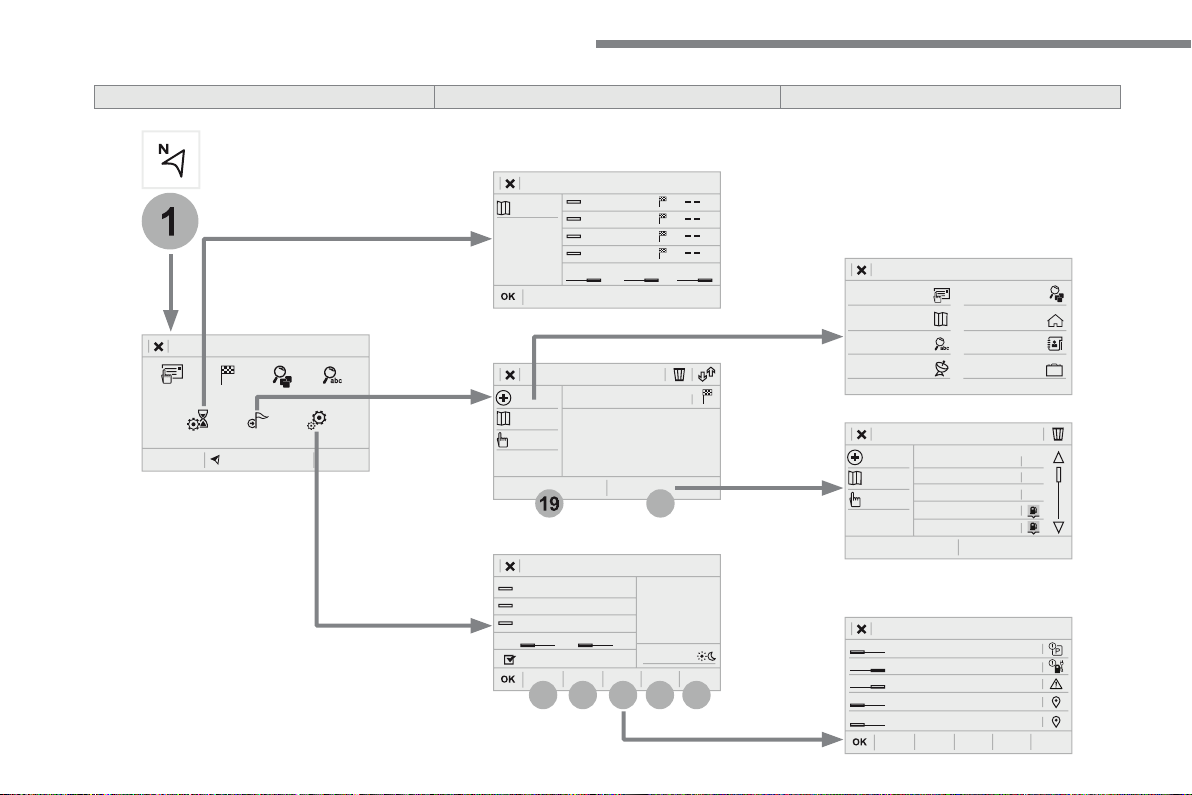
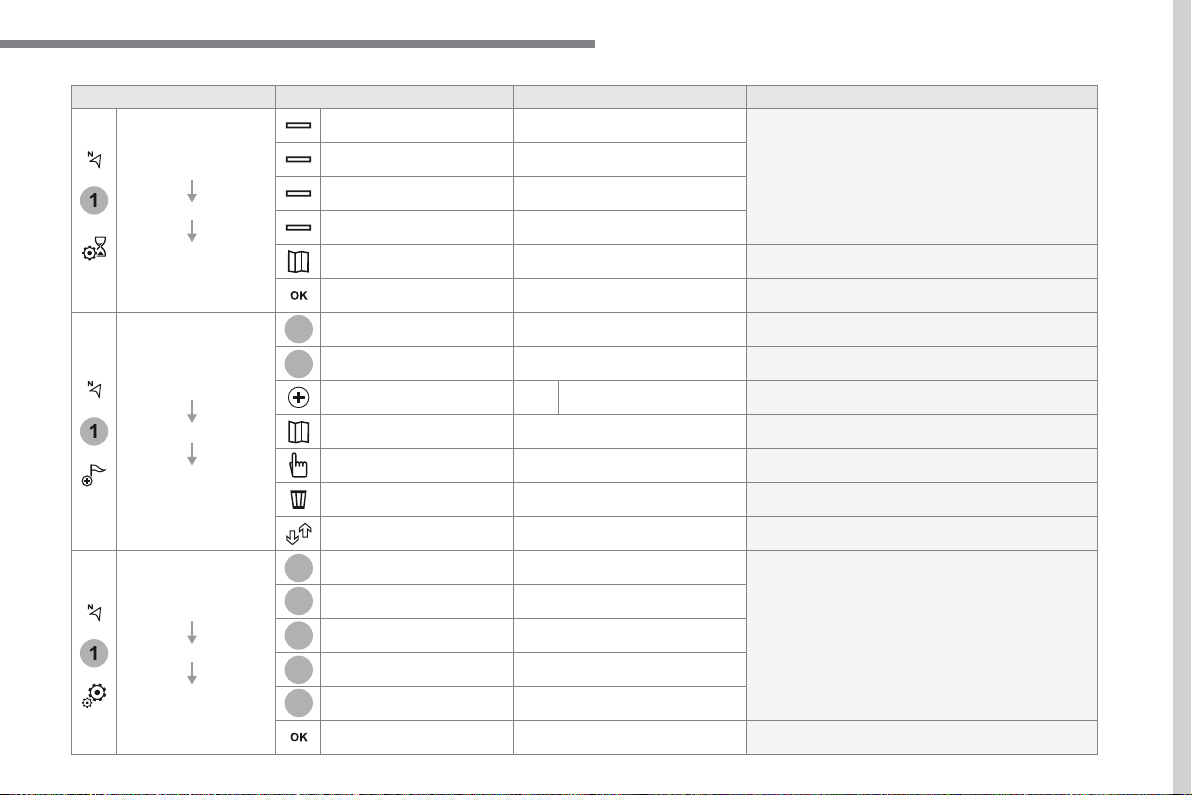
Select the guidance criteria (motorways, tolls and
Display the route selected using the criteria.
Save your selections.
Waypoints
Display the waypoints saved.
Display details of the route.
Add waypoint
Add a waypoint
Add a waypoint from a list offered.
Display the map.
Press to calculate the route.
Delete one or more waypoints.
Move a waypoint in the list.
Aspects
Enter choices and select the volume for the voice
Alerts
Vocal
Save the selections adopted.
.
25
Page 28
Audio and Telematics
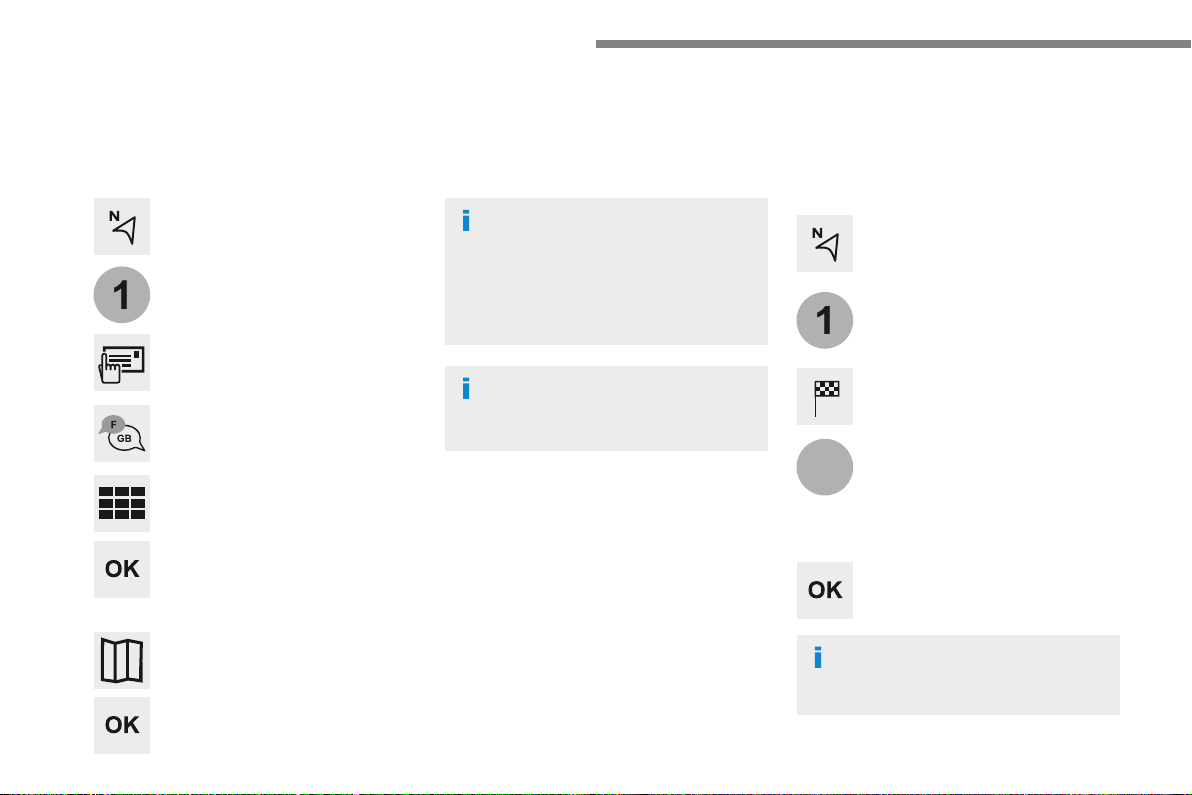
Choosing a new destination
Select "
".
Select "
" to select the
".
Select the "
".
Press "
" to select the "
".
Press "
" to star t navigation.
Press "
" to star t navigation.
And / Or
Press
to display the
Press the "
" button to go to the
Towards a new destination
Towards a recent destination
Select "
".
Press
to display the
Press the "
" button to go to the
Enter the "
", the "
" and the
" and confirm by pressing
Select the "
" tab.
Select the address chosen in the list to display
".
To use the navigation system, it is
", the
" and the "
" using the
" or from the "
Without confirmation of the street
Select "
" to see the point of
26
Page 29
Audio and Telematics
Or
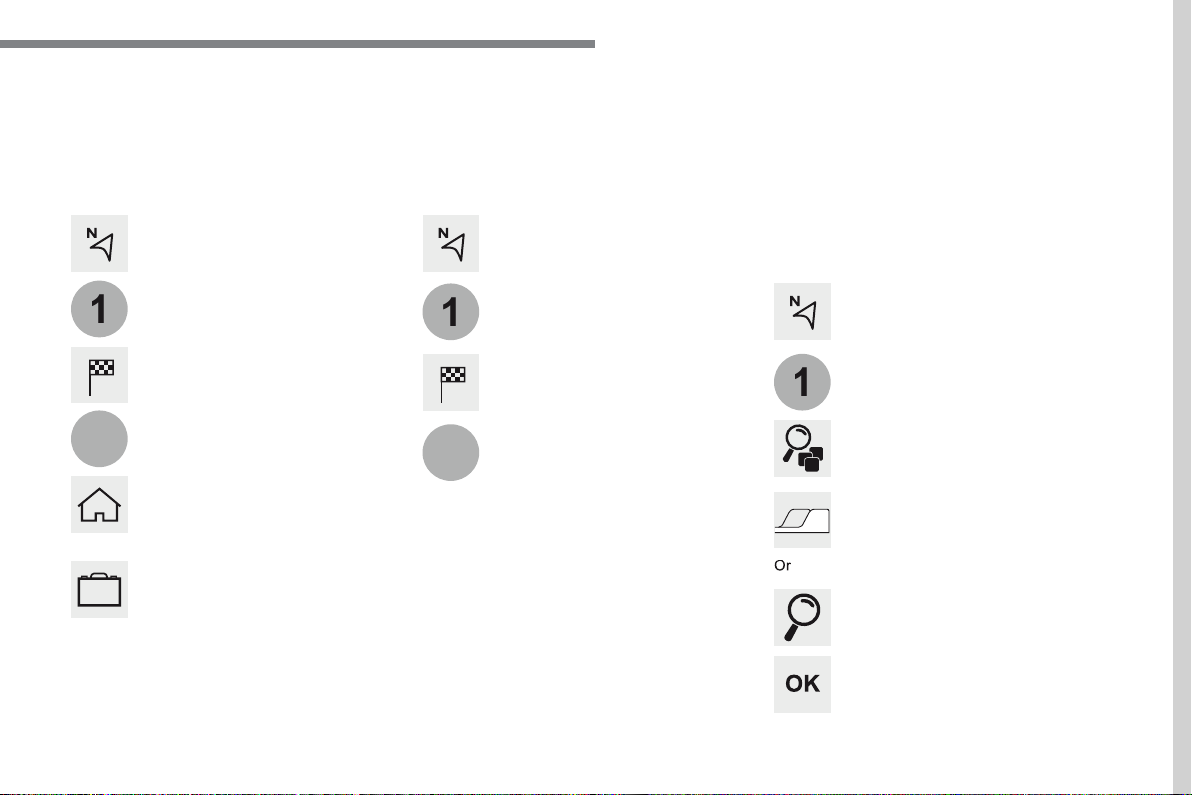
Towards a contact
Select "
Select the "
" tab.
Press
to display the
Press the "
" button to go to the
Select a contact in the list offered to start
Press "
" to start calculation of the
Towards points of interest (POI)
Points of Interest (POI) are listed in different
Press
to display the
Press the "
" button to go to the
Select "
Select "
" to enter the name
Select the "
", or "
"
" or "
" or
" tab.
Or
Or
Towards "My home" or "My
Select "
Press
to display the
Press the "
" button to go to the
Select the "
" tab.
Select "
".
Select "
".
Select a previously saved favourite destination.
.
27
Page 30
Audio and Telematics
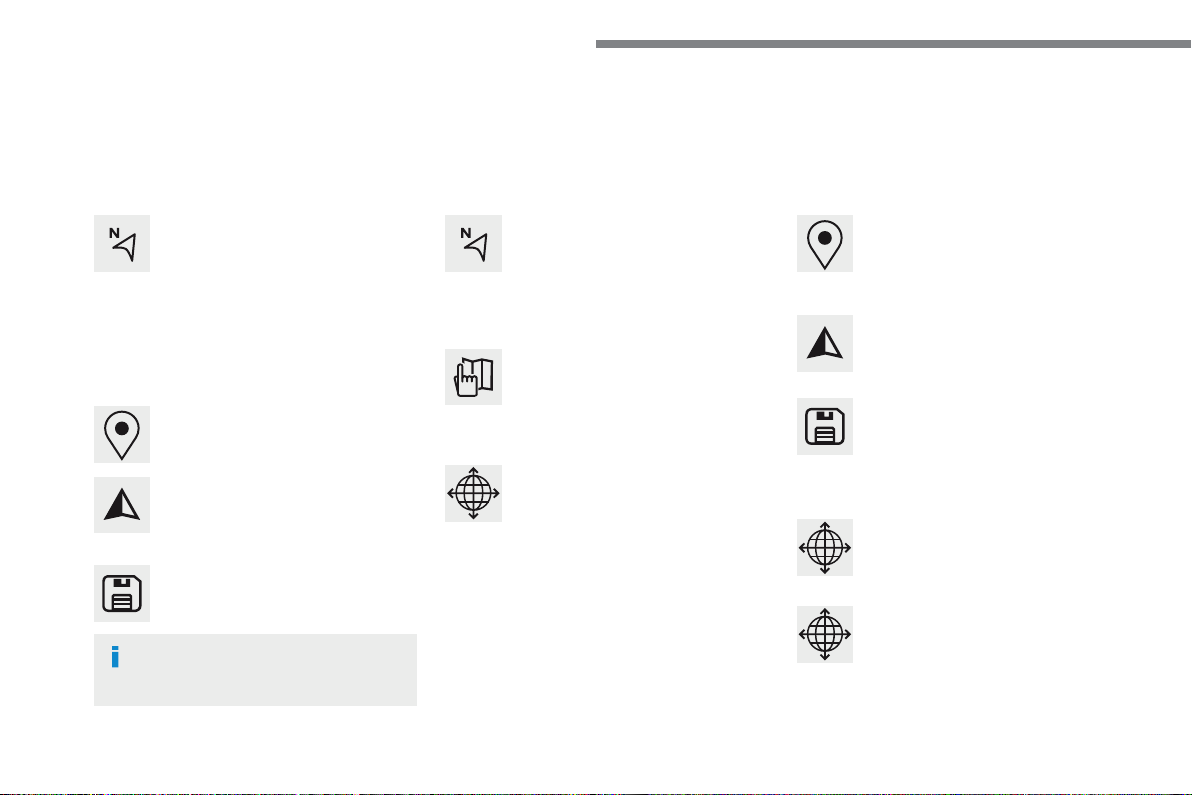
Towards GPS coordinates
Towards a point on the map
Press
to display the
Press
to display the
Explore the map by sliding a finger on the
Explore the map by sliding a finger on the
Tap the screen to place a marker and
Or
Or
Or
And
Select the destination by pressing on the map.
Press this button to star t navigation.
Press this button to star t navigation.
Press this button to display the world
Using the grid, select by zoom the
Press this button to save the address
Press this button to save the address
Press this button to enter the GPS
Press this button to enter the value
" using the virtual
Press this button to enter the value
" using the virtual
A marker is displayed in the middle of
" and
" coordinates.
A long press on a point opens a list of
28
Page 31

Audio and Telematics
TMC (Traffic Message
TMC (Traffic Message Channel)
The TMC information is then displayed
The display of danger areas depends
.
29
Page 32
Audio and Telematics
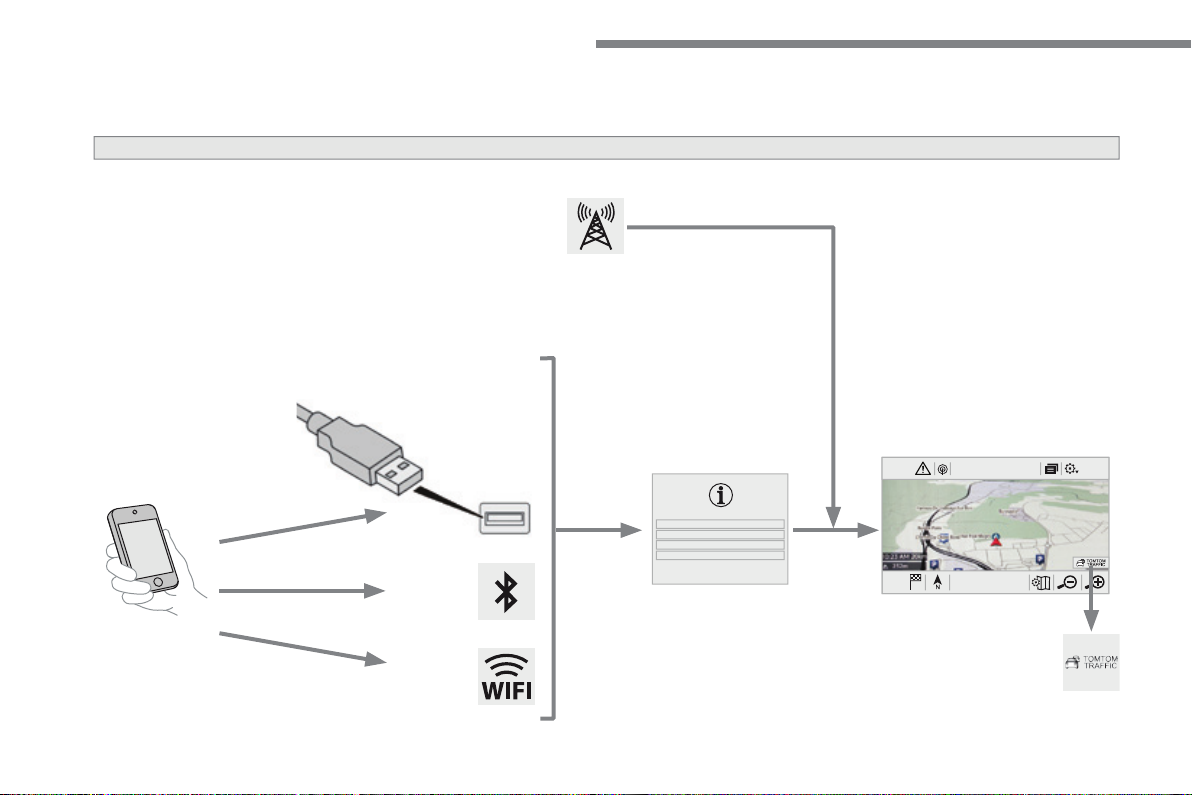
Network connection provided by the vehicle
Network connection provided by the user
Depending on the equipment level of the vehicle
According to version
Connected navigation
12:1318,5 21,523 °C
30
Page 33
Audio and Telematics
As a safety measure and because it
All operations must be done with the
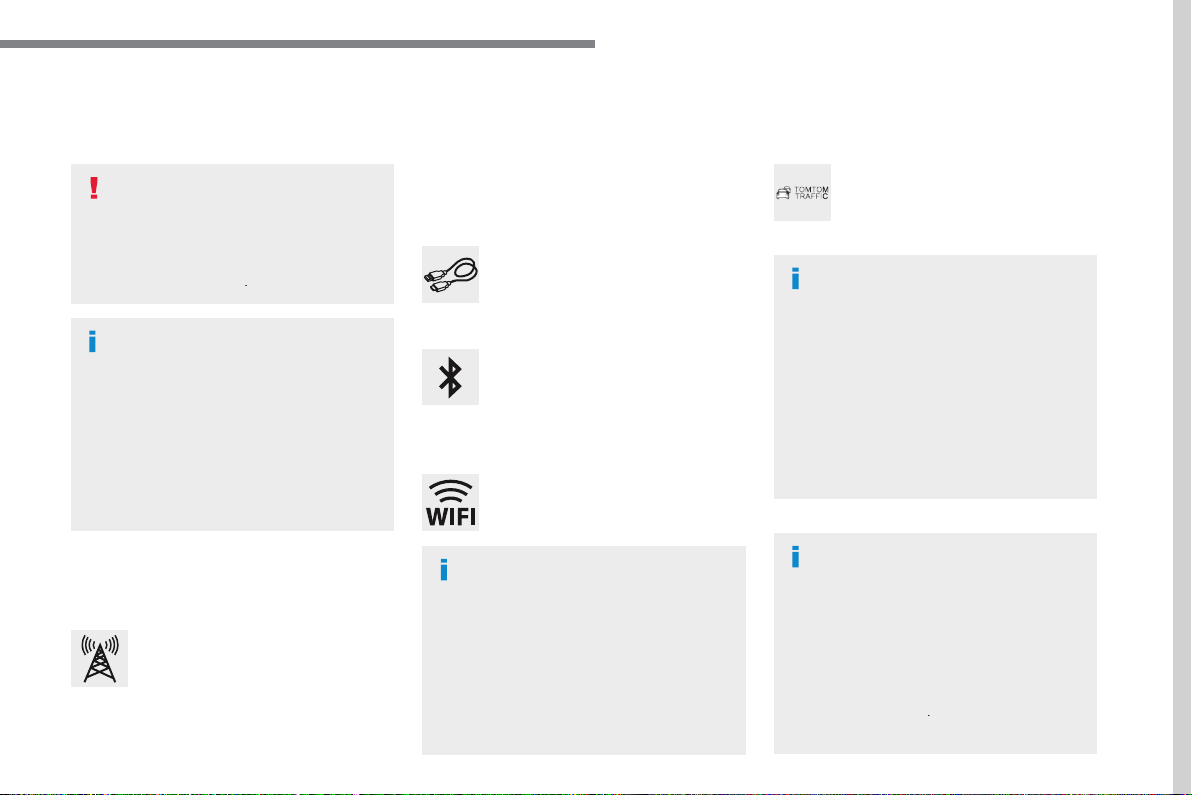
Connected navigation connection
The principles and standards
The services offered with connected
A Connected Ser vices pack:
- Weather,
- Filling stations,
- Car park,
- Traffic,
- POI, local search.
A Danger area pack (option).
Activate the Bluetooth function on
Connect the USB cable.
The smar tphone is in charge mode
when connected by USB cable.
The system is automatically
On the arrival of "TOMTOM
For access to connected navigation, you
Activate and enter settings for
Restrictions of use:
- With CarPlay
®
, connection sharing is
- W i t h M i r r o r L i n k
, connection
The quality of services depends on the
Select a Wi-Fi connection found by
Network connection provided by
Network connection provided by
Wi-Fi connection
.
31
Page 34
Audio and Telematics
12:1318,5 21,523 °C
32
12:1318,521,523 °C
12:1318,521,523 °C
12:1318,5 21,523 °C
12:1318,5 21,523 °C
Page 35
Audio and Telematics
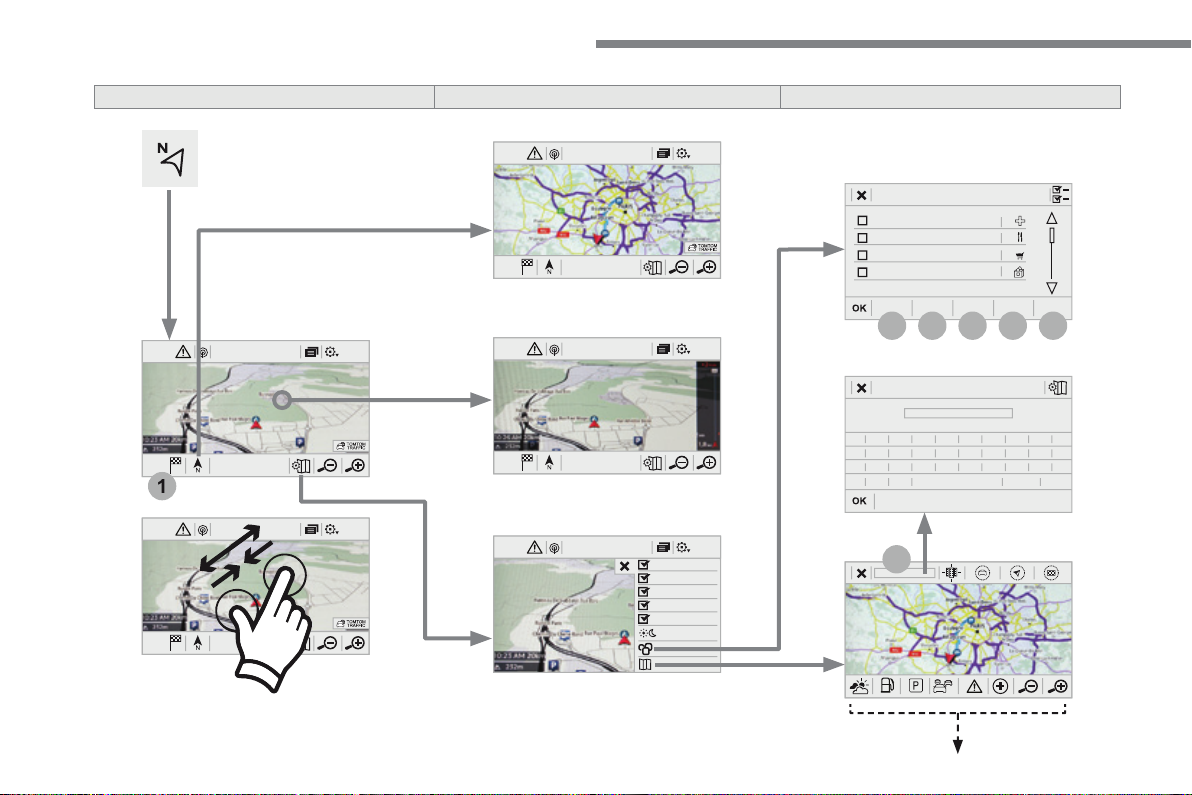
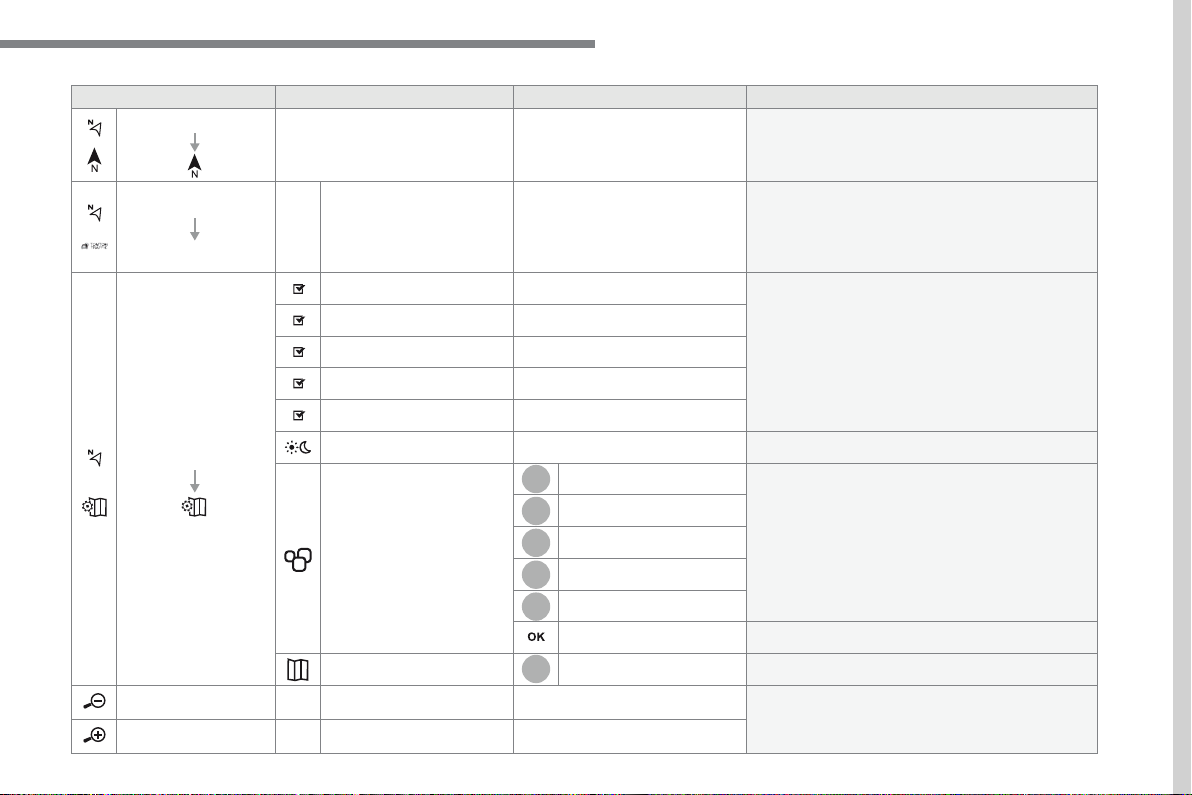
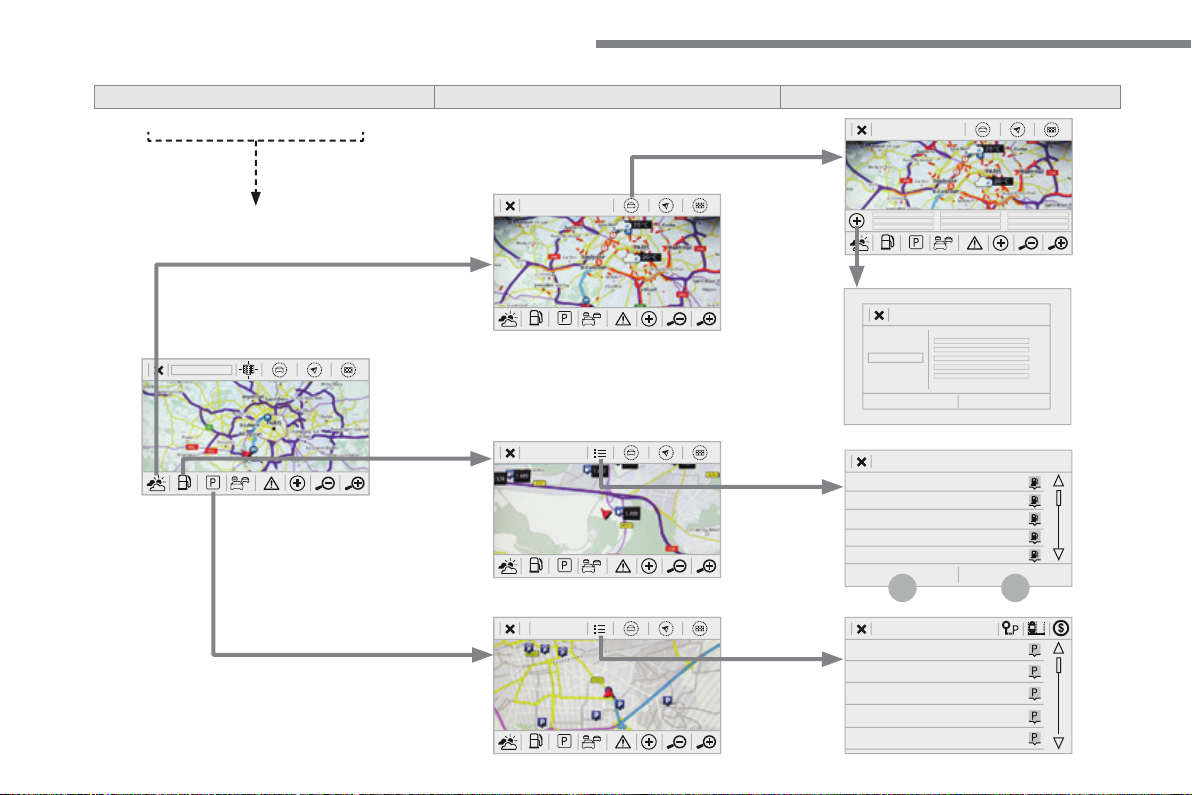
Select the orientation of the map; north up,
On connection of the system to a network,
Weather
Select the options.
The map display the route chosen, depending on
Select the display mode for the map.
Commercial
Select the POIs available.
Geographic
Leisure
Public
Travel
Save the options.
View map
Modify city
Select or change a city.
Zoom out / zoom in using the touch buttons or
with two fingers on the screen.
.
33
Page 36
Audio and Telematics
34
Page 37
Audio and Telematics
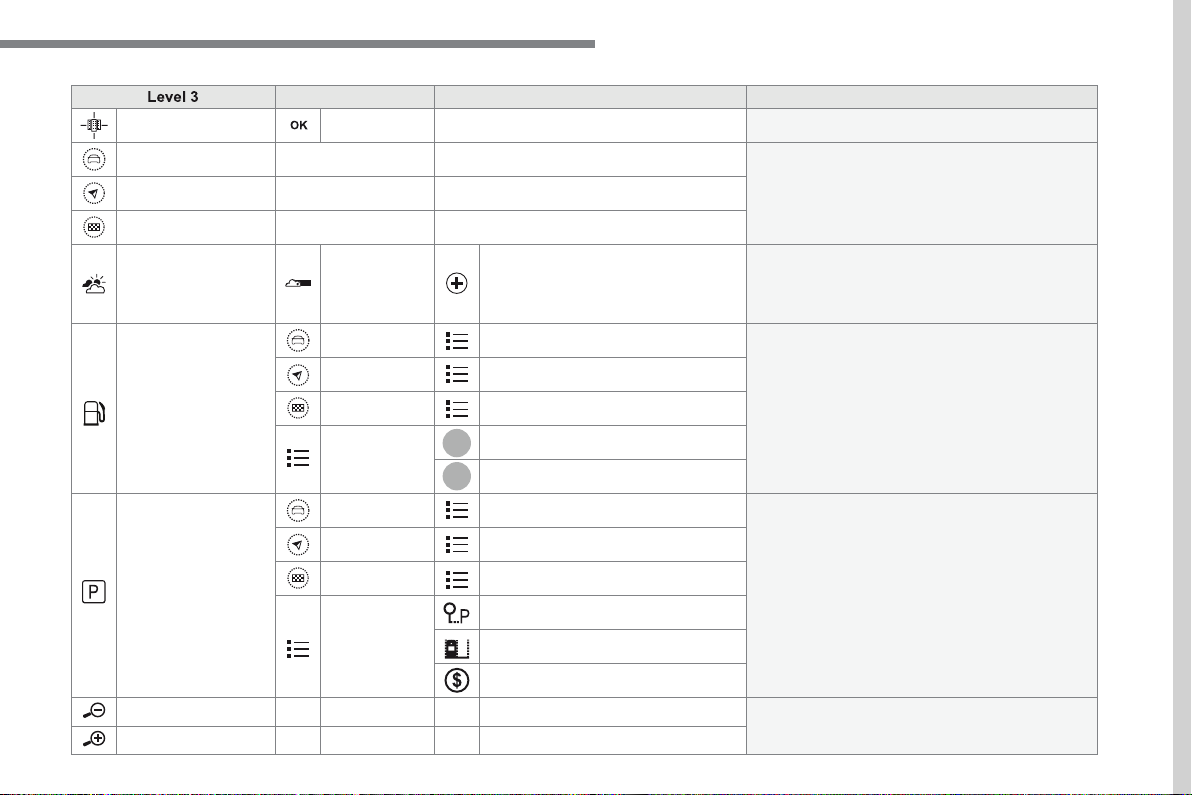
Select city
Select or change a city.
Around the vehicle
Select or change a city.
On the route
At the destination
Weather
Weather information
Display the weather forecast for the day or the
Filling stations
Filling stations around the vehicle
Display the list of filling stations and the
Filling stations on the route
Filling stations at the destination
Car park
Car parks around the vehicle
Display the list of car parks and the associated
Car parks on the route
Car parks at the destination
Zoom out / zoom in using the touch buttons or
with two fingers on the screen.
.
35
Page 38
Audio and Telematics
36
Page 39
Audio and Telematics
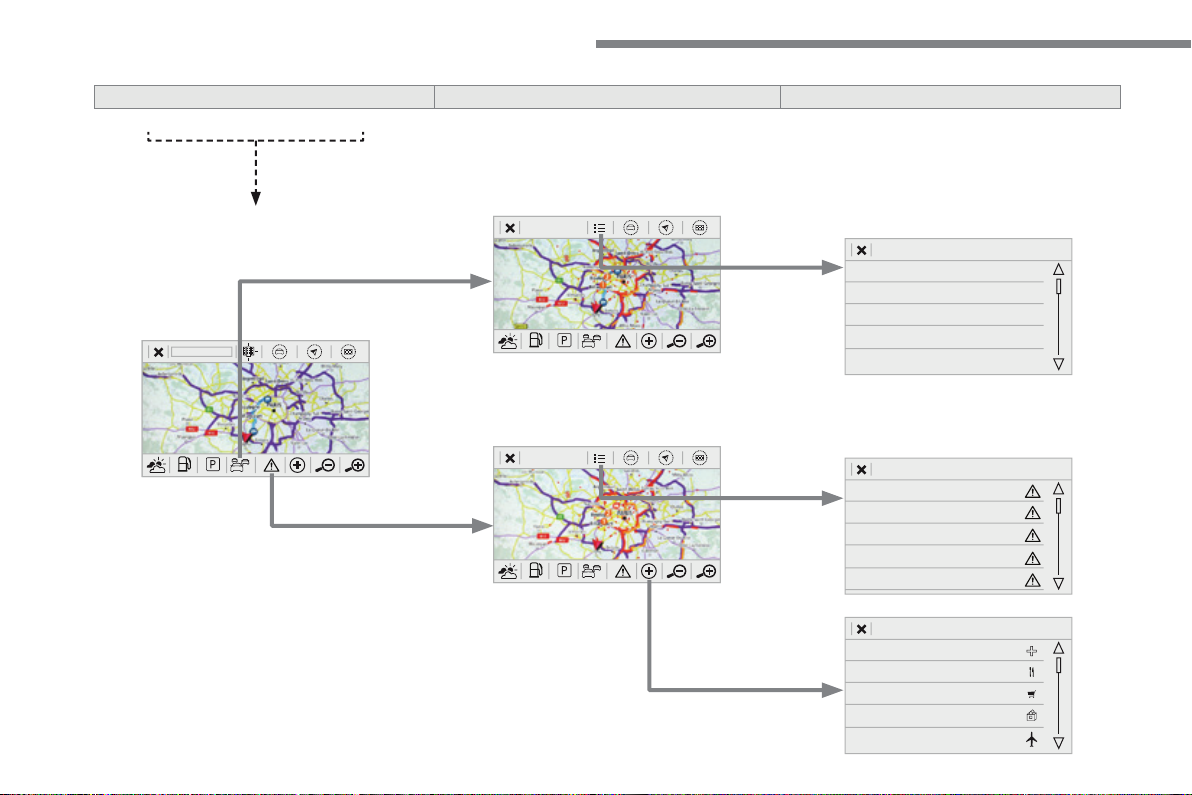
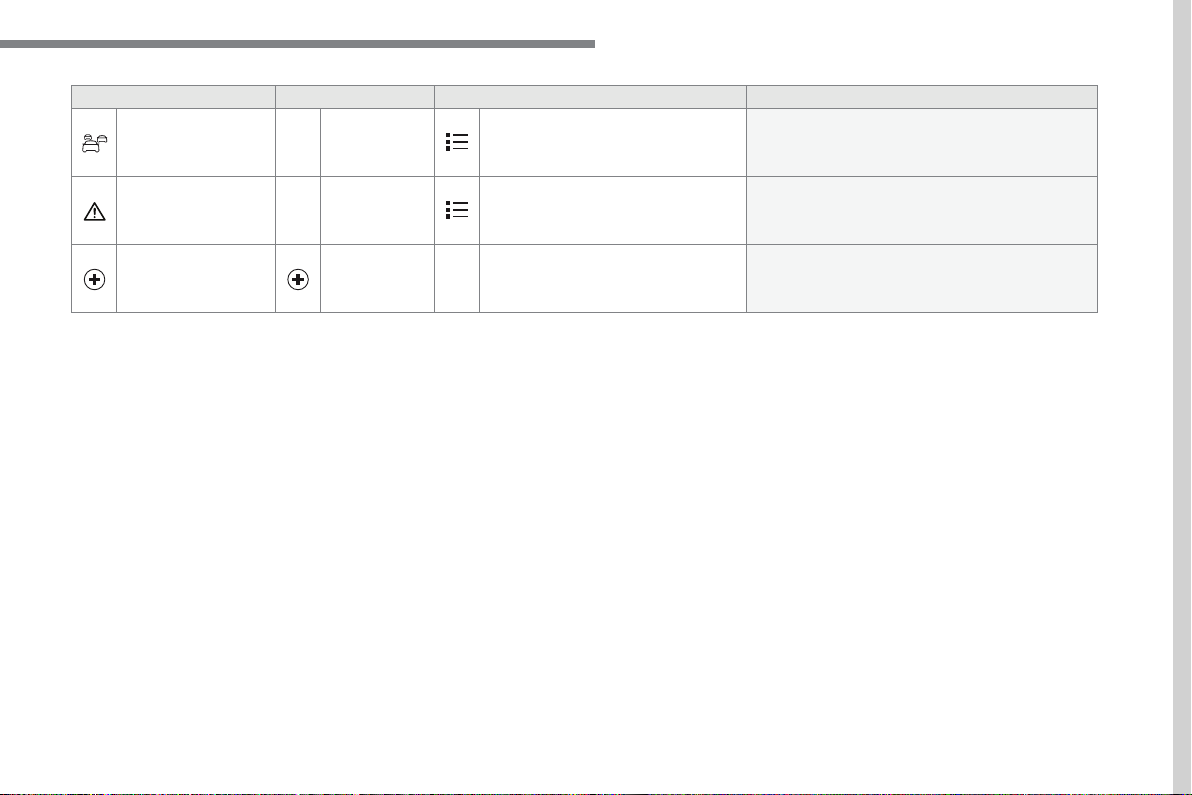
Tra f f ic
Traffic observed
Display traffic information in real time: type,
Danger areas
List of danger areas
Display danger areas (roadworks, breakdowns,
Points of interest
Points of
Select POI
Display the list of POIs for the location selected.
.
37
Page 40
Audio and Telematics
Settings specific to
For access to connected navigation,
Authorise sending information
".
Select "
".
Select "
Alerts
".
- "
Allow declaration of danger
"
- "
"
- "
Authorise sending
"
Activate or deactivate:
Activate or deactivate "
Warn of
The display of danger zones is
The temperature displayed at 6 o'clock in the
The temperature displayed at 6 o'clock in the evening
will be the minimum temperature for the night.
Select "
Press
to display the
Press the "
" button to go to the
Display the weather
Select "
Weather
".
Press this button to display the first
Press this button to display the
Select "
View map
Press
to display the
Press this button to display the list of
38
Page 41
Audio and Telematics
To distribute information on the
Allow
".
Declaration of "Danger
Press
to display the
Press the "
" button located in the upper bar
Select the option "
" to choose
Select the "
" option and enter
Press "
" to save and distribute the
You can download the system and map
The update procedure can also be
"Danger areas" pack
Press
to display the primary
Press the "
" button to go to
Select "
".
Select "
View
" to view the version of
Select "
".
Select the "
" tab.
.
39
Page 42
Audio and Telematics
According to version / according to equipment
Applications
12:1318,5 21,523 °C
12:1318,5 21,523 °C
40
Page 43
Audio and Telematics
Internet Browser
Connectivity
Applications
Press "
" to display
Select your country of residence.
Press "
" to go to the
®
or
function.
Press "
" to go to the
" function.
Pre ss "
Applications
" to display the
Connection to the internet is via one of
Press
Applications
to display the
Press
Applications
to display the
Press
Applications
to display the
Press "
" to save and start the
.
41
Page 44
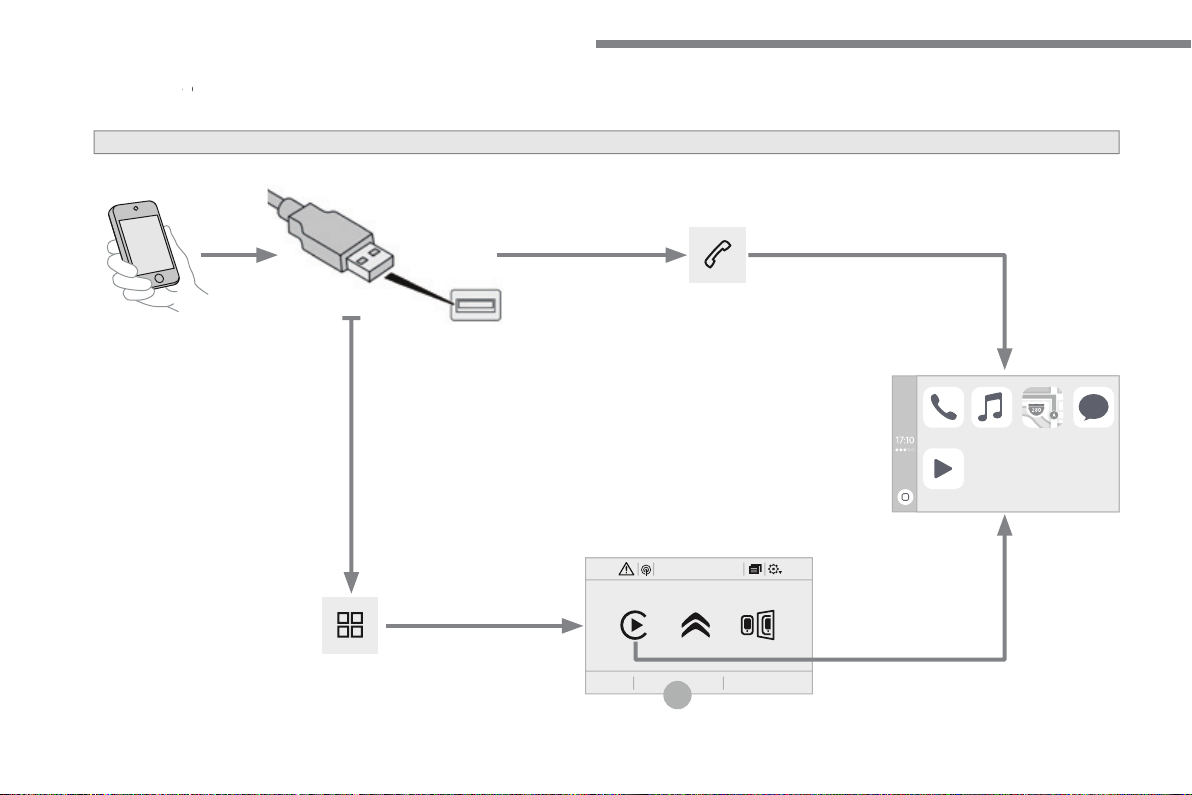
Audio and Telematics
CarPlay
®
®
smartphone connection
12:1318,5 21,523 °C
42
Page 45
Audio and Telematics
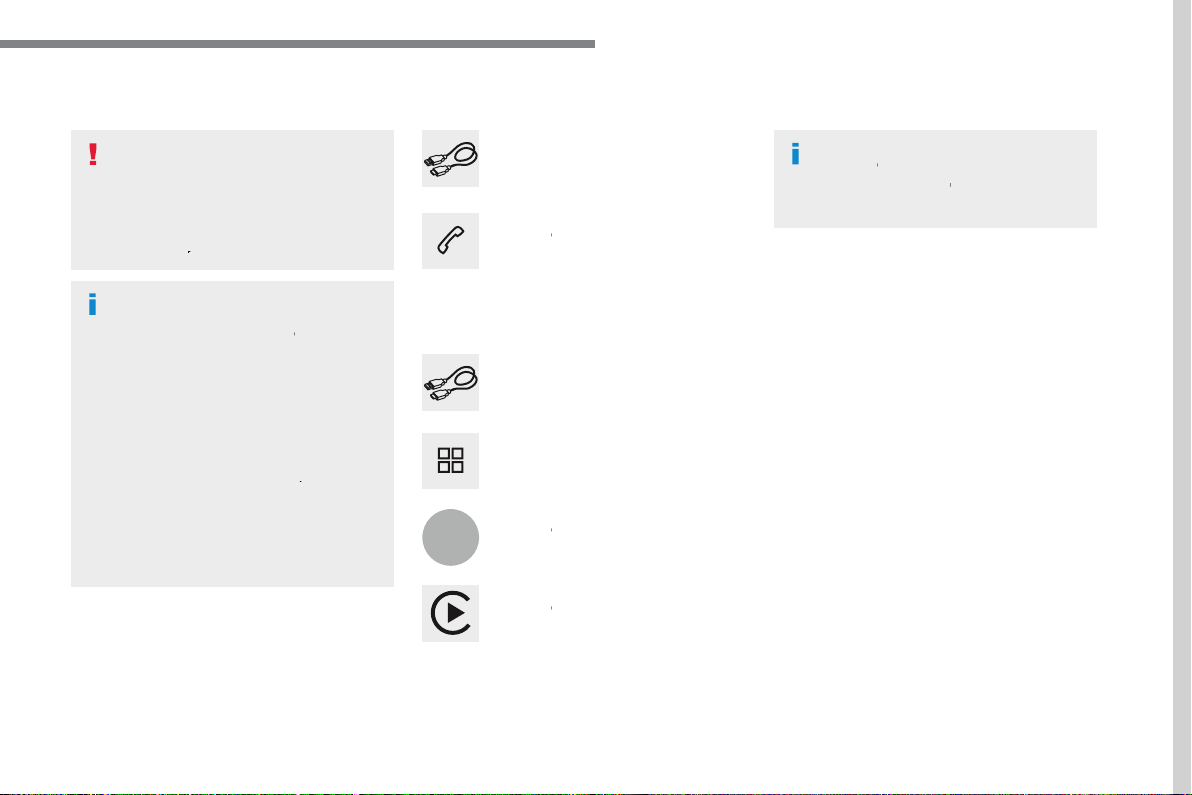
As a safety measure and because it
Operation must be with the
The synchronisation of a smartphone
®
technology
®
As the principles and standards are
For the list of eligible smartphones, go
Connect a USB cable. The
Connect a USB cable. The
Press "
" to display the
®
interface.
Press "
" to display the
®
interface
On connecting the USB cable, the
®
function deactivates the
®
mode.
In the system, press "
Applications
"
Or
Press "
" to go to the
®
function.
.
43
Page 46
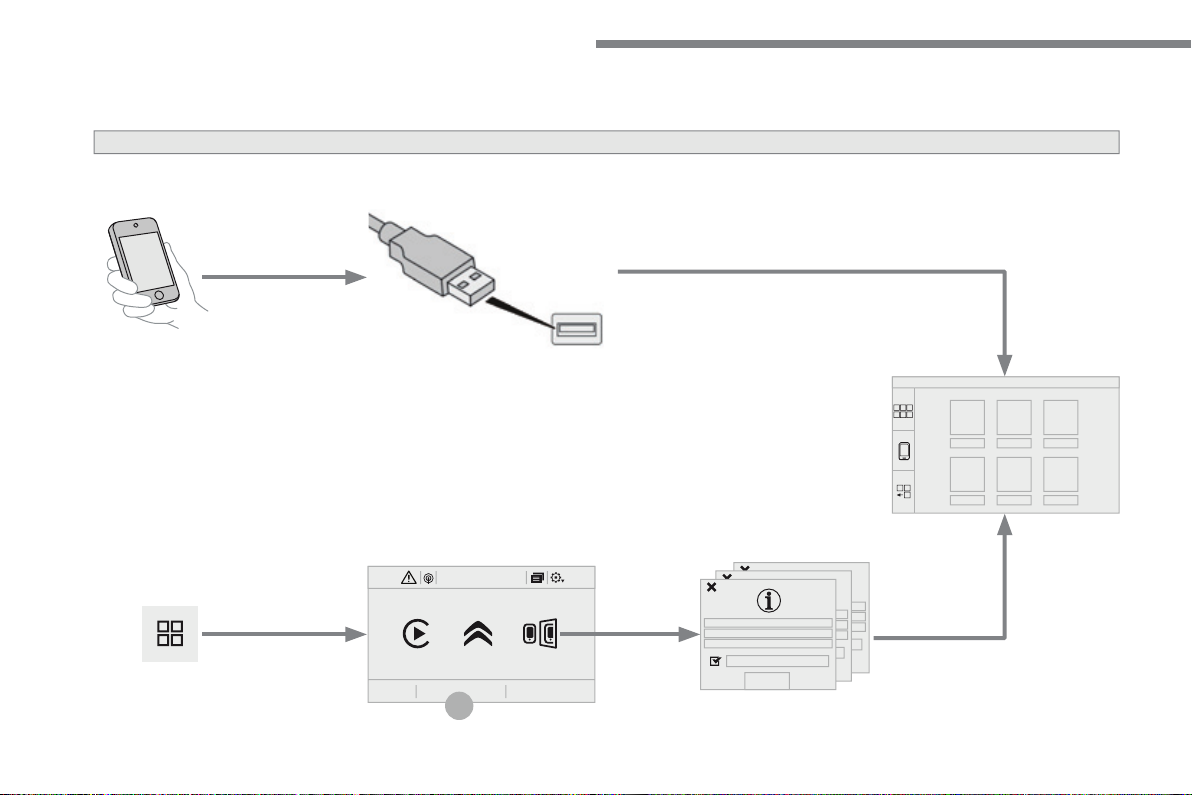
Audio and Telematics
MirrorLink
smartphone connection
12:1318,5 21,523 °C
44
Page 47
Audio and Telematics
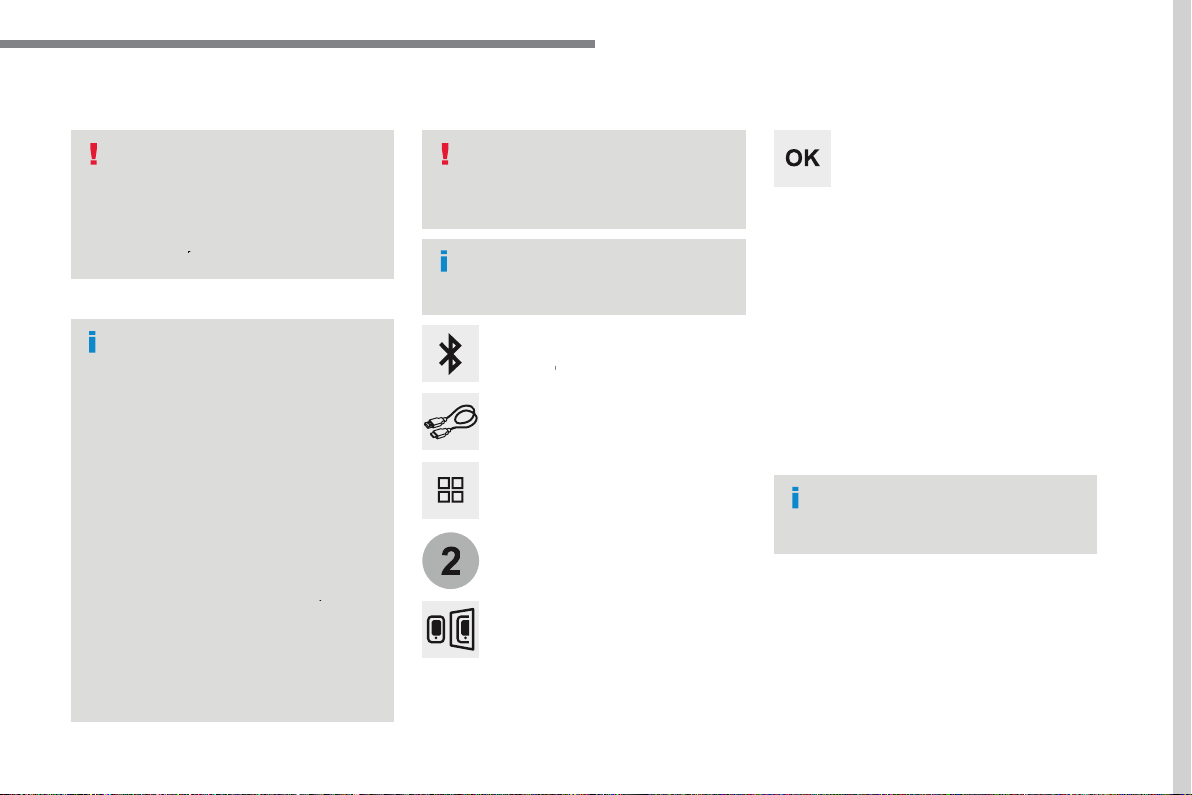
As a safety measure and because it
Operation must be with the
The synchronisation of a
technology to be displayed
The principles and standards
work correctly, the smartphone must
well as the date and time in the
For the list of eligible smartphones,
The "
" function requires
There may be a wait for the availability
When connecting a smartphone to
®
be started on the smartphone
Depending on the smartphone, it may be
"
During the procedure, several screen
Accept to start and end the
Connect a USB cable. The
Press "
" to start the
Once connection is established, a page
t e c h n o l o g y .
Access to the different audio sources remains
Access to the menus for the system is possible
From the system, press on
Applications
" to display the primary
As a safety measure, applications
Press "
" to go to the
function.
.
45
Page 48
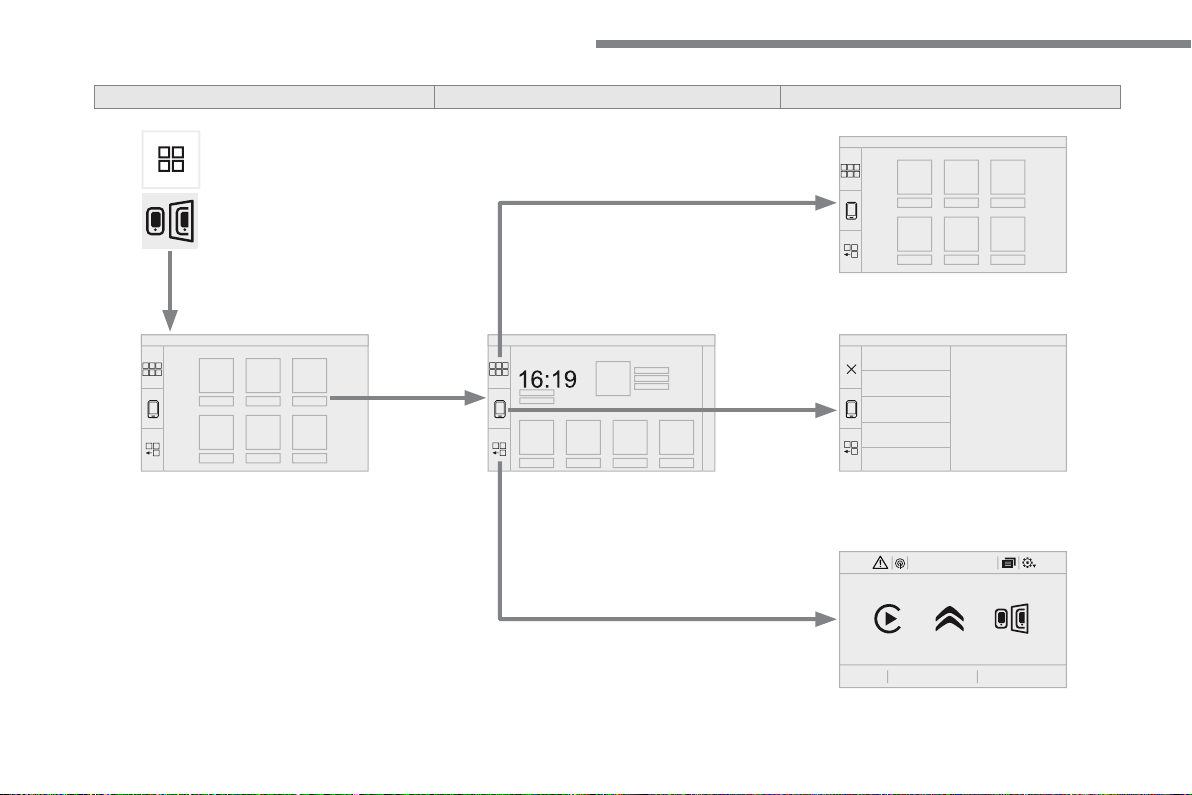
Audio and Telematics
12:1318,521,523 °C
46
Page 49
Audio and Telematics
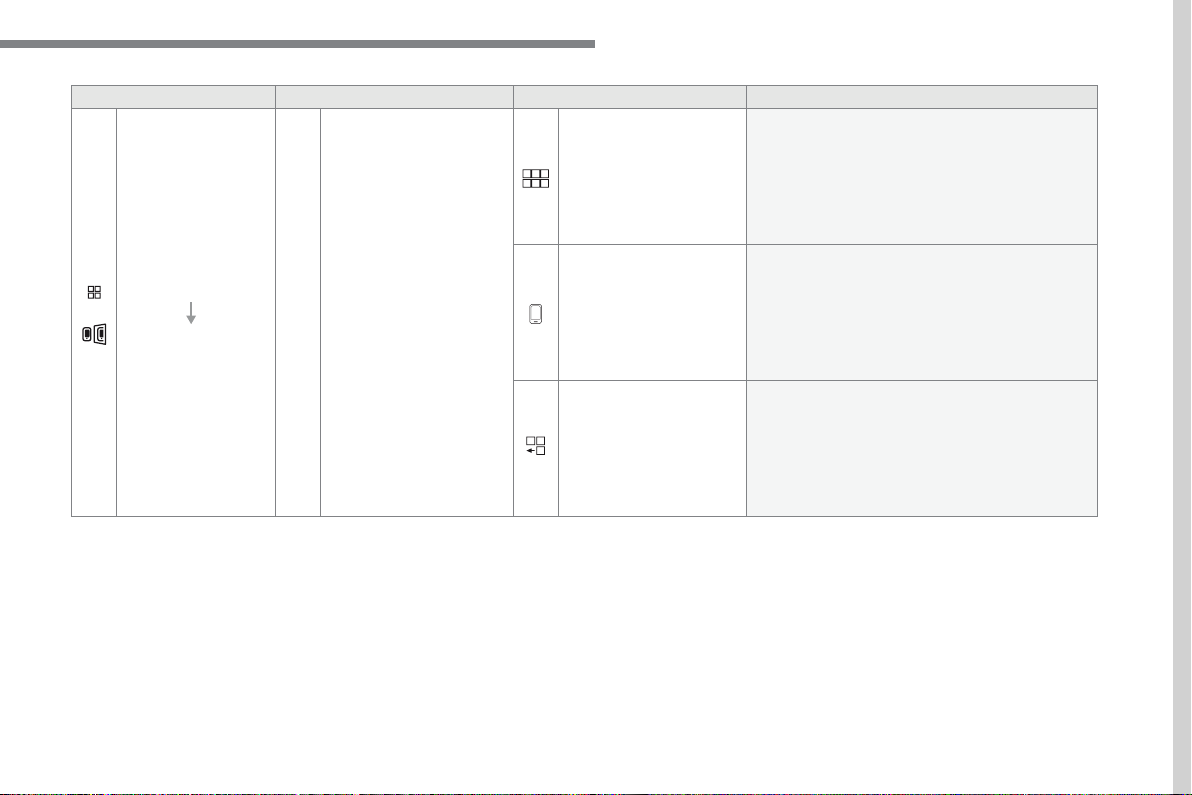
Applications
Go to or return to the applications already
technology.
Go to a menu list depending on the application
"Back": abandon the current operation, go up one
"Home": go to or return to the "Car mode" page on
Go to the primar y page of the "Applications"
.
47
Page 50
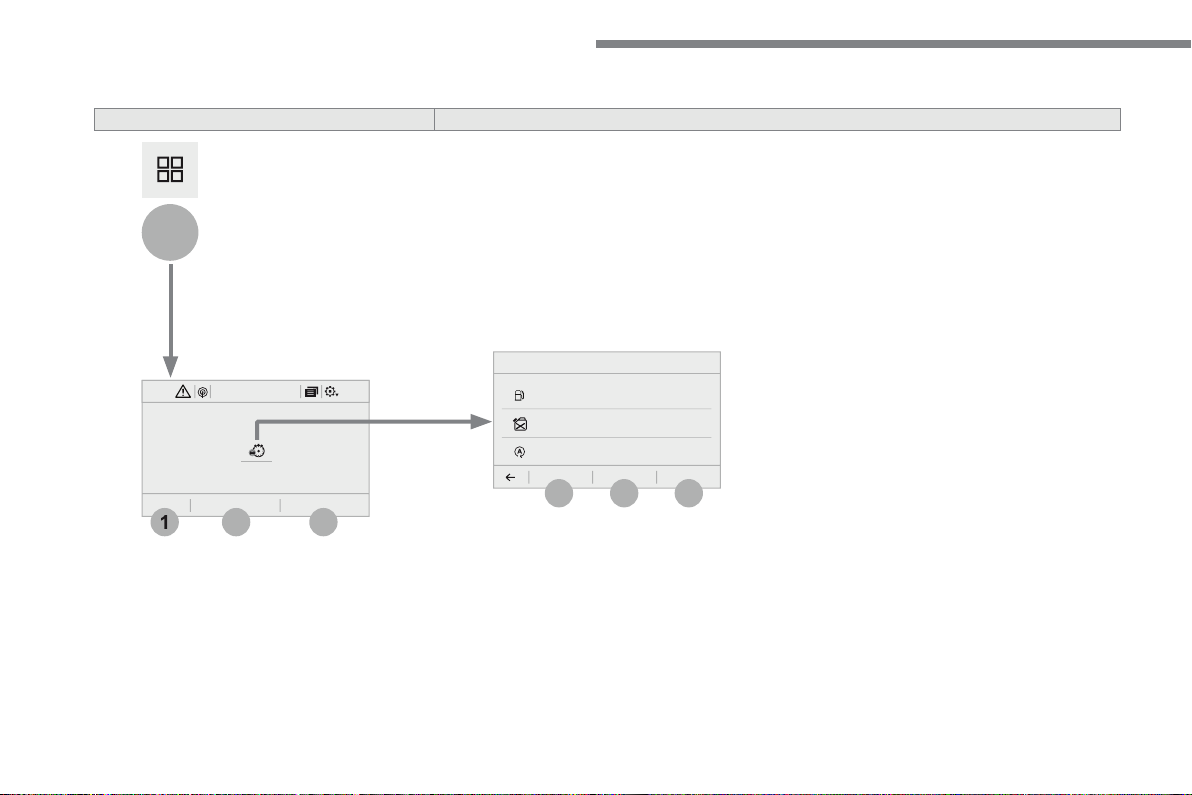
Audio and Telematics
According to equipment
12:1318,5 21,523 °C
48
Page 51
Audio and Telematics
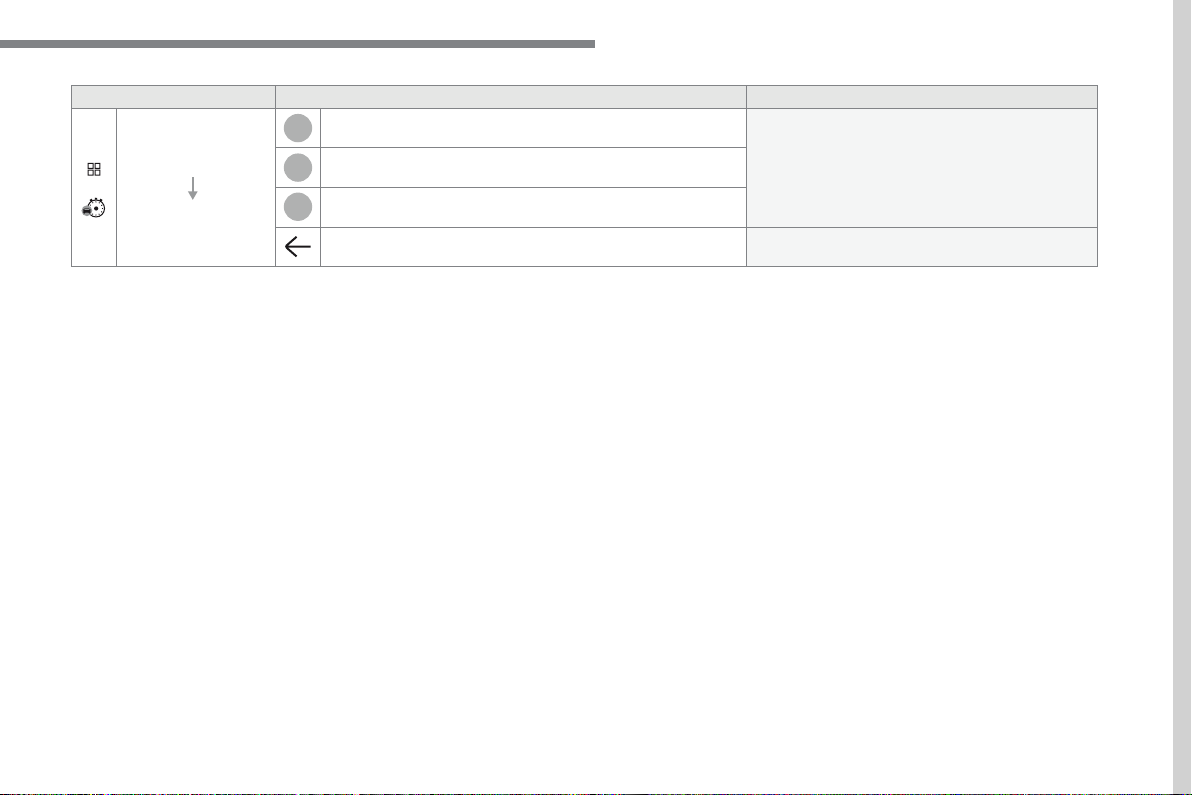
Applications
System providing information about the current
journey (range, fuel consumption…).
Back to the Applications page.
.
49
Page 52
Audio and Telematics
12:1318,5 21,523 °C
50
Page 53
Audio and Telematics
Applications
All
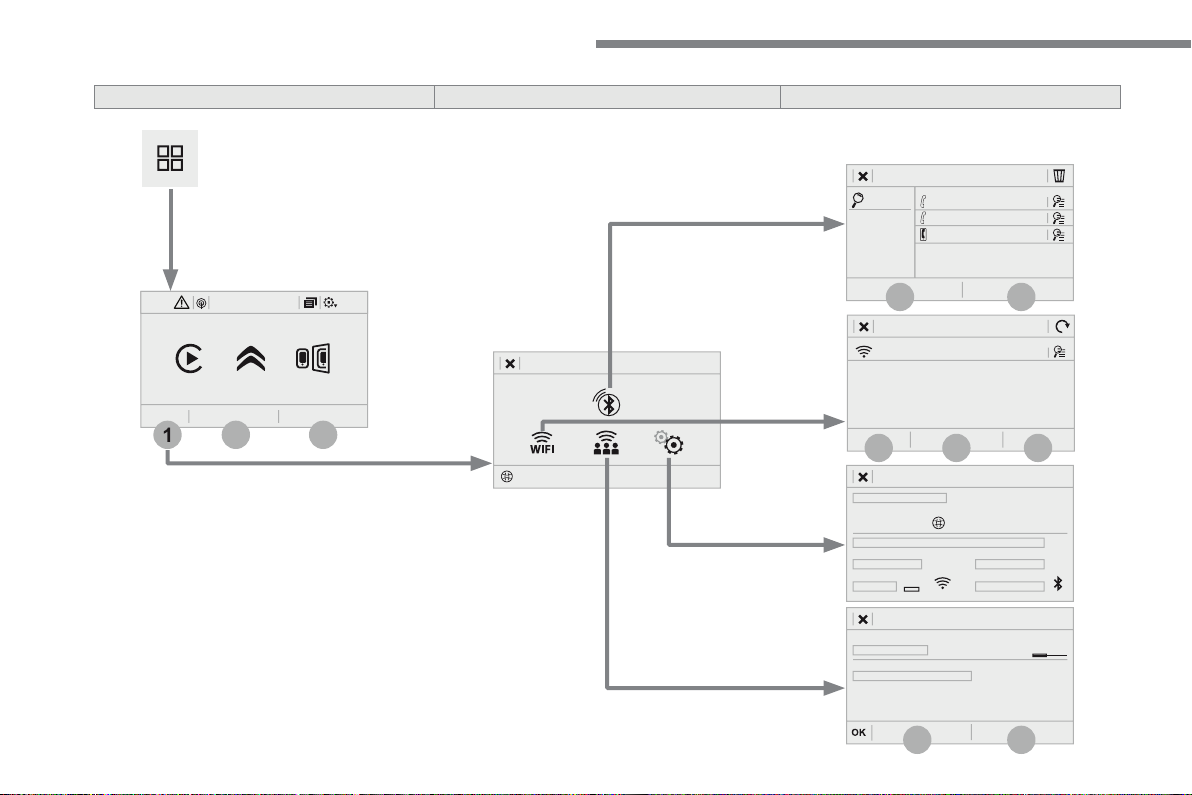
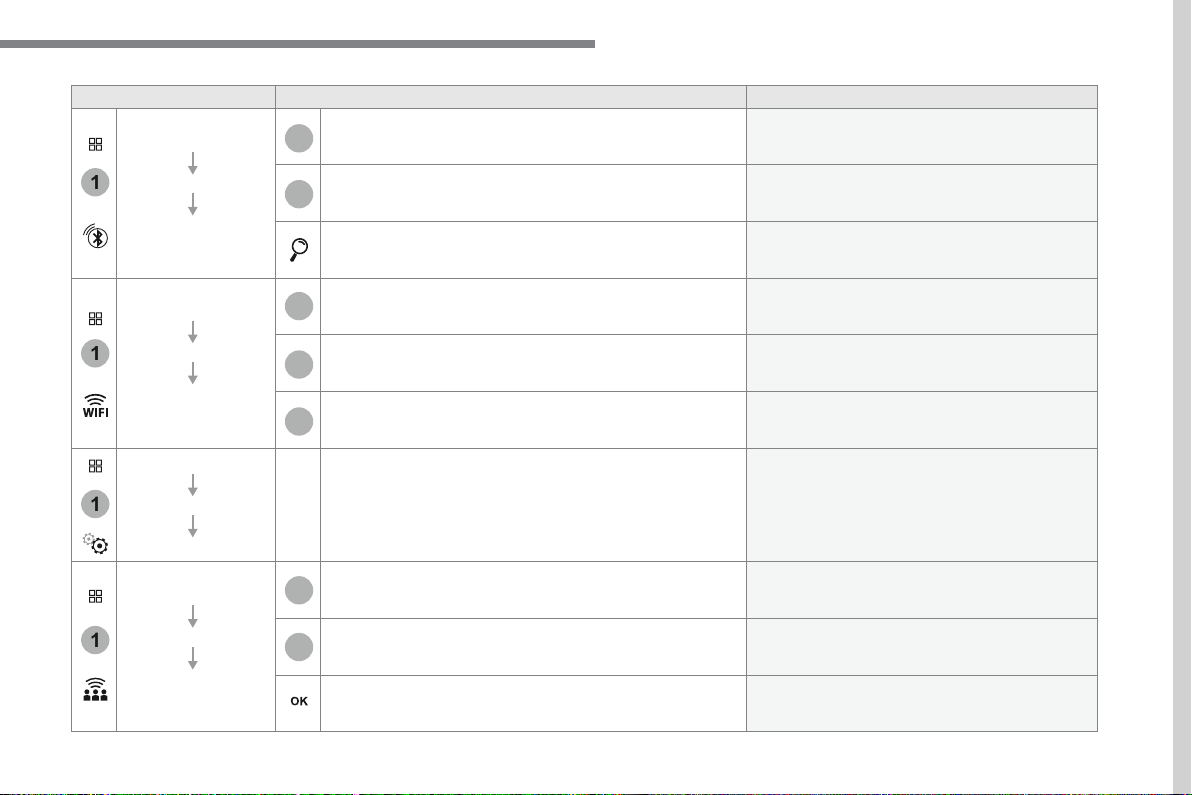
Display all telephones detected and saved.
Display all telephones connected.
Start the search for a device to be connected.
Applications
Wi-Fi network
Display the secured Wi- Fi networks.
Display the not secured Wi-Fi networks.
Display the stored Wi-Fi networks.
Applications
Display the status of the subscription to the
Applications
Activation
Activate or deactivate the Wi-Fi connection
Select a Wi-Fi network found by the system and
Save the settings.
.
51
Page 54
Audio and Telematics
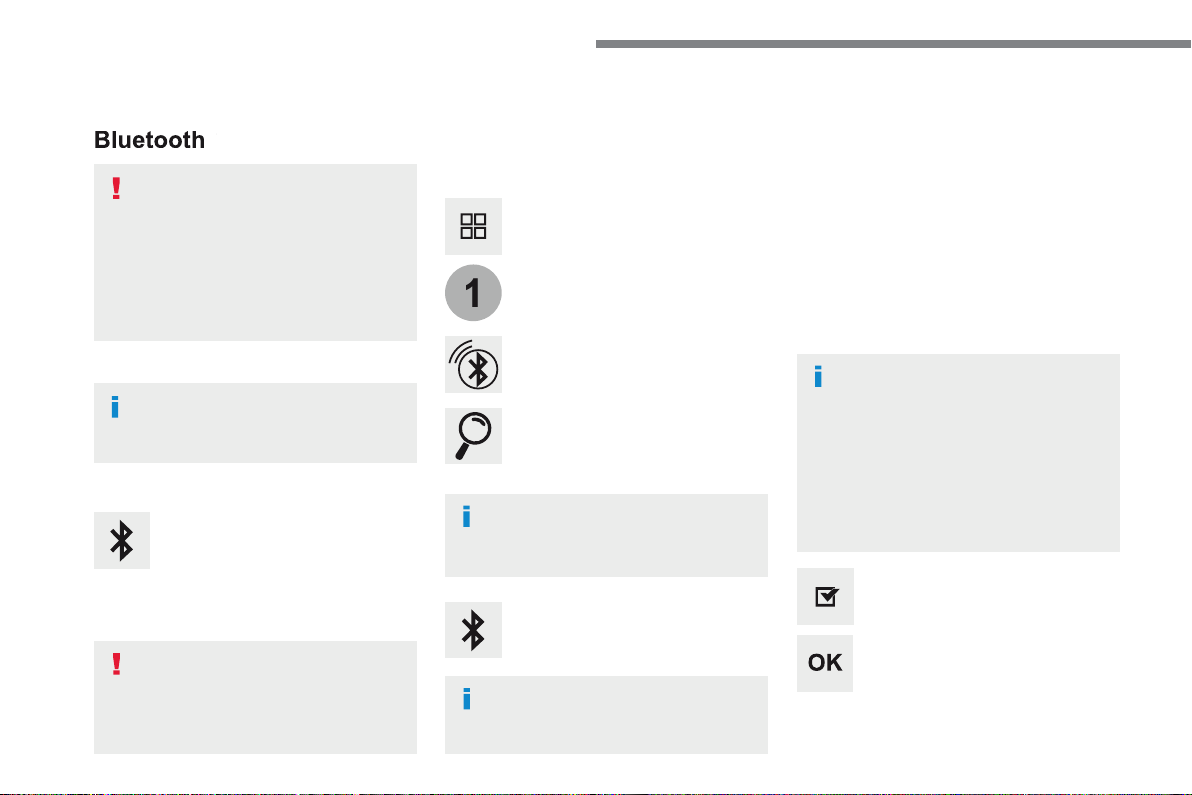
Bluetooth
®
connection
Procedure from the system
Connection sharing
Press on "
" to display
Press on "
".
Select "
The list of detected telephones is
If the pairing procedure fails, it is recommended
The "
" profile
The system offers to connect the
- "
" (hands-free kit, telephone
- "
" (wireless play of audio files
Select the name of the chosen
Press "
" to confirm.
Select one or more profiles.
Press the "
" button to go to
As a safety measure and because it
Procedure from the telephone
Select the name of the system in the
In the system, accept the connection request
Activate the Bluetooth function on the
To complete the pairing, whichever
Depending on the type of telephone,
52
Page 55
Audio and Telematics
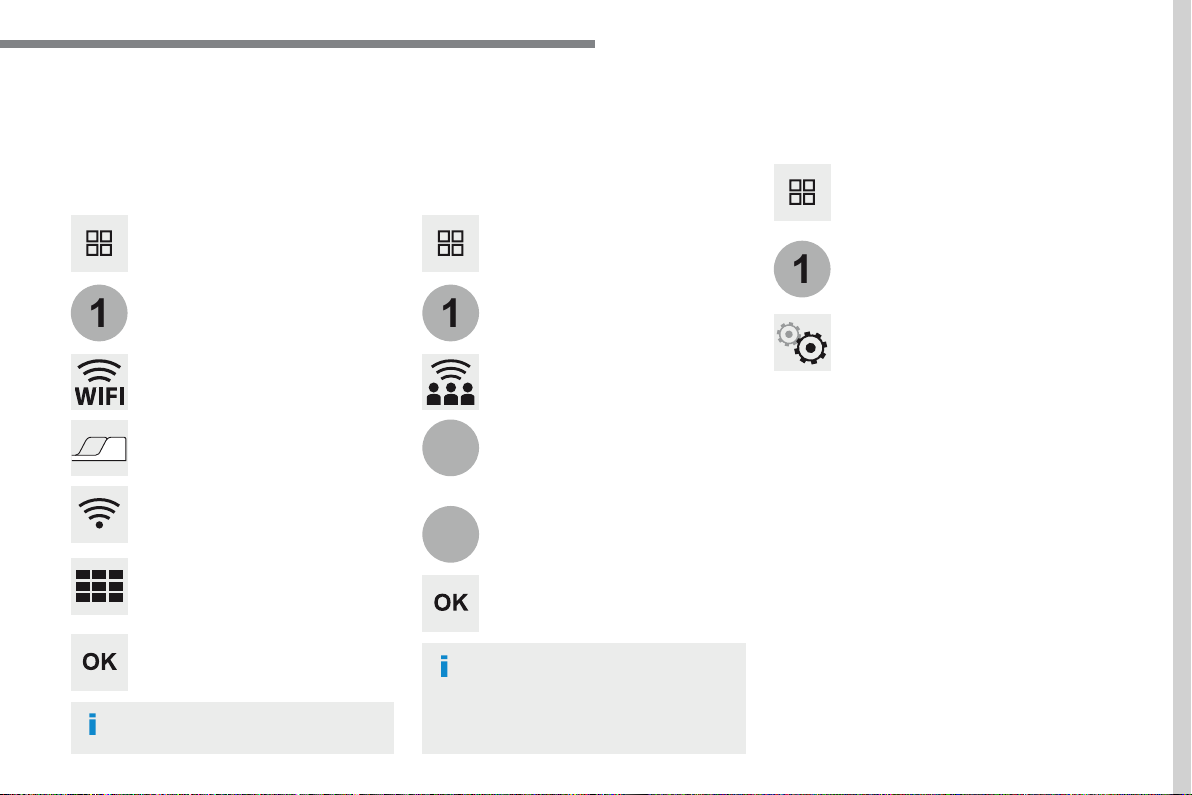
Wi-Fi connection
Sharing the Wi-Fi connection
Managing connections
To protect from any piracy and provide
The Wi-Fi connection and the sharing
Press "
" to confirm.
Press "
" to start the connection.
Press "
" to display the
Network connection by the smartphone Wi-Fi.
Creation of a local Wi- Fi network by the
Press
to display the
Press
to display the
Press the "
" button to go to
Press the "
" button to go to
Press the "
" button to go to
Select "
Wi-Fi network connection
Select "
Select "
And / Or
Select the "
", "
"
" tab.
Select the "
Activation
" tab to
Select the "
" to change the
With this function you can view the access
Using the virtual keypad, enter the
" for the Wi-Fi network and the
".
Select a network.
.
53
Page 56
Audio and Telematics
A c c o r d i n g t o v e r s i o n
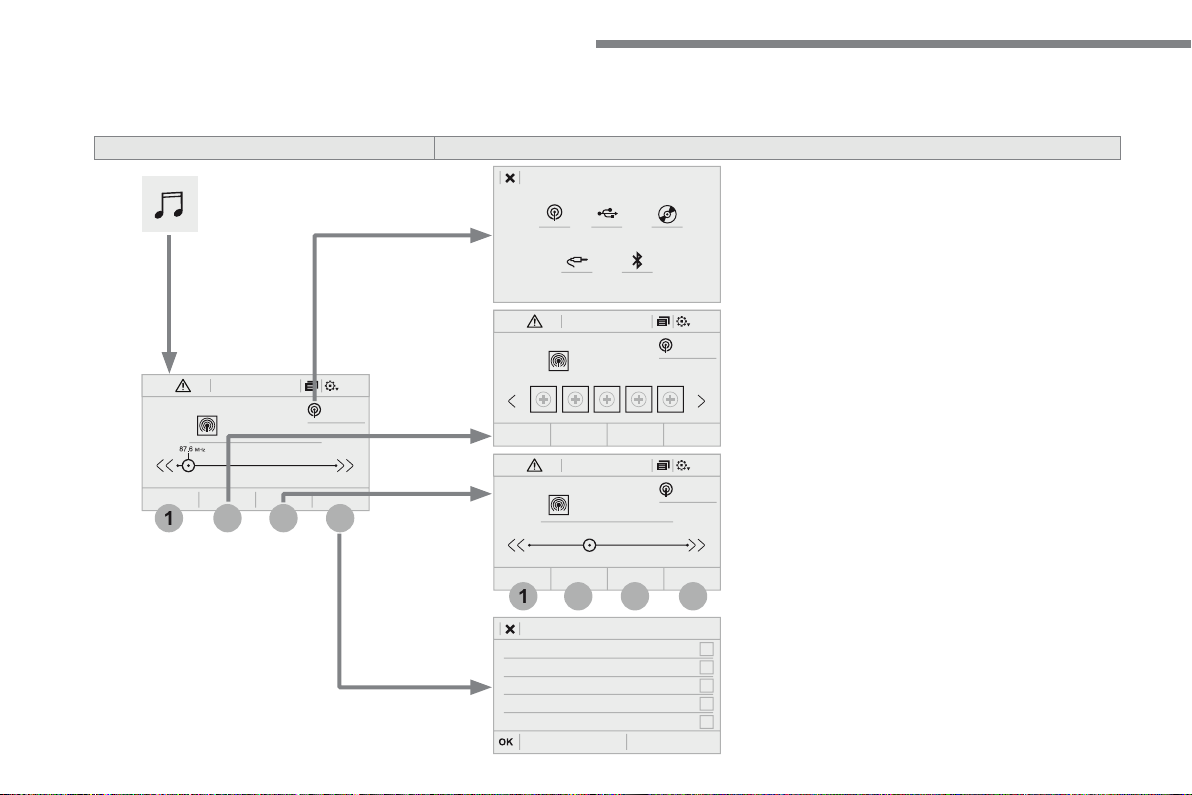
Radio Media
FM/87.5 MHz
87.5MHz
12:1318,5 21,523 °C
FM/87.5 MHz
87.5MHz
12:1318,5 21,523 °C
12:1318,5 21,523 °C
AM/531 kHz
PO
kHz
54
Page 57
Audio and Telematics
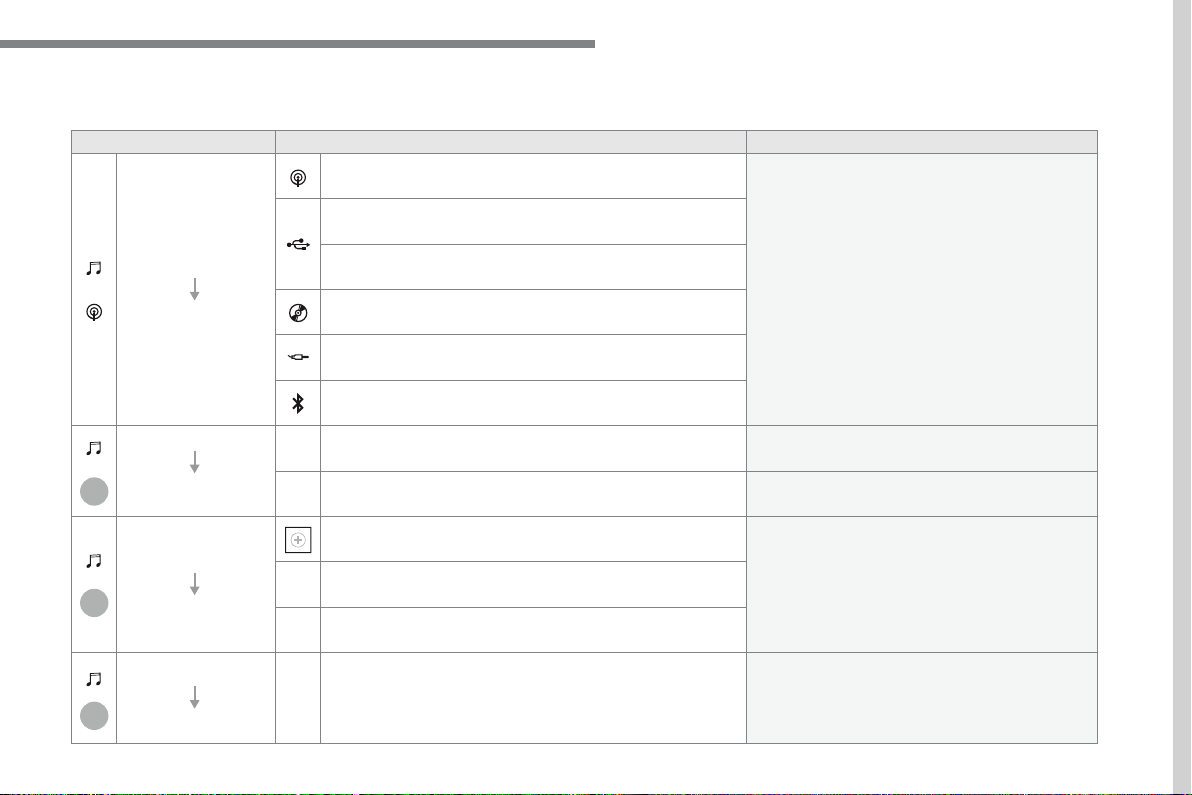
Select change of source.
AUX
Carry out an automatic or manual search for radio
Make a long press on an empty location to preset
Press the Band button to change waveband.
Open the list and press a radio station to select it.
.
55
Page 58
Audio and Telematics
56
Page 59
Audio and Telematics
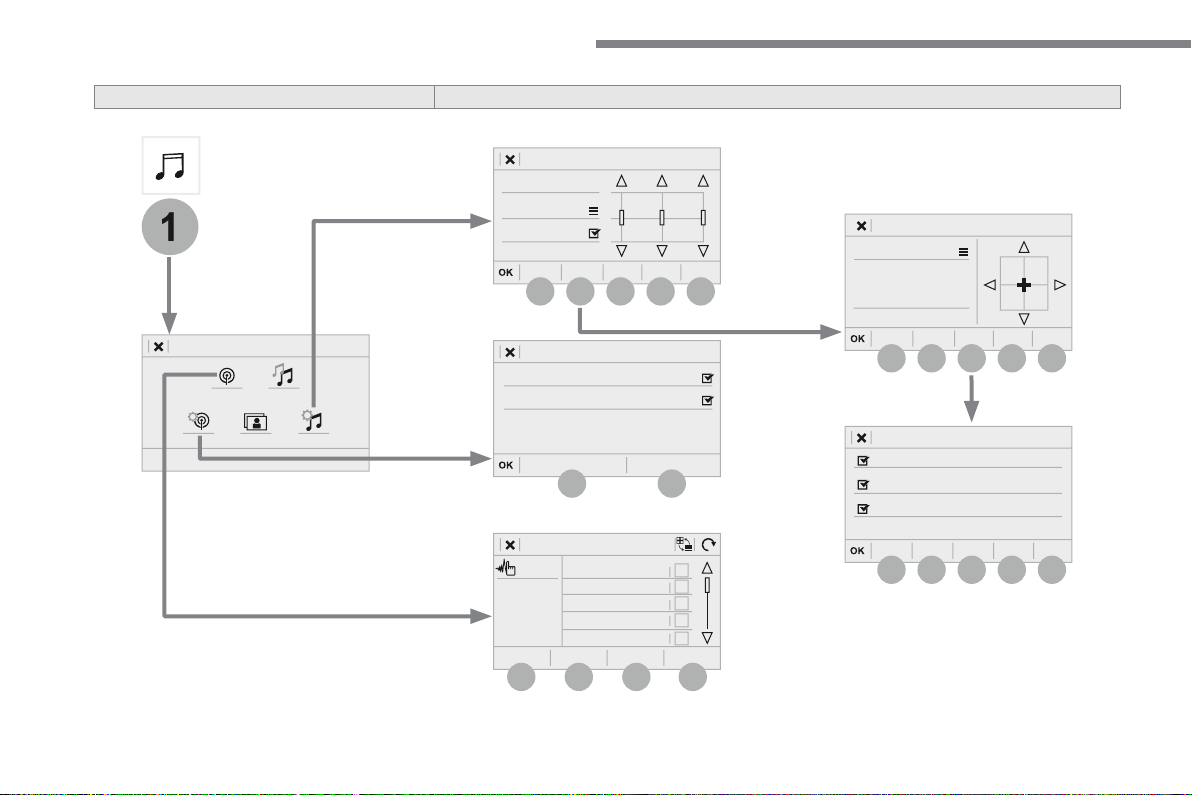
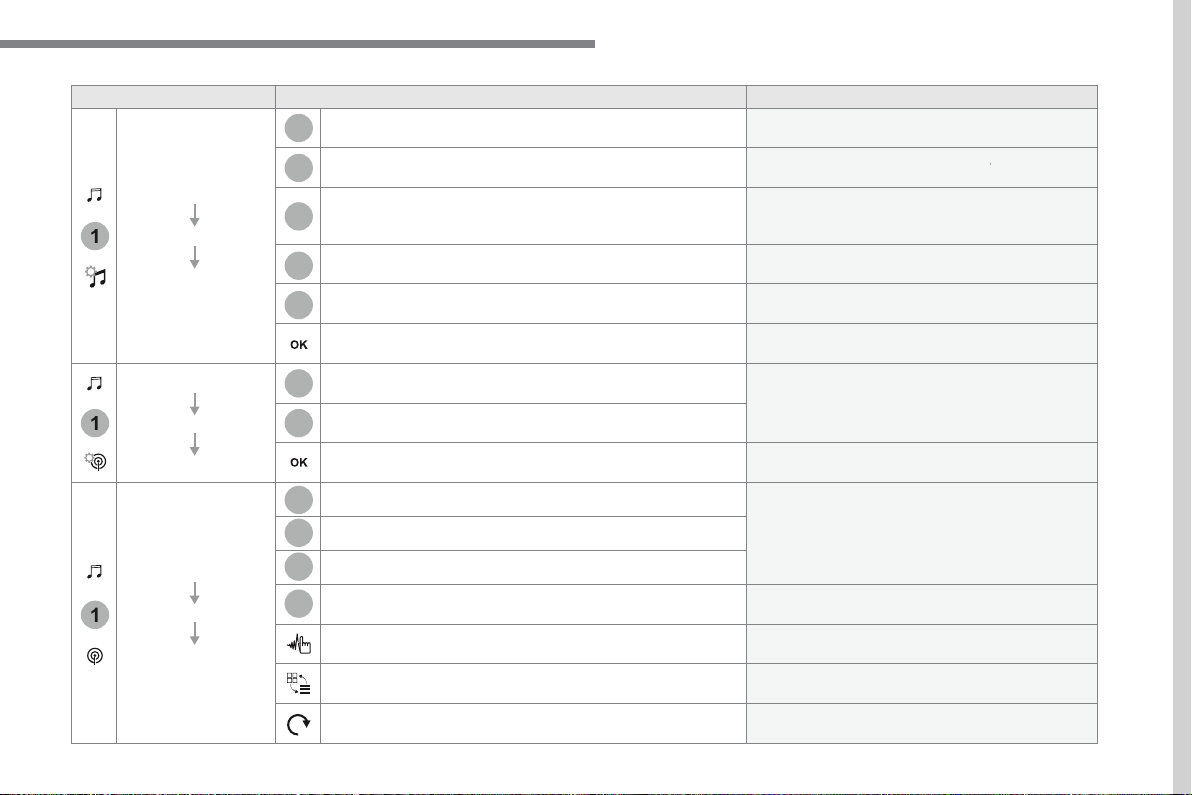
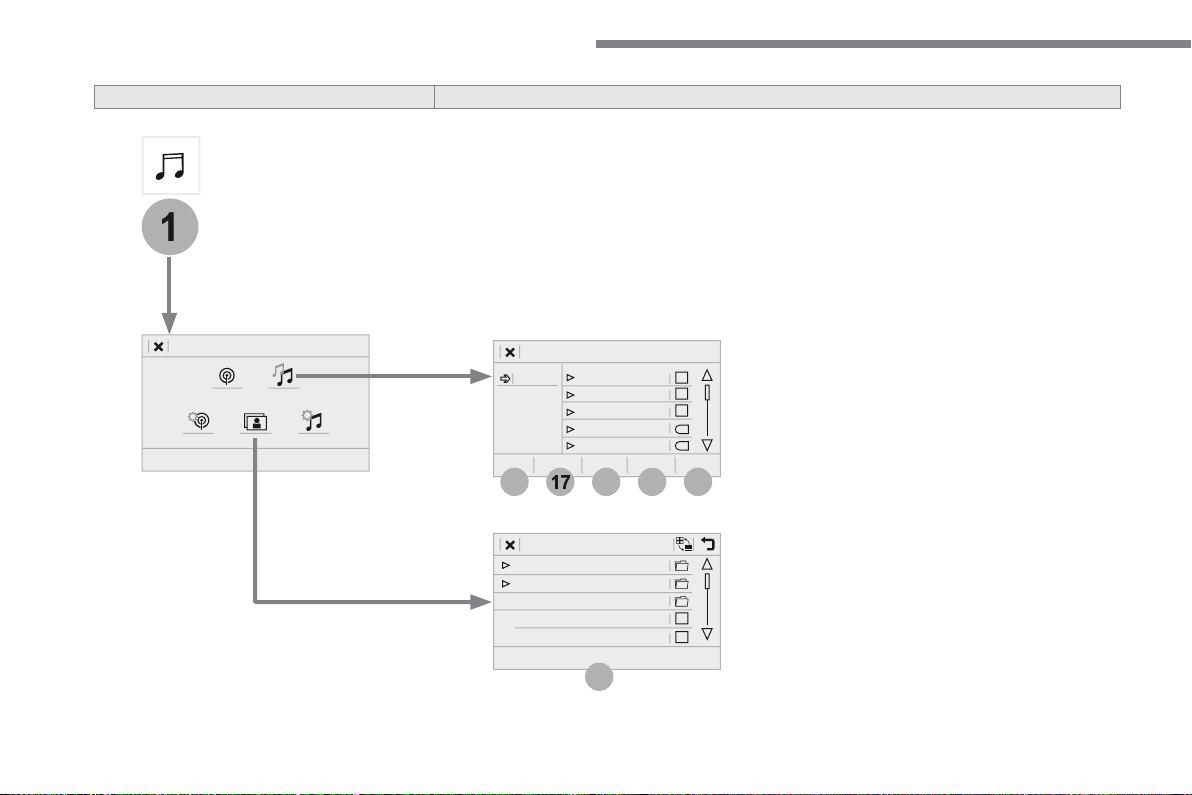
Audio settings
Ambience
Select the sound ambience.
Sound distribution by the Arkamys
®
system.
Adjust the volume or activate volume linked to
Voice
Adjust the voice volume.
Adjust the ringtone volume.
Save settings.
Activate or deactivate settings.
Announcements
Save settings.
Display the list of radio stations for the band
Select a preset radio station.
Enter a frequency manually.
Change the screen display mode.
Update the list according to reception.
.
57
Page 60
Audio and Telematics
58
Page 61
Audio and Telematics
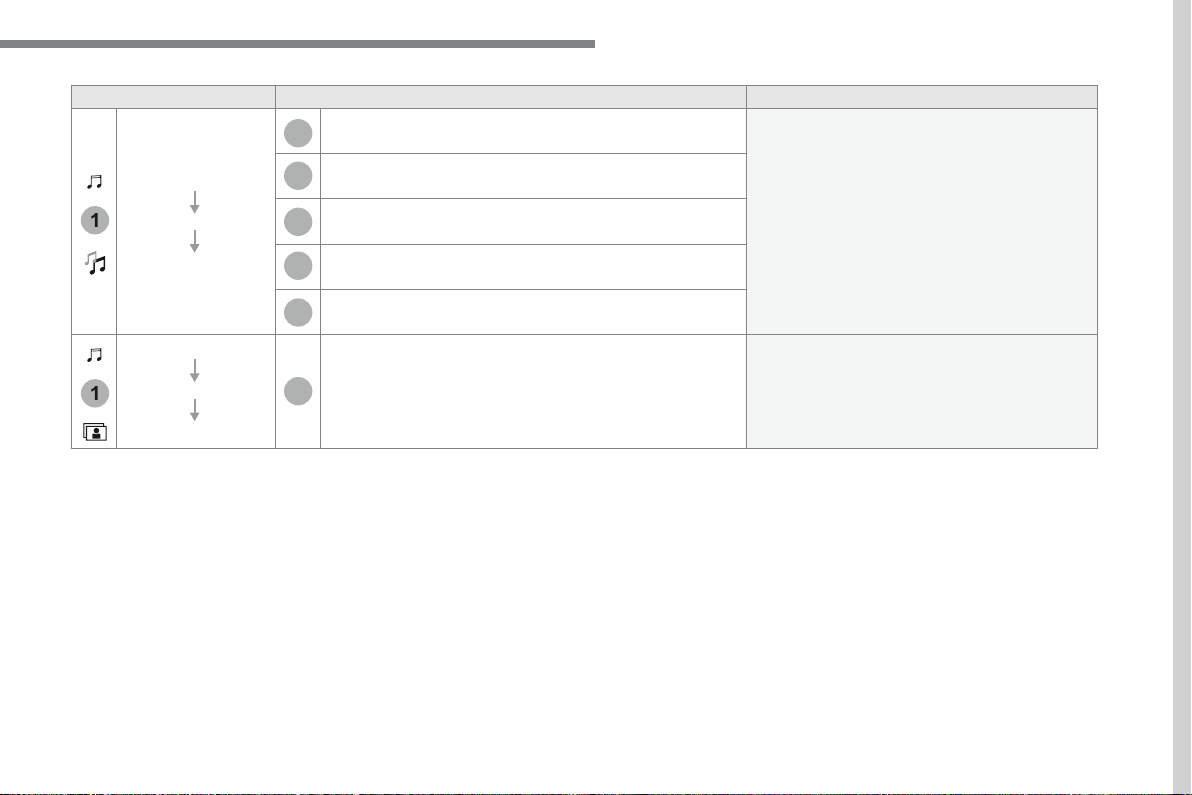
Albums
Choose a selection mode.
Artists
Display photos.
The system supports the following image formats:
.
59
Page 62

Page 63
Audio and Telematics
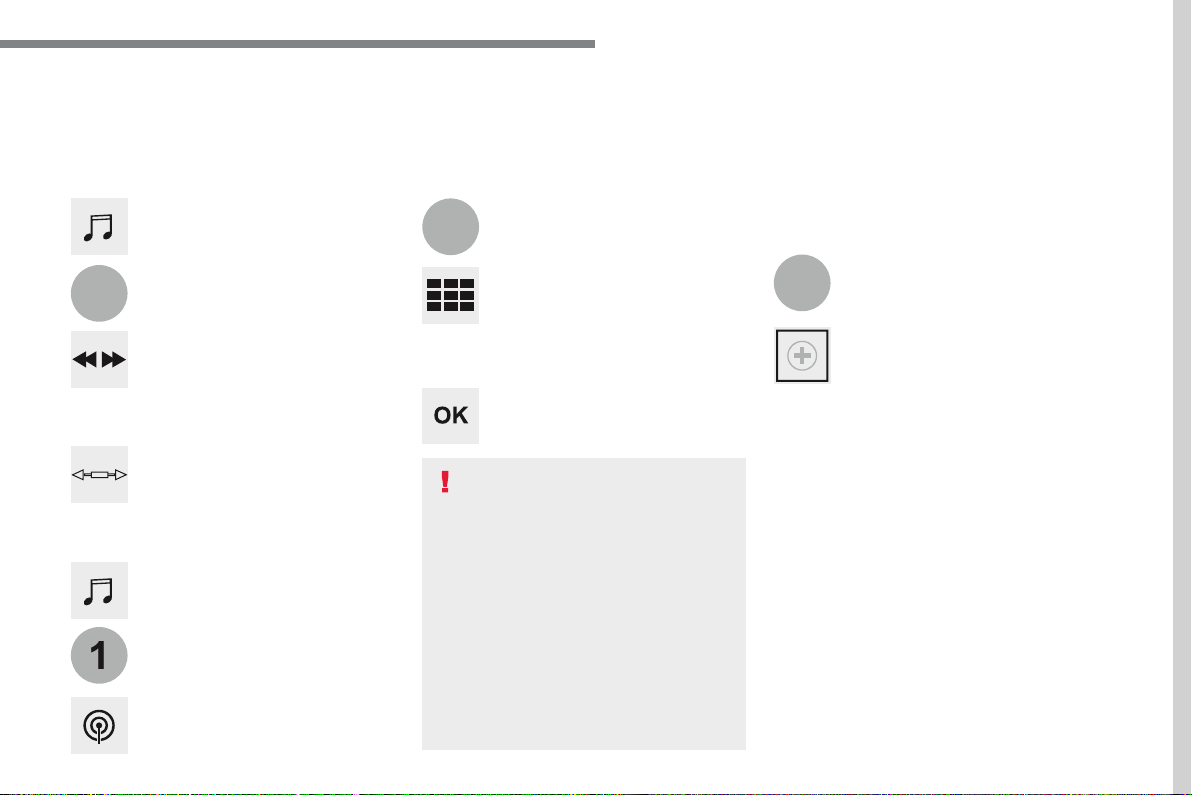
Press
to display the
Press the "
" button to go to
Press "
Press "
Enter the values using the vir tual
First enter the units then click on the
Press one of the buttons for an
Press
to display the
Radio
Selecting a station
Radio reception may be affected by
The exterior environment (hills,
way indicative of a fault with the audio
Select "
" in the
Or
Or
Move the cursor for a manual search
Select a radio station or frequency.
(refer to the corresponding section)
Press "
".
Make a long press on one of the
Preset a station
Press "
" to confirm.
.
61
Page 64
Audio and Telematics
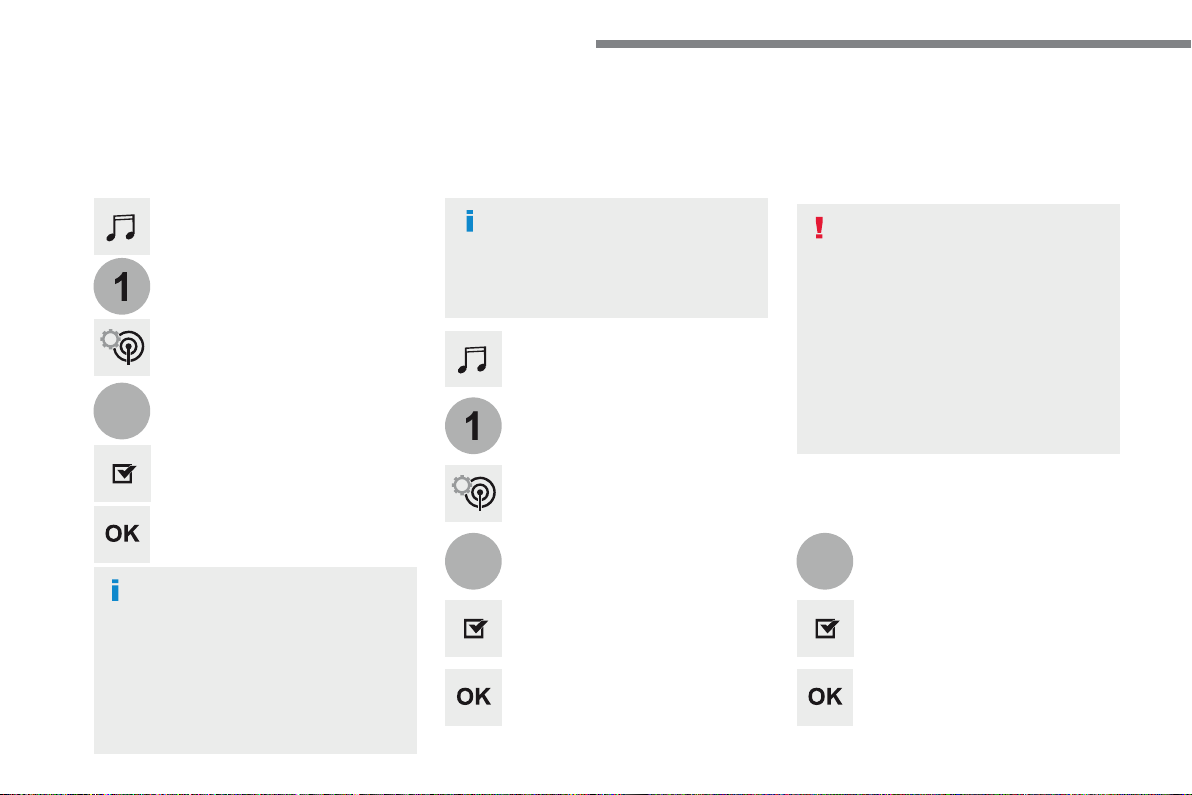
Press
to display the
Press
to display the
Press the "
" button to go to
Press the "
" button to go to
Select "
Select "
Select "
".
Select "
Select "
Announcements
Activate/deactivate "
Activate / Deactivate "
".
Activate / Deactivate "
".
Activate/ Deactivate RDS
RDS, if activated, allows you to continue
Press "
" to confirm.
Press "
" to confirm.
Press "
" to confirm.
The "Radio Text" function allows
Display text information
Play TA messages
The TA (Traffic Announcement)
62
Page 65
Audio and Telematics
Select the audio source.
Press
to display the
Press "
" to select the "
"
waveband.
Press
to display the
Press the "
" button to go to
DAB-FM auto tracking
"DAB" does not cover 100% of the
When the digital radio signal is poor,
If "DAB-FM auto tracking" is activated,
when the system switches to "FM"
Once the digital signal is restored, the
Digital radio provides higher quality
The different multiplexes offer a
If the " DAB" station being listened to
"
will cut out while the digital signal is too
w e a k .
Select "
".
Select "
".
Activate / Deactivate "
".
Press "
".
DAB radio (Digital Audio Broadcasting)
Terrestrial Digital Radio
.
63
Page 66
Audio and Telematics
Media
USB port
Selecting the source
Select "
".
Press
to display the
The system builds playlists (in temporary
Reduce the number of non-music files and the
The playlists are updated every time the
will be shorter.
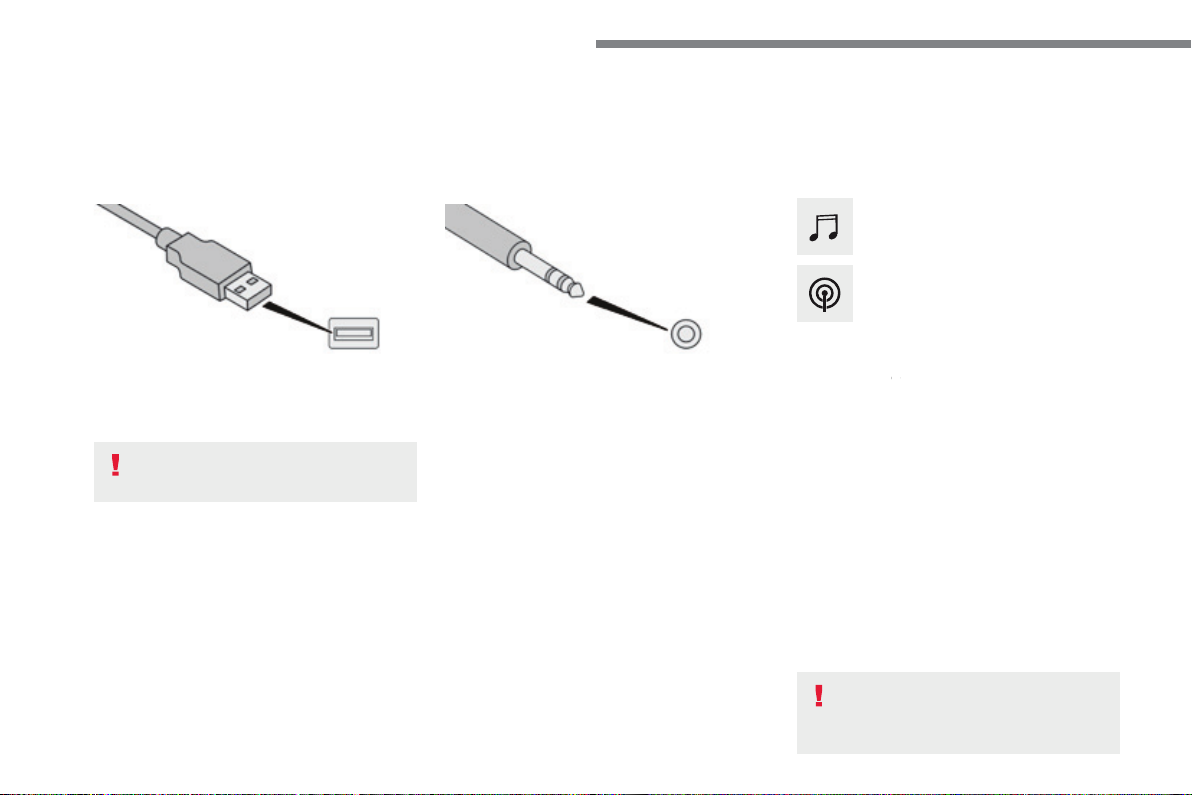
Insert the USB memor y stick into the USB port
Auxiliary (AUX) socket
First adjust the volume of your portable device
Display and management of the controls are
This source is only available if "Auxiliary input"
(depending on equipment)
Connect the portable device (MP3 player…) to
Choose the source.
Bluetooth
®
®
audio streaming
Streaming allows you to listen to music from
The Bluetooth profile must be activated. First
Then adjust the volume of your audio system.
If play does not start automatically, it may be
Control is from the portable device or by using
Once connected in streaming mode,
To protect the system, do not use a
CD player
(depending on equipment)
Insert the CD in the player.
64
Page 67
Audio and Telematics
Connecting Apple
®
®
players
Connect the Apple
®
player to the USB por t
Play starts automatically.
Control is via the audio system.
The classifications available are those
The default classification used is by
The version of software in the audio system
®
player.
The audio equipment will only play audio
It also supports VBR (Variable Bit Rate) mode.
No other type of file (.mp4, ...) can be played.
".wma" files must be of the standard wma 9
The sampling rates suppor ted are 32, 44 and
In order to be able to play a burned CDR or
If the disc is burned in another format, it may
It is recommended that the same burning
with as low a speed as possible (4x maximum)
In the par ticular case of a multi-session CD, the
It is advisable to restrict file names to
Information and advice
Use only USB memory sticks formatted FAT 32
The system suppor ts USB mass
®
devices
®
players via USB por ts. The
Control of the peripheral device is with
Other peripherals, not recognised on
It is recommended that the original USB
To protect the system, do not use a
.
65
Page 68
Audio and Telematics
A c c o r d i n g t o v e r s i o n
Telephone
12:1318,5 21,523 °C
12:1318,5 21,523 °C
66
Page 69
Audio and Telematics
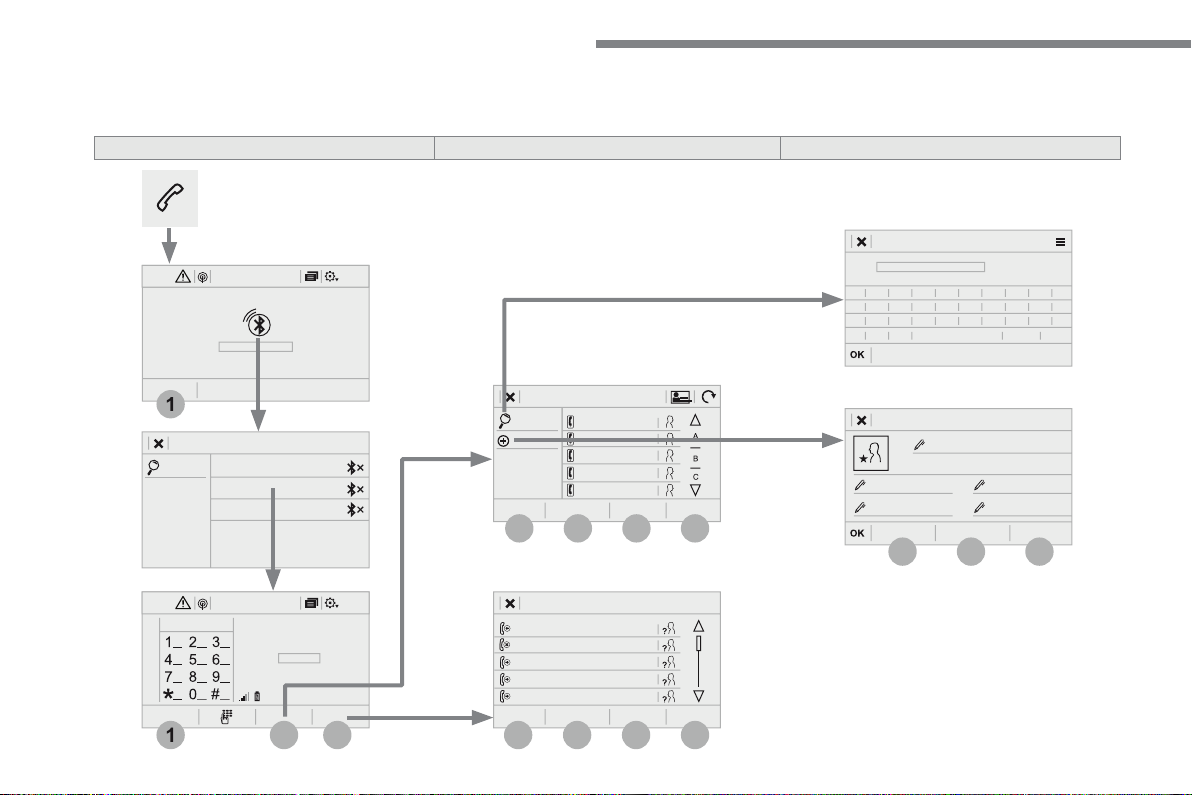
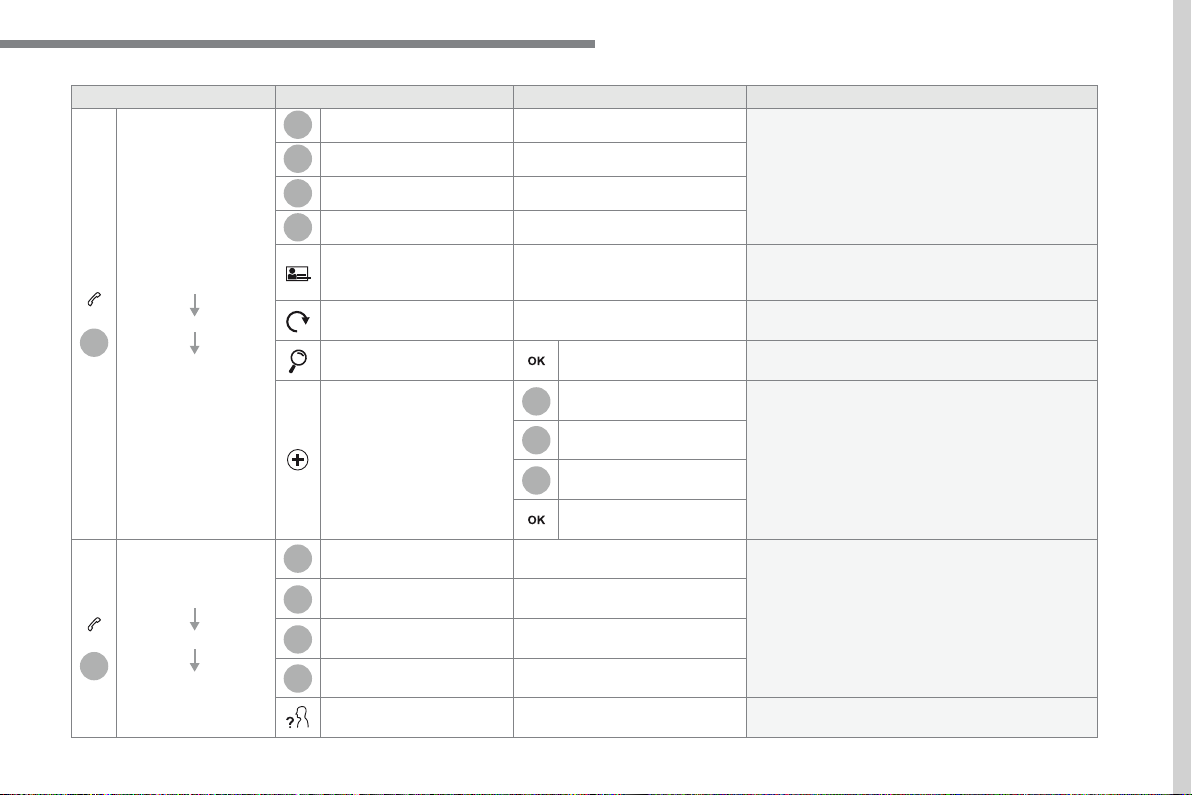
All
View contacts according to presentation choices.
Select a contact or a favourite saved in the
Address
Sort the contacts by Surname-First name or First
Update the contacts from the telephone.
Search for a contact in the directory.
Telephone
Create a new contact in the system.
Address
Email
View calls according to choice of presentation.
Select a contact to start the call.
View details for the contact.
.
67
Page 70
Audio and Telematics
68
Page 71
Audio and Telematics
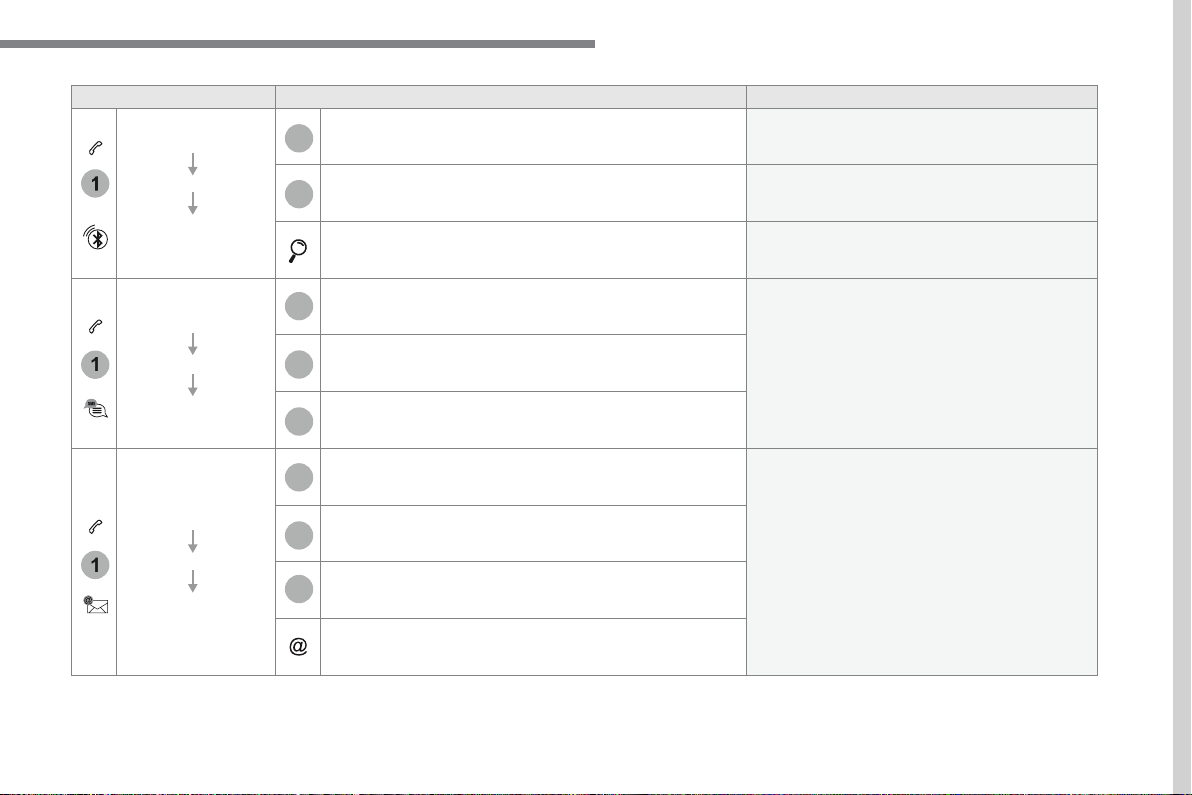
All
Display all telephones detected and saved.
Display all connected telephones.
Start the search for a device to connect.
Display messages according to the choice made.
Display emails according to the choice made.
.
69
Page 72
Audio and Telematics
70
Page 73
Audio and Telematics
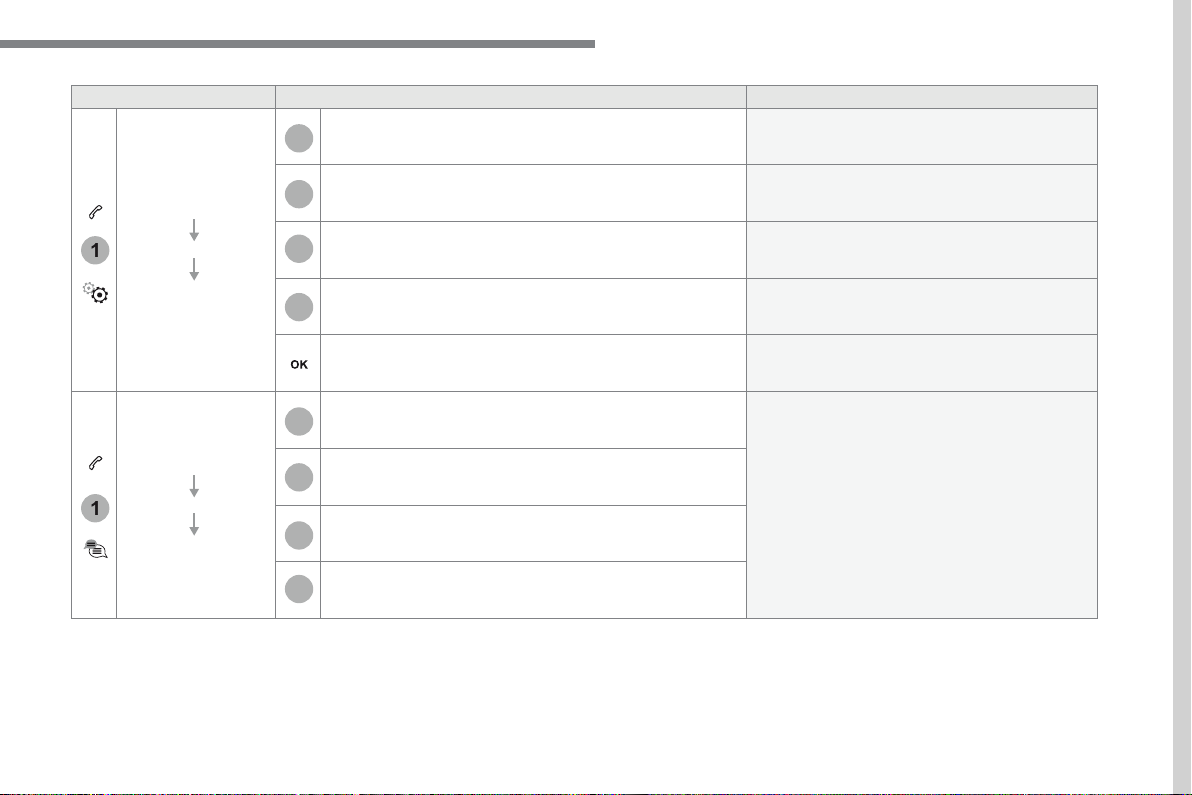
Make driving safe.
Voicemail
Enter and save the number for the telephone
Adjust the ringtone volume.
Display data for the telephone connected.
Save the options.
Select a quick message from the categories, as
.
71
Page 74
Audio and Telematics
Pairing a Bluetooth
®
®
telephone
As a safety measure and because it
and
Procedure from the telephone
Select the system name in the list of
In the system, accept the connection request
Procedure from the system
Press on
to display the
Press on "
".
Select "
The list of telephones detected is
If the pairing procedure fails, it is recommended
The system offers to connect the telephone
with 3 prof iles:
-
(hands-free kit, telephone
-
(wireless play of audio files on
Depending on the type of telephone,
Select the name of the chosen
Press "
" to confirm.
Select one or more profiles.
Or
Activate the Bluetooth function on the
To complete the pairing, whichever
The "
" profile
Connection sharing
72
Page 75
Audio and Telematics
Press
to display the
Select "
" to
On return to the vehicle, if the last
within about 30 seconds of switching
The services available depend on
The ability of the system to connect
with just one profile depends on the
All three profiles may connect by default.
Go to the Brand's website for more information
Automatic reconnection
Press the "details" button.
Press the "
" button to go to
Press "
" to confirm.
Select one or more profiles.
The profiles compatible with the system
.
73
Page 76
Audio and Telematics
Receiving a call
An incoming call is announced by a ring and a
Make a short press on the steering
button to accept an
Make a long press
on the steering mounted
button
Or
And
Select "
".
Press on the name of the telephone
Press again to connect it.
Select the basket at top right of the
Press the basket alongside the
Managing paired telephones
This function allows the connection or
well as the deletion of a pairing.
Press
to display the
Press the "
" button to go to
Select "
" to
Deleting a telephone
74
Page 77
Audio and Telematics
on the steering mounted but ton.
Using the telephone is not
Park the vehicle.
Make the call using the steering
Making a call
Calling a new number
Press
to display the
Enter the phone number using the
Press "
" to start the call.
Calling a contact
Press
to display the
Or make a long press
on the steering mounted
button.
Select "
Select the desired contact from the list offered.
Select "
".
Calling a recently used number
Press
to display the
Make a long press
Select "
Select the desired contact from the list offered.
It is always possible to make a call
Or
.
75
Page 78
Audio and Telematics
The access to "
" depends on
Depending on the smartphone, access
Managing messages
The "
" function allows email
Managing contacts / entries
Press
to display the
Select "
Select "
" to add a new contact.
In the "
" tab, enter the
In the "
Address
" tab, enter the
In the "
" tab, enter the email
Pre ss "
Answer
" to send a quick
Press
to display the
Press the "
" button to go to
Select "
" to display the list
Select the "
All
" or "
" or
" tab.
Select the detail of the message
Press "
" to start the call.
Press "
" to hear the message.
The services available depend on
Check in the manual for your
76
Page 79
Audio and Telematics
Managing email
Press
to display the
Press the "
" button to go to
Select "
" to display the list of
Select the "
" or "
" or
" tab.
Select the email chosen in the list.
Press "
" to star t playing the
Access to "
" depends on the
Managing quick messages
Press
to display the
Press on the "
" button to
Select "
" to display
Select the "
" or "
" or "
" tab
with the possibility of creating new
Select the message chosen in one of
Press "
" to write a new
Press "
" to select the
Press "
" to star t playing the
.
77
Page 80
Audio and Telematics
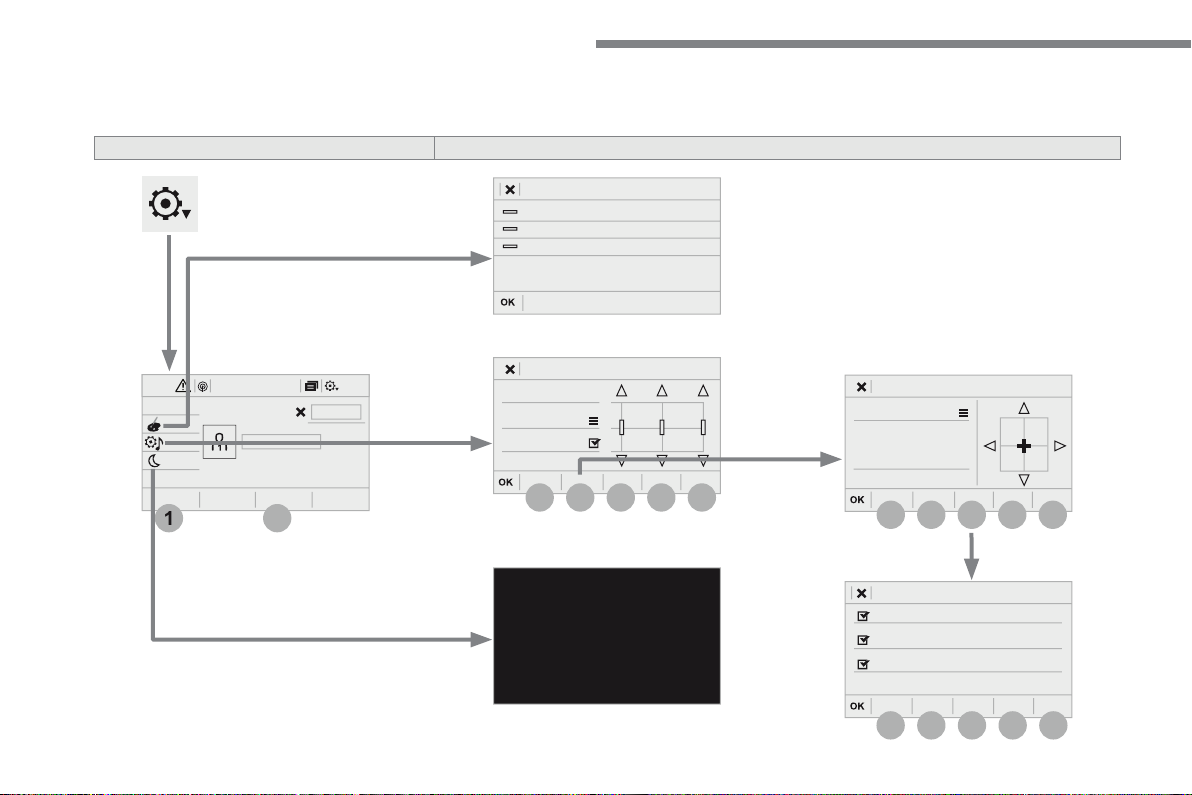
A c c o r d i n g t o v e r s i o n
S e t t i n g s
12:1318,5 21,523 °C
78
Page 81
Audio and Telematics
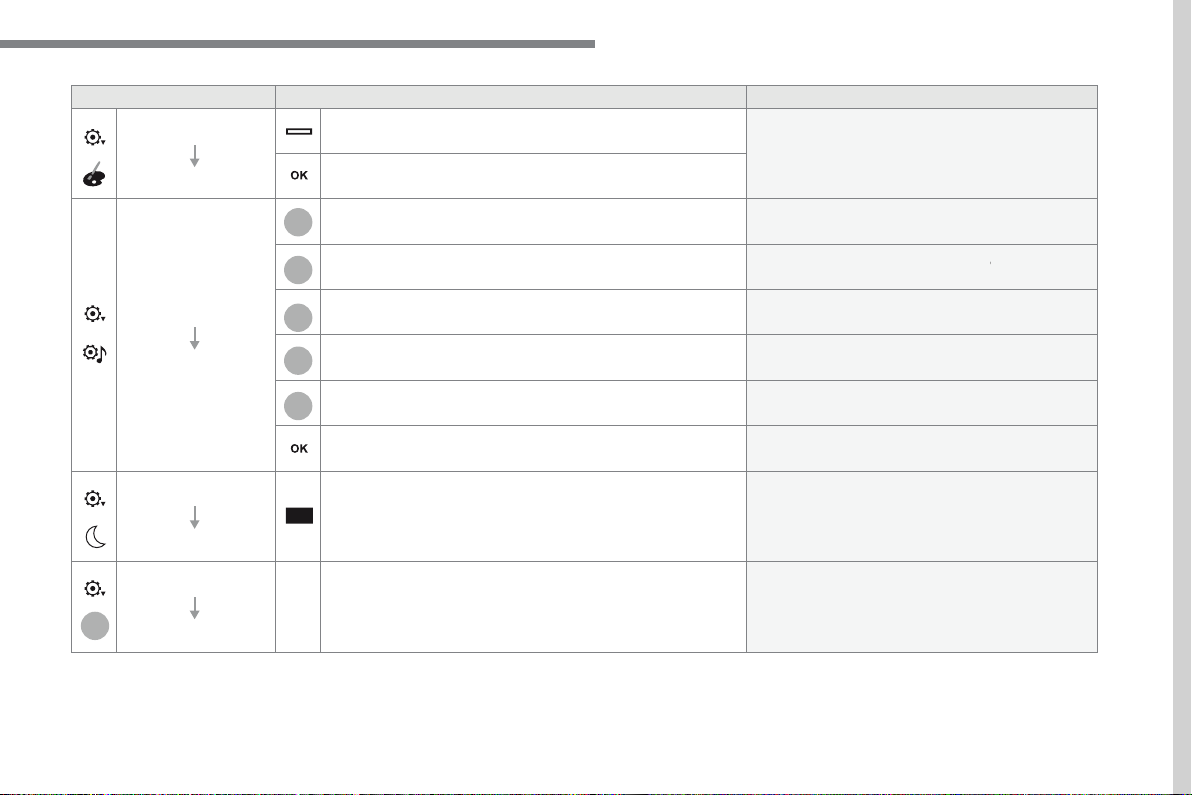
Having chosen the color scheme, save the
Audio settings
Ambience
Select the sound ambience.
Sound distribution by the Arkamys
©
system.
Adjust the volume or activate linked to speed.
Voice
Adjust the voice volume.
Adjust the ringtone volume.
Save the settings.
Function allowing the display to be switched off.
Pressing the screen reactivates it.
Activate the profile selected.
.
79
Page 82
Audio and Telematics
80
Page 83
Audio and Telematics
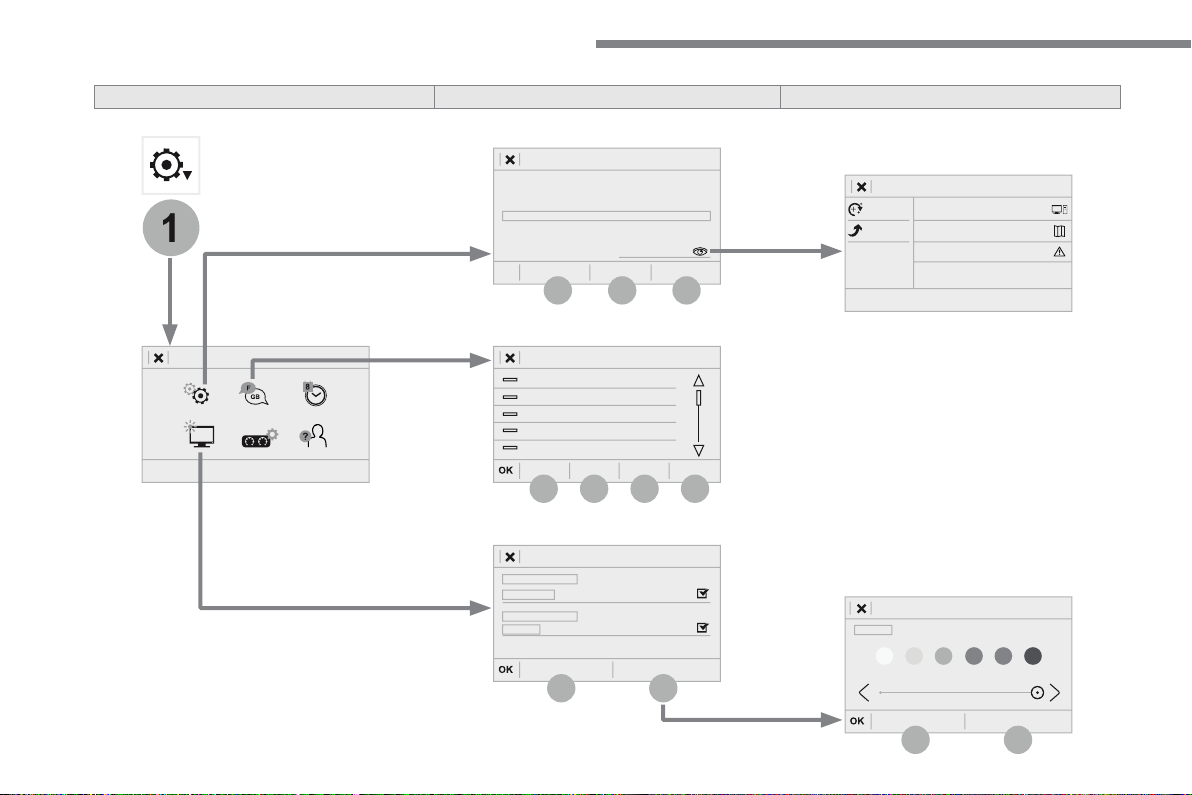
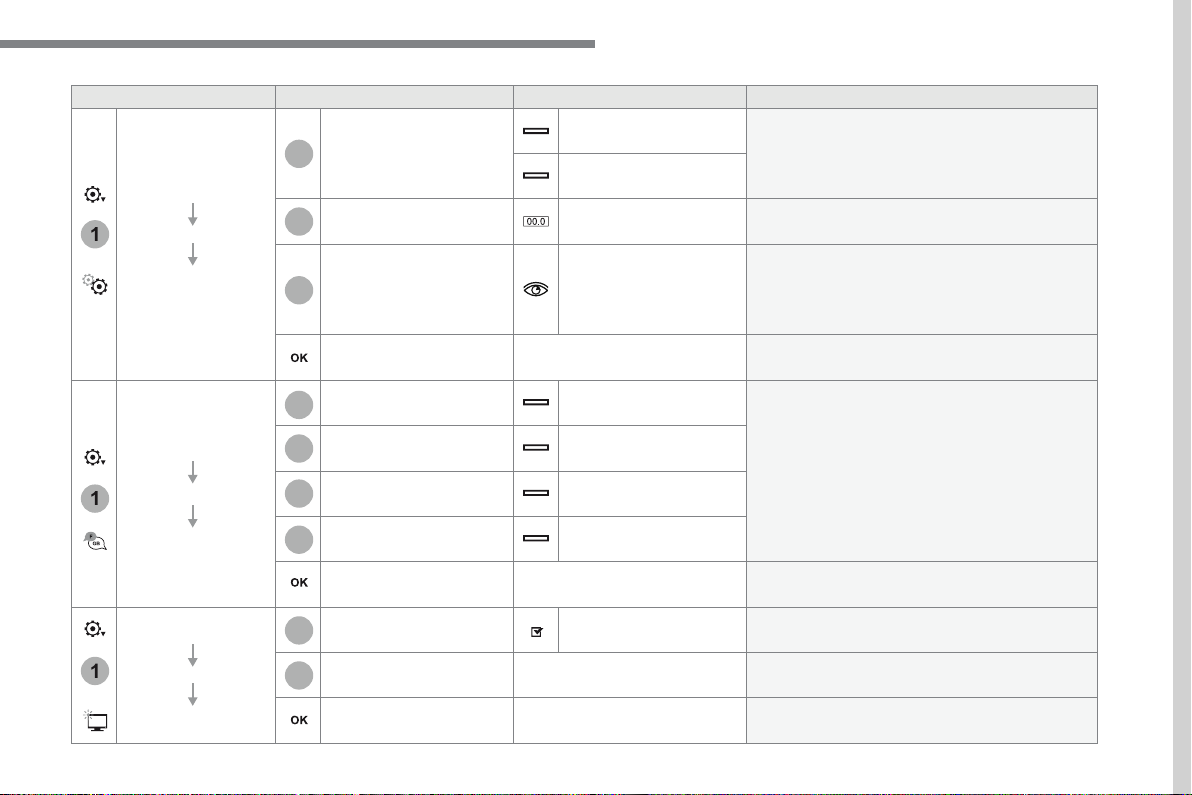
Distance and fuel
Set the units used for distance, fuel consumption
Temperature
Reinitialize
Restore the factory settings.
View
View the versions of the different modules
Save the settings.
Select the language then confirm.
Asia
America
Having selected the language, save the setting.
Animation
Activate or deactivate settings.
Move the cursor to adjust the brightness of the
Save the settings.
.
81
Page 84
Audio and Telematics
82
Page 85
Audio and Telematics
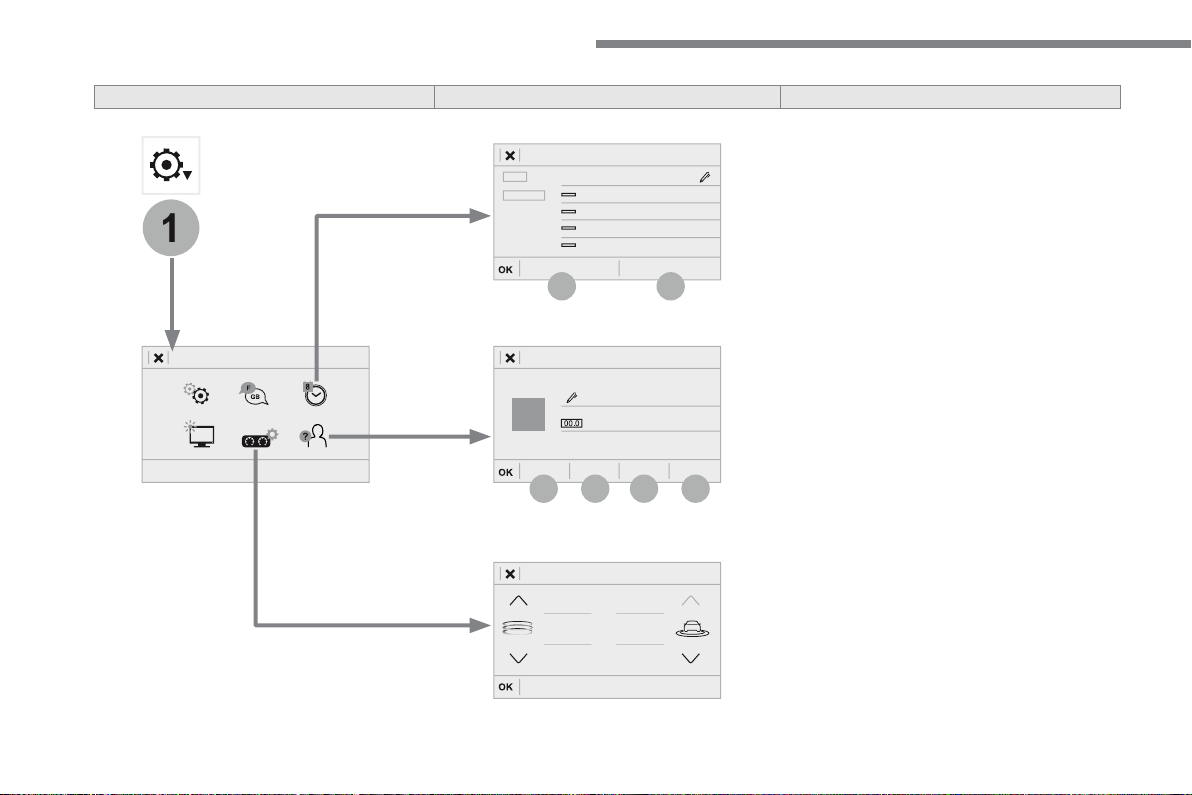
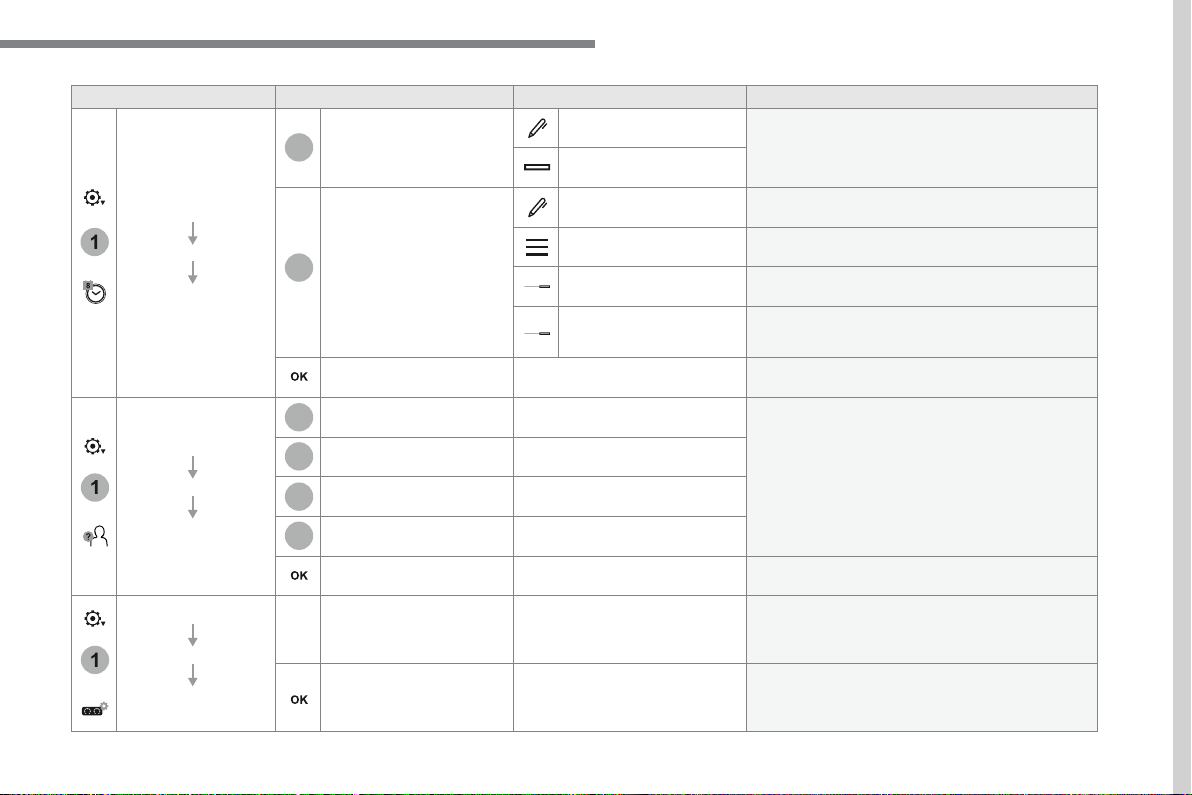
Date
Enter the date and select the date format.
Date format:
Time
Set the time.
Time Zone
Define the time zone.
Time format:
Select the time format: 12h / 24h.
Synchronisation with
Activate or deactivate synchronisation with the
Save the settings.
Enter settings for the profiles.
Save the settings.
Choose and select the display information
Confirm the selections.
.
83
Page 86
Audio and Telematics
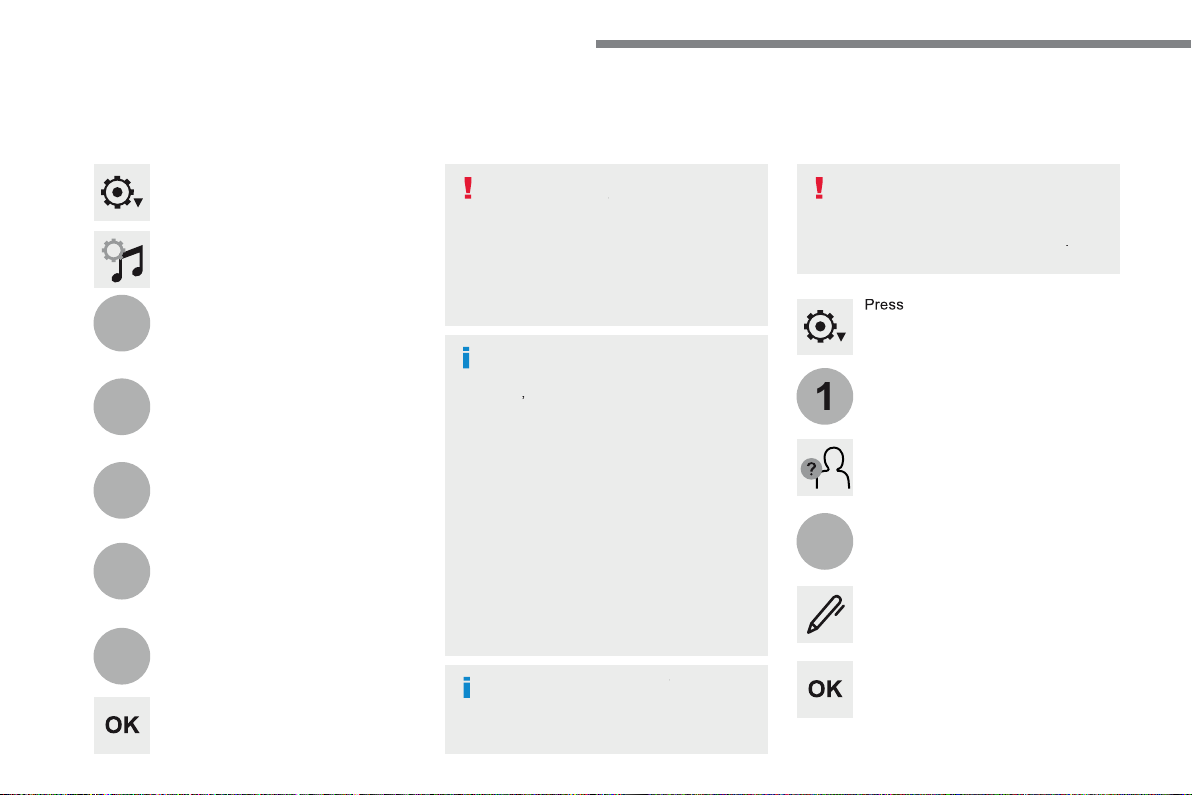
Press
to display the primary
Profile settings
Audio settings
Press
to display the primary
Select "
Audio settings
Select "
Ambience
".
Or
Or
"
".
Or
Voice
Or
On-board audio: Arkamys
©
Sound
The set tings for "
" (All
Activate or Deactivate "
",
Volume linked to speed
" and
Auxiliary input
The sound distribution (or spatialisation
with the Arkamys
©
system) is audio
Available only with the front and rear
The audio
Ambience
settings
,
and
settings
Activate or Deactivate "
Press "
" to save the settings.
Press "
" to confirm.
Press the "
" button to go to
Select "
", "
",
" or "
Select "
".
Press this button to enter a name for
As a safety measure and because it
84
Page 87
Audio and Telematics
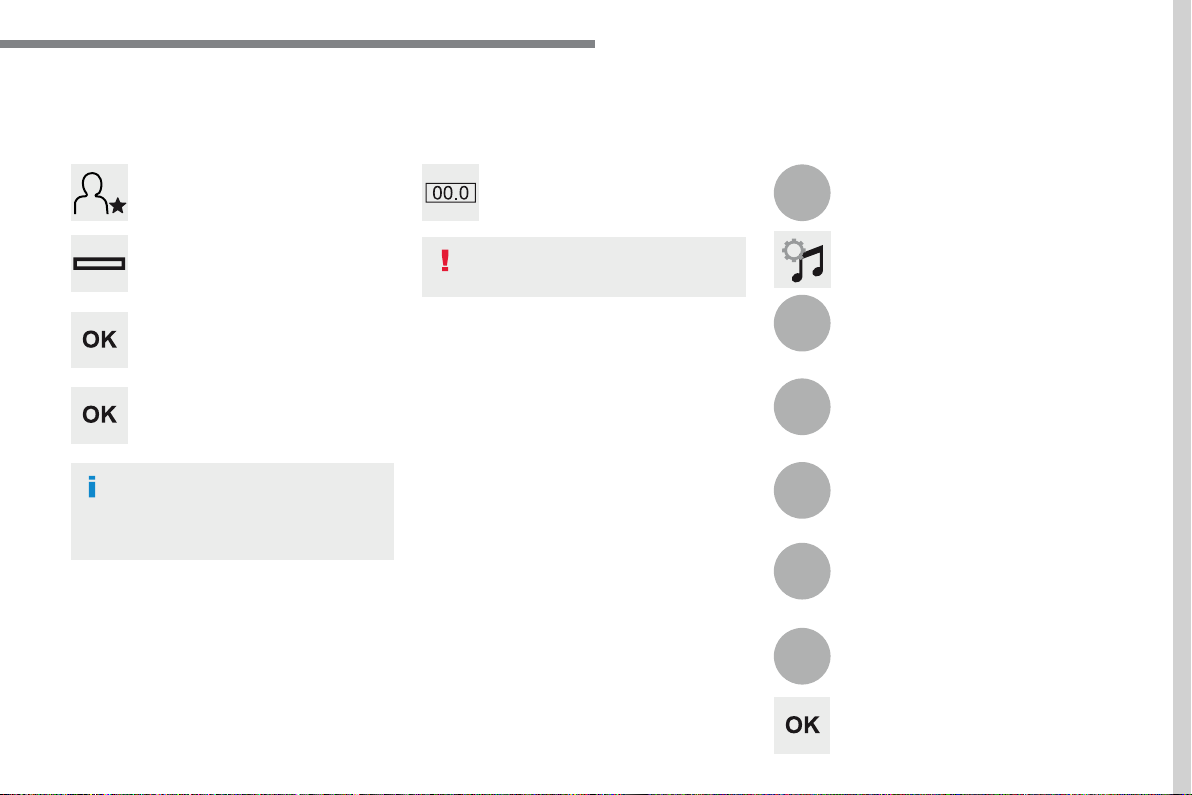
Select a "
" (1 or 2 or 3) to
Audio settings
" with
Select "
Audio settings
Select "
Ambience
".
Or
Or
"
".
Or
Voice
Or
The location for the photograph is
Initialisation of the profile selected
Press "
" to save the settings.
Press "
" to accept the transfer of
Press "
" again to save the
Press this button to add a photograph
Insert a USB memory stick containing
Select the photograph.
Press this button to initialise the
.
85
Page 88
Audio and Telematics
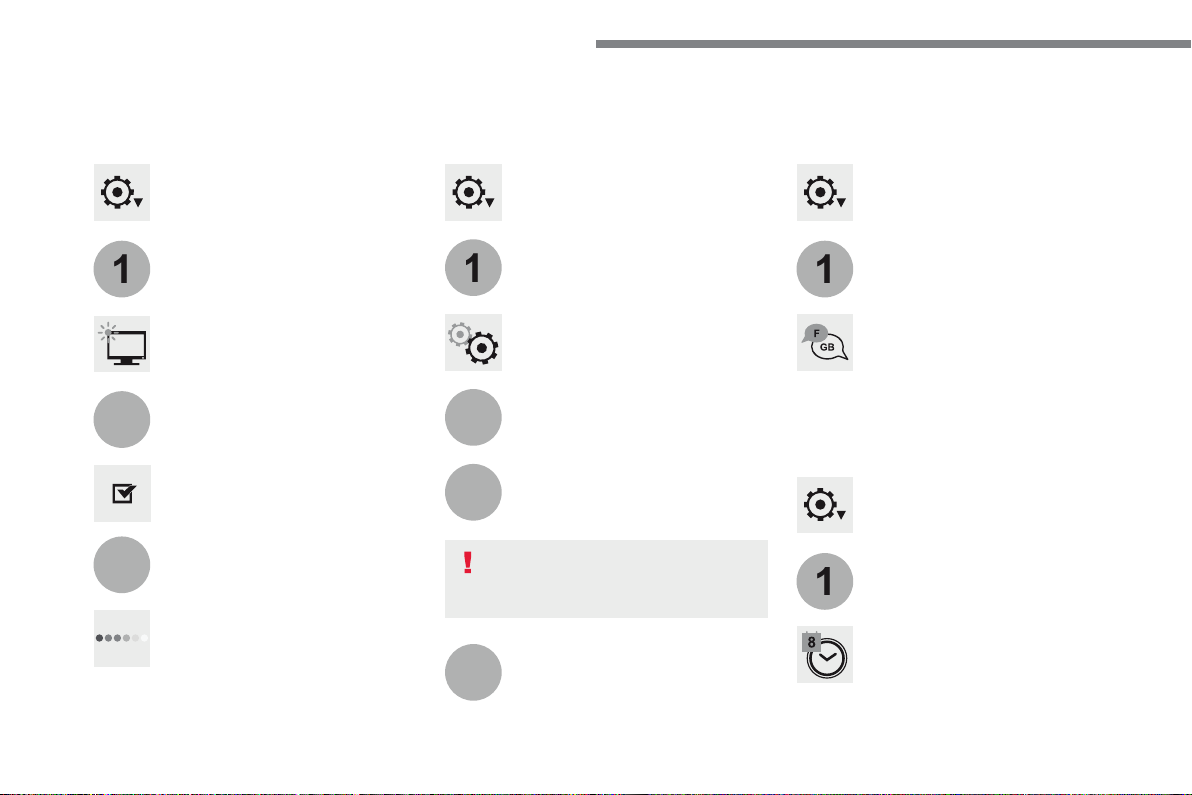
Press
to display the primary
Press
to display the primary
Press
to display the primary
Press the "
" button to go to
Press the "
" button to go to
Press the "
" button to go to
Select "
".
Select "
Select "
" to change the units
Select "
" to change the
Activate or deactivate "
Automatic
".
Move the cursor to adjust the
Select "
" to return
Select "
" to display the
Modifying system settings
Returning the system to factory settings
Select "
Animation
".
Select "
".
Select the language
Press
to display the primary
Press the "
" button to go to
Select "
".
Setting the date
86
Page 89
Audio and Telematics
Press
to display the primary
Press the "
" button to go to
Select "
".
Select "
".
Select "
".
Adjustment of the time and date is only
The change between winter and
The system does not automatically
Setting the time
Press this button to define the date.
Press this button to adjust the time
Press "
" to confirm.
Press "
" to confirm.
Press "
" to confirm.
Press this button to define the time
Select the display format of the date.
Select the display format for the time
Activate or deactivate
Every time the color scheme is
As a safety measure, the procedure
Press
to display the primary
Select "
".
Select a color scheme in the list then
" to confirm.
Color schemes
.
87
Page 90

Audio and Telematics
The following table groups together the answers to the most frequently asked questions concerning your audio system.
ANSWER
The route calculation is not
The route settings may conf lict with the current location (exclusion of
Check the route set tings in the "Navigation"
The POIs do not appear.
The POIs have not been selected.
Select the POIs in the list of POIs.
The audible warning of
work.
The audible warning is not active.
Activate audible warnings (without the possibility
The system does not
The guidance criteria do not take account of TMC messages.
Select setting for the "Traffic info" function in
Automatic).
I receive a "Danger area"
Other than guidance, the system announces all " Danger areas"
Zoom in on the map to view the exact position of the
Navigation
Frequently asked questions
88
Page 91

Audio and Telematics
ANSWER
Certain traffic jams along
On star ting, it is several minutes before the system begins to receive
Wait until the traffic information is being received
In certain countries, only major routes (motorways...) are listed for
This phenomenon is normal. The system is
The altitude is not
On star ting, the initialisation of the GPS may take up to 3 minutes to
Wait until the system has started up completely so
Depending on the geographical environment (tunnel...) or the
weather, the conditions of reception of the GPS signal may vary.
This phenomenon is normal. The system
.
89
Page 92

Audio and Telematics
Radio
ANSWER
The quality of reception of
The vehicle is too far from the transmitter used by the station
Activate the "RDS" function by means of the
whether there is a more powerful transmitter in
The environment (hills, buildings, tunnels, basement car parks...)
This phenomenon is normal and does not indicate
The aerial is absent or has been damaged (for example when going
Have the aerial checked by a franchised dealer.
I cannot find some radio
The station is not received or its name has changed in the list.
Press on the "Update list" button in the "Radio
Some radio stations send other information in place of their name
The system interprets this information as the name of the station.
The name of the radio
90
Page 93

Audio and Telematics
Media
ANSWER
Playback of my USB
Some files supplied with the memory stick may greatly slow down
Delete the files supplied with the memory stick
The CD is ejected
The CD is inserted upside down, is unplayable, does not contain any audio
Check that the CD is inserted in the player the
Check the condition of the CD: the CD cannot be
Check the content in the case of a recorded CD:
The audio system's CD player does not play
Some recorded CDs will not be played by the
The CD has been recorded in a format that is not compatible with the player (udf, ...).
The CD is protected by an anti-pirating protection system which is
There is a long waiting
When a new medium is inserted, the system reads a certain
This phenomenon is normal.
The CD player sound is
The CD used is scratched or of poor quality.
Inser t good quality CDs and store them in suitable
The audio equipment settings (bass, treble, ambiences) are
Set the treble or bass level to 0, without selecting
.
91
Page 94

Audio and Telematics
ANSWER
I cannot connect my
The telephone's Bluetooth function may be switched off or the
Check that your telephone's Bluetooth function is
Check in the telephone settings that it is "visible
The Bluetooth telephone is not compatible with the system.
You can check the compatibilit y of your telephone
The volume of the
The volume depends both on the system and on the telephone.
Increase the volume of the audio system, to
The ambient noise level has an influence on the quality of telephone
Reduce the ambient noise level (close the windows,
Telephone
ANSWER
Some characters in the
The audio system does not display some types of characters.
Use standard characters to name tracks and
Playing of streaming files
The peripheral device connected does not support automatic play.
Star t the playback from the device.
The names of tracks and
when streaming audio.
The Bluetooth profile does not allow the transfer of this information.
92
Page 95

Audio and Telematics
ANSWER
Some contacts are
The options for synchronizing contacts are synchronizing the
Select "Display SIM card contacts" or "Display
Contacts are not shown in
Some telephones offer display options. Depending on the settings
Modif y the display setting in the telephone
The system does not receive
The Bluetooth mode does not permit sending SMS text messages to
ANSWER
In changing the set ting
The selection of an equalizer setting imposes the settings for treble
Modif y the treble and bass or equalizer settings
In changing the equalizer
When changing the
The selection of a distribution setting imposes the balance settings
Modif y the balance or distribution settings to
When changing an
Settings
.
93
Page 96

Audio and Telematics
ANSWER
There is a difference in
For optimum sound quality, the audio settings can be adapted to
when changing source.
Check that the audio settings are adapted to the
With the engine of f, the
When the engine is switched off, the system's operating time
The switch-off is normal: the system switches to economy mode
Star t the vehicle's engine to increase the battery
The date and time cannot
Setting of the date and time is only available if the synchronisation
with the satellites is deactivated.
Settings menu / Options / Time-Date setting.
94
Page 97
CITROËN Connect Radio
Multimedia audio system - Applications - Bluetooth
®
®
telephone
Contents
Applications 102
The system is protected in such a way
The display of the
message signals that a change
The different functions and settings
The link below gives access to OSS
http://www.psa-peugeot-citroen.com/oss
As a safety measure and because it
Audio and Telematics
.
95
Page 98
Audio and Telematics
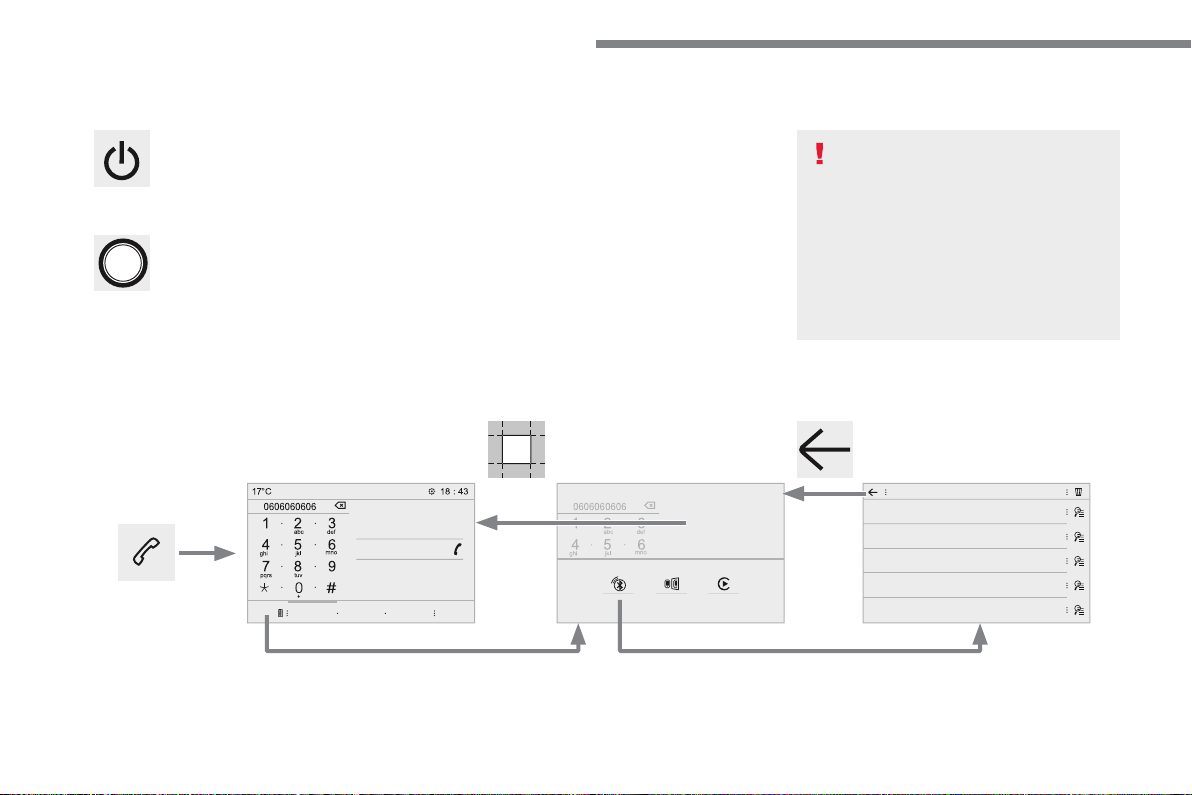
With the engine running, a press
With the ignition off, a press turns the
Volume.
Use the buttons either side of or below the
Press in the grey zone to go back a level or
Press the back arrow to go back a level or
The touch screen is of the "capacitive"
To clean the screen, use a soft, non-
Do not use sharp objects on the
Do not touch the screen with wet
First steps
96
Page 99
Audio and Telematics
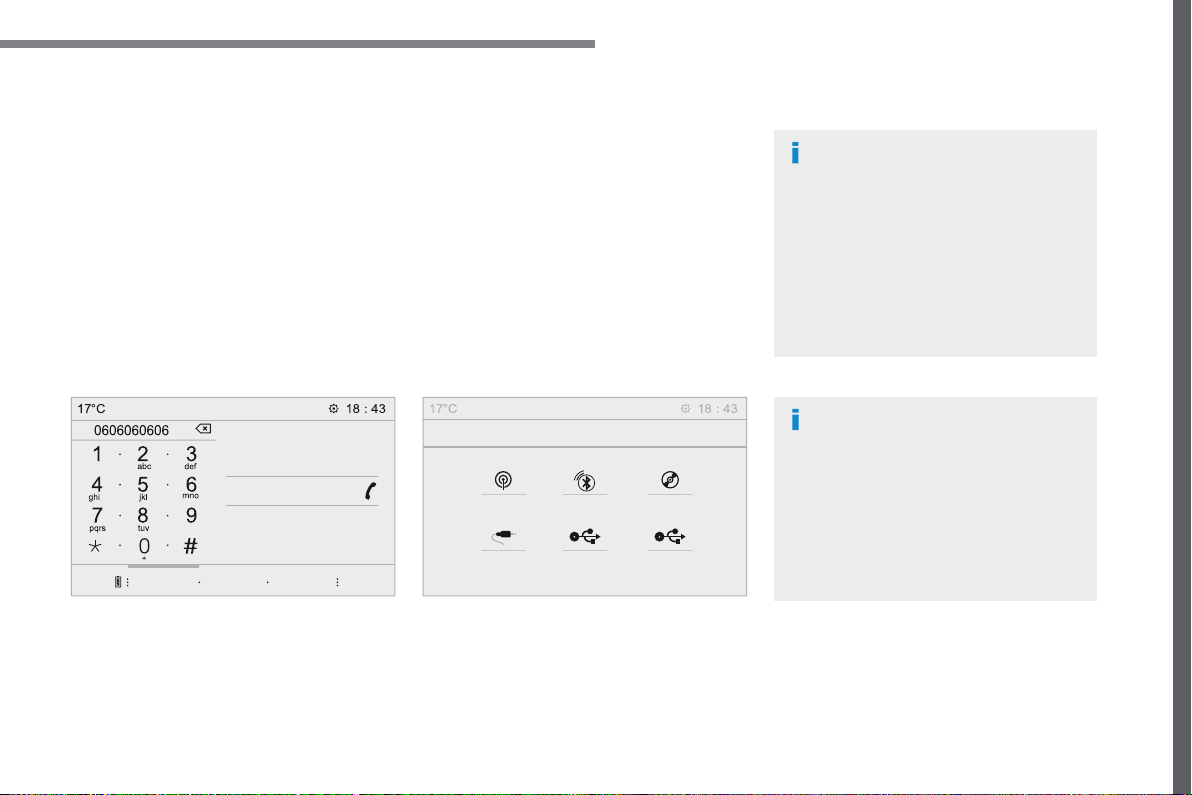
Select the audio source (depending on
- FM / DAB * / AM * stations.
- Telephone connected by Bluetooth * and
- CD player.
- USB memor y stick.
- Media player connected to the auxiliary
* Depending on equipment.
Certain information is displayed permanently in
- Reminder of the air conditioning
- Reminder of the Radio Media and
- Access to the Settings of the touch screen
In very hot conditions, the volume may
The return to normal takes place when
In the "Settings" menu you can create
.
97
Page 100
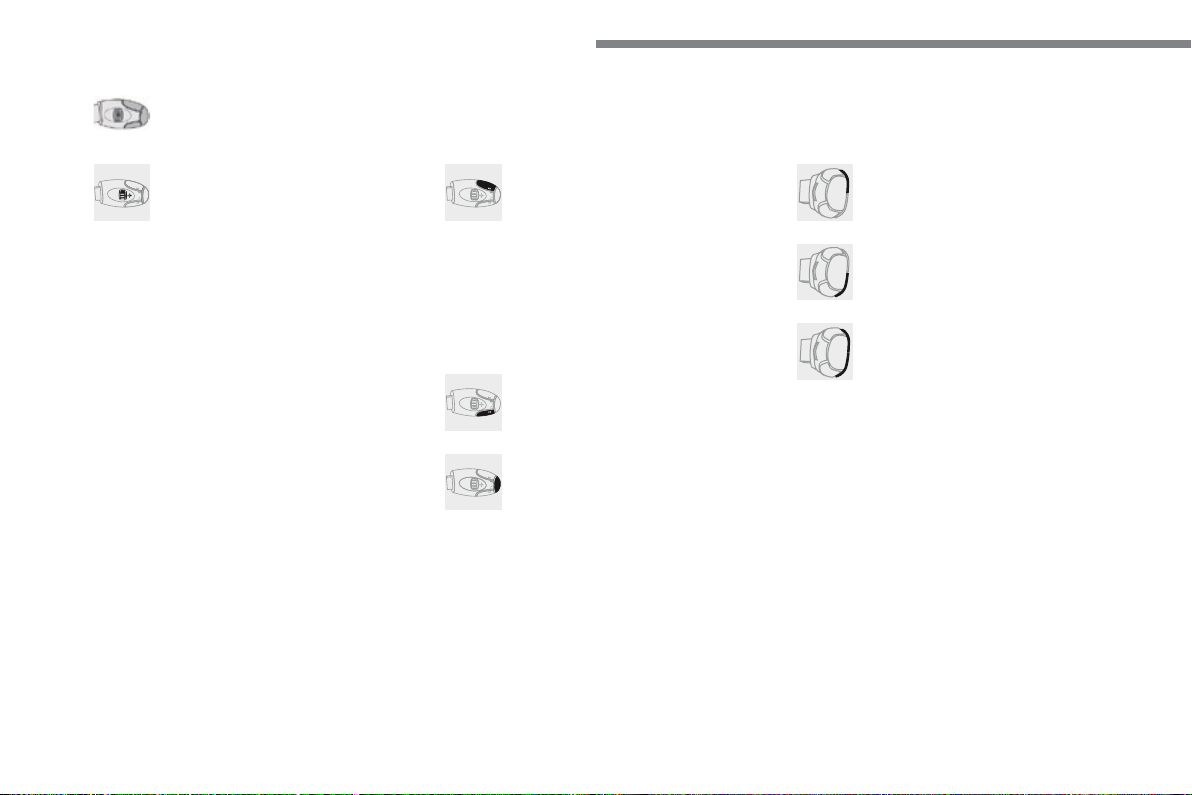
Audio and Telematics
:
Short press: display the list of radio
Long press: update the list.
:
Short press: display the list of folders.
Long press: display the sorting
Decrease volume.
Select the previous / next preset
Select the previous / next item in a
Select of the previous / next track
Select the previous / next item in a
Mute / Restore sound by
Change audio source (Radio; USB;
AUX (if a device is connected); CD;
Confirm a selection.
Increase volume.
Steering mounted controls - Type 1
98
 Loading...