

Page 1

CareLink™ Connect App
User Guide
Page 2
M810493A0U2_A
MMT-6111, MMT-6112
© 2020 Medtronic. Medtronic, Medtronic with rising man logo, and Medtronic logo are trademarks of Medtronic. Third-party
trademarks (™*) belong to their respective owners. All other brands are trademarks of a Medtronic company.
Page 3

Contacts:
Africa:
Medtronic South Africa and Southern Africa
Office Reception Tel: +27(0) 11 260 9300
Diabetes: 24/7 Helpline: 0800 633 7867
Sub-Sahara 24/7 Helpline: +27(0) 11 260 9490
Albania:
Net Electronics Albania
Tel: +355 697070121
Argentina:
Corpomedica S.A.
Tel: +(11) 4 814 1333
Medtronic Directo 24/7:
+0800 333 0752
Armenia:
Exiol LLC
Tel: +374 98 92 00 11
or +374 94 38 38 52
Australia:
Medtronic Australasia Pty. Ltd.
Tel: 1800 668 670
Bangladesh:
Sonargaon Healthcare Pvt Ltd.
Mobile: (+91)-9903995417
or (+880)-1714217131
Belarus:
Zarga Medica
Tel: +375 29 625 07 77
or +375 44 733 30 99
Helpline: +74995830400
België/Belgique:
N.V. Medtronic Belgium S.A.
Tel: 0800-90805
Bosnia and Herzegovina:
"Novopharm“ d.o.o. Sarajevo
Tel: +387 33 476 444
Helpline: 0800 222 33
Epsilon Research Intern. d.o.o.
Tel: +387 51 251 037
Helpline: 0800 222 33
Brasil:
Medtronic Comercial Ltda.
Tel: +(11) 2182-9200
Medtronic Directo 24/7:
+0800 773 9200
Bulgaria:
RSR EOOD
Tel: +359 888993083
Helpline: +359 884504344
Canada:
Medtronic Canada ULC
Tel: 1-800-284-4416 (toll free/sans-frais)
Chile:
Medtronic Chile
Tel: +(9) 66 29 7126
Medtronic Directo 24/7:
+1 230 020 9750
Medtronic Directo 24/7 (From Santiago):
+(2) 595 2942
China:
Medtronic (Shanghai) Management Co., Ltd.
Landline: +86 800-820-1981
Mobile Phone: +86 400-820-1981
Calling from outside China: +86 400-820-1981
Colombia:
Medtronic Latin America Inc. Sucursal Colombia
Tel: +(1) 742 7300
Medtronic Directo 24/7 (Landline):
+01 800 710 2170
Medtronic Directo 24/7 (Cellular):
+1 381 4902
Croatia:
Mediligo d.o.o.
Tel: +385 1 6454 295
Helpline: +385 1 4881144
Medtronic Adriatic d.o.o.
Helpline: +385 1 4881120
Danmark:
Medtronic Danmark A/S
Tel: +45 32 48 18 00
Deutschland:
Medtronic GmbH
Geschäftsbereich Diabetes
Telefon: +49 2159 8149-370
Telefax: +49 2159 8149-110
24-Stdn-Hotline: 0800 6464633
Eire:
Accu-Science LTD.
Tel: +353 45 433000
España:
Medtronic Ibérica S.A.
Tel: +34 91 625 05 42
Fax: +34 91 625 03 90
24 horas: +34 900 120 330
Estonia:
AB Medical Group Estonia Ltd
Tel: +372 6552310
Helpline: +372 5140694
Europe:
Medtronic Europe S.A. Europe, Middle East and Africa HQ
Tel: +41 (0) 21-802-7000
France:
Medtronic France S.A.S.
Tel: +33 (0) 1 55 38 17 00
Hellas:
Medtronic Hellas S.A.
Tel: +30 210677-9099
Hong Kong:
Medtronic International Ltd.
Tel: +852 2919-1300
To order supplies:
+852 2919-1322
24-hour helpline: +852 2919-6441
India:
India Medtronic Pvt. Ltd.
Tel: (+91)-80-22112245 / 32972359
Mobile: (+91)-9611633007
Patient Care Helpline:
1800 209 6777
Page 4

Indonesia:
Medtronic International Ltd.
Tel: +65 6436 5090
or +65 6436 5000
Israel:
Medtronic
Tel. (orders):
+9729972440, option 3 + option 1
Tel. (product support):
+9729972440, option 2
Helpline (17:00 – 08:00
daily/weekends – Israel time):
1-800-611-888
Italia:
Medtronic Italia S.p.A.
Tel: +39 02 24137 261
Fax: +39 02 24138 210
Servizio assistenza tecnica:
Nº verde: 800 60 11 22
Japan:
Medtronic Japan Co. Ltd.
Tel: +81-3-6776-0019
24 Hr. Support Line: 0120-56-32-56
Kazakhstan:
Medtronic BV in Kazakhstan
Tel: +7 727 311 05 80 (Almaty)
Tel: +7 717 224 48 11 (Astana)
Круглосуточная линия поддержки:
8 800 080 5001
Kosovo:
Yess Pharma
Tel: +377 44 999 900
Helpline: +37745888388
Latin America:
Medtronic, Inc.
Tel: 1(305) 500-9328
Fax: 1(786) 709-4244
Latvija:
RAL SIA
Tel: +371 67316372
Helpline (9am to 6pm):
+371 29611419
Lithuania:
Monameda UAB
Tel: +370 68405322
Helpline: +370 68494254
Macedonia:
Alkaloid Kons Dooel
Tel: +389 23204438
Magyarország:
Medtronic Hungária Kft.
Tel: +36 1 889 0688
Malaysia:
Medtronic International Ltd.
Tel: +603 7946 9000
Middle East and North Africa:
Regional Office
Tel: +961-1-370 670
Montenegro:
Glosarij d.o.o.
Tel: +382 20642495
México:
Medtronic Servicios S. de R. L. de C.V.
Tel (México DF): +(11) 029 058
Tel (Interior): +01 800 000 7867
Medtronic Directo 24/7 (from México DF):
+(55) 36 869 787
Medtronic Directo 24/7:
+01 800 681 1845
Nederland, Luxembourg:
Medtronic B.V.
Tel: +31 (0) 45-566-8291
Gratis: 0800-3422338
New Zealand:
Medica Pacifica
Phone: 64 9 414 0318
Free Phone: 0800 106 100
Norge:
Medtronic Norge A/S
Tel: +47 67 10 32 00
Fax: +47 67 10 32 10
Philippines:
Medtronic International Ltd.
Tel: +65 6436 5090
or +65 6436 5000
Poccия:
ООО «Медтроник»
Tel: +7 495 580 73 77
Круглосуточная линия поддержки:
8 800 200 76 36
Polska:
Medtronic Poland Sp. z o.o.
Tel: +48 22 465 6934
Portugal:
Medtronic Portugal Lda
Tel: +351 21 7245100
Fax: +351 21 7245199
Puerto Rico:
Medtronic Puerto Rico
Tel: 787-753-5270
Republic of Korea:
Medtronic Korea, Co., Ltd.
Tel: +82.2.3404.3600
Romania:
Medtronic Romania S.R.L
Tel: +40372188017
Helpline: +40 726677171
Schweiz:
Medtronic (Schweiz) AG
Tel: +41 (0)31 868 0160
24-Stunden-Hotline: 0800 633333
Fax Allgemein: +41 (0)318680199
Serbia:
Epsilon Research International d.o.o.
Tel: +381 113115554
Medtronic Serbia D.o.o
Helpline: +381 112095900
Singapore:
Medtronic International Ltd.
Tel: +65 6436 5090
or +65 6436 5000
Slovenija:
Zaloker & Zaloker d.o.o.
Tel: +386 1 542 51 11
24-urna tehnična pomoč:
+386 51316560
Slovenská republika:
Medtronic Slovakia, s.r.o.
Tel: +421 26820 6942
HelpLine: +421 26820 6986
Page 5

Sri Lanka:
Swiss Biogenics Ltd.
Mobile: (+91)-9003077499
or (+94)-777256760
Suomi:
Medtronic Finland Oy
Tel: +358 20 7281 200
Help line: +358 400 100 313
Sverige:
Medtronic AB
Tel: +46 8 568 585 20
Fax: +46 8 568 585 11
Taiwan:
Medtronic (Taiwan) Ltd.
Tel: 02-21836000
Toll free: +886-800-005285
Thailand:
Medtronic (Thailand) Ltd.
Tel: +662 232 7400
Türkiye:
Medtronic Medikal Teknoloji
Ticaret Ltd. Sirketi.
Tel: +90 216 4694330
USA:
Medtronic Diabetes Global Headquarters
24-Hour Technical Support: +1-800-646-4633
To order supplies: +1-800-843-6687
Ukraine:
Med Ek Service TOV
Tel: +380 50 3311898
or +380 50 4344346
Лінія цілодобової підтримки:
0 800 508 300
United Kingdom:
Medtronic Ltd.
Tel: +44 1923-205167
Österreich:
Medtronic Österreich GmbH
Tel: +43 (0) 1 240 44-0
24 – Stunden – Hotline: 0820 820 190
Česká republika:
Medtronic Czechia s.r.o.
Tel: +420 233 059 111
Non-stop helpLine (24/7):
+420 233 059 059
Zákaznický servis (8:00 - 17:00):
+420 233 059 950
Page 6

Contents
Chapter 1 1 Introduction
1 CareLink™ Connect app
1 Getting started
2 Indications for use
2 Contraindications
2 Clinical benefits
Chapter 2 3 User safety
3 Warnings
4Precautions
Chapter 3 5 Technical specifications
5Data security
5 User security
6Icon table
CareLink™ Connect app — User Guide Contents vi
Page 7

1
Introduction
CareLink™ Connect app
NOTE: This document may show sample images of the app. The images of the actual app may
be slightly different. Not all products or features listed in this user guide are approved or
available in all regions.
The CareLink™ Connect app is a mobile application that works with CareLink™ software. It has many
key features:
• It allows care partners to view up-to-date patient therapy data.
• It allows care partners to be notified of selected patient alerts.
™
NOTE: The full features of the CareLink
pumps or continuous glucose monitoring (CGM) devices. The CareLink
only be used with supported mobile devices. Go to the local Medtronic website to access the list
of supported mobile devices. The CareLink
Connect app are only available for select insulin
™
Connect app should
™
Connect app may not be available in all regions.
Getting started
Download the CareLink™ Connect app from the Apple™* App Store™* or the Google Play™* store
on the supported mobile device.
Open the CareLink™ Connect app and follow the instructions on the screen to set up a Care Partner
account.
™
NOTE: A Care Partner account in CareLink
Care Partner account is different from the CareLink™ Patient account.
An internet connection and a username and password are required to log in to the CareLink
Connect app.
is required to use the CareLink™ Connect app. A
™
CareLink™ Connect app — User Guide Introduction 1
Page 8

A Care Partner account may also be set up through the CareLink™ website. Go to the CareLink™
website and follow the instructions on the screen to set up an account.
An internet connection to CareLink™ software is required to receive alerts and therapy data.
Select Help from
in the CareLink™ Connect app to access more instructions and information.
Indications for use
The CareLink™ Connect app is intended to provide a secondary display of insulin pump and CGM
data on a supported mobile device.
CareLink
™
Connect app is not intended to replace the real-time display of insulin pump or CGM data
on the primary display device. All therapy decisions should be based on the primary display device.
CareLink
™
Connect app is not intended to analyze or modify the insulin pump and CGM data that
it receives. Nor is it intended to control any function of the insulin pump or CGM system to which
it is connected.
™
CareLink
Connect app is not intended to receive information directly from the insulin pump or
CGM system.
Contraindications
None known.
Clinical benefits
The CareLink™ Connect app does not provide any direct therapy or treatment but is an optional
tool that can be used by care partners to review information uploaded from compatible devices.
CareLink™ Connect app — User Guide Introduction 2
Page 9

2
User safety
Warnings
•CareLink™ Connect app should only be used with supported devices and operating systems.
Refer to the local Medtronic website for information about supported devices and operating
systems.
• Dosing decisions should not be made based on the information on this app. Always follow
instructions on the insulin pump or CGM system to make therapy decisions.
• Do not rely on the notifications from the CareLink™ Connect App. Notifications on the
compatible mobile device may not occur as expected. Notifications may not always be
noticeable on the app. Always rely on the primary device for notifications.
• Always allow notifications for the CareLink™ Connect app. If notifications are turned off, the app
will not send any alerts.
• Do not use the CareLink™ Connect app without understanding how the mobile device settings
work. If the mobile device settings are not set up correctly, the app may not send notifications.
• Do not use the CareLink™ Connect app if the mobile device screen or speakers are damaged.
If the mobile device is damaged, the app may not send notifications and information may not
be shown correctly.
• Alerts for the CareLink™ Connect app will sound through headphones when headphones are
connected. If headphones are connected when not in use, alerts may not be heard.
• Check the CareLink™ Connect app routinely to remain logged in and to make sure it is
running. If the app is not used regularly, the mobile device operating system may prioritize
other processes which can interfere with notification delivery. The app will also log out a user
due to prolonged inactivity, and will not send notifications.
• Do not let the mobile device shut down due to low battery, or the app will not send
notifications. Use of the app may deplete the mobile device battery more quickly. Have a charger
available to charge the battery if needed.
CareLink™ Connect app — User Guide User safety 3
Page 10

• Always make sure to open the app after the mobile device restarts to ensure the app sends
notifications.
•Turn off Do Not Disturb in the compatible mobile device settings, or include the CareLink™
Connect app in the exceptions of the feature, if possible. If this feature is enabled, the CareLink™
Connect app will not send notifications.
•Turn off the Digital Wellbeing feature in Android™* or Screen Time feature in iOS operating
systems, or include the CareLink™ Connect app in the exceptions of the feature, if possible. If
this feature is enabled, the CareLink™ Connect app will not send notifications.
• If a serious incident related to the device occurs, immediately report the incident to a healthcare
professional. For healthcare professionals, immediately report any serious incident to the
applicable competent authority.
Precautions
This app is not intended to replace self-monitoring practices advised by a physician.
CareLink™ Connect app — User Guide User safety 4
Page 11

3
Technical specifications
Data security
Access to CareLink™ Connect app is secure. It requires the use of a security lock on the supported
mobile device and a unique username and password. To keep information private, do not share the
username and password.
™
The app uses secure data transfer protocols that ensure a secure link between CareLink
™
and the CareLink
™
CareLink
security. The two-factor authentication procedure is not available in all regions.
Connect app also has a two-factor authentication procedure for an additional layer of data
Connect app.
software
User security
The CareLink™ Connect app has been designed with security features to help keep the app and its
data secure. However, there are important steps to take to ensure the supported mobile device used
with the CareLink™ Connect app is also secure. To help keep the supported mobile device secure,
follow these instructions:
• The industry responds to newly discovered security issues with updates. Keep the app up to
date with the most current version.
™
• Use a strong password. CareLink
spellings and short length of words. Some password vaults offer the ability to create very strong
passwords and provide them on demand.
• Never share the password.
• 24-Hour Technical Support or the local Medtronic support representative never asks for the
password. If a request to disclose the password is received by email, please contact 24-Hour
Technical Support or the local Medtronic support representative immediately and do not reply
to the email.
• If 24-Hour Technical Support or any local Medtronic support representative asks for the
software provides a password strength meter. Avoid common
password, refuse to provide it and ask to speak to a manager immediately.
CareLink™ Connect app — User Guide Technical specifications 5
Page 12
• Change the password immediately if it is suspected of being compromised.
• It is good practice to change the password every 3-6 months.
• Contact 24-Hour Technical Support or the local Medtronic support representative if someone is
suspected of accessing the account without authorization.
• Do not leave the supported mobile device unattended.
• Enable a security lock on the supported mobile device. When the supported mobile device is
not in use, lock it in a way that requires the password to be entered in order to use it.
• Do not remove or interfere with the security features on the supported mobile device.
• Do not attempt to modify the operating system, jailbreak, or root the device.
• Keep the supported mobile device operating system up to date, unless otherwise recommended
by Medtronic, and choose settings that let mobile applications automatically update.
™
• Use only the official application store, such as the Apple
* App Store™* or the Google Play™*
store to get all mobile applications used with the supported mobile device.
• Do not click on links from email messages, web pages, or text messages received from an
unknown or untrusted source.
• Disable wireless functions such as Near Field Communication (NFC) and ANT+ when not in use.
• Avoid the use of unknown Wi-Fi networks or public Wi-Fi hotspots.
• Enable security protection, such as the use of a password and encryption, on the Wi-Fi network
that the supported mobile device connects to regularly.
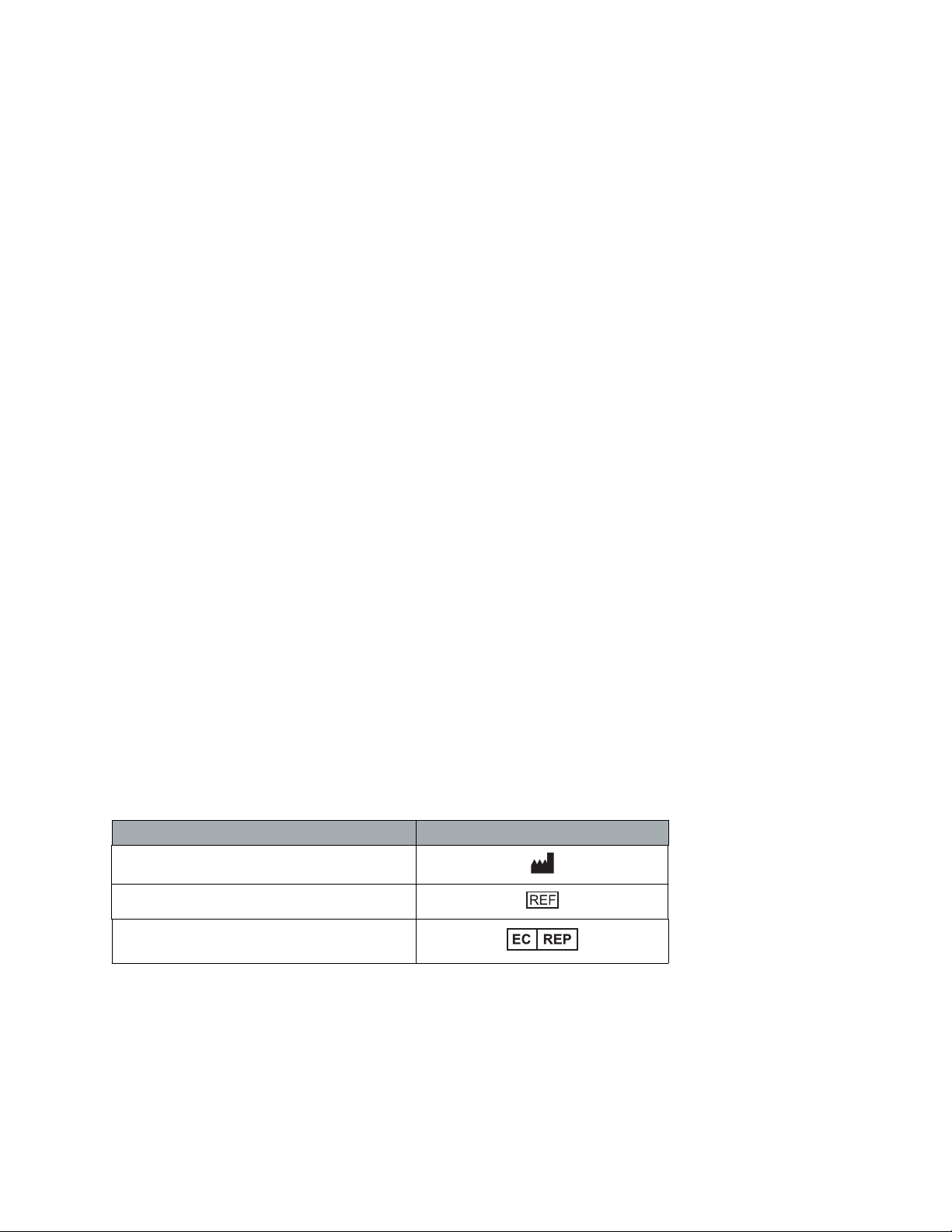
Icon table
The following icons and symbols may appear in the software. For definitions, go to http://
www.medtronicdiabetes.com/symbol-definitions.
Description Icon
Manufacturer
Catalogue number
Authorized representative in the European
community
CareLink™ Connect app — User Guide Technical specifications 6
 Loading...