

Page 1
scala-VoIP
TM
CARDO SYSTEMS INC.
Page 2

2
TABLE OF CONTENTS
1. INTRODUCTION......................................................................................... 3
WHAT IS THE CARDO VOICE DIALER ? ............................................ 3
DEFINITIONS........................................................................................ 4
PACKAGE CONTENTS ........................................................................ 5
2. GETTING STARTED .................................................................................... 6
Installation ............................................................................................. 6
Pre-Installation ...................................................................................... 6
Installing the Software ........................................................................... 7
Components of the CVD Window.......................................................... 8
Installing the USB Bluetooth Adapter .................................................... 9
Pairing the Headset...............................................................................10
Using the Headset.................................................................................12
Changing the Skin .................................................................................12
3. USING THE CVD..........................................................................................12
Using the Voice Commands..................................................................12
Answering Skype™ Calls ......................................................................13
Terminating Skype™ Calls....................................................................13
Valid Voice Commands .........................................................................14
Additional Features ...............................................................................15
Swap Between the CVD and Bluetooth Mobile Phone .........................15
4. FAQS ...........................................................................................................16
5. TROUBLESHOOTING .................................................................................17
6. TECHNICAL SPECIFICATIONS...................................................................19
7. APPENDIX 1: SETTING VOICE SENSITIVITY ............................................20
8. APPENDIX 2: PERFORMING VOICE TRAINING .......................................21
9. CONTACT INFORMATION ..........................................................................22
10. FCC NOTICE .............................................................................................23
11. EUROPEAN CE NOTICE ..........................................................................25
12. LIMITED WARRANTY ...............................................................................26
Page 3

1. INTRODUCTION
Congratulations and thank you for purchasing the scala-VoIP &
Cardo Voice Dialer™ (CVD), a complete solution for using the award
winning scala-700 Bluetooth® headset with your BT enabled mobile
phone and with your computer based Skype™ program.
Please read and familiarize yourself with all the instructions,
components and controls of your scala-700 headset prior to first use.
This manual assumes that you are familiar with the use of Skype™
and that you are using the Microsoft Windows XP™ Operating
System and have the MS Service Pack 2 installed on your PC based
computer or laptop.
What is the scala-700 VoIP package?
The scala-700 headset works as a stand-alone Bluetooth device
for mobile phones, or – in conjunction with the Cardo Voice Dialer
and Bluetooth Adapter – as an internet telephony (VoIP) headset
for your computer. The enclosed Bluetooth Adapter, when connected
to your computer via a USB port, offers remote, voice controlled,
handsfree VoIP communication at a distance of up to 30 feet (10
meters).
The Cardo Voice Dialer (“CVD”) software allows you to operate
3
Page 4

Skype in a unique way: You can use the most important VoIP features
by voice command: Call any contact listed in Skype’s address book,
or redial the last number. You can even minimize or maximize the
Skype on-screen window. All of these functions are accessible by
voice command.
• For additional features and functionalities of the scala-700 headset
please refer to the enclosed scala-700 Quick Guide.
Definitions
BT Bluetooth
®
LED Light Indicator on the headset
CTRL Control Button on the headset
Adapter The enclosed Bluetooth Audio Adapter
VoIP Voice Over Internet Protocol (Internet based
telephony)
CVD Cardo Voice Dialer (proprietary software for VoIP
operation of the scala headset)
4
Page 5
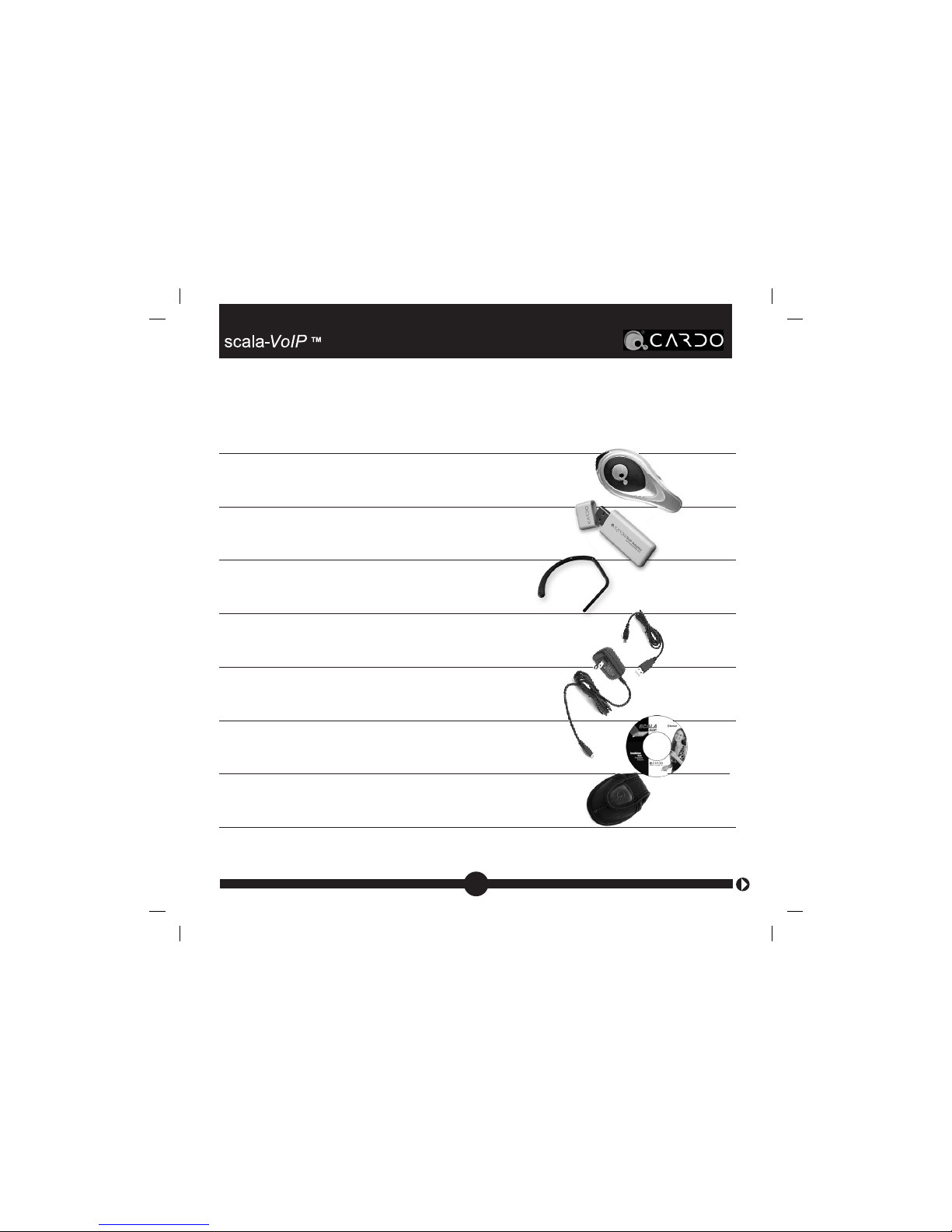
Contents of Retail Box
scala-700 headset
Bluetooth Audio Adapter
Ear loop
USB Cable for headset charging via computer
Dual Voltage Wall-Charger
Software CD
Carry-on pouch for the scala-700
scala-700 Quick Guide, Warranty & Registration Card
5
Page 6

2. GETTING STARTED
Recommended requirements
For best performance your computer should have at least a 1 GHz
processor, 256 MB RAM and 100 MB free disk space on your hard
drive.
Installation
Before using the CVD, familiarize yourself with the operation of your
headset by reading the enclosed Quick Guide.
Pre-Installation
Before installing the CVD perform the following:
• Fully charge your headset. Turn it on and make sure that it is in
stand-by mode. When in stand-by mode, the headset’s LED flashes
blue every 3 seconds.
• If you haven't done so already, download and install Skype Version
2.0.0 or later.
• Make sure you have Microsoft Service Pack 2 installed on your
Windows XP Operating System. If not, please download at
http://www.microsoft.com/windowsxp/sp2/default.mspx
NOTE: Do not insert the Adapter until you have successfully
installed the CVD software.
6
Page 7
7
Installing the Software
1. Insert the mini CD into the CD-ROM drive.
2. The software installation should begin automatically. If not, click
Start, Run, Browse, then select the correct CD-ROM Drive and
click on Setup.exe. Or, using the Explorer, browse to the CDROM drive containing the software and choose Setup.exe.
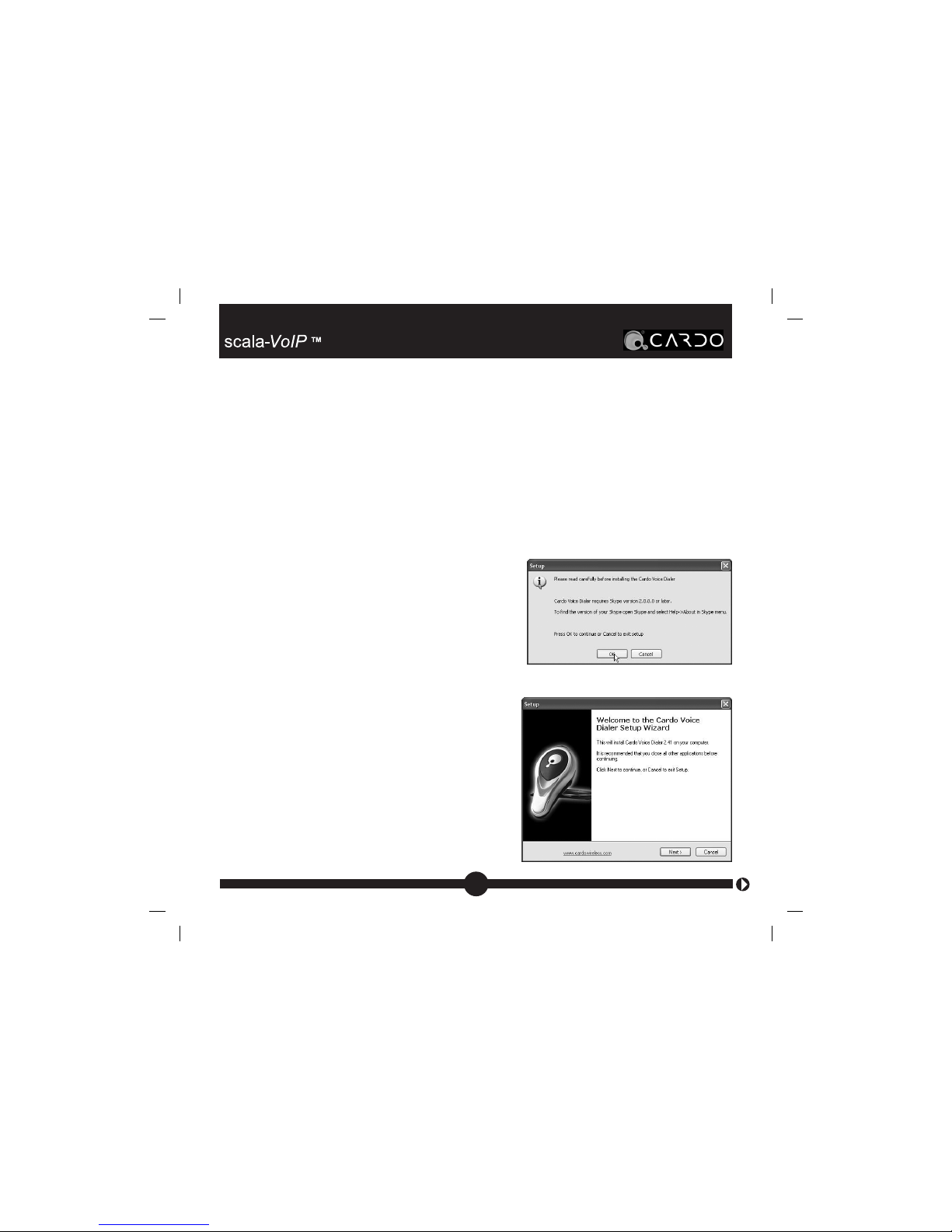
3. The following notice appears:
If you have not yet installed Skype click
Cancel to exit the installation process
and install Skype (www.skype.com). If
you have already installed Skype click
OK.
4. This notice appears:
If any applications are open, close them
and then click Next.
Page 8
8
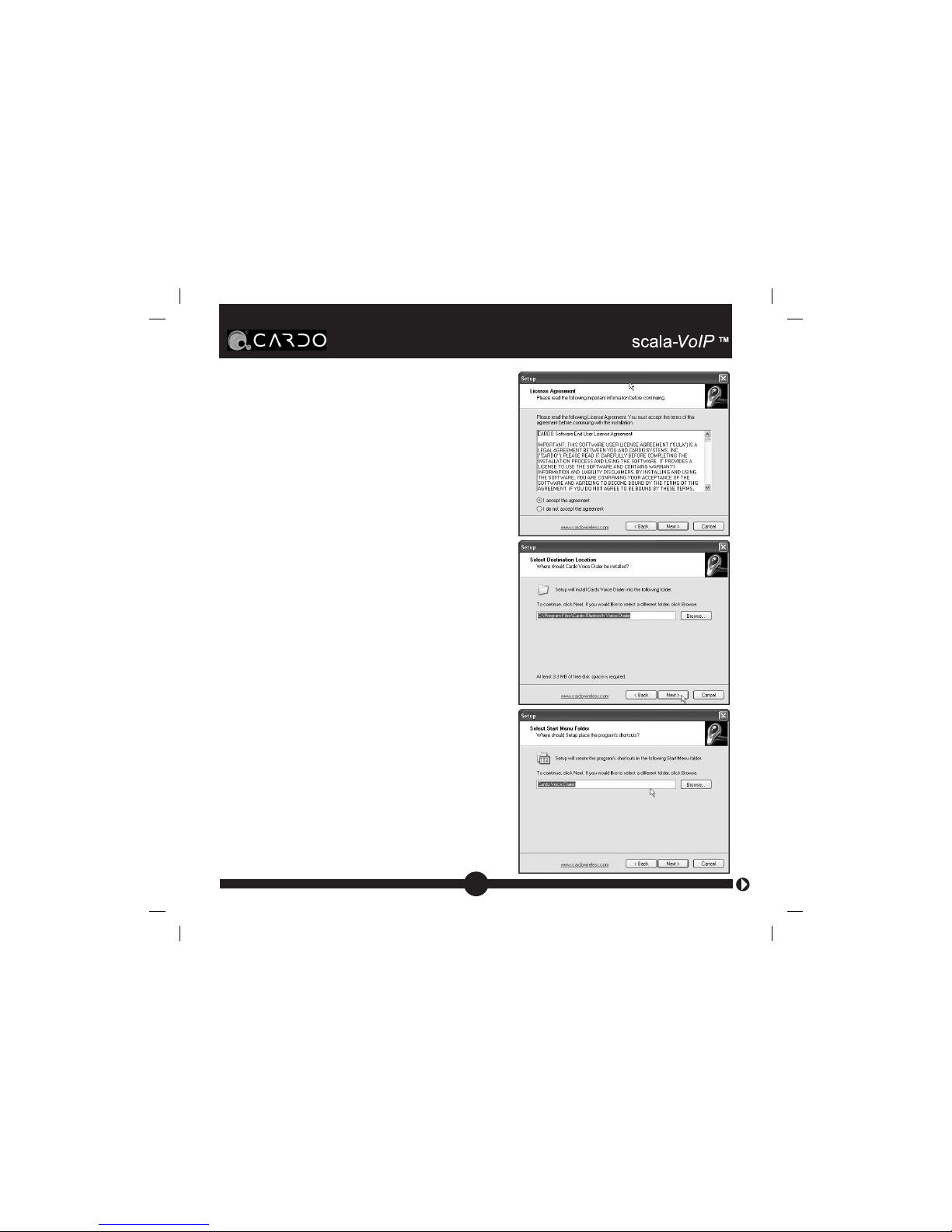
5. Read the License Agreement.
If you agree, select I accept the
agreement, and click Next.
6. Use this screen to choose where
you want to install the application:
To install in the default location
(recommended), click Next.
7. This screen allows you to determine
the location of the Start menu folder:
To install in the default location
(recommended), click Next.
Page 9
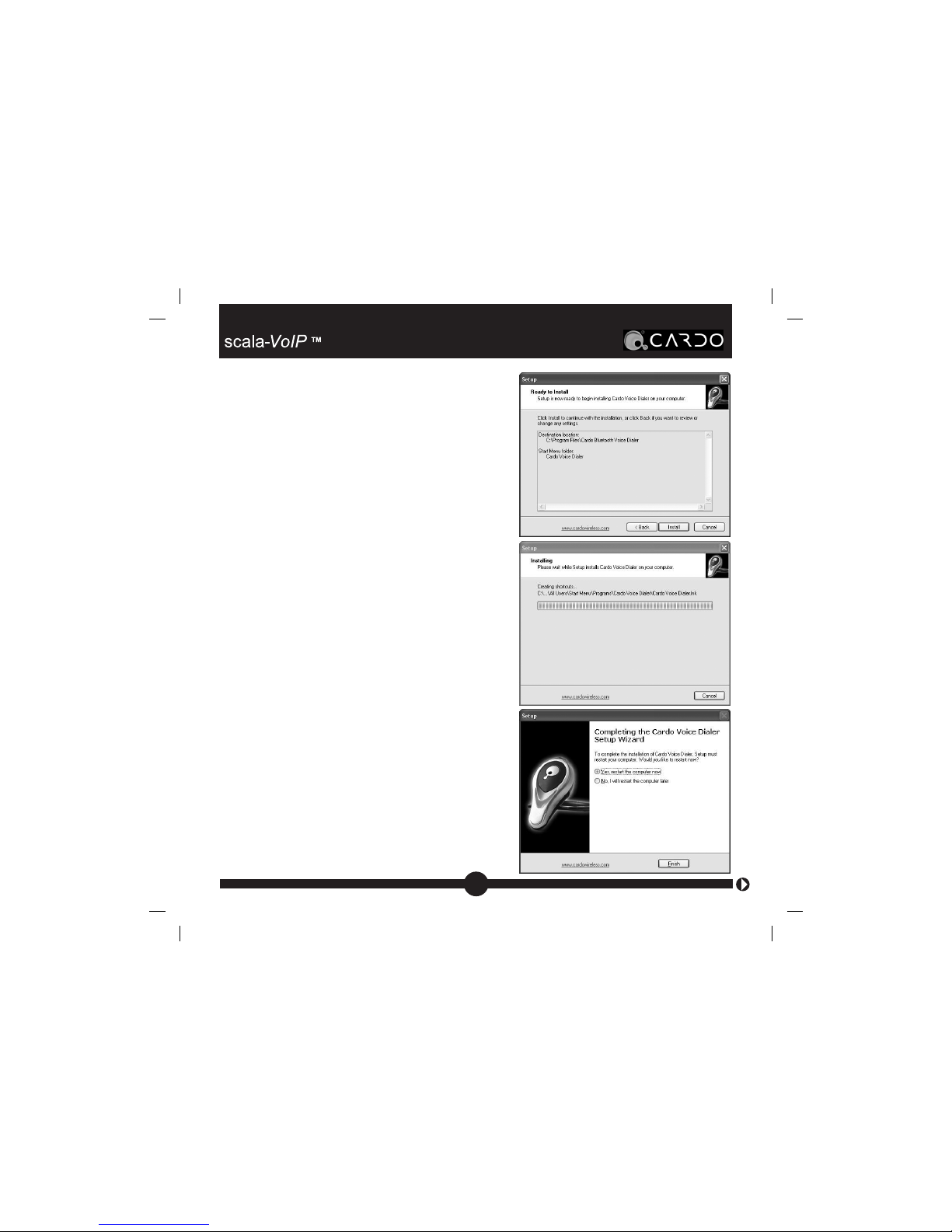
8. This screen summarizes the
installation options that you have
chosen
To change these settings click Back
until you reach the setting you wish to
change. If you wish to accept the
settings and proceed, click Install
9. The program will install the Cardo
Voice Dialer.
10. When installation is complete the
following screen appears and lets
you decide whether you want to
restart your computer. We
recommend that you restart your
computer at this time before using
the CVD program.
11. Choose Yes and Click Finish to
restart your computer. When Skype
loads for the first time, it may ask
if you want the Cardo Voice Dialer
to connect. Choose Allow.
9
Page 10
12. Since the CVD software is being upgraded from time to time, we
recommend that you check whether your version is up-to-date
by visiting our website at www.cardowireless.com/voip
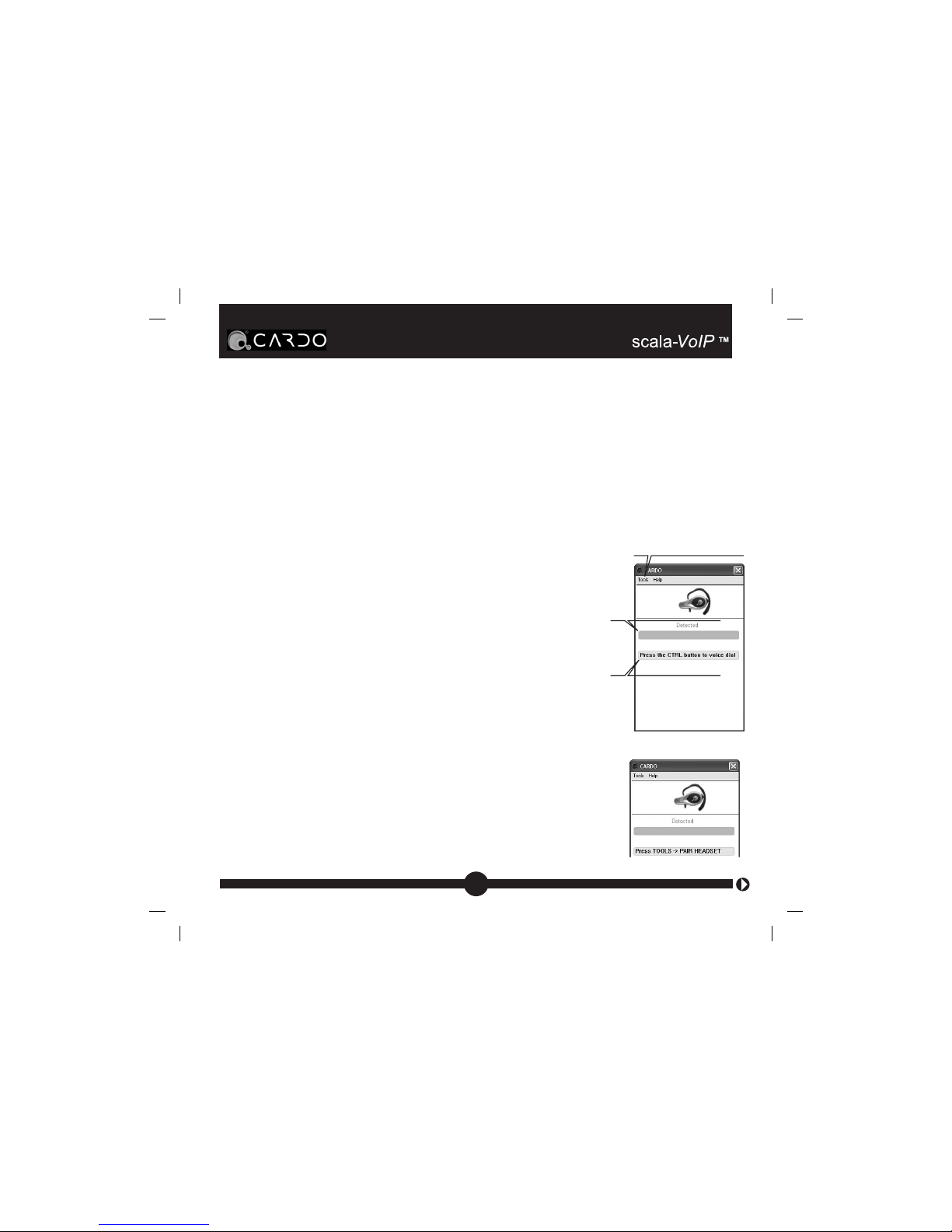
Using the CVD Window (alternative skin is available)
Installing the USB Bluetooth Adapter
After restarting the computer, insert the Adapter into
an available USB port and wait until the computer
recognizes the Adapter. This process may take a
couple of minutes. A small blue light will illuminate
on the Adapter indicating that it is installed and
ready to use, and a Windows message in the Taskbar
will say: “Your new hardware is now ready to use.”
Pairing the headset
Pairing is a required process between Bluetooth devices
that makes them recognize each other and retain their
respective identities. Only paired devices will connect
and communicate each time you turn them on.
Before using the CVD for the first time, you must pair
the headset with the Adapter. You will be prompted
as follows:
10
Click here to access
the tools
Voice detected
Command line
Page 11
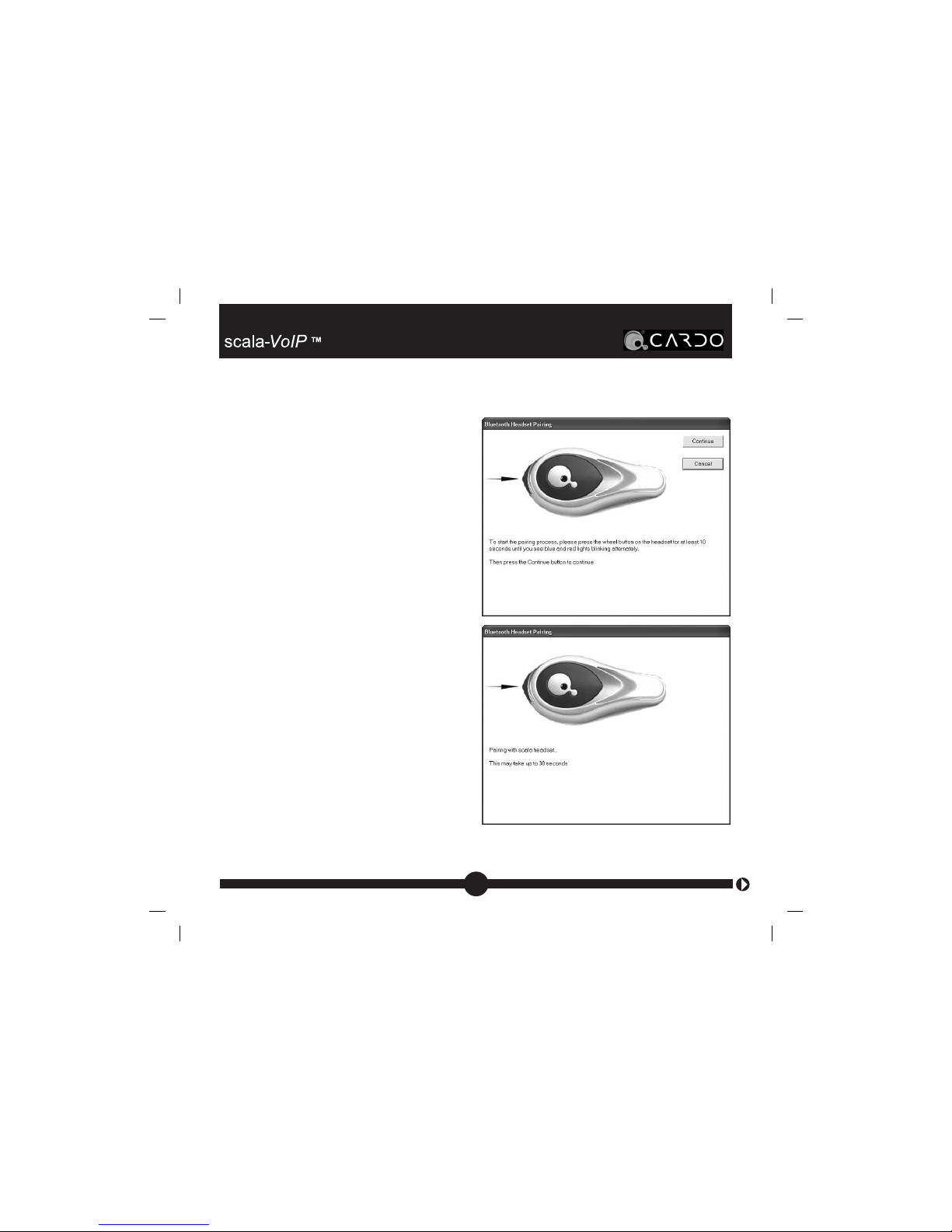
1. Select Tools and then click on
Pair headset in the pull-down
menu. The following window
will open:
2. Activate the Pairing mode of
the headset by pressing its
Wheel in and holding for
approximately 10 seconds until
the red and blue lights begin
flashing back and forth.
3. Click Continue to open the
following screen:
4. After successful completion of
the pairing process a Pairing
Successful message will appear.
Click Finish to complete the
process.
You are now ready to use your
scala-VoIP to make and receive
VoIP calls using SKYPE!
11
Page 12
Using the headset
To turn on or off the Headset press and hold
the Wheel for at least three seconds. For
more information see the included scala700 Quick Guide.
Changing the Skin
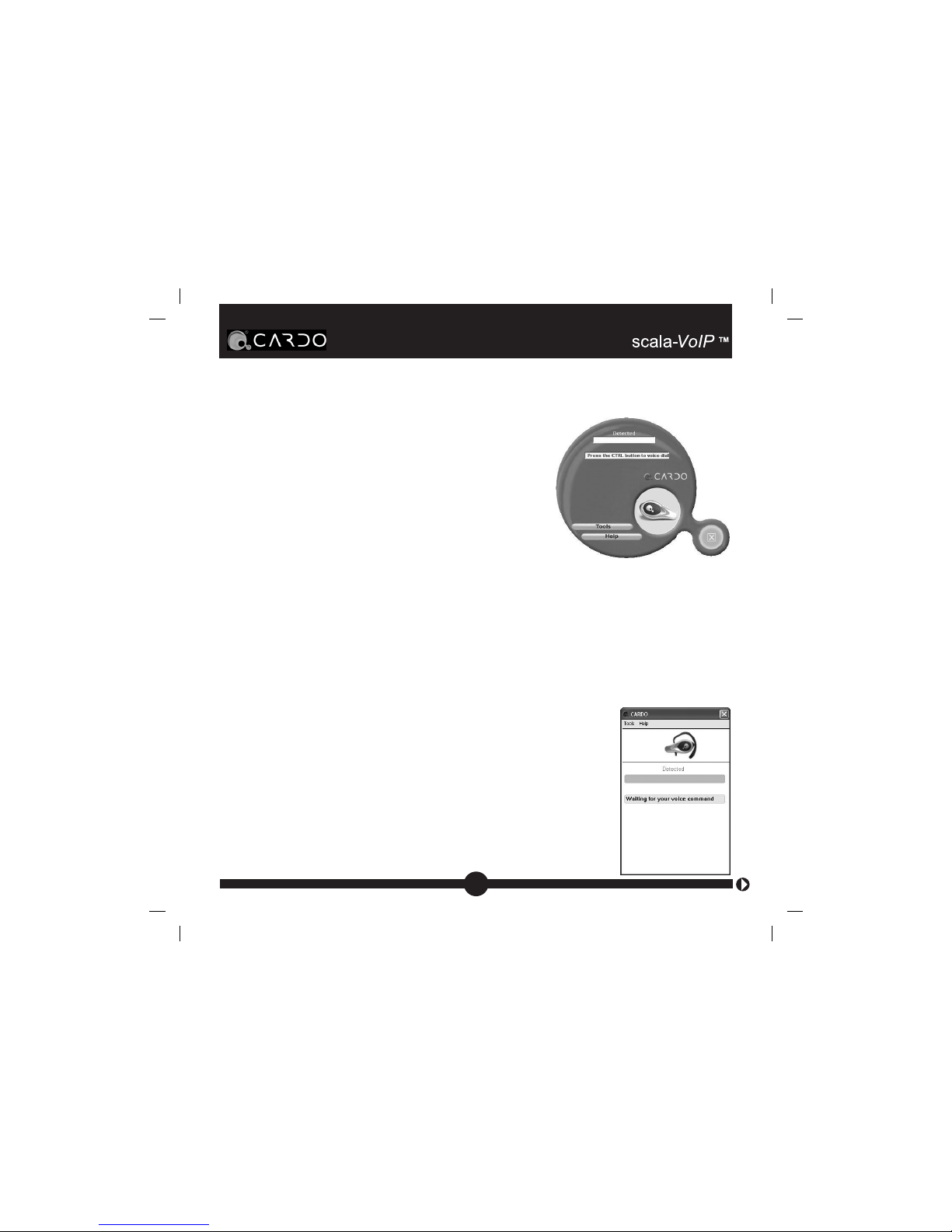
You can choose between two different skins.
To change the skin, Choose Change Skin from the Tools menu.
3. USING THE CVD
Using the Voice Commands
Calls can be made either to other computers, or to
landline or mobile telephones (SkypeOut™).
1. Make sure the headset is turned on and in standby
mode (blue LED flashing every 3 seconds).
2. Briefly press the headset’s CTRL button until you
hear a tone.
3. The message Waiting for your voice command
appears:
12
Alternative skin
Page 13

4. Say the appropriate command:
CALL <Skype contact name>
or
DIAL <Speed dial #>
5. The name or number will then be displayed and if you have
checked the Repeat command box (under Tools > Options), the
name or number will be heard.
Answering Skype™ Calls
To answer an incoming Skype™ call, you may either press the CTRL
button (when you hear the ring in the headset) or click Skype’s
Answer Call button.
Terminating Skype™ Calls
If you wish to terminate a Skype™ call at any point, press either the
CTRL button or click Skype’s End Call button.
Connecting the Headset to the CVD
When the headset is not connected the CVD (turned off, out of range,
or used other audio device) a message “Activate Headset” appears.
Turn on the Headset, then press the CTRL button or swap back to
the CVD in order to return the connection to the CVD.
13
Page 14
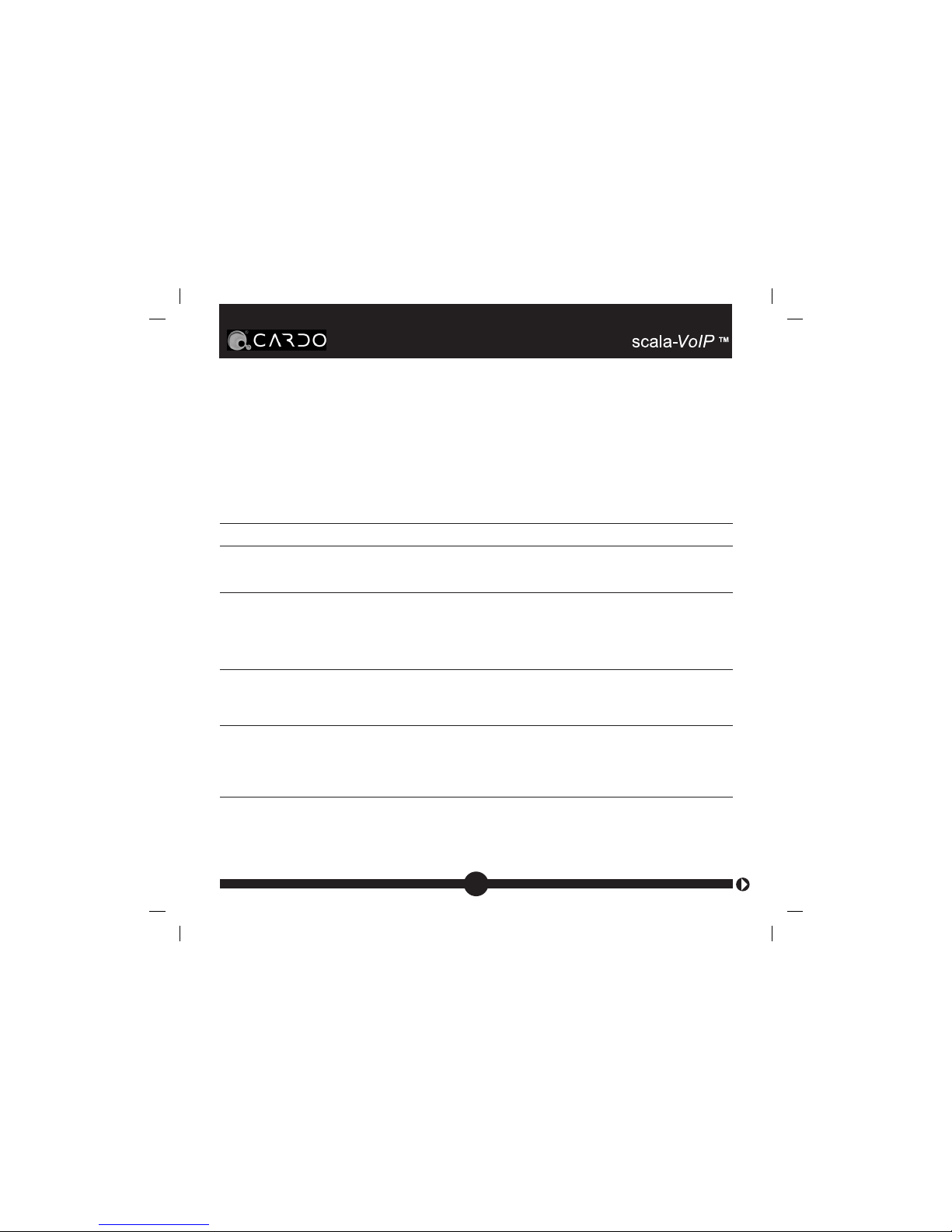
Valid Voice Commands
Using for example the contact name “Emily” that is listed under
speed dial number 2 in your Skype Address book, the following five
voice commands are valid:
Command Function Example / Explanation
Call <Emily> Calls the person if her information is “Call Emily”
stored in the Skype Contact List
Dial <2> Calls the party listed under the chosen “Dial two” will call the
number if is stored in the speed dial list party shown under #2
in your Skype speed dial
list.
Redial Calls the last person that you “Redial” will dial again
contacted the most recent
number dialed
Minimize Minimizes the Skype window on “Minimize Skype” will
Skype your screen hide the Skype window
on your computer
screen
Maximize Maximizes the Skype window on “Maximize Skype” will
Skype your screen hide the Skype
window on your
computer screen
14
Page 15
Additional Features
The CVD program offers two additional
configuration features.
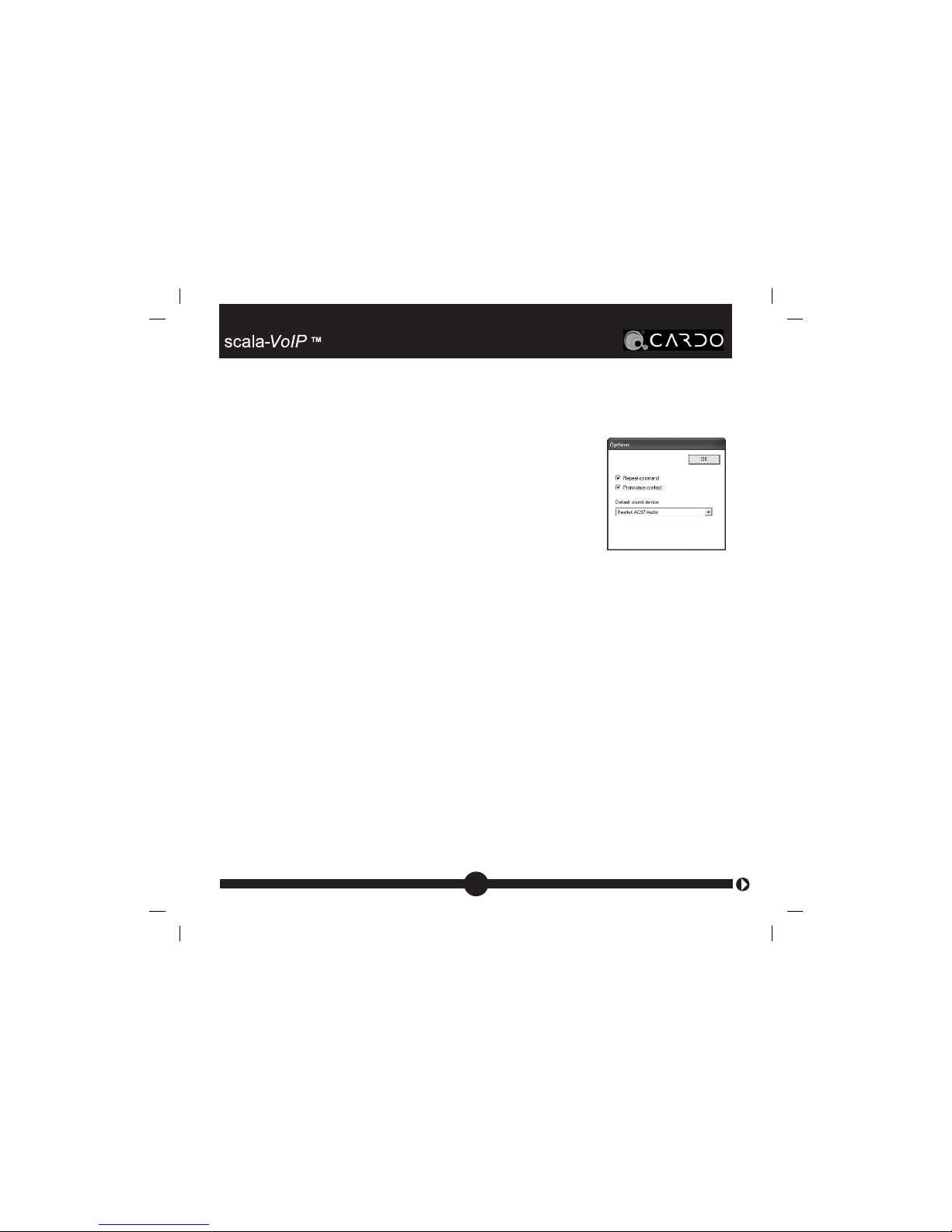
To access those features press Tools > Options.
You will see the following window:
Repeat command: Check this option if you want the CVD to repeat
your voice commands.
Pronounce contact: This feature helps you to know how the system
expects you to pronounce the names in the Skype contact list.
If this feature is enabled (check box), the system will pronounce the
name of the contact you click on in the Skype Contact List window.
Swap Between the CVD and Bluetooth Mobile Phone
The scala-700 allows you to swap, i.e. to alternately use one among
the last two devices to which it has been connected.
While both the CVD and the mobile phone are turned on and the
headset is on standby, double-press the wheel. Now the Headset
will switch to the second device. Each time you double-press the
wheel, the alternate device connects to the Headset.
15
Page 16

4. FAQs
Can I train the CVD to recognize commands besides the
commands listed above?
No. The current version of the CVD will only recognize the commands
listed in the table above.
Can I also use the manual Skype controls in addition to the CVD
verbal commands?
Yes. All normal Skype functions remain active.
My computer already has Bluetooth; do I still need the Adapter?
Yes. Only the Cardo Audio Adapter allows you to work with the CVD.
Will the scala-700 work with both Skype and my Bluetooth
phone?
Yes, your scala-700 headset can be paired with your Bluetooth
mobile phone and with the Adapter in order to work with Skype.
However, it will only work with one device at a time.
NOTE: You can easily toggle the headset’s connection between
using the mobile phone and Skype (see page 13).
More questions? Please visit our FAQ page at
http://www.cardowireless.com/VoiP
16
Page 17

5. TROUBLESHOOTING
NOTE: For most problems we recommend that as a first step,
you turn the headset off and then on again. If this does not help,
try removing the Adapter. Wait several seconds and insert it
again.
You see a “Waiting for user speech command” message, but
the voice commands are not recognized
1. Adjust the Pronunciation Sensitivity and Voice Training (Appendix
1 and 2).
2. Use the Pronounce contact feature to know how Windows expects
you to pronounce the contact name. (See Additional Features
section above.)
3. Make sure Windows is using the correct speech engine, Microsoft
English recognizer v 5.1. by opening Window’s Speech Control
Panel and checking the “Language:” setting
CVD does not react when I press the CTRL button of my headset
1. Make sure your headset is turned on.
17
Page 18

2. If the headset is turned on, remove the Adapter and wait for the
message “Insert Adapter”. Now insert the Adapter and try again.
Computer freezing or working slowly
1. If it is the first time after installing the CVD software, restart your
computer.
2. Remove the Adapter, and wait for the message "Insert Adapter".
Now insert the Adapter.
3. Close the CVD program by right-clicking the taskbar icon and
choosing Exit. Now start the CVD program again.
CVD doesn't recognize the correct contacts
1. Adjust the Pronunciation Sensitivity and Voice Training (Appendix
1 and 2).
2. Use the Pronounce contact feature to know how the system
expects you to pronounce the contact name
3. Select different tag names for your respective Skype contacts.
I cannot hear audio from other programs
1. Remove the Adapter.
2. Close the CVD program (right-click the taskbar icon and choose
Exit) and start it again.
3. Re-insert the Adapter.
18
Page 19
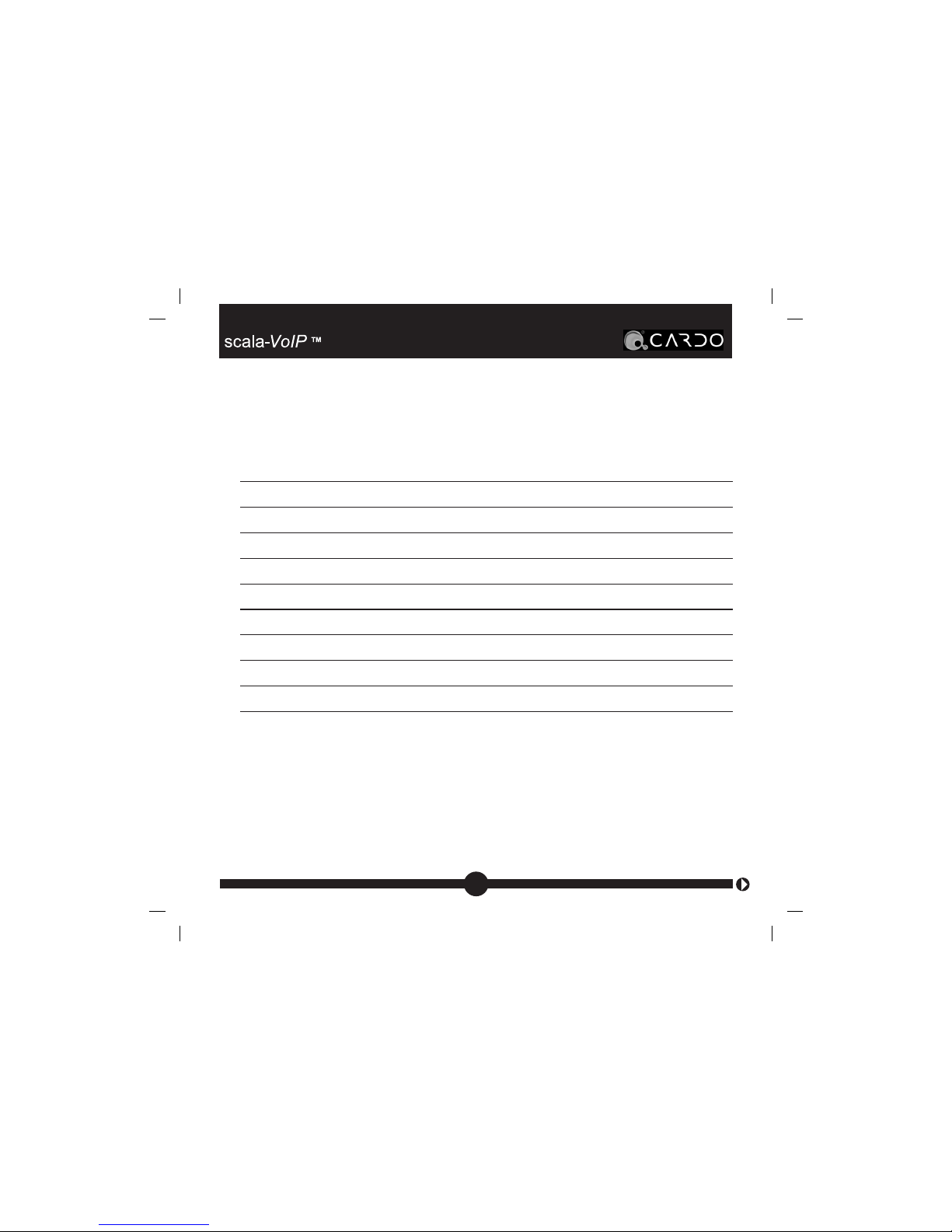
6. TECHNICAL SPECIFICATIONS FOR THE
SCALA-700 WHEN USED FOR VOIP
Technology Compliant with Bluetooth®, Ver. 2.0
Maximum power 2.5 dbm
Maximum link distance 30 feet or 10 meters
Typical talk time Approx. 7 hours
Typical standby time Up to one week
Typical charging time Between 2 and 3 hours
Power Source Rechargeable Lithium Polymer battery
Weight 11.6 g / .41 oz.
Approvals FCC Part 15, CE, IC. Bluetooth
®
19
Page 20
7. APPENDIX 1:
Setting Voice Sensitivity
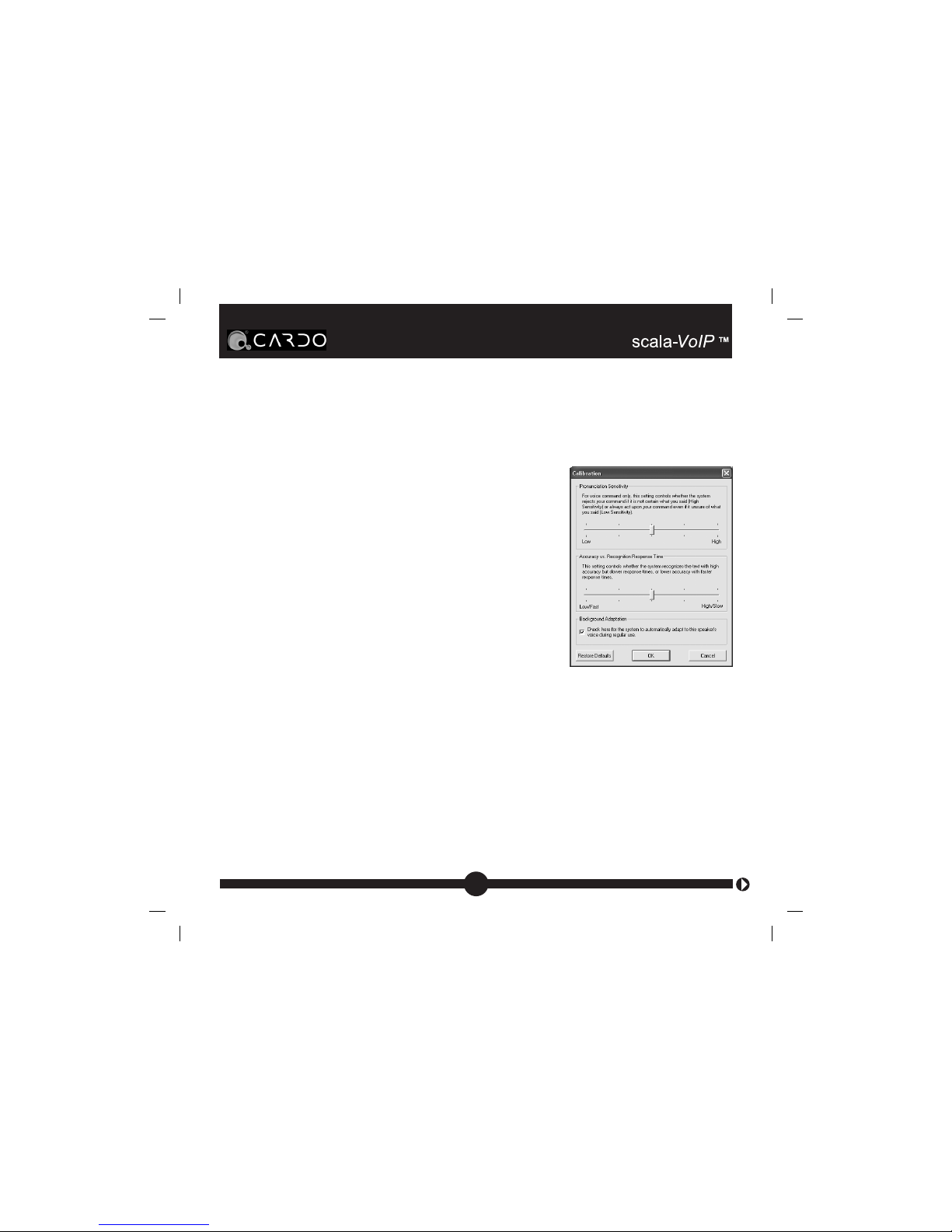
If you experience repeated problems with
voice recognition, you may need to calibrate
the voice sensitivity.
In the Tools menu choose Voice Calibration.
The Calibration window opens.
To adjust the Pronunciation Sensitivity, drag
the upper slider to the right or left using the
mouse. Adjust the setting until you reach the
appropriate level for your specific speech pattern.
If you are a native English speaker, you should apply a higher
sensitivity (slider to the right). Non-native English speakers or those
whose pronunciation is less accurate should move the slider towards
the lower sensitivity levels.
If you continue to experience problems, you should train the system
as described in the following section.
20
Page 21
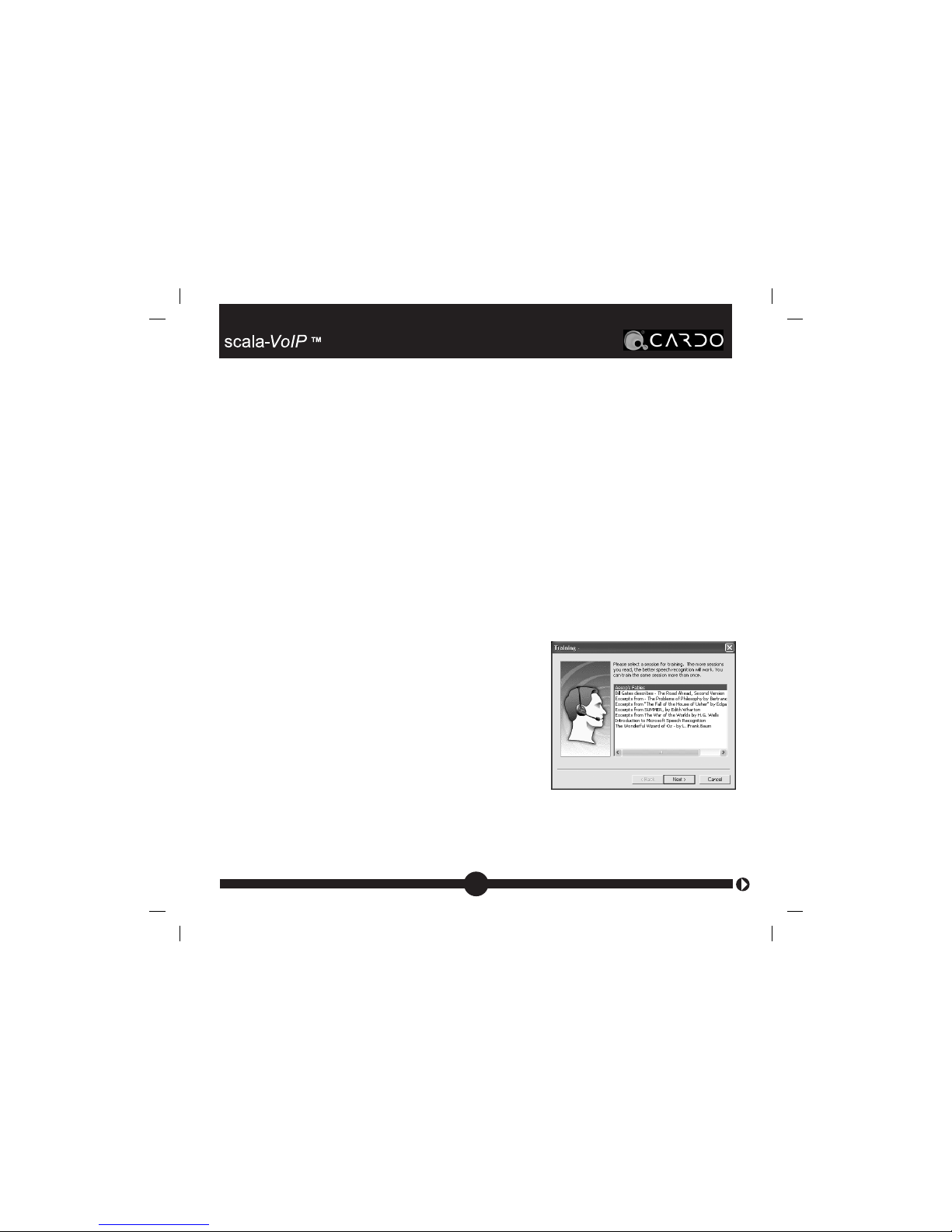
8. APPENDIX 2:
Performing Voice Training
If the CVD does not recognize your particular voice patterns very
well, we recommend that you perform Voice Training. If you continue
to experience problems, try adjusting the Speech Properties in the
Windows Control Panel.
Before performing this procedure, make sure that the headset has
been paired with the Adapter (see page 10 above).
1. Make sure the headset is connected (a message “Press the CTRL
button to Voice Dial” should appear in
the CVD window.)
2. From the Tools menu in the CVD window
choose Voice Training.
3. Follow the instructions then click Next.
4. Follow the instructions, then click Next
or Finish
21
Above image may differ on your
computer
Page 22

9. CONTACT INFORMATION
If assistance is needed, visit our website at www.cardowireless.com
or contact us via e-mail at: [email protected].
To reach us via phone, please call:
In the U.S.: Toll-free 1-800 488-0363
or 412 788-4533
International (not toll-free): +49 89 450 36-819
or contact the store from which you have purchased the product,
NOTE: Prior to contacting us, make sure that you have registered
your product at www.cardowireless.com/registration.php
22
Page 23

10. FCC NOTICE
This equipment complies with Part 15 of the FCC Rules. Operation
is subject to the following two conditions: (1) this device may not
cause harmful interference, and (2) this device must accept any
interference received, including interference that may cause undesired
operation.
Warning: Changes or modifications to this unit not expressly approved
by the party responsible for compliance could void the user's authority
to operate the equipment. Use only approved batteries and chargers.
This equipment has been tested and found to comply with Part 15
of the FCC rules. These limits are designed to provide reasonable
protection against harmful interference in a residential installation.
This equipment generates and can radiate radio frequency energy,
and if not installed and used in accordance with the instructions, may
cause harmful interference to radio communications. However, there
is no guarantee that interference will not occur in a particular installation.
Your headset is designed to operate at the maximum strength allowed
by the FCC. This means that your headset can communicate only
over a certain distance subject on the location of the cell phone,
base unit and headset, your vehicle, the construction and layout of
your home or office. Weather conditions can also affect performance.
23
Page 24

CAUTION
RISK OF EXPLOSION IF BATTERY IS REPLACED BY AN
INCORRECT TYPE.
ALERTE
Risque d’explosion si la batterie est remplacée par un model
qui ne convient pas. Il faut traiter les batteries usées selon les
instructions.
NOTE: If this equipment causes harmful interference to radio
or television reception, which can be determined by turning the
equipment off and on, the user is encouraged to try to correct
the interference by one or more of the following measures:
• Reorient or relocate the receiving antenna.
• Increase the separation between equipment and receiver.
• Connect the equipment into an outlet on a circuit different from that
to which the receiver is connected.
• Consult the dealer or an experienced radio / TV technician for help.
24
Page 25

11. EUROPEAN CE NOTICE
Certification and Safety Approvals/ General Information, Regulations
and Notices
This product is CE marked according to the provisions of the R & TTE
Directive (99/5/EC). Hereby Cardo Systems, Inc. declares that this
product is in compliance with the essential requirements and other
relevant provisions of Directive 1999/5/EC. Please note that this product
uses radio frequency bands not harmonized within the European Union
(“EU”). Within the EU this product is intended to be used in Austria,
Belgium, Denmark, Finland, France, Germany, Greece, Ireland, Italy,
Luxembourg, The Netherlands, Portugal, Spain, Sweden, The United
Kingdom and within EFTA in Iceland, Norway and Switzerland. Users
are not permitted to make changes or modify the device in any way.
Changes or modifications not expressly approved by Cardo will void the
user’s authority to operate the equipment.
12. LIMITED WARRANTY
Subject to the limitations hereunder, your product is covered with a OneYear limited product warranty from the date of original purchase. Please
retain the retail sales receipt and your registration data for proof of
purchase.
25
Page 26

What this limited warranty covers and for how long
Cardo Systems, Inc. (the “Company” or “Cardo”) warrants the scalaVoIP headset, Adapter and Wall Charger against defects in material
and workmanship under normal use and service for a period of one (1)
year from date of purchase (proof of purchase and registration required).
The Company at its sole discretion, will at no charge either repair, replace
or refund the purchase price of the product to the original purchaser
during the warranty period, provided the product has not been damaged
or tampered with and has been returned in accordance with the terms
of this warranty to an authorized Company Service Center. Repair, at
the Company’s option, may include the replacement of parts, boards or
batteries with functionally equivalent reconditioned or new parts.
Warranty Conditions
This express limited warranty is extended by Cardo Systems, Inc. solely
to the original purchaser and is not assignable or transferable to others.
This is the complete warranty for your headset and charger. The Company
assumes no obligation or liability for additions or modifications to this
warranty unless made in writing and signed by an officer of the Company.
Batteries are warranted only if the battery capacity falls below 70% of
rated capacity or if the battery develops leakage.
26
Page 27

This warranty becomes void if:
a. Any of the seals on the case or battery are broken or device or battery
show signs of tampering.
b. The battery is used in equipment other than the equipment for which
it was intended.
The Company disclaims all responsibility for any equipment not furnished
by Cardo Systems Inc., which is attached to or used in connection with
the headset. Furthermore, the Company is not responsible for any
damage to any part of the headset resulting from the use of ancillary
equipment not furnished by the Company.
What this warranty does not cover
1. Defects or damage resulting from the use of this product in other than
its normal and customary manner.
2. Defects or damage from misuse, accident or neglect.
3. Defects caused by improper operation, maintenance, installation,
adjustment or modification of any kind.
4. Products opened, disassembled or repaired by non-authorized parties.
5. Defects or damage due to exposure to excessive temperatures,
adverse weather conditions, external impacts or spills of solid or liquid
substances, incl. rain.
27
Page 28

6. All plastic surfaces and all other externally exposed parts that are
scratched or damaged after purchase.
Warranty Service
To receive warranty service, your product must be registered. Fax the
attached registration card to the numbers listed on the card, send it by
certified mail or register online at:
http://www.cardowireless.com/registration
For services, please present the product, along with your registration
number and bill of sale (receipt) at any authorized Service Center or at
the store from which you have purchased the product. Returns to the
Company pursuant to the limited warranty can only be accepted with
a Return Authorization number obtained from Cardo’s customer service
department.
General Provisions
This warranty is given in lieu of all other express or implied warranties,
including without limitation, implied warranties of merchantability and
fitness for a particular purpose. Cardo's obligations under this section
are limited to the duration of this limited warranty.
a. Certain limited-life components that are subject to normal wear and
tear, ear loops, decorative finishes, batteries, pouches, or other
accessories, are exempt from any warranty.
28
Page 29

b. Cardo is not liable for any incidental or consequential damages arising
from the use or misuse of any of the Company’s products.
c. The user should never attempt to perform service, adjustments or
repairs of the Product by him/herself. Doing so will void all warranties.
During the term of the warranty, all products must be returned to the
point of purchase or the authorized Service Center for all necessary
work.
d. The Company is not responsible for any loss or damage incurred
during shipping. All repair work on Cardo products by parties not
explicitly authorized by the Company will void any and all warranties.
e. The information in this Manual is furnished strictly for informational
purposes and is subject to change without notice. Cardo assumes
no liability or responsibility for any errors or inaccuracies that may
appear in this Manual or the Quick Guide.
Verify that your headset is serviced by an Authorized Cardo Dealer or
Service Center. Cardo retains the right to amend and change its products,
manuals and specifications at any time without notice.
29
Page 30

This page intentionally left blank
30
Page 31

31
Registration Form for Cardo Products
Pour la version française, visitez s.v.p. notre site Web.
Die Deutsche Version kann von unserer Website heruntergeladen werden.
La versión española puede encontrarse en nuestro sitio web.
La versione italiana può essere scaricata da web
www.cardowireless.com
Dear Customer,
Thank you for choosing our product. We hope that you will enjoy using it, and welcome your
feedback or suggestions. To become eligible for our one year limited warranty, including customer
service support, you must obtain a registration number.
NOTE: CARDO WILL NOT SHARE YOUR INFO WITH THIRD PARTIES
Last Name*: ____________________ First Name: ______________Middle Initial: ________
E-mail*: _______________________________ or Mailing address*: __________________
Purchase Date*: _______________ Purchase Price: _______________
Purchase Location* (name and address of store / online / other) : ______________________
__________________________________________________________________________
Please send me:
YES NO
Information about future CARDO products and events
Upgrades and/or updates regarding your product
Remember: The warranty for your product will only become effective if all of the blanks marked
(*) are completed. For your convenience you may either register on-line at www.cardowireless.com
or via fax or regular mail at one of the CARDO offices:
Cardo Systems, Inc. Cardo Systems, Inc.
100 High Tower Blvd., Hohenlindenerstr. 1
Pittsburgh, PA 15205 (USA) Munich 81677 (GERMANY)
Fax: (+1) 412 788-0270 Fax: (+49) 89 404-817
.............................................................................................................................................................
Page 32

32
Please note: Completing the questionnaire is optional and does not constitute a requirement for
warranty and customer service for your product.
CARDO WILL NOT SHARE YOUR INFO WITH THIRD PARTIES
Gender: M / F
Age Group: 18 or under 19-28 29-39 40-49 50-64 65+
Mobile Phone to be used with your product: ________________
Please tell us how the product features have impacted your decision to purchase the it, by rating
its features accordingly (10 = most important and 0 = least important)
Weight ______ Comfort ______ Price ______ Bluetooth connectivity ______
Design ______ Optional Features ______ Functions ______ Sound quality ______ Brand ______
Packaging ______ Advertisements ______ Reviews ______ Recommendations ______
User-Friendliness of the product ______ Uniqueness (please specify below) ______
Compatibility with the mobile phone of your choice ______ Other _____________________________
Have you used competing products, and if so how do they compare (please specify):
________________________________________________________________________________
Please rank the clarity of our user manual and / or Quick Start Guide ______
(10 = best quality and 0 = worst quality)
Please rank the clarity of our website ______
Please tell us what you like or dislike about our product
___________________________________________________________________
___________________________________________________________________
THANK YOU FOR COMPLETING OUR QUESTIONNAIRE.
..............................................................................................................................................................
Page 33
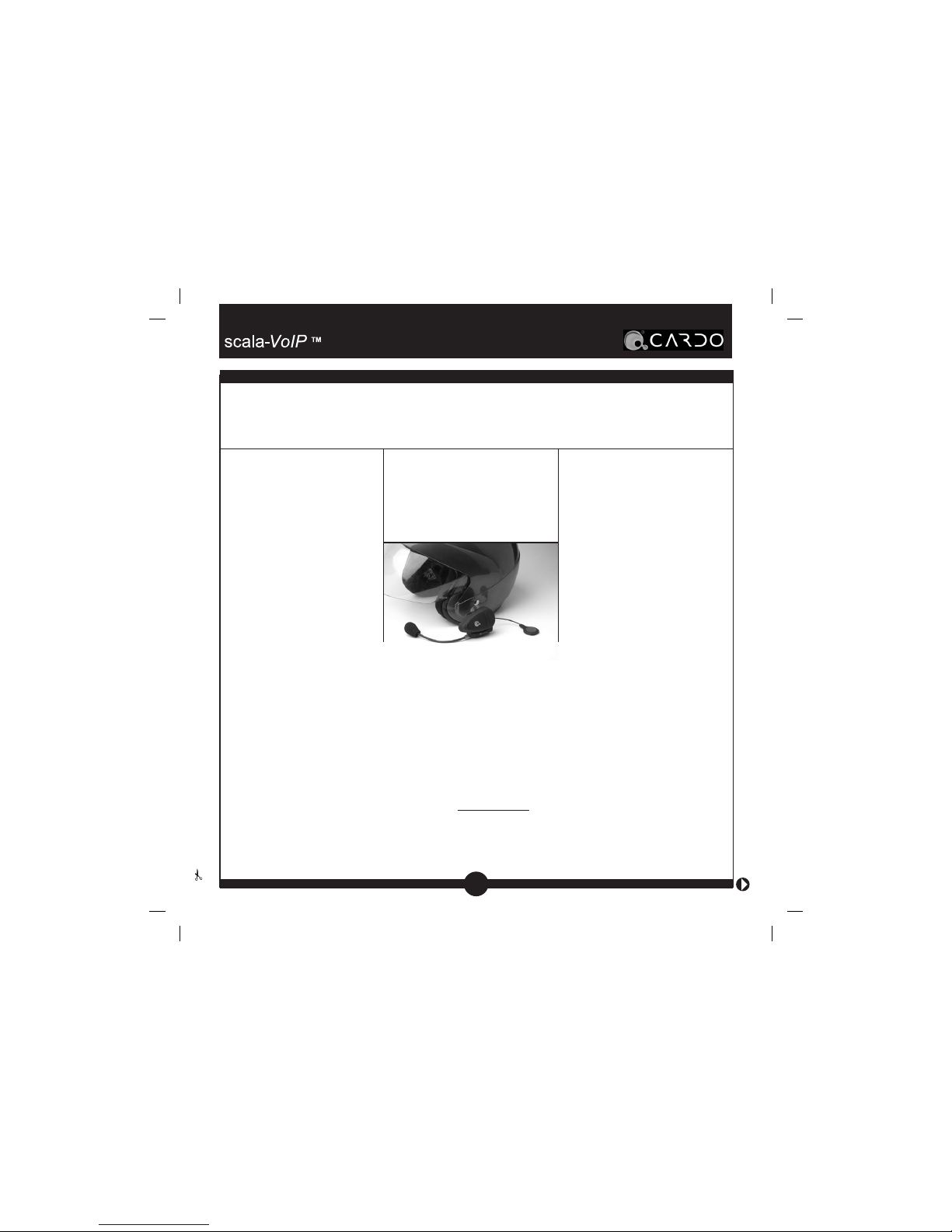
As a valued Cardo customer you are entitled to
a special discount to an
exciting product we offer
for motorcycle riders and
those who know bikers
that appreciate safe and
comfortable mobile
communication while
on the road. The scala-
rider line of Bluetooth
headsets for motorcycle
helmets allow bikers to
safely conduct mobile
calls, listen to FM radio
or talk with a passenger
without taking their hands
off the handle-bar. Use
this $15.00 discount
voucher with the purchase of any product
from among the scalarider line of Bluetooth
headsets. You may
choose the scala-rider solo, the scala-rider FM or
the scala-rider Team-Set.
For more details, visit
www.cardowireless.com
CERTIFICATE
...............................................................................................................................................................
.
Subject to the conditions below
this certificate entitles the bearer to a
$
15.00
CASH REBATE
with the purchase of one scala-rider Bluetooth Headset*
This Rebate Program is solely intended for end-customers that have purchased a scala-rider headset
(the “Product “) from Cardo Systems, Inc. (“Cardo” or the “Company”) or from an Authorized Cardo
Reseller in the USA, Canada or Mexico. This certificate expires at the earlier of December 31st, 2006
or with the discontinuation of the Product, at the sole discretion of the Company.
Page 34

As the owner of an original scala-VoIP you are entitled to a $15.00 Cash Rebate if you decide
to purchase a scala-rider headset. Please note: You must be in the possession of both products
in order to receive your Cash Rebate. This right is transferable but the party you wish to transfer
it to must be in the possession of the sales slip for the scala-VoIP and of the form below.
How to claim your Cash Rebate: Once you have purchased a scala-rider headset, you must
either fax or send by registered mail the sales slip of both products, i.e. the sales slips for the
scala-VoIP and the scala-rider. Along with the sales slips you must send us (by fax or mail) the
filled form below.
• Fill the following details (fields with an asterisk are mandatory):
*Surname Mr./Mrs.__________________ c/o _______________ First Name _______________
e-mail address __________________
* Address to which the $15.00 Rebate should be mailed to:
Street Number ____, Street ______________, Apt. # ______ City ____________, ZIP ________
other mailing details ________________________________________________________________
Where did you purchase the Product? (Store Name, City) _______________________________
Would you like to receive notifications about new Cardo products or about upgrade products?
YES / NO
We would greatly appreciate your comments and suggestions
________________________________________________________________________________________
Once completed, please fax or mail this form to Cardo Systems, Inc. according the details below:
SEND THIS FORM BY FAX TO:
(412) 788-0270 or
SEND THIS FORM BY MAIL TO:
Cardo Systems, Inc., 100 High Tower Blvd.,
Pittsburgh, PA 15204; Attn.: s-rider Rebate Program
...............................................................................................................................................................
.
Place the sticker with the
Serial Number here:
Page 35

U.S. and Worldwide Patent Pending;
© 2006 Cardo Systems Inc.
Assembled in China.
Bluetooth
®
is a trademark owned by Bluetooth® SIG, Inc.,
scala-700™ and scala-VoIP™ are trademarks owned by Cardo Systems, Inc.
All rights reserved by Cardo Systems, Inc.
Cardo reserves all rights and explicitly prohibits any copying, dissemination, or other commercial
use of the text and/or images or any part thereof contained in this manual, with the exception
of end-users of the scala-700 headset and/or the scala-VoIP product for their own personal use,
of authorized resellers and of journalists covering this product for media purposes.
Page 36
QGVoIP_008
Developed and Manufactured by:
www.cardowireless.com
 Loading...