

Page 1

F-710
Scientific Calculator
INSTRUCTION
EN
Page 2

Contents
Key Assignment 2
Two-Line Display 3
Precautions Before Calculation 3
Power ON, OFF Keys 3
Numeric Entry Keys 4
nd
Functions Keys 4
2
Memory Keys 4
Cursor/Edit Keys 5
Decimal Point Selection Keys 5
Notation Keys 6
Display Contrast Adjustment 6
Angle Unit Conversion Keys 6
Basic Instruction Keys 7
Fractional Calculation Keys 7
Last Answer Key 9
Calculation Priority 9
Calculation Range 10
Error Messages 10
Statistical Calculations 11
Output of Statistical Calculation Results 11
Statistic Calculation Examples 12
Formula Calculation Functions 12
38 Built-in Formula 13
Calculation Examples 14
Fractional Calculation Examples 15
Basic Function Calculation Examples 15
Angle Unit Mode Calculation Examples 17
Applied Calculation Examples 19
Input Range of Functions 20
Battery 22
Advice and Precautions 22
Specifications 22
- 1 -
Page 3
Thank you for purchasing Canon's scientific statistical calculator,
which features a 2-line display capable of displaying both formulas and
result at the same time. The main features include Base calculations,
statistical calculations, linear regression calculations, probability
calculations, 10 built-in scientific constants, and more....
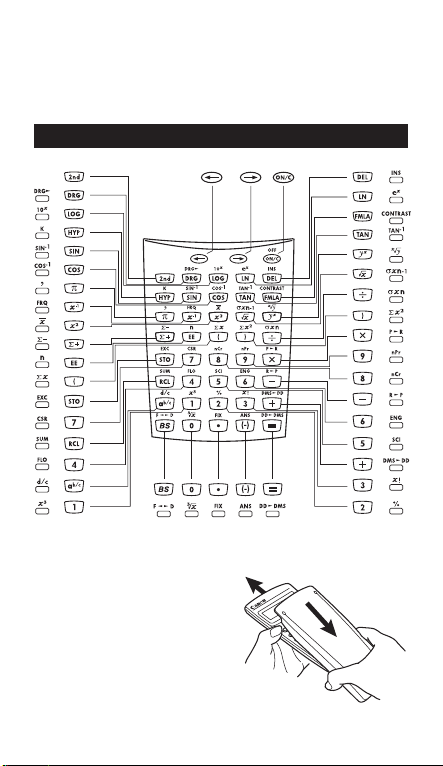
Key Assignment
How To Open/Close the Cover:
Open or close the cover by sliding as
shown in the figure.
- 2 -
Page 4

Two-Line Display
Formula (12 characters)
Mantissa minus sign
Mantissa
<Status indicators>
M1, M2, M3 : Memory Storage
2nd : 2nd Function
HYP : Hyperbolic
SCI : Scientific Exponential Mode
ENG : Engineering Exponential Mode
FIX : Fixing Mode
FMLA : Built-in Formular
STAT : Statistic Mode
DEG : Degree Mode
GRAD : Gradient Mode
RAD : Radian Mode
K : Constant
xlø : Precedes the exponent
<Display description in this book>
In the example table, the upper line display will be
shown as "xx" (e.g. "Ans").
Status indicators
Extension mark
(Shows the presence
of hidden formula)
Exponent
Precautions Before Calculation
• Calculation Mode
Before starting calculation, be sure to check the Calculation mode
from the status indicators, such as STAT (static) and DEG (degree).
• Returning to the Initial Mode
If you get into trouble during calculation, it is recommended to return
the calculation mode to the initial one once, where only "DEG
(Degree)" indicator is lit.
• If you get into trouble, you can use the reset key which will reset the
calculator to the Decimal Calculation/Floating mode.
Power ON, OFF Keys
(Power ON/Clear): Turns the calculator on. When it is pressed,
the calculator will be turned on.
• Auto Power Off Function:
When the calculator is not used for about 7 minutes, the
calculator is automatically turned off to save power.
OFF
2nd
(Power OFF): Turns off the calculator.
OFF
- 3 -
Page 5
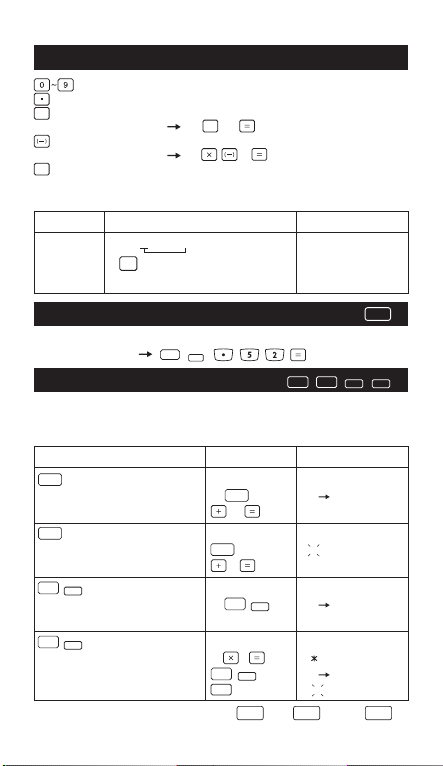
Numeric Entry Keys
(Numeric): Enter numbers.
(Decimal Point): Enters a decimal point.
(Exponential): Used to enter exponents.
EE
Example: 35x10
(Negative): Used to obtain negative value.
Example: 12x(–3) = 12 3 (–36.)
BS
(Back Space): Clears the last digit entered from the upper
(formula) line.
Example:
Value Operation Display
12345 1 2 4 incorrect entry "124"
"12"
3 4 5 "12345"
2nd Functions Keys
For performing function indicated above the keys.
Example: sin
Memory Keys
The calculator has 3 memories. When a memory contains a number
other than 0,
Example:
Operation Display
STO
Stores displayed value in memory 45 STO 1 Ans STO M1.
M1, M2 or M3, replacing current value. 27 Ans+27
RCL (continued)
Recalls value in memory M1, M2 or M3 RCL 1 45
3 45+3
SUM
2nd (continued)
Adds displayed value to memory 12 2nd 1 Ans sum M1
M1, M2 or M3
EXC
2nd (continued)
Exchanges displayed and memory 24 8 24 8
values. 2nd 1 Ans EXC M1
1 192
**To clear a single memory, press 0 STO 1, 0 STO 2, or 0 STO 3.
43
EE
= 35 43 (3.5x1044)
BS
-1
-1
0.5 (30.)
M1, M2, or M3 displays.
SIN
2nd
RCLSTO
SUM
EXC
RCL
- 4 -
2nd
EXC
SUM
45.
72
48.
12
192
57
Page 6
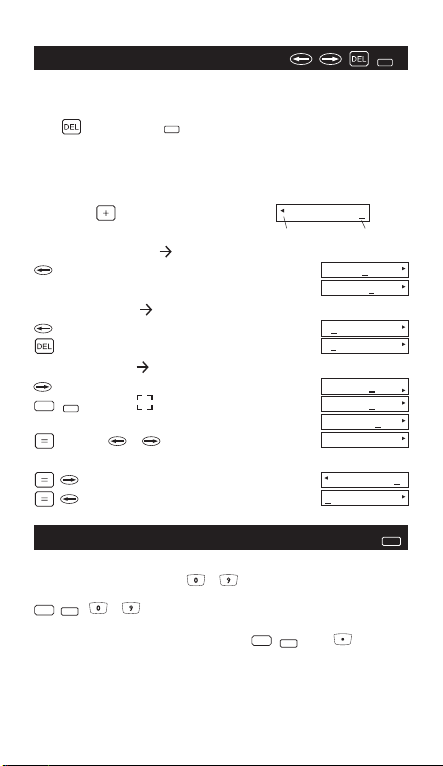
Cursor/Edit Keys
The cursor keys are used to move the cursor in the upper (formula
entry) line. When the entry is long, an extension mark appears to let
you know that the hidden formula is present.
With (deletion) and (insertion), you can correct the formula
during entry or after calculation. Also, after calculation comma you can
use the replay function to move the cursor to the end or beginning of
the formula to add further formula or to change it.
INS
INS
Example:
1234567 889900
Replacing an entry (7 0):
(Press or keep press until "7" blinks.)
(Replace with "0")
0
567+889900
Extension mark Cursor
1234567+889
1234560+889
Deletion (1234560 134560):
(Press or keep press until "2" blinks.)
("2" is deleted.)
1234560+889
134560+8899
Insertion (889900 2889900):
(Press or keep press until "8" blinks.)
INS
2nd
("8" and alternates.)
(Insert "2")
2
(or or )
134560+8899
134560+8899
134560+2889
134560+2889
Replay function (You can add or change the formula):
(Cursor moves to the end.)
(Cursor moves to the beginning.)
Decimal Point Selection Keys
Specifies the number of decimal places in the mantissa of decimal
calculation results. Pressing ~ after this key specifies the
number of decimal places as follows:
FIX
~ 0 ~ 9 decimal places
2nd
Note:
To reset the decimal specification, press , , then .
2nd
60+2889900
134560+2889
FIX
FIX
- 5 -
Page 7
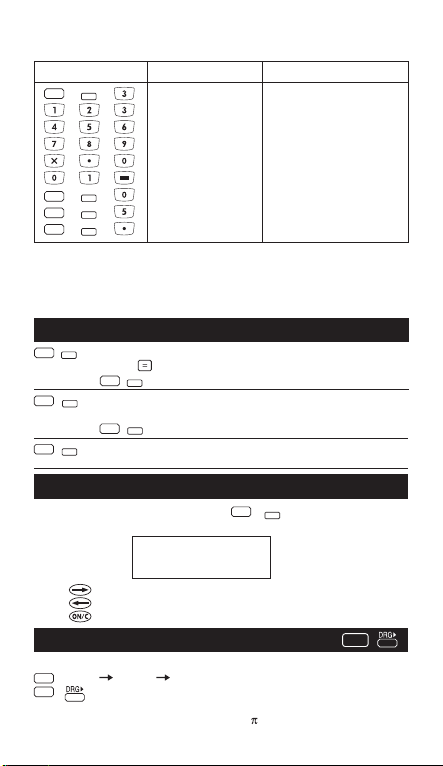
Example:
Operation Display Explanation
FIX
FIX 3 decimal places
2nd
123456.789
FIX
123456
2nd
FIX
2nd
123456.7890
FIX
2nd
123456.789 Reset decimal places
*1 The displayed value is round off within the specified range, but the actual
calculation result is retained in the register.
*2 The number is displayed with left justification. In this case, 5 decimal
places are specified, but only the 10 most significant digits are displayed.
The 5th decimal place is not displayed.
Notation Keys
SCI
2nd
2nd
2nd
Selects scientific notation.
12345 12345.
SCI
2nd
ENG
Selects engineering notation (exponent. is a multiple of 3).
(continued)
ENG
2nd
FLO
Restores standard notation (floating-decimal)
format.
(*1)
0 decimal places
(*2)
5 decimal places
SCI 1.2345x10
ENG 12.345x10
Display Contrast Adjustment
CONTRAST
GRAD
2nd
= 180 =
- 6 -
2nd
RAD
To adjust the display contrast, Press and one of the
following means appear:
– CONTRAST +
IIIIII
[ ]
Press to make the display contrast darken.
Press to make the display contrast lighten.
Press to confirm.
Angle Unit Conversion Keys
Used to change the angle values to different unit.
DRG
(DEG) (RAD) (GRAD)
2nd
• Relationship of units: 200
Cycles (converts) angle-unit setting between degrees,
radians, and grads for display, entry and calculation.
04
03
Page 8
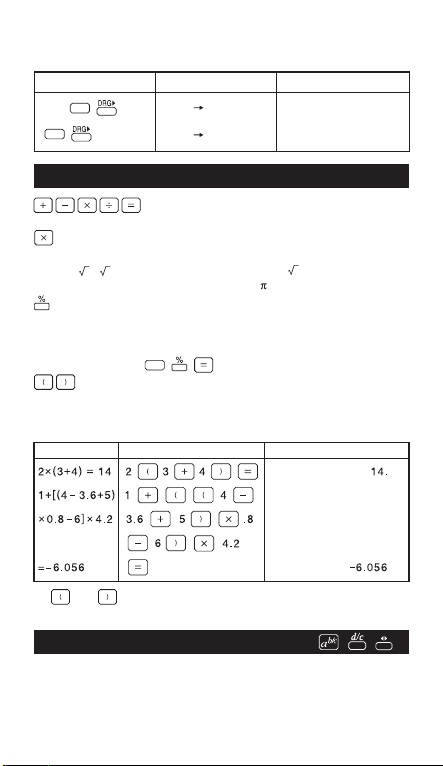
Example: Convert 180 degrees into radian and gradient.
Operation Display(Upper) Display(Lower)
180 "180 RAD" 3.141592654
2nd
"Ans GRAD" 200.
2nd
RAD
GRAD
Basic Instruction Keys
: Used for basic arithmetic calculation. Press
Can be omitted in the following cases:
• Before parenthesis (e.g. 3(4+7), (A+1) (B+2))
• Before ,
• Before fixed number and variables (e.g. 2 , 3AB)
(Percent): Used for percentage calculations. When this key is
pressed before using the four fundamental operations, the
entered value is divided by 100 and the calculation result is
displayed.
Example: 123 (1.23)
(Open, Close Parenthesis): For performing parenthesis
calculations where numbers and instructions to be stored in the
register are within 23 levels.
Example:
Value Operation Display
• and are always used together. Otherwise. "Syn (Syntax)
ERROR" will be displayed.
Fractional Calculation Keys
It enters fractions and calculates both mixed and improper fractions.
Answers are given in mixed fractions.
keys as they are written.
3
, sin, sin-1, log, In, 10X, eX, (e.g. 2 5 )
2nd
F D
- 7 -
Page 9
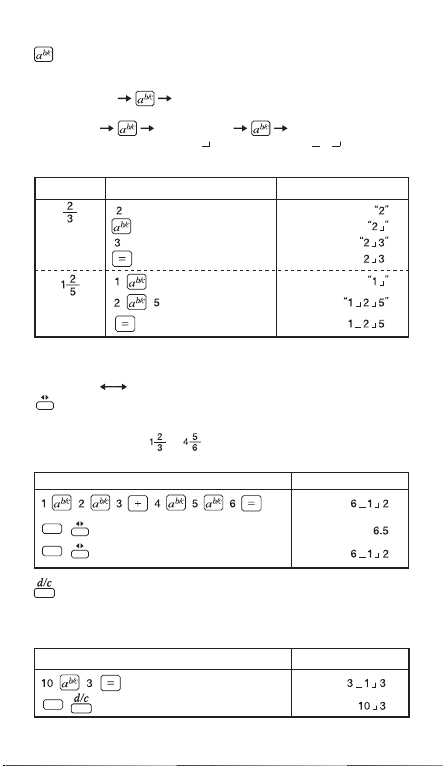
(Fraction): Use it to enter fractions for both mixed and improper
fractions.
When entering improper fractions (A/B):
A (numerator) B (denominator)
When entering mixed fractions (A B/C):
A (integer) B (numerator) C (denominator)
Fractions 2/3 is displayed as "2 3", and 1 2/5 as "1 2 5".
Example:
Value Operation Display(Lower)
• If the result exceeds 10 digits including delimiters, it is displayed in
the decimal point expression.
<Fractions Decimal point expression>
F D
can convert the results of the fractional calculations to the
decimal expression and vice versa.
Example: Calculate + and convert the result to the decimal
point expression.
Operation Display(Lower)
F D
2nd
F D
2nd
(Mixed/lmproper Fraction Conversion):
It converts mixed fractions to improper fractions and vice versa.
It changes alternatively at each time the key is pressed.
Example: Enter 10/3 and convert it to the mixed traction.
Operation Display(Lower)
2nd
- 8 -
Page 10
Last Answer Key
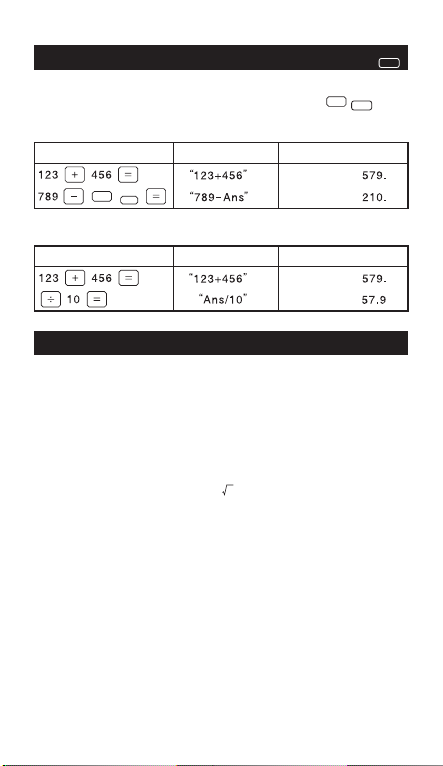
The result of the most recent calculation is stored into the answer
memory. You can recall and use this result by pressing .
ANS
ANS
2nd
Example: Calculate 123 + 456 and subtract the result from 789.
Operation Display(Upper) Display(Lower)
ANS
2nd
Example using continuous caloulation:
Operation Display(Upper) Display(Lower)
Calculation Priority
The calculation procedure priority is automatically determined by the
calculator. This means that algebraic expressions can be entered just
as they are written. The calculation priority is as follows:
1. Expressions inside parentheses.
2. Functions that need a ) and precede that argument, such as sin,
…
log
3. Fractions.
4. Functions that are entered after the argument, such as x2, x
5. Exponentiation (^) and roots (x ).
6. Negation (-).
7. Permutations (nPr) and combinations (nCr).
8. Multiplication, implied multiplication, division.
9. Addition and subtraction.
10. [=] completes all operations and closes all open parentheses. ;
Conversions (d/c, F<>D, DD>DMS) ; R>P, P>R
-1
…
- 9 -
Page 11

Calculation Range
The allowable result display in the lower line is 10 digits for a mantissa
and 2 digits for an exponent. However, calculations are internally
performed with a range of 12 digits for a mantissa and 2 digits for an
exponent.
Calculation range:
-99
~ 9.999999999 x 1099, and 0
1 x 10
Error Messages
1. ARGUMENT– A function does not have the correct number of
arguments.
2. DIVIDE BY 0
A. You attempted to divide by 0.
B. In statistics, n=1.
3. DOMAIN– You specified an argument to a function outside the
valid range. For example:
A. For : 0 or y<0 and x not an add integer.
B. For y
C. For : x<0.
D. For LOG or LN : X 0.
E. For TAN : x=90, -90, 270, -270, 450, etc.
F. For SIN-1 or COS-1
G. For nCr or nPr : n or r are not integers 0.
H. For x! : x is not an integer between 0 and 69.
4. EQUATION LENGTH ERROR- An entry exceeds the digit limits
5. OVERFLOW-
A.
B. Displaying when the entered value, executing result, memory
6. S TAT–
A. More than 9999 statistical data point.
B. Statistical data point x, where
C. [2nd][ -] to remove the only data point.
D. Displaying when execute [ -]/[CSR] but without data.
E. Calculating –x, xn, or xn-1 with no data points or xn-1 with
7. SYNTAX– The command contains a syntax error: entering more
x
: y and x=0;y<0 and x not an integer.
>1.
|x|
(88 for Entry Line and 47 for Star or Constant Entry lines); for
example, combining an entry with a constant that exceeds the limit.
1E10, where is an angle in a trig, hyperbolic, or R P
| |
(function).
sum x exceed
one data point.
than 23 pending operations or 8 pending values; or having
misplaced functions, arguments, parentheses, or commas.
>9.999999999x1099.
|X|
1E64
|x|
- 10 -
Page 12
Statistical Calculations
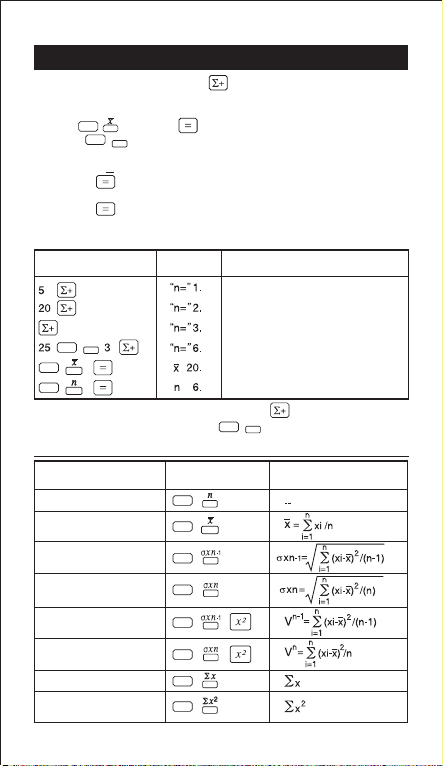
1) Enter the first data and press to enter the statistic mode.
"STAT" indicator lights up.
2) After finishing data entries, press a statistical calculation key
(e.g. ) and then .
2nd
CSR
2nd
3) Press displays the following menu to clear data values and
exit statistic mode.
CLEAR? : Y N
• Press when Y (yes) is underlined to clear data values and
exit statistic mode.
• Press when N (no) is underlined to return to the previous
screen without exiting statistic mode.
Example: Enter data 5, 20, 20, 25, 25, and 25.
Operation Display Explanation
DATA1 entry
DATA2 entry
DATA3 entry(*1)
FRQ
2nd
2nd
2nd
*1 For the same data, you can simply press .
*2 For repeated data, you can use [number of times].
DATA4 – 6 entry(*2)
Find the mean
Find the number of data
FRQ
2nd
Output of Statistical Calculation Results
Output Operation Equation
Number of sample
Mean
Standard deviation of
sample
Standard deviation
population parameter
Variance of sample
Variance of population
Sum
Square sum
2nd
2nd
2nd
2nd
2nd
2nd
2nd
2nd
- 11 -
Page 13
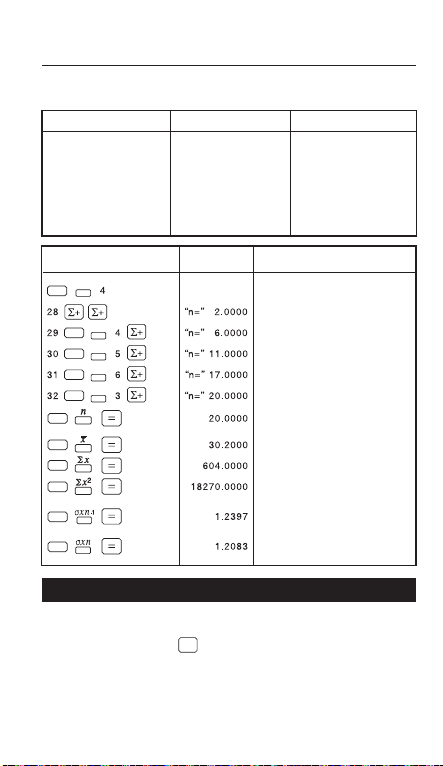
Statistical Calculation Examples
You bought 20 large sized pizza for the party. The size is supposed to
be 30 cm diameter. Their sizes were, however, varied as shown below.
Diameter Midpoint Frequency
27.6 ~ 28.5 28 2
28.6 ~ 29.5 29 4
29.6 ~ 30.5 30 5
30.6 ~ 31.5 31 6
31.6 ~ 32.5 32 3
(20 in total)
Operation Display Explanation
FIX
2nd
FRQ
2nd
FRQ
2nd
FRQ
2nd
FRQ
2nd
2nd
2nd
2nd
2nd
2nd
2nd
Specify 4 (decimal places)
(FIX)
"28" x 2
"29" x 4
"30" x 5
"31" x 6
"32" x 3
Totel number of sample
Mean
Sum of the values
Square sum of value
Standard deviation of sample
Standard deviation of
population
Formula Calculation Functions
The formula functions get different formula results due to inputting
different variable value. The built-in formula in this calculator has 38
common formulas. Press key to display the stored formula in
sequence.
FMLA
- 12 -
Page 14
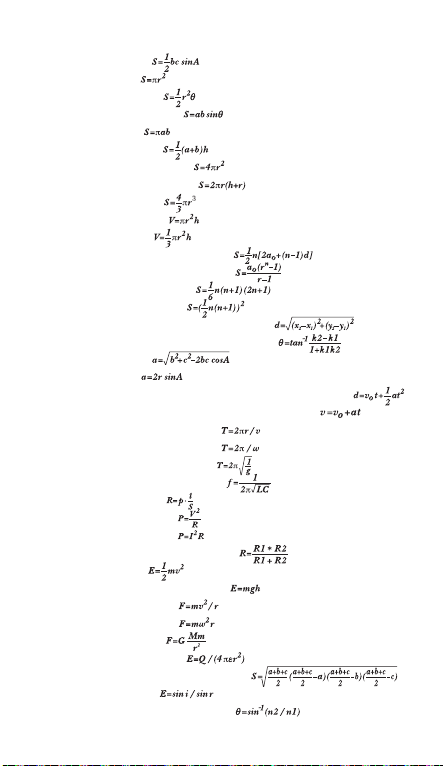
Built-in Formula:
1. Triangular area:
2. Circular area:
3. Fan-shaped area:
4. Parallelogramic area:
5. Elliptical area:
6. Trapeziform area:
7. Spherical surface area:
8. Cylindrical surface area:
9. Spherical volume:
10. Cylindrical volume:
11. Conical volume:
12. Sum of arithmetic progression:
13. Sum of geometric progression:
14. Sum of square number:
15. Sum of cubic number:
16. Distance between arbitrary two points:
17. Included angle of the intersecting lines:
18. Law of cosines:
19. Law of sines:
20. Displacement of uniformly accelerated linear motion:
21. Velocity of uniformly accelerated linear motion:
22. Period of circular motion (1):
23. Period of circular motion (2):
24. Period of simple pendulum:
25. Electric oscillation frequency:
26. Resistive formula:
27. Joule's theorem (1):
28. Joule's theorem (2):
29. Resistance of shunt resistance:
30. Kinetic energy:
31. Gravitational potential energy:
32. Centrifugal force (1):
33. Centrifugal force (2):
34. The law of gravity:
35. Electric field intensity:
36. Heron's Formula (Triangular area):
37. Refractive index:
38. Critical angle of total reflection:
- 13 -
Page 15
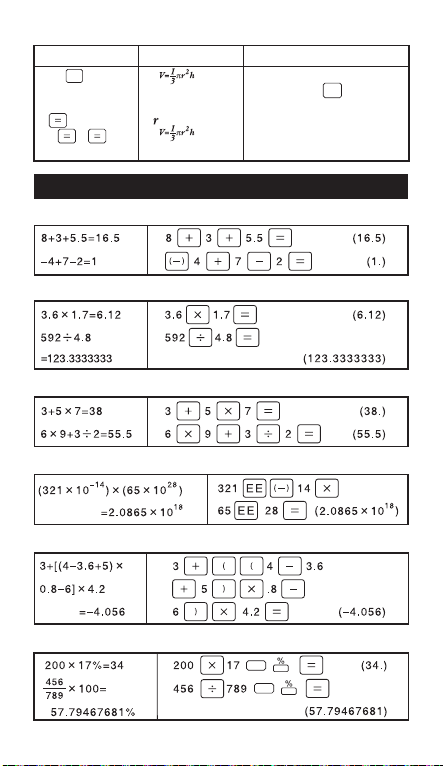
Operation Display Explanation
11 “ ” Choose a built-in Formula.
FMLA
User can use to choose
Formula.
? Confirm to use the Formula
5 8 “ ” r=5, h=8
209.4395102 V=209.4395102
FMLA
General Calculation Examples
Addition and Subtraction
Multiplication and Division
Mixed Calculations
Exponential Calculations
Parentheses Calculations
Percentage Calculations
2nd
2nd
- 14 -
Page 16
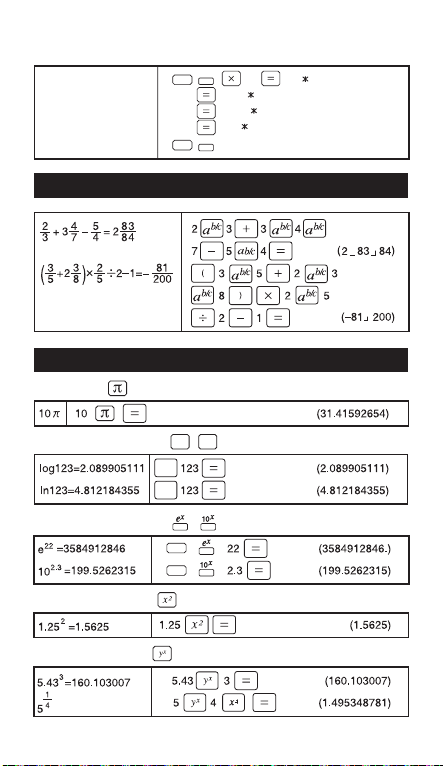
Constants Calculation
K
8 "k= 8"
12 x 8 = 96
2.4 x 8 = 19.2
7 x 8 = 56
2nd
12 "12 8" (96.)
2.4 "2.4 8" (19.2)
7 "7 8" (56.)
K
(Clear the constants)
2nd
Fractional Calculation Examples
Basic Function Calculation Examples
Pi Function
LOG
Logarithmic Functions
Exponential Functions
Square Calculations
LN
LOG
LN
2nd
2nd
Power Calculations
- 15 -
Page 17
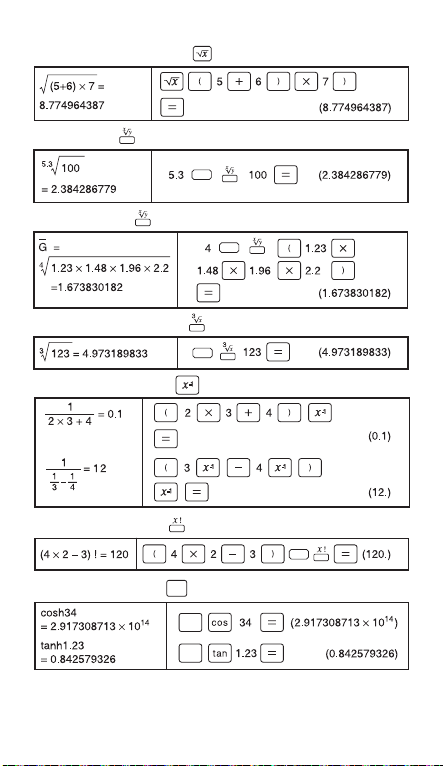
Extraction of Square Root
Multiple Root
Geometric Mean
Extraction of Cubic Root
Reciprocal Calculations
Factorial Calculations
2nd
2nd
2nd
2nd
Hyperbolic Functions
HYP
HYP
HYP
- 16 -
Page 18
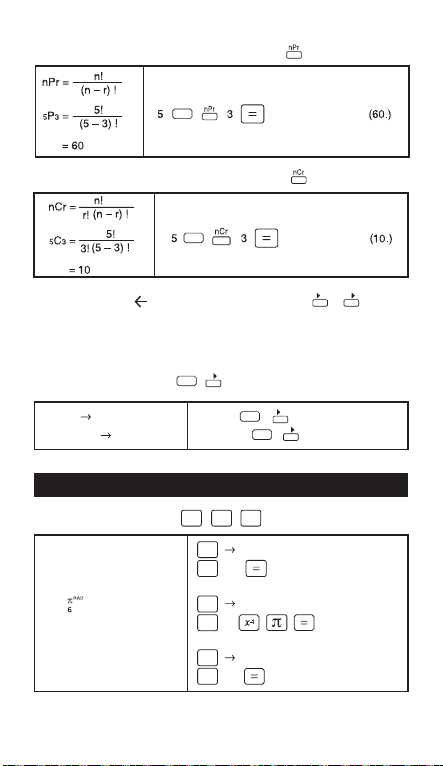
Permutations (of n things taken r at a time)
2nd
Combinations (of n things taken r at a time)
2nd
DD DMS
Decimal Degrees Degrees-Minutes-Seconds
Note: i) Enter DMS (Degress / Minutes / Seconds values as
D.MMSSs using Øs as necessary.
For example, enter 377'42" as 37.0742
ii) Before using a DMS value in a calculation, you must convert
it to decimal with .
2.3456 220'44"
12345'06" 123.7516667
2nd
DMS DD
2.3456
123.4506
DD DMS
2nd
DMS DD
2nd
DMS DD
(220'44"16)
(123.7516667)
Angle Unit Mode Calculation Examples
SIN
COS
Trigonometric Functions
Sin 53 = 0.79863551
Cos — = 0.866025404
GRAD
Tan65
= 1.631851687
TAN
"DEG"
DRG
53
SIN
"RAD"
DRG
6
COS
"GRAD"
DRG
65
TAN
(0.79863551)
(0.866025404)
(1.631851687)
- 17 -
Page 19
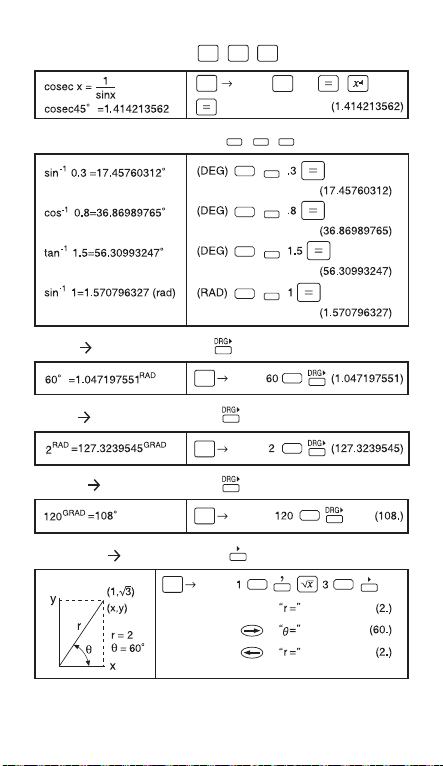
Trigonometric Calculations
SIN
"DEG" 45
DRG
Inverse Trigonometric Functions
Degree Radian Conversion
"DEG"
DRG
Radian Gradient Conversion
"RAD"
DRG
Gradient Degree Conversion
"GRAD"
DRG
Rectangular Polar Conversion
"DEG"
DRG
COS
TAN
SIN
-1
-1
SIN
COS
TAN
-1
SIN
2nd
-1
COS
2nd
-1
TAN
2nd
-1
SIN
2nd
2nd
2nd
R P
2nd 2nd
-1
2nd
R P
- 18 -
Page 20
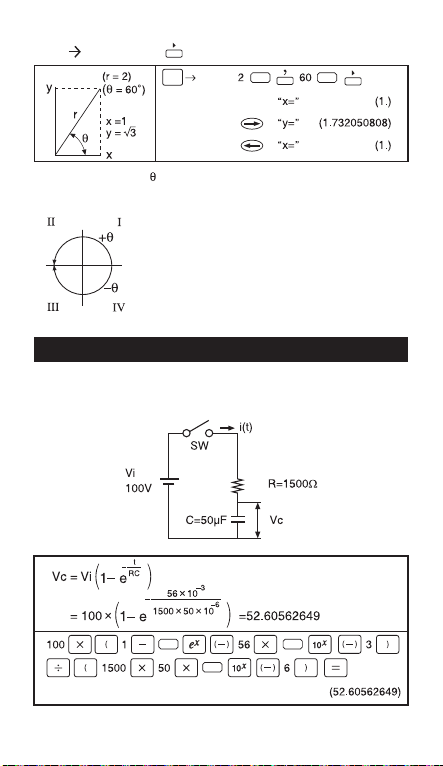
Polar Rectangular
* In polar conversion in the third and fouth quadrant are as shown in
the diagram below.
P R
"DEG"
DRG
2nd 2nd
P R
Applied Calculation Examples
Electricity - Integrating Circuit Problem
Obtain the voltage Vc across the capacitor at t=56 msec after the
switch is turned on.
2nd 2nd
2nd
- 19 -
Page 21
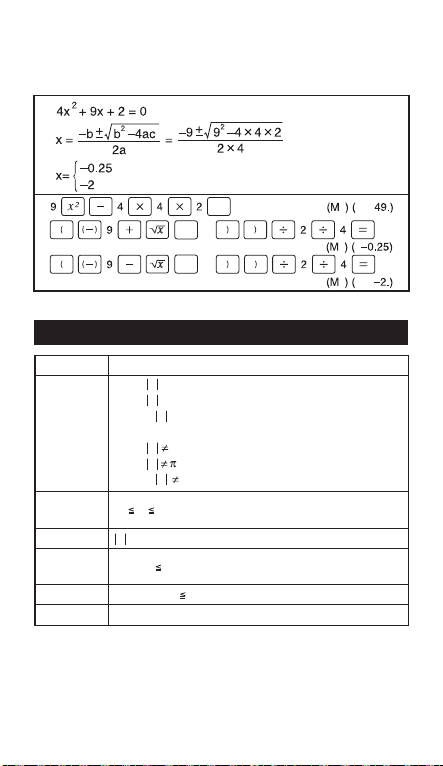
Algebra
The Root of a Quadratic Equation (Only for problems having a real root)
STO
RCL
RCL
1
1
1
1
1
1
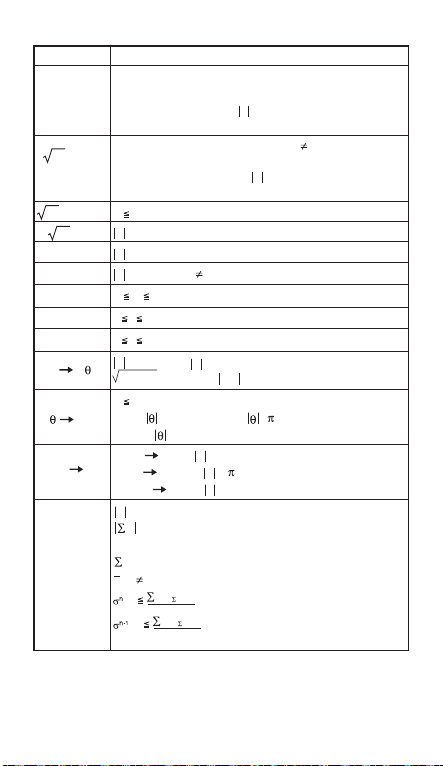
Input Range of Functions
Function Input range
DEG: x < 1x10
sin x
cos x
tan x
sin-1 x
cos-1 x
tan
ln x
log x
x
e
10
RAD: x < 1x10
GRAD: x < 10/9 x 10
However, for tan x :
DEG: x 90(2n-1)
RAD: x /2(2n-1)
GRAD: x 100(2n-1) (n is an integer)
-1 x 1
-1
x
x < 1x10
1x10
-1x10
x
-1x10
10
10
100
-99
100
x1x10
100
< x 230.2585092
100
< x < 100
10
- 20 -
Page 22
Function Input rang e
x
y
x
y
x
3 x
2
x
x-1
n!
nPr
nCr
x,y r,
y > 0 : -1 x10
y = 0 : 0 < x < 1 x 10
y < 0 : -1 x10
(x is an integer or 1/x is odd number)
y >0 : -1 x10
y = 0 : 0 < x < 1 x 10
y < 0 : -1 x 10
(x is odd number or 1/x is an integer)
0 x < 1x10
x < 1x10
x < 1x10
x < 1x10
0 n 69 (n is an integer)
0 r n (r and n are integers), result < 1 x 10
0 r n (r and n are integers), result < 1 x 10
x < 1x10
x2 + y2 < 1x10
0 r < 1x10
r, x, y
DEG: < 1x10¹⁰, RAD : < /180 x 1010,
GRAD: < 10/9 x 10
DRG
DEG RAD: x < 1x10
RAD GRAD: x < /2 x10
GRAD DEG: x < 1x10
x < 1x10
x < 1x10
Statistical
calculations
n < 1x10
x2< 1x10
x: n 0
< 1x10
< 1x10
: 0
: 0
100
< x log y < 100
100
< x log y < 100
100
< 1/x log y < 100 (x 0)
100
< 1/x log y < 100
100
100
50
100
(x 0)
100 ,
y < 1x10
100
100
64
100
100
100
2
x2-{( x)
/n}
n
2
2
x
-{( x)
/n}
n-1
100
100
100
, y/x < 1x10
10
100
100
100
, n > 0
100
, n > 1
100
100
100
98
- 21 -
Page 23

Battery
Approx. 1,000 hours continuous display. When the display dims, change the
battery.
• Keep the battery out of children's reach. If the battery is swallowed,
contact a doctor immediately.
• Do no try to recharge, disassemble or do anything to the battery that
could cause a short circuit.
• Do not expose the battery to high temperatures or open flames.
• Replace new battery to the same position.
• When the battery is replaced or malfunction occurs, push the reset switch
at the rear with a pointed object.
Battery Replacement
Electromagnetic interference or electrostatic discharge may cause the
display to malfunction or the contents of the memory to be
lost or altered. Should this occur, use the tip of a ball
point pen (or similar sharp object) to press the
[RESET] button on the back of the calculator.
How To Reset
Advice and Precautions
• This calculator contains precision components such as LSI chips and
should not be used in places subject to rapid variations in temperature,
excessive humidity dir+ or dust, or exposed to direct sunlight.
• The liquid crystal display panel is made of glass and should not be
subjected to excessive pressure.
• When cleaning the device do not use a damp cloth or a volatile liquid such
as paint thinner. Instead, use only a soft, dry cloth.
• Do not under any circumstances dismantle this device. If you believe that
the calculator is not functioning properly, either bring or mail the device
together with the guarantee to the service representative of a Canon
business office.
Specifications
Exponential Type ........Mantissa, 10 digits + exponent, 2 digits + sign, 2 digits
Floating Type ..............Mantissa, 10 digits + sign, 1 digit
Calculation Range:
Decimal ......................1 x 10
Auto Power Off ...........Approx. 7 minutes
Power Source: DC 3.0 V/0.065 mW
Lithium battery: Please refer to the product backside.
Approx. 1,000 hours continuous display.
Usable Temperature: 0 ~ 40C (32F ~104F)
Size: 152(L) x 77(W) x 13(H) mm (5-63/64'' x 3-1/32'' x 33/64'')
Weight: 88g (3.1oz)
* Specfications are subject to change without notice.
For CA, USA Only
Included battery contains perchlorate material - special handling may apply.
See http://www.dtsc.ca.gov/hazardouswaste/perchlorate/ for detail.
-99
~ 9.9999999999 x 10
- 22 -
99
 Loading...