

Page 1
EOS
Step-by-Step Setup Guide
Wireless File TransmiTTer
linked shoT mode
© 2012 Canon U.S.A., Inc. All Rights Reserved. Reproduction in whole or in part without permission is prohibited.
1
Page 2

EOS Wireless File Transmitter
Linked Shot Setup
Overview
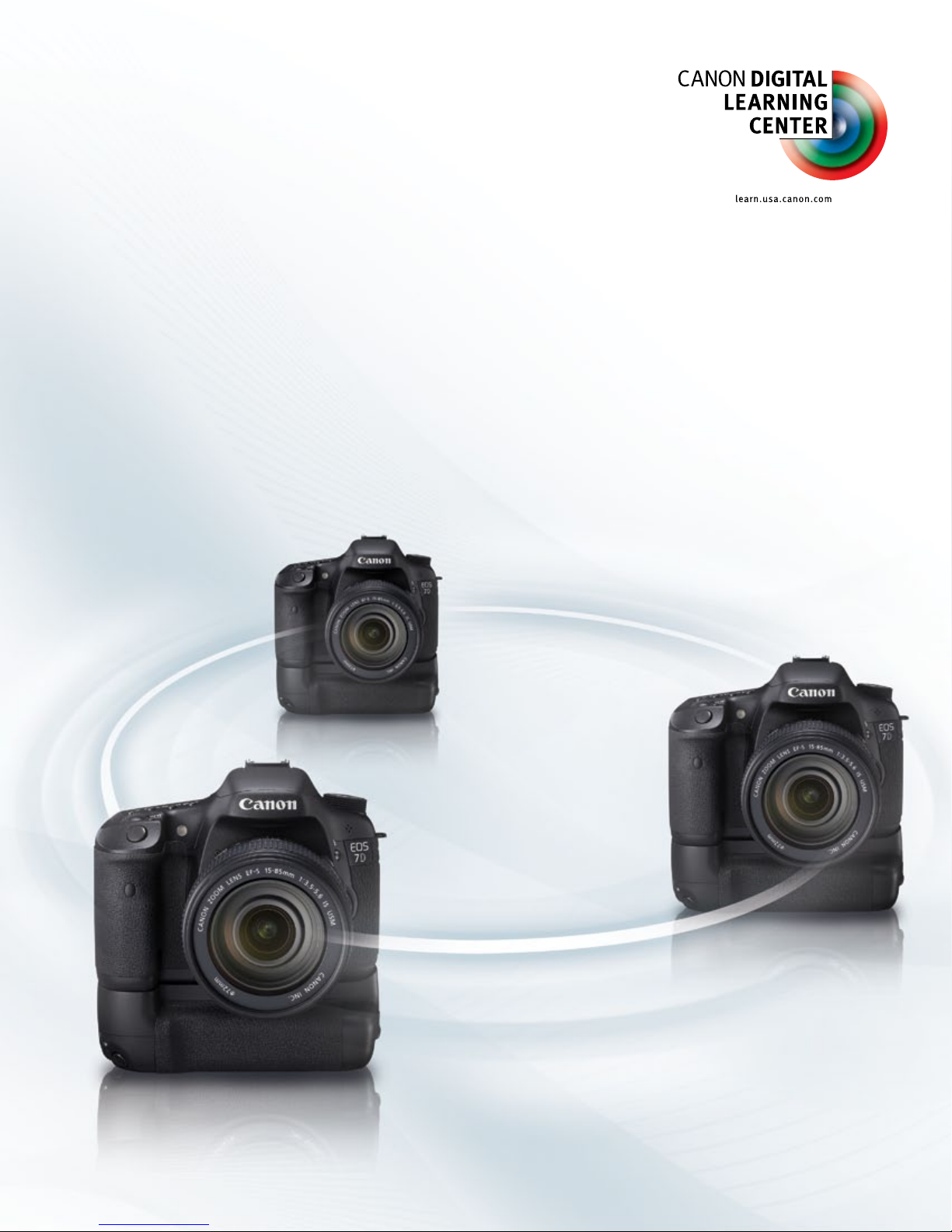
In Linked Shot mode one EOS WFT-equipped
camera is set up as the master with the remaining
WFT-equipped cameras set up as slaves. You can
connect up to 10 slaves. The master can trigger the
slaves simultaneously or with intervals and/or delays based on your preference and camera settings.
No other equipment or software is necessary.
Master Camera Initial Setup
1
Turn on the camera with WFT unit attached.
Note that the WFT requires its own battery.
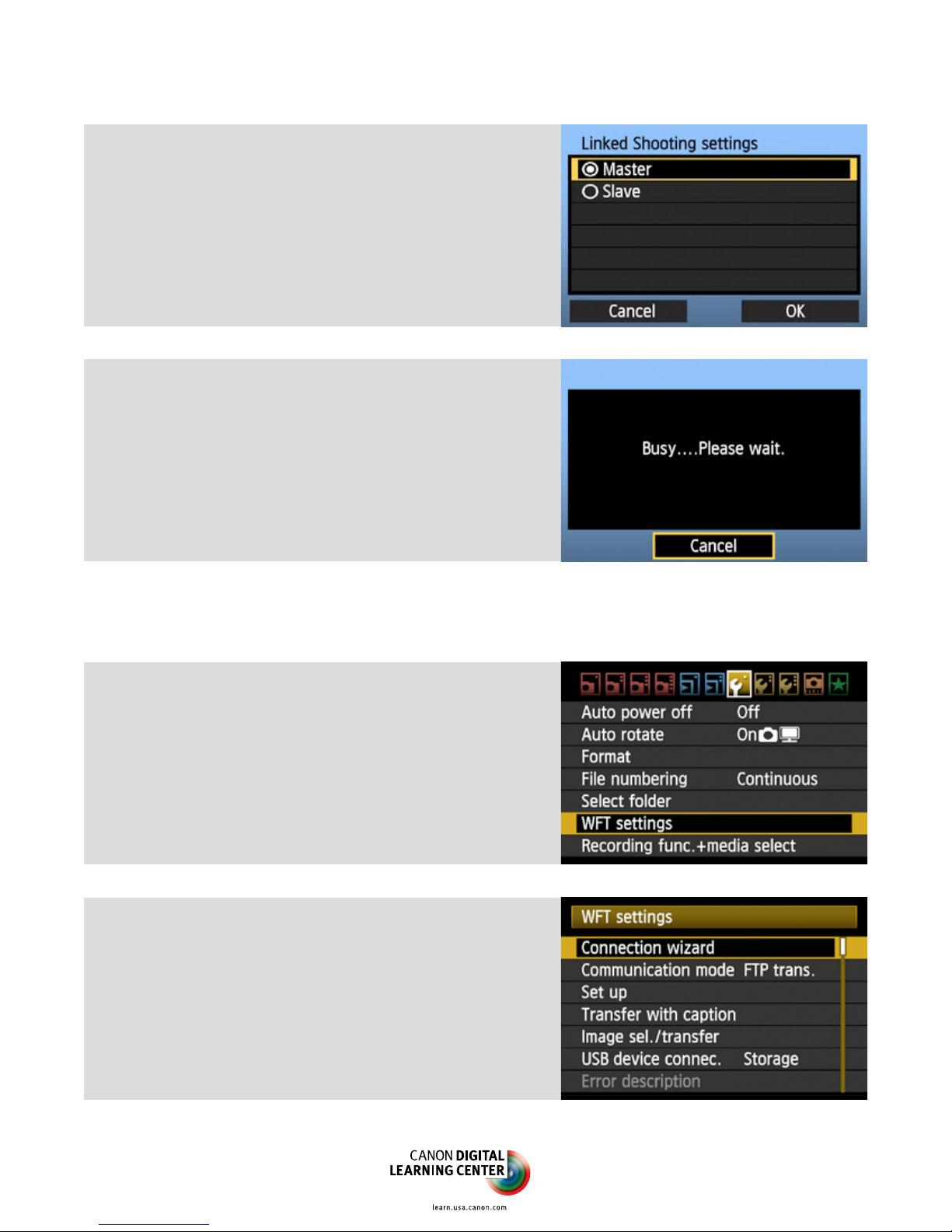
Press the MENU button on the camera, then
navigate to the Tool menu that lists WFT settings. Select [WFT settings].
2
Under WFT settings, elect [Connection wizard].
3
Under Select communication method, select
[LinkedShot]. Select [OK].
2
Page 3
4
Under Linked Shooting settings, select [Master]. Select [OK].
5
You should see the [Busy...] screen at right.
Leave the master camera set to this screen
while you continue to set up the slaves as
described below.
Slave Camera Setup
1
2
Turn on the camera with the WFT unit attached.
(The WFT requires its own battery.) Navigate to
the Tool menu that contains the WFT settings
menu. Select [WFT Settings].
Under WFT settings, select [Connection wizard].
3
Page 4
3
4
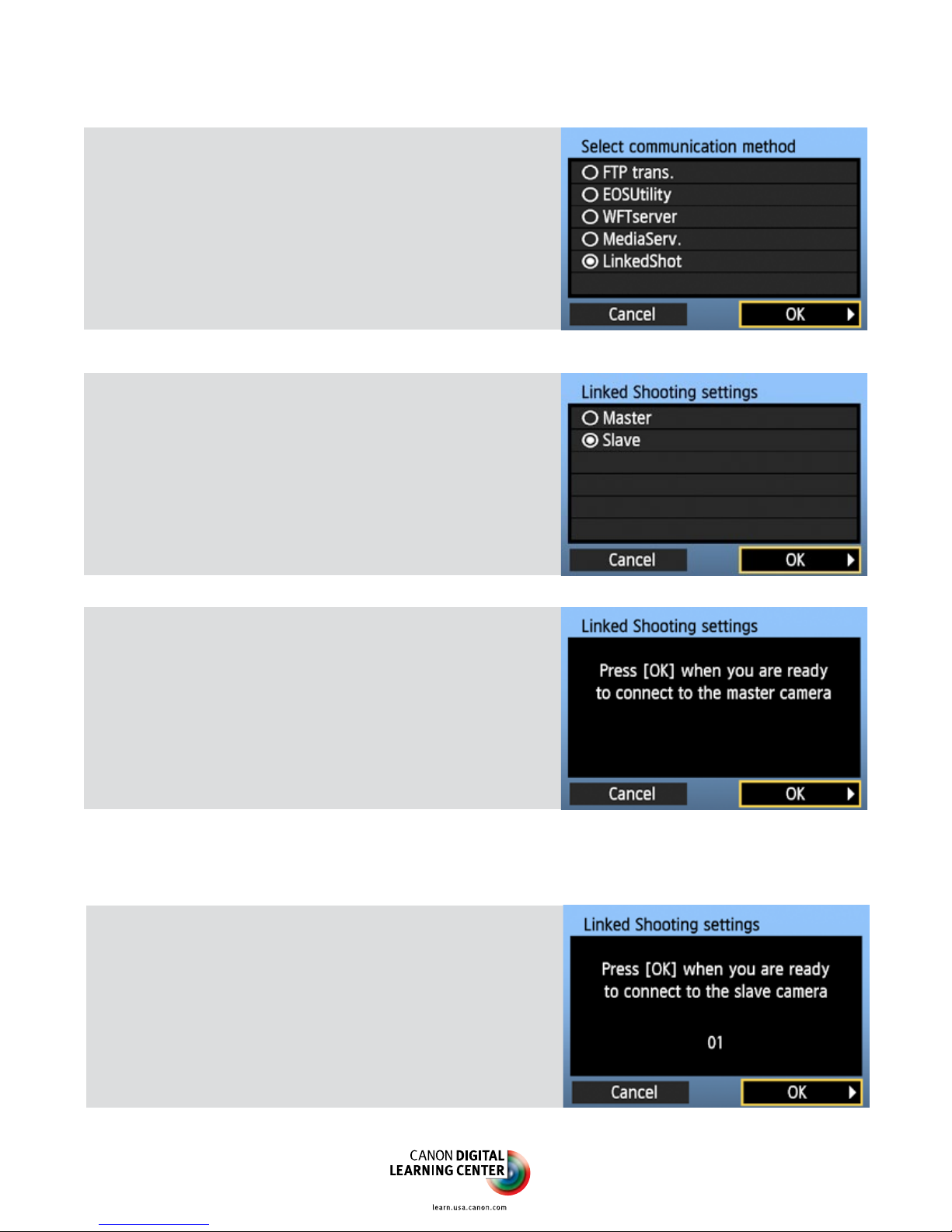
Under Select communication method, select
[LinkedShot]. Select [OK].
Under Linked Shooting settings, select [Slave].
Select [OK].
5
You should see the screen at right.
Select [OK] to connect to the master camera.
Repeat this ve-step procedure for each
additional slave you wish to link.
Master Camera Final Setup
1
The Linked Shooting settings screen on the
master camera should look like the screen at
right. The number you see will depend on how
many slaves you have correctly set up.
Select [OK] to connect to the slave(s).
4
Page 5
2
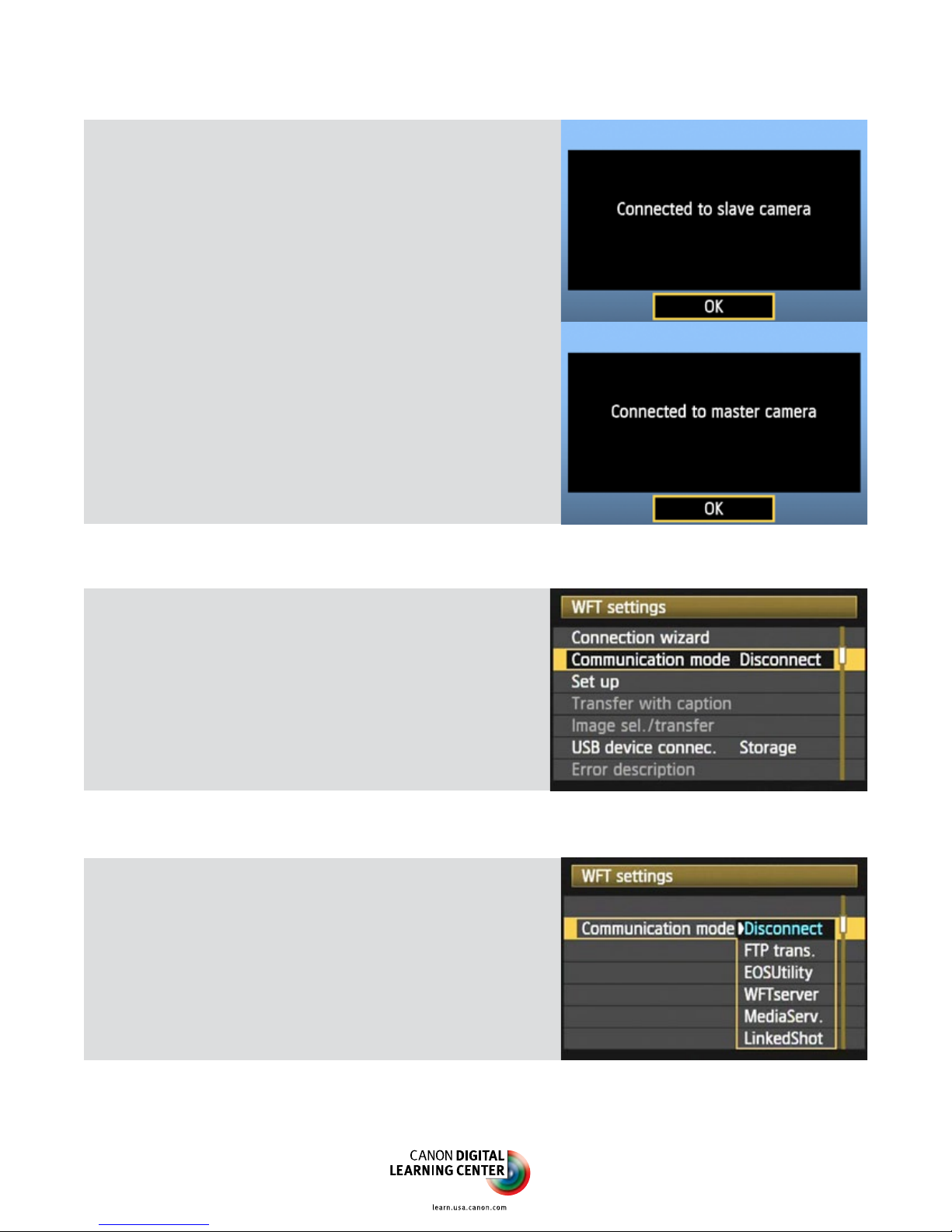
Each of the cameras will conrm their
connection. Masters will conrm that they are
connected to the slave(s).
Select [OK] to conrm and exit the menu.
Slaves will conrm that they are
connected to the master camera.
Select [OK] to conrm and exit the menu.
How to Disconnect
When you have nished using Linked Shot
mode, return to the WFT settings menu to select
[Disconnect.]
How to Reconnect
To reconnect:
1. Begin with the same cameras you originally
set-up.
2. Set the master camera from [Disconnect] to
[LinkedShot].
3. Set all slaved cameras from [Disconnect] to
[LinkedShot].
© 2012 Canon U.S.A., Inc. All Rights Reserved. Reproduction in whole or in part without permission is prohibited.
5
 Loading...