

Page 1

ShowA/ShowL
User’s Guide
May 2001
About ShowA and ShowL............... 2
Querying the postal directories....... 2
Using the Show programs.............. 3
Most ACE programs include Show ... 4
Using Last Line Show for queries in
the City/ZCF files.......................... 5
Using Address Line Show for queries
in the ZIP+4 file........................... 6
Additional information................... 7
Contact information
Phone U.S., Canada 888-788-9004;
In your correspondence, include your name,
company name, telephone number, and
customer ID number.
Technical support is available weekdays 8
a.m. to 6 p.m. central time.
© 2002 Firstlo gic, Inc. All rig hts reserved. This publicatio n and
accompanying software are protected by U.S. copyright law and
internation al treaties. N o part of this publ ication or acc ompanying
software may be copied, transferred, or distributed to any person without
the express written permission of Firstlogic, Inc.
elsewhere 608-788-9000
La Crosse WI 54601
Page 2

About ShowA and ShowL
You may be familiar with the ShowA/ShowL utility from ACE, Presort, or
PrintForm.
The Show programs are used for looking inside the postal directories. If you
have the following questions, you may find the answers by looking inside the
postal directories:
• ACE or ACE Canada standardized the address in an unexpected way.
Why?
• ACE or ACE Canada didn’t assign the address. Why not?
• ACE or ACE Canada’s error code indicates a flaw in the directory.
What’s wrong?
Querying the postal directories
You can use ShowA to display or output information from the ZIP+4
directory, and ShowL to query the City and ZCF directories. Both programs
are distributed free with ACE Library and Job, PrintForm ACE, Presort, and
Canadian ACE Library and Job.
Editing configuration files
When you install ACE or Canadian ACE, ShowA and ShowL are also
installed automatically. They are placed in your PostWare administrative
subdirectory (adm), not in the same directory as your ACE software.
Each Show program has its own
configuration file. These files
contain parameters for controlling
Utility ACE CACE
ShowA
showa.cfg cashowa.cfg
how the program behaves. You
will find these files in your adm
ShowL
showl.cfg cashowl.cfg
subdirectory also. The
configuration files are:
Before you run the Show programs, edit both configuration files for your
product. In each file, there are parameters that you should set right away.
You’ll find instructions inside each file. The configuration files contain
detailed information about how to run the programs.
Run ShowA and ShowL while working in the adm subdirectory. If you run
the program while working anywhere else, it may not be able to find files that
it needs.
2 ShowA/ShowL User’s Guide
Page 3
Using the Show programs
Let’s take a look at an original and standardized address:
Input record Output record
Line1
Line2
= 6 ginger lake drive w
=
edwardsville
il
62025
Line1
Line2
Err_Stat
= 6 Ginger Lake Dr W
=
Glen Carbon
= SB00
IL
62034
The Err_Stat field indicates that city and ZIP changed.
This might seem like a place to use Last Line Show. But in fact, our
suggestion is to look up the address line with Address Line Show.
When two last-line components change so drastically, it may be a ZIP Move
record. ZIP Move assigns a new last line when a post office closes or a new
office opens, for example. Remember, the USPS says the address should be
based on the city where the serving post office is located, not necessarily the
city where the recipient lives.
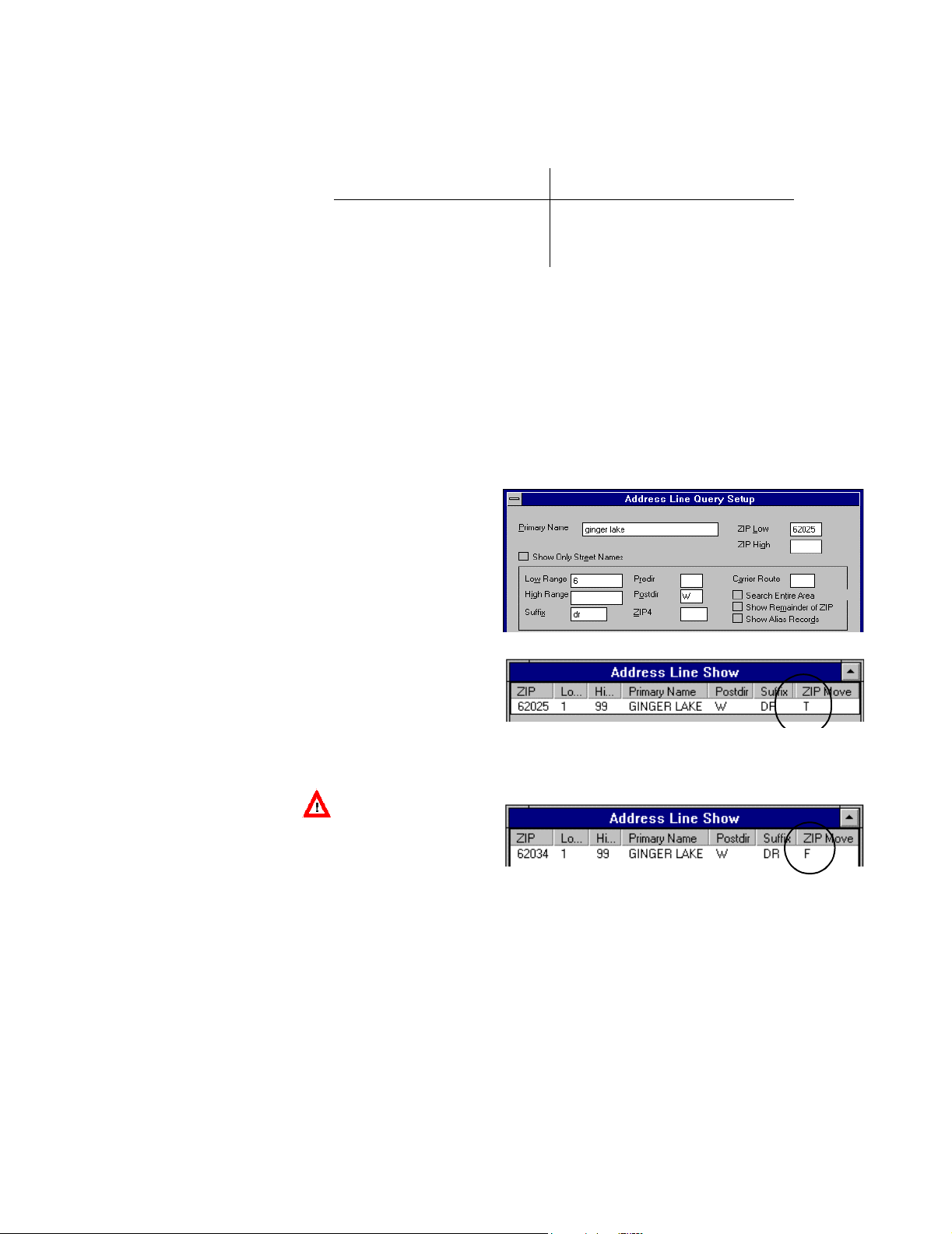
Here’s what the query
looks like in one of
our Show programs:
Here’s what you find:
The “T” for True
means that this record
is affected by a postoffice change.
Important! When
you suspect a ZIP
Move, look up the
address using the old
ZIP Code, not the ZIP
Code ACE assigned.
If you were to look up the same address with its new ZIP Code, you would
see:
Tip: ACE offers an output component (AP field) called ZIP_Move. When the
ZIP_Move field contains a T, there is a ZIP Move change and the new last line
information for this address is displayed. If you set up ACE to standardize
your last-line data, it automatically produces the new last line for any ZIP
Move record. There is no option to turn off ZIP Move conversions.Of course,
if you choose not to standardize last-line information, then ACE cannot give
you the new, correct last line. However, you can still use the ZIP_Move output
component to detect ZIP Move records.
Using the Show programs 3
Page 4
Most ACE programs include Show
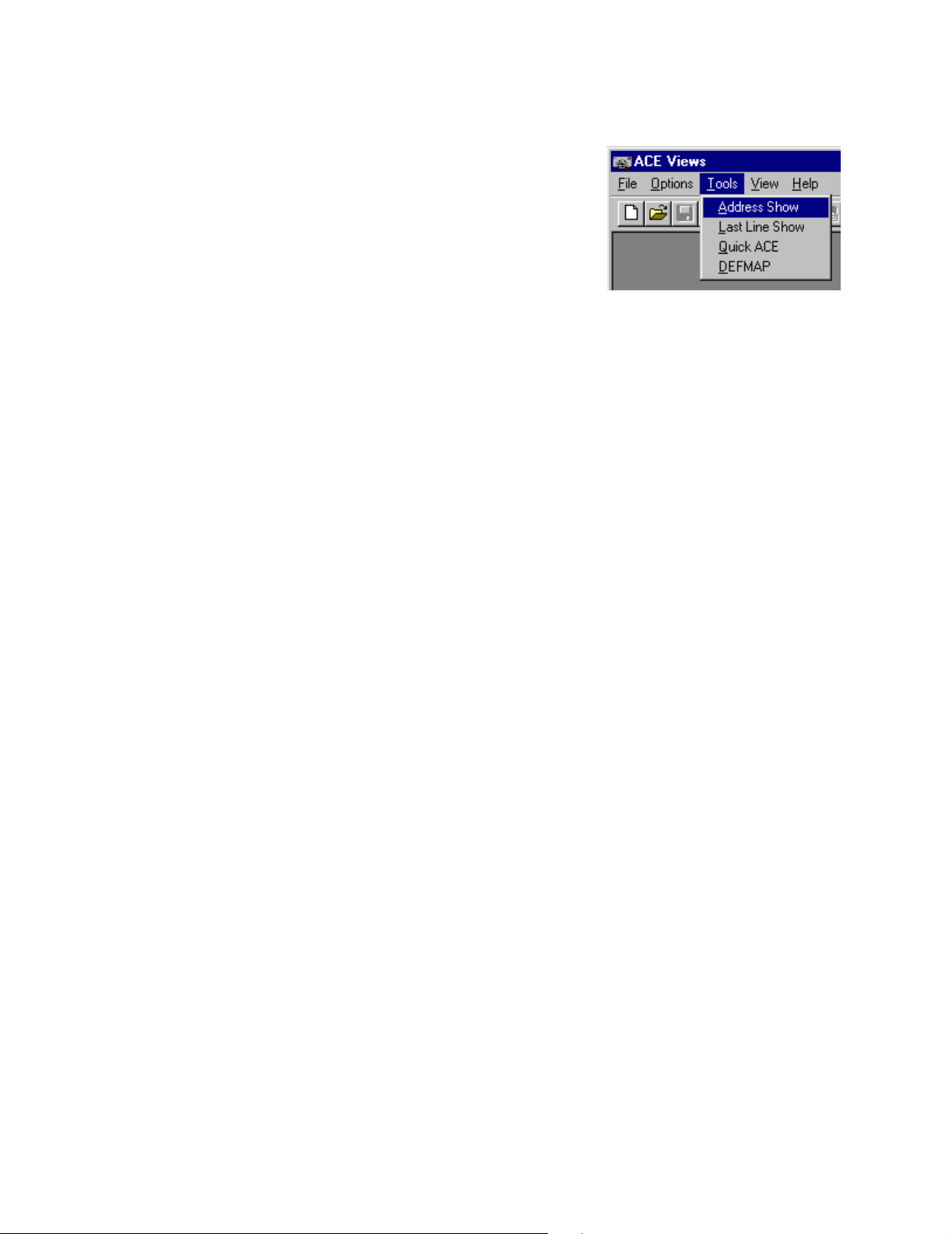
ACE Views ACE Views includes Address and Last
Line Show programs. They’re instantly
accessible at the Tools menu. On the next
two pages, you’ll find pictures and
samples of Views Show. For detailed
information about Views Show, refer to
the on-line help
ACE and ACE Canada Job and PrintForm ACE
ACE and ACE Canada Job-File and PrintForm do not, by themselves, perform
directory queries. However, when you buy these programs, you also get two
Show programs.
• ShowA for address-line queries (in the ZIP+4 directory for ACE and
PrintForm, in the postcode directory for ACE Canada).
• ShowL for last-line queries (in the City and ZCF directories for ACE
and PrintForm, in the City, FSA, and PCI directories for ACE Canada).
These programs give you the same directory access as Views Show. You can
use all the same query fields, and you have the option to view results on your
screen, write them to an output file, or both.
Unlike Views Show, ShowA and ShowL do not present graphical displays. So
you can use these programs on non-graphical systems such as DOS, UNIX,
and so on.
You control ShowA and ShowL by setting parameters in a text configuration
file (showa.cfg and showl.cfg for ACE, cshowa.cfg and cshowl.cfg for ACE
Canada). You may enter your query data as options on your command line, or
let the program prompt you to enter your query one line at a time.
ACE Library ACE Library offers two sets of functions for directory queries. The first set is
used for querying the ZIP+4 directory about address-line data. The second set
is for querying the City and ZCF directories about last-line data. These are
described in an appendix of the ACE Library manual.
On most platforms—not all—ACE Library comes with ready-to-run
executables for the same ShowA and ShowL programs that ACE Job users
receive (described above). On all platforms except MVS, we also provide
source code for two sample programs, showtest.c and shwlltst.c.
For user interface ideas, look over Views Show on the next two pages.
4 ShowA/ShowL User’s Guide
Page 5
Using Last Line Show for queries in the City/ZCF files
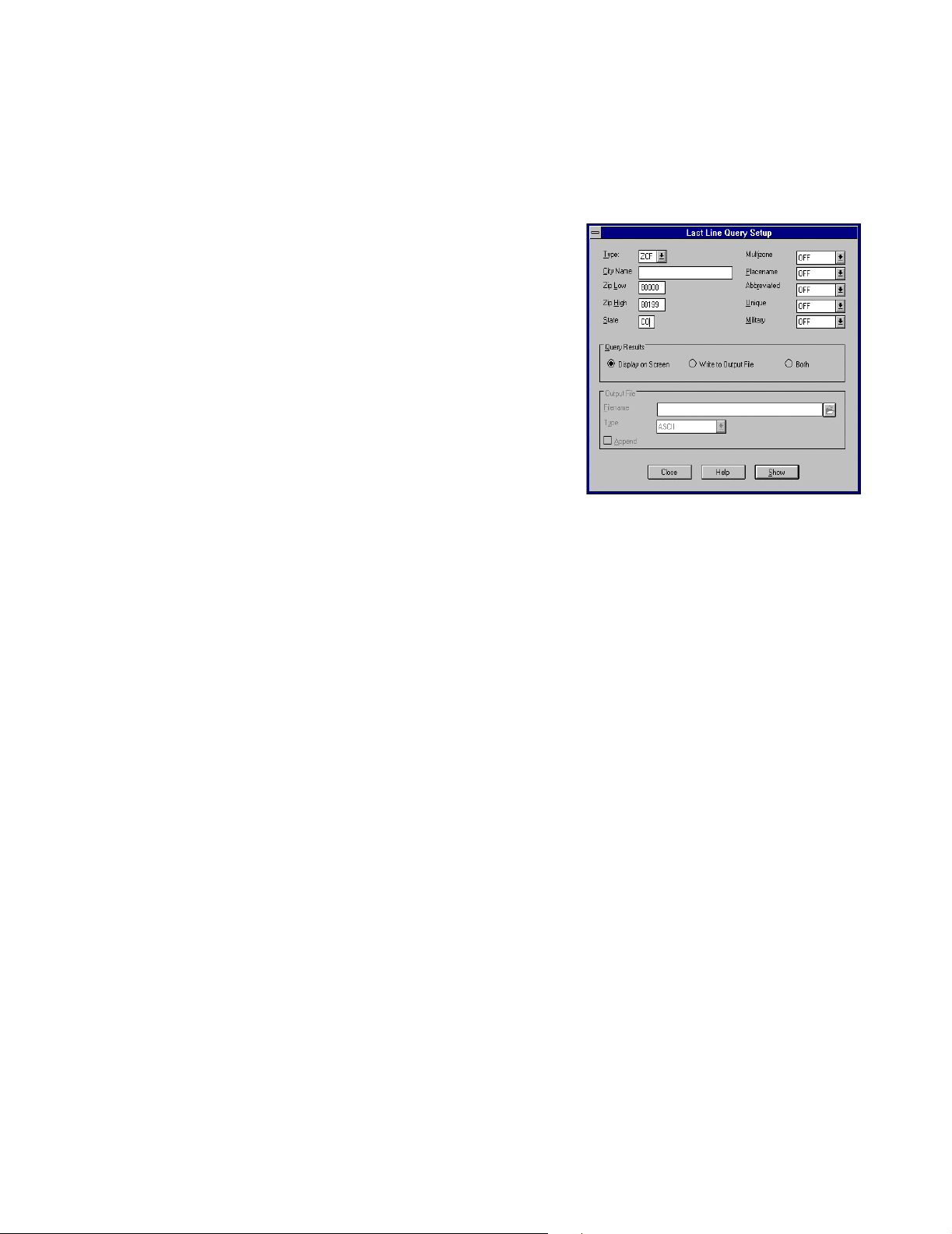
Using the ACE Views tool, Last Line Show, is easy. There are just two
windows—one for you to set up your query and another where ACE displays
query results.
You have the option to view
results on your screen, write
them to an output file, or both.
You can see this option in the
setup window (shown at right).
You can perform queries in either
the City or the ZCF file. If you
choose ZCF, ACE will display
each ZIP Code in ZIP Code
order. If you query the City file,
your results will be more
compressed (fewer records per
city) and sorted alphabetically by
city name.
The picture shows how ACE
displays results on your screen. If you elect to send output to a file, you’ll get
the same fields in the same order.
The on-screen display has a couple of nice features for smaller screens. Click
the Size button and ACE scrunches the display horizontally, to fit more on
your screen. You can manually adjust column widths and remove columns
you’re not interested in, too.
Using Last Line Show for queries in the City/ZCF files 5
Page 6
Using Address Line Show for queries in the ZIP+4 file
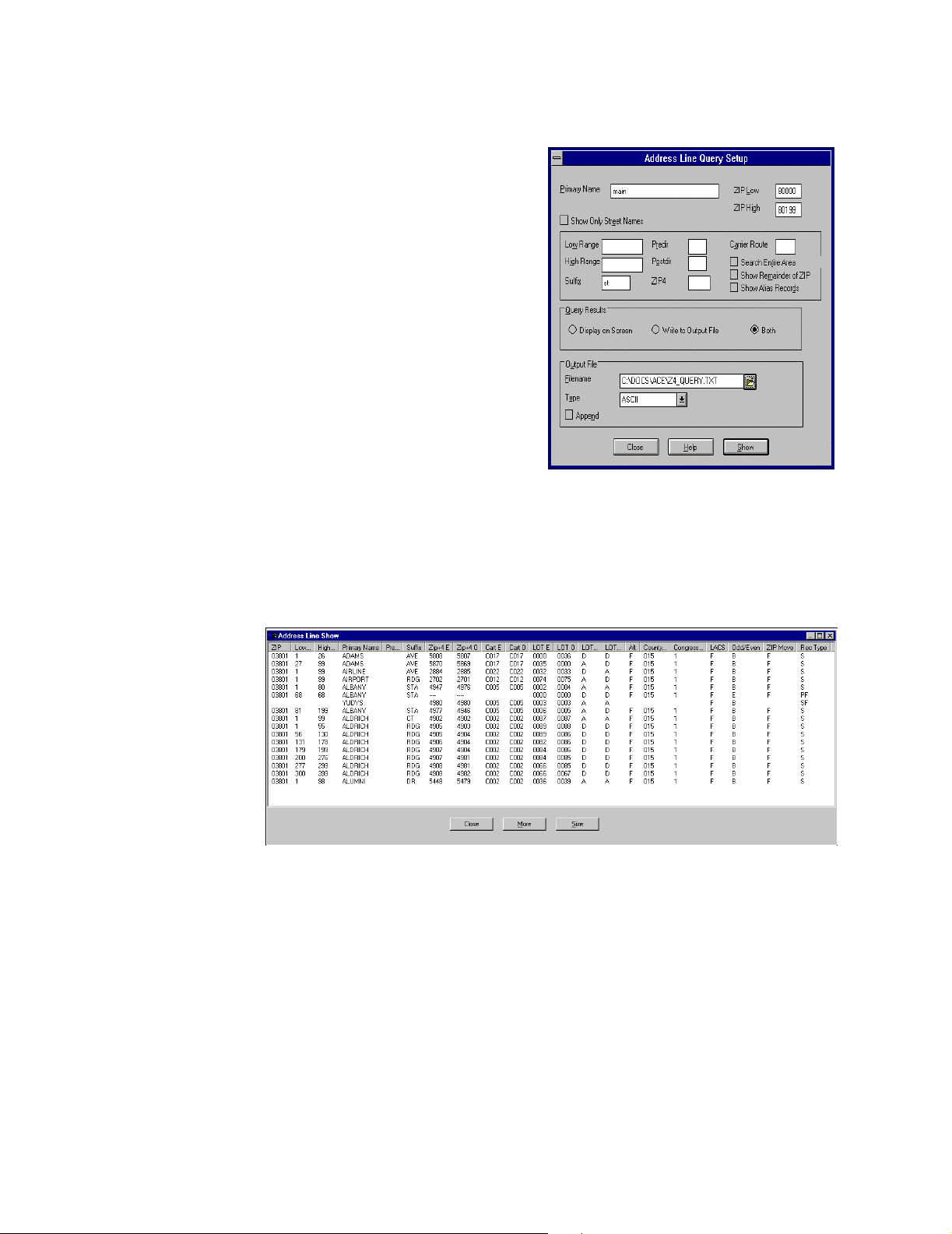
The Address Line Show
program is very similar to Last
Line Show, in terms of how you
operate it. You can see here the
query setup and results
windows.
Here, too, you have the option to
view results on screen, write an
output file, or both.
The main differences are the
fields on which you can base
your query, and the fields
displayed in your results. The
more query fields you set, the
more you focus the search, and
the fewer records you will have
to view.
Address Line Show displays so much information that it can be a challenge to
find enough room on your screen. To use the full area of your screen (that is,
to maximize), click the arrow button at the upper right corner of the window.
Also you’ll probably use the Size button often, to display results in “scrunch
mode.”
6 ShowA/ShowL User’s Guide
Page 7
Additional information
Delivery Point Alternate
U.S. ACE users: ACE showl.cfg
The Delivery Point
Value Description
(DP) Alternate
indicator is available in
Show A. This lets you
determine whether an
True (T) The address is a delivery point alternate.
False (F) The address is not a delivery point alternate.
assignment is matched
to the base record or the delivery point alternate. The indicator displays the
following:
Note: The delivery point alternate indicator is available for viewing in
Address Line Show with a column heading of Alt.
The
ACE_CR_SORT_ZN
field returns values of
A, B, C, or D. Here’s a
Value Description
A Carrier route rates are available, and merging
is allowed.
description of the
values:
B Carrier route rates are available, and merging
is not allowed.
C Carrier route rates are not available, and
merging is allowed.
D Carrier route rates are not available, and
merging is not allowed.
Presort users: ShowL The ShowL program can be useful for Presort mailers, too. When you prepare
barcoded-letter mailings, sortation at the carrier-route level is permitted only
in certain ZIP Codes. Presort determines eligibility by checking a field in the
ZCF directory. That database contains a field called CR_Sort_Zn, which may
contain the values A, B, C, or D (described above). You can use ShowL to
check the eligibility of postal codes that interest you as well as the automation
status of any post office.
To run ShowL for Presort and U.S. ACE, you will need to have both the City
and ZCF directories installed on your computer. Presort itself requires only the
ZCF directory.
Additional information 7
Page 8

8 ShowA/ShowL User’s Guide
 Loading...