

Page 1
SAP BusinessObjects Advanced Analysis, Web edition Administrator's
Guide
■ SAP BusinessObjects XI 4.0
2010-11-05
Page 2

Copyright
© 2010 SAP AG. All rights reserved.SAP, R/3, SAP NetWeaver, Duet, PartnerEdge, ByDesign, SAP
Business ByDesign, and other SAP products and services mentioned herein as well as their respective
logos are trademarks or registered trademarks of SAP AG in Germany and other countries. Business
Objects and the Business Objects logo, BusinessObjects, Crystal Reports, Crystal Decisions, Web
Intelligence, Xcelsius, and other Business Objects products and services mentioned herein as well
as their respective logos are trademarks or registered trademarks of Business Objects S.A. in the
United States and in other countries. Business Objects is an SAP company.All other product and
service names mentioned are the trademarks of their respective companies. Data contained in this
document serves informational purposes only. National product specifications may vary.These materials
are subject to change without notice. These materials are provided by SAP AG and its affiliated
companies ("SAP Group") for informational purposes only, without representation or warranty of any
kind, and SAP Group shall not be liable for errors or omissions with respect to the materials. The
only warranties for SAP Group products and services are those that are set forth in the express
warranty statements accompanying such products and services, if any. Nothing herein should be
construed as constituting an additional warranty.
2010-11-05
Page 3

Contents
Introduction to SAP BusinessObjects Advanced Analysis, Web edition................................7Chapter 1
1.1
1.1.1
1.1.2
1.2
1.2.1
1.2.2
2.1
2.2
2.3
2.3.1
3.1
3.1.1
3.1.2
3.2
3.3
3.4
3.5
3.6
3.7
3.8
3.9
3.10
3.11
Advanced Analysis components...............................................................................................7
Advanced Analysis client..........................................................................................................7
Advanced Analysis Multi-Dimensional Analysis Service............................................................8
About This Guide.....................................................................................................................8
The documentation set.............................................................................................................8
Who should read this guide......................................................................................................9
Architecture...........................................................................................................................11Chapter 2
Advanced Analysis architecture diagram................................................................................11
SAP BusinessObjects Enterprise deployment model..............................................................12
Multi-Dimensional Analysis Service........................................................................................13
Server failover........................................................................................................................13
Installation and Configuration...............................................................................................15Chapter 3
Administrative tools................................................................................................................15
Central Management Console (CMC)....................................................................................15
Central Configuration Manager (CCM)...................................................................................15
Installation notes....................................................................................................................15
Data sources.........................................................................................................................16
Web application server configuration......................................................................................16
Post-installation configuration of fonts....................................................................................17
Firewall port usage.................................................................................................................18
Cloning Advanced Analysis server deployments.....................................................................18
Export limit.............................................................................................................................18
Session timeout settings........................................................................................................19
Accessibility...........................................................................................................................20
SAP Notes required...............................................................................................................20
4.1
Security.................................................................................................................................21Chapter 4
Configuring the MDAS for Secure Sockets Layer (SSL)........................................................21
2010-11-053
Page 4

Contents
Rights Management..............................................................................................................23Chapter 5
5.1
5.2
5.3
5.4
5.5
5.6
6.1
6.2
6.3
6.4
6.5
6.6
6.6.1
6.6.2
6.7
6.7.1
6.7.2
Overview of rights and access levels.....................................................................................23
Create Advanced Analysis Workspace right...........................................................................23
Rights for Advanced Analysis objects.....................................................................................24
Access levels for Advanced Analysis objects.........................................................................25
Data access...........................................................................................................................27
Changing access to Advanced Analysis workspaces..............................................................28
MDAS Maintenance..............................................................................................................31Chapter 6
Starting and stopping the Server Intelligence Agent...............................................................31
Starting and stopping the Multi-Dimensional Analysis Service................................................31
Restarting the Multi-Dimensional Analysis Service.................................................................31
Enabling and disabling an MDAS instance..............................................................................32
Adding and removing MDAS instances..................................................................................32
Configuration files for the MDAS Server................................................................................33
MDAS configuration file—mdas.properties............................................................................33
MDAS client configuration file—mdaclient.properties.............................................................34
MDAS properties and metrics................................................................................................34
Properties page......................................................................................................................35
Metrics page..........................................................................................................................35
7.1
7.1.3
7.1.5
7.2
7.3
7.4
7.5
7.5.1
7.5.2
7.6
7.6.1
7.6.2
7.6.3
7.6.4
8.1
Data Source Connections.....................................................................................................37Chapter 7
Creating OLAP data source connections................................................................................37
Searching for a cube or query................................................................................................39
Authentication........................................................................................................................41
Changing connection settings................................................................................................42
Deleting a connection............................................................................................................43
Moving a connection to another folder...................................................................................44
Data source connection settings............................................................................................44
Connection settings for SAP NetWeaver Business Warehouse data sources........................44
Connection settings for Microsoft Analysis Services data sources........................................45
Managing Advanced Analysis data source connections..........................................................46
Editing the title and description of an Advanced Analysis data source connection..................46
Displaying a list of workspaces that use a data source connection.........................................47
Changing access to Advanced Analysis data source connections..........................................48
Replacing an Advanced Analysis data source connection.......................................................48
Managing Workspaces.........................................................................................................51Chapter 8
Overview................................................................................................................................51
2010-11-054
Page 5

Contents
8.2
8.3
9.1
9.2
9.3
10.1
10.2
11.1
11.1.1
11.2
12.1
Editing the title, description, and keywords of an Advanced Analysis workspace....................51
Displaying a list of connections linked to the workspace........................................................52
Scaling and Performance......................................................................................................53Chapter 9
Clustering MDAS instances...................................................................................................53
Load balancing.......................................................................................................................53
Optimizing performance.........................................................................................................54
Monitoring and Logging........................................................................................................55Chapter 10
Auditing..................................................................................................................................55
Trace logging.........................................................................................................................55
Microsoft Analysis Services Considerations........................................................................57Chapter 11
Advanced Analysis and Analysis Services security.................................................................57
Analysis Services role security...............................................................................................57
Finding more information........................................................................................................58
Migrating to Advanced Analysis............................................................................................59Chapter 12
Migrating from Voyager to Advanced Analysis.......................................................................59
More Information...................................................................................................................61Appendix A
Index 63
2010-11-055
Page 6

Contents
2010-11-056
Page 7

Introduction to SAP BusinessObjects Advanced Analysis, Web edition
Introduction to SAP BusinessObjects Advanced Analysis,
Web edition
1.1 Advanced Analysis components
SAP BusinessObjects Advanced Analysis, Web edition is a query and analysis tool that business
analysts in your organization can use to analyze your organization's multidimensional data. Users
access Advanced Analysis from within the SAP BusinessObjects Enterprise BI launch pad, and then
create, save, and share their analysis workspaces in the SAP BusinessObjects Enterprise repository.
Once the workspaces are saved to the repository, other analysts or business users can work with those
analyses over any web connection.
Advanced Analysis administrators configure and maintain the Multi-Dimensional Analysis Service
(MDAS), manage access rights, set up connections to OLAP data sources, manage workspace and
data source objects in the SAP BusinessObjects Enterprise repository, and perform many other
administrative tasks.
SAP BusinessObjects Advanced Analysis, Web edition comprises these components:
• Advanced Analysis client
• Advanced Analysis Multi-Dimensional Analysis Service
Note:
SAP BusinessObjects Advanced Analysis, edition for Microsoft Office, although related very closely to
SAP BusinessObjects Advanced Analysis, Web edition, has its own documentation set, including its
own administrator's guide.
1.1.1 Advanced Analysis client
The Advanced Analysis client application is the end-user component of SAP BusinessObjects Advanced
Analysis, Web edition. It is installed with SAP BusinessObjects Enterprise, and is accessed from within
the SAP BusinessObjects Enterprise BI launch pad.
Data analysts use the Advanced Analysis client application to perform their data-analysis work and
save their analyses to SAP BusinessObjects Enterprise.
Users need only an internet connection, web browser software, and sufficient rights, to access the SAP
BusinessObjects Enterprise system and create or view Advanced Analysis workspaces.
2010-11-057
Page 8

Introduction to SAP BusinessObjects Advanced Analysis, Web edition
1.1.2 Advanced Analysis Multi-Dimensional Analysis Service
Advanced Analysis includes a Java SAP BusinessObjects Enterprise service called the Multi-Dimensional
Analysis Service (MDAS). The MDAS is installed with SAP BusinessObjects Enterprise, and is
administered from within the SAP BusinessObjects Enterprise Central Management Console (CMC).
The MDAS processes analysis requests from the Advanced Analysis client, retrieves OLAP data from
the OLAP server, adds formatting, filtering, and highlighting information to the data, and sends the
processed data back to the client application for display.
The MDAS is a service within an Adaptive Processing Server (APS). The APS can be configured and
managed in the Central Management Console (CMC). For more information about the APS and CMC,
see the
SAP BusinessObjects Enterprise Administrator's Guide
.
1.2 About This Guide
1.2.1 The documentation set
The documentation set comprises these guides and online help information:
SAP BusinessObjects Advanced Analysis, Web edition Administrator's Guide
This guide contains detailed information that is useful to a system administrator when installing,
configuring, and administering Advanced Analysis.
SAP BusinessObjects Advanced Analysis, Web edition User's Guide
This guide contains the conceptual information, procedures, and reference material required to use
Advanced Analysis.
SAP BusinessObjects Advanced Analysis, Web edition Online Help
The online help is optimized to provide quick answers for everyday tasks in Advanced Analysis.
This Administrator's Guide is a supplement to the
Guide
and
SAP BusinessObjects Enterprise Installation and Configuration Guide
information to help you administer an Advanced Analysis installation. The information in the SAP
BusinessObjects Enterprise guides applies to all SAP BusinessObjects servers and services, including
the Multi-Dimensional Analysis Service. Consult the SAP BusinessObjects Enterprise guides if you
cannot find the information you seek in this guide.
SAP BusinessObjects Enterprise Administrator's
, and provides
2010-11-058
Page 9

Introduction to SAP BusinessObjects Advanced Analysis, Web edition
For a description of the SAP BusinessObjects Enterprise components and installation instructions, and
for installation instructions for Advanced Analysis, see the
Guide
and
SAP BusinessObjects Enterprise Administrator's Guide
SAP BusinessObjects Enterprise Installation
.
For information on performance optimization see the
Guide
.
Note:
• Throughout this guide, the term "UNIX" is used to refer to all UNIX-related platforms collectively.
• SAP BusinessObjects Advanced Analysis, edition for Microsoft Office, although related very closely
to SAP BusinessObjects Advanced Analysis, Web edition, has its own documentation set, including
its own administrator's guide.
1.2.2 Who should read this guide
This guide is intended for system administrators. You need administrator rights to administer SAP
BusinessObjects Advanced Analysis, Web edition and SAP BusinessObjects Enterprise.
SAP BusinessObjects Enterprise XI 4.0 Sizing
2010-11-059
Page 10

Introduction to SAP BusinessObjects Advanced Analysis, Web edition
2010-11-0510
Page 11
Architecture
Architecture
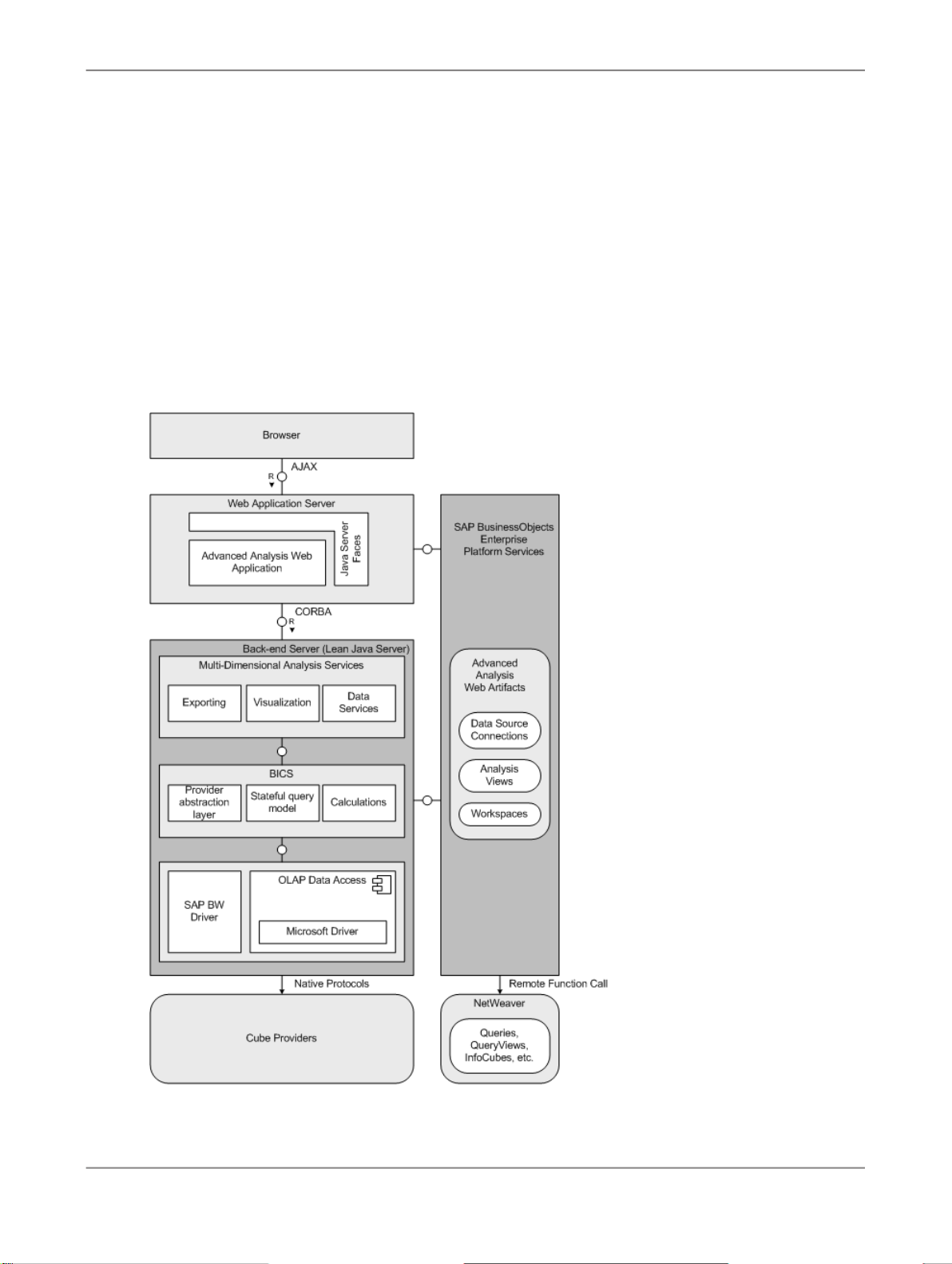
2.1 Advanced Analysis architecture diagram
2010-11-0511
Page 12
Architecture
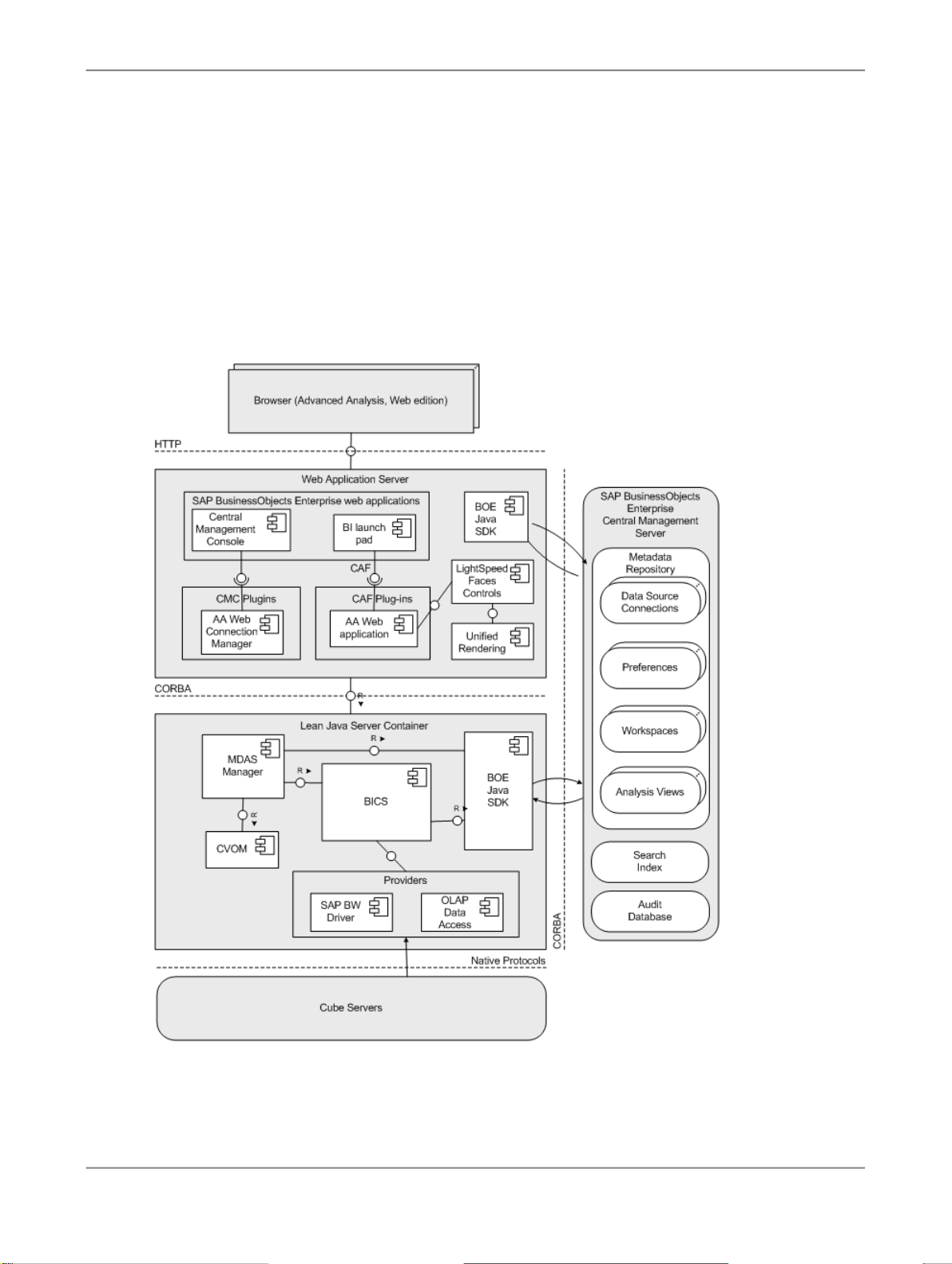
2.2 SAP BusinessObjects Enterprise deployment model
SAP BusinessObjects Advanced Analysis, Web edition fits into the broader SAP BusinessObjects
Enterprise architecture as a client-server setup with connections at the server and database levels to
other SAP BusinessObjects Enterprise servers.
2010-11-0512
Page 13

Architecture
2.3 Multi-Dimensional Analysis Service
The Multi-Dimensional Analysis Service is fully integrated with SAP BusinessObjects Enterprise. Like
the other SAP BusinessObjects Enterprise servers and services, it registers itself with the Central
Management Server (CMS). Once registered, it is available for consumption by the Advanced Analysis
web client.
The MDAS provides SAP BusinessObjects Enterprise client applications such as Advanced Analysis
with an extensible and efficient framework for accessing multi-dimensional (OLAP) data. It not only
provides access to multi-dimensional data but also converts the raw data into various XML packages,
which the requesting client application then renders into a specific presentation format: Excel
spreadsheet, PDF, or Advanced Analysis crosstabs and charts.
2.3.1 Server failover
You may run multiple MDAS instances to accommodate a large number of users, or to provide
redundancy if an MDAS should fail for any reason. If an MDAS fails, users on the failed MDAS are
automatically moved to another available MDAS. Where possible, the failed user sessions are recovered
and restored on the other MDAS. If the server fails before an action is completed, users may need to
redo their last actions when their sessions are moved to a new MDAS.
If an MDAS fails, and if other MDAS services do not have sufficient remaining capacity to accommodate
the user sessions from the failed MDAS, the failed workspaces are autosaved to the Inbox folder in
SAP BusinessObjects Enterprise, and those users are sent a notification. The users can later reload
their workspaces and continue with their analyses.
2010-11-0513
Page 14

Architecture
2010-11-0514
Page 15

Installation and Configuration
Installation and Configuration
3.1 Administrative tools
3.1.1 Central Management Console (CMC)
The Central Management Console (CMC) is a web-based administration tool for managing Advanced
Analysis data sources and workspaces, user accounts, rights, folders, and server settings. You also
use the CMC to perform all MDAS administrative tasks. You must be an SAP BusinessObjects Enterprise
administrator to access the CMC.
3.1.2 Central Configuration Manager (CCM)
The Central Configuration Manager (CCM) is a server-management tool that allows you to configure
servers for your SAP BusinessObjects products on Windows. For Advanced Analysis, use the CCM to
start and stop the Server Intelligence Agent (SIA). For all other administrative tasks, use the Central
Management Console.
Related Topics
• Starting and stopping the Server Intelligence Agent
• Central Management Console (CMC)
3.2 Installation notes
2010-11-0515
Page 16

Installation and Configuration
Advanced Analysis is installed as part of the SAP BusinessObjects Enterprise suite of products. For
more information about installing products in that suite, including Advanced Analysis, see the
BusinessObjects Enterprise Installation Guide
For information about platforms supported by Advanced Analysis, see
http://www.sdn.sap.com/irj/boc/articles.
An Adaptive Processing Server instance is created automatically during installation. When deploying
to production, the recommended deployment method is to create another Adaptive Processing Server
instance that contains only the MDAS, auditing, and monitoring services. For more information, see the
SAP BusinessObjects Enterprise Administrator's Guide
Note:
• Before users can begin working with Advanced Analysis, you must create at least one data source
object. For information about creating Advanced Analysis data source objects, see Creating OLAP
data source connections.
• After installing Advanced Analysis, you may have to configure the fonts.xml file to have
properly-rendered charts. For details on how to do this, see Post-installation configuration of fonts.
• You may also have to configure your web application server. For more information, see Web
application server configuration.
SAP
.
.
3.3 Data sources
Advanced Analysis requires a connection to a supported OLAP data source, such as SAP BW, or
Microsoft Analysis Services. Therefore, you must create at least one data source object before analysts
can begin using Advanced Analysis to analyze data.
3.4 Web application server configuration
The supported web application servers do not require any special configuration to work properly with
Advanced Analysis, with these exceptions:
• Sun Java System Application Server 9.1
Add -Xmx1024m -XX:MaxPermSize=256m as additional options to the JVM.
• JBoss Application Server 4.2.3 & 5.0 GA
In the run.conf file, add this line:
JAVA_OPTS=“-server -Xmx1024m -XX:MaxPermSize=512m Dsun.rmi.dgc.client.gcInterval=3600000 -Dsun.rmi.dgc.server.gcInter
val=3600000”
2010-11-0516
Page 17

Installation and Configuration
3.5 Post-installation configuration of fonts
If you need to use a Unicode font such as Japanese, or if you are running a UNIX platform, you must
make a manual change to view charts correctly. The font being used can be changed by editing
fonts.xml.
On Windows, the fonts.xml file is located in this folder: C:\Program Files (x86)\SAP Busi
nessObjects\SAP BusinessObjects Enterprise XI 4.0\java\pjs\services\MDAS\re
sources\com\businessobjects\multidimensional\services
On UNIX, the fonts.xml file is located in this directory: <SAP BusinessObjects Enterprise
installation directory>/sap_bobj/enterprise_xi40/java/pjs/services/MDAS/re
sources/com/businessobjects/multidimensional/services
Add the new font definition to fonts.xml and then set the universalFontName attribute in
fonts.xml to the name of the new font.
Here is a sample Windows file listing:
<?xml version="1.0" encoding="UTF-8"?>
<!--
MDAS Font Configuration
Replace paths to font with the correct path for the installed system
example of some locale mapping
==============================
English - "en"
French - "fr"
German - "de"
Italian - "it"
Japanese - "ja"
Korean - "ko"
Chinese - "zh"
-->
<fon:ServerFonts
universalFontName="Arial"
xmlns:fon="http://www.businessobjects.com/xml/schema/analysis/multidimensional/services/fonts/server">
<fon:Font
name="Arial"
caption="Arial"
resourceUrl="file://C:/WINDOWS/Fonts/ARIAL.TTF"
type="TrueType"
locale="en" />
<fon:Font
name="MS Mincho"
caption="MS Mincho"
resourceUrl="file://C:/WINDOWS/Fonts/MSMINCHO.TTC"
type="TrueTypeCollection"
locale="ja" />
<fon:Font
name="MingLiU"
caption="MingLiU"
resourceUrl="file://C:/WINDOWS/Fonts/mingliu.ttc"
type="TrueTypeCollection"
</fon:ServerFonts>
locale="zh" />
2010-11-0517
Page 18
Installation and Configuration
3.6 Firewall port usage
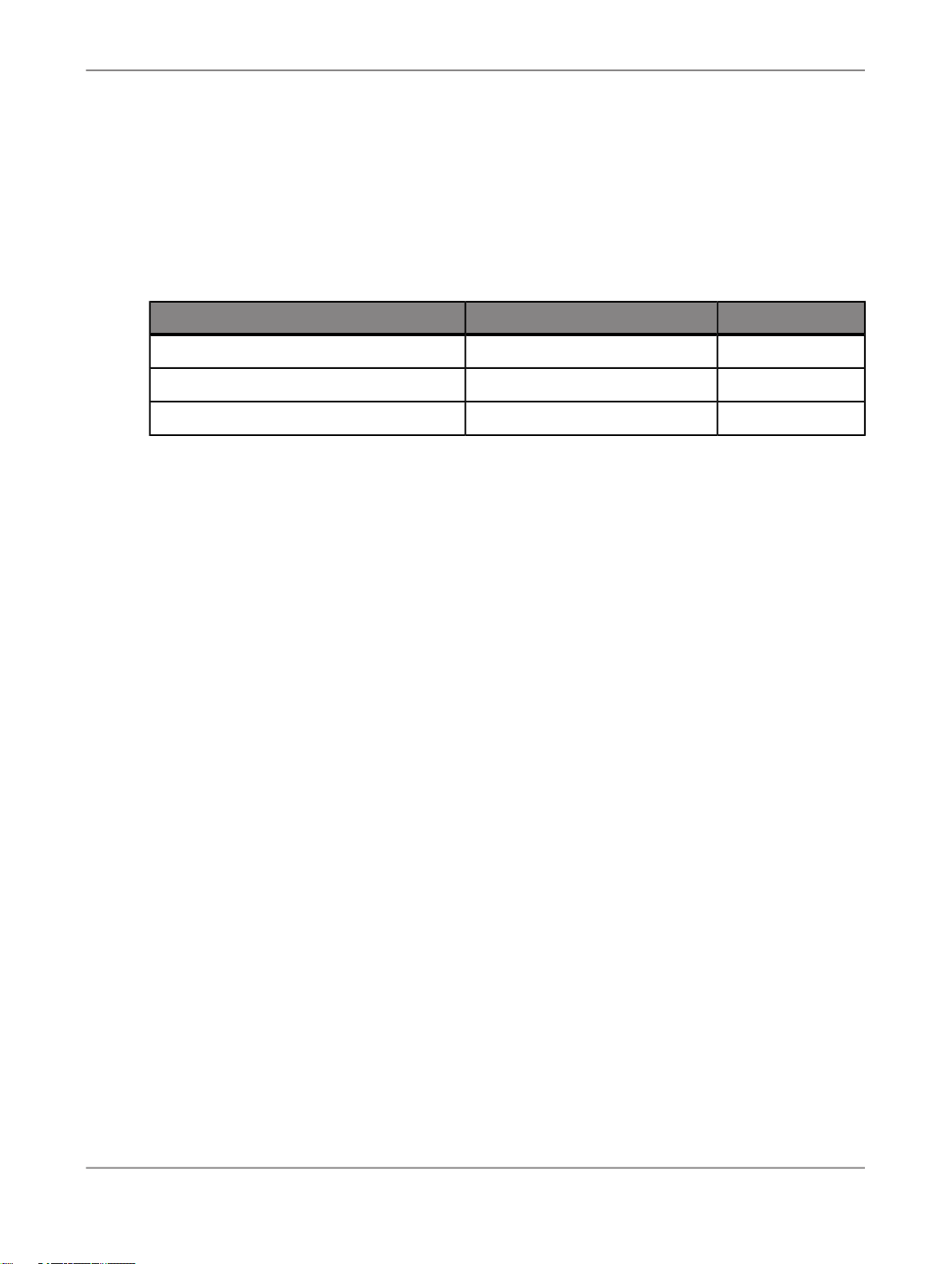
This table lists the servers and port numbers used by Advanced Analysis:
Default ValuePort RequirementsServers
6400CMS name server portCMS
Auto-assignMDAS request portMulti-Dimensional Analysis Service (MDAS)
Auto-assignInput FRS Request PortInput FRS
For more information, see the section “Securing SAP BusinessObjects Enterprise” in the
BusinessObjects Enterprise Administrator's Guide
.
3.7 Cloning Advanced Analysis server deployments
The Multi-Dimensional Analysis Service is hosted by an Adaptive Processing Server (APS). You can
clone an existing APS, or create a new APS containing an MDAS and other services. You can also
clone an entire distributed MDAS deployment. This can be useful, for example, if you've set up a test
environment, and then want to transfer the test environment to production.
For details on how to clone Advanced Analysis servers and deployments, see the section “Server
Administration” in the
SAP BusinessObjects Enterprise Administrator's Guide
3.8 Export limit
To prevent excessively large exports to Excel, CSV, and PDF, the default export limit is set to 100,000
data values.
SAP
.
Depending on the amount of memory used by the MDAS, it is possible to safely increase this value if
the default limit is insufficient. The value can be changed by modifying the following property in the file
mdas.properties:
multidimensional.services.export.cells.limit=100000
• On Windows, mdas.properties is found at this location:
2010-11-0518
Page 19

Installation and Configuration
C:\Program Files (x86)\SAP BusinessObjects\SAP BusinessObjects Enterprise
XI 4.0\java\pjs\services\MDAS\resources\com\businessobjects\multidimension
al\services
• On UNIX, mdas.properties is found at this location:
sap_bobj/enterprise_xi40/java/pjs/services/MDAS/resources/com/businessob
jects/multidimensional/services
3.9 Session timeout settings
Client-side timeout settings
Because the Advanced Analysis client runs within the BI launch pad, which runs within the web server
container, always ensure that the web server timeout is greater than or equal to the BI launch pad
timeout.
In the web.xml files, locate the following XML block and change the timeout values (in minutes) as
desired:
<session-config>
<session-timeout>20</session-timeout>
</session-config>
Your changes will take effect after you delete the old web server work directory and restart the web
server.
• On Windows (assuming that your deployment uses the Tomcat web server), the client-side timeout
settings are stored in these files:
• Web server: C:\Program Files (x86)\SAP BusinessObjects\Tomcat6\conf\web.xml
The session timeout setting is located in the Default Session Configuration section.
• BI launch pad: C:\Program Files (x86)\SAP BusinessObjects\Tomcat6\we
bapps\BOE\WEB-INF\web.xml
• On UNIX (assuming that your deployment uses the Tomcat web server) the client-side timeout
settings are stored in these files:
• Web server: <SAP BusinessObjects Enterprise installation
directory>/sap_bobj/tomcat/conf/web.xml
The session timeout setting is located in the Default Session Configuration section.
• BI launch pad: <SAP BusinessObjects Enterprise installation directo
ry>/sap_bobj/tomcat/webapps/BOE/WEB-INF/web.xml
Server-side timeout setting
Ensure that the server-side timeout value is greater than the client-side timeout value.
• On Windows, the server-side timeout setting is stored in this file: C:\Program Files (x86)\SAP
BusinessObjects\SAP BusinessObjects Enterprise XI 4.0\java\pjs\ser
2010-11-0519
Page 20

Installation and Configuration
vices\MDAS\resources\com\businessobjects\multidimensional\ser
vices\mdas.properties
• On UNIX, the server-side timeout setting is stored in this file: <SAP BusinessObjects Enter
prise installation directory>/sap_bobj/enterprise_xi40/java/pjs/ser
vices/MDAS/resources/com/businessobjects/multidimensional/ser
vices/mdas.properties
3.10 Accessibility
Advanced Analysis provides an accessibility mode for users with visual or motor impairments. For
information on how to turn on accessibility mode, see the
Advanced Analysis User's Guide
.
3.11 SAP Notes required
For best performance when using SAP BW data sources, refer to SAP Note 1498007, which details
required updates for your system. These updates resolve several known issues and add new capabilities,
such as case-insensitive search in the Advanced Analysis client.
2010-11-0520
Page 21

Security
Security
4.1 Configuring the MDAS for Secure Sockets Layer (SSL)
The MDAS communicates with other SAP BusinessObjects Enterprise servers and web servers using
a communication mechanism called CORBA (Common Object Request Broker Architecture). CORBA
can be configured to use SSL, a security protocol used to create an encrypted connection for sending
sensitive data over CORBA.
For more information about configuring SSL for SAP BusinessObjects Enterprise servers and services,
including the MDAS, see the “Configuring servers for SSL” section of the
Administrator's Guide
.
SAP BusinessObjects Enterprise
2010-11-0521
Page 22

Security
2010-11-0522
Page 23

Rights Management
Rights Management
5.1 Overview of rights and access levels
Users need certain rights to perform their tasks in Advanced Analysis. For example, if a user wants to
modify a workspace, then the Edit right must be granted to that user. If a user must save workspaces
to certain folders locally or across a network, then that user must be granted sufficient permissions to
the folder the workspace is to be saved to.
To create new workspaces, users must be granted the “Create Advanced Analysis Workspace” right
for the Advanced Analysis application, in the Central Management Console (CMC). If users are not
granted this right, they are still able to view and edit existing workspaces if they are granted the View
and Edit rights.
In addition to being able to grant or deny specific rights, you can assign access levels to users or groups.
Access levels allow you to set common security levels quickly and uniformly rather than requiring that
individual rights be set individually.
You can use the Central Management Console to add users and groups, and to set rights and access
levels for various components of the product suite, including Advanced Analysis workspaces and
connections.
5.2 Create Advanced Analysis Workspace right
Users must be granted the “Create Advanced Analysis Workspace” right before they can create new
workspaces.
5.2.1 To grant the right to create an Advanced Analysis workspace
1.
Start the Central Management Console (CMC).
For example, on Windows, click Start > Programs > SAP BusinessObjects Enterprise XI 4.0 >
SAP BusinessObjects Enterprise > Central Management Console.
2.
Log on to the CMC.
2010-11-0523
Page 24

Rights Management
3.
In the Manage area in the CMC, select Applications.
4.
Select Advanced Analysis Application and click Manage > User Security.
The "User Security" dialog box appears.
5.
Select a user or group and click Assign Security.
6.
On the Advanced tab, click Add/Remove Rights.
7.
Expand Application, and click Advanced Analysis Application.
8.
Grant the “Create Advanced Analysis Workspace” right.
5.3 Rights for Advanced Analysis objects
Advanced Analysis workspace and data source objects support the General object rights in the Central
Management Console; however, not all of the General rights are relevant to Advanced Analysis objects.
For example, scheduling rights are irrelevant to Advanced Analysis objects because Advanced Analysis
objects are not scheduled in SAP BusinessObjects Enterprise.
OLAP Connections folder rights
• The “View” right controls whether a user can see the data source in the Central Management Console,
or in the list of available data sources when creating a new Advanced Analysis workspace.
• The “Edit” right controls whether a user can edit the data source object in the CMC.
• Denying the “View” right to the OLAP Connections folder for a specific user means that the user
cannot view or use any OLAP connections in Advanced Analysis.
• Denying the “View” right to a specific OLAP data source object means that a user cannot view an
Advanced Analysis workspace based on that data source.
Create Advanced Analysis Workspace right
• For users to be able to create workspaces, they must be granted this right in the Central Management
Console.
View right on workspace
• If the “View” right is denied for a specific workspace, then a user cannot open that workspace. In
addition, if the OLAP data source used in the workspace is denied to that user, the workspace will
not load.
Rights for sending workspaces to Inboxes
If users want to send Advanced Analysis workspaces to other SAP BusinessObjects Enterprise users'
Inboxes, they need to be granted the “View” and “Add objects to the folder” rights to those Inboxes.
In addition to assigning rights, you can use one of the predefined access levels to grant sets of rights
to users, or you can define access levels appropriate to your organization's users. For more information
about access levels, see Access levels for Advanced Analysis objects. If you prefer to grant and deny
rights individually, select the Advanced access level.
2010-11-0524
Page 25

Rights Management
Note:
For more information about how to use the Central Management Console to set access levels and
rights for various components of the product suite, including Advanced Analysis objects, see the section
“Setting Rights” in the
SAP BusinessObjects Enterprise Administrator's Guide
5.3.1 To set the rights for an Advanced Analysis object
1.
Start the Central Management Console.
For example, on Windows, click Start > Programs > SAP BusinessObjects Enterprise XI 4.0 >
SAP BusinessObjects Enterprise > Central Management Console.
2.
If you are prompted, enter your user name and password.
3.
Click the type of object you want to assign rights for (for example, Folders or Servers).
4.
From the list of objects that appears, click the single object you want to assign rights for.
5.
6.
7.
8.
9.
10.
Click Manage user security.
If you want to add a user or group to the list of users who have rights to the object, click Add
Principals.
Select the user or group whose rights you want to set, and click Assign Security.
Click the Advanced tab.
Click Add/Remove Rights.
Select the rights, and then click Apply or OK to save the changes.
.
Note:
For more information about how to use the Central Management Console to set access levels and
rights for various components of the product suite, including Advanced Analysis objects, see the
section “Setting Rights” in the
SAP BusinessObjects Enterprise Administrator's Guide
5.4 Access levels for Advanced Analysis objects
Access levels grant sets of object rights. Most users' access requirements can be met by the proper
choice of access level.
Example:
For example, the View access level grants users a set of rights appropriate for viewing and editing
Advanced Analysis workspaces, and saving them to folders that they have Edit rights to (their Favorites
folder for example), but not for saving them to the original folder. The View access level therefore
prevents original workspaces from being overwritten.
.
2010-11-0525
Page 26

Rights Management
Or, if you want to grant users the rights to view workspaces and also save changes back to the original
files, you can assign the Full Control access level instead of explicitly granting both the "View objects"
and "Edit objects" rights.
Advanced Analysis objects support the standard access levels in the Central Management Console;
however, not all access levels are relevant to Advanced Analysis objects:
• No Access: Users cannot access the object.
• View: Users can view the object, modify it, and save it to a folder that they have Edit rights to, but
not save it to the original folder.
• Schedule: This access level has no effect on Advanced Analysis objects, because Advanced Analysis
objects are not scheduled in SAP BusinessObjects Enterprise.
• View On Demand: Similar to the View access level. For some SAP BusinessObjects applications,
the set of rights provided by the View On Demand access level differs from the set of rights provided
by the View access level, but for Advanced Analysis, the View and View On Demand access levels
are equivalent.
Note:
Objects from other SAP BusinessObjects applications, such as Crystal Reports, can be "refreshed"
or "viewed on demand" against an updated data source. Advanced Analysis objects do not need to
be refreshed because the data displayed in Advanced Analysis is always the latest data.
• Full Control: Users have full administrative control of the object.
Note:
You may not want to grant the Full Control access level to many users, because users may
unintentionally overwrite the original versions of workspaces saved by analysts. Instead, use the
View access level.
5.4.1 To set the access level for an Advanced Analysis object
1.
Start the Central Management Console.
For example, on Windows, click Start > Programs > SAP BusinessObjects Enterprise XI 4.0 >
SAP BusinessObjects Enterprise > Central Management Console.
2.
If you are prompted, enter your user name and password.
3.
Click the type of object you want to set access levels for (for example, Folders or Servers).
4.
From the list of objects that appears, click the single object you want to set access levels for.
5.
6.
7.
8.
Click Manage user security.
If you want to add a user or group to the list of users who have rights to the object, click Add
Principals.
Select the user or group whose access level you want to set, and click Assign Security.
In the Available Access Levels list, select an access level for that user or group and move it to the
Assigned Access Levels list.
2010-11-0526
Page 27

Rights Management
If you want to set advanced (detailed) access rights for a user, click the Advanced tab.
9.
Click Apply or OK to save the changes.
Note:
For more information about how to use the Central Management Console to set access levels and
rights for various components of the product suite, including Advanced Analysis objects, see the
section “Setting Rights” in the
5.5 Data access
Advanced Analysis offers the flexibility to control which users are able to view or create workspaces,
and also which data they can view. This control is in addition to any inherent data security provided by
the OLAP server. To enable access to data, you must grant users appropriate rights to the OLAP
Connections folder and subfolders, or to specific data source objects.
SAP BusinessObjects Enterprise Administrator's Guide
.
By default, the access level for the “Everyone” group is set to “No Access” for the OLAP Connections
folder. This setting results in these effects for Advanced Analysis end users (non-administrators):
• New Advanced Analysis workspaces cannot be created.
• End users cannot use any Advanced Analysis data sources; therefore, any existing Advanced
Analysis workspaces will fail to open.
• The OLAP Connections page in the Central Management Console is unavailable.
If you want to allow end users access to specific Advanced Analysis data sources, grant those users
the “View” access level for those data sources only.
Because rights assigned to a child object override inherited rights, end users can access Advanced
Analysis data sources if they have been granted the “View” access level for individual data sources,
even if their access to the folder containing that data source is set to “No Access”.
If you grant the “View” access level for the OLAP Connections folder to end users, they inherit the “View”
access level for the Advanced Analysis data source objects inside the folder. If you do not want to allow
end users access to a specific data source, you can assign the “No Access” access level to that data
source object.
These combinations allow you to control who can and cannot create new Advanced Analysis workspaces
and Advanced Analysis data source objects, plus also control who can view which Advanced
Analysis-related data.
Note:
Folder management and security on OLAP connections can be managed from both the OLAP
Connections page and the Connections page in the CMC. Thus, security assigned on a particular folder
impacts all children of that folder even if the connections are to relational data and not OLAP data. For
example, restricting rights at the root level implies that the restriction encompasses all subfolders and
connections within the root folder; not just OLAP connections.
For more information about how to use the Central Management Console to set access levels for various
components of the product suite, including Advanced Analysis elements such as workspaces and data
2010-11-0527
Page 28

Rights Management
source objects, see the section “Setting Rights” in the
Guide
.
SAP BusinessObjects Enterprise Administrator's
5.5.1 To set access rights to the OLAP Connections folder
1.
Start the Central Management Console.
For example, on Windows, click Start > Programs > SAP BusinessObjects Enterprise XI 4.0 >
SAP BusinessObjects Enterprise > Central Management Console.
2.
Log on to the Central Management Console.
3.
4.
5.
6.
7.
In the "Organize" area in the CMC, select OLAP Connections.
Click Manage > Top-Level Security > All Connections.
Select a user or group in the list, and then click Assign Security.
Assign the appropriate access levels, or click the "Advanced" tab to assign specific rights. (Access
levels are groups of rights.)
Users need at least "View" rights to the OLAP Connections folder to create an Advanced Analysis
workspace.
Click Apply or OK to save your changes.
Related Topics
• Overview of rights and access levels
5.6 Changing access to Advanced Analysis workspaces
After publishing a workspace, you can use the CMC to change its access permissions.
5.6.1 To change access to workspaces
1.
Start the Central Management Console.
For example, on Windows, click Start > Programs > SAP BusinessObjects Enterprise XI 4.0 >
SAP BusinessObjects Enterprise > Central Management Console.
2.
Log on to the Central Management Console.
3.
In the Organize area in the CMC, select Folders or Personal Folders.
2010-11-0528
Page 29

Rights Management
4.
Expand the folder list as needed to locate the workspace whose properties you want to edit.
5.
Select the workspace, and click Manage > User Security.
6.
Click the User or Group name for which you want to change the access, and then click Assign
Security.
7.
Assign the appropriate access levels or rights, and then click OK.
Note:
If either of the inheritance check boxes is selected, the assigned access levels or rights may be
superseded by the inherited access. For more information about assigning rights and access levels,
see the section “Setting Rights” in the
SAP BusinessObjects Enterprise Administrator's Guide
.
2010-11-0529
Page 30

Rights Management
2010-11-0530
Page 31

MDAS Maintenance
MDAS Maintenance
6.1 Starting and stopping the Server Intelligence Agent
The Server Intelligence Agent (SIA) manages all SAP BusinessObjects Enterprise servers and services,
including the MDAS. When you start SAP BusinessObjects Enterprise, the SIA is started automatically,
as are any SAP BusinessObjects Enterprise servers that are configured to start when the SIA starts.
Also, the SIA properties, for example the Logon As account or the Startup Type, are propagated to all
of the servers that run under the SIA.
On Windows, you use the Central Configuration Manager (CCM) to start and stop the SIA. On all
supported UNIX platforms, you run the scripts startservers.sh and stopservers.sh from a
command prompt to start and stop the SIA.
For more information about the Server Intelligence Agent, see the
Administrator's Guide
.
SAP BusinessObjects Enterprise
6.2 Starting and stopping the Multi-Dimensional Analysis Service
There may be occasions when you need to stop or start the MDAS manually.
For example, if you have configured a cluster of MDAS instances, you may want to start or stop the
individual instances depending on load conditions.
For more information about starting and stopping SAP BusinessObjects Enterprise servers and services,
including the MDAS, see the
SAP BusinessObjects Enterprise Administrator's Guide
6.3 Restarting the Multi-Dimensional Analysis Service
.
There may be occasions when you need to restart the MDAS.
For example:
• The configuration files have changed and need to be reloaded.
2010-11-0531
Page 32

MDAS Maintenance
• An administrator changes the port and interface name, and a restart is required before the changes
take effect.
• The MDAS has encountered an error condition that it cannot recover from.
For more information about restarting SAP BusinessObjects Enterprise servers and services, including
the MDAS, see the
SAP BusinessObjects Enterprise Administrator's Guide
6.4 Enabling and disabling an MDAS instance
When you disable an SAP BusinessObjects Enterprise server, you prevent it from receiving and
responding to new requests, but you do not actually stop the server process. This is especially useful
when you want to allow a server to finish processing all of its current requests before you stop it
completely.
When you disable an MDAS instance, the service still continues running as a service, but will not accept
any new requests from Advanced Analysis or the Central Management Console (CMC).
.
When you enable a running MDAS instance, the MDAS instance accepts new requests from Advanced
Analysis or the CMC; for example, creating a connection.
For more information about enabling and disabling SAP BusinessObjects Enterprise servers and
services, including the MDAS, see the
SAP BusinessObjects Enterprise Administrator's Guide
6.5 Adding and removing MDAS instances
You can create more than one running MDAS instance. You can either create a new MDAS by specifying
its parameters, or you can create a new MDAS based on an existing MDAS. Once you have added a
new MDAS instance, you must start and enable it.
For more information about adding and removing SAP BusinessObjects Enterprise servers and services,
including the MDAS, see the
Related Topics
• Cloning Advanced Analysis server deployments
• Starting and stopping the Multi-Dimensional Analysis Service
• Restarting the Multi-Dimensional Analysis Service
• Enabling and disabling an MDAS instance
SAP BusinessObjects Enterprise Administrator's Guide
.
.
2010-11-0532
Page 33

MDAS Maintenance
6.6 Configuration files for the MDAS Server
You can edit these MDAS configuration files to customize your Advanced Analysis deployment:
• MDAS configuration file—mdas.properties.
• MDAS client configuration file—mdaclient.properties
The configuration files can be found at these locations:
• On Windows:
C:\Program Files (x86)\SAP BusinessObjects\SAP BusinessObjects Enterprise
XI 4.0\java\pjs\services\MDAS\resources\com\businessobjects\multidimension
al\services
• On UNIX:
sap_bobj/enterprise_xi40/java/pjs/services/MDAS/resources/com/businessob
jects/multidimensional/services
6.6.1 MDAS configuration file—mdas.properties
You can configure the behavior of an individual MDAS instance by modifying parameters in its associated
mdas.properties file. Parameters include the server timeout, the maximum number of cells to export
to Excel, as well as various parameters used for development and testing purposes that should not be
changed or referenced in a production environment.
It is recommended that you do not edit the mdas.properties file unless you fully understand the
effect each parameter has on MDAS operation.
Any changes made to this configuration file will not take effect until the next time the MDAS is restarted.
6.6.1.1 mdas.properties file listing
# Turn this value to false in deployed
environments to ensure the
# server is not using xml validation. This value should be true in
# development environments.
multidimensional.services.server.xml.use_validation=false
# Flag indicating whether or not xml data returned by
# MDAS should be pretty printed. This helps debugging
# but slows performance
multidimensional.services.server.xml.prettyprint=false
2010-11-0533
Page 34

MDAS Maintenance
# none, info, verbose.
multidimensional.services.transport.trace.level=none
# The number of milliseconds before idle session is closed by the session
# monitor.
# Default time is set to 30 minutes
multidimensional.services.server.session.monitor.idle.timeout=1800000
# The upper bound on the number of cells that may be exported to csv,
# excel, etc. As exporting large data sets requires large amounts of
# memory the size of the export is limited. Increasing this
# threshold may cause the server to run out of memory. Please
# coordinate changes to this value with your memory settings and
# expected user load.
multidimensional.services.export.cells.limit=100000
# Boolean flag indicating whether or not query chunking is enabled
multidimensional.services.query.chunking.enabled=true
# For logging BICS profile data purpose, set it to true.
multidimensional.services.bics.profiling.enabled=false
# Leave an empty line at the end of the file for unix.
6.6.2 MDAS client configuration file—mdaclient.properties
The mdaclient.properties file contains the following parameters:
• The number of rows returned before making another server request.
• The number of columns returned before making another server request.
• The visibility of row, column, and cell count information.
6.6.2.1 mdaclient.properties parameters
# Configure the number of rows the Crosstab will request before making another request to the server.
# Zero based value means that to fetch say 60 rows, the value should be set to 59.
crosstab.rowsize=199
# Configure the number of columns the Crosstab will request before making another request to the server.
# Zero based value means that to fetch say 40 columns, the value should be set to 39.
crosstab.columnsize=99
# Configure the visibility of the Row, Column and Cell count information at the bottom of the Crosstab.
# true is on and false is off
crosstab.showcountinfo=true
6.7 MDAS properties and metrics
In the CMC, you can access MDAS metrics, and configure MDAS properties. To access the metrics
and properties, perform these steps:
2010-11-0534
Page 35

MDAS Maintenance
1.
2.
3.
You can now configure the MDAS properties, or access the Metrics page from the navigation pane.
In the Organize area in the CMC, select Servers.
Select Service Categories > Advanced Analysis.
Double-click the Adaptive Processing Server instance.
6.7.1 Properties page
The Properties page contains settings for the Adaptive Processing Server and its running services,
including the MDAS.
For more information about server properties, see the “Server Properties Appendix” in the
BusinessObjects Enterprise Administrator's Guide
Multi Dimensional Analysis Service properties
• "Maximum Client Sessions": This setting defines the maximum number of sessions that can
simultaneously be open on a given MDAS. When the number of open sessions reaches this number,
any additional attempts to start Advanced Analysis sessions result in a “server unavailable” error
message. You can change this value to optimize MDAS performance, depending on your needs
and available hardware, but increasing the value may result in performance issues for both the
MDAS and the database server.
• "Maximum number of cells returned by a query": This setting allows an administrator to control the
maximum number of cells returned to the user in a single query. The user is prevented from executing
a query that returns an extremely large number of cells, consuming a large amount of memory. If
the user's query exceeds this cell limit, the user receives an error message.
• "Maximum number of members returned when filtering": This setting allows an administrator to
control the number of members retrieved when filtering by member. A very large number of retrieved
members can consume a large amount of memory.
SAP
.
These are some situations that can cause a large number of members to be retrieved:
• Open the “Filter by member” panel with a large flat list.
• Open the “Filter by member” panel with a large hierarchy, and with the tree fully expanded.
• Expand a parent member that has many children.
• View the leaf members level.
• Search for members using the asterisk wildcard character “*”.
6.7.2 Metrics page
The Metrics page displays information about the Adaptive Processing Server and its running services,
including the MDAS.
2010-11-0535
Page 36

MDAS Maintenance
For more information about server metrics, see the “Server Metrics Appendix” in the
Enterprise Administrator's Guide
.
SAP BusinessObjects
Multi Dimensional Analysis Service metrics
• "Session Count": This setting indicates the current number of connections from the Advanced
Analysis client(s) to the MDAS. Note that if a client has several workspaces open, each workspace
represents a connection that has not timed out.
• "Query Count": The number of data requests that are open between the Advanced Analysis client
and the database server(s). Note that an active query may be between any of the active sessions
and any of the active data sources.
• "Cube Count": This setting indicates the number of data sources that are being used to supply data
to the connections (as indicated above by the number of active sessions) that have not timed out.
2010-11-0536
Page 37

Data Source Connections
Data Source Connections
7.1 Creating OLAP data source connections
Before users can begin working with business data in Advanced Analysis, you must create connections
to OLAP data sources for them to add to their Advanced Analysis workspaces.
An OLAP data source connection is an SAP BusinessObjects Enterprise repository object that contains
all the information that is required for Advanced Analysis to connect to an OLAP data source. This
connection object is then linked to an Advanced Analysis workspace.
You can create connections to individual OLAP cubes or SAP BW queries, or to data source systems
containing many cubes and queries. If a user adds a data source system connection to a workspace,
the user must then choose an individual cube or query from the system.
You create new Advanced Analysis data source connection objects and manage existing connection
objects in the Central Management Console (CMC). Connections can be saved to a single folder, or
you can create subfolders to help you group your connection objects together and administer access
rights. For example, you could create a folder for SAP BW data source connections, and another folder
for Microsoft Analysis Services data source connections, and grant users access to only one of the
folders.
Once you have created data source connections, these data sources appear in the list of data sources
in the "Open Data Source" dialog box in the Advanced Analysis web client, and are available for your
users to add to their workspaces.
Note:
• In the Advanced Analysis client application, all data sources are shown in a flat list even if you
organize them by folders in the CMC.
• OLAP connections are shared with other applications, such as SAP Crystal Reports, SAP
BusinessObjects Interactive Analysis, and Information Designer.
Related Topics
• Managing Advanced Analysis data source connections
7.1.1 To create a new connection object for a data source system
2010-11-0537
Page 38

Data Source Connections
1.
Start the Central Management Console.
For example, on Windows, click Start > Programs > SAP BusinessObjects Enterprise XI 4.0 >
SAP BusinessObjects Enterprise > Central Management Console.
2.
Log on to the Central Management Console.
3.
4.
In the Organize area in the CMC, select OLAP Connections.
Select the folder where you want your new connection to be placed.
You can select the Connections folder or any subfolder, or create a new subfolder.
5.
6.
7.
8.
9.
10.
Click New Connection.
Type a Name and optionally type a Description for your connection.
Select an OLAP provider from the list.
Enter the provider-specific server information, such as the server name.
Select an authentication type.
Click Save to create the connection.
The connection is now available for users to add to a workspace.
Related Topics
• Data source connection settings
• Searching for a cube or query
• Authentication
7.1.2 To create a new connection object for a cube or a query
1.
Start the Central Management Console.
For example, on Windows, click Start > Programs > SAP BusinessObjects Enterprise XI 4.0 >
SAP BusinessObjects Enterprise > Central Management Console.
2.
Log on to the Central Management Console.
3.
4.
In the Organize area in the CMC, select OLAP Connections.
Select the folder where you want your new connection to be placed.
You can select the Connections folder or any subfolder, or create a new subfolder.
5.
6.
7.
8.
9.
10.
Click New Connection.
Type a Name and optionally type a Description for your connection.
Select an OLAP provider from the list.
Enter the provider-specific server information, such as the server name.
Click Connect.
If necessary, enter your credentials and click OK.
2010-11-0538
Page 39
Data Source Connections
11.
In the "Cube Browser", select the cube or query that you want to use for this connection, and then
click Select.
You can manually browse through the folders in the Cube Browser to locate your cube or query, or
you can search for it.
12.
Select an authentication type.
13.
Click Save to create the connection.
The connection is now available for users to add to a workspace.
Related Topics
• Data source connection settings
• Searching for a cube or query
• Authentication
7.1.3 Searching for a cube or query
The Cube Browser provides search capabilities to help you locate a cube or SAP BW query within a
data source system.
Searching in the Cube Browser
You can type a text string in the text field at the top of the Cube Browser to search for a cube or SAP
BW query.
Note:
For SAP BW data sources, you can view data sources by Caption or Name. This choice does not affect
the search itself. If you receive search results that do not appear to relate to your search terms, toggle
between Name and Caption to see the relevant results for your search terms.
If no cubes or queries match the search string, “No cubes found.” is displayed.
Use the Return to Cube List button to clear the search results and return to the full data source
list.
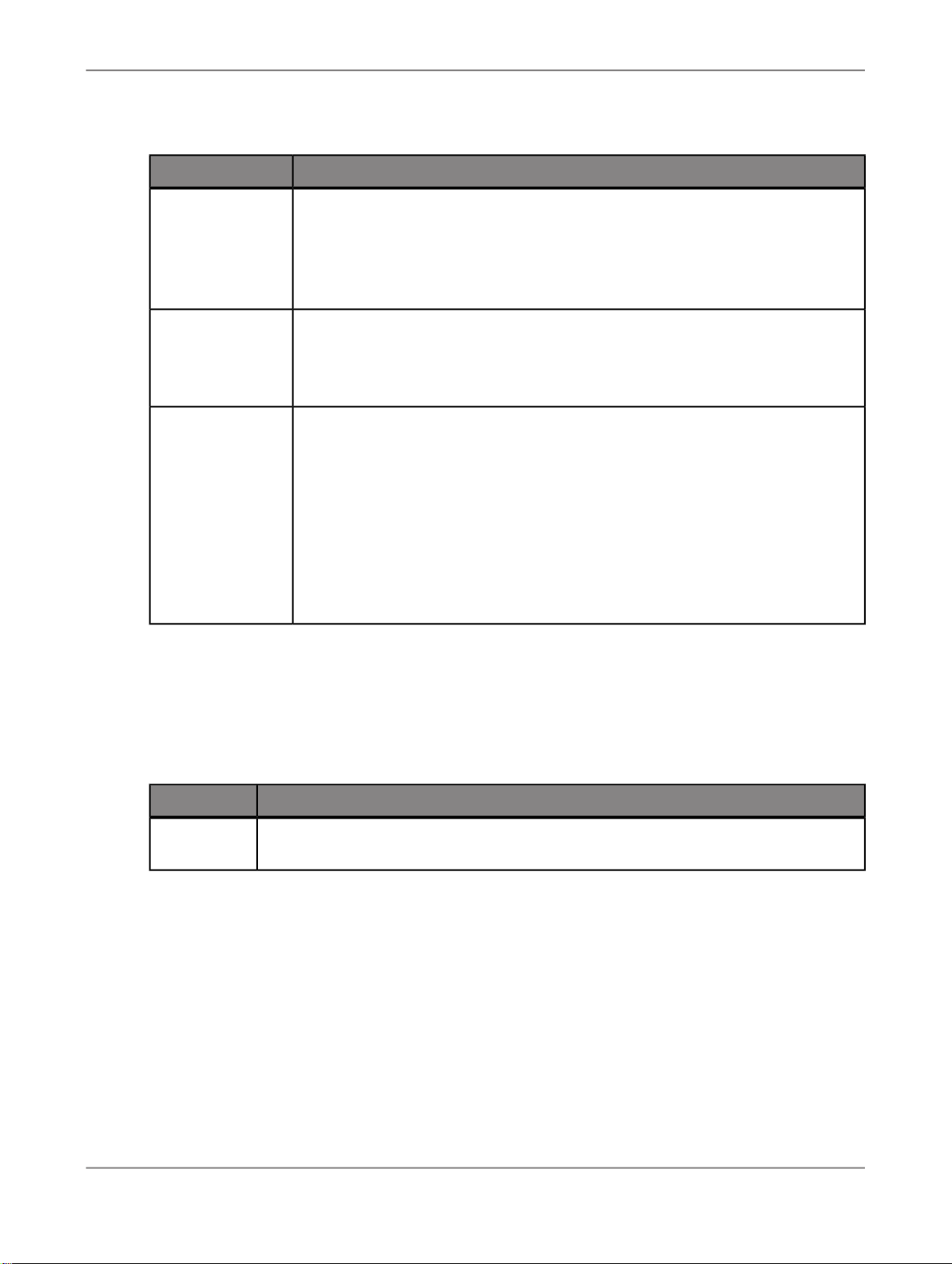
Advanced Analysis uses the same search techniques as popular internet search engines:
Search ResultSearch String
Finds all cubes and queries whose names contain the word sales, such as sales
reports and store sales.
sales
Note:
If you search for sales, your search will not find a cube named sales2008. To
find sales2008, you could search for sales*. See the section
your search
.
Using wildcards in
2010-11-0539
Page 40
Data Source Connections
"sales reports"
sales reports
Search ResultSearch String
Finds only cubes and queries whose names contain the exact text inside the
quotation marks.
In this example, the search would find sales reports but not sales and purchase
reports.
Multiple terms include an implicit AND, so in this example, the search would find
all cubes and queries whose names contain both the words sales and reports:
• sales reports
• sales and purchase reports
Finds cubes and queries whose names contain either the word sales or the word
reports.
The OR must be capitalized.
sales OR reports
In this example, the search would find cubes and queries with these names:
• sales reports
• purchase reports
• reports
• store sales
Note:
Search terms are not case-sensitive. Searching for sales is the same as searching for Sales or SALES
or saLEs.
Using wildcards in your search
You can use wildcard characters in your search string.
RepresentsWildcard
*
Represents a string of zero or more characters. For example, a search for sales* finds
both sales and sales2008.
7.1.4 To copy a connection object
1.
Start the Central Management Console.
For example, on Windows, click Start > Programs > SAP BusinessObjects Enterprise XI 4.0 >
SAP BusinessObjects Enterprise > Central Management Console.
2010-11-0540
Page 41
Data Source Connections
2.
Log on to the Central Management Console.
3.
4.
5.
6.
In the Organize area in the CMC, select OLAP Connections.
Select the connection that you want to copy.
Click Copy Connection.
Type a Name and optionally type a Description for your connection.
You can choose to save the copied connection now, or make changes to the connection settings.
7.
Click Save to create the connection.
The connection is now available for users to add to a workspace.
Related Topics
• Data source connection settings
7.1.5 Authentication
You can set the type of authentication to use when users create new workspaces or log on to existing
workspaces.
You can choose from the following authentication types when you create an Advanced Analysis
connection in the CMC:
Prompt
When this type is selected for the connection, the end user will be prompted with a dialog box to enter
a username and password when Advanced Analysis initiates the connection.
Note:
The username and password are not encrypted by Advanced Analysis. To protect usernames and
passwords, you must enable SSL on your web application server.
SSO (single sign-on)
With the single sign-on option selected, the user signs on once to the BI launch pad, and then is able
to connect to the back-end servers in Advanced Analysis without having to enter the username and
password again. Advanced Analysis (through the MDAS) automatically retrieves the credentials from
the current BI launch pad session and passes them to the server.
These OLAP providers support single sign-on:
Microsoft Analysis Services
AuthenticationProvider
SAP authentication including Secure Network CommunicationsSAP BW
Windows Active Directory
2010-11-0541
Page 42

Data Source Connections
For Microsoft Analysis Services, single sign-on works only if the following conditions are true:
1.
SAP BusinessObjects Enterprise is configured correctly for Active Directory authentication in a Java
environment. See the
Configuring Active Directory Authentication using Java Application Servers
2.
All CMS and MDAS instances must be started with the identical domain account. This service account
must be trusted for delegation in Active Directory.
3.
The user signs on to the BI launch pad using the Active Directory authentication plug-in.
Pre-defined
With this option selected, the administrator enters a specific username and password which will be
stored as part of the connection object. The stored username and password will always be used to
authenticate to the back-end server when this connection object is accessed from Advanced Analysis.
Like single sign-on, this authentication type does not require the end user to enter a username and
password in Advanced Analysis. However, because the same credentials are used for every user who
accesses the cube through this connection, this option is not always suitable.
SAP BusinessObjects Enterprise Administrator's Guide
and the technical brief
for more information.
7.2 Changing connection settings
If you have an existing connection to an OLAP data source, but the connection details have changed,
you can change the connection settings. Note that you need to have sufficient folder rights to edit a
connection.
7.2.1 To change connection settings
1.
Start the Central Management Console.
For example, on Windows, click Start > Programs > SAP BusinessObjects Enterprise XI 4.0 >
SAP BusinessObjects Enterprise > Central Management Console.
2.
Log on to the Central Management Console.
3.
In the Organize area in the CMC, select OLAP Connections.
A list of existing connections is displayed.
Note:
If no connections are listed, you need to create a new OLAP connection to allow your data analysts
to begin working with Advanced Analysis workspaces.
4.
Select the connection that you want to edit, and click Edit Connection.
2010-11-0542
Page 43

Data Source Connections
Note:
If you do not have "Add objects to the folder" permission in the SAP BusinessObjects Enterprise
system, you cannot edit a connection, and the Edit Connection button is unavailable.
You can now change the contents of any of the fields to reconfigure your OLAP connection.
5.
Click Save to save the new connection settings.
Related Topics
• Creating OLAP data source connections
• Data source connection settings
7.3 Deleting a connection
If a data source connection is no longer being used, you can delete the connection.
Note:
If you delete a connection that is still being used by any workspaces, those workspaces are rendered
inoperable. Therefore, you should verify in the Central Management Console that no workspaces use
a connection before you delete that connection.
Related Topics
• Displaying a list of workspaces that use a data source connection
7.3.1 To delete a connection
1.
Start the Central Management Console.
For example, on Windows, click Start > Programs > SAP BusinessObjects Enterprise XI 4.0 >
SAP BusinessObjects Enterprise > Central Management Console.
2.
Log on to the Central Management Console.
3.
4.
5.
In the Organize area in the CMC, select OLAP Connections.
A list of existing connections is displayed.
Select the connection that you want to delete.
From the menu, select Manage > Delete.
2010-11-0543
Page 44

Data Source Connections
7.4 Moving a connection to another folder
You can move data source connections between folders in the CMC.
7.4.1 To move a connection object
1.
Start the Central Management Console.
For example, on Windows, click Start > Programs > SAP BusinessObjects Enterprise XI 4.0 >
SAP BusinessObjects Enterprise > Central Management Console.
2.
Log on to the Central Management Console.
3.
4.
5.
6.
In the Organize area in the CMC, select OLAP Connections.
Select the connection that you want to move.
Click Organize > Move To.
Select a destination folder, and then click Move.
7.5 Data source connection settings
This section describes the provider-specific connection settings for all supported OLAP data sources:
• Connection settings for SAP NetWeaver Business Warehouse data sources
• Connection settings for Microsoft Analysis Services data sources
For more information, refer to the documentation for those products.
7.5.1 Connection settings for SAP NetWeaver Business Warehouse data sources
Connecting to an application server
To connect directly to an SAP BW application server, choose Server for Server Type. The following
information is required to establish a connection to an application server:
• System: The three-character SAP system ID
• Server: Name or IP address of the application server
• System Number
2010-11-0544
Page 45

Data Source Connections
• Client: The three digit client number
Connecting to a logon group
You can leverage SAP load balancing by connecting to a logon group. To connect to a logon group,
choose Group for Server Type. The following information is required to establish a connection to a
logon group:
• System: The three character SAP system ID
• Group Name: Name of the logon group
• Message Server: Name or IP address of the message server
• Client: The three digit client number
Setting a language
The language field accepts a two character ISO language code. For example, enter EN for English, DE
for German, or FR for French. The language code you enter here will be used when connecting to the
server in order to choose a data source.
You can also choose whether or not to save the language code as part of the data source connection
object. If you choose to save the language, then all Advanced Analysis workspaces that reference that
data source will log in with the specified language.
If you choose not to save the language, then Advanced Analysis workspaces that reference the data
source will log in with the language of the user's active Enterprise session.
Authentication types
The following authentication types are supported for SAP BW data sources:
• Prompt
Prompt the user for an SAP username and password to authenticate to the data source.
• SSO
When the user opens an Advanced Analysis workspace, the application retrieves the SAP logon
information from the user's current Enterprise session. The user is not prompted to enter a username
or password.
For this option to work, SAP BusinessObjects Enterprise must be configured correctly for SAP
authentication. Refer to the “Authenticating into SAP BusinessObjects Enterprise” section in the
SAP BusinessObjects Enterprise Administrator's Guide
for more details.
• Pre-defined
Connect to the data source with the SAP username and password saved as part of the connection.
7.5.2 Connection settings for Microsoft Analysis Services data sources
These connection settings are configurable with Microsoft OLAP data sources such as Microsoft SQL
Server Analysis Services 2005:
2010-11-0545
Page 46

Data Source Connections
Server Type: Server
Authentication type
DescriptionSetting
This option allows you to connect to a cube on an Analysis Services server
by providing the URL to the IIS instance that processes XMLA requests for
the server. For example: http://example.com/olap/msmdpump.dll
Set the type of authentication to use when users create new workspaces or
log on to existing workspaces. These options are available:
• Prompt
Always prompt users for logon credentials.
• SSO (single sign-on)
Uses the credentials that users enter when they log on to their SAP BusinessObjects Enterprise BI launch pad sessions.
• Pre-defined
Always use the username and password that were specified when the
connection was created by the administrator.
For more information, see Microsoft's documentation for Analysis Services, which is available either
as part of your Microsoft SQL Server Analysis Services installation, or on the MSDN Website at
http://msdn.microsoft.com/library/.
7.6 Managing Advanced Analysis data source connections
The Central Management Console (CMC) is a web-based administration tool for managing Advanced
Analysis data source connections and workspaces, user accounts, rights, folders, server settings, and
license keys. You must be an SAP BusinessObjects Enterprise administrator to access the CMC.
See the
SAP BusinessObjects Enterprise Administrator's Guide
for information about logging on to the
CMC.
In the CMC, you can change the properties of saved Advanced Analysis data source connection objects.
You can also view a list of workspaces that use the data source.
7.6.1 Editing the title and description of an Advanced Analysis data source connection
In the CMC, you can change the title and description properties of saved Advanced Analysis data source
connection objects.
2010-11-0546
Page 47

Data Source Connections
7.6.1.1 To change the properties of existing data source connection objects
1.
Start the Central Management Console.
For example, on Windows, click Start > Programs > SAP BusinessObjects Enterprise XI 4.0 >
SAP BusinessObjects Enterprise > Central Management Console.
2.
Log on to the Central Management Console.
3.
4.
5.
In the Organize area in the CMC, select OLAP Connections.
A list of all data source connections is displayed.
Double-click a connection to open its Properties page.
Make the desired changes and then click Save.
7.6.2 Displaying a list of workspaces that use a data source connection
An Advanced Analysis data source connection can be used by several workspaces. Before you delete
a connection, verify that the list of workspaces using that connection is empty.
7.6.2.1 To see a list of workspaces that use a data source connection
1.
Start the Central Management Console.
For example, on Windows, click Start > Programs > SAP BusinessObjects Enterprise XI 4.0 >
SAP BusinessObjects Enterprise > Central Management Console.
2.
Log on to the Central Management Console.
3.
4.
In the Organize area in the CMC, select OLAP Connections.
Select a data source connection and click Actions > Workspaces.
Alternatively, you can right-click the connection and select Workspaces.
The list of workspaces that currently use the data source connection is displayed.
2010-11-0547
Page 48

Data Source Connections
7.6.3 Changing access to Advanced Analysis data source connections
After saving a data source connection to SAP BusinessObjects Enterprise, you can use the CMC to
change its access permissions.
7.6.3.1 To change access to data source connections
1.
Start the Central Management Console.
For example, on Windows, click Start > Programs > SAP BusinessObjects Enterprise XI 4.0 >
SAP BusinessObjects Enterprise > Central Management Console.
2.
Log on to the Central Management Console.
3.
4.
5.
6.
In the Organize area in the CMC, select OLAP Connections.
Select a data source connection and click Manage > User Security.
Alternatively, you can right-click the data source connection and select User Security.
Click the User or Group name for which you want to change the access, and then click Assign
Security.
Assign the appropriate access levels or rights, and then click OK.
Note:
If either of the inheritance check boxes is selected, the assigned access levels or rights may be
superseded by the inherited access. For more information about assigning rights and access levels,
see the section “Setting Rights” in the
BusinessObjects Enterprise Administrator's Guide
7.6.4 Replacing an Advanced Analysis data source connection
In some situations, you may want to replace the data source used by a workspace with another one.
Reasons for replacing a data source include the following:
• The data source used by the workspace was deleted, and users can no longer open that workspace.
• You want to edit some data source connection details (for example, to connect to a different server)
but do not want to modify the existing data source connection object. Instead, you want to create a
new data source connection and update the workspace to use the new connection.
.
2010-11-0548
Page 49

Data Source Connections
7.6.4.1 To replace a data source connection
1.
Start the Central Management Console.
For example, on Windows, click Start > Programs > SAP BusinessObjects Enterprise XI 4.0 >
SAP BusinessObjects Enterprise > Central Management Console.
2.
Log on to the Central Management Console.
3.
4.
Expand the folder list as needed to locate the workspace whose connection you want to replace.
5.
Select the workspace and then select Connections from the Actions menu.
6.
Click Replace Connection at the top of the connections listing page.
7.
In the Current Connection column, find the connection that you want to replace, and then in the
Replace With column, click the arrow to the right of the connection name to open a list of available
connections.
8.
Choose a replacement connection from this list.
9.
If you want to apply the changes to all workspaces that use the same connection, select the Apply
changes to all workspaces option.
10.
Click Save and then Close.
Once the connection is replaced, open the workspace in the BI launch pad to verify that the workspace
is linked to the new connection.
In the Organize area in the CMC, select Folders or Personal Folders.
Note:
• The current connection and the new connection must have the same data layout.
• All connections in an Advanced Analysis workspace must be different. If you replace multiple
connections with the same new connection, you must ensure that all connections are different.
If all connections are not different, the workspace will not open.
• When you select the Apply changes to all workspaces option, workspaces that already use
the new connection will not be changed.
2010-11-0549
Page 50

Data Source Connections
2010-11-0550
Page 51

Managing Workspaces
Managing Workspaces
8.1 Overview
The Central Management Console (CMC) is a web-based administration tool for managing Advanced
Analysis data source connections and workspaces, user accounts, rights, folders, server settings, and
license keys. You must be an SAP BusinessObjects Enterprise administrator to access the CMC.
From the CMC, you can change the properties of a saved Advanced Analysis workspace.
8.2 Editing the title, description, and keywords of an Advanced Analysis workspace
You can use the CMC or BI launch pad to edit the title, description, and keywords of an Advanced
Analysis workspace that has been published to SAP BusinessObjects Enterprise.
8.2.1 To edit the title, description, and keywords of an Advanced Analysis workspace
in the CMC
1.
Start the Central Management Console.
For example, on Windows, click Start > Programs > SAP BusinessObjects Enterprise XI 4.0 >
BusinessObjects Enterprise > Central Management Console.
2.
Log on to the Central Management Console.
3.
4.
5.
In the Organize area in the CMC, select Folders or Personal Folders.
Expand the folder list as needed to locate the workspace whose properties you want to edit, and
then double-click the title of the workspace to open the Properties page.
Make the desired changes and then click Save.
2010-11-0551
Page 52

Managing Workspaces
8.2.2 To edit the title, description, and keywords of an Advanced Analysis workspace
in the BI launch pad
1.
Start the BI launch pad and log on.
For example, on Windows, click Start > Programs > SAP BusinessObjects Enterprise XI 4.0 >
SAP BusinessObjects Enterprise > SAP BusinessObjects Enterprise Java BI Launch Pad.
2.
Click the Documents tab.
3.
Expand the folder list as needed to locate the workspace whose properties you want to edit, and
then select the workspace title.
4.
Click View > Properties to open the Properties page.
5.
Make the desired changes and then click OK.
8.3 Displaying a list of connections linked to the workspace
An Advanced Analysis workspace can be linked to several data source connection objects.
8.3.1 To see a list of connection objects linked to the workspace
1.
Start the Central Management Console.
For example, on Windows, click Start > Programs > SAP BusinessObjects Enterprise XI 4.0 >
SAP BusinessObjects Enterprise > Central Management Console.
2.
Log on to the Central Management Console.
3.
4.
Expand the folder list as needed to locate the workspace whose connections you want to view.
5.
Select the workspace, and click Actions > Connections.
All connection objects that are linked to the workspace are listed.
In the Organize area in the CMC, select Folders or Personal Folders.
2010-11-0552
Page 53

Scaling and Performance
Scaling and Performance
9.1 Clustering MDAS instances
The Multi-Dimensional Analysis Service is inherently memory bound. As the number of users increases,
so does the number of queries that must be handled, and therefore so does the MDAS memory
requirements.
For this reason, you may want to cluster multiple MDAS instances together. Advanced Analysis
automatically identifies and makes use of clustered MDAS instances without further configuration.
For more information about clustering SAP BusinessObjects Enterprise servers and services, including
the MDAS, see the
For more information on memory optimization, see the
Guide
.
9.2 Load balancing
Like other SAP BusinessObjects Enterprise services, you can install multiple MDAS instances. Once
you have installed the MDAS on a single machine, you can create multiple MDAS instances on that
machine using the Central Management Console.
You can also choose to install the MDAS on different machines to distribute the load.
For more information about clustering SAP BusinessObjects Enterprise servers and services, including
the MDAS, see the
Related Topics
• Server failover
• Clustering MDAS instances
SAP BusinessObjects Enterprise Administrator's Guide
SAP BusinessObjects Enterprise XI 4.0 Sizing
SAP BusinessObjects Enterprise Administrator's Guide
.
.
2010-11-0553
Page 54

Scaling and Performance
9.3 Optimizing performance
Advanced Analysis performance can be optimized by following the recommendations described in the
SAP BusinessObjects Enterprise XI 4.0 Sizing Guide
.
2010-11-0554
Page 55

Monitoring and Logging
Monitoring and Logging
10.1 Auditing
Auditing is a feature of SAP BusinessObjects Enterprise that allows administrators to keep a record of
significant events on SAP BusinessObjects Enterprise servers and applications, such as opening data
source connections and modifying workspaces. The recorded information helps you to understand what
information is being accessed, how it's being accessed and changed, and who is performing these
operations.
Advanced Analysis registers an auditing event whenever one of the following operations occurs:
• A new workspace or analysis view is created.
• A workspace or analysis view is saved.
• A workspace or analysis view is deleted.
• A workspace or analysis view is viewed.
• A workspace or analysis view is exported to a different format.
• A connection to an MDAS is established.
• A connection to an MDAS is closed.
• A connection to a data source is established.
• A connection to a data source is closed.
For more information about auditing, see the “Auditing” section in the
Administrator's Guide
10.2 Trace logging
Tracing allows system administrators and support personnel to monitor the performance of SAP
BusinessObjects Enterprise components (servers and web applications) and the activity that occurs
within the monitored components.
SAP BusinessObjects Enterprise
.
Traces are recordings of events that occur during the operation of a monitored component. System-level
messages generated by SAP BusinessObjects Enterprise servers are traced and written to log files.
These log files are used by system administrators to monitor performance or to debug problems.
For more information about tracing, see the section “Tracing SAP BusinessObjects Enterprise
components” in the
SAP BusinessObjects Enterprise Administrator's Guide
.
2010-11-0555
Page 56

Monitoring and Logging
2010-11-0556
Page 57

Microsoft Analysis Services Considerations
Microsoft Analysis Services Considerations
11.1 Advanced Analysis and Analysis Services security
This section explains how to set up the SAP BusinessObjects services to be able to authenticate to
Microsoft Analysis Services.
11.1.1 Analysis Services role security
SQL Server Analysis Services security architecture is built on Microsoft Windows authentication. To
access data in Analysis Services, users must connect with an account that can be authenticated by
Microsoft Windows. Analysis Services does not recognize user accounts created in the native SQL
Server Database (relational) Engine security system, such as the built-in administrator's account "sa".
After authenticating the user, Analysis Services checks the security roles that the user belongs to, to
determine which cubes, dimensions, members and cell values to return.
To allow users to view data in an Analysis Services cube from Advanced Analysis, you must first define
the appropriate security roles on the target cube.
11.1.1.1 To define a security role in Analysis Services 2005 or 2008
1.
Open Microsoft SQL Server Management Studio and connect to the Analysis Services instance.
2.
Expand the folder structure for the database.
3.
Right-click the Roles folder and select New Role.
4.
Enter a name for the role in the Role Name field and select the Read Definition checkbox so the
users have read rights.
5.
Click Membership in the left pane and click Add to add the list of domain users that will be given
read access to the database.
Note:
If there are a large number of users, it may be more efficient to create a group within Active Directory
for OLAP access and add all the users to the group, then simply add the group to the list.
2010-11-0557
Page 58

Microsoft Analysis Services Considerations
6.
Select the appropriate user permissions by clicking Data Sources, Cubes, Cell Data, Dimensions,
Dimension Data and Mining Structures to decide what areas the users will have read access to.
Note:
The extent of how much of the data you want users to have access to is dependent on the reports
being created and security within your organization and security should be planned accordingly.
11.2 Finding more information
Analysis Services security and authentication
• For more information about Kerberos on Windows 2003, see this page:
http://www.microsoft.com/windowsserver2003/technologies/security/kerberos/default.mspx
• For more information about troubleshooting Kerberos configuration and errors, see these pages:
http://www.microsoft.com/technet/prodtechnol/windowsserver2003/technologies/security/tkerb
del.mspx#E3HAC
http://www.microsoft.com/technet/prodtechnol/windowsserver2003/technologies/security/tkerberr.mspx
• Guide to enabling Kerberos Event logging for troubleshooting:
http://support.microsoft.com/kb/q262177/
• Information about using SQL Profiler 2005 for tracing login usernames while troubleshooting:
http://msdn2.microsoft.com/en-us/library/ms187929.aspx
• SQL Server 2005/Analysis Services Service Pack downloads:
http://technet.microsoft.com/en-us/sqlserver/bb331754.aspx
• SQL Server 2008/Analysis Services Service Pack downloads:
http://support.microsoft.com/kb/968382
Calculation solve order
• Microsoft's explanations of solve order for Analysis Services 2005: http://msdn2.microsoft.com/en-
us/library/ms145539.aspx
2010-11-0558
Page 59

Migrating to Advanced Analysis
Migrating to Advanced Analysis
12.1 Migrating from Voyager to Advanced Analysis
If you are migrating from Voyager to Advanced Analysis, use the upgrade management tool to convert
your Voyager workspaces to the Advanced Analysis format. The upgrade management tool is provided
with SAP BusinessObjects Enterprise.
Note:
If you are using Voyager XI Release 2, or XI 3.0, you will need to first upgrade to XI 3.1 before migrating
to the current version of Voyager.
The upgrade management tool provides two upgrade options; a complete upgrade or an incremental
upgrade:
• Complete upgrade
The complete upgrade process migrates all objects of all types. Minimal effort and interaction are
required, but the process can take many hours to complete.
• Incremental upgrade
The incremental upgrade process allows you to choose which objects to migrate. The objects are
grouped by type, so that you can select all Voyager workspaces for example.
Because Advanced Analysis data source connections are formatted differently from Voyager connections,
Voyager objects will fail to migrate when the complete upgrade is performed. Therefore, before you
migrate your Voyager workspaces, you will need to manually recreate your Voyager data source
connections in SAP BusinessObjects Enterprise XI 4.0.
You can perform the upgrade in one of two ways:
• Perform a complete upgrade first. All Voyager objects will fail to migrate but other objects will migrate
successfully. After the complete upgrade finishes, manually recreate your Voyager data source
connections in the CMC in SAP BusinessObjects Enterprise XI 4.0. Then perform an incremental
upgrade for Voyager workspaces.
• Manually recreate your Voyager data source connections in the CMC in SAP BusinessObjects
Enterprise XI 4.0. Then perform a complete upgrade.
Note:
When you manually recreate your data source connections, the Advanced Analysis connection names
used in XI 4.0 must be the same as the Voyager connection names used in XI 3.1.
2010-11-0559
Page 60

Migrating to Advanced Analysis
For more information, see the
SAP BusinessObjects Enterprise Upgrade Guide
on migrating Voyager workspaces to Advanced Analysis.
, and the white paper
2010-11-0560
Page 61
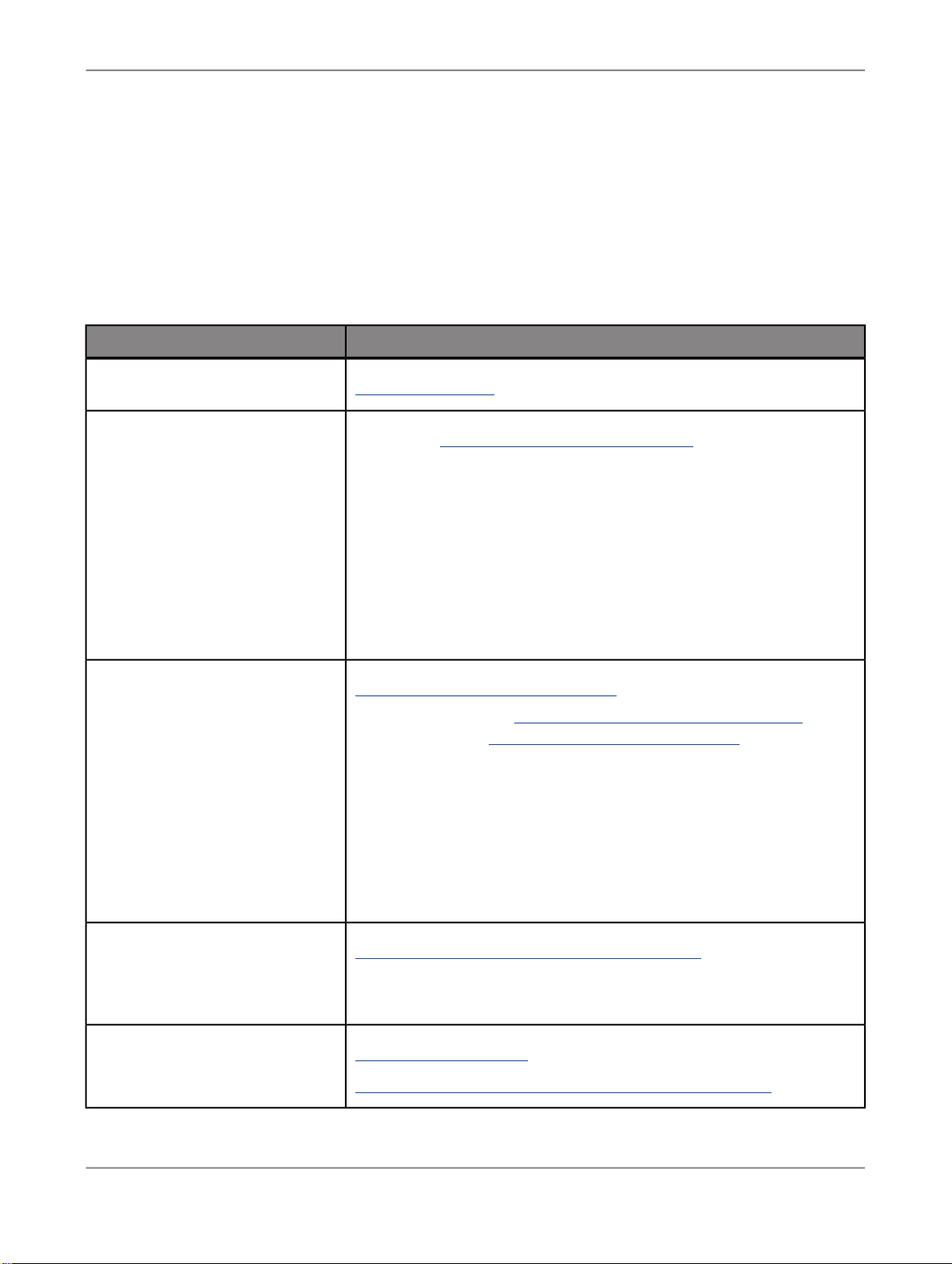
More Information
More Information
LocationInformation Resource
SAP BusinessObjects product information
SAP Help Portal
SAP Service Marketplace
http://www.sap.com
Navigate to http://help.sap.com/businessobjects and on the "SAP BusinessObjects Overview" side panel click All Products.
You can access the most up-to-date documentation covering all SAP
BusinessObjects products and their deployment at the SAP Help Portal.
You can download PDF versions or installable HTML libraries.
Certain guides are stored on the SAP Service Marketplace and are not
available from the SAP Help Portal. These guides are listed on the Help
Portal accompanied by a link to the SAP Service Marketplace. Customers
with a maintenance agreement have an authorized user ID to access
this site. To obtain an ID, contact your customer support representative.
http://service.sap.com/bosap-support > Documentation
• Installation guides: https://service.sap.com/bosap-instguides
• Release notes: http://service.sap.com/releasenotes
The SAP Service Marketplace stores certain installation guides, upgrade
and migration guides, deployment guides, release notes and Supported
Platforms documents. Customers with a maintenance agreement have
an authorized user ID to access this site. Contact your customer support
representative to obtain an ID. If you are redirected to the SAP Service
Marketplace from the SAP Help Portal, use the menu in the navigation
pane on the left to locate the category containing the documentation you
want to access.
Docupedia
Developer resources
https://cw.sdn.sap.com/cw/community/docupedia
Docupedia provides additional documentation resources, a collaborative
authoring environment, and an interactive feedback channel.
https://boc.sdn.sap.com/
https://www.sdn.sap.com/irj/sdn/businessobjects-sdklibrary
2010-11-0561
Page 62
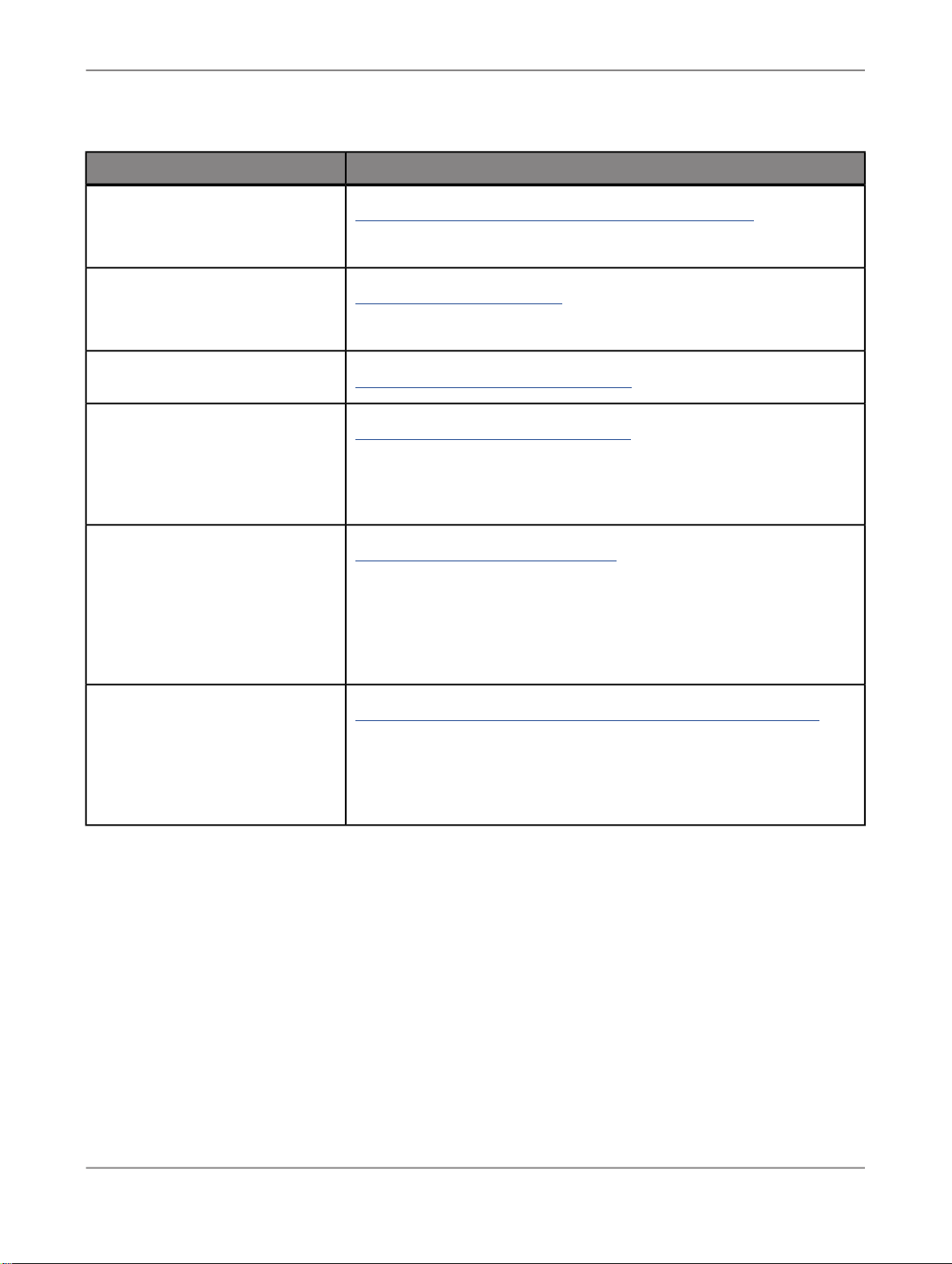
More Information
LocationInformation Resource
SAP BusinessObjects articles on
the SAP Community Network
Notes
Forums on the SAP Community
Network
Training
Online customer support
https://www.sdn.sap.com/irj/boc/businessobjects-articles
These articles were formerly known as technical papers.
https://service.sap.com/notes
These notes were formerly known as Knowledge Base articles.
https://www.sdn.sap.com/irj/scn/forums
http://www.sap.com/services/education
From traditional classroom learning to targeted e-learning seminars, we
can offer a training package to suit your learning needs and preferred
learning style.
http://service.sap.com/bosap-support
The SAP Support Portal contains information about Customer Support
programs and services. It also has links to a wide range of technical information and downloads. Customers with a maintenance agreement
have an authorized user ID to access this site. To obtain an ID, contact
your customer support representative.
Consulting
http://www.sap.com/services/bysubject/businessobjectsconsulting
Consultants can accompany you from the initial analysis stage to the
delivery of your deployment project. Expertise is available in topics such
as relational and multidimensional databases, connectivity, database
design tools, and customized embedding technology.
2010-11-0562
Page 63

Index
A
access levels 23, 25, 27
access to data source connections 48
access to workspaces 28
accessibility 20
Active Directory 41
Advanced Analysis components 7
Analysis Services. see Microsoft
Analysis Services 57
application server, web 16
architecture 8
architecture diagram 11
auditing 55
authentication 41
B
balancing load 53
BI launch pad timeout 19
BusinessObjects Enterprise. See SAP
BusinessObjects Enterprise 8
C
CCM. see Central Configuration
Manager 15
cell count 34
Central Configuration Manager 15
Central Management Console 15, 46,
51
Central Management Server 13
changing cube or connection 52
client timeout 19
cloning Advanced Analysis
deployments 18
clustering MDAS instances 53
CMC. see Central Management
Console 15
CMS. see Central Management Server
13
column count 34
configuration files 33
configuring Advanced Analysis 57
connection settings 44
connection. See data source
connections 44
copying Advanced Analysis
deployments 18
copying an OLAP data source
connection 37
CORBA 21
Create Advanced Analysis Workspace
right 23
creating an OLAP data source
connection 37
credentials 41
CSV files 18
Cube Browser 39
cube count 35
cube. See data source connections 44
D
data source connections 16
changing 52
changing access 48
changing settings 42
creating or copying 37
deleting a connection 43
managing 46
Microsoft data source settings 45
moving a connection 44
properties 46
replacing 48
SAP BW data source settings 44
settings 44
workspaces linked to 47
deleting an OLAP connection 43
deployments, cloning 18
description,
data source connection 46
workspace 51
disabling the MDAS 32
distributed load 53
E
editing an OLAP data source
connection 42
enabling the MDAS 32
Enterprise authentication 41
events 55
Excel 18
export limit 18, 33
F
failover 13
firewall 18
font configuration 17
G
granting rights 23, 24
H
host name 35
I
installation 15
J
JBoss Application Server 16
K
Kerberos 58
keywords, workspace 51
L
LDAP 41
load balancing 53
log level 35
logging 55
M
maximum number of sessions 35
mdaclient.properties 34
MDAS 8
administering 13, 15
clustering 53
configuration files 33
configuring Secure Sockets Layer
21
enabling and disabling 32
load balancing 53
metrics 34
multiple instances 32, 53
properties 34
restarting 31
rights 34
starting and stopping 31
user security 34
mdas.properties 33
2010-11-0563
Page 64

Index
memory 53
metrics 34, 35
Microsoft Analysis Services
authentication 57
connection settings 45
security 57
Microsoft Office edition 7
migration from Voyager 59
moving an OLAP connection to another
folder 44
Multi-Dimensional Analysis Service.
see MDAS 8
multiple MDAS instances 53
O
OLAP data source connections. See
data source connections 37
P
PDF files 18
performance 35, 53
permissions. see rights 23
platforms 15
port 18, 35
pre-defined credentials 41
prompt, authentication 41
properties 34
data source connection 46
setting 35
workspace 51
protecting workspaces 23, 24, 25
Q
query count 35
R
redundancy 13
refreshing data 24, 25
replacing data source connections 48
repository 7
restarting the MDAS 31
rights 23, 24, 27, 34
row count 34
S
SAP BusinessObjects Enterprise 8, 15
deployment diagram 12
SAP BW
connection settings 44
SAP Notes 20
scheduling 24, 25
searching for a cube or query 39
Secure Sockets Layer 21, 41
security 57
server failover 13
Server Intelligence Agent 15
starting and stopping 31
server name and description 35
server request 34
server timeout 19
servers, cloning 18
session count 35
session timeout settings 19
sessions 53
maximum number of 35
SIA. see Server Intelligence Agent 31
single sign-on 15, 41
solve order 58
SQL Profiler 58
SQL Server Analysis Services. see
Microsoft Analysis Services 57
SSL. see Secure Sockets Layer 21
SSO. see single sign-on 41
starting and stopping the MDAS 31
starting and stopping the Server
Intelligence Agent 31
Sun Java System Application Server
16
T
thread pool 35
timeout settings 19, 33
title,
data source connection 46
workspace 51
tracing 55
U
UNIX 8
unstable system 31
Upgrade management tool 59
user access 23, 24, 25
user security 34
user-specified credentials 41
V
Voyager 59
W
web application server 16
web server timeout 19
workspace list 47
workspaces
changing access rights 28
changing the data source 52
connections linked to 52
2010-11-0564
 Loading...