

Page 1
S430/S630
er’s Man
ual
Page 2

Page 3

Amis S430/S630 User’s Manual
2
Table of Contents
Getting Started ................ 6
Your Amis S430/S630 .................. 6
Accessories .................................. 7
Initial Setup ...................... 7
Step 1: Charge the Battery ......... 7
Step 2: Turn On the Device ......... 8
Turn On/O .................................................... 8
Step 3: Initial Setup ..................... 8
Step 4: Acquire Satellite
Signals .......................................... 8
Download Bryton Update Tool .. 9
Share Your Records ..................... 9
Share Your Tracks to
Brytonsport.com .......................................... 9
Share Your Tracks via Bryton Sports
APP ..................................................................10
Exercises ......................... 15
Starting an Exercise ..................15
Running/Cycling ........................................15
Triathlon (Amis S630 only) .....................16
Multisport (Amis S630 only) ..................16
Outdoor Swim (Amis S630 only) ..........17
Pause/ Stop Exercising .............. 17
Switch the Data Page ................18
Smart Pause ............................... 18
Lap .................................. 19
Smart Lap................................... 19
Mark Lap .................................... 19
Train & Test ..................... 20
To Plan ........................................ 20
Simple Workouts ........................................20
Status Page .................... 12
Icon Description ........................ 12
Receiving GPS Signals .............. 13
Clock View ...................... 14
Display Screen ...........................14
Auto Time Calibration by GPS .. 14
Manually Set Time ..................... 14
Set Alarm (Time1) ..................... 14
Interval Workouts ......................................21
My Workout ............................... 22
Bryton Workout ......................... 22
Bryton Test ................................. 23
Start Training ............................. 24
Stop Training ............................. 24
View History ................... 25
View History .............................. 25
View Summary .......................... 25
Delete Exercise Records ........... 25
Page 4

Amis S430/S630 User’s Manual 3
ENGLISH
Tools ................................ 26
Sensors ....................................... 39
Metronome ................................26
Pace Calculator ..........................27
Stopwatch .................................. 28
Countdown ..................................................28
Timer ..............................................................29
Notication .................... 30
Settings .......................... 31
Exercises Settings ..................... 31
Customize the Data Display ...................31
Set Alert ........................................................32
Enable Triathlon Transition Time
(Amis S630 only) ........................................32
Multisport Sequence Setup
(Amis S630 only) ........................................33
Watch Settings .......................... 34
Adjust Date ..................................................34
Change Clock View ...................................34
General Settings ........................ 34
Change Backlight O Settings ..............34
Enable Key Vibrate ....................................35
Enable Key Tone .........................................35
Link Heart Rate Sensor ............................39
Link Other Sensors (Amis S630 only) ..39
Personalize User Prole ............ 40
User Prole ...................................................40
Bike Prole (Amis S630 only) .................40
Troubleshooting ............ 42
Getting More Information ........42
Reset Amis S430/S630 ..............42
Appendix ........................ 43
Glossary and Customizable Data
Fields Selection .........................43
Installing the Bike Mount
(Amis S630 only)........................46
Installing the Heart Rate
Monitor ...................................... 47
Wheel Size and
Circumference ........................... 50
Heart Rate Zones ....................... 51
Basic Care For Your Amis S430/
S630 ........................................... 51
Enable Vibrate .............................................35
Enable Sound Alert ...................................35
Specify Unit ..................................................36
Specify the On-Screen Display (OSD)
Language ......................................................36
Set GPS Mode .............................................36
Enable Bluetooth ......................................37
Enable Race Mode ....................................37
Congure Auto Scroll ..............................37
Enable File Saving Mode .........................38
Inverted Screen Color .............................38
View Memory Usage ................................38
About .............................................................38
Specications ............................52
Page 5

Amis S430/S630 User’s Manual
4
WARNING
Always consult your physician before you begin or modify any training program. Please read
the details in Warranty and Safety Information guide in the package.
FCC Regulations
§ 15.19 (a)(3)
This device complies with part 15 of the FCC Rules. Operation is subject to the following
two conditions: (1) This device may not cause harmful interference, and (2) this device
must accept any interference received, including interference that may cause undesired
operation.
§ 15.21
Changes or modications not expressly approved by the party responsible for compliance
could void the user‘s authority to operate the equipment.
§ 15.105 (b)
This equipment has been tested and found to comply with the limits for a Class B digital
device, pursuant to part 15 of the FCC Rules. These limits are designed to provide reasonable
protection against harmful interference in a residential installation. This equipment
generates, uses and can radiate radio frequency energy and, if not installed and used in
accordance with the instructions, may cause harmful interference to radio communications.
However, there is no guarantee that interference will not occur in a particular installation. If
this equipment does cause harmful interference to radio or television reception, which can
be determined by turning the equipment o and on, the user is encouraged to try to correct
the interference by one or more of the following measures:
Reorient or relocate the receiving antenna.•
Increase the separation between the equipment and receiver.•
Connect the equipment into an outlet on a circuit dierent from that to which the receiver •
is connected.
Consult the dealer or an experienced radio/TV technician for help.•
FCC RF Exposure Compliance
This device is designed and manufactured not to exceed the emission limits for exposure
to radio frequency (RF) energy set by the Federal Communications Commission for an
uncontrolled environment.
Page 6

Amis S430/S630 User’s Manual
5
ENGLISH
IC Regulations
This device complies with Industry Canada license-exempt RSS standard(s). Operation is
subject to the following two conditions:
(1) this device may not cause interference, and
(2) this device must accept any interference, including interference that may cause
undesired operation of the device.
Le présent appareil est conforme aux CNR d’Industrie Canada applicables aux appareils
radio exempts de licence. L’exploitation est autorisée aux deux conditions suivantes:
(1) l’appareil ne doit pas produire de brouillage, et
(2) l’utilisateur de l’appareil doit accepter tout brouillage radioélectrique subi, même si le
brouillage est susceptible d’en compromettre le fonctionnement.
********************************************************************************************
CAN ICES-3(B)/NMB-3(B)
********************************************************************************************
IC RF Exposure Compliance
This equipment complies with IC RSS-102 RF exposure limits set forth for an uncontrolled
environment.
Australian Consumer Law
Our goods come with guarantees that can not be excluded under the New Zealand and
Australian Consumer Laws. You are entitled to a replacement or refund for a major failure
and for compensation for any other reasonably foreseeable loss or damage. You are also
entitled to have the goods repaired or replaced if the goods fail to be of acceptable quality
and the failure does not amount to a major failure.
Page 7
Amis S430/S630 User’s Manual
6
Getting Started
10
12:05
18OC
09/06
MON
AM
35
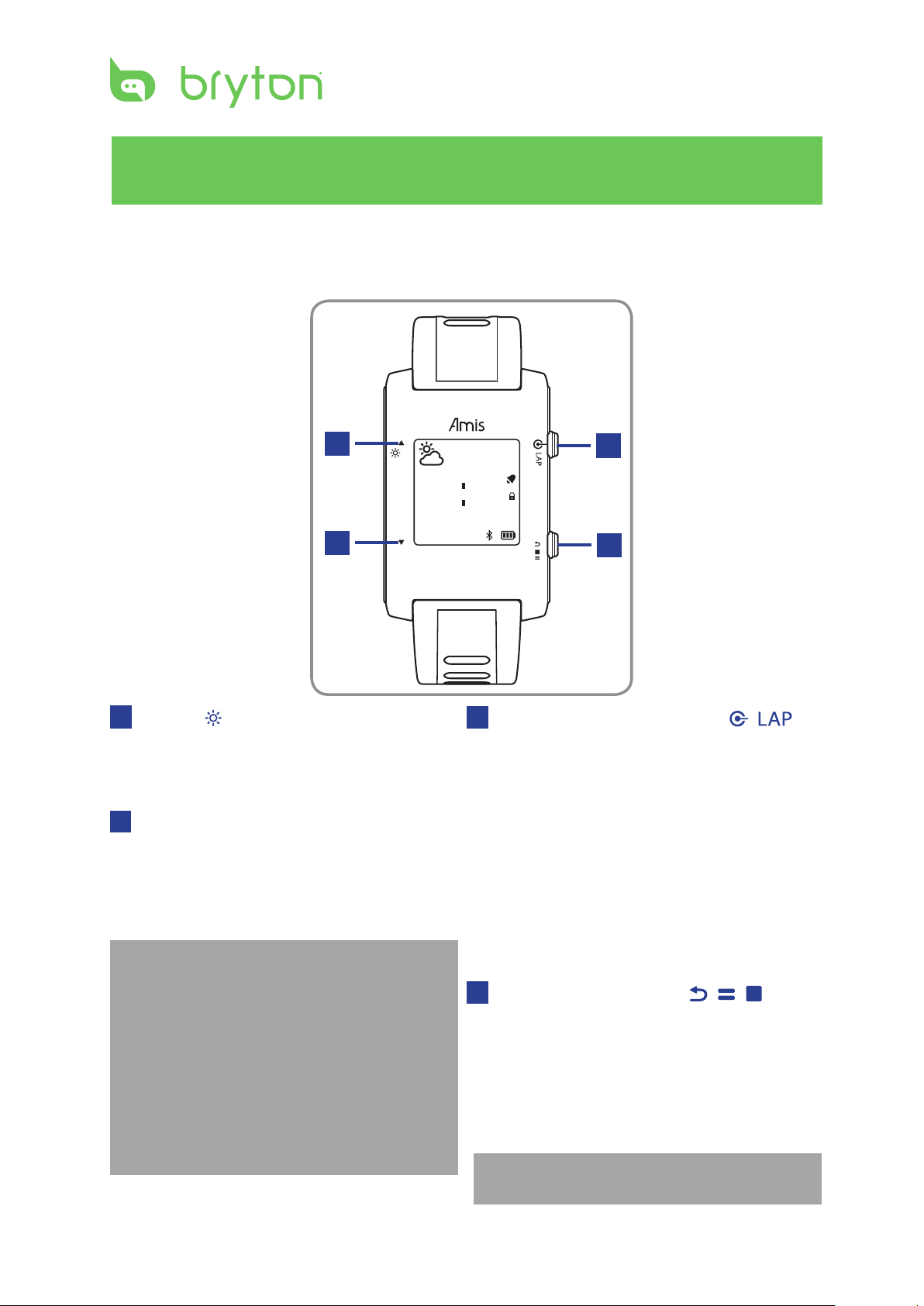
This section will guide you on the basic preparations before you start using your device.
Your Amis S430/S630
1
2
1
Up (p/ )
In Menu, press to move up to scroll •
through menu options.
Press to turn on the backlight.•
Down (q)
2
In Menu, press to move down to scroll •
through menu options.
In data page view, press to switch data •
page screen.
NOTE: In swimming mode, the Amis device
auto-locks the sensor keys (up and down
keys) to prevent false contact by the water.
In order to view the data page(s), please
wipe o excess water on the surface of
the watch and pause the recording before
operating the sensor keys. Press the power
key to resume the recording while pausing.
We highly recommend to lock the sensor
keys in humid environment.
3
4
3
Power / OK / Start / Lap ( / )
P• ress and hold to turn the device on.
In clock view, press to enter the main •
menu.
In menu mode, press to enter or conrm •
a selection.
When recording, press to mark the lap.•
In clock view, press and hold to turn o •
the device.
In any modes, except clock view, press •
and hold to lock the Up and Down keys.
While the keys are locked, press and
hold to unlock.
4
Back / Pause / Stop ( / / )
Press to • return to the previous page or
cancel an operation.
In data page view, press to pause log. •
While the recording is paused, press
again to stop.
In training mode, press to stop •
recording log.
NOTE: In data page view, quick press twice
to stop recording log.
Page 8
ENGLISH
Amis S430/S630 User’s Manual 7
Accessories
10
18OC
09/06
MON
3
10
12:05
18OC
09/06
MON
AM
35
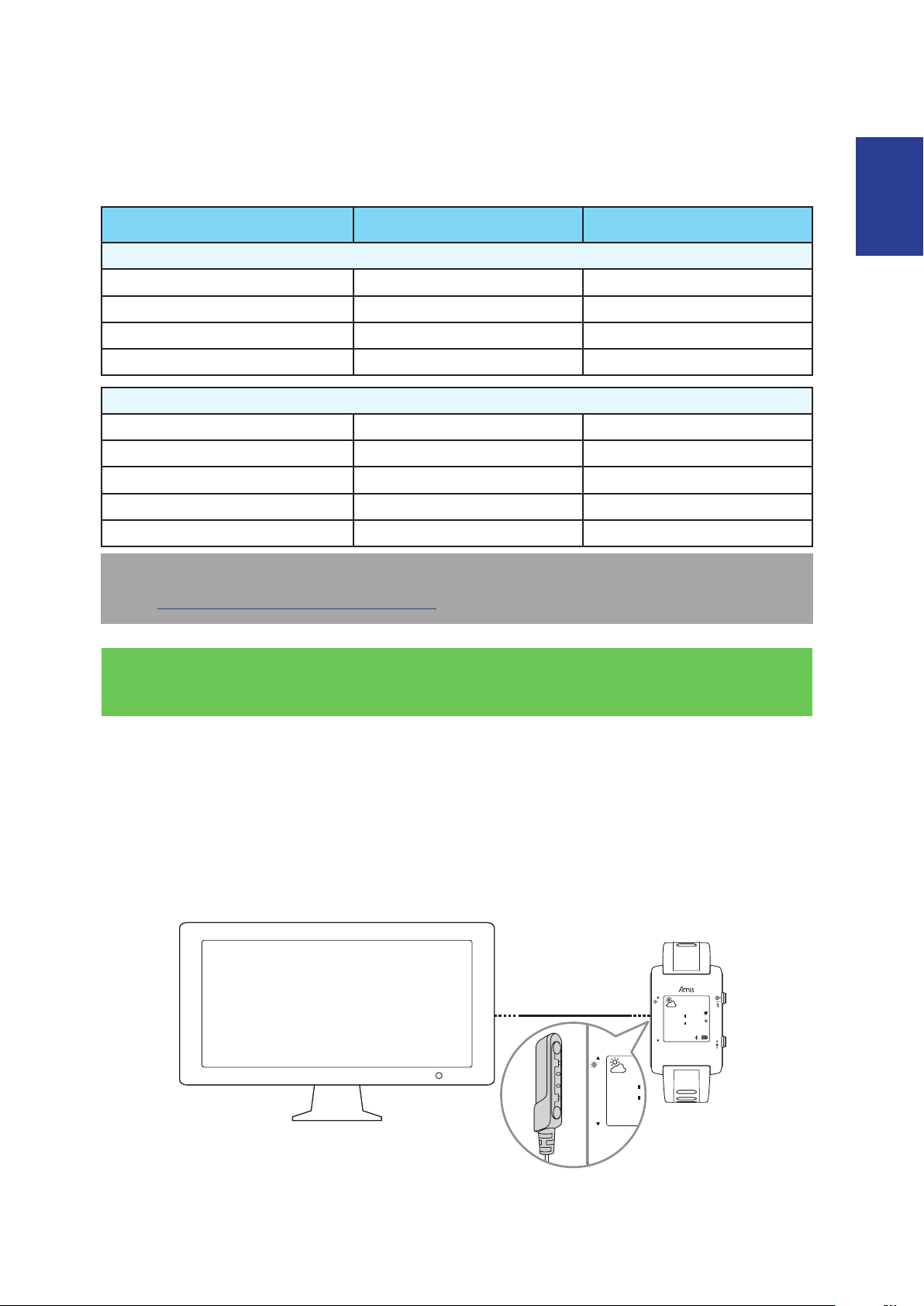
The Amis S430/S630 comes with the following accessories:
Amis S430 Amis S630
In the box
Device
Magnet Charging Clip
Quick Start Guide
Warranty and Safety Booklet
Optional items
Speed & Cadence Dual Sensor
Heart Rate Monitor Set
Heart Rate Chest Strap
Bike Mount
Adaptors
NOTE: For more information about purchasing optional accessories, please go to Bryton
Eshop http://www.brytonsport.com/eshop or contact your Bryton dealer.
3 3
3 3
3 3
3 3
8 3 (Amis S630 R)
3 (Amis S430 H) 3 (Amis S630 H, Amis S630 R)
3 (Amis S430 H) 3 (Amis S630 H, Amis S630 R)
8 3 (Amis S630 R)
3 3
Initial Setup
Step 1: Charge the Battery
Warning:
This product contains a lithium-ion battery. See the Warranty and Safety Information guide
in the package for important battery safety information.
Charge the device for at least 4 hours before you start using it.
1. Attach the magnet charging clip onto the device.
2. Plug the other end of the magnet charging clip to a computer.
Page 9
Amis S430/S630 User’s Manual
8
Step 2: Turn On the Device
Pls Reposition
Turn On/O
To turn on the device, press and hold • / .
In clock view, press and hold • / to turn o the device.
Step 3: Initial Setup
When turning the device on for the rst time, the setup wizard appears on screen. Follow
the instructions to complete setup.
1. Select the display language.
2. Select the unit of measurement.
3. Enter your user prole (gender, date of birth, height, weight, maximum heart rate, lactate
threshold heart rate, race time).
NOTE: It is recommended to input the data since data accuracy will highly aect your
training analysis.
4. Scan the QR code with your phone to download the Bryton Mobile APP.
NOTE:
The Amis S430/S630 was designed to wirelessly sync your data in the background using •
Bluetooth Smart.
For more instructions, please refer to “Share Your Records” section. Bluetooth Smart and •
WiFi-enabled mobile phone is required. Android 4.3 or above.
5. Read and accept the Safety Agreement.
Press • p and q key to read the Safety Agreement.
Press • / to accept the Safety Agreement.
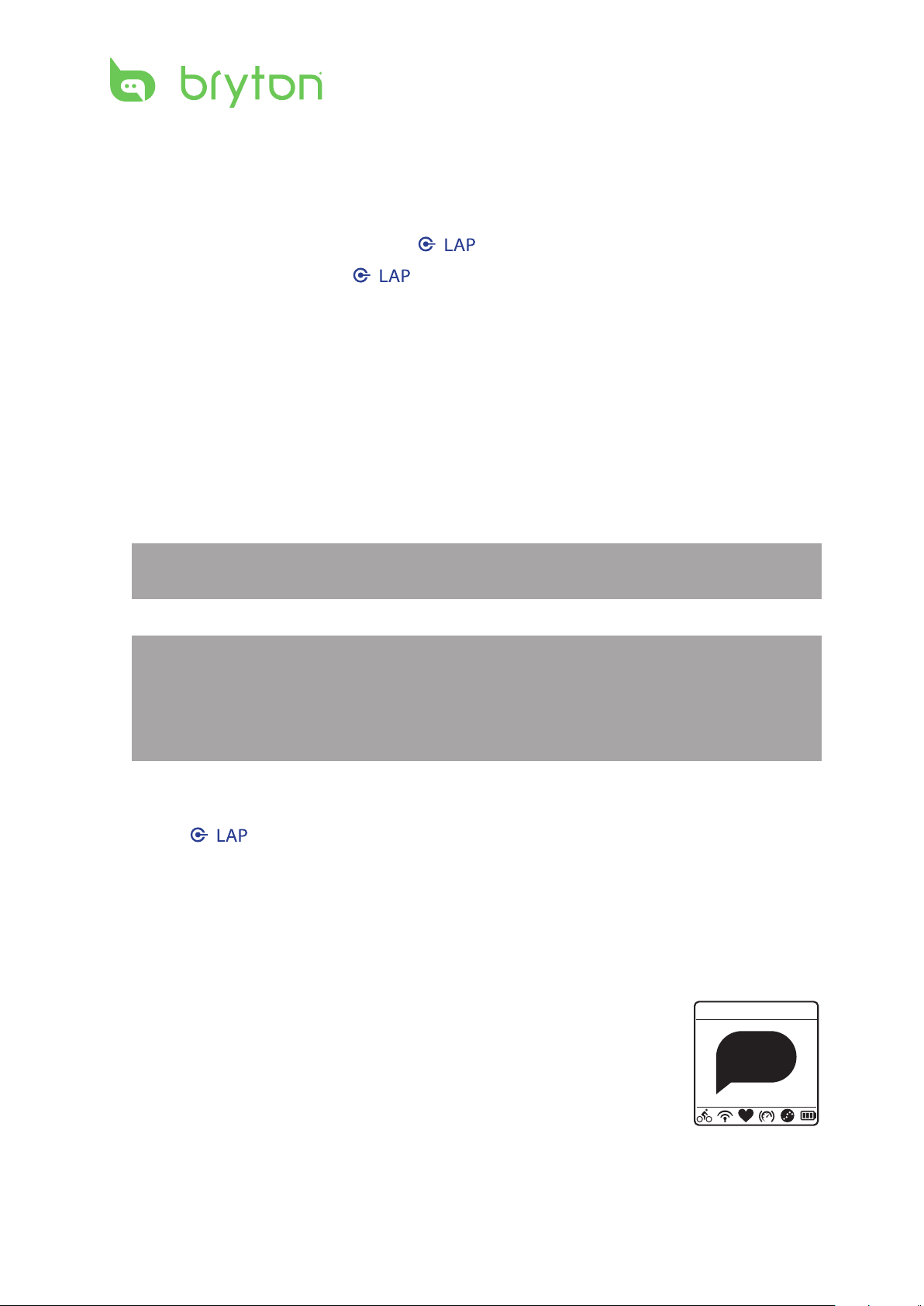
Step 4: Acquire Satellite Signals
Once the Amis S430/S630 is turned on, it will automatically search for satellite signals. While
the device is searching for satellite signals, the screen may display:
Pls Reposition•
No GPS signal or GPS signal is weak. Under this environment,
it is very dicult to get GPS position x. This status usually
happens when you’re in urban area or close to buildings.
Please move to an open area to acquire better GPS reception.
Page 10

ENGLISH
Amis S430/S630 User’s Manual
9
Searching•
Searching
Fixed
GPS should be able to acquire position in few minutes.
When ( ) appeared, it is recommend to move to an open
area until ( ) is displayed to acquire as many satellites as
possible.
Fixed•
GPS position is xed. The screen will automatically enter data
page.
NOTE:
For a more accurate measurement the rst time you use the device, please stay outdoor •
for at least 10 minutes with no obstructions overhead before performing a GPS search.
If you are unable to get the GPS reception after 5 minutes or more, try again at another •
location.
For more information on receiving GPS signals, refer to • Receiving GPS Signals section.
Download Bryton Update Tool
NOTE: Bryton Update Tool can notify you if a new software version or GPS data is available.
The newer GPS data can speed up the GPS acquisition. We highly recommend you to check
for updates every 1-2 weeks.
1. Go to http://www.brytonsport.com/help/start and download Bryton Update Tool.
2. Follow the on-screen instructions to install Bryton Update Tool.
Share Your Records
Share Your Tracks to Brytonsport.com
1. Sign up/log in on Brytonsport.com
a. Go to http://www.brytonsport.com/help/start.
b. Register a new account or use your current Bryton account to log in.
NOTE: Bryton account is the email address used to register as a member of
brytonsport.com.
Page 11
Amis S430/S630 User’s Manual
10
2. Connect to PC
Pairing
Next
Bryton mobile app
INSTALLING...
Pairing
waiting for pairing
Turn on your Amis S430/S630 and connect it to your computer by using USB cable.
3. Share Your Records
a. Go to http://www.brytonsport.com/help/landing. Click “Upload Files” button. Then,
click “Select from Files”.
b. Choose to save as “History”. Then, click “Select and Upload les”.
c. Select FIT les from Bryton folder in the device.
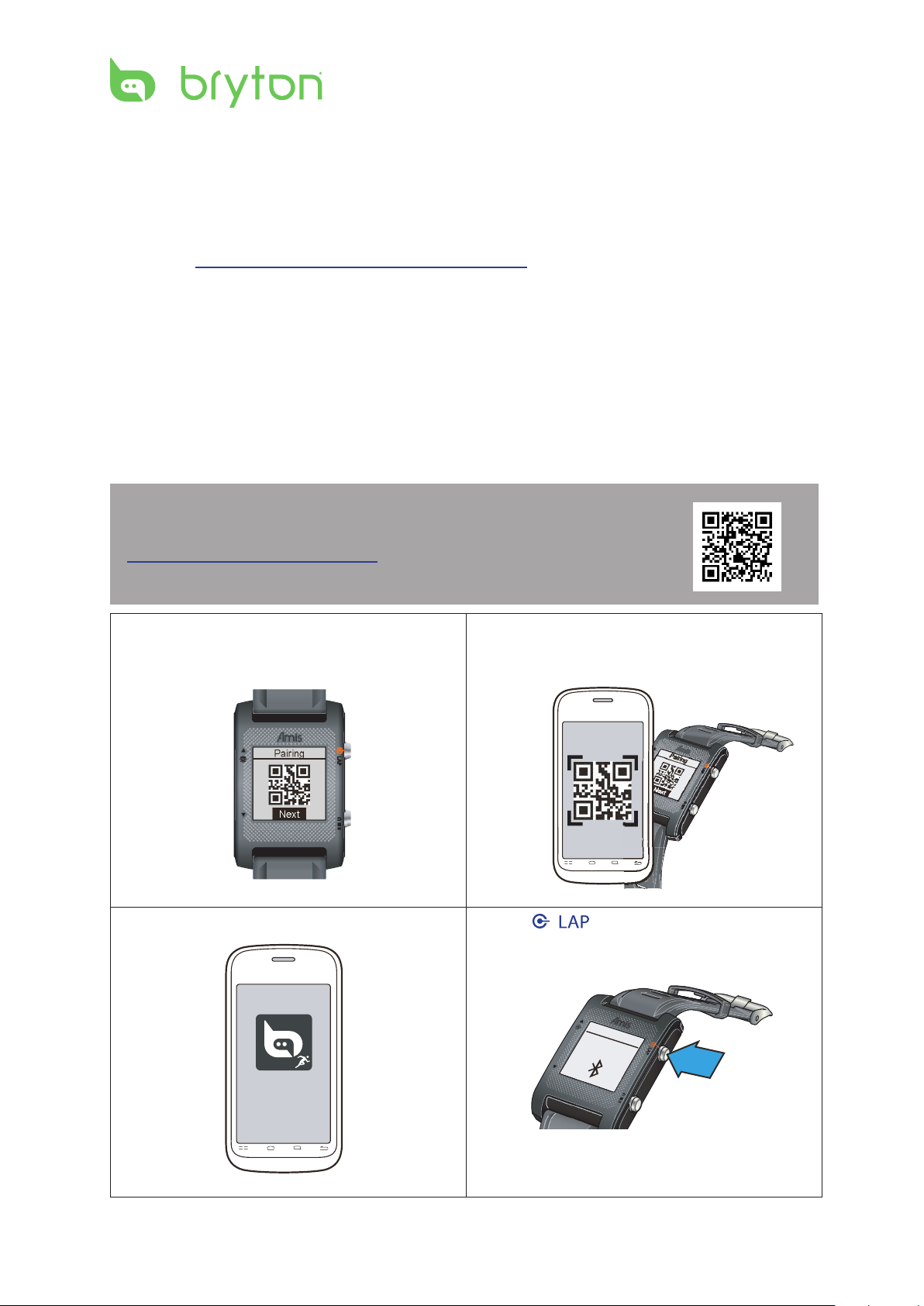
Share Your Tracks via Bryton Sports APP
When using the device for the rst time, please download Bryton Mobile APP and pair your
mobile phone with Amis S430/S630.
NOTE:
You can also scan QR code here or go to •
corp.brytonsport.com/app/sports to download Bryton APP.
You need to install the Bryton APP to enable the notication feature.•
a. Go to Settings > General > Bluetooth >
Pairing.
c. Install the Bryton APP.
b. Use mobile phone to scan QR code to
download Bryton APP.
d. Press / and leave Amis device with
the “Waiting for pairing”.
Page 12
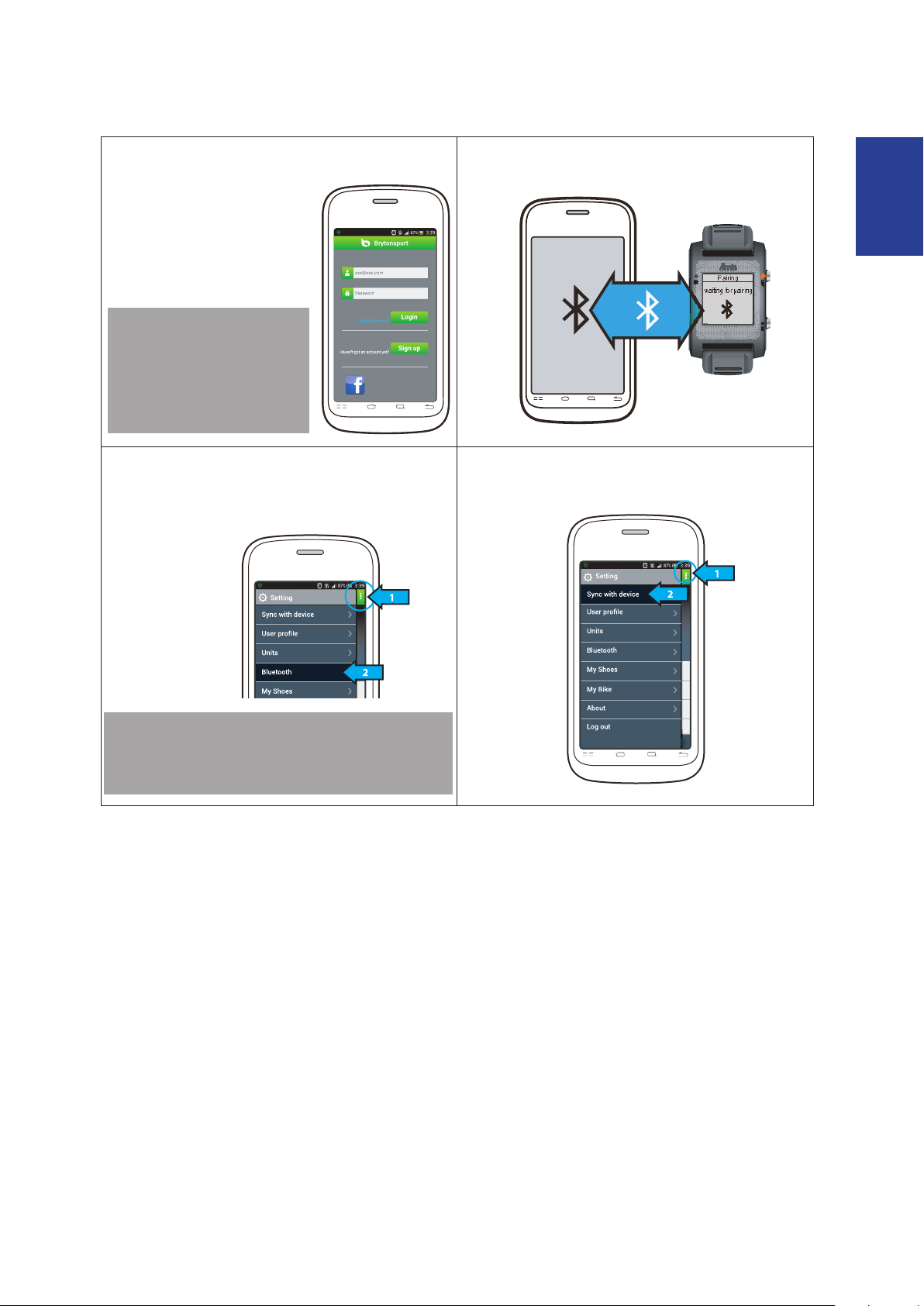
ENGLISH
Amis S430/S630 User’s Manual 11
e. Sign up/log in on Bryton APP
Pairing
waiting for pairing
Register a new account
or use your current
Bryton Account to log in.
NOTE: Bryton Account
is the email address
that you used to register
a member of
brytonsport.com.
f. Make sure Bluetooth on mobile phone and
Amis are turned on.
g. Pairing your mobile phone with Amis
Select Setting > Bluetooth > Pairing.
Once the Amis appears on the list, select it
to pair.
NOTE: The pairing process is required only
one time. Once completed, your Amis and
mobile phone will remain paired.
h. Later, tap Sync with device, the workout
records will sync to Bryton APP.
Page 13
Amis S430/S630 User’s Manual
12
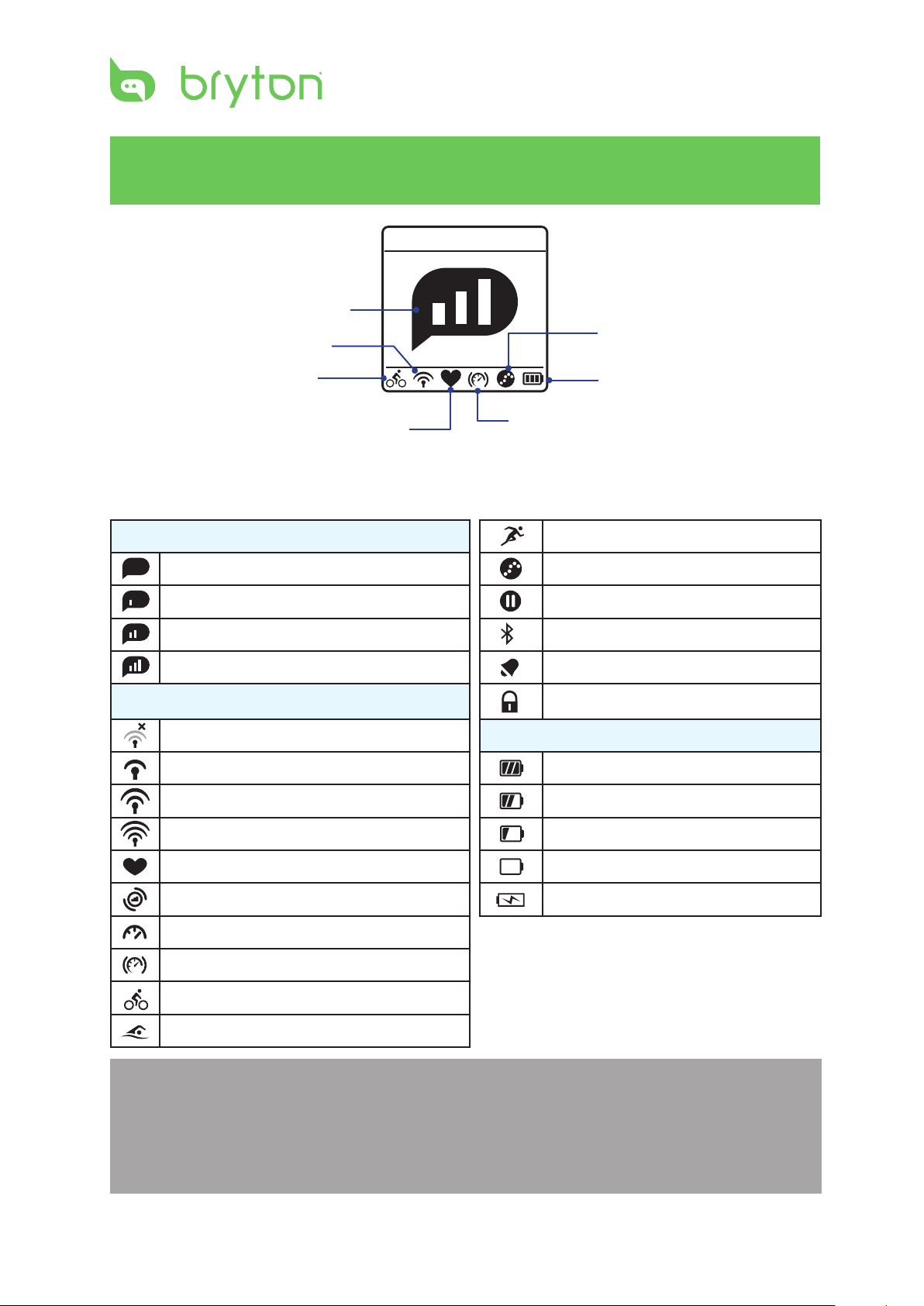
Fixed
1
GPS signal status
GPS positioning status
Status Page
Log recording
Bike Type (Amis S630 only)
Heart rate sensor indicator
Icon Description
GPS Signal Status Running mode
No Signal Log recording in progress
Poor * Recording is paused
Fair ** Bluetooth function is enabled
Good ** Alarm
GPS Positioning/Function Status Lock screen
No signal (not xed) Power Status
Weak Full battery
Normal Half battery
Battery level
Cadence sensor indicator (Amis S630 only)
Good
Heart rate sensor active Battery depleted
Cadence sensor active (Amis S630 only) Battery charging
Speed sensor active (Amis S630 only)
Combo sensor active (Amis S630 only)
Cycling mode (Amis S630 only)
Swimming mode (Amis S630 only)
NOTE:
Only the active icons are displayed on the screen.•
When the speed & cadence dual sensor is activated, the sensor icon will appear at the •
speed sensor icon position.
* Please go to an open area for better reception.
** When blinking, this indicates the device is still searching for the GPS signal.
Low battery
Page 14
ENGLISH
Amis S430/S630 User’s Manual 13
Receiving GPS Signals
Trip Time
Total Dist.
11
00:31:00
Cycling
k
m
k
m
Trip Time
Total Dist.
11
00:31:00
Cycling
k
m
Total Dist.
11
00:31:00
Cycling
Trip Time
Searching
Searching
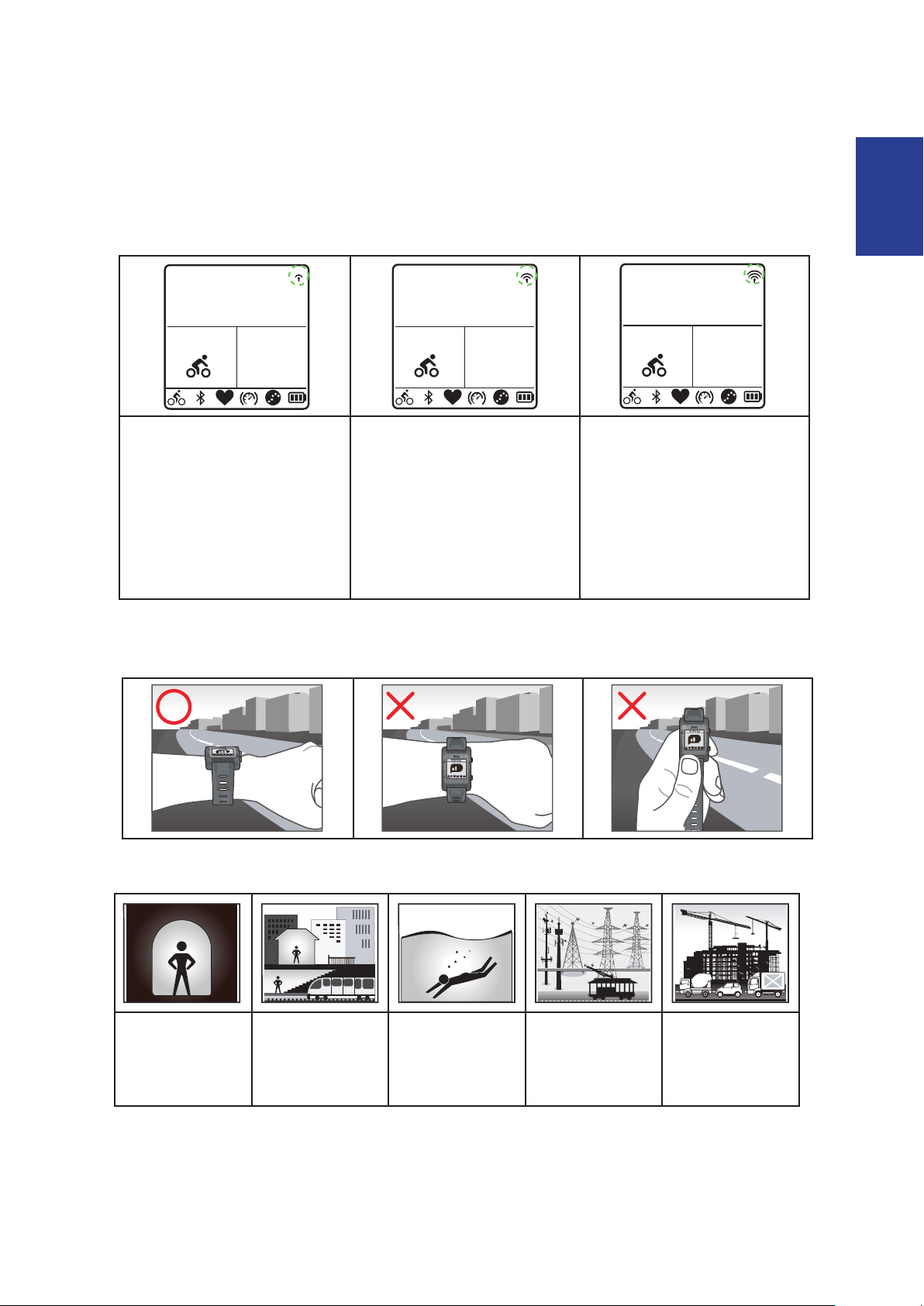
Amis implements a status page to indicate current GPS signal strength. After position-x •
is done, you can still check GPS status at data page by inspecting the icon located at upright corner.
GPS signal is weak.
The satellite condition is
GPS signal is normal.
Adequate for normal use.
GPS signal is good.
only sucient for positionx. This situation may
not be sustained if your
sky-view changes, such as
going to the obstructed
environments.
The best way to allow GPS get your position is to wear the watch on your wrist, with the •
watch surface facing up. Please do not let the antenna facing down or cover it with hand.
Please avoid the obstructed environments since they might aect the GPS reception.•
Tunnels Inside rooms,
building, or
underground
Under water High-voltage
wires or
television
Construction
sites and heavy
trac
towers
Page 15
Amis S430/S630 User’s Manual
14
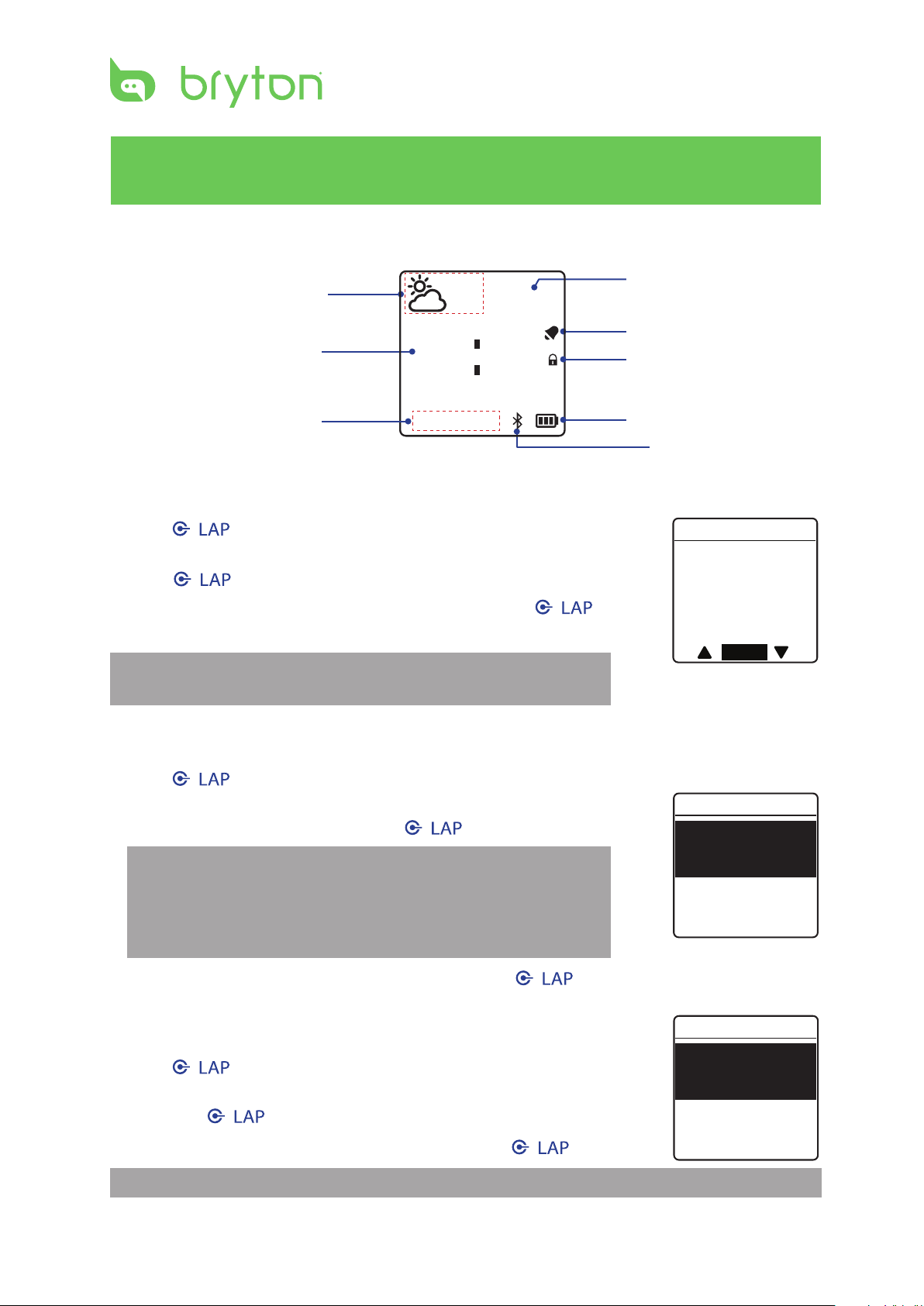
Display Screen
10
12:05
18OC
09/06
MON
AM
35
01:00
Current Time
Daylight Saving
08:24
Time
Set Time1
Off
Set Time2
Alarm
Set Alarm
AM 08:00
On
Switch
Clock View
Current weather &
temperature
Time 1
(local time)
Current date
Auto Time Calibration by GPS
1. Press / to enter the menu mode.
2. Press p/q to select Settings > Watch > Time > By GPS and
press / to enter its submenu.
3. Press p/q to set the daylight saving time and press / to
conrm.
NOTE: Please go outdoors to acquire GPS signal when you see
“Pls Reposition” on the screen.
Time 2
(alternate time)
Alarm icon
Lock Up and Down
key
Battery level
Bluetooth icon
Manually Set Time
1. Press / to enter the menu mode.
2. Press p/q to select Settings > Watch > Time > Manual >
Set Time 1 or Set Time 2 and press / to enter its submenu.
3. Press p/q to select the desired setting and press / to conrm.
Set Alarm (Time1)
1. Press / to enter the menu mode.
2. Press p/q to select Settings > Watch > Alarm > Set Alarm
and press / to enter its submenu.
3. Pressp/q to select the desired setting and press / to conrm.
NOTE: To enable the alarm, select Settings > Watch > Alarm > Switch > On.
NOTE:
To enable the Time 2, select • Settings > Watch > Time > Manual
> Set Time 2 > Switch > On.
To change the time format, select • Settings > Watch > Time >
Time Format.
Page 16
ENGLISH
Amis S430/S630 User’s Manual 15
Exercises
Run Time
Pace
00:40:00
Distance
/
K
m
05:506.73
K
m
Distance
15.0137:10
CAD
78
Speed
Trip Time
15.0
r
p
m
K
m
h
K
m
Exercise
Train & Test
View Histroy
11:14 AM 16/04
ExercisesExercises
Running
Cycling
Triathlon
Multisport
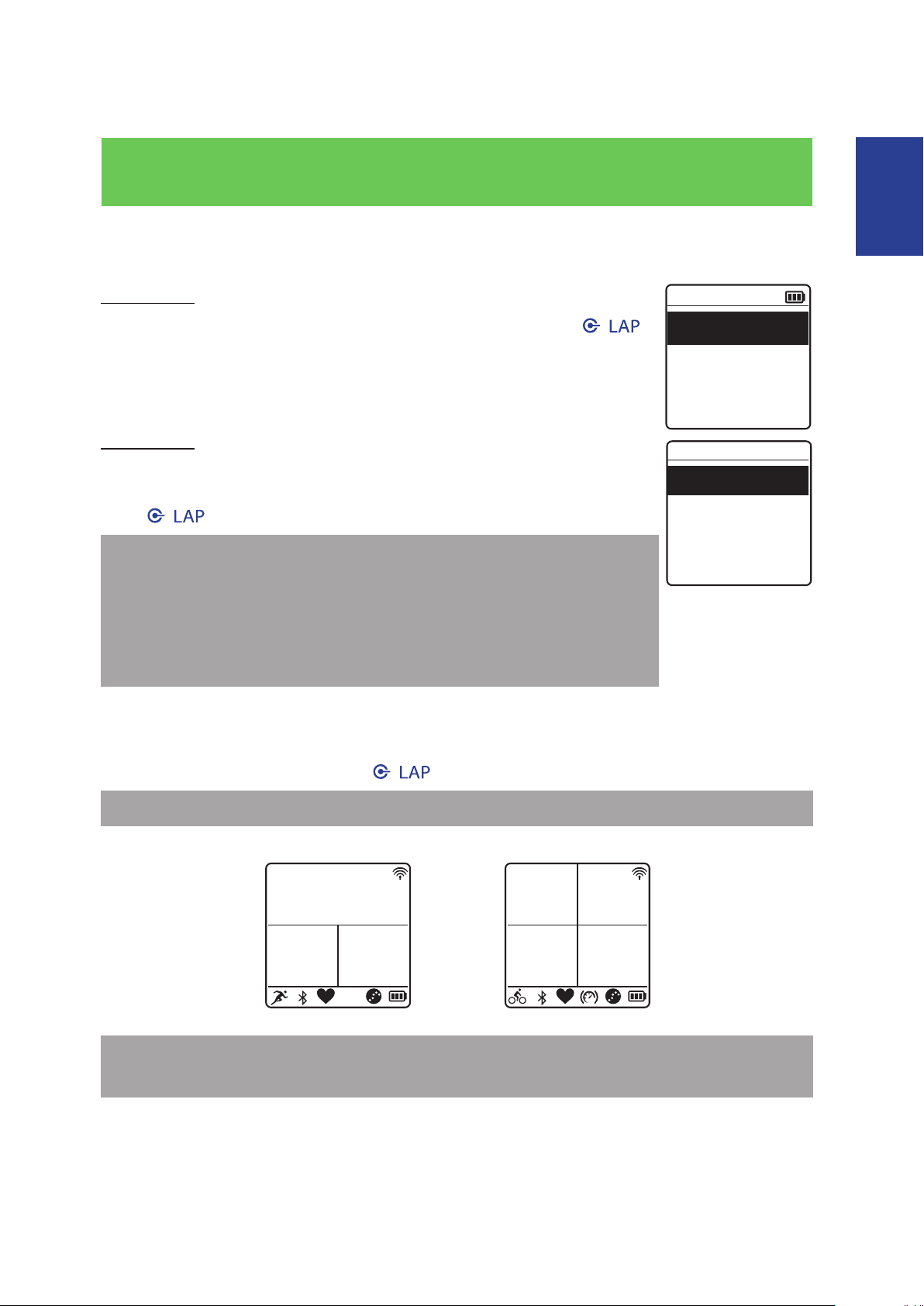
Starting an Exercise
Amis S430
To start an exercise, press p/q to select Running. Then press /
to start.
Amis S630
To start an exercise, press p/q to select Exercises > Running,
Cycling, Triathlon, Multisport, Outdoor Swim, or Others. Then
press / to start.
NOTE: In swimming mode, the Amis device auto-locks the sensor keys
(up and down keys) to prevent false contact by the water. In order to
view the data page(s), please wipe o excess water on the surface of
the watch and pause the recording before operating the sensor keys.
Press the power key to resume the recording while pausing. We highly
recommend to lock the sensor keys in humid environment.
Running/Cycling
Select Running/Cycling and press / to start exercise.
NOTE: Cycling option is only available on Amis S630.
NOTE: Displayed information varies on exercise mode and user preference. Refer to
Customize the Data Display section for more information.
Page 17
Amis S430/S630 User’s Manual
16
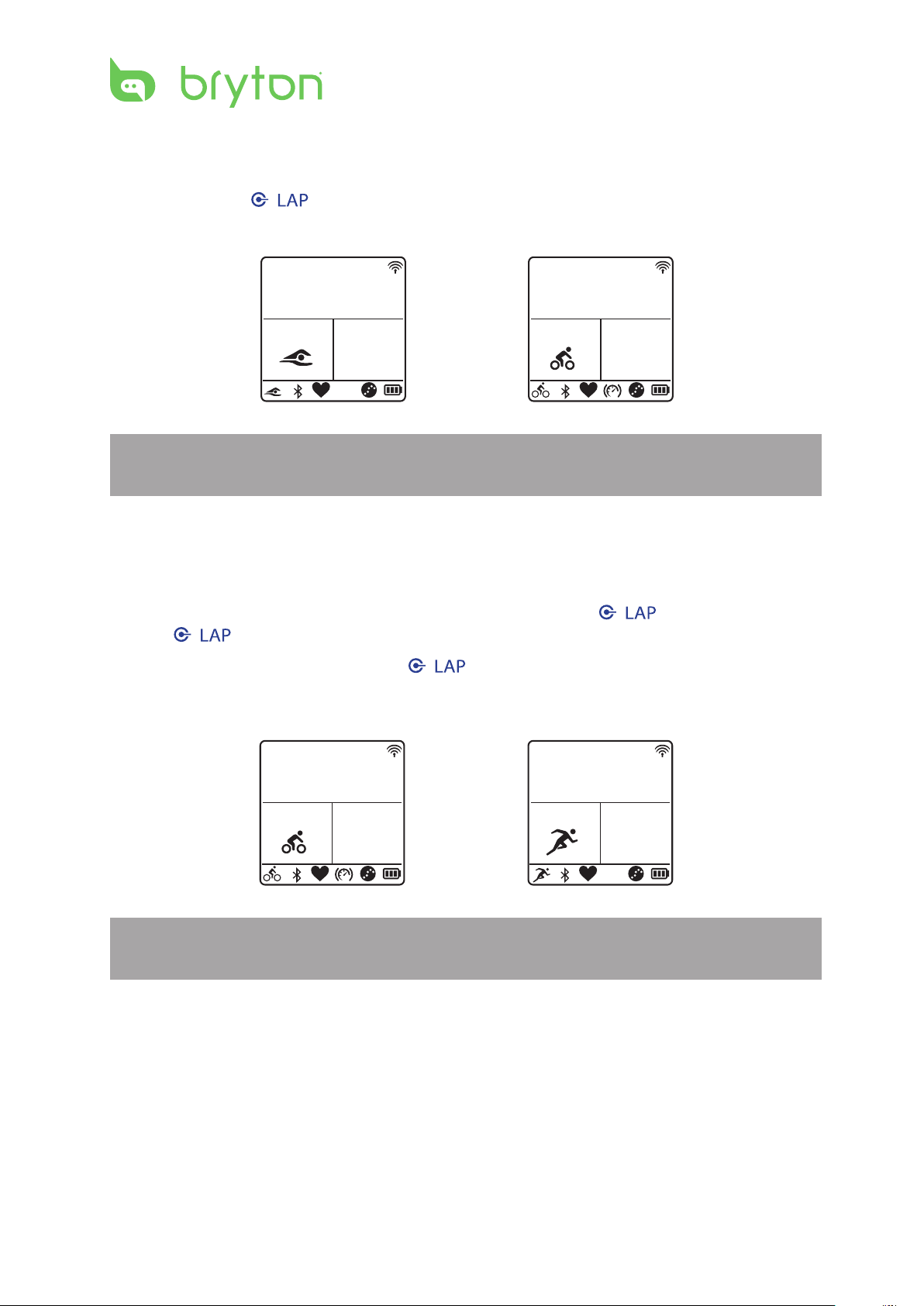
Triathlon (Amis S630 only)
Trip Time
Total Dist.
500
00:30:00
Swimming
m
Trip Time
Total Dist.
11
00:31:00
Cycling
K
m
Trip Time
Total Dist.
11
00:31:00
Cycling
K
m
Trip Time
Total Dist.
6.73
00:40:00
Running
K
m
The exercise information will be displayed as following order: • Swimming > Cycling >
Running. Press / to switch to the second or third sport.
To add the transition time, refer to • Enable Triathlon Transition Time section.
NOTE: Displayed information varies on exercise mode and user preference. Refer to
Customize the Data Display section for more information.
Multisport (Amis S630 only)
During the Multisport exercise and the mode setting is set to • Manual, press p/q select
the desired sport (Running, Cycling, or Swimming) and press / to conrm. Then
press / to start exercise.
To switch to the second sport, press • / to display the menu option. To preset the
sports sequence in Multisport mode, refer to Multisport Sequence Setup section.
NOTE: Displayed information varies on exercise mode and user preference. Refer to
Customize the Data Display section for more information.
Page 18
ENGLISH
Amis S430/S630 User’s Manual 17
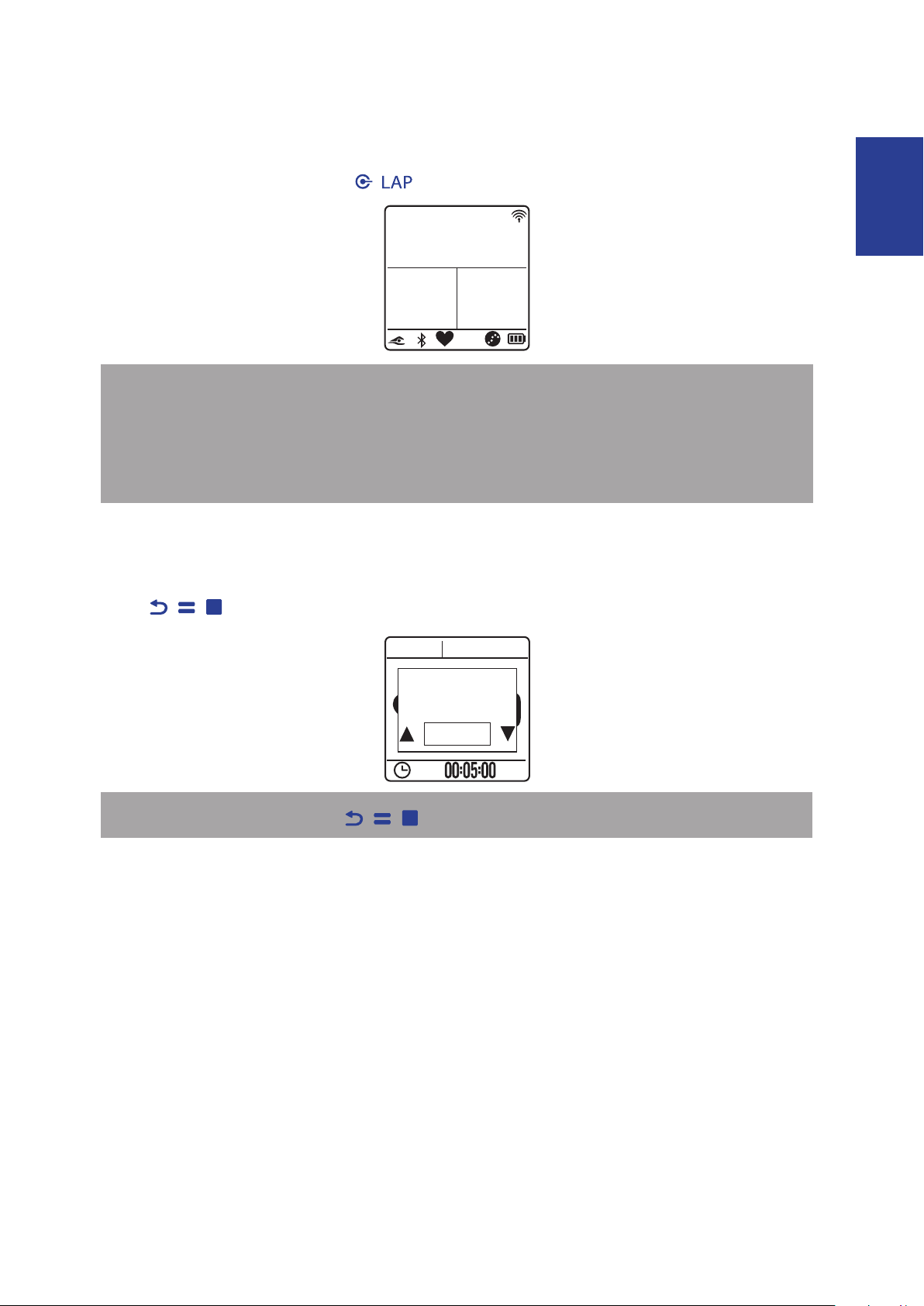
Outdoor Swim (Amis S630 only)
Ex. Time
Speed
00:30:00
Distance
K
m
h
1.0500
m
r
p
m
1/1 85
Yes
Do you want
to stop?
Select Outdoor Swim and press / to start exercise.
NOTE: In swimming mode, the Amis device auto-locks the sensor keys (up and down
keys) to prevent false contact by the water. In order to view the data page(s), please wipe
o excess water on the surface of the watch and pause the recording before operating
the sensor keys. Press the power key to resume the recording while pausing. We highly
recommend to lock the sensor keys in humid environment.
Pause/ Stop Exercising
Press / / to pause the recording and press again to stop the recording.
NOTE: When recording, press / / twice to stop recording.
Page 19
Amis S430/S630 User’s Manual
18
Switch the Data Page
Run Time
01:05:57
Sunset
18:43:47
Avg SPD
Avg CAD
15.0
Avg HR
r
p
m
78131
b
p
m
K
m
h
Distance
6.7340:00
Calories
330
Pace
Run Time
05:48
K
C
A
L
/
K
m
K
m
Smart Pause
Enable
Yes
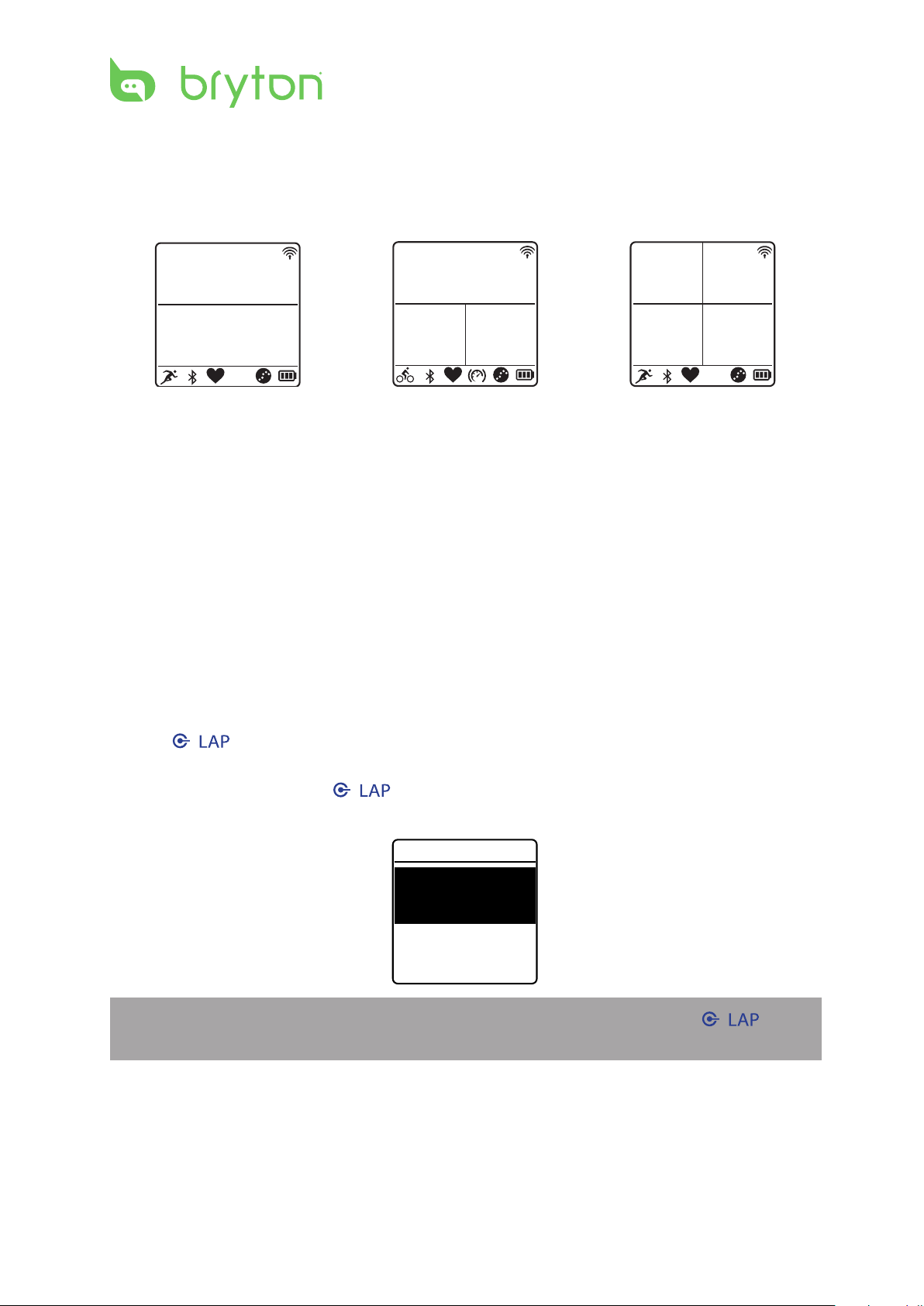
When you start an exercise, the data view appears on the screen. The Data Page displays
information varies based on your personal setting.
2-grid display 3-grid display 4-grid display
To customize the data page, refer to Customize the Data Display section.
Press q to switch data screen page. However if the Auto Scroll feature is enabled, the data
view will automatically switch pages at the preset time. To enable the Auto Scroll feature,
refer to Congure Auto Scroll section.
Smart Pause
When you have a lot of obstacles along your route such as trac lights, crosswalk, etc.,
this can really impact your recorded data. When the function is activated, the time and
distance will automatically pause once you stop moving and resume once you start riding to
enhance your data eciency.
1. Press / to enter the menu mode.
2. Press p/q to select Settings > Exercises > Running, Cycling, Outdoor Swim, or Others
> Smart Pause and press / to enter its submenu.
3. Select Yes to enable the function.
NOTE: On Amis S430, select Settings > Exercises > Smart Pause and press / to
enter its submenu.
Page 20
ENGLISH
Amis S430/S630 User’s Manual 19
Lap
Location
Smart Lap
AvgPace
05:50/km
Total
03:18:57
Lap
Smart Lap
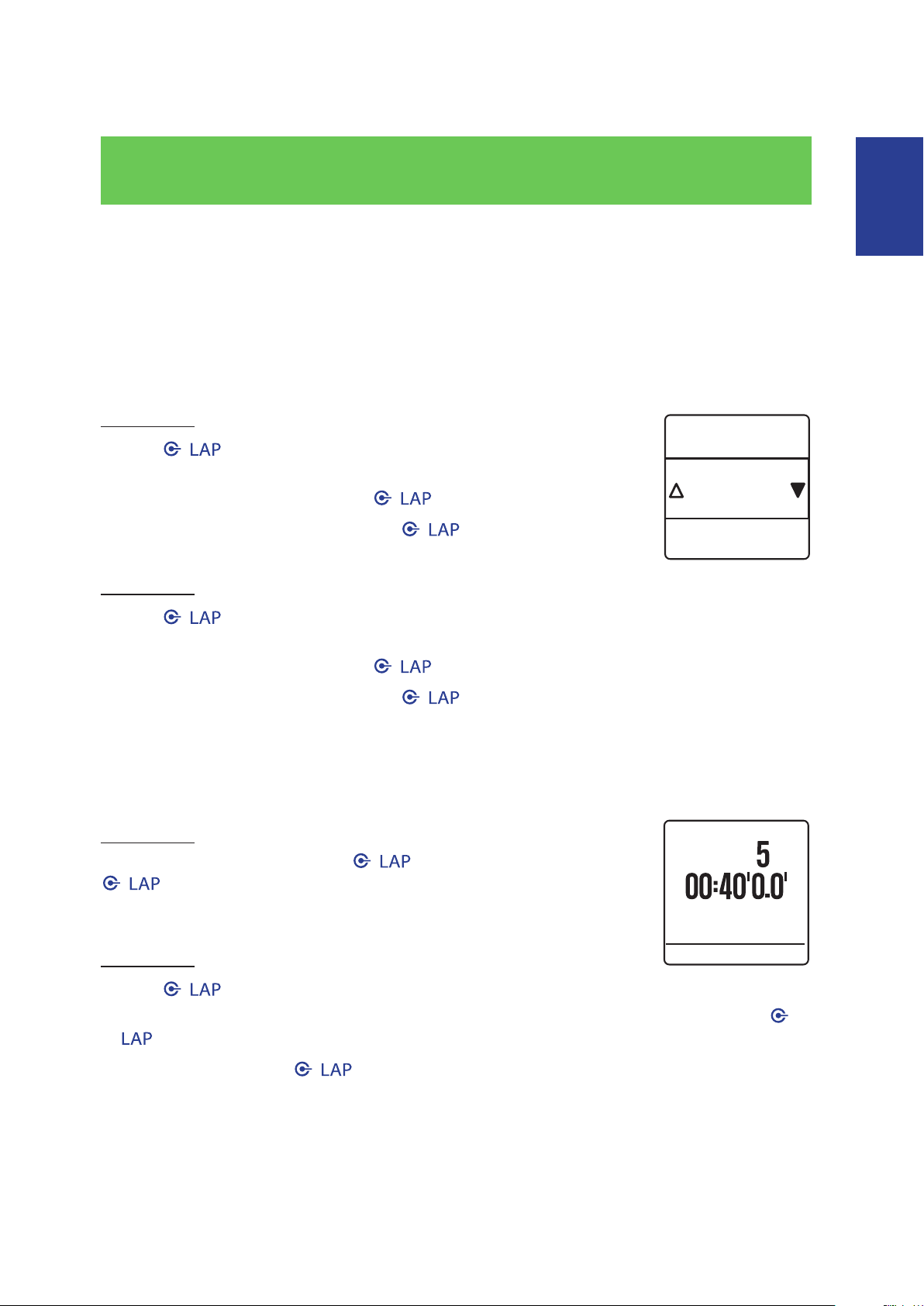
Smart lap can automatically mark laps based on a dened distance or location. Whenever
you reach the distance or pass the location, the device will trigger a lap marking.
Distance• : to mark laps based on a dened distance, such as every kilometer or every mile.
Location• : to mark laps based on a given position. Good for a course or route where you
pass the same location over and over again.
Amis S430
1. Press / to enter the menu mode.
2. Press p/q to select Settings > Exercises > Smart Lap >
Distance or Location and press / to enter its submenu.
3. Set the preferred criterion and press / to conrm.
Amis S630
1. Press / to enter the menu mode.
2. Press p/q to select Settings > Exercises > Running, Cycling, or Others > Smart Lap >
Distance or Location and press / to enter its submenu.
3. Set the preferred criterion and press / to conrm.
Mark Lap
To mark a lap, do the following:
Amis S430
Start an activity rst by pressing / . While recording, press
/ to mark lap. When using Lap, the Lap screen will be
displayed while you are doing exercise or training.
Amis S630
1. Press / to enter the menu mode.
2. Press p/q to select Settings > Exercises > Running, Cycling, or Others and press /
to enter its submenu.
3. While recording, press / to mark lap. When using Lap, the Lap screen will be
displayed while you are doing exercise or training.
Page 21
Amis S430/S630 User’s Manual
20
Train & Test
Simple
Warm Up
8’0”~7’0”10’0”
148~160bpm6’0”
Work
Simple
Cooldwn
93~110bpm10’0”
Save
Yes
Save to my
Workout?
To Plan
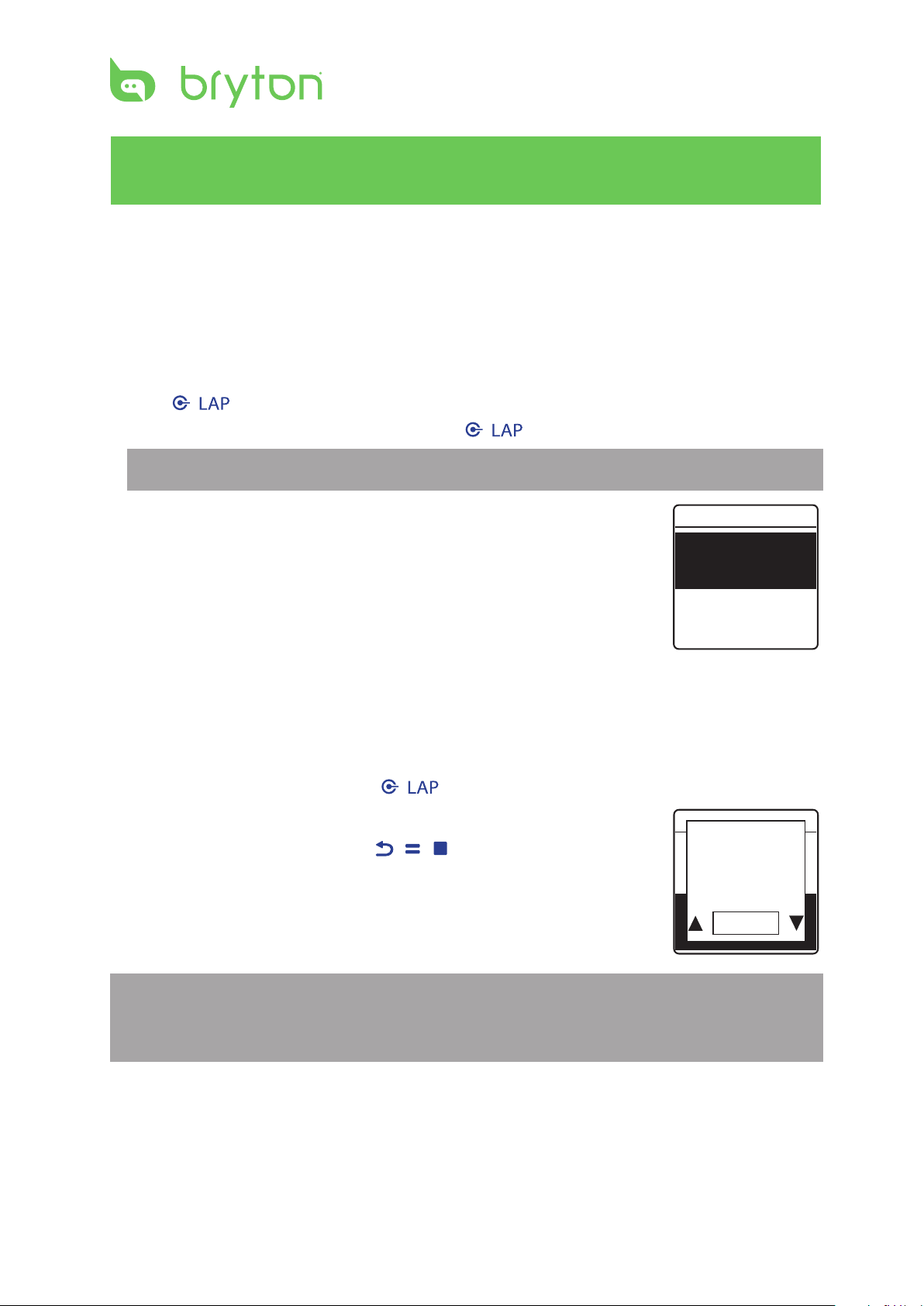
The device oers you with two types of workouts: Simple and Interval.
Simple Workouts
There are three types of simple workouts: By Time, By Distance, and By Calories.
1. Press / to enter the menu mode.
2. Press p/q to select Train & Test and press / to enter Training menu.
NOTE: On Amis S630, select Train & Test > Running or Cycling.
3. To set a simple workout, select To Plan > Simple > Warm Up,
Work, or Cooldown.
Warm Up• :
Duration (manual, calorie,time, distance), Target (Pace, HR, MHR,
LTHR).
Work• :
Duration (calorie, time,distance), Target (Pace, MHR%,
LTHR%, HR, MHR, LTHR, O ).
Cooldown• :
Duration (manual, calorie,time, distance), Target (Pace, HR, MHR,
LTHR).
4. Set the training target and press / to conrm.
5. Choose Save and press p/q to enter the workout name.
When nishing the name, press / / to save the
workout name.
NOTE: To perform the workout, go to
Amis S630: • Train & Test > Running or Cycling > My Workout > View.
Amis S430: • Train & Test > My Workout > View.
Page 22
ENGLISH
Amis S430/S630 User’s Manual 21
Interval Workouts
To Plan
Simple
Interval
Warm Up
Duration
Target
OK
Work 1
Work
158~170bmp6’00”
137~149bpm2’00”
Recovery
Cooldown
Duration
Target
OK
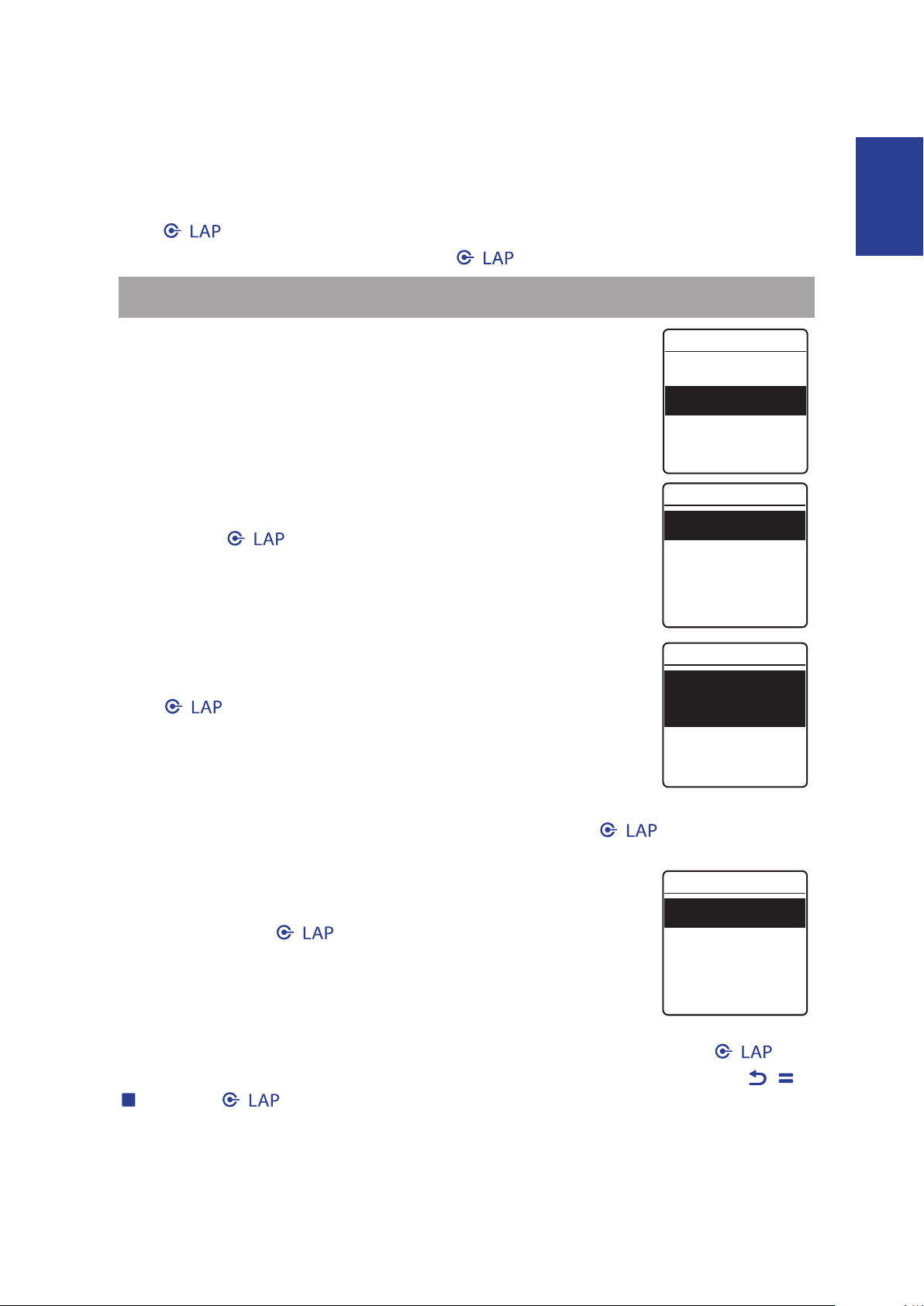
With the Interval training feature, you can use your device to customize interval workouts
which include the warm up, interval, and cool down sections.
1. Press / to enter the menu mode.
2. Press p/q to select Train & Test and press / to enter Training menu.
NOTE: On Amis S630, select Train & Test > Running or Cycling.
3. To set an interval workout, select To Plan > Interval.
4. A “Set warm up?” message appears on the screen. Select Yes
to set the “Warm up”. After the settings are complete, select
OK and press / to continue.
5. Set the interval workout settings (Work, Recovery, and
Repeat Time). When nished, press p/q to select Next and
press / to continue.
6. A “Create a new main set?” message appears on the screen.
To create another set of interval workout, select Yes and press / to conrm.
7. A “Set cool down?” message appears on the screen. Select Yes
to set the “Cool down”. After the settings are complete,
select OK and press / to continue.
8. A “Save to My Workout” message appears on the screen. Select Yes and press / to
continue. Press p/q to enter the workout name. When nishing the name, press / /
and press / to save the workout.
Page 23
Amis S430/S630 User’s Manual
22
My Workout
r
p
m
1/34 85
Bryton WKT
20’ in Z 1-2
20’ Z3
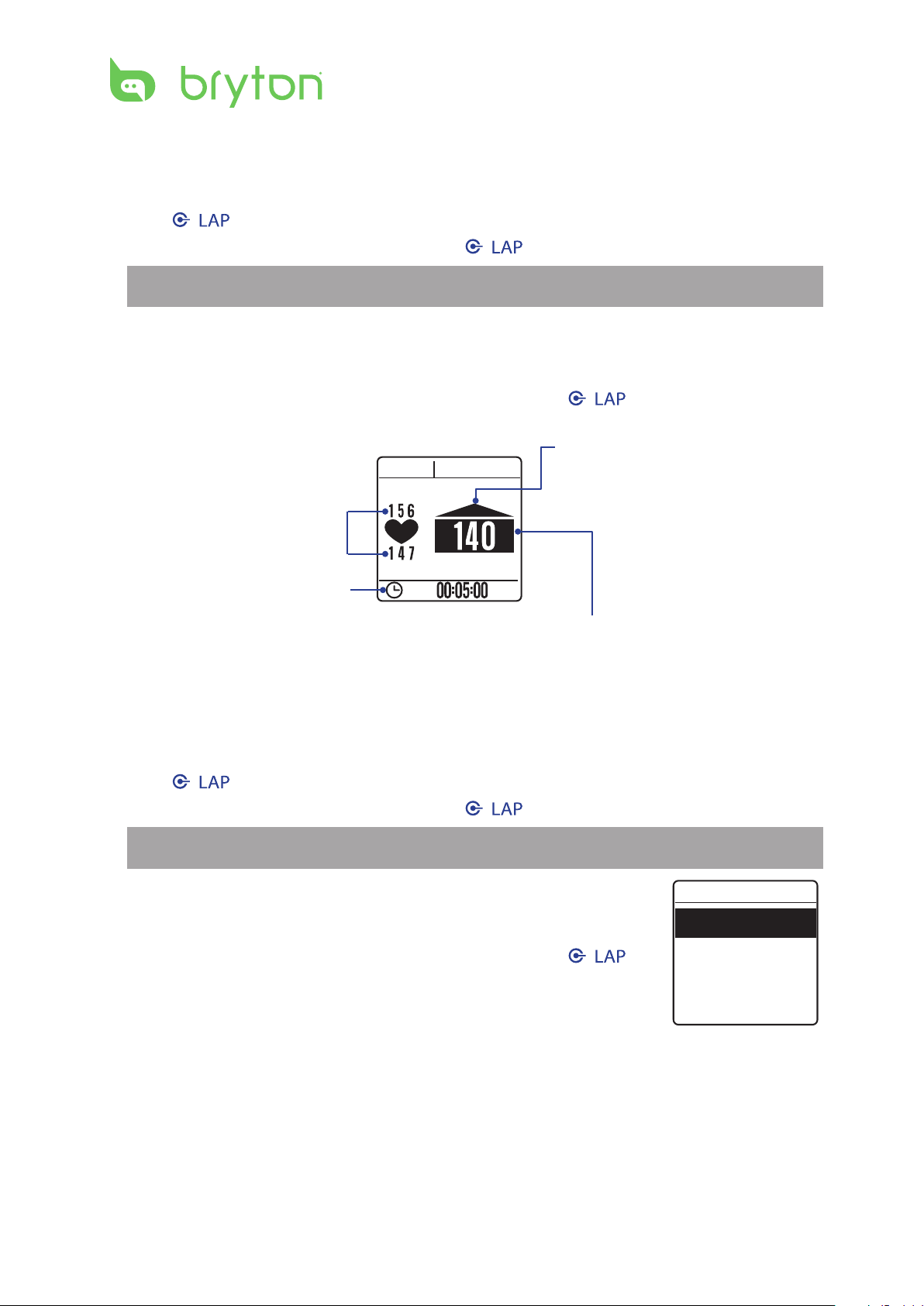
You can start a workout using your planned workouts on Amis S430/S630.
1. Press / to enter the menu mode.
2. Press p/q to select Train & Test and press / to enter Training menu.
NOTE: On Amis S630, select Train & Test > Running or Cycling.
3. Press p/q to select My Workout > View.
4. Select your desired training plan.
5. The selected workout details appear on the screen. Press / to start exercise.
Heart rate is slower than
your target training
zone, please speed up.
Target training zone
Exercise time
Current performance
Bryton Workout
Bryton Workout has preloaded on Amis S430/S630. If you don’t have it on your device,
please download from brytonsport.com.
1. Press / to enter the menu mode.
2. Press p/q to select Train & Test and press / to enter Training menu.
NOTE: On Amis S630, select Train & Test > Running or Cycling.
3. Press p/q to select Bryton WKT.
4. Select your desired training plan.
5. The selected workout details appear on the screen. Press /
to start exercise.
Page 24
ENGLISH
Amis S430/S630 User’s Manual 23
Bryton Test
Bryton Test
LTHR
MHR
r
p
m
1/34 85
Yes
LTHR
165 bpm
Save?
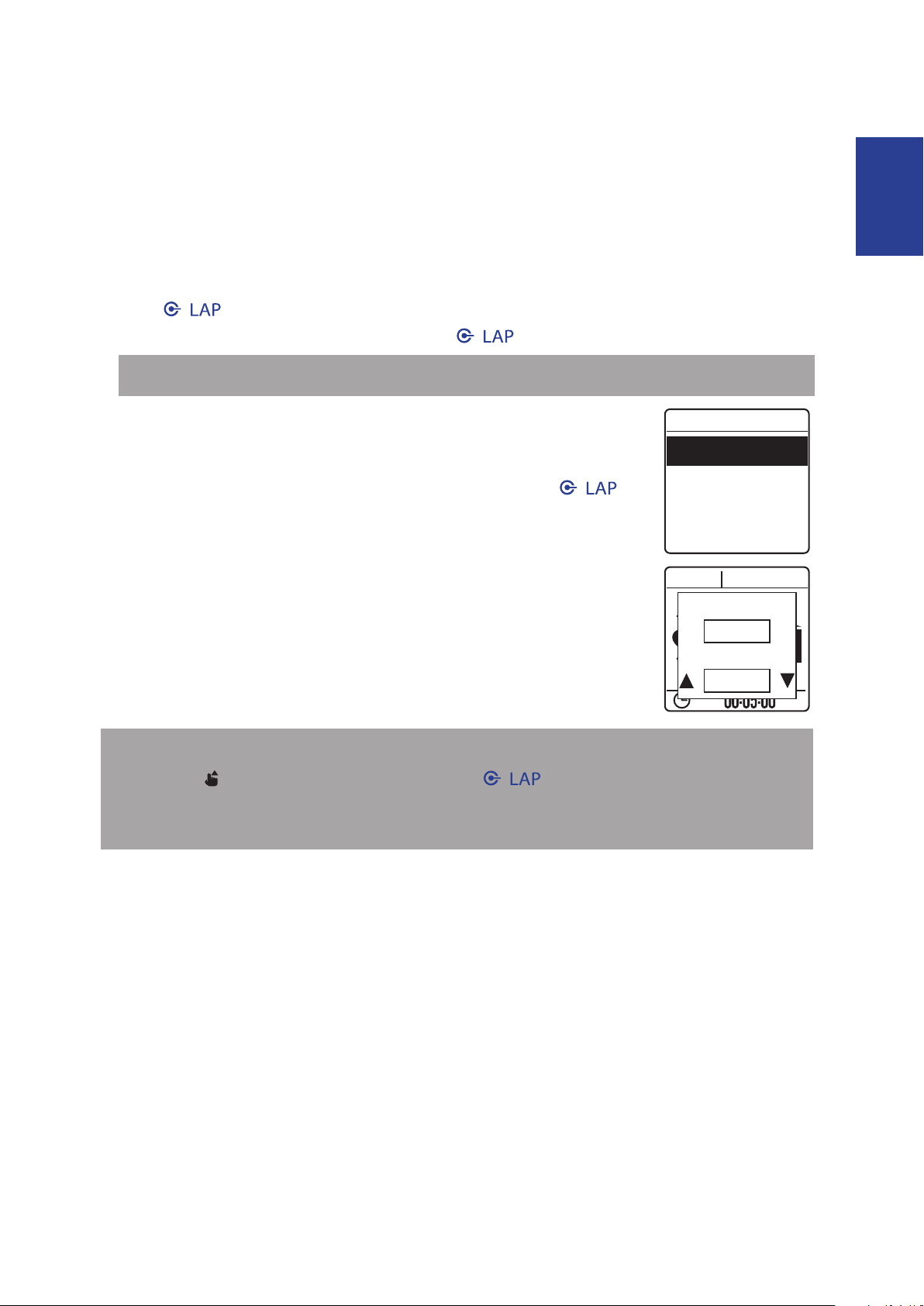
Bryton Test has preloaded on Amis S430/S630. If you don’t have it on your device, please
download from brytonsport.com. Bryton Test includes two test courses to help you
measuring your MHR and LTHR to allow Bryton Workout use these data to create target
training zone. Knowing your MHR and/or LTHR gives you a benchmark of your overall
eciency. It also help you to judge progress over time and measure your exercise intensity.
1. Press / to enter the menu mode.
2. Press p/q to select Train & Test and press / to enter Training menu.
NOTE: On Amis S630, select Train & Test > Running or Cycling.
3. Press p/q to select Bryton Test.
4. Select your desired test workout.
5. The selected workout details appear on the screen. Press /
to start exercise.
6. When nished the Bryton Test, press p/q to save the result.
NOTE:
When the •
icon appears on the screen, press / to skip the current Interval.
It is highly recommend to implement the Bryton Test and save the test results to •
enhance your training eciency.
Page 25
Amis S430/S630 User’s Manual
24
Start Training
r
p
m
1/1 85
Yes
Do you want
to stop?
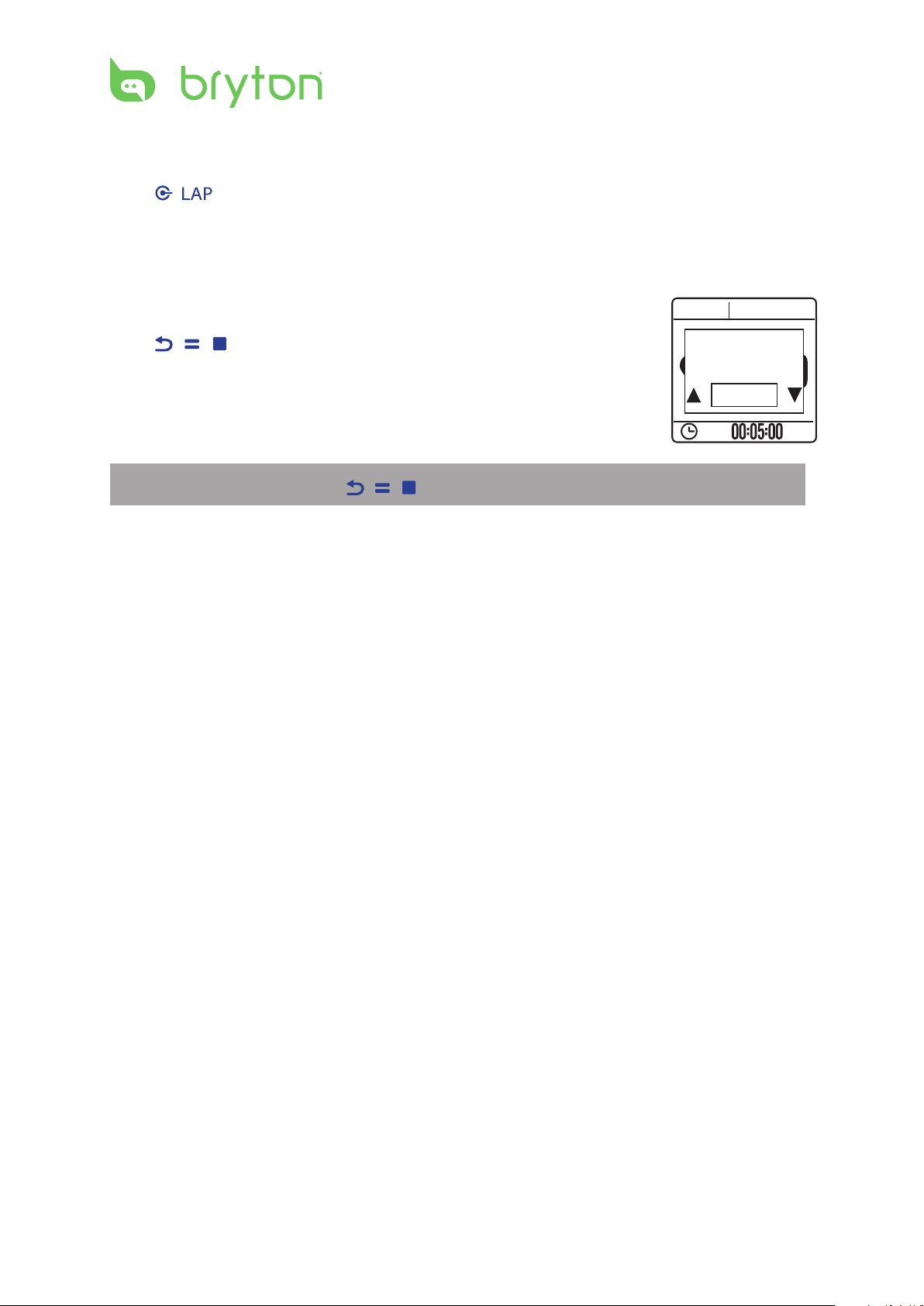
Press / to start recording the log.
Stop Training
You can stop the current training after you have reached your goal.
Press / / to stop the recording.
NOTE: When recording, press / / to stop recording.
Page 26
ENGLISH
Amis S430/S630 User’s Manual 25
View History
06:00 min/km
00:30:00 Run Time
5.00 km
150 kcal
5 laps
12/25 12:23
2/5
More
Time 68:07
Cal 376
kcal
Dist 10.68
km
Close
Total
150:00 min/km
00:06:00 Run Time
1.00 km
512 kcal
5 laps
12/25 12:23
2/5
Delete
No
Please
backup data
first. Erase?
View History
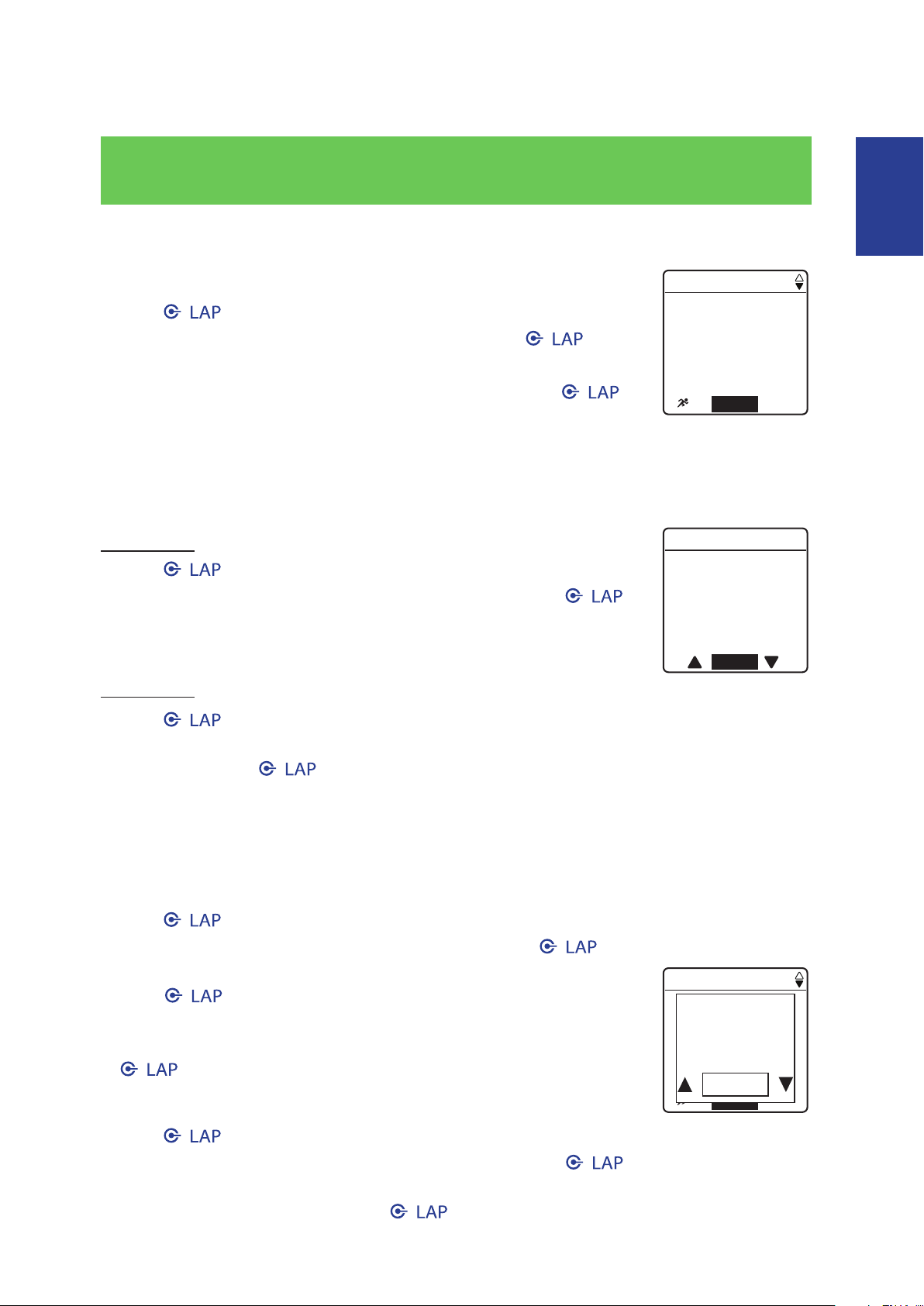
To view your history, do the following:
1. Press / to enter the menu mode.
2. Press p/q to select View History > View and press / to
conrm.
3. Use p/q to view your history. Choose More by pressing /
for more details.
View Summary
To view the summary, do the following:
Amis S430
1. Press / to enter the menu mode.
2. Press p/q to select View History > Summary and press /
to conrm.
3. Use p/q to view the activities summary.
Amis S630
1. Press / to enter the menu mode.
2. Press p/q to select View History > Summary > Running, Cycling, Outdoor Swim, or
Others and press / to conrm.
3. Use p/q to view the activities summary.
Delete Exercise Records
To delete one record, do the following:
1. Press / to enter the menu mode.
2. Press p/q to select View History > Delete and press / to conrm.
3. Press p/q to select the record that you want to delete and
press / to conrm.
4. A “Please backup data rst. Erase?” message appears on the
screen. To delete the data, press p/q to select Yes and press
/ to conrm.
To delete all records, do the following:
1. Press / to enter the menu mode.
2. Press p/q to select View History > Delete All and press / to conrm.
3. A “Please backup data rst. Erase?” message appears on the screen. To delete the data,
press p/q to select Yes and press / to conrm.
Page 27
Amis S430/S630 User’s Manual
26
Tools
Tools
Metronome
Pace Cal.
Stopwatch
Metronome
Metronome
86 spm
Stride Rate
On
86
StrideRate
SPM
Metronome
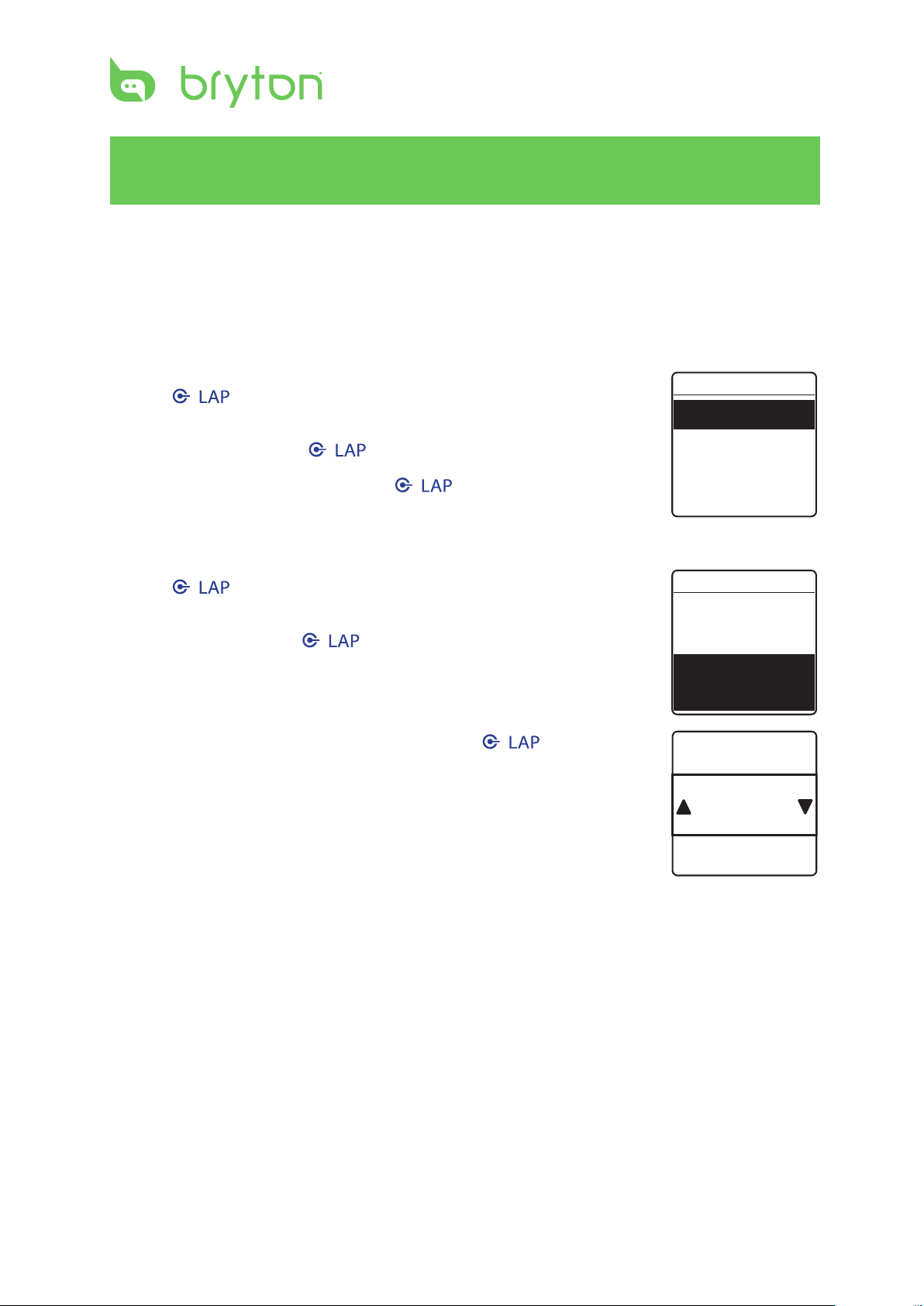
The built-in Metronome helps train your stride rate and reduces the risk of being injured.
When the metronome function is enabled, the device will beep to help you keep a steady
stride while running.
To enable the metronome function, do the following:
1. Press / to enter the menu mode.
2. In main menu, press p/q to select Tools > Metronome >
Metronome and press / to enter sub menu.
3. Press p/q to select On and press / to conrm.
To set the stride rate, do the following:
1. Press / to enter the menu mode.
2. In main menu, press p/q to select Tools > Metronome >
Stride Rate and press / to enter sub menu.
3. Use p/q to set the desired setting and press / to conrm.
Page 28
ENGLISH
Amis S430/S630 User’s Manual 27
Pace Calculator
Pace Cal.
Race Time
5 km 0:40:00
View Info
5km
Distance
Minute
40
5km 00:40:00
08:00 min/km
3km 00:23:16
07:45 min/km
Race Time
Close
Yasso 17:40
Speed 06:55
Vmax 07:26
Training Pace
Close
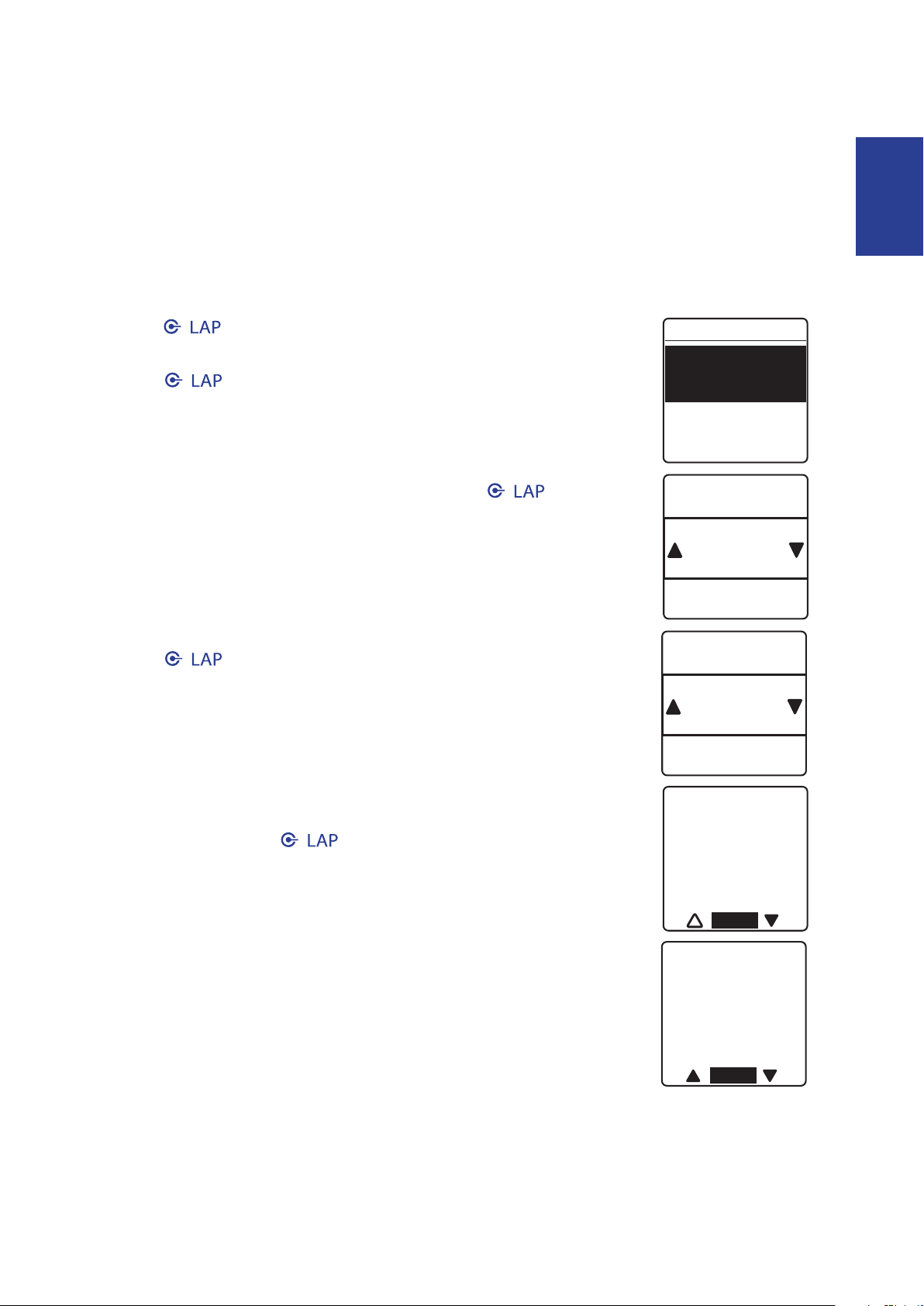
With the pace calculator function, enter the distance you ran and the length of time you
were running. It will estimate in how long it would take you to complete a variety of
dierent races. (3km, 5km, 5mi, 10km, 10mi, half marathon, marathon). Besides, it will also
predict what your personal pace should be when you are doing a Speed run, Maximum
oxygen run (Vmax), Yasso run, Tempo run, Easy run, or Long slow distance run.
1. Press / to enter the menu mode.
2. In main menu, press p/q to select Tools > Pace Cal. and
press / to enter sub menu.
3. Select Race Time to enter the run distance and run time.
4. Press p/q to select the run distance and press / to
conrm.
5. Select the run time (Hour, Minute, and Second) and
press / to conrm.
6. The estimate of dierent race time and training pace
are displayed on the screen. Press p/q to view more
information or press / to exit the screen.
Page 29
Amis S430/S630 User’s Manual
28
Stopwatch
Stopwatch
Countdown
Timer
Countdown
Start
01
00
’ 00’’
11
: :
Hour
1
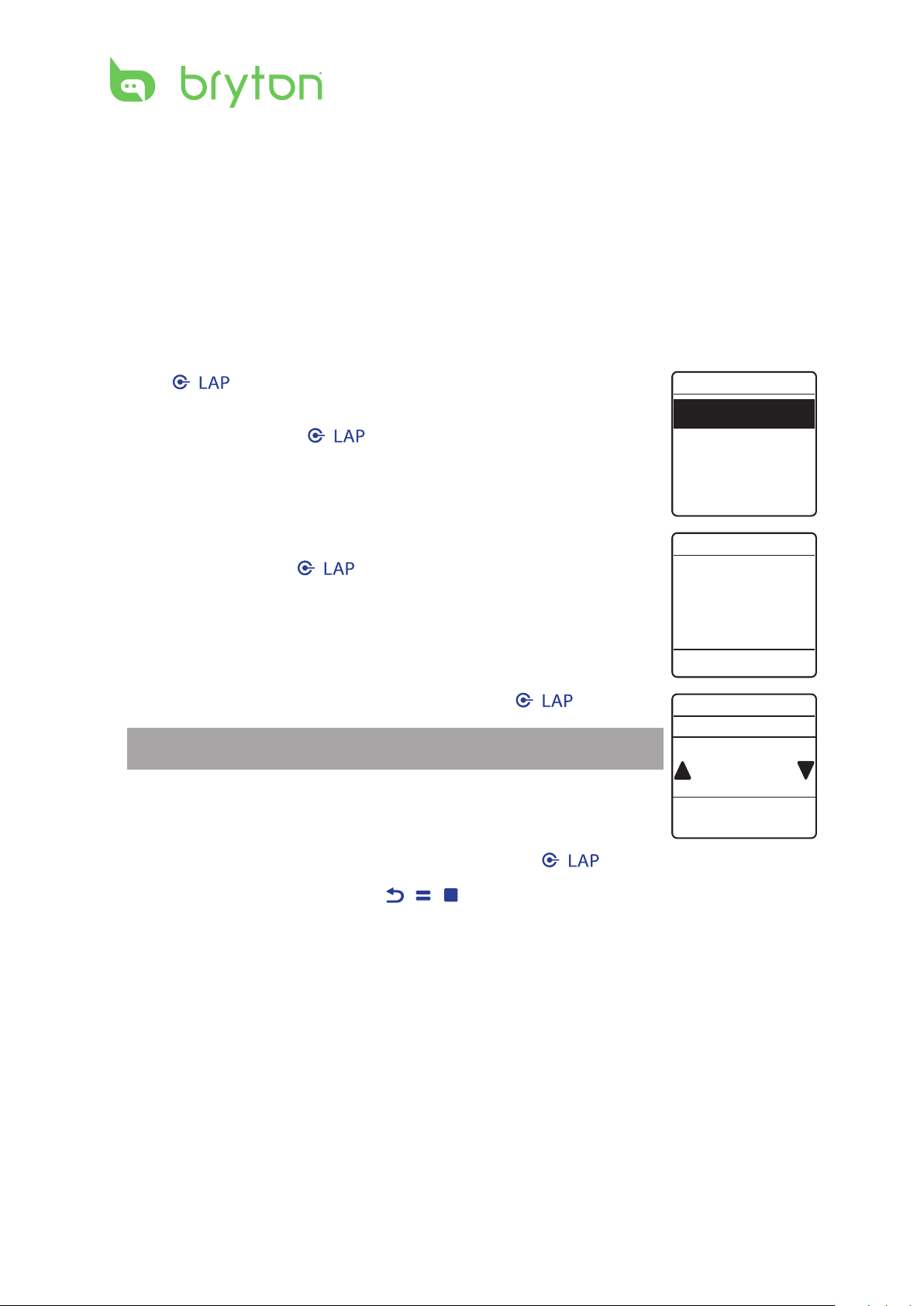
With the Stopwatch feature, you can measure the amount of time elapsed from the time
the device is activated and deactivated. You can select between two modes: Countdown
and Stopwatch. Countdown is used to notify you when a set amount of time has passed.
Stopwatch is used to record lap times within a particular period of time.
Countdown
To set the countdown time, do the following:
1. Press / to enter the menu mode.
2. In main menu, press p/q to select Tools > Stopwatch >
Countdown and press / to enter sub menu.
3. Press p/q to select the eld (Hour, Minute, or Second) that you
want to set and press / to enter the submenu.
4. Press p/q to select the desired setting and press / to conrm.
NOTE: Repeat Step 3~4 to set another eld.
5. Once all settings are complete, select Start and press / to start the countdown.
To reset the countdown, press • / / and press p/q to reset the countdown time.
Page 30
ENGLISH
Amis S430/S630 User’s Manual 29
Timer
Stopwatch
Countdown
Timer
00 57’05’’11
:
3 00:03’45”11
2 00:12’33”22
1 00:33’55”02
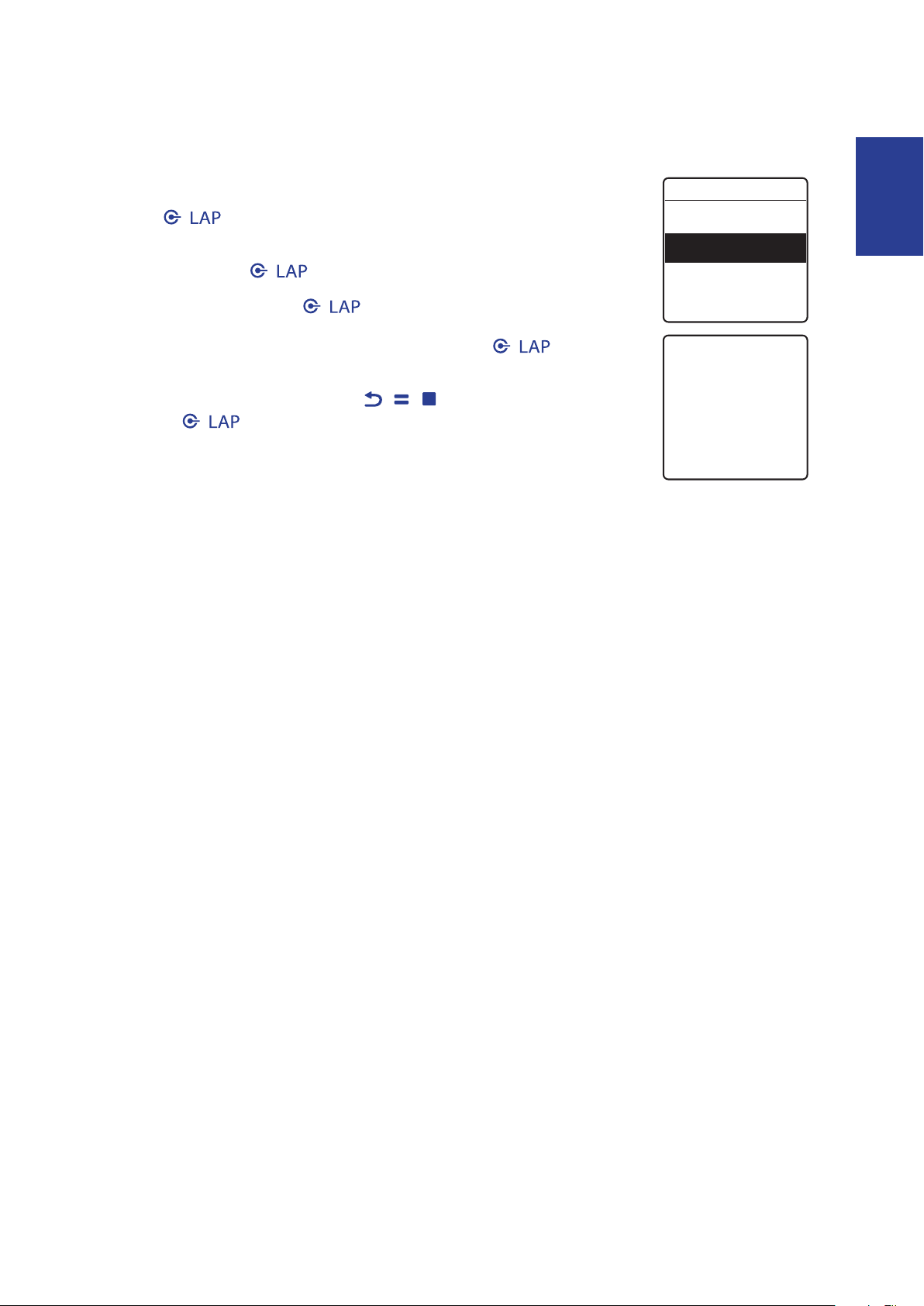
To record lap times, do the following:
1. Press / to enter the menu mode.
2. In main menu, press p/q to select Tools > Stopwatch >
Timer and press / to enter sub menu.
3. To start the timer, press / .
4. To record a lap while the watch is running, press / . It displays
the rst lap time. Repeat this step to record a new lap.
To stop recording laps, press • / / . To resume recording laps,
press / .
Page 31

Amis S430/S630 User’s Manual
30
Notication
The notication feature allows Amis S430/S630 to obtain information from a Bluetooth
enabled mobile phone. When Bluetooth features are turned on, Amis S430/S630 will notify
you of incoming calls and messages.
Turn on the Bluetooth feature on your Bluetooth enabled mobile phone and Amis S430/•
S630.
Pair your Bluetooth enabled mobile phone with Amis S430/S630. For the pairing •
instructions, please refer to Share Your Records section.
Page 32
ENGLISH
Amis S430/S630 User’s Manual 31
Settings
Run Data
Data Page 1
On
On
Data Page 2
Run Time
Distance
Data Page
Time
Pace
Distance
Heart Rate
Data Page
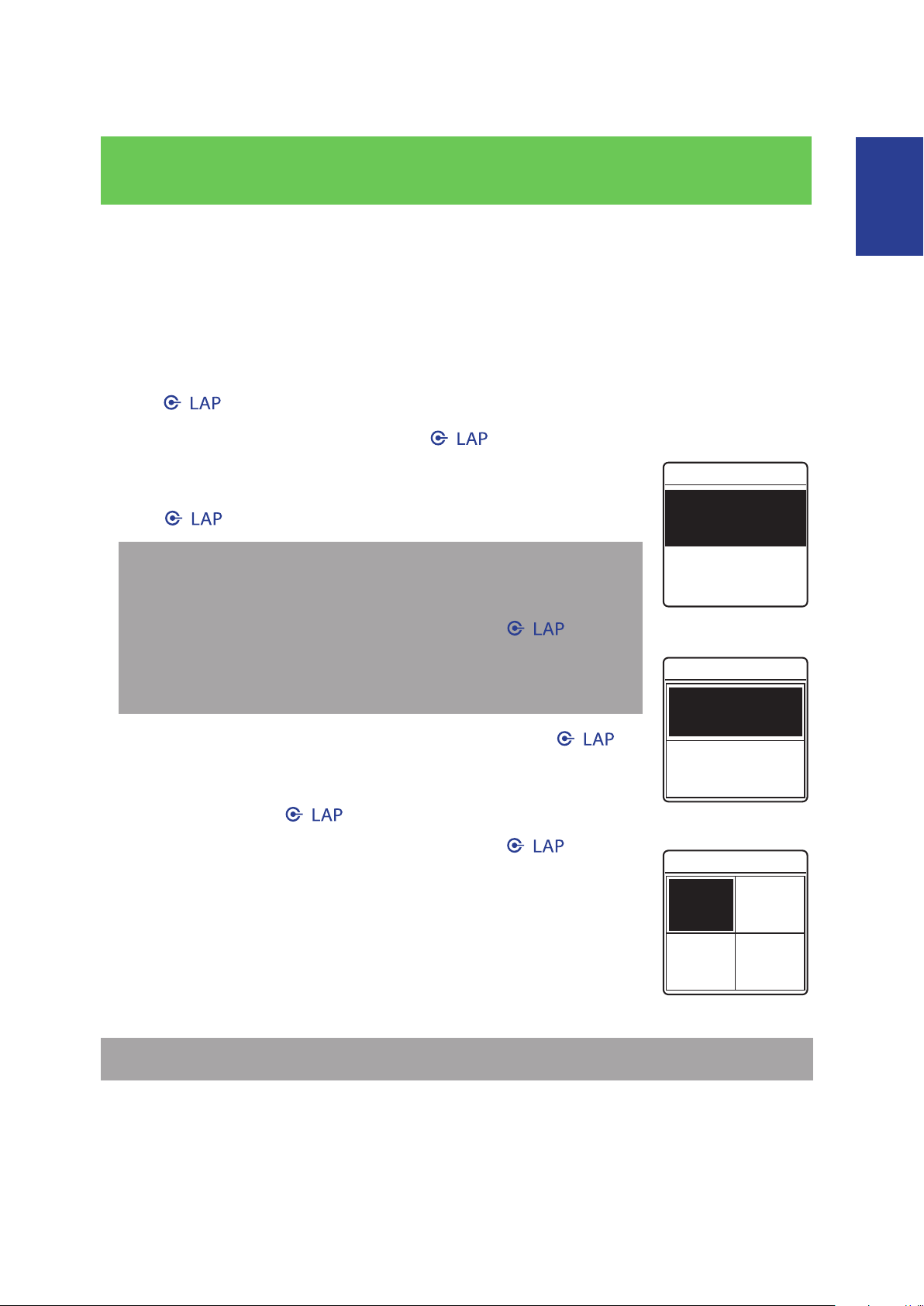
With the Settings feature, you can customize exercises settings, watch settings, general
settings, sensor settings, and user prole and/or bike prole.
Exercises Settings
Customize the Data Display
1. Press / to enter the menu mode.
2. Press p/q to select Settings and press / to enter Settings menu.
3. Press p/q to select Exercises > Data Page > Data Page >
Data Page 1, Data Page 2, Data Page 3, or Data Page 4 and
press / to enter its submenu.
NOTE:
On Amis S630, select• Exercises > Running, Cycling, Outdoor
Swim, or Others > Data Page > Data Page > Data Page 1, Data
Page 2, Data Page 3, or Data Page 4 and press
its submenu.
Lap only has Data Page 1 and Data Page 2 for personalized •
settings.
/ to enter
4. Press p/q to select the number of data elds and press /
5. Press p/q to select the item eld that you want to
6. Press p/q to select the desired setting and press /
NOTE: After the setting is complete, the Lap page appears only when Lap function starts.
to conrm.
customize, and press / to conrm the selection.
to conrm. You can customize your data page/lap page
by selecting from the various items. Refer to page 42 on
Appendix for the full list of personalized items.
2-grid display
4-grid display
Page 33
Amis S430/S630 User’s Manual
32
Set Alert
Distance
Alert
On
Trans Time
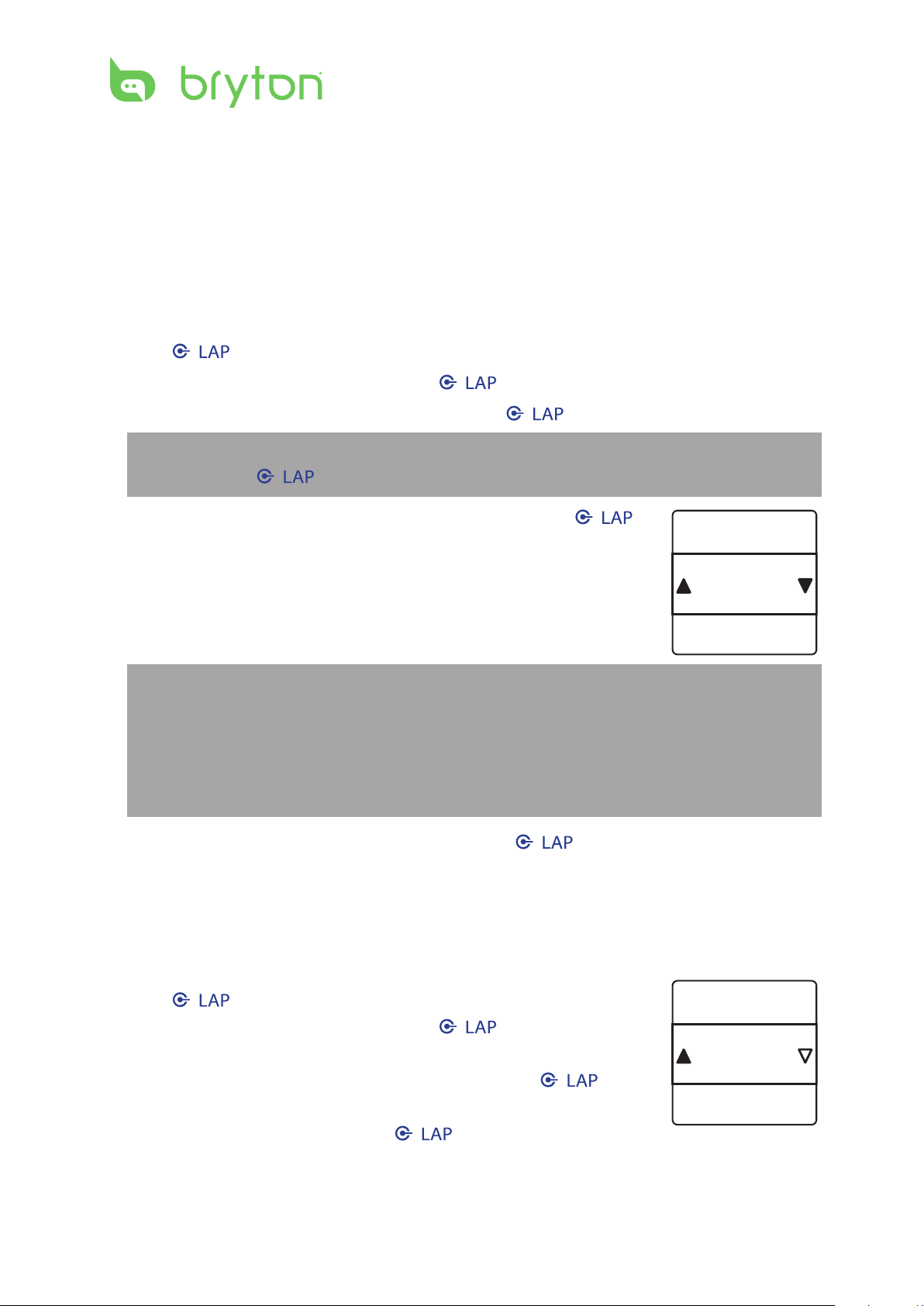
With the Alert feature, the device displays a message to notify you if:
your heart rate exceeds or drops below a specic number of beats per minute (bpm).•
you exceed or drop below a custom speed setting during your ride.•
your cadence speed exceeds or drops below a specic number of revolutions of the crank •
arm per minute (rpm).
you reach a certain amount of distance for the long workouts.•
you reach a certain amount of time for the long workouts.•
1. Press / to enter the menu mode.
2. Press p/q to select Settings and press / to enter Settings menu.
3. Press p/q to select Exercises > Alert and press / to enter its submenu.
NOTE: On Amis S630, select Exercises > Running, Cycling, Outdoor Swim, or Others >
Alert and press
4. Select Pace, HR, StrideRate, Distance, or Time and press /
to congure the necessary settings.
/ to enter its submenu.
NOTE: On Amis S630, the available options vary depending on the selected mode:
Running mode: Pace/HR/StrideRate/Distance/Time/O•
Cycling mode: Speed/Distance/Time/O•
Outdoor Swim mode: Time/Distance/O•
Others mode: Time/Distance/O•
5. Press p/q to select the desired setting and press / to conrm.
Enable Triathlon Transition Time (Amis S630 only)
With Triathlon Transition Time feature, you can add a transition time before starting the next
sport.
1. Press / to enter the menu mode.
2. Press p/q to select Settings and press / to enter Settings
menu.
3. Press p/q to select Exercises > Triathlon and press / to
enter its submenu.
4. Press p/q to select On and press / to conrm.
Page 34
ENGLISH
Amis S430/S630 User’s Manual 33
Multisport Sequence Setup (Amis S630 only)
ExercisesMultisport
Preset
View
Create New
Running
Multisport
Running
Multisport
Yes
Add transition
Time?
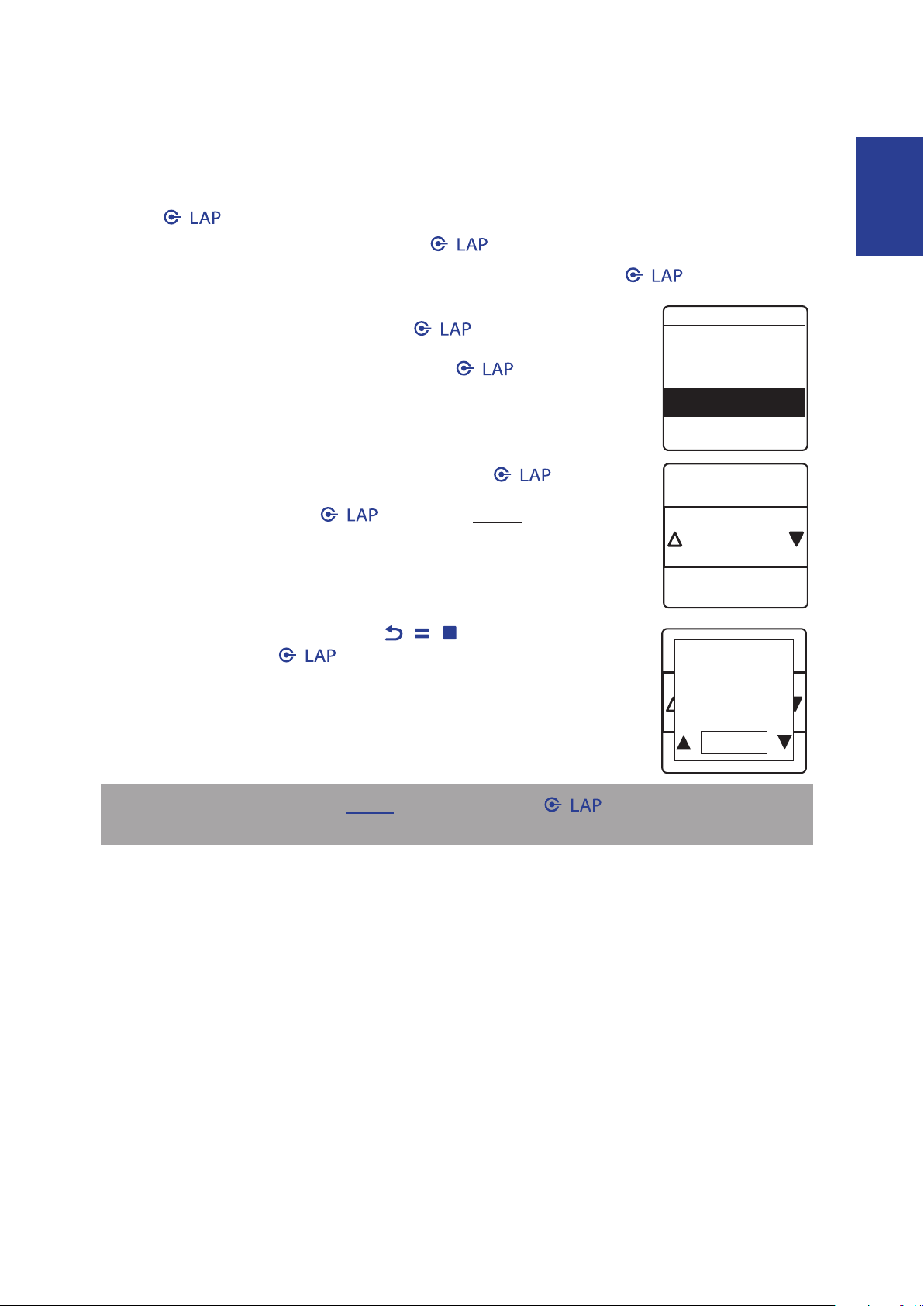
With Multisport Sequence feature, you can use your device to arrange the sports sequence.
1. Press / to enter the menu mode.
2. Press p/q to select Settings and press / to enter Settings menu.
3. Press p/q to select Exercises > Multisport > Manual and press / to enter its
submenu.
4. Press p/q to select Preset and press / .
5. Press p/q to select Create New and press / to edit the
sports sequence.
6. Press p/q to select the desired sport and press / to conrm.
7. To add more sports, press / and repeat Step 6.
8. After the setup is complete, press / / and press p/q to
select Yes and press / to enter the transition time submenu.
NOTE: If you select Manual on step 4, you need to press / to switch to another
sport after you start the exercise.
Page 35
Amis S430/S630 User’s Manual
34
Watch Settings
Date
Set Date
dd/mm/yyyy
Date format
Clock Mode
Digital
Analog
Backlight Off
5 Secs
15 Secs
30 Secs
1 Min
Adjust Date
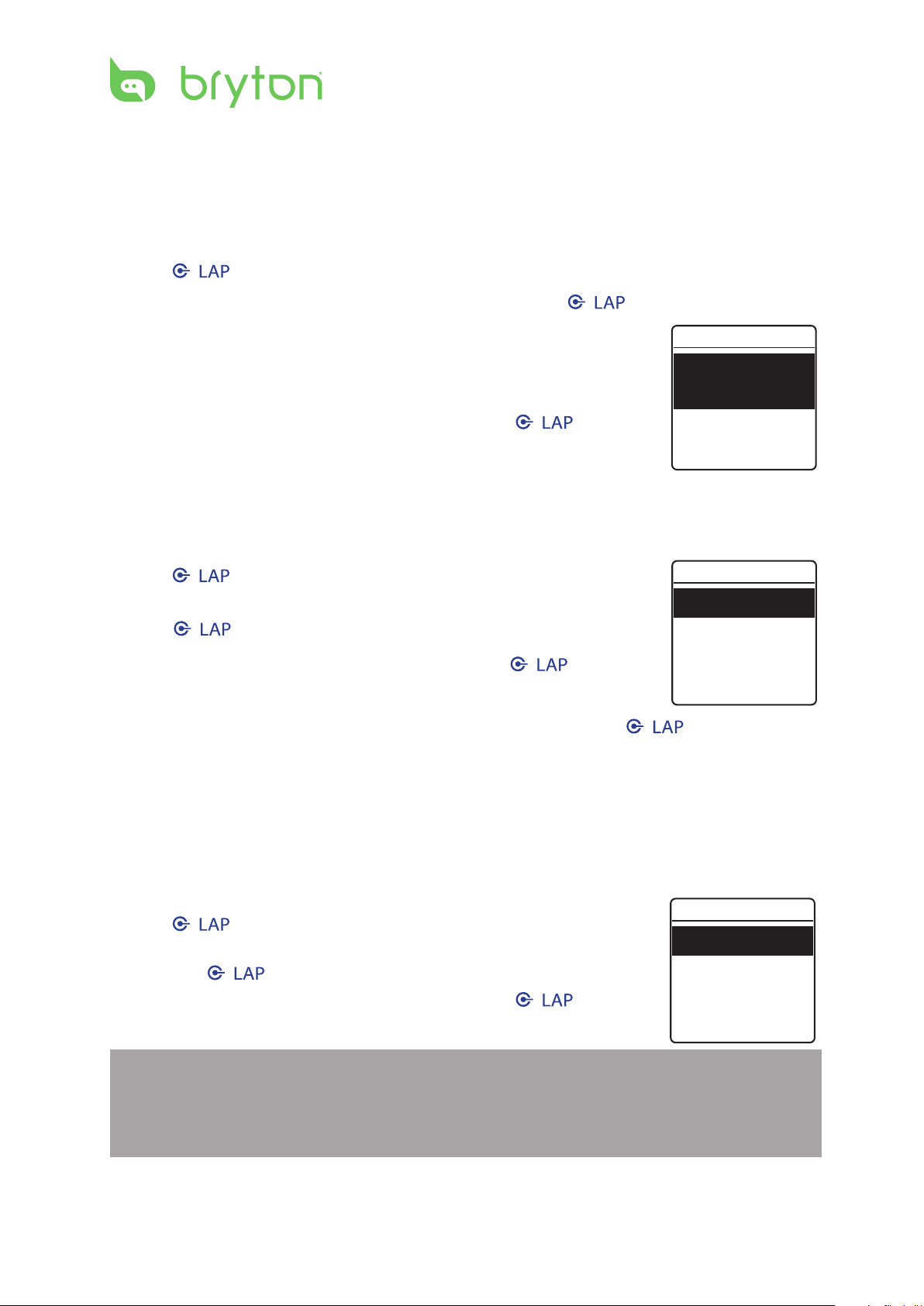
Adjust the date and specify the date format.
1. Press / to enter the menu mode.
2. Press p/q to select Settings > Watch > Date and press / to enter its submenu.
3. Select the desired option and congure the necessary settings.
Set Date• : adjust the date.
Date format• : specify the date format.
4. Press p/q to select the desired setting and press / to
conrm.
Change Clock View
Specify the clock view.
1. Press / to enter the menu mode.
2. Press p/q to select Settings > Watch > Clock Mode and
press / to enter its submenu.
3. Press p/q to select Digital or Analog and press / to
conrm.
4. Press p/q to select the desired digital/analog format and press / to conrm.
General Settings
Change Backlight O Settings
Specify the backlight time.
1. Press / to enter the menu mode.
2. Press p/q to select Settings > General > System > Backlight O
and press / to enter its submenu.
3. Press p/q to select the desired setting and press / to
conrm.
NOTE: The auto mode is based upon the current date and GPS position by which this
navigator calculates the exact sunrise and sunset times on the particular day at the
particular location. Using this information, the device can automatically turn on the
backlight a few minutes after sunset before the sky gets dark.
Page 36
ENGLISH
Amis S430/S630 User’s Manual 35
Enable Key Vibrate
Key Vibrate
On
Off
Key Tone
On
Off
Vibrate
On
Off
Sound
On
Off
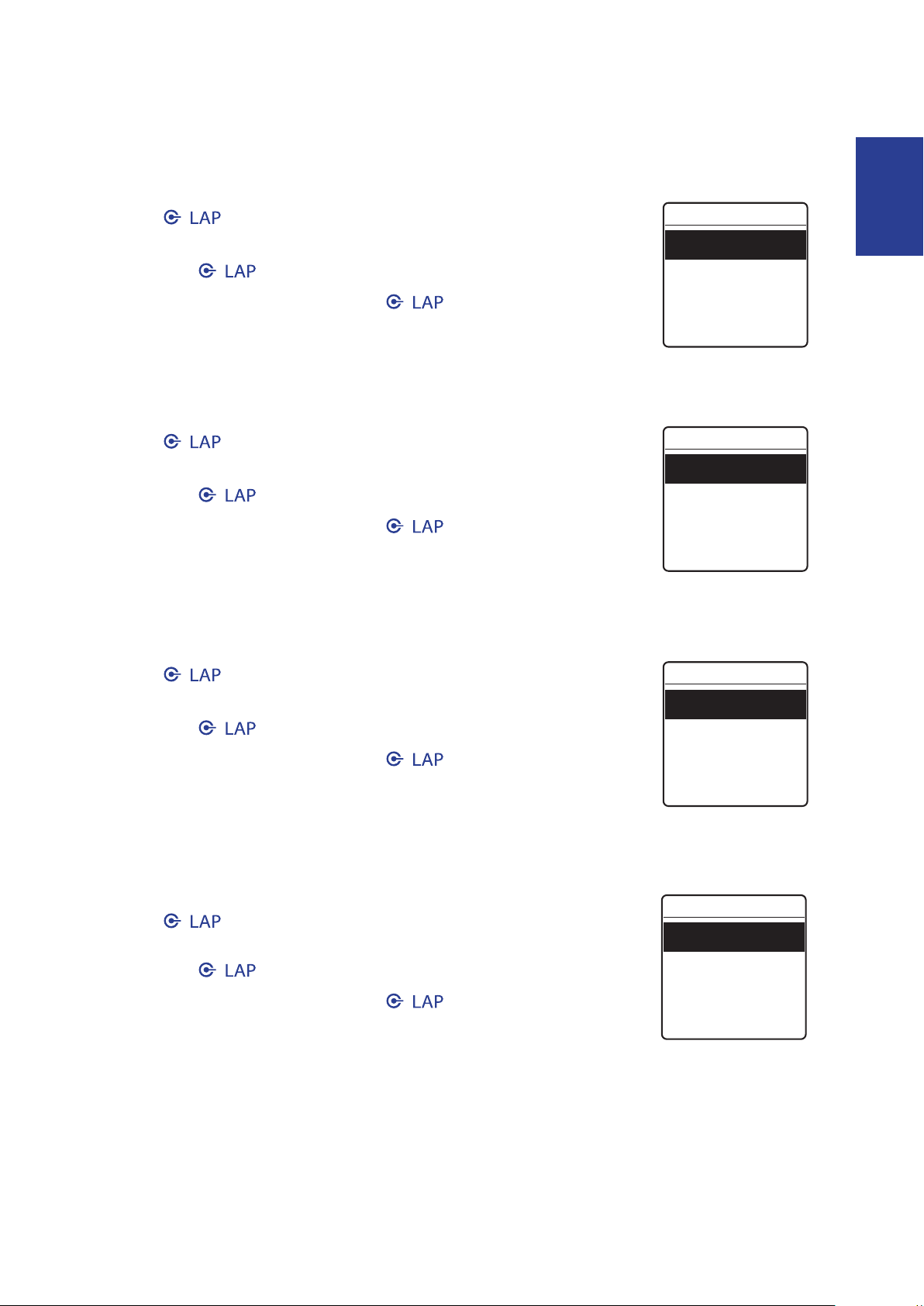
When the feature is enabled, the key will vibrate whenever you click a button.
1. Press / to enter the menu mode.
2. Press p/q to select Settings > General > System > Key Vibrate
and press / to enter its submenu.
3. Press p/q to select On and press / to conrm.
Enable Key Tone
When the feature is enabled, the device will play sounds whenever you click a button.
1. Press / to enter the menu mode.
2. Press p/q to select Settings > General > System > Key Tone
and press / to enter its submenu.
3. Press p/q to select On and press / to conrm.
Enable Vibrate
When the feature is enabled, the device will vibrate once you miss your targeted goal.
1. Press / to enter the menu mode.
2. Press p/q to select Settings > General > System > Vibrate
and press / to enter its submenu.
3. Press p/q to select On and press / to conrm.
Enable Sound Alert
When the feature is enabled, the device will play sounds to remind you once you miss your
targeted goal.
1. Press / to enter the menu mode.
2. Press p/q to select Settings > General > System > Sound
and press / to enter its submenu.
3. Press p/q to select On and press / to conrm.
Page 37
Amis S430/S630 User’s Manual
36
Specify Unit
Unit
KM, KG
MI, LB
GPS
Off
Full Power
PowerSaving
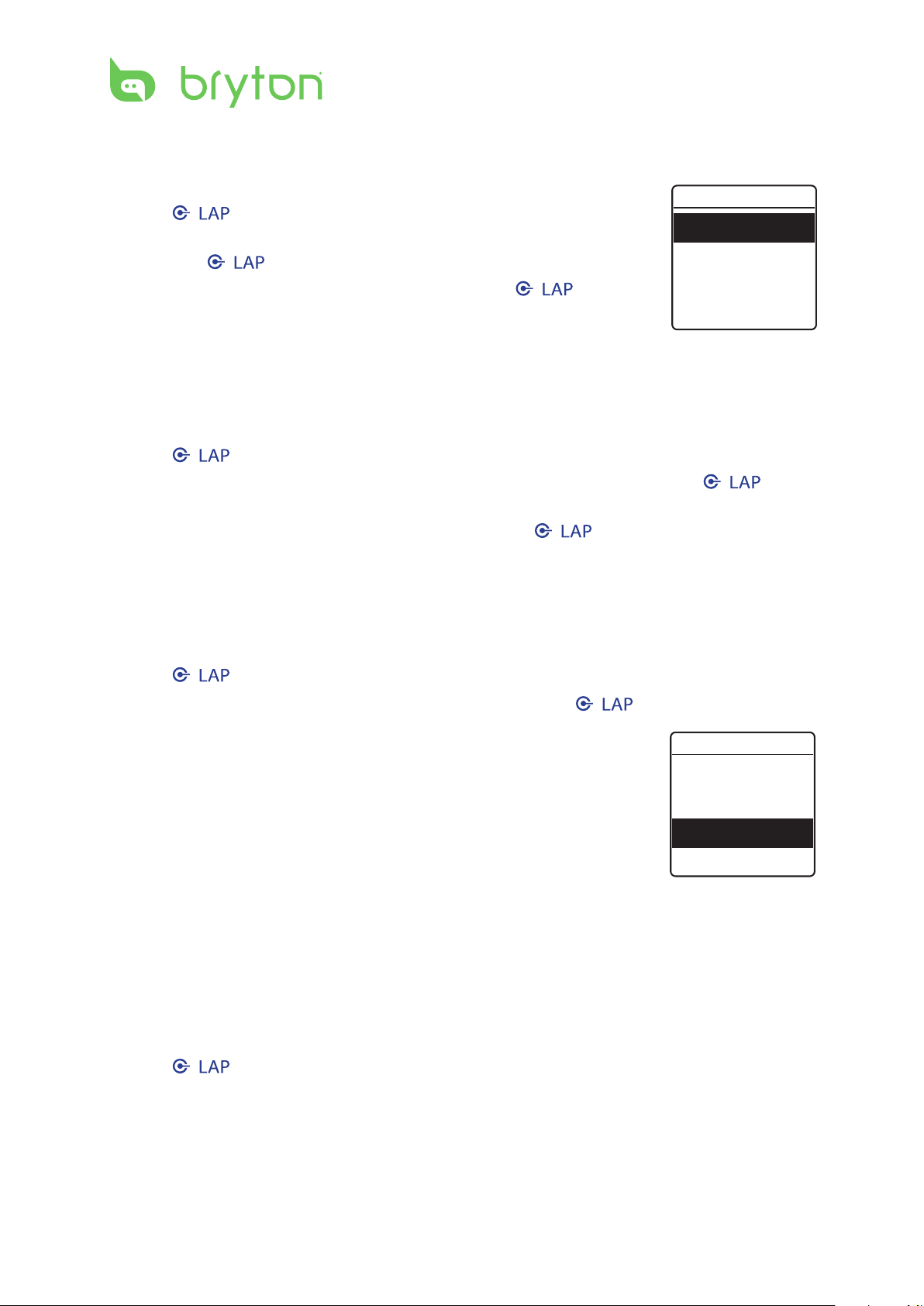
Specify the measurement unit.
1. Press / to enter the menu mode.
2. Press p/q to select Settings > General > System > Unit
and press / to enter its submenu.
3. Press p/q to select the desired setting and press / to
conrm.
Specify the On-Screen Display (OSD) Language
Specify the OSD language.
1. Press / to enter the menu mode.
2. Press p/q to select Settings > General > System > Language and press / to
enter its submenu.
3. Press p/q to select the desired language and press / to conrm.
Set GPS Mode
Set the GPS operating mode.
1. Press / to enter the menu mode.
2. Press p/q to select Settings > General > GPS and press / to enter its submenu.
3. Set the desired setting.
O• : Disable the GPS. Please use this mode for indoor
activities.
Full Power• : GPS is set on to provide more accurate
position but consume more power. The full power mode is
recommended for the following conditions:
- Environments with limited sky view, such as forest or urban area.
- In small, repeated path, such as track elds.
- If your exercise time is less than the specied battery hour, choose Full Power mode to
maximize GPS accuracy.
PowerSaving• : The GPS positioning will be less accurate but battery hours can last
longer. When exercising in environments with good sky view, such as in country side or
along the river, there will be no dierences between power saving mode and full power
mode. In these cases, choose power saving mode to maximize the battery life.
4. Press / to conrm.
Page 38
ENGLISH
Amis S430/S630 User’s Manual 37
Enable Bluetooth
Bluetooth
On
Off
Yes
Enable
Auto Scroll
Auto Scroll
On
5 secs
Interval
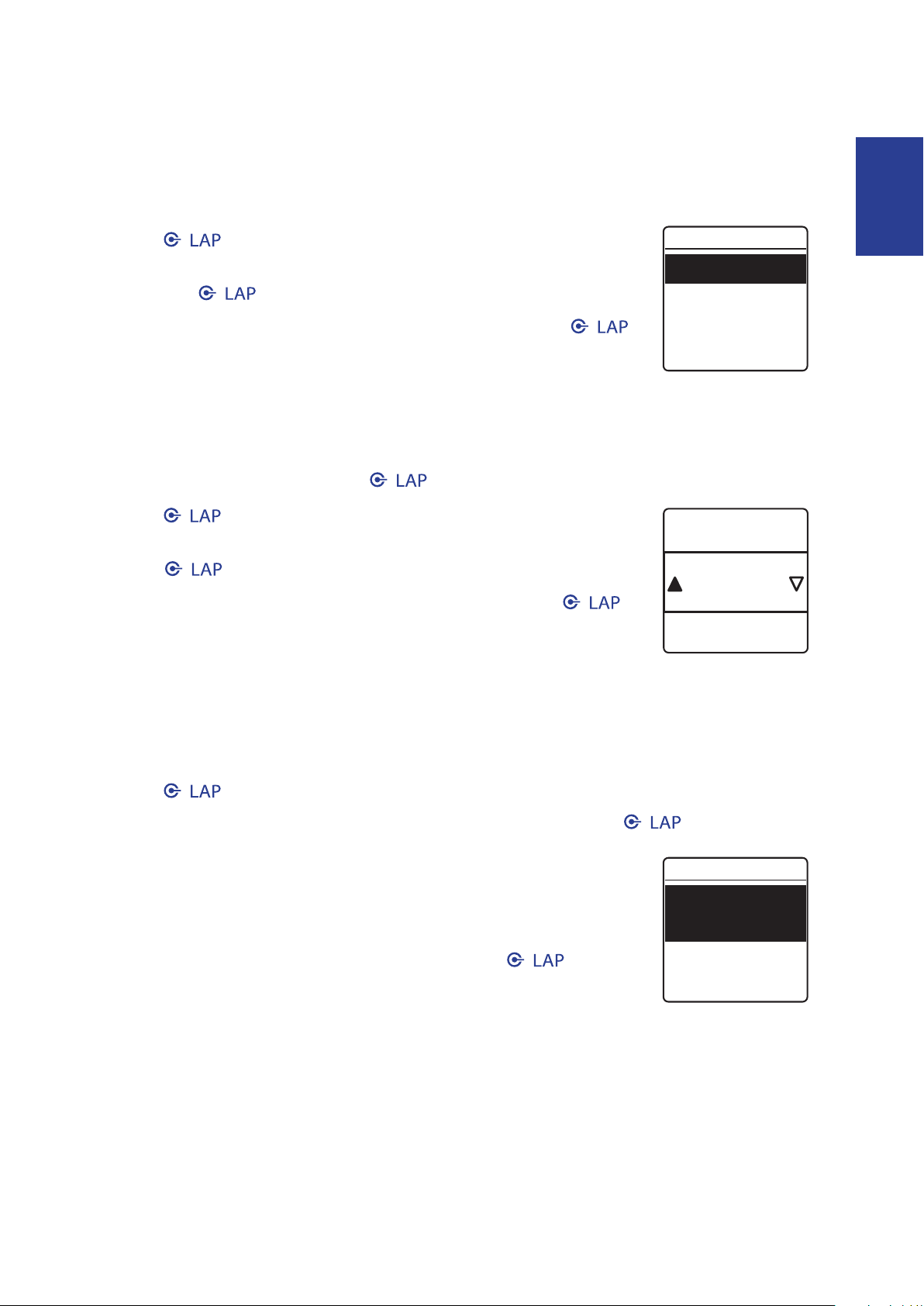
Before pairing Amis S430/S630 with your bluetooth enabled mobile phone, make sure the
bluetooth function of your mobile phone and Amis is turned on.
1. Press / to enter the menu mode.
2. Press p/q to select Settings > General > Bluetooth > Bluetooth
and press / to enter its submenu.
3. To enable this function, press p/q to select On and press /
to conrm.
Enable Race Mode
When the feature is enabled, the screen will remain at the data page and the GPS will stay
active. In this mode, you can press / immediately once your race starts.
1. Press / to enter the menu mode.
2. Press p/q to select Settings > General > Race mode and
press / to enter its submenu.
3. To enable this feature, press p/q to select Yes and press /
to conrm.
Congure Auto Scroll
When the feature is enabled, the data view will automatically switch pages at the preset
time.
1. Press / to enter the menu mode.
2. Press p/q to select Settings > General > Auto Scroll and press / to enter its
submenu.
3. Select the desired option and congure the necessary settings.
Auto Scroll• : enable/disable the feature.
Interval• : specify the time interval.
4. Press p/q to select the desired setting and press / to
conrm.
Page 39
Amis S430/S630 User’s Manual
38
Enable File Saving Mode
File Saving
Overwrite
Yes
Screen Color
Black
White
50%
Memory %
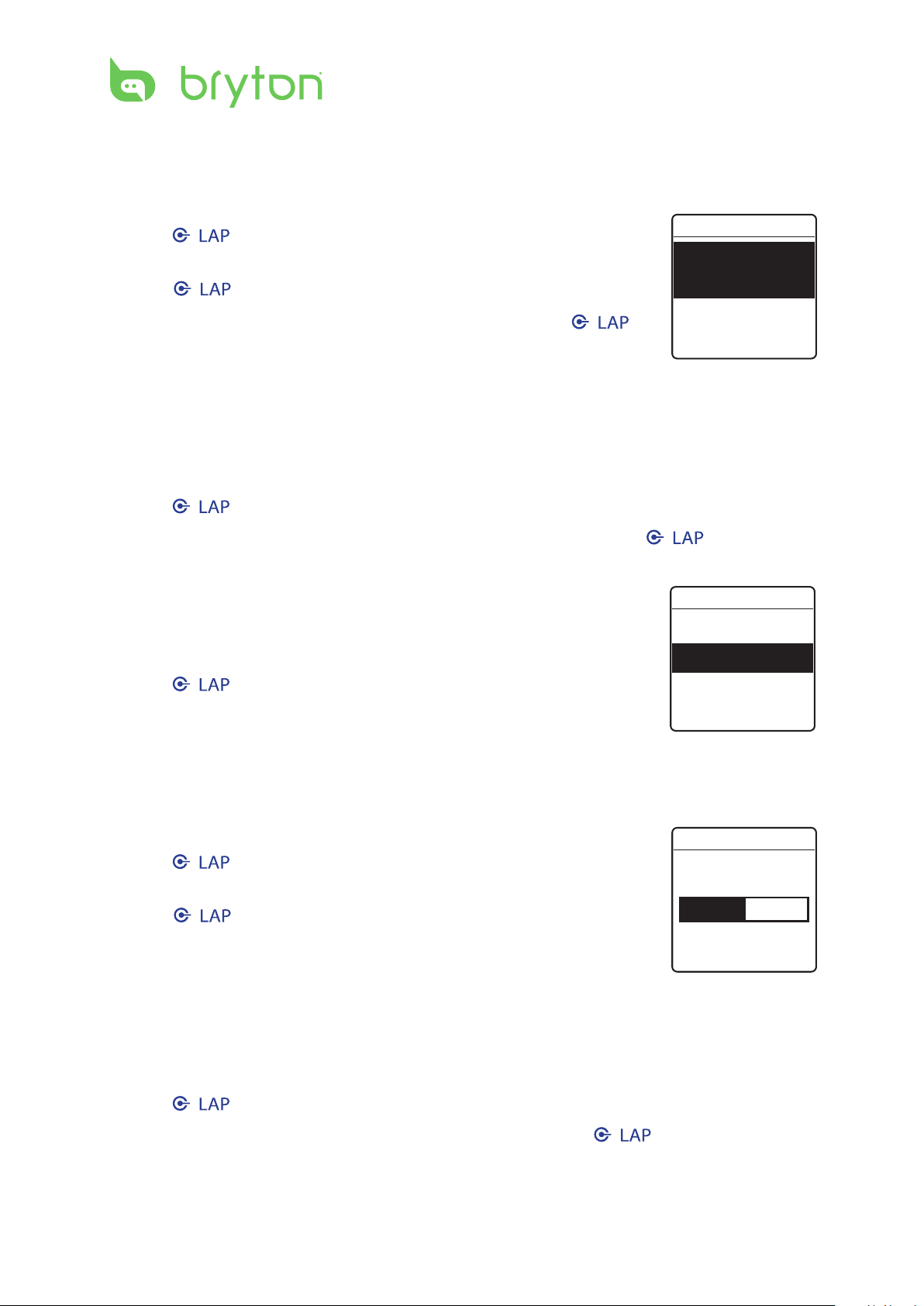
When the feature is enabled, the device will automatically overwrite from your oldest
records when memory storage is full.
1. Press / to enter the menu mode.
2. Press p/q to select Settings > General > File Saving and
press / to enter its submenu.
3. To enable this feature, press p/q to select Yes and press /
to conrm.
Inverted Screen Color
Choose between white text against a black background or black text against a white
background.
1. Press / to enter the menu mode.
2. Press p/q to select Settings > General > Screen Color and press / to enter its
submenu.
3. Press p/q to select the desired setting.
Black• : White text on a black background.
White• : Black text on a white background.
4. Press / to conrm.
View Memory Usage
View the storage status of the device.
1. Press / to enter the menu mode.
2. Press p/q to select Settings > General > Memory % and
press / to conrm.
The storage status is displayed on the screen.
About
You can view the device current rmware version.
1. Press / to enter the menu mode.
2. Press p/q to select Settings > General > About and press / to conrm.
The current rmware version is displayed on the screen.
Page 40
ENGLISH
Amis S430/S630 User’s Manual 39
Sensors
Status: active
ID: xxxxxxxx
Heart Rate
More
Heart Rate
Rescan
Turn Off
Sensors
Heart Rate
Speed
Cadence
You can customize the sensor settings such as enable/disable the function or rescan the
sensor.
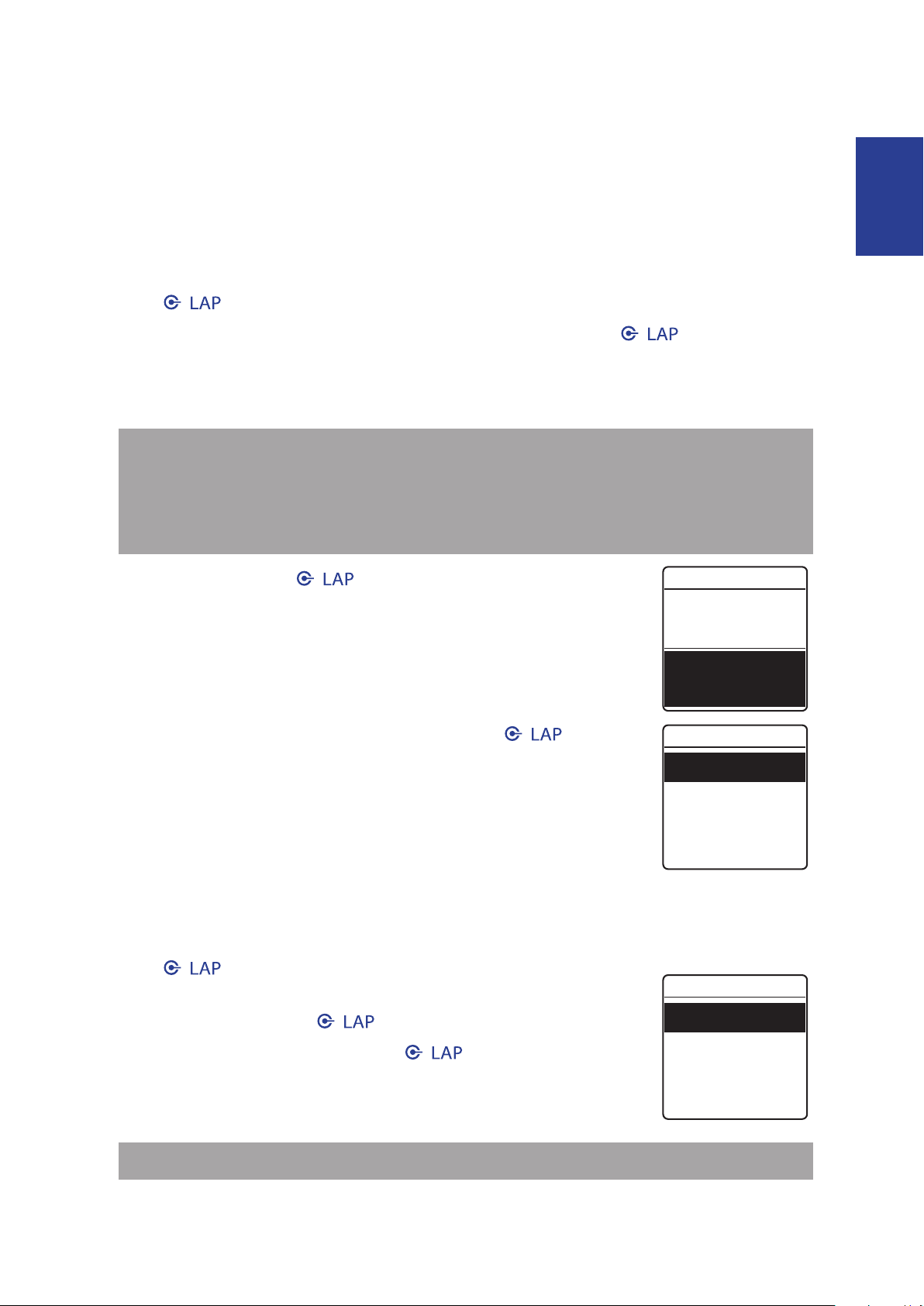
Link Heart Rate Sensor
1. Press / to enter the menu mode.
2. Press p/q to select Settings > Sensors > Heart Rate and press / to enter its
submenu.
3. Amis S430H/S630H/S630R SKU has paired the heart rate sensor for you. It will
automatically detect the sensor when the sensor is activated and functioning correctly.
NOTE:
If you purchase a heart rate sensor separately, you must pair it with your Amis S430/•
S630 in order to connect your sensor with the device.
The information of the sensor ID are included in the package. Please verify the sensor •
ID is correct.
4. Select More and press / to enter the selected sensor
submenu.
5. Press p/q to select the desired option and press / to
conrm.
Rescan• : rescan to detect the heart rate sensor. (only required
when you want to pair your Amis S430/S630 with other heart
rate sensor)
Turn O• : disable the sensor. (only required when your
Amis S430/S630 has paired with the heart rate sensor.)
Link Other Sensors (Amis S630 only)
1. Press / to enter the menu mode.
2. Press p/q to select Settings > Sensors > Speed, Cadence,
or Speed/CAD and press / to enter its submenu.
3. Press p/q to select More and press / to enter the selected
sensor submenu.
4. When the sensor is successfully connected, the sensor ID will be
displayed on the screen. Verify that the sensor ID is correct.
NOTE: The information on the sensors ID are included in the package.
Page 41
Amis S430/S630 User’s Manual
40
5. Press p/q to select the desired option and press / to conrm.
User Profile
Gender
Female
1980/01/01
Birthday
Bike 1
Bike Type
City Bike
6 kg
Weight
Rescan• : rescan to detect the sensor.
Turn O• : disable the sensor. (Only if the device has paired with the sensor)
Personalize User Prole
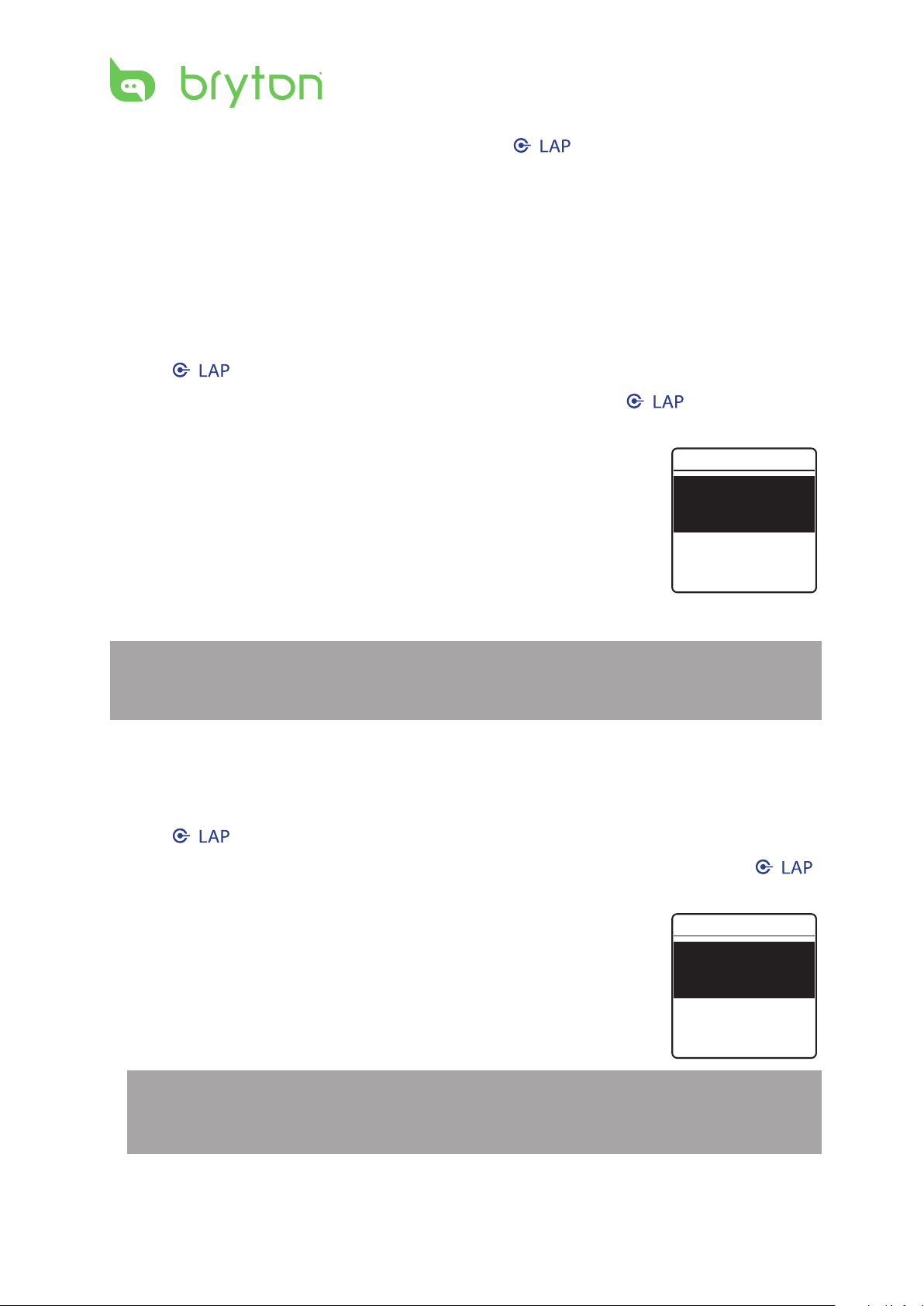
User Prole
You can change your personal information.
1. Press / to enter the menu mode.
2. Press p/q to select Settings > Prole > User Prole and press / to enter its
submenu.
3. Select the desired option and congure the necessary settings.
Gender• : select your gender.
Birthday• : enter your birthday.
Height• : set your height.
Weight• : set your weight.
Max HR• : set your maximum heart rate.
LTHR• : set your lactate threshold heart rate.
Race Time• : Enter the time and distance of a recent race.
NOTE: It is highly recommend to implement the Bryton Test (MHR, LTHR, 3km Race, or 5km
Race) and save the test results to device since these data will be used to create training
zone (MHR zone, LTHR zone, and pace zone) to maximize your training eciency.
Bike Prole (Amis S630 only)
To customize your bicycle(s) prole, do the following:
1. Press / to enter the menu mode.
2.
Press p/q to select Settings > Prole > Bike Prole > Bike 1 or Bike 2 and press /
to enter its submenu.
3. Select the desired option and congure the necessary settings.
Bike Type• : select the bike type.
Weight• : set the bike weight.
Wheel• : set the bike wheel size.
NOTE: Please make sure you enter a correct value since it will aect the data calculation
while you use speed sensor. For details on wheel size, refer to Wheel Size and
Circumference section.
Active• : select to activate the selected bike.
Page 42

ENGLISH
Amis S430/S630 User’s Manual 41
To view the bike prole, do the following:
1. Press / to enter the menu mode.
2. Press p/q to select Settings > Prole > Bike Prole > Overview and press / to
enter its submenu.
3. Press p/q to select the desired bike that you want to view and press / to conrm.
4. Press p/q to view more data of the selected bike.
ODO• : total cycling miles.
Ride time• : total cycling time.
Page 43
Amis S430/S630 User’s Manual
42
Troubleshooting
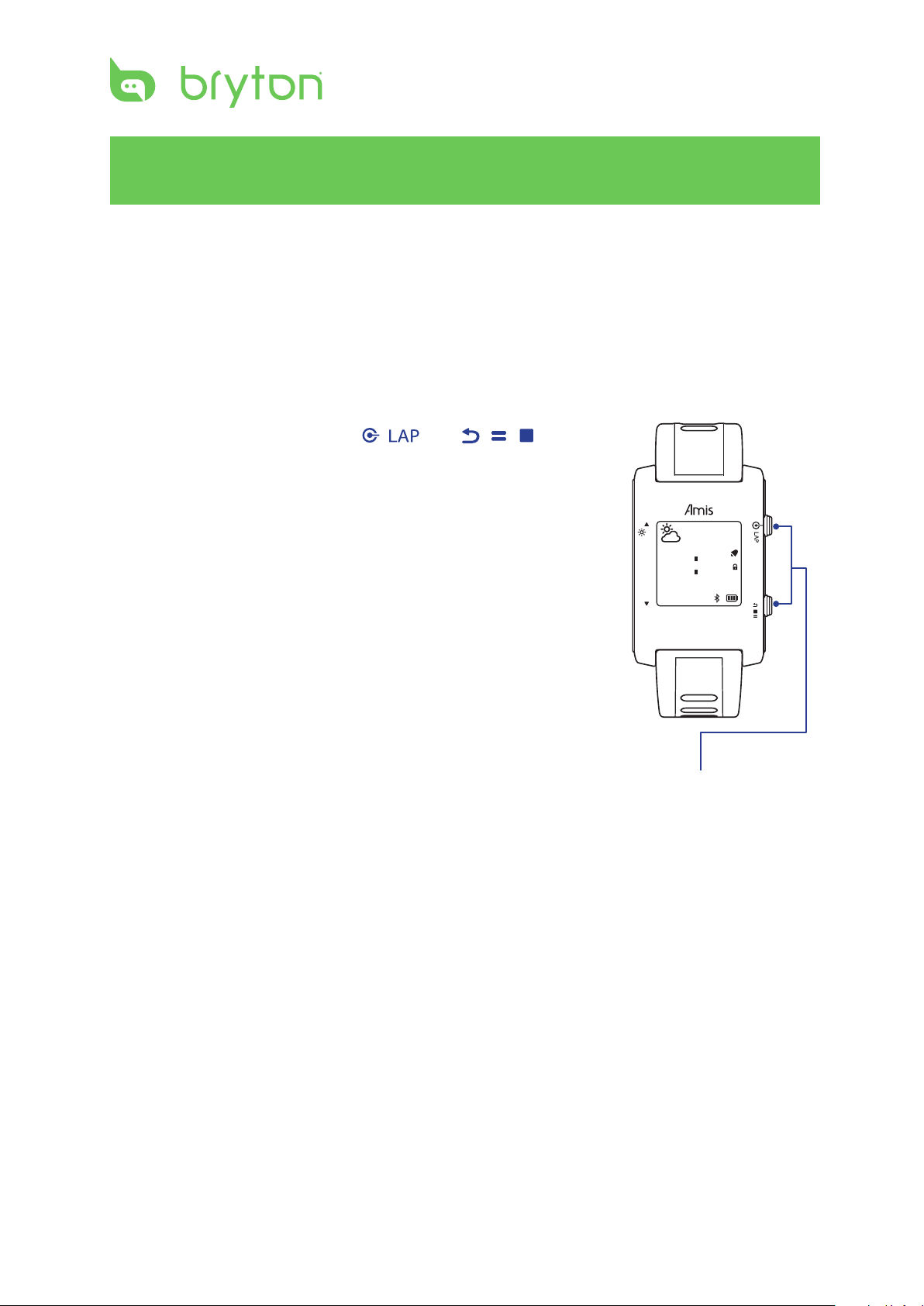
Press and hold these 2 keys to
force a system RESET.
10
12:05
18OC
09/06
MON
AM
35
Getting More Information
Go to http://corp.brytonsport.com > Support for more detailed information.
Reset Amis S430/S630
Press and hold the two buttons ( / and / / ) at the
same time until the device restarts.
Page 44
ENGLISH
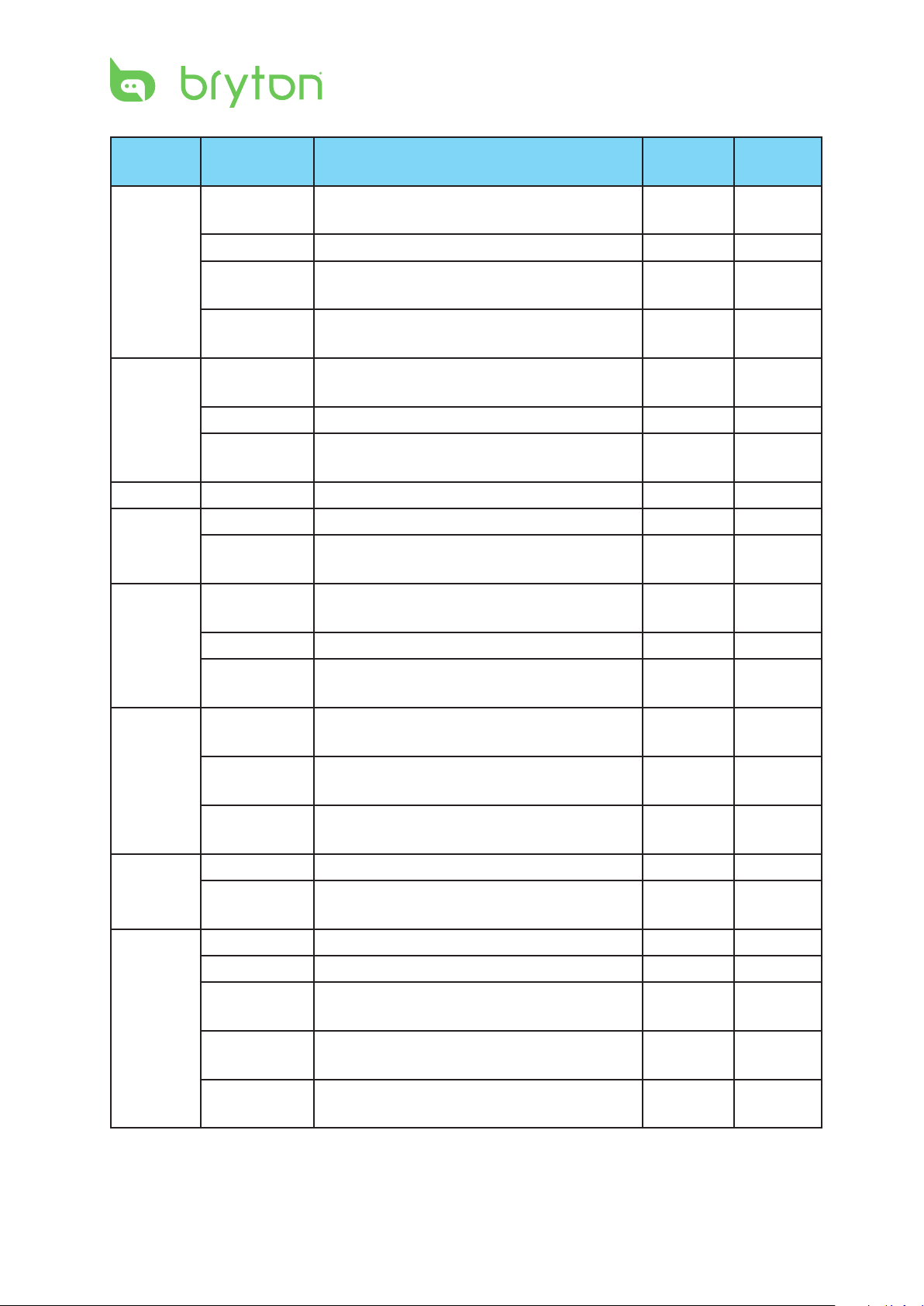
Amis S430/S630 User’s Manual 43
Appendix
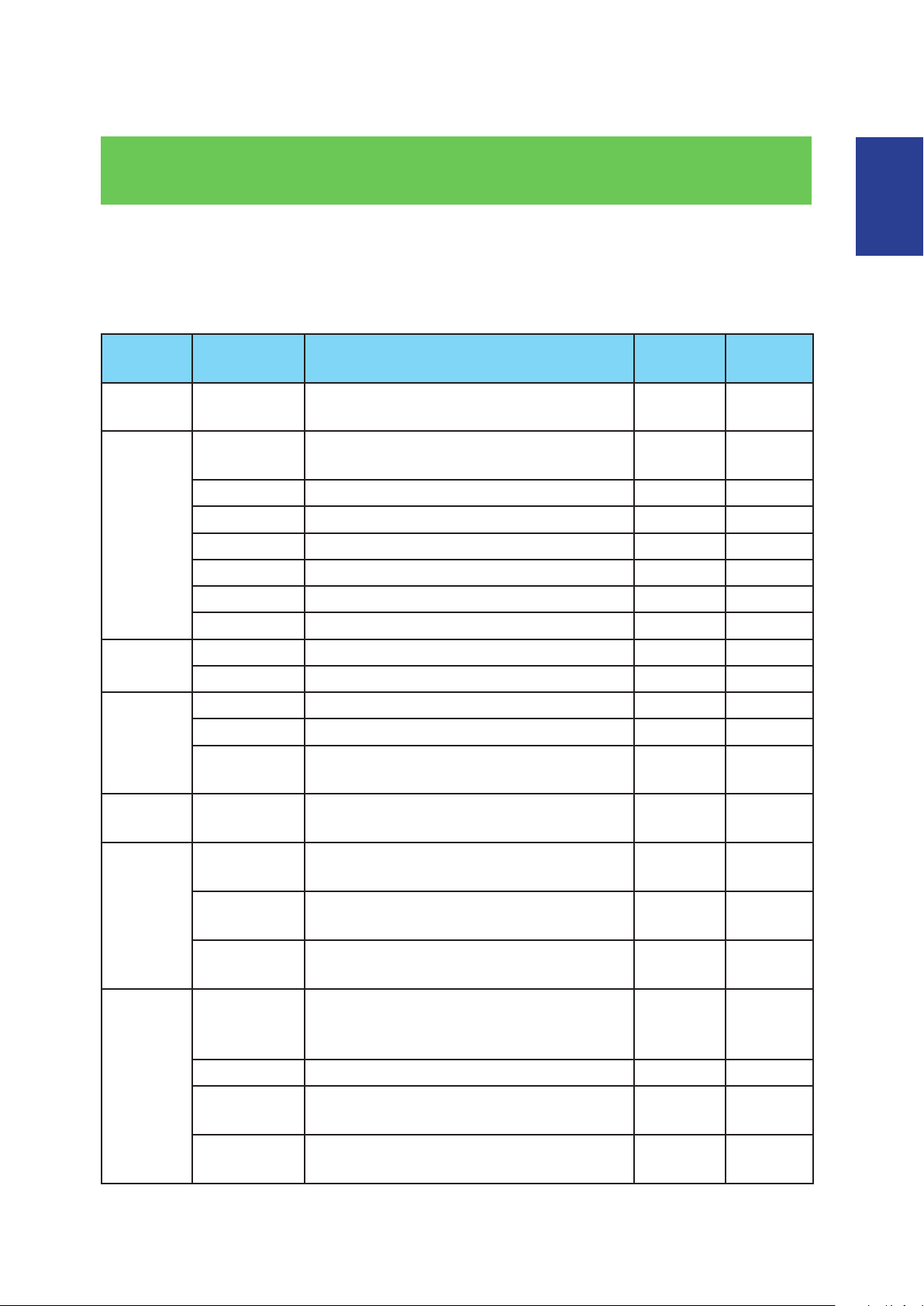
Glossary and Customizable Data Fields
Selection
Category Items Description
Calories Calories Calories burned during the current
activity
Time Time Current time of day based on your time
settings
Run Time Amount of time at running
Ride Time Amount of time at riding
Exercise Time Amount of time at exercising
Trip Time Total time elapsed
Sunrise Sunrise time based on your GPS position
Sunset Sunset time based on your GPS position
Pace Pace Current pace
Avg Pace Average pace of the current activity
Speed Speed Current speed
Avg Speed Average speed of the current activity
Max Speed Maximum speed achieved during the
current activity
Distance Distance Traveled distance during the current
activity
HR Heart Rate Current heart rate in beats per minute
(bpm)
Avg Heart
Rate
Max Heart
Rate
Average heart rate of the current activity
Maximum heart rate achieved during the
current activity
Amis
S430
3 3
3 3
3 3
3 3
3 3
3 3
3 3
3 3
3 3
3 3
3 3
3 3
3 3
3 3
3 3
3 3
3 3
Amis
S630
HR Heart Rate
Zone (MHR
Zone)
MHR% Percentage of maximum heart rate
LTHR Zone Current heart rate ranges based on
LTHR% Percentage of lactate threshold heart
Current heart rate ranges based on
maximum heart rate (MHR)
lactate threshold heart rate (LTHR)
rate (LTHR)
3 3
3 3
3 3
3 3
Page 45
Amis S430/S630 User’s Manual
44
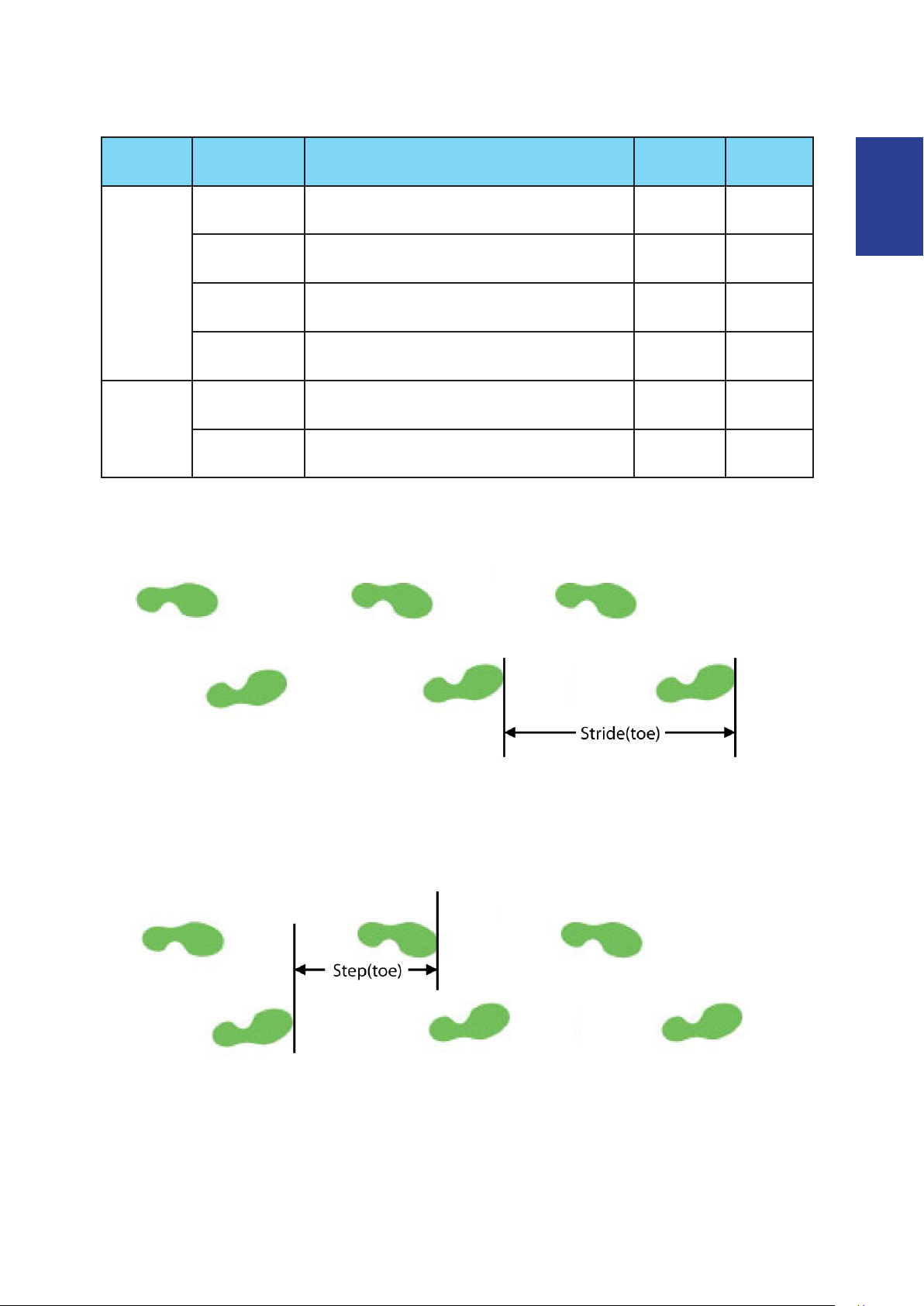
Category Items Description
Stride *Stride Rate Current number of strides per minute
(spm)
Avg Stride Average stride rate of the current activity
Max Stride Maximum stride rate achieved during the
activity
*Avg Stride
Length
Cadence Cadence Number of revolutions of the crank arm
Avg Cadence Average cadence of the current activity
Max Cadence Maximum cadence achieved during the
Count Lap Count Number of laps completed
Time Lap Time Amount of time during the current lap
Last Lap
Time
Pace Last 1km
Pace
Lap Avg Pace Average pace of the current lap
Last Lap Avg
Pace
Speed Lap Avg
Speed
Lap Max
Speed
Last Lap Avg
Speed
Distance Lap Distance Traveled distance of the current lap
Last Lap
Distance
HR Lap Avg HR Average heart rate of the current lap
Lap Max HR Maximum heart rate of the current lap
Last Lap Avg HRAverage heart rate of the last completed
Lap MHR% Percentage of maximum heart rate of the
Lap LTHR% Percentage of lactate threshold heart
Average length of one step
per minute (rpm)
current activity
Amount of time recorded in the last
completed lap
Average pace of the last one kilometer
completed
Average pace of the last completed lap
Average speed of the current lap
Maximum speed of the current lap
Average speed of the last completed lap
Traveled distance of the last completed
lap
lap
current lap
rate of the current lap
Amis
S430
3 3
3 3
3 3
3 3
8 3
8 3
8 3
3 3
3 3
3 3
3 3
3 3
3 3
3 3
3 3
3 3
3 3
3 3
3 3
3 3
3 3
3 3
3 3
Amis
S630
Page 46
ENGLISH
Amis S430/S630 User’s Manual 45
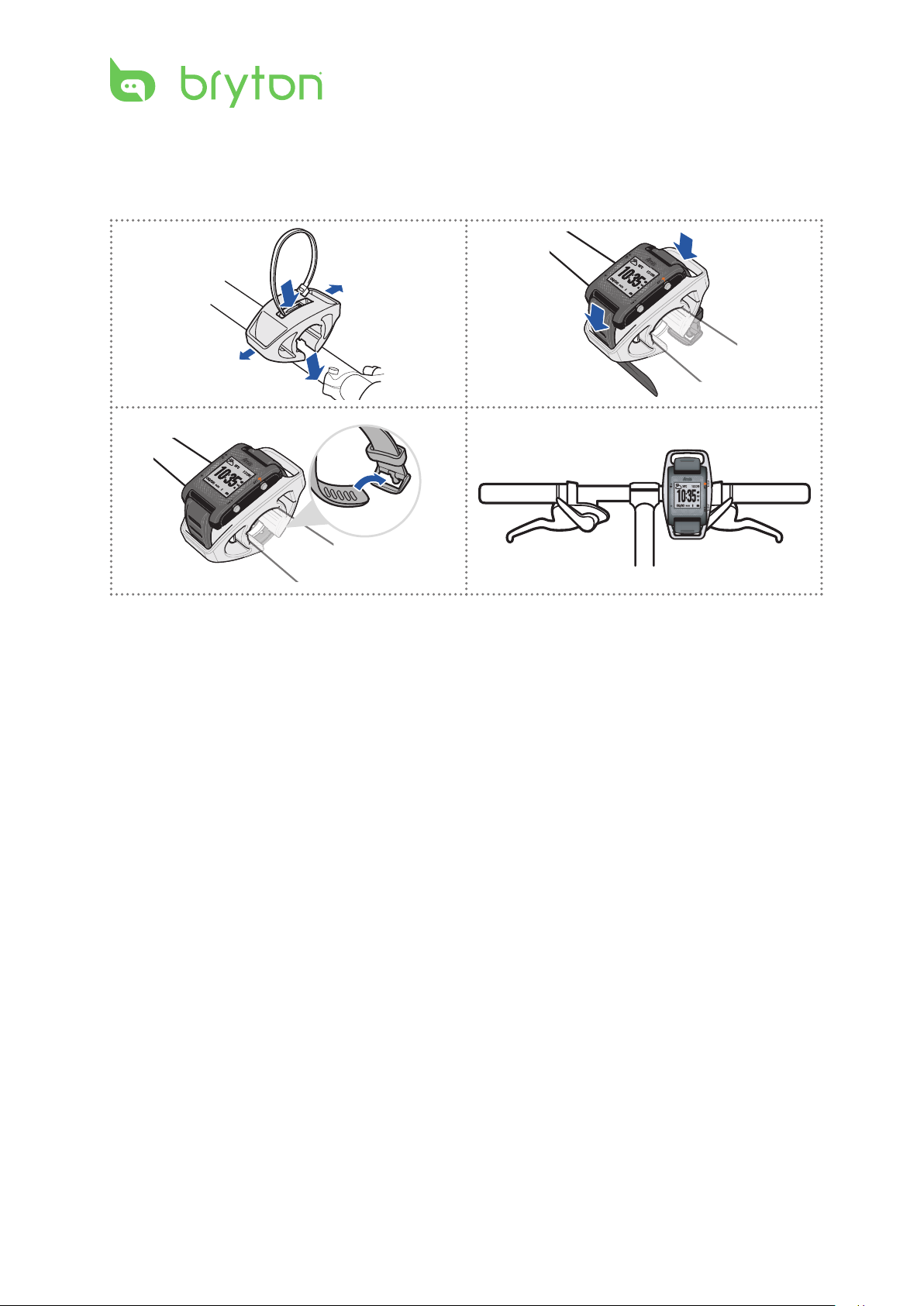
Category Items Description
Amis
S430
Amis
S630
Stride Lap Avg
Stride Rate
Last Lap Avg
Stride Rate
Lap Avg
Stride Length
Last Lap Avg
Stride Length
Cadence Lap Avg
Cadence
Last Lap Avg
Cadence
* A Stride means the distance between the toe of two subsequent footprints of the same
foot. Stride rate means how many strides per minute.
Average stride rate of the current lap
Average stride rate of the last completed
lap
Average stride length of the current lap
Average stride length of the last
completed lap
Average cadence of the current lap
Average cadence of the last completed
lap
3 3
3 3
3 3
3 3
8 3
8 3
* A Step means the distance between the toe of two subsequent feet. Stride length means
the length of two steps.
Page 47
Amis S430/S630 User’s Manual
46
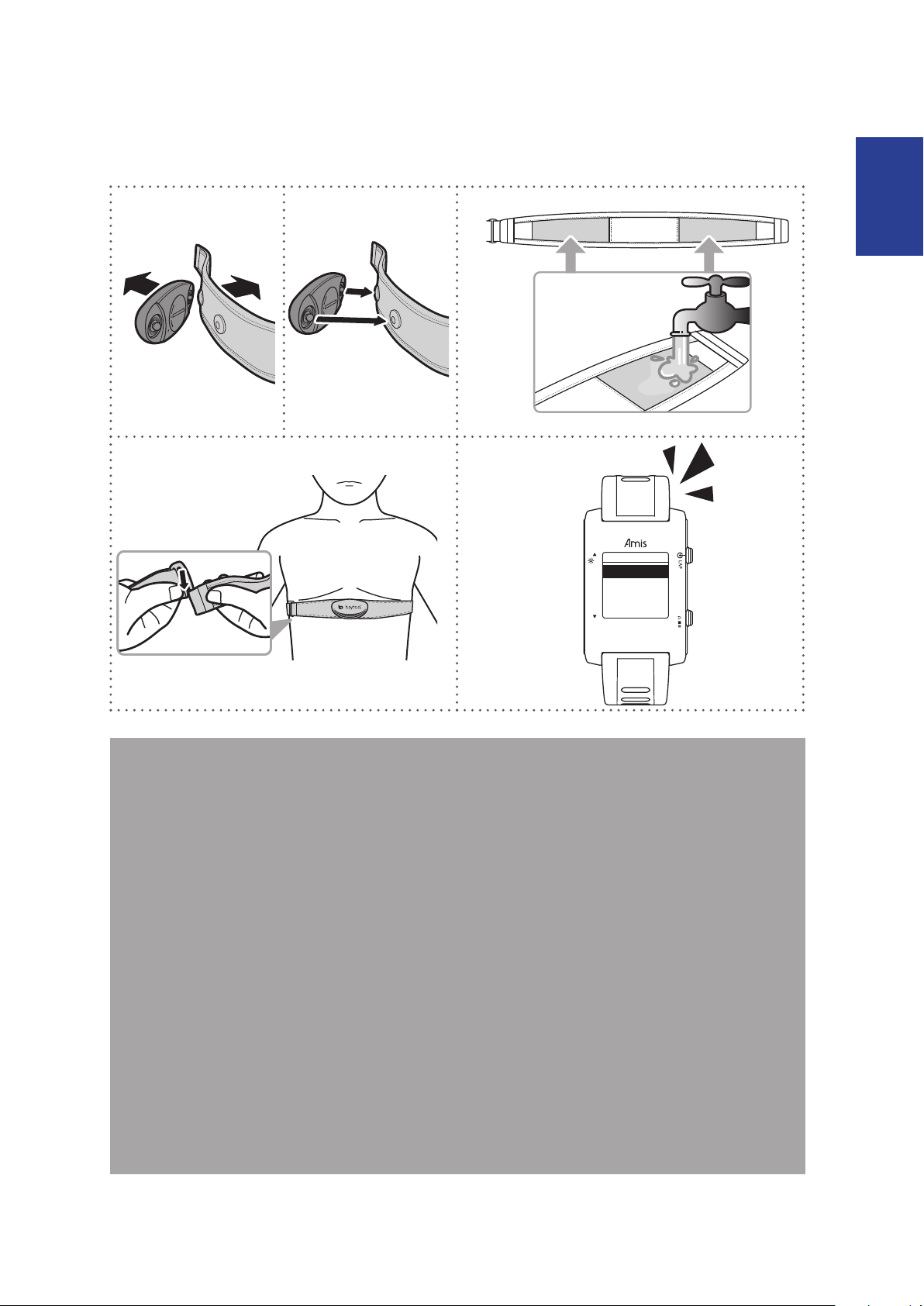
Installing the Bike Mount (Amis S630 only)
To mount Amis S630 onto your bike, do the following:
1 2
3 4
Page 48
ENGLISH
Amis S430/S630 User’s Manual 47
Installing the Heart Rate Monitor
C
L
O
S
E
O
P
E
N
C
L
O
S
E
O
P
E
N
143
Sensors
Heart Rate
5
NOTE:
Adjust the sensor position to the middle part of the body. The belt should be worn •
under the chest and directly on your body. The Bryton logo shown on the sensor should
be facing upward. Tighten the elastic belt rmly so that it will not turn loose during the
exercise.
In cold weather, wear appropriate clothing to keep the heart rate belt warm.•
If the sensor cannot be detected or the reading is abnormal, please wet the electrodes area •
with water as shown in the step 3 or warm up the heart rate sensor for about 5 minutes.
If the heart rate belt is not used for a period of time, remove the sensor from the heart rate •
belt to prevent the battery from running at.
Heart rate sensor does not work under water. This is common to all ANT+ sensors.•
For triathlon, it is recommended to wear Heart rate belt after swimming as water will •
reduce the strength of heart beat signal. If the heart rate belt is wore before swimming,
heart rate data may not be properly recorded after leaving the water for a period of time.
The Amis devices and heart rate monitor (HRM) are waterproof. However, the •
wireless signal does not transmit through water and as a result, this disrupts the data
communication between the device and the HRM.
Page 49
Amis S430/S630 User’s Manual
48
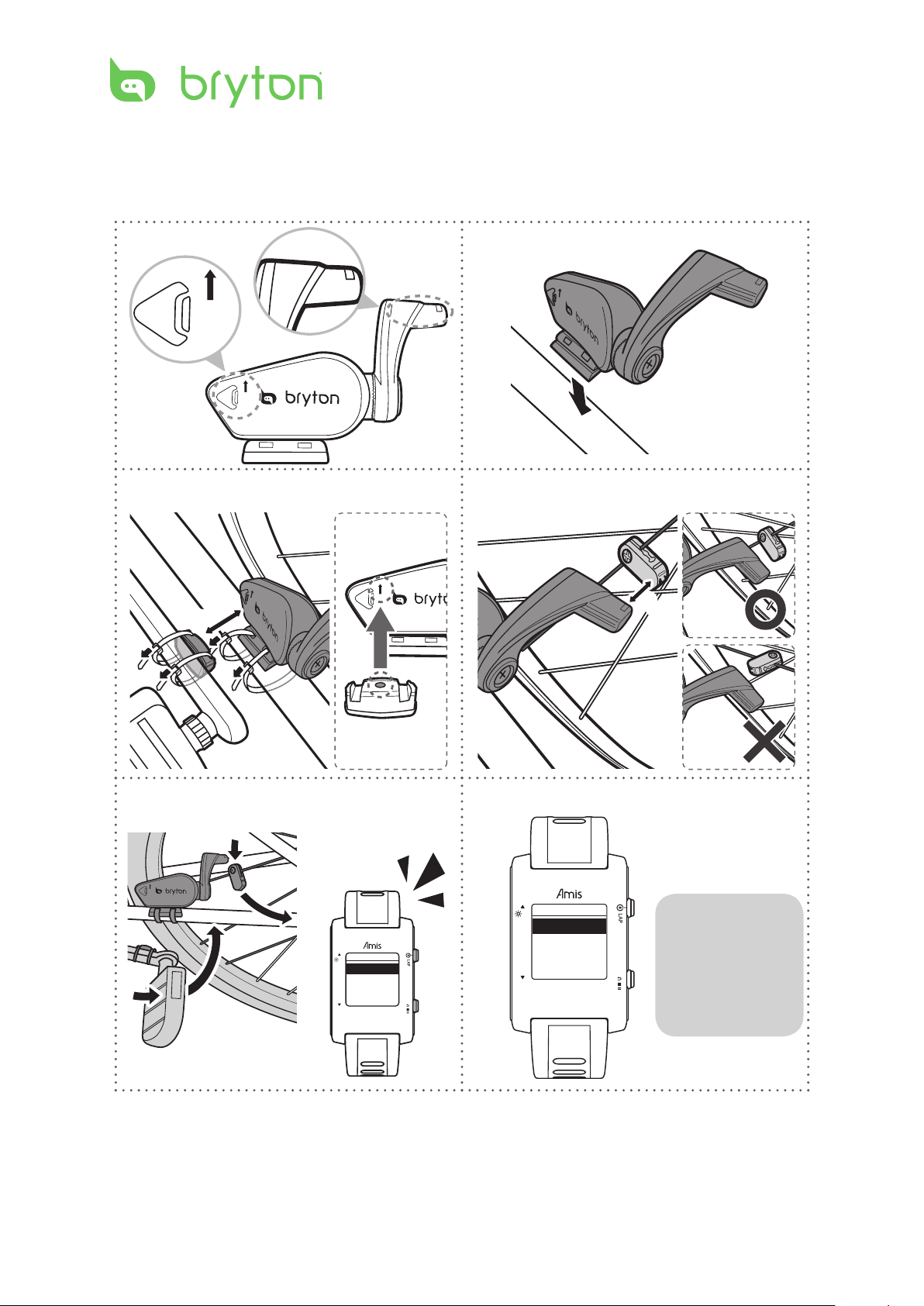
Installing the Speed/Cadence Dual Sensor
CAD
SPD
CAD
SPD
1
2
SPD
CAD
3
4
CAD
3
mm
CAD
5
6
Speed/CAD
Rescan
Turn Off
CAD
SPD
Sensors
Speed/CAD
SPD
3
mm
(Amis S630 only)
Rescan: rescan •
to detect the
sensor.
Turn O: •
disable the
sensor.
Page 50

ENGLISH
Amis S430/S630 User’s Manual 49
NOTE:
Align both sensor and magnet as shown in the illustration (3) and (4). Pay attention on •
the alignment points.
Ensure the distance between the sensor and the magnet is within 3 mm.•
On the initial usage, do the following:•
1. Press the
2. Start pedaling.
3. When the cadence magnet comes across the sensor, the red LED blinks. When the
speed magnet comes across the sensor, the green LED blinks.
4. The LED blinks only for the rst 10 passes after pressing the
5. If you want to check the alignment status after 10 passes, just press the
repeat Step 1 to 4.
button. The LED blinks from red to green, indicating the sensor is working.
button.
button and
Page 51
Amis S430/S630 User’s Manual
50
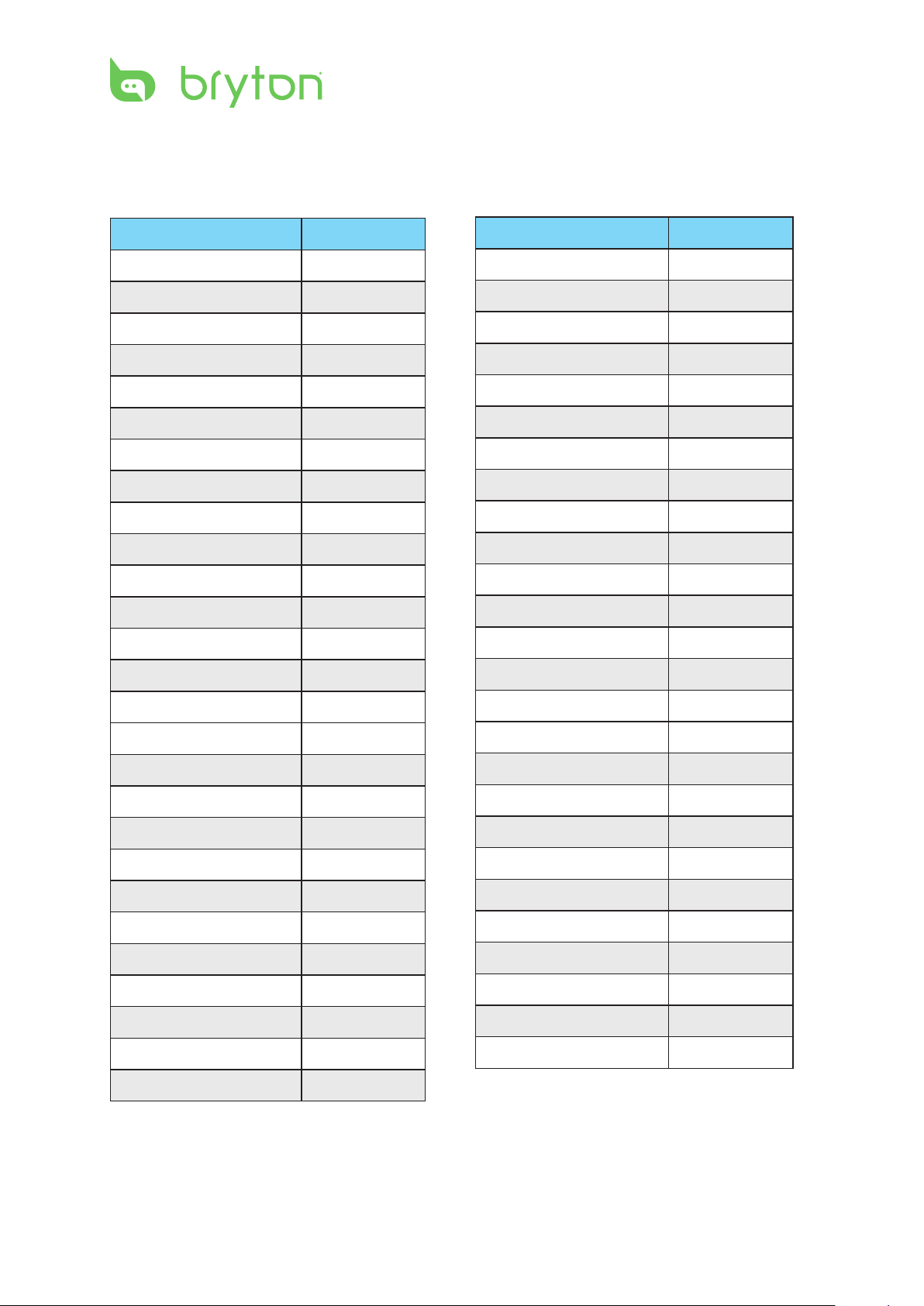
Wheel Size and Circumference
The wheel size is marked on both sides of the tires.
Wheel Size L (mm)
12 x 1.75 935
14 x 1.5 1020
14 x 1.75 1055
16 x 1.5 1185
16 x 1.75 1195
18 x 1.5 1340
18 x 1.75 1350
20 x 1.75 1515
20 x 1-3/8 1615
22 x 1-3/8 1770
22 x 1-1/2 1785
24 x 1 1753
24 x 3/4 Tubular 1785
24 x 1-1/8 1795
Wheel Size L (mm)
24 x 1.75 1890
24 x 2.00 1925
24 x 2.125 1965
26 x 7/8 1920
26 x 1(59) 1913
26 x 1(65) 1952
26 x 1.25 1953
26 x 1-1/8 1970
26 x 1-3/8 2068
26 x 1-1/2 2100
26 x 1.40 2005
26 x 1.50 2010
26 x 1.75 2023
26 x 1.95 2050
24 x 1-1/4 1905
26 x 2.10 2068
26 x 2.125 2070
26 x 2.35 2083
26 x 3.00 2170
27 x 1 2145
27 x 1-1/8 2155
27 x 1-1/4 2161
27 x 1-3/8 2169
650 x 35A 2090
650 x 38A 2125
650 x 38B 2105
700 x 18C 2070
26 x 2.00 2055
700 x19C 2080
700 x 20C 2086
700 x 23C 2096
700 x 25C 2105
700 x 28C 2136
700 x 30C 2170
700 x 32C 2155
700C Tubular 2130
700 x 35C 2168
700 x 38C 2180
700 x 40C 2200
Page 52
ENGLISH
Amis S430/S630 User’s Manual 51
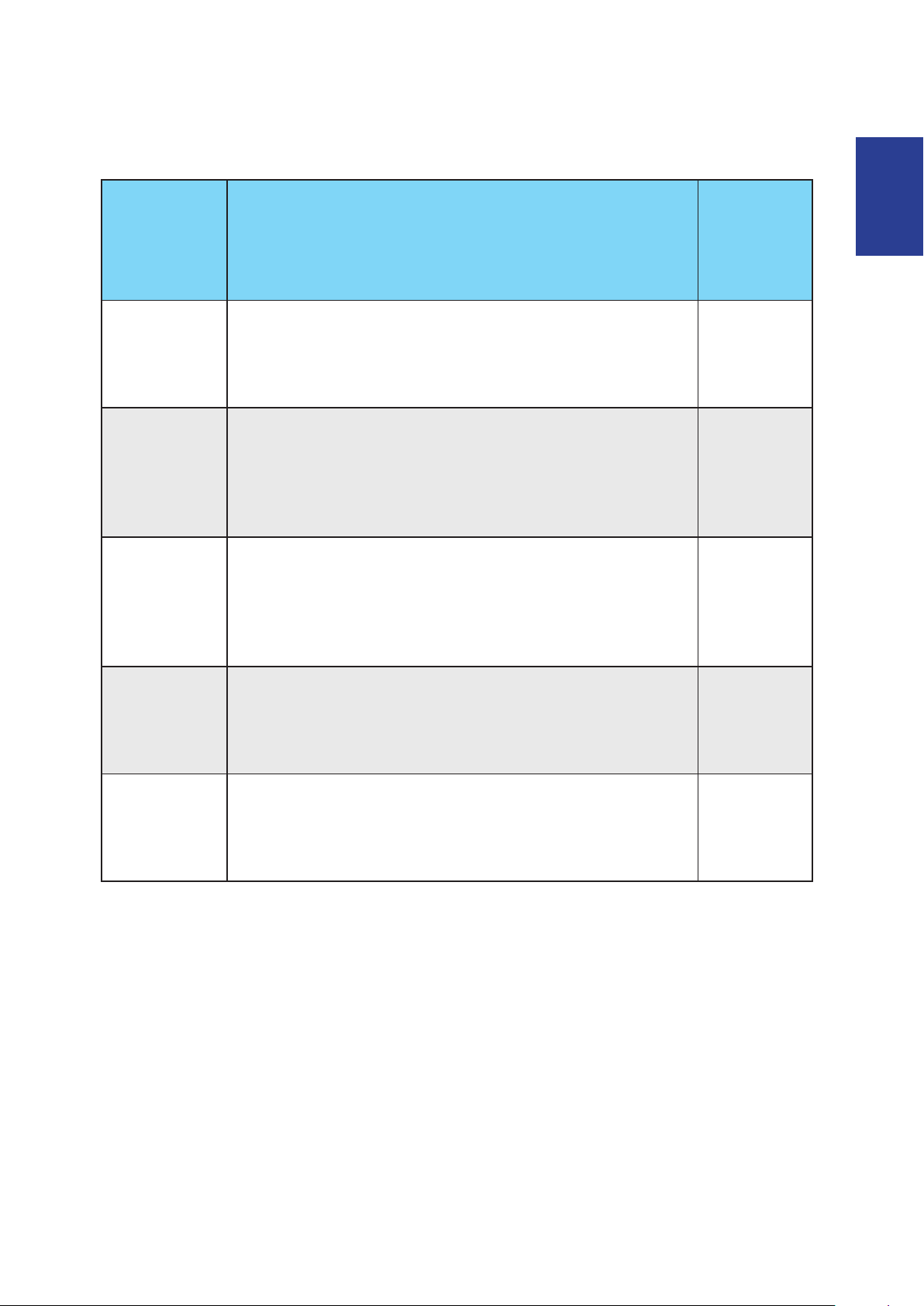
Heart Rate Zones
Zone What it does % of
Heart
Rate
Reserve
1: Very Light
2: Light
3: Moderate
4: Hard
Great for beginners, those in extremely poor condition
and those primarily interested in exercising for weight
loss because the body burns a higher blend of fat calories
than carbohydrate calories for its fuel.
Weight management & strengthening your heart, giving
it the opportunity to work at its optimum level. Also
known as the “aerobic tness threshold” because from
this point forward, your body begins to reap the positive
eects of aerobic exercise.
Benets not only your heart but also your respitory
system. Increases your endurance and enhances your
aerobic power, which is the ability to transport oxygen
to, and carbon dioxide away from sport-specic muscles.
Increases your MET (Metabolic Equivalent) output.
High performance training benets. Increase your
body’s ability to metabolize lactic acid, allowing you to
train harder before crossing over into the pain of lactate
accumulation and oxygen debt.
50-60%
60-70%
70-80%
80-90%
5: Max
Only extremely t athletes work at this zone on a limited
frequency and duration. Operating in oxygen debt to
train metabolic pathways of fast switch muscle bers, not
endurance pathways or enzymes.
90-100%
Basic Care For Your Amis S430/S630
Taking good care of your Amis S430/S630 will reduce the risk of damage to your device.
Do not drop your Amis S430/S630 or subject it to severe shock.•
Do not expose your Amis S430/S630 to extreme temperatures and excessive moisture.•
The screen surface can easily be scratched. Use the non-adhesive generic screen •
protectors to help protect the screen from minor scratches.
Use diluted neutral detergent on a soft cloth to clean your Amis S430/S630.•
Do not attempt to disassemble, repair or make any modications to your device. Any •
attempt to do so will make the warranty invalid.
Page 53
Amis S430/S630 User’s Manual
52
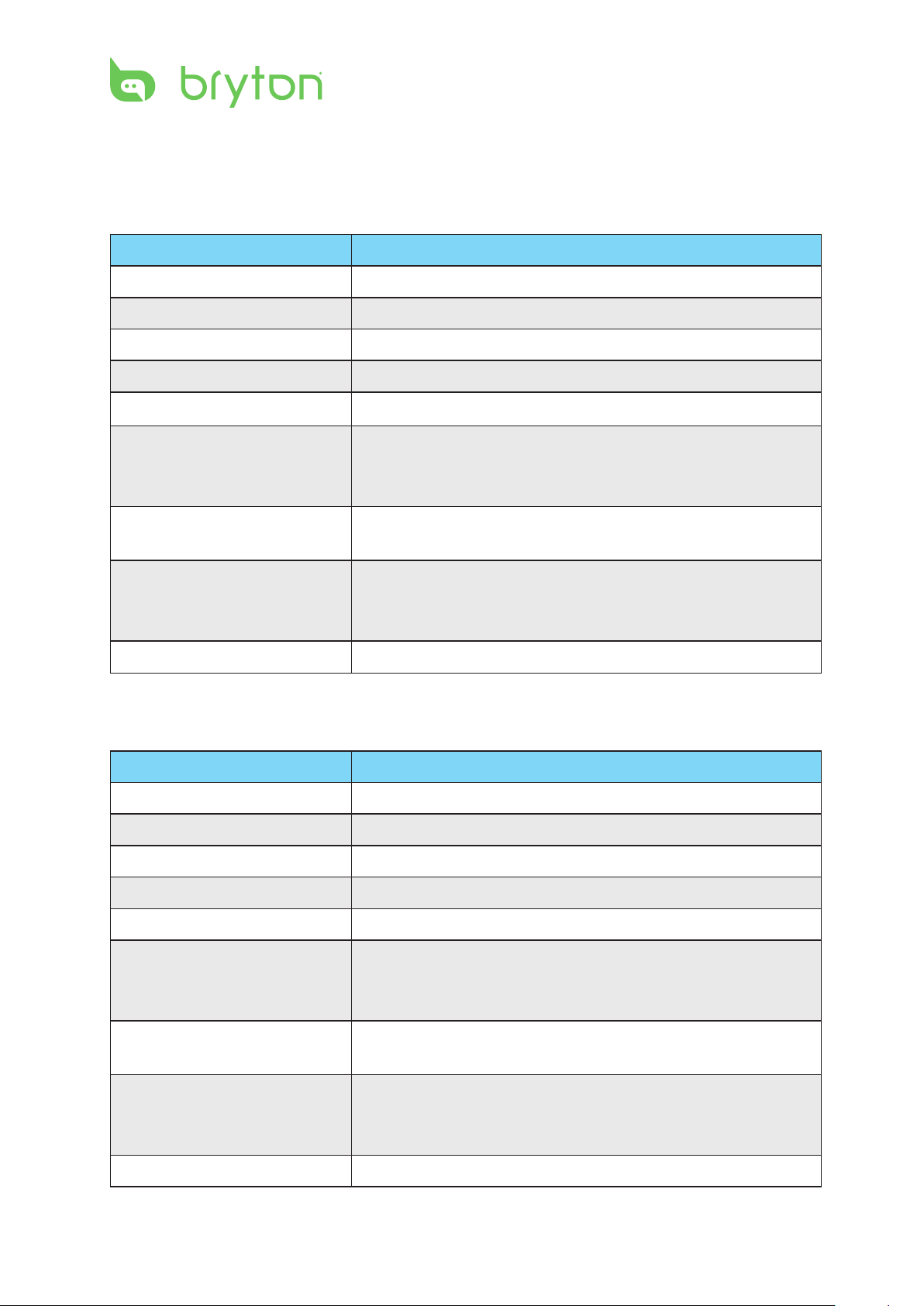
Specications
Amis S430
Item Description
Display 1.28" Mono LCD
Dimensions 46.6(L) x 36.6(W) x 13.0(T) mm
Weight 47g
Operating temperature -10°C ~ 50°C
Battery charge temperature 0°C ~ 40°C
Battery life Up to 180 days in clock mode •
Up to 16 hours in exercise mode in open-sky •
environment
GPS Integrated high-sensitivity receiver with embedded
antenna
Radio Frequency 2.4 GHz ANT+ receiver with embedded antenna•
Bluetooth Smart wireless technology with embedded •
antenna
G-Sensor
3-axis acceleration sensor
Amis S630
Item Description
Display 1.28" Mono LCD
Dimensions 46.6(L) x 36.6(W) x 13.0(T) mm
Weight 47g
Operating temperature -10°C ~ 50°C
Battery charge temperature 0°C ~ 40°C
Battery life Up to 180 days in clock mode •
Up to 16 hours in exercise mode in open-sky •
environment
GPS Integrated high-sensitivity receiver with embedded
antenna
Radio Frequency 2.4 GHz ANT+ receiver with embedded antenna•
G-Sensor 3-axis acceleration sensor
Bluetooth Smart wireless technology with embedded •
antenna
Page 54
ENGLISH
Amis S430/S630 User’s Manual 53
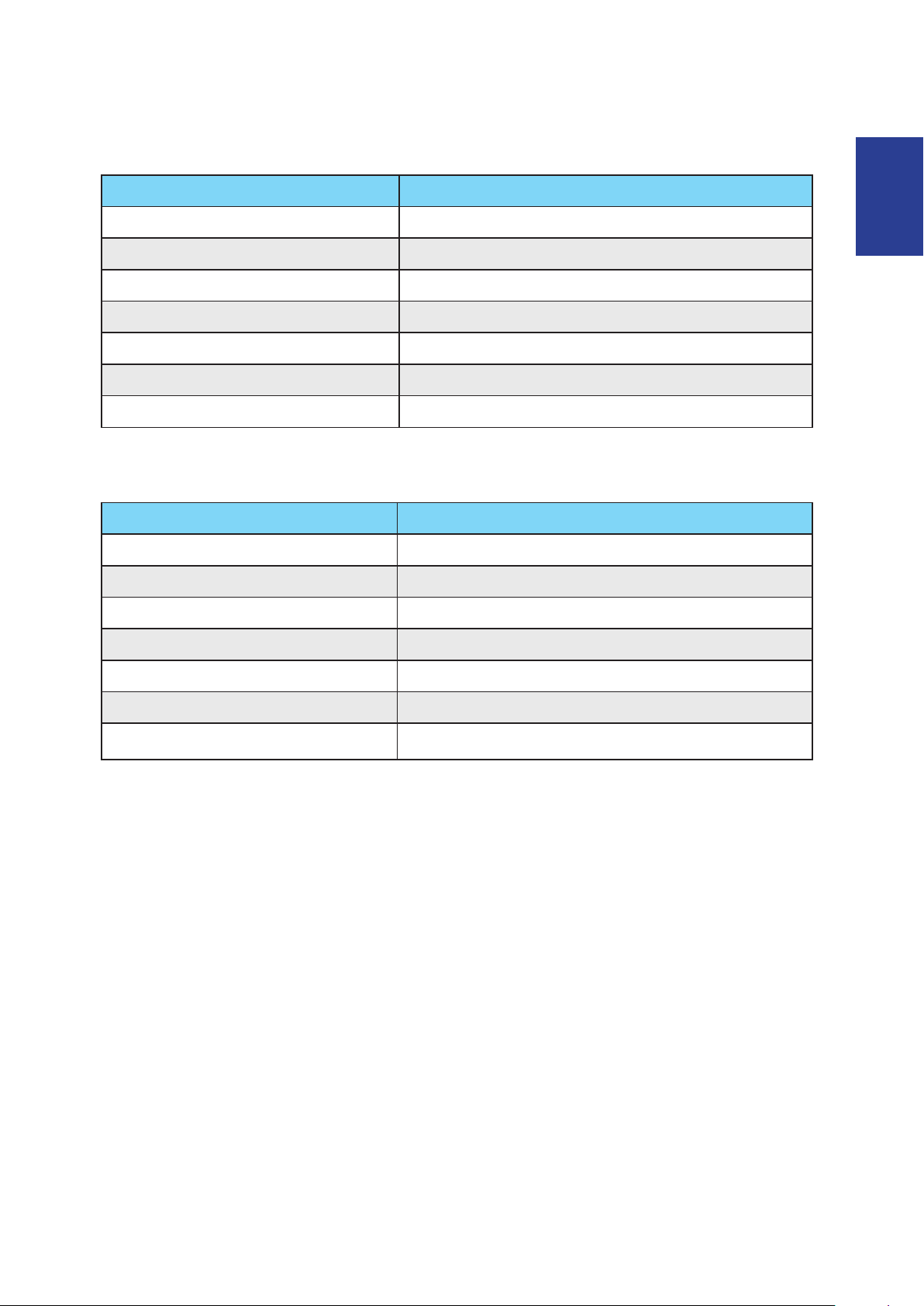
Heart Rate Monitor Set
Item Description
Physical size 67~100 x 26 x 15 mm
Weight 14 g (sensor) / 35g (strap)
Water Resistance 20m
Transmission range 5m
Battery life 1 hour per day for 24 months
Operating temperature 5°C ~ 40°C
Radio frequency/protocol 2.4GHz ANT+ wireless communication protocol
Speed & Cadence Dual Sensor
Item Description
Physical size 32.5 x 20.2 x 60mm (body)
Weight 30g
Water Resistance 20m
Transmission range 5m
Battery life 1 hour per day for 1.4 years
Operating temperature -10°C ~ 60°C
Radio frequency/protocol 2.4GHz ANT+ wireless communication protocol
Accuracy may be degraded by poor sensor contact, electrical interference, and receiver
distance from transmitter.
Page 55

Amis_UM_R002_JULY
 Loading...