

Page 1

Aspire Notebook Series
Quick Guide
Product registration
When using your product for the first time, it is recommended that you immediately
register it. This will give you access to some useful benefits, such as:
• Faster service from our trained representatives.
• Membership in the Acer community: receive promotions and participate in customer
surveys.
• The latest news from Acer.
Hurry and register, as other advantages await you!
How to register
To register your Acer product, please visit www.acer.com. Select your country, click
PRODUCT REGISTRATION and follow the simple instructions.
You will also be asked to register your product during the setup process, or you can
double-click the Registration icon on the desktop.
After we receive your product registration, you will be sent a confirmation email with
important data that you should keep in a safe place.
Obtaining Acer accessories
We are happy to inform you that Acer's warranty extension program and Notebook
accessories are available online. Come and visit our online shop and find what you need
at store.acer.com.
The Acer store is being progressively rolled out, and, unfortunately may not be available
in some regions. Please check back regularly to see when it will be available in your
country.
Page 2

© 2011. All Rights Reserved.
Aspire Notebook Series Quick Guide
Original Issue: 07/2011
Model number: __________________________________
Serial number: ___________________________________
Date of purchase: ________________________________
Place of purchase: ________________________________
Acer recommends...
Productivity Software
Work Great with Microsoft® Office 2010 - Express your ideas, solve problems and simplify everyday projects
with Office 2010.
Photo editing - Easily edit and print your photos with Windows Live Photo Gallery. Then share them on Facebook,
YouTube or Windows Live.
™
Search & Decide with Bing - Find and organize the answers you need using Bing
informed decisions.
, so you can make faster, more
Page 3

3
First things first
We would like to thank you for making an Acer notebook your choice for
meeting your mobile computing needs.
Your guides
To help you use your Acer notebook, we have designed a set of guides:
First off, the setup poster helps you get started with setting up your
computer.
The Aspire User’s Manual contains useful information applying to your
new computer. It covers basic topics such as using the keyboard and
audio, etc.
The Quick Guide introduces you to the basic features and functions of
your new computer. For more on how your computer can help you to be
more productive, please refer to the Aspire User’s Manual. This guide
contains detailed information on such subjects as system utilities, data
recovery, expansion options and troubleshooting. In addition it contains
warranty information and the general regulations and safety notices for
your notebook. It is available from your computer desktop; simply doubleclick the Acer User’s Manual icon.
English
Page 4
4
Your Acer notebook tour
English
After setting up your computer as illustrated in the setup poster, let us
show you around your new Acer notebook.
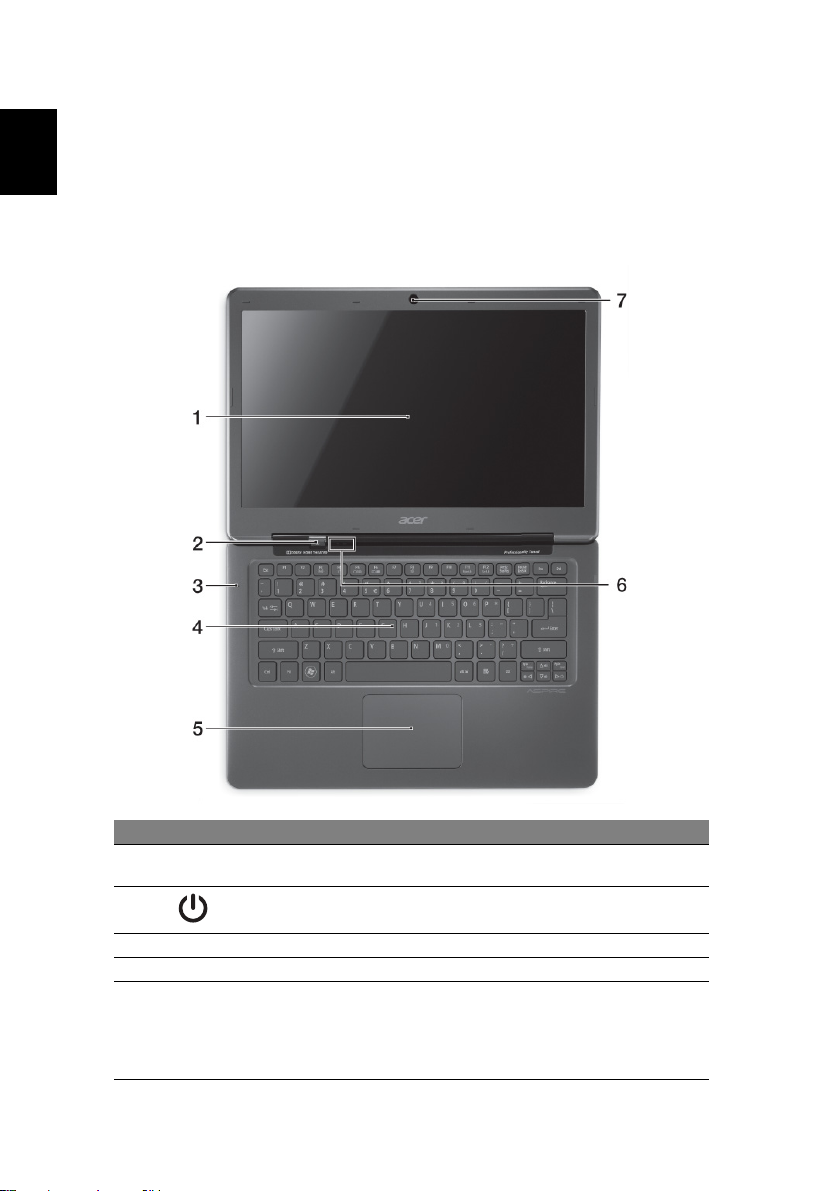
Top view
# Icon Item Description
1 Display screen
2
3 Microphone Internal microphone for sound recording.
4 Keyboard For entering data into your computer.
5Touchpad
Power button /
indicator
Also called Liquid-Crystal Display (LCD),
displays computer output.
Turns the computer on and off. Indicates the
computer's power status.
Touch-sensitive pointing device.
The lower left and right of the touchpad
react like left and right selection buttons;
press down on either area to perform a left
or right click.
Page 5
5
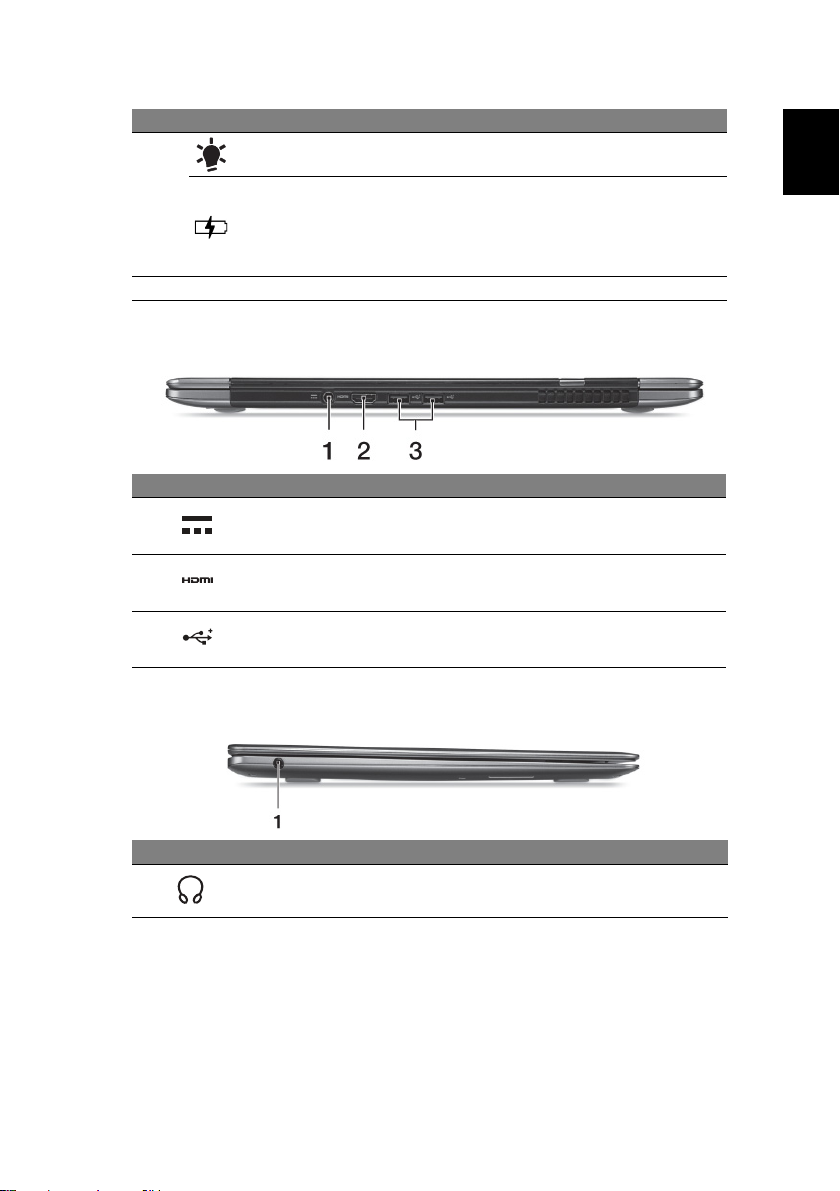
# Icon Item Description
Power indicator Indicates the computer’s power status.
6
Battery indicator
7 Integrated webcam Web camera for video communication.
Indicates the computer’s battery status.
Charging: The light shows amber when the
battery is charging.
Fully charged: The light shows blue when in
AC mode.
Rear view
# Icon Item Description
1 DC-in jack Connects to an AC adapter.
2HDMI port
3 USB 2.0 ports
Supports high-definition digital video
connections.
Connect to USB 2.0 devices (e.g., USB
mouse, USB camera).
English
Left view
# Icon Item Description
1 Headset/speaker jack
Connects to audio devices (e.g., speakers,
headphones) or a headset with microphone.
Page 6
English
6
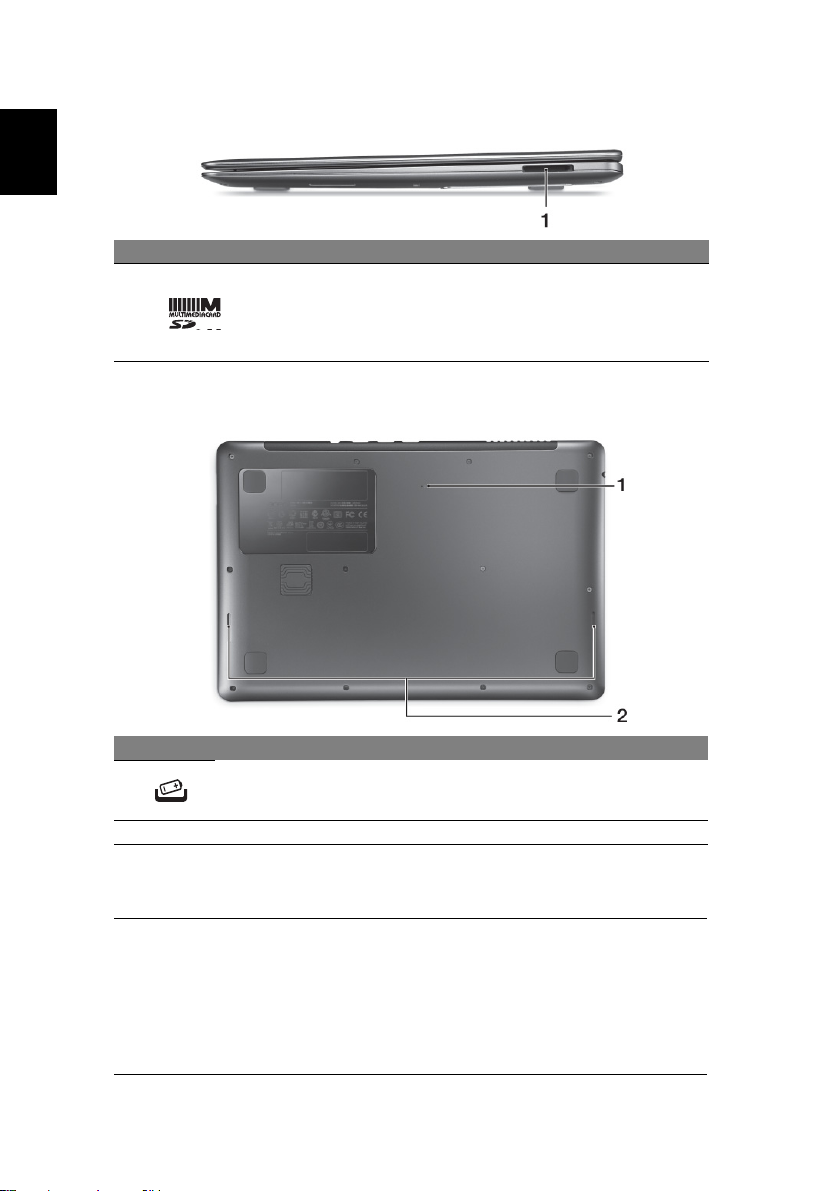
Right view
# Icon Item Description
Accepts one Secure Digital (SD or
SDHC) card or one MultiMediaCard
1 2-in-1 card reader
(MMC).
Note: To remove the card, simply pull it
from the slot.
Base view
# Icon Item Description
1 Battery reset pinhole
2 Speakers Deliver stereo audio output.
Insert a paperclip into the hole to reset the
computer (simulates removing and
reinstalling the battery).
Environment
• Temperature:
• Operating: 5 °C to 35 °C
• Non-operating: -20 °C to 65 °C
• Humidity (non-condensing):
• Operating: 20% to 80%
• Non-operating: 20% to 80%
 Loading...