

Page 1
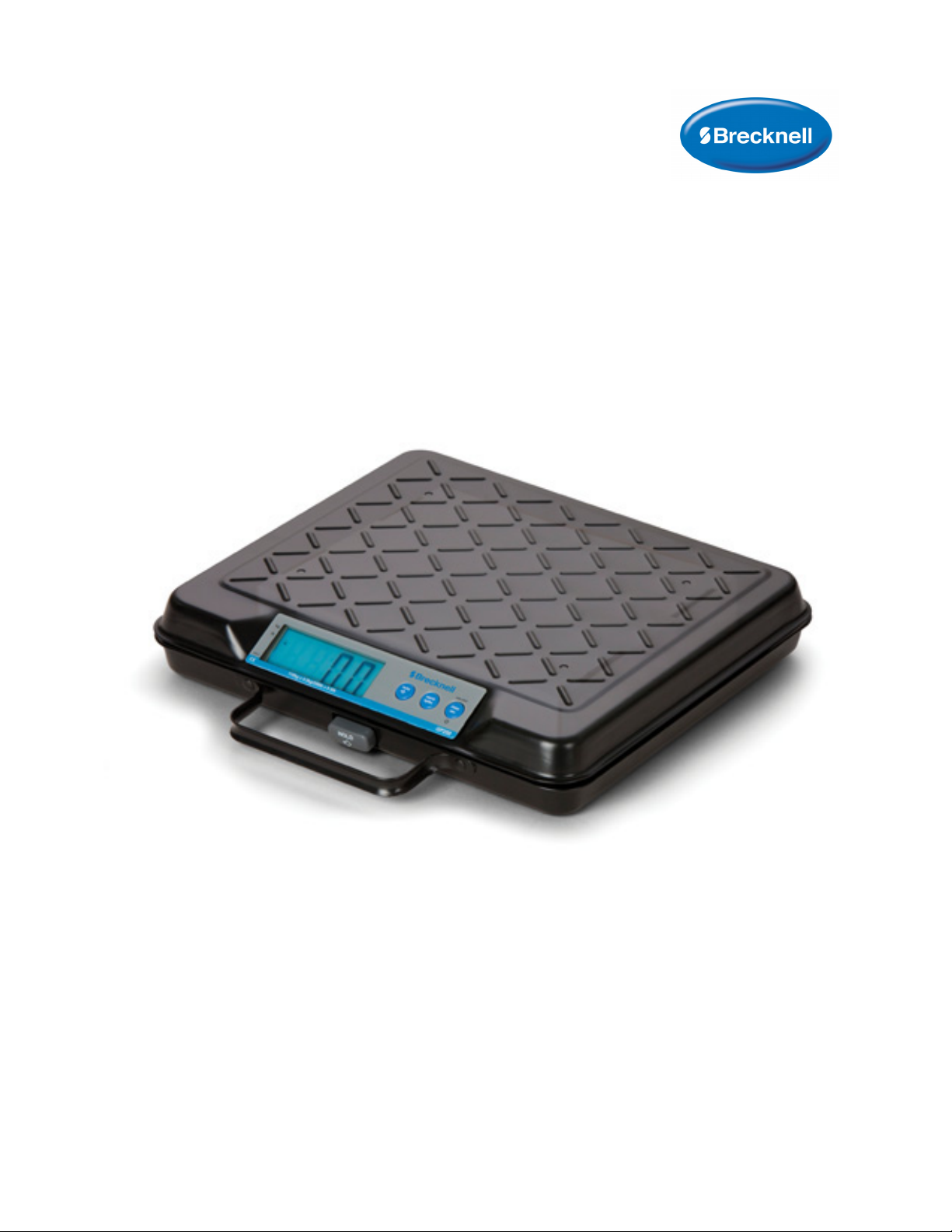
GP100-USB and GP250-USB
Electronic General Purpose Bench Scale
User Instructions
AWT 35-500825
Issue AC
Page 2

Brecknell is a trademark of the Illinois Tool Works group of companies whose ultimate parent company is
Illinois Tool Works Inc (“Illinois Tool Works”). Copyright © 2016 Illinois Tool Works. All rights reserved.
No part of this publication may be reproduced by making a facsimile copy, by the making of a copy in three dimensions of a two-dimensional
work and the making of a copy in two dimensions of a three-dimensional work, stored in any medium by electronic means, or transmitted in
any form or by any means, including electronic, mechanical, broadcasting, recording or otherwise without the prior written consent of the
copyright owner, under license, or as permitted by law.
This publication was correct at the time of going to print, however Avery Weigh-Tronix reserves the right to alter without notice the
specification, design, price or conditions of supply of any product or service at any time.
GP100_GP250_u_en_fr_500825.book
Page 3

Table of Contents
Chapter 1 General Information and Warnings ........................................................................................ 4
About this Manual ..............................................................................................................4
Text Conventions ........................................................................................................ 4
Special Messages ....................................................................................................... 4
Specifications ..................................................................................................................... 5
Features ............................................................................................................................. 5
Installation .......................................................................................................................... 6
Battery Installation ............................................................................................................. 6
Routine Maintenance ......................................................................................................... 7
Warranty ............................................................................................................................ 7
Cleaning and Care ............................................................................................................. 7
Chapter 2 General Operation .................................................................................................................... 8
Key Functions .................................................................................................................... 8
Zero/ON-OFF .............................................................................................................. 8
Tare .............................................................................................................................8
Units ............................................................................................................................ 9
Hold .............................................................................................................................9
Auto Power Off Configuration ............................................................................................ 9
Unit Switching Configuration ............................................................................................ 10
Scale Calibration ..............................................................................................................10
Connection with a PC ...................................................................................................... 11
Install / Update the USB Driver ................................................................................. 12
Scale Communications .................................................................................................... 13
Chapter 3 Troubleshooting ..................................................................................................................... 14
GP100 and GP250 User Instructions 3
Page 4
1 General Information and Warnings
The GP family of bench scales is intended to be used as a general purpose, portable
bench scale to weigh objects or packages for determining shipping weights and weight
verification.
The GP series is not intended for “Legal for Trade” applications. Brecknell offers other
“Legal for Trade” scales, you can visit our web-site at www.brecknellscales.com.
1.1 About this Manual
This manual is divided into chapters by the chapter number and the large text at the top
of a page. Subsections are labeled as shown by the 1 and 1.1 headings shown above.
The names of the chapter and the next subsection level appear at the top of alternating
pages of the manual to remind you of where you are in the manual. The manual name
and page numbers appear at the bottom of the pages.
1.1.1 Text Conventions
The keys used to interface with the GP100/250 are located on the front panel of the
indicator. The keystrokes are shown in BOLD between brackets. (e.g. [ZERO])
Displayed messages appear in bold italic type and reflect the case of the displayed
message.
1.1.2 Special Messages
Examples of special messages you will see in this manual are defined below. The
signal words have specific meanings to alert you to additional information or the relative
level of hazard.
CAUTION!
This is a Caution symbol.
Cautions give information about procedures that, if not observed, could result
in damage to equipment or corruption to and loss of data.
ELECTRICAL WARNING!
THIS IS AN ELECTRICAL WARNING SYMBOL.
ELECTRICAL WARNINGS MEAN THAT FAILURE TO FOLLOW
SPECIFIC PRACTICES OR PROCEDURES MAY RESULT IN
ELECTROCUTION, ARC BURNS, EXPLOSIONS OR OTHER HAZARDS
THAT MAY CAUSE INJURY OR DEATH.
NOTE: This is a Note symbol. Notes give additional and important information, hints
and tips that help you to use your product.
4 GP100 and GP250 User Instructions
Page 5
1.2 Specifications
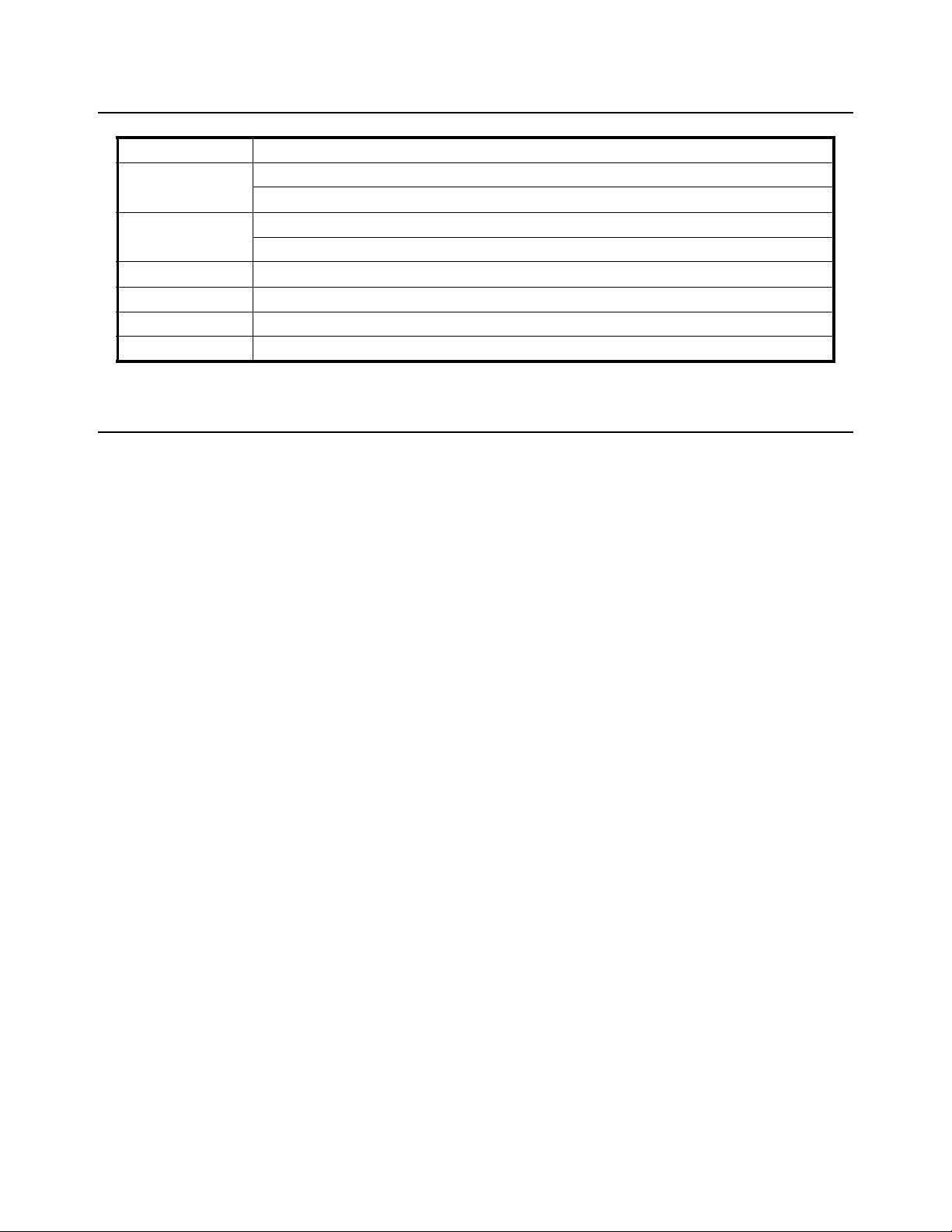
Construction 22 gauge steel
Capacity GP100: 0 – 100 x 0.2 lbs / 0 – 45 x 0.1 kg
GP250: 0 – 250 x 0.5 lbs / 0 – 110 x 0.2 kg
Accuracy: +/- 3 divisions: GP100 - 0.6 lbs / 0.3 kg)
GP250 – 1.5 lbs / 0.6 kg
Display Large 1” High Backlit LCD
Platter Size 10.95”W x 12.50”L x 2.20” H
Keypad Discrete keyboard switch with ZERO/ ON/OFF, UNITS, TARE, and HOLD.
Power One 9 volt battery (included) or USB cable if available. AC Power supply is optional.
1.3 Features
Auto Power Off
The unit is factory configured for the unit to shut off after 2 minutes of non-use. This
feature is designed to save the battery and backlit display life. If the scale is going to
be powered via the USB cable and you would like to disable the Auto Power Off feature,
see page 9 for detailed instructions.
Units
This feature is factory configured for the UNITS switching feature to be active. The
[UNITS] key allows you to weigh or compare weights in Pounds (lb) or Kilograms (kg).
When powering the scale on, the units of measure default, lb or kg, will be used
depending on your country of origin. The default weighing unit is identified by the
annunciator on the display. See page 10 for detailed instructions on changing the
default units of measure or deactivating the [UNITS] button.
TARE
The tare feature is used when you want to weigh items on the scale while using an
empty container to hold them in place on the scale. Simply place the empty container
on the scale, press the [TARE] key, the scale will now display 0.0 weight. Place items
in the empty container to obtain the actual weight of the items in the container. See
page 8 for detailed instructions.
HOLD
The Weight HOLD feature is used when you have a object placed on the scale that is
to large for you to view the weight on the display. Pressing the [HOLD] button prior to
placing the object on the scale will activate the hold feature. Once the item is placed on
the scale for 2-5 seconds, remove the object and the scale will display the average
weight of the item. See page 9 for detailed instructions.
GP100 and GP250 User Instructions 5
Page 6
1.4 Installation
Carefully unpack and inspect the shipping container for evidence of shipping damage.
If such evidence is discovered, stop unpacking and immediately notify the shipper to
arrange to have the shipment inspected by an authorized representative. All damages
must be promptly filed with the shipper.
1. Open the box and carefully remove the scale from the shipping carton (save
the shipping carton for future use).
2. Place the scale on a flat level surface free from vibration.
1.5 Battery Installation
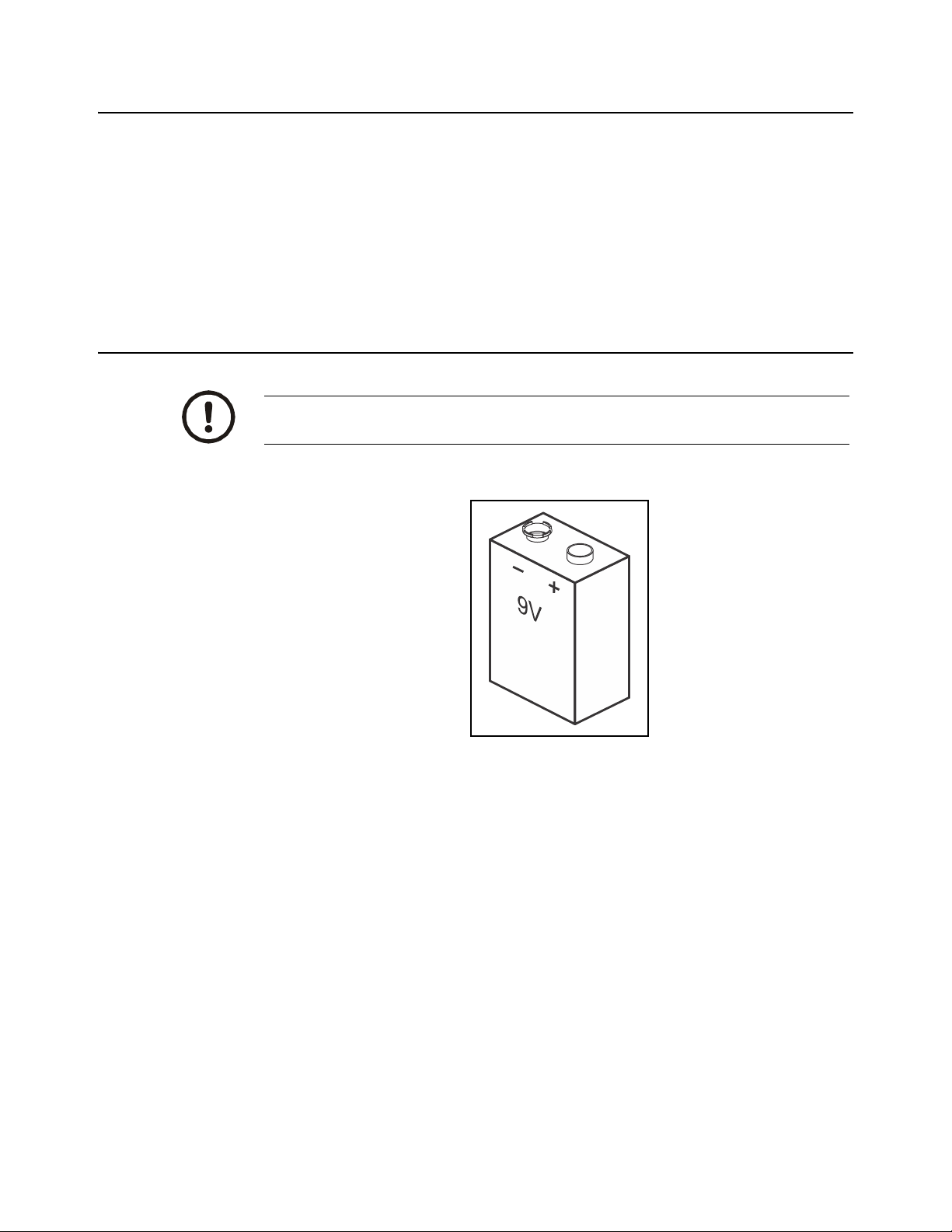
CAUTION!
Use 9V Alkaline battery only! No other type provides a suitable power output.
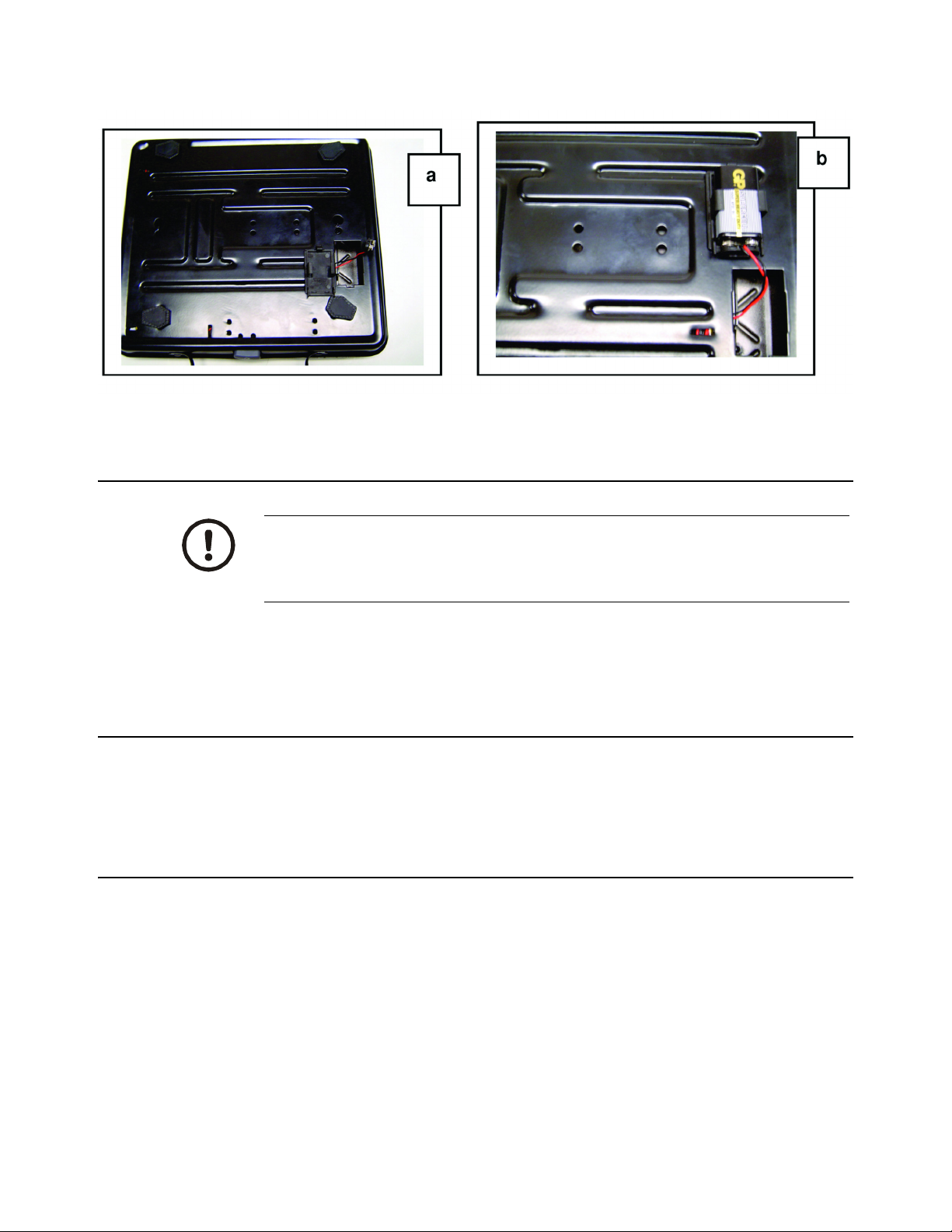
1. Remove the cover on the underside of the scale. See (a) in Figure 1.1.
2. Place the battery firmly into the battery holder.
3. Connect the terminals to the battery. See (b) in Figure 1.1.
4. Reinstall the battery cover
6 GP100 and GP250 User Instructions
Page 7
.
1.6 Routine Maintenance
Figure 1.1 Battery Replacement
IMPORTANT: This equipment must be routinely checked for proper operation
and calibration.
Application and usage will determine the frequency of calibration required for
safe operation.
Always turn off the machine and isolate from the power supply before starting any
routine maintenance to avoid the possibility of electric shock.
1.7 Warranty
This product has a 1 year warranty from the date of delivery against defects in material
and workmanship. This warranty does not apply if the product was subject to misuse,
neglect, damage or abuse. Calibration is not covered under warranty
1.8 Cleaning and Care
l Handle the scale with care. Dropping the scale may cause damage to the
scale, which will not allow the scale to weigh properly. This type of damage
is considered abuse and violates the product warranty.
l To avoid damage to the scale, never drop heavy objects or exceed capacity
on the scale.
l Clean the scale with a slightly damp cloth. DO NOT immerse the scale in
water or use chemical/abrasive-cleaning agents.
l If the scale is not being used for a long period of time, remove the battery or
turn off the scale.
GP100 and GP250 User Instructions 7
Page 8
2 General Operation
2.1 Key Functions
2.1.1 Zero/ON-OFF
This key performs three functions.
l Turn on the scale
l Returns the scale to zero weight
l Turn off the scale.
Turn ON power to the scale:
1. Remove all items from the scale. Press the [Zero/ON-OFF] key.
2. The display will show perform a display test 8888 then 0.0.
Turn OFF the power to the scale:
1. Press the [Zero/ON-OFF] key for 3-5 seconds.
2.1.2 Tare
Zero to the scale:
1. Press the [Zero/ON-OFF] key if the scale will not return to zero weight or a
negative weight appears on the display.
NOTE: It is recommended to press the [Zero/ON-OFF] key before placing an item on
the scale. This will help ensure the accurate weight readings.
To use the tare feature:
1. Place an empty container on the weighing platform.
2. Press the [TARE] key. The scale will display zero weight.
When an item is placed on the container, the scale only displays the weight of
the item, not the weight of the container and the item.
3. To reset the scale for no tare, remove the container and its contents from the
weighing platform and press the [TARE] key.
The tare function will work over the full weighing range of the scale but will not extend
the overall capacity of the scale.
8 GP100 and GP250 User Instructions
Page 9

2.1.3 Units
2.1.4 Hold
The unit is factory configured for the units switching feature to be active. The [UNITS]
key allows you to weigh or compare weights in pounds (lb) or kilograms (kg). The
displayed weight being used can be identified by checking to make sure the bullet on
the display is pointing to lb or kg.
See page 10 for detailed instructions on changing the default units of measure or
deactivating the [UNITS] key.
Press the [UNITS] key to scroll between lb and kg displayed weight.
This key is used when you are unable to view the displayed weight because an item is
larger than the weight platter and display. Pressing this key will hold the stable weight
in the display, after the package has been removed.
To use the weight Hold feature:
1. Remove all items from the scale, making sure the scale is at zero weight.
2. Press the [HOLD] key. An annunciator will flash indicating weight hold is
active.
3. Place an item on the scale, wait two seconds for the weight to become stable.
4. When the weight becomes stable, the Hold annunciator will no longer flash.
5. Remove the item, from the scale. The weight of the item will be held in the
display.
6. To clear the display, press the [HOLD] key.
2.2 Auto Power Off Configuration
The default setting for sleep mode is 120 seconds. The sleep mode can be configured
to 120, 240 seconds or OFF via keyboard. If there is no activity, the scale will turn itself
off after 120 seconds.
The Auto Power Off feature can be changed, when needed, by the following
instructions:
1. With the scale turned on, remove all weight from the scale
2. Press and hold the [TARE] key for 3 seconds. The display will read TARE,
SET, Unit
3. Press the [UNITS] key to scroll to the next selection A.OFF
4. Press [TARE] key to enter into the auto power off configuration menu.
5. Press the [TARE] key to accept the current setting or use the [UNITS] key to
scroll between 240 (240 seconds), 120 (120 seconds) or OFF.
6. After selecting your desired setting and pressing the [TARE] key to accept.
7. Press the [UNITS] key twice to scroll to END
GP100 and GP250 User Instructions 9
Page 10

8. Press the [TARE] key to exit the setting and return the scale to 0.0 weight.
2.3 Unit Switching Configuration
The default setting for switching is ON. In this menu you can change the scale to weigh
in kilograms (kg) only, pounds (lb) only, or units switching on.
To change units:
1. With the scale turned on, remove all weight from the scale.
2. Press and hold the [TARE] key for 3 seconds. The display will read TARE,
SET, Unit
To turn OFF units switching and weigh in lbs only:
1. Press the [TARE] key enter into configuration menu. The display will read kg
2. Press [TARE] key. The display will read ON
3. Press the [UNITS] key once to scroll to OFF
4. Press [TARE] key. The display will read 0.1
5. Press the [TARE] key. The display will read kg
6. Press the [UNITS] key 5 times. The display will read END
7. Press the [TARE] key to exit the setting and return the scale to 0.0 weight.
2.4 Scale Calibration
Periodically your scale may require calibration to ensure proper weighing. Calibration
may be required if the scale has been improperly used by mishandling or by dropping
the scale. You will need an accurate 50 or 200 pound weight to calibrate the scale. If
calibration is performed with a weight other than 50 or 200 pounds, it will cause your
scale to weigh inaccurately.
IMPORTANT: Do not enter into Calibration Mode without an accurate weight.
To calibrate the scale:
1. Make sure the scale is turned off.
2. Remove all weight from the scale.
3. Press and hold the [ZERO/ON-OFF] key and press the [UNITS] key three
times. The display will read CAL.
3a. Press [TARE] to display current calibration units; KG or LB.
3b. Press [UNITS] to select an alternate calibration unit; KG or LB.
3c. Press [TARE] to advance to scale capacity;100 or 250.
3d. Press [TARE] to return to "CAL".
10 GP100 and GP250 User Instructions
Page 11
4. Press the [UNITS] key once to accept and enter into calibration mode. 1000 4000 is displayed.
5. Press the [TARE] key once to zero the scale. 0 is displayed.
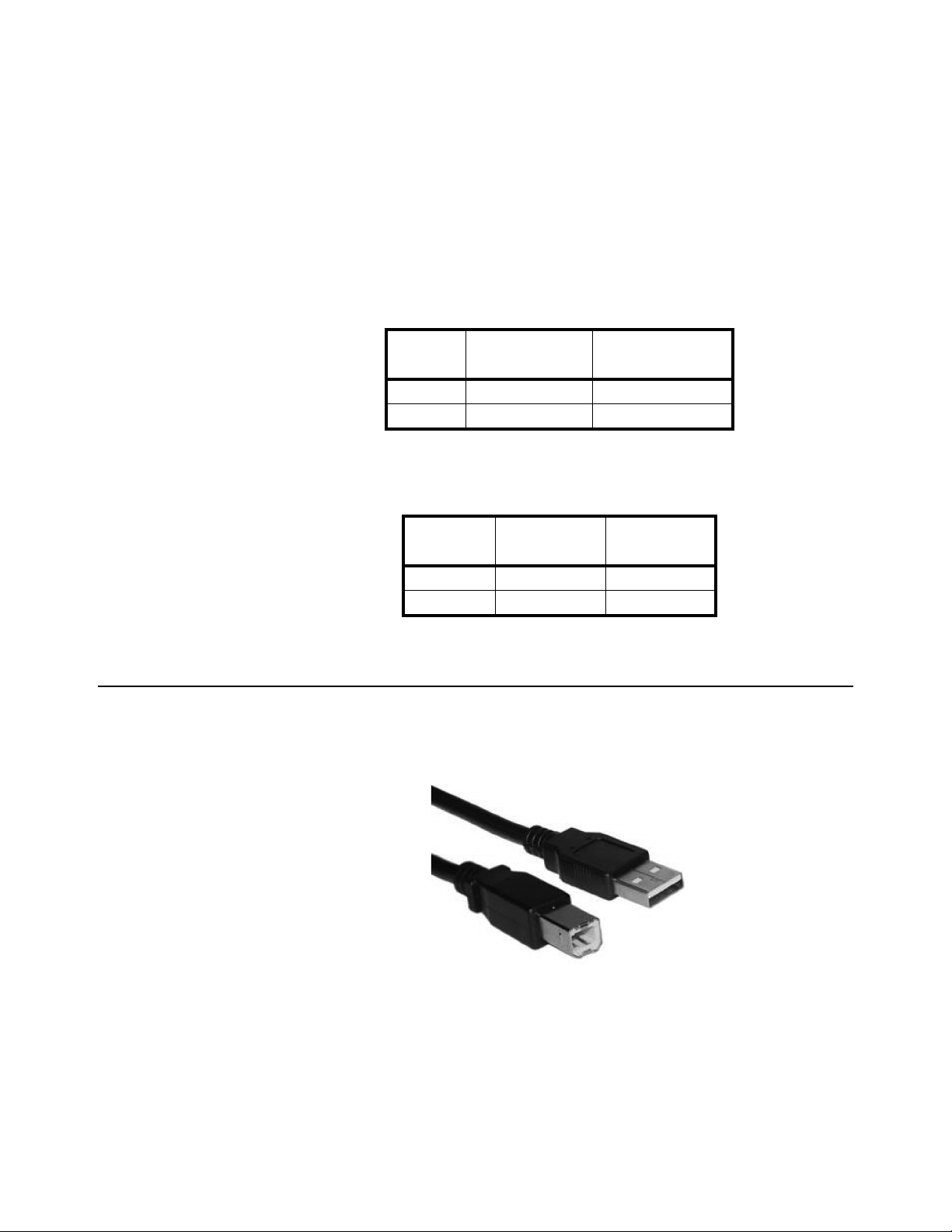
6. Place XX weight on the scale (refer to Table 2.1 below).
7. Press [TARE] key once to accept the calibration weight. CAL is displayed.
8. The display will prompt CAL for 2-3 seconds, then exit the calibration mode
and return to normal weighing mode. If the calibration weight is left on the
scale, a weight will be displayed.
Table 2.1 Calibration Weight
2.5 Connection with a PC
The scale can automatically connect to a PC via a USB cable.
Note: The USB cable is not included with the scale. A USB A to USB B cable is
required. Refer to the following photo.
Model
GP100 50 lb 20 kg
GP250 200 lb 100 kg
GP100 4500 - 9000 4000 – 8000
GP250 18000 – 36000 20000 – 40000
Calibration Weight
Table 2.2 Span Range
Model
(LB)
Span Range
(LB)
Calibration Weight
(KG)
Span Range
(KG)
Figure 2.1 USB A to USB B cable
Win 7 users can just plug in the USB and the PC will search and download necessary
driver to operate the device. In case this does not happen, please follow the procedure
in Install / Update the USB Driver on page 12 to download and install the driver.
GP100 and GP250 User Instructions 11
Page 12

2.5.1 Install / Update the USB Driver
Use the link below to access the USB Installation Guide. The document provides
detailed installation and basic operation procedure and setup.
http://www.brecknellscales.com/downloads/Installing%20335%20USB%20Driver.pdf
12 GP100 and GP250 User Instructions
Page 13

2.6 Scale Communications
1. Turn the scale on.
2. Press and hold the [TARE] key for 3-5 seconds. The scale will display TARE,
SET, VERSION NUMBER and UNIT.
3. Release the [TARE] key when you see UNITS on the display
4. Press the [UNITS] key until Port on the display.
5. Press the [TARE] key and then press the [UNITS] key to toggle to the desired
software protocol.
6. Once the correct selection is displayed, press the [TARE] key to accept.
7. With Port on the display, press the [UNITS] key. Baud rate will be displayed.
8. Press the [TARE] key and press the [UNITS] key to toggle to the desired baud
rate communication setting needed for your software.
9. Press the [TARE] key and press the [UNITS] key. Par will be displayed.
10. Press the [TARE] key and press the [UNITS] key to toggle to desired parity
format.
11. Press the [TARE] key to accept the selection. Par is displayed.
12. Press the [UNITS] key and End will be displayed.
13. Press the [TARE] key to exit the menu structure.
NOTE: For UPS Worldship software, you will need to select the NCI protocol,
4800 baud rate, 7 even parity in the scale menu configuration. In the actual UPS
software, select the 3835 for type of scale.
GP100 and GP250 User Instructions 13
Page 14
3 Troubleshooting
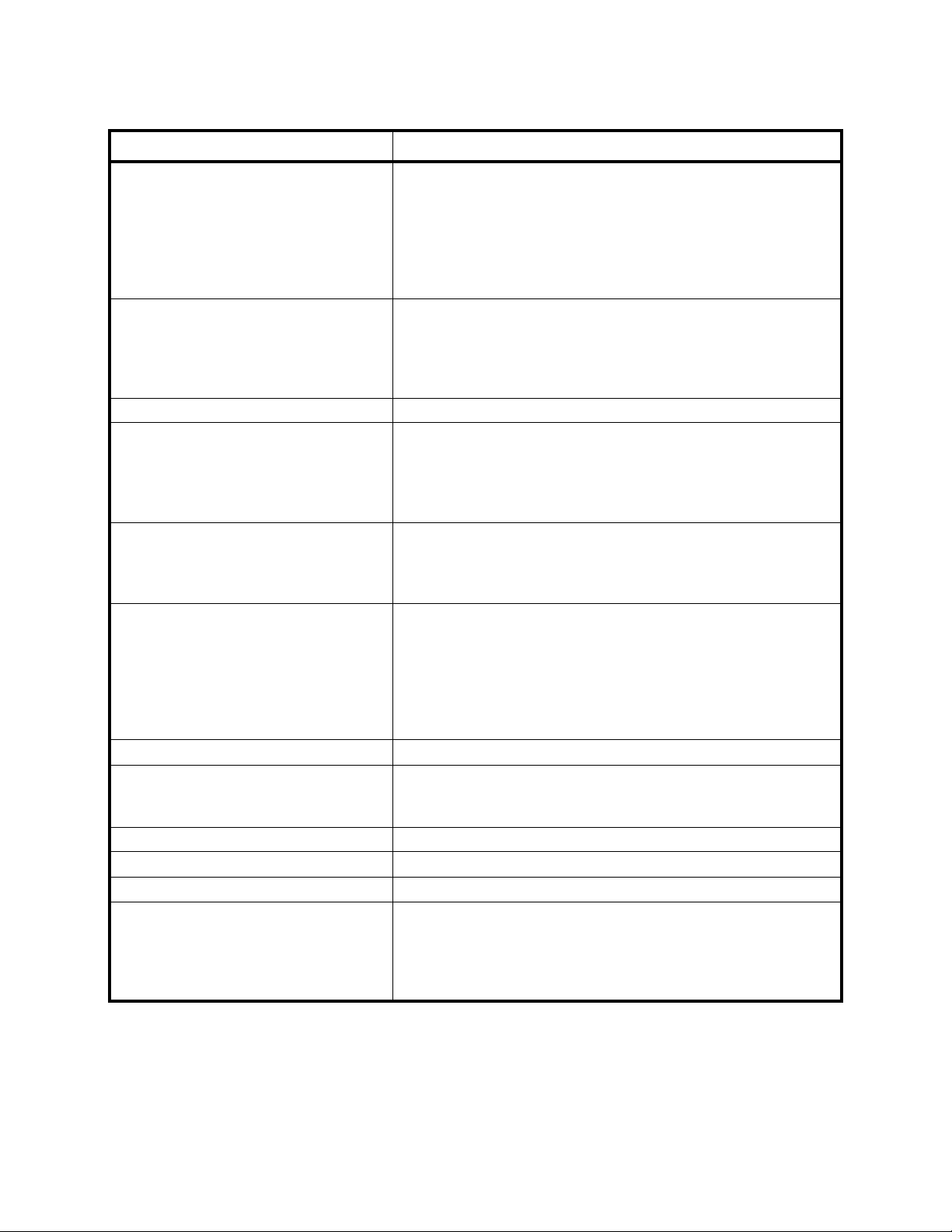
Symptom Recommended Action
Not weighing correctly
or
inaccurate weight
Weight fluctuates Press [ZERO] key, to zero the scale before placing an item on the scale.
“Lo” is displayed Replace the battery.
“Over” is displayed The weight placed on the scale is over the scales capacity. Remove the weight
“ErrL” is displayed The scale is under zero. Press the [ZERO] key.
After pressing the [HOLD] key and placing a
weight on the scale, the weight will not hold on
the display. The “ . ” continues to flash
“ErrE” is displayed Software error, turn the scale off then on again
“8888” is displayed Software error, turn the scale off then on again.
Unit will not stay on Auto power off is activated, See page 9 for configuration.
Backlit display does not work Display is broken.
I lost my power supply and battery cover Contact the factory at 1-800-637-0529 for replacement parts.
Incorrect hold weight Scale was not able to stabilize and determine a hold weight, repeat hold.
The scale is under zero. Press the “ON/OFF(ZERO)” key.
or
Damage to the scale has occurred, calibrate the scale, see page 6 for
instructions.
or
Press the [IUNITS] key, the unit is displaying the incorrect unit of measure, lb
or kg.
or
Ensure scale is placed in a stable, level environment free from vibration.
or
Turn the scale Off, then back on.
from the scale.
or
The weight placed on the scale plus the tare weight is over the scales
maximum capacity. Remove the weight from the scale.
or
Damage to the scale has occurred, Calibrate the scale, see page 10 for
instructions.
Remove weight from scale and place the Weight in the center of the scale.
or
The scale is not in a stable environment that allows the weight hold feature to
work. Remove the item and place it back onto the scale.
or
Not enough weight is applied for the weight hold to work, minimum weight
required is 1 pound.
or
[ZERO/ON-OFF] key is stuck. Gently free [ZERO/ON-OFF] key.
or
Hold key is stuck, gently free hold button.
or
Item was not placed on the scale quick enough.
14 GP100 and GP250 User Instructions
Page 15

Page 16

Brecknell USA
1000 Armstrong Dr.
Fairmont MN 56031
Tel:507-238-8702
Fax:507-238-8271
Email: [email protected]
http://www.brecknellscales.com
Brecknell UK
Foundry Lane,
Smethwick, West Midlands,
England B66 2LP
Tel:+44 (0) 8452 46 6717
Fax:+44 (0) 8452 46 6718
Email:
[email protected]
http://www.brecknellscales.com
 Loading...