

Page 1
1
Ensure on delivery that the product has not been damaged in transport.
BODET SA
BP30001
49340 Trémentines I FRANCE
Tel: +33 (0)2 41 71 72 98
Fax: +33 (0)2 41 71 72 01
Ref.: 607977 A
www.bodet-sport.com
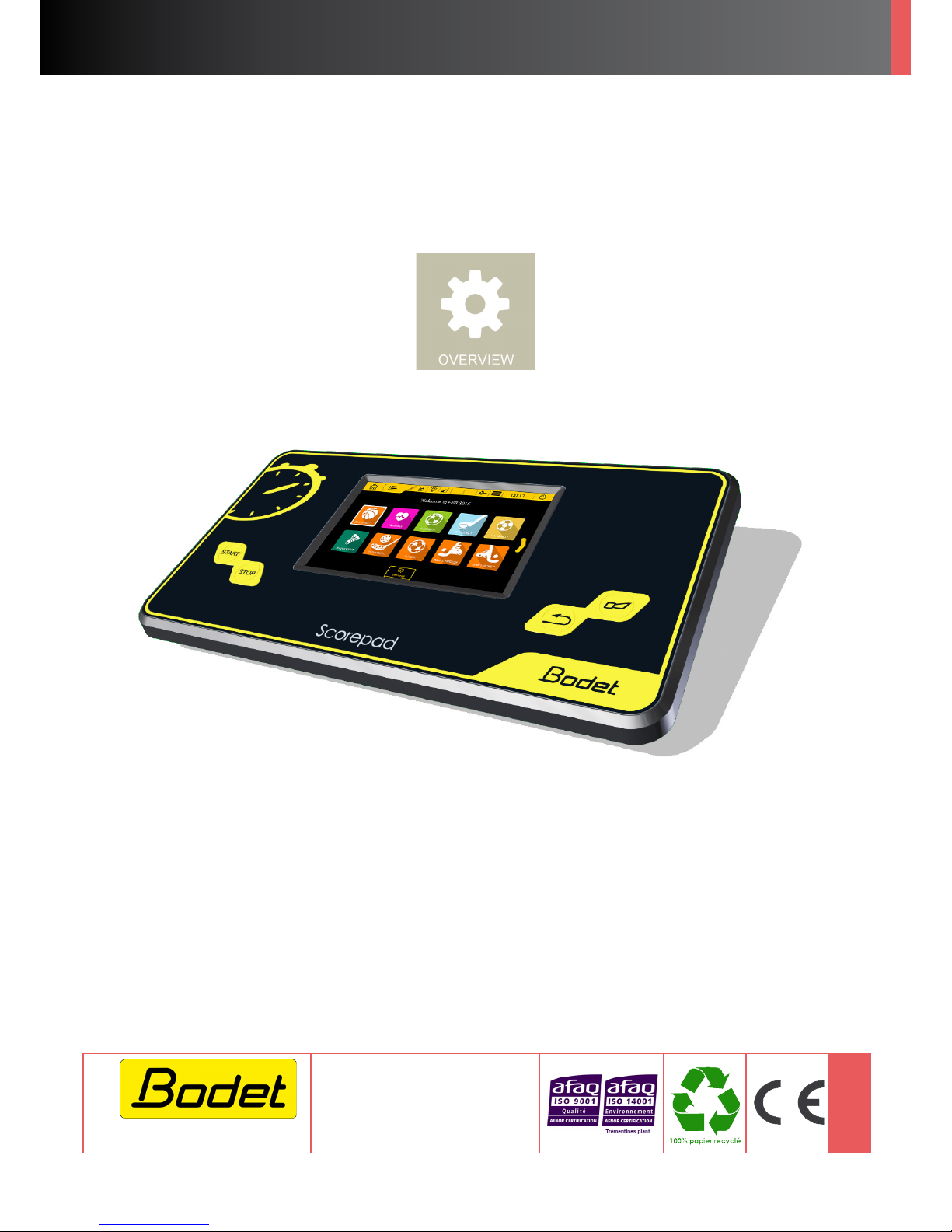
Control console
User manual - General rules
BODET Scorepad
Page 2

2
Precautions
Protect the device against splashed liquids, rain and excessive solar radiation.
Do not use the device if damaged or uncertain.
Check mains voltage.
Do not open the unit case: no user-serviceable parts inside. If the unit case must be opened,
call a qualied service technician. Always switch off the device and unplug all cables before opening.
The information contained in this document may be changed without prior notice.
Page 3

3
Table of contents
Precautions 2
1. Introduction 4
Installation 4
Packing list 4
2. Safety and handling 5
Important information on safety 5
Important information on handling 5
3. General view of the Scorepad 6
Overview of the Scorepad 6
Accessories 7
Communications 8
4. Start-up 9
Commissioning 9
Icons and information in the screen header bar 10
General menu information and functions 11
5. User menu and technician menu 11
Welcome message 11
Loading teams 11
Change the time 11
Lists of settings for each menu type 12
6. Technical data 13
Electrical 13
Mechanical 13
7” LCD touch screen 13
7. Support 14
Page 4
4
1. Introduction
Bodet Sport provides various types of scoreboards (indoor, outdoor, damp environments, etc.)
congurable for a wide range of sports. These scoreboard ranges are controlled by a single Scorepad
console featuring a keyboard and touch screen to facilitate operation.
Options and accessories are provided for use with the Scorepad console:
- 4-hour battery extension
- Start/Stop hand switch
- Possession console
IMPORTANT: This manual describes all features of the console. However, depending on your
conguration, some features, sports or options will not be available.
Installation
Please refer to the installation manual matching your Scorepad console.
Packing list
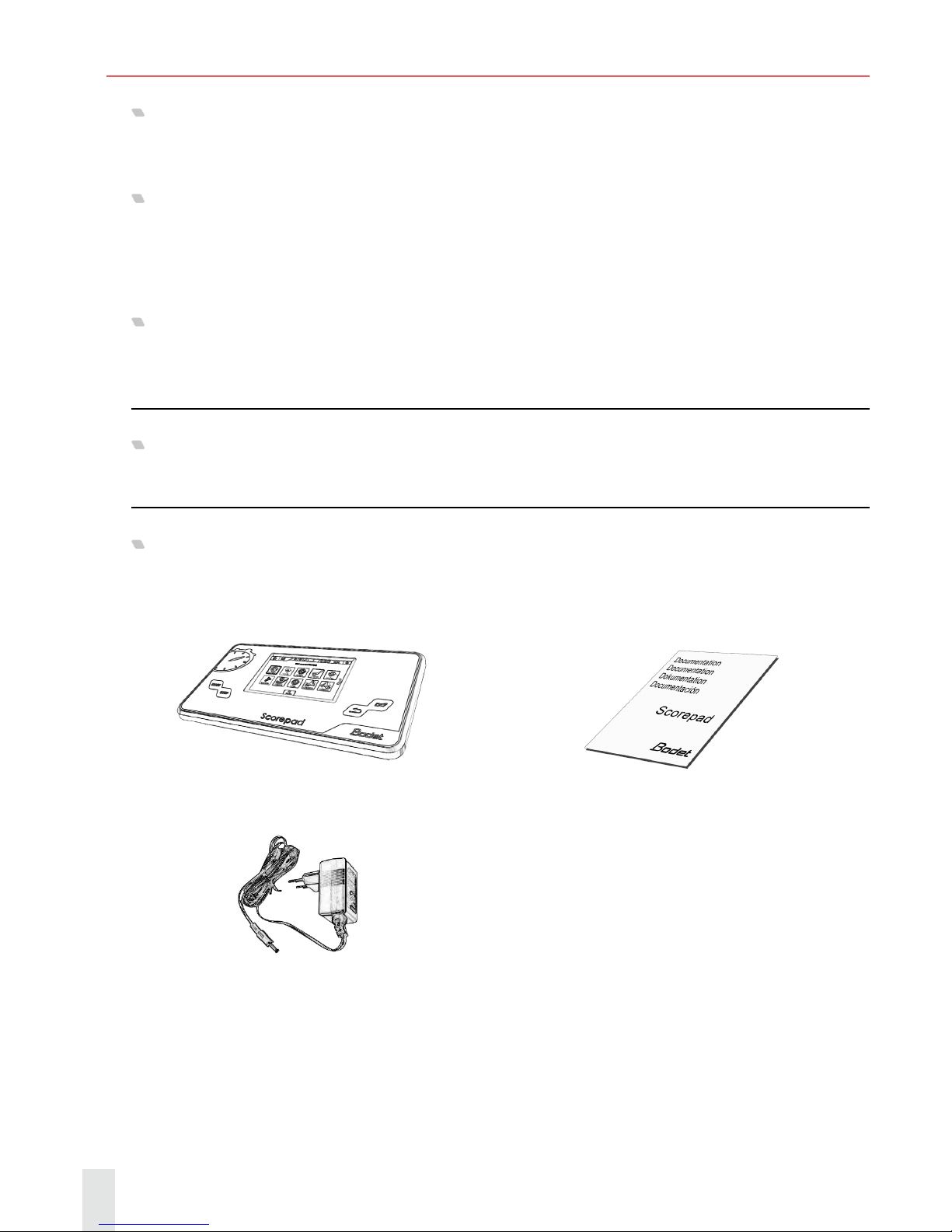
Check that the Scorepad packaging contains the following components and accessories according to
your Scorepad version:
Scorepad
Quick start guide
Mains power supply
Page 5

5
2. Safety and handling
IMPORTANT: Failure to apply these instructions may result in damage to your Scorepad. Before using
the Scorepad, please read all information on safety and handling.
Important information on safety
USE
Handle the Scorepad carefully. It is built in plastic (unit case) and glass (touch screen) and contains
sensitive electronic components. The Scorepad may be damaged if dropped, burnt, punctured, crushed
or brought into contact with liquids. Never use a damaged Scorepad: for instance, if it has a cracked
screen, as this may cause injury.
CHARGING AND POWER SUPPLY
Charge the Scorepad with the mains adapter supplied. Using damaged cables or chargers, or charging
in very humid conditions may cause re, electrocution, injury, or damage to the product or other property.
When the BODET mains adapter is powering or charging the Scorepad, make sure the connector is
securely tted into the adapter before plugging it into a mains outlet (green indicator LED when charging).
Important information on handling
CLEANING
Immediately clean the Scorepad if it comes into contact with a substance likely to stain or damage the
touch screen. Use a wipe suitable for computer screens. Prevent any liquids from penetrating the device.
Do not use cleaning products or compressed air.
USING CONNECTORS AND KEYS
Never force a connector into a port and never depress a key with excessive pressure: doing so may
cause damage not covered by the warranty. If you have trouble seating the connector in the port, this is
probably because the connector does not match the port. Check for an obstruction and make sure the
connector matches the port format.
OPERATING TEMPERATURE
The Scorepad is designed to operate at ambient temperatures ranging from 0°C to +40°C. The Scorepad
may be damaged and its battery life shortened if used or stored out of this temperature range. Avoid
exposing the Scorepad to sudden changes in temperature or humidity. During use or while charging the
battery, it is normal for the Scorepad to heat up.
Page 6
6
3. General view of the Scorepad
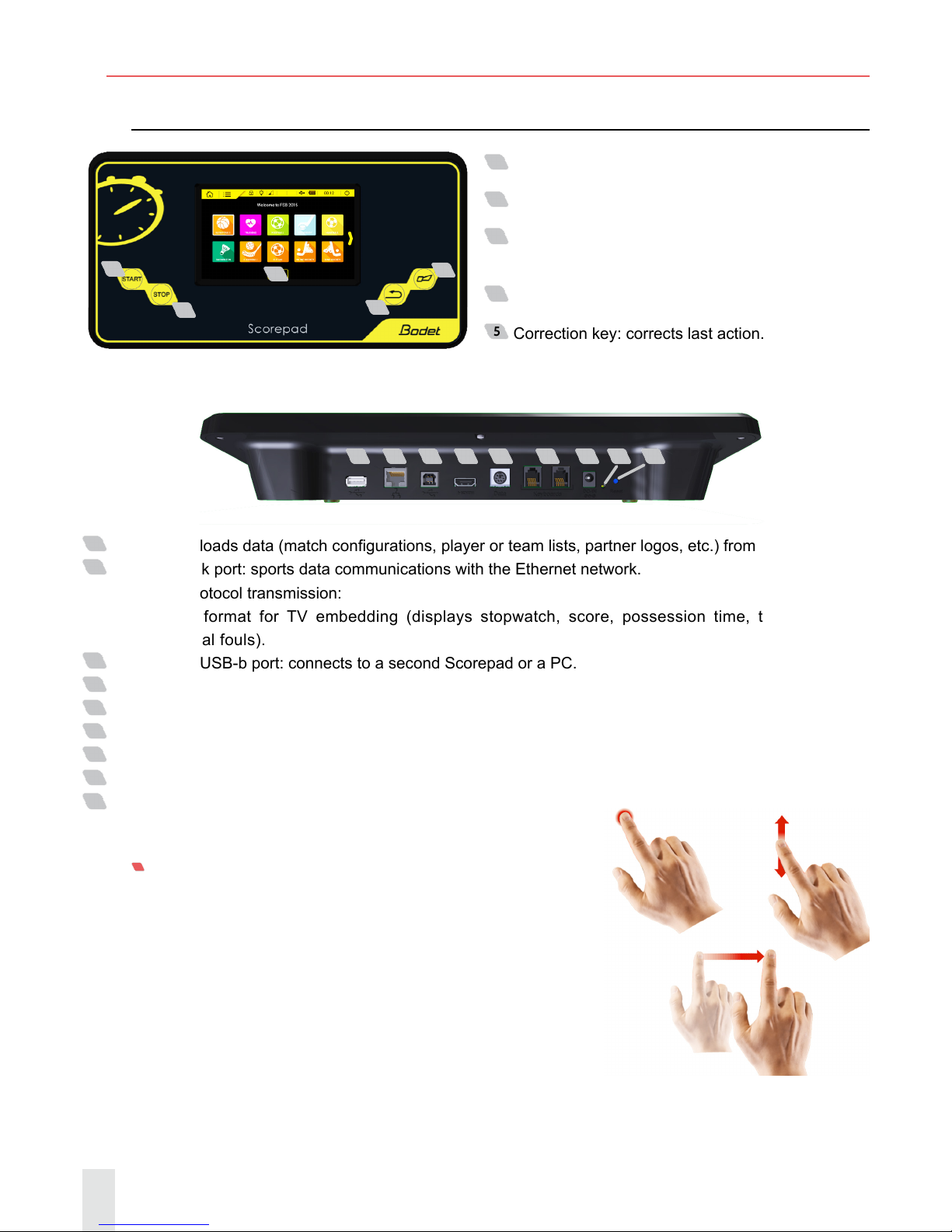
Overview of the Scorepad
1
Start key: starts the stopwatch.
2
Stop key: stops the stopwatch.
3
LCD touch screen: congures all sports display
settings.
4
Buzzer key: immediately starts or stops buzzer.
5
Correction key: corrects last action.
1
USB-a port: loads data (match congurations, player or team lists, partner logos, etc.) from a USB drive.
2
RJ45 network port: sports data communications with the Ethernet network.
Sports protocol transmission:
- Simple format for TV embedding (displays stopwatch, score, possession time, total fouls and
individual fouls).
3
USB-b port: USB-b port: connects to a second Scorepad or a PC.
4
HDMI port: connects to a TV-type display device.
5
Mini DIN port with lock: BODET sports data bus to connect to a Bodet scoreboard.
6
2 RJ12 ports: connect to additional consoles (referee whistle, possession console, Start/Stop hand switch, etc.).
7
Jack socket: power supply and battery charger.
8
1 green LED: indicates mains power ON.
9
1 RESET button: turn off the keyboard.
7’’ LCD TOUCH SCREEN: CAPACITIVE MULTI-TOUCH
It only takes a few simple gestures (touch, drag and sweep)
to use the Scorepad touch screen:
1 32 4 5 6 7 8 9
1
2
3
4
5
Page 7
7
Accessories
BATTERY EXTENSION
The battery extension provides extra runtime for the Scorepad in the event of a mains power-out (up to
4 hours) so that the Scorepad can remain in service for the duration of the match.
This Lithium-ion battery is installed exclusively by our technical staff:
- in-factory for new consoles.
- on consoles in service: our customer support team installs and tests the device for correct
operation.
Note: The standard battery supplies a power reserve for continuous console operation of
approx. 15 minutes. This battery is therefore not designed to power the Scorepad for the full
duration of a match.
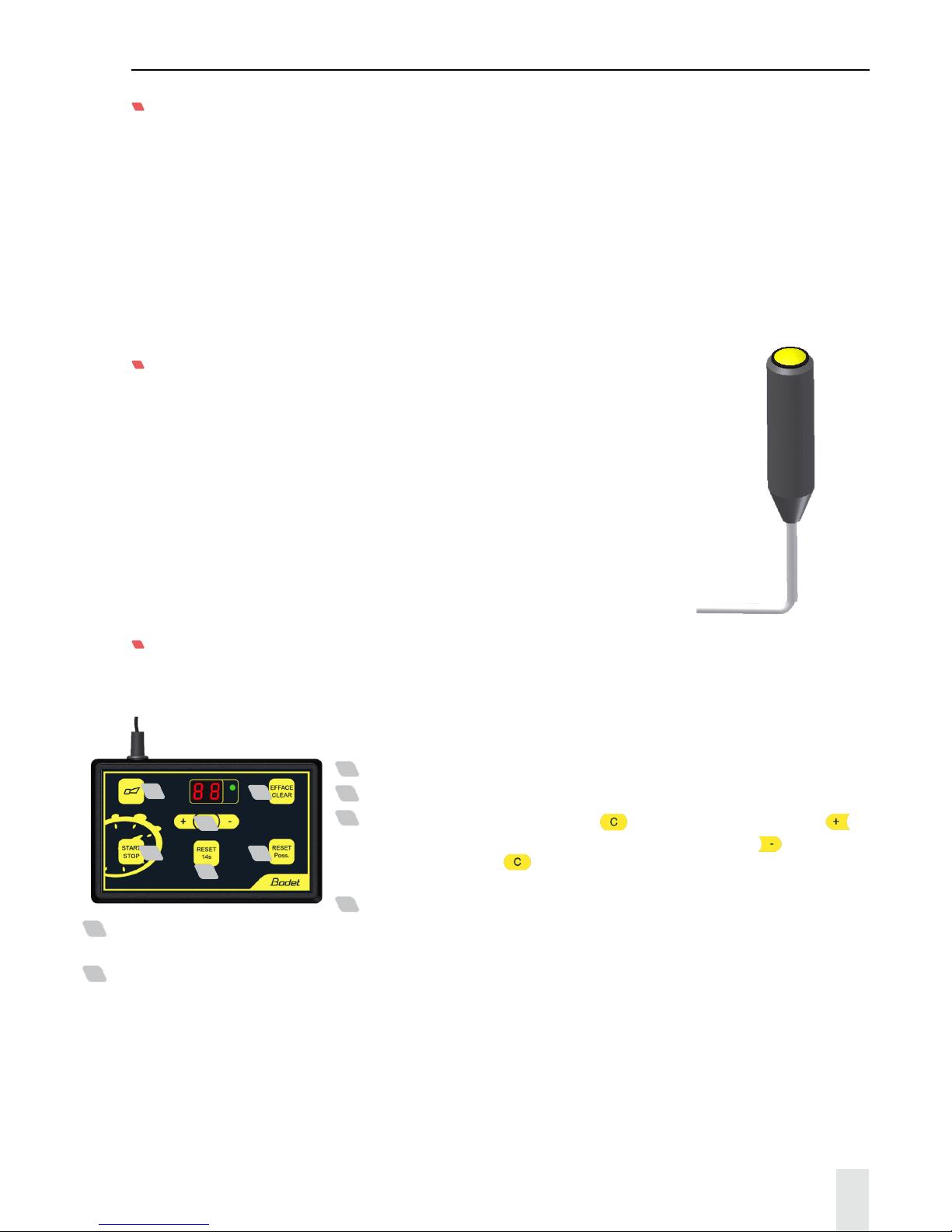
START/STOP HAND SWITCH
The Start/Stop hand switch connects to the Scorepad via the RJ12
port. It is used to start and stop the stopwatch.
POSSESSION CONSOLE
The possession console is used with the possession digit displays (Basketball or Water Polo).
This console connects to the Scorepad via the RJ12 port.
1
Buzzer key: immediately stops buzzer.
2
Starts or stops the possession time count.
3
Correction mode: short press on : the display ashes. Press to
increase possession time by 1 second steps or press
to decrease
by 1 second. Press
to return to normal mode. Correction is possible
up to 90 sec.
4
Reset possession time to 14 seconds.
5
Possession time is reset according to the sport being played (if pressed and the game time stopwatch value
is less than the possession time value: digit displays are reset).
6
Resets possession time display only if possession time is stopped (the display (24) is also reset). Cancels
24 or 14 sec RESET if pressed < 2 sec after pressing the RESET key.
1
2
3
4
5
6
Page 8

8
Communications
HDMI
The HDMI output allows the Scorepad to communicate with display devices via an HDMI cable.
For instance, it can be used to display sports data on an LCD-type screen.
The HDMI output resolution is 1280 x 720 pixels.
Background colour or image are now user-selectable.
NETWORKING PROTOCOL OPTION
The Scorepad uses a networking protocol to send data to various display devices (TV, remote screens,
press control room, etc.) depending on the protocol selected (enabled by our technical staff (see page 13).
IMPORTANT
These options are installed exclusively by our technical staff:
- In-factory for new consoles.
- On consoles in service: our customer support team installs and tests the device for correct
operation.
Page 9
9
4. Start-up
Device commissioning
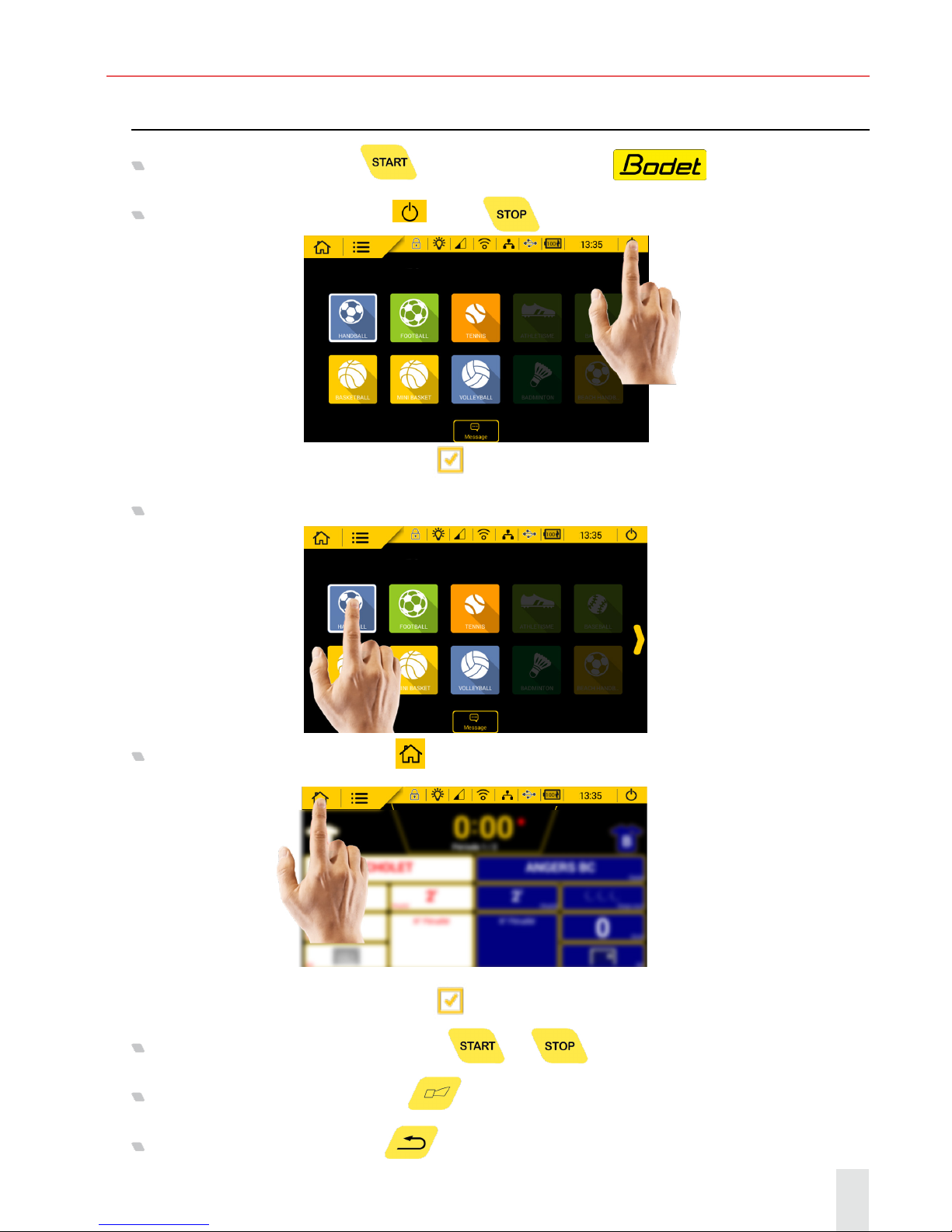
Starting the Scorepad: Press and wait for logo to display .
Powering off the Scorepad: Press (or the key until the conrmation pop-up appears):
A conrmation screen comes up. Click OK
.
Selecting a sport: Press the desired sport:
Changing or exiting a sport: Press :
A conrmation screen comes up. Click OK
.
Starting or stopping the stopwatch: Press or
Manually starting the buzzer: Press
Correcting the last action: Press
Page 10
10
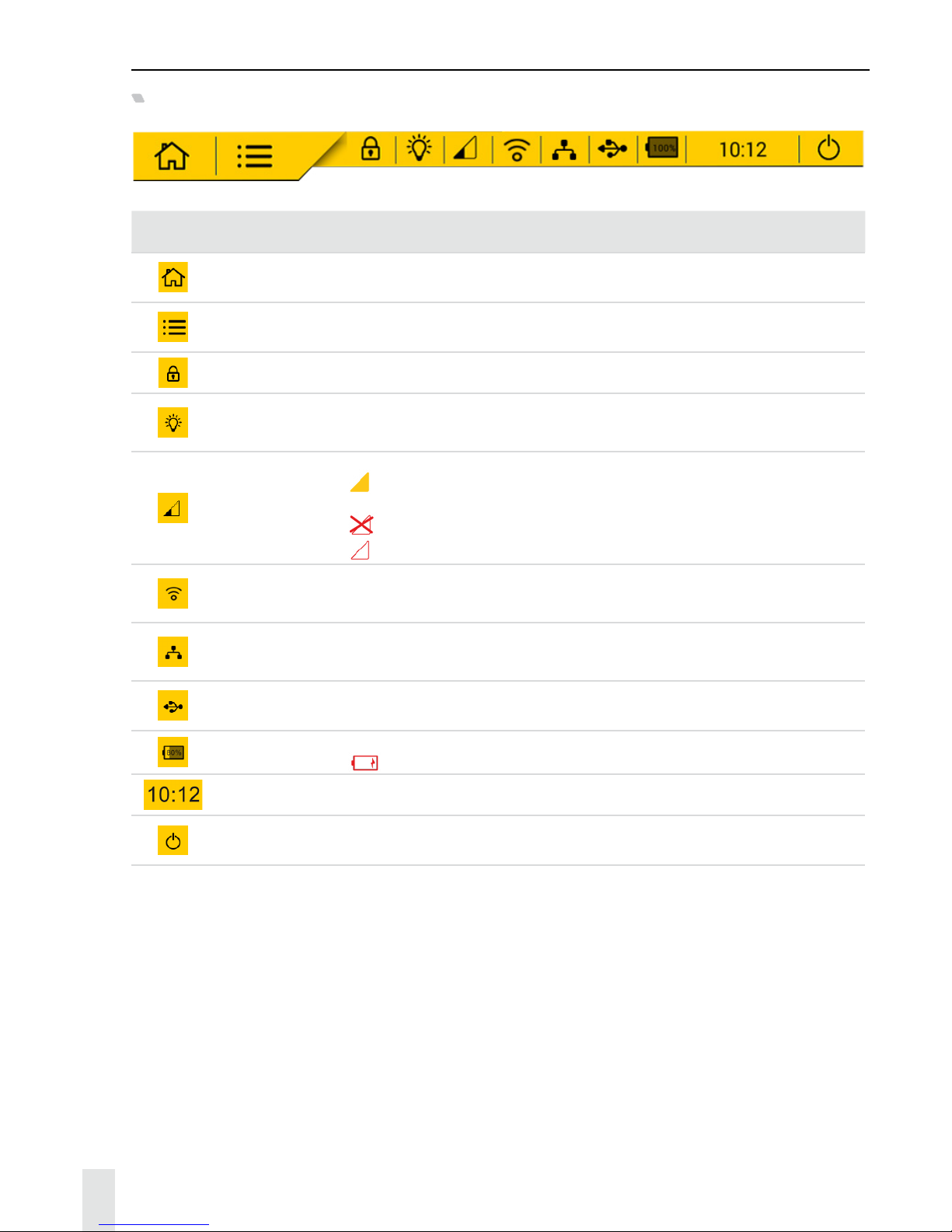
Icons and information in the screen header bar
The icons in the screen header bar show information on the console:
Status icons Meanings
Home
Returns you to the home screen at any time. Note: A conrmation window
appears to conrm your choice.
Settings
Access console conguration menus: advanced user menu and technician
menu.
Locking Locks the touch screen.
Brightness
Individually adjusts the brightness of the console touch screen and scoreboards
(score and possession time displays).
Communication
status
Shows wired or radio communication status.
indicates communication is OK. Weak reception: 1 bar, average reception:
2 bars, good reception: 3 bars.
indicates communication problems.
indicates communication is too weak between the console and the scoreboards.
WiFi
Indicates Scorepad is connected to an existing WiFi network. (Function not
available on this version).
Network Indicates Scorepad is connected to your existing LAN.
USB Indicates a USB drive is connected.
Battery level
Indicates battery level or charge status.
indicates low battery level.
Time Shows console time.
Off
Powers down the console. Note: A conrmation window appears to conrm
your choice.
Page 11
11
General menu information and functions
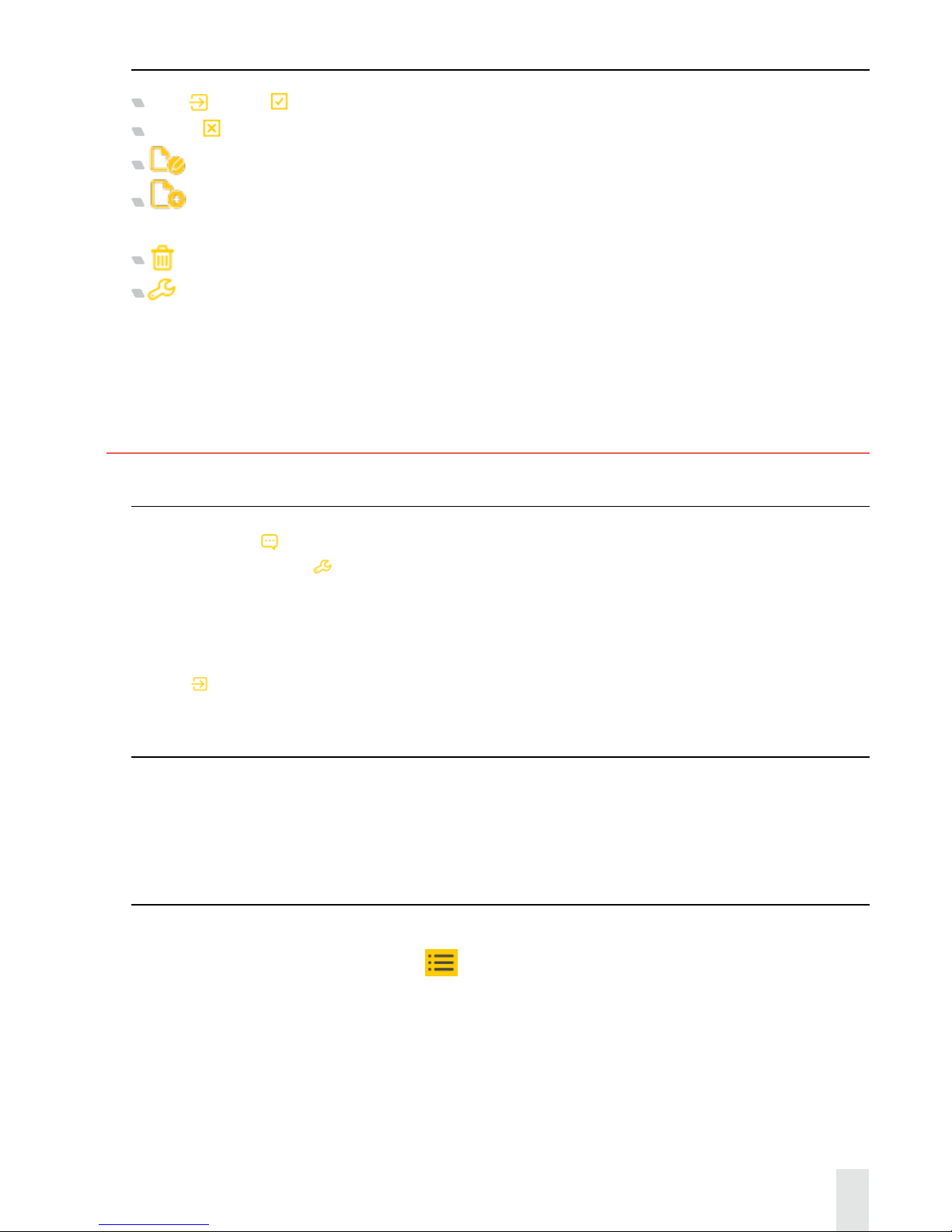
Save and OK are used to save settings and close the relevant window.
Cancel closes the relevant window without saving changes.
Rename is used to change the name of a conguration or team in the Scorepad.
Copy is used to duplicate a conguration, a team, a menu, or a setting. A window opens to save under a
new name.
Delete is used to delete the conguration.
Advanced settings/Technician menu opens a new window to access advanced settings or the technician
menu.
Keys or features that are greyed out are inactive.
Keys or features that are yellow are active and congurable
.
5. Menus
Welcome message (Home page)
1) Click Message then select a message from the list displayed.
2) Edit the message with
.
This message will be displayed on scoreboards featuring an alphanumeric strip display or on video screens.
Launch this message:
3) Select the message
4) Click
Launch distribution
Loading teams
With Bodet’s Team software, you can create teams with names, logos and player lists. Download takes
place via the USB socket.
This software is available from: www.bodet-sport.com
Change the time
To change the time on the scoreboard:
1) Go to the general menu by clicking on
.
2) In the display section, click on TIME/DATE.
3) Under settings, click on TIME/DATE, then change the time.
Page 12
12
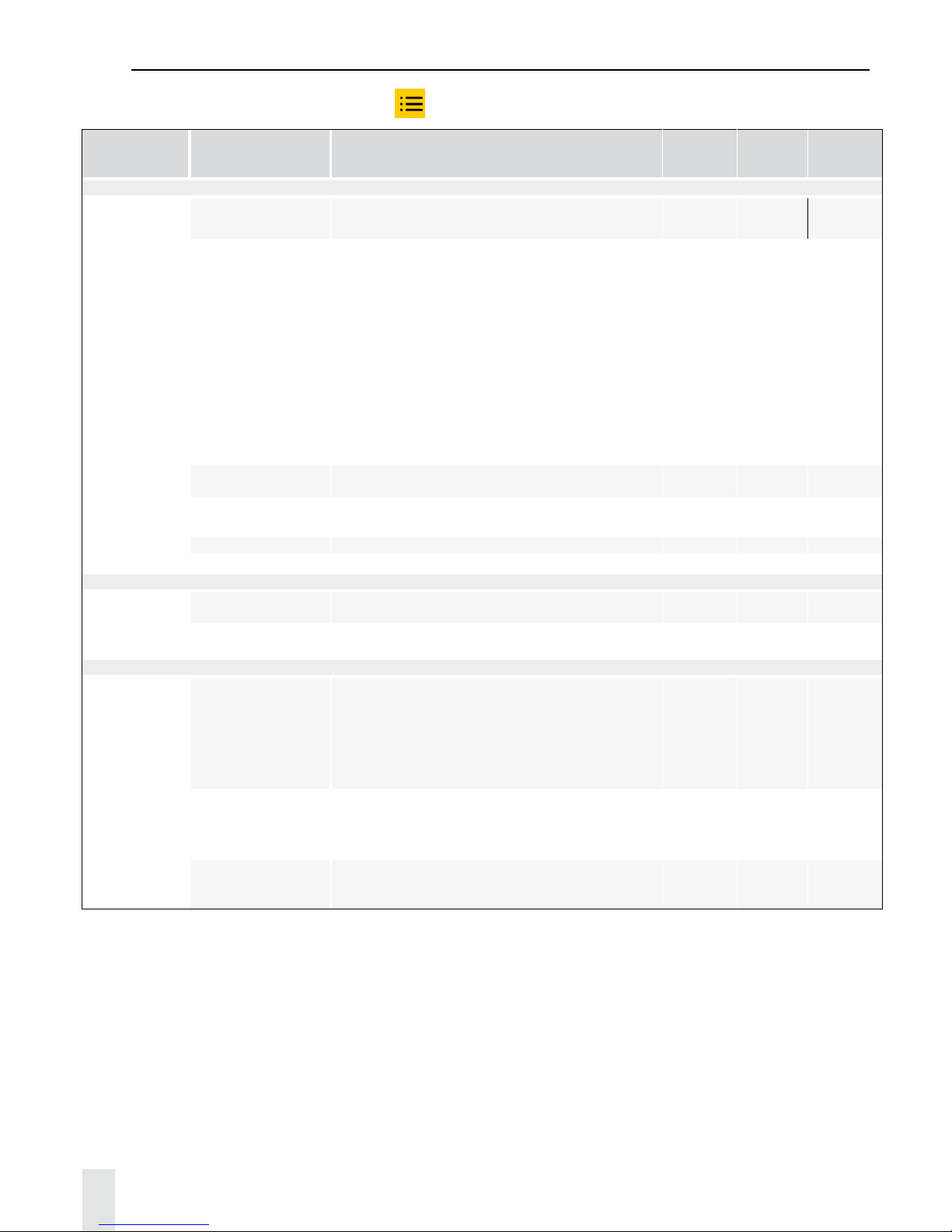
Lists of settings for each menu type
1) Access the main menu by clicking .
Headings Settings Descriptions Main menu
Advanced
Settings
Menu
Technician
Menu
System
Version (VER) Displays information on console version.
√
√
(can be
updated)
√
(can be
updated)
Console and
scoreboard test
(TEST)
Tests scoreboard display.
Test sequence:
1) Display shows scoreboard number on the main
scoreboard.
2) Display shows scoreboard EPROM version.
3) Display shows ribbon cable number for each module
(ashing).
4) Display shows address for each module on the
ribbon cable.
5) Display shows all LEDs in all modules (also possible
using dip-switch 3 on the card).
6) Fade to black for all modules.
- √ √
Restore factory
defaults
Restores factory settings and resets sports settings.
- -
√
Back up
Saves congurations per sport or for all sports.
Loads congurations per sport or for all sports.
- -
√
Restore Select congurations to restore per sport.
- -
√
Language Changes the console language.
√ √ √
Display
Time / Date
Displays and sets time an date on console or
scoreboard(s) (1 to 6).
-
√ √
Welcome message
Enter a welcome message to display on the scoreboard(s)
(100 characters maximum).
- - √
Communications and connectivity
Communication
Communication status with scoreboard(s):
- Enter the name of each scoreboard (24 characters
maximum).
- Select the type of communication between the console
and the scoreboard(s): scoreboard range, wire, HF radio.
- Select the device number.
- Select the transmission channel number.
- -
√
HDMI
Display sports information on display devices tted with
an HDMI input.
√ √ √
Network
Function enabled using the ON/OFF button: sends the
BUS Sport protocol for TV display.
√ √ √
USB
Load players, teams, team logos. This option is also
used to save match data and import/save settings per
sport.
√ √ √
* WARNING: returning to factory settings deletes all saved parameters, as well as the settings for
each sport and the teams registered. It is recommended that you save your settings
on a USB drive before starting this operation.
Page 13
13
6. Technical data
Electrical
Separate mains power supply: 100-240 VAC, 50/60 Hz.
Mechanical
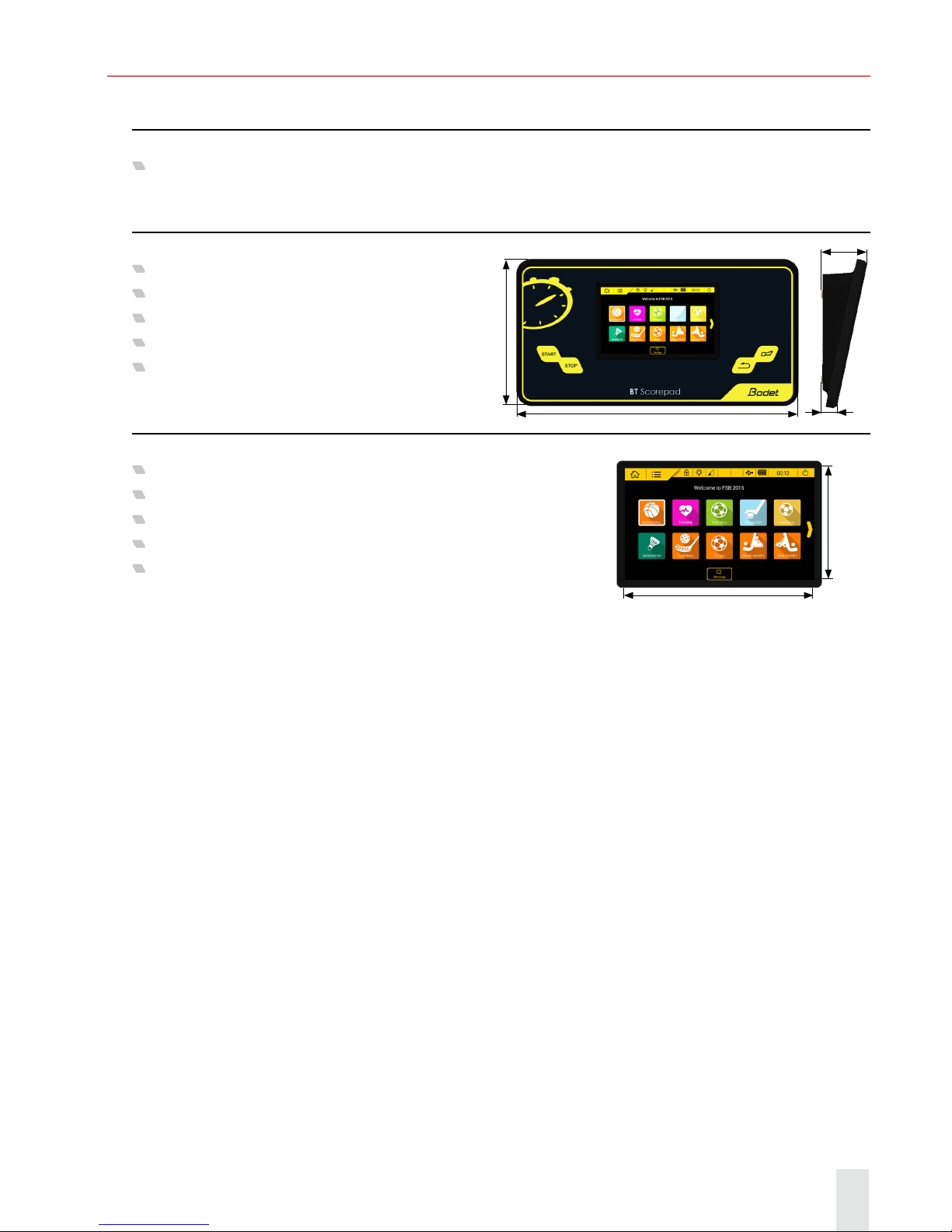
Dimensions: L380 x H200 x W22/61mm
Construction: PC/ABS
Operating temperature: 0°C to +40°C
Protection rating: IP 20
Standard: Class II
7” LCD touch screen
Dimensions: L152 x H91 mm
Screen type: Capacitive LCD
Resolution: 800 x 480 pixels
Construction: Glass front, impact-proof and scratch-proof
Lifetime: 40,000 hours
200
380
61
22
152
91
Page 14
14
7. Support
RESTARTING OR RESETTING THE SCOREPAD
If a malfunction occurs, try restarting the Scorepad (see section 4. Starting), or reset it by pressing
the Reset button (see section 3. General view of the Scorepad).
UPDATING AND RESTORING SCOREPAD SOFTWARE
You can update the Scorepad software in the Advanced Settings menu.
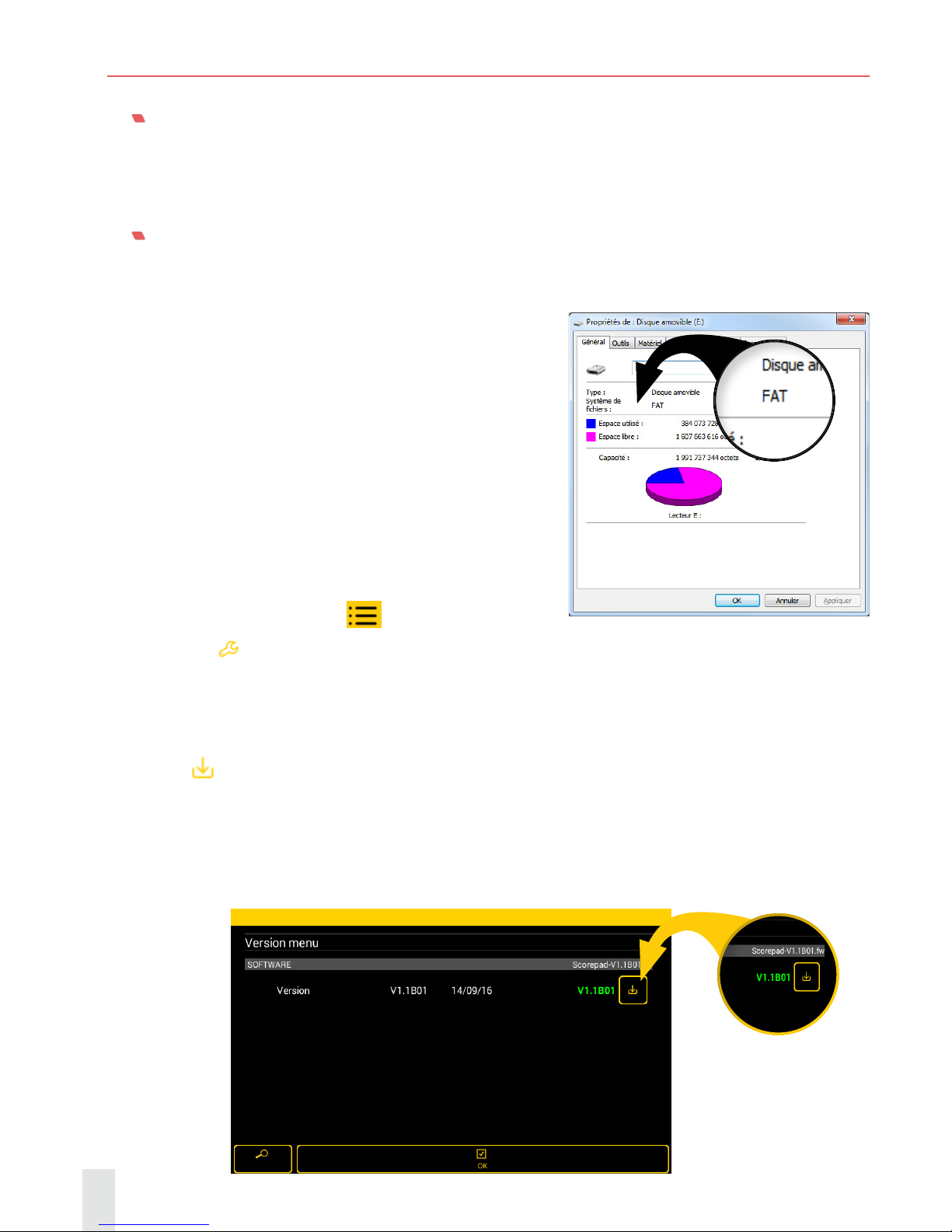
Important : you must use a FAT16 or FAT32 USB drive.
Our system is not compatible with NTFS
USB drives. To check the USB drive le
system (FAT or NTFS):
1) In the Start menu, click Computer
2) Right click on the USB drive, then Properties:
Perform the update:
1) On the homepage, click on
.
2) Click on
Advanced settings
3) Connect the USB drive containing the update le to the scoreboard.
N.B. this le has a .fw extension This le is available from the website www.bodet-sport.com
4) In the System menu, click on VER Version
5) Click
to launch the update. This update may take several minutes.
The scoreboard will restart in its default display language (English).
The settings remain in the memory and are not lost.
6) When the scoreboard version has been updated, this will be indicated in green:
 Loading...