

Page 1
Start Here
BlackBerry 9788 Smartphone
Welcome to BlackBerry!
Get to know your new BlackBerry® smartphone.
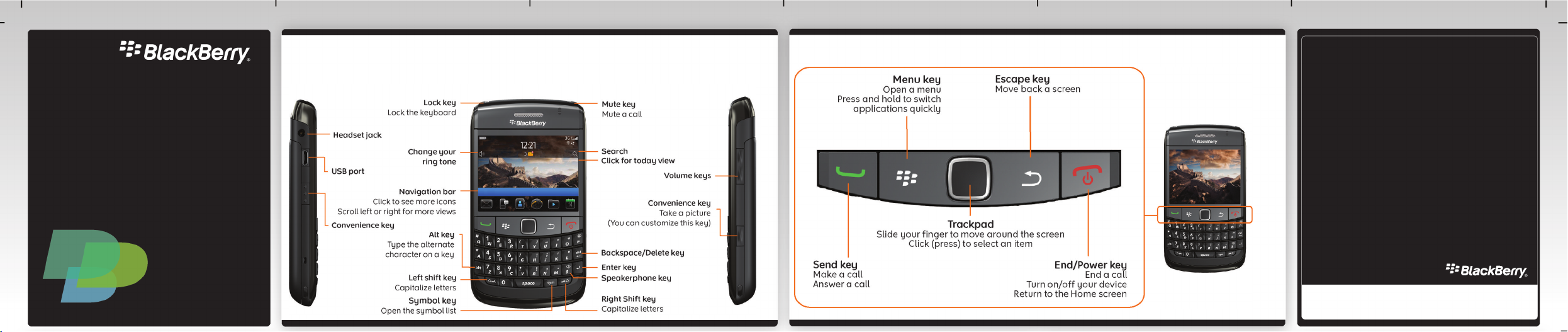
Explore the keys
©2011 Research In Motion Limited. All rights reserved. BlackBerry®, RIM®, Research In Motion®
and related trademarks, names and logos are the property of Research In Motion Limited and are
registered and/or used in the U.S. and countries around the world. Mac is a trademark of Apple
Inc. Bluetooth is a trademark of Bluetooth SIG. All other trademarks are the property of their
respective owners. This documentation is provided "as is" and without condition, endorsement,
guarantee, representation or warranty, or liability of any kind by Research In Motion Limited and
its affiliated companies, all of which are expressly disclaimed to the maximum extent permitted
by applicable law in your jurisdiction.
MAT-41534-001 Rev. 002 | PRINTSPEC-089 | SWD -1488361-0519040033-001 | RDL61TC
%"$!)'!#'%+!"%*)!-&")"*%%*"&!*&")"%*")&")&"*%!*&')!1
Page 2

Safety information
IT IS IMPORTANT THAT YOU READ THE SAFETY
AND PRODUCT INFORMATION BOOKLET
(INCLUDED) PRIOR TO USING YOUR BLACKBERRY®
DEVICE. It contains essential safety information
related to your device.
More tips, interactive demos, and videos are online!
For more info, go to www.blackberry.com/
gettingstarted.
Insert the SIM card and battery
Depending on your BlackBerry® device model or your wireless service provider, you might not need a
SIM card to use your device.
Charge the battery
If your BlackBerry® device does not turn on
automatically, charge the battery or press and hold
the key.
Chargers might vary by region.
Insert a media card
You can use a media card to store more media files.
A media card might already be inserted.
To insert To remove
Set up your device
Get started quickly with Setup!
Setup should appear automatically, but if it doesn't,
on the Home screen, click the Setup icon.
• Set up email addresses and social networking
accounts
• Personalize your BlackBerry® device
• Learn about typing and important keys
• Set up wireless and Bluetooth® connections
full battery power
battery charging
low battery power
To remove the media card, press the media card in
and then pull it out.
To see a video, on the Home screen, click the Setup
icon and see the Help & Tutorials section.
Page 3
Set up your email
1. If you're in Setup already, click the Email Accounts icon. If you aren't in Setup, on the Home screen, click
the Setup icon > Email Accounts icon.
2. Follow the screens to set up your email address. When your email address is set up correctly, you receive a
confirmation message. To see your email, on the Home screen, click the Messages icon.
Note: In some cases, you might see the following options. If so, select one of the options.
• Internet Mail Account: Use this option to associate your BlackBerry® device with one or more existing
email accounts (for example, Windows Live™ Hotmail®) or to create a new email address for your device.
• Enterprise Account: If your administrator gave you an enterprise activation password, use this option to
associate your device with your work email account using the BlackBerry® Enterprise Server.
If you are trying to set up an Internet email account (for example, Windows Live™ Hotmail®) or a new email
address for your device, and do not see this option, contact your administrator or wireless service provider.
Need help setting up your email?
• On the Home screen, click the Setup icon. On the
Email Accounts screen, verify that your email
address information is correct.
• Verify with your wireless service provider that
your email account type is supported.
• Verify that you have switched devices correctly.
For more info about setting up an email address, go
to www.blackberry.com/docs/smartphones and click
the link below Email Setup.
Switch devices
To switch from a BlackBerry® device that has an existing email address and to move your data to a new
BlackBerry device, do the following:
1. On your computer, open BlackBerry® Desktop Software 6.0. To get the latest software, go to
www.blackberry.com/desktopsoftware.
2. If you have a SIM card, put it into your new device.
3. Connect your new device to your computer.
4. In the dialog box that appears, click Copy data and settings from another device and follow the prompts.
5. On your new device, on the Setup screen that appears, click the Email Accounts icon and follow the
prompts. If you decline any of the prompts, email won't be sent to your new device. If you're selling or
buying a previously owned
service provider to switch devices.
BlackBerry device that operates on CDMA networks, contact your wireless
Navigation tips
Home screen
See more icons
on the Home
screen
See more views,
such as your
Favorites view
Open the pop-up
menu
On the trackpad, slide your
finger down quickly
On the navigation bar, scroll
left or right
Click and hold an application
icon or item, such as a message
More icons on the
Home screen
Page 4
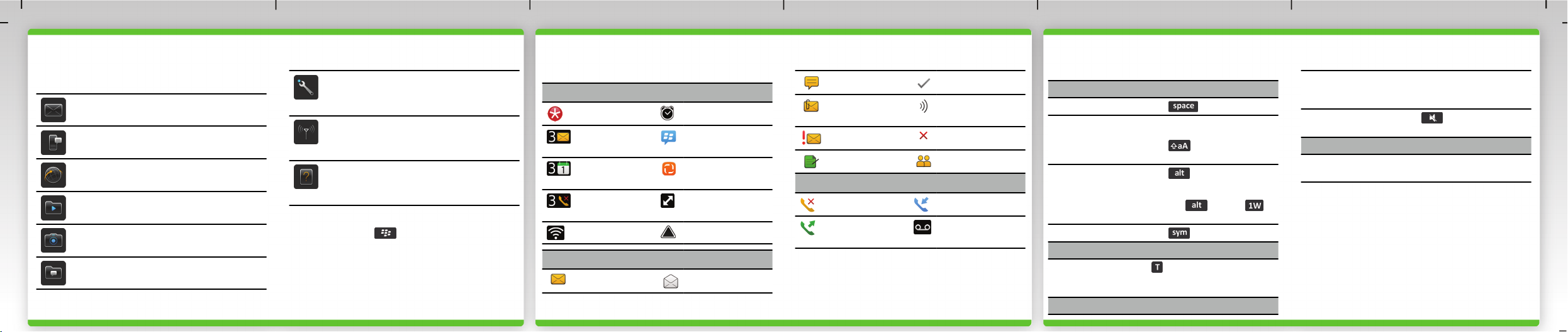
Applications
Get started with some of these great applications.
Messages
Send emails, PIN messages, and more.
Text Messages
Send text messages.
Browser
Browse websites.
Media
See saved pictures, play songs, and more.
Camera (if supported)
Take pictures.
Instant Messaging
Chat with friends or colleagues.
Options
Set your device options. You can find more
options in each application menu.
Manage Connections
Set up wireless connections, such as a
Bluetooth® connection.
Help
Find the user guide here or click Help in a
menu.
To show or hide an icon, highlight the icon using the
trackpad. Press the key > Show All or Hide.
Status indicators
Home screen
new notification alarm set
unopened
message count
calendar
reminder count
missed call count sending or
WLAN turned on roaming
Messages
unopened opened
BlackBerry®
Messenger
social feeds
receiving data
text message sent message
attachment message is
sending
high priority message not sent
draft meeting invite
Phone
missed call received call
placed call voice mail
message
Quick tips
Typing
Insert a period
Capitalize a
letter
Type a number
or the
alternate
character on a
key
Type a symbol Press the key
Messages
Move to the
top of the
message inbox
Phone
Press the key twice
Press and hold the letter key until
the capitalized letter appears or
press the key and the letter
key
Press the key and the
number key or character key (for
example, to type the number one
(1), press the key and )
Press
Change the
volume
Mute a call Press the key on the top of
Pictures
Zoom in to a
stored picture
For more tips, on the Home screen, click the Setup
icon and see the Help & Tutorials section.
Important: When you use your device, take frequent breaks. If you
experience discomfort in any part of your body, stop using your device
immediately. If the discomfort persists, consult a physician.
Press the Volume keys on the
right side of your BlackBerry®
device
your device
Click the trackpad
Page 5

Send an email
1. On the Home screen, click the Messages icon.
2. Press the key > Compose Email.
3. In the To field, type an email address.
4. Type a message.
5. Press the key > Send.
Change your ring tone
1. From the Home screen, press the key.
2. Press the key > Phone Ring Tones.
3. In the Ring Tone field, click a preloaded ring tone
or click All Music or All Alerts.
4. Press the key > Save.
BlackBerry Messenger
Stay connected with family and friends who also use
BlackBerry® Messenger. Send instant messages,
update your status, and create groups so that you
can share pictures, appointments, and more!
Add a contact using a barcode
1. On the Home screen, click the BlackBerry
Messenger icon.
2. Press the key > Invite Contact > Invite by
scanning a PIN barcode.
3. Hold your device so that all four corners of the
contact's barcode appear on your screen and you
hear a beep.
To show your barcode, click your display name. Click
Show.
Pair with a Bluetooth enabled device
You must pair your BlackBerry® device with the Bluetooth® enabled device before you can connect to it. For
information about preparing a Bluetooth enabled device for pairing, see the instructions for that device.
1. On the Home screen, click the connections area at the top of the screen, or click the Manage Connections
icon.
2. In the Setup, Services, and Options section, click Bluetooth Connections.
3. If necessary, change the Bluetooth field to On.
4. Click Add New Device > Search.
5. Click the Bluetooth enabled device.
6. If necessary, do one of the following:
•If the Bluetooth enabled device doesn't have a keyboard, on your BlackBerry device, type the pairing
passkey found in the instructions for your Bluetooth enabled device.
•If the Bluetooth enabled device has a keyboard, type a pairing passkey of your own choosing on both
devices.
Browse websites
1. On the Home screen, click the Browser icon.
2. In the address bar, type a web address or search
terms.
3. Press the key, or click the trackpad.
Depending on your wireless service provider, your BlackBerry® device
might have multiple browsers. For information about the fees associated
with each browser, contact your wireless service provider.
Tabbed browsing
With the new tabbed browsing feature, you can
easily switch between websites that you have open.
For more info, on the Home screen, click the Help
icon and search for tabbed browsing.
Take a picture
1. On the Home screen, click the Camera icon.
2. To zoom in to or out from a subject, on the
trackpad, slide your finger up or down.
3. Click the trackpad.
Record a video
1. On the Home screen, click the Media icon >
Video Camera icon.
2. Click the trackpad.
3. To pause recording, click the trackpad again.
Depending on your BlackBerry® device model, the camera or video camera
might not be supported or some camera or video camera features might
not be available.
Page 6
Change your wallpaper
1. From the Home screen, press the key.
2. Click Opons > Change Wallpaper.
•To take a picture, click Camera. Click the
camera icon.
•To use an exisng picture, click Camera
Pictures, Picture Library, or Wallpaper. Click a
picture.
3. Press the
4. Press the
key > Set As Wallpaper.
key to return to the Home screen.
Connect to a WLAN
1. On the Home screen, click the connecons area
at the top of the screen, or click the Manage
Connecons icon.
2. Click Set Up WLAN Network.
3. Click the WLAN network that you want to
connect to.
When you're connected, the name of the network
appears at the top of the Home screen.
Download apps and themes
You can download applicaons, themes, and ring
tones from your wireless service provider's website
(if available). Addional data charges might apply.
For informaon, contact your wireless service
provider.
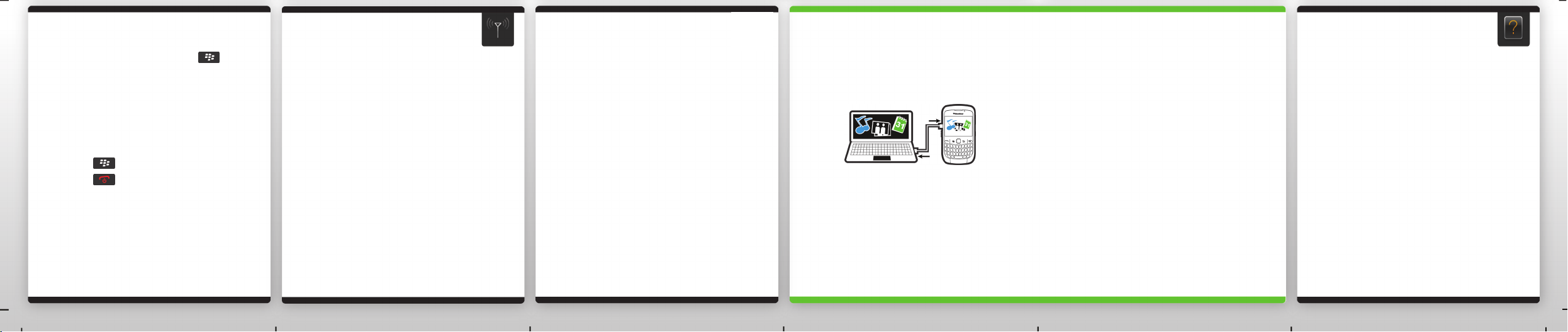
Connect to your computer
You can use BlackBerry® Desktop Soware 6.0 to
back up and restore BlackBerry device data and sync
calendar appointments, music, pictures, and more
between your device and computer.
To download the BlackBerry Desktop Soware, go to
www.blackberry.com/desktopsoware.
Sync your media files
1. Connect your BlackBerry® device to your
computer.
2. On your computer, open the BlackBerry®
Desktop Soware.
•If you're using a Windows® computer, click
Music, Pictures, or Videos.
•If you're using a Mac computer, in the Media
secon in the le pane, click Music. Mac users
can sync only music.
For more info, see the Help in the BlackBerry
Desktop Soware.
Need more help?
• www.blackberry.com/gengstarted: Find
geng started informaon.
• www.blackberry.com/go/docs: Find the
complete user guide.
• Your wireless service provider's web site: Find
informaon about your wireless network or
wireless service plan.
CAUTION: Use only those accessories approved by Research In
Moon. Using any accessories not approved by RIM for use with this
parcular device model might invalidate any approval or warranty
applicable to the device, might result in the non-operaon of the
device, and might be dangerous.
To view the Declaraon of Conformity made under Direcve 1999/5/EC
(HG nr.88/2003), go to www.blackberry.com/go/
declaraonofconformity.
 Loading...