

Page 1
™
User Guide
8-90-00157-1
Revision B
© 2014 BI Incorporated
BI Proprietary & Confidential
Page 2

ii © 2014 BI Incorporated BI Proprietary & Confidential 8-90-00157-1, Revision B
®
Page 3

SL2 User Guide
Contents
Preface . . . . . . . . . . . . . . . . . . . . . . . . . . . . . . . . . . . . . . . . . . . . . . . . . . . . . . . . . . . . . . . . . . . . . . v
Chapter 1 SL2 Device . . . . . . . . . . . . . . . . . . . . . . . . . . . . . . . . . . . . . . . . . . . . . . . . . . . . . 1
Alcohol Monitoring. . . . . . . . . . . . . . . . . . . . . . . . . . . . . . . . . . . . . . . . . . . . . . . . . . . . . . 2
Automated Retesting . . . . . . . . . . . . . . . . . . . . . . . . . . . . . . . . . . . . . . . . . . . . . . . . . . 2
Internal Camera . . . . . . . . . . . . . . . . . . . . . . . . . . . . . . . . . . . . . . . . . . . . . . . . . . . . . . . . . 2
GPS. . . . . . . . . . . . . . . . . . . . . . . . . . . . . . . . . . . . . . . . . . . . . . . . . . . . . . . . . . . . . . . . . . . . . . 2
Queuing . . . . . . . . . . . . . . . . . . . . . . . . . . . . . . . . . . . . . . . . . . . . . . . . . . . . . . . . . . . . . . . . . 3
Multiple Tamper Detection . . . . . . . . . . . . . . . . . . . . . . . . . . . . . . . . . . . . . . . . . . . . . . 3
Rechargeable Battery . . . . . . . . . . . . . . . . . . . . . . . . . . . . . . . . . . . . . . . . . . . . . . . . . . . . 4
Components . . . . . . . . . . . . . . . . . . . . . . . . . . . . . . . . . . . . . . . . . . . . . . . . . . . . . . . . . . . . . 5
SL2 Instructions . . . . . . . . . . . . . . . . . . . . . . . . . . . . . . . . . . . . . . . . . . . . . . . . . . . . . . . . . . 5
Activation Process. . . . . . . . . . . . . . . . . . . . . . . . . . . . . . . . . . . . . . . . . . . . . . . . . . . . . . 5
Breath Alcohol Test . . . . . . . . . . . . . . . . . . . . . . . . . . . . . . . . . . . . . . . . . . . . . . . . . . . . 6
Menu Options . . . . . . . . . . . . . . . . . . . . . . . . . . . . . . . . . . . . . . . . . . . . . . . . . . . . . . . . . . . 7
Test History . . . . . . . . . . . . . . . . . . . . . . . . . . . . . . . . . . . . . . . . . . . . . . . . . . . . . . . . . . . 7
Air Blank Test . . . . . . . . . . . . . . . . . . . . . . . . . . . . . . . . . . . . . . . . . . . . . . . . . . . . . . . . . 7
Check For Updates . . . . . . . . . . . . . . . . . . . . . . . . . . . . . . . . . . . . . . . . . . . . . . . . . . . . . 7
Reset Device. . . . . . . . . . . . . . . . . . . . . . . . . . . . . . . . . . . . . . . . . . . . . . . . . . . . . . . . . . . 8
Cleaning & Storage . . . . . . . . . . . . . . . . . . . . . . . . . . . . . . . . . . . . . . . . . . . . . . . . . . . . . . 8
Chapter 2 Monitoring Web Portal . . . . . . . . . . . . . . . . . . . . . . . . . . . . . . . . . . . . . . 9
Login . . . . . . . . . . . . . . . . . . . . . . . . . . . . . . . . . . . . . . . . . . . . . . . . . . . . . . . . . . . . . . . . . . . 10
Home Page . . . . . . . . . . . . . . . . . . . . . . . . . . . . . . . . . . . . . . . . . . . . . . . . . . . . . . . . . . . . . 11
Client Profile . . . . . . . . . . . . . . . . . . . . . . . . . . . . . . . . . . . . . . . . . . . . . . . . . . . . . . . . . . . 12
Edit. . . . . . . . . . . . . . . . . . . . . . . . . . . . . . . . . . . . . . . . . . . . . . . . . . . . . . . . . . . . . . . . . . . . . 14
Profile . . . . . . . . . . . . . . . . . . . . . . . . . . . . . . . . . . . . . . . . . . . . . . . . . . . . . . . . . . . . . . . . . . 15
Schedules. . . . . . . . . . . . . . . . . . . . . . . . . . . . . . . . . . . . . . . . . . . . . . . . . . . . . . . . . . . . . . . 15
Text Notification. . . . . . . . . . . . . . . . . . . . . . . . . . . . . . . . . . . . . . . . . . . . . . . . . . . . . . 17
Alert Notification . . . . . . . . . . . . . . . . . . . . . . . . . . . . . . . . . . . . . . . . . . . . . . . . . . . . . 17
Notes . . . . . . . . . . . . . . . . . . . . . . . . . . . . . . . . . . . . . . . . . . . . . . . . . . . . . . . . . . . . . . . . . . . 19
Test Results . . . . . . . . . . . . . . . . . . . . . . . . . . . . . . . . . . . . . . . . . . . . . . . . . . . . . . . . . . . . . 21
Adaptive Facial Recognition . . . . . . . . . . . . . . . . . . . . . . . . . . . . . . . . . . . . . . . . . . . . 22
Master Photo . . . . . . . . . . . . . . . . . . . . . . . . . . . . . . . . . . . . . . . . . . . . . . . . . . . . . . . . . 23
8-90-00157-1, Revision B © 2014 BI Incorporated BI Proprietary & Confidential iii
®
Page 4

Contents SL2 User Guide
Photo Verification. . . . . . . . . . . . . . . . . . . . . . . . . . . . . . . . . . . . . . . . . . . . . . . . . . . . 24
GPS Map . . . . . . . . . . . . . . . . . . . . . . . . . . . . . . . . . . . . . . . . . . . . . . . . . . . . . . . . . . . . . . . 25
Reports . . . . . . . . . . . . . . . . . . . . . . . . . . . . . . . . . . . . . . . . . . . . . . . . . . . . . . . . . . . . . . . . 26
Client Detail Report . . . . . . . . . . . . . . . . . . . . . . . . . . . . . . . . . . . . . . . . . . . . . . . . . . 26
Consolidated Report. . . . . . . . . . . . . . . . . . . . . . . . . . . . . . . . . . . . . . . . . . . . . . . . . . 26
Digest Report . . . . . . . . . . . . . . . . . . . . . . . . . . . . . . . . . . . . . . . . . . . . . . . . . . . . . . . . 28
Appendix A Menu Descriptions. . . . . . . . . . . . . . . . . . . . . . . . . . . . . . . . . . . . . . 29
Appendix B Alerts and Texts . . . . . . . . . . . . . . . . . . . . . . . . . . . . . . . . . . . . . . . . . 31
Appendix C Product Specifications. . . . . . . . . . . . . . . . . . . . . . . . . . . . . . . . . . 33
iv BI Proprietary & Confidential © 2014 BI Incorporated 8-90-00157-1, Revision B
®
Page 5

SL2 User Guide
SL2 User Guide
Copyright © 2014 by BI Incorporated
All Rights Reserved
Printed in USA
BI prepared this manual for use by BI customers only. All comments
concerning the contents of this manual should be directed to BI’s Marketing
Department, 6265 Gunbarrel Avenue, Suite B, Boulder, CO 80301, USA. No
part of this work covered by copyright may be reproduced in any form
whether graphically, electronically, or mechanically; including photocopying,
recording, taping, or storage in an information retrieval system without prior
written permission from BI.
Trademarks & Patents
BI BI SLBlue
BI logo Adaptive Facial Recognition
BI TotalAccess US Patent No. 8,381,573
BI SL2 SOBERLINK
Preface
Technical Support
For technical support when using BI’s monitoring center, contact BI
Monitoring Operations:
BI Monitoring Operations
800 Main Street, Suite 501
Anderson, Indiana 46016
1.800.666.3145
FAX 1.765.649.3148
For technical support when using an agency monitoring center, contact BI
Technical Support:
BI Technical Support
6325 Gunbarrel Avenue, Suite B
Boulder, CO 80301
1.800.241.9924
Waste Electrical and Electronic Equipment (WEEE)
All electrical products that reach the duration of their functioning
capabilities must be returned to BI Incorporated for recycling.
8-90-00157-1, Revision B © 2014 BI Incorporated BI Proprietary & Confidential v
®
Page 6

Preface SL2 User Guide
Registrations
FCC ID: RI7DE910-DUAL
IC ID: 5131A-DE9100DUAL
FCC Compliance Statement
United States FCC, Part 15, Subpart B; ICES-003
This device complies with Part 15, subpart B of the FCC Rules. Operation is subject to
the following two conditions: (1) This device may not cause harmful interference, and
(2) this device must accept any interference received, including interference that may
cause undesired operation.
Any changes or modifications made by the user to this equipment that are not
expressly approved by BI Incorporated could void the user’s authority to operate the
equipment.
This equipment has been tested and found to comply with the limits for a Class B
digital device, pursuant to Part 15 of the FCC Rules. These limits are designed to
provide reasonable protection against harmful interference in a residential installation.
This equipment generates, uses and can radiate radio frequency energy and, if not
installed and used in accordance with the instructions, may cause harmful interference
to radio communications. However, there is no guarantee that interference will not
occur in a particular installation. If this equipment does cause harmful interference to
radio or television reception, which can be determined by turning the equipment off
and on, the user is encouraged to try to correct the interference by one or more of the
following measures:
Industry Canada Compliance Statement
This device complies with Industry Canada licence-exempt RSS standard(s).
Operation is subject to the following two conditions: (1) this device may not cause
interference, and (2) this device must accept any interference, including interference
that may cause undesired operation of the device.
Le présent appareil est conforme aux CNR d’Industrie Canada applicables aux
appareils radio exempts de licence. L'exploitation est autorisée aux deux conditions
suivantes: (1) l'appareil ne doit pas produire de brouillage, et (2) l'utilisateur de
l'appareil doit accepter tout brouillage radioélectrique subi, même si le brouillage est
susceptible d'en compromettre le fonctionnement.
vi BI Proprietary & Confidential © 2014 BI Incorporated 8-90-00157-1, Revision B
®
Page 7
SL2 User Guide
Chapter 1 SL2 Device
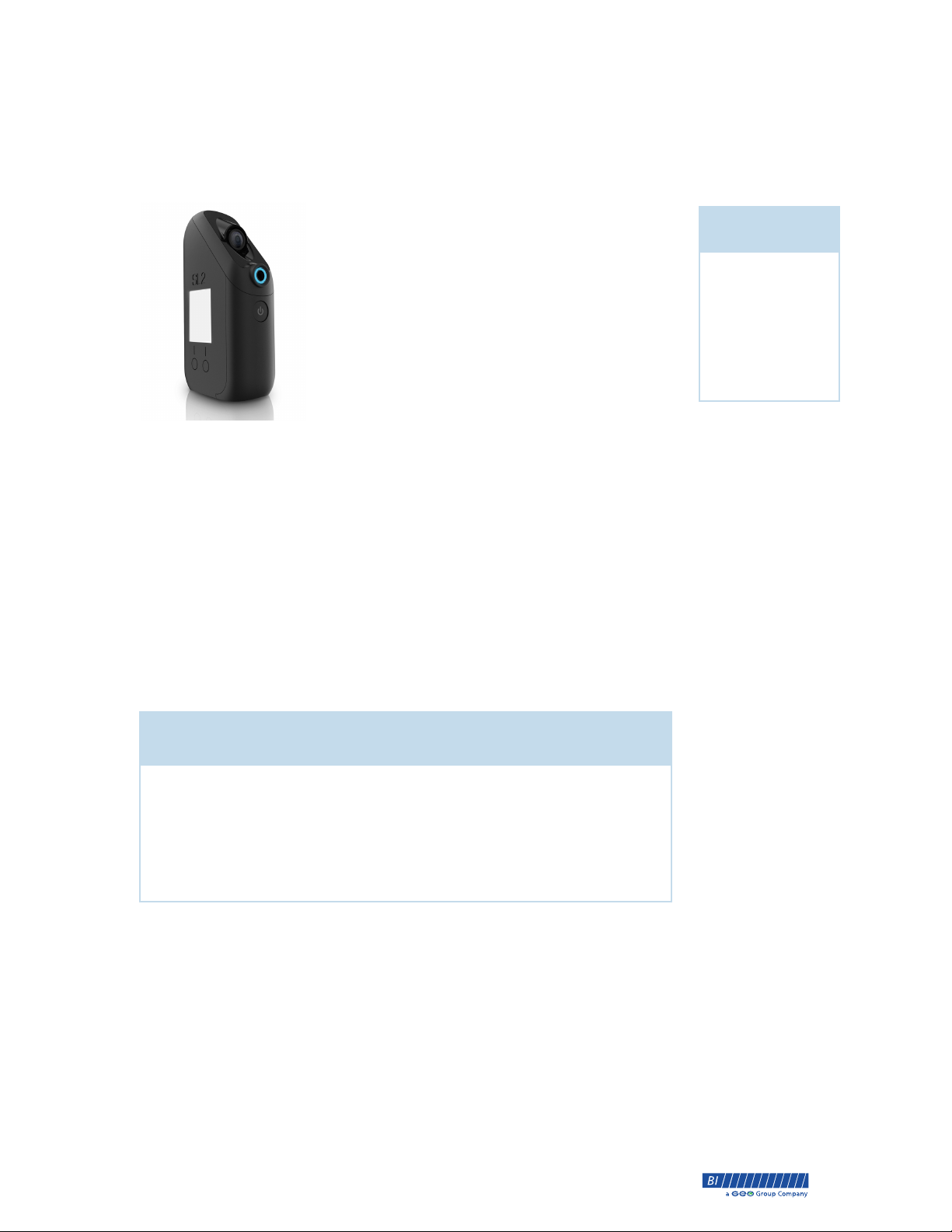
The SL2 device is a portable, hand-held breath
alcohol device that transmits the breath alcohol test
results, a photo of the person taking the test, and a
GPS (Global Positioning System) location via an
internal cellular module within seconds of the
breath alcohol test.
When alcohol is consumed it is absorbed into the
blood stream. The exchange of alcohol to the breath
occurs in the deep lung region. Through a
calculated conversion, the SL2 measures alcohol in
the body by its concentration in the breath, also
known as breath alcohol concentration (BrAC). There are several factors that
determine the effect alcohol has on the body; such as the number of drinks
and alcohol content, amount of time in which drinks are consumed, food
intake, body weight, gender, and age.
Chapter Topics
• Features
• Activation
Process
• Testing
Instructions
Multiple acquisition technologies determine the device’s location and the
embedded GPS technology captures a GPS point for each breath alcohol test.
Communication with the client including battery status, messages, and test
directions is conducted through a high resolution color LCD screen on the
side of the device.The backlit LCD display is easy to read in any type of
lighting.
The following list describes the features of the SL2:
Features
Portable Device
Internal Camera
One-Touch Testing
Queuing Test Results
CDMA Cell Module
Lithium-Ion Battery
Back-Lit LCD Display
Over the Air Firmware Updates
8-90-00157-1, Revision B © 2014 BI Incorporated BI Proprietary & Confidential 1
®
Page 8

Chapter 1 • SL2 SL2 User Guide
Alcohol Monitoring
The SL2 measures breath alcohol content by collecting deep lung breath
samples. It incorporates an infrared camera, GPS antenna, embedded cell
modem, and a professional grade fuel cell. Results of each breath alcohol test
are promptly reported to the Monitoring Web Portal via a cellular connection.
Each test report includes a high resolution client photo, BrAC reading, GPS
location, and a time/date stamp.
The Dart fuel cell sensor has a typical five-year life. Periodic calibration checks
are recommended every 1500 tests. The sensor only needs to be recalibrated if
the calibration check shows that the device falls out of the manufacturer’s
accuracy tolerance. The sensor is sensitive to methyl alcohol, isopropanol,
carbon monoxide, and diethyl ether. Wait 20 minutes after exposure to these
substances before completing any breath alcohol test. False high breathalyzer
readings can come from the existence of mouth alcohol. Always wait 20
minutes after eating, drinking, or smoking before testing. A confirmation or
secondary test can be required for all non-compliant breath alcohol tests of a
BrAC 0.02 or higher.
The client needs to
be configured for
automated retesting
in the Monitoring
Web Portal.
Automated Retesting
For BrAC test results of 0.02 or higher, the SL2 will display an Alcohol
Detected warning. Automated retesting can be enabled from the client’s
schedule in the Monitoring Web Portal, see “Schedules” on page 15. When
retesting is enabled and a positive test result is received, another test is
scheduled in 15 minutes. The first compliant test following a positive test and
within the secondary test window is called a Compliant Secondary test. After a
positive secondary test, the retest cycle prompts the client to retest every 30
minutes until the BrAC test results drop below 0.02 or three hours has elapsed.
Remember, a client must be enabled for retesting in Test Schedules in the
Monitoring Web Portal.
Internal Camera
The internal camera produces excellent high resolution photos regardless of
the setting or lighting available. The photos are posted for each breath alcohol
test in the Monitoring Web Portal (page 24) and are used to verify the client is
actually the person performing the breath alcohol test and not an
impersonator or look alike. The internal camera includes a flash to enable
capturing pictures in low-light or dark spaces.
GPS
The SL2 device contains a Telit Wireless Solutions module to obtain a GPS
position fix during the alcohol breath test. In the event that a GPS position fix
cannot be established, the SL2 device uses cell tower locations to provide a
location fix. The position fix is displayed with Google Maps in test details of
each alcohol breath test with a latitude, longitude and accuracy as a radius in
meters. Accuracy is dependent on the line of sight and amount of time to GPS
satellites.
2 BI Proprietary & Confidential © 2014 BI Incorporated 8-90-00157-1, Revision B
®
Page 9
SL2 User Guide Chapter 1 • SL2
Queuing
The SL2 contains a CDMA cell module to send breath alcohol test results to
Monitoring Web Portal. If cell service is not available to send the test results,
the SL2 has a Queuing feature. Queuing provides the SL2 device with the
ability to store up to 100 breath alcohol test results when there is no cellular
service. Once cellular service is available, the SL2 sends all of the stored breath
alcohol test results to the Monitoring Web Portal.
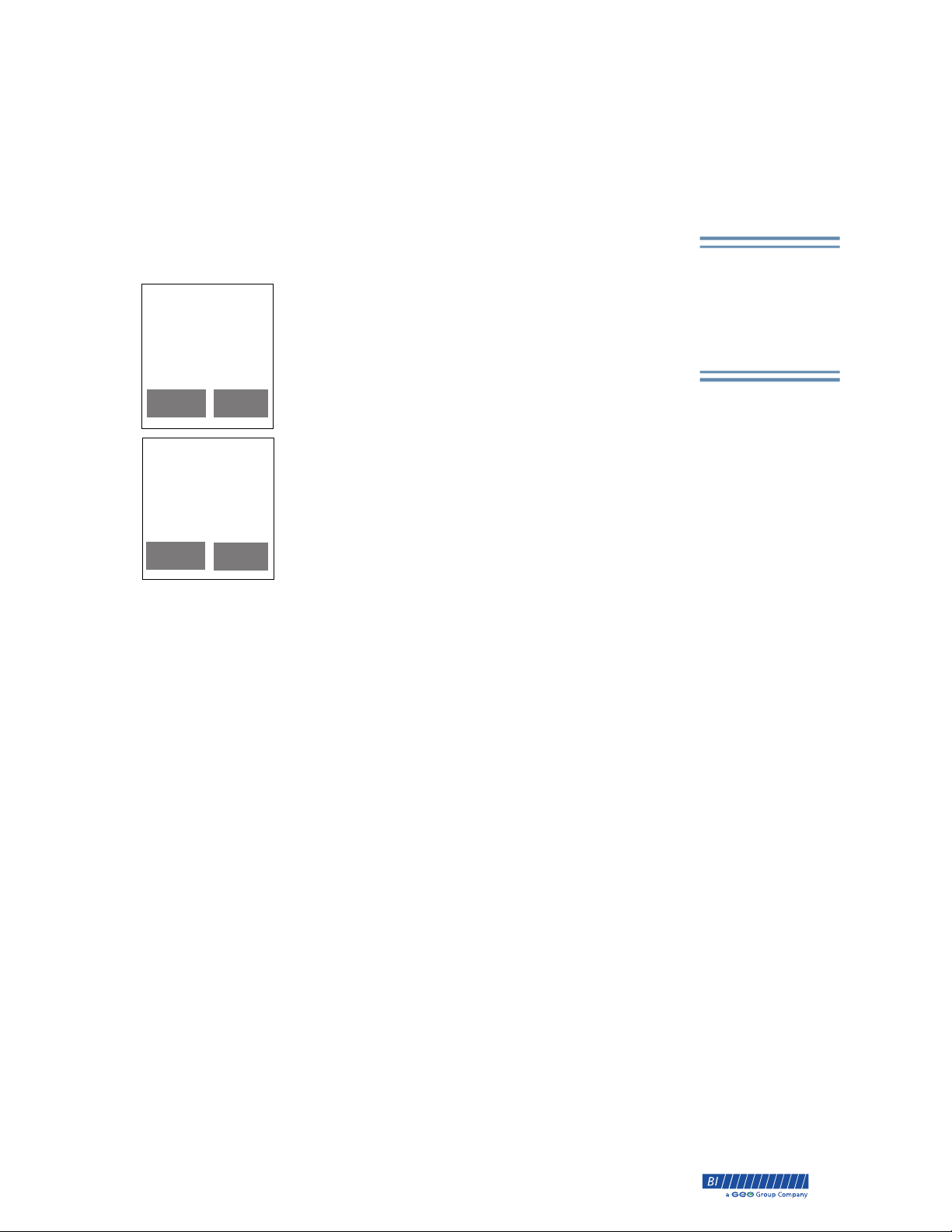
Unable to send compliant test
Move to an area with
better cell coverage to
send x test(s).
HOME
CLOSE
All queued tests show as Pending in the Monitoring
Web Portal. If the SL2 device is out of cellular service, for
two scheduled tests, a notification will be sent to the
Contact(s) listed in the Monitoring Web Portal. Once the
SL2 regains cellular service and sends the stored breath
alcohol test results, a Connectivity Alert containing
client information and test results will be sent to the
Contact(s).
Unable to send
test
Alcohol detected. Send
an additional test within
the next 30 minutes.
If a positive breath alcohol test occurs during a period
when the SL2 device does not have cellular service, a
retest text message will not be sent to the client until
cellular service is available.
HOME
CLOSE
Queuing can be configured in the Monitoring Web
Portal. The feature can be enabled or disabled from the
Client’s Edit page. Once the queuing feature has been updated to the SL2
device, the feature will be defaulted to “Enabled” in the Monitoring Web
Portal.
Multiple Tamper Detection
The SL2 device uses various methods to determine if a client is tampering with
the device. The first and most significant is the infrared digital camera which
captures a high resolution photo during a breath alcohol test. The photo is
used for identity confirmation in the Monitoring Web Portal, see “Photo
Verification” on page 24.
Queuing will store
up to 100 tests when
out of cell coverage.
To detect if an alternate air source other than human breath is used during a
breath alcohol test, the SL2 device monitors the ambient and breath
temperature for air sources such as air pumps or canned air.
To detect whether the client is tampering with the breath sample, pressure
sensors monitor the rate and volume of the breath samples. The pressure
sensors determine if the back vent is being blocked or an insufficient breath
sample was given.
Upon visual inspection, any case tampers will be evident.
8-90-00157-1, Revision B © 2014 BI Incorporated BI Proprietary & Confidential 3
®
Page 10

Chapter 1 • SL2 SL2 User Guide
Rechargeable Battery
The SL2 device contains an internal lithium-ion rechargeable battery. The
battery will last up to one month of standby time without breath alcohol tests,
The SL2 device
displays a battery
icon in the upper-
right corner of the
display.
has a five day in use life, and takes approximately four hours to charge using a
USB cord. When powering on the SL2 device, a battery icon appears in the
upper-right corner of the display showing the approximate percentage of
battery power. When the battery is too low to turn on the SL2 device, the LCD
will display a
Connect To Power message.
To charge the battery
1. Plug the power supply into a standard wall outlet and insert the connector
into the SL2 device.
2. Continue charging the SL2 device until the battery charging icon displays
100%.
3. Disconnect the power supply from the SL2.
4 BI Proprietary & Confidential © 2014 BI Incorporated 8-90-00157-1, Revision B
®
Page 11
SL2 User Guide Chapter 1 • SL2
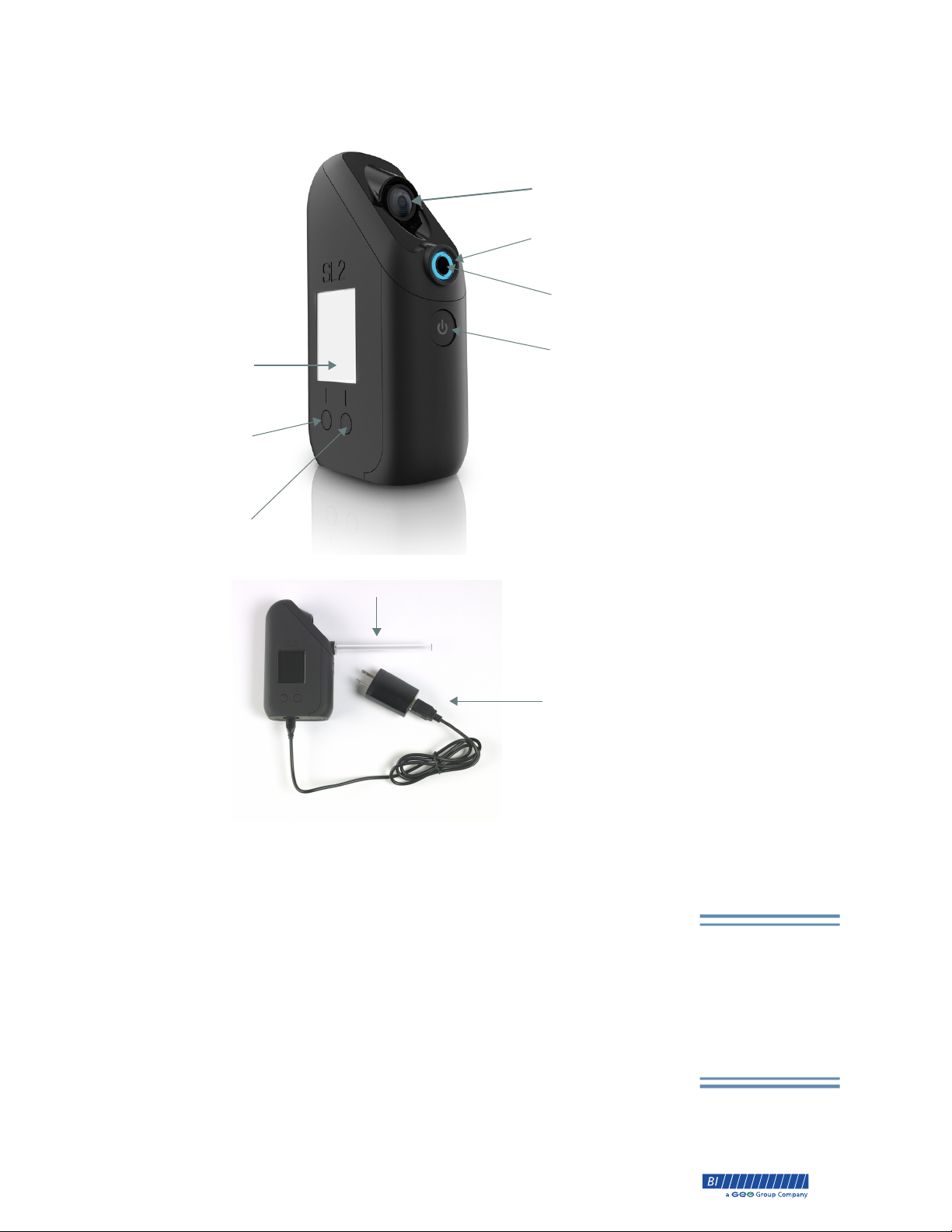
Components
Camera
Blue Status Light
Mouthpiece Port
Power/Select Button
LCD Display
Left Display
Button
Right Display
Button
Mouthpiece
Power Cord
SL2 Instructions
The sleek compact design of the SL2 makes it simple to use. The backlit LCD
screen makes instructions easy to ready in any lighting. The left and right
display buttons allow you to easily scroll through the menu.
Activation Process
Prior to activating the SL2, enroll the client’s profile in the Monitoring Web
Portal. The monitoring process cannot begin until the client’s profile is entered
into the Monitoring Web Portal, see page 9.
To begin the
activation process,
enter the client’s
profile into the
Monitoring Web
Portal.
8-90-00157-1, Revision B © 2014 BI Incorporated BI Proprietary & Confidential 5
®
Page 12

Chapter 1 • SL2 SL2 User Guide
To Activate the SL2
1. Enter the client’s profile in the Monitoring Web Portal.
2. Press the power button once to turn on the SL2.
3. Select the left display button to START the process.
4. The Device ID and Security PIN will be displayed. Enter the numbers in
the Monitoring Web Portal, see “Adding a New Client” on page 13
NOTE: If the Device ID and Security PIN do not display, reset the device. See
“Reset Device” on page 8.
5. The Monitoring Web Portal will communicate with the SL2 device. Once
the Device ID and Security PIN are saved to the Client Profile, the
confirmation
Successfully Activated is displayed.
Breath Alcohol Test
Once the activation process has been completed in the Monitoring Web Portal,
Advise the client
to not wear
sunglasses, hats, or
try to obstruct the
camera in any way.
have the client complete a breath alcohol test. Instruct the client to hold the
device at eye level and look directly into the camera. A breath alcohol test
should not be completed within 20 minutes of eating, drinking, or smoking.
Clients should not wear sunglasses, hats, or try to obstruct the camera in any
way. Also, inform the client to ensure the mouthpiece is inserted properly and
to not obstruct the air vent on the back of the unit.
Completing a Breath Alcohol Test
1. Press the power button once to turn on the SL2 device.
2. Insert the mouthpiece into the blue status light.
3. Press the left display button to SUBMIT the test.
4. When the blue status light begins to blink, take a deep breath and exhale
into the mouthpiece in a firm, steady blow for four seconds.
5. The test report will take approximately one minute to communicate to the
Monitoring Web Portal.
WARNING!
6. The SL2 will display one of the following results:
Compliant Test Successfully Sent. BrAC below 0.02, test complete.
Alcohol Detected. BrAC above 0.02, additional testing may be
required.
Test Has Not Been Sent. Issue with the breath alcohol test,
description and resolution of error displayed. Instruct the client to
contact his or her officer. Contact CBS at [email protected] or
800.241.5178 option2 to return the SL2 device to BI.
Failure to wait 20 minutes after eating and before testing
can provide inaccurate test results and may also cause
damage to the sensor.
6 BI Proprietary & Confidential © 2014 BI Incorporated 8-90-00157-1, Revision B
®
Page 13
SL2 User Guide Chapter 1 • SL2
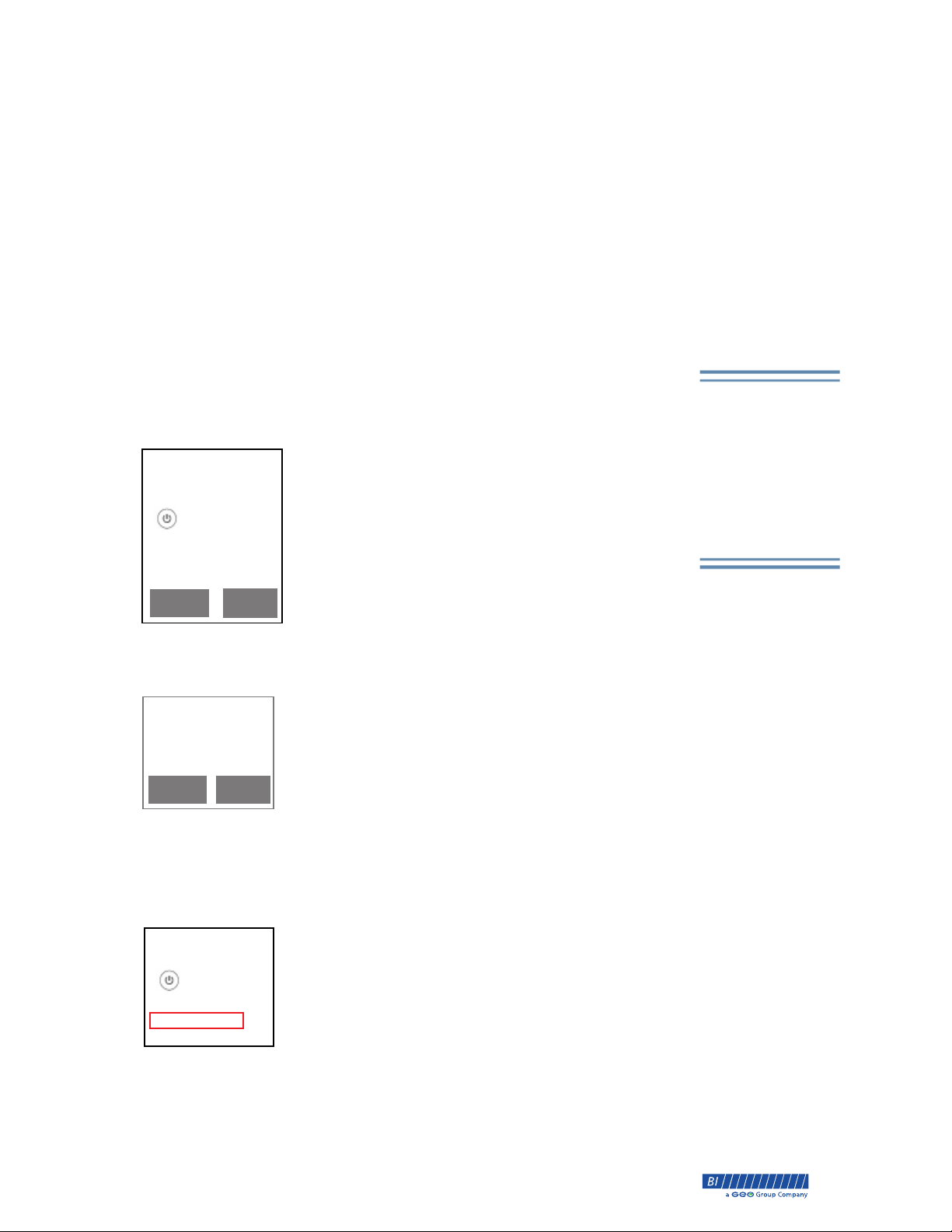
The following messages will be displayed if Queuing is enabled
for the SL2 device and the client is out of cellular range.
Unable To Send Compliant Test. Move to an area with better cell
coverage to send X test(s).
Unable To Send Test. Alcohol detected. Send an additional test
within the next 30 minutes.
Menu Options
The SL2 device includes the following menu options: test history, air blank
test, check for updates, and reset device. To access the menu, press both
display buttons simultaneously. The power button can be used to select the
option. To exit the menu option screen, press both display buttons
simultaneously.
The Test History
Test History
Test History
to select
10/12 11:40pm PEND
10/12 06:34pm SENT
10/11 10:23pm SENT
10/11 08:55pm ERR
10/10 09:07pm SENT
NEXTPREV
The Test History options displays the date/time
(UTC) and result of the last communications to the
Monitoring Web Portal. Use the NEXT/PREV
buttons to highlight a test, then click the power
button to see the test details including the BrAC,
cellular location, and GPS status.
When queuing is enabled for the SL2 device and the
device is out of cellular range, PEND will be
displayed until the test results can be sent.
menu option allows
you to review the
test history without
logging into the
Monitoring Web
Portal.
Air Blank Test
Air Blank Test
Result: 0.000
HOME BACK
An Air Blank Test will ensure the SL2 device calibration
is accurate. If you suspect any issues with the SL2
device’s calibration or damage to the device, run an air
blank test. The air blank test results should always be
0.000.
NOTE: Contact CBS at 1.800.241.5178 option 2 or
Check For Updates
Menu Options
to select
Test History
Air blank test
Check for updates
The Monitoring Web Portal has the capability to send
updates directly to the SL2 device. The
updates option should only be selected when BI notifies
you that updates are ready for your SL2. Once you
receive notification about new updates, run this option
to update your SL2 device.
[email protected] to request an RMA to return the
SL2 device and/or order a replacement if the Air
Blank test results are not 0.000.
Check for
8-90-00157-1, Revision B © 2014 BI Incorporated BI Proprietary & Confidential 7
®
Page 14

Chapter 1 • SL2 SL2 User Guide
Reset Device
Menu Options
After the client’s sentence is complete, the SL2 must be
reset prior to the next client.
Always reset the
SL2 device after
being returned
from each client.
Then it will be
ready for the next
client.
to select
Test History
Air blank test
Check for updates
Resetting the Device
1. Press the left and right display buttons
simultaneously to display the Menu Options screen.
2. Click the right display button until Reset Device is
highlighted.
3. Click the power button, left display button, right
display button, then power button.
4. Once the SL2 device has been reset, Device Requires Activation will be displayed.
5. Click the right display button to Cancel the
activation process and power off the unit, then store
for the next client.
Cleaning & Storage
After the SL2 is returned from the client, clean the unit by wiping the case with
a soft cloth. You can use Lysol or Sporicidin (to order Sporicidin contact BI
Customer Business Services) as a disinfectant if needed. Do not use Pinesol or
any cleaning products containing pine oil as these solvents may damage the
plastic body. Store the SL2 in its original shipping case.
8 BI Proprietary & Confidential © 2014 BI Incorporated 8-90-00157-1, Revision B
®
Page 15
SL2 User Guide
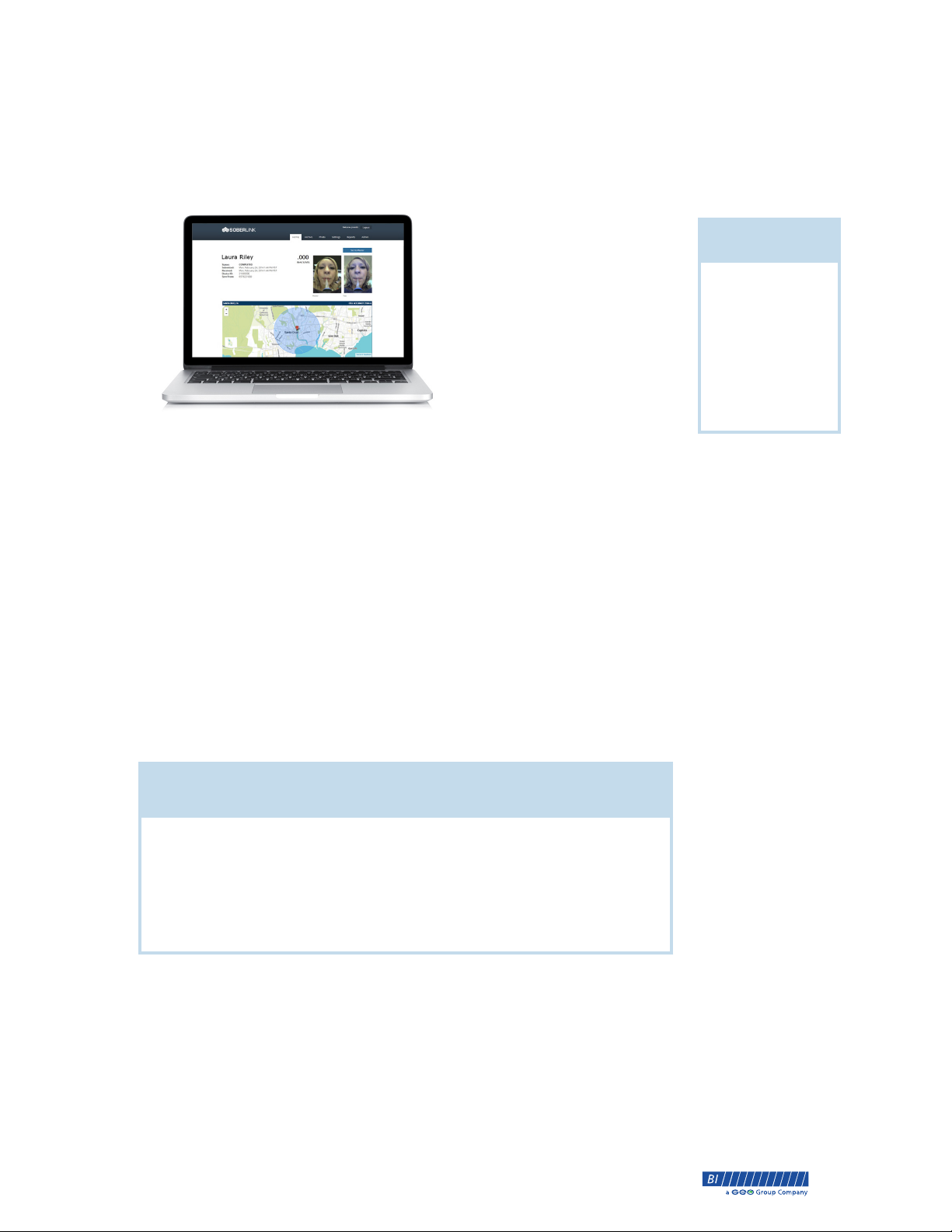
Chapter 2 Monitoring Web Portal
Monitoring your low-risk
clients remotely is easy with
the SOBERLINK Monitoring
Web Portal. The client takes a
breath alcohol test from the
portable SL2 device and the
resulting breath alcohol test
data is submitted via an
internal cell modem.
Chapter Topics
• Client Profile
• Schedule
• Alerts
• Notes
Each breath alcohol test
includes a GPS location and a
test photo that is automatically compared against a master photo using
Adaptive Facial Recognition™ technology. If GPS satellites are not available,
then a cell position fix is used. The SL2 uses the Verizon network and will
roam if necessary.
NOTE: GPS is only available at the time of the breath alcohol test. The SL2
cannot be used to find your client as no ping function exists.
The Monitoring Web Portal cannot receive the breath alcohol test results when
there is no cellular coverage. The SL2 device has the ability to queue test results
until cellular coverage is available. Once cellular coverage is available, all
stored tests are sent to the Monitoring Web Portal.
Features
Adaptive Facial Recognition
Client Warnings
• Reports
Automated Test Reminders
Customized Test Schedules
On Demand Test
8-90-00157-1, Revision B © 2014 BI Incorporated BI Proprietary & Confidential 9
Remote Access
Automated Alerts
Reports
®
Page 16
Chapter 2 • Monitoring Web Portal SL2 User Guide
Login
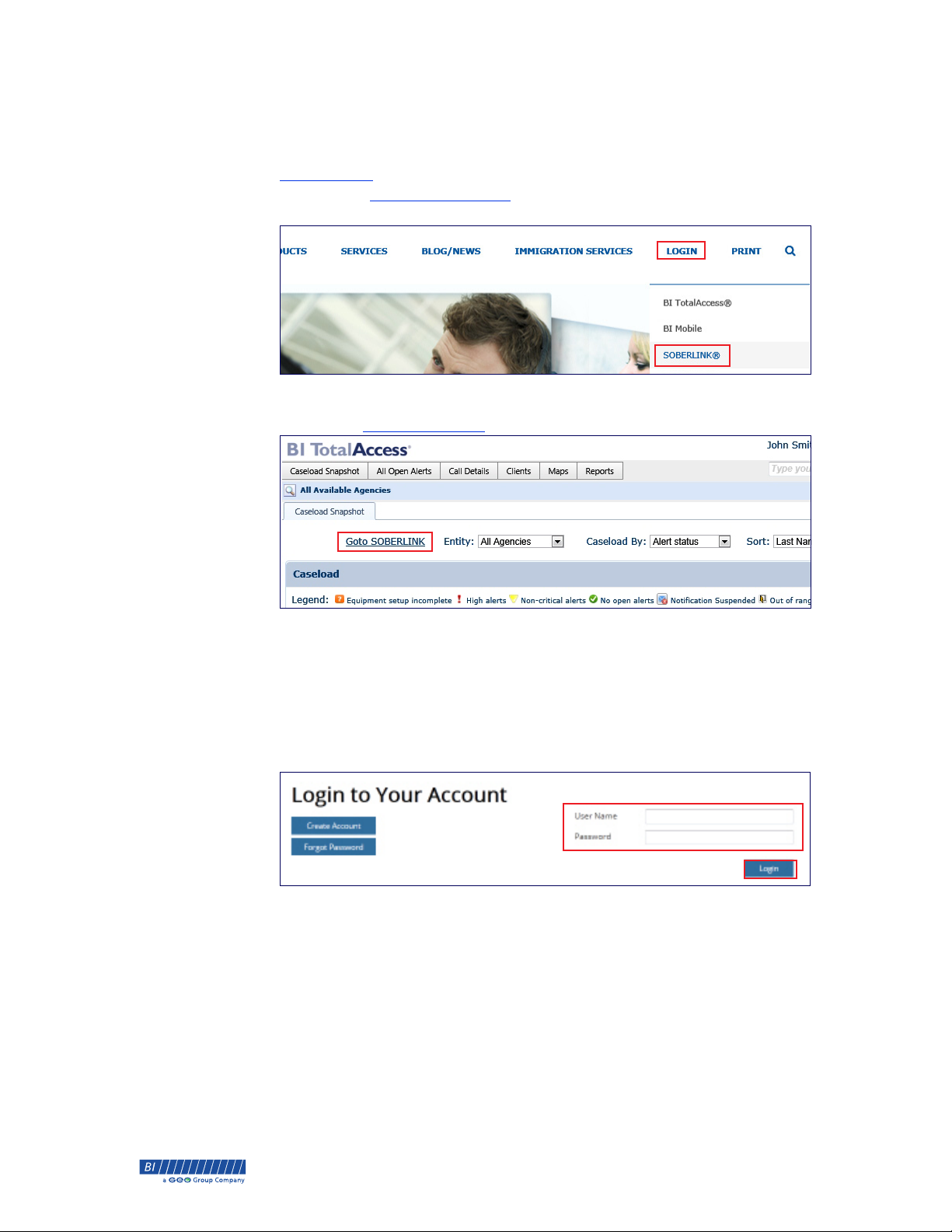
To access the Monitoring Web Portal, go to the BI website home page at
www.bi.com, hold your cursor over Login, and then select SOBERLINK® or
you can type
browser.
You can also access the Monitoring Web Portal from BI TotalAccess by
clicking the
www.soberlink.net into the address bar on your Internet
Goto SOBERLINK link from the caseload snapshot screen.
For easy access to the Monitoring Web Portal, click on
browser’s toolbar and then click
Add to Favorites. This will store the
Favorites from your
SOBERLINK application in your Favorites list. The next time you want to
login, simply open your Internet Explorer window, click
SOBERLINK from the drop-down list.
Favorites, and select
The following screen appears.
Enter the User Name and Password that you received from BI and click
Login.
10 BI Proprietary & Confidential © 2014 BI Incorporated 8-90-00157-1, Revision B
®
Page 17
SL2 User Guide Chapter 2 • Monitoring Web Portal
Home Page
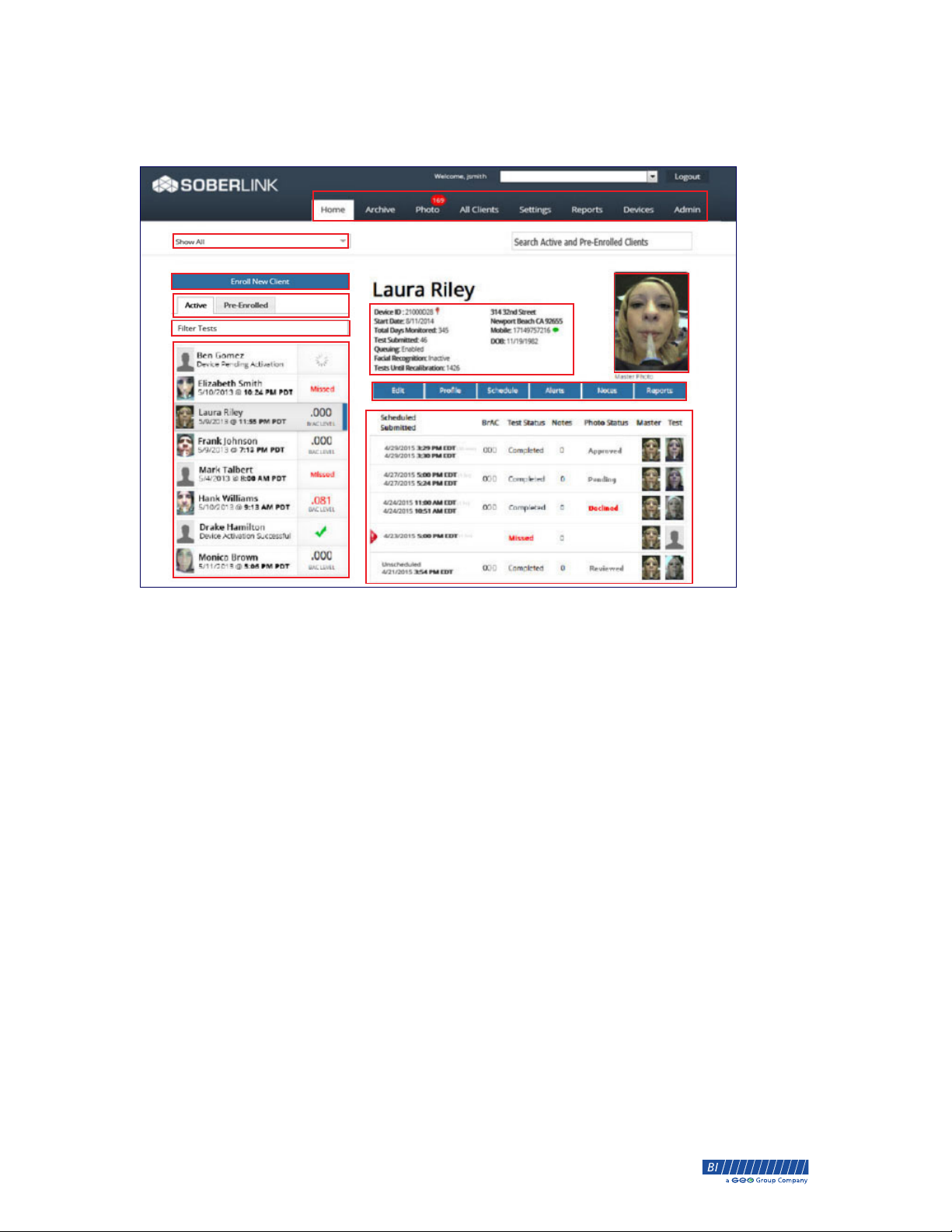
The Home page is the first screen that appears.
A
B
C
D
E
F
G
H
A. Menu
Home. Returns you to the Home page.
Archive. Displays archived clients in the Home page format.
Photo. Review pending photo verifications. The number circled
in red displays the number pending.
All Clients. Displays client name, agency name, device ID if
active, and current status for all clients.
Settings. Current profile information.
Reports. List of reports and descriptions.
Devices. List of active and non-active device IDs, the last known
location, the date the unit was active, and the total days on that
client.
Admin. List of users and contact information.
B. Folder. Select Agency to view.
C. Enroll New Client. Add a new client to the Monitoring Web Portal.
D. Active or Pre-Enrolled. Filters the list of clients displayed below.
Pre-Enrolled clients are entered into the Monitoring Web Portal but
do not have a SL2 device assigned. Click Activate Device to assign
a SL2 device.
E. Filter Tests. Click to change the client list to all tests, positive tests,
missed tests, missed tests pending photos, declined photos, or due
for recalibration.
I
J
K
F. Client List. Displays clients based on folder and filter selected.
8-90-00157-1, Revision B © 2014 BI Incorporated BI Proprietary & Confidential 11
®
Page 18
Chapter 2 • Monitoring Web Portal SL2 User Guide
G. Search. Enter at least three characters to begin searching active and
pre-enrolled clients. Search for archived clients on the Archive page.
H. Client Information
Device ID. Click the Device ID number to view the Devices tab
with the Last Known Location and an email link to send the
location to the officer.
Queuing. If enabled, SL2 will store up to 100 tests results until
cellular service is available to send to the Monitoring Web Portal.
Tests Until Recalibration. The number of tests until the device
needs to be calibrated. To view devices due for calibration click
the Due for Recalibration checkbox in Filtered Tests.
Facial Recognition. If active,
Mobile. Click the client’s mobile number to send an SMS
message. Only available if mobile number has been validated.
I. Master Photo. The photo selected as the master.
J. Toolbar
To begin the
monitoring process,
enroll the client in the
Monitoring Web Portal.
Edit. Update the client’s information
Client Options. Edit the client’s name, time zone, or
queuing setting
Device Options. Edit the client’s Device ID or Security PIN
Admin Options. Edit the client’s status
Profile. Add or modify a client’s profile and set payment
information
Schedule. Create or modify the client’s test schedule, set the test
window, enable retesting, and/or send an on-demand test
Alerts. Assign a contact to be alerted via email/text upon client
violation or set up automated reports
Notes. Add client note and/or view all test notes
Reports. Access to report menu
K. Test Results. Test results for selected client.
Client Profile
To begin the monitoring process you must first enroll the client in the
Monitoring Web Portal. The enrollment process also includes activating the
SL2 device.
12 BI Proprietary & Confidential © 2014 BI Incorporated 8-90-00157-1, Revision B
®
Page 19
SL2 User Guide Chapter 2 • Monitoring Web Portal
Adding a New Client
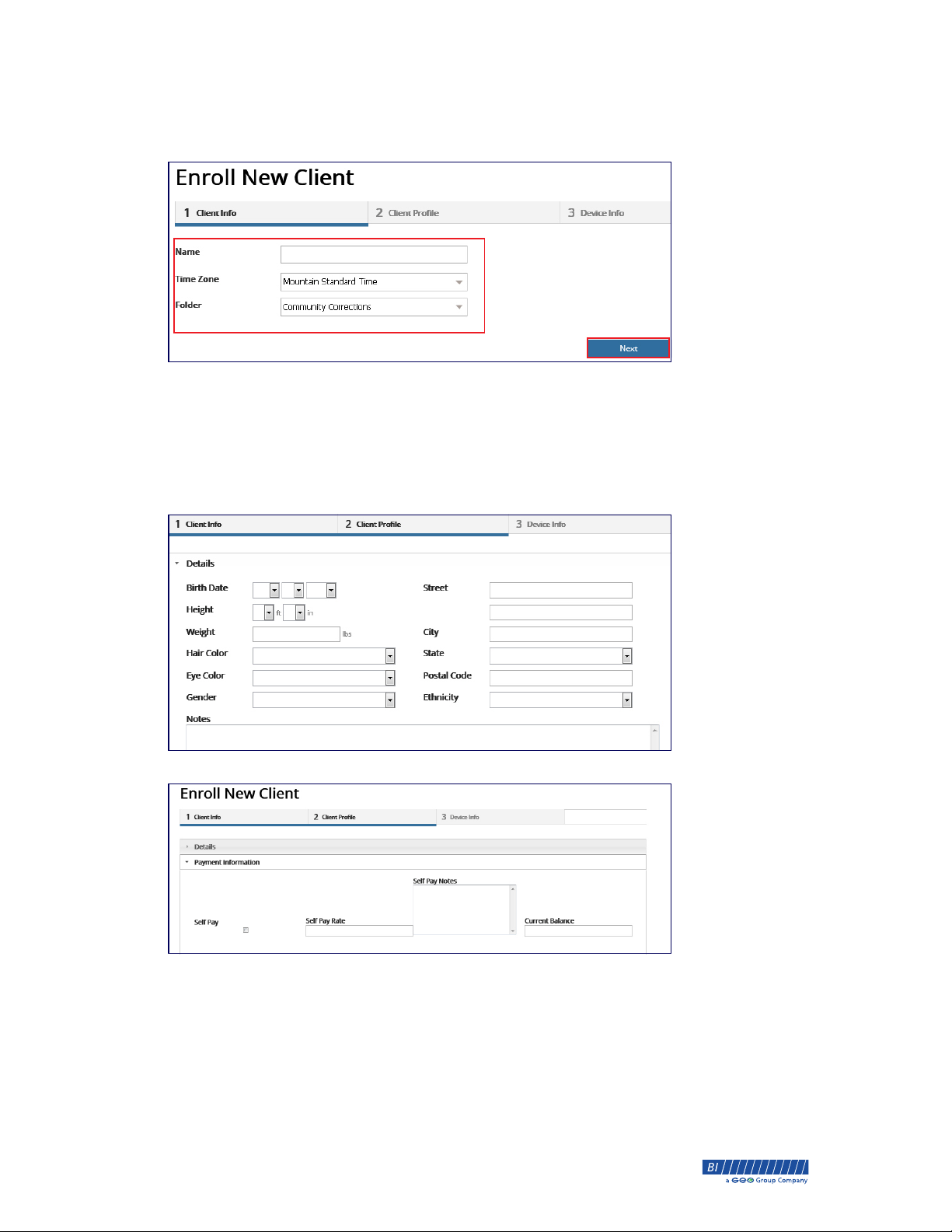
1. From the Home page, click Enroll New Client and enter the Client Info.
a. Enter the client’s first and last name.
b. Select the client’s time zone from the drop-down menu.
c. Select the agency for the client.
d. Click Next.
2. Enter the Client Profile information.
3. Enter the Payment Information then click Next.
8-90-00157-1, Revision B © 2014 BI Incorporated BI Proprietary & Confidential 13
®
Page 20
Chapter 2 • Monitoring Web Portal SL2 User Guide
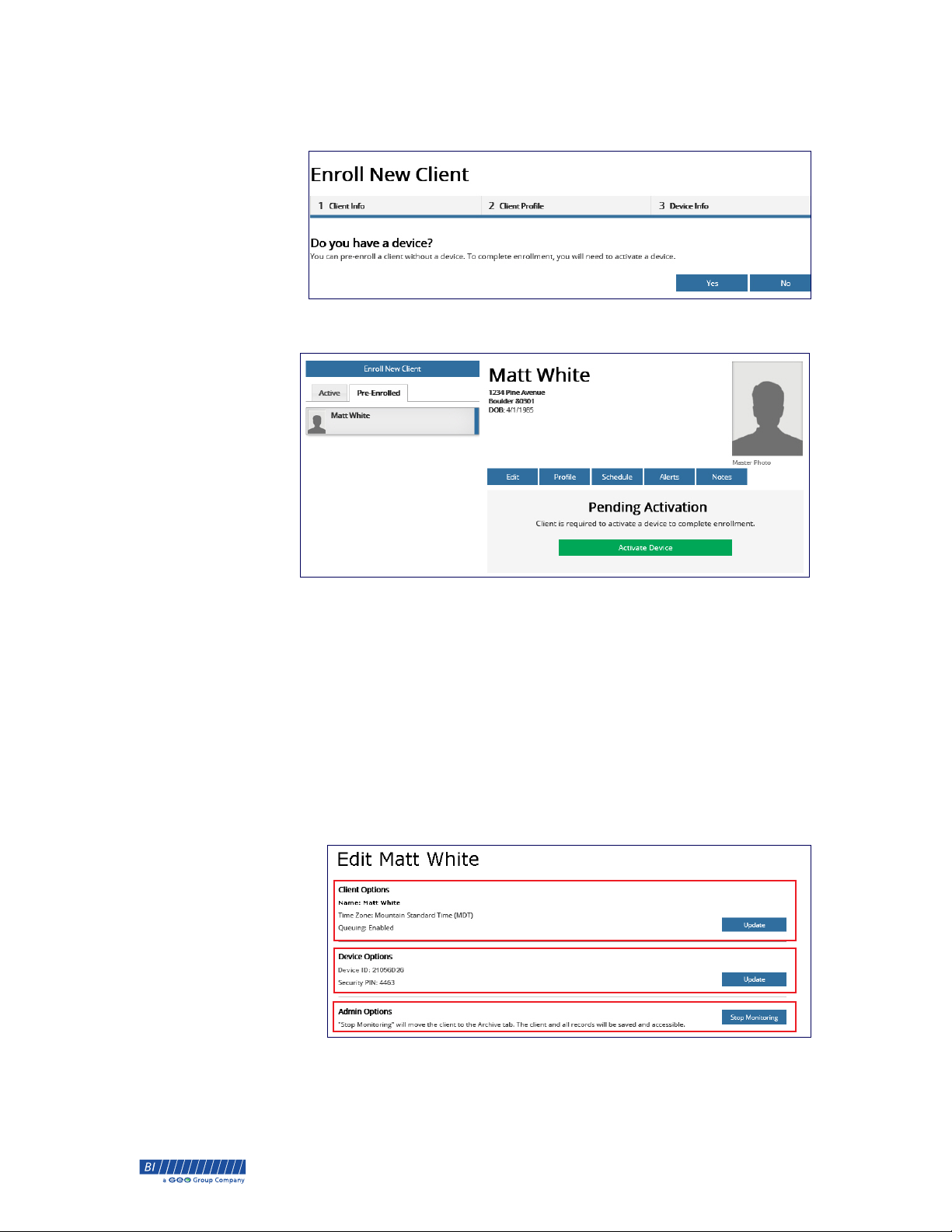
4. Click Yes and enter the Device ID and Security PIN from the SL2 device.
See “To Activate the SL2” on page 6.
a. If you have not activated the SL2, click No, and the client is displayed
under the Pre-Enrolled tab until the SL2 is activated.
5. Have the client submit a breath alcohol test, see “Completing a Breath
Alcohol Test” on page 6.
Edit
The Edit tab allows you to make changes to the following fields:
Client Options. Edit Client Name, Time Zone, and/or Queuing setting.
Device Options. Edit Device ID and/or Security PIN.
Admin Options. When the client’s sentence is complete and
monitoring is no longer required, click the Stop Monitoring Stop button
to move the client and all monitoring records to archive. You will also
need to reset the SL2 device, see page 8.
14 BI Proprietary & Confidential © 2014 BI Incorporated 8-90-00157-1, Revision B
®
Page 21
SL2 User Guide Chapter 2 • Monitoring Web Portal
Profile
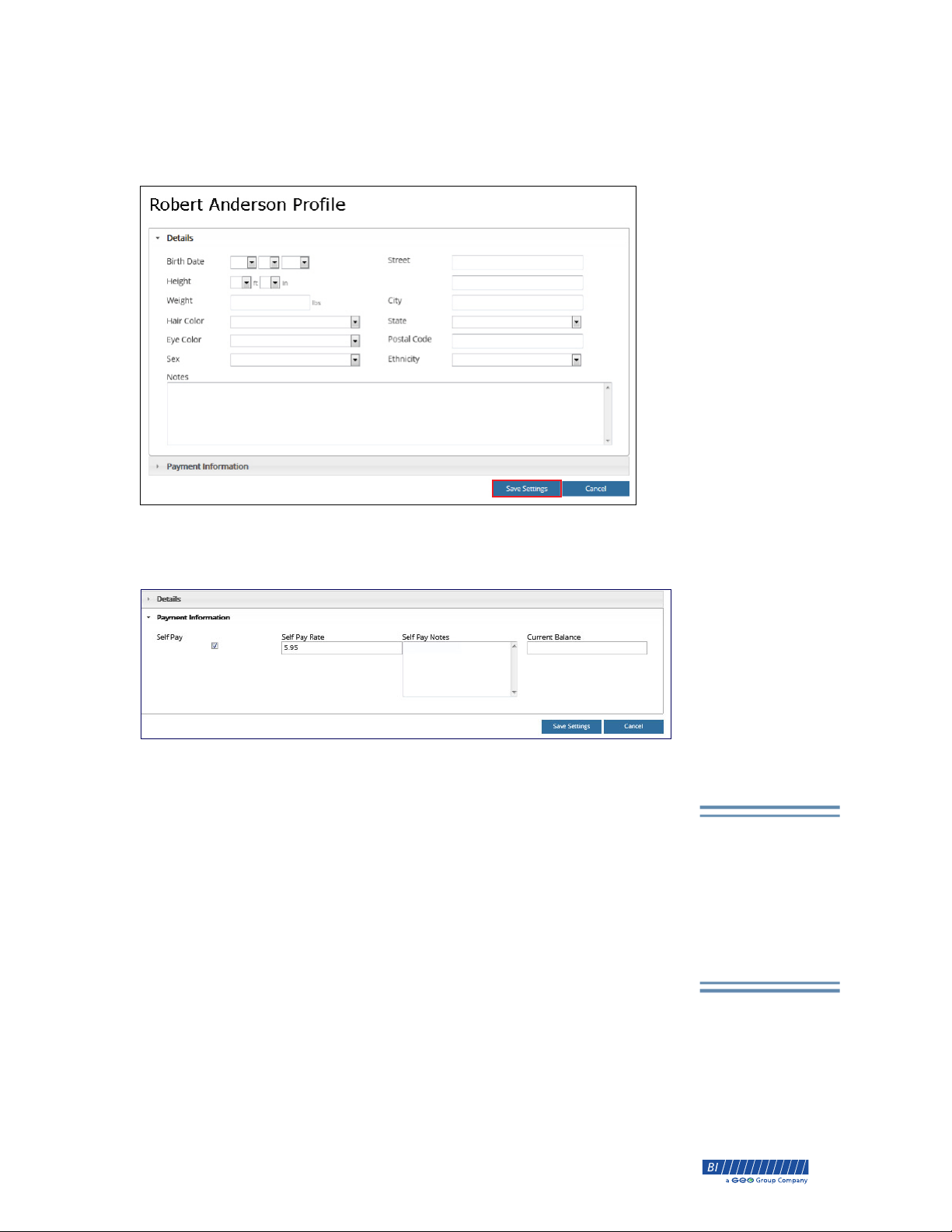
The Profile tab allows you to enter details about the client. These fields are
optional and if populated will appear on the Client Detail report.
Under Payment Information, you can set the client for Self Pay. Click the
Pay checkbox, enter a Self Pay Rate, add any notes or balance, and then
click
Save Settings.
Self
Schedules
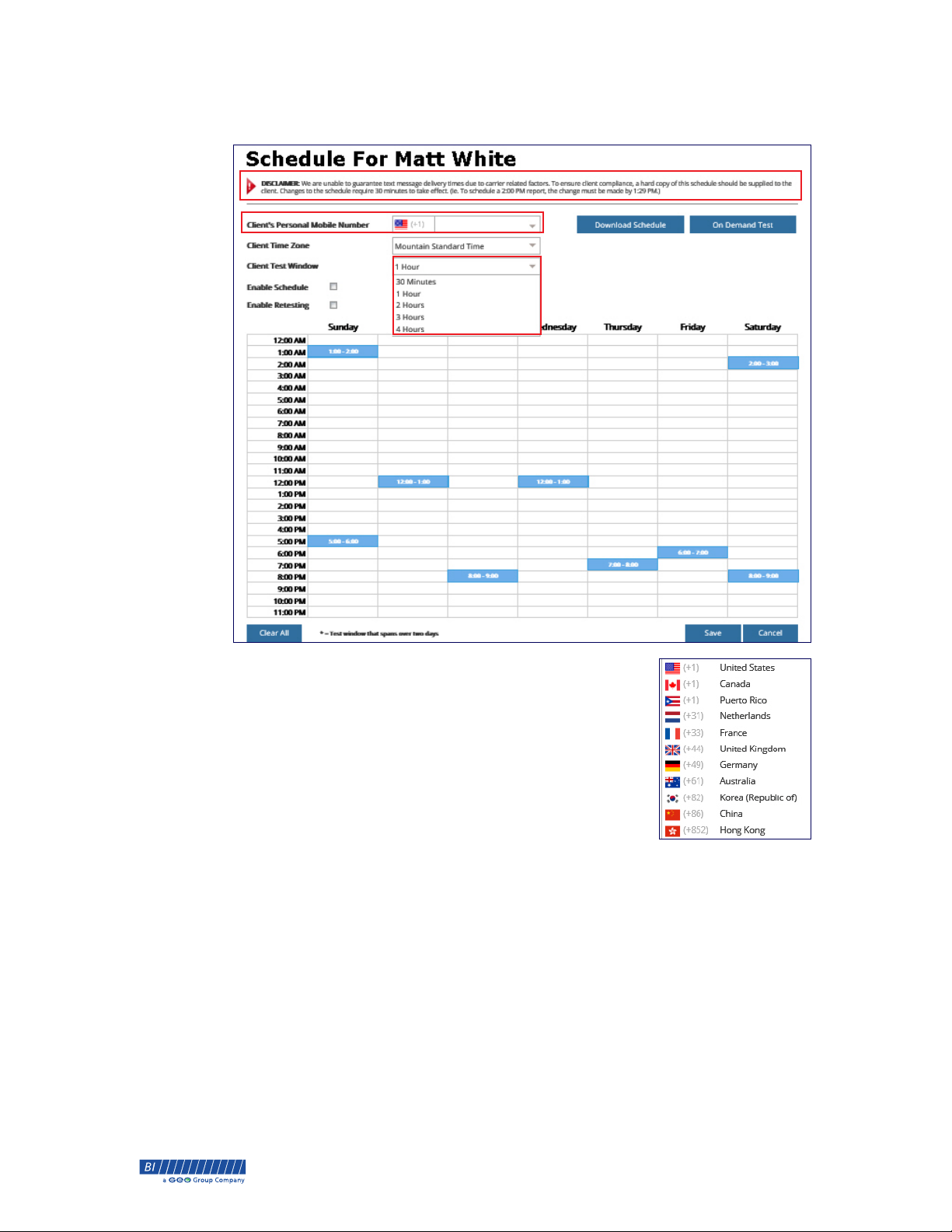
Breath alcohol tests can be scheduled at any hour, seven days a week. Once the
client’s schedule in saved in the Monitoring Web Portal, an automated text
message notifying the client of the next scheduled test is sent to the client’s
personal mobile phone 15 minutes prior to the scheduled test. Tests must be
taken within 45 minutes of receiving the text message and up to two reminder
texts may be sent during the testing window. A test report is compiled and sent
to the Monitoring Web Portal approximately 60 seconds after the test is
completed. If retesting is enabled, a positive test result (0.02 or higher) will
commence up to six more tests until the BrAC drops below 0.02. The client’s
location is available with each breath alcohol test via Google Maps. On
demand tests are also available.
Test schedules can be
added manually at any
hour seven days a week
or you can select a
preset schedule up to
four times a day.
Adding a Schedule
1. From the Home page, select the desired client.
8-90-00157-1, Revision B © 2014 BI Incorporated BI Proprietary & Confidential 15
®
Page 22
Chapter 2 • Monitoring Web Portal SL2 User Guide
2. Click the Schedule tab.
3. In the Client’s Personal Mobile Number field,
enter the cell phone number to send reminder text
messages to the client. The client is required to
“Opt-In” during the first text message in order to
continue to receive the automated text messages.
See “Text Notification” on page 17.
NOTE: The SL2 communicates in these countries.
4. From the Client Test Window drop-down
menu, select the amount of time the client has to take the test.
5. Select the Enable Schedule checkbox to send the client a reminder 15
prior to the scheduled test time.
6. Select the Enable Retesting checkbox to require the client to retest up
to six times or until his or her BrAC drops below 0.02.
7. Click the schedule to enter the test times.
8. Click Save.
9. To remove the current schedule and start over, select Clear All.
10. To print the schedule for the client, click Download Schedule.
16 BI Proprietary & Confidential © 2014 BI Incorporated 8-90-00157-1, Revision B
®
Page 23
SL2 User Guide Chapter 2 • Monitoring Web Portal
11. To send the client an alcohol test now, click On Demand Test.
Text Notification
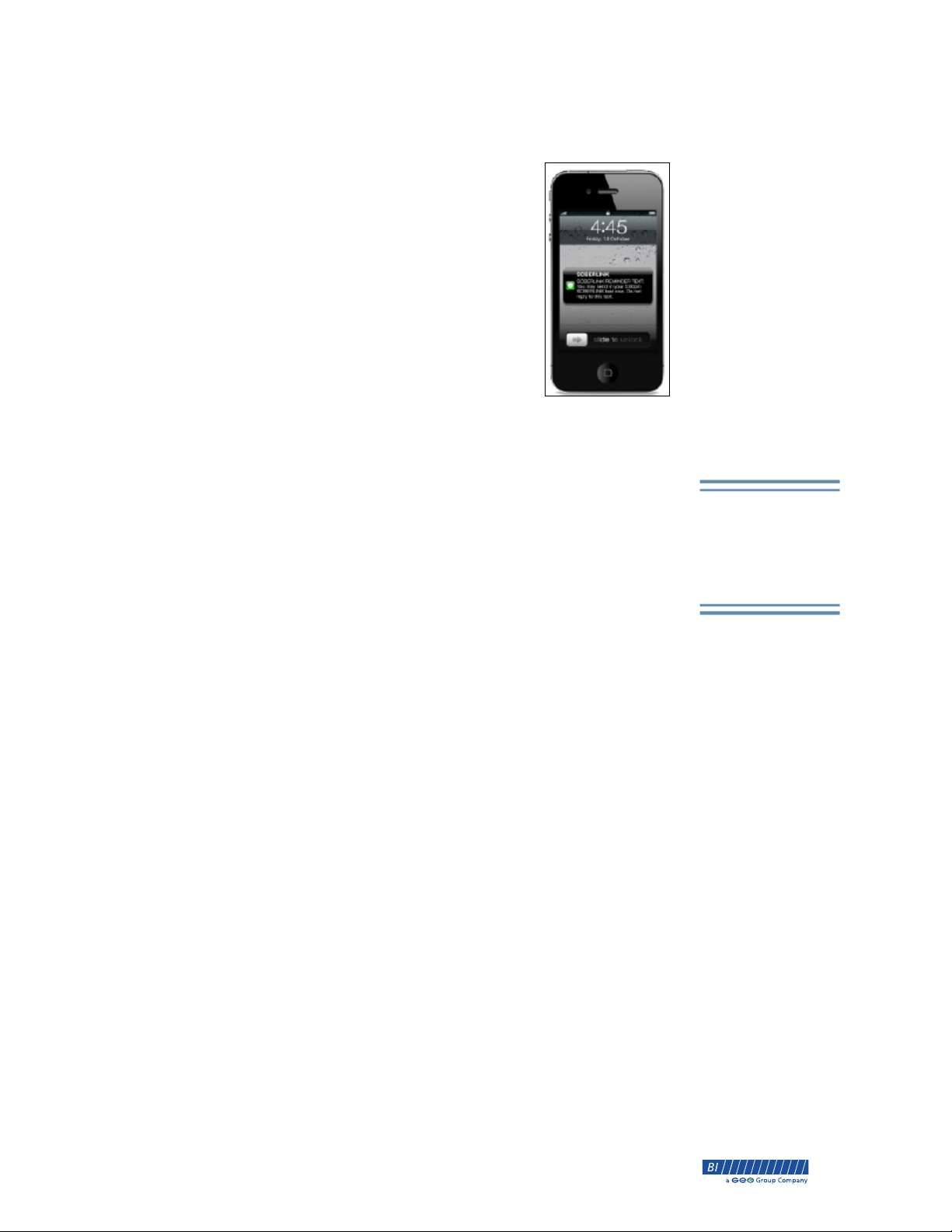
The Monitoring Web Portal gives you the option to notify
your client of impending breath alcohol tests by sending a
text message to the client’s personal cell phone. If enabled,
the client will receive a text message 15 minutes prior to
the scheduled test time and 15 minutes after the test was
due. A missed notification text message will be sent if the
test results have not been received within 30 minutes. Text
messages will also be sent for all retests. The client will be
required to text “30574” to confirm the correct phone
number and to continue receiving text messages. Text
Messaging is available for France, Germany, United
Kingdom, and the Netherlands. For a list of text messages,
see “Alerts and Texts” on page 31.
Alert Notification
The Monitoring Web Portal features automated text messaging and email
notifications for alerts. A text message or email notification can be sent to one
or multiple contacts in response to a missed or positive test. The Monitoring
Web Portal also includes an automated reports feature which emails a Digest
Report to you on a daily, weekly, or monthly basis. From the email, you can
download a Consolidated Report for the client. For a list of alerts, see “Alerts
and Texts” on page 31.
Notification of alerts
can be delivered by
email or text message.
Setting Automated Alerts & Reports
1. From the Home page, select the desired client.
8-90-00157-1, Revision B © 2014 BI Incorporated BI Proprietary & Confidential 17
®
Page 24
Chapter 2 • Monitoring Web Portal SL2 User Guide
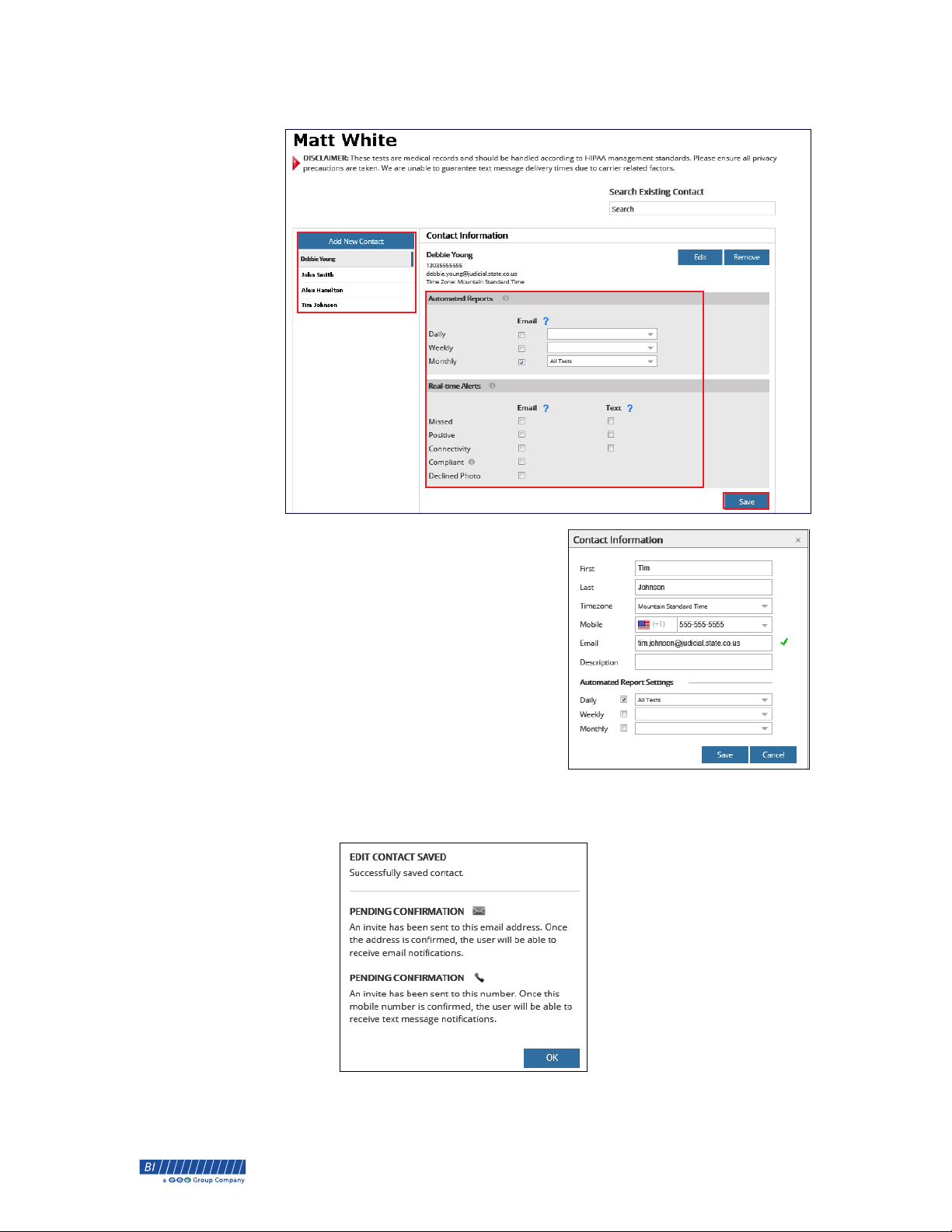
2. Click the Alerts button.
3. If the contact is available,
select the name. If the contact
is not available, click
New Contact. Enter the
Add
contact information.
4. Select the alert notification
and automated report
option(s) required.
5. Click Save.
6. The following pop-up is
displayed. The contact is required to “Opt-In” during the first text message
or email in order to continue to receive the automated text messages and
emails.
18 BI Proprietary & Confidential © 2014 BI Incorporated 8-90-00157-1, Revision B
®
Page 25
SL2 User Guide Chapter 2 • Monitoring Web Portal
Notes
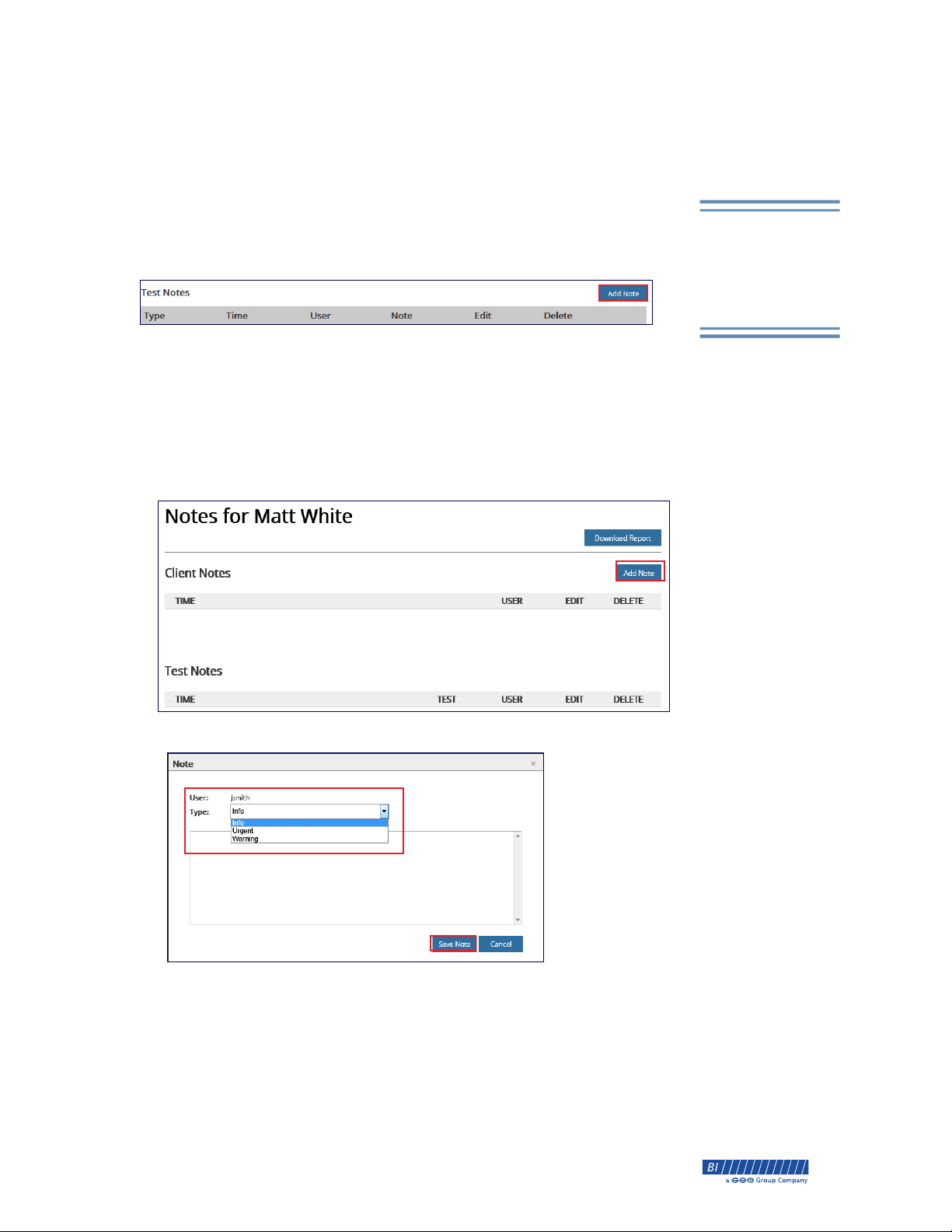
Notes can be added for each client and for each breath alcohol test. Notes are
categorized as general information, urgent, or a warning and flagged with an
appropriate colored icon.
Adding a Test Note
1. From the Test Results screen, click Add Note.
2. From the Type drop-down menu, select Info, Urgent, or Warning.
3. Enter your note in the box.
4. Click Save Note.
Adding a Client Note
1. From the Client Toolbar, click Notes.
Notes can be add for
a client or for each
breath alcohol test.
2. Click Add Note.
3. From the Type drop-down menu, select Info, Urgent, or Warning.
4. Enter your note in the box.
5. Click Save Note.
8-90-00157-1, Revision B © 2014 BI Incorporated BI Proprietary & Confidential 19
®
Page 26
Chapter 2 • Monitoring Web Portal SL2 User Guide
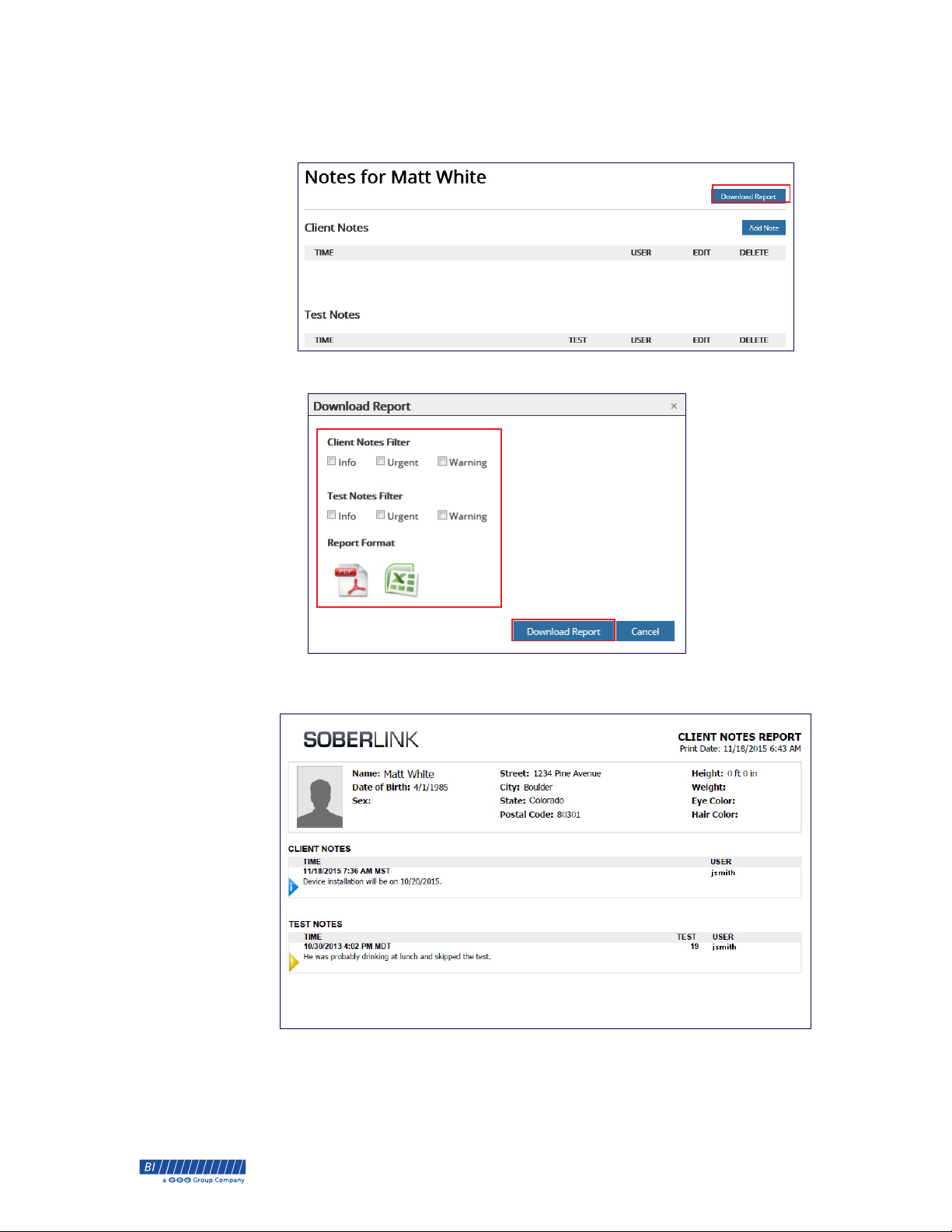
Printing Case Notes
1. From the Client Toolbar, click Notes.
2. Click Download Report.
3. Select the filter and report options desired, then click Download
Report.
20 BI Proprietary & Confidential © 2014 BI Incorporated 8-90-00157-1, Revision B
®
Page 27
SL2 User Guide Chapter 2 • Monitoring Web Portal
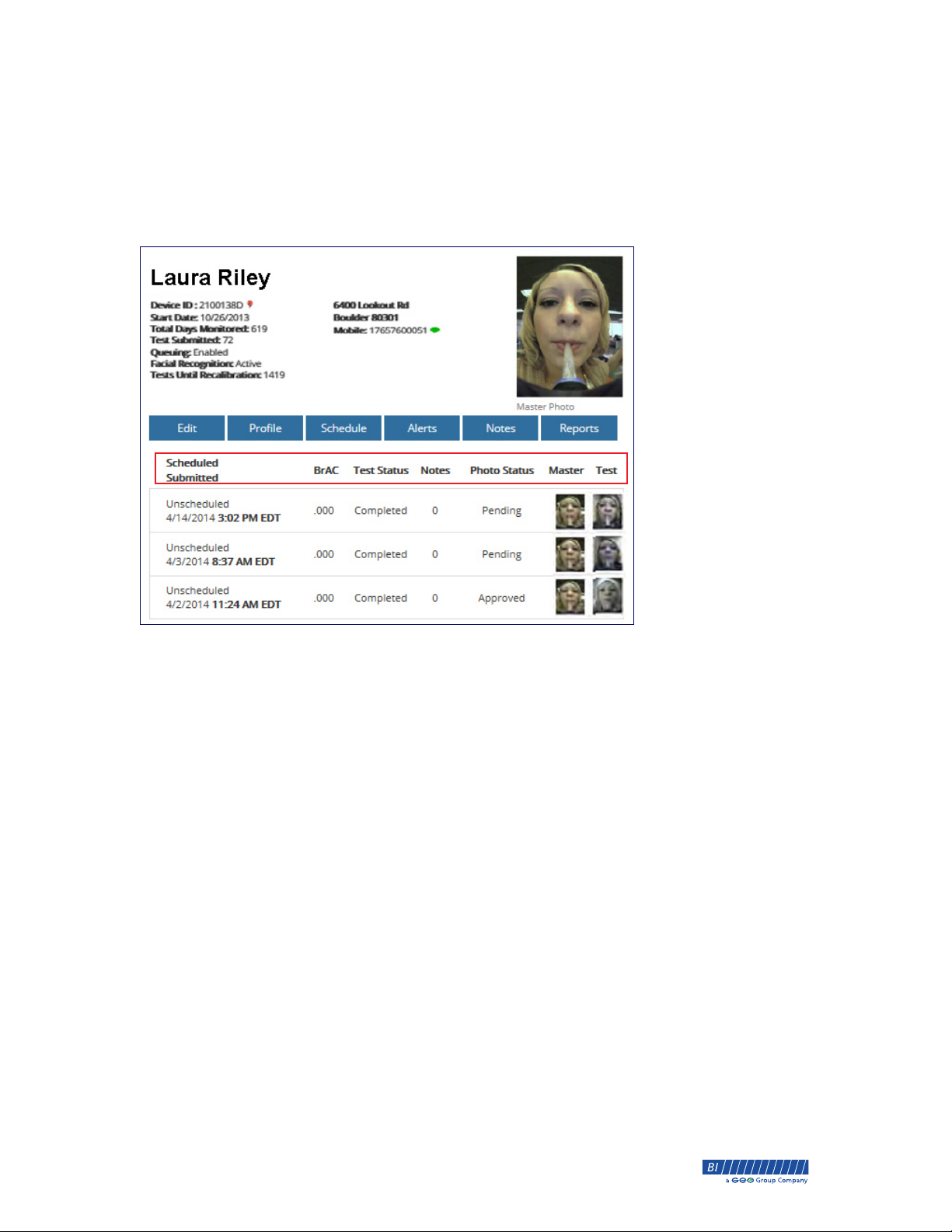
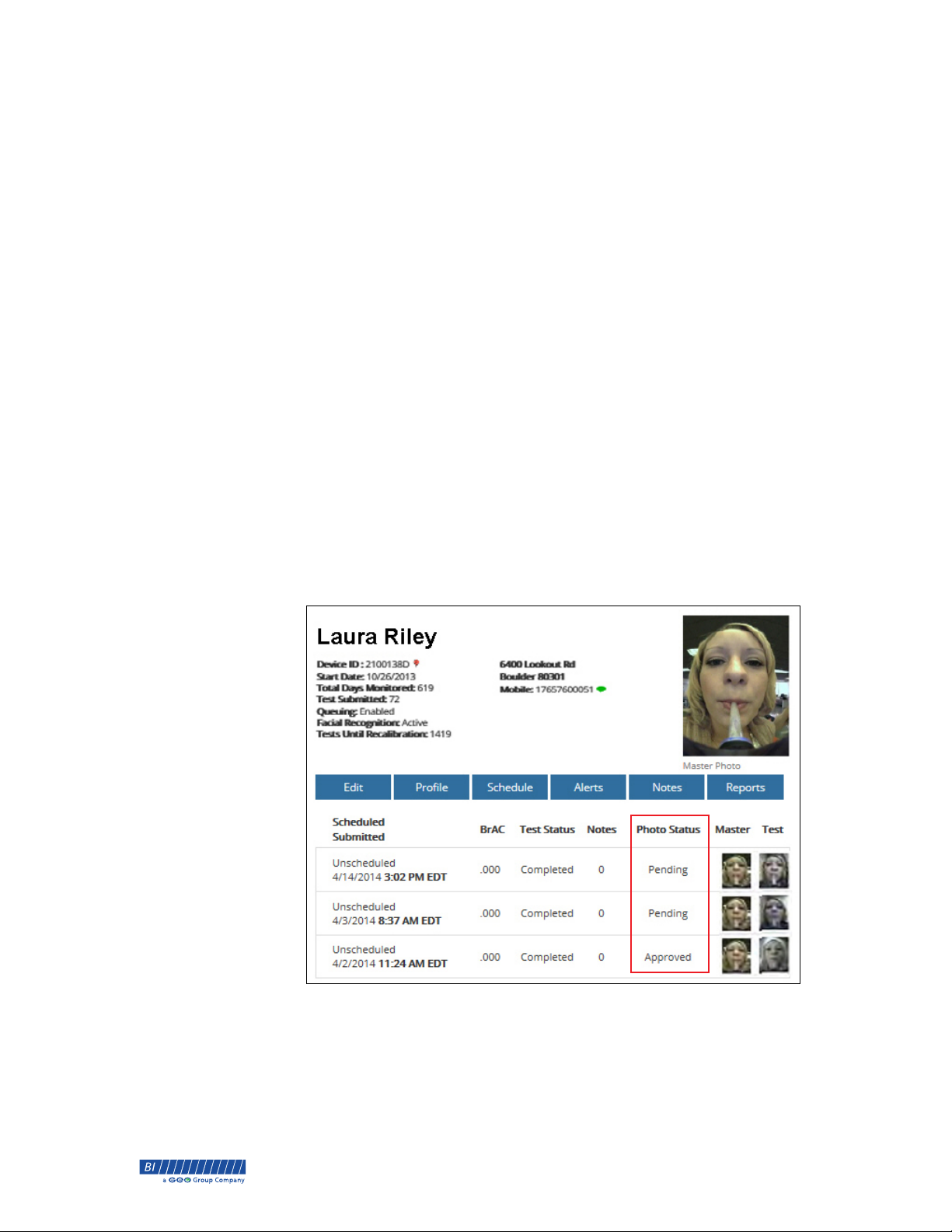
Test Results
Once the client completes the breath alcohol test, return to the Monitoring
Web Portal Home page. Test results with the Date/Time of the test, BrAC level,
Test Status, Notes, Photo Status, and the Master and Test photo are available
for each of your clients on the Home page. Click any test result to view the test
details, GPS map, Test History, and Test Notes.
Reviewing Test Results
1. From the Home page, select a client.
2. From the test results list, select the test result to review.
8-90-00157-1, Revision B © 2014 BI Incorporated BI Proprietary & Confidential 21
®
Page 28
Chapter 2 • Monitoring Web Portal SL2 User Guide
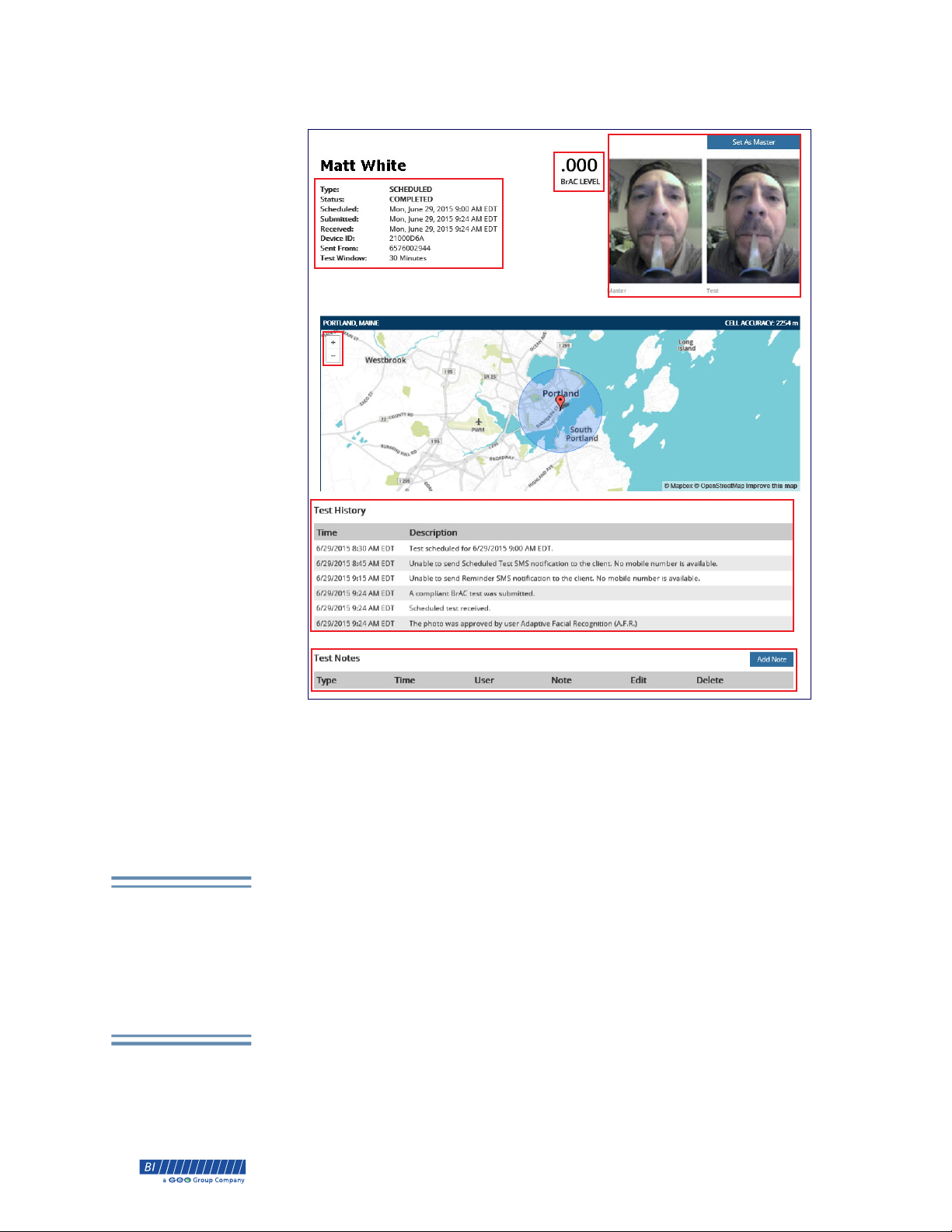
The test details screen appears.
B
A
E
F
C
Adaptive Facial
Recognition compares
each test photo to a
template of photos not
just the master photo.
G
A. Test Details. Details of the breath alcohol test
B. BrAC Level. Breath Alcohol Concentration Level
C. Set as Master. Option to change the master photo
D. GPS or Cell Accuracy. Displays accuracy as a radius in meters
E. Zoom In or Out. Ability to zoom in or out
F. Test History. View date/time and description of events associated
with the breath alcohol test.
G. Test Notes. Option to add notes about breath alcohol test
Adaptive Facial Recognition
The SL2 device takes a high resolution photo during each breath alcohol test
and sends it to the Monitoring Web Portal. Adaptive Facial Recognition™
(AFR), a facial recognition software, automatically analyzes each test photo in
comparison to an adaptive template of client photos. Each test photo must be
manually verified until AFR builds the template. Over time, AFR adapts to
subtle appearance changes by comparing test photos to the most recent
template of client photos reducing the manual verification process.
22 BI Proprietary & Confidential © 2014 BI Incorporated 8-90-00157-1, Revision B
®
Page 29
SL2 User Guide Chapter 2 • Monitoring Web Portal
A client’s optimum testing behavior is vital for AFR’s success. The following
behavior is ideal:
Eyes fully open, looking straight into the camera
Head straight, not tilted
No obstruction of face - remove eye wear and head wear
No obstruction of camera lens, not tilted
No uneven lighting
Mouthpiece inserted into SL2 and client using mouthpiece
The client should understand that failure to follow testing protocol can be
deemed as an attempt to defeat the system. All photos need to be manually
approved until AFR has built a client template. If AFR cannot mark a photo as
Approved, it will submit the photo for a manual verification. Manual
verification includes two processes: Photo Review and Photo Confirmation.
Any photo not approved by AFR needs to be reviewed by the officer and
marked as either
Approve or Decline. Then all declined photos must be
reviewed an additional time by an authorized user.
Master Photo
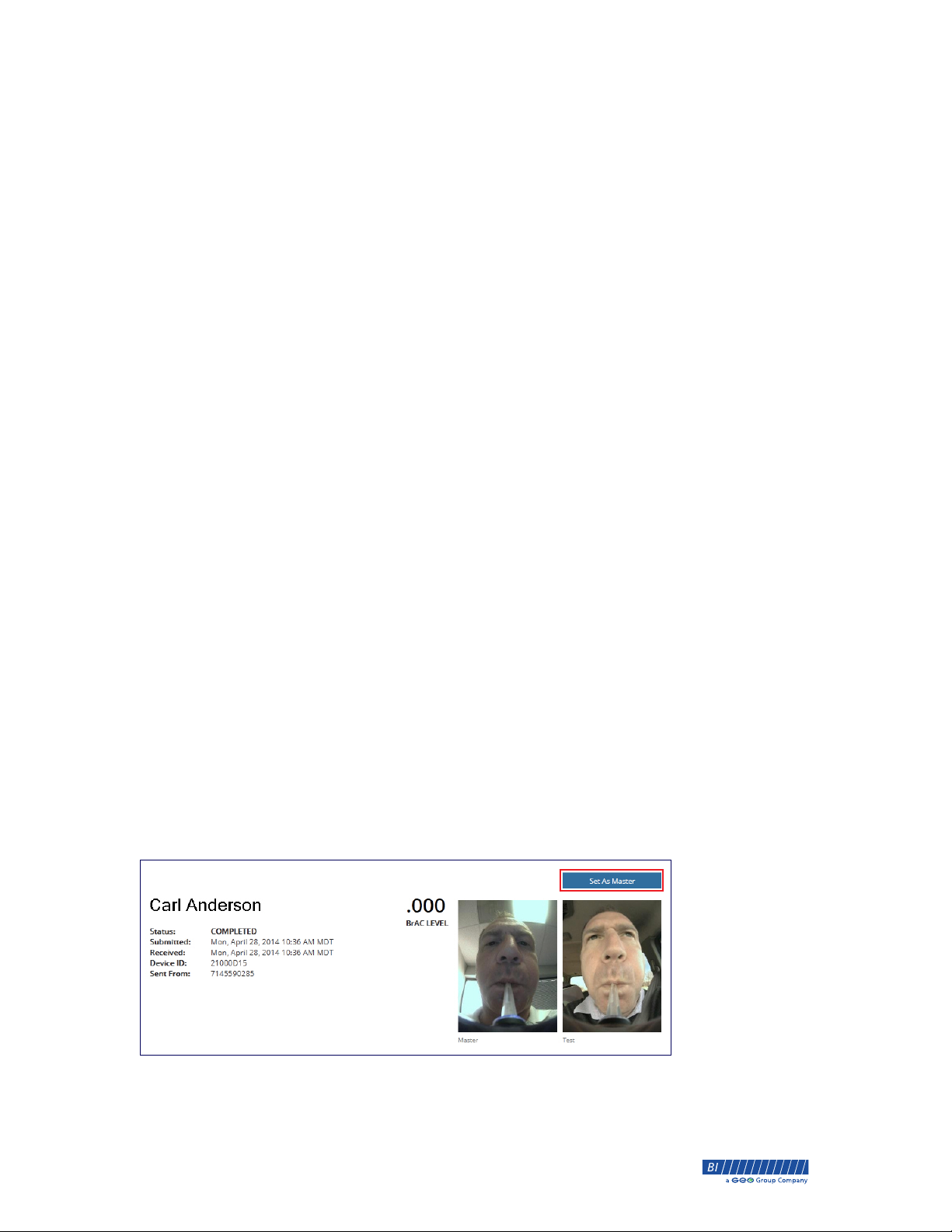
The master photo is the photo that you choose that best represents the client.
This master photo will sit side by side with each photo taken during a breath
alcohol test. After the client has completed a breath alcohol test, log into the
Monitoring Web Portal and review the photo. Any photo taken during a
breath alcohol test can be set as the master photo.
You can change the master photo at any time. If the client grows a beard or gets
a haircut, you can reset the master photo. Remember, AFR will adapt to subtle
appearance changes in the client. The master photo can be selected from any
of the breath alcohol test results screens. Once reset, the master photo will
update for all completed breath alcohol test results screens.
NOTE: Changing the master photo will update all master photos including the
master photo on all previous test results.
Changing the Master Photo
1. From the detailed test results page, click the Set As Master button.
2. Click Home to return to the Home page.
8-90-00157-1, Revision B © 2014 BI Incorporated BI Proprietary & Confidential 23
®
Page 30
Chapter 2 • Monitoring Web Portal SL2 User Guide
Photo Verification
During each breath alcohol test a photo is taken and must be verified to
determine the client’s identity. Once the master photo is selected, AFR builds a
template based on manually approved photos. Once the template is built AFR
will automatically Approve photos of the client. The status of photos are
viewed in the Photo Status column. All photos approved by AFR are noted in
the Test History.
The following are the possible Photo Status:
Approved. The test photo was approved by AFR or by an officer.
Pending. The test photo could not be approved by AFR.
Reviewed. The test photo was not approved by AFR and has been
manually declined by the officer. The photo is now in a queue to
reviewed by an agency administrator.
Declined. The test photo has be confirmed as not the client by an
agency administrator.
NOTE: If AFR cannot confirm that a test photo is the client it marks the test
photo as Pending. AFR will not mark a test photo as Declined. All
declined photos must be reviewed and confirmed that it is not the client
by an agency administrator. See the Administration manual for details.
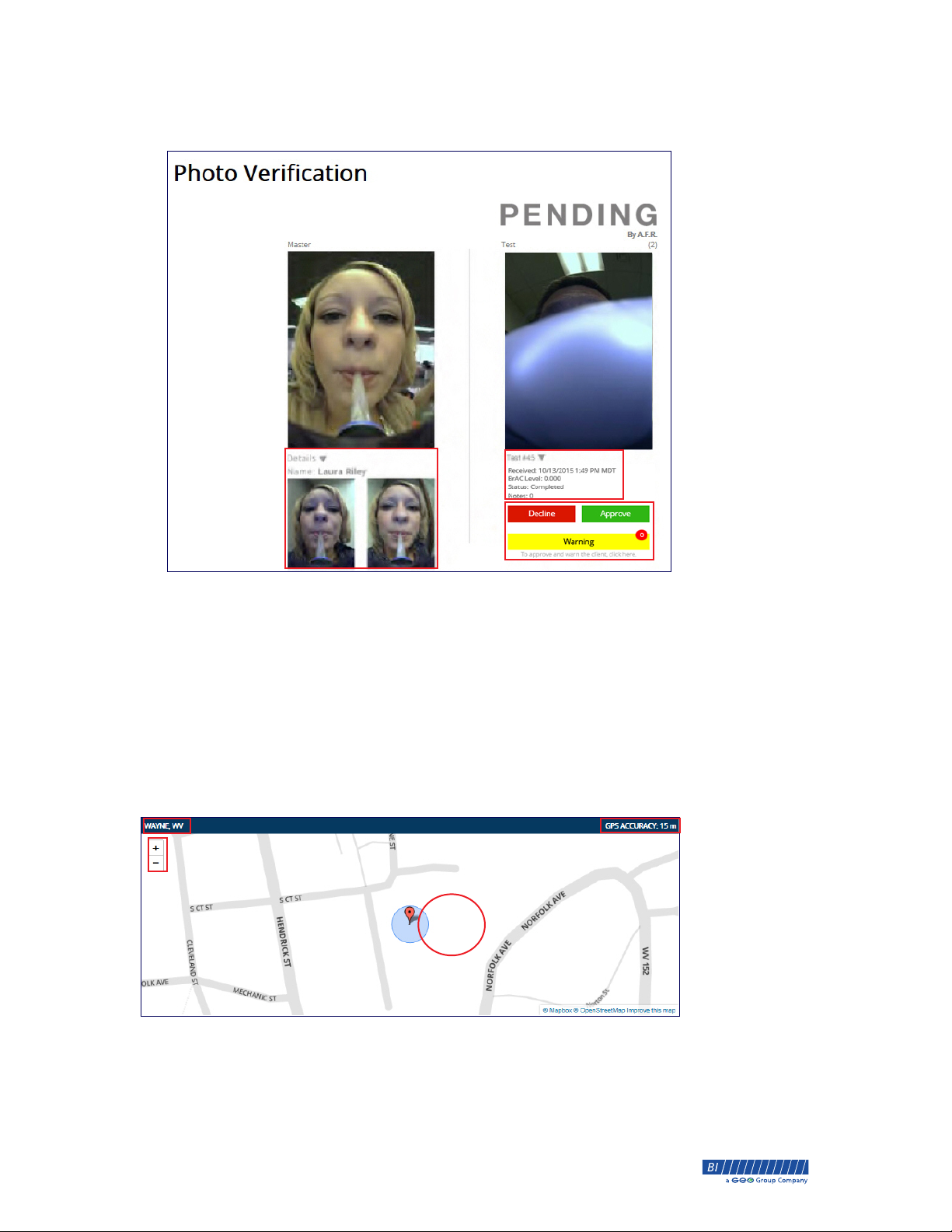
Manually Verifying a Photo
1. From the Photo Status column, click the pending photo to review.
2. Any photo that AFR was unable to Approve and confirm as the client can
be reviewed by clicking
reject the photo, click
send the client a warning about blocking the camera, click
Details. To view test results, click Test #. To
Decline or to accept the photo, click Approve. To
Warning.
24 BI Proprietary & Confidential © 2014 BI Incorporated 8-90-00157-1, Revision B
®
Page 31
SL2 User Guide Chapter 2 • Monitoring Web Portal
Select the reason for the warning from the drop-down menu and click
Send..
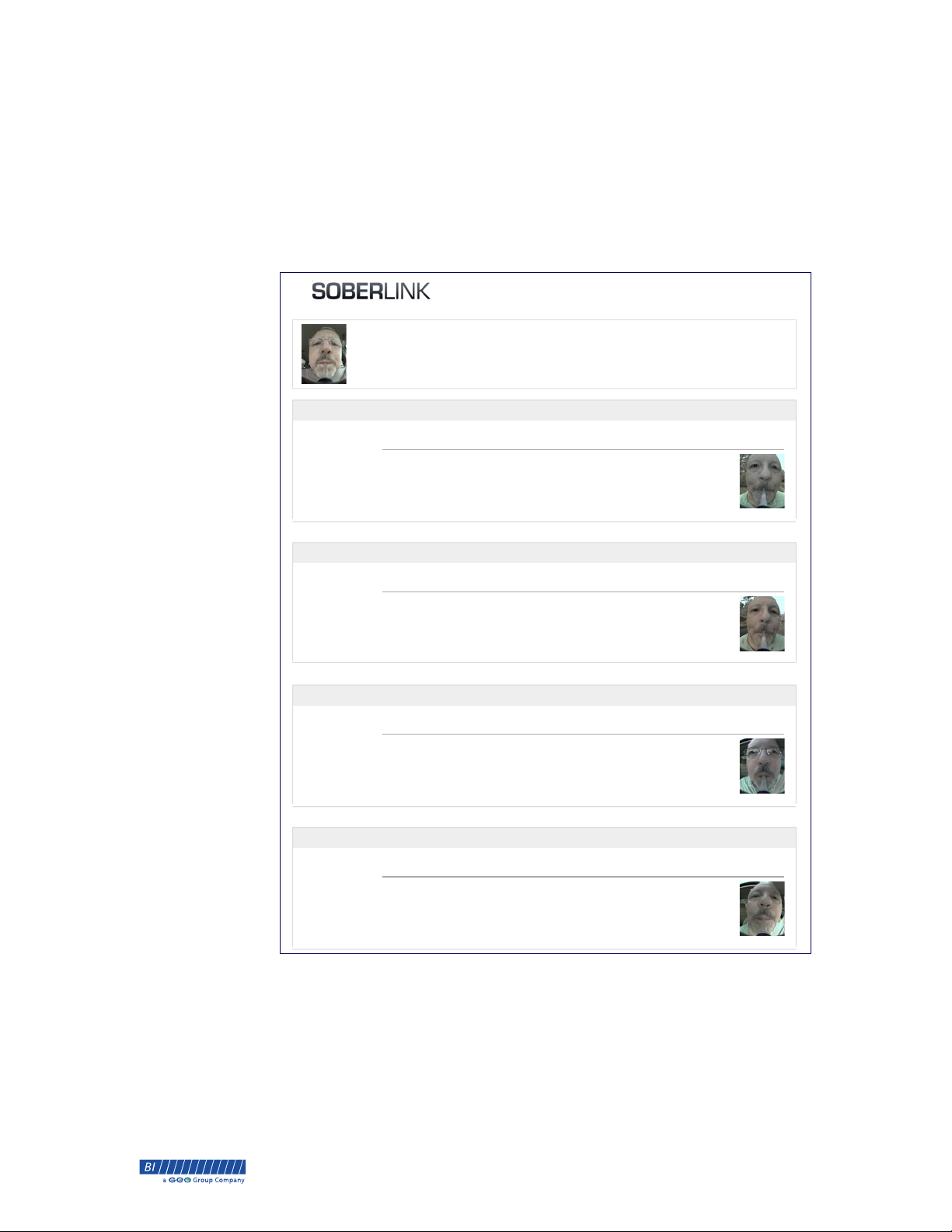
GPS Map
With each breath alcohol test, the Monitoring Web Portal provides you with a
Google map showing the client location at the time of the breath alcohol test.
The location radius around the GPS point is dependent on the line of sight and
the amount of time to GPS satellites and is measured by the latitude, longitude,
and accuracy in meters. When a GPS position fix is unavailable, a cell position
fix is used.
The map displays the city and state and whether the position fix was GPS or
cellular. You can zoom in and zoom out as well as move the map around.
A
B
D
A. Map Location
B. Zoom In/Zoom Out
C. GPS Accuracy or Cellular Accuracy
D. Location Radius
C
8-90-00157-1, Revision B © 2014 BI Incorporated BI Proprietary & Confidential 25
®
Page 32
Chapter 2 • Monitoring Web Portal SL2 User Guide
Reports
The Monitoring Web Portal allows you to view, print, or automatically email
on a daily, weekly, or monthly basis. The Monitoring Web Portal includes
access to following three reports:
Client Detail Report
Reports breath alcohol test results for a single client.
CLIENT DETAIL REPORT
Report Date: 7/13/2013 - 8/13/2013
Print Date: 8/13/2013 1:21 PM MDT
Name:$ODQ 3HGHUVRQ
Date of Birth:
Sex:
2/2/1960
Male
Street: 2350 3LQH$YH
City:
Marietta
Georgia
State:
Postal Code: 30064
Height: 5 ft 11 in
Weight: 205 lbs
Eye Color: Blue
Hair Color: Gray
Saturday, July 20, 2013
8:44 PM EDT
8:44 PM EDT Unscheduled test received.
8:44 PM EDT Sent Positive Test email alert to -RKQ6PLWK at [email protected].
8:44 PM EDT Test closed.
Saturday, July 20, 2013
8:44 PM EDT
8:37 PM EDT Test scheduled for 7/20/2013 8:37 PM EDT.
8:37 PM EDT Sent a SMS retest reminder to 17708804325.
8:44 PM EDT Scheduled test received.
8:44 PM EDT Sent Positive Test email alert to -RKQ6PLWK at [email protected].
8:44 PM EDT Test closed.
Saturday, July 20, 2013
8:25 PM EDT
8:25 PM EDT Unscheduled test received.
8:25 PM EDT Sent Positive Test email alert to -RKQ6PLWK at [email protected].
8:25 PM EDT Test closed.
Saturday, July 20, 2013
8:24 PM EDT
7:37 PM EDT Test scheduled for 7/20/2013 8:07 PM EDT.
7:37 PM EDT Sent SMS to 17708804325 notifying the client of required retesting.
8:07 PM EDT Sent a SMS retest reminder to 17708804325.
8:24 PM EDT Scheduled test received.
8:24 PM EDT Sent Positive Test email alert to -RKQ6PLWK at [email protected].
8:24 PM EDT Test closed.
Test Positive (Unscheduled)
Device ID: 21000D09
Test Positive
Device ID: 21000D09
Test Positive (Unscheduled)
Device ID: 21000D09
Test Positive
Device ID: 21000D09
Test: 7
BrAC: .036
Marietta, GA
3(1',1*
Test: 6
BrAC: .037
Marietta, GA
$33529('
Test: 5
BrAC: .041
Marietta, GA
'(&/,1('
Test: 4
BrAC: .039
Marietta, GA
5(9,(:('
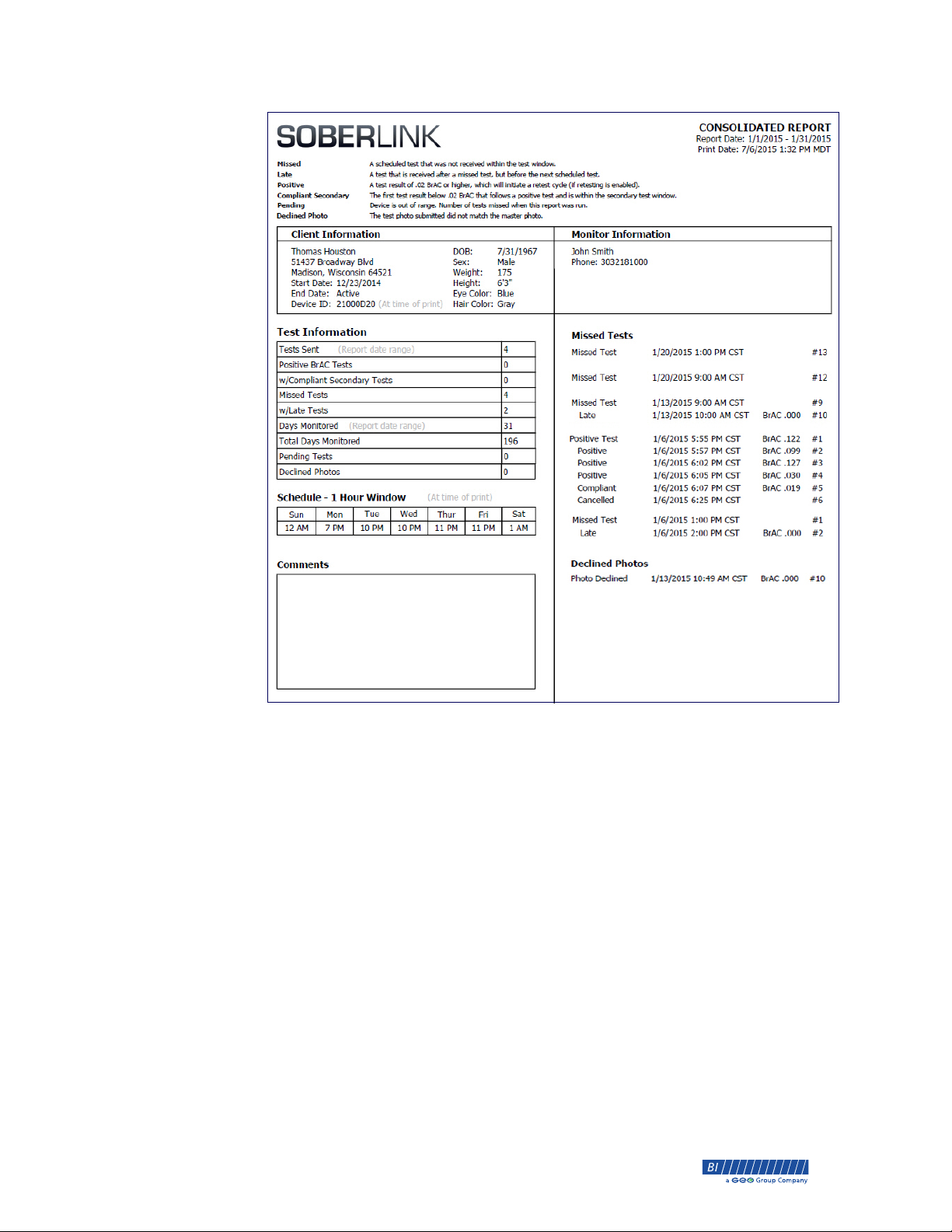
Consolidated Report
Reports a summarized view of a single client including total tests (positive,
secondary, compliant, missed, late) and total days monitored.
26 BI Proprietary & Confidential © 2014 BI Incorporated 8-90-00157-1, Revision B
®
Page 33
SL2 User Guide Chapter 2 • Monitoring Web Portal
8-90-00157-1, Revision B © 2014 BI Incorporated BI Proprietary & Confidential 27
®
Page 34
Chapter 2 • Monitoring Web Portal SL2 User Guide
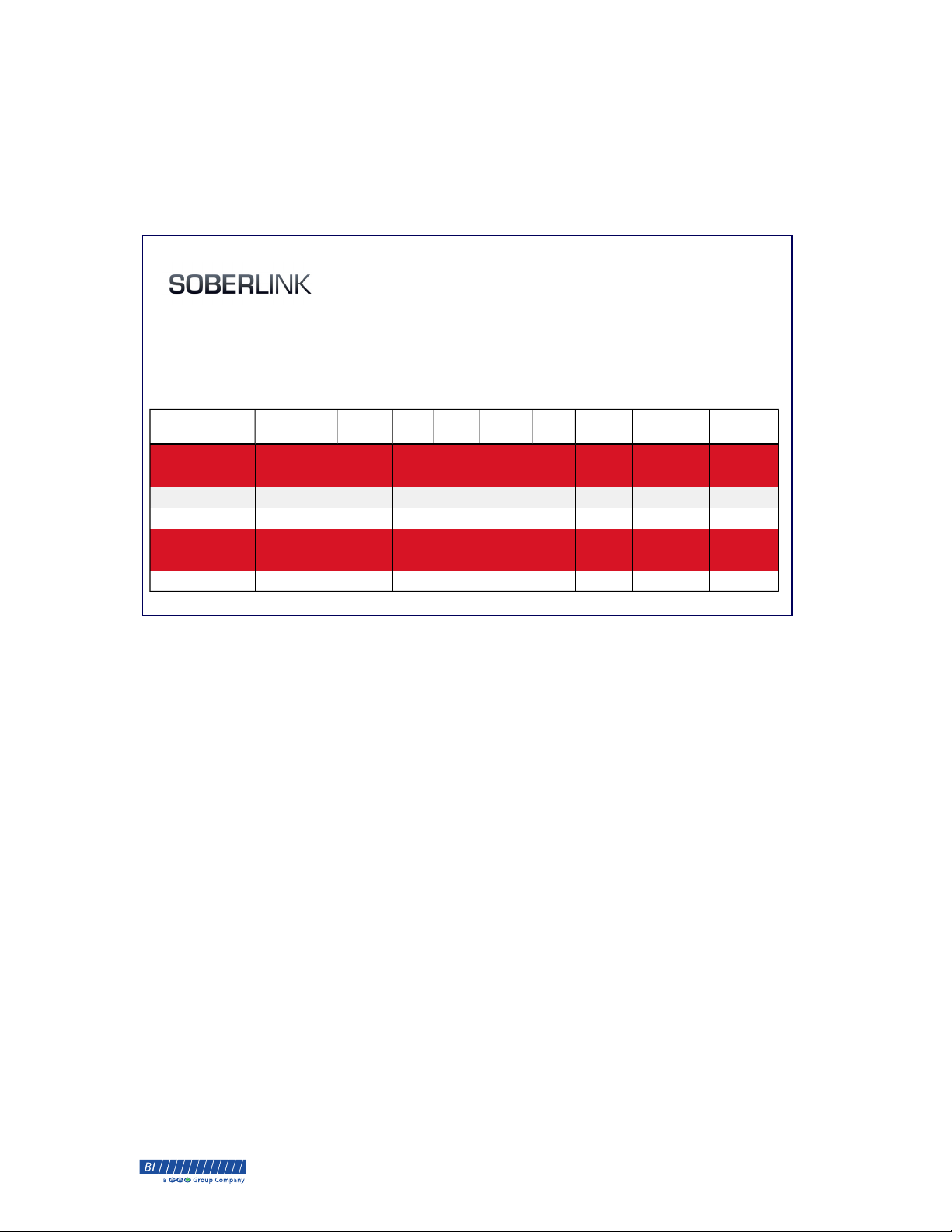
Digest Report
Reports a summarized view of all clients within a specific folder or a single
contract. Parameters include Start date, End date, Active or Archived clients,
or Non-Compliant tests. Clients with a Missed, Late, or Positive test show up
highlighted in red.
Report Date: 7/19/2013 - 8/19/2013
Print Date: 4/28/2014 2:15:20 PM MDT
Missed
Late
Positive
Compliant Secondary
Declined Photo The test photo submitted did not match the master photo.
A scheduled test that was not received within the test window.
A test that is received after a missed test, but before the next scheduled test.
A test result of .02 BrAC or higher, which will initiate a retest cycle (if retesting is enabled).
The first test result below .02 BrAC that follows a positive test and is within the secondary test window.
Client Name Activated Folder Days Tests Missed Late Positive Compliant
Secondary
DIGEST REPORT
-DQH$QGHUVRQ 7/17/2013 3DUROH 32 0 128 0 0 0 0
5RQDOG+ROPHV 7/15/2013 3DUROH 32 7 3 0 1 0 0
7LP-RKQVRQ 11/25/2013 3DUROH 0 0 0 0 0 0 0
/HUR\0DUWLQ 2/10/2014 3DUROH 0 0 0 0 0 0 0
6WHYH5LFKDUGV 7/11/2013 3DUROH 32 13 1 1 1 0 0
'DYLG:LOOLDPV 7/12/2013 3DUROH 32 11 0 0 5 0 0
TOTAL 128 31 132 1 7 0 0
To Run a Report
1. From the Home page, select the desired client.
2. Click the Report button and select the desired report.
Declined
Photos
3. Enter the report parameters and click Download Report.
28 BI Proprietary & Confidential © 2014 BI Incorporated 8-90-00157-1, Revision B
®
Page 35
SL2 User Guide
Appendix A Menu Descriptions
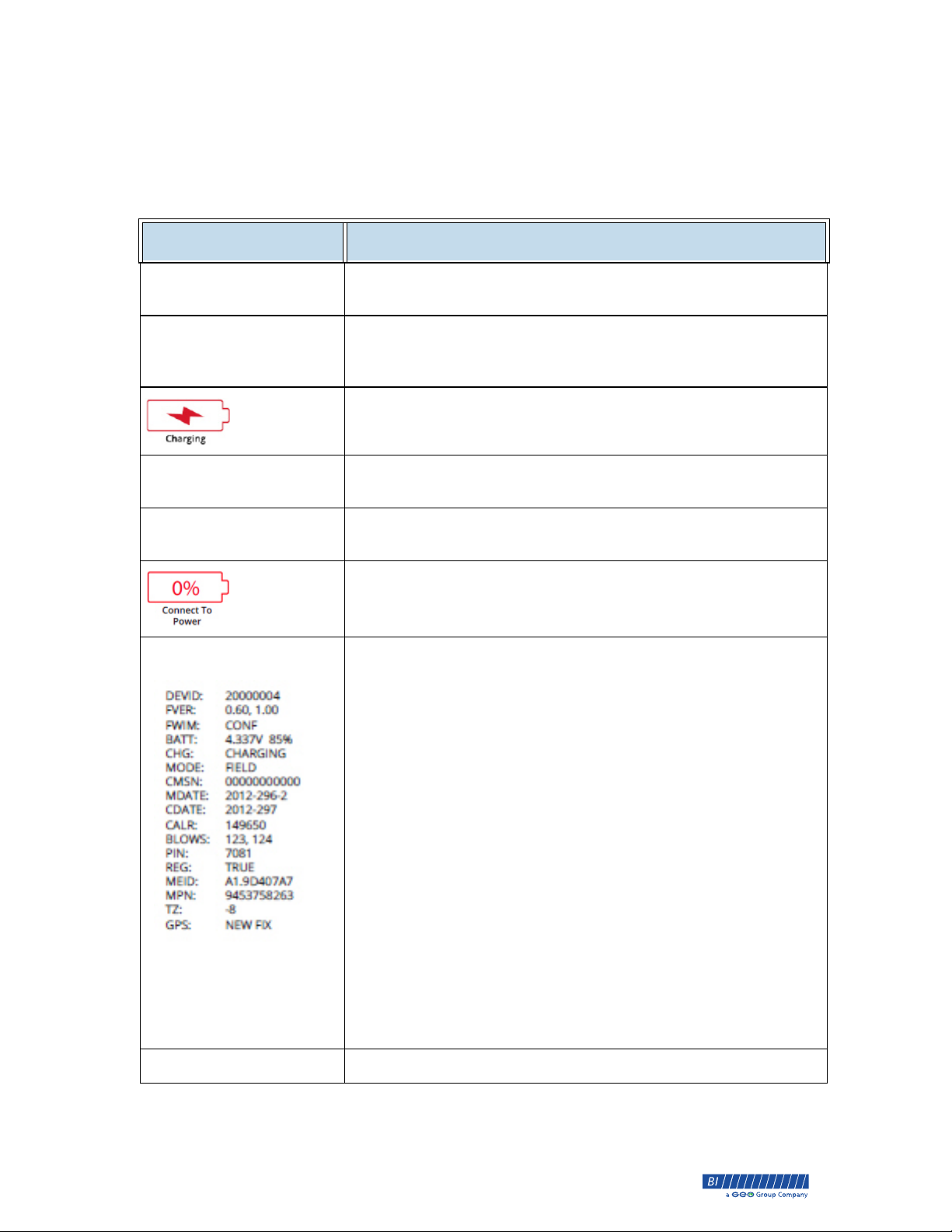
The following table lists descriptions for SL2 menu options and icons.
Option Description
Air Blank Test
Alcohol Detected
Checking For Updates
Compliant Test
Successfully Sent
Device Info
The Air Blank Test checks for calibration issues and device damage
and should always be 0.000. If not return the device to BI.
Displayed when a BrAC level of 0.02 or higher is detected. The
client will be prompted to retest if they are enrolled in retesting
on the Schedule page of the portal.
Icon displayed when the battery is charging.
The device firmware can be sent updates which can be manually
pulled or will automatically update upon the next test.
Displayed when a BrAC level below 0.02 from a
breath alcohol test.
Icon displayed when the battery charge is too low to power on
the SL2. Charge the SL2 battery.
From the home screen, hold down the left display button and
click the right button once. Term explanation:
• DEVID - Device ID
• FVER - Application Version, Bootloader Version
• FWIM - Firmware Image Status
• BATT - Battery Voltage, Percent Remaining
• CHG - Charging or Discharging
• MODE - FIELD or MFGTEST
• CMSN - CM Serial Number
• MDATE - Manufacturing Year-Day-Location
• CDATE - Calibration Year-Day (Julian calendar)
• CALR - Calibration Result
• BLOWS - Number of blows since last calibration, total blows on this
device
• PIN - Security Pin for Server
• REG - Registration Status
• MEIF - Modem MEID
• MPN - Modem Phone Number
• TZ - Time Zone
• GPS - New Fix, Prev Fix, No Fix, Error
Error Screen Includes self-diagnosed description of error and resolution.
8-90-00157-1, Revision B © 2014 BI Incorporated BI Proprietary & Confidential 29
®
Page 36
Appendix A • Menu Descriptions SL2 User Guide
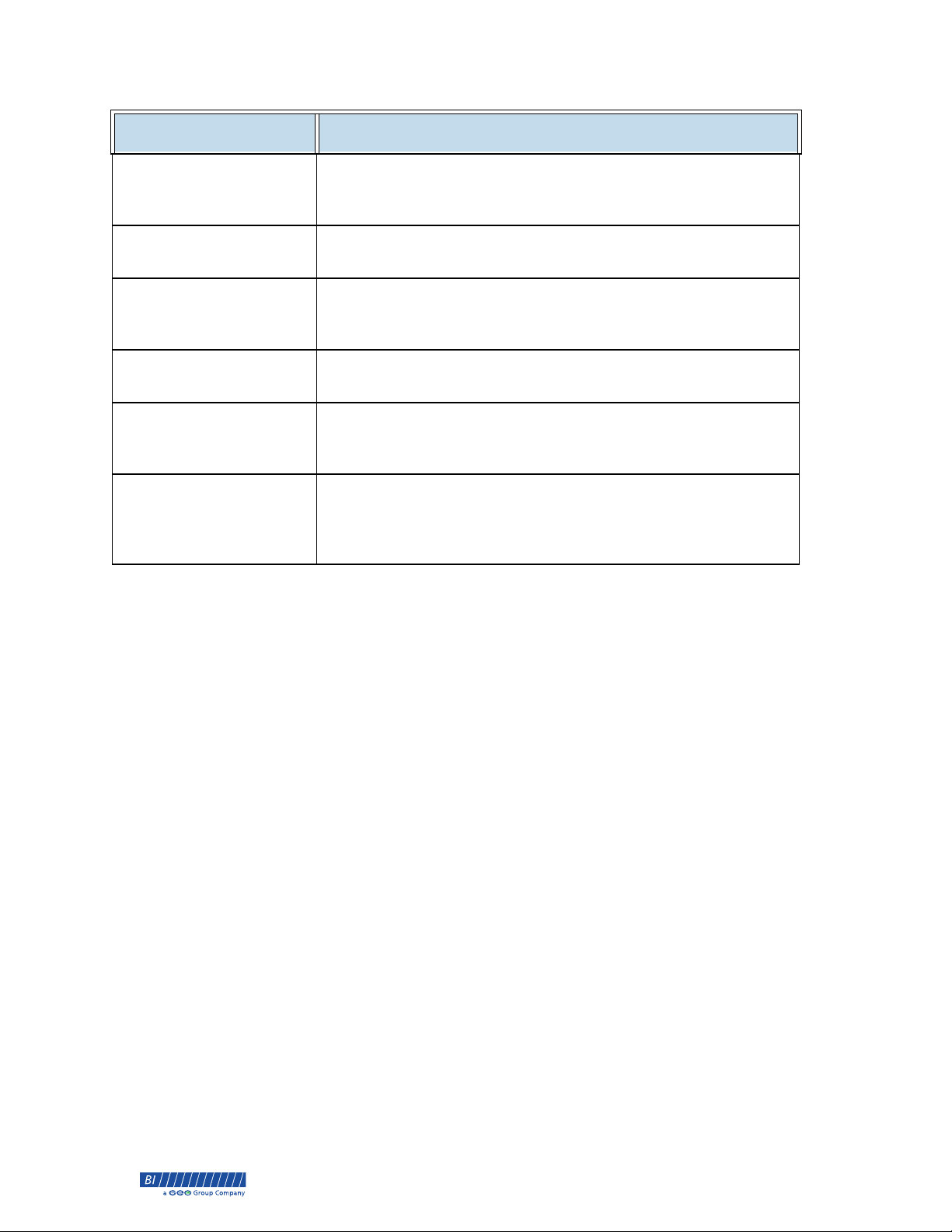
Option Description
To access the Menu Options, click both display buttons
Menu Options
simultaneously. Use the display buttons to scroll through the tests
and the power button to select a test.
Reset Device
Test History
Test Details
Unable to send
compliant test
Unable to send test
Select this option to prepare the device for the next client. See
“Reset Device” on page 8 for instructions.
Displays a list of the clients previous tests. Use the display buttons
to scroll through the tests and the power button to select a test.
Queued test results have a PEND status.
Displays the test details including the date, time, BrAC, Status,
Cell, and GPS Fix.
The SL2 device currently does not have cellular coverage to send
the compliant breath alcohol test. The number of tests that are
queued are displayed.
The SL2 device currently does not have cellular coverage to send
the positive breath alcohol test. A reminder to send an additional
test within the next 30 minutes is displayed as the Monitoring
Web Portal is unable to receive the positive test result.
30 BI Proprietary & Confidential © 2014 BI Incorporated 8-90-00157-1, Revision B
®
Page 37
SL2 User Guide
Appendix B Alerts and Texts
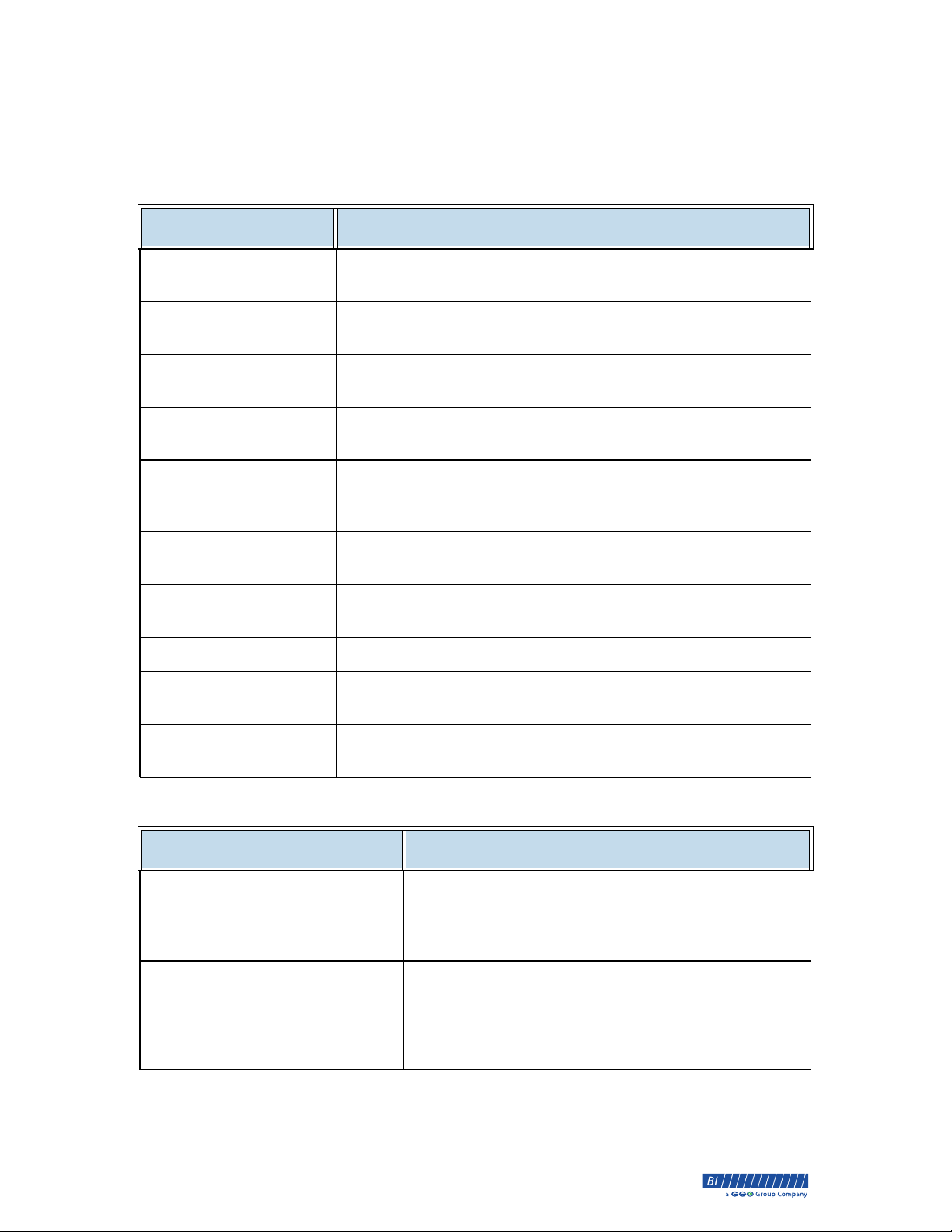
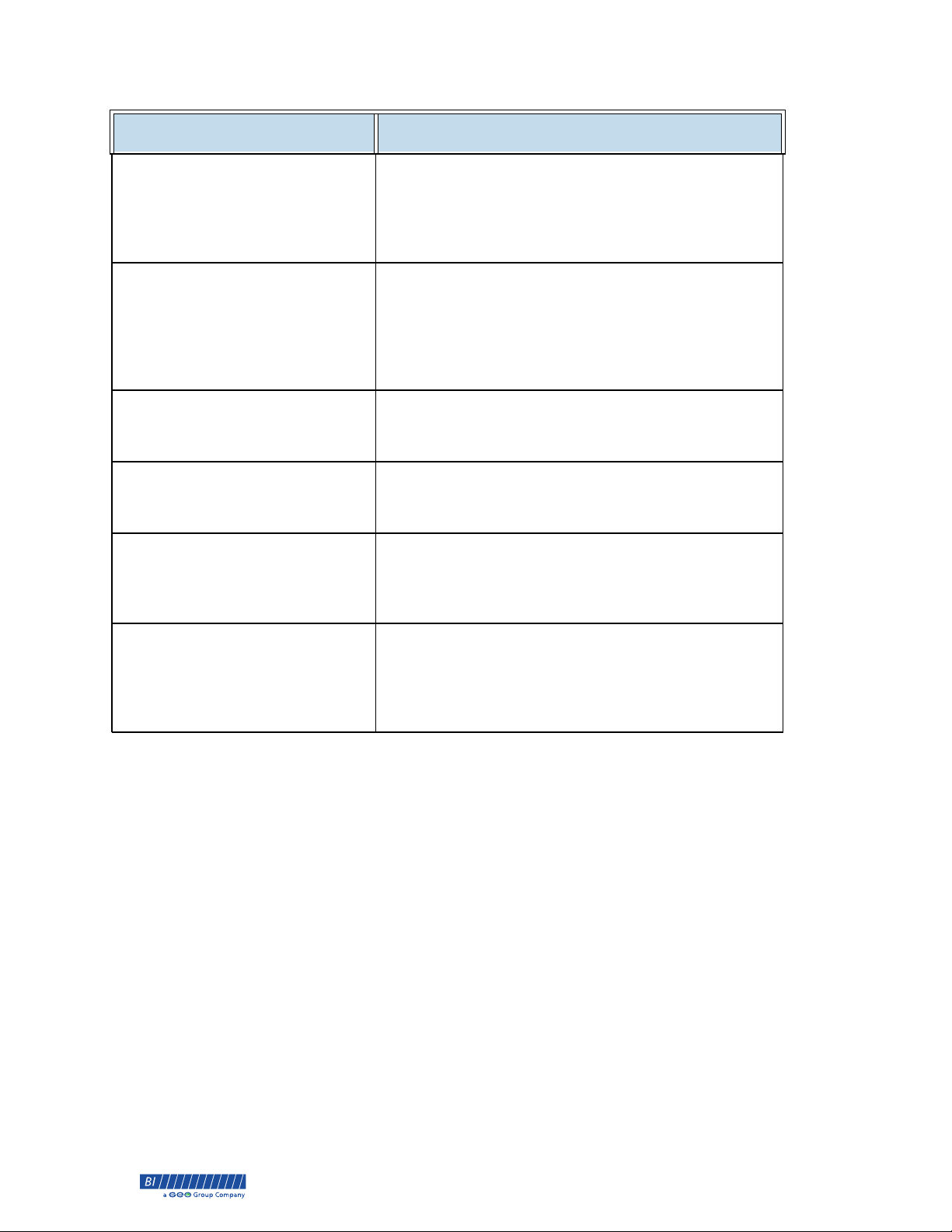
The following table lists SL2 Text Message Alerts.
Alert Description
SOBERLINK Queued
Test
SOBERLINK Compliant
Secondary Test Alert
SOBERLINK
Connectivity Alert
SOBERLINK Late Test
Alert
SOBERLINK Late
Positive Test Alert
SOBERLINK Missed Test
Alert
SOBERLINK Positive
Test Alert
Declined Photo Photo verification declined and confirmed.
Overturned Photo
The SL2 is unable to send a test due to poor cell coverage. The
stored test will be sent once cellular coverage is available.
The first test result below 0.02 BrAC that follows a positive test
and is within the secondary test window.
When queuing is enabled and the device fails to check-in or
failure of the second pending scheduled tests.
A test that is received after a missed test, but before the next
scheduled test.
A test result of 0.02 BrAC or higher which is received after a
missed test. If retesting is enabled for this client, they have been
prompted to retest.
A scheduled test that is not received within the test window.
A test result of 0.02 BrAC or higher. Retest required in 15
minutes.
Photo verification that was declined has been confirmed as
approved.
Overturned Photo
Photo verification that was approved has been confirmed as
declined.
The following table lists SL2 Text Messages.
Text Description
SOBERLINK Reminder Text:
You may send in your hh:mm
SOBERLINK test now. Do not
reply to this text.
SOBERLINK Reminder Text:
We have not received your
hh:mm SOBERLINK test. Please
send a test now. Do not reply
to this text.
8-90-00157-1, Revision B © 2014 BI Incorporated BI Proprietary & Confidential 31
Sent 15 minutes prior to a scheduled test.
Sent 15 minutes after scheduled test results were not
received.
®
Page 38
Appendix B • Alerts and Texts SL2 User Guide
Text Description
SOBERLINK Reminder Text:
We have not received your
hh:mm SOBERLINK test. Please
send a test now. Do not reply
to this text.
SOBERLINK Reminder Text:
We have received a positive
SOBERLINK test. Please submit
a secondary test in 15 minutes
and complete retests if
prompted.
SOBERLINK Reminder Text:
Please send a SOBERLINK test
now. Do not reply to this text.
SOBERLINK Connectivity Text:
The device has checked in. We
have received all required tests.
Sent 30 minutes after scheduled test results were not
received.
Sent 15 minutes prior as notification of retesting
requirement.
Sent when a retest is required.
Sent when a compliant queued test is received.
SOBERLINK Missed Text: The
device has checked in. You have
missed one or more tests. Send
a test now.
SOBERLINK Positive Text: The
device has checked in. We have
received a positive test. Send a
test now and complete retests
if prompted.
Sent when the device has checked in and no queued
tests were received. Client will receive this text only
once.
Sent when a positive queued test is received. Client will
receive this text even if the three hour retest period
has expired.
32 BI Proprietary & Confidential © 2014 BI Incorporated 8-90-00157-1, Revision B
®
Page 39
SL2 User Guide
Appendix C Product Specifications
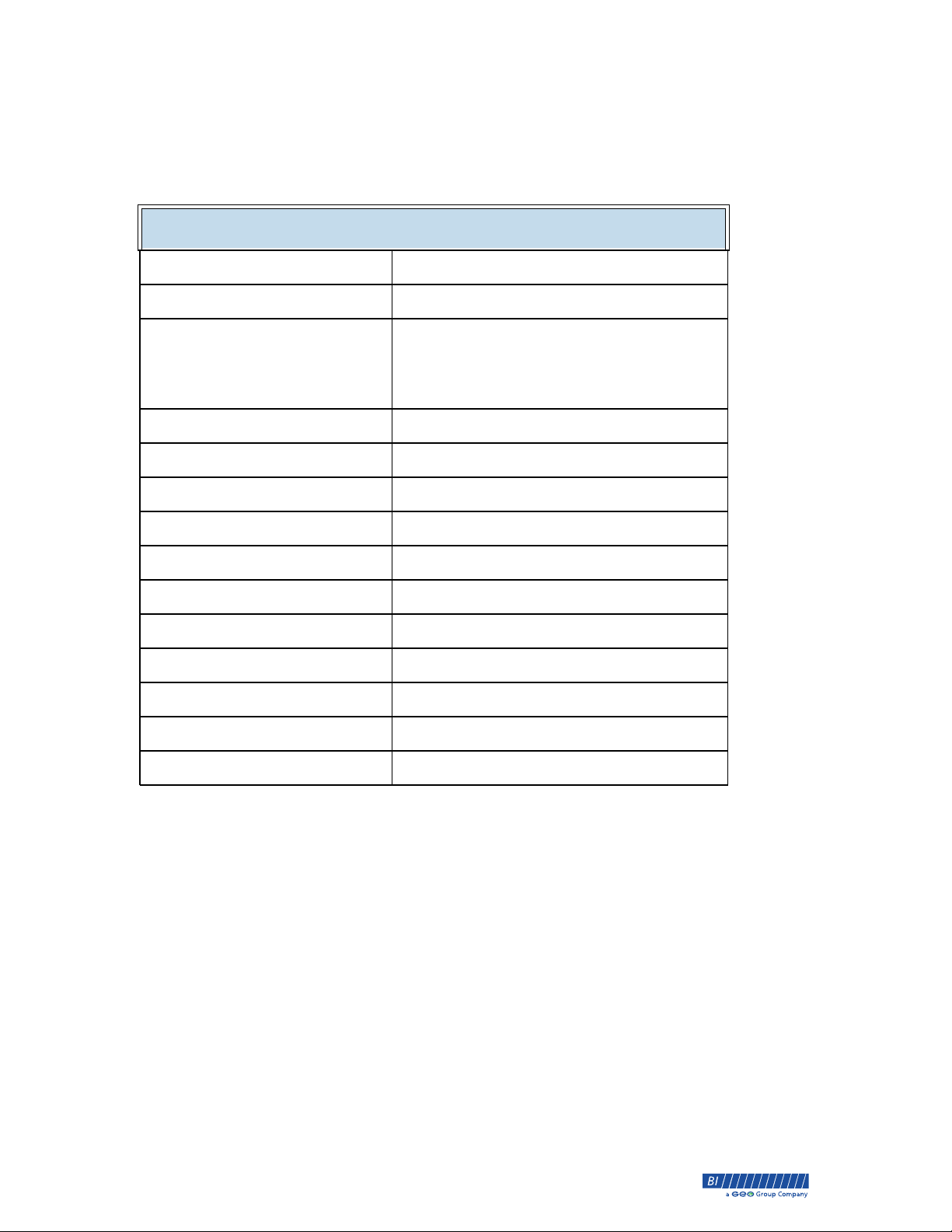
The following table lists the specifications for the SL2 alcohol monitoring device.
SL2 Specifications
Dimensions: 5.0 x 2.8 x 1.4 in (12.7 x 7.3 x 3.5 cm)
Weight: 8.4 oz (249.5 g)
Battery Type:
Battery Life:
Recharge Time:
Field Replaceable:
Operating Temperature: 32°F to 122°F (0°C to 50°C)
Sensor Technology: Dart Fuel Cell Sensor
Sensor Accuracy: +/- 0.005
Detection Range: 0.000 - 0.400
Breath Sample Duration: Four seconds
Calibration: Every 1500 tests
Cellular Carrier: Verizon
Modem: Internal
GPS Hardware: Telit Wireless Solutions
Firmware Updates: Over the air
Queuing Stores up to 100 tests
Lithium-ion rechargable
Five days
Four hours
Yes
8-90-00157-1, Revision B © 2014 BI Incorporated BI Proprietary & Confidential 33
®
Page 40

Appendix C • Product Specifications SL2 User Guide
34 BI Proprietary & Confidential © 2014 BI Incorporated 8-90-00157-1, Revision B
®
Page 41

SL2 User Guide Index
Index
A
Activation 5
Air Blank Test 7
Alcohol Monitoring 2
alerts 17
Automated Retesting 2
B
Battery 4
breath alcohol test 6
C
calibration 2
Client Detail Report 26
Client Note 19
Client Profile 12
Components 5
Consolidated Report 26
D
Dart fuel cell 2
Digest Report 28
L
Login 10
M
Master Photo 22
messages 31
system 31
P
product specifications 33
R
Reports 26
T
Tamper Detection 3
technical support v
Test History 7
Test Note 19
Test Results 21
Test Schedules 15
trademarks v
E
U
event messages 31
Updates 7
F
frequently asked questions 29
G
GPS Map 25
I
Internal Camera 2, 3
8-90-00157-1, Revision B © 2014 BI Incorporated BI Proprietary & Confidential 35
®
Page 42

 Loading...