

Page 1
Page 2

Index
Attention....................................................................................1
Introduction of the device
1. Layout....................................................................................2
1.1 Obverse Side....................................................................2
1.2 Reverse Side....................................................................2
1.3 Key Description................................................................2
1.4 Touch Panel......................................................................3
2. Keyboard................................................................................3
3. The Panel.............................................................................12
4. Power Source......................................................................12
4.1 Replacing Battery ...........................................................12
4.2 Recharging Battery .........................................................13
5. Initialization or RESET........................................................13
6. Introduction of the functions.................................................15
6.1 Input Methods..................................................................16
6.2 Handwriting Recognition....................................................16
6.3 USB Disk.........................................................................18
6.4 Download Operation.........................................................19
6.4.1 Automatic searching function................................................19
6.4.2 Create new folder for downloading data..............................21
DICT
Dictionary Summary................................................................24
1. Dictionary Index....................................................................28
1.1 History............................................................................28
1.2 Classification...................................................................29
1.3 Language Selection.........................................................29
2. Dictionary Explanation.........................................................29
I
Page 3

Index
2.1 Font Size.........................................................................30
2.2 Saving Data....................................................................30
2.3 Pronunciation...................................................................30
2.4 Repetition.......................................................................31
2.5 Read after the Device........................................................31
2.6 Pronounce Chinese words word by word............................31
3. Strokes...................................................................................32
4. Searching Data....................................................................32
4.1 Smart Input Search..........................................................32
4.2 Wildcard Search.............................................................33
4.3 Cross Search..................................................................33
4.4 Secondary Search............................................................34
4.5 Multi-layered Search ........................................................34
5. Search Engine.....................................................................35
6. Sentence Translation.............................................................37
7. Chinese Learning................................................................40
STUDY
Study Summary......................................................................42
1. Language Study Series.......................................................44
2. English Study Series............................................................45
MUL TI
Multi Summary........................................................................48
1. Video...................................................................................50
2. Animated Study Series.........................................................51
3. eBook/Text Browser .............................................................52
4.My Album..............................................................................52
II
Page 4

Index
5.MP3.........................................................................................53
6. Ga mes World........................................................................55
PIM
PIM Summary.........................................................................56
1. PIM........................................................................................58
1.1 Data Input.......................................................................58
1.1.1 Custom Field..............................................................................58
1.1.2 Edit Category.............................................................................59
1.2 Data Index.......................................................................59
1.3 Detail View.....................................................................60
2. World T ime...........................................................................60
3. Paint Brush..........................................................................60
4. Calculator and Conversion...................................................61
SYS
System Summary.....................................................................62
1. PC Link.................................................................................63
2. File Management.................................................................63
2.1 Creating New Folder..........................................................64
2.2 Rename...........................................................................65
2.3 Putting Folders in Order....................................................65
2.4 Format.............................................................................65
3. My Favorite............................................................................66
PC Service Home....................................................................67
Maintena nce............................................................................84
III
Page 5

Data Backup
All your personal data should be copied to separate permanent printed
records. Resetting the product will cause personal data loss permanently.
Such loss is not covered by warranty.
Touch Panel & Display
* To protect the screen from being scratched, use only the stylus that
comes with this product.
* When cleaning, rub the screen lightly with dry, clean and soft cloth (do
not use volatile liquid).
* The screen may crack if the product falls on the ground.
Extended Card
* Insert the Secure Digital Card/Multi Media Card into the card slot. Turn
the product off before removing/inserting the card. Otherwise, the
memory of the product may be lost and the card may be damaged.
* Do not remove the battery, turn the power off or insert/remove the card
during data saving to avoid abnormality of the product.
Battery & Earphone
* Keep the battery far from the fire. Otherwise, there is a risk of explosion.
Do not connect the battery’s terminals together to avoid short circuit.
* The sound volume of the earphone should be not too high so as not to
injure your hearing.
Non Waterproof
The device is non waterproof. Please keep it away from any liquid. If it
gets wet, please dry the surface and send to our service center for checking.
Magnetism
The product is magnetic. Please do not place it with other magnetic
products to avoid losing some functions.
Notes:
Any damage caused by above reasons is not covered by the warranty.
1
Page 6
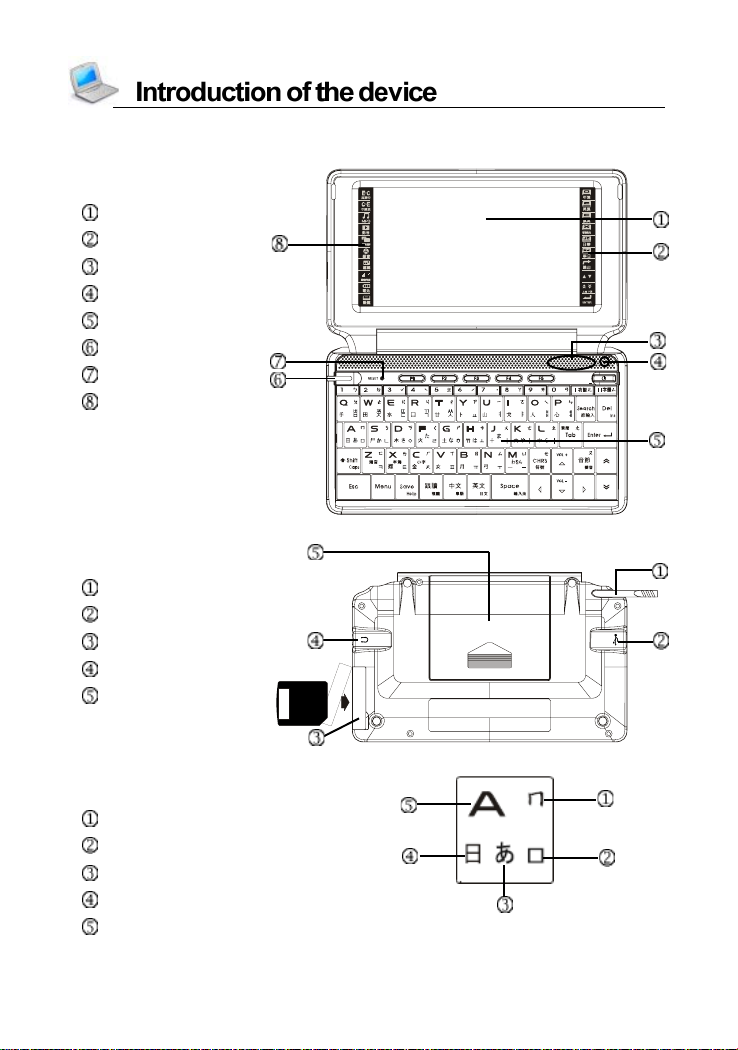
1. Layout
1.1 Obverse Side:
Screen
Tablet key (Right)
Speaker
Microphone
Keyboard
LED Indicator
RESET Key
Tablet key (Left)
1.2 Reverse Side:
Stylus
USB Slot
SD/MMC Slot
Earphone Socket
Battery Cover
1.3 Key Description
Chinese phonetic symbol
Korean pinyin
Japanese kana
ChangJie
English letter
2
Page 7
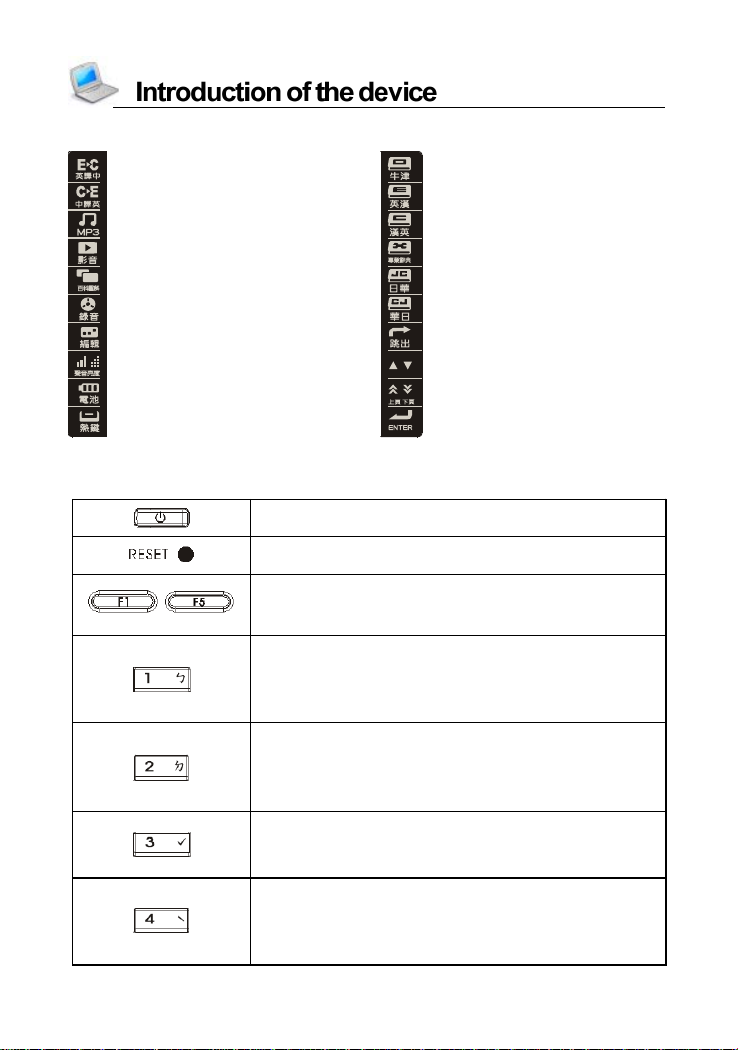
1.4 Touch Panel
:E-C translation :Oxford Advanced Dictionary
:C-E translation :English-Chinese Dictionary
:MP3 :Chinese-English Dictionary
:Video :Terminological Dictionaries
:Illustrated Dictionary :J-C Dictionary
:Digital Recorder :C-J Dictionary
:Open the edit screen :Function same as [ESC]
:Adjust sound and Brightness :same as the Up/Down key
:Check battery power :same as the Page Up/Down
:Open My Favorite screen :Function same as [ENTER]
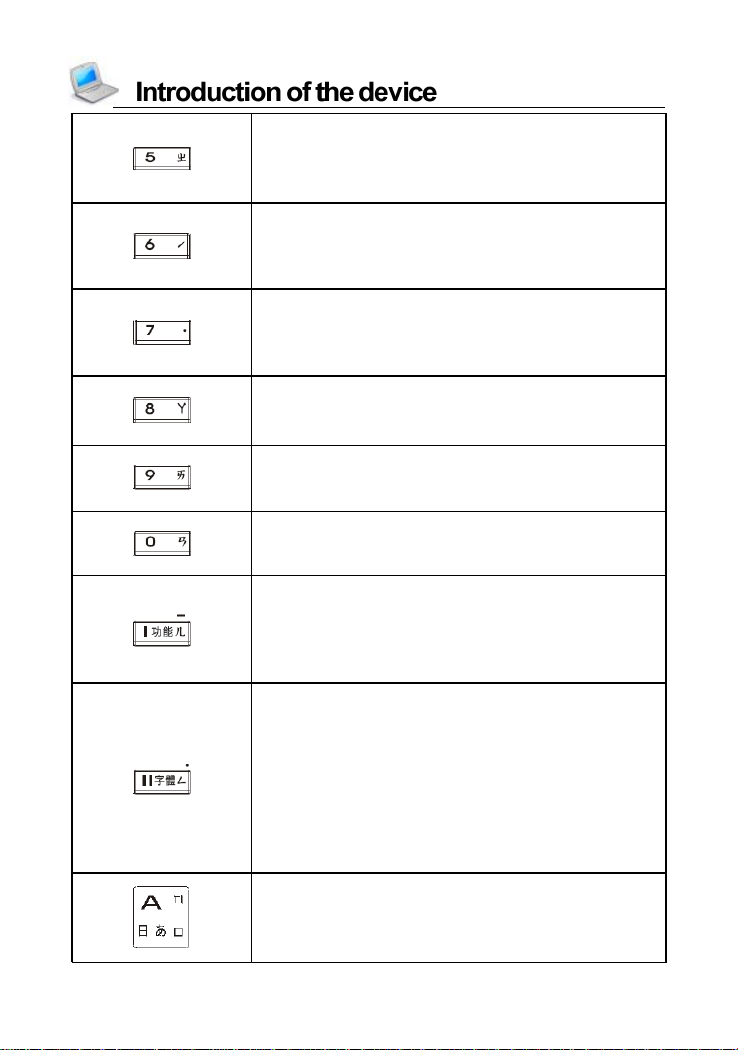
2. Keyboard
~
Power on/off
RESET key
Select the corresponding main menu
Function keys, same as [F1]~[F5] on the
screen
Numeric key “1”
Chinese phonetic symbol “ㄅ”
The first tone of Pinyin input m ethod
Input sym bol “!” with [SH IF T] key
Numeric Key “2”
Chinese phonetic symbol “ㄉ”
The second tone of Pinyin input method
Input symbol “@” with [SHIFT] key
Numeric key “3”
The third tone of phonetic/Pinyin input method
Input symbol “#” with [SHIFT] key
Numeric key “4”
The fourth tone of phonetic/Pinyin input
method
Input symbol “$” with [SHIFT] key
3
Page 8
Numeric key “5”
Chin ese phonet ic symbol “ㄓ”
The ligh t t on e of Pinyin in put method
Inp ut sy mb ol “%” with [SHIF T] key
Numeric key “6”
The s econd tone of pho net ic/Pin yin in put
method
Inp ut sy mb ol “?” with [SHIF T] key
Numeric key “7”
The ligh t t on e of phon eti c/Pinyin input
method
Inp ut sy mb ol “,” with [SHIF T] key
Numeric key “8”
Chinese phonetic symbol “ㄚ”
Inp ut symb ol “*” wi th [SHIFT] key
Numeric key “9”
Chinese phonetic symbol “ㄞ”
Input symbol “ (” with [SHIFT] key
Numeric key “0”
Chinese phonetic symbol “ㄢ”
Input symbol “)” with [SHIFT] key
Select i tem “I ” in th e m ain me nu
Chinese phonetic symbol “ㄦ”
Open “Funct ion” m enu, same as [Func] o n
the scree n
Hyp hen “-” w ith [SHIFT] key
Selec t item “II” in the m ai n men u
Chinese phonetic symbol “ㄥ”
Switch fo nt size on the in dex and expla natio n
scree n of di ctionari es and detail view screen
of PIM,
provide s magni fyin g the h ighlight ed
words.
Wit h [ SHIFT] key, input sy mbol “.” in English
inp ut m ode; inp ut space mark in Jap anese
inp ut m ode; inp ut d ecimal poi nt in calcul ator
English letter “A”
Chinese phonetic symbol “ㄇ”
Chan gJie /Simplif ied Ch angJie i nput method
“日”
4
Page 9
Japanese kana in “あ” line
Ko rean Pinyin “ㅁ”
Mathem atical si gn: l ogari thm
AM setting in 12 -hou r system
English letter “B”
Chinese phonetic symbol “ㄖ”
Chan gJie /Simplif ied Ch angJie i nput method
“月”
Ko rean Pinyin “ㅠ”
Mathem atical si gn: factoria l (! )
English letter “C”
Chinese phonetic symbol “ㄏ”
Chan gJie /Simplif ied Ch angJie i nput method
“金”
Japanese inp ut met hod: sm all chara cte r
Ko rean Pinyin “ㅊ”
Mathem atical si gn: scie nti fic no tat ion method
English letter “D”
Chinese phonetic symbol “ㄎ”
Chan gJie /Simplif ied Ch angJie i nput method
“木”
Japanese kana in “さ” line
Ko rean Pinyin “ㅇ”
Mathem atical si gn: squar e root
English letter “E”
Chinese phonetic symbol “ㄍ”
Chan gJie /Simplif ied Ch angJie i nput method
“水”
Ko rean Pinyin “ㄷ” an d “ㄸ” (wit h [SHIFT]
key)
Mathem atical si gn: squar e
English letter “F”
Chinese phonetic symbol “ㄑ”
Chan gJie /Simplif ied Ch angJie i nput method
“火”
Japanese kana in “た” line
Ko rean Pinyin “ㄹ”
Mathem atical si gn: Y root of X
5
Page 10
English letter “G”
Chinese phonetic symbol “ㄕ”
Chan gJie /Simplified ChangJie i nput method
“土”
Japanese kana in “な” line
Ko rean Pinyin “ㅎ”
Mathem atical si gn: X powe r of 10
English letter “H”
Chinese phonetic symbol “ㄘ”
Chan gJie /Simplified ChangJie i nput method
“竹”
Japanese kana in “は” line
Ko rean Pinyin “ㅗ”
Mathem atical si gn: [ MC] (cle ar memo ry
numeral s)
English letter “I”
Chinese phonetic symbol “ㄛ”
Chan gJie /Simplified ChangJie i nput method
“戈”
Ko rean Pinyin “ㅑ”
Mathem atical si gn: su bt racti on
Logical operator “n ot” in scie ntific calcul ato r
wit h [S HIFT ] k ey
English letter “J”
Chinese phonetic symbol “ㄨ”
Chan gJie /Simplified ChangJie i nput method
“十”
Japanese kana in “ま” line
Ko rean Pinyin “ㅓ”
Mathem atical si gn: [ MR] (d ispla y numerals)
English letter “K”
Chinese phonetic symbol “ㄜ”
Chan gJie /Simplified ChangJie i nput method
“大”
Japanese kana in “や” line
Ko rean Pinyin “ㅏ”
Mathem atical si gn: [ M-] (memory subtra ct)
6
Page 11
English letter “L”
Chinese phonetic symbol “ㄠ”
Chan gJie /Simplif ied Ch angJie i nput method
“中”
Japanese kana in “ら” line
Ko rean Pinyin “ㅣ”
Mathem atical si gn: [ M+ ] (memory add)
English letter “M”
Chinese phonetic symbol “ㄩ”
Chan gJie /Simplif ied Ch angJie i nput method
“一”
Japanese kana “わ”、“を”、“ん”; Ja panes e
long tone with [SHIFT] key
Ko rean Pinyin “ㅡ”
Mathem atical si gn: [ A C] (clea r mem ory
numeral s a nd calc ulatin g steps)
English letter “N”
Chinese phonetic symbol “ㄙ”
Chan gJie /Simplif ied Ch angJie i nput method
“弓”
Ko rean Pinyin “ㅜ”
Mathem atical si gn: cle ar numerals
English letter “O”
Chinese phonetic symbol “ㄟ”
Chan gJie /Simplif ied Ch angJie i nput method
“人”
Ko rean Pinyin “ㅐ” an d “ㅒ” (wit h [SHIFT]
key)
Mathem atical si gn: a ddition
Logical operator “x or” in scie nt ific calcul ator
wit h [S HIFT ] k ey
English letter “P”
Chinese phonetic symbol “ㄣ”
Chan gJie /Simplif ied Ch angJie i nput method
“心”
Ko rean Pinyin “ㅔ” an d “ㅖ” (wit h [SHIFT]
key)
Mathem atical si gn: p ositive/nega ti ve
PM setting in 12 -hou r system
7
Page 12
English letter “Q”
Chinese phonetic symbol “ㄆ”
Chan gJie /Simplif ied Ch angJie i nput method
“手”
Ko rean Pinyin “ㅂ” an d “ㅃ” (wit h [SHIFT]
key)
Mathem atical si gn: i nverse
English letter “R”
Chinese phonetic symbol “ㄐ”
Chan gJie /Simplif ied Ch angJie i nput method
“口”
Ko rean Pinyin “ㄱ” an d “ㄲ” (wit h [SHIFT]
key)
Mathem atical si gn: Y power of X
English letter “S”
Chinese phonetic symbol “ㄋ”
Chan gJie /Simplif ied Ch angJie i nput method
“尸”
Japanese kana in “か” line
Ko rean Pinyin “ㄴ”
Mathem atical si gn: e xpo nenti al cons t ant
(e=2.71828…)
English letter “T”
Chinese phonetic symbol “ㄔ”
Chan gJie /Simplif ied Ch angJie i nput method
“廿”
Ko rean Pinyin “ㅅ” an d “ㅆ” (wit h [SHIFT]
key)
Mathem atical sig n: o(degre e), '(minute),
"(second)
English letter “U”
Chinese phonetic symbol “ㄧ”
Chan gJie /Simplif ied Ch angJie i nput method
“山”
Ko rean Pinyin “ㅕ”
Mathem atical si gn: mu ltiplicat ion
Lo gical opera to r “or” in sci entific cal cul at or
wit h [S HIFT ] k ey
8
Page 13
English letter “V”
Chinese phonetic symbol “ㄒ”
Chan gJie /Simplif ied Ch angJie i nput method
“女”
Ko rean Pinyin “ㅍ”
Mathem atical si gn: P I (π=3 .1 415 9…)
English letter “W”
Chinese phonetic symbol “ㄊ”
Chan gJie /Simplif ied Ch angJie i nput method
“田”
Ko rean Pinyin “ㅈ” an d “ㅉ” (wit h [SHIFT]
key)
Mathem atical si gn: X powe r of e
English letter “X”
Chinese phonetic symbol “ㄌ”
Chan gJie /Simplif ied Ch angJie i nput method
“難”
Japanese inp ut met hod: hal f-voice d sound
Ko rean Pinyin “ㅌ”
Scientific plotting sign: X
Sci ent ific calc ul ati on: angl e conversion
English letter “Y”
Chinese phonetic symbol “ㄗ”
Chan gJie /Simplif ied Ch angJie i nput method
“卜”
Ko rean Pinyin “ㅛ”
Mathem atical si gn: d ivis ion
Logical op erator “and” in s cien tific c alcul ator
wit h [S HIFT ] k ey
English letter “Z”
Chinese phonetic symbol “ㄈ”
Japanese inp ut met hod: voice d sou nd
Ko rean Pinyin “ㅋ”
Sci ent ific calcul ation: mode con versi on
Open the “Se arch Engine” screen
Search the words/sentences/phrases/all of
the key word in the expl anati on screen
9
Page 14
Access the search screen of “Name Card,
Memo randum, Schedule, To Do List,
Anniversary, Cl ass Sched ule , In come &
Expense” in PIM; access multi-dictionaries
sear ch scre en exce pt abo ve
Ret urn to the ori ginal inpu tting screen with
[SHIFT] key
Dele te a lett er o r the sel ect ed stri ng
Delete the selected items, same as [Del] on
the scree n
Switch th e ed itin g mode with [SHIFT] key
Switch focus on some screens
Switch th e main menu be twee n tra dition al
and simp lified cha ract er
Chinese phonetic symbol “ㄤ”
Ope n/Close previ ew scre en whe n
sear ching in di ctio nari es wi th [SHIFT] key
Confirm the cu rrent ac ti on
Move t he cu rsor to th e nex t li ne to inp ut da ta
Mathem atical si gn: e qual to [=] to cal culat e
result
Combi ne with other keys
Tem por aril y lock the keyboa rd f or inpu ttin g
capital letters in English
Press [SHIFT] twice to lock the keyboard for
inp ut t ing capital le tters in English
Chinese phonetic symbol “ㄝ”
Input symbols (Notes: you should first switch
to other Chi nese in put methods when using
the Chin ese pho netic s ymbo l i npu t met hod ,
then to in put symbo ls)
Chinese phonetic symbol “ㄡ”
Pro nou nc e syllabl e by s yllable f or words on
the explanation scree n of dict iona ries
Set volum e, spe ed an d Brig htness with
[SHIFT] key ; S et M ute fu nct ion
10
Page 15
Exit from the current func t ion or retur n to t he
pre vio us scre en
Swit ch fi ve la nguage s in the mai n m enu
Directly return to the main menu
Sa ve t he messages
Save item s on the e xpl anati on screen o f
diction aries, Vocab ul ary and Mu lti-language
Dial ogu e for Review a nd Test
Show th e on-li ne help mess ages with
[SHIFT] key
Read after t he devi ce (On the expla natio n
scree n of di ctionari es, Mult i-la nguage
Dial ogue, Intera ctive E nglish, etc. )
Repe at function w ith [SHIFT] key
Pro nounce Chin ese
Pro nou nc e Cantonese wit h [S HIFT] key
Pro nounce En glish
Pro nou nc e Japa nese with [SHIFT] ke y
Inp ut a space
The fi rst tone o f phonetic inp ut method
Confirm the first choi ce when in putti ng
Chin ese
Open inp ut m ethods men u with [SHI FT] key
Up direction ke y; move the cursor up or scr oll
a lin e u p. P ress [SHIFT] + Up dir ection k e y to
turn the volum e up
Down directi on key; move the cursor dow n or
scroll a lin e down. Press
[SHIFT] + Down
dir ection key to turn the volume down
Le ft direc tio n ke y; mo ve the cur sor left or
page lef t
Right di recti on key; move the cursor right or
page right
11
Page 16
Pa ge up
Vi ew the p revious data
Pa ge down
View the next data
3. The Panel
The touch panel possesses high penetrability.
The product adopts 4.3 inch TFT screen.
4. Power Source
One of the following three power sources can be used.
Rechargeable lithium battery: 3.7V/1050mAh
Connect with PC via USB cable. (With charging function)
A power adaptor with DC output 5V/700mA.
* This power source can be used with operation .
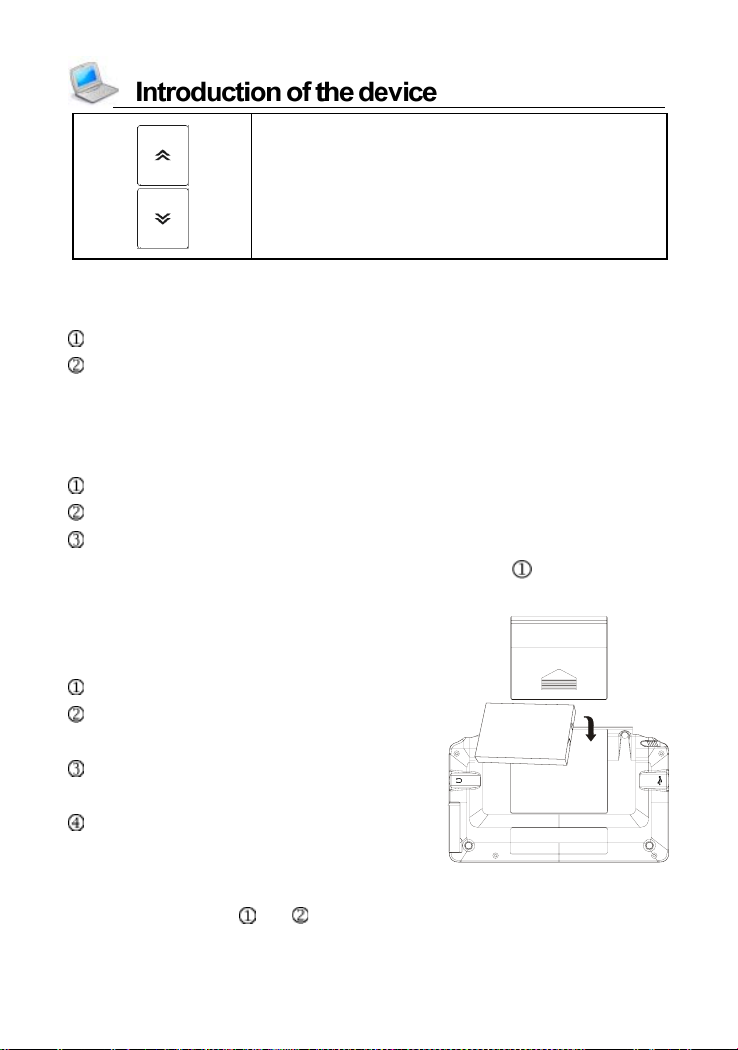
4.1 Replacing Battery
Insert:
Press [ON/OFF] to turn off the power.
Remove the battery compartment
cover.
Insert the battery into the compartment
as right.
Close the battery compartment cover
securely.
Remove:
Repeat the steps and . Then please remove the battery as instruction.
12
Page 17
Notes:
When the power is insufficient, please insert the USB cable or power
adaptor to recharge the battery.
If the screen of “LOADING...” appears repeatedly, this means the
battery is no longer usable. Please get a new one.
Personal data will be retained even if the device is out of power.
Plea se turn the device off first, and then take out the battery 3 seconds
later. Otherwise, data may be displayed incorrectly.
4.2 Recharging Battery
If you are the first time to use the device, please recharging batttery first.
Connect the device and PC with USB cable. It takes about 5 hours to
fully recharge.
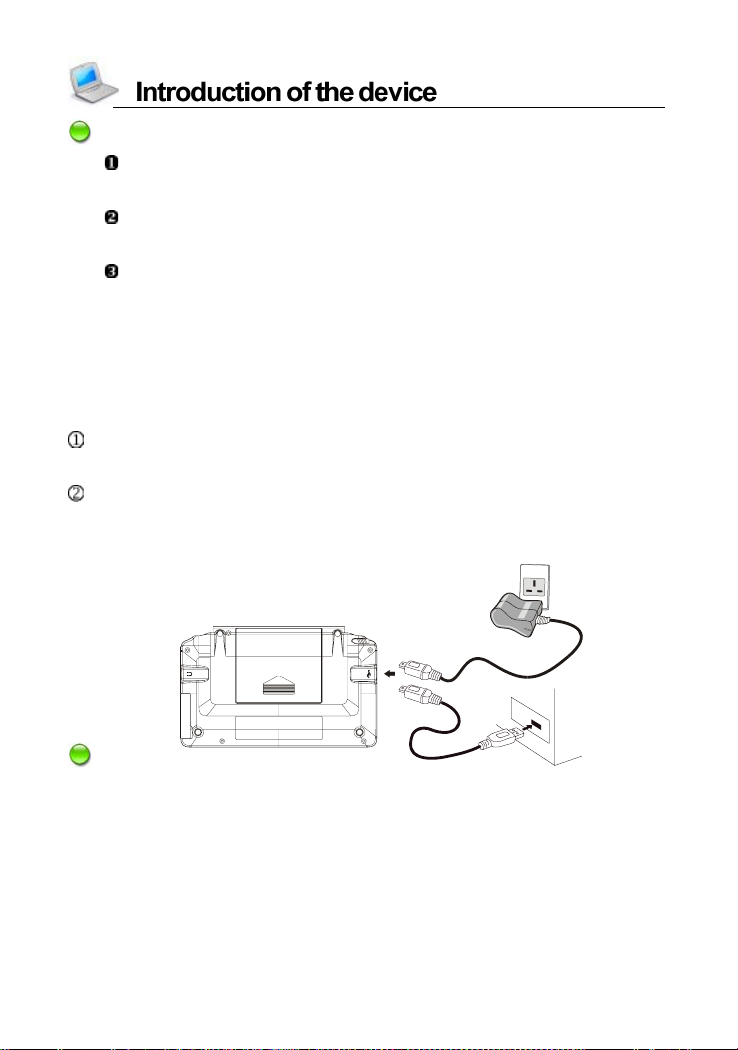
Connect the device and power supply with the special adaptor. One
end is inserted in the USB slot, the other is inserted in the electrical
outlet. It takes about 3 hours to fully recharge.
Notes:
The LED displays different colors in different situations:
green light ---> No battery or battery full recharged.
*
* red light ---> Power is recharging with battery.
5. Initialization or RESET
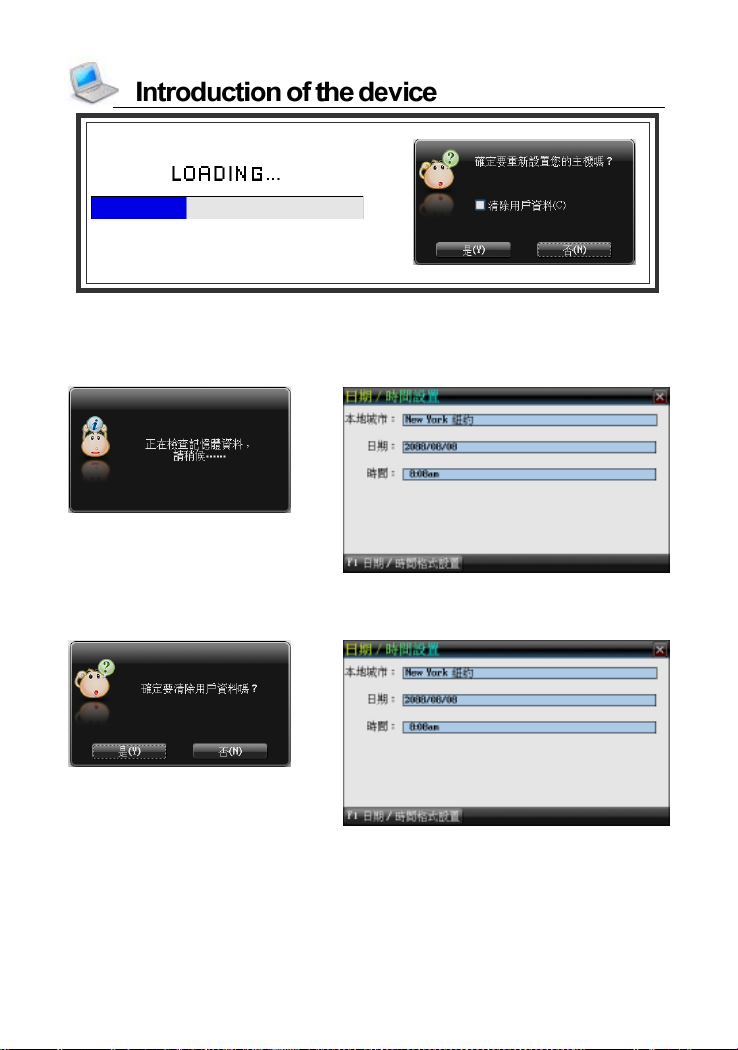
When you turn on the device for the first time or RESET the device, you
should set your device according to the following steps:
13
Page 18
-->
* Select [N] to access the main menu.
* Select [Y], system check the data of memory to return to the default
values. Then entering the Date/Time Setting screen.
-->
* Tap [C] first, and then tap [Y] to clear all the data saved in the device.
Then enter the Date/Time Setting screen.
-->
14
Page 19
6. Introduction of the functions
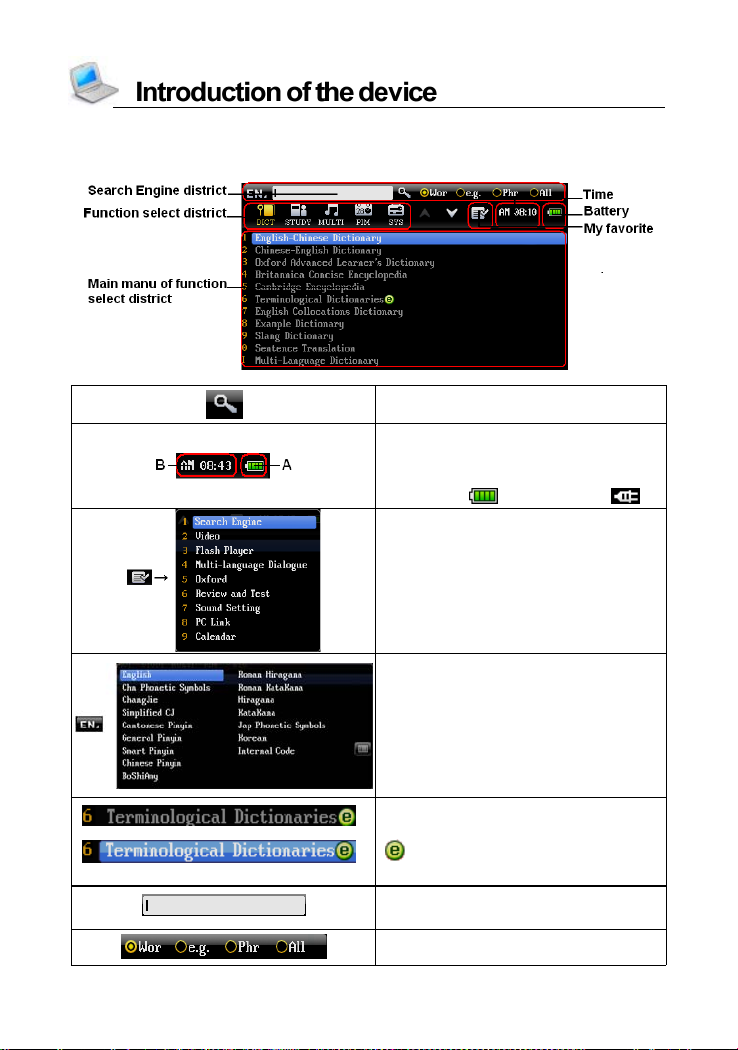
Classical Desktop (Main Manu):
Begin to search
Select A -- check the battery power
Select B -- access the “World Time”
(If plug in to an outlet,the icon of
the district
Access to “My Favorite”
Choos e the 16 types of input
method
Upside picture -- unselected
Downside picture -- selected
“
” -- Please log-in our website t o
15
dow nload On-line Service
Input the word which you want to
search
Choos e the type of search
will become “ ”)
Page 20
In the main catalogue and the main menu screens:
* Press [Menu] to switch among English, Korean, Japanese, Spanish
and Chinesse modes. (Suit for Chinese learners)
* Press [TAB] to switch the main catalogue between simplified and
traditional Chinese in Chinese catalogue.
In the Main menus screens:
* Directly tap to select or press the corresponding numeric key to
access function items.
In the function screens:
* Press [Menu] to return to the main menu.
* Press [ESC] to return to the previous menu.
* Press [SHIFT] first, and then press [SAVE] to display the on-line
help.
6.1 Input Methods
The device provides several input methods, you can set your input
methods in “SYS--Input Setting”.
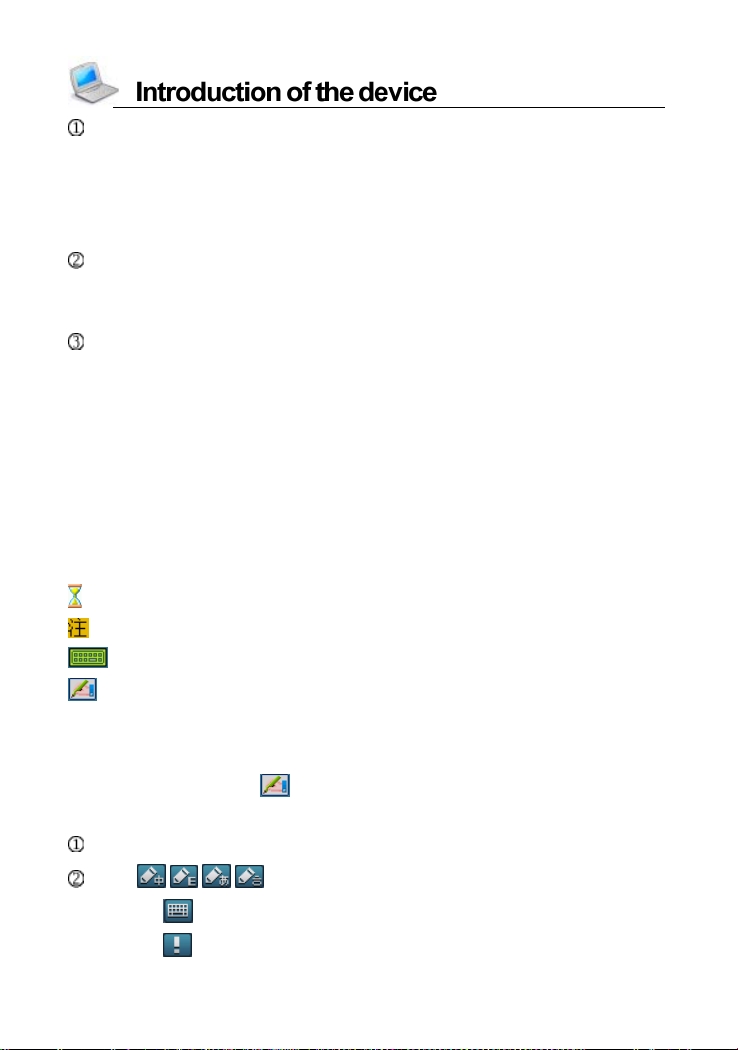
: Data searching...
: Corresponding input methods.
: Tab to access Japanese Soft Keyboard.
: Tab to access handwriting recognition.
6.2 Handwriting Recognition
Whenever the icon appears on the screen, handwriting recognition
is available.
Tap the icon.
Tap / / / to switch to Chinese/English/Japanese/Korea input.
*Tap
*Tap
to switch to corresponding soft keyboard.
to open the on-screen symbol keyboard.
16
Page 21
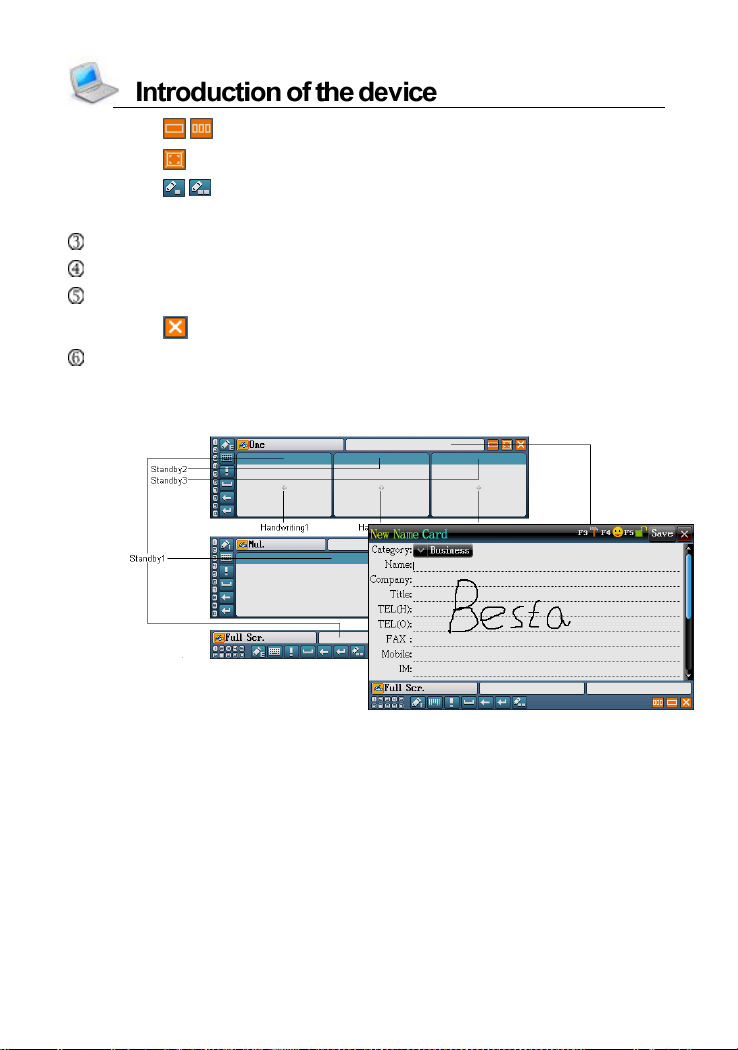
*Tap
*Tap
*Tap
Write in the handwriting area with stylus.
The recognition result will be shown automatically in the standby area.
Tap the desired character in the standby area by the stylus.
*Tap to return to the keyboard input mode.
Handwriting areas 1, 2 and 3 are double window for handwriting,
character will show in the handwriting areas 1, 2 and 3 separately.
Handwriting areas 4 is a single window for handwriting.
The full screen multiple
handwriting window supports
to tap other function keys when
you are writing English words.
/ to switch the single/three window for handwriting.
to switch to the function of full screen multiple handwriting.
/ to switch the single character recognition/multi character
recognition under the writing mode of full screen.
17
Page 22
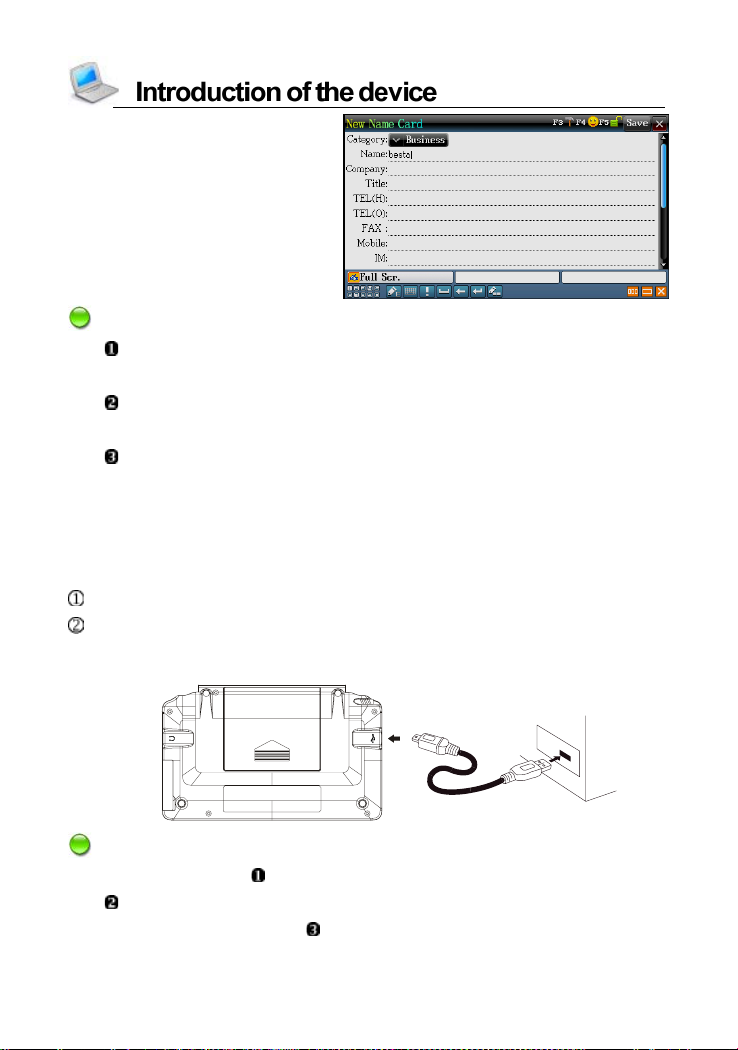
The recognition result
Notes:
The keyboard input method is also available when the English
handwriting method is being used.
Please don’t write the first stroke in the function area when you use
the full screen multiple handwriting.
Handwrite pen up time can be set in <SYS--Handwriting Setting>.
6.3 USB Disk
Through USB cable, you can move, duplicate or delete data and add
new file folder, etc.
Connect the device and PC by USB cable.
Please safely remove the USB cable from PC before unlink, then
escape from “SYS--PC Link” in the device.
Notes:
During operation:
Please not remove the link cable, otherwise the data will be lost or the
device will be abnormal. Please don’t insert/remove extra card.
Please make sure the device has enough power.
18
Page 23
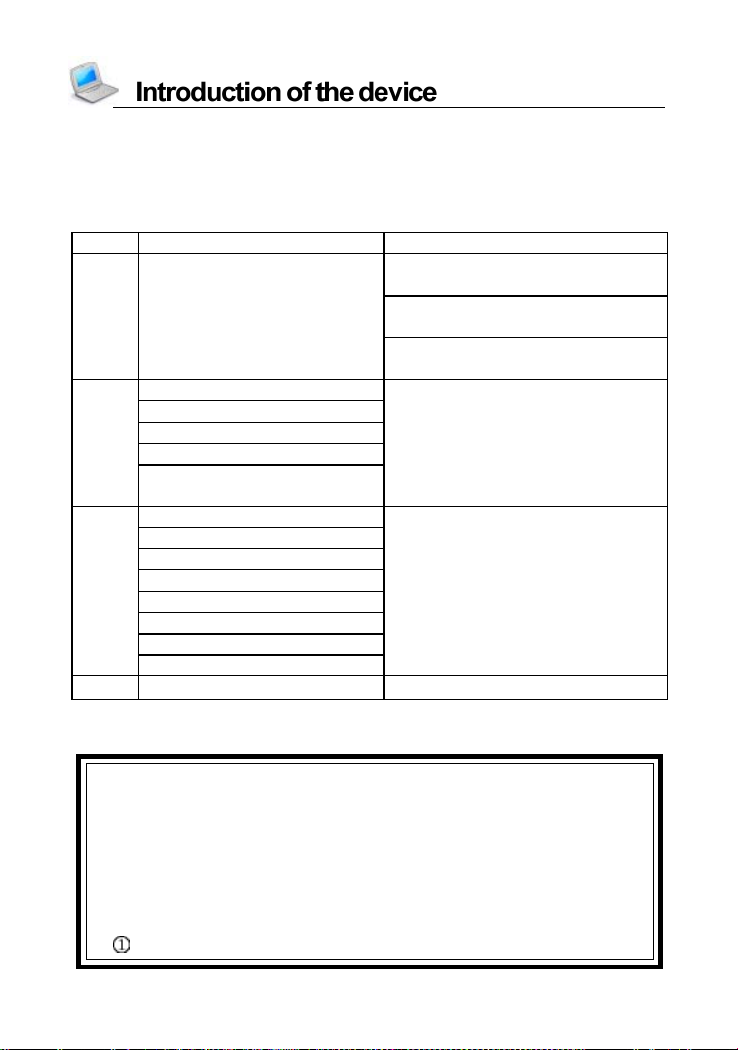
6.4 Download Operation
The device provides automatic searching function and allows you to cre-
ate new folder for data. The different file formats must be identified for easy
retrieval, so please put the download data under the following path.
List for automatic searching List for reading by correct directory
Terminological Dictionary:
\STUDY\PRODICT
DICT --
Interactive English
English Proficiency Test
STUDY
MULTI
ASST -- Calculator:\APPS \CALC
6.4.1 Automatic searching function
! Please don’t remove the link cable, otherwise the data will be lost
or other unknowable faults, and please make sure the device
has enough power.
! During the process of data transmission, a red line on device port
will show the state of transmission.
! Before removing the USB:
Make sure the data transmission is finished.
English Exercise
Vocabulary
Lis tening & Spe ak ing
classroom
Video
An im at ed Gramm ar
Animated Phrase
eBook
My Album
MP3
Games W orld
Flash Player
Sentence Translation:
\STUDY\LEARNING
Ext ension Dictionary:
\STUDY\EXTRADIC
--
Text Browser:\MULTI\TEXT
19
Page 24
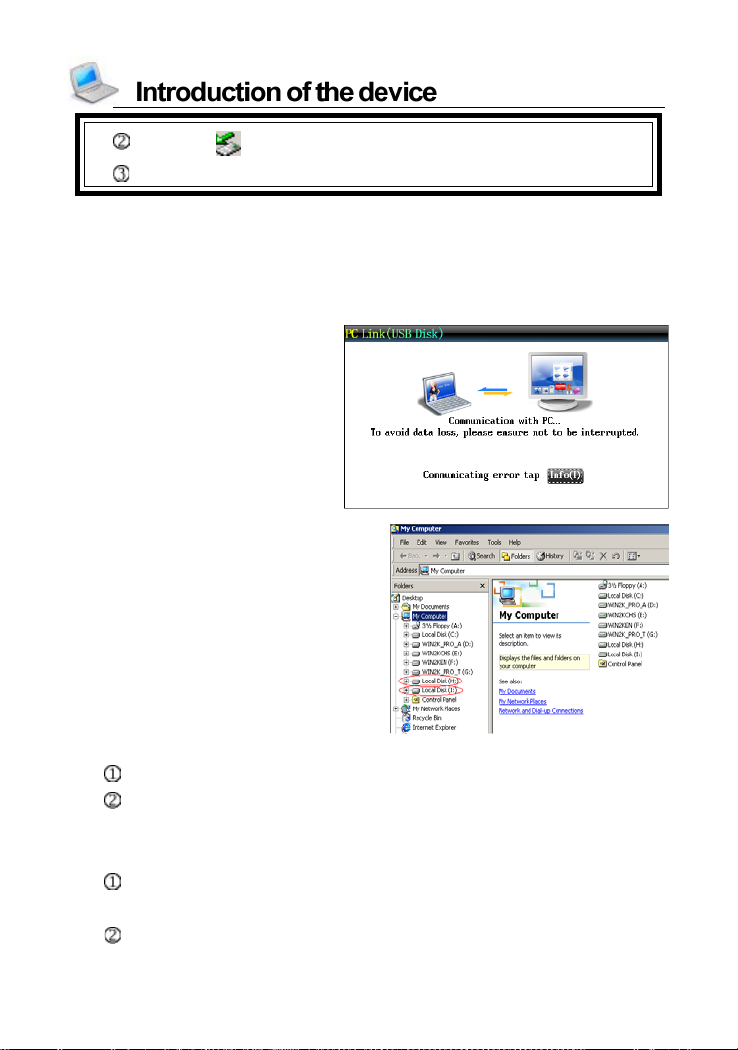
Then click on PC to remove the USB safely.
Press [ESC] to escape from function of “SYS--PCLink”.
eg., Download the data of Interactive English to device:
Step 1:
Use USB cable to connect PC and device, and then enter the function of
“SYS--PC Link”.
Device
PC
Step 2:
Please insert the CD-ROM to PC.
Duplicate data from CD-ROM to new storage of PC, and make sure
memory of the storage is enough to store the data.
Step 3:
Finish to download the data, please escape from the function of
“SYS--PC Link”.
Enter the screen of Terminological Dictionary, the device begins to
search the download data.
20
Page 25
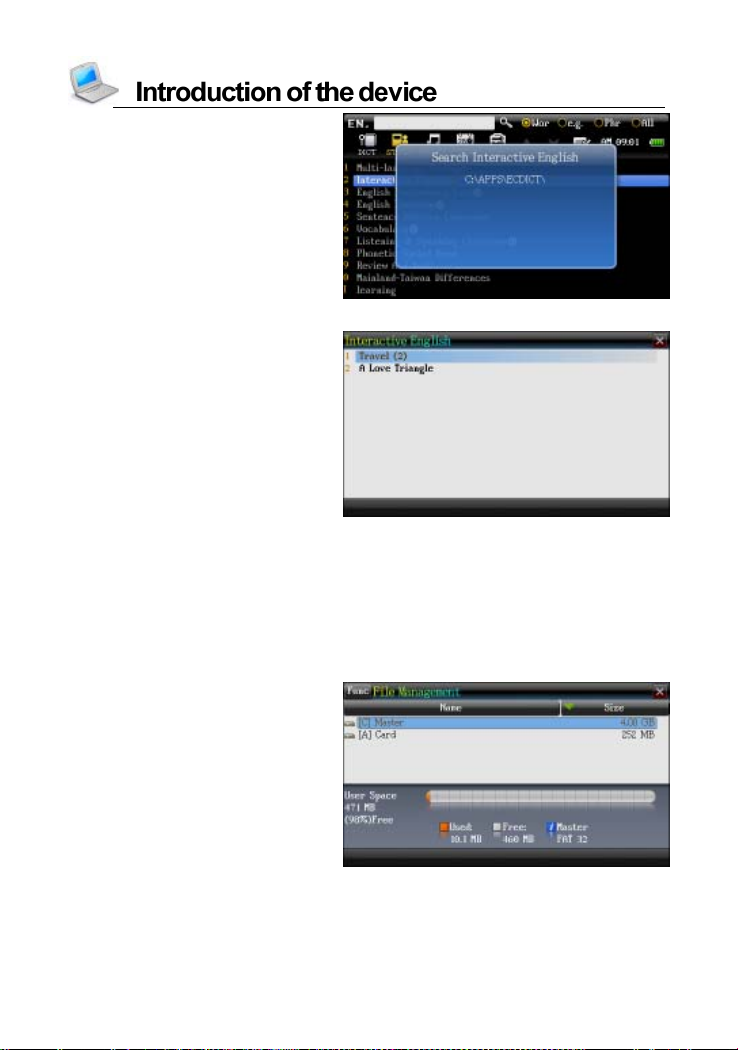
Search the data
Open the Interactive English
6.4.2 Create new folder for downloading data
eg., Download the data of Extension Dictionary to device:
Step 1 and step 2 are the same as step of “6.4.1”.
Step 3
At first, enter the “SYS--File
Management”.
21
Page 26
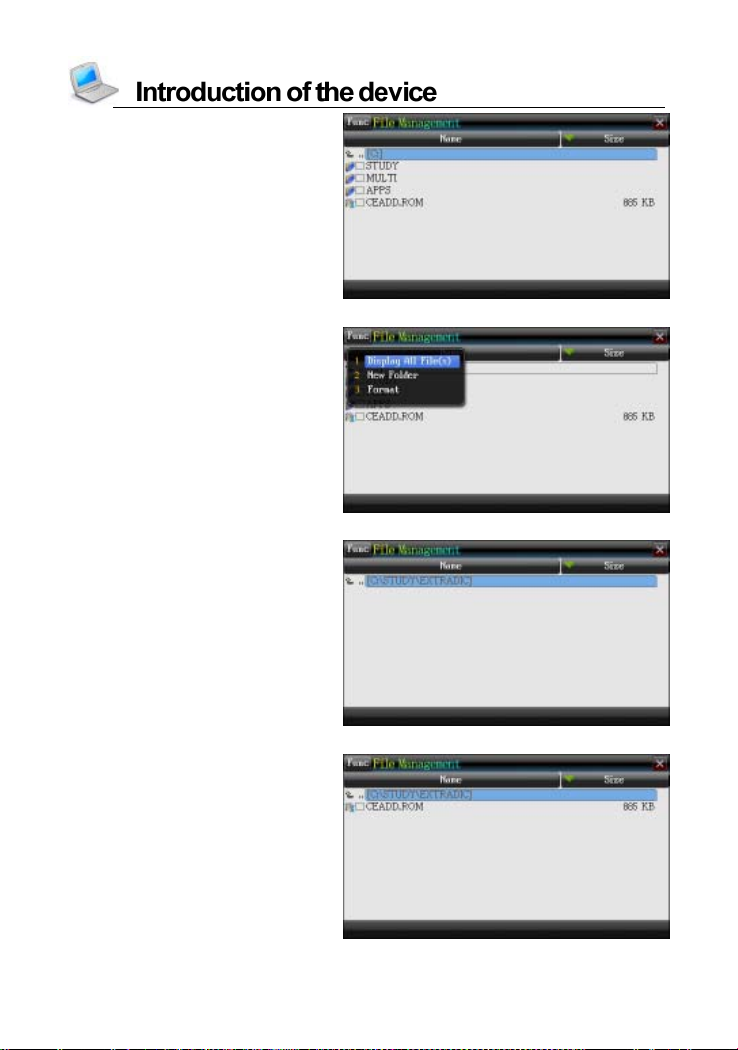
Then choose [C], enter
catalogue of “STUDY”
Tap “FUNC--2 New Folder”
Input “EXTRADIC”, then tap
[ENTER]
Duplicate two files to the
new folder under the [C:\
STUDY\EXTRADIC]
22
Page 27
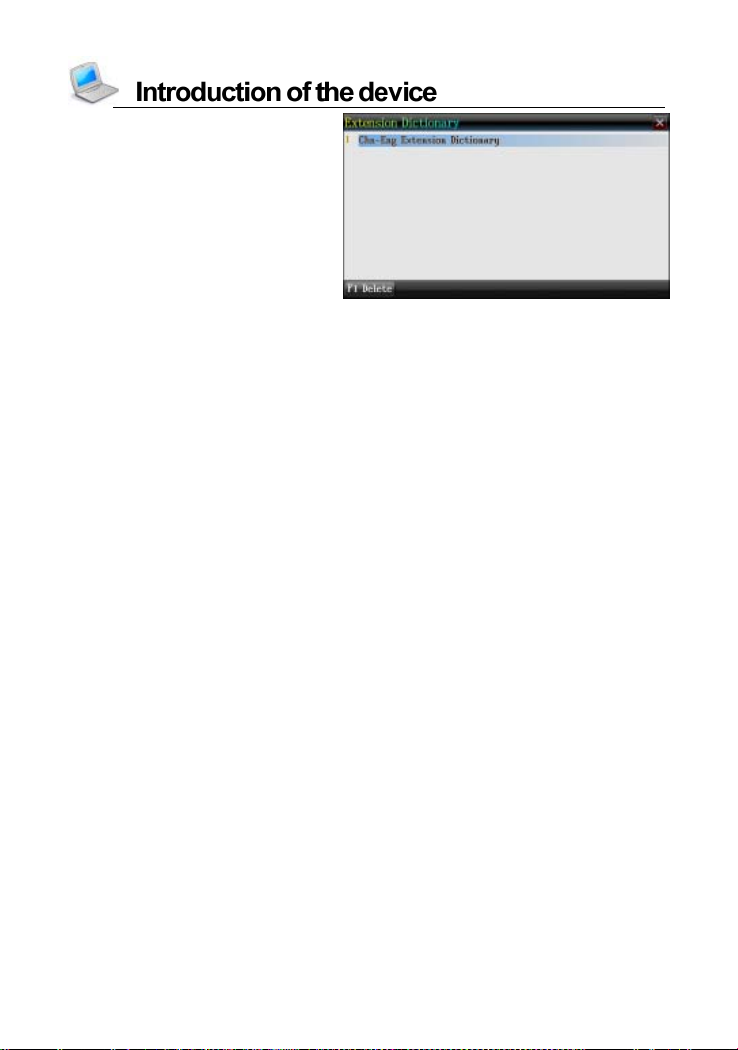
Enter the “Extension
Dictionary”
23
Page 28
Dictionary Summary
Provides smart input and wildcard search.
Provides searching function for all the words, sentences and
phrases.
Provides pronunciation, Visual Speech and preview window on
the index screen, and provides history function and delete
history function.
Provides vowel of phonetic symbols marked in red.
Provides 2 kinds of font sizes on the index screen, Provides 5
kinds of font sizes on the explanation screen,and provides
magnifying/minifying the highlighted words.
Cross search up to 30 layers.
Highlight words on the explanation screen, and then tap [CHN--
ENG] or [ENG-CHN] to access Sentence Translation with the
highlighted words input.
Can repeat and read after the device. The speed of pronunciation
can be adjusted.
Pronunciation in Mandarin, English and Cantonese.
Pronunciation in Mandarin can pronounce word by word and
provides function of Demo.
Can pronounce syllable by syllable for English words.
Some dictionaries provide function of stroke practicing.
Provides function of human pronunciation.
Allows to save data for Review and Test.
English-Chinese Dictionar y
* Provides a wide coverage of English entries, provides example
sentence, grammar, analysis (form, pronunciation, root, meaning,
variation, synonym, antonym, relative words), component, makeword
such data for reference.
* Provides KK and DJ English phonetic symbols for selection.
24
Page 29
Chinese-English Dictionar y
* Covers an abundance of Chinese words and English explanations.
Oxford Advanced Learner’s Dictionary
* Provides a wide coverage of English entries in the latest edition.
Includes Total Library, Usages, Idioms, Verb Phrases, Prefix & Suffix,
New-added Words, Basic Words.
* Provides Chinese explanations, KK and DJ English phonetic
symbols for selection and searching function.
Britannica Encyclopedia
* Covers abundant words, provides search mode of Chinese, English,
Class Search, Map Search for searching.
Cambridge Encyclopedia
* Detailed content of the whole Cambridge Encyclopedia, Provides
reference comparison.
Terminological Dictionaries
* Please download kinds of terminological dictionaries from our
website.
English Collocation Dictionary
* Provides collocation words and phrases of words, provides Multi-
layered search and cross search.
Example Diction ary
* Provides abundant example sentence searching and explanation of
English.
Slang Dictionar y
* Covers abundant common slang with detailed explanations in
English, Korean, Chinese and Japanese, provides abounding
example sentences.
25
Page 30
Sentence Translation
* Allows to input Chinese or English to search for the translation results.
* Provides built-in library and extension library for downloading.
Multi-Language Dictionary
* Provides 13 countries Dictionary, provides pronunciation and key
words searching.
Extended Card
* Supports inserting Terminological Dictionaries Card and Memory
Card to view the data of cards.
J-C/C-J Dictionary
* Provides Japanese-Chinese Dictionary, Chinese-Japanese
Dictionary, Foreign Words, Detailed Kanji, Idioms & Proverbs.
Provides Common Words, Practical Nouns, Reference to search.
Provides Fifty Phonemes, Speak Japanese, Search in sentences ,
Graded Vocabulary to search and study.
* Provides strokes study of Japanese.
Chinese Dictionary
* Provides classified searching of Wordbook, Idioms and Dictionary,
and provides strokes study.
* Covers abundant Chinese phrases and idioms, provides detailed
explanations of Chinese characters, radical strokes on the
explanation screen, which includes Radical, Re mnant Stroke(s), Total
Strokes, Internal Code, ChangJie and BoShiAmy.
Synonym-Antonym Dictionary
* Provides searching function of example sentence, grammar, analysis,
word component, make word, multimedia information and
searching of word pattern, word root, word pronunciation, word
meaning, Synonym word, Antonym word, relative word.
26
Page 31
Word Component
* Provides analysis of word, prefix, root, suffix, and explanation,
pronunciation for 6000 words.
E-C-J-K Dictionary
* Includes function of searching in E-C-J-K Dictionary, pronunciation
in English/Chinese/Japanese/Korea, function of repetition and Read
after the Device.
* Provides function of “Pratical Nouns, Daily Conversation, Travel
Dialogues, Trade English, C-J-E-K Conversation”.
Search Engine
* Provides input English, Chinese, Japanese, Korea words. Allows to
search words in scale of word/example sentence/phrase/all.
Extension Dictionary
* Allows to download your desired dictionaries to extend dictionaries
of this device.
DIY Dictionary
* Allows to duplicate, modify, delete the build-in data to extend the
dictionaries of this device.
Chinese Learning
* Provides function of Strokes, Radicals, Characters Learning, PinYin,
Characters Structure, Chinese Classifier, provides function of
human pronunciation and example sentence studying.
Idioms Dictionary
* Provides synonym, antonym, derivation such relative data.
27
Page 32
1. Dictionary Index
After dictionary function is accessed, the index screen of all entries will
appear first. On this screen, you can press the Page Up/Down key for search
or input words to search explanations.
*Tap
*Tap or press [SHIFT] then press [SPACE] to display the input
*Tap to open handwriting input method.
*Tap [ ] to switch 2 kinds of font sizes.
* Tap [SHIFT] key with page up/down key to go to the first page or last
* In English index screen, directly input the English words to search.
* In English index screen, press [ ] to pronounce English.
* In Chinese index screen, choose the corresponding input method to
* In Chinese index screen, press [ ] to pronounce Chinese.
* Tap [ENTER] key to enter the explanation screen.
* Tap [ESC] to return to the main menu.
* Provides multi-dictionaries for all dictionaries.
* Secondary search and wildcard search are not available in some
Notes:
When the explanation contents are highlighted, tap / to access
Sentence Translation.
/ to switch single/double windows.
methods for select.
page of index screen.
input the Chinese character to search.
dictionaries. Please refer to the introduction of dictionary.
1.1 History
Tap or press [F5History] to view the words that have been looked up
recently (Up to 200 words can be recorded). Press [DEL] to delete the records
one by one.
28
Page 33

1.2 Classification
If available, tap [F1Classification] to display the list of categories. Tap or
press the numeric key to select item.
e.g., Oxford Advanced Learner’s Dictionary
1.3 Language Selection
Tap [F1CHN/ENG] to switch between Chinese and English display
modes. Tap [F1Language] to select a corresponding language when
several languages are provided.
e.g., Cambridge Encyclopedia
e.g., E-C-J-K Dictionary--E-C-J-K Dictionary
2. Dictionary Explanation
Input words to be looked up and access the explanation screen.
* Press the Page Up/Down key to look up the previous/next explanation.
* Press [SHIFT] first, and then press the Page Up/Down key to view the
explanation of the current word on the previous/next page.
* Provides pronunciation of Chinese, Cantonese, English, Japanese.
* Provides repetition and reading after the device for practice.
* 5 kinds of font sizes can be switched, and provides magnifying the
highlighted words.
* Can cross search, search in multi-dictionaries and Sentence
Translation for the selected words, the cross search layer up to 30.
<Some dictionaries will provide following function>:
* Provides vowel of phonetic symbols marked in red, and provides
syllable pronunciation for English words.
* Provides / / three kinds of explanation to be switched.
* Provides
* Provides
/ to link search for the current word.
/ phonetic symbols for selection.
29
Page 34
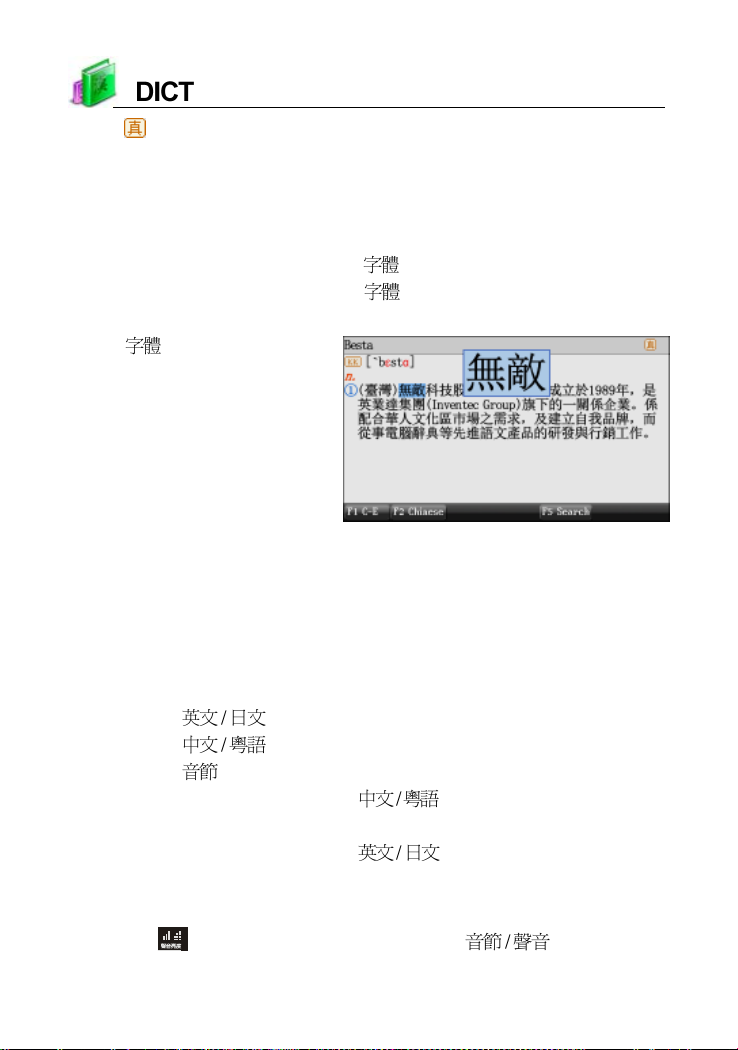
* indicates that the current word is human pronunciation.
* Provides example sentences, multimedia, etc., for reference.
* Provides strokes study when you download the function of strokes.
2.1 Font Size
* In explanation screen, press [ ] to switch 5 kinds of font sizes,
* In explanation screen, press [ ] to magnifying/minifying the high
lighted words.
Press [ ] to magnifying/
minifying the highlighted
words
2.2 Saving Data
Press [SAVE] to save words or sentences for review and test. Only the
saved data can be displayed in “STUDY--Review and Test”.
2.3 Pronunciation
In the explanation screen :
* Press [ ] to listen to English pronunciation.
* Press [ ] to listen to Chinese pronunciation.
* Press [ ] to listen to syllable pronunciation.
* Press [SHIFT] once and press [ ] to listen to Cantonese
pronunciation.
* Press [SHIFT] once and press [ ] to listen to Japanese
pronunciation.
* Press [ESC] to stop pronunciation.
*Tap or press [SHIFT] once and press [ ] to set volume
and speed.
30
Page 35
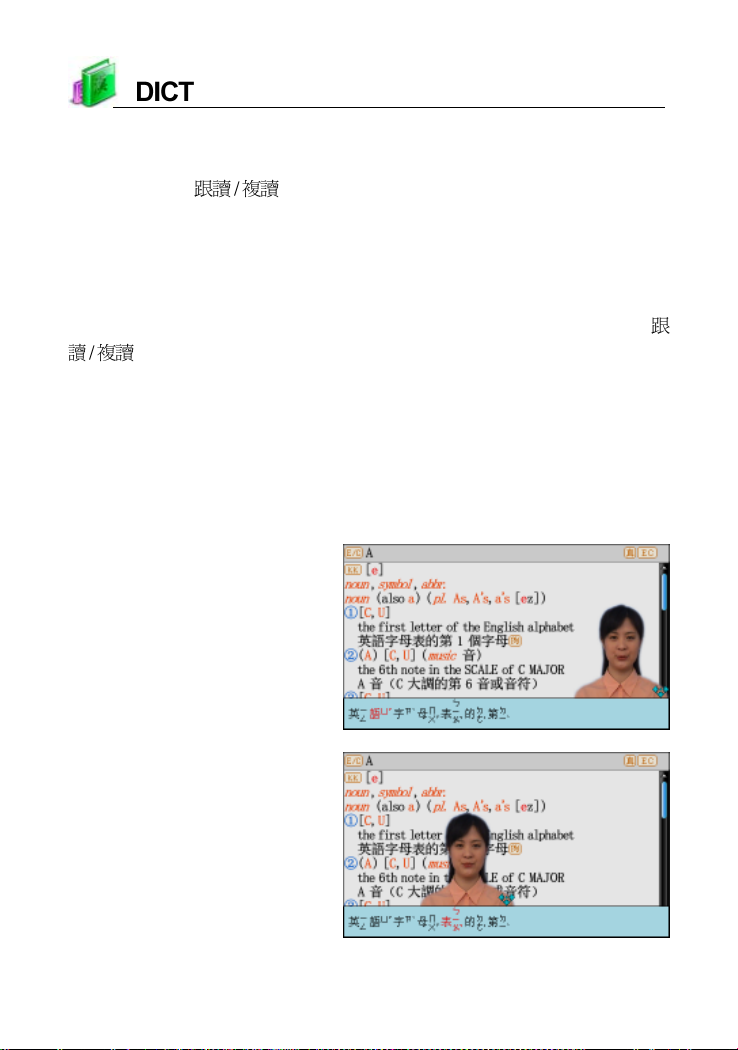
2.4 Repetition
Repetition is available on the explanation screen. Press [SHIFT] once,
and then press [ ] once, the device will repeat the current Chinese/
English headwords. (The times of repetition can be set in “SYS--Sound
Setting”).
2.5 Read after the Device
Read after the device is available on the explanation screen. Press [
] once to practice Chinese/English pronunciations. (Recording time
is about 5 seconds.)
2.6 Pronounce Chinese words word by word
The dvice can pronounce Chinese word by word, it make you easy to
learn pronunciation of Chinese words. Please set the function in the “SYS-
-Sound Setting”.
“Visual Speech” of Chinese
words,
press left/right/up/down key
or draw the portrait by stylus
to moving the portrait
31
Page 36
Notes:
/ / / key show the moving scope of the portrait of screen, / key
to move the position of the portrait,
the downside of screen to close the caption, key show opening the
caption.
key show moving the portrait to
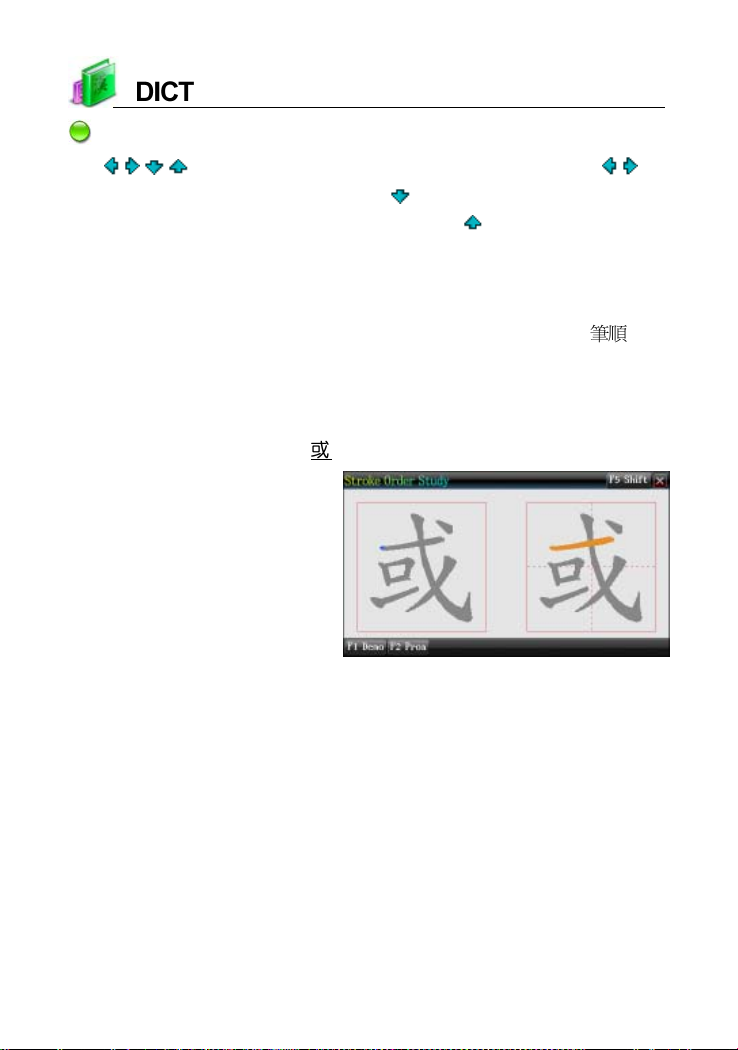
3. Strokes
Device provides the function of strokes, there will be the [F4 ]
button in the explanation screen of Chinese Dictionary and J-C/C-J
Dictionary--Detailed Kanji. Strokes function provides strokes
demonstration and practice function to help user study strokes of words.
e.g., Strokes practice of “ ” in Chinese Dictionary
Strokes practice screen
4. Searching Data
Provides several search methods to help users.
index screen: explanation screen:
1. Smart input search 1. Multi-layered search
2. Wildcard search (Only available for English) 2. Other data search
3. Cross search 3. Search
4. Secondary search 4. Sentence Translation
4.1 Smart Input Search
Just input the first one or several letters, you can find the desired words
or phrases.
32
Page 37
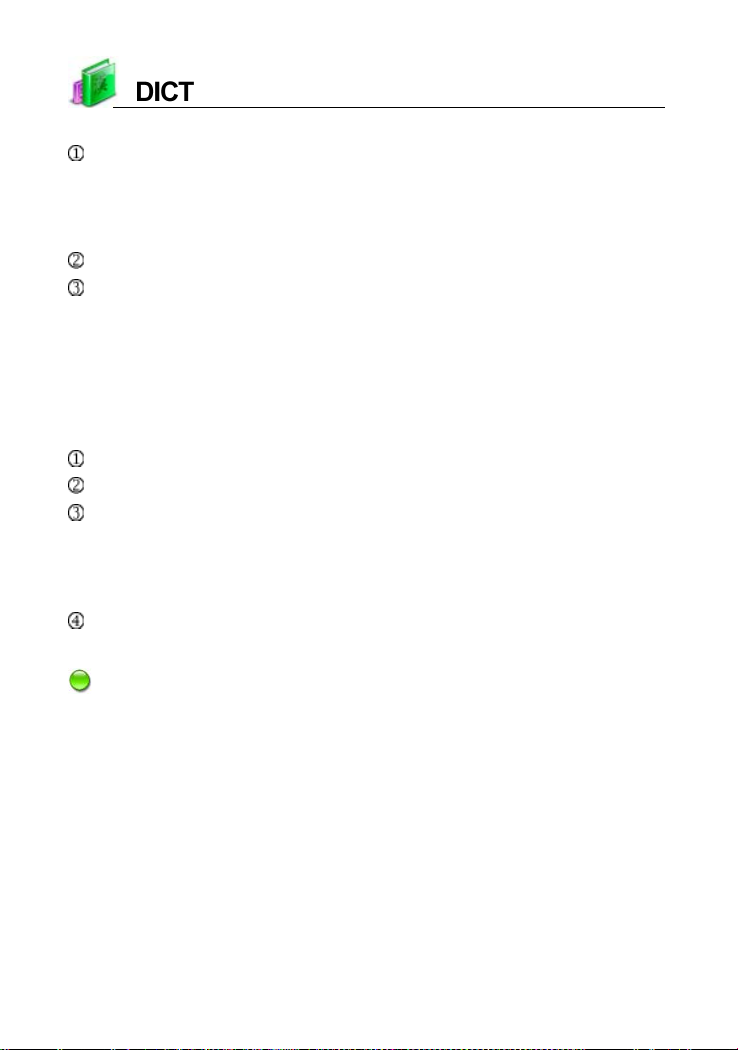
There are 3 kinds of methods:
Input the first or first several letters of a word, or mark a word to be
looked up, and then press [ENTER] to confirm.
As for Chinese character, input the first one or several Chinese
characters to be looked up, and then press [ENTER] to confirm.
Double tap the word or character to be looked up.
Press [1]~[0], [I] to select the corresponding word or character.
4.2 Wildcard Search (Only A vaila ble for English)
To look up a word that you are not sure of spelling, input all the letters
you know, and then replace the unknown letters with“?” or “*”.
Steps:
Input the English letters that you are sure of.
Input unknown letters with “?” or “*”.
Press [ENTER], the list of words matching with your input will be
displayed.
* Press the Page Up/Down key to look up.
* Press the Up/Down key to move the cursor to select words.
Press [1]~[0], [A], [B], [C], double tap the word or press [ENTER] to
search.
Notes:
“?” stands for an unknown letter; “*” stands for a string of unknown
letters.
4.3 Cross Search
When the current dictionary does not contain the word or character you
want to look up, the device will transfer to other dictionaries (Oxford
Advanced Learner’s Dictionary, English-Chinese Dictionary and DIY
Dictionary). If the word or character is available in other dictionaries, it will
display the explanation.
33
Page 38
The cross search order:
English word:Oxford Advanced Learner’s Dictionary -> English-
Chinese Dictionary -> DIY Dictionary -> Search Engine.
Chinese character: DIY Dictionary -> Search Engine.
Notes:
If the corresponding Extension Dictionary of a certain dictionary has
been downloaded, the device will search for words in the Extension
Dictionary first, and then others.
4.4 Secondary Search
If the word you input is not found, please check your spelling, or that this
words not covered in this dictionary. The device will provide 2 kinds of
searching methods and 1 recording method:
Spelling Check -- displays the list of words similar in spelling.
The Nearest Word -- displays the nearest word in order.
Add New Word -- add the unfound word into DIY Dictionary.
Steps:
Input English word, then press [ENTER] to search.
Press the corresponding numeric keys to search.
* If “1 Spelling Check” is selected, press the Up/Down key to select
the desired word, and then press [ENTER] to confirm.
* If “2 The Nearest Word” is selected, it will display the explanation of
the nearest word.
* If “3 Add New Word” is selected, you can add the word into DIY
Dictionary.
4.5 Multi-layered Search (Search on the Explanation
Screen)
Multi-layered Search led you cross search the unfamiliar words or
phrases. Please choose the words, then open the C-E Dictionary, Chinese
34
Page 39
Dictionary or E-C Dictionary, Oxford Advanced Learner’s Dictionary or other
Dictionarys to search. The number of the layer will be displayed at the top
right corner.
On the explanation screen, highlight the Chinese character(s) or English
word(s) to be looked up.
* By the stylus:
Highlight and drag word(s) by the stylus. Press [ESC] or tap any
where on the screen except the highlighted area to cancel the highlight.
* By the keyboard:
Press the Right key to locate the cursor. Move the cursor to the word,
tap [F3Mark] to fix the cursor, and then press the direction key to set
the range. Tap [F3relax] to cancel.
Press [ENTER] to search or press [F1], [F2], [F5] to search in the
corresponding dictionaries.
* [F1] and [F2] provide search in the commonly used dictionaries. [F5]
is the word bank. The function of [F1] is the same as that of [ENTER].
Press [ESC] to return to the previous screen.
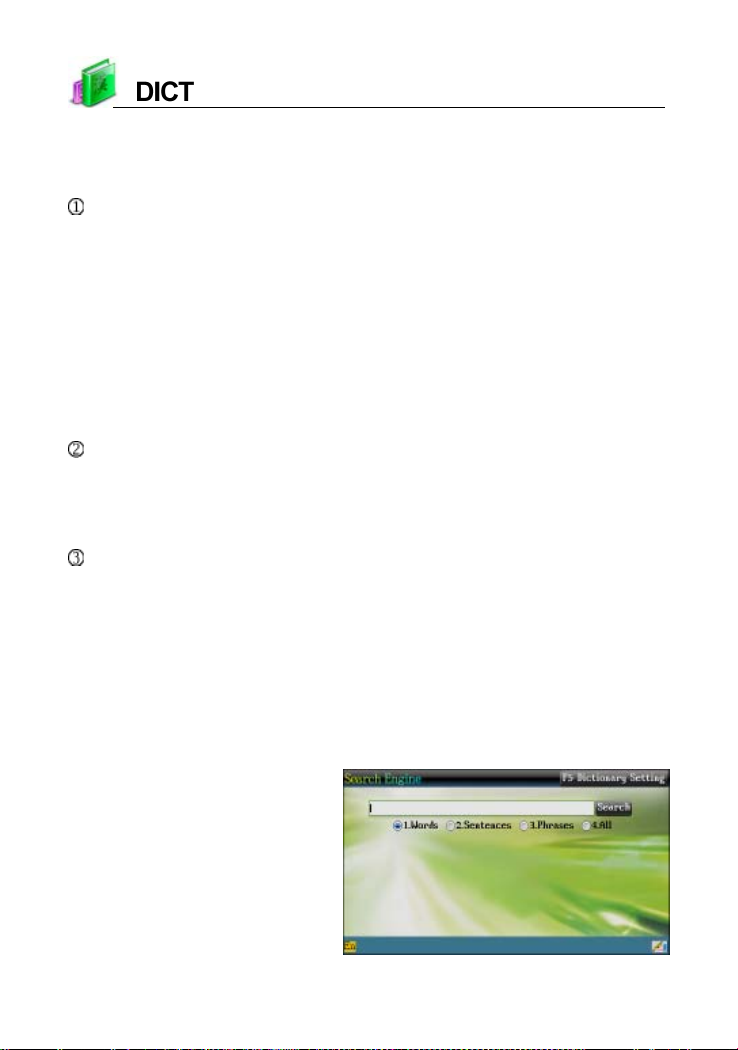
5. Search Engine
Search Engine can search for the input data accurately and efficiently.
The input screen:
* Choose the scale of searching: Words/Sentences/Phrases/All.
* Tap [F5 Dictionary Setting] to select the scale of searching.
* Tap [Search] or press [ENTER] to the result of searching.
Search Engine screen
35
Page 40
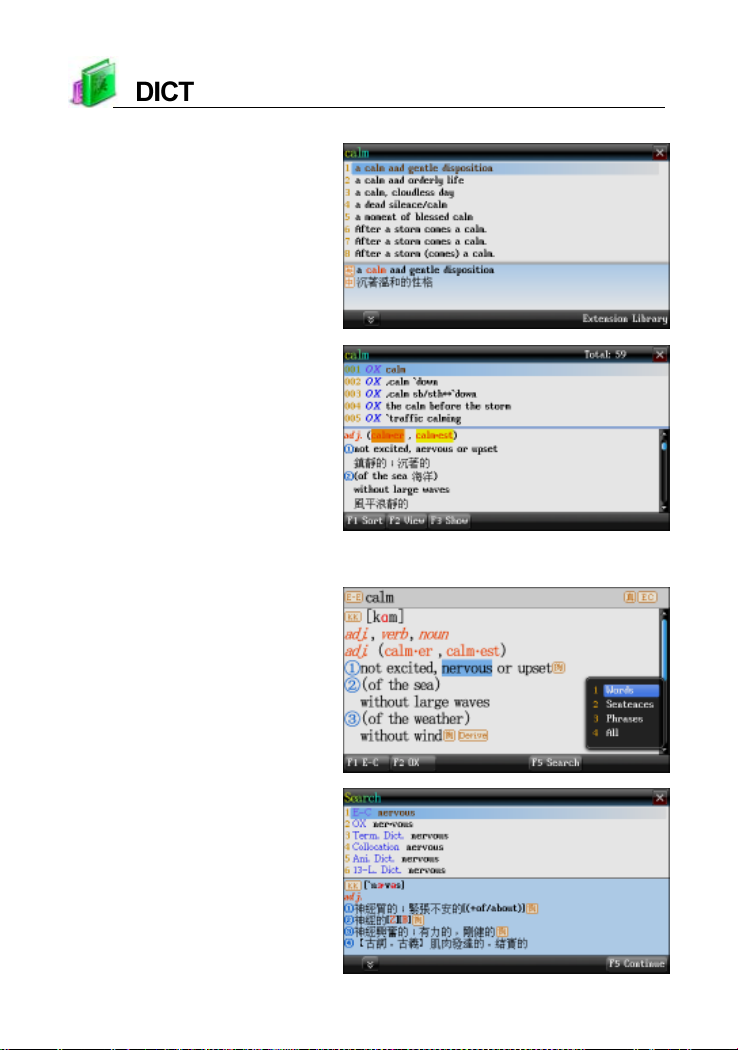
e.g., searching for the setences and phrases of the word “calm”
Search sentences of the word
Search phrases of the word
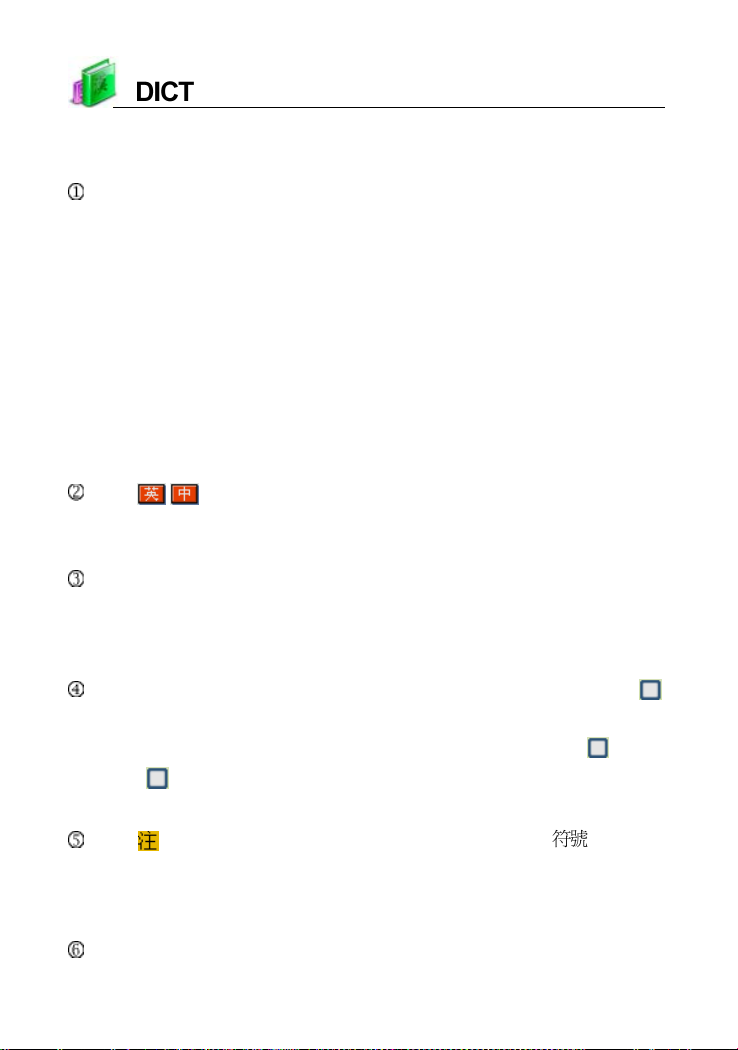
When you use the Multi-layered Search, please tap the [F5 Search] to
access the function of searching, operate as the following picture:
Search “calm” in Oxford
Advanced Learner’s
Dictionary
Tap “Words”
36
Page 41
6. Sentence Tr anslation
Function of Sentence Translation:
Input content you want to tra nslate, then press [ENTER] to search for the
translation result.
* Chinese -- input at most 200 characters include space and
punctuation.
* English -- input at most 200 letters includes space.
* To contents below which include but not confine within, may not offer
the full translation.
-- Proper noun, e.g., Name or Place name;
-- Special term or uncommon words;
-- Idiom, slang, proverbs or other sentence with metaphor;
-- Spoken language or genuine vocabulary.
Tap / or click [F4CHN-ENG]/[F4ENG-CHN] to switch between
Chinese and English input modes. When switching the mode, the
content in the editing zone will be cleared at the same time.
Tap [F5History] to view the saved translation; press [DEL] to delete the
records one by one. Pressing [SAVE] on the input screen and the
explanation screen to save data, but it isn’ t available on the reference
screen.
When there is no downloaded extension library, press [F1] or tap “
Reference” to unselect or select reference sentences library. When
there is downloaded extension library, press [F1]/[F2] or tap “
Lib”/“ Extension Lib” to unselect or select built-in Library/Extension
Library.
Tap to open the input methods for selection, press [ ] to open
the symbol input methods for selection; when the Chinese Phonetic
Symbols input method is used, the Chinese symbol can be opened by
switching to other input methods.
If the libraries are selected, [F1Reference] will be displayed on the
Built-in
37
Page 42
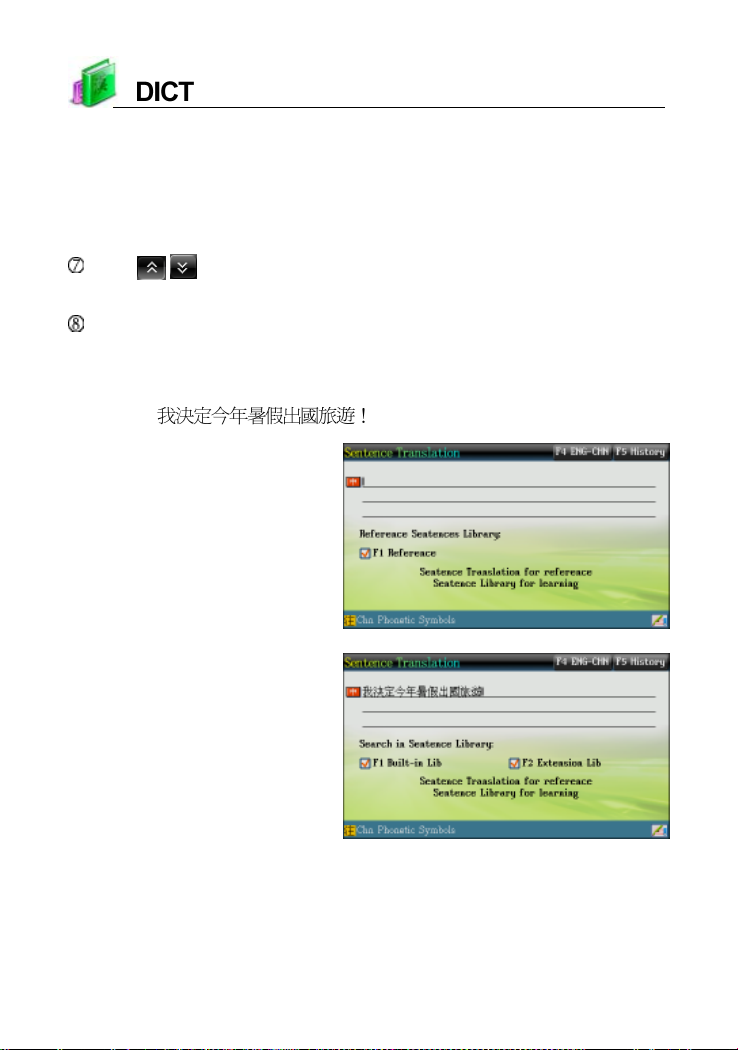
translation screen to provide example sentences of Oxford Library, Besta
Library and Extension Library (if available).
* [F1CHN/ENG] -- switch between Chinese and English.
* [F2CHN VS ENG] -- view the comparison between English and
Chinese.
Tap / or press the Page Up/Down key to view other example
sentences.
In the translation screen, press the pronunciation keys to pronounce in
English or Chinese, you can cross search the unknown words in the
corresponding dictionaries.
Take “
No downloaded Extension
Library
Input content (With Extension
Library)
” as example
38
Page 43
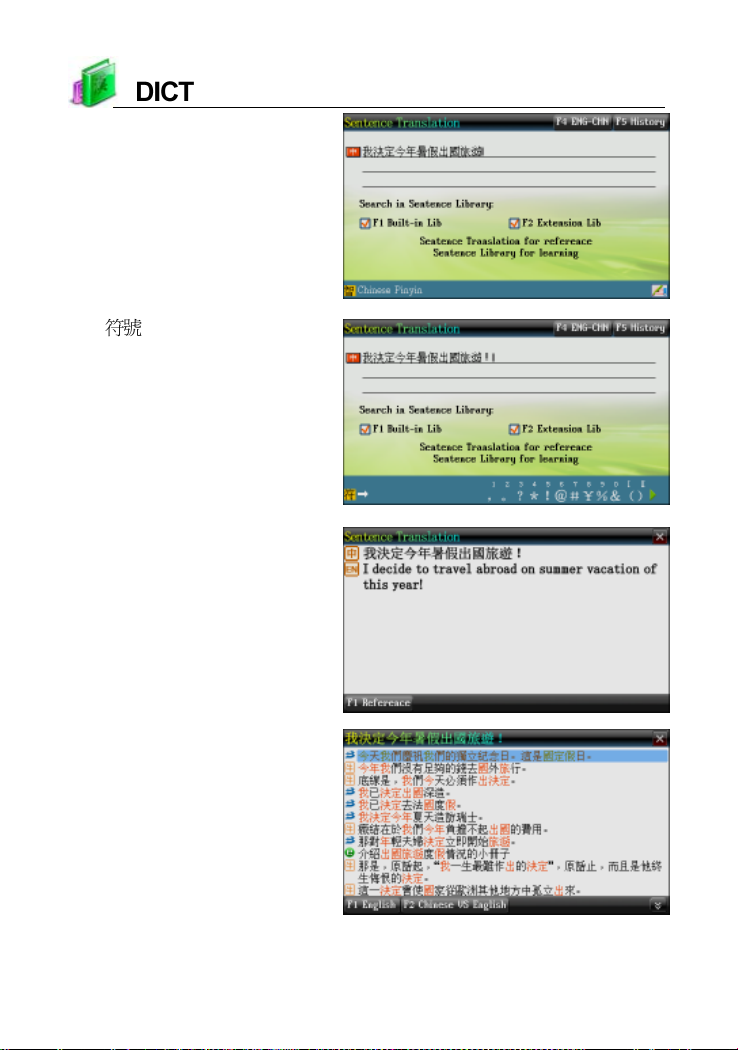
Switch to other input method
Tap [
Then tap [ENTER]
Tap [F1Reference]
] key to select “!”
39
Page 44
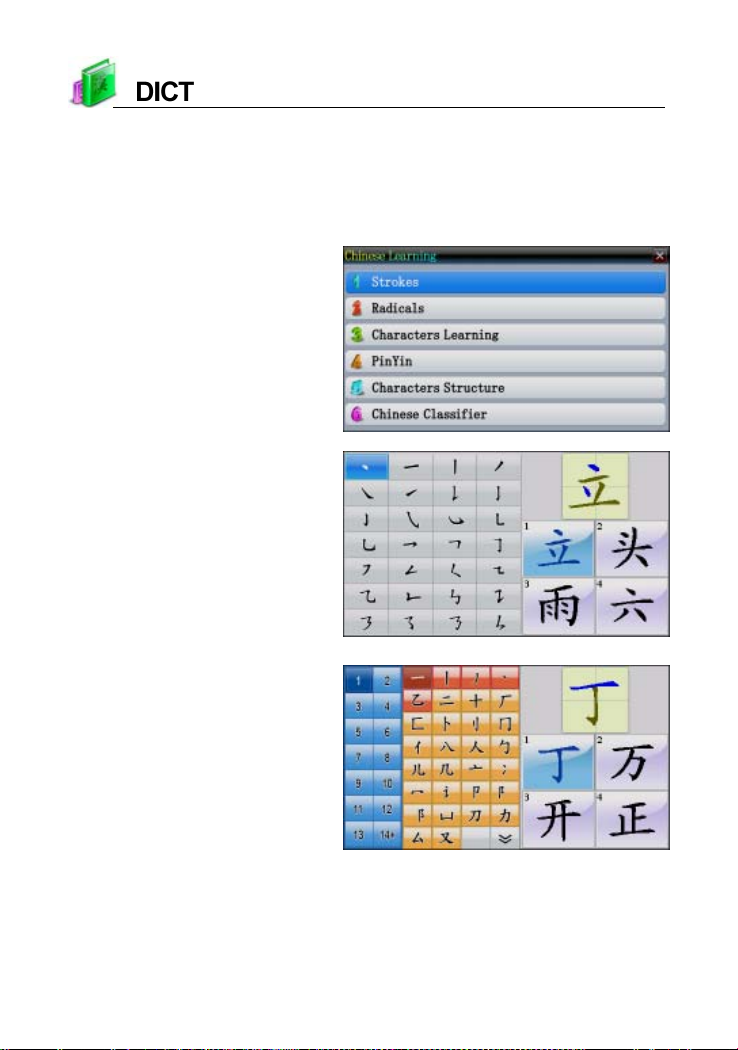
7. Chinese Le arning
Chinese Learning provides function of PinYin, Characters Structure,
Strokes, Radicals, Pronunciation, Strokes practicing and Chinese Classifier,
helping users learning Chinese Comprehensively
The index screen of Chinese
Learning
Strokes practicing function of
Strokes
Radicals strokes practicing of
Radicals
40
Page 45
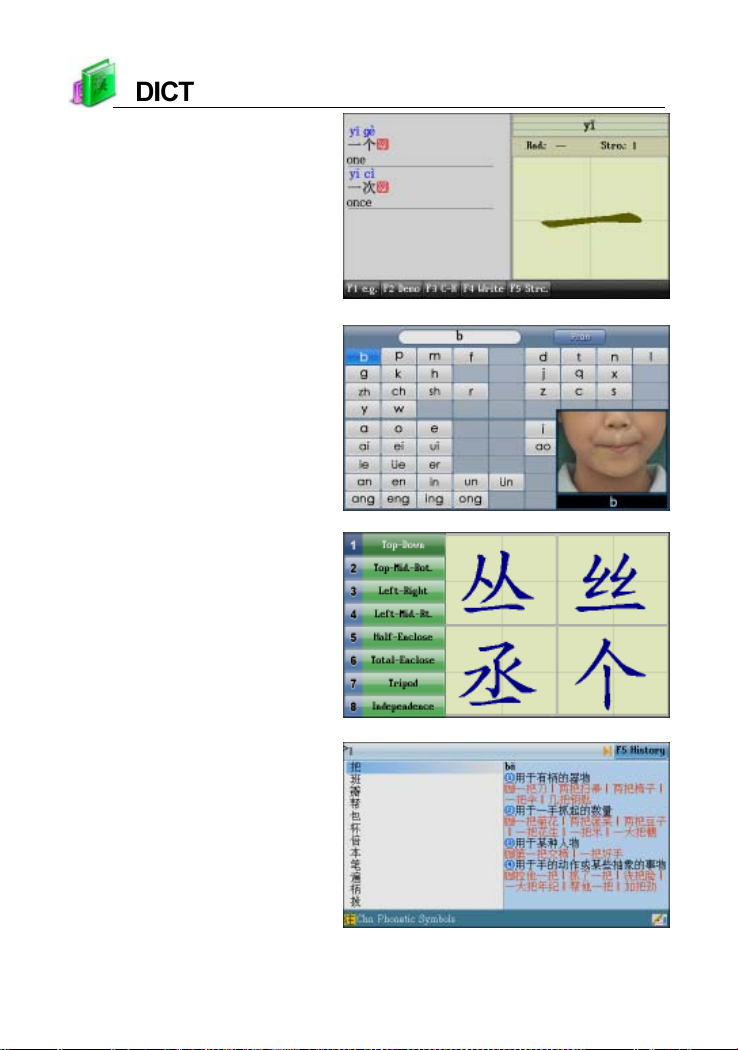
Function of Example Sentence,
Demonstration, Write,
structure of Characters Learning
Visual Speech of phonetic
symbol of Pin Yin
Characters Structure
Chinese Classifier
41
Page 46
Study Summary
Language study series help you to learn English through
dalogue, scene, simulation, word component, etc.
English study series provide listening, speaking, reading and
writing practice.
Kinds of study tools are available for downloading.
Multi-Language Dialogue
* Provides abundant conversation in multi-language.
* Provides 17 kinds Languages of 13 countries, and you can updata by
website downloading; synchronously display Chinese/English/
Japanese/Korean/a download language to contrast.
* Provides key words searching, supports cross searching, the cross
search up to 30 layers.
* Provides human pronunciation and playing dialogue function to study.
Interactive English
* Includes dialogues on a variety of occasions, which can be
downloaded and updated from our website.
* Provides human pronunciation, read after the device, role play.
English Proficiency Test
* Provides GEPT Listening, GEPT Reading, simulated exams and
practice room .
* Updated database can be downloaded from our website.
English Exercise
* Allows to download data through PCLink from our website.
Sentence Pattern Classroom
* Provides 419 kinds of sentence patterns in 18 classifications and
detailed analysis and example sentences.
42
Page 47

V ocabulary
* Provides words of Elementary School, Junior High School, Senior
High School, College, TOEFL, GRE, GMA T, IEL TS and Level I~VI words
to search. Provides five kinds recite methods: view, remember, recall,
spell, review.
* Provides example sentences, usages and multimedia data on the
explanation screen for reference.
Listening & Speaking Classroom
* Provides ABC Pronunciation, Reading Studio, Audio Studio and Baby
American English. Provides capital/lower case, strokes and examples
for search.
Phonetic Symbol Demo
* Provides standard pronunciation and key point in pronunciation for
vowels and consonants.
* Provides phonetic symbol demo and setting the repeat times.
Review and Test
* Allows to review and test the words saved in English-Chinese
Dictionary, Oxford Advanced Learner’s Dictionary, Chinese-English
Dictionary, Chinese Dictionary, J-C/C-J Dictionary, Foreign Words
and Kanji Index Dictionary, and sentences saved in Multi-language
Dialogue. Besides, English-Chinese and Oxford tests are provided.
* Provides Vocabulary, Word Browser, Choice, Sentence Making and
Sentence Review to improve English.
Mainland-Taiwan Differences
* Provides abundant words of Mainland and Taiwan, helping users to
study the differences between the words of Mainland and Taiwan.
* Translates the words of Mainland and Taiwan to English and Korean,
provides function of searching.
43
Page 48
1. Language Study Serie s
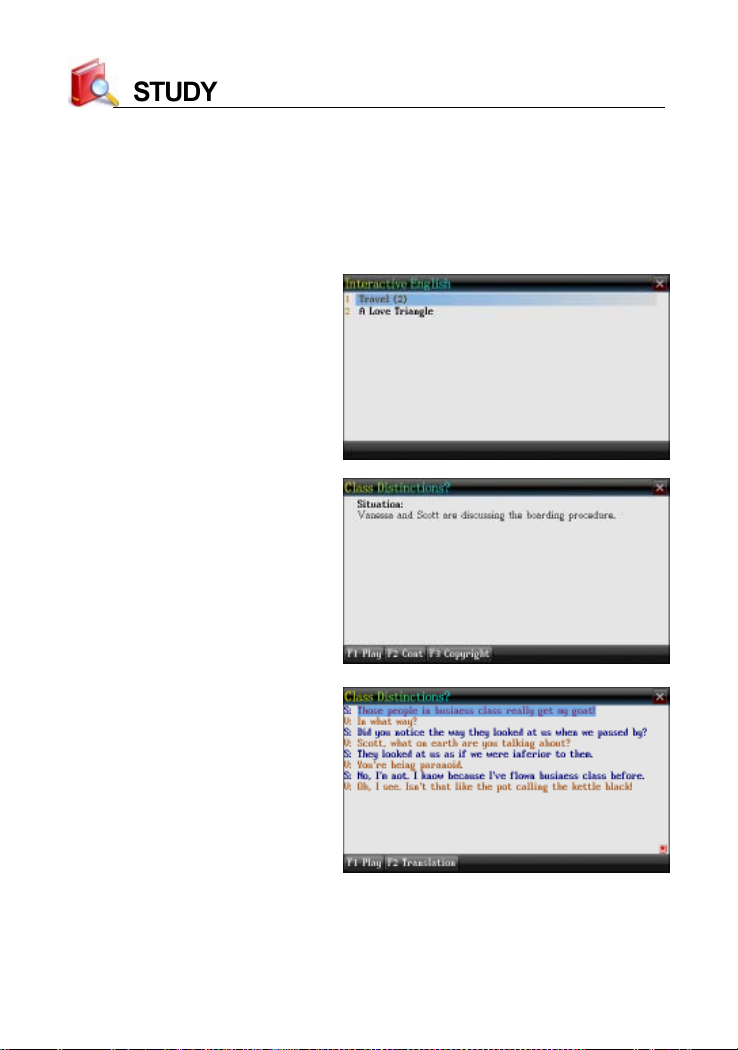
* Take “Interactive English” for example:
Interactive English provides dialogues and role plays to help you quickly
master vocabularies, example sentences and usages. The device will automatically search the downloaded data.
Data select list
Situation
Contents play
44
Page 49
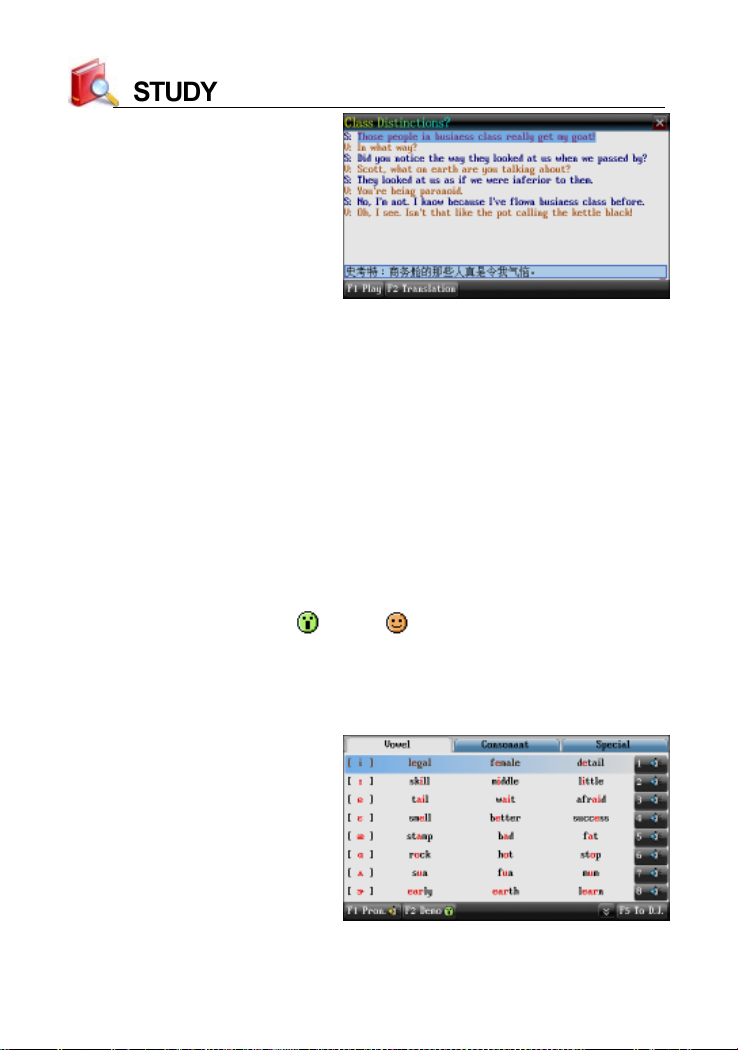
Play + translation
2. English Study Series
* Take “Phonetic Symbol Demo” for example:
Phonetic Symbol Demo provides standard phonetic symbol pronun-
ciation with key point and example words. Provides demo of phonetic
symbols, and the times of demo can be set in <Sys--Sound Setting>.
* Allows to switch among vowel, consonant and special phonetic
symbols.
* Tap [F1Pron.] to listen to all the phonetic symbols continuously; tap the
numeric keys at the end of every line to listen to syllable pronunciation
for the current line.
* Tap [F2Demo] to open ( )/close ( ) demo of phonetic symbols.
* Tap [F5To D.J./ To K.K.] to switch between K.K. and D.J. pronunciations.
* Press the Up/Down key, or press the Page Up/Down key to select
phonetic symbols, and then press [ENTER] to view details.
K.K. phonetic symbols
45
Page 50
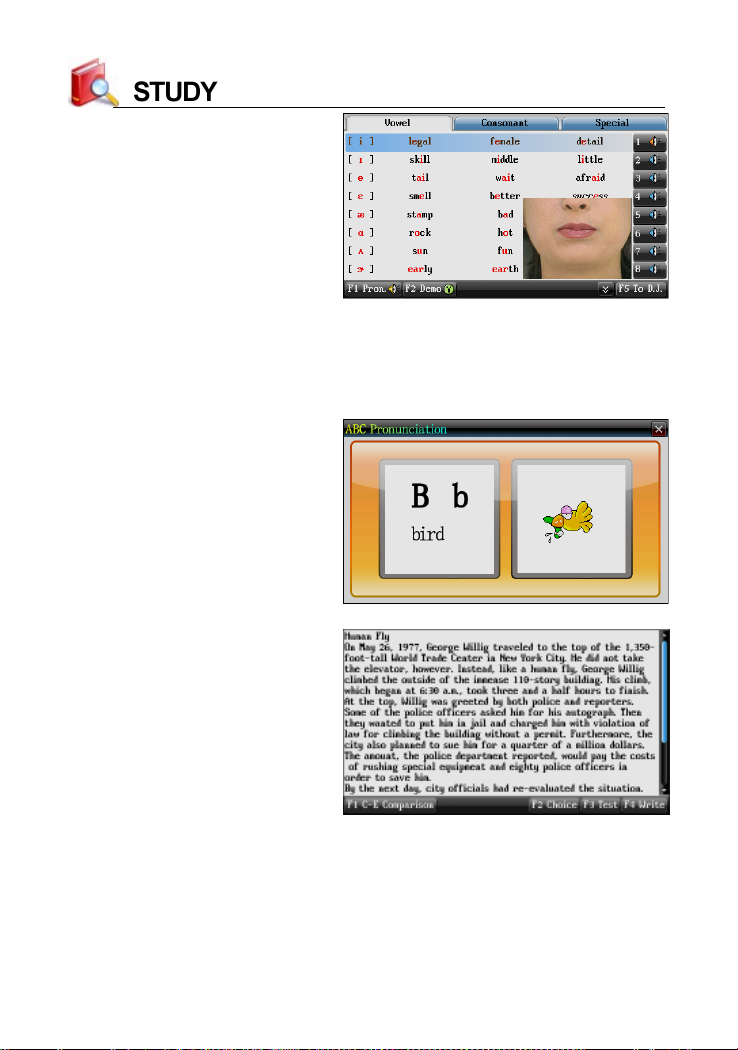
Demo is open
*
Take “Listening & Speaking Classroom” for example:
Listening & Speaking Classroom provides listening, speaking, reading,
writing and dialog to improve your English. The device will automatically
search the downloaded data.
Pronunciation of example word
Contents of Reading Studio
46
Page 51
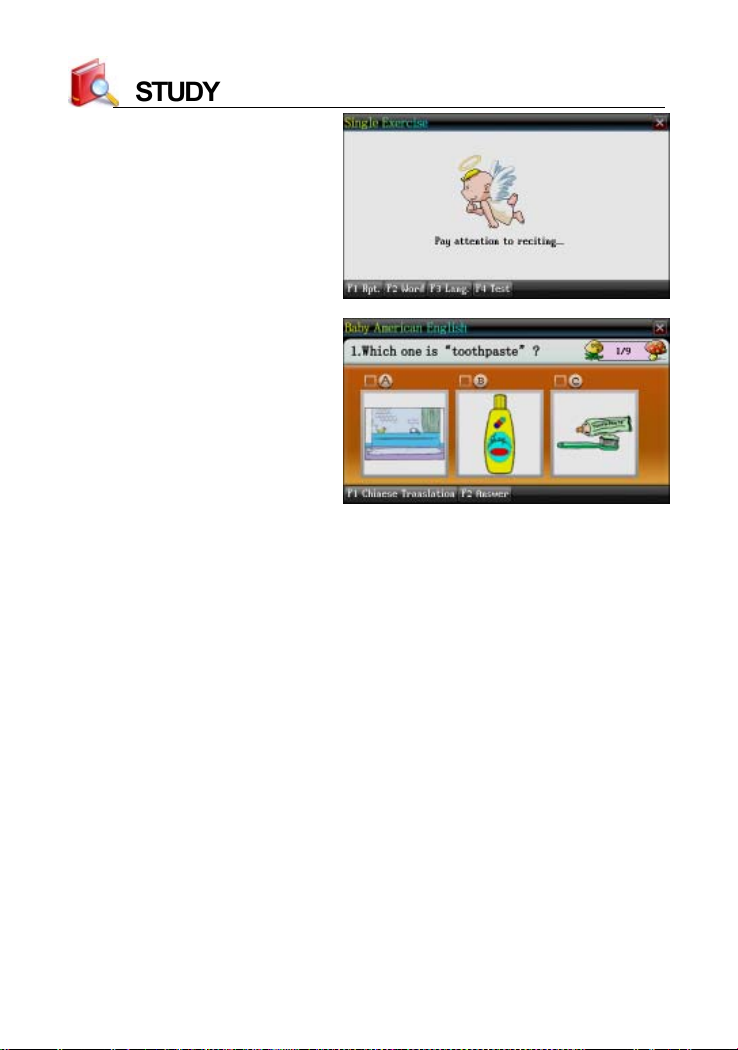
Single Exercise of Audio Studio
Read Pictures by Words of
Baby American English
47
Page 52
Multi Summary
Multimedia study series allow to download data through PCLink
from our website.
Animated study series help you to learn English through words,
grammar, phrases, cartoons, etc.
Provides amusing functions of Games World, My Album, eBook.
Video
* Supports lots of media file types.
* Provides function of Repetition, Read after the Device and cross
search when video plays the studying film.
Animated Grammar
* Helps to understand grammars through animation stories.
* Includes practice of Grammar Selections, Grammar Collections and
Usual Grammar Mistakes.
* Allows to cross search in corresponding dictionaries, allows to in
sert and read bookmarks.
* Allows to download data through PCLink from our website.
Animated Phrases
* Provides four main verbs, eight basic verbs and main prep & link
words, helps to understand the meaning and usage of phrases
through animation.
* Role play, read after the device and quiz can correct pronunciation
and differentiate phrases.
* Allows to cross search in the corresponding dictionaries.
* Allows to download data through PCLink from our website.
Animated Dictionary
* Includes high school vocabularies and popular words.
* Provides built-in animation examples and detailed Chinese/English
48
Page 53
explanations, provides words, example sentences, English to
Chinese/Chinese to Englsh/both, such data for reference, provides
human pronunciation for words,sentences and integrated practice.
Illustrated Dictionary
* Provides various illustration to learn English words.
* Allows to cross search in other dictionaries, and provides
comparison in Chinese and English for the present scene.
eBook
* eBook browser, you can download data from website to device.
My Album
* Support displaying .bmp,.jpg and .png files.Provides picture and
image frame setting.
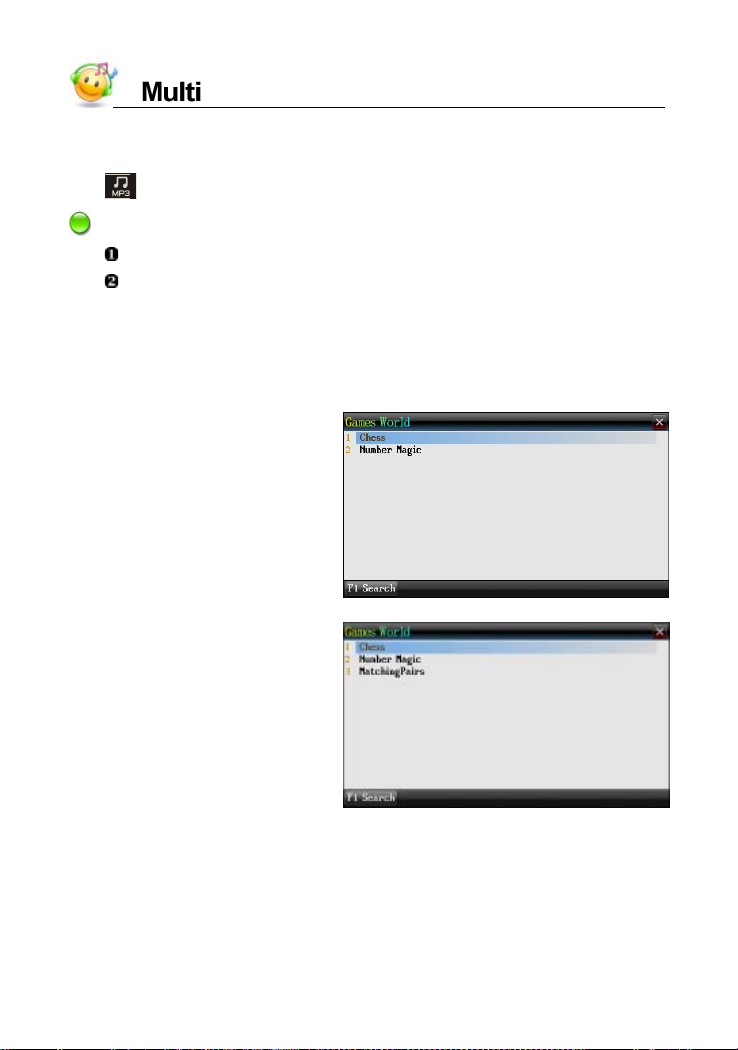
MP3
* Supports simultaneous conveyance of sound and lyrics, provides
A-B record playing function.
* All the data in C:\MP3 can be settled as the alarm of device.
Digital Recorder
* Allows to record and play the phonic data.
Games World
* There are plenty of games on our website for you to download, all
download games can be deleted.
Text Browser
* Supports displaying .txt files.Provides font size switching, font type
choosing, background color setting and text reading.
Flash Player
* Played the flash files which are transferred into .swf, .bfh and .flv
format.
49
Page 54
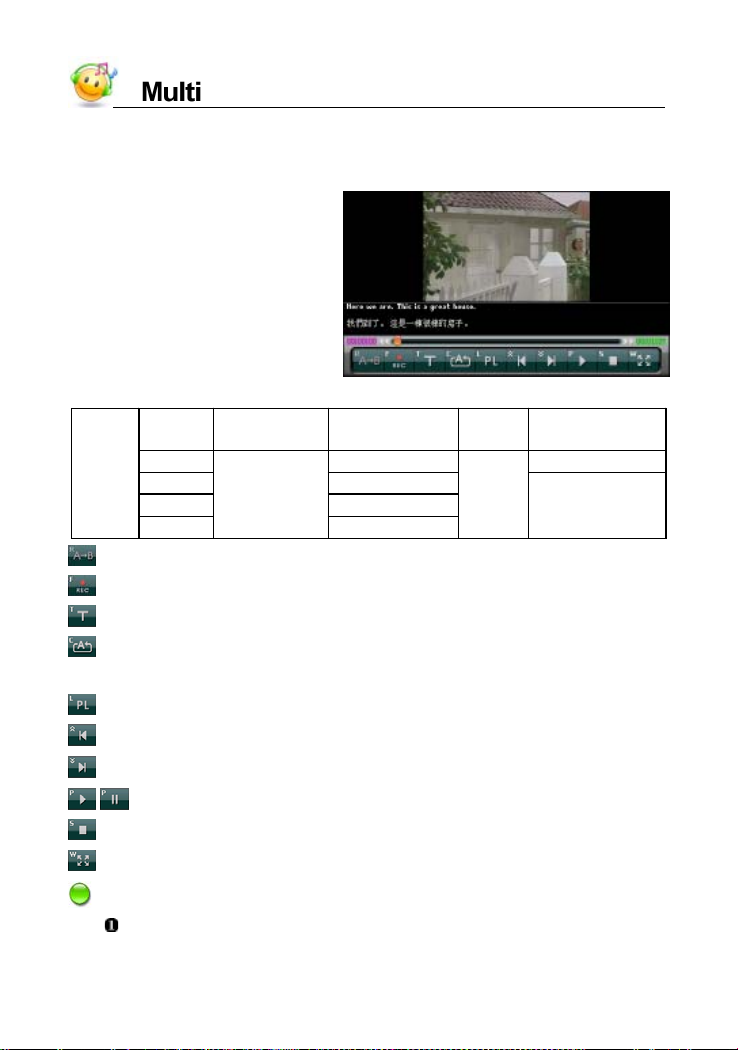
1. Video
Allows to play files in format of .wmv, .rm, .avi, .rmvb, .pav, .bav.
Playing screen of Video
Device allows to play the format of files:
format screen size bit rate
Video
: [M] key, to view the film by full screen.
Notes:
.wmv 300kbps 64~128kbps
.rm 200~300kbps
.avi 500kbps
.rmvb
: [R] key, to contrast pronunciation again during reading after the device.
: [F] key, to read after the device, press [ESC] to stop.
: [T] key, to select caption display mode.
: [C] key, to open and select among “Play Single, Loop One, Play By
Order, Loop All and Play List”.
: [L] key, to start to play the film.
: function same as the page up key, show to play the previous film.
: function same as the page down key, show to play the next film.
/ : [P] key, to play/pause film.
: [S] key, to stop playing.
Please download the files to device, then it will automatically to search
the files.
480*272
200~300kbps
50
frame
rate
about
20fps
audio
64kbps
recommended
Page 55
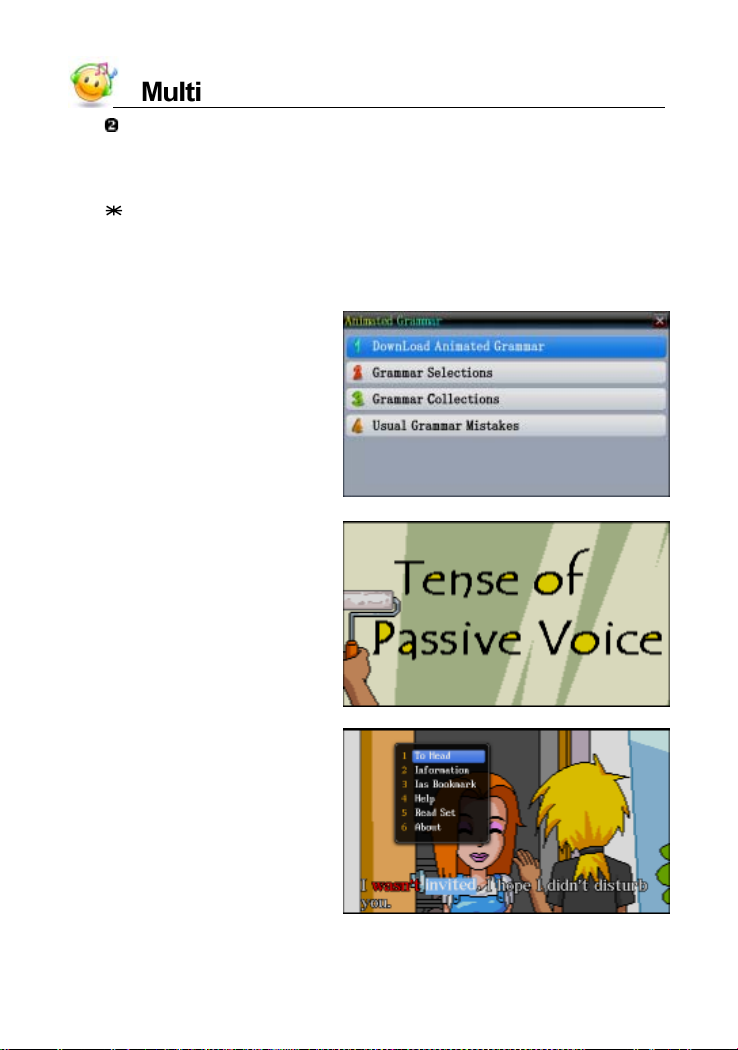
Press [SHIFT], the press [SAVE] to view the help.
2. Animated Study serie s
Take “Animated Grammar” for example:
Animated Dictionary contains lots of animated pictures to introduce
usage feature of every grammar. It provides an interesting vision way for
users to learning grammar.
Access the catalog screen to
choose the content
Device autos to search the data
Open the information select
menu
51
Page 56
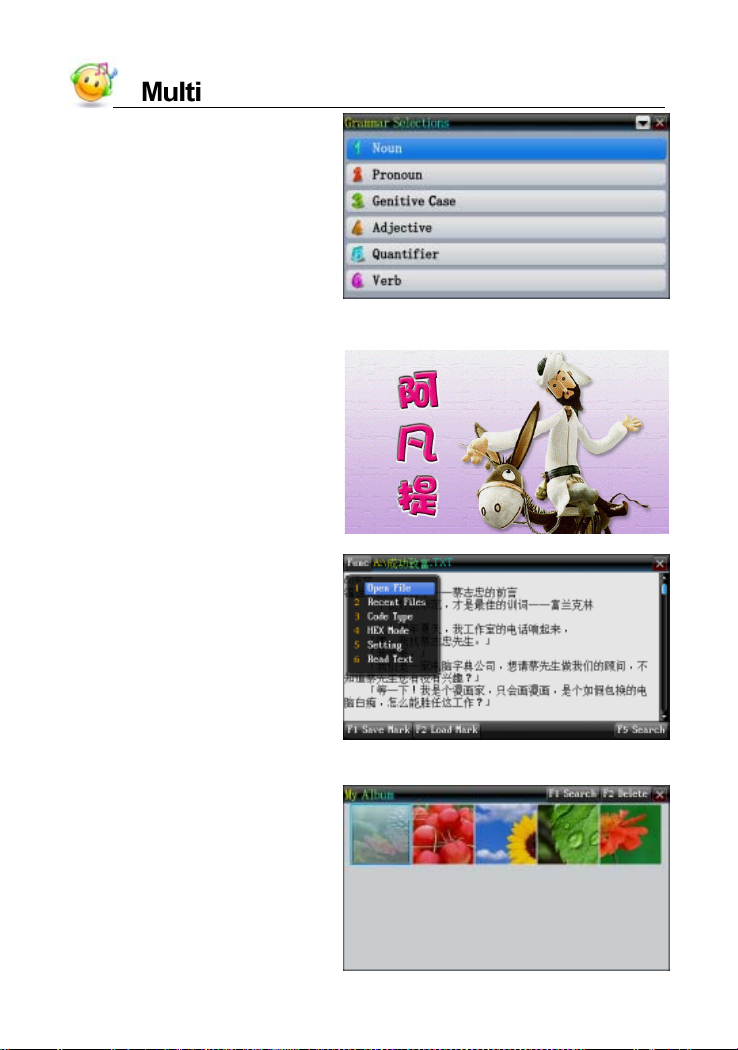
Open the Grammar Selections
3. eBook/T ext Browser
eBook Browser
Function list of Text Browser
4.My Album
Image browse screen, tap
[FUNC]--[Search] to go on
searching the photos
52
Page 57
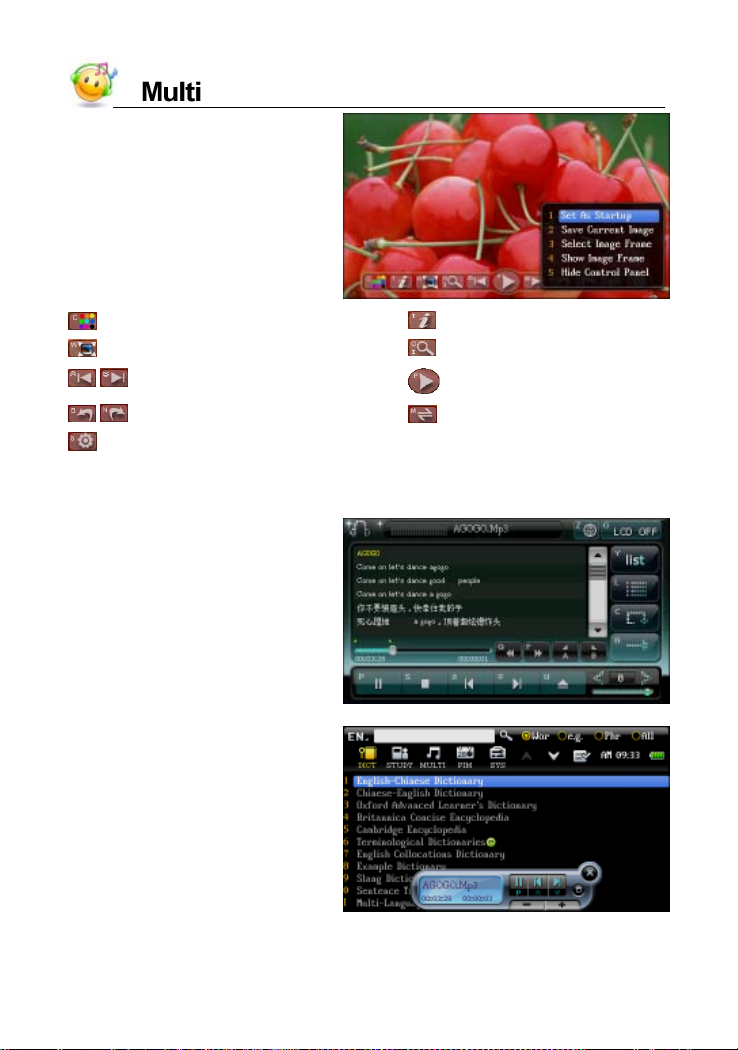
Tap or press direction key
to choose and view the photo
by full screen, tap screen of
viewing photo to open the
function select menu
:to change the color of plate. :View the file’s name.
:Enlarge to fit/best fit. :zoom out/in.
/ :previous/next image. :slide show the image.
/ :anticlockwise/rotate clockwise. :flip horizontally.
:slide show setting.
5.MP3
simulate playing and A-B
record playing
MP3 mini screen
53
Page 58
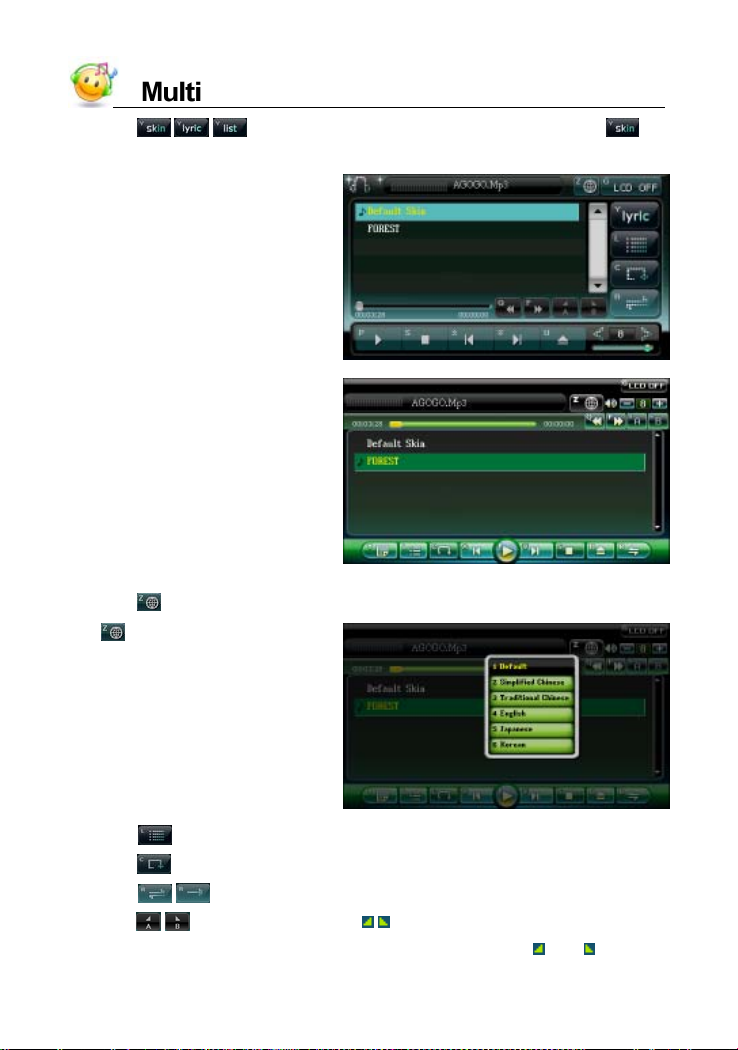
*Tap / / to switch to Lyric List/Skin List/Play List. Tap to
show two types skins of MP3 for users to select.
Default Skin
“FOREST” Skin
*Tap
Tap
*Tap to show the lyrics or the list of songs.
*Tap
*Tap
*Tap
* After setting, the device will play the section between and .
to language of lyric
to select order of playing.
/ to open/close the repetitive playing state.
/ to set bit/stop bit, and / will be played when you are setting.
54
Page 59
* When pause or stop, the lyrics can be cross searched.
* Tap [ESC] to close the MP3 screen when MP3 keep playing, you can tap
to open MP3 mini screen in other screen.
Notes:
Press [SHIFT] first, and then press [SAVE] to view the on-line help.
The function of simultaneous conveyance of music and lyrics can be
realized only if the two files with the same name and with the suffixes
as “. lrc” and “.mp3” are put into the same folder.
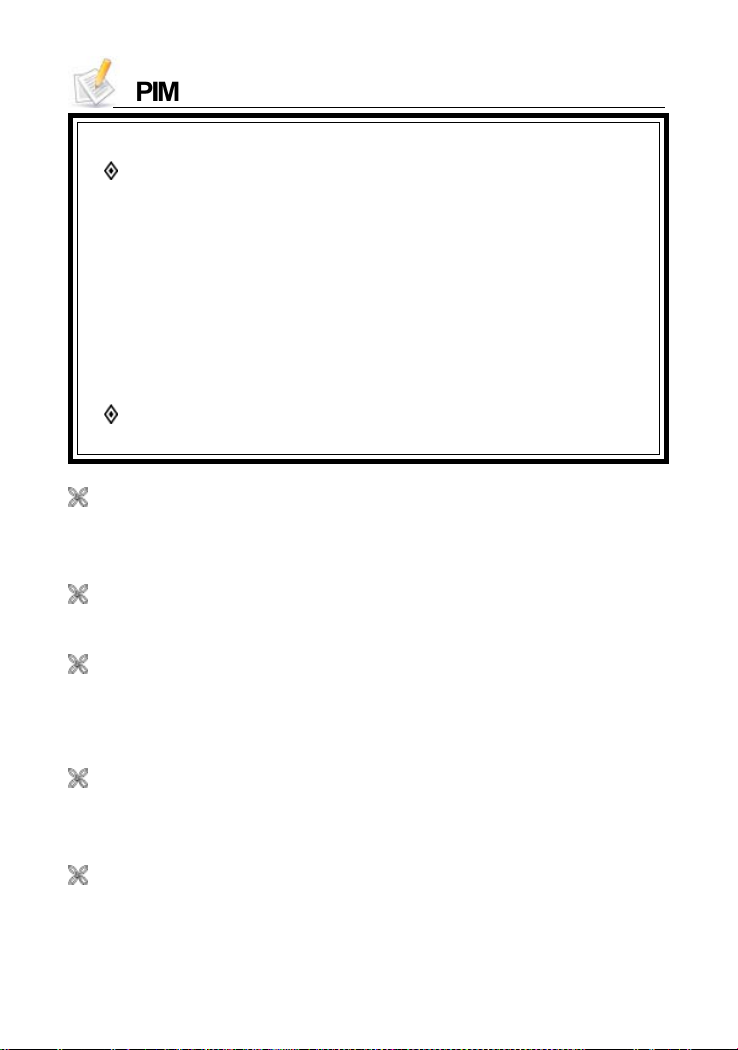
6. Gam es World
Main menu of Games World
Tap [F1 Search] to go on
searching games
55
Page 60
PIM Summary
Provides the functions that Name Card, Memorandum, Schedule,
To do list , Anniversary, Class Schedule and Income & Expense have
following features:
Create information in Chinese/English, numbers or special
*
symbols.
* Allows to copy, modify, delete records or create new ones.
* Allows to set custom fields.
* Allows to secure data from unauthorized access.
* Allows to increase new categories which can be edited.
Provides the functions of Calculator, Engineering Calculator
and Conversion.
Name Card
* Provides personal information record.
* Provides portrait setting, index search and records view.
Memorandum
* With the PIM common functions.
Schedule
* With the PIM common functions.
* Allows to set alarm for important schedules, and to view daily and
weekly schedules.
T o Do List
* With the PIM common functions.
* Allows to set priorities, and to view work list of every day.
World Time
* Displays the local time as well as that of two other cities, and allows
to adjust time, date and cities.
* Provides timer and stopwatch.
56
Page 61
Calendar
* Provides calendar from January 1901 to December 2099, provides
AD and allows to display 6-months calendar and 24 solar terms.
* Allows to check daily issues and constellations, and provides mark
for scheduled days and anniversaries.
Anniversary
* With the PIM common functions.
* Allows to record important days in lunar or solar calendar.
Class Schedule
* With the first two items in common functions.
* Allows to check new contents of Class Schedule at any moment.
Paint Brush
* Provides drawing tools to produce graphics.
* Allows to copy, modify, delete a record or create a new one and to set
drawing as startup picture.
Calculator
* Provides standard calculator and Engineering calculator.
Conversion
* Provides “Unit Conversion”, “Size Table” and “Currency Exchange”.
Alarm Setting
* Provides various alarms and allows to set alarm time, no alarm day
and alarm interval.
Income & Expense
* Provides the record and management of your daily incomes and
expenses, provides encode and total sum of your incomes and
expenses.
57
Page 62
1. PIM
1.1 Data Input
Input data in the corresponding fields of Name Card, Memorandum,
Schedule, To do list , Anniversary, Class Schedule and Income & Expense with
provided or downloaded input method.
Input data in the fields:
* Tap the corresponding input method to input data.
*Tap to open the drop-down menu.
*Tap
*Tap
page.
*Tap or press [ENTER] to start from a new line.
* Tap or press [SAVE] to save data.
* Press [ESC] to close the window after selecting the corresponding
item.
Allows to set custom category. (Unavailable in Class Schedule)
Allows to edit new category. (Unavailable in Schedule, To Do List,
Anniversary, Class Schedule)
or press the Up/Down key to scroll up/down.
or press the Page Up/Down key to view on the previous/next
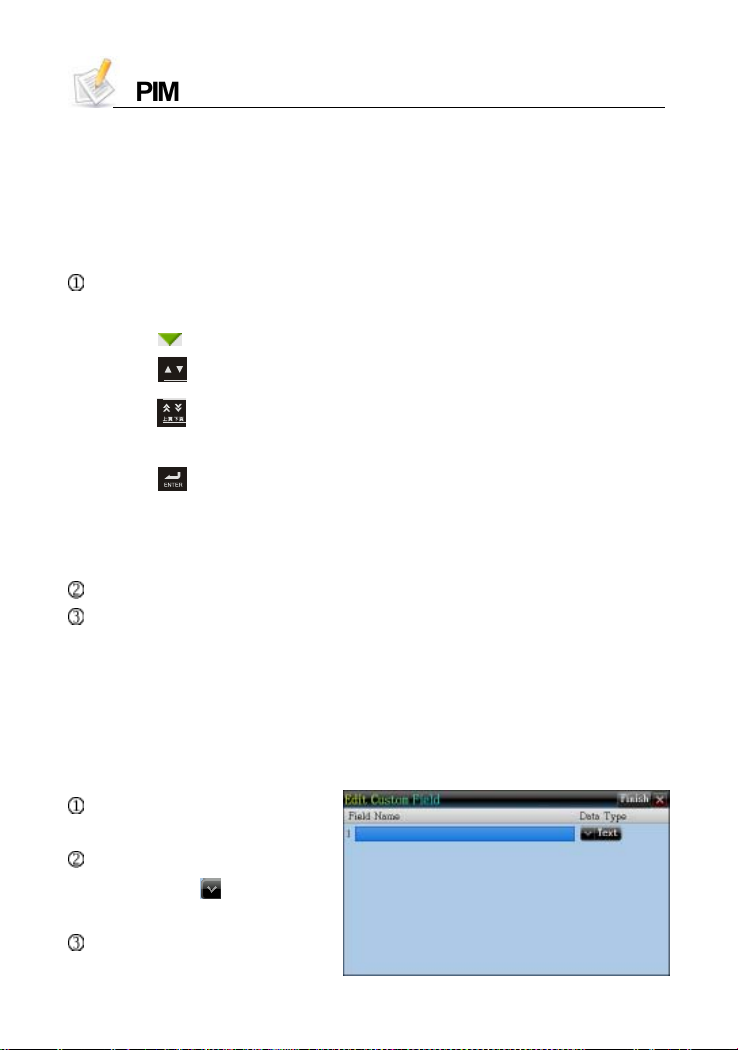
1.1.1 Custom Field
* Take Name Card as example
You can set up to 6 custom fields, all of which can be deleted in <SYS
--Memory Management>.
Tap [Func] to select “2
CustomField”.
Tap item to input data.
* Then tap
the dropdown menu.
Tap [Finish] or press
[SAVE]to save data.
to open
58
Page 63
1.1.2 Edit Category
There are five categories--Business, VIP, Private, Relative and Friends
for Name Card. You may add three more categories for your choice.
For Memorandum, there are three categories--Daily, Business and
Family, you can also add five more.
All the categories can be renamed. The custom categories can be
deleted in Memory Management.
1.2 Data Index
If there is saved data, the index will appear when the function is
accessed. You can delete or lock data on index screen.
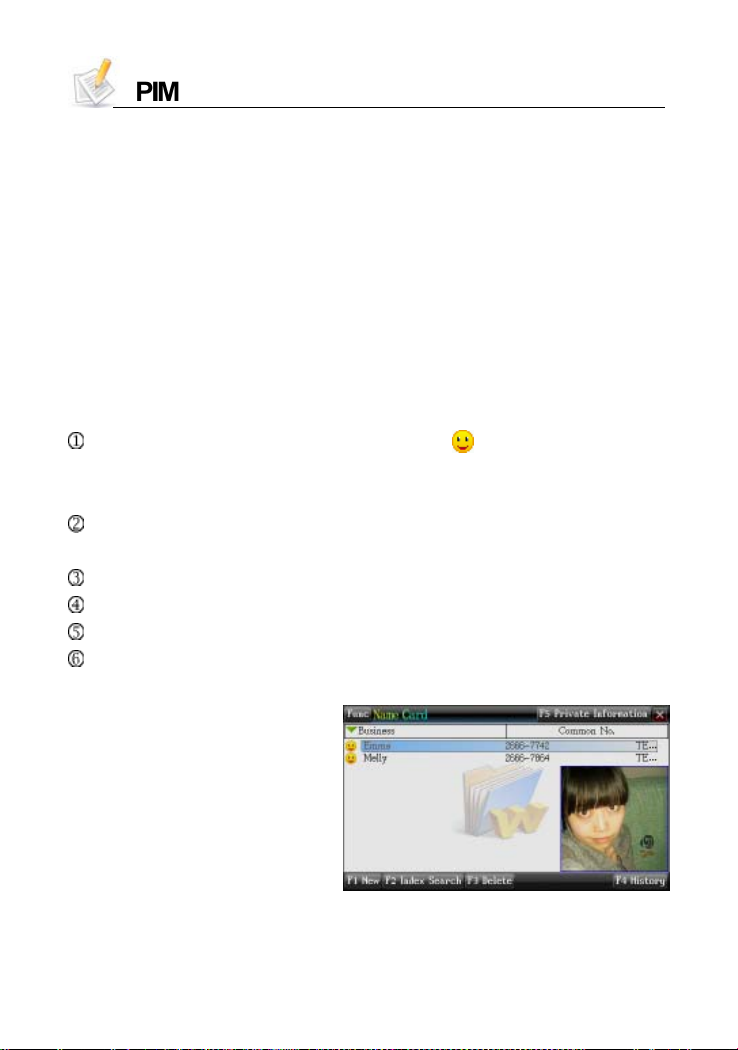
Name Card: If the entry contains photo, tap to look up the portrait. If
not, directly access the details. Tap telephone number to view other
number list.
Memorandum: Displays the list of categories first when you access,
and then displays the index screen of the selected category.
Schedule: Allows to look up One/All, Week/Day Chart on the index screen.
To Do List: Allows to search date on the index screen.
Anniversary: Allows to look up lunar/solar calendar on the index screen.
Class Schedule: Index screen is not available. Tap the course directly
to view the details.
View the portrait
59
Page 64
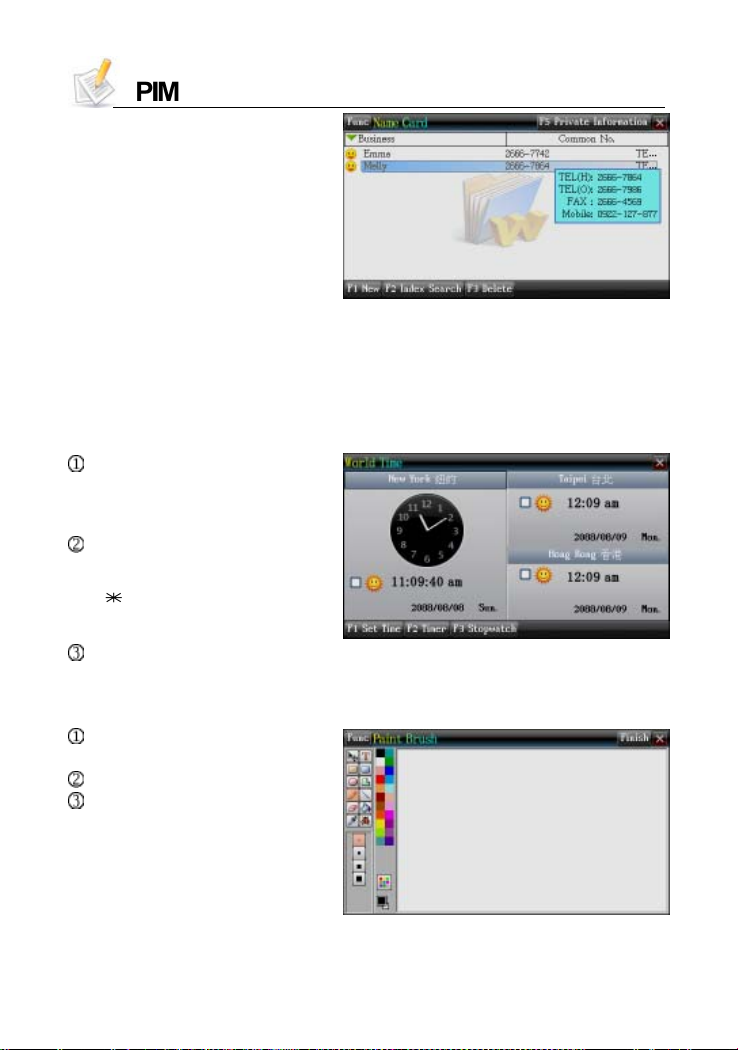
View the phone No.
1.3 Detail View
You can view the details of data, and modify, copy and delete data.
Besides, words can be cross searched in corresponding dictionaries.
2. World Time
Provides date and time
display for local city as
well as others.
Provides local city, date
and time settings.
Tap time/date/city
name on the screen to set.
Provides timer, stopwatch.
3. Paint Brush
Provides 12 tools and 41
functions.
Provides 14 functions bars.
Provides 65,536 colors.
60
Page 65

4. Calculator and Conversion
Provides basic arithmetical, memory operations as well as percentage
and square root.
Provides Engineering calculations such as functions, trigonometry,
logarithm, angle and radian conversions.
Provides dress, shoes, hat size comparison charts of America, Britain,
Japan, Germany, Europe, etc.
Provides conversation function of 110 currencies and 2 user-defined
currencies, as well as the exchange rate setting.
61
Page 66
System Summary
Provides function of device setting, it makes you operation easier.
Provides Memory Management and File Management to clean up
and manage your folders.
PC Link
* Allows to receive data from PC via PCLink.
Memory Management
* Allows to view the status of the main memory, optimize memory
management and delete data.
After Service
* Provides BESTA information of Telephone, Fax, W ebsite, OS Version,
etc. Allows to upgrade system and view the copyright information.
Password Setting
* Allows to set, change or clear password and allows to lock/unlock
private data.
Startup Picture
* Allows to set startup picture and background.
Menu & Language Setting
* Allows to switch among five kinds of menu displays: Chinese,
English, Korean, Japanese and Spanish.
Power Management
* Allows to set auto power off time and power-saving time.
File Management
* Provides data management.
62
Page 67
* Provides function of data management, new folders created, rename,
delete.
* Allows to format the disk, rename files, exchange data between Ex
tended Card and device.
Sound Setting
* Allows to set startup music/schedule alarm, turn on/off pen & key
tone and select KK/DJ display.
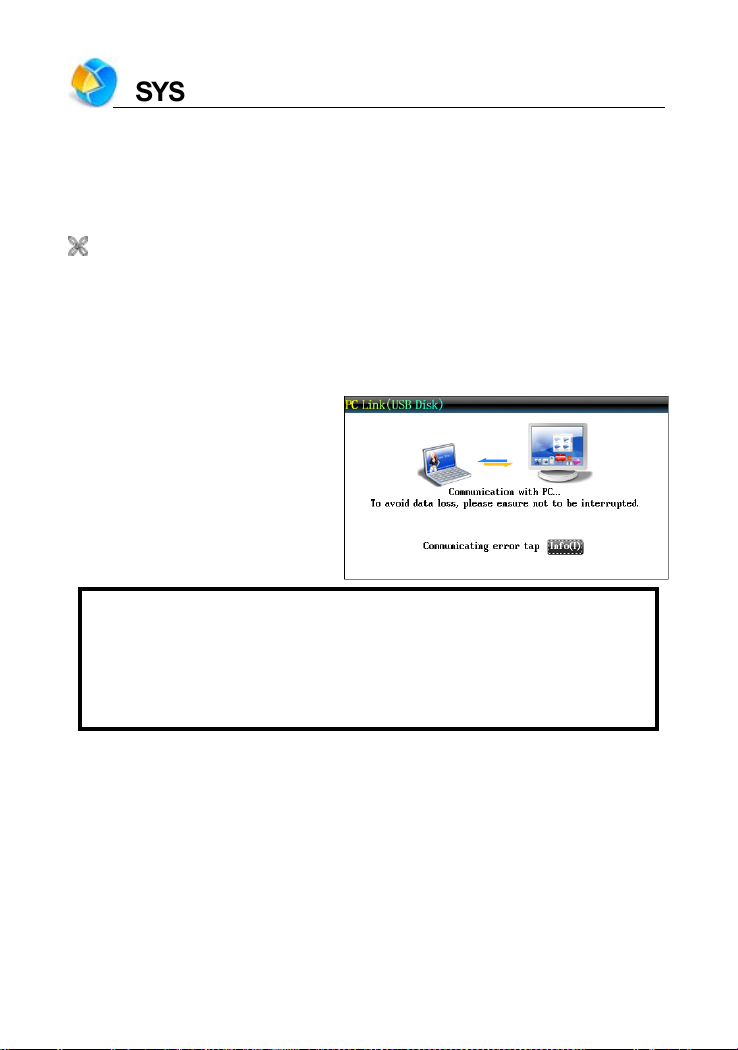
1. PC Link
Connect the device with PC
via PCLink cable, and then
you can transmit data. There
will be a message indicating
the current connection status
during and after transmission.
While connecting:
!! please do not interrupt, otherwise data may be lost. please make
sure there is enough power or the adapter is inserted.
!! Before pulling out the USB connecting line, please uninstall the
USB device safely.
2. File Ma nagement
This function allows to transmit data between card and the device. You
can create new folder or rename folder.
63
Page 68
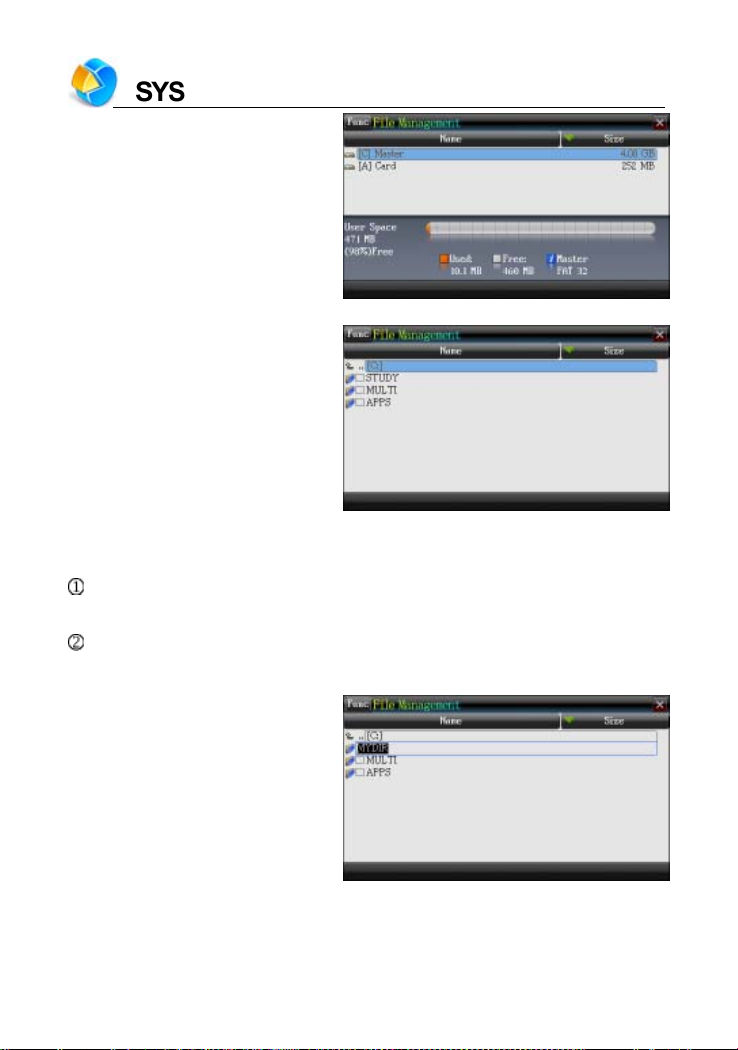
Open the top path
Press [ENTER] to access
the selected disk
2.1 Creating New Folder
Open the path in which you want to create new folder, and tap [Func] to
select “2 New Folder”.
The default name of new folder is “MYDIR”. Input new name and then
press [ENTER] to confirm.
Creating new folder
64
Page 69
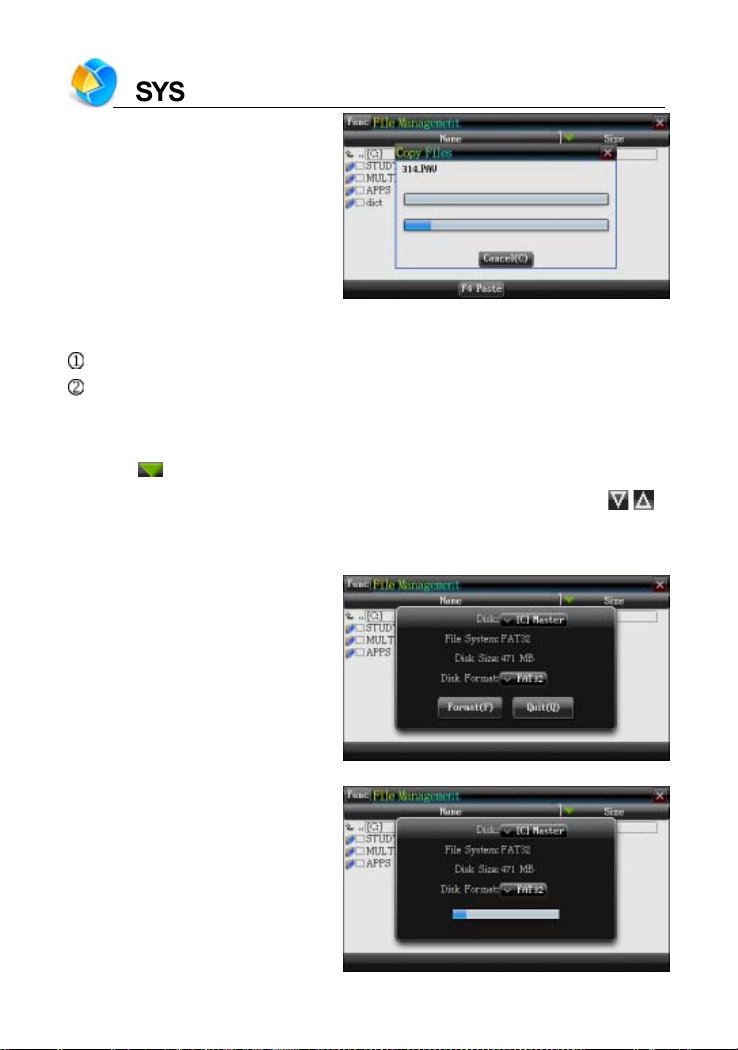
Copy data to device from card
2.2 Rename
Choose your desired file, and then tap [Func] to select “3 Rename”.
Input new file name, and then press [ENTER] to confirm.
2.3 Putting Folders in Order
*Tap to select item, as which the folders will put in order.
* Tap “Name” to put folders in the order, which will be marked by
2.4 Format
Select disk or file to be
formatted
/ .
Formatting
65
Page 70
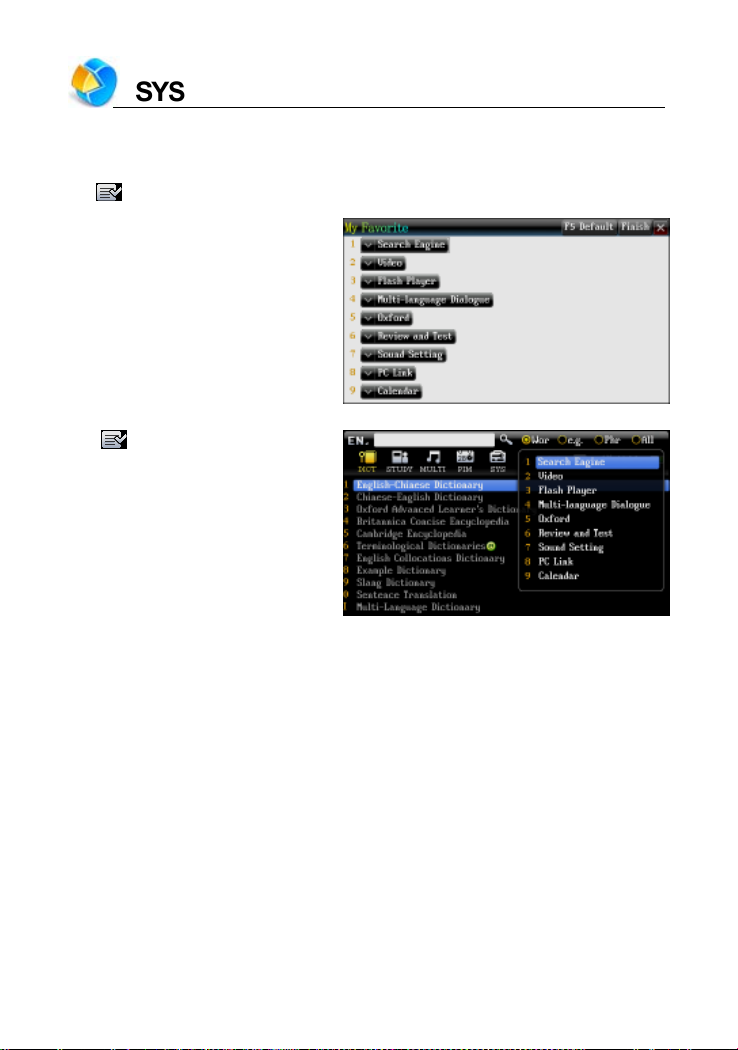
3. My Favorite
“My Favorite” provides 9 functions for users to set. After setting, you can
in the main menu to enter the function which set in “My Favorite”.
tap
My Favorite screen
in the main menu
Tap
66
Page 71

Index
Content of CD.........................................................................68
1. PC Service Home Installation..............................................69
1.1 S/W & H/W Requirements before Installation......................69
1.2 Installation steps.............................................................70
1.3 Opening the Program........................................................70
1.4 Communication................................................................71
1.5 Data Management............................................................73
1.5.1 Editing Data................................................................................73
1.5.2 Custom Field..............................................................................74
1.5.3 Editing a category......................................................................74
1.6 Import/Export..................................................................75
1.6.1 Importing Data...........................................................................75
1.7 Help.................................................................................76
2.Service T oolkit.........................................................................77
2.1EbEditor............................................................................77
2.1.1 Creating a Project.....................................................................78
2.1.2 Creating T ext..............................................................................78
2.1.3 Loading Images.........................................................................79
2.1.3.1 Loading Images........................................................79
2.1.3.2 Loading a Background Color ................................80
2.1.3.3 Converting a Batch of BMP Static Files into HCA
Animated Files.......................................................80
2.1.3.4 Other V arieties--Shutter , BlockSlide.....................81
2.1.4 Setting the Moving Path...........................................................81
2.1.5 Adding Audio Effects...............................................................81
2.1.6 Setting a Page Header/Page Footer....................................82
2.1.7 Playing the Content..................................................................82
2.1.8 Downloading to the Device....................................................82
2.2Video Converter..................................................................82
67
Page 72
Content of CD
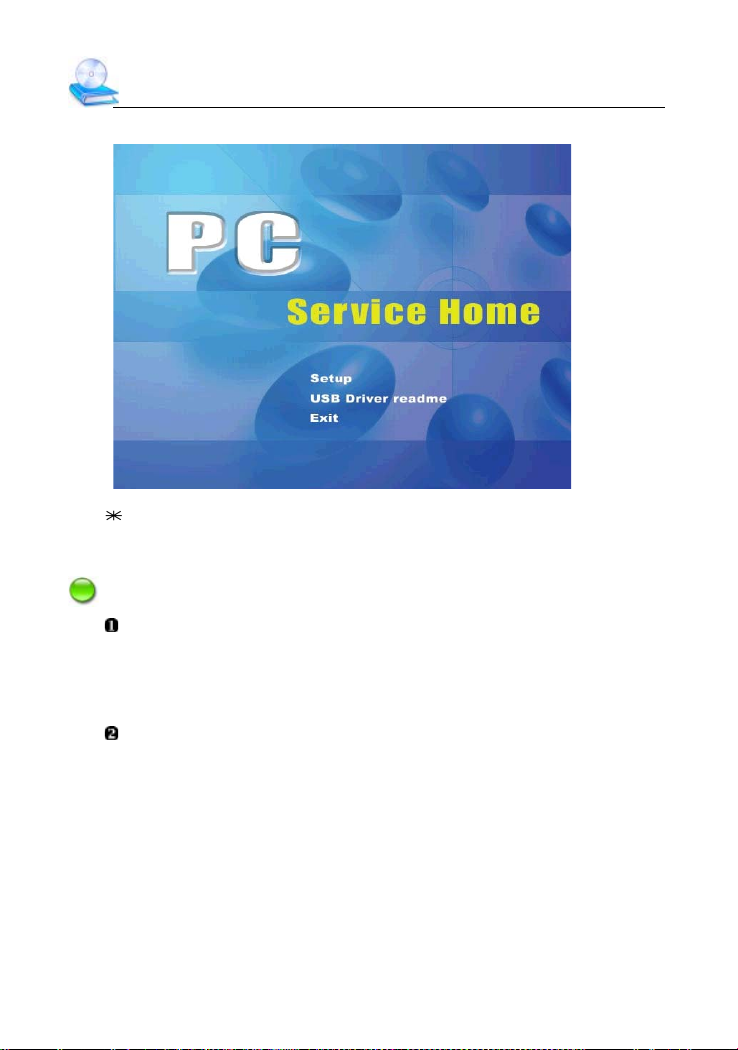
The attached CD-ROM provides PC Service Home.
picture 1
Setup: To install PC Service Home program, please refer to page
69~70.
Notes:
For Windows2000 users, we suggest you install Windows2000 Service
Pack 3 program provided by Microsoft. If Service Pack 3 is installed,
you don’t have to install USB driver program. Please select “USB
Driver readme” in picture 1 to follow the instructions to install.
For Windows2000 users, please access super administrator
(Administrator) to log in.
68
Page 73

PC Service Home Guide
1. PC Service Home Installation
PC Service Home provides ten functions: Media Download, Personal
Information Manager, Synchronization Center, Backup and Restore, CD
Express, Open U-Disk, Service Toolkit, Internet Download, DIY Dictionary
and Settings, which have these following characteristics:
* Download multimedia files like films, pictures and eBooks;
* Edit and manage data for Schedule, Name Card, etc;
* Synchronizing data between PC and the device;
* Backup and restore PIM data for Name Card, Memorandum, Schedule,
etc;
* Service Toolkit contains EbEditor and Media Factory that combine
with text, sound and picture;
* Share data between PC and the device;
* Provides tools which can convert the media file on PC into .bav or
.dsy that used only in our device.
1.1 S/W & H/W Requirements before Installation
You need to install PC Service Home program into your PC. The
following are the system requirements:
* Traditional Chinese/English/Windows2000/XP/Vista operating
system;
* CPU: Pentium (R) III 450MHz or better;
* LCD: VGA 800*600 or better, which is supported by Microsoft
Windo w s ;
* Version 5.5 version of Microsoft Internet Explorer or above;
* Minimum 650 MB of hard disk;
* CD-ROM;
* sound effect card.
69
Page 74
PC Service Home Guide
Notes:
When using the PCLink in English operation system, please make sure
to install Chinese Traditional font support: “Chinese (Traditional) Text
Display Support” and “Chinese (Traditional) Text Input Support”.
1.2 Installation ste ps
Insert the disk to PC, then there will appear a picture (as picture 1), tap
“Setup” to install.
Enter the screen of “Welcome to the Install shield”, click “Next”.
Enter the screen of “Choose Destination Location”, click “Browse...” to
select file folder of destination.
Click “OK” to confirm the selection in the screen of “Choose Folder”.
Click “Next” to select setup type.
Select “Typical”, and click “Next” to access to the screen of “Select
Program Folder”. Then click “Next” to continue.
The Install Shield Wizard begins to install EBook Editor to your
computer.
After installation is completed, click “Yes” or “No” to select whether to
restart your computer now, and then click “Finish” to end.
Notes:
To uninstall PC Service Home program, please access “Control Panel”
“Add/Remove Programs”. (Also can from “Programs” “PC Service
Home” “Uninstall PC Service Home”)
1.3 Opening the Program
Click “Start” menu “Programs” “PC Service Home” “PC Service
Home 2.0”, or double click the shortcut “
2)
70
” in desktop to open. (as picture
Page 75
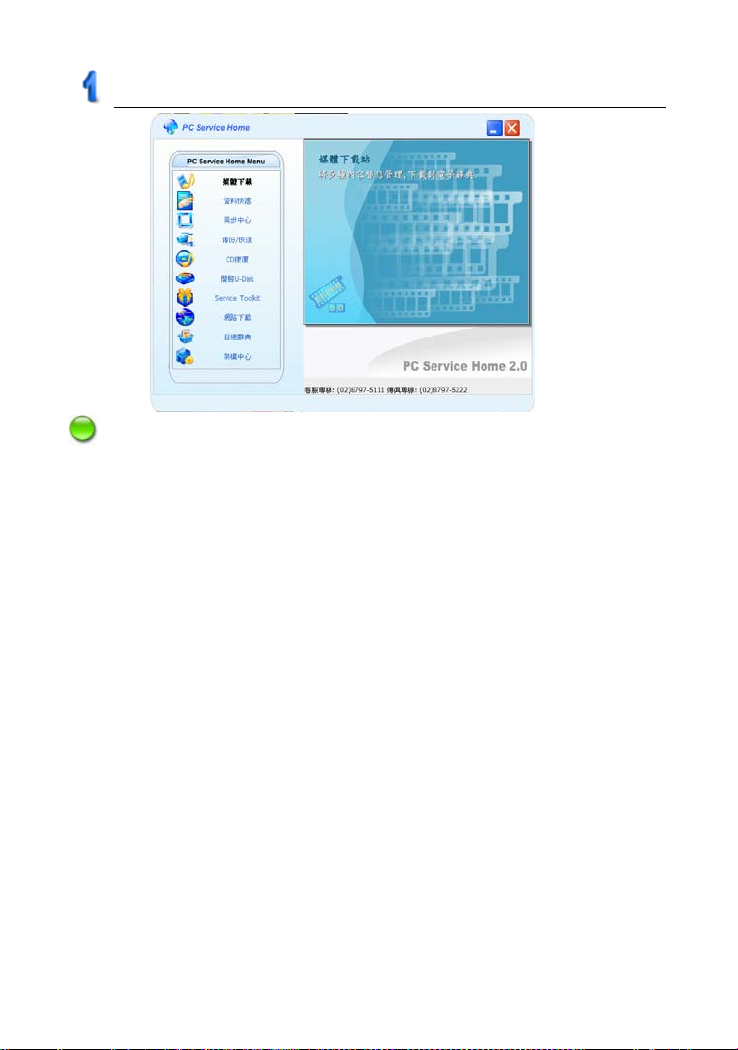
PC Service Home Guide
picture 2
Notes:
Please use standard font type in Windows to optimize PC Service Home
display.
1.4 Communication
Data communication is one of the functions in PC Service Home,
including Media Download, Synchronization Center, Backup and Restore,
CD Express and Open U-Disk.
* Media Download: Download applications, eBooks, etc, to
the device.
* Synchronization Center: Synchronize data in the device and PC,
which will overwrite old data by new one
and always keep contents the same; the
synchronized function supports PIM
applications, such as Anniversary,
Schedule and Name Card.
* Backup and Restore: Backup all data of the device in PC. To
restore all the backups from PC to the
device.
71
Page 76
PC Service Home Guide
* CD Express: Transfer music in CD-ROM to the
device in MP3 format.
* Open U-Disk: Move, copy, delete a nd append file folder,
etc., into PC via USB.
Notes:
PIM (Personal Information Management) means the data saved by
user.
Take “Media Download” as example to introduce operation steps:
Connect USB cable into the corresponding sockets, device will enter
the picture of “PC Link (USB Disk)”.
Click “Media Download” in PC Service Home to access the
downloading screen.
Select category list (such as “eBook”), right-click and select “Open” to
browse the content. (Video and MP3 files can be played by Preview
Media. You can also browse the information before downloading.)
Select the desired category and file, and then click “Download” to
download into the device.
Notes:
Please do not remove the cable, close the PC Service Home program
or turn off the power while synchronizing, they may cause system
corruption and damage to your data.
Tap “Scan e-dictionary” can search current title(s) in the device, if
some title(s) which are not the default path, can automatically move
the title(s) to the default path in order to make the operation easier.
* Backup and Restore
Repeat steps and of “Download”. Click , and then
select “Yes” to arrange the path where you’d like to keep backup file.
Input file name (*.BBK) and select “Save” to backup files. If click “No”,
72
Page 77
PC Service Home Guide
select the files to be restored to BBK format, and then click “Open old
files” to place it back to the device.
* Synchronization Center
Repeat steps and of “Download”, and then click .
* CD Express
Allows to transfer music in CD-ROM in the form of MP3 directly to your
device.
* Open U-Disk
Repeat steps and of “Download”, and then move, copy, delete or
create new file folder.
* Internet Download
Please go to our website to download and update data.
* DIY Dictionary
Import the DIY Dictionary in the device, and the contents can be created
or modified.
* Settings
Set “ADS Center, ADS Check, Media Download and System Settings”
respectively . Tap
, and then tap “ADS Check” to set.
1.5 Data Management
This allows you to append, modify data, edit category, and custom field
name on PC in PIM applications: Name Card, Memorandum, Anniversary,
Schedule, To Do List, Class Schedule and Income & Expense.
1.5.1 Editing Data (Take “Name Card” as Example)
* Click “New Record” “Name Card”. You may append Name Card data
on the editing screen. (as picture 3)
* To modify the content, double click the entry. (as picture 3)
73
Page 78
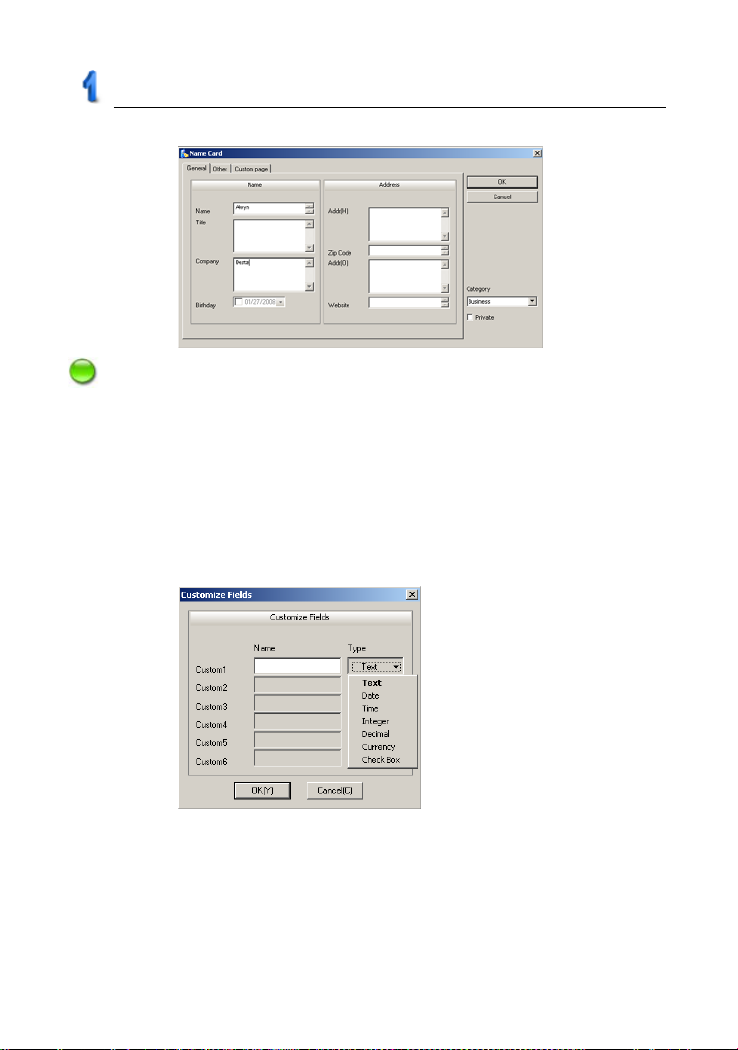
PC Service Home Guide
* To copy, paste or delete one or more entries, select the entries first.
picture 3
Notes:
Tap “Custom page”, and then Click the blank area of “Portrait” to import
BMP or JPG file as Name Card portrait.
1.5.2 Custom Field
Click “Edit Custom Fields” to add custom fields besides the built-in
fields. Up to 6 field types can be selected: text, date, time, integer, decimal,
currency, or check box, shown in picture 4.
picture 4
1.5.3 Editing a category
In Name Card and Memorandum, you may add up to 8 categories
(including built-in categories).
Tap “Manage Categories” in “Tasks Pane”:
74
Page 79
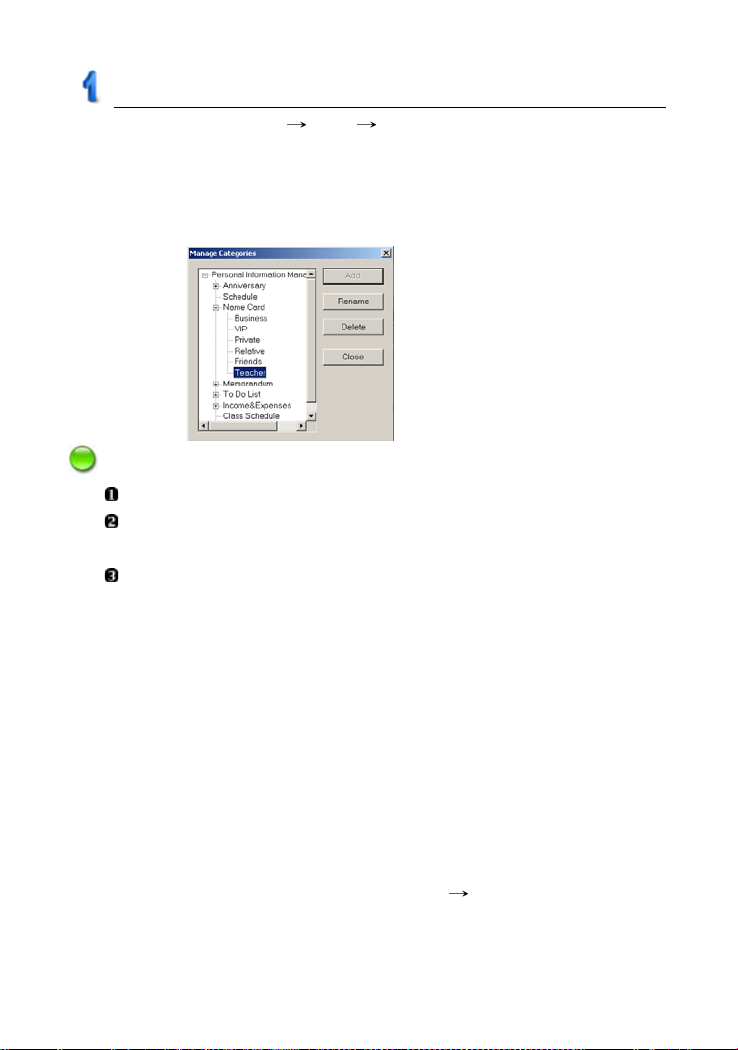
PC Service Home Guide
* Select “Name Card” “Add” input a new category “Teacher” (as
picture 5);
* Select “Delete” to delete the newly added category (built-in category
can not be deleted);
* Select “Rename” to rename the selected category.
picture 5
Notes:
Data can not be copied or pasted in different functions.
Custom field is not available in Anniversary, Schedule, To Do List,
Income & Expense or Class Schedule.
The name of custom field/category is up to 16 characters.
1.6 Import/Export
You can import/export corresponding data of Schedule, Name Card,
Memorandum, To Do List from PC Service Home to Outlook Calendar,
Contact, Notes and Tasks of PC, and you are allowed to import/export vCard
between both ends.
1.6.1 Importing Data (Take “Import Outlook contact” as
Example)
Import Outlook contacts to PC Service Home as Name Card.
* Click “File(F)” menu “Import and Export” “Import Outlook contact”.
* Tap “Next”, and then it displays “Import Outlook contact” window,
75
Page 80
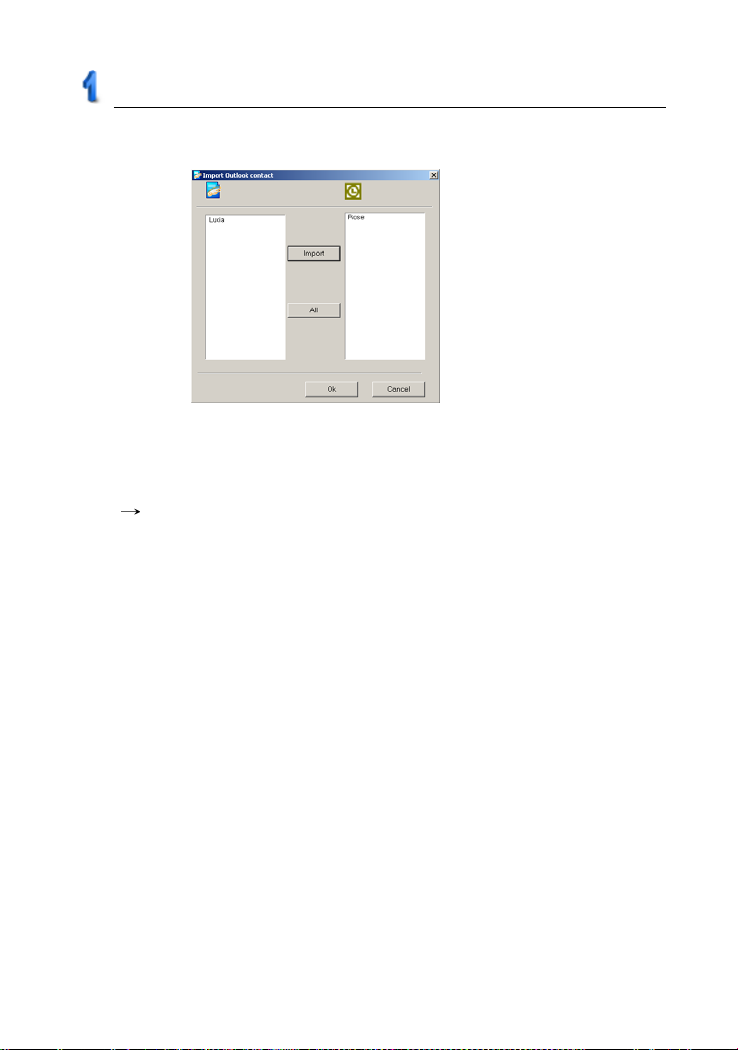
PC Service Home Guide
select data from the right area to be imported, click “Import” and then
click “OK” to import. (as picture 6)
picture 6
1.7 Help
When you have question and difficulty about operation, please click
“Help” “Help(H)” menu to see the on-line help.
76
Page 81
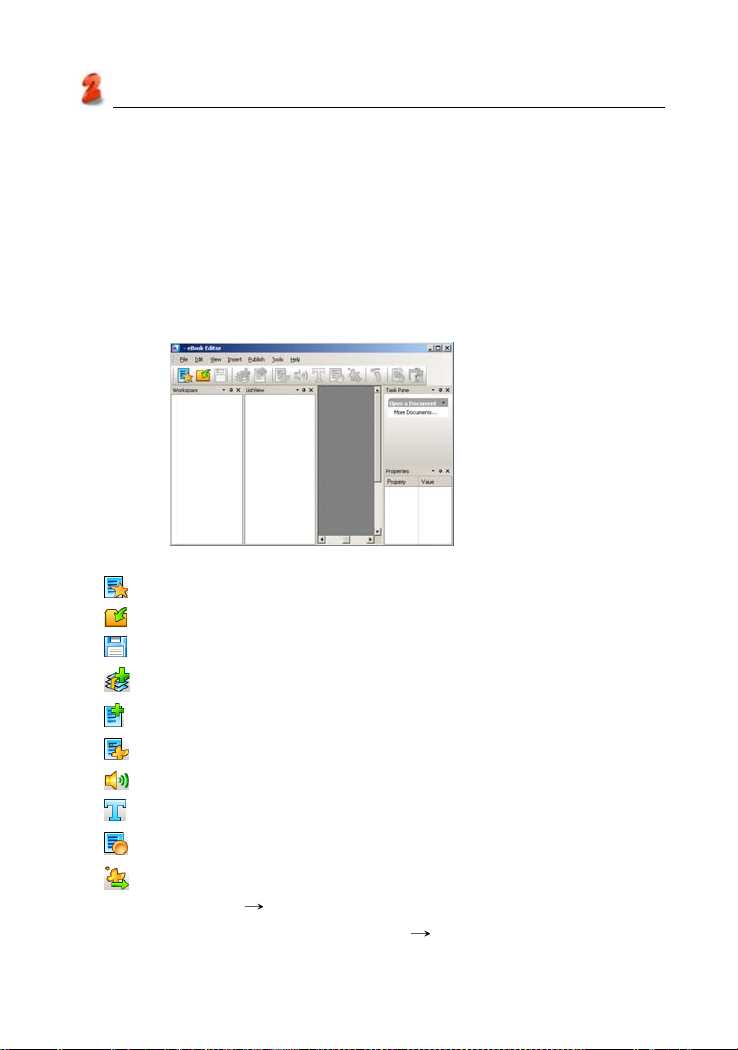
Service T oolkit
2. Service T oolKit
2.1 EbEditor
EbEditor is a software which supports 16 colors and color pictures
combined with text, sound and pictures. You can make a vivid and
interesting eBook or e-card by using the eBook editor in the CD/website.
Click “Service ToolKit” -- “EbEditor” in PC Service Home to access the
eBook editor screen. (as picture 7)
picture 7
Tool list:
(Create a new cm file): To create a new project.
(Open existed file): To open an existed project.
(Save file): To save current project.
(Add CM): To add a new CM in the index of a project.
(Play eBook file): To play eBook with special effect.
(Add image): To add picture or animated cartoon in the current CM.
(Add sound): To add MP3 file in the current CM.
(Add text): To add text in the current CM.
(Add text button): The button of adding text in the current CM.
(Add output control): You may use macro function. please click
“Help” menu
Editor” of “Make your own eBook” “Using Macro to optimize your
eBook”.
“Content” to view “Advanced functions of eBook
77
Page 82
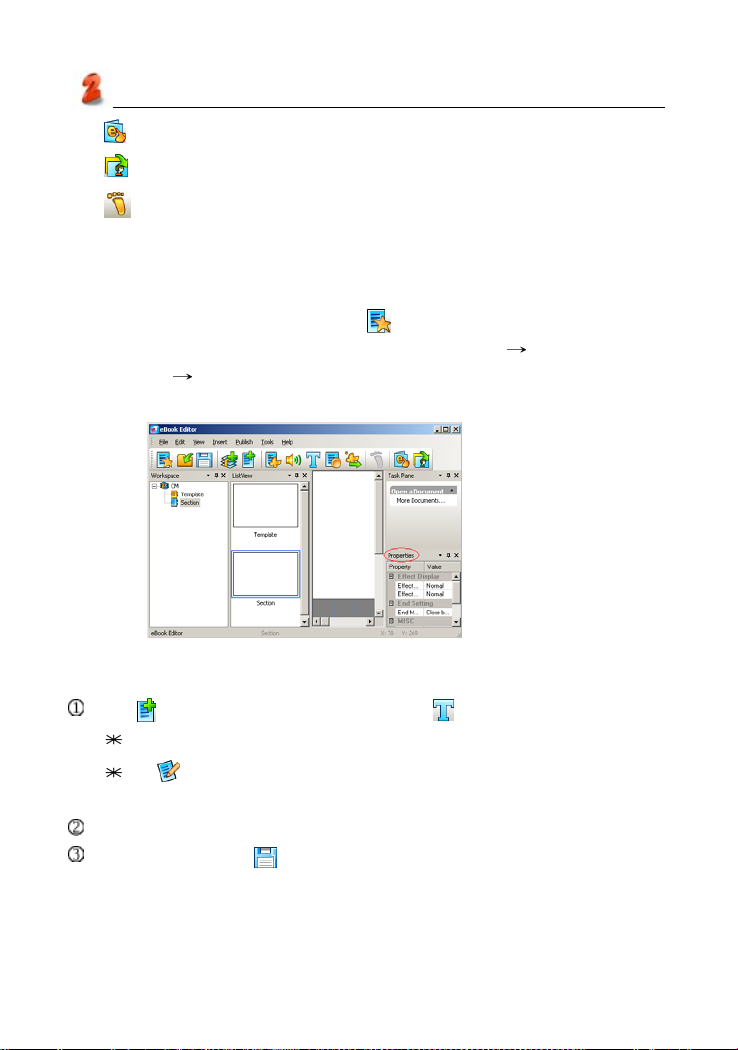
Service T oolkit
(Play eBook): Play the eBook in the simulating circumstance.
(Convert images): To convert BMP file into HCA file.
(Set [start/end] Moving path): To set moving path for the text or
image.
2.1.1 Creating a Project
* On the “Index” screen, click icon in the top left of the tool bar.
* Input “Project Name” (you can name it by yourself)
platform click “OK”. (as picture 8)
* Click the “Properties” bottom to modify the contents’ mode.
Select the model
picture 8
2.1.2 Creating Text
Tap to create a new section, then click to access text editing area.
Input words in the text editing area directly.
Tap on the tool bar to choose the type of files (.txt or .html), then
loading the files directly.
Choose the type of the “words effect” what you want. (as picture 9)
Click “OK” and tap to save text files at last.
78
Page 83
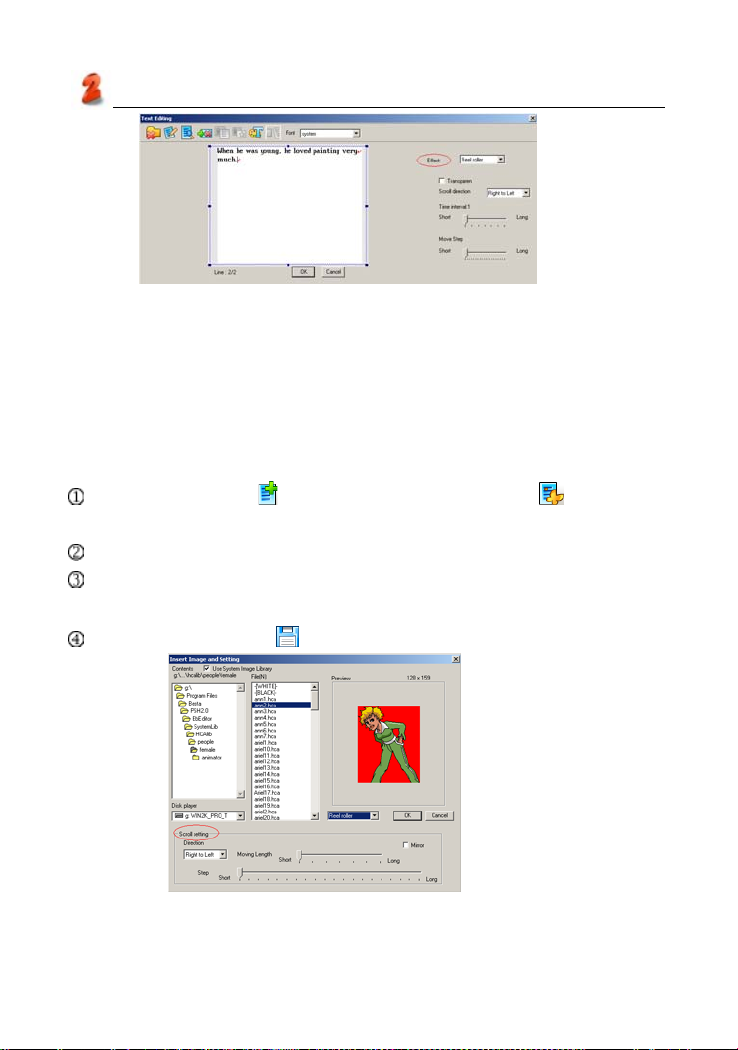
Service T oolkit
picture 9
2.1.3 Loading Images
Before loading images, you have to convert BMP, JPG or GIF format into
HCA format. It is recommended that your images are less than 320*240
pixels.
2.1.3.1 Loading Images(Static Images, Animation Images)
Select “Section” or to add a new section, then click from the tool
bar.
Tick “Use system image library”, select HCA file from file folder.
Select an image variety mode in the preview area (as picture 10):
Normal, Reel roller, Stereo scroll.
Click “OK”, then click to save file.
79
picture 10
Page 84
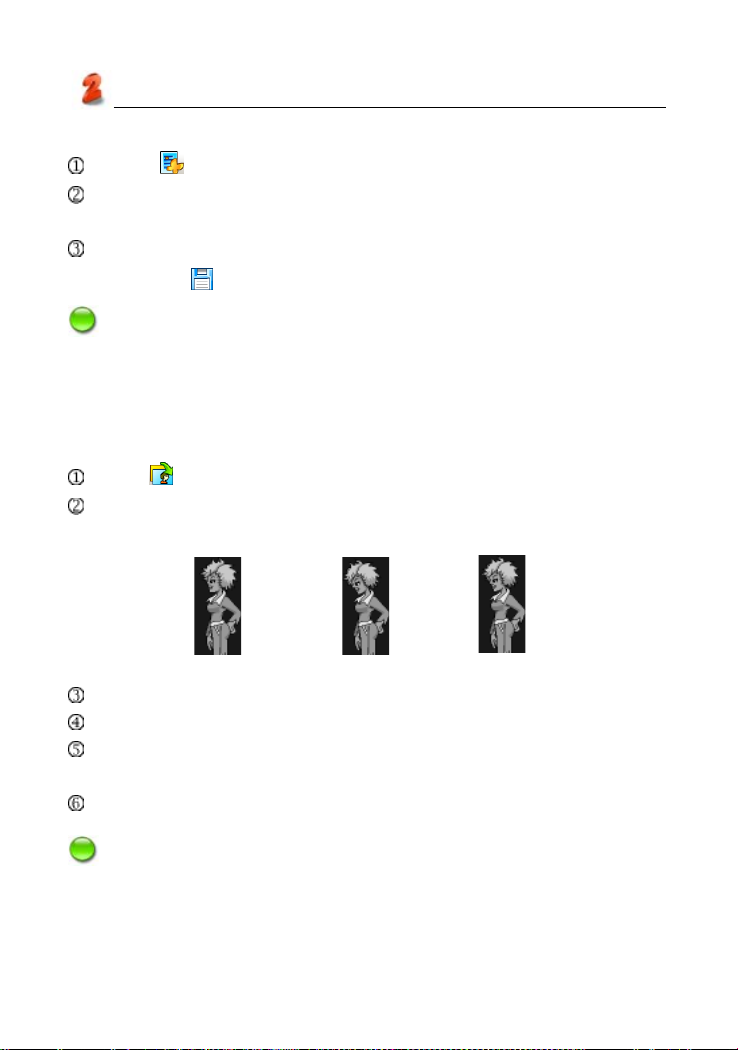
Service T oolkit
2.1.3.2 Loading a Background Color
Select from the tool bar.
Click “-[BLACK]-”, then select color from the color plate at the bottom of
the picture, Click “OK”.
Right-click in the editing area. Select “Layer” , select “Push to bottom”.
then click
Notes:
he background color will appear only when the text is transparent.
2.1.3.3 Converting a Batch of BMP Static Files into HCA A-
nimated Files
Click to convert the images.
Click “Open” to select all BMP files (files must be of the same resolution)
to be converted as a countdown animation. then click “Open” to open.
to save file.
ann1_a.BMP ann2_a.BMP
Use “UP” and “DOWN” button to rearrange files in order.
Select the color of the images, please don’t click “Batch Processing”.
Click “Compress”, and then select where to put the file folder and input
file name.
Click “Save” to get an HCA animation file.
Notes:
It is recommended that you should name the files in sequential order,
edit with number and put an underline between letter and digit. Please
make sure that the color of the 16-color animated file you’re converting
ann3_a.BMP
80
Page 85
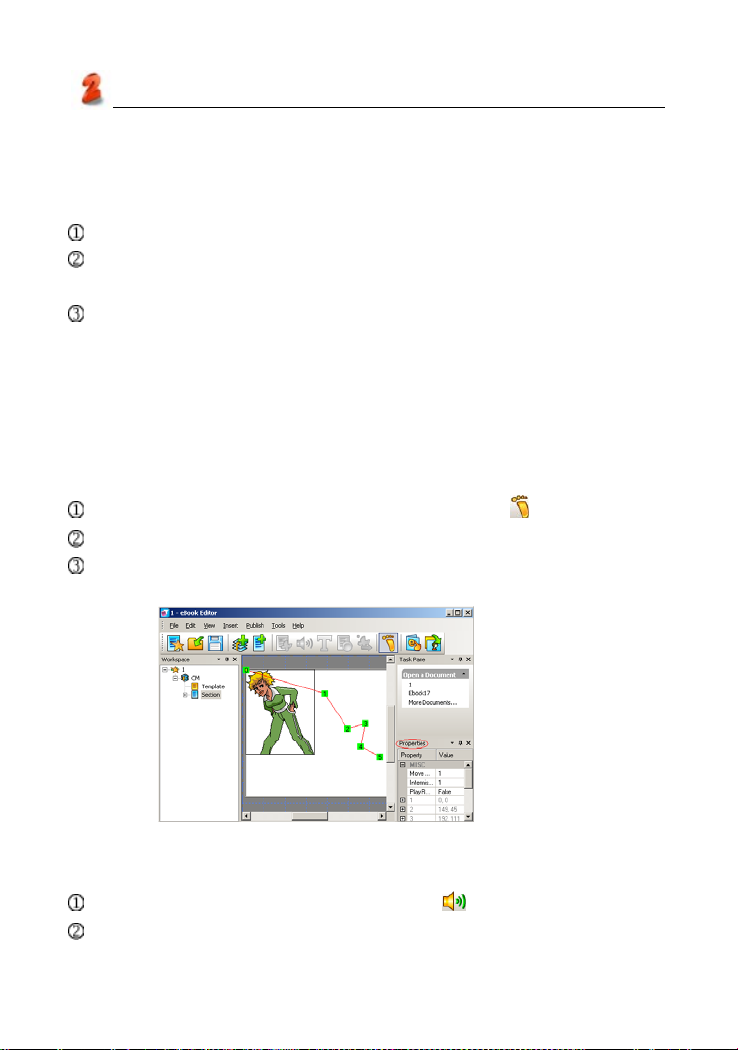
Service T oolkit
does not exceed 15-color limit. As for animation of 256-color, make
sure the limit of 255-color is not exceeded.
2.1.3.4 Other Varieties--Shutter, Block Slide
Select “Section setting” from the pop-up menu.
Select a style from the drop-down menu of Begin and End: Horizontal
shutter, Vertical shutter, Fade out.
Select an Ending mode: Close by animation, Close by key, Close by
time.
2.1.4 Setting the Moving Path
You can set path in which the image or text is moved. Direction of the
movement depends on the number you marked. You can set speed and
length of the step for the moving path.
Select a section, text or picture to be moved, Click .
Left-click in editing area to set the order of path.(as picture 11)
Select moving length and delay interval. Click “Repeat play” if necessary,
and then click “OK”.
picture 11
2.1.5 Adding Audio Effects
Select a section to add audio effect, Click .
Click “System library”, select an MP3 file (16kbps-320kpbs) from the
list.
81
Page 86

Service T oolkit
Select play time, set start time, tick “Cycle play”, click “OK”.
2.1.6 Setting a Page Header/Page Footer
Switch to the “Index” screen. Select “Edit”, then “Set Page header/footer”.
Click “Insert” to insert page number, date and time at page header or
page footer. You can input the content manually, then click “OK”.
2.1.7 Playing the Content
Select to play the eBook contents.
Click page up/down to play the previous/next page; click “ESC” to close
it.
2.1.8 Downloading to the Device
Click “Media Download” to access the download screen.
Firstly, click “eBook” in “Category List”, and then click “Scan” in tool bar,
select (.book) files to download.
After searching, click files in “My Computer”, and then click “Download”
icon to download.
You can select reading in <F4MULTI -- eBook>.
2.2Video Converter
Video Converter is an easy film converting tool. It can convert the
common media (mpg, mpeg, avi, dat, rm, rmv, mov, mp4, vob, asf, flv, 3gp)
into avi file that can play in the electronic dictionary and PC.
Open Video Converter. (as picture 12)
82
Page 87
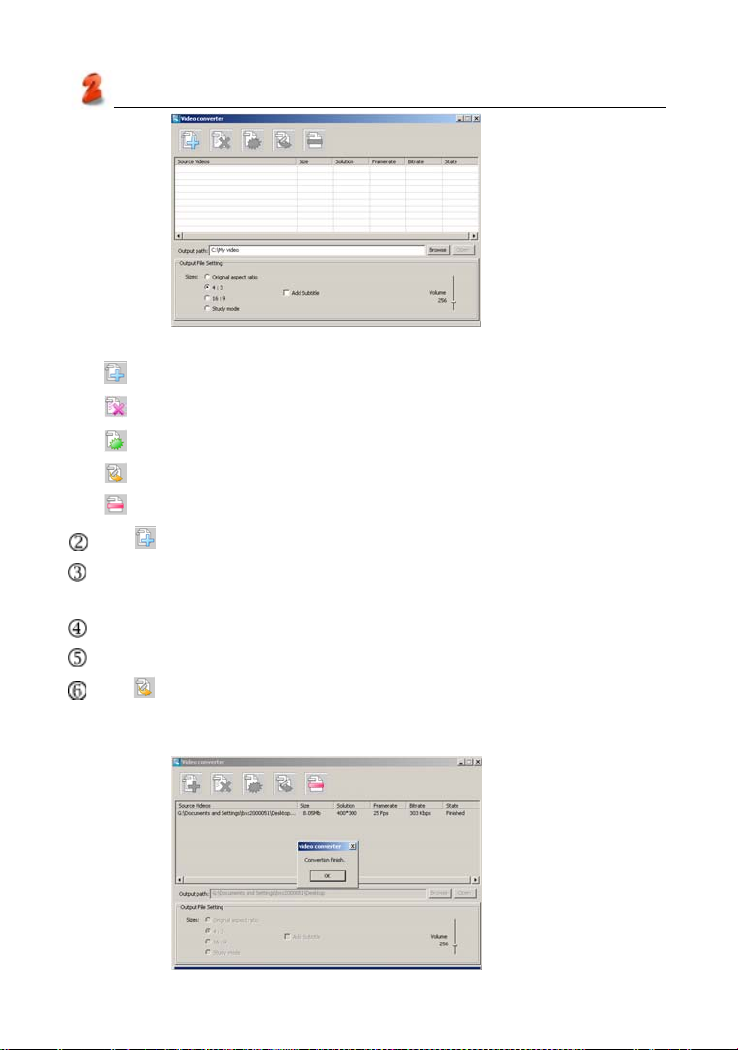
Service T oolkit
picture 12
Tool bar:
:Add the media files which need to be converted.
:Delete the files which you selected.
:Delete the files in the file list.
:Begin to convert files.
:Stop to convert files.
Tap to select the files which need to be converted, then click “OK”.
Tap [Browse] to browse the folder of output files, default path of SYS is:
C:\MY video.
You could set size of the output files, default proportion: [4:3].
Use mouse to adjust the voice volume.
Tap , begin to convert to a avi format file. After f inish converting, esca p e
from the display frame, there will be a mention is “Convertion Finish”.
(as picture 13)
83
picture 13
Page 88

Maintenance
Maintena nce
1. Keep it dry. Precipitation, humidity and liquid that contains minerals
willcorrode electronic circuits.
2. Do not use or store it in dusty, dirty areas as its detachable parts may be
damaged.
3. Do not store it in hot areas. High temperatures can shorten the life of
electronic devices, damage batteries, and melt certain plastics.
4. Do not store it in cold areas. When the device warms up, moisture can
form inside it, which may damage electronic circuit boards.
5. Do not attempt to take the device apart. Improper handling may damage
the device.
6. Do not drop, knock or shake it. Improper handling may cause damage
to the liquid crystal panel.
7. Do not use harsh chemicals, cleaning solvents, or strong detergents to
clean the device.
8. Do not paint it. Paint can clog the device ‘s detachable parts and cause
it to malfunction.
Do not operate the device below the temperature 0 or over 40 degrees.
Excessive heat or cold will cause malfunction and incur damage to the
device. To avoid such from happening, please do not use the device for two
hours after it has been exposed to excess heat or cold, because the humidity or moisture formed by the temperature changing will cause damage to
the device.
84
Page 89

Sp eci f ications of M emory Card
Kingston Class 4 SDHC 4GB/8GB/16GB/32GB
Kingston Class 6 SDHC 4GB/8GB
Kingston SD 1GB/2GB
Sandisk UltraII Class 4 SDHC 4GB/8GB/16GB
Sandisk Extreme III Class 6 SDHC 4GB/8GB
Sandisk Standard Class 2 SDHC 4GB/8GB
Sandisk SD 2GB
Sandisk UltraII Class 4 SD 2GB
Sandisk Standard Class 2 SD 2GB
PQI SD 1GB/2GB
Adata Speedy SD 2GB
Adata Turbo 150X SD 2GB
Transcend SD 4GB
PDC SD 1GB
Sandisk Mobile Ultra Micro SDHC 8GB
Sandisk Micro SDHC 4GB/8GB
Sandisk Micro SD 1GB/2GB
Kingston Micro SD 2GB
PQI Micro SD 2GB
PDC MMC 1GB
85
Page 90

FCC NOTICE
This equipment has been tested and found to comply with the limits of
a Class B digital device, pursuant to Part 15 of the FCC Rules. These limits
are designed to provide reasonable protection against harmful interference
in a residential installation. This equipment generates, uses and can radiate radio frequency
energy and, if not installed and used in accordance with the Instructions,
may cause harmful interference to radio communications. However, there
is no guarantee that interference will not occur in a particular installation. If
this equipment does cause harmful interference to radio or television
reception, which can be determined by turning the equipment off and on, the
user is encouraged to try to correct the interference by one or more of the
following measures:
1. Reorient/Relocate the receiving antenna.
2. Increase the separation between the equipment and receiver.
3. Connect the equipment into an outlet on a circuit different from that to
which the receiver is connected.
4. Consult the dealer or an experienced radio/TV technician for help.
CANADIAN NOTICE
This Class B digital apparatus meets all requirements of the Canadian
Interference-Causing Equipment Regulations.
86
 Loading...