

Page 1
Page 2

Contents
Attention ................................................................................................. 1
Preface
1. Layout .............................................................................................. 2
2. Keyboard ......................................................................................... 4
3. Key Description.............................................................................. 14
4. Touch Panel ................................................................................... 14
5. Indicator ......................................................................................... 15
6. Hot Key Functions ......................................................................... 15
7. The Stylus ...................................................................................... 16
8. The Panel ....................................................................................... 16
User’s Guide
1. Power Source ................................................................................ 17
1.1 Battery Replacing ............................................................................... 17
1.2 Battery Recharging ............................................................................ 18
1.3 Battery Power Checking .................................................................... 18
2. Card Inserting/Removing ............................................................... 19
3. Main Menu ...................................................................................... 20
4. Input Methods................................................................................. 21
4.1 English Keyboard Input Method ......................................................... 21
4.2 Special Symbols Keyboard Input Method .......................................... 22
4.3 Chinese Keyboard Input Methods ...................................................... 22
4.4 Japanese Input Method ....................................................................... 27
4.5 Korean Input Method .......................................................................... 27
4.6 Handwriting Recognition ..................................................................... 28
4.7 Tips for Handwriting Input ................................................................... 29
4.7.1 Improving the Recognition Rate ......................................................... 29
4.7.2 Writing Chinese with Standard Strokes ............................................. 29
4.8 On-screen English Keyboard ............................................................. 29
4.9 On-screen Symbol Keyboard ............................................................. 29
I
Page 3

Contents
5. Data Editing ................................................................................... 30
6. Data Search .................................................................................. 31
7. Date Selecting ............................................................................... 32
8. Numeric Inputting ........................................................................... 32
9. Time Setting ................................................................................... 33
10. Initializing ....................................................................................... 33
10.1 Reset the Device ................................................................................ 33
11. USB Disk ....................................................................................... 34
12. Menu Management......................................................................... 35
Dictionary
Features ............................................................................................... 37
1. Sentence Translation ..................................................................... 40
2. Data Index ...................................................................................... 43
2.1 Index Screen ...................................................................................... 43
2.1.1 Item Index ............................................................................................ 44
2.1.2 History .................................................................................................. 45
2.1.3 Language Selection ............................................................................ 45
3. Explanation .................................................................................... 45
3.1 Explanation Screen ............................................................................ 46
3.1.1 Font Size .............................................................................................. 47
3.1.2 Syllable Pronunciation ........................................................................ 47
3.1.3 Repetition ............................................................................................ 48
3.1.4 Read after the Device .......................................................................... 48
3.1.5 Other Data ............................................................................................ 49
3.1.6 Data Storing ........................................................................................ 5 1
3.1.7 Pronunciation ...................................................................................... 5 1
4. Data Search .................................................................................. 52
4.1 Smart Input Search ............................................................................ 52
4.2 Wildcard Search ................................................................................ 53
4.3 Cross Search ..................................................................................... 54
4.4 Secondary Search ............................................................................. 55
II
Page 4

Contents
4.5 Multi-layered Search .......................................................................... 57
4.6 Other Data Search ............................................................................. 58
4.7 Special Data Search .......................................................................... 58
5. Professional Use Dictionary........................................................... 59
6. Word Search ................................................................................. 60
7. Extended Card ............................................................................... 61
Study
Features ............................................................................................... 63
1. Animated Grammar ........................................................................ 67
2. Animated Phrases ......................................................................... 69
3. General English Proficiency Test ................................................... 72
3.1 Mock Exam ........................................................................................ 72
3.2 Practice Room ................................................................................... 72
4. Interactive English .......................................................................... 74
4.1 Situation ............................................................................................. 74
4.2 Content .............................................................................................. 74
4.2.1 All ......................................................................................................... 75
4.2.2 Role Play ............................................................................................. 76
5. Listening&Speaking Classroom ..................................................... 76
5.1 Reading Studio ................................................................................... 77
5.2 Audio Studio ...................................................................................... 78
5.3 Vocal Studio ....................................................................................... 79
5.4 Baby American English ...................................................................... 79
6. Words Studio ................................................................................. 80
6.1 Words Browse ................................................................................... 80
6.2 Recite Word ....................................................................................... 81
7. Word Component .......................................................................... 82
8. Synonym-Antonym Dictionary ........................................................ 83
9. Travel Dialogue .............................................................................. 84
9.1 Dialogue ............................................................................................. 84
III
Page 5

Contents
9.2 Search ............................................................................................... 85
10. Slang Dictionary ............................................................................. 86
11. Extension Dictionary ...................................................................... 87
12. DIY Dictionary ................................................................................ 87
12.1 New Data ............................................................................................ 87
13. Review and Test ............................................................................. 89
13.1 Review ................................................................................................ 89
13.2 Test .................................................................................................... 89
13.3 Word Browser .................................................................................... 90
13.4 Sentence Making ............................................................................... 91
13.5 Sentence Review ................................................................................ 92
PIM
Features ............................................................................................... 93
Function Introduction
1. Data Input ...................................................................................... 95
1.1 Input Data in Field .............................................................................. 95
1.2 Custom Category ............................................................................... 96
1.3 Edit Category ..................................................................................... 96
2. Data Index ...................................................................................... 97
3. Detail View ..................................................................................... 98
Function Application
1. Name Card .................................................................................... 99
1.1 Portrait ............................................................................................... 99
1.2 Lock/Unlock Data ............................................................................. 100
2. Memorandum ................................................................................ 100
3. Schedule ....................................................................................... 101
3.1 Period ............................................................................................... 101
3.2 Index ................................................................................................ 102
4. To Do List ...................................................................................... 102
5. World Time ...................................................................................103
IV
Page 6

Contents
6. Calendar .......................................................................................104
7. Anniversary ...................................................................................105
8. Class Schedule ............................................................................. 105
9. Paint Brush ...................................................................................106
10. Calculator .....................................................................................106
11. Conversion ................................................................................... 107
12. Private Information ........................................................................108
System
Features .............................................................................................. 110
1. Communication with PC ............................................................... 112
2. Memory ......................................................................................... 112
3. Password Setting.......................................................................... 113
4. Power Management ...................................................................... 113
5. LCD Setting .................................................................................. 114
6. Music Setting ................................................................................ 114
7. Menu Setting .................................................................................115
8. Startup Picture .............................................................................. 115
9. Input Setting .................................................................................. 116
10. Phonetic Repeat ........................................................................... 116
11. Handwriting Setting ....................................................................... 117
12. After Service ................................................................................. 117
Multi
Features .............................................................................................. 118
Data Retrieve from Folder ................................................................... 120
1. MP3............................................................................................... 120
2. Video Learning ..............................................................................121
2.1 Key Function .................................................................................... 121
2.2 Play List ........................................................................................... 121
V
Page 7

Contents
3. Digital Recorder ............................................................................ 122
4. eBook............................................................................................123
5. Text Browser .................................................................................124
6. Flash Sprite ...................................................................................124
7. My Album ...................................................................................... 125
8. Games World................................................................................ 125
9. File Management...........................................................................126
9.1 Create New Folder ............................................................................ 126
9.2 Rename ............................................................................................ 127
9.3 Put Folders in Order ......................................................................... 127
9.4 Format ............................................................................................. 127
PCLink Contents.........................................................................................128
PCLink Operation Guide.........................................................................129
Maintanence...........................................................................................147
FCC NOTICE.........................................................................................148
VI
Page 8

Attention
Data Backup
All your personal data should be copied to separate permanent printed records.
Resetting the device will cause permanent personal data loss. Such loss is not
covered by warranty.
Touch Panel & Display
* To avoid scratching the screen, use the stylus that comes with this device only.
* When cleaning, rub the screen lightly with a dry, clean and soft cloth (do not
use volatile liquid).
Extended Card
* Insert the Secure Digital Card/Multi Media Card into SD/MMC slots. Turn off the
device before removing/inserting card. Otherwise, the memory of the device
may be lost and the card may be damaged.
* Do not remove the battery, turn off the power or insert/remove card during data
saving to avoid abnormality of the device.
Non-waterproof
The device is non-waterproof. Please keep it away from any liquid. In case it
gets wet, please dry the surface and send the device to our service center for
checking.
Magnetism
The product is magnetic. Please do not place it with other magnetic products to
avoid losing some functions.
Note:
We are obliged to charge user maintenance fee if the device is damaged due to
liquid percolation, improper placement of the device (such as eroder by moths), or
breakage in the screen (such as screen scratching or breaking) such man-made
damages.
1
Page 9
Preface
1. Layout
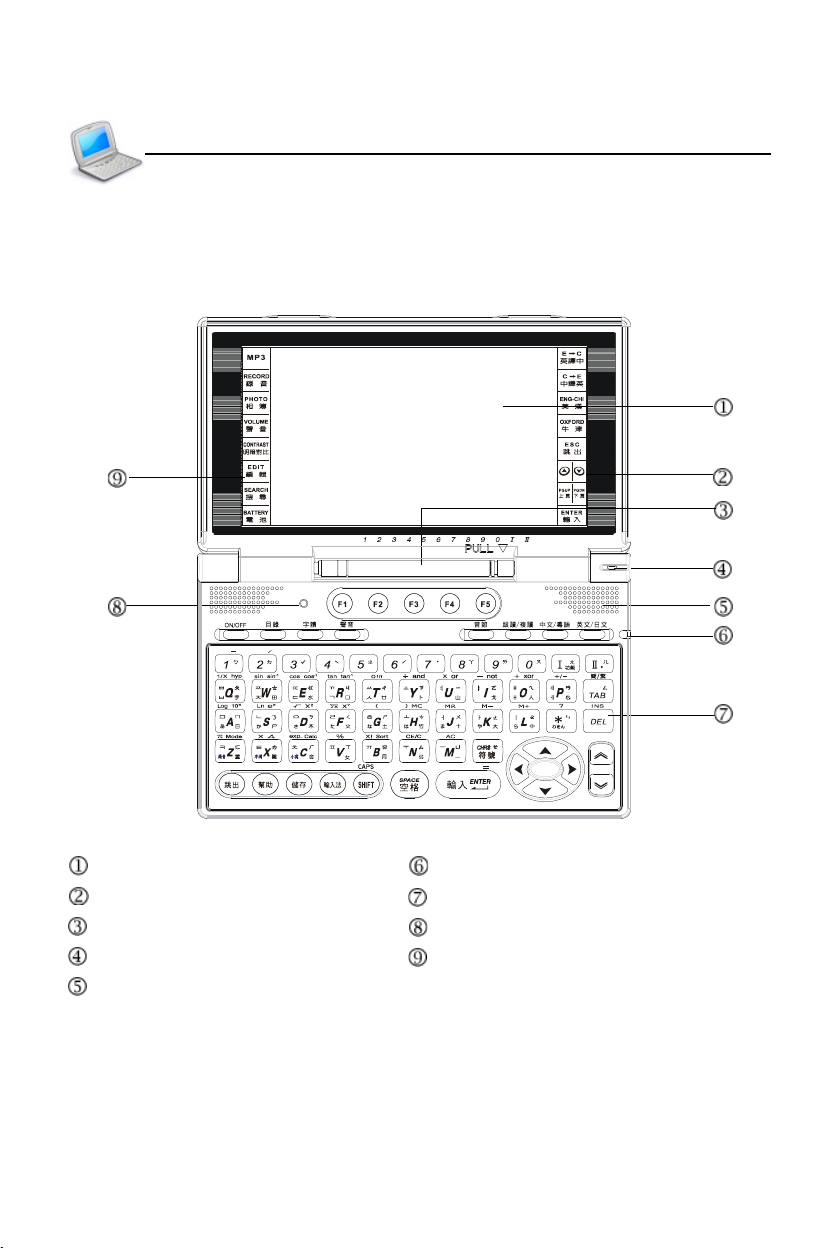
* Obverse Side:
Layout
Screen LED Indicator
Touch Panel (Right) Keyboard
Stylus RESET Key
Hidden Microphone Touch Panel (Left)
Speaker
2
Page 10
Preface
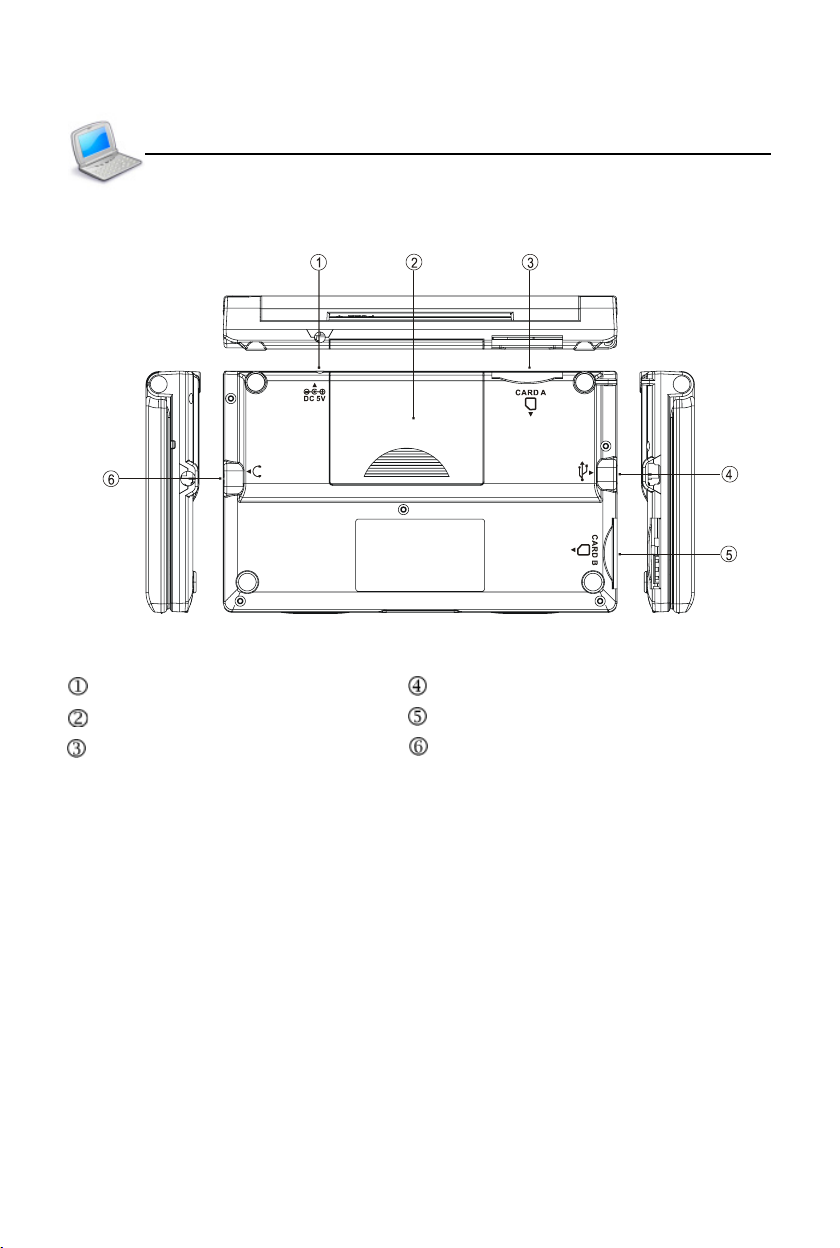
* Obverse Side:
DC Adaptor Socket Mini USB Slot
Battery Cover SD/MMC Slot B
SD/MMC Slot A Earphone Socket
Layout
3
Page 11
Preface
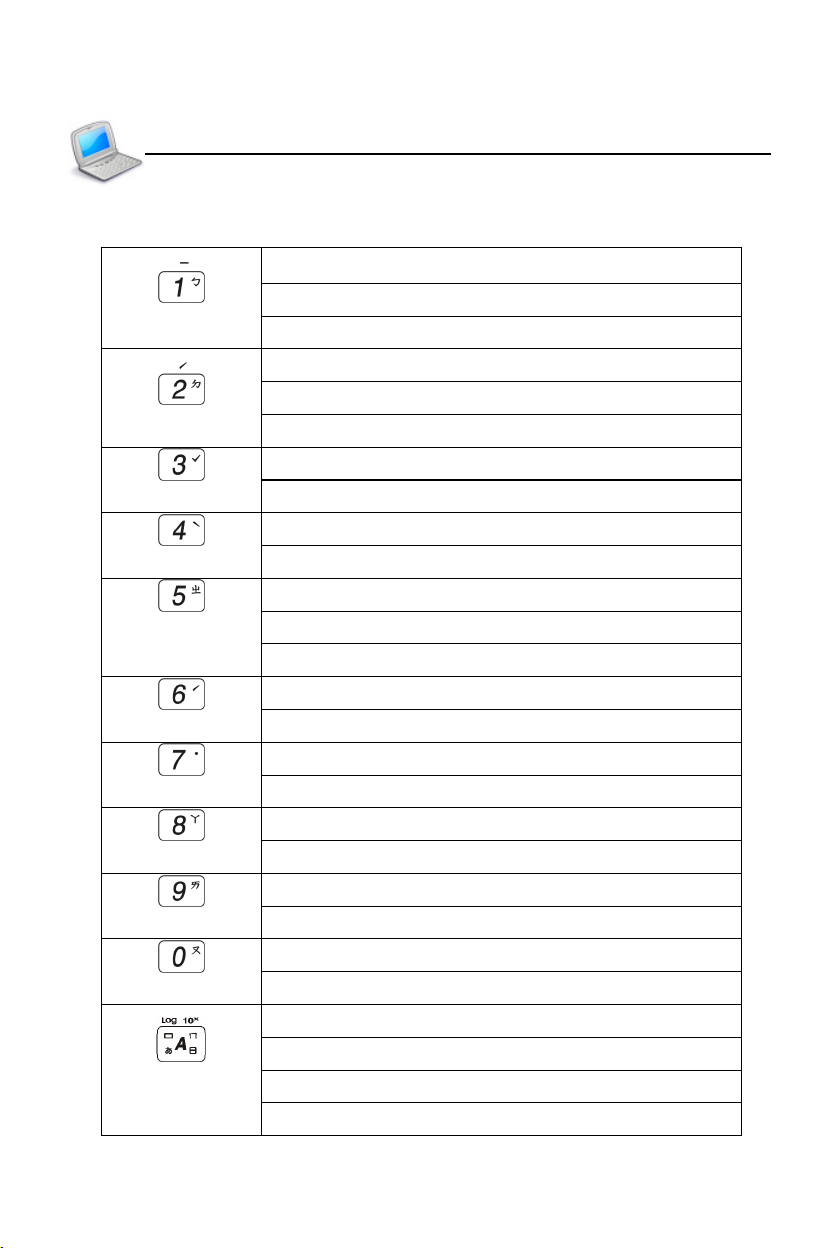
2. Keyboard
Numeric key “1”
Mandarin phonetic symbol “ㄅ”
The first tone of Pinyin input method
Numeric key “2”
Mandarin phonetic symbol “ㄉ”
The second tone of Pinyin input method
Numeric key “3”
The third tone of phonetic/Pinyin input method
Numeric key “4”
The fourth tone of phonetic/Pinyin input method
Numeric key “5”
Mandarin phonetic symbol “ㄓ”
The light tone of Pinyin input method
Numeric key “6”
The second tone of phonetic/Pinyin input method
Numeric key “7”
The light tone of phonetic/Pinyin input method
Numeric key “8”
Mandarin phonetic symbol “ㄚ”
Numeric key “9”
Mandarin phonetic symbol “ㄞ”
Numeric key “0”
Mandarin phonetic symbol “ㄡ”
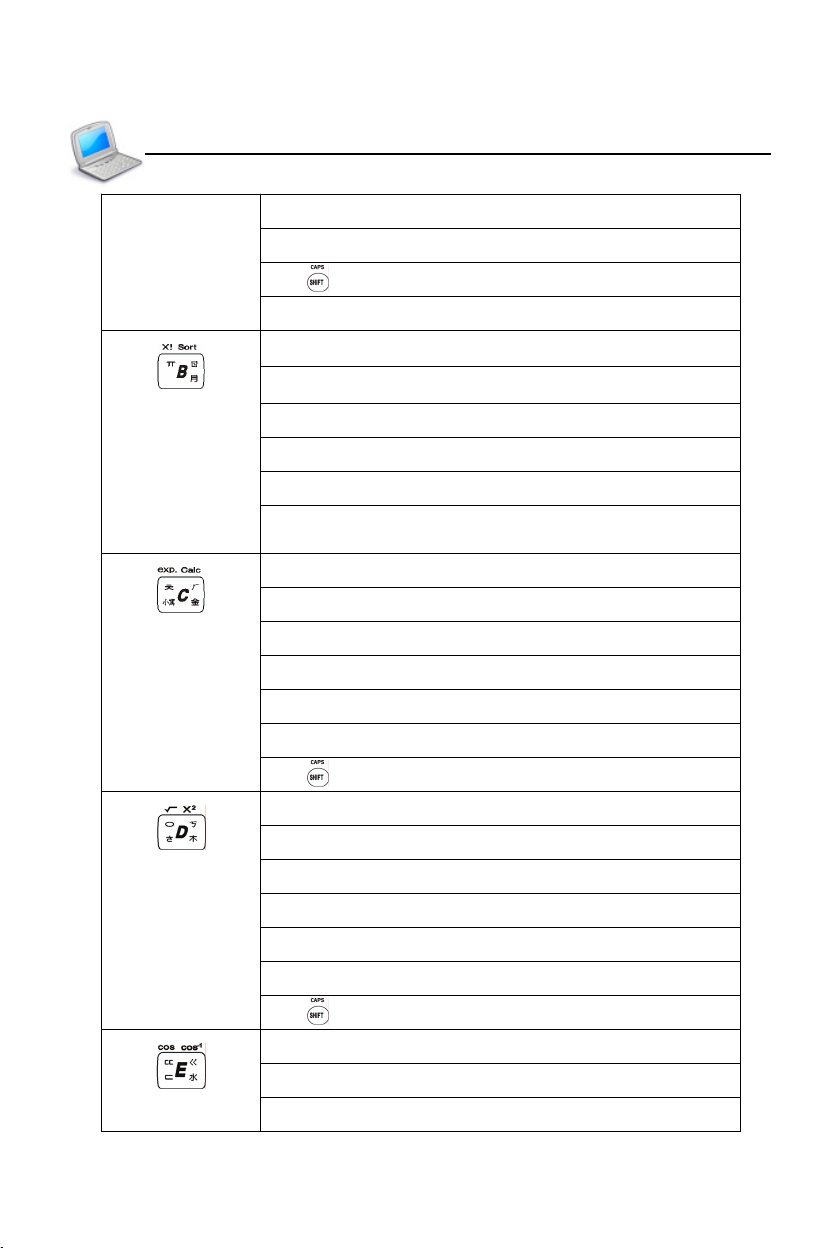
English letter “A”
Mandarin phonetic symbol “ㄇ”
ChangJie/Simplified ChangJie input method “日”
Japanese kana in “あ” line
4
Keyboard
Page 12
Preface
Keyboard
Korean Pinyin “ㅁ”
Mathematical sign: logarithm
With key, mathematical sign: X power of 10
AM setting in 12-hour system
English letter “B”
Mandarin phonetic symbol “ㄖ”
ChangJie/Simplified ChangJie input method “月”
Korean Pinyin “ㅠ”
Mathematical sign: factorial (!)
In Statistical Calculator, select sort form and sort
order
English letter “C”
Mandarin phonetic symbol “ㄏ”
ChangJie/Simplified ChangJie input method “金”
Japanese input method: lower case
Korean Pinyin “ㅊ”
Mathematical sign: scientific notation method
With key, get result in statistical calculator
English letter “D”
Mandarin phonetic symbol “ㄎ”
ChangJie/Simplified ChangJie input method “木”
Japanese kana in “さ” line
Korean Pinyin “ㅇ”
Mathematical sign: square root
With key, mathematical sign: square
English letter “E”
Mandarin phonetic symbol “ㄍ”
ChangJie/Simplified ChangJie input method “水”
5
Page 13
Preface
y
)
Keyboard
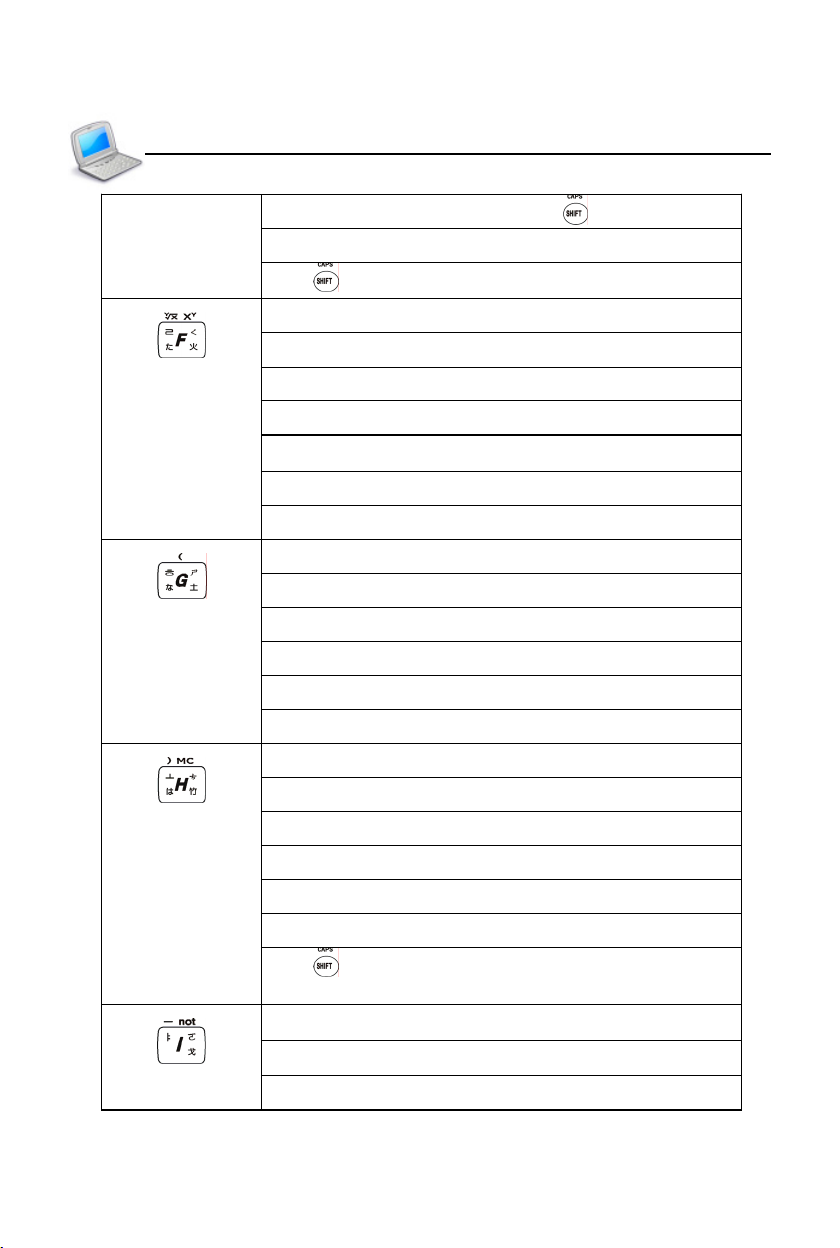
Korean Pinyin “ㄷ” and “ㄸ” (with ke
Mathematical sign: Cosine
With key, mathematical sign: arc Cosine
English letter “F”
Mandarin phonetic symbol “ㄑ”
ChangJie/Simplified ChangJie input method “火”
Japanese kana in “た” line
Korean Pinyin “ㄹ”
Mathematical sign: Y root of X
Mathematical sign: Y power of X
English letter “G”
Mandarin phonetic symbol “ㄕ”
ChangJie/Simplified ChangJie input method “土”
Japanese kana in “な” line
Korean Pinyin “ㅎ”
Mathematical sign: start bracket
English letter “H”
Mandarin phonetic symbol “ㄘ”
ChangJie/Simplified ChangJie input method “竹”
Japanese kana in “は” line
Korean Pinyin “ㅗ”
Mathematical sign: close bracket
With key, mathematical sign: MC (clear memory
numerals)
English letter “I”
Mandarin phonetic symbol “ㄛ”
ChangJie/Simplified ChangJie input method “戈”
6
Page 14
Preface
Keyboard
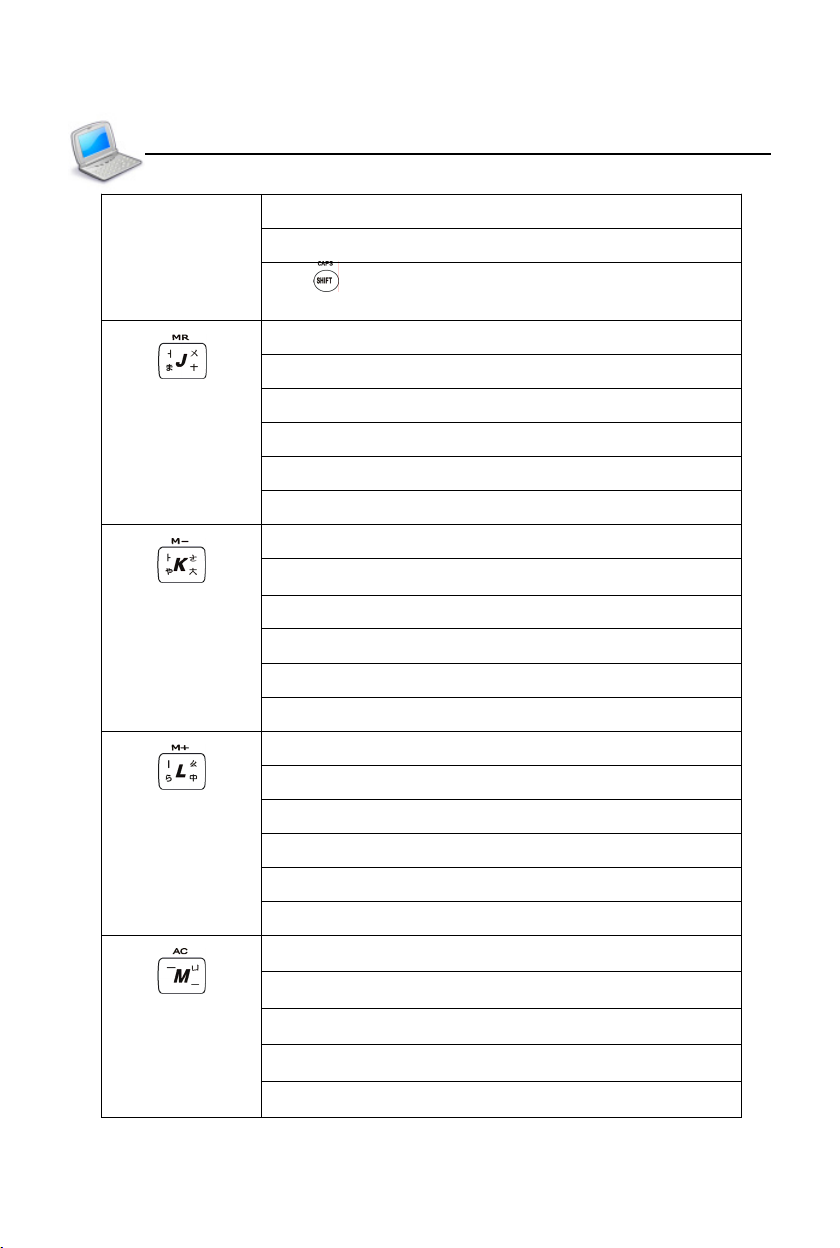
Korean Pinyin “ㅑ”
Mathematical sign: Subtraction
With key, logical operator “not” in scientific
calculation
English letter “J”
Mandarin phonetic symbol “ㄨ”
ChangJie/Simplified ChangJie input method “十”
Japanese kana in “ま” line
Korean Pinyin “ㅓ”
Mathematical sign: [MR] (display numerals)
English letter “K”
Mandarin phonetic symbol “ㄜ”
ChangJie/Simplified ChangJie input method “大”
Japanese kana “や”, “ゆ”, “よ”
Korean Pinyin “ㅏ”
Mathematical sign: [M-] (memory subtract)
English letter “L”
Mandarin phonetic symbol “ㄠ”
ChangJie/Simplified ChangJie input method “中”
Japanese kana in “ら” line
Korean Pinyin “ㅣ”
Mathematical sign: [M+] (memory add)
English letter “M”
Mandarin phonetic symbol “ㄩ”
ChangJie/Simplified ChangJie input method “一”
Japanese long tone
Korean Pinyin “ㅡ”
7
Page 15
Preface
Keyboard
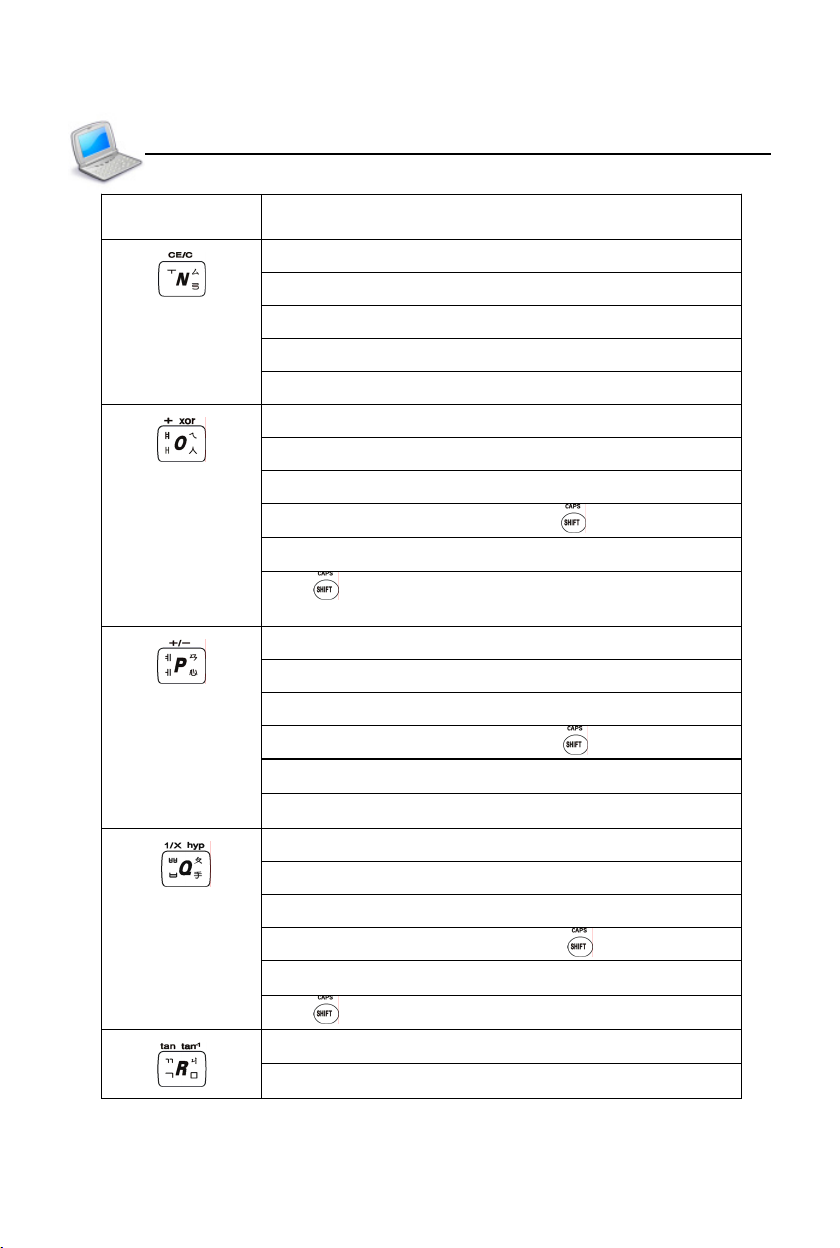
Mathematical sign: [AC] (clear/display memory
numerals and calculating steps)
English letter “N”
Mandarin phonetic symbol “ㄙ”
ChangJie/Simplified ChangJie input method “弓”
Korean Pinyin “ㅜ”
Mathematical sign: clear numerals
English letter “O”
Mandarin phonetic symbol “ㄟ”
ChangJie/Simplified ChangJie input method “人”
Korean Pinyin “ㅐ” and “ㅒ” (with key)
Mathematical sign: addition
With key, logical operator “xor” in scientific
calculation
English letter “P”
Mandarin phonetic symbol “ㄢ”
ChangJie/Simplified ChangJie input method “心”
Korean Pinyin “ㅔ” and “ㅖ” (with key)
Mathematical sign: positive/negative
PM setting for 12-hour system
English letter “Q”
Mandarin phonetic symbol “ㄆ”
ChangJie/Simplified ChangJie input method “手”
Korean Pinyin “ㅂ” and “ㅃ” (with key)
Mathematical sign: inverse
With key, mathematical sign: set hyperbola
English letter “R”
Mandarin phonetic symbol “ㄐ”
8
Page 16
Preface
Keyboard
ChangJie/Simplified ChangJie input method “口”
Korean Pinyin “ㄱ” and “ㄲ” (with key)
Mathematical sign: tangent
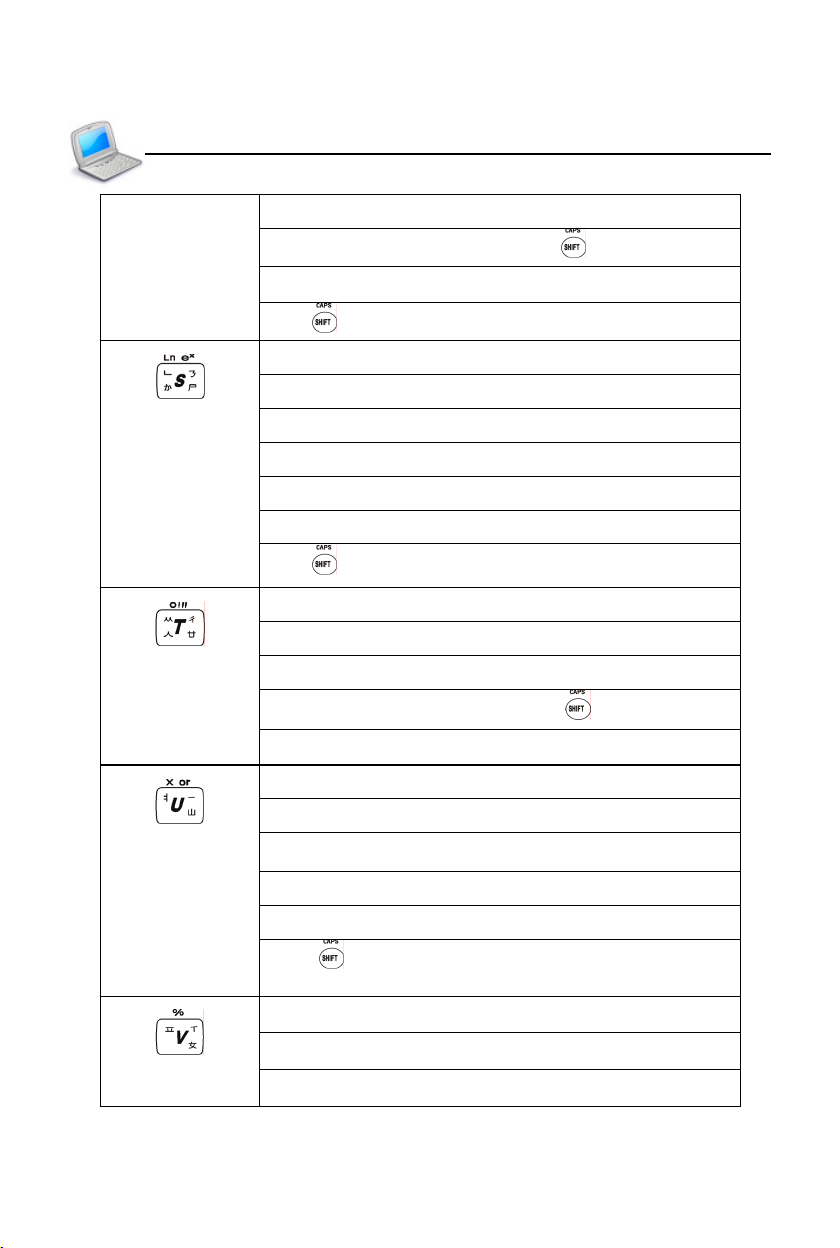
With key, mathematical sign: arc tangent
English letter “S”
Mandarin phonetic symbol “ㄋ”
ChangJie/Simplified ChangJie input method “尸”
Japanese kana in “” line
Korean Pinyin “ㄴ”
Mathematical sign: Ln (e=2.71828...)
With key, mathematical sign: X power of e
English letter “T”
Mandarin phonetic symbol “ㄔ”
ChangJie/Simplified ChangJie input method “廿”
Korean Pinyin “ㅅ” and “ㅆ” (with key)
Mathematical sign: °(degree), ' (minute), " (second)
English letter “U”
Mandarin phonetic symbol “ㄧ”
ChangeJie/Simplified ChangJie input method “山”
Korean Pinyin “ㅕ”
Mathematical sign: multiplication
With key, logical operator “or” in scientific
calculation
English letter “V”
Mandarin phonetic symbol “ㄒ”
ChangeJie/Simplified ChangJie input method “女”
9
Page 17
Preface
Keyboard
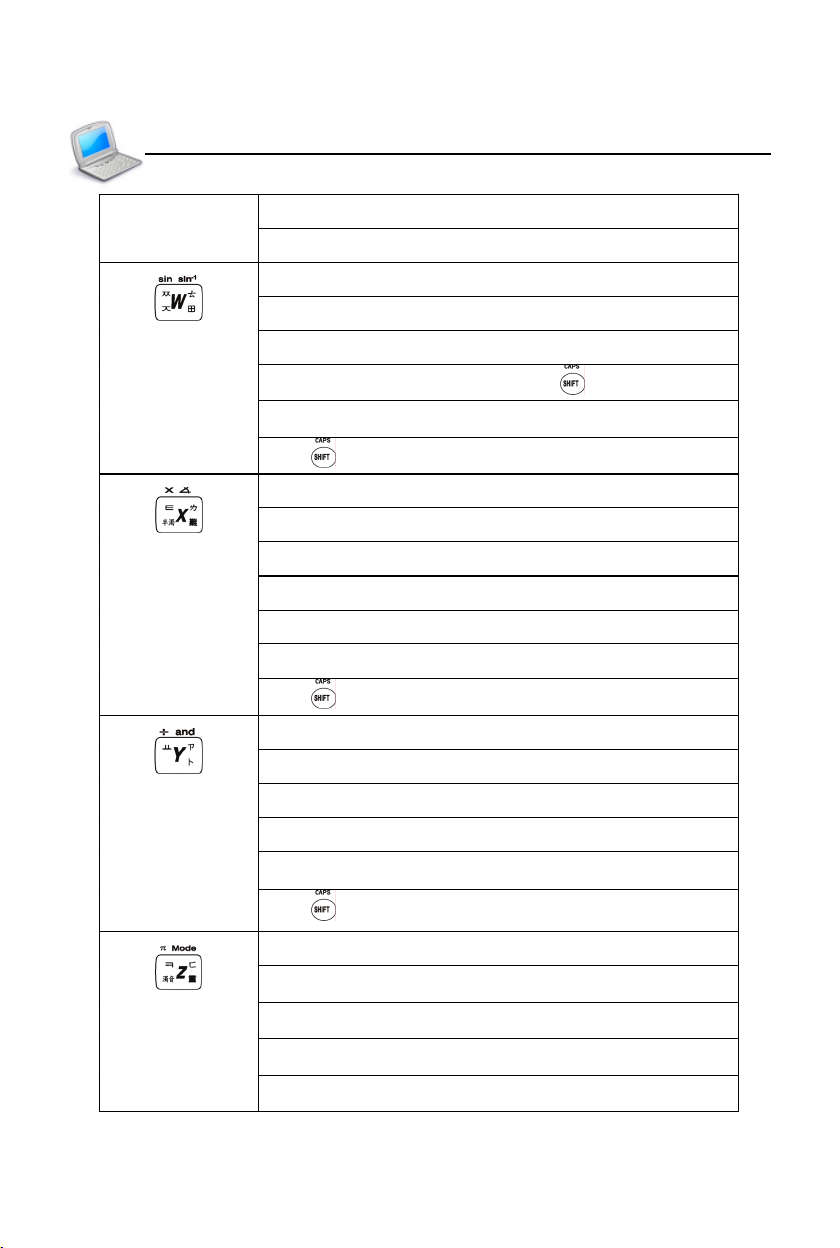
Korean Pinyin “ㅍ”
Mathematical sign: percentage
English letter “W”
Mandarin phonetic symbol “ㄊ”
ChangJie/Simplified ChangJie input method “田”
Korean Pinyin “ㅈ” and “ㅉ” (with key)
Mathematical sign: sine
With key, mathematical sign: arc sine
English letter “X”
Mandarin phonetic symbol “ㄌ”
ChangJie/Simplified ChangJie input method “難”
Japanese input method: half-voiced sound
Korean Pinyin “ㅌ”
Scientific plotting sign: X
With key, scientific calculation: angle conversion
English letter “Y”
Mandarin phonetic symbol “ㄗ”
ChangJie/Simplified ChangJie input method “卜”
Korean Pinyin “ㅛ”
Mathematical sign: division
With key, mathematical sign: and
English letter “Z”
Mandarin phonetic symbol “ㄈ”
ChangJie/Simplified ChangJie input method “重”
Japanese input method: voiced sound
Korean Pinyin “ㅋ”
10
Page 18
Preface
Keyboard
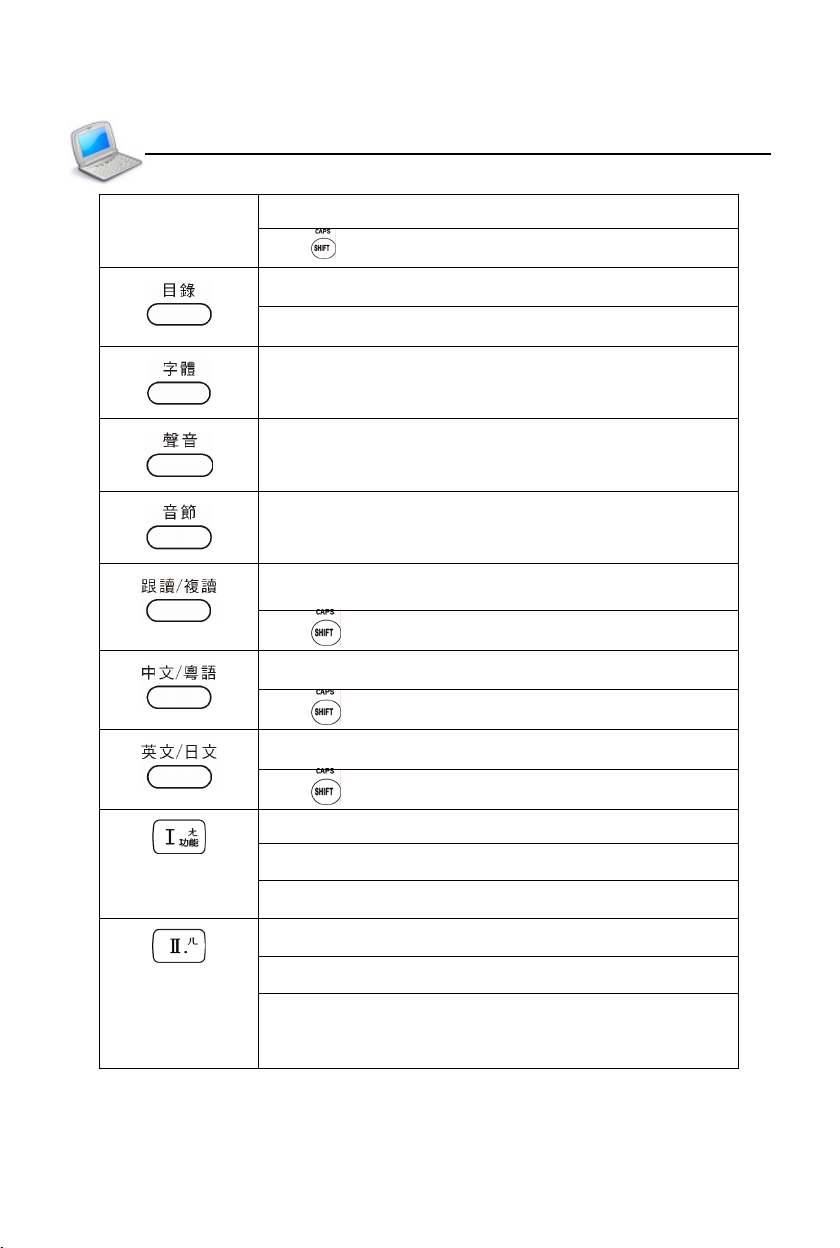
Mathematical sign: π (π=3.14159…)
With key, scientific calculation: mode conversion
Switch four languages in main menu
Directly return to the main menu
In the explanation screen of dictionaries and detail
view screen of PIM, switch three kinds of font sizes:
middle/big/small display
Set volume and speed
Pronounce syllable by syllable for multi-syllable words
in the explanation screen of dictionaries
Read after the device (In the explanation screen of
dictionaries, travel dialogue, interactive English, etc)
With key, repeat function
Pronounce Chinese
With key, pronounce Cantonese
Pronounce English
With key, pronounce Japanese
Select item “I” in main menu
Mandarin phonetic symbol “ㄤ”
Open “Function” menu, same as [Func] in screen
Select item “II” in main menu
Mandarin phonetic symbol “ㄦ”
Input symbol “.” in English input mode; input space
mark in Japanese input mode; input decimal point in
calculation
11
Page 19
Preface
Keyboard
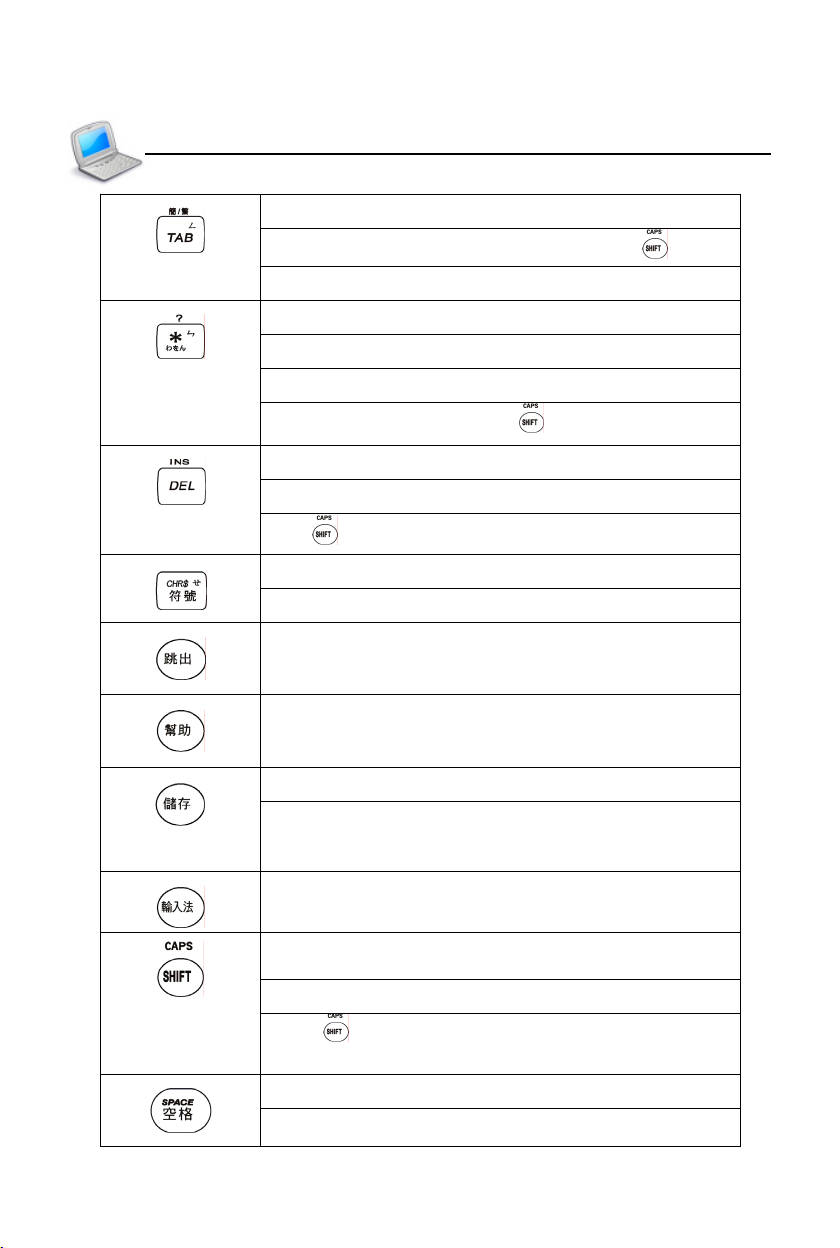
Switch options in some screens
Switch traditional/simplified character with key
Mandarin phonetic symbol “ㄥ”
Input asterisk “*”
Mandarin phonetic symbol “ㄣ”
Japanese kana “わ”, “を”, “ん”
Input question mark “?” with key
Delete a letter/character or select string
Delete the selected items, same as [Del] in screen
With key to switch the editing mode
Input symbols in English input mode
Mandarin phonetic symbol “ㄝ”
Exit from the current function or return to the previous
screen
Show on-line help messages
Save the current record or data
Save items in the explanation screen of dictionaries,
Travel Dialogue and Sentence Making for “Review
and Test”
Select input method
Temporarily lock the keyboard for inputting capital
letters in English
Combine with other keys
Press twice to lock keyboard for inputting capital
letters in English
Input a space when editing
The first tone of phonetic input method
12
Page 20
Preface
Keyboard
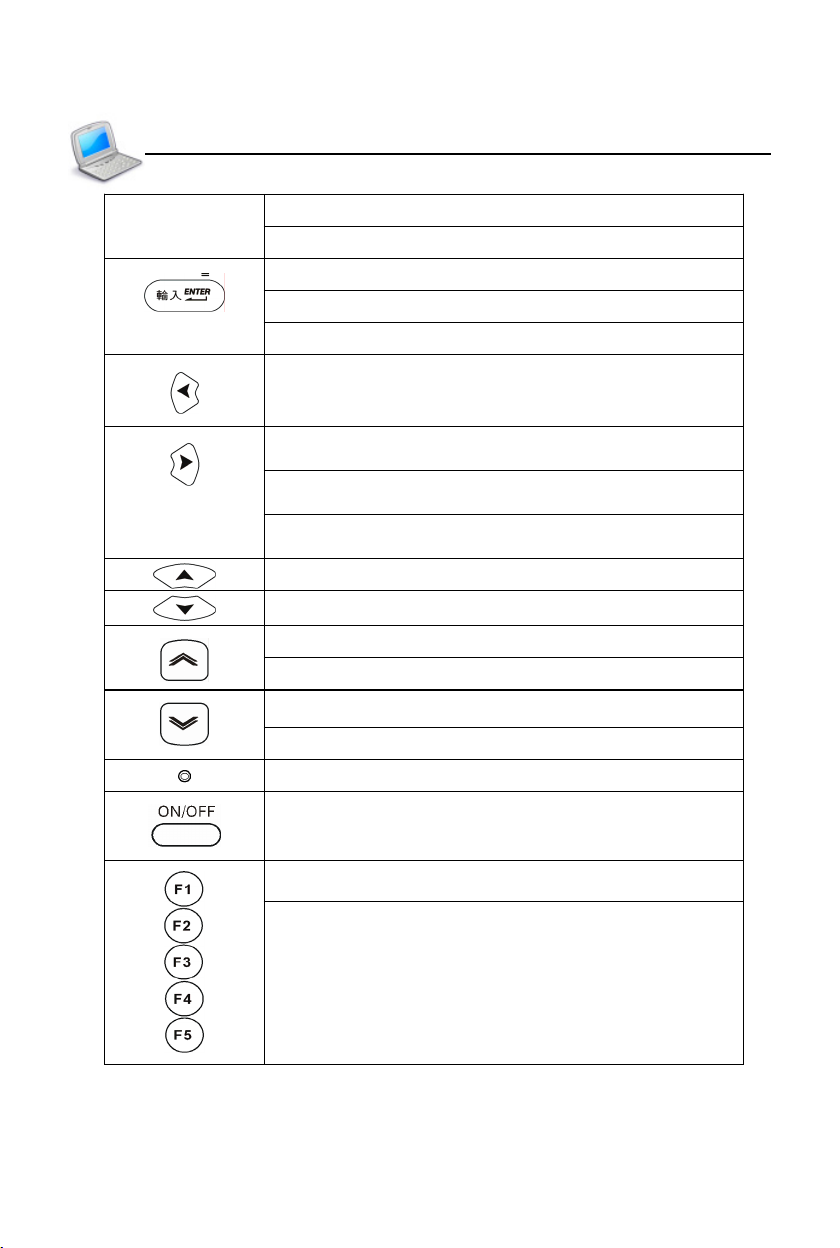
The light tone of Pinyin input method
Confirm the first choice when inputting Chinese
Confirm the current action
Move the cursor to the next line to input data
Mathematical sign: equal to [=] to calculate result
Left direction key; move the cursor left or page left
Right direction key; move the cursor right or page
right
Pronounce or search when data is highlighted in the
explanation screen of dictionaries
Modify equation in tabulation calculation (can be
downloaded)
Switch the cursor up or scroll a line up
Switch the cursor down or scroll a line down
Page up
View the previous data
Page down
View the next data
RESET key
Power on/off key
Select corresponding main menu
Function keys, same as F1~F5 in the screen
13
Page 21
Preface
Key Description/Touch Panel
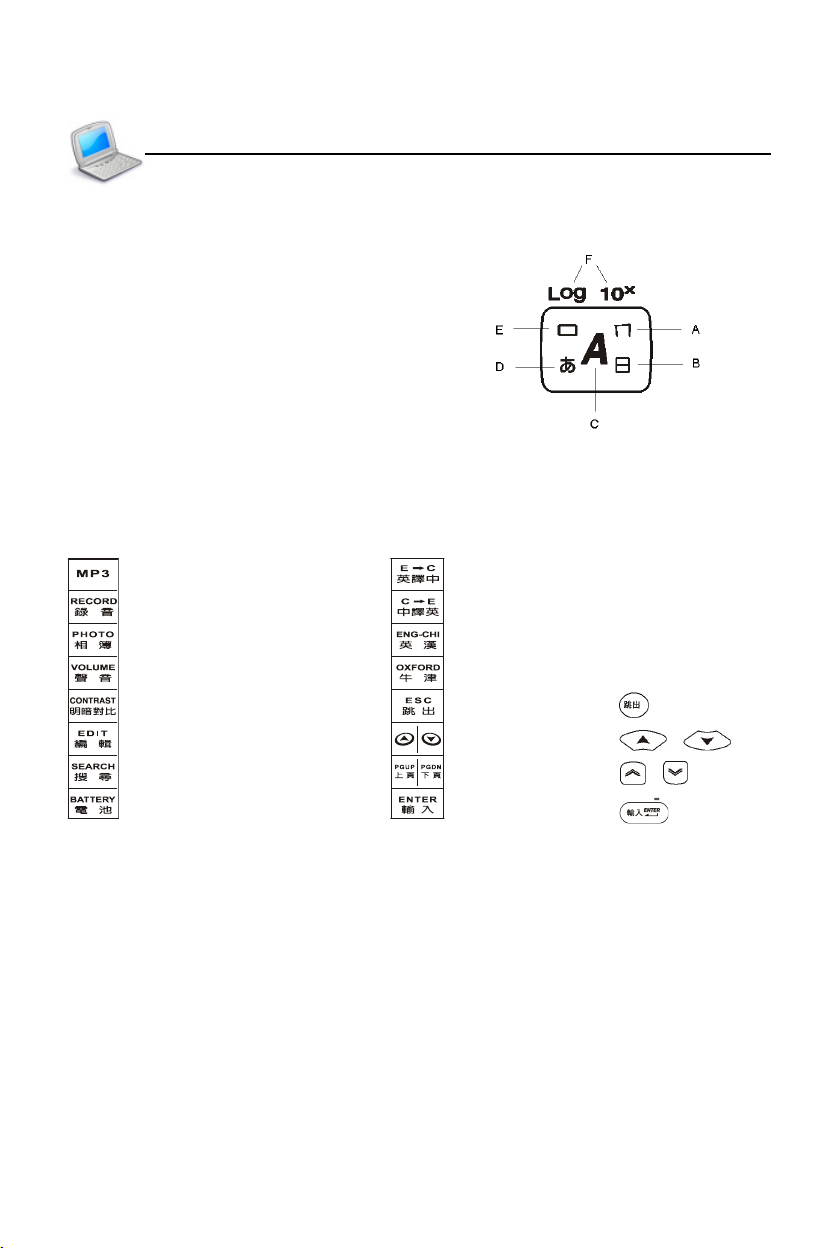
3. Key Description
A. Mandarin phonetic symbol
B. ChangJie code
C. English letter
D. Japanese kana
E. Korean phonetic symbol
F. Mathematical sign
4. Touch Panel
Tap with stylus to activate the functions.
: MP3 player : English to Chinese translation
: Recorder : Chinese to English translation
: My Album : English-Chinese Dictionary
: Adjust volume and speed : Oxford Advanced Learner’s Dictionary
: Adjust LCD contrast : Function same as
: Edit data : Function same as /
: Data search : Function same as /
: Check battery power : Function same as
14
Page 22
Preface
Indicator/Hot Key Functions
5. Indicator
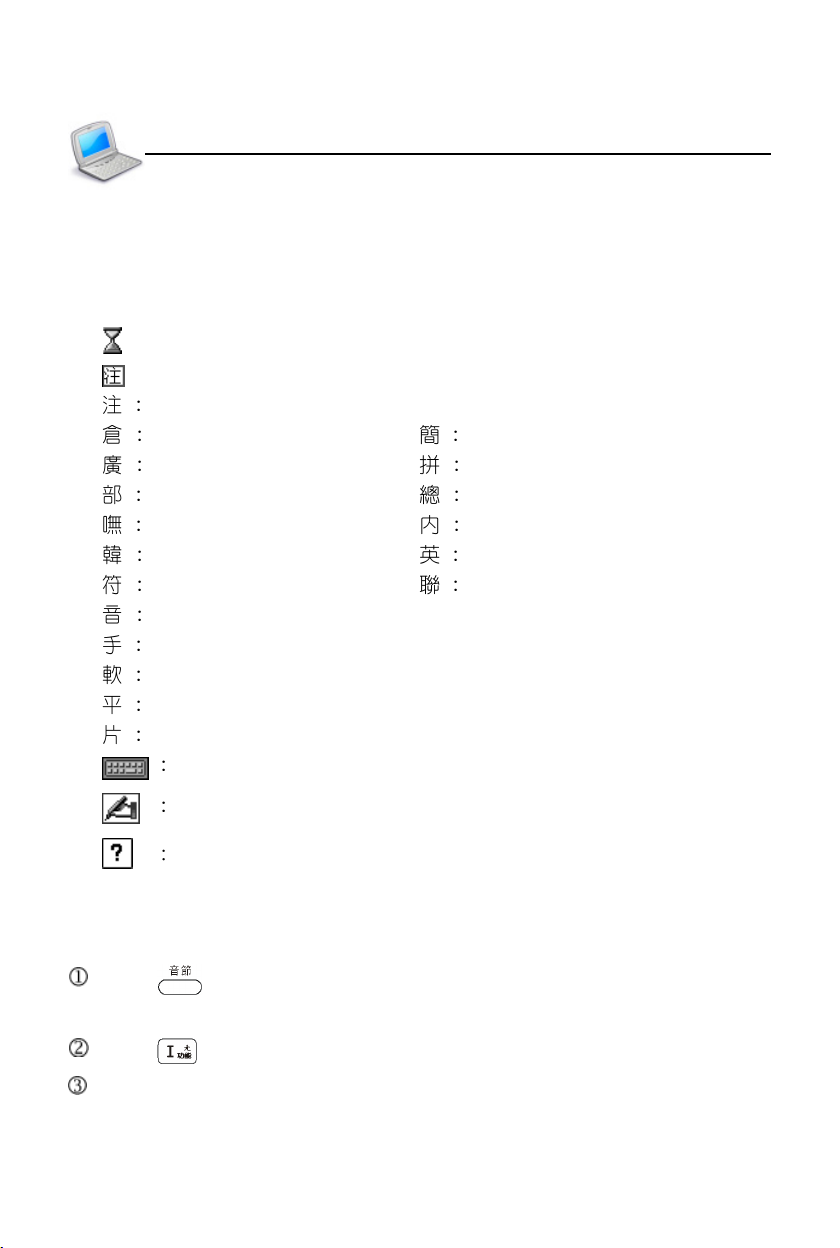
The following indicators will appear when specified functions are selected or
executed.
: Data searching
: Display the corresponding indicator according to selected input method
Zhu Yin symbol/Japanese Zhu Yin symbol
ChangJie Simplified ChangJie
Cantonese Pinyin Chinese Pinyin/General Pinyin
Radical strokes Total Strokes
BoShiAmy Internal code
Korean Pinyin English input
SBC case symbol Association
Phonetic symbol
Handwriting recognition (Chinese/Japanese/English)
Soft keyboard (English/Japanese/symbol)
Hiragana or Roman Hiragana
Katakana or Roman Katakana
Japanese soft keyboard
Tap to access handwriting or on-screen keyboard
View help for the current input method
6. Hot Key Functions
Press to pronounce syllable by syllable in the explanation screen of
dictionaries for multi-syllables words.
Press to open drop-down menu of [Func] in the current function.
The icon of the touch panel has all hot key functions. (Please refer to “Touch
Panel”.)
15
Page 23
Preface
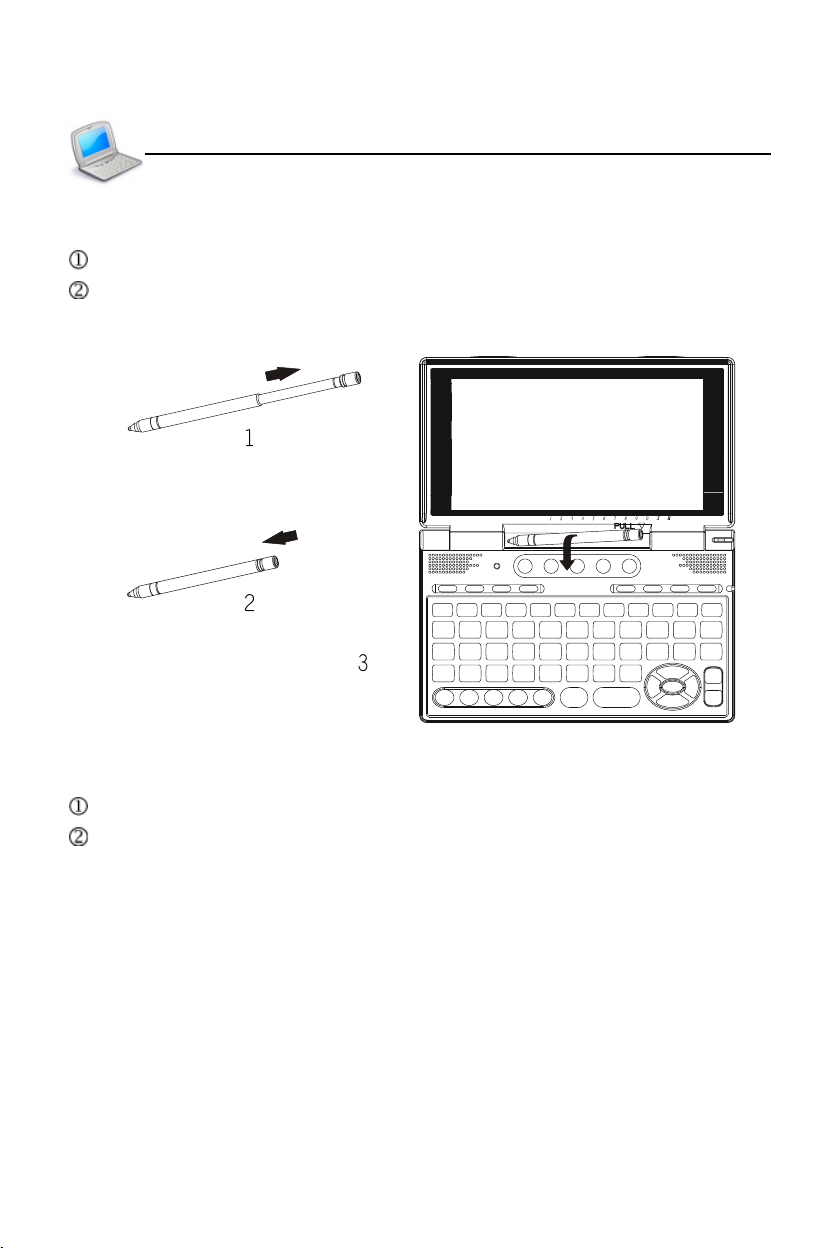
7. The Stylus
Remove the stylus: pull it out lightly.
Insert the stylus: place it into the stylus slot lightly.
( )
( )
( )
The Stylus/The Panel
8. The Panel
The touch panel possesses high penetrability.
The device adopts 4.2 inch 320x240 FSTN screen.
16
Page 24
User’s Guide
Power Source
1. Power Source
One of the following power sources can be used.
Rechargeable lithium battery (3.7V/610mAH)
A power adaptor with DC output 5V/1A
* This power source can be combined with operation .
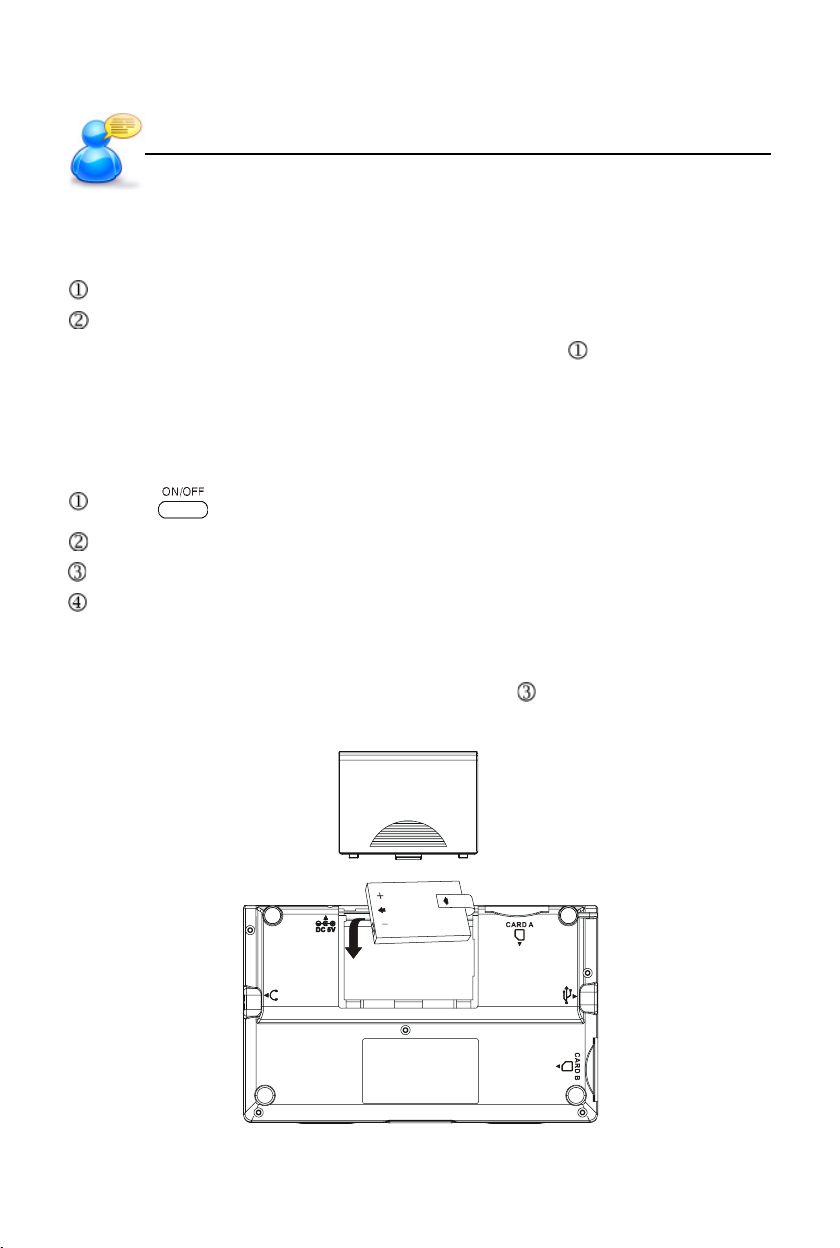
1.1 Battery Replacing
Insert:
Press to turn off the power.
Remove the battery cover.
Insert the battery into the compartment following the arrow instructions.
Close the battery cover securely.
Remove:
Repeat the steps above. When operating step , please remove battery as
instruction.
17
Page 25
User’s Guide
Notes:
When power is insufficient, please turn off the device first, then insert a power
adaptor to recharge the battery.
Personal data will be retained even the device is out of power.
If the screen of “LOADING...” appears repeatedly, this means the battery is no
longer usable. Please change a new one.
Power Source
1.2 Battery Recharging
Be sure to use Besta DC 5V/1A power adaptor.
Plug the charging adaptor into the DC socket in the device and plug the power
adaptor into a wall outlet. It takes about 3 hours to recharge fully.
Notes:
Damage incurred by using other power adaptor that does not come with this
device is not covered by our warranty.
Damage incurred by using other rechargeable battery that does not come with
this device is not covered by our warranty. Please do not use this battery on
other products.
For the initial use, please fully charge the battery for 3 hours. The LED is
orange during charging, and it will become green when it is fully charged.
The green LED will light up and the orange LED will blink when the adaptor
is plugged into the device without battery.
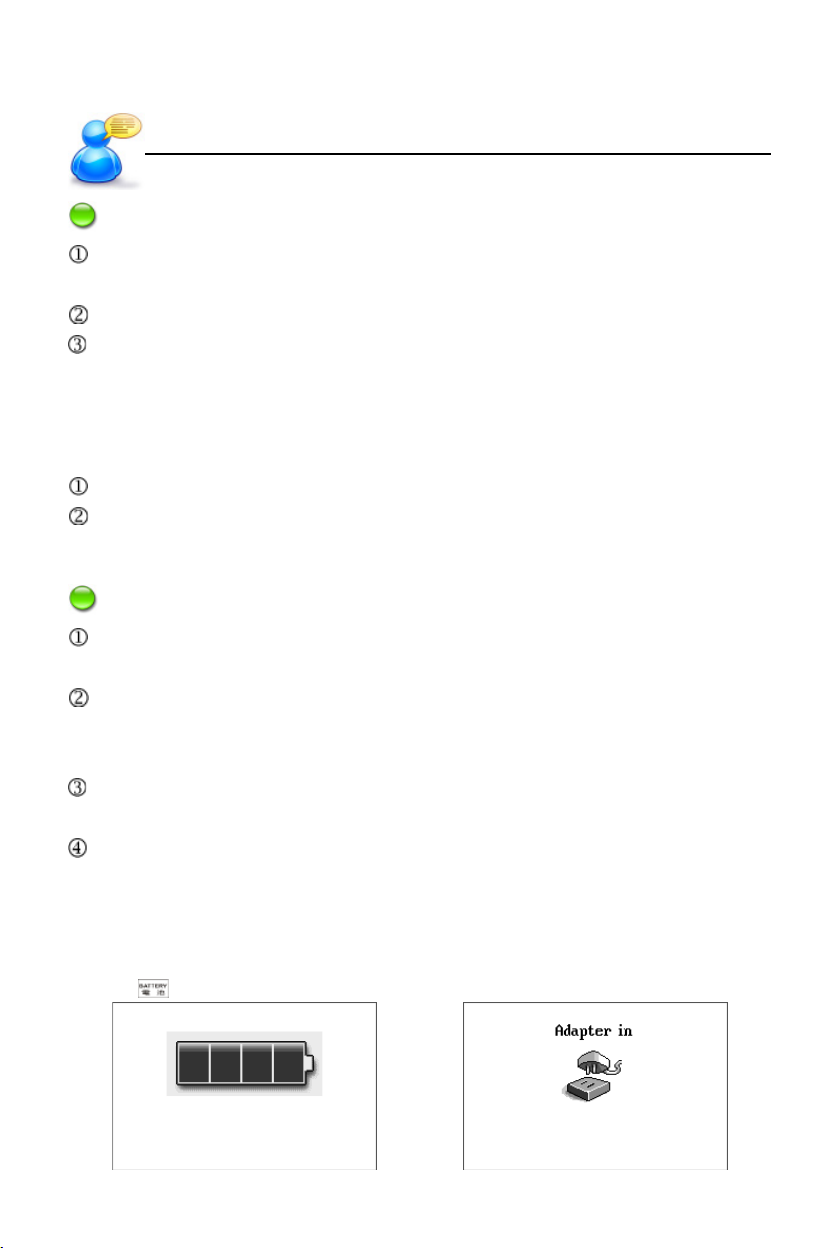
1.3 Battery Power Checking
Tap in the touch panel to check the battery power at any time.
18
Page 26
User’s Guide
Card Inserting/Removing
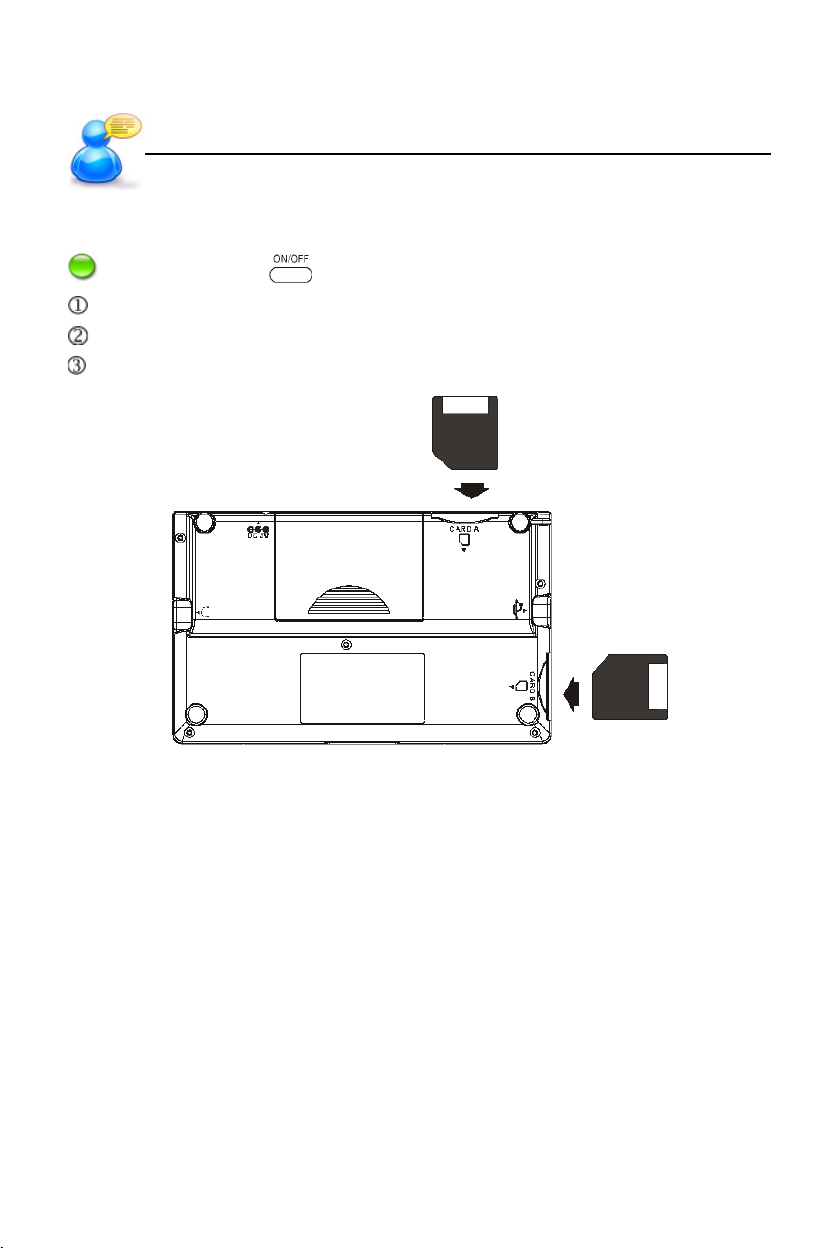
2. Card Inserting/Removing
Note: Please press to turn off the device!!!
Insert SD/MMC into the slot following the arrow instructions on card.
The card will be securely inserted after you hearing a sound.
Remove the SD/MMC by pressing it. The card will come out automatically.
19
Page 27
User’s Guide
Main Menu
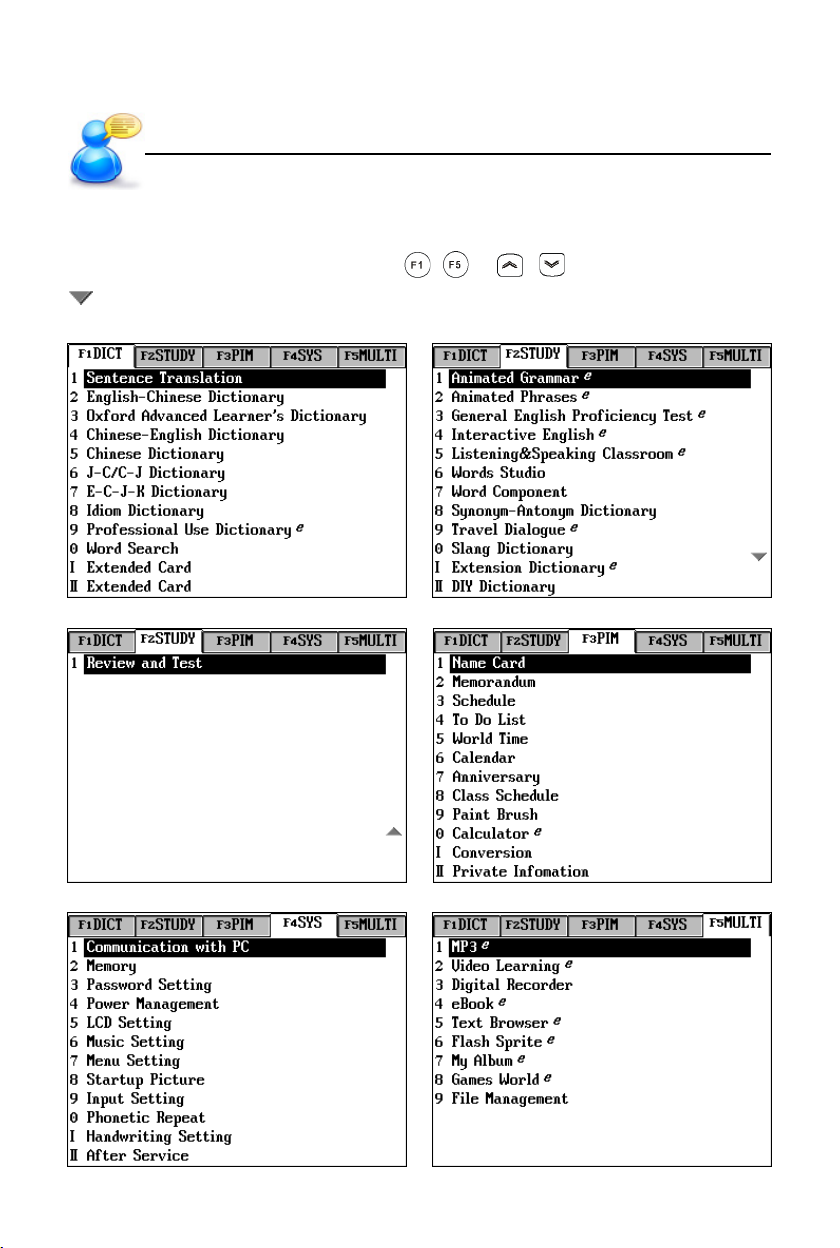
3. Main Menu
Tap [F1]~[F5] in the screen, press ~ or / to select a main menu.
indicates the category has more pages to display.
[F1] Dictionary [F2] Study (Page 1)
[F2] Study (Page 2) [F3] PIM
[F4] System [F5] Multimedia
20
Page 28
User’s Guide
Notes:
In the main menus:
Press to switch among Chinese, English, Korean and Japanese modes.
(Ideal for Chinese learners.)
To switch the main menus between simplified and traditional Chinese, just
press first, and then press .
In the function screens:
Press to return to the main menu.
Press to access the on-line help.
Press to return to the previous screen.
Input Methods
Main Menu
To access the corresponding function, you may:
Tap the function in the main menu or sub-menu directly.
Press ~ , , or to access corresponding functions.
4. Input Methods
4.1 English Keyboard Input Method
Press to switch to English input mode, then you may input English letters
or numbers.
Press twice to lock the keyboard for capitalized English letters input.
Press once to switch capitalized English letter temporarily. After input, it
will return to the original mode.
21
Page 29
User’s Guide
Input Methods
4.2 Special Symbols Keyboard Input Method
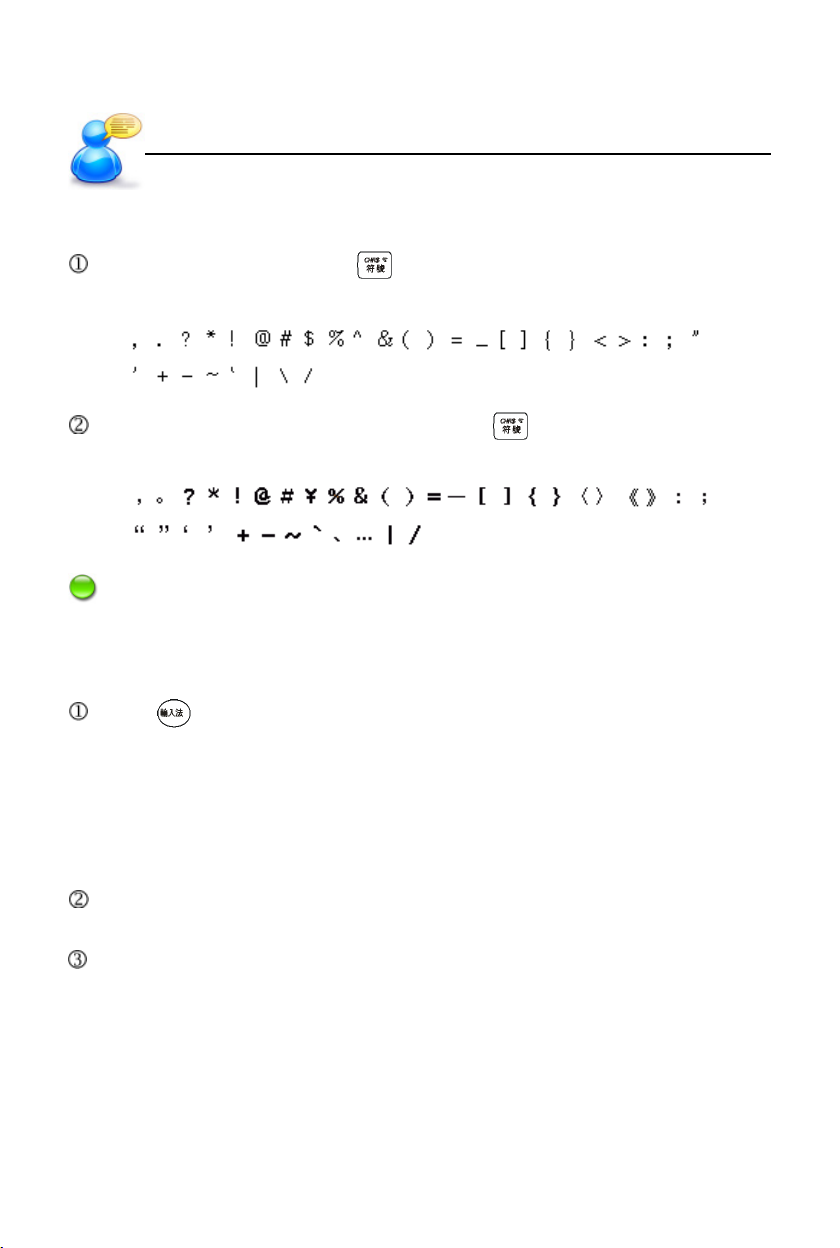
In English input mode, press key, and then press numeric key to select
the following DBC case.
In Chinese input mode (except Zhuyin), press key, and then press numeric
key to select the fellowing SBC case.
Note: In dictionary input mode, special symbol can’t be input as the first letter.
4.3 Chinese Keyboard Input Methods
Press or tap the Chinese input icon to select Chinese input method.
* There are ZhuYin (Phonetic symbol), ChangJie, Simplified ChangJie,
Cantonese Pinyin, General Pinyin, Chinese Pinyin, Radical Strokes, Total
Strokes, BoShiAmy, Internal Code and Chinese Handwriting.
* You may access <F4SYS--9 Input Setting> to set input methods or access
our website to download more input methods.
Press or tap the corresponding numeric keys to select the desired Chinese
characters.
Provides association function except Radical Strokes, Total Strokes and
Internal code. Association is default open. Input and pick the first character, the
bottom of the screen will show the characters that match with this input character.
Tap the desired one with stylus.
22
Page 30
User’s Guide
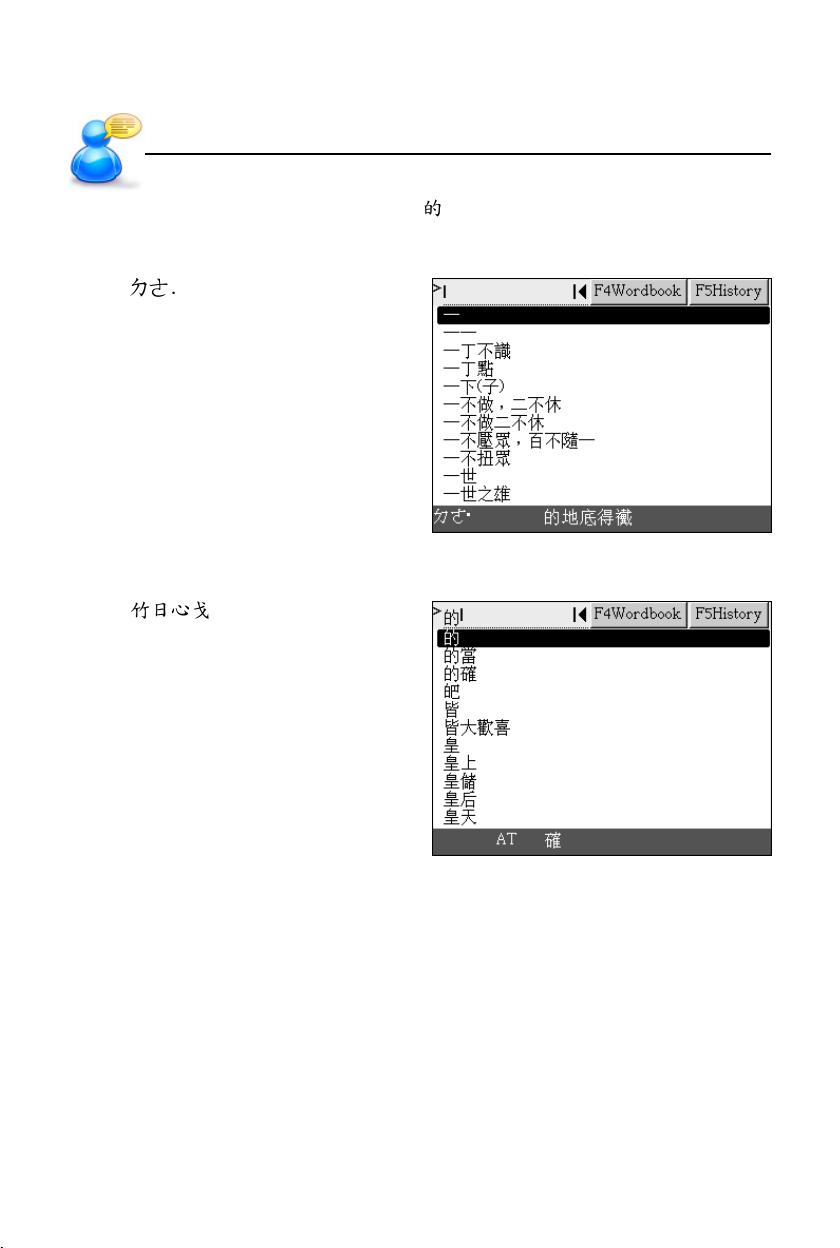
For example, input Chinese character “ ”. (Take Chinese Dictionary for example)
Input Methods
ZhuYin (Mandarin Phonetic Symbol )
Input “ ”.
Then tap to select character.
ChangJie
Input “ ”.
Then tap to select character.
23
Page 31
User’s Guide
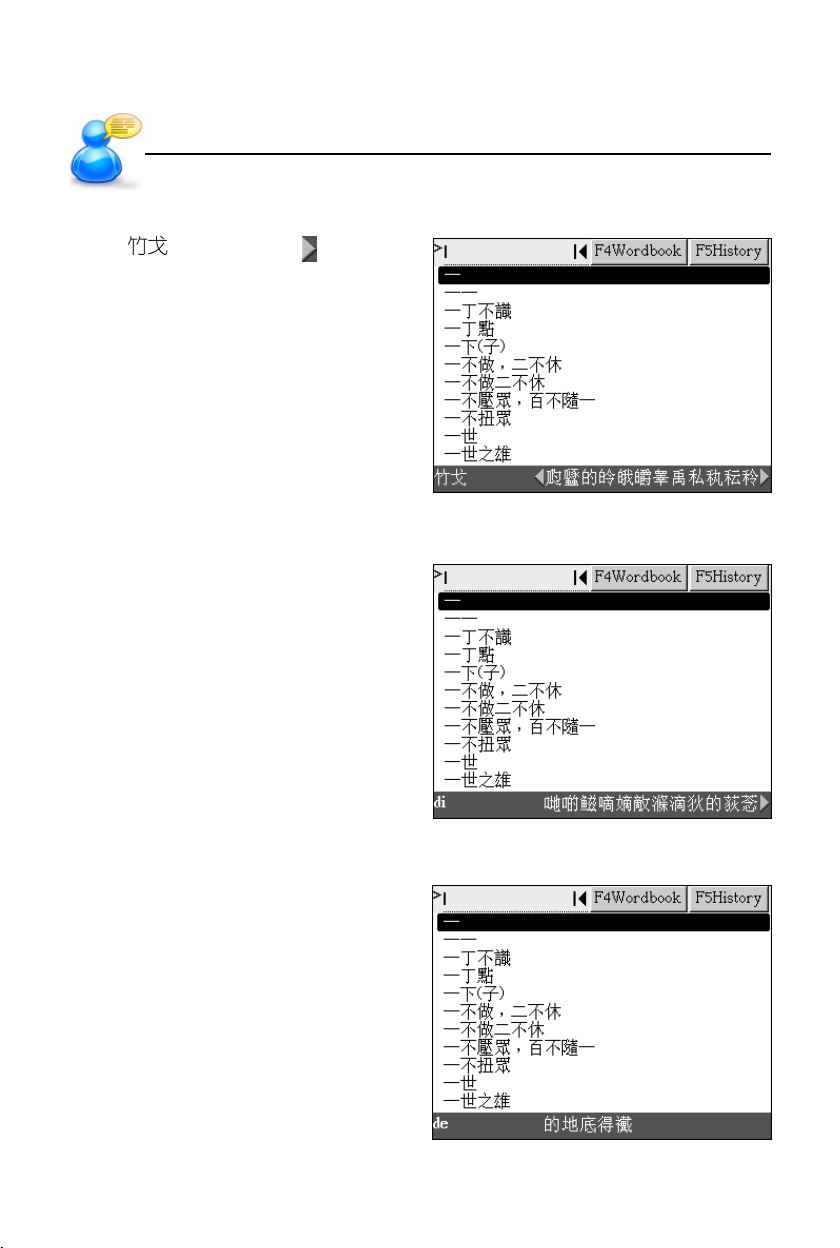
Simplified ChangJie
Input “ ”, and then tap twice.
Then tap to select character.
Cantonese Pinyin
Input “di”.
Input Methods
Then tap to select character.
General Pinyin
Input “de.”.
Then tap to select character.
24
Page 32
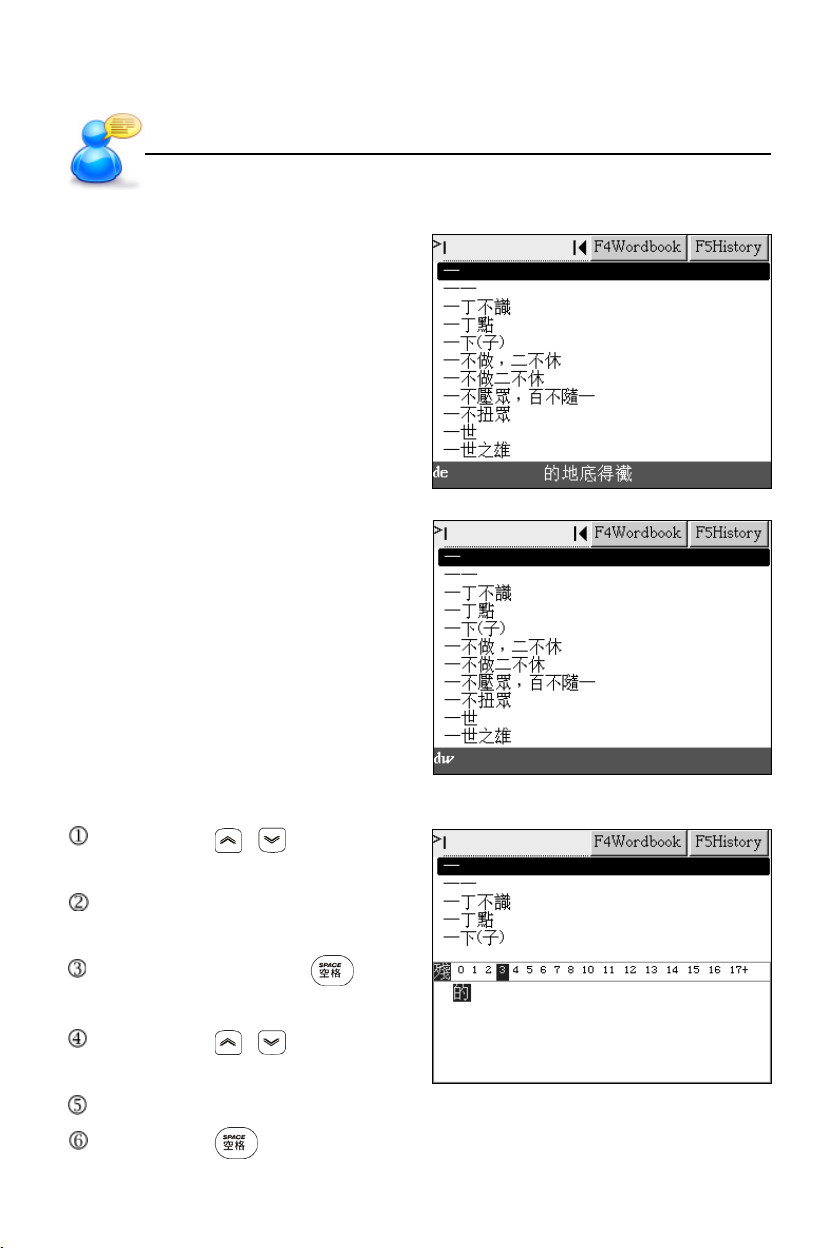
User’s Guide
Chinese Pinyin
Input “de.”.
Then tap to select character.
The italics will be displayed if misspelling.
Input Methods
Radical Strokes
Tap or press / to select
radical strokes.
Tap or press direction keys to
select radical or character.
Tap the radical or press to
confirm.
Tap or press / to select the
remanent strokes.
Tap or press direction key to select candidate characters.
Tap or press to confirm.
25
Page 33
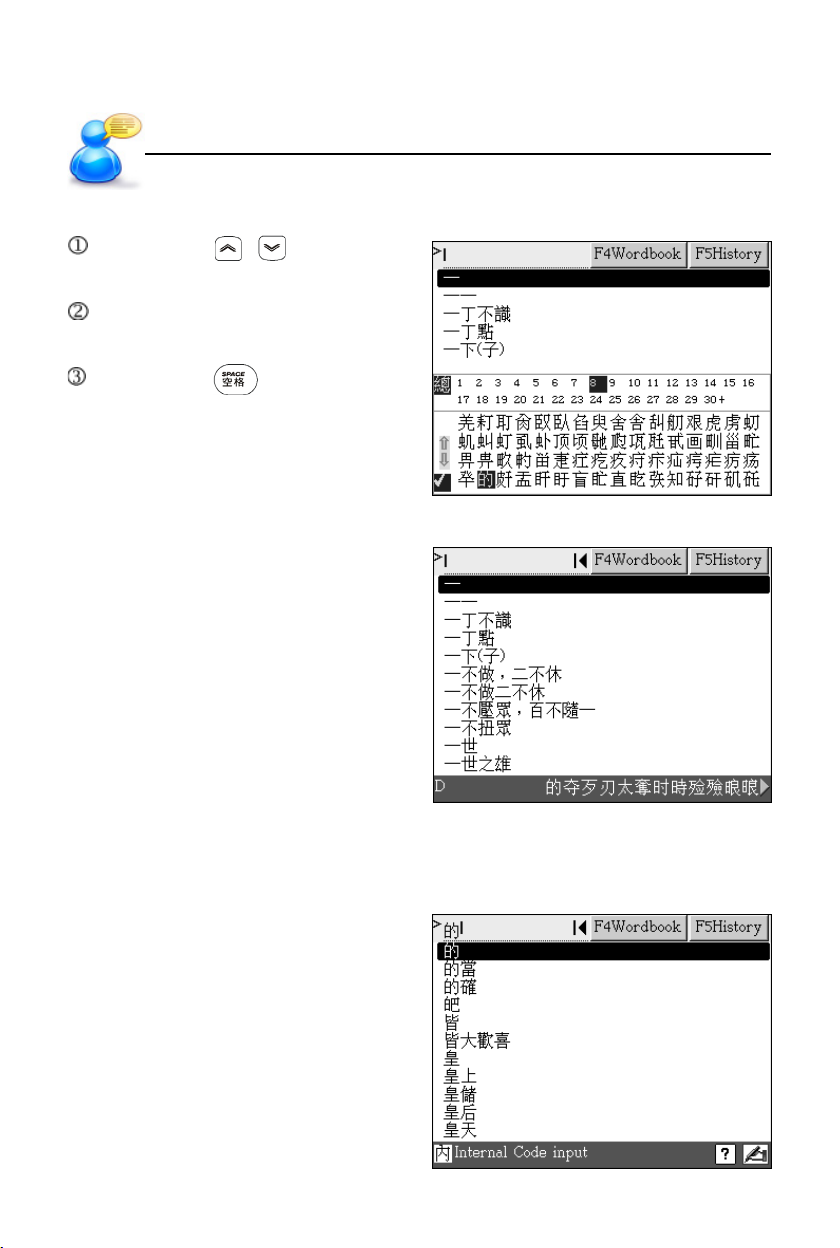
User’s Guide
Total Strokes
Tap or press / to select
total strokes.
Tap or press direction keys to
select characters.
Tap or press to confirm.
BoShiAmy
Input “D” or “PDNA”.
Input Methods
Internal Code
Input the internal code directly, and then you can get the desired Chinese
character.
Input “7684”.
26
Page 34
User’s Guide
Note: All the above input methods are introduced in Chinese Dictionary.
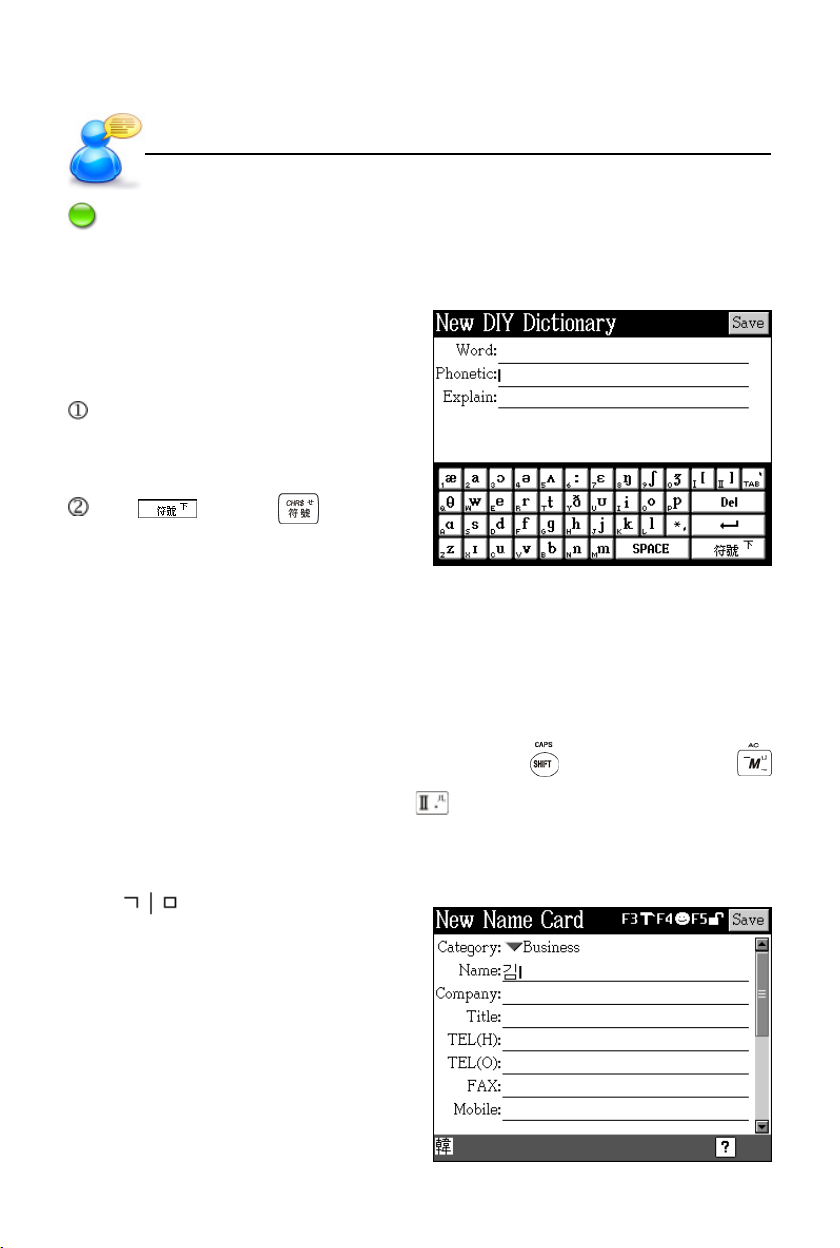
Input Methods
Phonetic Symbol
This is only available for inputting English
phonetic symbols in the field of “Phonetic”
in DIY Dictionary.
The keys at the bottom left corner
are corresponding to each phonetic
symbol.
Tap or press to switch
to the next page.
4.4 Japanese Input Method
There are six methods - “Hiragana, Katakana, RHiragana, RKatakana, Japanese
Zhuyin and Japanese Handwriting” for Japanese input. For kana input, the keys
ASDFGHJKL* stand for table of 50 sounds. The three keys ZXC stand for voiced
sound, half-voiced sound and lower case input. Press first, and then press
to input long sound for Katakana. Press to input space mark.
4.5 Korean Input Method
Input “ ” .
27
Page 35
User’s Guide
Input Methods
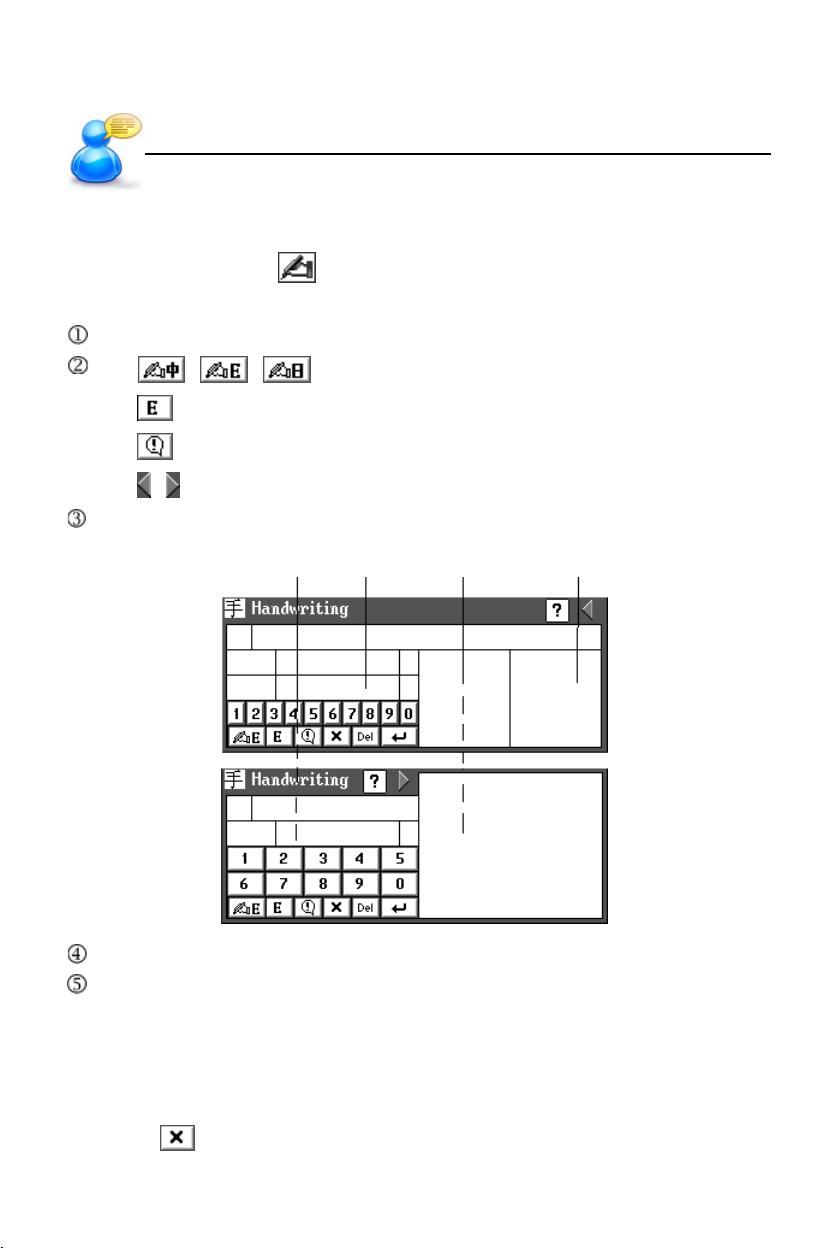
4.6 Handwriting Recognition
Whenever the icon appears in the screen, it indicates the handwriting
recognition is available.
Tap the handwriting icon.
Tap / / to switch to English/Japanese/Chinese input;
Tap to display the on-screen English keyboard;
Tap to display the on-screen symbol keyboard;
Tap / to open single/double window for handwriting.
Write in the handwriting area with stylus.
standby 1 standby 2 handwriting 1 handwriting 2
The recognition result will be shown automatically in the standby area.
Tap the desired character in the standby area by stylus.
* If the input character can’t be recognized, please tap “Learn” (except input
English) to open the on-screen keyboard for inputting the correct one, so
that the device will be familiar with your handwriting, and it will recognize this
character when you write it again.
*Tap to return to keyboard input mode.
28
Page 36
User’s Guide
Both handwriting areas 1 and 2 can be used.
Note: Handwrite penup time can be set in <F4SYS--I Handwriting Setting>.
Input Methods
4.7 Tips for Handwriting Input
4.7.1 Improving the Recognition Rate
Write English letters in the English handwriting area.
Write Chinese characters in the Chinese handwriting area.
Write Chinese characters with standard strokes.
Write clearly and legibly. Do not omit any stroke.
Avoid unnecessary marks or strokes.
4.7.2 Writing Chinese with Standard Strokes
Please write Chinese characters from left to right, up to down, and outside to
inside.
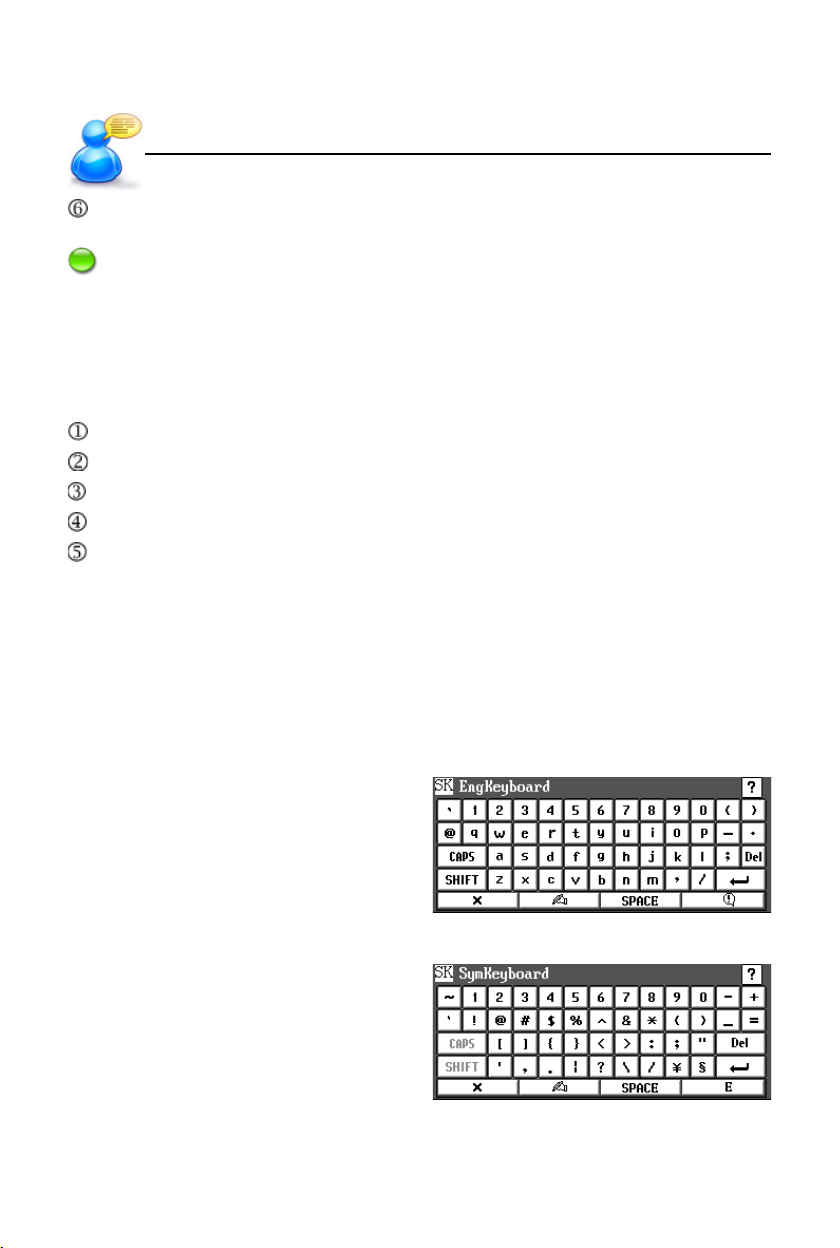
4.8 On-screen English Keyboard
4.9 On-screen Symbol Keyboard
29
Page 37
User’s Guide
Data Editing
5. Data Editing
In the editing mode, you can clear, cut, copy or paste data by highlighting the
text first, and then tapping the shortcut in the screen. In the browsing screen,
you can cross search and copy. In the calculator mode, tap to copy the
numerals in the displaying area.
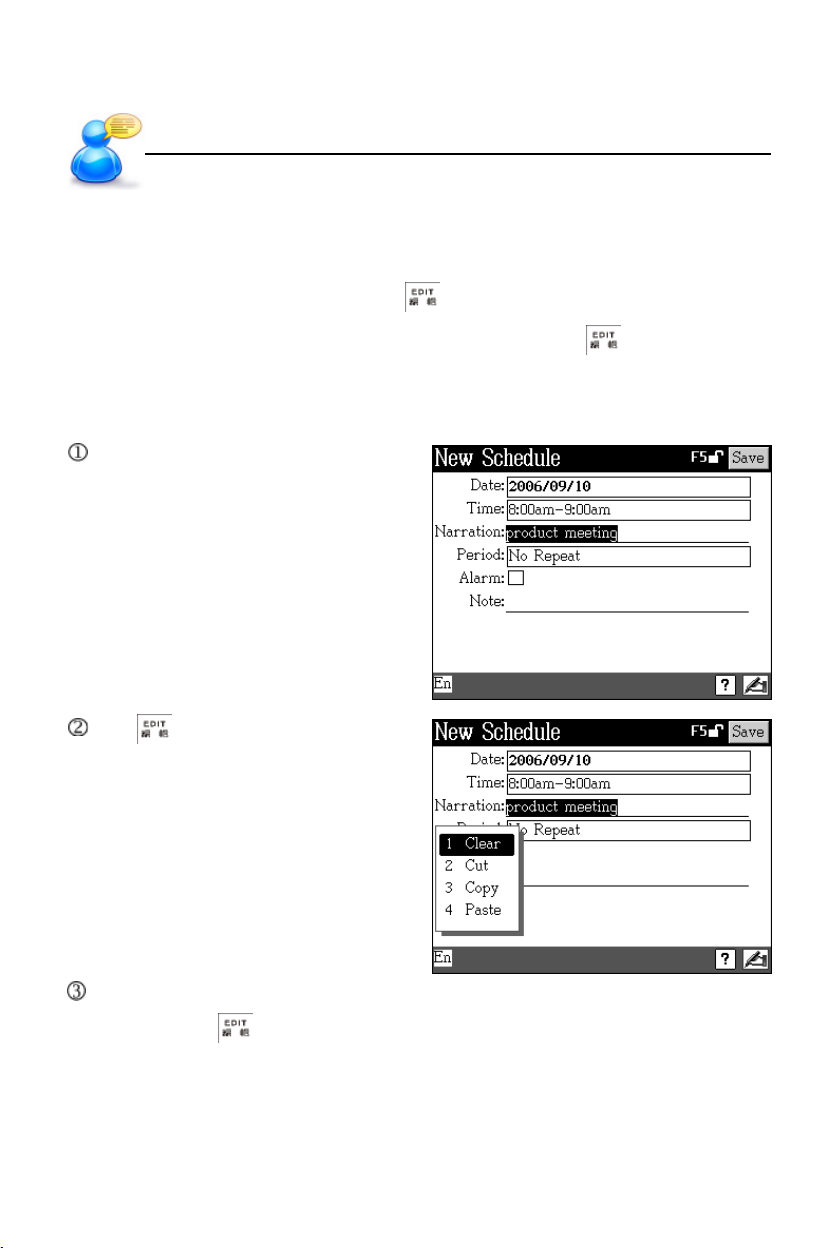
For example, input “product meeting” in “Narration” field of <F3PIM--3 Schedule>.
Input data, and select range.
Tap , then select “Clear”/
“Cut” / “Copy”. (If there is no
copied data, “Paste” will not
be displayed.)
Select “Copy”, then move the cursor to the desired place, or select data to be
replaced, tap , and then tap “Paste”.
30
Page 38
User’s Guide
Data Search
6. Data Search
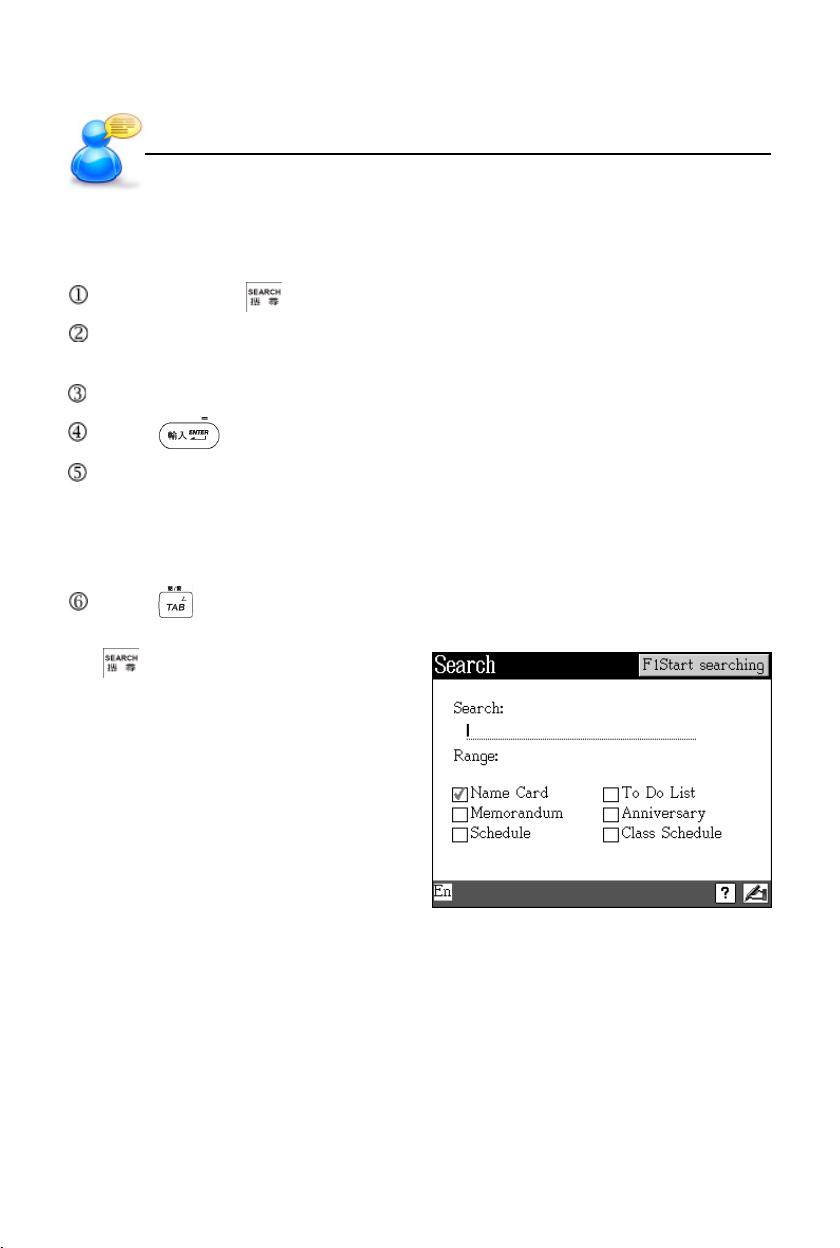
Select a range and input a keyword for overall data searching.
Tap the shortcut .
Tap the check boxes to set searching range in: Name Card, Memorandum,
Schedule, To Do List, Anniversary and Class Schedule.
Input keyword (either Chinese or English) for searching.
Press or tap [F1Start searching] to start.
The result will be displayed. In this screen:
* Tap [F1Enter] to view the whole entry.
* Tap [F3Next] to search the next entry.
* Tap [F2Previous] to return to the previous data.
Press to display the other functions.
Tap to open the search screen.
31
Page 39
User’s Guide
Date Selecting/Numeric Inputting
7. Date Selecting
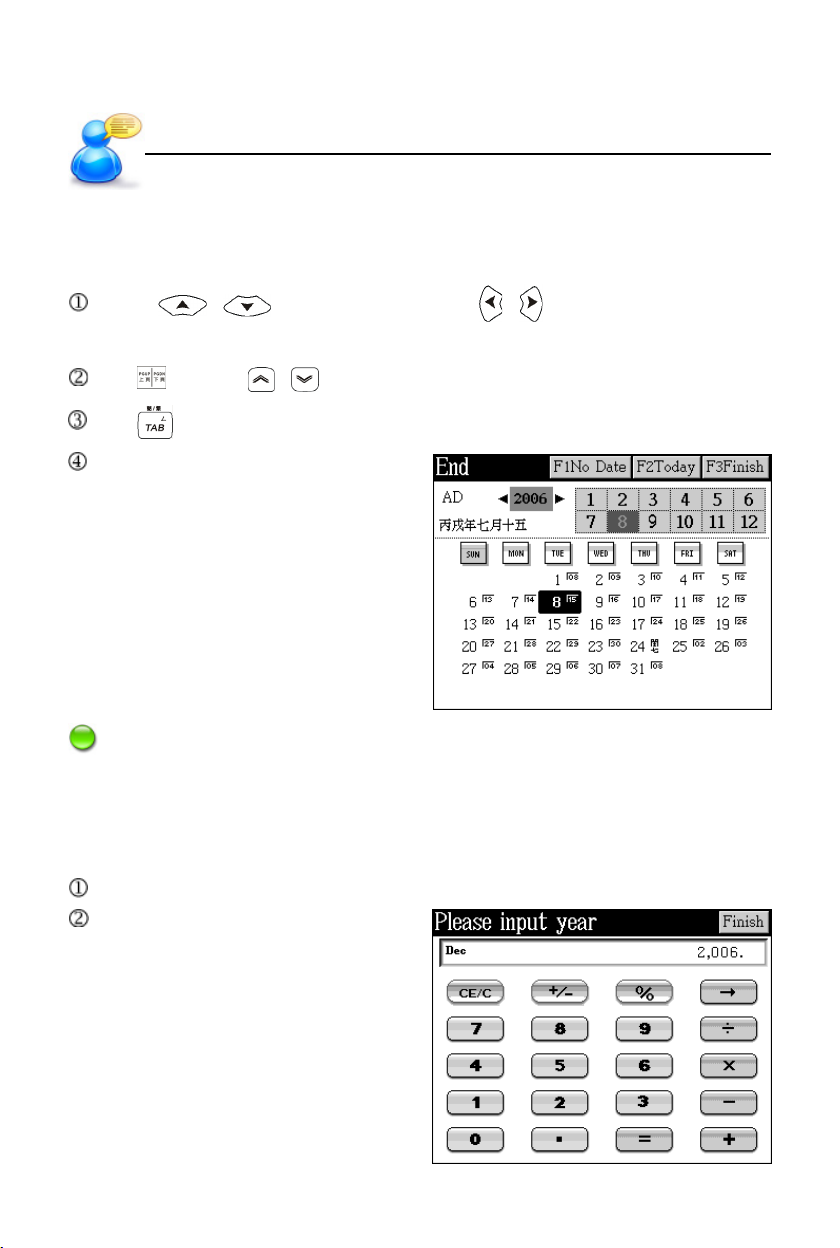
Several functions in [F3 PIM] are connected with date.
Press / to select month; press / to select date. Or directly
tap in the screen to set date, month and year.
Tap or press / to select year.
Tap to shift between choices.
Tap the two arrows at the ends of
year to set, or tap in the field of year
to open the numeric input screen to
edit year directly.
Note: [F1No Date] is only available in <F3PIM--4 To Do List--End>.
8. Numeric Inputting
Several functions in [F3 PIM] are connected with numeric inputting.
Tap or press the numeric and operator keys to input number for calculation.
Tap [Finish] to confirm.
32
Page 40
User’s Guide
Time Setting/Initializing
9. Time Setting
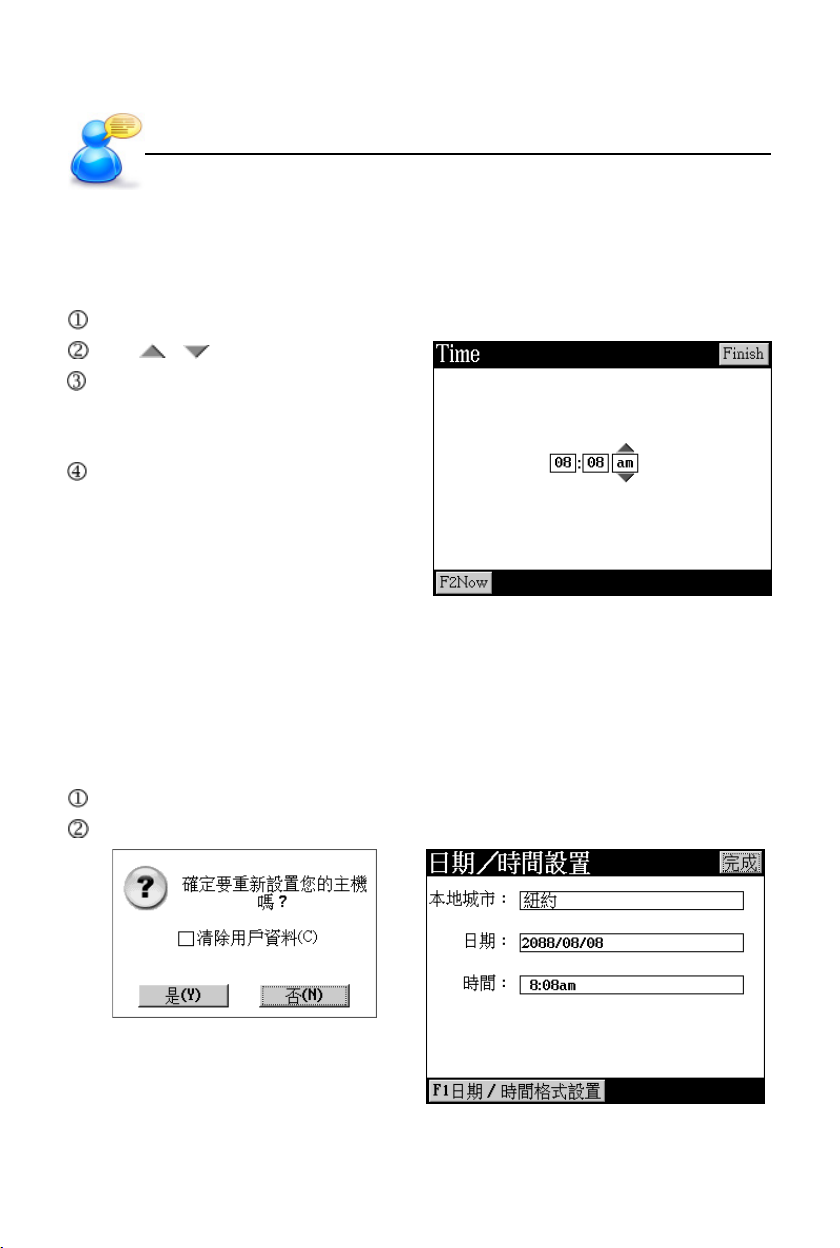
Several functions in [F3PIM] need to set time for data saving, alarm setting,
etc.
Access [F1Set Time] in <F3PIM--5 World Time> to select for time setting.
Tap / to adjust time.
Tap the field of time format am/pm,
or press key [A]/[P] to select time
format.
Tap [Finish] to confirm.
10. Initializing
When the device is initialized or used for the first time, you may follow the steps
below.
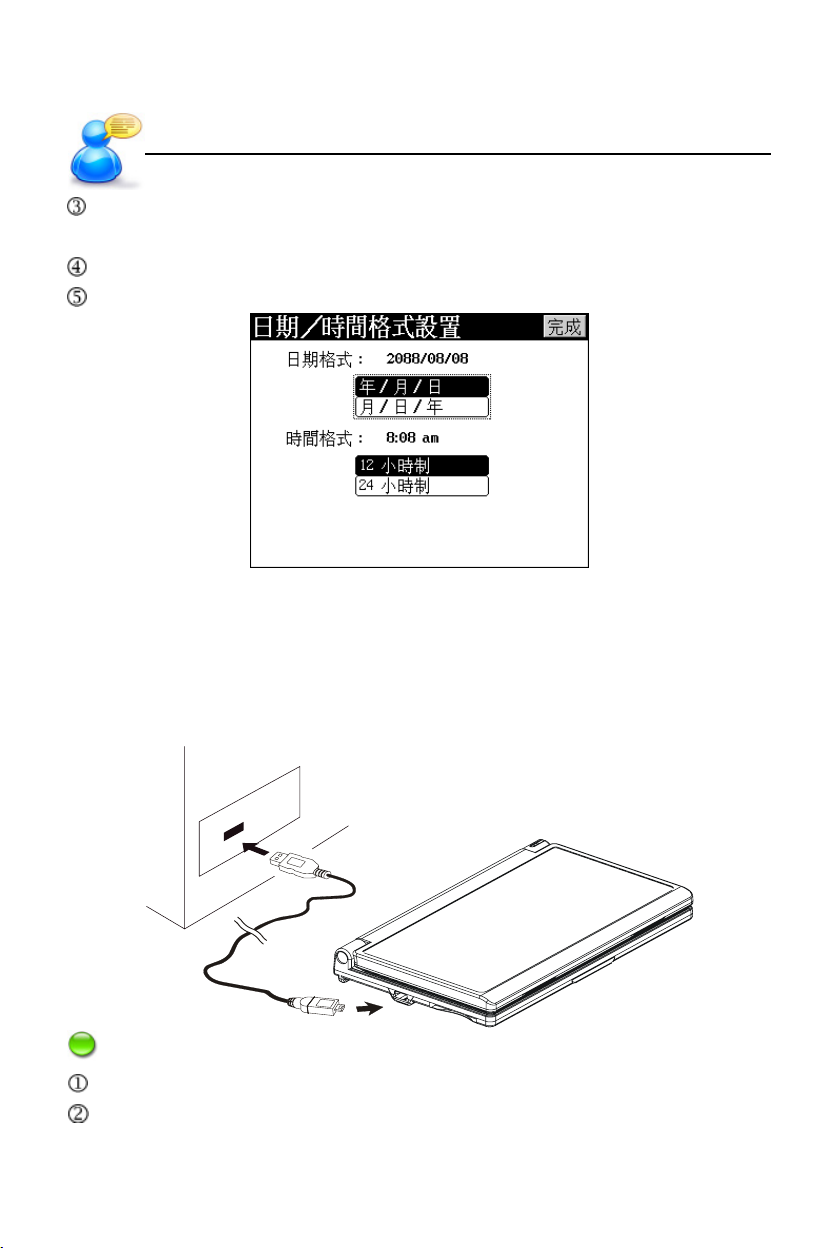
10.1 Reset the Device
Select [N] to access the main menu.
Select [Y] to return to the default values and come to picture 2.
pic.1
33
pic.2
Page 41
User’s Guide
Tap [C] first, and then tap [Y] to clear all the data saved in the device. Then the
screen appears as picture 2.
Set date and time, and then tap [Finish] to access the main menu.
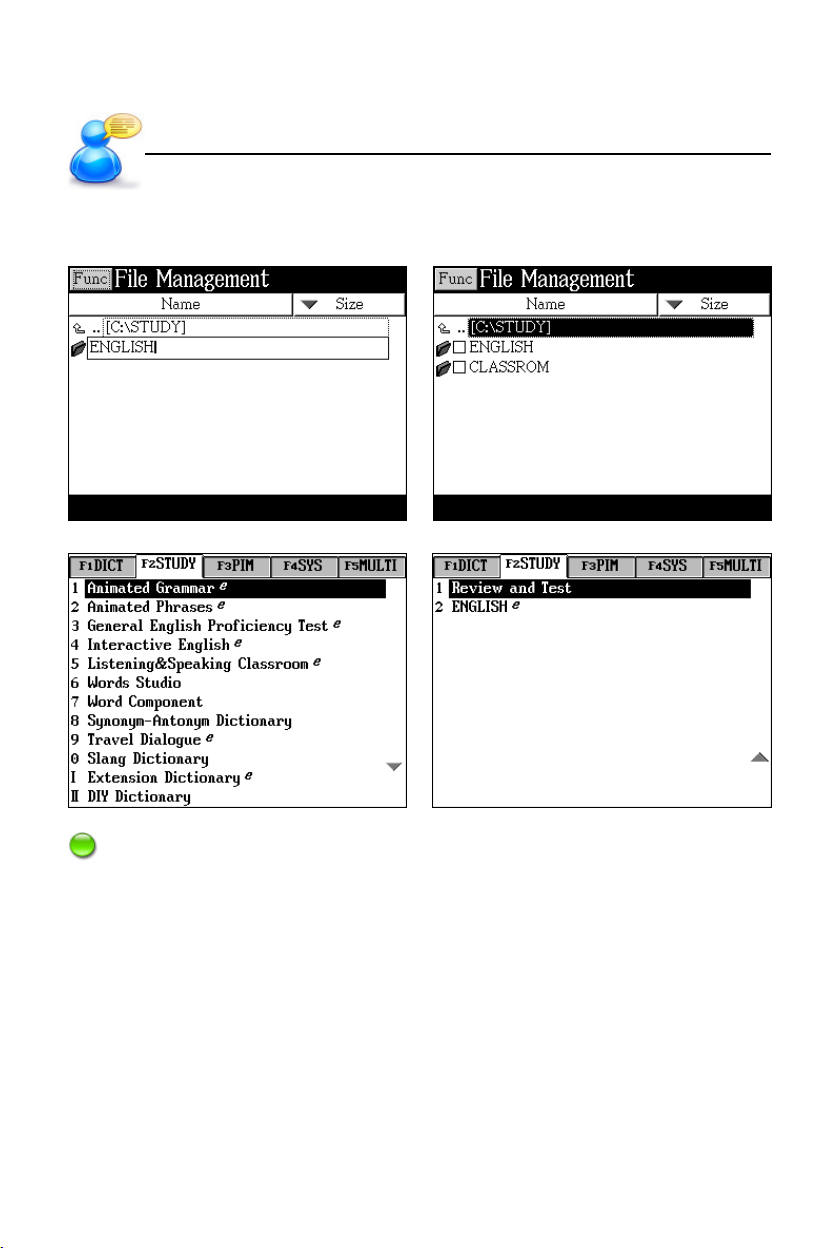
Tap [F1] to set the format of date and time as picture 3.
pic.3
USB Disk
11. USB Disk
Through USB cable, you can move, copy or delete data and add new file folder
both to our device and PC.
Notes: During operation:
Please make sure the device has enough power.
Do not remove the link cable; otherwise, the data will be lost and the device will
be abnormal.
34
Page 42

User’s Guide
Menu Management
12. Menu Management
The device provides automatic searching function and allows you to create new
folder for data. Data in different file formats must be identified for easy retrieval. The
formats of downloaded data that the device supports are listed as below:
Automatic Search:
F2 Study : General English Proficiency Test, Interactive English
F5 Multi : MP3, Video Learning, Flash Sprite
Read in Correct Path:
F1 Dictionary : Professional Use Dictionary C:\STUDY\PRODICT
F2 Study : Animated Grammar C:\STUDY\ANIGRAM
Animated Phrases C:\STUDY\ANIPHR
Listening&Speaking Classroom:
Reading Studio C:\STUDY\CLASSROM\READ
Audio Studio C:\STUDY\CLASSROM\LISTEN
Vocal Studio C:\STUDY\CLASSROM\PRON
Baby American English C:\STUDY\CLASSROM\CHILD
Travel Dialogue C:\STUDY\TRAVEL
Extension Dictionary C:\STUDY\EXTRADIC
F3 PIM : Calculator C:\APPS\CALC
F5 Multi : eBook C:\MULTI\EBOOK
Text Browser C:\MULTI\TEXT
My Album C:\DCIM
Games World C:\MULTI\GAME
The device can search the list automatically.
Please make sure to access the appropriate path to retrieve
data if the device does not provide automatic search.
If the name of directory is changed by user, the directory is
unreadable by the device.
35
Page 43
User’s Guide
Create new folder in <F5MULTI--9 File Management>.
Create a new folder Displays the new folder
Look up the folder in [F2STUDY]. Page two displays the new folder.
Menu Management
Note:
The downloaded data and custom folders will be displayed in the main menus of
[F2STUDY] and [F5MULTI].
36
Page 44

Dictionary
Features
Dictionary Summary
* Provides smart input method and wildcard search.
* Provides preview window in the index screen.
* Provides 3 kinds of font sizes: “middle, large, small” in the explanation screen.
* Cross search up to 20 layers.
* Highlight words (characters) in the explanation screen, and then tap the hot
key / to access Sentence Translation with the highlighted words
(characters) input.
* Can repeate and read after the device. The speed of pronunciation can be
adjusted.
* Pronunciation in Mandarin, English, Japanese and Cantonese.
* Can pronounce syllable by syllable for words with multi-syllables.
* Allows to save data for Review and Test.
Sentence Translation
* Allows to input Chinese/English to search for translation results.
* Allows to cross search in corresponding dictionaries and pronounce Chinese/
English.
* Allows to search in Oxford Library and Besta Library.
English-Chinese Dictionary
* A wide coverage of English entries.
* Can cross search in corresponding dictionaries.
* Allows secondary search: spelling check, similar word and add new word.
* Detailed and abounding Chinese explanations.
* Provides KK and DJ English phonetic symbols for selection.
* Provides sample sentences, grammar, analysis (form, spell, pronunciation,
root, meaning, variation, synonym, antonym, related words ), component, such
data for reference.
* Can link with Animated Grammar.
37
Page 45

Dictionary
Features
Oxford Advanced Learner’s Dictionary
* A wide coverage of English entries in the latest 6th edition.
* Includes usages, idioms, phrasal verbs, phrases, basic words, etc.
* Provides language setting in Chinese explanation screen.
* Provides search sample sentences in English-Chinese Dictionary and Oxford
Advanced Learner’s Dictionary.
* Provides cross search in corresponding dictionaries.
* Provides secondary search: spelling check, similar word and add new word.
* Provides precise Chinese/English explanations.
* You may choose to display explanations in English to English, English to
Chinese, or both.
* Explanation screen provides search in English-Chinese Dictionary.
* Provides KK and DJ English phonetic symbols for selection.
* Includes sample sentences, derivations/roots, compound words, idioms, usages.
Chinese-English Dictionary
* Covers an abundance of Chinese words/idioms and English explanations.
* Can cross search in corresponding dictionaries.
Chinese Dictionary
* Provides Wordbook, Idioms and Dictionary for search.
* Provides strokes for downloading.
* Provides detailed explanations of Chinese characters.
* Provides radical strokes in the explanation screen, which includes Radical,
Remnant Stroke(s), Total Strokes, Internal Code, ChangJie and BoShiAmy.
J-C/C-J Dictionary
* Provides Japanese-Chinese Dictionary, Chinese-Japanese Dictionary,
Foreign Words, Kanji Index Dictionary, Idioms & Proverbs.
* Provides useful information: Common Words, Practical Nouns, Reference.
* Can cross search in corresponding dictionaries.
* Allows to save data for Review and Test.
38
Page 46

Dictionary
Features
E-C-J-K Dictionary
* Provides English, Chinese, Japanese and Korean Dictionary.
* Provides pronunciation in English, Chinese, Japanese and Korean. Can record
and read after the device.
* Can cross search in corresponding dictionaries.
Idiom Dictionary
* Provides idioms and detailed explanations. Provides selection of Zhuyin, Pinyin
and General Pinyin for headwords.
* Idiom part of Chinese Dictionary.
* Can cross search in corresponding dictionaries.
* Provides secondary search: similar word and add new word.
* Provides synonym and antonym in explanation screen.
Professional Use Dictionary
* You can download your desired dictionaries from website.
* Please put the downloaded data in correct path: [C:\STUDY\PRODICT].
Word Search
* Allows to select dictionaries to be looked up.
* Provides an abundance of explanations.
Extended Card
* Provides SD/MMC (Secure Digital/Multi Media Card) slots to expand the
functions and data of the device.
* Allows to insert professional dictionaries card or memory card.
* If the pronunciation card of sample sentence is inserted, the sample sentences
in English-Chinese Dictionary, Oxford Advanced Learner’s Dictionary and Idiom
Dictionary, and also Grammar Selections in Animated Grammar can be
pronounced.
39
Page 47
Dictionary
Sentence Translation
1. Sentence Translation
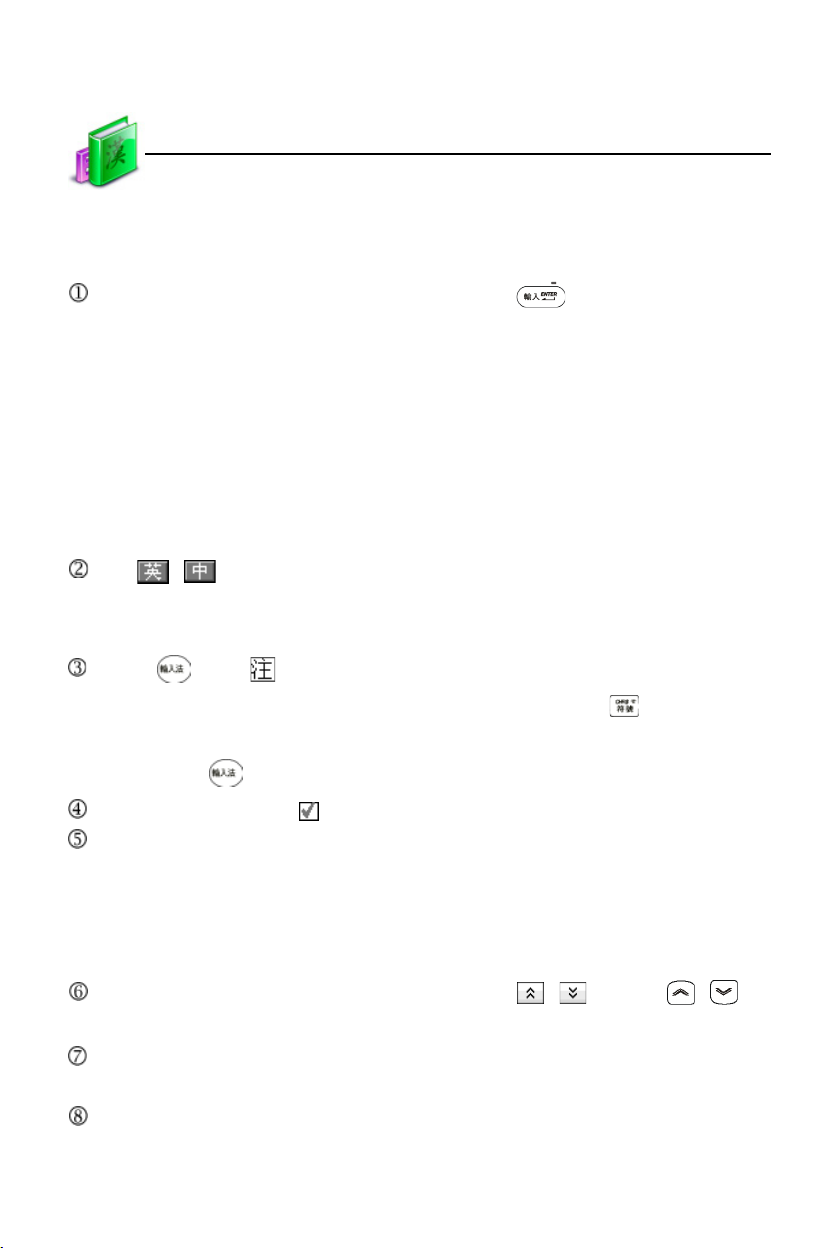
The application of sentence translation:
Input the content to be translated, and then press to search for the results.
* Chinese -- input at most 20 characters including space and punctuation.
* English -- input at most 200 letters including space or 20 words.
* The contents below which include but not confine within, may not provide the
complete translation.
-- Proper noun, e.g. name or placename;
-- Proper term or uncommon chararters;
-- Idioms, slang, proverbs and other sentences with metaphor;
-- Spoken language or dialect.
Tap / or [F5CHN-ENG/ENG-CHN] to switch between Chinese and
English input modes. When switching the mode, the content in the editing
zone will be cleared at the same time.
Press or tap to open the input methods for selection.
When the input method, except Zhuyin, is selected, press to open SBC
Case for selection; when Zhuyin input method is used, SBC Case can be opened
by pressing to select.
Press [F1], [F2] or tap to cancel selecting/select libraries.
If the libraries are selected, [F1Reference] will be displayed in the translation
screen to provide sample sentences of Oxford Library and Besta Library.
* [F1CHN/ENG] -- switch between Chinese and English.
* [F2CHN vs Eng] -- view the comparison between English and Chinese
sentence by sentence.
In the index screen of reference sentences, tap / or press / to
view other sample sentences.
In the translation screen, press pronunciation keys to pronounce in English or
Chinese.
In the translation screen, you can cross search in corresponding dictionaries
for unknown words.
40
Page 48
Dictionary
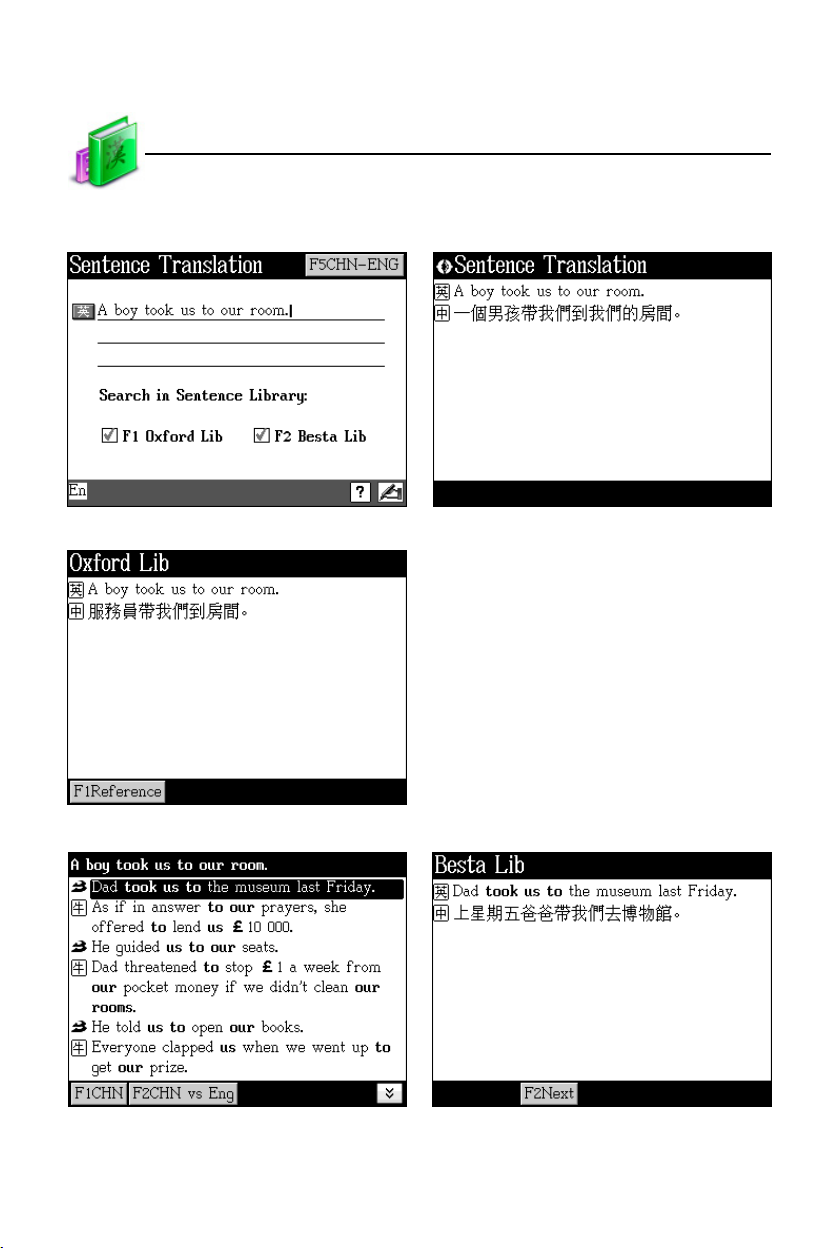
Take “A boy took us to our room.” for example:
Input content Translation result (No libraries)
Translation result (With libraries) If the libraries have been selected, and
the content input is the same as that in
the libraries, the corresponding transla-
tion in the libraries will be shown.
Sentence Translation
Tap [F1Reference] Tap [F2CHN vs Eng]
41
Page 49
Dictionary
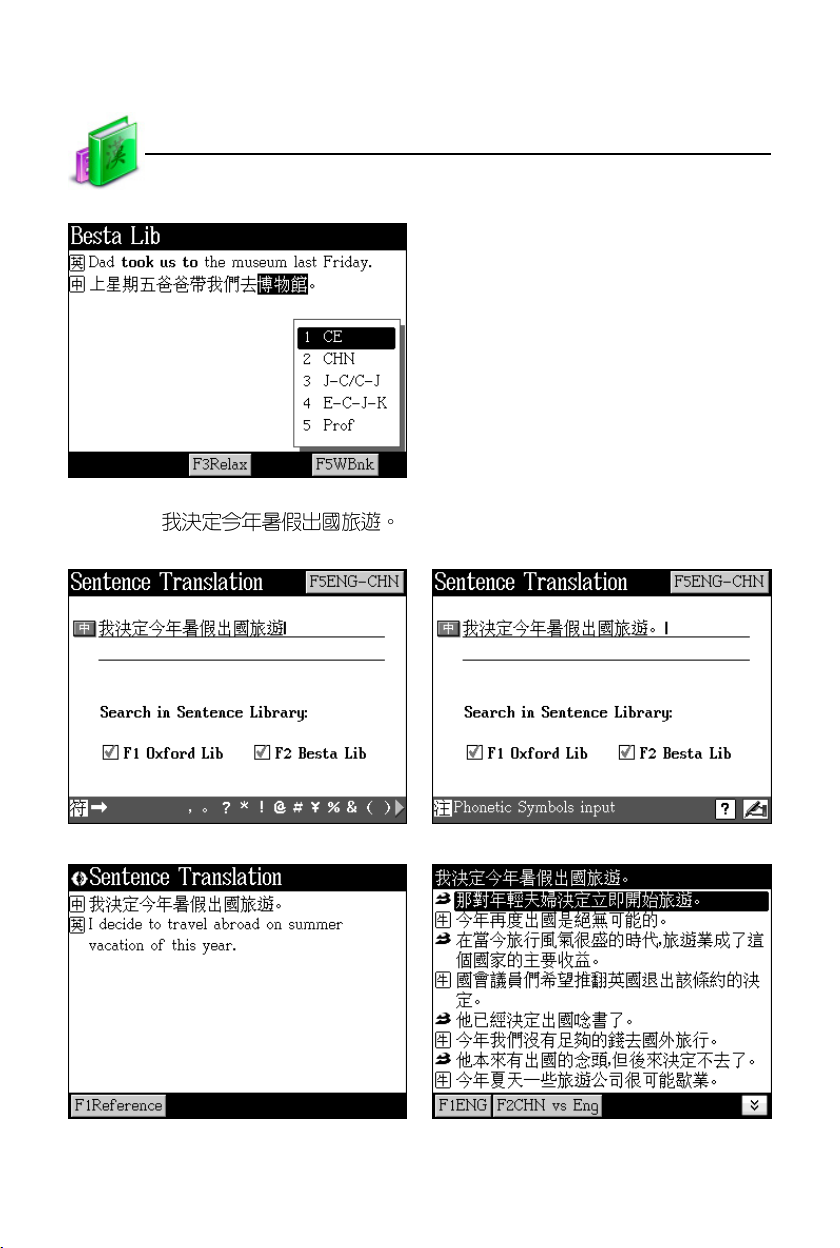
Cross search characters (words) * Choose the unknown words in the
* Tap [F5WBnk] to select correspond-
Take “ ” for example:
Input content and open SBC Case Input symbol
Sentence Translation
explanation screen.
ing dictionary for cross search.
Translation result Tap [F1Reference]
42
Page 50
Dictionary
Data Index
2. Data Index
After dictionary function is accessed, the index screen of all entries will appear
first. In this screen, you can press / for search or input words to search
explanations.
* Preview window can be opened or closed.
* In English index screen: directly input English word to search.
* In Chinese index screen: select an input method to input Chinese character.
* Make sure the corresponding functions are available in the current dictionary
when using the selected input methods.
* Tap or select appropriate keys to execute corresponding functions.
* Tap or press to display the explanation of the selected character (word).
* Tap or press to return to the main menu.
2.1 Index Screen
Take English-Chinese Dictionary, Chinese Dictionary, Oxford Advanced Learner’s
Dictionary, Chinese-English Dictionary, and E-C-J-K Dictionary for example:
In the index screen:
Tap / to open/close preview window.
Tap or press to display the input method menu.
Tap to open handwriting input method.
43
Page 51
Dictionary
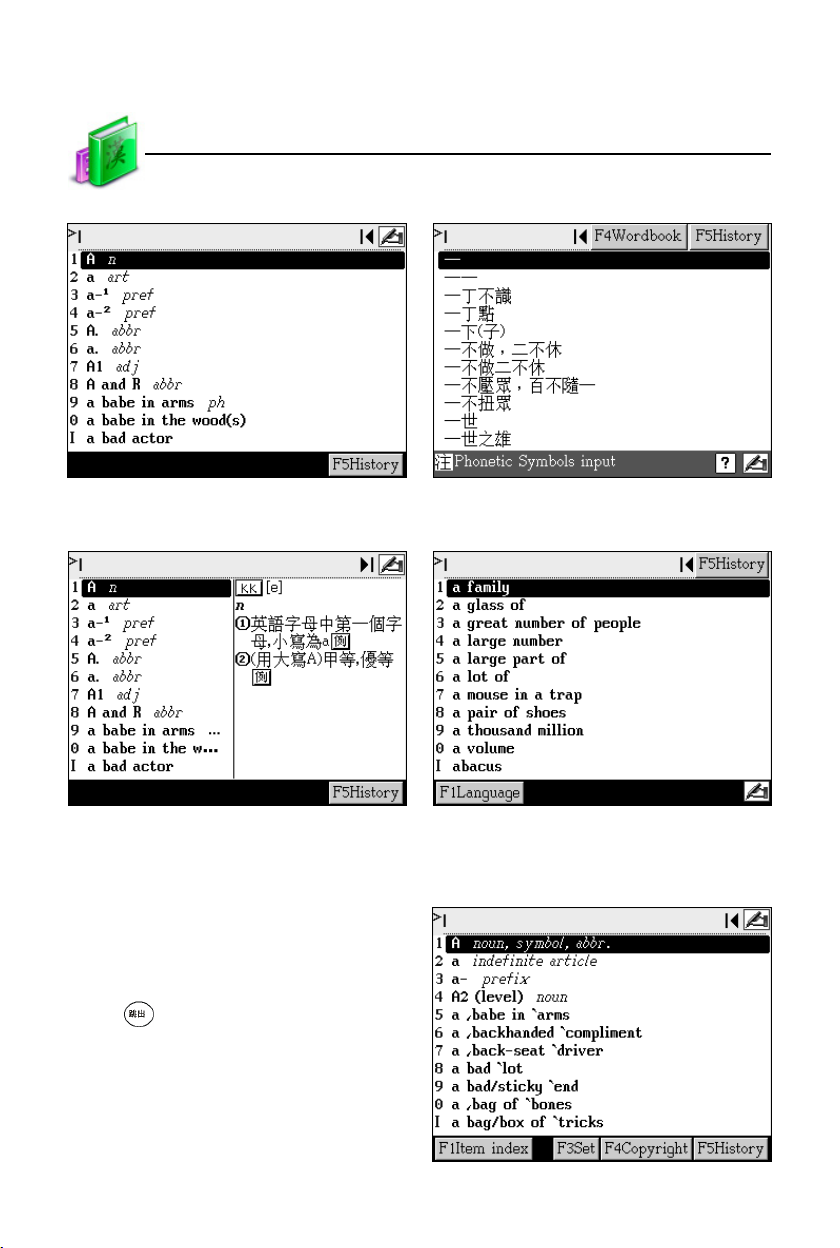
English-Chinese Dictionary screen Chinese Dictionary screen
Preview window is opened in English- E-C-J-K Dictionary
Chinese Dictionary
Data Index
2.1.1 Item Index
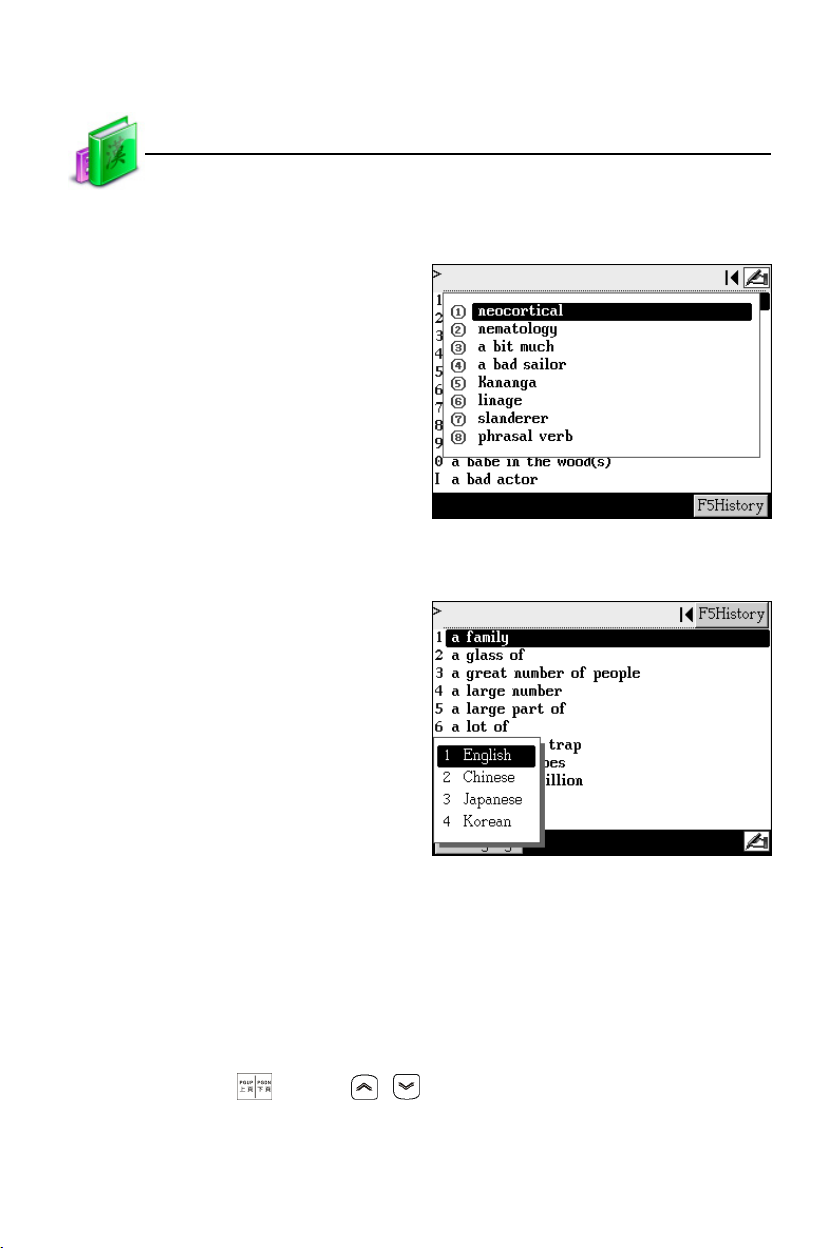
If available, tap [F1Item index] to display
the list of categories.
Tap or press numeric key to select item.
Press or tap anywhere outside of the
menu to exit.
Oxford Advanced Learner’s Dictionary
44
Page 52
Dictionary
Explanation
2.1.2 History
English-Chinese Dictionary
Tap or press [F5History] to view the
words that have been looked up recently
(Up to 50 words can be recorded).
Tap or press numeric keys to select
the headword.
2.1.3 Language Selection
E-C-J-K Dictionary
Tap or press [F1Language] to shift the
headword list among several languages.
3. Explanation
Input words to be looked up and access the explanation screen. Browse with
scroll up/down or page up/down.
* Provides KK/DJ phonetic symbols for selection.
* Provides sample sentences, grammar, analysis for reference.
* Can cross search in corresponding dictionaries for the selected words.
* Tap the hot key or press / to look up the previous/next explanation.
* Provides Chinese, English and Contonese pronunciations.
* Provides syllable phonetic pronunciation for words with multi-syllables.
45
Page 53
Dictionary
* Provides repetition and reading after the device for practice.
* 3 kinds of font sizes can be switched.
Explanation
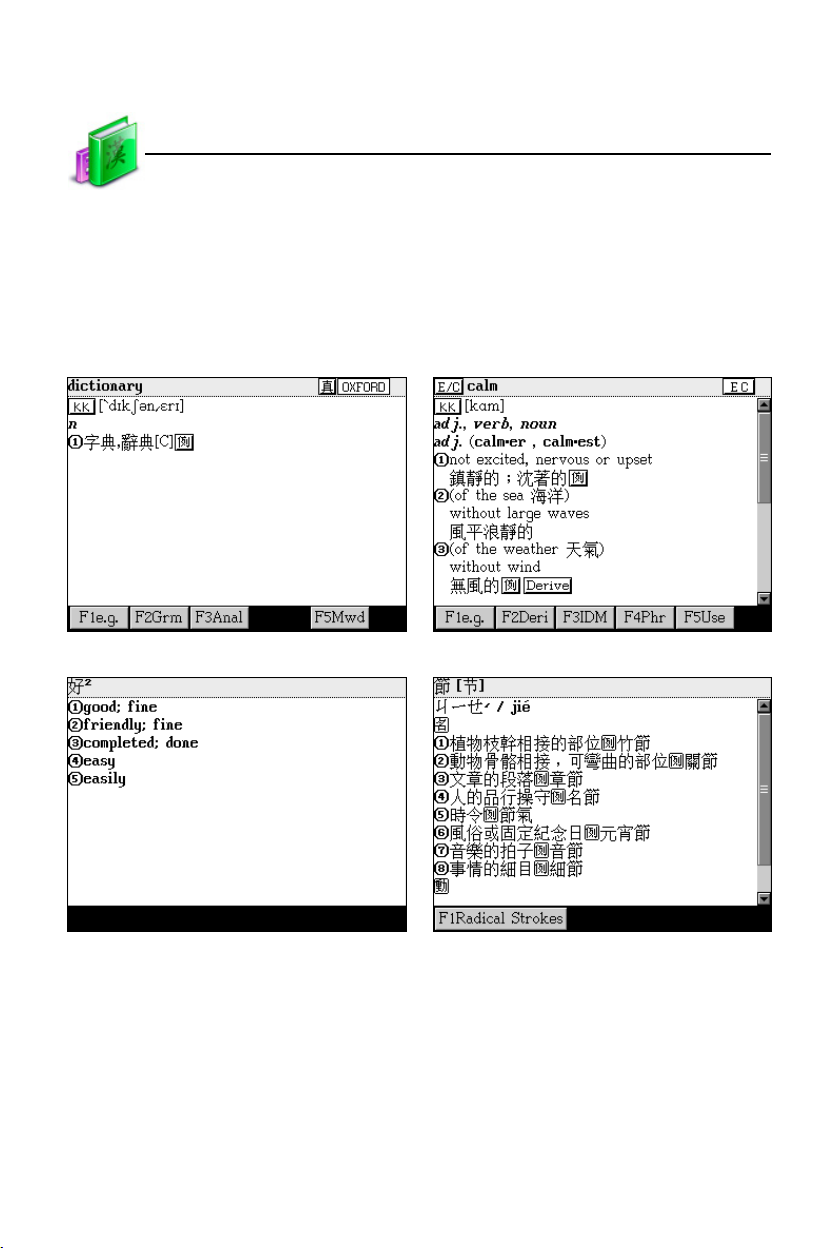
3.1 Explanation Screen
Take several dictionaries for examples:
English-Chinese Dictionary Oxford Advanced Learner’s Dictionary
Chinese-English Dictionary Chinese Dictionary
46
Page 54
Dictionary
E-C-J-K Dictionary Idiom Dictionary
Explanation
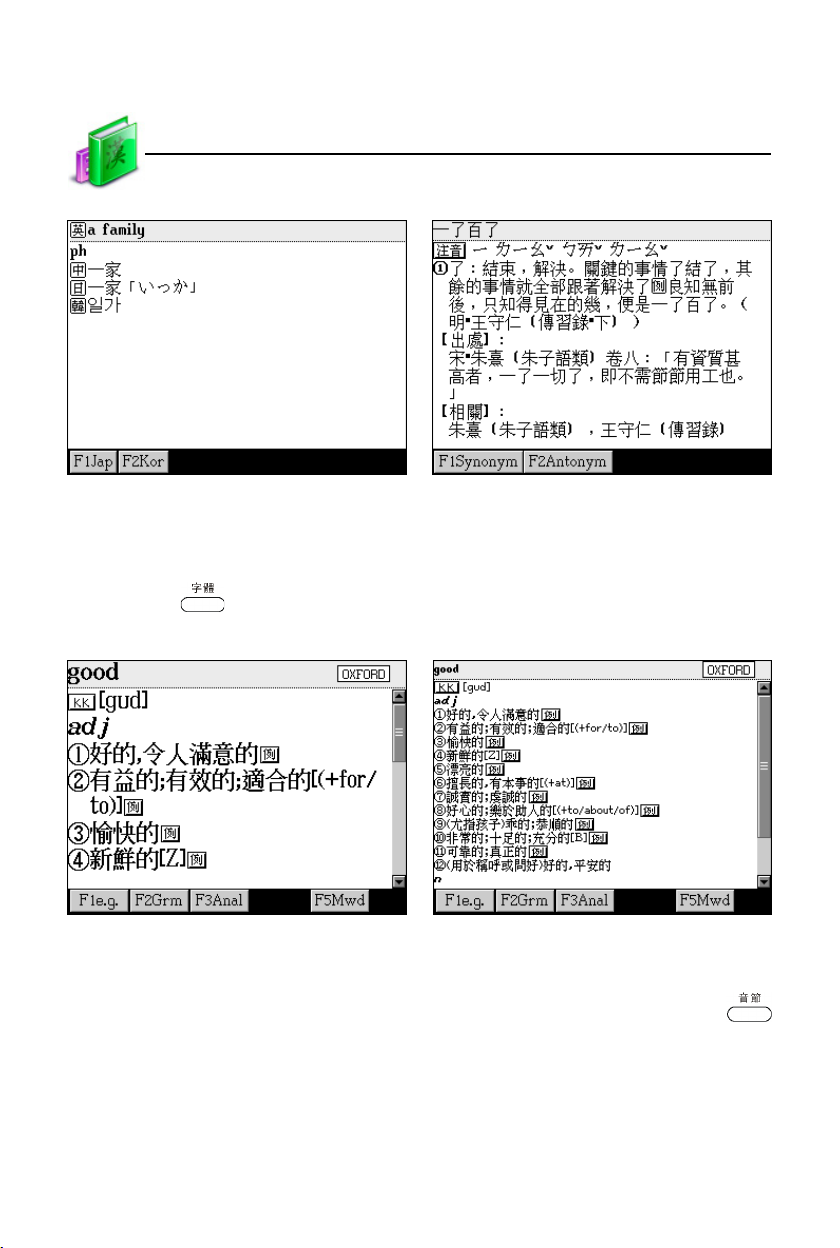
3.1.1 Font Size
In the explanation screen, 3 kinds of font sizes can be selected: middle, big,
small; press to switch.
English-Chinese Dictionary
3.1.2 Syllable Pronunciation
Provides the pronunciation of English word with multi-syllables. Press
once, the device will pronounce the current headword syllable by syllable.
47
Page 55
Dictionary
English-Chinese Dictionary
Explanation
3.1.3 Repetition
Repetition is available in the explanation screen. Press once, and then
press once, the device will repeat the current Chinese/English headword.
(The times of repetition can be set in <F4SYS--0 Phonetic Repeat>.)
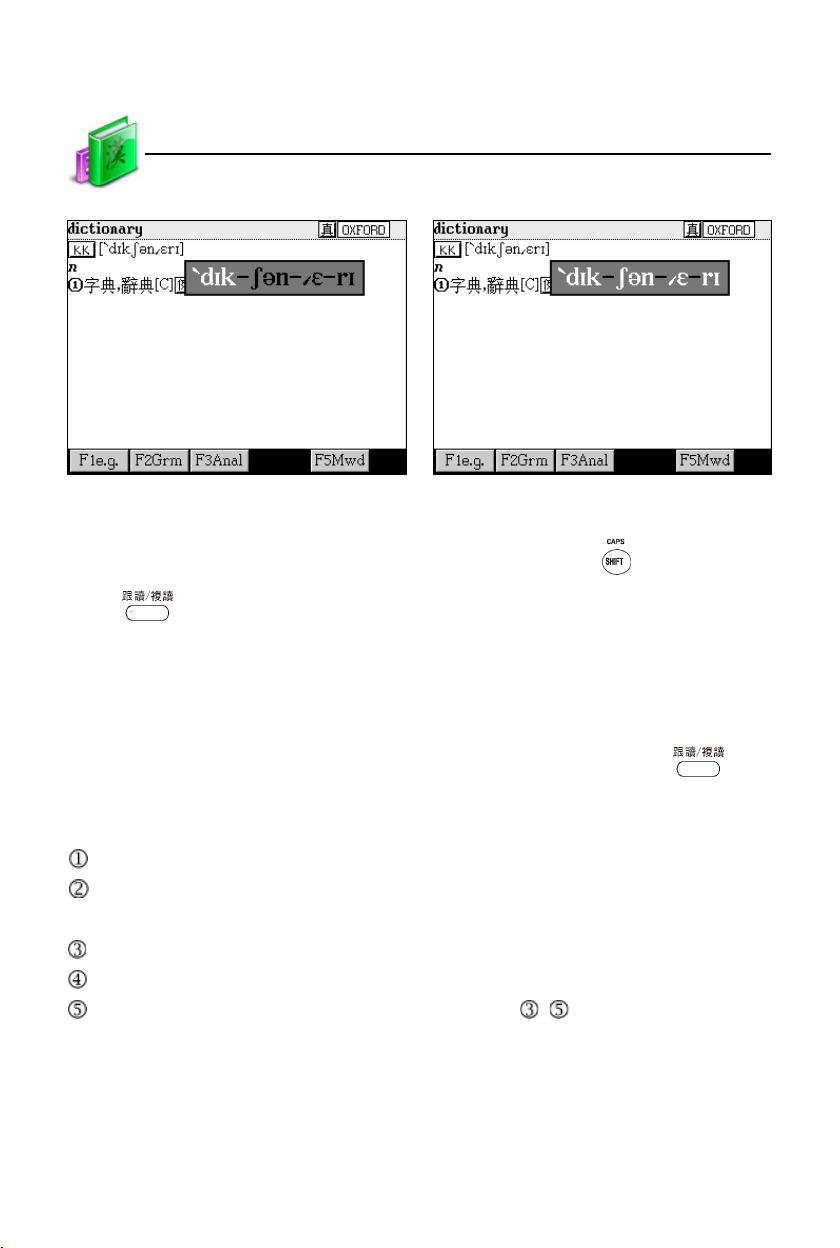
3.1.4 Read after the Device
Read after the device is available in the explanation screen. Press once
to practice Chinese/English pronunciations. (Recording time is about 5 seconds.)
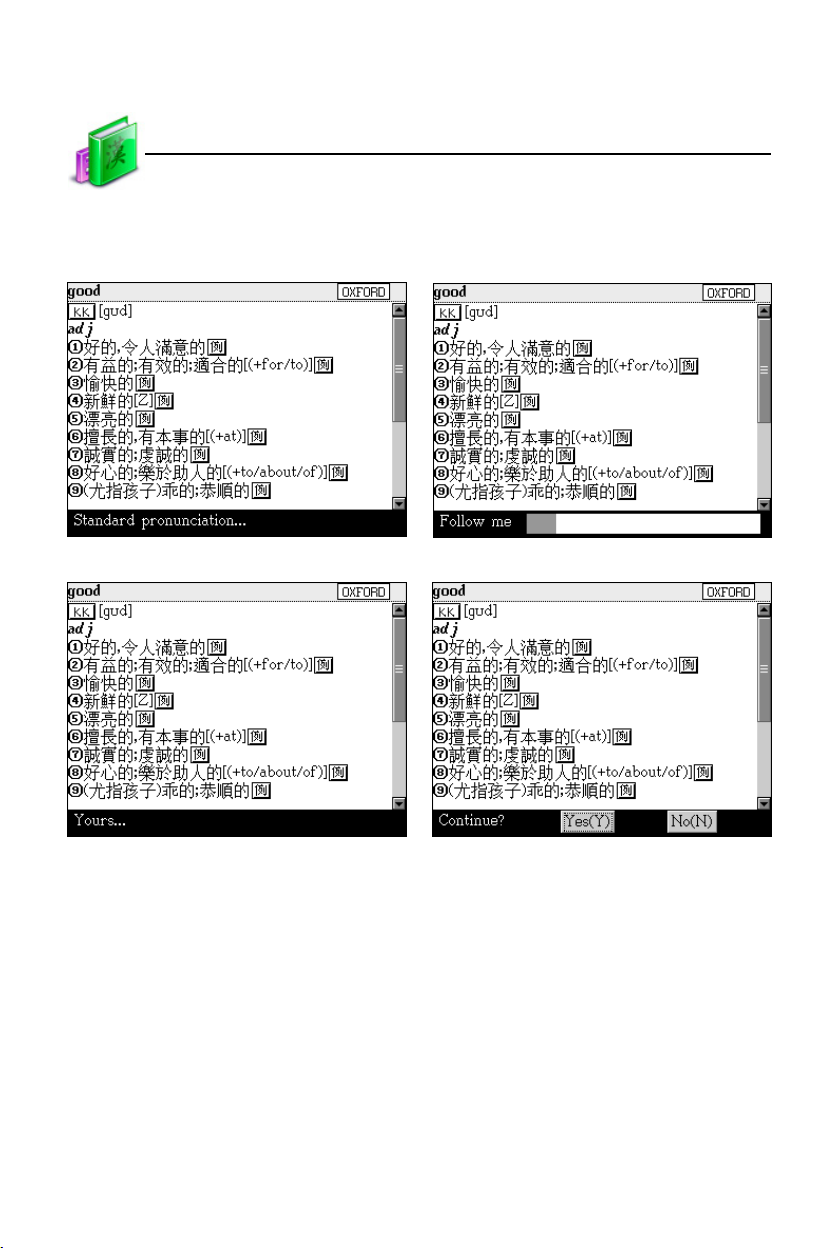
Steps:
Standard pronunciation.
Di...( prompt sound ). Please read after the device. (A bar displays the current
status.)
Listen to the standard pronunciation.
Your pronunciation.
Continue? [Y]/[N] (Select [Y] to repeat the steps ~ ; select [N] to delete the
recorded data.)
48
Page 56
Dictionary
For example, operate in the explanation screen of “good” in English-Chinese
Dictionary.
Step 1: Standard Pronunciation Step 2: Read after the device
Step 3: Your pronunciation Step 4: Continue comparison?
Explanation
3.1.5 Other Data
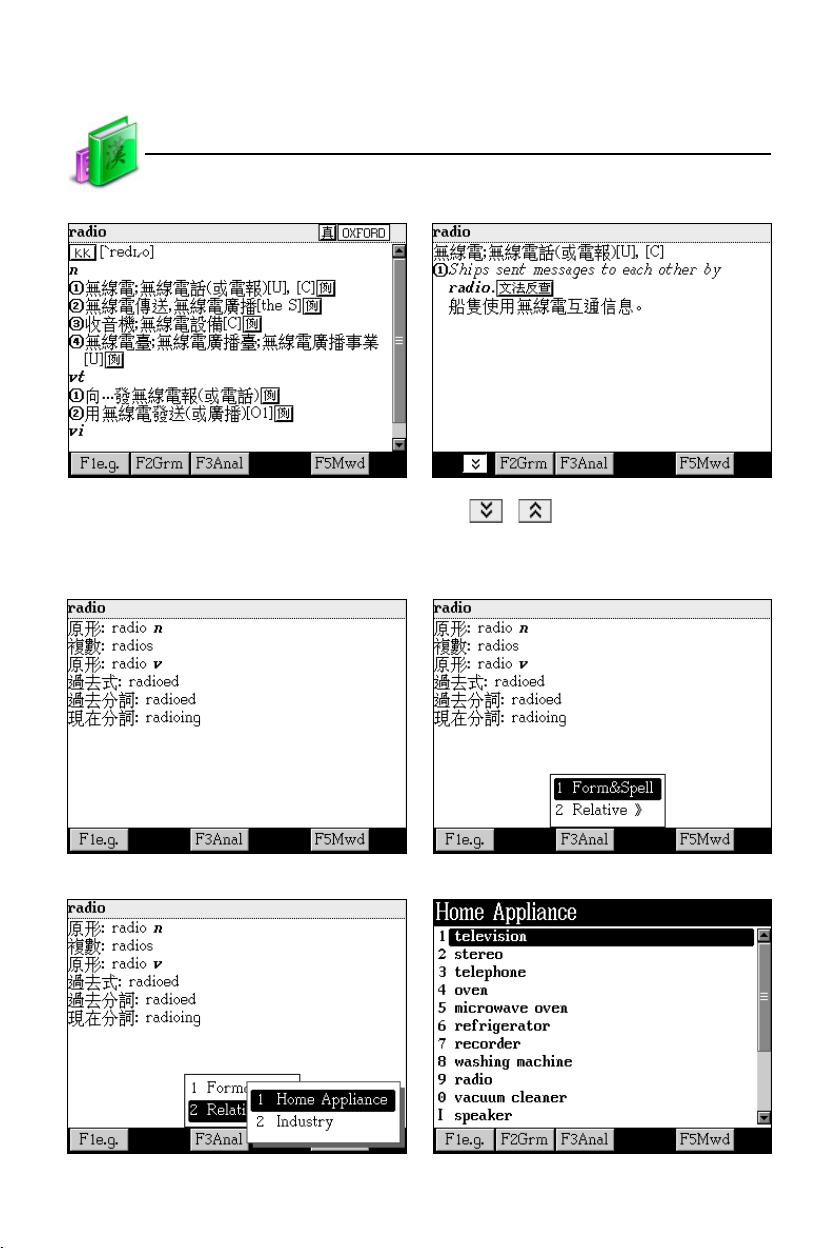
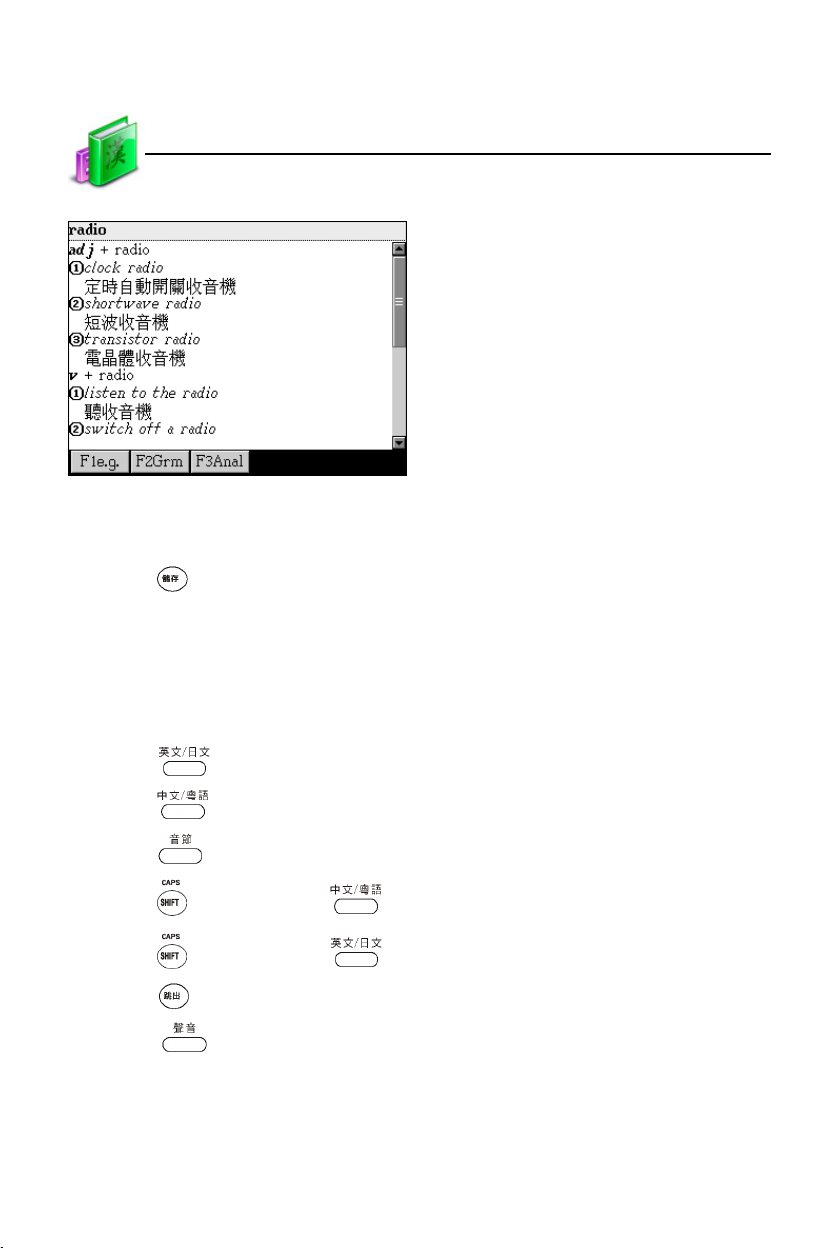
Different dictionaries may provide different data, so please press the correspond-
ing function keys to view other data in the explanation screen.
Take looking up “radio” in English-Chinese Dictionary for example:
49
Page 57
Dictionary
Explanation screen Tap [F1e.g.]
When tap [F1e.g.], the examples are Tap / to page down/up to look
only available for the selected item. up other sample sentences.
Tap [F2Grm] Tap [F3Anal]
Explanation
Tap [2 Relative] [F3Anal] item search
50
Page 58
Dictionary
Tap [F5Mwd]
Explanation
3.1.6 Data Storing
Press to save words or sentences for review and test. Only the saved data
can appear in Review and Test.
3.1.7 Pronunciation
The pronunciation is American English. In the explanation screen:
* Press to listen to English pronunciation.
* Press to listen to Chinese pronunciation.
* Press to listen to syllable pronunciation.
* Press once and press to listen to Cantonese pronunciation.
* Press once and press to listen to Japanese pronunciation.
* Press to stop pronunciation.
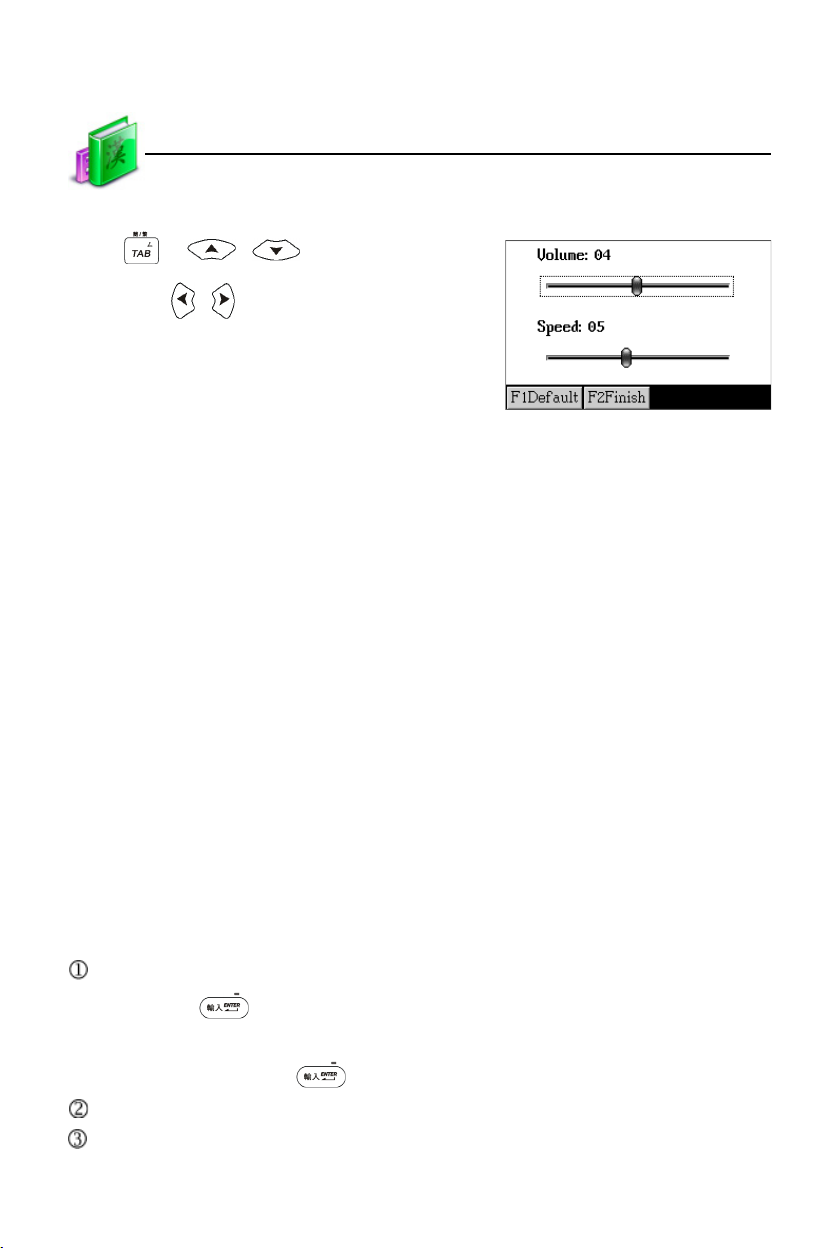
* Press to set volume and speed of the natural voice.
51
Page 59
Dictionary
Set volume and speed:
Press or / to select
item, press / to set volume; or
directly tap to set volume and speed.
Tap or press [F1Default] to return to
the default settings.
Tap or press [F2Finish] to confirm.
4. Data Search
Provides several search methods to help users.
In the index screen:
1. Smart input search
2. Wildcard search (Only available for English)
3. Cross search
4. Secondary search (Only available for English)
Data Search
In the explanation screen:
1. Multi-layered search
2. Related data search
4.1 Smart Input Search
Just input the first one or several letters, and then you can find the desired
words or phrases. There are 4 kinds of methods:
Input the first or first several letters of a word, or mark a word to be looked up,
then press to confirm.
As for Chinese character, input the first one or several Chinese characters to be
looked up, then press to confirm.
Double tap the word or character to be looked up.
Press [1~0, I, II] to select corresponding word or character.
52
Page 60
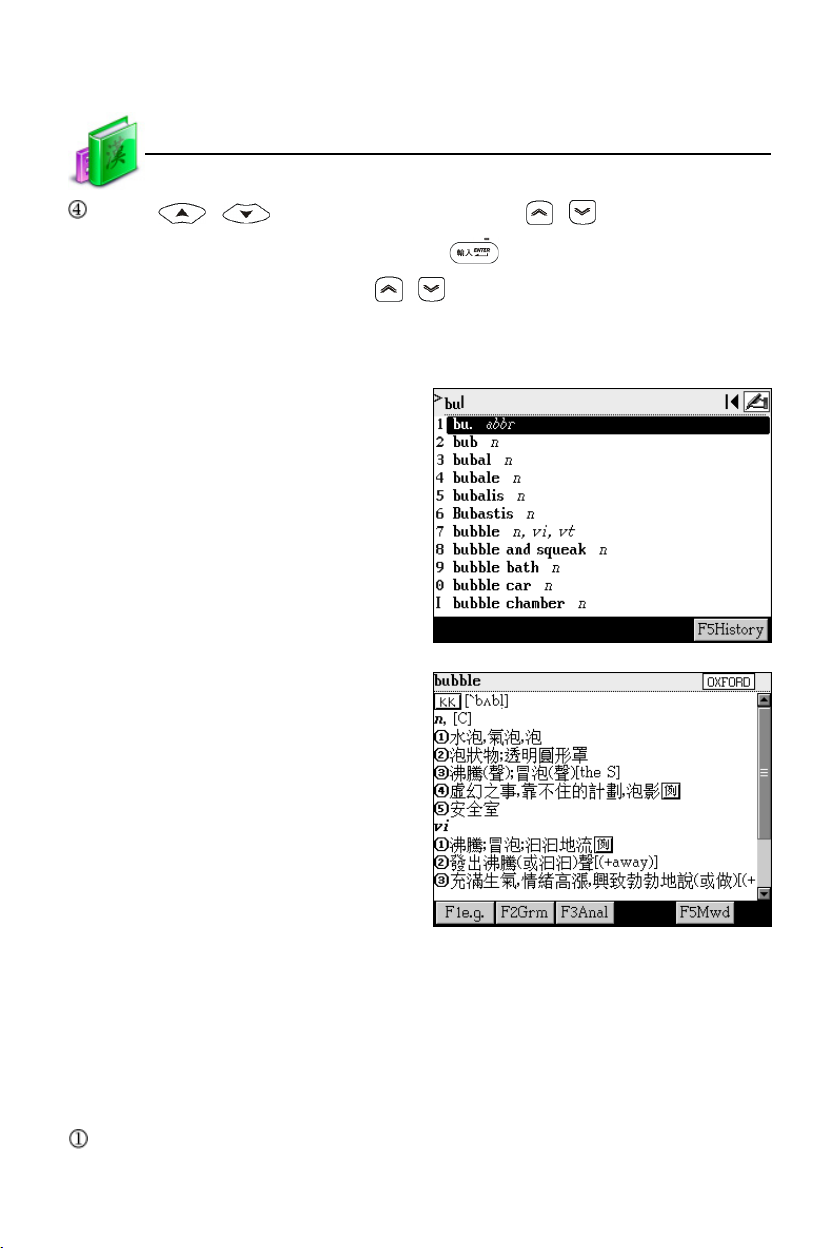
Dictionary
Press / to move the cursor, or press / to page up/down to
select the desired word, and then press to confirm.
* In explanation screen, press / to display the explanation of the
previous/next word/character.
Take looking up “bubble” in English-Chinese Dictionary for example:
Input “bu”.
Double tap “bubble”, or press [7].
Data Search
4.2 Wildcard Search
To look up a word that you are not sure of spelling, input all the letters you
know, and then replace the unknown letters with “?” or “*”.
Steps:
Input the English letters that you are sure of.
53
Page 61
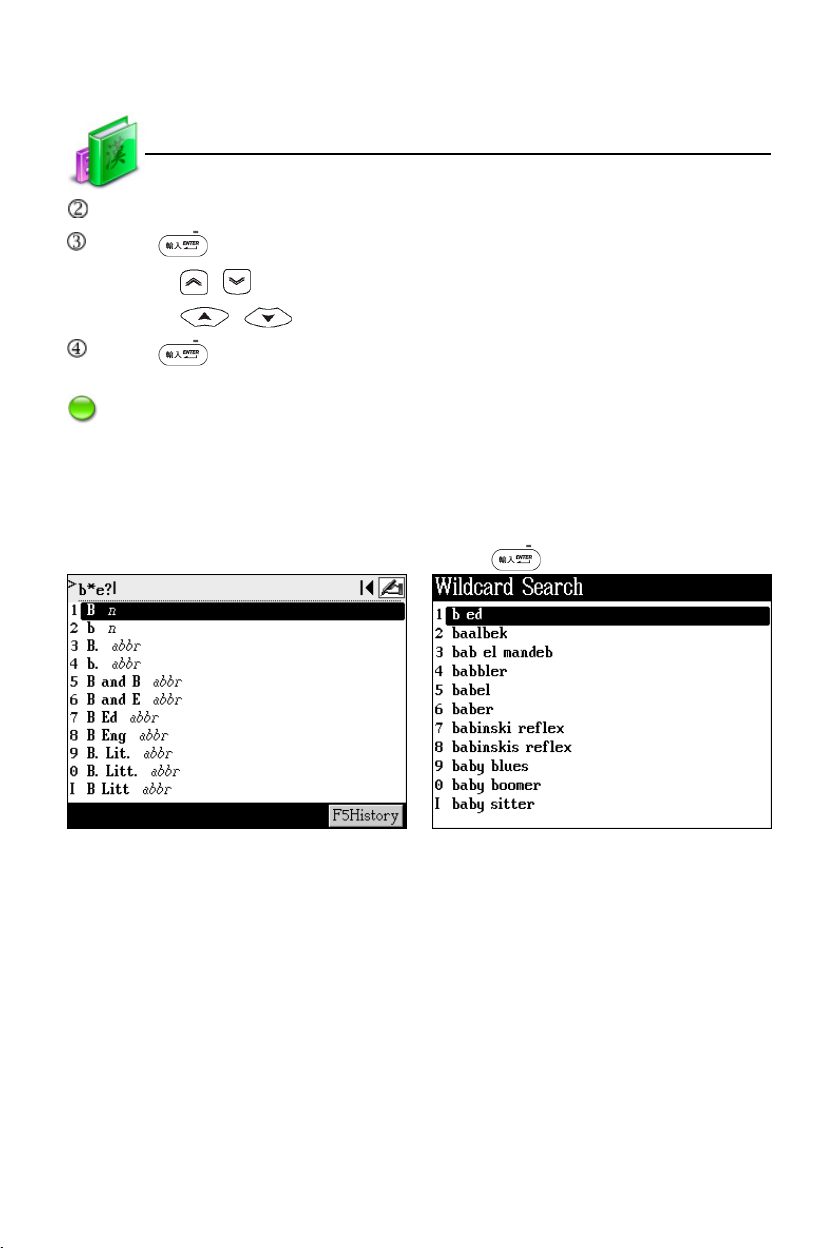
Dictionary
Input unknown letters with “?” or “*”.
Press , the list of words matching with your input will be displayed.
* Press / to look up on the previous/next page.
* Press / to move the cursor to select words.
Press to search.
Note:
“?” stands for an unknown letter; “*” stands for a string of unknown letters.
Neither “?” nor “*” can be input as the first letter.
Take looking up “babel” in English-Chinese Dictionary for example:
Input “b*e?” Press
Data Search
Double tap “babel”, or press [5] to select the word.
4.3 Cross Search
When the current dictionary does not contain the word/character you want to
look up, the device will transfer to other dictionaries. If the word/character is avail-
able in other dictionaries, it will display the explanation.
The cross search order: (circular mode)
English word: Oxford Advanced Learner’s Dictionary-> English-Chinese
Dictionary -> DIY Dictionary
54
Page 62
Dictionary
Chinese character: DIY Dictionary
Remark: If the corresponding “Extension Dictionary” of a certain dictionary has
been downloaded, the device will search for words in the “Extension
Dictionary” first, and then others.
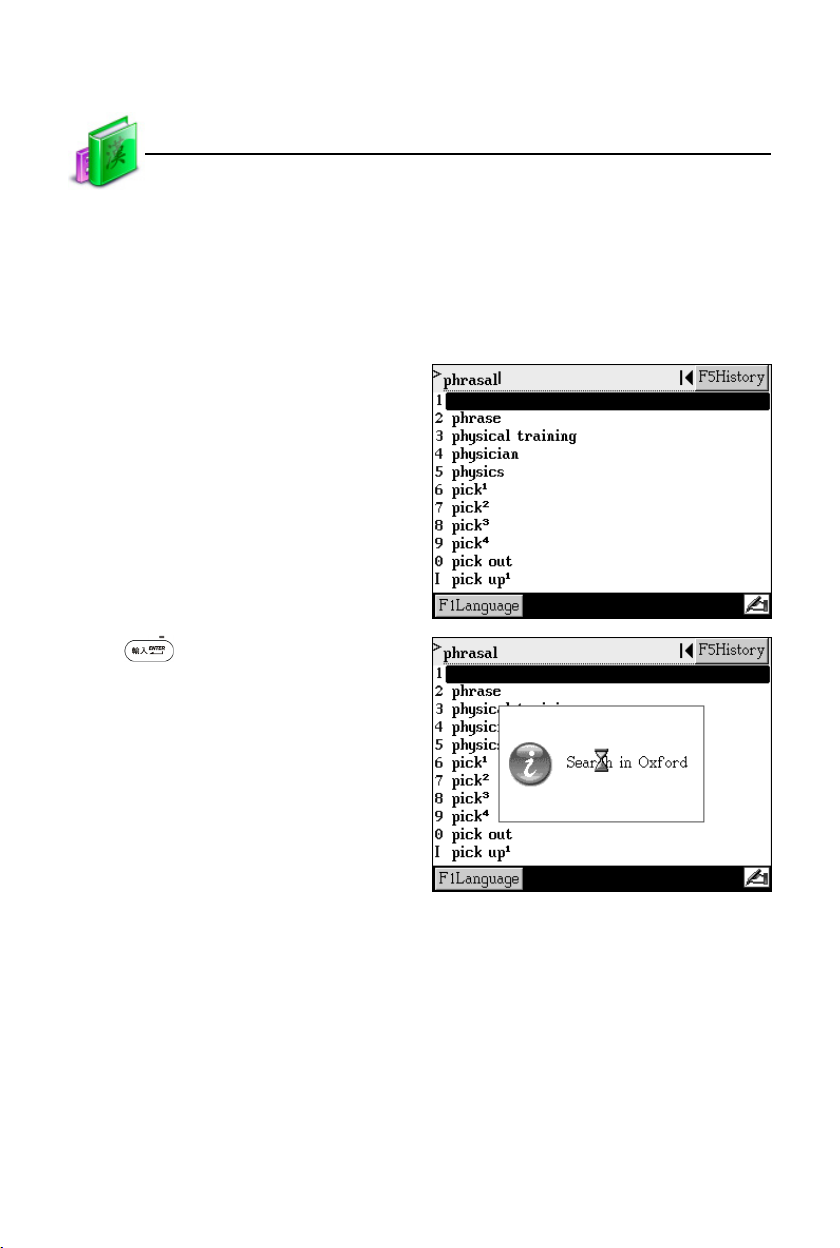
Take cross search in Oxford Advanced Learner’s Dictionary for example:
Input “phrasal” in E-C-J-K Dictionary
Press to cross search Oxford
Advanced Learner’s Dictionary. Then
access the explanation screen.
Data Search
4.4 Secondary Search
This is only available in searching for English words. If the word you input is not
found, please check the spelling, or that this word is not covered in this dictionary.
You may access secondary search; or you can add this word into DIY dictionary. 3
kinds of secondary search methods are provided:
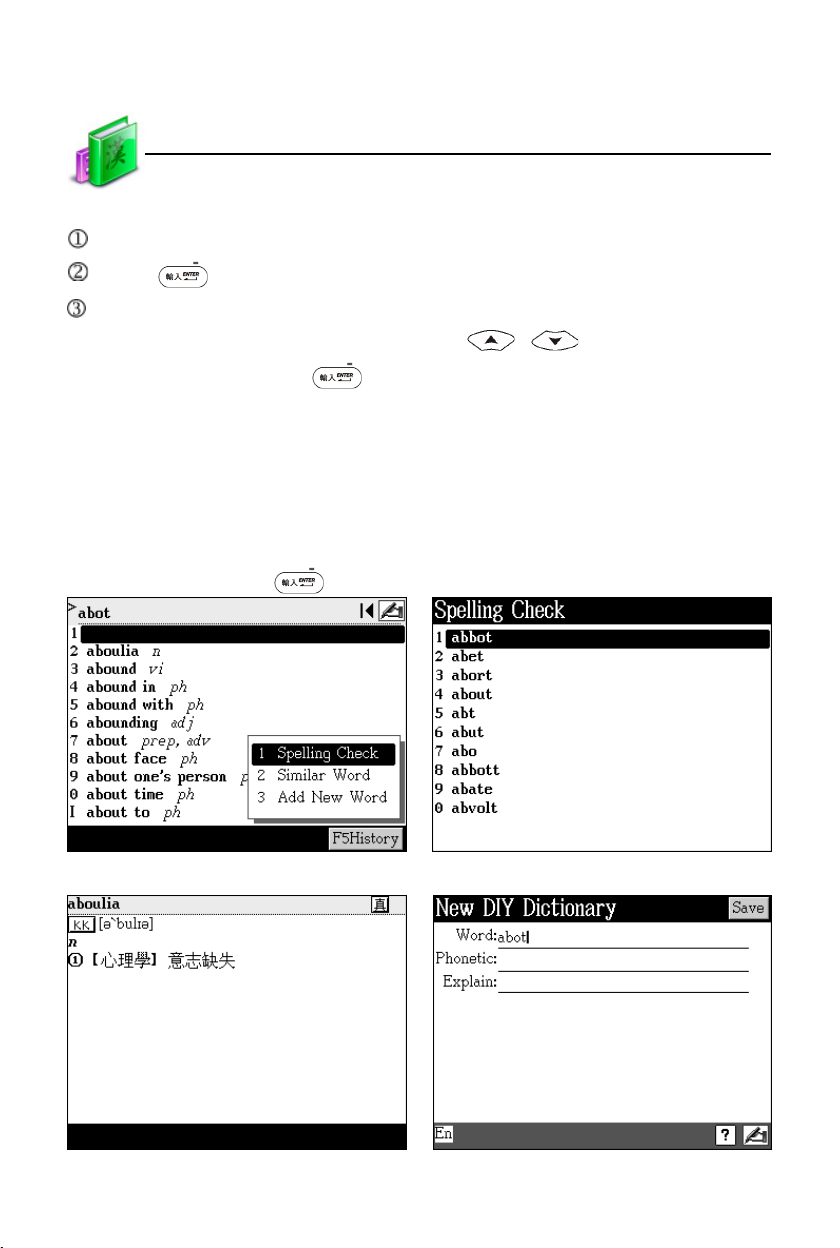
* Spelling Check: displays the list of words similar in spelling.
* Similar Word: displays the similar word in order.
* Add New Word: add the unfound word into DIY Dictionary.
55
Page 63
Dictionary
Steps:
Input English word.
Press to search.
Press the corresponding numeric keys to search.
* If “1 Spelling Check” is selected, press / to select the desired
word, and then press to confirm.
* If “2 Similar Word” is selected, it will display the explanation of the similar
word.
* If “3 Add New Word” is selected, you can add the word into DIY Dictionary.
Take looking up “about” in English-Chinese Dictionary for example, but “about”
is misspelt as “abot”:
Input “abot”, and press . Tap “1 Spelling Check”
Data Search
Tap “2 Similar Word” Tap “3 Add New Word”
56
Page 64
Dictionary
Data Search
4.5 Multi-layered Search
When you encounter unfamiliar words/characters, you can cross search in cor-
responding dictionaries or cards up to 20 layers. The number of the layer will be
displayed at the top right corner.
In the explanation screen, highlight the Chinese character(s)/English word(s)
to be looked up.
* by the stylus:
Use the stylus to highlight and drag the words. Press or tap anywhere in
the screen except the highlighted area to cancel the highlight.
* by the keyboard:
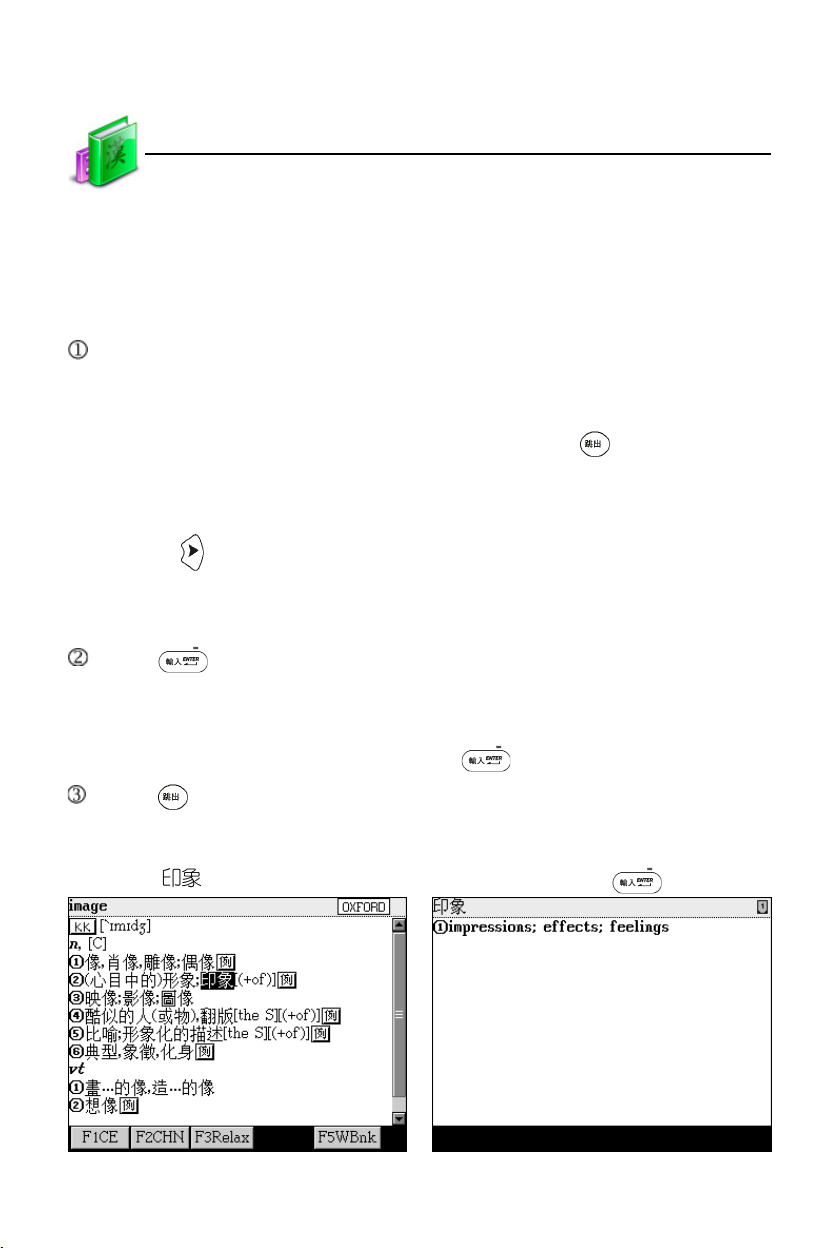
Press to locate the cursor. Move the cursor to the word, tap [F3Mark] to
fix the cursor, and then press direction key to set the range. Tap [F3Relax]
to cancel.
Press to search or press [F1], [F2], [F5] to search in corresponding
dictionaries.
* [F1] and [F2] provide search in commonly used dictionaries. [F5] is the word
bank. At this time, [F1] is the same as .
Press to return to the previous screen.
Take cross search “image” for example:
Highlight “ ” Tap [F1CE] or press
57
Page 65
Dictionary
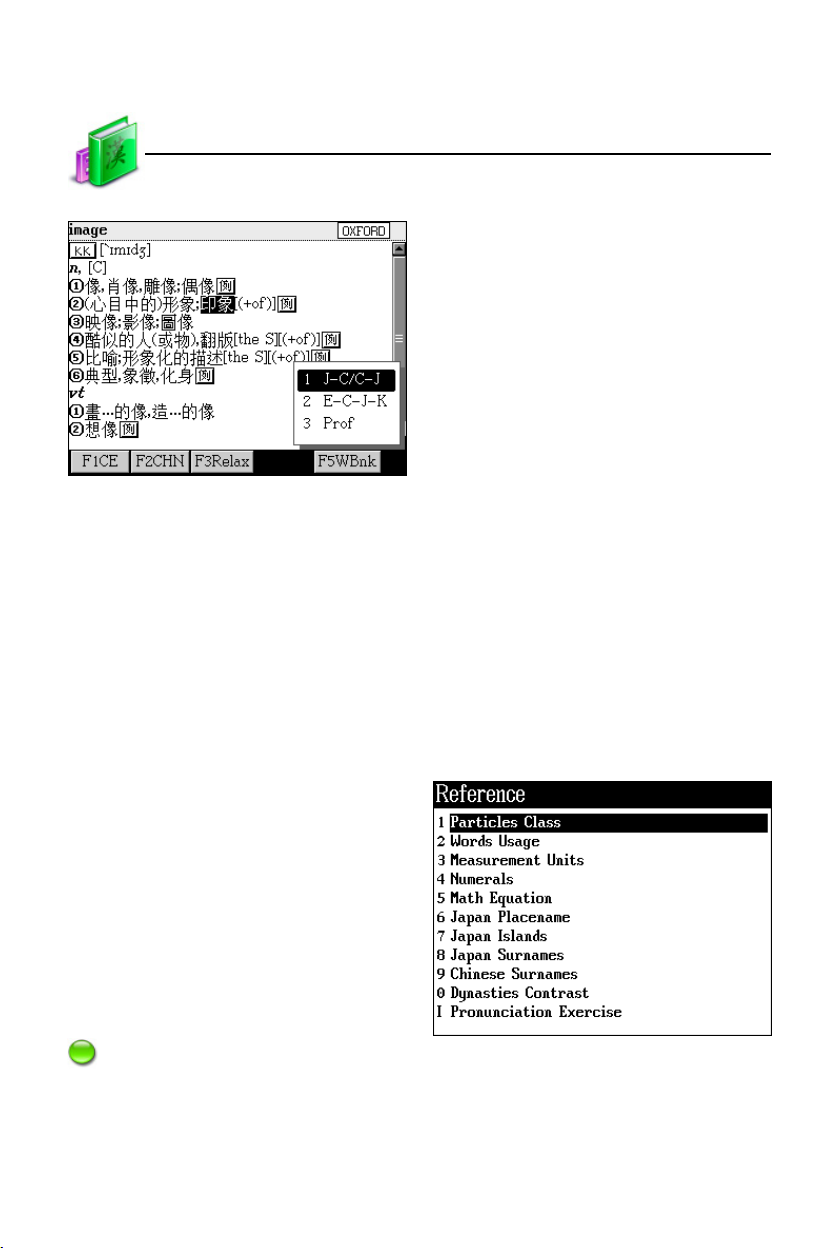
Tap [F5WBnk] When the card of Professional Use
Dictionary is inserted, the name of which
will be appeared in [F5WBnk].
Data Search
4.6 Other Data Search
In explanation screen, select the corresponding function key to view data. Please
refer to the operation of “3.1.5 Other Data”.
4.7 Special Data Search
In the index screen of dictionaries, tap or press corresponding keys to view
special data if they are available.
Take Reference in J-C/C-J Dictionary
for example:
Note:
Reference Comparison includes many data, tap corresponding item to view
data. Please refer to on-line help.
58
Page 66
Dictionary
Professional Use Dictionary
5. Professional Use Dictionary
You should download your desired professional dictionaries from website. Please
put your data in correct path: [C:\STUDY\PRODICT].
In the search screen, you must input your desired word in at least one column.
* If inputting one word in any column, you can find all words that include the
word you’ve input.
* If inputting words in “Keyword” and “And”, you can find all words that include
the words you’ve input.
* If inputting words in “And” and “Or”, you can find all words that include the
words you’ve input.
* If inputting words in “Keyword” and “Or”, you can find all words that include
any word you’ve input.
* If inputting words in the 3 columns, you can find all words that include the
words you’ve input in “Keyword”, “And” and “Or” at the same time.
Press to display all related words, and then press the corresponding
numeric keys to access their explanation screens.
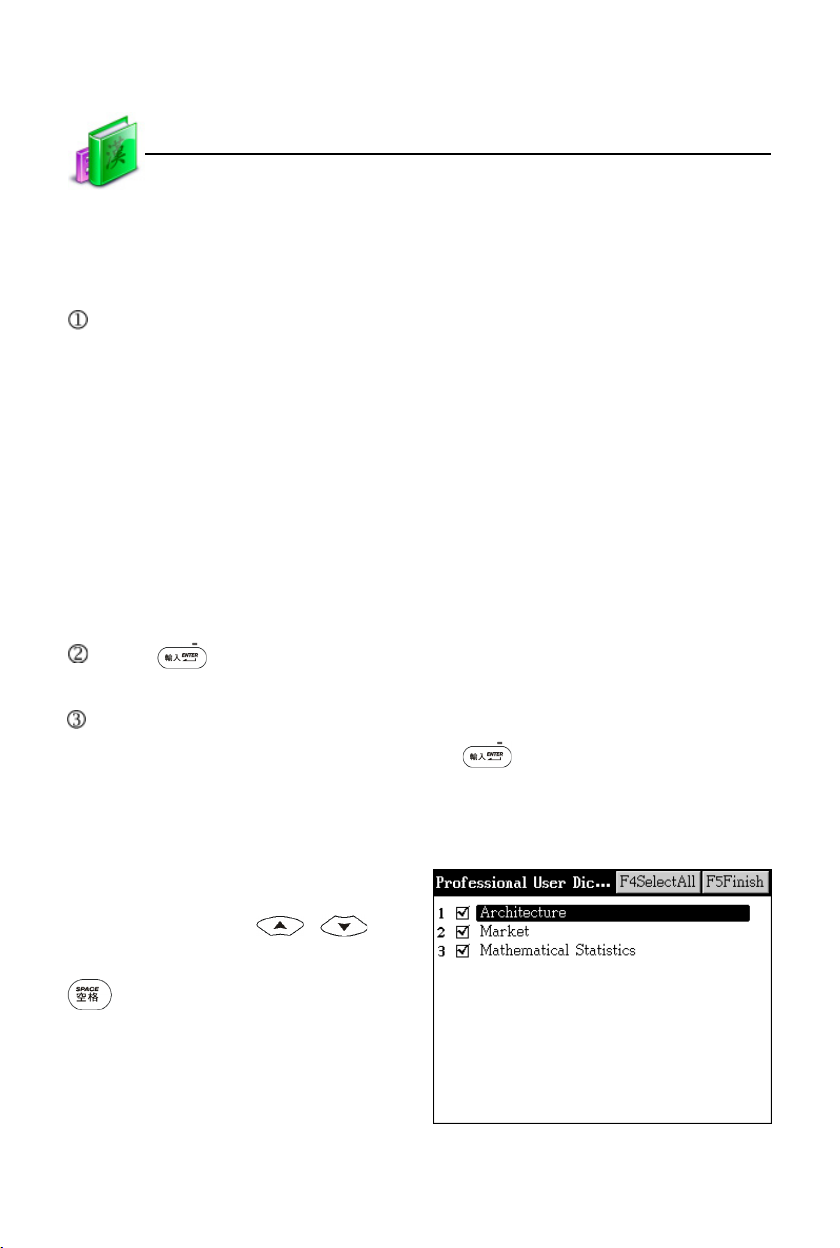
Tap or press [F5Category] to tick your desired dictionaries, then tap [F5Finish]
to confirm; or directly double tap or press to access the index screen of
the highlighted dictionary.
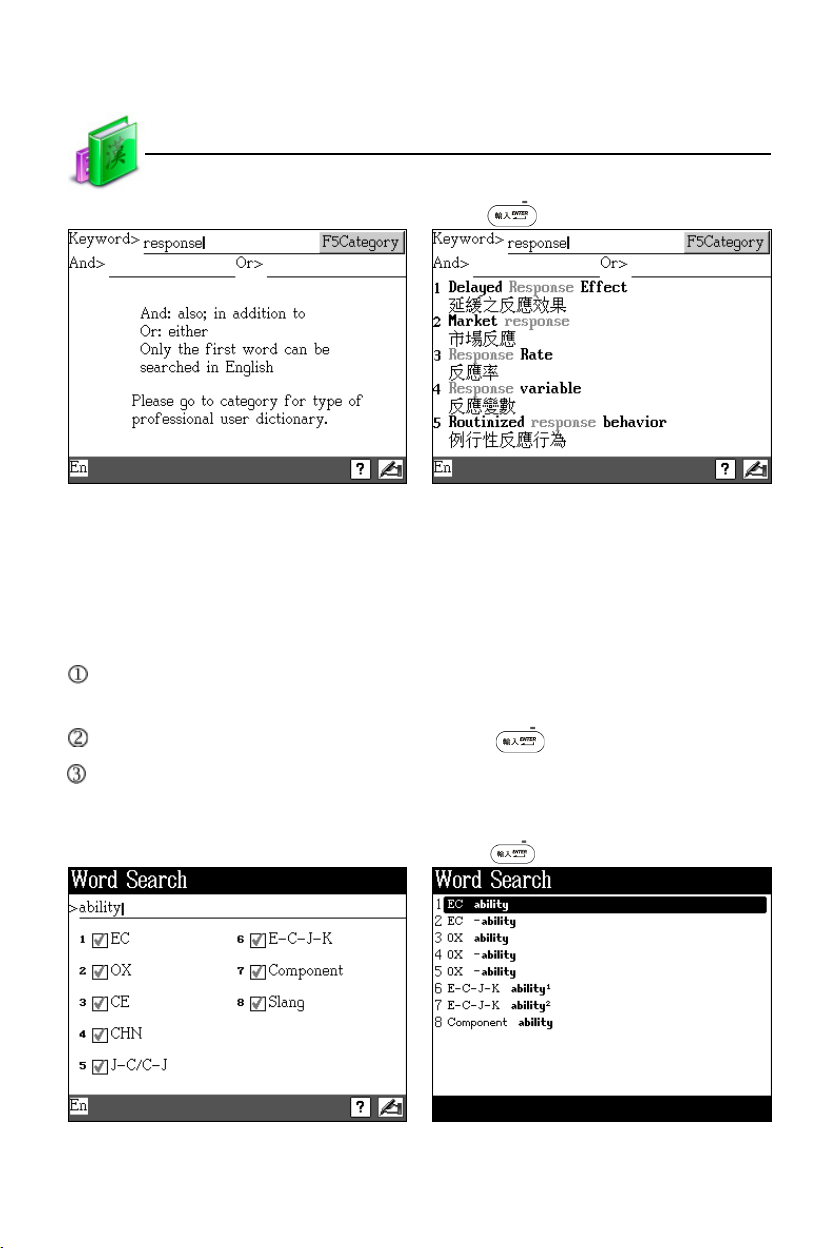
Take looking up “response” for example:
In the search screen, tap [F5Category]
to access the menu. Tick your desired
dictionaries; or press / or
numeric keys to select, and then press
to tick.
59
Page 67
Dictionary
Input “response” Press to display accordant words.
Tap or press corresponding numeric key
to select your desired words.
Word Search
6. Word Search
You can proceed the pertinent search with these dictionaries provided.
In index screen, press corresponding numeric key to tick the dictionaries to be
looked up.
Input Chinese/English words, and then press to search.
Tap or press corresponding numeric key to select dictionary.
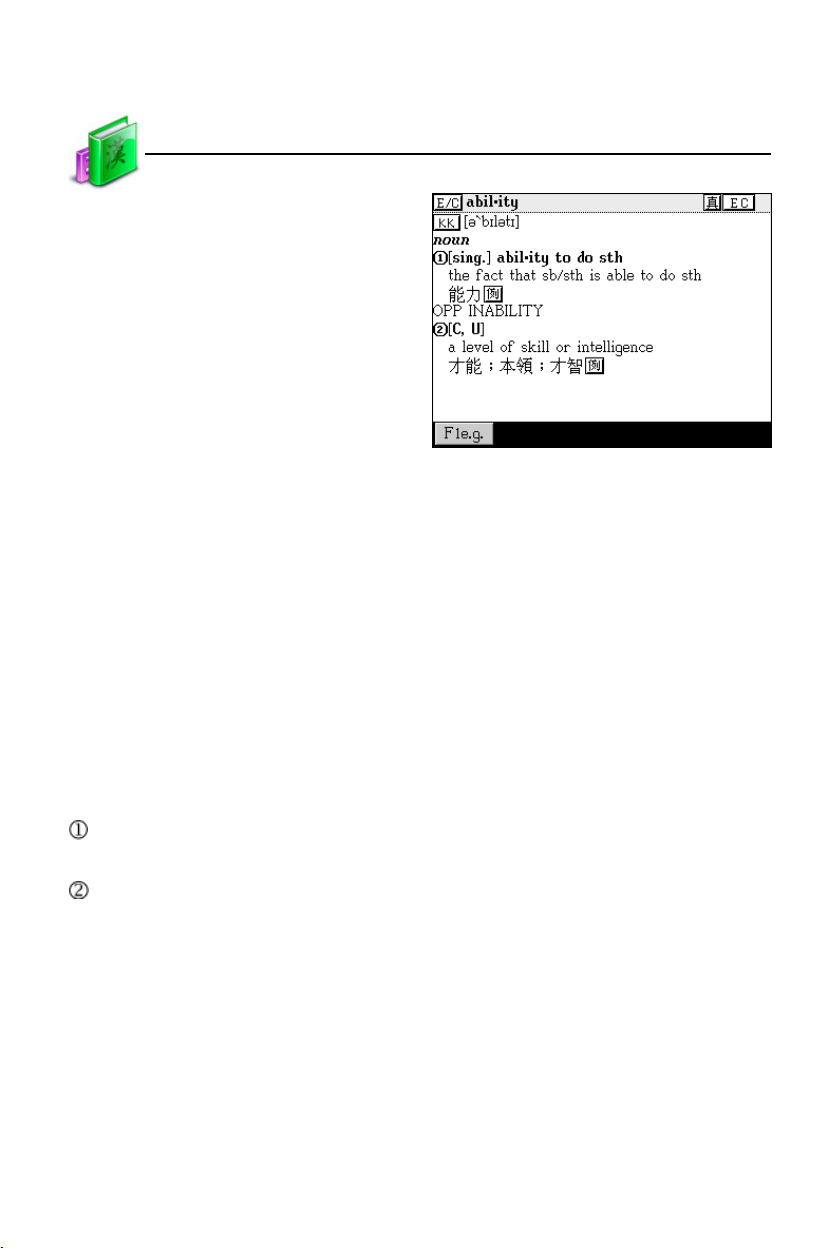
Take looking up “ability” for example:
Input word and select dictionaries Press
60
Page 68
Dictionary
Double tap “OX ability”, or press [3] to
access the explanation screen.
Extended Card
7. Extended Card
There are two types of applications of card. One is for professional dictionaries
card, which extends the functions and database of the device. Once you insert the
professional card, the functions and database of the card is combined with the
device. For example, if you insert “The Contemporary Chinese Dictionary” card, the
device is equipped with the database of The Contemporary Chinese Dictionary.
The other is for extending the memory and new functions of the device. The
extended card provides a large space for user to download new functions and
database. For example, you can download data from PC through PCLink to extend
functions and database of the device.
The differences between the two kinds of card are as follows:
The Professional Use Dictionary card can be used immediately when it is
inserted.
The content of the extended card is free for you to download. There are several
different file formats.
* Card A/B in [F1DICT]: displays the name of the professional dictionary.
* Retrieve data from disk [A]/[B](SD/MMC): “Professional Use Dictionary” in
[F1DICT]; “Animated Grammar”, “Animated Phrases”, “General English
Proficiency Test”, “Interactive English”, “Listening&Speaking Classroom” and
“Extension Dictionary” in [F2STUDY]; and “MP3”, “Video Learning”, “eBook”,
“Text Browser”, “My Album” and “Games World” in [F5MULTI].
61
Page 69
Dictionary
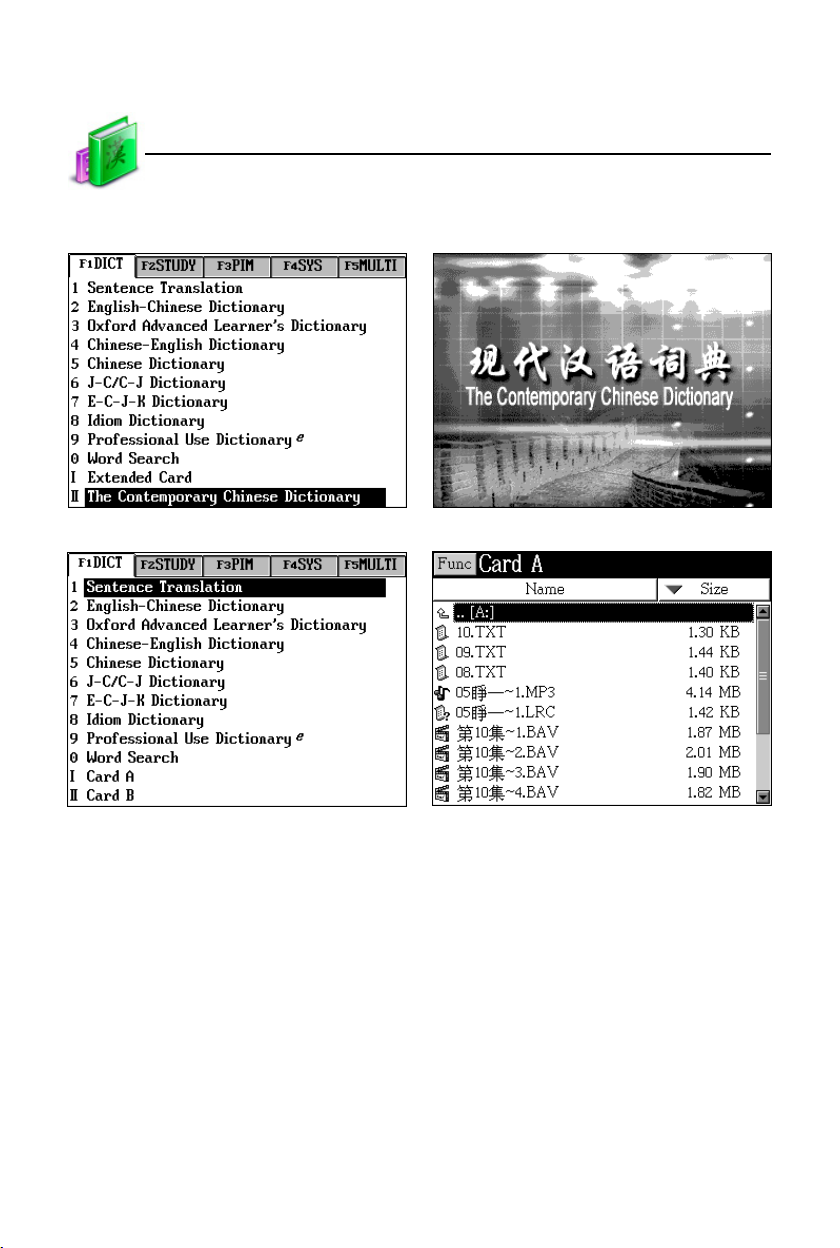
For example, The Contemporary Chinese Dictionary card is inserted:
The card in the main menu Access card
Take data extending card for example Access Card A
Extended Card
62
Page 70

Study
Features
Study Summary
* Animated study series help you to learn English through words, grammar,
phrases, cartoons, etc.
* Language study serials help you to learn English through dialogue, word
component, etc.
* English study serials provide listening, speaking, reading and writing practice.
* Kinds of study tools are available for downloading.
Animated Grammar
* Helps you to understand grammars through animation stories.
* Helps you to learn grammar efficiently through illustrations.
* Allows to download data through PCLink or our website.
* Allows you to cross search in Oxford Advanced Learner’s Dictionary, English-
Chinese and Chinese-English Dictionary.
* Provides browser tool and information on versions.
* Allows to insert and read bookmarks.
* Provides grammar selections and collections for study and practice.
* Please put the downloaded data in [C:\STUDY\ANIGRAM].
Animated Phrases
* Provides phrases to study English.
* Helps you to understand the meaning and usage of phrases through animation.
* Allows to cross search in corresponding dictionaries.
* Allows to download data through PCLink or our website.
* Please put the downloaded data in [C:\STUDY\ANIPHR].
General English Proficiency Test
* Listening comprehension test and practice are categorized into 3 levels: Junior,
Medium and Senior.
* Provides mock exams.
* Provides practice room.
* Updated datebase can be downloaded from our website.
63
Page 71

Study
Features
Interactive English
* Includes dialogues on a variety of occasions, which can be downloaded and
updated from our website.
* All dialogues are read in natural voice.
* Provides read after the device sentence by sentence.
* Provides role play.
* Allows to cross search in corresponding dictionaries for up to 20 layers.
Listening&Speaking Classroom
* Provides Reading Studio/Audio Studio/Vocal Studio/Baby American English.
* Please put the downloaded data in:
Reading Studio-- [C:\STUDY\CLASSROM\READ]
Audio Studio -- [C:\STUDY\CLASSROM\LISTEN]
Vocal Studio -- [C:\STUDY\CLASSROM\PRON]
Baby American English-- [C:\STUDY\CLASSROM\CHILD]
Words Studio
* Provides Elementary School, Junior High School, Senior High School, College,
TOEFL, GRE, IELTS and Common 1000~6000 words.
* Three font sizes in explanation screen are available for selection.
* Provides smart search.
* Provides sample sentences in explanation screen for reference.
* Provides view, recite, recall spelling, and review for practice.
* Allows to cross search in corresponding dictionaries for up to 20 layers.
* Can save words for Review and Test.
Word Component
* Provides etymons, original meaning and syllable pronunciation.
* Three font sizes in explanation screen are available for selection.
* Provides smart search.
* Allows to cross search in corresponding dictionaries for up to 20 layers.
64
Page 72

Study
Features
Synonym-Antonym Dictionary
* Provides synonym, antonym and syllable pronunciation of words.
* Three font sizes in explanation screen are available for selection.
* Provides smart search.
* Allows to cross search in corresponding dictionaries for up to 20 layers.
* Can save words for Review and Test.
Travel Dialogue
* Provides a variety of travel dialogues.
* Categories are organized for easier search.
* Displays Chinese, English, Japanese and Cantonese for reference.
* Can save sentences for Review and Test.
* Allows to input keywords for easier search.
* Allows to cross search in corresponding dictionaries for up to 20 layers.
* Pronunciation in Chinese, English, Contonese, Japanese and downloaded
languages.
* Allows to display in downloaded language. Provides 5 languages for display
and pronunciation. Please put the downloaded data in [C:\STUDY\TRAVEL].
Slang Dictionary
* Provides an abundance of slangs.
* Allows to cross search in corresponding dictionaries for up to 20 layers.
* Allows secondary search: spelling check, similar word and add new word.
* Provides English, Chinese, Japanese and Korean explanations and sample
sentences.
* Provides copyright information.
Extension Dictionary
* Allows to download extension dictionaries to expand the device’s funciton.
* Provides smart search.
* Provides information on versions.
* Allows to delete data.
* Please put the downloaded data in [C:\STUDY\EXTRADIC].
65
Page 73

Study
Features
DIY Dictionary
* Allows to add data to expand the dictionaries of the device.
* Provides smart search.
* Allows to copy, modify and delete data.
Review and Test
* Allows review and test the words saved in English-Chinese Dictionary, Oxford
Advanced Learner’s Dictionary, Chinese-English Dictionary, Chinese
Dictionary and J-C Dictionary, and the sentences saved in Travel Dialogue.
Besides, English-Chinese and Oxford tests are provided.
* Provides Vocabulary, Word Browser, Choice, Sentence Making and Sentence
Review to improve your English.
66
Page 74
Study
Animated Grammar
1. Animated Grammar
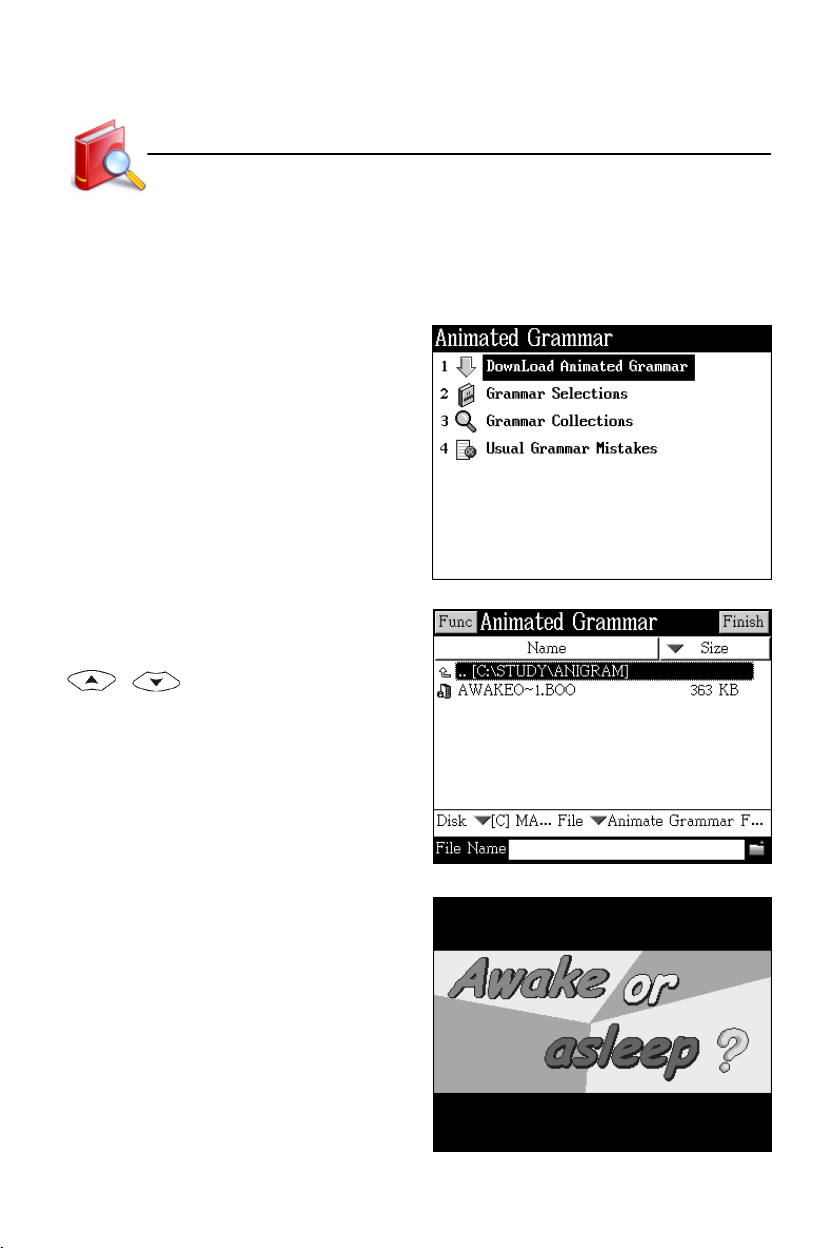
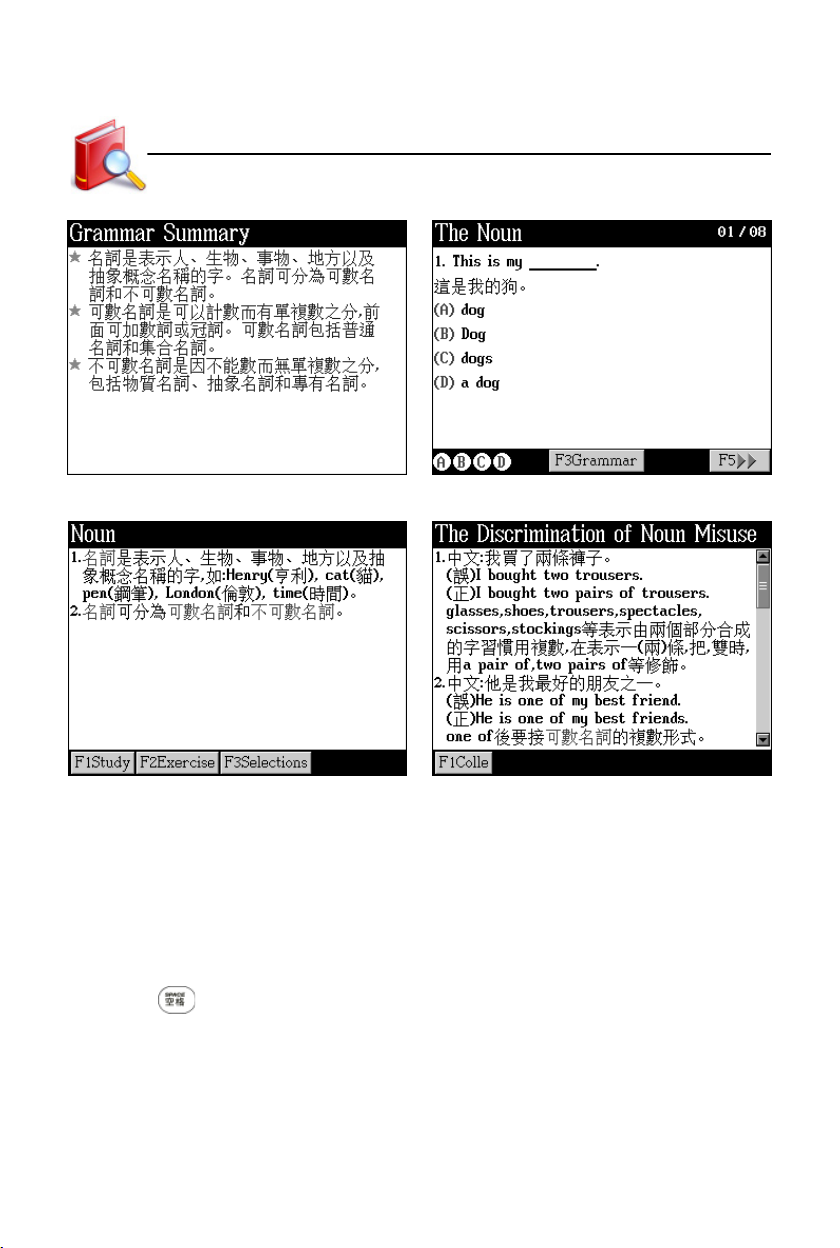
Helps you to understand grammars through animation stories and to learn gram-
mar efficiently through illustrations.
Tap “Animated Grammar” to open
menu to select your desired item.
Please put the downloaded data
in [C:\STUDY\ANIGRAM].
If there is downloaded data, it will be
listed in the index screen. Tap or press
/ to look up.
Take “Awake or asleep?” for example.
67
Page 75
Study
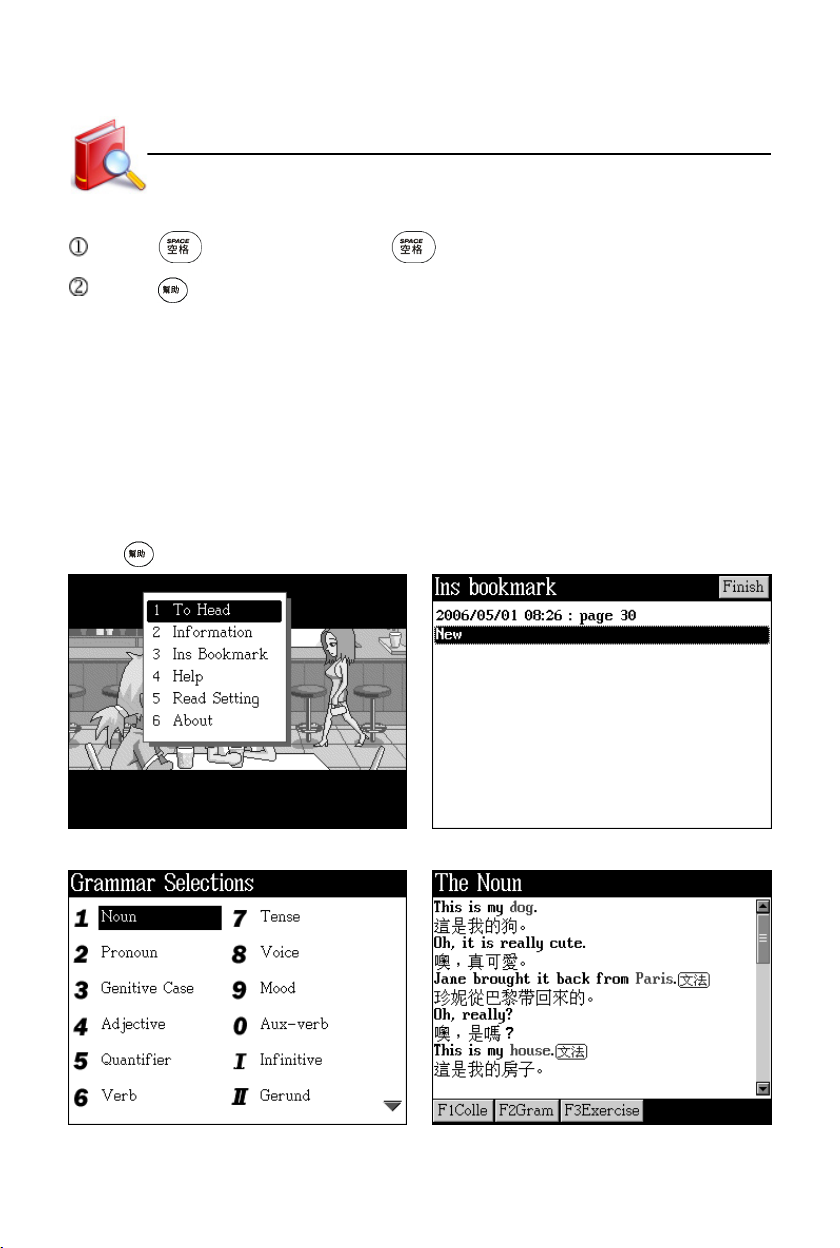
During playing:
Press to pause, then press again to continue.
Press to view the related information.
1. To Head : return from the present page to the first one
2. Information : displays book name and publisher’s name, etc.
3. Ins Bookmark : insert bookmarks
4. Read Bookmark : read bookmarks
5. Help : view the on-line help
6. Read Setting : set auto page up/down
7. About : view the copyright notice
Press to open the information menu. Insert bookmark
Animated Grammar
The list of Grammar Selections Details about Grammar Selections
68
Page 76
Study
Grammar summary Exercise
Analyse of “Grammar Collections” Usual Grammar Mistakes
Animated Phrases
2. Animated Phrases
Animated Phrases not only provides user with phrase searching and analysis of
aniamted stories, but also applies to the following functions: “Phrase Choice
Vacancy”, “Phrases Recap”, “Text Dialogue” and “Phrases Extension”. Please put
the download data in [C:\STUDY\ANIPHR].
* Press to pause, press again to continue.
69
Page 77
Study
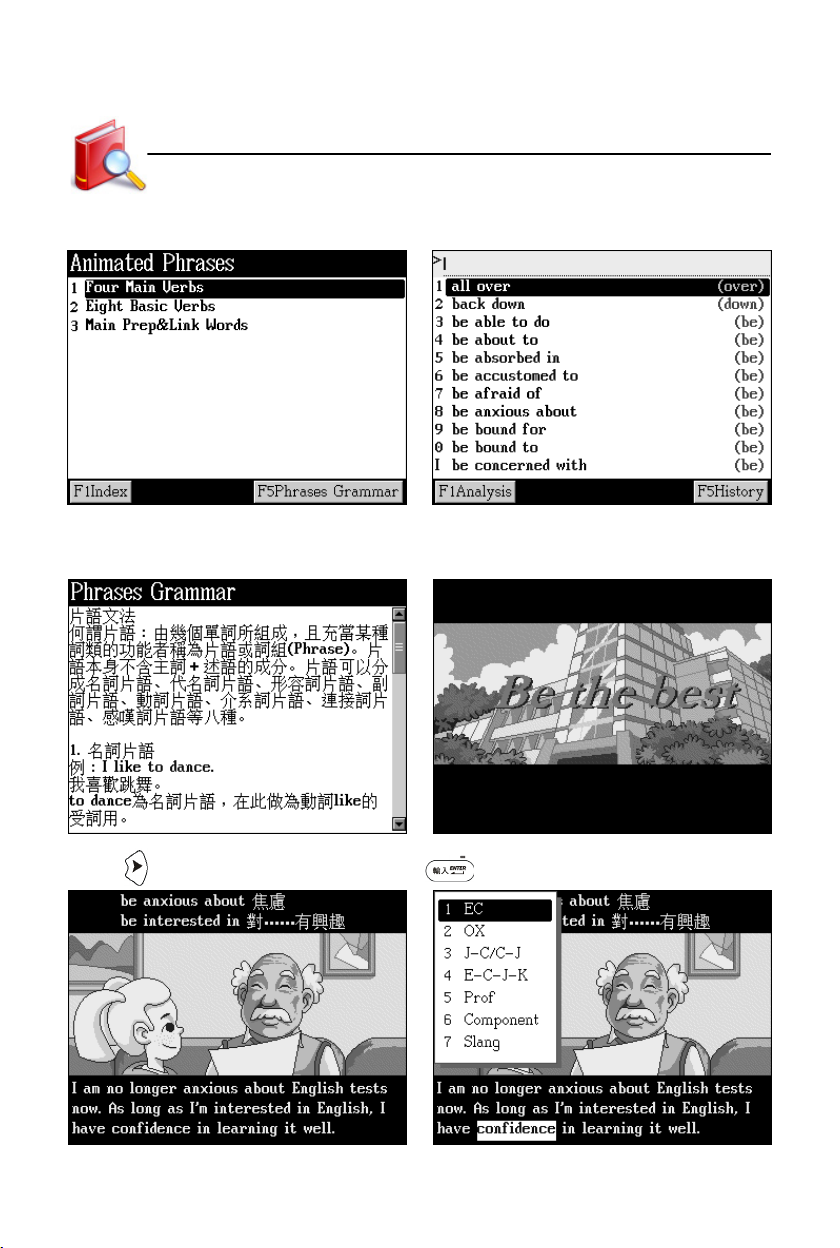
Tap Animated Phrases to open the Tap [F1Index] to access the index.
menu screen.
Tap [F5Phrases Grammar] in the menu Take learning “Be the best” for example:
screen to view the introduction. During playing
Animated Phrases
Press to select unknown word, press to cross search the word.
70
Page 78
Study
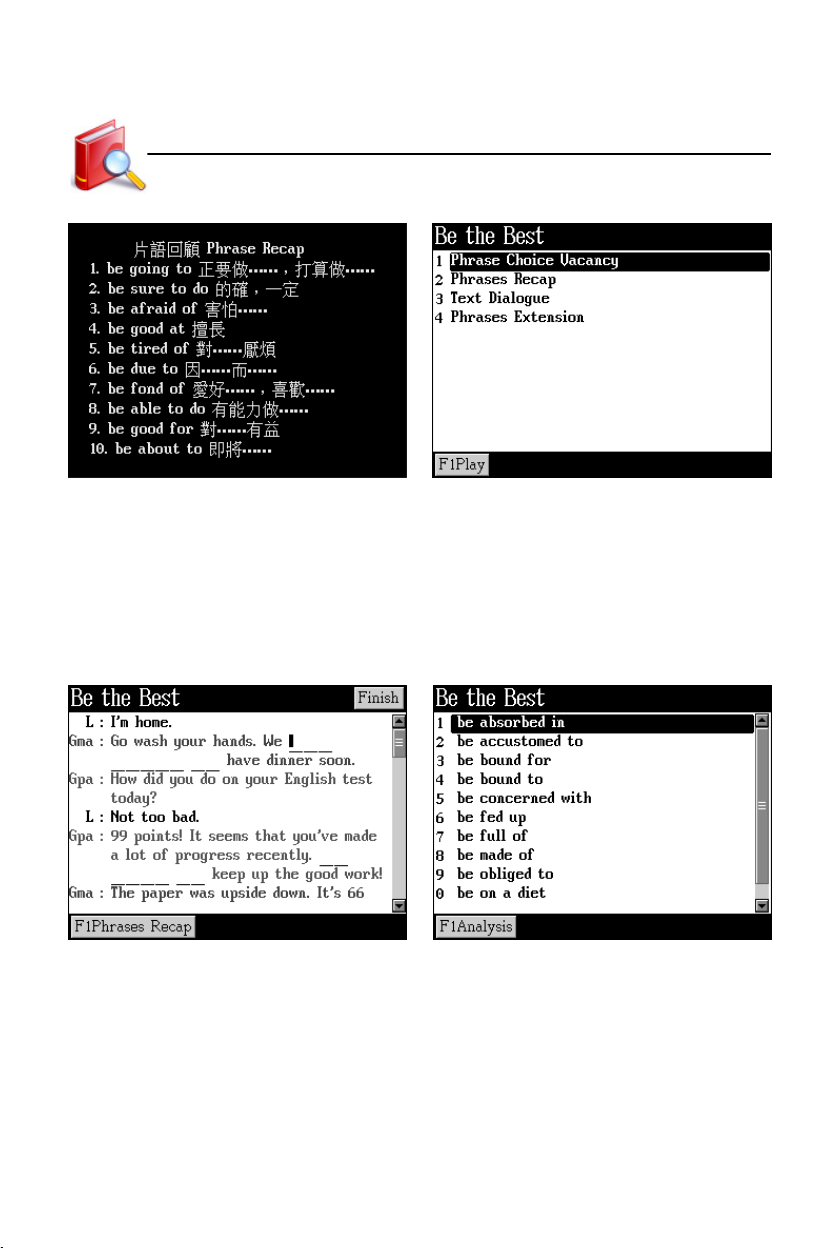
Phrases Recap after the play Study choice
Phrase Choice Vacancy--- to use close form to test all phrases in Animated
Phrases
Phrases Recap --- to review phrases of one course
Text Dialogue --- to learn all contents of course in text mode
Phrases Extension --- to extend phrases
Phrase Choice Vacancy Phrases Extension
Animated Phrases
71
Page 79
Study
General English Proficiency Test
3. General English Proficiency Test
There are three levels in this test - elementary, intermediate and advanced.
Tests are in the form of choice, and categorized into mock exam and practice room.
You can answer questions according to the hint or help. Data can be downloaded
from our website.
3.1 Mock Exam
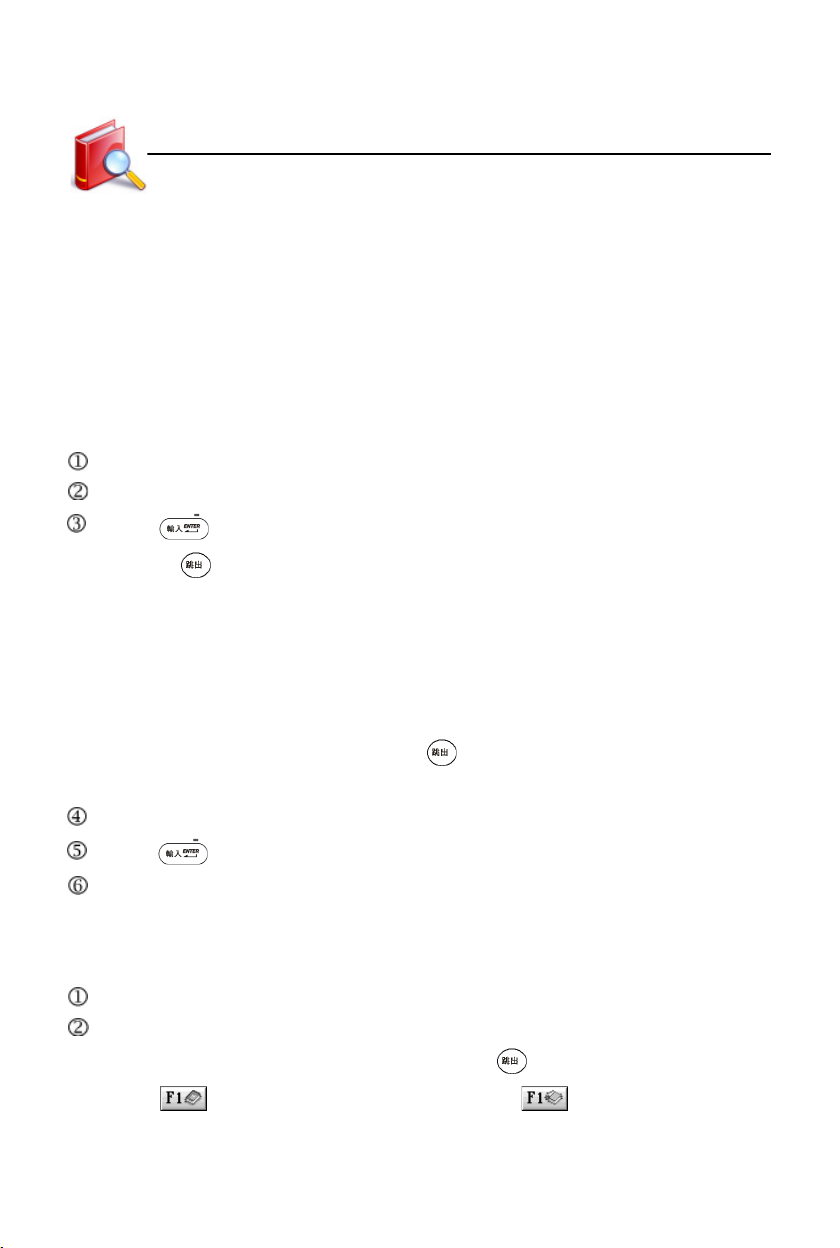
Tap or press [1] to select mock exam and access the introduction screen.
Tap [F1Start] to access the introduction screen of the first part.
Press to start.
* Press to stop when question is being read.
* Tap or press corresponding letter key to answer. If you answer while it is
being read, reading will stop.
* Tap [F5Next], and then tap or press [F4Conf] to go to the next one. Tap [F5Next] in
GEPT Reading to go to the next one directly.
* Tap [F3Help] to view how to answer question.
* Before the question is read, press to exit the test.
* The exam has time limit, and it will stop when time is up.
The result will be displayed when you finish the exam.
Press to display details of result chart.
Tap wrong item to access practice screen.
3.2 Practice Room
Tap or press [2] to select practice room.
Press corresponding numeric key to select the part to be practiced.
* Tap [F3Play] to replay the question. Press to exit.
*Tap to check the question, and then tap again to return to the
previous screen. Words can be cross searched in corresponding dictionaries.
72
Page 80
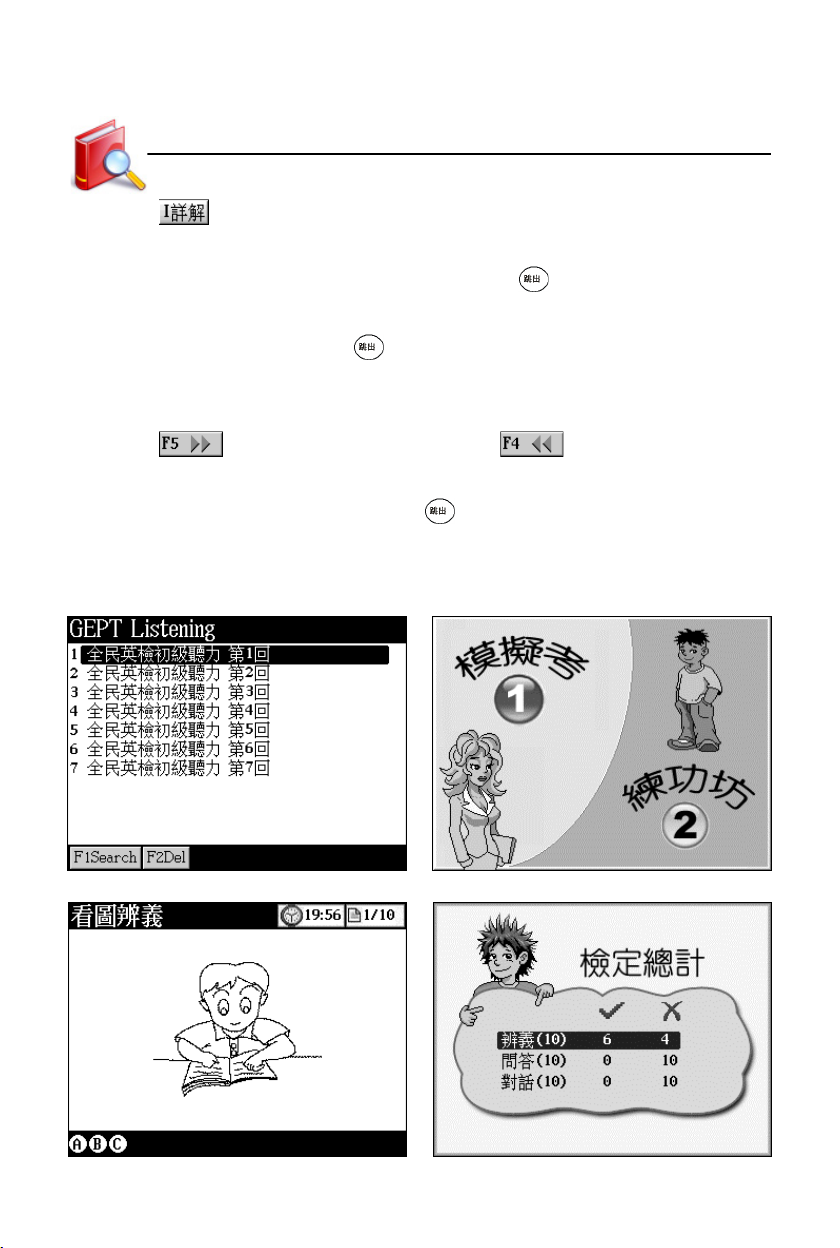
Study
*Tap to view detailed explanation.
* Tap [F2Auto] to play the questions and answers automatically, and to high-
light the sentence that are being read. Press to exit.
* Tap [F3Single] to select sentence, and then tap [F3Play] to read the
selected sentence. Press to exit.
* Tap or press corresponding letter key to answer. If you answer while it is
being read, reading will stop.
*Tap to access the next question; tap to return to the previous
question.
* Before the question is read, press to exit the practice.
If there is downloaded data, tap “GEPT Listening” to open the menu and select
item.
Index screen Select one to access
General English Proficiency Test
Answering screen Result
73
Page 81
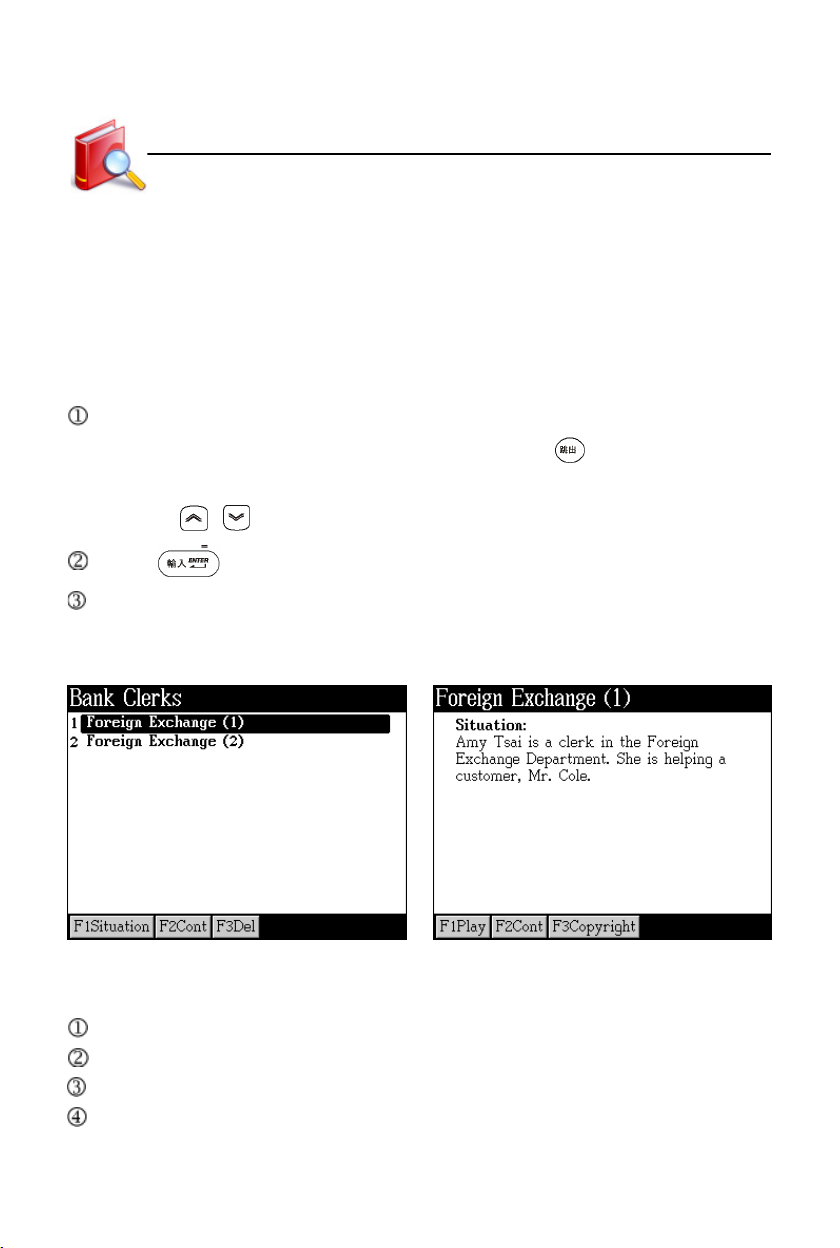
Study
Interactive English
4. Interactive English
Interactive English provides dialogues and role plays to help you quickly master
vocabularies, sample sentences and usages. The device can search downloaded
data automatically.
4.1 Situation
Tap [F1Situation] to view the situation introduction of the highlighted dialogue.
* Tap [F1Play] to read situation introduction. Press to stop.
* You can cross search words in corresponding dictionaries.
* Press / to view the previous/next situation introduction.
Press or tap [F2Cont] to access the dialogue.
Tap [F3Del] to delete the selected data.
Take “Bank Clerks-- Foreign Exchange(1)” for example:
Menu Situation
4.2 Content
You can cross search words in corresponding dictionaries.
Tap [F1All] to access the whole text.
Tap [F2Single] to access the single sentence.
Tap [F3Role Play] to read in role.
74
Page 82
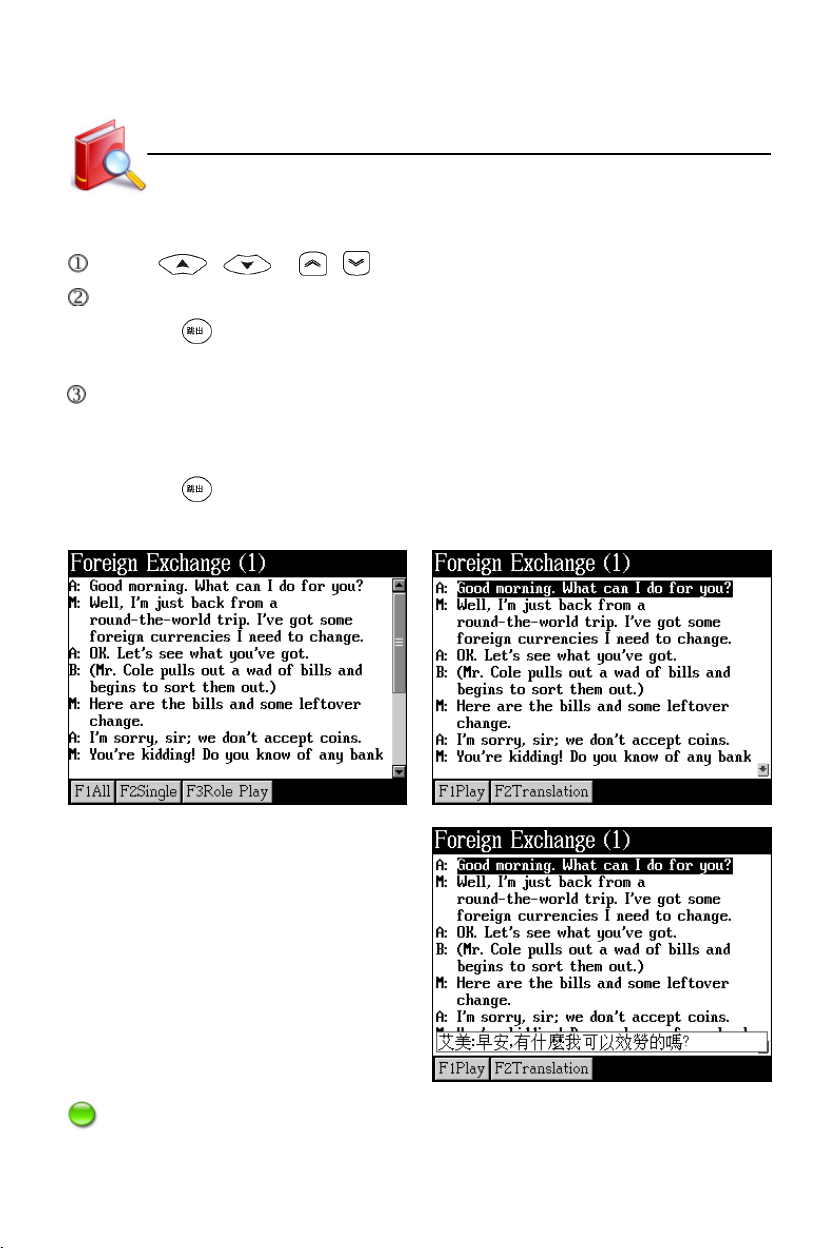
Study
Interactive English
4.2.1 All
Press / or / to select dialogue.
Tap [F2Translation] to display Chinese translation of the selected sentence.
* Press to exit.
* Tap [F1Play] to listen and view the translation at the same time.
Tap [F1Play] to read sentence by sentence from the marked one.
* The sentence that is being read is marked.
* Tap [F1Pause/Continue] to pause or continue reading.
* Press to stop.
Content Tap [F1All]
Play and translate
Note: As for “Single”, please refer to “All”.
75
Page 83
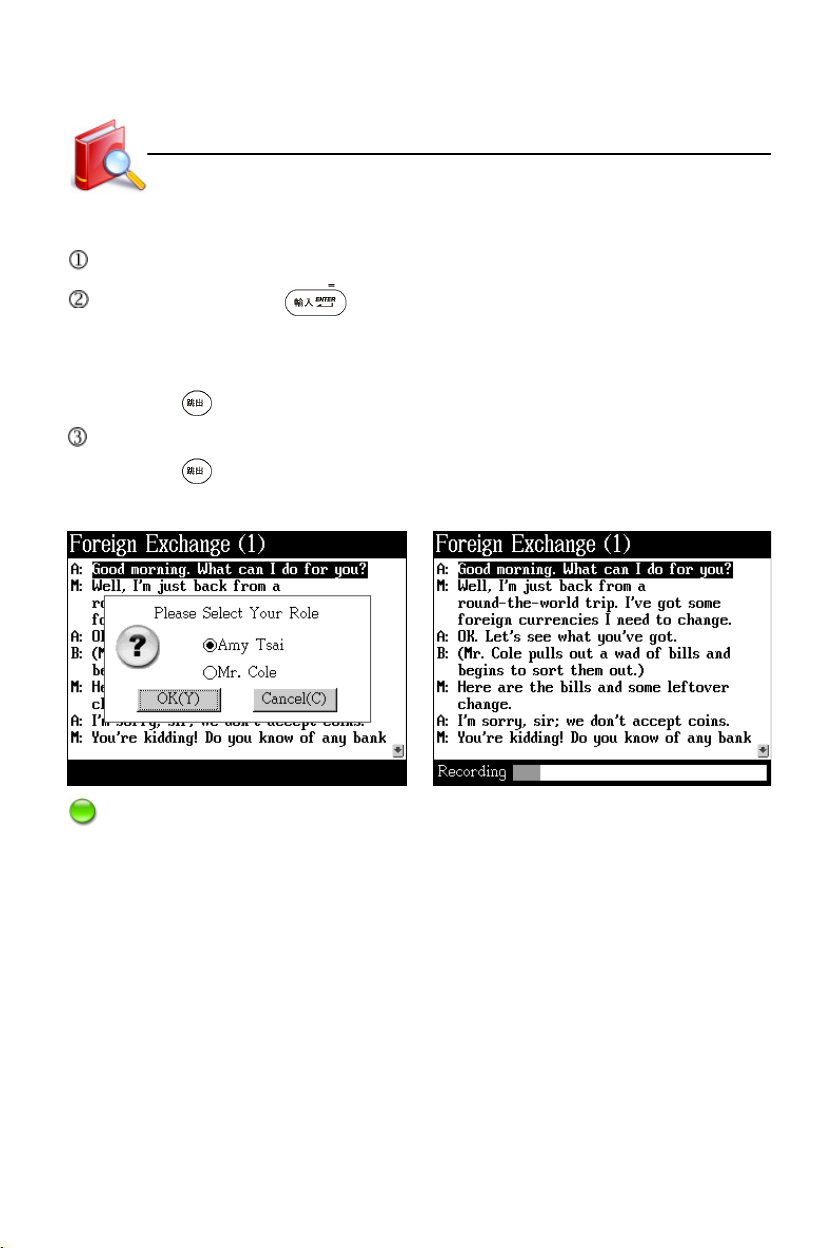
Study
Listening&Speaking Classroom
4.2.2 Role Play
Select a role to be played.
Tap [OK(Y)] or press to confirm and begain role play.
* Your voice will be recorded when you are reading.
* Recording process and time will be displayed at the bottom of the screen.
* Press to stop.
When the whole text reading is finished, tap [F4] to listen to record.
* Press to stop.
Role play Recording
Note:
During role play, the recording time is 3 seconds more than the length of the
sentence.
5. Listening&Speaking Classroom
Listening&Speaking Classroom provides listening, speaking, reading and writ-
ing to improve your English. Please put the downloaded data in correct path:
Reading Studio--- C:\STUDY\CLASSROM\READ
Audio Studio --- C:\STUDY\CLASSROM\LISTEN
Vocal Studio --- C:\STUDY\CLASSROM\PRON
Baby American English --- C:\STUDY\CLASSROM\CHILD
76
Page 84
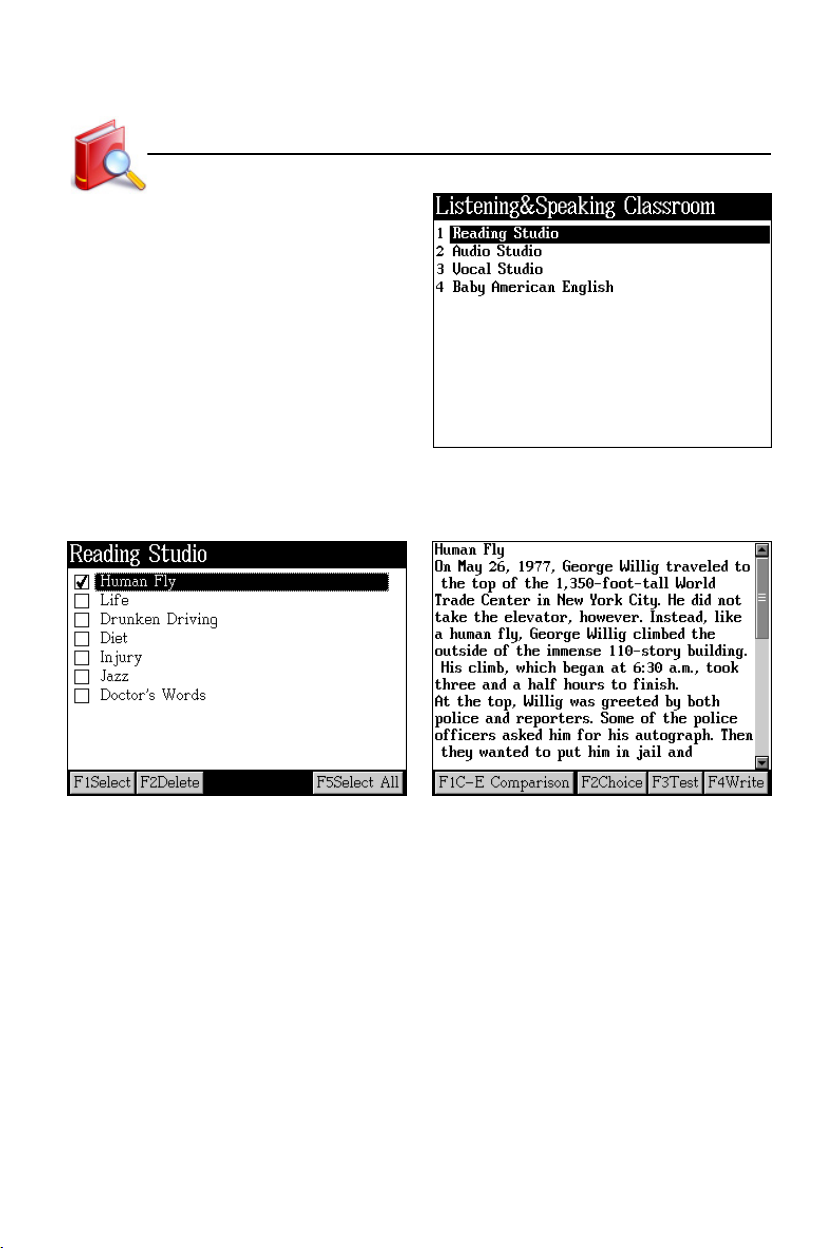
Study
Tap “Listening&Speaking Classroom” to
open the menu to select item.
Listening&Speaking Classroom
5.1 Reading Studio
Index screen Content display
In the content screen:
* Tap [F1C-E Comparison] to view the Chinese-English comparison of one
sentence.
* Tap [F2Choice] to do the choice test.
* Tap [F3Test] to do the reading test.
* Tap [F4Write] to write by memory. The screen will display Chinese explanation
and hint the number of the word letters.
77
Page 85
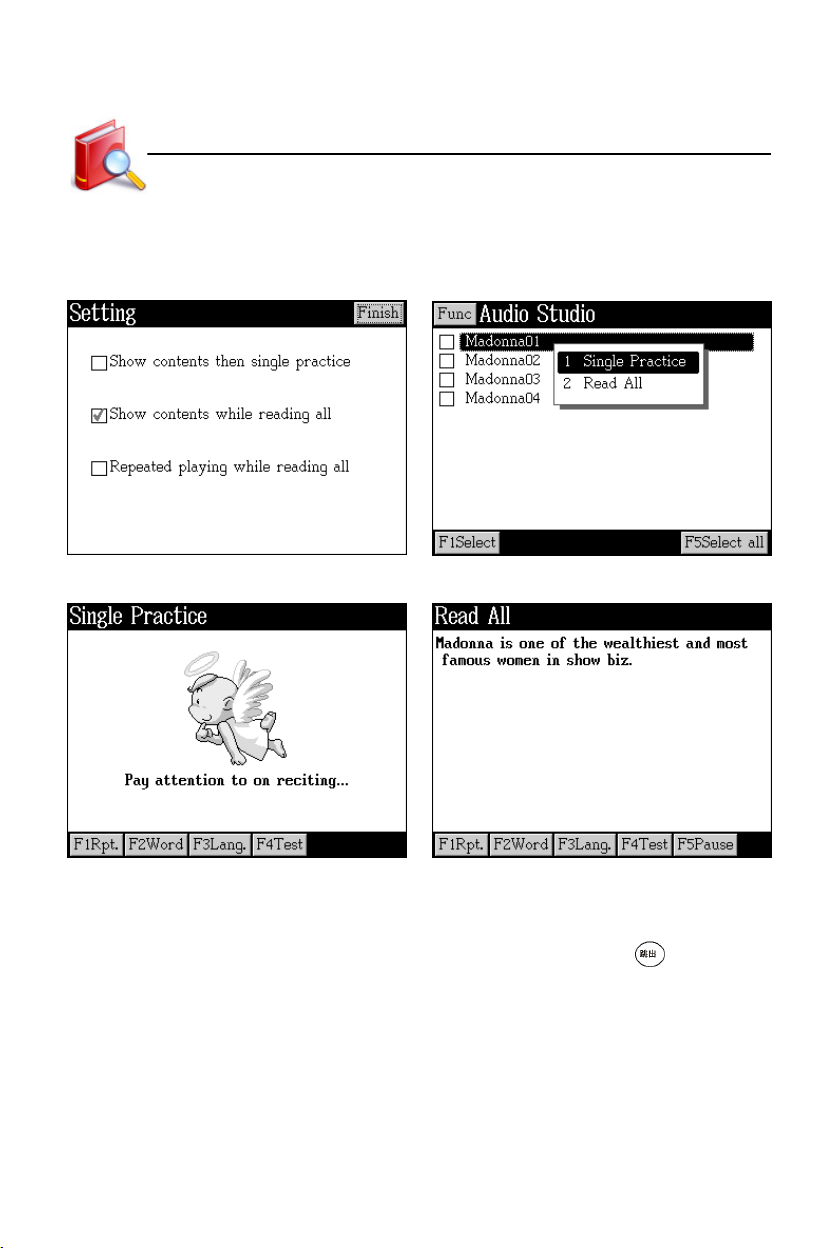
Study
Listening&Speaking Classroom
5.2 Audio Studio
Tap [Func], then [1Setting] in the index Tap an item in the index screen to
screen to access the setting screen. select “Single Practice” or “Read All”.
Single practice Read all
* Tap [F1Rpt.] to listen to the sentence again. Tap [F1Rpt.] in Read All to select
whether to listen to the current sentence or the whole text once more.
* Tap [F2Word] to listen to single words in the sentence; press to stop.
* Tap [F3Lang.] to select Chinese/English/Chinese & English display.
* Tap [F4Test] to test at any time.
* Tap [F5Pause] in Read All to pause reading.
78
Page 86
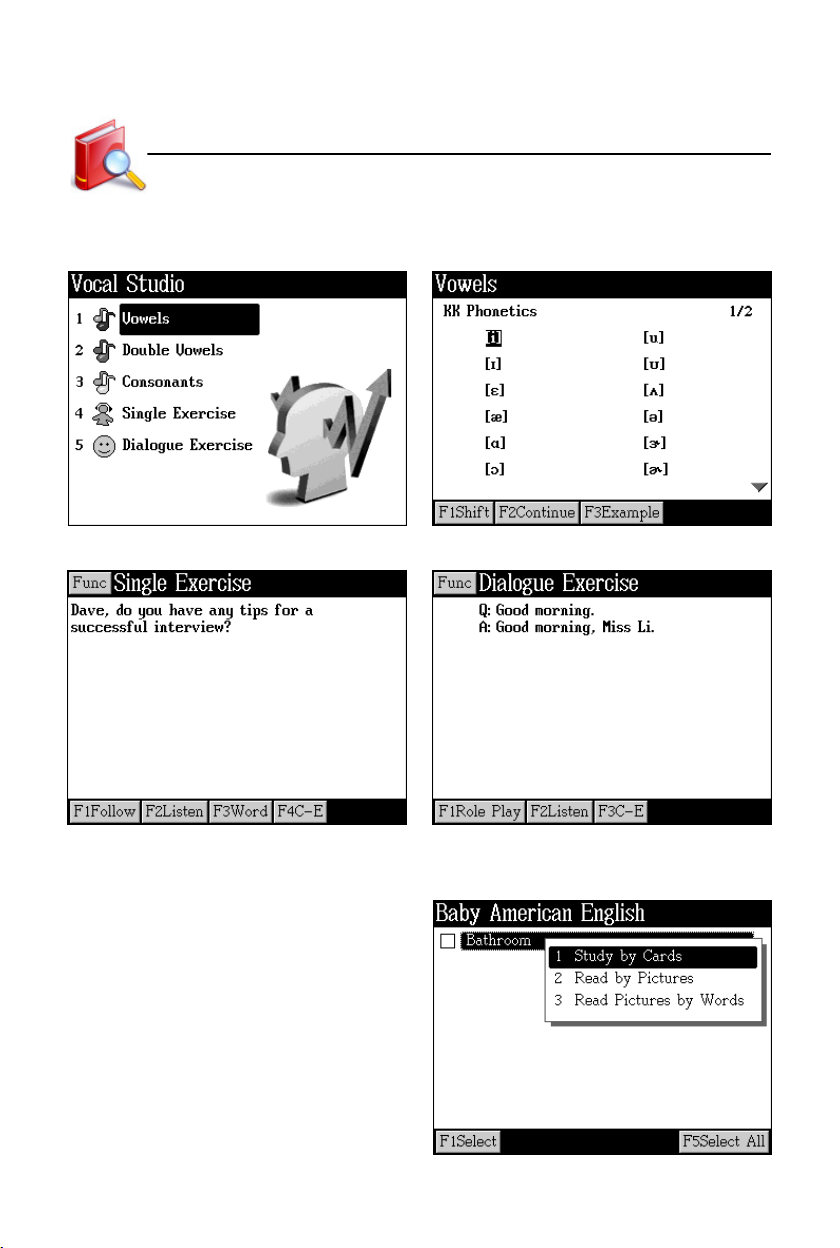
Study
Listening&Speaking Classroom
5.3 Vocal Studio
Menu Vowels practice
Single exercise Dialogue exercise
5.4 Baby American English
Tap an item in the index screen to view.
79
Page 87
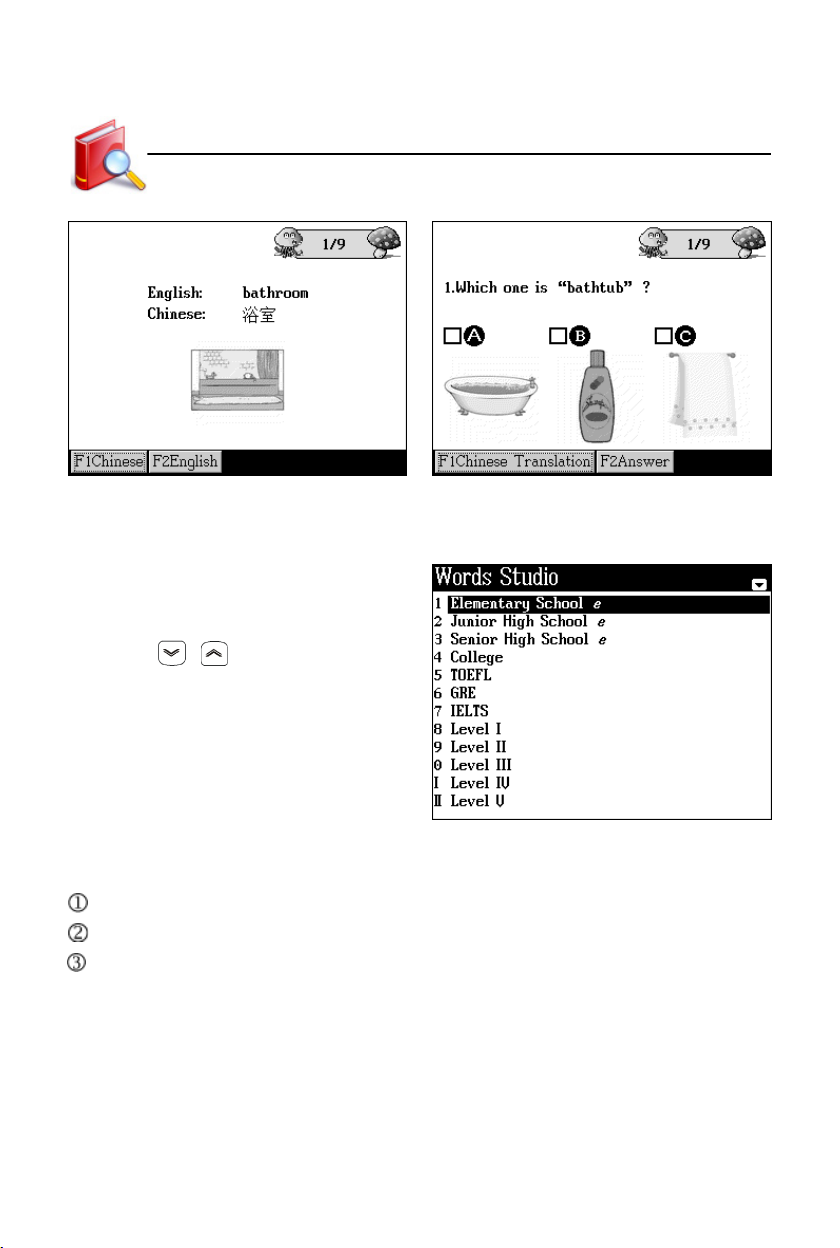
Study
Study by Cards Read Pictures by Words
Words Studio
6. Words Studio
Tap “Words Studio” to open the menu
to select.
* Press / to page down/up.
* Elementary School, Junior High
School and Senior High School
supports data downloading.
6.1 Words Browse
Provides smart search.
Provides similar word search.
You can cross search words in corresponding dictionaries.
80
Page 88
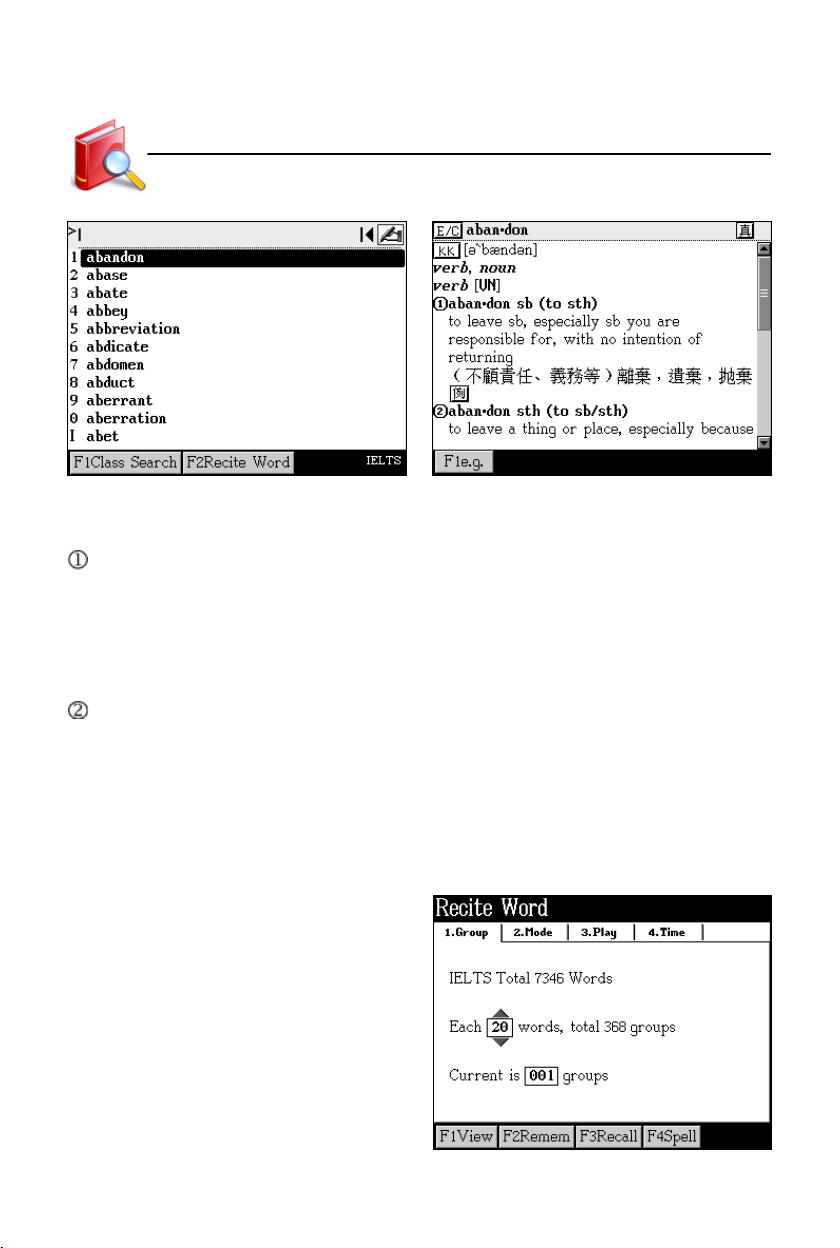
Study
Words index Explanation
Words Studio
6.2 Recite Word
Provides Group/Mode/Play/Time settings.
* Group: set numbers of words and groups.
* Mode : set view mode, phonetic and whether pronounce.
* Play : set how to play.
* Time : set the time limit of “view” and “spell”, and whether auto play.
Provides “View, Remember, Recall, Spell and Review”.
* View : view words.
* Remem : input word according to the phonetic symbol and explanation.
* Recall : recall the explanation according to the word.
* Spell : fill in the blank(s) with letter(s) according to the hint.
* Review : strengthen to memorize words. (After reciting words of one group)
Recite word
81
Page 89
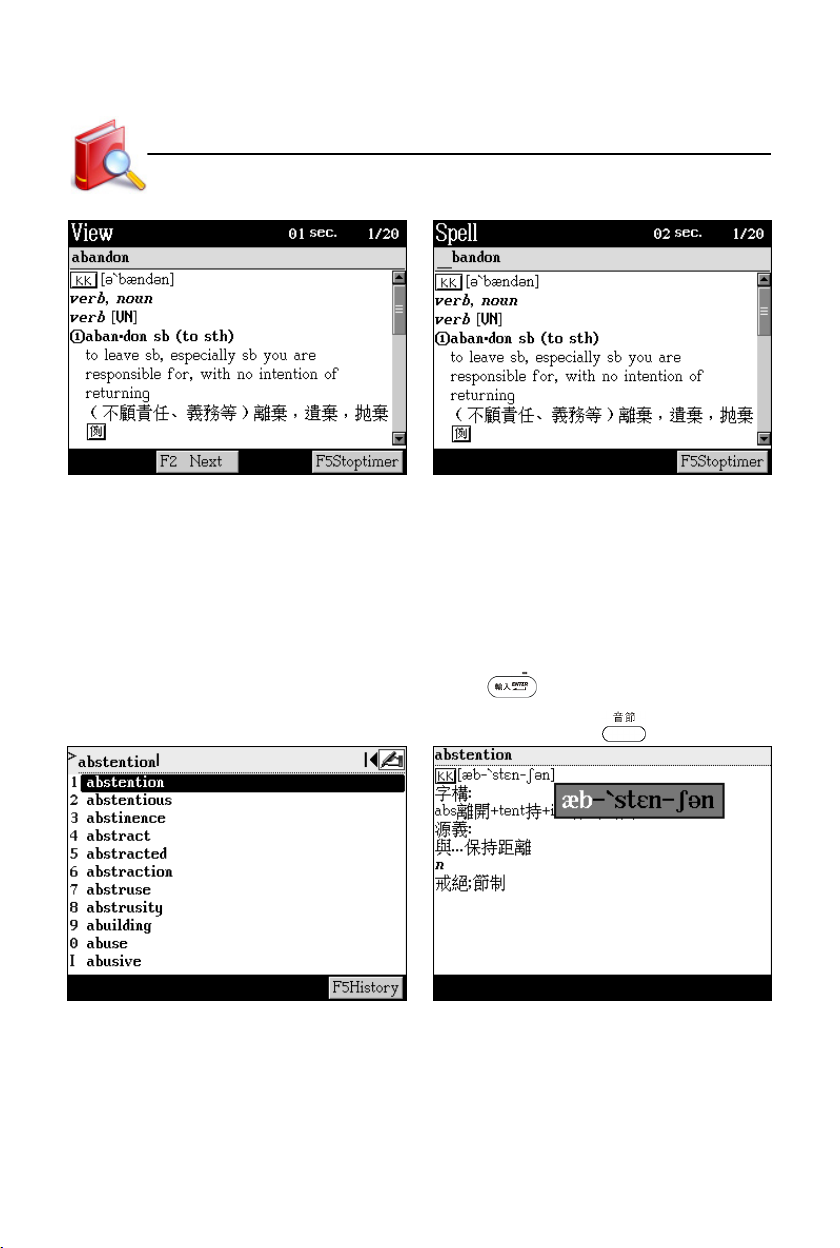
Study
Word view Spelling game
Word Component
7. Word Component
Provides etymons, original meanings and syllable pronunciation. Besides, words
can be cross searched in corresponding dictionaries.
Take “abstention” for example:
Input “abstention” Press to access the explanation
screen, then press .
82
Page 90
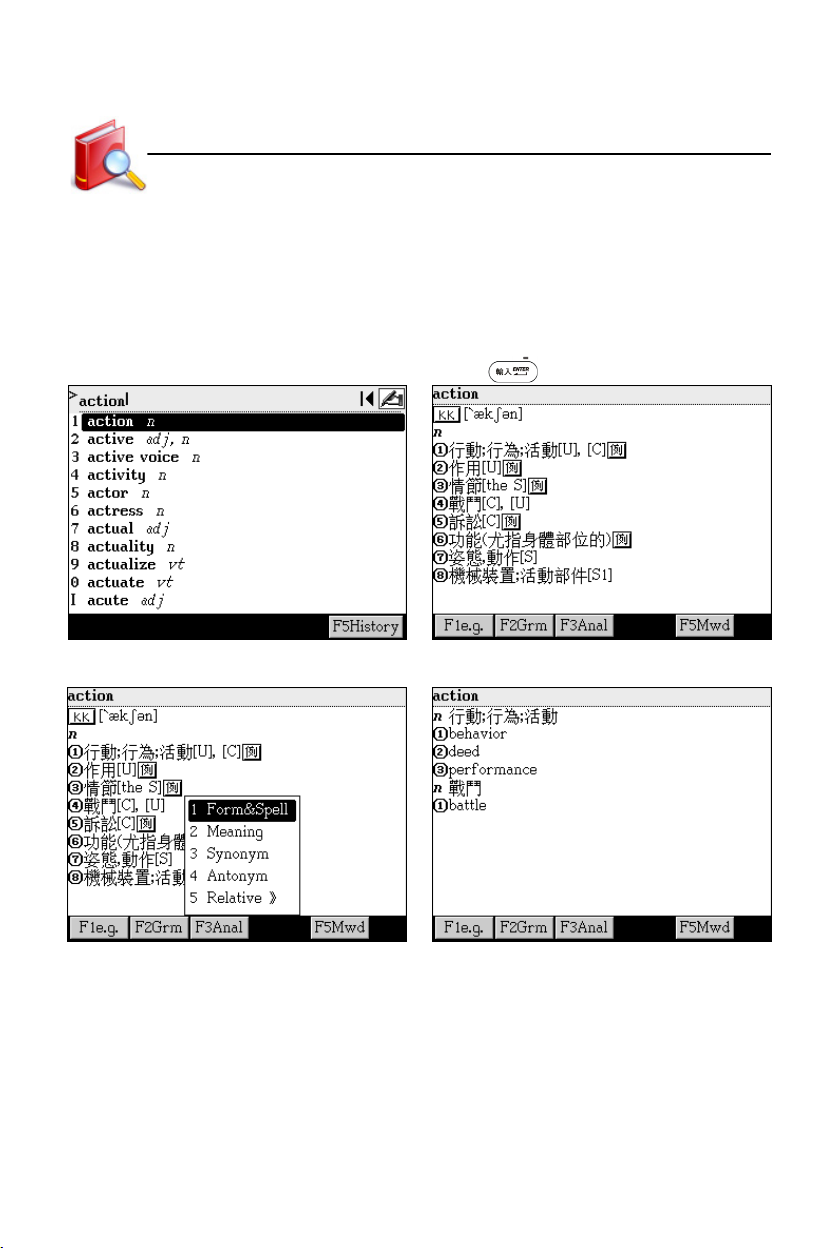
Study
Synonym-Antonym Dictionary
8. Synonym-Antonym Dictionary
Provides relative search, such as synonym, antonym, and syllable pronunciation.
Besides, words can be cross searched in corresponding dictionaries.
For example, look up the word “action”:
Input “action” Press
Tap [F3Anal] to view the correlative data Tap “3 Synonym”
83
Page 91
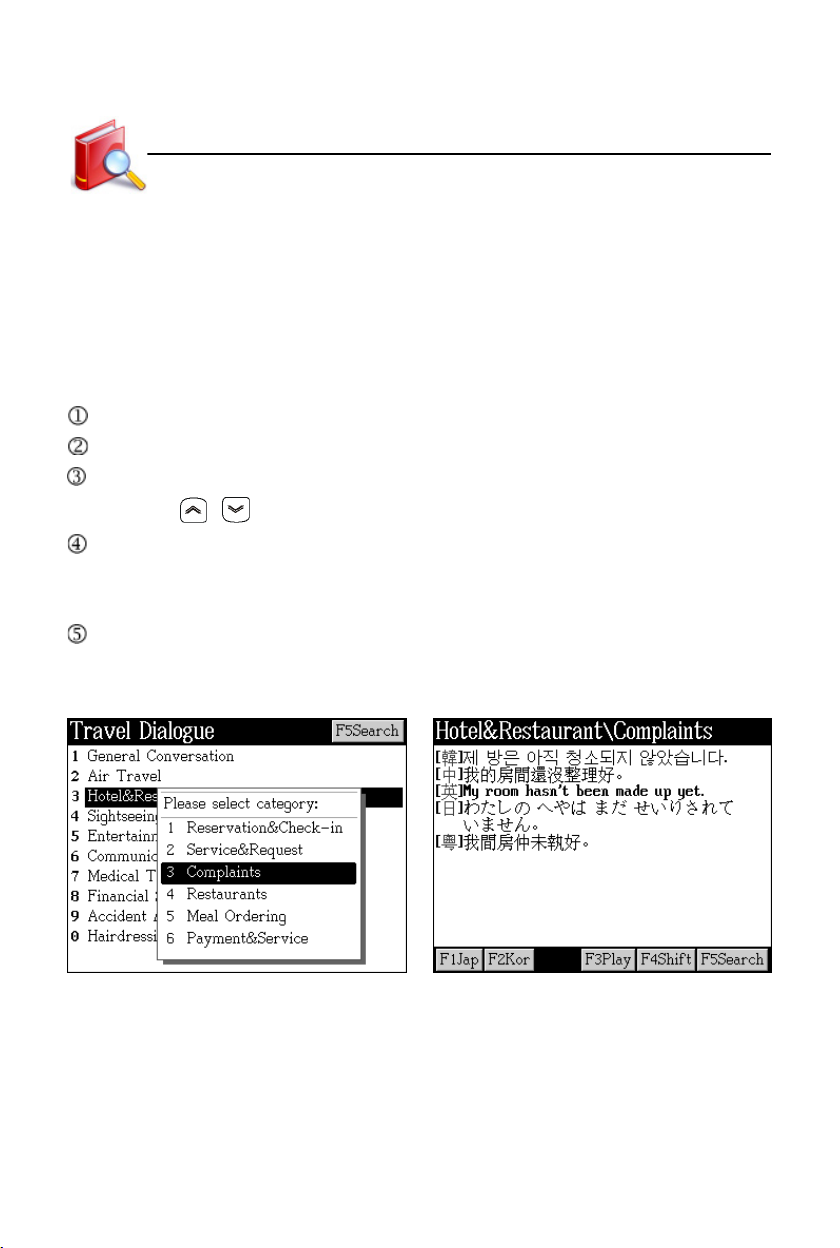
Study
Travel Dialogue
9. Travel Dialogue
Provides a variety of travel dialogues. You can download other languages into
the correct path: [C:\STUDY\TRAVEL]. Tap [F4Shift] to switch languages. Up to 5
languages can be shown in one screen.
9.1 Dialogue
Select category.
Select item in the sub-category.
Browse dialogues.
* Press / to browse dialogues on the previous/next page.
If there are other downloaded languages, tap [F4Shift] to switch.
* In the explanation screen, the downloaded data will be displayed.
* Press [F2] to pronounce for the current language.
You can save data in explanation screen for Review and Test.
Take “Complaints” in “Hotel&Restaurant” for example:
Index screen Data view
Tap [F3Play] to select a language. The
device will play the dialogues of this
language continuously.
84
Page 92
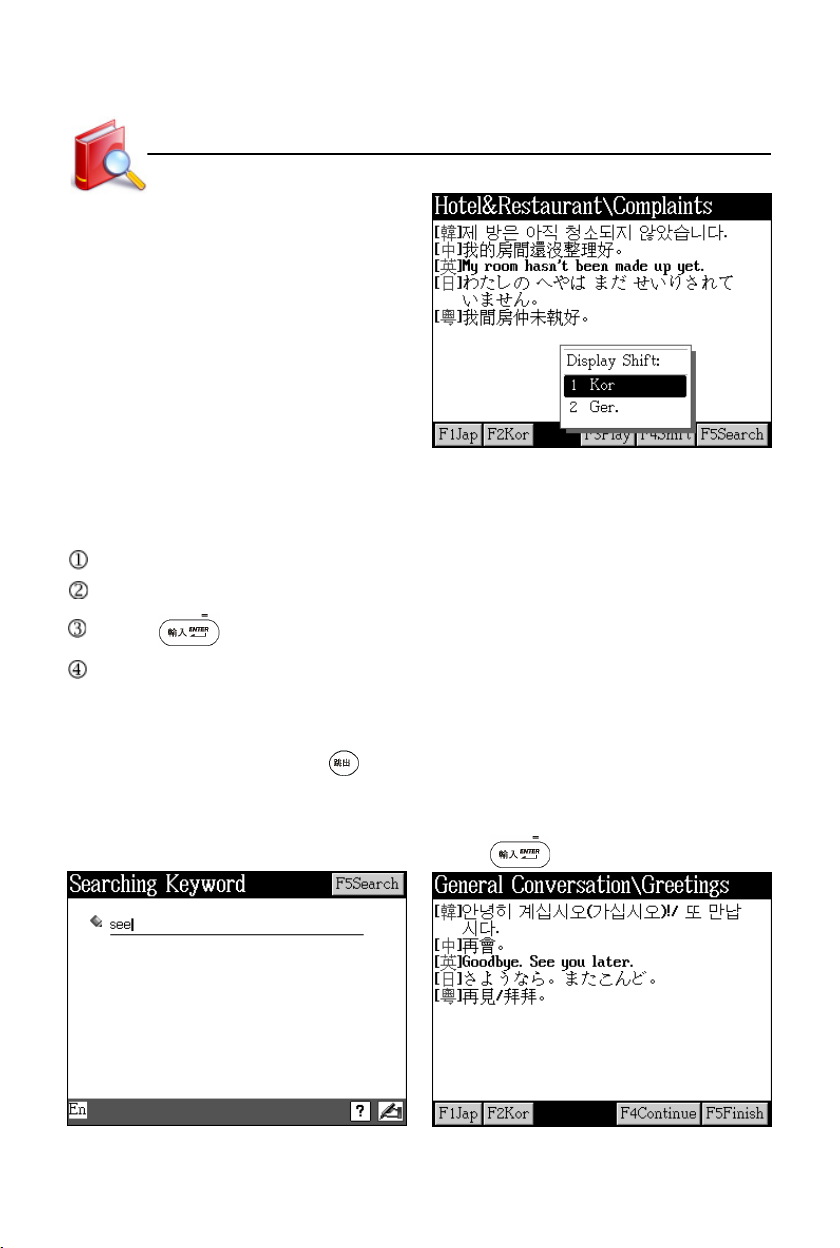
Study
Tap [F4Shift]
Travel Dialogue
9.2 Search
Input word(s), it will search all dialogues which contain the word(s).
Tap [F5Search].
Input word(s) (Chinese/English).
Press or tap [F5Search] to start search.
The result will be shown lately:
* Tap [F1Jap] to listen to Japanese pronunciation.
* Tap [F4Continue] to go to the next sentence.
* Tap [F5Finish] or press to stop and return to the dialogue screen.
Take searching for dialogues with “see” for example:
Tap [F5Search] and input “see” Press or tap [F5Search]
85
Page 93
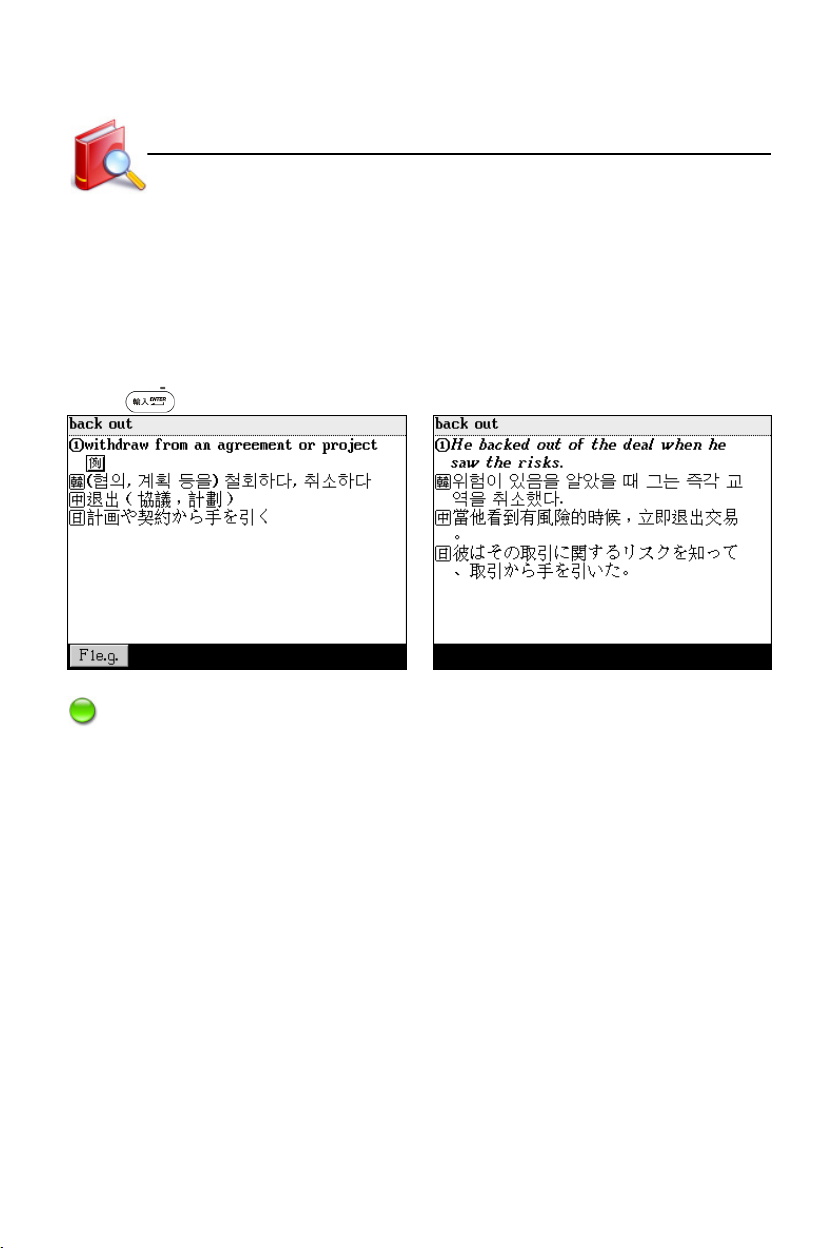
Study
Slang Dictionary
10. Slang Dictionary
Slang Dictionary includes a great number of slangs. In the explanation screen,
English, Korean, Chinese and Japanese explanations and sample sentences will be
displayed.
Take looking up “back out” for example, input “back out” in the index screen:
Press Tap [F1e.g.]
Note:
You cannot save words in Slang Dictionary. As for other functions, such as
wildcard search, cross search, secondary search, multi-layered search, read after
the device, pronunciation, etc. please refer to “3. Explanation” and “4. Data Search”
in Dictionary.
86
Page 94
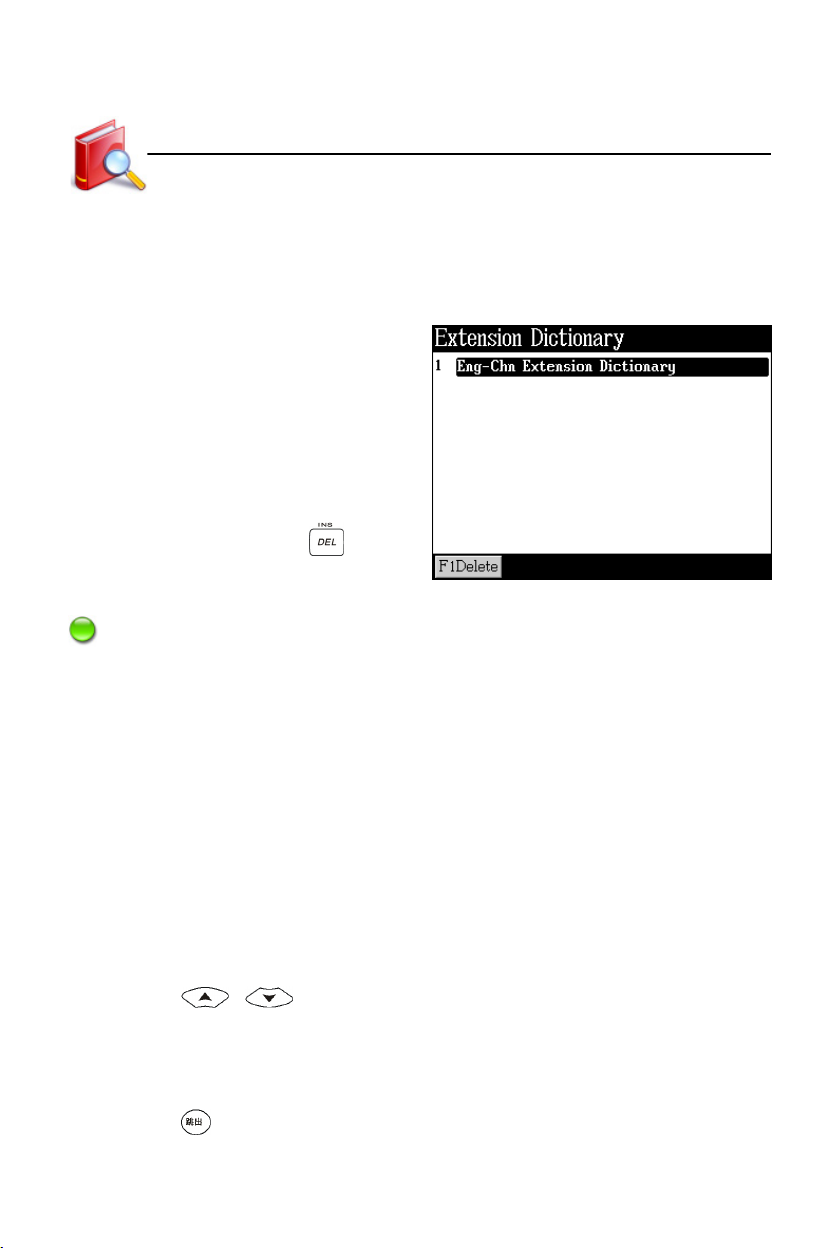
Study
Extension/DIY Dictionary
11. Extension Dictionary
You can download the latest words from the internet into Extension Dictionary.
Please put downloaded data in correct path: [C:\STUDY\EXTRADIC].
Index screen:
* Tap [F1Delete] or press to
delete the selected dictionary.
Note:
Secondary search, saving functions and searching in other dictionaries are
not available in Extension Dictionary.
12. DIY Dictionary
Save words/characters that are not contained in the dictionaries of the device.
12.1 New Data
If you have not saved any data, the device will ask you whether to add data or
not when you access DIY Dictionary. Select “Yes” to add data; if you select “No”,
you can add data by tapping or pressing [F1New] in the index screen.
* Press / to select column to input data.
* When the cursor moves to Phonetic column, the phonetic soft keyboard will
appear. Tap or press the corresponding key to input phonetics.
* When finish editing, tap [Save] to save data.
* Press , the device will ask you whether to save the data or not. Select
“Yes” to save and exit; select “No” to exit without saving data; select
87
Page 95
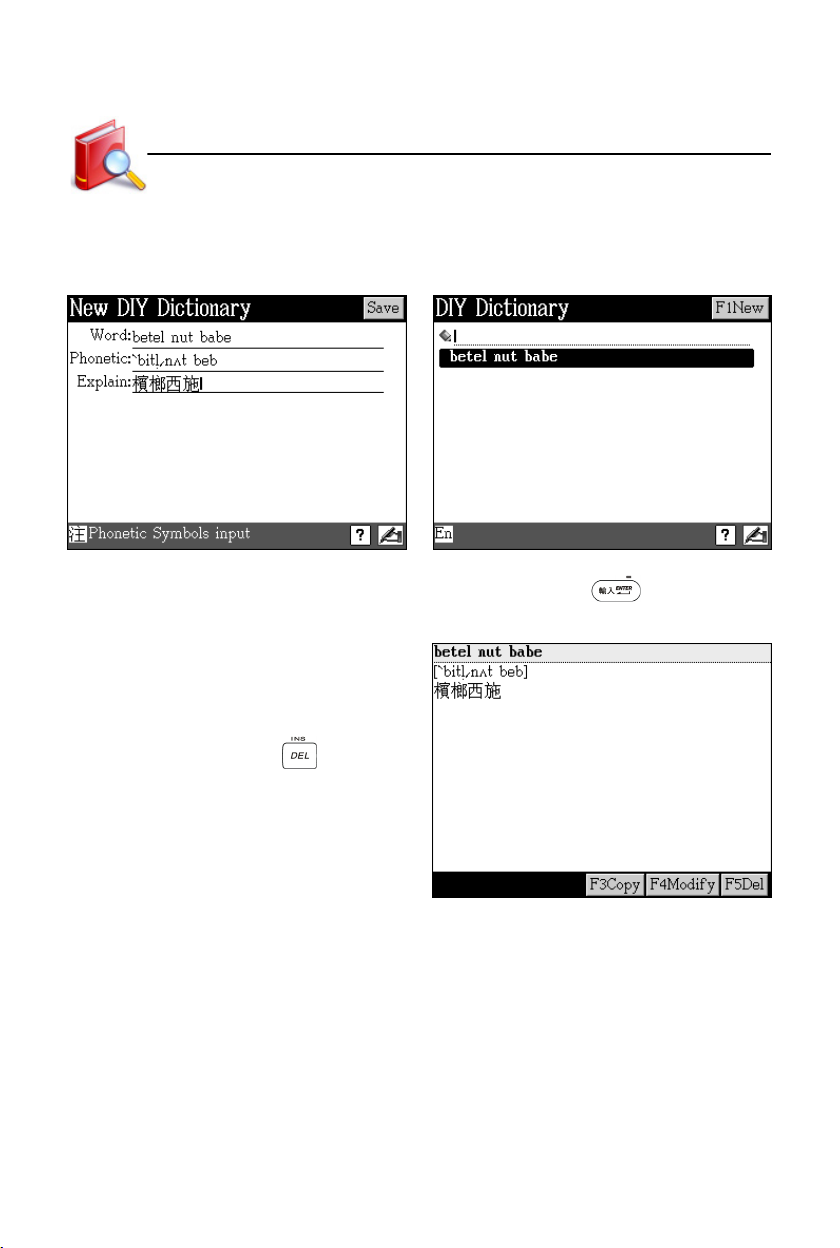
Study
“Cancel” to close the asking window and go on editing.
Take adding data “betel nut babe” for example:
Input data Tap [Save]
Input “betel nut babe” in the index screen, then press to look up the
explanation.
* Tap [F3Copy] to copy this data and
save it as another new data.
* Tap [F4Modify] to modify data.
DIY Dictionary
* Tap [F5Del] or press to delete
data.
88
Page 96
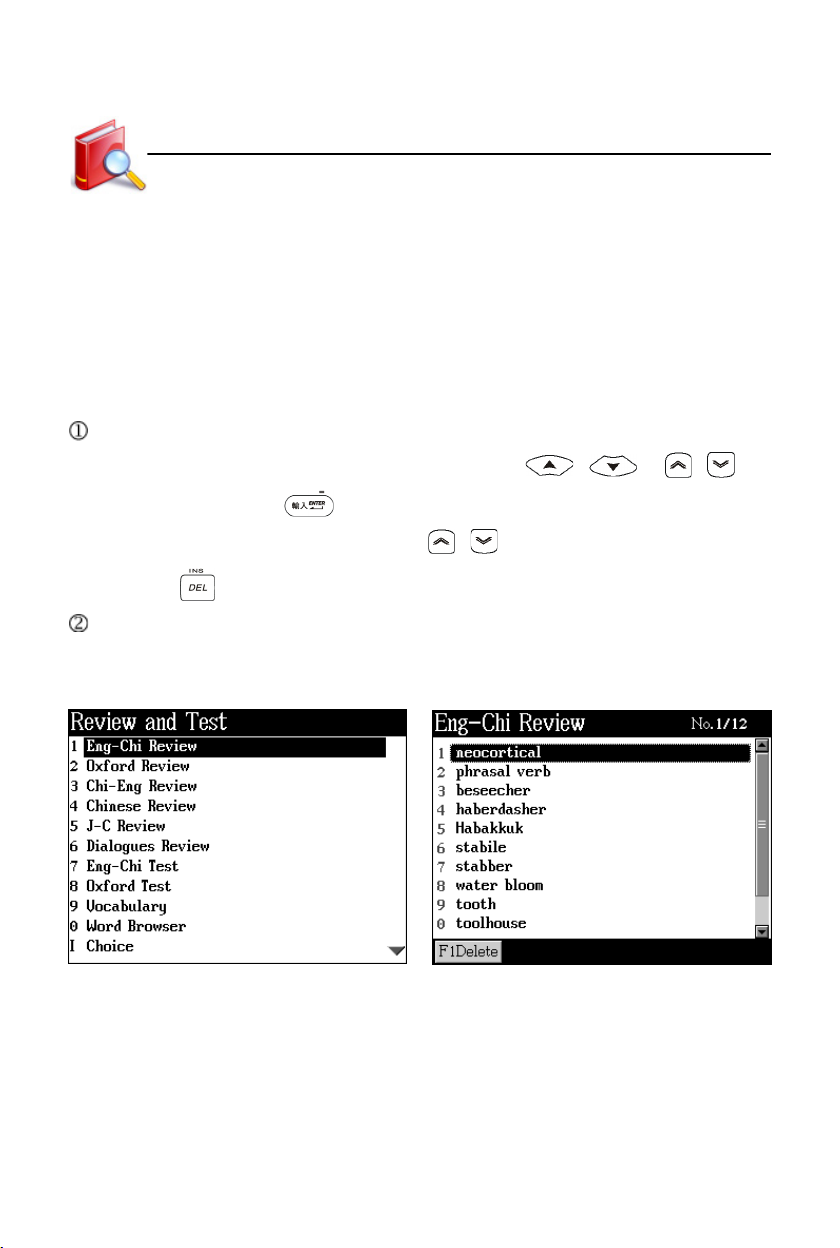
Study
Review and Test
13. Review and Test
13.1 Review
You can review data saved in “English-Chinese Dictionary, Oxford Advanced
Learner’s Dictionary, Chinese-English Dictionary, Chinese Dictionary, J-C/C-J Dic-
tionary and Travel Dialogue”, as well as practice in “Eng-Chi Test, Oxford Test,
Vocabulary, Word Browser, Choice, Sentence Making and Sentence Review”.
Press [1-6] to select items to review.
* When you review words in dictionaries, press / or / to
select, then press to review.
* When you review dialogues, press / to page up/down.
* Press to delete the selected words or dialogue.
Review browse function is the same as explanation browse of dictionary and
browse of travel dialogue.
Review and Test menu Start reviewing
13.2 Test
There are 3 types of test:
Eng-Chi/Oxford Test: The contents are words saved in “English-Chinese Dictionary,
Oxford Advanced Learner’s Dictionary”. Please complete the
spelling within the limited time.
89
Page 97
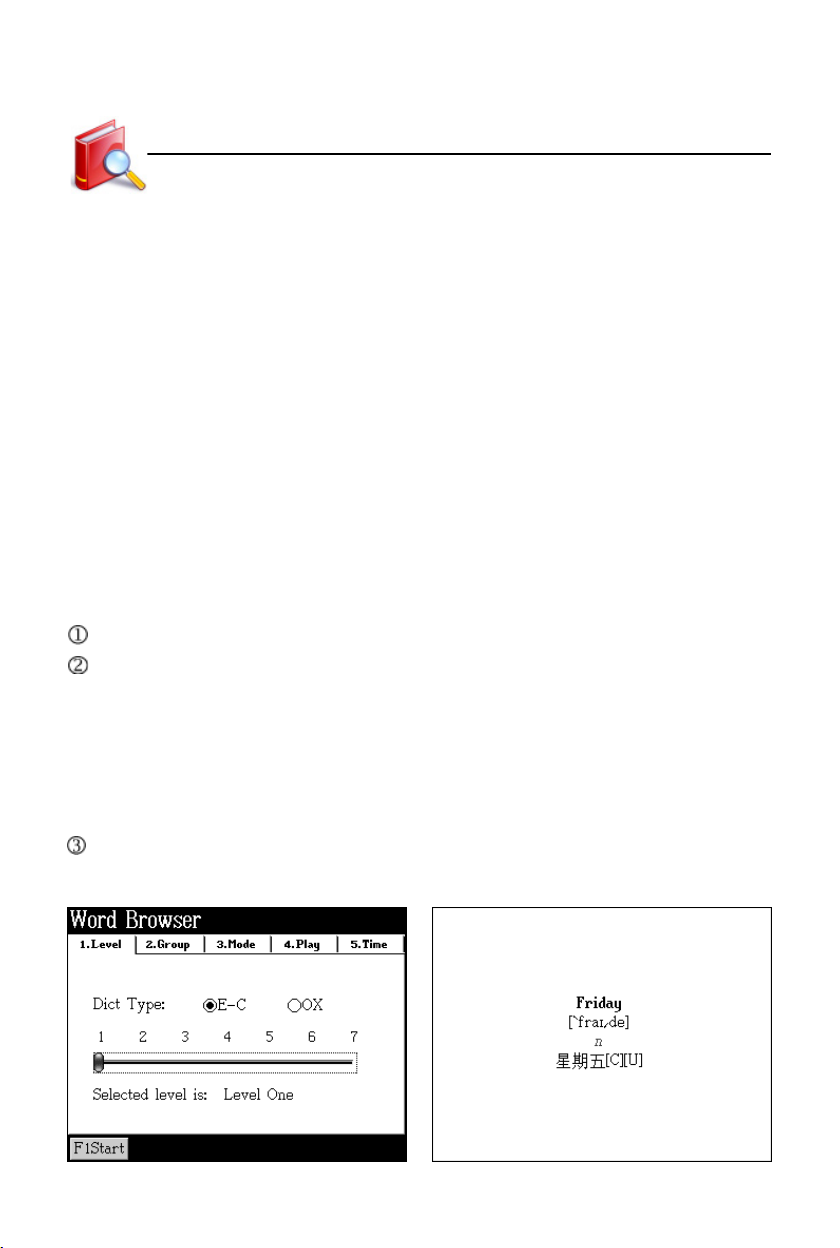
Study
Vocabulary: The words saved in “English-Chinese Dictionary” and “Oxford Advanced
Learner’s Dictionary” are leveled. Each test has 20 questions with
score. Please complete the spelling according to the given Chinese
explanation. Your score will be measured according to the levels you
chose, and the results will be displayed.There are 20 questions each
time.
Choice: The words saved in “English-Chinese Dictionary” and “Oxford Advanced
Learner’s Dictionary” are leveled. Each test has 20 questions with
score. Please choose answer from the given choices according to the
given Chinese explanation.
Review and Test
13.3 Word Browser
You can review the words saved in “English-Chinese Dictionary” and ”Oxford
Advanced Learner’s Dictionary”.
Select “0 Word Browser”.
Tap “Level”, “Group”, “Mode”, “Play” or “Time”; or press numeric key [1-5] to set.
* Level : Select a dictionary and set level of difficulty.
* Group : Decide how many words in one group and select a group for browsing.
* Mode : Set display mode, KK/DJ phonetic symbol and whether to pronounce.
* Play : Select how to play (repeated or once).
* Time : Set play mode. If auto play is selected, interval must be set.
Tap [F1Start] to browse.
Browse setting Start browsing
90
Page 98
Study
Review and Test
13.4 Sentence Making
Rearrange sentence structure. There are 10 questions in each group, and the
full mark is 100. Each question has Chinese explanation and prompt. Can pro-
nounce English words. You may see the answer if you can’t complete the question.
Select “1 Sentence Making”.
Tap the block to select level.
Tap [Finish] to start.
Make sentence.
* Stylus operation : To fill the answer, just double tap the word, or click the
word, then drag the word to the answer field.
* Keyboard operation : Press the direction keys to select word, and then press
to move it; or press to lock (or unlock) it,
then an arrow is marked beside the word. Move the
arrow to the place you want it to be, and then press
to move the word.
* Tap [F1Ans.] to view the correct answer and exit.
* Tap [F2CHN] to view Chinese explanation. Press / to continue.
* Tap [F3Pron] to listen to the correct answer in English. (7 points will be
deducted.) Press to stop.
* Tap [F4Search] to view the explanation of the highlighted word. (2 points will
be deducted.)
* Tap [F5Hint] to get a prompt. (2 points will be deducted.)
* Press to give up the current question and go to the next one. The answer
will be automatically checked when all words are put into the answer field.
* If your answer is correct, it will display “Correct!”, and then access the next
one.
* If your answer is wrong, it will display “Wrong!”, and then display the correct
answer. Press / to continue.
91
Page 99
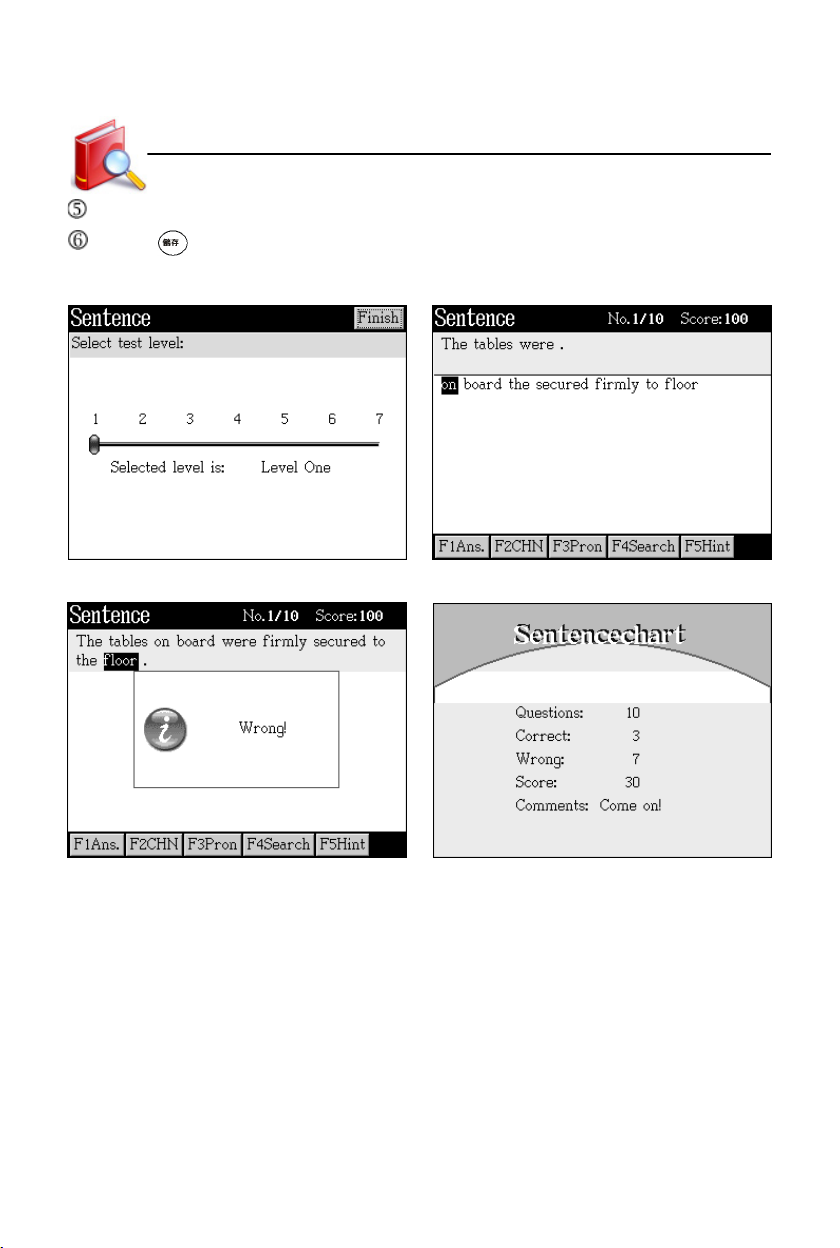
Study
When a group of questions is finished, it will display the score.
Press to save sentences for Sentence Review.
Level selection Making sentence
Judgement Chart
Review and Test
13.5 Sentence Review
You can review your saved sentences in Sentence Making. Other operations
are the same as Sentence Making, except that Sentence Review does not score.
92
Page 100

PIM
Features
PIM Summary
The common functions that Name Card, Memorandum, Schedule, To do list,
and Anniversary have:
* Allows to set custom categories.
* Allows to create personal information in Chinese/English, numbers or special
symbols.
* Allows to copy, modify, delete records or create new ones.
* Allows to secure data from unauthorized access.
* Allows to increase new categories which can be edited.
Name Card
* With the common functions.
* Allows to save picture as portrait; and provides index search and records view.
Memorandum
* With the common functions.
Schedule
* With the common functions (except the last item).
* Allows to set alarm for important schedules, and to view daily and weekly
schedules.
To Do List
* With the common functions (except the last item).
* Allows to set priorities, and to view work list of every day.
World Time
* Displays the local time as well as that of two other cities, and allows to adjust
time, date, and cities. Besides, it provides daylight-saving time (DST) and
12/24 hour format.
* Provides timer and stopwatch.
93
 Loading...