

Page 1
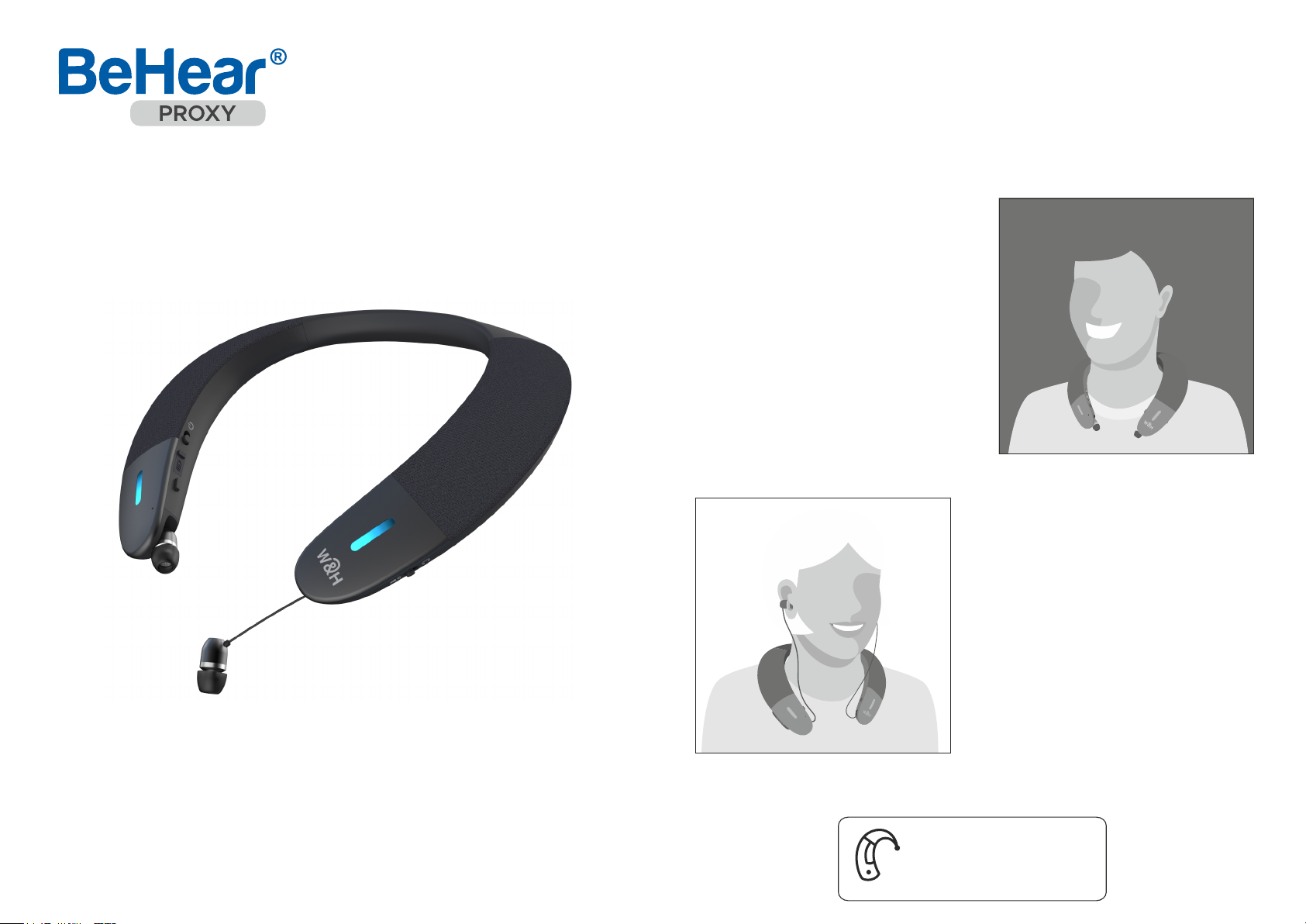
Neck Speaker &
Place BeHear PROXY on your shoulders
and enjoy a rich, clear, and comfortable
listening experience for:
Personal Hearing Amplifier
Model: ABH-130
• Television
• Streamed music
• Mobile calls
• Gaming
Use its extractable
earphones for
privacy and
personalized hearing
Quick Start Guide
amplification.
Suitable for use
with hearing aids
Page 2
1
Getting Started
1
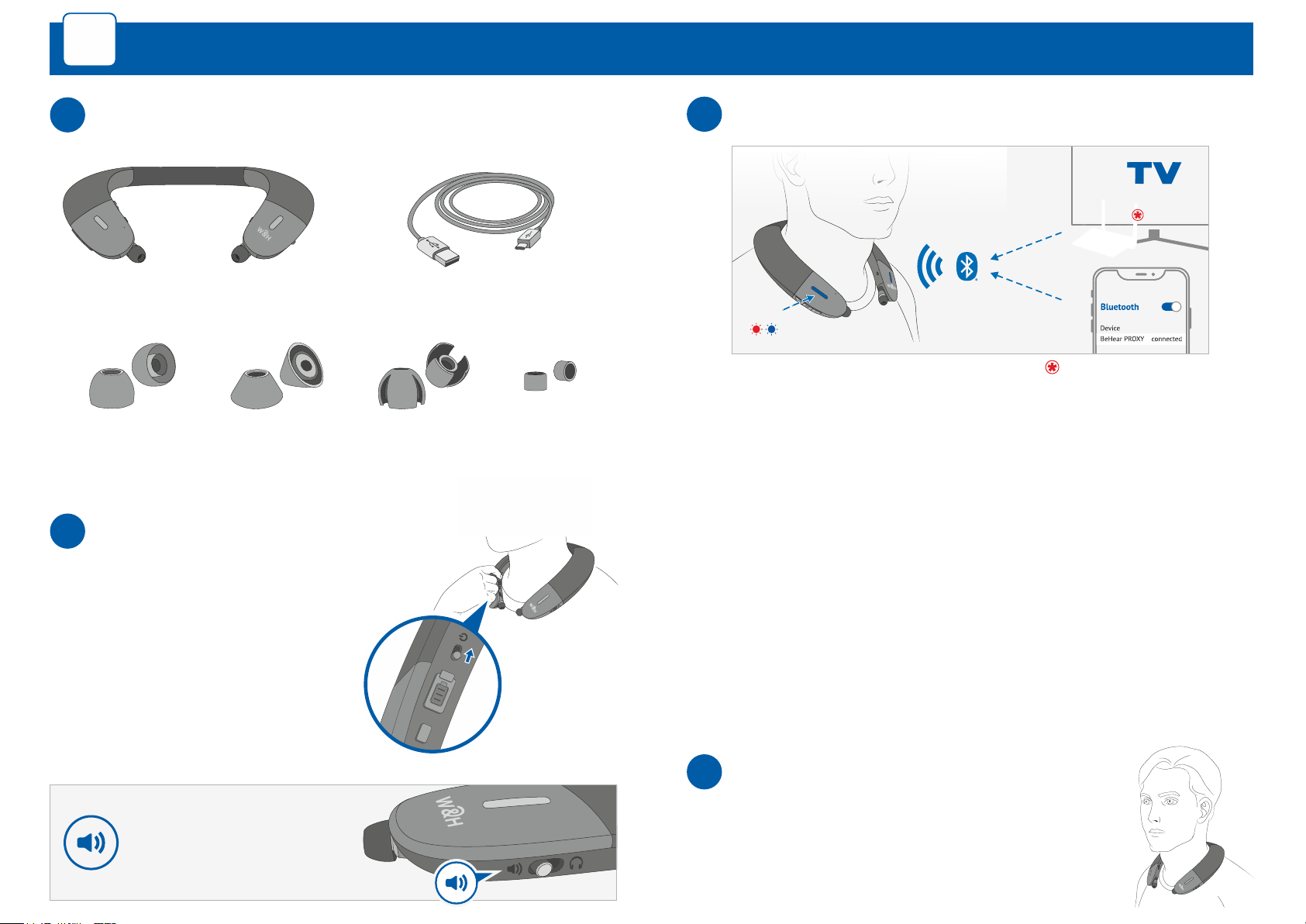
What’s in the Box?
Ear bud pairs (variety of types and sizes)
2
Turn ON BeHear PROXY
3
Connect to Bluetooth Device
Charging cable Neck Speaker
LED
First Time Connection
• Turn BeHear PROXY ON. It will automatically enter pairing
mode (the LED will blink in alternating red and blue).
• If pairing with a smartphone, choose "BeHear PROXY"
from the list of available Bluetooth devices.
For connecting to other devices, such as a TV set, audio
transmitter, etc., please refer to their respective manuals.
®
Purchased separately
Shift the power button up and
hold it until the unit vibrates and
the LED turns light blue.
A voice prompt will be played.
To turn BeHear PROXY OFF
repeat this action.
Verify that the mode
switch is set to
Loudspeaker position.
Subsequent Connections
• Turn OFF BeHear PROXY.
• Shift its power switch up and hold it until the LED blinks
in alternating red and blue.
• Complete the pairing process as directed in the manual of
the new Bluetooth device.
Place on Your Shoulders
4
Put the BeHear PROXY neck band around your
neck. The hard plastic tips should rest on either
side of your chest and the fabric covers of the
speakers should face up, just below your ears.
Page 3
2
Listen and Talk with BeHear PROXY
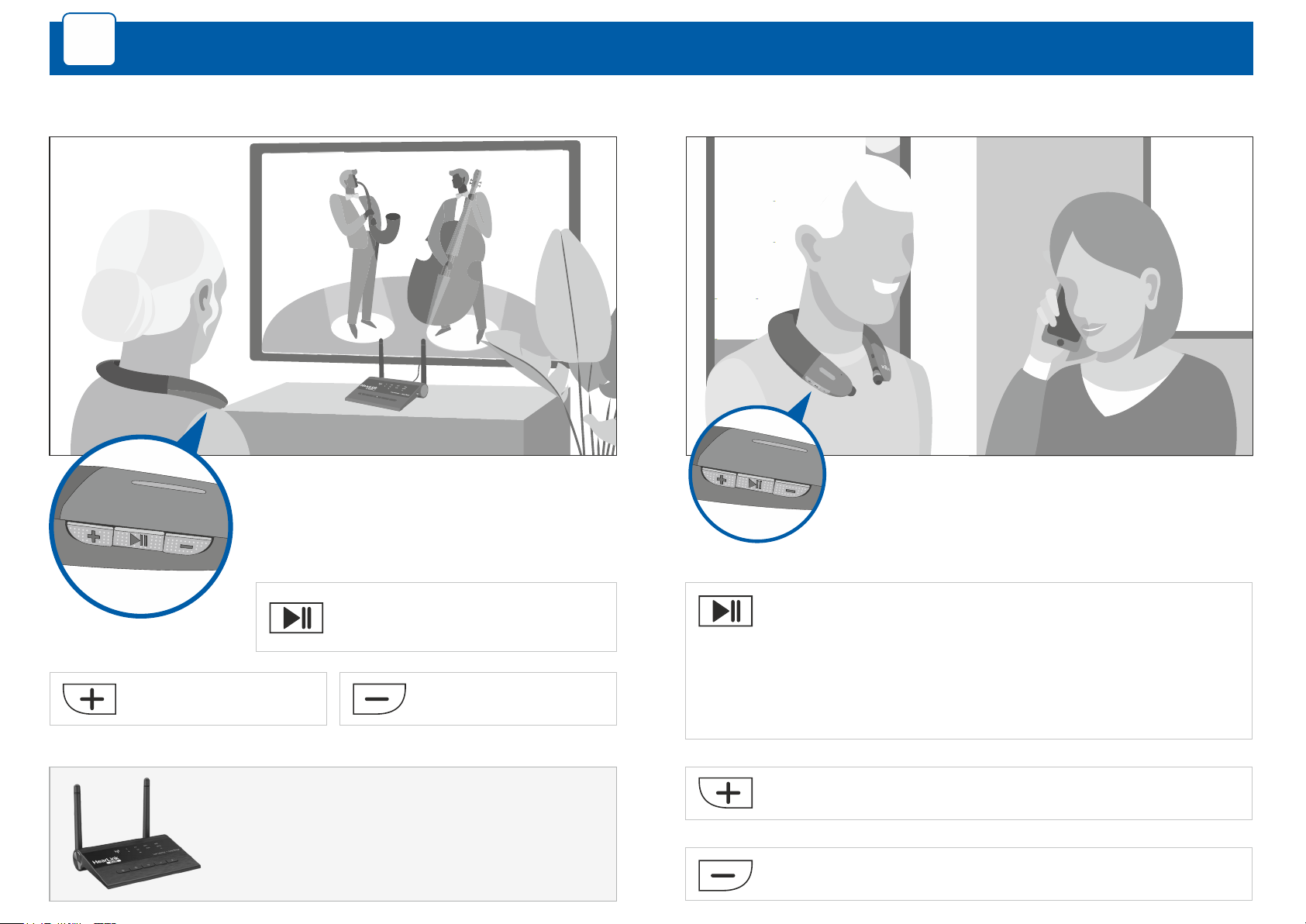
Watching Television
Connect BeHear PROXY to your TV set
and manage the audio from the righthand side of the neck speaker.
Mobile Calls
Connect BeHear PROXY to your smartphone
and handle calls from the right-hand side
of the neck speaker.
Increase the volume.
If your TV doesn’t have a built-in Bluetooth
transmitter, we recommend purchasing our
HearLink PLUS - a high quality, long-range
Bluetooth transmitter.
®
Short press to mute/unmute
the sound.
Decrease the volume.
Short press to accept an incoming call.
Short press to end the active call.
Long press to reject an incoming call.
Double press to redial last number.
Increase the call volume.
Decrease the call volume.
Page 4
Music / Gaming / Video Calls
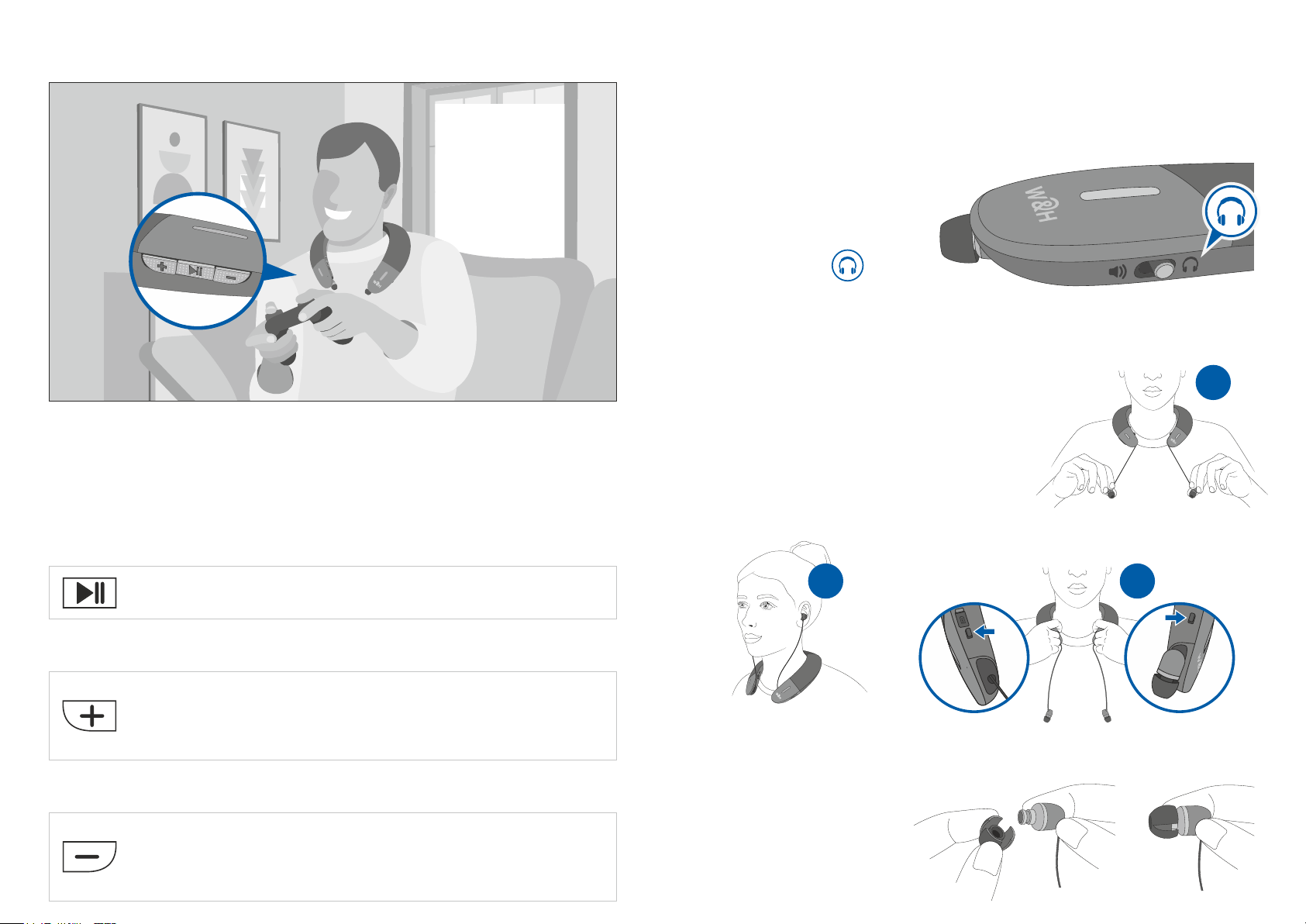
Earphones Mode
Handle phone calls and listen to music privately with your
BeHear PROXY by using the extractable earphones housed in
the neck speaker.
l Switch the Mode
Set the mode switch
to “Earphones”.
l Extract the Earphones
Connect BeHear PROXY to your smartphone, music player,
game console, laptop, or other audio streaming device and
manage audio play from the right-hand side of the neck
speaker.
Short press to toggle Play/Pause audio.
Short press to increase the volume.
Press and hold to advance to the next audio track.
1. Pull the earphones gently to extract
the cables.
2. Insert the earphones into your ears.
3. Press the buttons to retract the
cables, or to adjust their length.
2
l Choose Earbuds
Experiment to find the
1
3
Short press to decrease the volume.
Press and hold to return to the previous audio track.
buds that fit your ears
most comfortably for
continuous wear.
Page 5
3
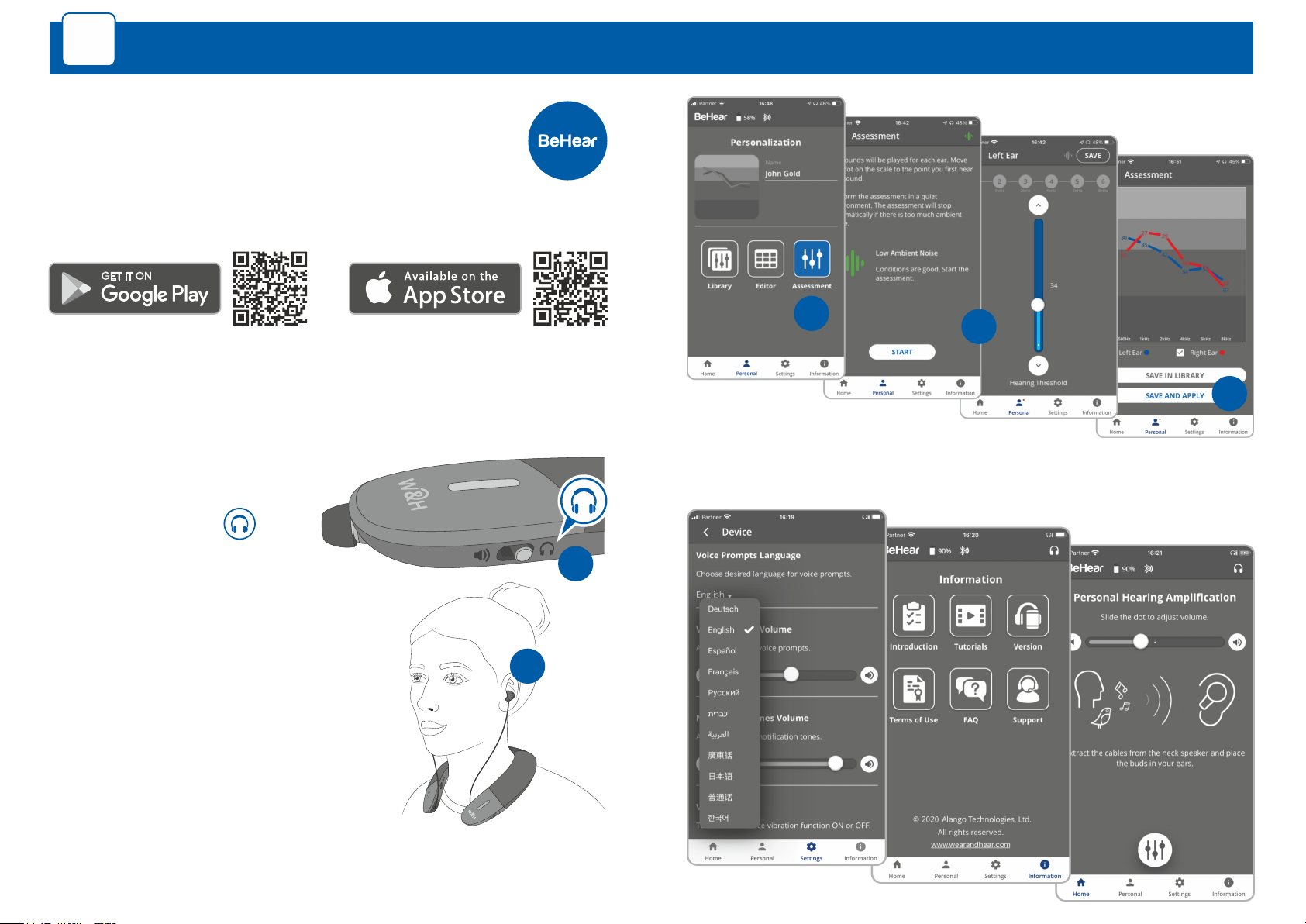
Personalize, manage, and get help for your BeHear
PROXY neck speaker with the free W&H BeHear
smartphone application.
l Download the App
Smartphone Application
l Personalize What You Hear
Adjust the acoustic performance of the neck speaker to suit
your own hearing preferences.
1. Set the mode switch
to “Earphones”.
1
2. Put on the neck speaker,
inserting the ear buds
into your ears.
2
3. Choose Personal >> Assessment
in the W&H BeHear app.
3
4
5
l Manage Your BeHear PROXY
4. Follow the prompts to perform
the hearing assessment.
5. Save and apply the results to the neck speaker.
Page 6
4
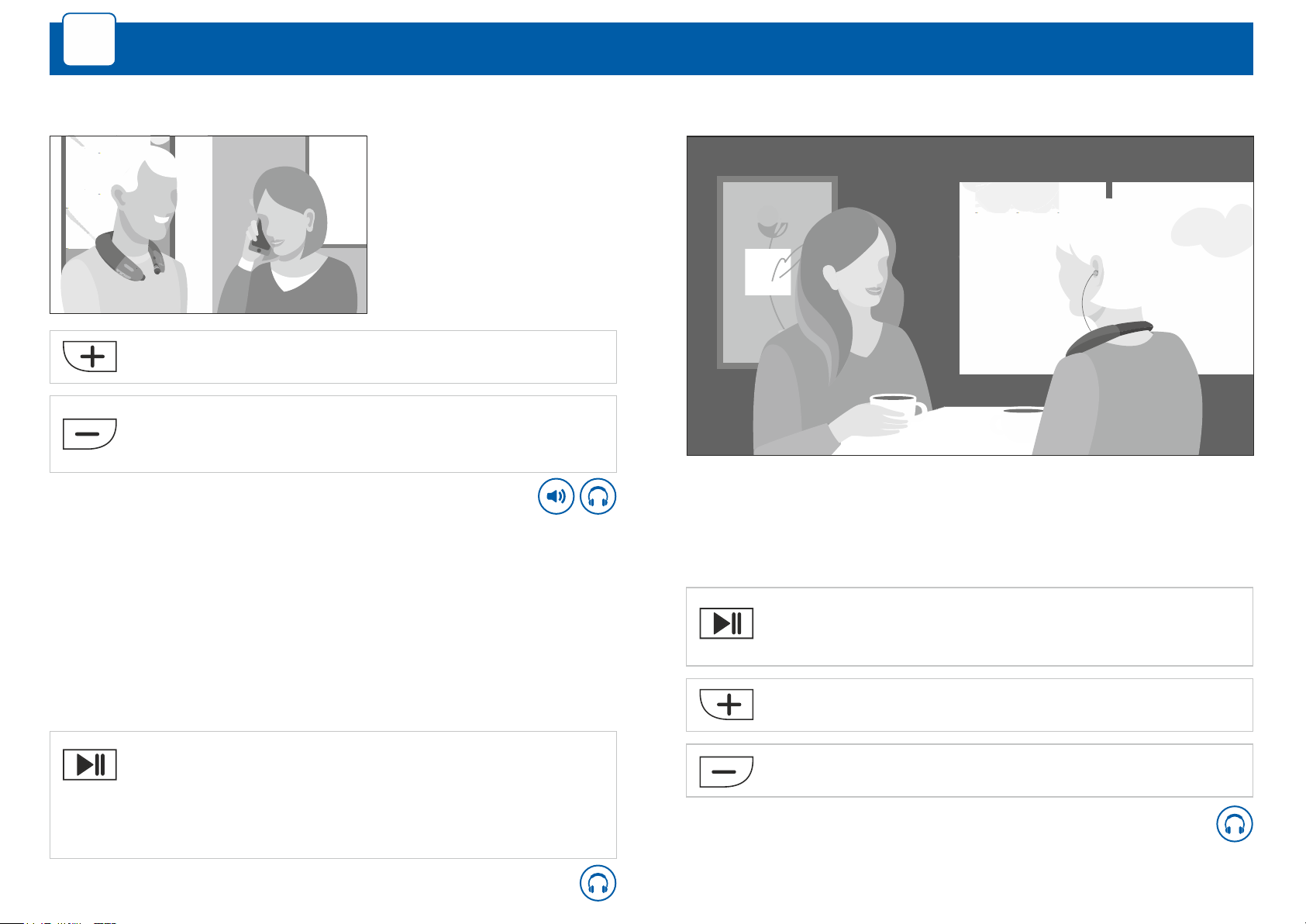
Assistive Listening Functions
For Mobile Calls*
Press and hold briefly to slow down the speech.
Press and hold briefly to return to the normal
speech tempo.
* In Loudspeaker and Earphones modes
For Private Listening**
For Live Conversations***
Improve intelligibility
during a mobile call
by slowing down
incoming speech
using EasyListen™.
• Amplify and clarify nearby conversations.
• Use the most comfortable ear buds.
• Match amplification level to suit your own hearing profile.
To stay aware of important world sounds and nearby
conversation during audio play, activate the
ListenThrough™ function.
Ambient sounds will pass to your ears when the earphones
are inserted.
Press and hold briefly to turn ambient sounds
ON/OFF.
To enable this function, go to Settings >> Device
menu in the W&H BeHear app.
** In Earphones mode only
Press and hold briefly to turn personalized sound
amplification ON/OFF.
Increase the volume.
Decrease the volume.
*** In Earphones mode only
Page 7
5
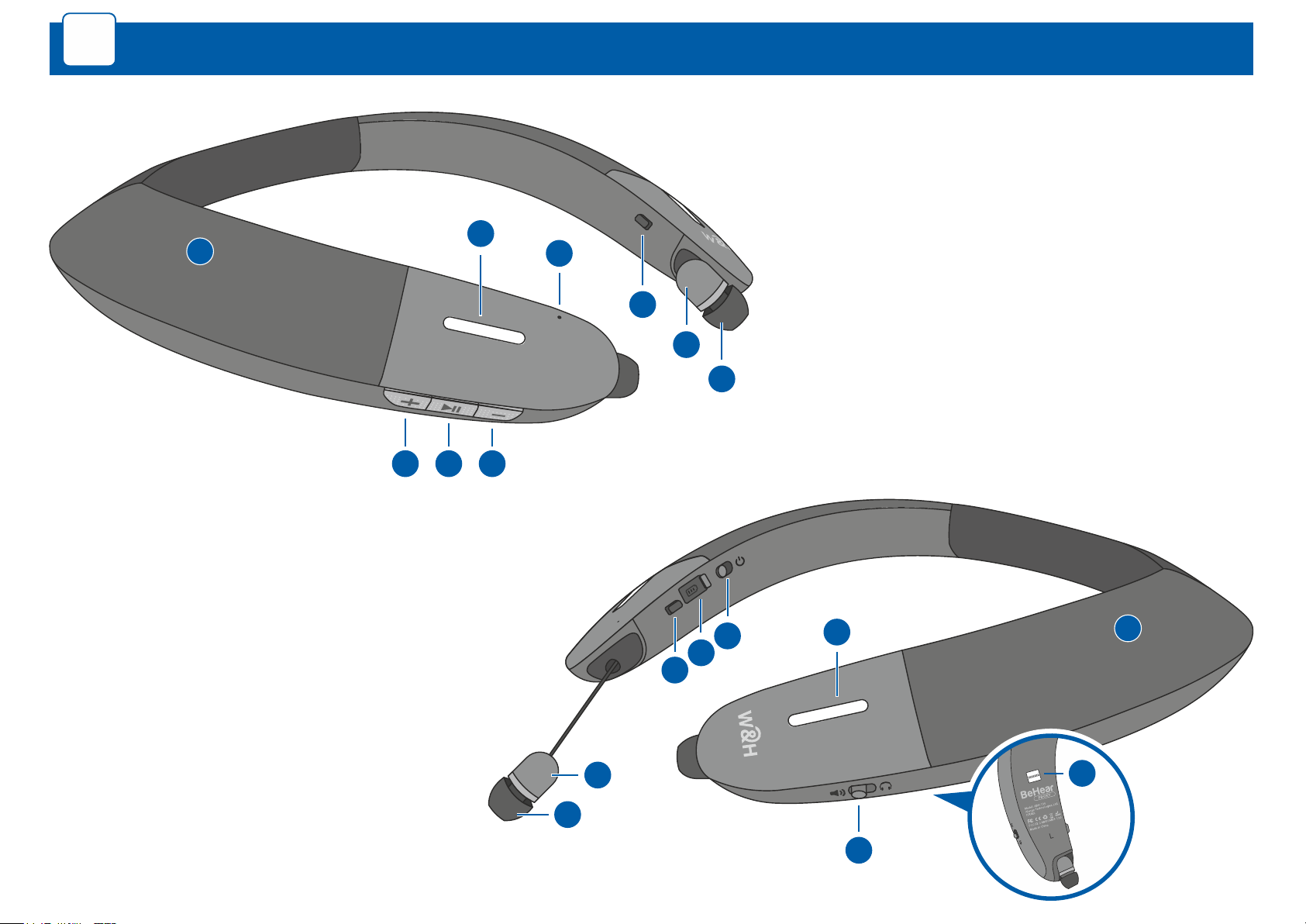
Device Overview
8. Right retract button
9. Micro USB charging port
5
4
6
10. Power ON/OFF switch
1. Volume up
2. Multifunction button
3. Volume down
4. Loudspeakers (left & right)
5. Notification LED (left & right)
6. Microphone
7. Left retract button
7
12
13
11. Mode switch
12. Extractable earphones (left & right)
13. Silicone earbuds (left & right)
14. Serial number label
3
21
4
13
12
10
9
8
5
14
11
Page 8
6
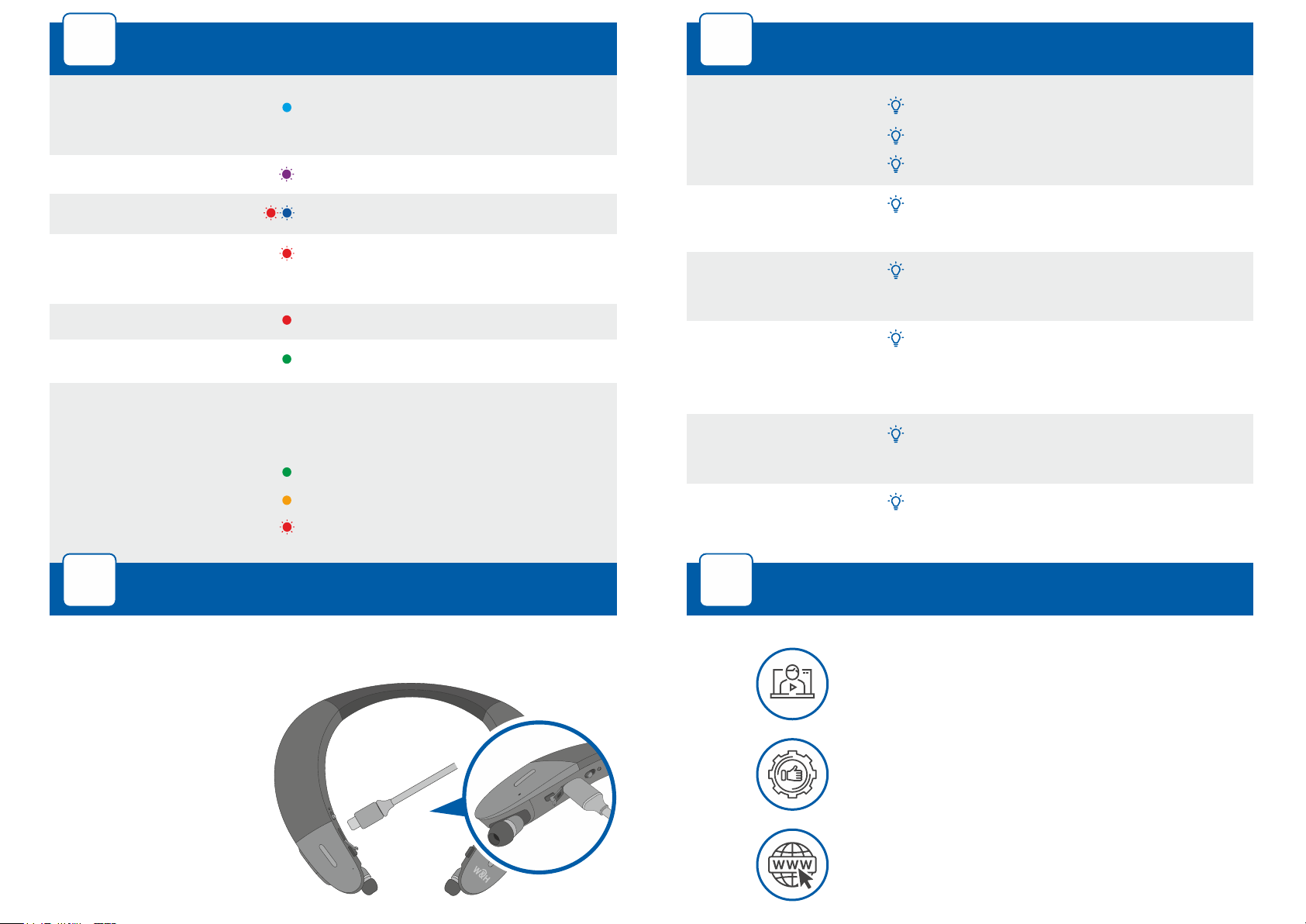
LED Indication
8
Troubleshooting
Light blue (1s flash)
Purple, blinking
Red/blue alternating
Red, blinking
Red, steady
Green, steady
To check battery level, briefly press power button when
the unit is turned on:
Green
Yellow
Red, blinking
Neck speaker is powered
ON/OFF (toggle)
Assistive function active
Bluetooth pairing mode
Disconnected from paired
Bluetooth device, or battery low
Charging
Battery fully charged
Good > 50%
Fair > 10% and < 50%
Low < 10%
No sound
Ear buds are
uncomfortable
Phone calls and/or
music not routed
Bluetooth
disconnects often
Hearing
interruptions
Unexpected
behavior
Verify battery is charged.
Adjust volume level.
Check ear caps for debris.
Experiment with different silicone
ear tips.
Verify Bluetooth pairing.
Verify that you are not more than
10 meters (30 feet) from the
Bluetooth device.
Silence phone tones (alerts,
notification sounds, key taps, etc.).
Reset the neck speaker by
connecting it to the charger.
7
Charge the neck speaker directly from a wall outlet or
computer USB port.
The LED indicator is
red during charging
and turns green when
the neck speaker is
fully charged.
Full charging takes up
to 3 hours.
Charging the Battery
9
Support
https://bit.ly/bhproxy-video
www.WearAndHear.com
BeHear-PROXY-QS-EN-Ver02
 Loading...