

Page 1
User Manual
Updated for 2019
Page 2
Table of Contents
1. Change your Wi-Fi network name or password
2. TouchLink guest network setup
3. Enable/Disable Smart Connect feature
4. Add a Satellite
5. LED light control
6. Factory Reset
Page 3
1. Changing WiFi Name and/or Password
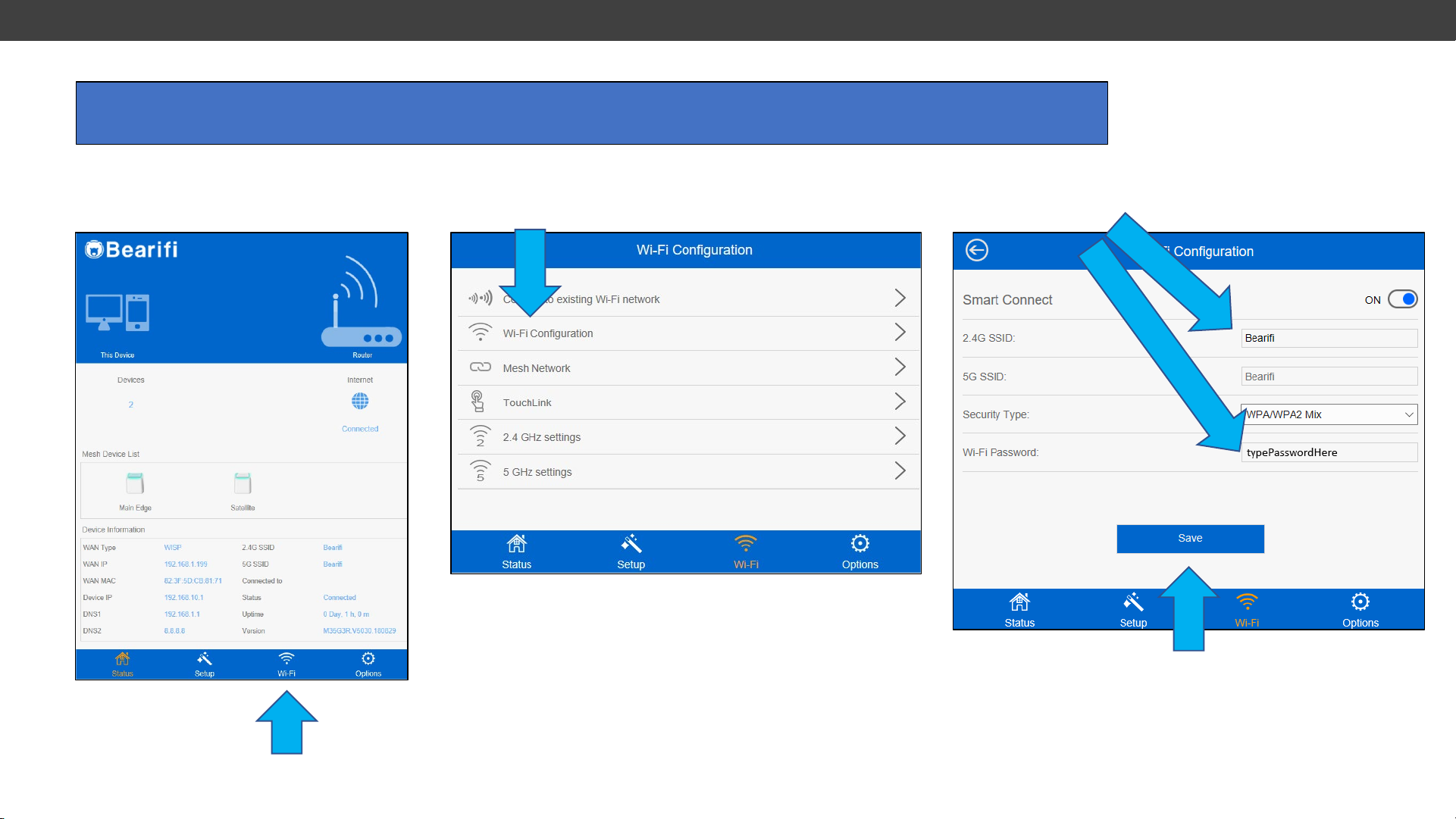
Connect your PC or device to the ‘Bearifi’ Wi-Fi signal and log in at the 192.168.10.1 IP address to access
the Bearifi Edge administrator area.
1. Click the WiFi menu
2. Click Wi-Fi configuration
3. Change WiFi signal name in 2.4G SSID box, and/or
change password in Wi-Fi Password box.
4. Click save.
Then Allow router to reboot,
Then reconnect your device to the
“Bearifi” Wi-Fi signal, or the new name.
Page 4
2. TouchLink Setup
TouchLink is a patented feature which
allows you to broadcast a separate guest
network that is fully secure, but does not
need a password.
Instead, when TouchLink is enabled in
settings, you or your guest can press the
top of the Bearifi Edge Mesh AP unit and
the light will flash blue for 60 seconds.
During this period, your guest can join
the BearifiTouch network without needing
a password. When the light stops
flashing, this network becomes fully
secure and cannot be accessed. You can
change the flashing time in the settings if
you wish to allow a connection for a
shorter period time, such as only 20
seconds after the top is pressed.
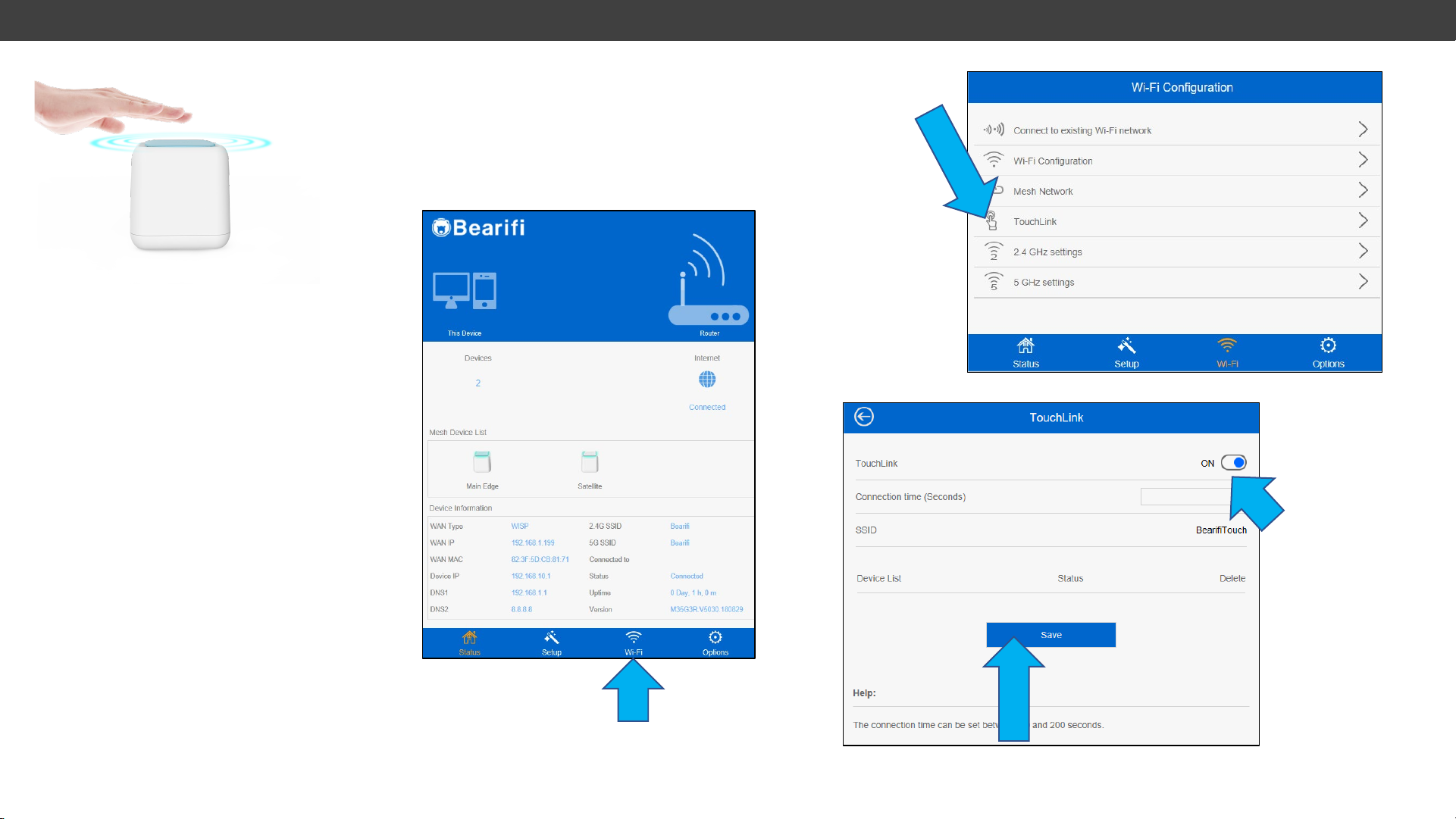
1. Connect your PC or device to
the ‘Bearifi’ Wi-Fi signal
and log in at the 192.168.10.1 IP
address to access the
Bearifi Edge administrator area.
3. Click TouchLink
4. Turn TouchLink ON
2. Click the WiFi menu option
5. Click save. Then Allow router to reboot.
Page 5
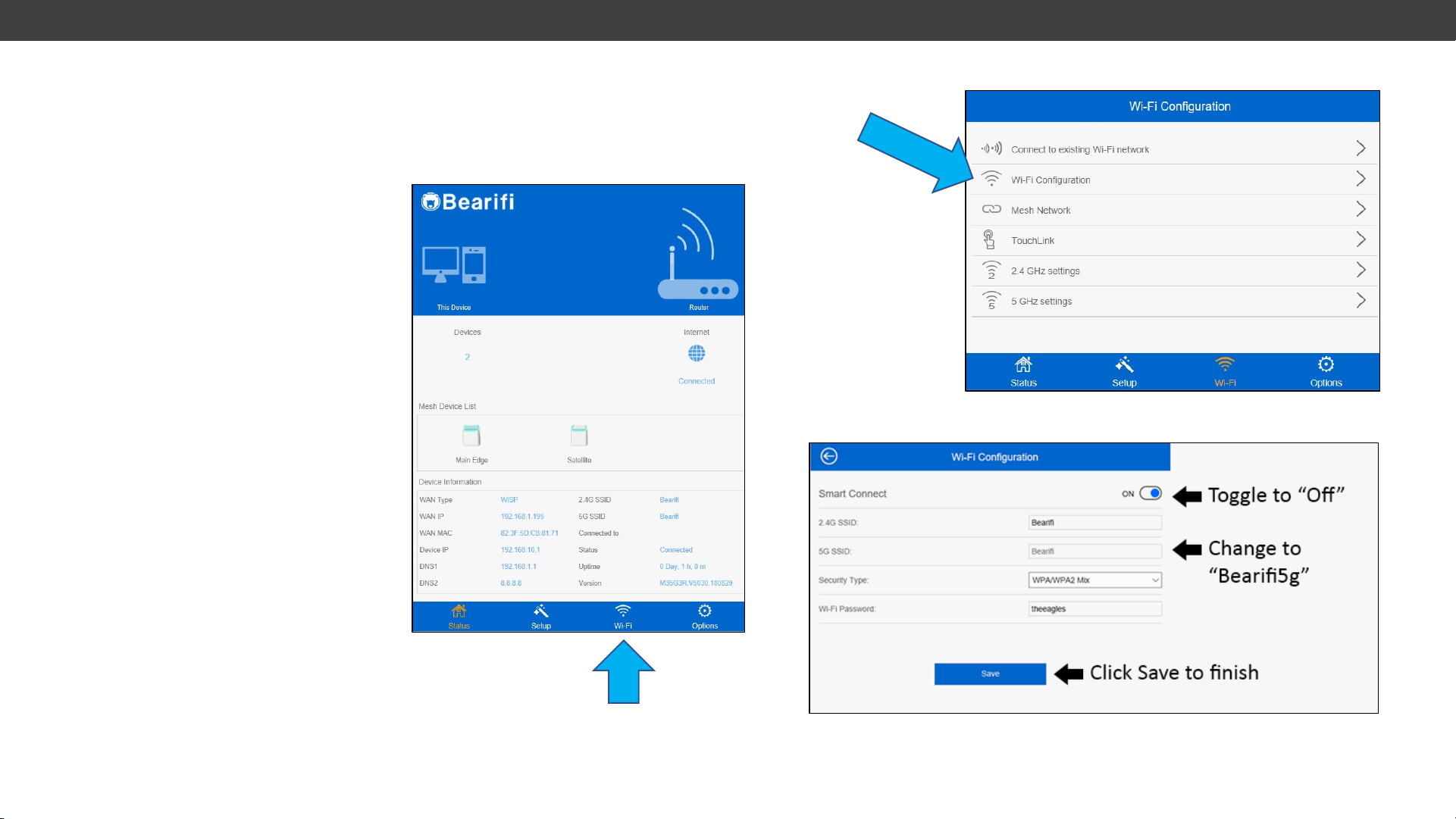
3. Turning Smart Connect Off/On
Smart Connect is our AI based feature
that puts your devices on either the 2.4 or
5 GHz bands based on what it
determines will give your devices the
best performance.
2.4 Ghz is better for longer range
connections, while 5 GHz will give you
better performance and faster speeds
when closer. Conventional mesh devices
send out 2 separate WiFi signals, one for
2.4 GHz and one for 5 GHz. As you go to
different places in your home, you may
not be on the best band for best
performance.
Smart Connect decides what band will
give your device the best connectivity
and will automatically switch you over to
the 2.4 Ghz band if your 5 Ghz signal
gets weak.
1. Connect your PC or device to
the ‘Bearifi’ Wi-Fi signal
and log in at the 192.168.10.1 IP
address to access the
Bearifi Edge administrator area.
3. Click WiFi configuration
There may be circumstances where you
want to broadcast a separate 2.4 and 5
Ghz network. To do this, you want to
follow these instructions to turn off Smart
Connect.
2. Click the WiFi menu option
Page 6
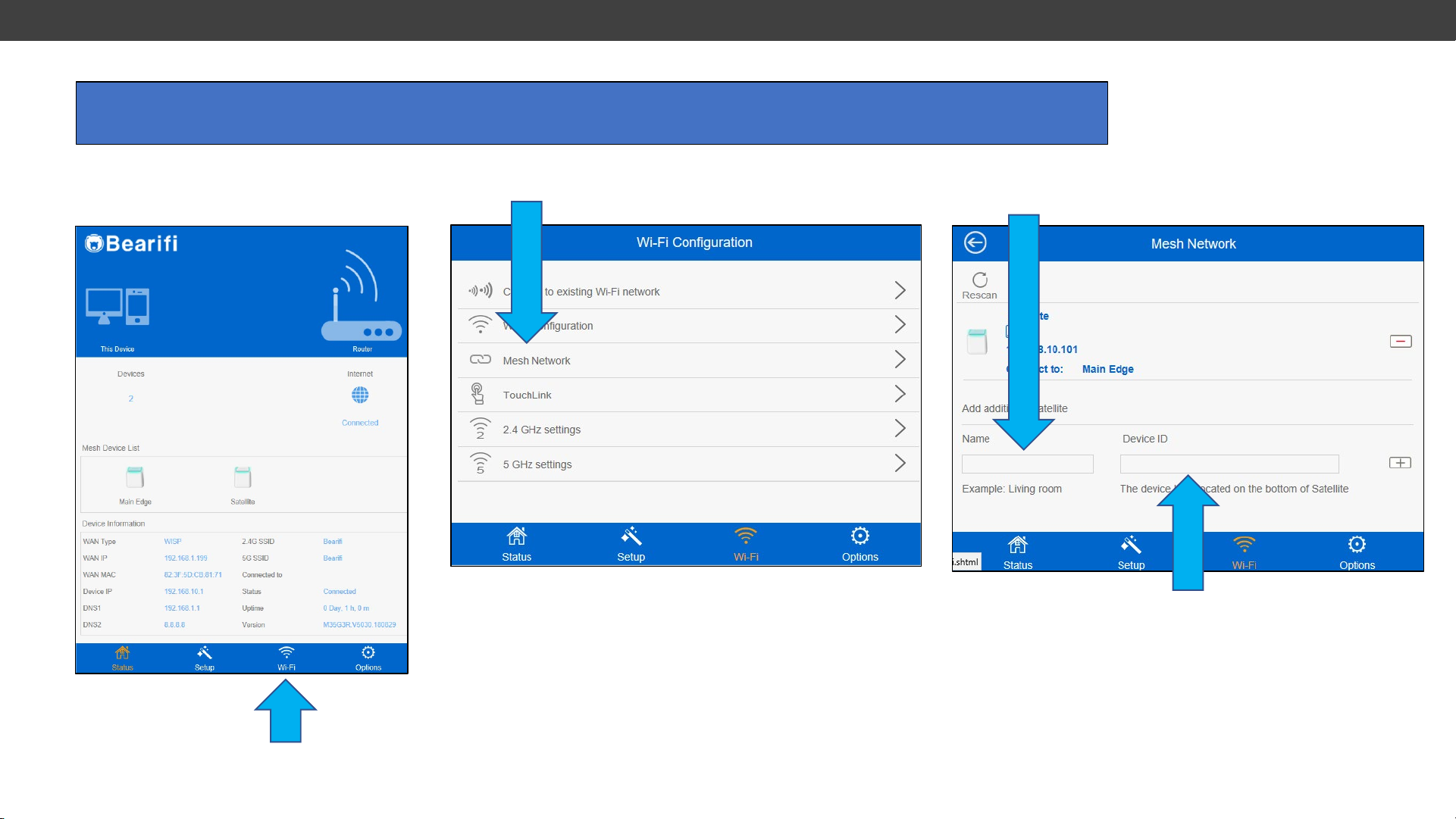
4. Adding a Satellite
Power on the Satellite within range of your Bearifi Edge Mesh AP. Connect your PC or device to the ‘Bearifi’
Wi-Fi signal and log in at the 192.168.10.1 IP address to access the Bearifi Edge administrator area.
1. Click the Wi-Fi menu
2. Click Wi-Fi Mesh Network
3. In “Name” box, give the Satellite a name, such as
“Living Room”.
4. In Device ID field, enter the 5G MAC number
printed on the bottom of the new Satellite. Enter a :
between every two numbers.
Enter 80ABDCDFFC2F as
80:AB:DC:DF:FC:2F
Click Save. Allow router to reboot. If the Satellite LED
does not turn blue within 60 seconds, restart Satellite.
Page 7
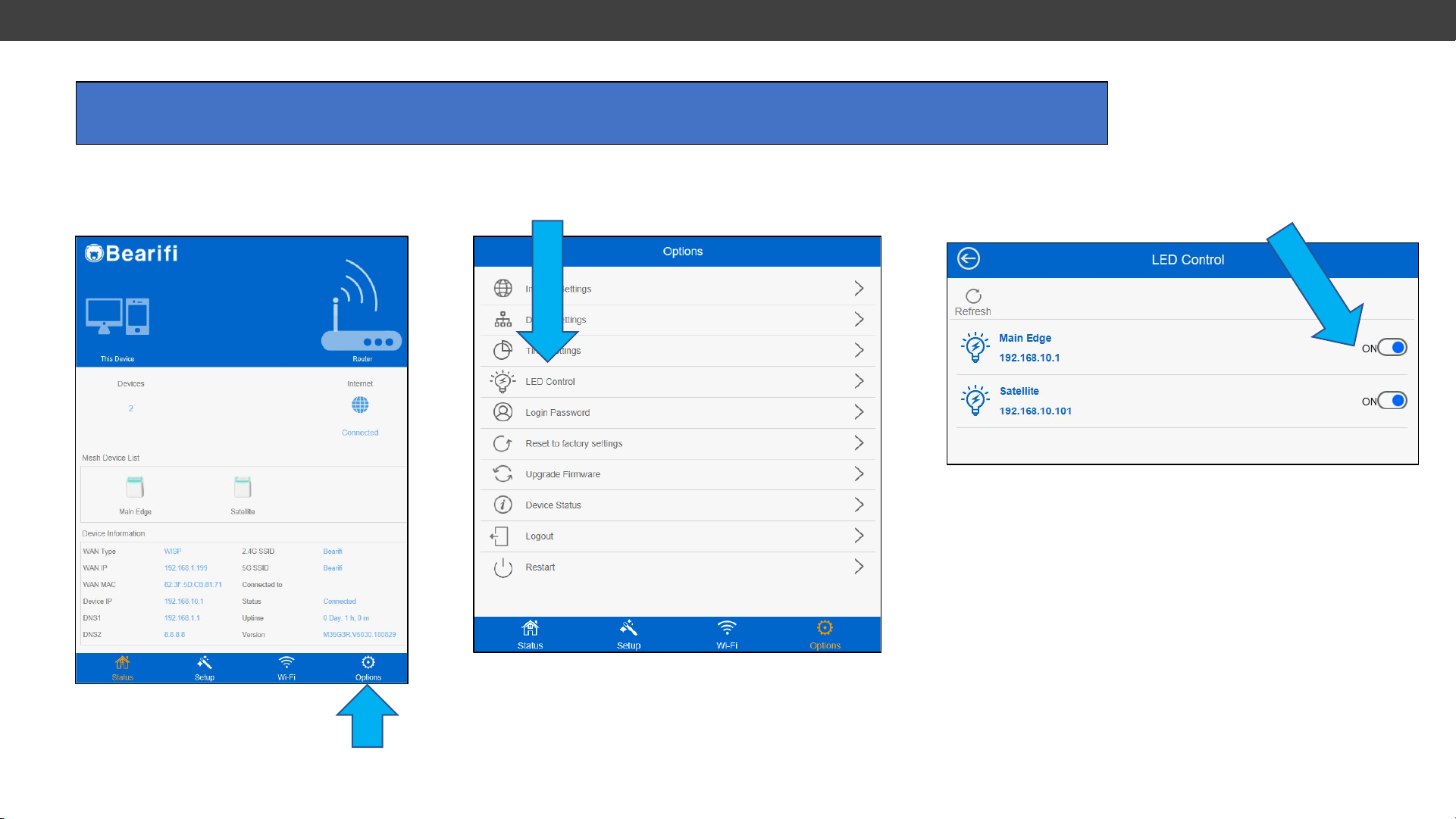
5. LED Control
Connect your PC or device to the ‘Bearifi’ Wi-Fi signal and log in at the 192.168.10.1 IP address to access
the Bearifi Edge administrator area.
1. Click the Options menu
2. Click LED Control
3. Toggle LED light OFF/ON for Main AP or Satellites
Click Save. Allow router to reboot.
Page 8

6. Factory Reset Bearifi Edge Mesh
Factory Reset Steps
Reset needs to be done only on the Bearifi Edge Mesh AP (not the Satellites).
1. Using a pen or fine tip object, press and hold in the reset button underneath the power switch for 10 seconds until a green light comes on over each LAN
port. Then release the reset button.
2. Bearifi Edge Mesh AP will now restart. This takes about 60 seconds.
3. While waiting, turn off your computer's internal Wi-Fi card and turn it back on, or restart your computer or device
4. After 60 seconds, scan for the “Bearifi” WiFi network on your computer or device.
The Bearifi Edge Mesh AP will now be just like new with no password protection and is all ready for setup.
Satellite units generally do not need factory reset as they will be reset by the master process above, however if a Satellite is not still not working, follow these
same steps above on the Satellite to reset it.
If your Satellite is no longer recognized by your Bearifi Edge Mesh AP after factory reset (flashes red for more than 180 seconds after power up), you may
need to add your Satellite back to your Bearifi Edge Mesh AP device. First try powering the Satellite off and back on, and waiting three minutes. Then refer to
section 4 of this manual, “Adding a Satellite” to add the Satellite again.
 Loading...