

Page 1
View Captured Images
• Press PLAYBACK button.
• Screen will display images as
thumbnails
• Move to desired image by using
arrow keys
• To enlarge image to full screen, press
ENTER
• To return to screen with images as
thumbnails, press ENTER
• To return back to document camera
mode, press CAMERA/PC button.
Deleting Captured Images
• Press PLAYBACK button
• Select desired image with arrow keys
• Press CAP/DEL
• Select YES
Delete all images at Once
• Press MENU button
• Select SETTINGS
• Select FORMAT MEMORY
• Select YES
• Memory reformats in ≈ 20 seconds
Other Helpful Reminders
• Zoom > 100% to use Pan Feature
• Use FREEZE function for smooth
transitions
• If using doc cam with S-video or
composite connection, set output
to TV (Small black switch next to flex arm)
• When experiencing glare, try angling
LED light module or using the
included anti-glare sheet
• Turn off document camera by pressing
and holding POWER button for
2 seconds
• Use AUTO IMAGE function to
automatically adjust and set the
white balance and exposure setting
AVerVision CP155 Quick Reference Guide
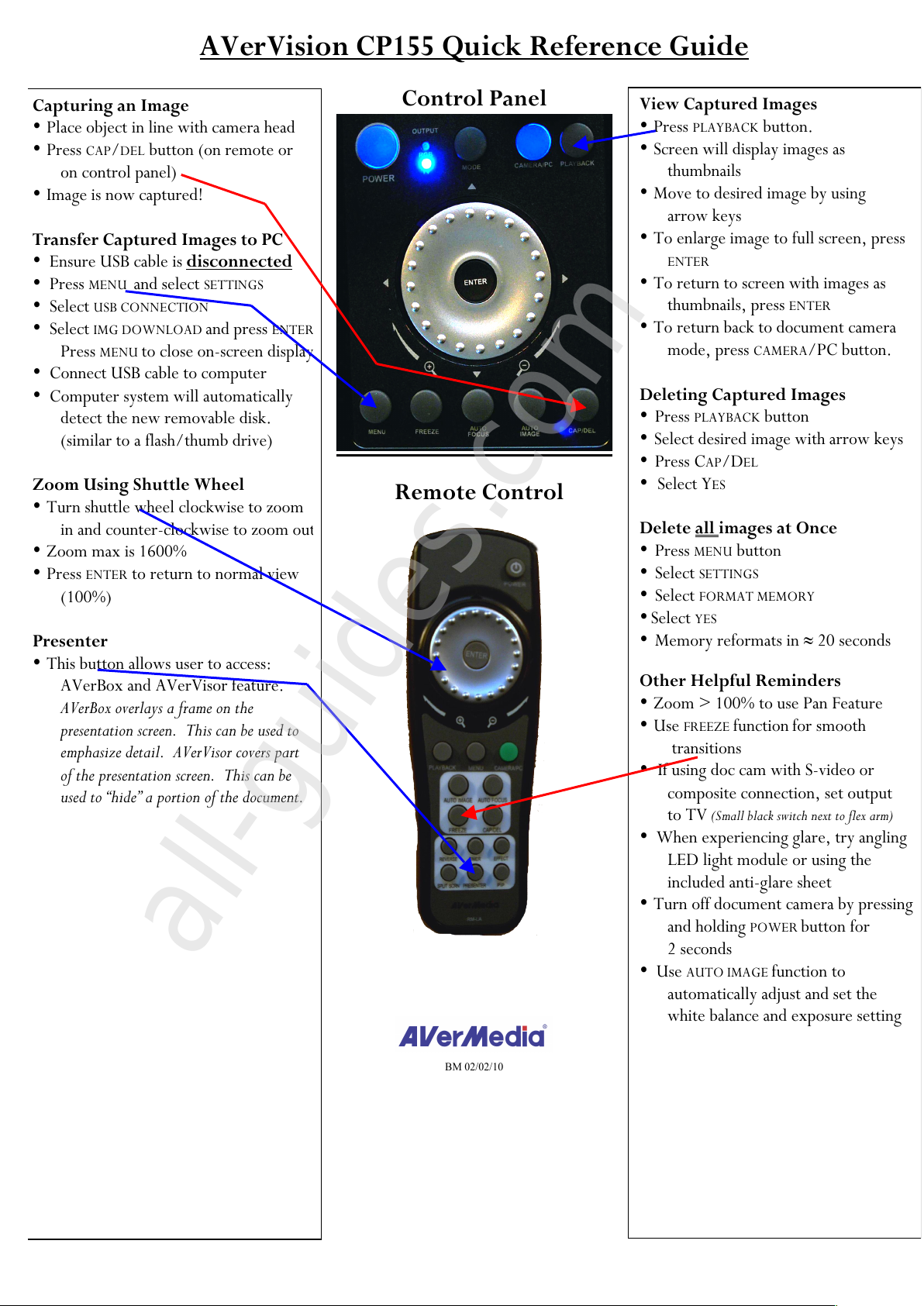
Control Panel
• computer’s
Remote Control
Capturing an Image
• Place object in line with camera head
• Press CAP/DEL button (on remote or
on control panel)
• Image is now captured!
Transfer Captured Images to PC
• Ensure USB cable is disconnected
• Press MENU and select SETTINGS
• Select USB CONNECTION
• Select IMG DOWNLOAD and press ENTER
Press MENU to close on-screen display
• Connect USB cable to computer
• Computer system will automatically
detect the new removable disk.
(similar to a flash/thumb drive)
Zoom Using Shuttle Wheel
• Turn shuttle wheel clockwise to zoom
in and counter-clockwise to zoom out
• Zoom max is 1600%
• Press ENTER to return to normal view
(100%)
Presenter
• This button allows user to access:
AVerBox and AVerVisor feature.
AVerBox overlays a frame on the
presentation screen. This can be used to
emphasize detail. AVerVisor covers part
of the presentation screen. This can be
used to “hide” a portion of the document.
BM 02/02/10
all-guides.com
All manuals and user guides at all-guides.com
Page 2
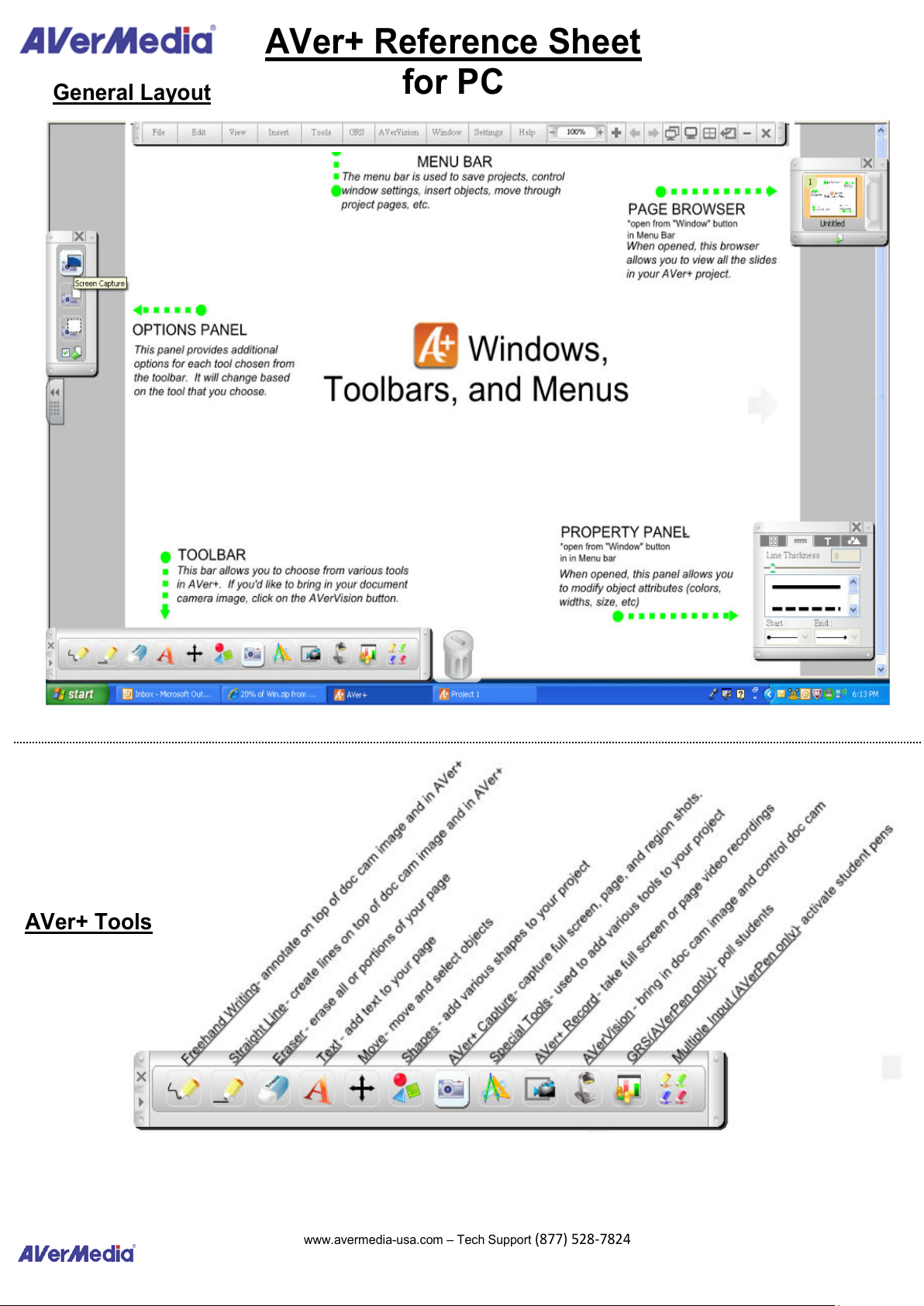
General Layout
AVer+ Reference Sheet
for PC
AVer+ Tools
www.avermedia
-
usa.com
–
Tech Support
(877) 528
-
7824
All manuals and user guides at all-guides.com
Page 3
www.avermedia
-
usa.com
–
Tech Support
(877) 528
-
7824
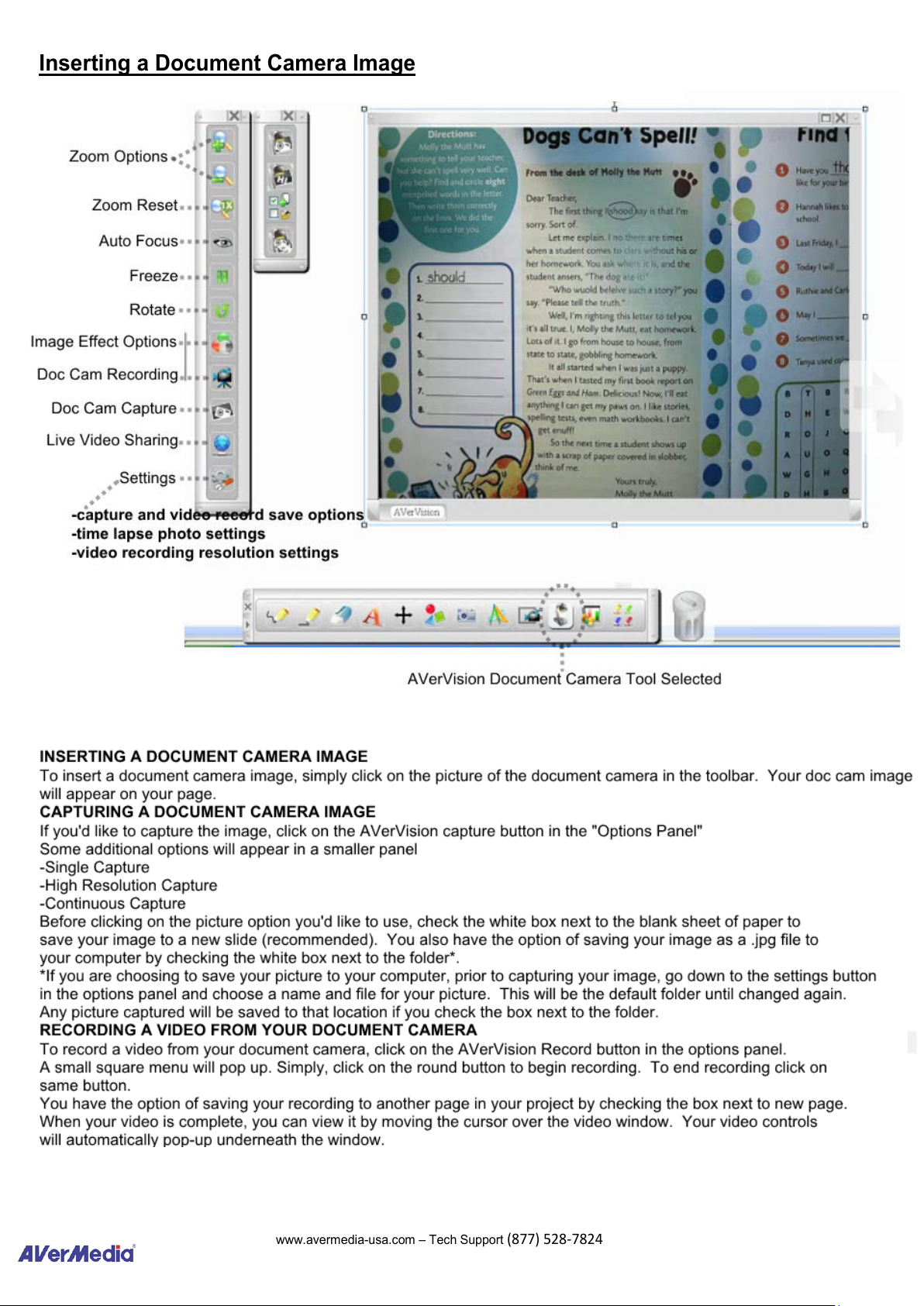
Inserting a Document Camera Image
All manuals and user guides at all-guides.com
Page 4
www.avermedia
-
usa.com
–
Tech Support
(877) 528
-
7824
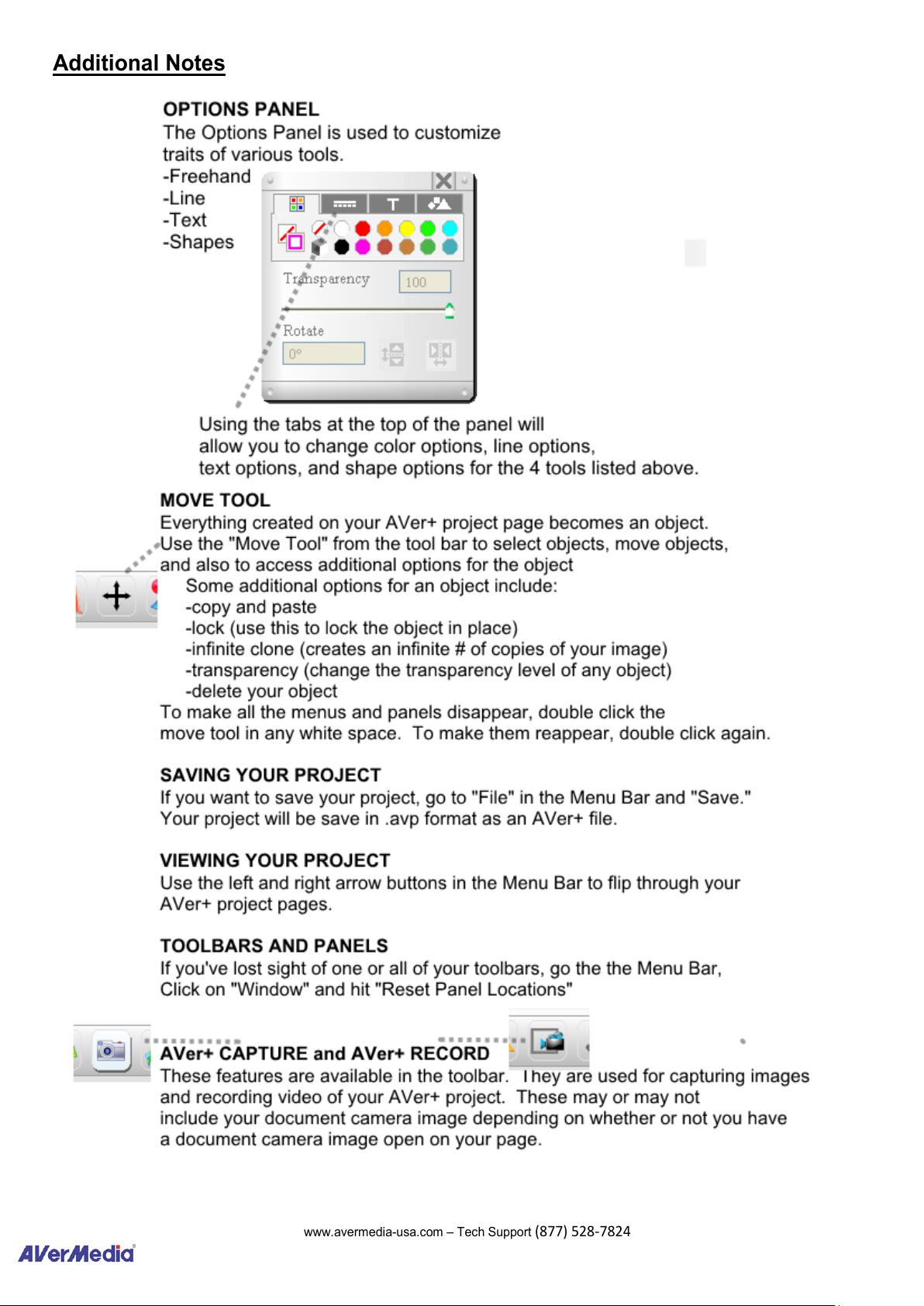
Additional Notes
All manuals and user guides at all-guides.com
Page 5
www.avermedia
-
usa.com
–
Tech Support
(877) 528
-
7824
Additional Notes continued
All manuals and user guides at all-guides.com
 Loading...