

Page 1

DEFINITY
®
Enterprise Communications Server
Release 7
Console Operations
555-230-700
Comcode 108383837
Issue 4
June 1999
Page 2

Copyright 1999, Lucent Technologies
All Rights Reserved
Printed in U.S.A.
Notice
Every effort was made to ensure that the information in this book was
complete and accurate at the time of printing. However, information is
subject to change.
Your Responsibility for Your System’s Security
Toll fraud is the unauthoriz ed use of your telecommunications system
by an unauthorize d party, for example, persons other than your com-
pany’s employees, agents, subcontractors, or persons working on your
company’s behalf. Note that there may be a risk of toll fraud associated
with your telecommunications system and, if toll fraud occurs, it can
result in substantial additional charges for your telecommunicati ons
services.
You and your system manager are responsible for the security of your
system, such as programming and configuring your equipment to prevent unauthorized us e. The system manager is also responsible for
reading all installa tion, instruction, and system administration documents provided with th is product in order to fully understand the features that can introduce risk of toll fraud and the steps that can be taken
to reduce that risk. Lucen t Technologies does not warrant tha t this
product is immune from or will prevent unautho rized use of common-carrier tele communication services or fac il itie s accessed through
or connected to it. Lucent Technologies will not be responsible for any
charges that result from such unauthor ized use.
Lucent Technologies Fraud Intervention
If you suspect that you are being victimized by toll fraud and you need
technical support or assist ance, call Technical Service Center Toll
Fraud Intervention Hotline at 1 800 643-2353.
Federal Communications Commission Statement
Part 15: Class A Statement. This eq uipment has been tested and
found to comply with the limits for a Class A digital device, pursuant
to Part 15 of the FCC Rules. Thes e li m it s are desi gne d to provide reasonable protection against harmful interference when the equipment is
operated in a commercial enviro nm ent. This equipm ent generates,
uses, and can radiate radio-frequency energy and, if not installed and
used in accordanc e wi th t h e inst ruc tions, may cause harmful interference to radio communications. Operation of this equipment in a residential area is likely to cause harmful interference, in which case the
user will be required to corre ct the interference at his own expense.
Ordering Information
Call: Lucent Technologies BCS Publications Cente r
Voice 1 800 457-1235 International Voice 317 322-6416
Fax 1 800 457-1764 International Fax 317 322-6699
Write: Lucent Technologies BCS Publications Cente r
2855 N. Franklin Road
Indianapolis, IN 46219
Order: Document No. 555-230-700
Comcode 10838383 7
Issue 4, June 1999
For additional documents, refer to the “Introduction.”
Y ou can be placed on a standing order list for this and other documents
you may need. Standing order will enable you to automatically receive
updated versions of ind ividual documents or docu me nt sets, bi lled to
account information that you provide. For more i nformation on standing orders, or to be put on a list to re ce ive future issues of this document, contact the Lucent Technologies Publications Center.
European Union Declaration of Conformity
The “CE” mark affixed to the DEFI NIT Y ® e qui pm ent described in
this book indicates tha t t he e quipment conforms to the fo ll owing European Union (EU) Direc tiv e s:
• Electromagnetic Compatibility (89/336/EEC)
• Low Voltage (73/23/E EC)
• Telecommunicatio ns Ter minal Equipment (TTE) i-CTR3 BRI
and i-CTR4 PRI
For more information on standards compliance, contact your local distributor.
Comments
To comment on this document, return the comment card at the front of
the document.
Acknowledgment
This document was prepared by Product Documentation Development,
Lucent Technologies, De nver, CO.
Part 68: Network Registration Number. This equipment is registered
with the FCC in accordance with Pa rt 68 of the FCC Rules. It is identified by FCC registration num ber AS593M-13283-MF-E. Refe r to
“Federal Communica ti ons Commission Statement” in “Abou t Th is
Book” for more information regarding Part 68.
Canadian Department of Communications (DOC)
Interference Information
This digital apparatus does not exceed the Class A limits for radio
noise emissions set out in the radio interference re gulations of the
Canadian Department of Communications.
Le Présent Appareil Nomérique n’émet pas de bruits radioélectriques
dépassant les limites applicables aux appareils numériques de la class
A préscrites dans le reglement sur le brouillage radioélectrique édicté
par le ministére des Communications du Canada.
Trademarks
DEFINITY is a registere d t rademark of Lucent Technologies.
Page 3

DEFINITY® Enterprise Communications Server Release 7
Console Operations
Contents
555-230-700
Contents
Contents iii
1 Introduction 1
■ Conventions Used in This Document 2
■ Security Measures 2
2 Understanding the Console Layout 5
■ Physical Layout of Your Console 5
Outside-Lines Buttons Area 7
Call Appearance Buttons 8
Dialing Keypad 9
Features 11
The Display 12
Displaying in Normal Mode 14
Issue 4
June 1999
iii
Ringer-Volume Control Area 18
Selector Console 19
Tones Heard Through Handset or Headset 21
3 Operating the Console 23
■ Activating the Console 24
■ Deactivating the Console 24
■ Transferring Calls to Internal Extensions 24
■ Transferring Calls to Outside Numbers 25
■ Placing Callers on Hold 26
■ Connecting Two or More Callers 26
■ Answering Emergency Calls 27
4 Using the Features 29
■ Speeding Up the Console 29
Using Auto Start 29
Speed Dialing 30
Holding Calls Automatically 31
■ Handling Multiple-Party Calls 31
Connecting Multiple Callers 31
Locking Out the Console Operator 32
Recalling the Console Operator 32
Paging with Deluxe Voice Paging 33
Page 4

DEFINITY® Enterprise Communications Server Release 7
Console Operations
Contents
■ Answering Calls for Another Party 34
555-230-700
Backing Up the Console Operator 35
Routing Calls Through the Console Operator 35
Covering Calls from the Console 35
Forwarding All Calls 36
Parking Calls 37
■ Paging for Called Parties 38
Parking Calls 38
Chime Paging 39
Paging with Voice Paging 41
Paging with Deluxe Voice Paging 42
■ Assisting Callers with Special Tools 43
Using Call Waiting 43
Split-Swap 44
Interrupting a Call 45
Issue 4
June 1999
iv
Overriding Diversion Features 46
Emergency Notification to Digital Telephones 46
Providing Emergency Notification to the Operator 48
Providing Emergency Access to the Operator 48
Placing a Series of Calls 49
■ Managing Outside Lines 50
Controlling Access to Outside Lines 50
Displaying Outside Line Information 51
Choosing Outside Lines 52
■ Using Features for Internal Use 52
Restricting Calls 52
Activating Don’t Split 54
Testing Phone System Components 55
Accessing Individual Console Operators 55
Using the Internal Directory 56
Assigning Main Console Operators 57
Leaving Messages 57
Retrieving Messages 58
Using Night Service 59
Routing Calls Economically 60
Page 5

DEFINITY® Enterprise Communications Server Release 7
Console Operations
Contents
555-230-700
Using Visually Impaired Attendant Service 63
5 Centralized Attendant Service 65
■ Identifying Differences
in a CAS Environment 65
Using CAS-Associated Tones 66
Using a CAS Display 66
Using CAS Operating Procedures 67
Transferring CAS Calls 67
Placing Calls on Remote Hold 68
Using CAS Backup Service 68
Using CAS Night Service Operations 68
6 Routine Maintenance 71
■ Testing the Console 71
■ Cleaning Your Console 72
Issue 4
June 1999
v
■ Commercial Power Failure 72
GL Glossary and Abbreviations 73
IN Index 79
Page 6

DEFINITY® Enterprise Communications Server Release 7
Console Operations
Contents
555-230-700
Issue 4
June 1999
vi
Page 7
DEFINITY® Enterprise Communications Server Release 7
Console Operations
Introduction
1
555-230-700
Introduction
If you are a console operator, this book is for you! It is designed to show you the
physical layout of your computer, how to perform standard and specialty
functions, and how to maintain and clean your console. It also provides
information specific to operating your console in a Centralized Attendant Service
(CAS) environment.
Issue 4
June 1999
1
1
NOTE:
This guide does not cover operations associated with Hospitality Services
and Automatic Call Distribution (ACD). Information on these groups of
features can be found in the following documents:
■ DEFINITY Enterprise Communications Ser ver and GuestWorks
Release 7 — Hospitality Operations, Issue 5, 555-230-723
■ DEFINITY Enterprise Communications Server Generic 1, Generic
3, and System 75 — Automatic Call Distribution (ACD) Agent
Instructions, Issue 5, 555-230-722
■ DEFINITY Enterprise Communications Server Generic 1, Generic
3, and System 75 — Automatic Call Distribution (ACD) Supervisor
Instructions, Issue 4, 555-230-724
■ DEFINITY Enterprise Communications Server Release 7 —
Console Operations Quick Reference, Issue 3, 555-230-890
The rest of this book includes:
■ Chapter 2, ‘‘Understanding the Console Layout’’ describes and illustrates
the basic and enhanced versions of the two console models. It also
describes informat ion that a ppears on the console ’ s display and t ones hea rd
at the console.
Page 8
DEFINITY® Enterprise Communications Server Release 7
Console Operations
Introduction
1
555-230-700
■ Chapter 3, ‘‘Operating the Console’’ contains step-by-step instructions for
placing calls, tr ansferring cal ls, placing callers on hold, placing conference
calls, and handling emergency calls.
■ Chapter 4, ‘‘Using the Features’’ describes of features associated with the
console and provides step-by-step instructions where applicable.
■ Chapter 5, ‘‘Centralized Attendant Service’’ describes CAS operations for
handling CAS calls, CAS night service, and CAS backup procedures.
■ Chapter 6, ‘‘Routine Maintenance’’ descri bes routine procedure for t esting
the console, cleaning the console; also contains information for handling
the console after a commercial power failure.
■ Glossary and Abbreviations provides an alphabetical listing and brief
definitions of words and terms used with the attendant console and
communications systems.
■ Index provides an alphabetical listing of the information within this guide.
For ease of use, all key words within a title or term are listed.
Issue 4
June 1999
2Conventions Used in This Document
Conventions Used in This Document
■ Console buttons are shown as: CANCEL
■ Console lamps are shown as: Attd
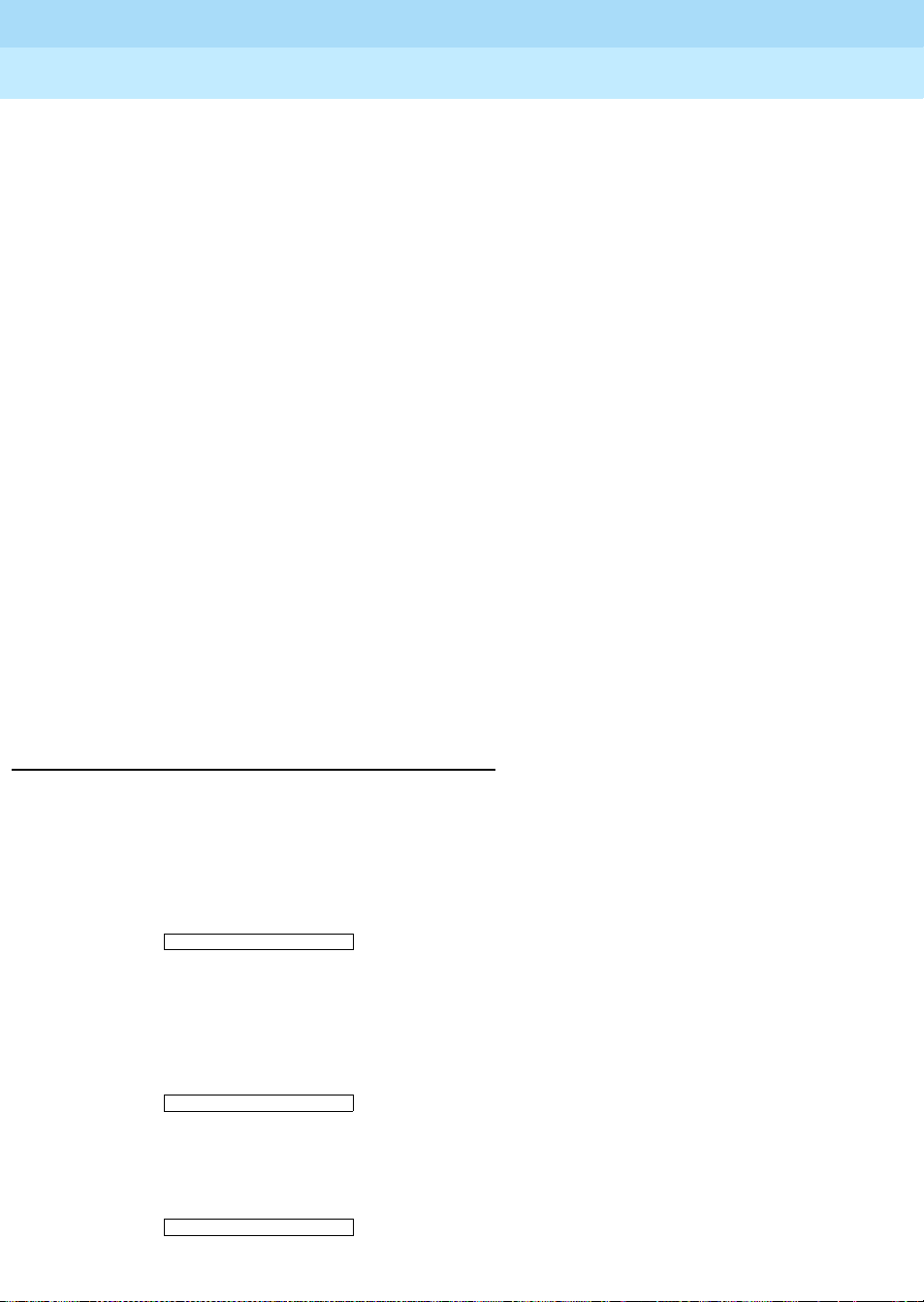
■ Alphanumeric displays appear as:
a= TOM BROWN 3062
Security Measures
For detailed information on securing your systems from unauthorized use please
refer to BCS Products Security Handbook. This document addresses security
issues related to consoles including:
■ Procedures for console operators when they receive hangup or silence calls
■ Physical security
■ Class of service
■ Facility restriction levels and alternate facility restriction levels
■ Console operator-controlled phones
Page 9

DEFINITY® Enterprise Communications Server Release 7
Console Operations
Introduction
1
555-230-700
■ Rerouting calls to console operators
■ Changing barrier codes
■ Sending calls to console operators
■ Console operator-controlled remote access
■ Sending reports to console operators
Issue 4
June 1999
3Security Measures
Page 10

DEFINITY® Enterprise Communications Server Release 7
Console Operations
Introduction
1
555-230-700
Issue 4
June 1999
4Security Measures
Page 11
DEFINITY® Enterprise Communications Server Release 7
Console Operations
Understanding the Console Layout
2
555-230-700
Understanding the Console L ayout
Your console is a powerful communications tool. With it, you function as a
communications hub by managing calls and performing a variety of special
functions. The goal of this chapter is to familiarize you with the console layout.
Issue 4
June 1999
5Physical Layout of Your Consol e
2
At the end of this chapter, you will be able to describe the layout of your console.
Physical Layout of Your Console
At first glance, your console may look like an oversized phone with a few too
many buttons and lamps (lights). While your console can func ti on l ike a phone, it
also manages several additional functions. In fact, your console, with its many
buttons and lamps, has functional groups designed to manage outside lines,
incoming calls, and special features.
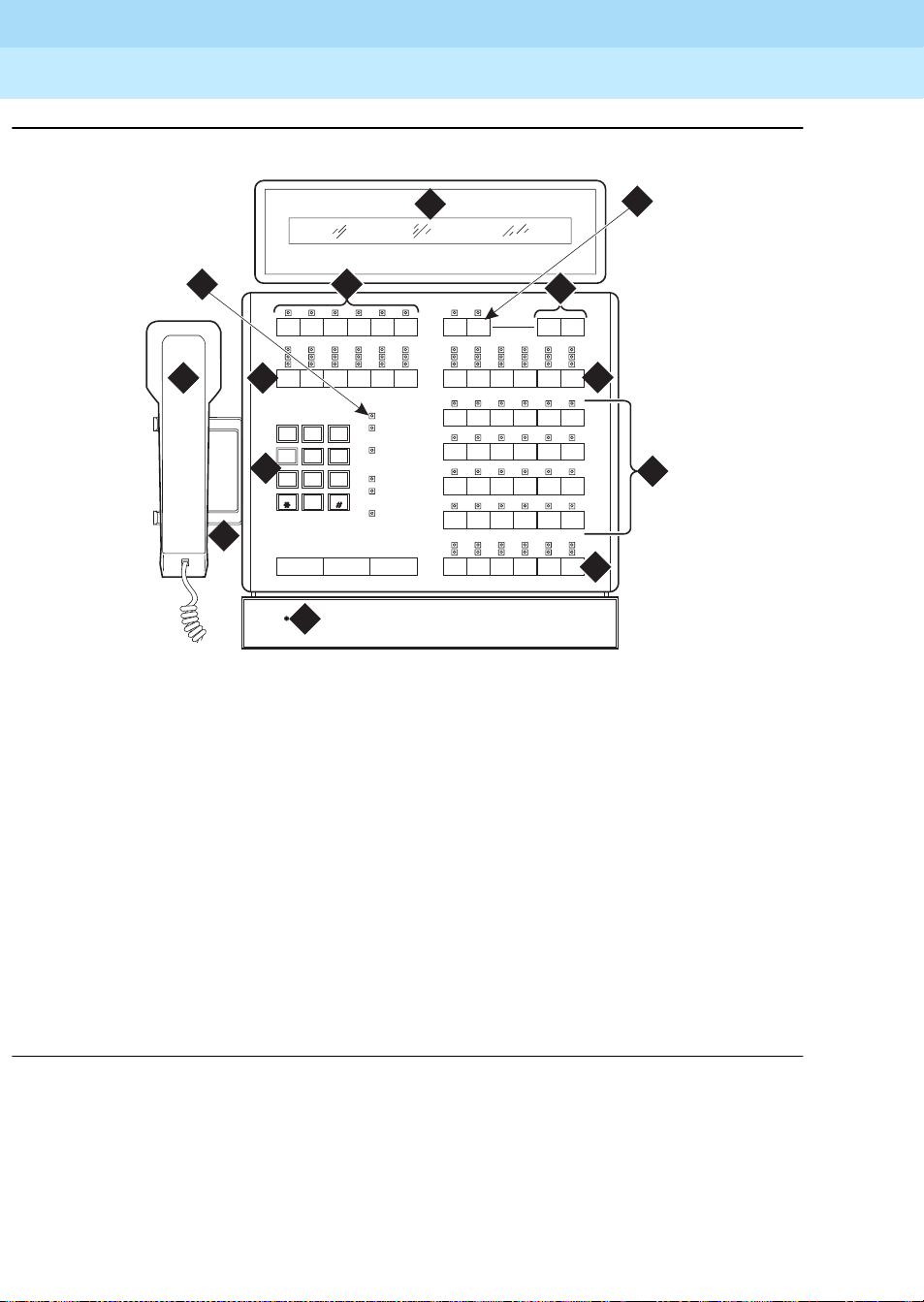
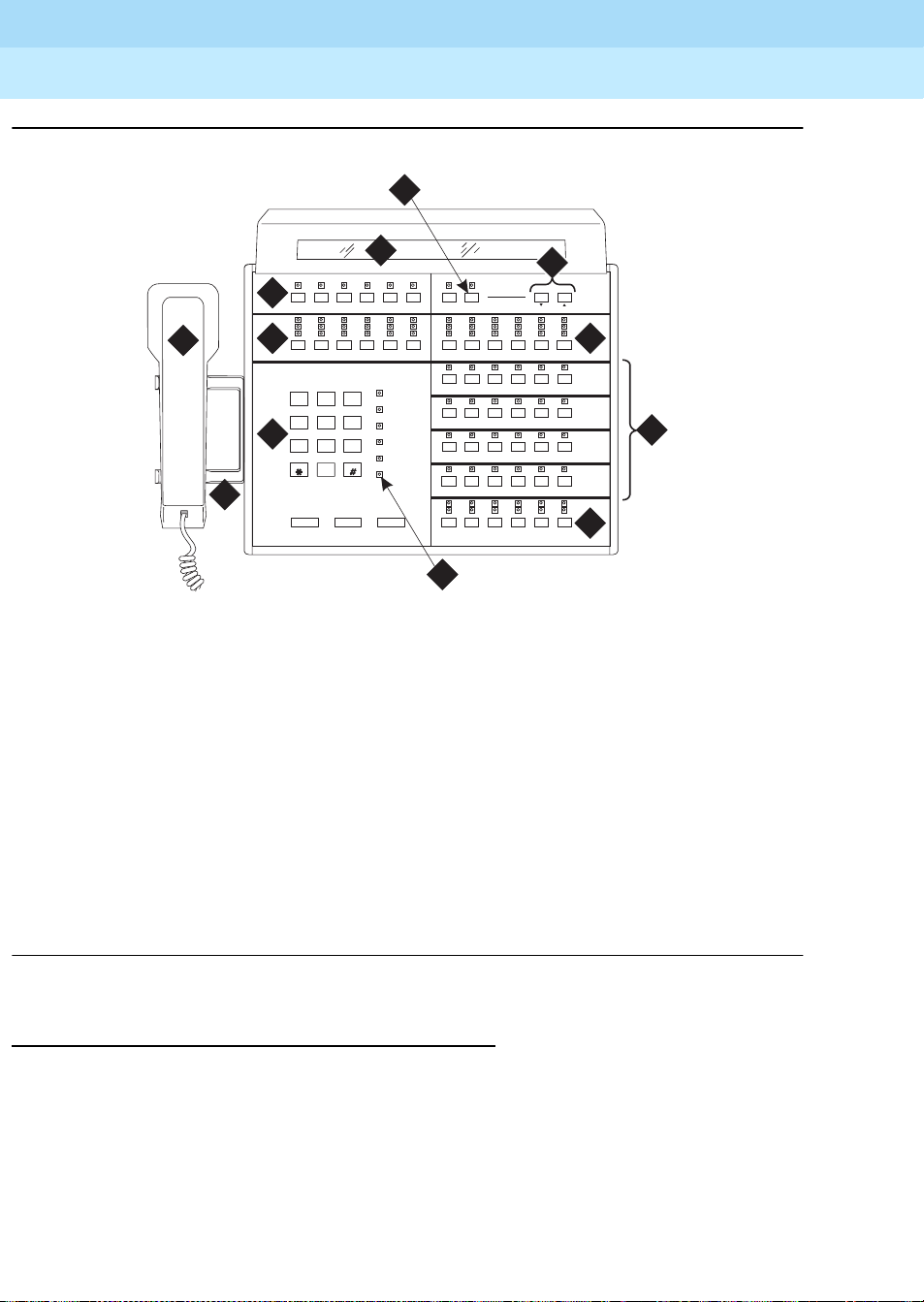
Two types of consoles are described in this chapter: the 302A/B and the 302C
console. The following section contains drawings of 302A/B and 302C consoles
followed by information on their layout.
Page 12
DEFINITY® Enterprise Communications Server Release 7
Console Operations
Understanding the Console Layout
2
555-230-700
Issue 4
June 1999
6Physical Layout of Your Consol e
6
2
Figure Notes:
8
Cont
Warnin g
Busy
7
Select Volume
Cont
Warnin g
Busy
10
Ringer
5
CallsWaiting
ABC
1
2
GHI
JKL
4
5
4
PQRS
TUV
7
8
Oper
0
3
1
Tes t
CallsWaiting
DEF
Warni ng
3
Individual
MNO
CallsWaiting
6
WXYZ
Alarm
9
Alarm
Reported
Posit ion
Available
On Hold
Start ReleaseCancel
9
11
12
13
phdg302b KLC 031899
1. Lamp Test Switch 8. Display
2. Handset 9. Select Button
3. Handset Cradle 10. Volume Control Buttons
4. Call Processing Area 11. Outside-line Buttons
5. Outsi de-line Butt ons 1 2. Feature Buttons
6. Warning Lamps and Call Waiting
13. Call Appearance Buttons
Lamps
7. Display Buttons
Figure 1. 302A/B Console
Page 13
DEFINITY® Enterprise Communications Server Release 7
Console Operations
Understanding the Console Layout
2
555-230-700
8
Issue 4
June 1999
7Physical Layout of Your Consol e
7
6
Control
Warning
Busy
1
5
CallsWaiting
DEF
ABC
3
1
2
GHI
JKL
4
5
3
PRQS
TUV
7
8
0
CallsWaiting
Warning
MNO
Individual
6
CallsWaiting
Alarm
WXYZ
9
Alarm Reported
Positio n
Available
2
Cancel Start Release
Select Volume
Date
Time
Control
Warning
Busy
Forced
Release
Split Hold
a
b
4
9
Ringer
10
Night Pos
Busy
c
d
phdg302c KLC 031199
12
e
f
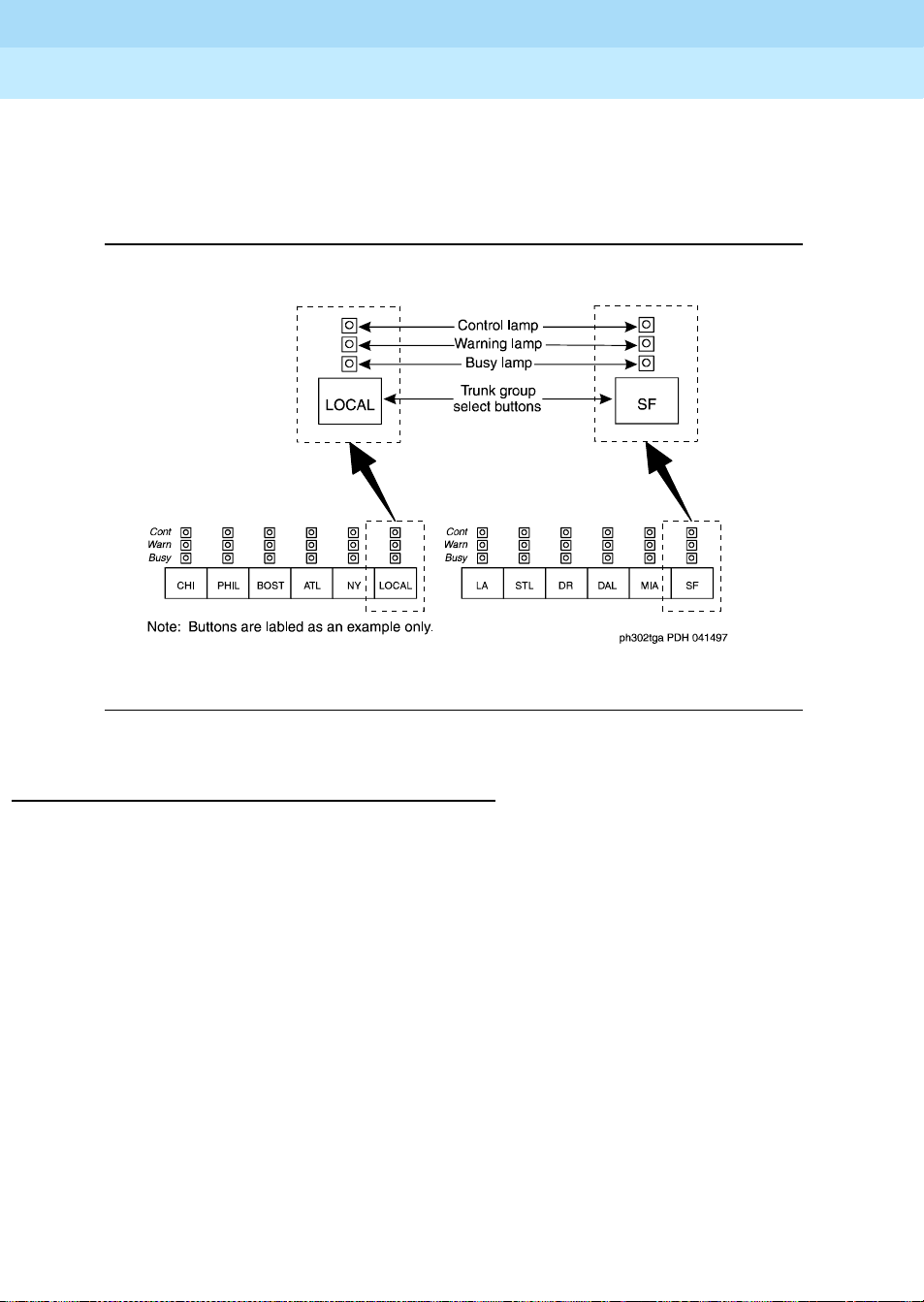
Figure Notes:
1. Handset 7. Display
2. Handset Cradle 8. Select Button
3. Call Processing Area 9. Volume Control Buttons
4. Warning Lamps and Call Waiting
10. Outside-line Buttons
Lamps
11
5. Outsi de-line Butt ons 11. Feature Buttons
6. Display Buttons 12. Call Appearance Buttons
Figure 2. 302C Console
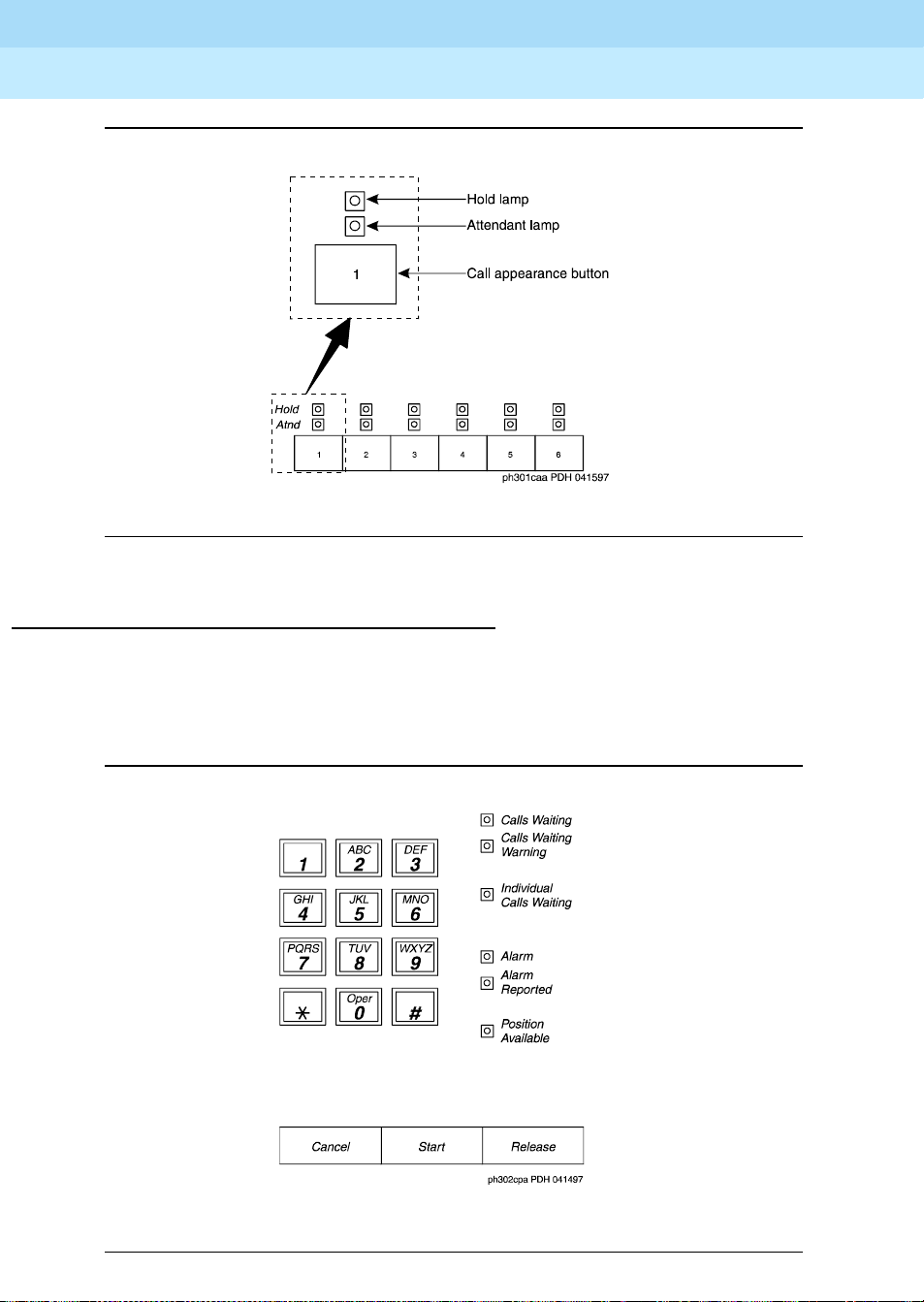
Outside-Lines Buttons Area
The outside-lines buttons area allows you to choose an outside line or can be
dedicated for paging system users. The outside-lines buttons area includes:
■ Labeled buttons representing outside lines
■ A Busy lamp that lights when all outside lines are busy
Page 14
DEFINITY® Enterprise Communications Server Release 7
Console Operations
Understanding the Console Layout
2
555-230-700
■ A Warning lamp that lights when a predetermined number of outside lines
are busy
■ A Control la mp indicating th at an outside line is in use
Issue 4
June 1999
8Physical Layout of Your Consol e
Figure 3. Sample Outside-Lines Buttons Area
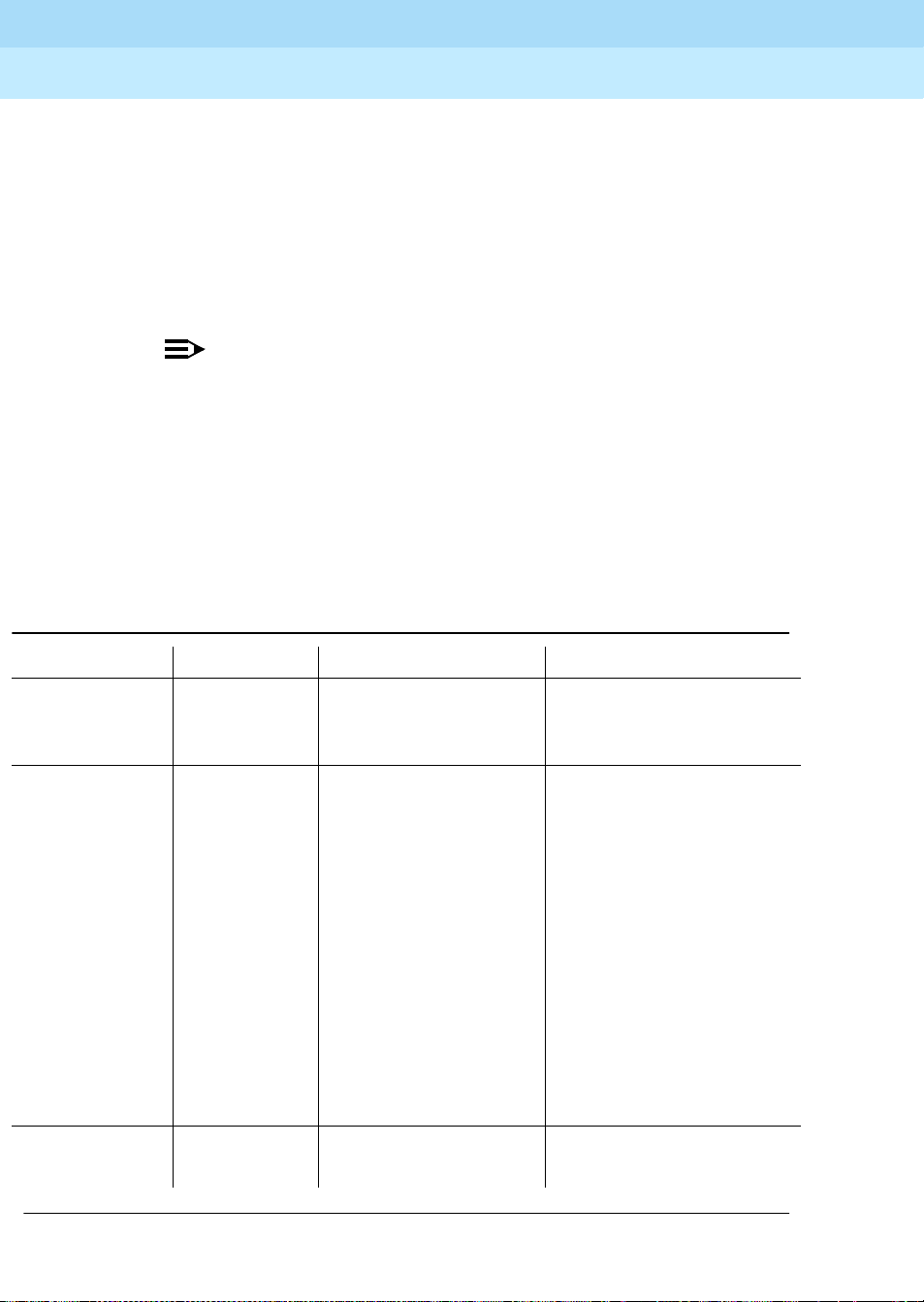
Call Appearance Buttons
The call appearance buttons allow you to answer calls, place calls, or place calls
on hold. It includes:
■ A call appearance button for answering or placing calls
■ An Atnd lamp that lights when you answer or place a call. This lamp
flashes when an incoming call comes to the console, or when a transferred
call returns to the console .
■ A Hold lamp that lights when you place a call on hold. This lamp flashes
when a call remains on hold longer than the acceptable time limit that is
programmed on your console.
Page 15
DEFINITY® Enterprise Communications Server Release 7
Console Operations
Understanding the Console Layout
2
555-230-700
Figure 4. Call Appearance Buttons and Lamps
Issue 4
June 1999
9Physical Layout of Your Consol e
Dialing Keypad
The dialing keypad has several buttons and lamps used for processing calls or
notifying you of calls that are waiting to be answered, system-detected alarms,
and lines that are available for placing calls.
Figure 5. Call Processing Area
Page 16
DEFINITY® Enterprise Communications Server Release 7
Console Operations
Understanding the Console Layout
2
555-230-700
The call-appearance buttons allow you to:
■ Cancel a call
CANCEL button allows you to abort a call procedure without
The
disconnecting parties who are on the line.
■ Start a call
START button allows you to initiate a call or to transfer a call.
The
NOTE:
If you have Autostart, you can begin a call without pressing any
button.
■ End a call
RELEASE button disconnects you from a call and prepares the console
The
for the next call.
The Call Processing lamps notify you that the following conditions exist:
Issue 4
June 1999
10Physical Layout of Your Consol e
Table 1. Call Processing Indicators
Lamp Name Condition Meaning Action
Alarm Lighted Maintenance required System automatically
contacts your maintenance
provider
Alarm/
Alarm Reported
Lighted
Successful
communication to your
n/a
maintenance provider
Unsuccessful
communication to your
Flashing
maintenance provider
Contact your system
manager
Maintenance problem
resolved
Dark
Calls Waiting Lighted Call is waiting to be
answered
n/a
Answer call at your ea rliest
convenience
Continued on next page
Page 17

DEFINITY® Enterprise Communications Server Release 7
Console Operations
Understanding the Console Layout
2
Table 1. Call Processing Indicators (Continued)
Lamp Name Condition Meaning Action
555-230-700
Issue 4
June 1999
11Physical Layout of Your Consol e
Calls Waiting
Lighted Maximum number of
Warning
Individual Calls
Lighted Call to your personal
Waiting
Pos Avail Lighted
Dark
calls are in the waiting
queue
extension needs to be
answered
Console available for
incoming calls
One of the following
conditions exists:
■ You are on a call.
■ A call has arrived at
the console.
■ The handset or
headset is
unplugged.
■ You pressed the
POS BUSY button.
■ You placed the
system in
night-service mode.
Answer calls as soon as
possible or get assistance
Answer call as soon as
possible
n/a
n/a
Features
Continued on next page
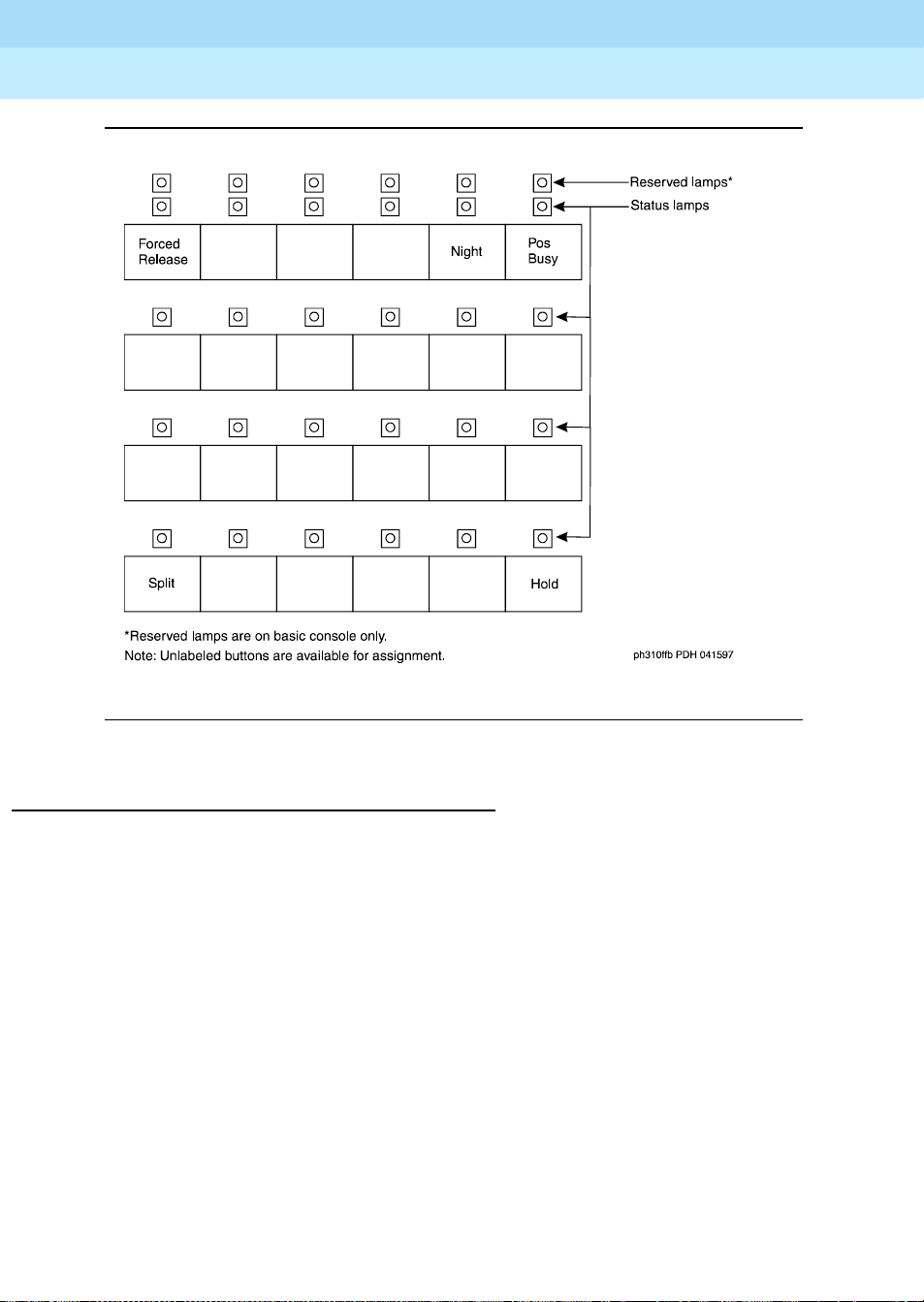
The features area of your console allows you to perform standard and specialty
operations. Your console is configured wit h fe at ure s pur cha sed by your compa ny.
Your system manager can provide a list of features available to you. For specific
feature information, refer to Chapter 4, ‘‘Using the Features’’
.
Page 18
DEFINITY® Enterprise Communications Server Release 7
Console Operations
Understanding the Console Layout
2
555-230-700
Issue 4
June 1999
12Physical Layout of Your Consol e
Figure 6. Feature Button Area
The Display
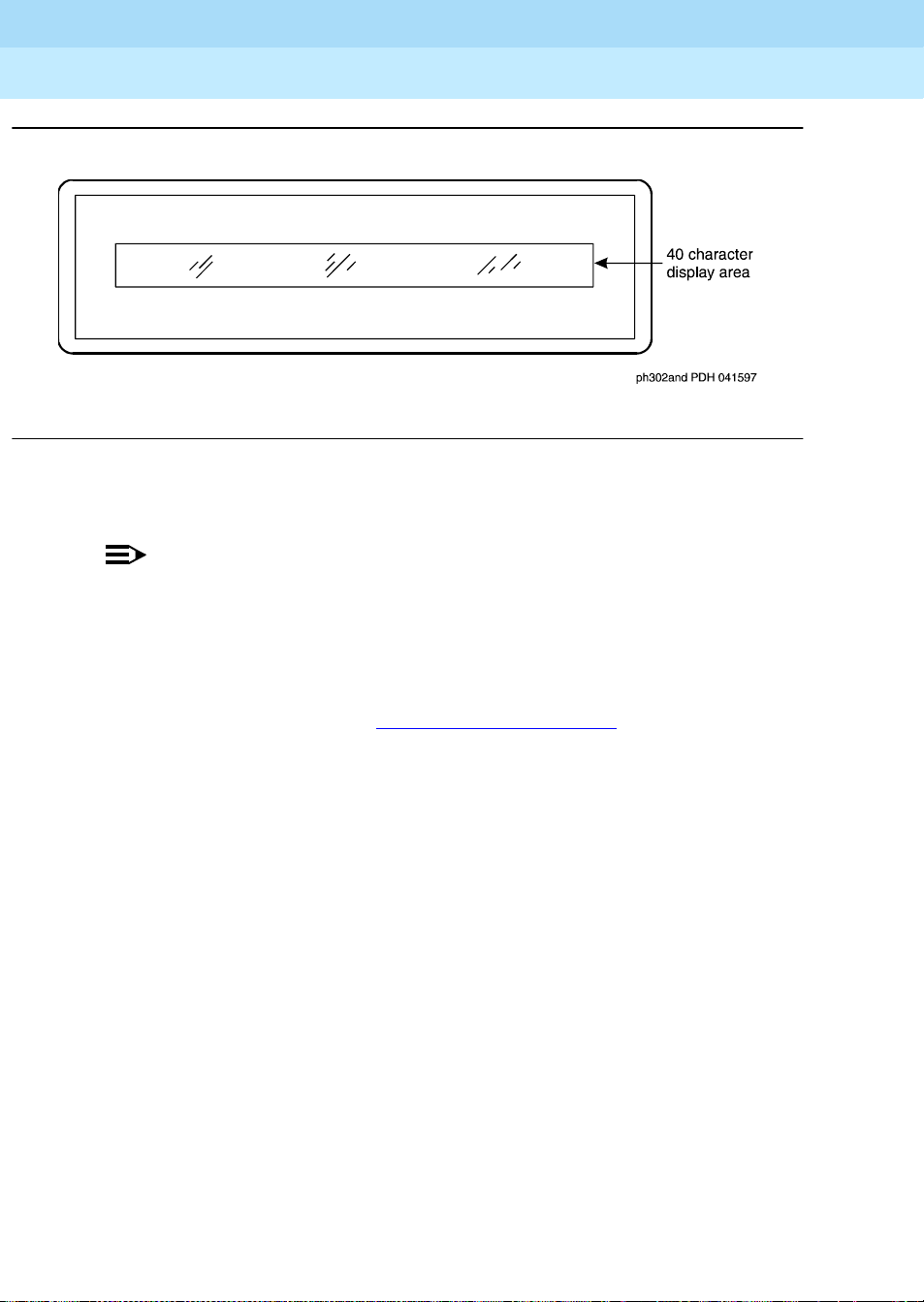
The alphanumeric display provides information about callers, called parties, call
status, and call features. Your console has 9 buttons in the display area that
function as different modes for viewing information. On the basic console, they
are located on the display module. On the enhanced console, they are located on
the main console.
Page 19
DEFINITY® Enterprise Communications Server Release 7
Console Operations
Understanding the Console Layout
2
555-230-700
Figure 7. Display
These display mode buttons are as follows:
NOTE:
Your system manager may change the function of each button.
Issue 4
June 1999
13Physical Layout of Your Consol e
■ NORMAL MODE (comes with every console)
This button displays ca ll-r elate d inf ormati on for act iv e, incoming call s and
console-origina ted calls. For more infor mation on informatio n that displays
in normal mode, refer to Displaying in Normal Mode
■ INSPECT MODE
later in this chapter.
This button displ ays call -relate d info rmation f or hel d calls whe n you are o n
another call.
■ DATE TIME
This button displays the current time of day and date for five seconds.
■ TIMER (Elapsed T im e)
This button displays elapsed time in hours, minutes, and seconds. Timing
begins when you press the T
IMER button and stops when you press the
button again. The elapsed time information disappears when you press the
button a third time.
■ COVER MSG RT (Coverage Message Retrieval)
This button retrieves Leave Word Calling (LWC) messages for system
users. Leave Word Calling allows callers to leave messages for called
parties on a message system that you can access from your console.
Page 20
DEFINITY® Enterprise Communications Server Release 7
a= TOM BROWN 3062
a= TOM BROWN 3062
b= OUTSIDE CALL 8
Console Operations
Understanding the Console Layout
2
555-230-700
■ NEXT MSG
This button displays the next stored LWC message. If you are in Cover
Msg Rt mode, the display shows END OF MESSAGES or NEXT TO
REPEAT. If you are in Integrated Directory mode, it displays the next
caller’s name.
■ DELETE MSG (Message)
This button deletes the displayed message.
■ INTGRTD DIRECTORY (Integrated Directory)
This button displays users’ names and extensions from the system
directory.
■ MAKE CALL
This button automatically returns calls from messages left in LWC. It also
automatically calls currently-displayed Integrated Directory listings.
■ STORED NUMBER
This button displays the code required for accessing an outside line
(usually a 9 ), or the exte nsion number of the facility that the
monitors. To access this information:
Issue 4
June 1999
14Physical Layout of Your Consol e
BUSY button
1. Press the
2. Press the
Displaying in Normal Mode
Call-related information includes:
■ Incoming-call button associated with the call
One of six buttons, labeled a through f, lights when a call comes to your
console. In the following sample, the lamp that lights is a.
■ Caller identifica ti on
For internal calls, the display shows the caller’s name or the identification
assigned to the phone in use, and the caller’s extension. In the following
sample, the caller is Tom Brown who is at extension 3062.
For outside calls, the display shows the kind of outside line used and the
outside line’s assigned access code. In the following sample, the access
code for the local outside line is 8.
STORED NUMBER button
BUSY button.
■ Called-party identification
Page 21
DEFINITY® Enterprise Communications Server Release 7
b= WATS 101
a= JEFF MORROW 4032
a= JEFF MORROW 4032
a= 3304
a= 3304 COVER
Console Operations
Understanding the Console Layout
2
555-230-700
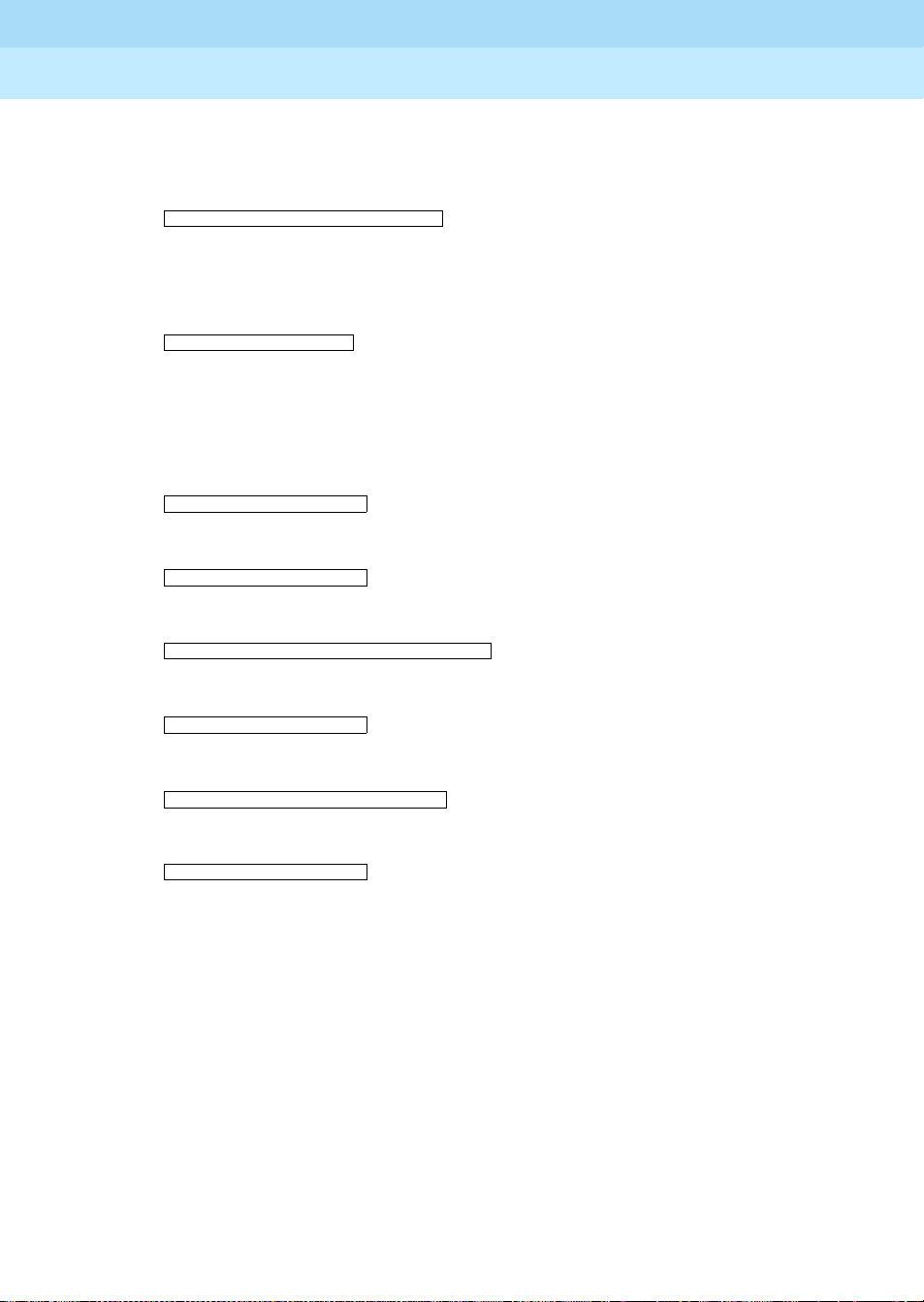
For incoming calls, the display shows the called party’s name and
extension. In the following sample, the called party is Liz Via who is at
extension 4328.
e= OUTSIDE CALL to LIZ VIA at EXT 4328
For outside calls, the display shows the kind of outside line used and the
outside line’s access code. In the following sample, the ac cess code th e line
used is a WATS line, with access code 101.
■ Calling party identification for outbound calls
For an outgoing call, the display shows the called party’s name and
extension. In the following sample, the called party is Jeff Morrow who is
at extension 4032.
If only name information is available, the following dis plays.
Issue 4
June 1999
15Physical Layout of Your Consol e
If only number information is available, the following displays.
a= 3304 3304
If neither the name or the number is availab le, the following displays.
or
a = OUTSIDE LINE NAME TRUNK ID
If the call gets redirected, the following displays.
System user’s calling privileges
Page 22
DEFINITY® Enterprise Communications Server Release 7
Console Operations
Understanding the Console Layout
2
555-230-700
Your system manager assigns calling privileges for all system users. A
2-digit number assigned by your system manager, followed by a hyphen
and 4-alpha characters that identify the user’s calling privileges. The
4-alpha characters are listed in Table 2
Table 2. Calling Privilege Identifiers
4-alpha character Meaning
Issue 4
June 1999
16Physical Layout of Your Consol e
.
ORIG
OTWD
The user cannot place any calls from their phone.
The user cannot place calls on outside lines from their
phone.
TOLL
The user cannot place long distance calls from their
phone.
NONE
■ Call purpose
The user has no calling restrictions.
Call-purpose inf or m ati on identifies features that are in use. Table 3
call-purpose identifiers.
Table 3. Call Purpose Identifiers
Identifier Description
or b Displays when called parties do one of the following:
B
defines
co
cs
ct
■ Do not answer
■ Send their calls to coverage
■ Are active on a call that uses temporary bridged appearance
An internal user who doesn’t have calling privileges for outside
lines attempts to make an outgoing call.
An internal u ser who doesn’t have interna l calling privileges
attempts to make a call to anot her internal phone.
A caller attempts to call a user who cannot receive calls.
Page 23
DEFINITY® Enterprise Communications Server Release 7
Console Operations
Understanding the Console Layout
2
555-230-700
Table 3. Call Purpose Identifiers (Continued)
Identifier Description
Issue 4
June 1999
17Physical Layout of Your Consol e
d
f
ic
ld
n
na
rc
rt
sc
s
Displays when called parties do one of the following:
■ Do not answer
■ Send their calls to coverage
■ Are unavailable and have a temporary bridged appearance.
System users forward their calls to you.
The system redirects calls to you due to a problem with the
system or because your system manager has programmed calls
made to specified extensions to come to you.
Incoming calls that are listed in the phone book and are placed
directly to a system user’s extension.
Night service is on and the call goes to the night service station.
Consoles are in night service mode.
A held call re turns to the con sole.
An unanswered, transferred call returns to the console.
A caller places repeated calls on the same line without
disconnecting.
Displays when a called system user temporarily sends all their
calls to coverage.
tc
A caller attempts to make an outgoing call on an outs ide lin e that
you control. The call redirects to you.
■ Call status
Call-status displays the phone call’s current status. Table 4
status indicators and describes wh en they occur.
identifies call
Page 24
DEFINITY® Enterprise Communications Server Release 7
Console Operations
Understanding the Console Layout
2
555-230-700
Table 4. Call Status Identifiers
Identifier Description
Ringing The dialed call rings.
Wait The Attendant Call Waiting feature is available.
Issue 4
June 1999
18Physical Layout of Your Consol e
Wait, [I]
Intrusion
Allowed
Busy An extension is busy or out of service and neither the
Busy, [I]
Intrusion
Allowed
NOTE:
If your system has Integrated Services Digital Network (ISDN) —
Primary Rate Interface (PRI ), refer to Chapter 4, ‘‘Using the
Features’’, for display information associated with ISDN-PRI.
Ringer-Volume Control Area
The ringer-volume control area provides volume control for:
The Attendant Call Waiting and Intrusion features are
available.
Attendant Call Waiting nor the Intrusion features are
allowed.
An extension is bus y or out of servic e and the Attendant Call
Waiting feature is not allowed.
■ Incoming calls
■ Timed reminder tones (notification that a call needs additional attention)
■ Call waiting tones (notification that a call is waiting to be answered)
■ Emergency access to attendant calls (not Crisis Alert calls)
Page 25
DEFINITY® Enterprise Communications Server Release 7
Console Operations
Understanding the Console Layout
2
555-230-700
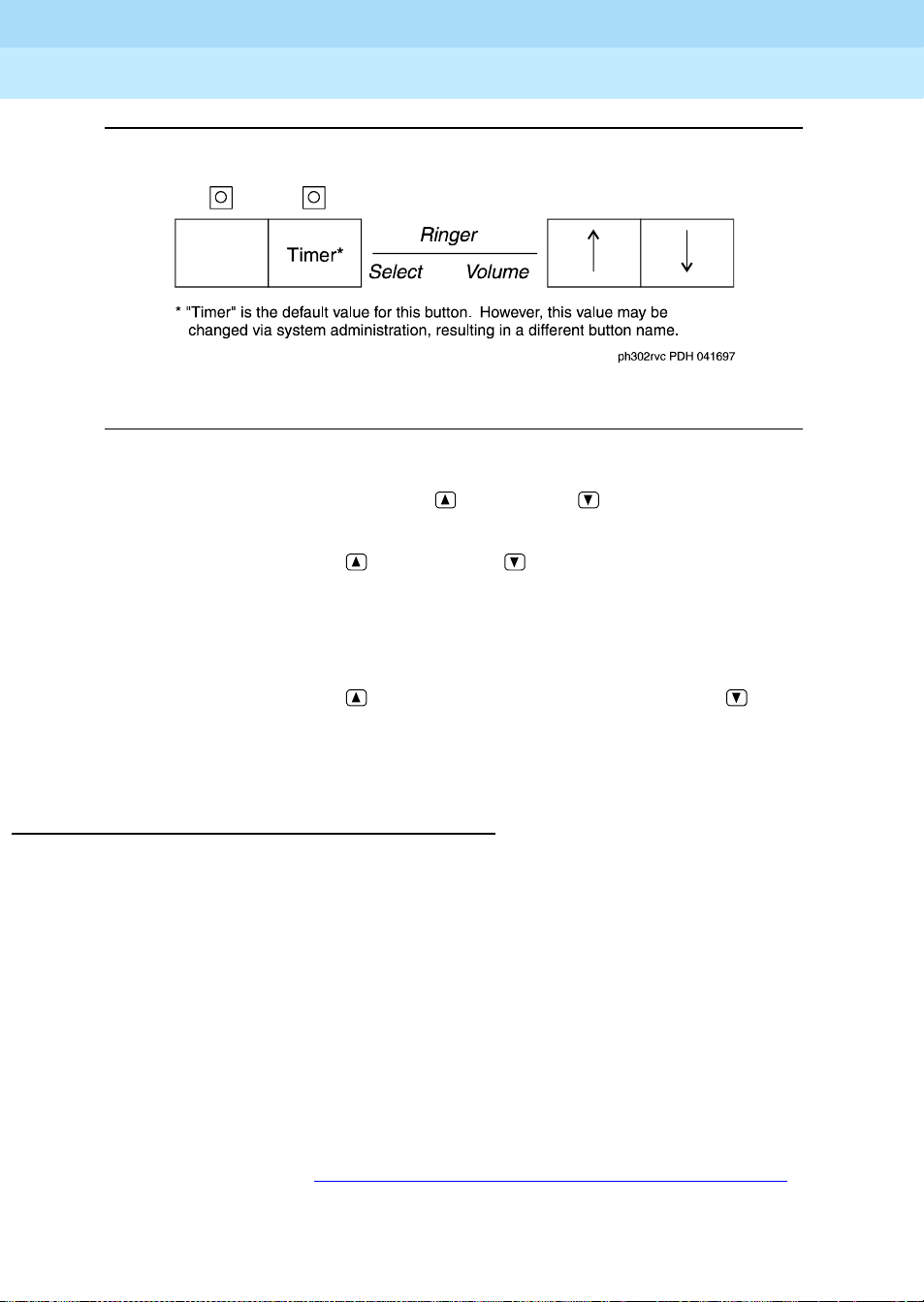
Figure 8. Ringer Volume Control Area (enhanced console)
The ringer volume control area has an (up) button, a (down) button, and a
SELECT button. To adjust the volume on your console:
1. Press and release the (up) button) or (down) button to activate the
display.
Issue 4
June 1999
19Physical Layout of Your Consol e
The display exhibits a bar graph and identifies the tone to be adjusted.
2. Press the
3. Press and release the (up) button to increase the volume or the
(down) button to decrease the volume.
4. Press any other button on the console to complete or cancel this task.
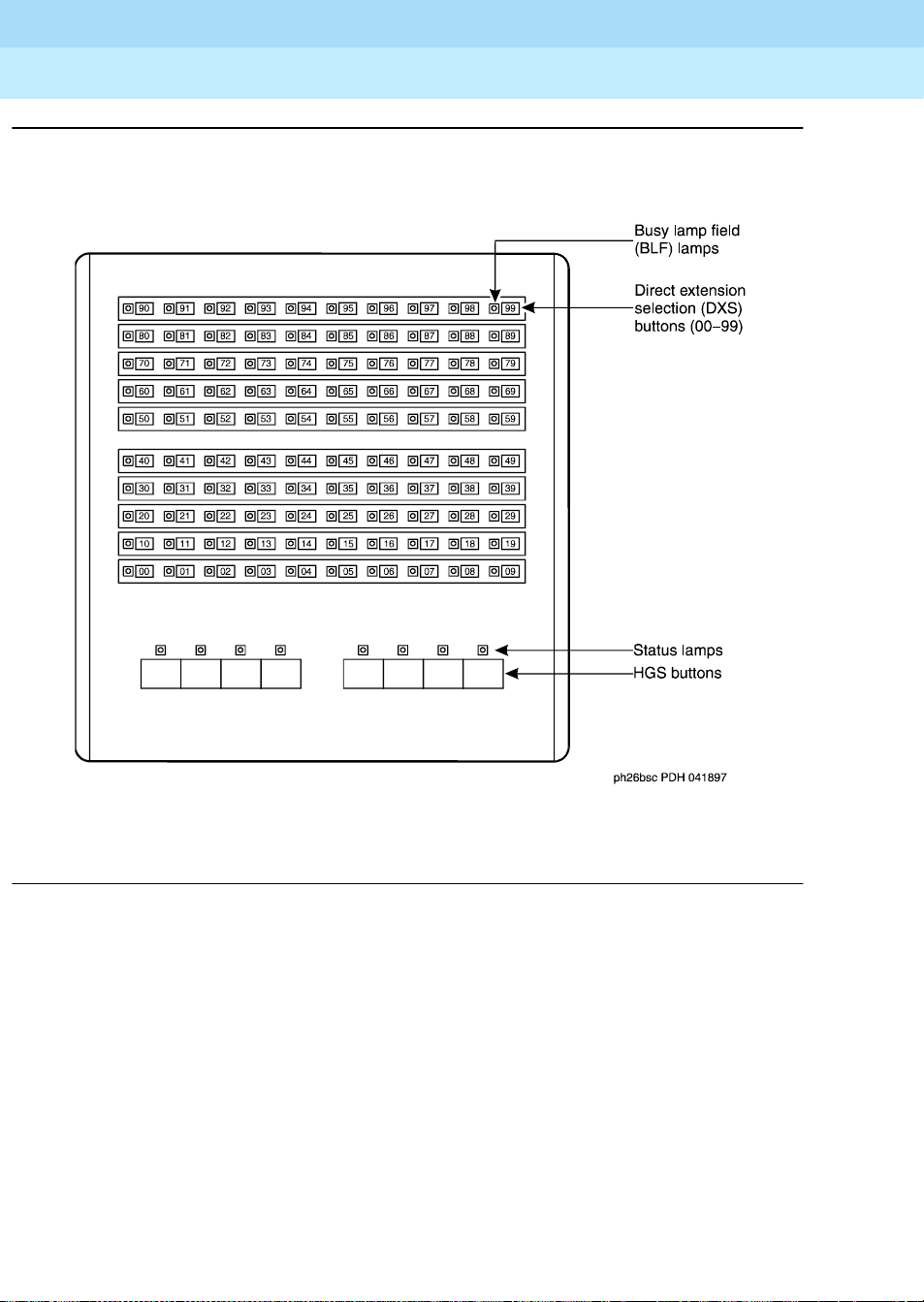
Selector Console
The Selector Console allows you to transfer calls and determine the status of an
extension. It has two groups of buttons and lamps: the Hundreds Group Select
(HGS) and the Direct Extension Selection (DXS) with Busy Lamp Field (BLF).
The basic console has 8 HGS butt ons; t he enhan ced console has 20. You use them
in conjunction with the DXS buttons to dial an extension. For example, if you
wish to transfer a call to extension 3452, press the HGS button labeled 34, then
press the DXS button labeled 52.
The 100 DXS buttons are labeled from 00 to 99. When combined with the HGS
buttons, they provide up t o 800 possibl e extensi ons for the basic cons ole and up to
2000 possible extension s for the enhanced console. For mo re i nf ormat i on on how
to transfer calls, refer to ‘‘Transferring Call s to Internal E xtensions’’ on page 24
SELECT button to choose the type of tone that you wish to adjust.
.
Page 26
DEFINITY® Enterprise Communications Server Release 7
Console Operations
Understanding the Console Layout
2
555-230-700
Issue 4
June 1999
20Physical Layout of Your Consol e
Figure 9. Selector Console Area
Determining Extension Number Status
You can determine the status of an extension by pressing the two buttons
necessary to complete the extension and looking at the lamp to the left of the
appropriate DXS button.
■ If the lamp is dark, the extension is idle.
■ If the lamp is lighted, the extension is in use. You can still transfer a call if
system users have more than one line available. Ask your system manager
about the phones in your company.
■ If the extension is busy, you hear a busy tone.
Page 27
DEFINITY® Enterprise Communications Server Release 7
Console Operations
Understanding the Console Layout
2
555-230-700
■ If a station has the SAC feature active and is busy, the DXS/BLF lamps
remain steady until the station is no longer busy. At that time, the lamp
goes to a flashing mode. The PC Console alerts by changing colors on the
icon for the associated extension.
Tones Heard Through Handset or Headset
When you operate the co nsole, you hear tones t hr ough the handset or he adse t t hat
can indicate progress or status of a call, or identify types of incoming calls. Table
5 describes the tones available on your console.
Table 5. Ringing and Tones Descriptions
Tone Name Pitch Frequency Meaning
Issue 4
June 1999
21Physical Layout of Your Consol e
Ringback Low 15 times a
minute
Special
Low Single Calls are waiting to be answered.
A transferred call comes back to the
console.
Ringback
Busy Low 60 times a
The called extension is busy.
minute
Fast Busy Low 120 times a
minute
A caller dialed an incorrect number
or called a phone that cannot be
called.
Confirmation n/a Three short
bursts
Coverage n/a One short
burst
Dial Low Continuous
The operation requeste d (acti vated or
deactivated) is accept ed.
A call to one extension rings at a
different extension.
A phone is ready to use.
steady tone
Intercept On-Off,
high and
low
Reorder Low 120 times a
Siren-type
“Dee-Do”
minute
A caller dialed a number incorrectly
or called a phone that cannot be
called.
All trunks within a particular trunk
group are busy or that a requested
feature is not available.
Continued on next page
Page 28

DEFINITY® Enterprise Communications Server Release 7
Console Operations
Understanding the Console Layout
2
Table 5. Ringing and Tones Descriptions (Continued)
Tone Name Pitch Frequency Meaning
555-230-700
Issue 4
June 1999
22Physical Layout of Your Consol e
Call Waiting
Ringback
Incoming
Call Ringing
Calls Waiting
(Queued
Calls)
Timed
Reminder
(Attendant
Recall)
Emergency
Access
Ringing
Low 15 times a
minute with
decreasing
volume
during the
last 0.2
second
On-off,
0.5 second An incoming call is waiting to be
low
On-off,
0.25 second One or more incoming calls are
low
high On for 0.5
second; off
for 1
second
On-Off,
Siren-like A tone that indicates an emergency.
high and
low
A call is waiting at the console and
the called party has been not ifie d th at
the call is waiting.
answered.
waiting to be answered.
A single-party call is on hold for
longer than the time allowed by your
company . Th is tone al so occu rs when
someone on a conference call calls
you or an unanswere d tran sferre d call
returns to you.
This ringing tone is heard on the
latest models of the basi c consol e and
all models of the enhanced console.
Continued on next page
Page 29

DEFINITY® Enterprise Communications Server Release 7
Console Operations
Operating the Console
3
555-230-700
Operating the Console
As a console operator, you spend the majority of your day placing calls,
transferring calls, and putting callers on hold. You might also place a conference
call or handle communications for an unexpected emergency. This section
describes and provides step-by-step procedures for these operations. Before you
read the rest of thi s sect ion, ch eck with yo ur syste m manage r to see if yo u work i n
a Centralized Attendant Service (CAS) environment. If you work in a CAS
environment, be sure to read Chapter 5, ‘‘Centralized Attendant Service’’
Issue 4
June 1999
23
3
.
This chapter refers to “principal” consoles. A principal console is the main
console used at your company. If your company has only one console, it is
considered to be the principal console. If your work environment utilizes more
than one console, your system manager assigns one console as “principal.”
Principal consoles can control features, such as night service, for all consoles in
the system.
At the end of this chapter, you will be able to:
■ Identify standard features available on your console
■ Perform standard functions available on your console
For additional information on console operations, refer to DEFINITY ECS
Console Operations Quick Reference.
Page 30
DEFINITY® Enterprise Communications Server Release 7
Console Operations
Operating the Console
3
555-230-700
Activating the Console
Activating the console refers to preparing the console for human control.
To activate the console:
1. Plug in the handset or the headset.
2. Select one of the following two options:
■ If you are at the principal console, press the NIGHT button if the
Night lamp is lit.
■ If you are not at the principal console, press the POS BUSY but ton .
Deactivating the Console
Deactivating the console refers to preparing the console to operate automatically
after hours.
Issue 4
June 1999
24Activating the Console
To deactivate the console:
1. Select one of the following two options:
■ If you are at the principal console, press the NIGHT button.
■ If you are not at the principal console, press the POS BUSY but ton.
2. Unplug the handset or the headset.
Transferring Calls to Internal Extensions
You may receive outside calls that you need to transfer to internal extensions or
internal callers may need for you to transfer them to an extension. The process for
both types of calls is the same.
To transfer calls to internal extensions:
1. Press the lighted call appearance button.
2. Greet the caller.
3. Press the
START button.
NOTE:
If the Auto Start feature is administered at your console, you do not
need to press the
START button.
4. Press the desired buttons on the selector console to dial the desired
extension.
Page 31

DEFINITY® Enterprise Communications Server Release 7
Console Operations
Operating the Console
3
555-230-700
5. Select one of the following options:
■ Press the RELEASE button as soon as the call starts to ring.
or
■ Announce the call to the called party.
Issue 4
June 1999
25Transferring Calls to Outside Numbers
— If the called party accepts the call, press the
— If the called part y de cline s to t alk t o the c al ler, press the
button to reconnect to the caller.
Follow your company’s procedures for taking messages.
— Press the
RELEASE button.
or
■ If the called party is busy or does not answer, press the CANCEL
button to reconnect with the caller.
■ Follow your company’s procedures for taking messages.
■ Press the RELEASE button.
Transferring Calls to Outside Numbers
You may receive calls that you need to transfer to outside calls from internal
callers or you may need to transfer one outside call to another outside number.
The process for both types of calls is the same.
To transfer a call to an outside number:
RELEASE button.
SPLIT
1. Press the lighted call appearance button.
2. Greet the caller.
3. Access an outgoing line by press in g an outs id e li ne button or by dialing an
outside line access code (many companies use 9 to access an outside line).
4. Select one of the following options:
■ Press the RELEASE button if the caller plans to complete the call.
or
■ Dial the desired party using the dialing keypad, then press the
ELEASE button as soon the call starts to ring.
R
or
■ Announce the call to the called party.
— If the called party accepts the call, press the R
ELEASE button.
Page 32
DEFINITY® Enterprise Communications Server Release 7
Console Operations
Operating the Console
3
555-230-700
— If the called party decl ines to ta lk to the caller, press the SPLIT
button to reconnect to the caller.
Follow your company’s procedures for taking messages.
Issue 4
June 1999
26Placing Callers on Hold
Press the R
or
■ If the called party is busy or does not answer, press the CANCEL
button to reconnect with the caller.
■ Follow your company’s procedures for taking messages.
■ Press the RELEASE button.
Exceptions:
Two conditions impact your ability to transfer callers to outside parties. You
cannot transfer calls to outside parties if:
■ All outside lines are busy.
■ The caller does not have calling privileges for the outside line requested.
Placing Callers on Hold
You can place up to 6 calls on hold. You should place caller s on hold if you canno t
service them immediately, or if you need to get back to the caller with
information.
ELEASE button.
To place a call on hold:
1. Press the lighted call appearance button.
2. Greet the caller.
3. Press the H
OLD button.
To reenter a call that is on hold :
1. Press the call appearance button that is on hold.
2. Talk to the party.
A single-party call that is on hold returns to the console automatically when it has
been on hold for too long.
Connecting Two or More Callers
You can connect two or more parties with the attendant console. Connecting two
or more callers is usually used for conference calls or to connect callers who
cannot call each othe r.
Page 33
DEFINITY® Enterprise Communications Server Release 7
Console Operations
Operating the Console
3
555-230-700
To use connect two or more parties:
1. Call internal or external party number 1.
Issue 4
June 1999
27Answering Emergency Calls
2. Press the S
TART button.
3. Call the internal or external party number 2.
4. Press the S
PLIT button. Both parties are connected.
5. Repeat steps 2 through 4 for additional parties.
6. Press the H
OLD button.
Answering Emergency Calls
You may need to manage communication for an emergency. You can process
emergency calls in th e same way as regular cal ls. However, the console alerts you
of an emergency call with the following infor mation:
■ The Emergency lamp flashes.
■ The siren-like emergency tone sounds.
■ The display identifies the calling party and shows EMERG.
Be sure to ask your system manager for the emergency procedures used in your
company.
Page 34

DEFINITY® Enterprise Communications Server Release 7
Console Operations
Operating the Console
3
555-230-700
Issue 4
June 1999
28Answering Emergency Calls
Page 35
DEFINITY® Enterprise Communications Server Release 7
Console Operations
Using the Features
4
555-230-700
Using the Features
You might find yourself working at an organization that requires you to know
more than the standard operating procedures outlined in the previous chapter. For
example, you may be the guardian of your company’s long distance calls.
Issue 4
June 1999
29Speeding Up the Console
4
This chapter covers features available at your console. You may not have every
feature described in this chapter. To obtain a list of your company’s features and
their associated access codes, check with your system manager.
Information for each feature discussed in this chapter includes a brief feature
description, an example th at illu strates the feature, th e feature’s official name, and
step-by-step procedures for using the feature.
The examples in this chapter are based on a f ictitious company, Widgets, Inc., that
produces self-cleaning bathtubs. The console operator for Widgets, Inc., Pat,
manages calls for this 500-employee company.
Speeding Up the Console
Your system manager can program features described in this section to save time
in a fast-paced envi ronment . Fea tures in thi s sect ion reduc e the n umber of button s
you must press to complete an operation.
Using Auto Start
You can initiate a calling procedure by pressing any button on your dial keypad
without pressing the
START button.
Page 36
DEFINITY® Enterprise Communications Server Release 7
Console Operations
Using the Features
4
555-230-700
Example
Phone calls to W id gets, Inc . exce ed 300 per day. Pat scrambles constantly to meet
the demands of incoming calls. The system manager, Kelly Ratliffe, programs
Auto Start to save Pat precious seconds.
Feature Name
Auto Start
Procedures
Your system manager programs this feature into your console to occur
automatically.
Speed Dialing
With speed dialing, you can dial a frequently-used number by entering a code or
pressing a button. You can use it to:
Issue 4
June 1999
30Speeding Up the Console
■ Place local, long-distance, or international calls
■ Activate features
■ Access computer equipment at another location
Example
Pat orders of f ic e supplies for the exe cutive offices. She purchases al l Widget, Inc.
supplies from the same vendor. So, Pat asks the system manager Kelly Ratliffe to
add the vendor’s number to the abbreviated dialing list. Kelly programs the new
number and gives Pat the code assigned to the vendor’s number. Now, Pat dials
*12 every time she wants to call the office supply vendor.
Feature Name
Abbreviated Dialing
Procedures
To use speed dialing:
1. Obtain an abbreviated dialing list from your system manager.
2. Press the code or button assigned by your system manager to reach a
desired number.
Page 37
DEFINITY® Enterprise Communications Server Release 7
Console Operations
Using the Features
4
555-230-700
Holding Calls Automatically
Your console automatically places a call on hold when you answer another call.
Example
Widgets, Inc. is conducting an infomercial on their self-cleaning bathtubs. Pat’s
console is unusually bu sy. So, the system manager , Kell y Rat l iffe, programs Pat’s
console to place calls on hold automatically when Pat answers another cal l . Pat
answers the first incoming call and asks the party to hold. Then she presses the
CALL APPEARANCE button for the next incoming call, placing the first caller on
hold.
Feature Name
Hold-Automatic
Procedures
Issue 4
June 1999
31Handling Multiple-Party Calls
Your system manager programs hold-automatic to work on all consoles in your
system.
Handling Multiple-Party Calls
This section covers features associated with connecting 2 to 5 callers on one call.
It includes connect ing call ers, parking callers , lock ing the console operator ou t of
multi-party calls, accessing operators from a conference call, and paging system
users to add them to an existing conference call.
Connecting Multiple Callers
You can connect up to five callers on a single call.
Example
Two bathtub distributors want identical contract upgrades with Widgets, Inc.
Company president Randy Foxwort hy commissions Pat to set up a con ference call
with him, two sales representatives, and the two distributors. Pat uses the
procedures listed below to connect all five callers.
Feature Name
Attendant Conference
Page 38

DEFINITY® Enterprise Communications Server Release 7
Console Operations
Using the Features
4
555-230-700
Procedures
To place a conference call:
1. Call internal or external party number 1.
Issue 4
June 1999
32Handling Multiple-Party Calls
2. Press the
START button.
3. Call the internal or external party number 2.
4. Press the
SPLIT button. Both parties are connected.
5. Repeat steps 2 through 4 for additional parties.
6. Press the
HOLD button.
Locking Out the Console Operator
Your system manager programs the console to prevent you from reentering a
multi-party call th at you ini tiat ed. Part ies on t hes e call s, howeve r, can contact you.
Example
Widgets Inc. is undergoing a merger. Company president Randy Foxworthy
requests numerous con ferenc e call s to discus s highl y confid entia l info rmat ion. To
protect the confidentiality of the conversations, the system manager, Kelly
Ratliffe, programs the console with Attendant Lockout. Because no one can enter
the conference call, Randy can conduct his calls with guaranteed privacy.
Feature Name
Attendant Lockout
Procedures
Your system manager programs this feature into your console to work
automatically. If you try to reenter the call, the Hold lamp for this call:
1. Flutters for 2 seconds
2. Returns to a solid, lighted state
Recalling the Console Operator
System users who are on multi-party calls that are held at the console can recall
you for assistance.
Page 39

DEFINITY® Enterprise Communications Server Release 7
Console Operations
Using the Features
4
555-230-700
Example
Robert Planter, vice president of public relations, is on a conference call with
musician, Larry Browning, and stand-up comedian, Cindy Wittner, to plan for a
community fund-raising event. Robert wants Larry and Cindy to present their
ideas to coworker Jay Winstead so Robert calls Pat to add Jay to the call.
Feature Name
Attendant Recall
Procedures
To recall the operator from multi-party calls from a phone with one line:
■ Press the RECALL button.
or
■ Flash the switch hook.
Issue 4
June 1999
33Handling Multiple-Party Calls
To recall the operator from multi-party calls from a phone with more than one
line:
■ Press the CONFERENCE button.
or
■ Press the TRANSFER button.
Paging with Deluxe Voice Paging
This feature combines Call Park and Loudspeaker Paging features. With deluxe
loudspeaker paging, you can page a system user to call the extension where their
call is parked or have them call you. If the system user calls you, you can add
them to an existing conference call.
You can page called parties in up to nine locations or use a single, designated
access code or button to page the called party in all 9 locations at once. Your
system manager designates codes for each paging zone by assigning:
■ Outside line buttons (see Table 1 on page 6 or Table 2 on page 7 for more
information) to function as paging buttons
or
■ A sequence of numbers on your dial keypad that serves as the paging
access code
Page 40

DEFINITY® Enterprise Communications Server Release 7
Console Operations
Using the Features
4
555-230-700
Example
Robert Planter, vice president of public relations, is on a conference call with
musician, Larry Browning, and stand-up comedian, Cindy Wittner, to plan for an
upcoming community fund-raising event. Robert wants Larry and Cindy to
present their ideas to executive vice president Cathi Henrique. Pat pages Cathi.
When Cathi answers her page, Pat adds her to the existing conference call.
Feature Name
Loudspeaker Paging Access — Deluxe
Procedures
To page individuals:
1. Tell the caller that you are going to page the called party.
2. Press one of the following:
■ PAGE 1 through PAGE 9
Issue 4
June 1999
34Answering Calls for Another Party
■ PAGE ALL, if provided
■ Keypad buttons to dial an access code
3. Page the called party, telling them which extension to call to get their call.
If you plan to connect the paged party to an existing conference call:
1. Tell them to call your extension.
2. Press the line where the conference call resides.
3. Press the
4. Press the
SPLIT button.
HOLD button.
Unanswered pages return to you for further assistance. If the allotted time for
paging announcements expires during the page, the call disconnects and you hear
an intercept tone (alternating high-low, siren-like tone or fast busy tone).
Answering Calls for Another Party
This section covers ways to answer calls from your phone when they ring to a
different phone. It includes features that your system manager sets up to operate
automatically and features that you must set up each time you use them.
Page 41
DEFINITY® Enterprise Communications Server Release 7
Console Operations
Using the Features
4
555-230-700
Backing Up the Console Operator
Your system manager can program your overflow calls to ring to one or more
designated phone.
Example
The marketing department just launched an infomercial about Widget, Inc.’s
self-cleaning batht ubs. Consequen tly, the phones are “ringing off the hook”. Chri s
answers Pat’s overflow calls at his own phone.
Feature Name
Attendant Backup
Procedures
Your system manager programs this information into your console to occur
automatically.
Issue 4
June 1999
35Answering Calls for Another Party
Routing Calls Through the Console Operator
Your system manager can designate up to 50 listed directory numbers to come
directly to you.
Example
Widgets, Inc. president Randy Foxworthy wants Pat to screen all calls for him.
Kelly Ratliffe, system manager, programs all of Randy’s calls to come directly to
Pat. When a salesman calls, Pat takes a message. When Randy’s wife calls, Pat
sends the call through to Randy.
Feature Name
Multiple Listed Directory Numbers
Procedures
Your system manager programs this information into your console to occur
automatically.
Covering Calls from the Console
Your system manager designates unanswered calls to specified phones to ring
through to you.
Page 42
DEFINITY® Enterprise Communications Server Release 7
Console Operations
Using the Features
4
555-230-700
Example
Widgets, Inc. takes great pride in providing human contact for all persons calling
customer service representatives. The system manager, Kelly Ratliffe, has
programmed all customer service representative phones to go to coverage. When
Suzanne Jones, customer service representative, is busy on a call, an incoming
call routes to Pat.
Feature Name
Call Coverage
Procedures
Issue 4
June 1999
36Answering Calls for Another Party
Table 6
describes the information that displays on your display when call
coverage calls come to your console.
Table 6. Call Coverage Display Information
Display Meaning
or b The called party is already on a call. Your console displays the
B
d
s
Forwarding All Calls
You can forward all calls or remove forwarding for all calls for any extension in
the system except the console.
Exception:
caller’s number and the unanswered phone’s number.
Nobody answered this phone or the calling party sent the call to
coverage. Your console displays the caller’s number and the
unanswered phone’s number.
All calls that come to this number are sent temporari l y to cov era ge.
Ask your system manager if you work in a Distributed Communications System
(DCS) environment. If you do, the forwarded-to telephone number must not:
■ Be longer than 10 digits. The 10 digits can include a 3-digit access code
followed by a typical 7-digit telephone number.
■ Include authorization codes. Authorization codes cannot be in the
forwarded-to telephone number.
Page 43

DEFINITY® Enterprise Communications Server Release 7
Console Operations
Using the Features
4
555-230-700
Example
Bob Sisterkey, quality assurance speci al ist at Widgets, Inc., had to leave the o f fi ce
in a hurry for a personal emergency. He is expecting an important phone call, so
he calls Pat and asks her to forward his calls to another member of his team. Pat
uses the call forwarding all calls procedures to forward his calls to his team
member.
Feature Name
Call Forwarding All Calls
Procedures
To forward all calls for an extension:
Issue 4
June 1999
37Answering Calls for Another Party
To deactivate call forwarding all calls for a particular extension:
Parking Calls
1. Press the
START button.
2. Dial the forwarding all calls access code.
3. Dial the extension of the phone to be forwarded.
4. Dial the forwarded-to number.
5. Select one of the following options:
■ If you hear a confirmation tone (3 short bursts of tone) indicating
that the procedure is successful, press the
■ If you hear an inte rcept tone ( al terna ting hi gh-lo w, siren-like tone or
fast busy tone) indicating that the procedure is unsuccessful, press
CANCEL button to try again.
the
1. Press the
START button.
2. Dial the forwarding all calls access code.
3. Dial the extension you want to deactivate.
4. Press the
RELEASE button.
RELEASE button.
You can put an incoming call on hold at one extension, then retrieve it from any
other phone in the system. Your console has up to 10 dedicated extensions for
parking calls.
Page 44

DEFINITY® Enterprise Communications Server Release 7
Console Operations
Using the Features
4
555-230-700
Example
Rick Foylund, company arbit rato r, is away from hi s desk when a call comes in for
him. Pat pages Rick to tell him that he can call extension 5432 to answer his call.
Rick dials his company’s call park feature access code then 5432 to answer his
call.
Feature Name
Call Park
Procedures
To park a call:
Issue 4
June 1999
38Paging for Called Parties
1. Press the
START button.
2. Select one of the following options:
■ Dial the Call Park access code.
or
■ Press the button your system administrator assigned to call park.
3. Use the dial keypad or the selector console to dia l t he e xte nsi on where you
want to park the call.
4. Select one of the following options:
■ If you hear a confirmation tone (3 short bursts of tone), the call is
parked. Press the
■ If you hear a busy tone, a call is already parked at the dialed
extension. Press the
Paging for Called Parties
This section covers 3 methods for paging system users and includes Call Park
information necessary for 2 of these methods.
RELEASE button.
CANCEL button to try again.
Parking Calls
You can put an incoming call on hold at one extension then retrieve it from any
other phone in the system. Your console has up to 10 extensions dedicated for
parking calls.
Page 45
DEFINITY® Enterprise Communications Server Release 7
Console Operations
Using the Features
4
555-230-700
Example
Rick Foylund, company arbit rato r, is away from hi s desk when a call comes in for
him. Pat places the call on hold at one of her 10 call park extensions. Pat pages
Rick to tell him the number to dial to answer his call.
Feature Name
Call Park
Procedures
To park a call:
Issue 4
June 1999
39Paging for Called Parties
1. Press the
2. Select one of the following options:
3. Use the dial keypad or the selector console to dia l t he e xte nsi on where you
4. Select one of the following options:
Chime Paging
When called parties are not at their phones, you can page them with coded chime
signals. The chimes coincide with the paged party’s extension. For example,
paging someone from extension 113 generates chimes that:
START button.
■ Dial the Call Park access code.
or
■ Press the button your system administrator assigned to call park.
want to park the call.
■ If you hear a confirmation tone (3 short bursts of tone), the call is
parked. Press the
■ If you hear a busy tone, a call is already parked at the dialed
extension. Press the
RELEASE button.
CANCEL button to try again.
1. Chime once followed by a pause
2. Chime once again followed by a pause
3. Chime three successive times followed by a pause
The chime sequence repe ats up to 3 ti me s. I f t he pa ged pa rt y does not answer, the
call returns to you for furth er assistance.
You can page called parties in up to 9 locations or use a single, designated access
code or button to page the called party in all 9 locations at once. Your system
manager designates codes for each paging zone by assigning:
Page 46

DEFINITY® Enterprise Communications Server Release 7
Console Operations
Using the Features
4
555-230-700
■ The outside line buttons to function as paging buttons
or
■ A sequence of numbers on your dial keypad that serves as the paging
access code
Example
Rick Foylund, company arbit rato r, is away from hi s desk when a call comes in for
him. Pat pages Rick with code calling access. Rick hears his extension, 113,
chimed and calls Pat to answer the page.
Feature Name
Code Calling Access
Procedures
Issue 4
June 1999
40Paging for Called Parties
To page using chimes:
1. Tell the caller that you are going to page the called party.
2. Press the
START button.
3. Dial the code calling access code.
4. Dial the paged party’s extension.
5. Select one of the following options:
■ If you hear a confirmation tone (3 short bursts of tone), the call
parks on paged party’s extension, and the system pages the called
party.
— T o drop out of the call befo re the paged and c alling part ies are
connected, press the
RELEASE button.
— To establish a 3-way ca ll, wait for the called party to answer;
then press Sp lit.
— To hold the call on the console, press the
or
■ If you hear a busy tone, press the CANCEL button.
— Report that the line is bu sy to the caller.
HOLD button.
— Take a message.
— Press the
RELEASE button.
Page 47

DEFINITY® Enterprise Communications Server Release 7
Console Operations
Using the Features
4
555-230-700
Paging with Voice Paging
When called parties are away from their phones, you can page them with
loudspeaker paging by parking their call then voice paging them to the extension
where you parked their call. If called parties do not answer their pages, their calls
automatically return to you for further assistance.
You can page called parties in up to 9 locations or use a single, designated access
code or button to page the called party in all 9 locations. Your system manager
designates codes for each paging zone by assigning:
■ Outside line buttons to function as paging buttons
or
■ A sequence of numbers on your dial keypad that serves as the paging
access code
Example
Issue 4
June 1999
41Paging for Called Parties
Rick Foylund, company arbit rato r, is away from hi s desk when a call comes in for
him. Pat parks the call for Rick and pages him to let hi m know which extens ion he
needs to call to answer the page.
Feature Name
Loudspeaker Paging Access
Procedures
To page individuals:
1. Tell the caller that you are going to page the called party.
2. Press one of the following:
3. Page the called party, to tell them whic h extension to call to answer th eir
Unanswered pages return to you for further assistance. If the allotted time for
paging announcements expires during the page, the call disconnects and you hear
an intercept tone (alternating high-low, siren-like tone or fast busy tone).
■ PAGE buttons
■ PAGE ALL button, if provided
■ Keypad buttons to dial an access code
call.
Page 48

DEFINITY® Enterprise Communications Server Release 7
Console Operations
Using the Features
4
555-230-700
Paging with Deluxe Voice Paging
This feature combines call park and loudspeaker paging. You can page a caller to
call an extension or call you. You also can add a paged party to an existing
conference call.
You can page called parties in up to 9 locations or use a single, designated access
code or button to page the called party in all 9 locations. Your system manager
designates codes for each paging zone by assigning:
■ Outside line buttons to function as paging buttons
or
■ A sequence of numbers on your dial keypad
Example
Robert Planter, vice president of public relations, is on a conference call with
musician, Larry Browning, and stand-up comedian, Cindy Wittner, to plan for an
upcoming community fund-raising event. Robert wants Larry and Cindy to
present their ideas to executive vice president Cathi Henrique. Pat pages Cathi.
When Cathi answers her page, Pat adds her to the existing conference call.
Issue 4
June 1999
42Paging for Called Parties
Feature Name
Loudspeaker Paging Access — Deluxe
Procedures
To page individuals:
1. Tell the caller that you are going to page the called party.
2. Press one of the following:
3. Page the called party and tell them which extension to call to answer their
■ PAGE
■ PAGE ALL, if provided
■ Keypad buttons to dial an access code
call.
If you plan to connect the paged party to an existing conference call:
1. Tell them to call your extension.
2. Press the line where the conference call resides.
Page 49
DEFINITY® Enterprise Communications Server Release 7
Console Operations
Using the Features
4
555-230-700
3. Press the SPLIT button.
Issue 4
June 1999
43Assisting Callers with Special Tools
4. Press the
HOLD button.
Unanswered pages return to you for further assistance. If the allotted time for
paging announcements expires during the page, the call disconnects and you hear
an intercept tone (alternating high-low, siren-like tone or fast busy tone).
Assisting Callers with Special Tools
This section covers fea tures that allow you to provi de special as sista nce to calle rs.
It includes w ays to hold call ers on the line, interrupt an existing call, override
existing features designed to block incoming calls, assist callers who need to
reach a series of system users, or manage emergency calls.
Using Call Waiting
When you transfer a call to a busy line, the call returns to the console until the
busy line becomes available. When the busy line becomes available, the call
automatically rings through. If the line does not become available, the call rings
back to you fo r further atte ntion.
Example
A customer, John Steele, places a call to customer service representative Leah
Hoffguard. Leah is serving another client, but hears a beep in her ear indicating
that she just received an incoming call. Pat notifies the caller that Leah’s line is
busy. Leah brings her current call to closure and John’s call automatically rings
through to her extension.
Feature Name
Attendant Call Waiting
Procedures
To notify callers that the party they called is busy:
1. Press the
2. Inform the caller that the called extension is busy, and that their call is
3. Press the
SPLIT button. The called party hears a call-waiting ringback tone.
waiting to be answered.
RELEASE button.
Page 50

DEFINITY® Enterprise Communications Server Release 7
Console Operations
Using the Features
4
555-230-700
4. One of the following options occurs:
■ The call automatically rings through when the busy line becomes
available.
■ If the line does not become available within the time preset by your
system manager, the call rings back to you. To try to transfer again,
repeat steps 1 through 3.
Split-Swap
Issue 4
June 1999
44Assisting Callers with Special Tools
You can alternate between active and split calls by pressing the
SPLIT-SWAP
button. This operatio n happens only if you have a split call and an act i ve c all , a nd
both calls are in the talking state. If you press the
SPLIT-SWAP button during
non-talking states (for example, dialing, ringing states, and so forth), then the
split-swap operation is denied. For outgoing trunk calls, the state of the trunk is
considered to be in talking state once the trunk is cut-through or the trunk answer
supervision timer times out.
SPLIT button lamp remains lit during the split-swap operation and the SPLIT
The
button lamp flutters if the split-swap operation is denied. The Split-Swap lamp
stays off during the split-swap operation.
During the split-swap operation, if you:
■ press the SPLIT button, then all parties are joined in conference and further
presses of the
■ press the RELEASE button, then the active call and the split call are
SPLIT button or the SPLIT-SWAP button are denied.
connected.
■ press the HOLD button, then the active call and the split call are connected,
and the connected call is put on hold.
■ press the CANCEL button, the n t he a ct ive wil l dro ps and the split away pa rt y
joins with you as the active call.
Example
George calls you and you press the
this point, George is split away, and Harry and you are in conversation. If you
wish to consult wi th George, but do not want Harry on t he same call wit h Ge orge,
then you can press the
is in conversation with you. If you press the
will be active with you and George is split away.
Feature Name
Split-Swap
START button and dia l Harr y, who answers. At
SPLIT-SWAP butto n which will split Harry away a nd Geo rge
SPLIT-SWAP button again, then Harry
Page 51
DEFINITY® Enterprise Communications Server Release 7
Console Operations
Using the Features
4
555-230-700
Procedures
To activate split-swap:
Issue 4
June 1999
45Assisting Callers with Special Tools
1. Press the
To deactivate split-swap, do one of the following:
1. Press the
2. Press the
3. Press the
and the connected call is put on hold.
4. Press the
joins with you as the active call.
Interrupting a Call
You can interrupt someone who is on a call.
Example
Telemarketer Sara Adams has a son, Rob, who just broke his leg. Rob’s high
school coach calls Sara to let he r know tha t they a re taking Rob to the hospita l. Pat
assists Rob’s coach by interrupting Sara’ s existin g call. Now Rob’s coach can talk
to Sara.
SPLIT-SWAP button.
SPLIT button and all parties are joined in conference.
RELEASE button and the act iv e call and t he sp li t cal l are conne cte d.
HOLD button and the active call and the split call are connected
CANCEL button and the active call drops and the split away party
Feature Name
Attendant Intrusion
Procedures
To interrupt a call:
1. Dial the desired busy party.
2. Press the
3. Give message to called party.
4. Press the
Exception:
If you interrupt a call with a caller on your line:
■ Dial the desired busy party.
■ Press the INTRUSION button.
INTRUSION button.
RELEASE button.
Page 52
DEFINITY® Enterprise Communications Server Release 7
Console Operations
Using the Features
4
555-230-700
■ Press the SPLIT button.
■ Press the RELEASE button.
Overriding Diversion Features
Sometimes system users divert their incoming calls to another phone. For
example, a user might forward calls to another extension for a lunch break. With
this feature, you can bypass a diversion feature to access a desired party.
Diversion features i nclude Send All Call s, Call Cov erage, Cal l Forward, and Bus y
Don’t Answer.
Example
The vice president of design and development, Renee Gebner, is working on a
tight deadline. She needs uninterrupted time to complete her project, so she
forwards all incoming calls to her voi ce mail. Pat receives an ur gent call fo r Renee
and overrides the call forwarding that Renee implemented to reach her at her
extension.
Issue 4
June 1999
46Assisting Callers with Special Tools
Feature Name
Attendant Override of Diversion Features
Procedures
To override diversion features:
1. Press the
OVERRIDE button.
2. Dial the desired number.
3. Proceed with your current operation.
Emergency Notification to Digital Telephones
Your system manager dedicates one or more digital telephones to serve as
emergency numbers. When syst em users dial an emer gency number (for example ,
911), these telephones get notified that an emergency call was made.
Page 53

DEFINITY® Enterprise Communications Server Release 7
Console Operations
Using the Features
4
555-230-700
Example
Edward Murrow, Wi dge ts , Inc . sal esma n, jus t fel l down a flight of s tai r s bre aki ng
his leg. Tom Bronaw, who was nearby, calls the emergency extension. As soon as
the call is made, all digital telephones with an assigned
notified with a continuous ring. The following information appears on Pat’s
display:
e= TOM ROBERTS 3041 EMRGENCY
Feature Name
Crisis Alert — Every User Responds
Procedures
If you work for a company that has more than one digital telephone and you
receive an emergency call, the following occurs at all digital telephones and the
attendant console:
Issue 4
June 1999
47Assisting Callers with Special Tools
CRSS-ALERT butto n are
1. The
2. Because each digita l stat ion must a cknowledge each ale rt, each user pus hes
3. The user records the crisis alert i nformation.
4. The user pushes the
Feature Name
Crisis Alert — Single User Responds
Procedures
If you work for a company that has more than one digital telephone and you
receive an emergency call, the following occurs at all digital telephones and the
attendant console:
1. The
CRSS-ALERT button flashes and a continuous ring alerts the designated
digital station. The display shows the current crisis alert, overwriting any
current display.
CRSS-ALERT button, turning off the ringing and changing the lamp to a
the
steady state.
NORMAL DISPLAY MODE button and the lamp turns off
and the display clears.
CRSS-ALERT button flashes and a continuous ring alerts the designated
digital station. The display shows the current crisis alert, overwriting any
current display.
2. Because each digital station receives the alert, one user pushes the
CRSS-ALERT button, turning off the ringing and clearing the alert from all
other stations.
Page 54
DEFINITY® Enterprise Communications Server Release 7
Console Operations
Using the Features
4
555-230-700
3. The user records the crisis alert i nformation.
Issue 4
June 1999
48Assisting Callers with Special Tools
4. The user pushes the
NORMAL DISPLAY MODE button and the lamp turns off
and the display clears.
Providing Emergency Notification to the Operator
Your system manager dedicates an attendant consoles to service emergency calls.
When system users dial an emergency number (for example, 911), the console is
notified that an emergency call was made.
Example
Jeff Springer, Widgets, Inc. salesman, has just suffered from a heart attack. Bill
O’Connor, who works nearby, dials 911. As soon as the call is made, the
following information appears on Pat’s display:
a= TOM ROBERTS 3041 EMRGENCY
She also hears a siren-like tone.
Feature Name
Crisis Alert to Attendant Console
Procedures
If the attendant receives an emergency call, the following occurs:
1. The
CRSS-ALERT button flashes and a continuous ring alerts the attendant
console. The display shows the current cri sis al er t, overwriting any cur ren t
display.
2. The attendant pushes the
CRSS-ALERT button, turning off the ringing.
3. The atten dant records th e crisis alert information.
4. The attendant pushes the
CRSS-ALERT button, changing the lamp to a steady
state.
5. The attendant pushes the
CRSS-ALERT button and the lamp turns off and the
display clears.
Providing Emergency Access to the Operator
Your system manager can administer the switch to allow emergency access calls
to the attendant console operator.
Page 55
DEFINITY® Enterprise Communications Server Release 7
Console Operations
Using the Features
4
555-230-700
Example
Linda Mahoney, Widgets, Inc. spokespe rson, h as jus t suffered from a heart a ttack .
Tom Roberts, who works nearby, calls the company’s emergency access to
attendant feature access code (FAC). As soon as the call is made, the following
information appears on Pat’s display:
a=<Name> Ext<ext> 00 in EMRG Q
She also hears a siren-like tone.
Feature Name
Emergency Access to Attendant
Procedures
Issue 4
June 1999
49Assisting Callers with Special Tools
If you work for a company that has more than one console and you receive an
emergency call, the following occurs at all consoles:
1. A user takes the handset off-hook or dials the feature access code.
■ If the user took the handset off-hook, the call automatically rings at
the attendant console after a predetermined amount of time (usually
10 seconds after dial t one sto ps). The c all r ings at the cons ole wit h a
louder-than-normal volume. If the guest dialed the feature access
code, the call rings immediately at the attendant console.
■ The following displays:
a=<Name> Ext<ext> 00 in EMRG Q
2. Follow your local procedures for handling emergencies.
NOTE:
Even if the attendant console is in night service, the call still rings at the
attendant console, but it can be answered at the backup telephone with
Trunk Answer Any Station, or from a designated emergency redirection
telephone.
Placing a Series of Calls
You can manage serial calls for parties who call y ou fro m outside l ines, needing t o
speak to a series of system users without hanging up. With this feature, the caller
returns to you whe n the fir st call ed party hangs up . You then can transfer the c aller
to the next party and continue the process until all calls are complete.
Page 56

DEFINITY® Enterprise Communications Server Release 7
Console Operations
Using the Features
4
555-230-700
Examples
Widgets, Inc. researcher Susan Bealan is in a remote part of the world locating
natural resources for manufacturing environmentally-safe bathtub cleanser. She
needs to talk to several people at Widgets, Inc. and wants to ensure that she does
not lose contact with the company’s phone system. Pat uses serial calling to
connect Susan on multiple calls.
Feature Name
Attendant Serial Calling
Procedures
To manage a serial call:
1. Answer the call.
Issue 4
June 1999
50Managing Outside Lines
2. Press the
3. Press the
SERIAL button.
START button.
4. Dial the desired extension.
5. Press the
RELEASE button.
When the call is complete, it returns to the console.
6. Repeat steps 1 through 5 until all calls are made.
7. Press the
SERIAL button to terminate a serial call.
Managing Outside Lines
This section provides feature information for managing outside lines. It describes
two types of networks and includes ways to control outside line access, ways to
view outside line calling inf ormation, and wa ys to reco rd outside-c all inform ation.
Controlling Access to Outside Lines
You can control system users’ access to 6 (basic console) or 12 (enhanced
console) outside lines. If a user attempts to use one of these outside lines, they
automatically redirect to you.
Page 57
DEFINITY® Enterprise Communications Server Release 7
Console Operations
Using the Features
4
555-230-700
Example
In an effort to increase their profit margins, Widgets, Inc. institutes a controlled
long-distance calling plan. Only three customer service representatives may use
long distance ser vic e and they may only call Wi dge t, Inc. distributors. Pat screens
all outgoing customer service calls and when appropriate dials the long-distance
numbers for the representatives.
Feature Name
Attendant Control of Trunk Group Access
Procedures
Your system manager programs this information into your console to occur
automatically. When a controlled trunk group access call occurs, the display
provides you with the following information:
a= LINDA WAGNER LOCAL tc
Issue 4
June 1999
51Managing Outside Lines
■ The name of the calling line (a=)
■ The calling party’s name (Linda Wagner)
■ The type of outside line that the calling party tried to access (Local)
■ The type of call purpose in use (tc = you have control of outside lines for
this call)
Displaying Outside Line Information
This feature provides call information about outside calls. This information
appears on your display. When parties on the other end of the cal l do not have thi s
feature, or faulty transmission causes information to be lost, information may not
appear as you expect.
With this feature, the following information appears on your display:
■ Calling party’s number
The full number, including the area code, of the calling party
■ Calling party’s name
The name associated with the calling party’s phone
■ Called party’s number
The full number, including the area code, of the called party
■ Called party’s name
The name associated with the called party’s number
Page 58
DEFINITY® Enterprise Communications Server Release 7
Console Operations
Using the Features
4
555-230-700
■ Special call status information (designated by MISCID in this chapter)
Information about the changing status of a call
NOTE:
Sometimes a billing number displays for a calling or called number.
For example, the billing number for a pay phone migh t di splay rath er
than the pay phone number.
Choosing Outside Lines
You can select a specific group of outside lines for an outgoing call.
Example
Widgets, Inc. frequently communicates with its parent company, Widgets
International, located in Chicago. The system manager, Kelly Ratliffe, assigns one
of the buttons in the outside lines se lect area to Widgets International. To call
someone in Widgets International, Pat presses the outside line button labeled
Chicago and dials the 7-d igi t phone number, wit hout hav ing to dial 1 and the area
code.
Issue 4
June 1999
52Using Features for Internal Use
Feature Name
Attendant Direct Tr unk Group Selection
Procedures
To select an outside line:
1. Press the desired outside line button.
2. Dial the desired number.
Using Features for Internal Use
This section covers f eat ures that you might use internally for a variety o f re aso ns.
These reasons may range from restricting calls, to providing system user
telephone lists, to testing your equipment. It also includes information specific to
accessing console operators and working with non-phone equipment.
Restricting Calls
You can activate or deactivate calling restrictions for individual phones or groups
of phones. Table 7
lists the restrictions you can control:
Page 59
DEFINITY® Enterprise Communications Server Release 7
Console Operations
Using the Features
4
555-230-700
Table 7. Calling Restrictions
Call Type Users Cannot Do the Following:
Outbound calls Place outside calls from these phones.
Issue 4
June 1999
53Using Features for Internal Use
All Calls Place
Station-to-Station Receive or place internal calls from these phones.
Termination Receive calls on these phones.
T oll Place toll calls , but they can pla ce free loca l calls on the se
These restrictions override user privileges established by your system manager.
T o ll restr icti on ca n be subs titu ted f or o utbo und or sta tion- to- stat ion r estr icti ons by
your system manager.
Example
Lynn Johnston, telemarketing manager, is starting a special marketing push for
out-of-state business. He schedules 3 of his finest telemarketers to place
long-distance calls for 4 days. Rather than change the system setup for phone
calls, he asks Pat to deactivate outbound call restrictions for these three
telemarketers.
Feature Name
or receive any calls from these phones.
phones.
Controlled Restrictions
Procedures
To manually activate a restriction :
1. Press the
START button.
2. Dial the feature access code for controlled restrictions.
3. Dial one of the following restriction code numbers:
■ 1 = Outbound calls/toll calls
■ 2 = All calls
■ 3 = Te rmination
■ 4 = Phone-to-phone/toll calls
4. Dial the extension you wish to restrict.
Page 60
DEFINITY® Enterprise Communications Server Release 7
Console Operations
Using the Features
4
555-230-700
5. Select one of the following options:
■ If you hear a confirmation tone (3 short bursts of tone), press the
RELEASE button.
■ If you hear an in terce pt tone (alternating high -low, siren-like tone or
fast busy tone), the extension is already restricted, or you dialed an
incorrect code. Press the
CANCEL button to retry.
To deactivate a restriction:
Issue 4
June 1999
54Using Features for Internal Use
1. Press the
2. Dial the restriction deactivation code.
3. Dial one of the following restriction code numbers:
■ 1 = Outbound calls/toll calls
■ 2 = All calls
■ 3 = Te rmination
■ 4 = Phone-to-phone/toll calls
4. Dial the extension that is no longer to be restricted.
5. Select one of the following options:
■ If you hear a confirmation tone (3 short bursts of tone), press the
■ If you hear an inte rcept tone ( al terna ting hi gh-lo w, siren-like tone or
Activating Don’t Split
You can disable auto start by pressin g the
system to send dialed touch-tone digits. Some telecommunications equipment
requires touch-tone digits to function properly.
START button.
RELEASE button.
fast busy tone), the extension is already restricted, or you dialed an
incorrect code. Press the
CANCEL button to retry.
DONT SPLIT button. Don’t split allows the
Example
Pat needs to call home to retrieve messages from her answering machine. To
retrieve these messag es, she must press the
Now, she can access messages from her answering machine.
Feature Name
Don’t Split
DONT SPLIT button, disabling auto st art.
Page 61
DEFINITY® Enterprise Communications Server Release 7
Console Operations
Using the Features
4
555-230-700
Procedures
To use don’t split:
Issue 4
June 1999
55Using Features for Internal Use
1. Press the
DONT SPLIT button.
2. Dial the desired number.
To deactivate don’t split:
1. Press the
CANCEL button.
Testing Phone System Components
You can place calls to test 4 components of your phone system:
■ Outside lines
■ Touch-tone phones
■ Time slots
■ System tones
Example
System manager Kelly Ratliffe is organizing a department move for accounting.
To ensure that all phones are working properly, Kelly asks Pat to test the phones
involved in the move. Pat uses facility test call procedures to verify that the
phones are functioning properly.
Feature Name
Facility Test Call
Procedures
If you are authorized to perform these 4 tests, your system manager can provide
detailed procedures located in the maintenance manuals for your switch.
Accessing Individual Console Operators
Y o ur system manager as signs a personal extension to ea ch console in your system,
so that users can dial console operators directly. If you have this feature you can
also:
■ Be a member of a hunt group (when one line is busy, the system searches
for the next available line)
Page 62

DEFINITY® Enterprise Communications Server Release 7
Console Operations
Using the Features
4
555-230-700
■ Activate and deactivate functions associated with hunt groups. (Ask your
system manager for more information.)
■ Have two calls waiting in your individual call waiting queue
Example
Widgets , Inc. is consolidating t el ec ommunications with parent c ompany, Widgets
International. Since the companies are located in different cities, system manager
Kelly Ratliffe assigns pers onal extensions to each console operator. Jonathan
Livingston, a telema rkete r, has a questi on speci fic t o Widgets, Inc ., so he ca lls Pa t
directly.
Feature Name
Individual Attendant Access
Procedures
Issue 4
June 1999
56Using Features for Internal Use
Your system manager programs console operator extensions to work the same as
all other extensions in the system.
Using the Internal Directory
You can retrieve names and their associated extensions from your console. The
number of names and extension depends on your switch type and release.
Example
New Widgets, Inc. employee Linda Cassanov needs to find the extension for
president Randy Foxworthy but she has not yet received a company telephone
directory. She uses the procedures outlined for Integrated Directory to find
Randy’s number.
Feature Name
Integrated Directory
Procedures
To search for an extension corresponding to a known name:
1. Press the
DIRECTORY - PLEASE ENTER NAME
INTGRTD DIRECT button.
appears
2. Press the letters of the desired name on your keypad.
Names with their corresponding extensions appear.
Page 63
DEFINITY® Enterprise Communications Server Release 7
Console Operations
Using the Features
4
555-230-700
3. Press the NEXT button to advance to the next name.
4. Select one of the following options:
■ Press the MAKE CALL button to call the displayed number.
■ If entered name is not in directory,
Issue 4
June 1999
57Using Features for Internal Use
NO MATCH - TRY AGAIN
5. Press another display mode button to exit Integrated Directory mode.
Assigning Main Console Operators
Y o ur system manager designates a console opera tor from a multi- branch system t o
answer calls from more than one branch location. Console operators, located at
each branch, can answer calls for their branch, but not another branch.
Example
Since Widgets, Inc. combined operations with Widgets International, system
manager Kelly Ratliffe program s the console at Widgets International with the
capability to answer calls at Widgets, Inc. too. Pat can still answer calls from
Widgets, Inc., but cannot answer calls that go to Widgets International. On the
other hand, Lee Miller, Widgets International operator, can answer calls for both
sites.
Feature Name
Inter-PBX Atten dant Calls
appears.
Procedures
Follow normal calling procedures.
Leaving Messages
Internal users can leave shor t, preprogrammed “call me” messages for other
internal users. When the system stores a message, the Message Waiting lamp on
the called party’s phone lights.
Example
At Widgets, Inc. Pat receives numerous calls for president Randy Foxworthy that
require personal a ttent ion. When Randy i s unava ilabl e to take t hese calls , Pat u ses
leave word calling to notify Randy that he has a call that she must discuss with
him.
Page 64
DEFINITY® Enterprise Communications Server Release 7
Console Operations
Using the Features
4
555-230-700
Feature Name
Leave Word Calling
Procedures
To store a message when a phone is busy or a call goes unanswered:
Issue 4
June 1999
58Using Features for Internal Use
1. Press the
START button.
2. Dial the desired extension.
Called party’s phone is busy or goes unanswered.
3. Press the
LWC button. This leave a preprogrammed “call me” message.
4. Hang up.
To cancel a message you left for a system user:
1. Press the
2. Press the
START button.
LWC CANCEL button.
3. Dial extension number where message was left.
4. Select one of the following options:
■ If you hear a confirmation tone (3 short bursts of tone), press the
RELEASE button.
or
■ If you hear a reorder tone (fast busy tone), press the CANCEL button
to try again.
Retrieving Messages
You can retrieve messages for other system use rs. Othe r syst em users may or may
not be able to retrieve their own messages.
Example
Rich Winston, manager of Widgets, Inc. self-cleaning bathtub manufacturing,
needs to retrieve leave word calling messages left for him on his assembly line
phone. He calls Pat and Pat sees the following information on her display:
CARTER ANN 2/7 10:45a 2 CALL 3124
Pat tells Rich that Ann Carter calle d him t wo time s; the last t ime she ca lled was at
10:45 on February 7; and Ann wants Rich to call her back at extension 3124.
Page 65

DEFINITY® Enterprise Communications Server Release 7
Console Operations
Using the Features
4
555-230-700
Feature Name
Message Retrieval
Procedures
To retrieve messages:
Issue 4
June 1999
59Using Features for Internal Use
1. Press the
Messages display on the display.
2. Read messages, if any, to the system user.
3. Press one of the following buttons for more options:
■ NEXT — Displays the next stored message or displays END OF
■ DELETE MSG (Delete Message) — Deletes the displayed message
■ MAKE CALL — Automatically returns the call requested by the
Using Night Service
Your console can automatically answer incoming calls without your assistance.
Example
Widgets, Inc. has a prerecorded message for people who call after hours. When
Pat leaves work eac h night, s he places the co nsole in night ser vice a nd caller s hear
the after ho urs message.
COVER MSG RT button.
MESSAGES
currently displayed message
Feature Name
Night Service
Procedures
To activate Night Service:
1. Press the
To deactivate Night Service:
1. Press the
NIGHT button.
NIGHT button.
Page 66

DEFINITY® Enterprise Communications Server Release 7
Console Operations
Using the Features
4
555-230-700
Routing Calls Economically
Your system can route outgoing calls in the most economical way based on the
time of day and the day of the week. Your system manager designates one of up to
eight routing plans as the standard routing plan for each day of the week. Your
system manager, however, may alter the routing plan with manual or clocked
manual override.
Manual Override
When you activate Manual Override, the currently-active routing plan changes
immediately to a new plan. The new plan remains in effect until you manually
deactivate the override or until the next scheduled routing plan takes effect.
Clocked Manual Override
This option lets your system manager specify the day and time to override the
scheduled time-of-day routing plan. Your system manager can also specify a
deactivate day and time, or can manually deactivate clocked manual override.
Issue 4
June 1999
60Using Features for Internal Use
Example
System manager Kelly Ratliffe saves conside rable money for Widgets, Inc. by
designing automat ed pat hs for call s to fol low at cert ain t ime s of the da y on cert ain
days of the week. She programs calls placed before 10:00 a.m. from Maine to
route through the Los Angeles outside line, and calls placed after 3:00 p.m. from
Los Angeles to route through the Portland, Maine line. Widgets, Inc. receives
night rates for Portl and, Maine ca lls made before 10:00 a.m. and evening r ates f or
Los Angeles calls made after 3:00 p.m.
Feature Name
Time-of-Day Routing
Procedures
Your system manager programs this information into your console to occur
automatically. However, your system manager may ask you to change the normal
routing plan. This plan can be changed up to 6 times each day for each day of the
week. The two options available for changing the daily routing plan are:
■ Immediate Manual Override
■ Clocked Manual Override
Your system manager can tell you which option(s) you have and when the
option(s) should be activated.
Page 67
DEFINITY® Enterprise Communications Server Release 7
Console Operations
Using the Features
4
555-230-700
Immediate Manual Override
When you activate this option, the currently active routing plan is changed
immediately to a new plan. The new plan remains in effect until the override is
deactivated manually or until the next scheduled routing plan takes effect.
To activate Immediate Manual Override:
NOTE:
The Immediate Override lamp is lit if this option is already active.
1. Press the Immediate Override button.
■ The Immediate Override lamp lights.
■ The first line of display shows:
OLD ROUT PLAN: x ENTER NEW PLAN:
(Where x is a number from 1 through 8 that identifies the routing
plan currently in effect.)
Issue 4
June 1999
61Using Features for Internal Use
2. Use the touch-tone buttons to enter the number (from 1 through 8) of the
new routing plan.
■ The Immediate Override lamp remains steadily lighted
■ Display updates to:
OLD ROUTE PLAN: x ENTER NEW PLAN: y
(Where y is th e number you ju st entered.)
NOTE:
If you pressed any button other than the 1 through 8 buttons on the
dialpad, the Immediate Manual Override attempt is denied; the
display returns to the Norm al mode. You must repea t step 1 to try
again.
3. Press the Immediate Override or Normal Mode button.
■ The Immediate Override lamp remains steadily lighted.
■ Immediate Manual Override is active.
To deactivate Immediate Manual Override:
1. Press the Immediate Override button.
■ The Immediate Override lamp goes out.
■ Scheduled daily routing plan goes into effect immediately.
Page 68
DEFINITY® Enterprise Communications Server Release 7
Console Operations
Using the Features
4
555-230-700
Clocked Manual Override
This option lets you specify the day and time to override the scheduled
Time-of- Day r out ing plan . You also can specify a deact iva te day and time , or you
can manually deactivate Clocked Manual Override.
In the following procedure, a number from 1 through 8 specifies the desired
routing plan; a number f rom 1 through 7 specifies t he day (1 is for Sunday and 77
is for Saturday). The time is specified in military hours (0000 for 1:00 a.m. and
2359 for midnight).
To activate Clocked Manual Override:
NOTE:
The Clocked Override lamp is lit if this option is already a ctive.
1. Press the Clocked Override button.
■ The Clocked Override lamp lights.
Issue 4
June 1999
62Using Features for Internal Use
■ First line of display shows:
ENTER ACTIVATE ROUTE PLAN, DAY & TIME
2. Use the touch-tone dialpad to enter the following in the order shown:
Press the 1 through 8 but ton (to specify t he r out ing plan) and the 1 th rou gh
7 button (to specify the day) 0000 through 2359 (to specify the hour).
■ The Clocked Override lamp remains steadily lighted.
■ Display shows:
ROUTE PLAN: x FOR: yyy ACT-TIME: zz:zz
(Where x is the routi ng plan nu mber, yyy is the 3-letter abbreviation
for the day of the week, and zz:zz is the activation hour.)
NOTE:
If you enter any invalid information, the Clocked Manual Override
attempt is denied; the display returns to the Normal mode. You must
repeat step 1 to try again.
To enter a deactivate date:
1. Press the Clocked Override to confirm activation input data and to enter
deactivation time.
■ The Clocked Override lamp remains steadily lighted.
■ Display shows:
ENTER DEACTIVATION DATE & TIME
Page 69
DEFINITY® Enterprise Communications Server Release 7
Console Operations
Using the Features
4
555-230-700
2. Enter the following in the order shown:
1 through 7 (to specify the day)
0000 through 2359 (to specify the hour)
■ Display shows:
ROUTE PLAN: x FOR: yyyy DEACT-TIME: zz:zz
(Where x is the routi ng plan nu mber, yyy is the 3-letter abbreviation
for the day of the week, and zz:zz is the activation hour.)
3. Press the Clocked Override or Normal Mode button.
■ The Clocked Override lamp remains steadily lighted.
■ Clocked Manual Override is active.
To manually deactivate Clocked Manual Override:
1. Press the Clocked Override button.
■ The Clocked Override lamp goes out.
Issue 4
June 1999
63Using Features for Internal Use
■ Scheduled daily routing plan goes into effect immediately.
Using Visually Impaired Attendant Service
Your console provides 8 buttons for voiced feedback for visually-impaired
console-operators. Table 8
Table 8. Using VIAS Buttons
Button Name Voiced Function
ACTIVATION/DEACTIVATION
CONSOLE STATUS
DISPLAY STATUS
LAST OPERATION
LAST VOICED MESSAGE
DIRECT TRUNK GROUP
SELECTION STATUS
CLASS OF RESTRICTION
INSPECT
lists the 8 buttons and their function:
Tells how to activate or deactivate this feature.
Console’s current status
Display information
Last completed opera tion
Last message or digit sent to the console
Available outside lines
Current caller’s calli ng pri vileges
Tells what features are assigned to other buttons
Page 70
DEFINITY® Enterprise Communications Server Release 7
Console Operations
Using the Features
4
555-230-700
NOTE:
This feature requires at least one speech processor circuit pack to be
installed into a system port carr ie r, since you can perform VIAS capabi li t ies
with speech synthesis messages that system users voice to you.
The HELP number for visually impaired users is 1-800-233-1222.
Example
Pat is taking a leave of absence from Widgets, Inc. Her replacement, Lindsey
Buller, i s visual ly impair ed. Kelly Ratlif fe, sy stem manager, programs her console
with VIAS, and acquaints her with the location of each VIAS button. Lindsey
must ensure that she activates the VIAS feature each day. A call comes in for
president Randy Foxworthy and unfortunately, Lindsey forgets who just called.
Lindsey simply presses the
LAST VO ICED MESSAGE button to find out who just
called.
Feature Name
Issue 4
June 1999
64Using Features for Internal Use
VIAS
Procedures
To use visually impaired services:
1. Press the
ACTIVATION/DEACTIVATION button to activate the service for the
console.
2. Press one of the buttons listed above.
3. Press the
ACTIVATION/DEACTIVATION button to deactivat e the service.
NOTE:
System init ialization, does not automatically activate VIAS. After a
RESTART button operation, VIAS remains activated.
warm
RECOVERY and cold RESTART button operations do not automatically
activate VIAS even if it was activated before the R
RESTART button attempt.
When the attendant console busyouts and VIAS is active, VIAS
automatically deactivates.
ECOVERY or
Page 71
DEFINITY® Enterprise Communications Server Release 7
Console Operations
Centralized Attendant Service
5
555-230-700
Centralized Attendant Service
Centralized Attendant Service (CAS) allows multi-switch systems at more than
one location to consolidate console operators at one location. This location is
“CAS main.” The other locations, typically without console operators, are CAS
branches.
Issue 4
June 1999
65Identifying Differences in a CAS Environment
5
Identifying Differences in a CAS Environment
Managing calls in the CAS environment is primarily the same as in standard
environments. However, some differences occur, because CAS environments use
a dedicated outside line to manage branch calls. This section identifies the
differences between standard operations and CAS operations and describes how
to use features in a CAS environment.
The following features do not function in a CAS environment:
■ Attendant Auto-Manual Splitting
■ Attendant Conference
The following features function differently in a CAS environment.
■ Tones
■ Display
■ Transferring calls
■ Night service
Page 72
DEFINITY® Enterprise Communications Server Release 7
Console Operations
Centralized Attendant Service
5
555-230-700
Using CAS-Associated Tones
In addition to the standard console tones, a CAS console has the following call
identification tones:
Table 9. Ringing and Tones Descriptions
Tone Pitch Frequency Meaning
Issue 4
June 1999
66Identifying Differences in a CAS Environment
Listed
Directory
Number
“0” on-off,
Recall on Call
Waiting
Recall on
Remote Hold
Recall on Don’t
Answer
Incoming Call
Identification
Using a CAS Display
In addition to stan dar d display information , you ca n view the following incoming
calls information from branch locations:
on-off, low three short
bursts
single Identifies a branch location call to the
low
low single Routes unattended calls on call waiting to
on-off,
low
medium .25 seco nd Routes unanswered calls to you
determined
by system
manager
4–6 cycles Routes unattended remot e ho ld ca lls to you
determined
by system
manager
Identifies a call from an outside line
console operator
you
Identifies the calling branch location
Table 10. Incoming Branch Location Displays
Type of Call Display Shows
Listed Directory Number Incoming outside line name
Dial 0 Caller’s name and extension
Remote hold recall Caller’s name and extension
Others (Including Coverage Calls) Name and number of the outside line dedicated for
handling branch calls.
Page 73
DEFINITY® Enterprise Communications Server Release 7
Console Operations
Centralized Attendant Service
5
555-230-700
Using CAS Operating Procedures
Operating procedures for CAS environments work similarly to standard
environments. However, transferring calls, placing calls on hold, console backup
services, and night service function differently in CAS environments. The
following section describes these procedures in detail.
Transferring CAS Calls
To transfer CAS calls:
Issue 4
June 1999
67Identifying Differences in a CAS Environment
1. Press the
CALL APPEARANCE button.
2. Listen for a call identification tone (if provided by the branch).
3. Press the
START button.
4. Listen for a dial tone.
NOTE:
Do not continue until you hear a dial tone. The call does not go
through if you proceed before the dial tone sounds.
5. Dial the requested internal or external number.
6. Select one of the following options:
■ If you are not going to announce the call, press the RELEASE button
as soon as the call starts to ring.
or
■ If you are going to announce the call, wait for the called party to
answer. When the called party accepts the call, press the
button.
If the called party declines to talk to the caller, press the
button to reconnect with the caller.
RELEASE
CANCEL
Explain to the caller that the called party is not available; take a
message or ask the caller to try again later; then press the
button.
or
■ If the called party, is busy or doesn’t answer, press the CANCEL
button to reconnect with the caller.
RELEASE
Page 74
DEFINITY® Enterprise Communications Server Release 7
Console Operations
Centralized Attendant Service
5
555-230-700
Explain to the caller that the called party cannot be reached. If the
caller wants to wait, transfer the call again; then press the
button.
If the caller does not want to wait, take a message and press the
RELEASE button.
Placing Calls on Remote Hold
When calls for a branc h locati on need to b e placed on hold, you s hould use remot e
hold (not hold). Using remote hol d frees the outsi de line that your syst em manager
dedicated for branch calls.
To place calls on remote hold:
Issue 4
June 1999
68Identifying Differences in a CAS Environment
RELEASE
1. Press the
START button.
2. Dial the remote hold feature access code.
3. Listen for confirmation tone (3 short bursts of tone).
4. Press the
RELEASE button.
Using CAS Backup Service
In addition to standard backup service, phones at remote branch locations can
serve as backup phones for a CAS console.
Using CAS Night Service Operations
In addition to standard night service operations, phones with multiple or single
lines at remote branch locations can answer night service calls. Below are
descriptions for handling night calls from phones with multiple or single lines.
Multi-Line Phone — Night Service Operations
Handling night serv ice calls from multi-line phones is similar to tran sf err in g ca ll s
from a console. You can transfer calls from a multi-line phone with:
■ A FLASH button.
■ A CONFERENCE button.
■ A TRANSFER button.
Transferring CAS Calls
To transfer a CAS call from a multi-line phone:
1. Press the call appearance button where the green lamp is flashing.
Page 75

DEFINITY® Enterprise Communications Server Release 7
Console Operations
Centralized Attendant Service
5
555-230-700
2. Listen for call identi fication tone (if provide d by the bran ch).
3. Answer the call.
4. Select one of the following options:
■ Press the FLASH button. Flash lamp lights for 2 seconds.
■ Press the CONFERENCE button.
■ Press the TRANSFER button.
5. Dial the requested number.
6. End the call by hanging up or by pressing another call appearance button,
DISCONNECT button, or the DROP button.
the
Issue 4
June 1999
69Identifying Differences in a CAS Environment
If your phone has a display, it may also be have an
pressing the
OUTSIDE LINE button while on an active call you can view the branch
OUTSIDE LINE button. By
name, or the name of an outside line.
Placing CAS Calls on Remote Hold
To place a CAS call on remote hold from a multi-line phone:
1. Select one of the following options:
■ Press the FLASH button.
■ Press the CONFERENCE button.
■ Press the TRANSFER button.
2. Dial the remote hold feature access code.
3. Select one of the following options:
■ Hang up.
or
■ Press one of the following:
CALL APPEARANCE button
—
DISCONNECT button
—
DROP button
—
Cancelling CAS Calls
To cancel a CAS call from a mult i-line phone:
1. Select one of the following options:
■ Press the FLASH button
Page 76

DEFINITY® Enterprise Communications Server Release 7
Console Operations
Centralized Attendant Service
5
555-230-700
■ Press the CONFERENCE button
■ Press the TRANSFER button
The transferred call drops, or remote hold deactivates.
Single-Line Phone — Night Service Operations
If a single-line phone performs night service, the user flashes the switchhook to
transfer CAS calls. You can place CAS calls can on remote hold any time a caller
wishes to wait; however, CAS calls cannot be placed on hold at a single-line
phone.
Transferring CAS calls
To transfer a CAS call from a single-line phone:
1. Answer the call.
2. Flash the switchhook.
Issue 4
June 1999
70Identifying Differences in a CAS Environment
3. Dial the requested extension number.
4. Hang up.
Placing CAS calls on Remote Hold
To place a CAS call on remote hold from a single-line phone:
1. Answer the call.
2. Flash the switchhook.
3. Dial the remote hold feature access code.
4. Listen for the remote hold confirmation tone (3 short bursts of tone).
5. Hang up.
Page 77

DEFINITY® Enterprise Communications Server Release 7
Console Operations
Routine Maintenance
6
555-230-700
Routine Maintenance
Routine testing and cleaning for your console is quite simple. This chapter
provides step-by-step procedures for testing your console, describes cleaning
procedures, and discusses what you need to do in the case of a power outage.
Issue 4
June 1999
71Testing the Console
6
Testing the Console
It is important for you to test your console’s display and console lamps weekly. If
a problem occurs with the display or one of the lamps, notify your system
manager.
To test the display and the lamps on a 302A/B console:
1. Open the panel on the front of the cons ole (se e Figur e 1 on pag e 6
2 on page 7).
2. Press and hold the lamp test switch (loca ted at the lef t front of th e consol e).
The following should occur:
■ All lamps in the display should light.
■ Each row of lamps on the console and the selector console should
light and go dark in sequence from top to bottom.
■ The timed-reminder tone (high-pitched, .5 second tone) sounds.
3. Release the Lamp Test switch.
■ Lamps return to their former state.
■ The timed-reminder tone silences.
4. Close the panel.
or Figure
Page 78
DEFINITY® Enterprise Communications Server Release 7
Console Operations
Routine Maintenance
6
555-230-700
To test the display and lamps on a 302C console:
Issue 4
June 1999
72Cleaning Your Console
1. Press the
POS BUSY and VOLUME UP button simultaneously.
2. When finished, press
Cleaning Your Console
To clean the console, use a slightly-dampened paper towel or soft cloth. Oily
substances on the console may require considerable rubbing or the use of a mild
cleaner, such as window cleaner or desk and office cleaner. If you use a cleaner,
do not apply it directly to the console; instead, apply it to the cloth, then rub it
onto the console.
Do not spill any type of liquid on the console. Liquids spilled on the console
damage the electronic compo nen ts.
Commercial Power Failure
If commercial power fails, the system’s battery backup keeps your console
operating for a sho rt ti me. When t his sh ort ti me expir es , the power fail ure trans fer
automatically activates, and the console does not function. When power returns,
consoles return to normal operation.
POS BUSY to place console back in service
When power fails, all active calls and all calls on hold are lost. Also, a power
failure affects the following features that require corrective action:
■ Attendant Control of Trunk Group Access — Reestablish control of
desired outside lines .
■ Call Forwarding All Calls — Reactive Call Forwarding All Calls for
desired extension numbers.
■ Controlled Restri cti ons — Reestablish contro l of desired phones or groups
of phones.
■ Night Service — Reactivate Night Service as desired.
Page 79

DEFINITY® Enterprise Communications Server Release 7
Console Operations
Glossary and Abbreviat ion s
555-230-700
Glossary and Abbreviations
GL
A
AAR
Automatic Alternate Routing (AAR).
See
Abbreviated Dialing (AD)
A feature that allows callers to place calls by dialing just one or two dig i ts.
AAR
Automatic Alternate Routing
ACD
Automatic Call Distribution (ACD).
See
access co de
A 1-, 2-, or 3-digit dial code used to activate or cancel a feature, or access an outgoing trunk.
ACD
See
Automatic Call Distribution (ACD). ACD also refers to a work state in which an agent is on
an ACD call.
Issue 4
June 1999
73
AD
See Abbreviated Dialing (AD).
administer
To access and change parameters associated with the services or features of a system.
administration terminal
A terminal that is used to administer and maintain a system. See also
appearance
A software process that is associated with an extension and whose purpose is to supervise a call.
An extension can have multiple appearances. Also called call appearance, line appearance, and
occurrence. See also
ARS
See
Automatic Route Selection (ARS).
attendant
A pe rson at a console who provides personalized service for i ncoming callers and voice-services
users by performing switching and signaling operations. See also
attendant console
The workstation used by an attendant. The attendant console allows the attendant to originate a
call, answer an incoming call, transfer a call to another extension or trunk, put a call on hold, and
remove a call from hold. Attendants using the console can also manage and monitor some system
operations. Also called console. See also
Automatic Alternate Routing (AAR)
A feature that routes calls to other than the first-choice route when facilities are unavailable.
call appearance.
attendant.
terminal.
attend ant console .
Automatic Call Distribution (ACD)
A feature that answers calls, and then, depending on administered instructions, delivers
messages appropriate for the caller and routes the call to an agent when one becomes available.
Page 80
DEFINITY® Enterprise Communications Server Release 7
Console Operations
Glossary and Abbreviations
Automatic Call Distribution (ACD) split
A method of routing c alls of a similar type among agents in a call center. Also, a group of
extensions that are staffed by agents trained to handle a certain type of incoming call.
Automatic Route Selection (ARS)
A feature that allows the system to automatically choose the least-cost way to send a toll call.
555-230-700
B
barrier code
A security code used with the Remote Access feature to prevent unauthorized access to the
system.
BLF
Busy Lamp Field
bridge (bridging)
The appearance of a phone’s extension at one or more other phones.
bridged appearance
A call appearance on a phone that matches a call appearanc e on another phone for the duration
of a call.
Issue 4
June 1999
74
C
call appearance
1. For the attendant console, six buttons, labeled a–f, used to originate, receive, and hold c alls.
Two lights next to the button show the status of the call appearance.
2. For the phone, a button labeled with an extension and used to place ou tgoing calls, receive
incoming calls, or hold calls. Two lights next to the button show the status of the call appearance.
Call Detail Recording (CDR)
A feature that uses software and hardware to record call data (same as CDRU).
CAS
Centralized Attendant Service or Call Acc ounting System
CDR
Call Detail Recording (CDR).
See
Class of Restriction (COR)
A feature that allows up to 64 classes of call-origination and call-termination restrictions for
phones, voice-terminal groups, data modules, and trunk groups. See also Class of Service
(COS).
Class of Service (COS)
A feature that uses a number to specify if voice-terminal users can activate the Automatic
Callback, Call Forwarding All Calls, Data Privacy, or Priority Calling features. See also Class of
Restriction (COR).
communications system
The software-controlled processor complex that interprets dialing pulses, tones, and keyboard
characters and makes the proper connections both within the system and external to the system.
Page 81
DEFINITY® Enterprise Communications Server Release 7
Console Operations
Glossary and Abbreviations
The communications system itself consists of a digital computer, software, storage device, and
carriers with special hardware to perform the connections. A communications system provides
voice and data communications services, including access to public and private networks, for
telephones and data terminals on a customer’s premises. See also
confirmation tone
A tone confirming that feature activation, deactivation, or canc ellation has been accepted.
console
attendant console.
See
COR
See
Class of Restriction (COR).
COS
Class of Service (COS).
See
coverage call
A call that is automatically redirected from the called party’s extension to an alternate answering
position when certain coverage criteria are m et.
555-230-700
switch.
Issue 4
June 1999
75
D
Direct Extension Selection (DXS)
A feature on an attendant console that allows an attendant direct access to phones by pressing a
group-select button and a DXS button.
E
external call
A connection between a communications system user and a party on the pub lic network or on
another communications system in a private network.
F
FAC
Feature Access Code
facility
A telecommunications transmission pathway and associated equipment.
feature
A specifically defined function or service provided by the system.
feature button
A labeled button on a telephone or attendant console used to access a spec ific feature.
Page 82
DEFINITY® Enterprise Communications Server Release 7
Console Operations
Glossary and Abbreviations
555-230-700
June 1999
I
inside call
A call placed from one telephone to another within the local communications system.
Integrated Services Digital Network (ISDN)
A publi c or priv ate network that provides end-to-end digital communi cations for all services to
which users have acc ess by a limited set of standard multipurpose user-network interfaces
defined by the CCITT . Through internationally accepted standard interfaces, ISDN provides digital
circuit-switched or packet-switched communications within the ne twork and links to other ISDNs to
provide national and international digital communications. See also
Network Primary Rate Interface (ISDN-PRI).
Integrated Services Digital Network Primary Rate Interface (ISDN-PRI)
The interface between multiple communications systems that in North America includes 24
64-kbps channels, corresponding to the North American digital signal level-1 (DS1) standard rate
of 1.544 Mbps. The most common arrangement of channels in ISDN-P RI is 23 64-kbps B-channels
for transmitting voice and data and 1 64-kbps D-channel for transmitting associated B-channel call
control and out-of-b and signaling information. With nonfacility-associated signaling (NFAS),
ISDN-PRI can include 24 B-channels and no D-channel. See also
Network (ISDN) .
Integrated Services Digital
Integrated Services Digital
Issue 4
76
intercept tone
A tone that indicates a dialing error or denial of the service requested.
internal call
A connection between two users within a system.
ISDN trunk
A trunk administered for use with ISDN-PRI. Also called ISDN facility.
L
line
A transmission path between a communications system or CO switching system and a phone or
other terminal.
line appearance
appearance.
See
LWC
Leave Word Calling
M
multiappearance phone
A terminal equipped with several call-appearance b uttons for the same extension, allowing the
user to handle more than one call on that same extension at the same time.
Page 83
DEFINITY® Enterprise Communications Server Release 7
Console Operations
Glossary and Abbreviations
555-230-700
June 1999
N
network
A series of points, nodes, or stations connected by communications channels.
P
PBX
Private branch exchange
PRI
See Primary Rate Interface (PRI).
Primary Rate Interface (PRI)
A standard ISDN frame format that specifies the protocol used between two or more
communications systems. PRI runs at 1.544 Mbps and, as used in North America, provides 23
64-kbps B-channels (voice or data) and one 64-kbps D-channel (signaling). The D-channel is the
24th channel of the interface and contains multiplexed signaling information for the other 23
channels.
Issue 4
77
principal
A terminal that has its primary extension bridged on one or more other terminals.
principal (user)
A person to whom a telephone is assigned and who has message-center coverage.
private network
A network used exclusively for the telecommunications needs of a particular customer.
public network
The network that can be openly accessed by all customers for local and long-distance calling.
Q
queue
An ordered sequence of calls waiting to be processed.
S
SAC
Send All Calls
simulated bridged appearance
The same as a temporary brid ged appearance; allows the terminal user (usually the principal) to
bridge onto a call that had been answered by another party on his or her behalf.
Page 84
DEFINITY® Enterprise Communications Server Release 7
Console Operations
Glossary and Abbreviations
single-line phone
A phone served by a single-line tip and ring circuit (models 500, 2500, 7101A, 7103A).
split
AD.
See
status lamp
A green light that shows the status of a call appearance or a feature button by the state of the light
(lit, flashing, fluttering, broken flutter, or unlit).
switch
Any kind of telephone switching system. See also
switchhook
The buttons located under the receiver on a phone.
system administrator
The person who maintains overall customer responsibility for system administration. Generally, all
administration functions are performed from the Management Terminal. The switch requires a
special login, referred to as the system administrator login, to gain access to
system-administ ration capabilities.
555-230-700
June 1999
communications system.
Issue 4
78
T
TAAS
Trunk Answer from Any Station
terminal
A device that sends and receives data within a system. See also
administration termi nal.
U
Uniform Dial Plan (UDP)
A feature that allows a unique 4- or 5-digit number assignment for each terminal in a multiswitch
configuration such as a DCS or main-satellite-tributary system.
Page 85

DEFINITY® Enterprise Communications Server Release 7
Console Operations
Index
555-230-700
Index
IN
Numerics
302A/B console diagram, 6
302C console diagram, 7
A
abbreviated dialing, 30
see speed dialing, 30
accessing individual operators, 55
activating don’t split
see don’t split, 54
activating the console, 24
alarm lamp, 10
alarm reported lamp, 10
maintenance communications, 10
alarms
alarm reported lamp, 10
alarm, maintenance required, 10
alphanum eric displ ay
call purpose, 16
call status, 17
calling privileges, 16
cover msg rt button, 13
date time b u tton, 13
delete msg, 14
incoming call button, 14
inspect mode button, 13
intgrtd directory, 14
make call button, 14
next button, 14
normal mode button, 13
stored number buttons, 14
timer button, 13
answering emergency calls, 27
atnd lamp, 8
attendant backup , 35
see backing up the console, 35
attendant c all waiting , 43
see using call waiting, 43
attendant c onference, 31
see connecting multiple caller s, 31
attendant c ontrol of trunk group access, 50, 72
see controlling access to outside lines, 50
attendant direct trunk group selection, 52
see choosing outside lines, 52
attendant intrusion, 45
see inter rupting a call , 45
attendant lockout, 32
see locking out the operator, 32
attendant override of diversion features, 46
see overriding diversion features, 46
Issue 4
June 1999
79
Page 86

DEFINITY® Enterprise Communications Server Release 7
Console Operations
Index
attendant recall, 32
see recalling the operator, 32
attendant serial calling , 49
see placing a series of calls, 49
auto start, 24, 29
automatic alternate routing and automatic route selection, 52
see choosing the best route for calls, 52
555-230-700
B
backing up the console, 35
branch locations, 66
busy lamp, 7
busy lamp field (BLF), 19
buttons
cancel, 10
cover msg rt, 13
date time, 13
delete msg, 14
feature button area, 12
incoming call, 14
inspect mode, 13
intgrtd directory, 14
make call, 14
next, 14
normal mode, 13
release, 10
start, 10
stored number, 14
timer, 13
Issue 4
June 1999
80
C
call appearanc e button, 8
call appearanc e buttons, 8
atnd lamp, 8
call appearnce buttons
hold lamp
call coverage, 35
see covering calls from the console, 35
call forwarding all calls, 36, 72
see forwarding all call s , 36
call park, 37
see parking calls, 37
call processing indicators
alarm lamp
alarm reported lamp, 10
call waiting lamp, 10
calls waiting warning, 11
individual calls waiting lamp, 11
pos avail lamp, 11
call purpose, 16
call purpose identifiers, 16
call status, 17
call status identifiers, 18
, 8
, 10
Page 87

DEFINITY® Enterprise Communications Server Release 7
Console Operations
Index
call waiting warning, 11
called-party identification, 15
caller information, 14
call-ha ndling buttons
cancel, 10
release, 10
start, 10
calling other console operators, 57
calling privilege identifiers, 16
calls waiting lamp, 10
cancel button, 10
cancelling CAS calls, 69
CAS alphanumeric display, 66
CAS backup service, 68
CAS night service, 68
using multi-line phones, 68
CAS night service operations, 68
CAS tones, 66
chime paging, 39
choosing outside lines, 52
choosing the best route for calls, 52
cleaning the console, 72
clocked manual override, 62
code calling access, 39
see chime paging, 39
commercial power failure, 72
conference calls, 26
connecting callers, 26
connecting multiple callers, 31
console
control lamp, 8
controlled restrictions, 52, 72
controlling access to outside lines, 50
conventions used in document, 2
cover msg rt button, 13
covering calls from the console, 35
crisis alert, 48
, 5, 6
302A/B
302C, 5, 7
activating the, 24
cleaning the, 72
deactivating the, 24
layout, 5
selector console area, 19
testing the 302A/B, 71
testing the 302C, 72
tones, 21
restricting calls, 52
providing emergency notification to the operator, 48
see emergency notification to digital telephones, 46
single user responds, 47
555-230-700
Issue 4
June 1999
81
D
date time b utton, 13
deactivating the console, 24
delete msg button, 14
Page 88
DEFINITY® Enterprise Communications Server Release 7
Console Operations
Index
dialing keypad area, 9
direct extension selection (DXS), 19
display, 12
called-party identification, 15
caller information, 14
diagram, 12
don’t split, 54
555-230-700
E
emergency calls, 27
emergency notification
every user responds, 46
exceptions
transferring
extension number status, 20
, 26
F
Issue 4
June 1999
82
feature access codes, 29
feature button area, diagram, 12
forwarding all calls, 36
H
hold, 31
placing calls on, 26
hold lamp, 8
hold-automatic, 31
see holding calls automatically, 31
holding call s automatically, 31
hundreds group select (HGS), 19
I
immediate manual override, 61
incoming call button, 14
individual attendant access, 55
accessing individual operators, 55
individual calls waiting, 11
inspect button, 13
integrated directory, 56
using the internal directory, 56
Inter-PBX attendant calls, 57
calling other console operators, 57
interrupting a call, 45
intgrtd directory button, 14
Page 89
DEFINITY® Enterprise Communications Server Release 7
Console Operations
Index
555-230-700
L
lamp -test switch, 6
leave word calling, 57
leaving messages, 57
leaving messages, 57
locking out the operator, 32
loud speaker paging, 41
paging wit h voice paging, 41
loudsp eaker paging access — deluxe, 33, 42
paging with deluxe voice paging, 33, 42
M
make call button, 14
message retrieval, 58
retrieving messages, 58
multi-line phone handling, 68
multiple listed directory numbers, 35
routing calls through the operator, 35
Issue 4
June 1999
83
N
next button, 14
night service, 59, 72
using night service, 59
normal mode, 14
call purpose, 16
call status, 17
called-party identification, 15
caller information, 14
calling privileges, 16
incoming call button, 14
normal mode button, 13
normal mode displays, 14
O
outside line buttons
busy lamp
outside lines buttons
control lamp, 8
diagram, 8
warning lamp, 8
overriding diversion features, 46
, 7
P
paging with deluxe voice paging, 33, 42
Page 90
DEFINITY® Enterprise Communications Server Release 7
Console Operations
Index
paging with voice paging, 41
parking cal ls, 37
placing a series of calls, 49
placing calls on hold, 26
placing remote-hold calls, 68
pos avai l, 11
position available, see pos avail, 11
principal, 23
principal console, 23
provid ing emergency access to the operator, 48
provid ing emergency notification to the operator, 48
555-230-700
R
recalling the operator, 32
release button, 10
remote hold, 68, 69, 70
restricting calls, 52
retrieving messages, 58
ringer volume, 18
ringing and tones descriptions, 21
ringing descriptions, 21
routing calls economically, 60
clocked manual override, 62
immediate manual override, 61
routing calls through th e oper ator, 35
Issue 4
June 1999
84
S
security measures, 2
select button, 7
selector console ar ea, 19
diagram, 20
single-line phone night service, 70
speed dialing, 30
split-swap, 44
start button, 10
stored number button, 14
system user calling privileges, 16
T
terminating a call
release button
testing facilities, 55
testing the 302A/B console, 71
testing the 302C console, 72
time-of-day routing, 60
clocked manual override, 62
immediate manual override, 61
routing calls economically, 60
timer
select button
, 10
, 7
Page 91
DEFINITY® Enterprise Communications Server Release 7
Console Operations
Index
timer button, 13
tones, 21
CAS-associated tones, 66
transferring calls, 24, 25
externally, 25
internally, 24
outside numbers, 25
transferring CAS calls, 67, 68, 70
555-230-700
U
user calling privileges, 16
using call waiting, 43
using night service, 59
using the internal directory, 56
V
VIAS,
see
Visu all y Impaired Attendant Service
volume
volume control, 18
Visually Impaired Attendant Service
ringer volume control
, 18
, 63
Issue 4
June 1999
85
W
warning lamp, 8
Page 92

DEFINITY® Enterprise Communications Server Release 7
Console Operations
Index
555-230-700
Issue 4
June 1999
86
 Loading...