

Page 1
IP Office / Quick Reference Guide (5610-5621 Telephone) / Last updated 1/18/11
Page 1 of 4
IP Office Telephone Guide
5610-5621 Quick Reference Guide
IP OFFICE
5610-5621 TELEPHONE
QUICK REFERENCE GUIDE
This guide covers the basic functionality of the IP Office 5610-5621 phone.
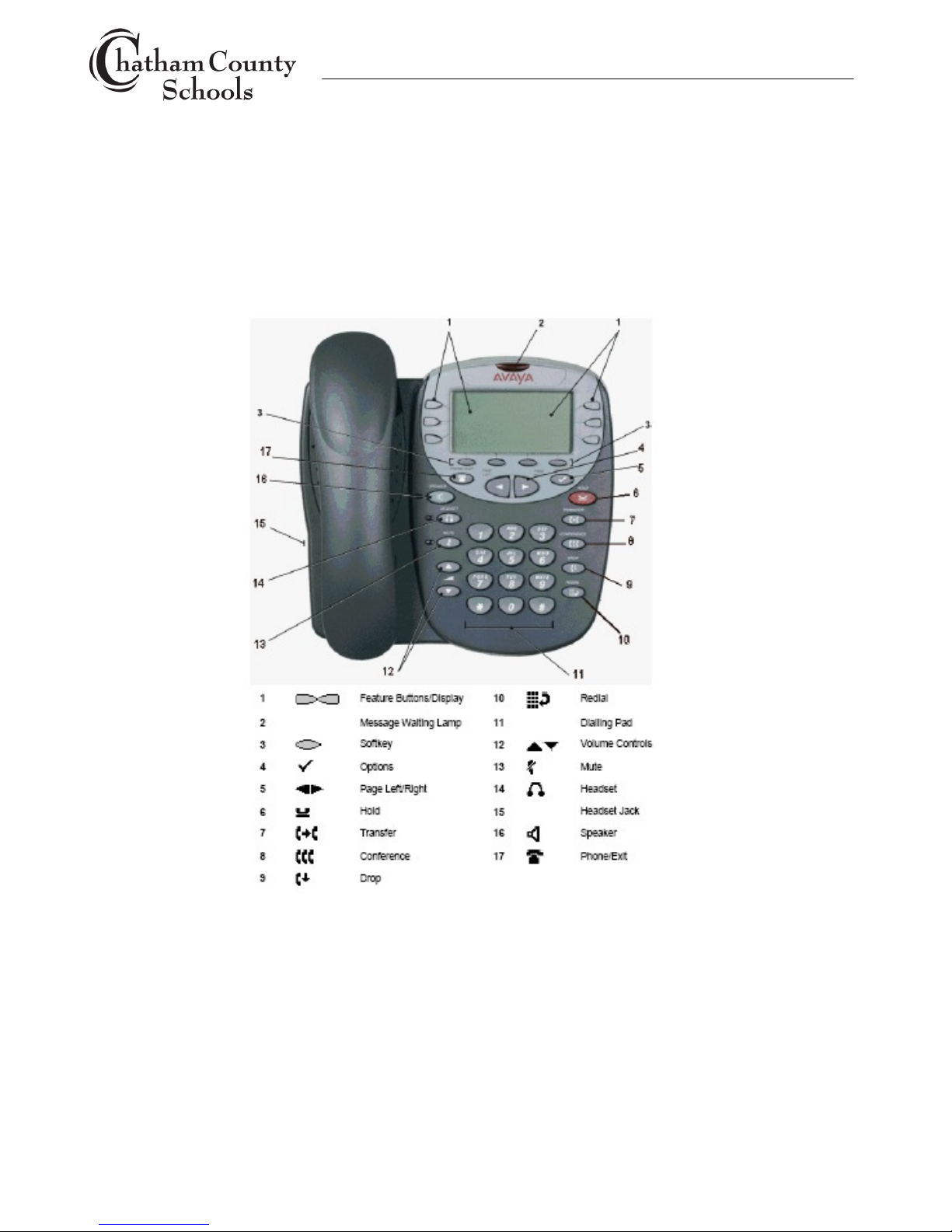
The diagram below shows the main phone features.
Page 2

IP Office / Quick Reference Guide (5610-5621 Telephone) / Last updated 1/18/11
Page 2 of 4
IP Office Telephone Guide
5610-5621 Quick Reference Guide
STANDARD BUTTONS
1. Feature buttons are used for call/line appearances or features and are programmed by system
administrator
1. Call/line appearance feature buttons: lift handset or press speakerphone button to make and
answer calls
2. Message waiting lamp: lights to indicates new messages in mailbox
3. Softkeys: Used for additional features, press any softkey to view softkey menu, press exit
button to exit softkey menu’s. See Softkey section for more instructions.
4. Options: Press to access miscellaneous options
5. Page Left/Right: Move through the different pages of the call handling, speed dials and call log
screens. Also used to move the cursor during data entry.
6. Hold: Used to place call on hold; press to put active call on hold, press call appearance button
to get back to caller.
7. Transfer: Used to transfer caller to another extension; while on call press transfer, enter
extension #, press transfer again or just hang up. User can wait until extension answers to
announce call or they can transfer call immediately after entering extension number.
8. Conference: Used to conference 3 or more parties together; while on call press conference,
enter extension # or external #, press conference again to join all caller together; repeat these
steps to add other parties; IP Office allows conferences of up to 64 parties but is limited by the
number of trunk lines. User can wait until extension answers to announce call or they can
press conference immediately after entering extension number. User can drop from the
conference by just hanging up and the rest of conference will continue.
9. Drop: Used to drop one party from a conference call; most commonly used to drop a call that
was answered by voicemail; to use press drop button, use scroll button to select caller to drop,
press drop feature button to drop caller.
10. Redial: Used to redial one of several recently dialed numbers; to use press redial, press feature
button associated with number to redial.
11. Dial Pad: Standard 12-button pad for dialing phone numbers.
12. Volume Up & Down: Used to adjust volume of call or ring tones; press while on call to adjust
call volume or press when not on call to adjust ring tone volume.
13. Handset/Headset sockets: Used to plug in handset and headset.
14. Mute: Used to mute microphone while still listening to call; press once to activate; press again
to deactivate.
15. Headset: Press to make or answer calls if headset connected to bottom of telephone.
16. Speaker: Press to make or answer calls with speakerphone.
17. Phone Exit: Used to exit softkey feature menu’s.
Notes: Dial 9 to make external call. Dial *17 or press Voicemail or Visual Voice button to access
voicemail.
Page 3
IP Office / Quick Reference Guide (5610-5621 Telephone) / Last updated 1/18/11
Page 3 of 4
IP Office Telephone Guide
5610-5621 Quick Reference Guide
FEATURE BUTTONS
Button Label
Using Feature
Button
Status
Button
Indicator
a=, b=, c=
Call appearance buttons are used to make and receive all calls
including internal and external calls.
See Note
See Note
PARK 1
Used to park a call so it can be retrieved at another telephone. While
on a call press the park button. To retrieve the call, press the park
button from any phone with the same Park button.
Activated
Button
Highlighted
DND
Used to activate do not disturb feature. Press to activate. Press
again to deactivate. If voicemail is turned on for extension, calls are
sent to voicemail immediately. User will hear stutter dial tone when
activated. “N” appears on the display and the user will hear a stutter
dial tone to also indicate the feature is activated.
Activated
Button
Highlighted
Call
Forward
Use to activate call forwarding for all calls. To activate, press button,
enter the number (use 9 for external calls) and press done. To deactivate press button again. To change the number, press the button
and press the <<< button to remove and then enter new number. “D”
appears on the display and the user will hear a stutter dial tone to
also indicate the feature is activated.
Activated
Button
Highlighted
Voicemail
Press to access voicemail and listen to messages.
None
None
Visual Voice
Visual Voice allows users to navigate through their Voicemail box via
a series of buttons presented on the phone display. Different screens
will be displayed according to the option that the user has selected.
Visual Voice can be used instead of pressing the Message button to
listen to voicemails messages.
None
None
Time Date
Press to display time and date on telephone. Press again to remove
time and date.
Activated
Button
Highlighted
Page CO
Used to page all users on their telephone speakerphone. Press
button and begin speaking.
None
None
Note: Call Appearance Status Indicators
SHORT CODES
Code
Use
#xxx (xxx=extension number)
Used to transfer a caller directly to a user’s voicemail box. While on
call, press transfer, #xxx, transfer.
*30
Used to pickup a call that is ringing at any telephone.
*32*N# (where N = extension number)
Used to pickup a call that is ringing on a specific telephone extension.
Page 4

IP Office / Quick Reference Guide (5610-5621 Telephone) / Last updated 1/18/11
Page 4 of 4
IP Office Telephone Guide
5610-5621 Quick Reference Guide
SOFTKEY BUTTONS
Speed Dial Softkey Button (SpDial; 1st softkey button)
• To Dial a speed dial:
1. Press any softkey, then press SpDial and then press feature button associated with name to
dial. Use the scroll keys to display all of your speed dial numbers.
2. When the speed dial you require is shown, press or adjacent to the speed dial name. Your
phone dials the number automatically.
• To Add a speed dial:
1. Press any softkey, then press SpDial and then press Add.
2. Enter the name in the field associated with 1st left feature button. Each key is marked with the
letters it provides. Depending on the character you require, you may have to press the key
more than once. For example: The 2 key is also marked as A, B and C. To enter a C, press
the key until C is displayed. If the next character you want is on the same key, press and then
enter the next character. If you make a mistake use the backspace or clear feature buttons to
make a change. Press done when finished entering name.
3. Press the 2nd feature button associated with Number and enter the number (don’t forget 9 for
external numbers).
4. Press Save.
5. Press Exit to exit menu, Add for another speed dial number, Edit to change an existing
number, Delete to remove a number.
Notes: You can press Exit button at any time to exit speed dial menu. For external calls you
must enter the number just as you dial it from your telephone. 48 speed dial numbers can be
stored on the telephone and are stored alphabetically.
Log Softkey Button (2nd softkey button)
Press any softkey, then press Log to view the log menu. Press additional softkey buttons (Missed,
InAns, Outgo, More) to view a log of your calls.
When you locate an entry you want to call, press the feature button next to the entry. Then press Call
to make the call.
Note: If the number shown is external but doesn't include the external dialing prefix used by your
telephone system, go off-hook, dial the prefix and then press Call.
Option Softkey Button
Press to access options. Follow instructions on telephone screen to make changes or refer to the User
Guide for more information.
 Loading...