

Page 1
1
2
Play 7000N
7000N Play
User Manual
3 4
Page 2
Important
Safety Introduction
1: Important Safety Information
This lightning flash with an arrowhead symbol within an equilateral triangle is
intended to alert the user to the presence of non-insulated “dangerous voltage”
within the product’s enclosure that may be of sufficient magnitude to constitute a
risk of electric shock.
Warning: To reduce the risk of electric shock, do not remove the cover (or back) as
there are no user-serviceable parts inside. Refer servicing to qualified personnel.
The exclamation point within an equilateral triangle is intended to alert the user to
the presence of important operating and maintenance instructions in the literature
accompanying the appliance.
Read these instructions.
Keep these instructions.
Heed all warnings.
Follow all instructions.
Do not use this apparatus near water.
Clean only with a dry cloth.
Do not block any ventilation openings. Install under the manufacturer’s
instructions.
Do not install near any heat sources such as radiators, heat registers, stoves, or
other apparatus (including amplifiers) that produce heat.
Do not defeat the safety purpose of the polarized or grounding-type plug. A
polarized plug has two blades with one wider than the other. A grounding plug has
two blades and a third grounding prong. The wide blade or the third prong is
provided for your safety. If the provided plug does not fit into your outlet, consult
an electrician for the replacement of the obsolete outlet.
Protect the power cord from being stepped on or pinched, particularly at the plugs,
convenience receptacles, and at the point where they exit from the apparatus.
Unplug this apparatus during lightning storms or when unused for long periods.
Refer all servicing to qualified service personnel. Servicing is required when the
apparatus has been damaged in any way, such as power supply cord or plug is
damaged, liquid has been spilt or objects have fallen into the apparatus, the
apparatus has been exposed to rain or moisture, does not operate normally, or
has been dropped.
Contents
Getting
Started
Controls and
Functions
Remote
Handset
Connections
Menu
Options
System
Operations
DTS Play-Fi
Download
R
the APP
Wi-Fi
Connection
Wi-Fi
Connection Setup
APP
Operations
Warranty
Coverage
CAUTION: These servicing instructions are for use by qualified service personnel
only. To reduce the risk of electric shock, do not perform any servicing other than
that contained in the operating instructions unless you are qualified to do so.
Do not install this equipment in a confined or built-in space such as a bookcase or
similar unit, and keep well ventilated in an open space. The ventilation should not
be impeded by covering the ventilation openings with items such as newspaper,
tablecloths, curtains etc.
WARNING: Only use attachments/accessories specified or provided by the
manufacturer (such as the exclusive supply adapter, battery etc).
WARNING: Please refer to the information on the exterior panel of the enclosure
for electrical and safety information before installing or operating the apparatus.
WARNING: To reduce the risk of fire or electric shock, do not expose this
apparatus to rain or moisture. The apparatus shall not be exposed to dripping or
splashing and objects filled with liquids, such as vases, shall not be placed on the
apparatus.
WARNING: For the terminals marked with the symbol “ ” may be of sufficient
magnitude to constitute a risk of electric shock. The external wiring connected to
the terminals requires installation by an instructed person or the use of
ready-made leads or cords.
Denmark:
Apparatets stikprop skal tilsluttes en stikkontakt med jord, som giver
forbindelse til stikproppens jord.
Finland:
Norway:
Sweden:
Laite on liitettävä suojakoskettimilla varustettuun pistorasiaan.
Apparatet må tilkoples jordet stikkontakt.
Apparaten skall anslutas till jordat uttag.
WARNING: No naked flame sources, such as lighted candles, should be placed on
the apparatus.
WARNING: Attention should be drawn to the environmental aspects of battery
disposal.
WARNING: Use of the apparatus in tropical climates.
THE FUSE VALUES ARE:
220 – 240V (UK, China, etc.) T630mAL 250V Slow Blow
100 – 120V (USA, Japan, etc.) T1.0AL 250V Slow Blow
Specifications
Page 3
Important
Safety Introduction
1: Important Safety Information
Contents
Getting
Started
Controls and
Functions
Remote
Handset
Connections
Menu
Options
System
Operations
DTS Play-Fi
Download
R
the APP
Wi-Fi
Connection
Wi-Fi
Connection Setup
APP
Operations
Warranty
Coverage
Specifications
FCC Statement
This equipment has been tested and found to comply with the limits for a Class B
digital device, pursuant to part 15 of the FCC Rules. These limits are designed to
provide reasonable protection against harmful interference in a residential
installation. This equipment generates, uses and can radiate radio frequency
energy and, if not installed and used in accordance with the instructions, may
cause harmful interference to radio communications.
However, there is no guarantee that interference will not occur in a particular
installation. If this equipment does cause harmful interference to radio or
television reception, which can be determined by turning the equipment off and
on, the user is encouraged to try to correct the interference by one or more of the
following measures:
•
Reorient or relocate the receiving antenna.
•
Increase the separation between the equipment and receiver.
•
Connect the equipment into an outlet on a circuit different from that to which the
receiver is connected.
•
Consult the dealer or an experienced radio/TV technician for help.
Caution: Any changes or modifications to this device not explicitly approved by the
manufacturer could void your authority to operate this equipment. This device
complies with part 15 of the FCC Rules. Operation is subject to the following two
conditions:
1) This device may not cause harmful interference, and
2) This device must accept any interf
may cause undesired operation.
FCC Radiation Exposure Statement:
This equipment complies with FCC radiation exposure limits set forth for an
uncontrolled environment. This equipment should be installed and operated with
minimum distance 20cm between the transmitter & your body.
erence received, including interference that
RF Exposure Information
•
The device has been evaluated to meet general RF exposure requirements.
•
The device can be used in portable exposure condition and compliance with
exposure requirements.
ISED Statement
This device contains license-exempt transmitter (s) / receiver (s) that comply with
Innovation, Science and Economic Development Canada's licence-exempt RSS (s).
Operation is subject to the following two conditions:
1) This device may not cause interference.
2) This device must accept any interference, including interference that may cause
undesired operation of the device.
Le présent appareil est conforme aux CNR d'Industrie Canada applicables aux
appareils radio exempts de licence. L'exploitation est autorisée aux deux
conditions suivantes :
1) l'appareil nedoit pas produire de brouillage, et
2) l'utilisateur de l'appareil doit accepter tout brouillage radioélectriquesubi, même
si le brouillage est susceptible d'en compromettre le fonctionnement."
Le présent appareil est conforme Après examen de ce matériel aux conformité ou
aux limites d’intensité de ch
radiofréquences et compliance d’acquérir les informations correspondantes. La
distance minimale du corps à utiliser le dispositif est de 20cm.
The device is compliance with RF exposure guidelines, users can obtain Canadian
information on RF exposure and compliance. The minimum distance from body to
use the device is 20cm.
amp RF, les utilisateurs peuvent sur l’exposition aux
AirPlay is an Apple technology designed to control home
audio systems and speakers in any room - with a tap or by
just asking Siri - right from iPhone, iPad, HomePod, or
Apple TV.
This 7000N Play supports AirPlay 2 and requires iOS 11.4
or later.
*Use of the Works with Apple badge means that an
accessory has been designed to work specifically with the
technology identified in the badge and has been certified
by the developer to meet Apple performance standards.
*AirPlay is a trademark of Apple Inc., registered in the U.S.
and other countries.
Page 4

Important
Safety Introduction
2: Contents
Audiolab 7000N Play
Contents
Getting
Started
Controls and
Functions
Remote
Handset
Connections
Menu
Options
System
Operations
DTS Play-Fi
Download
R
the APP
Wi-Fi
Connection
Wi-Fi
Connection Setup
APP
Operations
Warranty
Coverage
Specifications
Getting Started ....................................................................................................................................................................................................
Controls and Functions ....................................................................................................................................................................................
Remote Handset ................................................................................................................................................................................................
Connections .........................................................................................................................................................................................................
............................................................................................................................................................................................. Menu Operations
System Operations ...........................................................................................................................................................................................
®
DTS Play-Fi
Wireless Streaming Technology ................................................................................................................................................
Download the APP ................................................................................................................................................................................................
Wi-Fi Connection Using the APP ......................................................................................................................................................................
Wi-Fi Connection Setup Using a Windows PC or Mac ...................................................................................................................................
APP Operations .................................................................................................................................................................................................
Warranty Coverage ...........................................................................................................................................................................................
5
6
7
8
10
12
13
14
15
16
17
20
Specifications ....................................................................................................................................................................................................
22
Page 5
Important
Safety Introduction
Contents
Getting
Started
Controls and
Functions
Remote
Handset
Connections
Menu
Options
System
Operations
DTS Play-Fi
Download
R
the APP
Wi-Fi
Connection
Wi-Fi
Connection Setup
APP
Operations
Warranty
Coverage
Specifications
3: Getting Started
Introduction of 7000N Play
Bringing hi-resolution wireless audio streaming to any home audio system, the
7000N Play further expands on the multi-format, multi-platform, multi-source
compatible DTS Play-Fi system, now with Apple AirPlay 2 compatibility.
Featuring DTS Play-Fi® Technology, the 7000N Play allows music to be streamed
over your wireless network in high-resolution format and can be easily expanded to
a multi-room system if required. You can stream from any source on your wireless
network, including smartphones, tablets or PCs as well as a NAS Drive.
Features
• ESS Sabre ES9038Q2M reference DAC
• Isolated power supply
• 2.8" (48 x 64mm) full view IPS LCD
• DTS Play-Fi technology
• Streaming service support includes Amazon Music, Spotify, TIDAL, KKBox,
SiriusXM, Napster, Internet Radio, Deezer, iHeartRadio, PANDORA, Qobuz,
QQ Music and more
• Apple Airplay 2 compatible
• Multi-room / multi-speaker group support
• Android / iOS / Kindle Fire/ Windows PC control support
• Automatic equipment activation via 12V trigger and link
• Wired Internet connection for high bandwidth applications
• USB firmware upgrade input
Page 5
Outputs
• One coaxial output
• One optical output
• One RCA line output pair
Unpacking the equipment
The carton contains:
• The Audiolab 7000N Play
• One IEC mains cable with a plug suitable for your area
• One remote handset
• One instruction manual
Please note: The remote control requires 2 x AAA type batteries. Due to
international shipping and courier regulations with Lithium Ion batteries, the
remote controller battery is not included in this package.
Consult the dealer from whom you purchased the equipment if any item is not
present.
Carefully unpack the unit and accessories. Take care not to damage the surface
finish when undoing the protective polythene sleeve. Retain the packing materials
for future use. Retain the user manual and information concerning the date and
place of purchase of your equipment for future reference. If you transfer the unit
to a third part
y, please pass on this instruction manual along with the equipment.
Placement
Inputs
• One 12V trigger input
• USB 2.0 port for volume control synchronisation via the DTS Play-Fi app,
when connected by USB data cable to the 7000A USB update port.
The unit must be mounted on a solid, level and stable surface.
Before you connect the Audiolab 7000N Play to the AC mains power, ensure your
AC mains voltage corresponds to the rating on the rear panel of the product. If in
doubt, consult your dealer. If you move to an area which has a different mains
voltage, seek advice from an Audiolab appointed dealer or a competent service
technician.
Page 6
Important
Safety Introduction
Contents
Getting
Started
Controls and
Functions
Remote
Handset
Connections
Menu
Options
System
Operations
DTS Play-Fi
Download
R
the APP
Wi-Fi
Connection
Wi-Fi
Connection Setup
APP
Operations
Warranty
Coverage
Specifications
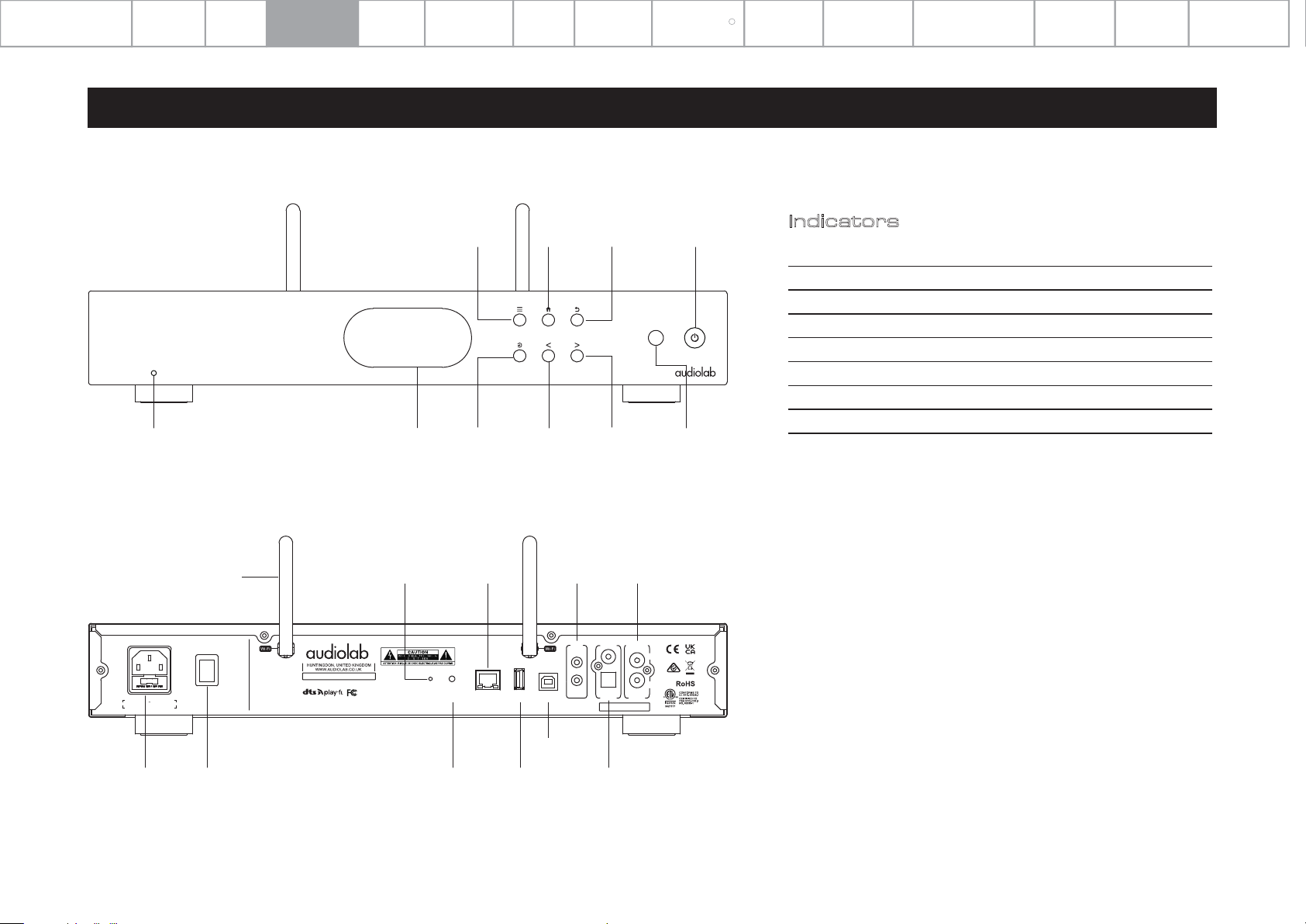
4: Controls and Functions
1
3 4
Return /
Preset 2
2
Forward /
Preset 4
Menu
Play 7000N
Power LED Display Confirm
Home /
Preset 1
Back /
Preset 3
Standby
Button
Remote Input
Indicators
Device Status
Standby Mode
Initialisation Mode
Standard Setting Mode
WPS Mode
Network Connecting
WIFI Connected
Wired Network Connected
Page 6
LED Status
Dim red LED
Fast flash white LED
Slow-breathe white LED
Double flash white LED
Slow flash white LED
Bright white LED
Bright red LED
Wi-Fi Antenna
POWER
ON
OFF
AC 220-240V 50/60Hz 22W
FUSE T630mA 250V
Mains Input Power Swtich
Play-Fi LED Ethernet Port
NETWORK PLAYER MODEL: 7000N Play
7000N Play
DESIGNED AND ENGINEERED IN THE U.K.
Made in China
SET-UP ETHERNET CONTROL
FCC ID:2AO5F-7000NPLAY IC:23689 -7000NPLAY
UPDATE
12V Trigger
12V
TRIG
IN
LINK
SN:
Analogue Output
ANALOGUEDIGITAL
L
COAX
R
OPT
OUTPUT
OUTPUT
USB Control
UpdateSet-up
Digital output
Page 7
Important
Safety Introduction
Contents
Getting
Started
Controls and
Functions
Remote
Handset
Connections
Menu
Options
System
Operations
DTS Play-Fi
Download
R
the APP
Wi-Fi
Connection
Wi-Fi
Connection Setup
APP
Operations
Warranty
Coverage
Specifications
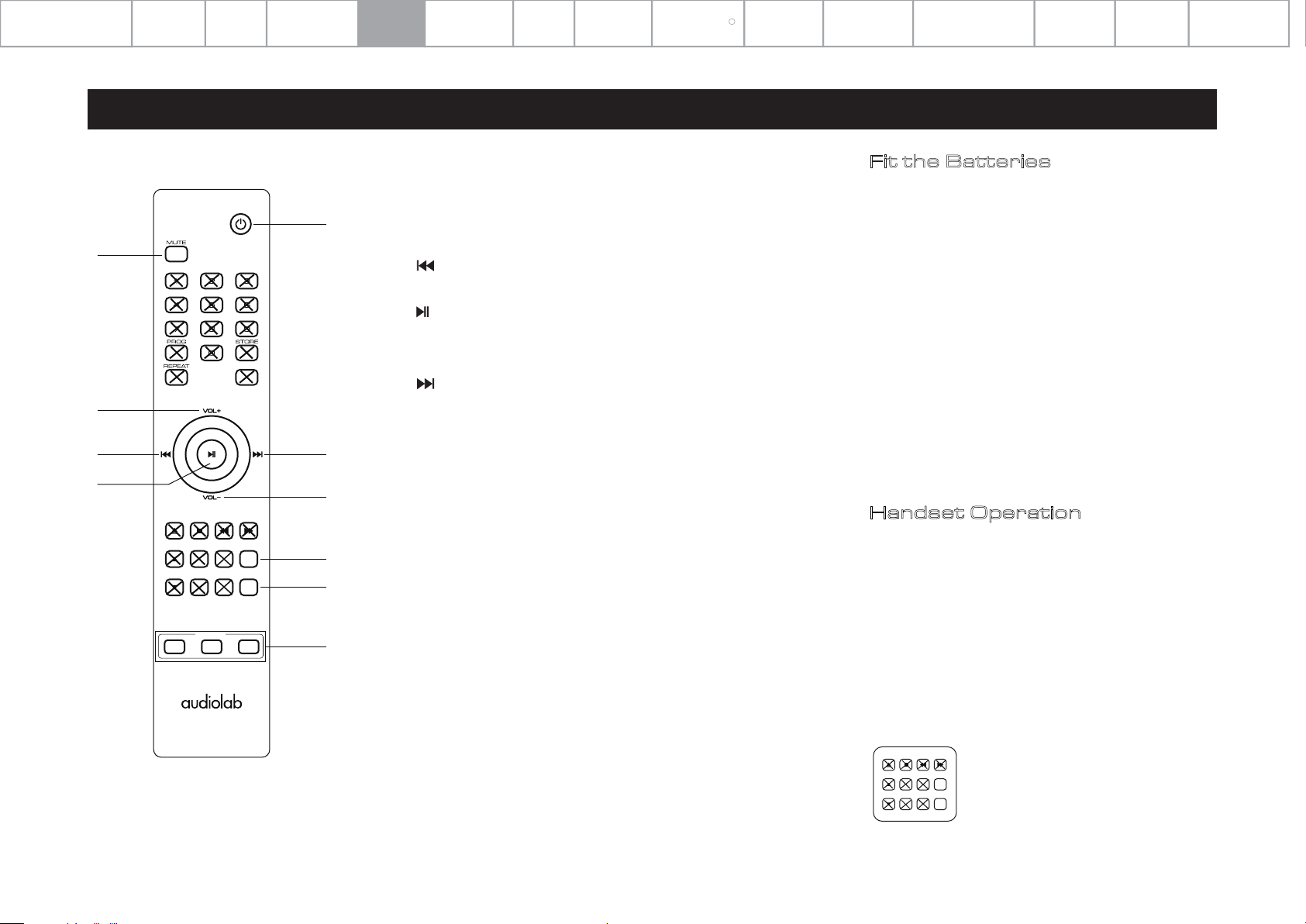
5: Remote Handset
1. MUTE
5
1
RANDOM
2
3
4
MODE LIST MENU
SOURCE TIME DISPLAY BACK
DEVICE
CD A
N
6
7
8
9
10
2. VOL+
3.
4.
5. STANDBY
6.
7. VOL-
8. MENU
9. BACK
10. CD/A/N
Press to mute and unmute the 7000N Play
Increase the volume / move to the previous option in
menu settings
Move to the previous track / move to the previous
option in menu settings
Press to start / pause. Press to confirm setting selected
in menu
Press to bring the unit in / out of standby
Move to the next track / move to the next option in
menu settings
Decrease the volume / move to the next option in
menu settings
Press to enter menu mode
Press to go back when navigating directories
Press to select the model
- 7000A / 7000CDT / 7000N Play
Page 7
Fit the Batteries
Open the cover and insert 2 x AAA batteries (not
supplied), replace the cover.
Always use AAA batteries and replace them in sets –
never mix up old and new batteries. Very weak
batteries can leak and damage the handset. Replace
them in good time!
Note: there is a risk of fire and injury if a battery is
handled improperly. Do not disassemble, crush,
puncture, short the contacts or dispose of the
batteries in fire or water. Do not attempt to open or
service a battery. Discard used batteries in full
accordance with recycling regulations in force in your
area.
Handset Operation
Point the handset at the remote receiver and press
the buttons as illustrated to activate the relevant
functions.
The handset should be within 15 metres of the
player and there should be a clear line of sight
between the handset and the unit for optimum
remote control operation.
Note: The buttons shown crossed out are for use
with other Audiolab units and offer no function on
the 7000N Play.
For example, except for the ’MENU' and
MODE LIST MENU
SOURCE TIME DISPLAY BACK
'BACK' buttons, the other remote control
buttons do not offer any functionality with
the 7000N Play.
Page 8
Important
Safety Introduction
Contents
Getting
Started
Controls and
Functions
Remote
Handset
Connections
Menu
Options
System
Operations
DTS Play-Fi
Download
R
the APP
Wi-Fi
Connection
Wi-Fi
Connection Setup
APP
Operations
Warranty
Coverage
Specifications
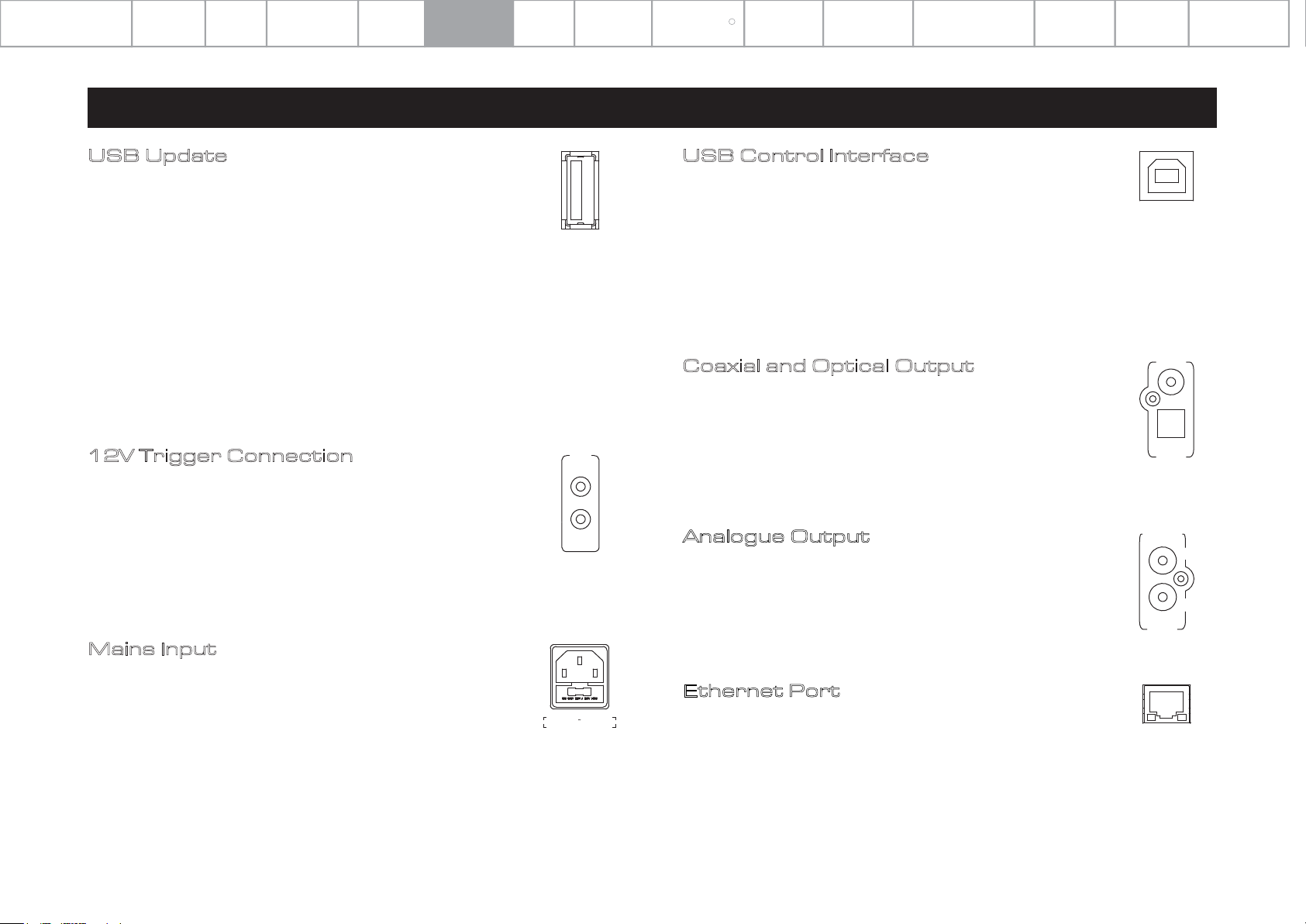
6: Connections
USB Update
Any official Audiolab update will be provided by download from
audiolab.co.uk
Please read and follow any instructions provided with any such
download.
POWER OFF the 7000N Play unit. Insert the USB storage device, onto
which the USB update files have been loaded. Press the 'STANDBY'
button on the front panel then simultaneously POWER ON, your
7000N Play will upgrade automatically. Wait for the device display to
confirm that the update is completed. Then, unplug the USB drive
and restart the 7000N Play. The unit is now ready to use.
12V Trigger Connection
The 7000N features two 12V trigger connections on the rear panel.
One is input from your amplifier, and the other is a link that can be
used as an output to connect to other products such as the wider
7000 series models. For the Audiolab 7000 series, this will be a
3.5mm to 3.5mm interconnect.
Mains Input
Before connecting the AC power cord to the 7000N Play, please
make sure the Power Switch is in the OFF position. Switch it to the
ON position after connecting the unit to the AC mains.
12V
TRIG
IN
LINK
AC 220-240V 50/60Hz 22W
FUSE T630mA 250V
USB Control Interface
If you are using 7000N Play with the Audiolab 7000A amplifier,
connect this USB Control Interface to the 7000A 'Update'
Interface with a USB data cable. You can then use the Play-Fi
APP to control the listening volume.
Please note: the USB Control Interface cannot be used to link
to a PC or output digital music data.
Coaxial and Optical Output
The 7000N Play offers one Coaxial and one Optical SPDIF
digital output. Connect a suitable Digital Coaxial (fully
screened) interconnect or Optical cable from the appropriate
SPDIF output of the 7000N Play to the input of a DAC or digital
input on your chosen amplifier or preamplifier.
Analogue Output
The 7000N Play offers an analogue output. Use this stereo
output to connect to an amplifier or other device that accepts
an analogue input using a shielded RCA cable.
Ethernet Port
Use a suitable cable to plug the Ethernet Port into the LAN
port of a wireless router for a wired connection.
Page 8
CONTROL
DIGITAL
COAX
OPT
OUTPUT
ANALOGUE
L
R
OUTPUT
ETHERNET
Page 9
Important
Safety Introduction
Contents
Getting
Started
Controls and
Functions
Remote
Handset
Connections
Menu
Options
System
Operations
DTS Play-Fi
Download
R
the APP
Wi-Fi
Connection
Wi-Fi
Connection Setup
APP
Operations
Warranty
Coverage
Specifications
6: Connections
POWER
ON
OFF
AC 220-240V~50/60Hz 22W
FUSE T630mA 250V
7000N Play
DESIGNED AND ENGINEERED IN THE U.K.
NETWORK PLAYER MODEL: 7000N Play
Made in China
SET-UP ETHERNET CONTROL
FCC ID:2AO5F-7000NPLAY IC:23689 -7000NPLAY
UPDATE
TRIG
LINK
Page 9
12V
IN
SN:
COAX
OPT
OUTPUT
ANALOGUEDIGITAL
L
R
OUTPUT
ON
OFF
AC 220-240V~50/60Hz 350W
FUSE T2.5AL 250V
7000A
DESIGNED AND ENGINEERED IN THE U.K.
+
_
RIGHT LEFT
TRIG
OUT
12V
IN
Direct Stream Digital
UPDATE
ARC
Made in China
COAX 1
OPT 1 OPT 2
COAX 2
DIGITAL
INTEGRATED AMPLIFIER MODEL: 7000A
USB
OUT
POWER
PRE
FCC ID:2AO5F-7000A IC:23689-7000A
AUX1
INPUT
AUX2
SN:
AUX3
L
R
PHONO
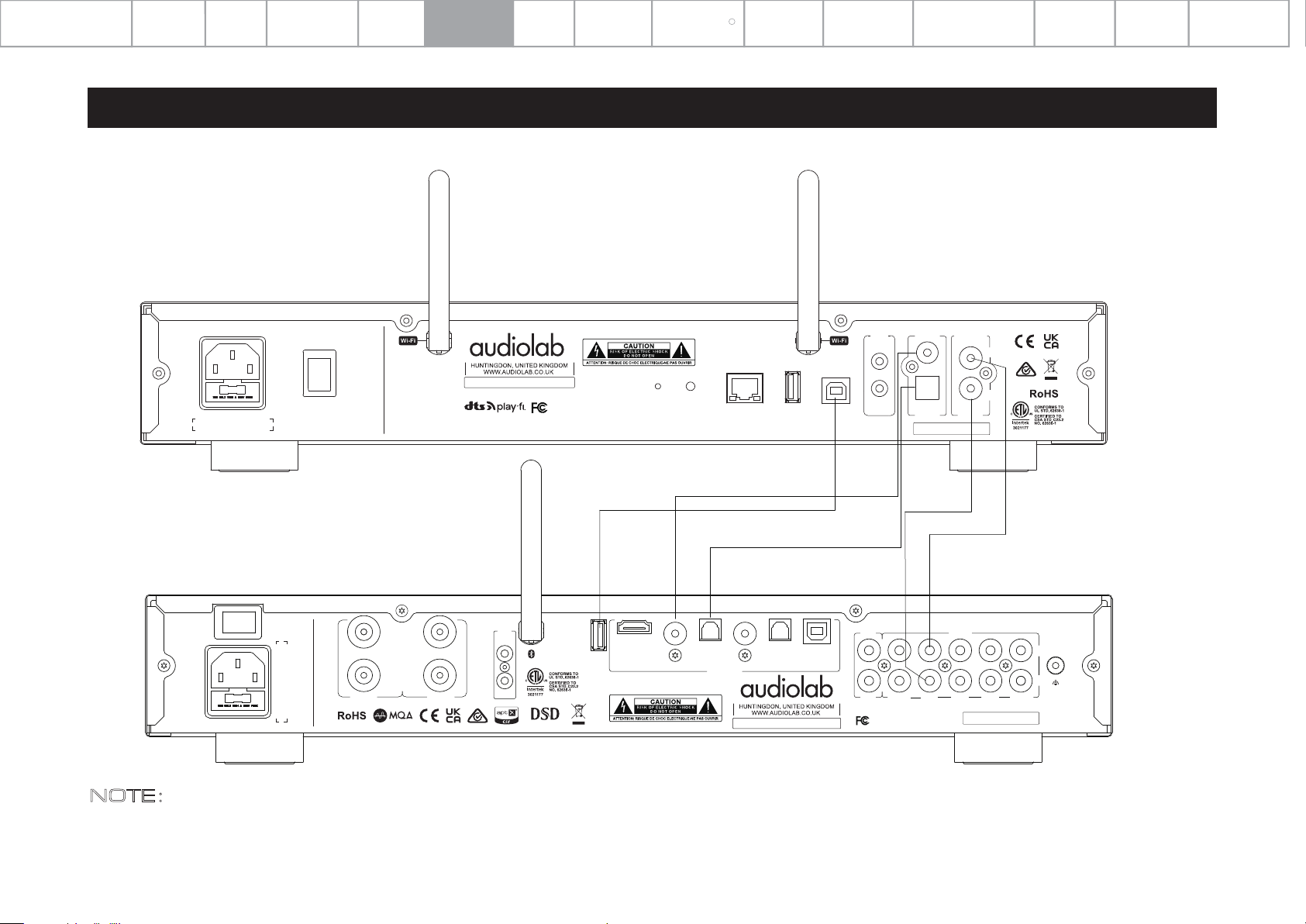
NOTE:
1. Connect via EITHER digital OR analogue connection options, as per the diagram above.
2. The COAX / Optical digital connection is recommended as the COAX and OPT outputs transfer the PCM digital signal at up to 24-bit/192kHz resolution.
3. The analogue output level can be controlled by the digital volume control within the DTS Play-Fi app, when the 7000N Play is connected to a 7000A amplifier via the USB
Control Interface. As per the diagram above; connect the 7000A UPDATE input to the CONTROL input of the 7000N Play, by way of a USB data cable, to enable this functionality.
Page 10
Important
Safety Introduction
Contents
Getting
Started
Controls and
Functions
Remote
Handset
Connections
Menu
Options
System
Operations
DTS Play-Fi
Download
R
the APP
Wi-Fi
Connection
Wi-Fi
Connection Setup
APP
Operations
Warranty
Coverage
Specifications
7: Menu Options
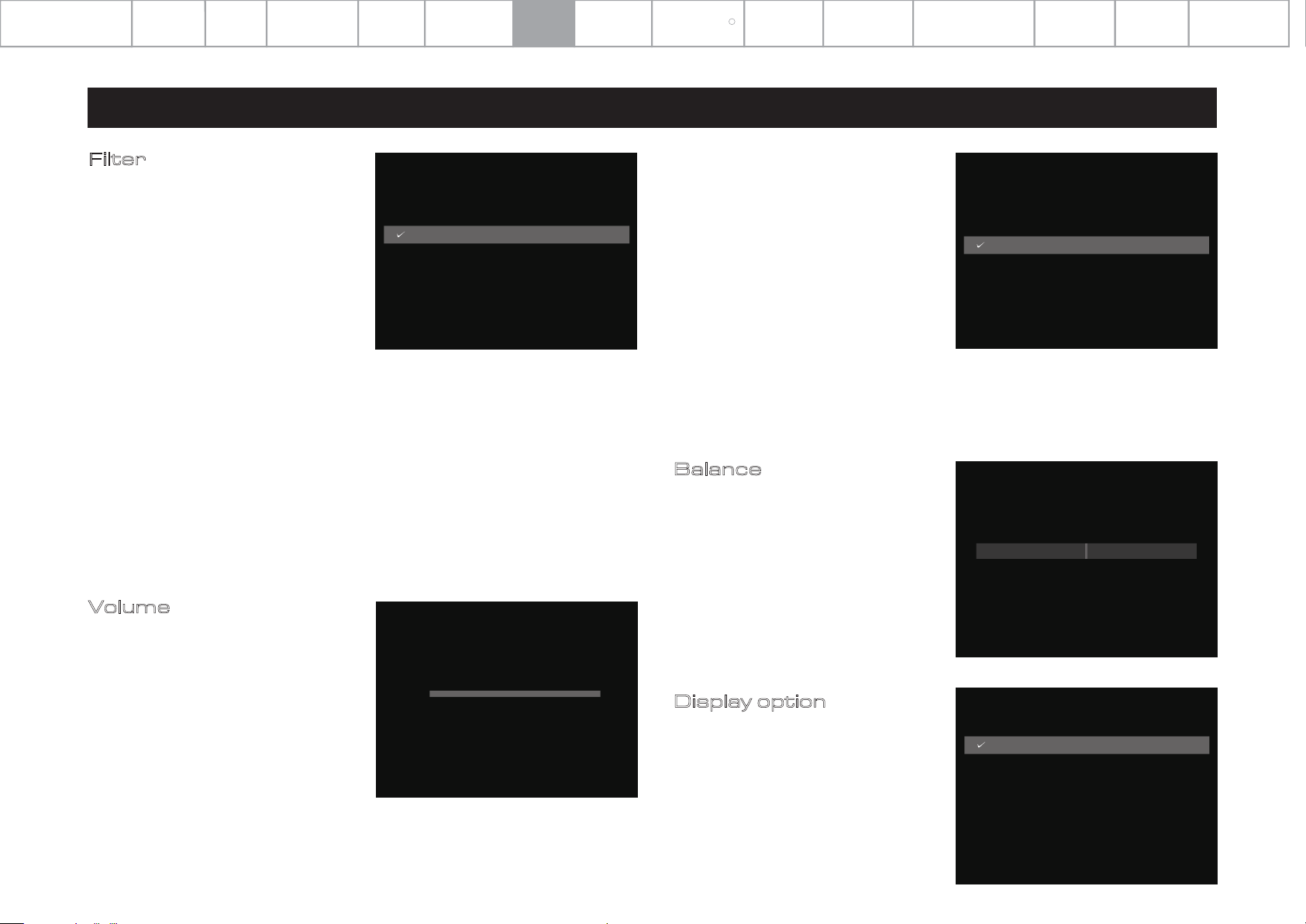
Filter
The Audiolab 7000N Play Play’s ESS
ES9038Q2M SABRE DAC allows for
detailed tuning of the audio experience.
The DAC reconstruction filter is a critical
part of refining the sound of a system
that depends on listening taste, program
material, and equipment set-up.
• Linear (Fast): This is the most common filter
with clean overall suppression and excellent
rejection, best for music with large
transients. Provides crisp clean highs.
• Linear (Slow): A low group delay and symmetrical input response with less ringing
than ‘Linear’ (Fast). It offers punchier bass than ‘Linear’ (Fast), with clean highs.
(Default)
• Minimum (Fast): This offers minimal pre-ringing. It is usually preferred for imaging
and sound stages. It offers no aliasing in the frequency domain and stronger bass
than Linear (Fast), with clean highs.
• Minimum (Slow): A Non-Symmetrical filter designed to minimise pre-ringing. It offers
a strong punchy bass with a good transient attack.
• Hybrid: This is the combination of ‘Linear-phase’ and ‘Minimum-phase’. It offers a
fast transient attack, strong punchy bass and crisp highs.
< Filter
Linear
Linear
Minimum
Minimum
Hybrid
(Fast)
(Slow)
(Fast)
(Slow)
(Fast)
Page 10
• Output
The analogue output level can be
switched between FIXED and
ADJUSTABLE.
When set to FIXED mode, the analogue
output level will be fixed to the
maximum output. When set to
ADJUSTABLE mode, the analogue
output can be adjusted via the DTS
Play-Fi App. The default setting on the
7000N Play is ADJUSTABLE mode.
If using the 7000A Volume Sync feature with a USB cable connected between the
7000N Play and 7000A, it is recommended to set the 7000N Play Output to Fixed.
The DTS Play-Fi app will then control the volume of the 7000A.
Balance
Adjust the Left and Right balance of the
7000N Play audio output.
< Volume
Output
Adjustable
Fixed
< Balance
L 0.0dB R 0.0dB
Volume
• Power On Limit
Power On Limit sets the maximum
volume level as the unit is switched on.
When coming out of standby, the volume
setting will be set to the level that was
used at the end of the previous operating
session OR to the Power On Limit value
set in this menu, whichever is lowest.
This will avoid a sudden loud signal at the
beginning of a new session.
< Volume
Power On Limit
-20dB
Display option
Access the various display options for
the 7000N Play front panel display.
< Display Options
Home
VU Digital
VU Analogue
Audiolab
Display Off
Page 11
Important
Safety Introduction
Contents
Getting
Started
Controls and
Functions
Remote
Handset
Connections
Menu
Options
System
Operations
DTS Play-Fi
Download
R
the APP
Wi-Fi
Connection
Wi-Fi
Connection Setup
APP
Operations
Warranty
Coverage
Specifications
7: Menu Options
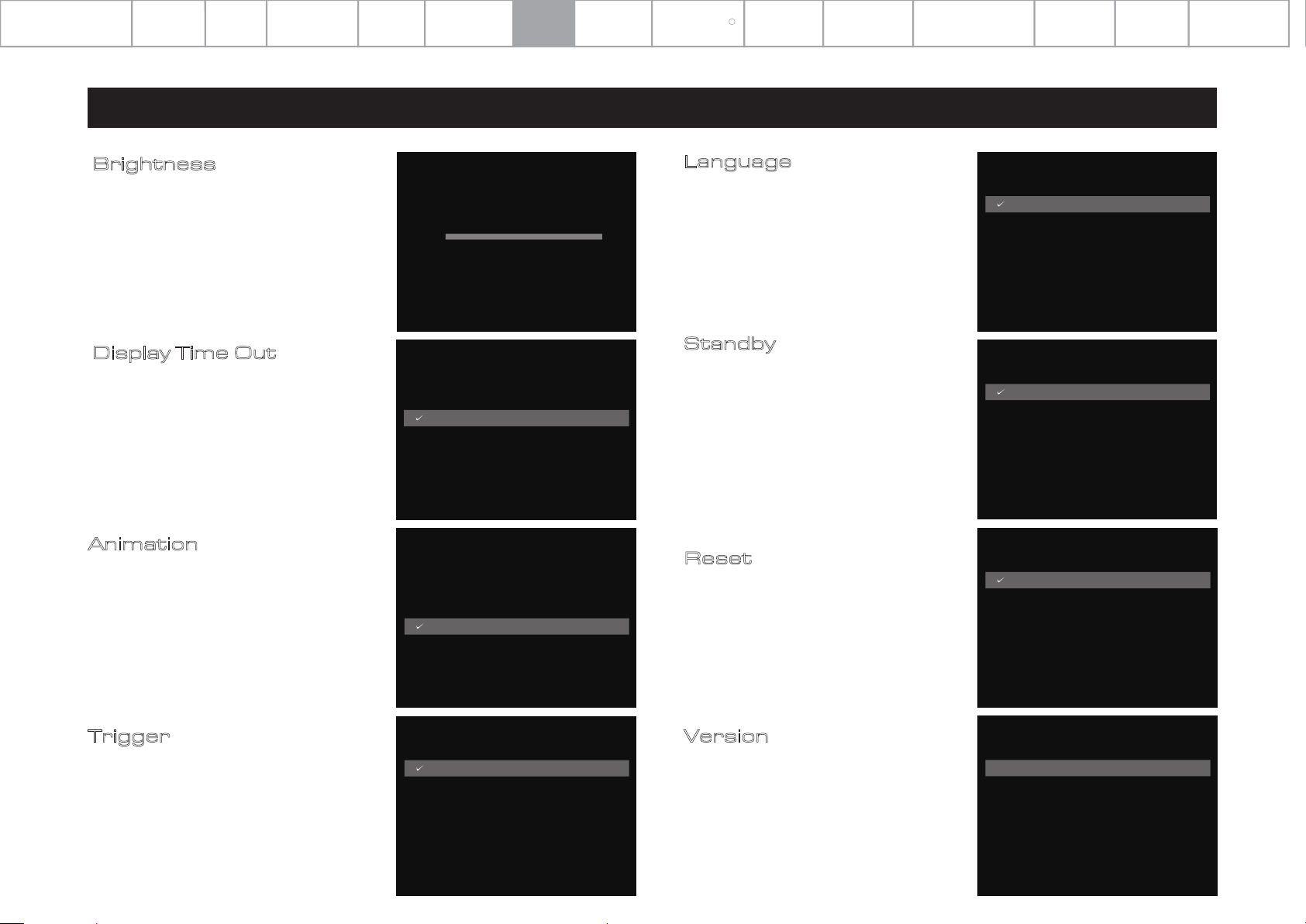
Brightness
Access the brightness for the 7000N
Play front panel display.
Display Time Out
Adjust the time period after which the
7000N Play display will revert to your
prechosen display option, after
performing track selection and other
operations.
Animation
Activate (ON) or deactivate (OFF) the
animations shown in the playback
interface display.
< Display Settings
Brightness
10 10
< Display Settings
Time Out
5s
10s
15s
30s
< Display Settings
Animation
Off
On
Language
The 7000N Play offers multiple
language options for the GUI. Select
your chosen language from the list. The
default language is ‘English’.
Standby
The auto-standby feature will put the
7000N Play into standby mode after 20
minutes of inactivity. This feature can
be also user-defined and set to 20
minutes, 60 minutes or ‘never’.
The latter option means that the 7000N
Play will not enter standby mode
without user instruction by way of the
front panel ‘standby’ button or remote
control ‘standby’ button.
Reset
Reset the 7000N Play to the factory
default settings.
Page 11
< Language
English
简体中文
繁体中文
Dansk
Deutsche
< Standby
Never
20 minutes
60 minutes
< Reset
No
Yes
Trigger
Activate or deactivate the 12V trigger
function of the 7000N Play.
< Trigger
Off
On
Version
Check the current operational firmware
version.
< Version
VER - 1.039
Page 12
Important
Safety Introduction
Contents
Getting
Started
Controls and
Functions
Remote
Handset
Connections
Menu
Options
System
Operations
DTS Play-Fi
Download
R
the APP
Wi-Fi
Connection
Wi-Fi
Connection Setup
APP
Operations
Warranty
Coverage
Specifications
8: System Operations
Switching On and Off
The 7000N Play should be switched on before the amplification stage in your
system. When switching off your system, turn off the amplifier stage before
switching off the 7000N Play.
Standby Mode
After the initial power is on, the 7000N Play will be in ‘standby’ mode.
To use the 7000N Play, press the 'STANDBY' button to bring the 7000N Play out of
standby.
The power indicator LED will become brighter and the display will show the
'Audiolab' welcome screen as the unit enters operational mode.
Preset
Store/Play Internet Radio Stations - up to 4 stations can be stored.
To store a station, press and hold a Preset button for 3 seconds. The LED will
double-flash once to show it is stored. If it fails to store the LED will double-flash
three times.
Page 12
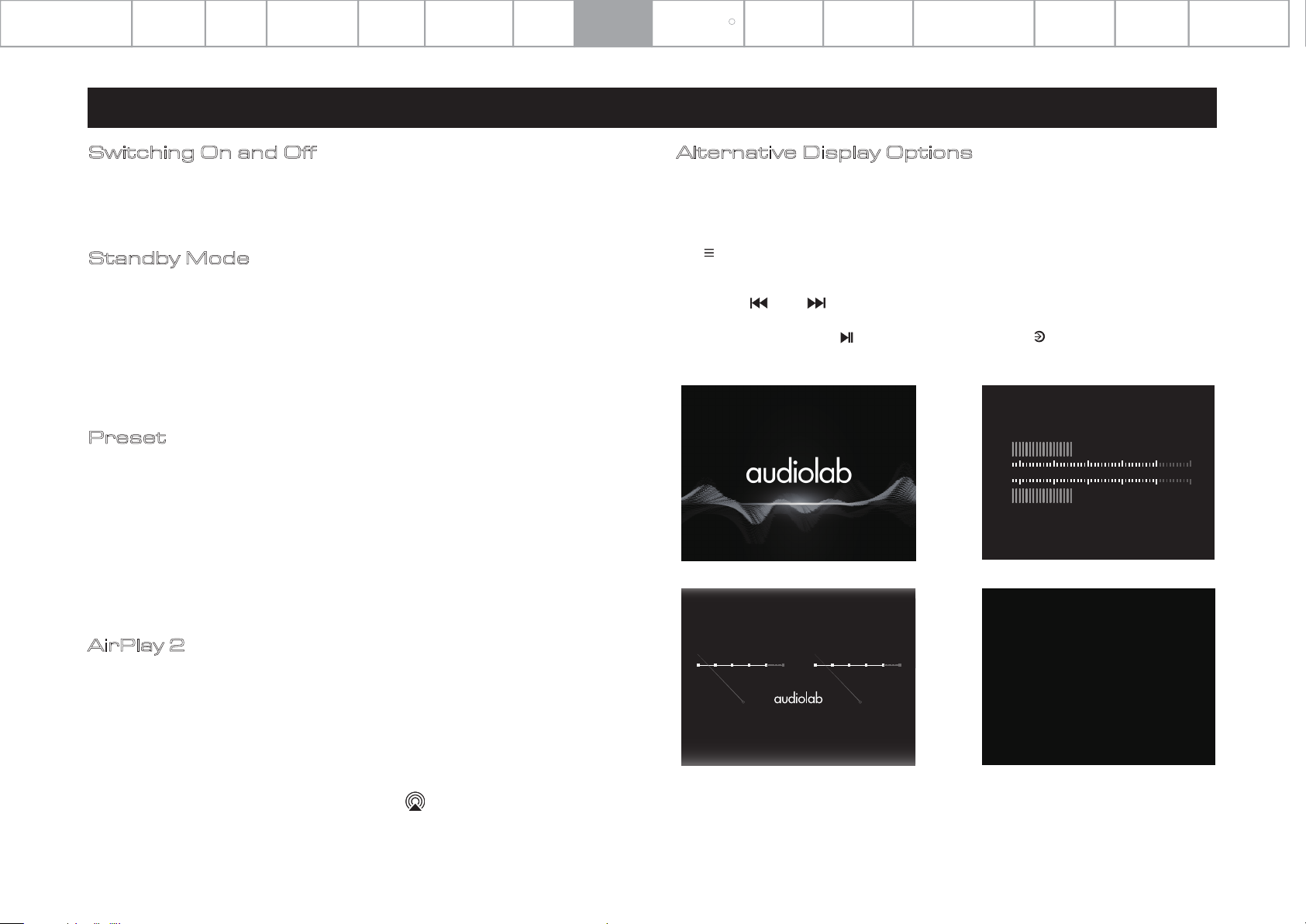
Alternative Display Options
The Audiolab 7000N Play has an intelligent and versatile display. You can access the
display options via the menu function.
Press the 'MENU' button on the remote controller to enter menu mode, or press
the button on the front panel of the device.
Navigate to 'Display Options' via the menu options (use the VOL+/- buttons on the
remote or and buttons on the front panel and remote to navigate.)
Choose and confirm by on the remote control or on the front panel of the
device.
L
dB
-40 -30 -20 -10 0 +10
R
To Play a station, press the Preset button briefly. The LED will double-flash once.
Failure to play a station will be signalled by the LED double-flashing 3 times.
AirPlay 2
Make sure that your Apple device and 7000N Play are connected to the same Wi-Fi
network.
Open your chosen music player app on your Apple device.
Please note: If you are already listening to music, you can use the control centre to
quickly connect. Swipe down from the upper right of the screen to open the control
centre and tap the AirPlay icon on the audio player.
Tap the AirPlay icon at the bottom of the screen
Tap the device that you want to stream (ie. 7000N Play). Music will begin playing via
the 7000N Play.
To stop playing music, tap the AirPlay icon again and deselect the 7000N Play.
Audiolab
LEFT RIGHT
-40dB-30 -20 -10 100 -40 -30 -20 -10 100
dB
Analogue VU
Digital VU
Display Off
Page 13
Important
Safety Introduction
Contents
Getting
Started
Controls and
Functions
Remote
Handset
Connections
Menu
Options
System
Operations
DTS Play-Fi
Download
R
the APP
Wi-Fi
Connection
Wi-Fi
Connection Setup
APP
Operations
Warranty
Coverage
Specifications
9: DTS Play-Fi® Wireless Streaming Technology
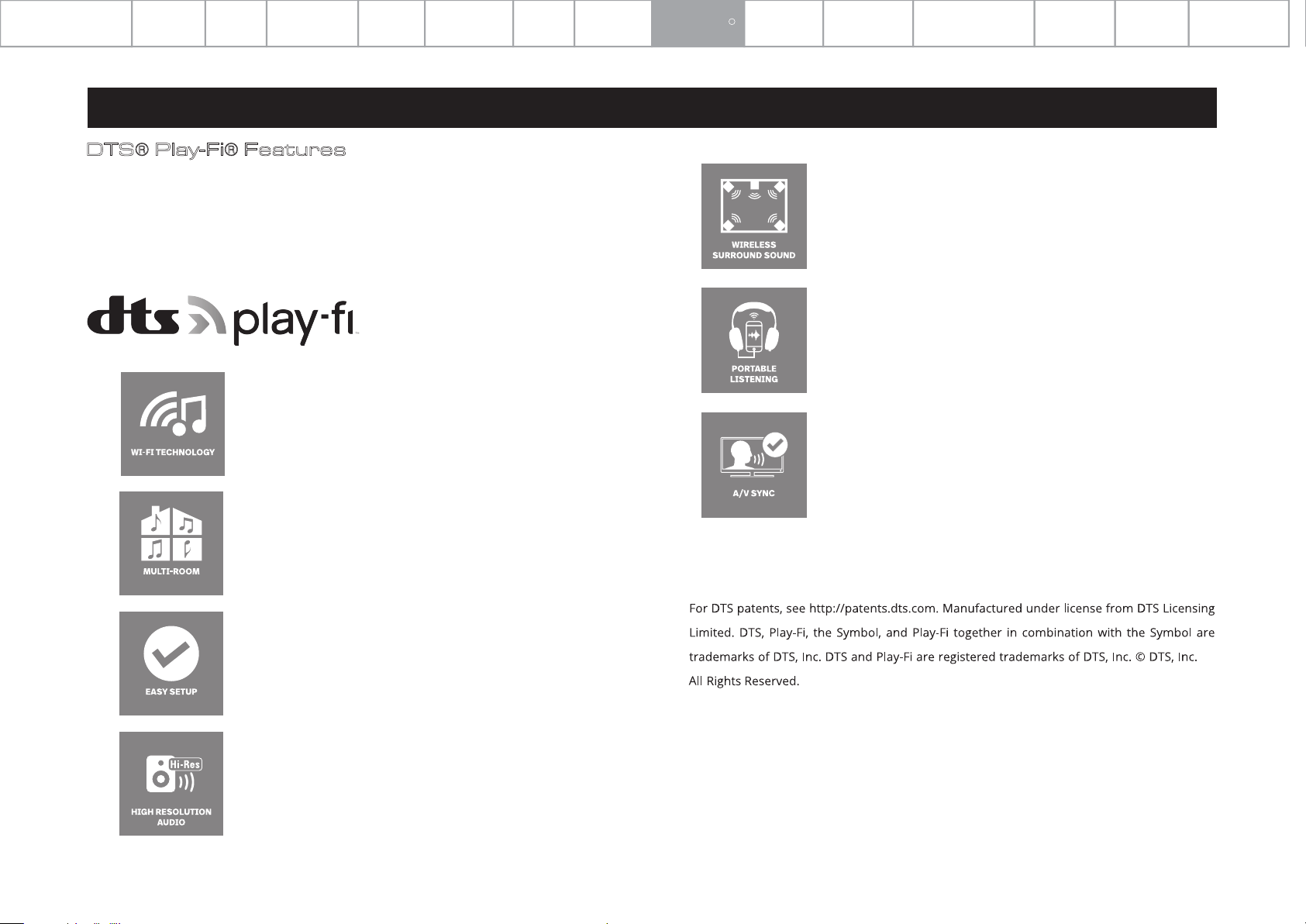
DTS® Play-Fi® Features
With DTS® Play-Fi® technology, stream your favourite music and content with
astounding audio quality, from every device that you own. All DTS Play-Fi enabled
products are seamlessly interoperable, so you can find the perfect speaker, A/V
component, or TV for every room of your home, and control them all with only one
app.
ANY OPERATING SYSTEM
Wi-Fi TECHNOLOGY DTS Play-Fi streams audio over
standard Wi-Fi networks delivering perfectly synced audio
with no lag and zero loss in sound quality.
MULTI-ROOM
Enjoy music in every room of your house - all at once,
perfectly synchronised, with no lag. You’re in control.
WIRELESS SURROUND SOUND
Surround yourself with sound, not wires. Create a wireless
immersive home theatre experience by connecting any
DTS Play-Fi enabled speakers.
PORTABLE LISTENING
Listen over headphones by steaming to a mobile device.
A / V SYNC
Maintain A/C lip sync from video sources across all your
speakers.
Page 13
EASY SETUP
No logins, no complicated computer-based setups. Just
download the app and within minutes, you’re ready to
listen.
HIGH-RESOLUTION AUDIO
With Critical Listening Mode from DTS Play-Fi, steam
lossless audio at resolutions up to 24-bit/192kHz.
Page 14
Important
Safety Introduction
Contents
Getting
Started
Controls and
Functions
Remote
Handset
Connections
Menu
Options
System
Operations
DTS Play-Fi
Download
R
the APP
Wi-Fi
Connection
Wi-Fi
Connection Setup
APP
Operations
Warranty
Coverage
Specifications
10: Download the APP
Download the DTS Play-Fi APP
The DTS Play-Fi APP can be downloaded from the Google Play Store, Amazon APP
Market or Apple App Store. For Windows PC you can download the Play-Fi
Windows APP from the official website: https//play-fi.com
ANDROID APP ON
Avallable on
apps
Download on the
App Store
For Windows PC
Page 14
Wired Network Setting
Connect the Ethernet port to the LAN port of the router using a suitable cable.
After switching on the 7000N Play, the white LED on the front panel and red Wi-Fi
LED on the rear panel will fast-flash during the initialise phase of Wi-Fi mode. The
LED indicator change from white to red on the front panel and slow-flash when
the device is connected to the wired network connection. If the connection is
successful, the red Wi-Fi LED will turn off, and the red LED on the front panel stays
lit.
Wireless Network Setting
You can connect to a wireless network in two modes: WPS mode or standard
mode.
WPS mode:
To make the 7000N Play enter WPS mode, switch the unit on and long-press the
Wi-Fi setup button on the rear panel for 4 seconds. The Wi-Fi LED will double-flash
and beep with a warning tone indicating that WPS mode is active. Then briefly
press the WPS key on your wireless router and the unit should connect to your
wireless network automatically. This connection phase may take up to 60 seconds.
If the connection fails, please try again.
Standard mode:
After switching the 7000N Play on, long-press the Wi-Fi setup button on the rear
panel for 8 seconds. In the first 4 seconds, the Wi-Fi LED will double-flash and beep
with a warning tone, keep holding the button down and after 8 seconds the Wi-Fi
LED will flash quickly and also beep with a warning tone. The standard connection
mode is now active and the Wi-Fi hotspot will be available after 20 seconds. Then
the Wi-Fi LED will flash-breathe with a slow fluctuation between off and on
(reflected by the white LED on the front panel). You can now use your Android or
IOS device to enter the Wi-Fi password using the Play-Fi APP as follows.
Page 15
Important
Safety Introduction
Contents
Getting
Started
Controls and
Functions
Remote
Handset
Connections
Menu
Options
System
Operations
DTS Play-Fi
Download
R
the APP
Wi-Fi
Connection
Wi-Fi
Connection Setup
APP
Operations
Warranty
Coverage
Specifications
11.Wi-Fi Connection Using the APP
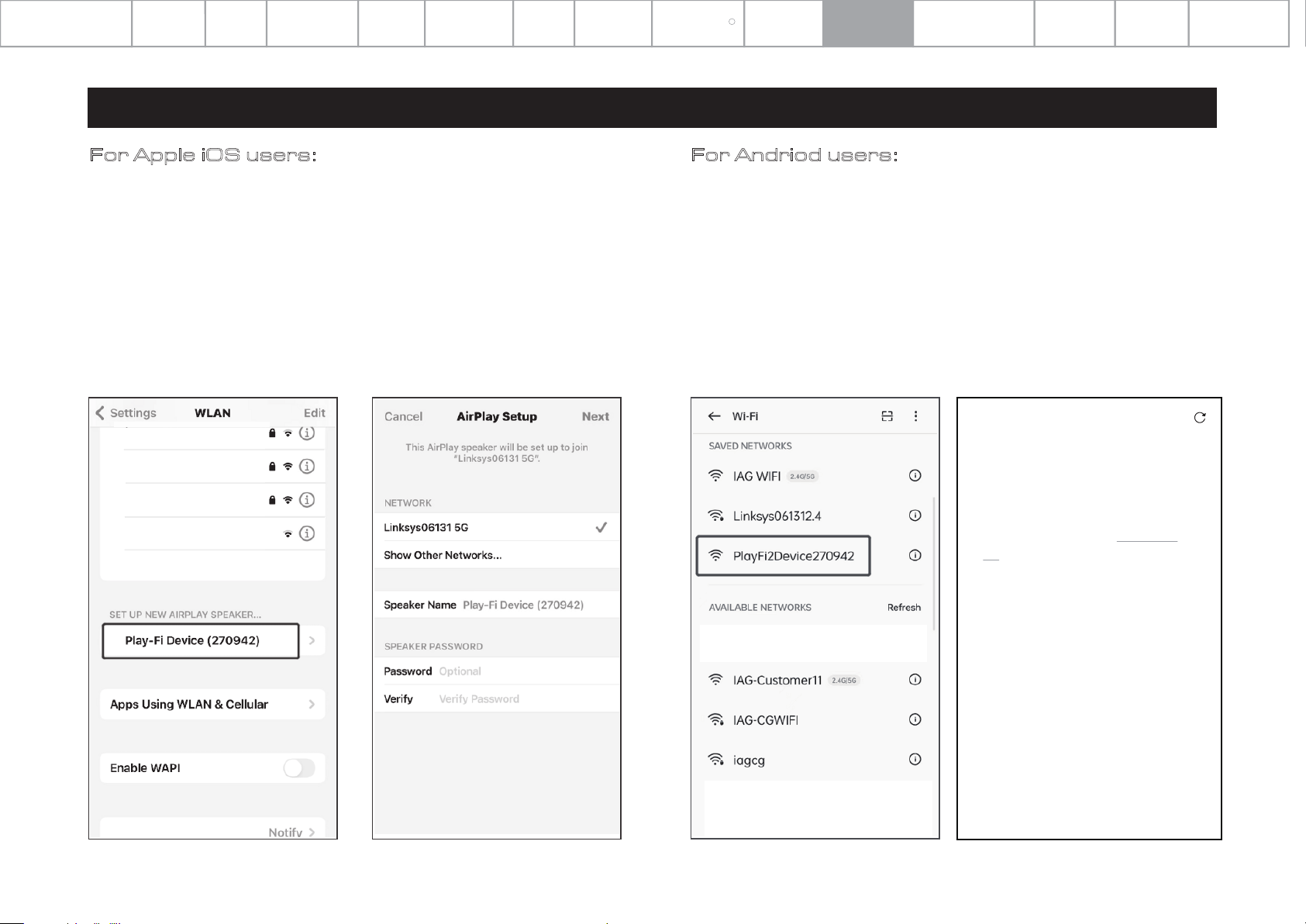
For Apple iOS users:
(1) Please switch to the Settings - Wi-Fi menu on your iPhone, iPad or any other iOS
Devices and select 'PlayFiXDeviceXXXXXX' from the SET UP NEW AIRPLAY SPEAK
ER options.
(2) Select a network to connect to 7000N Play, press Next.
(3) During installation, it will find and upgrade the 7000N Play Play-Fi settings which
may take a few minutes.
(4) After completing the network setup and upgrading you can open the Play-Fi APP
and set a name for the 7000N Play Device and use it.
TP-LINK_COC1A4
iagca_5G
IAG WIFI
Other...
For Andriod users:
(1) Please switch to the Settings - Wi-Fi menu on your smartphone or tablet and
select 'PlayFiXDeviceXXXXXX' from the options.
(2) Open the Play-Fi APP and it will find the 7000N Play Device. Select a Wi-Fi access
point to connect to 7000N Play, and enter your wireless network password.
(3) During installation, the APP will find and upgrade the 7000N Play Play-Fi
settings which may take a few minutes.
(4) After completing the network setup and upgrading you can set a name for the
7000N Play Device and use it.
Page 15
Select Network
×
This app is directly connected to
a Play-Fi device. Select a Wi-Fi
access point below to connecte
this Play-Fi device. If your access
point isn't showing up refresh this
list
iag_cinema
Page 16
Important
Safety Introduction
Contents
Getting
Started
Controls and
Functions
Remote
Handset
Connections
Menu
Options
System
Operations
DTS Play-Fi
Download
R
the APP
Wi-Fi
Connection
Wi-Fi
Connection Setup
APP
Operations
Warranty
Coverage
Specifications
12: Wi-Fi Connection Setup Using a Windows PC or Mac
For PC or Mac users:
If you cannot connect using the DTS Play-Fi APP, or you need to do some high-level options
such as setting the static IP configuration, you can set up the Audiolab 7000N Play using a web
browser from your Windows PC or a Mac.
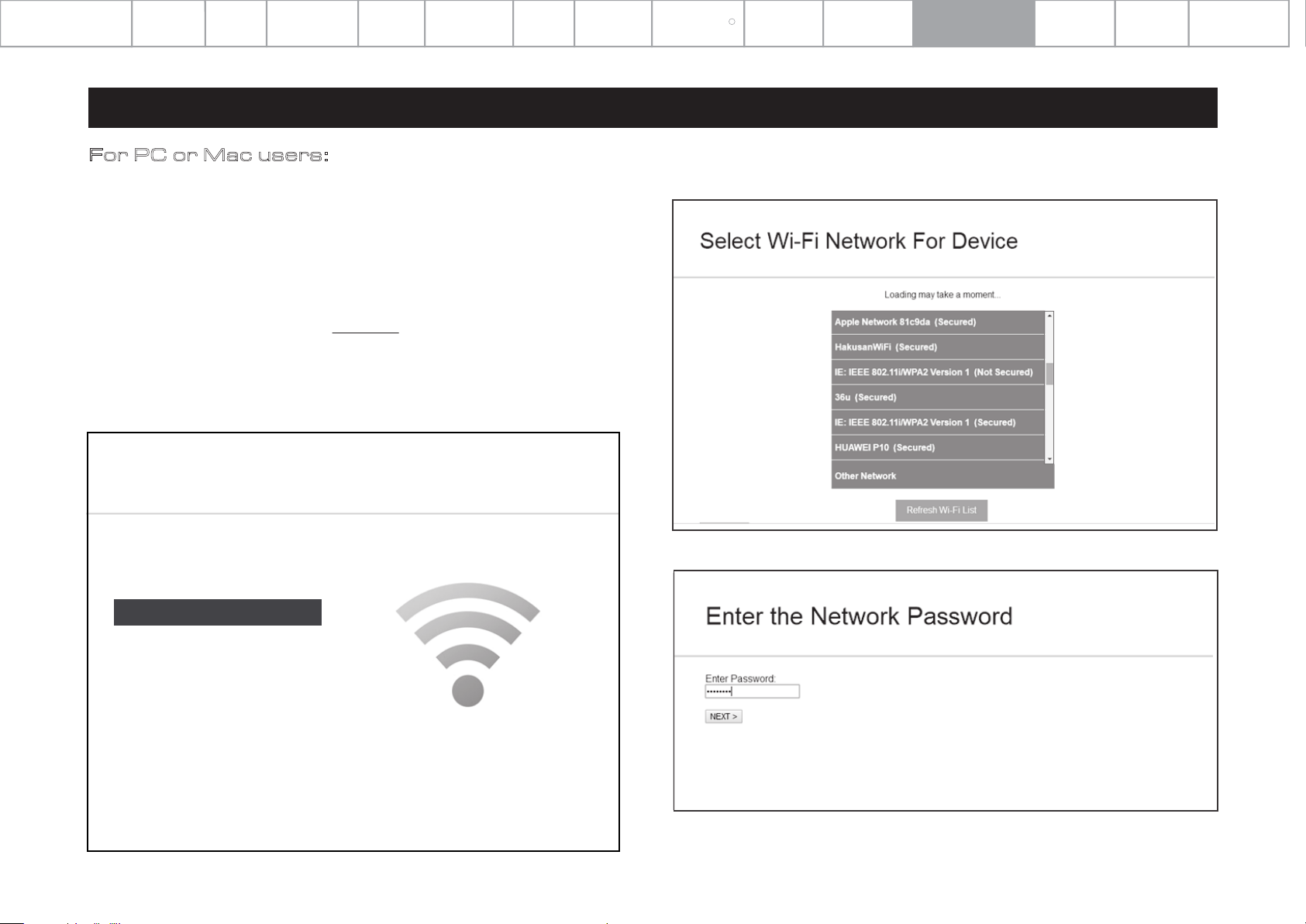
Set the 7000N Play to Standard Setup mode, then follow these steps:
(1) Connect your computer to the wireless Wi-Fi of the 7000N Play - it will show as
'PlayFiXDeviceXXXXXX' or a similar name. After connecting your computer may show 'No
Internet Connection' - this is normal.
(2) Open your Internet Browser and type: 192.168.0.1 in the address bar.
(3) Click the Enter key or click the 'Continue' option in your Internet Browser.
(4) This will open the Play-Fi configuration.
(5) Select the 'Set Up' button.
Settings
Set Up
select the wireless network this speaker / receiver
should connect with. If you are connecting to a
secure network you will need the correct password.
(6) Select your wireless router Wi-Fi network.
(7) Enter the password for your wireless network. Then click the 'NEXT' button.
Page 16
Update Firmware
Set Up
(8) You can then name your 7000N Play Device and click 'NEXT'. The Wi-Fi connection will be
made and you can use the device.
Page 17
Important
Safety Introduction
Contents
Getting
Started
Controls and
Functions
Remote
Handset
Connections
Menu
Options
System
Operations
DTS Play-Fi
Download
R
the APP
Wi-Fi
Connection
Wi-Fi
Connection Setup
APP
Operations
Warranty
Coverage
Specifications
13.APP Operations
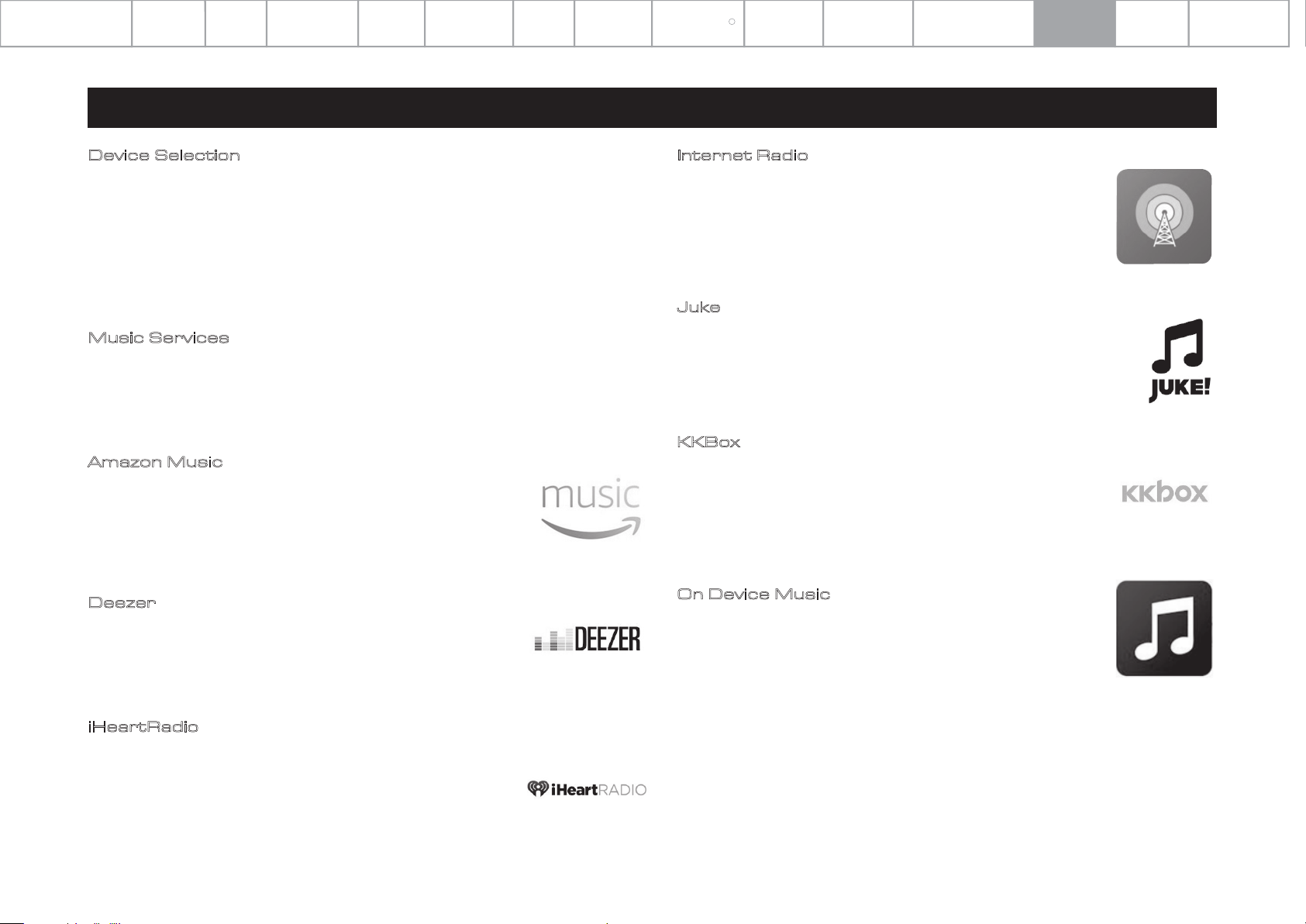
Device Selection
The DTS Play-Fi APP allows you to control and direct streaming music to a variety of devices
throughout your home that use the DTS Play-Fi system. You can set each device to have a
unique name. You can also group devices into an area, where each device will play the same
music.
To select a device and area using the APP, click the '+' icon on the upper right corner of the
APP display. Select an area to add, then select a device on which to play the music. If you
wish to play high-resolution audio files, the icon ’Hi-Res AUDIO’ should be selected.
Music Services
DTS Play-Fi supports the world’s most popular and exciting streaming music services, so you
can enjoy your favorites at home just as easily as you do in the gym. See below for more
information on streaming music service platforms. Please feel free to choose the one you
like. (Note: some streaming music service platforms probably need to be registered.)
Amazon Music
Amazon Prime members can use Amazon's popular music service for
free. A growing selection of over 2 million songs is always ad-free and
on-demand, with curated playlists, personalized stations and unlimited
skips. Upgrade to Prime Music Unlimited, and enjoy 10 million songs,
weekly new releases, and more.
Page 17
Internet Radio
DTS Play-Fi has a built-in Internet Radio service that gives you access to
thousands of radio stations and podcasts from around the globe.
Instantly see your local favorites, or tune in to the BBC, ESPN, Radio
Disney, the Wall Street Journal, and more. Browsing is a snap, and if you
find a station you love, just give it a star and it will be ready to stream
whenever you are. Free, no subscription required.
Juke
With more than 20 million tracks and a dedicated base of music fans,
Juke’s streaming service includes popular features like on-the-go
playlists, new music discovery, and ad-free listening. DTS Play-Fi is the
only multi-room audio platform to offer the Juke service.
KKBox
KKBox is Asia’s leading streaming music service, with over 30 million
tracks from 500 local and major labels, and the most comprehensive
collection of Asia-Pop in the world. Featuring both free and premium
options, the service also includes mood-based programming and
supple-mental content including music news, videos, concert updates
and more.
Deezer
With 43 million tracks, 100 million playlists, and a presence in 182
countries, Deezer literally covers the globe for its subscribers.
Subscriptions start at $9.99/month and include ad-free playback,
premium audio quality, and more.
iHeartRadio
iHeartRadio combines access to over 1,500 of the most popular live
terrestrial and internet radio stations with unique live events and
compelling custom features, like artist radio, personalized radio, and
on-demand podcasts for FREE. Their new Plus and All-Access
subscriptions allow you to pause, rewind, skip and save live radio
content, stream on-demand music, and more.
On Device Music
DTS Play-Fi puts your mobile music collection at your fingertips,
automatically finding and indexing the songs stored on your device. You
can browse and stream by album, artist or genre, and even use your
existing playlists. DTS Play-Fi supports local files in multiple formats,
from MP3 all the way up to premium CD and lossless quality encoding.
Free, with no subscription required.
Page 18
Important
Safety Introduction
13.APP Operations
Contents
Getting
Started
Controls and
Functions
Remote
Handset
Connections
Menu
Options
System
Operations
DTS Play-Fi
Download
R
the APP
Wi-Fi
Connection
Wi-Fi
Connection Setup
APP
Operations
Page 12
Warranty
Coverage
Page 18
Specifications
Media Server
Got a hard drive full of music? Avid digital collectors can access and
stream from media servers using DTS Play-Fi. The system automatically
discovers and indexes music from DLNA and UPnP servers on your
network. You can select and stream files in multiple formats via DTS
Play-Fi, including premium tracks, encoded at CD quality or even
24-bit/192kHz lossless content. No subscription is required.
Napster
Napster integrates the heritage of streaming market pioneer Rhapsody
into its premium, ad-free on-demand service. With 30 million tracks,
instant playlist creation, and anytime, anywhere access, Napster is
justifiably popular on multiple continents with millions of subscribers.
Pandora
Listen free to music you’ll love, as Pandora’s streaming service evolves
with your tastes. Give songs a thumbs up or down, and your stations
become more personal the more you listen. Enjoy the service at no
charge with ads, upgrade to Pandora Plus for commercial-free streaming,
or try Pandora Premium to add on-demand features and premium sound
quality to your experience.
Qobuz
Based in France, Qobuz was founded and built around a premium audio
quality experience. It boasts 70,000 albums available for streaming at
24/192, with much more streaming at 16/44 CD quality. The service also
features in-depth artist profiles and editorial content.
QQMusic
China’s largest music streaming service offers tens of millions of tracks
and thousands of radio stations to its 400 million monthly active users.
With free and premium tiers and both local and international content, QQ
Music is a dominant force in music listening in China.
SoundMachine
Business never sounded so good! Whether it’s in an office or a
restaurant, a retailer or a hotel, background music enhances both
the customer and the employee experience. Hundreds of stations
and millions of songs, including the ability to create artist stations, so
you can design the perfect sound for your brand. Fully licensed for
business environments.
Spotify
Their motto is ‘Music for Everyone’, and with millions of listeners
around the globe, Spotify seems to be onto something. Create and
share playlists, or choose from thousands of curated collections.
Spotify Premium subscribers can stream directly to any DTS Play-Fi
enabled speaker directly from the Spotify App. Available in the US
and more than 50 other countries. The Spotify Software is subject to
third-party licenses found here:
www.spotify.com/connect/third-party-licenses.
Use your phone, tablet or computer as a remote control for Spotify.
Go to spotify.com/connect to learn how.
Tidal
High Fidelity Music Streaming is Tidal’s hallmark. Every track on the
service streams in premium audio format, with most in lossless CD
quality or above. The service also boasts many exclusive new
releases, artist-curated stations and in-depth features designed to
complement the music offerings. Available to DTS Play-Fi users in the
US and more than 50 other countries.
In addition to the support listed above, it also supports music
services such as BBC, ESPN RADIO, HD tracks, NPR, TuneIn and so
on, and there will be more music platforms involved in the
development.
DISCLAIMER: Not all music services are available in all regions and
countries.
SiriusXM
With over 150 channels of commercial-free music plus sports, talk,
comedy, entertainment, news and more, it’s no wonder that Sirius XM is
one of the most widely used premium streaming services in North
America. It’s a snap to go from listening in your car to listening at home
with DTS Play-Fi.
Page 19
Important
Safety Introduction
Contents
Getting
Started
Controls and
Functions
Remote
Handset
Connections
Menu
Options
System
Operations
DTS Play-Fi
Download
R
the APP
Wi-Fi
Connection
Wi-Fi
Connection Setup
APP
Operations
Warranty
Coverage
Specifications
13.APP Operations
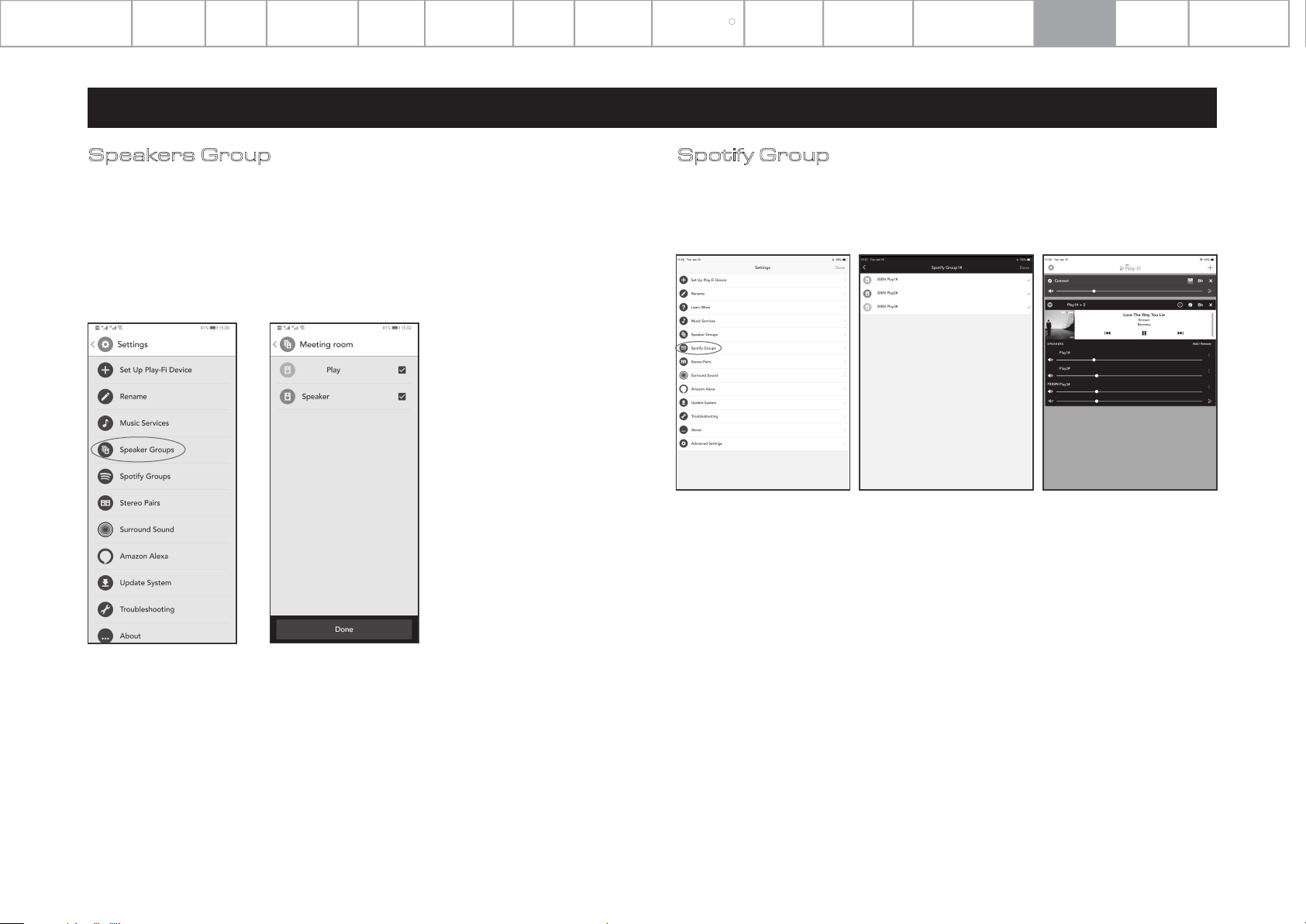
Speakers Group
To stream music from 7000N Play to multi-room devices such as DTS Play-Fi enabled
Speakers, open the DTS Play-Fi APP, find the device or speaker, give it a name and then add it.
To delete the device or speaker, just click on the right side of the device name and then delete.
Currently, it is not recommended to wirelessly stream Hi-Res audio to speakers if you want
stable, uninterrupted playback.
7000N
Page 19
Spotify Group
Open Set up in the DTS Play-Fi App; click the Spotify Group. Create a new group and name it,
then select any DTS Play-Fi enabled products you want in this group (on the right side). Any
speakers that can’t be joined to a Spotify Group will be greyed out. Once you’re satisfied, head
to the Spotify app to start streaming.
7
7
7
For trouble shooting and fault diagnosis, you can open the APP settings to find the ‘Fault
diagnosis’, then enter the DTS Play-Fi website knowledge base which has detailed information
and customer support.
7000N
7000N
7000N
System updates are provided by OTA (over the air) automatic updates in conjunction with the
DTS Play-Fi App. If system requires a manual update, click 'Update System' and the process
will proceed automatically. Click ‘About’, to check the current DTS Play-Fi’s APP version and
the status of network connection, IP address, versions of the module software and MCU.
Under ‘Advanced Settings’ you can choose from various options – the default mode settings
are generally recommended.
Page 20
Important
Safety Introduction
Contents
Getting
Started
Controls and
Functions
Remote
Handset
Connections
Menu
Options
System
Operations
DTS Play-Fi
Download
R
the APP
Wi-Fi
Connection
Wi-Fi
Connection Setup
APP
Operations
Warranty
Coverage
Specifications
14:
Audiolab warrants its products, subject to the following terms and conditions
below, to be free from defects in materials and workmanship.
Warranty Coverage
Online Registration
Scan the QR code using a smart-phone device,
for product warranty registration online.
The three (3) year extended warranty is applicable to items purchased from Jan
1st 2021, onwards. Items purchased prior to this date are not eligible for this
extended warranty service but are subject to statutory warranty claims and all
applicable consumer rights.
To qualify for the extended 3 year warranty, you must register your product
within ninety (90) calendar days from the date of purchase. Visit
audiolab.co.uk/warranty-registration to complete your online registration. Items
not registered online will have a Limited Warranty for one (1) year, or for the
period of your country’s statutory warranty, whichever is longer.
Warranty can only be offered to products registered with proof of purchase with
date, model and details of the authorised dealer clearly stated on the
receipt/invoice. Please keep the original receipt/invoice in case it is required for a
warranty claim.
This Limited Warranty is non-transferable and is offered exclusively to the original
owner.
This Limited Warranty is valid only in the original country of purchase.
Repairs or replacements are provided under this warranty are the exclusive
remedy of the consumer. Audiolab shall not be liable for any incidental or
consequential damages for breach of any expenses or implied warranty with any
product. Except to the extent prohibited by law, this warranty is exclusive and in
lieu of all other warranties whatsoever, both expressed and implied, including but
not limited to the warrant of merchantability and fitness for practical purpose.
This warranty provides benefits that are additional to and do not affect your
statutory consumer rights.
Page 20
This Limited Warranty offer is subject to correct information being submitted in
your application. Incorrect dates or mismatched purchase receipt dates that are
outside of the warranty terms will immediately invalidate any warranty claim.
*Please check with your dealer local distributor for further information.
Exclusions
The following items are excluded from the Audiolab warranty:
Normal wear and tear and cosmetic damage (including but not limited to any wear
from reasonable use, environmental deterioration or neglect)
Products on which the serial number has been removed, altered or otherwise
made illegible.
Products not purchased from an authorised Audiolab dealer.
Products that were not new at the time of original purchase.
Products sold ‘as is’, ‘as seen’ or ‘with faults’
Product not purchased from an Authorised Dealer/Distributor within the region of
the claim (ie parallel imports or grey market products)
Accidental damage or faults caused by commercial use, acts of God, incorrect
installation, incorrect connection, incorrect packaging, misuse or careless
operation or handling which is not in accordance with the user instructions.
Equipment that has been operated in conjunction with unsuitable, inappropriate
or faulty apparatus.
Repairs, alterations or modifications carried out by parties other than Audiolab or
its authorised service partners.
Damage in transit that cannot be attributable to the fault of Audiolab, the
authorised distributor or dealer (ie. claims otherwise covered by transit insurance.)
Faults relating to abnormal or inappropriate power supply voltage or power surges.
Faults relating to extremities in temperature, exposure to heat, water or other
liquids, insects, excessive moisture, sand, chemicals, battery leakage or any other
contaminants.
Any force majeure events, including but not limited to any acts of God, fire,
lightning, typhoon, storm, earthquake, hurricane, natural disaster, tsunami, flood,
war, riot, public disturbance.
Any other causes beyond the reasonable control of either Audiolab and its
Authorised Distributor.
Please note items purchased before 1st Jan 2021 are not eligible for the extended
warranty claim.
Page 21
Important
Safety Introduction
Contents
Getting
Started
Controls and
Functions
Remote
Handset
Connections
Menu
Options
System
Operations
DTS Play-Fi
Download
R
the APP
Wi-Fi
Connection
Wi-Fi
Connection Setup
APP
Operations
Warranty
Coverage
Specifications
14:
Warranty Coverage
How to claim
To obtain warranty service please contact the authorised dealer from which you
purchased this product and present the limited warranty certificate offered upon
registration of your product’s extended warranty offer.
Do not dispatch goods without the prior agreement of the dealer distributor or
authorised service centre.
If asked to return products for inspection and or repair, please pack carefully
preferably in the original carton or packaging affording an equal degree of
protection and returned via insured, trackable courier service.
The authorised dealer or distributor will offer full return details and instructions.
However, please note if unsuitable packaging is used the warranty may be
deemed void due to improper action in return.
Audiolab or the authorised distributor, dealer or service centre may make a
charge for the supply of new packaging for the return of the repaired item. Please
note, insurance is recommended as goods are returned at the owner’s risk.
Authorised distributors or service centres cannot be held liable for loss or
damage in transit. insurance and freight charges on the return journey will be
paid for by Audiolab, authorised dealer, distributor or service centre if corrective
work proves to be necessary.
In the event of ‘no-fault found’ or ‘no repair necessary’, the return shipping charge
will be the responsibility of the owner.
Repairs
All repairs will be carried out by the appointed distributor (or locally appointed
service centre). Repairs handled or processed without authorisation or approval
of the appointed representative will be excluded from this limited warranty.
Please note, Audiolab is not able to supply parts or replacement items to any
other entity than the official distributor or authorised service centre.
Other than the warranty and services set out in this warranty, to the fullest extent
permitted by law, Audiolab shall not be liable to you and/or any third party or
entity whatsoever for:
Page 21
Any loss, damages and/or malfunction caused to any product(s) which is/are
•
connected to any of the products covered by this warranty.
Any damages, loss and liability, whether direct, indirect, incidental,
•
consequential special, punitive or otherwise, howsoever caused by, arising out
of or otherwise, in relation to the installation, delivery, use, service, repair,
replacement and/or maintenance of the product;
Any damages, loss and liability under this warranty in respect of any act,
•
omission, or negligence of any of their technicians, employees, agents,
representatives or independent contractors relating to the actual or purported
performance of any of the obligations under this warranty.
Service Centre Address
Should a fault occur with your product, please pack it correctly using the original
packing, so you can ship it safely. For technical support, servicing or product
queries and information, please contact either your local retailer or the office
below:
IAG Service Dept.
13/14 Glebe Road
Huntingdon
Cambridgeshire
PE29 7DL
UK
Tel: +44(0)1480 452561
Email: [email protected]
For information on other authorised service centres worldwide contact Audiolab
International, UK.
A worldwide distributors list is available on the Audiolab website:
www.audiolab.co.uk
Page 22
Important
Safety Introduction
Contents
Getting
Started
Controls and
Functions
Remote
Handset
Connections
Menu
Options
System
Operations
DTS Play-Fi
Download
R
the APP
Wi-Fi
Connection
Wi-Fi
Connection Setup
APP
Operations
Warranty
Coverage
Specifications
15.Specifications
Model 7000N Play
General Description
Design Philosophy
and Core Technology
Digital Section
Digital Output Intensity
Output Impedance
Frequency Response
Max. Sampling Frequency
Digital Outputs
D to A Converter
Variable Output Voltage
DAC
Frequency Response
Total Harmonic Distortion (THD)
Max. Sampling Frequency
Signal-to-Noise Ratio (S/N)
Output Impedance
Wireless Audio Streaming Player
- ESS Sabre ES9038Q2M Reference DAC
- Isolated Power Supply
- 2.8" (48 x 64mm) Full View IPS LCD
- DTS Play-Fi Technology
- Streaming Service Support includes Amazon Music,
Spotify, TIDAL, KKBox, SiriusXM, Napster, Internet Radio,
Deezer, iHeartRadio, PANDORA, Qobuz, QQ Music and
more)
- Apple Airplay 2 compatible
- Multi-room / Multi Speaker Group Support
- Android / iOS / Kindle Fire/ Windows PC Control Support
- Automatic Equipment Activation Via 12V Trigger And Link
- Wired Internet Connection For High Bandwidth Applications
- USB Firmware Upgrade Input
500 +/- 50mVpp
75 ohms
-0.01dB (20Hz-20kHz, ref.1kHz)
192kHz / 24-bit
1 x Coaxial, 1 x Optical, 1 x RCA Line Output
0 – 2.1V
ES9038Q2M
+/-0.5dB (20Hz-20kHz, ref.1kHz)
<0.0005% (1kHz @2.1Vrms)
192kHz / 24-bit
>115dB (A-weighted)
100 ohms
General
Standby Power Consumption
Dimensions (mm) (W x D x H)
Carton Size (mm) (W x D x H)
Net Weight
Gross Weight
Finish
Power Requirements
(depending on region)
Safety Regulation Conformity
Standard Accessories
Page 22
<0.5W
444 x 340 x 78
500 x 455 x 140
5.0kg
6.1kg
Black / Silver
220-240V ~ 50/60Hz
100-120V ~50/60Hz
20-600 ohms
Power Cord, USB Cable, User Manual
Page 23

Page 24

Audiolab
IAG House,
13 /14 Glebe Road,
Huntingdon,
Cambridgeshire,
PE29 7DL,
UK
Telephone: +44(0)1480 452561
Email: [email protected]
http://www.audiolab.co.uk
 Loading...