

Page 1

ARCATA 2806 USER GUIDE
(For use with the VCSe 100)
TM
IDEAS THAT COMMUNICATE
TM
TM
Page 2

This document is the copyright of Teltronics, Inc. and is intended for exclusive use of Teltronics customers. All rights are
reserved. Information in this document is subject to change without notice. Companies, names, and data used in examples
herein are fictitious unless otherwise noted. No part of this document may be reproduced, modified, republished, distributed,
displayed, or transmitted in any form or by any means, electronic or mechanical, for any purpose, without the express written
permission of Teltronics, Inc.
© 2011 Teltronics, Inc. All rights reserved.
The material in this document has been carefully reviewed; however, Teltronics, Inc. neither guarantees nor represents that
this document is free of all errors or omissions and reserves the right to make corrections, changes, updates, or revisions to the
information contained herein at any time.
Cerato VCSe and Arcata are trademark/service marks of and the exclusive property of Teltronics, Inc. of Palmetto, FL.
Other than those trademarks/servicemarks held by Teltronics, Inc., any other brand and product names referenced in this
manual are trademarks or registered trademarks of their respective holders and are used here for informational purposes
only.
Part Number: 610-0000-0849 Rev E
Teltronics, Inc.
2511 Corporate Way
Palmetto Florida 34221-8478 USA
Visit our web site at www.teltronics.com
Arcata 2806 User Guide
Page 3

TELTRONICS, INC. END USER LICENSE AGREEMENT (12.13.10)
TELTRONICS, INC. END USER LICENSE AGREEMENT (12.13.10)
NOTICE: BY WRITTEN ACKNOWLEDGMENT, DOWNLOADING, INSTALLING, COPYING, ACCESSING, CLICKING ON AN “ACCEPT” BUTTON, OR
OTHERWISE USING THE PRODUCT, END USER AGREES TO THE TERMS OF THIS END USER LICENSE AGREEMENT. IF YOU ARE ACCEPTING THESE
TERMS ON BEHALF OF THE END USER, YOU REPRESENT AND WARRANT THAT YOU ARE ACTING ON BEHALF OF THE END USER AND ARE
AUTHORIZED TO ACCEPT THIS END USER LICENSE AGREEMENT ON THE END USER’S BEHALF AND THAT YOU HAVE THE FULL AUTHORITY TO BIND
THE END USER TO THESE TERMS AND CONDITIONS (SUCH END USER BEING HEREIN REFERRED TO AS “YOU”). IF YOU DO NOT AGREE TO THESE
TERMS AND CONDTIONS, DO NOT DOWNLOAD, INSTALL, COPY, ACCESS, OR USE THE PRODUCT; AND WITHIN THIRTY (30) DAYS OF DELIVERY OF THE
PRODUCT RETURN THE UNUSED PRODUCT AND PROOF OF PURCHASE TO THE PARTY FROM WHOM YOU PAID THE PRODUCT PURCHASE PRICE AND
LICENSE FEES FOR A REFUND, IF ANY OR SELECT THE “DO NOT ACCEPT” BUTTON. YOU AGREE THAT YOU HAVE READ, UNDERSTAND AND SHALL
ABIDE BY THIS END USER LICENSE AGREEMENT AND YOU AGREE THAT THIS END USER LICENSE AGREEMENT IS ENFORECABLE LIKE ANY WRITTEN
NEGOTIATED AGREEMENT SIGNED BY YOU.
THE FOLLOWING TERMS AND CONDITIONS OF THIS END USER AGREEMENT AND SEPARATE AGREEMENT(S) INCORPORATED HEREIN BY
REFERENCE (COLLECTIVELY, “AGREEMENT”) APPLIES TO THE PRODUCTS DESCRIBED HEREIN AND FURNISHED TO YOU BY TELTRONICS OR ITS
DISTRIBUTOR OR RESELLER. THE SOFTWARE IS NOT SOLD TO YOU, BUT IS THE PROPERTY OF TELTRONICS AND/OR ONE OR MORE OTHER THIRD
PARTY LICENSORS PROTECTED BY COPYRIGHT LAWS AND INTERNATIONAL TREATY. ANY USE OF THE SOFTWARE IS GOVERNED BY THIS
AGREEMENT. YOU AGREE THAT YOU ARE LICENSING THE SOFWARE FOR YOUR END USE ONLY AND NOT FOR RESALE OR REDISTRIBUTION.
1. DEFINITIONS. “Product” means equipment, Software, product documentation and associated services furnished to You concerning the use and support
of the Product. “Software” means software object code, firmware, application interfaces, documentation and any modifications, updates, or revisions thereto or
versions thereof on magnetic tape, diskette, CD-ROM, semiconductor device or other memory device.
Arcata 2806 i User Guide
Page 4

TELTRONICS, INC. END USER LICENSE AGREEMENT (12.13.10)
2. LICENSE. (a) With respect to all Software of Teltronics and/or its vendors or suppliers which may be furnished to You by Teltronics hereunder, You
accept and agree to abide by all the license terms and conditions set forth herein and any other separate license agreements that are specific to, and included in
document or shrink wrap form with the shipment of particular Software, or presented in electronic form (including click wrap form) during the loading or installation of
such Software. In the event of any conflict between the license terms and conditions set forth herein and any such separate license agreements specific to any
particular Software, the license agreements specific to such particular Software shall prevail with respect to such particular Software. All Software furnished hereunder
shall be licensed only as set forth herein.
(b) Subject to your compliance with this Agreement including the license obligations pursuant to this Section , and your payment of the applicable license
fees, Teltronics grants to You a personal, nontransferable, nonexclusive and revocable license to use the Software solely with the equipment sold to You by Teltronics
or its distributor or reseller, or such other equipment as may be authorized by Teltronics to support such use of the Software for your own business operation up to the
number of concurrent devices and/or ports as may be authorized by Teltronics. You shall not copy the Software except that You are permitted to make one (1) copy of
the Software, to the extent that it is made available in a form than is intended to be copied, only for backup purposes, provided that You shall include on such copy the
same copyright notice and proprietary marking that appear on the original Software including diskette markings.
(c) You shall (i) not modify, translate, reverse engineer, reverse compile, decompile, recompile, disassemble, port, copy, download or attempt to derive the
source code from the Software, and no license to the source code is provided herein; (ii) take all actions necessary to satisfy your obligations under these license
provisions including the issuance of adequate instructions and monitoring of all appropriate personnel within your organization to ensure that such personnel satisfy
these license obligations; and (iii) promptly return to Teltronics any magnetic tape, diskette, CD-ROM, semiconductor device or other memory device or system and/or
Documentation, which has been replaced, modified or updated by Teltronics.
(d) The Software and all copies thereof shall at all times remain the sole and exclusive property of Teltronics or its third party vendors or suppliers, as
applicable, and You shall have no title to or interest in such Software and copies thereof. You acknowledge that the Software constitutes valuable trade secrets of
Teltronics and its third party vendors or suppliers. You agree to use the Software solely in accordance with license provisions herein and all the terms and conditions
of this Agreement and to treat the Software as the confidential and proprietary information of Teltronics. If You sell or otherwise dispose of the media on which the
Software is fixed, such Software must be erased or destroyed before any such sale or disposal so that the Software is no longer ascertainable from such media.
(e) If You sell or otherwise transfer or dispose of the equipment which supports the use of the Software in your business operation, or if You fail to comply
with any of the terms of this Agreement, all of your rights hereunder to possess and use the Software and all copies thereof shall immediately terminate and You agree
to promptly return the Software and all copies thereof to Teltronics.
Arcata 2806 ii User Guide
Page 5

TELTRONICS, INC. END USER LICENSE AGREEMENT (12.13.10)
3. PRODUCT CHARGES AND LICENSE FEES. You agree to pay the then current Prices in the form of Product charges and Software license fees in
consideration of the rights granted under this Agreement.
4. TERM. The Agreement is effective upon your acceptance of its terms as herein provided or any use of the Products and shall continue until terminated.
You may terminate this Agreement at any time by returning the Software and all copies thereof and extracts therefrom to Teltronics. Teltronics may terminate this
Agreement upon the breach by You of any term of this Agreement, and Teltronics shall have the right to injunctive relief enjoining such acts or attempts constituting a
breach (in addition to other legal remedies, all of which are non-exclusive). Upon such termination by Teltronics, You agree to promptly return to Teltronics the
Software and all copies and extracts thereof. The following provision shall survive any termination of this Agreement: “Limited Warranty,” “Limitation of Liability,”
“Governing Law, Venue and Jurisdiction,” “Enforceability,” “No Waiver,” “Export Compliance,” and “Entire Agreement.”
5. LIMITED WARRANTY. IF YOU PURCHASED THE PRODUCT DIRECTLY FROM TELTRONICS, THE ONLY WARRANTY TELTRONICS PROVIDES WITH
RESPECT TO SUCH PRODUCT IS THE WRITTEN LIMITED WARRANTY STATEMENT INCLUDED WITH THE PRODUCT OR, IF NO LIMITED WARRANTY
STATEMENT IS INCLUDED WITH THE PRODUCT, THEN THE LIMITED WARRANTY STATEMENT AVAILABLE AT WWW.TELTRONICS.COM/LEGAL.ASP
SHALL APPLY TO SUCH PRODUCT. ANY SUCH LIMITED WARRANTY IS IN LIEU OF ALL OTHER WARRANTIES WHETHER EXPRESS, IMPLIED OR
STATUTORY, INCLUDING WITHOUT LIMITATION, ANY IMPLIED WARRANTY OF MERCHANTABILITY OR FITNESS FOR A PARTICULAR PURPOSE OR NONINFRINGEMENT. WITHOUT LIMITING THE FOREGOING, TELTRONICS DOES NOT WARRANT THAT SUCH PRODUCT WILL BE WITHOUT FAILURE, DELAY,
ERROR, BREAKDOWN, OUTAGE, INTERRUPTION, DEGRADATION OF VOICE QUALITY OR LOSS OF CONTENT, DATA OR INFORMATION. THE REMEDIES
PROVIDED TO YOU UNDER TELTRONICS LIMITED WARRANTY ARE YOUR SOLE AND EXCLUSIVE REMEDIES. IN THE EVENT THAT SUCH LIMITED
WARRANTY FAILS OF ITS ESSENTIAL PURPOSE, YOUR SOLE AND EXCLUSIVE REMEDY SHALL BE LIMITED TO THE REFUND OF WHATEVER PORTION
OF THE PRICE OR LICENSE FEE YOU PAID TO TELTRONICS FOR THE DEFECTIVE ITEM COVERED BY SUCH LIMITED WARRANTY. IF YOU PURCHASED
THE PRODUCT FROM A TELTRONICS AUTHORIZED RESELLER OR A TELTRONICS AUTHORIZED DISTRIBUTOR, THEN YOU AGREE TO LOOK TO SUCH
AUTHORIZED RESELLER OR AUTHORIZED DISTRIBUTOR ONLY, FOR ANY LIMITED WARRANTY THAT MAY APPLY TO THE PRODUCT (UNLESS IN LIEU
THEREOF, TELTRONICS AGREES IN WRITING TO OFFER ITS LIMITED WARRANTY STATEMENT DIRECTLY TO YOU).
Arcata 2806 iii User Guide
Page 6

TELTRONICS, INC. END USER LICENSE AGREEMENT (12.13.10)
6. LIMITATION OF LIABILITY. IN NO EVENT WILL TELTRONICS BE LIABLE FOR INCIDENTAL, INDIRECT, SPECIAL, CONSEQUENTIAL,
EXEMPLARY OR PUNITIVE DAMAGES OF ANY KIND EVEN IF THEY ARE FORESEEN OR FORESEEABLE. TELTRONICS' MAXIMUM CUMULATIVE LIABILITY
RELATIVE TO ALL OTHER CLAIMS AND LIABILITIES, INCLUDING THAT WITH RESPECT TO DIRECT DAMAGES, WILL NOT EXCEED THE LICENSE FEE PAID
FOR THE SOFTWARE GIVING RISE TO THE CLAIM OR LIABILITY. THESE DISCLAIMERS AND LIMITATIONS OF LIABILITY WILL APPLY REGARDLESS OF
ANY OTHER CONTRARY PROVISION OF THIS AGREEMENT AND REGARDLESS OF THE FORM OF ACTION, WHETHER IN CONTRACT, TORT OR
OTHERWISE, AND FURTHER WILL EXTEND TO THE BENEFIT OF TELTRONICS' SUPPLIERS, DISTRIBUTORS AND RESELLERS AS THIRD-PARTY
BENEFICIARIES. EACH PROVISION IN THE AGREEMENT WHICH PROVIDES FOR A LIMITATION OF LIABILITY, DISCLAIMER OF WARRANTY OR
CONDITION OR EXCLUSION OF DAMAGES IS SEVERABLE AND INDEPENDENT OF ANY OTHER PROVISION AND IS TO BE ENFORCED AS SUCH.
7. GOVERNING LAW, VENUE, AND JURISDICTION. This Agreement will be governed by and construed in accordance with the laws of the State of
Florida but without regard to that state’s conflict of laws principles. The parties agree that any action to enforce any provision of this Agreement or arising out of this
Agreement or the business relationship between Teltronics and You will be brought in the state or Federal court of competent jurisdiction in the State of Florida. You
and Teltronics agree that the United Nations Convention on Contracts for the International Sale of Goods (1980) shall not apply or govern this Agreement, the
performance of, or any transaction between the parties under this Agreement. Reasonable attorney fees shall be reimbursed, with respect to the foregoing, to the party
who prevails on the merits.
8. ENFORCEABILITY. If any provision of this Agreement shall be held to be invalid, illegal or unenforceable, the validity, legality or enforceability of the
remaining provisions shall in no way be affected or impaired.
9. NO WAIVER. Any non-enforcement of any provision of this Agreement by Teltronics shall not constitute a waiver of such provision or prejudice
Teltronics right to enforce such provision.
10. EXPORT COMPLIANCE. The Products including Software, product documentation and technology or direct products thereof ("Products and
Technology") are subject to U.S. export control laws and regulations and the export of such Products and Technology is conditioned upon receipt of U.S. Government
licenses and approvals. You shall ensure that no Products and Technology shall reach any country where U.S. law prohibits the possession or use of such Items. You
shall comply with all export regulations of the U.S. Department of Commerce and shall not transfer any Products and Technology from the country of delivery, or to any
facility engaged in the design, development, stockpiling, manufacturing or use of nuclear, missile, chemical or biological weapons, or to any military end-user or for a
military end-use, without first obtaining Teltronics’ written approval and all required approvals of the applicable U.S. agencies. Your obligations hereunder shall survive
so long as You possess or control the Products and Technology.
Arcata 2806 iv User Guide
Page 7

TELTRONICS, INC. END USER LICENSE AGREEMENT (12.13.10)
11. THIRD PARTY LICENSE AGREEMENTS. A. You acknowledge and agree that installation and/or use of the Software may be subject to activation by
license key.
B. Teltronics licenses or may license certain portions of its software from others, inclusive of certain components of the Software that consist of open source
software (“GPL Software”) subject to the GNU General Public License, Version 3, June 29, 2007 (the “GNU”), a copy of which will be provided to End User upon its
written request to Teltronics, Inc. 2511 Corporate Way, Palmetto, FL 34221. GPL Software is not owned by Teltronics. Notwithstanding anything in this Agreement to
the contrary, GPL Software is distributed by Teltronics to End User for End User’s use solely under the terms of the GNU which govern the GPL Software and the
copying, distribution, and modification of the GPL Software. Teltronics may also provide SMS (short message services) and voice services for interoperating with the
Software (“Third Party Software/Services”).Teltronics makes no representations or warranties as to such Third Party Software/Services or their operation, except to the
extent such third party vendor provides such representation or warranty to Teltronics.
C. Vovida Software License (Version 1.0 Copyright (c) 2000 Vovida Networks, Inc. All rights reserved). Redistribution and use in source and binary forms,
with or without modification, are permitted provided that the following conditions are met: (i) Redistributions of source code must retain the above copyright notice, this
list of conditions and the following disclaimer;(ii) Redistributions in binary form must reproduce the above copyright notice, this list of conditions and the following
disclaimer in the documentation and/or other materials provided with the distribution; (iii)The names "VOCAL", "Vovida Open Communication Application Library", and
"Vovida Open Communication Application Library (VOCAL)" must not be used to endorse or promote products derived from this software without prior written
permission. For written permission, please contact [email protected]
in their name, without prior written permission of Vovida Networks, Inc. (v)THIS SOFTWARE IS PROVIDED "AS IS" AND ANY EXPRESSED OR IMPLIED
WARRANTIES, INCLUDING, BUT NOT LIMITED TO, THE IMPLIED WARRANTIES OF MERCHANTABILITY, FITNESS FOR A PARTICULAR PURPOSE, TITLE
AND NON-INFRINGEMENT ARE DISCLAIMED. IN NO EVENT SHALL VOVIDA NETWORKS, INC. OR ITS CONTRIBUTORS BE LIABLE FOR ANY DIRECT
DAMAGES IN EXCESS OF $1,000, NOR FOR ANY INDIRECT, INCIDENTAL, SPECIAL, EXEMPLARY, OR CONSEQUENTIAL DAMAGES (INCLUDING, BUT NOT
LIMITED TO, PROCUREMENT OF SUBSTITUTE GOODS OR SERVICES; LOSS OF USE, DATA, OR PROFITS; OR BUSINESS INTERRUPTION) HOWEVER
CAUSED AND ON ANY THEORY OF LIABILITY, WHETHER IN CONTRACT, STRICT LIABILITY, OR TORT (INCLUDING NEGLIGENCE OR OTHERWISE)
ARISING IN ANY WAY OUT OF THE USE OF THIS SOFTWARE, EVEN IF ADVISED OF THE POSSIBILITY OF SUCH DAMAGE.
. (iv) Products derived from this software may not be called "VOCAL", nor may "VOCAL" appear
Arcata 2806 v User Guide
Page 8

TELTRONICS, INC. END USER LICENSE AGREEMENT (12.13.10)
12. ENTIRE AGREEMENT. This Agreement and any written agreement executed by Teltronics and You for the supply of the Software and related Products represent
the entire agreement between Teltronics and You and supersede all prior oral and written communications, agreements, promises, and understandings concerning the
Software and related Products. In the event of any conflict between the terms of any written agreement executed by You and Teltronics and those of this Agreement,
the terms of this Agreement shall prevail. Terms and conditions as set forth in any purchase order which differ from, conflict with, or are not included in this Agreement,
shall not become part of this Agreement unless specifically accepted by Teltronics in writing.
Arcata 2806 vi User Guide
Page 9

TELTRONICS PRODUCTS FOR VOIP COMMUNICATIONS 911 EMERGENCY
TELTRONICS PRODUCTS FOR VOIP COMMUNICATIONS 911 EMERGENCY CALLING LIMITATIONS AND OBLIGATIONS
(a) Customer, at Customer’s cost, shall be responsible for procuring the supply, implementation, connection and
support of any required telephone service including emergency 911 call service over the Internet and/or public switched
telephone network (“PSTN”) from one or more third party service providers as required for use of Products including without
limitation, VOIP phone and Soft Phone software and hardware furnished by Teltronics or its distributors or resellers (“Products”)
for voice over internet protocol (“VOIP”) communications.
(b) Customer are responsible for complying with all laws, rules and regulations applicable to the installation and use
of Products (collectively, “Laws”) including without limitation all Laws relating to 911 dialing for emergency service.
(c) 911 dialing to an appropriate public safety answering point (“PSAP”) for emergency service is limited when using
a VOIP phone and Soft Phone Product co-located with and connected to the switch Product at Customer’s enterprise location because VOIP communication service may be interrupted, delayed, lost or terminated due to various causes including
but not limited to power outage, excessive bandwidth consumption, termination of service with or by the network service
provider and/ or other T1 provider, product, equipment, software, system and/or network failures or computer viruses. It is
strongly recommended that Customer make alternative 911 dialing available to employees and other individuals at Customer’s enterprise via traditional wire line service over the PSTN.
(d) Prior to initiating the use of Products in conjunction with any IP network including Internet telephone service for
VOIP communications, Customer shall notify, in writing, each employee and any other person authorized to use the Products
for such VOIP communications (individually and collectively “User(s))” of the following limitations:
Arcata 2806 vii User Guide
Page 10

TELTRONICS PRODUCTS FOR VOIP COMMUNICATIONS 911 EMERGENCY
911 DIALING TO AN APPROPRIATE PUBLIC SAFETY ANSWERING POINT (“PSAP”) FOR EMERGENCY SERVICE IS NOT
AVAILABLE WHEN USING ANY PORTABLE VOIP PHONE OR SOFTPHONE PRODUCT AT A STREET ADDRESS THAT IS DIFFERENT FROM
THE STREET ADDRESS OF THE END USER’S ENTERPRISE WHERE ITS SWITCH IS LOCATED AND CONNECTED VIA AN IP NETWORK
CONNECTION TO THAT REMOTE LOCATION. DO NOT USE SUCH PORTABLE VOIP PHONE OR SOFT PHONE PRODUCT AT THE
REMOTE LOCATION TO PLACE 911 EMERGENCY CALLS BECAUSE SUCH PORTABLE VOIP PHONE OR SOFT PHONE IS NOT CAPABLE OF COMMUNICATING THE STREET ADDRESS OF THE REMOTE LOCATION.
EMERGENCY 911 CALLS SHOULD BE PLACED OVER A WIRE LINE PHONE AT THE REMOTE LOCATION WHICH IS CONNECTED TO TRADITIONAL PUBLIC SWITCHED TELEPHONE NETWORK (“PSTN”) FOR LOCAL SERVICE OR OTHER PHONE THAT IS
CAPABLE OF COMMUNICATING THE STREET ADDRESS OF THE REMOTE LOCATION TO HELP INSURE THAT SUCH EMERGENCY 911
CALLS ARE ROUTED TO THE APPROPRIATE PSAP OPERATOR RESPONSIBLE FOR RESPONDING TO EMERGENCIES AT THE REMOTE
LOCATION.
USERS MUST WARN ALL INDIVIDUALS AT THE REMOTE LOCATION THAT SUCH PORTABLE VOIP PHONE OR SOFT PHONE
PRODUCT CAN NOT BE USED TO PLACE ANY SUCH EMERGENCY 911 CALLS FROM THE REMOTE LOCATION BECAUSE OF THIS
LIMITATION. USERS MUST INSTRUCT ALL INDIVIDUALS AT THE REMOTE LOCATION TO PLACE ANY 911 CALLS FOR EMERGENCY
RESPONSE TO THE REMOTE LOCATION FROM A WIRE LINE PHONE AT THE REMOTE LOCATION WHICH IS CONNECTED TO THE
TRADITIONAL PSTN FOR LOCAL SERVICE OR OTHER PHONE THAT IS CAPABLE OF COMMUNICATING THE STREET ADDRESS OF THE
REMOTE LOCATION TO HELP INSURE THAT SUCH EMERGENCY 911 CALLS ARE ROUTED TO THE APPROPRIATE PSAP RESPONSIBLE
FOR RESPONDING TO EMERGENCIES AT THE REMOTE LOCATION.
(e) If Customer permits any User to use the VOIP phone or Soft Phone Product at a remote location connected to
the switch at Customer’s enterprise location, it is strongly recommended that Customer affix a non removable label on the
hand set of each VOIP phone or Soft Phone Product, prior to any such use that displays the following clear and conspicuous
warning.
Arcata 2806 viii User Guide
Page 11

TELTRONICS PRODUCTS FOR VOIP COMMUNICATIONS 911 EMERGENCY
DO NOT USE THIS PHONE TO DIAL 911 EMERGENCY SERVICE CALLS UNLESS USER IS PHYSICALLY LOCATED AT THE FOLLOWING ADDRESS: (INSERT CUSTOMER’S ENTERPRISE ADDRESS WHERE THE PSAP WILL RESPOND TO 911 EMERGENCY CALLS
DIALED THROUGH THE SWITCH).
(f) Customer agrees to defend, indemnify and hold harmless Teltronics, its subsidiaries, affiliates and their respective
officers, directors, employees, distributor, agents and suppliers from any obligations, claims, suits, demands, causes of action,
losses, liabilities, fines, penalties, damages, costs, or expenses, (including without limitation, attorneys fees), arising on
account of any injury or death of persons, or damage to property asserted or incurred by or on behalf of any User, governmental entity or any other party arising out of or resulting from (i) any of Customer acts or omissions including without limitation, any failure of Customer to comply with any Laws; or (ii) any use, inability to use, removal, failure, delay, error,
breakdown, absence, outage or interruption of any telephone service including emergency 911 call service over the Internet and/or PSTN or any software, hardware or Product including without limitation, any VOIP phone or Soft Phone Product.
Arcata 2806 ix User Guide
Page 12

TELTRONICS PRODUCTS FOR VOIP COMMUNICATIONS 911 EMERGENCY
This page intentionally blank.
Arcata 2806 x User Guide
Page 13

Contents
TELTRONICS, INC. END USER LICENSE AGREEMENT (12.13.10) ......................................................................i
TELTRONICS PRODUCTS FOR VOIP COMMUNICATIONS
911 EMERGENCY CALLING LIMITATIONS AND OBLIGATIONS .................................................................... vii
PREFACE .............................................................................................................................XVII
About the User Guide .................................................................................................................................xviii
Compliance ................................................................................................................................................... xx
INSTALLING THE PHONE ........................................................................................................ 1
Components ....................................................................................................................................................1
Attaching the Stand .......................................................................................................................................3
Connecting the Handset and Headset .......................................................................................................4
Connecting to the Network and Power .......................................................................................................5
Connecting to Other Network Devices (Optional) .....................................................................................6
GETTING TO KNOW YOUR PHONE ......................................................................................... 7
Phone Description ...........................................................................................................................................8
Components .........................................................................................................................................9
Function Keys ......................................................................................................................................11
Arcata 2806 xi User Guide
Page 14

Using the Phone User Interface ...................................................................................................................13
The Main Menu ...................................................................................................................................14
Accessing Options ..............................................................................................................................16
Viewing Phone Status ...................................................................................................................................19
LEDs ................................................................................................................................................................20
Account Button LEDs ..........................................................................................................................20
Power/Status Indication LED ..............................................................................................................20
Call/Line Appearance for BLF ...........................................................................................................21
Call/Line Appearance for BLA (Bridged Line Appearances) ........................................................21
Display Icons ..................................................................................................................................................22
BASIC PHONE FUNCTIONS ................................................................................................... 23
Introduction ...................................................................................................................................................23
Making a Call ................................................................................................................................................24
Initiating a Call ....................................................................................................................................24
Dialing Options ....................................................................................................................................24
On-hook Dialing/Live Dialpad ...........................................................................................................25
Setting a Default Account .................................................................................................................25
Dialing a Contact ...............................................................................................................................26
Searching Contacts ............................................................................................................................27
Audio Redial ........................................................................................................................................28
Arcata 2806 xii User Guide
Page 15

Answering a Call ...........................................................................................................................................29
Other Options for Incoming Calls .....................................................................................................29
Answering When on a Call ................................................................................................................30
Call Pick Up ....................................................................................................................................................31
Group Call Park/Pickup ................................................................................................................................32
Directed Call Park/Pickup ............................................................................................................................33
Paging ............................................................................................................................................................34
Adjusting the Ring Volume ...........................................................................................................................35
Idle State ..............................................................................................................................................35
Adjusting the Volume on an Active Call ....................................................................................................36
Denying an Incoming Call ...........................................................................................................................37
Muting a Call .................................................................................................................................................39
Placing a Call on Hold ..................................................................................................................................39
Transferring a Call ..........................................................................................................................................40
Establishing a 3-Way Conference ...............................................................................................................41
Leaving a Conference .......................................................................................................................42
Retrieving a New Voice Message ...............................................................................................................43
Accessing your Voice Mailbox ..........................................................................................................43
Viewing Call History .......................................................................................................................................44
Viewing Missed Calls .....................................................................................................................................45
Shared Extensions ..........................................................................................................................................46
Bridged Line Appearance .................................................................................................................46
Arcata 2806 xiii User Guide
Page 16

Busy Lamp Field (BLF)/Direct Station Select (DSS) ...........................................................................46
Monitor .................................................................................................................................................47
CUSTOMIZING YOUR PHONE ................................................................................................ 49
Managing Contacts/Blacklists .....................................................................................................................50
Adding a Contact/Blacklist ...............................................................................................................51
Editing a Contact/Blacklist ................................................................................................................52
Deleting a Contact/Blacklist .............................................................................................................53
Moving a Contact to the Blacklist/Contact ....................................................................................54
Configuring Features ....................................................................................................................................55
Setting up Auto Redial .......................................................................................................................56
Call Forward ........................................................................................................................................58
Call Waiting .........................................................................................................................................61
Modifying Basic Settings ...............................................................................................................................62
Changing the Language ...................................................................................................................63
Changing the Time and Date ...........................................................................................................65
Changing the Time Zone ...................................................................................................................66
Changing the Time and Date ...........................................................................................................67
Changing the Date & Time Format ..................................................................................................68
Adjusting the Volume .........................................................................................................................69
Changing the Ring Tone ....................................................................................................................70
Arcata 2806 xiv User Guide
Page 17

Modifying Advanced Settings .....................................................................................................................71
Accessing Advanced Settings ..........................................................................................................71
WAN Options .......................................................................................................................................72
PC Port .................................................................................................................................................72
Network Settings .................................................................................................................................72
VPN .......................................................................................................................................................73
Customizing the Display ...............................................................................................................................74
Arcata 2806 xv User Guide
Page 18

Arcata 2806 xvi User Guide
Page 19

Preface
PREFACE
Thank you for choosing an Arcata phone from Teltronics. Arcata phones are especially
designed for power users in an office environment. They feature a fashionable and sleek design
and abundant telephony features.
In this guide you will find everything you need to quickly use your new phone.
Arcata 2806 xvii User Guide
Page 20

Preface About the User Guide
About the User Guide
This guide is for Arcata series phone users; it contains all of the basic information needed to use
the phone, including the following:
• Assembling your Phone - unpacking and setting up the phone
• Getting to Know Your Phone – identifies and describes phone components
• Using the Basic Call Functions – instructions for performing basic tasks on your phone, such as
making a call, using features, and retrieving voice messages.
• Customizing Your Phone – instructions to change the default behavior of your phone, such as
ring tone and volume.
Arcata 2806 xviii User Guide
Page 21
Preface About the User Guide
Styles
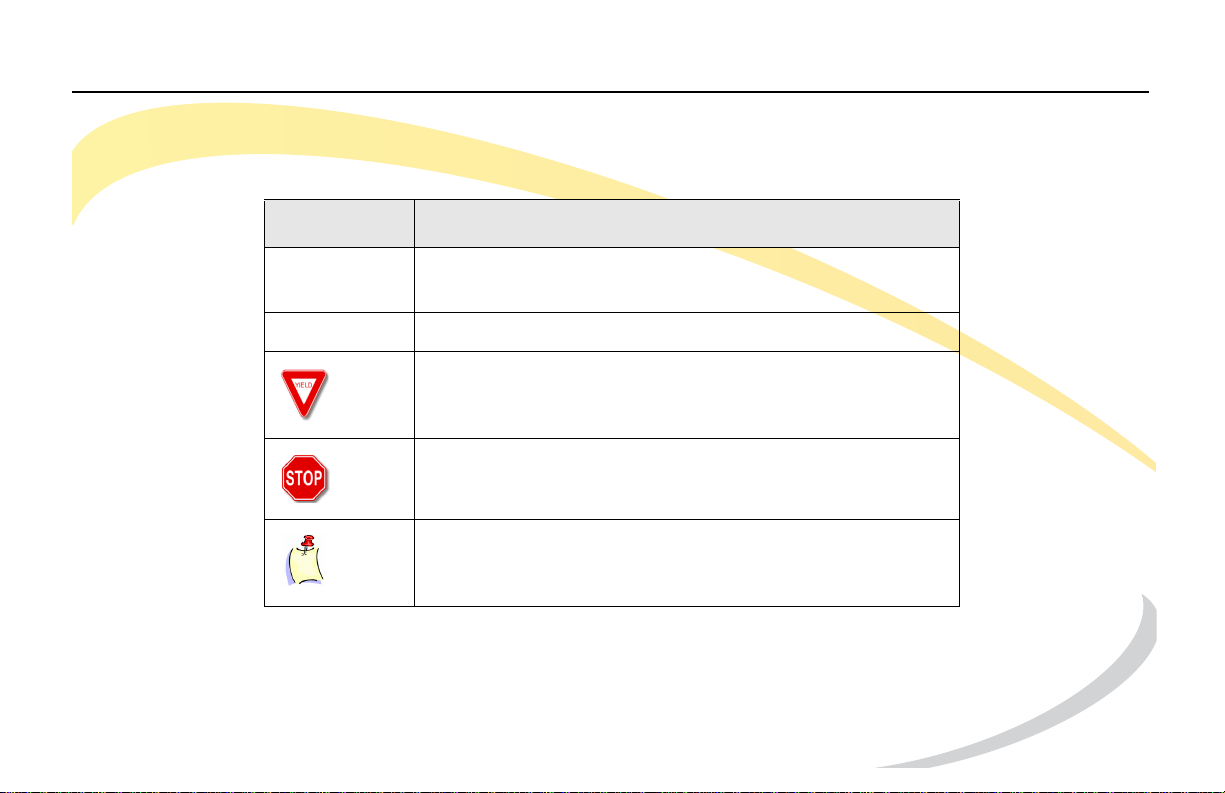
The following styles and icons are used in this manual.
Style / Icon Used to:
BOLD indicate buttons relating to specific feature actions
(such as press HOLD).
Italic emphasize document names and cross references.
caution users about a specific action.
warn users of consequences relating to an action.
indicate a notation or tip relevant to the current
topic.
Arcata 2806 xix User Guide
Page 22

Preface Compliance
Compliance
Declaration of Conformity
We declare that this phone is in conformity with the essential requirements and other relevant
provisions of the CE, FCC.
CE Mark Warning
This is a class B device in a domestic environment. This product may cause radio interference,
which may require the user to take adequate measures.
WEEE Warning
To avoid the potential effects on the environment and human health as a result of the
presence of hazardous substances in electrical and electronic equipment, end users of
electrical and electronic equipment should understand the meaning of the crossed-out
wheeled bin symbol. Do not dispose of WEEE as unsorted municipal waste and have to collect
such WEEE separately.
Arcata 2806 xx User Guide
Page 23

Installing the Phone Components
INSTALLING THE PHONE
This section shows how to assemble the phone and make connections.
Components
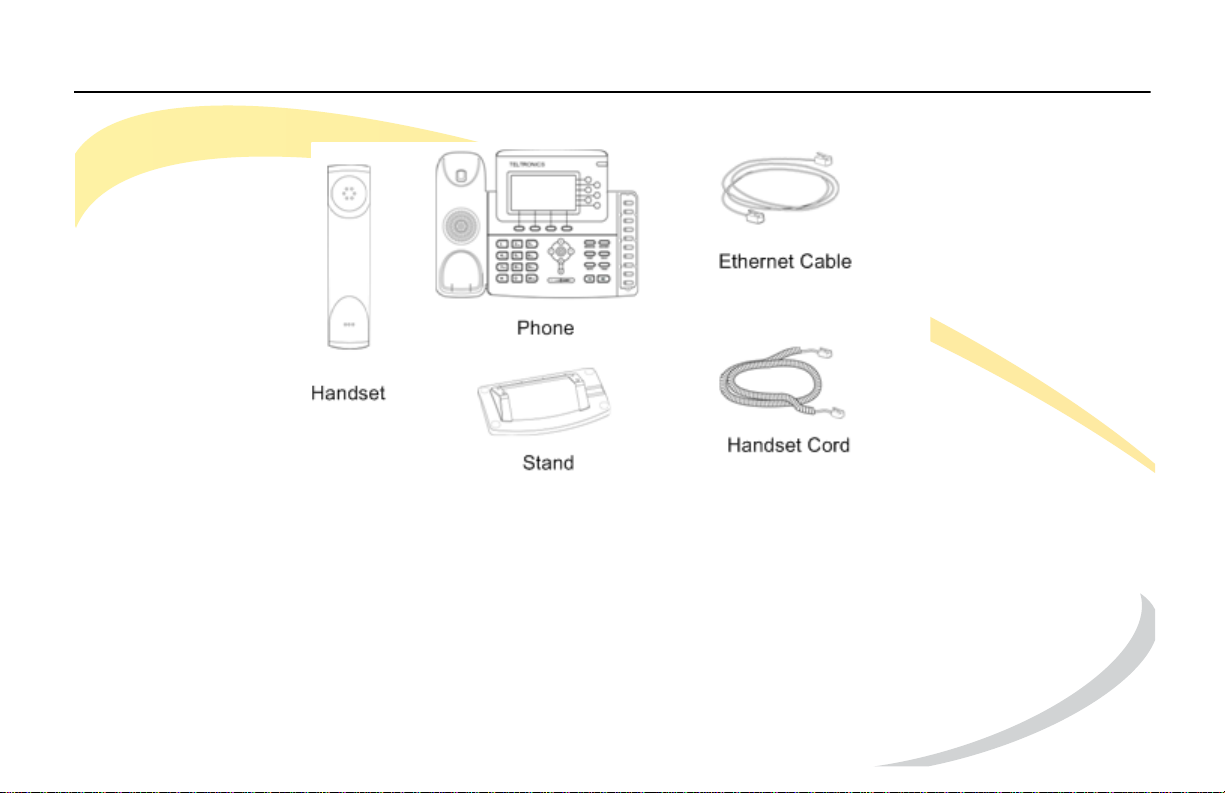
Your Arcata phone shipment should include the components listed below. Check this list
before installation to ensure that you have received each item. If you are missing any items,
contact your distributor.
• Phone
•Stand
• Handset and Cord
• Ethernet Cable
Arcata 2806 1 User Guide
Page 24
Installing the Phone Components
Arcata 2806 2 User Guide
Page 25
Installing the Phone Attaching the Stand
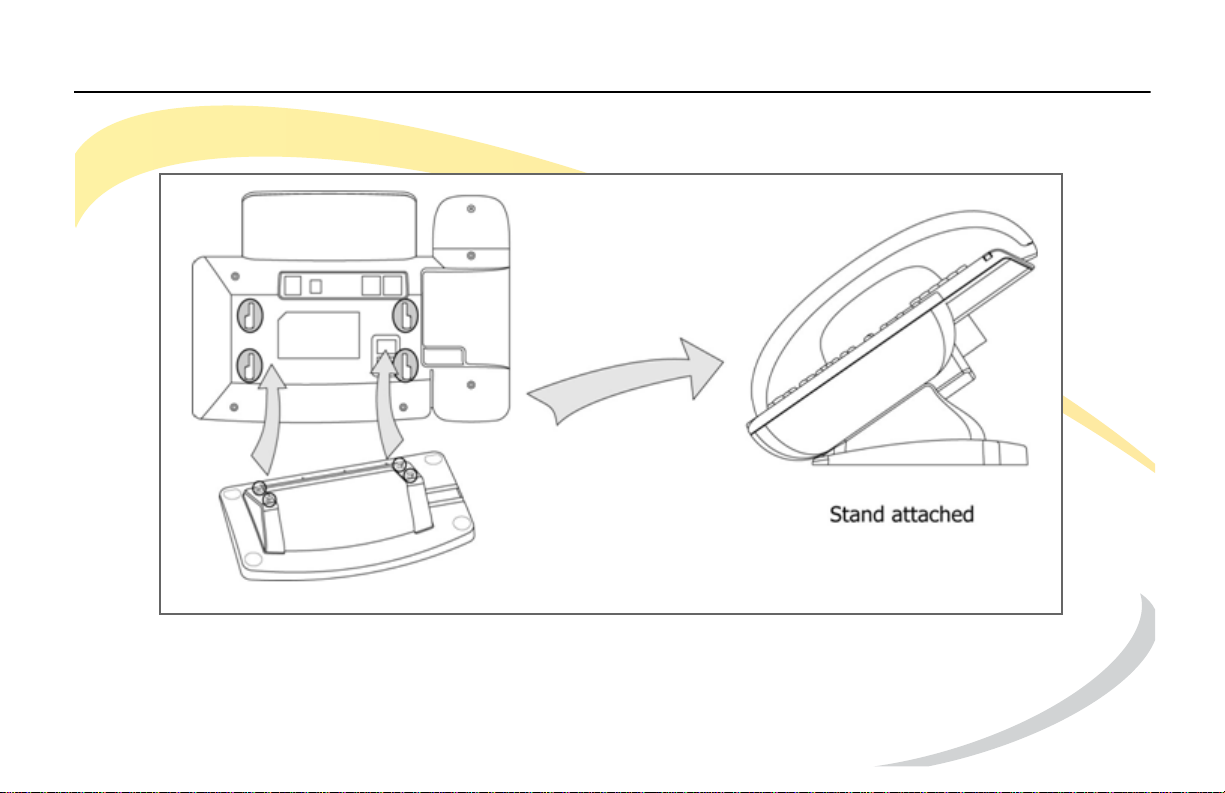
Attaching the Stand
Arcata 2806 3 User Guide
Page 26
Installing the Phone Connecting the Handset and Headset
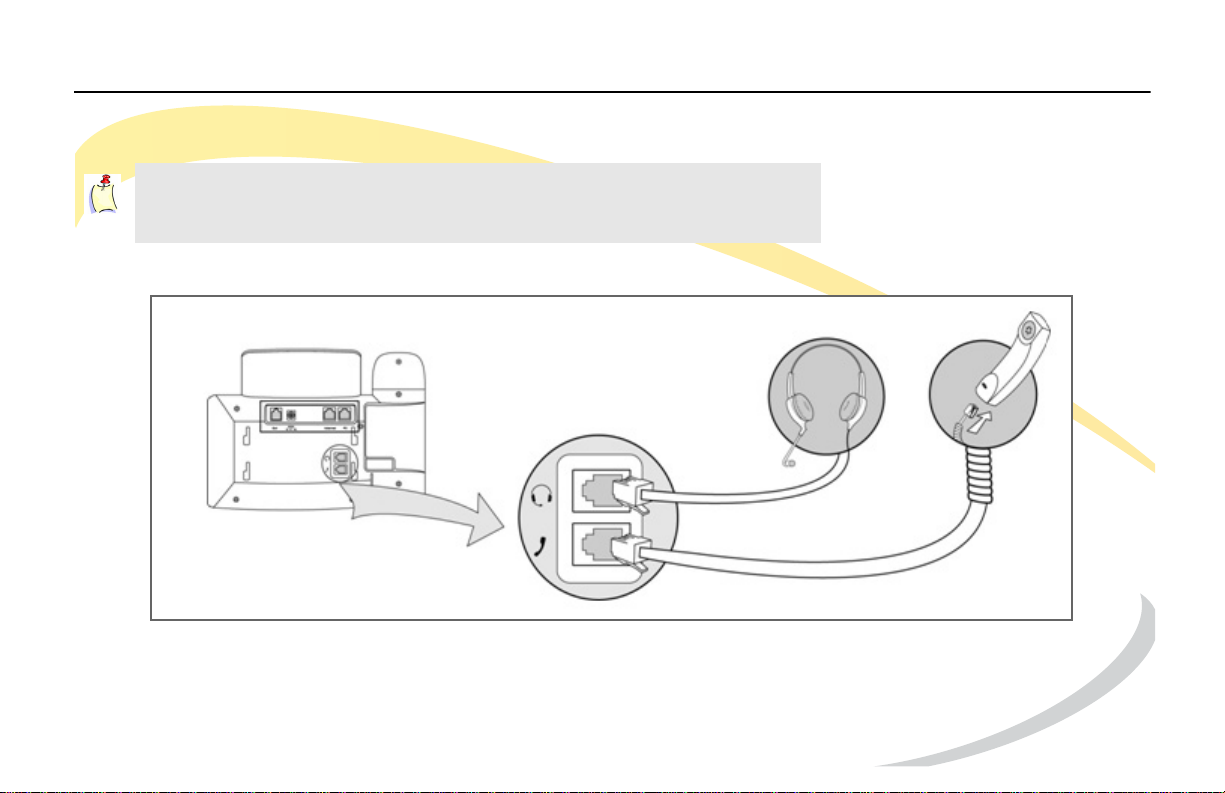
Connecting the Handset and Headset
Note: The headset is not included. Please contact your
distributor to purchase.
Arcata 2806 4 User Guide
Page 27
Installing the Phone Connecting to the Network and Power
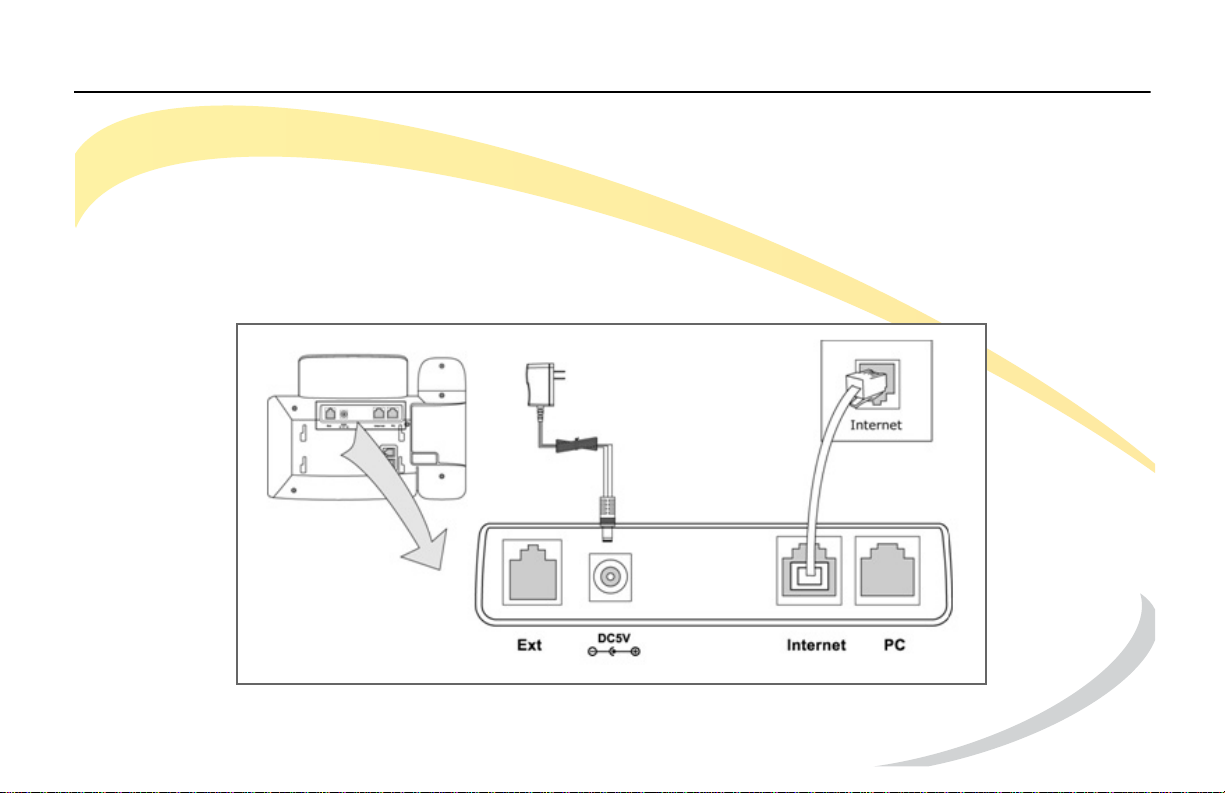
Connecting to the Network and Power
You can connect the phone to an optional AC power source directly using a PoE adapter
(ordered separately) or to a PoE compliant switch or hub. Your System Administrator will advise
you on which one to use.
The Internet Port can be connected to a Hub/Switch or other internet devices (not included).
Make sure the Ethernet cable and switch/hub is PoE compliant.
CAUTION: If in-line power is provided, do not install the AC adapter.
Arcata 2806 5 User Guide
Page 28
Installing the Phone Connecting to Other Network Devices (Optional)
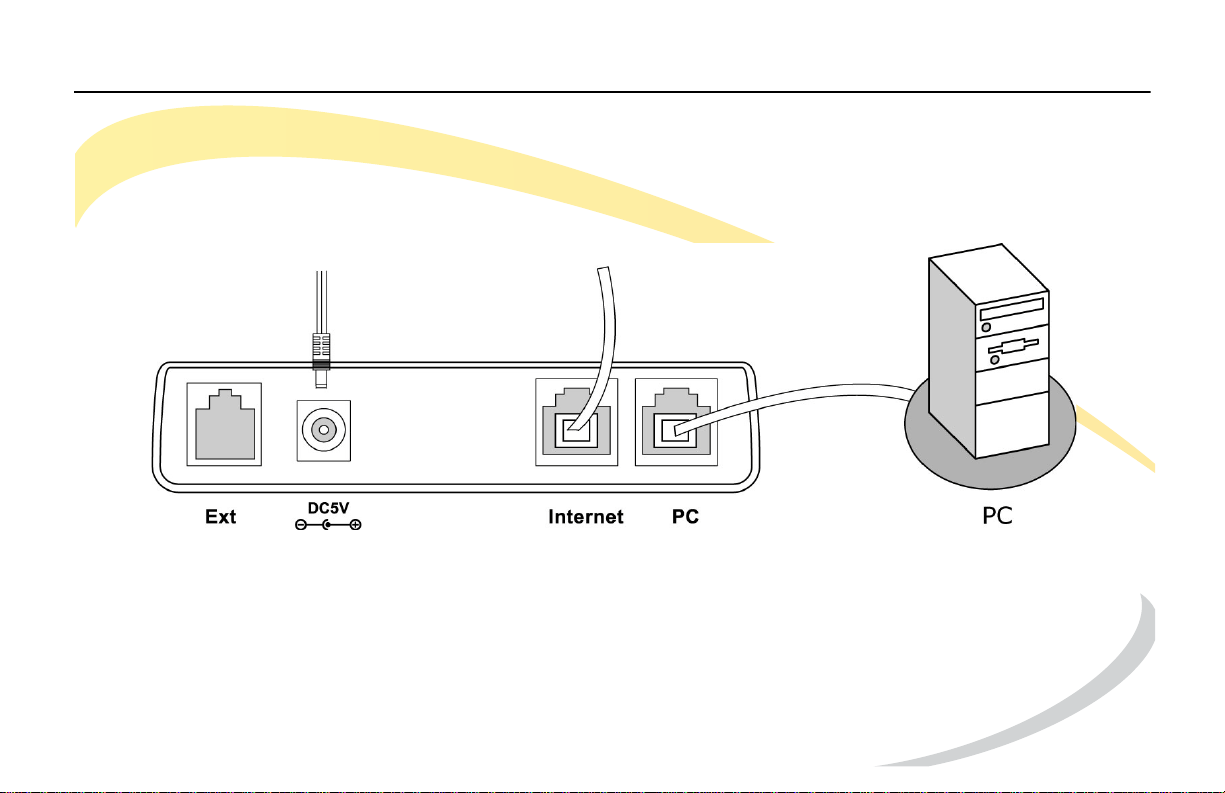
Connecting to Other Network Devices (Optional)
The phone can share the network connection with other network devices, such as a PC. Connect the
phone’s PC port and computer’s Network Port together using an Ethernet cable, as shown below.
Arcata 2806 6 User Guide
Page 29

Getting to Know Your Phone
GETTING TO KNOW YOUR PHONE
This section includes the following information:
• a description of the buttons and controls on your Arcata series phone.
• steps for using the phone user interface to make and receive calls, use features, and
configure settings.
Arcata 2806 7 User Guide
Page 30
Getting to Know Your Phone Phone Description
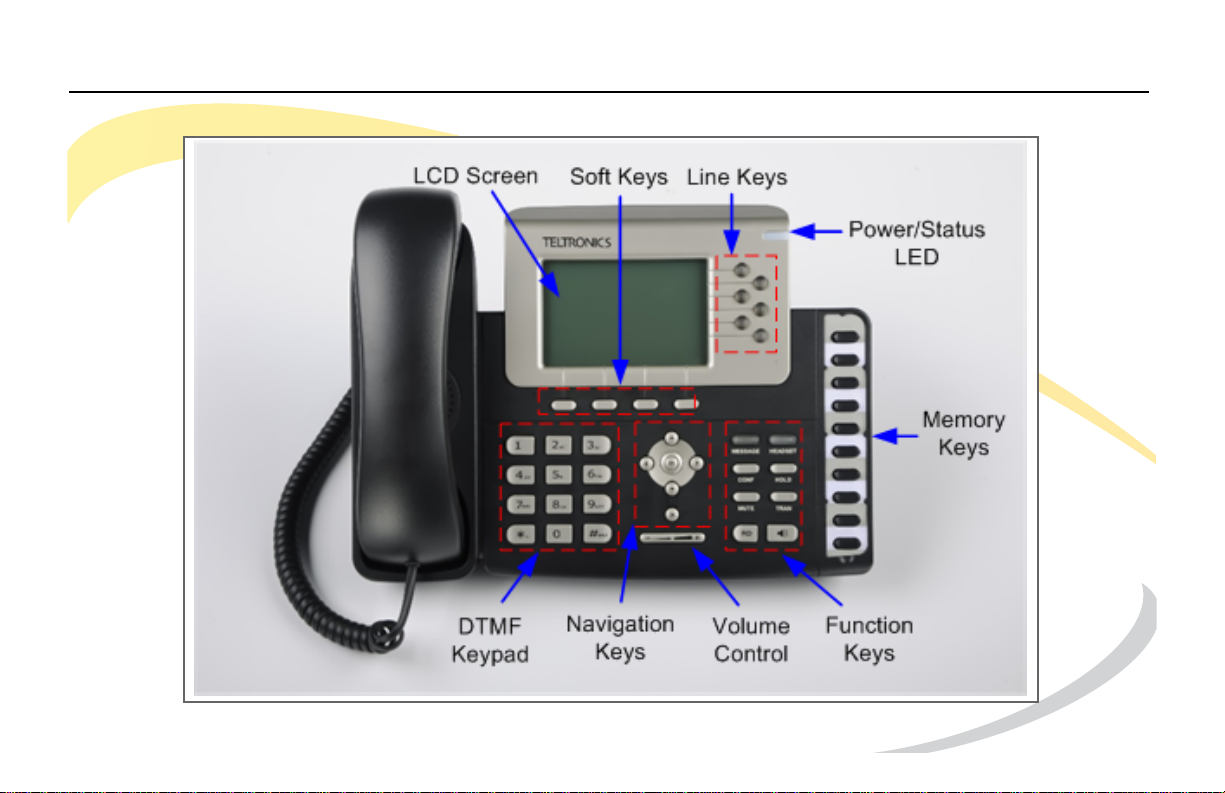
Phone Description
Arcata 2806 8 User Guide
Page 31
Getting to Know Your Phone Phone Description
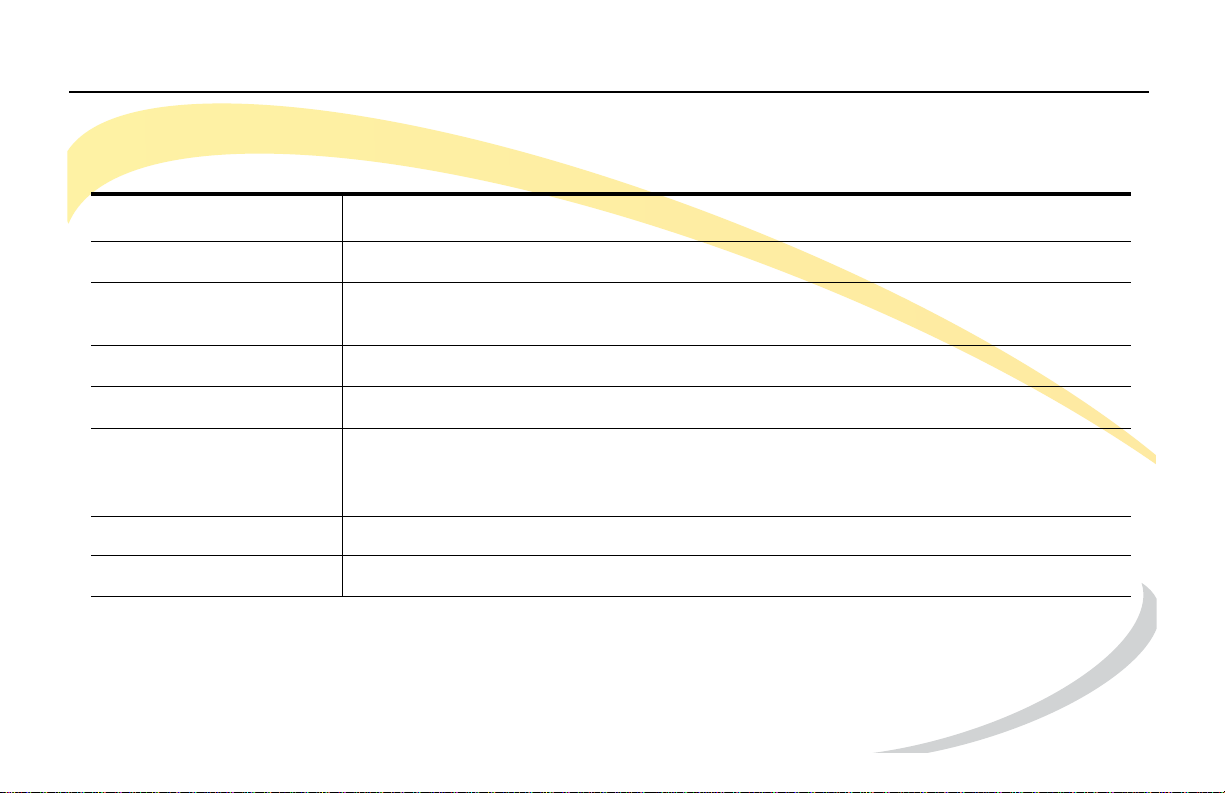
Components
Item Description
LCD Screen White backlit 320x160 pixels graphical LCD with 4-level grayscales.
Soft Keys The screen displays labels for these keys to identify their context-sensitive
functions.
Line Keys These buttons are used to active up to the six user accounts.
Power/Status LED
Memory Keys These keys are used for various functions, such as call /line appearance button,
Function Keys See Function Keys on page 11.
Volume Adjustment Bar Adjust the volume of the handset, headset, speaker, and ring tone.
Arcata 2806 9 User Guide
Indicates if the phone is On or Off. See
speed dial, intercom, pickup, hold, and transfer. The adjacent LED lights when
the assigned function is active.
Power/Status Indication LED on page 20.
Page 32
Getting to Know Your Phone Phone Description
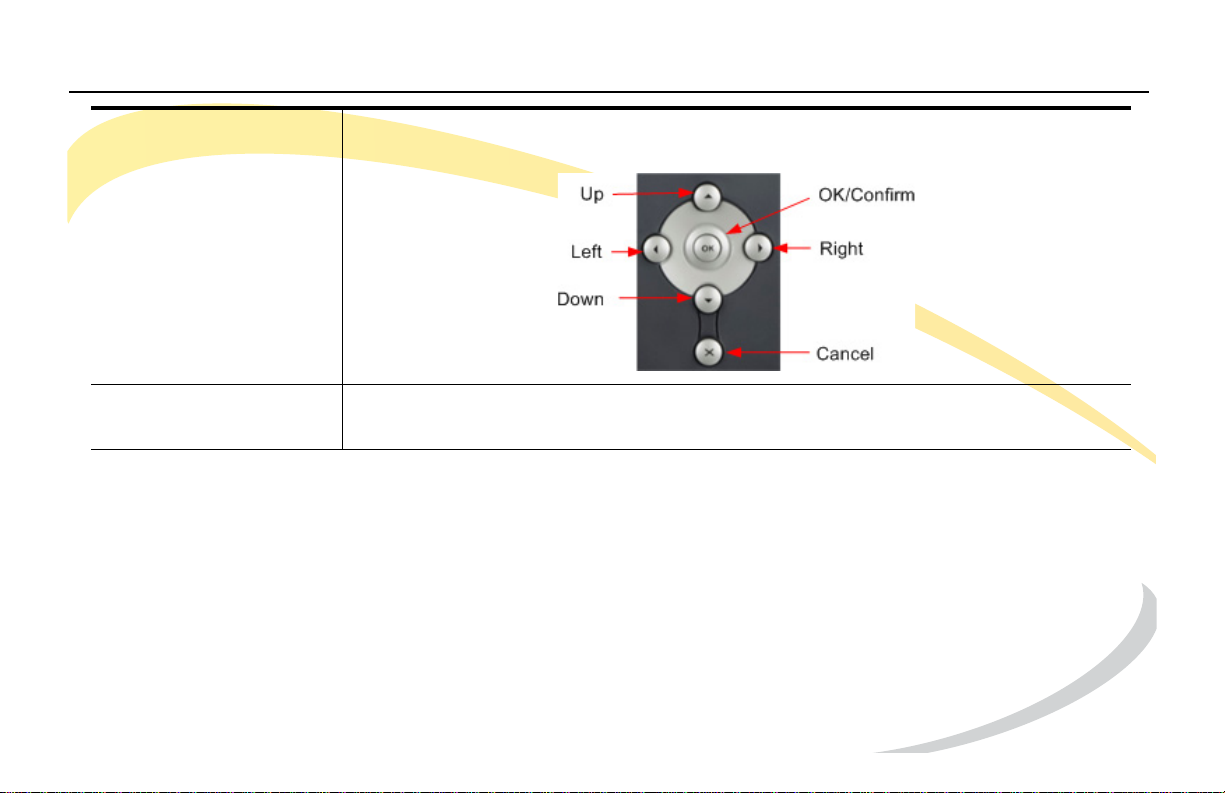
Navigation Keys Use the navigation keys to move within the display menus and to confirm or
cancel actions.
DTMF Keypad Use the DTMF keys to enter numbers, letters, and special characters. See Using
DTMF Keypad in Alpha-numeric Mode on page 18.
Arcata 2806 10 User Guide
Page 33
Getting to Know Your Phone Phone Description
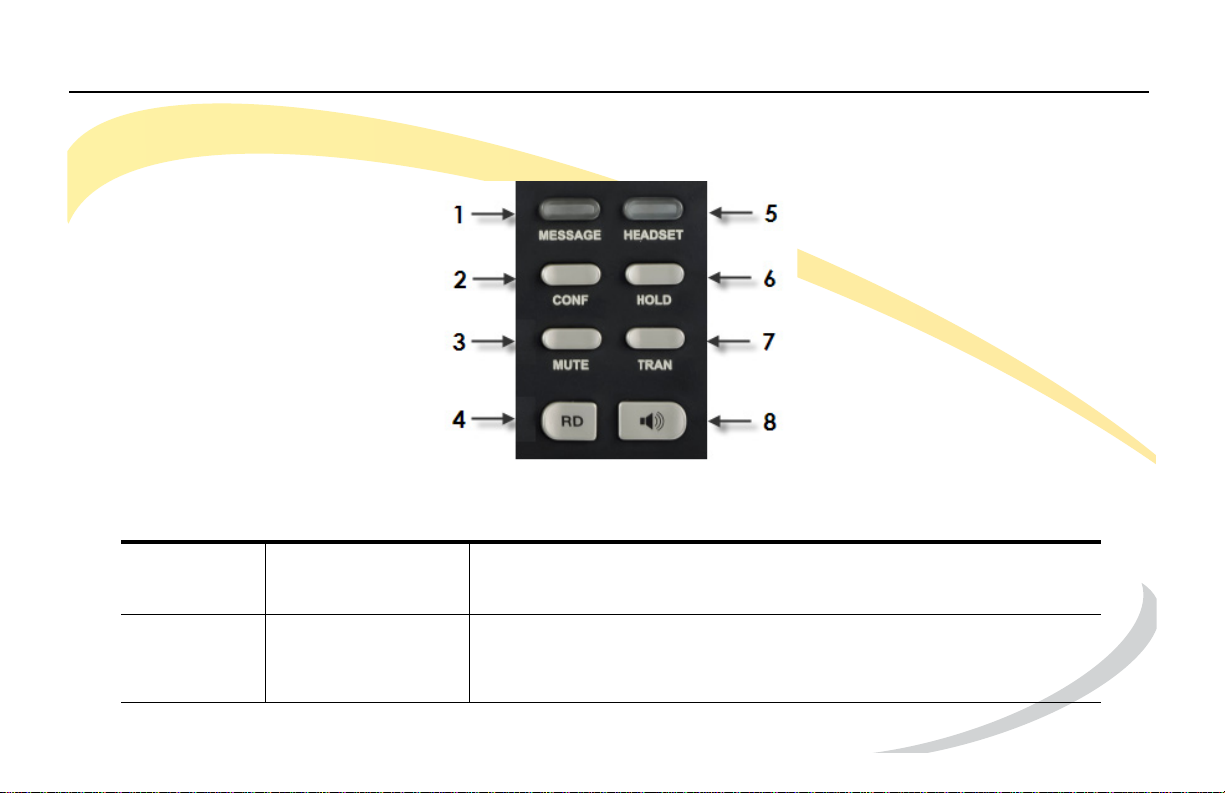
Function Keys
1 MESSAGE Press to retrieve voice messages.
The button will illuminate when you have a message.
2 CONF When you are on a call, press the Conference button to create
a conference. See Establishing a 3-Way Conference on
page 41.
Arcata 2806 11 User Guide
Page 34
Getting to Know Your Phone Phone Description
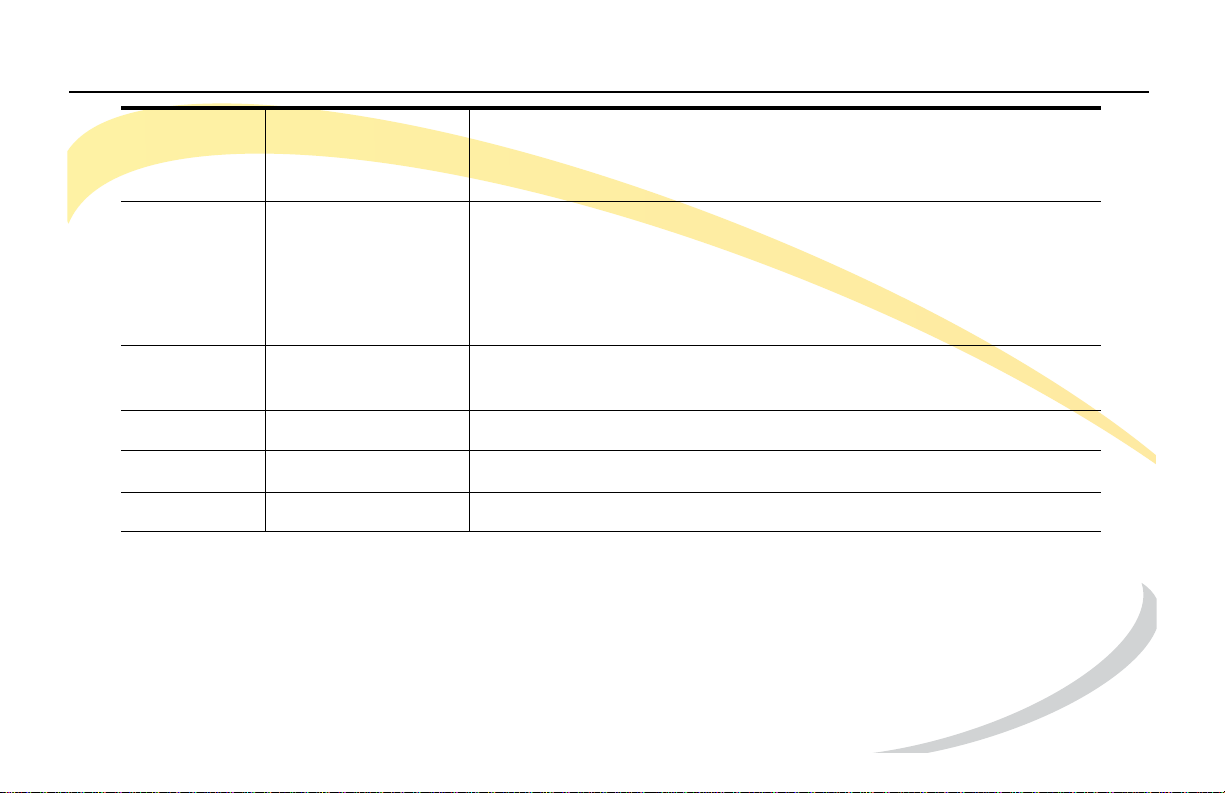
3MUTE
Mute the microphone of the active audio device during
a call so you cannot be heard by the other party. Press
the key again to resume call.
4 RD (Redial) If the handset is off-hook (un-cradled), pressing the RD button
will call the last dialed number.
If the handset is on-hook (on cradle), pressing the RD button
brings up the Call History on the display. Select a number to
call and press RD (or Send).
5 HEADSET Place and receive calls through an optionally connected
headset. The LED is on when the phone is in Headset mode.
6 HOLD Place a call on hold or resume it.
7 TRAN
8 Speakerphone Allows for hands-free communication during calls.
Transfer current call to third party.
Arcata 2806 12 User Guide
Page 35
Getting to Know Your Phone Using the Phone User Interface
Using the Phone User Interface
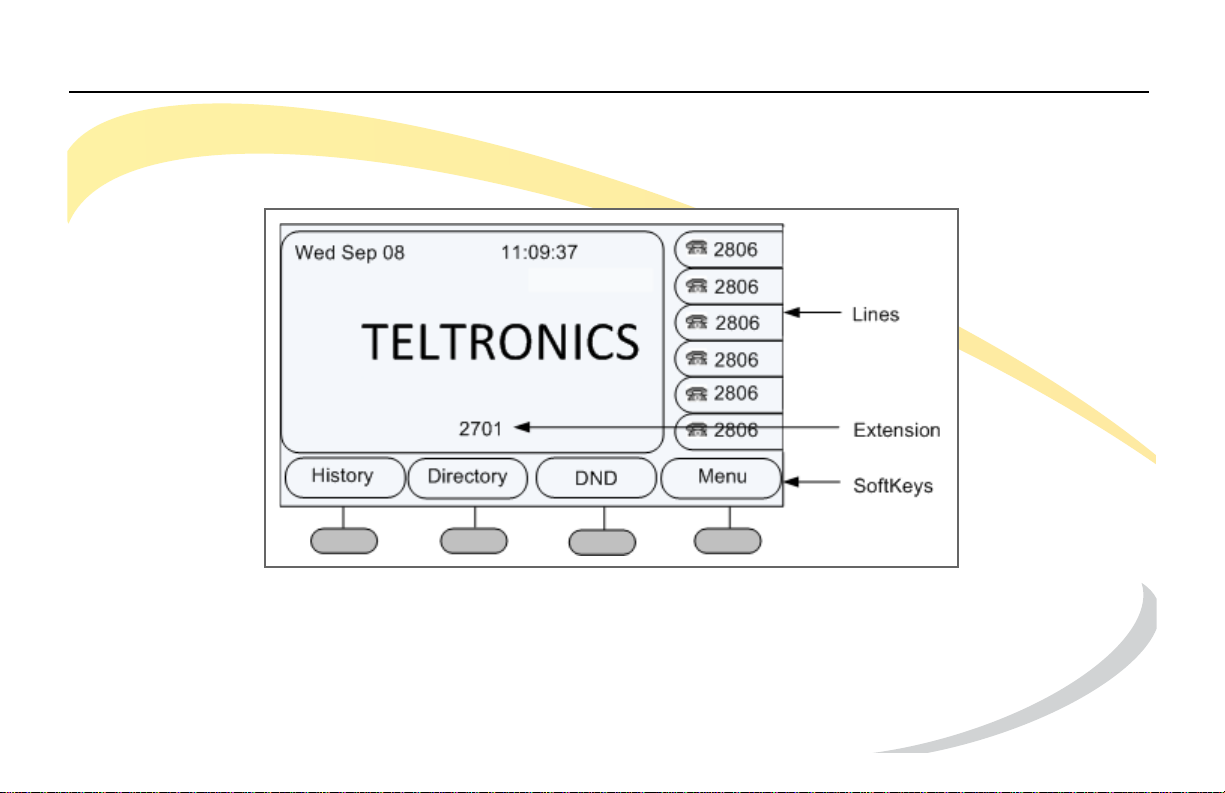
The Idle screen is shown below. This screen appears when you are not on a call.
Press soft keys to initiate an action or to go to another screen. The soft keys change depending
on the screen you are on. For example, if you press the Menu soft key, the Main Menu screen
appears, as shown on the next page.
Arcata 2806 13 User Guide
Page 36
Getting to Know Your Phone Using the Phone User Interface
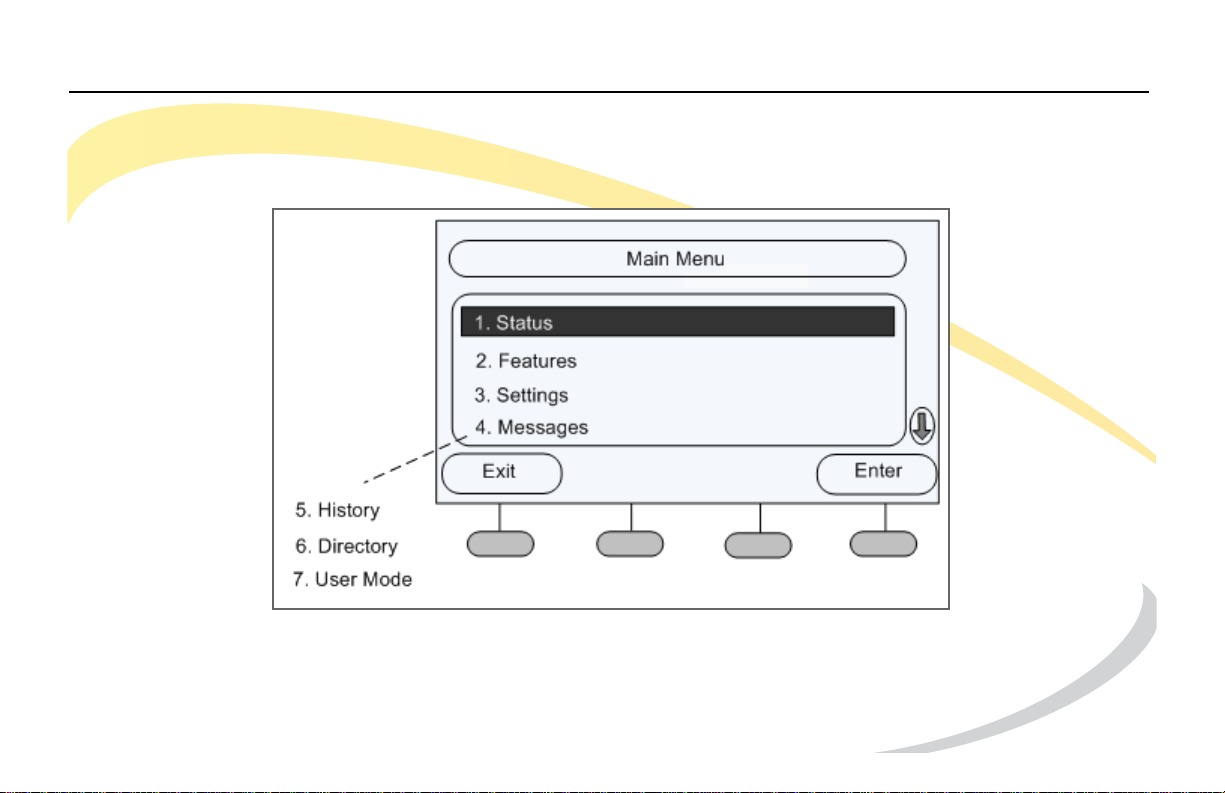
The Main Menu
The Main Menu is where you will find all of your basic phone functions and setup options.
Arcata 2806 14 User Guide
Page 37

Getting to Know Your Phone Using the Phone User Interface
1 Status
Select Status to view information about the phone, the network, and accounts.
2 Features
Select Features to enable and configure features such as Call Forward and Call Waiting.
3 Settings
Select Settings to configure the Language, Time and Date, Ring Tone, and Phone Volume.
4 Messages
Select Messages to change the number you enter to retrieve voice messages. Consult with
your System Administrator before changing your voice messaging dial string.
5 History
Select History to view incoming and outgoing call history.
6 Directory
Select Directory to add or dial a contact, or add a contact to the Blacklist.
7 User Mode
By default the phone is in User Mode. To access some Advanced Settings, you must be in
Admin Mode. See your System Administrator for information.
Arcata 2806 15 User Guide
Page 38
Getting to Know Your Phone Using the Phone User Interface
Accessing Options
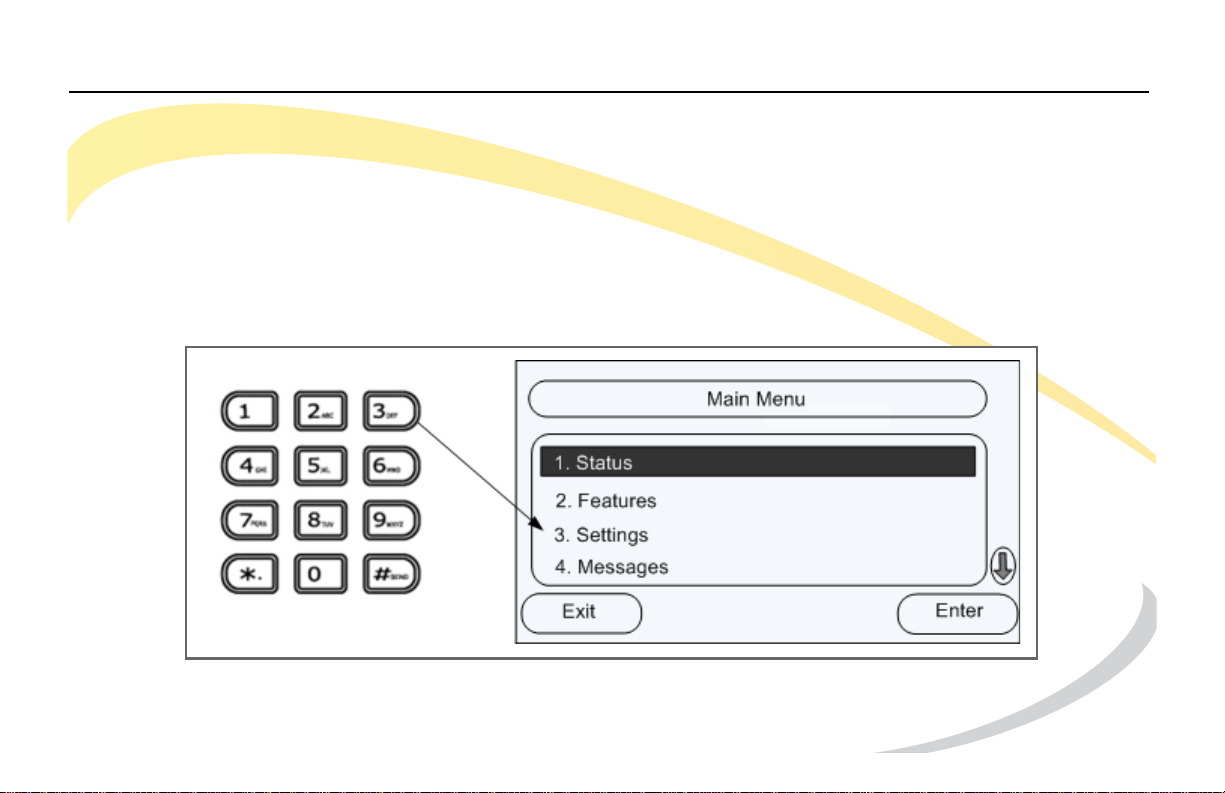
You access options using a combination of DTMF keypad, soft keys, and the navigation keys.
Using Phone DTMF Keypad
Most options have a number. You can press the number on the phone’s DTMF keypad to
access the entry. Procedures in this manual will provide the number for a specific option so you
can access it quickly.
Arcata 2806 16 User Guide
Page 39
Getting to Know Your Phone Using the Phone User Interface
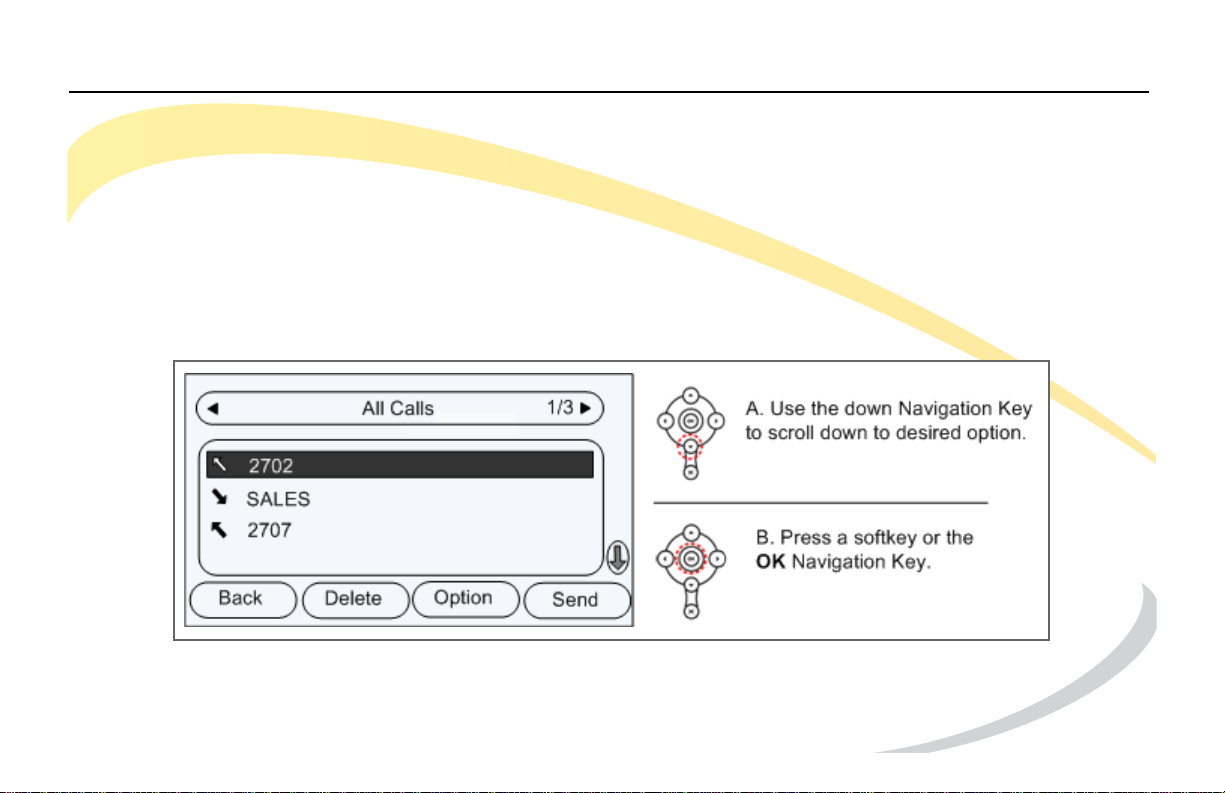
Scrolling
Use the Down navigation key to scroll through options. When the desired option is highlighted,
press the OK navigation key or a soft key to proceed with an action.
There are some screens where not all of the available options are shown. Use the navigation
key to scroll down and see additional options.
Procedures in this manual will provide the number for a specific option so you can access it
quickly with the DTMF pad without scrolling to it on the screen.
Arcata 2806 17 User Guide
Page 40
Getting to Know Your Phone Using the Phone User Interface
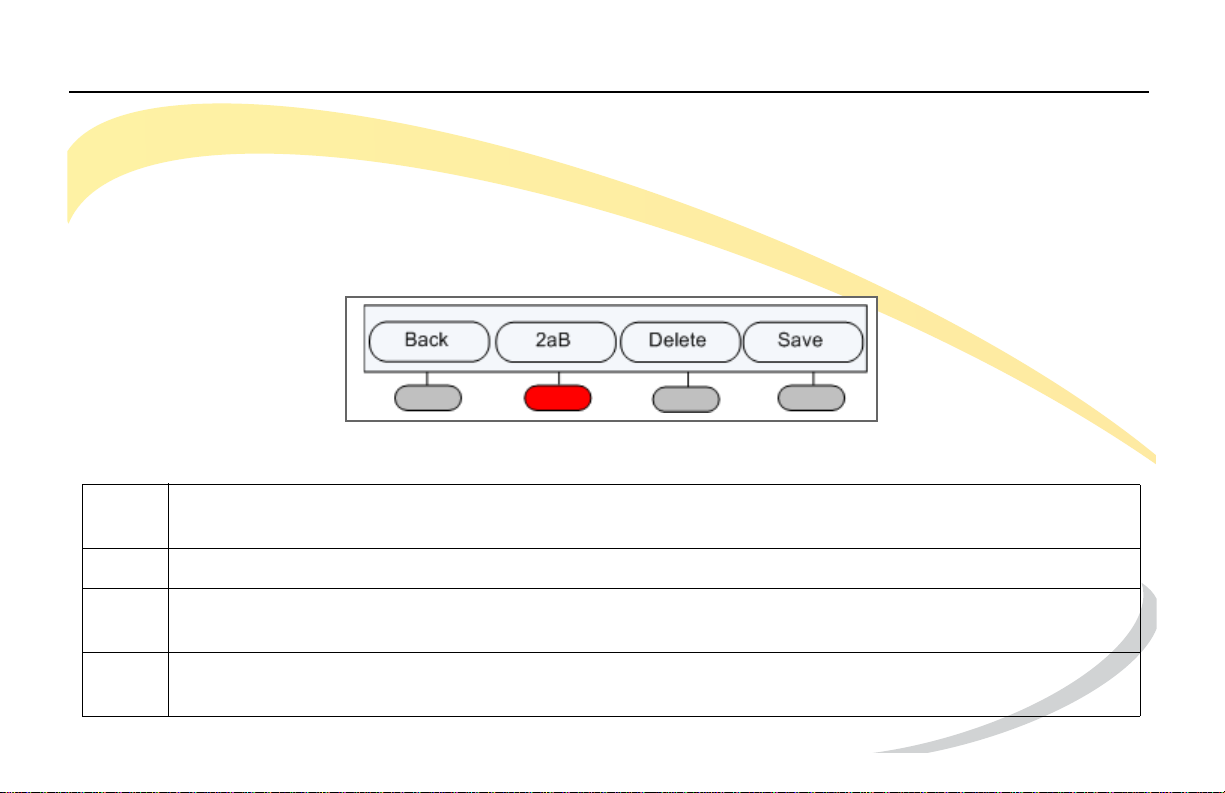
Using DTMF Keypad in Alpha-numeric Mode
When you are entering contact information or searching for a contact, you use the DTMF
keypad on your phone to enter letters (small or caps) or numbers.
If you are entering consecutive characters on the same key, wait 1 second between
characters until the cursor on the display starts blinking, and then enter the next character.
Use the alpha-numeric mode soft key to choose how characters are entered
Each time you press the key it toggles through the modes shown in the table below.
2aB The first time you press the key the number is entered. Subsequent presses will enter the letters on
the key (small) and then the letters capitalized.
123 Enters the number on the keypad.
abc Small letters. The first press enters the first letter on the key and subsequent presses will enter other
letters on the key.
ABC CAPITAL LETTERS. The first press enters the first letter on the key and subsequent presses will enter
other letters on the key.
Arcata 2806 18 User Guide
Page 41
Getting to Know Your Phone Viewing Phone Status
Viewing Phone Status
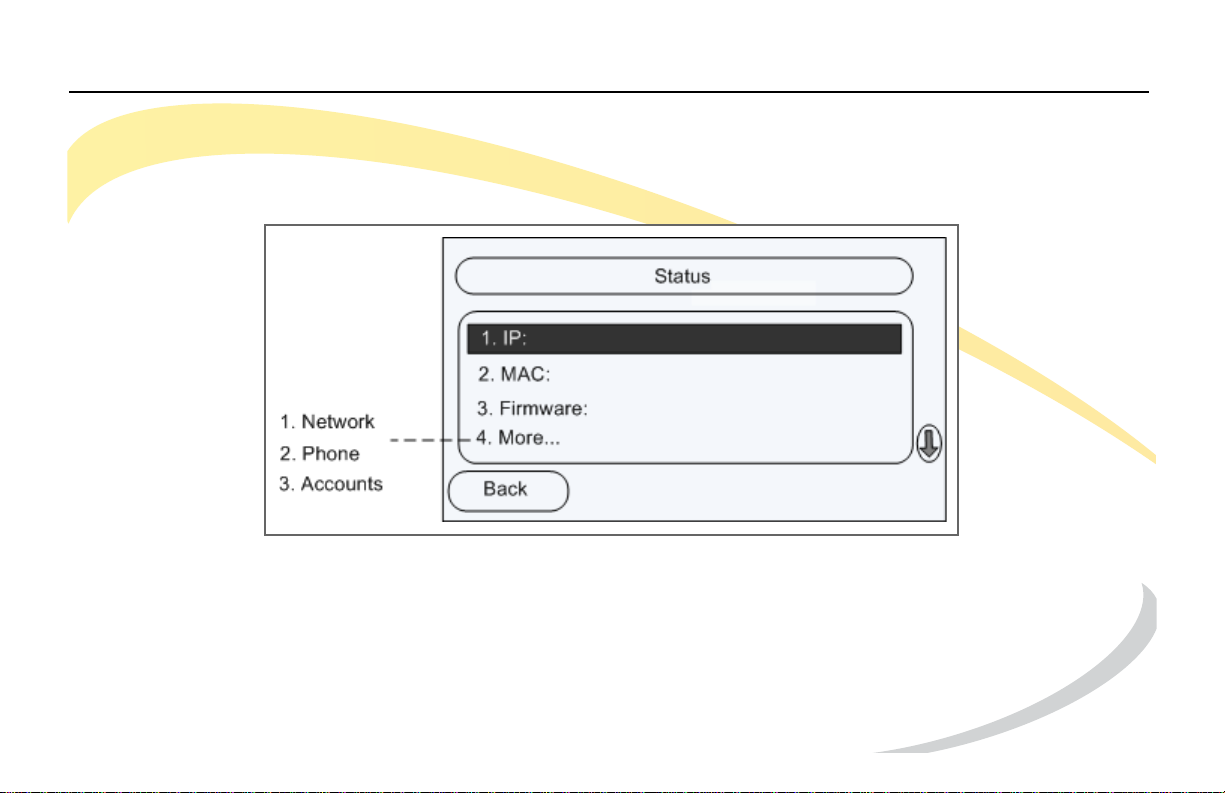
1 Press the OK navigation key. The IP Address, MAC address, and Firmware Version are shown.
2 Press 4 to access More options, then the number of the category you want to view.
1 - Network status: IP Address, MAC Address, WAN/LAN, Gateway and DNS
2 - Phone status: Product Name, Hardware, Firmware, Product ID and MAC
3 - Accounts: The status of SIP accounts on the phone
Arcata 2806 19 User Guide
Page 42
Getting to Know Your Phone LEDs
LEDs
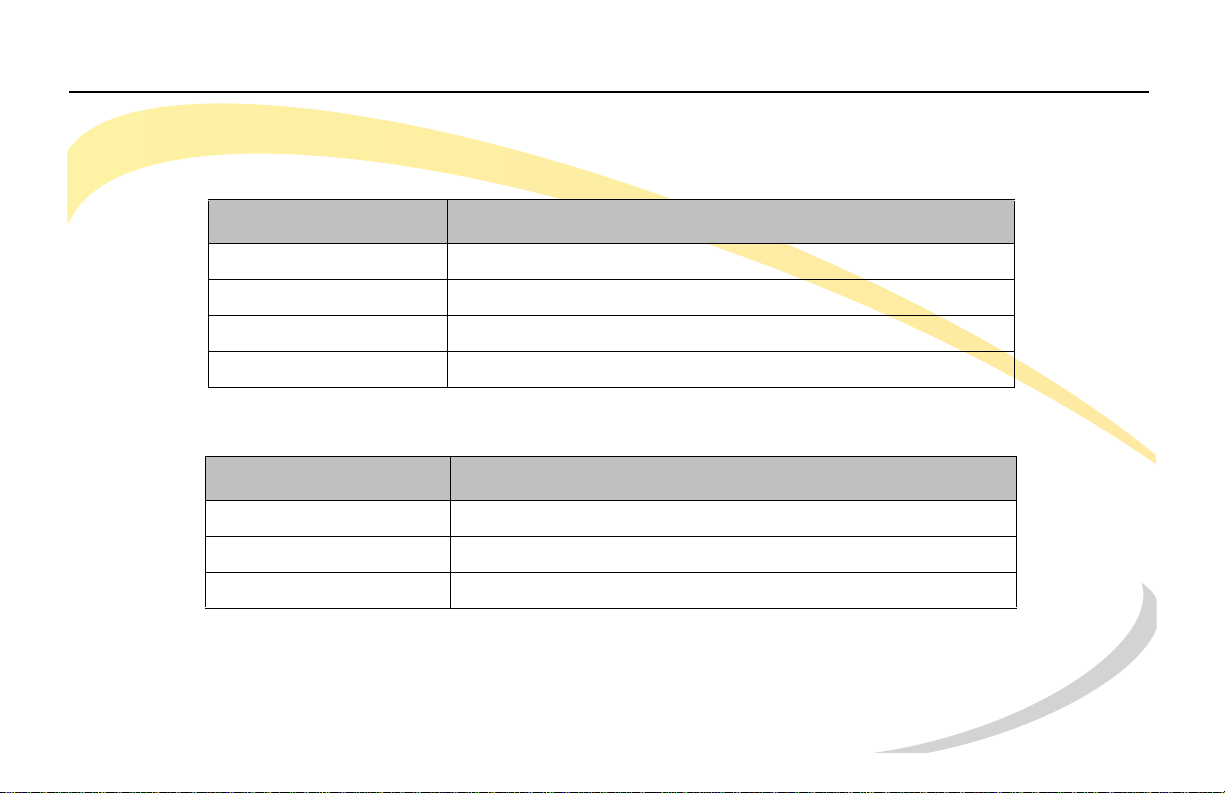
Account Button LEDs
LED Status Description
Steady Green Account is active
Blinking Green (fast) Incoming call
Blinking Green (slow) On hold
Off Idle status (registered or unregistered)
Power/Status Indication LED
LED Status Description
Steady Green Power on
Off Power off
Flashing Green Incoming Call
Arcata 2806 20 User Guide
Page 43
Getting to Know Your Phone LEDs
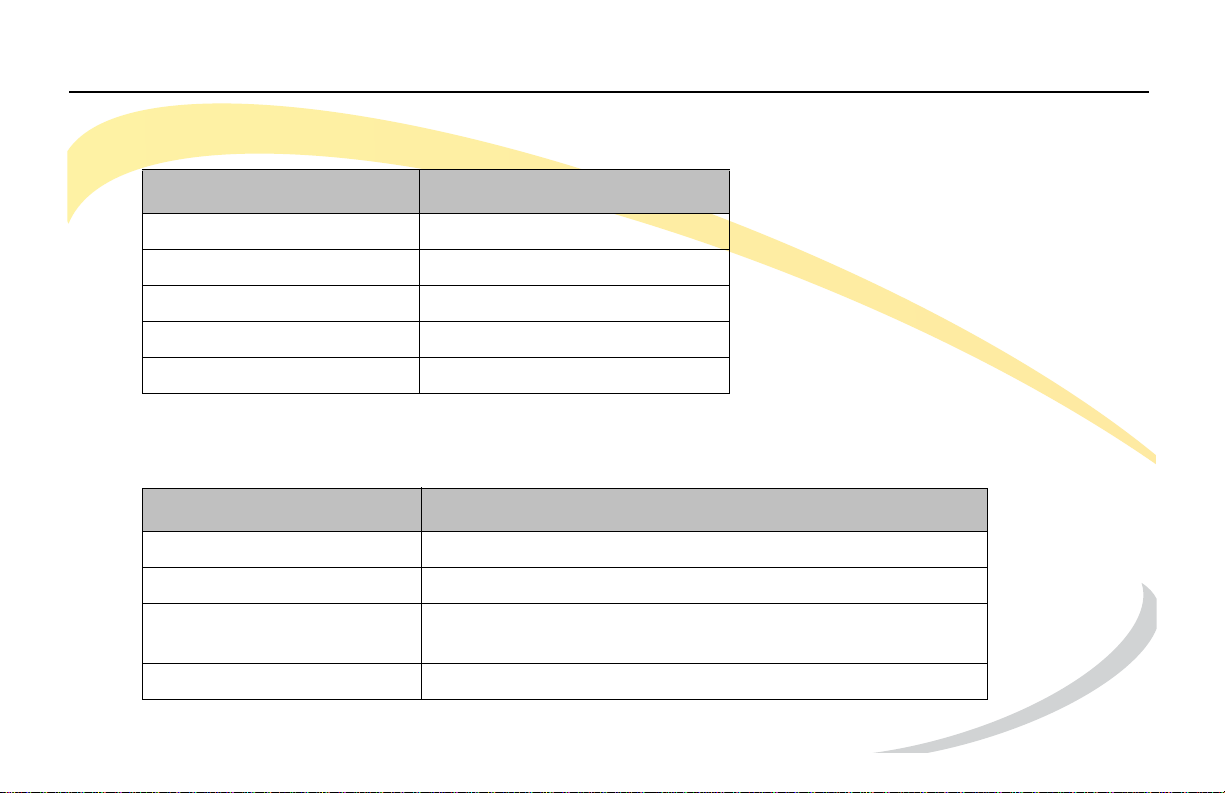
Call/Line Appearance for BLF
LED Status Description
Steady Green Idle
Blinking Red (slow) Ringing
Steady Red Active
Blinking Red (fast) Not available
Off Not active
Call/Line Appearance for BLA (Bridged Line Appearances)
LED Status Description
Steady Green A party is on the phone.
Blinking Green 300ms A party is ringing.
Blinking Green 500ms A party is on hold and all of the members can retrieve
the call
Off BLA no active
Arcata 2806 21 User Guide
Page 44
Getting to Know Your Phone Display Icons
Display Icons
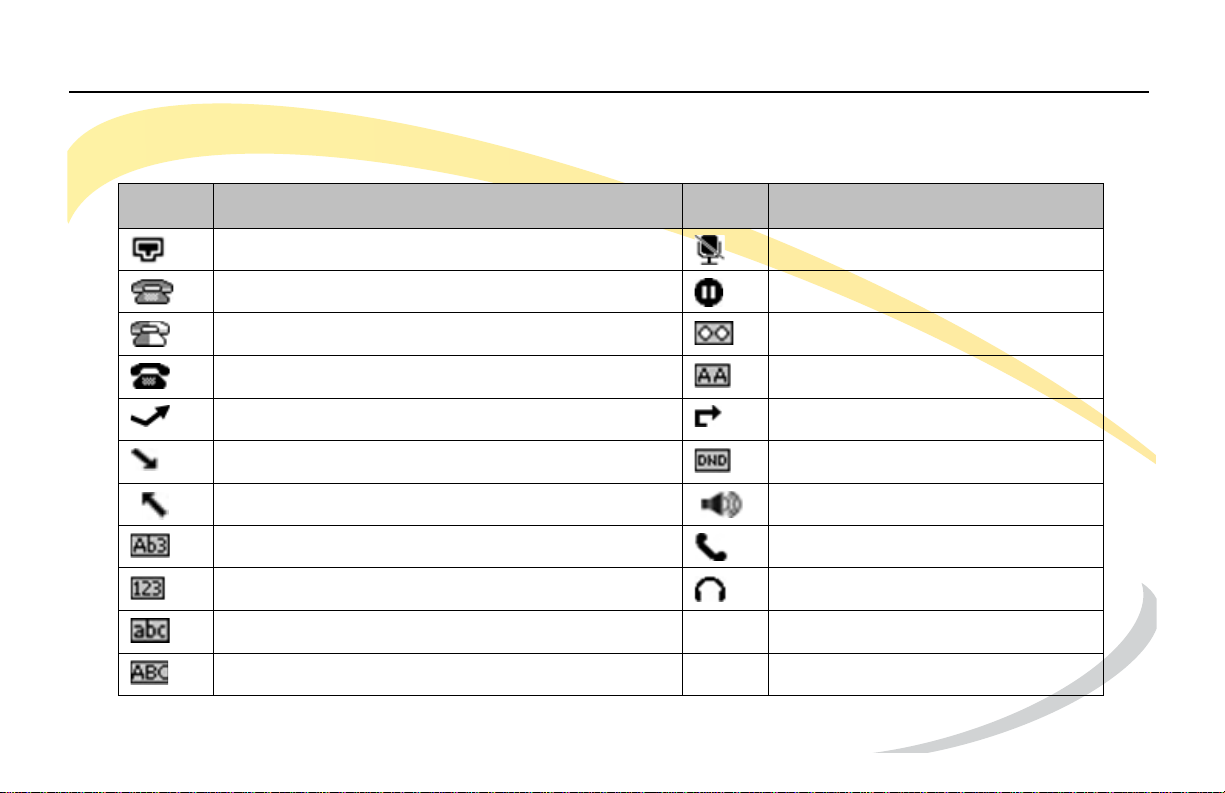
The Arcata phone displays the following icons on the LCD screen.
Icon Description Icon Description
Flashes when the internet is disconnected. Call Muted
Account Registration Failed Call on Hold
Account Registering Voice Message
Account Registration Successful Auto Answer Enabled
Missed Call(s) Call Forward Enabled
Incoming Call DND (Do not Disturb) Enabled
Outgoing Call In Hands Free Mode
Character Input Method: letters and numbers In Handset Mode
Character Input Method: numbers In Headset Mode
Character Input Method: letters in lower case
Character Input Method: letters in upper case
Arcata 2806 22 User Guide
Page 45

Basic Phone Functions Introduction
BASIC PHONE FUNCTIONS
This section provides instructions on making and receiving calls and using phone features.
Introduction
This section provides instructions for initiating a call and performing actions while on an active
call. To adjust phone settings such as volume and ring tones, see Customizing Your Phone
starting on page 49.
You access options using a combination of the phone’s DTMF keypad, soft keys, and the
Navigation Keys. Usually there is more than one method for performing an action.
Procedures in this manual provide the easiest steps for you to perform a task. For example, if an
option can be accessed using the DTMF keypad, that will be used. If you prefer, however, you
can choose to scroll through the options and select them using the OK Navigation Key.
See Using the Phone User Interface on page 13 for details.
Arcata 2806 23 User Guide
Page 46

Basic Phone Functions Making a Call
Making a Call
Initiating a Call
You can initiate a call in one of the following ways:
Handset - Pick up the handset.
Hands Free - Press the Speakerphone button.
Headset - Press the Headset button if a headset is connected.
You can also dial the number first, and then press the Send, Headset, or Speakerphone button.
Dialing Options
• Dial the number you want to call using the DTMF keypad and then press Send.
• With the handset off-hook, press the RD (Redial) button to call the last dialed number.
• With the handset cradled, press the RD (Redial) button twice to dial the last number called.
• If you have Speed Dial buttons configured, press the desired Speed Dial button.
• Press the Directory soft key to call a number in your contact list. See Dialing a Contact.
Arcata 2806 24 User Guide
Page 47

Basic Phone Functions Making a Call
On-hook Dialing/Live Dialpad
When the phone is on-hook and you dial a number, the behavior changes depending on if you
have Live Dialpad enabled.
If you have Live Dialpad enabled and you dial a number when the phone is on-hook, your
phone automatically dials out and turns on Handsfree mode as soon as you press a dial pad
key or soft key.
If you do not have Live Dialpad enabled and you dial a number when the phone is on-hook,
you must lift the receiver, press the Dial key, or press the Speakerphone button to initiate the
call.
Setting a Default Account
If you have registered more than one account, you can choose a specific account that will be
used by default when you initiate a call.
Press the Right Navigation Key to toggle through the accounts on the phone. The accounts will
appear on the LCD screen. Stop when you reach the account you want to be the default.
When you initiate a call, this account will be used.
Arcata 2806 25 User Guide
Page 48
Basic Phone Functions Making a Call
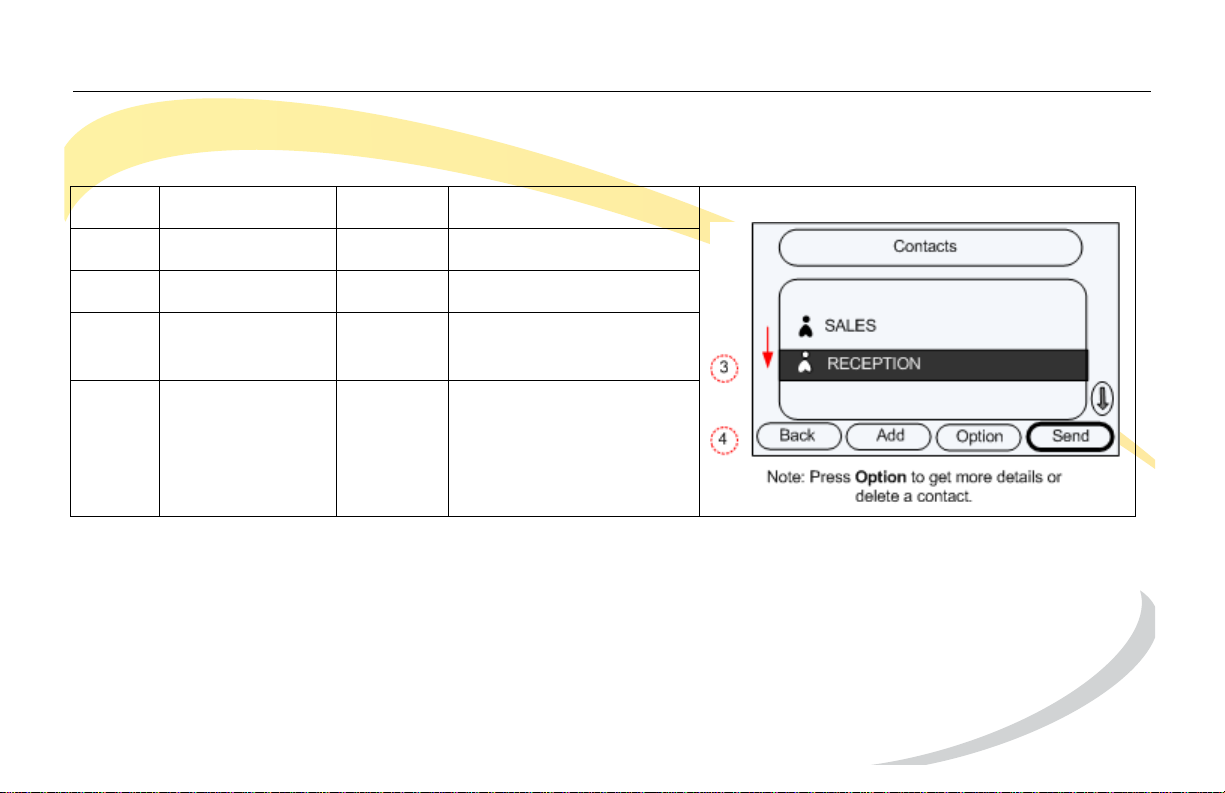
Dialing a Contact
Step Item Press Notes
1Soft Key Dir
2 Soft Key Enter * Opens Contacts
3 Navigation
Key
Down Highlight desired
contact
4 Soft Key Send Dials contact
number
* To search for a contact, press the Search softkey. See Searching Contacts on page 27.
Arcata 2806 26 User Guide
Page 49
Basic Phone Functions Making a Call
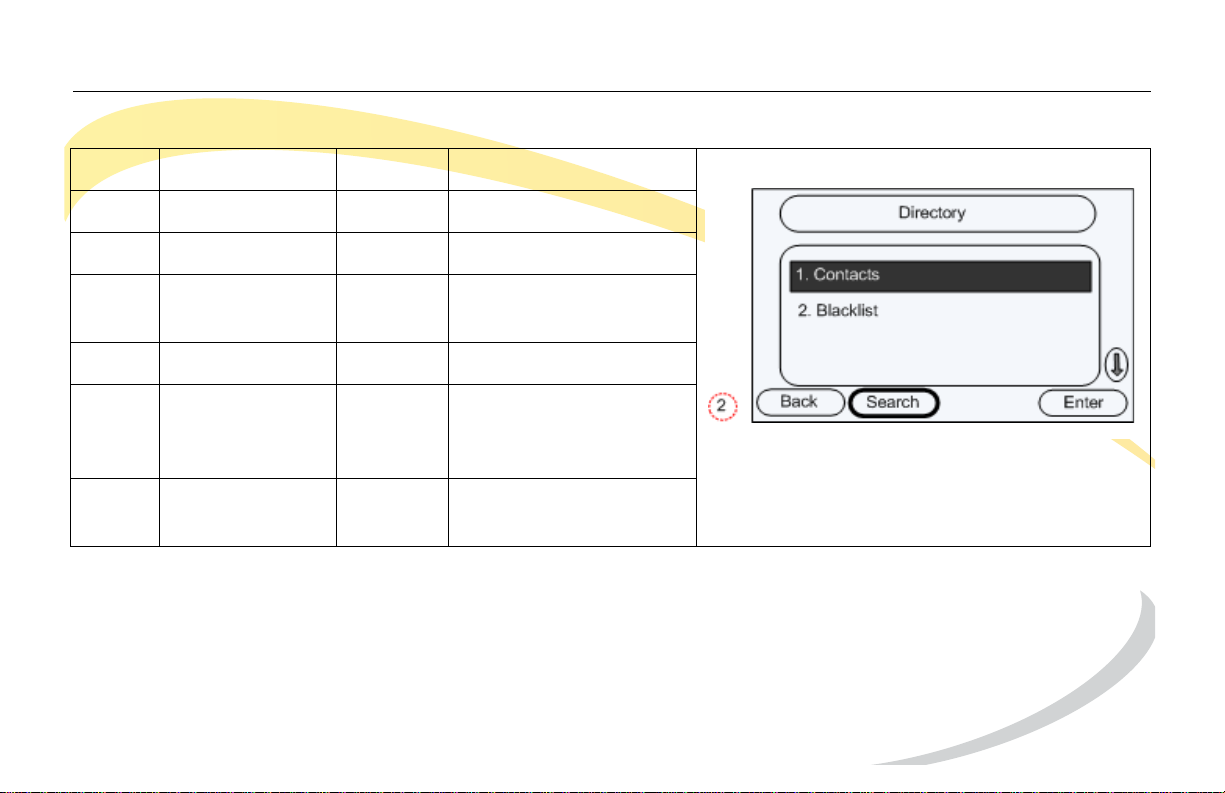
Searching Contacts
Step Item Press Notes
1Soft Key Dir
2Soft Key Search
3 Keypad Enter characters to
search on *
4Soft Key OK
5 Navigation
Keys
Down If more than one
contact appears,
scroll to desired entry
6 Soft Key Send Dials contact
number
* For help with entering characters, see Using DTMF Keypad in Alpha-numeric Mode on page 18.
Arcata 2806 27 User Guide
Page 50
Basic Phone Functions Making a Call
Audio Redial
If Auto Redial is enabled, when you attempt to make a call and the other end is busy or not
answered, the phone will automatically redial the number. Before you can use Auto Redial, you
must enable it. See Setting up Auto Redial on page 56.
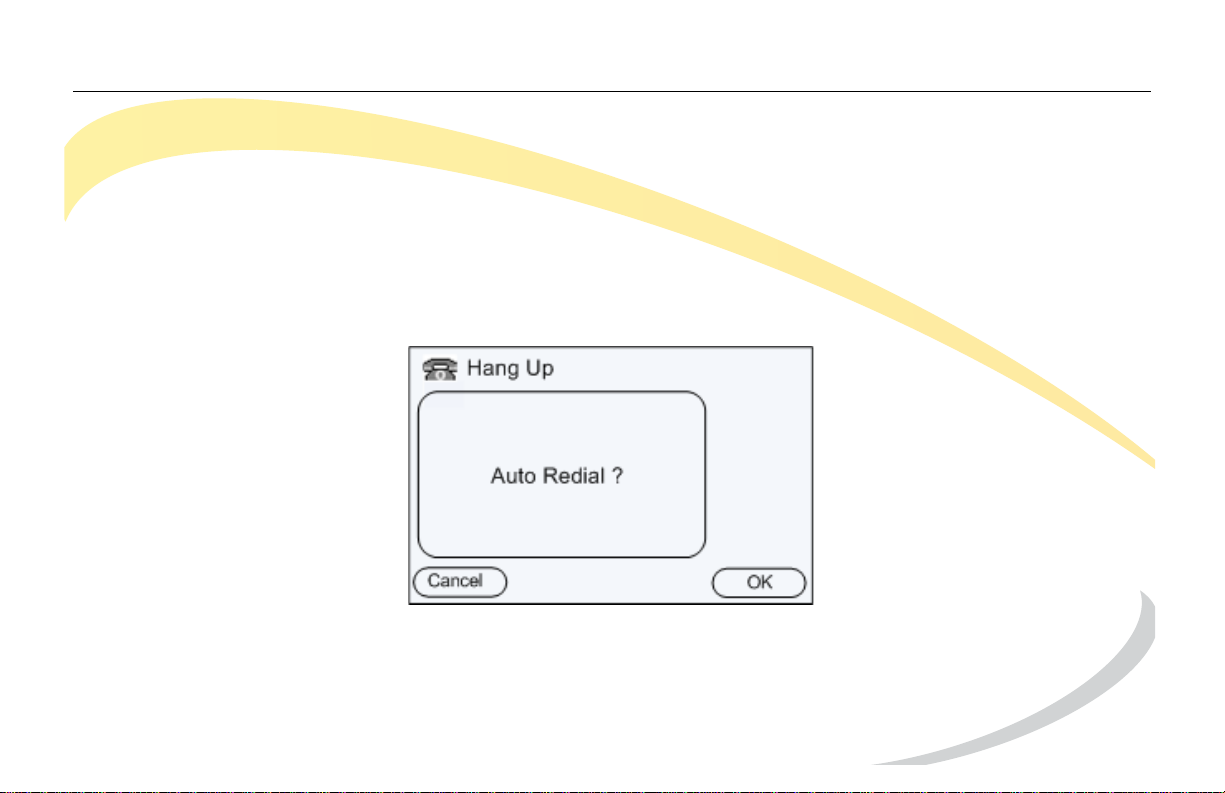
Using Auto Redial
When you dial a number and the call is not answered or sent to voice mail, the Auto Redial
screen appears.
To activate Auto Redial, click the OK soft key.
The phone will redial the number according to the interval and number of times you
configured.
Arcata 2806 28 User Guide
Page 51
Basic Phone Functions Answering a Call
Answering a Call
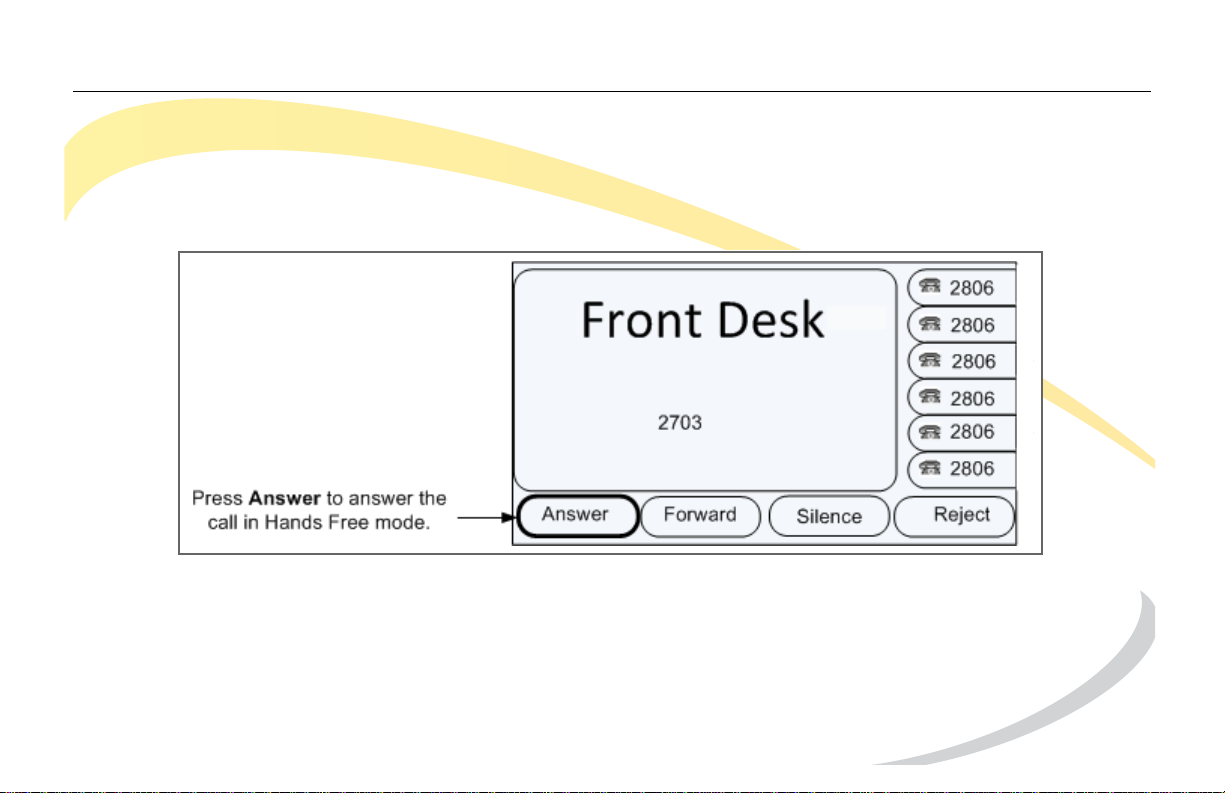
• If you are not on an active call, you can answer a call by simply lifting the handset.
• If you are using a headset, press the HEADSET button on the phone.
• To answer in Hands Free mode, press the Answer soft key.
Other Options for Incoming Calls
1 Press Forward to forward to the call to another extension.
2 Press Silence to mute the ring tone.
3 Press Reject to send the call to voice mail.
Arcata 2806 29 User Guide
Page 52
Basic Phone Functions Answering a Call
Answering When on a Call
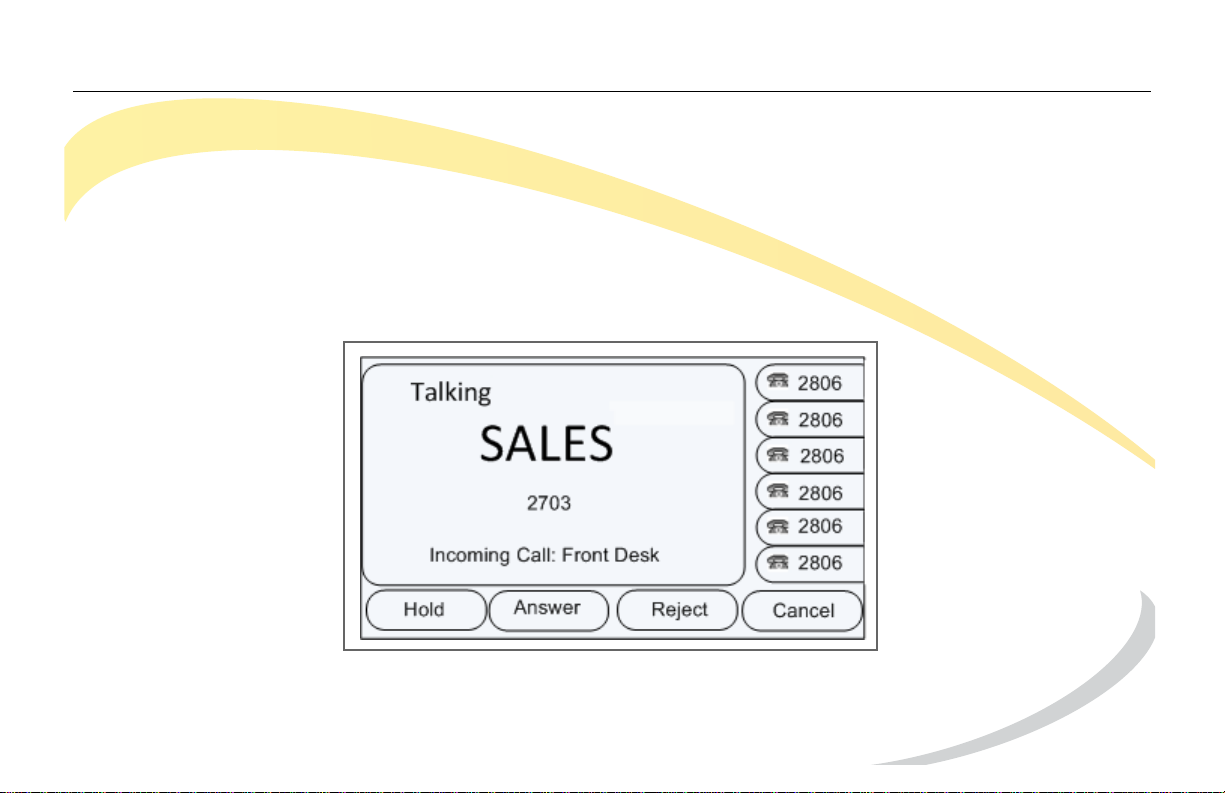
If you are on an active call and a call comes in, press the Answer soft key to answer the call.
You can also answer a call by pressing the flashing line key. This will place the active call on
hold and answer the ringing call.
Alternatively, you can reject the call by pressing the Reject soft key. If your phone is so
configured, the call will be sent to the voice messaging system.
Arcata 2806 30 User Guide
Page 53

Basic Phone Functions Call Pick Up
Call Pick Up
Call Pickup allows you to answer a call ringing on another extension by dialing a feature code.
NOTE: Call Pickup must be configured on the system by your System Administrator. The feature
codes noted are the defaults but may be different for your system.
Directed Pick Up
You can answer a call that comes in on another extension by dialing *71 and then the
extension number.
Group Pick Up
You can answer a call that comes into another extension in your Pickup Group by lifting the
handset and dialing *72. If more than one call is ringing, you will be connected to the call that
has been ringing the longest.
Arcata 2806 31 User Guide
Page 54

Basic Phone Functions Group Call Park/Pickup
Group Call Park/Pickup
The Group Call Park/Pickup feature allows a user at one extension to park a call to a parkade
group, which can then be picked up on any other extension. You can only have one call
parked at a time. Once a call is picked up by another extension, you can park another call.
Parking a Call
To park a call so that anyone in the group can pick it up, press the Group Call Park feature key
on your phone. The location where the call is parked (Parkade) will display on your phone.
Typically you would make a page announcing the Parkade number, which other users will
need to pick up the call.
NOTE: If your phone does not have a feature key programmed for Group Call Park, press the
Transfer button, dial *73, and then hang up the handset (or press the OK button or the Send
key).
Picking up a Call
To pick up a parked call from a group: press the Call Park Pickup feature key and then dial the
Parkade number where the call is parked (usually announced by a page).
NOTE: If your phone does not have a feature key programmed for Call Park Pickup, dial *75
plus the Parkade number where the call is parked, and then hang up the handset (or press
the OK button or the Send key).
Arcata 2806 32 User Guide
Page 55

Basic Phone Functions Directed Call Park/Pickup
Directed Call Park/Pickup
The Directed Call Park feature allows a user to park a call on a specific extension, which can
then be pickup up from any extension.
Parking a Call
To park a call on a specific extension, press the Directed Call Park feature key and then dial the
extension.
NOTE: if your phone does not have a feature key programmed for Directed Call Park, press
the Transfer button, dial *74 plus the extension, and then hang up the handset (or press the
OK button or the Send key).
Picking up a Call
To pick up a parked call on your extension: press the Call Park Pickup feature key and then dial
the extension number on which the call was parked.
NOTE: if your phone does not have a feature key programmed for Call Park Pickup, dial *75
plus the extension where the call is parked, and then hang up the handset (or press the OK
button or the Send key).
Arcata 2806 33 User Guide
Page 56

Basic Phone Functions Paging
Paging
If your System Administrator has setup Multicast IP Paging, you can broadcast a page to all
extensions in a specified zone.
To make a page, dial *70 + Zone Number (01-50).
For example, to page zone 4, dial *7004.
See your System Administrator for information about your paging zones.
If your phone is on-hook (not being used) you will receive pages sent to any zones which have
been assigned to your extension. Unless Page Priority and/or Page Barge have been
configured on your phone by your System Adminsitrator, you may or may not receive pages if
you are on your phone (off-hook).
Arcata 2806 34 User Guide
Page 57
Basic Phone Functions Adjusting the Ring Volume
Adjusting the Ring Volume
Idle State
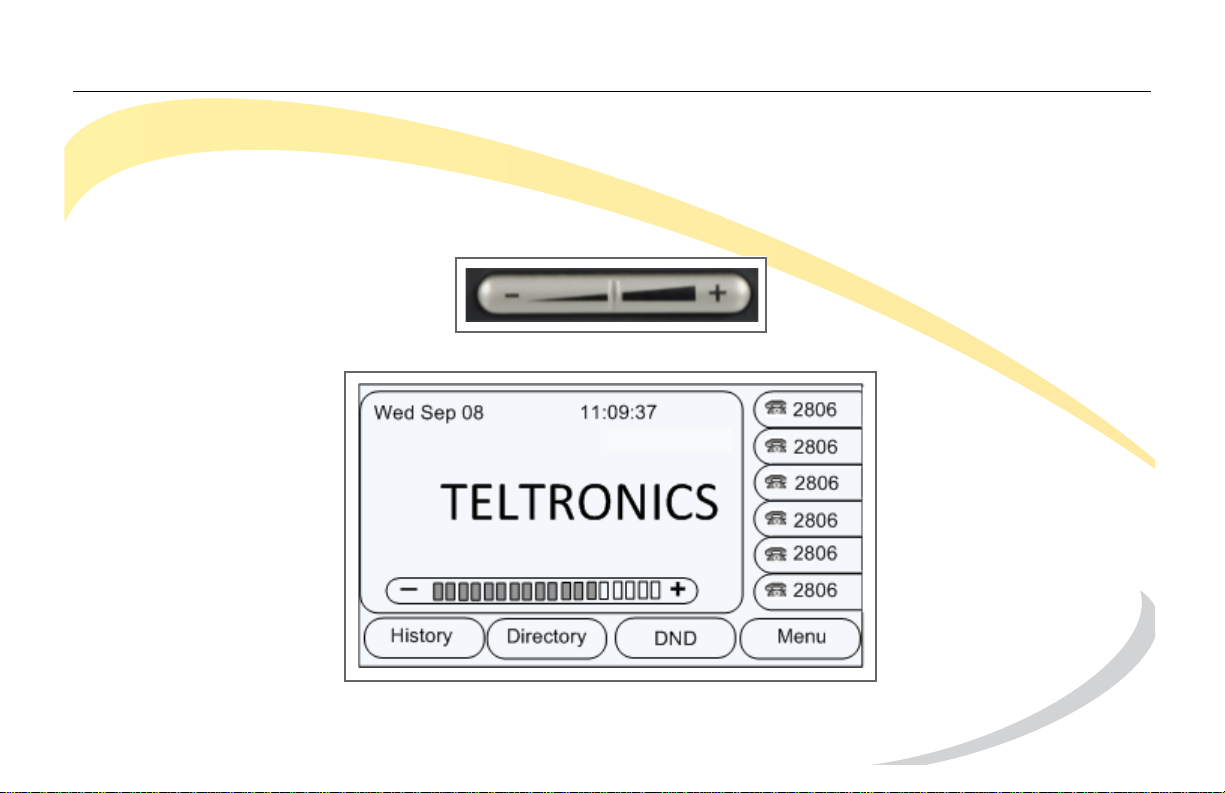
To adjust the Ring Volume volume when you are not on an active call, press the Volume
Adjustment Bar.
The volume level appears on the display
Arcata 2806 35 User Guide
Page 58
Basic Phone Functions Adjusting the Volume on an Active Call
Adjusting the Volume on an Active Call
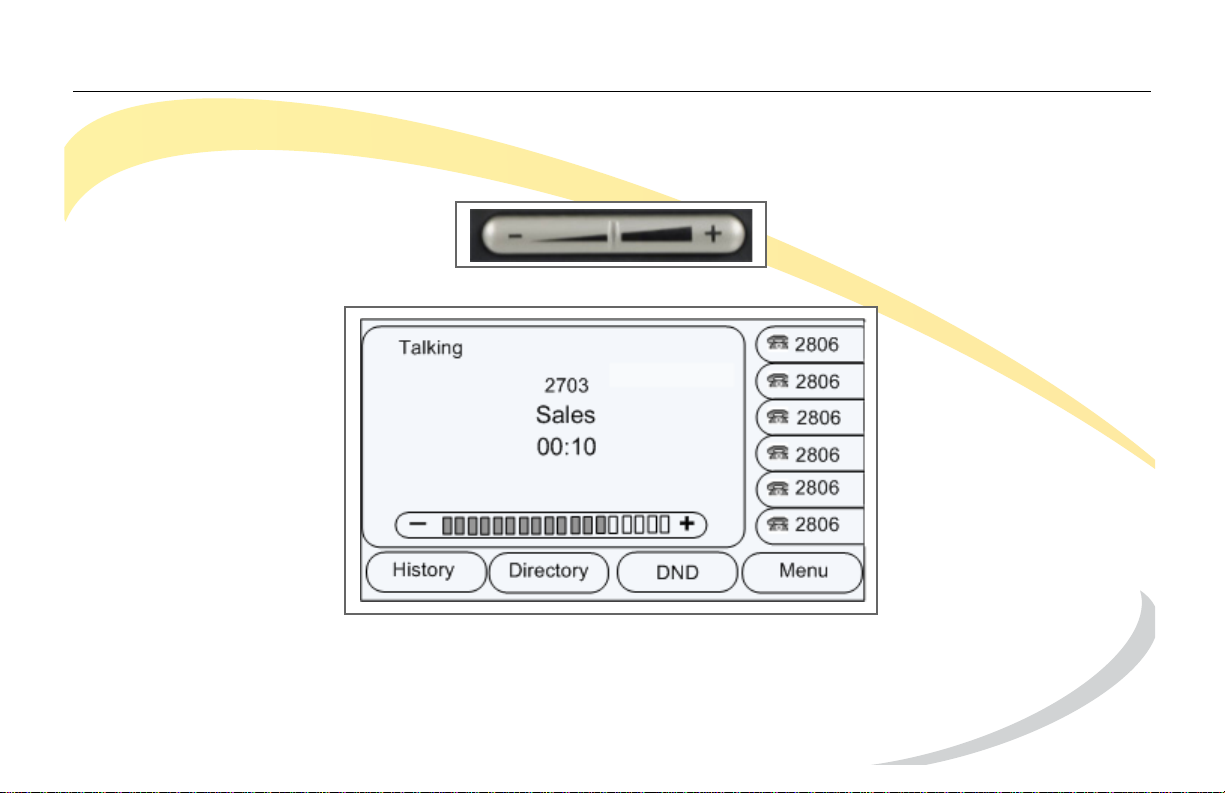
To adjust the volume of the handset, headset, or speaker on an active call, press the Volume
Adjust Bar.
The volume level appears on the display.
To adjust the default volume for the handset, headset, speaker, or ring volume, see Adjusting
the Volume on page 69.
Arcata 2806 36 User Guide
Page 59
Basic Phone Functions Denying an Incoming Call
Denying an Incoming Call
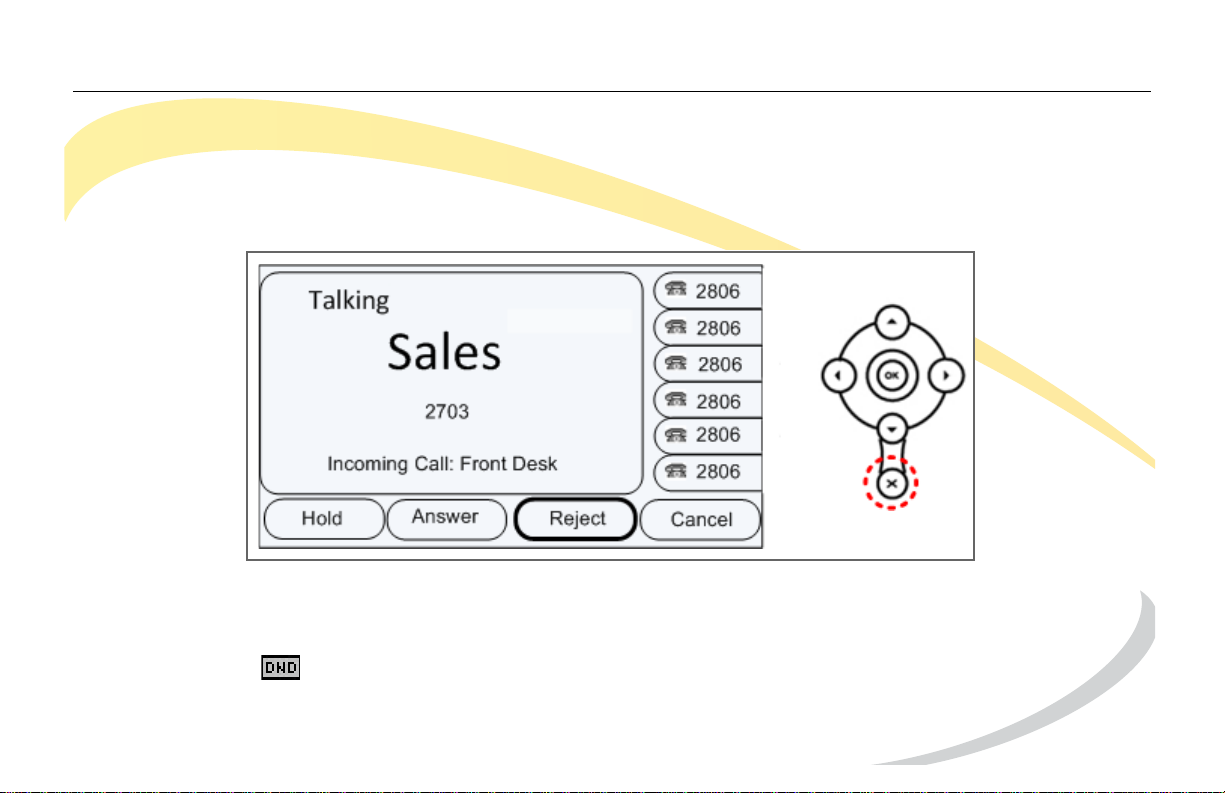
Press the Reject soft key to deny an incoming call and send it to voice mail.
Alternate: You can also press the Cancel button on the Navigation Keys to reject a call.
Do Not Disturb (DND)
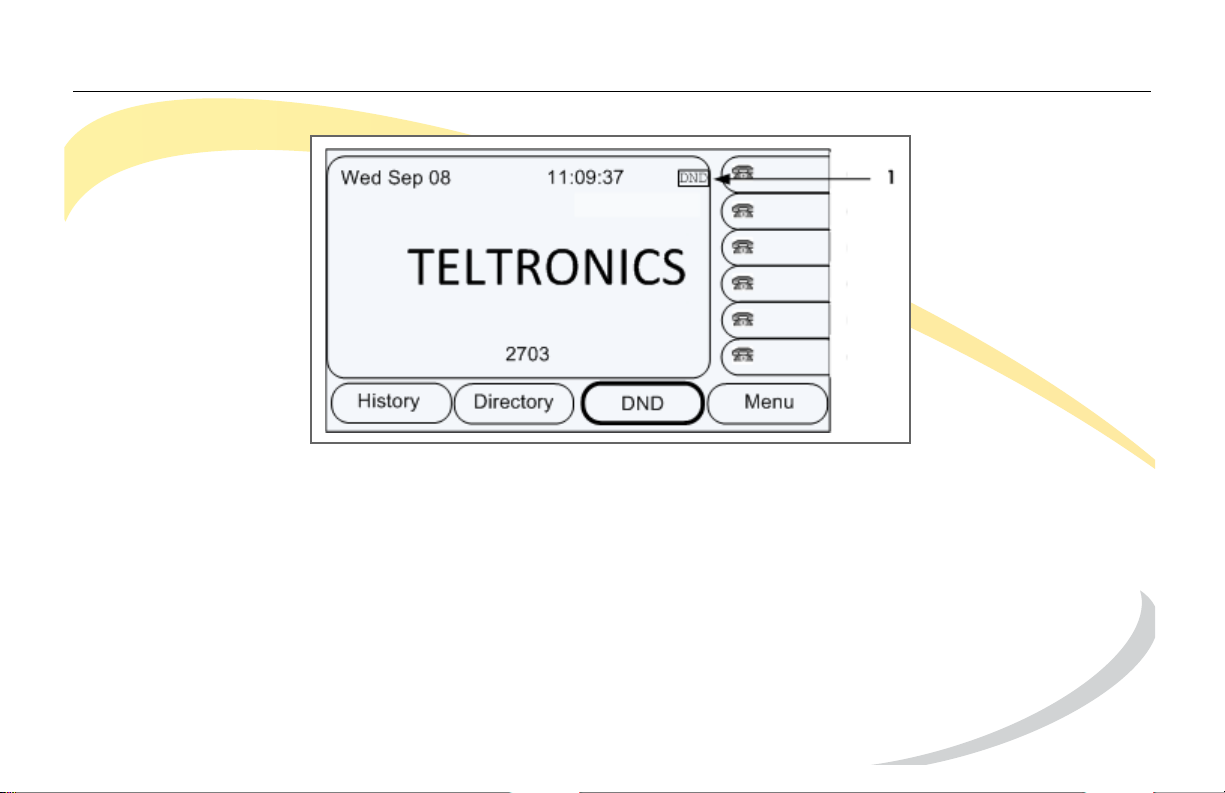
To automatically reject incoming calls, press the DND soft key on the Idle screen to enable DND
Mode. The icon appears in the top-right of the LCD screen. Press the DND soft key again to
deactivate DND mode. You can find the incoming call record in the Call History.
Arcata 2806 37 User Guide
Page 60
Basic Phone Functions Denying an Incoming Call
1 DND icon appears when DND is enabled.
Arcata 2806 38 User Guide
Page 61

Basic Phone Functions Muting a Call
Muting a Call
Press the Mute button to mute an active call. While Mute is enabled you cannot be heard by
the other party but you can still hear them.
Press the Mute button again to disable mute.
Placing a Call on Hold
To place an active call on hold, press the Hold soft key or the HOLD button on the phone.
To return to the call, press the Resume soft key or the HOLD button.
Other calls can be received and made while a call is on hold. If there is more than one call on
hold, press the line button for the call you want to resume and then press the Resume soft key or
HOLD button to retrieve the call.
Arcata 2806 39 User Guide
Page 62
Basic Phone Functions Transferring a Call
Transferring a Call
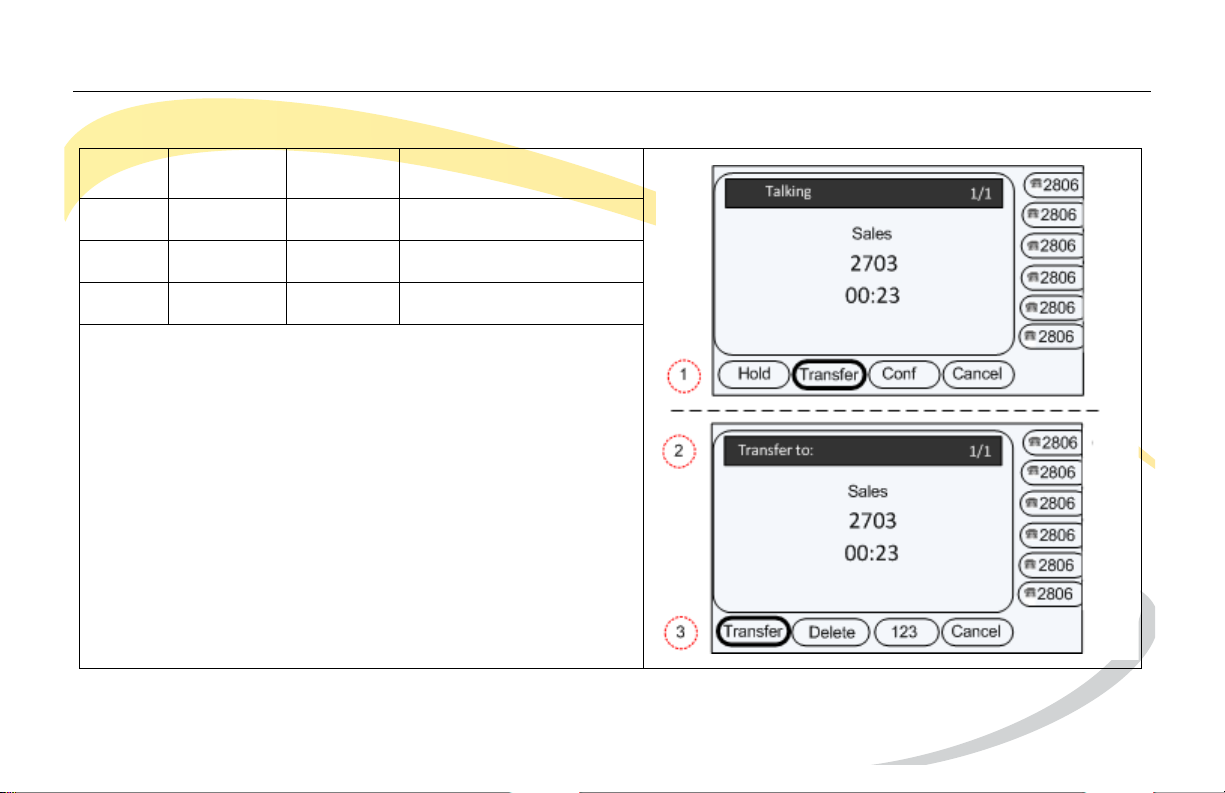
Step Item Press Notes
1Soft KeyTransfer
2 Keypad Enter number
3 Soft Key Transfer Initiates transfer.
You can hang up now and the call will be
transferred.
If you want to make sure the other party answers,
or to speak with the other party before you
transfer, wait until they answer and then press the
Transfer soft key or TRAN button.
Arcata 2806 40 User Guide
Page 63
Basic Phone Functions Establishing a 3-Way Conference
Establishing a 3-Way Conference
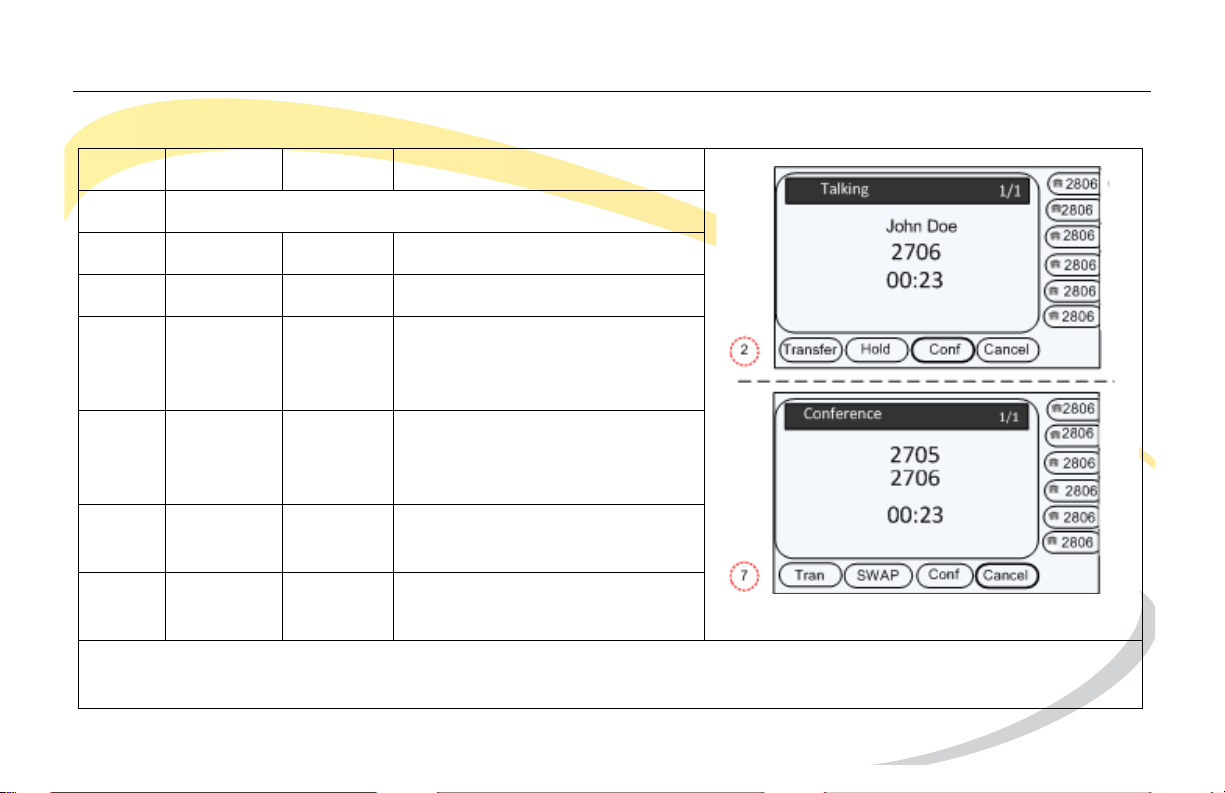
Step Item Press Notes
1 Call second party
2 Soft Key Conf or CONF button
3 Keypad Dial other party.
4 Soft Key Send When call is answered, you
are connected to the third
party only.
5 Soft Key SWAP (Optional) to toggle
between parties before
establishing conference.
6 Soft Key Conf Establishes the conference
with all three parties.
7 Soft Key Cancel Terminates the
conference.
NOTE: To leave the conference while keeping the other parties connected, see “Leaving a
Conference” on page 42.
Arcata 2806 41 User Guide
Page 64
Basic Phone Functions Establishing a 3-Way Conference
Leaving a Conference
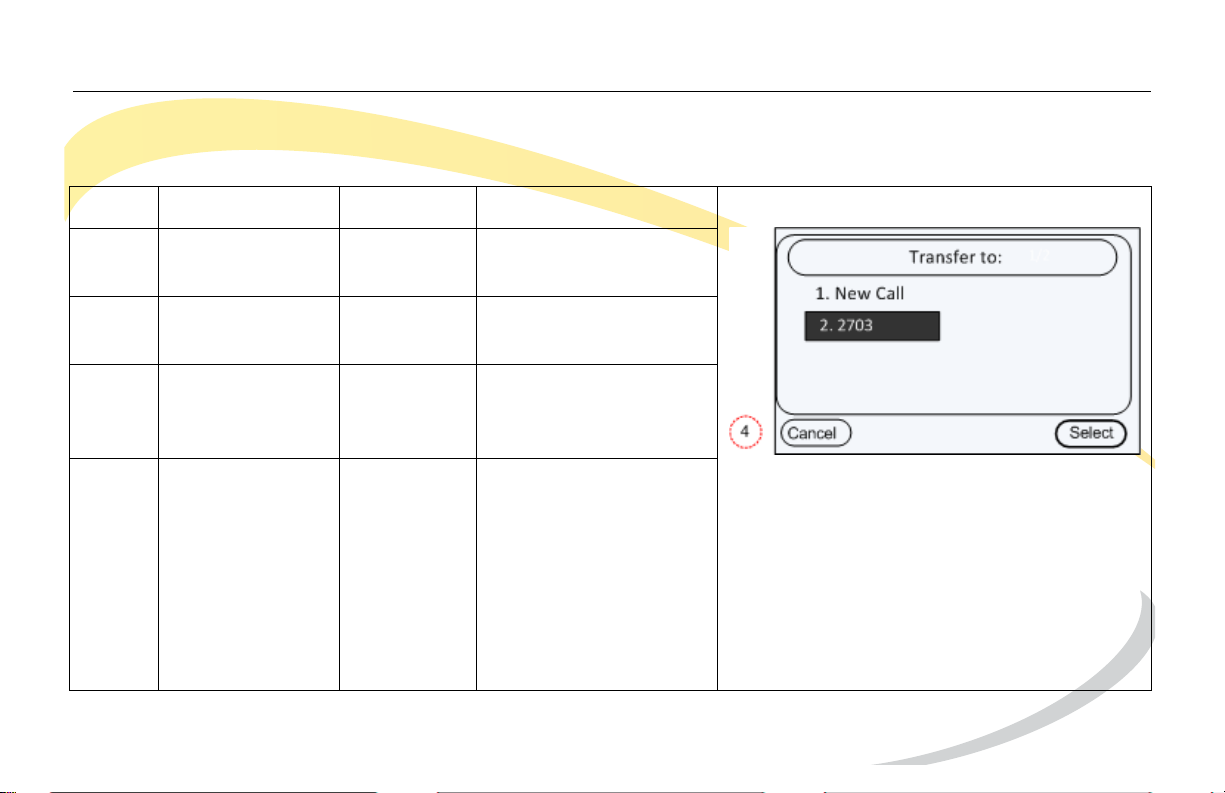
To leave a conference that you created while leaving the other two parties connected.
Step Item Press Notes
1 Soft Key Split This places both
parties on hold.
2 Soft Key Tran This opens the
Transfer to screen.
3 Navigation
Keys
Down This selects the other
line in the
conference.
4 Soft Keys Select This disconnects you
and reconnects the
other two parties in
the conference.
You can hang up
and the other
parties will stay
connected.
Arcata 2806 42 User Guide
Page 65

Basic Phone Functions Retrieving a New Voice Message
Retrieving a New Voice Message
When you have new voice messages, the LED on the MESSAGE button will be lit and the
message icon will appear in the top-right of the phone’s LCD screen. Press the MESSAGE button
to access your mailbox. You will be prompted to enter your password (default password is
5555).
Accessing your Voice Mailbox
To access your mailbox when you do not have a new message, press the MESSAGE button. If
you have multiple accounts on your phone, select the desired account. Press the MESSAGE
button again and then enter your password.
Contact your System Administrator for information on accessing your voice message from
another location.
Arcata 2806 43 User Guide
Page 66
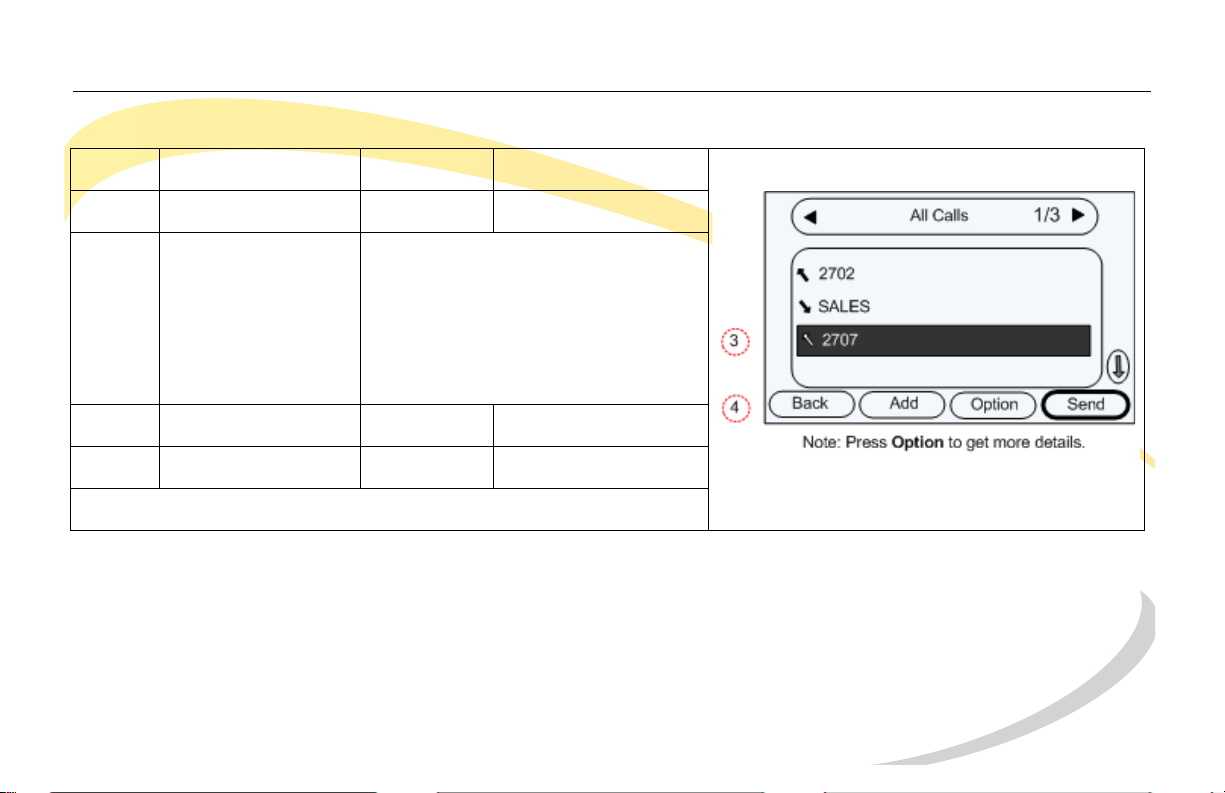
Basic Phone Functions Viewing Call History
Viewing Call History
Step Item Press Notes
1Soft Key History
2 Navigation Keys By default, All Calls are shown.
Use the right/left navigation
keys to change the category
(Missed Calls, Dialed Calls,
Received Calls or Forwarded
Calls).
3 Navigation Keys Down Highlight entry
4 Soft Key Send Dials number
Arcata 2806 44 User Guide
Page 67
Basic Phone Functions Viewing Missed Calls
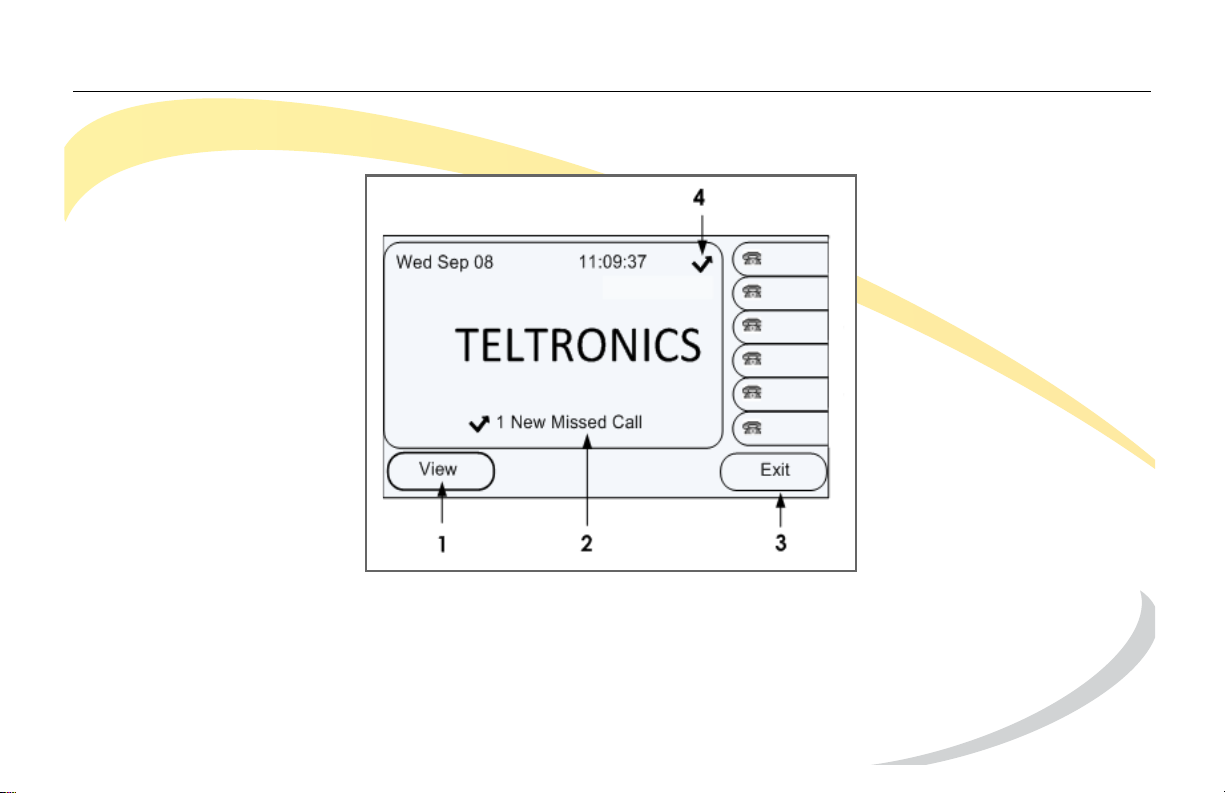
Viewing Missed Calls
1 Press the View soft key to see missed calls.
2 Message indicates you have missed call(s).
3 Press the Exit soft key to return to main idle screen.
4 Icon indicates Missed Calls.
Arcata 2806 45 User Guide
Page 68

Basic Phone Functions Shared Extensions
Shared Extensions
Bridged Line Appearance
If your phone is configured with the Bridged Line Appearance (BLA) feature, you can share SIP
lines with other subsribers and monitoring the shared line.
NOTE: When a call is active on a BLA line, all members with that BLA appearance are blocked
from using this appearance until the line goes back to idle state or when the call is placed on
hold. Similarly, all members of the BLA group are notified of an incoming call and the call can
be picked up on a line appearance associated with the BLA extension.
Busy Lamp Field (BLF)/Direct Station Select (DSS)
If your phone supports Busy Lamp Field (BLF)/Direct Station Select (DSS), you can monitor the
status (idle, ringing, or busy) of other SIP accounts, as well as use the Feature Key to dial the
accounts.
Arcata 2806 46 User Guide
Page 69

Basic Phone Functions Shared Extensions
Monitor
If your phone is configured with the Monitor feature, you can share CIP-D lines with other
subscribers. When a call is active on a monitored line, all members with that appearance will
be blocked from using this appearance until the line goes back to idle state or when the call is
placed on hold.
Similarly, all members of the group are notified of an incoming call and the call can be picked
up on a line appearance associated with the extension.
Active calls may also be placed on hold on one extension and picked up from hold on another
extension.
Arcata 2806 47 User Guide
Page 70

Basic Phone Functions Shared Extensions
This page intentionally blank.
Arcata 2806 48 User Guide
Page 71

Customizing Your Phone
CUSTOMIZING YOUR PHONE
This section provides instructions on how to:
• Manage Contacts/Blacklist
•Configure Features
•Customize Display
• Modify Basic Settings
• Modify Advanced Settings
Arcata 2806 49 User Guide
Page 72

Customizing Your Phone Managing Contacts/Blacklists
Managing Contacts/Blacklists
You can add contacts to your directory and then dial them using the Directory option.
For each contact you can add the following:
• Name
• Office phone number
• Mobile number
• Other number
• Account setting (the Line that will be used to dial out when you dial the contact)
• Ring Tone (tone to play when you receive a call from the contact).
You can add a contact to a Blacklist to have calls from the contact automatically rejected
and sent to voice mail.
When viewing calls in your History, you can add them to your contact list or to the blacklist by
pressing the Option soft key.
Arcata 2806 50 User Guide
Page 73
Customizing Your Phone Managing Contacts/Blacklists
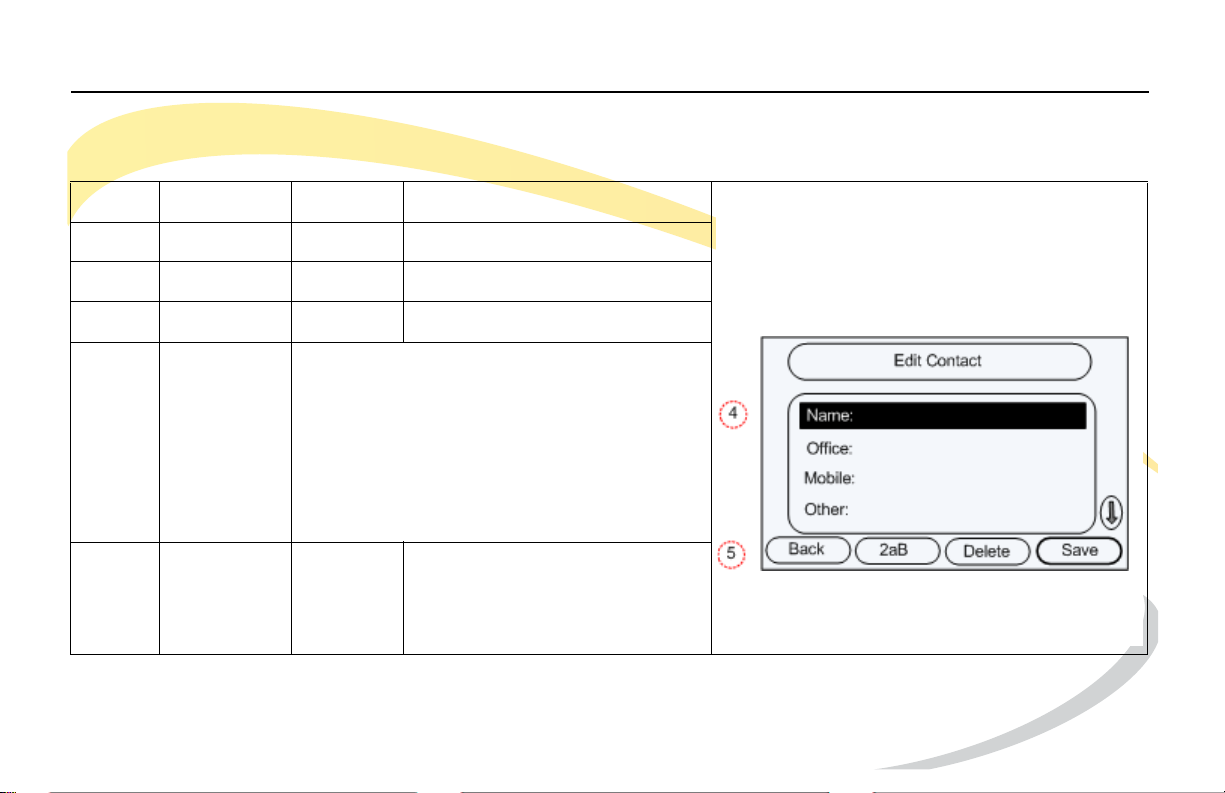
Adding a Contact/Blacklist
Step Item Press Notes
1Soft Key Directory
2Soft Key Enter Contacts or Blacklist
3Soft Key Add
4Keypad/
Navigation
Key
5Soft Key Save
Arcata 2806 51 User Guide
Enter the contact name.
Use the Down Navigation Key to scroll
through other fields and enter
information as desired.
See Using DTMF Keypad in Alpha-
numeric Mode for help using the DTMF
keys and alpha-numeric soft key.
Page 74
Customizing Your Phone Managing Contacts/Blacklists
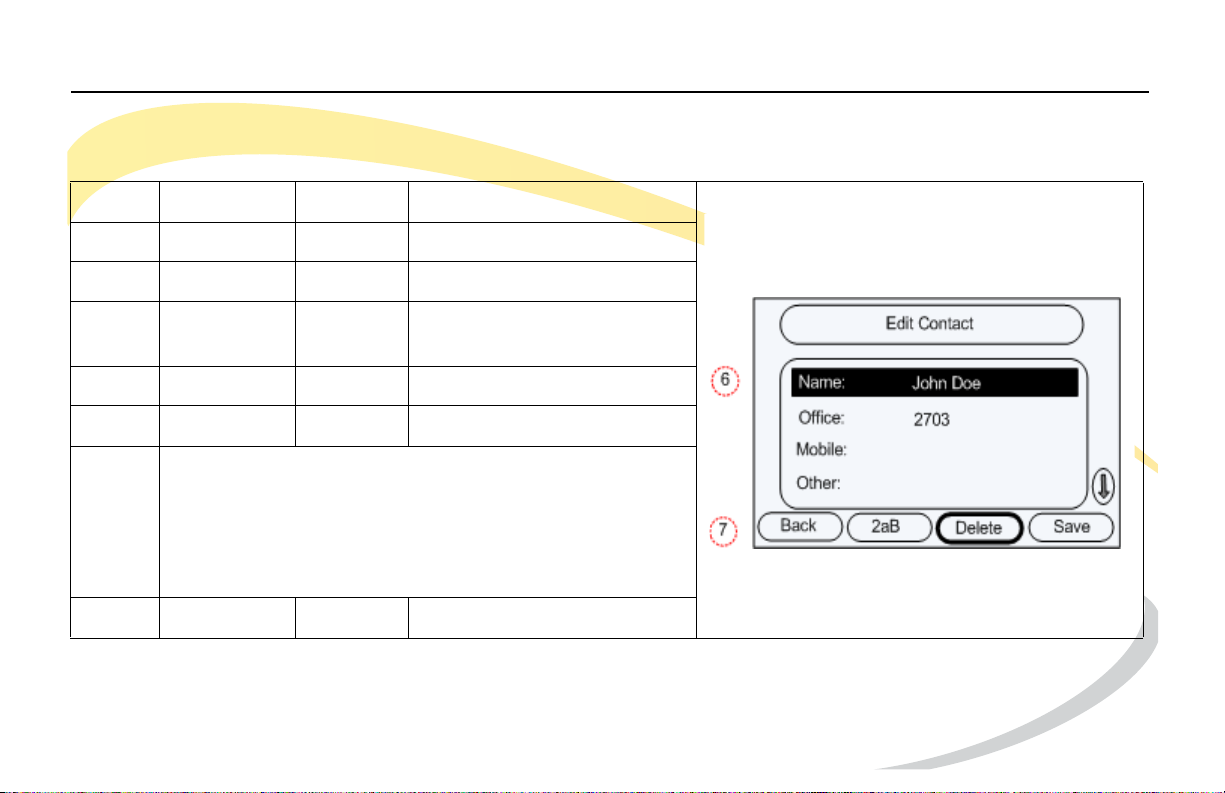
Editing a Contact/Blacklist
Step Item Press Notes
1Soft Key Directory
2Soft Key Enter Contacts or Blacklist
3 Navigation
Keys
4Soft Key Option
5Soft Key OK Opens Detail screen
6 Edit information in each field as required. Use the
Back soft key to delete existing information
Use the Down Navigation Key to scroll through fields.
See Using DTMF Keypad in Alpha-numeric Mode for
help using the DTMF keys and alpha-numeric soft key.
7Soft KeySave
Arcata 2806 52 User Guide
Highlight desired contact
Page 75
Customizing Your Phone Managing Contacts/Blacklists
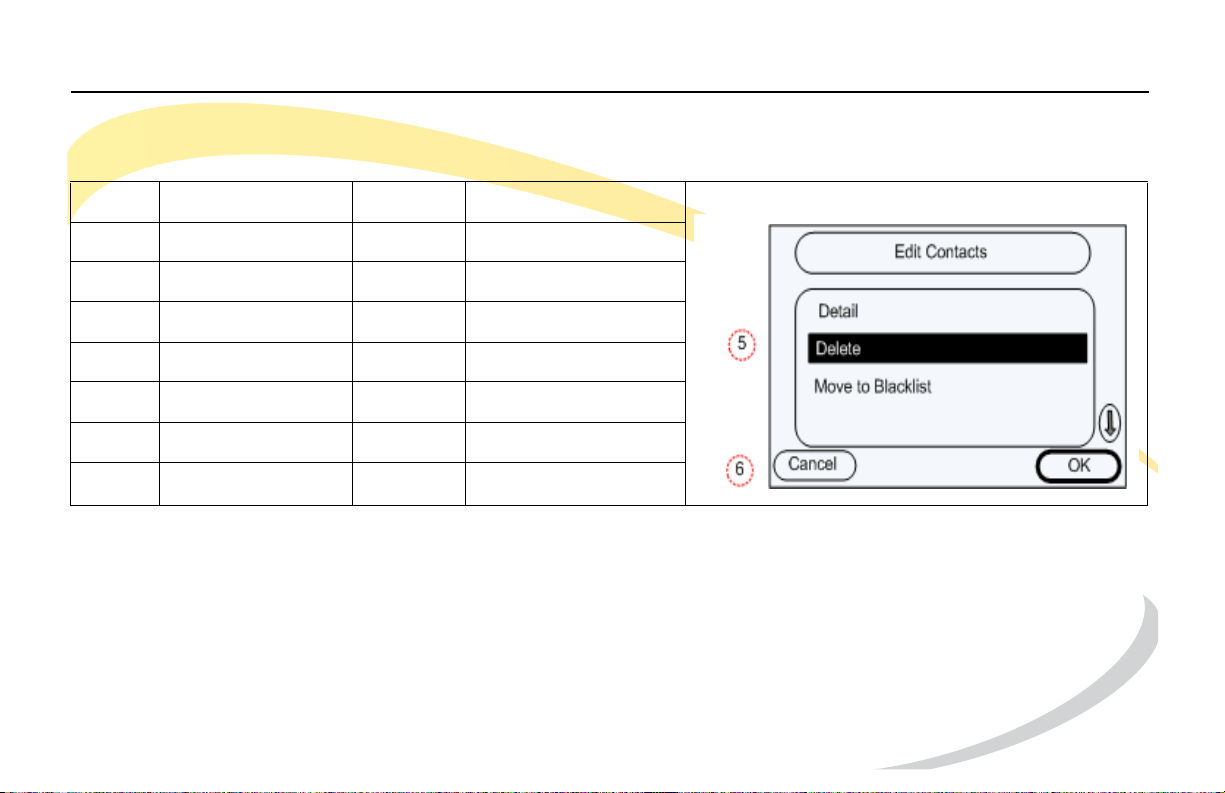
Deleting a Contact/Blacklist
Step Item Press Notes
1Soft Key Directory
2Soft Key Enter Contacts or Blacklist
3 Navigation Keys Down Highlight contact
4Soft Key Option
5 Navigation Keys Down Highlight Delete
6Soft Key OK
7Soft Key OK
Arcata 2806 53 User Guide
Page 76
Customizing Your Phone Managing Contacts/Blacklists
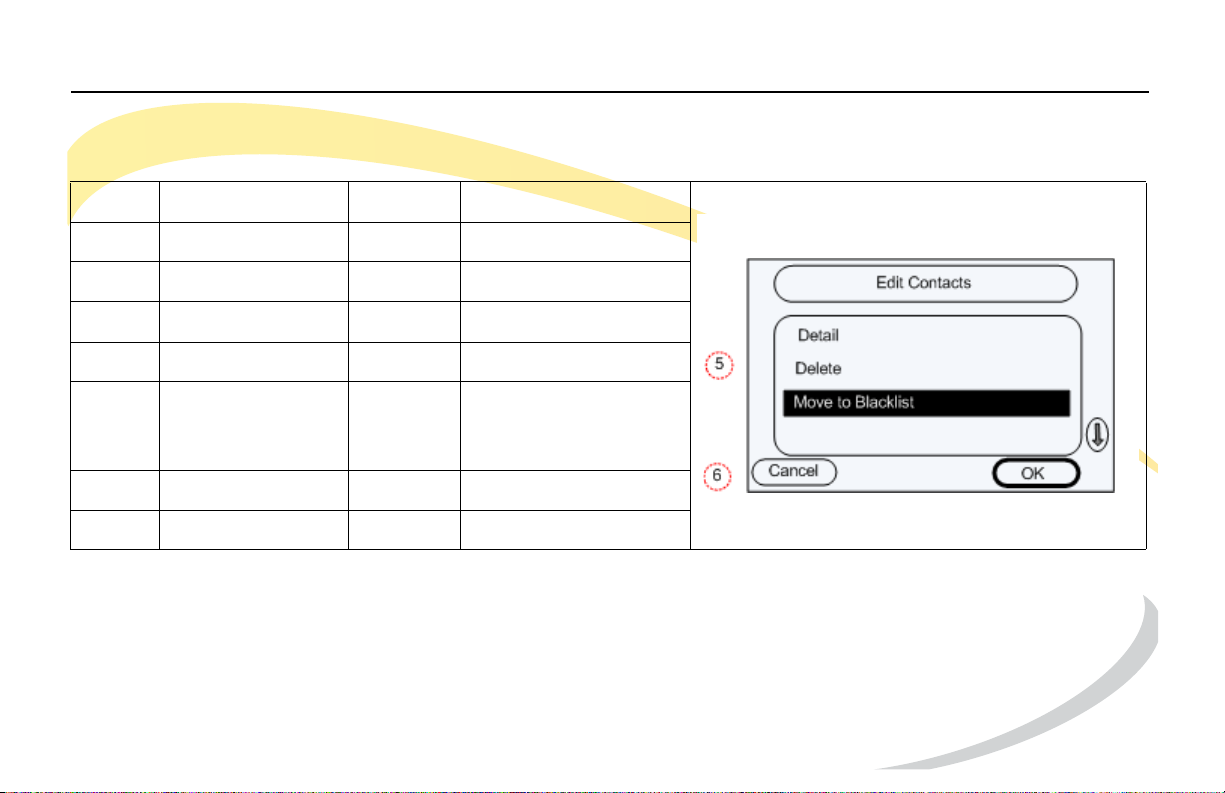
Moving a Contact to the Blacklist/Contact
Step Item Press Notes
1Soft Key Directory
2Soft Key Enter Contacts or Blacklist
3 Navigation Keys Down Highlight contact
4Soft Key Option
5 Navigation Keys Down Highlight Move to
Blacklist or Move to
Contacts
6Soft Key OK
7Soft Key OK
Arcata 2806 54 User Guide
Page 77

Customizing Your Phone Configuring Features
Configuring Features
This section includes information on setting up the following features:
•Auto Redial
• Call Forward
• Call Waiting
Arcata 2806 55 User Guide
Page 78
Customizing Your Phone Configuring Features
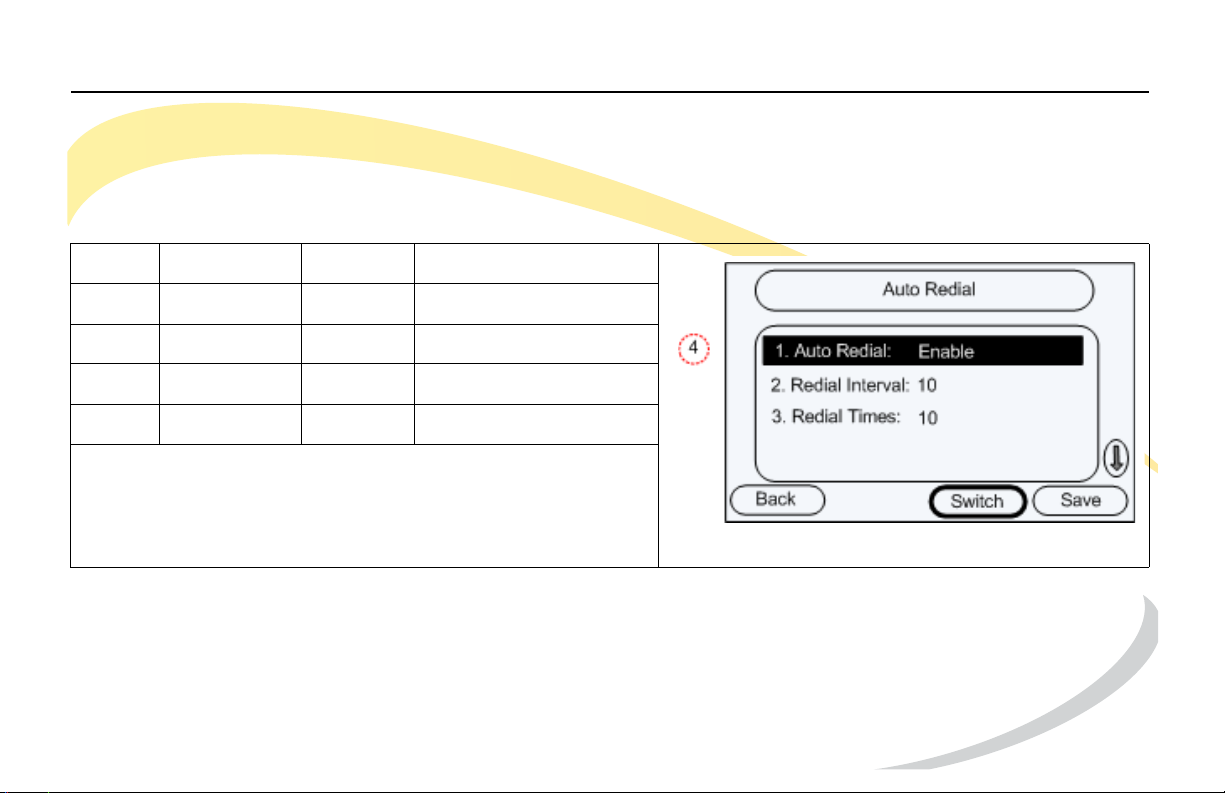
Setting up Auto Redial
Before you can use the Auto Redial feature, you must enable it and configure the Redial
Interval (default = 10 sec.) and the number of Redial Times (default = 10).
Step Item Press Notes
1Soft Key Menu
2Keypad 2 Features
3Keypad 3 Auto Redial
4Soft Key Switch Change to Enable.
If you do not want to change the default settings, click the
Save softkey. Otherwise, continue with steps.
Arcata 2806 56 User Guide
Page 79
Customizing Your Phone Configuring Features
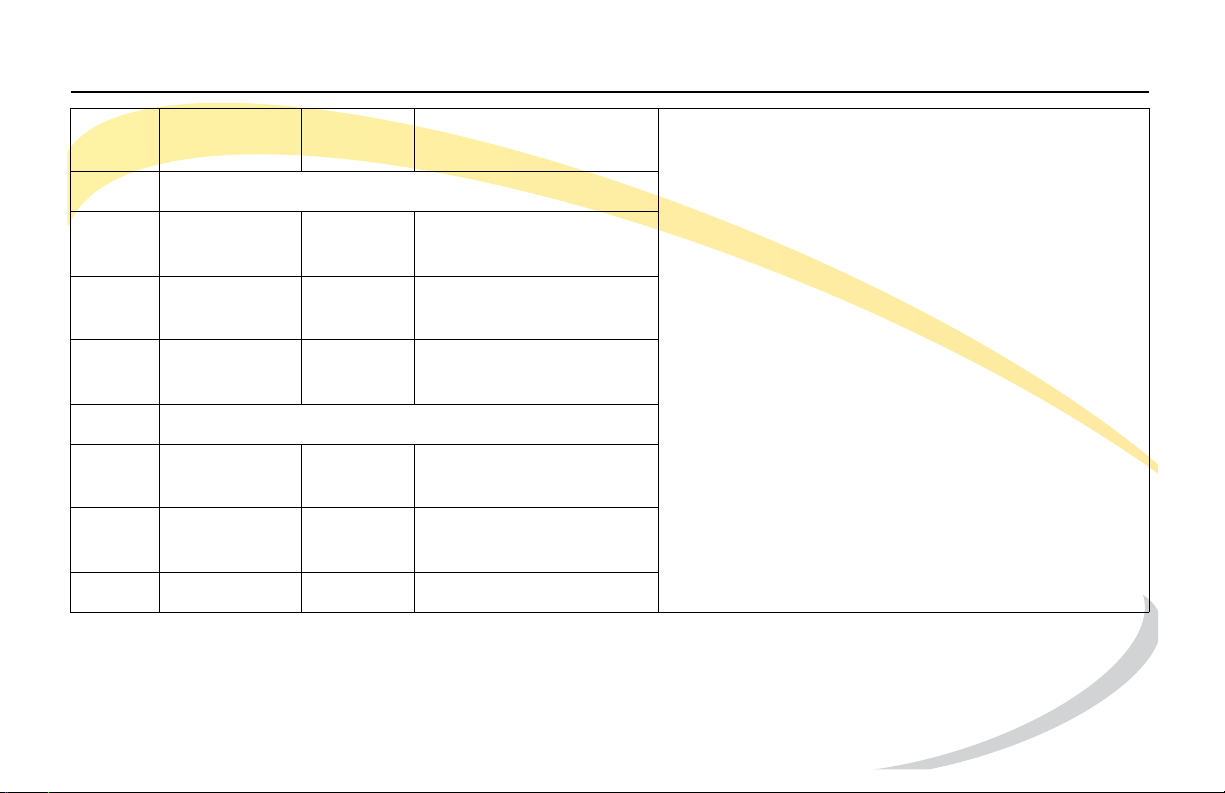
5 Navigation
Down
Key
6 Change Redial Interval (Optional)
aSoft Key Del Delete current value
for Redial Interval.
b Keypad Enter value for Redial
Interval.
7 Navigation
Down
Key
8 Change Redial Times (Optional)
aSoft Key Del Delete current value
for Redial Interval.
b Keypad Enter value for Redial
Interval.
9Soft Key OK
Arcata 2806 57 User Guide
Page 80

Customizing Your Phone Configuring Features
Call Forward
This feature lets you automatically forward incoming calls to another phone number or voice
mailbox.
The following call forwarding events can be configured:
• Always: Incoming calls are immediately forwarded.
• Busy: Incoming calls are immediately forwarded when the phone is busy.
• No Answer: Incoming calls are forwarded when the phone is not answered after a specific
period.
When your phone is in Call Forward mode, the display shows the icon.
Once you have enabled Call Forward, each time you press the Call Forward Feature Key
programmed on your phone, Call Forward mode will toggle off and on.
Arcata 2806 58 User Guide
Page 81
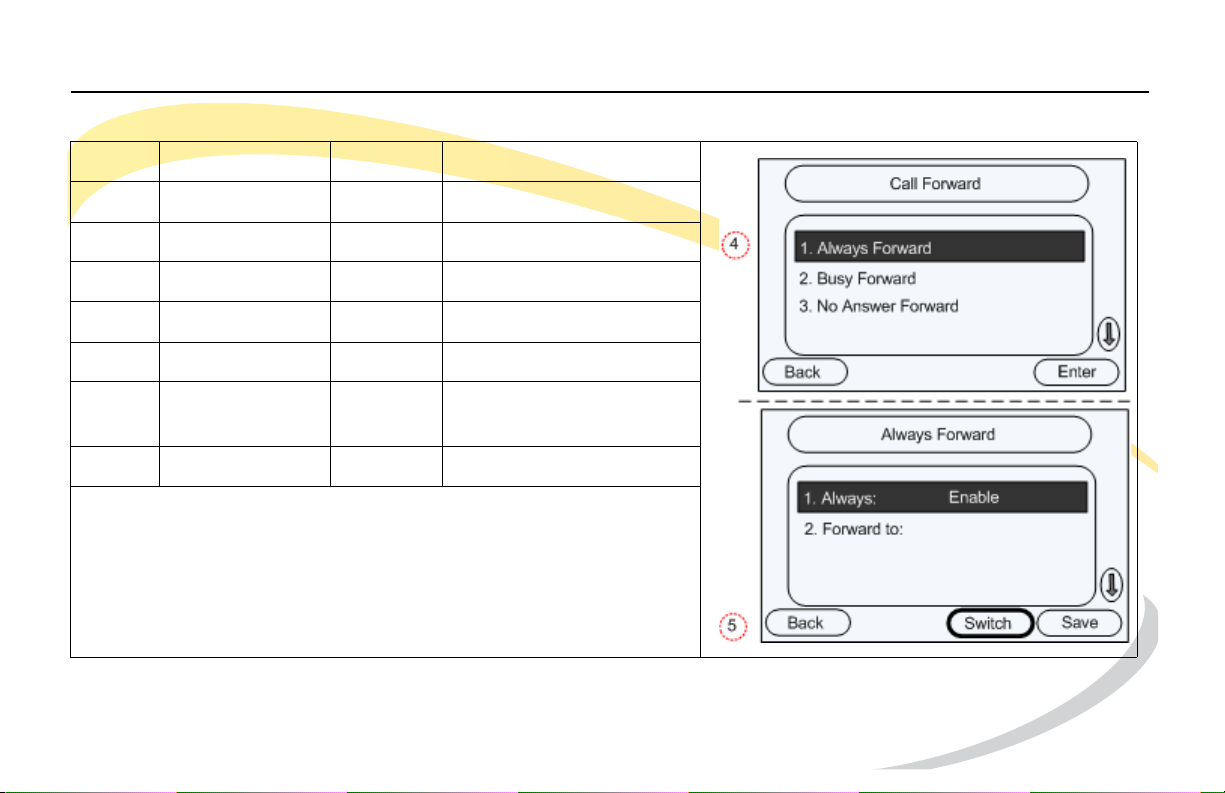
Customizing Your Phone Configuring Features
Call Forward (continued)
Step Item Press Notes
1Soft Key Menu
2Keypad 2 Features
3Keypad 1 Call Forward
4 Keypad Select mode
5Soft Key Switch Change to Enable
6 Navigation
Down
Keys
7 Keypad Enter number
Arcata 2806 59 User Guide
Page 82
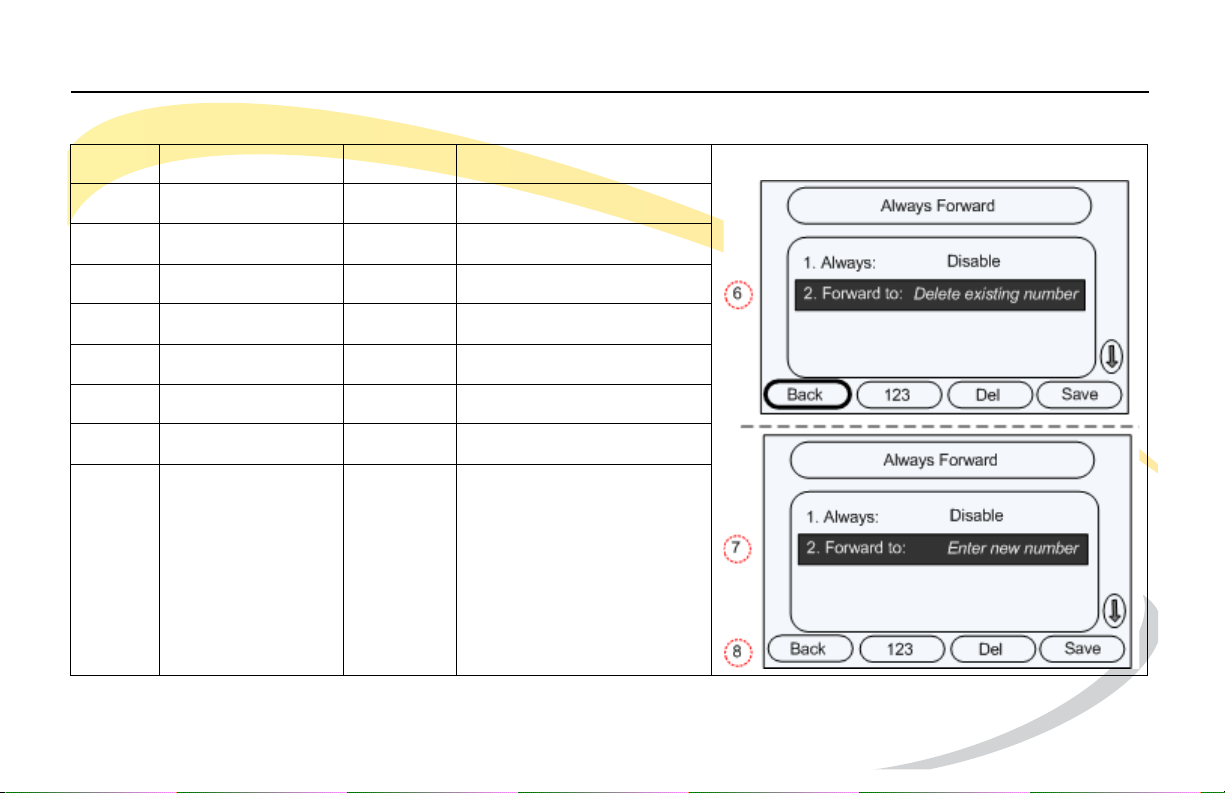
Customizing Your Phone Configuring Features
Changing the Forward to number
Step Item Press Notes
1Soft Key Menu
2Keypad 2 Features
3Keypad 1 Call Forward
4 Keypad Select mode
5 Navigation Keys Down Forward to:
6Soft Key Back Delete existing number
7 Keypad Enter new number
8Soft Key Save
Arcata 2806 60 User Guide
Page 83
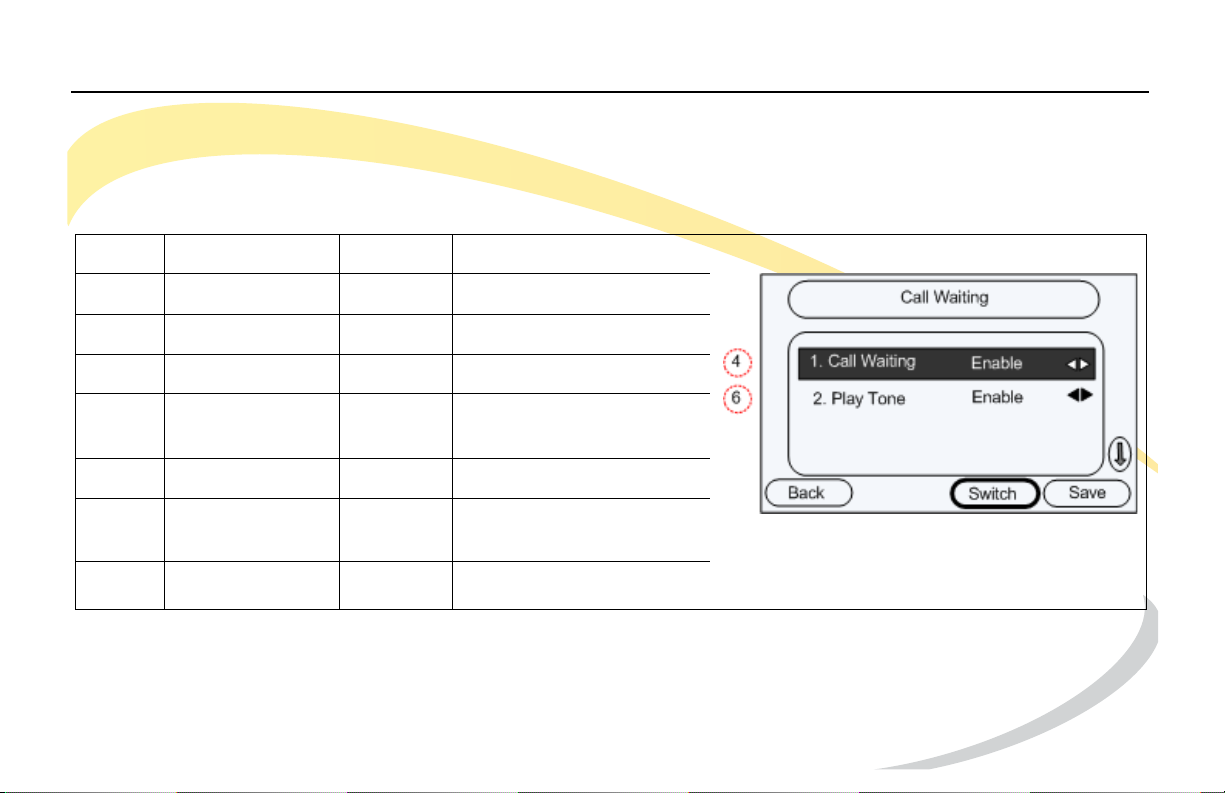
Customizing Your Phone Configuring Features
Call Waiting
Call Waiting allows you to accept other incoming calls on an extension already in an active
call. Call waiting is enabled by default. You will hear an audible tone when there is an incoming
call.
Step Item Press Notes
1Soft Key Menu
2Keypad 2 Features
3Keypad 2 Call Waiting
4Soft Key Switch Enable or disable Call
Waiting
5 Navigation Key Down
6Soft Key Switch Enable or disable Play
Tone
7Soft Key Save
Arcata 2806 61 User Guide
Page 84

Customizing Your Phone Modifying Basic Settings
Modifying Basic Settings
Basic Settings include:
• Changing the Language
• Changing the Date and Time
• Changing the Date and Time Format
• Changing the Time Zone
• Adjusting the Volume
Arcata 2806 62 User Guide
Page 85

Customizing Your Phone Modifying Basic Settings
Changing the Language
The default language for the Arcata series phones is English. The following languages are also
supported:
• Chinese (Simplified)
• Chinese (Traditional)
• English
•French
•German
•Italian
•Polish
•Portuguese
•Spanish
•Turkish
Note: The languages available depend on the language packs currently loaded in your phone.
Please contact your System Administrator for more information about loading language packs.
Arcata 2806 63 User Guide
Page 86
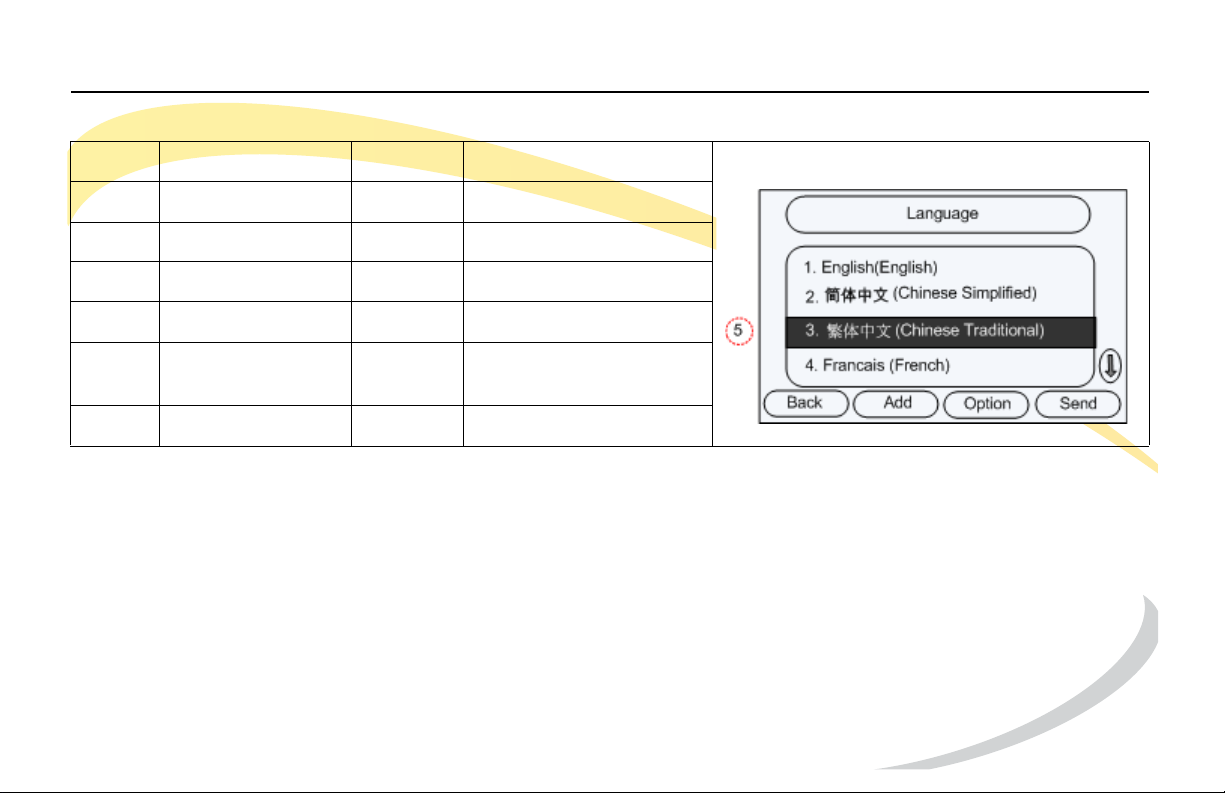
Customizing Your Phone Modifying Basic Settings
Step Item Press Notes
1Soft Key Menu
2Keypad 3 Settings
3Keypad 1 Basic Settings
4Keypad 1 Language
5 Navigation Keys Down Highlight desired
language
6 Navigation Keys OK Select and save.
Note: Press the Option soft key to get more details or delete a contact.
The language you choose will now appear on the LCD display.
Arcata 2806 64 User Guide
Page 87

Customizing Your Phone Modifying Basic Settings
Changing the Time and Date
The time and date appear on the idle screen of the Arcata phone. If the phone cannot obtain
a time and date from the call server, please contact your System Administrator.
You may need to change the time and date settings on your phone if you are located in a
different time zone than your main phone network.
This section includes the following tasks:
• Change the Time Zone
• Change the Time and Date
• Change the Time and Date Format
Arcata 2806 65 User Guide
Page 88
Customizing Your Phone Modifying Basic Settings
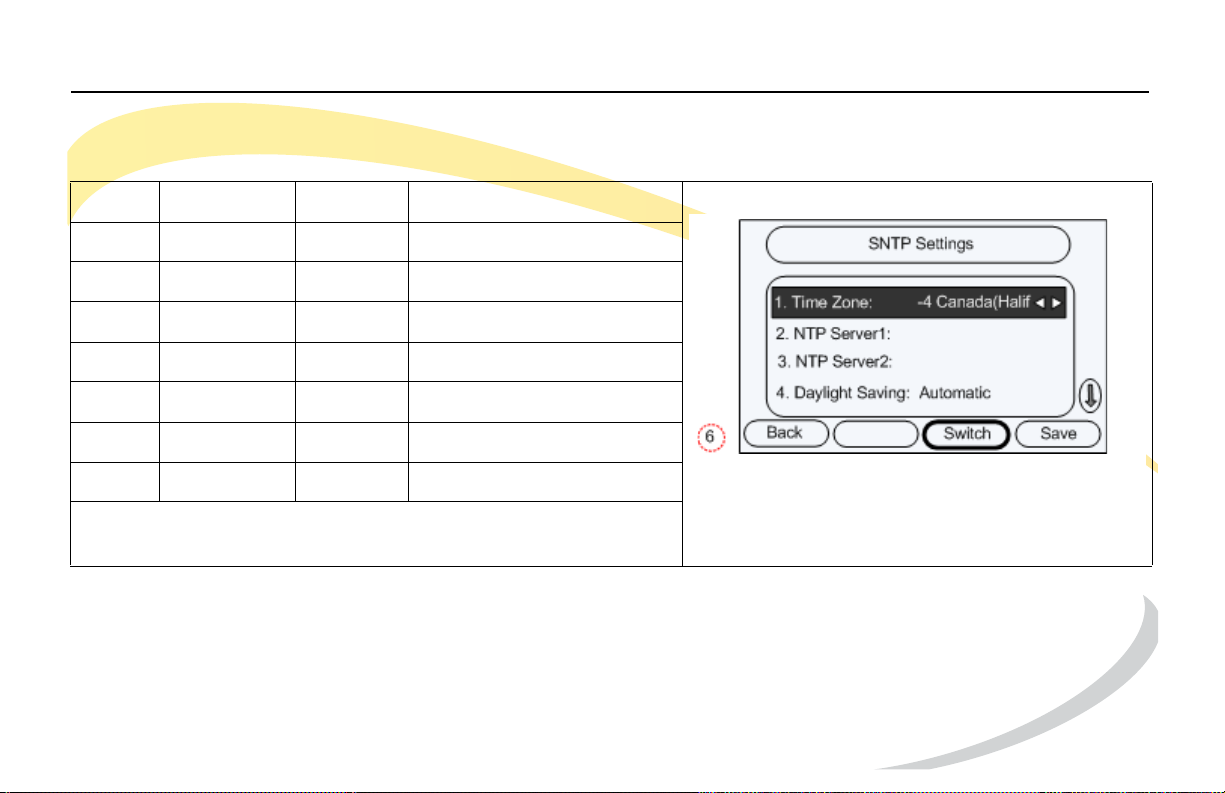
Changing the Time Zone
Step Item Press Notes
1Soft Key Menu
2Keypad 3 Settings
3Keypad 1 Basic Settings
4Keypad 2 Time & Date
5Keypad 1 SNTP Settings
6Soft Key Switch Select desired Time Zone
7Soft Key Save
Caution: Do not change any other SNTP settings without
contacting your System Administrator.
Arcata 2806 66 User Guide
Page 89
Customizing Your Phone Modifying Basic Settings
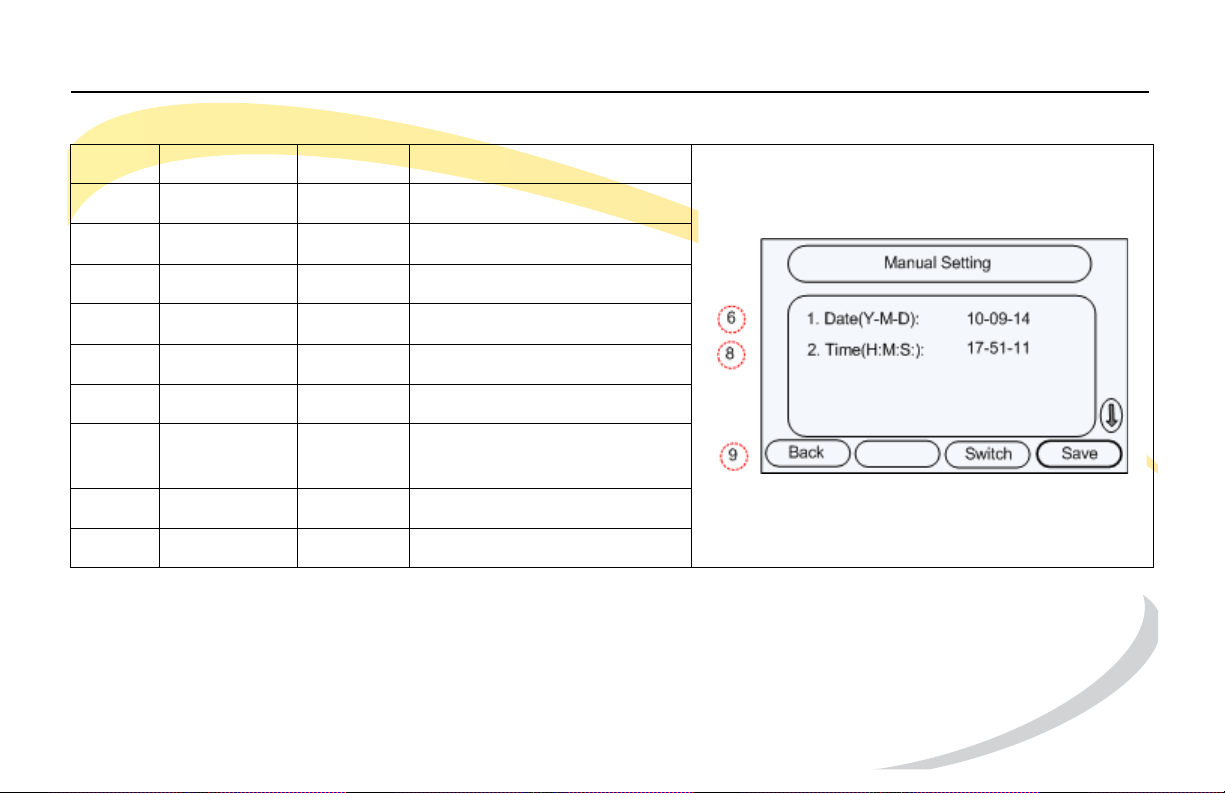
Changing the Time and Date
Step Item Press Notes
1Soft Key Menu
2Keypad 3 Settings
3Keypad 1 Basic Settings
4Keypad 2 Time & Date
5Keypad 2 Manual Setting
6 Keypad Enter Date *
7 Navigation
Keys
8 Keypad Enter Time
9Soft Key Save Saves settings
* Use Right Navigation Key to move to the next cell. Use the Down Navigation Key to move from Date to Time.
Arcata 2806 67 User Guide
Down Move to Time field.
Page 90
Customizing Your Phone Modifying Basic Settings
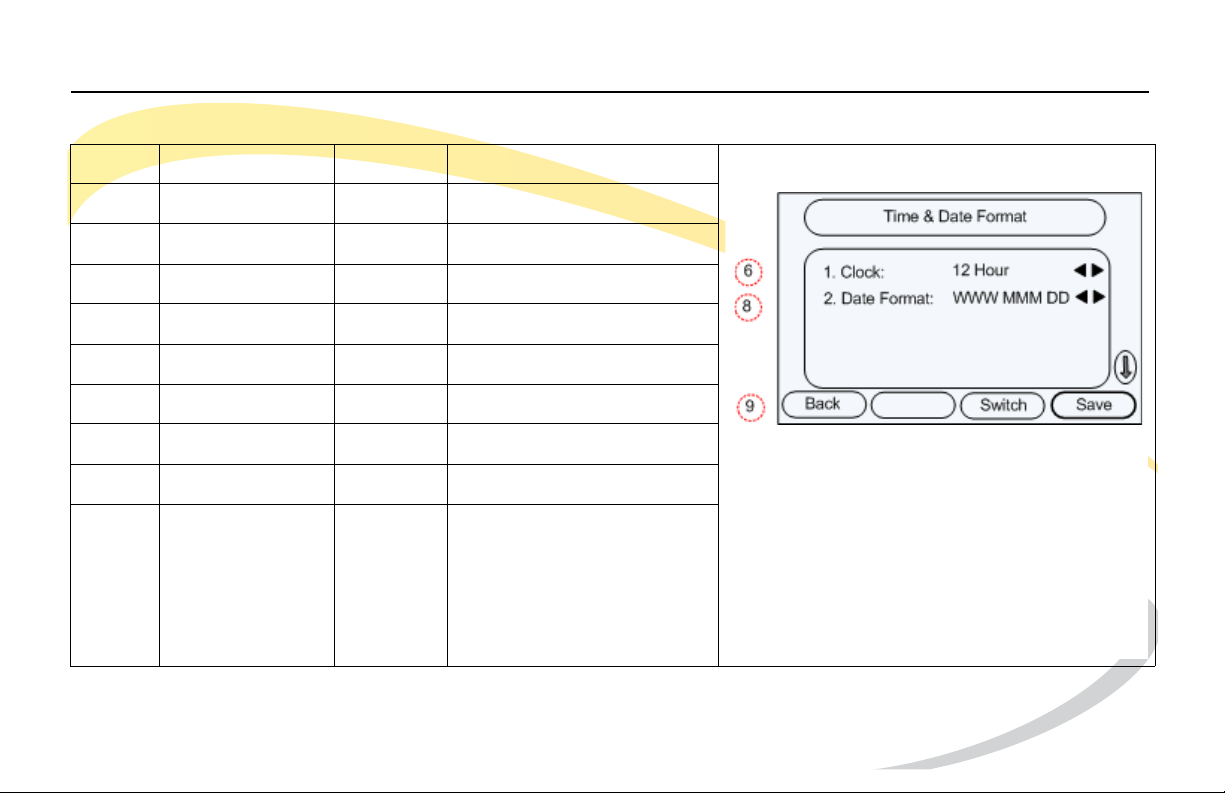
Changing the Date & Time Format
Step Item Press Notes
1Soft Key Menu
2Keypad 3 Settings
3Keypad 1 Basic Settings
4Keypad 2 Time & Date
5Keypad 3 Time & Date Format
6Soft Key Switch Select Clock Format
7 Navigation Key Down
8Soft Key Switch Select Date Format
9Soft Key Save Saves setting
Arcata 2806 68 User Guide
Page 91
Customizing Your Phone Modifying Basic Settings
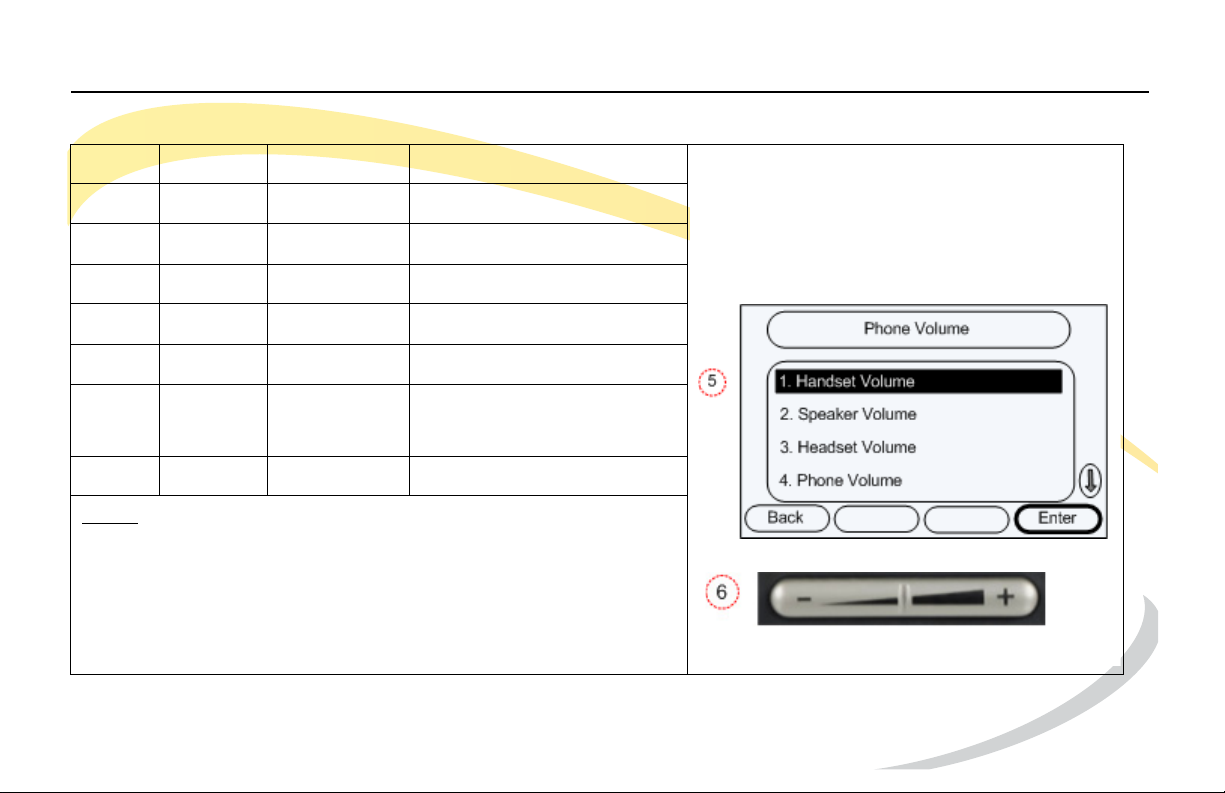
Adjusting the Volume
Step Item Press Notes
1Soft Key Menu
2Keypad 3 Settings
3Keypad 1 Basic Settings
4Keypad 4 Phone Volume
5 Keypad See Notes Select volume to change
6Volume
Bar
7Soft Key OK
Notes
Alternatively, use Down Navigation Key to highlight option
and press Enter soft key.
For Ring Volume, enter 4.
Arcata 2806 69 User Guide
Left/Right Adjust volume to desired
level
Page 92
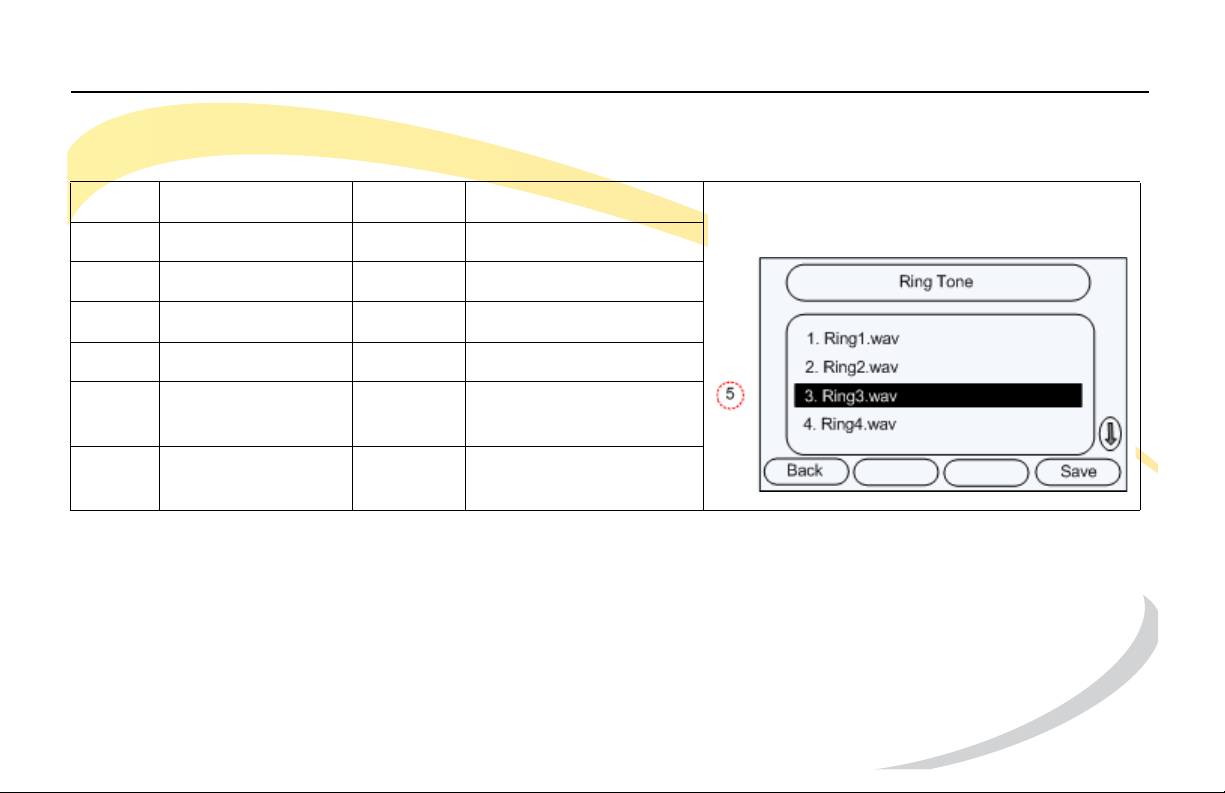
Customizing Your Phone Modifying Basic Settings
Changing the Ring Tone
Step Item Press Notes
1Soft Key Menu
2Keypad 3 Settings
3Keypad 1 Basic Settings
4Keypad 3 Ring Tone
5 Navigation Key Down Scroll to highlight
desired tone *.
6 Navigation Key OK ** Saves setting
* Or enter the number for the tone using the keypad and press Save.
** Or press Save softkey.
Arcata 2806 70 User Guide
Page 93

Customizing Your Phone Modifying Advanced Settings
Modifying Advanced Settings
The Advanced Settings listed below can be modified in User Mode. Other Advanced Settings
can be accessed in Admin Mode. See your System Administrator for more information.
Advanced Settings include:
• Network Settings
•Keypad Lock
•WAN Options
•PC Port
•VPN
Accessing Advanced Settings
To access Advanced Settings:
1 Press the Menu soft key.
2 Press 3 for Settings.
3 Press 2 for Advanced Settings.
4 Enter password. The default password is user. To change the User Password go to Advanced
Settings > Set user Password.
Arcata 2806 71 User Guide
Page 94

Customizing Your Phone Modifying Advanced Settings
WAN Options
Select the desired WAN Option and enter information if required.
• DHCP IP Client - The phone attempts to contact a DHCP Server in your network to obtain its
valid network settings, such as IP Address, Subnet Mask, Gateway, and DNS Server.
• Static IP Client - If your phone cannot contact a DHCP Server, select this option to enter the
network settings manually.
• PPPoE IP Client - If you are using the xDSL Modem, you can connect your phone to the
internet in PPPoE mode. Contact your ISP for PPPoE User and PPPoE PWD (Password) for
internet access.
PC Port
• Bridge - The two Fast Ethernet ports will be transparent.
• Router - The SIP phone will work as a router. You will need to enter the IP Address, Subnet
Mask, and enable DHCP Server.
Network Settings
IMPORTANT: Do not change the Network Settings on your phone without first consulting your
Network Administrator.
Arcata 2806 72 User Guide
Page 95

Customizing Your Phone Modifying Advanced Settings
VPN
Enable or disable VPN access.
Arcata 2806 73 User Guide
Page 96

Customizing Your Phone Customizing the Display
Customizing the Display
Adjusting the Backlight
• Backlight Level - Press the Switch soft key to set the brightness level (1-3) of the backlight on
the display.
• Backlight Time - Press the Down Navigation Key to access the Backlight Time field, then press
the Switch soft key to select the length of time that the display will stay backlight (15-120 sec.)
Adjusting the Contrast
Set the contrast level of the display (1-10).
Lock
Select an option to disable functionality on your phone for security.
• Menu Key - disables the Menu soft key
• Function Keys - disable Function Keys such as MESSAGE, CONF, and TRAN.
• All Keys - disables all keys. The phone can only be used to answer incoming calls.
• Lock&Answer - All keys are locked and incoming calls are answered automatically (Auto
Answer).
Arcata 2806 74 User Guide
Page 97

Page 98

Arcata 2806 User Guide
Teltronics, Inc.
2511 Corporate Way
Palmetto, FL 34221-8478
941.753.5000
Part Number: 610-0000-0849 Rev E
 Loading...