

Page 1
Contents
1. Appearance and keypad operations..................................................... 03
2. Using memory card as U disk .............................................................. 04
3. WLAN ................................................................................................. 05
4. BT wireless ......................................................................................... 07
5. Mail ..................................................................................................... 08
6. Dialing ................................................................................................. 09
7. Messaging........................................................................................... 11
8. Contacts .............................................................................................. 12
9. Internet Explorer .................................................................................. 13
10. Sound recorder ................................................................................... 14
11. Clock ................................................................................................... 15
12. Calculator ............................................................................................ 16
13. Camera ............................................................................................... 16
14. Gallery ................................................................................................ 18
15. Music .................................................................................................. 19
16. Calendar ............................................................................................. 20
17. FM Radio ............................................................................................ 21
18. Settings ............................................................................................... 22
19. Personalization .................................................................................... 23
20. Notices for the use of phone ................................................................ 25
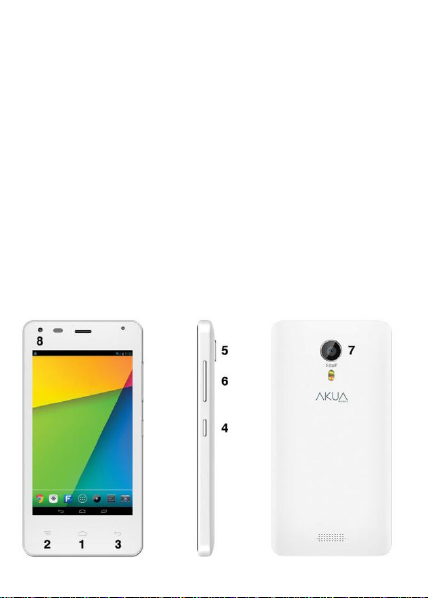
1 . Appearance and Keypad Operations
EK4e User Manual
2016 © Akua Mobile
3
Page 2
EK4e User Manual
4
2016 © Akua Mobile
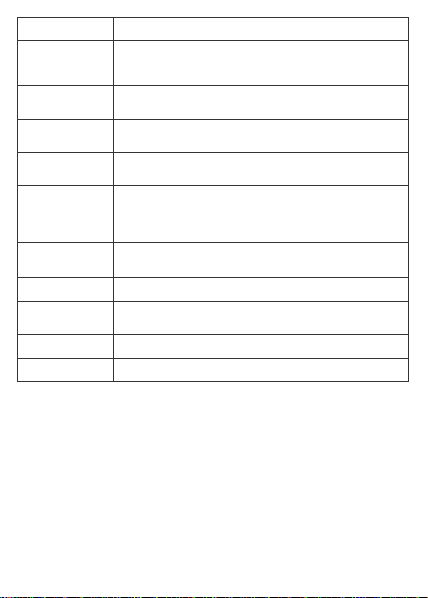
Keys Functions
-
Press this button to return home from any applicati on or
(1) Home
(2) Menu
(3) Back
(4) Power
(5) Up
(6) Down
(7) Back Camera
(8) Front Camera
(9) TP
2. Using Memory Card as U Disk
If you want to send music, pictures or other files to the phone’s memory card from the
computer, you should set memory card as u disk first.
Set memory card as u disk
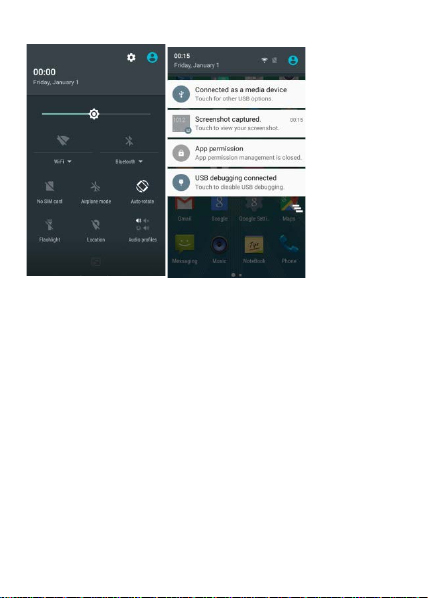
Connect the phone to the computer with USB cable. The notification icon will appear
in the status box.
Use USB mobile transmission line will connected t o the com puter
In the notification panel, touch USB is connect ed, then touch “Open the USB Storage
Device”
4) After the connection can be directly in the PC check im ages capt ur ed on c am era
Notice: different PC operating system to how t o operate to normal use the U disk.
WIN7 Can directly use
XP update windows media player to 11
Install wpdmtp.inf driver
Vista Unconfirmed
interface.
-
Press it to open recently opened application window.
Press it to start the menu, which allows you to perform acti ons
in the current interface or options’ menu.
Press it to return to the previous interface, or to close dial og
box, options’ menu, notification panel or the key pad.
Press it to open the phone’s menu, then you could choose to
lock the screen, turn off the phone.
-
Press it to increase the volume
-
Press it to turn the phone to vibration mode from the silent
mode.
-
Press it to decrease the volume
Entering the camera interface
Entering the camera interface, switched to the front camera
can photo yourself.
Double touch screen unlock, default off
Page 3
EK4e User Manual
5
2016 © Akua Mobile
Notice: On the PC operation assistant tool such as mobi le phone, Must be open the
USB debugging.
Page 4
EK4e User Manual
6
2016 © Akua Mobile
3. WLAN
Wi-Fi provides as far as 300feet (100M) range of wireless network access. If you use
cell phone to connect Wi-Fi, you shoul d connect to t he wireless access p oint or “ hot
spots”.
Notices: The availability and coverage of Wi-Fi signal depend on the number,
infrastructure and other objects penet r ated by the signal.
Open Wi-Fi and to connect to the wireless network
Press home>menu, then touch settings>W i-Fi and internet
Select the Wi-Fi box, to open Wi-Fi. Phone will automatically scan for available wir eless
networks.
Touch Wi-Fi settings. Then a list of Wi-Fi network will show the founded network name
and security settings. (Open network or WEP/WPA/WPA2 with password).If you enable
the notification in Wi-Fi settings, the status box will show this icon ) when open
available wireless network founded.
Touch one of the Wi-Fi choices to connect the network. When you choose open
network, phone will connect to it automatic ally . If you choose WEP/WPA/WPA2 with
password, you should type the password first, then t ouch to c onnec t it .
Page 5

EK4e User Manual
7
2016 © Akua Mobile
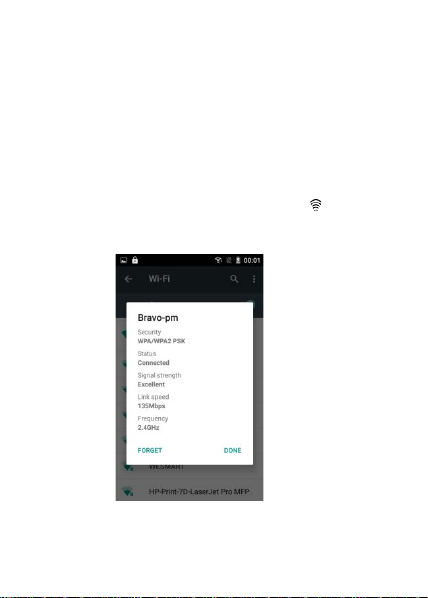
Notices: When the phone is connected to the wireless network, the status box will show
this Wi-Fi icon, and the approximate signal strengthen (the number of lit bars).If touch
the connected network, will display the nam e of Wi—Fi network, status, speed, signal,
strength, security, information and IP addr es s .
If you want to delete the wireless settings, please touch “ not reserve” as in the right
picture. If you want to connect to this network, you shoul d r e-enter these settings
Notices: Unless you choose not to reserve the netw or k with pas sw or d, ot herw is e, there
is no need to re-enter the corresponding password when next time connecting to the
previously encrypted wireless networ k. Wi-F i will s ear ch autom atically, that is, phone
needn’t to perform additional steps to connect Wi-Fi networks.
Connect to other Wi-Fi networks
In the interface of wireless and network, touch W i-Fi settings. The founded Wi-Fi
networks will show on the Wi-Fi network list.
Touch other Wi-Fi networks, and then you can connect to this network.
Notices: in addition, you can surf the internet v ia GPRS. We def ault that the GPRS
in SIM1 is opened after started, users can select manually, the specific location
is “settings>wireless and internet>data connection”, touch “SIM1/SIM2/no data
connection”, when the dot turns green, it ’s already opened.
Page 6
EK4e User Manual
8
2016 © Akua Mobile
4. BT wireless
Turn on BT wireless or set the phone can be detected
Press home>menu, the touch settings.
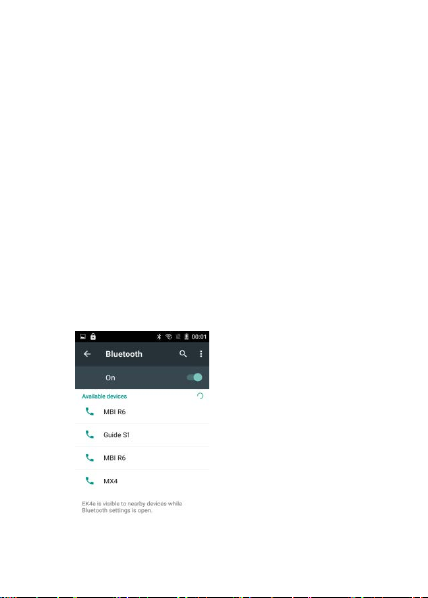
Touch wireless and internet, then choose BT wireless box to open the BT wireless
function. After started, the status box will show the BT wireless icon. Touch “scan for
devices “then it starts to scan for all devices withi n r ange.
Touch BT wireless settings, all the devices founded will display in the list under the
icon.
(select the box “can be detected”, set it to be detected, the other BT wireless devices
will be able to find the phone.)
Important: the maximum detecting time of the phone is 2 mi nutes.
Pairing and connection of BT wireless headset
1)
Press home>menu, then touch settings.
2)
Touch wireless and internet>BT wir eless setti ngs, then select BT wireless box, then
your phone will scan for the BT wireless devices within range, and show the founded
devices in the list under the icon.
Tips: If the list can’t find your equipment, touc h scanning equipment to re-scan it.
Make sure that the devices wanted are under the detected mode.
3)
Touch headset in the equipment list to finish the connection.
Notices: generally BT wireless devices need pas sw or d to be paired, often use “0000”as
the default password.
4)The pairing and connecting status will show under the headset in the BT wireless
devices list. When the headset connected to your phone, t he status box will show this
icon means connected. Then you can use the headset to make or receive callings.Cut
the connection to the BT wireless
Page 7

EK4e User Manual
9
2016 © Akua Mobile
Press home>menu>settings>wirel ess and int er net>BT wireless settings.
In the list of BT wireless equipment, touch or tap and hold the c onnec ted hand-free
headset.
Press and select “cancel the pairing”.
BT wireless proximity sensor
After pairing the two device, you can test out the signal is strong or weak by the BT
wireless proximity sensor device
5.Mail
5.1 Gmail
Create an electronic mail account
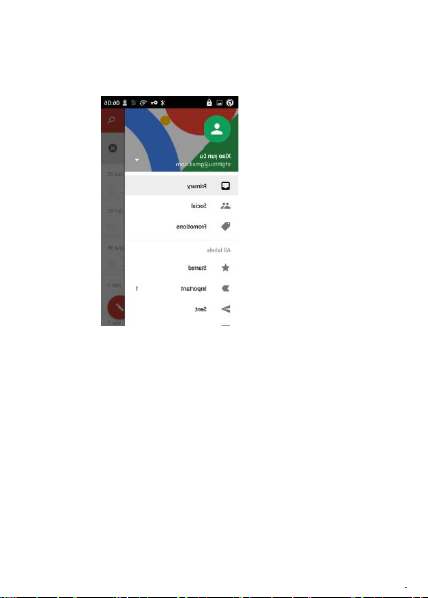
Select mail>settings. You can activat e or edit exi sting e-mail accounts as well as
create a new e-mail account.
Select mail, Google account setting int erface appears. Then touch ‘next step’>create
account>enter name, last name and e-mail account.
Google servers determine whether the name can be used, if so, new interface appears
prompting enter password, then judge the password’ securi ty, users who doesn’t meet
the requirements need to re-enter the password.
Successfully register a new Gmail account, a m essenger c r eated automatically for
testing.
Loading mail account
a.
Open Gmail skip introduction screen>loading interface appears>select load
b.
Enter name, password then load
E-mail account initialization, prom pting “login successful” All Google accounts will be
synchronized.
Creating and sending,mails
When creating mails, select mail>creating mails. Enter the address (recipient)/
theme and contents. Press MENU you could ‘append’/‘Add Cc /Bcc’, select send or
discarded.
Receive mails
There is tone for new mails, in the status box will show Gmail button, Press
Menu>‘refresh’, refresh and update the num ber of t he unread mails in a proper way.
Delete mails
When loading a mail account, if you want to delete it, you need to restore f ac tory
settings. When loading a second one, you could press the menu button to delete it.
Notices: many functions depend on Gmail Account, for example: Electronic Market/
Google Talk/Sync Contact and Calendar.
5.2 Email
Load Email.
a.
Open network connection,
b.
In setting the account interface, input the cor r ect em ail address and pas s word
and click next mobile phone automatically complete the sending and receiving
server Settings. Pop-up mail find frequency, and user Sett ings interface, complete
Settings, click next.
For account creation name, the editor of the law that email user name, and click next.
Page 8
EK4e User Manual
1
2016 © Akua Mobile
Complete set, synchronous mailbox.
Create and send Email
When creating mails, select mails>create m ails. E nter the address(recipient)/theme
and contents. Press MENU you could ‘append’/‘Add Cc/B c c ’, selec t send or discarded
or save as draft.
Check the Email files
Click on the bottom folder options, list all folder options
When the icon of internet server appears in the screen, y ou c ould dial or receive
callings. The signal bar on the top right corner show the strength of network signal (the
maximum with 4 signal bars) .
Start dialing
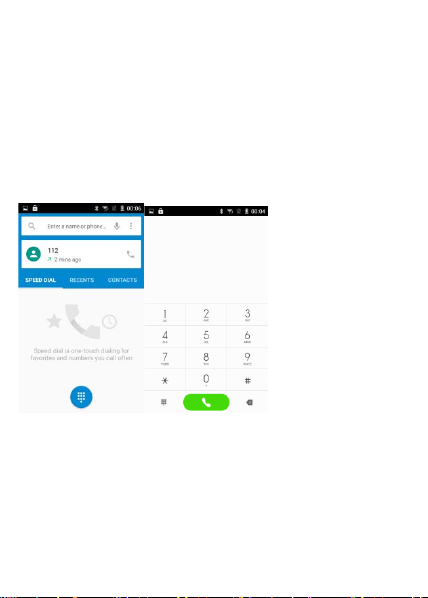
Open application’s main menu>dial. You coul d c hoose SI M to do the diali ng.
Dialing
At the dialing Keyboard, enter the phone number, and then click the dialing key, after
that, you should choose one SIM card or internet call. If needed to c all the extension,
you could click the “dial pad” in the bottom of the screen to open the interface or press
menu key to select “delay 2 seconds”, and then enter the number of t he extensi on.
Telephone calls in the call log
Every telephone number called and received in SIM will reserved in phone’s menu of
call log. On the top left of every call record will show SIM
All numbers in the call log can be dialed by clicking the button ”dial” on the right side
of the screen.
6. Dialling
Page 9
EK4e User Manual
10
2016 © Akua Mobile
When number list appearing, click it to catch det ails: press it for long you could dial via
SIM, meanwhile you can edit, delete, save the number or do other oper ations.
Receive callings
When calling comes (top left will show from which SIM card) press “Answer” and slide
towards right until the middle button, t hen you can rec eive callings.
Proximity sensor
According to the distance between phone and human body, it will adjust automatically
the switch of the backlight.
During the call, close the phone to the ear, the backlight will turn off automatically,
which could save batteries and prevent inadvertently touching.
Refuse to answer the phone
When standby, calling comes, press “refuse” button and slide towards left side until the
middle button, then you could refuse the calling.
When using, calling comes, click on the “ref use” button to refuse the calling.
Two-way call/multiparty call (conference call)
Notices: this function needs that SIM card open m ultiparty call features.
Already exist a call in the phone
Click “Add calls”, dial another call (or rec eiv e another call, phone default open ”call
waiting”(settings–dialing sett ings–other dialing settings) , after both connected, c ould
view the status of calling.
3)
select “combine call”– you can combine two calls i nto one way.
4)
after multiparty call connected, y ou coul d separat e the calls or hang up one of them
via “the small arrow of conference call”.
Telephone recording
Page 10

EK4e User Manual
10
2016 © Akua Mobile
During the call, more>start record, you coul d record the dialog of the call.
1)
settings>set other functions of the call in the dialing settings, for example: Call
Transfer– after all the settings finished and tur ned on, you could transfer the call to
a certain number.
2)
In settings>dialing settings>other di aling settings, open “call waiting”. After turned
on, you can receive another call when already ex i st one, The answering and r ejec t-
ing functions are just like the ordinary phone.
Call settings
Voice Call
1)
Voice Mail: The voice mailbox in setting in the input voicemail number.
2)
IP prefix number: Setting the different of SIM c ar ds IP prefix numbers
3)
Call forwarding: Can set respectively a SIM card, t he line is busy, and no one has to
receive, not be connect four connecting way
4)
Call barring: can set respectively to the SIM card call restrictions
5)
Additional Settings: a. My phone number b. Call waiting
Internet call
Account
Use Internet calling
Other Settings
Fixed Dialing Numbers
Minute Reminder: Turn on minute reminder at 50s of every minute. Quick Response:
Can edit the text messages rejected by the informati on when content.
Page 11
EK4e User Manual
10
2016 © Akua Mobile
Important: the message title of this phone is the phone number, will be reserved in s
similar for of dialog, instead of the usual f older str uc ture. Messages with
bluebackground are those received, and messages with white background are those
sent. Send SMS to certain phone number
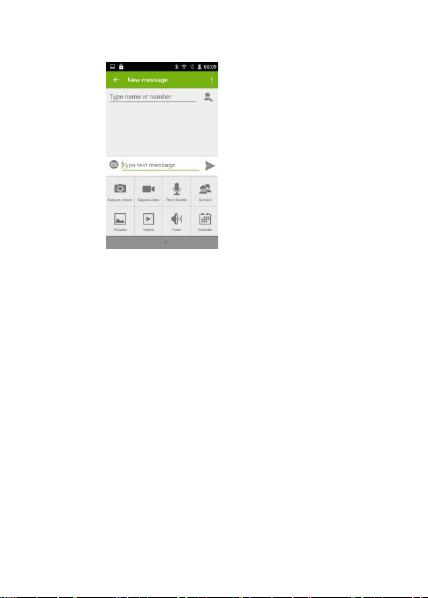
Press home>messaging, touch “new messages”.
In the interface of “edit”:
Click “recipient” box to start input method, you c an also click “enter” box to start input
method, in that way you can enter characters.
Click the button of send from SIM to start sending.
Send MMS to certain phone number
When creating message, it was defaulted as SMS, it will be tur ned to MMS when
following operations were done. You can send MMS via cli c ki ng “ send” af ter editing.
In the interface of “edit”, Click the butt on of “+key”:
Click “append”, you can spend the following att ac hm ents, t hen it will be turned to MMS
automatically.
Send messages to multiple numbers
Enter multiple numbers in the box of entering, each number is divided by the comma
in English.
Click on the right side of the head with the receiver plus icon, can c hoose cont ac t
group in the address book
Notices: For now this phone can mass m es s ages to almost 20 numbers, the correct
number depends on the characters, you can only enter 312 characters in the box of
“recipient”.
When a message is sent or sent again, a little yellow letter will appear. The number 1 or
2 on the letter refers to SIM.
When message sending failed, a red triangle with ex cl am ation will appear.
when editing information other functions of Menu button
7. Messaging
Page 12

EK4e User Manual
10
2016 © Akua Mobile
Open the menu of applications>contacts
1)
Default display phone contacts and SIM card contac ts, sort contacts by first letter
of alphabet.
2)
a.
To enter the Numbers or letters and the list of names of the agreement, which will
be shown in the search results.
b.
If it were not so search to match of the contact, interface will appear ‘not find any
contact.
3)
Select save contacts to phone or a a SIM card, into contact editing interface.
You can edit contact head, name, telephone number, group, save to and more, and
then click “finish”.
4)
Menu>Delete contacts
Can “All” Icons checked, click the delete button, delete all the contact person,
including cell phone and SIM card of contact.
Can separate check one or more contacts, click the delete, delete the selected all
contacts.
Menu>To display of the contact
You can choose all contact, one a SIM card of contact, the mobile phone c ontacts
Choose from the definition, but also on a SIM card and cell phone choice whether or
not to show that all the lone contacts.
8. Contacts
Click Search Icons, You can enter the contact search interface.
Click “Add Contact” Icons, Can create New Contacts
In contact interface, click on the Menu butt on
Page 13

EK4e User Manual
10
2016 © Akua Mobile
Menu>Import/export
In the mobile phone can local, SIM card and SD card three parties achi ev e contac t
information of the copy each other.
First choose the “copy source” and then select the nex t step, sel ec ting copy contact
to, can complete the contact’s copy.
Menu>Share visible contacts
All contacts can be imported into the SD card, or through BT wir eless, email, text
message or MMS share
Open the application interface>Cont ac t, c hange to the group.
Click “Add group” Icons can create new group, Just to be saved in a cell phone group
2)
In “the group name” column input group name, in “type in the contac t’s name”
column input contact key word, can be in all of contact search, and added to the
group. Finally click “finish”.
3)
In a group, click on the Menu button, Menu functions
a. Menu>Update
You can modify the group name, delete or add group of contacts
b. Menu>Delete
You can delete the group, and will not delete the contact it self.
c. Menu>Send messaging by group.
Automatic new information, and the group added t o c ontact the address bar
recipients
d. Menu>Send Email by group
If contact group have the same email address, the automatic new mail, and E-mail
address in the address bar add to the receiver
Page 14
EK4e User Manual
10
2016 © Akua Mobile
9. Internet Explorer
Internet explorer
In the interface of internet explorer, touch
address filed and enter the URL.
Use keypad to enter URL. The appropriate web
sites will appear on the screen. You can touch
it directly go to the page or continue to enter
URL.
Homepage
Select “homepage”, you could load in the set
homepage. If you do not set it, you will use the
vendor’s pre-set sites.
Functions of menu
Menu>Backward
After browsing through multiple pages, wil l r eturn
to the previous page the current page.
Menu>Forward
After browsing through multiple pages, wil l m ov e
to a web page after the current page.
Menu>Windows
You can view all open windows to the current.
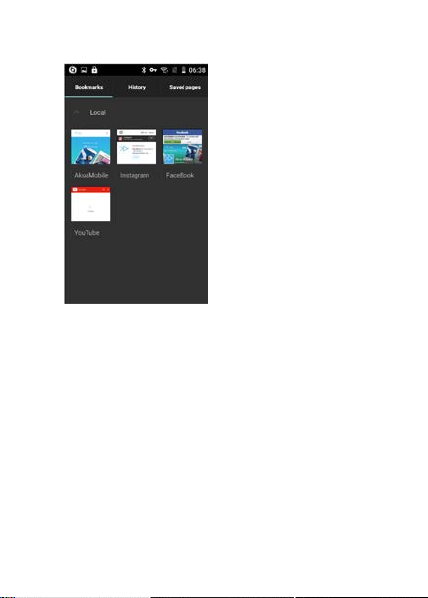
Menu>Bookmarks
Page 15
EK4e User Manual
10
2016 © Akua Mobile
Click the “Bookmarks” to make the current URL as a bookmark saved.
Click the bookmark under the bookmarks list, will open t he URL.
Menu>More
Add bookmarks, save the current URL as bookmark.
Find on page, search what you need in current page.
Select text, in the text, click and drag to select a piece of t ext.
Page info, display page address and other inform ation of the current browsing.
Share page, select the BT wireless or SMS to share the current page.
Downloads, show all the content downloaded.
History, Show your browsing history, and vi ew the most vi sited pages of information.
Setting, contains a variety of browser setti ngs.
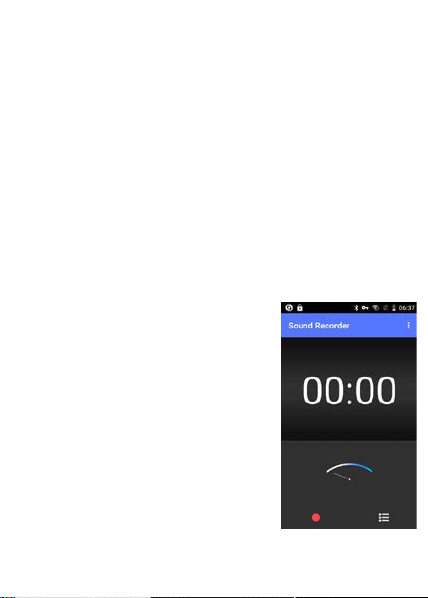
10. Sound Recorder
Recorder can record voice, and send it quickly via BT
wireless or MMS as well as make it as ring tone.
Notices: recorder can only save the audio files as AMR
format.
1)
Click the recorder application .
2)
Keep the phone’s microphone near the voice source .
3)
Click recorder to record voices, and click to stop or
Recording list.
All recordings save in my recording folder in the
default music program.
Page 16
EK4e User Manual
10
2016 © Akua Mobile
11.Clock
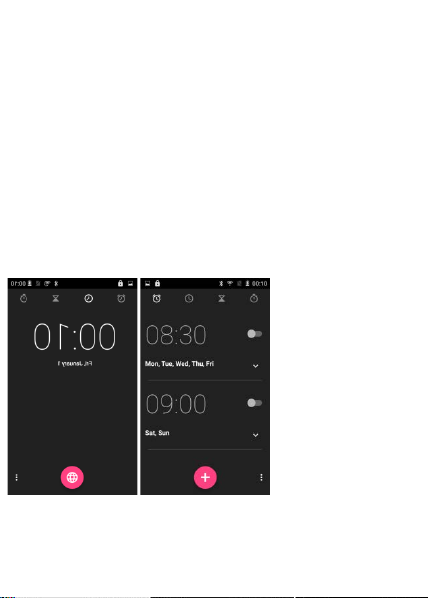
Open the menu of application, click clock
Click screen except the alarm at any position, screens,
black, time with white shows, this time the standby time
to screen will not extinguish screen. Clic k agai n on the
screen, and restore normal clock interf ac e.
Click screen set alarm butt on and
enter the alarm clock set interface
Alarm
After functions set, phone will
arrives in the setting time to alert
you by ringing or vibrating to
achieve its function. Press Menu
to add alarm, you can also add
it from the adding interface. You
could set the alarm according
to your needs. In the interface
of alarm will show three closed
alarms(two alarm clocks are
Monday to Friday 8:30,9:00) .
You can edit the current alarm,
you could edit time/ringing tones/
vibration/repeat form and tabs.
Page 17
EK4e User Manual
10
2016 © Akua Mobile
12. Calculator
Calculator
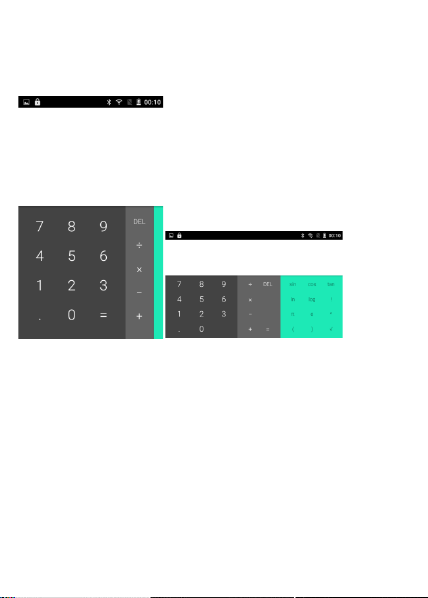
This function can turn your phone into calculator, it can do some simple calculations.
Touch the number keys to make it appear in the blank box.
In the interface of calculator, press menu button, then the senior panel appears.
Mobile phone screen rotation direction in the calc ulator i nterface can switch out
the senior panel
13. Camera
13.1
camera
Prior preparation
Install memory card before using the camera or video camera. All your photos or
videos taken by the phone are stored in memory card.
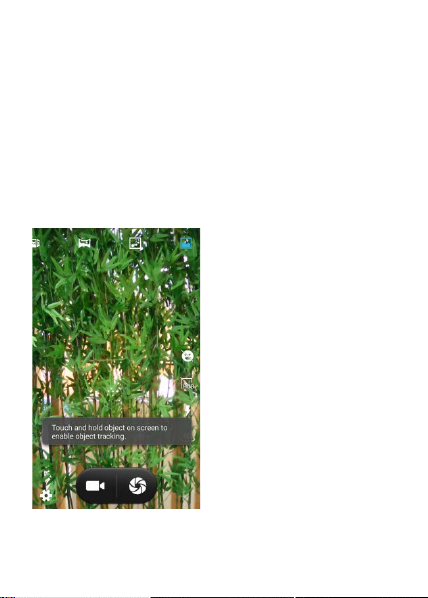
Open camera
Press home, touch menu, select camera. Take pictures
1)
Touch the “shutter” button on the screen.
2)
After taking, photos will save to the camera’s galley folder with the name of taking
time.
3)
You can view the photos by touching the preview box button.
4)
Camera settings
You can touch the button of “setting Menu” in the interface of c am er a to do the
settings
Under camera viewfinder mode, press Menu, you can switch to v ideo or photos’
gallery.
On the bot left of camera viewfinder mode, display t he preview of the previous
picture. Touch preview box, the photo display on full screen and you can enlarge
it to view details.
Shared Settings of Camera and Video camera
Page 18
EK4e User Manual
10
2016 © Akua Mobile
1)
Flash mode: Auto/On/off.
2)
White balance:
Auto/Incandescent/Daylight/
Fluorescent/Cloudy/Twilight/Sh
ade/Warm fluorescent.
3)
Color effect:
None/Mono/Sepia/Negative/Aqua/
Blackboard/Whiteboard.
4)
Scene mode,
Auto/Night/Sunset/Party/Portrait/
Landscape/Night
portrait/Theatre/Beach/Snow/
Steady
Photo/Fireworks/Sport/Candle
light.
5)
other settings: store location,
exposure, image properties, antiflicker
Camera Settings
Capture mode: normal/HDR/Face beauty/
Panorama
self timer: off, 2 seconds, 10 seconds
continuous shot: 40 shots, 99 shots
picture size: QVGA, VGA, 1M pixels, 1.3M pixels,
Page 19

EK4e User Manual
10
2016 © Akua Mobile
2M pixels, 3M pixels, 5M pixels
13.2 Video camera
Prior preparation
Install memory card before using the c amera or video
camera. All your photos or videos taken by the phone
are stored in memory card.
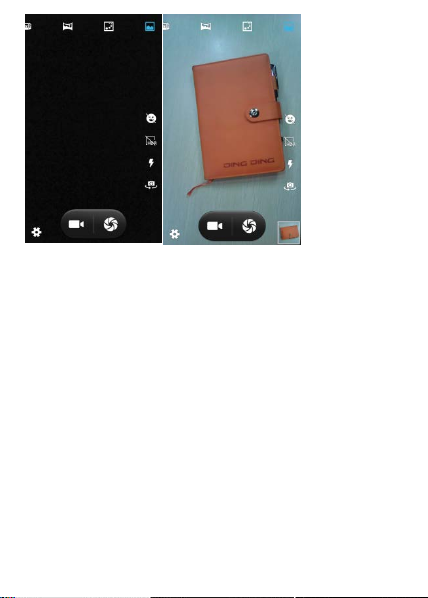
Take video
1)
Aim your object with the
screen.
2)
Touch the “shutter” button
on the screen.
3)
After taking, photos will
save to the camera’s
galley folder with the
name of taking time.
4)
You can view the videos
by touching the preview
box button.
5)
Video camera settings
You can touch the button
of “set” in the interface of
camera to do the settings
Under camera viewfinder
mode, press Menu, you can
switch to video or photos’
gallery.
On the top right of camera
viewfinder mode, display the preview of the previous video. Touch preview box, the
video will display on full screen and you can touch the play button to view it.
Shared Settings of Camera and Video camera
1)
Flash mode: Auto/On/off.
2)
White balance: Auto/Incandescent/Daylight/Fluorescent/Cloudy/Twilight/Shade/
Warm fluorescent.
3)
Color effect: None/Mono/Sepia/Negative/Aqua/Blackboard/Whiteboard.
4)
Scene mode, Auto/Night/Sunset/Party/Portrait/Landscape/Night portrait /Theatre/
Beach/Snow/Steady Photo/Fireworks/Sport/Candle light.
Page 20
EK4e User Manual
10
2016 © Akua Mobile
Videos settings
1)
Microphone: off, on
2)
audio mode: meeting, normal
3)
time lapse interval: off, 1s, 1.5s, 2s, 2.5s, 3s, 5s, 10s
4)
video quality: low, medium, high, fine
Page 21

EK4e User Manual
10
2016 © Akua Mobile
14. Gallery
Open images
Press home, touch label of applications, t hen touch photos’ galley.
In the interface of camera, Press menu to open it, then touch t o oper ate.
Files Interface
In the library the interface, upper right a slide show the play button, click on the way to
the slide circulation play all image files.
Click on the images, enter the picture to see interfac e.
Choose a long press image files, pop-up corresponding oper ation.
Use images
After taking pictures, you can view them and share them wit h y our friends.
Use E-mail to send pictures: choose Gmail or E-mail, pictures will be autom atically
added to an E-mail. Write your information, click send.
b. Use Messaging to send pictures: Select the information, pictures will be additional to
the MMS. Write your information, click send.
C. Use BT wireless: BT wireless list, select already pairing of BT wireless equipment,
through
BT wireless send a picture.
3)
check pictures
In the photo view interface, on the screen or so slip, can for ward or back ward view
photos Edit picture.
Edit light: Fill Light Highlights Shadows Auto-Fix.
Edit image effects: Cross-process Posterize Lomo Documentary and so on.
Color Effects: Warmth Saturation B &W Sepia Negativ e Tint Duo-tone Doodle.
Crop: Crop Red Eye Straighten Rotate Flip Sharpen.
4)
Crop pictures:
a.
If you want to adjust the size of the clip, please hold the edge of the cutting tools.
The arrow appears clip, from the trim your fingers insi de or outsi de the center to drag,
can adjust its size.
b.
If you want to adjust the big hours in the clip that keep proportion, please hol d down
any of the four corners of the one.
c.
If you move to the clip of the picture area of the other, please hold c utting is internal,
then move to drag the fingers to the position.
View images
1)
In the picture interface, touch photo album to view images.
2)
Touch the thumbnail to view pictures on full screen.
You can choose to display small or large thumbnails. Hold down the screen towar ds
the left side to view the next photo or towards right to view the prev ious one.
In the photo album or list, press and hold down the picture towards l eft to view the next
Page 22
EK4e User Manual
10
2016 © Akua Mobile
picture, or towards right to view the previous one.
15. Music
The phone can play digital audio files in memory card. The f ollowing formats are
available : AMR/M4A/MIDI/MP3/WAV/OGG.
Open Music
Press home, touch the label of applications, and touc h m usi c. Then t he interface of
Music Media appears.
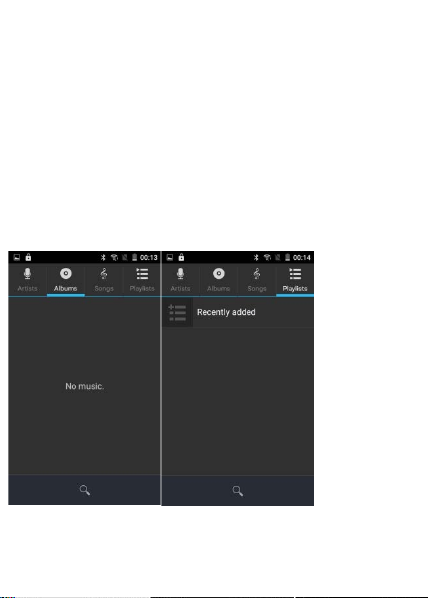
Music Media
Your music files are classified accordi ng to t he following four categories: Artists,
albums, songs and play lists. Touch one of these categories; you can view the list
inside.
Continue the operations, until your wanted m usi c appears. Such as, if you choose
Artists a list of artists sorted by the numbers in English wil l appear . Choose any on to
open the list, then all the albums and songs will appear. Select one album, then the
songs in it will be played.
Tips: You can play all of the songs in the interface of music media, in random s equenc e
. Press Menu, and then touch the Party Shuffle. Then will start playing the first song
randomly selected. To close the Party Shuffle, press Menu, then touch to turn off the
Party Shuffle.
16. Calendar
Enter the calendar application
Load Goggles accounts, enter the application, in the interface of month or week will
use gray to highlight the day. Display default t he date on the current month.
In the interface, press menu, 4 display modes will appear :
Page 23
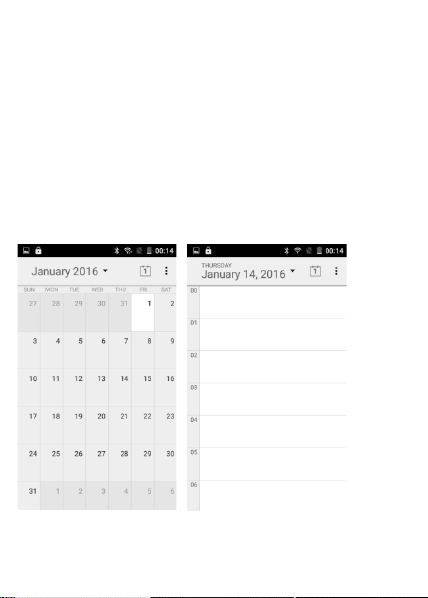
EK4e User Manual
10
2016 © Akua Mobile
1)
Schedule Interface shows a certain schedule(c lick on the initial time and
view forward, click the final time to view backwards )
2)
Day Interface displays a day’s schedule (last clicked date),Slide around to turn
page according day.
3)
Week Interface displays a week’s schedule (last cl ic k ed date),Slide around to turn
page according week.
4)
Today Interface displays a day’s schedule, In the interface of month or week use
gray to highlight the day.
5)
Month interface displays a month’s schedule (last clicked date) Slide around to turn
page according month.
New activities
Press menu, more < touch new activities.
Enter the name of activity in the activities’
box.
Notices: Such as special occasions such as birthday or a day wit h ev ents, set the
all-day option to Yes. If the activity is at a certain tim e period, s elec t the start time and
end time.
3)
Enter the event location, description, guests, repeat, remind time.
4)
Click finish to return to calendar.
Page 24

EK4e User Manual
10
2016 © Akua Mobile
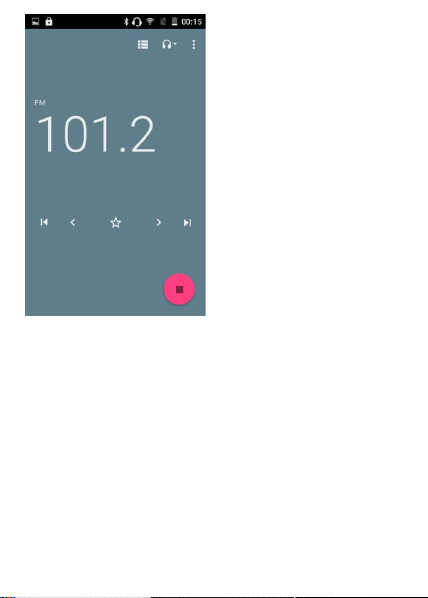
17. FM Radio
FM Radio
Through this program, you may listen to FM radio on the device, FM radio use the
wired headset as an antenna to receive signals, before opening this program, you
can install the original equipment-headphones, when listening, you can switch it
manually to speakers or the mode with wired headphones.
Open FM radio
Touch “FM radio” to open the application of FM radio.
Click on the “search”, automatic scanning search FM
channel, and channel in list interface, list all
channels
Click “FM recording”, listening to the radio to the
current can be recorded. The tape recording t o
default file name can be arbitrary well-preserved
input filename. Save to FM recording the default file.
Click “exit” closed FM radio, cannot listen t o in the
background.
Must be insert cable headphones as antenna, but
click on the horn but ton, can put the FM radio.
Click on the frequency of the rear of the fivepointed star icon, channel was added to the
collection channel list.
Listen to FM radio background
Click to return to key, the radio program moved to
the background, right now you can still continue t o
listen to the show, and can also carry out any
other program
Page 25
EK4e User Manual
10
2016 © Akua Mobile
.
18. Settings
Your service provider may default some device
settings, so you may not be able to change these settings.
1 Wireless and Networks
1)wifi
修改为 WIFI and WIFI settings: Touch WIFI to open. Open WIFI,it can search for
available networks automatically, networks without password can be used directly,
others need to enter the password first.
修改为 Notice: Open WIFI then the flight mode, WIFI will close automatically: Open
flight mode then connect WIFI, it can be used normally.
2)BT wireless
BT wireless switch and setting up the touch BT wireless open, will automatically be
search nearby BT wireless open the equipment.
Page 26

EK4e User Manual
10
2016 © Akua Mobile
3)SIM card)
Set up SIM card lock Enter(4-8numbers) PIN to set the lock of SIM.
SIM card PIN (Personal Identification Number) is to prevent unauthorized use of SIM
cards. PIN code provided with SIM. The service provider gives the initial value.
Change a blocked PIN code, you need to open the “SIM Lock “, then go to Change
Password screen, the phone will automatic ally pr om pt enter t he old P IN code and
asked to enter a new PIN code twice, finally the phone will prom pt that change
the code successfully. If you enter the PIN with error f or thr ee times, SIM card
PIN
codes will be automatically locked, PUK codes i s usually suppl ied with SIM card. If
no, you should go to the service provider for the codes.
If you enter 10 times wrong PUK code, the SIM card will be permanently locked.
4)Data usage
Data usage: set up mobile data traffic limit, flow more than limit will be close mobile
data services.
5) more...
Airplane mode: Touch to open or close.
Default SMS app
Tethering & portable hotspot
VPN
2 device
1)Personalize
Wallpaper:You can choose the album, wall paper s or video wallpaper set as the default
wallpaper Accessibility
2)Display
a. Brightness level ,Adjust the bri ghtness:
b. Adaptive brightness :optimize bri ghtness level for available light.
c. Sleep
d. Font size:choose font size: small , norm al, large or extra large
Sleep: Adjust the delay before the screen automatically locks
2)sound and notification :general, sil ent,meeting,outdoor
3)storage
Can view the SD card and cell phone memory usage. Can mount SD card or Erase SD card.
Can choose the default memory.
4)battery
Boot time that use and each module to use power in general
5)apps
6)users
7)magic thumb
Page 27

EK4e User Manual
10
2016 © Akua Mobile
3 personal
1)Location
High accuracy: Use GPS,Wifi and mobile networks to deter m ine location. Touch it to open
or close
Battery saving: Use wifi and mobile networks to determi ne loc ation. Touch it to open or
close
Device only: Use GPS to determine your location. Touch i t t o open or close
2)Security
Set up screen locks: Use none,swipe, pattern, PIN or password to lock the screen.
a.
Touch “none” to stop this application.
b.
touch swipe,enter the swipe mode to unlock the screen.
c.
Touch pattern and set pattern to unlock the screen.
d.
Touch PIN Enter PIN numbers to unlock the screen.
e.
Touch password Set password to unlock the screen.
,3)Account
Add account
4)language &input
1)
Selecting Language: Include all the l anguages on the phone.
2)
Spell checker
3)
Personal Dictionary: Add words to custom dicti onar y or del ete.
4)
Keyboard &input method .you can select Android keyboard or google pinyin input
method
5)
Speech , including voice input and text-to- speech output
6)
Mouse /trackpad :pointer speed
7)
8)
Notice : Vibrating when buttons are pressed, Playing sound when buttons are pressed,
Capitalizing automatically, Speec h Input (by microphone on the keyboard), Inputting
words (speech can be altered by sliding finger on space key),Display ing tips (activate
predictive function when you input words); Auto-Text (Automatically input certain words
when press space key or specified keys)
5)back up &reset
a back up my data
backup app data ,wifi pass words and other Settings backup to Google’s servers
b personal data
Resetting to Factory Settings, Clear all dat a stor ed on the phone.
4 system
1)Date and Time
a Automation: Use date and time provided by Network.
b Setting Date: Touch “+” and”-” to set date.
c Selecting Time Zone: Select Time Zone according t o where you are.
Page 28

EK4e User Manual
10
2016 © Akua Mobile
For China please select “GMT+08:00, China Standard Tim e”.
d Setting Time: Touch “+” and”-” to set time.
e Use 24 Hour Time Format: ON/OFF
f Select Date Format: There are six kinds of formats you can choose
from: Regional (1/1/2016) is default setting
1/1/2016, 1/1/2016, 2016/1/1,
Fri, Jan1, 2016; Fri, Jan1, 2016; Jan1, Fri,2016
2)Scheduled power on or off
3)Accessibility
a Service
b system
Large text
Power button ends call: According to the “power” button to end the call to open,
call,press the “power” will end the call and not shut down the screen
High contract text
Power botton ends call
Auto-rotate screen Speak passwords
Accessibility shortcut
Touch & hold delay
c display
4)Gestures and movement
5)Printing
6)About phone
Page 29

EK4e User Manual
10
2016 © Akua Mobile
19. Notices for the use of phone
Your phone is a product of superior design and craft smanship and sh ould be treated
with care. The following suggestions can help you comply with the terms of repair kits,
to extend the life of mobile phone.
Place the mobile phone and their parts and components out of reach of sm all c hildren.
Keep the phone dry, rain, humidity and all types of li quids which contain minerals will
corrode electronic circuits.
Don’t touch the phone with wet hands when charging, it will cause electric shock or
damage the phone.
Avoid place the device in high temperature environment. Temperat ur es wil l short en the
life of electronic devices, damage batter ies, and warp or melt certain plastics.
Avoid place the device in too low temperature envi r onm ent. When t he temper ature
rises, the phone will produce water vapor that may damage electronic circuit.
Avoid place the phone in dusty, dirty places, otherwise par ts may be damaged.
To avoid the phone in a lit cigarette, near open flame or any heat source.
Do not open the device, non-professional approach wil l do damage to the phone.
Do not throw it from height, knock or shake the phone, rough handli ng c an dam age
internal circuit boards.
Do not paint the phone, because the paint will block headphones, m icrophones or
other removable parts, and lead it not work.
Use clean, soft, dry cloth to clean the camera, light sensor lense s. P r ohibit the use of
harmful chemicals and cleaning agents, cleaning fluids to clean the phone
If mobile phone, battery, charger, or mobile phone ac c es sories are defective, send to
Page 30

EK4e User Manual
10
2016 © Akua Mobile
the nearest qualified service center for inspection.If necessary, Service Centre staff will
assist you and will arrange for phone repairs.
About AKUA Warranty Policy
Warranty Information:
This cell phone is covered during 12 months by a limited warranty and 6 m onths for the
accessories including the battery.
Please visit AKUA MOBILE website at www.akuamobile.com to know more details
about this limited warranty.
Page 31

EK4e User Manual
10
2016 © Akua Mobile
FCC Statement
1. This device complies with Part 15 of the FCC Rules. Operation is subject
to the following two conditions:
(1) This device may not cause harmful interference.
(2) This device must accept any interference received, including
interference that may cause undesired operation.
2. Changes or modifications not expressly approved by the party
responsible for compliance could void the user's authority to operate the
equipment.
NOTE:
This equipment has been tested and found to comply with the limits for a
Class B digital device, pursuant to Part 15 of the FCC Rules. These limits
are designed to provide reasonable protection against harmful interference
in a residential installation.
This equipment generates uses and can radiate radio frequency energy
and, if not installed and used in accordance with the instructions, may
cause harmful interference to radio communications. However, there is no
guarantee that interference will not occur in a particular installation. If this
equipme
nt does cause harmful interference to radio or television reception,
which can be determined by turning the equipment off and on, the user is
encouraged to try to correct the interference by one or more of the
following measures:
Reorient or relocate the rec ei vi n g antenna.
Increase the separation between the equipment and receiver.
Connect the equipment into an outlet on a circuit different from that to
which the receiver is connected.
Consult the dealer or an experienced radio/TV technician for help.
SAR Information Statement
Your wireless phone is a radio transmitter and receiver. It is designed and
manufactured not to exceed the emission limits for exposure to
radiofrequency (RF) energy set by the Federal Communications
Commission of the U.S. Government. These limits are part of
comprehensive guidelines and esta bl i sh per m i tted levels of RF energy for
the general popula t ion. The guidelines ar e based on standards that were
developed by independent scientific organizations through periodic and
thorough evaluation of scientific studies. The standards include a
Page 32

EK4e User Manual
10
2016 © Akua Mobile
substantial safety margin designed to assure the safety of all persons,
regardless of age an d heal th. The exposure sta nd ar d for wi r eles s mobile
phones employs a unit of measurement known as the Specific Absorption
Rate, or SAR. The SAR limit set by the FCC is 1.6 W/kg. * Tests for SAR
are conducted with the phone transmitting at its highest certified power
level in all tested frequency bands. Although the SAR is determined at the
highest certifie d power level, the actual SAR level of the phone while
operating can be well below the maximum value. This is because the
phone is designed to operate at multiple power levels so as to use only the
power required to reach the network. In general, the closer you are to a
wireless base station antenna, the lower the power output. Before a phone
model is available for sale to the public, it must be tested and certified to
the FCC that it does not exceed the limit established by the government
adopted requirement for safe exposure. The tests are performed in
positions and locations (e.g., at the ear and worn on the body) as required
by the FCC for each model. The highest SAR value for this model phone
when tested for use at the ear is 0.987W/Kg and when worn on the body,
as described in this user guide, is
differ among phone m odels, depending up on available accessories and
FCC requirements). The maximum scaled SAR in hotspot mode is
1.192W/Kg. While there may be differences between the SAR levels of
various phones an d at var i ous positions, they all m eet th e government
requirement for safe exposure. The FCC has granted an Equipment
Authorization for this model phone with all reported SAR levels evaluated
as in compl
iance with the FCC RFexposure guidelines. SAR information on
1.192W/Kg(Body-worn measurements
Page 33

EK4e User Manual
10
2016 © Akua Mobile
this model phone is on file wi t h the FCC and can be found under the
Display Grant section of http://www.fcc.gov/ oet/fccid after searching on
FCC ID: 2AGE2-EK4E Additional information on Specific Absorption Rates
(SAR) can be found on the Cellular Telecommunications Industry Association (CTIA) web-site at http://www.wow-com.com. * In the United States
and Canada, the SAR limit for mobile phones used by the public is 1.6
watts/kg (W/kg) averaged over one gram of tissue. The standard
incorporates a su b-stantial margin of safety to give additional protection for
the public and to account for any variations in measurements.
Body-worn Operation
This device was tested for typical body-worn operations. To comply with
RF exposure requirements, a minimum separation distance of 10mm must
be maintained betw e en t h e us er’ s body and the handset, including the
antenna. Third-party belt-cl ips , hol sters, and similar accessories used by
this device should not contain any metallic components. Body-worn
accessories that do not meet these requirements may not comply with RF
exposure requirements and should be avoided. Use only the supplied or an
approved antenna
Page 34

EK4e User Manual
10
2016 © Akua Mobile
 Loading...