

Page 1
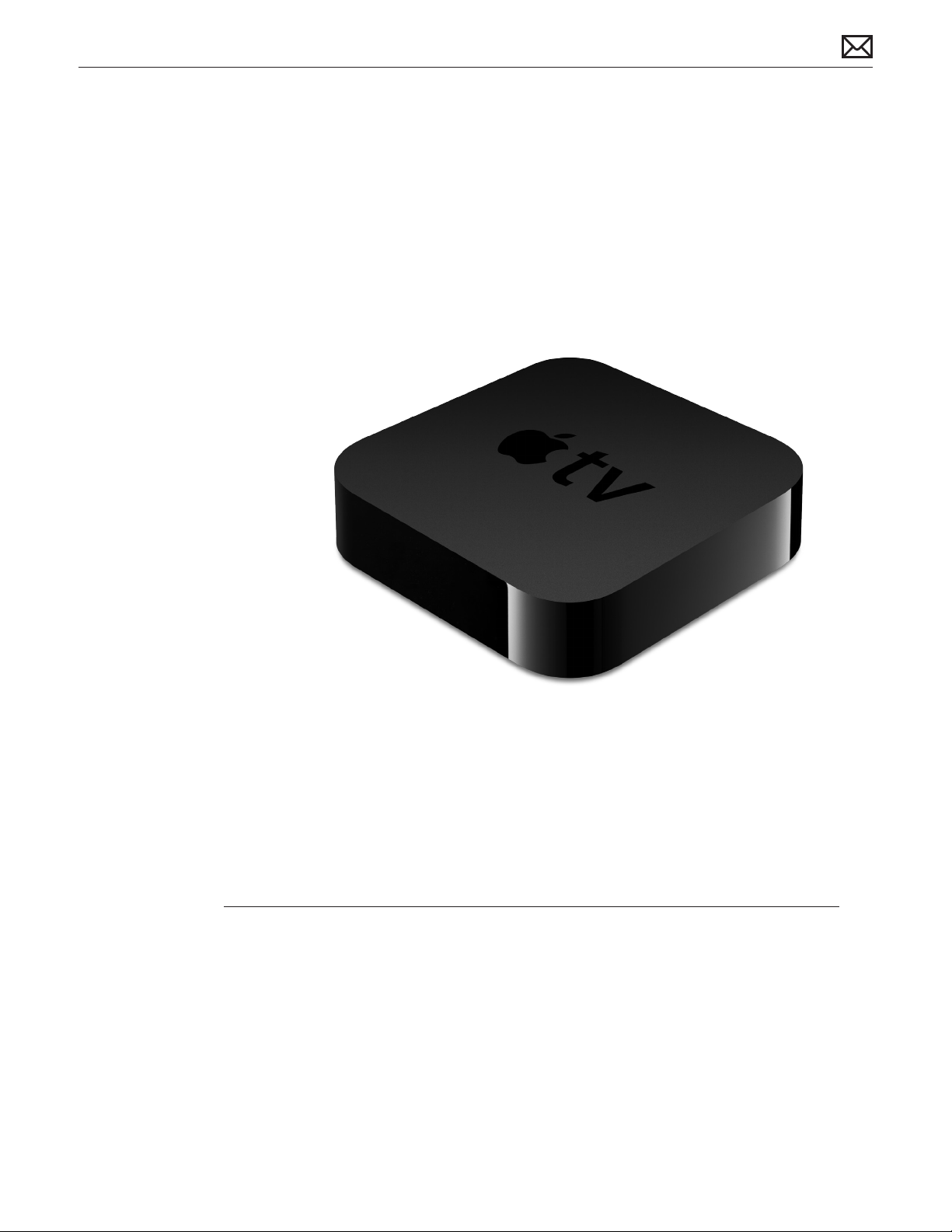
Apple Technician Guide
Apple TV
Apple TV (2nd generation)
2010-09-28
Page 2

Apple Inc.
© 2010 Apple Inc. All rights reserved.
Under the copyright laws, this document may not be copied, in whole or in part, without the
written consent of Apple.
Every eort has been made to ensure that the information in this document is accurate. Apple
is not responsible for printing or clerical errors.
Apple
1 Innite Loop
Cupertino, CA 95014-2084
USA
+ 1 408 996 1010
www.apple.com
Apple, the Apple logo, Apple TV, iTunes, Mac, Macintosh, and Mac OS are trademarks of Apple
Inc., registered in the U.S. and other countries.
Page 3

Apple TV
Contents
Manual Updates 5
Apple Technician Guide introduced 28 September 2010 5
Feedback 5
Basics
Overview 7
Minimum System Requirements 7
Apple TV (2nd generation) At-A-Glance 8
Apple Remote At-A-Glance 8
Serial Number Locations 9
Note About Images In This Guide 9
Troubleshooting
General Troubleshooting 11
Update System Software 11
Safety First 11
What You Need for Testing 11
Cleaning Apple TV 11
Visual Mechanical Inspection 12
Training Resources 13
Technical Resources 13
Additional Troubleshooting 13
Customer Checks 14
Troubleshooting Functions 15
Symptom Codes 15
Basic Apple Remote Functions 16
Status Light 16
Troubleshooting Functions Chart 17
Restore 18
Function Test 19
Symptom Charts 21
Uncategorized Symptom 21
Booting/Power Issue 21
No Power/Dead Unit 21
Status Light Flashing Quickly 22
Page 4

Input/Output Issue 24
Apple TV can’t access the network 24
Display Issues 26
The TV screen appears fuzzy or black 26
Control or Function 28
Remote Isn’t Working 28
Status Light Flashes Three Times 29
Alert Messages 32
Connect to iTunes Icon 32
Page 5

Manual Updates
Apple Technician Guide introduced 28 September 2010
The manual covers the Apple TV (2nd generation).
Feedback
We want your feedback to help improve this and future Technician Guides!
Please email any comments to: [email protected]
2010-09-28
Apple TV (2nd generation) — Manual Updates 5
Page 6

Apple Technician Guide
Basics
Apple TV
© 2010 Apple Inc. All rights reserved.
Page 7
Overview
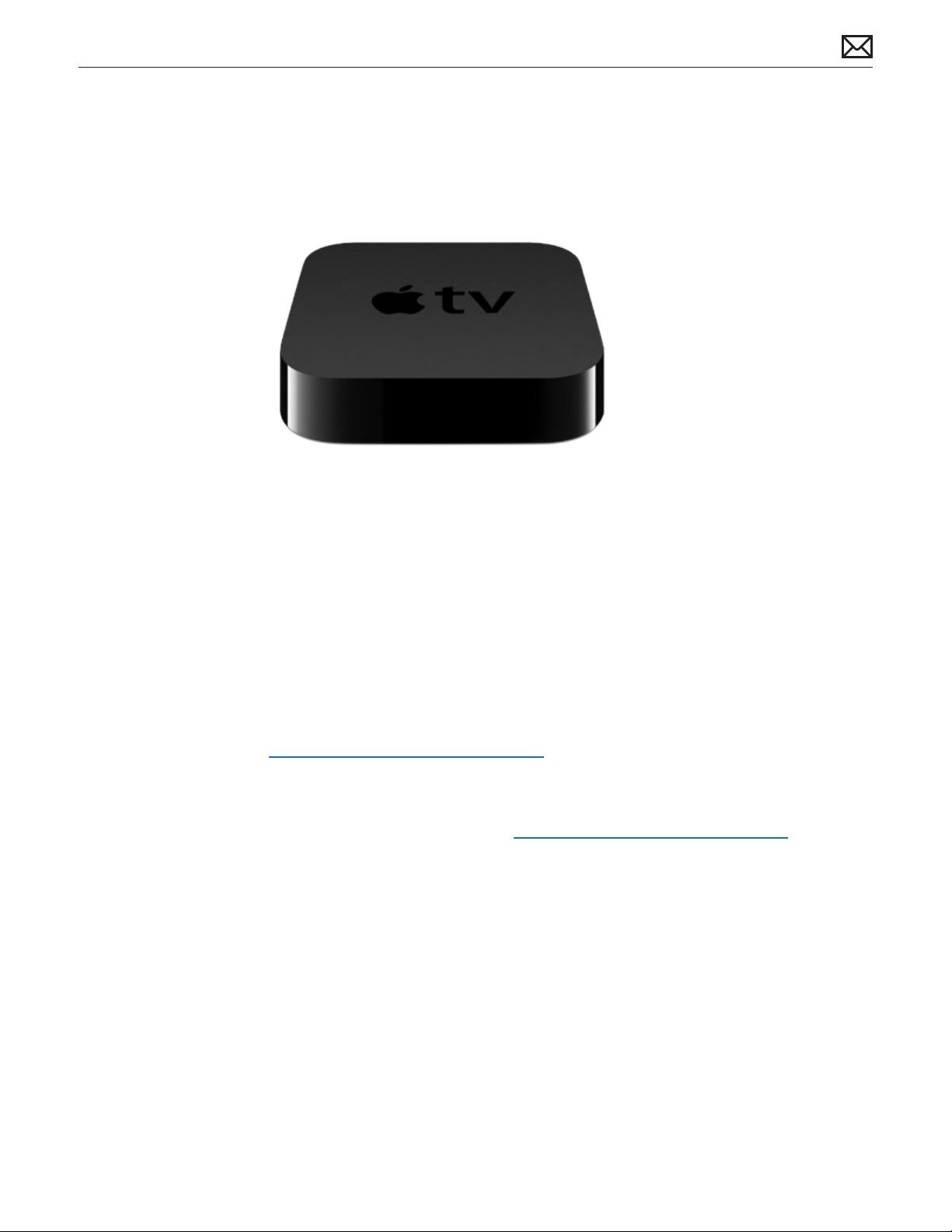
The Apple TV (2nd generation) has several dierences from the rst generation Apple TV:
• Redesigned smaller case, in black
• No hard drive
• Content streaming only
• Micro USB port
• No Component video and RCA audio ports
• Status light has only a white color
Minimum System Requirements
See Apple TV Tech Specs for minimum system requirements:
http://support.apple.com/specs/#appletv.
For Apple TV testing, you should update to the latest versions of all OS and iTunes software.
• Software Update... can be used to install the latest Mac OS and iTunes updates
• iTunes is available for download at: http://www.apple.com/itunes/download/
2010-09-28
Apple TV (2nd generation) Overview — Minimum System Requirements 7
Page 8
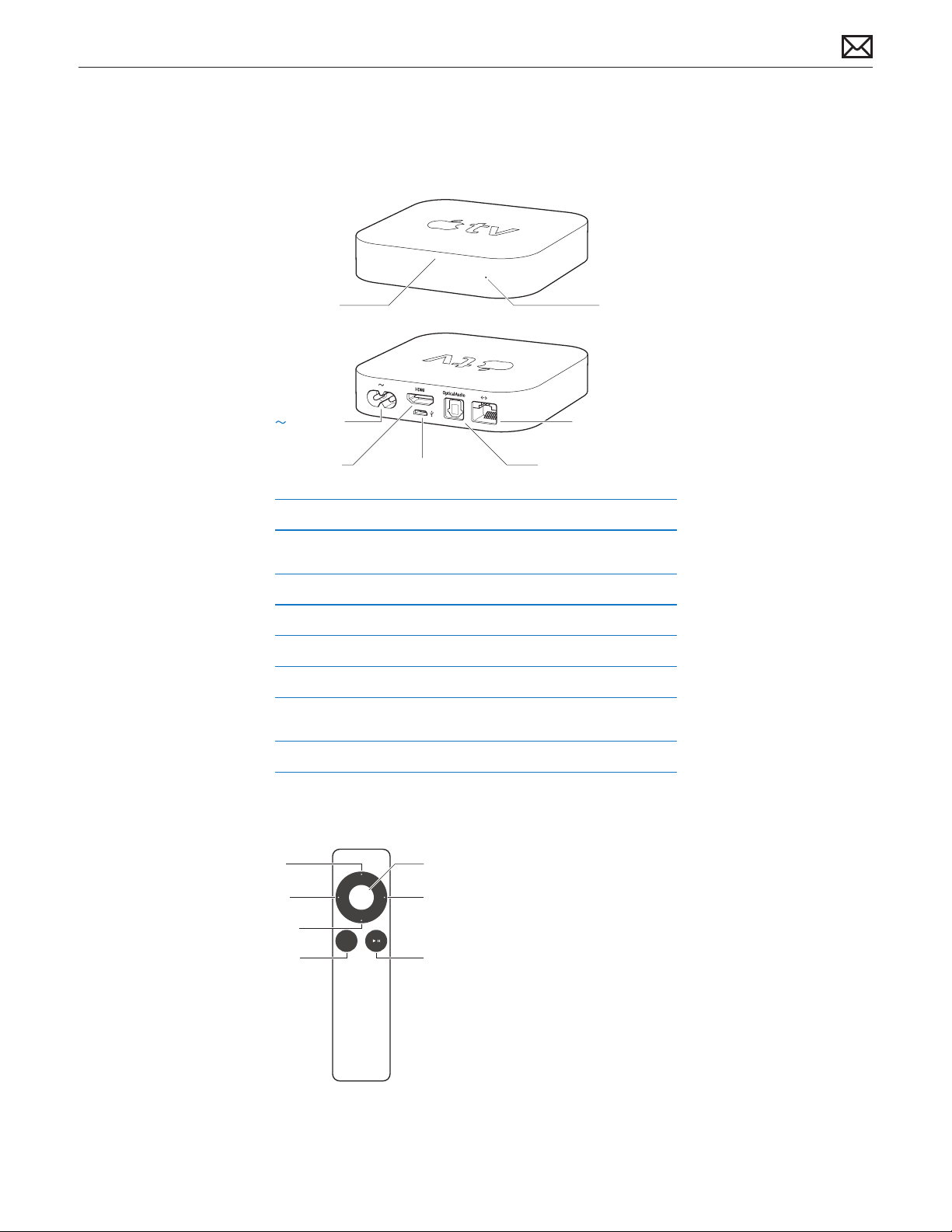
Apple TV (2nd generation) At-A-Glance
The Apple TV ports and the controls on the remote are referred to throughout these
procedures. Use the graphic below to familiarize yourself, and refer back as needed.
Status lightIR receiver
G
Ethernet portPower port
£
d
≤
G
£
Z
HDMI port
IR receiver
Use the Apple Remote to control Apple TV.
Status light
The status light flashes slowly when Apple TV starts up. When Apple TV is on,
the status light glows.
Micro USB port
For connecting to a computer to restore with iTunes.
Power port
The AC power cord connects to the power port.
Ethernet port
To Connect an Ethernet cable for Ethernet based networks.
HDMI port
Connect Apple TV to the HDMI port of a high-definition TV using an HDMI cable.
Optical digital audio port
To connect Apple TV to a home theater receiver that has an optical digital audio port,
using an optical digital audio (also called S/PDIF or TOSLINK) cable.
Built-in Wi-Fi/AirPort wireless
To connect Apple TV to a wireless network.
Micro USB port Optical digital audio port
d
Apple Remote At-A-Glance
Up
Left Right
Select
2010-09-28
Down
MENU
Play/PauseMenu
Apple TV (2nd generation) Overview — Apple TV (2nd generation) At-A-Glance 8
Page 9
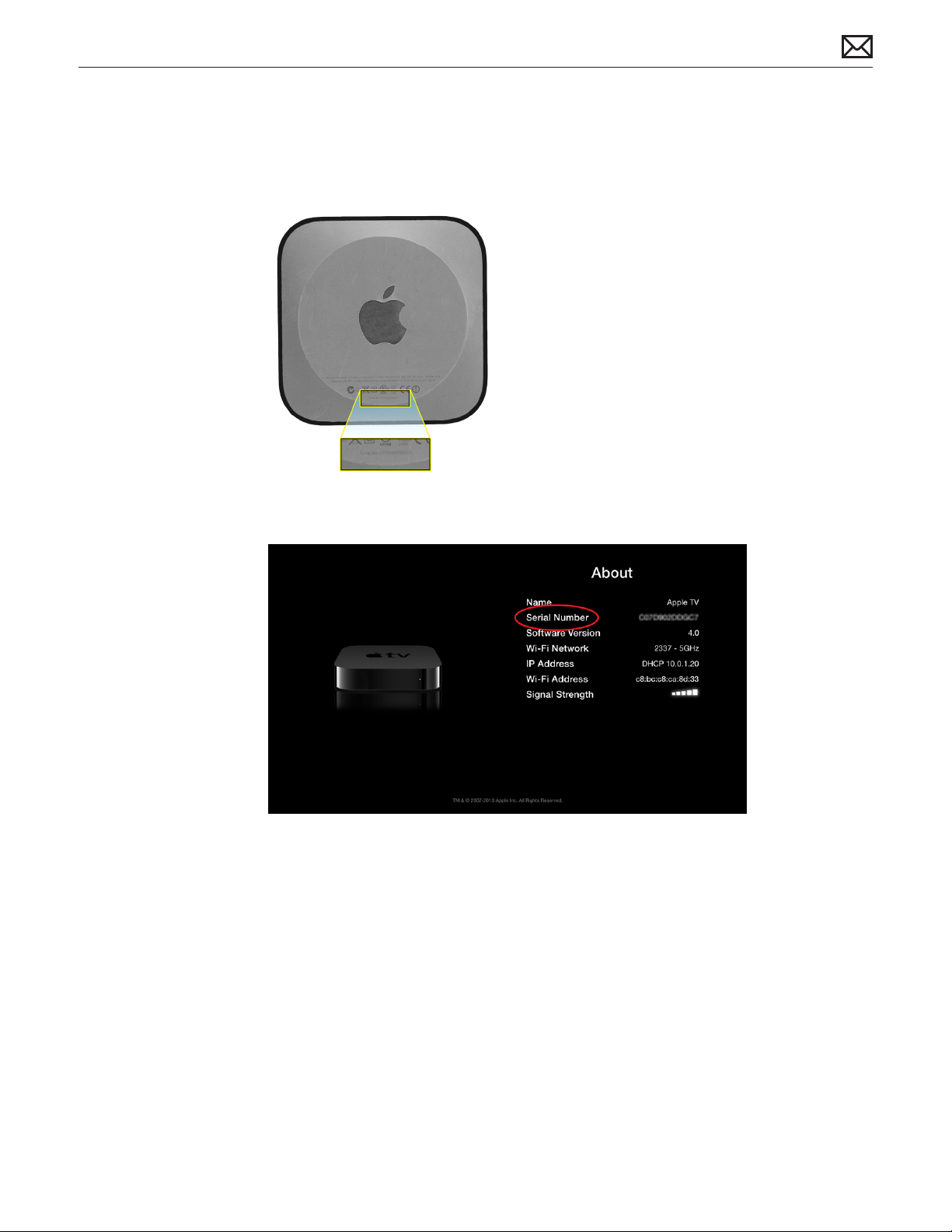
Serial Number Locations
There are two ways to get the serial number of the Apple TV.
1. It’s printed on the bottom of the Apple TV.
2. If the Apple TV is operational, on the TV, choose Settings > General > About.
2010-09-28
Note About Images In This Guide
Screen shots and other graphics are for illustration purposes only and may not show current or
observed dialog boxes, wordings, values, versions, models, capacities, and may be for a dierent
model than you are testing. However the steps and sequences are the same unless noted.
Apple TV (2nd generation) Overview — Serial Number Locations 9
Page 10

Apple Technician Guide
Troubleshooting
Apple TV
© 2010 Apple Inc. All rights reserved.
Page 11

General Troubleshooting
Update System Software
Important: Whenever possible before beginning troubleshooting, ensure the latest OS and
iTunes software updates have been applied.
Safety First
• Do not perform troubleshooting if there is a concern for yours or the customer’s safety.
You should also inform the customer of the issue.
• If a safety issue is discovered, follow the documented safety procedures and escalate the issue.
• Warranty and service options may still apply.
What You Need for Testing
• The latest update to iTunes 10 or later, installed on either a Mac or Windows PC (see iTunes
hardware and software requirements)
• Apple TV Restore Cable, USB to Micro USB (p/n 922-9733)
• A high-denition TV with HDMI and capable of 720p 60/50Hz
(see Apple TV Technical Specications page for TV compatibility)
• An HDMI cable
• Apple TV power cord
• A 10/100BASE-T Ethernet network
• An 802.11g or 802.11n wireless network
• A broadband Internet connection (DSL, cable, or LAN)
• iTunes Store account
2010-09-28
Cleaning Apple TV
To clean an Apple TV before returning it to a customer, unplug all cables and cords. Use a clean,
soft, lint-free cloth. Do NOT use window cleaners, household cleaners, aerosol sprays, solvents,
alcohol, ammonia or products containing ammonia, or abrasives.
Apple TV (2nd generation) General Troubleshooting — Update System Software 11
Page 12

Visual Mechanical Inspection
Perform a visual mechanical inspection before troubleshooting to protect test cables.
Generally, inspect for damage or conditions that may aect warranty coverage after
troubleshooting.
Apple TV Warranty Coverage
Apple covers defects in materials and workmanship on the Apple TV under normal use for a
period of ONE (1) YEAR from the date of retail purchase by the original end-user purchaser.
Apple’s policy is to replace products showing defects that are not the result of an obvious
external cause, and to oer out-of-warranty (OOW) paid service for products exhibiting
repairable damage. The Apple TV warranty covers failures caused solely by manufacturing
defects, regardless of accidental damage.
Issues Not Covered Under the Warranty
This warranty does not apply to:
• Damage caused by use with non-Apple products
• Damage caused by accident, abuse, misuse, ood, re, earthquake or other external causes
• Damage caused by operating the product outside the permitted or intended uses described
by Apple
• Damage caused by service (including upgrades and expansions) performed by anyone who
is not a representative of Apple or an Apple Authorized Service Provider (AASP)
• A product or part that has been modied to alter functionality or capability without the
written permission of Apple
• Consumable parts, such as protective coatings designed to diminish over time, unless
damage has occurred due to a defect in materials or workmanship
• Damage caused by intentional separation, opening, or disassembly of enclosure
• Damage caused by punctures or holes in the outer case
• Cosmetic damage from external causes, including but not limited to dents, abrasions,
scratches on case, discoloration, cracking, peeling of metal or plastic parts of enclosure
• Damage or failure caused by wet or dry chemicals, such as gasoline, acid or corrosives
• Damage caused by dust, soil, or foreign matter
2010-09-28
Important:
• Failures due to material or foreign objects in the ports are not covered under the Apple TV
warranty, but may be eligible for OOW paid service.
• Cosmetic blemishes caused by normal use are not covered under the Apple TV warranty.
• An Apple TV with multiple cracks or deformations is not covered under warranty, but may
be eligible for OOW service
• Excessive damage or damage caused by disassembly is not covered under warranty and is
NOT eligible for service.
Apple TV (2nd generation) General Troubleshooting — Visual Mechanical Inspection 12
Page 13

Training Resources
AppleCare Service Self-Paced Training for Apple TV (2nd generation)
Technical Resources
Refer the following links for latest system requirements for Mac and Windows, supported
languages, media formats, and technical details.
• Apple TV Technical Specications http://www.apple.com/appletv/specs.html
• Apple TV Tech Specs (Support) http://support.apple.com/specs/#appletv
• Apple TV Product Page http://www.apple.com/appletv/
• Apple TV Support Page http://www.apple.com/support/appletv/
• Apple TV Setup Guide http://support.apple.com/manuals/#appletv
(The Setup Guide also contains useful troubleshooting information.)
• For iTunes topics, refer to the iTunes “How-to” page http://www.apple.com/itunes/how-to
Additional Troubleshooting
Refer to these articles for more troubleshooting information:
(If the full URL is needed, add the article number to this address: http://support.apple.com/kb/)
General
• Apple TV: How to reset your Apple TV HT3180
• Troubleshooting Home Sharing with Apple TV (2nd generation) TS3509
Audio
• Apple TV (2nd generation): Static or no sound from your TV when playing Apple TV content
TS3518
Content
• iTunes Store: How to rent TV shows HT4309
• Apple TV (2nd generation): How to use personal pictures with your Apple TV screensaver
HT4362
• Apple TV: Depending on my country, what content can I buy or rent from the iTunes Store?
HT3069
Network Connectivity
• Apple TV: Switching between wired and wireless networks HT2822
Apple TV Remote
• Apple TV: How to use your Apple remote for Apple TV HT3176
• Pairing and Unpairing the Apple Remote with Apple TV HT1555
• About Remote Learning on Apple TV HT3296
• Remote for iPhone or iPod touch can’t connect to iTunes or Apple TV TS1741
2010-09-28
Apple TV (2nd generation) General Troubleshooting — Training Resources 13
Page 14

Customer Checks
If it is determined that the Apple TV is functioning normally, the customer may need to check
other possibilities at the location where their Apple TV is set up. The troubleshooting section of
the Apple TV Setup Guide provides the following helpful checks and solutions:
The customer should make sure:
• The cables between Apple TV and the TV are pushed in all the way.
• The power cords for Apple TV and the TV are securely connected to a working power
source.
• The TV is turned on and set to the correct input.
• Apple TV is connected to the network. They can go to the Settings menu on Apple TV, select
Network, and see if Apple TV has an IP address.
• The network and Internet connections are on and working properly.
If they still have trouble, they can try resetting their equipment by disconnecting Apple TV,
their TV, their wireless networking equipment or AirPort base station, and their router from the
power outlet, wait 30 seconds, and then reconnect everything.
The troubleshooting section of the Apple TV Setup Guide also give solutions to the following
symptoms:
• If the remote isn’t working
• If Apple TV can’t access the network
• If your TV screen appears fuzzy or black
• If you can see a picture but Apple TV isn’t responding
• If Apple TV doesn’t respond, try restoring it
• If you can’t hear sound
• If Apple TV isn’t playing your photo albums or slideshows
• If noise is coming from your TV speakers
• If you don’t see your iTunes library under Computers on Apple TV
2010-09-28
Apple TV (2nd generation) Troubleshooting Functions — Customer Checks 14
Page 15
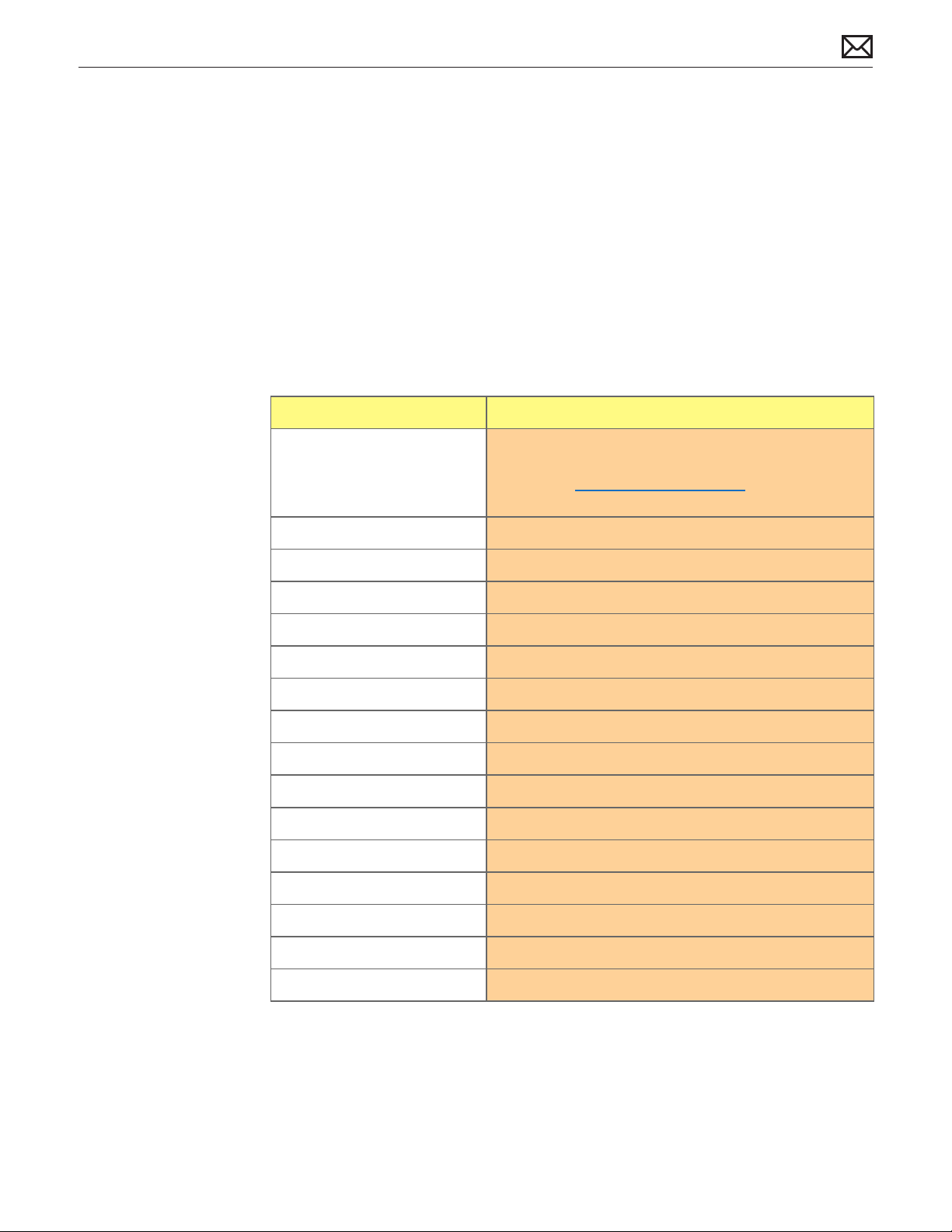
Troubleshooting Functions
Symptom Codes
Symptom Codes are used by service providers when processing a repair, to categorize the type
of failure.
Before verifying a failure a restore must be performed or attempted.
Refer to the following Symptom Code table or to the Symptom Charts to determine the
appropriate code to use.
Code Failure Type
Uncategorized Symptom
Unable to locate appropriate
symptom code
T01 No Power/Dead Unit
T02 No Video Output
T03 Distorted Video
T06 No Audio from Optical Digital Audio Port
T07 No Audio from HDMI
T08 Won’t Boot Up
T09 System Hangs/Freezes Up
T10 Distorted or Cracking Audio
T11 Unusually Hot/Overheating
T14 Ethernet Connectivity Issue
T15 Wireless (Wi-Fi) Issue
T16 Cosmetic Issue
If this table does not list an appropriate code for the
reported symptom, document the symptom and send
feedback to [email protected] stating that a
suitable symptom code could not be found.
2010-09-28
T17 Can’t Reset/Restore
T18 Mechanical Damage
X04 Apple Remote Issue
Apple TV (2nd generation) Troubleshooting Functions — Symptom Codes 15
Page 16
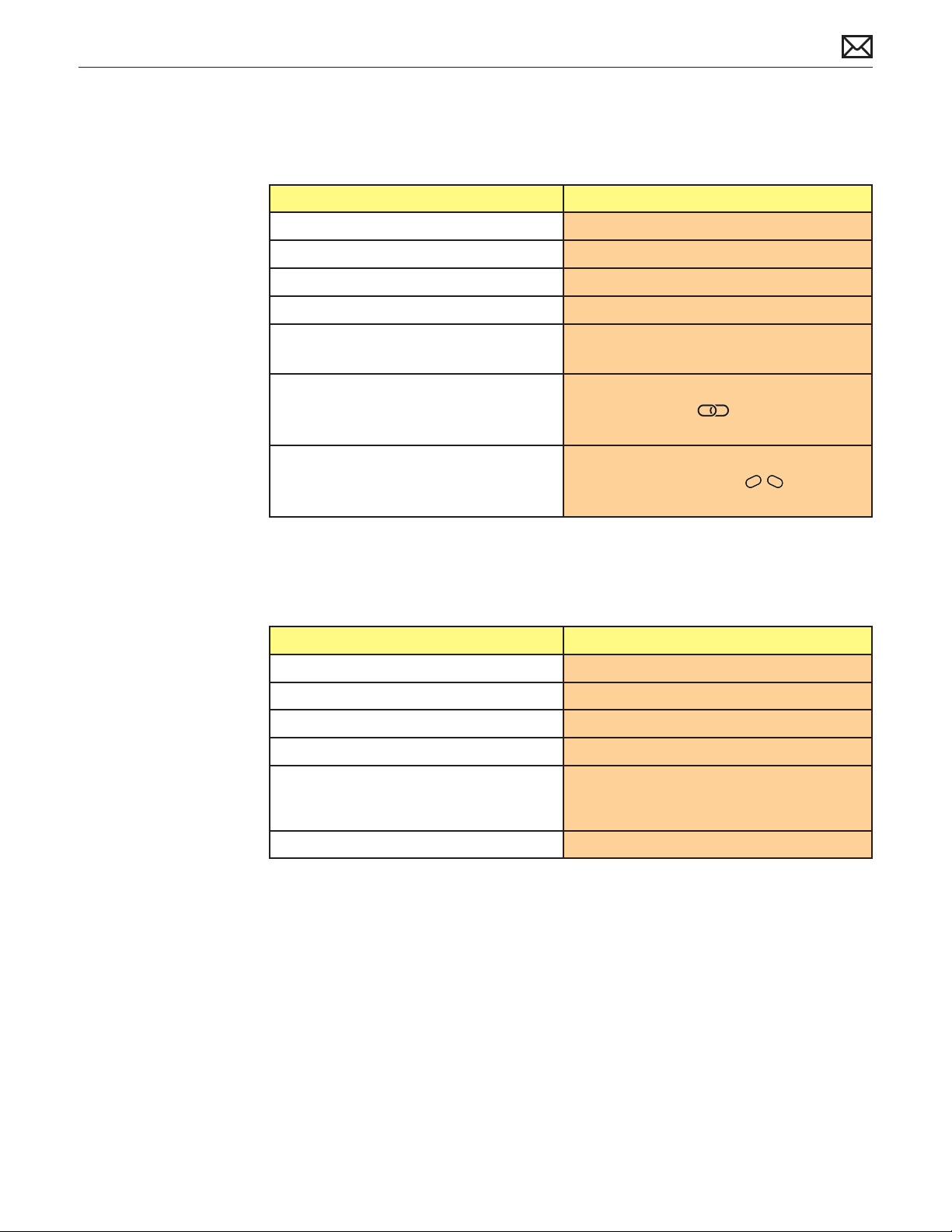
Basic Apple Remote Functions
The Apple Remote has the basic functions described below.
To Do this
Move through the menu options Press Up, Down, Left, or Right
Select an option from a menu Press Select
Return to a previous menu Press Menu
Return to the main menu Press and hold Menu
Reset Apple TV Press and hold Menu and Down for 6 seconds,
then release
Pair Apple TV and a remote Press and hold Menu and Right for 6 seconds.
A chainlink symbol ( ) appears above a
picture of a remote.
Unpair all remotes Press and hold Menu and Left for 6 seconds.
A broken chainlink symbol ( ) appears
above a picture of a remote.
Status Light
The status light on the front of Apple TV indicates what’s happening.
If Apple TV is The status light
On Glows
O or in standby Is o
Starting up Flashes slowly
Accepting a command from the remote Flashes once
Rejecting a command from the remote
(A remote is paired with Apple TV, but you’re
using a remote that’s not paired)
Having problems Flashes quickly
Flashes three times
2010-09-28
Apple TV (2nd generation) Troubleshooting Functions — Basic Apple Remote Functions 16
Page 17
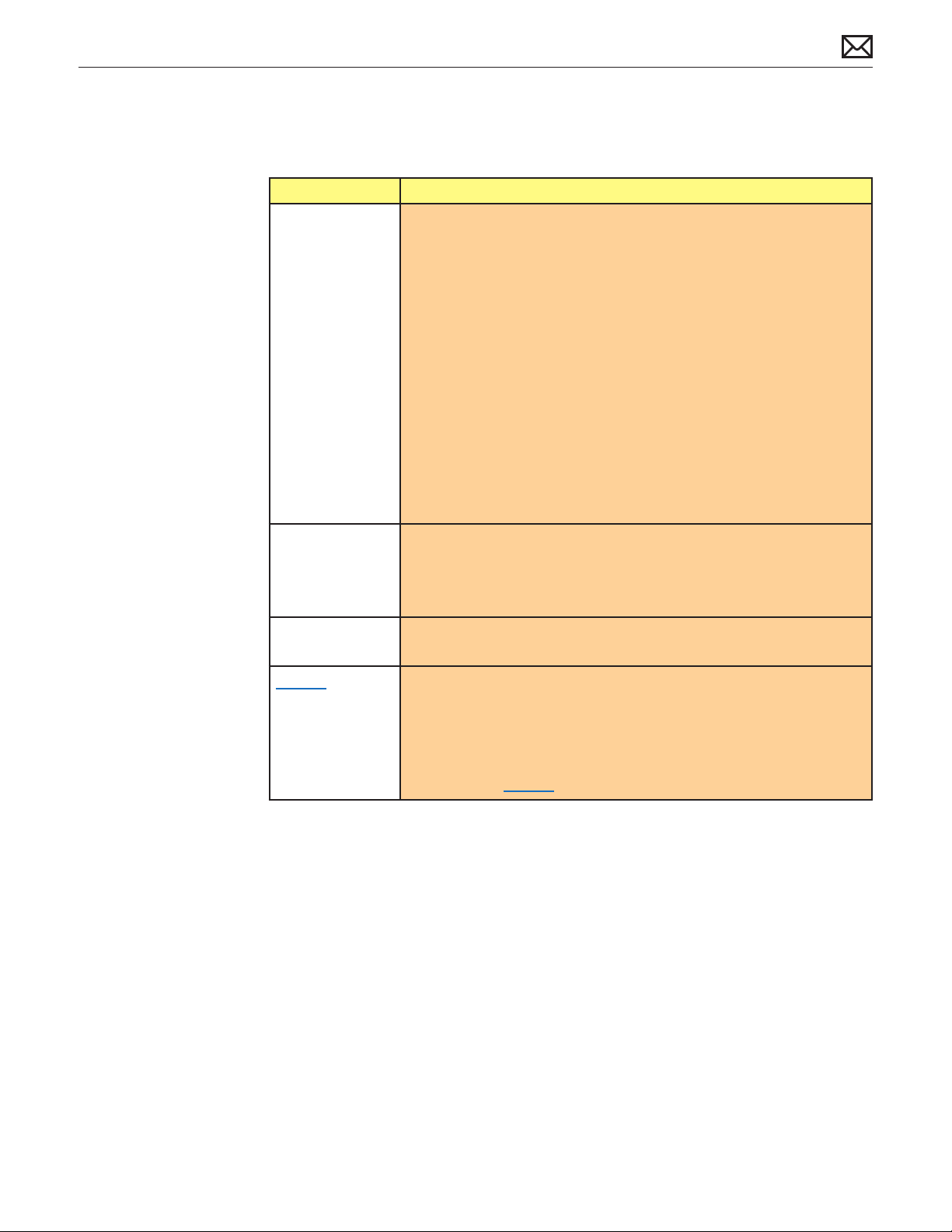
Troubleshooting Functions Chart
Below are the main methods to return the Apple TV to proper function:
Function Action
Reset A reset restarts the operating system and clears currently running
background processes.
There are three ways to Reset, either:
• Press and hold Menu and Down on the Apple Remote about 6
seconds, until the status light ashes quickly, then release.
• Disconnect Apple TV from power, wait 5 seconds, then reconnect.
• Choose General > Reset Settings from the main menu on Apple TV.
Note:
• A Reset would generally not be performed during eld testing, since
it automatically happens when the Apple TV is connected to power.
If a reset is needed, a restore should be performed.
• A reset may be an appropriate rst step for the customer to try when
the Apple TV is connected in their home system.
Reset equipment At home, the customer could try resetting their equipment by
disconnecting Apple TV, their TV, their wireless networking equipment
or AirPort base station, and their router from the power outlet. Wait 30
seconds, and then reconnect everything.
Reset All
Settings
Restore
1
1
Resets all settings, including accounts and congurations. The Apple TV
will have to be set up again.
A restore returns the Apple TV to its factory settings. The latest software
update will be downloaded and installed (a Wi-Fi or Ethernet Internet
connection is needed). The Apple TV will have to be set up again.
There are two ways to perform a Restore, either from the TV or with
iTunes: See the Restore heading.
1
Before doing a Reset All Settings or a Restore, make sure the customer understands that
these procedures remove all network and account settings and passwords, including Parental
Controls, and requires the Apple TV to be set up again.
2010-09-28
Apple TV (2nd generation) Troubleshooting Functions — Troubleshooting Functions Chart 17
Page 18

Restore
To perform a restore from the TV or iTunes, do the following:
Important: Before doing a Restore, make sure the customer understands that a restore removes
all network and account settings and passwords, including Parental Controls, and requires the
Apple TV to be set up again.
Restore from the TV:
This is the recommended method to restore, when possible.
1. Make sure that Apple TV is connected to the Internet.
2. With Apple TV connected to the TV, navigate to Settings > General > Reset, then select
Restore.
Restore from iTunes:
Restore from iTunes when unable to perform a restore from the TV, or if the Apple TV is known
to be unresponsive, or as an option with limited wireless bandwidth.
1. Make sure that the computer is connected to the Internet.
2. Disconnect all cables from the Apple TV, including the power cord.
3. Connect the Apple TV to the test computer using only the Apple TV USB to Micro USB cable
(p/n 922-9733) and restore the Apple TV with iTunes.
Note: Do not connect the power cord to the Apple TV for the iTunes restore procedure.
2010-09-28
Apple TV (2nd generation) Troubleshooting Functions — Restore 18
Page 19

Function Test
The following procedures verify:
• Apple TV starts up
• Status light functions properly
• Apple TV menus display on TV
• Apple Remote navigates menus
• Apple TV connects to both Ethernet and wireless
• Both audio and video of an (appropriate) movie “Preview” plays properly
• Movie control functions work correctly
Perform the following needed tests, if possible, to verify proper function or conrm an issue.
If there is an issue, perform a restore and repeat the tests needed to verify proper function.
Also see Symptom Codes and Symptom Charts for appropriate failure codes.
Connect Apple TV
1. Connect the Apple TV to the TV with an HDMI cable. (Make sure the test TV is set to receive
input from the HDMI port that you are connecting to.)
2. Connect a power cord to the Apple TV. Verify that the status light ashes slowly while Apple
TV is starting up.
3. The status light should stop ashing and stay on after the Apple TV starts up.
4. Apple TV should now be recognized by the TV. The Apple should show and then the main
menu screen.
5. If the Apple TV has just been restored with iTunes, do the following:
• Select a language at the language screen.
• Select your Wi-Fi network when prompted to connect to your network.
• Select “No Thanks” when asked whether it is ok to send data to Apple, unless the
customer approves to select ok. (This can also be changed under the Settings menu, if an
unintentional selection is made.)
Navigate
6. Use a known good Apple Remote to navigate through menus. Verify that the status light
ashes once with each command from the remote.
Note: If the Apple TV is not responding or the status light ashes three times with each
command attempt, see the following symptom links:
• Status Light Flashes Three Times
• Remote Isn’t Working
7. Navigate to Settings > General > Network.
2010-09-28
Apple TV (2nd generation) Troubleshooting Functions — Function Test 19
Page 20

Verify Wi-Fi and Ethernet connectivity
8. Select Congure Wi-Fi and choose your Wi-Fi network if not done previously.
9. Verify that Wi-Fi is connected.
10. Connect a known-good Ethernet cable to the Apple TV from your wired Internet network.
(If you use a static IP address, enter it at Settings > General > Network > Congure TCP/IP.)
Verify play and video control on Ethernet and Wi-Fi
11. Navigate to an appropriate movie Preview and begin play. (If the TV can be viewed by the
customer, use an appropriate, non-controversial Preview, such as might be found using
Movies > Genres > Kids & Family.)
• Verify that video and audio play correctly and with normal quality.
• Press Right, and verify the scroll bar marker moves. Press again to verify a faster scroll,
then again to maximum scroll speed. Press Select or Play/Pause to stop play.
• Repeat this test using Left.
• Press Select or Play/Pause to stop play.
• Press Right to begin a slow motion scroll. Perform the same tests as with the normal
scrolling, above, to test all three speeds in both directions.
12. Disconnect the Ethernet cable.
13. Since you previously connected to a Wi-Fi network, in a few moments, Apple TV should
attempt to reconnect to the network automatically. If needed, navigate to Settings >
General > Network > Congure Wi-Fi and choose your wireless network.
14. Repeat step 12.
2010-09-28
Apple TV (2nd generation) Troubleshooting Functions — Function Test 20
Page 21
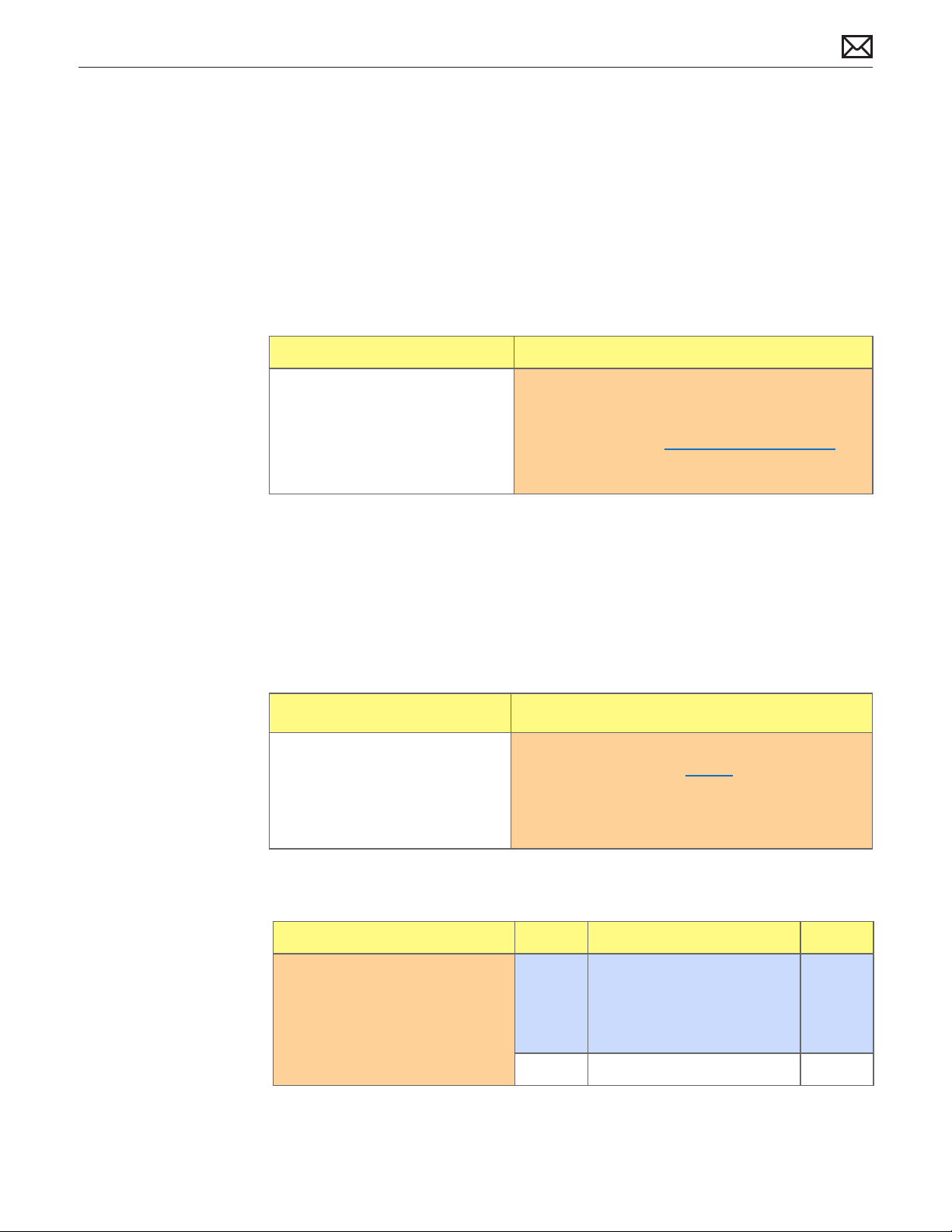
Symptom Charts
Uncategorized Symptom
Quick Check
Symptom Quick Check
Uncategorized Symptom
Unable to locate appropriate
symptom code
In the following Symptom Charts, verify whether the
existing symptom code applies to the issue reported
by the customer. If not, document reported symptom
and send feedback to [email protected]
stating that a suitable symptom code could not be
found.
Booting/Power Issue
No Power/Dead Unit
Quick Check
Symptom Quick Check
• No status light
• Not recognized by TV
1. Connect to computer with Apple TV USB to Micro
USB restore cable and restore with iTunes.
Note: Do not connect the power cord to the
Apple TV for the iTunes restore procedure.
2. Go to Deep Dive.
2010-09-28
Deep Dive
Check Result Action Code
1. Was a restore successful? Yes Connect Apple TV to the test
TV and perform the Function
Test.
Go to step 2.
No Go to step 3.
Apple TV (2nd generation) Symptom Charts — Uncategorized Symptom 21
Page 22
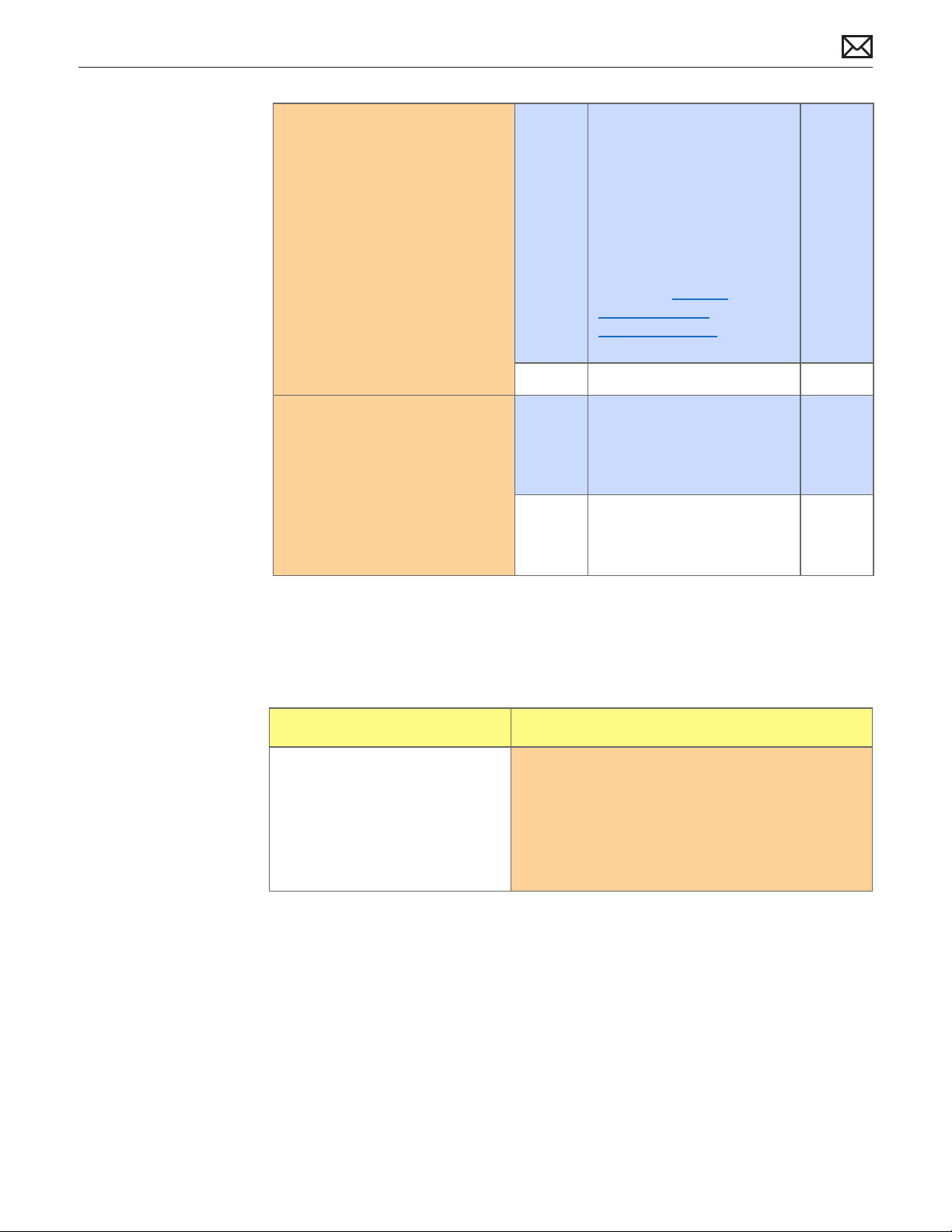
2. Did Apple TV pass the
Function Test?
Yes The Apple TV is functioning
normally.
Investigate other possibilities,
including the customer’s
home equipment setup
and provide information or
instruction as needed.
See troubleshooting
links under General
Troubleshooting and
Customer Checks for
additional information.
No Go to step 3.
3. Is issue clearly caused by
accidental damage?
Yes The issue is not covered
No Covered if under warranty
Status Light Flashing Quickly
Quick Check
Symptom Quick Check
• Status light was ashing
quickly
1. Connect the Apple TV to the test TV.
2. Connect Apple TV to power.
3. Connect Apple TV to the Internet (optional).
4. Attempt to verify the reported issue.
T18
under warranty.
Check for out-of-warranty
repair option.
T01
Check for out-of-warranty
repair option.
2010-09-28
5. Go to Deep Dive.
Apple TV (2nd generation) Symptom Charts — Booting/Power Issue 22
Page 23
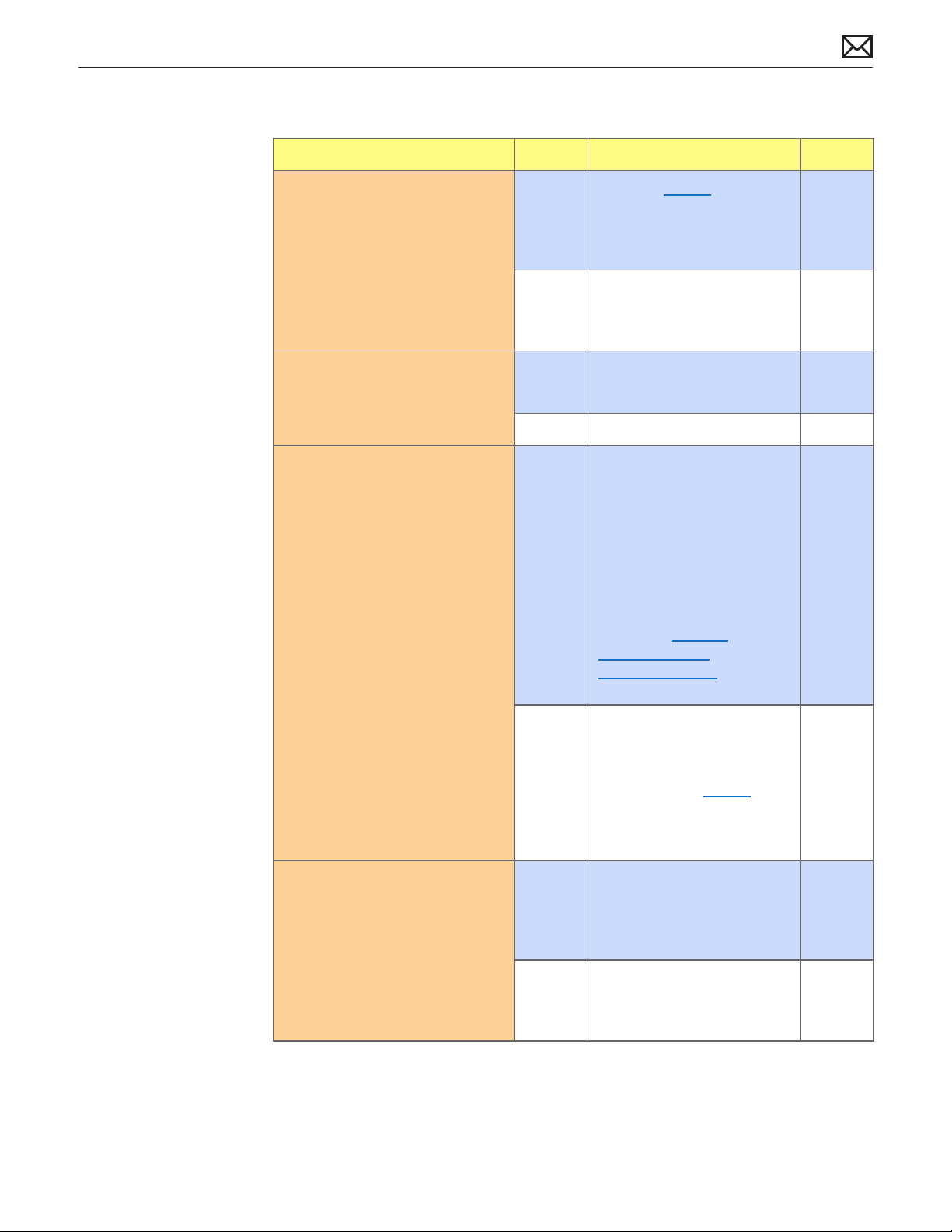
Deep Dive
Check Result Action Code
1. Able to verify reported issue? Yes Perform a restore from the TV
if possible, otherwise perform
a restore from iTunes.
Go to step 2.
No Perform a Function Test to
verify proper function.
Go to step 3.
2. Was a restore successful? Yes Perform a Function Test.
Go to step 3.
No Go to step 4.
3. Did Apple TV pass the
Function Test?
4. Is issue clearly caused by
accidental damage?
Yes The Apple TV is functioning
normally.
Investigate other possibilities,
including the customer’s
home equipment setup
and provide information or
instruction as needed.
See troubleshooting
links under General
Troubleshooting and
Customer Checks for
additional information.
No If a restore has been
performed, go to step 4.
If a restore has not been
done, perform a restore from
the TV if possible, otherwise
perform a restore from iTunes,
then go to step 2.
Yes The issue is not covered
under warranty.
T18
2010-09-28
Check for out-of-warranty
repair option.
No Covered if under warranty
Check for out-of-warranty
repair option.
Apple TV (2nd generation) Symptom Charts — Booting/Power Issue 23
T17
Page 24
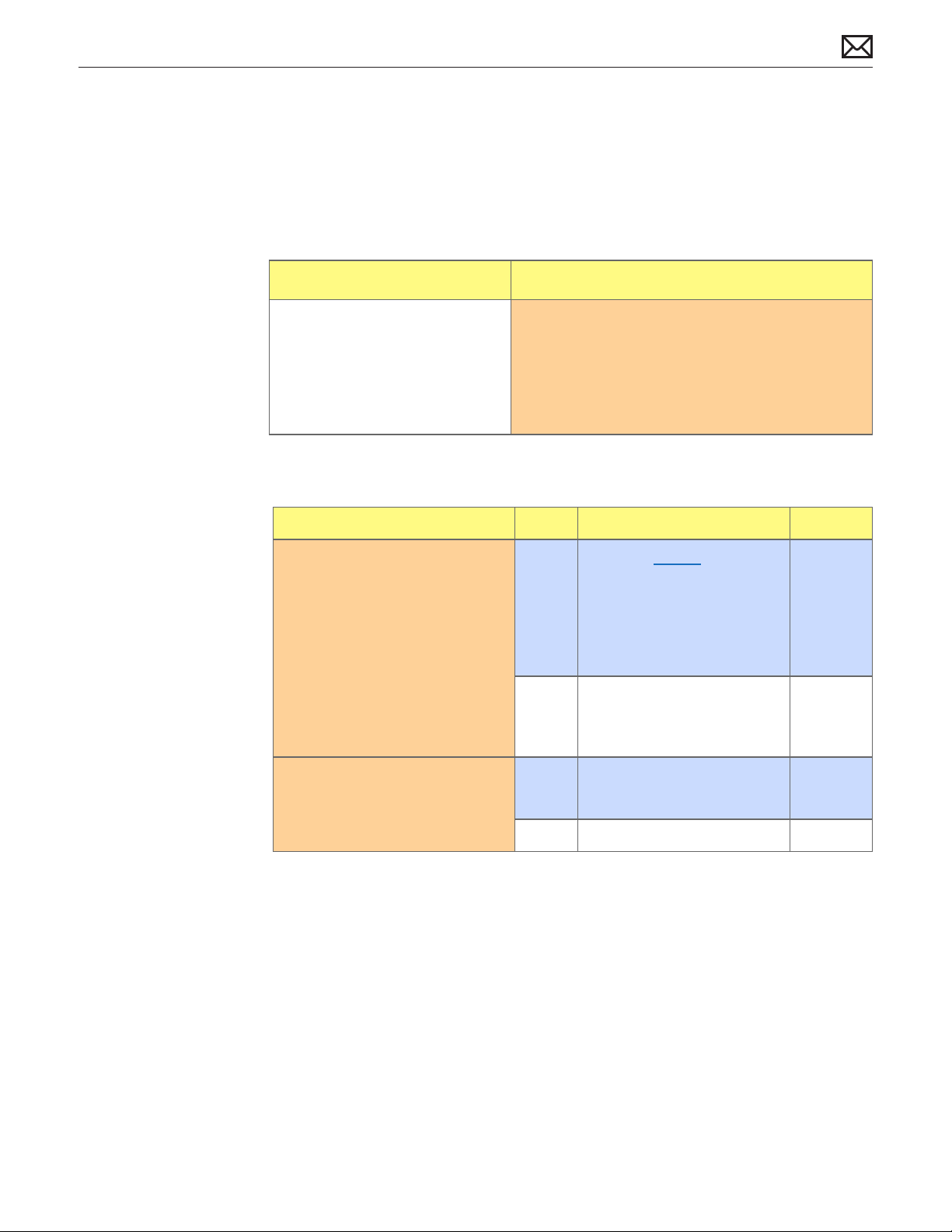
Input/Output Issue
Apple TV can’t access the network
Quick Check
Symptom Quick Check
• Apple TV can’t access the
network
1. Connect the Apple TV to the test TV.
2. Connect Apple TV to power.
3. Attempt to connect Apple TV to the Internet
through Wi-Fi, then Ethernet to verify the issue.
4. Go to Deep Dive.
Deep Dive
Check Result Action Code
1. Able to verify reported issue? Yes Perform a restore from the
TV if possible (if can connect
to the Internet using either
Wi-Fi or Ethernet), otherwise
perform a restore from iTunes.
Go to step 2.
No Perform a Function Test to
verify proper function.
Go to step 3.
2010-09-28
2. Was a restore successful? Yes Perform a Function Test.
Go to step 3.
No Go to step 4.
Apple TV (2nd generation) Symptom Charts — Input/Output Issue 24
Page 25

3. Did Apple TV pass the
Function Test?
Yes The Apple TV is functioning
normally.
Investigate other possibilities,
including the customer’s
home equipment setup
and provide information or
instruction as needed.
See troubleshooting
links under General
Troubleshooting and
Customer Checks for
additional information.
No If a restore has been
performed, go to step 4.
If a restore has not been
done, perform a restore from
the TV if possible, otherwise
perform a restore from iTunes,
then go to step 2.
4. Is issue clearly caused by
accidental damage?
Yes The issue is not covered
under warranty.
Check for out-of-warranty
repair option.
No Covered if under warranty
Check for out-of-warranty
repair option.
T18
Ethernet:
T14
Wi-Fi:
T15
2010-09-28
Apple TV (2nd generation) Symptom Charts — Input/Output Issue 25
Page 26

Display Issues
The TV screen appears fuzzy or black
Quick Check
Symptom Quick Check
• The TV screen appears fuzzy or
black.
1. Connect the Apple TV to the test TV.
2. Connect Apple TV to power.
3. Connect Apple TV to the Internet (optional).
4. Go to Deep Dive.
Deep Dive
Check Result Action Code
1. Able to verify reported issue? Yes Perform a restore from the TV
if possible, otherwise perform
a restore from iTunes.
Go to step 2.
No Perform a Function Test to
verify proper function.
Go to step 3.
2. Was a restore successful? Yes Perform a Function Test.
Go to step 3.
2010-09-28
No Go to step 4.
Apple TV (2nd generation) Symptom Charts — Display Issues 26
Page 27

3. Did Apple TV pass the
Function Test?
Yes The Apple TV is functioning
normally.
Investigate other possibilities,
including the customer’s
home equipment setup
and provide information or
instruction as needed.
See troubleshooting
links under General
Troubleshooting and
Customer Checks for
additional information.
No If a restore has been
performed, go to step 4.
If a restore has not been
done, perform a restore from
the TV if possible, otherwise
perform a restore from iTunes,
then go to step 2.
4. Is issue clearly caused by
accidental damage?
Yes The issue is not covered
under warranty.
Check for out-of-warranty
repair option.
No Covered if under warranty
Check for out-of-warranty
repair option.
T18
Black:
T02
Fuzzy:
T03
2010-09-28
Apple TV (2nd generation) Symptom Charts — Display Issues 27
Page 28
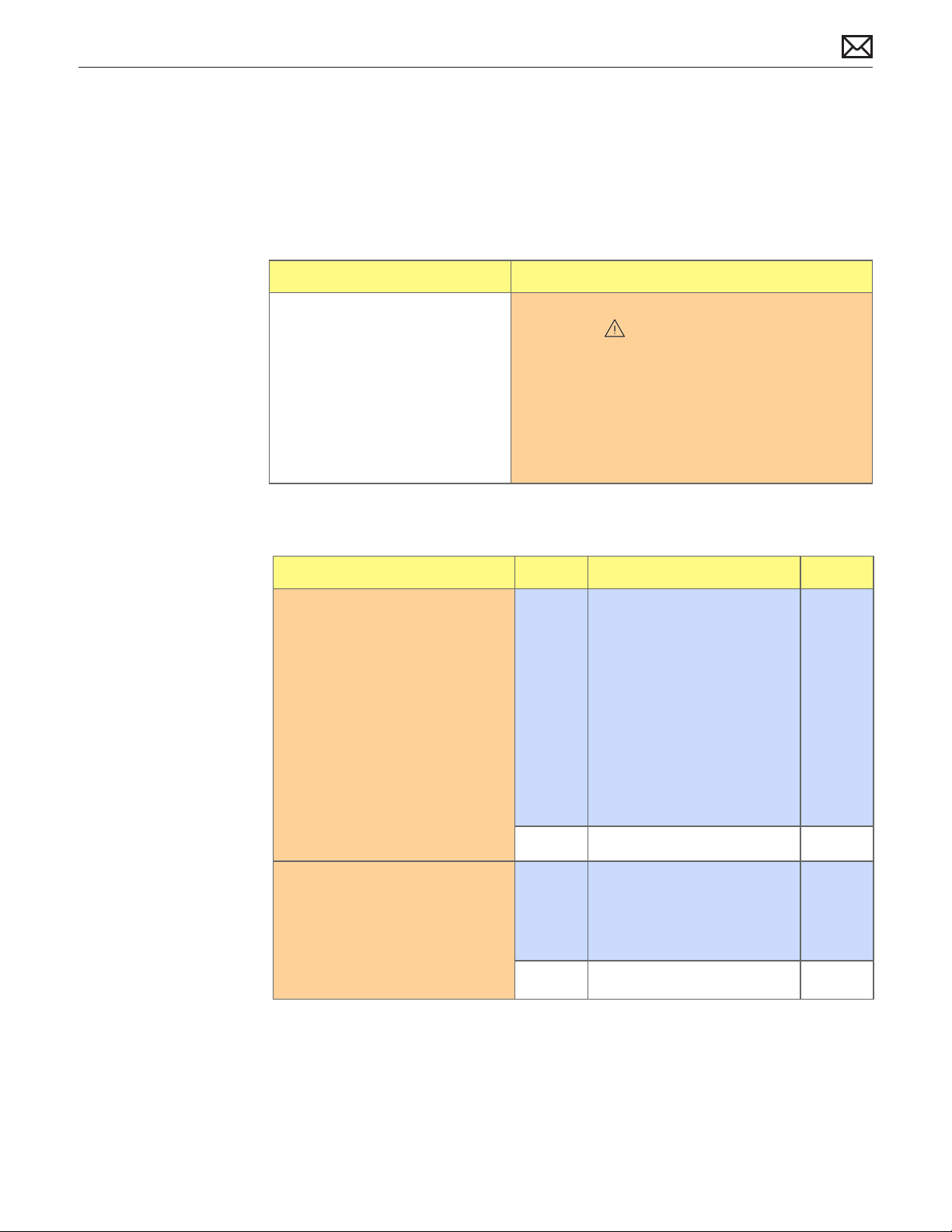
Control or Function
Remote Isn’t Working
Quick Check
Symptom Quick Check
• Apple Remote isn’t working 1. If the TV showed a picture of a remote and a
warning ( ) symbol, replace the battery with a
CR2032 battery.
2. Point the remote at an Apple TV that is plugged
in to power.
3. Press the Select or Play/Pause button and observe
the status light action with each button press.
4. Go to Deep Dive.
Deep Dive
Check Result Action Code
1. Does status light glow steady
and not ash?
2. Does the status light ash
once?
Yes Check the remote’s battery.
Use a volt meter to verify 3
volts, or use a known good
CR2032 battery.
If status light still does not
ash, go to step 4.
If status light ashes when
using a known good battery,
the battery needs replacing.
No Go to step 2.
Yes The issue is not with the
remote.
Test the customer’s Apple TV
if available.
No Go to step 3.
2010-09-28
Apple TV (2nd generation) Symptom Charts — Control or Function 28
Page 29

3. Does the status light ash
quickly three times?
Yes The Apple TV is paired with a
dierent remote than is being
used, but the issue is not with
the remote. To use the remote
with the Apple TV, unpair
all remotes by pressing and
holding Menu and Left for 6
seconds.
No The status light should have
exhibited one of these three
actions. Make sure to use a
known good Apple TV for this
test. See step 1 again.
4. Is issue clearly caused by
accidental damage?
Yes The issue is not covered
No Covered if under warranty
Status Light Flashes Three Times
Quick Check
Symptom Quick Check
• Status light ashes three times
when using the Apple Remote
1. Connect the Apple TV to the test TV.
2. Connect Apple TV to power.
3. Connect Apple TV to the Internet (optional).
4. Attempt to control Apple TV with an Apple
Remote to verify the reported issue.
T18
under warranty.
Check for out-of-warranty
repair option.
X04
Check for out-of-warranty
repair option.
2010-09-28
5. Go to Deep Dive.
Apple TV (2nd generation) Symptom Charts — Control or Function 29
Page 30
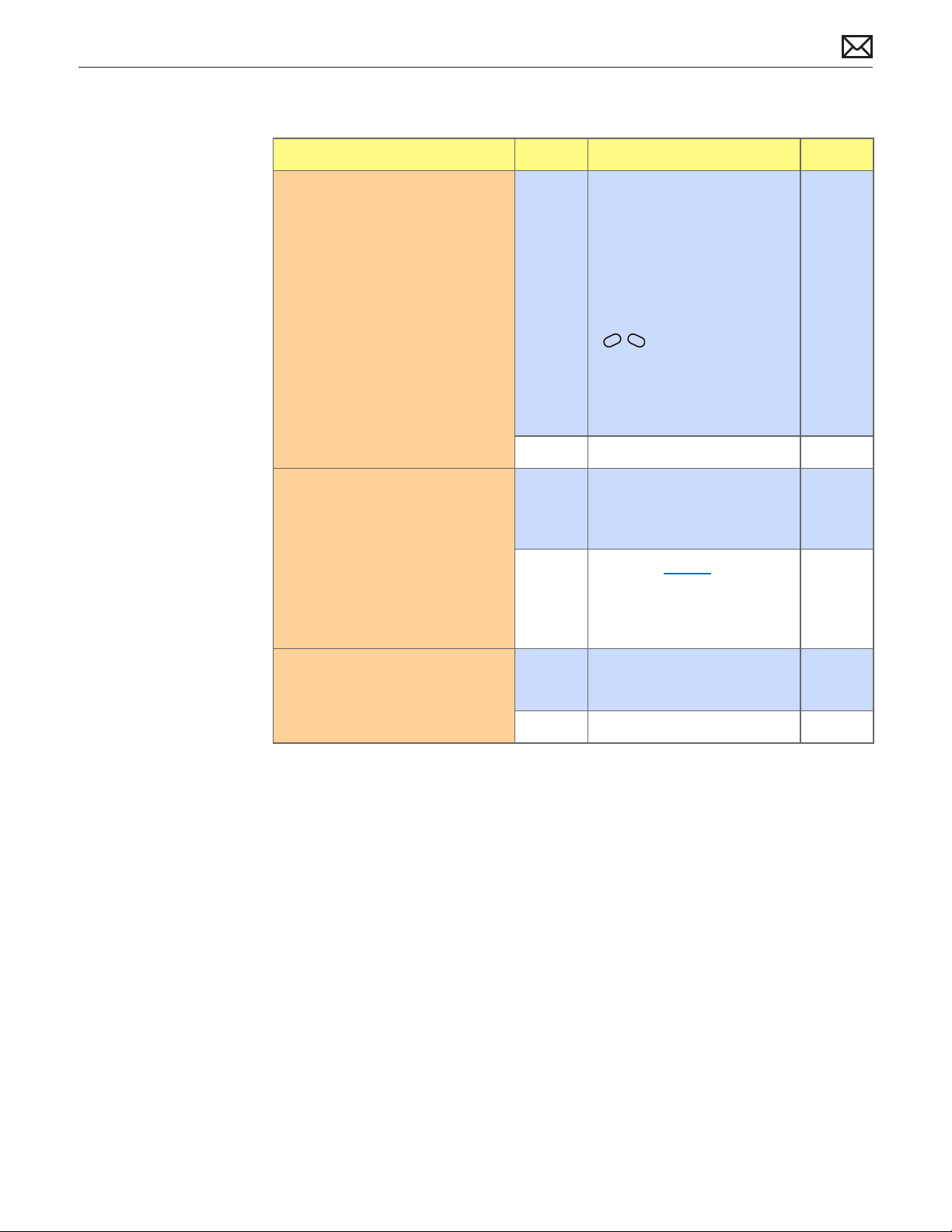
Deep Dive
Check Result Action Code
1. Able to verify that the status
light ashes three times?
2. Can you navigate Apple TV
menus with the remote, and is
the status light ashing once,
as expected?
Yes The Apple TV is paired with
a dierent remote than is
being used. To unpair, press
and hold Menu and Left for
6 seconds. A picture should
appear of an Apple Remote
with a broken chainlink icon
( )above it. Any Apple
Remote should now control
the Apple TV.
Go to step 2.
No Go to step 2.
Yes Perform a Function Test to
verify proper function
Go to step 4.
No Perform a restore from the TV
if possible, otherwise perform
a restore from iTunes.
Go to step 3.
3. Was a restore successful? Yes Perform a Function Test.
Go to step 4.
No Go to step 5.
2010-09-28
Apple TV (2nd generation) Symptom Charts — Control or Function 30
Page 31

4. Did Apple TV pass the Function
Test?
Yes The Apple TV is functioning
normally.
Investigate other possibilities,
including the customer’s
home equipment setup
and provide information or
instruction as needed.
See troubleshooting
links under General
Troubleshooting and
Customer Checks for
additional information.
No If a restore has been
performed, go to step 5.
If a restore has not been
done, perform a restore from
the TV if possible, otherwise
perform a restore from iTunes.
Go to step 3.
5. Is issue clearly caused by
accidental damage?
Yes The issue is not covered
under warranty.
Check for out-of-warranty
repair option.
No Covered if under warranty
Check for out-of-warranty
repair option.
T18
T17
2010-09-28
Apple TV (2nd generation) Symptom Charts — Control or Function 31
Page 32
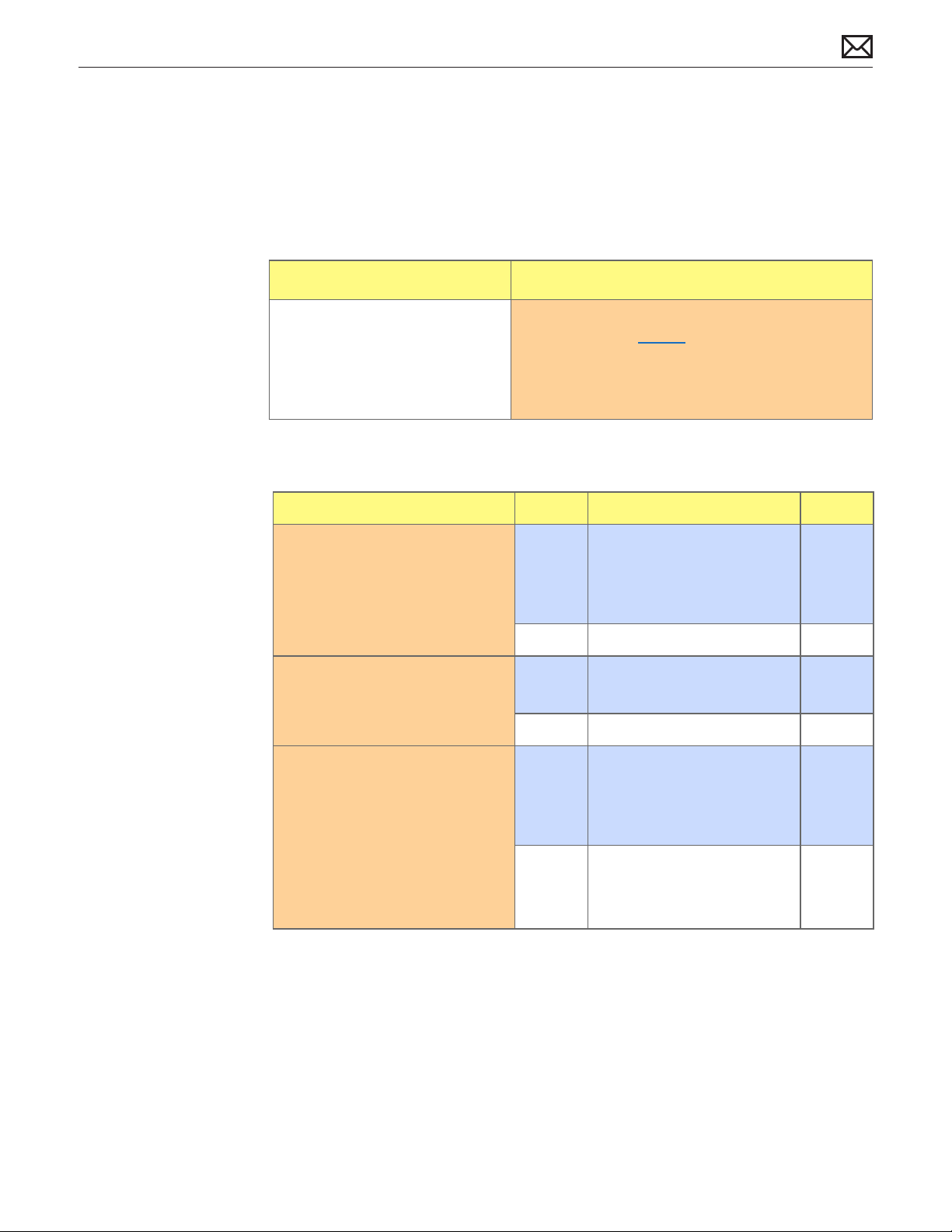
Alert Messages
Connect to iTunes Icon
Quick Check
Symptom Quick Check
• The Connect to iTunes graphic
appears on the TV
1. Connect to computer with Apple TV USB to Micro
USB cable and restore with iTunes.
Note: Do not connect the power cord to the
Apple TV for the iTunes restore procedure.
2. Go to Deep Dive.
Deep Dive
Check Result Action Code
1. Was a restore successful? Yes Connect Apple TV to the test
TV and perform the Function
Test.
Go to step 2.
No Go to step 3.
2. Did Apple TV pass the
Function Test?
3. Is issue clearly caused by
accidental damage?
Yes The Apple TV is functioning
normally.
No Go to step 3.
Yes The issue is not covered
under warranty.
T18
2010-09-28
Check for out-of-warranty
repair option.
No Covered if under warranty
Check for out-of-warranty
repair option.
Apple TV (2nd generation) Symptom Charts — Alert Messages 32
T17
 Loading...