

Page 1
www.apacer.com
AU521 MP3 Player
USB 2.0 Flash Drive + MP3 player
+ Voice Recorder +
FM Radio + FM Recorder
Version 1.0
1
Page 2

Notices
The copyright on this user manual remains with Apacer Inc. No part of this
user manual may be transmitted, reproduced, or changed.
Other companies’ product names that may be used herein remain the
property of their respective owners.
The product specifications, design and this user’s manuals content are
subject to change without notice.
If you have any questions, please contact your merchant or our service center
for clarification. We are not responsible for any losses resulting from using this
product no matter what the reason.
The guarantee and repair information is on the warranty card.
2
Page 3

Table of Contents
1 Before Using the AU521..........................................................................4
1.1 Important Notices.............................................................................4
1.2 Safety Notices..................................................................................4
2 Introduction..............................................................................................5
2.1 Overview..........................................................................................5
2.2 Features...........................................................................................5
3 Locating Controls.....................................................................................5
4 AU521 Operating Modes .........................................................................6
5 AU521 Basic Operation ...........................................................................7
5.1 Turning the AU521 On/Off...............................................................7
5.2 Adjusting the Volume.......................................................................7
5.3 Battery .............................................................................................8
6 AU521 System Menus and Advanced Settings .......................................8
6.1 System Modes.................................................................................9
6.2 Record Date/Time Setting................................................................9
7 Listening to Music..................................................................................12
7.1 Play/Pause.....................................................................................12
7.2 Music Selection..............................................................................12
7.3 Music Play Menu ...........................................................................12
8 Voice Recording ....................................................................................13
8.1 How to Record...............................................................................13
8.2 Voice Type.....................................................................................14
9 Playing Recorded Files..........................................................................14
9.1 Playing Recorded File....................................................................14
10 Listening and Recording FM..................................................................15
10.1 FM Mode Menu..............................................................................15
11 File Mangement .....................................................................................16
11.1 Select Local or User Folder ...........................................................16
11.2 Deleting Files.................................................................................16
12 Using USB Disk Function.......................................................................17
12.1 USB Display Mode.........................................................................17
12.2 Disk Encryption.............................................................................. 17
12.3 Upgrading Firmware ......................................................................17
13 Specifications.........................................................................................18
14 Frequently Asked Questions (FAQs) .....................................................19
3
Page 4

1 Before Using the AU521
1.1 Important Notices
1. Please remember to switch the on/off button to the on position to
enable battery charging via USB or AC Adapter.
2. If you will not use the AU521 MP3 player for a long period of time,
please switch the device to off to avoid power less.
3. The memory size of the AU521 MP3 Player may appear to be smaller
than what is stated on the package. This is normal, the discrepancy
mainly arises from different file management and algorithms run by
different operating systems and also from reserved space for error
block.
1.2 Safety Notices
1. To prevent electrical shock or other injury, please do not disassemble
or repackage this product.
2. To prevent fire, electrical shock, or device malfunction, please do not
use this product in a wet environment such as a shower room.
3. This product is an electronic device; please avoid dropping it or
subjecting it to other severe shocks.
4. When transferring files, do not turn the power off or restart this
device. No responsibility is provided for any damage to or loss or any
program, data, or other information stored on any media or any part
of this device serviced hereunder.
5. Remember to set the volume at a moderate level. Listening to music
at high volumes can impair your hearing.
6. For your safety and the safety of others, do not use headphones
while driving, cycling or any other similar activities.
4
Page 5
2 Introduction
2.1 Overview
Thank you for purchasing the AU521 USB 2.0 MP3 Flash drive. This handy
device combines the functions of a flash drive, MP3 player, Voice Recorder
and FM Radio and FM Recorder into one easy-to-use device.
2.2 Features
• Slim and compact MP3 flash drive
• USB2.0 full-speed flash disk
• Supports MP3/WMA/WAV music format
• Double-line synchronous lyrics display
• Stereo FM radio (20 preset channels) / FM recording
• Supports 7 EQ modes: Nature, Rock, Pop, Classic, Soft, Jazz, Heavy
undertone
• Voice recording (WAV/ACT format)
• Supports multilanguage user-interface
• Disk management function
• Firmware upgrade function
• Built-in rechargeable Lithium Polymer battery
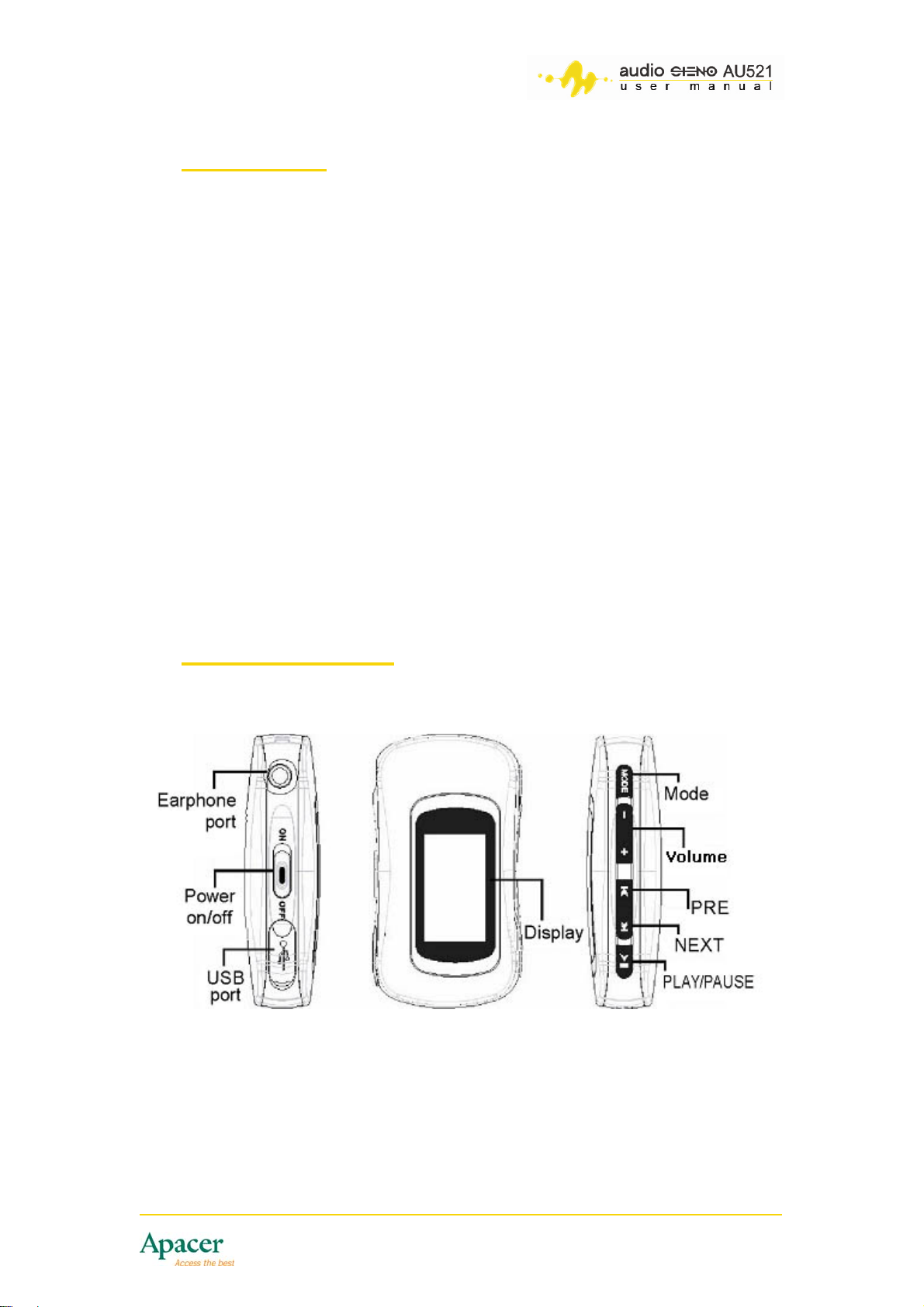
3 Locating Controls
5
Page 6
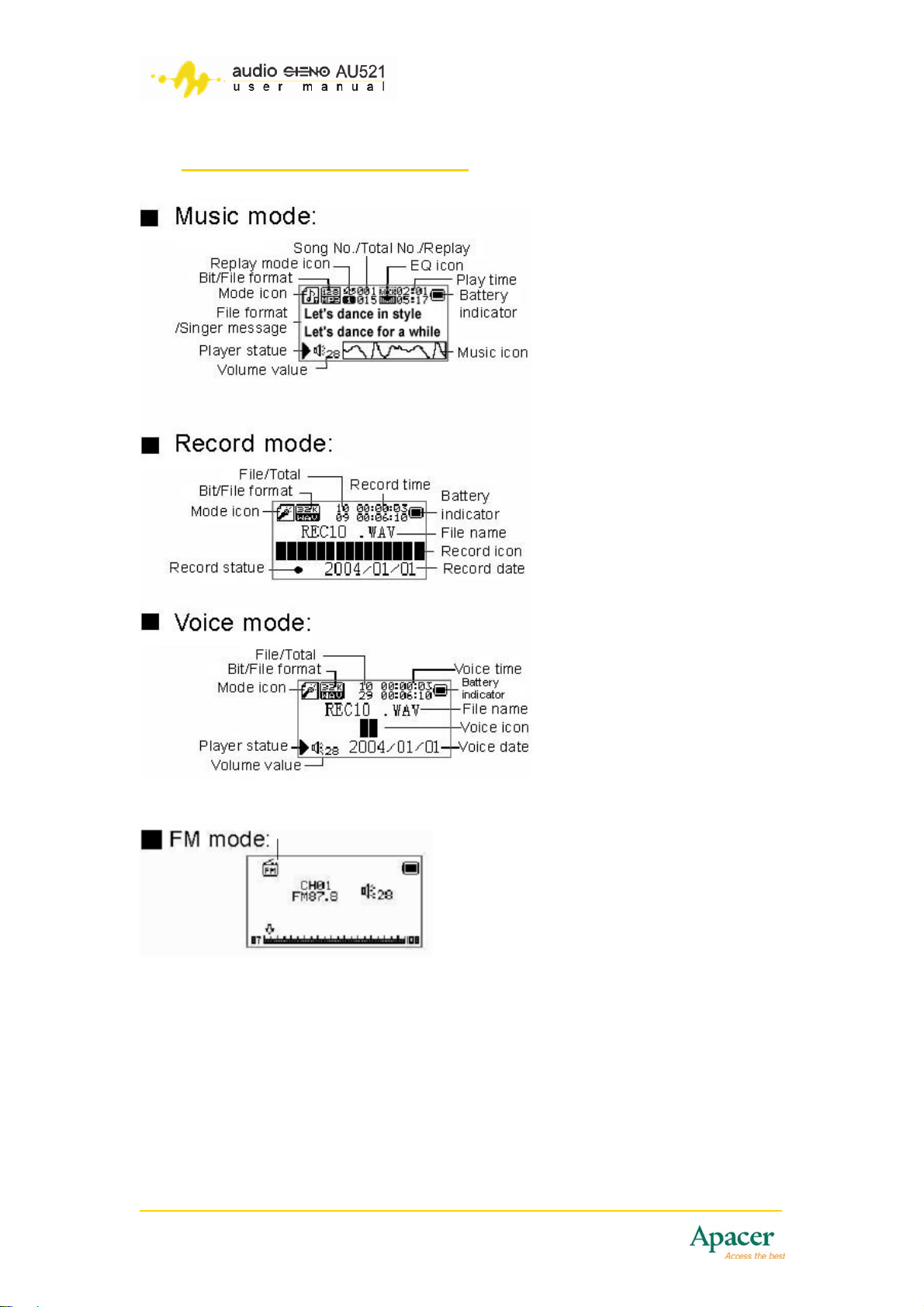
4 AU521 Operating Modes
6
Page 7
5 AU521 Basic Operation
5.1 Turning the AU521 On/Off
Turning the AU521 On:
1. Switch the ON/OFF Switch to the “ON” position and wait for the
power-on animations to appear.
or
2. Under Standby mode (with switch set to “ON“), press and hold [ ]
for 3 seconds to power it on.
Turning the AU521 Off:
1. Press and hold [ ] for 3 seconds.
or
2. Switch the ON/OFF button to the “OFF” position to power off
completely.
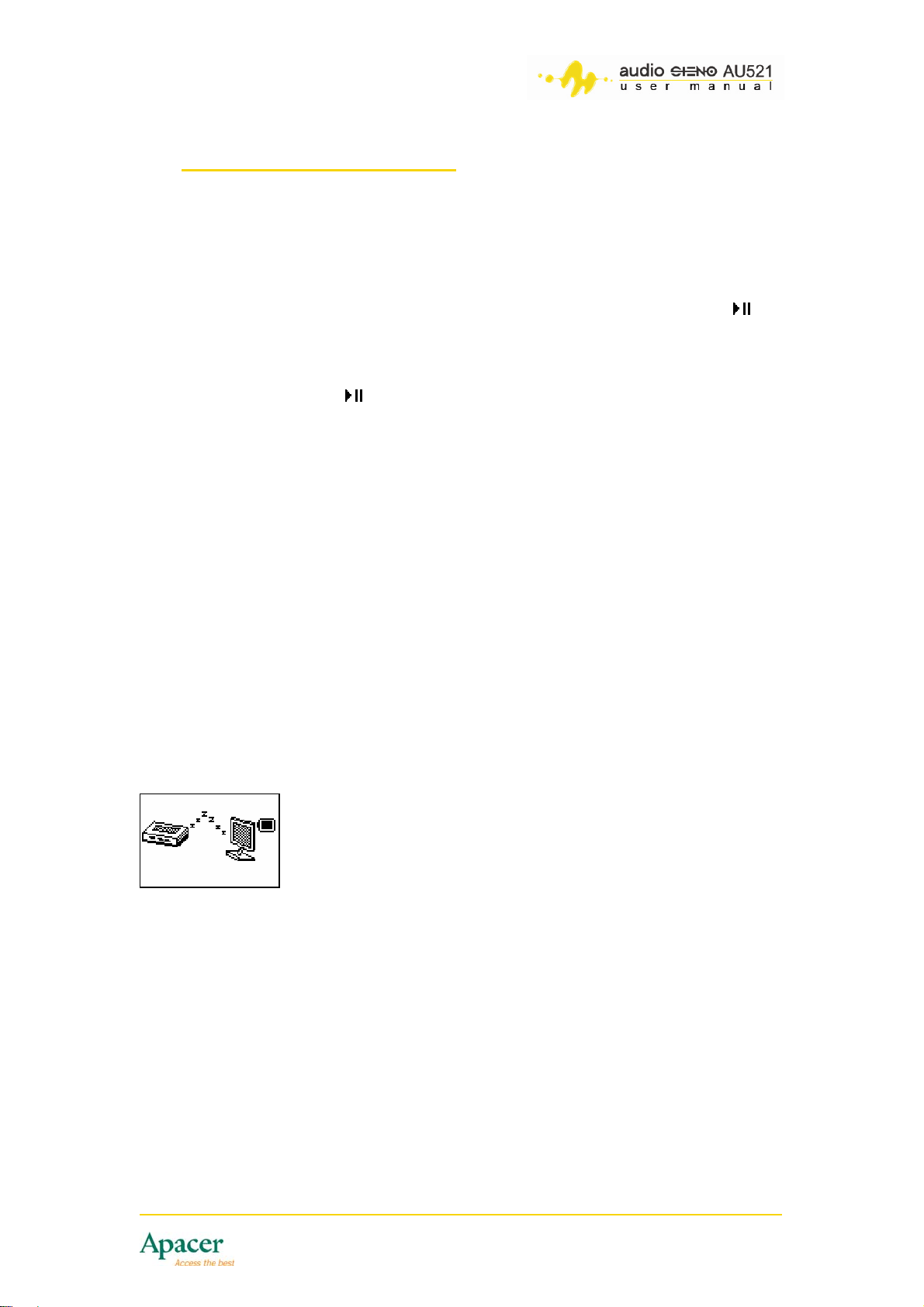
To conserve battery life, the AU521 will automatically turn off after a period of
time when left idle. This will not occur if the AU521 is charging or plugged into
a powered USB port.
To set the length of time until auto-off, go to
Main Menu > System > Power off > Off time.
Note: Low Battery: If the battery is low, the player will automatically go into
Standby Mode. If this happens, please recharge the AU521 before powering
on again.
Auto switch on: After connecting the AU521 to a PC USB interface, it will
auto switch on and enter “USB mode.“
5.2 Adjusting the Volume
During music, sound and radio playback, you can press [VOL- /VOL+] briefly
to enter volume adjust interface.
Once you see the volume slider bar, briefly press the [-] or [+] button to
increase or decrease the volume incrementally.
Or press the [-] or [+] button and hold to increase or decrease the volume
levels in larger increments.
7
Page 8
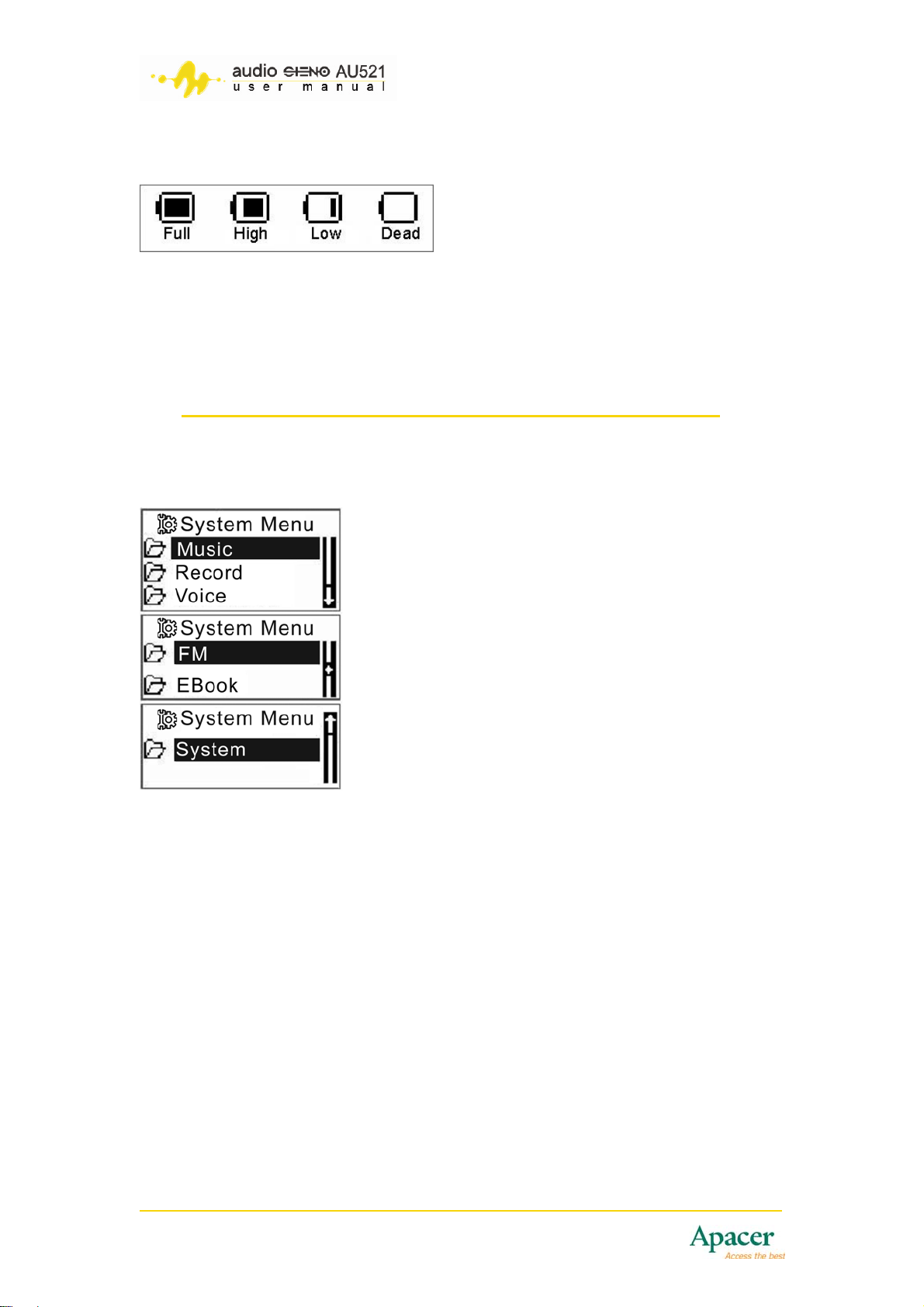
5.3 Battery
The battery can last about four hours when fully charged.
Note: The first two times the AU521 is used requires ten hours of charging to
attain a full charge.
6 AU521 System Menus and Advanced Settings
To enter the menu: Briefly press [MODE] button
For Submenu settings: Press [] or [] to select sub menu settings
To save the settings: Press and hold [MODE] to save or exit the menu
8
Page 9
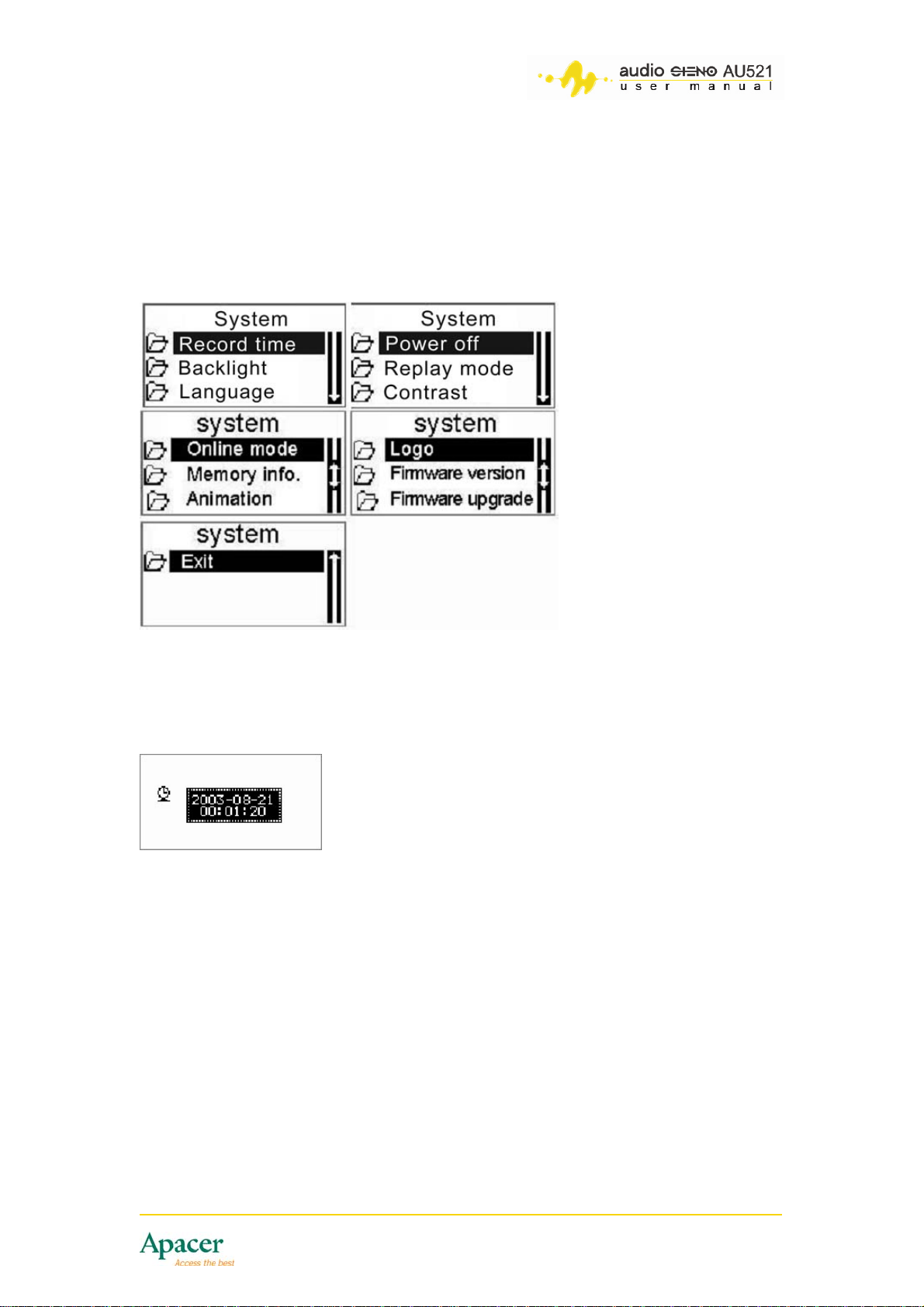
6.1 System Modes
Press [] or [] to select “system mode,“ briefly press [MODE] to enter the
System interface.
Different functions can selected with the [] or [] then press [MODE] to
confirm.
6.2 Record Date/Time Setting
In the [system settings] menu, you can setup the record date and time that
is stored with the file.
Briefly press [VOL-] to select the year
Briefly press [] or [] button, to adjust the time
After setting correctly, Briefly press [MODE] to save and exit.
6.2.1 Backlight Setting
Press [] or [] to adjust display brightness.
6.2.2 Language Setting
Enter [language select] interface, you can use [] or [] to select the
language interface you want, Briefly press [MODE] to confirm.
9
Page 10
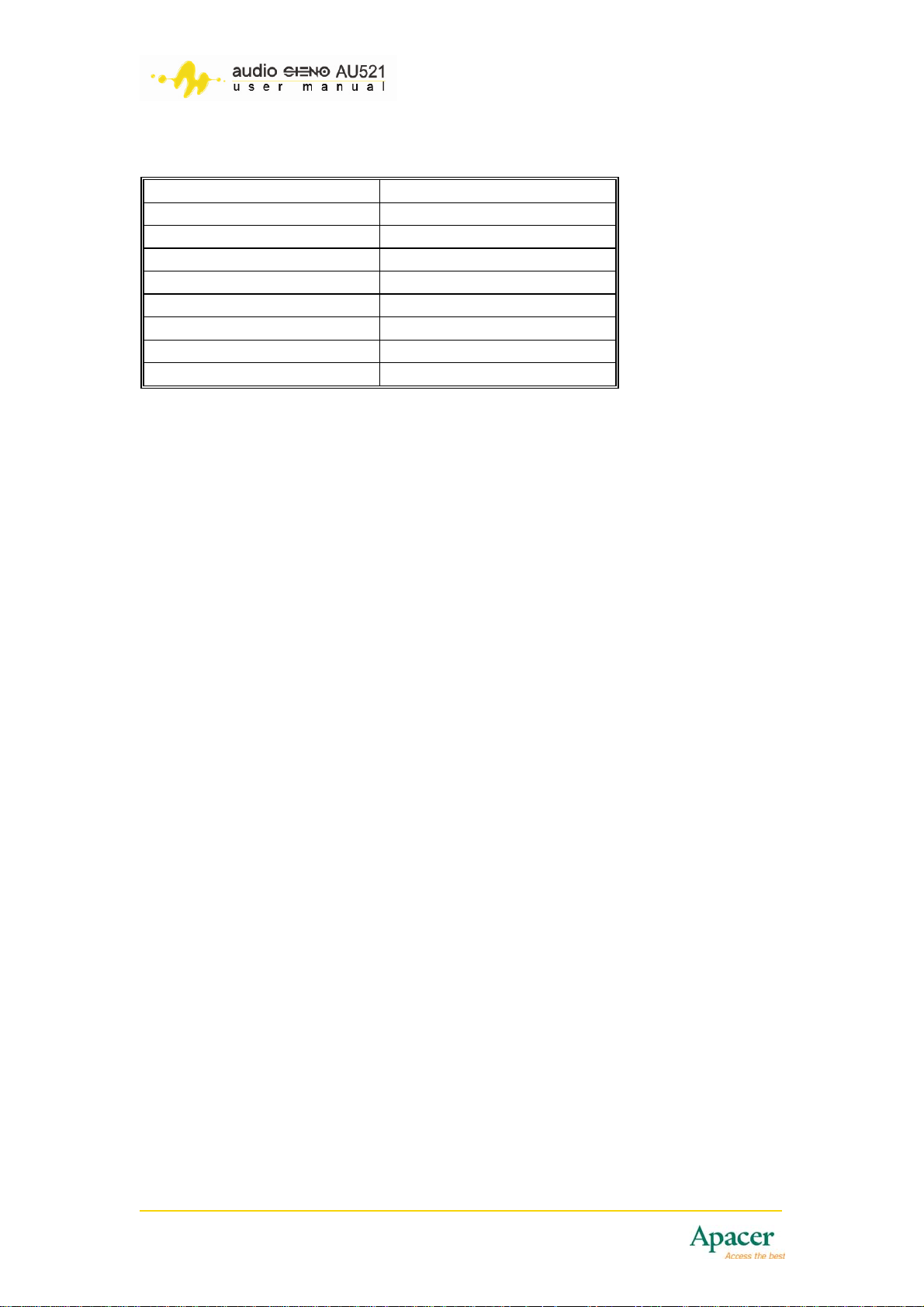
AU521 Interface Language choices:
Simple Chinese English
Trad Chinese Japanese
Korean French
Italian German
Spanish Swedish
Portugal Denmark
Dutch Thailand
Russia Czech
Poland
6.2.3 Power-off Setting
These setting help you conserve your AU521’s battery life. Here, you can
adjust Auto-off and Sleep time settings
Off-time mode: you can set for a specific time in seconds, it will be power off
when time is up, whatever the status.
Sleep time mode: you can set for a specific time in seconds, it will go into
sleep mode when time is up, whatever the status.
For each of these, Briefly press [] or [] to change these times.
Press [MODE] again to save and exit.
6.2.4 Replay mode settings
This function is designed for a specific file format. Users can choose “Manual
replay mode” or “Auto replay mode”
6.2.5 Contrast settings
Briefly press [] to lower the contrast, Briefly press [] to increase contrast.
6.2.6 Online mode
AU521 supports a disk security mode. Users can separate and create
different partitions on the built-in flash through this function. There are three
choices: “Normal only“, “Multi Drive“, “Encrypted only.“
To separate and create partitions, you must install the program – MP3 Player
Disk Tool included in the installation CD before using this function.
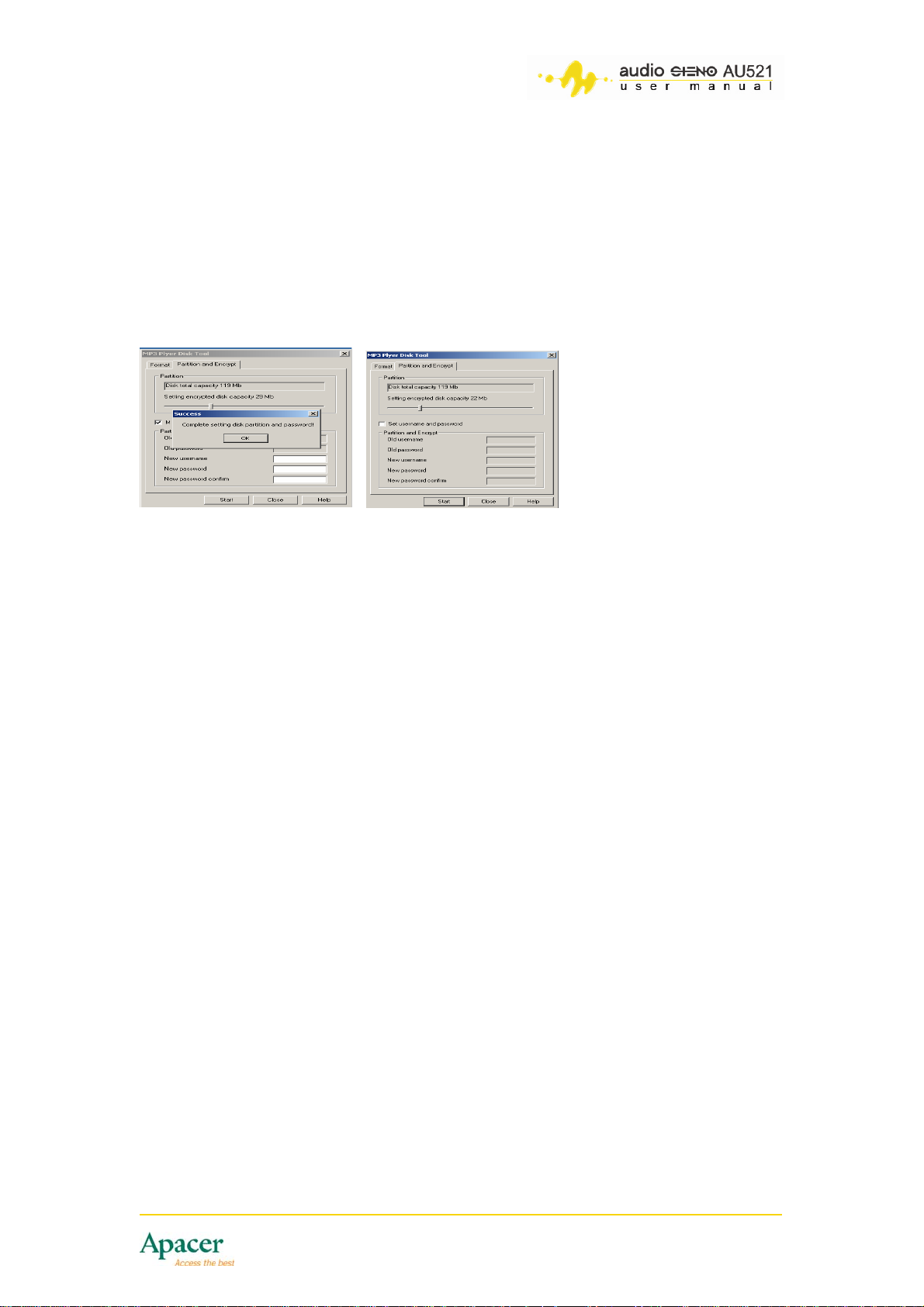
After installation, run the program and choose the "Partition and
Encrypt“ option, then choose the size of each disk you want to partition.
Please set the Username and Password in the next window and click the
"Start“ button to begin partitioning the disk. Afterward, click "OK“ to confirm
and reboot computer.
10
Page 11
After rebooting, if there were no errors, you should see two disk icons
showing in "My Computer“. There are three files in the encrypted disk, except
two are hidden files, run the one executable file – Rdisk Decrypt.exe, then
input the Username and Password in the pop-up dialog to access the
encrypted data.
You can combine the disks to cancel the encrypted disk. This does not
necessarily damage data in the encrypted disk, but data should definitely be
backed up before performing this step.
Notes:
* For Windows 2000, users must upgrade to SP4 first before using this
function.
* Separating and combining partitions can erase data stored in flash disk,
always backup your important data before using these functions.
* Please keep the Username and Password safe. You cannot access the
encrypted disk next time if you lose these.
* Stored data in the encrypted disk cannot be read from the AU521 player.
* You must input your Username and Password in order to access the data
stored in encrypted disk when connected to a PC.
6.2.7 Memory info.
Press [MODE] to see the current memory status.
6.2.8 Animation
Press [MODE] to select the optional animations for the opening window.
6.2.9 Logo setting
Press [MODE] to select the optional logo image that appears after opening.
Press [MODE] again to save and exit.
6.2.10 Firmware version
Press [MODE] to see the firmware version currently being used.
11
Page 12
6.2.11 Firmware upgrade
You can press [MODE] to enter firmware upgrade mode, you need to have
the AU521 plugged into a computer to execute the firmware upgrade.
7 Listening to Music
7.1 Play/Pause
To play: under the music mode, Briefly press [ ].
To pause: Briefly press [ ].
7.2 Music Selection
Briefly press [] to select the front song.
Briefly press [] to select the next song.
7.3 Music Play Menu
(Press [MODE] Briefly in Music playing status to enter the Music play menu)
These will be the choices
For each of these, Briefly press [] or [] to change these times.
Repeat
Equalizer
Tempo Rate
Replay (A:B)
Replay times (How many time A:B will replay before continuing)
Replay gap (time delay between A:B repeats)
Exit
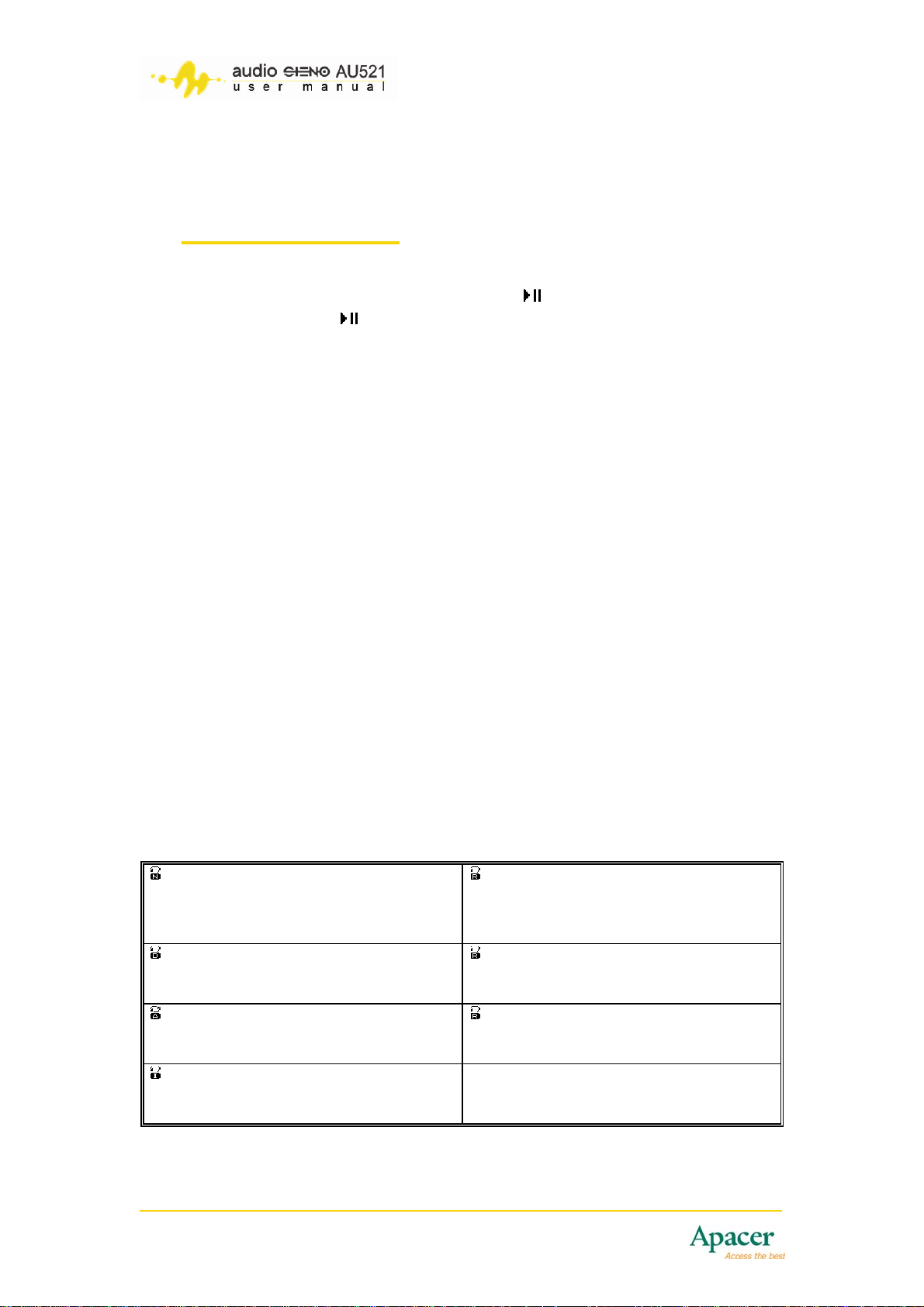
7.3.1 Select Repeat mode
Press [MODE] Briefly again
These will be the choices below.
Briefly press [] or [] to change these choices below.
Press [MODE] again to save and exit.
Normal
Once the songs in the current directory
are finished, it will continue to play the
songs in the next directory.
Folder
The player will play all the songs in the
current directory only.
Repeat All
The player will play all the songs in all
the directories continously.
Intro
Play the beginning 10 seconds of all the
songs in the current directory
Repeat One
The current song repeats indefinitely.
Folder All
The player will continuously play all the
songs in the current directory.
Random
The player will randomly play all the
songs in the current directory.
12
Page 13
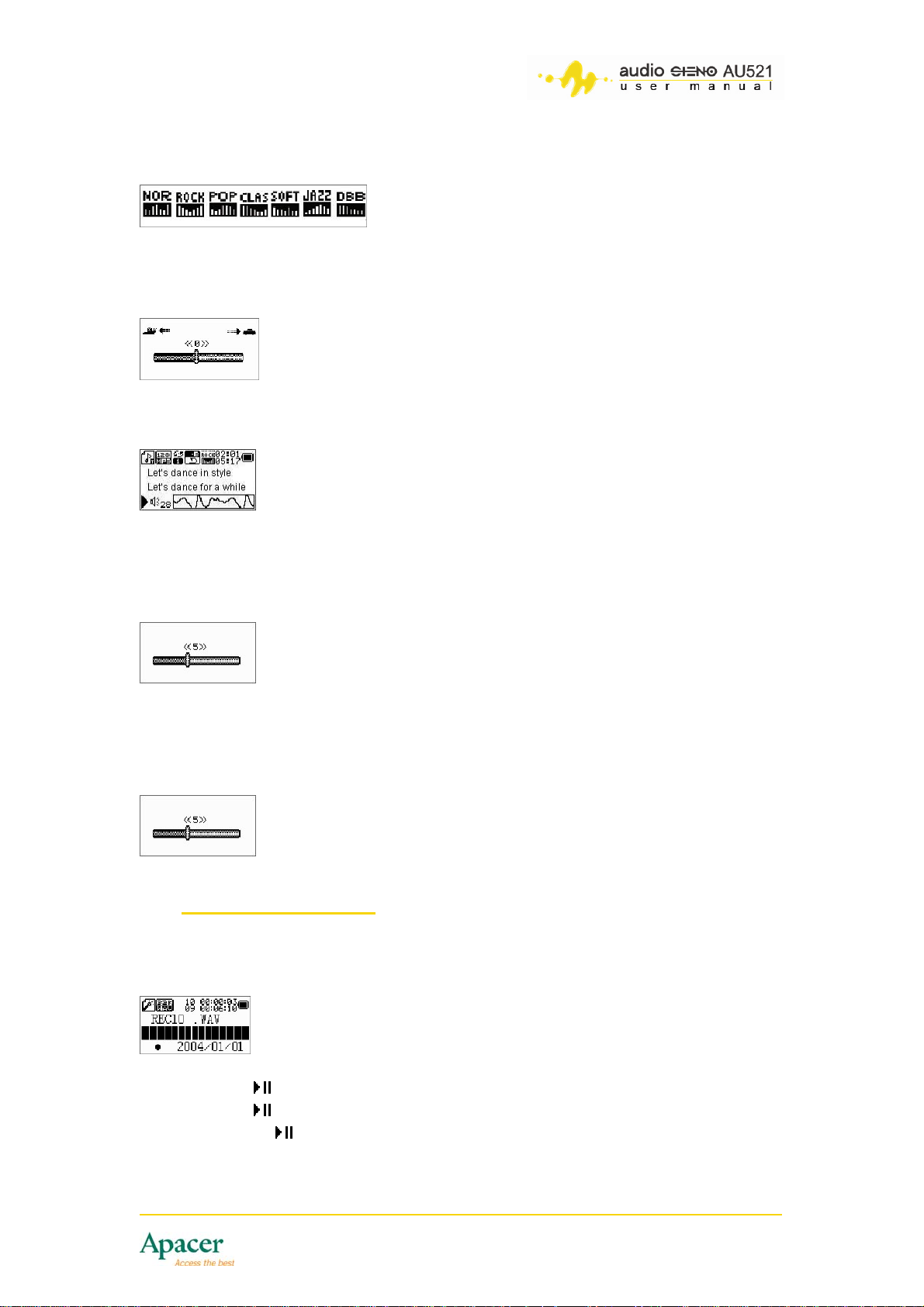
7.3.2 Select Equalizer mode
7.3.3 Select Tempo Rate
7.3.4 Select Replay mode (when playing) A-B repeat
7.3.5 Select Replay times setting
How many time A:B will replay before continuing.
7.3.6 Select Replay gap setting
The time delay between A:B repeats.
8 Voice Recording
8.1 How to Record
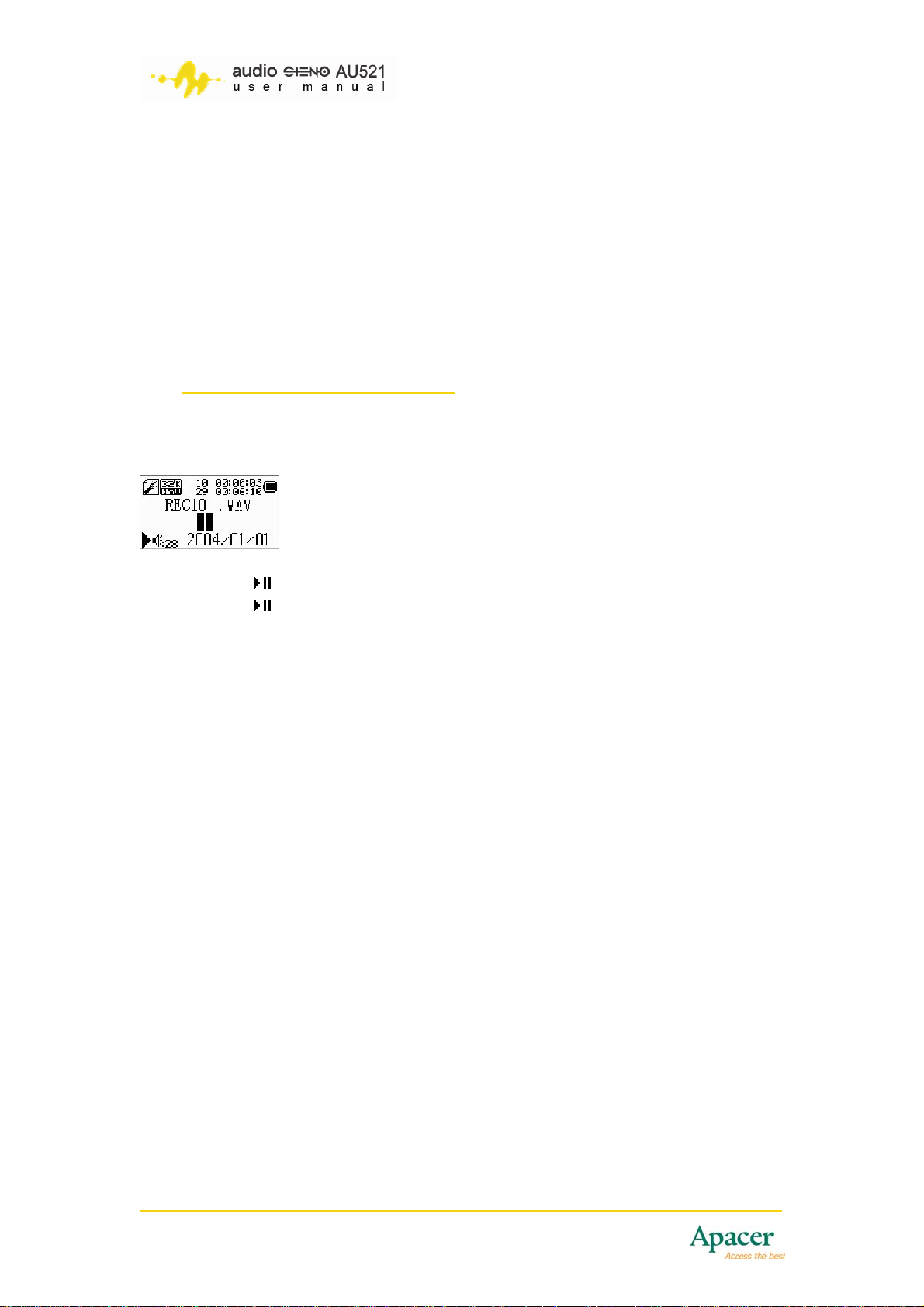
Enter the record mode in the system menu
Briefly press [
Briefly press [ ] to pause recording
Press and hold [ ] or [MODE] to stop recording and save recorded file
] begin to record
13
Page 14
8.2 Voice Type
In the record mode or stop status.
Briefly press [MODE] to enter record setting menu.
Select [Record type]
Briefly press [MODE] to enter record type settings.
Fine record: WAV format, high timbre
Long record: ACT format, timbre common
Fine Voice: WAV format, sound control record
Long Voice: ACT format, sound control record
9 Playing Recorded Files
9.1 Playing Recorded File
Enter the <Voice> mode in the system menu
Briefly press [ ] to begin to playing selection
Briefly press [ ] to pause or stop play
Briefly press [] or [] to select the recorded file to play
Press and hold [MODE] to exit Voice mode
Enter voice volume adjust mode to adjust voice volume
Recorded file playing mode setting (in playing recording file status)
Please refer to Music play menu about the following settings.
Repeat
Tempo Rate
Replay (A-B Repeat)
Exit
14
Page 15
10 Listening and Recording FM
10.1 FM Mode Menu
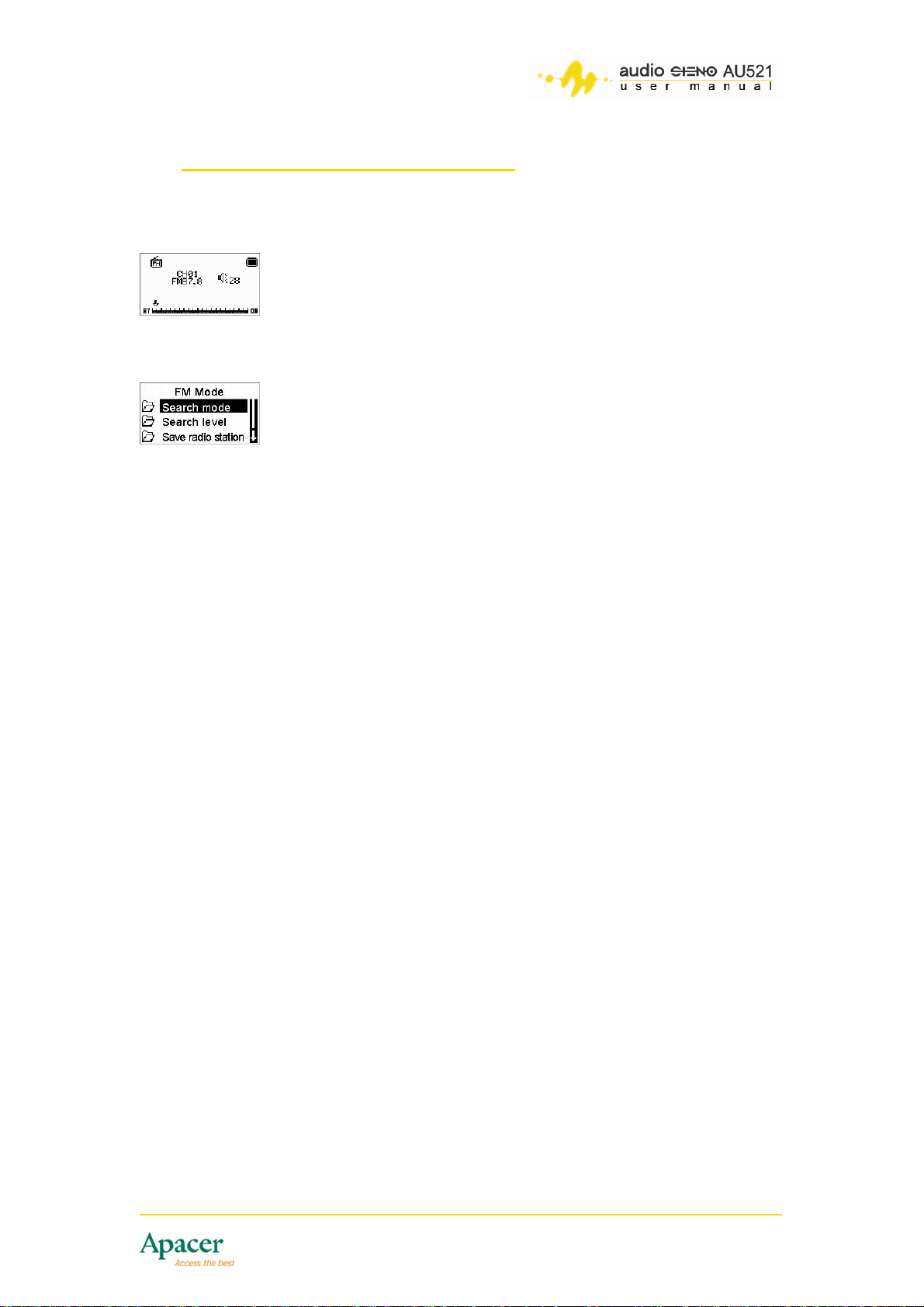
Enter FM mode in system menu
In FM mode,you can Briefly press [MODE] to enter radio mode submenu
Function operation shows:
10.1.1 Search mode
In FM submenu to select search mode, press [MODE] to enter select
frequency modulation mode.
10.1.2 Search level
The level of search sensitivity the user wants.
10.1.3 Save
With the station is playing that you want, press [MODE] and then go to Save,
and then press [MODE] again to confirm. Can save up to 20 stations.
10.1.4 Delete
You can delete a saved station.
10.1.5 Select Band
Select bandwidth frequency to match your country location
10.1.6 REC type
In the radio mode submenu, you can select record type
Briefly press [MODE] to enter record type selection interface
10.1.7 Exit
15
Page 16
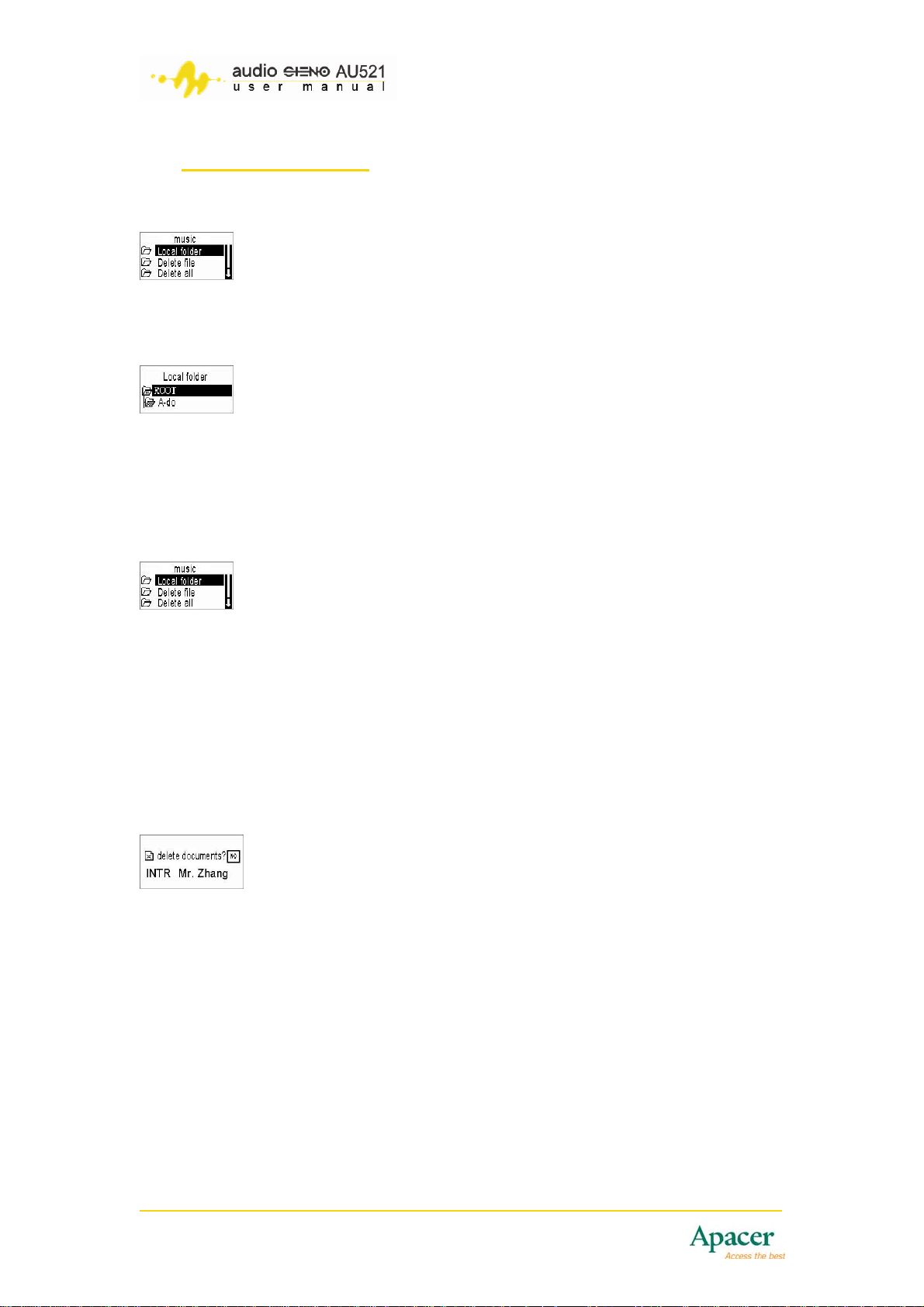
11 File Mangement
11.1 Select Local or User Folder
Briefly press [MODE] to see all the folder locations.
Briefly press [] or [] to select the folder to open.
Press [MODE] again to enter a folder.
11.2 Deleting Files
Briefly press【MODE】to enter main folder menu.
Briefly press【MODE】again to enter see all folders in local folder.
You can use [] or [] to select folder you want.
You can use [] or [] to select【delete file】
Briefly press [MODE] to enter delete interface.
You can use [] or [] to select【YES】or【NO】
Briefly press [MODE] to confirm deletion.
For【delete all】, then Briefly press [MODE] to enter delete interface.
Briefly press [MODE] to begin to delete the entire folder.
16
Page 17
12 Using USB Disk Function
12.1 USB Display Mode
The AU521 has a standard USB disk function, supports WINDOWS 98 (needs
driver on CD),WINDOWS 2K or above (no need install drive procedure)
system, Mac OS 10.3 or above, Linux Redhat 8.0 or above.
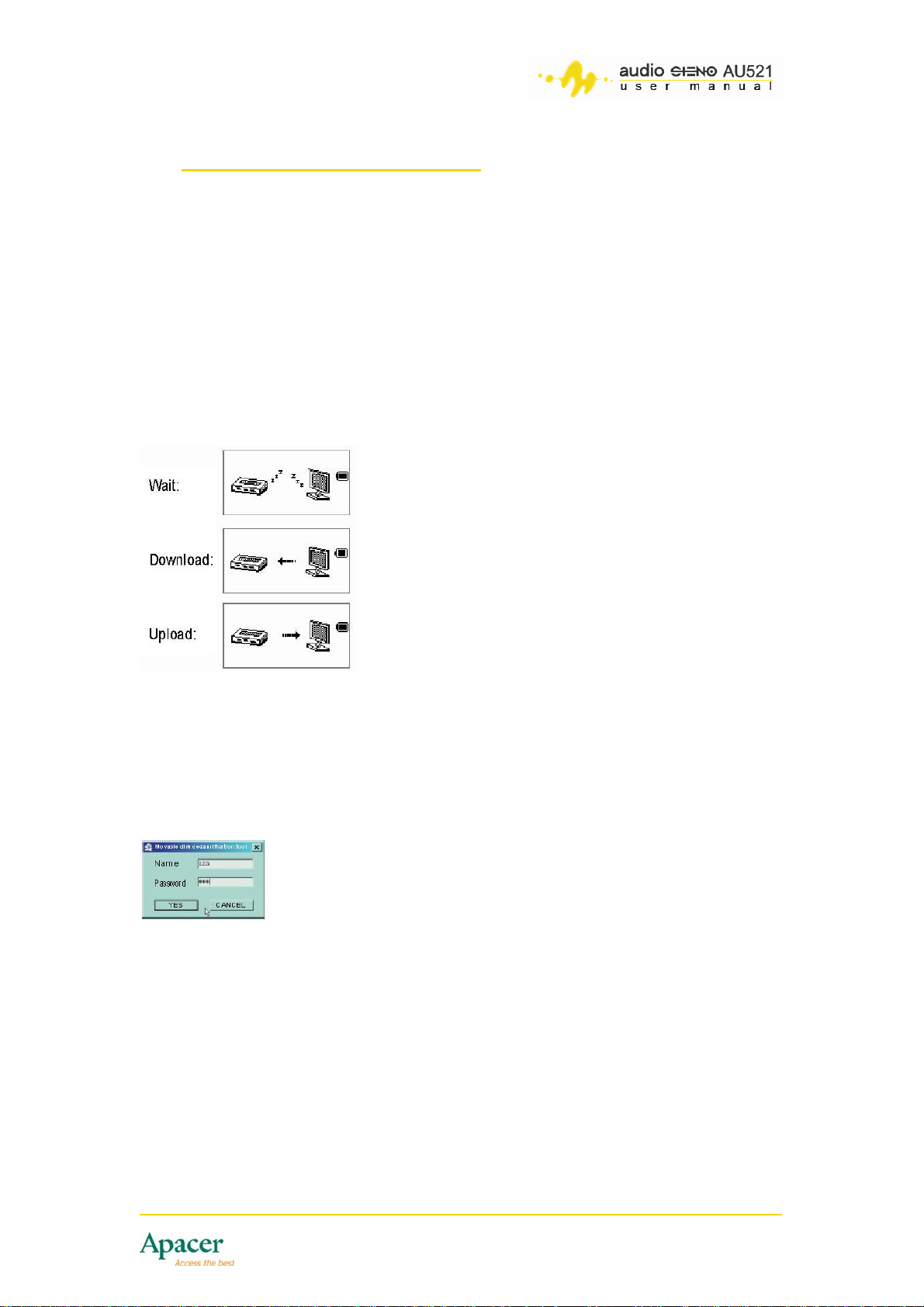
After connecting to a PC (wait for a few seconds), the player has three display
modes:
Waiting status,
Downloading file
Uploading file
12.2 Disk Encryption
You can use the tool attached in the installation CD to set partitions for the
USB disk. One is the normal disk, the other is the encrypted disk. Data stored
in the encrypted disk can not be accessed without the correct Username and
Password.
12.3 Upgrading Firmware
You can find a firmware version on the CD disk or download from the Apacer
website.
To Install the firmware:
Click【begin to upgrade】button, the system begins to upgrade.
17
Page 18
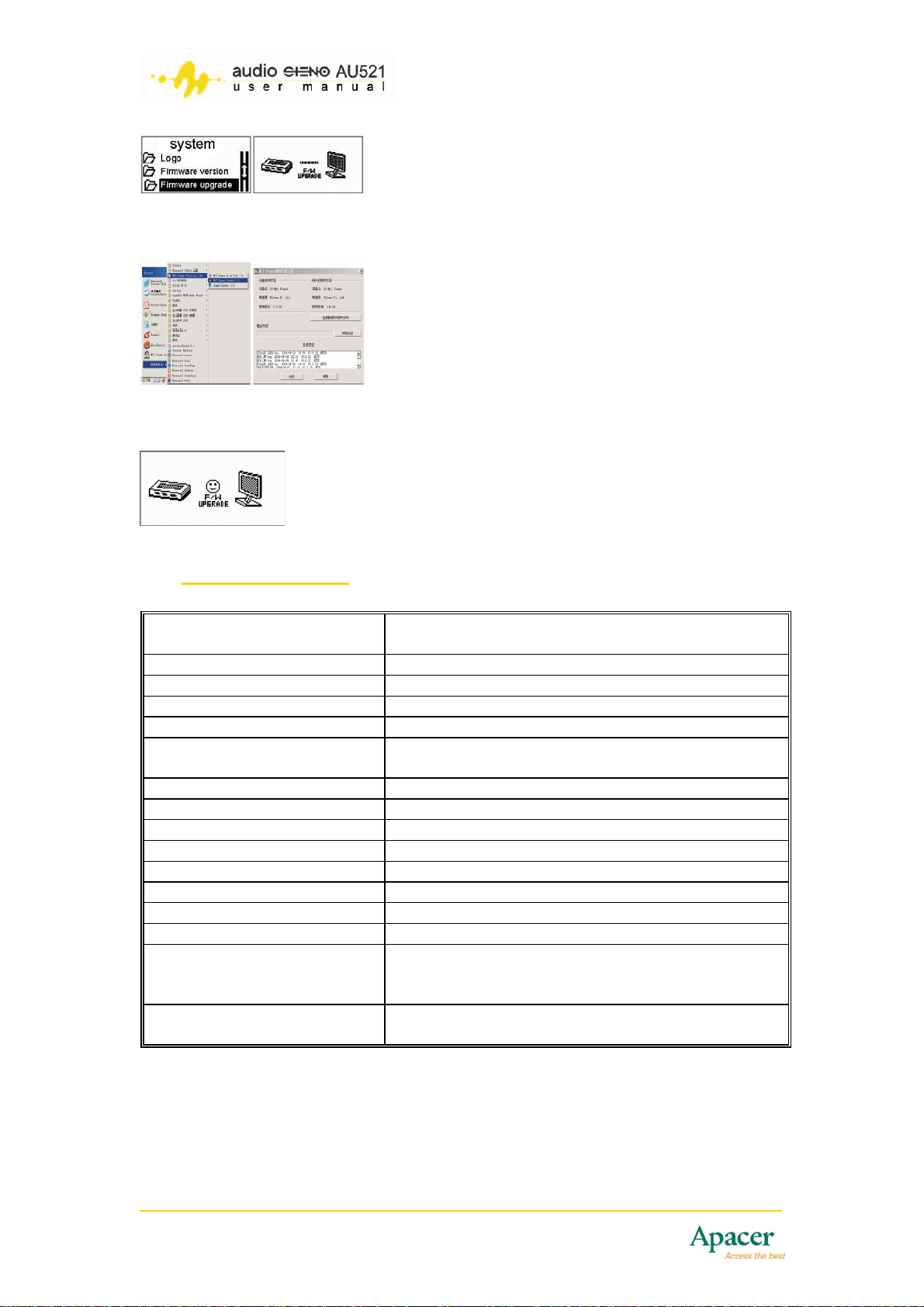
Select the firmware file location.
If the Upgrade succeeds, the player shows the following screen.
13 Specifications
USB interface USB 2.0 full-speed transmission rate
(read 1000K Byte/s, write 900K Byte/s)
Built-in memory 128 MB -1 GB Flash memory
Display 128 x 64 mono LCD display
Digital file format supported MP1, MP2, MP3, WMA, WAV
FM Frequencies 76 MHz – 96 MHz/87 MHz – 108 MHz
Playback time 6 hours (based on continuous, standard playback,
128 kbps MP3
Record ACT, WAV fo rmat
Languages Multilanguage support
Audio output 3.5 mm earphone Jack
Battery 3.6 V Lithium Polymer,
Power (L)10mW+(R)10mW (32 ohm)
Dimensions (L) 62 x (W) 33.5 x (H) 17 mm
Operating temperature -5°C ~ 40°C
Weight 20g (not including battery)
OS support Windows 98SE/ ME/2000/XP, Mac OS 10,
(Win98SE users must install driver on installation
CD)
Accessories User manual (on CD), earphones, battery charger,
USB extension cable, installation CD
18
Page 19

14 Frequently Asked Questions (FAQs)
Q: My computer does not detect the AU521 MP3 player. What should I
do?
A: If you are using Win98/98SE, please install the driver. If you are using
Windows ME/2000/XP, please make sure the USB function is enabled in
the System BIOS
Q: I am not getting any power to my AU521.
A: Make sure the battery is fully charged. Charge with adapter or USB
cable.
Q: I am not getting any sound in my earphones.
A: Make sure the volume setting is not set to 0. Make sure the earphones
are clean.
Q: My display screen is showing a different language.
A: Make sure the language setting is set to your language of choice.
Q: If the MP3 Flash Drive gets wet, what should I do?
A: Dry the MP3 flash drive thoroughly before using it again, otherwise the
moisture may cause a short circuit during operation.
Q: My FM reception is not clear. What do I do?
A: Move away from electrical appliances. Adjust the position between the
earphones and the player.
Q: I cannot download music normally.
A: Check the USB cable connection. Also inspect the USB connector for
damage. Make sure drivers needed are installed correctly.
19
 Loading...