

Page 1
r
r
r
r
r
r
r
r
r
r
r
r
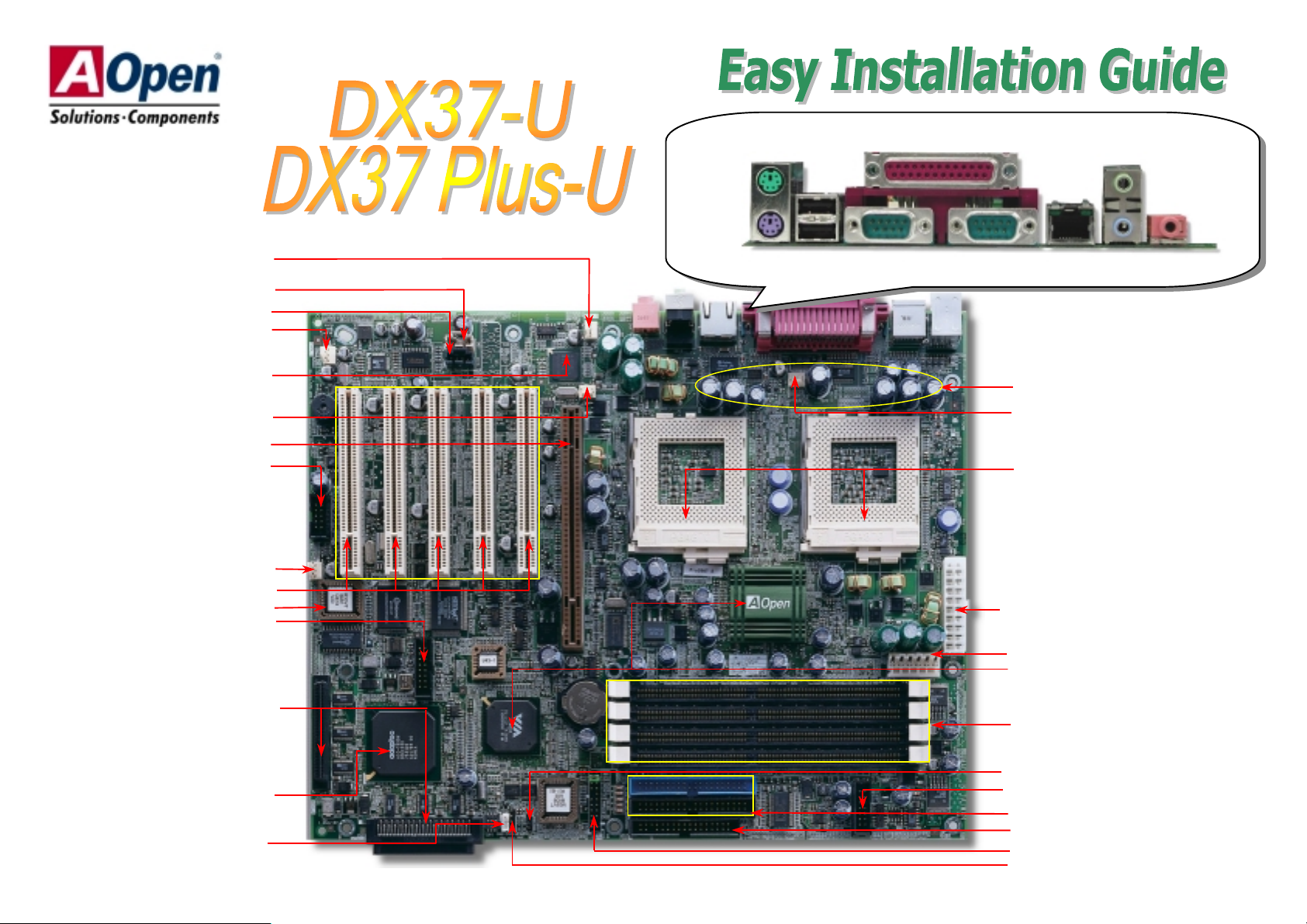
PS/2 Mouse
Connector
SPP/EPP/ECP Parallel Port
RJ45 10/100
LAN Jack
(Optional)
Speaker Out
FAN3 Connecto
AUX-IN Connecto
CD-IN Connecto
FAN2 Connecto
Intel 82550 10/100 LAN
Controlle
CPU2 FAN Connecto
AGP Pro Slot
USB Connecto
FAN1 Connector
32 Bit PCI Slot x 5
4Mbit Flash BIOS
Game Port Connecto
CPU #2
PS/2 Keyboard
Connector
USB Port COM 1 Port
COM 2 Port
1500μF Low ESR Capacitors
CPU1 FAN connector
Dual CPU sockets
CPU #1
ATX 20-pin Power Connector
AGP Pro Power Connector
VIA Pro266T Chipset
Line-In MIC-In
Dual Channel Ultra 160 SCSI
Connector (DX37 Plus-U only)
Adaptec 7899W SCSI Controlle
(DX37 Plus-U only)
WOL (Wake on LAN) Connecto
184-pin DIMM Socket x4 supports
PC-1600/2100 DDR SDRAM
maximum up to 4 GB
JP14 CMOS Clear Jumpe
Redundant SPS Connector
ATA/33/66/100 IDE Connector x2
FDD Connector
Front Panel Connecto
SCSI LED Connector (DX37 Plus-U only)
Page 2
Everything you need to boot this
(
)
motherboard is included in this
Easy Installation Guide. For more
information, a complete Online
User's Manual can be found in the
Bonus Pack CD Disc. Thanks for
the help of saving our earth.
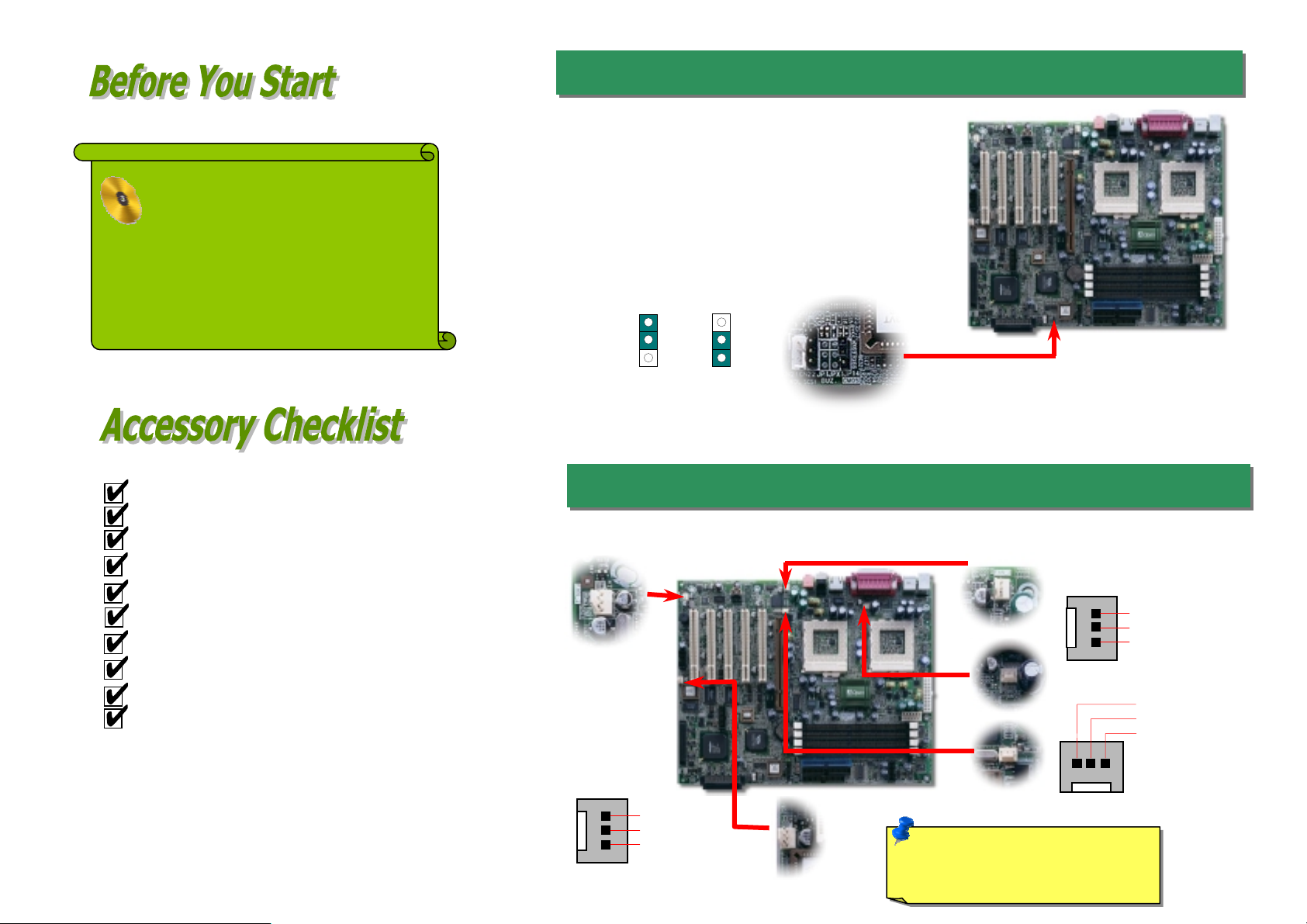
1. JP14 Clear CMOS
You can clear CMOS to restore system default setting. To
clear the CMOS, follow the procedure below.
1. Turn off the system and unplug the AC power.
2. Remove ATX power cable from connector PWR2.
3. Locate JP14 and short pins 2-3 for a few seconds.
4. Return JP14 to its normal setting by shorting pin 1 & pin 2.
5. Connect ATX power cable back to connector PWR2.
Hard Drive IDE Cable x 1
80-Wire IDE Cable x 1
Floppy Drive Cable x 1
Normal
default
Plug in the CPU fan cable to the 3-pin CPU1 FAN and CPU2 FAN connector. If you have chassis fan, you
can also plug it on System FAN (FAN2) or AUX FAN (FAN3) connector.
Clear CMOS
2. Installing CPU & System Fan
Ultra 160 SCSI 68 pin Cable x 1 (DX37 Plus-U only)
Bonus Pack CD disc x 1
User Manual x 1
This Easy Installation Guide x 1
I/O Bracket x 1
ASM x 1 (Optional)
SCSI Utility Driver x 1
PART NO: 90.53G30.006 DOC. NO: DX37PU-EG-E0112B Note: Some CPU fans do not have
FAN2
Connector
GND
+12V
Sensor
FAN1 Connector
sensor pin so they cannot support fan
monitoring.
FAN3 Connector
GND
+12V
Sensor
CPU1 Fan Connector
GND
+12V
SENSOR
Page 3
r
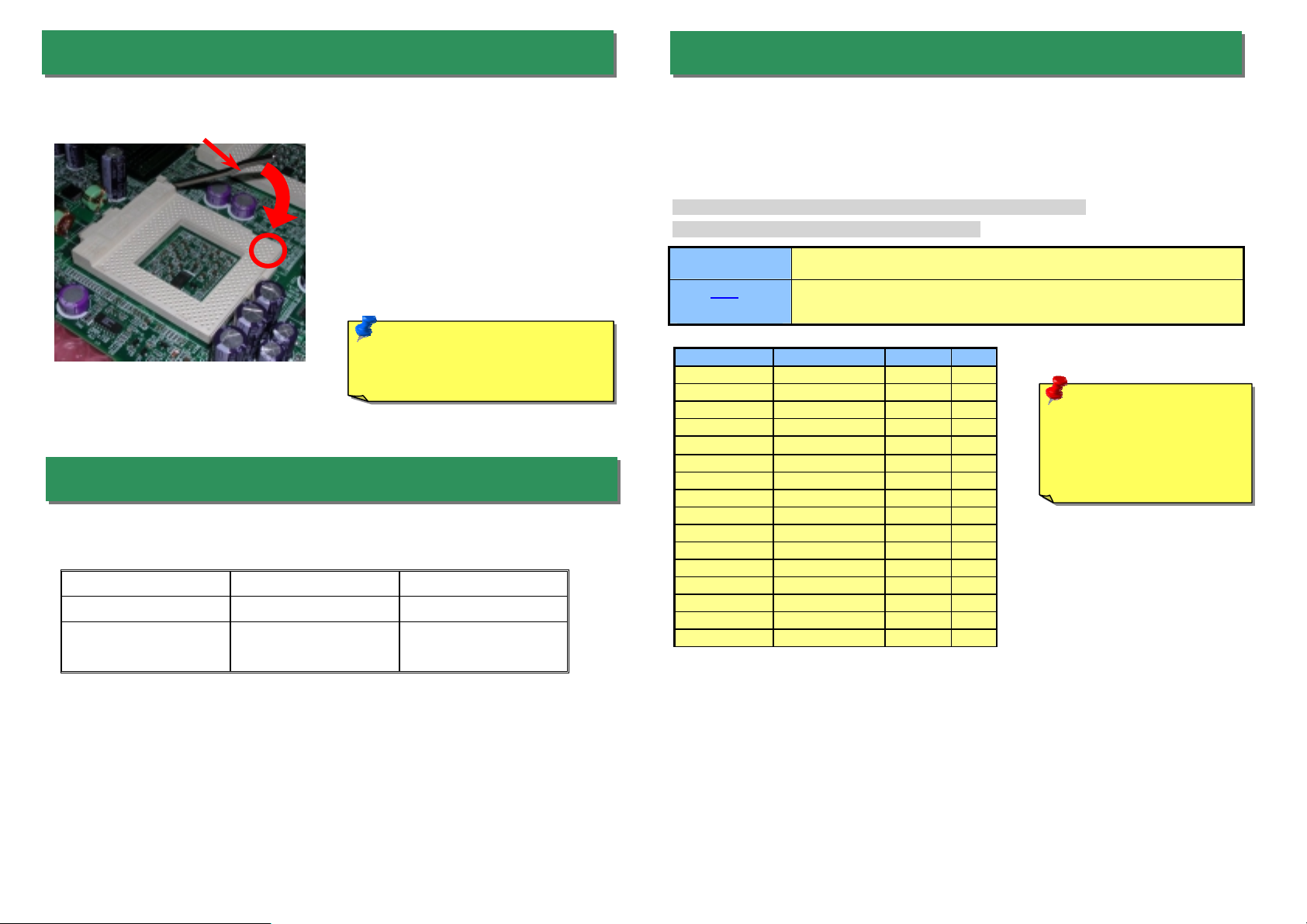
3. Installing Processor
CPU socket lever
CPU Pin 1 and cut edge
1. Pull up the CPU socket level and up to
90-degree angle.
2. Locate Pin 1 in the socket and look for a
(golden) cut edge on the CPU uppe
interface. Match Pin 1 and cut edge.
Then insert the CPU into the socket.
3. Press down the CPU socket level and
finish CPU installation.
Note: If you do not match the CPU
socket Pin 1 and CPU cut edge
well, it may damage the CPU.
4. Supported CPU Type
The DX37-U / DX37 Plus-U supports Intel® Socket 370 Pentium III series CPU. Including
the code name Tualatin 512K cache CPU for dual CPU configuration.
Processor Name CPU Package
Single Processor Pentium !!! All
Dual Processor
Pentium !!!
Pentium !!! 512K
Coppermine
Tualatin
5. Setting CPU Voltage & Frequency
Setting CPU Core Voltage
This motherboard supports CPU VID function. The CPU core voltage will be automatically
detected and the range is from 1.05V to 1.825V. It is not necessary to set CPU Core Voltage
Setting CPU Frequency
This motherboard is CPU jumper-less design, you can set CPU frequency through the BIOS
setup, no jumpers or switches are needed.
BIOS Setup > Frequency / Voltage Control > CPU Speed Setup
Core Frequency = CPU FSB Clock * CPU Ratio
CPU Ratio
CPU FSB
(By BIOS Table)
CPU CPU Core Frequency FSB Clock Ratio
Pentium III 600E 600MHz 100MHz 6x
Pentium III 650E 650MHz 100MHz 6.5x
Pentium III 700E 700MHz 100MHz 7x
Pentium III 750E 750MHz 100MHz 7.5
Pentium III 800E 800MHz 100MHz 8x
Pentium III 850E 850MHz 100MHz 8.5x
Pentium III 533EB 533MHz 133MHz 4x
Pentium III 600EB 600MHz 133MHz 4.5x
Pentium III 667EB 667MHz 133MHz 5x
Pentium III 733EB 733MHz 133MHz 5.5
Pentium III 800EB 800MHz 133MHz 6x
Pentium III 866EB 866MHz 133MHz 6.5
Pentium III 933EB 933MHz 133MHz 7x
Pentium III 1G 1GHz 133MHz 7.5x
Pentium III 1.13G 1.13GHz 133MHz 8.5x
Pentium III 1.26G 1.26GHz 133MHz 9x
3x, 3.5x, 4x, 4.5x, 5x, 5.5x, 6x , 6.5x, 7x, 7.5x, 8x, 8.5x, 9x, 9.5x, 10x, 10.5x, 11x, 11.5x,
12x, 12.5x, 13x, 13.5x, 14x, 14.5x, 15x, 15.5x and 16x
100 and 133 MHz
Warning: We strongly
recommend you do not
overclocking your CPU
and system for get more
system reliability.
Page 4

p
Pin 1
r
A
V
V
V
V
V
This motherboard provides four USB connectors to connect USB devices, such as
mouse, keyboard, modem, printer, etc. There are two connectors on the PC99 back
panel. Yo u can use prope r cable to conn ect other USB connectors to t he back panel or
front
anel of chassis.
6. Support Four USB Connectors
USB2 Connector
NC
GND
SBD3+
SBD3-
+5V
KEY
GND
SBD2+
SBD2+5V
1
7. Connecting ATX and AGP Pro Power Connector
The DX37Plus-U uses standard ATX power connector. The 6-pin AGP Pro Powe
connector provides extra +5V and +3.3V power for AGP Pro VGA card. Make sure you
plug in the right direction.
+12
5VSB
COM 2
COM
+5
COM
COM
+3.3
+3.3
GND
+5V
+5V
-5V
COM
COM
COM
PS-ON
COM
-12V
+3.3V
+3.3
V
8. Connecting IDE and Floppy Cables
Connect 34-pin floppy cable and 40-pin, 80-wire IDE cable to floppy connector FDC and
IDE connector. Be careful of the pin1 orientation. Wrong orientation may cause system
damage.
ATA 33/66/100
IDE Connector
Pin 1
Pin 1
Primary
Slave (2nd)
Secondary
Slave (4th)
FDD Connector
Primary
Master (1st)
Secondary
Master (3rd)
9. Connecting Front Panel Cable
Attaching such as power LED, speaker, reset switch, power switch connector, etc.… to
corresponding pins. The green cap on pin 19 & 20 is to disable Chassis Intrusion
Switch, you may just take it off to able this function.
Pin 1
Chassis Intrusion
Switch
Power LED
TX Power
Switch
INT S/W
RST S/W
PWR LED
+5VSB
+5
GND
21 22
1 2
21 22
1 2
IDE 1 (Primary)
IDE 2 (Secondary)
Reset Switch
HDD LED
GND
GND
+5V
HDD LED
HDD LED
+5V
GND
Page 5

AUX
y
r
+
+
10. Connecting 68-pin Ultra 160 SCSI Cable (DX37 Plus-U only)
12. Connecting CD / AUX Connector
The DX37Plus-U provides two 68-pin Ultra Wide/Ultra 2/3 SCSI connectors for 16 -bit or
16-bit differential SCSI devices.
SW1(3)
SW1(4)
Disable SCSI Ch A
On
On
Terminator
Disable SCSI Ch B
Terminator
A Terminator
B Terminator
11. Connecting SCSI Card LED Connector (DX37 Plus-U only)
The 4-pin SCSI LED connector can be connected to a PCI SCSI control card activit
LED connector. Read or write activity by devices connected to the SCSI card will transfe
a signal to Front Panel and thus making the LED lighting up.
CD-IN (Black)
The AUX-IN connector is used to connect MPEG
Audio cable from MPEG card to onboard sound.
The CD-IN connector is used to connect CD Audio
cable from CDROM or DVD drive to onboard sound.
-IN (Green)
Connector Pin1 Pin2 Pin3 Pin4
AUX-IN
CD-IN
Left GND GND Right
Left GND GND Right
13. Redundant SPS Monitoring Connector
This motherboard implements Redundant SPS monitoring connector to provide hardware
monitoring signals. It is feasible to install an additional 337-watt power supply module
(optional with AOpen Server Housing) in a hot swappable configuration. If any SPS failed,
a signal will be sent to a hardware monitoring device.
-
-
SCSI Card
LED Connector
+12V
Present 3
GND
5VSB
Present 2
Fan 2 Fail
PS 2 Fail
14 13
2 1
Fan 3 Fail
PS 3 Fail
PS ON
Present1
I2C CLK
Fan 1 Fail
PS1 Fail
Page 6

A
g
14. Support 10/100 Mbps LAN onboard
16. Wake On LAN
The South Bridge V8233 of VIA Apollo Pro266T chipset includes a fast Ethernet controller on
chip. On the strength of Intel 82550 PHY on board, which is a highly-integrated Platform LAN
Connect device, it provides 10/100M bps Ethernet for office and home use, the Ethernet RJ45
connector is located on the back panel. The green LED indicates the link mode, it lights when
linking to network and blinking when transferring data. The orange LED indicates the transfer
mode, and it lights when data is transferring in 100Mbps mode. To enable or disable this
function, you may simply adjust it through BIOS.
Green/ACT
Orange/Speed
15. Power-On and Load BIOS Setup
To use Wake On LAN function, you must have a network card with chipset that supports this
feature, and connect a cable from LAN card to motherboard WOL connector. The system
identification information (probably IP address) is stored on network card and because there is
a lot of traffic on the Ethernet, you need to install a network management software, such as
ADM, for the checking of how to wake up the system. Note that, at least 600mA ATX standby
current is required to support the LAN card for this function.
+5VSB
GND
LID
17. Installing Onboard Sound Dri ver
fter you finish the setting of jumpers and connect correct cables. Power on and enter the
BIOS Setup, press <Del> during POST (Power On Self Test). Choose "Load Default
Settin
" for recommended optimal performance.
Del
This motherboard comes with an AD 1885 AC97 CODEC, you can find the audio driver
from the Bonus Pack CD disc auto-run menu.
Page 7

Part Number and Serial Number
r
r
y
If you encounter any trouble to boot you system, follow the procedures
accordingly to resolve the problem.
Turn off the power and unplug the AC power cable, then remov e all
of the addon cards and cables, including VGA, IDE, FDD, COM1,
COM2 and Printer.
Make sure if the jumper settings for CPU and DRAMs are correct.
Install the VGA card. Then connect your monitor and keyboard.
Turn on the power, and check if
Start
Clear CMOS.
the power supply and CPU fan
work properly.
Check if there is display.
Yes
Yes
The Part Number and Serial number are printed on bar code label. You can find this
bar code label on the outside packing, on ISA/CPU slot or on component side of PCB.
For example:
Part No.
Serial No.
Part No. Serial No.
P/N: 91.88110.201 is part number, S/N: 91949378KN73 is serial number.
No
The problem was probably caused
by power supply or motherboard
failure. Please contact your r eselle
or local distributor for repairing.
No
Perhaps your VGA card or monito
is defective.
Press Ctrl, and Alt key at the
same time, hold them and then
press Del to see if the
stem reboots.
s
During system rebooting, press Del to enter BIOS Setup. Choose
“Load Setup Default".
Turn off the system and
re-connect the IDE cable.
Check if the system can
reboot successfully.
Re-install Windows 95, Windows 98 or Windows NT.
End
Yes
Yes
No
It is very possible that your keyboard
is defective.
No
The problem should be caused by the
IDE cables or HDD itself.
Page 8

p
A
Dear Customer,
Thanks for choosing AOpen products. To provide the best and fastest service to
our customer is our first priority. However, we receive numerous emails and
hone-calls worldwide everyday, it is very hard for us to serve everyone on time.
We recommend you follow the procedures below and seek help before contact
us. With your help, we can then continue to provide the best quality service to
more customers.
Thanks very much for your understanding!
Open Technical Supporting Team
1
1
Online Manual: Please check the manual carefully and make sure the
jumper settings and installation procedure are correct.
http://www.aopen.com/tech/download/manual/default.htm
Test Report: We recommend to choose board/card/device from the
compatibility test reports for assembling your PC.
http://www.aopen.com/tech/report/default.htm
FAQ: The latest FAQ (Frequently Asked Questions) may contain a
solution to your problem.
http://www.aopen.com/tech/faq/default.htm
3
3
2
2
Pacific Rim
AOpen Inc.
Tel: 886-2-3789-5888
Fax: 886-2-3789-5899
China
艾尔鹏国际上海(股)有限公司
Tel: 86-21-6225-8622
Fax: 86-21-6225-7926
America
AOpen America Inc.
Tel: 1-408-922-2100
Fax: 1-408-922-2935
Web Site: http://www.aopen.com
E-mail: Send us email by going through the contact form below.
English http://www.aopen.com/tech/contact/techusa.htm
Japanese http://www.aopen.co.jp/tech/contact/techjp.htm
Chinese http://www.aopen.com.tw/tech/contact/techtw.htm
German http://www.aopencom.de/tech/contact/techde.htm
French http:/france.aopen.com/tech/contact/techfr.htm
Simplified Chinese http://www.aopen.com.cn/tech/contact/techcn.htm
Europe
AOpen Computer b.v.
Tel: 31-73-645-9516
Fax: 31-73-645-9604
Germany
AOpen Computer GmbH.
Tel: 49-2102-157700
Fax: 49-2102-157799
Japan
AOpen Japan Inc.
Tel: 81-048-290-1800
Fax: 81-048-290-1820
Download Software: Check out this table to get the latest updated
4
4
News Group: Your problem probably had been answered by our support
5
5
engineer or professional users on the news group.
http://www.aopen.com/tech/newsgrp/default.htm
7
7
BIOS/utility and drivers.
http://www.aopen.com/tech/download/default.htm
Contact Distributors/Resellers: We sell our products through resellers
6
6
and integrators. They should know your system configuration very well and
should be able to solve your problem more efficiently and provide important
reference for you if next time you want to buy something else from them.
Contact Us: Please prepare detail system configuration and error symptom
before contacting us. The part number, serial number and BIOS version
are also very helpful.
 Loading...