

Page 1
LCD Monitor User Manual
E2451FH
LED Backlight
www.aoc.com
©2013 AOC.All Rights Reserved.
Page 2

2
Safety ........................................................................................................................................................................ 3
National Conventions ......................................................................................................................................... 3
Power ................................................................................................................................................................ 4
Installation.......................................................................................................................................................... 5
Cleaning............................................................................................................................................................. 6
Other .................................................................................................................................................................. 7
Setup ........................................................................................................................................................................ 8
Contents in Box ................................................................................................................................................. 8
Setup Stand & Base .......................................................................................................................................... 9
Adjusting Viewing Angle ................................................................................................................................... 11
Connecting the Monitor .................................................................................................................................... 12
Adjusting ................................................................................................................................................................. 13
Setting Optimal Resolution .............................................................................................................................. 13
Windows 8 ................................................................................................................................................ 13
Windows Vista .......................................................................................................................................... 15
Windows XP ............................................................................................................................................. 17
Windows ME/2000 .................................................................................................................................... 18
Hotkeys ............................................................................................................................................................ 19
OSD Setting ..................................................................................................................................................... 20
Luminance ................................................................................................................................................ 21
Image Setup ............................................................................................................................................. 22
Color Setup ............................................................................................................................................... 23
Picture Boost ............................................................................................................................................ 24
OSD Setup ............................................................................................................................................... 25
Extra ......................................................................................................................................................... 26
Exit............................................................................................................................................................ 27
LED Indicator ................................................................................................................................................... 27
Driver ...................................................................................................................................................................... 28
Monitor Driver .................................................................................................................................................. 28
Windows 8 ................................................................................................................................................ 28
Windows 7 ................................................................................................................................................ 32
Windows Vista .......................................................................................................................................... 36
Windows XP ............................................................................................................................................. 38
Windows 2000 .......................................................................................................................................... 41
Windows ME ............................................................................................................................................. 41
i-Menu .............................................................................................................................................................. 42
e-Saver ............................................................................................................................................................ 43
Screen+ ........................................................................................................................................................... 44
Troubleshoot ........................................................................................................................................................... 45
Specification............................................................................................................................................................ 46
General Specification ....................................................................................................................................... 46
Preset Display Modes ...................................................................................................................................... 47
Pin Assignments .............................................................................................................................................. 48
Plug and Play ................................................................................................................................................... 49
Regulation ............................................................................................................................................................... 50
FCC Notice ...................................................................................................................................................... 50
WEEE Declaration ........................................................................................................................................... 51
Service .................................................................................................................................................................... 52
EU WARRANTY FOR AOC MONITORS ......................................................................................................... 52
Warranty Statement for North & South America (excluding Brazil) ........................................................... 54
Page 3
3
Safety
National Conventions
The following subsections describe notational conventions used in this document.
Notes, Cautions, and Warnings
Throughout this guide, blocks of text may be accompanied by an icon and printed in bold type or in italic type.
These blocks are notes, cautions, and warnings, and they are used as follows:
NOTE: A NOTE indicates important information that helps you make better use of your computer system.
CAUTION: A CAUTION indicates either potential damage to hardware or loss of data and tells you how to avoid the
problem.
WARNING: A WARNING indicates the potential for bodily harm and tells you how to avoid the problem. Some
warnings may appear in alternate formats and may be unaccompanied by an icon. In such cases, the specific
presentation of the warning is mandated by regulatory authority.
Page 4
4
Power
The monitor should be operated only from the type of power source indicated on the label. If you are not sure
of the type of power supplied to your home, consult your dealer or local power company.
The monitor is equipped with a three-pronged grounded plug, a plug with a third (grounding) pin. This plug
will fit only into a grounded power outlet as a safety feature. If your outlet does not accommodate the three-wire
plug, have an electrician install the correct outlet, or use an adapter to ground the appliance safely. Do not defeat
the safety purpose of the grounded plug.
Unplug the unit during a lightning storm or when it will not be used for long periods of time. This will protect
the monitor from damage due to power surges.
Do not overload power strips and extension cords. Overloading can result in fire or electric shock.
To ensure satisfactory operation, use the monitor only with UL listed computers which have appropriate
configured receptacles marked between 100 - 240V ~, Min. 5A
The wall socket shall be installed near the equipment and shall be easily accessible.
For use only with the attached power adapter (Output 12Vdc) which have UL listed license (Only for monitors
with power adapter).
Manufacturers:
TPV ELECTRONICS(FUJIAN) CO., LTD model: ADPC1236
TPV Display Technology(Wuhan) CO., LTD model: ADPC1236
Page 5
5
Installation
Do not place the monitor on an unstable cart, stand, tripod, bracket, or table. If the monitor falls, it can injure a
person and cause serious damage to this product. Use only a cart, stand, tripod, bracket, or table recommended by
the manufacturer or sold with this product. Follow the manufacturer‟s instructions when installing the product and
use mounting accessories recommended by the manufacturer. A product and cart combination should be moved
with care.
Never push any object into the slot on the monitor cabinet. It could damage circuit parts causing a fire or
electric shock. Never spill liquids on the monitor.
Do not place the front of the product on the floor.
If you mount the monitor on a wall or shelf, use a mounting kit approved by the manufacturer and follow the kit
instructions.
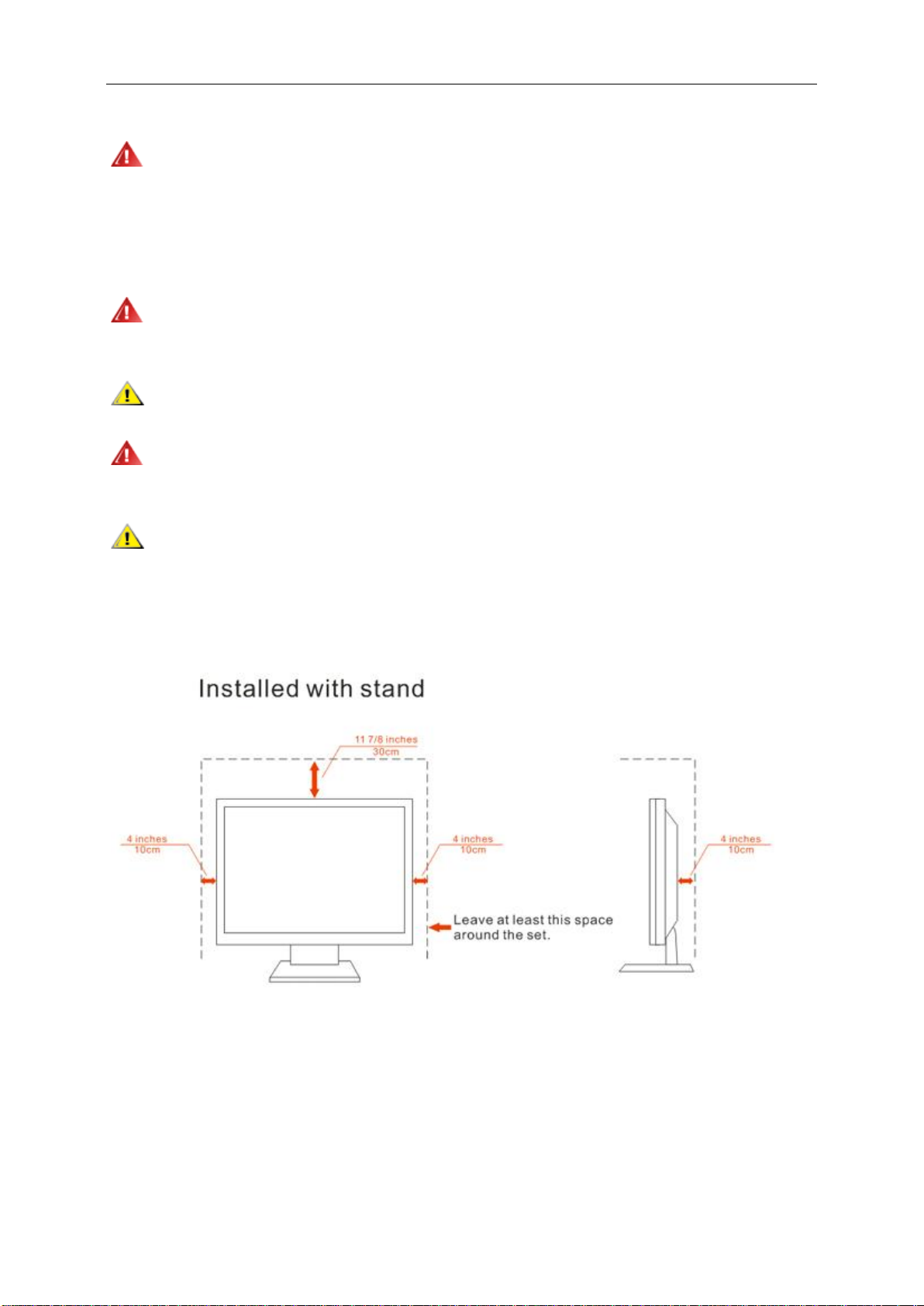
Leave some space around the monitor as shown below. Otherwise, air-circulation may be inadequate hence
overheating may cause a fire or damage to the monitor.
See below the recommended ventilation areas around the monitor when the monitor is installed on the wall or on
the stand:
Page 6
6
Cleaning
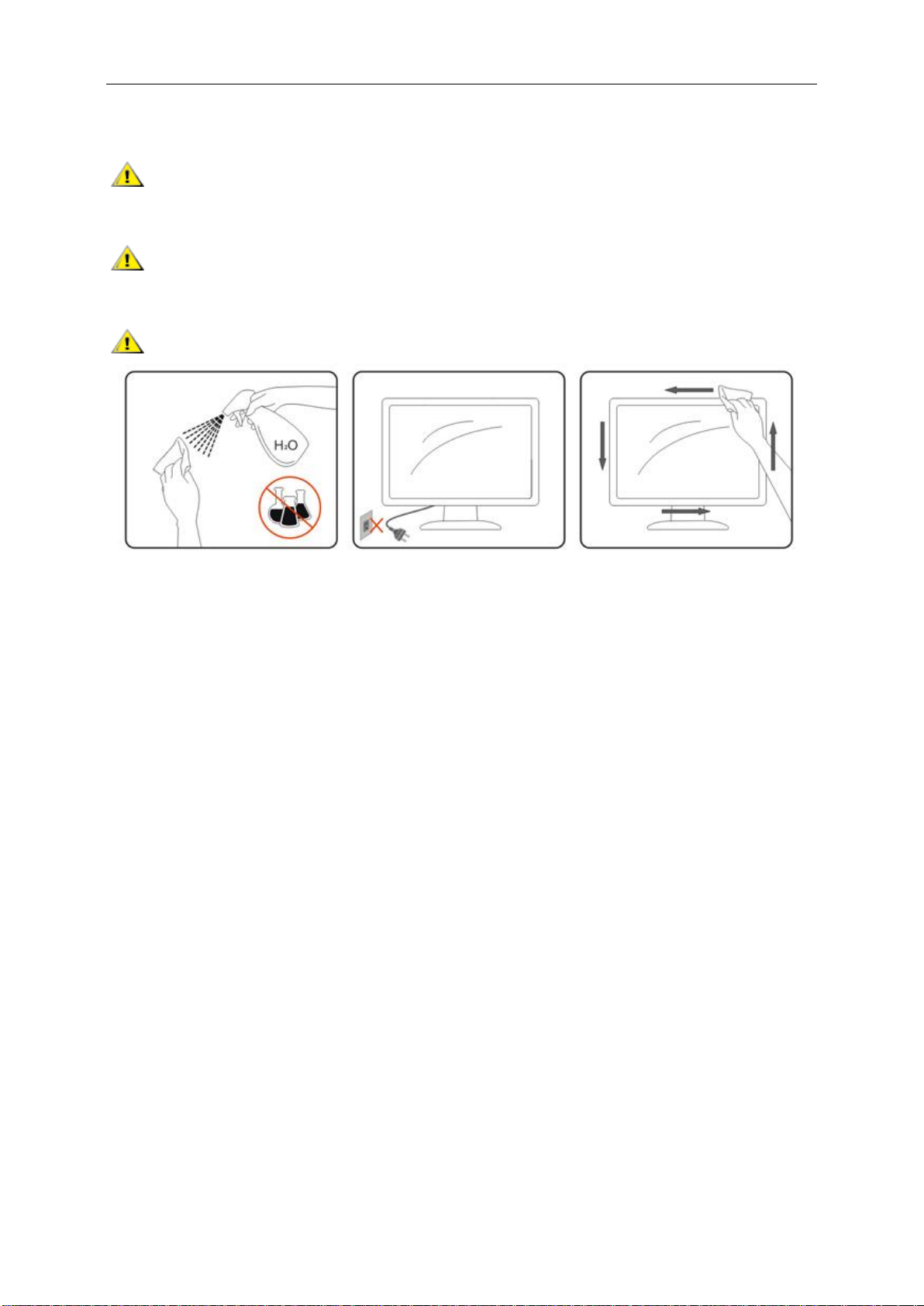
Clean the cabinet regularly with cloth. You can use soft-detergent to wipe out the stain, instead of
strong-detergent which will cauterize the product cabinet.
When cleaning, make sure no detergent is leaked into the product. The cleaning cloth should not be too rough
as it will scratch the screen surface.
Please disconnect the power cord before cleaning the product.
Page 7

7
Other
If the product is emitting a strange smell, sound or smoke, disconnect the power plug IMMEDIATELY and
contact a Service Center.
Make sure that the ventilating openings are not blocked by a table or curtain.
Do not engage the LCD monitor in severe vibration or high impact conditions during operation.
Do not knock or drop the monitor during operation or transportation.
Page 8
Setup
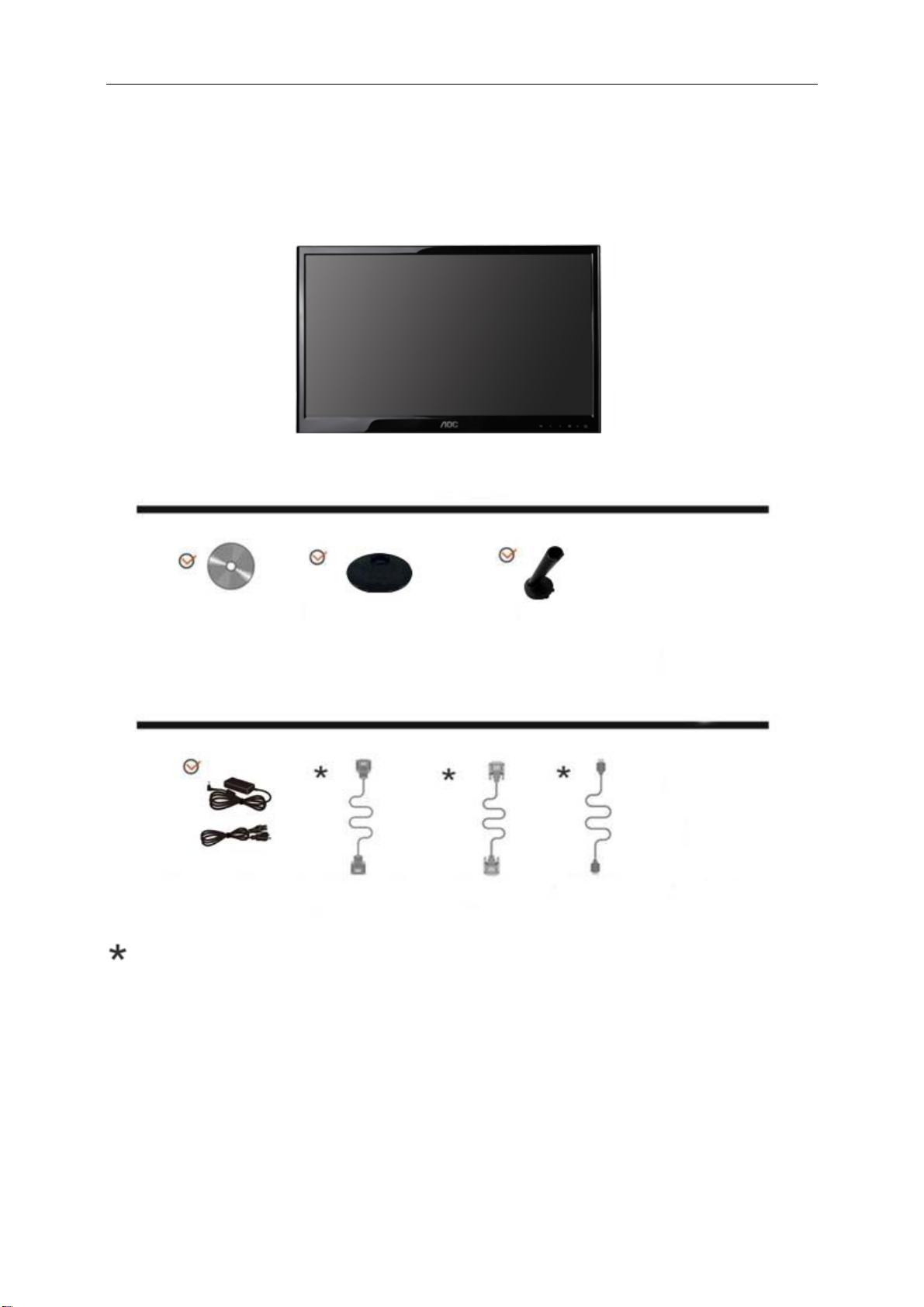
Contents in Box
CD Manual Monitor Base Stand
Power Cable Analog Cable
Not all signal cables (Analog, DVI, and HDMI cables) will be provided for all countries and regions. Please
check with the local dealer or AOC branch office for confirmation.
DVI Cable HDMI
9
Page 9
9
Setup Stand & Base
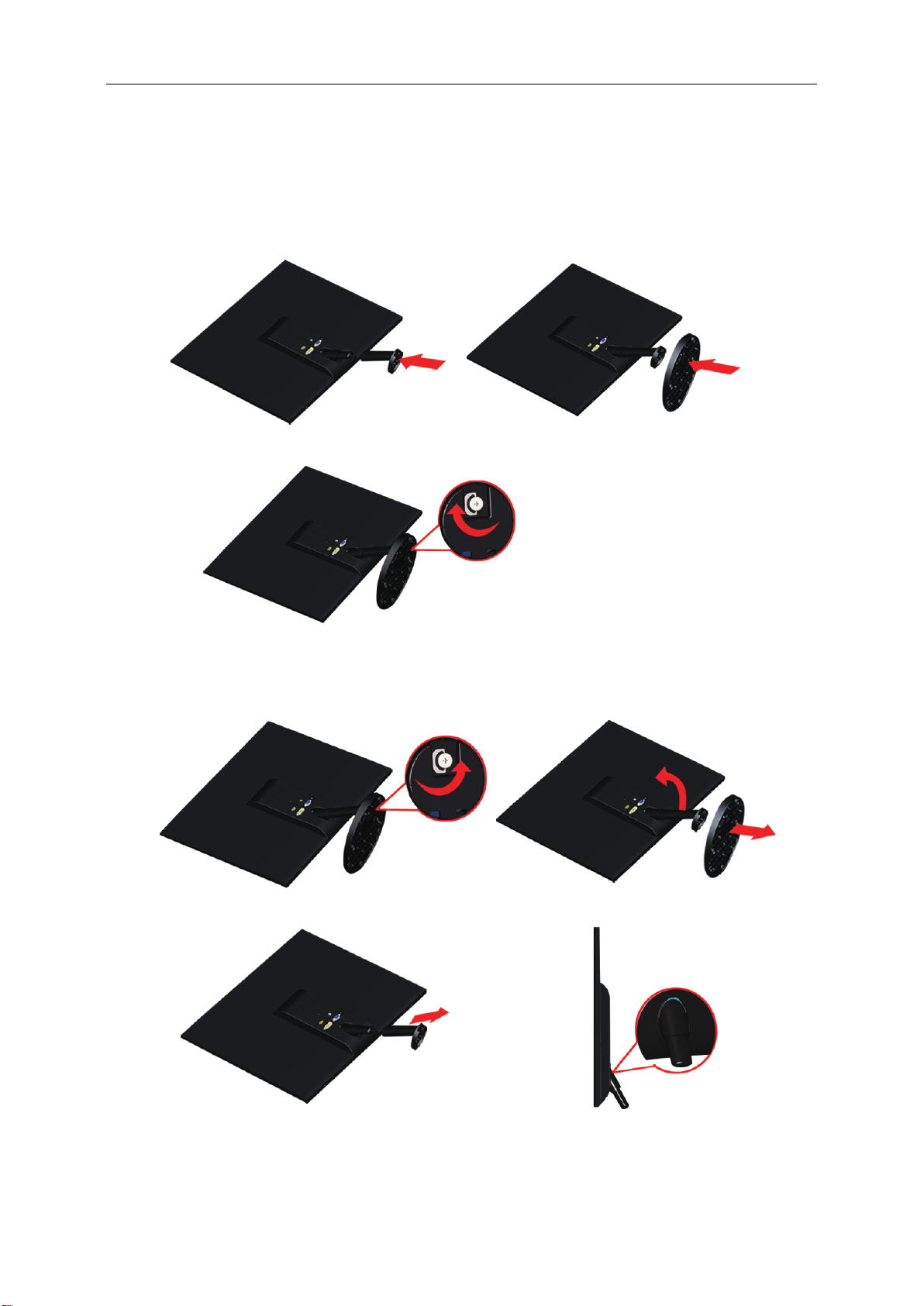
Please setup or remove the base following the steps as below.
Setup:
Remove:
Page 10
10
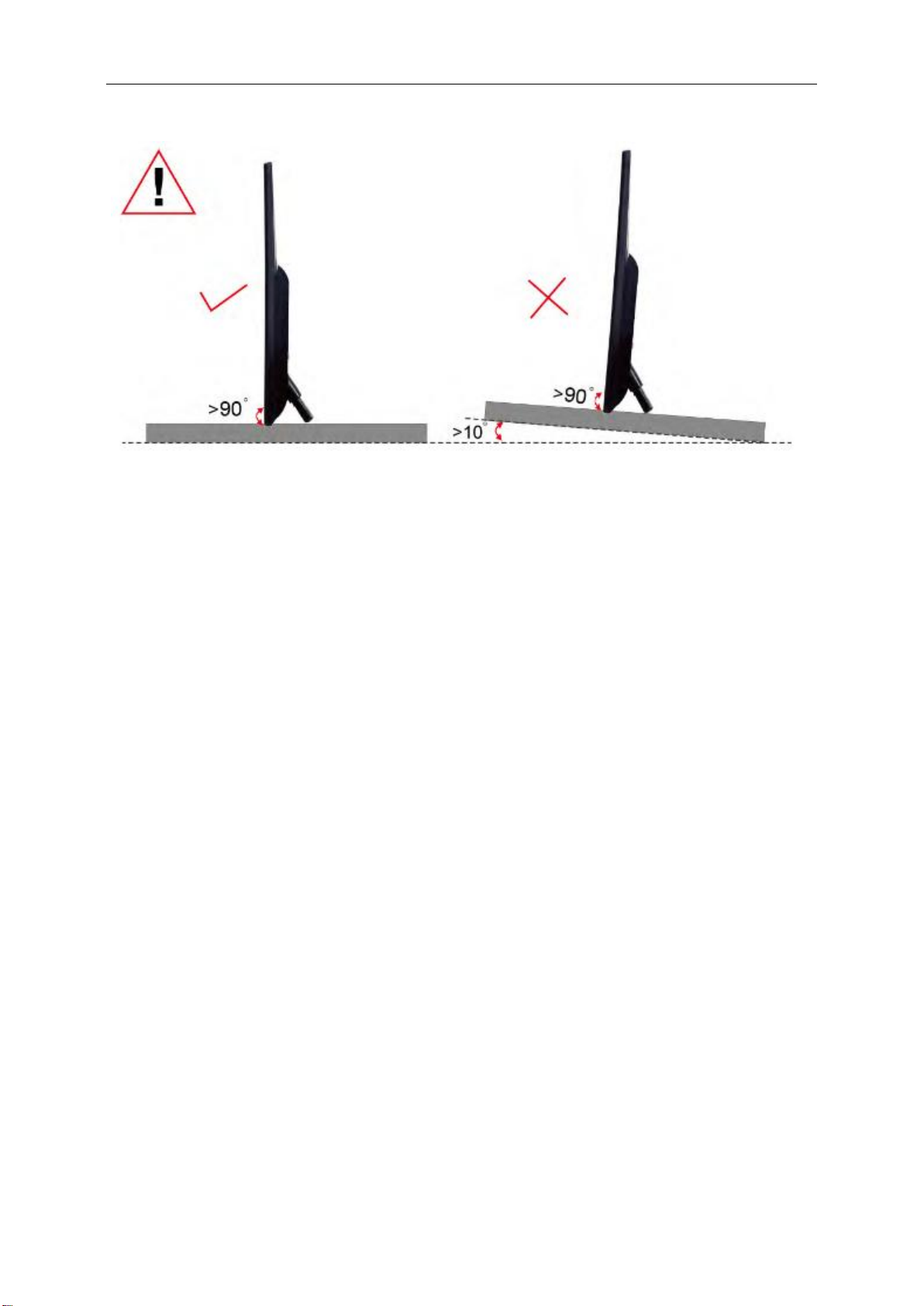
Unit standing without base is available. (Caution: must put unit in flat surface. Any uneven or sloped surface may
result unit damaged or injury to user.)
Page 11
11
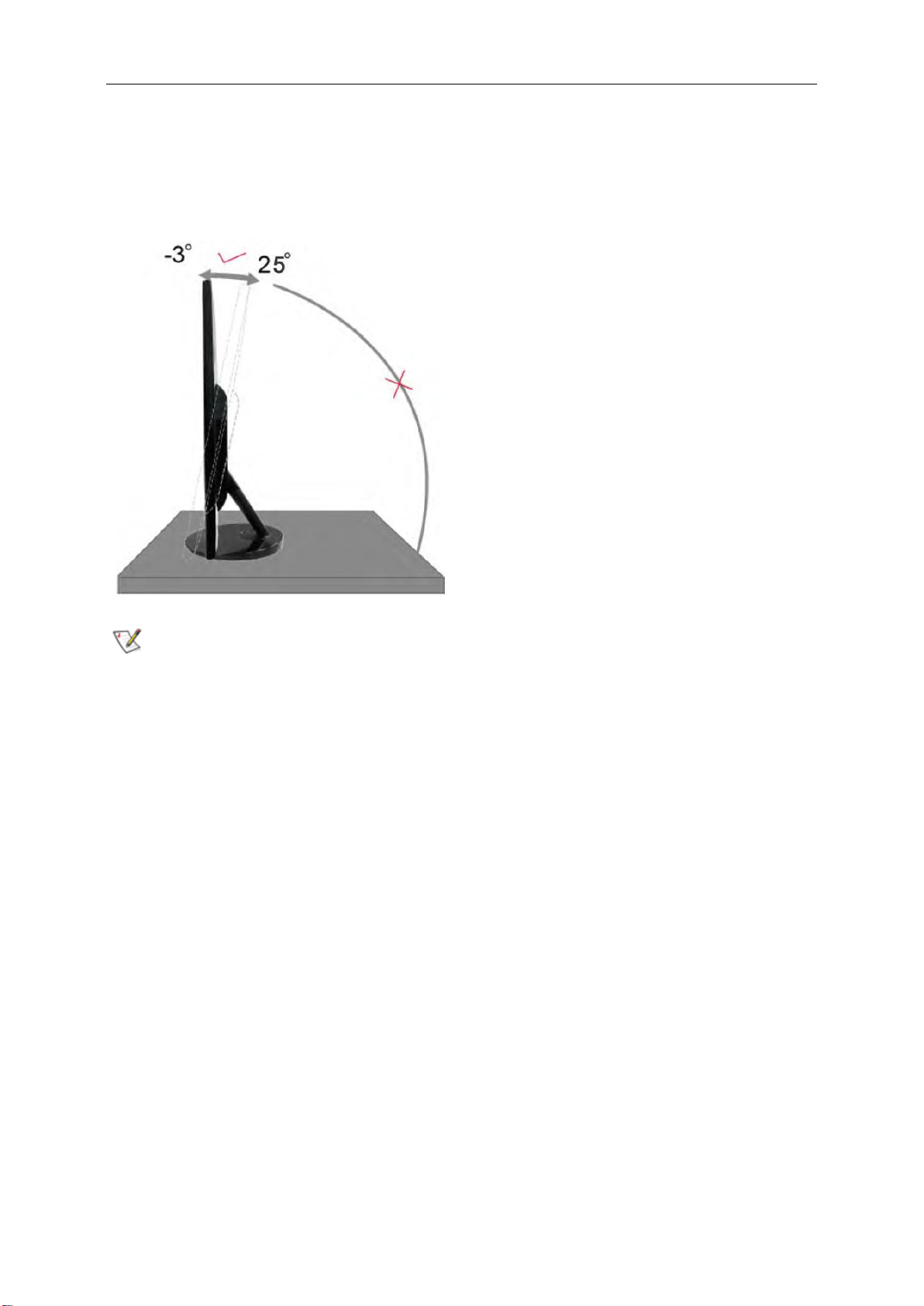
Adjusting Viewing Angle
For optimal viewing it is recommended to look at the full face of the monitor, then adjust the monitor's angle to your
own preference.
Hold the stand so you will not topple the monitor when you change the monitor's angle.
You are able to adjust the monitor's angle from -3° to 25 °.
NOTE:
Do not touch the LCD screen when you change the angle. It may cause damage or break the LCD screen.
Page 12
Connecting the Monitor
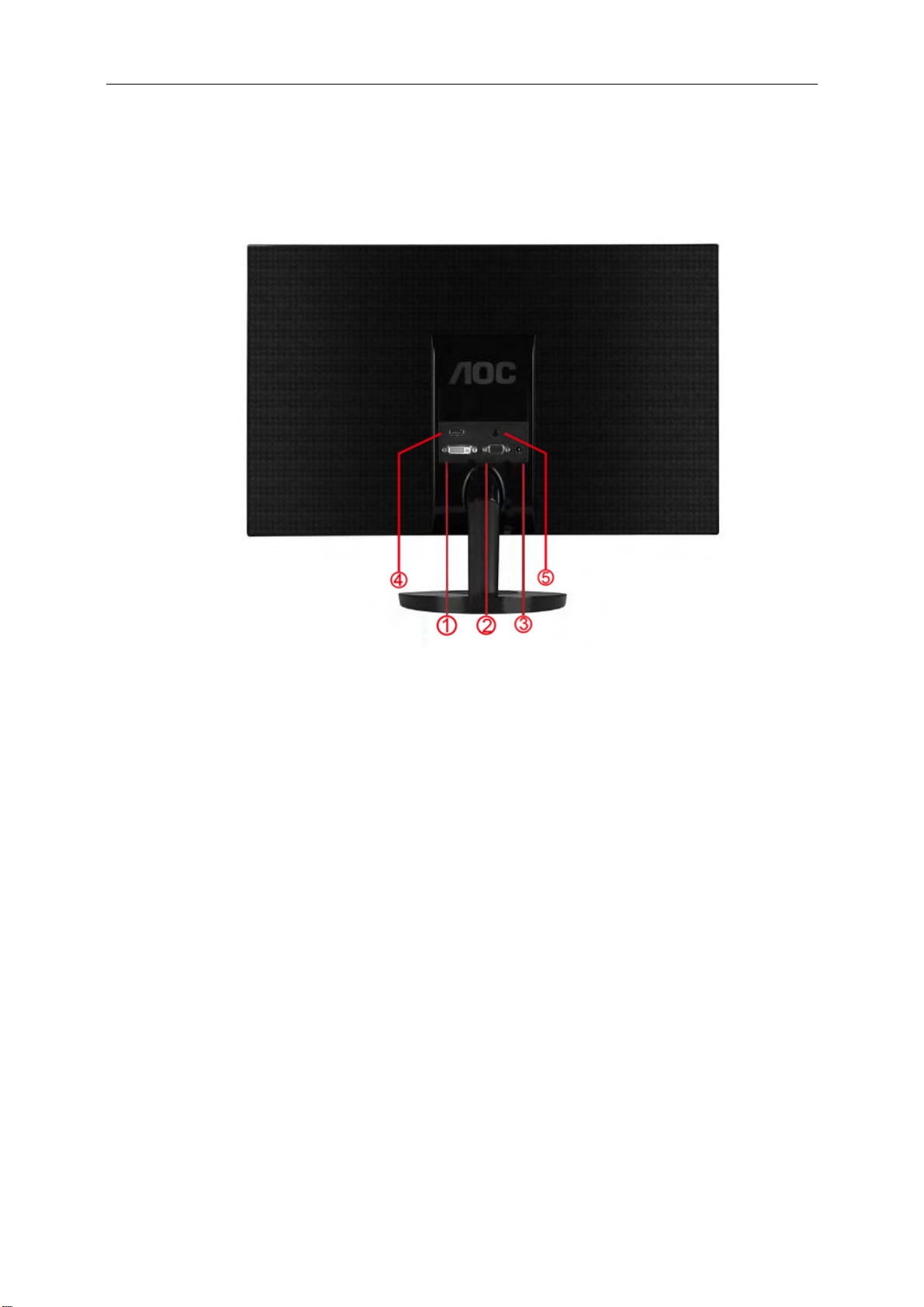
Cable Connections In Back of Monitor and Computer:
DVI
1
D-SUB
2
Power
3
4
HDMI
5
Earphone jack
T
o protect equipment, always turn off the PC and LCD monitor before connecting.
1 Connect the power cable to the AC port on the back of the monitor.
2 Connect one end of the 15-pin D-Sub cable to the back of the monitor and connect the other end to the
computer's D-Sub port.
3 (Optional-Requires a video card with DVI port) -Connect one end of the DVI cable to the back of the monitor
and connect the other end to the computer’s DVI port.
4
Connect one end of the HDMI cable to the back of the monitor and connect the other end to the computer’s
HDMI port.
Earphonejack: Thisport is only available whenanHDMIcable is connected.
5
Turn on your monitor and computer.
6
If your monitor displays an image, installation is complete. If it does not display an image, please refer
Troubleshooting.
13
Page 13
13
Adjusting
Setting Optimal Resolution
Windows 8
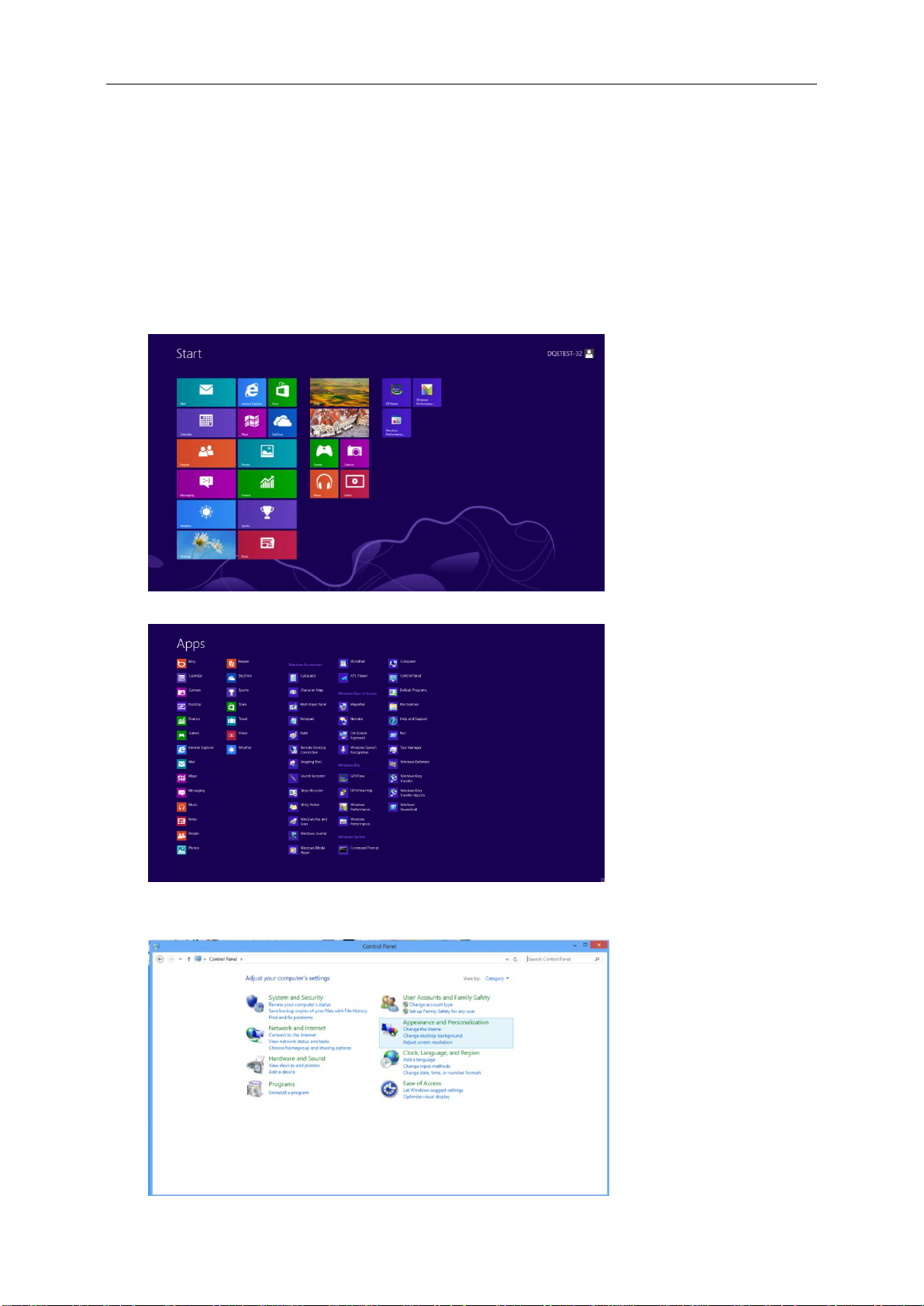
For Windows 8:
1. Right click and click All apps at the bottom-right of the screen.
2. Set the “View by” to “Category”.
3. Click Appearance and Personalization.
Page 14
14
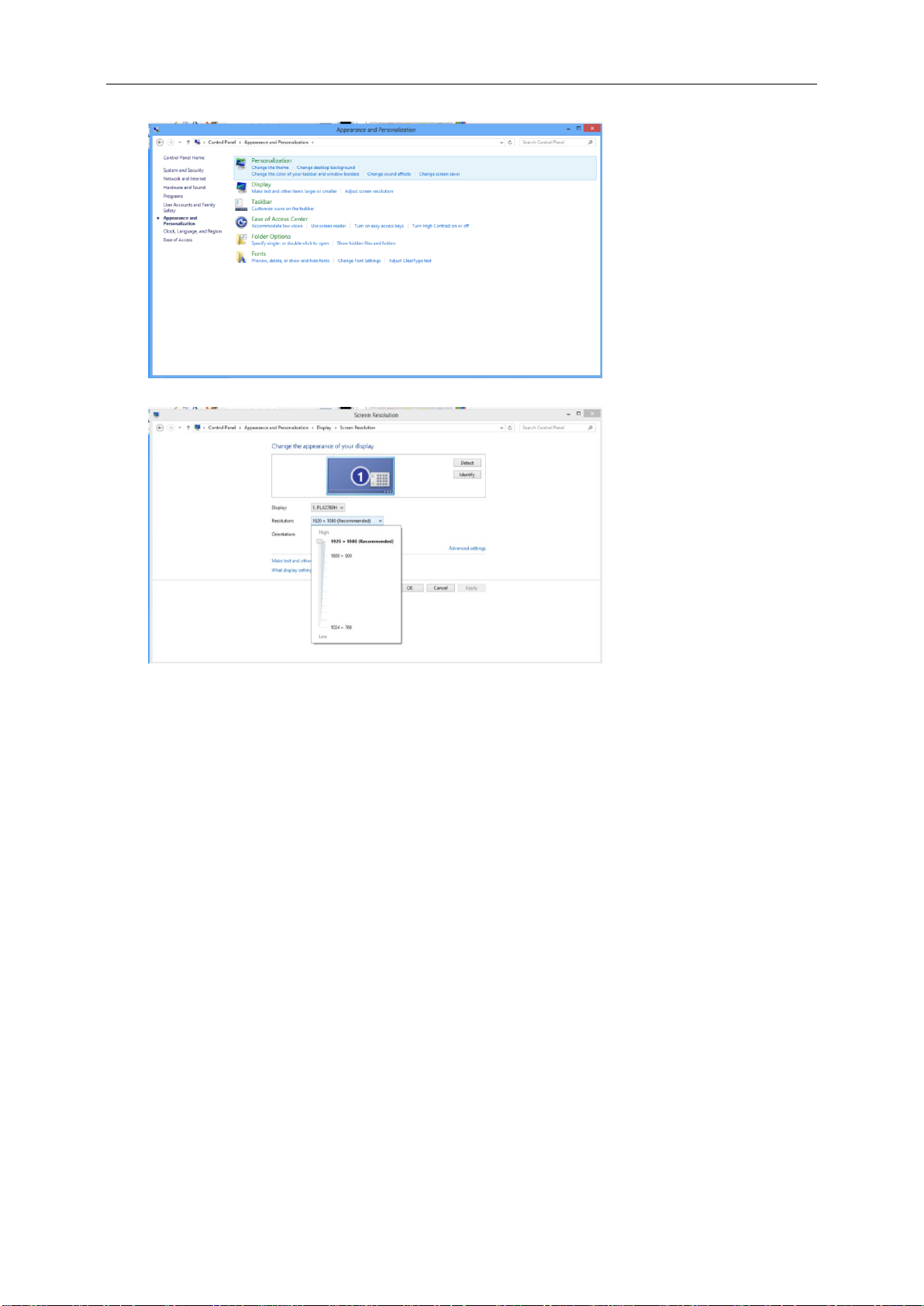
4. Click DISPLAY.
5. Set the resolution SLIDE-BAR to 1920x1080.
Page 15
15
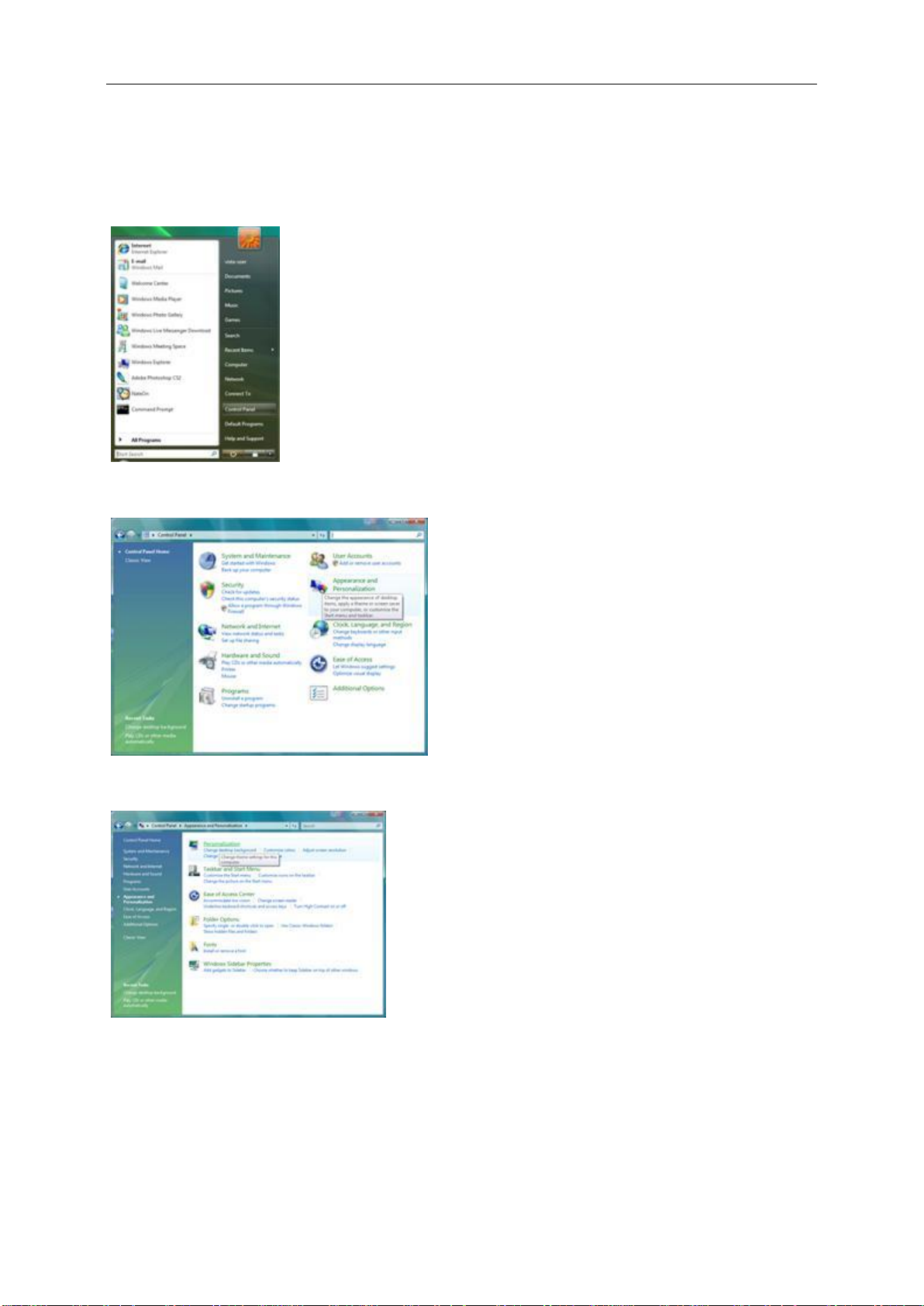
Windows Vista
For Windows Vista:
1 Click START.
2 Click CONTROL PANEL.
3 Click Appearance and Personalization.
4 Click Personalization
Page 16
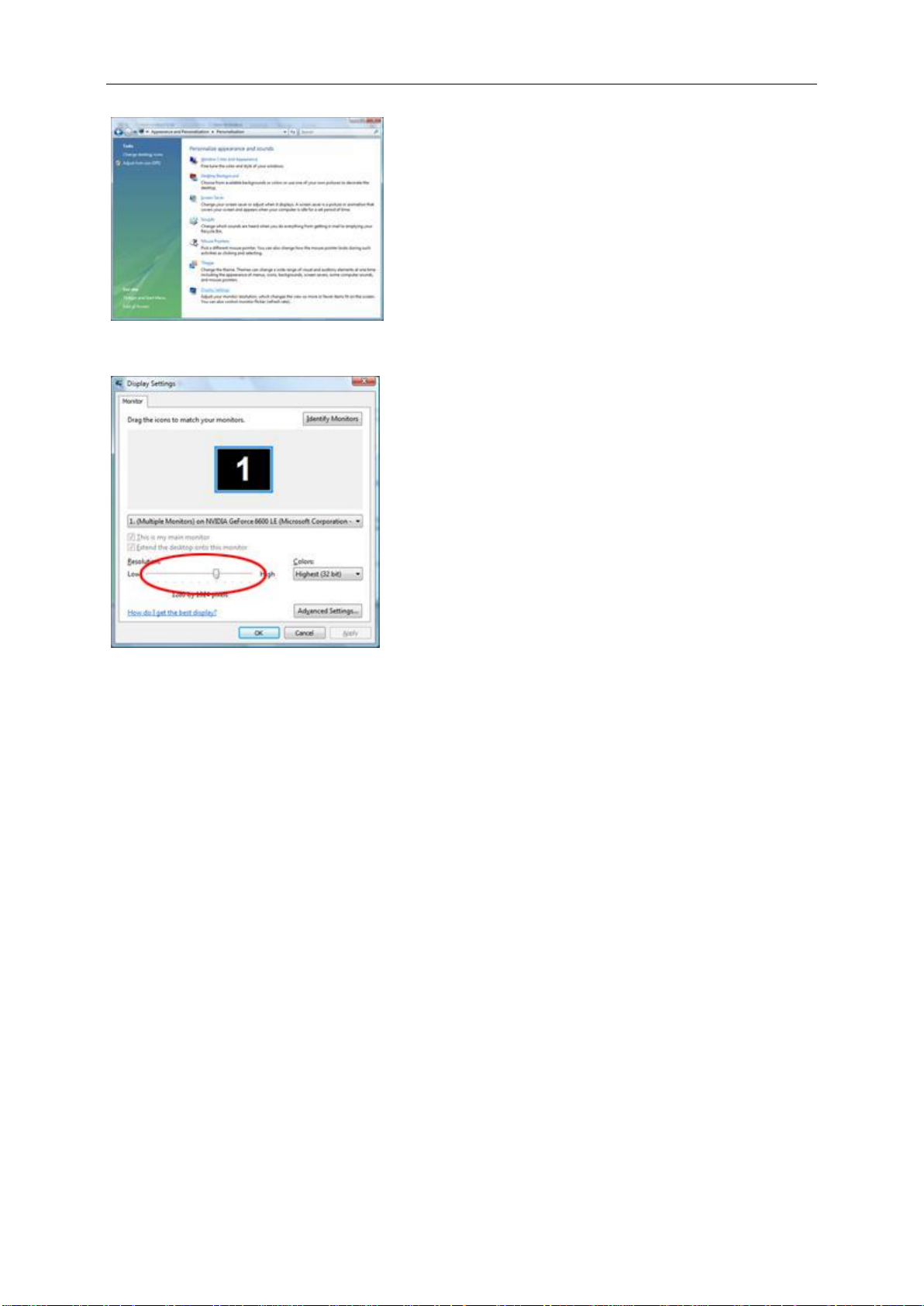
16
5 Click Display Settings.
6 Set the resolution SLIDE-BAR to 1920 by 1080.
Page 17
17
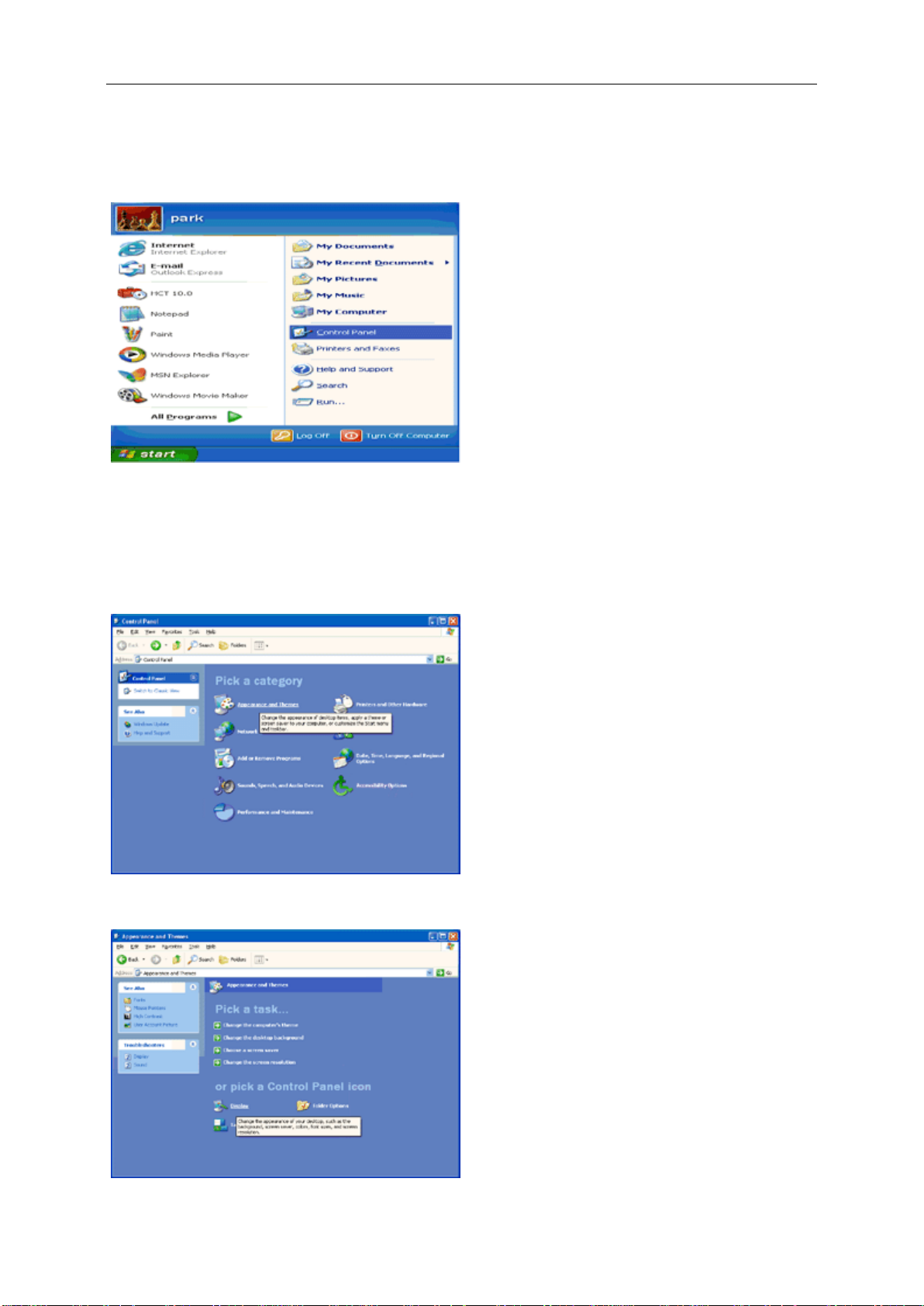
Windows XP
For Windows XP:
1 Click START.
2 Click SETTINGS.
3 Click CONTROL PANEL.
4 Click Appearance and Themes.
5 Double click DISPLAY.
Page 18

18
6 Click SETTINGS.
7 Set the resolution SLIDE-BAR to 1920 by 1080.
Windows ME/2000
For Windows ME/2000:
1 Click START.
2 Click SETTINGS.
3 Click CONTROL PANEL.
4 Double click DISPLAY.
5 Click SETTINGS.
6 Set the resolution SLIDE-BAR to 1920 by 1080.
Page 19

19
Hotkeys
1
Source / Auto / Exit
2
Eco / <
3
4:3 or Wide / >
4
Menu / Enter
5
Power
Power
Press the Power button to turn on/off the monitor.
Menu/Enter
Press to display the OSD or confirm the selection.
Eco (DCR)
Press the Eco key continuously to select the Eco mode of brightness and DCR on when there is no OSD. (Eco
mode hot key may not be available in all models).
4:3 or Wide
When there is no OSD, press > continuously to change 4:3 or wide image ratio. (If the product screen size is 4:3 or
input signal resolution is wide format, the hot key is disable to adjust. )
Source / Auto / Exit
When the OSD is closed, press Auto/Source/Exit button continuously about 2 second to do auto configure (only for
the models with dual or more inputs).
When the OSD is closed, press Auto/Source/Exit button will be Source hot key function (Only for the models with
dual or more inputs).
Page 20

20
OSD Setting
Basic and simple instruction on the control keys.
1) Press the MENU-button to activate the OSD window.
2) Press < or > to navigate through the functions. Once the desired function is highlighted, press the
MENU-button to activate it . press < or > to navigate through the sub-menu functions. Once the desired
function is highlighted, press MENU-button to activate it.
3) Press < or > to change the settings of the selected function. Press AUTO to exit. If you want to adjust
any other function, repeat steps 2-3.
4) OSD Lock Function: To lock the OSD, press and hold the MENU button while the monitor is off and then
press power button to turn the monitor on. To un-lock the OSD - press and hold the MENU button
while the monitor is off and then press power button to turn the monitor on.
Notes:
1) If the product has only one signal input, the item of "Input Select" is disable to adjust.
2) If the product screen size is 4:3 or input signal resolution is wide format, the item of "Image Ratio" is disable to
adjust.
3) One of DCR, Color Boost, and Picture Boost functions is active, the other two function is turned off
accordingly.
Page 21

21
Luminance
1. Press (Menu) to display menu.
2. Press < or > to select (Luminance), and press to enter.
3. Press < or > to select submenu, and press to enter.
4. Press < or > to adjust.
5. Press to exit.
Brightness 0-100 Backlight Adjustment.
Contrast 0-100 Contrast from Digital-register.
Standard Standard Mode.
Eco mode
Gamma
DCR
Overdrive
Text Text Mode.
Internet Internet Mode.
Game Game Mode.
Movie Movie Mode.
Sports Sports Mode.
Gamma1 Adjust to Gamma 1.
Gamma2 Adjust to Gamma 2.
Gamma3 Adjust to Gamma 3.
Off
On
Weak
Medium
Strong
Off
Disable dynamic contrast ratio.
Enable dynamic contrast ratio.
Adjust the response time
Page 22

22
Image Setup
Clock
0-100
Adjust picture Clock to reduce Vertical-Line noise.
Phase
0-100
Adjust Picture Phase to reduce Horizontal-Line noise
Sharpness
0-100
Adjust picture sharpness
H.Position
0-100
Adjust the horizontal position of the picture.
V.Position
0-100
Adjust the vertical position of the picture.
1. Press (Menu) to display menu.
2. Press < or > to select (Image Setup), and press to enter.
3. Press < or > to select submenu, and press to enter.
4. Press < or > to adjust.
5. Press to exit.
Page 23

23
Color Setup
Color setup.
Warm
Recall Warm Color Temperature from EEPROM.
Normal
Recall Normal Color Temperature from EEPROM.
Cool
Recall Cool Color Temperature from EEPROM.
sRGB
Recall SRGB Color Temperature from EEPROM.
User
Red
Red Gain from Digital-register
Green
Green Gain Digital-register.
Blue
Blue Gain from Digital-register
DCB Mode
Full Enhance
on or off
Disable or Enable Full Enhance Mode
Nature Skin
on or off
Disable or Enable Nature Skin Mode
Green Field
on or off
Disable or Enable Green Field Mode
Sky-blue
on or off
Disable or Enable Sky-blue Mode
AutoDetect
on or off
Disable or Enable AutoDetect Mode
DCB Demo
On or off
Disable or Enable Demo
1. Press (Menu) to display menu.
2. Press < or > to select (Color Setup), and press to enter.
3. Press < or > to select submenu, and press to enter.
4. Press < or > to adjust.
5. Press to exit.
Page 24

24
Picture Boost
Frame Size
14-100
Adjust Frame Size
Brightness
0-100
Adjust Frame Brightness
Contrast
0-100
Adjust Frame Contrast
H. position
0-100
Adjust Frame horizontal Position
V.position
0-100
Adjust Frame vertical Position
Bright Frame
on or off
Disable or Enable Bright Frame
1. Press (Menu) to display menu.
2. Press < or > to select (Picture Boost), and press to enter.
3. Press < or > to select submenu, and press to enter.
4. Press < or > to adjust.
5. Press to exit.
Note:
Adjust the brightness, contrast, and position of the Bright Frame for better viewing experience.
Page 25

25
OSD Setup
H.Position
0-100
Adjust the horizontal position of OSD
V.Position
0-100
Adjust the vertical position of OSD
Timeout
5-120
Adjust the OSD Timeout
Transparence
0-100
Adjust the transparence of OSD
Language
Select the OSD language
1. Press (Menu) to display menu.
2. Press < or > to select (OSD Setup), and press to enter.
3. Press < or > to select submenu, and press to enter.
4. Press < or > to adjust.
5. Press to exit.
Page 26

26
Extra
Input Select
Select Analog Sigal Source as Input
Auto Config
yes or no
Auto adjust the picture to default
Off timer
0-24hrs
Select DC off time
Image Ratio
wide or 4:3
Select wide or 4:3 format for display
DDC-CI
yes or no
Turn ON/OFF DDC-CI Support
Reset
Yes or no
Reset the menu to default
Information
Show the information of the main image and sub-image
source
1. Press (Menu) to display menu.
2. Press < or > to select (Extra), and press to enter.
3. Press < or > to select submenu, and press to enter.
4. Press < or > to adjust.
5. Press to exit.
AUTO/D-SUB/DVI/HDMI
Page 27

27
Exit
Exit
Exit the main OSD
Status LED
Color
Full Power Mode
Blue
Active-off Mode
Orange
1. Press (Menu) to display menu.
2. Press < or > to select (Exit), and press to enter.
LED Indicator
Page 28

28
Driver
Monitor Driver
Windows 8
1. Start Windows® 8
2. Right click and click All apps at the bottom-right of the screen.
3. Click on the “Control panel” icon
4. Set the “View by” to “Large icons” or “Small icons”.
5. Click on the “Display” icon.
Page 29

29
6. Click on the “Change display settings” button.
7. Click the “Advanced Settings” button.
8. Click the “Monitor” tab and then click the “Properties” button.
Page 30

30
9. Click the “Driver” tab.
10. Open the “Update Driver Software-Generic PnP Monitor” window by clicking on “Update Driver... “ and
then click the "Browse my computer for driver software" button.
11. Select "Let me pick from a list of device drivers on my computer".
Page 31

31
12. Click the “Have Disk” button. Click on the “Browse” button and navigate to the following directory:
X:\Driver\module name (where X is the drive letter designator for the CD-ROM drive).
13. Select the "xxx.inf" file and click the “Open” button. Click the “OK” button.
14. Select your monitor model and click the “Next” button. The files will be copied from the CD to your hard disk
drive.
15. Close all open windows and remove the CD.
16. Restart the system. The system will automatically select the maximum refresh rate and corresponding Color
Matching Profiles.
Page 32

32
Windows 7
1.Start Windows® 7
2.Click on the 'Start' button and then click on 'Control Panel'.
3. Click on the 'Display' icon.
4.Ckick on the “Change display settings” button.
Page 33

33
Click the “Advanced Settings” button.
Click the “Monitor” tab and then click the “Properties” button.
7.Click the “Driver” tab.
Page 34

34
8. Open the "Update Driver Software-Generic PnP Monitor" window by clicking on “Update Driver... “and then
click the "Browse my computer for driver software" button.
9. Select "Let me pick from a list of device drivers on my computer".
10. Click the “Have Disk” button. Click on the “Browse” button and navigate to the following directory:
X:\Driver\module name (where X is the drive letter designator for the CD-ROM drive).
Page 35

35
11. Select the "xxx.inf" file and click the “Open” button. Click the “OK” button.
12. Select your monitor model and click the “Next” button. The files will be copied from the CD to your hard disk
drive.
3. Close all open windows and remove the CD.
14. Restart the system. The system will automatically select the maximum refresh rate and corresponding Color
Matching Profiles.
Page 36

36
Windows Vista
1. Click "Start " and "Control Panel". Then, double-click on "Appearance and Personalization".
2. Click "Personalization" and then "Display Settings".
3. Click "Advanced Settings...".
Page 37

37
4. Click "Properties" in the "Monitor" tab. If the "Properties" button is deactivated, it means the configuration for your
monitor is completed. The monitor can be used as is.
If the message "Windows needs..." is displayed, as shown in the figure below, click "Continue".
5. Click "Update Driver..." in the "Driver" tab.
6. Check the "Browse my computer for driver software" checkbox and click "Let me pick from a list of device drivers
on my computer".
7. Click on the 'Have disk...' button, then click on the 'Browse...' button and then select the appropriate drive
F:\Driver (CD-ROM Drive).
8. Select your monitor model and click on the 'Next' button.
9. Click "Close" → "Close" → "OK" → "OK" on the following screens displayed in sequence.
Page 38

38
Windows XP
1. Start Windows® XP
2. Click on the 'Start' button and then click on 'Control Panel'.
3. Select and click on the category „Appearance and Themes‟
4. Click on the 'Display' Item.
Page 39

39
5. Select the 'Settings' tab then click on the 'Advanced' button.
6. Select 'Monitor' tab
- If the 'Properties' button is inactive, it means your monitor is properly configured. Please stop installation.
- If the 'Properties' button is active, click on 'Properties' button.
Please follow the steps below.
7. Click on the 'Driver' tab and then click on 'Update Driver...' button.
Page 40

40
8. Select the 'Install from a list or specific location [advanced]' radio button and then click on the 'Next' button.
9. Select the 'Don't Search. I will choose the driver to install' radio button. Then click on the 'Next' button.
10. Click on the 'Have disk...' button, then click on the 'Browse...' button and then select the appropriate drive F:
(CD-ROM Drive).
11. Click on the 'Open' button, then click the 'OK' button.
12. Select your monitor model and click on the 'Next' button.
- If you can see the 'has not passed Windows® Logo testing to verify its compatibility with Windows® XP' message,
please click on the 'Continue Anyway' button.
13. Click on the 'Finish' button then the 'Close' button.
14. Click on the 'OK' button and then the 'OK' button again to close the Display Properties dialog box.
Page 41

41
Windows 2000
1. Start Windows® 2000
2. Click on the 'Start' button, point to 'Settings', and then click on 'Control Panel'.
3. Double click on the 'Display' Icon.
4. Select the 'Settings' tab then click on 'Advanced...'.
5. Select 'Monitor'
- If the 'Properties' button is inactive, it means your monitor is properly configured. Please stop installation.
- If the 'Properties' button is active. Click on 'Properties' button. Please follow the steps given below.
6. Click on 'Driver' and then click on 'Update Driver...' then click on the 'Next' button.
7. Select 'Display a list of the known drivers for this device so that I can choose a specific driver', then click on
'Next' and then click on 'Have disk...'.
8. Click on the 'Browse...' button then select the appropriate drive F: ( CD-ROM Drive).
9. Click on the 'Open' button, then click on the 'OK' button.
10. Select your monitor model and click on the 'Next' button.
11. Click on the 'Finish' button then the 'Close' button.
If you can see the 'Digital Signature Not Found' window, click on the 'Yes' button.
Windows ME
1. Start Windows® Me
2. Click on the 'Start' button, point to 'Settings', and then click on 'Control Panel'.
3. Double click on the 'Display' Icon.
4. Select the 'Settings' tab then click on 'Advanced...'.
5. Select the 'Monitor' button, then click on 'Change...' button.
6. Select 'Specify the location of the driver(Advanced)' and click on the 'Next' button.
7. Select 'Display a list of all the drivers in a specific location, so you can choose the driver you want', then click
on 'Next' and then click on 'Have Disk...'.
8. Click on the 'Browse...' button, select the appropriate drive F: ( CD-ROM Drive) then click on the 'OK' button.
9. Click on the 'OK' button, select your monitor model and click on the 'Next' button.
10. Click on 'Finish' button then the 'Close' button.
Page 42

42
i-Menu
Welcome to “i-Menu” software by AOC. i-Menu makes it easy to adjust your monitor display setting by using on
screen menus instead of the OSD button on the monitor. To complete installation, please follow the installation
guide.
Page 43

43
e-Saver
Welcome to use AOC e-Saver monitor power management software! The AOC e-Saver features Smart Shutdown
functions for your monitors, allows your monitor to timely shutdown when PC unit is at any status (On, Off, Sleep or
Screen Saver); the actual shutdown time depends on your preferences (see example below).
Please click on "driver/e-Saver/setup.exe" to start installing the e-Saver software, follow the install wizard to
complete software installation.
Under each of the four PC status, you may choose from the pull-down menu the desired time (in minutes) for your
monitor to automatically shutdown. The example above illustrated:
1) The monitor will never shutdown when the PC is powered on.
2) The monitor will automatically shutdown 5 minutes after the PC is powered off.
3) The monitor will automatically shutdown 10 minutes after the PC is in sleep/stand-by mode.
4) The monitor will automatically shutdown 20 minutes after the screen saver appears.
You can click “RESET” to set the e-Saver to its default settings like below.
Page 44

44
Screen+
Welcome to "Screen+" software by AOC, Screen+ software is a desktop screen splitting tool, it splits the desktop
into different panes, each pane displays a different window. You only need to drag the window to a corresponding
pane, when you want to access it. It supports multiple monitor display to make your task easier. Please follow the
installation software to install it.
Page 45

45
Troubleshoot
Problem & Question
Possible Solutions
Power LED Is Not ON
Make sure the power button is ON and the Power Cord is properly connected
to a grounded power outlet and to the monitor.
No images on the screen
Is the power cord connected properly?
Check the power cord connection and power supply.
Is the cable connected correctly?
(Connected using the D-sub cable)
Check the DB-15 cable connection.
(Connected using the DVI cable)
Check the DVI cable connection.
* DVI input is not available on every model.
If the power is on, reboot the computer to see the initial screen (the login
screen), which can be seen.
If the initial screen (the login screen) appears, boot the computer in the
applicable mode (the safe mode for Windows ME/XP/2000) and then change
the frequency of the video card.
(Refer to the Setting the Optimal Resolution)
If the initial screen (the login screen) does not appear, contact the Service
Center or your dealer.
Can you see "Input Not Supported" on the screen?
You can see this message when the signal from the video card exceeds the
maximum resolution and frequency that the monitor can handle properly.
Adjust the maximum resolution and frequency that the monitor can handle
properly.
Make sure the AOC Monitor Drivers are installed.
Picture Is Fuzzy & Has
Ghosting Shadowing Problem
Adjust the Contrast and Brightness Controls.
Press to auto adjust.
Make sure you are not using an extension cable or switch box. We
recommend plugging the monitor directly to the video card output connector
on the back .
Picture Bounces, Flickers Or
Wave Pattern Appears In The
Picture
Move electrical devices that may cause electrical interference as far away
from the monitor as possible.
Use the maximum refresh rate your monitor is capable of at the resolution
your are using.
Monitor Is Stuck In Active
Off-Mode"
The Computer Power Switch should be in the ON position.
The Computer Video Card should be snugly fitted in its slot.
Make sure the monitor's video cable is properly connected to the computer.
Inspect the monitor's video cable and make sure no pin is bent.
Make sure your computer is operational by hitting the CAPS LOCK key on
the keyboard while observing the CAPS LOCK LED. The LED should either
turn ON or OFF after hitting the CAPS LOCK key.
Missing one of the primary
colors (RED, GREEN, or
BLUE)
Inspect the monitor's video cable and make sure that no pin is damaged.
Make sure the monitor's video cable is properly connected to the computer.
Screen image is not centered
or sized properly
Adjust H-Position and V-Position or press hot-key (AUTO).
Picture has color defects
(white does not look white)
Adjust RGB color or select desired color temperature.
Horizontal or vertical
disturbances on the screen
Use Windows 95/98/2000/ME/XP shut-down mode Adjust CLOCK and
FOCUS.
Press to auto-adjust.
Page 46

46
Specification
Panel
Model name
Driving system
TFT Color LCD
Viewable Image Size
61.00 cm diagonal
Pixel pitch
0. 27675 mm(H) x 0. 27675 mm(V)
Video
R, G, B Analog lnterface
Separate Sync.
H/V TTL
Display Color
16.7M Colors
Dot Clock
165 MHz
Resolution
Horizontal scan range
30 kHz - 83 kHz
Horizontal scan Size(Maximum)
531.36 mm
Vertical scan range
50 Hz - 76 Hz
Vertical scan Size(Maximum)
298.89 mm
Optimal preset resolution
1920 x 1080 @ 60Hz
Plug & Play
VESA DDC2B/CI
Input Connector
VGA/DVI
Input Video Signal
Analog: 0.7Vp-p(standard), 75 OHM, Positive
Power Source
12Vdc, 3.0A
Power Consumption
Typical: 25W (Max:32W)
Standby < 0.5 W
Off timer
0~24 hrs
Physical
Characteristics
Connector Type
VGA/DVI
Signal Cable Type
Detachable
Dimensions & Weight
Height (with base)
420.5 mm
Width
571.5 mm
Depth
204 mm
Weight (monitor only)
Environmental
Temperature
Operating
0° to 40°
Non-Operating
-25°to 55°
Humidity
Operating
10% to 85% (non-condensing)
Non-Operating
5% to 93% (non-condensing)
Altitude
Operating
0~ 3658m (0~ 12000 ft )
Non-Operating
0~ 12192m (0~ 40000 ft )
General Specification
E2451FH
/HDMI
/HDMI
3.45 kg
Page 47

47
Preset Display Modes
STAND
RESOLUTION
HORIZONTAL
FREQUENCY(kHZ)
VERTICAL
FREQUENCY(Hz)
VGA
640×480 @60Hz
31.469
59.94
640×480 @72Hz
37.861
72.809
640×480 @75Hz
37.5
75
SVGA
800×600 @56Hz
35.156
56.25
800×600 @60Hz
37.879
60.317
800×600 @72Hz
48.077
72.188
800×600 @75Hz
46.875
75
XGA
1024×768 @60Hz
48.363
60.004
1024×768 @70Hz
56.476
70.069
1024×768 @75Hz
60.023
75.029
SXGA
1280×1024@60Hz
63.981
60.02
1280×1024@75Hz
79.976
75.025
WXGA+
1440×900 @60Hz
55.935
59.887
1440×900 @60Hz
55.469
59.901
WSXGA
1680×1050 @60Hz
65.29
59.954
1680×1050 @60Hz
64.674
59.883
1920×1080 @60Hz
67.5
59.934
***
1280×720@60Hz
45
60
1280×960@60Hz
60
60
IBM-MODE DOS
720×400@70Hz
31.469
70.087
MAC-MODE VGA
640×480@67Hz
35
66.667
832×624@75Hz
49.725
74.5
HD
Page 48

48
Pin Assignments
Pin Number 15-Pin Side of the Signal Cable Pin Number 15-Pin Side of the Sign al Cab le
1 Video-Red 9 +5V
2 Video-Green 10 Ground
3 Video-Blue
4 N/A
5 VGA Detect
6 GND-R 14 V-sync
7 GND-G 15
8 GND-B
11 N/A
12
13
Logic
DDC-Seridaal
H-sync
DDC-Seri
al
clo
ta
ck
Pin Number
1 TMDS data 2- 13 TMDS data 3+
2
3 TMDS data 2/4 Shield 15 Ground (return for+5V,hsync,vsync)
4 TMDS data 4- 16 Hot Plug Detect
5 TMDS data 4+ 17 TMDS data 0-
6 DDC Clock 18 TMDS data 0+
7 DDC Data 19 TMDS data 0/5 Shield
8 20
9 TMDS data 1- 21 TMDS data 5+
10 TMDS data 1+ 22 TMDS Clock Shield
11 TMDS data 1/3 Shield 23 TMDS Clock +
12 TMDS data 3- 24 TMDS Clock -
Pin No. Signal Name Pin No. Signal Name Pin No. Signal Name
1 TMDS Data 2+ 9 TMDS Data 0 17
24-Pin Color Display Signal
Cable
TMDS data 2+
Analog Vertical Sync
Pin Number
14
24-Pin Color Display Signal
Cable
+5V Power
TMDS data 5-
DDC/CEC Ground
2 TMDS Data 2 Shield 10 TMDS Clock + 18 +5V Power
TMDS Data 2
3
4 TMDS Data 1+ 12
5 TMDS Data 1Shield 13 CEC
TMDS Data 1
6
7 TMDS Data 0+ 15 SCL
8 TMDS Data 0 Shield 16 SDA
11 TMDS Clock Shield 19 Hot Plug Detect
TMDS Clock
Reserved (N.C. on device
14
Page 49

49
Plug and Play
Plug & Play DDC2B Feature
This monitor is equipped with VESA DDC2B capabilities according to the VESA DDC STANDARD. It allows the
monitor to inform the host system of its identity and, depending on the level of DDC used, communicate additional
information about its display capabilities.
The DDC2B is a bi-directional data channel based on the I2C protocol. The host can request EDID information over
the DDC2B channel.
Page 50

50
Regulation
FCC Notice
FCC Class B Radio Frequency Interference Statement WARNING: (FOR FCC CERTIFIED MODELS)
NOTE: This equipment has been tested and found to comply with the limits for a Class B digital device, pursuant to
Part 15 of the FCC Rules. These limits are designed to provide reasonable protection against harmful interference
in a residential installation. This equipment generates, uses and can radiate radio frequency energy, and if not
installed and used in accordance with the instructions, may cause harmful interference to radio communications.
However, there is no guarantee that interference will not occur in a particular installation. If this equipment does
cause harmful interference to radio or television reception, which can be determined by turning the equipment off
and on, the user is encouraged to try to correct the interference by one or more of the following measures:
Reorient or relocate the receiving antenna.
Increase the separation between the equipment and receiver.
Connect the equipment into an outlet on a circuit different from that to which the receiver is connected.
Consult the dealer or an experienced radio/TV technician for help.
NOTICE :
The changes or modifications not expressly approved by the party responsible for compliance could void the user's
authority to operate the equipment.
Shielded interface cables and AC power cord, if any, must be used in order to comply with the emission limits.
The manufacturer is not responsible for any radio or TV interference caused by unauthorized modification to this
equipment. It is the responsibilities of the user to correct such interference. It is the responsibility of the user to
correct such interference.
Page 51

51
WEEE Declaration
Disposal of Waste Equipment by Users in Private Household in the European Union.
This symbol on the product or on its packaging indicates that this product must not be disposed of with your other
household waste.Instead, it is your responsibility to dispose of your waste equipment by handing it over to a
designated collection point for the recycling of waste electrical and electronic equipment.The separate collection
and recycling of your waste equipment at the time of disposal will help to conserve natural resources and ensure
that it is recycled in a manner that protects human health and the environment. For more information about where
you can drop off your waste equipment for recycling, please contact your local city office, your household waste
disposal service or the shop where you purchased the product .
EPA Energy Star
ENERGY STAR® is a U.S. registered mark. As an ENERGY STAR® Partner, AOC International (Europe) BV and
Envision Peripherals, Inc. have determined that this product meets the ENERGY STAR® guidelines for energy
efficiency.
(FOR EPA CERTIFIED MODELS)
Page 52

52
Service
Warranty Statement for Europe
LIMITED THREE-YEAR WARRANTY*
For AOC LCD Monitors sold within Europe, AOC International (Europe) B.V. warrants this product to be free
from defects in material and workmanship for a period of Three (3) years after the original date of consumer
purchase. During this period, AOC International (Europe) B.V. will, at its option, either repair the defective
product with new or rebuilt parts, or replace it with a new or rebuilt product at no charge except as *stated
below. In the absent of the proof of purchase, the warranty will start 3 months after the date of
manufacturing indicated on the product.
If the product appears to be defective, please contact your local dealer or refer to the service and support
section on
warranty is pre-paid by AOC for the delivery and return.Please ensure you provide a dated proof of
purchase along with the product and deliver to the AOC Certified or Authorized Service Center under the
following condition:
AOC International (Europe) B.V. will pay the return shipping charges within one of the countries specified
within this warranty statement. AOC International (Europe) B.V. is not responsible for any costs associated
with the transportation of product across international borders. This includes the international border within
the European Union. If the LCD Monitor is not available for collection when the currier attends, you will be
charged a collection fee.
www.aoc-europe.comfor the warranty instructions in your country. The freight cost for the
• Make sure the LCD Monitor is packed in a proper carton box (AOC prefers the original carton box
to protects your monitor well enough during transport).
• Put the RMA number on the address label
• Put the RMA number on the shipping carton
* This limited warranty does not cover any losses or damages that occur as a result of:
• Damages during transport due to improper packaging
• Improper installation or maintenance other then in accordance with AOC’s user manual
• Misuse
• Neglect
• Any cause other than ordinary commercial or industrial application
• Adjustment by non-authorized source
• Repair, modification, or installation of options or parts by anyone other than an AOC Certified or
Authorized ServiceCenter
• Improper environments like humidity, water damage and dusts
• Damaged by violence, earthquake and terrorist attacks
• Excessive or inadequate heating or air conditionin g or ele ctri cal pow er s failure s, surg es, or other
irregularities
This limited warranty does not cover any of the product firmware or hardware that you or any third party
have modified or altered; you bear the sole responsibility and liability for any such modifications or alteration.
All AOC LCD Monitors are produced according to the ISO 9241-307 Class 1 pixel policy standards.
If your warranty has expired, you still have access to all available service options, but you will be responsible
for the cost of service, including parts, labor, shipping (if any) and applicable taxes. AOC Certified or
Authorized Service Center will provide you with an estimate of service costs before receiving your
authorization to perform service.
ALL EXPRESS AND IMPLIED WARRANTIES FOR THIS PRODUCT (INCLUDING THE WARRANTIES OF
Page 53

53
MERCHANTABILITY AND FITNESS FOR A PARTICULAR PURPOSE) ARE LIMITED IN DURATION TO A
PERIOD OF THREE (3) YEARS FOR PARTS AND LABOR FROM THE ORIGINAL DATE OF CONSUMER
PURCHASE. NO WARRANTIES (EITHER EXPRESSED OR IMPLIED) APPLY AFTER THIS PERIOD.
AOC INTERNATIONAL (EUROPE) B.V. OBLIGATIONS AND YOUR REMEDIES HEREUNDER ARE
SOLELY AND EXCULSIVELY AS STATED HERE. AOC INTERNATIONAL (EUROPE) B.V. LIABILITY,
WHETHER BASED ON CONTRACT, TORT, WARRANTY, STRICT LIABILITY, OR OTHER THEOR Y,
SHALL NOT EXCEED THE PRICE OF THE INDIVIDUAL UNIT WHOSE DEFECT OR DAMAGE IS THE
BASIS OF THE CLAIM. IN NO EVENT SHALL AOC INTERNATIONAL (EUROPE) B.V. BE LIABLE FOR
ANY LOSS OF PROFITS, LOSS OF USE OR FACILITIES OR EQUIPMENT, OR OTHER INDIRECT,
INCIDENTAL, OR CONSEQUENTIAL DAMAGE. SOME STATES DO NOT ALLOW THE EXCLUSION OR
LIMITATION OF INCIDENTAL OR CONSEQUENTIAL DAMAGES, SO THE ABOVE LIMITATION MAY
NOT APPLY TO YOU. ALTHOUGH THIS LIMITED WARRANTY GIVES YOU SPECIFIC LEGAL RIGHTS,
YOU MAY HAVE OTHER RIGHTS, WHICH MAY VARY FROM COUNTRY T O COUNTRY. THIS LIMITED
WARRANTY IS ONLY VALID FOR PRODUCTS PURCHASED IN THE MEMBER COUNTRIES OF THE
EUROPEAN UNION.
Information in this document is subject to change without notice.For more information, please visit:
http://www.aoc-europe.com
Page 54

54
Service
Warranty Statement for Mi ddle East and Africa
LIMITED ONE to THREE YEARS WARRANTY*
For AOC LCD Monitors sold within the Middle East and Africa, AOC International (Europe) B.V. warrants
this product to be free from defects in material and workmanship for a period of One (1) to Three (3) years
from the manufacture date depending on sale country. During this period, AOC International (Europe) B.V.
offers a Carry-In (return to Service Center)Warranty Support at an AOC’s Authorized Service Center or
Dealer andat its option, either repair the defective product with new or rebuilt parts, or replace it with a new
or rebuilt product at no charge except as *stated below. As a Standard Policy,the warranty will be calculated
from the manufacture date identified from the product ID serial number, but the total warranty will be Fifteen
(15) months to Thirty Nine (39) months from MFD (manufacture date) depending on sale country. Warranty
will be considered for exceptional cases that are out of warranty as per the product ID serial number and for
such exceptional cases; Original Invoice/Proof Of Purchase Receipt is mandatory.
If the product appears to be defective, please contact your AOC authorized dealer or refer to the service and
support section on AOC’s website for the warranty instructions in your country:
• Egypt:
• CIS Central Asia: http://aocmonitorap.com/ciscentral
• Middle East: http://aocmonitorap.com/middleeast
• South Africa: http://aocmonitorap.com/southafrica
• Saudi Arabia: http://aocmonitorap.com/saudiarabia
Please ensure you provide a dated proof of purchase along with the product and deliver to the AOC
Authorized Service Center or Dealer under the following condition:
• Make sure the LCD Monitor is packed in a proper carton box (AOC prefers the original carton box
• Put the RMA number on the address label
• Put the RMA number on the shipping carton
* This limited warranty does not cover any losses or damages that occur as a result of:
• Damages during transport due to improper packaging
• Improper installation or maintenanceother then in accordance with AOC’s user manual
• Misuse
• Neglect
• Any cause other than ordinary commercial or industrial application
• Adjustment by non-authoriz ed source
• Repair, modification, or installation of options or parts by anyone other than an AOC Certified or
• Improper environments like humidity, water damage and dusts
• Damaged by violence, earthquakes and terrorist attacks
• Excessive or inadequate heating or air conditio nin g or ele ctri cal powers failures, surges, or other
http://aocmonitorap.com/egypt_eng
to protects your monitor well enough during transport).
Authorized Service Center
irregularities
This limited warranty does not cover any of the product firmware or hardware that you or any third party
have modified or altered; you bear the sole responsibility and liability for any such modifications or alteration.
All AOC LCD Monitors are produced according to the ISO 9241-307 Class 1 pixel policy standards.
If your warranty has expired, you still have access to all available service options, but you will be responsible
for the cost of service, including parts, labor, shipping (if any) and applicable taxes. AOC
Page 55

55
Certified,Authorized Service Centeror dealerwill provide you with an estimate of service costs before
receiving your authorization to perform service.
ALL EXPRESS AND IMPLIED WARRANTIES FOR THIS PRODUCT (INCLUDING THE WARRANTIES OF
MERCHANTABILITY AND FITNESS FOR A PARTICULAR PURPOSE) ARE LIMITED IN DURATION TO A
PERIOD OF ONE (1) to THREE (3) YEARS FOR PARTS AND LABOR FROM THE ORIGINAL DATE OF
CONSUMER PURCHASE. NO WARRANTIES (EITHER EXPRESSED OR IMPLIED) APPLY AFTER THIS
PERIOD. AOC INTERNATIONAL (EUROPE) B.V. OBLIGATIONS AND YOUR REMEDIES HEREUNDER
ARE SOLELY AND EXCULSIVELY AS STATED HERE. AOC INTERNATIONAL (EUROPE) B.V. LIABILITY,
WHETHER BASED ON CONTRACT, TORT, WARRANTY, STRICT LIABILITY, OR OTHER THEORY,
SHALL NOT EXCEED THE PRICE OF THE INDIVIDUAL UNIT WHOSE DEFECT OR DAMAGE IS THE
BASIS OF THE CLAIM. IN NO EVENT SHALL AOC INTERNATIONAL (EUROPE) B.V. BE LIABLE FOR
ANY LOSS OF PROFITS, LOSS OF USE OR FACILITIES OR EQUIPMENT, OR OTHER INDIRECT,
INCIDENTAL, OR CONSEQUENTIAL DAMAGE. SOME STATES DO NOT ALLOW THE EXCLUSION OR
LIMITATION OF INCIDENTAL OR CONSEQUENTIAL DAMAGES, SO THE ABOVE LIMITATION MAY
NOT APPLY TO YOU. ALTHOUGH THIS LIMITED WARRANTY GIVES YOU SPE CIFIC LEGAL RIGHTS,
YOU MAY HAVE OTHER RIGHTS, WHICH MAY VARY FROM COUNTRY T O COUNTRY. THIS LIMITED
WARRANTY IS ONLY VALID FOR PRODUCTS PURCHASED IN THE MEMBER COUNTRIES OF THE
EUROPEAN UNION.
Information in this document is subject to change without notice. For more information, please
http://www.aocmonitorap.com
visit:
Page 56

56
Only for AOC branded monitors sold within the continental United States.
All AOC branded monitors are now covered by the EASE Program. If your monitor malfunctions at
any time during the first three months, AOC will provide a replacement monitor within 72 hours after
you are approved for our program. If your monitor qualifies for the EASE program, AOC will pay for
freight both ways.
Step 1: Phone our TECH Department at 888.662.9888
Step 2: Fill out and return EASE registration forms by mail or fax.
Step 3: We will issue a Return Authorization Number upon verification into the program.
Step 4: A monitor will be advance shipped to your location.
Step 5: We will issue a UPS Call Tag to pick up the defective unit.
Step 6: Please review the following chart to see your EASE program qualifications.
*AOC will need to obtain a credit card number if you would like to get a new AOC monitor advanced shipped to your location, prior to the
defective unit arriving at AOC’s service center. If you do not wish to supply a credit card, AOC will only ship the new monitor, once the
defective unit arrives at the AOC service center.
 Loading...