

Page 1
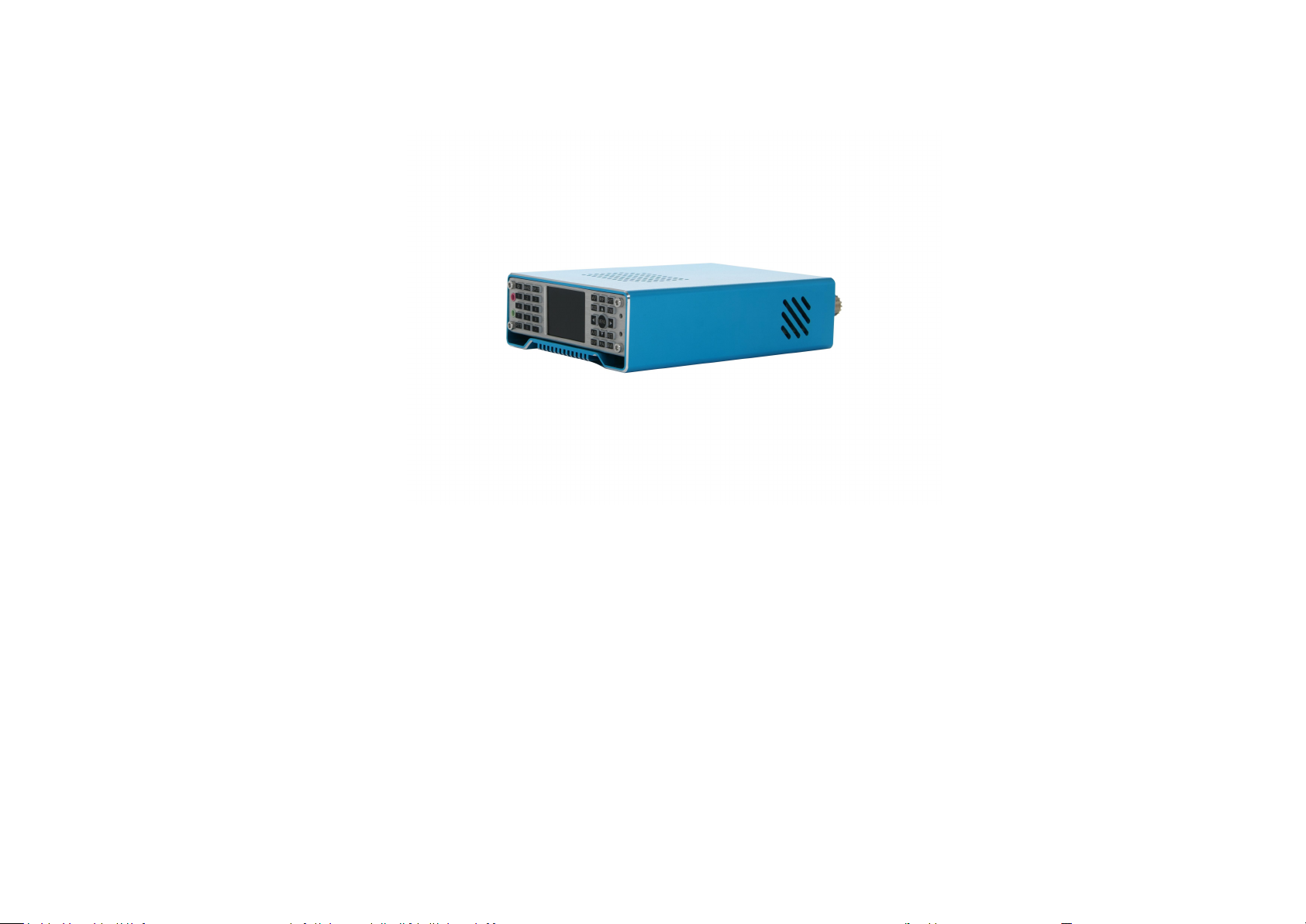
Ailunce HS2 HF/VHF/UHF Full Mode SDR Transceiver
1
HF/VHF/UHF
Full mode SDR transceiver
Ailunce HS2
User manual
(FW V1.2.2)
Page 2

1
Summary ……………………………………………...................... 2
Accessories and options …………………………........................... 4
Specifications ……………………………………........................... 5
Panel control and operation ……………………….......................... 8
Front panel ………………………………………….... 8
Key Function ……………………………………..….. 9
Indicator light ………………………………………... 10
Main interface ……………………………............….. 11
Band selection operation ………………..…………… 12
Different frequency operation ……………..………… 12
AF audio setting ……………………………....……... 13
RF setting …………………………………......……... 13
USB sound card data output format setting ……..…... 14
Transceiver frequency offset setting …………...……. 14
Transceiver mode setting ………………………......... 15
Tune operation ……………………………….…….... 15
A/B frequency operation ……………………...….….. 16
NR/NB noise suppression setting …………….......…. 16
Spectrum and waterfall display setting ………........… 17
Spectrum parameter display setting ……….......…...... 17
Digital filter operation ………………………….…..... 18
Transmitting power setting …………………..….….... 18
Application menu operation ………………….….…........... 18
FM Broadcast ……………………................................ 19
Bluetooth/GPS……………………….....……............... 19
LoRa/Compass……...............……………....………..................... 20
Music .................................... ……………………......................... 20
Set........................................................... ……….......................…. 20
Rear panel interface ………………………….....................................…..…... 21
Interface definition ……………………....................................………..…...... 23
Transmitting operation....................................................................................... 24
SSB communication ………………….......................…………..... 26
CW communication ………………….........................………….... 26
FM communication ………………….......................……………... 27
Relay operation …………………….......................………………. 27
AM communication …………………......................……………... 28
Data communication RTTY …………......................……………... 28
Customize digital pattern mode …..................................…………. 28
CAT control ………………………………….................................. 29
Computer third-party software setting operation ….......................... ..........… 30
JTDX setting ……………………………....................…................ 30
HRD setting ………………………................................................. 32
N1mm setting …………………….............................…......…....... 34
HDSDR setting …………………….............................….............. 35
Mobile APP ……………………………......................................... 38
PC software ……………………………......................................... 38
Receiving advanced operation …………........................................ 38
HS2 firmware upgrade …………………….....................................…...….… 40
Warnings ………………………………………............................................... 41
Product warranty card……………………………............................................ 49
Ailunce HS2 HF/VHF/UHF Full Mode SDR Transceiver
Directory
Back Homepage
Page 3

Ailunce HS2 HF/VHF/UHF Full Mode SDR Transceiver
2
HS2 is an ultra-portable full-frequency full-mode SDR radio which is launched by us. The receiving frequency is 300kHz ~1.6GHz, and the transmitting
band covers 160m~70cm.
HS2 operation modes include SSB, CW, AM, FM, LoRa, and digital modes. It includes all the advanced functions and features of all radio stations.
HS2 is designed with two power supply modes, USB interface, and the DC interface. The power supply voltage range is a 5VDC ~ 32VDC. At the same
time, all power interfaces support anti-reverse connection protection.
The display adopts high brightness and high-resolution liquid crystal display, the backlight brightness can be adjusted, and it can also be clearly displayed
outdoors. The panel is designed with a full keyboard, which is convenient for various operations. The keyboard backlight can be adjusted to operate the radio
in a dark environment.
The built-in network interface can realize remote operation and remote firmware upgrade*1. The HAM-BOX mobile APP developed by Retevis company can
remotely control the radio*2, making radio operation more convenient and fast. It has a built-in Bluetooth module, a USB cable integrated sound card, and a
serial port, and a USB cable can control the radio.
HS2 has a lot of advanced features that are only available in large base stations. This machine has dual VFO mode, different frequency operation function,
intermediate frequency offset adjustment, receiving frequency fine-tuning, intermediate frequency noise suppression, AGC speed selection, RF gain
adjustment, squelch control, front attenuator, AM aviation communication reception, AM/FM Broadcast reception, built-in telegraph automatic key,
automatic key-point ratio adjustment, built-in CTCSS analog tone, automatic shutdown function (APO), transmission timeout function (TOT); connection
with computer and computer-aided control function, copy function, etc.
In addition, HS2 has a wide range of options.
*1
:Reserved function, still in developing, temporarily unavailable, we will release it when it is available.
*2
:Reserved function, still in developing, temporarily unavailable, we will release it when it is available.
Summary
Back Homepage
Page 4

3
HS2 Basic Features and Application
Feature
1, Real-time spectrum
2, Waterfall illustration
3, Doppler frequency tracking(under development)
4, Software Defined Radio (SDR) technology, the full frequency band
supports SSB, CW, RTTY, AM, FM.
5, Double frequency conversion circuit structure
6, The Intermediate Frequency width and Intermediate Frequency
displacement hardware and software can be modified to provide
powerful IF interference suppression
7, DSP digital noise reduction
8, Built-in (6 ~ 160) m high-speed automatic Antenna tuner
9, Built-in electronic key controller, all parameters can be flexibly set.
10, Built-in sound card with IQ and audio output
11, Internal memory
12, USB Type-C 3.1 interfaces for power supply and computer
connection.
13, High precision TXCO ± 0.5ppm (- 10℃~ 60℃)
14, Ultra-wide working voltage range: 5VDC ~ 32VDC
*1
15, Power supply reverse connection protection
16, Built-in GPS/ BeiDou Navigation Satellite System, GSM, electronic
compass (acceleration, angle sensor) (optional)
17, GPS timing (requires optional GPS module)
18, Built-in UTC clock
19, Voltage display
20, Unique LoRa data transmission (requires matching LoRa module).
21, Ultra-lightweight: ≤2kg
22, Built-in remote operation network interface, remote firmware
upgrade
*2
Application
Emergency communication, Remote spectrum monitoring and sensing
Radio direction finding, Ham radio
*1
:5—32V receiving range, 5-12V transmit power limit, 12-15v UV full power output, 12-18V HF full power output, 15/18-32V prohibits transmit.
*2
:Reserved function, still in developing, temporarily unavailable, we will release it when it is available.
Ailunce HS2 HF/VHF/UHF Full Mode SDR Transceiver
Back Homepage
Page 5

4
Accessories and options
Standard
Option
FM Module
GPS Module
Bluetooth Module
LoRa Module
Built-in Sound Card
Electronic Compass Module (Altimeter)
Built-in Automatic Tuner
Shortwave Balcony Antenna
Internal Memory
External VFO Knob
DC Power Cord
Bluetooth Hand Microphone
Type-C USB Cable
Wired Hand Microphone
Ailunce HS2 HF/VHF/UHF Full Mode SDR Transceiver
Back Homepage
Page 6

5
Specifications
Transmitter Parameter
Transmitting Architecture
SDR
Transmitting Mode
SSB,CW,RTTY,AM,FM
Frequency Resolution
1Hz
Transmitting Frequency Range*1/MHz
1.800~2.000;3.500~3.900;5.351.5~5.366.5;7.000~7.200;
10.100~10.150;14.000~14.350;18.068~18.168;21~21.450;
24.890~24.990;28~29.7;50~54;144~146;430~440.
Output Power
*2
HF+6m: SSB: 1W~20W, CW: 0.1W~20W, FM: 0.1W~20W, AM: 1W~
5W;
VHF: SSB/CW/FM: 0.5W~5W;
UHF:SSB/CW/FM: 0.5W~5W.
Power Consumption
TX: 13.8V*6A(20W);
RX: 13.8V*0.35A Typical value, 0.45A(Maximum brightness, audio peak)
Carrier Suppression
<50dB
Spurious Suppression
1.8 MHz~54MHz:≥50dB
;
144 MHz~146MHz:≥60dB
;
430 MHz~440MHz:≥60dB.
Number of Channels
999(Temporarily unavailable
)
Ailunce HS2 HF/VHF/UHF Full Mode SDR Transceiver
Back Homepage
Page 7

Ailunce HS2 HF/VHF/UHF Full Mode SDR Transceiver
6
Receiver Parameter
Receiving Architecture
SDR
Receiving Mode
SSB,CW,RTTY,AM,FM
Receiving Frequency Range
300kHz~1.6GHz
*
Intermediate Frequency Bandwidth
20kHz
Intermediate Frequency
ZERO IF
Sensitivity*2
SSB/CW:(BW: 2.4kHz @ 10dB S/N
);
0.18μV(1.8~54)MHz;0.25μV(144~146)MHz
;
0.25μV(430~440)MHz;AM:( BW: 6kHz @ 10dB S/N)
;
15μV(0.3~1.8)MHz;2μV(1.8~54)MHz
;
2μV(144~146)MHz;2μV(430~440)MHz
;
FM:(BW: 15kHz @12dB S/N);0.5μV(28.0~29.7)MHz
;
0.25μV(50~54)MHz;0.3μV(144~500)MHz
;
0.5μV(430~440)MHz.
Intermediate Frequency suppression
≥70dB
Image Suppression
≥80dB
Audio Output Power
2W(10% distortion rate, 4Ω load, 3kHz)
Spectrum Parameter
Spectrum Bandwidth
48K
Radio Frequency Spectrum
FFT
Back Homepage
Page 8
Ailunce HS2 HF/VHF/UHF Full Mode SDR Transceiver
7
Antenna Tuner Parameter
Tuning Frequency Range
1.8 MHz~54MHz
Tuning Impedance Range
16.7Ω~150Ω unbalance (standing wave ratio is better than 1:3)
Tuning Accuracy
VSWR: ≤1:1.5or less
Tuning Time
2s~5s(Full Band 10s)
Tuning Ways
Automatic/Manual
Structural Parameter
Size
190mm×120mm×45mm (without protrusions)
Weight
<1.5kg
Working Voltage Parameter
Voltage Range
Receiving range is 5V ~ 32V, transmitting power limit is 5V ~ 12V, full
power output is 12V~18V, transmitting power limit is 18V~32V.
Antenna Interface
Antenna Interface
M
Working Environment Parameter
Working Temperature
-10℃~60℃
Working Humidity
10%~70%
Note:
*1:
The frequency is set according to local laws.
*2:
To be calibrated, the final interpretation right belongs to the manufacturer.
Back Homepage
Page 9
8
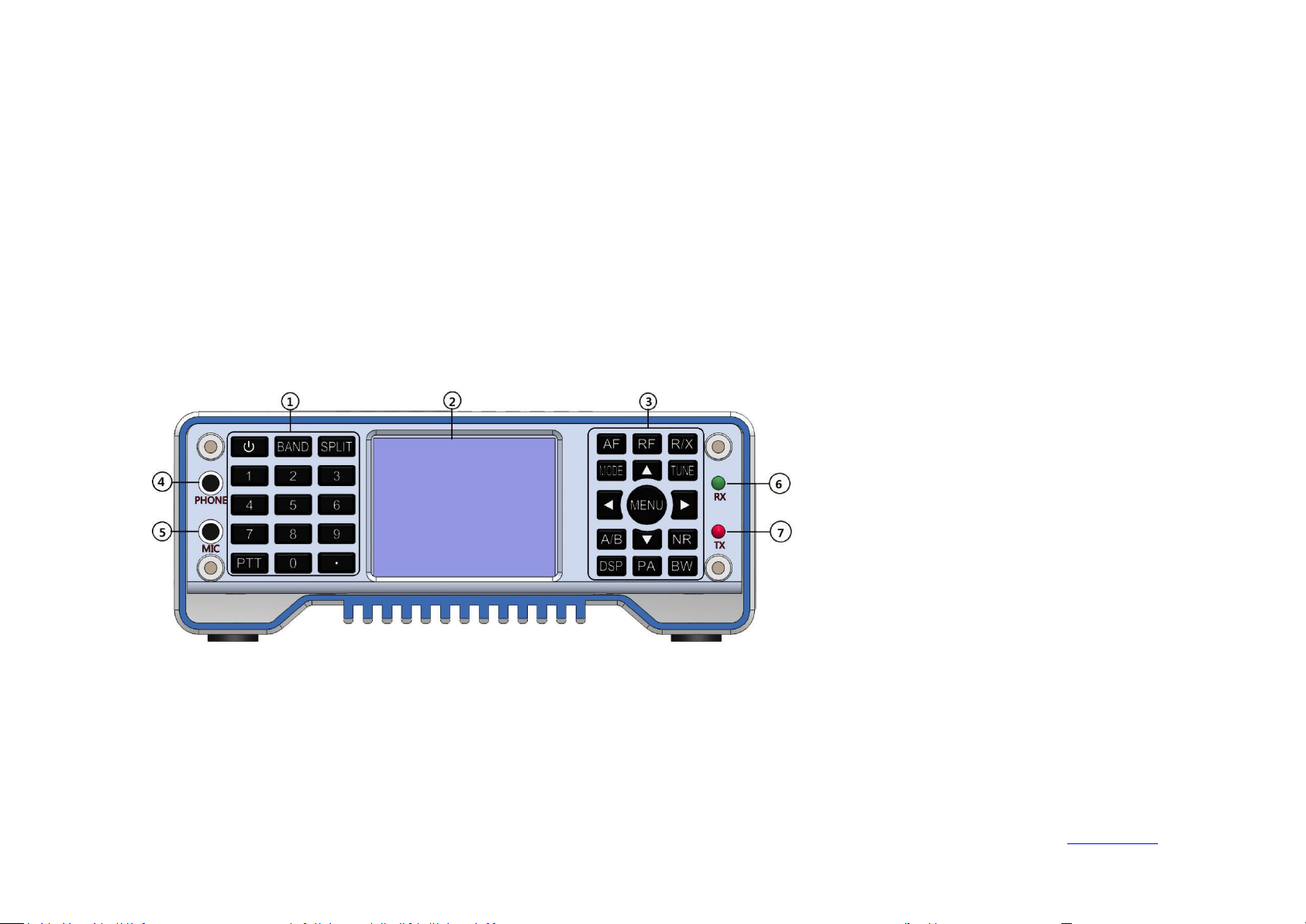
Panel control and operation
①
Numeric keyboard
②
LCD Monitor
③
Function keyboard
④
Headphone interface
⑤
Wired hand microphone interface
⑥
Receiving indicator
⑦
Transmitting indicator
Front panel
Ailunce HS2 HF/VHF/UHF Full Mode SDR Transceiver
Back Homepage
Page 10

9
Key Function
Key
Short key Function
Long Key Function
Power
Switch the standing wave table (VSWR), ALC,
MIC audio indication
Power on, power off
Band
Frequency band selection
CW setting
Split
Different frequency on, different frequency off
CTCSS setting
AF
Volume, MIC gain, MIC audio compression,
ground bass, treble
*
RF
Radio frequency gain, Intermediate frequency
gain, AGC, SQL, AMP
USB data output format selection
R/X
RIT receiving frequency offset, XIT transmitting
frequency offset
Transceiver frequency deviation switch
Mode
Mode setting
USB/LSB, NFM/WFM/CWR switching
Tune
Antenna tuner on and off
Antenna tuner start and stop
A/B
A frequency or B frequency
A frequency = B frequency
NR
NB or NR options
Only display the spectrum, only display the
waterfall chart, display the spectrum and the
waterfall chart at the same time
Ailunce HS2 HF/VHF/UHF Full Mode SDR Transceiver
Back Homepage
Page 11

Ailunce HS2 HF/VHF/UHF Full Mode SDR Transceiver
10
DSP
NR, NB, PEAK threshold setting
Turn off NR or NB
PA
Transmitting power setting
High, Low transmission power gear selection
BW
Digital filter selection
Spectrum bandwidth setting, spectrum reference
level setting, spectrum refresh rate setting.
▪
*
5W enable CW long tone transmit to adjust the
antenna standing wave.
Direction key left
Left selection or decrement value operation
*
Direction key right
Right selection or increment value operation
*
Direction key up
Up choose
Fast frequency improvement
Direction key down
Down choose
Fast frequency reduction
Menu
Confirm
Application interface, back
Indicator light
Red Light
Green Light
Transmitting
On
Receiving
On
Program Exception
Flicke
Back Homepage
Page 12
11
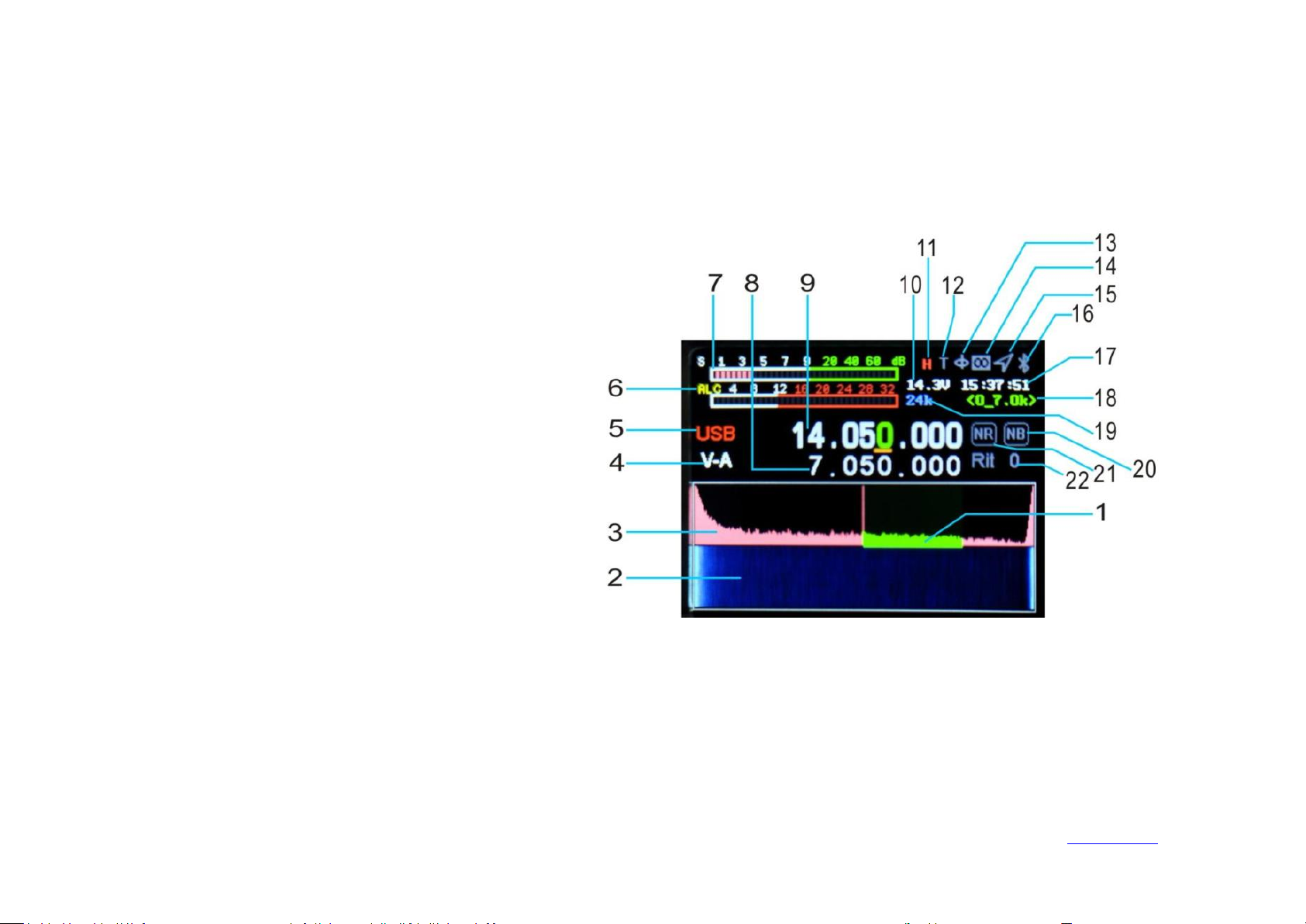
1, Digital filter
2, Waterfall illustration
3, Frequency spectrum
4, Band A/B instructions
5, Mode
6, SWR, AUD, ALC instrument
7, S meter (transmitting power meter when
transmitting)
8, Different frequency transmitting frequency
9, Main frequency display (inter-frequency receiving
frequency)
10, Voltage
11, High/Low power
12, Tune enable
13, Electronic compass
14, LoRa
15, GPS
20, NB indicator
21, NR indicator
22, RIT/XIT offset
16, Bluetooth
17, Time
18, Digital filter width
19, Frequency Spectrum bandwidth
Ailunce HS2 HF/VHF/UHF Full Mode SDR Transceiver
Main interface
Back Homepage
Page 13
12
Band Selection Operation
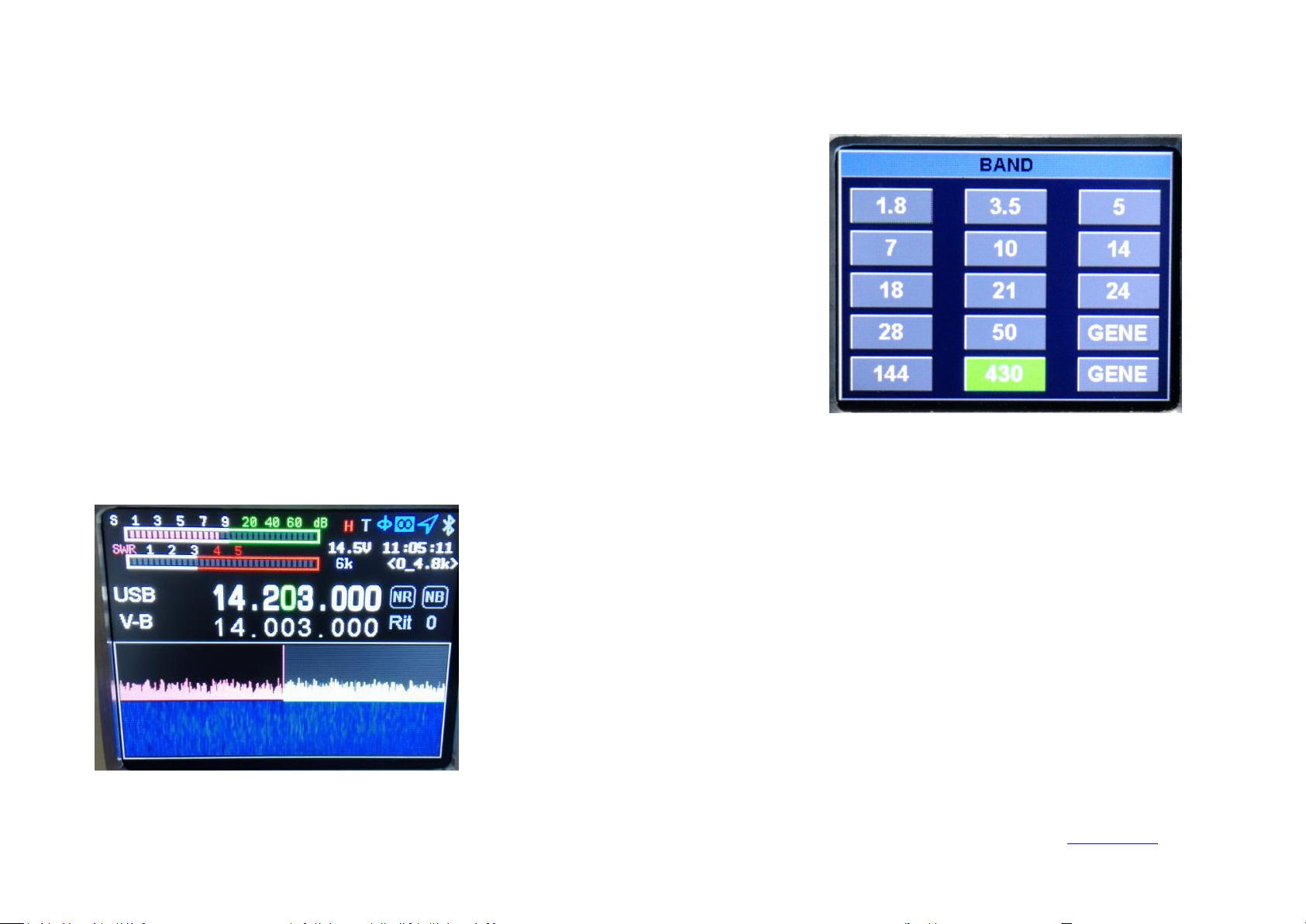
Short press the 【BAND】 button to pop up the frequency band selection interface, press the
direction key to select the frequency band, and press the MENU key to confirm.
Press【SPLIT】to display the different frequency, then press again to turn off the different
frequency. Press the left and right direction keys to select the frequency, and press the up and
down direction keys to increase or decrease the frequency. The upper row of frequencies is
the receiving frequency and the lower row is the transmitting frequency. Press 【 A/B】 to
switch.
Ailunce HS2 HF/VHF/UHF Full Mode SDR Transceiver
Different Frequency
Back Homepage
Page 14
13
AF audio Setting
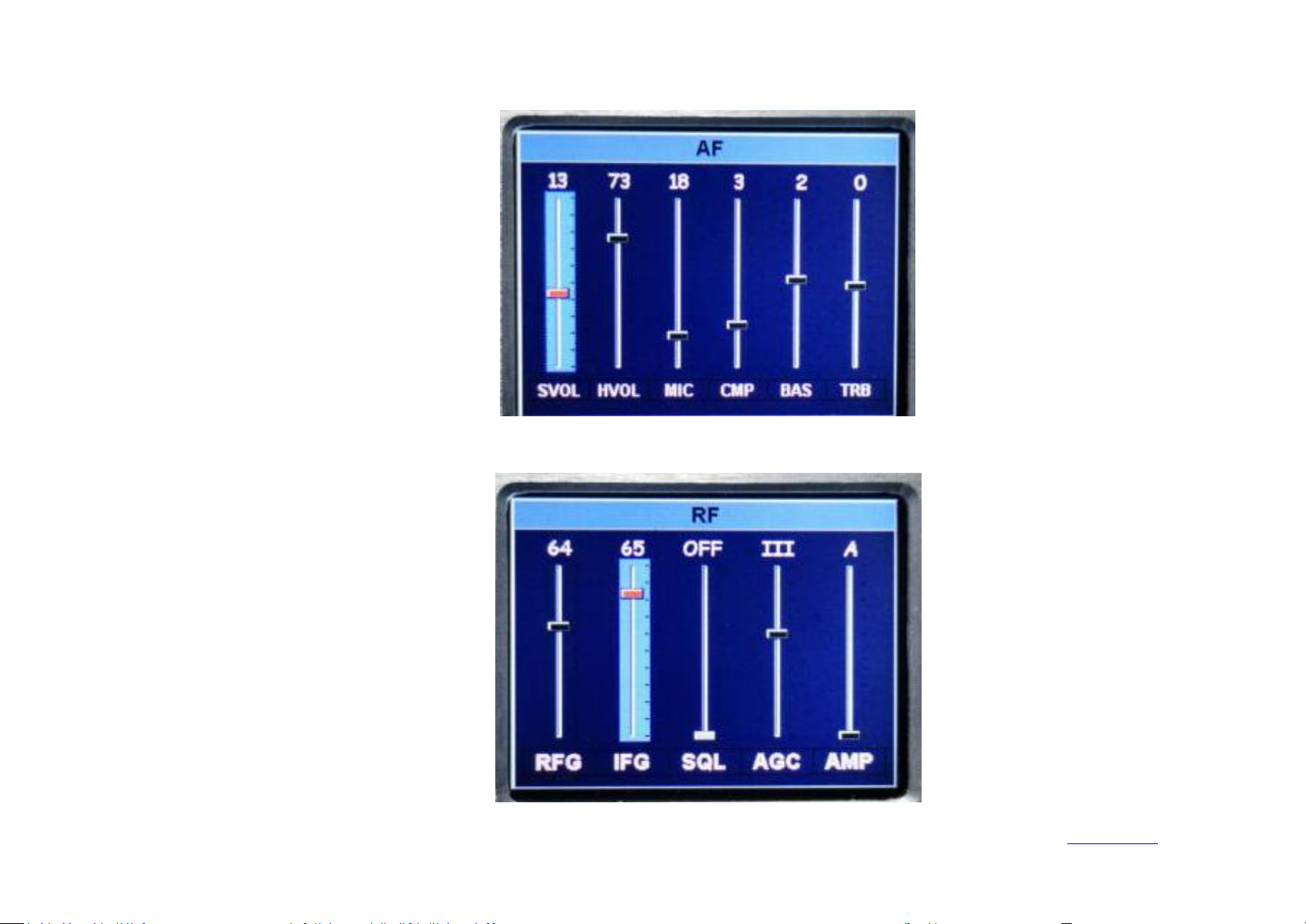
Short press the
【AF】
button to enter the AF
interface, use the left and right direction keys to
select the setting item, and use the up and down
buttons to set the value.
VOL: Volume
MIC: MIC gain
CMP: MIC Compression ratio
BAS: Bass
TRB: Treble
Short press 【 RF 】 to enter the RF parameter
setting interface, use left and right direction keys to
select the setting item and use the up, and down
keys to set the value.
RFG: RF gain
IFG: IF gain
AGC: Automatic gain adjustment
speed
SQL: Squelch level (FM)
AMP: Pre-amplification
RF setting
Ailunce HS2 HF/VHF/UHF Full Mode SDR Transceiver
Back Homepage
Page 15
14
USB sound card data output format setting
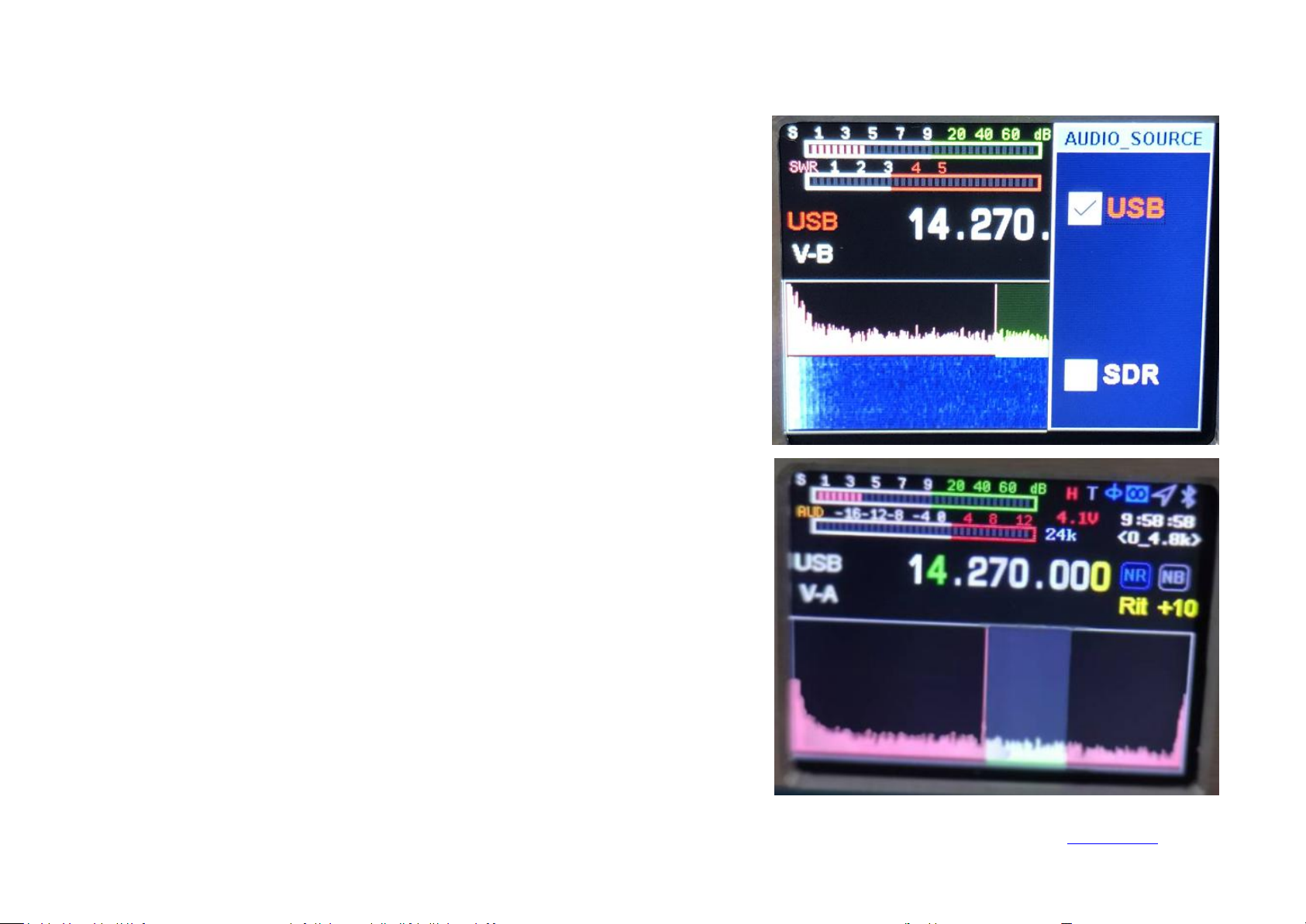
Long press the 【RF】 key to enter the USB sound card data output format selection
interface, and use the up and down keys to select the output mode. Press and hold again
to exit.
MIC: Select when using a microphone.
USB: Select when entering digital modes such as FT8/HRD/N1MM/LOG32/RTTY.
SDR: Select when using software such as SDR#/HDSDR.
Long press【R/X】to open the beat frequency setting interface. Short press to select the
receiving beat frequency RIT, and then short press to set the transmitting beat frequency
XIT. Use the left and right direction keys to set the frequency deviation. Then long press
【
R/X】to exit.
Beat frequency = key display value * 20Hz.
Transceiver beat frequency setting
Ailunce HS2 HF/VHF/UHF Full Mode SDR Transceiver
Back Homepage
Page 16
15
Transceiver mode setting
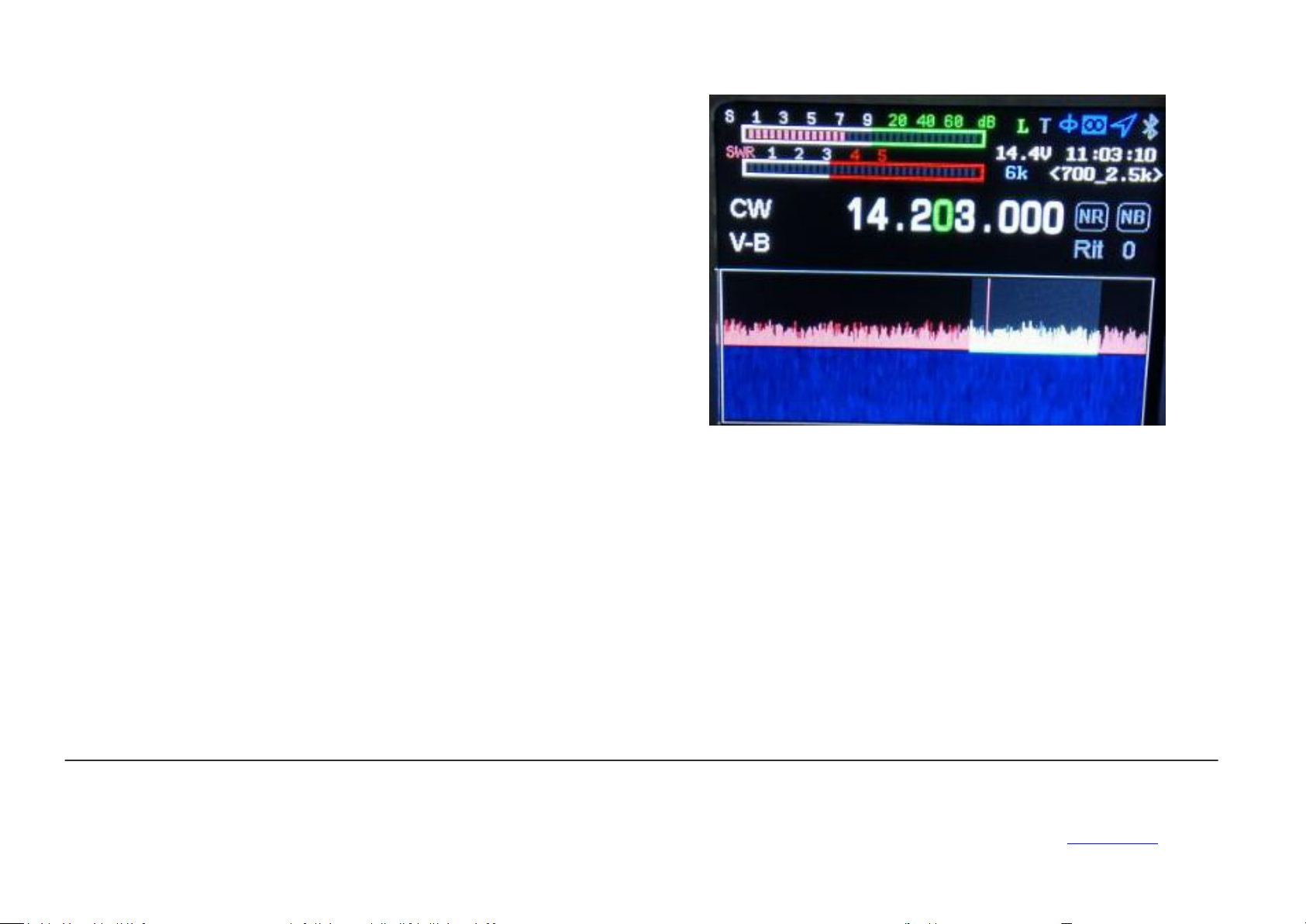
Short press 【Mode】 button to select the mode.
FM mode: long press to select NFM/WFM.
SSB mode: Long press to select USB/LSB.
Followed by recycling AM, FM, USB/LSB, CW.
1. Short press【Power】key to switch to SWR standing wave instrument.
2. Short press 【Tune】key, HS2 will automatically enter tuning mode. HS2 will emit a short “dada~” voice. The “T” on the screen will become green.
Long press 【Tune】if you want to exit the tuning mode halfway. Tuning fail, the “T” on the screen will become gray. Tuning success, it will become
green.In the green state, we can short press【Tune】to turn off the tune.
3. Long press【▪】HS2 will automatically enter into CW mode 5W long tone transmission.You can see your antenna SWR value, so you can adjust your
antenna feed system easily. Short press【▪】to exit.
*1:
The program is constantly improving and upgrading
Ailunce HS2 HF/VHF/UHF Full Mode SDR Transceiver
Tune operation
*1
Back Homepage
Page 17
16
A/B frequency operation
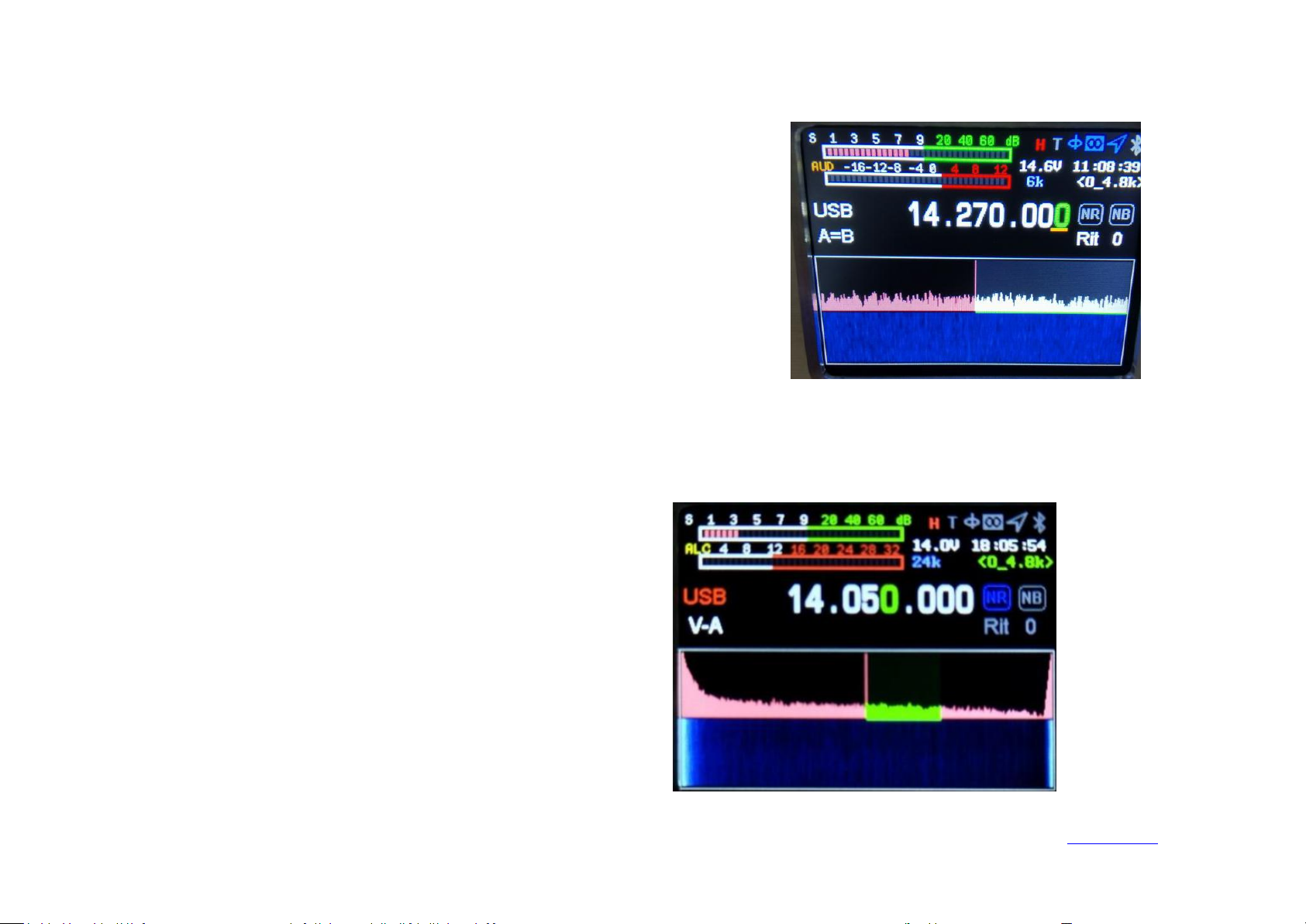
Short press【A/B】button to switch A/B frequency,
Long press A frequency=B frequency.
Short press【 NR】 to turn on NR/NB, and then short press to
switch NR/NB. As usual, we select NR.
Short press【BW】to turn on digital filter(green), adjust the right
and left key to make the width to 4.8k, at this time, the NR will
work.
Long press the【DSP】key to turn off NR/NB.
NR/NB noise suppression setting
Ailunce HS2 HF/VHF/UHF Full Mode SDR Transceiver
Back Homepage
Page 18
17
Spectrum and waterfall display setting
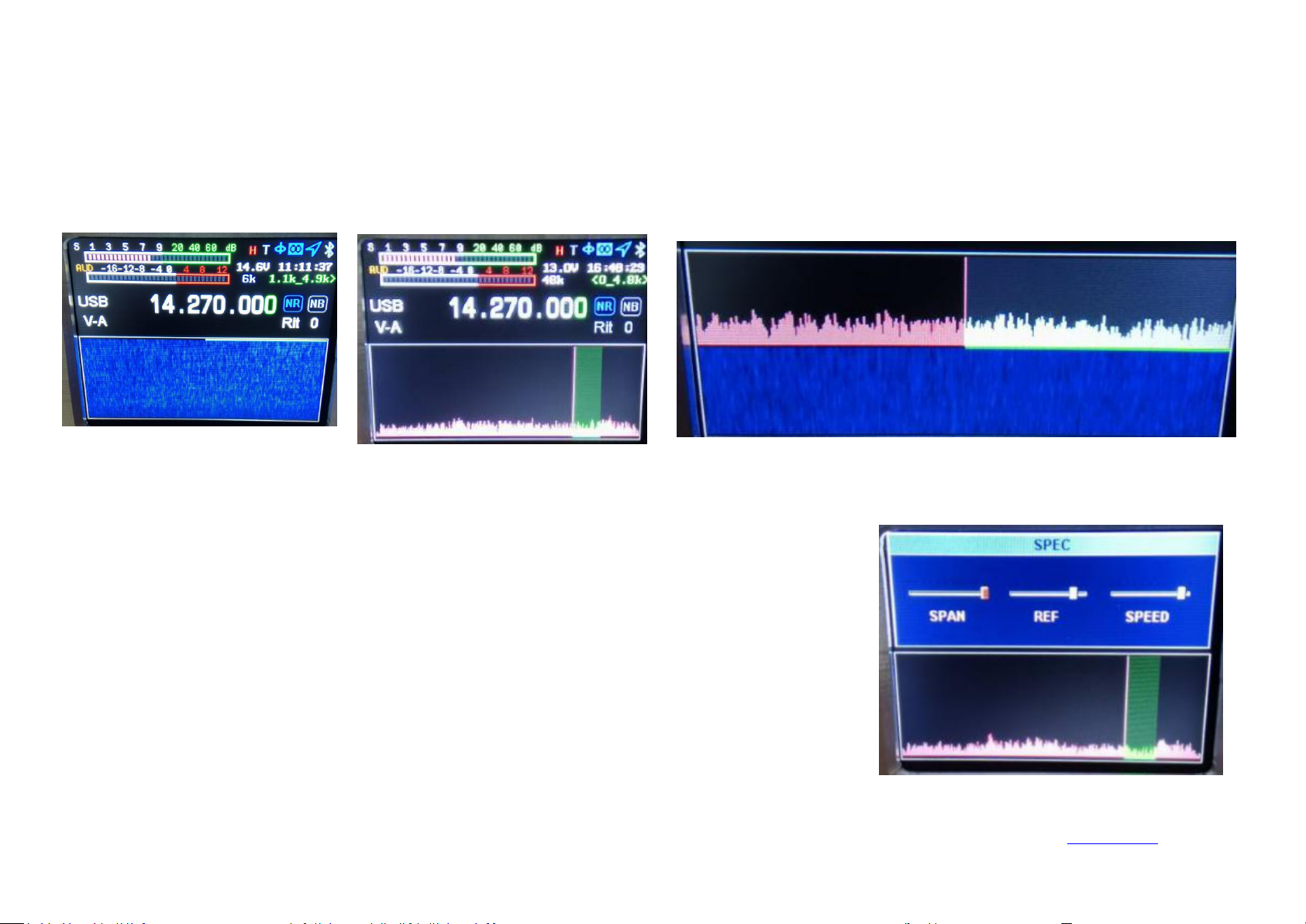
Long press the【NR】key to select and display the waterfall chart, and long press to select and display the spectrum chart, and long press the waterfall
chart and the spectrum chart to display at the same time.
Long press the 【BW】key to set spectrum bandwidth, reference level, refresh rate, left and right
direction keys to select setting items, up and down direction keys to set value.
SPAN: Spectrum bandwidth.
REF: Spectrum reference level.
SPEED: Spectrum refresh rate.
Spectrum parameter display setting
Ailunce HS2 HF/VHF/UHF Full Mode SDR Transceiver
Back Homepage
Page 19
18
Digital filter operation
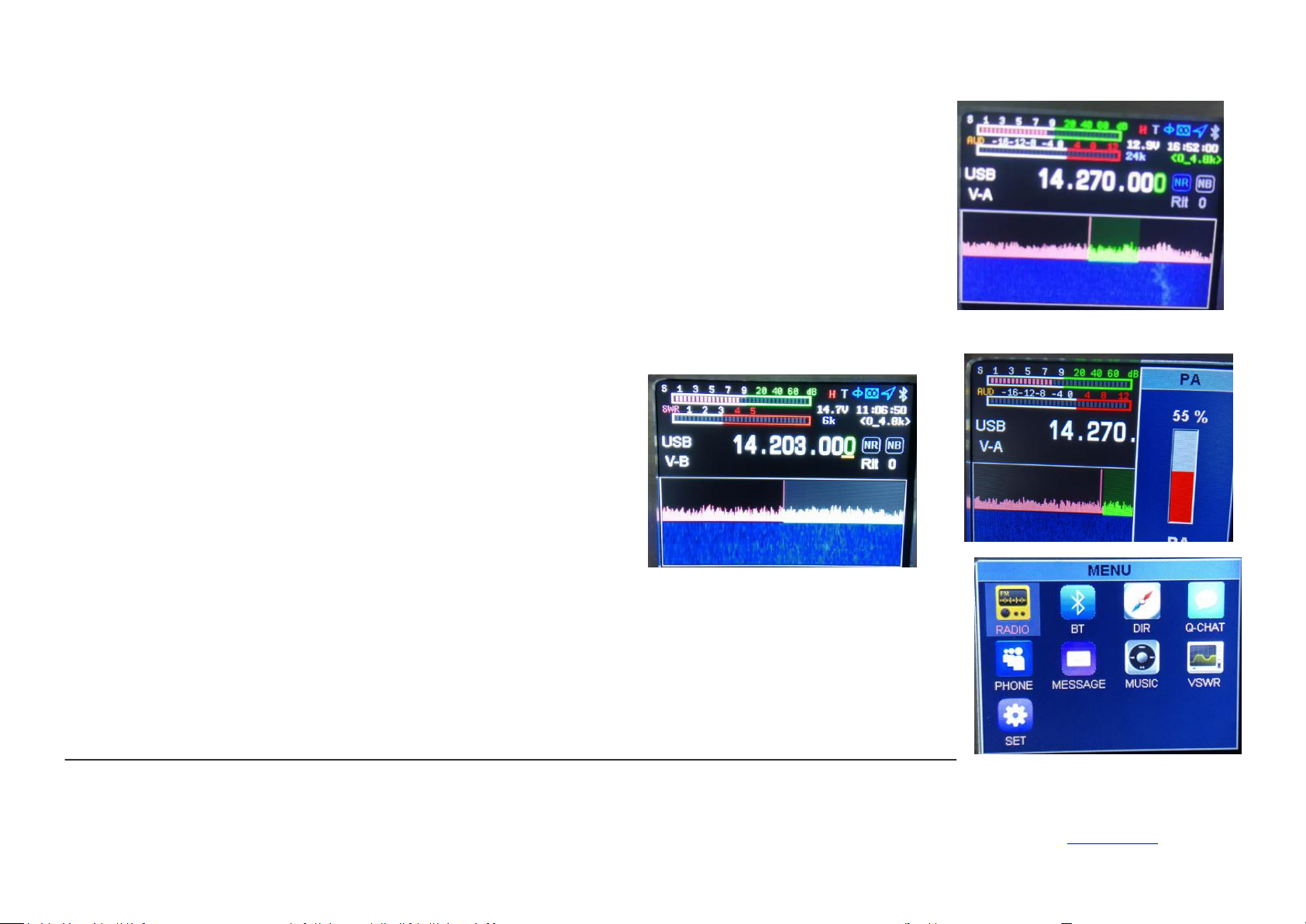
Short press【BW】key to select digital filter(green color), left or right direction key to select filter bandwidth, short
press【BW】key to ensure filter bandwidth and exit(the green will become white).
Long press 【PA】 key to select power setting, up and down keys to
increase or decrease power. Short press【PA】key to switch High and
Low power.
Long press the【Menu】key to enter the menu interface, long press the【Menu】key to exit the menu interface, left
and right, up and down keys to select the application, and short press the【Menu】key to select the application.
*1:
SDR radio has unlimited possibilities as long as the hardware support, Some functions we don’t describe are
reserved functions, temporarily unavailable.
Transmitting power setting
Ailunce HS2 HF/VHF/UHF Full Mode SDR Transceiver
Application menu operation
*1
Back Homepage
Page 20
19
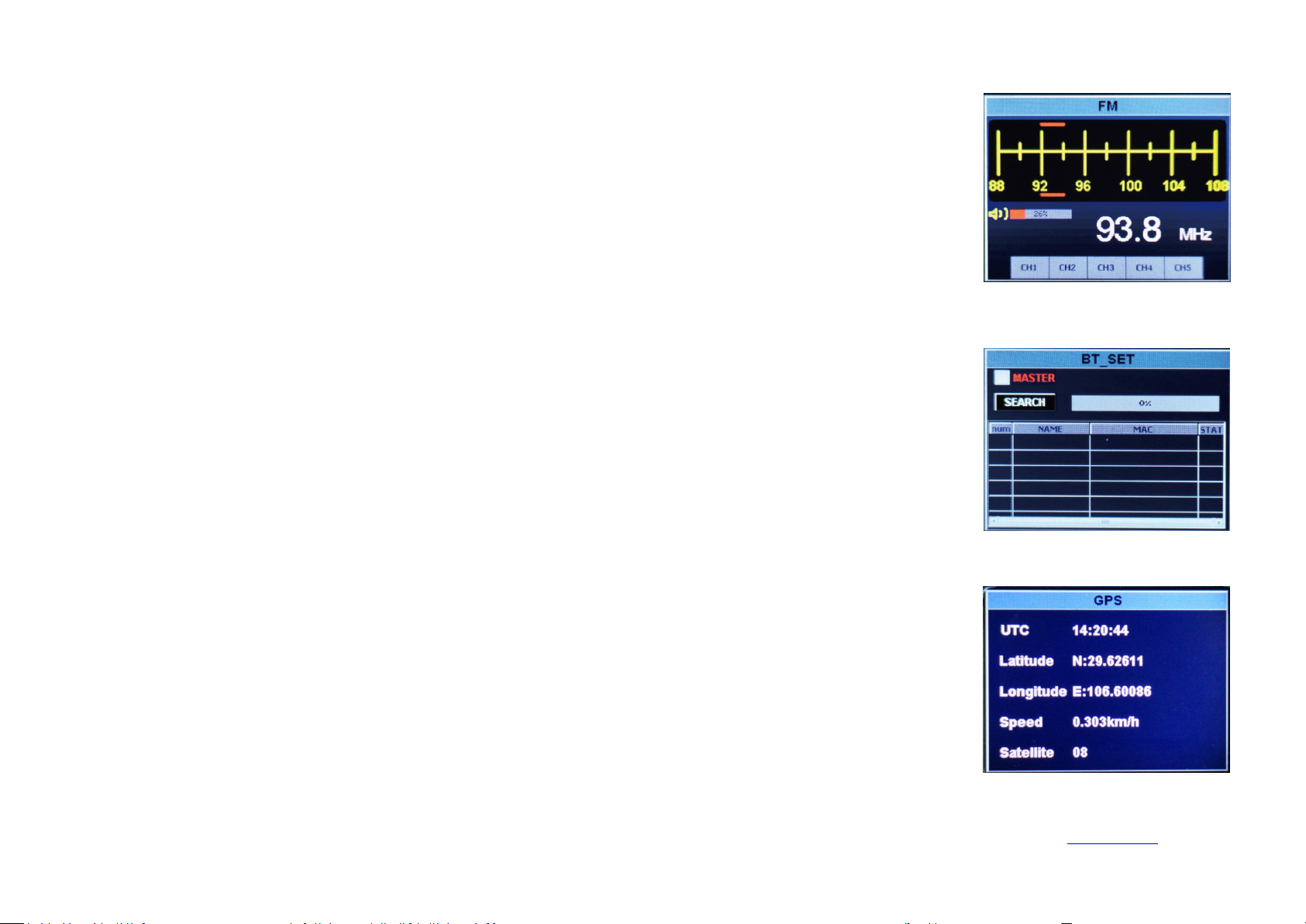
1. FM Broadcast operation*RADIO
Short press the left and right buttons to search channels by 100k steps, long press the left and right buttons to search
channels automatically. Press the up and down buttons to increase or decrease the volume. Long press【MENU】to exit
the FM radio function.
Press the 【Menu】key to select the master-slave mode. Connect the phone, tablet, etc. to the slave mode.
Select the master mode by connecting a Bluetooth headset, etc.
Master mode:
Press the up and down keys to select the function button, and press the 【Menu】key to confirm. Search Bluetooth
headset Select search all Bluetooth slave devices, select Bluetooth slave device to connect.
Note: Temporarily unavailable
Enter the menu to directly display the UTC time, latitude and longitude, speed, direction, altitude, etc. received by the
GPS module.
Note: Some of them can be used, still in developing
2. Bluetooth setting*BT
Ailunce HS2 HF/VHF/UHF Full Mode SDR Transceiver
3. GPS operation*DIR
Back Homepage
Page 21
20
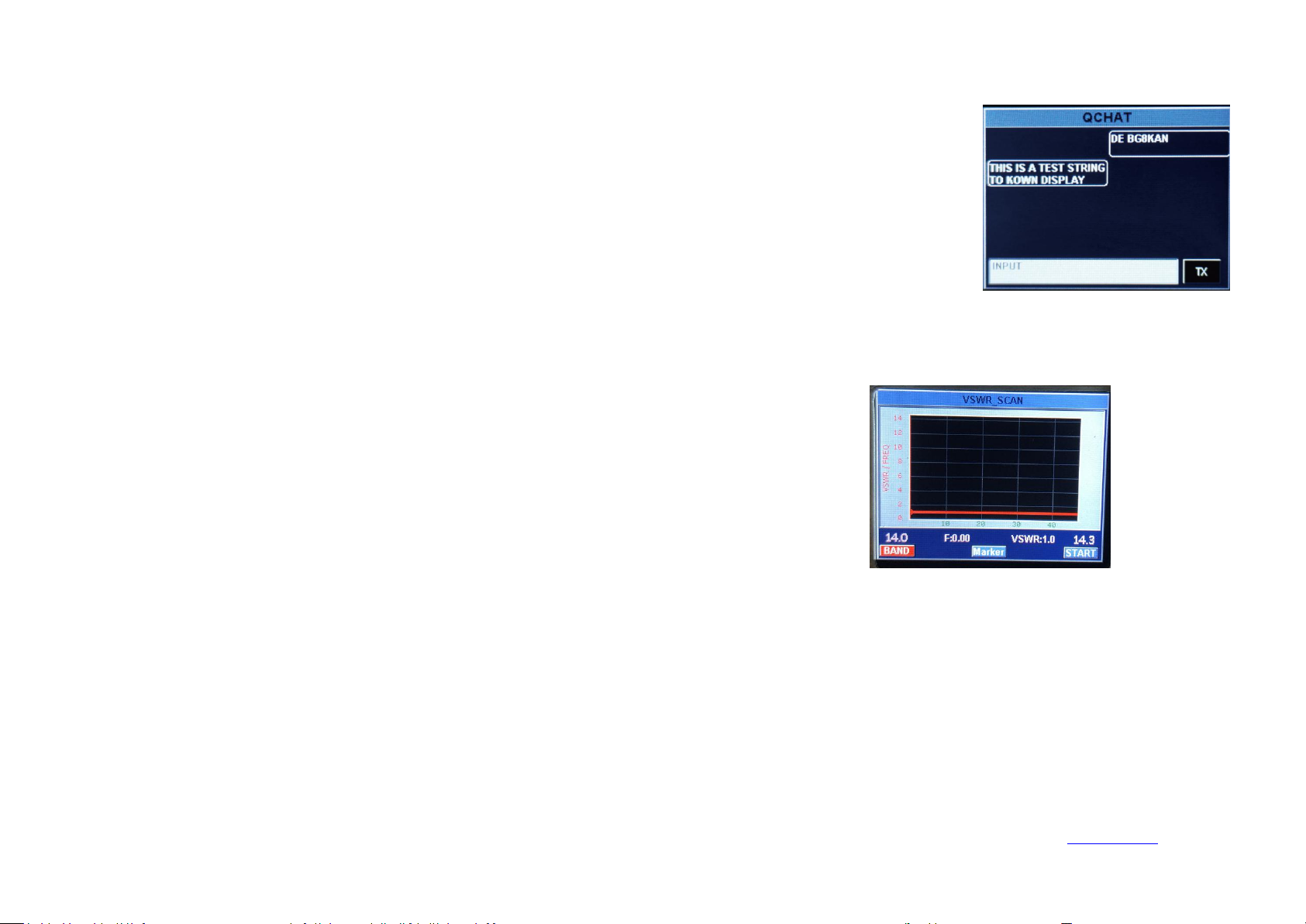
4. LoRa operation*Q-CHAT
Directly display when receiving message, press the keyboard to input the information, and click TX to transmit the
information. It need two radios for test this function.
Note: Still in developing
7-1 key led
7-2 Out-band-en
7-3 Tx-en: turn on/off transmit
7-4 key-volume: the key touch beep
7-5 Backlight: Set the screen brightness
7-6 led-brightness: set the receive indicator led brightness
7-7 Hour
7-8 Minute
7-9 Second
7-10 Fan-en-temp: the temperature which fan start to work.
7-11 VSWR-protection
7-12 VSWR-tuner
7-13 TOT-timer
7-14 FW-version
5. Electronic compass operation*MESSAGE & *MUSIC
Note: Still in developing
6. VSWR
Press【MENU】to enter, long press【MENU】to exit. Works on HF band only. You also can set the VSWR
value in the setting list.
Ailunce HS2 HF/VHF/UHF Full Mode SDR Transceiver
7. Setting*SET
Back Homepage
Page 22
21
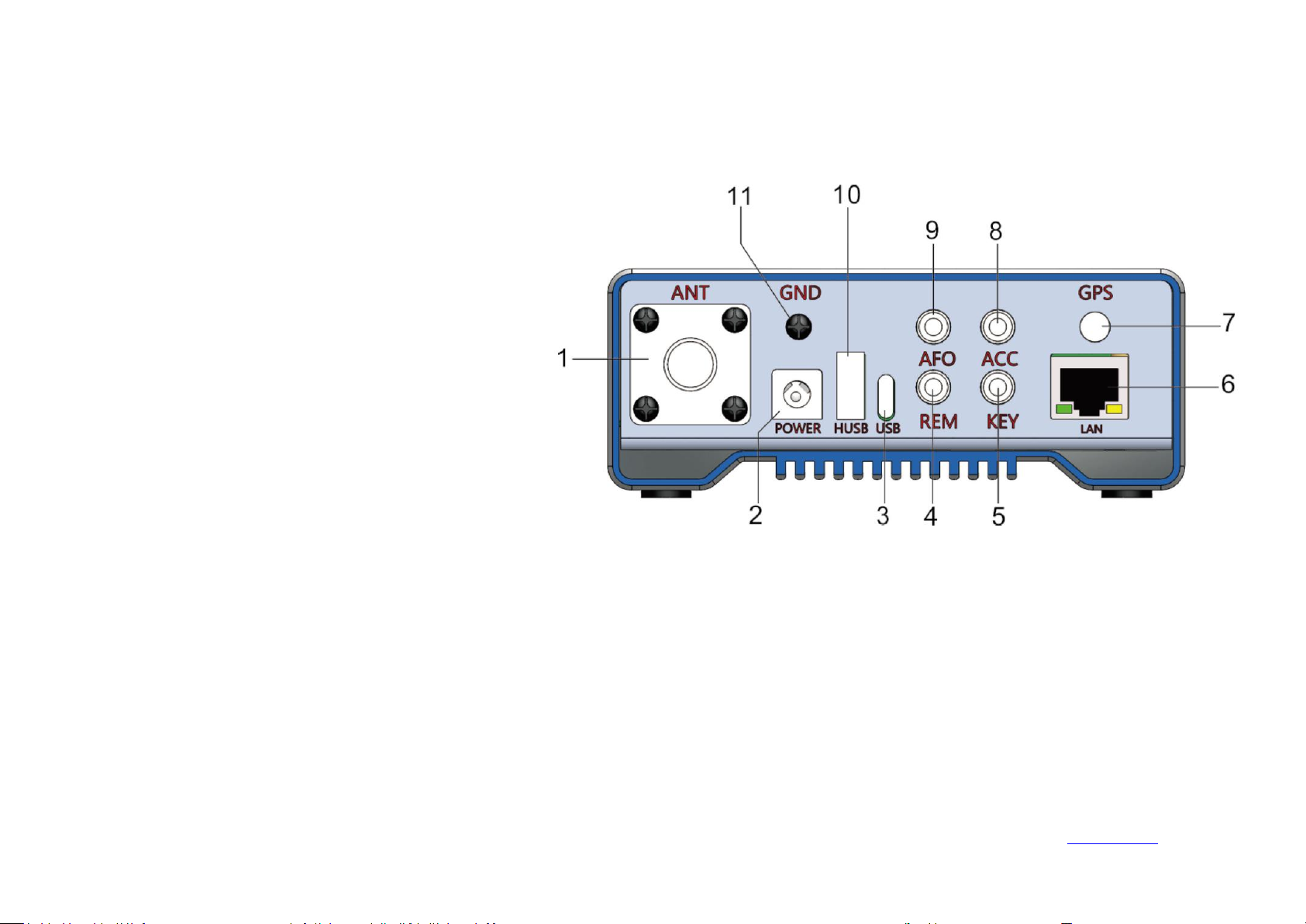
Rear panel interface
①
Antenna interface
HF/50MHz/144MHz/430MHz antenna port (M type), the
output impedance is 50Ω.
②
DC power interface .
Radio power interface, the specification is 5.5*2.5. Use
the standard DC power cord to connect to a regulated
power supply or battery. The power supply must be able
to provide a current of 6A@(12~16.8)V to ensure the full
power output of the radio.
③
Sleeve USB interface
It is used to connect the USB cable to the computer and
can output audio, digital and IQ signals.
④
RS232 serial interface
It is used for connecting peripheral smart devices, such as external VFO knob.
⑤
Electric key interface
This interface is a 3.5mm three-core interface, used to connect electronic automatic key control or ordinary hand keys.
⑥
Network interface
Used for remote control and remote firmware upgrade.
Ailunce HS2 HF/VHF/UHF Full Mode SDR Transceiver
Back Homepage
Page 23

22
⑦GPS antenna port
Connect an active GPS antenna.
⑧PTT control output.
PTT transceiver used to control the power amplifier.
⑨Audio output.
Demodulated audio output
⑩Host USB interface
The function of this interface is temporarily reserved and used with caution for charging external devices.
⑪Grounding post
Note: To achieve the best performance and ensure safety, you can use a short and thick copper stranded wire to connect this ground terminal to the ground
well.
Ailunce HS2 HF/VHF/UHF Full Mode SDR Transceiver
Back Homepage
Page 24
23
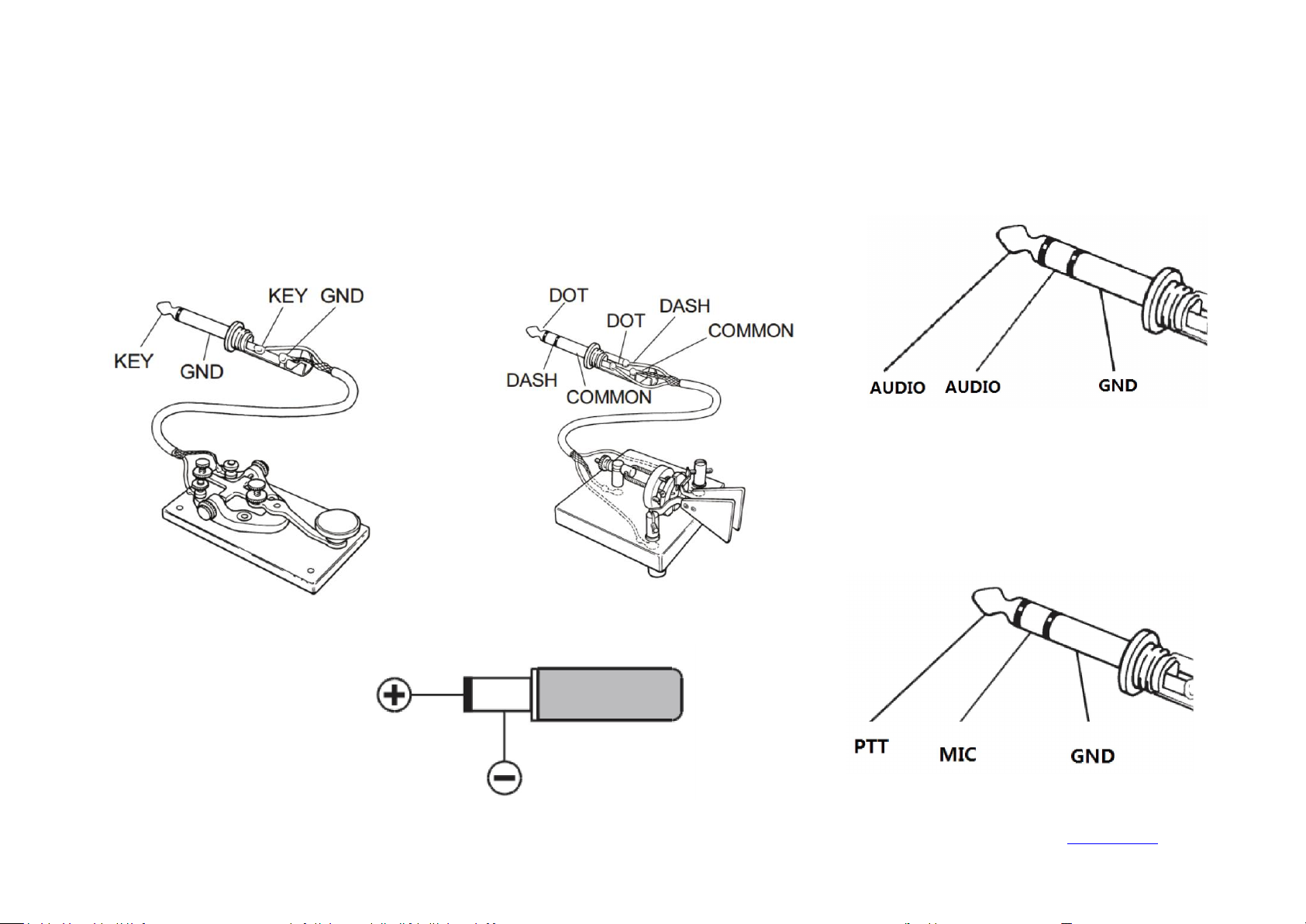
Interface definition
Key
Power
Audio output/headphone interface
Hand microphone
Ailunce HS2 HF/VHF/UHF Full Mode SDR Transceiver
Back Homepage
Page 25

Ailunce HS2 HF/VHF/UHF Full Mode SDR Transceiver
24
Please follow my guide to learn how to quickly set up and use your new equipment HS2. You must really want to use it to communicate. Below we will
guide you to the first QSO. You will get an unparalleled experience from this brand new device. Now, we begin to understand how to operate it!
●Turn on and off HS2
1. To turn on the radio, simply long-press the power button for one second.
2. To turn off the radio, simply long-press the power button for one second.
●Frequency band selection
1. The frequency range of HS2 is very wide. Short press【Band】 to bring up the frequency band menu
2. Short press the arrow keys to select, short press【Menu】 to confirm the frequency band.
●Frequency selection
1. Short press the left and right direction keys to select the cursor position, short press the up direction key to adjust the required frequency, and long-press
the up and down direction keys to quickly select the required frequency.
2. Input the required frequency by the direct numeric keyboard.
For example: if you want to enter 14.270MHz, press the numeric keyboard: 014270000 or 14.270000, and then press the menu key【Menu】 to confirm.
●Mode selection
1. The whole HS2 supports LSB, USB, CW, AM, FM. Short press【Mode】 key to select, LSB and USB need to long press【Mode】 key to switch, CW
and
CWR long press【 Mode】 key to switch.
●Transmit power selection
Transmitting operation
Back Homepage
Page 26

Ailunce HS2 HF/VHF/UHF Full Mode SDR Transceiver
25
1. Short press【PA】 to enter the transmit power adjustment and use the up and down direction keys to adjust the value.
2. Long press【 PA】 to quickly select the 5W and 20W sections, and each section can be fine-tuned by the up and down direction keys.
●Receive volume, MIC gain
1. Short press the【 AF】 button to enter the AF interface, use the left and right direction keys to select the setting item, and use the up and down buttons to
set the value.
VOL: volume
MIC: MIC gain
CMP: MIC compression ratio
BAS: Bass
TRB: Treble
After a simple setup is completed, you can now communicate happily. Usually, LSB mode is used below 7Mh, USB mode is used above 14MHz, and FM
mode is used above 28MHz. Please check your radio license before launching, and abide by local laws and regulations. The HS2 will be locked before
launching (prohibited from launching). Please open it after complying with legal regulations.
Back Homepage
Page 27

26
SSB communication
When using hand keys, automatic keys, semi-automatic keys, an external electronic key control or a computer-generated keyboard device, please follow
the steps below:
1. Insert your 3.5mm (three-phase or two-phase) plug into the KEY jack on the rear panel.
2. Short press【Mode】to select a CW mode (CW or CWR), "CW" mode uses the carrier input on the USB side, and CWR (reverse) mode uses the input on
the LSB side.
3. Long press【BAND】key to enter CW set. Up and down arrow keys on the keyboard to select an option and use
the left and right arrow keys to adjust the settings within the option.
3-1, KEY MODE left and right direction key selection content: manual electric key automatic electric key.
3-2. KEY SPEED automatic key code rate, the greater is the value, the faster is the speed.
3-3. TX-RX CW transmission and reception switching time, the greater is the value, the greater is the delay.
3-4. STF CW sidetone audio. 3-5. STG CW sidetone volume. 3-6.TRAINING, when turn on the CW will not output power when the key is connected.
1. Press the【Mode】key to select one of the SSB (LSB or USB) modes. If you are operating at 7MHz or below, please select LSB mode.If you are operating at
14MHz or above, please select USB mode.
2. Short press【Power】key, the screen switches between ALC, SWR, AUD meter display.
3. Press the PTT button on the microphone and speak into the microphone in a normal voice, while observing the AUD meter display. When the microphone
enters the actual voice level, there will be a corresponding amplitude display on the AUD meter. Release the PPT button to return to the receive mode.
4. If the AUD meter shows too high or too low, you can reset the microphone gain value as follows: Long press the【AF】key for one second to enter the
selection mode, select the MIC item in the left and right direction, and set up direction key Set value, long press【 AF】 key again to exit. Speak into the
microphone until AUD appears at the peak of your voice.
CW communication
Ailunce HS2 HF/VHF/UHF Full Mode SDR Transceiver
Back Homepage
Page 28
27
FM communication
The HS2 supports full-band FM mode transmission and reception. It is usually used for FM communication above 28MHz in short-wave communication.
29.6MHz is called the magic band by the HAM community. It will be opened in a short time in the summer of the year, which is very challenging.
1. Short press【Mode】key to find FM mode, long press【Mode】key to switch between WFM mode and NFM mode.
2. HS2 includes FM section FM, you can communicate with ordinary walkie-talkies, or you can go to a local relay station.
3. Short press【RF】key, left and right direction keys are to select SQL, squelch option, up and down direction keys are to set squelch level.
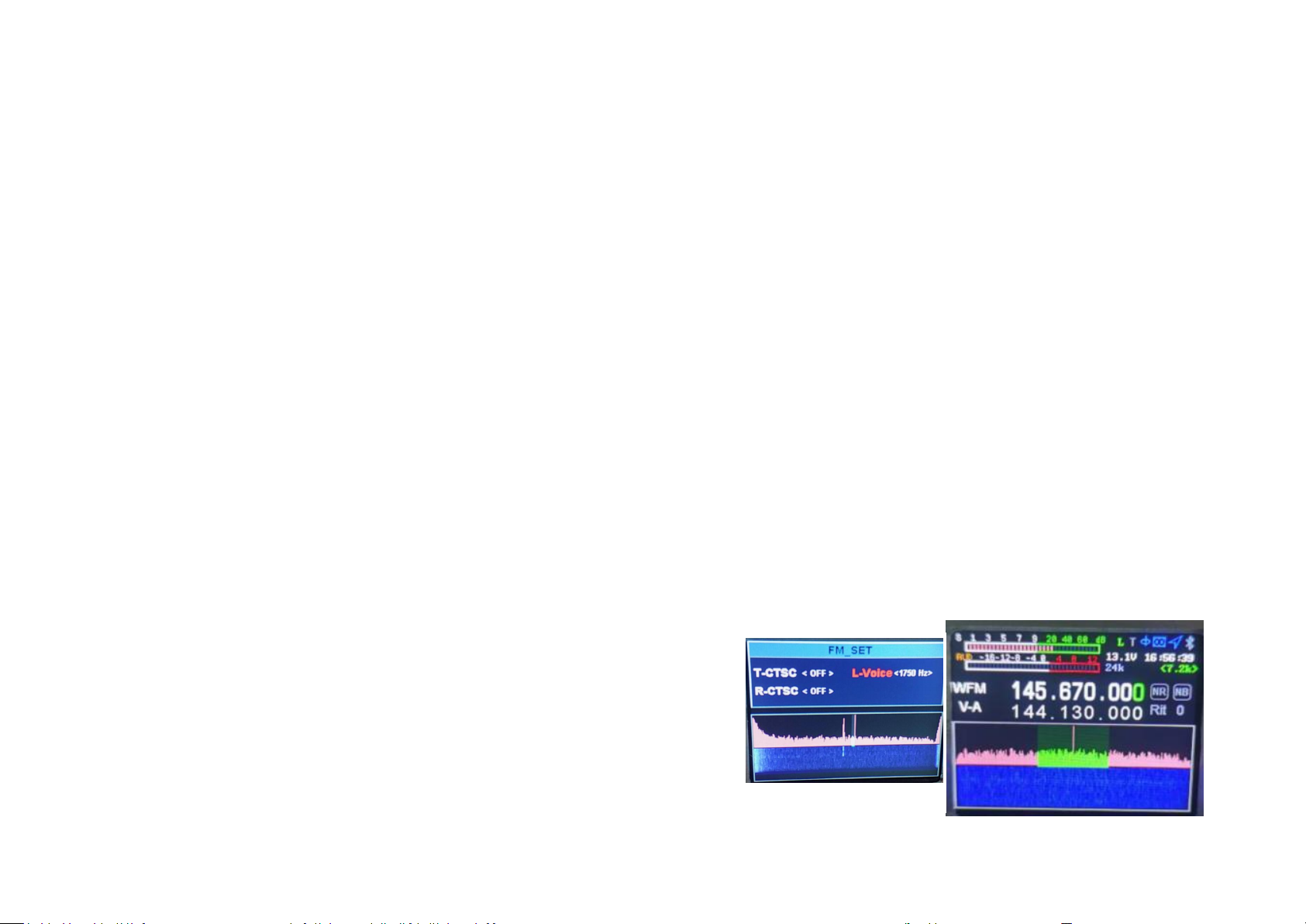
1. Set the required frequency, for example, repeater parameters (downlink 145.670MHz, uplink 144.130MHz, uplink and downlink analog mute 88.5) are
set as follows:
1-1. we press SPLIT to display the different frequency, and then press to turn off the different frequency. The upper row of frequencies is the receiving
frequency, that is, the relay downlink, press the left and right direction keys to select the frequency, press the up and down direction keys to increase or
decrease the frequency, or directly enter the numeric keyboard: 14567000, the lower row of frequencies is displayed as the transmission frequency, that is,
the relay upstream frequency, you need to press the A/B key to switch to the upper row, directly enter 14413000 on the keyboard, and then press the A/B
key to switch to the lower row.
1-2. The tone set, long press【SPLIT】,up and down key s to choose R_CTSC(receive),
T_CTSC(transmit), buttons to set the tone frequency, long press【SPLIT】to exit the
sound settings. And you also can set 1750Hz here.
Relay operation
Ailunce HS2 HF/VHF/UHF Full Mode SDR Transceiver
Back Homepage
Page 29

28
AM communication
HS2's "RTTY" working mode is based on the long-term use of amateur radio, based on the LSB carrier. If you want to use the USB carrier for "RTTY"
operation, you need to set up the user, please refer to the following introduction.
1. Connect your computer and HS2 via USB connection.
2. Long press the RF key to enter the USB sound card data output format selection interface, and use the up and down keys to select the output mode.
Press and hold again to exit. Select【DIGI】digital mode.
3. At this time, you can search on the frequency, if there is an RTTY signal, the relevant computer software can decode.
1. Press the【Mode】key to select the AM mode and set the required frequency
2. The AM mode input RF power is 5W
HS2 cooperates with mobile phone APP software HAM-BOX to realize a custom digital communication mode, which requires the same settings for both
parties.
1. Find the mobile phone Bluetooth search HS2 and pair and connect.
2. Open the mobile phone APP software HAM-BOX and set the relevant communication mode (requires the same communication side). Then the phone
operation sends a text, pictures, coordinates, etc.
Data communication RTTY
Ailunce HS2 HF/VHF/UHF Full Mode SDR Transceiver
Customize digital pattern mode
Back Homepage
Page 30

29
CAT control
HS2 has a CAT system, so you can control the walkie-talkie with a personal computer. Multiple control operations can be fully automated with the click
of a mouse, and control of third-party software packages (such as radio log software for games) is also supported so that HS2 can be used for
communication without (additional) operators. The CAT protocol is compatible with FT-817, so the MODEL of FT-817 station is selected for CAT
control. The CAT control USES a TYPE-C USB cable to connect to the computer, and the serial driver works only on Window 10. The USB cable is also
integrated with the sound card, and only one USB is needed for CAT control and data transfer. HS2 only supports Windows 10 operating system. SDR
software on the computer side and APPHAM_BOX on android system developed by Ailunce can fully control the radio. HS2 also support a wide range of
third-party control software packages.
Ailunce HS2 HF/VHF/UHF Full Mode SDR Transceiver
Back Homepage
Page 31
30
Computer third-party software setting operation
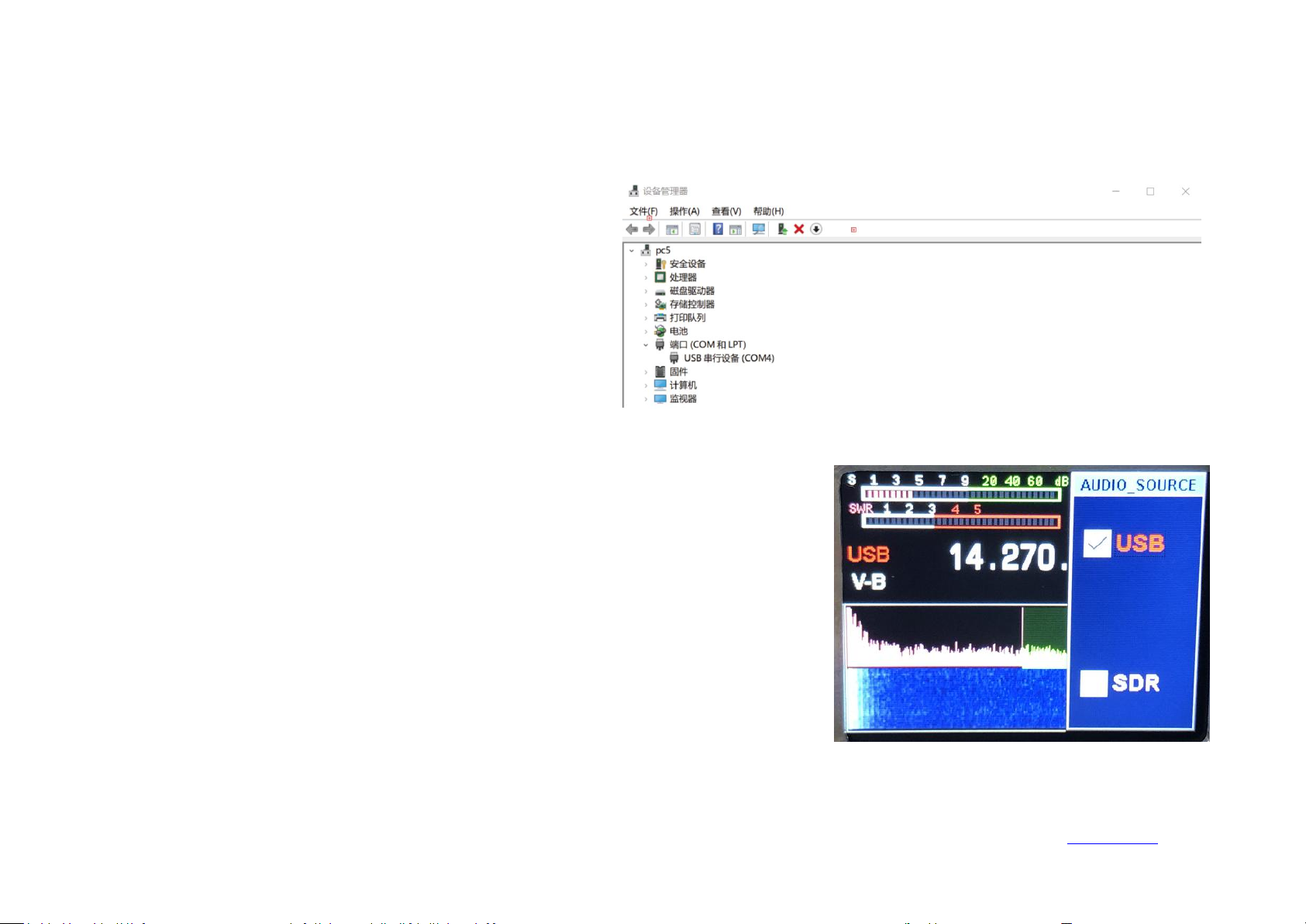
1-1. The computer operating system only supports WIN10. Please
use the TYPE-C USB cable to connect to the computer radio. After
a successful connection, enter the computer device manager. You
can view the port (USB serial device COM*). Here I display
COM4.
1-2. Set the USB mode on the radio terminal, long-press the【RF】key to enter the USB sound
card data output format selection interface, use the up and down keys to select the output mode
【
USB】, and then long press to exit.
1, JTDX setting
Ailunce HS2 HF/VHF/UHF Full Mode SDR Transceiver
Back Homepage
Page 32
Ailunce HS2 HF/VHF/UHF Full Mode SDR Transceiver
31
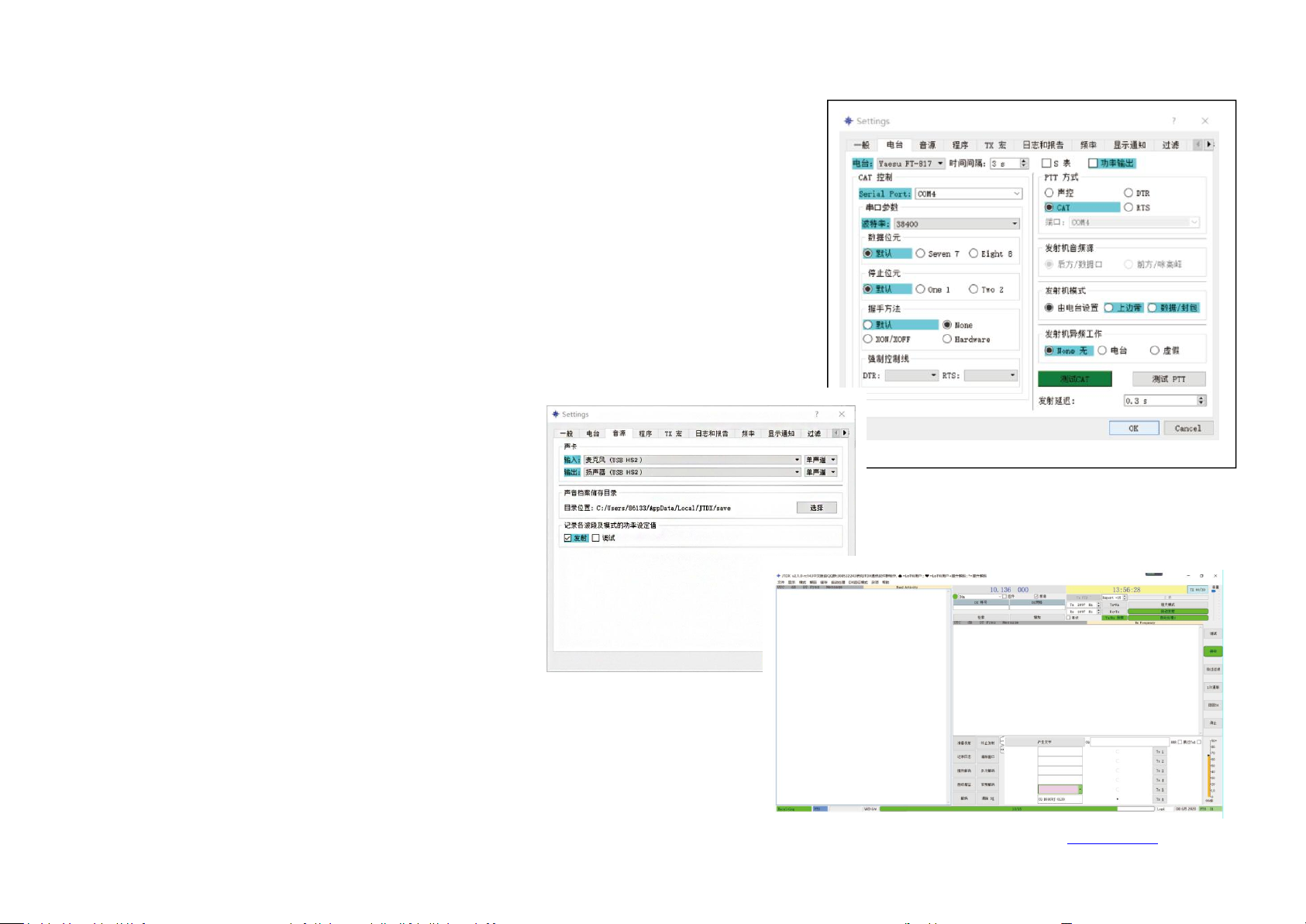
1-3. Open the FT8 software JTDX setting interface
The radio station chooses FT-817, the port number chooses the COM4 that the computer checks
before, the PTT way chooses CAT control, just ignore the rest, click test CAT, when connecting
successfully it will display green.
1-4, The sound source settings are as follows
1-5. Software working interface after it has been set.
Back Homepage
Page 33
32
2, HRD setting
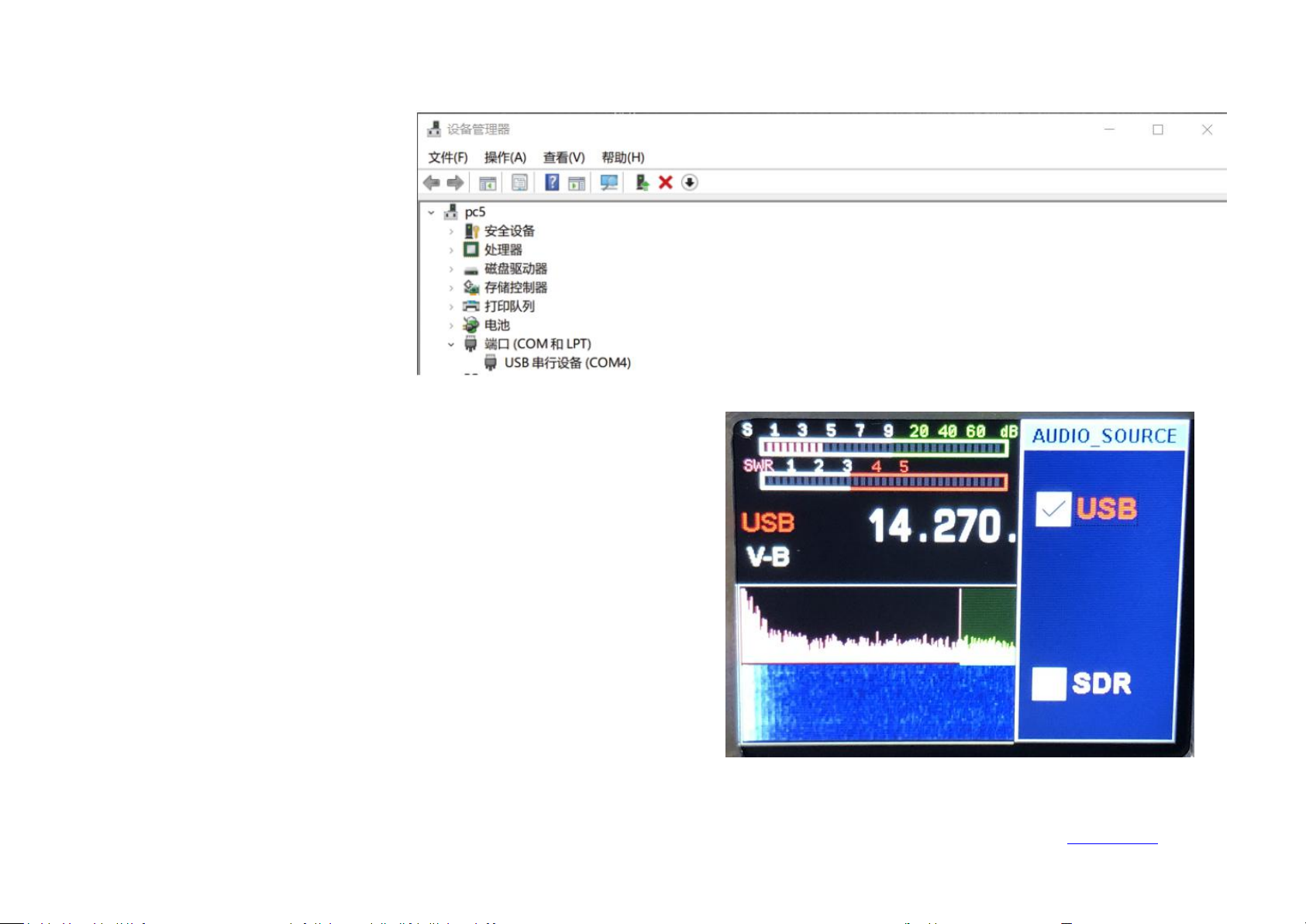
2-1. The computer operating system
only supports WIN10. Please use the
TYPE-C USB cable to connect to the
computer radio. After the connection
is successful, enter the computer
device manager to view the port (USB
serial device COM*). I display COM4
here.
2-2. Set the USB mode on the radio terminal, long-press the【RF】key to enter
the USB sound card data output format selection interface, use the up and
down keys to select the output mode【USB】, and then long press to exit.
Ailunce HS2 HF/VHF/UHF Full Mode SDR Transceiver
Back Homepage
Page 34
Ailunce HS2 HF/VHF/UHF Full Mode SDR Transceiver
33
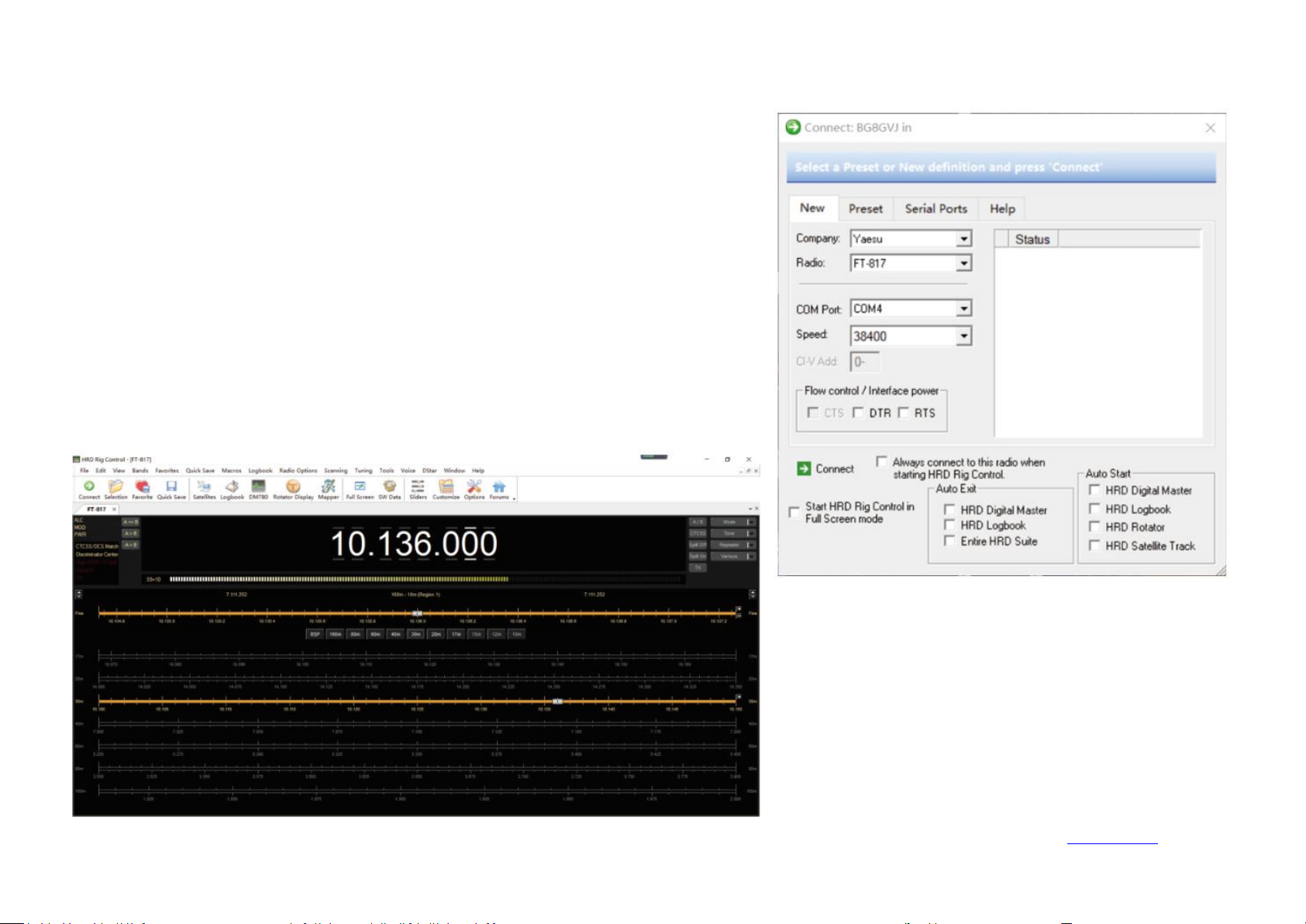
2-3. When you open the HRD for the first time, the options dialog box will pop up
automatically. Click Connect after the settings are completed according to the figure. If
the connection is successful, you will directly enter the software interface. If not, you
will be noticed.
2-4. After successful connection it enters the software
interface, the software can operate all the functions of the
radio.
Back Homepage
Page 35
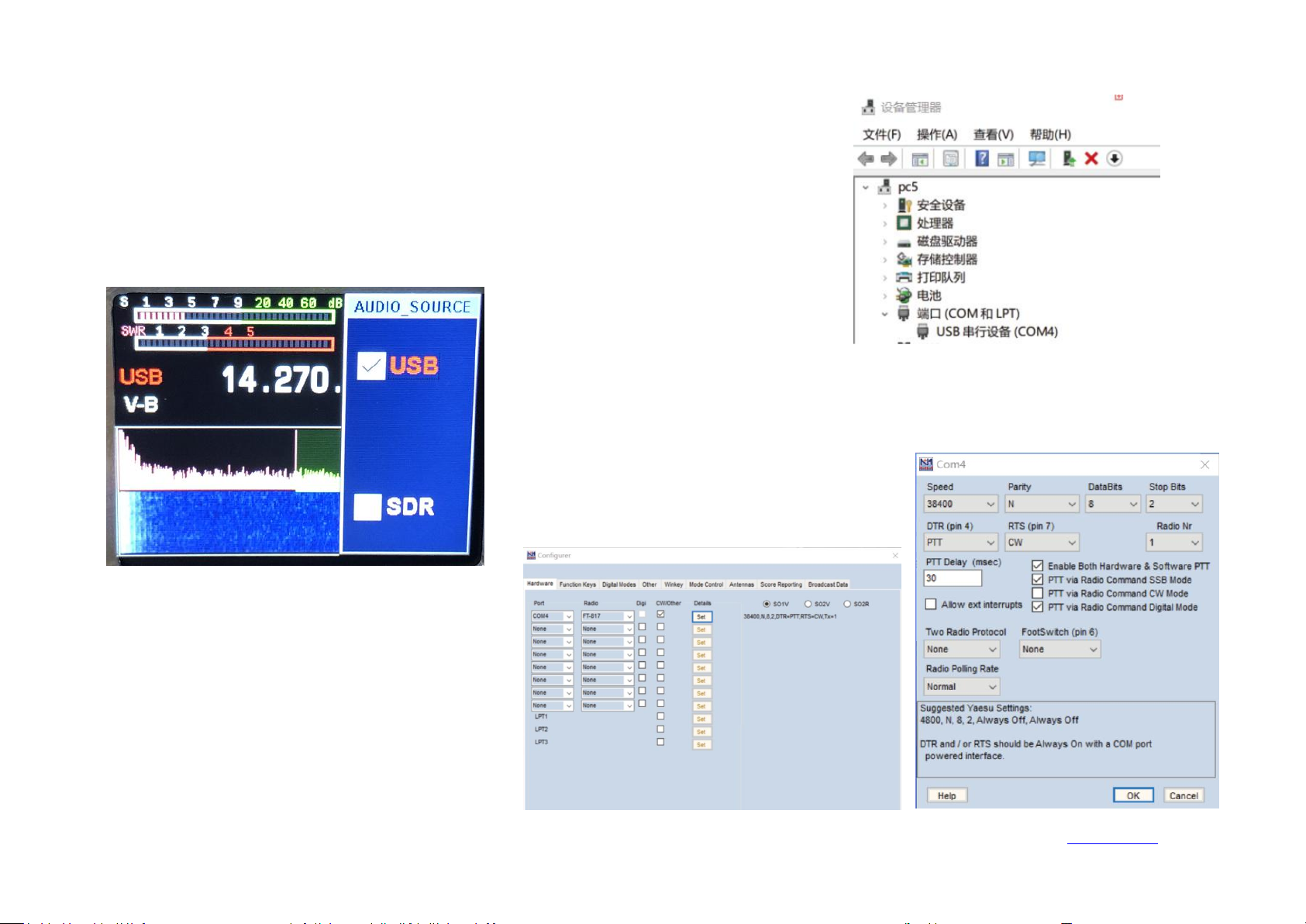
34
3, N1mm setting
3-1. the computer operating system only supports WIN10. Please use the TYPE-C USB cable to
connect to the computer radio. After the connection is successful, enter the computer device
manager. You can view the port (USB serial device COM*). Here I display COM4.
3-2. Set the USB mode on the radio station, long-press the【RF】key to enter the USB sound
card data output format selection interface, use the up and down keys to select the output mode
【
USB】, and then long press to exit.
3-3. Open the N1MM setting menu and set the
parameters as shown below.
Click SET to enter the further setting menu.
Ailunce HS2 HF/VHF/UHF Full Mode SDR Transceiver
Back Homepage
Page 36
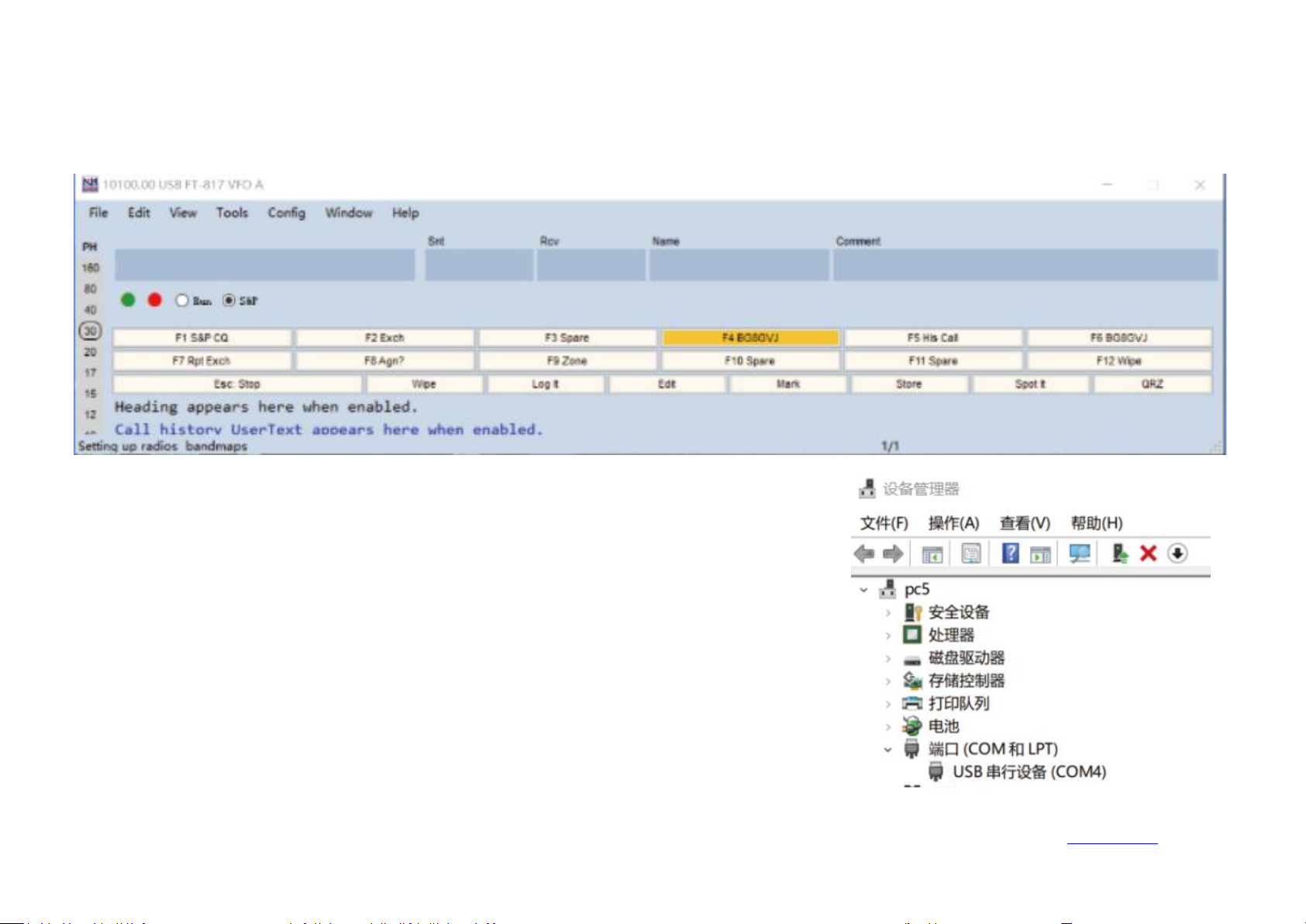
35
4, HDSDR setting
3-4. After a successful setting, the software can fully control the radio station.
4-1. The computer operating system only supports WIN10. Please use the TYPE-C USB cable to
connect to the computer radio. After a successful connection, enter the computer device manager.
You can view the port (USB serial device COM*). Here I display COM4.
Ailunce HS2 HF/VHF/UHF Full Mode SDR Transceiver
Back Homepage
Page 37
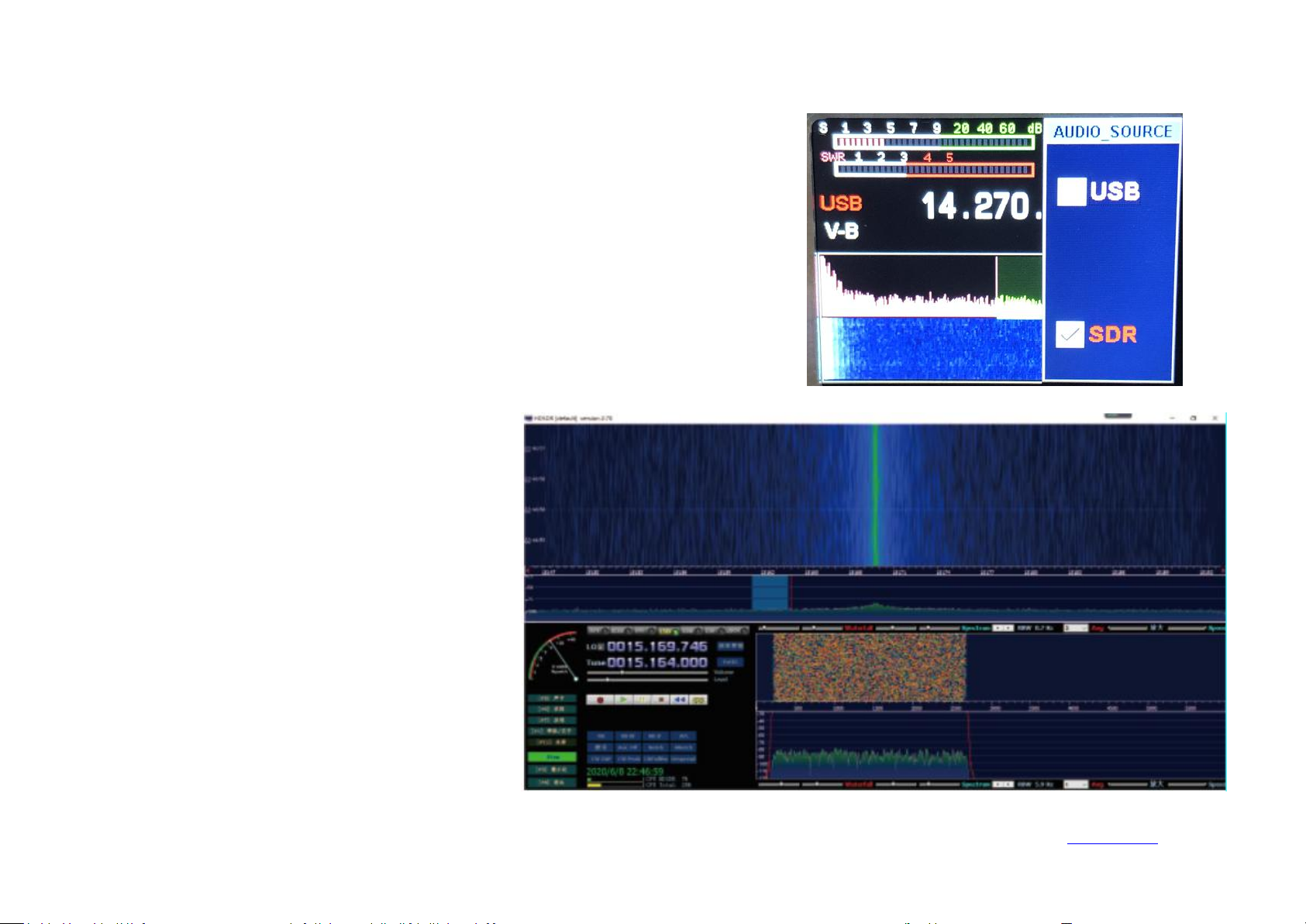
Ailunce HS2 HF/VHF/UHF Full Mode SDR Transceiver
36
4-2. Set the USB mode on the radio station, long-press the【RF】key to enter the USB sound
card data output format selection interface, use the up and down keys to select the output
mode【SDR】, and then long press to exit.
4-3. Open the HDSDR software and set the
parameters in sequence according to the figure.
Back Homepage
Page 38
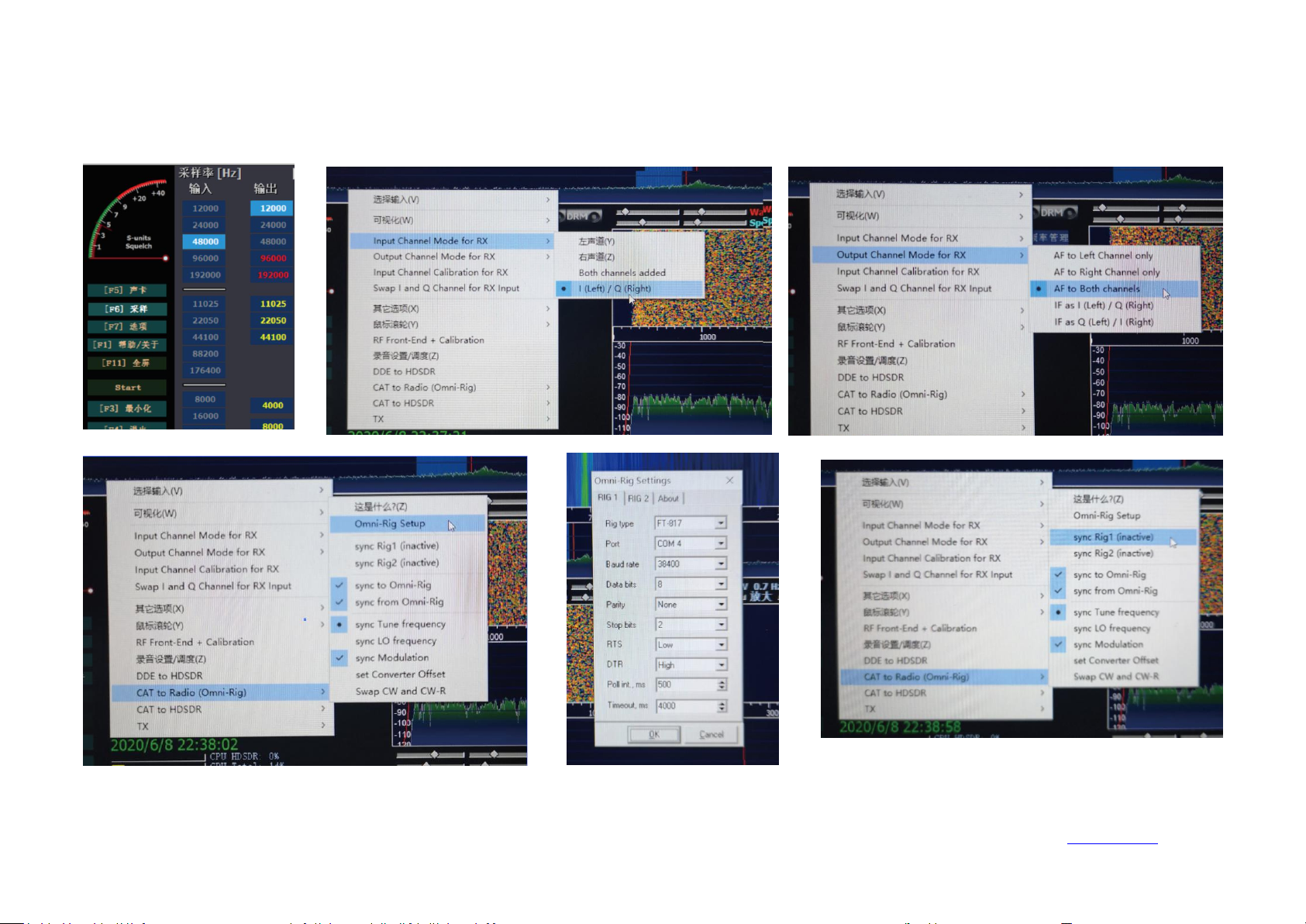
Ailunce HS2 HF/VHF/UHF Full Mode SDR Transceiver
37
4-4. Select the RX input of the sound card as microphone USBHS2, and select the sound card of the computer as the output.
After it is set, click【Start】on the HDSDR interface to use it.
Back Homepage
Page 39

Ailunce HS2 HF/VHF/UHF Full Mode SDR Transceiver
38
5, Bluetooth adapter and radio realize wireless connection
The Bluetooth adapter is developed by us and the HS2 can realize the wireless connection between the computer and the radio. You can put the radio on the
balcony, and the laptop and tablet computer can control the radio on the sofa in the living room.
Mobile APP
The mobile app HAMBOX is developed by Retevis Company which has fully controlled the radio function, and some functions are free to use.
Note: Some functions are not fully developed, temporarily unavailable. Will release it asap
PC software
The PC software is developed by Retevis Company which has fully controlled the radio function, and some functions are free to use.
Note: Some functions are not fully developed, temporarily unavailable. Will release it asap
Receiving advanced operation
HS2's power-on state is the receiving state. In order to get a better listening experience, you need to follow me to understand the advanced operation of the
machine.
1. Select the desired frequency, for example, 14.270MHz\USB.
2. Short press the【AF】button to call up the VOL volume adjustment. Use the up and down direction keys to adjust the volume and adjust the appropriate volume.
Short press the【AF】button again to save and exit.
3. Short press the【RF】button to bring up the RF parameter setting interface. Use the left and right direction keys to select the setting item, use the up and down
keys to set the value, and press the【RF】key again to save and exit.
Back Homepage
Page 40

Ailunce HS2 HF/VHF/UHF Full Mode SDR Transceiver
39
3-1, RFG: RF gain.
3-2. IFG: IF gain.
The combination of RFG and IFG enables the receiver to achieve the highest sensitivity and the lowest amount of noise. Generally, you need to increase these two
parameters if you want to hear a very weak signal, but the noise also increases. A balanced state requires careful adjustment. Usually, the IF gain can be set higher
than the RF gain.
3-3, ATT: attenuation. If the signal is particularly strong, you can turn on ATT.
4. Long press the【BW】button to set the spectrum bandwidth, reference level, refresh rate, use the up and down buttons to select the setting item, left and right
buttons to set the value, and long-press the【BW】button again to exit. The spectrum display shows other signals within the bandwidth.
4-1, SPAN: spectrum bandwidth, respectively 12K, 24K, 48K width
4-2, REF: spectrum reference level.
4-3, SPEED: spectrum refresh rate.
5. Display setting of the spectrum and waterfall chart
Long-press the NR key to select and display the waterfall chart, long-press to select and display the spectrum chart, and long press to display the tile chart and the
waterfall chart at the same time.
6. Digital filter operation, HS2 provides a powerful digital filter.
We short press the BW button to select the digital filter. After the digital filter is turned on, the original white horizontal line on the spectrum is displayed in green.
Use the left and right buttons to select the filter bandwidth. Press the BW button again to confirm the filter bandwidth and exit.
Different bandwidths can effectively avoid interference signals to achieve excellent listening effects.
7. NR/NB noise suppression setting, usually this option shall cooperate with the digital filter to achieve excellent results.
7-1. we short press【NR】to turn on NR/NB, and short press to switch NR/NB. Press and hold the【DSP】key to turn off NR/NB. Short press【DSP】to set the
NR/NB/PEAK threshold, use the up and down keys to select the NR/NB/PEAK setting item, left and right keys to set the value, and short press【KSP】again to
exit.
7-2. Find the required signal, turn on NR, usually the effect of NR is more obvious, then press ○6 to open the digital filter to the maximum bandwidth, and then
Back Homepage
Page 41
Ailunce HS2 HF/VHF/UHF Full Mode SDR Transceiver
40
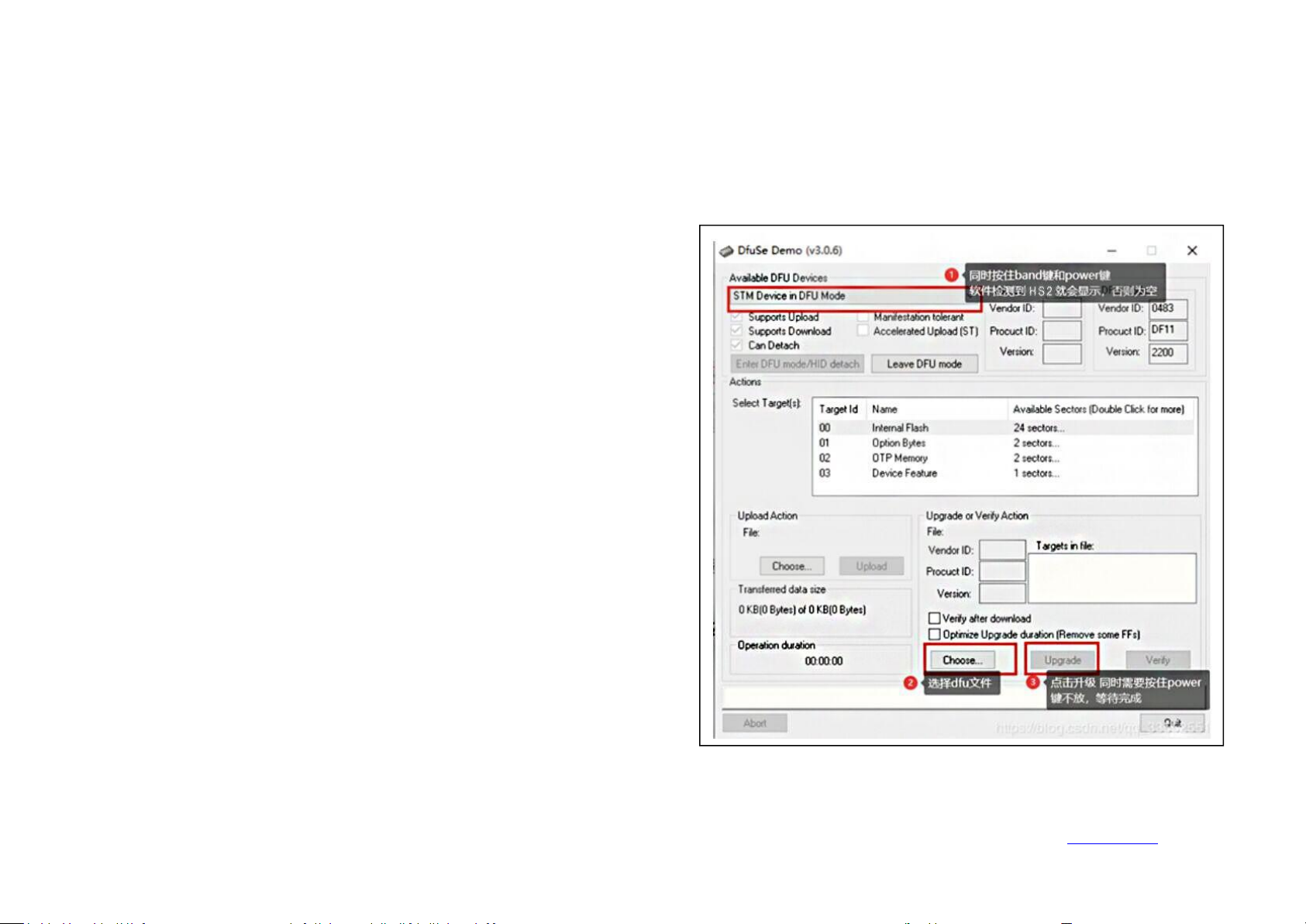
1. Open the DfuSe Demo software.
2. Plug the HS2 power supply and connect it to USB.
3. Hold down the BAND key and then hold down the POWER key. At this
time, if the computer is connected to the HS2 normally,①will display (STM
Device in DFU Mode). Otherwise, please check whether the computer is
properly connected to the HS2.
4. Select the firmware file *.dru
②
5. Hold down the BAND and power keys, click③Upgrade
At this point, the upgrade begins, wait for the progress bar to finish, release
the button, and restart the computer.
6. If you let go of the button or power off halfway, you only need to restart
the operation.
adjust the digital filter bandwidth a little bit. You will find that the noise will be greatly suppressed. At this time, you can also adjust the combination of the
previous RFG and IFG to achieve the best reception effect.
Through the above settings, you have mastered the advanced receiving settings of HS2. Now, let HS2 explore with you in the ocean of radio waves.
HS2 firmware upgrade
Back Homepage
Page 42

Ailunce HS2 HF/VHF/UHF Full Mode SDR Transceiver
41
Before using this radio, read this guide which contains important operating instructions for safe usage and RF energy awareness and
control for compliance with applicable standards and regulations.
RF ENERGY EXPOSURE AND PRODUCT SAFETY GUIDE FOR PORTABLE TWO-WAY RADIOS
This two-way radio uses electromagnetic energy in the radio frequency (RF) spectrum to provide communications between two or more users over a distance.
RF energy, which when used improperly, can cause biological damage.
All Retevis two-way radios are designed, manufactured, and tested to ensure they meet government-established RF exposure levels. In addition, manufacturers
also recommend specific operating instructions to users of two-way radios. These instructions are important because they inform users about RF energy exposure
and provide simple procedures on how to control it.
Please refer to the following websites for more information on what RF energy exposure is and how to control your exposure to assure compliance with
established RF exposure limits: http://www.who.int/en/
Local Government Regulations
When two-way radios are used as a consequence of employment, the Local Government Regulations require users to be fully aware of and able to control their
exposure to meet occupational requirements. Exposure awareness can be facilitated by the use of a product label directing users to specific user awareness
information. Your Retevis two-way radio has an RF Exposure Product Label. Also, your Retevis user manual or separate safety booklet includes information and
operating instructions required to control your RF exposure and to satisfy compliance requirements.
Radio License
Governments keep the radios in classification, business two-way radios operate on radio frequencies that are regulated. by the local radio management departments
(FCC, ISED, OFCOM, ANFR, BFTK, Bundesnetzagentur...).
Page 43

Ailunce HS2 HF/VHF/UHF Full Mode SDR Transceiver
42
To transmit on these frequencies, you are required to have a license issued by them. For the detailed classification and the use of your two radios, please
contact the local government radio management departments. The use of this radio outside the country where it was intended to be distributed is subject to
government regulations and may be prohibited.
Unauthorized modification and adjustment
Changes or modifications not expressly approved by the party responsible for compliance may void the user’s authority granted by the local government
radio management departments to operate this radio and should not be made. To comply with the corresponding requirements, transmitter adjustments
should be made only by or under the supervision of a person certified as technically qualified to perform transmitter maintenance and repairs in the private
land mobile and fixed services as certified by an organization representative of the user of those services. Replacement of any transmitter component
(crystal, semiconductor, etc.) not authorized by the local government radio management department equipment authorization for this radio could violate
the rules.
FCC Requirements:
This device complies with part 15 of the FCC Rules. Operation is subject to the condition that this device does not cause harmful interference. (Licensed
radios are applicable); This device complies with part 15 of the FCC Rules. Operation is subject to the following two conditions:
(Other devices are applicable)
(1) This device may not cause harmful interference, and
(2) this device must accept any interference received, including interference that may cause undesired operation.
NOTE: This equipment has been tested and found to comply with the limits for a Class A digital device, pursuant to part 15 of the FCC Rules. These
limits are designed to provide reasonable protection against harmful interference when the equipment is operated in a commercial environment. This
equipment generates, uses, and can radiate radio frequency energy and, if not installed and used in accordance with the instruction manual, may cause
harmful interference to radio communications. Operation of this equipment in a residential area is likely to cause harmful interference in which case the
user will be required to correct the interference at his own expense.
Page 44

Ailunce HS2 HF/VHF/UHF Full Mode SDR Transceiver
43
CE Requirements:
(Simple EU declaration of conformity) Shenzhen Retevis Technology Co., Ltd. declares that the radio
equipment type is in compliance with the essential requirements and other relevant provisions of RED Directive 2014/53/EU and the ROHS Directive
2011/65/EU and the WEEE Directive 2012/19/EU; the full text of the EU declaration of conformity is available at the following internet address:
www.retevis.com.
Restriction Information
This product can be used in EU countries and regions, including Belgium (BE), Bulgaria (BG), Czech Republic (CZ), Denmark (DK), Germany (DE),
Estonia (EE), Ireland (IE), Greece (EL), Spain (ES), France (FR), Croatia (HR), Italy (IT), Cyprus (CY), Latvia (LV), Lithuania (LT), Luxembourg (LU),
Hungary (HU), Malta (MT), Netherlands (NL), Austria (AT), Poland (PL), Portugal (PT), Romania (RO), Slovenia (SI), Slovakia (SK), Finland (FI),
Sweden (SE) and United Kingdom (UK). For the warning information of the frequency restriction, please refer to the package or manual section.
Disposal
The crossed-out wheeled bin symbol on your product, literature, or packaging reminds you that in the European Union, all electrical and electronic
products, batteries, and accumulators (rechargeable batteries) must be taken to designated collection locations at the end of their working life. Do not
dispose of these products as unsorted municipal waste. Dispose of them according to the laws in your area.
IC Requirements:
License-exempt radio apparatus This device contains license-exempt transmitter(s)/receiver(s) that comply with Innovation, Science, and Economic
Development Canada’s license-exempt RSS(s). Operation is subject to the following two conditions:
(1) This device may not cause interference.
(2) This device must accept any interference, including interference that may cause undesired operation of the device.
Le présent appareil est conforme aux CNR d’Industrie Canada applicables aux appareils radio exempts de licence. L’exploitation est autorisée aux deux
conditions suivantes :
(1) l’appareil ne doit pas produire de brouillage;
(2) l’utilisateur de l’appareil doit accepter tout brouillage radioélectrique subi, même si le brouillage est susceptible d’en compromettre le fonctionnement.
Page 45

Ailunce HS2 HF/VHF/UHF Full Mode SDR Transceiver
44
RF Exposure Information
•DO NOT operate the radio without a proper antenna attached, as this may damage the radio and may also cause you to exceed RF exposure limits. A
proper antenna is an antenna supplied with this radio by the manufacturer or an antenna specifically authorized by the manufacturer for use with this radio,
and the antenna gain shall not exceed the specified gain by the manufacturer declared.
•DO NOT transmit for more than 50% of total radio use time, more than 50% of the time can cause RF exposure compliance requirements to be exceeded.
During transmissions, your radio generates RF energy that can possibly cause interference with other devices or systems. To avoid such interference, turn
off the radio in areas where signs are posted to do so.
•DO NOT operate the transmitter in areas that are sensitive to electromagnetic radiation such as hospitals, aircraft, and blasting sites.
Portable Device, this transmitter may operate with the antenna(s) documented in this filing in Push-to-Talk and body-worn configurations. RF exposure
compliance is limited to the specific belt-clip and accessory configurations as documented in this filing and the separation distance between the user and
the device or its antenna shall be at least 2.5 cm.
Mobile Device, during operation, the separation distance between the user and the antenna subjects to actual regulations, this separation distance will
ensure that there is sufficient distance from a properly installed externally-mounted antenna to satisfy the RF exposure requirements.
Occupational/Controlled Radio, this radio is designed for and classified as”Occupational/Controlled Use Only”, meaning it must be used only during the
course of employment by individuals aware of the hazards, and the ways to minimize such hazards; NOT intended for use in a General
population/uncontrolled environment.
General population/uncontrolled Radio, this radio is designed for and classified as “General population/uncontrolled Radio”.
RF Exposure Compliance and Control Guidelines and Operating Instructions
To control your exposure and ensure compliance with the occupational/controlled environment exposure limits, always adhere to the following procedures.
Guidelines
•User awareness instructions should accompany the device when transferred to other users.
•Do not use this device if the operational requirements described herein are not met.
Page 46

Ailunce HS2 HF/VHF/UHF Full Mode SDR Transceiver
45
Operating Instructions:
•
Transmit no more than the rated duty factor of 50% of the time. To Transmit (Talk), push the Push to Talk (PTT) button. To receive calls (listen), release
the PTT button. Transmitting 50% of the time, or less, is important because the radio generates measurable RF energy exposure only when transmitting in
terms of measuring for standards compliance.
•
Transmit only when people outside the vehicle are at least the recommended minimum lateral distance away from a properly installed according to
installation instructions, externally mounted antenna.
•
When operating in front of the face, worn on the body, always place the radio in a Retevis approved clip, holder, holster, case, or body harness for this
product. Using approved body-worn accessories is important because the use of Non-Retevis approved accessories may result in exposure levels, which
exceed the IEEE/ICNIRP RF exposure limits.
population/uncontrolled Use”.
Hand-held Mode
•
Hold the radio in a vertical position with the microphone (and other parts of the radio including the antenna) at least 2.5 cm (one inch) away from the nose
or lips. The antenna should be kept away from the eyes. Keeping the radio at a proper distance is important as RF exposure decreases with increasing
distance from the antenna.
Phone Mode
•
When placing or receiving a phone call, hold your radio product as you would a wireless telephone. Speak directly into the microphone.Electromagnetic
Interference/Compatibility
NOTE: Nearly every electronic device is susceptible to electromagnetic interference (EMI) if inadequately shielded, designed, or otherwise configured for
electromagnetic compatibility.
Avoid Choking Hazard
Small Parts. Not for children under 3 years.
Page 47

46
Turn off your radio power in the following conditions:
•Turn off your radio before removing (installing) a battery or accessory or when charging battery.
•Turn off your radio when you are in a potentially hazardous environments: Near electrical blasting caps, in a blasting area, in explosive
atmospheres (inflammable gas, dust particles, metallic powders, grain powders, etc.).
•Turn off your radio while taking on fuel or while parked at gasoline service stations.To avoid electromagnetic interference and/or
compatibility conflicts
•Turn off your radio in any facility where posted notices instruct you to do so, hospitals or health care facilities (Pacemakers, Hearing Aids
and Other Medical Devices) may be using equipment that is sensitive to external RF energy.
•Turn off your radio when on board an aircraft. Any use of a radio must be in accordance with applicable regulations per airline crew
instructions.
Protect your hearing:
•Use the lowest volume necessary to do your job.
•Turn up the volume only if you are in noisy surroundings.
•Turn down the volume before adding a headset or earpiece.
•Limit the amount of time you use headsets or earpieces at high volume.
•When using the radio without a headset or earpiece, do not place the radio's speaker directly against your ear
•Use carefully with the earphone may be possible excessive sound pressure from earphones and headphones can cause hearing loss
Note: Exposure to loud noises from any source for extended periods of time may temporarily or permanently affect your hearing. The
louder the radio's volume, the less time is required before
•Your hearing could be affected. Hearing damage from loud noise is sometimes undetectable at first and can have a cumulative effect.
Ailunce HS2 HF/VHF/UHF Full Mode SDR Transceiver
Page 48

Ailunce HS2 HF/VHF/UHF Full Mode SDR Transceiver
47
Avoid Burns
Antennas
•Do not use any portable radio that has a damaged antenna. If a damaged antenna comes into contact with the skin when the radio is in use,
a minor burn can result.
Batteries (If appropriate)
•When the conductive material such as jewelry, keys or chains touch exposed terminals of the batteries, may complete an electrical circuit
(short circuit the battery) and become hot to cause bodily injury such as burns. Exercise care in handling any battery, particularly when
placing it inside a pocket, purse or other container with metal objects
Long transmission
•When the transceiver is used for long transmissions, the radiator and chassis will become hot.
Forbid
•Do not use charger outdoors or in moist environments, use only in dry locations/conditions.
•Do not disassemble the charger, that may result in risk of electrical shock or fire.
•Do not operate the charger if it has been broken or damaged in any way.
•Do not place a portable radio in the area over an air bag or in the air bag deployment area. The radio may be propelled with great force and
cause serious injury to occupants of the vehicle when the air bag inflates.
To reduce risk
•Pull by the plug rather than the cord when disconnecting the charger.
•Unplug the charger from the AC outlet before attempting any maintenance or cleaning.
Safety Operation
Page 49
A i l u n c e HS2HF/VHF/UHF F u l l M od e S D R T r a n s c e i v e r
48
•
Contact Retevis f o r assistance regarding repairs a n d service.
•
The adapter shallbe installed near theequipment a n d shallbe easily accessible.
Approved Accessories
•This r a d i o meets theRFexposure guidelines w h e n used with theRetevis accessories supplied or designated f o r theproduct. U s e of other
accessories maynot ensure compliance with theRFexposure guidelines a n d mayviolate regulations.
该文档是极速PDF编辑器生成,
如果想去掉该提示,请访问并下载:
http://www.jisupdfeditor.com/
 Loading...