

Page 1

Keysight 89600 Software
Notice: This document contains references to Agilent.
Please note that Agilent’s Test and Measurement
business has become Keysight Technologies. For more
information, go to www.keysight.com.
Quick Start Guide
Page 2
Keysight 89600 Software
Notices
Notices
© Keysight Technologies, Inc.
2000-2014
No part of this manual may be
reproduced in any form or by
any means (including electronic storage and retrieval or
translation into a foreign language) without prior agreement and written consent
from Keysight Technologies,
Inc. as governed by United
States and international copyright laws.
Manual Part Number
89600-90254
Edition
August 2014
Published in USA
Keysight Technologies, Inc.
1400 Fountaingrove Parkway
Santa Rosa, CA 95403 USA
Warranty
The material contained in
this document is provided
"as is," and is subject to
being changed, without
notice, in future editions.
Further, to the maximum
extent permitted by applicable law, Keysight disclaims all warranties,
either expressed or
implied, with regard to
this manual and any
information contained
herein, including but not
limited to the implied warranties of merchantability
and fitness for a particular
purpose. Keysight shall
not be liable for errors or
for incidental or consequential damages in connection with the
furnishing, use, or performance of this document or of any
information contained
herein. Should Keysight
and the user have a separate written agreement
with warranty terms covering the material in this
document that conflict
with these terms, the warranty terms in the separate agreement shall
control.
Technology Licenses
The hardware and/or software
described in this document are
furnished under a license and
may be used or copied only in
accordance with the terms of
such license.
Restricted Rights Legend
If software is for use in the performance of a U.S. Government prime contract or
subcontract, Software is
delivered and licensed as "Commercial computer software" as
defined in DFAR 252.2277014 (June 1995), or as a
"commercial item" as defined
in FAR 2.101(a) or as "Restricted computer software" as
defined in FAR 52.227-19
(June 1987) or any equivalent
agency regulation or contract
clause. Use, duplication or disclosure of Software is subject
to Keysight Technologies’
standard commercial license
terms, and non-DOD Departments and Agencies of the
U.S. Government will receive
no greater than Restricted
Rights as defined in FAR
52.227-19(c)(1-2) (June
1987). U.S. Government
users will receive no greater
than Limited Rights as defined
in FAR 52.227-14 (June
1987) or DFAR 252.227-7015
(b)(2) (November 1995), as
applicable in any technical
data.
Safety Notices
A CAUTION notice denotes a
hazard. It calls attention to an
operating procedure, practice,
or the like that, if not correctly
performed or adhered to,
could result in damage to the
product or loss of important
data. Do not proceed beyond a
CAUTION notice until the
indicated conditions are fully
understood and met.
A WARNING notice denotes a
hazard. It calls at tention to an
operating procedure, practice,
or the like that, if not correctly
performed or adhered to,
could result in personal injury
or death. Do not proceed beyond a WARNING notice until
the indicated conditions are
fully understood and met.
2 89600 Software Quick Start Guide
Page 3

Keysight 89600 Software
In this book
In this book
This guide documents how to install the Keysight 89600 software and a transportable license. It also documents how to view the software's online help and demo signal packages.
Other documentation
In addition to the Quick Start Guide (this book), the following documentation is included with your software:
The 89600 Software Installation Guide (InstallationGuide.pdf) is available on the installation DVD in
the manuals folder, during installation by clicking More Installation Choices > View Installation Guide,
or after you install the software in C:\Program Files\Agilent\89600Software xx.y\89600VSA
Software\Help (where xx.y is the VSA version number).
The 89600 Online Help is available after you install the software on your computer. The help provides
use and operation information.
The complete documentation (PDF files) for the Keysight IO libraries is located in C:\Program
Files\Agilent\IO Libraries Suite\Manuals (if you install the IO libraries).
Technical Specifications are available from the 89600 web page: http://www.keysight.com/find/89600
To read the PDF files, you must have Acrobat Reader installed on your computer. To install the latest
Acrobat Reader, go to: http://get.adobe.com/reader/
89600 Software Quick Start Guide 3
Page 4

Contents
In this book
Contents
Keysight 89600 Software 1
Quick Start Guide 1
Notices 2
Manual Part Number 2
Edition 2
Warranty 2
Technology Licenses 2
Restricted Rights Legend 2
Safety Notices 2
In this book 3
Other documentation 3
Contents 4
1 Overview 7
Keysight 89600 Software Operating Configurations 7
Installation and Configuration Process 8
2 Configuring Remote PC 9
3 Installing 89600 Software 13
Installing 89600 Software in a PC 13
Installing .NET Framework 3.5 on Windows 8 PCs 15
Installing 89600 Software in an Keysight X-Series Signal Analyzer 16
Installing 89600 Software in an Keysight Infiniium Scope 17
Installing 89600 Software in an Keysight Logic Analyzer 18
4 Installing Licenses 21
Transportable License 21
Redeeming a transportable license 21
Installing a transportable license 22
5 Using the VSA Online Help and Demos 25
Accessing Online Help 25
Start menu 25
Help menu 25
Dynamic help 26
4 89600 Software Quick Start Guide
Page 5

Contents
In this book
Help button on dialogs 26
F1 on the keyboard 26
Recalling a Demo Signal Package 27
89600 Software Quick Start Guide 5
Page 6

Contents
In this book
6 89600 Software Quick Start Guide
Page 7

Keysight 89600 VSA
89600 Software Quick Start Guide
1 Overview
The Keysight 89600 Quick Start Guide provides all necessary
instructions to install the Keysight 89600 software and a transportable license.
89600 Software
The Keysight 89600 software includes two applications: the Keysight 89600 VSA Vector Signal Analysis software and the Keysight
89600 WLA Wireless Link Analysissoftware. The software
InstallShield Wizard guides you though the installation process for
both applications.
Licensing
There are four types of licenses:
Demo: The Demo license is provided with the 89600 software installation and enables you to use the 89600 software with limited functionality.
Trial: The Trial license lets you immediately start using a
fully licensed 89600 software application for a temporary
trail period. When the trial period expires, you will need to
purchase a valid license for continued use.
Transportable: The Transportable license is used to license
the Keysight 89600 software plus options to only run on the
host PC. However, you do have the capability to transport
the license to a different PC, making it the new host PC.
Floating: The Floating or Network license provides the ability for different PC's to use a license that is stored on a network PC (or server).
This Quick Start Guide documents how to install the transportable
license. For information on how to install the demo, trial, or floating
license types, see the Installation Guide (InstallationGuide.pdf)
available on the installation DVD in the manuals folder, during
installation by clicking More Installation Choices > View Installation
Guide, or after you install the software in C:\Program Files\A-
gilent\89600 Software xx.y\89600 VSA Software\Help (where
xx.y is the VSA version number).
Keysight 89600 Software Operating Configurations
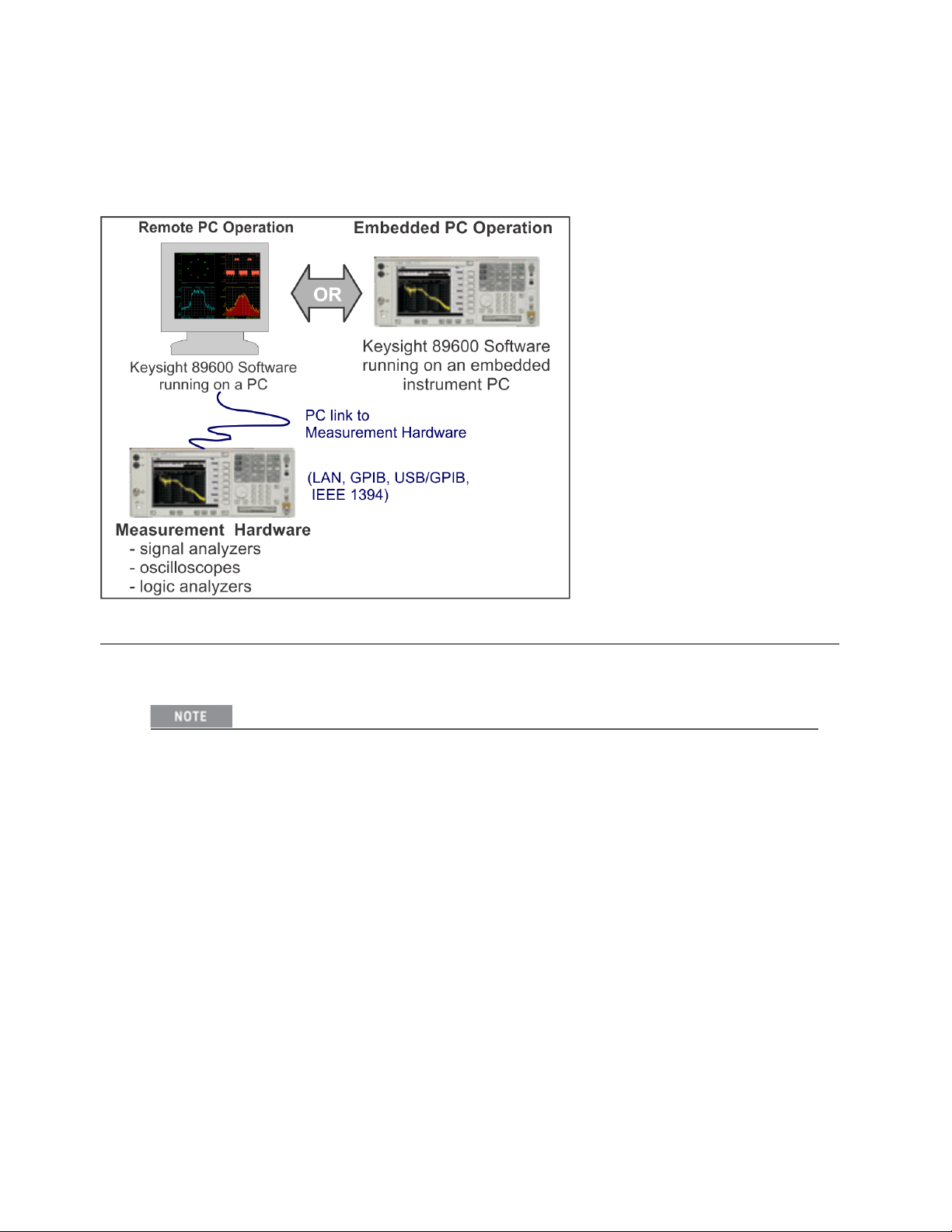
The Host PC is the computer that will run the Keysight 89600 software. There are two 89600 software operating configurations:
Remote PC Operation and Embedded PC Operation (also referred to
7
Page 8
1 Overview
Installation and Configuration Process
as Embedded Instrument Operation). In a Remote PC Operation, the software runs on a standalone host PC
linked to the measurement hardware via the I/Ointerface, such as LAN, GPIB, USB, and IEEE 1394. In an
Embedded PC Operation, the 89600 software runs on a PC embedded in the measurement hardware platform such as the Keysight X-Series Analyzer, Keysight Infiniium Scope, and Keysight Logic Analyzer.
Installation and Configuration Process
The Keysight 89600 software installation process includes the following primary steps:
1.
Set up and configure the remote PC.
Skip this step if you are installing the software in an embedded PC operation.
Go to Chapter 2 See "Configuring Remote PC" to setup and configure the remote PC hardware including:
2.
Install the 89600 software.
Go to Chapter 3 See "Installing 89600 Software" and follow the instructions to install the Keysight
89600 software.
3.
License the Keysight 89600 software.
Go to Chapter 4 See "Installing Licenses" and follow the instructions to license the Keysight 89600
software and option.
8 89600 Software Quick Start Guide
Page 9
Keysight 89600 VSA
89600 Software Quick Start Guide
2 Configuring Remote PC
This chapter only applies to the remote PC operation configuration.
This contains information to setup and configure the PC including
system requirements, I/O interface requirements, and the PC interface installation and setup procedure.
If you are going to install the software in an embedded
PC operation, skip this chapter and go directly to See
"Installing 89600 Software".
1. Verify your PC meets the system requirements listed in the
following table.
Characteristic
Operating system
CPU 1 GHz (>2 GHz recommended)
RAM 2 GB (4 GB recommended)
Video RAM 128 MB (512 MB recommended)
Hard disk 1 GB available
Additional drives DVD to load the software; license
Interface support LAN, GPIB, USB, or IEEE-1394 (VXI
Browser Internet Explorer Version 9.0 or higher
* For VXI hardware and 64 bit Windows 7 operating system configuration, you must use Keysight IO Libraries
version 16.1 or later.
Requirement
Microsoft Windows 7 Professional,
Enterprise, or Ultimate (32 bit or 64 bit)
Microsoft Windows 8 Professional or
Enterprise (32 bit or 64 bit)
transfer requires network access or a
USB memory device
hardware only*)
required for full context-sensitive help
functionality.
2. Verify that your PC's I/Ointerface meets the requirements
listed in the following table.
If you are only using simulated measurement
hardware or signal simulation software, you
do not need to install/configure an I/O
9
Page 10
2 Configuring Remote PC
Using the following table, determine what type of PC and I/O interface is required for your measurement hardware. Note that you may need to install and configure more than one interface.
If the PC already supports the I/O interface, skip the remainder of this chapter and install the
89600 VSA software—go to See "Installing 89600 Software in a PC".
If the PC supports the I/O interface but it is not currently installed, you will need to install and
configure the I/O interface hardware on the PC—go to See "Installing I/O Interface Hardware".
If the PC does not support the I/O interface, you can not use the 89600 VSA software with your
measurement hardware.
Measurement Hardware Computer Type Interface
interface. You can skip the remainder of this chapter and go directly to See "Installing
89600 Software in a PC".
VXI (Keysight 89610, 89611, 89640,
89641)
Keysight ESA Laptop or desktop PC GPIB, or USB/GPIB
Keysight ESA-E Series Analyzer Laptop or desktop PC GPIB or USB/GPIB
Keysight InfiniiVision 6000/7000 Series Oscilloscope
Keysight Infiniium Oscilloscope Laptop or desktop PC or
Keysight Logic Analyzer Laptop, desktop PC, or
Keysight X-Series Signal Analyzer Laptop, desktop PC, or
Keysight N4010 Wireless Connectivity Test Set
Keysight PSA (used as ADC)* Laptop or desktop PC LAN, GPIB, USB, or
Keysight N7100 Series Multi-Channel Signal Analysis System (N7109A)
Laptop or desktop PC
Laptop or desktop PC LAN, GPIB, or USB/GPIB
embedded Windows 7
scope
embedded PC
embedded PC
Laptop or desktop PC USB, LAN, GPIB, or
Laptop or desktop PC LAN
IEEE-1394 VXI to PC***
adapter
LAN, GPIB, USB/GPIB, or
internal
LAN, IEEE-1394 (only for
1690 Series), or internal
LAN or internal**
USB/GPIB
USB/GPIB*
* To use GPIB with the PSA, your PSA firmware must be version A.4.0 or later. With earlier firmware versions, you must use the LAN connection.
** The Keysight X-Series Signal Analyzer embedded PC operation only supports a LAN interface
between the analyzer and an Keysight Source.
10 89600 Software Quick Start Guide
Page 11

*** For VXI hardware and 64 bit Windows 7 operating system configuration, you must use Keysight IO Libraries version 16.1 or later.
3. Installing I/O Interface Hardware
a. Install I/O Interface Card(s) in the PC.
Install all necessary I/O interface card(s) in the PC per the instructions that came with the
I/O interface card vendor documentation.
National Instruments GPIB card: For a National Instruments GPIB card, be sure to
install the NI 488.2 software first, then reboot your PC and install the interface card.
Exclude Multiple GPIB Devices: If this PC controls other GPIB measurement hardware or devices, you need to exclude those devices from the 89600 identification process.
b.
Configure the PC I/O Interface.
Configure the I/O interface card(s) in the PC per the instructions that came with the I/O interface card vendor documentation.
You can typically use the default I/O interface hardware settings.
2 Configuring Remote PC
GPIB: For GPIB interfaces, make sure that each measurement hardware has a
unique GPIB address—multiple GPIB devices cannot use the same GPIB address.
If the PC and measurement hardware are connected to a local internal LAN, you may
need to check with your network administrator to verify that the IP addresses for the
PC and measurement hardware satisfy requirements.
c.
Cycle power OFF/ON on all system hardware.
After completing the hardware I/O connections, cycle the power OFF/ON on the PC and all connected measurement hardware.
d.
Next install the 89600 VSA software. Go to See "Installing 89600 Software in a PC".
89600 Software Quick Start Guide 11
Page 12

2 Configuring Remote PC
12 89600 Software Quick Start Guide
Page 13
Keysight 89600 VSA
89600 Software Quick Start Guide
3 Installing 89600 Software
This procedure installs the 89600 VSA and WLA software.
There are different installation procedures for each operating configuration—Remote PC and Embedded PC configuration. Remote PC
configuration requires installing the software in a PC. Embedded PC
configuration requires installing the software in the measurement
hardware; there are also different install procedures for different
measurement hardware types.
Select and use the software installation procedure for your particular installation:
Remote PC Configuration
See "Installing 89600 Software in a PC"
Embedded PC Configuration
See "Installing 89600 Software in an Keysight X-Series Signal Analyzer"
See "Installing 89600 Software in an Keysight Infiniium
Scope"
See "Installing 89600 Software in an Keysight Logic Analyzer"
Installing 89600 Software in a PC
To install the Keysight 89600 software in a remote PC configuration:
1.
Close any applications you have open.
To install the Keysight 89600 software, you
must have administrator privileges.
2.
Insert the Keysight 89600 software installation DVD.
3.
If the installation utility does not start automatically,
navigateto the DVD drive and double-click this file:
autoplay.exe
4.
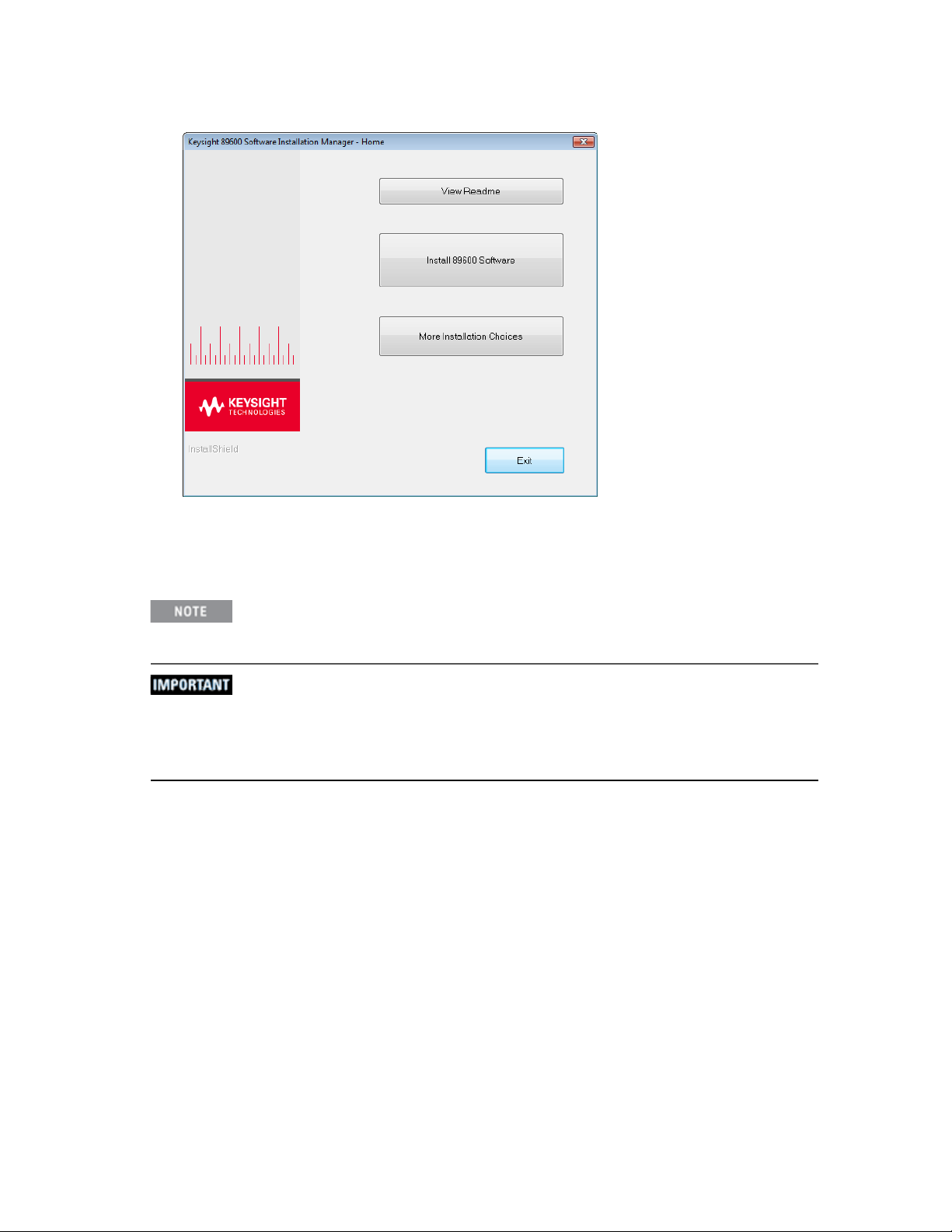
When the Keysight 89600 Installation Manager window
opens, click View Readme then review the following sec-
tions of the Readme file.
Required Minimum License Version
Installation Information
13
Page 14
3 Installing 89600 Software
Installing 89600 Software in a PC
5.
After reviewing the Readme file, start the software installation by clicking Install 89600 Software. Step
through the InstallShield Wizard and stop at the Select Products and Features window.
6.
Select the Products and Features you want to install, click Next then continue through the
InstallShield Wizard to complete the installation.
If you are installing Keysight 89600 WLASoftware, click the Keysight 89600 WLASoftware
option. The Keysight 89600 WLASoftware can only be installed with the Keysight 89600
VSASoftware. However the WLASoftware can be installed at a later time.
Windows 8: if you do not have .NET Framework 3.5 installed, a dialog will pop up during
installation that will prompt you to install the .NET Framework. Please click Download and
install this feature. If you do not have Internet access, you can follow the procedure See
"Installing .NET Framework 3.5 on Windows 8 PCs" to install the .NET Framework from the
Windows 8 Installation DVD.
7.
After the 89600 software installation has finished, the Select Hardware Support dialog opens. Hardware support adds hardware connectivity to the 89600 software. You can select the Hardware Sup-
port Menu option (default selection) to add hardware support now or select Do not install hardware
support to not install this functionality. If you select Do not install hardware support, you can install
hardware support at a later time—see the 89600 Software Installation Guide for instructions.
a.
To add hardware support, select Hardware Support Menu then click Next.
b.
On the Hardware Support Menu dialog, select the components to add then click Install Hard-
ware Support and follow the prompts to complete the installation.
8.
The installation process configures your system environment for the 89600 software applications.
Some installations may required a system PC reboot. If this occurs, click OK to reboot.
14 89600 Software Quick Start Guide
Page 15
3 Installing 89600 Software
Installing 89600 Software in a PC
After rebooting you will need to be logged on with administrative privileges to complete
the installation.
When installing from a remotely mounted DVD drive, the remote drive must be configured
to reconnect at logon so that the installation files can be located after the reboot.
9.
When the installation is complete, exit the Installation Manager.
10.
Start the 89600 VSA. Click Start > (All) Programs > Keysight 89600 Software
VSA
xx.y
(where xx.y is the VSA version number).
Next the software and options need to be licensed. To learn how to obtain a license, see See "Installing
Licenses".
The first time you install the 89600 software on Windows 8, a tile for each 89600 software shortcut will
be created on the Start screen. You can right-click these tiles and remove them from the Start screen
by choosing Unpin from Start; or drag to rearrange them into a group, and name the group by zooming out (click "-" at bottom right of screen) and then right-clicking the group and choosing Name
xx.y
> Keysight 89600
group.
Installing .NET Framework 3.5 on Windows 8 PCs
Follow this procedure to install the .NET Framework 3.5 before installing the 89600 software on Windows 8
PCs without Internet access.
1.
Check to see if .NET Framework 3.5 is already installed
a.
Click Control Panel >Programs >Turn Windows features on or off
b.
If the .NET Framework 3.5 (includes .NET 2.0 and 3.0) check box is completely empty, con-
tinue with the rest of this procedure. Otherwise, skip to step 2 in See "Installing 89600 Soft-
ware in a PC"
2.
Close the Windows Features dialog
3.
If you have a Windows 8 Installation DVD, insert it into your computer or mount the ISO image.
If you don't have a Windows 8 Installation DVD, use the files in the Keysight_89600_dvd installation
folder.
4.
Open an Administrator command prompt
a.
Move the mouse to the lower left-hand corner of the screen.
b.
Right-click and choose Command Prompt (Admin)
c.
Click Yes at the User Account Control dialog if prompted
5.
Type the following command (on a single line) and press Enter:
dism /online /enable-feature /featurename:NetFX3 /Source:<dot-net-location> /limitaccess
where <dot-net-location> is defined as:
<installed drive>:\Keysight_89600_dvd\ISSetupPrerequisites\{074EE22F-24854FED-83D1-AAC36C3D9ED0} or
d:\sources\sxs where d is the drive where the Windows 8 DVD is mounted.
6.
Wait until the feature is installed (you will see the text: "The operation completed successfully.")
89600 Software Quick Start Guide 15
Page 16
3 Installing 89600 Software
Installing 89600 Software in an Keysight X-Series Signal Analyzer
7.
Restart the computer if prompted
8.
Proceed with step 2 in See "Installing 89600 Software in a PC"
Installing 89600 Software in an Keysight X-Series Signal Analyzer
Verify that the Instrument software revision (System hardkey > Show softkey > System softkey) is
A.13.XX or greater.
Since the Keysight X-Series Signal Analyzers do not have internal DVD drives, you must first copy the contents of the Keysight 89600 software DVD onto a USB Drive. The Keysight 89600 software DVD is not protected or encrypted. The copy will be identical to the original DVD.
This procedure assumes that a USB Flash Drive is being used. Other USB storage devices, such as a
USB hard drive or USB DVD drive, could also be used.
To install the 89600 VSA software in an Keysight X-Series Signal Analyzer using a USB Flash drive:
1.
Insert the Keysight 89600 software DVD into a PC’s DVD drive. If the Keysight 89600 Installation
Manager window opens, close the installer program (click Exit).
2.
Insert a USB Flash Drive into a USB port on the same PC in which the Keysight 89600 software DVD
is loaded.
3.
Use Windows Explorer to copy the contents of the Keysight 89600 software DVD onto the USB Flash
Drive.
4.
Connect a USB keyboard and mouse to the analyzer.
To install the Keysight 89600 software on the analyzer, you need to have administrator
privileges. Press Ctrl - Alt - Delete, then click Log Off.... Log back in as the Administrator.
The default password is agilent4u.
5.
Insert the USB Flash Drive into an available USB port on the analyzer.
6.
Open Windows Explorer and navigate to the USB drive.
7.
Double-click autoplay.EXE.
8.
When the Keysight 89600 Installation Manager window opens, please read the Readme information.
9.
After you read the Readme file, close it, then click Install 89600 Software. Continue through the
InstallShield Wizard until you reach the Select Products and Features window.
10.
Select the features you want to install, then continue through the InstallShield Wizard to complete
the installation.
11.
When the installation is complete, exit the Installation Manager.
12.
Start the X-Series analyzer application: Double-click the LaunchXSA icon on the Windows desktop.
13.
After the X-Series analyzer finishes booting up, start the Keysight 89600 software (press the Mode
hardkey then press the More softkey until the 89601 VSA softkey appears. Press the 89601 VSA
softkey followed by the Start 89601B softkey to launch the VSA software).
Next the software and options need to be licensed. To learn how to obtain a license, see See "Installing
Licenses".
16 89600 Software Quick Start Guide
Page 17

3 Installing 89600 Software
Installing 89600 Software in an Keysight Infiniium Scope
Installing 89600 Software in an Keysight Infiniium Scope
Embedded operation with the 89600 is not recommended for the Infiniium 8000 and 80000 Series
scopes.
Many Infiniium oscilloscopes provide an open Microsoft Windows 7 operating system that enables you to
install other applications. You can install and operate the 89600 Vector Signal Analysis software on these
scopes.
Some Keysight Infiniium scopes have no DVD drive, so for these scopes you must use a USB drive. If you are
installing from a USB drive, you must copy the contents of the Keysight 89600 software DVD onto the USB
Drive. The Keysight 89600 software DVD is not protected or encrypted. The copy will be identical to the original DVD.
To install the 89600 VSA and 89600 WLA software in a Windows 7 scope:
1. Increase the scope's virtual memory to at least 1 GB as follows:
a. Minimize the scope application.
b.
Navigate to: Control Panel > Administrative Tools (double-click) > Computer Management
(double-click) > Computer Management (Local) (right-click) > Properties > Advanced (tab)>
Performance Settings (button) > Virtual Memory - Change (button) to display the Virtual
Memory dialog screen.
c. Set Initial Size (MB) and Maximum Size (MB) to 1000 MB (or more if you have sufficient
Space Available), then click Set > OK > OK (reboot message) > OK > OK.
d.
When the System Settings Change dialog appears, click Yes to restart the computer.
2. Insert the Keysight 89600 software installation DVD into the scope's DVD drive. If your scope does
not have a DVD drive, use the following procedure:
This procedure assumes that a USB Flash Drive is being used. Other USB storage
devices, such as a USB hard drive or USB DVD drive, could also be used.
a. Insert the Keysight 89600 software DVD into a PC’s DVD drive. If the Keysight 89600 Install-
ation Manager window opens, close the installer program (click Exit).
b. Insert a USB Flash Drive into a USB port on the same PC that the Keysight 89600 software DVD
is in.
c. Copy the contents of the Keysight 89600 software DVD onto the USB Flash Drive.
d. Connect a USB keyboard and mouse to the scope.
To install the Keysight 89600 software on the scope, you need to have administrator
privileges. Press Ctrl - Alt - Delete, then click Log Off.... Log back in as the Admin-
istrator.
e. Insert the USB Flash Drive into an available USB port.
f. Open Windows Explorer and navigate to the USB drive.
g. Double-click autoplay.EXE to bring up the Keysight 89600 Installation Manager.
3. When the Keysight 89600 Installation Manager window opens, please read the Readme information.
89600 Software Quick Start Guide 17
Page 18
3 Installing 89600 Software
Installing 89600 Software in an Keysight Logic Analyzer
4.
After you read the Readme file, close it then click Install 89600 Software. Continue through the
InstallShield Wizard until you reach the Select Products and Features window.
5. Select the features you want to install, then continue through the InstallShield Wizard to complete
the installation.
6. When the installation is complete, exit the Installation Manager.
7.
Start the 89600 VSA. Click Start > Programs > Keysight 89600 Software
xx.y
(where xx.y is the VSA version number).
Next the software and options need to be licensed. To learn how to obtain a license, see See "Installing
Licenses".
xx.y
> Keysight 89600 VSA
Installing 89600 Software in an Keysight Logic Analyzer
Some Keysight Logic Analyzers have no DVD drive, so for these analyzers you must use a USB drive. If you
are installing from a USB drive, you must copy the contents of the Keysight 89600 software DVD onto the
USB Drive. The Keysight 89600 software DVD is not protected or encrypted. The copy will be identical to the
original DVD.
To install the 89600 VSA and 89600 WLA software in a logic analyzer:
1. Insert the Keysight 89600 software DVD into the logic analyzer's DVD drive. If your logic analyzer
does not have a DVD drive, use the following procedure:
This procedure assumes that a USB Flash Drive is being used. Other USB storage
devices, such as a USB hard drive or USB DVD drive, could also be used.
a. Insert the Keysight 89600 software DVD into a PC’s DVD drive. If the Keysight 89600 Install-
ation Manager window opens, close the installer program (click Exit).
b. Insert a USB Flash Drive into a USB port on the same PC that the Keysight 89600 software DVD
is in.
c. Copy the contents of the Keysight 89600 software DVD onto the USB Flash Drive.
d. Connect a USB keyboard and mouse to the analyzer.
To install the Keysight 89600 software on the logic analyzer, you need to log on with
administrator privileges.
e. Insert the USB Flash Drive into an available USB port on the analyzer.
f. Open Windows Explorer and navigate to the USB drive.
g. Double-click autoplay.EXE to bring up the Keysight 89600 Installation Manager.
2. When the Keysight 89600 Installation Manager window opens, please read the Readme information.
3.
After you read the Readme file, close it then click Install 89600 Software. Continue through the
InstallShield Wizard until you reach the Select Products and Features window.
4. Select the features you want to install, then continue through the InstallShield Wizard to complete
the installation.
5. When the installation is complete, exit the Installation Manager.
When installing the 89600 VSA in a logic analyzer mainframe, Hardware support is dis-
abled. This prevents using disk space for unnecessary components that are not needed
when the 89600 VSA software is installed in a logic analyzer.
18 89600 Software Quick Start Guide
Page 19

3 Installing 89600 Software
Installing 89600 Software in an Keysight Logic Analyzer
6.
Start the 89600 VSA. Click Start > (All) Programs > Keysight 89600 Software
VSA
xx.y
(where xx.y is the VSA version number).
Next the software and its options must be licensed. To learn how to obtain a license, see See "Installing
Licenses".
xx.y
> Keysight 89600
89600 Software Quick Start Guide 19
Page 20

3 Installing 89600 Software
Installing 89600 Software in an Keysight Logic Analyzer
20 89600 Software Quick Start Guide
Page 21
Keysight 89600 VSA
89600 Software Quick Start Guide
4 Installing Licenses
The 89600 software and options must be licensed to operate in a
useful manner. The 89600 software has four types of licenses:
Demo, Trial, Transportable, and Floating. The Demo license is
installed with the 89600 software.
This chapter describes how to install a Transportable license. For
instructions on installing the other types of licenses, see the Installation Guide (InstallationGuide.pdf), which is available on the installation DVD in the manuals folder, during installation by clicking More
Installation Choices > View Installation Guide, or after you install
the software in C:\Program Files\Agilent\89600 Software
xx.y\89600 VSA Software\Help (where xx.y is the VSA version
number).
Transportable License
This section describes the steps to obtain and install a Transportable
license. The Transportable license enables the 89600 software and
options that you purchased. The license must be installed on the
same computer that runs the 89600 software. However, the
license can be transferred from one computer to another computer.
Licensing the 89600 Software is a two step process:
1. Redeem the License.
Go to See "Redeeming a transportable license ".
2. Install the License file.
Go to See "Installing a transportable license ".
The term PC refers to any computer or instrument (such
as analyzers and oscilloscopes) running the 89600 software.
Redeeming a transportable license
To redeem a Transportable license, follow these steps:
1.
Collect the Software License Entitlement Certificates for all
89600 software options that you purchased. The Software
License Entitlement Certificates are included with the
89600 VSA Software Installation Materials envelope (printed on gray parchment).
The Software License Entitlement Certificate
also includes instructions to redeem your
licenses.
21
Page 22
4 Installing Licenses
Transportable License
2. Obtain the Host identification information (Host ID) for the PCon which you are installing the
89600software license. Use the Keysight License Service utility or Keysight License Manager to
obtain the Host ID.
a.
Open the About Keysight License Service utility, right click the "Keysight License Service icon
in the Windows desktop notification area (lower right side of the Windows Task bar) and
select About Keysight License Service.
b.
Click the Copy button to the right of the Host IDbox. The Host IDinformation is copied into
the Windows clipboard.
3.
Redeem your licenses and obtain the license files.
Follow the instructions included on the Software License Entitlement Certificate to redeem your
licenses and obtain the license files. Go to the Keysight Software Manager website:
http://www.keysight.com/find/softwaremanager
First time access will require you to register.
Remember your user password. The password is required for future access to manage your licenses.
You will need the Keysight Order Number and Keysight Certificate Number located on the top of
your Software License Entitlement Certificate.
4. Install License File(s):Check your email for the license file(s) and then install the license file(s) on the
PC—go to See "Installing a transportable license ".
Installing a transportable license
Installing the license file is necessary to license the 89600 software. After completing See "Redeeming a
transportable license ", you will receive an Keysight email containing your license file for the redeemed Enti-
tlement Certificates. Follow these steps to install the license files on the PC:
1. Copy the email attachment with the .lic file extension to a folder on your PC, connected hard drive, or
USB storage device.
2.
Start the Keysight License Manager: click Utilities > Licenses > Status > Keysight License Manager or
double click the Keysight License Service icon .
3.
In the Keysight License Manager, click File > Install, browse to the location where you saved the .lic
license file, select the license file and click the Open button. Or, you can drag-and-drop the license file
onto the Keysight License Manager Licensed Products and Features window.
The Keysight License Manager installs the license and lists it in the Keysight License Manager window, localhost node.
The install operation can take up to 40 seconds to complete.
After installing the license file, verify that the Options are licensed for use by the Keysight 89600 software.
4.
Start the Keysight 89600 software, open the Licenses Options dialog (click Utilities > Licenses >
Options) and verify the options are correctly licensed (Yes in the On column).
22 89600 Software Quick Start Guide
Page 23

4 Installing Licenses
Transportable License
"On" Column License Status
Yes Option is licensed for use.
-- Dash indicates that the license option has not been selected for
use by the VSA. To include an option, open the
Options
to include in the VSA measurement capability (click St art > (All)
Programs/All apps > Keysight 89600 Software xx.y > Syst em Utility > Select License Opt ions, where
ber). The VSA must be closed and restarted to incorporate the
changes.
No Option is not licensed for use.
See Also
For details on installing other license types, see Installing Licenses in the Keysight License Manager Help
(click Help > Keysight License Manager Help from within the Keysight License Manager utility or click Start >
system utility and select (check) the options that you want
xx.y
Select License
is the VSA version num-
(All) Programs/All apps > Keysight License Manager > Keysight License Manager Help).
89600 Software Quick Start Guide 23
Page 24

4 Installing Licenses
Transportable License
24 89600 Software Quick Start Guide
Page 25

Keysight 89600 VSA
89600 Software Quick Start Guide
5 Using the VSA Online Help and Demos
Now that you have installed and licensed your Keysight 89600 software, it is time to start using it. The best way to learn how to use
the VSA software is to view the online help and demo signal packages.
Accessing Online Help
There are multiple ways to access the 89600 VSA help, as listed in
the following sections.
Start menu
After installing the 89600 VSA software, you can click the Windows
Start button > (All) Programs > Keysight 89600 Software 15.00 >
Help > Help to open the 89600 VSA help system.
Help menu
While the VSA software is running, click Help from the main menu
then select one of the following menu items:
This menu item… Does this…
Show Help Opens the 89600 VSA help system in an
external window.
Search Help Opens the 89600 VSA help system to
the search tab.
Dynamic Help
Getting Started Opens a topic with links to information
Demos Opens a list of demo signals that are
.NET API Reference Opens the 89600 VSA .NET API ref-
SCPIReference Opens the 89600 VSA SCPI reference in
Keysight 89600 VSA website
Keysight VSA forums Opens the Keysight VSA forums.
Technical Support Opens the 89600 VSA Technical Sup-
Opens the dynamic help panel. By
default, dynamic help is shown in a tool
window that is docked to the right-hand
side of the VSA main window.
about getting started with the 89600
VSA.
provided with the VSA.
erence in a separate help window.
a separate help window.
Opens the 89600 VSA website in the
default web browser.
port website.
25
Page 26

5 Using the VSA Online Help and Demos
Accessing Online Help
This menu item… Does this…
About... Shows information about the VSA soft-
ware, including what software version is
installed on your computer.
Dynamic help
Dynamic help is the quickest and easiest method to find help. To open the dynamic help window, select Help
> Dynamic Help. The current topic follows the user interface item that currently has focus.
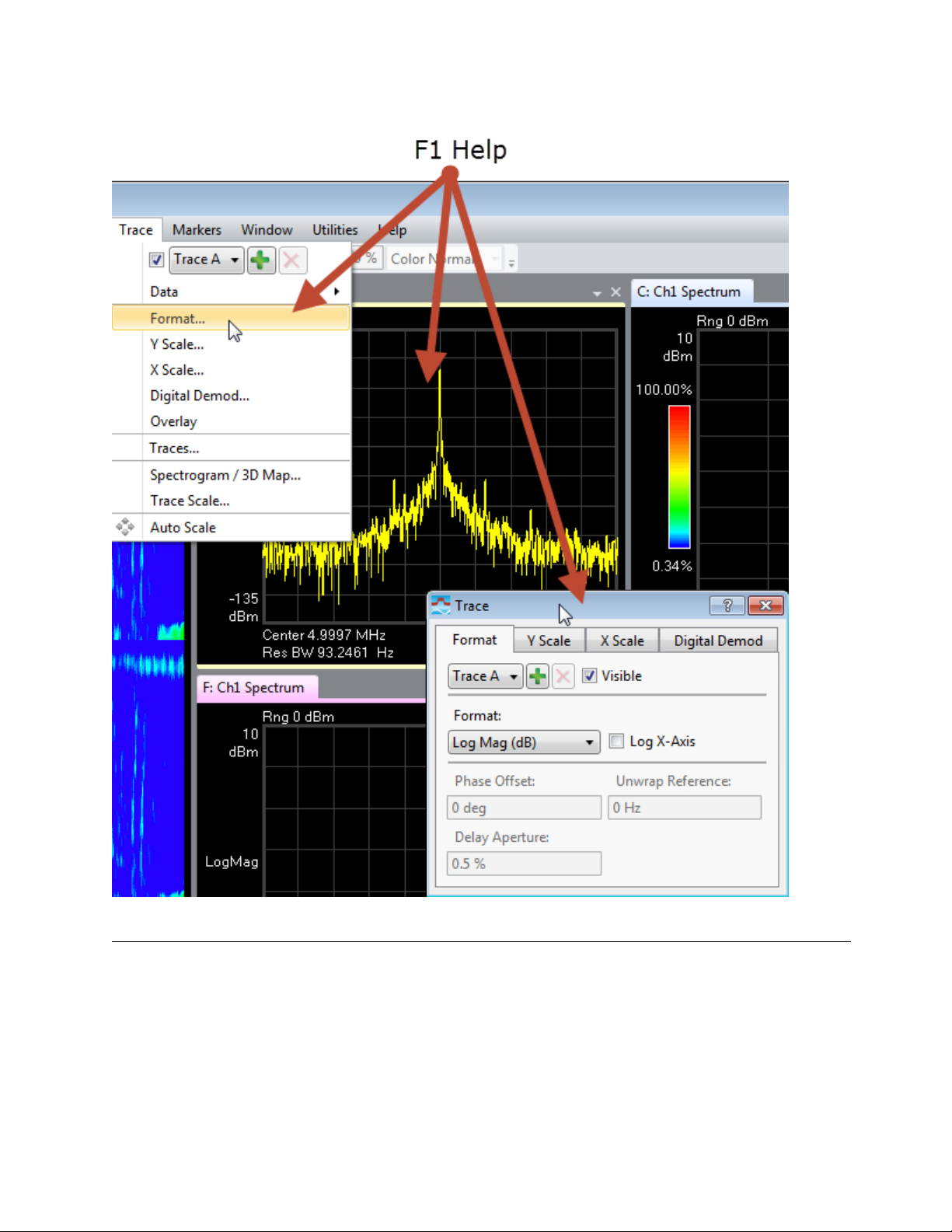
Help button on dialogs
You can access help for any dialog box by clicking the ? button in title bar of the dialog box.
In the following illustration, clicking the Help button opens the VSA help for the Format tab of the Digital
Demod Properties dialog box.
F1 on the keyboard
You can access context-sensitive help by pressing the F1 key.
When you are viewing a dialog box, pressing F1 shows the same information as clicking the ? button. The F1
help also works on menus and traces.
Pressing F1 while a menu item is highlighted opens context-sensitive help for that menu item.
26 89600 Software Quick Start Guide
Page 27
5 Using the VSA Online Help and Demos
Recalling a Demo Signal Package
Recalling a Demo Signal Package
Recalling a demo signal package is a good way to learn about the measurement capabilities and features of
the 89600 VSA. The 89600 VSA provides various demo signal packages that include recorded signals, signal
setup files, or Signal Studio setup files, and a demo help topic.
To view the available demo signals, open the Demo and Recorded Signals help topic (click Help > Demos).
89600 Software Quick Start Guide 27
Page 28

5 Using the VSA Online Help and Demos
Recalling a Demo Signal Package
To recall a demo:
1.
Click File > Recall > Recall Demo.
2. In the Recall Demo dialog, browse to C:\Program Files\Agilent\89600 Software xx.y\89600
VSA Software\Help\Signals where xx.y is the version number of the software.
3. Select a Demo file of interest. For example, browse to AM FM PM, then select XMITTER.htm.
4.
Click Open. The VSA recalls the instrument setup (measurement state), loads the recorded signal,
and opens the corresponding help file in a separate window.
5. Read the Demo help file to learn about the recorded signal and the VSA setup information.
6.
To start the measurement, click the Restart button ( ) in the tool bar or click Control > Restart.
28 89600 Software Quick Start Guide
 Loading...