

Page 1
HP 8530A Microwave Receiver
User's Guide
ABCDE
No
art
P
HP
.A.
.S
U
Printed
in
Edition
08530-90016
.
ebruary
F
3
1994
Page 2
Notice
This document contains proprietary information which is protected by copyright. All rights are
reserved. No part of this document may be photocopied, reproduced, or translated to another
language without prior written consent of Hewlett-Packard Company.
NOTE: Figure A-1 and Figure A-3 may be photocopied for use by the operator of the HP 8530A.
These gures may not be reproduced in other documents.
Hewlett-Packard Company
Santa Rosa Systems Division
1400 Fountaingrove Parkway
Santa Rosa, CA 95403, U.S.A.
c
Copyright 1991,
1992,
1993,
1994
Hewlett-P
ackard
Co
.
Page 3

Printing History
New editions of this manual will incorporate all material updated since the previous editions.
The manual printing date and part number indicate its current edition. The printing date
changes when a new edition is printed. (Minor corrections and updates which are incorporated
at reprint do not cause the date to change.) The manual part number changes when extensive
technical changes are incorporated.
Edition Date
Edition 1 October 1991
Edition 2 May 1992
Edition 3 October 1993
Manual Applicability
This manual applies directly to HP 8530A Receivers having an HP 85102R IF detector with
serial
number
prex
3238A
or
higher
running
,
rmware
revision
A.01.60
W
Safety
Safety
,
warranty
,
Programming
arning
W
Caution
Regulatory
arranty
and
,
Manual
Before
grounded
socket
Any
outside
can
,
regulatory
.
instrument
this
through
outlet
provided
interruption
the instrument,
result in
personal injury
information
the
of
Before this instrument is switched on,
Information
supplied
is
make
,
is switched
on
protective conductor
with protective
the protective
(grounding) conductor
or disconnection
.
make sure its primary power circuitry
8530A
HP
the
in
it
sure
the
of
earth contact.
of the
protective earth
has
ac
power
Operating
properly
been
cable
inside
,
and
to
or
terminal
has been adapted to the voltage of the ac power source.
Failure to set the ac power input to the correct voltage could cause damage to
instrument
the
when
the
ac
power
cable
plugged
is
in.
a
iii
Page 4
Instrument Overview
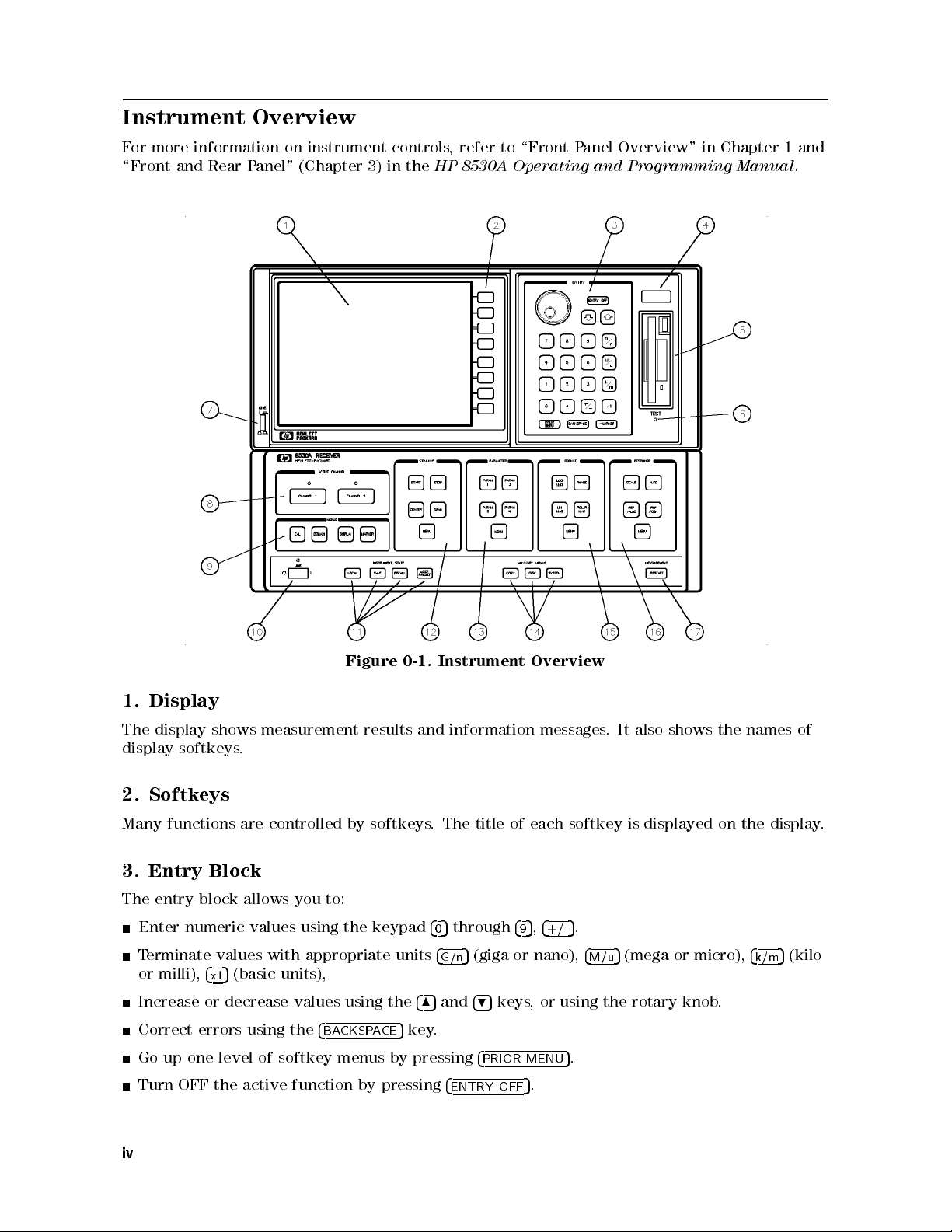
For more information on instrument controls, refer to \Front Panel Overview" in Chapter 1 and
\Front and Rear Panel" (Chapter 3) in the
HP 8530A Operating and Programming Manual
.
Overview
messages.
It also
shows the
names of
Display
1.
display
The
display
shows
softkeys
measurement
.
Figure
results
Instrument
0-1.
and
information
2. Softkeys
Many functions are controlled by softkeys. The title of each softkey is displayed on the display.
Entry
3.
The entry
Enter numeric values using
Terminate values with appropriate units
or milli),
Increase or decrease values using the
Correct errors using the
Go
Turn
Block
block allows you to:
4
5
(basic units),
x1
of
level
one
up
active
the
OFF
4
softkey
function
the keypad
BACKSPACE
menus by
pressing
by
485
5
key.
pressing
4
5
through
0
4
5
(giga or nano),
G/n
and
495
4
4
ENTRY
4
5,4
5
+/-
.
4
5
(mega or micro),
M/u
9
keys, or using the rotary knob.
.
5
MENU
PRIOR
.
5
OFF
4
k/m
5
(kilo
iv
Page 5
4. Status Display
This diagnostic/status display has the characters R L T S 8 4 2 1 in it. This display shows the
HP-IB Remote (R), Listen (L), or Talk (T) status, or shows if a service request \SRQ" has been
asserted (S). The numbers are self-test indicators.
5. Disc Drive
The disc drive accepts 3.5 inch DOS or Hewlett-Packard LIF format disks. Either 720 kB or
1.44 MB DOS disks can be used. The HP 8530A can show disc contents, format in DOS or LIF
format, delete les, or undelete the last le deleted (undelete works on LIF format discs only).
6. TEST Button
Causes self tests to be performed on the receiver.
7. AC power switch
This switch applies AC power to the Display section (turn this ON after the power switch on
10).
item
see
the
bottom
box,
Channel
8.
two
The
parallel
features
displayed
Menus
9.
Contains
controls
4
5
CAL
4
DOMAIN
4
DISPLAY
4
MARKER
data
Select
the
channels
independently
separately
several
selects
5
5
selects how many dierent measurements to display on the screen at once.
5
allows you to use the marker features of the instrument.
make
processing
or
,
major
three
Angle
pathways
of
they
functions
dierent
,
10. AC power switch
power
C
This
switch
applies
A
measurement,
same
.
other
the
be
can
types
Frequency
to the
channel
Each
channel.
overlaid
measurement
of
Time
or
,
bottom
and
allows
nal
The
the
on
Domain
section.
split
then
you
results
graticule
same
calibration.
operation.
to
the
apply
from
raw
dierent
each
.
data
channel
results into
instrument
be
can
two
v
Page 6

11. Instrument State
Contains several functions:
4
5
LOCAL
allows you to specify the HP-IB addresses of the receiver and \slave" instrument
connected to the System Interconnect. (The System Interconnect is the HP 8530A's
\personal" HP-IB bus. Any devices connected to it (printers, plotters, RF or LO sources) are
controlled exclusively by the HP 8530A.
4
5
and
SAVE
4
RECALL
5
allow you to save current measurement settings to one of eight save/recall
registers (for later recall).
4
USER PRESET
time you turn power ON or press
5
any setup you save in save register 8 becomes the \user preset" state. Any
4
USER PRESET
5
the settings stored in register 8 are retrieved.
12. Stimulus Block
The stimulus block controls most of the functions associated with the basic measurement setup.
Stimulus controls include:
Measurement start/stop or center/span values for angle, frequency,ortime.
ower
P
Sweep
Number
for
levels
(single
type
measurement
of
RF
and
sweep
sources
LO
continuous
,
points
.
Frequency
(in
sweeps
ramp sweep
,
Domain),
sweep,
,step
increment angle
or
and more).
(in Angle
Domain).
.
setup
mode
mode
selects
select
5
4
measured,
any
the
on
List
(internal,
osition
P
Encoder
which
dierent
and
measurement
four
the
of
b1,
a2,
a1,
external,
controls
8530A
HP
\ratioed"
are
then
results
input
input
b2
or
HP-IB).
or
.
measure
inputs
to
measurements
mathematically
.
lines
Softkey
lines
menus
without
.)
main keys
the
.
\Ratio"
.
divided
under
means
together
this
ratioing. (This
4
ARAM
P
test
a
that
method provides
This
.
block's
4
MENU
feature allows
through
5
1
and reference
allows
key
5
you to
check the
you
Frequency
Trigger
85370A
HP
arameter Block
P
13.
block
This
4
ARAM
P
are
signal
accurate
very
measure
to
signals
14. Auxiliary Menu
This area contains three control keys:
4
COPY
4
DISC
allows
5
allows
5
disc-related
4
SYSTEM
are controlled are: phase lock, IF calibration,
you
to save
drive
disc
the
use
to
you
functions
5
contains instrument conguration functions
.
or
power leveling, and multiple-source setup
measurement results
the
plot
or
print
to
(used when more than one source is connected to
load
the HP 8530A). The system key also has
.
format
,
les
Examples of the type of functions that
.
service menus that are used when troubleshooting the instrument.
15. Format Block
as
This block
allows
you
to
select
dierent
display
formats
such
log format.
vi
discs
Cartesian
,
and
or
perform
polar
other
or
linear
in
,
Page 7
16. Response Block
This block controls the following:
Display scale
Position and value of the reference line
Automatic display scale (autoscale)
Measurement averaging
Trace smoothing
Trace \normalization" (A specic point on the measurement trace is set to 0 dB, and other
portions of the trace are displayed relative to that.)
Magnitude slope and oset control
Phase oset control
Coaxial, waveguide, or user-denable electrical delay selection
17.
4
RESTART
5
This
progress
in
key
is
used
If
.
when
you
are
you
using
are
making
the
single
swept
sweep
measurements
4
,
mode
REST
ART
.
It
5
can
aborts
start
measurement
any
new
a
sweep
that is
.
vii
Page 8
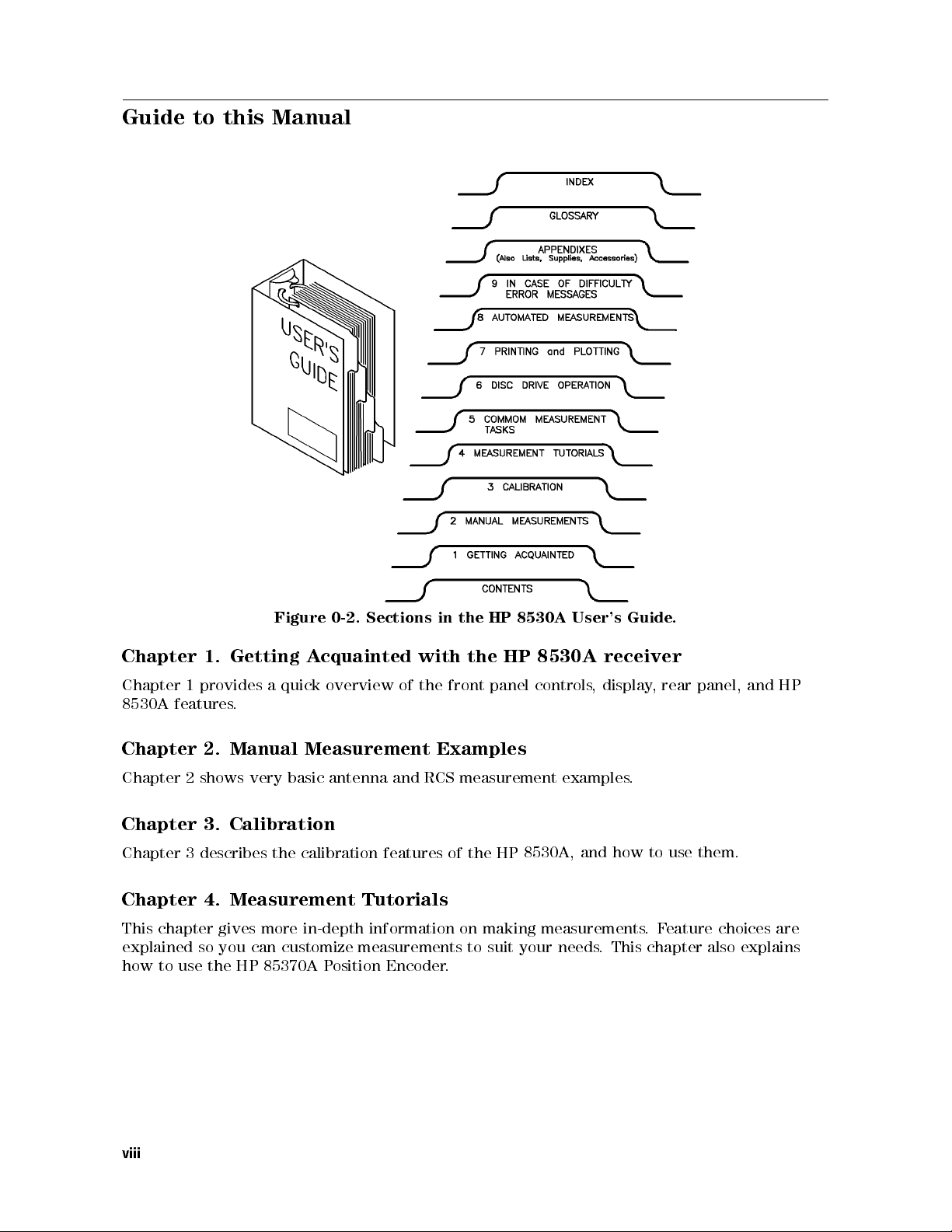
Guide to this Manual
Guide
receiver
display
,
Chapter
Chapter
8530A
features
Chapter
Figure
cquainted
quick
a
A
overview
1.
provides
1
Getting
.
Manual Measurement
2.
0-2. Sections
with
the
of
HP
the
in
HP
the
panel
front
Examples
8530A
8530A
controls
User's
Chapter 2 shows very basic antenna and RCS measurement examples.
Chapter 3. Calibration
how
Chapter
describes
3
calibration
the
features
of
the HP
8530A,
and
Chapter 4. Measurement Tutorials
This chapter gives more in-depth information on making measurements
explained
how to use
so you can customize measurements to suit your needs
the HP 85370A P
osition Encoder
.
. This chapter also explains
.
panel,
rear
,
them.
use
to
eature choices are
.F
and
HP
viii
Page 9
Chapter 5. Common Measurement Tasks
Chapter 5 describes specic measurement tasks such as:
Finding boresight Using Markers
Determining 3 dB beamwidth Measuring depth of a null
Displaying data relative to the peak Displaying more than one trace
Using averaging Using frequency list mode
Chapter 6. Disc Drive Operation
Explains how to use the built-in disc drive to store and retrieve data, instrument state les,and
other types of information.
Chapter 7. Printing and Plotting
Describes how to output screen \snapshots" or tabular data to printer or plotter. A wide range
of HP printers and plotters are covered in detail.
Chapter
Chapter
use
to
how
receiver
Making
8.
explains
8
ast
F
the
automatically
to
utomated
A
measure
to
how
Multiplexing.
IF
switch
between
Measurements
5,000 points
up to
multiplexing
IF
ast
(F
dierent
per second
input
similar
is
ratios
at
using F
F
to
angle
each
CW
ast
ast CW
mode
,but
frequency
or
and
,
allows
the
point.)
Diculty
Chapter
chapter
This
solve
to
How
to
What
solve
to
How
Appendix
In
9.
explains:
when
do
A,
common
basic
Case
Optimizing
of
operation
specic
hardware
messages
error
problems
Dynamic
problems
.
displayed
are
Range
on
the
screen.
Conguring the system for optimum dynamic range entails using the highest RF power settings
possible without overdriving the receiver. Appendix A explains how to congure your system
so optimum dynamic range is available.
Compatible
,
Appendix
compatible
Lists
B
RF
and
plotters, and monitors
and P
converters
LO
Instruments
sources,
frequency
.
eripherals
positioner
,
controllers
printers
,
,
ccessories, After-Sale Options
Appendix C, Supplies
Lists commonly-needed supplies (plotter pens
,A
, paper
, discs) and after-purchase options (time
domain option, rack-mount hardware, connector savers, and touch-up paint).
Appendix
Explains
connector
Connector
,
D
care
Care
techniques
and
cleaning
procedures
.
ix
Page 10

Other Manuals that Come with the HP 8530A
The following manuals are supplied with the HP 8530A:
Operating and Programming Manual
The Operating and Programming manual serves two purposes:
It provides in-depth reference information on front panel features, organized around the
front panel functional blocks.
It provides tutorial information on remote programming, with many HP BASIC examples.
Keyword Dictionary
The Keyword Dictionary explains:
The function of each front panel key or display softkey, organized by key/softkey name.
What each HP-IB programming code does, including syntax and programming sequence
details.
panel
Front
alphabetical
On-Site
The
Service
On-Site
Installation
Troubleshooting
Performance
Typeface
Bold
Italics
Computer
Display
4
anel Keys
Front P
NNNNNNNNNNNNNNNNNNNNNNNN
NNNNN
Soft Keys
key/softkey
.
order
and
Manual
tests
Manual
specications
and
Service
Conventions
Bold type is used for terms that are listed in the glossary.
Italic type is used for emphasis and for the titles of manuals and other
publications. It is also used when describing a computer
Computer
Display
receiver's
5
Front panel keys are enclosed in
Soft keys are the keys on the right-hand side of the display
function of
programming
contains:
type
is
type
display
these keys changes depending on the menu you are in.
code
used
is
used to
.
descriptions
depict
to
messages
show
coexist
HP-IB
boxes.
the
in
commands
which
are
section,
same
variable
.
displayed
the
on
.The
in
.
x
Page 11

Getting Acquainted with the HP 8530A Receiver
Chapter Contents
Product Description
Receiver Performance
Measurement Features
Input/Output Features
Principles of Operation
Front Panel Overview
1
Getting
Acquainted with
the
HP
8530A
Receiver
1-1
Page 12
Product Description
The HP 8530A is a high-performance receiver that has been designed specically for antenna
and radar cross section (RCS) measurements.
The HP 8530A allows you to make angle-scan and frequency-scan measurements of antennas,
or make RCS measurements using the time domain feature.
Very fast measurement speeds are possible with the HP 8530A. By using a computer controller,
the receiver can measure up to 5,000 data points per second.
The receiver has very high sensitivity and dynamic range. The HP 8530A provides a large
amount of measurement exibility, providing the features you need for many dierent types of
measurements.
The HP 8530A must be used with a frequency down converter. The following HP down
converters are supported:
HP 8511A/B frequency converter
HP 85310A distributed frequency converter
HP 85325 millimeter wave subsystems (the HP 85325A and HP 85309A, used together, make
a complete frequency converter system).
reference
and
test
MHz
the
to 20
basic
block
diagram
of
an
products down-convert
These
signals
antenna
that are
measurement
measured by
system.
microwave (or
the HP
8530A. Figure
millimeter) signals
shows
1-1
Getting Acquainted
1-2
with
the
HP
8530A
Receiver
Page 13

Figure
1-1.
Basic
Antenna
Measurement
Block
Diagram
Receiver Performance
The most important feature of the HP 8530A is the accuracy and speed with which it makes
measurements. The important performance features are:
Excellent sensitivity.
.
Excellent
speed
High
linearity
over a
data acquisition
dynamic
wide
capability
range
.
Sensitivity
The foundation of good system performance
measure very small signals
. Excellent sensitivity
noise. When used with the HP 85310A frequency
and high speed is sensitivity|the ability to
is only possible in systems that have very low
converter, the HP 8530 can measure signals
of0113 dBm from 3 to 18 GHz, and096 dBm from 18 to 26.5 GHz. Excellent sensitivity
improves the signal-to-noise ratio of your system, allowing you to measure smaller signals more
quickly
,
and
with
greater
accuracy
.
Receiver
8530A
HP
Getting
Acquainted with
the
1-3
Page 14
Linearity over a Wide Dynamic Range
Accuracy errors can occur when the power from the test antenna varies in signal level. For
example, assume that a test antenna has a bore-sight measurement of 0 dBi (020 dBm) and an
o-axis null of050 dBi (070 dBm). This is a dierence of 50 dB. The HP 8530A receiver has
0.03 dB of error in this case. Even with a 60 dB dierence the HP 8530A has less than 0.04 dB
of error due to linearity. This specication is called \dynamic accuracy."
Fast Measurement Speed
The HP 8530 can measure 5000 points per second. As mentioned earlier, averaging slows
measurement speed. Because of the HP 8530A's excellent performance, you will need less
averaging, and can make faster measurements, than you would when using a receiver with less
performance.
High speed measurements are performed using the \Fast CW" mode, and must be done through
computer control.
Getting Acquainted
1-4
with
the
HP
8530A
Receiver
Page 15
Measurement Features
The major
operational
features of the HP 8530A are listed below:
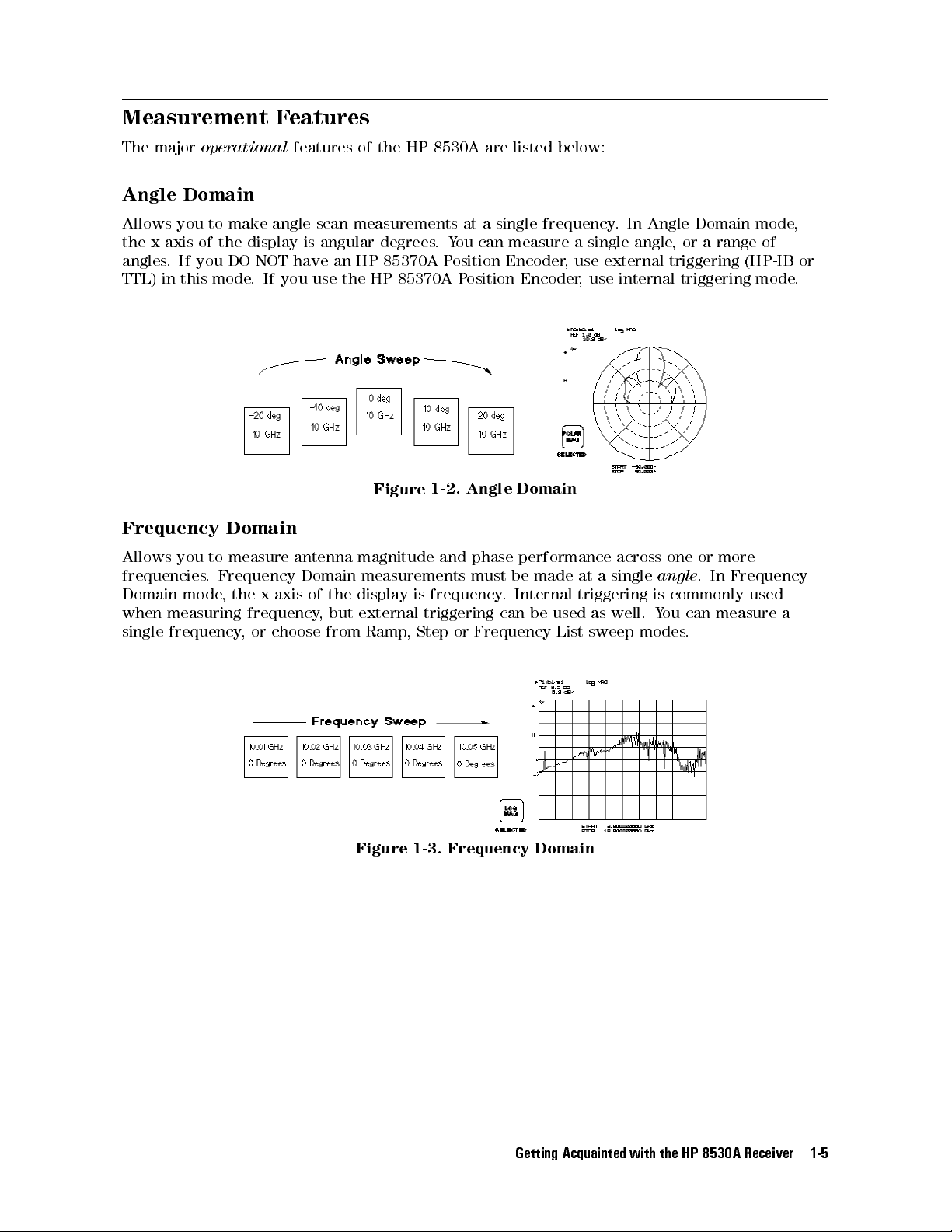
Angle Domain
Allows you to make angle scan measurements at a single frequency. In Angle Domain mode,
the x-axis of the display is angular degrees.You can measure a single angle, or a range of
angles. If you DO NOT have an HP 85370A Position Encoder, use external triggering (HP-IB or
TTL) in this mode. If you use the HP 85370A Position Encoder, use internal triggering mode.
Domain
phase
performance
must be
Internal
.
be
can
Frequency
made
used
List
across
single
a
at
triggering
well.
as
sweep
one
angle
commonly
is
ou
Y
modes
or
.
can
.
more
Frequency
In
used
measure
a
Frequency
Allows
frequencies
Domain
when
single
you
.
mode
measuring
frequency
Domain
measure antenna
to
Frequency
the
,
Domain
x-axis
frequency
choose
or
,
,
display
but
of the
from Ramp
Angle
Figure
1-2.
magnitude and
measurements
frequency
is
external triggering
or
Step
,
Figure
1-3.
Frequency
Getting
Domain
Acquainted with
the
HP
8530A
Receiver
1-5
Page 16

Time Domain
This optional feature allows you to make RCS measurements or see the time response of an
antenna (time is shown on the displays x-axis). One use of time domain is when measuring
multi-path range reections. Internal triggering is usually used in this mode.
Time domain data is mathematically calculated from Frequency Domain data. This is done
using the \chirp-Z" inverse Fourier transform. Therefore, the rst step in time domain
measurements is to make a measurement in the Frequency Domain.
Domain
Time
Figure
1-4.
Calibration
Antenna
calibrating
reduces
A
make
the
measurement errors
\network
network
impedance
calibration
coupler
is
calibration provides
your range
analyzer"
against
calibration
analyzer-type
antenna
an
of
make
could
you
so
measure
required
to
accurate
standard
a
caused
gain
signal
by
provided.
also
is
measurements
output).
(or
input
accurate
very
reected
the
frequency
and
antenna.
gain
crosstalk.
example
or
F
.
ou would
Y
measurements.
signals.
This
response
the
,
Also
calibration
assume you
,
perform the
In this
measurements
isolation
is used
calibration
if you
want to
network
example a
by
feature
to
want
measure
analyzer
directional
Four Measurement Inputs
The receiver has four inputs for receiving signals (a1, a2, b1 and b2). You must input a
reference signal into a1 or a2. Then, any other inputs can be used as test signal inputs.For
example
test
carry
your
for
assume you
,
signals.
The
measurement.
input
ARAM"
\P
reference
the
keys
signal
described
,
into
below
a1.
Y
select
,
ou
could
which
then
inputs to
use a2,
b1,
ratio
together
to
b2
or
Selectable Input Ratios
4
PARAM 1
measure.
,
4
5
PARAM 2
,
4
5
PARAM 3
, and
5
4
PARAM 4
(\PARAM" is short for \parameter
, select a specic pair of inputs to ratio and
5
,
or example
.") F
4
PARAM 1
5
mathematically
divides
(ratios) input b1 data by a1 data. You can redene the PARAM keys so they ratio any two
inputs you desire.You can also measure a single input without ratioing.
Getting Acquainted
1-6
with
the
HP
8530A
Receiver
Page 17
Flexible Triggering
The HP 8530A provides three ways of triggering measurements:
Internal When in Internal trigger mode, the receiver does not require any
external or HP-IB triggering. This is useful when making frequency
measurements, or when using the HP 85370A Position Encoder.
External Triggering Allows you to trigger measurements using a TTL increment signal
produced by a positioner controller. This allows the receiver to take data
when the positioner is aligned with each measurement angle.
HP-IB Triggering Allows a computer to trigger a measurement by issuing a GET command
over the HP-IB bus.
Save/Recall Registers
The receiver has eight Save/Recall registers. Each can save current measurement settings for
instant recall at a later time. Register 8 is the \User Preset" register. Settings saved under
register 8 become active whenever you turn the receiver ON, or when you press
4
USER PRESET
5
.
Measure
Normalize
The
amplitude)
reference
relative
be
will
Remote
8530A
HP
The
All
.
HP-IB
modes
Data
The
of
Presentation
8530A
HP
erformance
P
function
Trace
can
ou
Y
.
dB
0
to
the
data
peak.
point.
When
to
Programming
can be
front panel
operation
controlled
features
and current
Features
show measurement
can
Relative
sets
use
then
saved,
is
remotely
are
instrument or
to
peak
the
markers
printed,
from
supported.
results right
the
of
to
plotted,
any
ou
Y
system
main
view
computer
can
on its
lobe
trace
output
or
query
status
display
(the
magnitude
to
that
the
.
.
Main
the
of
eak
P
the
Antenna patterns
Frequency response measurements
Time domain
Radar Cross Section (RCS) frequency and time domain measurements
8530A
HP
The
Display F
allows
ormats
you
print
to
You can select logarithmic or linear
display format (Cartesian only). Y
plot measurement
or
results
magnitude display formats (Cartesian or polar), or phase
ou can display
one,two, or four parameters simultaneously on
.
the screen.
Lobe
point
data
values
computer
communicate
can
analyzer
can
It
of
relative
magnitude
,
determine
to
display:
highest
to this
values
using
current
Multiple Measurements Can be Shown Simultaneously
The HP 8530A allows you to view up to four parameters at once, in split or overlay
independent
the
of
presentation.
measurement
Alternatively
channels
(more
,
you
on
display
can
channels
one
explained
is
parameter from
later).
Getting
Acquainted with
each
the
HP
8530A
Receiver
1-7
Page 18

Trace Memory and Trace Math
The trace memory feature is similar to the storage feature in a storage oscilloscope.You can
store the current data trace to memory, then compare it to subsequent measurement traces.
Trace math features allow you to perform vector addition, subtraction, multiplication, and
division. These operations are performed using the current data trace and the memory trace.
Each parameter has independent trace memory/math operation. In addition, trace math in
Channel 1 is independent from trace math in Channel 2.
Markers Display Precise Values for Any Point on display Traces
Five measurement markers give detailed information about any point on the measurement
trace. Delta markers allow you to show the dierence in amplitude, phase, angle,ortime
between any two points on the screen.
External Video Monitor
The HP 8530A can display results on an external multisync monitor. Refer to Appendix B for
details.
Optional Network Analysis
Option
This
011
allows
frequency
accuracy
adds
you
or
in
high-performance
measure
to
optional
arameter
S-P
time
the
domains
network
vector
network
transmission
These
.
measurements
analysis
reection
and
advanced
.
features
properties
calibration
(HP
of
features
8510C
operation).
microwave
provide
devices
optimum
in
Getting Acquainted
1-8
with
the
HP
8530A
Receiver
Page 19

Input/Output Features
The HP 8530A can control other instruments, and has many input/output capabilities using
HP-IB, System Bus, RS-232, external monitor interface, and TTL BNCs.
Printing and Plotting Features
The HP 8530A can output data to a wide range of HP-IB or RS-232 printers or plotters. Laser
printers are also supported.
Many Supported Peripherals
The HP 8530A can control RF and LO signal sources, frequency converters, and large external
display monitors. Refer to Appendix B for details.
Built In Disc Drive
The built in disc drive allows you to save measurement data, data from memory, instrument
conguration setups, save/recall registers, calibration data, or user-created graphics. Both
LIF
and
DOS
format
DOS
format
LIF
workstation
formats
disc
compatible
is
compatible
is
family
are
with
with
supported,
MS-DOS
Hewlett-P
and
R
based
ackard
computers
computers
,
,
such
such
as
as
IBM
the
PCs
HP
automatically
are
types
disc
both
.
recognized.
compatibles
and
9000 Series
300
.
Getting
Acquainted with
the
HP
8530A
Receiver
1-9
Page 20
Principles of Operation
This information is provided so you can have a better understanding of how the HP 8530A
makes measurements. If desired, you can skip this section and come back to it when
convenient.
Description of the HP 8530A
A simplied block diagram of the HP 8530A receiver is shown in Figure 1-5. It is a high
performance vector receiver with four inputs, two independent digital processing channels,and
an internal microcomputer that controls measurement, digital processing, and input/output
operations. Examples of \digital processing" are features such as averaging, time domain,
calibration, and so on. A special System Bus gives the receiver complete control over the
RF source and, if required, LO source. This interface allows the receiver to make hard copy
outputs to HP-IB compatible printers or plotters. Two RS-232 ports are also supplied for
printing or plotting.
The system must contain a frequency converter, which down converts the RF measurement
frequencies to a 20 MHz IF. The HP 8530A requires this frequency for its inputs.To create
the IF frequency, the HP 8511A/B frequency converter uses a built-in local oscillator. The
est
\T
the
over
is
built-in
Set
LO
Interconnect"
measurement
signal.
IF
MHz
LO
supply
the
an
System
Bus
digitally
that
signals
Other
signal.
.
tuned
links
with
down
The
the
by
HP
the
similar
a
converters
8530A
HP
8530A. This
HP
8530A
and
frequency
such
,
external
tunes
that
as
digital tuning
the HP
oset by
is
HP 85310A,
the
LO
data is
8511A/B.
The local
20 MHz.
require another
sources with
sent
oscillator mixes
The result
is the
source
HP-IB commands
to
sent
the
20
over
Getting Acquainted
1-10
with
the
HP
8530A
Receiver
Page 21
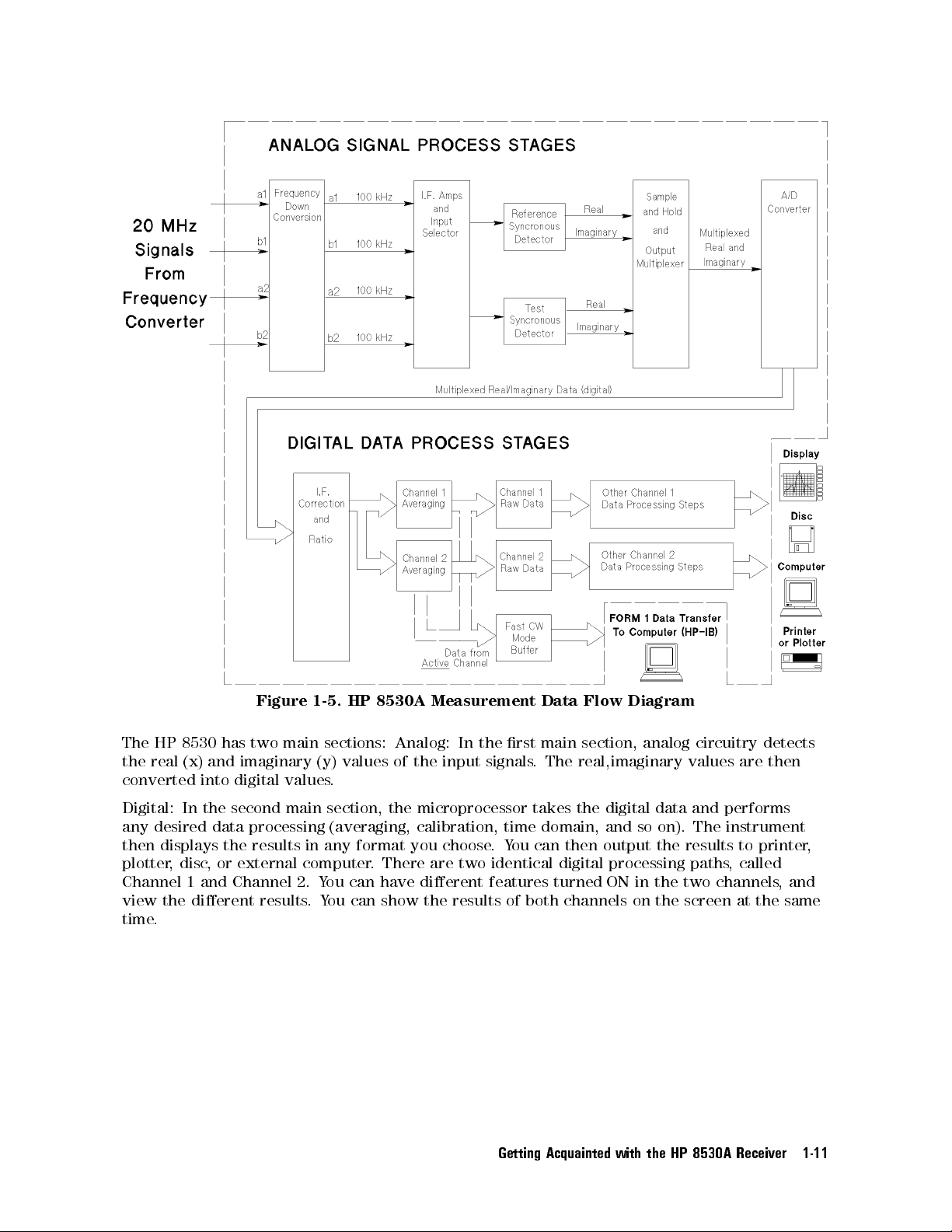
Figure
1-5.
HP
8530A
Measurement
Data
Flow
Diagram
The
HP
8530
has
two
main
sections:
Analog:
In
the
main section,
rst
analog circuitry
detects
the real (x) and imaginary (y) values of the input signals. The real,imaginary values are then
converted into digital values.
Digital: In the second main section, the microprocessor takes the digital data and performs
any desired data processing (averaging, calibration, time domain, and so on). The instrument
results
disc
,
and
or
the
external
Channel
displays
then
plotter,
Channel 1
view the dierent results
results
output
then
can
ou
Y
two
.
identical
features
digital
turned
processing paths
ON
choose
There
.
have
you
are
dierent
any format
in
computer
can
ou
Y
2.
ou can show the results of both channels on the screen at the same
.Y
the
in the
two
to printer
called
,
channels
,
and
time.
Receiver
8530A
HP
Getting
Acquainted with
the
,
1-11
Page 22
Analog Signal Process Stages
During a typical Frequency Domain measurement, the test signal source is swept from a lower
to a higher frequency.
During a typical Angle Domain measurement, a single frequency can be measured while the
antenna-under-test is moved around one axis.
Initially, the HP 8530A receives up to four 20 MHz signals from the external frequency
converter. The receiver separately down converts each signal to a 100 kHz IF carrier frequency
that can be used by the detection circuitry. Because frequency conversions are phase coherent,
and the IF signal paths are carefully matched, magnitude and phase relationships between
the input signals are maintained throughout the frequency conversion and detection stages.
Automatic, fully-calibrated autoranging IF gain stages maintain the IF signal at optimum levels
for detection over a wide dynamic range.
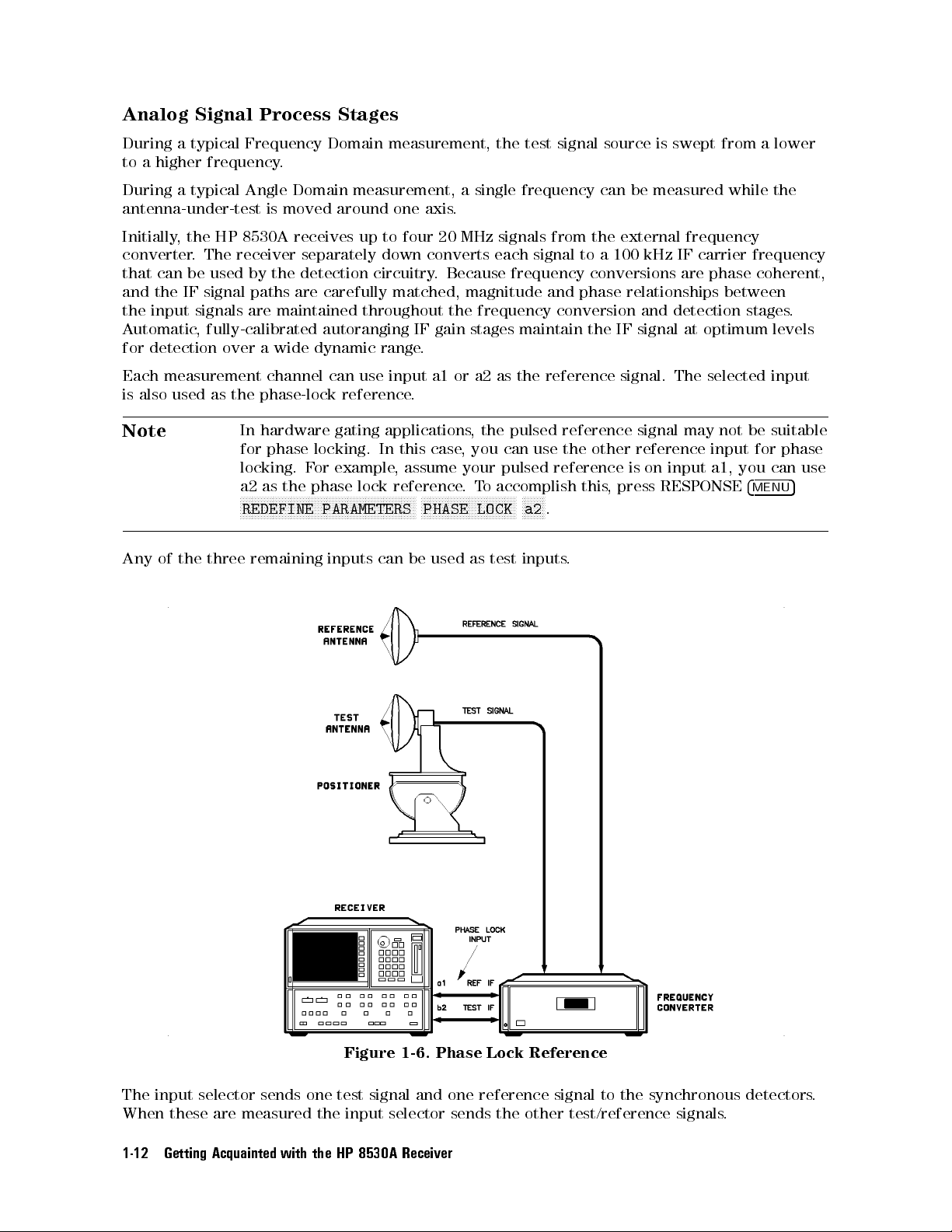
Each measurement channel can use input a1 or a2 as the reference signal. The selected input
is also used as the phase-lock reference.
Note
Any
of
the
In hardware gating applications, the pulsed reference signal may not be suitable
for phase locking. In this case, you can use the other reference input for phase
you
a1,
input
on
press
,
is
RESPONSE
three
locking. F
the phase
a2 as
NN
N
N
N
N
N
N
N
N
N
N
N
N
N
NN
NN
NN
REDEFINE
remaining
example
or
lock
N
N
N
N
NN
NN
NN
NN
N
N
N
N
N
N
N
N
PARAMETERS
inputs
N
N
N
N
N
N
N
N
N
N
can
assume
,
reference
N
NN
NN
N
N
N
NN
NN
NN
N
N
N
N
PHASE
used
be
N
N
NN
your
.
N
N
N
N
as
pulsed
accomplish
o
T
N
NN
N
N
N
N
N
N
N
N
N
N
N
LOCK
test
reference
NN
NN
N
N
N
N
.
a2
inputs
this
.
4
MENU
can
use
5
input
The
these
When
Getting Acquainted
1-12
selector
measured
are
sends
with
one
the
the
Figure
test
input
8530A
HP
signal
selector
1-6.
and
Receiver
Phase
reference
one
sends the
Lock
Reference
signal
test/reference
other
to
synchronous
the
signals
detectors
.
.
Page 23
The synchronous detectors develop the real (x) and imaginary (y) parts of the test or
reference signal by comparing the input to an internally-generated 100 kHz sine wave. This
method practically eliminates drift, osets, and circularity errors as sources of measurement
uncertainty. Each x,y pair is sequentially converted to digital values which are sent to the
main microprocessor.
Digital Data Process Stages
Digital signal processing proceeds under the control of the receiver's rmware operating system
executed by the main microprocessor.
About the Main Microprocessor
The main microprocessor is a 32-bit Motorola 68020 microprocessor running at a clock speed of
16 MHz. The rmware operating system takes advantage of multi-tasking software architecture
and several distributed processors to provide very fast data acquisition and display update
speed.
Raw Data Stages
The microprocessor accepts the digitized real and imaginary data, and corrects IF gain and
quadrature
correction
IF
the
in
automatic
by
way
any
errors
feature
the
before
is
user
any
are
stage
dierent
.
data
other
calculated
the
from
processing
is done
periodically with
calibration
user
. The
an automatic
features
,and
calibration coecients
self-calibration. This
cannot be
controlled
used
in
independent
to
sent
are
data
the
F
1
is
orm
of
Channel
or
channel
raw
1
.
one
holds
described
if
format.
1
data
you
.
X,Y
in
are
2.
ast CW
F
If
array
data
the
using
the
If
Similarly
.
HP
pair
the
ast
F
mode
in
8530A
F
mode
CW
is
Channel
,
special
a
eyword
K
CW
ast
not
is
being
mode
inputs
the
Next,
Channel
and
any
,
,
use
Channel
\arrays"
1
selected
data
data
sent
is
1
is stored
are data
Channel
Now
in
used,
averaged
Data
compressed data
Dictionary
buer
The
The F
.
contains up
ratioed
are
data
2
averaging
ast
F
the
to
averaged
data
in the
holding locations
format called
ast CW
buer can
to 100,000
together
processing
performed
is
buer
CW
stored
is
Channel
\Form
X,Y data
identical
and
paths
on
from
in
raw
2
A
.
1." This
data
send
Channel
the
data
data
pairs
copies
.
active
the
Channel
array
array
format
computer
to
in
Other Digital Processing Stages
Channel 1 and 2 data processing proceeds independently through subsequent data processing
steps. Dierent measurement features can be used in each channel, causing the measurement
shown
be
results
to
Processing"
on. F
so
and
Domain
in Channel 1. This allows you to make two dierent types of measurements on the
same device
processed
steps
example
or
, and display the results simultaneously
and
shown in
you
,
Figure
can
More information on the \other"
Operation," later in this guide
.
\Other
the
Time
and select
2,
are
Domain,
in dierent
and
,
1-5
Time
select
ways
include
Domain
features
These
.
calibration,
Channel
in
.
data processing steps is provided in \Standard A
Data
display
format,
Frequency
utomated
2
.
Getting
Acquainted with
the
HP
8530A
Receiver
1-13
Page 24
Front Panel Overview
Front Panel Overview
This section describes the receiver's display and the purpose of the major control blocks. Note
that you can press any key, at any time, and in any sequence without fear of damaging the
system.
Display
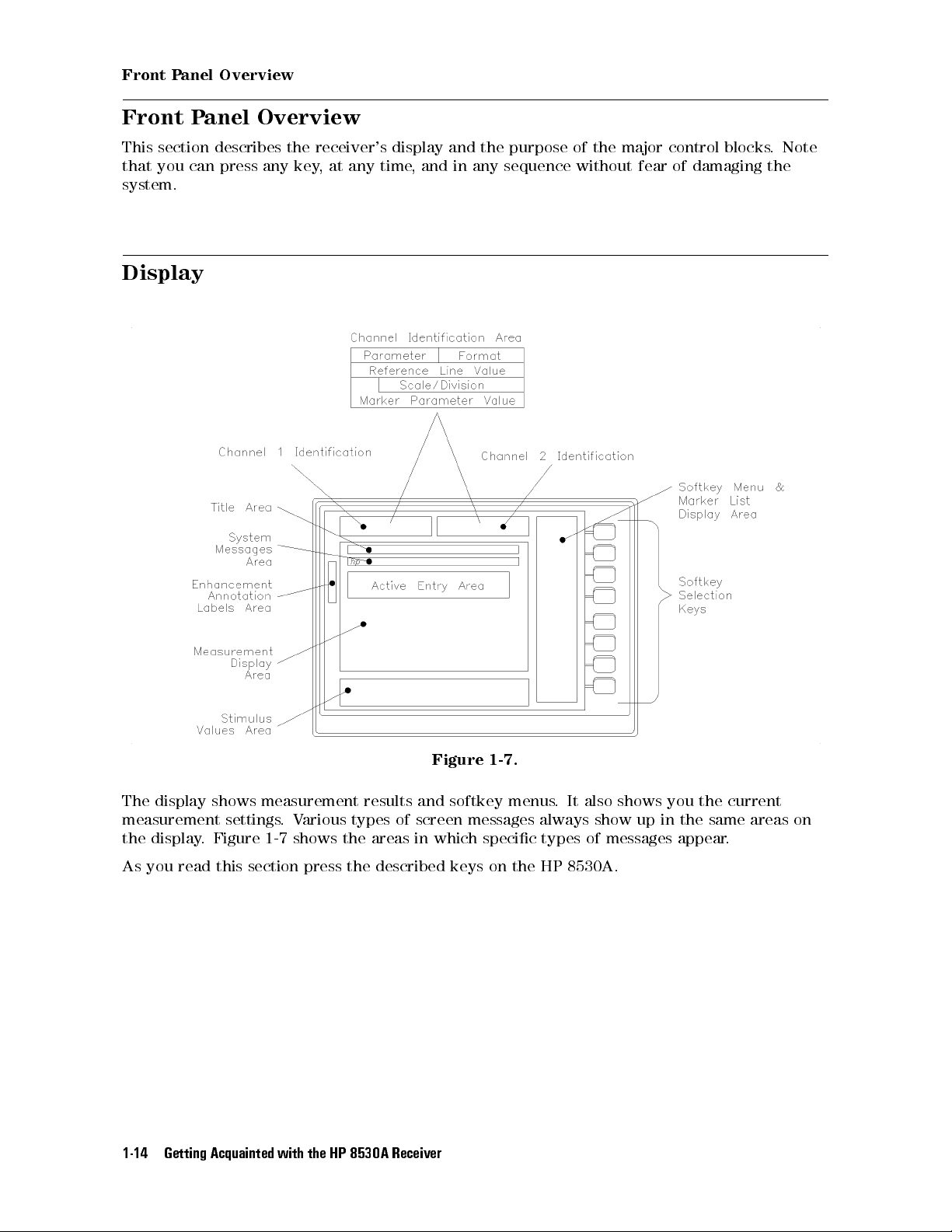
Figure 1-7.
The display shows measurement results and softkey menus. It also shows you the current
measurement settings.Various types of screen messages always show up in the same areas on
the display. Figure 1-7 shows the areas in which specic types of messages appear.
8530A.
HP
the
read
you
As
Getting Acquainted
1-14
this
section
with
press
the
described keys
the
8530A
HP
Receiver
on
Page 25
Front Panel Overview
Channel Selection
The receiver has two separate, identical measurement channels. The channel feature is much
like having two HP 8530 receivers setting next to one another.
Channel 1 and 2 can have dierent PARAMETER, FORMAT, or RESPONSE settings,in
addition, you can select Time Domain on one channel, and Frequency Domain on the other:
For example, you could set Channel 1 to Frequency Domain, PARAM 1. Then you could set
display
display
and
both
sets
Time
to
Channel
data. Y
2
ou can
view the
data side-by-side
Domain,
P
data separately
(dual channel
ARAM
split) or
receiver
The
2.
changing
(by
superimposed (dual
measure
will
channel),
channel
or
each
can
you
overlay).
channel
the
of
\stimulus"
Many
frequency
cannot
you
\uncoupled,"
is
whether
a
number
,
choose
specic
settings (such
points
of
dierent
choose
can
you
feature
is
as RF
and
,
settings
dierent
coupled
so
power;
are
on)
Channel
for
settings
uncoupled,
or
,
stop
start,
\coupled." If
versus
1
the
in
look
increment
a stimulus
Channel
channels
two
in
up
it
angle;
start,
feature
a stimulus
If
2.
If you
.
the keyword
,
stop
\coupled,"
is
feature
to
want
dictionary
CW
or
know
.
Getting
Acquainted with
the
HP
8530A
Receiver
1-15
Page 26
Front Panel Overview
Basic Measurement Functions
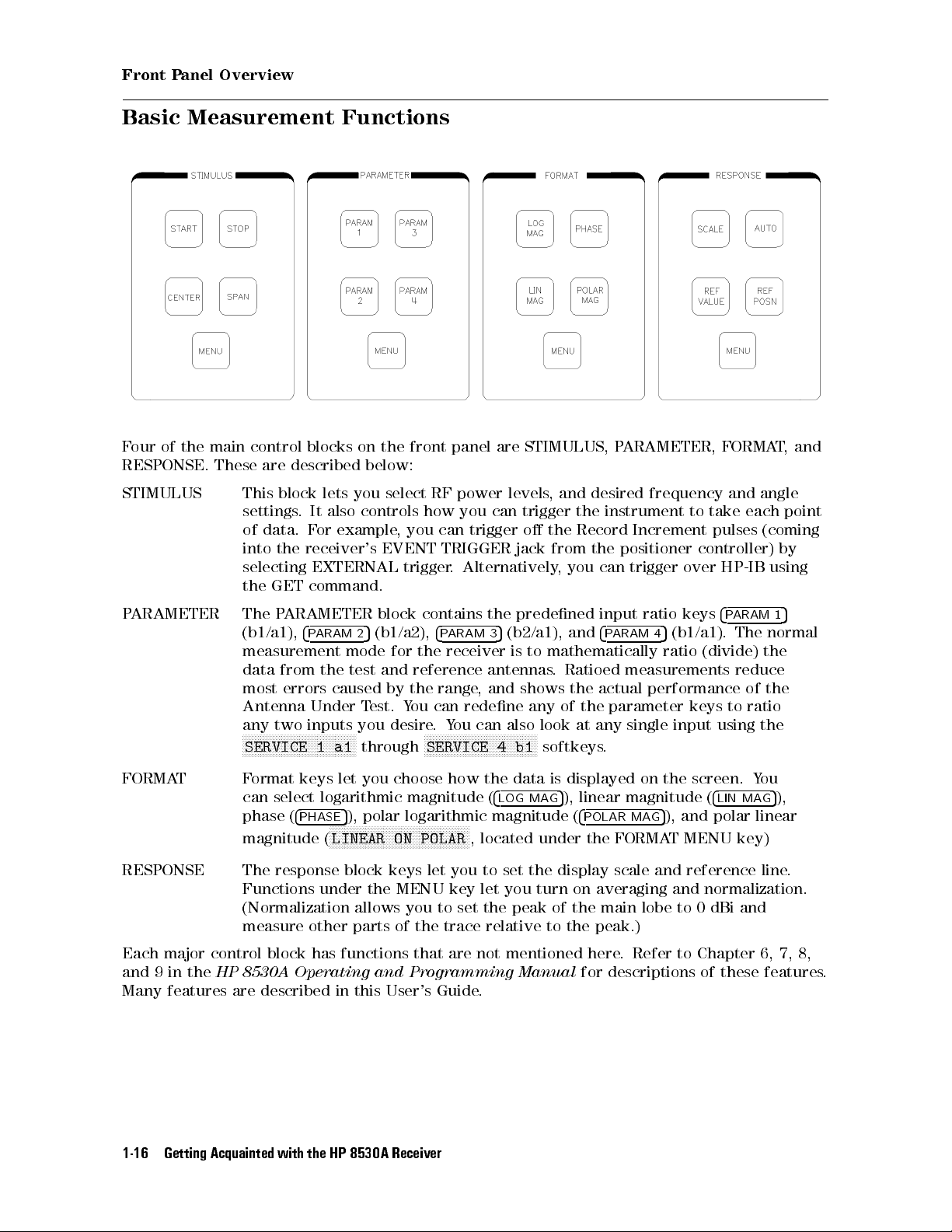
Four of the main control blocks on the front panel are STIMULUS, PARAMETER, FORMAT,and
RESPONSE.
These
STIMULUS This
settings
of
into
selecting
the
described
are
block
data.
the
GET
It
.
or
F
receiver's
EXTERNAL
command.
below:
you
lets
controls how
also
example,
select
you can
EVENT
trigger
RF
power
levels
you can
trigger
TRIGGER jack
Alternatively
.
,
trigger
the
o
from the
,
desired
and
the
Record
you can
frequency
instrument
Increment
positioner
trigger
and
take
to
pulses
controller)
HP-IB
over
angle
each
(coming
using
point
by
4
keys
ratio
and
Ratioed
the
the
of
any
at
input
4
P
ARAM
5
4
ratio
measurements
actual
performance
parameter
single
.
(b1/a1).
(divide)
keys
input
ARAM
P
The
reduce
to
using
the
of
ratio
the
ARAMETER
P
ARAMETER
P
The
(b1/a1),
4
ARAM
P
measurement
the
from
data
errors
most
Antenna
any
N
N
N
N
N
N
N
SERVICE
Under
two inputs
N
N
N
N
N
N
N
N
N
NN
NN
NN
NN
N
N
N
1
N
N
2
mode
test
caused
T
you
N
NN
N
N
N
N
N
N
through
a1
block
(b1/a2),
5
for
and
by
est.
desire
contains
4
ARAM
P
receiver
the
reference
range
the
can
ou
Y
Y
.
N
N
N
N
N
N
N
N
N
SERVICE
,
redene
can
ou
N
N
NN
NN
NN
NN
N
predened
the
(b2/a1),
5
3
to
is
antennas
shows
and
any
also
NN
N
N
N
N
N
N
N
N
N
N
N
N
N
N
N
b1
4
mathematically
.
look
N
softkeys
FORMAT Format keys let you choose how the data is displayed on the screen. You
can select logarithmic magnitude (
RESPONSE
phase (
magnitude (
The
Functions
(Normalization
measure other
4
5
PHASE
), polar logarithmic magnitude (
NNNNNNNNNNNNNNNNNNNNNNNNNNNNNNNNNNNNNNNNNNNNNNN
LINEAR ON POLAR
response block
under
the MENU
allows you to set the peak of the main lobe to 0 dBi and
parts of the trace relative to the peak.)
keys
let
Each major control block has functions that are not mentioned here
and 9 in the
HP 8530A Operating and Programming Manual
Many features are described in this User's Guide
4
LOG MAG
5
), linear magnitude (
4
POLAR MAG
5
), and polar linear
4
, located under the FORMAT MENU key)
reference
and
averaging
on
scale
normalization.
and
you
key
to
let
set
you
the
turn
display
. Refer to Chapter 6, 7, 8,
for descriptions of these features
.
LIN MAG
line.
5
1
normal
the
5
),
.
Getting Acquainted
1-16
with
the
HP
8530A
Receiver
Page 27

ENTRY Block
Front Panel Overview
cases
some
In
frequency
digits
4
k/m
entering
to
the
.
terminate
(kilo/milli)
5
and
8
Changing
it
The
data
keys
9
Values
necessary
is
keypad
digit
10
value
the
4
and
with
x1
the
(basic
5
allow values
Using the
supply
to
used
is
appropriate
the
with
units:
keypad, the
to be
Numeric
numeric
supply
to
dBm,
,
dB
knob can
changed
values
units
degrees
be
steps
in
eypad
K
these
.
used
.
a
for
values
Use
seconds
,
to
specic
The
.
4
(Giga/nano),
5
G/n
,
make
function,
keys
applicable
as
Hz)
continuous
such
the
to
4
M/
adjustments
the
of
right
(Mega/micro),
5
addition
In
.
,
while
or
angle
as
To change a value using the numeric keypad:
1. Select the function (start angle, frequency, or any other function that requires a value). This
function becomes the \active function."
4
the
the
entire
and
4
CKSP
BA
value).
.
4
5
0
+/
(If you
.
key
5
CE
A
+/
5
0
have
changes
already
.
toggle
the
pressed
sign of
Enter
2.
number
the
terminator
a
erminate the
3. T
new value
the
decimal,
,
press
,
the
If you
.
key
make
, you
using
must
numeric
mistake
a
re-enter
entry with the appropriate units
Getting
Acquainted with
the
HP
8530A
Receiver
1-17
Page 28

Front Panel Overview
Table 1-1. Numeric Value Terminator Key Usage
Key
Angle Frequency Power Power Slope Time
Name
G/n { GHz { { ns
M/
{ MHz { {
s
k/m milli degrees kHz { { ms
1
1
x1
4x15
degrees Hz dBm dB/Ghz s
always represents single units.
Other Keys in the Entry Block
4
PRIOR MENU
4
=MARKER
4
=MARKER
5
takes you to the previous softkey menu.
5
can be useful when you are using markers. The easiest way to explain what
5
does is by example. Assume you are making a frequency response measurement,
and the last marker you moved (the active marker) is sitting at 11 GHz. Now assume you want
to change the start frequency to 11 GHz. All you need to do is press
4
START54=MARKER
5
.The
marker position (11 GHz) will become the start frequency.
value
line
4
STOP
to another
the
to
4
V
REF
marker
5
value
ALUE
.
4
=MARKER
function.
of
4
5
=MARKER
the
.
5
active
5
,
As
and
an
marker
the
could
ou
Y
Another
example
example
(for
display
have
way to
assume
,
assume the
,
reference
the
set
use
4
=MARKER
you want
line
frequency
stop
5
to set
marker value
change
will
transfer the
is to
the
to the
11
to
display
0
is
value
GHz
marker
reference
dB).
13.2
of
pressing
by
the
Press
active
4
ENTRY
OFF
function
function.
removes
5
text"
are
error
old
messages
messages
START
like
or
0
active
90
that
function
appear
text
when
from
you
screen.
the
changed
the
ctive
\A
value
of
a
Getting Acquainted
1-18
with
the
HP
8530A
Receiver
Page 29

MENUS Block
Front Panel Overview
The four keys under MENUS are
CAL Softkeys under
4
5,4
CAL
DOMAIN
4
5
allow you to perform an antenna, radar cross section
CAL
5,4
DISPLAY
5
, and
4
MARKER
5
:
(RCS) or limited network analyzer calibration.
DOMAIN The HP 8530 has three modes of operation, called domains. These are the
Frequency, Angle, and optional Time Domain.
DISPLAY Softkeys under
4
DISPLAY
5
:
Place one, two, or four parameter measurements on the screen at once.
are:
memory.
colors
an
for
traces.
.
external
to
up
desired
a
monitor
markers
ve
point
on
.
Each
.
the
MARKER
the data
Saves
Displays
erforms trace
P
Allows
Allows
Softkeys
marker
memory traces
you
you
under
shows
measurement
Simple
4
Marker
Marker
markers
marker
search
list
trace to
math functions
change display
to
choose video
to
4
MARKER
amplitude
Marker
.
trace
the
on
.
mode
modes
.
modes
temporary storage
.
on memory
intensity or
settings for
to
you
allow
5
or
phase
values
Functions
display
trace
.
activate
.
Getting
Acquainted with
the
HP
8530A
Receiver
1-19
Page 30
Front Panel Overview
INSTRUMENT STATE Block
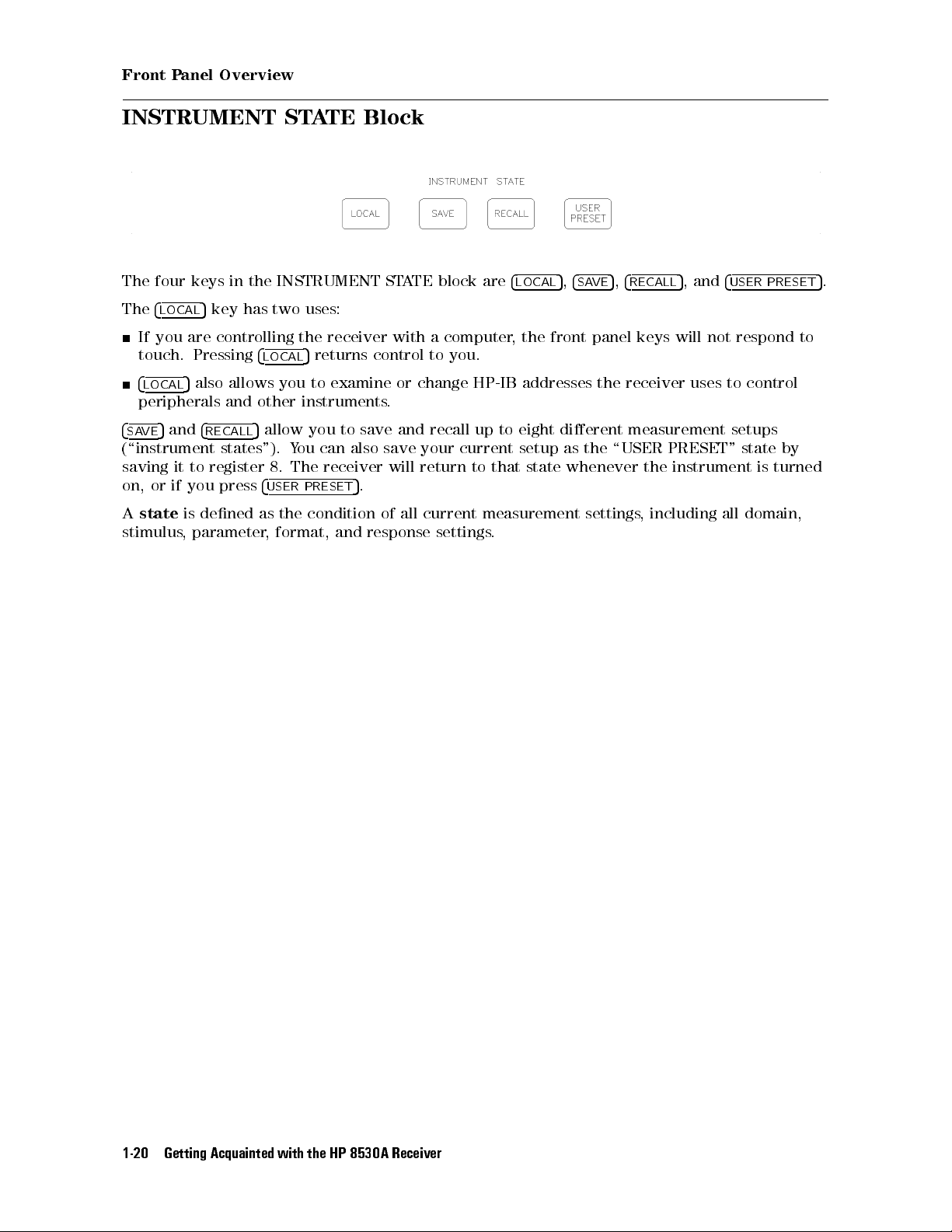
The four keys in the INSTRUMENT STATE block are
The
4
5
LOCAL
key has two uses:
4
LOCAL
5,4
SAVE
5,4
RECALL
5
, and
4
USER PRESET
If you are controlling the receiver with a computer, the front panel keys will not respond to
touch. Pressing
4
5
LOCAL
also allows you to examine or change HP-IB addresses the receiver uses to control
4
LOCAL
5
returns control to you.
peripherals and other instruments.
4
5
and
SAVE
4
RECALL
5
allow you to save and recall up to eight dierent measurement setups
(\instrument states"). You can also save your current setup as the \USER PRESET" state by
turned
saving
or
on,
state
A
stimulus
register
to
it
you
if
dened
is
parameter
,
press
8.
4
USER
the
as
format,
,
receiver
The
PRESET
condition
5
and
will
.
all
of
response
return
current
settings
state
that
to
measurement
.
whenever
settings
instrument
the
including
,
is
all domain,
5
.
Getting Acquainted
1-20
with
the
HP
8530A
Receiver
Page 31

AUXILIARY MENUS Block
Front Panel Overview
The \AUXILIARY MENUS" contain the
4
5
COPY
4
DISC
controls hardcopy output, either printing or plotting.
5
controls saving, loading, viewing, or deleting disc les.You can also format oppy discs,
4
COPY
5,4
DISC
5
, and
4
SYSTEM
5
keys.
or select an external disc drive.
4
SYSTEM
5
menus control internal functions of the HP 8530. For example, you can select normal
or wide IF bandwidth, or control phase locking.
If using remote mixers, you can control the RF-to-LO frequency ratio (to select the desired
harmonic mode) using the Multiple-Source menu.
Getting
Acquainted with
the
HP
8530A
Receiver
1-21
Page 32

Front Panel Overview
Automatic Recall of Instrument Settings
The receiver
between
forth
remembers
settings
Save
the
instrument
feature
This
Channel
Domain
arameter
P
Format
Response (scale
Every
mode
automatically
channels
the
all
or
stimulus
Recall
except
state
works
or
(1
(Frequency
(1,
display
(any
the
in
remembers most measurement settings. When you switch back and
domains
,
lower-level settings
settings.)
This
functions
memory
by
.
."
assigning
2)
or
,
Angle
,
4)
or
3,
2,
format)
reference
and
above list
remembers
parameters
,
you used
This feature
ability
hierarchy
a
Time)
line)
or
,
last. (This
is automatic
remember
to
the
to
settings you
all
display
previous
instrument
make that
the
formats
,
feature remembers
does
,and
settings
settings
For example, assume you choose the following measurement settings.
Channel 1
Angle Domain
Parameter 3
Log mag (format)
dB
10
dB/div
5
0
Reference
Scale
receiver
not
Here
.
lower
are
automatically
measurement
all
require
called \limited
is
you
the
is
the
in
use
to
hierarchy:
hierarchy
.
Now you go to Channel 2 and make completely dierent settings
When you reactivate Channel 1, the settings shown above will automatically
.
resume. This
hierarchical memory applies to all the controls in the above list.
The Added Benet of the SAVE/RECALL feature
Stimulus settings are not part of the hierarchical memory explained above.To save stimulus
Another
settings
along
advantage
Getting Acquainted
1-22
with all
that saved
is
other
the
instrument
the
with
HP
settings
8530A
,
states
Receiver
you
can
must
be
use
stored
the
to
SA
disc
VE/RECALL
.
feature
.
Page 33

Typical Softkey Menu Structure
Front Panel Overview
Each
Each
the
on
Every
choices
the
of
menu
side
softkey
.
function
contains
the
of
when
,
blocks
up
display
pressed,
to
.
contain
eight
Press
either
4
a
MENU
selections
softkey
the
activates
,
that
key
5
corresponding
each
the
to
function,
the
presents
right of
the
or
softkey
one
to
function
presents
menus
of the
you
the
the
on
unlabeled
to
want
level
next
screen.
keys
select.
menu
of
Getting
Acquainted with
the
HP
8530A
Receiver
1-23
Page 34

Page 35

2
Manual Measurement Examples
This chapter gives basic examples of antenna and RCS measurements. The intent is to show
you the overall steps involved in making a measurement, but not to go into great depth on
measurement choices. This chapter also explains simple (but very useful) tasks such as using
markers, nding depth of a null, determining beam width, and displaying more than one
parameter.
After you become familiar with the concepts presented in this chapter, you can read Chapter 4
to learn more advanced measurement skills.
Chapter
Denitions
Antenna
Angle
Frequency
Measurements
RCS
Frequency
domain
Time
Angle
CW
Contents
Important
of
Measurements
measurements
scan
response
response
measurements
Scan
erms
T
measurements
measurements
Measurement Examples
Manual
2-1
Page 36

Angle Scan Measurements
Denitions of Important Terms
It is important that you understand the denition of the following terms
HP 8530A
Channel
Input
Ratio
arameter
P
.
The receiver has two separate, identical measurement
feature is like having two HP 8530 receivers setting next to one another.
When the receiver measures raw data, it makes two identical copies. Each
copy is sent through parallel (identical) data processing paths. Such features
as calibration, Time Domain, display formatting, and trace math can be
performed on one or both paths. Each of the two channels correspond to
one of the data processing paths (refer to Figure 1-5). When you press the
4
CHANNEL 1
Any subsequent changes you make to measurement settings will aect that
channel.
Refers to the four HP 8530A signal inputs (a1, a2, b1, and b2). The term
\input" is also used when referring to the signal inputs of the frequency
converter (HP 8511A/B, 85310A, or other.)
Most often, users want to divide the measured signal of the
signal
or example
(F
reference
rejection
The
measurement.
4
ARAM
P
b2/a1,
a1.
desire
N
N
N
N
N
N
N
N
N
N
SERVICE
N
N
N
N
N
N
N
N
NN
SERVICE
5or4
of the
signal at
errors
of
parameter
are
5
4
so
and
can
ou
Y
view
o
T
.
N
N
N
N
N
N
N
N
N
N
NN
NN
N
N
N
N
N
N
N
3
N
N
N
N
NN
NN
N
N
N
N
N
N
N
N
N
N
N
N
N
PARAMETERS
CHANNEL 2
reference
, selecting
a1.) A
caused
the
is
front
The
the
at
set
or
F
on).
redene
single
a
N
N
N
N
N
N
N
a2
N
N
N
N
N
N
N
,
SERVICE
N
N
N
N
N
N
N
N
N
N
N
N
N
N
N
N
N
NN
NN
N
N
N
5
key, you make that channel the \active channel."
or
,
input.
input,
example
the
N
N
N
N
N
N
N
N
N
N
N
.
This is
b1/a1 would
ratioed measurement
transmitter
the
by
input
or
keys
panel
select
ARAM
N
N
N
N
N
N
N
N
N
N
N
b1
4
N
N
to
,
use
N
N
N
N
4
P
ARAM
keys
the
softkeys
factory
P
input,
NN
NN
called a
divide the
ratio
4
ARAM
P
so
N
ratio
transmit
,
that you
,
,
5
1
dierent
divides
5
1
they
N
N
N
N
N
NN
N
N
N
N
N
N
N
N
N
N
SERVICE
located
,
signal
test
provides common-mode
have selected
4
ARAM
P
input
(ratios)
any
ratio
N
N
N
N
N
N
N
N
N
N
N
N
1
under
N
N
a1
NN
N
N
N
N
,
as they relate to the
channels
ratioed,
antenna,
,
5
2
ratios
two
N
N
N
N
N
SERVICE
P
. The channel
test
input by the
measurement.
the
by
b1
at
drift.
or
for
4
ARAM
P
input
NN
N
N
N
N
N
N
ARAMETER
3
(b1/a1,
b1
inputs
N
N
N
N
N
N
N
N
N
N
N
,
5
by
you
N
N
N
N
N
N
2
and
N
N
N
N
b2
a
NN
N
N
,
4
MENU
5
Manual Measurement
2-2
Examples
Page 37

Angle Scan Measurements
Antenna Measurements
The rst part of this chapter describes the two supported types of antenna measurements:
Angle Scan The HP 8530A can make single-axis angle scan measurements at a
single frequency.You can measure a single angle, or an angle sweep.
Frequency Response This is a measurement at a single angle over a range of frequencies.
When selecting frequencies, you can:
Specify a list of specic frequencies.
Select the start and stop frequencies, and the number of points. The
receiver will pick the individual frequency points in-between.
Note
When this
give the
refers
to
Softkeys
Select a frequency center point, a frequency
span
, and the number
of points. The receiver will pick the individual frequency points
throughout the span. This method is useful when you want to look
closely at a smaller portion of the frequency band.
In frequency measurements, triggering should usually be set to
internal triggering.
4
four
the
manual instructs
name of
the
are
the functional
4
MENU
shown
key
5
N
LIKE
N
N
N
N
N
N
N
N
you to
located
NN
NN
N
N
N
N
N
N
N
N
N
THIS
block rst.
in
N
N
N
N
N
N
N
.
press one
the
of
example
or
F
STIMULUS
MENU
STIMULUS
,
functional
5
keys
block.
,it
4
MENU
will
5
Measurement Examples
Manual
2-3
Page 38

Angle Scan Measurements
Angle Scan Measurements
This tutorial will show you how to make a typical angle scan (pattern) measurement.
Notes Regarding Angle Scan Measurements
The HP 8530 does not send commands to the positioner controller.You must set the start, stop,
and increment angles on the positioner controller directly. The only exception to this is if your
positioner controller is completely manual. To make the measurement, use the positioner
controls to rotate the antenna.
What Triggers Measurements at Each Angle?
On systems NOT equipped with the HP 85370A Position Encoder:
The receiver, using External
Trigger, measures one data point every time a Record Increment trigger is sent by the
positioner controller. The receiver uses the Record Increment trigger to:
Know when the antenna is at an angle where a data point is to be taken.
Keep track of how many angular data points have been measured, and thus, when the
measurement is nished.
ARE
On
systems
that
Encoder automatically
positioner
the
time
each
taken).
Receivers
explained
Example
example
The
in
Measurement
that
\External
measurement
Display:
arameter:
Measured
Start
Stop
Increment
P
Angle:
Angle:
Angle:
equipped
knows
the
reaches
the
use
Triggering"
will
Single
aram
P
90
0
+90
1
with
selected
increment
an
position
in
the
use
(b1/a1)
1
HP
the
encoder
Chapter
following
85370A
increment
angle
use
4.
settings:
osition
P
angle
angle
(an
internal
Encoder:
causes
It
.
where
triggering.
a
The
the
data
More
HP 85370A
receiver
point
this
on
to
is
Frequency: 10 GHz (X-band)
Position
trigger
be
to
subject
is
Manual Measurement
2-4
Examples
Page 39

Angle Scan Measurements
Setup
Typical
Figure
2-1
est
T
shows
Setup
typical
a
Figure
antenna
Typical
2-1.
measurement
Antenna
setup
Measurement
.
You must not connect a signal to the Event Trigger BNC if your system uses the HP 85370A
Position Encoder.
Connections to Event Trigger could cause false triggers to the Position
Encoder.
Calibrate
to
reduce
or
measurements
calibrated
make
to
want
you
If
gain
,
crosstalk
errors,
refer
Chapter 3.
Make
1.
2.
3. Determine
Measurement Settings
Press
4
RECALL
5
NNNNNNN
NNNNNNN
MORE
NNNNNNNNNNNNNNNNNNNNNNNNN
NNNNNNN
FACTORY PRESET
NNNNNNNNNNNN
Select angle measurements by pressing
STIMULUS
keys
entry
appropriate
an
4
MENU
example
for
,
N
N
5
POWER
power
RF
N
N
N
N
N
N
N
N
N
N
N
N
NN
N
N
N
N
N
N
N
N
N
N
N
N
N
MENU
4
4
4
5
5
-
1
N
N
N
,
5
0
level
N
N
N
N
N
N
N
N
N
N
POWER
4
would
5
x1
.
4
NN
N
N
N
N
N
DOMAIN
for
N
N
N
N
N
N
N
N
N
N
N
N
N
N
SOURCE
select
5
your
N
N
N
N
N
N
N
NNNNNNNNNNNNNNNNN
ANGLE
setup
N
N
NN
N
N
Then
.
1
10
0
.
.
dBm.
Change
enter
the
power
RF
desired
pressing
by
value
using
the
Measurement Examples
Manual
2-5
Page 40

Angle Scan Measurements
4. Select angle and frequency settings by pressing the following keys:
4
5090
START
4
5904x15
STOP
STIMULUS
NNNNNNNNNNNNNNNNNNNNNNNNNNNNNNNNNNNNNNNNNNNNNNNNNNNNNNNN
FREQUENCY of MEAS.
4x15
4
MENU
NNNNNNNNNNNNNNNNNNNNNNNNNNNNNNNNNNNNNNNNNNNNNNN
5
,
INCREMENT ANGLE14x15
10
4
5
G/n
4
PARAM 1
5. Set the receiver for the correct triggering mode:
Press:
a. If your systemisequipped with the HP 85370A Position Encoder,press
NNNNNNNNNNNNNNNNNNNNNNNNNNNNNNNNNNNNNNNNNNNNNNNNNNNNNNNN
TRIG SRC: INTERNAL
b. If your system
increment triggering directly front the positioner controller, press
6.
Press
erform the
7. P
a.
Press
b.
If
c.
If
d.
If
e.
If
the
On
8.
5
NNNNNNNNNNNNNN
MORE
4
PRIOR
4
PRIOR
A
Axis
A
Axis
prefer
you
prefer 0
you
positioner
NNNNNNNNNNNNNNNNNNNNNNNNNNNNNNNNNNNNNN
TRIGGER MODE
.
is not
5
MENU
following sub-steps
MENU
your
on
your
on
6
controller:
equipped with the HP 85370A Position Encoder, and gets its record
NNNNNNNNNNNNNNNNNNNNNNNNNNNNN
CONTINUAL
NN
NN
N
N
N
N
N
N
N
N
N
N
N
N
N
N
N
5
ENCODER
positioner
positioner
180
display
to 360
display
.
only
N
N
N
N
N
N
N
N
N
N
N
N
N
N
N
N
N
N
FUNCTIONS
a
uses
a
uses
press:
,
press:
,
you
if
N
N
N
N
NN
NN
N
N
N
single
dual
NN
N
N
N
N
N
N
N
+/-180
NN
have
N
N
N
N
N
N
N
N
N
AXIS
synchro
synchro
N
N
N
N
N
N
N
N
N
N
N
N
N
N
N
N
N
N
N
ANG
N
N
N
N
N
N
N
N
POL
N
N
N
N
N
N
N
N
N
N
the
N
N
N
N
N
NN
NN
N
A
,
press:
,
N
N
NN
NN
N
0to
HP
N
N
N
N
N
N
N
N
MORE
press:
N
N
N
N
N
N
N
N
85370A
N
N
N
N
N
N
.
N
N
SYNCHRO
N
N
N
N
N
DUAL
NN
N
N
N
N
N
N
N
N
N
N
N
360
osition
P
N
N
N
N
N
N
N
NN
NN
N
N
N
N
N
N
N
N
N
N
N
N
N
NNNNNNNNNNNNNNNNNNNNNNNNNN
EXTERNAL
Encoder:
N
NN
NN
N
N
N
N
N
N
N
N
N
N
N
N
N
N
SINGLE
.
N
N
N
N
N
N
N
N
Select manual
a.
b. Some positioner controllers can be \manually programmed" from the front panel
for a semi0automatic measurement. Such units may require you to enter a start,
stop, and increment angle. If you have a controller of this type, enter start, stop,
and increment angle values now. Use the same values you entered into the receiver.
Refer to the instruction manual for the positioner controller if necessary. If you use a
completely-manual
Set the
c.
Note
Manual Measurement
2-6
positioner
(local)
Some positioner controllers express angles from 0 to 360 degrees
than0180 to +180 degrees
positioner to the
set the positioner to 270. This is not a problem if you have the HP 85370A
Position Encoder.
operation.
positioner controller
Axis
controller
Examples
to
equivalent
.
step
this
skip
A.
. If you have a 0 to 360 degree controller
0
start angle
or example
.F
, to get
90
, rather
,setthe
you would
Page 41

Angle Scan Measurements
Choose Display Format
The next step is to choose the way you want data to be displayed. The keys and softkeys in
the FORMAT block control the display format. Choose one of the following:
4
LOG MAG
4
LIN MAG
4
PHASE
4
POLAR MAG
FORMAT
Note that in Angle Domain, 0 degrees is at the top of the display in polar formats. Refer to
4
POLAR MAG
5
5
5
5
NNNNNNNNNNNNNNNNNNNNNNNNNNNNNNNNNNNNNNNNNNNNNNN
4
5
MENU
LINEAR on POLAR
displays logarithmic magnitude in Cartesian format.
displays linear magnitude in Cartesian format.
displays phase in Cartesian format.
displays logarithmic magnitude versus angle.
displays linear magnitude versus angle.
NNNNNNNNNNNNNNNNNNNNNNNNNNNNNNNNNNNNNNNNNNNNNNN
5
and
LINEAR on POLAR
in the
HP 8530A Keyword Dictionary
for details.
Choose Display Scale and Reference Line Settings
One step 40 dB or 60 dB patterns
step:
one
N
N
N
N
N
N
N
N
N
N
PATTERN
in
N
N
N
N
N
N
N
When
and
N
N
NN
NN
NN
NN
minimum
N
N
N
.
making
done
is
measurement
a
can
levels
readjust
power
you
.
for
Then
display
the
you
set
can
ou
Y
RESPONSE
Press
Individual
4
SCALE
rst
can
scale
sets
5
,
time
choose
suit
to
you
display up
the
scale
vertical
the
should
values
actual data.
the
N
N
N
NN
NN
NN
NN
N
N
N
MENU
reference
and
graticule
estimate
display scale
for
N
N
40
NN
N
for 40
N
N
N
N
NN
NN
NN
dB
dB or
NN
NN
N
N
N
N
N
N
N
N
N
N
N
N
N
PATTERN
controls
scale
(roughly)
After
.
60 dB
N
N
N
N
N
NN
NN
or
dB/division.
in
the
the
patterns
NN
NN
NN
NN
N
N
N
dB
60
maximum
measurement
Press
display
display
The
specify
Press
4
SCALE
.
4
REF
5
the
to
has
Change
ALUE
V
4
4
5
4
bottom.
a
the
5
If you had pressed
selects
This
.
5
x1
reference line
the
of
value
4
10
0
x1
.
5
NNNNNNNNNNNNNNNNNNNNNNNNNNNNNNNNNNNNNNNNN
40 dB PATTERN
4 dB/division,
. This
line
reference
NNNNNNNNNNNNNNNNNNNNNNNNNNNNNNNNNNNNNNNNN
or
60 dB PATTERN
which
represents
0
to
line
provides
specic
a
dB as
10
, the reference line is now at the top of
40
power
follows:
level,
from
dB
the display.You can place the reference line anywhere you wish by pressing:
4
REF POSN
5n4x15
, wherenis a number from 0 (bottom of the display) to 10 (top).
the
which
top
of
you
the
can
Measurement Examples
Manual
2-7
Page 42

Angle Scan Measurements
Measure the Antenna
To measure the antenna under test:
NNNNNNNNNNNNNNNNNNNNNNN
1. Press MEASUREMENT
RESTART
. This step ensures that the measurement starts at the
beginning of the angle scan. Press this key before making every angle scan measurement.
Hint
This note applies to systems that are NOT equipped with the HP 85370A
Position Encoder.
Sometimes positioner controllers \skip" a trigger pulse during the
measurement. If this happens, the measurement will stop near the end of the
scan, waiting for the nal trigger pulse (or pulses). If you try to make another
angle scan, the receiver will measure the \missing" points and then stop taking
data. MEASUREMENT
4
RESTART
5
forces the receiver to abandon the previous
measurement, and starts the next scan properly (at the start angle). This is
never a problem if you are using the HP 85370A Position Encoder.
2. Using the positioner controller front panel controls, move the antenna to the start angle.
You should always move the positioner about 3in front of the start angle. When the
this
receiver displays
example the
the
Move
3.
positioner
Results
for
start angle
antenna
.
turns
example
an
MOVE
from
POSITIONER
90
0
is
0
antenna
90
,so
+90
to
are
.
The
FORWARD
positioner
receiver
ANGLE
move the
shown below:
you
will
have
about
to
measure
gone
enough.
far
93
0
.
antenna pattern
the
In
as the
Manual Measurement
2-8
Figure 2-2. Example Antenna Measurement
Examples
Results
Page 43

Aborting a Measurement
Angle Scan Measurements
The MEASUREMENT
start over. When you are in Frequency Domain you can press this key whenever you want.
However, you should be careful when pressing this key in the ANGLE domain. Always follow
this procedure:
1. Stop the positioner controller and prepare it for a new scan.
2. Press
4
RESTART
start of the next scan.
4
RESTART
5
. This will abort the current measurement and return the HP 8530A to the
5
key tells the receiver to abort the current measurement and
Move it back to the start angle.
Measurement Examples
Manual
2-9
Page 44

Frequency Response Measurements
Frequency Response Measurements (at a Fixed Angle)
This tutorial will show you how to make a typical frequency response measurement. The
example measurement will use the following settings:
Measured Parameter: Param 1 (b1/a1)
Start Frequency: 8.2 GHz
Stop Frequency: 12.4 GHz
Number of Frequency Points: 201
Angle: 0
Calibrate
If you want to make calibrated gain measurements, or reduce crosstalk errors, refer to
Chapter 3.
Choose Measurement Settings
1.
Select Frequency Domain measurements: Press
2.
Set the
frequency sweep
to Step
mode:
Press
4
DOMAIN
STIMULUS
NNNNNNNNNNNNNNNNNNNNNNNNNNNNN
5
FREQUENCY
4
5
MENU
N
N
N
N
N
N
N
STEP
.
N
N
N
N
N
N
N
.
faster
is
N
N
N
NN
N
N
N
N
N
N
system
source
RF
N
N
N
N
N
N
N
NN
5
MORE
4
MENU
5
8.2
5
12.4
mode
receiver
and
than
Ramp
the
to
N
N
N
N
N
N
N
N
N
N
N
N
N
N
NN
N
N
N
N
N
N
N
N
CONTINUAL
an
has
to
mode
ast
\F
in
compatible
is
N
N
N
N
N
4
G/n
4
G/n
4
MENU
NN
of
N
N
N
N
N
N
N
N
N
N
N
N
N
N
N
SYSTEM PHASELOCK
NNNNNNNNNNNNNN
5
MORE
points
5
5
NNNNNNNNNNNNNNNNNNNNNNNNN
5
NUMBER of POINTS
NOTE:
the
frequency-accuracy
point.
3.
Press
If
4.
phase
836xx
If
4
SYSTEM
5. Make sure triggering is set to internal by pressing:
STIMULUS
With internal triggering turned ON, the receiver will not wait for outside trigger pulses
before measuring data points. Instead, it will measure each point at the fastest possible
speed.
Select
6.
Ramp
source
RF
Refer
N
N
N
N
MORE
your
locking
sources
your
number
4
START
4
STOP
STIMULUS
than
This
.
mode
Ramp
Sweep
N
N
N
N
.
and a
8511
HP
Step
up
speed
measurement
turn
,
N
N
N
N
N
N
N
N
N
N
N
N
N
N
N
N
N
NN
NN
N
N
N
N
N
N
NNNNNNNNNNNNNNNNNNNNNNNNNNNNNNNNNNNNNN
TRIGGER MODE
frequency
and
NNNNNNNNNNNNNNNNNNNNNNNNN
possible in
not
is
because
,
description
compatible
measurements
speed
Quick Step
NN
N
N
N
N
N
N
N
N
N
N
N
N
N
N
N
N
N
NN
STEP TYPE:
NNNNNNNNNNNNNNNNNNNNNNNNNNNNNNNNNNNNNNNNNNNNNNNNNNNNN
TRIG SRC INTERNAL
settings
NNNNNNNNNNN
201
and
N
N
N
in
NN
N
N
N
N
N
Step
Chapter
HP
Quick Step
mode ON
N
N
N
N
N
N
NN
by
requires two
,but
step
BNC cable
many ranges
phase
mode
for
4
836xx
. Refer
N
N
N
N
N
N
N
N
QUICK
pressing the
source
to
mode"
by
NN
N
N
N
N
N
N
N
interconnections between
has
mode
Step
.
locks at
more information.
,
list
the
in
pressing:
following
each frequency
can
you
compatible
of
Appendix
keys:
use
Quick
B.
better
Step
HP
Note
7.
2-10
Select
the
Manual Measurement
When you select dierent frequency values for your measurement, HP 836xx
RF sources use the rst sweep to accurately phase lock the RF frequencies.If
application
your
actual
the
parameter
measurement.
want
you
Examples
demands
view
to
measurement
high
example
for
,
press
,
speed,
4
ARAM
P
subsequent
use
.
5
1
sweeps
for
Page 45

Frequency Response Measurements
8. Determine an appropriate RF power level for your setup.
To change RF power, press:
STIMULUS
4
MENU
NNNNNNNNNNNNNNNNNNNNNNNNNNNNNNNN
5
POWER MENU
NNNNNNNNNNNNNNNNNNNNNNNNNNNNNNNNNNNNNNNNNNNN
,
POWER SOURCE 1
. Then enter the desired value.
9. Set the positioner controller so the antenna is at the desired angle.
Choose Display and Reference Settings
Choose a data presentation format, scale, and reference value/position as explained in \Angle
Scan Measurements". The two polar display keys,
dierently in Frequency Domain than they do in Angle Domain. Refer to
NNNNNNNNNNNNNNNNNNNNNNNNNNNNNNNNNNNNNNNNNNNNNNN
LINEAR on POLAR
in the
HP 8530A Keyword Dictionary
4
POLAR MAG
for details.
NNNNNNNNNNNNNNNNNNNNNNNNNNNNNNNNNNNNNNNNNNNNNNN
5
and
LINEAR on POLAR
4
POLAR MAG
, operate
5
and
Choose Sweep Type
The receiver will already be measuring data. By default, the receiver will measure the
frequency band repeatedly.You can save data to a disc at any time, refer to Chapter 6 for
instructions.
time:
a
N
NN
N
N
N
N
N
SINGLE
N
N
N
N
N
N
N
N
N
is not
Mode
at
N
N
N
NN
NN
NN
NN
N
N
N
N
.
The
softkey
making
receiver is
the
Y
for
STIMULUS
receiver
measurement
the
when
measurements
in
Measurements
our
4
5
MENU
will
Hold
are:
take
The
.
mode
one
letter
.
sweep
nished.
is
H
,
will
then
This
appear
stop
means
.
on
The
the
the
If you
Press
receiver
receiver
left-hand
want
STIMULUS
will
in
is
side
Choosing
dierent
The
oint
Single
Ramp
P
Sweep
Step Sweep
Frequency List
measure
to
underline
Hold
of
Best
the
sweep
mode
mode
mode
4
MENU
mode
the
mode
one
N
N
N
N
5
MORE
the
,and
display
Sweep
modes
sweep
NN
N
N
N
N
N
N
N
N
N
N
HOLD
when
under
These modes are explained in \Frequency Domain Measurement Tutorial" in Chapter 4.
Choosing Single or Continual Measurements
You can also choose between single or continual measurements, using STIMULUS
NNNNNNNNNNNNNNNNNNNN
SINGLE
N
N
N
N
N
N
NN
N
N
N
N
N
N
SINGLE
NNNNNNNNNNNNNNNNNNNNNNN
NNNNNN
CONTINUAL
or
N
N
N
N
N
N
NNNNNNNNNNNNNNNNNNNNNNNNNNNNN
CONTINUAL
makes
switches to Hold mode
.
single measurement.
a
, and the letter
repeats the measurement continuously
When
measurement
the
H
appears on the display
.
Manual
done
is
Measurement Examples
the
.
4
MENU
receiver
NNNNNNNNNNNNNN
5
MORE
:
2-11
Page 46

Manual RCS Measurements
Radar Cross Section Measurements
This section describes how to make manual Radar Cross Section (RCS) measurements. The
HP 8530A can be used to perform these basic RCS measurements directly, using only the front
panel controls:
Frequency Domain This measurement domain will determine the reection from
a stationary target versus frequency.You can measure the
reection over a frequency sweep, at a CW frequency,or a
specic list of frequencies.
Time Domain Time domain (optional) can be used to measure the reections
of the target over time, giving the down range RCS response.
The HP 8530A will rst measure in the Frequency Domain
and then compute the Time Domain response using an inverse
Fourier Transform.
Software Gating Time domain gating can be used to remove unwanted
RCS responses in both time and Frequency Domain RCS
measurements. The gating function can \lter out" various RCS
error signals such as feed coupling, monostatic antenna return
.
made
frequency
target
the
This
.
to
,
up
pattern
the
than
showing
This
.
trigger
and
measurement
domain
angle
an
except
receive
antenna.
RCS
is
the
of
done
a
is
Angular
CW Measurements
, chamber
loss
An angle
target
by
the
similar
domain measurement
versus
positioner
a
using
receiver
concept,
in
measurement
positioner
moves
reections and
rotation
angle
system
measurement
each
at
hardware
and
antenna
an
of
target,
the
range clutter
can be
CW
a
at
move
to
angle
set
radiation
rather
the
Since
following
tutorials
following
The
antenna
section
this
In
Domain
Time
tutorial
builds
starts
upon
procedures
measurement
will use
we
response
Frequency
a
with
previous
the
assume
also
section earlier
some of
calculated
is
example
that
in this
the skills
from
Domain
.
have
you
chapter.
and
Frequency
the
measurement.
RCS
and
read
procedures
Domain
become
discussed
measurement,
of
Each
familiar
.
earlier
the
with
the
following
the
Manual Measurement
2-12
Examples
Page 47

Manual RCS Measurements
Frequency Domain Measurements
The following tutorial will show you how to make a typical Frequency Domain RCS
measurement. The example measurement will use the following settings:
Measurement Parameter: Param 1 (b1/a1)
Start Frequency: 8.2 GHz
Stop Frequency: 12.4 GHz
Number of Frequency Points: 801
Target Angle: 0
Figure
2-3.
Typical
Measurement
RCS
Setup
Typical Test Setup
Figure 2-3 shows a typical RCS setup. Notice that the reference signal is coupled from the RF
source rather than using a reference antenna as in an antenna measurement. This is a normal
conguration
monostatic
a
for
used
quasi-monostatic
a
for
range
and
bistatic
antenna
range
directional coupler
dual
A
.
.
is
Calibrate
Calibrate using the instructions provided in \RCS Calibration
" in Chapter 3.
Measurement Examples
Manual
2-13
Page 48

Manual RCS Measurements
Choose Measurement Settings
1.
Select Frequency Domain measurements: Press
2.
Set the frequency sweep to Step mode: Press STIMULUS
4
DOMAIN
NNNNNNNNNNNNNNNNNNNNNNNNNNNNN
5
FREQUENCY
4
5
MENU
NNNNNNNNNNNNNN
STEP
.
.
NNNNNNNNNNNNNN
The
RAMP
sweep mode may be used with some frequency converters such as the HP
8511A/B if the proper rear panel connects are made. Refer to the Ramp Sweep mode
description in Chapter 4 for more information.
NNNNNNNNNNNNNN
3.
Press
MORE
NNNNNNNNNNNNNNNNNNNNNNNNNNNNN
CONTINUAL
.
4. Make sure the triggering is set to internal by pressing:
STIMULUS
4
MENU
NNNNNNNNNNNNNN
5
NNNNNNNNNNNNNNNNNNNNNNNNNNNNNNNNNNNNNN
MORE
TRIGGER MODE
NNNNNNNNNNNNNNNNNNNNNNNNNNNNNNNNNNNNNNNNNNNNNNNNNNNNN
TRIG SRC INTERNAL
With the trigger set to internal the receiver will not wait for an external trigger signal
before taking any data points. Instead, it will measure each point at the fastest possible
speed.
Also make sure that the
NNNNNNNNNNNNNNNNNNNNNNN
PARAM
Select
5.
3
the
NNNNNNNNNNNNNNNNNNNNNNN
and
,
PARAM
measurement
NNNNNNNNNNNNNNNNNNNNNNNNNN
STIMULUS
not.
are
4
frequency
key is underlined, but the
range and
the number
NNNNNNNNNNNNNNNNNNNNNNN
PARAM 1
of points
NNNNNNNNNNNNNNNNNNNNNNN
,
PARAM 2
by pressing
the
keys:
,
following
4
ART
ST
4
STOP
STIMULUS
Note
5
12.4
5
G/n
4
5
G/n
4
5
MENU
When
frequency
measurement
high
N
N
N
N
N
N
N
N
N
N
N
N
N
NUMBER
using
N
N
N
N
N
N
N
N
NN
N
N
N
N
OF
HP
an
change
N
N
N
N
N
N
N
N
N
N
N
N
POINTS
8360
used
is
accuracy
NN
N
N
N
N
N
N
N
N
N
N
N
801
family
to
N
N
N
N
N
N
N
N
N
RF
accurately
required,
is
source,
phase
use
the
the
rst
lock
second
sweep
RF
the
any
after
frequencies
sweep
for
your
4
8.2
5
measurement.
Select the
6.
4
PARAM 1
parameter you
5
wish to
measure,
7. Determine an appropriate RF power level for your range. Most RCS setups use the
maximum available power.To change RF power: Press STIMULUS
NNNNNNNNNNNNNNNNNNNNNNNNNNNNNNNNNNNNNNNNNNNNNNN
POWER SOURCE: 1
target
the
Set
8.
Choose Display F
. Then enter the desired value, or use the knob.
in
place
at the
,
desired
ormat
Choose a data presentation format, scale
press:
NNNNNNNNNNNNNNNNNNNNNNNNNNNNNNNN
4
5
POWER MENU
positioner
angle
MENU
.
, and reference value/position as explained in \Angle
Scan Measurements".
If
.
,
Manual Measurement
2-14
Examples
Page 49

Manual RCS Measurements
Measure the Target
The receiver will already be measuring RCS data. By default, the receiver will measure the
frequency band repeatedly. After the target has been measured, you can stop taking data by
pressing:
NNNNNNNNNNNNNN
STIMULUS
4
MENU
5
MORE
NNNNNNNNNNNNNN
HOLD
or
You can make a single sweep measurement by pressing:
NNNNNNNNNNNNNN
STIMULUS
4
MENU
5
MORE
NNNNNNNNNNNNNNNNNNNN
SINGLE
You can now remove the target or make other changes while performing other functions
and data processing on the RCS measurement. An example of a Frequency Domain RCS
measurement is shown in Figure 2-4.
After the measurement is nished you can save the data to disc, refer to Chapter 6 for
instructions.
Figure 2-4.
If you want to measure
Press STIMULUS
receiver
will underline the
4
MENU
receiver is in Hold mode
Frequency
Typical
RCS
one sweep at a time:
5
NNNNNNNNNNNN
NN
MORE
NN
NNNNNNNNNNNNNN
HOLD
NNNNNNNNNNNNNNNNNN
SINGLE
. The receiver will take one sweep
softkey when the measurement is nished. This means the
, and is not making measurements
Domain
. The letter
left-hand side of the display when the receiver is in Hold mode.
Measurements
our
Y
Choose
The
the
dierent
Single P
Ramp Sweep
oint
Best
sweep
mode
mode
Sweep
modes
Mode
under
for
STIMULUS
4
MENU
5
are:
Measurement
, then stop
H
will appear on the
Measurement Examples
Manual
. The
2-15
Page 50

Manual RCS Measurements
Step Sweep mode
Frequency List mode
Refer to \Frequency Domain Measurement Tutorial" in Chapter 4 for information on these
modes.
Choose Single or Continual Measurements
NNNNNNNNNNNNNN
You can also choose between single or continual measurements, using STIMULUS
NNNNNNNNNNNNNNNNNNNN
SINGLE
NNNNNNNNNNNNNNNNNNNN
SINGLE
NNNNNNNNNNNNNNNNNNNNNNNNNNNNN
or
CONTINUAL
.
makes a single measurement. When the measurement is done the instrument
4
MENU
5
MORE
switches to Hold mode.
NNNNNNNNNNNNNNNNNNNNNNNNNNNNN
CONTINUAL
repeats the measurement continuously.
Using Markers
Markers can be used to give detail of specic points on the trace.For example, to show the
largest RCS response, press:
4
MARKER
NNNNNNNNNNNNNNNNNNNNNNNNNN
5
MARKER 1
NNNNNNNNNNNNNN
NNNNNNNNNNNNNNNNNNNNNNNNNNNNNNNNNNNNNNNNNNNNNNNNNNNNN
MORE
MARKER to
MAXIMUM
:
Time
The
the
Domain
previous
range
down
Converting
convert
o
T
4
DOMAIN
detailed
or
F
Manual
such as:
to
NN
NN
N
N
N
N
N
5
TIME
. This manual discusses important factors that aect a Time Domain measurement,
Alias-Free Range,Range Resolution,Response Resolution
Frequency
the
N
N
N
N
information
Measurements
Domain
response
RCS
N
N
N
NN
NN
N
PASS
Domain
Domain,
N
N
N
N
N
N
N
N
N
N
to
N
N
N
N
N
BAND
Time
Time
N
N
N
N
N
N
N
N
on
measurement
be
can
press:
Domain,
Time
seen.
Choose the Display Format
Y
4
ou
LIN
may
MAG
wish
,
5
4
LOG
to
MAG
set
display format.
the
FORMA
or
5
T
4
MENU
N
5
The
N
N
N
N
REAL
Since you are now in the Time Domain, the
rather than frequency
. This means that the following keys now
adjust or measure in time:
4
5
START
4
5
STOP
4
CENTER
4
SPAN
4
MARKER
5
5
5
into
Programming
and
,and
Impulse Waveforms
Domain
Time
for
see
N
NN
N
N
N
most
N
N
N
can
the
be
now
8530
HP
common
converted
Operating
formats
Domain.
Time
.
X-axis of the data display is now showing time
aect the Time Domain, and
are:
Thus
.
,
,
example
an
As
converted
been
Manual Measurement
2-16
of
into
an
measurement,
RCS
Time
a
Examples
Domain
Figure
the
measurement
Frequency Domain
2-4
and
shown
in
Figure
measurement
.
2-5
has
Page 51

Manual RCS Measurements
Measure the Target
The display is now showing the measured Time Domain response. Markers can be used to nd
the magnitude and the location of each reection.
Using
Markers
earlier
display
the
can
in
is
this
in
Markers
be
now
chapter
Angle
the
Figure
used to
learn
to
Frequency
,
Typical
2-5.
measure each
use
to
how
Time
or
,
RCS
the
of
this
domain.
Domain
Time
responses
markers
Measurement
See
.
The markers
.
\Using
work the
Markers"
same
Chapter
in
if
5
the
Manual
Measurement Examples
2-17
Page 52

Manual RCS Measurements
A Quick Display Adjustment
If the Time Domain display has not already been adjusted in an earlier measurement, the
following is a quick method to get a good data display.
To adjust the magnitude response so that you can see the data, press:
4
5
AUTO
To make sure that you are getting all of the data on the time axis, set the STOP time well
beyond the last time response. A good example is:
4
5
300
4
5
STOP
Press
4
AUTO
for a 150 foot range.
G/n
5
again to make sure all of the response data can be seen on the display.
Look for the rst point at which the response starts repeating itself (this is due to aliasing).
Figure 2-6 shows an example of this.Adjust the stop time to this point by:
4
MARKER
5
Use the knob to move the marker to just before the start of the repeating response, or to the
last point that there is an RCS response.
Press:
The
4
SCALE
4
STOP54=MARKER
4
,
REF V
will
ALUE
Display
5
now
,
5
be
and
5
.
showing
others
the full
desired.
as
RCS response
.Y
ou can
now
adjust
the
4
START
5
,
4
STOP
,
5
Manual Measurement
2-18
Figure 2-6. Time Domain Measurement Showing Aliasing
Examples
Page 53

Manual RCS Measurements
Improving RCS Measurement Accuracy
Many of the RCS responses are due to error signals and not due to the target response. Some
of the error signals are; coupling, monostatic antenna return loss, chamber reections and feed
clutter. An RCS calibration can remove or reduce some of these errors. Time domain
Gating
can also be used to reduce some of the errors, such as bistatic coupling, antenna return loss,
and chamber reections.
Gating works like a Time Domain \band pass" lter. The gate is placed around the response
that you wish to keep, the gate is turned \ON", and the responses outside of the gate are
ltered out. Just like a frequency band pass lter, gating has time response sidelobes, lter
skirt, and in-band ripple.For detailed information on gating, see the Time Domain section in
the
HP 8530 Operating and Programming Manual
.
Using Gating
To show how to use the gate, we will use the earlier RCS Time Domain example.To get to the
gating softkeys, press:
4
DOMAIN
the
Use
around
NNNNNNNNNNNNNNNNNNNNNNNNNNNNNNNNNNNNNNNNN
5
TIME BANDPASS
N
N
N
N
N
N
N
N
N
N
N
N
N
N
N
N
N
NN
NN
NN
N
N
N
N
N
N
N
GATE:
START
the response
NNNNNNNNNNNNNNNNNNNNNNNNNNNNNNNNNNNNNN
SPECIFY GATE
N
NN
N
N
that
and
N
you
N
STOP
N
N
N
N
N
NN
NN
NN
N
wish
keys
to
or
keep
N
N
N
N
N
N
the
CENTER
(normally
N
N
N
N
N
N
N
NN
NN
NN
N
and
target
the
N
N
N
N
N
N
N
SPAN
NN
N
NN
NN
keys
response).
to
center
the
gate
ags
A Measurement Showing the Gate Placed Around the Response
Now turn the gate \ON" by pressing:
N
N
N
N
N
N
N
N
N
N
N
N
N
N
N
N
N
N
NN
N
N
N
ON
GATE
Figure 2-7.
Manual
Measurement Examples
2-19
Page 54

Manual RCS Measurements
ON
removed.
response
made
channels
, format,
errors too
by using
signal we
allow independent
domain (except
The
.
the
are going
next
gate
to
section
.
use
angle),
both
o
show
that
also
will
use
how
Frequency
the
Notice
Gating
shows
Viewing
T
measurement
adjustment
and
parameter
,
responses outside
the
in
work
receiver
both
dierences
channels
the
of
more
of
various
.
Figure
Frequency
the
channels
Time
and
between
receiver
the
display
2-8.
gate
the
of
Domain
show
to
Domain
signal
gated
a
The
.
parameters
Gate
The
have
to
the
Gating
and
measurement
two
such
,
Turned
been
reduce
dierences
un-gated
an
scale
as;
To set up for this example, return to the basic RCS measurement by turning gating o, markers
o, and selecting Frequency Domain.
Press:
4
DOMAIN
4
PRIOR
4
MARKER
5
SPECIFY
MENU
NNNNNNNNNNNN
5
all OFF
N
N
N
N
N
N
N
N
N
N
N
NN
N
5
FREQUENCY
NNNNNNNNNNN
NN
To display both measurement channels
NNNNNNNNNNNNNNNNNNNNNNNNNNNNNNNNNNNNNN
NNNNNNNNNNNNNNNNNNNNNNNNN
4
DISPLAY
NNNNNNN
5
DISPLAY MODE
NNNNNNNNNNNNNNNNNNNNNNNNNNNNNNNNNNNNNNNNNNNNNNNNNNNNN
You can also press
.
side
by
side
NNNNNNNNNNNNNNNNNNNNNNNNNN
GATE
N
N
N
N
N
N
N
NNNNNN
N
NN
N
N
N
NNNNNNN
GATE
NNNNNNNNNNNNNNNNNNNNNNNNN
OFF
DUAL CHANNEL
GRATICULE OVERLAY
, press:
NNNNNN
NNNNNNNNNNNNNNNNN
or
SPLIT
, to view the two traces superimposed, or
Currently
changes
any
4
CHANNEL
2-20
2
Manual Measurement
channel
you
.
5
is
1
make
the active
aect
will
Examples
channel
channel.
that
(notice
T
the
make
o
lit
LED
channel
above
4
the
the active
2
CHANNEL
channel
5
1
key),
press:
and
Page 55

Manual RCS Measurements
Now make the channel 2 display just like the channel 1 display.To do this use the
4
SCALE
5,4
REF VALUE
5,4
REF POSN
5
,and
4
FORMAT
5
keys. If you press the
NNNNNNNNNNNNNNNNNNNNNNNNNNNNNNNNNNNNNNNNNNNNNNNNNNNN
N
GRATICULE OVERLAY
4
PARAM
5
,
key
you will notice that both channels display the same information.
Now change both channels to the Time Domain. Notice that you can change the domain in
both channels separately. This allows you to display the frequency response on one channel
and the time response on the other.
Press:
NNNNNNNNNNNNNNNNNNNNNNNNNNNNNNNNNNNNNNNNN
4
CHANNEL 154DOMAIN
4
CHANNEL 254DOMAIN
5
TIME BANDPASS
NNNNNNNNNNNNNNNNNNNNNNNNNNNNNNNNNNNNNNNN
N
5
TIME BANDPASS
Also notice that channel 1's Time Domain display is set for the same settings that were made
earlier. Now make channel 2's Time Domain response display the same as channel 1.
Now turn on the gating around the target response in channel 2. Again notice that the gate is
still in the same place we left it earlier in this example.
Press:
NNNNNNNNNNNNNNNNNNNNNNNNNNNNNNNNNNNNN
N
SPECIFY GATE
now
can
ou
Y
shows
an
NNNNNNNNNNNNNNNNNNNNNNN
compare
example
GATE ON
the
this
of
dierence
.
between
the
gated
and ungated
responses.
Figure 2-9
Figure 2-9. Dual
Display with Time Domain
Now change both channels back to the Frequency Domain, leaving the gate ON in channel 2,
press:
N
N
N
NN
N
N
N
N
N
N
N
N
N
N
N
N
N
N
N
N
N
N
N
N
N
N
N
4
CHANNEL
4
CHANNEL
4
5
2
DOMAIN
N
NN
N
N
N
N
5
FREQUENCY
1
N
5
FREQUENCY
N
N
N
N
N
N
N
N
N
N
N
N
N
N
N
N
N
N
N
N
N
N
Measurement Examples
Manual
2-21
Page 56

Manual RCS Measurements
Notice the changes in channel 2 as compared with channel 1. Channel 2 has many of the
RCS responses reduced by using the gating capability of the receiver. An example of this is in
Figure 2-10.
Dual
2-10.
Domain to
Time
gate
turn
to
N
N
N
N
N
N
N
N
N
N
N
N
N
N
NN
GATE ON
at
N
N
of
N
on
NN
the
where
the
proper
don't
ou
Y
Frequency
Domain,
whenever
Then,
4
DOMAIN
5
into
go
to
have
a
N
N
prior
you
N
N
N
N
N
Set
wish
N
NN
NN
NN
NN
N
Domain.
by
or
N
N
N
N
N
N
N
NN
NN
N
N
SPECIFY GATE
Figure
the
knowledge
N
N
N
N
N
N
N
N
NN
without ever going into the Time Domain.
Display
turn ON
location, either
the start
press:
,
gate
with Time
gate
the
and stop
Domain
are
you
if
by adjusting
point
only
would
measuring
gate
the
the
for
be
in
in
gate
the
Time
.
Manual Measurement
2-22
Examples
Page 57

3
Antenna and RCS Calibration
This chapter explains antenna and RCS calibration features of the HP 8530A. Network analyzer
calibration features are documented in the
Chapter Contents
What is Calibration?
Calibration Requirements
Calibration Menu Map
Antenna
Standard
erforming
P
RCS
Calibration
Gain Antenna
an
Calibration
Antenna
Denitions (les)
Calibration
HP 8530A Operating and Programming Manual
.
Antenna
and RCS
Calibration
3-1
Page 58

Calibration Fundamentals
Information Pertaining to All Calibration Types
What is Calibration?
Calibration, regardless of the exact type, reduces repeatable systematic errors caused by the
system, the chamber, or the antenna range.To achieve this, the receiver measures one or more
standards of known characteristics. During calibration, the receiver:
1. Measures the standard.
2. Compares the results to the known characteristics of that standard.
3. Calculates the exact amount of inaccuracy, and how much the measurement data must be
adjusted to compensate for it. The adjustment values are called \error coecients."
4. Stores the error coecients in memory.
When actual measurements are made, the calibration feature subtracts the error coecient
values, making the measurement much more accurate.
The HP 8530A can perform three types of calibration:
expressed
Antenna
Calibration
Antenna
dBi
in
gain
calibration
(dB
antenna
frequencies
relative
with
used
is
allows
an isotropic
to
known
transfer
a
as
measured data
radiator). A
dened gain
or
standard
to be
standard
values at
to calibrate
specic
the
system.
Calibration
RCS
Network Analyzer
Response
a
using
Response
calibration
the
empty
clutter
antenna
.
expressed in
Calibration Network
systematic errors
A network
your calibration standards to the measurement of your
device. Network analyzer calibration standards are supplied
in a \calibration kit" which must be purchased separately.
Calibration kits are made for specic frequency ranges and
connector types.
Background
and
calibration
portion
target
of
target.
the
The
chamber
performing
After
dBsm (decibels
analyzer calibration
during network
analyzer calibration
calibration
known
of
calibration
Background
characterize
to
RCS
an
square
per
greatly
transfers the
errors
reduces
radar
measures
portion
calibration,
range
section.
cross
the
measures
compensate
and
measurements
reections
meter).
reduces
repeatable
analysis measurements
accuracy
The
of
the
for
are
.
of
3-2
Antenna and
RCS
Calibration
Page 59

Calibration Fundamentals
Calibration Requirements
Calibration issues become much simpler if you calibrate using the same equipment and
instrument settings that you plan to use during the measurement.
Use the Same Equipment Setup in the Measurement
You
must
calibrate using the same adapters and cables that will be used for the measurement.
If the adapters or cables are changed between calibration and measurement, unpredictable
errors will result due to the fact that the error coecients determined during calibration are
incorrect for the altered setup. Even disconnecting and reconnecting the same adapter can
cause inaccuracy. If you change the setup, you must perform the measurement calibration
procedure again to calculate appropriate error terms for the new setup.
Settings You Can Change after Performing a Calibration
1. You can perform a network analyzer calibration in the frequency Domain, then change to
time domain, and the calibration will remain valid.
2. You can calibrate using a specic number of points, then make a measurement using a
smaller
Y
3.
or
some
ou
can
Time
HP
number
perform
Domain,
8530
of
an antenna
the
and
receivers
calibration in
calibration
the
turn
still
will
calibration
the frequency
valid.
be
must
ou
Y
.
OFF
domain, then
change
you
(If
manually
change
the
to
turn
the
to
Angle Domain,
calibration ON
the
Angle
.
points
again.)
select
4.
can
ou
Y
Single
perform
frequency
swept
a
frequency
measurement.
calibration
(Some
HP
8530
Ramp
(in
receivers
Step
or
require
sweep
you
mode),
turn
to
then
calibration
the
ON again.)
can
ou
5. Y
Setting
settings can
Other
and
change
start
Changes that
be changed,
in
while
angle
stop
Require Special
but require
special
Angle
Domain.
Consideration
consideration.
Changing Parameter
The HP 8530A automatically turns calibration OFF if you change parameter. However,it
allows you to turn the calibration ON again for the new parameter. If you are not careful,
this can result in invalid data. There are situations (explained below) where you can change
important
parameter
know
must
instrument will
The
and
when
get
valid
the
measurement
results
warn
not
are valid,
you.
results.
and
The
avoid
situations
To understand the considerations involved, remember that
hardware
way).
As long
setup (a specic collection of cables
, adapters
as the parameter you select will measure that equipment as it was originally set
, and so forth, connected in one specic
remember
to
thing
where
invalid
data
a calibration applies to a specic
is
would
result.
you
that
up, the calibration will be valid.
For example, assume you originally connected the equipment to inputs b1 and a1, and
performed the calibration using b1/a1 ratio.You can select any parameter key that is currently
dened
as
b1/a1
the calibration
and
will
be
valid.
(Y
ou
can
redene
any
parameter
key
be
to
b1/a1.)
a
Antenna
and RCS
Calibration
3-3
Page 60

Calibration Fundamentals
Changing Stimulus Values
Changing any of the following settings will cause the message
INVALID
to be displayed. Calibration remains ON.
CAUTION: CORRECTION MAY BE
Source Power
Power Slope
Dwell Time
Sweep Time
Sweep Modes
Trim Sweep Value
Settings that should not be changed
Selecting a Dierent Frequency Range
If you have performed any type of calibration across a frequency range, and then change
frequencies, calibration is automatically turned O, and
oints
P
Selecting
you
If
greater
a
calibrate
number
automatically
Greater
using
points
of
turned
Number
certain
a
If
.
and
O,
of
number
attempt
you
CORRECTION
of
points
select
to
RESET
,
you
CORRECTION RESET
cannot
greater
a
displayed.
is
perform
number
is displayed.
measurement
a
points
of
calibration
,
using
a
is
veraging
Using
or
F
device
Hewlett-P
of
accomplished
factor
A
calibrations
all
measurement.
ackard
calibration
the
the active
as
use
,
recommends
RCS
(in
turning
by
function during
the
general,
In
calibration
veraging
A
same
that
greater
or
averaging
an
use
increase
you
the
is
this
before
ON
the calibration.
averaging
factor
the
background
beginning
factor
of
averaging
calibration).
the
will
than
for
16
or
8
factor
for
calibration,
be
most
for
used
measurements
isolation
the
can
This
leaving
then
the
portion
easily
be
averaging
If you are using averaging
If averaging is ON during calibration, then the correct number of measurements needed
to provide fully averaged data are automatically taken. For Ramp sweeps this means that
n+1 sweeps, where n is the current averaging factor, are taken. For Step,SinglePoint, or
Frequency
List,
each
data
point
averaged
is
times (where
n
selected
the
is
n
number
of
averages).
.
3-4
Antenna and
RCS
Calibration
Page 61

Calibration Fundamentals
Figure 3-1. Cal and Cal Type Menus
Antenna
and RCS
Calibration
3-5
Page 62

Calibration Fundamentals
Specic Calibration Procedures
The following pages contain information about specic types of calibration, including
step-by-step procedures on performing calibrations.
The receiver provides the following calibration types:
Antenna Calibration
RCS Calibration
Network Analyzer Calibration (only described in the operating and programming manual)
Response Calibration
Response and Isolation Calibration
1-Port Calibration
3-6
Antenna and
RCS
Calibration
Page 63

Antenna Calibration
Antenna Calibration
Antenna calibration allows measured data to be expressed in dBi (dB relative to an isotropic
radiator). A standard gain antenna with known or dened gain values at specic frequencies is
used as a transfer standard to calibrate the system.
Calibrating with a standard gain antenna corrects for the transmission response errors.
An optional part of antenna calibration is an \isolation calibration." This calibration reduces
crosstalk errors between input channels. The isolation cal requires a high quality RF load as a
calibration standard. The load you need is determined by the connector type and frequency
range of your system.
Important Terms
Cal \Cal" is an abbreviation for \Calibration."
Cal Denition A cal denition is an ASCII le you create using a text editor. It contains
theoretical or measured frequency and gain values for the standard gain
antenna. You can create the le using any computer-based text editor
which can save text in plain ASCII format. The le can then be loaded into
Antenna
Denition
receiver
the
\antenna
data
gain
The
denition."
a
from
denitions
a
for
or
DOS
."
specic
disc
LIF
standard
.
A
gain
denition
cal
antenna
contains up
called
is
\antenna
an
to seven
more
the
the
sets
gain
antenna
These
."
nal
can
be
Set
Cal
Angle
Domain
nished
A
antenna
denitions
dierences
calibration
measured
is
Any
.
are
measurement,
measurement
internal
stored
in
Frequency
and
dierences
error
the
result
is
data
registers
le
data
performance
its
and
are
coecients
calibrated
in
expressed
or
Domain
During
.
stored
the
in
which,
.
results
of
units
in
.
disc
to
Calibrations
calibration,
compared
is
internal
an
when
antenna calibration,
In
antenna gain
the
to
\cal
subtracted
(dBi). Cal
standard
or
one
register
set
from
If you perform a calibration while in angle domain, the calibration will be at one frequency.
(Angle Domain makes measurements at only one frequency.)
If you perform a calibration while in Frequency Domain, you can calibrate over a range of
frequencies.
Using a
Frequency
HP recommends
that
Domain
calibrate
you
Calibration
Frequency
using
in
Angle
Domain.
Domain,
which
calibrates
over
range
a
of
frequencies.You can then switch to Angle Domain, and pick any of the frequencies from the
Frequency Domain calibration. This gives you instant access to many calibrated frequencies
(one at a time) when in Angle Domain.
Only one limitation applies; the frequency you want to measure (in angle domain) must exist in
the original calibration. The receiver does not interpolate between calibrated frequencies
.
Here are the basic steps involved in antenna calibration:
Antenna
and RCS
Calibration
3-7
Page 64

Antenna Calibration
3-8
Antenna and
RCS
Calibration
Page 65

Antenna Calibration
Standard Gain Antenna Denitions
To perform a calibration, the receiver must know the published gain values of the standard
gain antenna. HP has supplied a le containing data for seven Narda standard gain horns.
If You Are Using a Narda Standard Gain Horn that is Already Dened:
Data for Narda models 638, 639, 640, 642, 643, 644, and 645 are supplied in a single cal
denition le.Thisle,
with the HP 8530A. If you are using one of these horns, load
AC_NAR1
, is supplied on the
Antenna/RCS Cal Disc
AC_NAR1
as explained below:
which was shipped
1. Insert the
2.
Press
showing
Antenna/RCS Cal Disc
4
DISC
AC_NAR1
NNNNNNNNNNNNNN
5
NNNNNNNNNNNNNNNNNNNNNNNNNN
LOAD
CAL KITS
. Since it is the only cal denition on that disc, it will already be
into the HP 8530A's disc drive.
NNNNNNNNNNNNNNNNNNNNNNNNNNNNNNNNNNNNNNNNNNNNNNN
ANTENNA CAL DEF
, the receiver will display a le directory
highlighted.
Press
NNNNNNNNNNNNNNNNNNNNNNNNNNNNN
LOAD FILE
.
3.
When you perform the antenna calibration you will see the Narda horns listed in a softkey
menu. Information on the Narda horns is provided at the end of the calibration section. Please
note that your Narda standard gain horn calibration data may be dierent than the data on le
ou
save
.
Are
your
Not
",
text
cal
end
plain
you
If
One of
denition
of
ASCII
calibrate
own
at
in
Using
the
more standard
what happens
frequencies?" The
the calibration
the Pre-Dened
as
le
chapter
this
format.
over
antennas
gain
when
answer
data for
explained
will
ou
Y
.
wide
a
the
of
two
is:
standard
the
Narda Horns:
\Creating
in
personal
a
need
frequency
Some
.
range
users
standard
Where
the
gain
Standard
a
computer
may
you
,
asked
have
antennas
gain
frequencies
antenna
that
Gain
and a
need
\When
us:
have
overlap
was
Antenna
text editor
two
use
to
calibrating,
overlapping
receiver
the
,
measured
that
or
uses
last.
AC_NAR1
Y
If
Create
Denition
can
Note
Performing an Antenna Calibration
Frequency Domain Calibration
Finding Boresight
,
1.
Setup
Mount
the
standard
gain
antenna
on
the
proper
Initial
system.
2.
Press:
3.
Press:
4.
Press: STIMULUS
5. Press
4
RECALL
4
DOMAIN
4
CENTER
frequency
4
Press
6.
7.
Select
MARKER
the
NNNNNNNNNNNNNN
5
5
NNNNNNNNNNNNNNNNNNNNNNNNN
MORE
FACTORY PRESET
NNNNNNNNNNNNNNNNNNNN
NNNNNNNNN
FREQUENCY
NNNNNNNNNNNNNNNNNNN
4
5
MENU
5
and enter a frequency in the approximate center of the calibration
.
range
.
5
desired axis
on
NNNNNNNNNNNNNNNNNNN
.
NNNNNNNNNNNNNNNNNNN
SINGLE POINT
positioner
the
.
.
controller
antenna
.
mount
and connect
Antenna
and RCS
your
to
it
Calibration
3-9
Page 66

Antenna Calibration
8. Move the positioner so the antenna is somewhere near its boresight position (a rough
approximation is ne).
9. Move the positioner until the at line reaches maximum amplitude (or minimum amplitude
if your antenna has a null at boresight). It is helpful to watch the marker value readout (in
the upper-left portion of the display). This digital readout of the amplitude makes it easy
to observe small (0.1 dB) changes.
10. Boresighting is usually interactive between axes, so repeat steps 5, 6, and 7 for each axis
until true boresight is found.
Choosing Calibration Stimulus Settings
1. Perform step a or b below, depending on if you want to calibrate at one or more frequency
points.
a. If you only want to calibrate at a single frequency press STIMULUS
NNNNNNNNNNNNNNNNNNNNNNNNNNNNNNNNNNNNNN
SINGLE POINT
Calibration Steps
. Press
,below.
4
CENTER
5
followed by the desired frequency, proceed to
4
MENU
5
b. To calibrate over a range of frequencies, you must choose a sweep mode. Any mode
Note
will work
NNNNNNNNNNNNNNNNNNNNNNNNNNNNN
STEP
the
sweep
the
inconvenient
size
Sometimes
cover the
to
during
but the Frequency List mode is strongly recommended
NN
increment frequency
N
N
N
N
N
N
N
N
N
N
NN
NN
of
the
in
STEP
,
function
not
use
to
case
the
function
SIZE
Frequency
modes
increment
convenient
is
that
Ramp
congured.
source
receiver
wide frequency
whole frequency
the procedure
allows
mode
List
allow
only
frequency
increment
Sweep
addition,
In
.
and
below.
is
you
.
values
.
mode
Ramp
the
you
better
to
This
is not
Sweep
RF
ranges
to
choose
limits
(like
Ramp
source
range
enter
when
a
exibility
17.67
always
mode
Sweep
.
require
this
If
.
a
known
performing
NN
N
N
N
N
N
N
NUMBER
MHz).
usable
will
requires
you
is
calibration.
a
N
N
N
N
N
N
N
N
N
N
N
N
N
NN
NN
NN
NN
N
POINTS
calibration
SIZE
depending
is
BNC
two
or
two
enter
,
. The Frequency List
. This
N
and
,
allows
on
systems
the
and
how
often
you
your
that
receiver
to
and
Ramp
N
N
N
connections
standard
more
the
entire
frequency
results
choose
system
use
between
gain
To use Frequency List mode, as recommended, perform the following sub steps:
NNNNNNNNNNNNNN
i.
Press STIMULUS
Press
8.2
Press
Press
NNNNNNNNNNNNNN
EDIT
GHZ).
N
N
N
N
N
N
STOP
N
NNNNNN
STEP SIZE
ii.
iii.
iv.
N
N
NN
N
N
N
NNNNNNNNNNNNNNNNNNNNNN
4
5
MENU
NNNNNNNNNNNNNNNNNNNNNNNNNNNNNNNNNNNNNNNNNNNN
SEGMENT: START
N
the
enter
and
and enter the desired frequency increment value
a moment that your standard gain antenna has documented
MHz. Y
ou can choose smaller increments (for example
interpolate between known
Press
NNNNNNNNNNNNNN
DONE
. The receiver will display the number of points it will use in the
v.
NNNNNNNNNNNNNNNNNNNNNNNNNNNNN
MORE
EDIT LIST
.
and enter the desired start frequency (for example,
GHz).
12.4
desired
stop
frequency
(for
example
,
. Assume for
gain values every 50
MHz), and the receiver will
,25
gain points. (Straight-line interpolation is performed.)
measurement, based on the selected step size.
N
N
NN
N
N
N
N
N
N
N
N
N
Press
Press
N
again.
DONE
N
N
N
N
N
N
N
N
N
N
N
N
N
N
N
N
N
N
N
NN
N
N
FREQUENCY
N
N
N
N
NN
N
N
N
N
N
N
N
N
N
LIST
N
N
N
N
N
N
Frequency
select
to
List
mode.
vi.
vii.
Antenna
why
is
step
chooses
in
a
an LO
antennas
step
is
the
range
3-10
Antenna and
RCS
Calibration
Page 67

Antenna Calibration Steps
Antenna Calibration
2. Press the
NNNNNNNNNNNNNNNNNNNNNNNNNNNNNNNNNNNNNNNNNNNNNNNNNNNNNNNN
ANT. CAL uWave A.1
4
5
key (located in the MENUS block), then press:
CAL
NNNNNNNNNNNNNNNNNNNNNNNNNNNNNNNNNNNNNNNNNNNNNNNNNNNNNNNN
FAR FIELD:RESPONSE
A menu will appear with seven standard gain antenna denitions to choose from.
3. Select the denition for your standard gain antenna. If you must create a denition for your
standard gain antenna, refer to \Creating a Standard Gain Antenna Denition", at the end
of this chapter.
The receiver will now measure the standard gain antenna, and create a list of osets called
a \Cal Set."
NNNNNNNNNNNNNNNNNNNNNNNNNNNNNNNNNNNNNNNNN
If you only want to measure one standard gain antenna, press
DONE RESPONSE
and proceed
to \Finishing the Gain Calibration," below.
Note
If you see the error message:
CAUTION: ADDITIONAL STANDARDS NEEDED
,
the standard gain antenna does not cover the entire frequency range of the
calibration. You should do one of the following things:
additional
a. Measure
additional
an
standard
gain
antenna
to
cover
the
frequencies.
your
If
.
.
this
range
Make
entire
Refer
chapter
the
sure
frequency
for
le
the
to
.
of
range
that
the
Use
b.
antenna
standard
range
antenna
section
Select
c.
standard
standard
a
is
that
of
may
on
calibration
a
specied
antenna
gain
antenna.
not
creating
antenna
gain
gain antenna
cover the
to
denition
The
entered
have
standard
frequency
and
that covers
selected frequency
really has
person
who created
values
antenna
gain
that
span
calibration
the
do
the
for its
denitions
within
is
entire
frequency
range:
entries for
\denition"
the
entire
range
the
again.
over
the
in
,
frequency
4.
than one
calibrating
are
you
If
for
frequency
wide
a
range
requiring
,
more
standard gain
antenna:
antenna.
a. Mount
the
next
standard
gain
b. If necessary, boresight the antenna. You must stay in the current Domain and Sweep
Mode.For example, if you are currently in Frequency List mode, the receiver must
remain in this mode during boresighting or the calibration will be ruined. With a marker
still ON, turn the antenna until boresight (for that axis) is found. Turn the antenna in
small steps because of the delay between completed sweeps. Do this for each axis until
boresight is
c. Select
Repeat these
d.
e.
Press
If the error message:
found.
appropriate
the
sub-steps
NNNNNNNNNNNNNNNNNN
NNNNNNNNNNNNNNNNNNNNNNN
DONE RESPONSE
antenna
each
gain
standard
standard
for
when you are done
gain
.
denition
antenna
from
you
CAUTION: ADDITIONAL STANDARDS
the
need
NEEDED
softkey
to
menu.
measure
.
appears, then the
denitions for your standard gain antennas do not cover the entire frequency range you
selected. There are either gaps between adjacent denitions
have
, or they do not provide
full coverage near the beginning or end of the frequency range.
Finishing the Gain Calibration
Y
5.
want
between
ou are
now
perform an
to
inputs
done
(either
gain
the
with
\isolation
calibration."
reference-to-test or
portion
calibration.
the
of
isolation
An
test-to-test),
you
Now
calibration
requires
and
should
reduces
a
decide
crosstalk
high-quality
if
50
you
load.
Antenna
and RCS
Calibration
3-11
Page 68

Antenna Calibration
a.
If you
do not
want to perform an Isolation Calibration, press
NNNNNNNNNNNNNNNNNNNNNNNNNNNNNNNNNNNNNNNNNNNN
OMIT ISOLATION
and
proceed to \Saving the Cal Set to a Cal Set Register."
b. If you want to perform an isolation calibration, refer to \Isolation Calibration," below.
Isolation Calibration
6. Replace the standard gain antenna with a 50 load. Make sure the load's connector is
torqued as shown in Table 3-1 to prevent RF leakage.
Table 3-1. Proper Connector Torque
Press
7.
Saving
8.
Press
register
The
NN
NN
NN
N
N
N
N
N
N
N
N
N
N
ISOLATION
the Cal
NN
N
N
N
N
N
N
N
N
N
N
N
N
N
N
SAVE
softkeys
receiver
N
N
N
NN
Set
N
N
N
NN
FAR
will
N
N
N
N
N
to
N
N
N
N
N
Connector Torque
cm-kg
Torque
N-cm
Torque
in-lbs
Part Number
Type-N 52 508 45 8710-1935
3.5 mm 9.2 90 8 8720-1765
SMA 5.7 56 5 8710-1582
2.4 mm 9.2 90 8 8720-1765
N
N
N
receiver
The
.
Cal
a
N
NN
NN
N
N
N
N
N
N
N
N
N
N
N
N
N
FIELD
and
.
the
turn calibration
now
R
Set
menu
A
cal set
will
egister
of
will
perform
cal
eight
saved
be
ON,
so
isolation
the
registers
set
that
to
measurement
any
calibration.
will
register
Wrench
appear
.
you
Press
.
make
will
any
be
eight
the
of
calibrated.
3-12
Antenna and
RCS
Calibration
Page 69

Antenna Calibration
Angle Domain Calibration
Initial Setup, Finding Boresight
1. Mount the standard gain antenna on the proper antenna mount and connect it to your
system.
2.
Press
4
RECALL
3.
Press
4
DOMAIN
4.
Press STIMULUS
5.
6.
7.
NNNNNNNNNNNNNNNNNNNNNNNNNNNNNNNNNNNNNNNNNNNNNNNNNNNNN
Press
FREQUENCY OF MEAS
NNNNNNNNNNNNNN
Press
MORE
NNNNNNNNNNNNNNNNNNNNNNNNNNNNNNNNNNNNNN
Press
TRIGGER MODE
NNNNNNNNNNNNNN
5
5
NNNNNNNNNNNNNNNNNNNNNNNNNNNNN
CONTINUAL
NNNNNNNNNNNNNNNNNNNNNNNNNNNNNNNNNNNNNNNNNNNN
MORE
FACTORY PRESET
NNNNNNNNNNNNNNNNN
ANGLE
.
4
5
MENU
.
NNNNNNNNNNNNNNNNNNNNNNNNNNNNNNNNNNNNNNNNNNNNNNNNNNNNN
TRIG SRC FREE RUN
NNNNNNNNNNNNNNNNNNNNNNNNNNNNNNNNNNNNNN
SINGLE ANGLE
.
.
, then enter the desired calibration frequency.
.
8. Select the desired parameter,
9.
Turn on
Now
10.
Marker
particular
Repeat
11.
back
Antenna
Press
1.
N
N
N
N
N
N
N
N
N
ANT.
menu will
A
Select the
2.
standard
of this chapter.
The receiver will now measure the standard gain antenna, and create a list of osets called
a \Cal Set."
Press
Finishing the
Marker
positioner
the
use
When
1.
.
axis
each
for
forth
and
Calibration
4
the
N
N
N
N
N
N
N
N
N
NN
N
N
CAL
NNNNNNNNNNNNNNNNNNNNNNNNNNNNNNNNNNNNNNNNN
DONE RESPONSE
key
5
CAL
N
N
N
NN
N
N
N
N
N
N
N
N
N
N
N
N
N
N
uWave
appear
denition for
gain antenna,
Gain
pressing
by
1
marker
the
if
,
axis
between
Steps
(located
N
N
N
N
N
N
N
N
N
N
N
N
N
N
N
A.1
with
and proceed to \Finishing the Gain Calibration," below.
Calibration
N
N
N
FAR
your
refer to
4
PARAM 1
4
MARKER
controls
necessary
axes
N
N
N
N
N
N
N
seven
to
reaches
Boresighting
.
until
MENUS
in the
N
N
N
N
N
N
N
N
N
N
N
N
N
N
N
N
N
N
N
NN
N
FIELD:RESPONSE
standard
standard
\Creating
5,4
5
move
peak
the
N
N
N
NN
N
N
N
N
gain
true
N
N
PARAM 2
NNNNNNNNNNNNNNNNNNNNNNNNNN
MARKER 1
the antenna.
block),
N
N
N
N
N
N
gain
a
5,4
you
value
is
boresight
N
N
N
N
N
N
N
antenna
antenna.
Standard
PARAM 3
.
Watch
have
iterative
is
press:
then
denitions
you
If
Gain
5
,or
found
so
found.
must
Antenna
4
PARAM 4
the data
the
may
you
choose
to
create
Denition
5
.
readout for
boresight
have
from.
denition
a
",
for
measure
to
at
that
the
for
your
end
should
NNNNNNNNNNNNNNNNNNNNNNNNN
NNNNN
OMIT ISOLATION
load's
the
Antenna
Make
Now you
sure
calibration.
the
with
of
Set Register."
load.
50
a
leakage
RF
.
portion
gain
the
with
done
now
are
ou
3. Y
want to perform an \isolation calibration." An isolation calibration reduces crosstalk
between inputs (either reference-to-test or test-to-test), and requires a high-quality 50 load.
a.
If you
proceed to \Saving the Cal Set to a Cal
b. If you want to perform an isolation calibration, refer to \Isolation Calibration," below.
Isolation
Replace
4.
torqued
do not
Calibration
the
as
want to perform an Isolation Calibration, press
antenna
in
gain
able
T
to prevent
3-2
standard
shown
decide
NNNNNNNNNNNNNN
connector
and RCS
if
and
is
Calibration
you
3-13
Page 70

Antenna Calibration
Table 3-2. Proper Connector Torque
Connector Torque
cm-kg
Type-N 52 508 45 8710-1935
3.5 mm 9.2 90 8 8720-1765
SMA 5.7 56 5 8710-1582
2.4 mm 9.2 90 8 8720-1765
5. Press
Saving the Cal Set to a Cal Set Register
6.
NNNNNNNNNNNNNNNNNNNNNNNNNNNNN
ISOLATION
NNNNNNNNNNNNNNNNNNNNNNNNNNNNNNNNNNNNNNNNNNNN
Press
SAVE FAR FIELD
register softkeys and the cal set will be saved to that register.
The receiver will now turn calibration ON, so any measurement you make will be calibrated.
. The receiver will perform the isolation calibration.
. A menu of eight cal set registers will appear. Press any of the eight
Torque
N-cm
Torque
in-lbs
Wrench
Part Number
3-14
Antenna and
RCS
Calibration
Page 71

Antenna Calibration
Important Note On Antenna Measurements
Before you make actual measurements (with calibration ON), IT IS VITAL THATYOU READ
THE FOLLOWING:
The frequencies you measure must exactly match the frequencies in the cal set le.
For example, assume you have calibrated from 10 GHz to 11 GHz with a step size of 100 MHz.
The calibrated frequencies in the cal set are:
10.0 GHz 10.6 GHz
10.1 GHz 10.7 GHz
10.2 GHz 10.8 GHz
10.3 GHz 10.9 GHz
10.4 GHz 11.0 GHz
10.5 GHz
You can measure any of these frequencies during the actual measurement. You cannot,
The
GHz.
however
receiver
measure
,
does
any
interpolate
not
other
frequencies
between frequencies
or example
.F
in the
you
,
cal set.
cannot
measure
10.55
performing
know
to
to
again.
Angle
the
when
what
measure
using the
Angle
RESET
The
Domain.
and
frequencies
that
with
Frequency
Domain.
Simply
.
Frequency
You
calibration
the
can select
another
is
This
Thus
you
N
N
N
N
N
N
N
N
N
N
N
a
,
to
you
save
will
NN
N
N
N
N
N
Entering
set.
Things
Assume
and
receivers
N
N
N
N
N
NN
NN
CORRECTION
calibration
frequencies
the
known,
know
you
Try
created
the
now
N
N
N
N
N
N
N
N
N
NN
ON
still
is
reason
convenient
cal
display
N
N
N
N
N
N
N
NN
NN
CAL
valid,
the
in
why
precisely
calibration
a
to
set
the
N
N
N
N
N
N
N
N
N
N
N
N
N
N
N
N
N
SET
even
original
Frequency
size
step
which
in
Register
Set
Cal
message
NN
NN
turn the
to
1
though
Frequency
List mode
makes
frequencies
Frequency
the
1.
CAUTION:
calibration ON
are
you
Domain
is so
easy
it
you
Now
CORRECTION
in
now
calibration,
useful
can
Domain,
go
the
valid.
Now change the start and stop angle, notice that the calibration remains valid.
calibrations
in the
are
calibration.
mode
List
4
CAL
8530A
Some HP
press
Domain
any
will remain
.
cal
,
5
of
Antenna
and RCS
Calibration
3-15
Page 72

RCS Calibration
RCS Calibration
RCS Calibration Description
This section explains how to perform an RCS calibration. RCS Response and Background
calibration reduce range errors using a calibration target of known radar cross section. The
Response portion of the calibration reduces phase and amplitude discrepancies between
the test and reference channels (tracking errors). The Background portion measures the
empty antenna chamber to reduce undesired reections (clutter). After performing an RCS
calibration, log magnitude measurements are expressed in decibels per square meter (dBsm).
You should become familiar with concepts presented in the Time Domain chapter before
performing an RCS calibration.
Important Information about Gating During the Calibration
Keep the following in mind if using gating during RCS calibration:
After the RCS calibration is completed, the calibrated response of the Calibration Target
will move, and the gate will no longer be centered around it. To make sure that you do not
gating
,
the
turn
turns
gating
target
back
will
accidentally leave
OFF once
ON and
0.00
at
calibration is
center it
seconds
.
the gate
around
around the
done.
response
the
When
you
of
(now
old
perform
your
incorrect)
actual
RCS
measurement
position,
the
measurements
target.
Usually
receiver
be
Remember
are
ou
Y
using
If
gating
,
has
measuring
frequency
a
limitations
limited
a
where
list
not
Do
.
frequency
points
the
use
span
gating
or
are
if:
number
evenly spaced.
not
of points
.
3-16
Antenna and
RCS
Calibration
Page 73

RCS Calibration Overview
RCS Calibration
Figure 3-2. Menus Associated with RCS Calibration
1. Determine the requirements of your measurement, including:
a. Stimulus Settings
Range
b.
Alias
c.
Gating
d.
These requirements will determine the stimulus
2. Select
3. Select stimulus settings
Resolution
Range
Free
Requirements
Frequency Domain
,
and gate settings you should use
, window
,
using one of the following methods:
Set start and stop frequency and number of points. This method is acceptable if you are
performing RCS calibrations for use in the Time Domain.
Use Frequency List mode with a start frequency, stop frequency, and a specic frequency
value
step
calibration.
Angle
the
This
.
This
Domain.
method
method
Why?
allows
preferable
is
Because
you
to
you
know
you
if
can
the
are
then
exact
going
make
frequencies
make
to
calibrated
represented
measurements
RCS
measurements
Antenna
and RCS
Calibration
in
at
.
the
in
any
3-17
Page 74

RCS Calibration
frequency that exists in the calibration. (Remember, when making actual measurements,
the receiver cannot interpolate between calibrated frequencies.)
4. If desired, turn ON gating.
5. If desired, turn ON Averaging.
6. Specify RCS target type and its physical dimensions.
7. Perform the actual RCS calibration.
8. After the calibration, use
changes occur to the background. This updates the calibration so it is accurate given the
new background conditions.
RCS Calibration Procedure
As mentioned above, rst determine the needs of your measurement, then use the information
in Chapter 13, Time Domain Measurements, to calculate required start frequency, stop
frequency, and number of points, or the Frequency List mode settings required.
Select Stimulus Values
required
Frequency
Gating
is
Gating
If
a.
OFF
Press
Next,
is
the
Desired)
(if
explained
as
are
you
THIS
.
4
5
CAL
determine
display
use
to
List
the
in
explained
going
VERY
IS
N
N
N
N
N
N
N
N
N
N
CORRECTION
Enter
1.
the
Select
Gating
Use
2.
b.
NNNNNNNNNNNNNNNNNNNNNNNNNNNNNNNNNNNNNNNNNNNNNNNNNNNNN
UPDATE BACKGROUND
.
Domain
below:
N
N
N
N
N
N
N
N
N
N
N
N
NN
N
OFF
location
values
a
ANT
N
N
N
N
N
N
frequency
mode
Time
perform
to
IMPORT
N
N
N
N
N
N
N
N
N
N
N
N
N
the
math:
gated
.
and
using
chapter
calibration,
width
if you change target mounts or if other
oints
any
of P
previous
easy
An
.
calibrations
way
Start,
.
the
of
Stop,
make
target
and Number
sure
response
using
by
or
,
are
this
to do
3-18
target
on
NNNNNNNNNNNNN
NNNNNNNNNNNNNNNNNNNNN
TIME BAND PASS
.
pressing
circumstances
5
the
5
4
DOMAIN
softkeys
shape by
gate
N
N
N
N
N
N
N
N
In
.
RCS
the RCS
NNNNNNNNNNNNNNNNNNNNNNNNNNNNNNNNNNNNNNNNNNNN
DATA -> MEMORY
DEFAULTS
target
NNNNNNNNNNNNN
MATH (-)
5
most
Calibration
i. Remove
ii. Save the measurement to memory by pressing:
4
DISPLAY
iii. Select math subtraction mode by pressing:
NNNNNNNNNNNNNNNNNNNNNNNNNNNNNNNNNNNNNNNNNNNNNNN
SELECT
Place
.
iv
v. Select Data minus Memory mode by pressing:
4
DISPLAY
vi. Only the target response will appear on the screen.
c.
Press
d.
Choose the gate position and size using the gate
N
N
N
N
N
N
NN
N
N
N
N
N
N
SPAN
e.
Select
N
N
N
N
N
N
N
N
N
NN
N
N
N
N
MINIMUM
Antenna and
and
NNNNNNNNNNNNNNNNNNNNNNNNNNNNNNNNNNNNNNNNNNNNNNN
OPERATIONS
MATH
allow
mount,
the
NNNNNNNNNNNNNNNNNNNNNNN
and
NNNNNNNNNNNNNNNNNNNNN
SPECIFY GATE
N
N
N
N
N
N
N
N
N
N
N
N
N
N
N
N
N
N
N
N
N
N
GATE
,
SHAPE
the
N
N
N
NN
factory
NNNNNNNNNNNNNNNNNNNNNNNNNNNNN
MINUS
another full
NNNNNNNNNNNNNNNNN
N
N
N
N
N
, then
default (Normal)
receiver
the
allow
measure
to
(-)
.
NNNNNNNNNNNNNNNNN
START
either
one
measurement
NNNNNNNNNNNNNN
and
STOP
N
N
N
N
N
N
N
N
N
N
N
N
N
N
N
N
N
N
N
N
N
N
N
MAXIMUM
,
the
is
full
,or
N
N
N
N
N
WIDE
N
N
N
best
frequency
.
sweep
NNNNNNNNNNNNNNNNNNNN
CENTER
N
N
N
N
N
N
N
N
N
N
N
N
,
NORMAL
choice
N
N
N
N
N
and
N
N
N
N
sweep
N
N
N
N
N
,
.
.
or
Page 75

f.
Turn Gating ON by pressing
g. Position the gate around the target response.
4
PRIOR MENU
NNNNNNNNNNNNNNNNNNNNNNN
5
GATE ON
RCS Calibration
.
If your target is a sphere, the placement of the gate is critical.
secondary reection caused by RF energy propagating around the back of the sphere,
which ultimately arrives back at the receive antenna. This produces the secondary
reection, known as a \creeping wave."
If the creeping clearly separate from the main target response, place the gate around
just the main response. In this case make sure you select the
when you dene the RCS target (the next step).
If the main target response and the creeping wave are not clearly distinct and
separate, position the gate around both of them. In this case make sure you select the
NNNNNNNNNNNNNNNNNNNNNNNNNNNNNNNNNNNNNNNNNNNN
TARGET: SPHERE
Do not attempt to gate out very large background reections, or subsequent measurements will
not be accurate.
Dene the RCS Target
select
to
is
The next
physical dimensions
3.
4.
step
4
Press
Select
N
N
N
CAL
the
N
N
N
N
N
N
N
N
N
NN
N
N
N
N
N
N
N
N
N
N
N
TARGET:
N
NN
N
N
N
N
N
N
N
N
N
N
N
N
N
N
N
N
N
N
N
TRIHEDRAL
N
N
N
N
N
N
N
N
N
N
NN
N
N
N
N
N
N
N
N
N
N
DIHEDRAL
N
N
N
N
N
N
N
N
5
MORE
type
N
N
N
N
N
N
N
N
N
N
N
N
N
SPHERE
N
N
N
N
N
N
N
N
N
.
NN
N
N
N
N
of
N
N
N
N
NN
N
model when you dene the RCS target (the next step).
during
use
N
N
N
N
N
N
N
N
N
N
N
N
N
NN
N
N
N
N
N
N
N
N
N
SPHERE
you
N
N
N
N
N
N
NN
NN
NN
NN
SELECTION
one
N
N
N
N
NN
N
N
N
N
N
N
N
N
of
N
N
.
following:
the
N
N
N
N
N
N
NN
NN
NN
NN
N
N
N
N
N
N
N
N
N
N
they
N
NN
NN
NN
NN
N
N
N
N
N
N
N
N
N
N
N
DEFINE
calibration
N
type
N
N
N
N
N
RCS
N
of
NN
N
N
N
N
N
N
N
N
N
N
TARGT
target
N
N
N
PLATE
N
N
N
CYLINDER
N
N
N
OPTICAL
N
N
N
NN
NN
N
N
N
N
N
N
N
N
N
RCS
N
N
N
NN
by
NN
N
N
N
N
N
N
N
N
N
N
N
NN
N
N
N
N
target
N
N
N
N
N
TARGET
pressing
N
N
N
N
N
N
N
N
N
N
N
N
N
N
N
N
N
Spheres produce a
NNNNNNNNNNNNNNNNNNNNNNNNNNNNNNNNNNNNNNNNNNNN
OPTICAL SPHERE
calibration,
and
enter
model
its
Sphere:
Using
are
You
If
NOT
are
you
If
The Dierence
The top selection,
perfectly conducting sphere.
NNNNNNNNNNNNNNNNNNNNNNNNNNNNNNNNNNNNNNNNNNNN
The
OPTICAL SPHERE
geometric optics - in which the RF signal is treated as \optical rays" according to physical
called
4
PRIOR
the
for
of
required
principles
wavelength of
This is
region" when the following relationship between wavelength and sphere radius is true:
(2r4)>
Whereis wavelength and r is the radius of the sphere
NOTE: Radar Cross Section data for all target types except
optics.
Press
5.
Enter
6.
softkeys
a
gating
using
between Sphere
NNNNNNNNNNNNNNNNNNN
N
SPHERE
reection
energy
RF
the
\optical
the
10
.
5
MENU
(metric)
type
each
NN
NN
N
N
N
N
N
N
N
N
N
N
N
N
N
N
N
N
N
N
N
N
N
NN
NN
N
N
N
N
N
N
N
N
N
N
N
N
N
N
RF
.
using
select
selection
energy
NNNNNNNNNNNNNNNNNNNN
SPHERE
the
TARGET:
is
the
the
is in
are based on geometric
appropriate
SPHERE
used
best
behavior of
sphere's
dimension
when
\optical
that
The
.
target
always
sphere
approximates
it
calibration,
during
, computes the exact solution for the radar cross section of a
selection computes the radar cross section of the sphere based on
refraction. The
and
region"
dimensions
target:
of
the
and Optical
enough
large
is
the
of
sphere
the
of
Sphere
optical
N
.
the
light.
Antenna
and RCS
Calibration
3-19
Page 76

RCS Calibration
NNNNNNNNNNNNNNNNNNNNNNNNNNNNNNNNNNNNNNNNN
TARGET RADIUS
NNNNNNNNNNNNNNNNNNNNNNNNNNNNNNNNNNNNNNNNN
TARGET HEIGHT
NNNNNNNNNNNNNNNNNNNNNNNNNNNNNNNNNNNNNN
TARGET WIDTH
Figure 3-3 shows the dimensions required for each type of target.
To specify dimensions in meters, terminate the value with
millimeters,use
4
k/m
5
.
4x15
.To specify dimensions in
Figure 3-3. Dimensions Required by Dierent Target Types
Note
On Dihedral and Plate targets, height and width are interchangeable. Trihedral
and sphere targets only require one dimension to be specied.
Desired)
Select
If
7.
RESPONSE
veraging
A
desired,
(if
turn
4
MENU
veraging
A
NNNNNNNNNNNNNNNNNNNNNNNNN
5
AVERAGING ON/restart
ON
NNNNNNNNNNNNNNNNNNNNNNNNN
set
and
it
factor.
Perform the Calibration
8. Make sure the RCS target is on the mount.
9.
10.
3-20
Press
4
gating
If
settings
settings
Antenna and
CAL
is
aect
will
NNNNNNNNNNNNNNNNNNNNNNN
5
RCS CAL
ON,
the
not
RCS
NNNNNNNNNNNNNNNNNNNNNNNNNNNNNNNNNNNNNNNNNNNNNNN
TARGET RESPONSE
select
can
you
calibration,
calibration.
the
aect
Calibration
whether
N
press
GATING
N
N
N
NN
to
NNNNNNNNNNNN
.
it
N
N
N
N
N
N
N
required value
the
n
[x1]]. Where
aect the
will
N
N
N
N
N
N
N
NN
N
N
N
N
N
N
N
N
N
N
YES
.
NN
N
If
GATING
N
N
N
or
F
.
n
is the desired
calibration.
N
N
N
N
N
N
N
N
NN
N
N
N
N
N
N
N
N
N
N
N
N
N
NO
example
o
T
selected,
is
make
press:
,
averaging
current
current
gating
gating
Page 77

RCS Calibration
11.
Measure the calibration target by pressing
NNNNNNNNNNNNNNNNNNNNNNNNNNNNNNNNNNNNNNNNNNNNNNNNNNNNNNNNNNN
MEASURE target name
. (This softkey displays
the name of the currently-selected target.)
At this time the receiver performs a response calibration on the target. This part of the
calibration reduces magnitude and phase discrepancies between the test and reference
channels (tracking errors).
12.
NNNNNNNNNNNNNNNNNNNNNNNNNNNNNNNNNNNNNNNNNNNNNNN
Press
TARGT RESP DONE
Optional Background Calibration
The next step is to measure the background. The background consists of the chamber
and mount without the RCS calibration target. This part of the calibration is an isolation
calibration. It reduces the eects of undesired chamber reections (clutter).
If you do not want to perform the background portion of the calibration, press
NNNNNNNNNNNNNNNNNNNNNNNNNNNNNNNNNNNNNNNNNNNNNNN
OMIT BACKGROUND
NNNNNNNNNNNNNNNNNNNNNNNNNNNNNNNNNNNNNNNNNNNN
DONE RESP&BACK
. Now select one the of eight cal set registers to hold the
calibration data.
To perform the background calibration:
13. Remove the RCS target.
Press
Press
N
MEASURE
NN
N
N
N
N
N
N
N
N
N
N
N
N
N
N
N
N
RESP&BACK
DONE
BACKGROUND
N
N
N
N
N
N
N
N
N
N
N
N
N
N
NN
NN
NN
N
NN
N
N
N
.
Now
select
one
the
of
eight
cal
set
registers
to
hold
the
14.
15.
N
N
N
N
N
N
N
N
N
N
N
N
N
N
N
N
N
N
N
N
N
N
N
N
N
N
N
N
N
N
N
N
N
N
N
N
N
N
N
N
N
N
N
N
N
N
N
N
N
N
N
N
N
N
N
calibration data.
proceed
Now
16.
used
you
If
remember
is
this
often
Updating
the
Once calibration
update the
1. Make
2.
Press:
3.
Press
background. T
sure the
4
5
CAL
NNNNNNNNNNNNNNNNNNNNNNNNNNNNNNNNNNNNNNNNNNNN
DONE RESP&BACK
data:
store
can
You
a.
change
you
If
b.
set register
measurements.
single
change
to
the
normal
with
sweep
Continual
mode
sweep
RCS
mode
mode
to
.
nd
back
the target
type needed
the
to
response
(earlier
actual
for
procedure),
this
in
measurements
Background
done
is
appropriate
N
NNNNNNNNNNNNNNNNNNNNNN
RCS CAL
change
you
if
,
this:
do
o
RCS
the
calibration
NNNNNNNNNNNNNNNNNNNNNNNNNNNNNNNNNNNNNNNNNNNNNNNNNNNNN
UPDATE BACKGROUND
RCS
mount,
ON.
is
or
background
the
changes
. Now select one the of eight cal set registers to hold the calibration
the original
updated
the
mounts
calibration
regularly
,
you
to
can
register
the
store the
which
updated
holds
calibration
to
. Then you can recall the register appropriate for each RCS mount.
,
version,
dierent
a
you
Most
.
should
cal
or:
Antenna
and RCS
Calibration
3-21
Page 78

Network Analyzer Calibration
Network Analyzer Calibration
Network analyzer calibration features are documented in the
Programming Manual
.
HP 8530A Operating and
3-22
Antenna and
RCS
Calibration
Page 79

Creating a Standard Gain Antenna Cal Denition
Creating a Standard Gain Antenna Denition
Introduction
If you use dierent standard gain antennas than those already dened, you must create a \cal
denition." Todothis, you must:
Create an ASCII text le on a computer.
Save the le to disc
Load the le into the HP 8530A.
This section explains how to create your own denitions.
Important Terms
Cal Denition A cal denition is an ASCII le you create using a text editor.
It contains theoretical or measured frequency and gain values
for one or more standard gain antennas.You can create the
le using any computer-based text editor which can save text
R
DOS
MS
an
to
le
the
save
can
can
then
le
be
loaded
can
into
contain
the
up
receiver
seven
to
plain
in
LIF
HP
or
the
from
\antenna
ASCII
format
disc).
The
.
disc
denitions
The
(which
le
denition
cal
."
antenna
Antenna
Supplied
The
HP
The
denition
receiver
\Loading
section.
this
Denition
8530A
AC_NAR1
(
can load
ou
Y
.
Cal Denition
the
Cal
not
is
Denition
shipped
is supplied
)
AC_NAR1
The
\antenna
contains
with
on the
or
,
into the
data
gain
denition."
up
denition
cal
a
Antenna
denition
cal
a
HP 8530A
specic
a
for
As
seven antenna
to
memory
in
RCS/Cal
you
". Details
standard
mentioned
denitions
.
Disc
,
create
AC_NAR1
on
gain
above
However
which
,
following
by
are
a
,
.
pre-dened
a
,
shipped
was
the
provided
cal
Required Hardware
A cal denition is a simple ASCII text le.You can create a cal denition using:
Any computer that can save ASCII les to MS-DOS compatible discs.
computer
Any
Interchange
that
ormat
F
can save
(LIF).
ASCII
les
to
discs
formatted
Hewlett-P
in
ackard
You MUST use a text editor that can save plain ASCII les!
called
is
denition
cal
the
with
instructions
end
the
at
Logical
an
in
of
Antenna
and RCS
Calibration
3-23
Page 80

Creating a Standard Gain Antenna Cal Denition
Creating an Antenna Denition
A cal denition is composed of up to seven individual antenna denitions. Each antenna
denition applies to a specic standard gain antenna. Use the following instructions to create
an antenna denition.
Choosing the Number of Frequency Points to Dene
If the performance of the standard gain antenna is linear, you only need to dene a few
frequency points across the frequency band. Most standard gain antennas are not very linear,
so a greater number of frequency points are recommended. You can dene up to 201 frequency
points.
Covering a Wide Frequency Range
You can dene antenna denitions for up to seven standard gain antennas. This provides
continuous coverage over a wide frequency range. The calibration feature allows you to
measure up to seven antenna denitions for a single calibration.
alues
Determine
Required
Stimulus
V
Determine
recommends
antenna,
Start
Stop
even
frequency
frequency
Dierence
Number
and
start
The
Choosing
the exact
you
that
you
if
of
between
frequency
of
stop
Number
the
frequencies you
choose frequencies
make
only
standard.
your
of
standard.
your
frequency
.
points
of
you
P
frequencies
to
want
that
measurements
frequency
points
(the
already
know
oints
use
cover
at
the
in
the
single
from
antenna
entire
range
frequencies
increment).
published
the
denition.
your
of
.
data.
Hewlett-P
standard
ackard
The more points you use the more accurate the calibration will be. The limiting factor is
usually the published data for the standard antenna. The accuracy and resolution of the
standard gain antenna graphs or tables will be the limiting factor in calibration accuracy.
Determining
determine
To
(
number of points
the
Frequency
the
frequency
01).
increment,
Increment
divide
the
frequency
span
by
the
For example:
Start frequency
Stop frequency =
= 2 GHz
4GHz
gain
The frequency span is 2 GHz
Calibration
3-24
Antenna and
RCS
Page 81

Creating a Standard Gain Antenna Cal Denition
Assume the standard gain antenna's graph or table provides 21 decipherable data values across
the 2 GHz frequency span:
Divide the frequency span by
number of points01
:
2x10⁹/(2101) = 100 MHz
The rst frequency in your antenna denition is the start frequency (2 GHz in this example).
From there,20
additional
points exist, each spaced 100 MHz apart. The rst three frequencies
would be:
2,000,000,000 Hz
2,100,000,000 Hz
2,200,000,000 Hz
The last frequency point would be the stop frequency.
Determining Gain Values at Each Frequency Increment (Graph Format)
Next, you must determine the gain values at each frequency increment. Figure 3-4 shows a
typical graph-style data sheet for a standard gain antenna.
Choose
1.
respectively
the
Figure
start
.
and
3-4.
stop
Typical
frequencies
Standard
Examples
.
Gain
Antenna
shown
erformance
P
Figure
in
3-4
Antenna
Graph
are
and RCS
2
and
GHz,
4
Calibration
3-25
Page 82

Creating a Standard Gain Antenna Cal Denition
2. Mark the graph at each frequency increment. In the example graph an increment frequency
of 100 MHz is used. You MUST use evenly-spaced frequency points, \Even Frequency
Increments" explains why.
3. On the graph for
your
standard antenna, determine the gain at each frequency increment.
Figure 3-4 shows example gain values for 21 frequencies spaced 100 MHz apart.
4. Write down each gain value in ascending order corresponding to the frequencies they
represent.
If Using Data in Table Format
Table 3-3 shows an example performance specication table:
Table 3-3. Example Standard Gain Antenna Performance Table
FREQ. (GHz) GAIN dB FREQ. (GHz) GAIN dB FREQ. (GHz) GAIN dB
12.4 13.82 14.3 15.02 16.2 16.21
12.5 13.88 14.4 15.08 16.3 16.28
12.6 13.95 14.5 15.14 16.4 16.34
12.7
12.8
12.9
13.0
13.1
13.2
13.3
13.4
13.5
13.6
13.7
13.8
14.01
14.07
14.14
14.21
14.27
14.33
14.40
14.46
14.52
14.58
14.65
14.71
14.6
14.7
14.8
14.9
15.0
15.1
15.2
15.3
15.4
15.5
15.6
15.7
15.20
15.26
15.33
15.39
15.45
15.52
15.58
15.65
15.71
15.77
15.83
15.89
16.5
16.6
16.7
16.8
16.9
17.0
17.1
17.2
17.3
17.4
17.5
17.6
16.41
16.46
16.52
16.59
16.65
16.71
16.76
16.81
16.87
16.93
16.99
17.05
13.9 14.77 15.8 15.95 17.7 17.11
14.0 14.84 15.9 16.02 17.8 17.18
14.1 14.90 16.0 16.09 17.9 17.24
14.2 14.96 16.1 16.15 18.0 17.30
The example graph has 57 evenly spaced frequency points that are 100 MHz apart. You will
simply
points,
enter
\Even
gain
these
Frequency
values into
Increments"
the
explains
ASCII
data
why
le
.
evenly-spaced
MUST
ou
Y
.
use
frequency
Even Frequency Increments
The frequency increments in the antenna denition must be evenly spaced.
the example on the next page you will see why: The lines
NOT
gain values
. Notice that these lines do
specify the frequency of
between
BEGIN
each gain value
If you look at
and
END
hold the
. Because
of this, the calibration feature must calculate the actual frequencies given the dened start
frequency, stop frequency and number of points.For this reason the antenna denition gain
.
can
in
values
choose
you
the
any
choose
antenna
frequency
frequencies
The
.
denition.
points
(When
wish.
you
the
in
used
calibrating,
A
values
When
must
you
calibration
have
not
do
Antenna and
3-26
represent
perform
be
can
be
to
RCS
evenly
actual
the
performed
the same
Calibration
spaced
calibration
any
at
frequencies
the
as
frequency
you
frequencies
cal
the
Page 83

Creating a Standard Gain Antenna Cal Denition
receiver will interpolate between frequency points in the denition.) Remember, however, that
a
calibration
measurements
must contain
, the receiver
all
the frequencies required by your measurements. When
does not
interpolate between
calibration points
.
making
Required ASCII File Format
The ASCII le must follow the CITIle format supported by the HP 8530A. Figure 3-5 shows
an example le for the data in Figure 3-4. At rst the le looks complicated. However only
the items pointed out in Figure 3-5 are variable.To save time, start by editing an existing
calibration denition le. One is supplied on the
with the receiver. The le name of the le is
Antenna RCS/Cal Disc
AC_NAR1
.
, which was supplied
The cal denition shown in Figure 3-5 contains only one antenna denition. A cal denition
with
two
antenna denitions is shown in \Creating a Cal Denition with Multiple Antenna
Denitions", later in this chapter.
Figure
3-5.
Typical
Standard
Gain
Antenna
erformance
P
Antenna
Graph
and RCS
Calibration
3-27
Page 84

Creating a Standard Gain Antenna Cal Denition
In-Depth Description of a Cal Denition
The example below is of a cal denition that contains one antenna denition. The top four
lines are the header for the entire le. These lines must only occur once, at the top of the le.
CITIFILE A.01.01
#NA VERSION HP8530A.01.00
#NAME ANTENNA_DEF
These three lines should be included exactly as shown. The rmware revision on line 2
\HP8530A.01.00" does
not
need to be changed if your HP 8530A has a later rmware revision.
Keeping line 2 exactly as shown above is acceptable. These lines are part of the le header.
#NA DEF_LABEL uWaveA.1
This line denes the title for the antenna calibration softkey.You can change the label
\uWaveA.1" to any label you want, up to the limit of ten characters. This line is part of the le
header.
STANDARD 1
#NA
the
this
,
.
line starts
This
number
\Creating
dening the
\1" should
Denition
a Cal
incremented
be
with
antenna
Multiple
denition.
and
3,
(2,
Antenna
When
on)
so
Denitions"
creating
each
for
several
successive
shows
an
antenna
antenna
example
denitions
denition.
of
STANDARD_LABEL
#NA
This
denes
the
\SASGH-1.10"
changed
be
label
the
FREQ
VAR
number
the
Enter
softkey
any
to
MAG
21
of
SASGH-1.10
label
you
label
reect
to
frequency
for
want,
the
points
this
type
antenna
a
to
up
and
the
at
denition.
maximum of
frequency
this
of
end
You
ten
range
line
change
can
characters
the
of
(where
the
It
.
standard
number
the
label
recommended
is
antenna.
gain
located
21 is
in this example). The rest of this line always stays the same.
DATA GAIN [1] DB
This line does not aect the antenna denition in any way, but we recommend you leave it in.
.)
(Future
rmware
revisions
require this
may
line
SEG LIST BEGIN
SEG 2000000000 4000000000 21
SEG LIST END
These three lines
dene the start frequency
, stop frequency
, and the number of points (again).
Frequencies must be expressed in Hertz. Never change the rst or third line.
BEGIN
1.70E1
1.714E1
1.725E1
.
3-28
Antenna and
RCS
Calibration
Page 85

Creating a Standard Gain Antenna Cal Denition
.
.
1.855E1
1.858E1
1.86E1
END
The commands \BEGIN" and \END" must surround the gain values for each frequency. Enter
each gain value on a separate line. Gain values must be in ascending order corresponding to
the frequencies they represent.
Saving the Cal Denition File
Save the ASCII le to MS DOS or HP LIF disc.
Note
The lename must begin with the three characters:
(The two lettersACfollowed by an underscore character.)
Loading the Cal Denition into the HP 8530A
into
N
N
N
N
N
N
N
N
N
N
FAR
the
NN
N
N
N
N
N
CAL
select
that
N
N
NN
N
N
N
N
N
FIELD:
.
le:
N
N
N
N
N
on
the
N
N
N
N
N
HP
NN
N
N
N
KITS
the
N
N
N
N
NN
N
N
8530A's
N
N
N
N
N
N
N
N
N
N
disk.
that
desired
key
NN
N
N
N
N
N
N
N
N
N
N
RESPONSE
NN
NN
N
N
N
N
N
N
N
N
N
N
N
N
ANTENNA
cal
N
N
N
N
N
N
N
N
N
NN
N
N
N
N
ANT.
N
N
N
N
N
N
N
N
N
N
N
N
N
N
N
drive
N
N
N
N
N
N
N
N
N
N
N
CAL
denition
N
N
N
N
N
N
N
N
N
N
N
CAL
N
N
N
N
N
N
N
Y
.
.
N
N
NN
NN
N
N
N
N
N
N
N
N
N
N
DEF
contains
will
ou
N
N
N
N
,
and
see
the
the
press
name
your
cal
a
load
o
T
Insert
1.
Press
2.
all
Use
3.
Press
Press
the
4
DISC
denition les
cal
the knob
4
5
CAL
NN
N
N
N
N
N
N
N
N
N
N
ANT.
the softkeys
denition
disc
N
N
N
N
5
LOAD
Notice
.
N
N
N
N
N
N
N
N
N
N
N
N
N
N
CAL
buttons
N
N
to
receiver
N
N
N
N
N
LOAD
you
antenna
N
N
N
N
N
AC_
will
N
N
N
N
N
N
N
N
N
N
N
FILE
chose
denition
display
N
N
N
N
NN
N
N
.
for
le
a
that cal
names
directory
denition.
next
of
to
Antenna
and RCS
Calibration
3-29
Page 86

Creating a Standard Gain Antenna Cal Denition
Creating a Cal Denition with Multiple Antenna Denitions
You can create up to seven antenna denitions in a single cal denition le.To do this, simply
add one antenna denition right after another in the le. Do not repeat lines 1 through 4.
Change \STANDARD 1" to \STANDARD 2" in the second antenna denition, to \STANDARD 3"
in the third, and so on.
Change the label in the \#NA STANDARD LABEL" line in each antenna denition. Use labels
that are appropriate for each standard gain antenna. Do not use underscore characters in
labels.To avoid problems use keys A through Z, numbers 0 through 9, and dashes (-).
Here is an example of two antenna denitions in one le.
CITIFILE A.01.01
#NA VERSION HP8530A.00.26
NAME ANTENNA_DEF
#NA DEF_LABEL uWave A.1
#NA STANDARD 1
#NA STANDARD_LABEL SASGH-1.10
VAR FREQ MAG 10
DATA GAIN[1] DB
SEG_LIST_BEGIN
SEG 1100000000 1700000000 10
SEG_LIST_END
BEGIN
1.63E1
1.64E1
1.65E1
1.66E1
1.67E1
1.68E1
1.685E1
1.69E1
1.7E1
1.71E1
END
MAG
2
SA12-1.70
10
DB
STANDARD
#NA
STANDARD_LABEL
#NA
FREQ
VAR
GAIN[1]
DATA
SEG_LIST_BEGIN
1700000000
SEG
2600000000
10
SEG_LIST_END
BEGIN
1.61E1
1.62E1
1.64E1
1.65E1
1.67E1
1.68E1
1.69E1
1.7E1
1.71E1
1.72E1
END
When you load
this le into the receiver
Far-Field:Response menu positions.
Calibration
3-30
Antenna and
RCS
, these two antenna denitions will go into top two
Page 87

Creating a Standard Gain Antenna Cal Denition
Details on the Supplied Antenna Denitions
The supplied cal denition contains seven Narda antenna denitions. This cal denition is
not
loaded into receiver memory at the factory. Refer to Table 3-4. Only one cal denition le can
be loaded into the receiver at one time.
The Narda cal denition le is supplied on the
AC_NAR1
You can load
The
Antenna/RCS Cal Disc
AC_NAR1
into the HP 8530A.
is DOS compatible. The le
Antenna/RCS Cal Disc
AC_NAR1
, under the le name:
has two uses:
You can make copies of the le and modify them to create your own denitions.
Table 3-4. Antenna Denitions in the Supplied Cal Denition
Denition
Name
Manufacturer Model
Number
Frequency Range
NAR 645 Narda 645 1.70 to 2.60 GHz
NAR 644 Narda 644 2.60 to 3.95 GHz
NAR 643 Narda 643 3.95 to 5.85 GHz
GHz
8.20
to
642
NAR
640
NAR
639 Narda
NAR
638
NAR
Narda
Narda
Narda
642
640
639
638
5.40
8.20
12.40
18.00
to
12.40
to
to
18.00
26.50
GHz
GHz
GHz
The
you
recently-loaded
most
C
A
turn
power
OFF
.
denition
cal
is
saved
non-volatile
in
memory
,
and
retained
is
when
Antenna
and RCS
Calibration
3-31
Page 88

Page 89

Measurement Tutorials
This chapter gives more in depth information on making measurements.Feature choices are
explained so you can customize measurements to suit your needs. The following subjects are
covered:
Chapter Contents
Angle Domain Measurement Tutorial
Step 1. Choose Internal, External, or HP-IB Triggering
Step
Step
Step
Step
Step
2.
3.
4.
5.
6.
Choose
Choose
Choose
Choose
Make
Measurement
a
Single
a
Single
which
Swept
a
Angle
Continual
or
arameters
P
Measurement
Frequency
Swept
or
Measurements
Measure
to
Angle
Measurement
4
External
HP
Frequency
Step
Step
Triggering
85370A
Domain
1.Select
2.Choose
Single
Step
P
Sweep
Frequency
Sweep
Ramp
Position
Encoder
Tutorial
Internal Triggering
Single
a
mode
oint
(and
mode
mode
List
mode
Operation
oint
P
how
or
to
Swept
increase
Measurement
Sweep measurements
Step
by a
factor of
six)
Step 3.Choose Single or Continual Measurements
Step 4.Choose which Parameters to Measure
Making Faster Frequency Domain Measurements
For information on common measurement tasks such as boresighting, averaging, nding depth
of
null,
and
so
on,
refer
Chapter
to
5.
Measurement
Tutorials
4-1
Page 90

Angle Domain Measurement Tutorial
Angle Domain Measurement Tutorial
The following explains how you can customize angle domain measurements to suit your specic
needs.
Note
Step 1. Choose Internal, External, or HP-IB Triggering
Selecting HP-IB or TTL Trigger
The HP 8530A provides three trigger modes for use with antenna measurements. Press
STIMULUS
NNNNNNNNNNNNNNNNNNNNNNNNNNNNNNNNNNNNNNNNNNNNNNNNNNNNN
TRIG SRC INTERNAL
N
N
N
N
N
N
N
N
N
N
N
NN
NN
NN
NN
N
N
N
N
N
SRC
TRIG
N
N
N
N
N
N
NN
N
N
N
N
N
N
N
N
N
N
N
N
N
N
N
N
SRC
TRIG
If you have the HP 85370A Position Encoder, and have not congured the
receiver to use it, make the appropriate conguration settings as explained in
\HP 85370A Position Encoder Operation" before proceeding.
4
MENU
N
N
N
NN
NN
NN
NN
N
N
N
N
N
N
HPIB
N
N
N
N
N
N
N
N
N
N
N
N
N
N
N
N
N
EXTERNAL
5
N
N
N
NN
NNNNNNNNNNNNNN
N
NNNNNNNNNNNNNNNNNNNNNNNNNNNNNNNNNNNNNN
MORE
TRIGGER MODE
N
N
N
N
N
N
, then one of the following:
In Angle Domain, internal triggering is appropriate when using the
HP 85370A Position Encoder. If you
use External Trigger or HP-IB Trigger (described below). Internal
triggering
HP-IB
command
pulls
take
to
\TRIG
This
osition Encoder
P
negative-edge
input
controller's
trigger a
to
pulls
take
to
causes
Trigger
over
rear
the
data.
HPIB"
SRC
mode is
BNC. The
rear
the
data.
INCREMENT Trigger
measurement at
receiver
the
mode
this
In
.
HP-IB
the
STOP
panel
information
More
the
in
appropriate
trigger
This
.
TTL signal
trigger
STOP
panel
pulse
to
computer
a
to
bus
SWEEP
keyword
your
if
arrives
usually
each
SWEEP
do not
trigger
a
start
BNC
HP-IB
on
dictionary
system
starts
mode
the
at
comes
output. This
increment
BNC
use the Position Encoder,
itself automatically
controller
measurement.
(TTL)
line
triggering
does
a
rear
from
line (TTL)
must
HIGH
is
.
use
not
measurement
EVENT
panel
the
allows
The
.
angle
HIGH when
issue
The
when
supplied
HP
the
when
positioner
positioner
the
receiver
.
GET
a
receiver
ready
under
85370A
a
TRIGGER
ready
The annotationEappears on the left-hand side of the display if you are using external or HP-IB
triggering.
Step 2. Choose a Measurement Frequency
STIMULUS
Press
Step 3. Choose a Single Angle or Swept Angle Measurement
Next, select whether you want to measure a single angle or an angle scan (swept angle). An
angle sweep takes a number of data points across a range of angles
sweep
The following choices are available (under STIMULUS
NNNNNNNNNNNNNNNNNNNNNNNNNNNNNNNNNNNNNN
Single Angle
4-2
from090 degrees to +90 degrees
Measurement T
4
MENU
This mode is useful when boresighting an antenna when you are in the Angle
Domain.
angular
Single
utorials
NNNNNNNNNNNNNNNNNNNNNNNNNNNNNNNNNNNNNNNNNNNNNNNNNNNNNNNN
5
FREQUENCY
Pressing
coordinates
display
the
,
Angle
of
N
N
N
N
N
N
NN
N
N
N
N
N
SINGLE
the
on
MEAS.
.
N
N
N
N
N
N
N
will
N
N
N
N
N
N
N
N
N
N
ANGLE
HP
show
,
NN
8530A
then
N
N
N
N
N
N
measures
a
enter
4
MENU
are
at
desired
the
5
) when using the Angle Domain.
single
a
to
360
0
that
line
CW
or example
.F
antenna
degrees
+360
represents
test
angle
the
frequency
.
, you might
.
If
value
.
Allowable
select
you
the
of
Page 91

NNNNNNNNNNNNNNNNNNNNNNNNNNNNNNNNNNN
Swept Angle
Angle Domain Measurement Tutorial
measured signal. Continual measurement mode (described below) and internal
triggering are suggested when using the Single Angle mode.
Pressing
keys to enter the desired start and stop angles.Use
choose the desired angular increment.
NNNNNNNNNNNNNNNNNNNNNNNNNNNNNNNNNNN
SWEPT ANGLE
measures a range of angles. Use the
NNNNNNNNNNNNNNNNNNNNNNNNNNNNNNNNNNNNNNNNNNNNNNN
INCREMENT ANGLE
4
START
5
and
4
STOP
to
5
Note
Step 4. Choose Single or Continual Measurements
While in the Stimulus Menu, press
N
N
N
N
N
NN
NN
NN
N
N
N
N
N
N
N
N
N
SINGLE
N
N
N
NN
NN
N
N
N
N
N
N
N
N
N
N
N
N
N
N
N
N
N
CONTINUAL
Remember that the HP 8530A does not control the positioner, and it does not
send commands to the positioner controller. If your positioner system allows
you to \program" a manual measurement from its front panel, set it for the
desired start, stop, and increment angle. Now enter these values into the
HP 8530A.
If your positioner system is completely manual, just enter start, stop, and
increment angles into the HP 8530A.
NNNNNNNNNNNNNN
MORE
and choose one of the following:
pattern
single
receiver
the
,
mode
this
In
measurement
the
measurements).
until
again,
Single
mode
done
pulses
ensures
are
prepares
N
N
N
N
N
is
are using
allows the receiver to make a measurement any time you move the positioner
forward past the selected starting angle.
or
mode
advantage
The
.
receiver
the
,
This
.
that
moving
just
the
recommended
the HP
is
The
press
you
recommended
is
goes
keeps
the
receiver
the
the
receiver
when
85370A P
antenna
measures
the
,
done
receiver
of
system
to
making
will
MEASUREMENT
whenever
using
\hold
into
will
positioner
make
osition Encoder
a
wait in
mode
mode"
responding
start
NN
N
N
N
N
N
N
N
N
N
N
N
N
N
goes
your
measurement
a
around.)
single
N
N
N
N
N
N
NN
receiver
single
from
not
another
N
N
N
N
SINGLE ANGLE
into
hold mode
4
RESTART
system
that,
is
and
sweep
N
N
N
N
N
N
N
N
N
N
N
In
.
measurement.
mode
Hold
until
.
5
external
in
is
the
when
ignores
to
measurements
Angle
any
triggers
false
accidentally
Pressing
measurement.
Domain,
N
stops
(it
N
N
N
N
N
N
N
N
N
N
N
N
N
N
NN
NN
NN
SINGLE
subsequent
N
N
N
N
N
N
N
SINGLE
is
trigger
measurement
(This
.
N
N
N
N
NN
N
N
N
N
N
N
or
if
or
,
N
N
N
N
N
N
N
N
N
N
NN
NN
CONTINUAL
When
making
pressed
trigger
also
when
4
REST
you
NN
NN
NN
N
N
N
N
N
N
N
you
NN
is
ART
5
Note
Step 5. Choose which P
The receiver measures parameter that are displayed
measure parameters that
The number of parameters to be measured is selected by pressing
then one of the following softkeys:
NNNNNNNNNNNNNNNNNNNNNNNNNNNNNNNNNNNNNNNNNNNNNNNNNN
SINGLE
PARAMETER
If you are using Continual measurements with external triggering, HP
recommends that you set \automatic IF correction" to manual mode. Refer to
more
\External
Triggering",
arameters to Measure
are not
causes the receiver to measure and display one parameter.
Choose
4
P
later
displayed on the screen.
ARAM
the
5
3
desired
or
,
4
ARAM
P
parameter
chapter
this
in
, for
on the screen. The receiver
by
.
5
4
information.
4
DISPLAY
pressing
does not
NNNNNNNNNNNNNNNNNNNNNNNNN
NNNNNN
5
DISPLAY MODE
4
ARAM
P
Measurement
,
5
1
NNNNNNN
4
ARAM
P
Tutorials
,
,
5
2
4-3
Page 92

Angle Domain Measurement Tutorial
NNNNNNNNNNNNNNNNNNNNNNNNNNNNNNNNNNNNNNNNN
TWO PARAMETER
causes the receiver to measure and display PARAM 1 and
PARAM 2 for the active channel.
NNNNNNNNNNNNNNNNNNNNNNNNNNNNNNNNNNNNNNNNNNNNNNN
THREE PARAMETER
causes the receiver to measure and display PARAM 1,
PARAM 2, and PARAM 3 for the active channel.
NNNNNNNNNNNNNNNNNNNNNNNNNNNNNNNNNNNNNNNNNNNN
FOUR PARAMETER
causes the receiver to measure and display all four parameters
for the active channel.
NNNNNNNNNNNNNNNNNNNNNNNNNNNNNNNNNNNNNN
DUAL CHANNEL
causes the receiver to measure and display one parameter (of
your choice) in each channel. For each channel, choose the
desired parameter by pressing
4
PARAM 4
5
keys.
4
PARAM 1
5,4
PARAM 2
5,4
PARAM 3
5
Step 6. Make a Swept Measurement
Making Swept Measurements Using Single Sweep Mode
1. If your positioner controller requires it, enter the start, stop, and increment angle using its
front panel controls. If you can move the antenna using a simple knob, skip this step.
,or
Enter
2.
3.
Press:
Move
4.
POSITIONER
Move
5.
measure
o
T
6.
Press
Move
7.
Move
8.
Making
stop
start,
STIMULUS
positioner
the
ANGLE
antenna
the
another
N
N
N
N
N
N
N
N
N
N
N
NN
N
N
N
N
N
N
N
SINGLE
positioner
the
antenna
the
Swept
increment
and
,
N
N
N
N
N
N
N
N
N
5
about
the
N
MORE
3
stop
it
4
MENU
FORWARD
to
sweep
MEASUREMENT
or
3
about
stop
the
to
Measurements
NN
NN
N
N
SINGLE
front
in
is
angle
front
in
angle
Using
angles
NN
NN
N
N
N
N
N
N
N
ready
.
4
REST
.
the
into
N
N
N
NN
NN
simply
or
start
the
of
make
to
again.
5
ART
start
the
of
Continual
receiver
the
.
MEASUREMENT
press
When
.
angle
measurement.
.
angle
Sweep
Mode
the
receiver
4
REST
displays
ART
.
5
MOVE
1. If your positioner controller requires it, enter the start, stop, and increment angle using its
front panel controls. If you can move the antenna using a simple knob, skip this step.
2. Enter start, stop, and increment angles into the receiver.
3. Move the positioner about 3in front of
ready
is
stop
it
angle
POSITIONER
Move
4.
the
ANGLE
antenna
FORWARD
the
to
the start angle. When the receiver displays
measurement.
the
make
to
.
MOVE
To measure another sweep
5. Move the positioner about 3in front of the start angle
6. Move the antenna to the stop angle
Measurement T
4-4
utorials
.
.
Page 93

External Triggering
External Triggering
Before You Use External Trigger Modes
Read this if you are using Continual or Number of Groups mode, and the receiver is externally
triggered:
Before you select an external trigger mode, you should disable the automatic IF Correction
feature of the HP 8530A. (Remember do this
of Groups mode, and the receiver is externally triggered). IF Correction is a feature that
periodically calibrates the IF stages of the receiver. When this \invisible" calibration
occurs, there is a small interruption in the measurement. In internal triggering, this delay
is not a problem. However, in external triggering applications (such as angle scan antenna
measurements), this delay can disrupt the measurement. You can avoid this problem in either
of the following ways:
You can use single mode by pressing: STIMULUS
only
if you are using Continual or Number
4
MENU
NNNNNNNNNNNNNN
5
MORE
NNNNNNNNNNNNNNNNNNNN
SINGLE
.
or
You can turn automatic IF correction OFF by pressing:
NN
NN
N
IF
If
perform
N
N
N
N
RESET
Note
Using
TTL or HP-IB triggering can be modied to suit your needs. By default triggering works as
follows:
If you are displaying a single parameter, each trigger causes the receiver to:
1. Measure the selected parameter at the current angle or frequency.
2.
N
N
N
N
N
N
N
N
N
N
N
NN
NN
CORRECT
select
you
N
N
N
N
N
N
N
N
N
N
N
N
N
N
N
N
IF
External Trigger
in
If
analyzer
the
by the operator or computer controller
N
N
NN
NN
NN
NN
N
N
N
N
N
N
MANUAL
N
N
N
N
IF
N
N
N
N
N
N
N
N
N
N
a
RESET
N
N
N
N
N
N
N
N
N
N
N
NN
NN
N
CORRECTION
If
the
After
leave
Frequency
NN
N
N
N
N
N
N
N
N
N
N
N
N
N
N
N
N
N
N
N
N
N
NN
NN
NN
NN
N
N
N
CORRECT
N
N
N
N
N
N
N
N
NN
NN
N
N
N
N
N
IF
N
N
N
NN
NN
N
N
N
N
N
N
N
N
N
N
sweep
Correction
IF
making
external
Domain,
advances
.
N
N
N
N
N
N
N
NN
NN
NN
NN
N
N
N
N
N
N
N
N
N
N
N
MANUAL
N
N
N
N
N
N
N
N
N
NN
NN
N
N
N
N
N
N
N
N
N
N
N
N
N
CORRECTION
N
N
N
N
N
N
causes
mode
is
Continual
trigger
Modes
the
internal
its
the
set
feature
N
N
N
N
N
N
you
,
N
N
N
N
N
N
command
receiver
to Single
measurements
mode
receiver
increment
get
will
before
to
(STIMULUS
to
set
remember
,
advances
.
greatest
perform
UTO
A
angle
starting
.
if
,
to
the
to
counter
4
SYSTEM
IF
an
4
MENU
you
turn
next
NNNNNNNNNNNNNNNNNNNNNNNNNNNNNNNNNNNNNNNN
N
5
IF CORRECTION
accuracy
gain
measurement.
each
correction.
IF
N
N
N
N
N
N
N
N
NN
N
5
MORE
back
go
correction
IF
frequency.
positioner
The
.
N
N
N
N
NN
N
SINGLE
single
to
N
N
N
N
N
N
If
you
if
N
N
N
N
N
N
N
back
in
N
N
N
you
,
sweep
to
Angle
must be
can
mode
UTO
A
Domain,
moved
leave
or
,
.
3. Wait for another trigger (see Figure 4-1).
Measurement
Tutorials
4-5
Page 94

External Triggering
Figure 4-1. Default External Triggering Flowchart (single parameter)
If you are displaying four parameters, each trigger causes the receiver to:
1. Measure all four parameters at the current angle or frequency.
in Frequency
2. If
the analyzer
the
by
ait
W
3.
operator or
another
for
Figure
Domain, the
advances its
computer controller
trigger
Default
4-2.
Advanced Triggering F
receiver advances
internal increment
.
Figure
(see
External
4-1
Triggering
eatures
The Trigger menu softkeys (under STIMULUS
triggering exibility
. They instruct the receiver to wait for a trigger before measuring specic
angle counter
).
4
MENU
the
to
Flowchart
NNNNNNNNNNNNN
5
MORE
frequency
next
positioner
The
.
(four
N
NNNNNNNNNNNNN
NNNNNNNNNNNNNNNNNNNNNNNNN
TRIGGER MODE
Angle
in
If
.
must
parameters)
) provide greater
Domain,
moved
be
parameters or before it advances to the next stimulus point. (This is the next angle in Angle
Domain, or the next frequency in Frequency Domain.)
Here is a description of each custom triggering softkey:
NN
N
N
N
N
N
N
N
N
N
N
N
N
N
N
N
N
N
N
N
N
N
N
N
NN
N
N
N
N
N
N
N
N
N
N
N
N
N
N
N
N
N
N
N
N
N
N
N
NN
N
TRIGGER:
Measurement T
4-6
STIMULUS
utorials
turned
When
receiver
to
ON
wait
(underlined),
trigger
a
for
N
N
N
N
N
N
N
NN
N
TRIGGER:
before
N
N
N
N
N
N
N
N
N
N
N
moving
N
N
N
N
N
N
NN
N
N
N
N
N
STIMULUS
to
N
forces
next
the
the
stimulus
NN
N
N
N
N
N
N
N
N
N
N
N
N
N
N
N
N
Page 95

External Triggering
point.
are not compatible with the HP 8530A System Bus.
NNNNNNNNNNNNNNNNNNNNNNNNNNNNNNNNNNNNNNNNNNNNNNNNNN
TRIGGER: PARAM 1
NNNNNNNNNNNNNNNNNNNNNNNNNNNNNNNNNNNNNNNNNNNNNNNNNN
TRIGGER: PARAM 2
NNNNNNNNNNNNNNNNNNNNNNNNNNNNNNNNNNNNNNNNNNNNNNNNNN
TRIGGER: PARAM 3
NNNNNNNNNNNNNNNNNNNNNNNNNNNNNNNNNNNNNNNNNNNNNNNNNN
TRIGGER: PARAM 4
Each of these softkeys is an ON/OFF toggle, and you can turn them on or o in any
combination. When a softkey title is underlined, that function is ON. When the title is not
underlined, the function is OFF.
How these Functions Work when One Parameter is Being Measured
NNNNNNNNNNNNNNNNNNNNNNNNNNNNNNNNNNNNNNNNNNNNNNNNNNNNN
The
TRIGGER: STIMULUS
functions
N
N
N
N
N
N
N
N
N
TRIGGER:
or
F
N
N
N
N
N
N
N
N
N
TRIGGER:
N
N
N
N
N
N
N
N
N
TRIGGER:
these
work dierently
N
N
N
N
N
N
N
N
N
N
NN
NN
NN
NN
N
N
N
example
NN
NN
N
N
N
N
PARAM
,
N
N
N
N
N
N
N
N
N
N
N
N
N
N
N
N
N
PARAM
N
N
N
N
N
N
N
N
N
N
N
NN
NN
N
N
PARAM
parameters
N
NN
NN
NN
N
N
N
N
N
N
N
softkey
viewing
are
you
if
N
N
N
N
N
N
N
N
N
N
N
N
N
N
N
N
N
N
N
N
NN
NN
N
N
N
softkey
2
N
N
N
N
N
N
NN
NN
N
N
N
1
are
N
N
N
N
N
N
N
N
N
,
TRIGGER:
not
When turned ON, the receiver to waits for a trigger pulse
before measuring parameter 1.
When turned ON, the receiver to waits for a trigger pulse
before measuring parameter 2.
When turned ON, the receiver waits for a trigger pulse before
measuring parameter 3.
When turned ON, the receiver waits for a trigger pulse before
measuring parameter 4.
function can always be used. However,the
you
If
.
that
for
will
N
N
N
N
N
N
N
NN
NN
N
N
N
N
N
N
measured.
being
NNNNNNNNNNNNNNNNNNNNNNNNNNNNNNNNNNNNNNNNNNNNNNNNNNNNN
TRIGGER: STIMULUS
displaying
only
are
The
N
N
N
N
3
will
as
2,
other
N
N
and
,
parameter
parameter
work.
NN
NN
N
N
N
N
N
N
N
N
N
N
N
N
N
N
PARAM
allows you to use RF sources that
(measuring)
eect
an
have
Figure
shown
N
N
N
N
N
TRIGGER:
in
parameter-related
NN
N
N
N
N
N
N
N
N
N
N
NN
N
N
N
N
N
N
N
N
N
N
N
N
N
N
PARAM
NNNNNNNNNNNNNNNNNNNNNNNNNNNNNNNNNNNNNNNNNNNN
TRIGGER: PARAM
the
only
the
ignored,
,
because
parameter
one
triggering.
on
only
,
4-3
softkeys
N
N
N
N
N
N
NN
NN
N
N
N
N
N
N
N
4
will
be
Figure 4-3. Custom External Triggering Flowchart (one parameter)
How these Functions Work when Four Parameters are Being Measured
parameters
four
If
each
of
NN
N
TRIGGER:
N
N
N
N
N
N
N
N
N
N
N
N
N
N
N
N
softkey
N
N
N
N
N
NN
N
N
N
N
N
N
N
PARAM
N
N
N
(
TRIGGER:
N
N
N
N
N
N
N
N
N
N
N
N
N
N
N
N
N
4
are
N
N
N
N
N
N
N
)
N
being
NN
N
N
N
N
N
N
N
N
N
before
measured, the
NN
N
N
N
N
N
N
N
N
N
N
N
N
N
N
N
N
N
N
N
N
N
N
N
PARAM
measures them.
it
N
N
N
N
N
N
N
,
1
TRIGGER:
N
N
N
N
N
N
N
receiver
N
N
N
NN
N
N
N
N
N
N
N
N
N
Refer
N
N
N
N
N
N
N
N
N
PARAM
will
N
N
N
N
N
to
N
N
N
N
check
N
N
N
NN
N
N
,
2
Figure
ON/OFF
the
N
N
N
N
N
N
N
N
N
N
N
N
N
N
N
N
N
N
N
N
TRIGGER:
.
4-4
N
N
NN
If
condition
N
N
N
N
N
N
N
N
N
N
N
N
N
N
N
N
N
N
PARAM
N
N
N
N
N
N
N
N
N
N
N
N
N
NN
N
TRIGGER:
Measurement
N
N
NN
N
N
N
3
N
N
N
N
N
N
N
N
and
,
N
N
NN
N
N
N
PARAM
N
N
N
N
N
N
N
N
N
Tutorials
N
N
N
N
N
N
N
N
N
N
N
1
4-7
Page 96

External Triggering
is on, for example, the receiver will wait for a trigger before it measures parameter 1. This
process repeats for each parameter.
EXAMPLE 1
TRIGGER: STIMULUS ON
TRIGGER: PARAM 1 OFF
TRIGGER: PARAM 2 OFF
TRIGGER: PARAM 3 OFF
TRIGGER: PARAM 4 OFF
In this example, the receiver will:
1. In Angle Domain: Wait for one trigger before
internally
selecting the start angle (or the
next angle in the measurement). This only aects internal receiver circuitry, it does not
move the positioner!
In Frequency Domain: Wait for one trigger before it commands the RF source (and LO
source, if used) to switch to the start frequency (or the next frequency in the measurement).
2. When the trigger arrives:
In Angle Domain: The receiver internally selects the start angle, or the next angle in the
measurement.
used)
can
that
source
,if
trigger
not
is
to
the
o
next
Frequency
In
switch
receiver
The
3.
process
This
4.
that
Note
Record
The
Increment output
most common
controlled
stimulus
EXAMPLE
TRIGGER:
Domain:
start
the
to
measures
repeats
one
only
by the
HP 8530.
point, then
2
STIMULUS
frequency
for
trigger
for
use
have the
receiver
The
,
four
all
successive
each
required
is
a
from
TRIGGER:
TRIGGER:
receiver
OFF
commands
next
the
or
parameters
per
positioner
STIMULUS
STIMULUS
make
frequency
.
trigger
stimulus
controller
the
the RF
source (and
the
in
.
point.
Thus
.
using
when
is
allows
you
measurement.
LO source
measurement.
receiver
the
,
source
RF
an
the
move
to
TRIGGER: PARAM 1 ON
TRIGGER: PARAM 2 OFF
TRIGGER: PARAM 3 OFF
TRIGGER: PARAM 4 OFF
to
the
In this example, the receiver will:
In Angle
1.
This
Domain:
only aects
Internally
internal
occurs before the trigger arrives
select
receiver
circuitry
.
move
not
does
it
,
the
(or
angle
start
the
In Frequency Domain: Commands the RF source (and LO source
in the
angle
next
positioner!
the
, if used) to switch to the
measurement).
Notice
start frequency (or the next frequency in the measurement). Notice that this occurs before
the trigger arrives
.
2. Wait for a trigger pulse before measuring parameter 1.
3. When the trigger arrives, the receiver will measure
the
parameter
This
4.
Measurement T
4-8
other
process
three
1.
then
\wait
utorials
for
repeats
trigger"
a
each
for
softkeys
successive
are
OFF
trigger
all four
they
,
.
parameters. Why? Since
will be
measured
along
with
that this
Page 97

External Triggering
This conguration is the default external trigger setup, and will work if using the Record
Increment from a positioner controller.
EXAMPLE 3:
TRIGGER: STIMULUS OFF
TRIGGER: PARAM 1 ON
TRIGGER: PARAM 2 OFF
TRIGGER: PARAM 3 ON
TRIGGER: PARAM 4 OFF
In this example, the receiver will:
1. In Angle Domain: Internally select the start angle (or the next angle in the measurement).
This only aects internal receiver circuitry, it does not move the positioner! Notice that this
occurs before the trigger arrives.
In Frequency Domain: Commands the RF source (and LO source, if used) to switch to the
start frequency (or the next frequency in the measurement). Notice that this occurs before
the trigger arrives.
2. Wait for a trigger pulse before measuring parameter 1.
stop
will
it
then
2,
3.
4.
When
wait
When
the
for
the
trigger
another
second
arrives
trigger
trigger
the receiver
,
.
arrives
,
will measure
receiver
the
will
measure
parameters 1
and
parameters
3
and
4.
and
This
5.
setup
This
external
Note
process
could
hardware
repeats
then
if
used
be
measuring
are
If
before
you
receiver will
were in
will not
the
properly
the Internal
work properly
actual
.
successive
each
for
measure
to
need
you
the
External
in
never
Trigger
wait
Trigger
in
Internal Trigger
second
any
for
mode
this
mode (
trigger
parameters
two
parameters
two
and
,
mode
triggers
However
.
situation.
N
N
N
N
N
N
N
N
NN
TRIG
.
.
N
N
N
N
N
N
N
SRC
you
Instead,
the
,
Encoder
The
N
N
NN
NN
N
N
N
N
N
N
INTERNAL
.
turn
N
N
N
N
N
N
N
then
,
HP
N
N
N
N
N
all
it
N
N
N
N
N
will
N
N
switch
softkeys
ve
\free
85370A
requires
N
NN
NN
or it
)
inputs
run"
osition
P
that
will
OFF
as
you
not
using
the
,
it
if
Encoder
select
operate
Measurement
Tutorials
4-9
Page 98

External Triggering
4-10
Figure
Measurement T
4-4. Custom
utorials
External
Triggering
Flowchart
(four
parameters)
Page 99

HP 85370A Position Encoder Operation
HP 85370A Position Encoder Operation
Introduction
This chapter explains how to operate the HP 8530A softkeys that control the HP 85370A
Position Encoder. Remember, the HP 85370A only works when the HP 8530A is equipped with
option 005, \Position Encoder Interface." This chapter assumes that the positioner encoder
is installed and congured as explained in the
Service Manual
.
HP 85370A Position Encoder Installation and
Position Encoder Softkeys
o access
T
the P
osition
Figure
Encoder
4-5.
osition
P
menus
press:
,
Encoder
NNNNNNNNNNNNNNNNN
4
DOMAIN
5
ANGLE
NNNNNNNNNNNNNNNNNNNNNNNNNNNNNNNNNNNNNNNNNNNNNNNNNNNNN
STIMULUS
4
MENU
5
ENCODER FUNCTIONS
The position encoder softkeys are listed below:
N
N
N
NN
N
N
N
N
N
N
N
N
N
NNNNNNNNNNNNNNNNNNNNNNNNN
encoder
N
N
N
N
N
N
N
NN
N
N
,
AXIS B
NNNNNNN
N
N
N
and
NN
N
NNNNNNNN
osition
P
N
N
NN
N
N
AXIS A
NNNNNNNNNNNNNN
BORESIGHT ANGLE
NNNNNNNNNNNNNNNNNNNNNNNNN
NNN
SAVE OFFSET
operation
N
N
N
,or
NNNNNNNNNNNNNNNNNNNNNNNNN
NNN
CLEAR OFFSET
N
N
N
N
N
N
N
N
N
NN
N
N
AXIS C
functions:
N
N
N
NN
N
N
NNNNNNNNNN
Position encoder conguration functions (press
NNNNNNNNNNNNNNNNNNNNNNNNNNNNNNNNNNNNNNNNNNNN
SYNCHRO SINGLE
NNNNNNNNNNNNNNNNNNNNNNNNNNNNNNNNNNNNNNNNNNNNNNNNNN
POL
ANG
N
N
N
N
N
N
N
NN
N
N
N
N
N
N
DISPLY
ANG
to
0
N
N
N
N
NN
N
N
N
N
N
N
N
N
N
N
N
N
N
N
N
N
ON/MOVE
360
N
N
N
NNNNNNNNNNNNNN
or
DUAL
NNNNNNNNNNNNNNNNNNNN
or
+/-180
N
N
N
N
N
N
N
N
N
N
N
N
N
N
N
N
or
N
N
N
N
OFF
N
N
N
NN
N
N
(option
NNNNNNNNNNNNNN
MORE
Softkeys
005)
to see these functions):
Measurement
Tutorials
4-11
Page 100

HP 85370A Position Encoder Operation
Conguration Functions
Single and Dual Synchro
The single and dual synchro control softkeys are:
NNNNNNNNNNNNNNNNNNNNNNNNNNNNNNNNNNNNNNNNNNNN
SYNCHRO SINGLE
Selects single synchro (1:1) operation. This is also referred to as coarse
resolution mode. This setting is applied independently to each axis.
NNNNNNNNNNNNN
N
DUAL
Selects dual synchro (1:1 and 36:1) operation. This is also referred to as
ne resolution mode. This setting is applied independently to each axis.
Selecting single and dual synchro mode for any axis.
independently for each axis.
N
1.
Press:
4
DOMAIN
STIMULUS
2.
Select the desired axis by pressing:
Display
angle
NN
N
N
N
N
N
N
N
N
N
POL
NNNNNNNNNNNNNN
MORE
the
display
N
N
N
N
N
N
N
N
N
0
N
N
to
N
3.
Press:
Repeat
4.
Angle
The
N
N
N
N
N
N
N
N
N
N
ANG
NNNNNNNNNNNNNNNN
5
ANGLE
4
MENU
NNNNNNNNNNNNNNNNNNNNNNNNNNNNNNNNNNNNNNNNNNNNNNNNNNNNN
5
ENCODER FUNCTIONS
NNNNNNNNNNNNNNNNNNNNNNNNNNNNNNNNNNNNNNNNNNNN
SYNCHRO SINGLE
steps
two
last
Modes
softkeys
mode
N
N
N
N
NN
N
N
N
N
N
N
N
N
N
N
N
360
Causes
for
each
are:
the
or
HP
NNNNNNNNNNNNNNNNNNNN
AXIS A
NNNNNNNNNNNNNN
DUAL
.
axis
8530A
NNNNNNNNNNNNNNNNNNNN
,
AXIS B
and the
position
360format.
N
N
N
N
N
N
N
N
N
N
N
N
N
N
N
N
N
N
NN
+/-180
N
N
NN
N
N
N
N
N
N
N
N
N
DISPLY
ANG
8530A and
HP
180
If
the
format.
softkey
angle
to
.
performs
display
dierent
a
already
is
position
two
Causes
6
N
ON/MOVE
This
N
N
N
N
N
N
N
N
N
N
N
N
N
N
N
N
N
N
N
N
NN
N
N
N
N
N
N
N
N
N
N
N
N
N
N
N
N
N
N
N
N
1.
readout
positions
position
the
functions:
turned
Note: Select single and dual settings
NNNNNNNNNNNNNNNNNNNN
,or
AXIS C
angles
angles
moves
are ve
the
dierent
on
the
encoder
encoder
ON,
display
this
to
to
softkey
There
.
display
display
0
in
in
angle
to
NNNNNNNNNNN
OFF
4-12
Measurement T
2. It turns the angle readout ON if it was previously OFF. This aects
the HP 8530A display.
NNNNNNNNNNNNNNNNNNNNNNNNNNNNNNNNNNNNNNNNNNNNNNNNNNNNNNNN
From the Encoder More menu, press
ANG DISPLY ON/MOVE
position of the angle readout changes. There are ve possible
5
box,
until
positions
lower
softkeys
if
menus disappear
.
right-hand
are being
corner
, and you will be able to see the angle readout.
the
of
One
Turns the HP 8530A
above the
the
is
screen.
Press
positions
of
displayed.
angle display OFF
Time/Date
position cannot
This
4
PRIOR
MENU
.
utorials
.The
the
in
seen
be
the softkey
 Loading...