

Page 1

HP 37718A
OmniBER 718
User’s Guide
PDH/SDH
Operation
Page 2

Copyright HewlettPackard Ltd.1998
All rights reserved.
Reproduction,
adaption, or
translation without
prior written
permission is
prohibited, except as
allowed under the
copyright laws.
HP Part No.
37718-90021
First edition, 09/98
Second Edition, 12/98
Printed in U.K.
Warranty
The information
contained in this
document is subject to
change without notice.
Hewlett-Packardmakes
no warranty of any
kindwithregardto this
material, including,
but not limited to, the
implied warranties or
merchantability and
fitness for a particular
purpose.
Hewlett-Packard shall
not be liable for errors
contained herein or for
incidental or
consequentialdamages
in connection with the
furnishing,
performance, or use of
this material.
WARNING
WarningSymbols Used
on the Product
!
The product is marked
with this symbol when
the usershould refer to
the instruction manual
in order to protect the
apparatus against
damage.
The product is marked
with this symbol to
indicate that
hazardous voltages are
present
The product is marked
with this symbol to
indicate that a laser is
fitted. The user should
refer tothe laser safety
information in the
Calibration Manual.
Hewlett-Packard Limited
Telecommunications Networks Test Division
South Queensferry
West Lothian, Scotland EH30 9TG
Page 3

User’s Guide PDH/SDH Operation
HP 37718A
OmniBER 718
Page 4

About This Book
This book tells you how to select the features that you want to use for your test.
The selections available are presented in the following groups:
• Transmit and receive interfaces
• Test features, for example, the addition of errors and alarms to the test signal
• Measurements including test timing
• Storing, logging and printing results with general printer information
• Using instrument and disk storage
• Using the “Other” features.
The selections available will depend on the options fitted to your
instrument. The examples given in this book cover all options and
therefore may include selections which are not available on your
instrument.
iv
Page 5

Contents
1 Setting the Interfaces
Setting PDH Transmit Interface 2
Setting SDH Transmit Interface 4
Setting Jitter Transmit Interface 7
Setting Wander Transmit Interface 9
Setting SDH THRU Mode 11
Using Smart Test 13
Setting PDH Receive Interface 15
Setting SDH Receive Interface 17
Setting Jitter Receive Interface 18
Setting Extended Jitter Receive Interface 19
Setting Wander Receive Interface 20
2 Selecting Test Features
Using Transmit Overhead Setup 22
Using Receive Overhead Monitor 24
Setting Overhead Trace Messages 26
Generating Overhead Sequences 27
Using Receive Overhead Capture 29
Adding Frequency Offset to SDH Signal 31
Adding Frequency Offset to the PDH Signal 33
Setting up Signaling Bits 34
Setting Transmit Structured Payload/Test Signal 37
Setting Receive Structured Payload/Test Signal 39
Setting Transmit N x 64 kb/s/N x 56 kb/s
Structured Payload/Test Signal 40
Setting Receive N x 64 kb/s/N x 56 kb/s
Structured Payload/Test Signal 42
v
Page 6

Contents
Inserting an External PDH Payload/Test Signal 43
Dropping an External Payload/Test Signal 46
Adding Errors & Alarms at the SDH Interface 49
Adding Errors & Alarms to the PDH Interface/PDH Payload 50
Using FEAC Codes 51
Setting PDH Spare Bits 53
Adding Pointer Adjustments 54
Using Pointer Graph Test Function 61
Stressing Optical Clock Recovery Circuits 63
Generating Automatic Protection Switch Messages 64
Inserting & Dropping Data Communications Channel 65
3 Making Measurements
Using Overhead BER Test Function 68
Test Timing 69
Making SDH Analysis Measurements 70
Making PDH Analysis Measurements 71
Measuring Frequency 72
Measuring Optical Power 73
Measuring Round Trip Delay 74
Monitoring Signaling Bits 76
Measuring Service Disruption Time 77
Performing an SDH Tributary Scan 80
Performing an SDH Alarm Scan 82
Performing a PDH/DSn Alarm Scan 83
Measuring Jitter 84
Measuring Extended Jitter 86
Measuring Wander 88
Measuring Jitter Tolerance 91
vi
Page 7

Contents
Measuring Jitter Transfer 94
4 Storing, Logging and Printing
Saving Graphics Results to Instrument Store 100
Recalling Stored Graph Results 101
Viewing the Bar Graph Display 103
Viewing the Graphics Error and Alarm Summaries 105
Logging Graph Displays 107
Logging Results 109
Logging on Demand 112
Logging Jitter Tolerance Results 114
Logging Jitter Transfer Results 116
Logging Results to Parallel (Centronics) Printer 118
Logging Results to HP-IB Printer 119
Logging Results to Internal Printer 120
Logging Results to RS-232-C Printer 121
Printing Results from Disk 122
Connecting an HP 850C DeskJet Printer to a Parallel Port 123
Changing Internal Printer Paper 124
Cleaning Internal Printer Print Head 127
5 Using Instrument and Disk Storage
Storing Configurations in Instrument Store 130
Titling Configuration in Instrument Store 131
Recalling Configurations from Instrument Store 132
Formatting a Disk 133
vii
Page 8

Contents
Labeling a Disk 134
Managing Files and Directories on Disk 135
Saving Graphics Results to Disk 142
Saving Data Logging to Disk 144
Saving Configurations to Disk 145
Recalling Configuration from Disk 146
Recalling Graphics Results from Disk 147
Copying Configuration from Instrument Store to Disk 148
Copying Configuration from Disk to Instrument Store 150
Copying Graphics Results from Instrument Store to Disk 152
6 Selecting and Using "Other" Features
Coupling Transmit and Receive Settings 156
Setting Time & Date 157
Enabling Keyboard Lock 158
Enabling Beep on Received Error 159
Suspending Test on Signal Loss 160
Setting Error Threshold Indication 161
Setting Screen Brightness and Color 162
Dumping Display to Disk 163
Running Self Test 165
viii
Page 9

Contents
7 AU-3/TUG-3 Background Patterns
8 ETSI/ANSI Terminology
ETSI/ANSI Conversion and Equivalent Terms 174
ix
Page 10

Contents
x
Page 11

1
1 Setting the Interfaces
This chapter tells you how to set the instrument
interfaces to match the network being tested.
Page 12
Setting the Interfaces
Setting PDH Transmit Interface
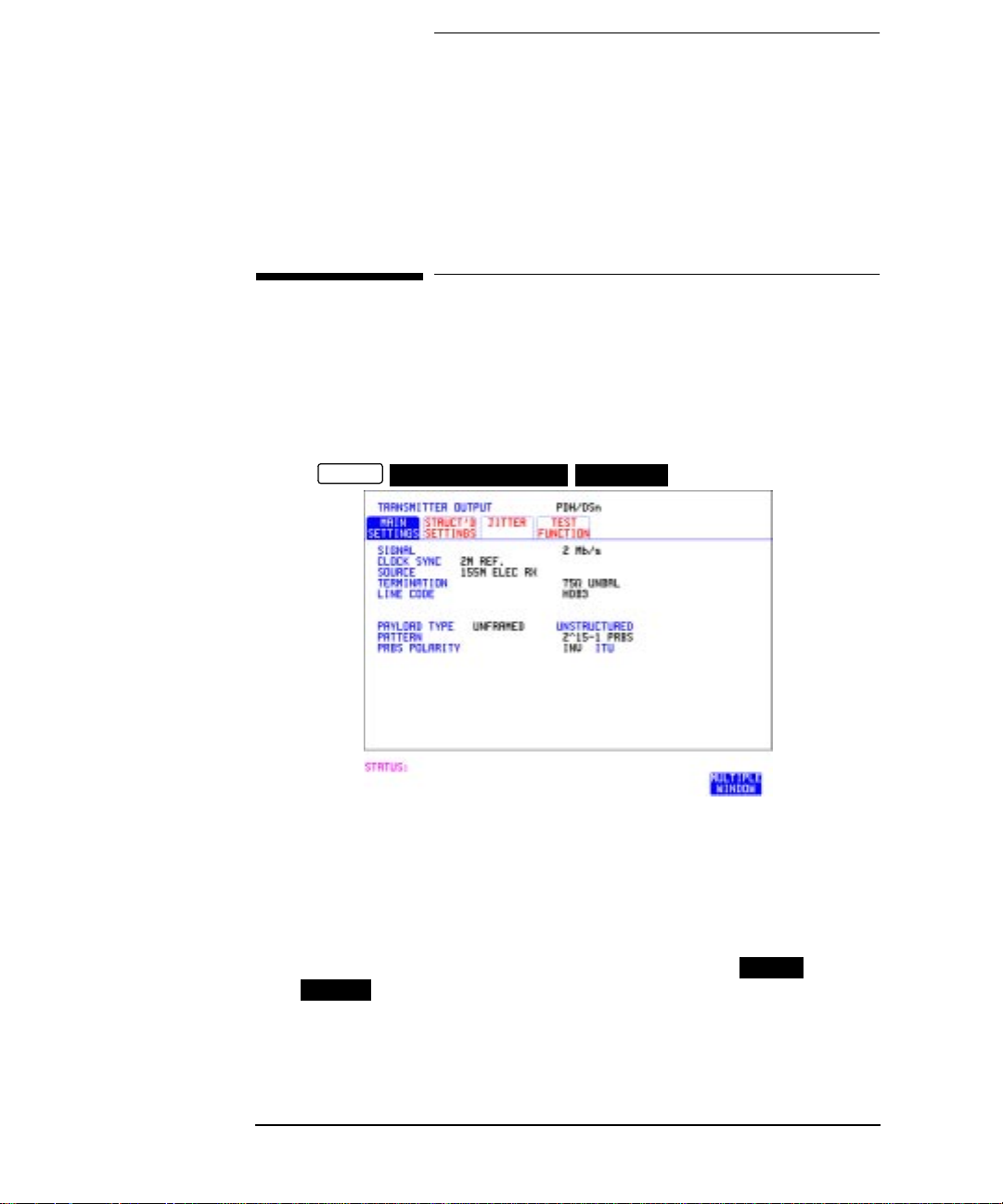
Description PDH transmit interface settings should match network equipment
settings of Rate, Termination and Line Code and determine the Payload
to be tested.
TIP: To set the Transmitter and Receiver to the same interface settings
choose .
OTHER
SETTINGS CONTROL COUPLED
HOW TO: 1 Choose the required SIGNAL rate.
If Option 010 is fitted, rates of 2, 8, 34 and 140 Mb/s are available.
If Option 011 is fitted rates of DS1, DS3, 2 Mb/s and 34 Mb/s are
available.
2 Choose the required CLOCK SYNC source, internally generated or
recovered from the received PDH signal.
IfJitter,Option 204,205or 206, isfitted and SIGNAL is chosen
a choice is added to the menu. This allows you to choose the
2M REF
synchronization source for the 2 Mb/s reference. The synchronization
source is supplied from the SDH Clock module. It can be internally
generated, derived from an external clock or recovered from the SDH
received signal.
2
2 Mb/s
Page 13

Setting the Interfaces
Setting PDH Transmit Interface
3 If DS1 or DS3 is chosen, choose the required interface level.
4 If you have chosen 2 Mb/s as the SIGNAL rate, choose the required
TERMINATION. (At all other signal rates the impedance is fixed).
5 If you have chosen 2 Mb/s, DS1 or 8 Mb/s as the SIGNAL rate, choose
the required LINE CODE. (At 34 Mb/s, 140 Mb/s and DS3 coding is
fixed.)
6 If required, choose the FREQUENCY OFFSET value.
See “Adding Frequency Offset to SDH Signal” page 31.
7 Choose the required PAYLOAD TYPE.
If is required must be chosen.
STRUCTURED
If is chosen the PDH test signal must be set up. See
STRUCTURED
FRAMED
“Setting Transmit Structured Payload/Test Signal” page 37.
If you have chosen 2 Mb/s, DS1 or DS3 as the PDH/DSn signal rate,
the Framed choice is expanded to provide a menu of framing types.
8 Choose the PATTERN type and the PRBS POLARITY.
3
Page 14

Setting the Interfaces
Setting SDH Transmit Interface
Setting SDH Transmit Interface
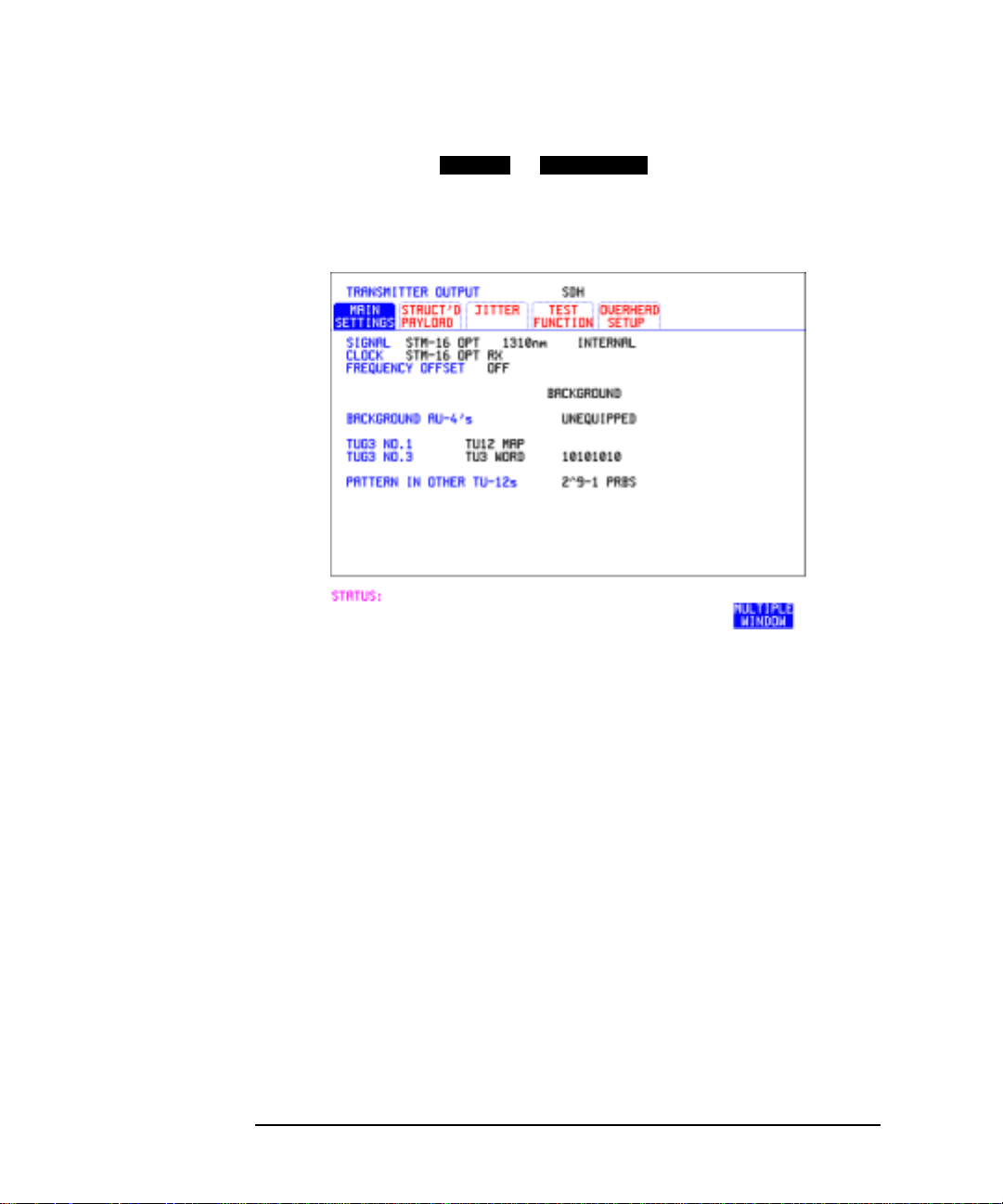
Description SDH transmit interface settings should match the network equipment
settings of Rate, Wavelength and Mapping, determine the payload to be
tested and set background conditions to prevent alarms while testing.
TIP: If you wish to set the HP 37718A transmitter and receiver to the same
interface settings choose .
OTHER
SETTINGS CONTROL COUPLED
HOW TO: 1 Make your choice of SIGNAL rate.
If Option106, Dual Wavelengthopticalmodule, isfittedand an optical
rate is chosen, choose the required wavelength (1550) or (1310).
If STM-0 is chosen, choose the required interface level.
Choose unless isrequired.If is
INTERNAL THRU MODE THRU MODE
chosen, see "Setting SDH THRU Mode " page 11.
2 Make your choice of CLOCK synchronization source. The RECEIVE
clock sync choice depends on the SDH Receive Interface choice.
EXTERNAL
allows a choice of MTS, BITS or 10 MHz clocks.
3 If required choose the FREQUENCY OFFSET value. See “Adding
Frequency Offset to SDH Signal” page 31.
4 Choose FOREGROUND , BACKGROUND
B/G MAPPING
MAPPING and type of payload.
F/G MAPPING
4
Page 15

Setting the Interfaces
Setting SDH Transmit Interface
Mapping may beselectedfroma pictorial display by moving the cursor to
MAPPING and pressing .
SET
Use and to move between AU Layer Selection, TU Layer
Selection and Payload Layer Selection. Use and to set the
mapping and to set your selection.
SET
5 If TU-2 mapping is chosen, TU CONCATENATION selection is
enabled, choose or the tributary at which the concatenation
OFF
begins, TU2-2C through TU2-6C.
The BACKGROUND, PATTERN IN OTHER TU2’s is fixed at
NUMBERED, that is, each TU-2 contains a unique number to allow
identification in case of routing problems.
6 If required, choose DS1/2M/34M/DS3/140M OFFSET value. See
“Adding Frequency Offset to SDH Signal” page 31
7 If TU-3, TU-2, TU-12 or TU-11 mapping is chosen, choose the test
tributary CHANNEL, including the STM-1 for an STM-4/STM-16
signal.
8 Choose thepayloadframing under PAYLOADTYPE or TU PAYLOAD.
If is required must be chosen.
STRUCTURED
If is chosen, thePayloadtestsignal must besetup. See
STRUCTURED
FRAMED
“Setting Transmit Structured Payload/Test Signal” page 37.
If is chosen, see “Inserting an External PDH Payload/Test
INSERT
Signal” page 43.
If you have chosen 2 Mb/s, DS1 or DS3 under Mapping, the Framed
choice is expanded to provide a menu of framing types.
5
Page 16
Setting the Interfaces
Setting SDH Transmit Interface
9 If 2 Mb/s framing or is chosen, set the CAS
PCM30 PCM30CRC
ABCD bit value. See "Setting up Signaling Bits " page 34
10 Choose the PATTERN type and PRBS polarity.
11 Choose the mapping required in the background (non-test) TUG-3s.
Refer to Appendix A for a table of background patterns for AU-3 and
TUG-3.
12 If TU-12 mapping is chosen for the test TUG-3, choose the PATTERN
IN OTHER TU-12s.
6
Page 17

Setting the Interfaces
Setting Jitter Transmit Interface
Setting Jitter Transmit Interface
Description: You can add jitter to the transmitted PDH or SDH signal at 2 Mb/s,
8 Mb/s 34 Mb/s, 140 Mb/s, STM-1, STM-4 and STM-16. You can source
the jitter modulation internally or from an external source.
HOW TO: 1 If you are adding jitter to the PDH signal, set up the PDH transmit
interface. See "Setting PDH Transmit Interface " page 2.
2 If you are adding jitter to the SDH signal, set up the SDH transmit
interface. See "Setting SDH Transmit Interface " page 4.
3 Choose JITTER/WANDER .
If you wish to add wander to the PDH or SDH signal, see "Setting
Wander Transmit Interface " page 9.
4 Choose JITTER .
If you wish to perform a Jitter Tolerance measurement, choose
AUTO TOLERANCE
If you wish to perform a Jitter Transfer measurement choose
TRANSFER FUNCTION
ON
. See “Measuring Jitter Tolerance” page 91.
JITTER
. See "Measuring Jitter Transfer " page 94.
7
Page 18

Setting the Interfaces
Setting Jitter Transmit Interface
5 Choose the modulation source.
If adding jitter to the PDH signal and is chosen, connect
EXTERNAL
the external sourcetotheMOD IN port of the JITTER TXmodule.Up
to 10 UI of external jitter modulation can be added at the MOD IN
port.
If adding jitter to the SDH signal and is chosen, connect
EXTERNAL
the external source to the MOD IN port of the SDH Clock module. Up
to 20 UI of external jitter modulation can be added at the MOD IN
port.
6 Choose the JITTER MASK setting required.
You can choose the jitter range,jittermodulating frequency and jitter
amplitude if is chosen.
If youchoose , the HP37718Awill "sweep" through the ITU-T
OFF
SWEPT
jitter mask (G.823forPDH,G.958, G.825 or G.253for SDH) adjusting
the jitter amplitude according to the jitter frequency.
If you choose , you can choose the "spot" jitter frequency. The
SPOT
jitter amplitude is adjusted and controlled according to your jitter
frequency choice.
TIP: If, when using the SWEPT MASK capability, a problem occurs around a
certain frequency, this may require closer examination. Stop the sweep
at that point by choosing . You can then control the "spot" jitter
SPOT
frequency to make closer examination of the problem.
8
Page 19

Setting the Interfaces
Setting Wander Transmit Interface
Setting Wander Transmit Interface
Description: You can add Wanderto the 2 Mb/s PDH signal and the STM-1, STM-4 or
STM-16 SDH signal.
HOW TO: PDH Wander (2 Mb/s)
1 Connect REF OUT on the SDH Clock module to REF IN on the PDH
Jitter TX module (this provides the Wander Reference).
2 Set up the PDH transmit interface, choose CLOCK SYNC
and select the SOURCE required from the menu. See "Setting PDH
Transmit Interface " page 2.
3 Choose JITTER/WANDER .
If you wish to add jitter to the PDH signal, see "Setting Jitter
Transmit Interface " page 7.
4 Choose WANDER .
5 Choose the modulation source.
If is chosen, connect the external source to the MOD IN
EXTERNAL
port of the PDH Jitter TX module. Up to 10 UI of Wander modulation
can be added.
ON
2M REF
WANDER
9
Page 20

Setting the Interfaces
Setting Wander Transmit Interface
6 Choose the WANDER MASK setting required.
You can choose the wander modulating frequency and wander
amplitude if is chosen.
If you choose ,youcanchoosethe"spot"wander frequency. The
OFF
SPOT
wanderamplitude isadjustedand controlledaccordingto yourwander
frequency choice.
SDH Wander (STM-1, STM-4, STM-16)
7 Set up the SDH transmit interface. See "Setting SDH Transmit
Interface " page 4.
8 Choose JITTER/WANDER .
WANDER
If you wish to add jitter to the SDH signal, see "Setting Jitter
Transmit Interface " page 7.
9 Choose WANDER .
ON
10 Choose the WANDER MASK setting required.
You can choose the wander modulating frequency and wander
amplitude if is chosen.
If you choose ,youcanchoosethe"spot"wander frequency. The
OFF
SPOT
wanderamplitude isadjustedand controlledaccordingto yourwander
frequency choice.
10
Page 21

Setting the Interfaces
Setting SDH THRU Mode
Setting SDH THRU Mode
Description THRU mode is used to non-intrusively monitor SDH lines where no
protected monitor points are available.
As THRU mode locks some user settings, you must set SIGNAL RATE,
AU rate, AU-3 CHANNEL (if appropriate) before selecting THRU mode.
The entire frame can be errorred at a user defined rate if PAYLOAD
OVERWRITE and SOH+POH CHANNEL OVERWRITE are both set to
. If eitheroverwriteisenabled the ENTIRE FRAME ERROR RATE
OFF
function is disabled.
Jitter can be added to the STM-1, STM-4 and STM-16 signal.
STM-0, STM-1
You can substitute a new payload, Section overhead (SOH) and Path
overhead (POH) in the received STM-0/1 signal for testing.
STM-4, STM-16
The overhead and payload may be overwritten for AU-4 and AU3.
PAYLOAD OVERWRITE is not available for AU-4-4c or AU-4-16c.
SOH overwrite is available for AU-4-4C and AU-4-16c.
HOW TO:
1 Make the required SIGNAL RATE, MAPPING and CHANNEL
choices on the SDH and displays, See "Setting
SDHTransmitInterface " page 4 and "SettingSDHReceive Interface
" page 17.
TRANSMIT
RECEIVE
11
Page 22

Setting the Interfaces
Setting SDH THRU Mode
2 Make the PAYLOAD OVERWRITE choice required.
If AU-4,AU-3, TU-3,TU-2or TU-12 is chosen,theB1, B2 andB3BIPs
are recalculated before transmission and the Mapping, Selected TU,
TU Payload, Pattern, Tributary Offset and Pattern in other TU’s
settings are displayed. To choose the settings in these, See "Setting
SDH Transmit Interface " page 4, steps 4 through 10.
3 Make the SOH+POH OVERWRITE choice required.
You can only modify those overheadbytesavailableunder
SDH TEST FUNCTION SDH
: Errors & Alarms, Sequences,
TRANSMIT
Overhead BER, APS Messages and DCC Insert.
The B1, B2 and B3 BIPs are recalculated before transmission.
4 If you wish to add jitter to the STM-1, STM-4 or STM-16 signal, see
"Setting Jitter Transmit Interface " page 7.
12
Page 23

Setting the Interfaces
Using Smart Test
Using Smart Test
Description The SmartTest functioncanhelp speed-up configuring the instrument in
two ways.
1 A Smartsetup feature that will attempt to configure the instrument
to receive the incoming signal.
2 A series of “links” that provide quick access to some of the most
frequently used features of the instrument. Note that these tests are
run with the instrument in its current configuration, no attempt is
made to set the instrument to the requirements of the test.
Smartsetup can help the user by attempting to identify the incoming
signal structure and detect mixed payload signal structures.
HOW TO USE
SMARTSETUP:
1 Connect the HP 37718A to the network and choose if necessary the
required SDH interface on the HP 37718A(Smartsetup will
select PDH or SDH/SONET, but can not select between SDH and
SONET).
2 Press .
The display will show the Smart Test menu above.
3 Press either or .
SMART TEST
RECEIVE
SET
SELECT
13
Page 24

Setting the Interfaces
Using Smart Test
4 In SDH mode the incoming signal will be identified on the top line of
thedisplay,andunder this thepayload mappings,theJ1 TraceandC2
byte indicators are displayed on the bottom lines.
5 Use the and keys to display theJ1Traceinformationfor each
AUG. When the AUG of interest has been identified choose either
VIEW PAYLOAD PRBS SEARCH
or .
6 Choosing will identify and display the payload
VIEW PAYLOAD
mapping of the TUG structured signal, as shown below.
Choose the required tributary using and .
7 There are four choices available at this point:
SETUP RX
TROUBLE SCAN
tributary, exitstothe displayandstarts
which sets the receiver to receive the selected tributary.
which sets the receiver to receive the selected
RESULTS
TROUBLE SCAN
gating.
VIEW LABELS
which displaystheC2/V5/J1/J2 trace information for
the selected tributary.
TOP LEVEL
which returns the display to the AUG selection window.
8 Choosing at Step 5 will prompt you for additional
PRBS SEARCH
information about patterns and which mapping to search. When the
required data has been entered press .
GO
9 When the search is complete a tributary display appears, with any
tributariescontainingthe required PRBSindicated with a“P”. Choose
the required tributary using and .
14
Page 25

Setting the Interfaces
Setting PDH Receive Interface
Setting PDH Receive Interface
Description PDH Receive interface settings should match the network equipment
settings of Rate, Termination and Line Code and determine the Payload
to be tested.
TIP: To set the transmitter and receiver to the same interface settings choose
OTHER
SETTINGS CONTROL COUPLED
.
HOW TO: 1 Choose the required SIGNAL rate.
2 If you have chosen 2 Mb/s as the SIGNAL rate, choose the required
TERMINATION. (At all other rates the impedance is fixed.)
3 If you have chosen 2 Mb/s, DS1 or 8 Mb/s as the SIGNAL rate, choose
the required LINE CODE. (At 34Mb/s, 140 Mb/s and DS3 coding is
fixed.)
4 If you are measuring at the networkequipmentmonitorpoint,set the
LEVEL field to . In this case the received signal will be 20
to 30 dB below the normal level.
Choose the GAIN required to return the received signal to normal.
Choose EQUALIZATION to compensate for cable losses if
required.
MONITOR
ON
15
Page 26

Setting the Interfaces
Setting PDH Receive Interface
Choose the PAYLOAD TYPE.
If is required must be chosen.
STRUCTURED
If is chosen, the PDH test signal must be set up. See
STRUCTURED
FRAMED
“Setting Transmit Structured Payload/Test Signal” page 37.
If you chose 2 Mb/s, DS1 or DS3 as the PDH/DSn SIGNAL rate, the
FRAMED choice is expanded to provide a menu of framing types.
5 Choose the PATTERN type and the PRBS POLARITY required.
16
Page 27

Setting the Interfaces
Setting SDH Receive Interface
Setting SDH Receive Interface
Description SDH Receive interface settings should match the network equipment
settings of Rate and Mapping, and determine the payload to be tested.
TIP: If you wish to set the HP 37718A transmitter and receiver to the same
interface settings, choose .
OTHER
SETTINGS CONTROL COUPLED
HOW TO: 1 Choose the required SIGNAL source.
If STM-0 or STM-1 electrical is chosen, choose the required LEVEL.
If the LEVEL chosen is choose the required GAIN.
MONITOR
2 Choose mapping and type of payload.
3 IfTU-2mapping ischosen,and CONCATENATION isenabled, choose
the tributary at which the concatenation begins.
If TU-2, TU-3, TU-12 or TU11 mapping is chosen, choose the test
tributary under CHANNEL.
4 Choose thepayloadframing under PAYLOAD TYPE or TUPAYLOAD.
If is required must be chosen.
STRUCTURED
If is chosen the Payload test signal must besetup. See
STRUCTURED
FRAMED
“Setting Receive Structured Payload/Test Signal” page 39.
If DROP is chosen, see “Dropping an External Payload/Test Signal”
page 46.
5 Choose the PATTERN type and PRBS polarity.
17
Page 28

Setting the Interfaces
Setting Jitter Receive Interface
Setting Jitter Receive Interface
Description: Jitter and error measurements are made simultaneously when a jitter
option is fitted. The measurements are made on the normal input to the
PDH or SDH receiver and the interface selections are the normal
Receiver selections. Thejitterreceiveinterfaceis selected with
PDH JITTER
JITTER
.
or MEASUREMENT TYPE
RECEIVE
SDH
JITTER
The choices made on the jitter receive interface determine the jitter
measurement range, the threshold level for determining a jitter hit and
which filters are used in the jitter measurement.
RECEIVE
HOW TO: 1 Choose the RECEIVER RANGE - the jitter measurement range.
2 Choose the HIT THRESHOLD level - if the received jitter exceeds the
value chosen a jitter hit is recorded.
3 Choose the FILTER you wish to include in the peak to peak and RMS
jitter measurement.
18
Page 29

Setting the Interfaces
Setting Extended Jitter Receive Interface
Setting Extended Jitter Receive
Interface
Description: Extended Jitter measurements are made in a jitter bandwidth of 0.1 Hz
to 25 kHz. These measurements are made at the upper end of the
standard wander frequency range and the lower end of the standard
jitter frequency range. The extended jitter receive interface is selected
with or
RECEIVE
MEASUREMENT TYPE .
The choices made on the jitter receive interface determine the threshold
level for determining a jitter hit. The measurement Range and the
Filters are not selectable.
PDH JITTER
EXTENDED
RECEIVE
SDH
JITTER
HOW TO: 1 Choose MEASUREMENT TYPE .
2 Choose the HIT THRESHOLD level - if the received jitter exceeds the
value chosen a jitter hit is recorded.
EXTENDED
19
Page 30
Setting the Interfaces
Setting Wander Receive Interface
Setting Wander Receive Interface
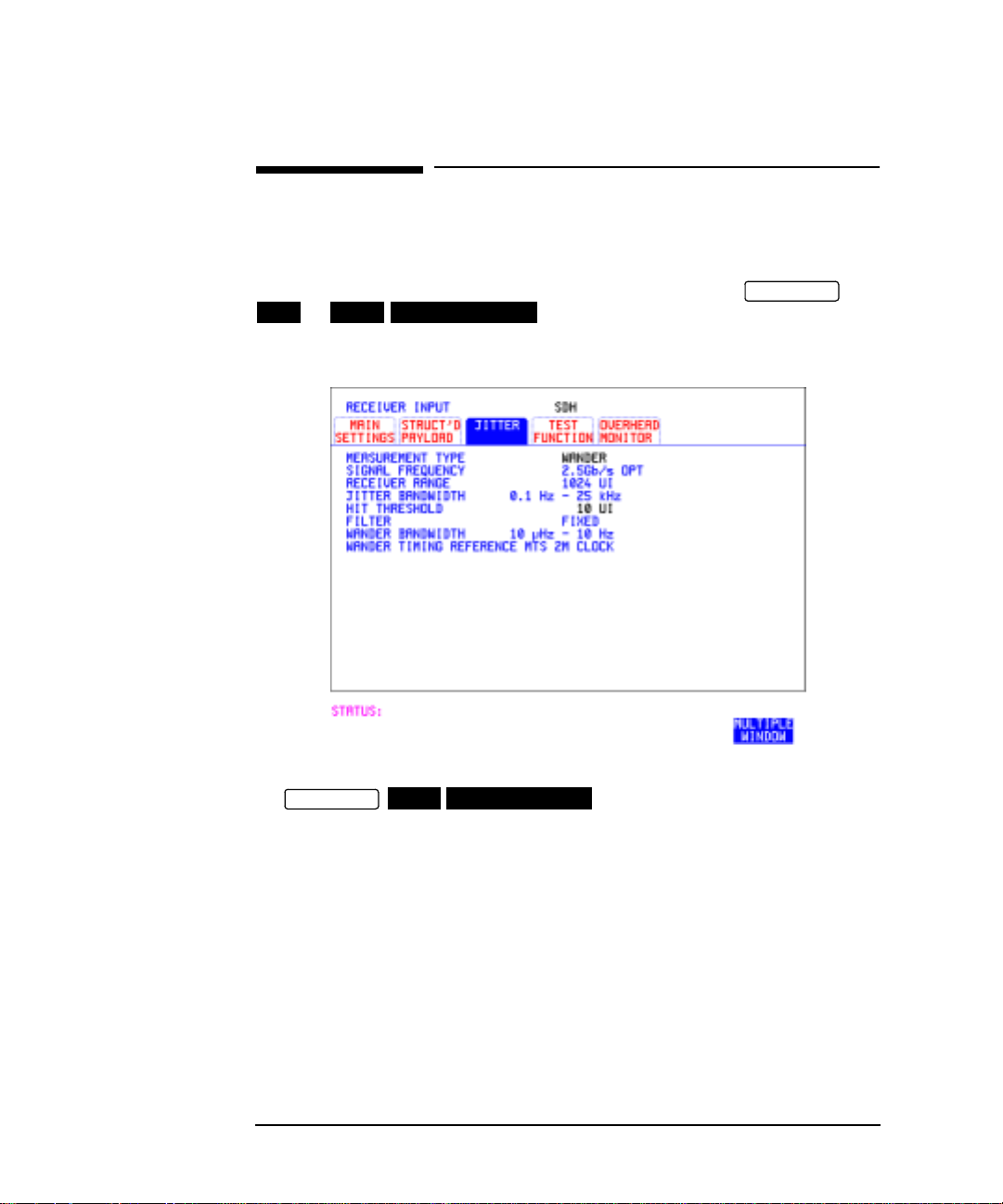
Description: You can measure Wander at all PDH and SDH rates. A synchronization
source for the 2 Mb/s reference should be selected on the
or display to ensure accurate Wander
PDH
SDH MAIN SETTINGS
results.
TRANSMIT
HOW TO: 1 Choose a synchronization source for the 2 Mb/s reference on the
TRANSMIT
SDH MAIN SETTINGS
display. See, “Setting SDH
Transmit Interface” page 4.
2 If you intend to measure wander on a PDH signal, set up the PDH
receive interface. See, “Setting PDH Receive Interface” page 15.
3 If you intend to measure wander on a SDH signal, set up the SDH
receive interface. See, “Setting SDH Receive Interface” page 17.
4 Choose the wander HIT THRESHOLD - if the received wander
exceeds the value chosen a wander hit is recorded.
20
Page 31

2
2 Selecting Test Features
Page 32

Selecting Test Features
Using Transmit Overhead Setup
Description You can set an overhead byte to a known static state to aid
troubleshooting, for example to quickly check for "stuck bits" in path
overhead bytes. Section Overhead, Path Overhead, Trace Messages and
Labels can be set using this feature.
HOW TO: 1 Setupthe SDHtransmitinterface andpayloadrequired. See "Setting
SDH Transmit Interface " page 4.
2 Choose the type of overhead to SETUP.
If STM-4 OPT or STM-16 OPT is chosen as the SDH interface, choose
the STM-1 you wish to set up.
DEFAULT - Use to set all overhead bytes to the standard values
defined by ITU-T.
If a test function is active then the overhead byte value is determined
by the choices made in the Test Function. For example if APS
Messages is chosen, the K1K2 value is determined by the APS
Messages setup.
22
Page 33

Selecting Test Features
Using Transmit Overhead Setup
3 If SOH (Section Overhead) is chosen, choose the COLUMN to be
displayed. Many bytes in COLS 2,5,8 and 3,6,9 are unlabeled as the
other overhead functions have not yet been defined.
If ALL COLUMNS is chosen, the hexadecimal value of all 81 bytes of
the STM-1 sectionoverheadselectedare displayed (all 324 bytes ofan
STM-4 or 1,296 bytes of an STM-16 are displayed 81 bytes at a time
by selecting each STM-1 in turn). The value of the bytes can be set
using .
DECREASE DIGIT INCREASE DIGIT
If BYTE NAMES is chosen, the labels for the ALL COLUMNS
overhead bytes are displayed.
4 If POH (Path Overhead) is chosen, choose the TYPE of overhead
within STM-1 under test to be setup.
J1 and J2 bytes can be set under Path Overhead or Trace Messages.
H4 bytehasa choice of sequences forTU-12,TU11 and TU-2 mapping:
Full Sequence - 48 byte binary sequence.
Reduced Sequence - Binary count sequence of 0 to 3 i.e. 111111(00
to 11).
COC1 Sequence - Binary count sequence of 0 to 3 i.e. 110000(00 to
11).
5 If TRACE MESSAGES is chosen, see "Setting Overhead Trace
Messages " page 26.
NOTE Any bit of an overhead byte which is displayed as x or s cannot be set at
any time. All other bits can be set to 0 or 1.
TIP: You can set all overhead bytes to the default state by selecting SETUP
DEFAULT
.
You can set all overhead bytes and test functions to the default state by
recalling Stored Settings [0] on the display.
OTHER
23
Page 34

Selecting Test Features
Using Receive Overhead Monitor
Using Receive Overhead Monitor
Description When first connecting to a SDH network, a start up confidence check can
be made by viewing the behavior of all the overhead bytes. If the SDH
network shows alarm indications, some diagnosis of the problem may be
gained from viewing all the overhead bytes.The OVERHEAD MONITOR
display is updated once per second (once per 8000 frames) approximately.
A snapshot of the received overhead can be logged to the chosen logging
device. See "Logging on Demand " page 112.
HOW TO: 1 Setupthe receiveSDH interfaceand payloadas required.See“Setting
SDH Receive Interface” page 17.
2 Choose the type of overhead to MONITOR.
3 If SOH (Section Overhead) is chosen, choose the STM-1 number and
COLUMN to be displayed.
Many bytes in COLS 2,5,8 and 3,6,9 are unlabeled because the other
overhead functions have not yet been defined.
If ALL COLUMNS is chosen, the hexadecimal value of all 81 bytes of
section overheadis displayed (all324bytes of anSTM-4or 1,296 bytes
of an STM-16aredisplayed81 bytes at a time by selecting eachSTM1 in turn).The value of the bytes can be set using
INCREASE DIGIT
24
.
DECREASE DIGIT
Page 35

Selecting Test Features
Using Receive Overhead Monitor
If BYTE NAMES is chosen, the labels for the ALL COLUMNS
overhead bytes are displayed.
4 If POH (Path Overhead) is chosen, choose the source of the overhead
VC-4, VC-3, VC-2, VC-12 or VC-11.
J1 and J2 bytes can be monitored under Path Overhead or Trace
Messages
5 If TRACE MESSAGES is chosen, you can monitor a data message to
verify portions of the network.
If the 16 byte CRC7 message structure is detected, the 15 characters
within the message are displayed.
If the CRC7 structure is not detected in J1, the 64 byte message
format is assumed and displayed.
If the CRC7 structure is not detected for J0 or J2, all 16 bytes are
displayed.
6 If LABELS is chosen, the S1 sync status, HP path label (C2) and the
LP Path label (V5) are monitored.
7 If APS MESSAGES is chosen, choose the TOPOLOGY,
(G.783) or (G.841). The K1 and K2 bits are monitored.
RING
LINEAR
TIP: If any abnormal behavior is observed on a particular path or section
overhead byte, or an associated group of bytes (3XA1,3XA2; D1 - D3), the
RECEIVE
TEST FUNCTION
display of can be
OVERHEAD CAPTURE
used to "Zoom" in on the suspect byte or bytes on a frame by frame basis.
See "Using Receive Overhead Capture " page 29.
25
Page 36

Selecting Test Features
Setting Overhead Trace Messages
Setting Overhead Trace Messages
Description You can insert a data message to verify portions of the network:
J0 verifies the regenerator section overhead.
J1 verifies the VC-3 or VC-4 path connection.
J2 verifies the VC-2, VC-12 or VC-11 path connection.
HOW TO: 1 Choose the message for insertion in the chosen trace channel.
ChoosingLABELSin TRACE MESSAGESallows the settingof the S1
SYNC STATUS, HP PATH LABEL (C2) and LP PATH LABEL (V5).
26
Page 37

Selecting Test Features
Generating Overhead Sequences
Generating Overhead Sequences
Description You may insert a pattern into a functional group of overhead bytes for
testing or troubleshooting purposes.
HOW TO: 1 Set up theSDHtransmit interface and payload required. See“Setting
SDH Transmit Interface” page 4.
2 Choose the type of sequence required.
SINGLE RUN - runs the sequence once and then stops.
REPEAT RUN - runs the sequence repeatedly until STOPPED is
chosen.
3 Choose the overhead type as required.
RSOH- Regenerator Section Overhead
MSOH- Multiplexer Section Overhead
POH - Path Overhead
4 Choose the byte or bytes of overhead required.
5 Set up the required number of data patterns and the number of
frames in which each data pattern should appear.
Your sequenceisderived fromup to5blocks ofhexadecimal data.Each
block can be transmitted in up to 64,000 frames.
The data and the number of frames are set using
INCREASE DIGIT
.
DECREASE DIGIT
27
Page 38

Selecting Test Features
Generating Overhead Sequences
6 Start the sequence by choosing .
START
NOTE When youstart the sequenceillustrated,one Out ofFramealarm andone
Loss of Frame alarm should occur every eight seconds.
28
Page 39

Selecting Test Features
Using Receive Overhead Capture
Using Receive Overhead Capture
Description Regenerator section, Multiplexer section and Path overhead provide
network support functions, responding dynamically to network
conditions and needs. It is therefore useful to capture overhead activity
on a frame by frame basis.
The Overhead Capture display can be logged to the chosen logging
device. See "Logging on Demand " page 112.
HOW TO: 1 Setupthe receiveSDH interfaceand payloadas required.See“Setting
SDH Receive Interface” page 17.
2 Choose the overhead type as required.
RSOH- Regenerator Section Overhead
MSOH- Multiplexer Section Overhead
POH- Path Overhead
3 Choose the Byte or bytes of overhead to be captured.
Choose the TRIGGER to determine the start point of the capture.
- starts immediately the capture is initiated. Can be used to
OFF
provide a frame by frame monitor of the chosen byte or bytes.
-captures activity after your specified overhead state has occurred.
ON
Can be used for transient detection from a specified expected state.
29
Page 40

Selecting Test Features
Using Receive Overhead Capture
ON NOT
- captures activityafterthe first occurrence of adeviationfrom
your specified overhead state. Can be used for transient detection from a
specified expected state.
4 Up to 16 records of overhead state are provided. Each record will
represent between 1 and 64,000 frames. A capture is started by
pressing CAPTURE and terminates when up to 16 records
START
havebeen captured.Thecapture canbe terminatedearlierby pressing
CAPTURE .
STOP
30
Page 41

Selecting Test Features
Adding Frequency Offset to SDH Signal
Adding Frequency Offset to SDH Signal
Description Frequency offset can be added to the SDH interface rate signal and to
the payload signal.
HOW TO: SDH Line Rate Offset
1 Choose the amount of frequency offset required.
You can set the Frequency Offset in the range -999 ppm to +999 ppm
in1ppm stepsusing and .
The amount of applied Frequency Offset can be varied while
measurements are taking place.
If the valueofthe SDH line rate offset chosenissufficient to cause the
maximumstuffrate to beexceeded, the asynchronouspayload is offset
to prevent bit errors occurring and the maximum stuff rate is
maintained. WhenFloatingByte 2 Mb/sischosen, in conjunction with
SDH linerateoffset, the chosen tributarywill be offset astheline rate
is offset. (No pointer movements).
Tributary Offset ±100 ppm
1 Choose the amount of tributary offset required.
You can set the Offset in the range -100 ppm to +100 ppm in 1 ppm
steps using and .
The amount of applied Frequency Offset can be varied while
measurements are taking place.
DECREASE DIGIT INCREASE DIGIT
DECREASE DIGIT INCREASE DIGIT
31
Page 42

Selecting Test Features
Adding Frequency Offset to SDH Signal
Tributary offset affects the stuff rate but does not cause pointer
movements and can be used to test mapping jitter. If the combined
value ofSDH line rateoffsetand tributary offsetchosenis sufficientto
cause the maximum stuff rate to be exceeded the payload is offset to
prevent bit errors occurring and the maximum stuff rate is
maintained.
32
Page 43

Selecting Test Features
Adding Frequency Offset to the PDH Signal
Adding Frequency Offset to the PDH Signal
Description You can add frequency offset to the interface PDH SIGNAL at all rates.
Frequency Offset can be added at preset ITU values or as User defined
values in the range ±100 ppm. The preset values change with the
SIGNAL rate chosen as shown:
DS-1 (1.544 Mb/s) + 32 ppm −32 ppm
2 Mb/s (E1) + 50 ppm −50 ppm
8 Mb/s (E2) +30 ppm −30 ppm
34 Mb/s (E3) + 20 ppm −20 ppm
DS-3 (44.736 Mb/s) + 20 ppm −20 ppm
140 Mb/s (E4) +15 ppm −15 ppm
HOW TO: 1 Choose the FREQUENCY OFFSET required.
2 If you choose USER OFFSET, you can set the frequency offset to be
between -100 ppm and +100 ppm in 1 ppm steps.
Select the field immediately below USER OFFSET and use
DECREASE DIGIT INCREASE DIGIT
frequency offset.(The amount of frequency offset can be varied while
measurements are taking place.)
, , and to set the
33
Page 44

Selecting Test Features
Setting up Signaling Bits
Setting up Signaling Bits
Description When transmitting 2.048 Mb/s signals with timeslot-16 CAS (PCM30 or
PCM30CRC) multiframing the state of A,B,C,D signaling bits can be set.
The signaling bits of all timeslots are set to the user-defined 4 bit value.
When transmitting a DS1 framed, structured signal the values of the
A,B signaling bits for D4 and SLC-96 payloads, and A,B,C,D signaling
bits for ESF payloads can be defined.
HOW TO Transmit a 2 Mb/s signal with user-defined signaling bits
PDH Operation
1 Choose on the display.
2 Choose SIGNAL and PAYLOAD TYPE or
PCM30CRC
PDH/DSn
2 Mb/s PCM30
on the display.
TRANSMIT
MAIN SETTINGS
3 If UNSTRUCTURED is chosen set the 2M CAS ABCD bits value on
the display.
MAIN SETTINGS
If STRUCTURED is chosen set the 2M CAS ABCD bits value on the
STRUCTURED SETTINGS
display.
34
Page 45

Selecting Test Features
Setting up Signaling Bits
SDH Operation
1 Choose on the display
SDH
2 Choose MAPPING or and TU
PAYLOAD to or onthe display.
PCM30 PCM30CRC
TRANSMIT
ASYNC 2Mb/s FL BYTE 2Mb/s
MAIN SETTINGS
3 If UNSTRUCTURED is chosen set the 2M CAS ABCD bits value on
the display.
MAIN SETTINGS
If STRUCTURED is chosen set the 2M CAS ABCD bits value on the
STRUCTURED SETTINGS
display.
HOW TO Transmit a DS1 payload signal with user-defined signaling bits
PDH Operation
1 Choose on the display.
PDH/DSn
TRANSMIT
35
Page 46

Selecting Test Features
Setting up Signaling Bits
2 Choose SIGNAL or , and PAYLOAD TYPE
on the display
MAIN SETTINGS
3 Choose TEST SIGNAL or on the
SETTINGS
DS1 DS3
56 kb/s Nx56 kb/s
display.
STRUCTURED
STRUCTURED
4 Set the A,B bits (for D4 and SLC-96) and A,B,C,D bits (for ESF) as
required.
SDH Operation
1 Choose on the display.
SDH
2 Choose MAPPING or and TU PAYLOAD
STRUCTURED MAIN SETTINGS
on the display
3 Choose TEST SIGNAL or on the
SETTINGS
display .
TRANSMIT
ASYNC DS1
56 kb/s Nx56 kb/s
DS3
STRUCTURED
4 Set the A,B bits (for D4 and SLC-96) and A,B,C,D bits (for ESF) as
required.
36
Page 47

Selecting Test Features
Setting Transmit Structured Payload/Test Signal
Setting Transmit Structured Payload/Test Signal
Description Structured PDH Payload/Test Signal settings determine the SDH
payload or the PDH test signal to be tested and set any background (non
test) conditions to prevent alarms while testing.
TIP: If you wish to set the HP 37718A transmitter and receiver to the same
Payload settings, choose .
OTHER
SETTINGS CONTROL COUPLED
HOW TO: 1 Choose the required TEST SIGNAL rate. If Nx64 kb/s is chosen, see
"Setting Transmit N x 64 kb/s/N x 56 kb/s Structured Payload/Test
Signal " page 40.
2 Choose the PAYLOAD framing pattern.
If the TEST SIGNAL chosen was 2Mb/s, the choice is
added to PAYLOAD menu. See "Inserting an External PDH Payload/
Test Signal " page 43.
3 Choosethetest tributaryin the structuredpayload, under34Mb, 8Mb,
2Mb, 64 kb/s or DS2, DS1.
4 Choose the PATTERN type and PRBS POLARITY.
5 Choose the B/G PATTERN.
The B/G PATTERN in the non test 64 kb/s timeslots is fixed as
NUMBERED,that is,each timeslotcontains auniquenumber toallow
identification in case of routing problems.
INSERT 2 Mb/s
37
Page 48

Selecting Test Features
Setting Transmit Structured Payload/Test Signal
Signaling
6 If a 2 Mb/s PAYLOAD with PCM30 or PCM30CRC framing,or 56 kb/s
or Nx56kb/s Test Signal is chosen. See, "Setting up Signaling Bits "
page 34.
38
Page 49

Selecting Test Features
Setting Receive Structured Payload/Test Signal
Setting Receive StructuredPayload/Test Signal
Description Structured PDH Payload/Test Signal settings determine the SDH
payload or the PDH test signal to be tested.
TIP: If you wish to set the HP 37718A transmitter and receiver to the same
Payload settings, choose .
OTHER
STORED SETTINGS COUPLED
HOW TO: 1 Choose the required Test Signal rate. If N x 64 kb/s or N x 56 kb/s is
chosen, see "Setting Receive N x 64 kb/s/N x 56 kb/s Structured
Payload/Test Signal " page 42.
2 Choose the Framing pattern of the PAYLOAD.
If 2 Mb/s TEST SIGNAL is chosen, is added to the
menu.
See "Dropping an External Payload/Test Signal " page 46.
3 Choose the test tributary within the structured payload,under34Mb,
8Mb, 2Mb, 64 kb or DS2, DS1.
4 Choose the PATTERN type and PRBS polarity.
DROP 2 Mb/s
39
Page 50

Selecting Test Features
Setting TransmitNx64kb/s/N x 56 kb/s Structured Payload/Test Signal
Setting Transmit N x 64 kb/s/N x 56 kb/s
Structured Payload/Test Signal
Description Wideband services such as high speed data links and LAN
interconnection require a bandwidth greater than 56/64 kb/s but less
than DS1/2 Mb/s for example 128 kb/s or 384 kb/s. These wideband
signals are sent in a DS1/2 Mb/s frame by sharing the signal between
multiple timeslots.
N x 64kb/s/N x 56 kb/s structured payload allows a test pattern to be
inserted across a number of timeslots even if the chosen timeslots are
non-contiguous.
HOW TO: 1 Choose the required Test Signal rate.
2 Choose the Framing pattern of the 2M or DS1 PAYLOAD.
3 Choose the test timeslots within the structured payload using
DESELECT ALL DESELECT SELECT
timeslot is selected, an * marks the chosen timeslot. In the example
above Timeslots 3, 5, 9, 25, 26, 27 are selected for test.
4 Choose the PATTERN type and PRBS polarity.
5 Choose the B/G PATTERN.
6 The B/G PATTERN in the non-test 64 kb/s timeslots is fixed as
NUMBERED, that is, each timeslot contains a unique identification
number.
40
and softkeys. As each
Page 51

Selecting Test Features
Setting TransmitNx64kb/s/N x 56 kb/s Structured Payload/Test Signal
Signaling
7 If a 2 Mb/s PAYLOAD with PCM30 or PCM30CRC framing,or 56 kb/s
or Nx56kb/s Test Signal is chosen. See, "Setting up Signaling Bits "
page 34.
41
Page 52

Selecting Test Features
Setting Receive N x 64 kb/s/N x 56 kb/s Structured Payload/Test Signal
Setting Receive N x 64 kb/s/N x 56 kb/s
Structured Payload/Test Signal
Description Wideband services such as high speed data links and LAN
interconnection require a bandwidth greater than 56/64 kb/s but less
than DS1/2 Mb/s e.g. 128 kb/s or 384 kb/s. These wideband signals are
sent in a ds1/2 Mb/s frame by sharing the signal between multiple
timeslots.
N x 64kb/s andNx56kb/sstructured payload/test signal allows the test
Timeslots to be chosen for error measurement even when the Timeslots
are non contiguous.
HOW TO: 1 Choose the required Test Signal rate.
2 Choose the Framing pattern of the 2M or DS1 PAYLOAD.
3 Choose the test timeslots within the structured payload using
DESELECT ALL DESELECT SELECT
timeslot is chosen an * marks the chosen timeslot. In the example
above Timeslots 3, 5, 9, 25, 26, 27 are chosen for test.
4 Choose the PATTERN type and PRBS polarity.
42
and softkeys. As each
Page 53

Selecting Test Features
Inserting an External PDH Payload/Test Signal
Inserting an External PDH Payload/Test Signal
Description Depending on the 37718Aoptionfitted, you can insert a PDH signal from
external equipment into the SDH signal, or you can insert 2 Mb/s or DS1
into the structured PDH signal, as shown in the table below. 140Mb/s,
34Mb/s, DS3 and 34 Mb/s can only be inserted if SDH is chosen as the
receive interface. 2 Mb/s or DS1 can be inserted from a structured or
non-structured SDH payload and from a structured PDH signal.
RATE Availability Option
140 Mb/s SDH Only 010 Only
DS3 SDH & SONET 011 Only
34Mb/s SDH & SONET 010 and 011
2Mb/s PDH, SDH & SONET 010 and 011
DS1 PDH, SDH & SONET 011 Only
HOW TO: Insert 34 Mb/s, DS3 & 140 Mb/s
1 Connect the external payload to the 75Ω IN port of the PDH/DSn
receive module.
2 Setupthe requiredtransmit SDHinterface, andchoose TUPAYLOAD
INSERT 140 Mb/s
, or as required.
INSERT 34 Mb/s
INSERT DS3
43
Page 54

Selecting Test Features
Inserting an External PDH Payload/Test Signal
Insert 2 Mb/s or DS1 (Unstructured SDH Payload)
1 Connect the external payload to the MUX port of the PDH Transmit
module.
If 2 Mb/s connect to 75ΩMUX port. If DS1 connect to 100Ω MUX port.
2 Set up the required transmit SDH interface, and choose TU12
MAPPING or TU11 MAPPING and TU PAYLOAD or
INSERT DS1
.
INSERT 2 Mb/s
Insert 2 Mb/s or DS1 (Structured SDH Payload or Structured PDH)
1 Connect the external payload to the MUX port of the PDH Transmit
module.
If 2 Mb/s connect to 75ΩMUX port. If DS1 connect to 100Ω MUX port.
44
Page 55

Selecting Test Features
Inserting an External PDH Payload/Test Signal
Structured SDH Payload
2 Set up the required transmit SDH interface. See "Setting SDH
Transmit Interface " page 4.
3 Set up the SDH structured payload. See "Setting Transmit
Structured Payload/Test Signal " page 37.
4 Choose 2M PAYLOAD/DS1 PAYLOAD or
INSERT DS1
.
INSERT 2 Mb/s
5 Choose the LINE CODE.
Structured PDH
6 Set up, the required transmit PDH interface, See "Setting PDH
Transmit Interface " page 2.
7 Set up the PDH Test Signal interface. See "Setting Transmit
Structured Payload/Test Signal " page 37
8 Choose 2M PAYLOAD/DS1 PAYLOAD or
INSERT DS1
.
INSERT 2 Mb/s
9 Choose the LINE CODE.
45
Page 56

Selecting Test Features
Dropping an External Payload/Test Signal
Dropping an External Payload/Test Signal
Description Depending on the 37718A option fitted, you can drop a PDH signal from
the received payload or drop 2 Mb/s or DS1 from the structured PDH
signal to external equipment as shown in the table below. 140Mb/s,
34Mb/s, DS3 and 34 Mb/s can only be dropped if SDH is chosen as the
receive interface. 2 Mb/s or DS1 can be dropped from a structured or nonstructured SDH payload and from a structured PDH signal.
RATE Availability Option
140 Mb/s SDH Only 010 Only
DS3 SDH & SONET 011 Only
34Mb/s SDH & SONET 010 and 011
2Mb/s PDH, SDH & SONET 010 and 011
DS1 PDH, SDH & SONET 011 Only
HOW TO: Drop 34 Mb/s, DS3 & 140 Mb/s
1 Connect the 75Ω OUT port of the PDH Tx module to the external
equipment.
46
Page 57

Selecting Test Features
Dropping an External Payload/Test Signal
2 Set up the receive SDH interface, and choose TU PAYLOAD
DROP 140 Mb/s DROP 34 Mb/s
If is chosen, choose the DS3 output level.
DROP DS3
, or .
DROP DS3
Drop 2 Mb/s /DS1 (Unstructured SDH Payload)
1 Connect the DEMUX port of the PDH module to the external
equipment.
2 Set up the required receive SDH interface, and choose TU12
MAPPING or TU11 MAPPING and TU PAYLOAD or
DROP DS1
.
DROP 2 Mb/s
3 Choose the required LINE CODE.
47
Page 58

Selecting Test Features
Dropping an External Payload/Test Signal
Drop 2 Mb/s/DS1 (Structured SDH Payload or Structured PDH
1 Connect the DEMUX port of the PDH module to the external
equipment.
If 2 Mb/s connect to 75Ω DEMUX port. If DS1 connect to 100Ω
DEMUX port.
Structured SDH Payload
2 Set up the required receive SDH interface.See "Setting SDH Receive
Interface " page 17.
3 Set up the SDH structured payload. See "Setting Receive Structured
Payload/Test Signal " page 39.
4 Choose 2M PAYLOAD/DS1 PAYLOAD or .
DROP 2 Mb/s
DROP DS1
5 Choose the LINE CODE.
Structured PDH
6 Set up,the required receivePDH interface, See "Setting PDHReceive
Interface " page 15.
7 SetupthePDHTestSignal interface.See "Setting ReceiveStructured
Payload/Test Signal " page 39
8 Choose 2M PAYLOAD/DS1 PAYLOAD or .
DROP 2 Mb/s
DROP DS1
9 Choose the LINE CODE.
48
Page 59

Selecting Test Features
Adding Errors & Alarms at the SDH Interface
Adding Errors & Alarms at the SDH Interface
Description Errors and alarms can be added to the SDH interface signal during
testing.
HOW TO: 1 Setupthe SDHtransmitinterface andpayloadrequired. See "Setting
SDH Transmit Interface " page 4.
2 Choose the ERROR ADD TYPE and RATE required.
Errors can be added at preset rates and at USER programmable rate.
With theexceptionof ENTIRE FRAME and A1A2FRAME,errors can
be added at ERROR ALL rate.
If B2 BIP errors are chosen errors can be added to trigger an MSP
THRESHOLD.This takes the form ofN errors in T timeperiod. N and
T are both selectable.
3 Choose the ALARM TYPE
Errors and Alarms can be added at the same time.
49
Page 60

Selecting Test Features
Adding Errors & Alarms to the PDH Interface/PDH Payload
Adding Errors & Alarms to the PDH Interface/
PDH Payload
Description Errors and alarms can be added to the PDH interface/payload signal
during testing.
HOW TO: 1 If SDH interface is chosen, set up the SDH transmit interface and
payload required. See “Setting SDH Transmit Interface” page 4.
If PDH interface is chosen, set up the PDH interface and payload
required. See “Setting PDH Transmit Interface” page 2.
2 Choose the ERROR ADD TYPE and RATE on the Transmitter
TEST FUNCTION
The RATEcan be selected from afixedvalue or is userprogrammable.
If you select USER PROGRAM you can select the error rate before
enabling the errors. This feature is useful for error threshold testing.
3 Choose the ALARM TYPE.
Errors and Alarms can be added at the same time.
50
display.
Page 61

Selecting Test Features
Using FEAC Codes
Using FEAC Codes
NOTE FEAC codes are only available if Option 011 is fitted.
Description The third C-Bit in subframe 1 is used as a FEAC channel, where alarm
or status information from the far-end terminal can be sent back to the
near-end terminal. The channel is also used to initiate DS3 and DS1 line
loopbacks at the far-end terminal from the near-end terminal.
The codes are six digits long and are embedded in a 16 bit code word; the
format is 0XXXXXX011111111.
There are two types of code, Loopback and Alarm Status.
Loopback provides a choice of two DS1 messages and two DS3 Messages.
The DS1 Messages can be sent in ALL DS1 channels or in a SINGLE
channel. The message can be repeated up to 15 times.
Alarm Status provides 13 preset codes and a USER programmable code
function. These codes can be transmitted continuously or in bursts.
The new code is transmitted by choosing or .
HOW TO: Transmit an FEAC code
1 Choose SIGNAL and PAYLOAD TYPE onthe
MAIN SETTINGS
DS3 CBIT
display.
BURST ON
TRANSMIT
51
Page 62

Selecting Test Features
Using FEAC Codes
2 Choose and ALARM TYPE .
TRANSMIT
TEST FUNCTION DS3 FEAC
When a FEAC code is not being transmitted, an all ones pattern is
transmitted.
3 Choose the FEAC CODE TYPE.
4 Choose the MESSAGE from the choices displayed.
If you chose a DS1 message an additional field to the right of the DS1
MESSAGE is displayed. Position the cursor on this field and choose
or .
ALL
If youchoose use theEDIT keys toselecta channel
from 1 to 28. Press when finished.
5 If is chosen, choose the REPEAT (TIMES) LOOP and
LOOPBACK
SINGLE CHANNEL
SINGLE CHANNEL
END EDIT
MESS, in the range 1 to 15.
6 If is chosen, choose the BURST LENGTH (TIMES).
ALARM/ STATUS
7 Choose TRANSMIT NEW CODE or to transmit the
selected FEAC message.
TIP: To View FEAC Messages
The received FEAC message can be viewed on the display.
BURST
ON
RESULTS
52
Page 63

Selecting Test Features
Setting PDH Spare Bits
Setting PDH Spare Bits
Description Certain Spare Bits will cause the occurrence of a minor alarm when
received as a logical "0".:
140 Mb/s - FAS Bit 14
34 Mb/s - FAS Bit 12
8 Mb.s - FAS Bit 12
2 Mb/s - NFAS Timeslot (timeslot 0 of NFAS frame) Bit 0
HOW TO: 1 If SDH interface is chosen, set up the SDH transmit interface and
payload required. See "Setting SDH Transmit Interface " page 4.
If PDH interface is chosen, set up the PDH transmit interface and
payload required. See "Setting PDH Transmit Interface " page 2.
2 Set the value of the spare bits required for testing.
If a BIT SEQUENCE is required, choose SEND SEQUENCE to
transmit the sequence.
ON
53
Page 64

Selecting Test Features
Adding Pointer Adjustments
Adding Pointer Adjustments
Description The transmitted AU or TU pointer value can be adjusted for testing
purposes.
HOW TO: 1 Setupthe SDHtransmitinterface andpayloadrequired. See "Setting
SDH Transmit Interface " page 4.
2 Choose the POINTER TYPE.
3 Choose the ADJUSTMENT TYPE required.
BURST - You determine the size of the burst by the number of
PLACES chosen. If, for example, you choose 5 PLACES the pointer
value will be stepped 5 times in unit steps e.g. 0 (start value), 1, 2, 3,
4, 5 (final value). The interval between steps is as follows:
For AU and TU-3, the minimum spacing between adjustments is 500
us.ForTUexcept TU-3,theminimum spacingbetweenadjustments is
2 ms.
Choose ADJUST POINTER [ON] to add the chosen burst.
NEW POINTER- Youcanchoose apointer value inthe range 0to 782
with or without a New Data Flag.
The current pointer value is displayed for information purposes.
Choose ADJUST POINTER [ON] to transmit the new pointer value.
54
Page 65

Selecting Test Features
Adding Pointer Adjustments
OFFSET - You can frequency offset the line rate or the VC/TU rate,
relative toeachother,thus producing pointer movements.If you offset
the AU pointer, an 87:3 sequence of pointer movements is generated.
The available configurations are listed in the following table.
If you are currently adding Frequency Offset to the SDH interface or
payload, pointer OFFSET is not available.
Pointer Type Line Rate AU Payload (VC) Rate TU Payload (TU) Rate
AU Constant Offset Tracks AU Payload
AU Offset Constant Constant
TU Constant Constant Offset
TU Offset Tracks Line Rate Constant
G.783 - Provides pointer movements according to ITU-T G.783:
Choose the G.783 ADJUSTMENT TYPE.
Choose the POLARITY, INTERVAL and PATTERN (where applicable)
for the selected sequence.
Choose POINTER SEQUENCES to generate the selected
G.783 sequence and to stop the pointer sequences.
STOP INIT
START INIT
G.783 Pointer Sequences Explained
In addition to the BURST, NEW POINTER and OFFSET pointer
movements described, the HP 37718A can also generate pointer
sequences (pointer movements) according to ITU-T G.783,T1.105.03 and
GR-253. Note that T.105.03/GR-253 sequences are explained in the
SONET version of this User’s Guide.
Before running a pointer sequence you can elect to run an initialization
sequence, followed by a cool down period, and then run the chosen
sequence. This is selected using the key shown in the
display on the previous page. Initialized pointer sequences are made up
of three periods: the Initialization Period, the Cool Down Period, and the
Sequence (Measurement) Period, illustrated in the following figure:
START INIT
55
Page 66

Selecting Test Features
Adding Pointer Adjustments
Non Periodic Sequence
Periodic Sequence
Initialization Sequence
Initialization
No Pointer Activity
Continuous Sequence
Cool Down
Sequence
Time
Measurement
Period
Note: SINGLE (e), BURST (f) and PHASE TRANSIENT are Non
Periodic Sequences.
Initialization Period
For SINGLE e), BURST f) and PHASE TRANSIENT sequences the
initialization sequence consists of 60 seconds of pointer adjustments
applied at a rate of 2 adjustments per second and in the same direction
as the specified pointer sequence.
Cool Down Period
A period following the initialization periodwhichforSINGLE e), BURST
f) and PHASE TRANSIENT sequences is 30 seconds long when no
pointer activity is present.
Sequence (Measurement) Period
The period following the Cool Down period where the specified pointer
sequence runs continuously.
Periodic Test Sequences
For periodic test sequences (for example “PERIODIC ADD g/h”) both the
60 second initialization and 30 second cool down periods consist of the
same sequence as used for the subsequent measurement sequence. If the
product of the period T and the selected optional background pattern
(87+3 or 26+1) exceeds 60 seconds then the longer period is used for the
initialization. For example, if T is set for 10 seconds then the
initialization period may be extended to 900 seconds.
The HP 37718A displays a message indicating which phase
(initialization, cool down or measurement) the transmitter is currently
generating.
56
Page 67

Selecting Test Features
Adding Pointer Adjustments
NOTE The following conditions apply for pointer sequence generation:
The sequences can only be applied to the AU pointer when the AU does
not contain a TU structure, otherwise it is applied to the TU pointer.
Pointer sequence generation is not available when a frequency offset is
being applied to the Line Rate.
The following figure gives an example of a G.783 (g) 87-3 Pointer
Sequence.
G.783(g) 87-3 Pattern
No Pointer
Adjustment
Pointer Adjustment
Start of Next
87-3 Pattern
Pointer Sequence
G.783(a) PERIODIC
SINGLE
G.783 (b) PERIODIC ADD
G.783 (c) PERIODIC
CANCEL
Periodic Single adjustments, each with opposite polarity to the
preceding adjustment. The interval between pointer adjustments is
user selectable (see Note 1 page 60).
Periodic Single adjustments, with selectable polarity and added
adjustment (1 extra). The spacing between the added adjustment
and the previous adjustment is set to the minimum, (see Note 2
page 60). The interval between pointer adjustments is user
selectable (see Note 1). Added adjustments occur every 30 seconds.
Periodic Single adjustments, with selectable polarity and cancelled
adjustment (1 less). The interval between pointer adjustments is
user selectable (see Note 1 page 60). Cancelled adjustments occur
every 30 seconds.
87
3
An Example of a Pointer Sequence
Description
57
Page 68

Selecting Test Features
Adding Pointer Adjustments
Pointer Sequence
G.783(d) PERIODIC
DOUBLE
G.783 (e) SINGLE
G.783 (f) BURST
PHASE TRANSIENT
G.783 (g) PERIODIC
NORMAL (87-3 Pattern)
Description
Periodic Double adjustments (pair of adjustments). The pair
alternate in polarity. The spacing between pairs of adjustments, of
like polarity is set to the minimum (see Note 2). The interval
between pointer adjustments is user selectable (see Note 1).
Periodic Single adjustments, all of the same polarity which is
selectable. Separation between pointer adjustments is fixed at
approximately 30 seconds.
Periodic bursts of 3 adjustments, all of the same polarity which is
selectable. The interval between bursts is fixed at approximately 30
seconds. The interval between adjustments within a burst is set to
the minimum (see Note 2 page 60).
Phase transient pointer adjustment burst test sequence. All
adjustments are of the same polarity, which is selectable. The
interval between bursts is fixed at 30 seconds. Each burst consists
of 7 pointer movement. The first 3 in each burst are 0.25 s apart,
and the interval between the 3 and 4 movement, and each
remaining movement 0.5 seconds.
An 87-3 pattern is selected. The sequence pattern is 87 pointer
movements followed by 3 missing pointer movements. Pointer
polarity is selectable and the time interval between pointer
adjustments settable (see Note 1 page 60).
G.783 (g) PERIODIC ADD
(87-3 Pattern)
An 87-3 pattern is selected. The sequence pattern is 87 pointer
movements followedby3missing pointer movements with anadded
pointer movement after the 43rd pointer. The spacing between the
added adjustment and the previous adjustment is set to the
minimum, (see Note 2 page 60). Pointer polarity is selectable. The
time interval between pointer adjustments can be set (see Note 1).
Added adjustments occur every 30 seconds or every repeat of the 873 pattern, whichever is longer.
58
Page 69

Selecting Test Features
Adding Pointer Adjustments
Pointer Sequence
G.783 (g) PERIODIC
CANCEL (87-3 pattern)
G.783 (h) PERIODIC
NORMAL (Continuous
Pattern)
G.783 (h) PERIODIC
ADD (Continuous
Pattern)
G.783 (h) PERIODIC
CANCEL (Continuous
Pattern)
Description
An 87-3 pattern is selected. The sequence pattern is 87 pointer
movements followed by 3 missing pointer movements with a
cancelled pointer movement at the 87th pointer. Pointer polarity is
selectable, and the time interval between pointer adjustments can
be set (see Note1).Cancelledadjustments occur every 30 seconds or
every repeat of the 87-3 pattern, whichever is longer.
Provides a continuous sequence of pointer adjustments. The
polarity of the adjustments is selectable, and the time interval
between adjustments can be set (see Note 1).
Periodic Single adjustments, with selectable polarity and added
adjustment (1 extra). The spacing between the added adjustment
and the previous adjustment is set to the minimum, (see Note 2).
The time interval between pointer adjustments can be set (see Note
1). Added adjustments occur every 30 seconds or every repeat of the
87-3 pattern, whichever is longer.
Periodic Single adjustments, with selectable polarity and cancelled
adjustment (1 less). The time interval between pointer adjustments
can be set (see Note 1). Cancelled adjustments occur every 30
seconds or every repeat of the 87-3 pattern, whichever is longer.
PERIODIC NORMAL (26-1
Pattern)
This selection is only available if you have selected TU11 mapping,
or TU12 with ASYNC DS1 selected. The sequence pattern is 26
pointer movements followed by 1 missing pointer movement.
Pointer polarity is selectable and the time interval between pointer
adjustments programmable to 200 ms, 500 ms, 1 s, 2 s, 5 s or 10
seconds.
59
Page 70

Selecting Test Features
Adding Pointer Adjustments
Pointer Sequence
PERIODIC ADD (26-1
Pattern)
PERIODIC CANCEL (26-1
pattern)
This selection is only available if you have selected TU11 mapping,
or TU12 with ASYNC DS1 selected. The sequence pattern is 26
pointer movements followed by 1 missing pointer movement. The
added adjustment occurs 2 ms after the 13th pointer adjustment.
Pointer polarity is selectable and the time interval between pointer
adjustments programmable to 200 ms, 500 ms, 1 s, 2 s, 5 s or 10 s.
Added adjustments occur every 30 seconds or every repeat of the 261 pattern, whichever is longer.
This selection is only available if you have selected TU11 mapping,
or TU12 with ASYNC DS1 selected. The sequence pattern is 26
pointer movements followed by 1 missing pointer movement. The
cancelled adjustment is the26thpointeradjustment,that is the one
before the regular gap of 1. Pointer polarity is selectable and the
time interval between pointer adjustments programmable to 200
ms, 500 ms, 1 s, 2 s, 5 s or 10s. Cancelled adjustments occur every
30 seconds or every repeat of the 26-1 pattern, whichever is longer.
Pointer Sequence Notes
Note 1: For AU and TU-3, the sequence interval is selectable from:
7.5 ms, 10, 20, 30, 34 ms
40 to 100 ms in 10 ms steps, 100 to 1000 ms in 100 ms steps
1, 2, 5, 10 seconds.
For TU except TU-3, the sequence interval is selectable from:
200 ms, 500 ms, 1, 2, 5 and 10 seconds.
Description
Note 2:ForAUandTU-3, theminimumspacing betweenadjustments
is 500 us.
For TU except TU-3, the minimum spacing between adjustments is 2
ms.
60
Page 71

Selecting Test Features
Using Pointer Graph Test Function
Using Pointer Graph Test Function
Pointer Graph shows the relative offset during the measurement period.
This allows the time relationship of AU or TU pointer movements to be
observed. Up to4days of storage allows long termeffectssuchas Wander
to be observed. If an alarm occursduringthemeasurementperiod, a new
graph starts at the centre of the display (offset zero) after recovery from
the alarm.
The Pointer Graph display can be logged to the chosen logging device.
See "Logging on Demand " page 112.
TIP: The graph can also be viewed on the display
at the end of the measurement.
HOW TO: 1 Setupthe receiveSDH interfaceand payloadas required.See“Setting
SDH Receive Interface” page 17.
2 Choose the CAPTURE INTERVAL required.
The capture interval determines the time between captures. Low
values of capture interval should be chosen when a high degree of
pointer movements is expected.
High values ofcaptureinterval should be chosen when alowdegree of
pointer movements is expected, for example Wander over 1 day, use 5
MINS and Wander over 4 days, use 20 MINS.
RESULTS
SDH RESULTS
61
Page 72

Selecting Test Features
Using Pointer Graph Test Function
If, during a long term measurement (4 days), an event occurs at a
particular time each day, a short term measurement can be made at
the identified time to gain more detail of the event.
3 Choose the POINTER UNDER TEST type.
4 Press to start the measurement.
RUN/STOP
TIP: If the event occurs outside normal working hours, a Timed Start
measurement can be made.
1 SEC - display window of approximately 5 minutes.
5 SECS - display window of approximately 25 minutes.
20 SECS - display window of approximately 1 hour 40 minutes.
1 MIN - display window of approximately 5 hours.
5 MIN - display window of approximately 1 day.
20 MIN - display window of approximately 4 days.
62
Page 73

Selecting Test Features
Stressing Optical Clock Recovery Circuits
Stressing Optical Clock Recovery
Circuits
Description Ideally clock recovery circuits in the network equipment optical
interfaces should recover the clock even in the presence of long strings of
0’s. You can check the performance of your optical clock recovery circuits
using the STRESS TEST test function.
The stress test is available at all optical rates.
HOW TO: 1 Setupthe SDHtransmitinterface andpayloadrequired. See "Setting
SDH Transmit Interface " page 4.
Choose the required STRESSING PATTERN.
The G.958 test pattern consists of 7 consecutive blocks of data as
follows:
the first row of section overhead bytes, ALL ONES, a PRBS, the first
row of section overhead bytes,ALL ZEROS, a PRBS and the first row
of section overhead bytes.
2 If you choose ALL ONES or ALL ZEROS as the stressing pattern,
choose the number of bytes in the BLOCK LENGTH.
63
Page 74

Selecting Test Features
Generating Automatic Protection Switch Messages
Generating Automatic Protection
Switch Messages
Description You can program the K1 and K2 bytes to exercise the APS functions for
Both LINEAR (ITU-T G.783) and RING (ITU-T G.841) topologies.
HOW TO: 1 Setupthe SDHtransmitinterface andpayloadrequired. See "Setting
SDH Transmit Interface " page 4.
2 Choose the ITU-T TOPOLOGY required.
3 Choose the message to be transmitted.
If LINEAR topology is chosen, choose the CHANNEL, the BRIDGED
CHANNEL NO., the ARCHITECTURE and the RESERVED bits you
require.
If RING topology is chosen, choosetheDESTINATIONNODE ID, the
SOURCE NODE ID, the type of PATH and the status code (K2 Bits 6>8)
The currentTXand RX, K1 and K2,valuesare displayed for reference
only.
4 Choose to transmit the new K1/K2 values.
64
DOWNLOAD
Page 75

Selecting Test Features
Inserting & Dropping Data Communications Channel
Inserting & Dropping Data
Communications Channel
Description The Data Communications Channel (DCC) of the regenerator and
multiplexer section overhead can be verified by protocol testing. The
Insert and Drop capability provides access to the DCC via the RS-449
connector on the front panel of the SDH module.
DCC INSERT is available on the , ,
display.
DCC DROP is available on the
display.
HOW TO: 1 Connect the Protocol Analyzer to the DCC port on the Multirate
Analyzer module.
2 Choose the required DCC.
TRANSMIT
RECEIVE
SDH TEST FUNCTION
SDH TEST FUNCTION
65
Page 76

Selecting Test Features
Inserting & Dropping Data Communications Channel
66
Page 77

3
3 Making Measurements
Page 78

Making Measurements
Using Overhead BER Test Function
Using Overhead BER Test Function
Description You can perform a Bit Error Rate test on chosen bytes of the regenerator
section, multiplexer section and path overhead bytes.
You can access the transmit Overhead BER on the
TEST FUNCTION
display.
TRANSMIT
SDH
HOW TO: 1 Setupthe SDHtransmitinterface andpayloadrequired. See "Setting
SDH Transmit Interface " page 4.
2 Set up the receive SDH interface and payload as required. See
"Setting SDH Receive Interface " page 17.
3 Choose the overhead byte to be tested on the
TEST FUNCTION
display.
RECEIVE
SDH
4 Choose the overhead byte to be tested on the
TEST FUNCTION
5 Press to start the test.
RUN/STOP
display.
6 The PRBS pattern can be errored by pressing .
TRANSMIT
SINGLE
68
SDH
Page 79

Making Measurements
Test Timing
Test Timing
Description There are two aspects to test timing:
• Error results may be displayed as short term or cumulative over the
measurement period.If short term error measurements are required,
the short term period may be selected.
• The period of the test may be defined or controlled manually.
HOW TO: 1 Choose on the display.
TIMING CONTROL
RESULTS
2 Choose the SHORT TERM PERIOD to the timing required for short
term results.
3 Choose the type of TEST TIMING required:
For manual control with choose .
RUN/STOP
MANUAL
For a single timed measurement period started with ,
choose and choose the Test duration.
SINGLE
Fora timed period starting at a specified time, choose , choose
the Test duration and the test START date and time.
RUN/STOP
TIMED
69
Page 80

Making Measurements
Making SDH Analysis Measurements
Making SDH Analysis Measurements
Description G.826, M.2101, M.2110 and M.2120 analysis results are provided for all
relevant SDH error sources.
In addition the following results are provided:
Cumulative error count and error ratio
Short Term error count and error ratio
Alarm Seconds
Frequency
Pointer Values
Pointer Graph
HOW TO: 1 Set up the receive SDH interface and payload required. See "Setting
SDH Receive Interface " page 17.
2 If required set up the SDH transmit interface and payload. See
"Setting SDH Transmit Interface " page 4.
3 Press to start the measurement.
4 You can view the analysis results on the
display.
TIP: The measurement will not be affected if you switchbetweenthedifferent
results provided.
70
RUN/STOP
RESULTS
SDH ANALYSIS
Page 81

Making Measurements
Making PDH Analysis Measurements
Making PDH Analysis Measurements
Description G.821, G.826, M.2100, M.2110 and M.2120 analysis results are provided
for all relevant PDH and PDH Payload error sources. In addition the
following results are provided:
Cumulative error count and error ratio
Short Term error count and error ratio
Alarm Seconds
SIG/BIT Monitor. See "Monitoring Signaling Bits " page 76.
HOW TO: 1 If SDH is chosen as the interface, set up the Receive Interface and
Payload required. See "Setting SDH Receive Interface " page 17. If
required set up the Transmit Interface and Payload. See "Setting
SDH Transmit Interface " page 4.
2 IfPDHis chosenas theinterface, setupthe PDHreceive interface.See
"Setting PDHReceive Interface " page 15.If required setupthe PDH
transmit interface. See "Setting PDH Transmit Interface " page 2.
3 Press to start the measurement.
RUN/STOP
4 If SDH is chosenastheinterface, you can view the analysis results on
the display
RESULTS
PDH PAYLOAD
ERROR ANALYSIS
If PDH ischosenasthe interface, you can view the analysisresultson
the display.
RESULTS
PDH ERROR ANALYSIS
71
Page 82

Making Measurements
Measuring Frequency
Measuring Frequency
Description The signal frequency and the amount of offset from ITU-T standard rate
can be measured to give an indication of the probability of errors.
HOW TO: 1 Connect the signal to be measured to the IN port of the PDH/DSN
RECEIVE module or the IN port of the Multirate Analyzer module
(SDH electrical) or the IN port of the Optical Interface module (SDH
optical).
2 Choose therequiredSIGNAL rate and LEVEL on the
MAIN SETTINGS SDH
or display.
RECEIVE
MAIN SETTINGS
PDH
RECEIVE
NOTE 1. Frequency measurement is always available even if test timing is off.
2. The result is only valid if a complete sweep of the highlighted bar has
occurred since the input was applied.
72
Page 83

Making Measurements
Measuring Optical Power
Measuring Optical Power
Description Optical power measurement can be performed on the SDH signal
connected to the IN port of the Optical Interface module.
HOW TO: 1 Connect the SDH optical signal to the IN port of the Optical Interface
module.
2 Choose the received input signal rate on the display.
NOTE 1. Optical power measurement is always available even if test timing is
off.
2. The white portion of the coloured bar shows the power range for
accurate jittermeasurement. The green portionof the coloured barshows
the power range for accurate BER measurement.
RECEIVE
SDH
73
Page 84

Making Measurements
Measuring Round Trip Delay
Measuring Round Trip Delay
Description: The time taken for voice traffic to pass through the network is very
important. Excessive delay can make speech difficult to understand.
The Round Trip Delay feature of the HP 37718A measures the delay in a
64 kb/s timeslot.
A test pattern is transmitted in the 64 kb/s timeslot and a timer is set
running. A loopback is applied to the network equipment to return the
test signal. The received pattern stops the timer and the Round Trip
Delay is calculated.
NOTE You can only measure Round Trip Delay on a 64 kb/s test signal obtained
from a 140 Mb/s, 34 Mb/s, 8 Mb/s or 2 Mb/s PDH/DSn interface or PDH/
DSn payload signal.
HOW TO: 1 If measuring on an SDH interface, set up the SDH transmit and
receive interfacesandpayloads required. See "SettingSDH Transmit
Interface " page 4 and “Setting SDH Receive Interface” page 17.
2 If measuringon a PDHinterface,set upthePDH transmit andreceive
interfaces and payloads required. See “Setting PDH Transmit
Interface” page 2 and “Setting PDH Receive Interface” page 15.
3 Connect a loopback to the network equipment.
74
Page 85

Making Measurements
Measuring Round Trip Delay
4 Choose ACTION to start the measurement.
ON
If measuring on an SDH interface, the results are available on the
RESULTS
PDH PAYLOAD
display.
If measuring on a PDH interface, the results are available on the
display.
RESULTS
PDH
The Round Trip delay measurement range is up to 2 seconds. The
resolution varies with the received interface signal rate:
2 Mb/s 1 microsecond
8, 34, 140 Mb/s 10 microseconds
STM-0,STM-1 0.5 milliseconds
STM-4, STM-16 0.5 milliseconds
75
Page 86

Making Measurements
Monitoring Signaling Bits
Monitoring Signaling Bits
Description The HP 37718A receiver can be used to monitor the state of signaling
bits in received 2 Mb/s signals with timeslot-16 CAS multiframing
(PCM30 or PCM30CRC) and DS1 structured signals.
2.048 Mb/s
Results
DS1 Results D4 and SLC-96 payloads
For 2 Mb/s signals with timeslot-16 CAS multiframing a table showing
the values of A,B,C,D signaling bits in all 30 channels is given.
A table simultaneously showing the state of the A and B signaling bits in
the 6th and 12th frames of a superframe is given. Each frame contains
24 timeslots. In SLC-96 mode A and B choices are 0, 1 or alternating. If
you set bit A or B to alternate, the displayed bit changes to an A, to
indicate that the bit is alternating from 1 to 0. The same signaling is
transmitted in all channels.
ESF Payloads
A table simultaneously showing the state of the A, B, C and D signaling
bits in the 6th, 12th, 18th and 24th frames of a superframe is given.
Each frame contains 24 timeslots.
76
Page 87

Making Measurements
Measuring Service Disruption Time
Measuring Service Disruption Time
Description: Protection switching ensures that data integrity is maintained and
revenue protectedwhenequipment failure occurs. The speedofoperation
of the protection switch can be measured.
The sequence of events involved in measuring the switching time is:
• Pattern Synchronization (no errors) is achieved.
• The protection switch is invoked - Pattern Synchronization is lost.
• The standby line is in place - Pattern Synchronization is regained.
The time interval between pattern sync loss and pattern sync gain is a
measure of the disruption of service due to protection switching.
Service Disruption is chosen on the display except for the
following configuration:
• If you choose a PDH or SDH/SONET interface and an ANSI (DS1,
DS3) framed, unstructured payload you must select Service
Disruption ontheTransmitter and Receiver display.
RESULTS
TEST FUNCTION
77
Page 88

Making Measurements
Measuring Service Disruption Time
NOTE At DS1 and DS3, Service Disruption results are only available for
Unstructured payloads.
Error Burst Definition
Error bursts start and finish with an error. Bursts of less than 10 us are
ignored.
Bursts are assumed to have completed when >2000ms elapses without
any errors being received.
The longest burst detected is 2 seconds.
Accuracy
300 us for DS1, 2Mb/s and 34Mb/s signals.
60 us for DS3 signals.
HOW TO: 1 If interfacing at SDH set up the SDH transmit and receive interfaces
andpayloadsrequired.See "SettingSDHTransmit Interface" page 4
and "Setting SDH Receive Interface " page 17.
2 If interfacing at PDH/DSn set up the PDH/DSn transmit and receive
interfaces and payloads as required. See "Setting PDH Transmit
Interface " page 2 and "Setting PDH Receive Interface " page 15.
3 If you choose a DS1 or DS3 framed unstructured payload, choose
SERVICE DISRUPT
on the and
TRANSMIT
RECEIVE
TEST FUNCTION
displays.
78
Page 89

Making Measurements
Measuring Service Disruption Time
4 Press to start the measurement.
RUN/STOP
5 Invoke the protection switch.
6 View the results on the display.
RESULTS
SRVC DISRUPT
Results Displayed
LONGEST - Longest burst of errors during measurement.
SHORTEST - Shortest burst of errors during measurement.
LAST - Length of last burst of errors detected during measurement.
79
Page 90

Making Measurements
Performing an SDH Tributary Scan
Performing an SDH Tributary Scan
Description Tributary Scan tests each tributary for error free operation and no
occurrence of Pattern Loss. A failure is indicated by highlighting the
tributary in which the failure occurred. The
MAIN SETTINGS
, mapping setup determines the tributary structure. The
TRANSMIT
HP 37718A will configure the Transmitter to the Receiver and the
PATTERN is forced to the payload it will fill.
The SDH Tributary Scan display can be logged to the chosen logging
device. See "Logging on Demand " page 112.
SDH
HOW TO: 1 Set up the transmit and receive SDH interfaces and payload as
required.See "SettingSDHTransmit Interface" page 4and "Setting
SDH Receive Interface " page 17.
2 Choose the required BIT ERROR THRESHOLD.
This determines the error rate above which a failure is declared.
3 Choose the required TEST TIMING.
The valueyouchoose is the testtimefor each individual tributary and
not the total test time.
For example, 63 TU-12 tributaries in an AU-4 - the time taken to
complete the Tributary Scan will be 63 X TEST TIMING choice.
80
Page 91

Making Measurements
Performing an SDH Tributary Scan
4 The Tributary Scan results can be viewed on the
SDH TRIBSCAN
The Scan can be started on the
display or the display by choosing START.
If the Scan is started on the
display, the HP 37718A changes to the display.
display.
TRANSMIT
RESULTS
TRANSMIT
RESULTS
If a single path, for example, SIGNAL [STM-1] MAPPING AU-4 [VC4] is chosen, then Tributary Scan is disabled.
NOTE The keyboard is locked during tributary scan.
RESULTS
SDH TEST FUNCTION
SDH TEST FUNCTION
81
Page 92

Making Measurements
Performing an SDH Alarm Scan
Performing an SDH Alarm Scan
Description SDH Alarm Scan tests each channel for alarm free operation and
identifies and indicates any Unequipped channels.
You can configure the Scan to check for the occurrence of any Path layer
BIP errors above a chosen threshold.
The channel in which an alarm occurred is highlighted if any of the
following alarms occur:
AU-LOP, HP-RDI, AU-AIS, H4 Loss of Multiframe,
TU-AIS, LP-RDI, TU-LOP
The SDH Alarm Scan display can be logged to the chosen logging device.
See "Logging on Demand " page 112.
HOW TO: 1 Setupthe receiveSDH interfaceand payloadas required.See“Setting
SDH Receive Interface” page 17.
2 Choose on the display.
SDH ALM SCAN
RESULTS
3 Choose AUTO or RX SETTINGS.
RX SETTINGS: The scan checks the structure set on the
SDH
display.
RECEIVE
AUTO: The scan checks the structure being received. This can be
particularly useful when receiving mixed payloads.
4 Choose the BIP error threshold.
5 Choose to start the Alarm Scan.
START
82
Page 93

Making Measurements
Performing a PDH/DSn Alarm Scan
Performing a PDH/DSn Alarm Scan
Description PDH Alarm Scan tests each channel for the following alarms:
Frame Loss
RAI
AIS
The channel in which an alarm occurs is highlighted.
HOW TO: 1 Set up the receive PDH interface as required. See “Setting PDH
Receive Interface” page 15.
2 Choose to start the Alarm Scan.
ON
83
Page 94

Making Measurements
Measuring Jitter
Measuring Jitter
Description: Jitter and error measurements are made simultaneously when a jitter
option is fitted. The measurements are made on the normal input to the
PDH or SDH receiverandtheinterface selections are the normal PDH or
SDH Receiver selections.
Cumulative and Short Term results of Jitter Amplitude and Jitter Hits
are provided on the display.
Graph and Text results for Jitter Transfer and Jitter Tolerance are also
provided.
RESULTS
JITTER
HOW TO: 1 If measuring Jitter on a PDH signal, setupthereceivePDHinterface
and the receive Jitter interface. See “Setting PDH Receive Interface”
page 15 and “Setting Jitter Receive Interface” page 18.
2 If measuring jitter on an SDH Optical signal, check on the
SDH RESULTS OPTICAL POWER
power level falls within the white portion of the coloured bar. This
ensures the accuracy of the Jitter results.
84
display that the measured optical
RESULTS
Page 95

Making Measurements
Measuring Jitter
3 IfmeasuringJitter onan SDH signal,set upthereceive SDHinterface
and the receive Jitter interface. See “Setting SDH Receive Interface”
page 17 and “Setting Jitter Receive Interface” page 18.
4 If performing a Jitter Tolerance measurement, see "Measuring Jitter
Tolerance " page 91.
If performing a Jitter Transfer measurement, see "Measuring Jitter
Transfer " page 94.
5 Press to start the measurement.
RUN/STOP
6 You can view the Jitter hits and Amplitude results on the
JITTER
display.
RESULTS
85
Page 96

Making Measurements
Measuring Extended Jitter
Measuring Extended Jitter
Description: Extended jitter measurements are made in a jitter bandwidth of 0.1 Hz
to 25 kHz. These measurements are made at the upper end of the
standard wander frequency range and the lower end of the standard
jitter frequency range.
When is chosen Jitter results are provided. Cumulative and
EXTENDED
Short Term results of Jitter Amplitude and Jitter Hits are provided on
the display.
RESULTS
JITTER
HOW TO: 1 If measuring Extended jitter onaPDHsignal, set up the receive PDH
interface and the receive Jitter interface. See “Setting PDH Receive
Interface” page 15 and Chapter “Setting Extended Jitter Receive
Interface”.
2 If measuring Extended jitter on an SDH Optical signal, check on the
RESULTS
SDH RESULTS OPTICAL POWER
display that the
measured optical power level falls within the white portion of the
coloured bar. This ensures the accuracy of the Jitter results.
86
Page 97

Making Measurements
Measuring Extended Jitter
3 IfmeasuringExtended jitteron anSDHsignal, setup thereceiveSDH
interface and the receive Jitter interface. See “Setting SDH Receive
Interface” page 17 and Chapter “Setting Extended Jitter Receive
Interface”.
4 Press to start the measurement.
RUN/STOP
87
Page 98

Making Measurements
Measuring Wander
Measuring Wander
Description: Accurate Wander measurements require a Wander reference derived
from the SDH Clock module. Wander results are displayed in UI and
nanoseconds and Jitter Amplitude and Jitter Hits results are available.
When wander is measured at 2 Mb/s, Estimated Bit and Frame slips are
calculated and a Bar Graph shows the cumulative Wander over the
measurement period.
HOW TO: Make the Measurement
1 To obtain the Wander reference from the PDH transmitter connect
REF OUT on the SDH Clock module to REF IN on the PDH Jitter TX
module. Choose SIGNAL on the
SETTINGS 2M REF
display, choose CLOCK SYNC and choose the
SOURCE required from the menu. See "Setting PDH Transmit
Interface " page 2.
2 To obtain the Wander reference from the SDH transmitter choose the
required reference from the CLOCK menu on the
MAIN SETTINGS
display. See, “Setting SDH Transmit Interface”
page 4.
88
2 Mb/s
TRANSMIT
TRANSMIT
PDH
MAIN
SDH
Page 99

Making Measurements
Measuring Wander
3 If measuring wander at a PDH rate set up the PDH receive interface.
See, “Setting PDH Receive Interface” page 15.
4 If measuring wander on an SDH Optical signal, check on the
RESULTS
SDH RESULTS OPTICAL POWER
display that the
measured optical power level falls within the white portion of the
coloured bar. This ensures the accuracy of the Wander results.
5 If measuring wander at a SDH rate set up the SDH receive interface.
See, “Setting SDH Receive Interface” page 17.
6 Choose MEASUREMENT TYPE .
7 ChoosetheWANDERHIT THRESHOLDlevel- ifthe receivedwander
exceeds the value chosen a wander hit is recorded.
8 Press to start the measurement.
RUN/STOP
HOW TO: View the Results
1 Choose on the displayand choose the display units
WANDER
required:
TIME displays the wander results in nanoseconds.
UI displays the wander results in Unit Intervals.
If you are measuring wander at 2 Mb/s Estimated Bit slips and
Estimated Frame slip results are provided and a choice is
added to the menu.
WANDER
RESULTS
GRAPH
89
Page 100

Making Measurements
Measuring Wander
If is chosen the cumulative wander results are displayed in
GRAPH
graphical form. The Graphs are additive and in the example shown
the Wander is -76.5 BITS.
NOTE Estimated Bit Slips signify the slippage from the start of the
measurement.
One Estimated Frame Slip corresponds to 256 Bit Slips.
Implied Frequency Offset is calculated from the Wander results.
90
 Loading...