

Page 1

TravelMate 540 series
User’s guide
Page 2

Copyright © 2003 Acer Incorporated.
All Rights Reserved.
TravelMate 540 series User’s guide
Original Issue: July 2003
Changes may be made periodically to the information in this publication without obligation
to notify any person of such revision or changes. Such changes will be incorporated in new
editions of this manual or supplementary documents and publications. This company makes
no representations or warranties, either expressed or implied, with respect to the contents
hereof and specifically disclaims the implied warranties of merchantability or fitness for a
particular purpose.
Record the model number, serial number, purchase date, and place of purchase information in
the space provided below. The serial number and model number are recorded on the label
affixed to your computer. All correspondence concerning your unit should include the serial
number, model number, and purchase information.
No part of this publication may be reproduced, stored in a retrieval system, or transmitted, in
any form or by any means, electronic, mechanical, photocopy, recording, or otherwise,
without the prior written permission of Acer Incorporated.
TravelMate 540 series Notebook computer
Model number : _________________________________
Serial number: ___________________________________
Purchase date: ___________________________________
Place of purchase: ________________________________
Acer and the Acer logo are registered trademarks of Acer Incorporated. Other company's
product names or trademarks are used herein for identification purposes only and belong to
their respective companies.
Page 3
iii
First things first
We would like to thank you for making the TravelMate series of
notebook computers your choice for your mobile computing needs.
We hope you will be happy with your TravelMate as much as we
enjoyed making it for you.
Your guides
To help you use your TravelMate, we have designed a set of guides:
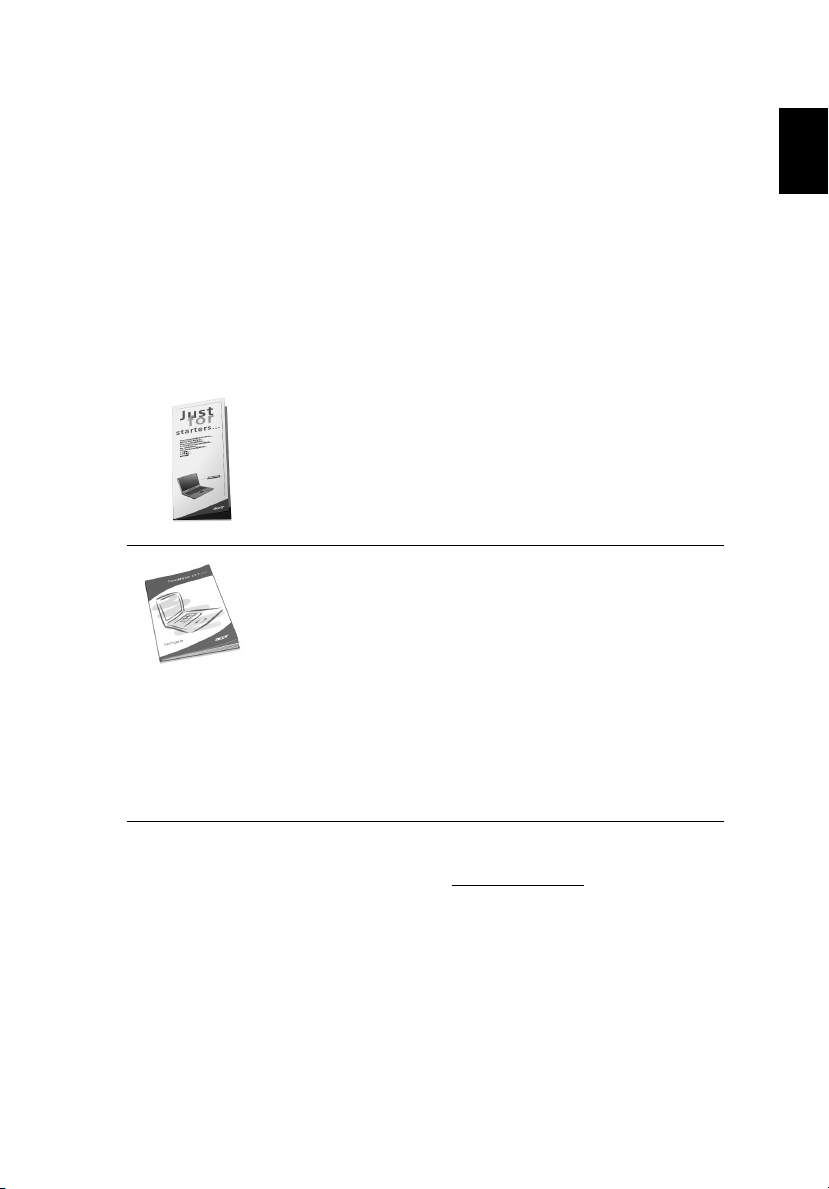
First off, the Just for Starters... poster helps you get
started with setting up your computer.
This User’s Guide introduces you to the many ways your
computer can help you be more productive. This guide
provides clear and concise information about the computer,
so read it thoroughly.
If you ever need to print out a copy, this User’s guide is also
available in PDF (Portable Document Format). Follow these
steps:
1 Click on Start, All Programs, AcerSystem.
2 Click on AcerSystem User’s Guide.
Note: Viewing the file requires Adobe Acrobat Reader
installed. For instructions on how to use Adobe Acrobat
Reader, access the Help menu.
English
For more information about our products, services, and support
information, please visit our Web site (global.acer.com
).
Page 4
iv
Basic care and tips for using your computer
English
Turning your computer on and off
To turn on the computer, simply press and release the power button
on the top left of your TravelMate. See page 3 for the location of the
power button.
To turn the power off, do any of the following:
• Use the Windows shutdown command
For Windows 2000: Click on Start, Shut Down..., and select Shut
down; then click on OK.
- or For Windows XP:
Turn Off .
• Use the power button
Note: You can also use the power button to perform power
management functions. See Windows help for more information.
• Use the customized functions for power management
You can also shut down the computer by closing the display cover,
or by pressing the sleep hot key (Fn-F4).
Note: If you cannot power off the computer normally, press and
hold the power button for more than four seconds to shut down
the computer. If you turn off the computer and want to turn it on
again, wait at least two seconds before powering up.
Click on Start, Turn o ff Comput er ; then click
Taking care of your computer
Your computer will serve you well if you take care of it.
• Do not expose the computer to direct sunlight. Do not place it
near sources of heat, such as a radiator.
• Do not expose the computer to temperatures below 0⁄C (32⁄F) or
above 50⁄C (122⁄F).
• Do not subject the computer to magnetic fields.
• Do not expose the computer to rain or moisture.
Page 5

v
• Do not spill water or any other liquid on the computer.
• Do not subject the computer to heavy shock and vibration.
• Do not expose the computer to dust and dirt.
• Never place objects on top of the computer to avoid damaging the
computer.
• Do not slam the computer display when you close it.
• Never place the computer on uneven surfaces.
Taking care of your AC adapter
Here are some ways to take care of your AC adapter:
• Do not connect the adapter to any other device.
• Do not step on the power cord or place heavy objects on top of it.
Carefully route the power cord and any cables away from personal
traffic.
• When unplugging the power cord, do not pull on the cord itself
but pull on the plug.
• The total ampere ratings of the equipment plugged in should not
exceed the ampere rating of the cord if you are using an extension
cord. Also, the total current rating of all equipment plugged into a
single wall outlet should not exceed the fuse rating.
Taking care of your battery pack
English
Here are some ways to take care of your battery pack:
• Use only batteries of the same kind as replacements. Turn the
power off before removing or replacing batteries.
• Do not tamper with batteries. Keep them away from children.
• Dispose of used batteries according to local regulations. Recycle if
at all possible.
Cleaning and servicing
When cleaning the computer, follow these steps:
1 Power off the computer and remove the battery pack.
2 Disconnect the AC adapter.
Page 6

vi
3 Use a soft cloth moistened with water. Do not use liquid or aerosol
cleaners.
English
4 To clean the display screen, use an LCD cleaning kit.
If any of the following occurs:
• The computer has been dropped or the body has been damaged.
• Liquid has been spilled into the product.
• The computer does not operate normally.
Please refer to "Troubleshooting my computer" on page 49.
Page 7

First things first iii
Your guides iii
Basic care and tips for using your computer iv
1 Getting to know your TravelMate 1
A TravelMate tour 3
Front view 3
Left view 5
Right view 6
Rear view 7
Bottom view 9
Features 10
Indicators 12
Using the keyboard 14
Special keys 14
Touchpad 22
Touchpad basics 22
Storage 24
Hard Disk 24
Optical drive 24
Using software 25
Audio 26
Adjusting the volume 26
Power management 27
Moving around with your TravelMate 28
Disconnecting from the desktop 28
Moving around 28
Taking the computer home 29
Traveling with the computer 31
Traveling internationally with the computer 31
Securing your computer 33
Using a computer security lock 33
Using passwords 34
Contents
2 Customizing my computer 37
Expanding through options 39
Connectivity options 39
Connecting to Acer EasyPort replicator 43
Using system utilities 46
Notebook Manager 46
Launch Manager 46
BIOS Utility 47
Page 8

viii
3 Troubleshooting my computer 49
Frequently-asked questions 51
English
Requesting service 54
International Traveler’s Warranty (ITW) 54
Before you call 54
Appendix A Specifications 57
Appendix B Notices 63
Index 73
Page 9

1 Getting to know your
TravelMate
Page 10

Your TravelMate computer combines high-
performance, versatility, power
management features and multimedia
capabilities with a unique style and
ergonomic design. Work with unmatched
productivity and reliability with your new
power computing partner.
Page 11
3
A TravelMate tour
After setting up your computer as illustrated in the Just for
Starters... poster, let us show you around your new TravelMate
computer.
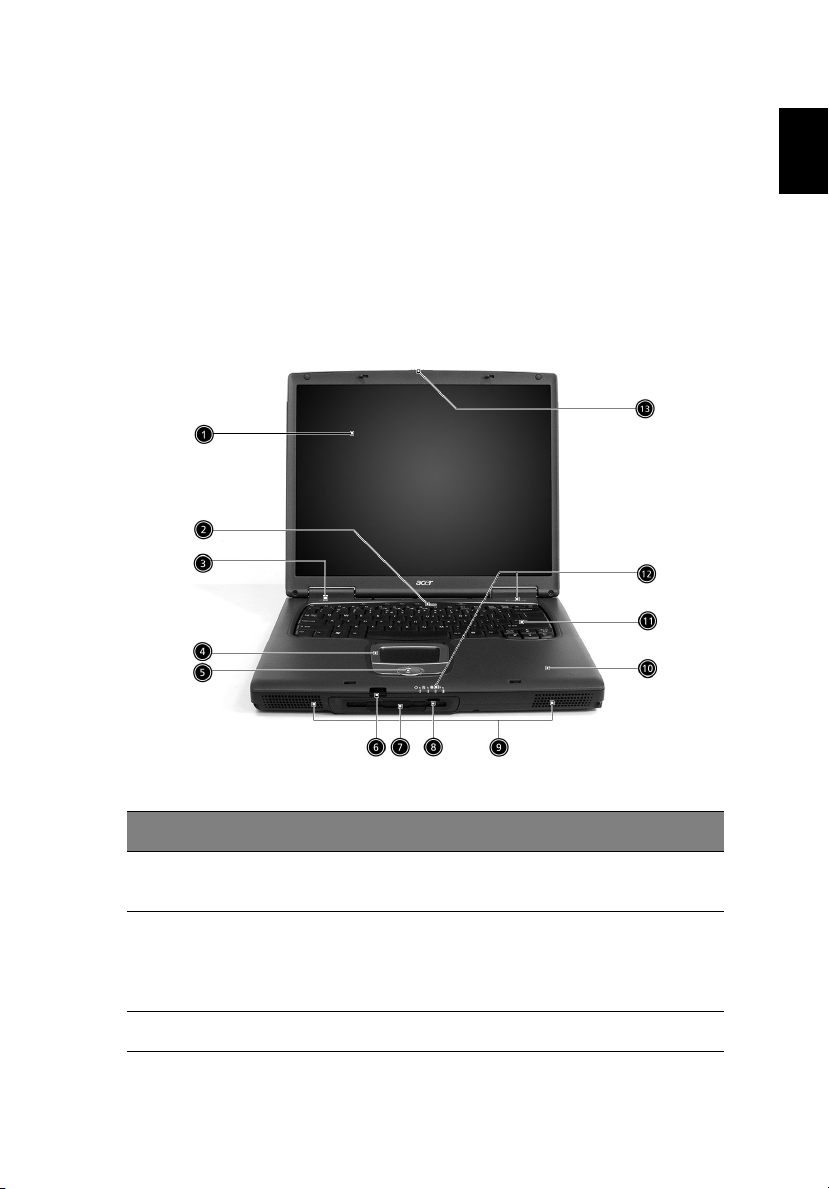
Front view
English
# Item Description
1 Display screen Also called LCD (liquid-crystal display),
2 Launch keys Special keys for launching internet browser,
3 Power button Turns on the computer power.
displays computer output.
E-Mail program and frequently used
programs. See “Launch Keys” on page 20 for
more details.
Page 12
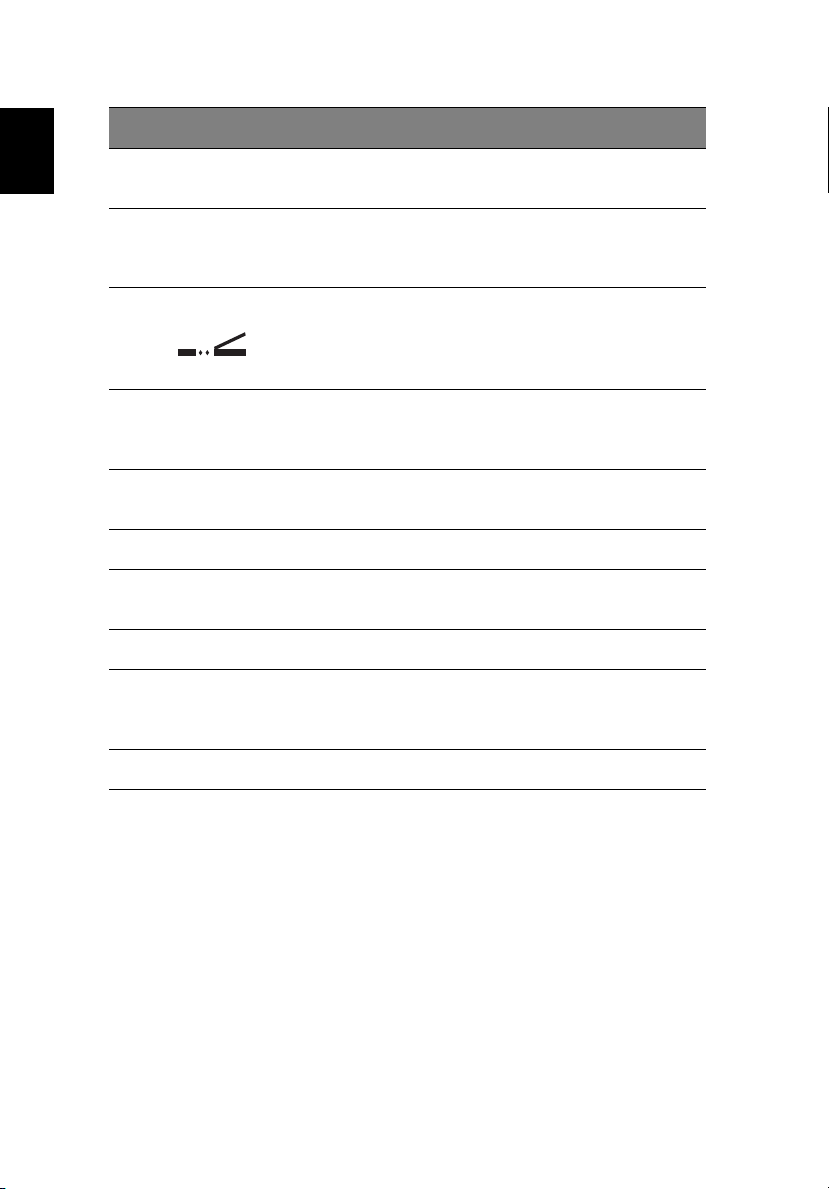
# Item Description
1 Getting to know your TravelMate4
English
4 Touchpad Touch-sensitive pointing device which
5 Click buttons (left,
center and right)
6 Infrared port Interfaces with infrared devices (e.g.,
7 Floppy disc drive (or
card reader, if
installed)
8 Floppy eject button Ejects floppy disc. (N/A when card reader
9 Speakers Outputs sound.
10 Palmrest Comfortable support area for your hands
11 Keyboard Inputs data into your computer.
12 Status indicators LEDs (light-emitting diode) that turn on and
functions like a computer mouse.
The left and right buttons function like the
left and right mouse buttons; the center
button serves as a 4-way scroll button.
infrared printer, IR-aware computer).
Reads/writes data from/to the media.
installed.)
when you use the computer.
off to show the status of the computer, its
functions and components.
13 Latch Latch for opening and closing the laptop.
Page 13
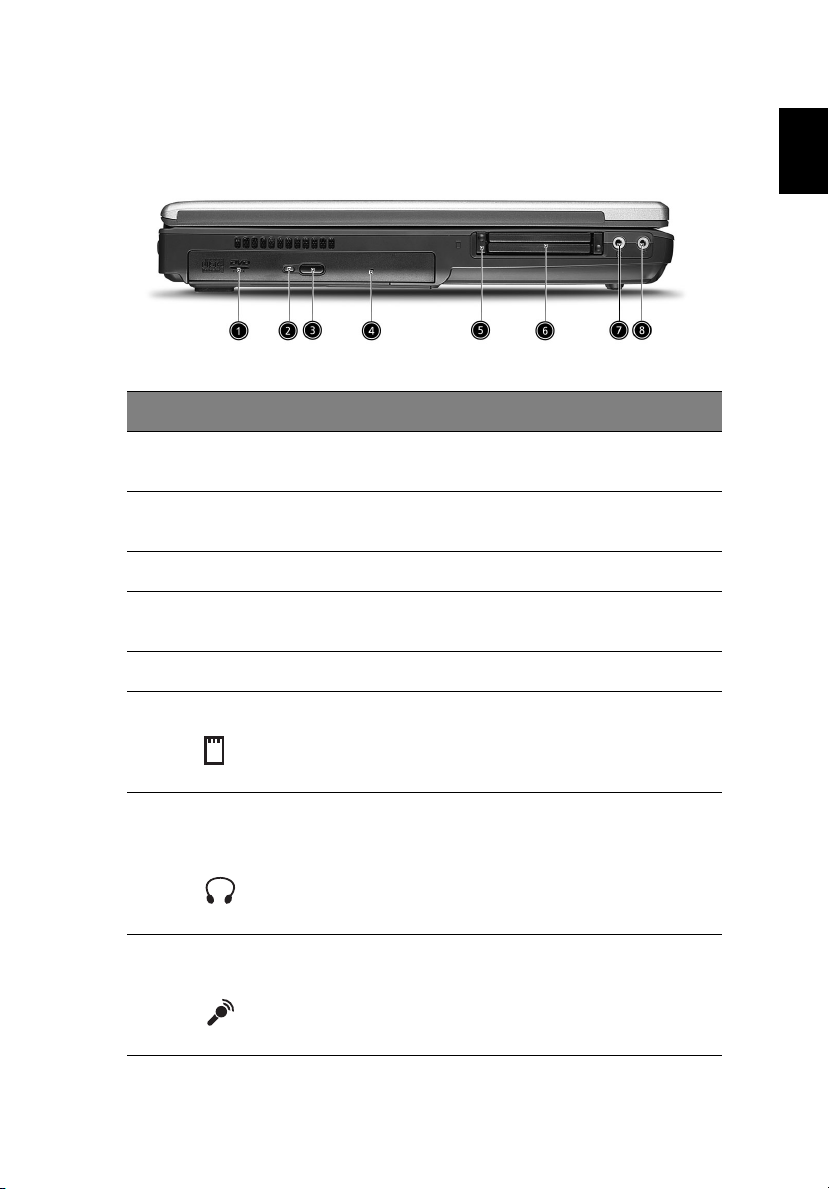
5
Left view
# Item Description
1 Optical drive Houses an optical drive module (CD-ROM ,
DVD-ROM or DVD/CD-RW combo drive).
2 Optical drive
indicator
3 Eject button Ejects the drive tray.
4 Emergency eject slot Ejects the drive tray when the computer is
5 PC Card eject button Ejects the PC Card from the slot.
Lights up when the optical drive is active.
turned off. See page 52 for more details.
English
6 PC Card slots Accepts two type II or one type III PC Card.
7 Headphone/
Speaker/Line-out
jack
8 Microphone/Line-in
jack
Connects to audio line-out devices (e.g.,
headphones, speakers).
Accepts audio line-in devices (e.g.,
microphone, audio CD player, stereo
walkman).
Page 14
1 Getting to know your TravelMate6
Note: The positions of the optical drive indicator, eject button and
English
emergency eject hole may differ depending on the optical drive
module installed.
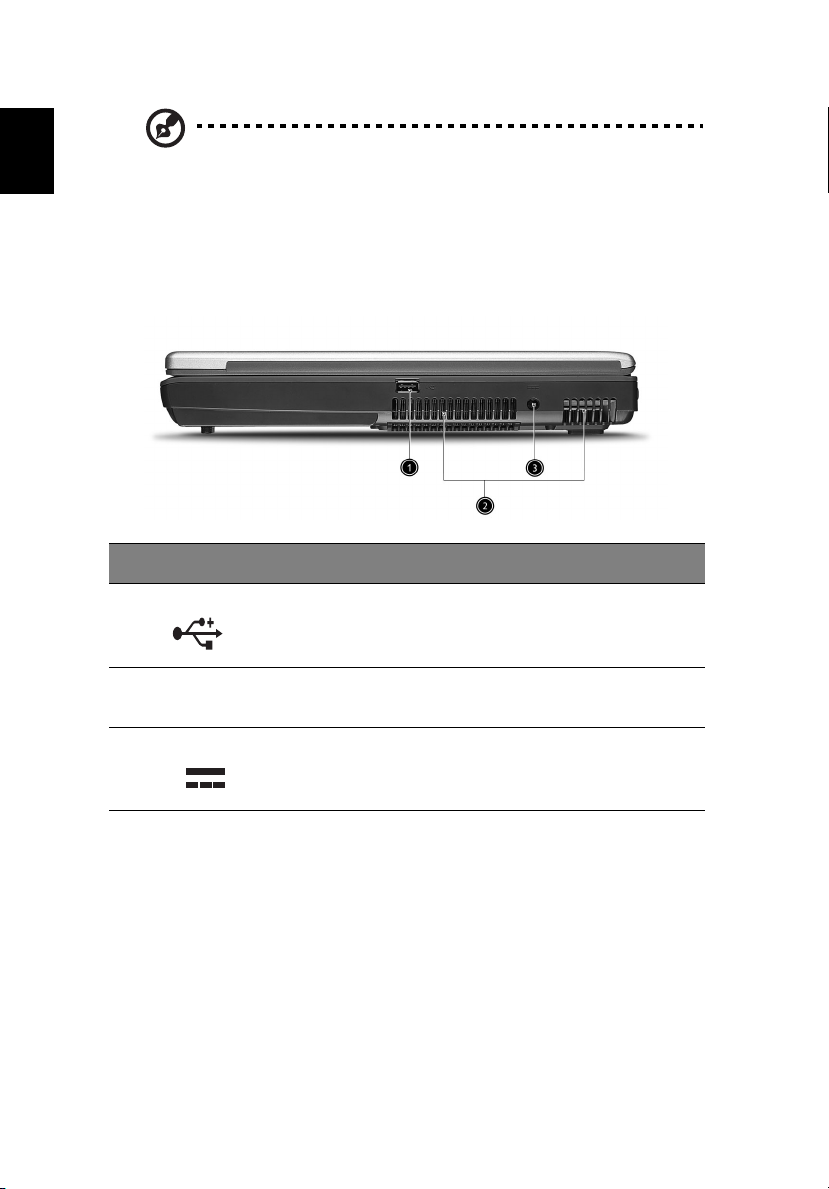
Right view
# Item Description
1 USB port Connects to Universal Serial Bus devices (e.g.,
USB mouse, USB camera).
2 Ventilation slot Enables the computer to stay cool, even after
3 Power jack Connects to an AC adapter.
prolonged use.
Page 15
7
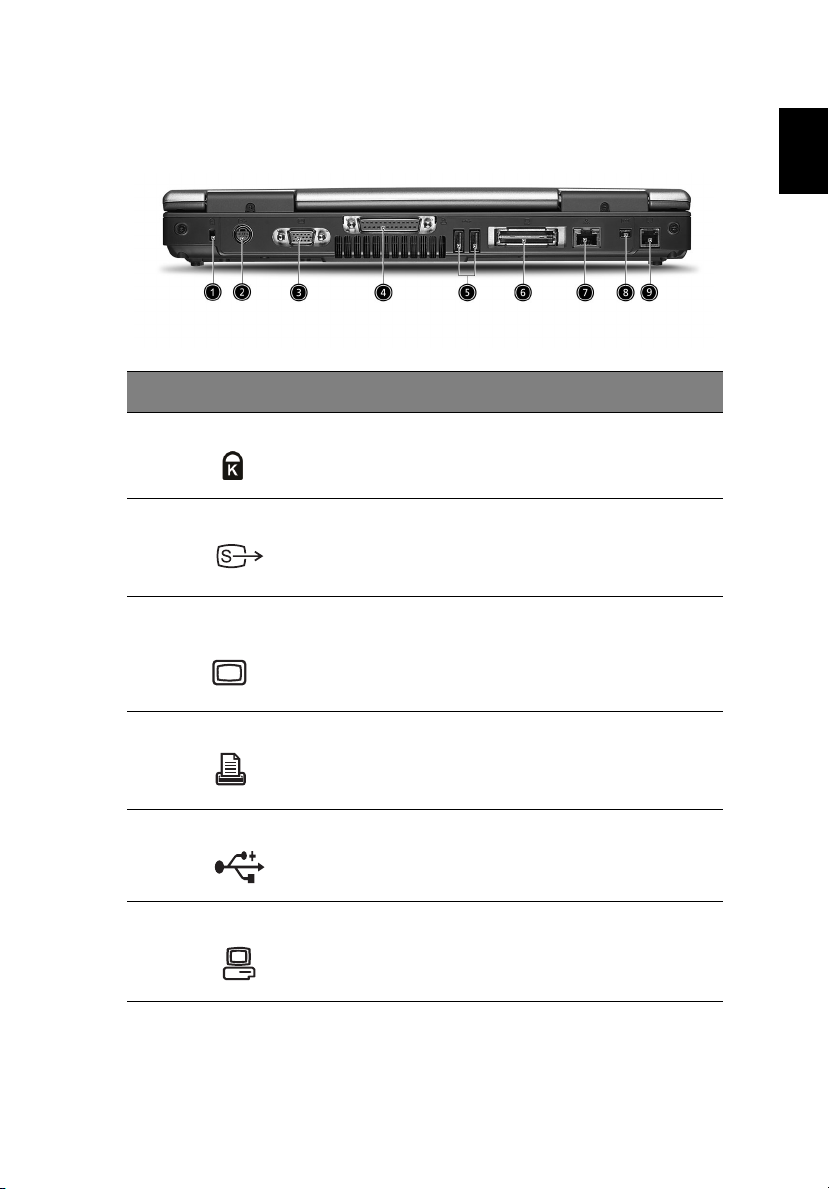
Rear view
# Item Description
1 Security keylock Connects to a Kensington-compatible
2 S-video Connects to a television or display device
3 External display
port
computer security lock.
with S-video input.
Connects to a display device (e.g., external
monitor, LCD projector).
English
4 Parallel port Connects to a parallel device (e.g., parallel
5 USB ports Connects to Universal Serial Bus devices (e.g.,
6 Expansion port Connects to I/O port replicator or expansion
printer).
USB mouse, USB camera).
devices (e.g., Acer EasyPort).
Page 16
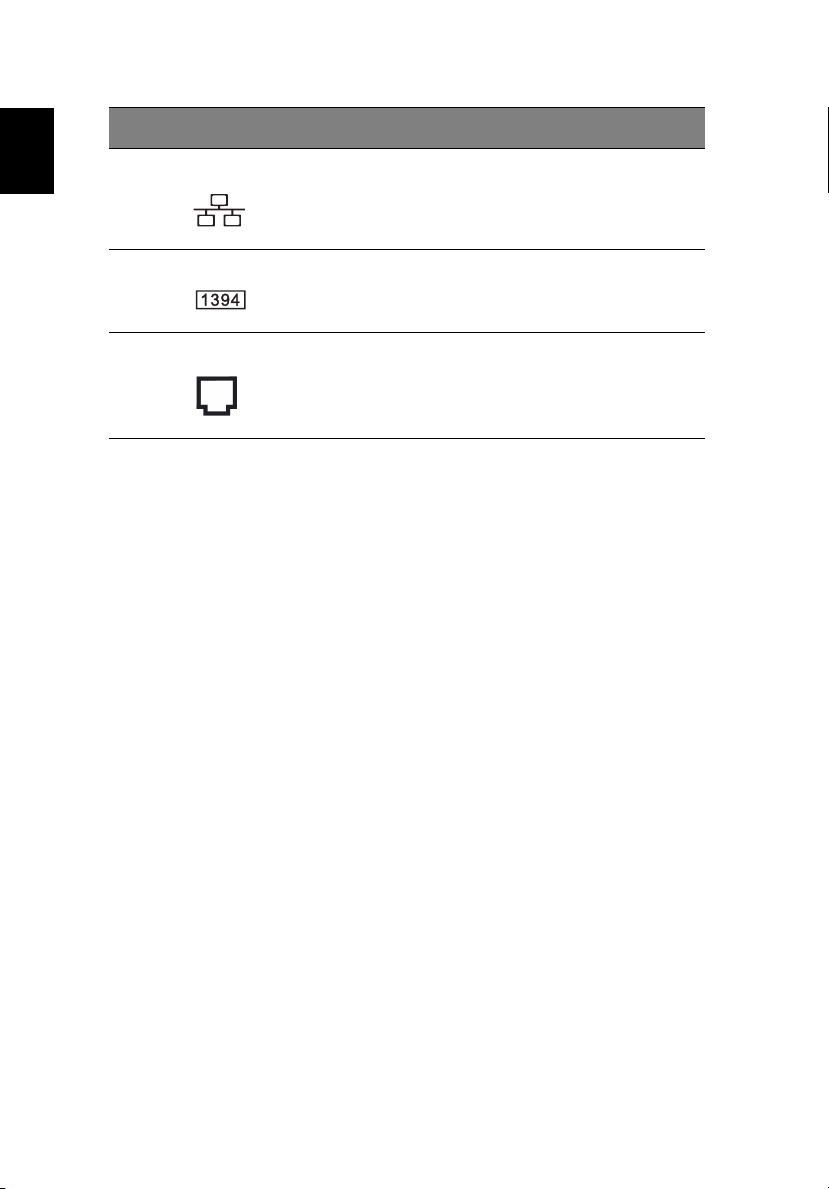
# Item Description
1 Getting to know your TravelMate8
English
7 Network jack Connects to an Ethernet 10/100-based
network.
8 IEEE 1394 port Connects to an IEEE 1394 device.
9 Modem jack Connects to a phone line.
Page 17
9
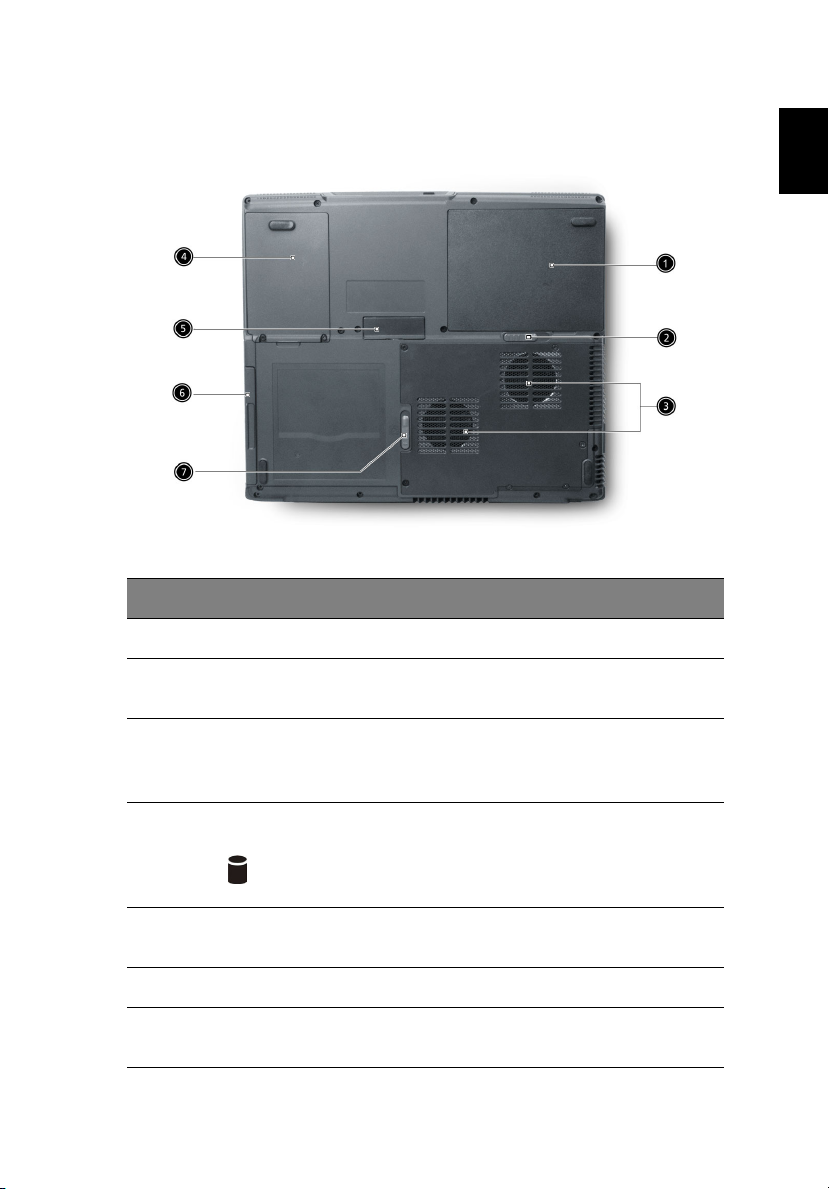
Bottom view
# Item Description
1 Battery bay Houses the computer's battery pack.
2 Battery release latch Unlatches the battery to remove the
battery pack.
English
3 Cooling fans Help keep the computer cool.
Note: Don’t cover or obstruct the opening
of the fans.
4 HDD Houses the computer's Hard Disk.
5 FDD/card reader
cable connector cover
6 AcerMedia Bay Houses an AcerMedia drive module.
7AcerMedia Bay
release latch
Accesses the cable connectors for the FDD
or card reader.
Unlatches the AcerMedia drive for
removing the optical drive.
Page 18

Features
1 Getting to know your TravelMate10
English
Below is a brief summary of the computer’s many features:
Performance
• Mobile Intel® Pentium® 4 Processor with 512 KB level 2 cache
featuring the new Enhanced Intel SpeedStep® technology
• Standard 256 MB DDR333 SDRAM, upgradeable to 2 GB on dual
soDIMM sockets
• Integrated CD-ROM, DVD-ROM, DVD/CD-RW combo or DVD-RW
or DVD-Dual drive
• 30/40/60 GB or higher-capacity ATA/100 HDD
• Li-ion battery pack
• Power management system with ACPI (Advanced Configuration
Power Interface) 1.0b supporting Standby and Hibernation power
saving modes
Display
• 14.1" Thin-Film Transistor (TFT) Liquid Crystal Display (LCD)
displaying 32-bit high true color up to 1024 x 768 eXtended
Graphics Array (XGA) resolution
• 15" Thin-Film Transistor (TFT) Liquid Crystal Display (LCD)
displaying 32-bit high true color up to 1400 x 1050 Super eXtended
Graphics Array (SXGA+) resolution
• 3D capabilities
• Simultaneous LCD and CRT display support
• S-video for output to a television or display device that supports S-
video input
• "Automatic LCD dim" feature that automatically decides the best
settings for your display and conserves power
• Dual display capability
Page 19

11
Multimedia
• 16-bit high-fidelity AC’97 stereo audio
• Dual built-in speakers
• Built-in microphone
• High-speed optical drive
Connectivity
• High-speed fax/data modem port
• Ethernet/Fast Ethernet port
• USB (Universal Serial Bus) ports
• IEEE 1394 port
• Fast Infrared (FIR) port
• Docking port for port replicator
• Inetgrated Invilink wireless LAN module
• Integrated Bluetooth module
Human-centric design and ergonomics
• Five launch keys, including internet browser, E-Mail and three
user-programmable keys
• 4-way scroll button
• Sleek, smooth and stylish design
• Full-sized keyboard
• Ergonomically-centered touchpad pointing device
English
Expansion
• Two type II or one type III CardBus PC Card slot
• Upgradeable memory
Page 20
Indicators
1 Getting to know your TravelMate12
English
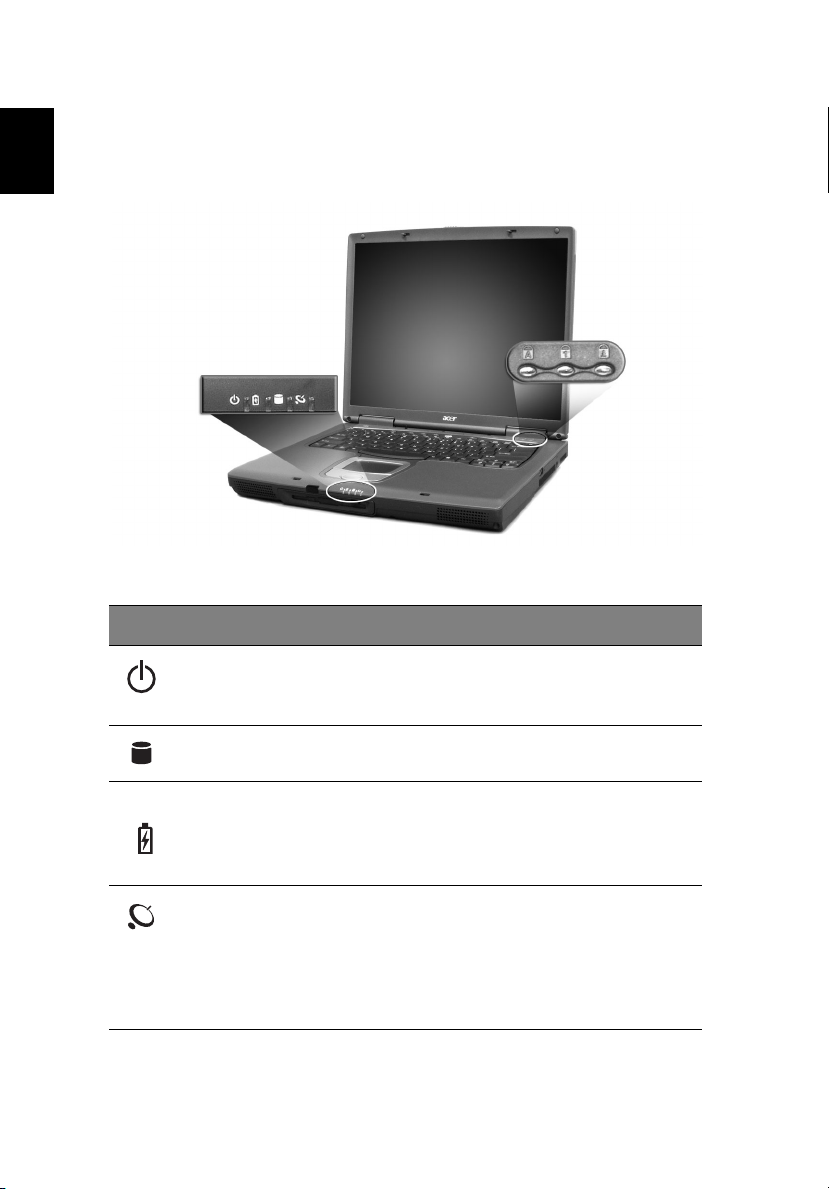
The computer has seven easy-to-read status icons below the display
screen and on the front. .
Icon Function Description
Power Lights green when the computer is on and
lights orange when the computer is in
Standby mode.
Media activity Lights when the Hard Disk is active.
Battery charge Lights green when the battery is being
Wireless
Communication
(applicable only
when Wireless
LAN or Bluetooth
installed)
charged.
Lights orange when the battery power is low
and is being charged.
Lights orange when the Wireless LAN
capabilities are enabled.
Lignts blue when Bluetooth capabilities are
enabled.
Page 21
13
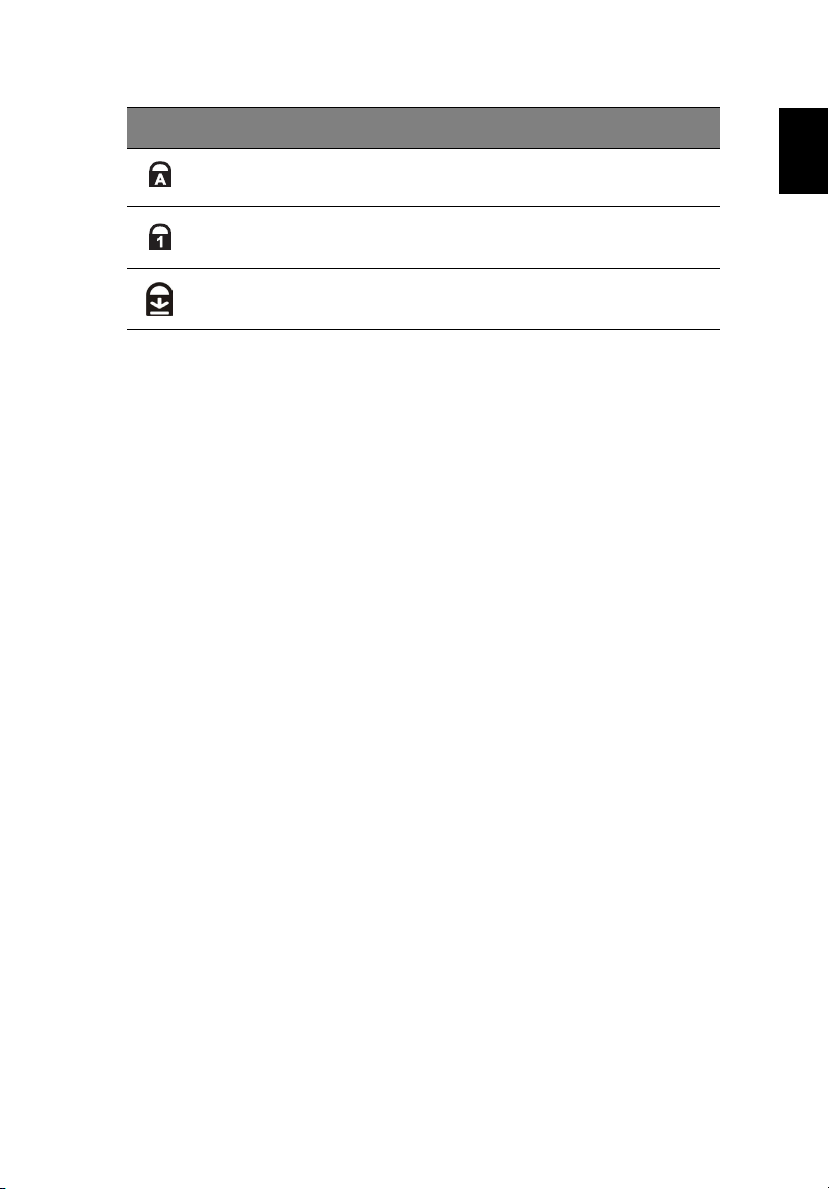
Icon Function Description
Caps lock Lights when Caps Lock is activated.
Num lock Lights when Num Lock is activated.
Scroll lock Lights when Scroll lock is activated.
English
Page 22
Using the keyboard
1 Getting to know your TravelMate14
English
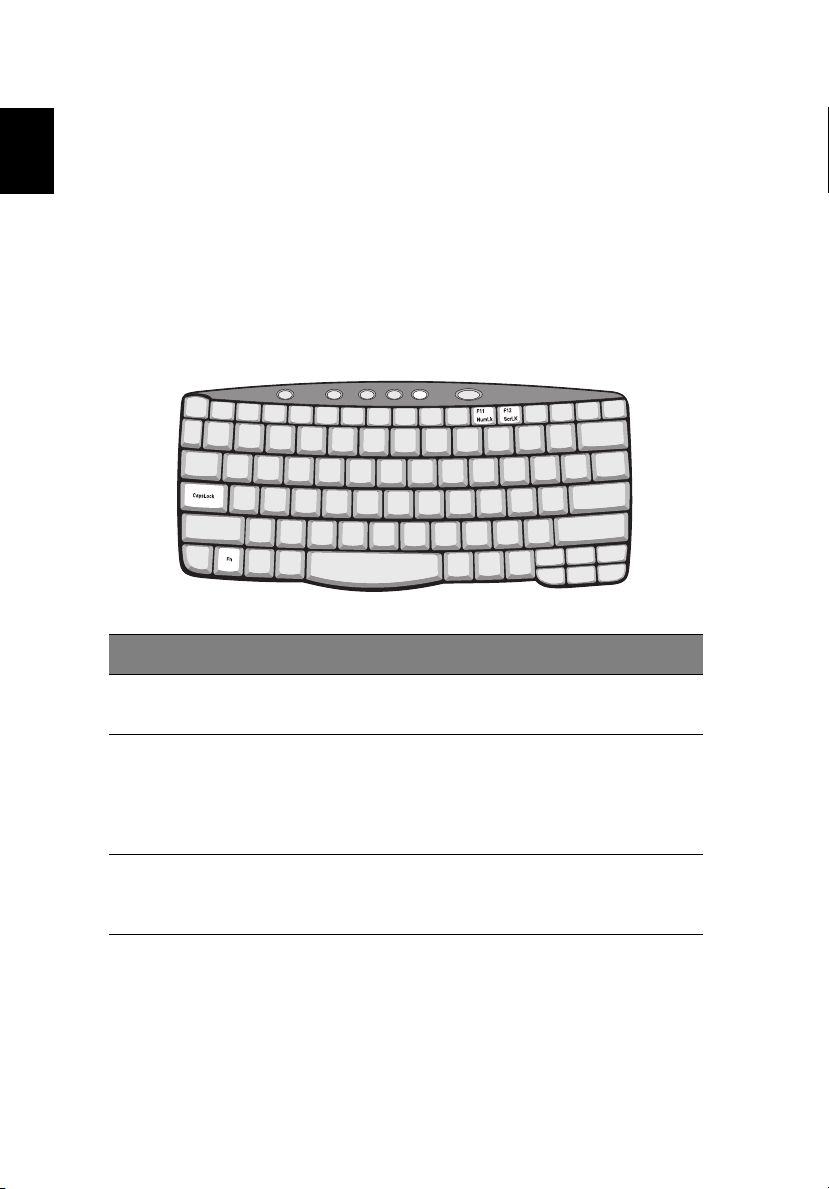
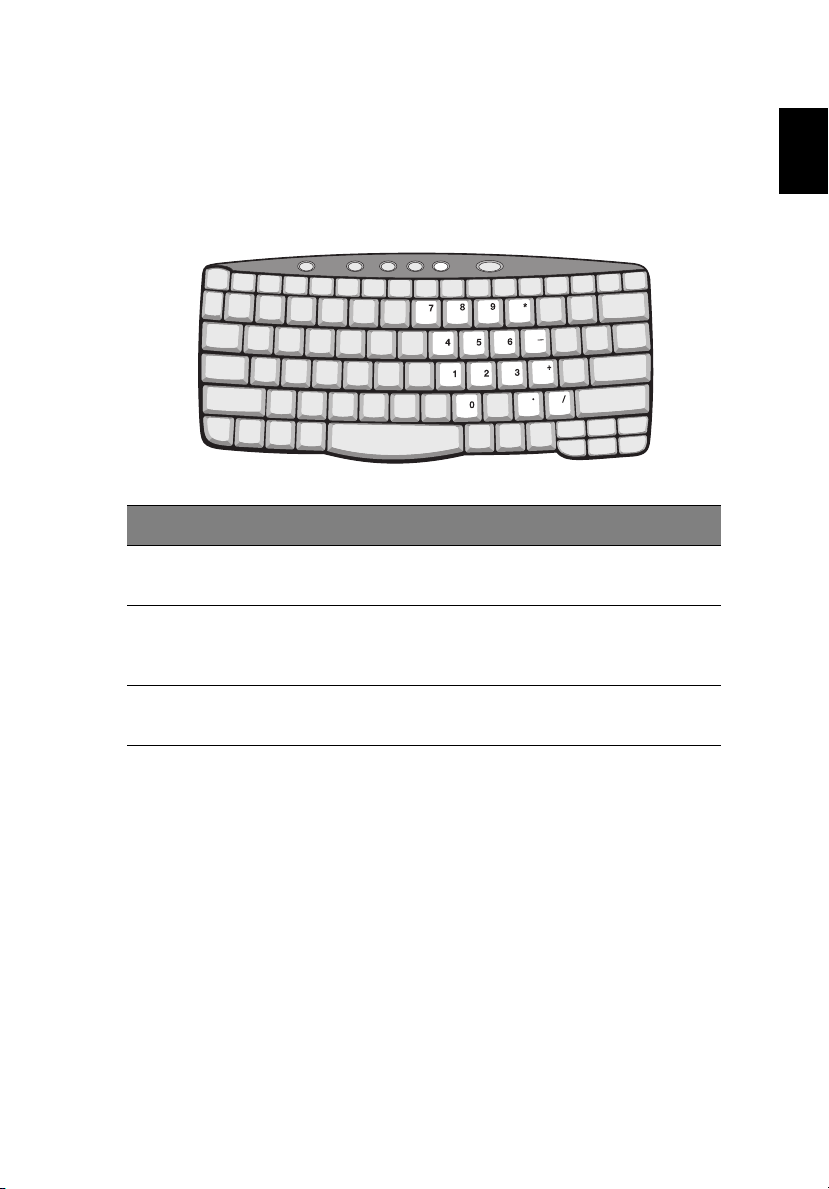
The full-sized keyboard includes an embedded numeric keypad,
separate cursor keys, two Windows keys and twelve function keys.
Special keys
Lock keys
The keyboard has three lock keys which you can toggle on and off.
Lock key Description
Caps Lock When Caps Lock is on, all alphabetic characters typed are in
uppercase.
Num Lock
(Fn-F11)
Scroll Lock
(Fn-F12)
When Num Lock is on, the embedded keypad is in numeric
mode. The keys function as a calculator (complete with the
arithmetic operators +, -, *, and /). Use this mode when you
need to do a lot of numeric data entry. A better solution
would be to connect an external keypad.
When Scroll Lock is on, the screen moves one line up or down
when you press the up or down arrow keys respectively.
Scroll Lock does not work with some applications.
Page 23
15
Embedded numeric keypad
The embedded numeric keypad functions like a desktop numeric
keypad. It is indicated by small characters located on the upper right
corner of the keycaps. To simplify the keyboard legend, cursor-control
key symbols are not printed on the keys.
Desired access Num lock on Num lock off
Number keys on
embedded keypad
Cursor-control keys
on embedded
keypad
Type numbers in a normal
manner.
Hold Shift while using
cursor-control keys.
Hold Fn while using
cursor-control keys.
English
Main keyboard keys Hold Fn while typing letters
on embedded keypad.
Type the letters in a
normal manner.
Page 24
1 Getting to know your TravelMate16
Windows keys
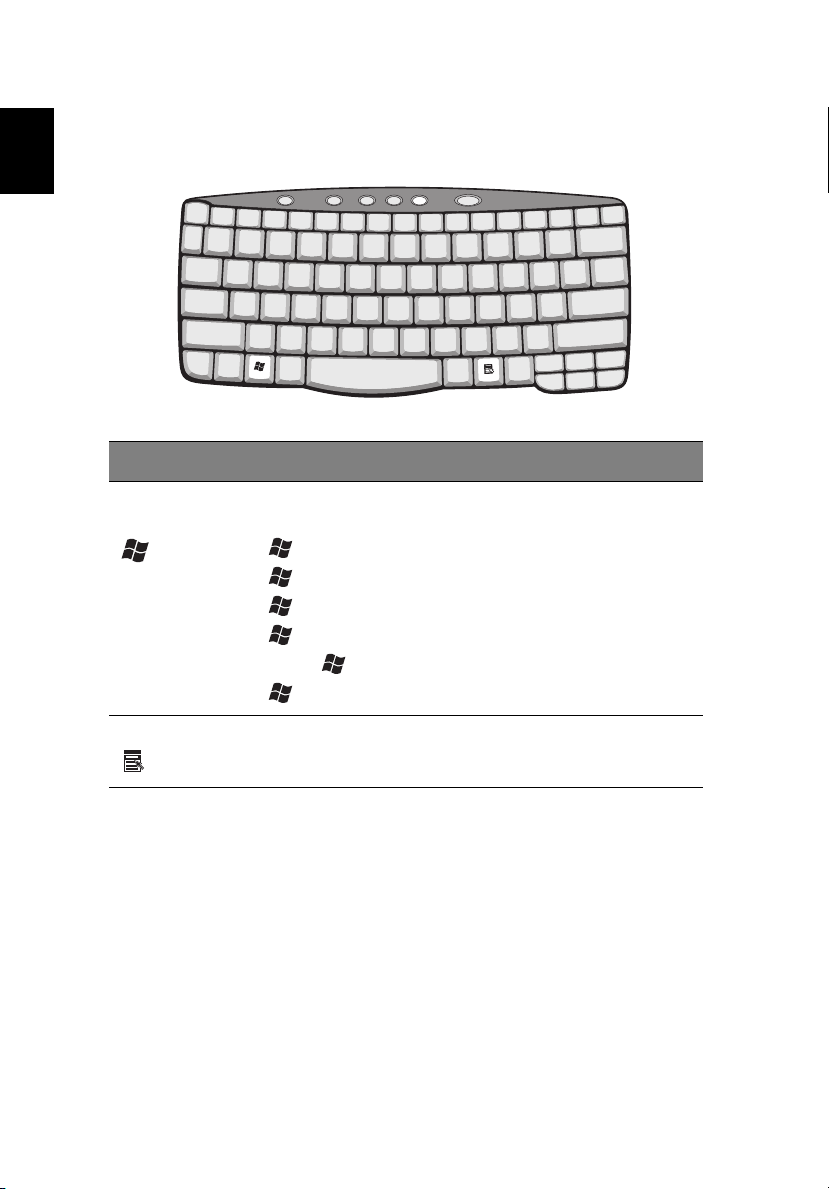
The keyboard has two keys that perform Windows-specific functions.
English
Key Description
Windows logo
key
Application key Opens a context menu (same as a right-click).
Start button. Combinations with this key perform
shortcut functions. Below are a few examples:
+ Tab (Activates next taskbar button)
+ E (Explores My Computer)
+ F (Finds Document)
+ M (Minimizes All)
Shift + + M (Undoes Minimize All)
+ R (Displays the Run... dialog box)
Page 25
17
Hot keys
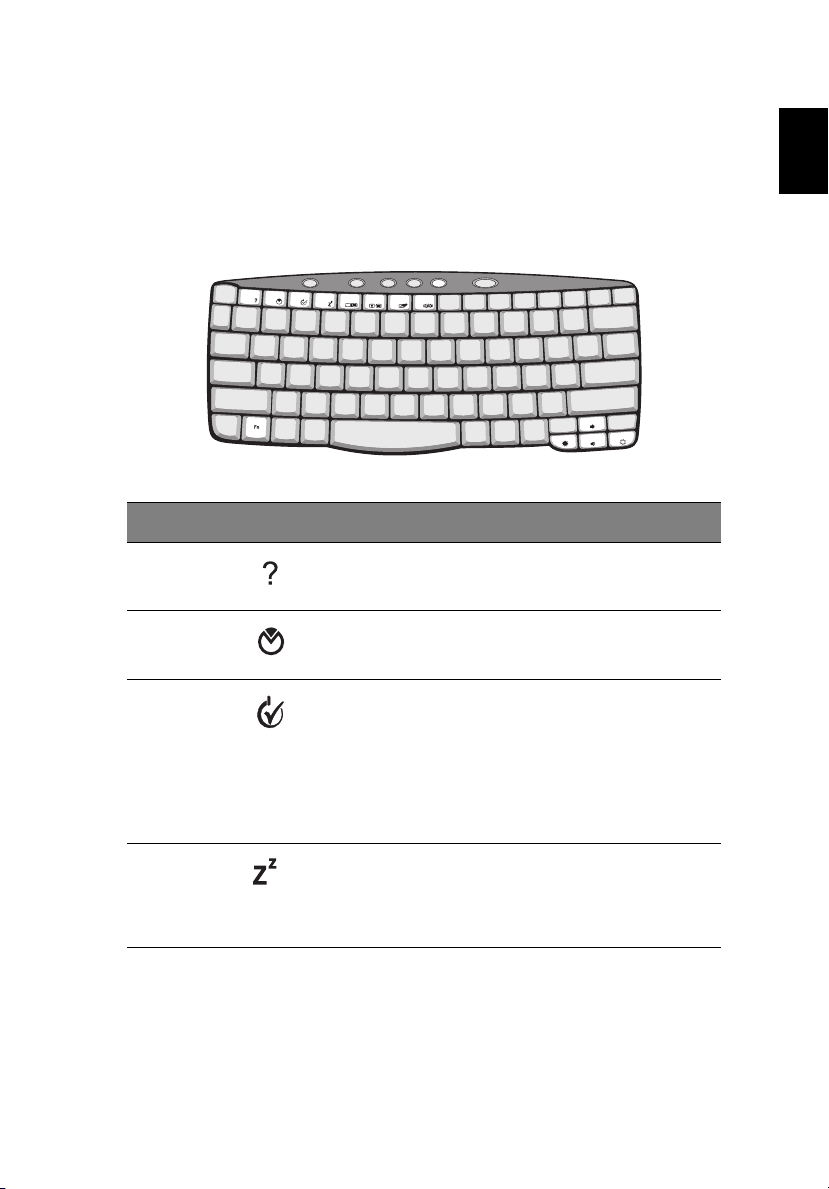
The computer employs hot keys or key combinations to access most of
the computer’s controls like screen brightness, volume output.
To activate hot keys, press and hold the Fn key before pressing the
other key in the hot key combination.
Hot key Icon Function Description
Fn-F1 Hot key help Displays help on hot keys.
Fn-F2 Setup Launch Notebook Manager
English
Fn-F3 Power
management
scheme toggle
Fn-F4 Sleep Puts the computer in Sleep
Switches the power
management scheme used by
the computer (function
available if supported by
operating system).
See “Power management” on
page 27.
mode.
See “Power management” on
page 27.
Page 26
1 Getting to know your TravelMate18
Hot key Icon Function Description
English
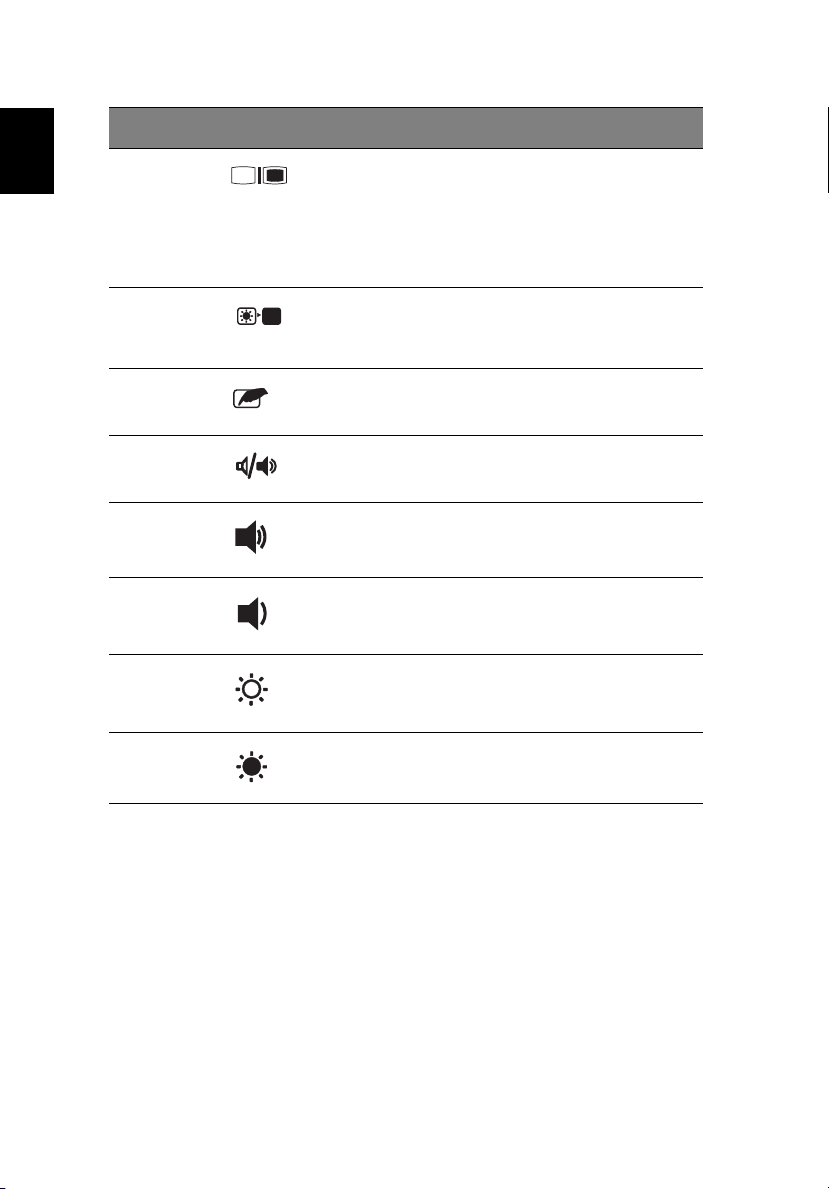
Fn-F5 Display toggle Switches display output
between the display screen,
external monitor (if
connected) and both the
display screen and external
monitor.
Fn-F6 Screen blank Turns the display screen
backlight off to save power.
Press any key to return.
Fn-F7 Touchpad toggle Turns the internal touchpad
on and off.
Fn-F8 Speaker toggle Turns the speakers on and off.
Fn-↑ Volume up Increases the speaker volume.
Fn-↓ Volume down Decreases the speaker
volume.
Fn-→ Brightness up Increases the screen
brightness.
Fn-
←
Brightness down Decreases the screen
brightness.
Page 27
19
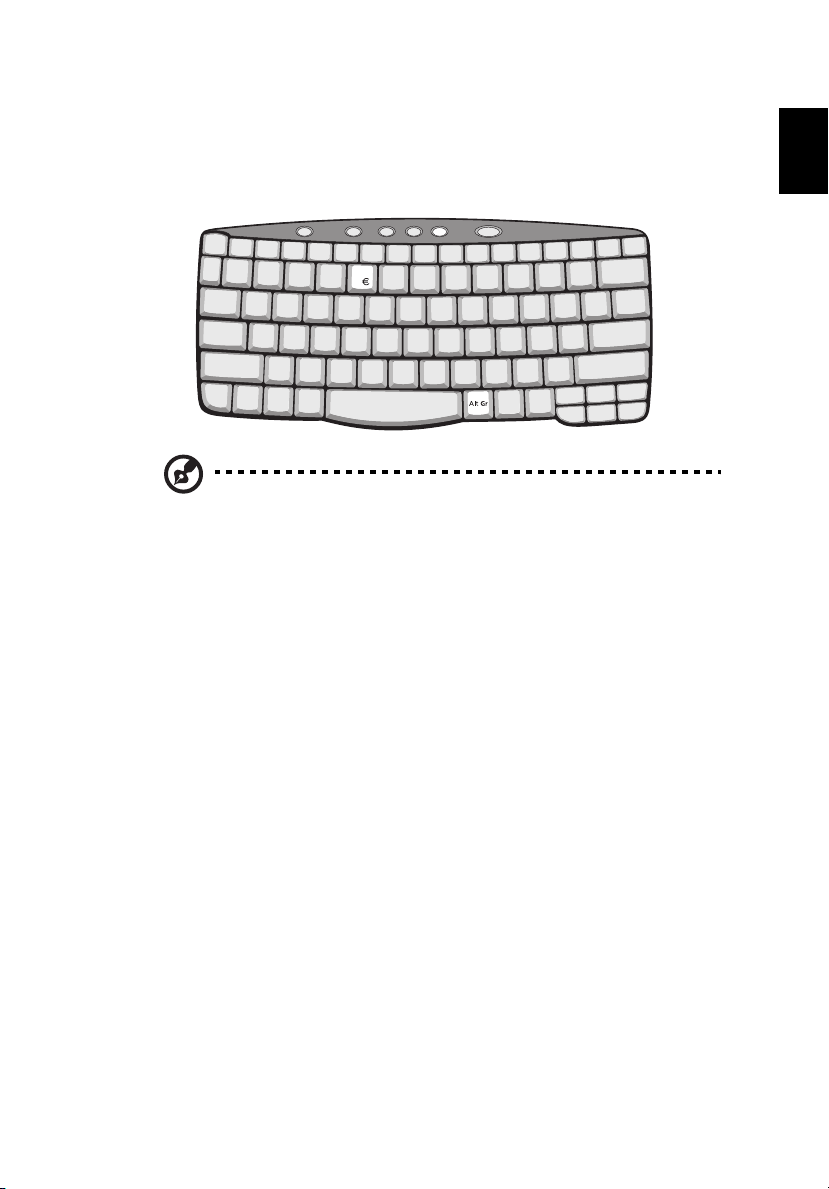
The Euro symbol
If your keyboard layout is set to United States-International or United
Kingdom or if you have a keyboard with a European layout, you can
type the Euro symbol on your keyboard.
Note for US keyboard users: The keyboard layout is set when
you first set up Windows. For the Euro symbol to work, the
keyboard layout has to be set to United States-International.
To verify the keyboard type in Windows 2000, follow the steps below:
1Click on Start, Settings, Control Panel.
2 Double-click on Keyboard.
3Click on the Language tab.
4 Verify that the keyboard layout used for "En English (United
States)" is set to United States-International.
If not, select and click on Properties; then select United States-
International and click on OK.
5Click on OK.
English
To verify the keyboard type in Windows XP, follow the steps below:
1Click on Start, Control Panel.
2 Double-click on Regional and Language Options.
3Click on the Language tab and click on Details.
4 Verify that the keyboard layout used for "En English (United
States)" is set to United States-International.
If not, select and click on ADD; then select United States-
International and click on OK.
Page 28
1 Getting to know your TravelMate20
5Click on OK.
To type the Euro symbol:
English
1 Locate the Euro symbol on your keyboard.
2 Open a text editor or word processor.
3 Hold Alt Gr and press the Euro symbol.
Note: Some fonts and software do not support the Euro symbol.
Please refer to www.microsoft.com/typography/faq/faq12.htm
more information.
for
Launch Keys
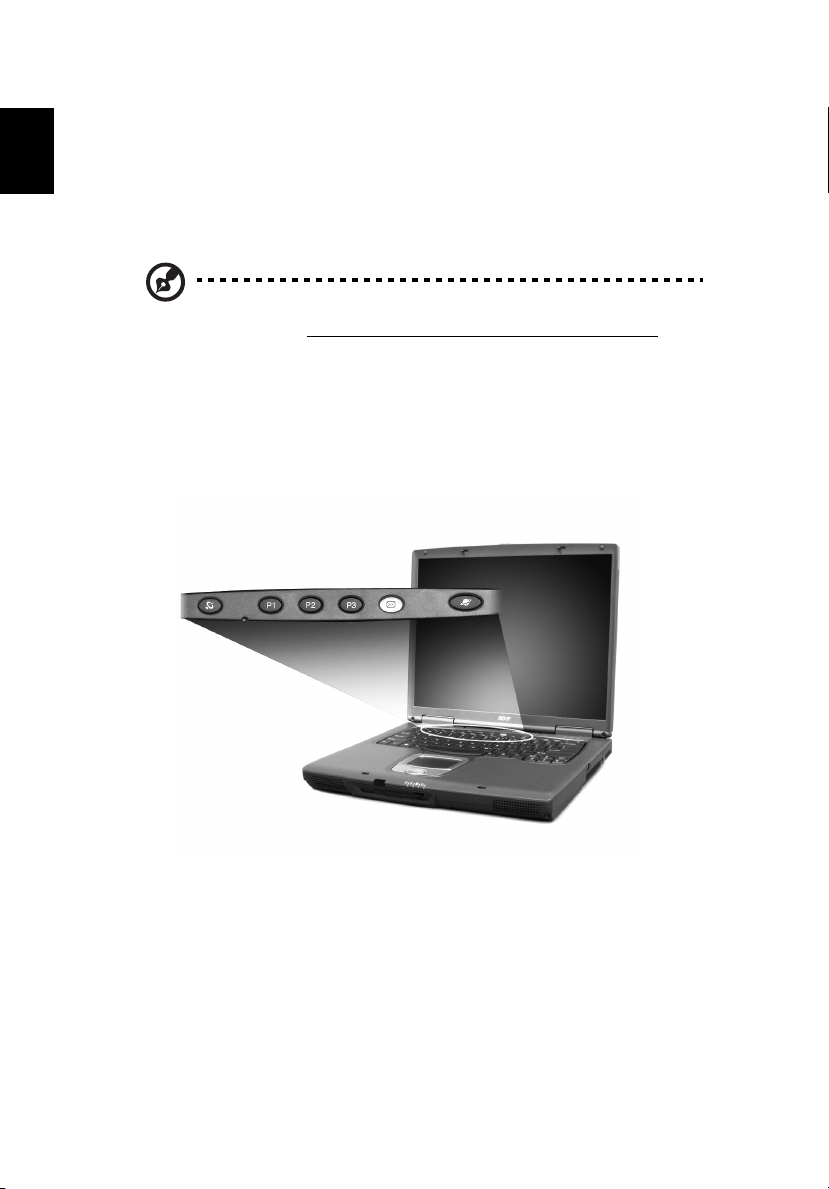
Located at the top of the keyboard are five buttons. These buttons are
called launch keys. They are designated as P1, P2, P3, E-Mail button
and Web browser button.
Wireless Communication Button
To the left of these five launch keys is the wireless communication
button. This button works to activate wireless LAN and/or Bluetooth.
This button toggles between Wireless LAN and Bluetooth if both are
installed.
Page 29
21
Launch key Default application
P1 User-programmable
P2 User-programmable
P3 User-programmable
E-Mail E-Mail application
Web browser Internet browser application
E-Mail Detection
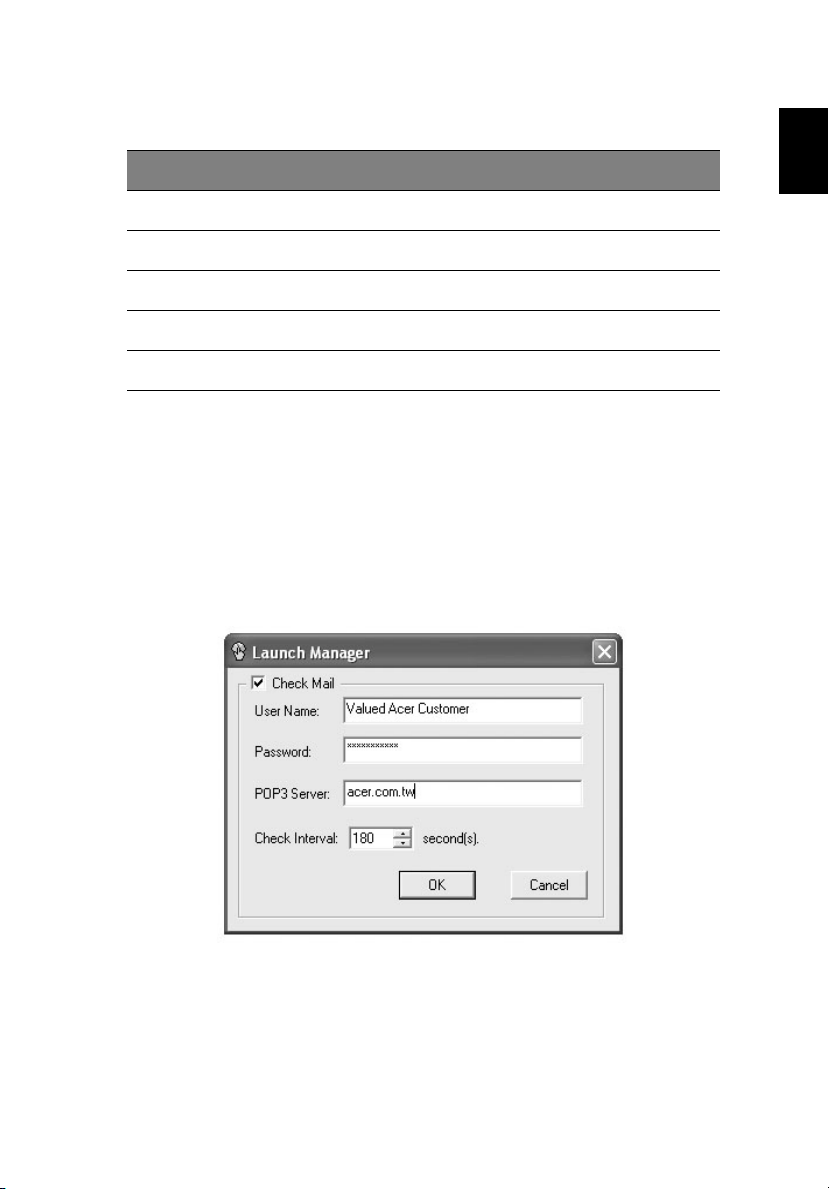
Right click the Launch Manager icon on the taskbar and click on E-Mail
Detection. In this dialog box, you have the option to enable/disable
mail checking, set the time interval for mail checking, etc. If you
already have an E-Mail account, you can fill in User Name, Password
and POP3 Server in the dialog box. The POP3 Server is the mail Server
where you get your E-Mail.
English
Aside from the E-Mail checking function, there is a mail button that is
used to launch the E-Mail application. It is located above the keyboard
right below the LCD.
Page 30
Touchpad
1 Getting to know your TravelMate22
English
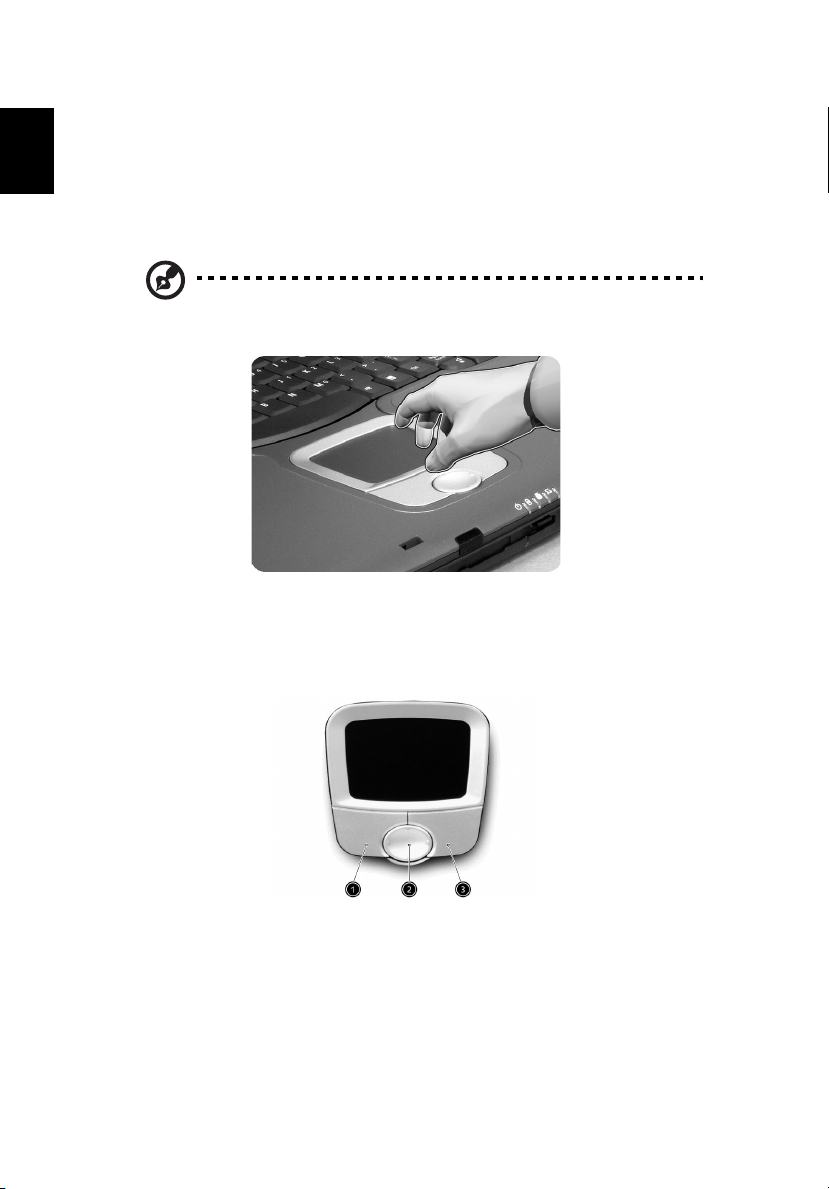
The built-in touchpad is a pointing device that senses movement on its
surface. This means that the cursor responds as you move your finger
on the surface of the touchpad. The central location on the palmrest
provides optimal comfort and support.
Note: When using an external USB mouse, you can press Fn-F7 to
disable the touchpad.
Touchpad basics
The following items teach you how to use the touchpad:
• Move your finger across the touchpad to move the cursor.
• Press the left (1) and right (3) buttons located on the edge of the
touchpad to do selection and execution functions. These two
buttons are similar to the left and right buttons on a mouse.
Tapping on the touchpad produces similar results to a left click.
• Use the 4-way scroll (2) button (top/bottom/left and right) to scroll
Page 31
23
a page up, down, left or right. This button mimics your cursor
pressing on the vertical and horizontal scroll bars of Windows
applications.
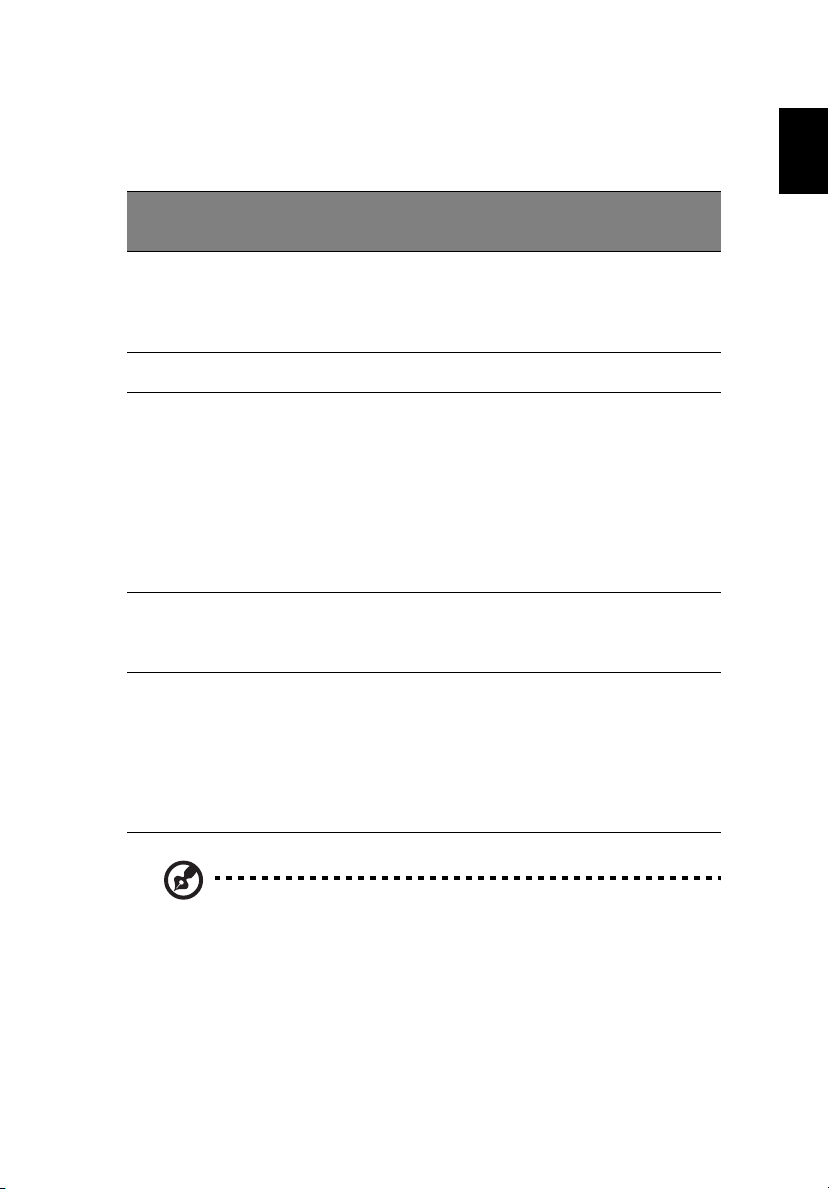
Function Left button
Execute Click twice
quickly
Select Click once Tap once
Drag Click and
hold, then
use finger to
drag the
cursor on the
touchpad
Access
context
menu
Scroll Click and
Right
button
Click
once
Scroll
button
hold the
button in
the desired
direction
(up/down/
left/right)
Tap
Tap twice (at the
same speed as
double-clicking a
mouse button)
Tap twice (at the
same speed as
double-clicking a
mouse button)
then hold finger
to the touchpad
on the second tap
and drag the
cursor
English
Note: Keep your fingers dry and clean when using the touchpad.
Also keep the touchpad dry and clean. The touchpad is sensitive to
finger movements. Hence, the lighter the touch, the better the
response. Tapping harder will not increase the touchpad’s
responsiveness.
Page 32
Storage
1 Getting to know your TravelMate24
English
This computer supplies you with the following media storage:
• High-capacity Enhanced-IDE Hard Disk
• Optical drive
Hard Disk
The high-capacity Hard Disk is the answer to your storage needs. This is
where your programs and data are stored.
Optical drive
The optical drive bay accepts a wide variety of optional media drive
modules for use with your computer. These optional items include:
• CD-ROM drive
• DVD-ROM drive
• DVD/CD-RW combo drive
• DVD-RW drive
• DVD-Dual drive
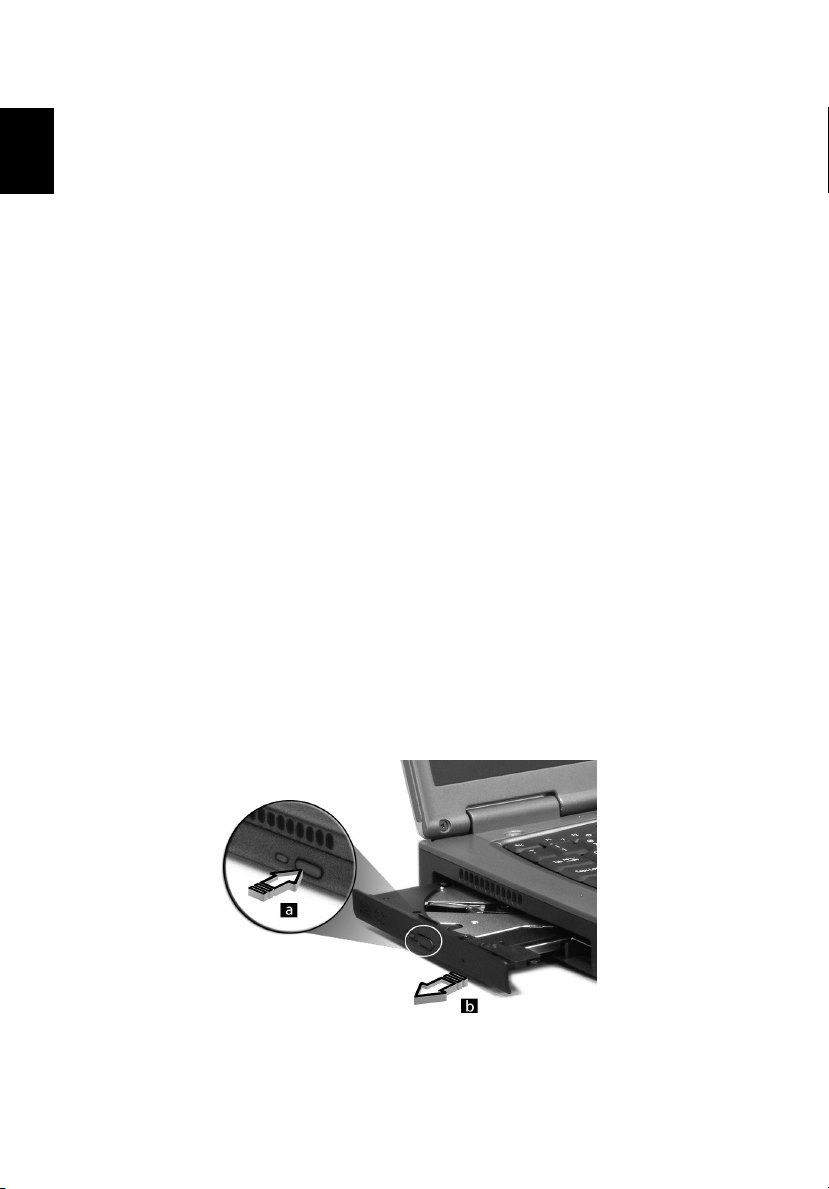
Ejecting the optical drive tray
To eject the optical drive tray when the computer is turned on, press
the drive eject button.
When the power is off, you can eject the drive tray using the
emergency eject hole. See page 52.
Page 33
25
Using software
Playing DVD movies
When a DVD-ROM or DVD/CD-RW combo drive module is installed in
the optical drive bay, you can play DVD movies on your computer.
1 Eject the DVD tray and insert a DVD disc; then close the DVD tray.
Important! When you launch the DVD player for the first time,
the program asks you to enter the region code. DVD discs are
divided into 6 regions. Once your DVD drive is set to a region
code, it will play DVD discs of that region only. You can set the
region code a maximum of five times (including the first time),
after which the last region code set will remain permanently.
Recovering your Hard Disk does not reset the number of times the
region code has been set. Refer to the table below for DVD movie
region code information.
2 The DVD movie will automatically play after a few seconds.
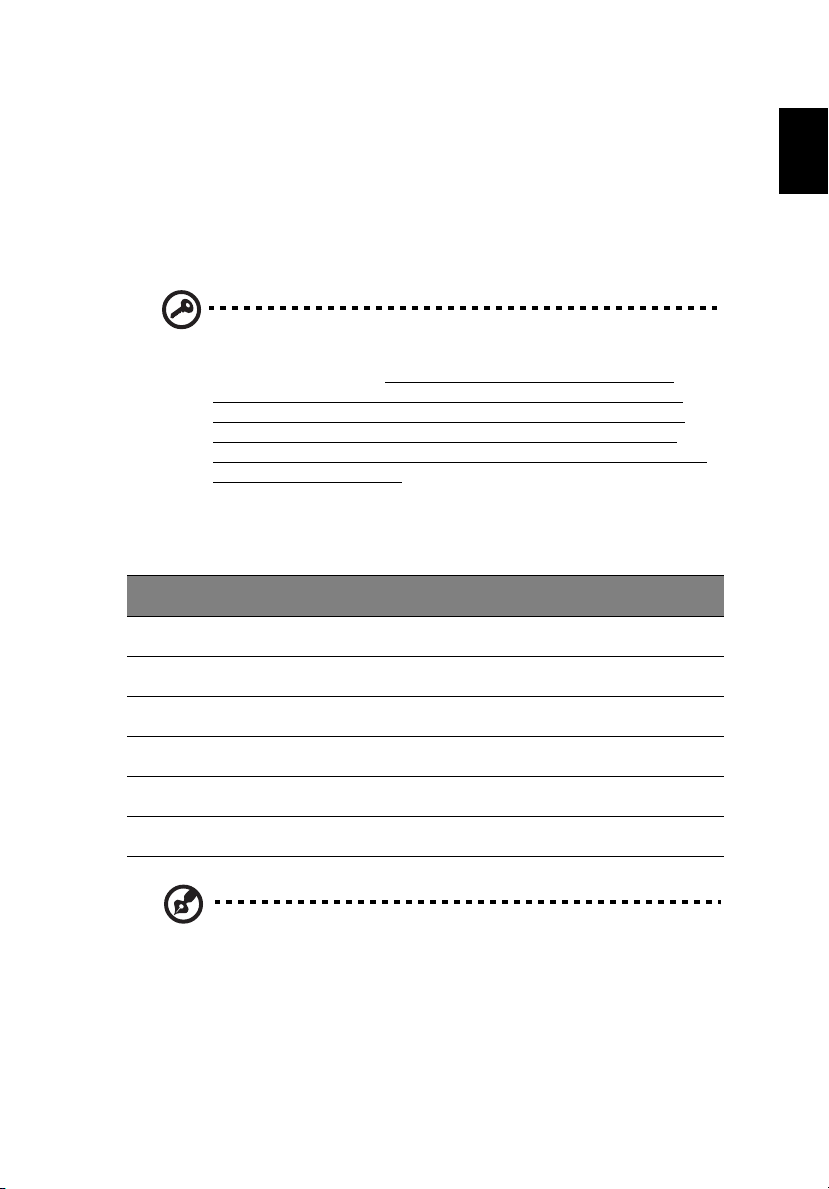
Region code Country or region
1 U.S.A., Canada
2 Europe, Middle East, South Africa, Japan
English
3 Southeast Asia, Taiwan, Korea (South)
4 Latin America, Australia, New Zealand
5 Former U.S.S.R., parts of Africa, India
6 People's Republic of China
Note: To change the region code, insert a DVD movie of a
different region into the DVD-ROM drive. Please refer to the
online help for more information.
Page 34
Audio
1 Getting to know your TravelMate26
English
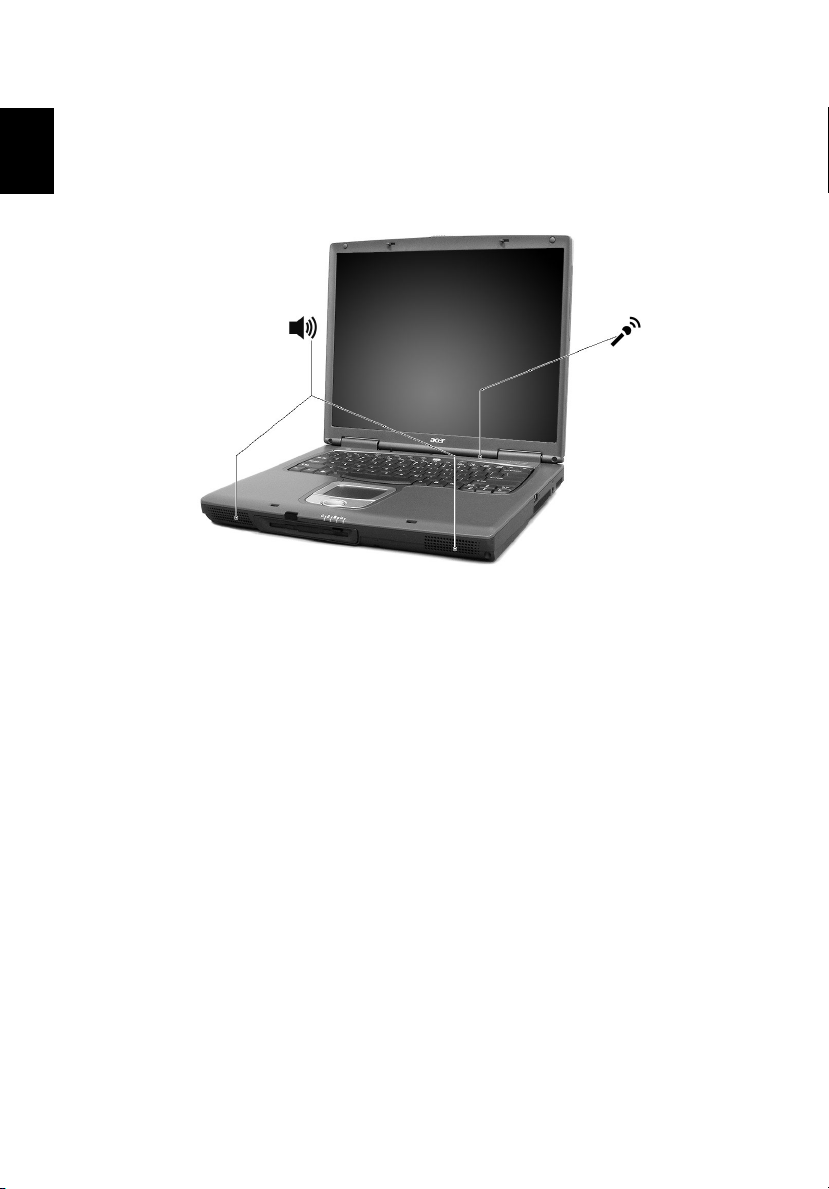
The computer comes with 16-bit high-fidelity AC’97 stereo audio, and
includes a sensitive built-in microphone and dual stereo speakers.
There are audio ports on the left side of the computer. See “Left view”
on page 5 for more information on connecting external audio devices.
Adjusting the volume
Adjusting the volume on the computer is as easy as pressing some
buttons. See “Hot keys” on page 17 for more information on adjusting
the speaker volume.
Page 35

27
Power management
This computer has a built-in power management unit that monitors
system activity. System activity refers to any activity involving one or
more of the following devices: keyboard, mouse, floppy drive, Hard
Disk, or any connected peripherals. If no activity is detected for a
period of time (called an inactivity timeout), the computer stops some
or all of these devices in order to conserve energy.
This computer employs a power management scheme that supports
ACPI (Advanced Configuration and Power Interface), which allows for
maximum power conservation and maximum performance at the same
time. Windows handles all power-saving chores for your computer.
English
Page 36

1 Getting to know your TravelMate28
Moving around with your TravelMate
English
This section gives you tips and hints to consider when moving around
or traveling with your computer.
Disconnecting from the desktop
Follow these steps to disconnect your computer from external
accessories:
1 Save your work in progress.
2 Remove any media, discettes or compact discs, from the drive(s).
3 Shut down the computer.
4 Close the display cover.
5 Disconnect the cord from the AC adapter.
6 Disconnect any external keyboard, pointing device, printer,
monitor, and other external devices.
7 Disconnect the Kensington lock if you are using one to secure the
computer.
Moving around
Preparing the computer
If you are just moving short distances, for example, from your office
desk to a meeting room.
Before moving the computer, close and latch the display cover to place
it in Sleep mode. You can now safely take the computer anywhere you
go within the building. To bring the computer out of Sleep mode,
open the display; then slide and release the power button.
If you are taking the computer to a client's office or a different
building, you may choose to shut down the computer:
1Click on Start, Turn off Computer (Windows XP).
2Click on Tur n O ff (Windows XP).
- or -
Page 37
29
you can put the computer in Sleep mode by pressing Fn-F4. Then close
and latch the display.
When you are ready to use the computer again, unlatch and open the
display; then slide and release the power button.
Note: If the sleep indicator is off, the computer has entered
Hibernation mode and turned off. If the power indicator is off but
the sleep indicator is on, the computer has entered Sleep mode.
In both cases, press and release the power button to turn the
computer back on. Note that the computer may enter Hibernation
mode after it is in Sleep mode for a period of time.
What to bring to short meetings
A fully charged battery runs the computer for about 2.0~2.5 hours
under most circumstances. If your meeting is shorter than that, you
probably do not need to bring anything with you other than the
computer.
What to bring to long meetings
If your meeting will last longer than 2.0~2.5 hours or if your battery is
not fully charged, you may want to bring the AC adapter with you to
plug in your computer in the meeting room.
English
If the meeting room does not have an electrical outlet, reduce the
drain on the battery by putting the computer in Sleep mode. Press Fn-
F4 or close the display cover whenever you are not actively using the
computer. To resume, open the display (if closed); then press and
release the power button.
Taking the computer home
Preparing the computer
If you are traveling from your office to your home or vice versa.
After disconnecting the computer from your desktop, follow these
steps to prepare the computer for the trip home:
• Check if you have removed all media, discettes and compact discs,
from the drive(s). Failure to remove the media can damage the
Page 38
1 Getting to know your TravelMate30
drive head.
• Pack the computer in a protective case that can prevent the
English
computer from sliding around and cushion it if it should fall.
Caution: Avoid packing items next to the top cover of the
computer. Pressure against the top cover can damage the screen
What to bring with you
Unless you already have some items at home, take the following items
with you:
• AC adapter and power cord
• The printed user’s guide
Special considerations
Follow these guidelines to protect your computer while traveling to
and from work:
• Minimize the effect of temperature changes by keeping the
computer with you.
• If you need to stop for an extended period of time and cannot
take the computer with you, leave the computer in the trunk of
the car to avoid exposing the computer to excessive heat.
• Changes in temperature and humidity can cause condensation.
Allow the computer to return to room temperature, and inspect
the screen for condensation before turning on the computer. If the
temperature change is greater than 18°F (10°C), allow the
computer to come to room temperature slowly. If possible, leave
the computer for 30 minutes in an environment with a
temperature between outside and room temperature.
Setting up a home office
If you frequently work on your computer at home, you may want to
purchase a second AC adapter for use at home. With a second AC
adapter, you can avoid transporting the extra weight to and from
home.
If you use your computer at home for significant periods of time, you
might also want to add an external keyboard, monitor, or mouse.
Page 39

31
Traveling with the computer
Preparing the computer
If you are traveling greater distances, for instance, from your office
building to a client’s office building or traveling locally.
Prepare the computer as if you were taking it home. Make sure that
the battery in the computer is charged. Airport security may require
you to turn on your computer when bringing it into the gate area.
What to bring with you
Bring the following items with you:
• AC adapter
• Spare, fully-charged battery pack(s)
Special considerations
In addition to the guidelines for taking the computer home, follow
these guidelines to protect your computer while traveling:
• Always take the computer as carry-on luggage.
• If possible, have the computer inspected by hand. Airport security
X-ray machines are safe, but do not put the computer through a
metal detector.
• Avoid exposing floppy discs to hand-held metal detectors.
English
Traveling internationally with the computer
Preparing the computer
If you are traveling from country to country.
Prepare the computer as you would normally prepare it for traveling.
Page 40

1 Getting to know your TravelMate32
What to bring with you
Bring the following items with you:
English
• AC adapter
• Power cord that is appropriate for the country to which you are
traveling
• Spare, fully-charged battery pack(s)
• Proof of purchase, in case you need to show it to Customs officials
• International Traveler’s Warranty passport
Special considerations
Follow the same special considerations as when traveling with the
computer. In addition, these tips are useful when traveling
internationally:
• When traveling in another country, check that the local AC voltage
and the AC adapter power cord specifications are compatible. If
not, purchase a power cord that is compatible with the local AC
voltage. Do not use converter kits sold for appliances to power the
computer.
• If you are using the modem, check if the modem and connector is
compatible with the telecommunications system of the country
you are traveling in.
Page 41
33
Securing your computer
Your computer is a valuable investment that you need to take care of.
Learn how to protect and take care of your computer.
Security features include hardware and software locks — a security
notch and passwords.
Using a computer security lock
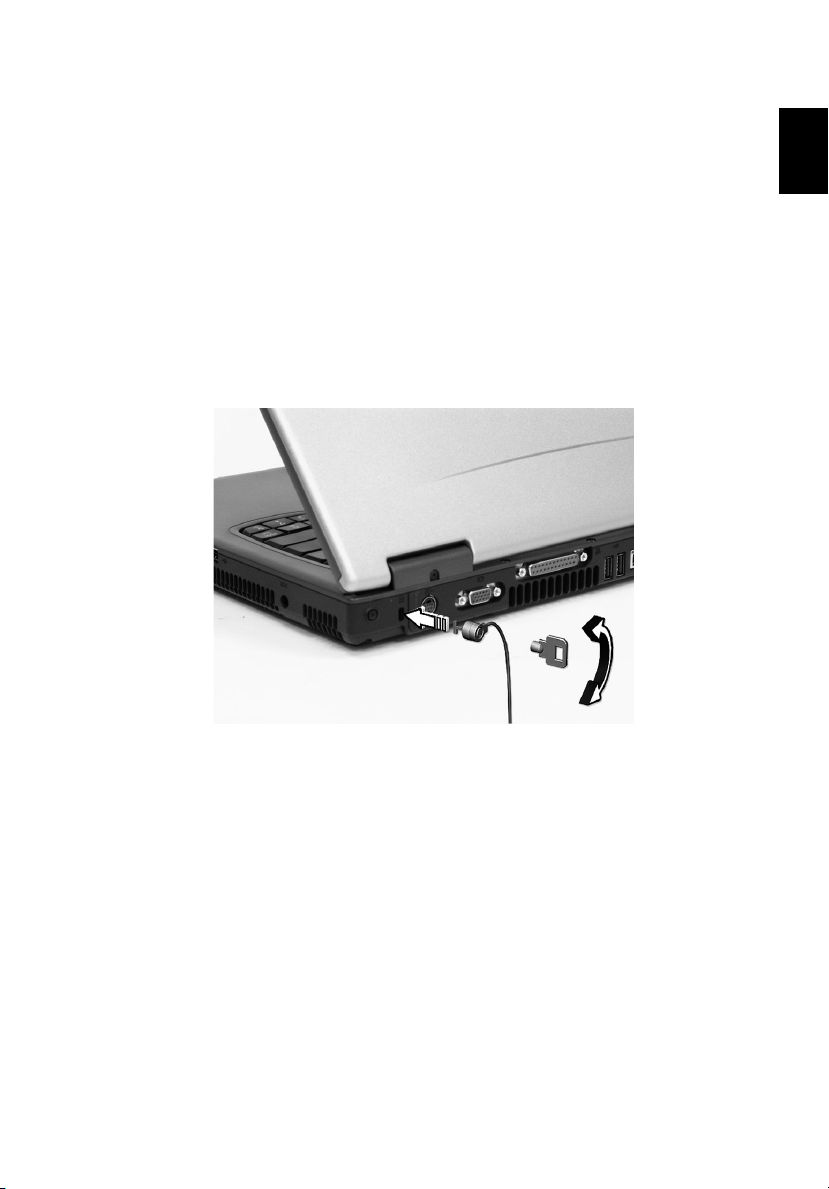
A security keylock notch located on the rear panel of the computer lets
you connect a Kensington-compatible computer security lock.
English
Wrap the computer security lock cable around an immovable object
such as a table or locked drawer handle. Insert the lock into the notch
and turn the key to secure the lock. Some keyless locks are also
available.
Page 42
Using passwords
1 Getting to know your TravelMate34
English
Passwords protect your computer from unauthorized access. Setting
these passwords creates Serveral different levels of protection for your
computer and data:
• Supervisor Password prevents unauthorized entry into the BIOS
Utility. Once set, you must enter this password to gain access to the
BIOS Utility. See “BIOS Utility” on page 47 for more details.
• User Password secures your computer against unauthorized use.
Combine the use of this password with password checkpoints on
boot-up and resume from hibernation for maximum security.
• Password on Boot secures your computer against unauthorized
use. Combine the use of this password with password checkpoints
on boot-up and resume from hibernation for maximum security.
• The “Primary HardDisk Security” item in BIOS set up protects
your data by preventing unauthorized access to your Hard Disk.
Even if the Hard Disk is removed from the computer and moved to
another computer, it cannot be accessed without the Hard Disk
Password.
Important! Do not forget your Supervisor and Hard Disk
Password! If you forget your password, please get in touch with
your dealer or an authorized service center.
Entering passwords
When a password is set, a password prompt appears in the centre of
the display screen.
• When the Supervisor Password is set, a prompt appears when you
press F2 to enter the BIOS Utility at boot-up.
• Type the Supervisor Password and press Enter to access the BIOS
Utility. If you enter the password incorrectly, a warning message
appears. Try again and press Enter.
• When the User Password is set and the Password on boot
parameter is enabled, a prompt appears at boot-up.
• Type the User Password and press Enter to use the computer. If
you enter the password incorrectly, a warning message appears.
Try again and press Enter.
Page 43
Important! You have three chances to enter a password. If you
fail to enter the password correctly after three tries, the system
halts. Slide and hold the power button for four seconds to shut
down the computer. Then turn on the computer again, and try
again. If you fail to enter the Hard Disk Password, please contact
your dealer or an authorized service center.
Setting passwords
You can set passwords using the BIOS Utility.
35
English
Page 44

1 Getting to know your TravelMate36
English
Page 45

2 Customizing my
computer
Page 46

After learning the basics of your TravelMate
computer, let’s get acquainted with the
advanced features of your computer. In this
chapter, you will learn how to add options,
upgrade components for better performance,
and customize your computer.
Page 47
39
Expanding through options
Your TravelMate offers you a complete mobile computing experience.
Connectivity options
Ports allow you to connect peripheral devices to your computer as you
would with a desktop PC.
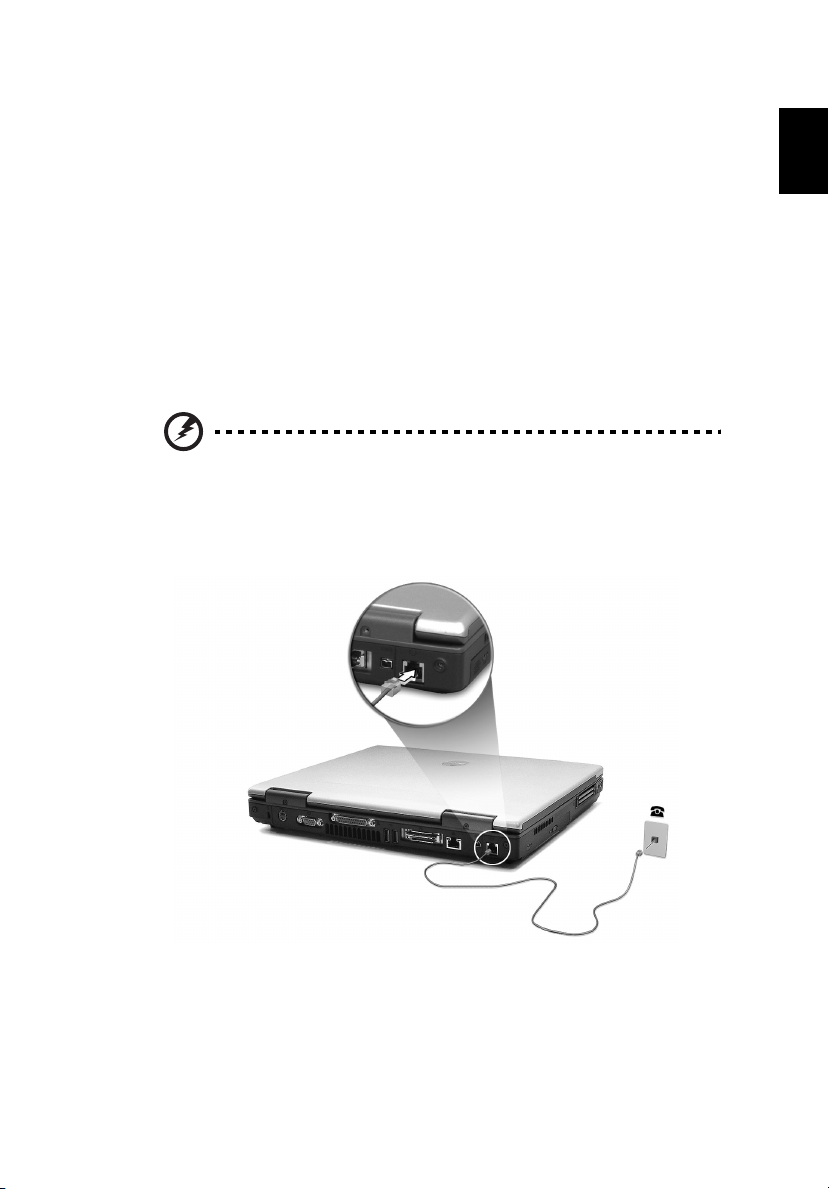
Fax/data modem
Your computer has a built-in V.92 56 Kbps AC’97 Link fax/data modem.
Warning! This modem port is not compatible with digital
phone lines. Plugging this modem into a digital phone line
will damage the modem.
To use the fax/data modem port, connect a phone cable from the
modem port to a telephone jack.
English
Start your communications software program. See your
communications manual for instructions.
Page 48
2 Customizing my computer40
Built-in network feature
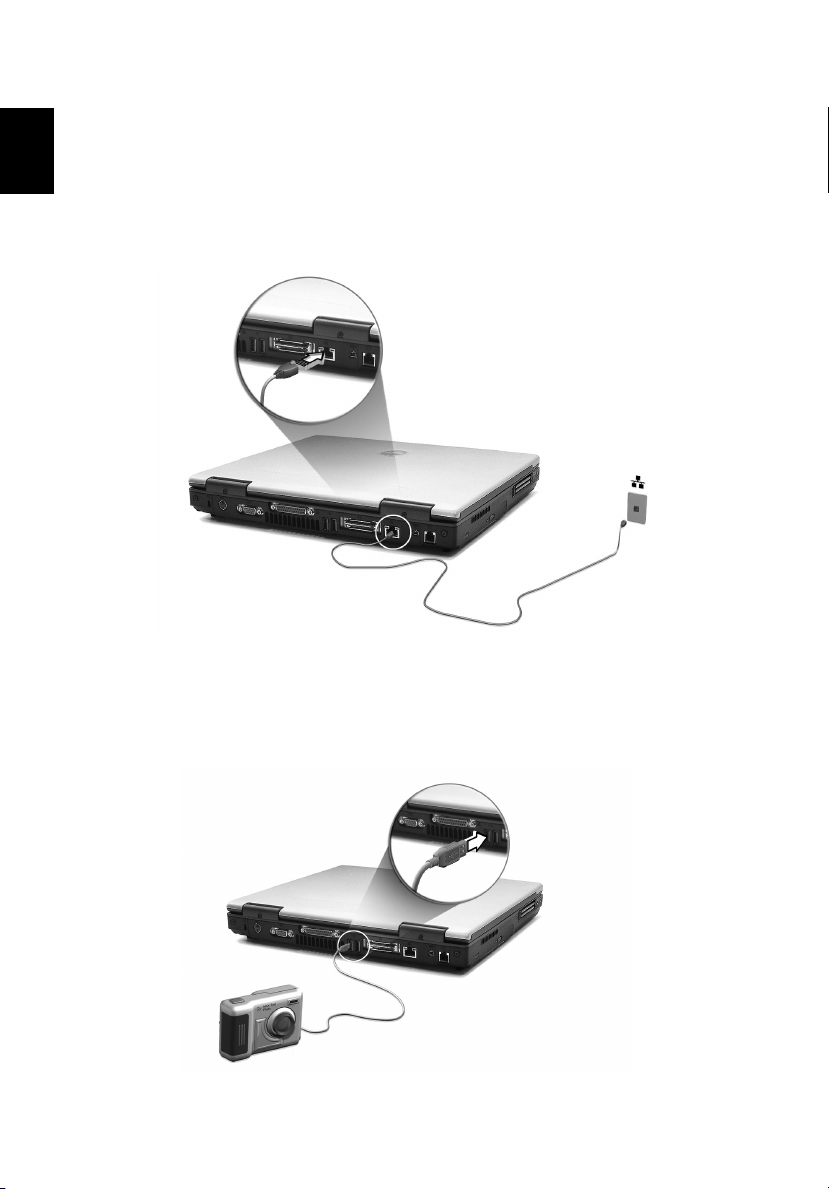
The built-in network feature allows you to connect your computer to
English
an Ethernet-based (10/100 Mbps) or gigabit-LAN network.
To use the network feature, connect an Ethernet cable from the
network jack on the rear of the computer to a network jack or hub on
your network.
Universal Serial Bus
The Universal Serial Bus (USB) port is a high-speed serial bus which
allows you to connect and daisy-chain USB peripherals without taking
up precious system resources. Your computer has three ports available.
Page 49
41
IEEE 1394 port
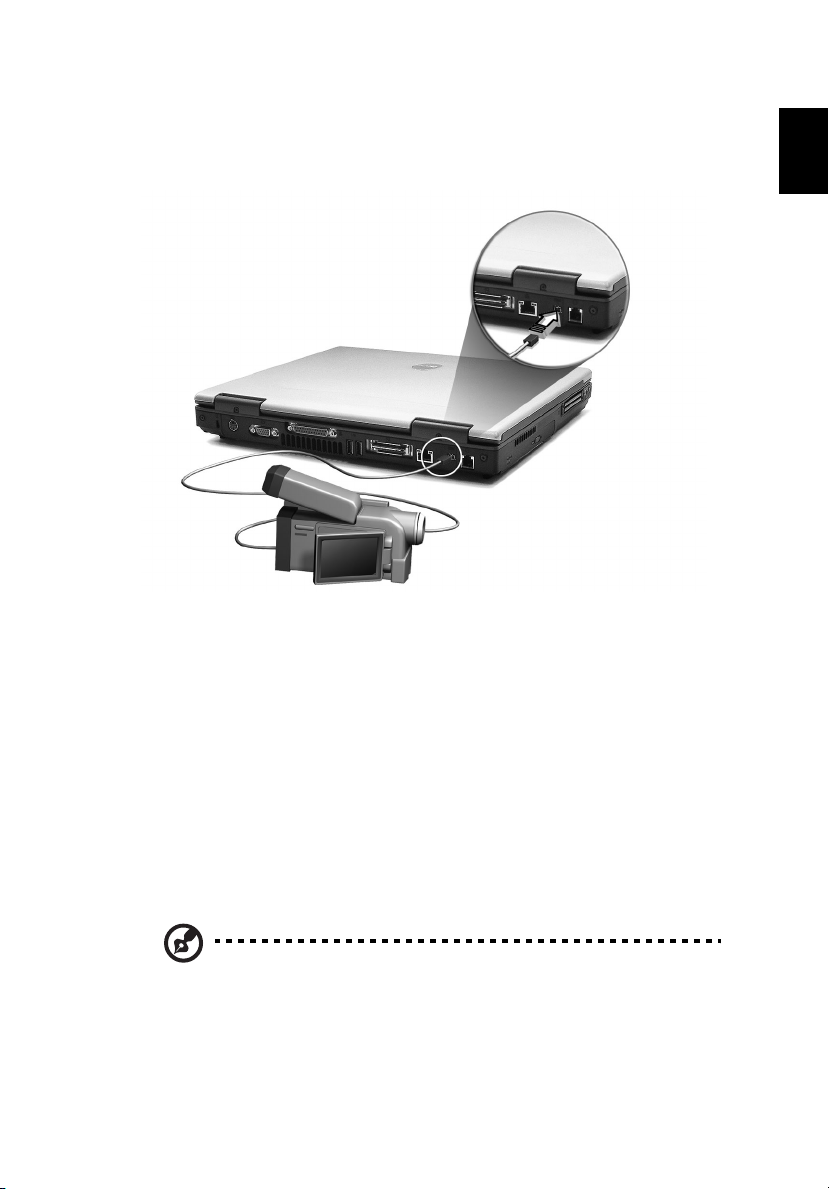
The computer's IEEE 1394 port allows you to connect to an IEEE 1394
supported devices like a video camera or digital camera.
See your video or digital camera's documentation for details.
PC Card slot
English
The type II / type III CardBus PC Card slot found on the left side of the
computer accepts credit-card-sized cards that enhance the usability
and expandability of the computer. These cards should have a PC Card
logo on them.
PC Cards (formerly PCMCIA) are add-on cards for portable computers,
giving you expansion possibilities long afforded by desktop PCs.
Popular PC Cards include flash memory, SRAM, fax/data modem, LAN
and SCSI cards. CardBus improves on the 16-bit PC Card technology by
expanding the bandwidth to 32 bits.
Note: Refer to your card’s manual for details on how to install and
use the card and its functions.
Page 50
2 Customizing my computer42
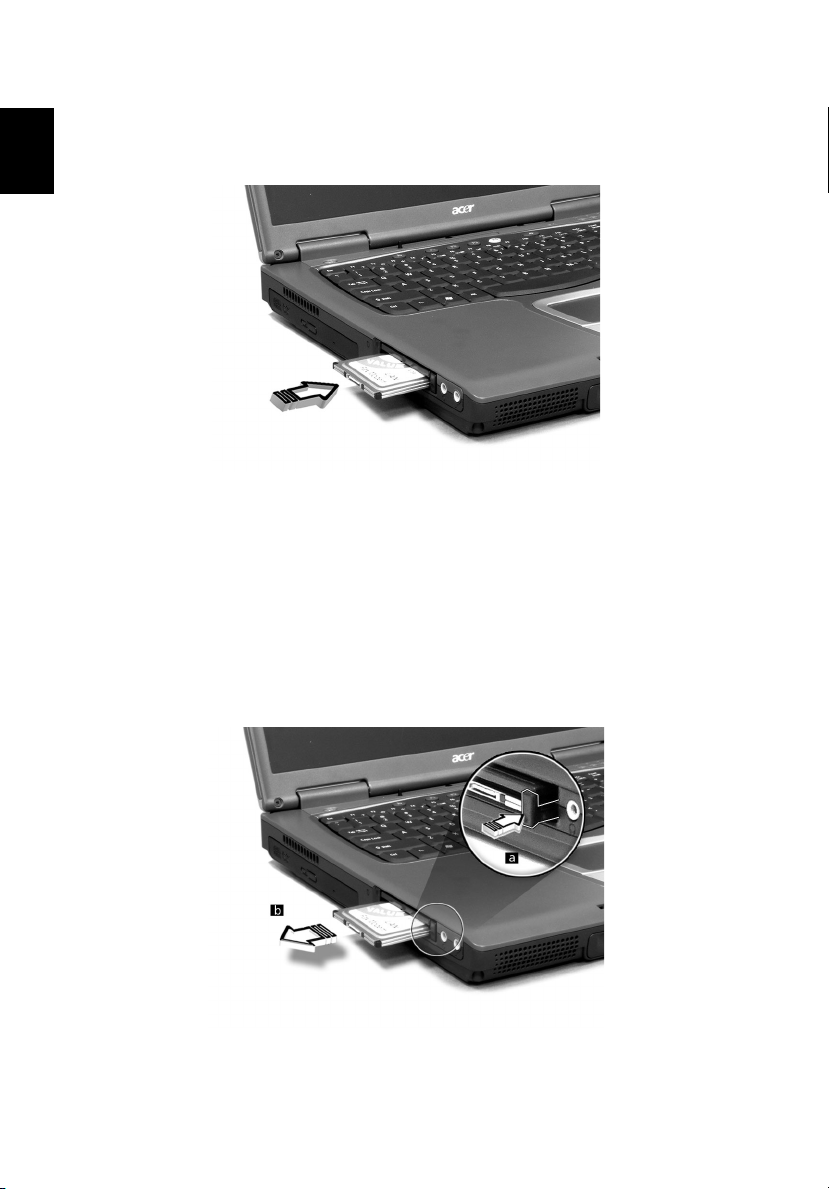
Inserting a PC Card
Insert the card into the slot and make the proper connection (e.g.,
English
network cable), if necessary. See your card manual for details.
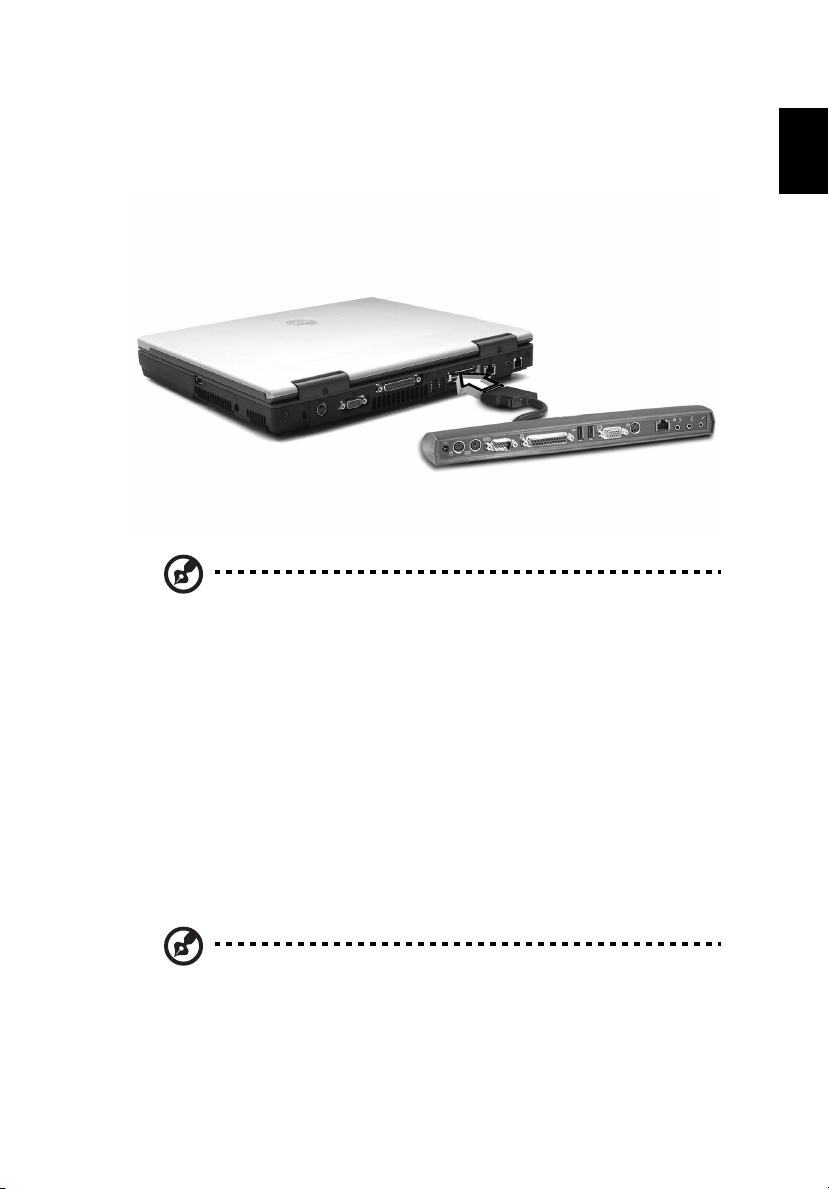
Ejecting a PC Card
Before ejecting a PC Card:
1 Exit the application using the card.
2 Left-click on the PC Card icon on the taskbar and stop the card
operation.
3 Press the slot eject button to pop out the eject button (a); then
press it again to eject the card (b).
Page 51
43
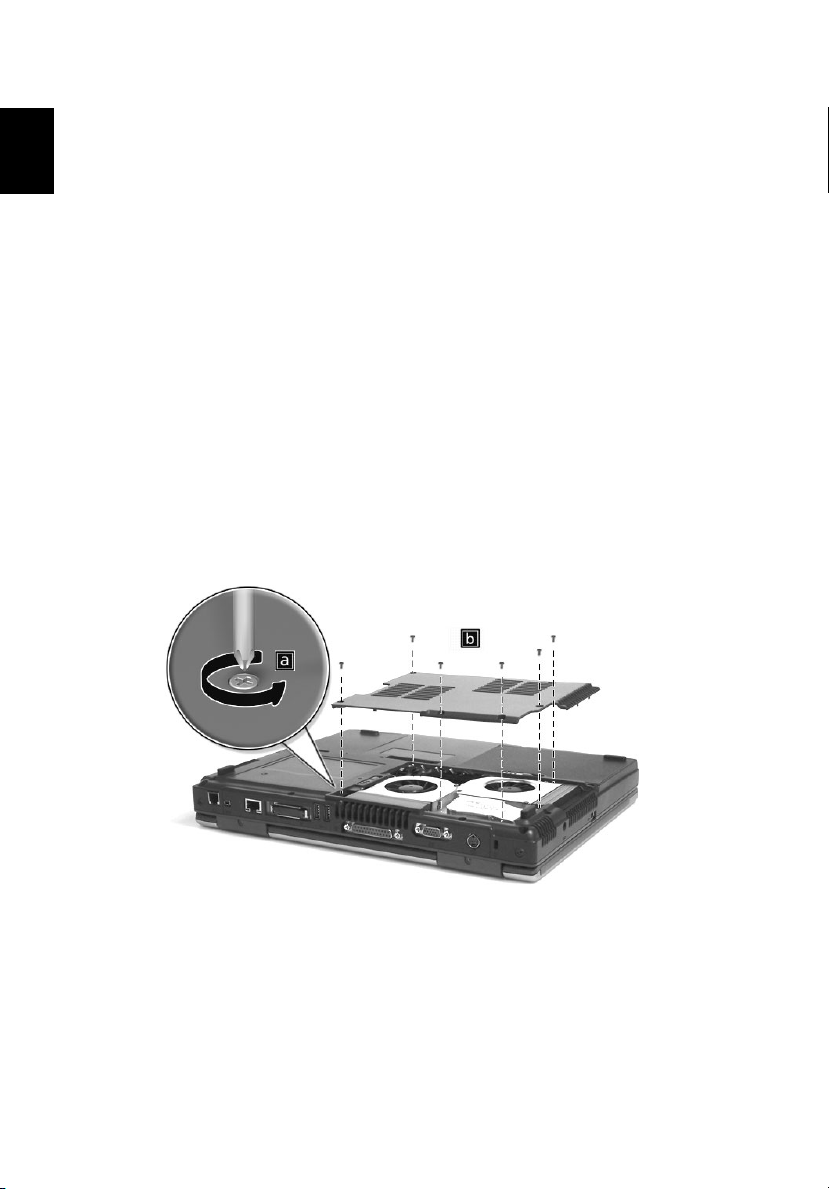
Connecting to Acer EasyPort replicator
The computer's 100-pin connector enables you to connect an Acer
EasyPort replicator (optional).
Note: The system supports a maximum of six USB devices. Two
ports are available on the rear panel, one on the right side, two
internal ports are reserved by the system for optional card readers
and Bluetooth. The Acer EasyPort’s two USB ports will function
when plugged in, however, only one of the ports on the machine
will function (due to the limitations of the system chipset). The
USB port closest to the parallel port on the EasyPort supports
USB2.0.
English
Upgrade options
Your computer delivers superior power and performance. However,
some users and the applications they use may demand more. This
computer allows you to upgrade key components when you need
increased performance.
Note: Contact your authorized dealer if you decide to perform a
key component upgrade.
Page 52
2 Customizing my computer44
Memory upgrade
Memory is expandable to 2 GB, employing 128/256/512 MB industry
English
standard soDIMMs (Small Outline Dual Inline Memory Modules). The
computer supports DDR (Double Data Rate) SDRAM (Synchronous
Dynamic Random Access Memory).
There are two memory slots on your computer, one of which is
occupied by the standard memory. You can upgrade memory by
installing a memory module into the available slot, or replacing the
standard memory with a higher-capacity memory module.
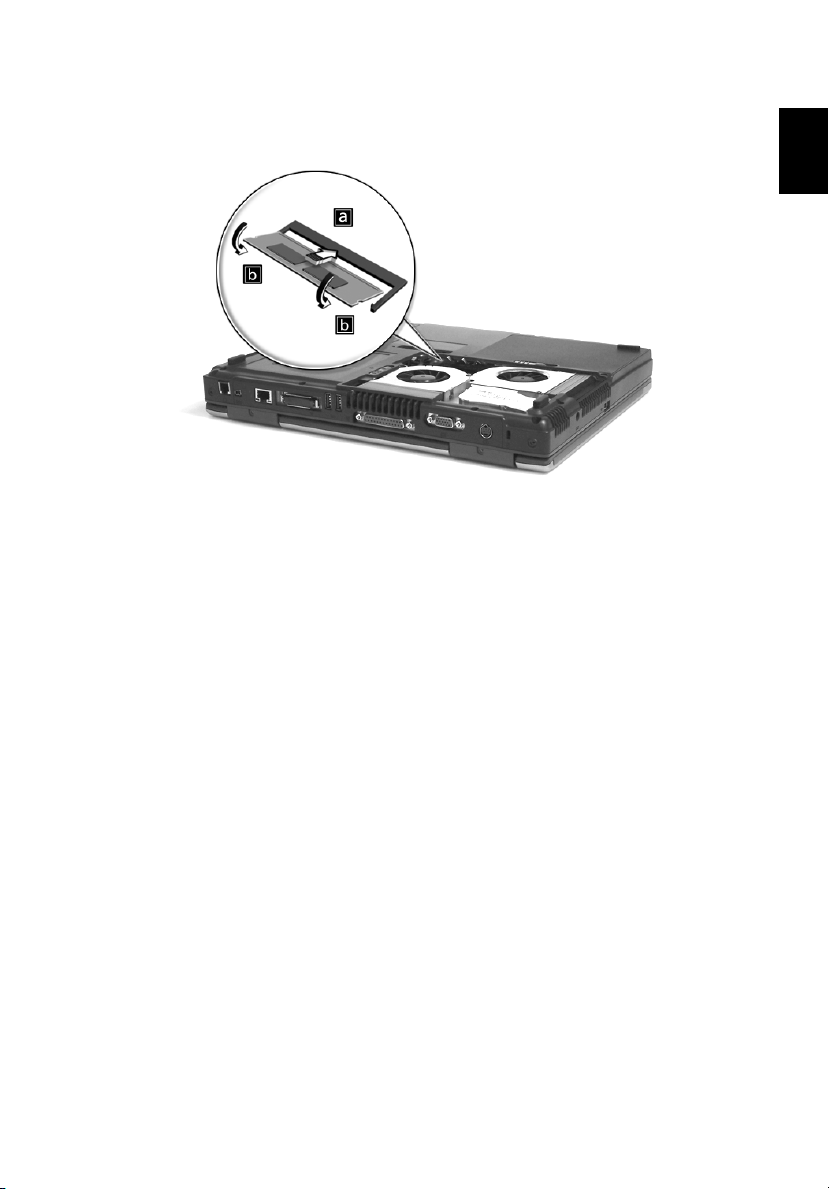
Installing memory
Follow these steps to install memory:
1 Turn off the computer, unplug the AC adapter (if connected) and
remove the battery pack. Then turn the computer over to access its
base.
2 Remove the screw from the memory cover (a); then lift up and
remove the memory cover (b).
Page 53
45
3 Insert the memory module diagonally into the slot (a), then gently
press it down (b) until it clicks into place.
4 Replace the memory cover and secure it with the screws.
5 Reinstall the battery pack, and reconnect the AC adapter.
6 Turn on the computer.
The computer automatically detects and reconfigures the total
memory size.
English
Page 54
Using system utilities
2 Customizing my computer46
English
Notebook Manager
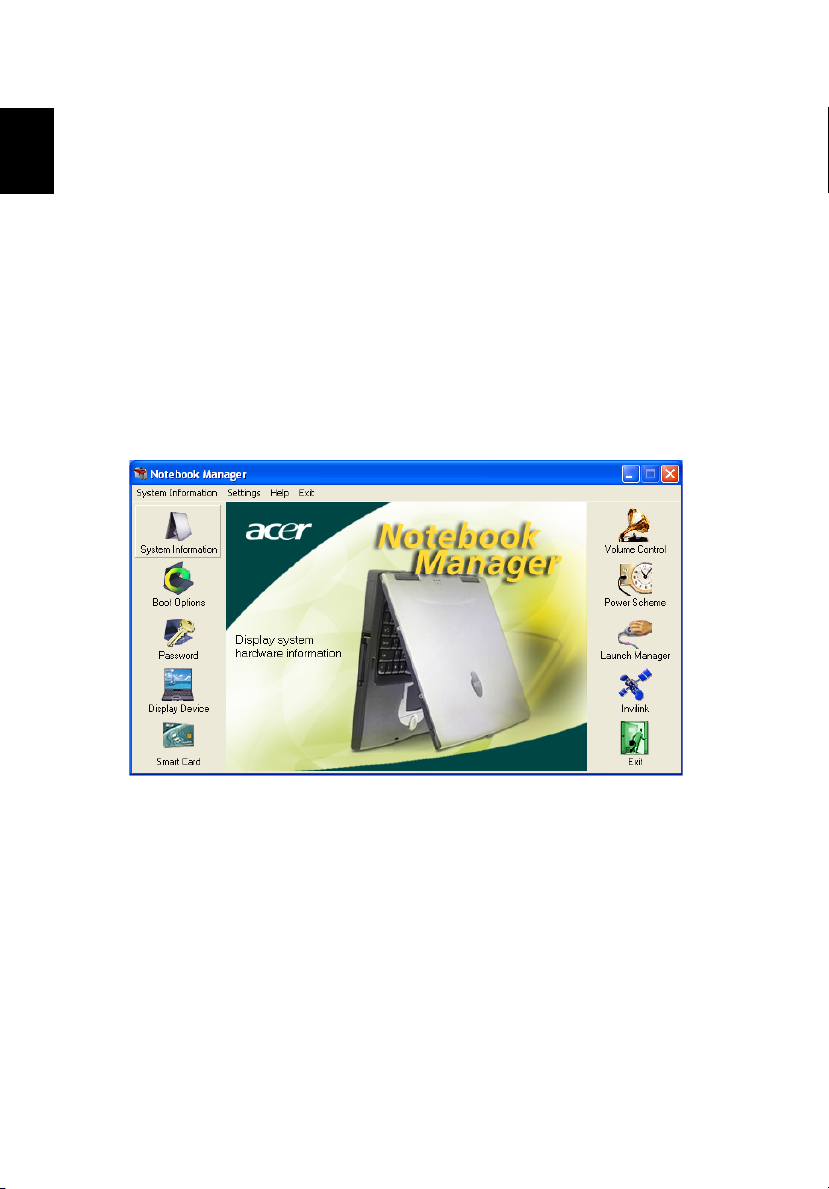
The computer has a built-in system setup program called Notebook
Manager. The Windows-based Notebook Manager allows you to set
passwords, the startup sequence of the drives, and power
management settings. It also shows current hardware configurations.
To start the Notebook Manager, press Fn-F2 or follow these steps:
1Click on Start, Programs, then Notebook Manager.
2 Select the Notebook Manager application to run the program.
Click on Help for more information.
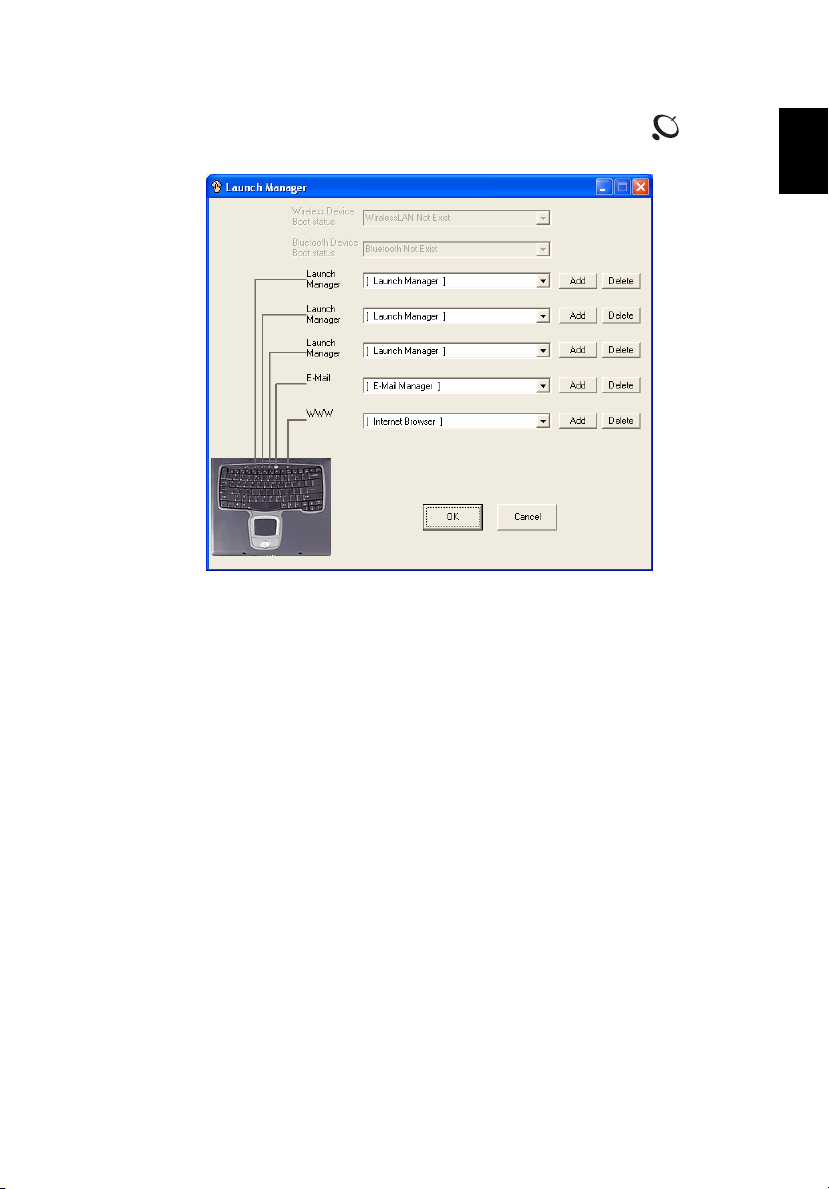
Launch Manager
Launch Manager allows you to set the five launch keys located above
the keyboard. See “Launch Keys” on page 20 for the location of the
launch keys.
You can access the Launch Manager by clicking on Start, All
Programs, and then Launch Manager to start the application.
Page 55
47
You can manually switch off the wireless LAN by pressing the
button.
BIOS Utility
The BIOS Utility is a hardware configuration program built into your
computer’s BIOS (Basic Input/Output System).
English
Your computer is already properly configured and optimized, and you
do not need to run this utility. However, if you encounter
configuration problems, you may need to run it.
To activate the BIOS Utility, press F2 during the POST (power-on selftest) while the TravelMate logo is being displayed. See your online
guide for more information.
Page 56

2 Customizing my computer48
English
Page 57

3 Troubleshooting my
computer
Page 58

This chapter instructs you on how to deal with
common system problems. Read it before
calling a technician if a problem occurs.
Solutions to more serious problems require
opening up the computer. Do not attempt to
open the computer by yourself. Contact your
dealer or an authorized service center for
assistance.
Page 59

51
Frequently-asked questions
The following is a list of possible situations that may arise during the
use of your computer. Easy answers and solutions are provided for
each one.
I opened the display and pressed the power button, but computer
does not start or boot-up.
Look at the Power indicator:
• If it is not lit, no power is being supplied to the computer. Check
the following:
• If you are running on battery power, it may be low and unable
to power the computer. Connect the AC adapter to recharge
the battery pack.
• Make sure that the AC adapter is properly plugged into the
computer and to the power outlet.
• If it is lit, check the following:
• Is a non-bootable (non-system) discette in the floppy drive?
Remove or replace it with a system discette and press Ctrl-AltDel to restart the system.
• The operating system files may be damaged or missing. Insert the
startup disc you created during Windows setup into the floppy
drive and press Ctrl-Alt-Del to restart the system. This will
diagnose your system and make necessary fixes.
English
Nothing appears on the screen.
The computer’s power management system automatically blanks the
screen to save power. Press any key to turn the display back on.
If pressing a key does not turn the display back on, two things might
be the cause:
• The brightness level might be too low. Press Fn-→ (increase) and
Fn-← (decrease) to adjust the brightness level.
• The display device might be set to an external monitor. Press the
display toggle hot key Fn-F5 to toggle the display back to the
computer.
Page 60
3 Troubleshooting my computer52
Image is not full-screen.
The computer display has a native resolution of 1024 x 768 (XGA) for
English
the 14.1” or 1400 x 1050 (SXGA+) for the 15.0”. If you set the
resolution lower than this, the screen expands to fill the computer
display. Right-click on your Windows desktop and select Properties to
bring up the Display Properties dialog box. Then click on the
Settings tab to make sure that the resolution is set to the appropriate
resolution. Resolutions lower than the specified resolution are not
full-screen on the computer or on an external monitor.
No audio is heard from the computer.
Check the following:
• The volume may be muted. In Windows, look at the volume
control (speaker) icon on the taskbar. If it is crossed-out, click on
the icon and deselect the Mute option.
• The speakers may be turned off. Press Fn-F8 to turn the speakers
on (this hot key also turns the speakers off).
• The volume level may be too low. In Windows, look at the volume
control icon on the taskbar. You can also use the volume control
buttons to adjust the volume. See “Hot keys” on page 17 for more
detail.
• If headphones, earphones or external speakers are connected to
the line-out port on the computer’s left panel, the internal
speakers automatically turn off.
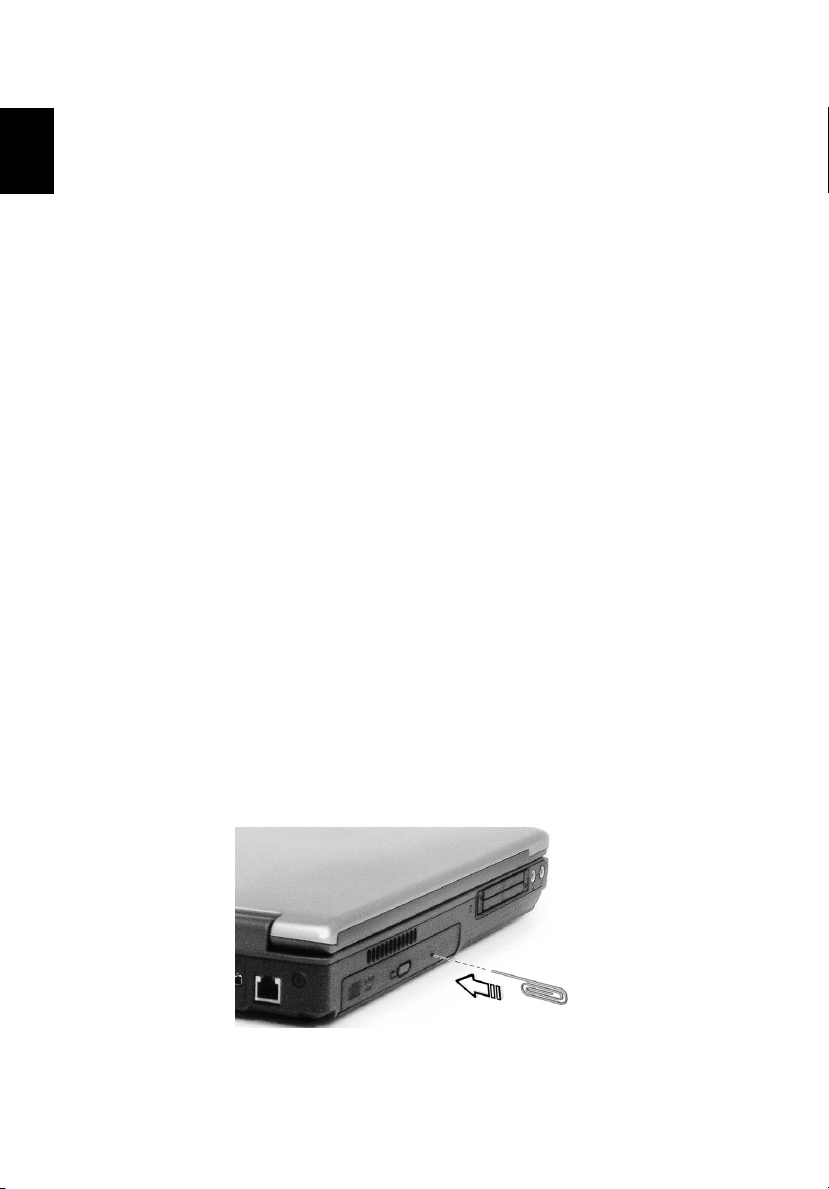
I want to eject the optical drive tray without turning on the power. I
cannot eject the optical drive tray.
There is a mechanical eject button on the optical drive. Simply insert
the tip of a pen or paperclip and push to eject the tray.
Page 61

53
The keyboard does not respond.
Try attaching an external keyboard to the USB ports of the computer.
If it works, contact your dealer or an authorized service center as the
internal keyboard cable may be loose.
The printer does not work.
Check the following:
• Make sure that the printer is connected to a power outlet and that
it is turned on.
• Make sure that the printer cable is connected securely to the
computer’s parallel port and the corresponding port on the
printer.
• During POST, press F2 to access the BIOS Utility and verify that the
parallel port is enabled.
I want to set up my location to use the internal modem.
To properly use your communications software (e.g., HyperTerminal),
you need to set up your location: (for Windows XP)
1Click on Start, Control Panel.
2 Double-click on Phone and Modem.
3Click on Dialing Rules and begin setting up your location.
English
Refer to the Windows manual for further information.
Page 62

Requesting service
3 Troubleshooting my computer54
English
International Traveler’s Warranty (ITW)
Your computer is backed by an International Traveler’s Warranty (ITW)
that gives you security and peace of mind when traveling. Our
worldwide network of service centers are there to give you a helping
hand.
An ITW passport comes with your computer. This passport contains all
you need to know about the ITW program. A list of available,
authorized service centers is in this handy booklet. Read this passport
thoroughly.
Always have your ITW passport on hand, especially when you travel, to
receive assistance from our support centers. Place your proof-ofpurchase in the flap located inside the front cover of the ITW passport.
If the country you are traveling in does not have an Acer-authorized
ITW service site, you can still get in contact with our offices worldwide.
Please consult www.acersupport.com.
Before you call
Please have the following information available when you call Acer for
online service, and please be at your computer when you call. With
your support, we can reduce the amount of time a call takes and help
solve your problems efficiently.
If there are error messages or beeps reported by your computer, write
them down as they appear on the screen (or the number and sequence
in the case of beeps).
Page 63

55
You are required to provide the following information:
Name:________________________________________
Address:______________________________________
______________________________________________
Telephone number:____________________________
Machine and model type:_______________________
Serial number:_________________________________
Date of purchase:______________________________
English
Page 64

3 Troubleshooting my computer56
English
Page 65

Appendix A
Specifications
Page 66

This appendix lists the general specifications
of your computer.
Page 67

59
Microprocessor
• Mobile Intel® Pentium® 4 Processor with 512 KB level 2 cache
featuring the new Enhanced Intel SpeedStep® technology with
533 MHz processor system bus
Memory
• Main memory expandable to 2 GB
• Dual 200-pin soDIMM sockets
• PC2700 DDR-SDRAM (Double Data Rate-Synchronous Dynamic
Random Access Memory) support
• 512 KB Flash ROM BIOS
Data storage
• One high-capacity, Enhanced-IDE Hard Disk
• One 5.25-inch internal optical drive
• One 3.5-inch internal floppy drive or 5-in-1 card reader
Display and video
• Thin-Film Transistor (TFT) Liquid Crystal Display (LCD) displaying
32-bit true color up to 1024 x 768 eXtended Graphics Array (XGA)
resolution for 14.1”or 1400 x 1050 Super eXtended Graphics
Array+ (SXGA+) resolution for 15.0”
• 8X AGP bus with 3D acceleration
• Simultaneous LCD and CRT display support
• Dual display capability
• S-video for output to a television or display device that supports S-
video input
• "Automatic LCD dim" feature that automatically decides the best
settings for your display and conserves power
English
Audio
• 16-bit AC’97 stereo audio
• Dual speakers and microphone
• Audio ports for microphone/line-in and headphone/speaker/line-
out
Page 68

Appendix A Specifications60
Keyboard and pointing device
• 84-/85-/88-key Windows keyboard
English
• Ergonomically-centered touchpad pointing device with 4-way
scroll button
I/O ports
• Two type II / one type III CardBus PC Card slot
• One RJ-45 jack (Ethernet 10/100 Base T)
• One RJ-11 jack (V.92/56 Kbps modem)
• One DC-in jack
• One parallel port (ECP/EPP)
• One external monitor port
• One headphone/speaker/line-out jack (3.5 mm mini jack)
• One microphone/line-in jack (3.5 mm mini jack)
• Three USB ports
• One IEEE 1394 port
• One S-video TV-out (NTSC/PAL) port
• One Fast Infrared port
• One 100-pin port replicator connector
Weight and dimensions
• 327 (W) x 275.5 (D) x 41.6/44.1 (H) mm
• 3.5 kg (7.6 lbs) for 14.1" LCD model / 3.6 kg (7.9 lbs) for 15.0" LCD
model
Environment
• Temp erature
• Operating: 5 °C ~ 35 °C
• Non-operating: -20 °C ~ 65 °C
• Humidity (non-condensing)
• Operating: 20% ~ 80% RH
• Non-operating: 20% ~ 80% RH
Page 69

61
System
• ACPI support
• DMI 2.0-compliant
• Microsoft Windows operating systems
Power
• Battery pack
• 69.63 Wh Li-ion battery pack
• 3-hour rapid charge/6-hour charge-in-use
• AC adapter
• 90 Watt with 19 V DC output
• Auto sensing 90 ~ 284 VAC, 47 ~ 63 Hz
Options
• 128/256/512 MB memory upgrade modules
• Additional Li-ion battery pack
• Additional AC adapter
• Acer EasyPort replicator
English
Page 70

Appendix A Specifications62
English
Page 71

Appendix B
Notices
Page 72

This appendix lists the general notices of your
computer.
Page 73

65
FCC notice
This device has been tested and found to comply with the limits for a Class B
digital device pursuant to Part 15 of the FCC Rules. These limits are designed to
provide reasonable protection against harmful interference in a residential
installation. This device generates, uses, and can radiate radio frequency energy
and, if not installed and used in accordance with the instructions, may cause
harmful interference to radio communications.
However, there is no guarantee that interference will not occur in a particular
installation. If this device does cause harmful interference to radio or television
reception, which can be determined by turning the device off and on, the user
is encouraged to try to correct the interference by one or more of the following
measures:
• Reorient or relocate the receiving antenna
• Increase the separation between the device and receiver
• Connect the device into an outlet on a circuit different from that to which
the receiver is connected
• Consult the dealer or an experienced radio/television technician for help
Notice: Shielded cables
All connections to other computing devices must be made using shielded cables
to maintain compliance with FCC regulations.
Notice: Peripheral devices
English
Only peripherals (input/output devices, terminals, printers, etc.) certified to
comply with the Class B limits may be attached to this equipment. Operation
with non-certified peripherals is likely to result in interference to radio and TV
reception.
Caution
Changes or modifications not expressly approved by the manufacturer could
void the user’s authority, which is granted by the Federal Communications
Commission, to operate this computer.
Use conditions
This part complies with Part 15 of the FCC Rules. Operation is subject to the
following two conditions: (1) this device may not cause harmful interference,
and (2) this device must accept any interference received, including interference
that may cause undesired operation.
Page 74

English
Appendix B Notices66
Notice: Canadian users
This Class B digital apparatus meets all requirements of the Canadian
Interference-Causing Equipment Regulations.
Remarque à l’intention des utilisateurs canadiens
Cet appareil numérique de la classe B respected toutes les exigences du
Règlement sur le matériel brouilleur du Canada.
Modem notices
FCC
This equipment complies with Part 68 of the FCC rules. Located on the bottom
side of the modem is a label that contains, among other information, the FCC
Registration Number and Ringer Equivalence Number (REN) for this equipment.
Upon request, you must provide this information to your telephone company.
If your telephone equipment causes harm to the telephone network, the
telephone company may discontinue your service temporarily. If possible, they
will notify you in advance. But, if advance notice is not practical, you will be
notified as soon as possible. You will also be informed of your right to file a
complaint with the FCC.
Your telephone company may make changes in its facilities, equipment,
operations, or procedures that could affect the proper functioning of your
equipment. If they do, you will be notified in advance to give you an
opportunity to maintain uninterrupted telephone service.
If this equipment should fail to operate properly, disconnect the equipment
from the phone line to determine if it is causing the problem. If the problem is
with the equipment, discontinue use and contact your dealer or vendor.
TBR 21
This equipment has been approved [Council Decision 98/482/EC - “TBR 21”] for
pan-European single terminal connection to the Public Switched Telephone
Network (PSTN). However, due to differences between the individual PSTNs
provided in different countries, the approval does not, of itself, give an
unconditional assurance of successful operation on every PSTN termination
point. In the event of problems, you should contact your equipment supplier in
the first instance.
Page 75

67
Important safety instructions
Read these instructions carefully. Save these instructions for future reference.
1 Follow all warnings and instructions marked on the product.
2 Unplug this product from the wall outlet before cleaning. Do not use
liquid cleaners or aerosol cleaners. Use a damp cloth for cleaning.
3 Do not use this product near water.
4 Do not place this product on an unstable cart, stand, or table. The product
may fall, causing serious damage to the product.
5 Slots and openings in the cabinet and the back or bottom are provided for
ventilation; to ensure reliable operation of the product and to protect it
from overheating, these openings must not be blocked or covered. The
openings should never be blocked by placing the product on a bed, sofa,
rug, or other similar surface. This product should never be placed near or
over a radiator or heat register, or in a built-in installation unless proper
ventilation is provided.
6 This product should be operated from the type of power indicated on the
marking label. If you are not sure of the type of power available, consult
your dealer or local power company.
7 Do not allow anything to rest on the power cord. Do not locate this
product where persons will walk on the cord.
8 If an extension cord is used with this product, make sure that the total
ampere rating of the equipment plugged into the extension cord does not
exceed the extension cord ampere rating. Also, make sure that the total
rating of all products plugged into the wall outlet does not exceed the fuse
rating.
9 Never push objects of any kind into this product through cabinet slots as
they may touch dangerous voltage points or short out parts that could
result in a fire or electric shock. Never spill liquid of any kind on the
product.
10 Do not attempt to service this product yourself, as opening or removing
covers may expose you to dangerous voltage points or other risks. Refer all
servicing to qualified service personnel.
11 Unplug this product from the wall outlet and refer servicing to qualified
service personnel under the following conditions:
a When the power cord or plug is damaged or frayed
b If liquid has been spilled into the product
c If the product has been exposed to rain or water
d If the product does not operate normally when the operating
instructions are followed. Adjust only those controls that are covered
by the operating instructions since improper adjustment of other
English
Page 76

English
Appendix B Notices68
controls may result in damage and will often require extensive work
by a qualified technician to restore the product to normal condition.
e If the product has been dropped or the cabinet has been damaged
f If the product exhibits a distinct change in performance, indicating a
need for service.
12 Replace the battery with the same type as the product's recommended
battery. Use of another battery may present a risk of fire or explosion.
13 Warning! Batteries may explode if not handled properly. Do not
disassemble or dispose of them in fire. Keep them away from children and
dispose of used batteries promptly.
14 Use only the proper type of power supply cord set (provided in your
accessories box) for this unit. It should be a detachable type: UL listed/CSA
certified, type SPT-2, rated 7A 125V minimum, VDE approved or its
equivalent. Maximum length is 15 feet (4.6 meters).
Laser compliance statement
The CD or DVD drive used with this computer is a laser product. The CD
or DVD drive’s classification label (shown below) is located on the
drive.
CLASS 1 LASER PRODUCT
CAUTION: INVISIBLE LASER RADIATION WHEN OPEN. AVOID EXPOSURE TO
BEAM.
APPAREIL A LASER DE CLASSE 1 PRODUIT
LASERATTENTION: RADIATION DU FAISCEAU LASER INVISIBLE EN CAS
D’OUVERTURE. EVITTER TOUTE EXPOSITION AUX RAYONS.
LUOKAN 1 LASERLAITE LASER KLASSE 1
VORSICHT: UNSICHTBARE LASERSTRAHLUNG, WENN ABDECKUNG GEÖFFNET
NICHT DEM STRAHLL AUSSETZEN
PRODUCTO LÁSER DE LA CLASE I
ADVERTENCIA: RADIACIÓN LÁSER INVISIBLE AL SER ABIERTO. EVITE
EXPONERSE A LOS RAYOS.
ADVARSEL: LASERSTRÅLING VEDÅBNING SE IKKE IND I STRÅLEN.
VARO! LAVATTAESSA OLET ALTTINA LASERSÅTEILYLLE.
VARNIN G: LASERSTRÅLNING NÅR DENNA DEL ÅR ÖPPNAD ÅLÅ TUIJOTA
SÅTEESEENSTIRRA EJ IN I STRÅLEN
VARNIN G: LASERSTRÅLNING NAR DENNA DEL ÅR ÖPPNADSTIRRA EJ IN I
STRÅLEN
ADVARSEL: LASERSTRÅLING NAR DEKSEL ÅPNESSTIRR IKKE INN I STRÅLEN
Page 77

69
Lithium battery statement
The TravelMate 540 series uses the lithium battery, models
UR18650G5 and US18650F only.
CAUTION
Danger of explosion if battery is incorrectly replaced. Replace only with
the same or equivalent type recommended by the manufacturer.
Dispose of used batteries according to local regulations. Recycle if at all
possible.
ADVARSEL!
Lithiumbatteri - Eksplosionsfare ved fejlagtig håndtering. Udskiftning
må kun ske med batteri af samme fabrikat og type. Léver det brugte
batteri tilbsage til leverandøren.
ADVARSEL
Eksplosjonsfare ved feilaktig skifte av batteri. Benytt samme
batteritype eller en tilsvarende type anbefalt av apparatfabrikanten.
Brukte batterier kasseres i henhold til fabrikantens instruksjoner.
VARNING
Explosionsfara vid felaktigt batteribyte. Anvãnd samma batterityp
eller en ekvivalent typ som rekommenderas av apparattillverkaren.
Kassera anvãnt batteri enligt fabrikantens instruktion.
English
VAROITUS
Päristo voi räjähtää, jos se on virheellisesti asennettu. Vaihda paristo
ainoastaan laitevalmistajan suosittelemaan tyyppiin. Hävitä käytetty
paristo valmistajan ohjeiden mukaisesti.
VORSICHT!
Explosionsgefahr bei unsachgemäßen Austausch der Batterie Ersatz
nur durch denselbsen oder einem vom Hersteller empfohlenem
ähnlichen Typ. Entsorgung gebrauchter Batterien nach Angaben des
Herstellers.
Page 78

LCD pixel statement
Appendix B Notices70
English
The LCD unit is produced with high-precision manufacturing
techniques. Nevertheless, some pixels may occasionally misfire or
appear as black or colored dots. This has no effect on the recorded
image and does not constitute a malfunction.
Macrovision copyright protection notice
This product incorporates copyright protection technology that is
protected by method claims of certain U.S. patents and other
intellectual property rights owned by Macrovision Corporation and
other rights owners. Use of this copyright protection technology must
be authorized by Macrovision Corporation, and is intended for home
and other limited viewing uses only unless otherwise authorized by
Macrovision Corporation. Reverse engineering or disassembly is
prohibited.
Apparatus Claims of U.S. Patent Nos. 4,631,603, 4,577,216, 4,819,098,
and 4,907,093 licensed for limited viewing uses only.
A-Tick notice
For safety reasons, only connect headsets with a telecommunications
compliance label. This includes customer equipment previously labelled
permitted or certified. The unit shall be connected to
Telecommunication Network through a line cord which meets the
requirements of ACA Technical Standard TS008. Australian approved
mains cord set shall be used with the equipment.
Note: Below regulatory information is for models with wireless
LAN and/or Bluetooth only.
Regulatory Information
The Wireless module must be installed and used in strict accordance
with the manufacturer’s instructions. This device complies with the
following radio frequency and safety standards.
Page 79

71
Canada - Industry Canada (IC)
° This device complies with RSS 210 of Industry Canada.
Europe - EU Declaration of Conformity
This device complies with the standards listed below, following the
provisions of the EMC Directive 89/336/EEC:
° ETSI EN 301 489-1/17
° ETSI EN 300 328-2
° EN 300 328 V1.4.1.
USA - Federal Communications Commission (FCC)
This device complies with Part 15 of FCC Rules. Operation of the
devices in an Wireless LAN System is subject to the following two
conditions:
° This device may not cause harmful interference.
° This device must accept any interference that may cause undesired
operation.
English
Exposure to Radio Frequency Radiation
The radiated output power of the Wireless module is far below the FCC
radio frequency exposure limits. Nevertheless, the Wireless module
shall be used in such a manner that the potential for human contact
during normal operation is minimized.
The transmitter and the antenna are permanently installed inside the
notebook, and are specific for this model (not for generic computer).
The antenna of this device is installed on the top of the LCD display.
For compliance with FCC radiation exposure limits. It should be
operated with a separation distance of 20cm or more between the
antenna and the body of the user, and the antenna should not be
operated next to a nearby person.
Page 80

English
Appendix B Notices72
This equipment has been tested and found to comply with the limits
for a Class B digital device, pursuant to Part 15 of the FCC Rules. These
limits are designed to provide reasonable protection against harmful
interference in a residential installation. This equipment generates,
uses and can radiate radio frequency energy and, if not installed and
used in accordance with the instructions, may cause harmful
interference to radio communications. However, there is no guarantee
that interference will not occur in a particular installation. If this
equipment does cause harmful interference to radio or television
reception, which can be determined by turning the equipment off and
on, the user is encouraged to try to correct the interference by one of
the following measures:
° Reorient or relocate the receiving antenna.
° Increase the separation between the equipment and receiver.
° Connect the equipment into an outlet on a circuit different from that
to which the receiver is connected.
° Consult the dealer or an experienced radio/TV technician for help.
FCC Caution: To assure continued compliance, any changes or
modifications not expressly approved by the party responsible for
compliance could void the user's authority to operate this equipment
(example - use only shielded interface cables when connecting to
computer or peripheral devices).
This device complies with Part 15 of the FCC Rules. Operation is subject
to the following two conditions: (1) This device may not cause harmful
interference, and (2) this device must accept any interference received,
including interference that may cause undesired operation.
Page 81

73
Index
A
AC adapter
caring for v
AcerMedia drive 24
audio 26
adjusting the volume 26
troubleshooting 52
B
battery pack
caring for v
charging indicator 12
BIOS utility 47
brightness
hotkeys 18
C
caps lock 14
on indicator 13
care
AC adapter v
battery pack v
computer iv
CD-ROM
ejecting 24
ejecting manually 52
troubleshooting 52
cleaning
computer v
computer
bringing to meetings 29
caring for iv
cleaning v
disconnecting 28
features 3, 10
indicators 12
keyboards 14
moving around 28
on indicator 12
performance 10
security 33
setting up a home office 30
taking home 29
traveling internationally 31
traveling on local trips 31
troubleshooting 50
turning off iv
connections
network 40
D
display
hotkeys 18
troubleshooting 51, 52
DVD 25
DVD movies
playing 25
E
email checking function 21
Euro 19
F
FAQ. See frequently-asked questions
frequently-asked questions 51
front view 3
H
hard disk 24
help
online services 54
Hibernation mode
hotkey 17
hotkeys 17
I
IEEE 1394 port 41
indicator lights 12
ITW. See warranty
K
keyboard 14
embedded numeric keypad 15
hotkeys 17
lock keys 14
troubleshooting 53
Windows keys 16
L
LEDs 12
M
media access
on indicator 12
English
Page 82

74
memory
installing 44– 45
upgrading 44
English
modem 39
N
network 40
Notebook Manager 46
hotkey 17
notice
DVD copyright protection 70
num lock 14
on indicator 13
numeric keypad
embedded 15
num lock 15
O
online services 54
options
memory upgrade 44
P
password 34
types 34
PC Card 41
ejecting 42
inserting 42
ports 39
POST (power-on self-test) 47
printer
troubleshooting 53
problems 51
CD-ROM 52
display 51, 52
keyboard 53
printer 53
startup 51
troubleshooting 50
Q
questions
setting location for modem use
53
S
safety
CD-ROM 68
FCC notice 65
general instructions 67
modem notices 66
scroll lock 14
security
keylock 33
passwords 34
smart card 34
service
when to call vi
speakers
hotkey 18
troubleshooting 52
specifications 58
Standby mode
hotkey 17
status indicators 12
storage 24
AcerMedia drive 24
hard disk 24
support
information 54
T
touchpad 22
hotkey 18
using 22– 23
travel
international flights 31
local trips 31
troubleshooting 50
U
universal serial bus 40
V
view
front 5
left 5
rear 7
right 6
volume
adjusting 26
W
warranty
International Traveler’s Warran-
ty 54
Windows keys 16
 Loading...