

Page 1
Select Language ▼
360fly-4k User Guide (IOS )
Getting Started
Congratulations on landing your new 360fly 4K camera.
This powerful camera and its apps make you part of an emerging community of visual storytellers and explorers, one that is
fundamentally changing the way we experience and capture the world. Jo in th em no w and b eg in s h arin g y o ur b est
360° 4K v id eo s, i deas, an d i n spi rat i on at w ww . 360fly. co m (htt ps://www.360 fly.c om/).
Charging the Battery:
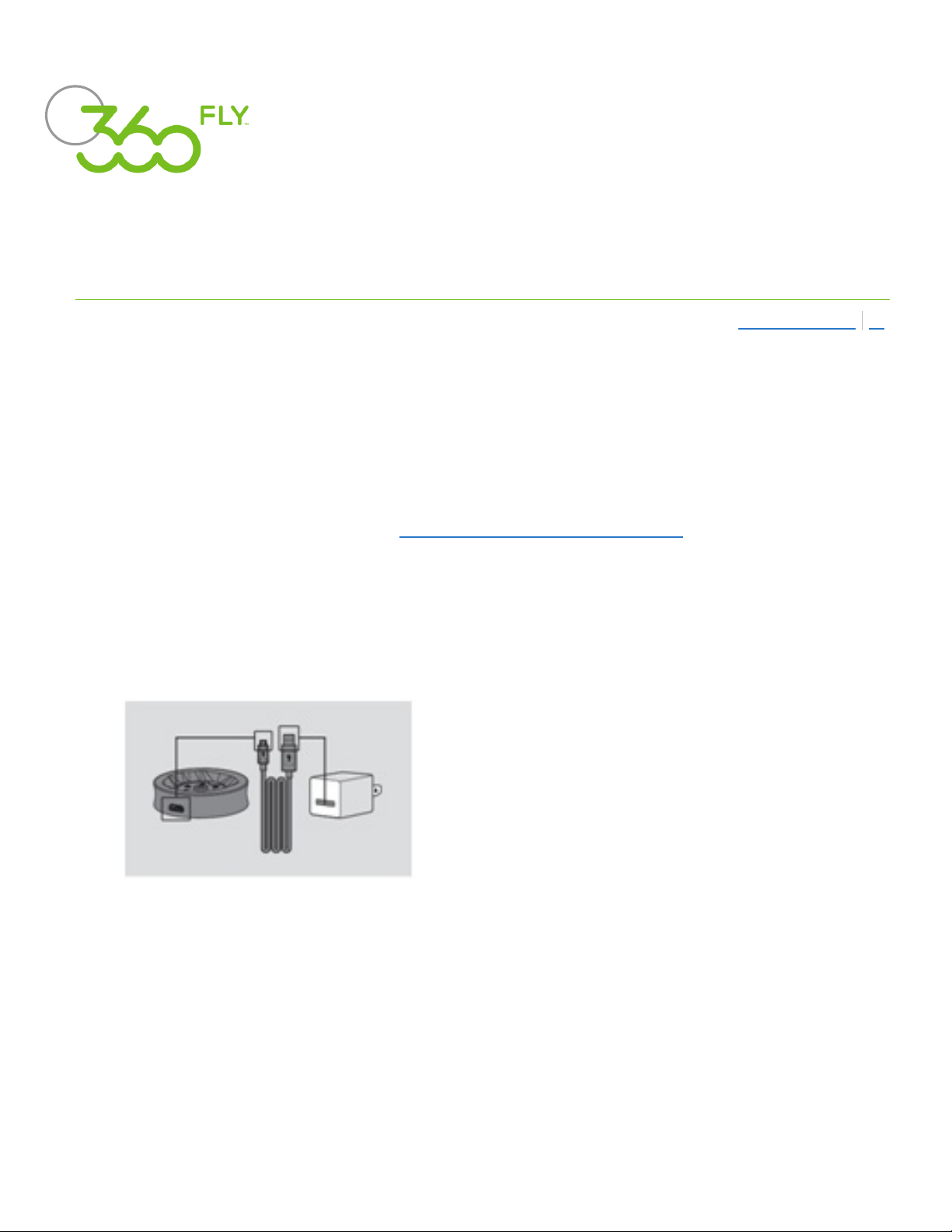
To charge your camera, insert the USB cable into a USB outlet adapter rated at 1.5A to 2.1A (most tablet charger adapters) and
plug it into the 360fly 4 K Po w er Crad le.
Next, simply place the camera on the charger base. For best results, charge your camera while it’s powered off.
While your camera is charging, its LED indicator will flash green. When fully charged, the camera LED will remain solid green.
It is recommended you charge your camera for at least 30 minutes prior to its first use.
When your camera battery is low, the LED will display a light purple color. Be sure to charge your camera before using it when
the LED is light purple.
Powering Up:
Remove the camera from its Po w er Crad l e and turn it on by holding the OnePush button down for four seconds. The
(https://www.360fly.com/)
Page 2

Remove the camera from its Po w er Crad l e and turn it on by holding the OnePush button down for four seconds. The
triangular On ePush button is surrounded by the LED indicator and located on the side of the camera. When powering up,
the camera will vibrate three times and the LED will flash blue. After completing the power-up sequence, the LED will display
a solid blue color, indicating that your camera is on and ready to fly.
You can also use the On ePush button to power down your camera by holding the button down for four seconds. The
camera will vibrate four times to indicate that it is powering down.
Camera Care and Storage:
A clean lens means clearer footage. Your 360fly 4K camera lens can be cleaned using a soft cloth. Lens solution, water, or
isopropyl alcohol can be added for additional cleaning.
We highly recommend storing your 360fly 4 K camera inside a protective case to help protect its lens from scratching,
chipping, or other damage.
The App Powering It All
Download the 360fly App:
The 360fly ap p is key to capturing your entire world in 360° 4K video on your Apple iOS® smartphone. Just search “360fly”
in the App Store and download the free 360fly app to your mobile device. Remember, the app allows your mobile device to
serve as your camera’s remote control and viewfinder, giving you the power to capture, edit, and share clips on the fly.
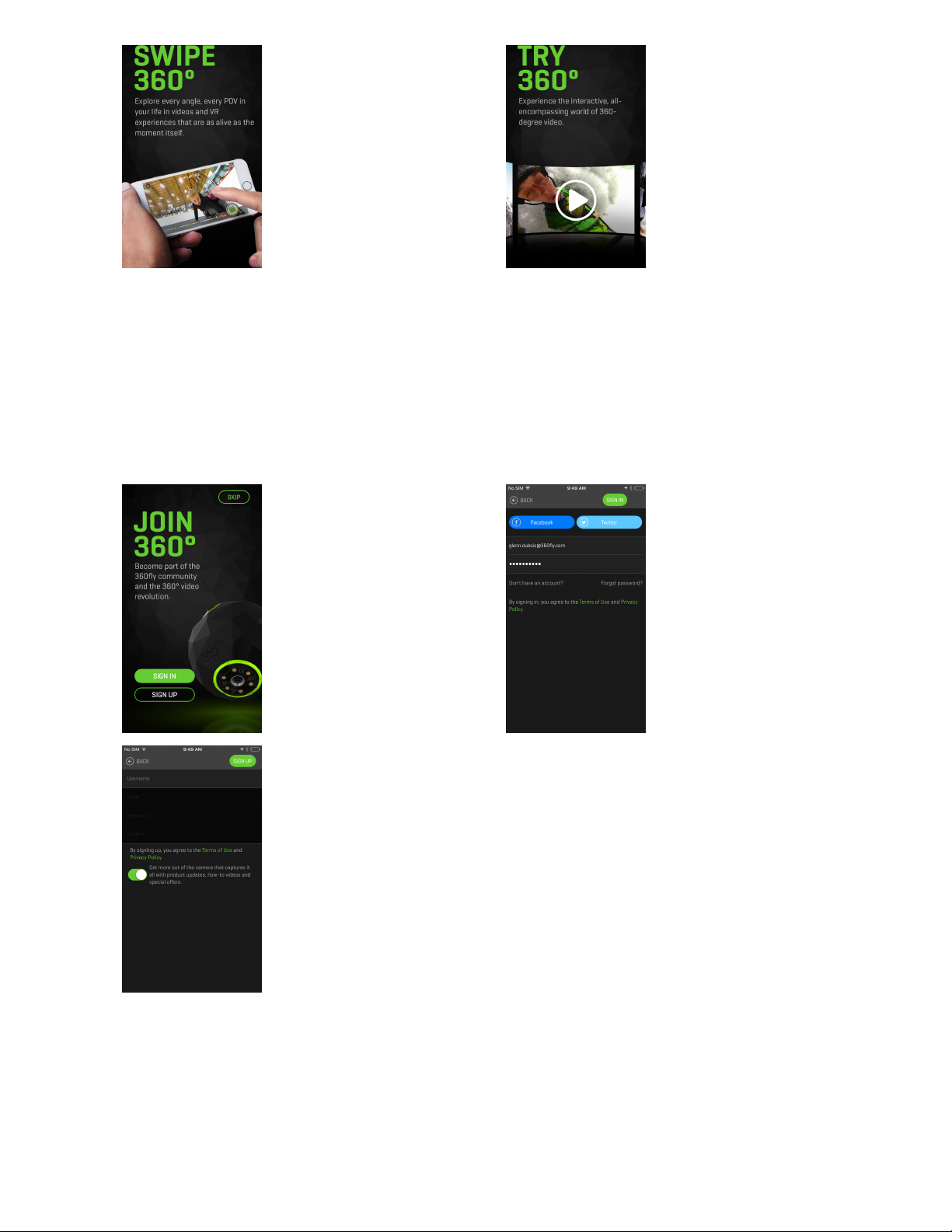
The first time launching the app, you will see a brief Shoot, Share, Swipe tutorial on recording, editing, exploring and sharing
360° videos with your new camera and app. Check it out. It’s well worth your time.
Page 3
Create Yo u r 3 60fl y A c co un t :
On the first app launch, you’ll also be prompted to build your 360fly.com profile. You can select the “Sign In” option to
activate via your existing social media account, or you can choose to “Sign Up” for a unique 360fly.com account by entering
a new username, email address, and setting a password for your new profile. Signing in with your social media accounts will
allow you to instantly share and post videos with the click of a button. You can also choose to skip the account creation step
by selecting “Skip” in the top-left corner.
Con n ecti n g to the 360fly 4 K:
The application will lead you through a step-by-step guide for establishing a Bluetooth LE and Wi-Fi connection to your
camera. When prompted, accept the Bluetooth pairing request within the app to confirm your connection between your
Page 4
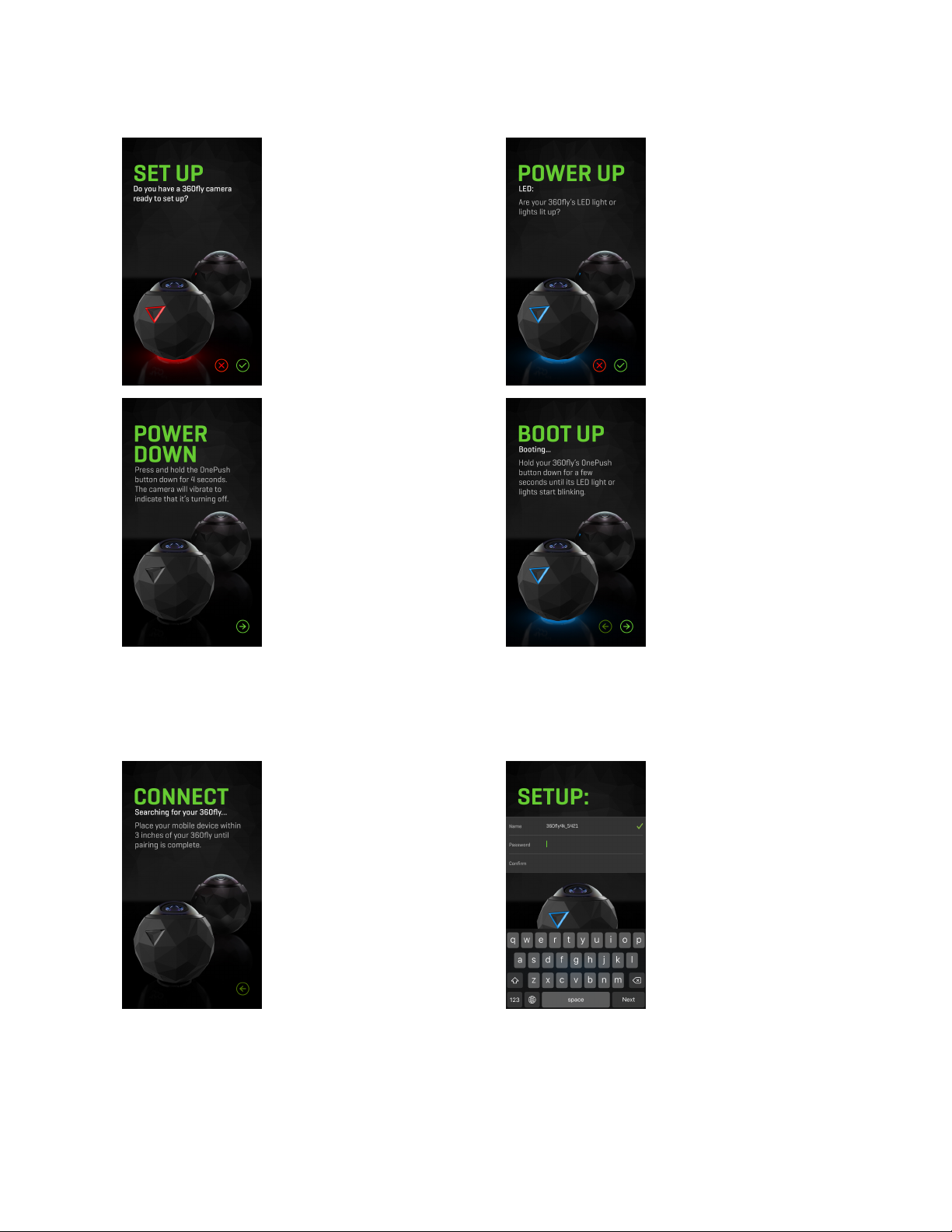
Apple device and your 360fly camera.
No te: A Wi-Fi connection is required to view your camera’s live feed and stored content. Check your device settings to
ensure that Bluetooth and Wi-Fi are both enabled prior to connecting.
Once the power up sequence is completed, your 360fly 4K will automatically enter pairing mode with your mobile device.
For best results, place your phone about three inches away from your camera in order to get a good strong signal. Once the
devices are paired, it’s time to give your camera a unique name and password.
In order to get full functionality from your 360fly 4K, you need to connect your device to your camera via Wi-Fi. To
complete this final step, exit your app and access the settings menu on your iOS device. Select Wi-Fi and search for your
Page 5
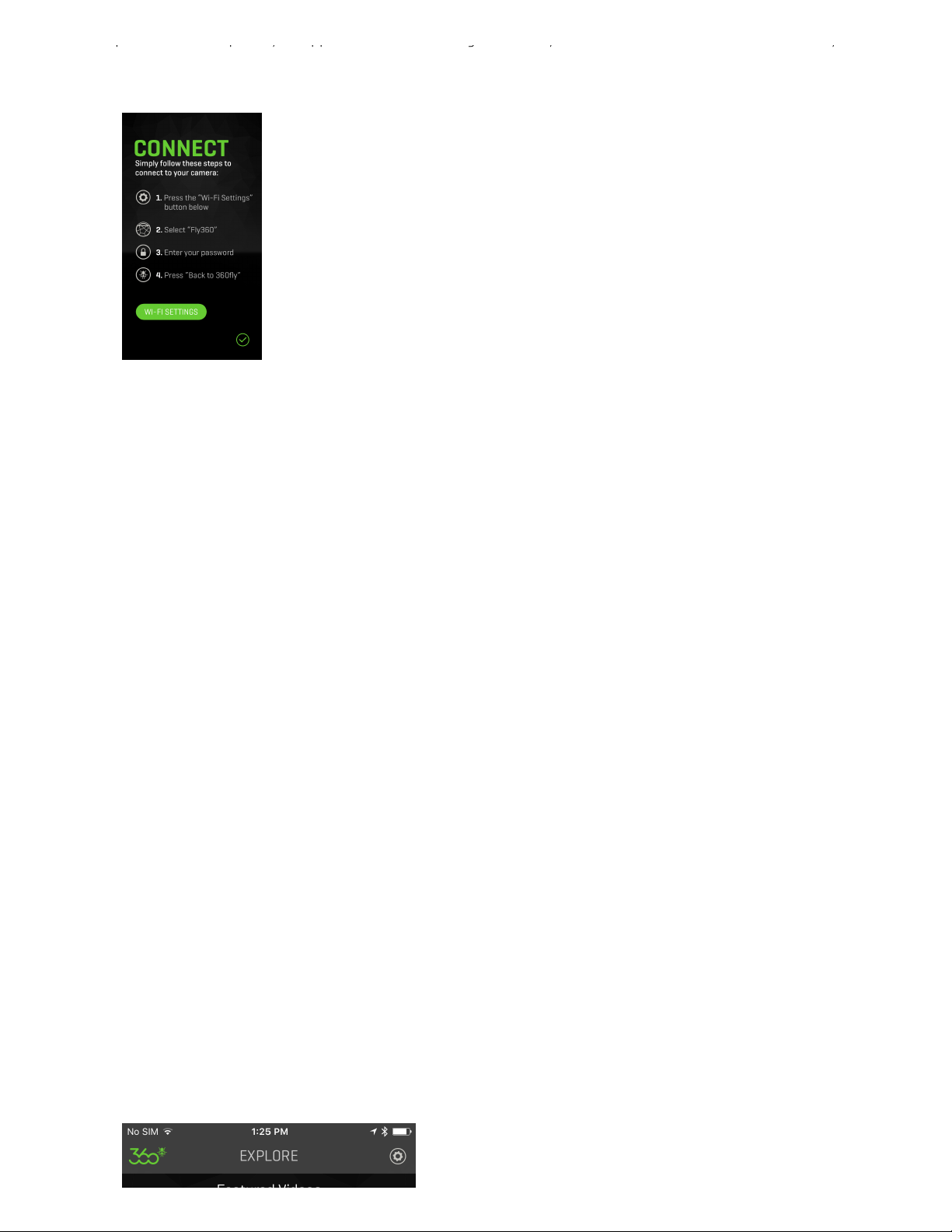
complete this final step, exit your app and access the settings menu on your iOS device. Select Wi-Fi and search for your
camera under the name that you have just assigned to it. You’ll also need to enter the password you set for the camera to
connect.
When complete, exit your settings menu and re-launch your 360fly ap p. Congratulations! You’re all connected and ready to
start flying in 360° 4K !
No te: Your camera may require a firmware update prior to initial use. If a firmware update is available, your application will
automatically walk you through the steps to download and transfer the most up-to-date software load to your camera.
360fly App Main Menu
The 360fly app homepage is the hub of the 360° video world. It starts with Featured Videos where you can explore the most
epic videos from the 360fly community around the globe. You can also view the latest video highlights from a range of
categories, including Sn o w, Wat er, Lan d , Trav el , and Ai r, where the latest trending videos vie for a coveted Clips of the
Week spot. Th e U ser Gen erat ed section lets you share your 360° vision with the entire 360fly family and anyone with the
360fly ap p . Be sure to check in often—and remember to tag your best edits shared across social media using #360fly and
#MissNothing. At the bottom of the homepage screen, you can select from four options:
Page 6
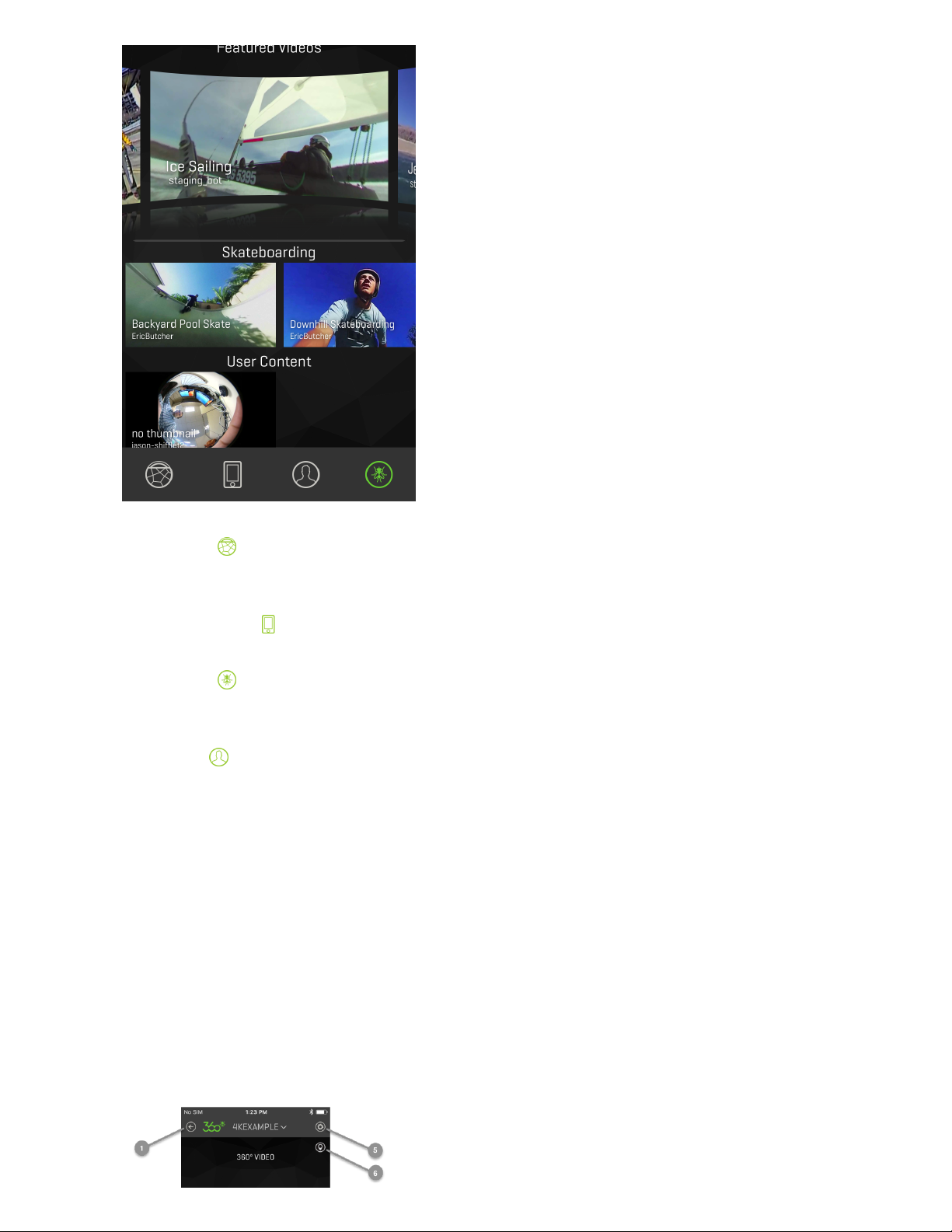
Cam era: Select the icon to connect to your 360fly camera. Once connected, you will have full control of all of your
camera’s features and functions through your smartphone. You can also view and download all of your video files stored on
your camera’s memory.
On My Ph on e: Select the icon to access all of your videos, clips, and photos stored on your smartphone. Review, edit,
and playback your content anytime/anywhere without the need to connect to the internet or your 360fly camera.
Exp lo re: Select the icon to browse public content uploaded by other 360fly users. Select and view featured videos, along
with hosted content spanning a variety of interesting topics and categories. Be sure to check back regularly to view the latest
exciting uploads from other 360fly 4K users.
Pro fi le: Select the icon to view all of the video content uploaded to your 360fly account. You can access and playback
any videos you’ve uploaded from anywhere you have an internet connection—with or without connecting to your 360fly
camera. You can also choose to make any of your videos public and share your experiences with friends and other 360fly
users. To make changes or edits to your account, just tap the edit profile option at the top of the screen.
No te: An active internet connection is required to access and view content.
Camera Home Screen
Once your smartphone is connected to the camera, the app’s home screen gives you full access to all camera controls,
modes, and settings options.
Page 7
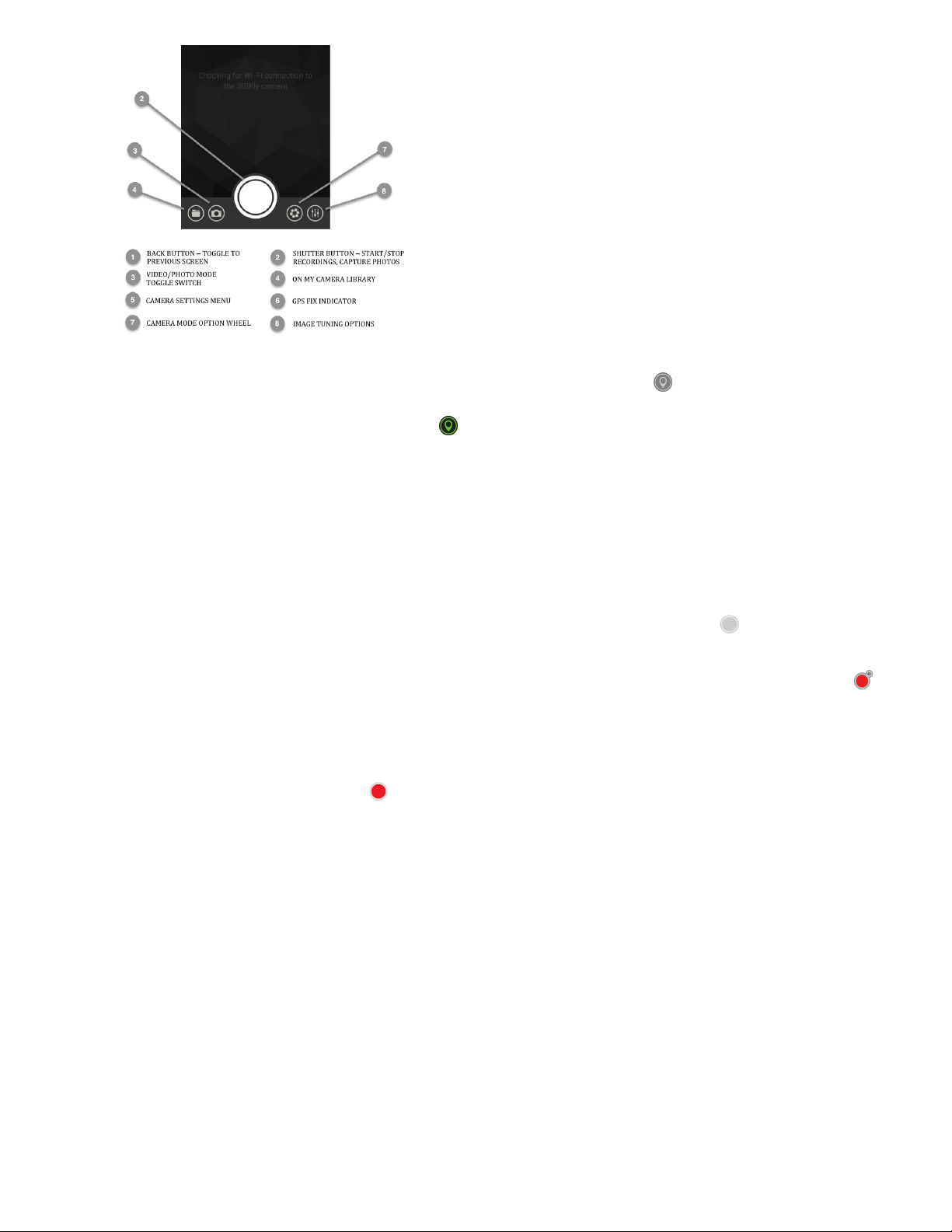
When toggled on, the camera’s built-in GPS sensor is toggled on, the GPS indicator icon will appear on the home screen.
Once activated, the GPS indicator will remain gray as the sensor calibrates an initial fix for the camera’s location. Once an
active fix is secured, the icon will display a green color, indicating that the GPS feature is ready for use. The GPS feature
can take up to two minutes to generate an initial fix. For best results, use the GPS feature outdoors with a direct line to the
sky free of interference from trees or tall buildings.
Recording Video
Recording 360° videos with the 360fl y app is quick and easy. Simply tap the white record button to start capturing. The
center of the capture button will turn red and your camera will simultaneously vibrate while its LED turns from blue to red.
As your video records, you’ll notice a second button displaying a camera icon appears near the top of the record button .
This button represents your camera shutter button, allowing you to capture a still 360° photo with your camera while
recording your video.
No te: Your still photo captures will be stored in your camera’s internal memory as a separate .jpeg file.
To stop recording, tap the red record button . Your camera will vibrate twice and the LED will switch from solid red to blue,
indicating that your recording has ended.
Recording Without the App
If you don’t have access to the 36 0fl y ap p on your mobile device, you can record videos directly on your camera. Simply
press the OnePu sh button on your camera to launch a 360° recording. Your camera will vibrate and the LED will turn from
blue to solid red, indicating that your camera is now recording. To stop recording, press the OnePu sh button again.
No te: The default recording mode for 36 0fl y 4 K videos is pre-set at a resolution of 2880x2880 at 30 frames per second.
On this setting, the live viewfinder is disabled during active recording. To enable live-view while recording, you must change
your settings to record your 360° 4K video as 2880x2880 pixels at 24 frames per second (FPS).
Page 8

First-Person POV Mode
First-Perso n POV mode gives you the power to record standard (non-360°), point of view (POV) videos in a 16:9 aspect
ratio, turning your 360fly into a traditional point-and-shoot action camera. With this mode activated, simply orient or
mount your camera in a horizontal position with the lens facing forward and the On ePu s h button centered-facing up.
To enter First-Person POV mode, press the revolver wheel located at the bottom of the screen and select the POV icon .
Your application will display that it is set in POV mode above the live-view display on your screen and the live-view area will
display a preview in a 16:9 aspect ratio.
No te: The camera’s On ePu s h button represents the top/center of your camera’s viewing angle. When filming in POV mode,
use the On ePu s h button to align your shot and achieve the ideal camera angle.
To begin a recording in First- Perso n PO V mode, tap the white record button to start capturing. The center of the
capture button will turn red and your camera will simultaneously vibrate while its LED turns from blue to red. As your video
records, you’ll notice a second button displaying a camera icon appears to the top right of the record button . This button
represents your camera shutter button, allowing you to capture a still 16:9 POV photo with your camera while recording your
video.
No te: When your camera is set into Fi rst- Pers o n POV mode, you can also start and stop recordings using the on-camera
On ePush button. POV operation via the On ePu s h button will remain intact until the record setting is changed back to a
360° video mode using the app or the camera is power-cycled.
Time-Lapse Mode
Turn hours of activity into dynamic minutes using the camera’s Ti me-Lapse mode. To enter Ti me-Lapse mode, press the
revolver wheel located in the bottom bar of the "camera" home screen and select the Tim e- Lap se icon . The recording
mode you’re in will display at the top of the “Live View” display on your screen. Change the interval between frame captures
by adjusting the scroll bar to your desired setting. Your 36 0 fl y 4 K offers settings for 0.5, 1, 2, 5, 10, 30, or 60 seconds
between frames when in Tim e- Lap se mode. After selecting your desired speed, press the Tim e- Lap s e icon again to
confirm.
To begin a Ti me-Lapse recording, tap the white record button to start capturing. The center of the capture button will
turn red and your camera will simultaneously vibrate while its LED turns from blue to red. As the video records, you’ll notice a
second button displaying a camera icon appears to the top right of the Record button . This button represents your
camera shutter button, allowing you to capture a still 360° photo with your camera while recording your video.
60 FPS Mode
Your 360fly 4 K camera allows you to record videos at 60 frames per second with a resolution of 1728x1728 pixels. Perfect
for extreme action sequences, this recording option is ideal for creating slow-motion effects when editing your videos and
creating action clips.
To launch 60 FPS m o de, press the revolver wheel located at the bottom of the screen and select the video camera icon
. Your application will display an option to select from each of the 360° recording modes available on the 360fly 4K
camera. Select the 1728x1728 @ 60 FPS option to change your record setting.
To begin a 60 FPS recording, tap the white record button to start capturing. The center of the capture button will turn red
and your camera will simultaneously vibrate while its LED turns from blue to red. As the video records, you’ll notice a second
Page 9

button displaying a camera icon appears to the top right of the Record button . This button represents your camera
shutter button, allowing you to capture a still 360° photo with your camera while recording your video.
Still Image Capture
Your 360fly 4 K doubles as a still image action camera, allowing you to capture .jpeg photos at an effective resolution of
3456x3456 pixels. Your 360° images can be viewed within the mobile application or via the 360fl y deskto p D i rector app
on PC or Mac.
To switch your camera to Pho to mode, tap the photo icon at the bottom of the camera home screen. The icon will switch
your camera to still Ph oto mode and the application will indicate that it is in Photo mode at the top of the viewfinder screen.
Once your shot is lined up, tap the white shutter button to take a photo. When a photo is captured, the camera LED will
flash red once and return back to solid blue, indicating that it is in ready mode. All of your photo files will be stored in your
camera’s memory in a .jpeg format.
No te: To exit Pho t o mode, tap the video icon at the bottom of the screen and your camera will return to video record
mode.
First-Person POV Photo Mode
The 360fly 4K can be set to capture standard photos from the First-Person POV perspective.
To switch from standard Photo mode to POV mode, tap the revolver wheel at the bottom of the "camera" home screen.
Tap the POV icon and the application will indicate that it is in POV Photo mode at the top of the viewfinder screen.
Once your shot is lined up, tap the white shutter button to take a photo. When a photo is captured, the camera LED will
flash red once and return back to solid blue, indicating that it is in ready mode. All of your photo files will be stored in the
camera’s memory in a .jpeg format.
Camera Burst Mode
The Cam era B u rst mode allows you to capture several photographs in quick succession with a single push of the shutter
button. Ideal for sports or action photography, Cam era B urst mode lets you select the best image from a group of photos
or arrange the entire group in a sequence.
To switch your camera from standard Ph oto mode to Cam era B urst mode, press the revolver wheel at the bottom of
the "camera" home screen. Tap the Camera Burst icon and the application will indicate that it is set in Camera Burst mode
at the top of the live view display on your screen.
Pre-set your frame capture intervals by adjusting the slider to your desired setting. The 36 0fl y 4 K offers settings for 3, 5, or
8 captures per second within burst mode. After selecting your desired speed, press the Camera Burst icon to confirm your
setting.
To capture burst photos, tap the white shutter button to take a photo. When a photo is captured, the camera LED will flash
red once and return back to solid blue, indicating that it is in ready mode. All of your photo files will be stored in the camera’s
memory in a .jpeg format
Page 10
Accessing Your Camera’s Stored Files
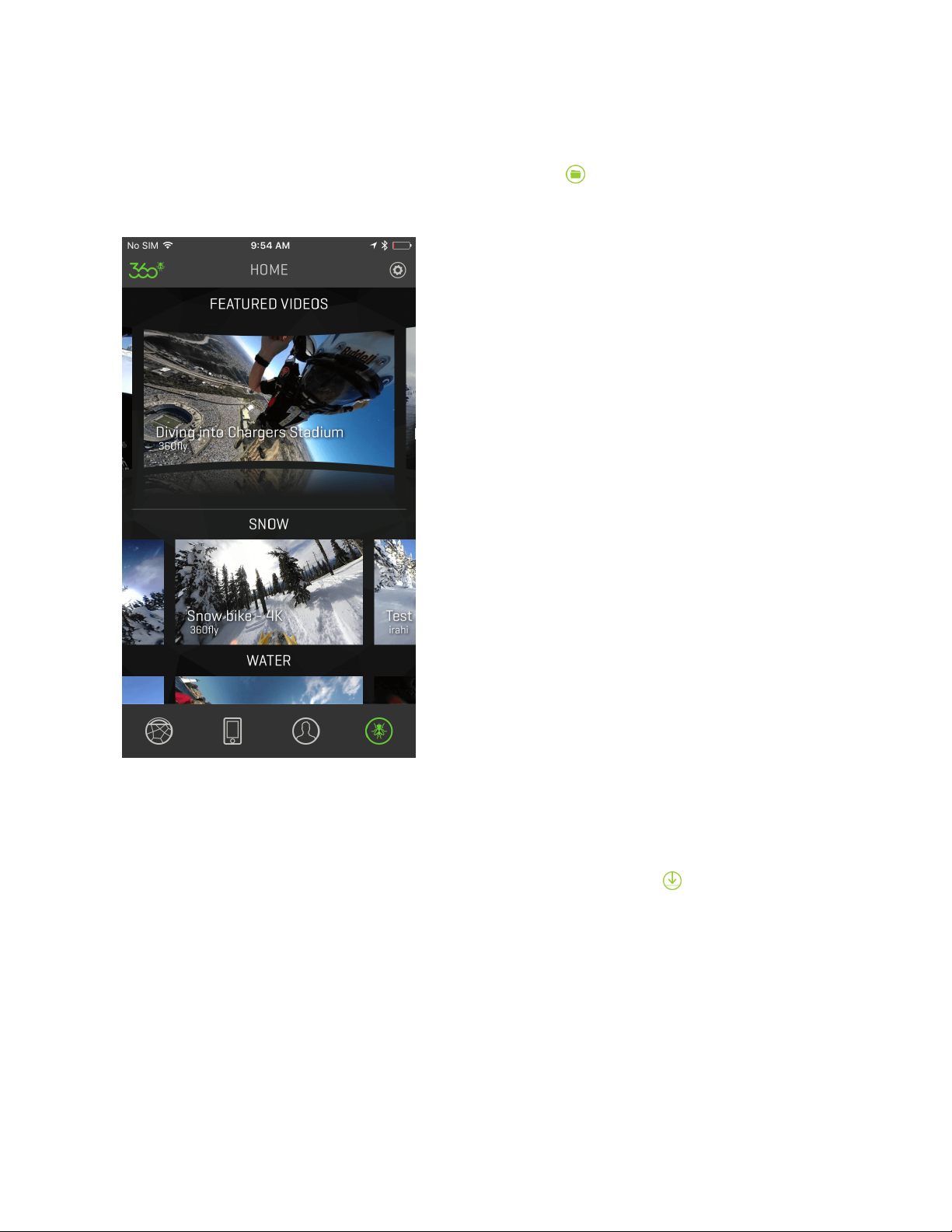
While connected to "camera" home screen, select the “On My Camera” icon to view your camera’s storage library. This
selection will display all of the video files stored within your camera’s internal memory.
To view a video, simply tap on the thumbnail image of your desired file, and the application will automatically launch your file
within its video player. To view your camera’s still image photo captures, tap the “Photos” tab at the top of the screen to
switch your library view to display stored photos.
To download a video or image directly to your smartphone, simply tap the download icon . This will copy your file directly
into your phone’s gallery.
No te: Storing your video files onto your phone’s gallery will allow you to play back content without the need to connect your
device to your 360fly camera. Additionally, the application’s video editing tools are (only) available for content stored in your
phone’s gallery.
To delete a file, swipe left on the thumbnail image and tap the trash can icon. The app will request confirmation that you
would like to delete the file before it is permanently removed from the camera’s memory storage.
Video Playback
Page 11
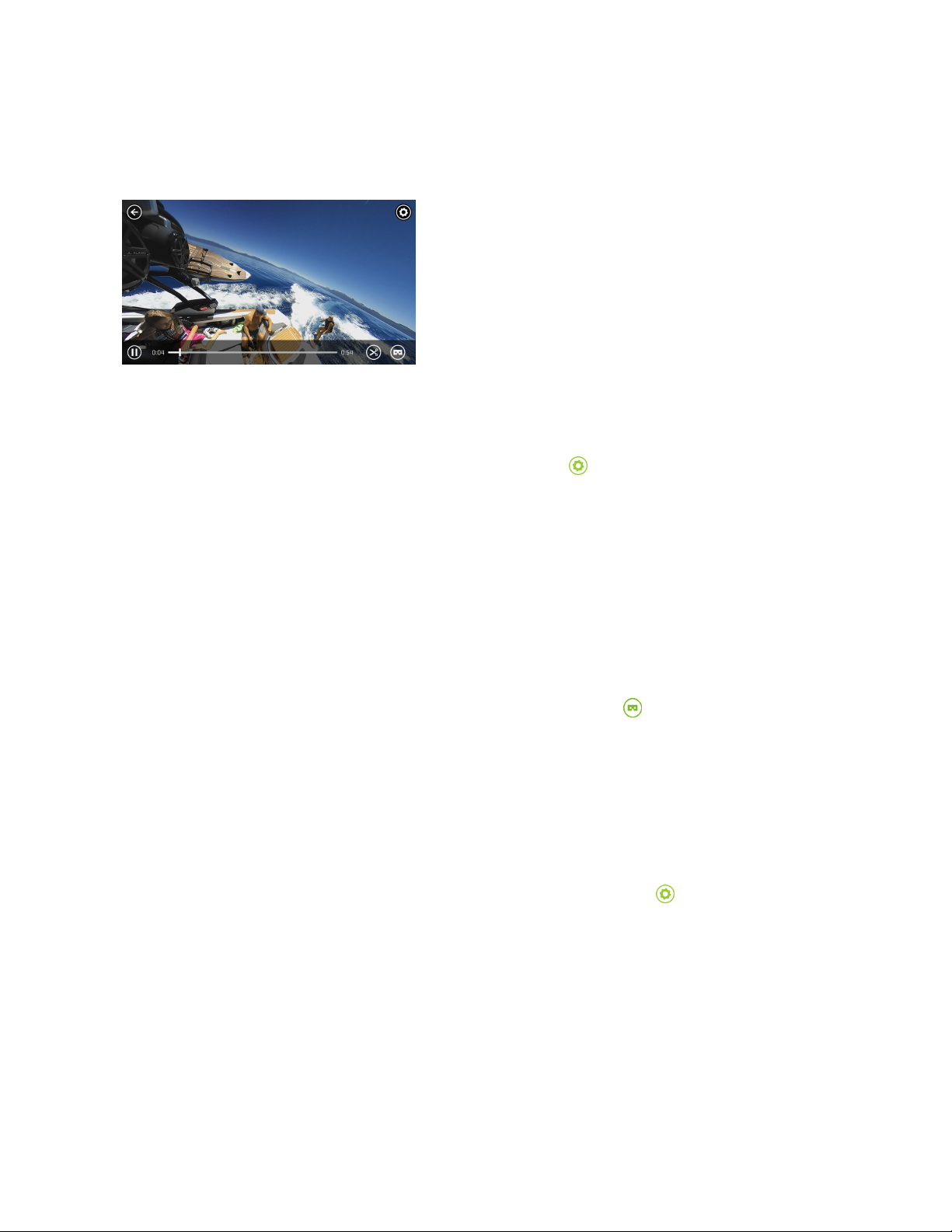
Tapping a video thumbnail image within your camera’s library will automatically launch the 360fly player. Once the video
uploads, you can pan the angle of view by swiping across the screen. You can also pan using your device’s built-in
gyroscope function by turning your phone in the desired orientation.
To zoom in during playback, simply pinch two fingers together on your device’s display until you reach the desired zoom
level. To zoom out, expand two fingers across the display and release when you have reached the ideal zoom level.
Use the playback bar at the bottom of your screen to pause/restart a video or fast-forward/rewind to a desired point within
your video file.
You can adjust your video player’s settings by selecting the “Settings” icon located at the top-right of your display. Under
this menu, you have the option to toggle your phone’s gyroscopic panning feature on/off or remove the app’s
graphics/overlays from view during playback. The settings menu also features the option to invert your video file, allowing
you the ability to switch videos that were recorded upside-down to the correct viewing orientation.
Virtual Reality Goggle Playback
360fly 4 K footage is designed to work seamlessly with most Google Cardboard VR viewers with just the touch of a button.
To watch your footage using a Google Cardboard viewer, just tap the VR viewer icon located at the top-right while you’re
in the video player screen. Next, simply place your smartphone into your VR headset and immerse yourself inside the
incredible world of 3 60fl y 4 K content.
General Camera Settings
Adjust your camera controls and general system settings by pressing the Setting s icon located at the top-right of your
display screen. Under this menu, you can check your camera’s battery life, memory capacity, and make changes to your
camera’s name and password. The Setti ng s menu also gives you the power to turn off your camera directly from the
application.
The team at 360fly is always working to provide the latest features and camera software upgrades. Be sure to use the
Setti n gs menu to periodically check for new updates to your camera’s software and new available features.
Image Tuning
Page 12

The default settings of the 360fly 4K camera are optimized to deliver the highest quality output within a wide range of
environments and lighting conditions. To get the most out of your videos and images, the 360fly 4K offers advanced
options that will allow you to fine-tune your camera’s settings.
To access your camera’s fine-tuning options, tap the “Camera Tuning” icon located at the bottom right of your display
screen. A set of sliders will appear on screen, giving you options to make adjustments to the following tuning settings:
Satu rati on : Use the slider to adjust the intensity of the colors captured within your footage.
Brig htness: The slider fine-tunes the brightness of the subjects within your image without affecting your camera’s
exposure compensation.
Exp osu re: Adjust the slider to tune your camera image sensor’s sensitivity to light. For brighter environments (e.g.,
direct sunlight), use a lower exposure setting. Apply an increased exposure setting for darker environments. The slider also
allows you to lock in a specific setting and override the camera from automatically adjusting to varying light conditions. The
lock remains in place until you manually turn it off or the camera is powered down.
Con t ras t : Increase the setting to achieve a more vivid picture or lower the setting to deliver a slightly flatter appearance.
Editing and Sharing Content
If you haven’t already, you will need to download your desired file from your camera library into your smart device’s memory
in order to access the 360fl y app editing and sharing features.
You can access your camera’s library by selecting the “On My Cam era” icon to view your camera’s storage library. After
locating your selected video, tap the download icon to begin the file transfer process.
From the app’s main menu screen, select the “On My Cam era” tab to view your stored content within your phone’s
memory.
Select the video that you would like to edit to launch the file. As the video begins to play, tap the scissor icon to enter into
edit mode. There are three tools that enable you to edit and share your 360° footage: Cli p Cap ture, Watc h Me, and S ti ll
Cap tu re.
Cli p Cap tu re: Edit and share your clips in their native 360° format. Select this tool to trim your video by picking the
parts of your 360° footage that you want to edit, store, and share.
After launching Clip Cap tu re, select the “Play” icon to start playing the video. At the location that you would like to begin
your clip, press the icon to start capturing. You will notice a green status ring around the icon indicating the time you
have left in your capture session. You can record up to five minutes in one session.
Page 13
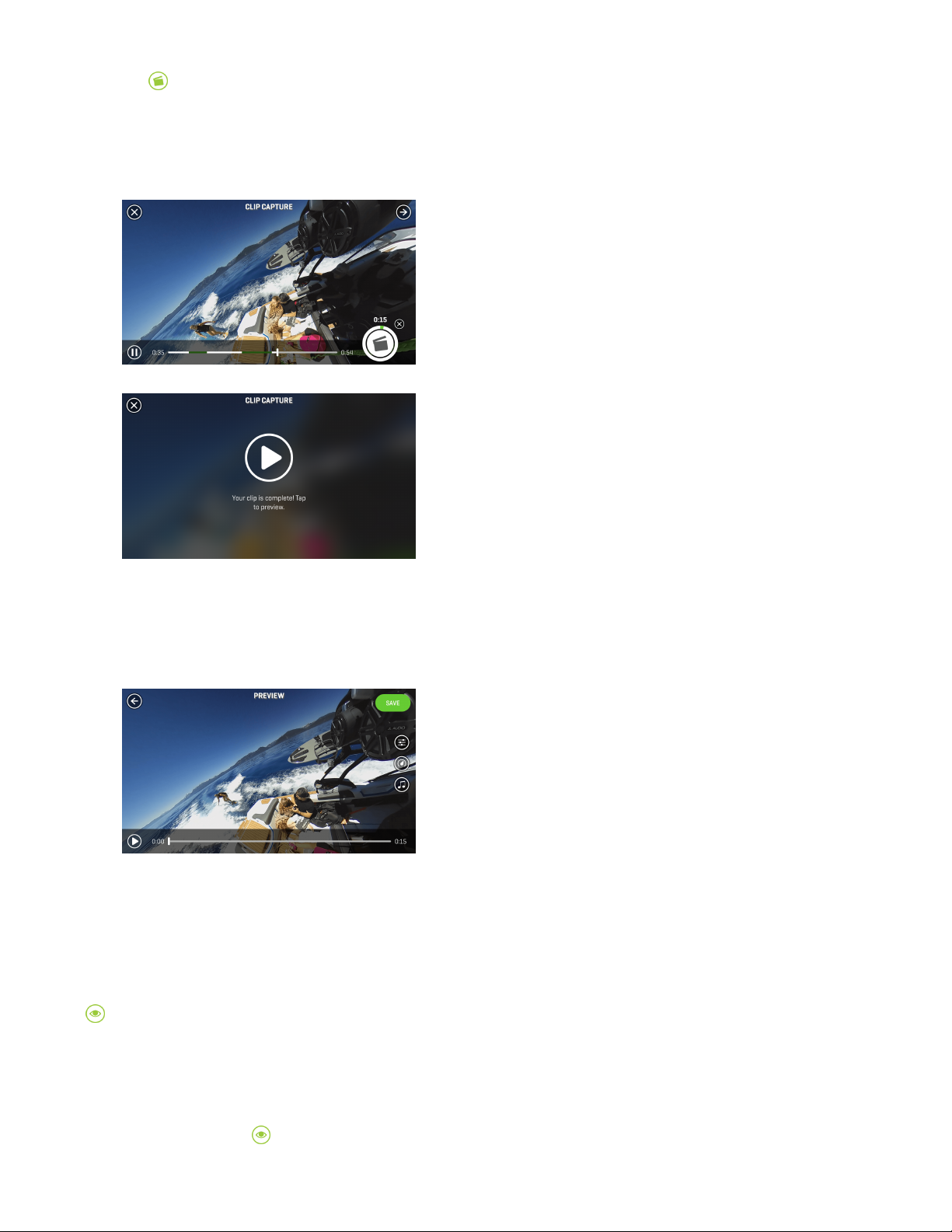
Press the icon again to stop your clip. You can start and stop multiple times to create one continuous clip with multiple
segments.
Once you have captured your video, press the “Done” button in the top-right corner and allow a few seconds for your video
to process.
Once your video completely processes, you can click to preview. In the Prev iew menu you’ll have the ability to add music,
color filters, or apply slow and fast motion to the video, to create an awesome, fully immersive 360° clip. See below for more
details on adding music, filters, and playback speed adjustment.
Watc h Me: Create a standard 16:9 ratio clip from your original 360° footage. Use the Wat ch Me tool to record your
movements as you pan left and right within the video. Wherever you swipe, shift and zoom while capturing in this mode, the
resulting output will be cropped and saved as a shareable 16:9 video clip; capturing your unique point of view, ready to share
with the world.
After launching the Watch Me tool, select the “Play” icon to start reviewing your video. At the location that you would like to
begin your clip, press the icon to start capturing. You’ll notice a green status ring around the icon indicating the time you
have left in your capture session. You can record up to 10 minutes in one session.
Page 14
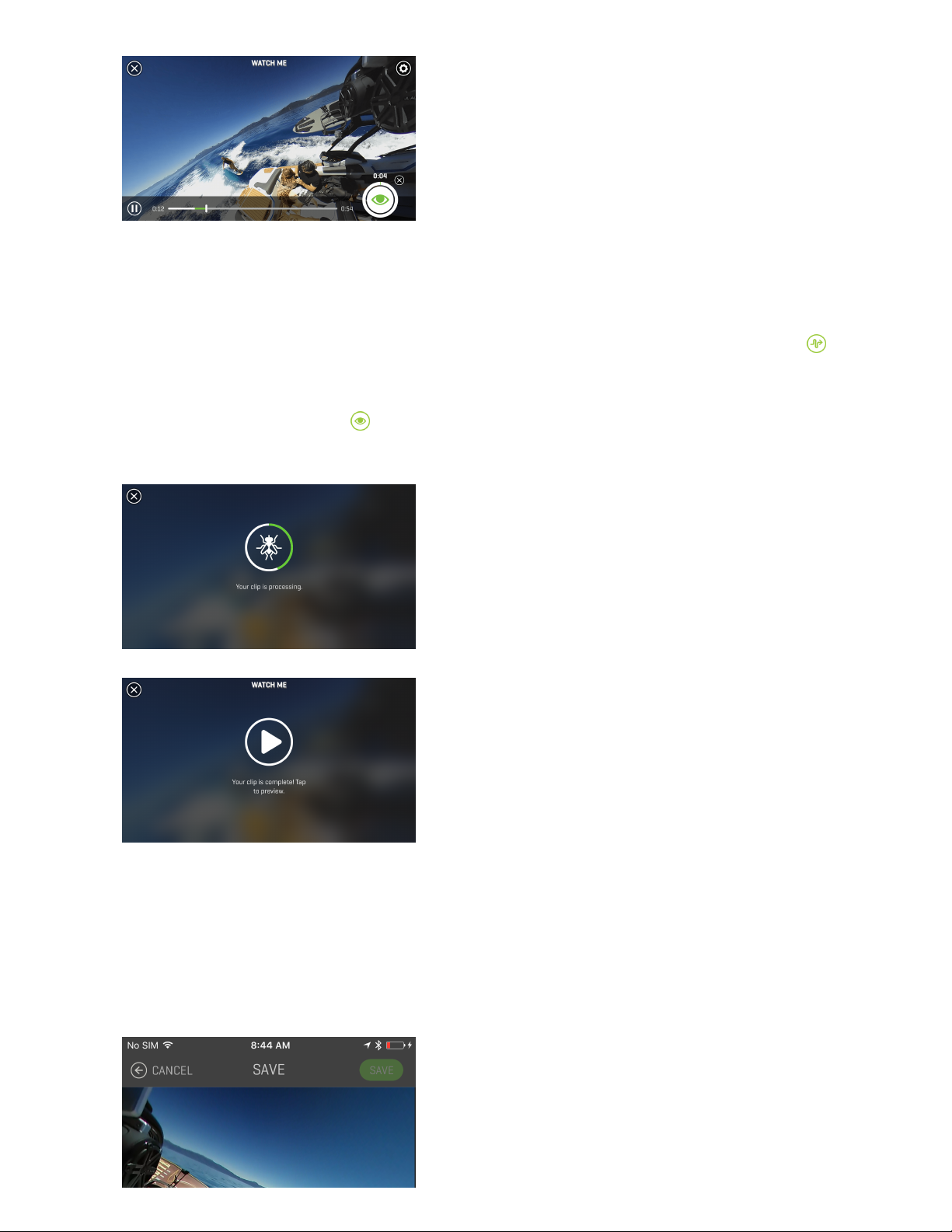
As your video is recording, move the point of view by panning right, left, up, and down with your finger or by physically
moving your device to pan via the gyroscope. Your resulting video clip will capture your point of view by following all of your
movements.
You can also use the Auto Pi lo t mode to automatically adjust the point of view within your clip by selecting the icon in
the top right corner of the screen. Au to Pi lo t will pan the point of view within your clip by automatically selecting the area
within the video that contains the highest degree of activity.
When you’re done recording, click on the icon to stop recording. You can start and stop multiple times in various
locations of your video file to create a single clip.
When complete, click on the “Done” button and allow a few seconds for your video to process. You can now add some
special effects like music, slow/fast motion, or change the image filter to apply a unique color scheme to your clip. See
below for more details on adding Musi c, Fi l ters, and Playb ack sp eed adjustment.
No te: Your app will remain in Prev iew mode after making adjustments to your clip until you select the “Save” button in the
top right corner of your display. After that you’ll be prompted to name your Wat ch Me masterpiece and add a description.
Page 15
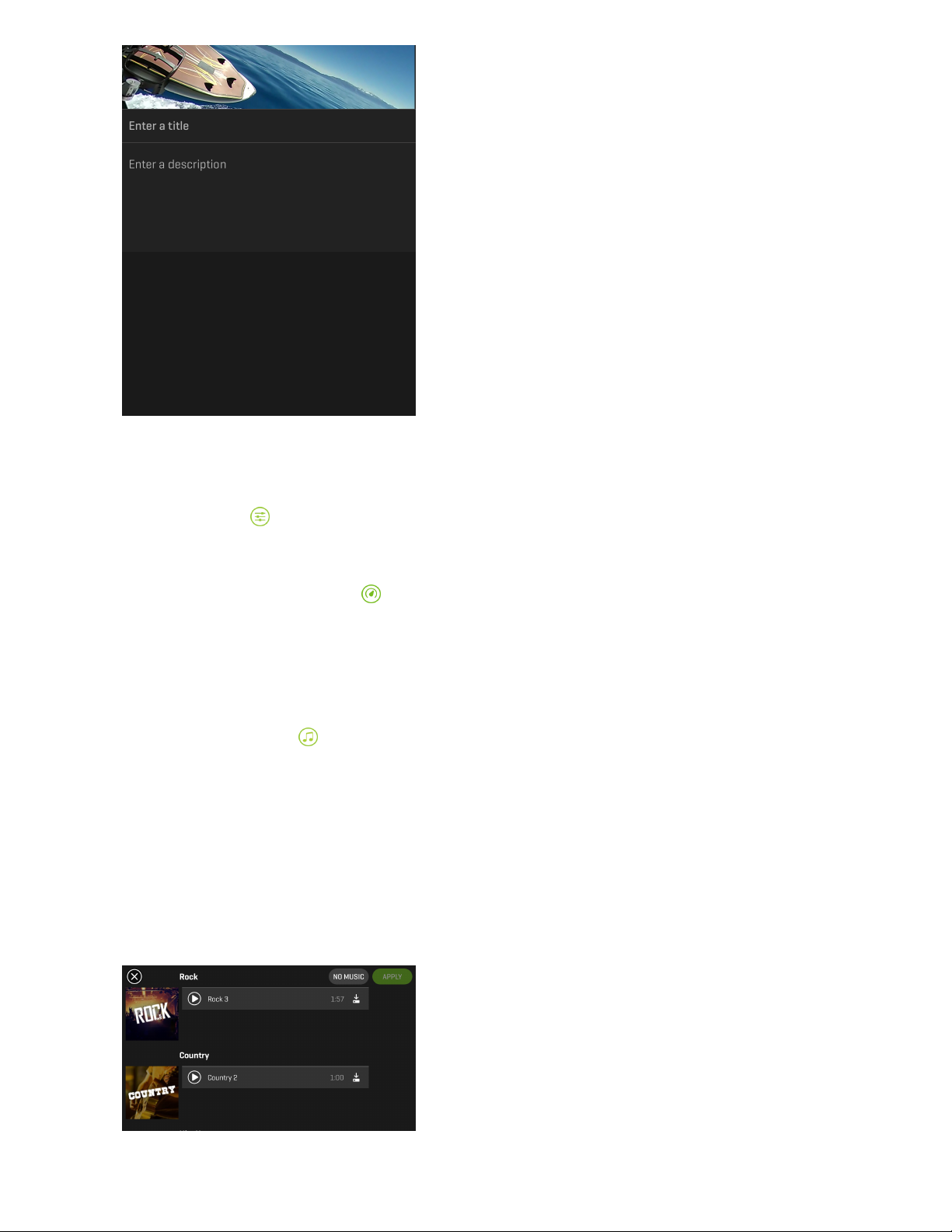
Your Watch Me videos are stored in your Android “Movie” folder and can be viewed on your phone and shared to social media
sites in the same manner as any other movie file stored on your phone.
Ad d ing Fil ters: Tap the icon to select from an array of filters and color enhancements for your video clip. After
selecting, you’ll see a preview of the filter applied over your footage. When you’ve decided on the perfect filter, hit “Apply” to
add it, or select the back arrow to return to the original, unfiltered file.
Pl ay b ack Sp eed Adj u stments: Tap the icon to speed up or slow down a section of your clip. Select just a portion of
your edit using the sliders on the playback bar, or select the full clip. You can slide the green bar back and forth to select the
section of your video that you wish to adjust. Next, use the speed control bar to increase or decrease the playback speed
faster or slower for that selection. As you adjust, you’ll see a preview of the playback speed adjustment applied to your
footage. Once you’re happy with your selection, hit “Apply” to add your speed adjustment to your clip or select the back
arrow to return to the original file.
Ad d ing Sou ndtrack s : Use the option to add a track to your clip by selecting from an array of music options. You can
choose between a 50/50 mix of music and your video’s ambient sound or 100% music. Toggle between the two to see which
option you like best. Then, simply select the perfect track from our large library of free music and hit “Apply” to add it to your
video clip.
No te: Your app will remain in Prev iew mode after making adjustments to your clip until you select the “Save” button in the
top-right corner of your display.
Once you have clicked the “Save” button, you’ll be prompted to name your masterpiece and add a description. After saving
you can elect to share your creation to your favorite social sites.
No te: Your device will need an internet connection to upload the video and post to your desired social networking sites. On
Page 16

No te: Your device will need an internet connection to upload the video and post to your desired social networking sites. On
some phones, if you are connected to the 360fly ap p , you’ll need to disconnect and re-establish your internet service prior
to posting.
Still C ap tu re Mod e: Create and export photos from your captured video moments. You’re the photographer—select an
area within your video, capture, and then save a still image to your phone’s image gallery.
After launching the Pho to Captu re tool, you’ll be prompted to select your desired image ratio. Your app will allow you to
select from 360° view, square, 16:9, or panoramic output for your photo capture.
After you have selected your image size, press the “Play” icon to begin playing the video. Pause the video player at the
location that you would like to capture your photo and align your image to the desired orientation. You can also pinch to
zoom in or out for a closer view within your image prior to capturing your photo.
Tap the button to capture your shot. You will see a flash and hear a shutter click. Next, select from an array of filters and
color enhancements for your new photo capture. Select and preview your desired filter and tap “Apply” to confirm it or click
“None” if you do not wish to apply a filter. You can share your photo to any of your connected social media sites or store
your image to your phone’s photo library in a .jpeg file format.
Live Streaming with Facebook
With the latest upgrade to the 360fly mobile app you can now instantly live stream your 360fly video to Facebook. Let your
friends and family join the fun and experience all the action as you live without boundaries.
HOW IT WORKS
The 360fly Mobile application connects via WIFI to your 360fly camera to capture a live 360° video feed. This live video feed
is then mixed with the live audio captured via the mobile phones microphone. The 360fly Mobile application converts the
stream to the Facebook format to allow your friends and family to view a live 360° video stream instantly.
REQUIREMENTS FOR LIVE STREAMING
360Fly HD or 4K Camera: You can live stream at a resolution up to 1080 with the 360fly 4K camera. The 360fly HD camera
will live stream at 720.
4G LTE Data Plan: Messaging and data rates charged by your wireless or internet service provider may apply as the live stream
is transmitted over your mobile data network.
Android or iPhone Compatible devices: The live stream requires a device with a high power processor and 4G LTE data.
And ro id 5 . 0 o r hig h er
iPho n e 6 or h i gher
Page 17

SET UP
STEP 1
Download/update the most recent version of the 360fly desktop and mobile app (available on Android and IOS).
This app is key to capturing your entire world in 360° 4K video. Just search 360fly in the App Store
(https://itunes.apple.com/us/app/360fly/id1030962364) or Google Play (https://play.google.com/store/apps/details?id=com.fly360.fly360) and download it
to your mobile device.
Launch the app and follow the tutorial to set up your camera and build your 360fly profile.
The app allows your mobile device to serve as your camera's remote and viewfinder, giving you the power to edit and share
videos across social media platforms.
STEP 2
Launch the 360fly Mobile application and connect to your 360fly Camera via WIFI to acquire a live stream.
STEP 3
When ready to go live press the "LI V E" button.
STEP 4
Choose the video resolution, camera orientation and which friends or pages you would like to live stream to.
Page 18

STEP 5
Name your video and give it a description and tap the "GO LIVE " button.
STEP 6
That's it! You're live.
To stop your live feed, press the "STOP" button.
No te: For some Android devices, you may need to change the bit-rate setting from auto to a fixed value for best
performance.
Triggered Recording Modes
The 360fly 4K camera features an array of automatic “triggered” recording options. Using this feature, your camera can be
set to automatically record when it senses audio, video motion, or movement of the camera via the built-in accelerometer.
To activate the triggered recording feature, tap the Settings icon located at the top-right of your display. Scroll down and
locate the Trig gered R eco rd ing Op ti on s within the list of menu items and select your desired triggered recording
function by moving the slider to the right.
Audio-Based Triggered Recording
With this feature enabled, the camera will automatically launch a recording session when the camera senses an audible
sound.
Video Motion-Based Triggered Recording
Within this setting, the camera’s image sensor will react to changes in pixel geography to detect movement. If a moving
person or object is detected within the camera’s field of view, a recording session will automatically launch.
Page 19

Accelerometer-Based Triggered Recording
Using the camera’s built-in accelerometer, any physical movement of the device from a still position to a predetermined gforce level will automatically launch a recording session. Recordings captured within this mode also include a built-in 10second pre-record option. When the accelerometer is activated, the camera will gather the last 10 seconds of video content
recorded while the camera was in idle mode and automatically append it to the beginning of the recorded video.
For each triggered recording option, you have the ability to set your desired recording period for each event to 30 seconds, 1,
3, 5, 10, 15, 30, 60, or 90 minutes in duration. You also have the option to set the delay/time-out duration for 5, 10, 30, or
60-second intervals between recordings.
Advanced Camera Operations
Bluetooth Audio Device Connectivity:
Perfect for indoor recording environments or for real-time narration of action sports videos from the creator’s point of view this feature allows the use of a Bluetooth microphone or headset in place of the camera’s built-in microphones. To connect
your camera to a Bluetooth microphone device, begin by placing your Bluetooth device into pairing mode. Once your
Bluetooth device is ready to pair, tap the settings icon located at the top-right of your display. Scroll down and select the
“Pair Bluetooth Microphone” option.
Once selected, your app will automatically complete a scan of all of the Bluetooth devices available within range (for best
results, place your camera and Bluetooth device 3-5 inches apart during the scan). When the scan is complete, locate and
select your Bluetooth device from the list of available devices. When pairing is complete, your app will show that your
Bluetooth device is connected within the list of paired devices. Your Bluetooth device will now record the audio for your
recordings in place of the camera’s microphones.
To un-pair your Bluetooth device from your camera, locate your device within the list of paired devices and select the
settings icon adjacent to it . Select the “Forget” option to release the Bluetooth connection between the camera and your
device.
Video Chaptering Mode:
This file storage option allows for easier file transfer and management for longer-duration video recordings. With chaptering
activated, longer recordings are stored in fixed four-minute segments within the camera’s memory.
To activate Video Chaptering, tap the settings icon located at the top-right of your display. Scroll down and locate the “4
Minute Video Chaptering” option. Move the slider to the right to toggle the feature on.
No te: The 360fly desktop Di rect o r software provides advanced editing tools allowing you the to merge video files or
create clips from multiple files into a single video output.
USB Connectivity
Page 20

Transferring Content to Your PC:
Your 360fly 4 K camera doubles as a USB mass storage device when connected to your PC or Mac. To access your camera’s
stored content, simply connect your USB cable to your computer and place your camera onto its power cradle. Locate your
360fly camera within your computer’s folder browser to view and transfer your files to your desktop or the desired file
folder.
Webcam Mode:
Use your 360fly 4K as a connected web cam by placing your camera into Webcam mode within your app’s settings menu.
When enabled and plugged into a PC’s USB port, the 36 0fl y 4K camera will transmit a 360° live stream that can be
broadcast over Skype™, Facetime®, GoToMeeting®, or any other streaming webcam service that allows you to select an
alternate camera as its video output source.
To enable Webcam mode, tap the settings icon located at the top-right of your display. Scroll down and locate the
“Webcam” option. Move the slider to the right to toggle the feature on. Next, place your camera onto its power cradle and
ensure that the USB cable is plugged into your computer.
No te: We recommend placing your camera into Web cam mode (b efo re) docking the device onto its power cradle to
activate the Web cam feature.
Troubleshooting
Resetting Your Camera:
On rare occasions, it may become necessary to manually reset your 36 0fl y 4 K camera if it becomes unresponsive.
Your camera’s reset button is located inside the mount screw housing.
Using a skinny dull pointed object, such as a paper clip, gently press and hold the reset button down for 5 seconds. The
camera will vibrate and the LED will flash blue during the reset process. After approximately 30 seconds, the LED will turn
solid blue, indicating that your camera is now ready for use.
No te: Resetting will not wipe the videos stored within your camera’s memory.
Tech Support and FAQs
The 360fly team is always here to help. For all of your support needs, FAQ answers, or to report a bug, please visit us at
www.360fly.com/support (https://support.360fly.com/hc/en-us). Please be sure to check back regularly to learn more about new
camera features and firmware upgrades.
 Loading...