

Page 1

P-660R-Tx v3 Series Support Notes
1
All contents copyright © 2008 ZyXEL Communications Corporation.
P-660R-Tx v3
Support Notes
Version3.40
Aug 2008
Page 2

P-660R-Tx v3 Series Support Notes
2
All contents copyright © 2008 ZyXEL Communications Corporation.
OS FAQ ................................................................................................. 6
1. How do I access the P-660R-Tx v3 Command Line Interface (CLI)?
...................................................................................................... 6
2. How do I update the firmware and configuration file? ............... 6
3. How do I restore P-660R-Tx v3 configurations by using TFTP
client program via LAN? ................................................................. 7
4. What should I do if I forget the system password? ..................... 7
5. How to use the Reset button?.................................................... 7
6. What is SUA? When should I use SUA? ...................................... 7
7. What is the difference between SUA and Full Feature NAT? ...... 8
8. Is it possible to access a server running behind SUA from the
outside Internet? How can I do it? ................................................. 8
9. When do I need select Multiple IP in NAT (Full Feature NAT)? ... 8
10. What IP/Port mapping does Multi-NAT support? ..................... 9
11. How many network users can the SUA/NAT support? ........... 10
12. How can I protect against IP spoofing attacks? ...................... 10
PRODUCT FAQ ................................................................................. 11
1. How can I manage P-660R-Tx v3? ............................................. 11
2. What is the default password for Web Configurator? .............. 11
3. How do I know the P-660R-Tx v3's WAN IP address assigned by
the ISP? ....................................................................................... 11
Page 3

P-660R-Tx v3 Series Support Notes
3
All contents copyright © 2008 ZyXEL Communications Corporation.
4. What is Traffic Shaping? ........................................................ 11
5. Why do we perform traffic shaping in the P-660R-Tx v3? ......... 11
6. What do the parameters (PCR, SCR, and MBS) mean? ............. 12
7. What do the ATM QoS Types (CBR, UBR, VBR,rtVBR, nrtVBR)
mean? ......................................................................................... 12
8. The P-660R-Tx v3 supports Bridge and Router mode, what's the
difference between them? .......................................................... 13
9. How do I know I am using PPPoE? ........................................... 13
10. Why does my provider use PPPoE? ........................................ 13
11. When do I need to choose dynamic IP? .................................. 13
12. What is DDNS? ....................................................................... 15
13. When do I need DDNS service? .............................................. 15
14. What is DDNS wildcard? Does the P-660R-Tx v3 support DDNS
wildcard? ..................................................................................... 15
15. Can the P-660R-Tx v3's SUA (Simple IP) handle IPSec packets
sent by the IPSec gateway? ......................................................... 16
16. How do I setup my P-660R-Tx v3 for routing IPSec packets over
SUA? ............................................................................................ 16
17. What is IP Policy Routing (IPPR)? ........................................ 17
18. How does the IPPR work? ...................................................... 18
19. What is CWMP? ..................................................................... 18
20. How to configure CWMP on P660R TX v3? ............................. 18
Page 4

P-660R-Tx v3 Series Support Notes
4
All contents copyright © 2008 ZyXEL Communications Corporation.
21. How to configure ACL? ........................................................... 20
22. What is UPnP? ....................................................................... 21
ADSL FAQ ........................................................................................... 22
1. How does ADSL compare to Cable modems? ........................... 22
2. What is the micro-filter or splitter used for? ............................ 22
3. How do I know the ADSL line is up? ......................................... 22
4. Does the VC-based multiplexing perform better than the
LLC-based multiplexing? .............................................................. 22
5. How do I know the details of my ADSL line statistics? .............. 23
6. What are the signaling pins of the ADSL connector? ................ 23
APPLICATION NOTES .......................................................................... 24
GENERAL APPLICATION NOTES ................................................................ 24
1. Internet Access Using P-660R-Tx v3 under Bridge mode ........... 24
2. Internet Access Using P-660R-Tx v3 under Routing mode ........ 26
3. Make use of Bridge Interface in Routing mode ........................ 28
4. Setup the P-660R-Tx v3 as a DHCP Relay .................................. 29
5. SUA Notes ................................................................................ 31
6. Using Full Feature NAT ............................................................. 40
7. Using the Dynamic DNS (DDNS) ............................................... 48
8. Network Management Using SNMP ......................................... 50
9. Using system log ...................................................................... 52
Page 5

P-660R-Tx v3 Series Support Notes
5
All contents copyright © 2008 ZyXEL Communications Corporation.
10. Using IP Alias ......................................................................... 53
11. Using IP Multicast .................................................................. 55
12. How to configure packet filter on P-660R-Tx v3? .................... 57
SUPPORT TOOL .................................................................................. 62
1. LAN/WAN Packet Trace ........................................................... 62
Trace packet by telnet ................................................................. 63
COMMAND SYNTAX AND GENERAL USER INTERFACE ........................................ 66
Page 6

P-660R-Tx v3 Series Support Notes
6
All contents copyright © 2008 ZyXEL Communications Corporation.
OS FAQ
1. How do I access the P-660R-Tx v3 Command Line Interface (CLI)?
The Command Line Interface is for the Administrator use only, and it could be
accessed via telnet session.
Begin telnet session:
(1) Choose “start” on your computer →”run”
(2) Input “cmd” and enter
(3) Input “telnet xxx.xxx.xxx.xxx” ( note that there is a space between the two),
(4) Enter to login in the CLI.
Note: It is protected by super password, „1234‟ by factory default.
2. How do I update the firmware and configuration file?
You can do this if you access the P-660R-Tx v3 as Administrator. You can
upload the firmware and configuration file to P-660R-Tx v3 from Web
Condigurator, or using FTP software. You CAN NOT upload the firmware and
configuration file via Telnet because the Telnet connection will be dropped
during uploading the firmware. Please do not power off the router right after the
FTP uploading is finished, the router will upload the firmware to its flash at this
moment.
(1) Update on web configuration page, Advanced Setup,
Maintenance -> Firmware
You can check your current firmware version and upgrade the firmware of
the Router in this page. Make sure the firmware you want to use is on the
local hard drive of the computer. Click on Browse to browse the local hard
drive and locate the firmware to be used for upgrade.
(2) Update firmware with FTP
a) Use the FTP client program in your PC to login to your P-660R-Tx v3.
Note that it is protected by user name and password, “admin” and
“1234” by default.
b) To update firmware, you need to use the command: put xx.bin ras for
firmware or put xx.rom rom-0 for rom file.
xx.bin means the firmware on your local hard drive and xx.rom means
rom file on your local hard drive. You can simply draw them into the
window.
Note: There may be firmware that could not be upgraded from Web
Configurator. In this case, ZyXEL will prepare special Upload Software
Page 7

P-660R-Tx v3 Series Support Notes
7
All contents copyright © 2008 ZyXEL Communications Corporation.
for you. Please read the firmware release note carefully when you want to
upload a new firmware.
3. How do I restore P-660R-Tx v3 configurations by using TFTP client
program via LAN?
a. Use the TELNET client program in your PC to login to your P-660R-Tx
v3.
b. Enter CI command 'sys stdio 0' disable Stdio idle timeout
c. To backup the P-660R-Tx v3 configurations, use TFTP client program
to get file 'rom-0' from the P-660R-Tx v3.
d. To restore the P-660R-Tx v3 configurations, use the TFTP client
program to put your configuration in file rom-0 in the P-660R-Tx v3.
4. What should I do if I forget the system password?
In case you forget the system password, you can erase the current
configuration and restore factory defaults this way:
Use the RESET button on the rear panel of P-660R-Tx v3 to reset the router.
After the router is reset, the LAN IP address will be reset to '192.168.1.1', the
password will be reset to „1234‟.
5. How to use the Reset button?
a. Turn your P-660R-Tx v3 on. Make sure the POWER led is on (not
blinking)
b. Press the RESET button for ten seconds and then release it. If the
POWER LED begins to blink, the default configuration has been
restored and the P-660R-Tx v3 restarts.
6. What is SUA? When should I use SUA?
SUA (Single User Account) is a unique feature supported by P-660R-Tx v3
router which allows multiple people to access Internet concurrently for the cost
of a single user account.
When P-660R-Tx v3 acting as SUA receives a packet from a local client
destined for the outside Internet, it replaces the source address in the IP
packet header with its own address and the source port in the TCP or UDP
header with another value chosen out of a local pool. It then recomputed the
appropriate header checksums and forwards the packet to the Internet as if it
is originated from P-660R-Tx v3 using the IP address assigned by ISP. When
reply packets from the external Internet are received by P-660R-Tx v3, the
original IP source address and TCP/UDP source port numbers are written into
Page 8

P-660R-Tx v3 Series Support Notes
8
All contents copyright © 2008 ZyXEL Communications Corporation.
the destination fields of the packet (since it is now moving in the opposite
direction), the checksums are recomputed, and the packet is delivered to its
true destination. This is because SUA keeps a table of the IP addresses and
port numbers of the local systems currently using it.
7. What is the difference between SUA and Full Feature NAT?
When you edit a remote node in Web Configurator, Advanced Setup,
Advanced Setup -> NAT -> Number of IPs, there will be two options for you:
Single
Multiple
Single here means SUA (Single User Account). In previous versions is a NAT
set with 2 rules: Many-to-One and Server. With SUA, 'visible' servers had to
be mapped to different ports, since the servers share only one global IP.
The P-660R-Tx v3 now has Multiple, stands for Full Feature NAT, which
supports five types of IP/Port mapping: One to One, Many to One, Many to
Many Overload, Many to Many No Overload and Server. You can make special
application when you select Multiple. For example: With multiple global IP
addresses, multiple severs using the same port (e.g., FTP servers using port
21/20) are allowed on the LAN for outside access.
The P-660R-Tx v3 supports NAT sets on a remote node basis. They are
reusable, but only one set is allowed for each remote node. The P-660R-Tx v3
supports 8 sets since there are 8 remote nodes.
8. Is it possible to access a server running behind SUA from the outside
Internet? How can I do it?
Yes, it is possible because P-660R-Tx v3 delivers the packet to the local server
by looking up to a SUA server table. Therefore, to make a local server
accessible to the outside users, the port number and the inside IP address of
the server must be configured. (You can configure it in Web Configurator,
Advanced Setup, Advanced Setup -> NAT -> DMZ.
9. When do I need select Multiple IP in NAT (Full Feature NAT)?
Make multiple local servers on the LAN accessible from outside with
multiple global IP addresses
With Single IP (SUA), 'visible' servers had to be mapped to different ports,
since the servers share only one global IP. But when you select Multiple IPs
Page 9

P-660R-Tx v3 Series Support Notes
9
All contents copyright © 2008 ZyXEL Communications Corporation.
(Full Feature), you can make multiple local servers (mapping the same port or
not) on the LAN accessible from outside with multiple global IP addresses.
Support Non-NAT Friendly Applications
Some servers providing Internet applications such as some MIRC servers do
not allow users to login using the same IP address. Thus, users on the same
network can not login to the same server simultaneously. In this case it is
better to use Many-to-Many No Overload or One-to-One NAT mapping types,
thus each user login to the server using a unique global IP address.
10. What IP/Port mapping does Multi-NAT support?
There is a Virtual Server column in Advanced Setup-> NAT. We can
configure a IP/Port mapping table there.
Multi-NAT supports five types of IP/port mapping: One to One, Many to One,
Many to Many Overload, Many to Many No Overload and Server. The details
of the mapping between ILA and IGA are described as below. Here we define
the local IP addresses as the Internal Local Addresses (ILA) and the global IP
addresses as the Inside Global Address (IGA),
One to One: In One-to-One mode, the P-660R-Tx v3 maps one ILA to
one IGA.
Many to One: In Many-to-One mode, the P-660R-Tx v3 maps multiple
ILA to one IGA. This is equivalent to SUA (i.e., PAT, port address
translation).
Many to Many Overload: In Many-to-Many Overload mode, the
P-660R-Tx v3 maps the multiple ILA to shared IGA.
Many One-to-One: In Many One-to-One mode, the P-660R-Tx v3
maps each ILA to unique IGA.
Server: In Server mode, the P-660R-Tx v3 maps multiple inside servers
to one global IP address. This allows us to specify multiple servers of
different types behind the NAT for outside access. Note that if you want
to map each server to one unique IGA please use the One-to-One
mode.
Page 10

P-660R-Tx v3 Series Support Notes
10
All contents copyright © 2008 ZyXEL Communications Corporation.
The following table summarizes the five types.
NAT Type
IP Mapping
One-to-One
ILA1<--->IGA1
Many-to-One
(SUA/PAT)
ILA1<--->IGA1
ILA2<--->IGA1
...
Many-to-Many
Overload
ILA1<--->IGA1
ILA2<--->IGA2
ILA3<--->IGA1
ILA4<--->IGA2
...
Many
One-to-One
ILA1<--->IGA1
ILA2<--->IGA2
ILA3<--->IGA3
ILA4<--->IGA4
...
Server
Server 1 IP<--->IGA1
Server 2 IP<--->IGA1
11. How many network users can the SUA/NAT support?
The P-660R-Tx v3 does not limit the number of the users but the number of
the NAT sessions. The P-660R-Tx v3 supports 1024 sessions that you can use
the 'ip nat session' command in CLI to see. You can also use
„ip nat hashTable wanif0‟ to view the current active NAT sessions.
12. How can I protect against IP spoofing attacks?
The P-660R-Tx v3's filter sets provide a means to protect against IP spoofing
attacks. The basic scheme is according to your need to set different filter
type.There are three types of filter: IP/MAC Filter, Application Filter, and URL
Filter. You can use IP/MAC filter to decide the input data or output one to be
filtered or you may simply set filter conditions depend on your application or
URL.
Page 11

P-660R-Tx v3 Series Support Notes
11
All contents copyright © 2008 ZyXEL Communications Corporation.
Product FAQ
1. How can I manage P-660R-Tx v3?
English Web GUI for Local and Remote management
CLI (Command-line interface)
Telnet support (Administrator Password Protected ) for remote
configuration change and status monitoring
FTP sever, firmware upgrade and configuration backup and restore are
supported(Administrator Password Protected)
2. What is the default password for Web Configurator?
By factory default the password for P-660R-Tx v3 Web Configurator is 1234.
You can login in as an administrator. You can change the password after you
logging in the Web Configurator.
Please record your new password whenever you change it. The system
will lock you out if you have forgotten your password.
3. How do I know the P-660R-Tx v3's WAN IP address assigned by the
ISP?
You can view " IP Address<from ISP>: x.x.x.x" shown in Web Configurator
„Status->Device Info ->WAN‟ to check this IP address.
4. What is Traffic Shaping?
Traffic Shaping allocates the bandwidth to WAN dynamically and aims at
boosting the efficiency of the bandwidth. If there are several VCs in the
P-660R-Tx v3 but only one VC activated at one time, the P-660R-Tx v3
allocates all the Bandwidth to the VC and the VC gets full bandwidth. If another
VCs are activated later, the bandwidth is yield to other VCs after ward.
5. Why do we perform traffic shaping in the P-660R-Tx v3?
The P-660R-Tx v3 must manage traffic fairly and provide bandwidth allocation
for different sorts of applications, such as voice, video, and data. All
applications have their own natural bit rate. Large data transactions have a
fluctuating natural bit rate. The P-660R-Tx v3 is able to support variable traffic
among different virtual connections. Certain traffic may be discarded if the
virtual connection experiences congestion. Traffic shaping defines a set of
actions taken by the P-660R-Tx v3 to avoid congestion; traffic shaping takes
measures to adapt to unpredictable fluctuations in traffic flows and other
problems among virtual connections.
Page 12

P-660R-Tx v3 Series Support Notes
12
All contents copyright © 2008 ZyXEL Communications Corporation.
6. What do the parameters (PCR, SCR, and MBS) mean?
Traffic shaping parameters (PCR, SCR, MBS) can be set in Web Configurator,
Interface Setup, Interface Setup -> Internet -> QoS:
Peak Cell Rate (PCR): The maximum bandwidth allocated to this connection.
The VC connection throughput is limited by PCR.
Sustainable Cell Rate (SCR): The least guaranteed bandwidth of a VC.
When there are multi-VCs on the same line, the VC throughput is guaranteed
by SCR.
Maximum Burst Size(MBS): The amount of cells transmitted through this
VC at the Peak Cell Rate before yielding to other VCs. Total bandwidth of the
line is dedicated to single VC if there is only one VC on the line. However, as
the other VC asking the bandwidth, the MBS defines the maximum number of
cells transmitted via this VC with Peak Cell rate before yielding to other VCs.
The P-660R-Tx v3 holds the parameters for shaping the traffic among its
virtual channels. If you do not need traffic shaping, please set SCR = 0, MBS =
0 and PCR as the maximum value according to the line rate (for example, 2.3
Mbps line rate will result PCR as 5424 cell/sec.)
7. What do the ATM QoS Types (CBR, UBR, VBR,rtVBR, nrtVBR)
mean?
Constant bit rate (CBR): An ATM bandwidth-allocation service that requires
the user to determine a fixed bandwidth requirement at the time the connection
is set up so that the data can be sent in a steady stream. CBR service is often
used when transmitting fixed-rate uncompressed video.
Unspecified bit rate (UBR): An ATM bandwidth-allocation service that does
not guarantee any throughput levels and uses only available bandwidth. UBR
is often used when transmitting data that can tolerate delays, such as e-mail.
Variable bit rate (VBR): An ATM bandwidth-allocation service that allows
users to specify a throughput capacity (i.e., a peak rate) and a sustained rate
but data is not sent evenly. You can select VBR for burst traffic and bandwidth
sharing with other applications. It contains two subclasses:
Non-real time variable bit rate (nrtVBR) and Real time variable bit rate
(rtVBR).
Page 13

P-660R-Tx v3 Series Support Notes
13
All contents copyright © 2008 ZyXEL Communications Corporation.
8. The P-660R-Tx v3 supports Bridge and Router mode, what's the
difference between them?
When the ISP limits some specific computers to access Internet that means
only the traffic to/from these computers will be forwarded and the other will be
filtered. In this case, we use bridge mode which works as an ADSL modem to
connect to the ISP. The ISP will generally give one Internet account and limit
only one computer to access the Internet.
For most Internet users having multiple computers want to share an Internet
account for Internet access, they have to add another Internet sharing device,
like a router. In this case, we use the router mode which works as a general
Router plus an ADSL Modem.
9. How do I know I am using PPPoE?
PPPoE requires a user account to login to the provider's server. If you need to
configure a user name and password on your computer to connect to the ISP
you are probably using PPPoE. If you are simply connected to the Internet
when you turn on your computer, you probably are not. You can also check
your ISP or the information sheet given by the ISP. Please choose PPPoE as
the encapsulation type in the P-660R-Tx v3 if the ISP uses PPPoE.
10. Why does my provider use PPPoE?
PPPoE emulates a familiar Dial-Up connection. It allows your ISP to provide
services using their existing network configuration over the broadband
connections. Besides, PPPoE supports a broad range of existing applications
and service including authentication, accounting, secure access and
configuration management.
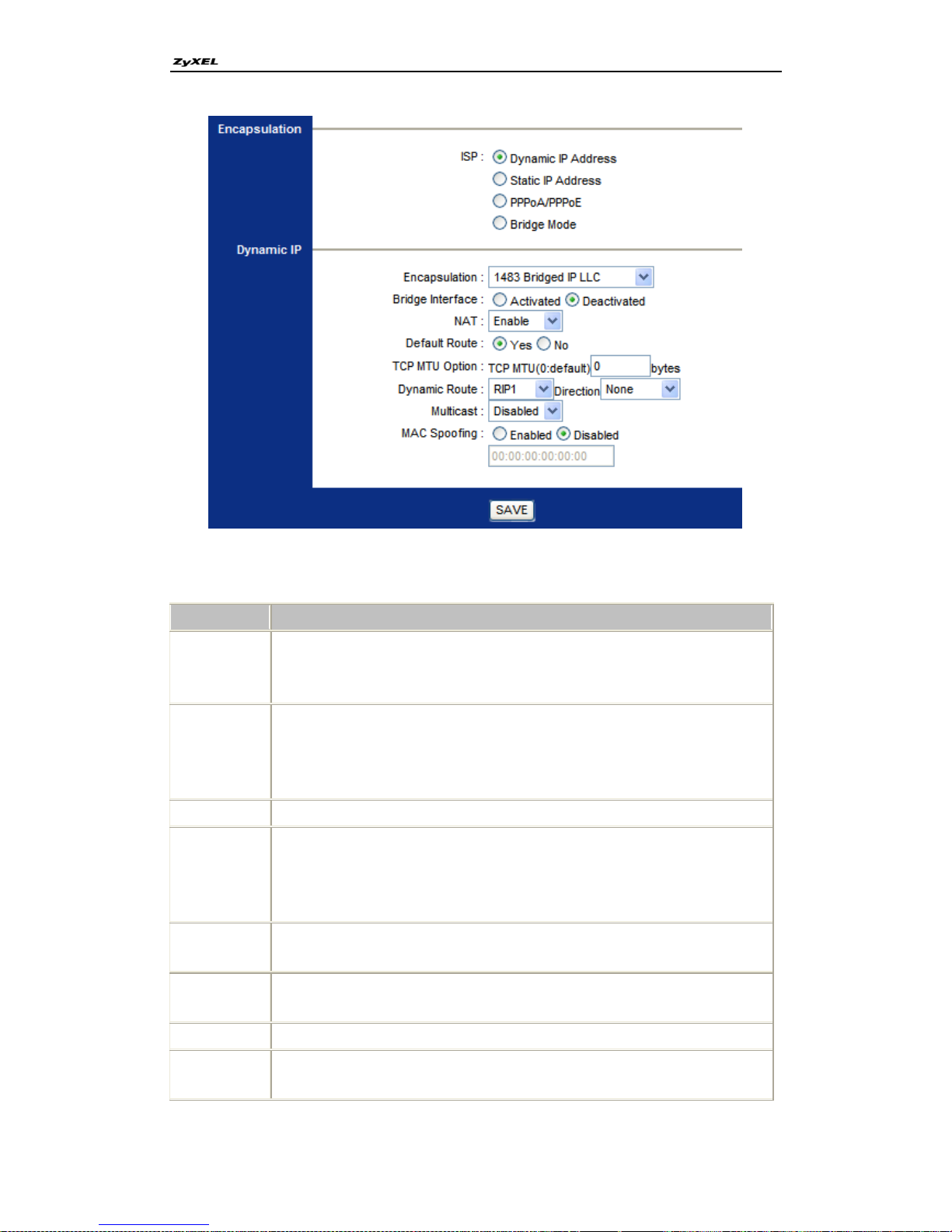
11. When do I need to choose dynamic IP?
If your ISP provides you an IP address automatically, typically used for Cable
service. In this case your computer gets an IP dynamically assigned by DHCP.
To use this mode, you need to do some corresponding configurations on the
web page: Interface Setup -> Internet -> Encapsulation:
Page 14
P-660R-Tx v3 Series Support Notes
14
All contents copyright © 2008 ZyXEL Communications Corporation.
Key setting:
Field
Description
Encapsulation
Choose one of encapsulation mode used in Dynamic IP condition .There
are four modes: 1483 Bridged IP LLC, 1483 Bridge IP VC-Mux, 1483
Route IP LLC(IPoA),and 1483 Route IP VC-Mux.
Bridge
Interface
When activated, not only Router connects but bridge connects.
Meanwhile, Router and Bridge use the same PVC, Lan PC could get an
wan IP which is assigned by PPPOE server. So we needn‟t two PVCs to
do multicast.
NAT
Choose to enable or disable NAT function.
Default Route
Choose “yes” to set the current PVC as a default gateway to internet from
your device. Note that there must be only one default gateway. If you
have configured more than one PVC as default gateway, the last one
would be efficient.
TCP MTU
Option
Set TCP MTU value. “0” is considered as default value.
Dynamic
Route
Draw out the list to choose an RIP vision. And you can choose the RIP
direction. Choose none direction to disable RIP function.
Multicast
Choose to enable or disable multicast function
MAC
Spoofing
Choose to enable Mac spoofing function. You can set a wanted MAC
below
Page 15

P-660R-Tx v3 Series Support Notes
15
All contents copyright © 2008 ZyXEL Communications Corporation.
12. What is DDNS?
The Dynamic DNS service allows you to alias a dynamic IP address to a static
hostname, allowing your computer to be more easily accessed from various
locations on the Internet. To use the service, you must first apply an account
from several free Web servers such as http://www.dyndns.org/.
Without DDNS, we always tell the users to use the WAN IP of the P-660R-Tx
v3 to reach our internal server. It is inconvenient for the users if this IP is
dynamic. With DDNS supported by the P-660R-Tx v3, you apply a DNS name
(e.g., www.zyxel.com.tw) for your server (e.g., Web server) from a DDNS
server. The outside users can always access the web server using the
www.zyxel.com.tw regardless of the WAN IP of the P-660R-Tx v3.
When the ISP assigns the P-660R-Tx v3 a new IP, the P-660R-Tx v3 updates
this IP to DDNS server so that the server can update its IP-to-DNS entry. Once
the IP-to-DNS table in the DDNS server is updated, the DNS name for your
web server (i.e., www.zyxel.com.tw) is still usable.
13. When do I need DDNS service?
When you want your internal server to be accessed by using DNS name rather
than using the dynamic IP address we can use the DDNS service. The DDNS
server allows to alias a dynamic IP address to a static hostname. Whenever
the ISP assigns you a new IP, the P-660R-Tx v3 sends this IP to the DDNS
server for its updates.
14. What is DDNS wildcard? Does the P-660R-Tx v3 support DDNS
wildcard?
Some DDNS servers support the wildcard feature which allows the hostname,
*.yourhost.dyndns.org, to be aliased to the same IP address as
yourhost.dyndns.org. This feature is useful when there are multiple servers
inside and you want users to be able to use things such as
www.yourhost.dyndns.org and still reach your hostname.
Yes, the P-660R-Tx v3 supports DDNS wildcard that http://www.dyndns.org/
supports. And you can choose to active or inactive this feature on the web
configuration page. When using wildcard, you simply enter
yourhost.dyndns.org on the web configuration page.
Page 16
P-660R-Tx v3 Series Support Notes
16
All contents copyright © 2008 ZyXEL Communications Corporation.
15. Can the P-660R-Tx v3's SUA (Simple IP) handle IPSec packets sent by
the IPSec gateway?
Yes, the P-660R-Tx v3's SUA can handle IPSec ESP Tunneling mode. We
know when packets go through SUA; SUA will change the source IP address
and source port for the host. To pass IPSec packets, SUA must understand the
ESP packet with protocol number 50; replace the source IP address of the
IPSec gateway to the router's WAN IP address. However, SUA should not
change the source port of the UDP packets which are used for key
managements. Because the remote gateway checks this source port during
connections, the port thus is not allowed to be changed.
16. How do I setup my P-660R-Tx v3 for routing IPSec packets over SUA?
For outgoing IPSec tunnels, no extra setting is required.
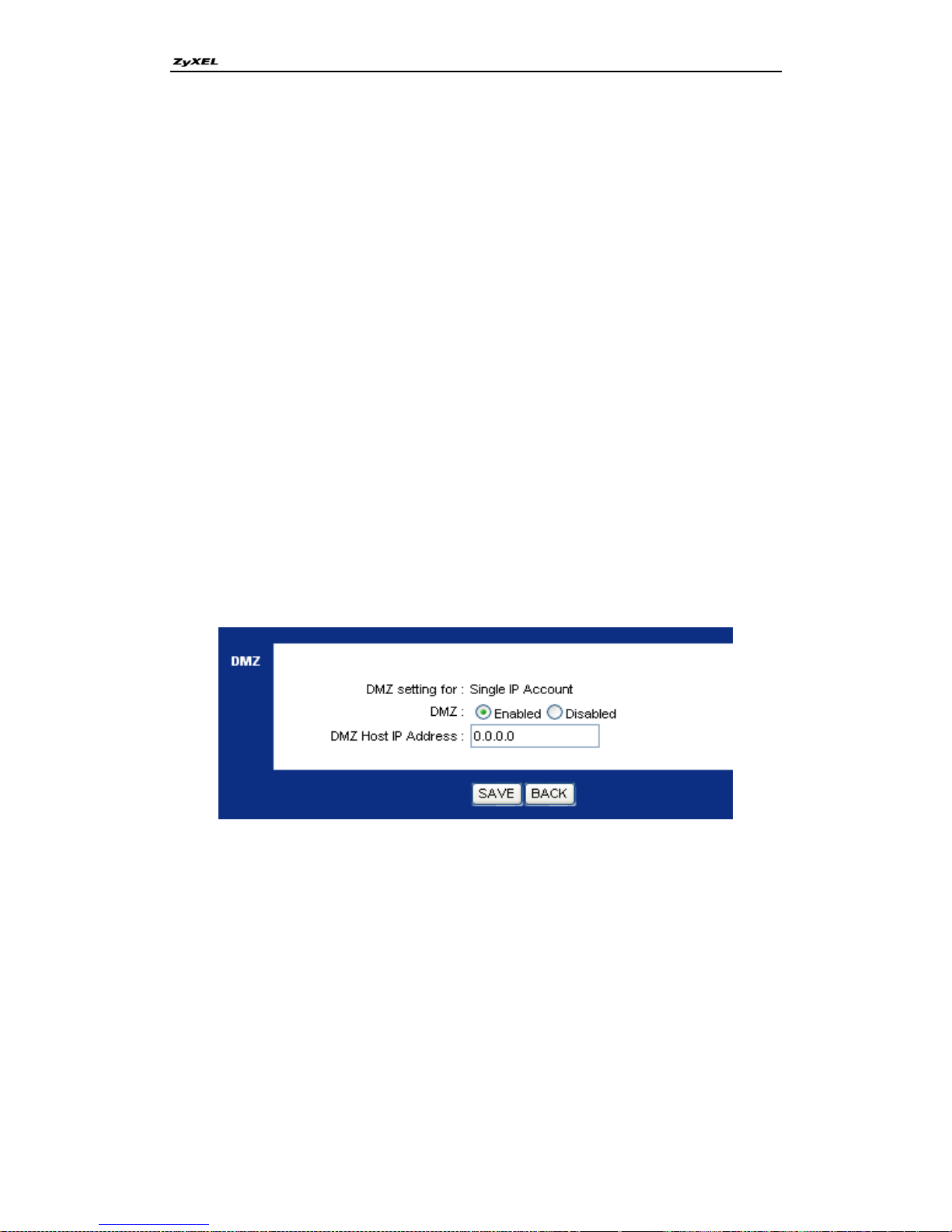
For forwarding the inbound IPSec ESP tunnel, A 'Default' server set is required.
You could configure it in Web Configurator, Advanced Setup, Advanced Setup
-> NAT -> DMZ:
Note: First we should set Number of IPs as Single for SUA use.
It is because SUA makes your LAN appear as a single machine to the outside
world. LAN users are invisible to outside users. So, to make an internal server
for outside access, we must specify the service port and the LAN IP of this
server in Web configuration page. Thus SUA is able to forward the incoming
packets to the requested service behind SUA and the outside users access the
server using the P-660R-Tx v3's WAN IP address. So, we have to configure
the internal IPSec client as a default server (unspecified service port) when it
acts a server gateway.
Page 17
P-660R-Tx v3 Series Support Notes
17
All contents copyright © 2008 ZyXEL Communications Corporation.
17. What is IP Policy Routing (IPPR)?
Traditionally, routing is based on the destination address only and the router
takes the shortest path to forward a packet. IP Policy Routing (IPPR) provides
a mechanism to override the default routing behavior and alter the packet
forwarding based on the policy defined by the network administrator.
Policy-based routing is applied to incoming packets on a per interface basis,
prior to the normal routing. Network administrators can use IPPR to distribute
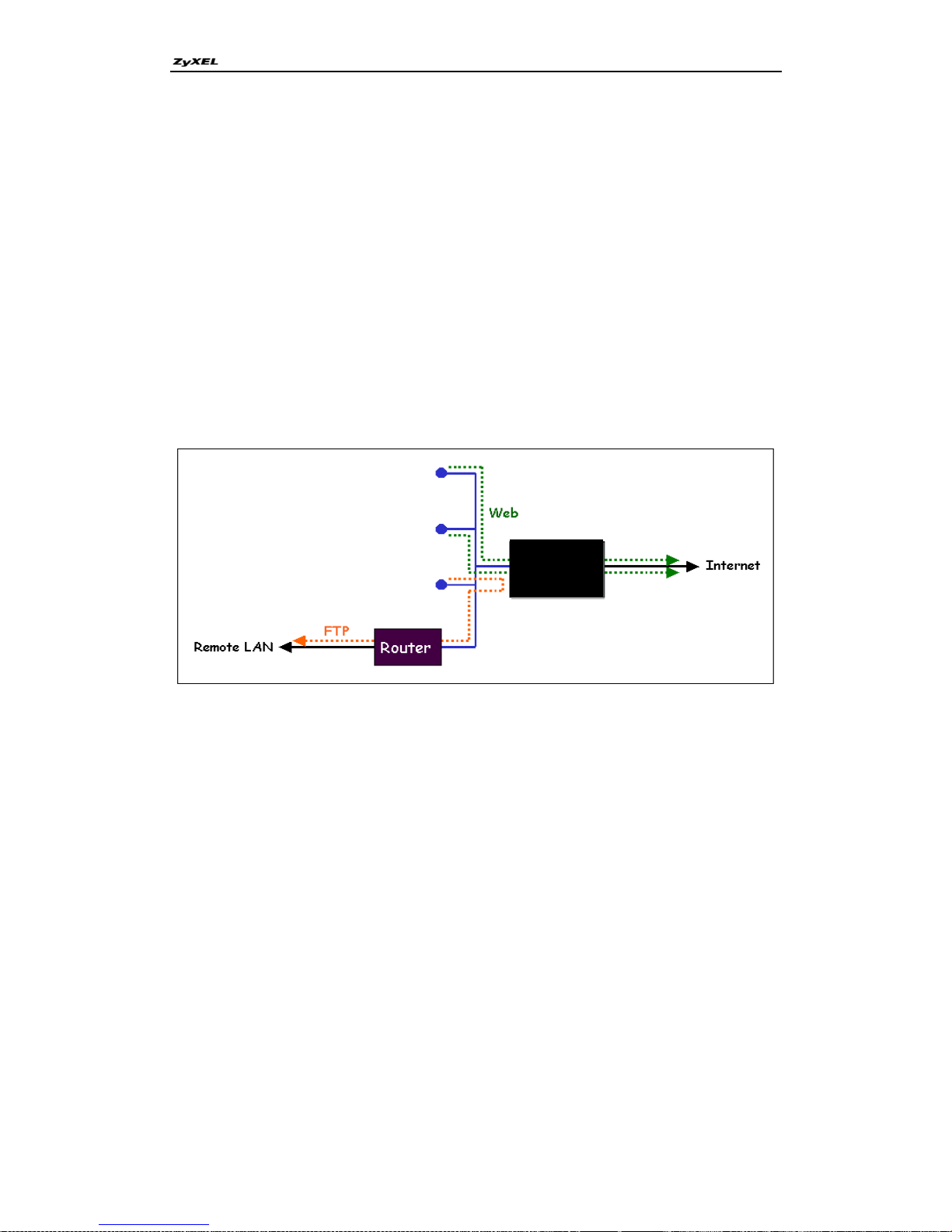
traffic among multiple paths. For example, if a network has both the Internet
and remote node connections, we can route the Web packets to the Internet
using one policy and route the FTP packets to the remote LAN using another
policy. See the figure below.
Use IPPR to distribute traffic among multiple paths
Benefits
Source-Based Routing - Network administrators can use policy-based
routing to direct traffic from different users through different connections.
Quality of Service (QoS)- Organizations can differentiate traffic by setting the
precedence or TOS (Type of Service) values in the IP header at the periphery
of the network to enable the backbone to prioritize traffic.
Cost Savings- IPPR allows organizations to distribute interactive traffic on
high-bandwidth, high-cost path while using low-path for batch traffic.
Load Sharing- Network administrators can use IPPR to distribute traffic
among multiple paths.
P-660R-T
1 v3
Page 18

P-660R-Tx v3 Series Support Notes
18
All contents copyright © 2008 ZyXEL Communications Corporation.
18. How does the IPPR work?
A policy defines the matching criteria and the action to take when a packet
meets the criteria. The action is taken only when all the criteria are met. The
criteria include the source address and port, IP protocol (ICMP, UDP, TCP,
etc), destination address and port, TOS and precedence (fields in the IP
header) and length. The inclusion of length criterion is to differentiate between
interactive and bulk traffic. Interactive applications, e.g., Telnet, tend to have
short packets, while bulk traffic, e.g., file transfer, tends to have large packets.
The actions that can be taken include routing the packet to a different gateway
(and hence the outgoing interface) and the TOS and precedence fields in the
IP header. IPPR follows the existing packet filtering facility of ZyNOS in style
and in implementation. The policies are divided into sets, where related
policies are grouped together. A use defines the policies before applying them
to an interface or a remote node, in the same fashion as the filters. There are
12 policy sets with 6 policies in each set.
19. What is CWMP?
P660R Tx V3 supports TR-069 Amendment 1 (CPE WAN Management
Protocol Release 2.0) and TR-069 Amendment 2 (CPE WAN Management
Protocol v1.1, Release 3.0).
TR-069 is a protocol that defines how your ZyXEL Device (ZD) can be
managed via a management server (MS) such as ZyXEL‟s Vantage Access.
An administrator can use a management server to remotely set up the ZyXEL
device, modify settings, perform firmware upgrades as well as monitor and
diagnose the ZyXEL device. All you have to do is enable the device to be
managed by a management server and specify the management server IP
address or domain name and username and password.
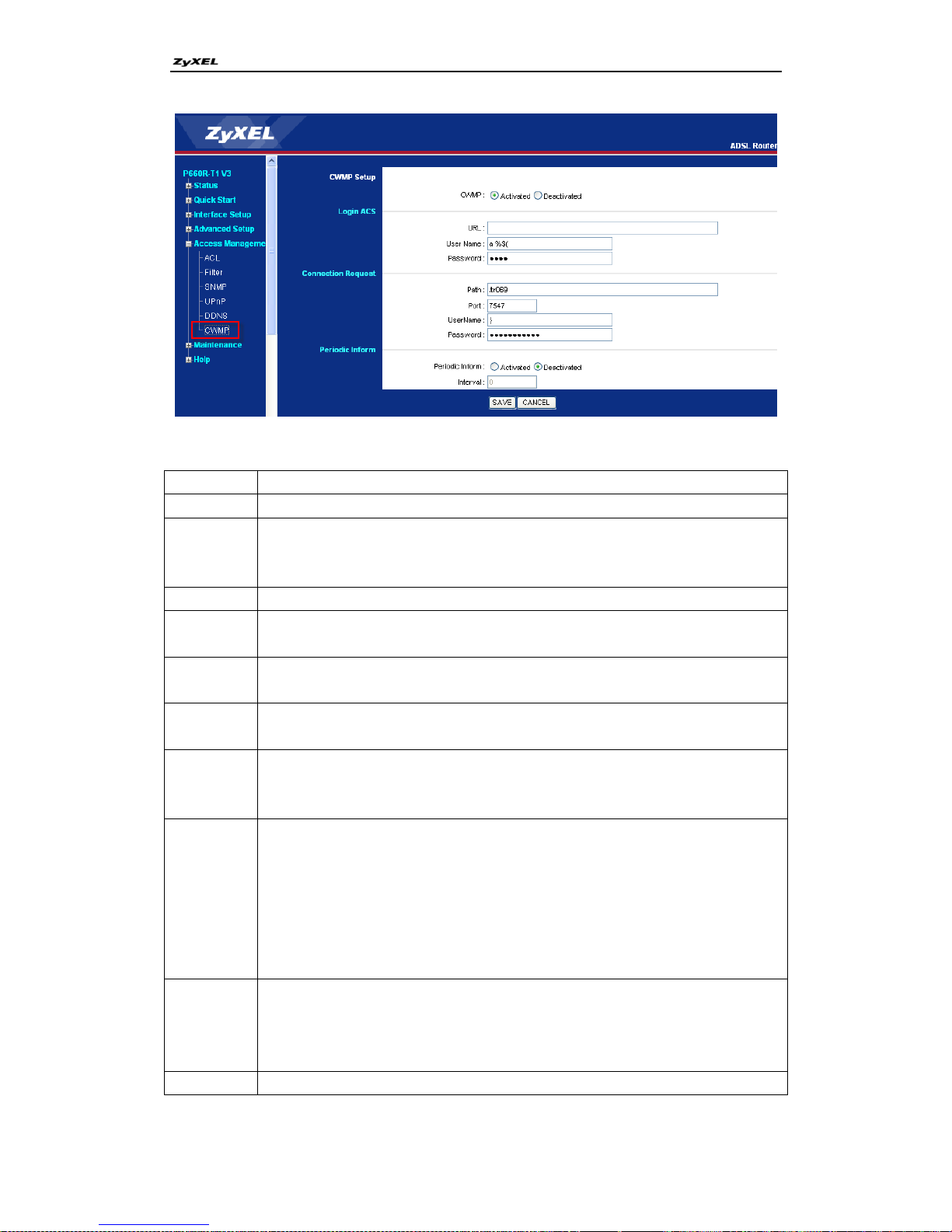
20. How to configure CWMP on P660R TX v3?
You can set CWMP on the Web configuration page: Access Management ->
CWMP -> CWMP Setup:
Page 19
P-660R-Tx v3 Series Support Notes
19
All contents copyright © 2008 ZyXEL Communications Corporation.
Key Settings
Field
Description
Login ACS
Configure this part of the screen to log into the management server.
CWMP
Select Activated to allow the ZyXEL Device to be managed by a
management server or select Deactivated to not allow the ZyXEL Device to
be managed by a management server.
URL
Type in the IP address or domain name of the management server.
User Name
Type a user name of up to xxx printable characters found on an
English-language keyboard.
Password
Type a password of up to xxx printable characters found on an
English-language keyboard. Spaces are not allowed.
Connection
Request
Use this part of the screen to allow the management server to connect to the
ZyXEL Device after a successful login.
Path
This is the part for verification from ACS to ZyXEL Device. It can be
considered as CPE‟s URL. When ACS initialize a session, it will connect
with CPE basing on this part.
Port
The default port for access to the ZyXEL Device from the management
server is the HTTP port, port 80. If you change it, make sure it does not
conflict with another port on your network and it is recommended to use a
port number above 1024 (not a commonly used port). The management
server should use this port to connect to the ZyXEL Device. You may need
to alter your firewall or NAT port forwarding rules if they were already
configured.
Periodic
Inform
Select Activated to have the ZyXEL Device periodically send information to
the management server (recommended if CWMP is enabled) or select
Deactivated to not have the ZyXEL Device periodically send information to
the management server
Interval
Enter a value between 1 and 86400 seconds.
Page 20
P-660R-Tx v3 Series Support Notes
20
All contents copyright © 2008 ZyXEL Communications Corporation.
Note: 1. There are two groups‟ user name and password. The first one you meet on the
web configuration page is used to authenticate the ZyXEL Device when making a
connection to the management server. This user name and password on the
management server and the ZyXEL Device must be the same. The second group is used
to authenticate the management server when making a connection.
2. The interval is the duration in seconds for which the ZyXEL Device MUST attempt to
connect with the management server to send information and check for configuration
updates.
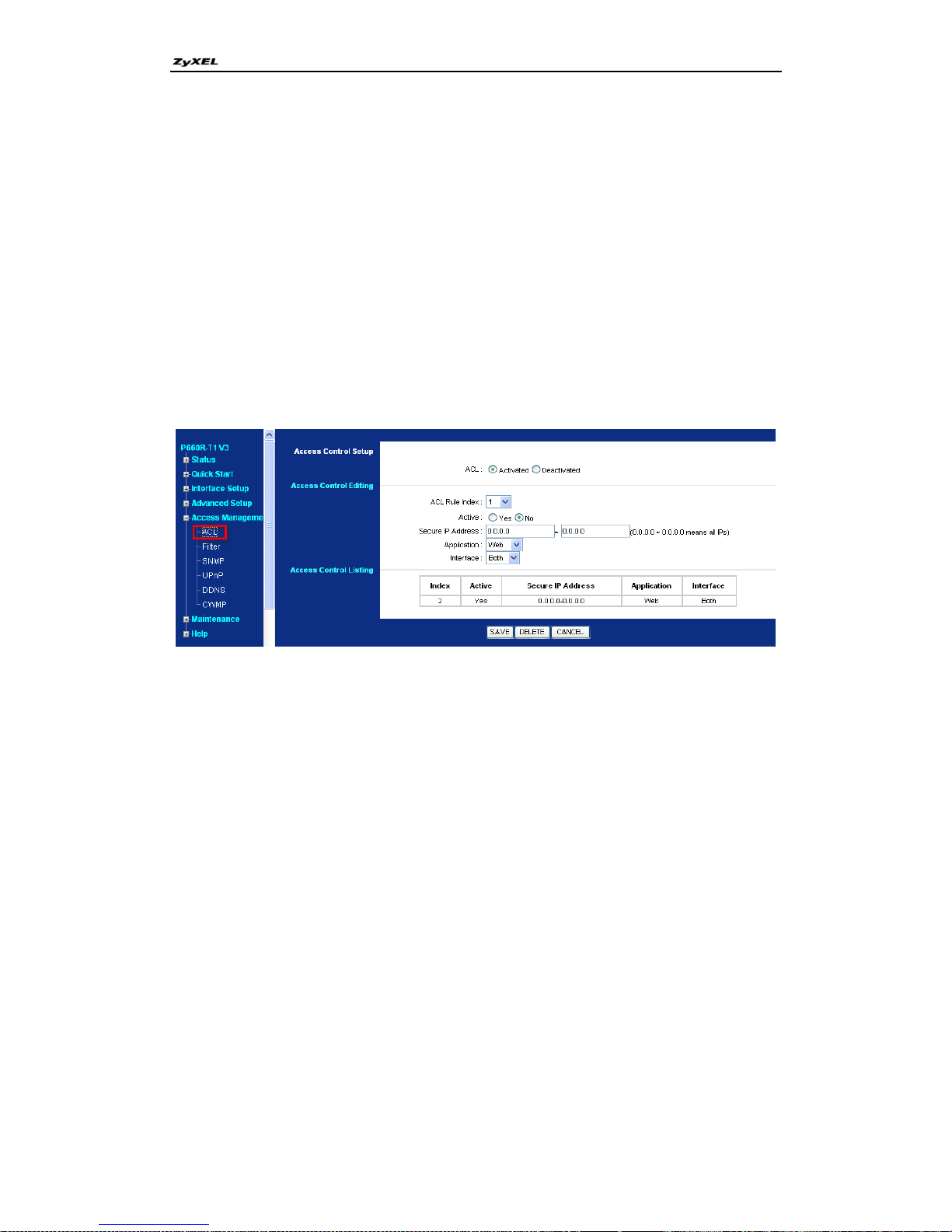
21. How to configure ACL?
You can find the configuration page on web configuration page: Access
Management -> ACL
Page 21

P-660R-Tx v3 Series Support Notes
21
All contents copyright © 2008 ZyXEL Communications Corporation.
Key Settings:
Field
Description
ACL
Select Activated to enable access control on the ZyXEL Device or select
Deactivated to disable it.
ACL Rule
Index
Select an index rule number in order to edit or delete it.
Active
Select Yes to enable this active control rule or No to disable it.
Secure IP
Address
Enter the range of IP addresses of computers that are allowed to access the device.
0.0.0.0 ~ 0.0.0.0 means that any computer can access the ZyXEL Device. If you
want just one computer to be able to access the ZyXEL Device, then enter its IP
Address in both fields.
Application
Select the service through which the computer can access the device.
• If you want to allow a user to connect to the ZyXEL Device using the web configuration
page, select Web.
• If you want to allow a user to connect to the ZyXEL Device using Telnet, select
Telnet.
• If you want to allow a user to upload firmware to the ZyXEL Device, select FTP.
• If you want to allow an administrator to send SNMP commands, select SNMP.
• If you want to allow a user to find the ZyXEL Device on the network (for
troubleshooting purposes, for example), select Ping.
• You can allow access for all services, select ALL. You cannot select a combination of
services.
Interface
Select the port through which you can access the device. Select Both for access via
either port. If you configure 0.0.0.0 ~ 0.0.0.0 Secure IP Address, ALL services and
WAN interface, you will not be able to access the device at all from the LAN.
Access
Control
Listing
The summary table displays the configured parameters for the selected rule.
SAVE
Click SAVE to apply your settings back to the ZyXEL Device.
DELETE
Select an access control rule index number and click DELETE to remove it.
CANCEL
Click CANCEL to reset the values to the previously-configured ones.
22. What is UPnP?
Universal Plug and Play (UPnP) is a set of computer network protocols
promulgated by the UPnP Forum. The goals of UPnP are to allow devices to
connect seamlessly and to simplify the implementation of networks in the
home (data sharing, communications, and entertainment) and corporate
environments. UPnP achieves this by defining and publishing UPnP device
control protocols built upon open, Internet-based communication standards.
Page 22

P-660R-Tx v3 Series Support Notes
22
All contents copyright © 2008 ZyXEL Communications Corporation.
ADSL FAQ
1. How does ADSL compare to Cable modems?
ADSL provides a dedicated service over a single telephone line; cable
modems offer a dedicated service over a shared media. While cable modems
have greater downstream bandwidth capabilities (up to 30 Mbps), that
bandwidth is shared among all users on a line, and will therefore vary, perhaps
dramatically, as more users in a neighborhood get online at the same time.
Cable modem upstream traffic will in many cases be slower than ADSL, either
because the particular cable modem is inherently slower, or because of rate
reductions caused by contention for upstream bandwidth slots. The big
difference between ADSL and cable modems, however, is the number of lines
available to each. There are no more than 12 million homes passed today that
can support two-way cable modem transmissions, and while the figure also
grows steadily, it will not catch up with telephone lines for many years.
Additionally, many of the older cable networks are not capable of offering a
return channel; consequently, such networks will need significant upgrading
before they can offer high bandwidth services.
2. What is the micro-filter or splitter used for?
Generally, the voice band uses the lower frequency ranging from 0 to 4KHz,
while ADSL data transmission uses the higher frequency. The micro filter acts
as a low-pass filter for your telephone set to ensure that ADSL transmissions
do not interfere with your voice transmissions. For the details about how to
connect the micro filter please refer to the user's manual.
3. How do I know the ADSL line is up?
You can see the DSL LED Green on the P-660R-Tx v3's front panel is on when
the ADSL physical layer is up.
4. Does the VC-based multiplexing perform better than the LLC-based
multiplexing?
Though the LLC-based multiplexing can carry multiple protocols over a single
VC, it requires extra header information to identify the protocol being carried
on the virtual circuit (VC). The VC-based multiplexing needs a separate VC for
carrying each protocol but it does not need the extra headers. Therefore, the
VC-based multiplexing is more efficient.
We can choose one of them on the web configuration page: Interface Setup
-> Internet ->Dynamic IP ->Encapsulation:
Page 23
P-660R-Tx v3 Series Support Notes
23
All contents copyright © 2008 ZyXEL Communications Corporation.
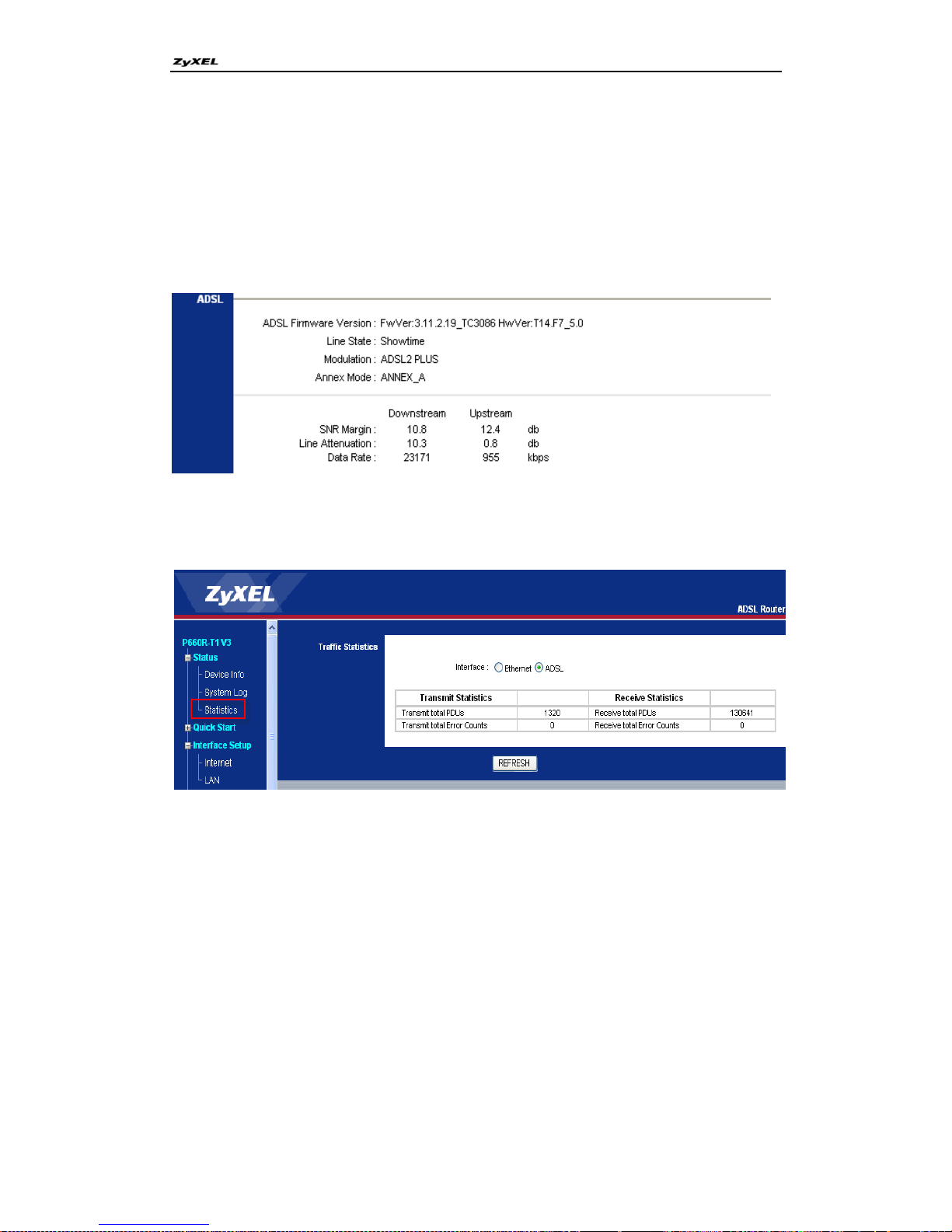
5. How do I know the details of my ADSL line statistics?
You can use the following CI commands to check the ADSL line statistics.
CI> wan adsl perfdata
CI> wan adsl status
CI> wan adsl linedata far
CI> wan adsl linedata near
You can also see the detailed information in Web Configurator, Status.
Status -> Device Info -> ADSL:
You may also need some ADSL traffic status:
Status -> Statistics -> Traffic Statistics -> Interface-> ADSL:
6. What are the signaling pins of the ADSL connector?
The signaling pins on the P-660R-Tx v3's ADSL connector are pin 3 and pin 4.
The middle two pins for a RJ11 cable.
Page 24

P-660R-Tx v3 Series Support Notes
24
All contents copyright © 2008 ZyXEL Communications Corporation.
Application Notes
General Application Notes
1. Internet Access Using P-660R-Tx v3 under Bridge mode
Setup your workstation
Setup your P-660R-Tx v3 under bridge mode
If the ISP limits some specific computers to access Internet, that means only
the traffic to/from these computers will be forwarded and the other will be
filtered. In this case, we use P-660R-Tx v3 which works as an ADSL bridge
modem to connect to the ISP. The ISP will generally give one Internet account
and limit only one computer to access the Internet.
Set up your workstation
(1) Ethernet connection
To connect your computer to the P-660R-Tx v3's LAN port, the computer must
have an Ethernet adapter card installed. For connecting a single computer to
the P-660R-Tx v3, we use an Ethernet cable.
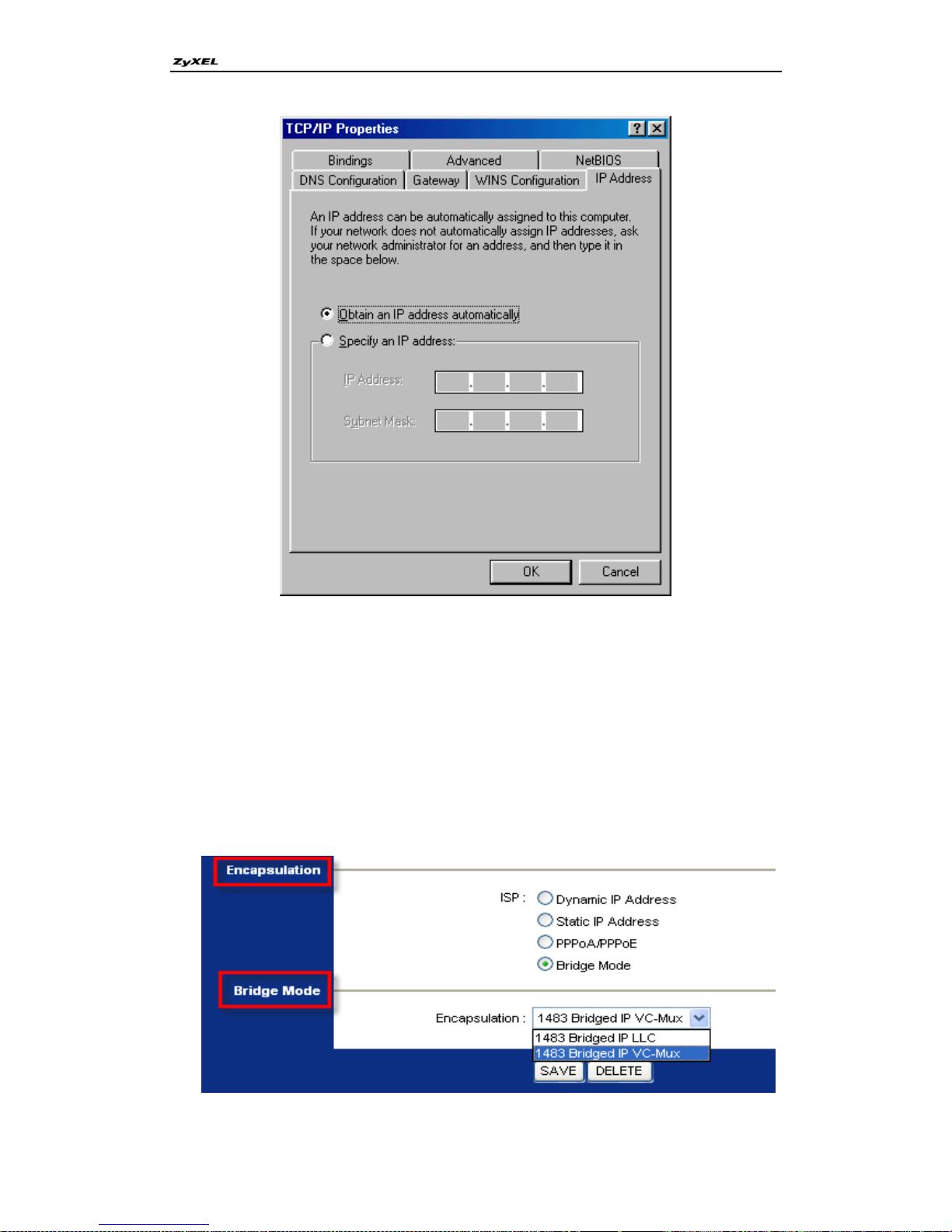
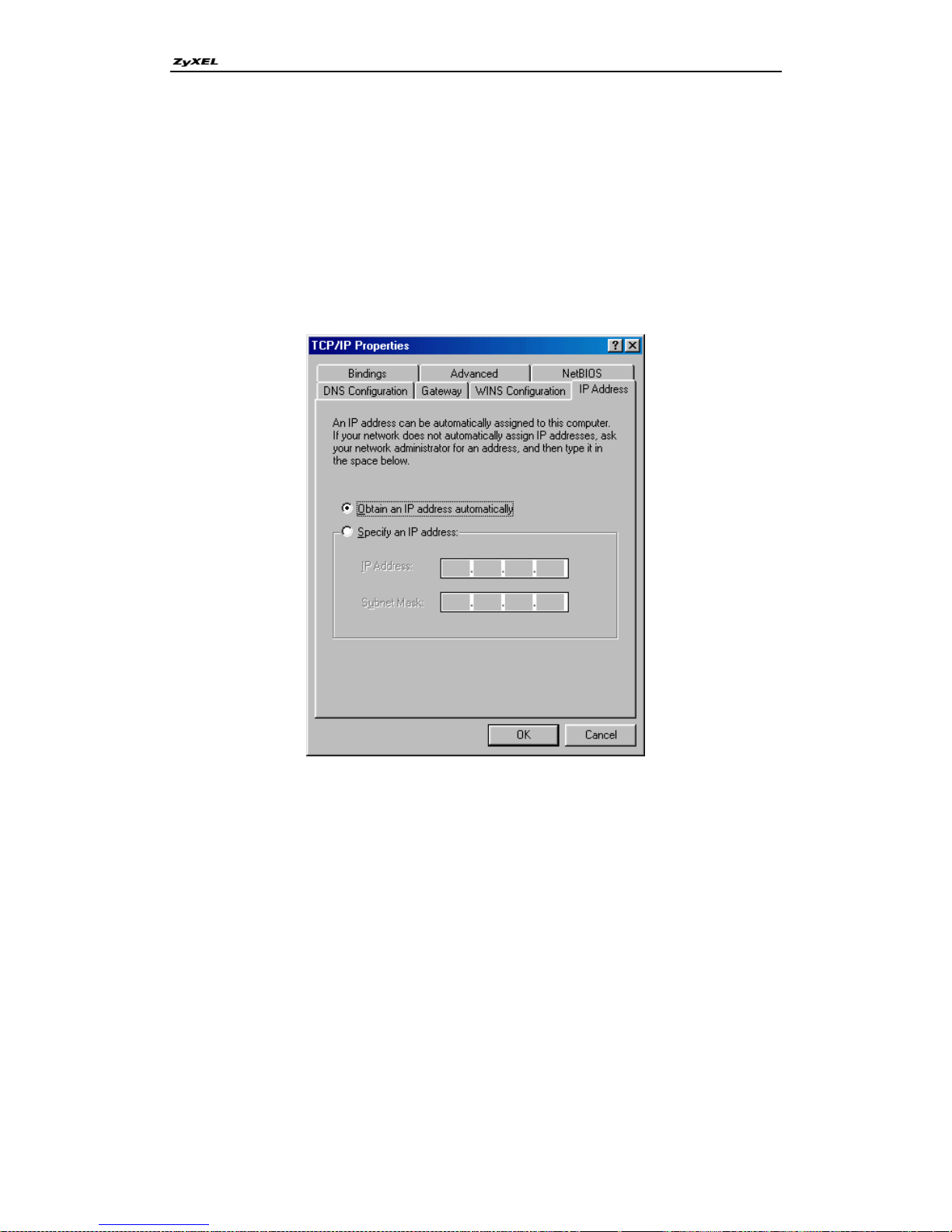
(2) TCP/IP configuration
In most cases, the IP address of the computer is assigned by the ISP
dynamically so you have to configure the computer as a DHCP client which
obtains the IP from the ISP using DHCP protocol. The ISP may also provide
the gateway, DNS via DHCP if they are available. Otherwise, please enter the
static IP addresses for all that the ISP gives to you in the network TCP/IP
settings. For Windows, we check the option 'Obtain an IP address
automatically' in its TCP/IP setup, please see the example shown below.
Page 25
P-660R-Tx v3 Series Support Notes
25
All contents copyright © 2008 ZyXEL Communications Corporation.
Setup your P-660R-Tx v3 under bridge mode
The following procedure shows you how to configure your P-660R-Tx v3 as
bridge mode. We will use Web Configurator to guide you through the related
menu.
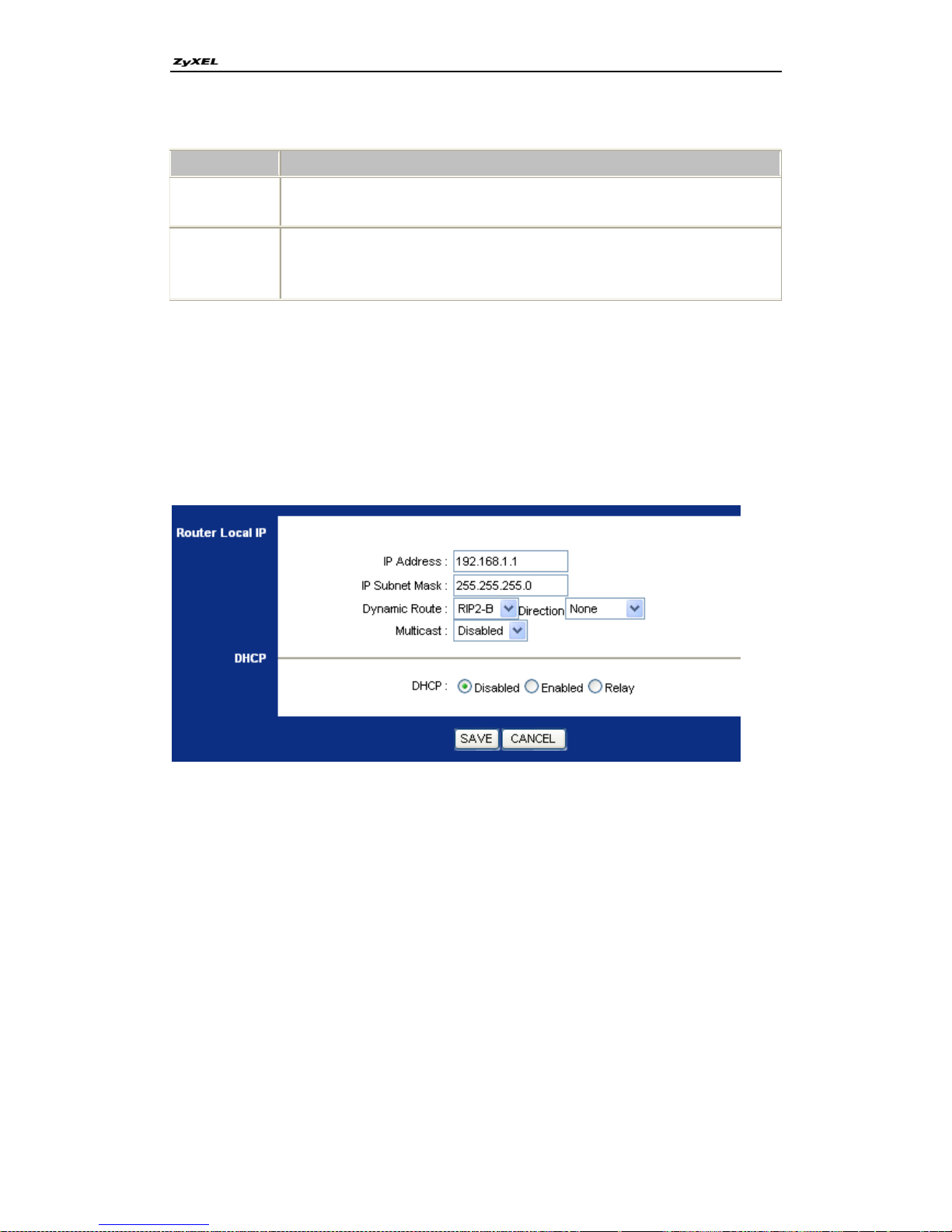
(1) Configure P-660R-Tx v3 as bridge mode and configure Internet setup
parameters in Web Configurator, Advanced Setup. Interface Setup ->
Internet -> Encapsulation.
Page 26
P-660R-Tx v3 Series Support Notes
26
All contents copyright © 2008 ZyXEL Communications Corporation.
Key Settings:
Option
Description
Encapsulation
Select the correct Encapsulation type that your ISP supports. For
example, Bridge mode.
Bridge Mode
When select one encapsulation type, there would be a corresponding
configuration column below, such as Bridge Mode. Select the correct
Multiplexing type that your ISP supports. For example, LLC.
(2) Turn off DHCP Server and configure a LAN IP for the P-660R-Tx v3 in Web
Configurator, Advanced Setup, Interface Setup -> LAN -> DHCP.. We use
192.168.1.1 as the LAN IP for P-660R-Tx v3 in this case:
Step 1: Disable DHCP Server and save it:
Step 2: Assign an IP to the LAN Interface of P-660R-Tx v3, e.g.: 192.168.1.1:
2. Internet Access Using P-660R-Tx v3 under Routing mode
For most Internet users having multiple computers want to share an Internet
account for Internet access, they have to install an Internet sharing device, like
a router. In this case, we use the P-660R-Tx v3 which works as a general
Router plus an ADSL Modem.
Set up your workstation
(1) Ethernet connection
Connect the LAN ports of all computers to the LAN Interface of P-660R-Tx v3
using Ethernet cable.
Page 27
P-660R-Tx v3 Series Support Notes
27
All contents copyright © 2008 ZyXEL Communications Corporation.
(2) TCP/IP configuration
Since the P-660R-Tx v3 is set to DHCP server as default, so you need only to
configure the workstations as the DHCP clients in the networking settings. In
this case, the IP address of the computer is assigned by the P-660R-Tx v3.
The P-660R-Tx v3 can also provide the DNS to the clients via DHCP if it is
available. For this setup in Windows, we check the option 'Obtain an IP
address automatically' in its TCP/IP setup. Please see the example shown
below.
Set up your P-660R-Tx v3 under routing mode
The following procedure shows you how to configure your P-660R-Tx v3 as
Routing mode for routing traffic. We will use Web Configurator to guide you
through the related menu.
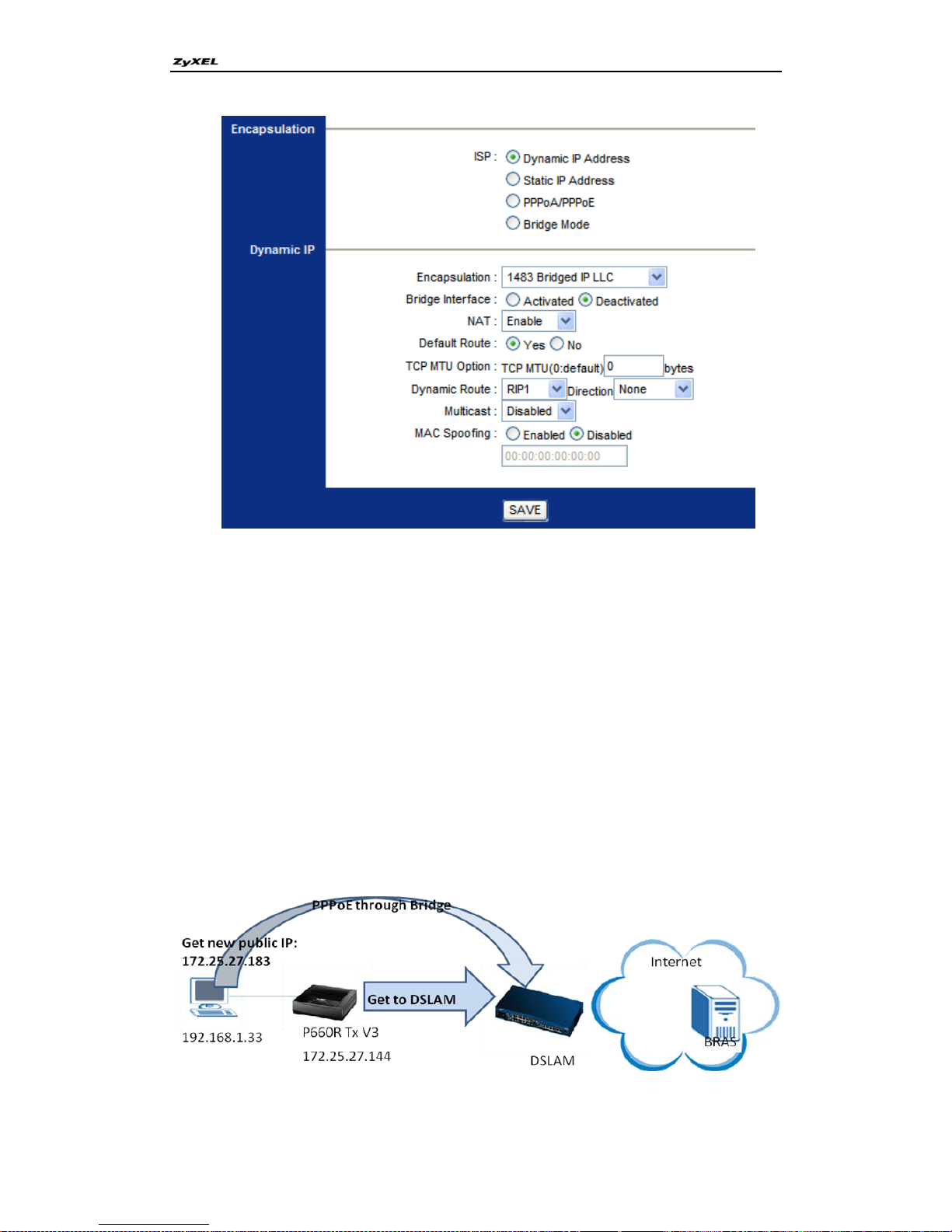
(1) Configure P-660R-Tx v3 as routing mode and configure Internet setup
parameters in Web Configurator, Advanced Setup, Interface Setup ->
Internet -> Encapsulation.
Page 28
P-660R-Tx v3 Series Support Notes
28
All contents copyright © 2008 ZyXEL Communications Corporation.
Here you can choose the first three types of Encapsulation for routing
mode.
(2) Configure a LAN IP for the P-660R-Tx v3 and the DHCP settings in Web
Configurator, Advanced Setup, Interface Setup -> LAN -> DHCP.
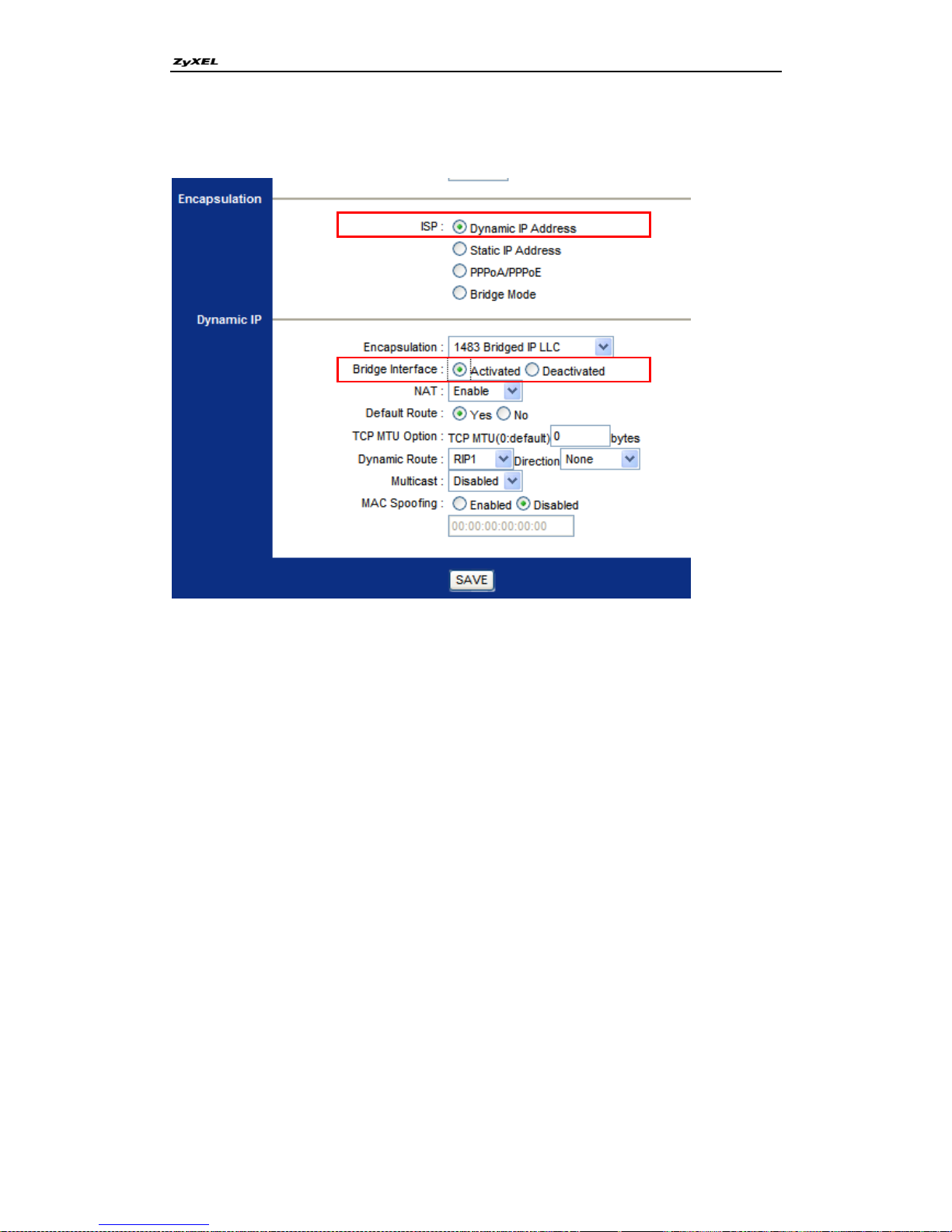
3. Make use of Bridge Interface in Routing mode
Using Bridge Interface in routing mode allows you to connect to internet with
both Routing and Bridging. A route channel for your device and a bridge
channel for your pc, but they use the same PVC so we needn‟t two PVCs to do
multicast, you also need not to set a new VLAN on the DSLAM.
One of the use scenarios shows below:
Page 29
P-660R-Tx v3 Series Support Notes
29
All contents copyright © 2008 ZyXEL Communications Corporation.
You can set it in Web Configurator, Interface Setup -> Internet ->
Encapsulation
After configuration, your P660R-Tx v3 can get a public IP in the way you
choose from Encapsulation types (Dynamic IP Address, Static IP Address or
PPPoA/PPPoE), while your computer can also get a public IP through PPPoE.
4. Setup the P-660R-Tx v3 as a DHCP Relay
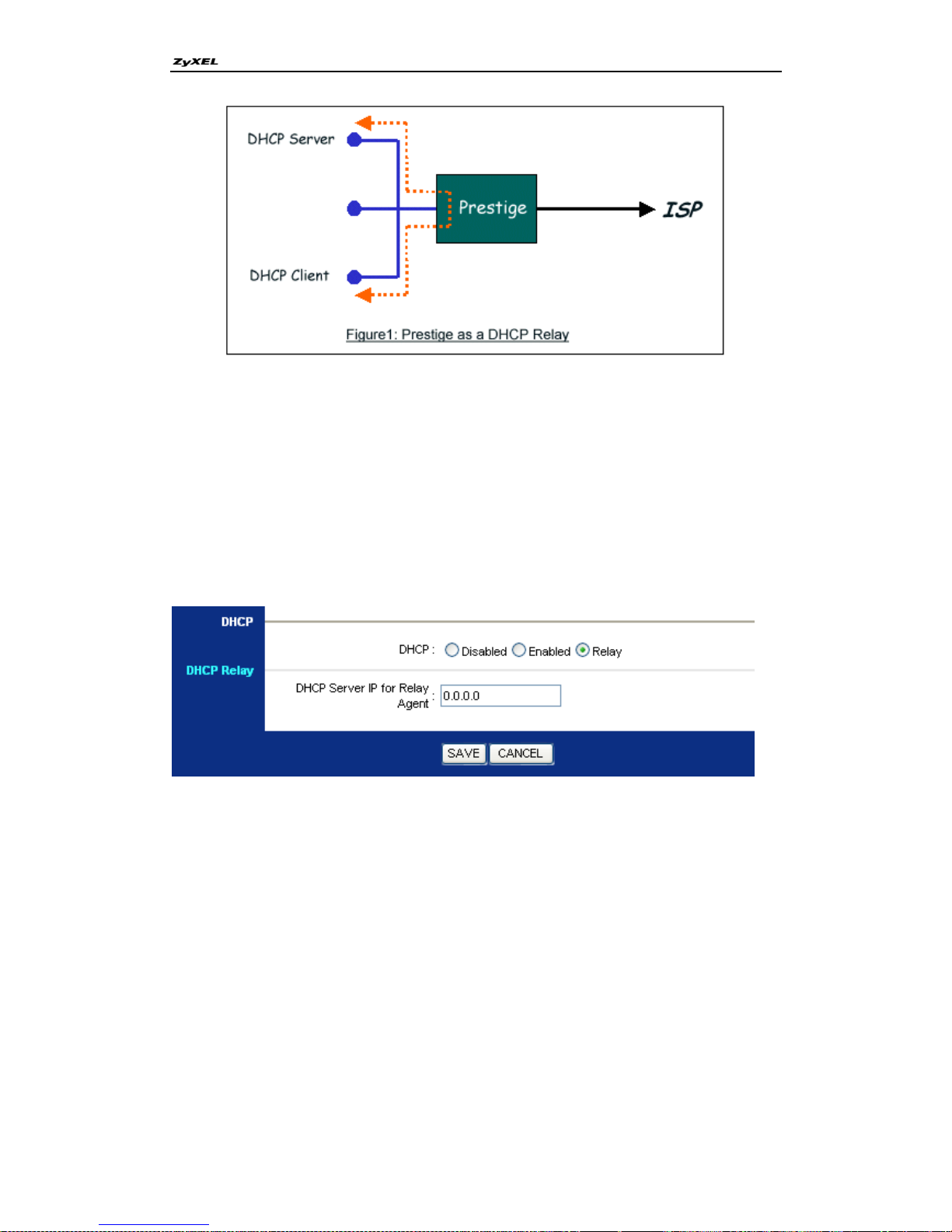
What is DHCP Relay?
DHCP stands for Dynamic Host Configuration Protocol. In addition to the
DHCP server feature, the P-660R-Tx v3 supports the DHCP relay function.
When it is configured as DHCP server, it assigns the IP addresses to the LAN
clients. When it is configured as DHCP relay, it is responsible for forwarding
the requests and responses negotiating between the DHCP clients and the
server. See figure 1.
Page 30
P-660R-Tx v3 Series Support Notes
30
All contents copyright © 2008 ZyXEL Communications Corporation.
Prestige means P-660R-Tx v3
Setup the P-660R-Tx v3 as a DHCP Relay
We could set the P-660R-Tx v3 as a DHCP Relay by the following command in
CLI:
Ip dhcp enif0 mode relay
Ip dhcp enif0 relay server [Server IP Address]
You can also set it in web configuration page:
Interface Setup -> LAN -> DHCP.
Click to choose “Relay”, input the Relay Agent IP and save the configuration.
Page 31
P-660R-Tx v3 Series Support Notes
31
All contents copyright © 2008 ZyXEL Communications Corporation.
5. SUA Notes
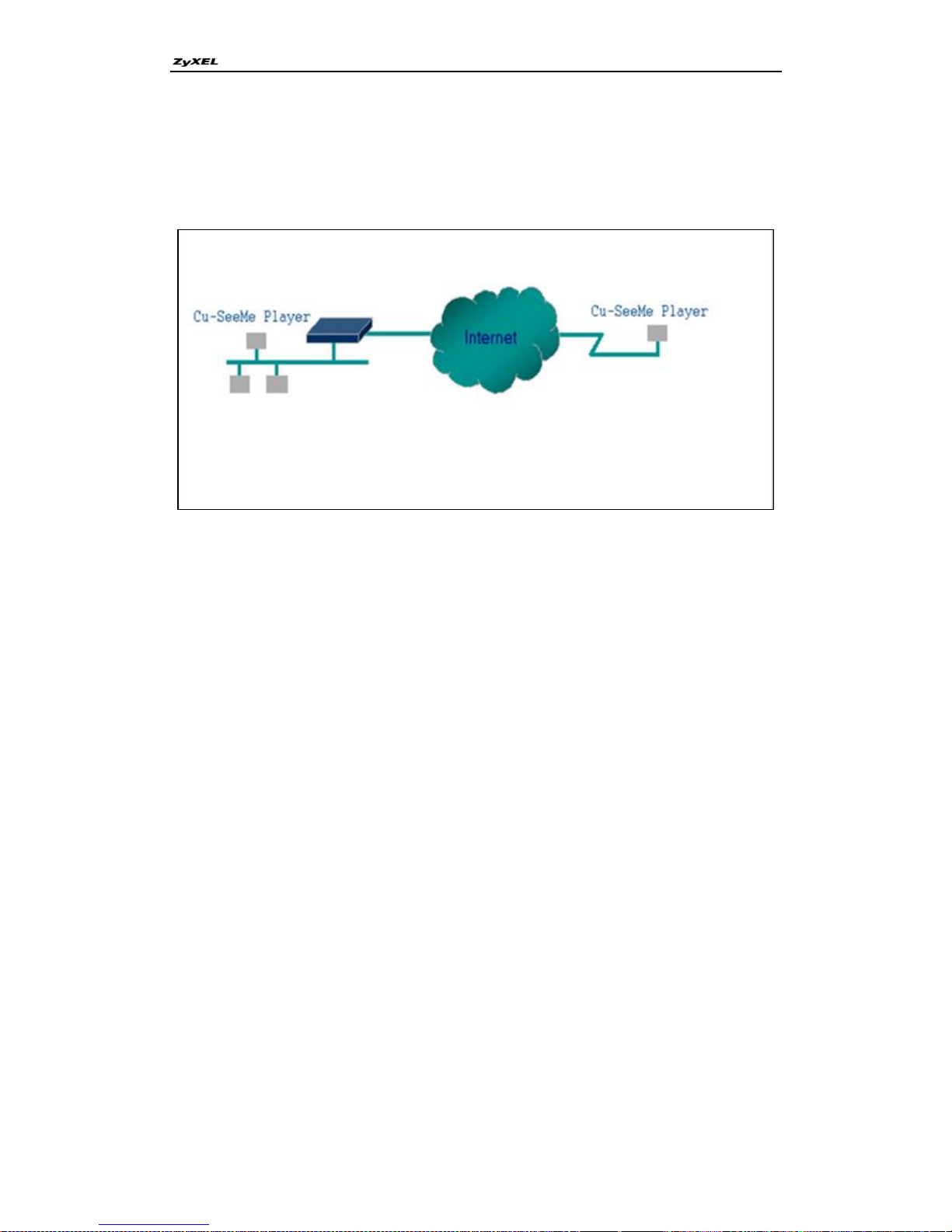
Tested SUA/NAT Applications (e.g., Cu-SeeMe, ICQ, NetMeeting)
Introduction
Generally, SUA makes your LAN appear as a single machine to the outside
world. LAN users are invisible to outside users. However, some applications
such as Cu-SeeMe and ICQ will need to connect to the local user behind the
P-660R-Tx v3. In such case, a SUA server must be configured to forward the
incoming packets to the true destination behind SUA. After the required server
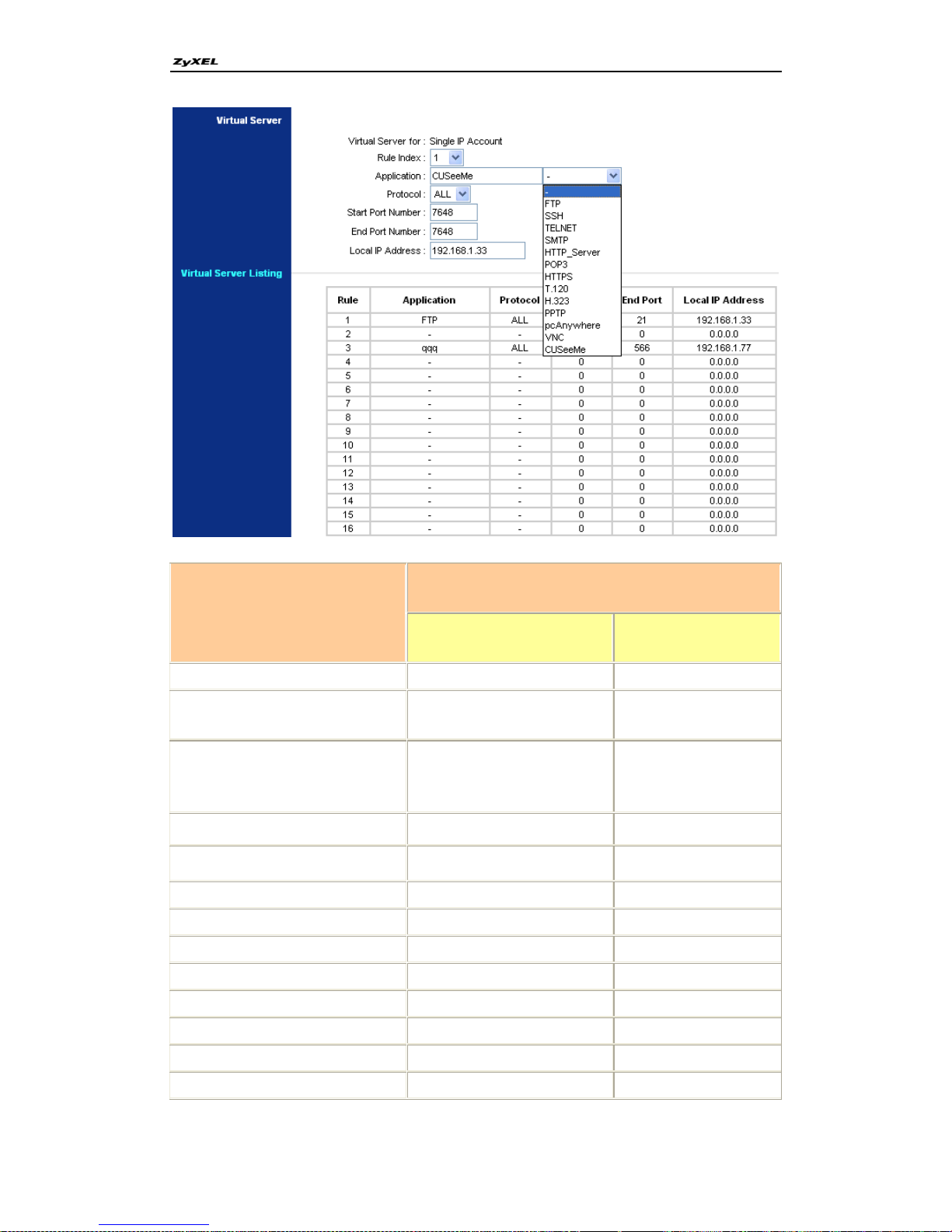
are configured in Web Configurator, Advanced Setup, Advanced Setup ->
NAT -> Virtual Server, the internal server or client applications can be
accessed by using the P-660R-Tx v3's WAN IP Address.
SUA Supporting Table
The following are the required Web Configurator, Advanced Setup, Advanced
Setup -> NAT -> Virtual Server for the various applications running in Single
mode.
P-660R-Tx v3
Page 32
P-660R-Tx v3 Series Support Notes
32
All contents copyright © 2008 ZyXEL Communications Corporation.
Application
Required Settings in Port Forwarding
Port/IP
Outgoing Connection
Incoming
Connection
FTP
None
21/client IP
SSH
None
22/client IP
TELNET
None
23/client IP
(and active Telnet
service from WAN)
SMTP
None
25/client IP
HTTP Server
None
80/client IP
POP3
None
110/client IP
HTTPs
None
443/client IP
T.120
None
1503/client IP
H.232
None
1720/client IP
PPTP
None
1723/client IP
pcAnywhere
None
5631/client IP
VNC
None
5900/client IP
CUSeeMe
None
7648/client IP
Page 33
P-660R-Tx v3 Series Support Notes
33
All contents copyright © 2008 ZyXEL Communications Corporation.
1
Since SUA enables your LAN to appear as a single computer to the Internet,
it is not possible to configure similar servers on the same LAN behind SUA.
2
Because White Pine Cu-SeeMe uses dedicate ports (port 7648 & port 24032)
to transmit and receive data, therefore only one local Cu-SeeMe is allowed
within the same LAN.
Configurations
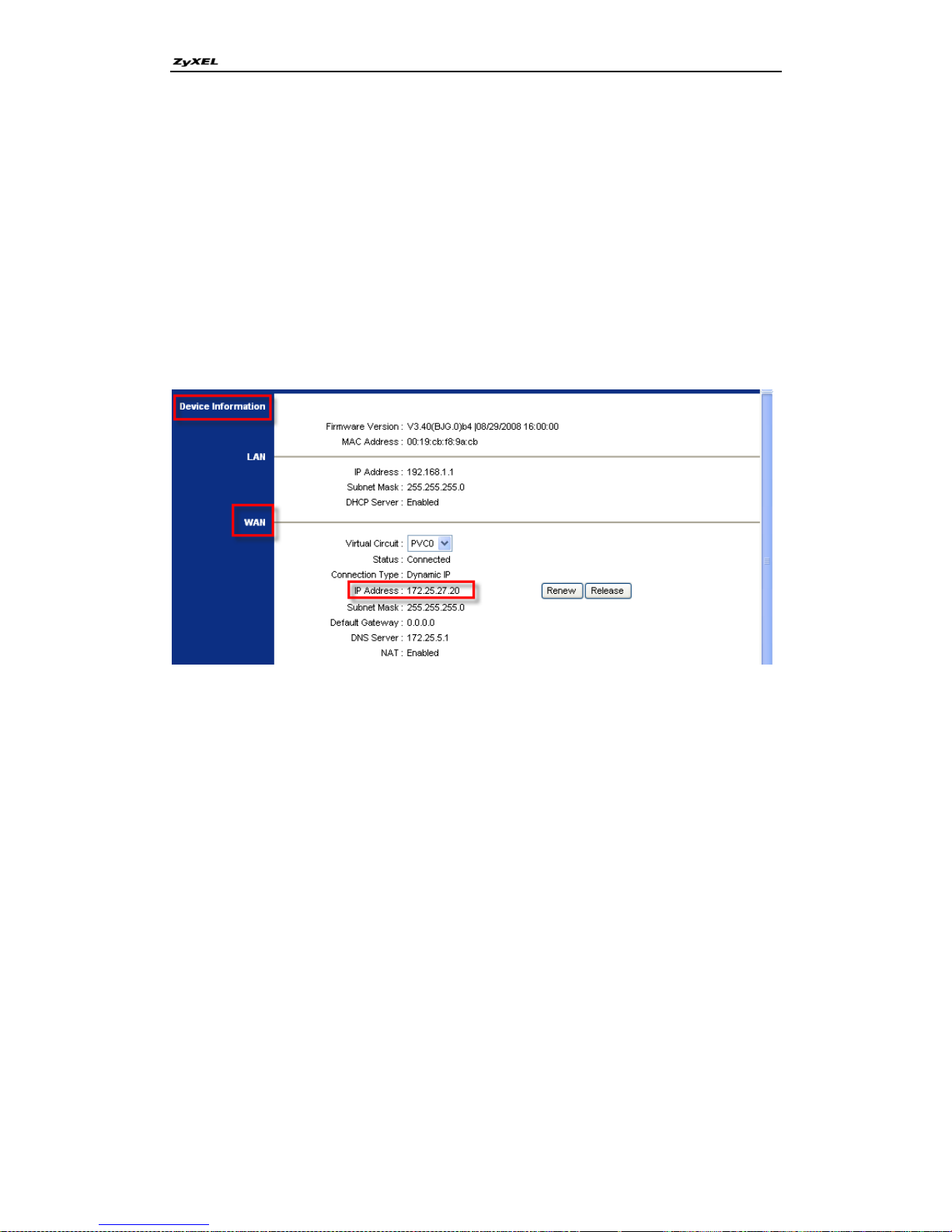
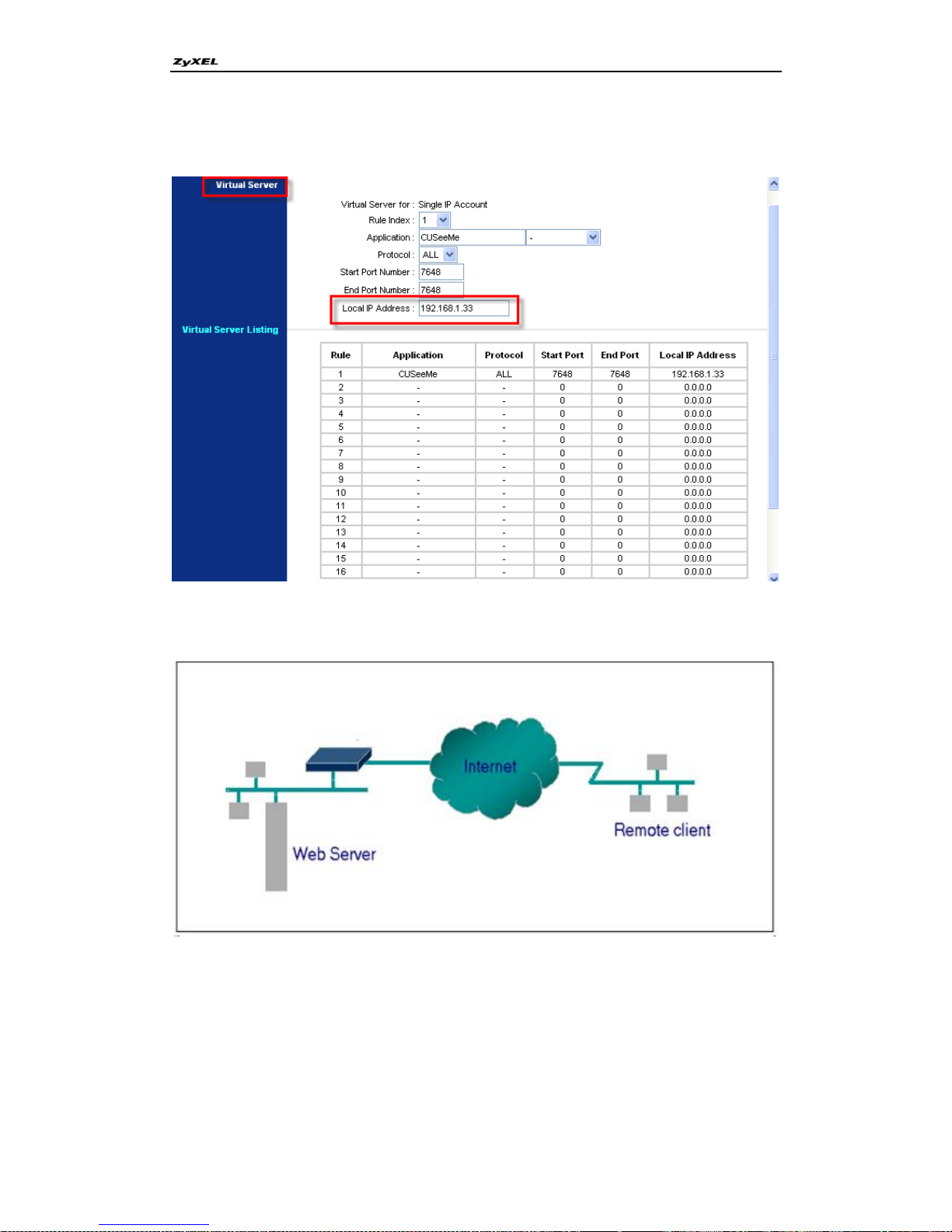
For example, if the workstation operating Cu-SeeMe has an IP of 192.168.1.33,
then the default SUA server must be set to 192.168.1.33. The peer Cu-SeeMe
user can reach this workstation by using P-660R-Tx v3's WAN IP address
which can be obtained from Web Configurator, Status -> Device Info
->WAN.
Page 34
P-660R-Tx v3 Series Support Notes
34
All contents copyright © 2008 ZyXEL Communications Corporation.
Virtual Server Configuration:
Configure an Internal Server behind SUA
Introduction
If you wish, you can make internal servers (e.g., Web, ftp or mail server)
accessible for outside users, even though SUA makes your LAN appear as a
single machine to the outside world. A service is identified by the port number.
Also, since you need to specify the IP address of a server behind the
P-660R-Tx v3
Page 35
P-660R-Tx v3 Series Support Notes
35
All contents copyright © 2008 ZyXEL Communications Corporation.
P-660R-Tx v3, a server must have a fixed IP address and not be a DHCP
client whose IP address potentially changes each time P-660R-Tx v3 is
powered on.
Configuration
To make a server visible to the outside world, specify the port number of the
service and the inside address of the server in Web Configurator, Advanced
Setup, Advance Setup -> NAT -> DMZ. The outside users can access the
local server using the P-660R-Tx v3's WAN IP address which can be obtained
from Web Configurator, Status -> Device Info.
For example:
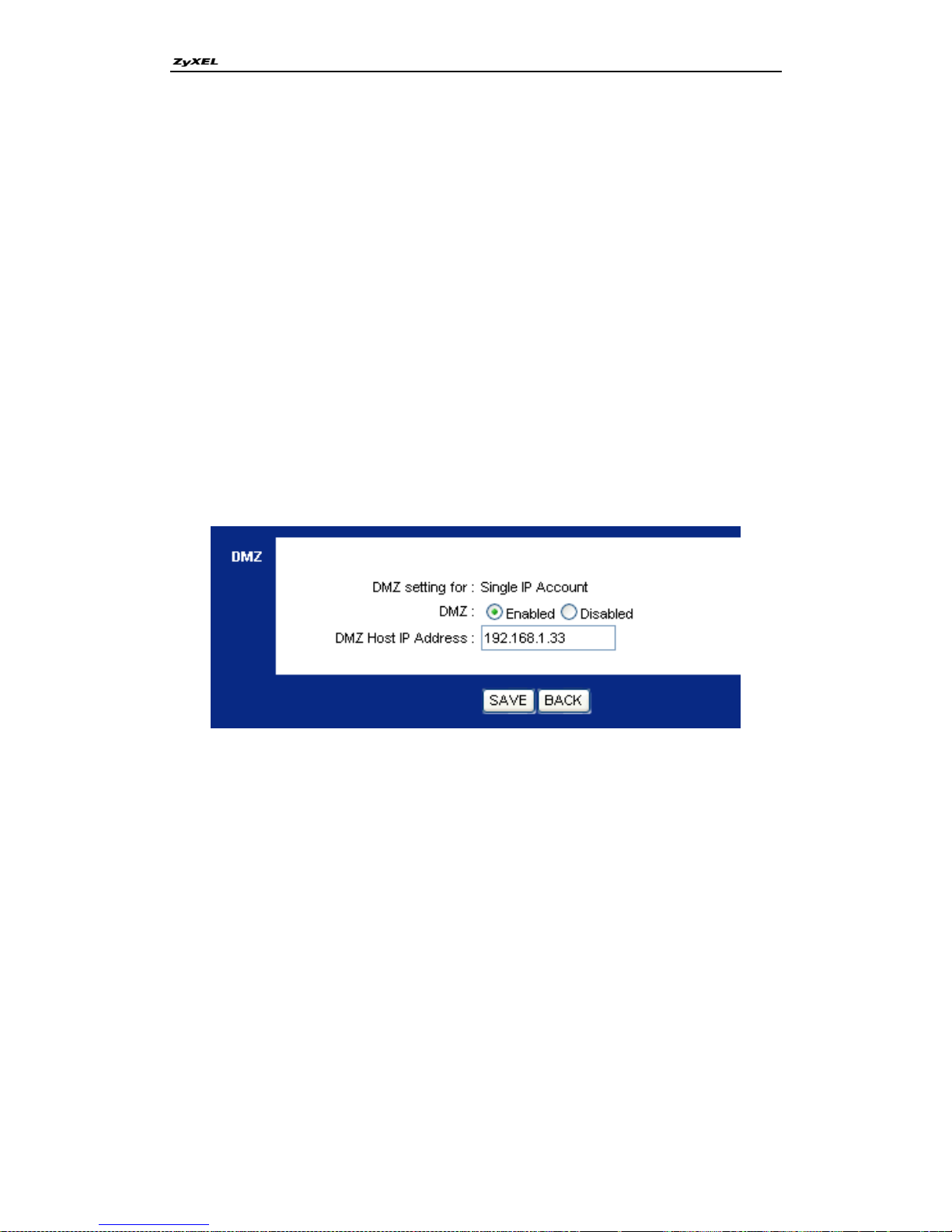
Configuring an internal Web server for outside access (suppose the
Server IP Address is 192.168.1.33):
Enable DMZ and fill in the DMZ Host IP Address, press button „Save‟
Note that there are some default ports for different applications. If you want to
change them, you could write it in the start port number and end port number
columns and press button „Save‟ to submit your settings.
Page 36

P-660R-Tx v3 Series Support Notes
36
All contents copyright © 2008 ZyXEL Communications Corporation.
Default port numbers for some services
Service
Port Number
FTP
21
SSH
22
Telnet
23
SMTP
25
DNS (Domain Name Server)
53
www-http (Web)
80
POP3
110
HTTPs
443
PPTP
1723
VNC
5900
T.120
1503
H.232
1720
Configure a PPTP server behind SUA
Introduction
PPTP is a tunneling protocol defined by the PPTP forum that allows PPP
packets to be encapsulated within Internet Protocol (IP) packets and
forwarded over any IP network, including the Internet itself.
In order to run the Windows 9x PPTP client, you must be able to establish an
IP connection with a tunnel server such as the Windows NT Server 4.0
Remote Access Server.
Windows Dial-Up Networking uses the Internet standard Point-to-Point (PPP)
to provide a secure, optimized multiple-protocol network connection over
dial-up telephone lines. All data sent over this connection can be encrypted
and compressed, and multiple network level protocols (TCP/IP, NetBEUI and
Page 37
P-660R-Tx v3 Series Support Notes
37
All contents copyright © 2008 ZyXEL Communications Corporation.
IPX) can be run correctly. Windows NT Domain Login level security is
preserved even across the Internet.
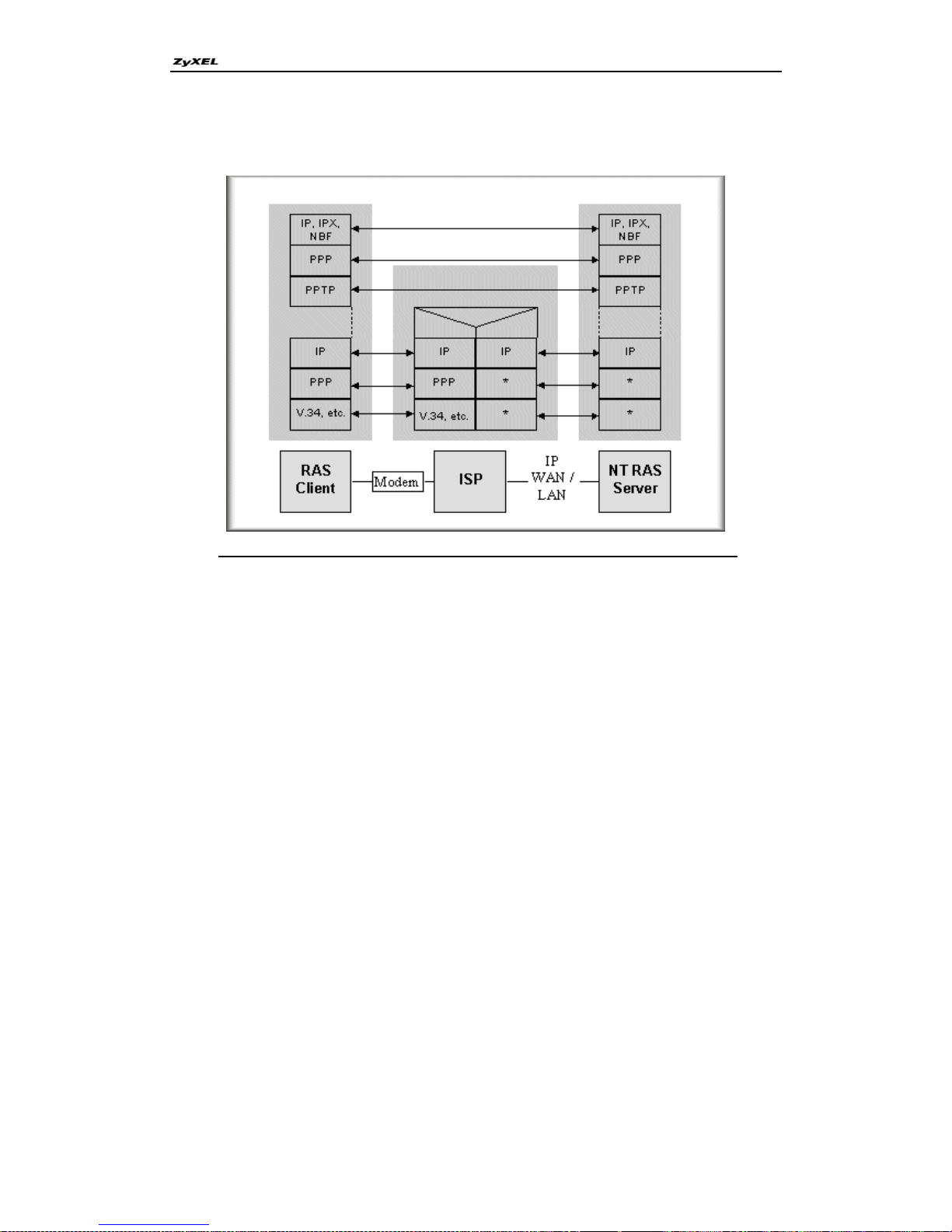
Window98 PPTP Client / Internet / NT RAS Server Protocol Stack
PPTP appears as new modem type (Virtual Private Networking Adapter) that
can be selected when setting up a connection in the Dial-Up Networking folder.
The VPN Adapter type does not appear elsewhere in the system. Since PPTP
encapsulates its data stream in the PPP protocol, the VPN requires a second
dial-up adapter. This second dial-up adapter for VPN is added during the
installation phase of the Upgrade in addition to the first dial-up adapter that
provides PPP support for the analog or ISDN modem.
The PPTP is supported in Windows NT and Windows 98 already. For
Windows 95, it needs to be upgraded by the Dial-Up Networking 1.2 upgrade.
Configuration
This application note explains how to establish a PPTP connection with a
remote private network in the P-660R-Tx v3 SUA case. By default, the port
number of the PPTP is 1723.
Page 38
P-660R-Tx v3 Series Support Notes
38
All contents copyright © 2008 ZyXEL Communications Corporation.
Example
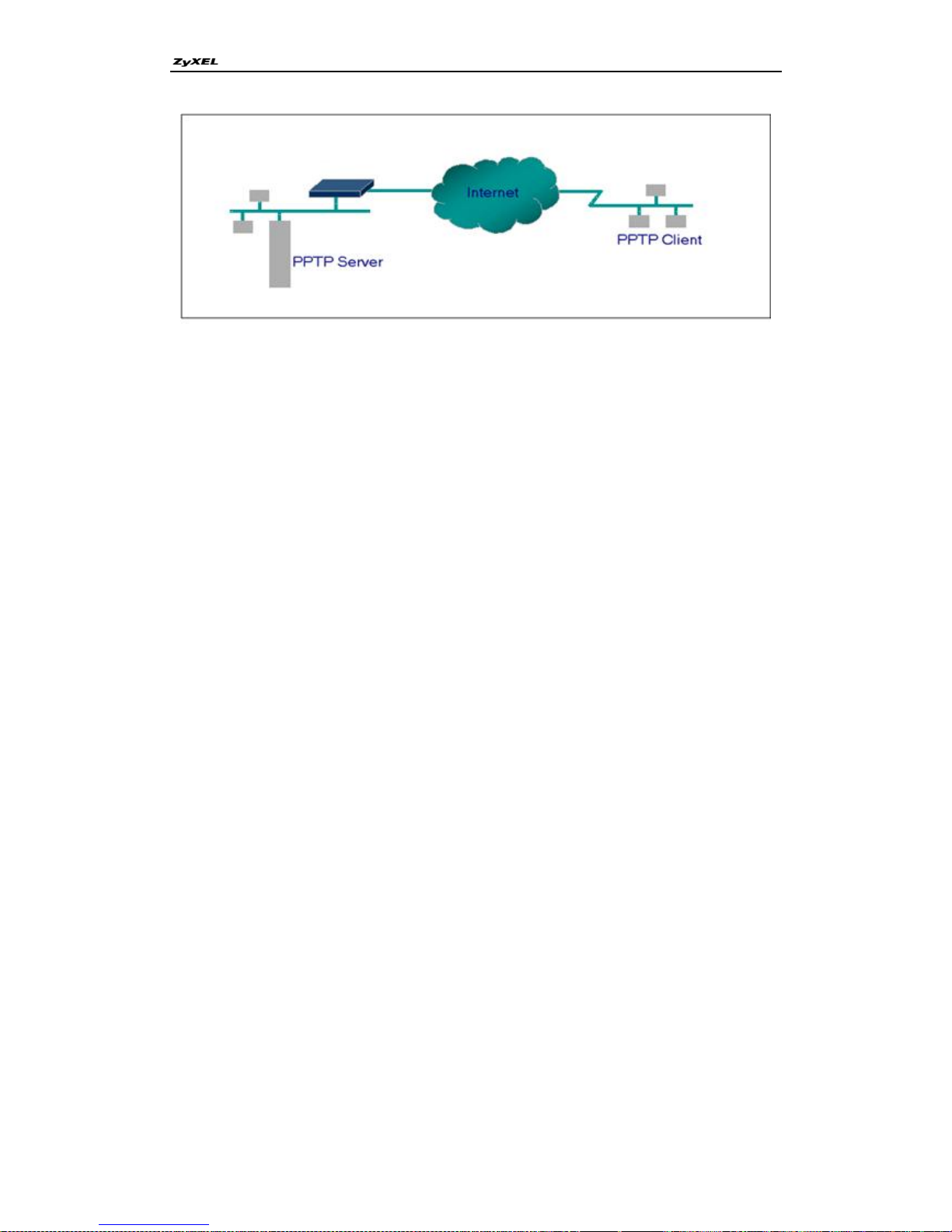
The following example shows how to dial to an ISP via the P-660R-Tx v3 and
then establish a tunnel to a private network. There will be three items that you
need to set up for PPTP application, these are PPTP server (WinNT), PPTP
client (Win9x) and the P-660R-Tx v3.
(1) PPTP server setup (WinNT)
Add the VPN service from Control Panel ->Network
Add an user account for PPTP logged on user
Enable RAS port
Select the network protocols from RAS such as IPX, TCP/IP NetBEUI
Set the Internet gateway to P-660R-Tx v3
(2) PPTP client setup (Win9x)
Add one VPN connection from Dial-Up Networking by entering the
correct username & password and the IP address of the P-660R-Tx v3's
Internet IP address for logging to NT RAS server.
Set the Internet gateway to the router that is connecting to ISP
(3) P-660R-Tx v3 setup
Before making a VPN connection from Win9x to WinNT server, you
need to connect P-660R-Tx v3 router to your ISP first.
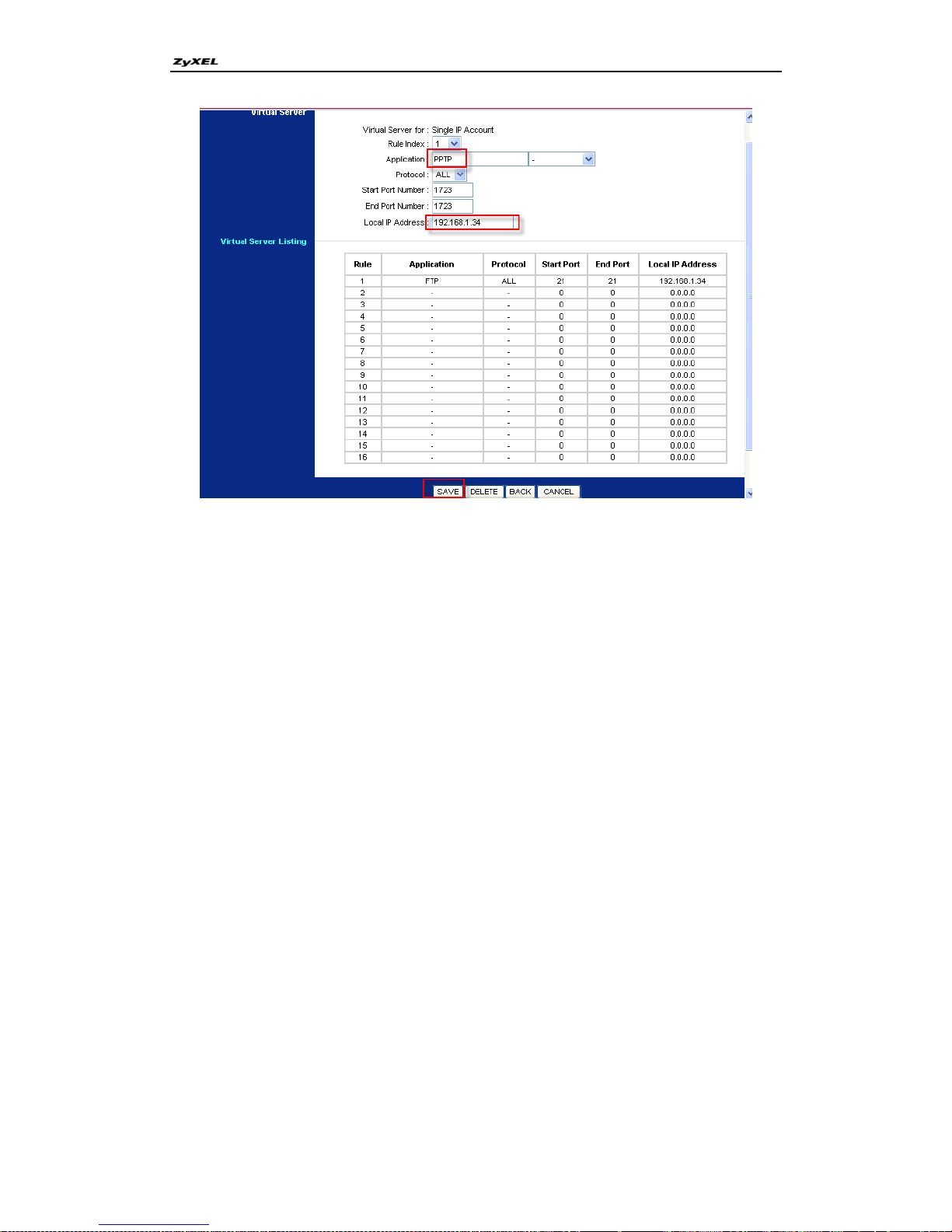
Enter the IP address of the PPTP server (WinNT server) and the
port number for PPTP as shown below:
Select service name as „PPTP‟, fill in the Server IP Address, then press button
„Save‟.
P-660R-Tx v3
Page 39
P-660R-Tx v3 Series Support Notes
39
All contents copyright © 2008 ZyXEL Communications Corporation.
When you have finished the above settings, you can ping to the remote Win9x
client from WinNT. This ping command is used to demonstrate that remote
the Win9x can be reached across the Internet. If the Internet connection
between two LANs is achievable, you can place a VPN call from the remote
Win9x client.
For example: C:\ping 203.66.113.2
When a dial-up connection to ISP is established, a default gateway is assigned
to the router traffic through that connection. Therefore, the output below shows
the default gateway of the Win9x client after the dial-up connection has been
established.
Before making a VPN connection from the Win9x client to the NT server, you
need to know the exact Internet IP address that the ISP assigns to P-660R-Tx
v3 router in SUA mode and enter this IP address in the VPN dial-up dialog box.
You can check this Internet IP address from PNC Monitor or S Web
Configurator, Status -> Device Info. If the Internet IP address is a fixed IP
address provided by ISP in SUA mode, then you can always use this IP
address for reaching the VPN server.
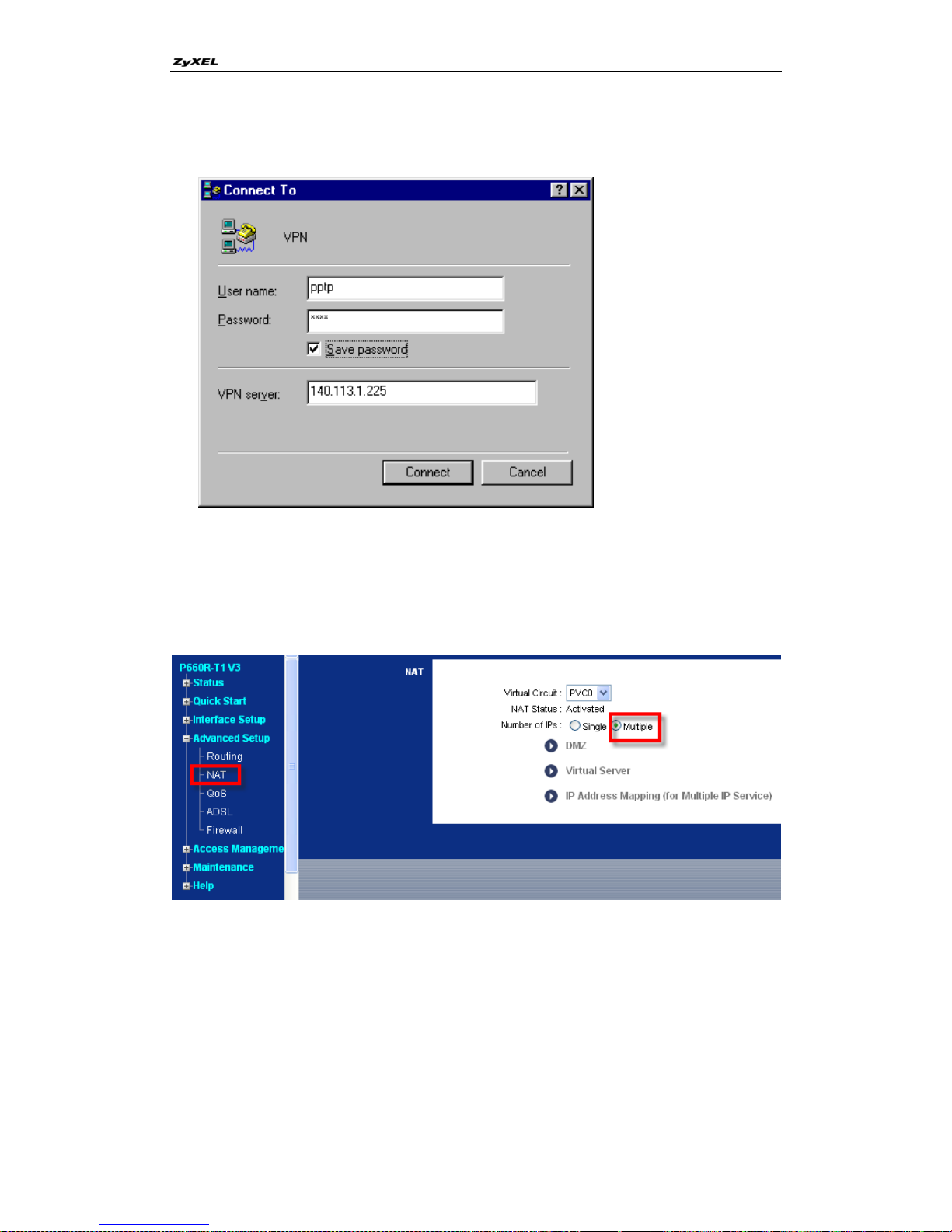
In the following example, the IP address '140.113.1.225' is dynamically
assigned by ISP. You must enter this IP address in the 'VPN Server' dialog box
Page 40
P-660R-Tx v3 Series Support Notes
40
All contents copyright © 2008 ZyXEL Communications Corporation.
for reaching the PPTP server. After the VPN link is established, you can start
the network protocol application such as IP, IPX and NetBEUI.
6. Using Full Feature NAT
When P-660R-Tx v3 is in Routing mode, you can select NAT Option as
Multiple IPs (equal to Full Feature) in Advanced Setup -> NAT-> Number of
IPs:
Page 41

P-660R-Tx v3 Series Support Notes
41
All contents copyright © 2008 ZyXEL Communications Corporation.
Key Settings:
Field
Options
Description
Numbers of IPs
Multiple
When you select this option you can select
Address Mapping Set Number 1~8 in the
pull-down menu in Virtual Circuit.
Single
When you select this option, this remote node
will use default SUA Address Mapping Set.
You can see it in CLI by command „ip nat
lookup 255‟. It‟s a read-only sets with two
rules: Many-to-One and server mapping.
Select Full Feature when you require other
mapping types.
Configuring NAT
Address Mapping Sets and NAT Server Sets
The P-660R-Tx v3 has 8 remote nodes and so allows you to configure 8 NAT
Address Mapping Sets, You must specify which NAT Address Mapping Set
(1~8) to use in the remote node when you select Multiple IPs. You can edit 8
rules for each Address Mapping Set.
The NAT Server Set is a list of LAN side servers mapped to external ports. We
can configure it in Web Configurator, Advanced Setup, Advanced Setup ->
NAT -> IP Address Mapping. To use the NAT server sets you‟ve configured, a
Server rule must be set up inside the NAT Address Mapping set. Please see
NAT Server Sets for further information on how to apply it.
Here we‟ll guide you to configure Address Mapping Sets from Web
Configurator and CLI.
Now let's begin with Web Configurator:
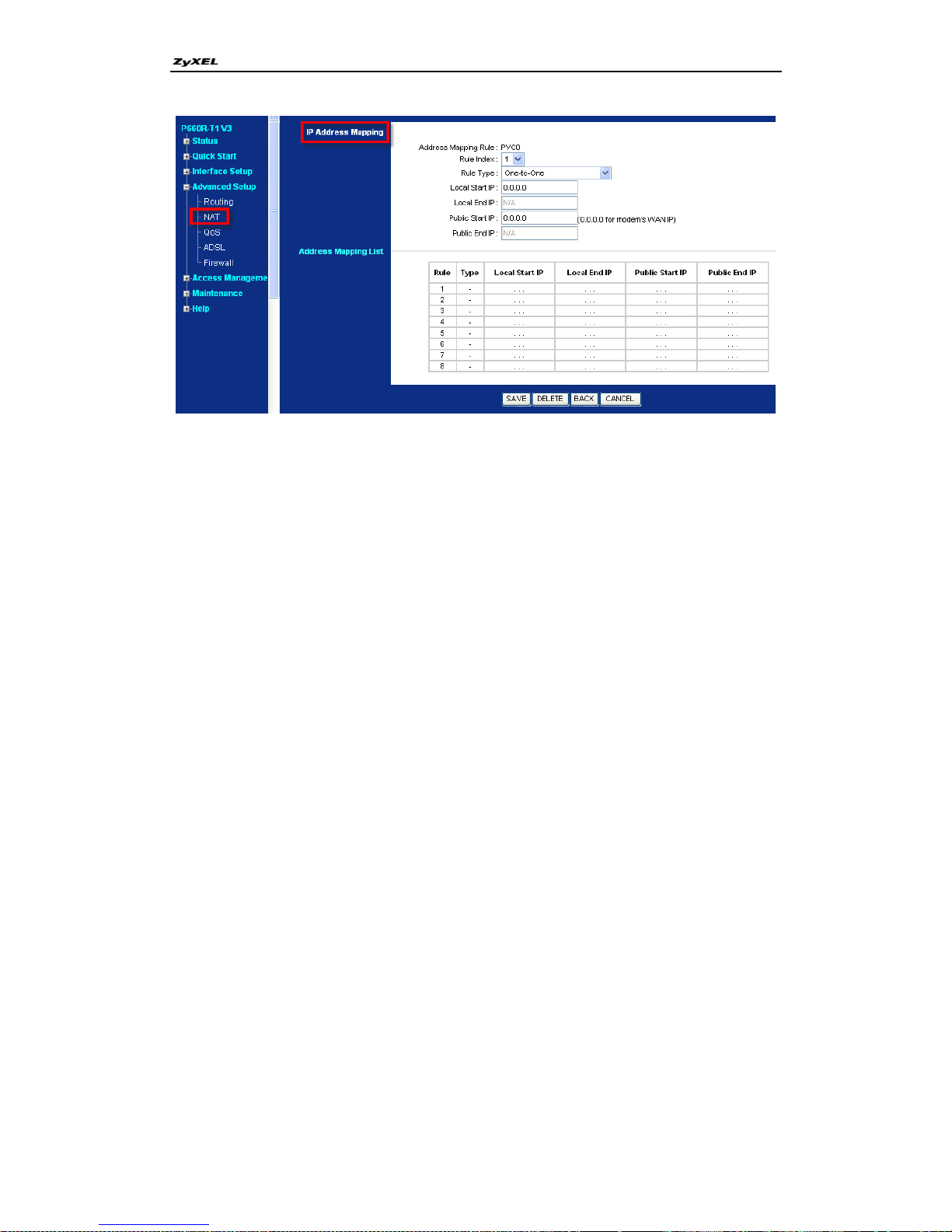
Firstly let‟s come to Web Configurator, Advanced Setup, Advanced Setup ->
NAT -> IP Address Mapping:
Page 42
P-660R-Tx v3 Series Support Notes
42
All contents copyright © 2008 ZyXEL Communications Corporation.
This menu is for Address Mapping Set #1, you can edit 8 Address Mapping
Rules for Set #1. You can edit or delete a rule by clicking the two buttons below
the rule table.
Click to select the rule number you want to set in the pull down menu, and then
the rule type and Start/End IPs.
Page 43

P-660R-Tx v3 Series Support Notes
43
All contents copyright © 2008 ZyXEL Communications Corporation.
The following table explains the fields in this above screen:
Field
Description
Option/Example
Rule Index
This is sequence number for Address Mapping Sets
1~8
Rule Type
This is the NAT mapping types.
One-to-one,
Many-to-One,
Many-to-Many
Overload,
Many-to-Many No
Overload and Server
Local
Start IP
This is the starting local IP address (ILA).
0.0.0.0
Local End
IP
This is the ending local IP address (ILA). If the rule is
for all local IPs, then put the Start IP as 0.0.0.0 and
the End IP as 255.255.255.255. This field is N/A for
One-to-One type.
255.255.255.255
Public Start
IP
This is the starting global IP address (IGA). If you
have a dynamic IP, enter 0.0.0.0 as the Global Start
IP.
0.0.0.0
Public End
IP
This is the ending global IP address (IGA). This field
is N/A for One-to-One, Many-to-One and Server
types.
200.1.1.64
Note: For all Local and Public End IP address must begin after the IP Start
address, i.e., you can not have an End IP address beginning before the Start
IP address.
NAT Server Sets
The NAT Server Set is a list of LAN side servers mapped to external ports. If
you wish, you can make inside servers for different services, e.g., Web or FTP,
visible to the outside users, even though NAT makes your network appears as
a single machine to the outside world. A server is identified by the port number,
e.g., Web service is on port 80 and FTP on port 21.
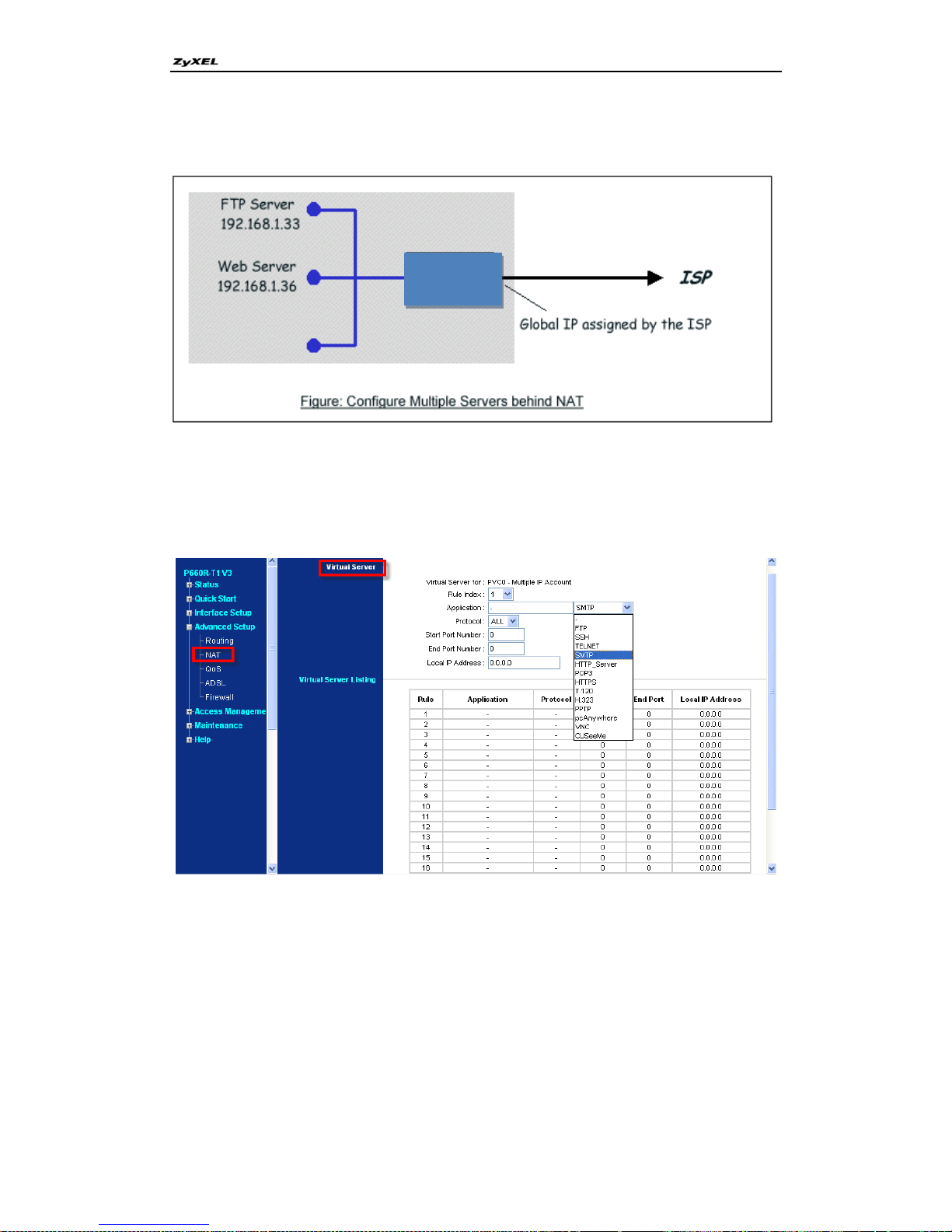
As an example (see the following figure), if you have a Web server at
192.168.1.36nd a FTP server at 192.168.1.33, then you need to specify for
port 80 (Web) the server at IP address 192.168.1.36 and for port 21 (FTP)
another at IP address 192.168.1.33.
Page 44
P-660R-Tx v3 Series Support Notes
44
All contents copyright © 2008 ZyXEL Communications Corporation.
Please note that a server can support more than one service, e.g., a server
can provide both FTP and Mail service, while another provides only Web
service.
The following procedures show how to configure a server behind NAT.
Step 1: Login Web Configurator, Advanced Setup -> NAT -> Virtual Server
Step 2: Select the service name from the pull-down menu, and fill in the server
Address on „Local IP Address‟ and then save it.
Step 3: You could click in to modify the Service name, Server IP Address,
Start/End Port.
The most often used port numbers are shown in the following table. Please
refer RFC 1700 for further information about port numbers.
P-660R-Tx
v3
Page 45
P-660R-Tx v3 Series Support Notes
45
All contents copyright © 2008 ZyXEL Communications Corporation.
Service
Port Number
FTP
21
Telnet
23
SMTP
25
DNS (Domain Name Server)
53
www-http (Web)
80
PPTP (Point-to-Point Tunneling
Protocol)
1723
Examples
Internet Access Only
Internet Access with an Internal Server
Using Multiple Global IP addresses for clients and servers
Support Non NAT Friendly Applications
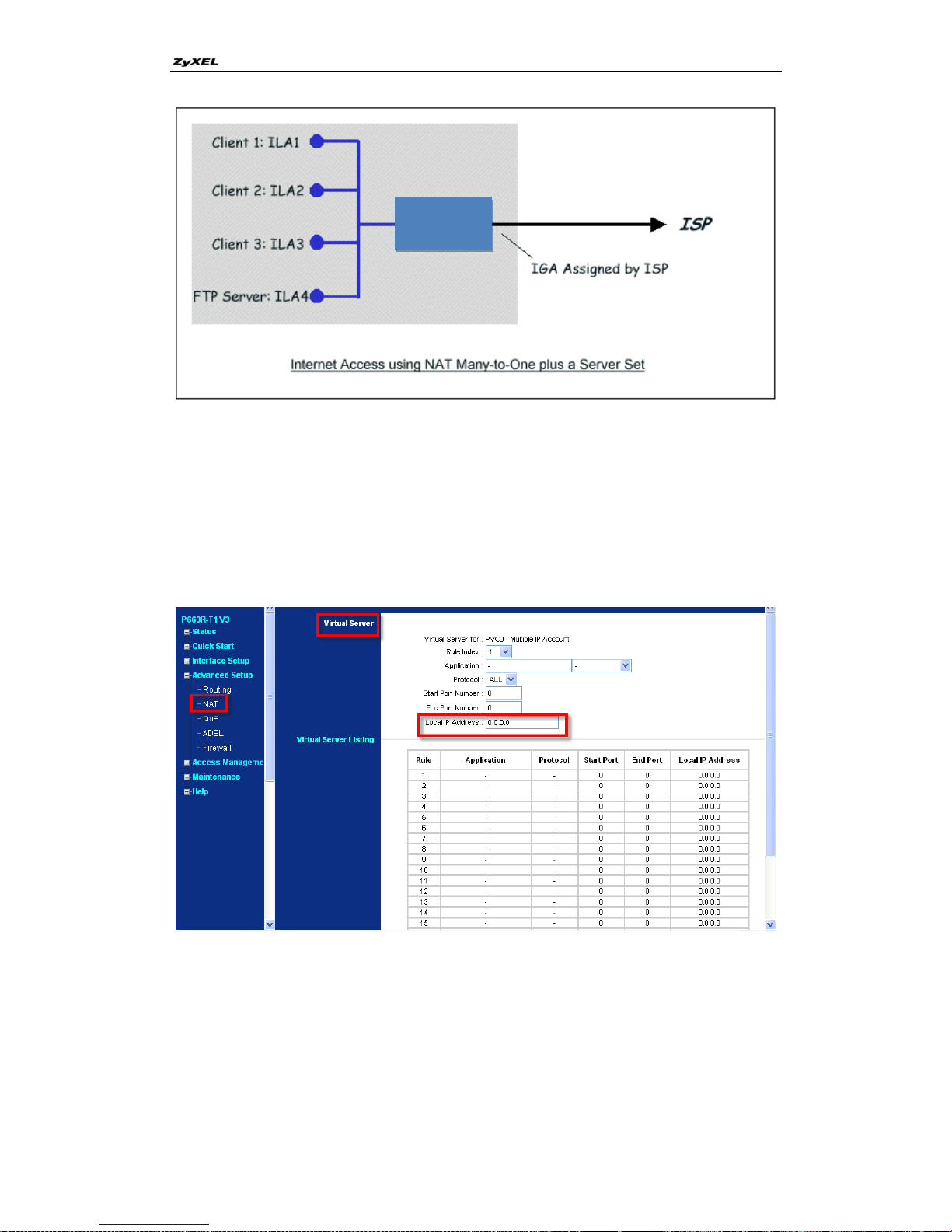
(1) Internet Access Only
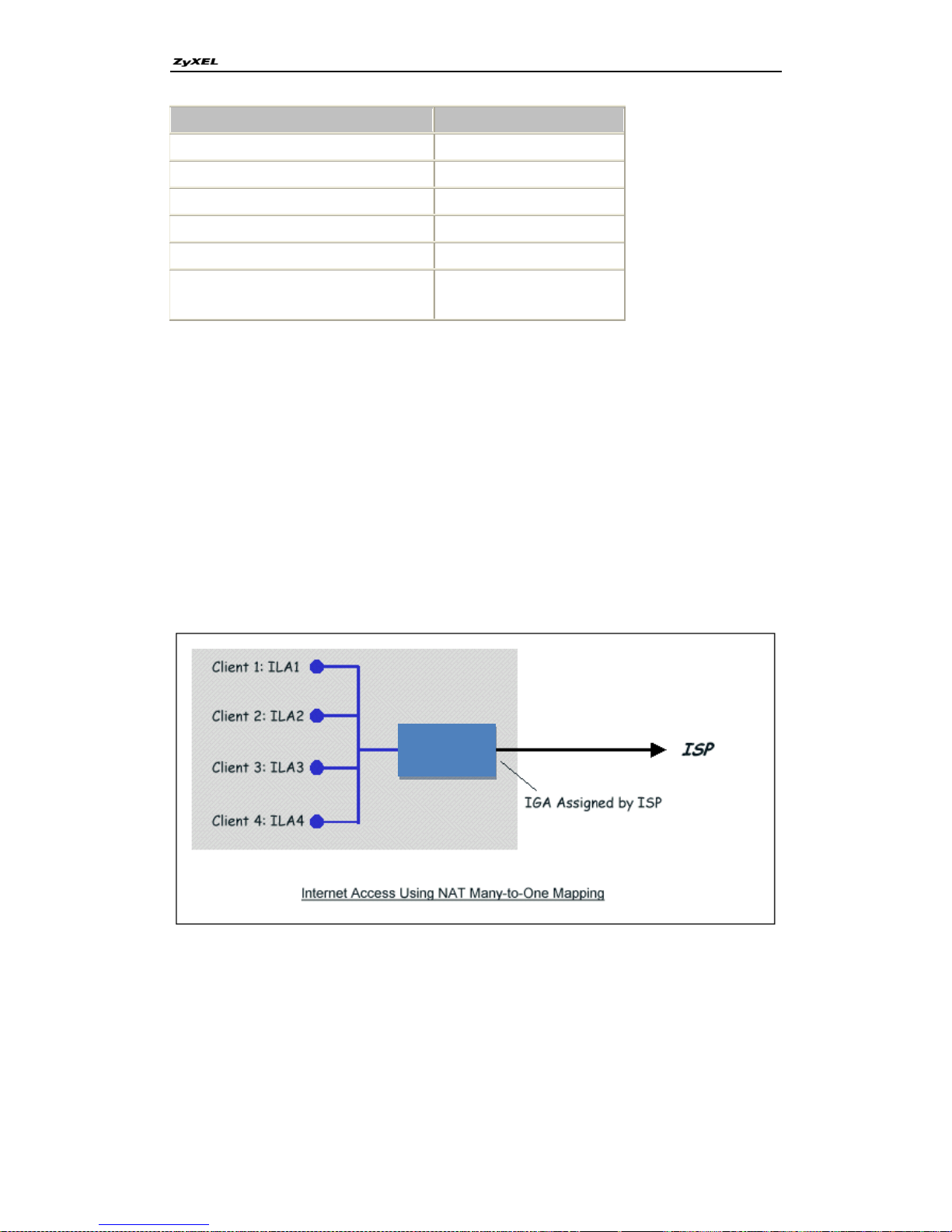
In our Internet Access example, we only need one rule where all our ILAs map
to one IGA assigned by the ISP. You can just use the default Single NAT or
you could select Multiple NAT and select an Address Mapping Set with a
Many-to-One Rule. See the following figure.
(2) Internet Access with an Internal Server
P-660R-Tx
v3
Page 46
P-660R-Tx v3 Series Support Notes
46
All contents copyright © 2008 ZyXEL Communications Corporation.
In this case, we do exactly as the figure (use the convenient pre-configured
SUA Only set) and also go to Web Configurator, Advanced Setup, Advanced
Setup -> NAT -> Virtual Server
to specify the Internet Server behind the NAT as below:
P-660R-Tx
v3
Page 47
P-660R-Tx v3 Series Support Notes
47
All contents copyright © 2008 ZyXEL Communications Corporation.
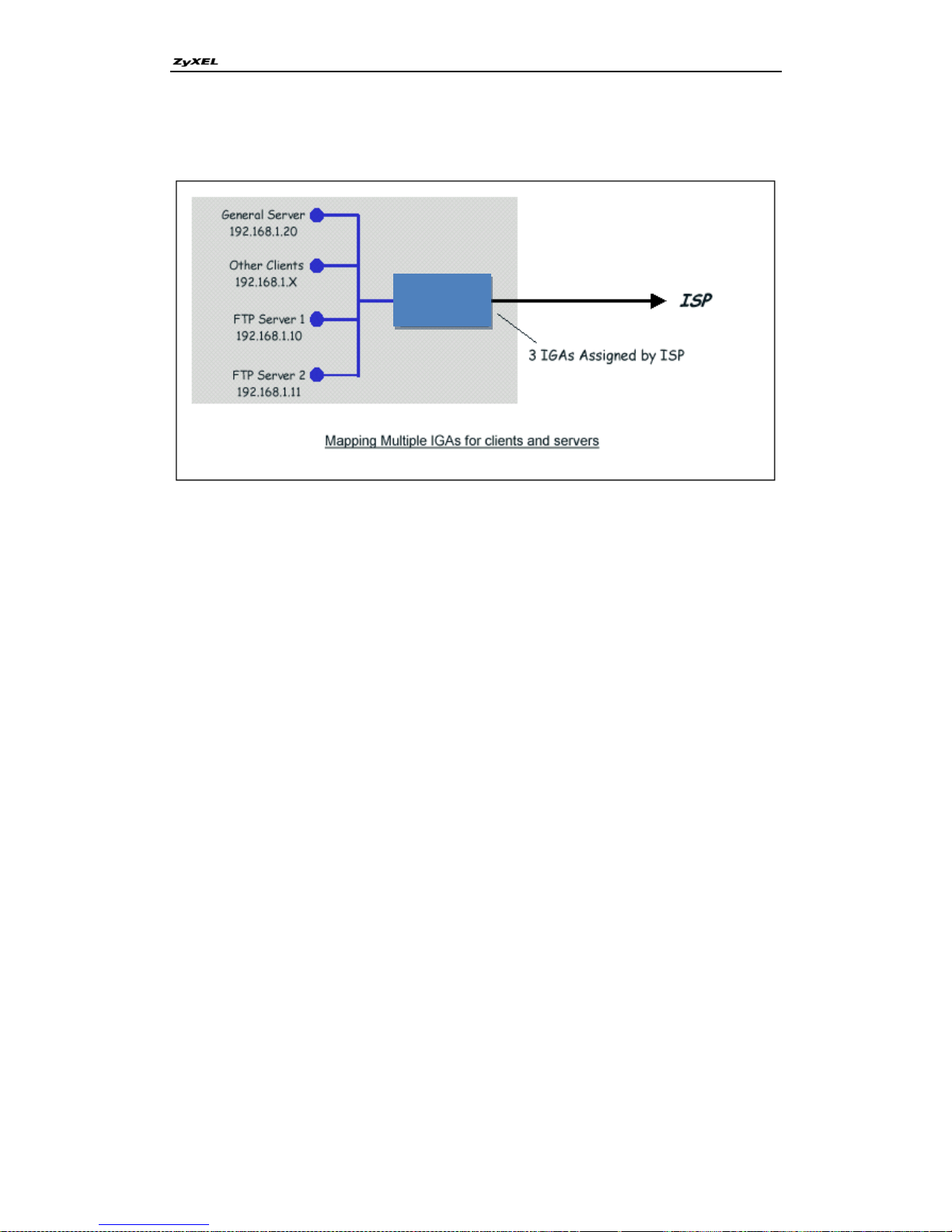
(3) Using Multiple Global IP addresses for clients and servers
(One-to-One, Many-to-One, Server Set mapping types are used)
In this case we have 3 IGAs from the ISP. We have two very busy internal FTP
servers and also an internal general server for the web and mail. In this case,
we want to assign the 3 IGAs by the following way using 4 NAT rules.
Rule 1 (One-to-One type) to map the FTP Server 1 with ILA1
(192.168.1.10) to IGA1 (200.0.0.1).
Rule 2 (One-to-One type) to map the FTP Server 2 with ILA2
(192.168.1.11) to IGA2 (200.0.0.2).
Rule 3 (Many-to-One type) to map the other clients to IGA3 (200.0.0.3).
Rule 4 (Server type) to map a web server and mail server with ILA3
(192.168.1.20) to IGA3. Type Server allows us to specify multiple
servers, of different types, to other machines behind NAT on the LAN.
Step 1: In this case, we need to map ILA to more than one IGAs therefore we
must choose the Multiple IPs option from the NAT field in currently active
remote node, and assign IGA3 to P-660R-Tx v3‟s WAN IP Address.
Step 2: Go to Web Configurator, Advanced Setup, Advanced Setup-> NAT ->
IP Address Mapping to begin configuring Address Mapping Set #1. We can
see there are 8 blank rule table that could be configured. See the following
setup for the four rules in our case.
Rule 1 Setup: Select One-to-One type to map the FTP Server 1 with ILA1
(192.168.1.10) to IGA1 (200.0.0.1).
P-660R-Tx
v3
Page 48
P-660R-Tx v3 Series Support Notes
48
All contents copyright © 2008 ZyXEL Communications Corporation.
Rule 2 Setup: Selecting One-to-One type to map the FTP Server 2 with ILA2
(192.168.1.11) to IGA2 (200.0.0.2).
Rule 3 Setup: Select Many-to-One type to map the other clients to IGA3
(200.0.0.3).
Rule 4 Setup: Select Server type to map our web server and mail server with
ILA3 (192.168.1.20) to IGA3.
Menu Network -> NAT -> Address Mapping should look as follows now:
Step 3: Now we configure all other incoming traffic to go to our web server and
mail server from Web Configurator.
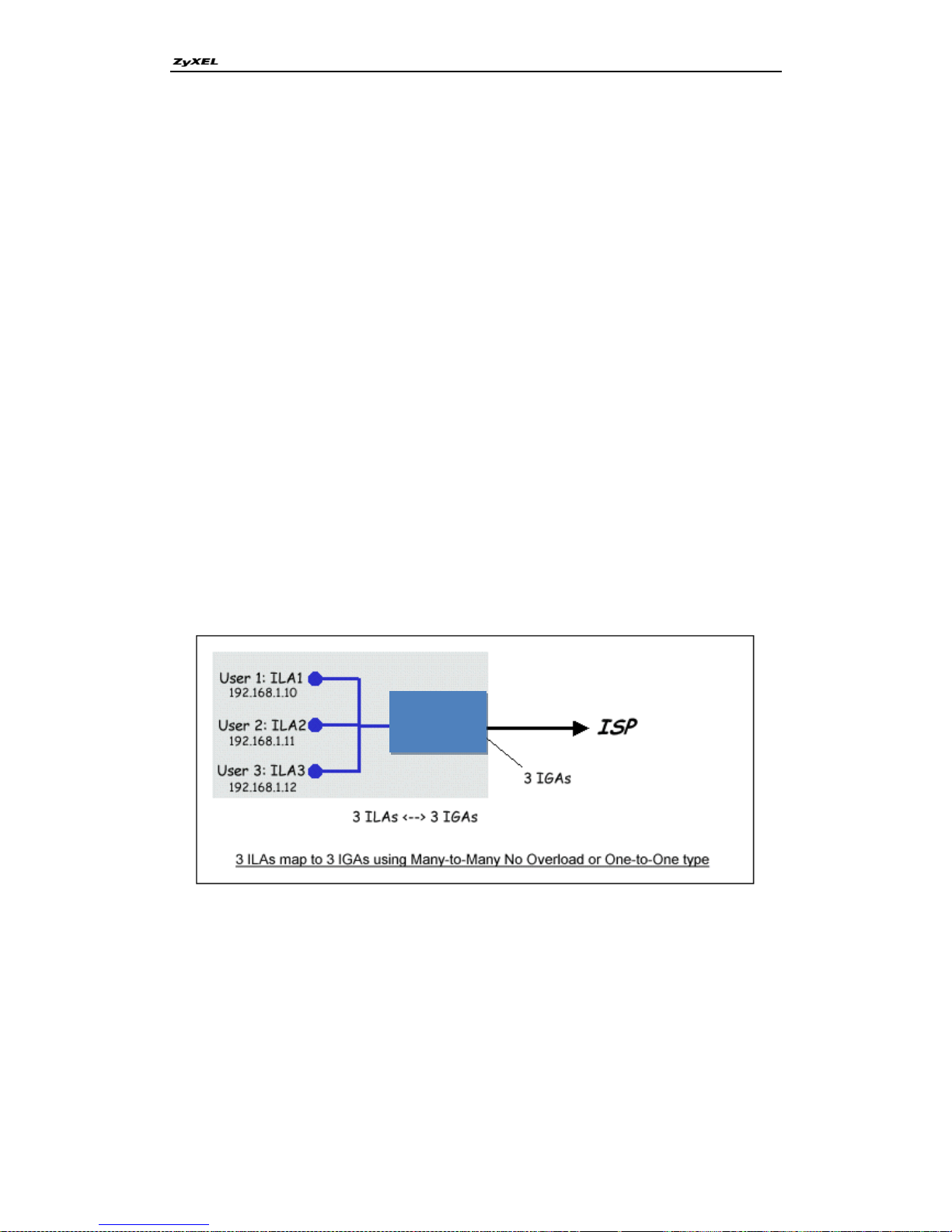
(4) Support Non NAT Friendly Applications
Some servers providing Internet applications such as some mIRC servers do
not allow users to login using the same IP address. In this case it is better to
use Many-to-Many No Overload or One-to-One NAT mapping types, thus each
user login to the server using a unique global IP address. The following figure
illustrates this.
7. Using the Dynamic DNS (DDNS)
What is DDNS?
The DDNS service, an IP Registry provides a public central database where
information such as email addresses, hostnames; IPs etc. can be stored and
P-660R-Tx
v3
Page 49
P-660R-Tx v3 Series Support Notes
49
All contents copyright © 2008 ZyXEL Communications Corporation.
retrieved. This solves the problems if your DNS server uses an IP associated
with dynamic IPs.
Without DDNS, we always tell the users to use the WAN IP of the P-660R-Tx
v3 to access the internal server. It is inconvenient for the users if this IP is
dynamic. With DDNS supported by the P-660R-Tx v3, you apply a DNS name
(e.g., www.zyxel.com.tw) for your server (e.g., Web server) from a DDNS
server. The outside users can always access the web server using the
www.zyxel.com.tw regardless of the WAN IP of the P-660R-Tx v3. When the
ISP assigns the P-660R-Tx v3 a new IP, the P-660R-Tx v3 must inform the
DDNS server the change of this IP so that the server can update its IP-to-DNS
entry. Once the IP-to-DNS table in the DDNS server is updated, the DNS name
for your web server (i.e., www.zyxel.com.tw) is still usable.
The DDNS server the P-660R-Tx v3 supports currently is
WWW.DYNDNS.ORG where you apply the DNS from and update the WAN IP
to.
Setup the DDNS
1. Before configuring the DDNS settings in the P-660R-Tx v3, you must
register an account from the DDNS server such as
WWW.DYNDNS.ORG first. After the registration, you have a hostname
for your internal server and a password using to update the IP to the
DDNS server.
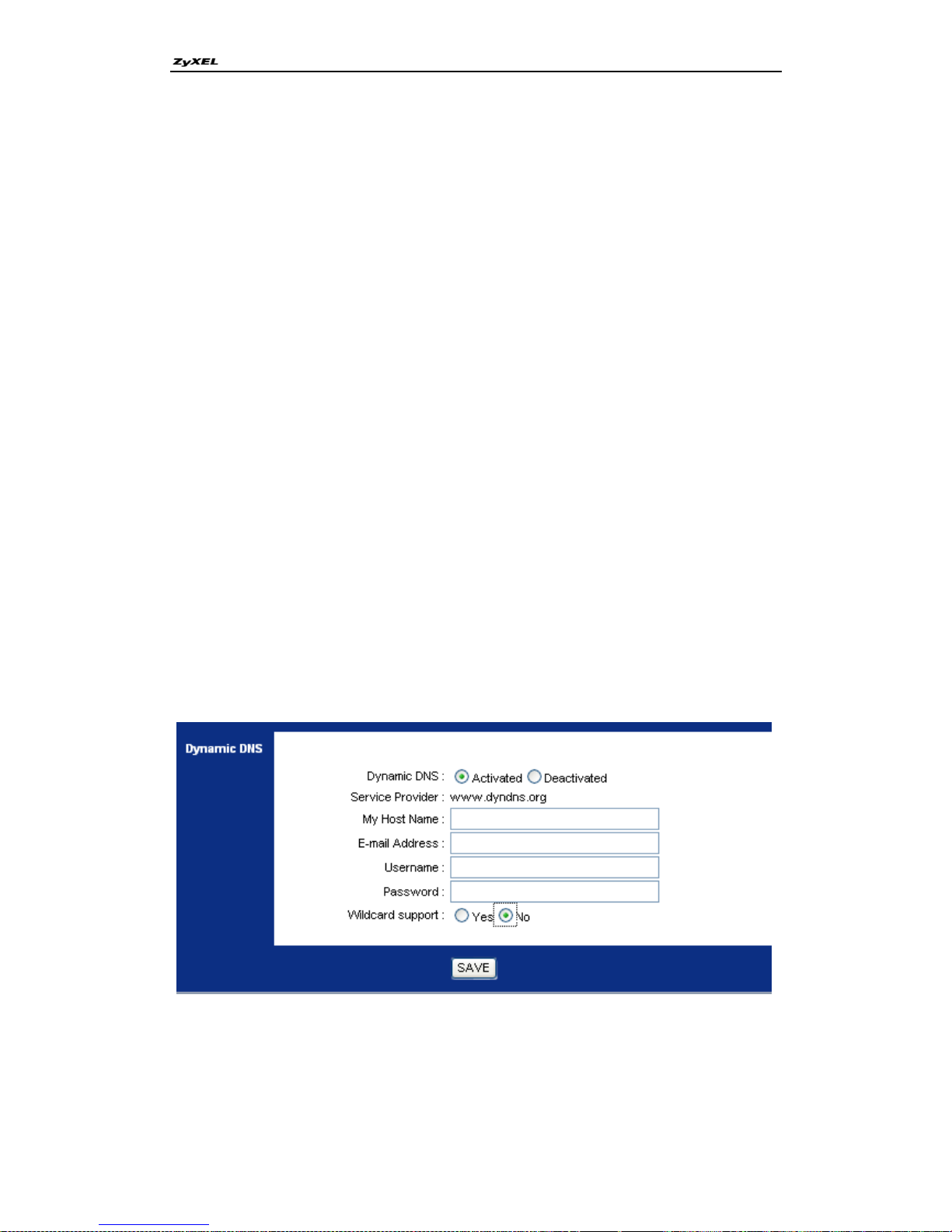
2. Login Web Configurator, Advanced Setup, Access Management ->
Dynamic DNS Select 'Actived' option:
Page 50

P-660R-Tx v3 Series Support Notes
50
All contents copyright © 2008 ZyXEL Communications Corporation.
Key Settings:
Option
Description
Service Provider
Currently, we support WWW.DYNDNS.ORG.
My Host Name
Enter the hostname you subscribe from the above DDNS server.
For example, zyxel.com.tw.
E-mail Address
Enter your e-mail address from which can contact you when need
User Name
Enter the user name that the DDNS server gives to you.
Password
Enter the password that the DDNS server gives to you.
Enable Wildcard
Enter the hostname for the wildcard function that the
WWW.DYNDNS.ORG supports. Note that Wildcard option is
available only when the provider is http://www.dyndns.org/.
8. Network Management Using SNMP
ZyXEL SNMP Implementation
ZyXEL currently includes SNMP support in some P-660R-Tx v3 routers. It is
implemented based on the SNMPv1, so it will be able to communicate with
SNMPv1 NMSs. Further, users can also add ZyXEL's private MIB in the NMS
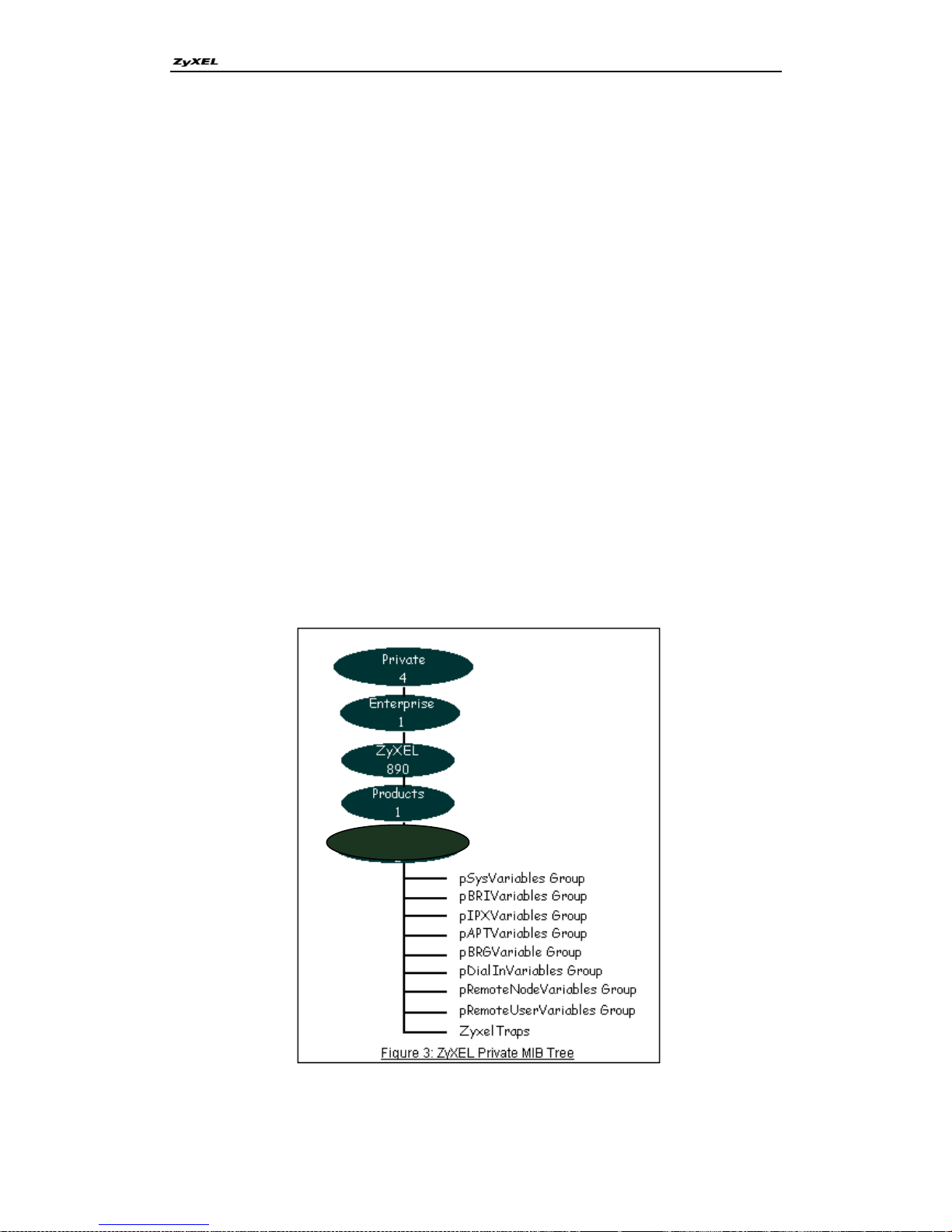
to monitor and control additional system variables. The ZyXEL's private MIB
tree is shown in figure 3. For SNMPv1 operation, ZyXEL permits one
community string so that the router can belong to only one community and
allows trap messages to be sent to only one NMS manager.
Some traps are sent to the SNMP manager when anyone of the following
events happens:
1. coldStart (defined in RFC-1215) :
If the machine coldstarts, the trap will be sent after booting.
2. warmStart (defined in RFC-1215) :
If the machine warmstarts, the trap will be sent after booting.
3. linkDown (defined in RFC-1215) :
If any link of IDSL or WAN is down, the trap will be sent with the port
number . The port number is its interface index under the interface
group.
4. linkUp (defined in RFC-1215) :
Page 51
P-660R-Tx v3 Series Support Notes
51
All contents copyright © 2008 ZyXEL Communications Corporation.
If any link of IDSL or WAN is up, the trap will be sent with the port
number . The port number is its interface index under the interface
group.
5. authenticationFailure (defined in RFC-1215) :
When receiving any SNMP get or set requirement with wrong community,
this trap is sent to the manager.
6. whyReboot (defined in ZYXEL-MIB) :
When the system is going to restart (warmstart), the trap will be sent with the
reason of restart before rebooting.
(1) For intentional reboot:
In some cases (download new files, CI command "sys reboot", ...), reboot is
done intentionally. And traps with the message "System reboot by user !" will
be sent.
(2) For fatal error:
System has to reboot for some fatal errors. And traps with the message of the
fatal code will be sent.
P-660R-Tx v3
2
Page 52
P-660R-Tx v3 Series Support Notes
52
All contents copyright © 2008 ZyXEL Communications Corporation.
Downloading ZyXEL's private MIB
Configure the P-660R-Tx v3 for SNMP
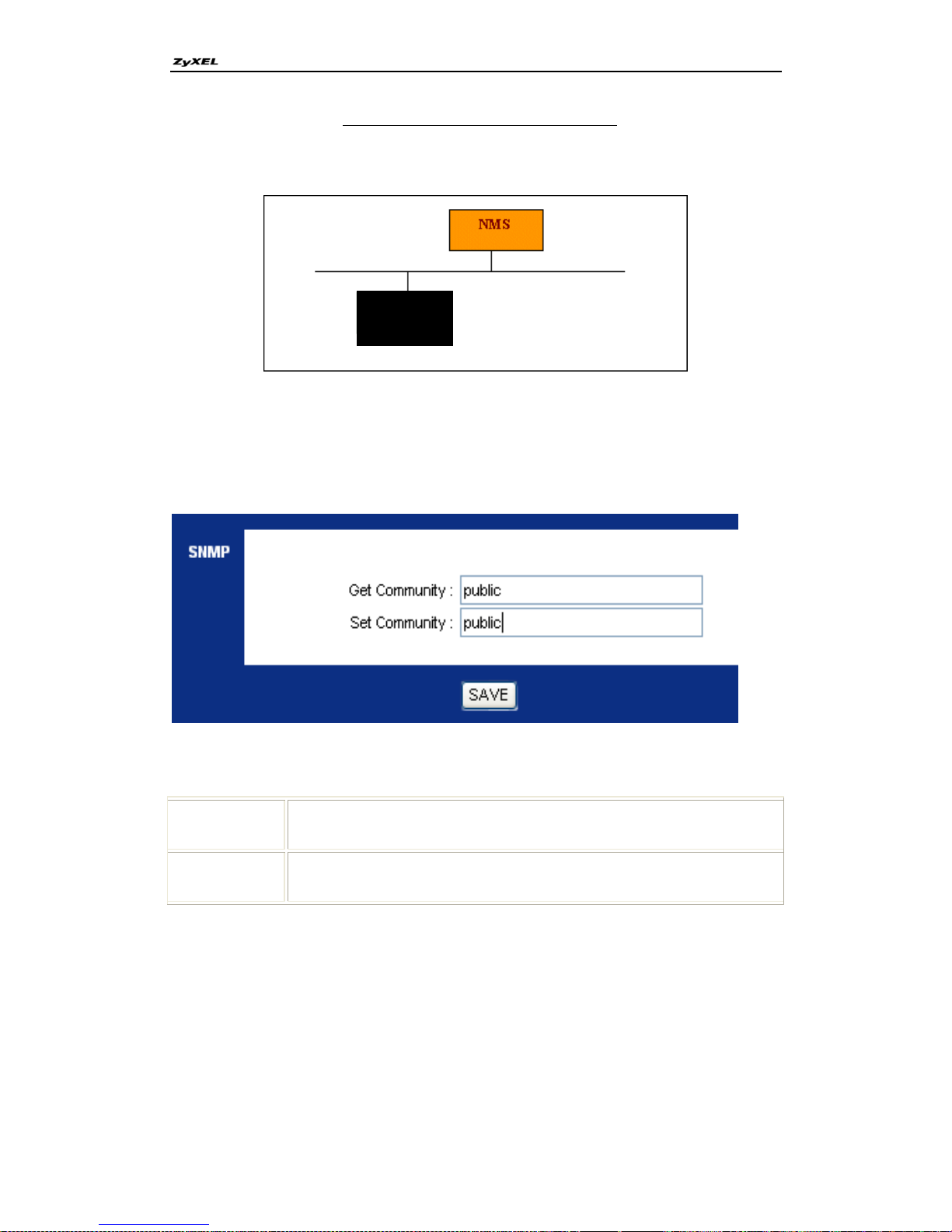
The SNMP related settings in P-660R-Tx v3 are configured in Web
Configurator, Advanced Setup, Access Management -> SNMP
Key Settings:
Get
Community
Select to set the password for the incoming Get- and Get Next
requests from the management station.
Set
Community
Select to set the password for incoming Set requests from the
management station.
9. Using system log
Our ADSL Router keeps a running log of events and activities occurring on the
Router. If the device is rebooted, the logs are automatically cleared
You can check your log in Web Configurator, Advanced Setup, Status ->
System Log
P-660R-Tx
v3
Page 53
P-660R-Tx v3 Series Support Notes
53
All contents copyright © 2008 ZyXEL Communications Corporation.
10. Using IP Alias
What is IP Alias?
In a typical environment, a LAN router is required to connect two local
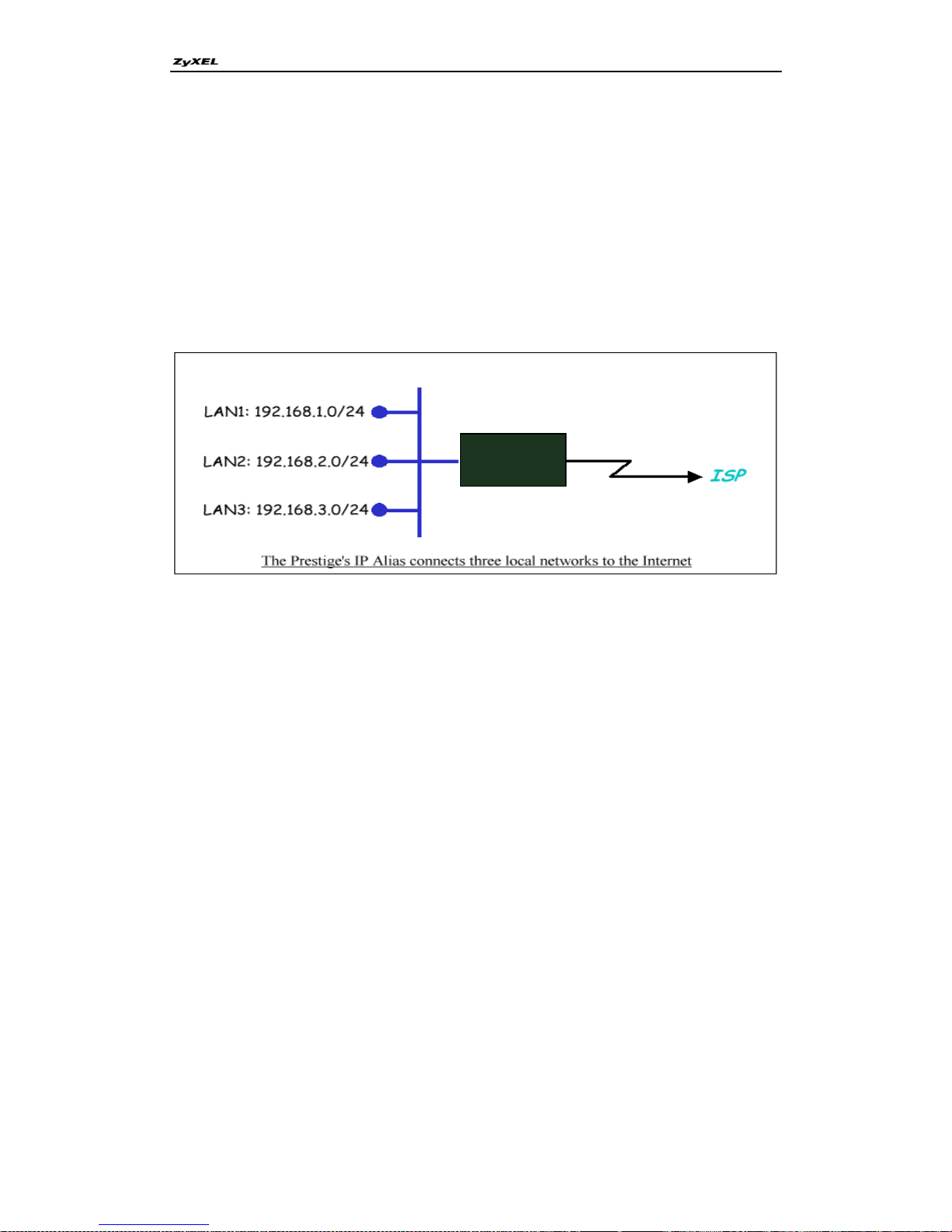
networks. The P-660R-Tx v3 can connect three local networks to the ISP or a
remote node; we call this function as 'IP Alias'. In this case, an internal router
is not required. For example, the network manager can divide the local
network into three networks and connect them to the Internet using P-660R-Tx
v3's single user account. See the figure below.
The P-660R-Tx v3 supports three virtual LAN interfaces via its single physical
Ethernet interface. The first network can be configured in Web Configurator,
Advanced Setup, Interface Setup -> LAN -> DHCP. The second and third
networks can be configured in telnet CLI.
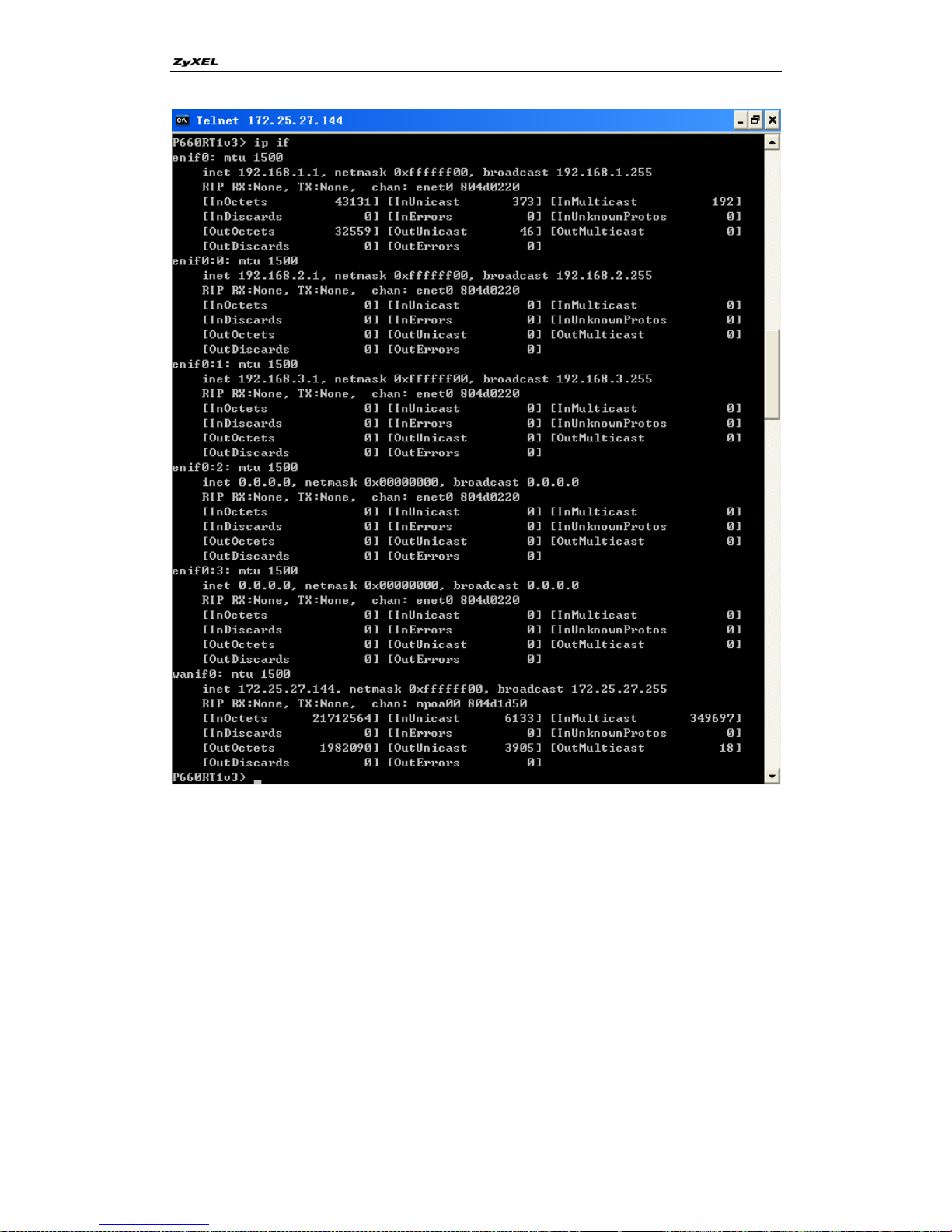
There are three internal virtual LAN interfaces for the P-660R-Tx v3 to route
the packets from/to the three networks correctly. They are enif0 for the major
network, enif0:0 for the IP alias 1, and enif0:1 for the IP alias 2. Therefore,
three routes are created in the P-660R-Tx v3 as shown below when the three
networks are configured. You can edit ip alias routes of P-660R-Tx v3 by
command in CLI:
lan index [index number]
Usage: index number =1 main LAN
2 IP Alias#1
3 IP Alias#2
lan ipaddr <ip address> <Mask>
lan sacve
If the P-660R-Tx v3's DHCP is also enabled, the IP pool for the clients can be
any of the three networks.
P-660R-Tx
v3
Page 54
P-660R-Tx v3 Series Support Notes
54
All contents copyright © 2008 ZyXEL Communications Corporation.
You can edit filter rule to accept or deny LAN packets from/to the IP alias 1/2
go through the P-660R-Tx v3 by command in CLI:
lan index [index number]
Usage: index number =1 main LAN
2 IP Alias#1
3 IP Alias#2
lan filter <incoming|outgoing> <tcpip|generic> [set#]
Usage: set#= the corresponding filter set number you‟ve configured
lan save
Page 55
P-660R-Tx v3 Series Support Notes
55
All contents copyright © 2008 ZyXEL Communications Corporation.
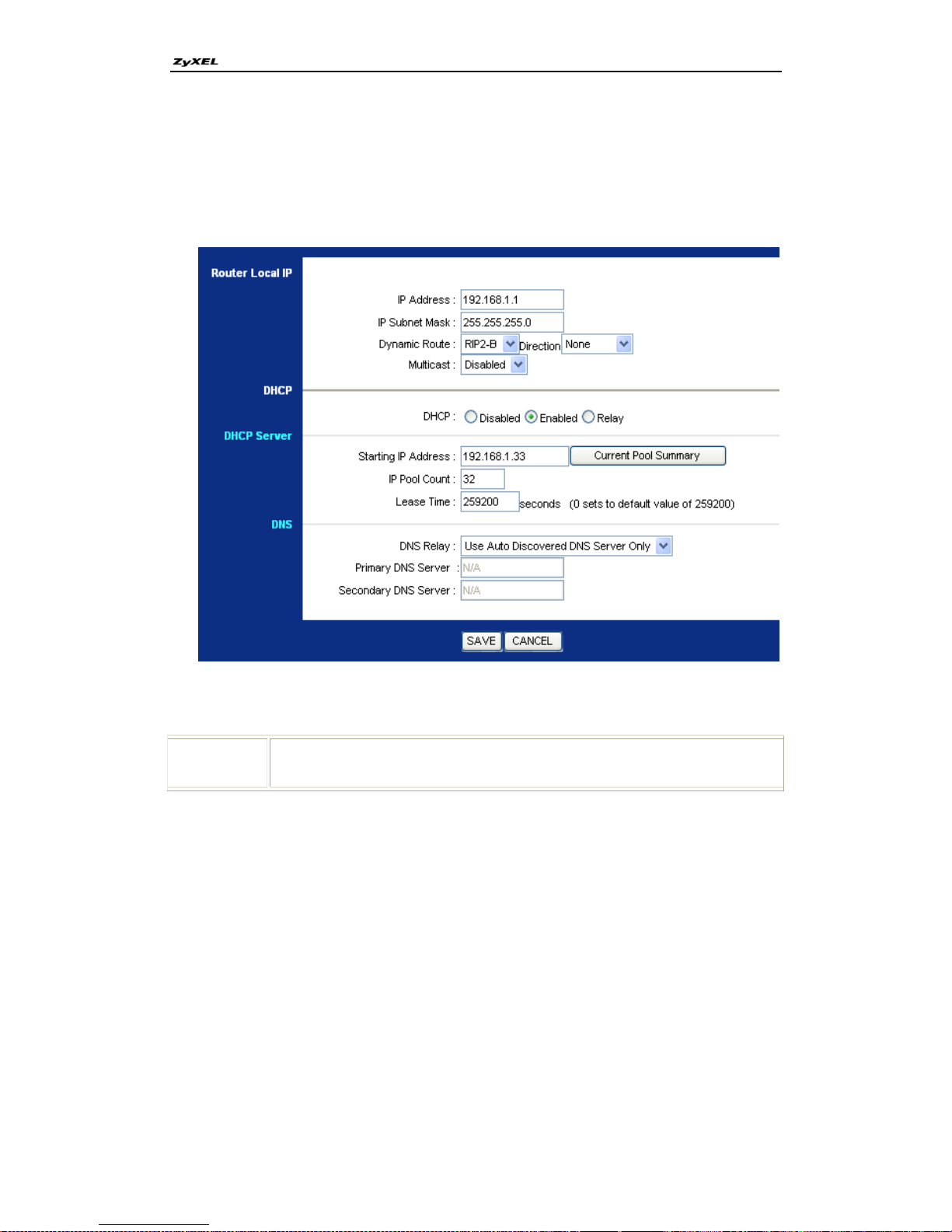
IP Alias Setup
(1) Edit the first network in Web Configurator, Advanced Setup, Interface
Setup -> LAN -> DHCP by configuring the P-660R-Tx v3's first LAN IP
address.
Key Settings:
DHCP
If the P-660R-Tx v3's DHCP server is enabled, the IP pool for the clients
can be any of the three networks.
(2) The second and third networks can be configured in CLI with the
commands mentioned above.
11. Using IP Multicast
What is IP Multicast?
Traditionally, IP packets are transmitted in two ways - unicast or broadcast.
Multicast is a third way to deliver IP packets to a group of hosts. Host groups
are identified by class D IP addresses, i.e., those with "1110" as their
higher-order bits. In dotted decimal notation, host group addresses range from
224.0.0.0 to 239.255.255.255. Among them, 224.0.0.1 is assigned to the
Page 56
P-660R-Tx v3 Series Support Notes
56
All contents copyright © 2008 ZyXEL Communications Corporation.
permanent IP hosts group, and 224.0.0.2 is assigned to the multicast routers
group.
IGMP (Internet Group Management Protocol) is the protocol used to support
multicast groups. The latest version is version 2 (see RFC2236). IP hosts use
IGMP to report their multicast group membership to any immediate-neighbor
multicast routers so the multicast routers can decide if a multicast packet
needs to be forwarded. At start up, the P-660R-Tx v3 queries all directly
connected networks to gather group membership.
After that, the P-660R-Tx v3 updates the information by periodic queries. The
P-660R-Tx v3 implementation of IGMP is also compatible with version 1. The
multicast setting can be turned on or off on Ethernet and remote nodes.
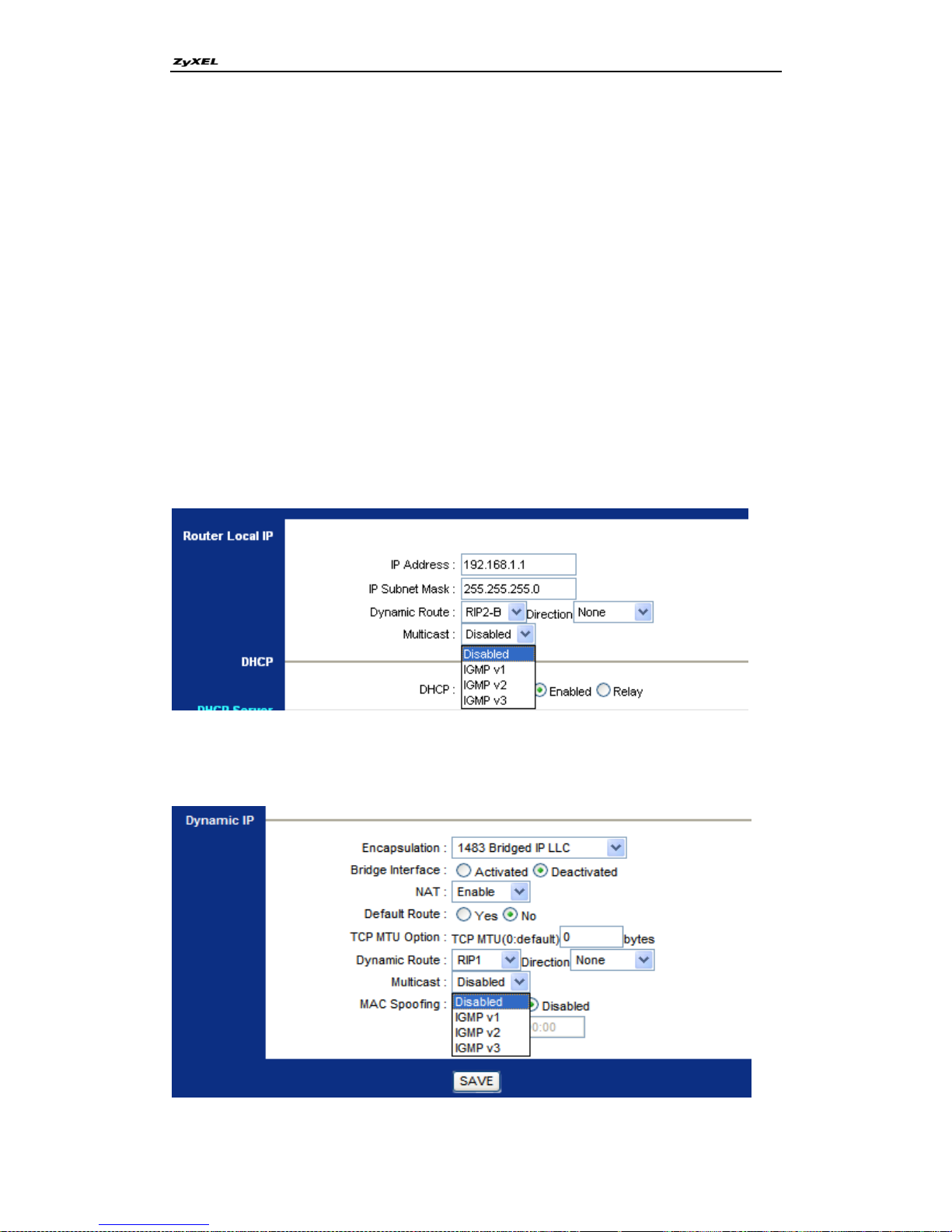
IP Multicast Setup
(1) Enable IGMP in P-660R-Tx v3's LAN in Web Configurator, Advanced
Setup, Interface Setup -> LAN -> Router Local IP
(2) Enable IGMP in P-660R-Tx v3's remote node in Web Configurator,
Advanced Setup, Interface Setup -> Internet -> Dynamic IP
Page 57
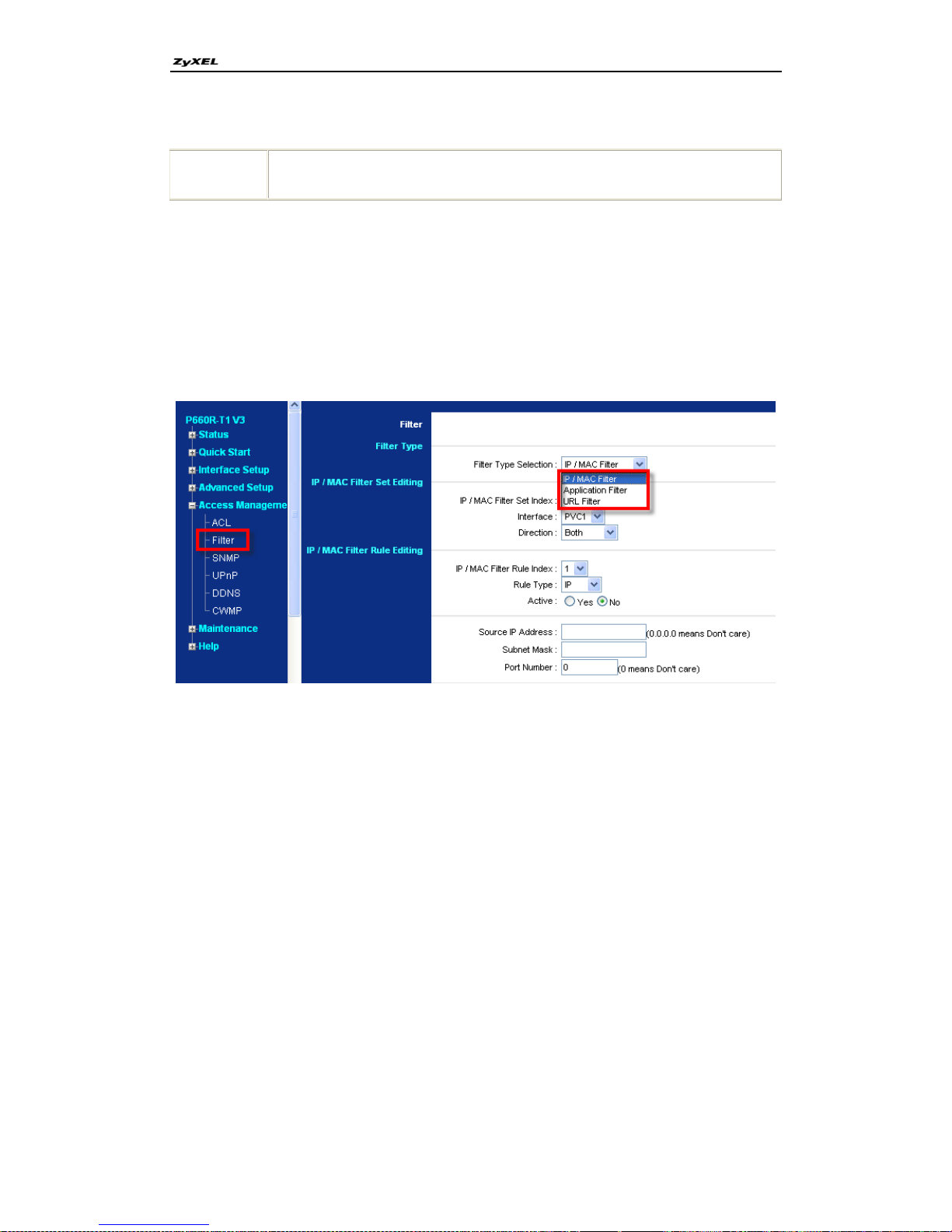
P-660R-Tx v3 Series Support Notes
57
All contents copyright © 2008 ZyXEL Communications Corporation.
Key Settings:
Multicast
IGMP-v1 for IGMP version 1, IGMP-v2 for IGMP version 2. IGMP-v3 for
IGMP version 3.
12. How to configure packet filter on P-660R-Tx v3?
The P-660R-Tx v3 allows you to configure up to three types: IP/MAC filter;
Application filter; URL filter.
You can set in the web configuration page: Access Management -> Filter
For each type, there are different filter rules for you to define.
Page 58
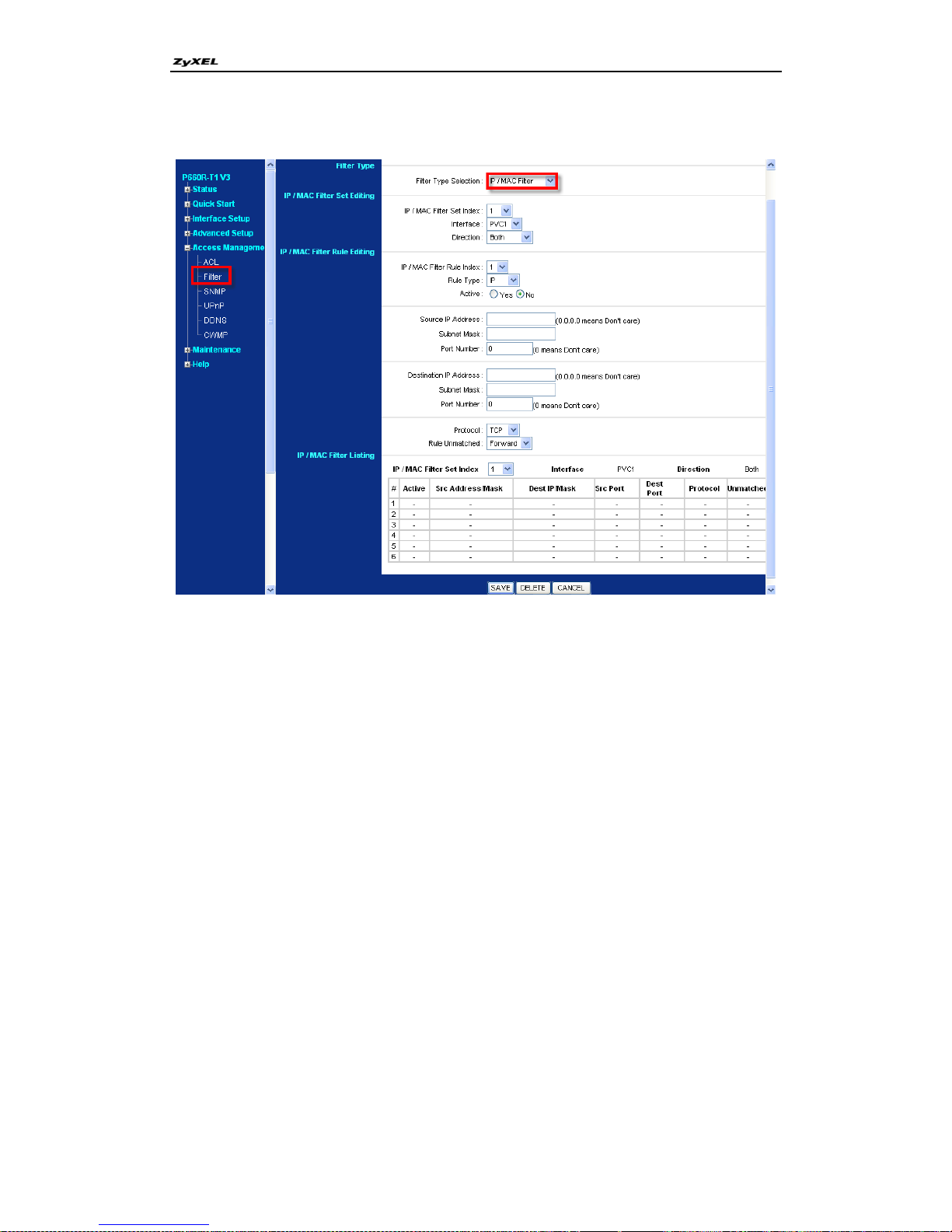
P-660R-Tx v3 Series Support Notes
58
All contents copyright © 2008 ZyXEL Communications Corporation.
Filter by IP/MAC
Page 59
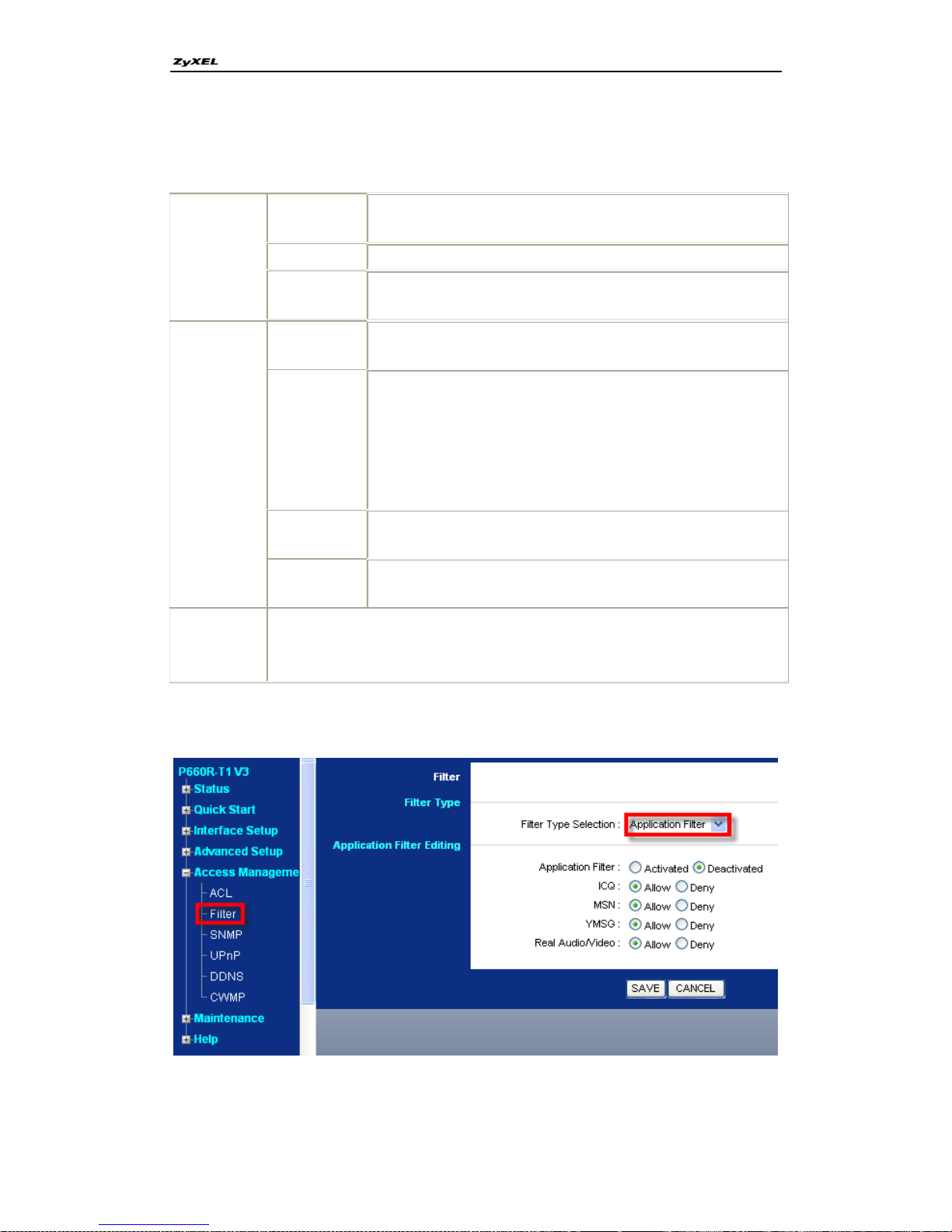
P-660R-Tx v3 Series Support Notes
59
All contents copyright © 2008 ZyXEL Communications Corporation.
Key Settings:
IP/MAC
Filter Set
Editing
IP/MAC Filter
Set Index
Select to define set index number. There are twelve sets in
all
Interface
Choose an active PVC to set in the pull down menu
Direction
Choose one of the filter direction: Both, Incoming,
Outgoing.
IP/MAC
Filter Rule
Editing
IP/MAC Filter
Rule Index
Choose a number as a rule index. There are 6 rules you
can configure
Rule Type
You can choose to filter by IP or MAC. If you choose filter
by IP, you will need to set source and destination IP as well
as port number of those packets you want to filter address
according to your need; if choose MAC as filter condition,
you may need to set their MAC Addresses from/to where
the packets come/go
Protocol
You can choose one of the protocols: (TCP, UDP or ICMP)
those to be filtered packets use
Rule
Unmatched
Define the action our P660R Tx v3 would take when the
packets meets none of the rules.
Ip/MAC
Filter Listing
You can check your filter rules have set according to the set Index.
Filter by Application
You can set filter condition by application here.
Page 60
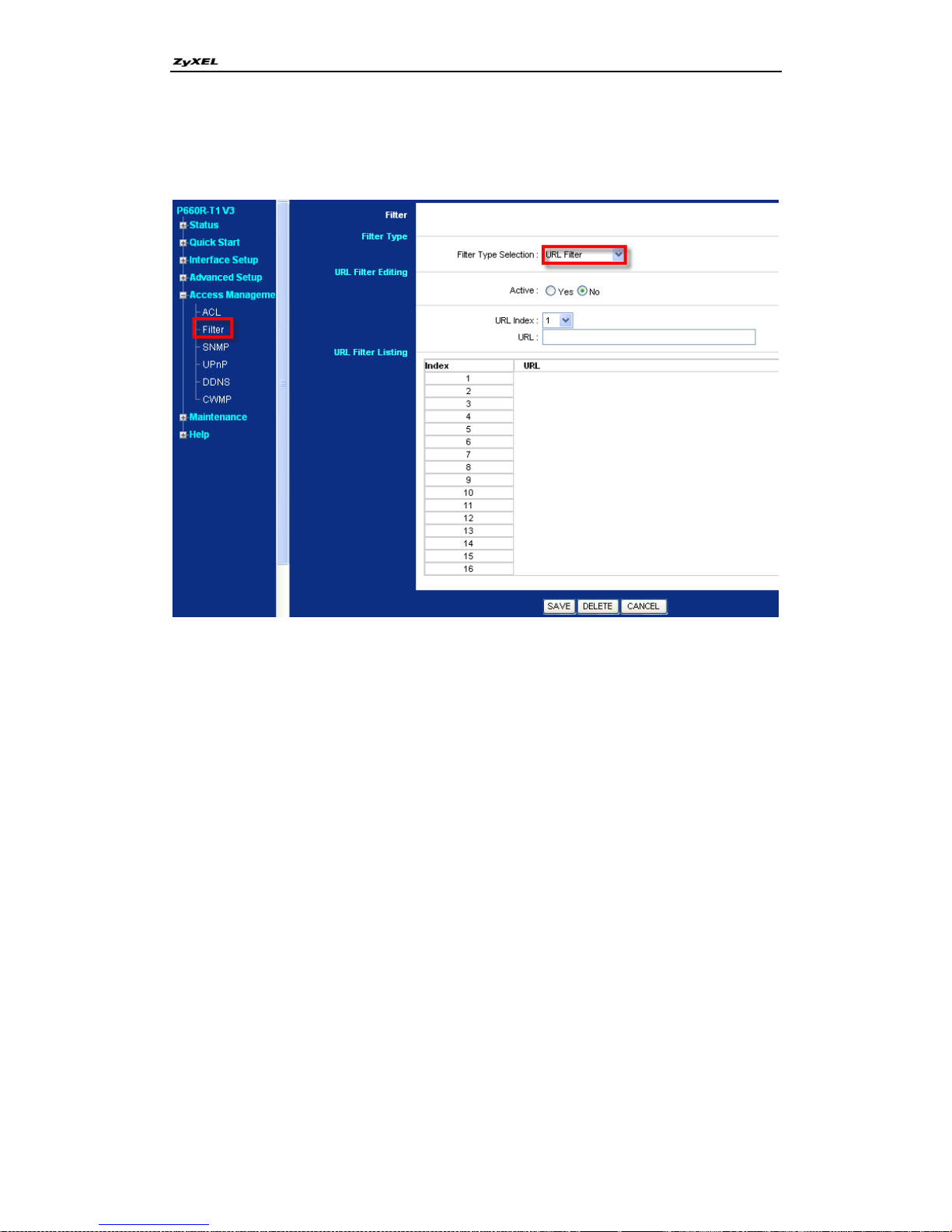
P-660R-Tx v3 Series Support Notes
60
All contents copyright © 2008 ZyXEL Communications Corporation.
Filter by URL
Here you can set filter rule by URL. Click to choose a index number and input
its URL. Click „save‟ then you can find the rule listed below. You can set 16
rules here in all.
Here are some recommendations for you when use filter feature:
(1) By factory default, ZyXEL has preconfigured many filter sets for your
reference; you can check them in web configuration page as mentioned above.
This could satisfy mostly requirement. You could select any of them to apply to
the WAN node or LAN Interface on demand.
(2) If you are very advanced user, you could edit filter set by the following
command:
sys filter set
Page 61

P-660R-Tx v3 Series Support Notes
61
All contents copyright © 2008 ZyXEL Communications Corporation.
Reference Commands:
sys filter set app enable
Enable application filter
sys filter set app disable
Disable application filter
sys filter set app msn/oscar/real/ymsg
[allow/deny]
Allow or deny msn/oscar/real/ymsg
sys filter set url enable
Enable URL filter
sys filter set url disable
Disable URL filter
sys filter set add [index] [URL]
Set a URL filter rule. Index is from 0~15.
sys filter set url del [index]
Delete a URL filter rule. Index is from 0~15.
sys filter set save
Save the latest settings of filter
Page 62

P-660R-Tx v3 Series Support Notes
62
All contents copyright © 2008 ZyXEL Communications Corporation.
Support Tool
1. LAN/WAN Packet Trace
The P-660R-Tx v3 packet traces records and analyzes packets running on
LAN and WAN interfaces. It is designed for users with technical backgrounds
who are interested in the details of the packet flow on LAN or WAN end of
P-660R-Tx v3. It is also very helpful for diagnostics if you have compatibility
problems with your ISP or if you want to know the details of a packet for
configuring a filter rule.
The format of the display is as following:
Packet:
[index] [timer/second][channel-receive/transmit][length] [protocol]
[sourceIP/port] [destIP/port]
There are two ways to dump the trace:
Online Trace--display the trace real time on screen
Offline Trace--capture the trace first and display later
Page 63
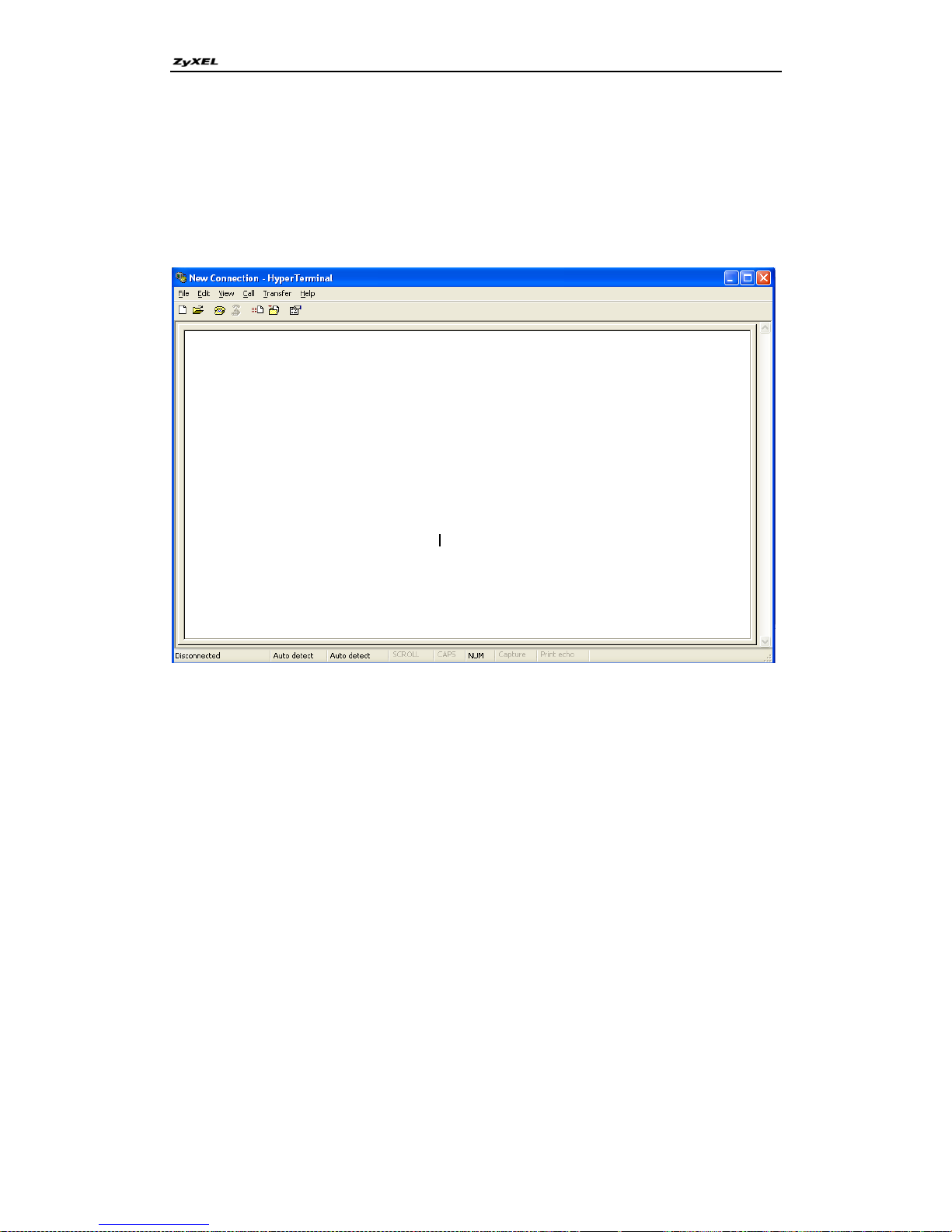
P-660R-Tx v3 Series Support Notes
63
All contents copyright © 2008 ZyXEL Communications Corporation.
Trace packet by telnet
Step 1: Initiate a hyper terminal connection from your PC (suppose you
connected to the LAN port of P-660R-Tx v3)
Step 2: Click the „properties‟ to configure parameters to telnet to the
P-660R-Tx v3.
Page 64
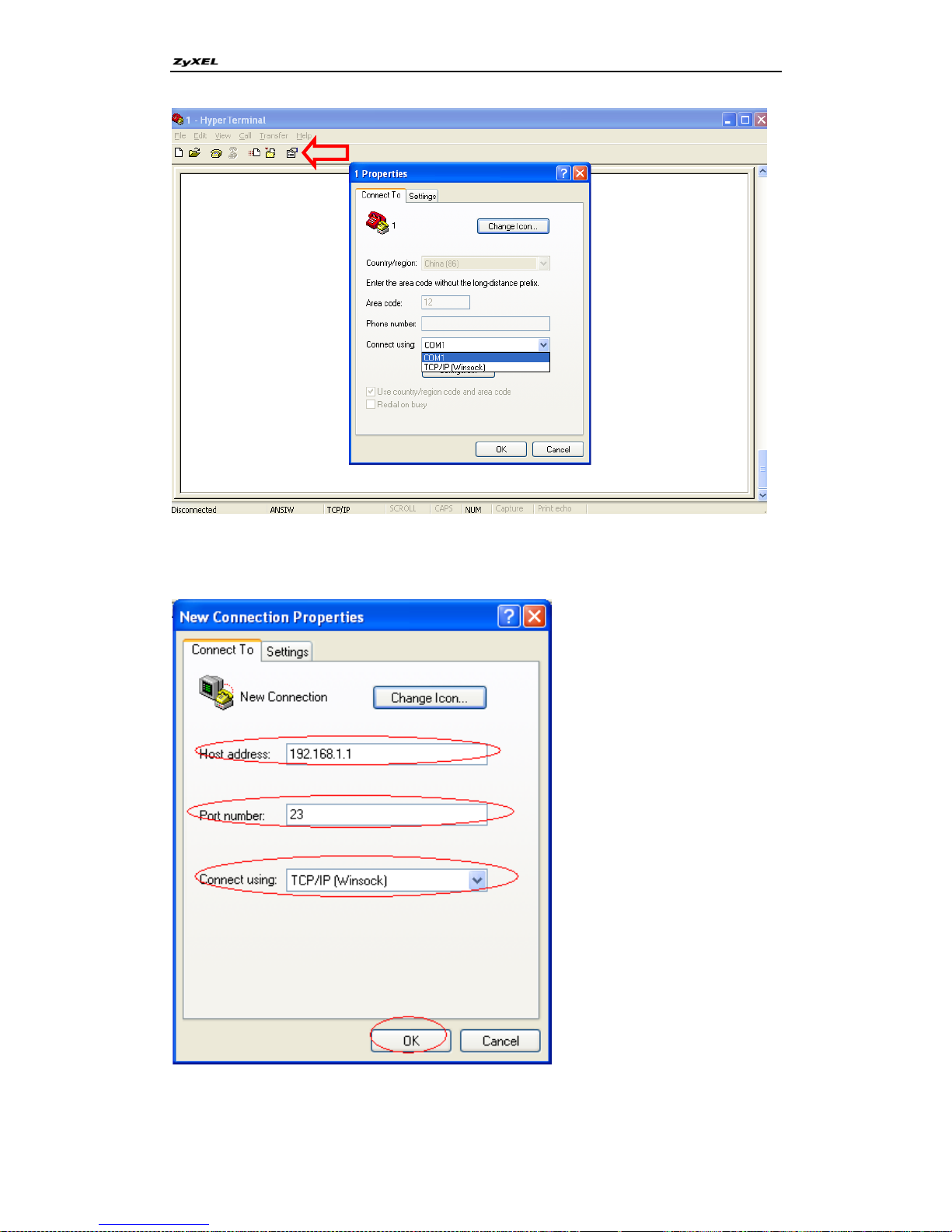
P-660R-Tx v3 Series Support Notes
64
All contents copyright © 2008 ZyXEL Communications Corporation.
Page 65
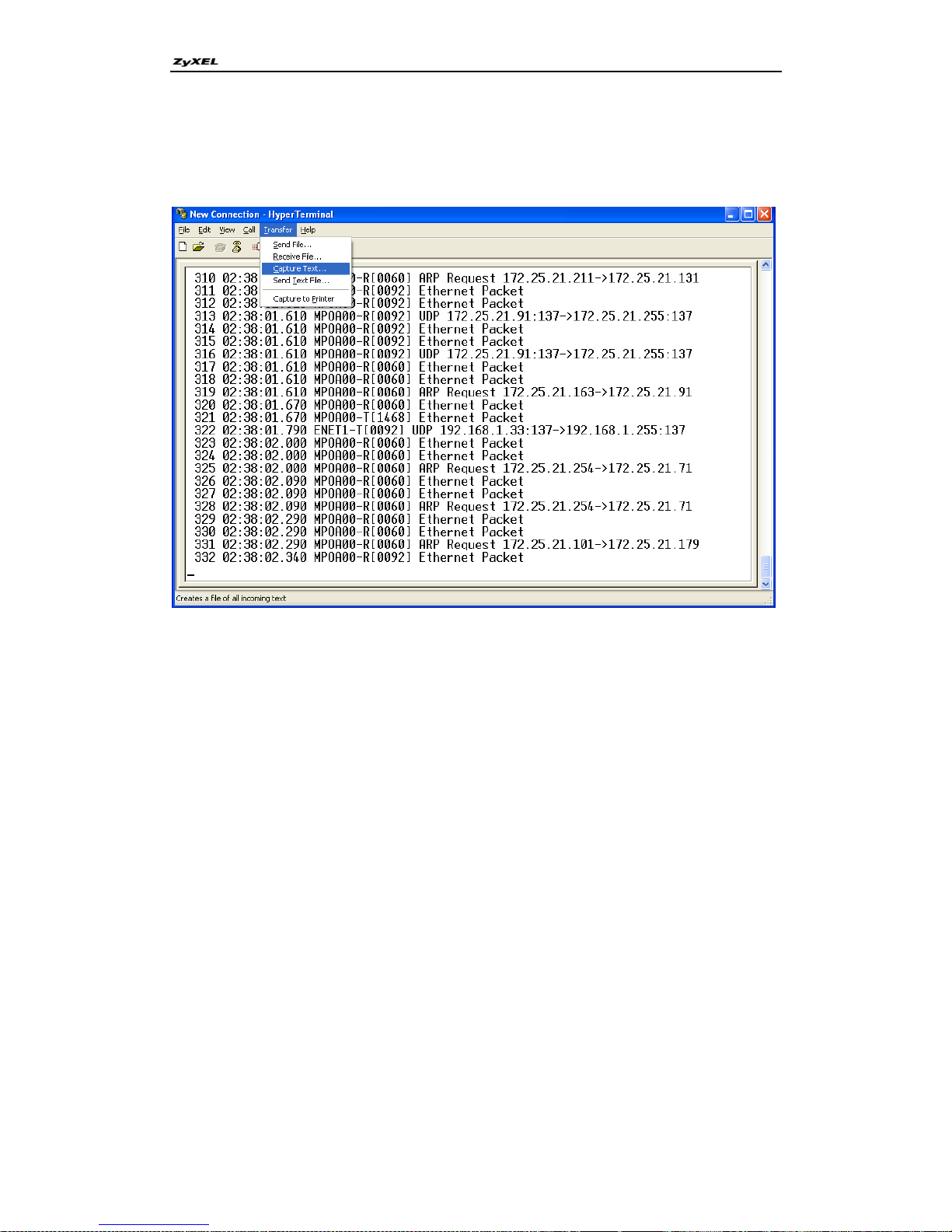
P-660R-Tx v3 Series Support Notes
65
All contents copyright © 2008 ZyXEL Communications Corporation.
Step 3: So that after you invoke the relevant commands, you could save the
logs you‟ve captured.
Page 66

P-660R-Tx v3 Series Support Notes
66
All contents copyright © 2008 ZyXEL Communications Corporation.
CI Command Reference
Command Syntax and General User Interface
CI has the following command syntax:
command <iface | device > subcommand [param]
command subcommand [param]
command ? | help
command subcommand ? | help
General user interface:
1.
?
Shows the following commands and all major (sub)commands
2.
exit
Exit Subcommand
To get the latest CI Command list
The latest CI Command list is available in release note of every ZyXEL
firmware release. Please go to ZyXEL public WEB site
http://www.zyxel.com/support/download_index.php to download firmware
package (*.zip), you should unzip the package to get the release note in PDF
format.
 Loading...