

Page 1

GSM Dual-Band GPRS Digital
Mobile Phone
User Manual
Page 2

The manual is applicable for the ZTE-G X931
phone.
mobile
Page 3
版本
修订日期
修订
软件版本
备注
1.0
2010 年
12 月
李昀
X931-V1-Z6-ESPT-A1E
F100
哥伦比亚
文档信息
Page 4

Copyright © 2010 by ZTE Corporation
All rights reserved.
Your mobile phone is manufactured by ZTE Corporation
exclusively for MOVISTAR.
No part of this publication may be quoted, reproduced,
translated or used in any form or by any means, electronic
or mechanical, including photocopying and microfilm,
Page 5

without the prior written permission of ZTE Corporation or
MOVISTAR (depending on the case).
The Bluetooth® trademark and logos are owned by the
Bluetooth SIG, Inc. and any use of such trademarks by ZTE
Corporation is under license. Other trademarks and trade
names are the property of their respective owners.
ZTE and ZTE logos are registered marks by ZTE
Corporation.
Page 6

MOVISTAR and MOVISTAR logos are registered marks by
Grupo Telefónica.
Copyright © 2010 Grupo Telefonica. All rights reserved.
The information contained in this manual may be changed
without prior notice. This manual has been prepared carefully
to ensure the exactitude of the content but, all the information,
recommendations and notes in this manual shall not be taken
as a guarantee of any kind. Please read carefully the security
guidelines for the proper use of the mobile phone.
Page 7

Version 1.0 in Oct. 2010
Page 8

Contents
Let’s get started .......................................................................................................... 1
Lost or stolen? ........................................................................................................ 2
Using your phone safely ............................................................................... 4
Battery care and safety ................................................................................ 7
Charger care and safety ............................................................................... 9
Getting to know your phone ................................................................................. 12
Inserting and removing the SIM ........................................................................... 18
Inserting and removing a memory card................................................................ 19
Using the battery .................................................................................................. 21
Inserting the battery .................................................................................... 21
Removing the battery ................................................................................. 22
Charging the battery ................................................................................... 22
Power on/off .......................................................................................................... 24
Using your phone ..................................................................................................... 26
Page 9

Common functions ................................................................................................... 29
Basic operation ..................................................................................................... 29
Menu Navigation......................................................................................... 29
Use the Touchscreen .................................................................................. 30
Widgets in Idle Screen ............................................................................... 31
Keypad Lock ............................................................................................... 32
Adjust the Volume....................................................................................... 33
Making and receiving calls ................................................................................... 34
Making a call ............................................................................................... 34
Receiving a call .......................................................................................... 34
Adjusting the volume .................................................................................. 35
Hands-free .................................................................................................. 35
Call options ................................................................................................. 36
Writing messages ................................................................................................. 36
Viewing messages ................................................................................................ 37
Adding a new contact ........................................................................................... 39
Email ..................................................................................................................... 40
Configuring E-mail account ........................................................................ 41
Page 10

Creating a new E-mail ................................................................................ 42
Checking E-mails........................................................................................ 43
Using your phone as memory .............................................................................. 43
Main function list ...................................................................................................... 45
Input what you want, how you want… ................................................................... 56
Using Virtual keyboard ......................................................................................... 56
Using the keypad .................................................................................................. 58
Appendix ................................................................................................................... 61
Care and maintenance ......................................................................................... 61
FCC Regulations .................................................................................................. 63
RF Exposure Information (SAR) ............................................................. 64
Declaration of RoHS compliance ......................................................................... 67
Disposal of your old phone ................................................................................... 68
Problems and their solutions ................................................................................ 69
Page 11

Let’s get started
Thanks for choosing the Movistar Smile. It‟s a GSM dual
band GPRS digital mobile phone, which we‟ll simply call
„phone‟ from now on.
If you‟d like your phone to live a long and fruitful life, please
read this guide carefully and keep it for future reference.
You never know when you might need it.
1
Page 12

And don‟t worry if the pictures we use to demonstrate your
phone‟s functions look a little different from what you see on
its screen. It‟s the functions they show that matter.
Lost or stolen?
If your phone goes missing, please tell your service provider
as soon as you know. That way other people can be barred
from using it.
2
Page 13

Obviously, it‟s best to keep your phone with you at all times,
and we‟d strongly advise you to set a PIN, and change it
from time to time.
3
Page 14
Using your phone safely
on the road
Using a phone while driving is illegal in many countries. Please follow
local laws and drive safely at all times.
near sensitive electronics
Don‟t use your phone near sensitive electronic equipment – particularly
medical devices such as pacemakers – as it could cause them to
malfunction. It can also interfere with the operation of fire detectors and
other automatic-control equipment.
For more information about how your phone affects pacemakers or other
electronic equipment, please contact the manufacturer or your local
distributor.
Your phone may cause interference when used near TVs, radios or
automated office equipment.
while flying
4
Page 15
Your phone can cause interference with aircraft equipment. So it‟s
essential you follow airline regulations. And if airline personnel ask you
to switch off your phone, or disable its wireless functions, please do as
they say.
in hospital
Your phone may interfere with the normal operation of medical
equipment. Follow all hospital regulations and turn it off when you‟re
asked to by posted warnings or medical staff.
at a petrol station
Don‟t use your phone at petrol stations. In fact, it‟s always best to switch
off whenever you‟re near fuels, chemicals or explosives.
around water
Keep your phone away from water (or any other liquid). It‟s not a
waterproof model.
making repairs
Never take your phone apart. Please leave that to the professionals.
5
Page 16
Unauthorised repairs could break the terms of your warranty.
broken antenna
Don‟t use your phone if the antenna is damaged, as it could cause injury.
around children
Keep your mobile out of children‟s reach. It should never be used as a
toy and it might not be good for their health.
original accessories
Only use the original accessories supplied with your phone or those
approved by the manufacturer. Using unapproved accessories may
affect performance, make the warranty void, break national regulations
on the use of mobile phones, or even cause injury.
near explosives
Turn off your phone in or near areas where explosive materials are used.
6
Page 17
used. Always obey local laws and turn off your phone when requested.
emergency calls
To make an emergency call your phone must be turned on and in an
area where there‟s network coverage. Dial the national emergency
number and press „send‟. Explain exactly where you are and don‟t hang
up until help has arrived.
At very high volume, prolonged listening to a
mobile phone can damage your hearing.
Battery care and safety
Keep the battery in a cool, ventilated place and out of direct sunlight.
Although the battery is rechargeable, it‟ll eventually start to lose its ability
ability to recharge. If you find that the battery won‟t recharge, it‟s time to
7
Page 18

replace it.
Please don‟t throw old batteries into your household rubbish. You‟ll find
there are special bins for batteries at refuse collection points. And some
high street electrical stores provide a battery recycling service too.
Never throw the battery into a fire – it‟s highly inflammable and could
explode, hurting you or somebody else.
When you put the battery into your phone, there‟s no need to use force.
Exerting too much pressure could make it leak, overheat, explode or
burst into flame.
Never take the battery apart. This may result in leakage, overheating,
explosion or fire.
If the battery becomes hot, changes color or shape at any time (when in
use, charging or even while in storage) please stop using it immediately
and replace.
Keep the battery dry. Damp or wet conditions can cause it to overheat or
corrode.
Don‟t leave the battery in direct sunlight or anywhere really hot, like in a
car on a summer‟s day. That could make it leak or overheat, while
lowering its performance and shortening its life.
Don‟t charge the battery continuously for 24 hours. Overcharging is not
8
Page 19
good for it.
Note:
Please avoid contact with the materials inside a damaged or
leaking battery. If they get on your skin, wash with lots of
water and seek medical assistance if required.
Charger care and safety
Only plug into voltages between 110VAC and 220VAC. Using a voltage
outside that range can damage the phone/charger – and cause the
battery to leak or catch fire.
Never short-circuit the charger – this may cause electrocution,
overheating or damage.
Don‟t charge the phone in direct sunlight or in an area where it‟s damp,
dusty, or on a vibrating surface. And charging your phone near – or on –
a TV or radio could interfere with transmission.
Don‟t use the charger if the power cable is damaged. It may cause a fire
9
Page 20

or give someone an electric shock.
Keep water well away from the charger. If the charger does get
splashed by water, or any other kind of liquid, immediately unplug it to
avoid overheating, fire or electrocution.
Don‟t take the charger apart. It could cause injury, give you an electric
shock or catch fire.
Never touch any charger, electric cable or socket with wet hands.
Don‟t place heavy objects on the electric cable.
If the cable is damaged, don‟t try to mend it yourself – it could cause a
fire or electrocute you.
Always unplug the charger before you clean it.
When unplugging the charger, hold the plug itself, rather than pulling on
the cable. A damaged cable can cause electrocution or fire.
Work temperature and Frequency
The Handset work temperature is between 0℃ to 40℃.
10
Page 21

The device supports850/900/1800/1900Mfrequency,Only 850/1900
band is used in American.
11
Page 22
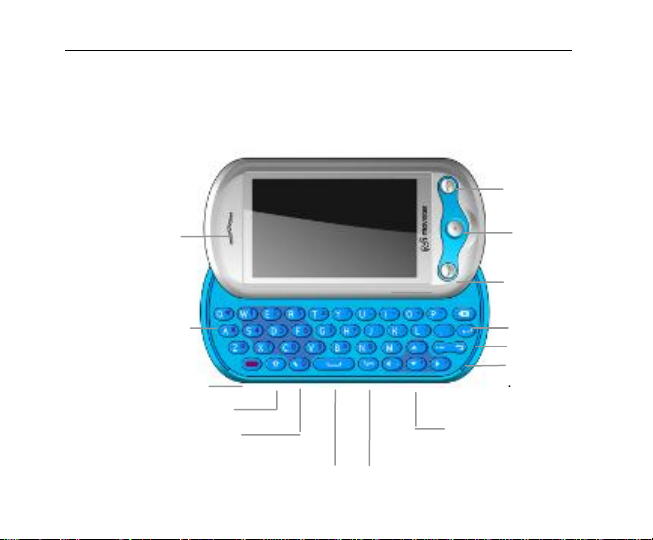
Getting to know your phone
Receiver
End/Power
Space Key
Enter key
Backspace key
Function key
Navigation keys
Menu key
Shift/Caps lock key
Switch input
Left soft
key/Right soft
Symbol key
In idle screen,
press and hold
this key to switch
profiles mode
between normal
12
Page 23
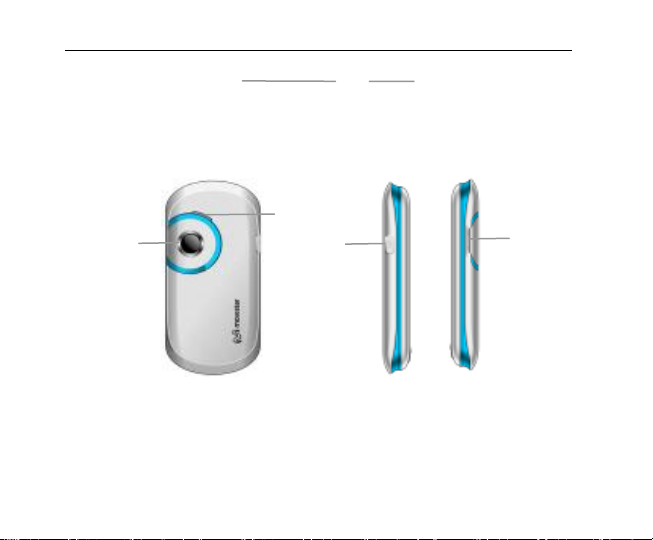
Camera
Loudspeake
USB port
Volume
13
Page 24

14
Page 25

15
Page 26
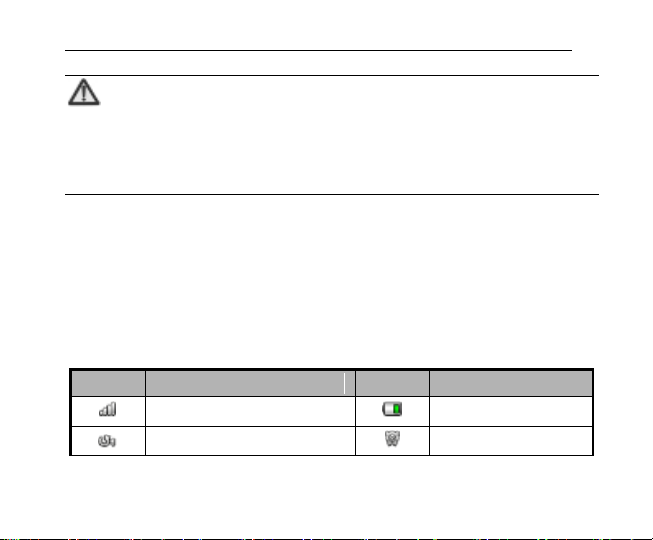
Note:
Icons
Descriptions
Icons
Descriptions
Signal strength
Battery
status
Call diverting
Alarm on
In this user guide, ‘press’ means pressing the key and then
releasing.
‘Hold’ means pressing and holding the key for two seconds or
more.
Onscreen icons
16
Page 27
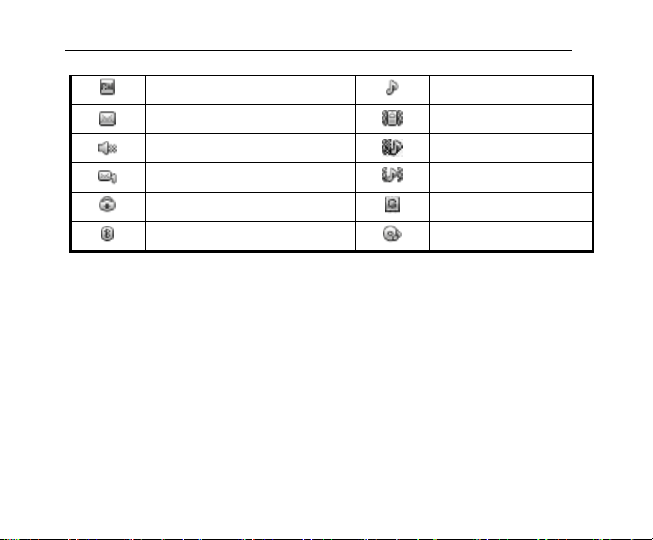
Roaming
Ringer
Unread message
Vibrator
Mute
Vibrator then
ringer
Unread Voicemail
Vibrator and
ringer
Stopwatch on
GPRS on
Bluetooth®
connectivity is on
Audio player
on
17
Page 28

Inserting and removing the SIM
Your phone needs a valid SIM card to work (…To keep it
simple, we‟ll just call it „SIM‟ from now on). Your network
connection data and your SIM address book are saved on
the SIM. So, to avoid damaging your SIM or losing data, try
not to touch the metal surface when you‟re handling it – and
keep well away from any magnetic or electric source.
here’s what you do…
1. Switch off your phone and disconnect any external
18
Page 29
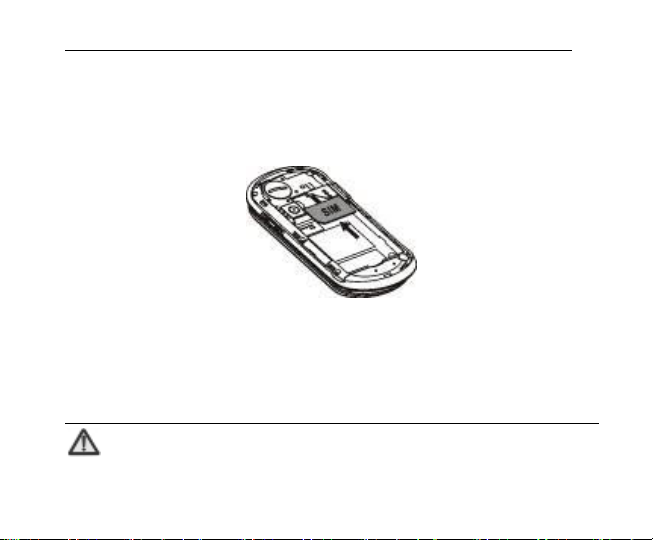
power.
2. Remove the back cover and then the battery.
3. Hold your SIM on the cut corner, and slide it – face
down – into the card holder.
4. Insert the battery.
5. Replace the back cover.
Inserting and removing a memory
card
Note:
19
Page 30
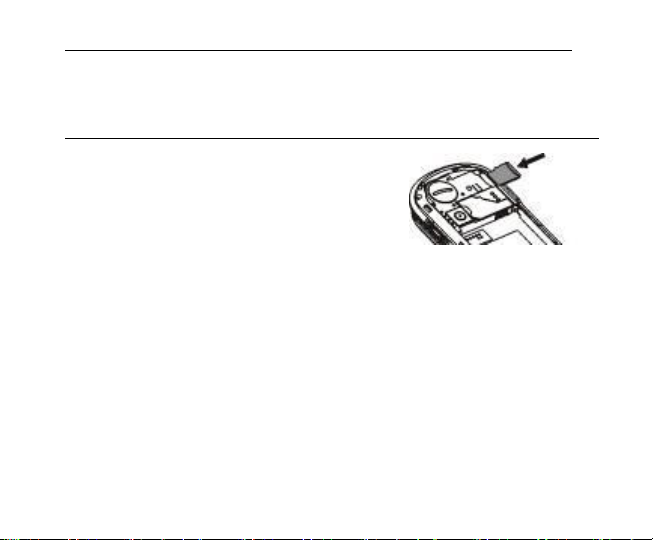
Removing or inserting a memory card when your phone is
turned on could not only damage it and your phone, but also
1. Open the memory card cover at
destroy any data saved on the card.
the right side of the phone and
insert the memory card.
2. Push tightly until the card is
installed in the right position and
close the card cover.
3. Before you take out the card, please open the card cover
and press the card inward to unlock.
20
Page 31
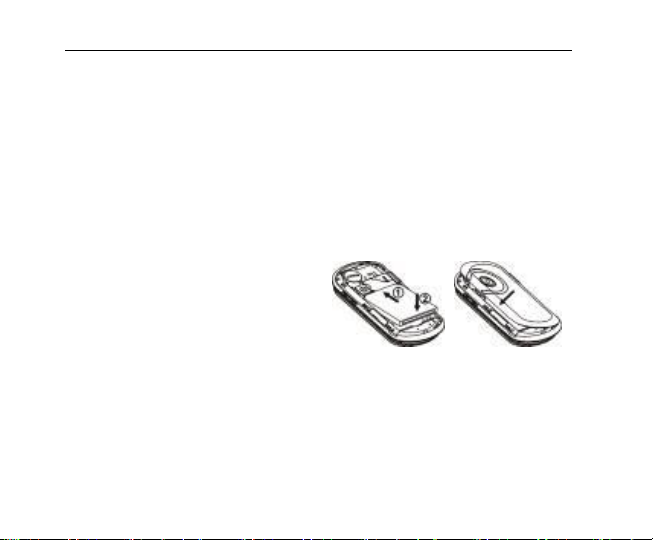
Using the battery
1. Open the battery cover
on the back of your
phone.
2. Align the battery's
contact points with
those of the phone and
gently press the battery
down into place.
3. Replace the battery
cover clicking it back
into position.
Inserting the battery
21
Page 32
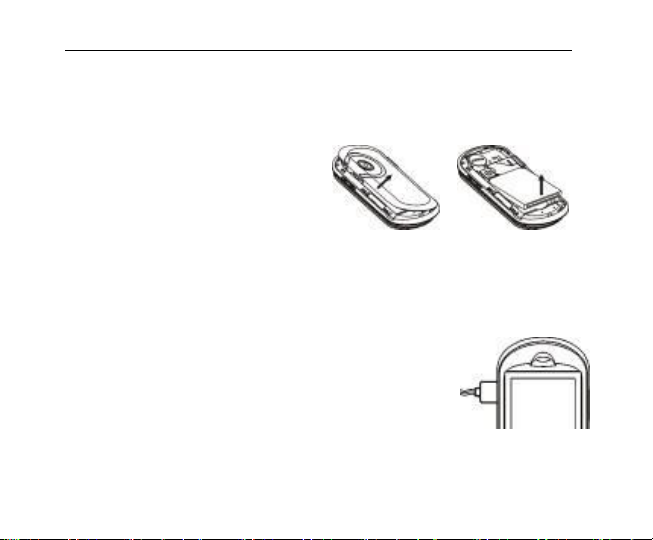
Removing the battery
1. Switch off your phone.
2. Open the battery cover.
3. Lift the battery up and
out of your phone.
Charging the battery
The rechargeable Li-ion battery that
comes with your phone is ready to use,
but is not charged. That‟s easy to do. We‟ll
22
Page 33

show you how below.
The first three times you use the battery, make sure it‟s
completely drained before recharging. And then recharge it
fully. That will help to ensure its optimum performance and
a long life.
1. Connect the charger to your phone, and plug it into an
110V/220V socket.
2. The battery indicator in the corner of the screen will scroll
up and down to show you it‟s charging. If the phone‟s
battery has been fully drained, the battery indicator may
not immediately appear on the screen when charging
starts. And please don‟t worry if the phone and charger
become warm while charging. That‟s completely normal.
23
Page 34
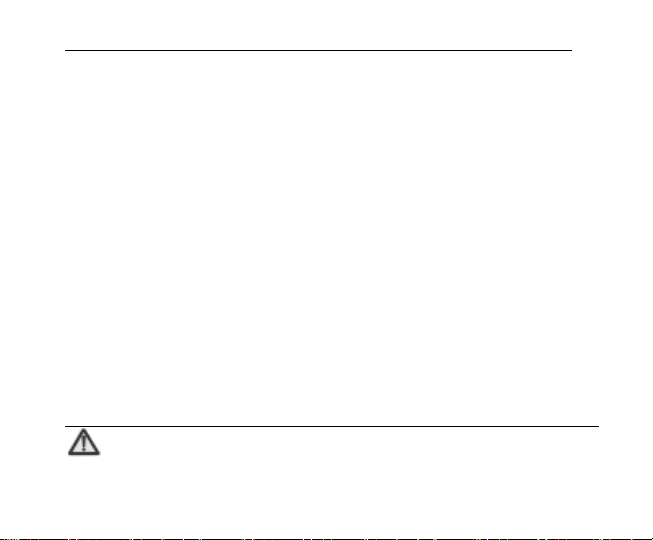
3. When fully charged, the battery indicator will stop
scrolling up and down.
4. Disconnect the charger from your mobile, and unplug.
Power on/off
Press the power key until the power-on/off icon appears.
When you turn your phone on, it‟ll automatically check the
SIM and show the following information on screen:
Input phone lock code: If you‟ve set a lock code.
Input SIM PIN: If you‟ve set a PIN for your SIM.
Note:
24
Page 35

The PIN is supplied with your SIM. Please replace it with your
own PIN as soon as possible. Enter the wrong PIN three
times, and your SIM will be locked. Then you’ll need to
contact your network service provider to ask for a PUK code
Searching: The phone will search for the available network.
to unlock it.
25
Page 36

Using your phone
Press „OK‟ key to enter the main menu…
26
Page 37

Calls
Media
Image viewer
Media player
FM radio
Video recorder
Voice recorder
Phonebook
Messaging
Create new
message
Inbox
Drafts
Outbox
Sent
Delete
Phone settings
Call settings
Network settings
Security
Java settings
Java default
security
Screen calibration
Restore factory
settings
STK
Organizer
Calendar
Alarm
Tasks
World time
Stored pages
Service inbox
Settings
Profiles
Service
msg.settings
Dialer
Camera
Games & Apps
Java
Games
Profiles
General
Meeting
Outdoor
Indoor
Inbox
Outbox
Sent
Drafts
Send and
receive
Clear mailbox
Delete marked
Emails
Templates
E-mail account
setup
File Manager
Extra
Calculator
Stopwatch
Unit converter
27
Page 38

messages
Cell Broadcast
Templates
Message
settings
Settings
Bluetooth
Wap
Homepage
Bookmarks
Input address
Last web address
History
Headset
Bluetooth
Flight mode
E-mail
Create E-mail
Currency
converter
28
Page 39

Common functions
Basic operation
Menu Navigation
Press the Menu key to enter the main menu. Once at the
main menu, click the icon to select the submenu, press
Back to return to the previous menu, and press the Power
key to return to the home screen.
29
Page 40

Use the Touchscreen
Your phone supports touch screen functionality.
Slide up or down with your finger on the screen to move the
highlight bar.
Tap any application to open it.
30
Page 41
Widgets in Idle Screen
From the home screen, slide your finger to the left or right
on the screen to switch among the three interfaces.
Click to open the Widgets drawer. In the Widget drawer,
slide your finger up and down to display more function icons.
You can drag the function icons from the Widget drawer to
the home screen, press and hold the icon then drag it back
to Widget drawer.
31
Page 42
Keypad Lock
You can use the keypad lock to prevent the keys from being
accidentally pressed.
In the closed position, you can hold down the Menu key to
lock the screen. To unlock the screen, drag the icon on
the screen to the icon and a message will appear telling
you the screen is unlocked.
In „Menu‟ ‟Settings‟ ‟Security‟ ‟Auto keypad lock‟, set
the auto keypad lock time. If the phone is not operated
within this time, the keypad will be locked.
32
Page 43

Adjust the Volume
When you‟re on the phone, listening to songs, watching
movies or using other media, you can press the Volume
keys on the right side of your phone to adjust the audio
volume.
Otherwise, the keys are used to control the volume of the
ringer, or used for other sound effects.
33
Page 44

Making and receiving calls
Making a call
Direct dial: In idle mode, press the numeric keys to input the telephone
number and press Send key to dial.
Dialling from the Contacts:. Enter Main Menu to select Phonebook,
Find the name of the person you want to call, and press the Send key.
Dialling from Call History: In idle mode, press the Send key to enter
the list of call logs, select the call record, and press the Send key to dial.
Dialling an extension: Sometimes you can not dial the extension
directly. Dial the direct line firstly, press „p‟ key and then dial the
extension number.
Dialling international calls: To make an international call, press „+‟ key
and then dial the country or region code, city code and phone number.
Receiving a call
Someone‟s calling? Press the Send key to answer.
34
Page 45

Adjusting the volume
During a conversation, you can raise or lower the volume by
using the side keys. And in idle mode, you can use the side
keys to adjust the keypad volume.
Hands-free
Select „H-Free‟ to use your phone hands-free. Select
„H-Held‟ to be hands-on again.
35
Page 46

Call options
Need to multitask while you‟re on a call? Just select
„Options‟ if you want to access your phonebook, messaging,
or other functions.
Writing messages
1. In idle mode, select „Menu‟ to enter the main menu, then
select „Messaging‟ „Create new message‟ to edit the
message text.
2. Enter recipient or add from Contacts.
3. Touch the text field and write your message. The default
message type is SMS.
36
Page 47
4. If you want to change to MMS, you can press „Options‟
and choose „Switch to MMS‟; or you can press „Options‟
and choose „Add picture‟, „Add sound‟, „Add video‟ or
„Add subject‟ to directly insert multimedia contents to the
message and it will be switched to MMS automatically.
5. You can select „Options‟ „Slide options‟ to add a new
slide.
6. When you finish writing, click to send the message
out. If you want to save the MMS as a draft, select
„Options‟ ‟Save to Drafts‟. If you are writing a SMS,
select „Options‟ ‟Save‟.
Viewing messages
Your phone is very versatile. According to what you‟ve
selected, it can tell you that you‟ve received a new message
37
Page 48

in three different ways: a ringtone, a prompt, or a new
message icon.
Press the OK key to open your inbox and read the
message:
1. In idle mode, press „Menu‟ to select
„Messaging‟ „Inbox‟.
2. All your received messages will be displayed on the
screen. Use the Up/Down key to select the message,
and select „View‟ to see the content.
3. Then go to „Options‟ to select „Reply‟, „Forward‟, „Delete‟,
or whatever you want to do…
38
Page 49
Adding a new contact
1. In idle mode, select „Menu‟ and go to „Phonebook‟.
2. If you‟d like to add a new contact to your phone memory,
simply select „Options‟ „Add new contact‟. Then you
can enter all the details you want.
3. If you‟d prefer to add a new contact to the SIM memory,
select „Options‟ „Contacts settings‟ „Preferred
storage‟ „SIM‟. There you can add the name, number
and details, etc.
4. Select „Done‟ when you‟re happy with what you‟ve done.
39
Page 50

Email
You can send and receive Emails over the GPRS network
after the mobile phone has connected to the mail server.
You have to change the following settings before using
Emails. For different email providers, the settings may be
slightly different. Please consult your email provider. The
following guide is for your reference only.
40
Page 51
Configuring E-mail account
If you want to send /receive E-mails through remote servers,
you have to set up a POP3/IMAP4 E-mail account first.
At first time when you enter „E-mail‟ ‟Create E-mail‟, it will
come up with a E-mail setup wizard. From the second time,
if you want to set up more E-mail account, please go to
„Menu‟ ‟E-mail‟ ‟E-mail account setup‟.
Select „Options‟ ’Activate‟ to activate E-Mail or select New account.
Enter your E-mail address, protocol, data account, and server
41
Page 52

information, etc.
Activate your E-mail account.
Creating a new E-mail
Choose an E-mail account and select „Create E-mail‟.
First, add E-mail recipients from Contacts or enter
recipients‟ addresses directly. Press Done when you finish.
Click the Subject field or the Content field, enter text. When
you finish writing, select to send and/or save the E-mail.
42
Page 53

Checking E-mails
Go to Inbox of your E-mail account and select Receive to
start receiving E-mails from the remote server.
Using your phone as memory
Make sure the memory card is installed and your phone is
switched off, Then connect the phone to your PC with the
USB data cable, and switch your phone back on. Then
43
Page 54

select „Mass storage‟ on the PC, and you can use your
phone as extra memory.
44
Page 55
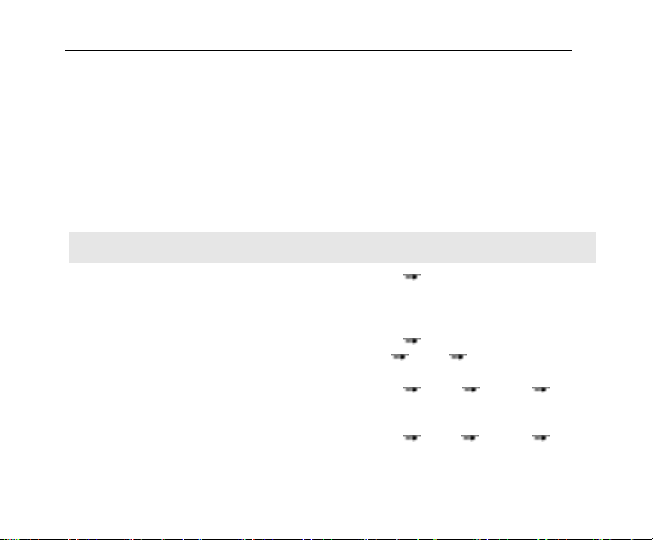
Main function list
Function
Description
Selection
View call history
View the recent incoming, missed
and outgoing calls.
Calls Press left/right key to switch
among “All calls” / “Dialled calls” /
“Received calls”/ “Missed calls”
Delete a call log
Delete a call log
Calls Select one call
log Options Delete
View call
duration
View the duration of last call, dialed
calls and received calls.
Calls Options Advanced Call
timers
Call cost*
View the expense of last call and
all calls.
Calls Options Advanced Call
cost
In idle mode, select „Menu‟ to enter the main menu. Those
marked with „*‟ need support from network operators.
45
Page 56
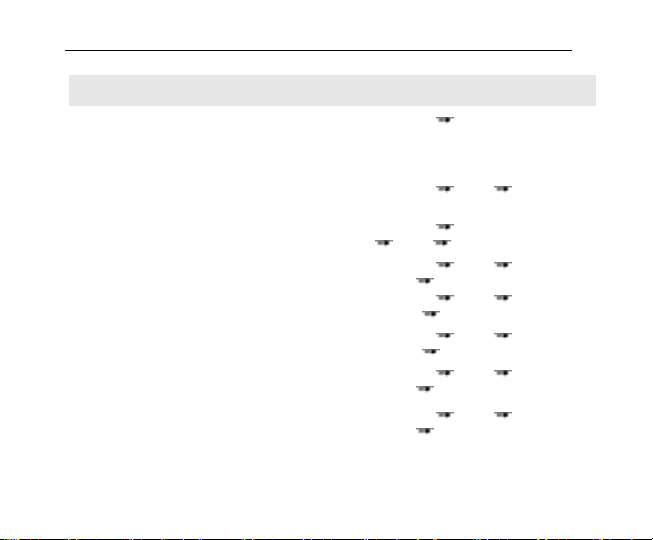
Function
Description
Selection
View contacts
Browse all contacts in phonebook,
input the first letter of contact‟s
name to quickly search for the
contact.
Phonebook Contacts list
Add contacts
Save the telephone number and
name.
Phonebook Options Add new
contact
Edit contact
Edit the information of existing
contact.
Phonebook Select one contact
Options Edit
Copy contacts
Copy all contacts from SIM card to
phone or from phone to SIM card.
Phonebook Options Contacts
settings Copy contacts
Move contacts
Move all contacts from SIM card to
phone or from phone to SIM card.
Phonebook Options Contacts
settings Move contacts
Delete all
contacts
Delete all contacts in SIM card or
phone.
Phonebook Options Contacts
settings Delete all contacts
Preferred
storage
Select the preferred storage as
Phone or SIM.
Phonebook Options Contacts
settings Preferred storage
Speed dial
Edit 8 phone numbers and assign
these numbers to the keys from 2
to 9.
In idle mode, hold the numeric key
Phonebook Options Contacts
settings Speed dial
46
Page 57
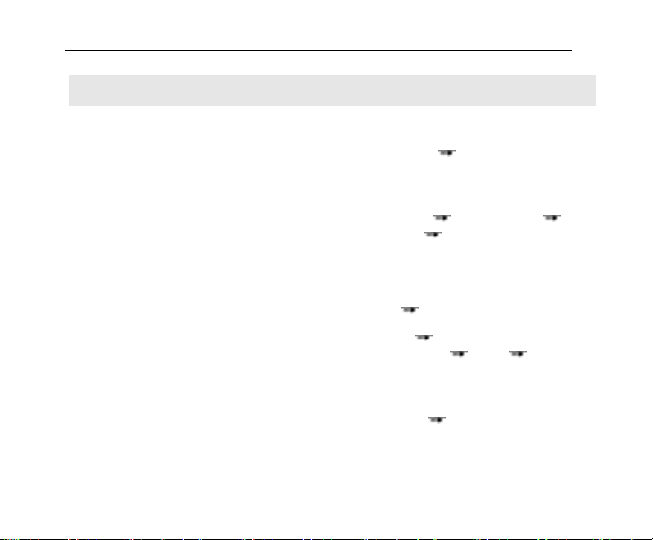
Function
Description
Selection
to quickly dial the corresponding
phone number of the numeric key.
Caller groups
Divide the contacts into different
groups. You could add/delete the
members only when they are
saved in Phone.
Phonebook Press left/right key to
select “Caller groups”
Voicemail*
A caller can leave a message and
you can listen to it in your
voicemail.
Messaging Message settings Text
message Voicemail server
In idle mode, hold „1‟ key to call the first
voicemail number.
Wap
Log onto the present homepage.
Wap Homepage
User profiles
Perform personalized settings on
ringtone, volume, ringer type, etc.
according to different events and
occasions.
Profiles Select Profile (General/
Meeting etc.) Options Activate
Alarm
Set multiple alarms, and support
power-off alarm.
Organiser Alarm
47
Page 58
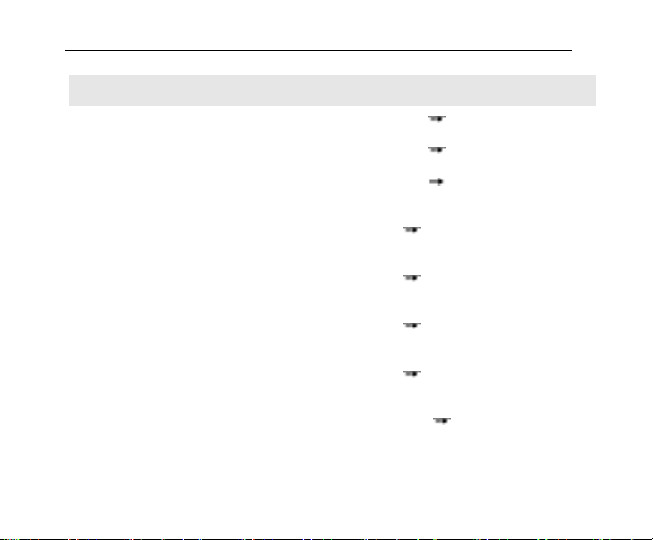
Function
Description
Selection
Calendar
Check the calendar and schedule.
Organiser Calendar
Tasks
Add Date, Call, Anniversary, etc.
Organiser Tasks
World time
Check the current time in different
cities around the world.
Organiser World time
Calculator
Simple calculation, such as add,
subtract, multiply, divide, etc.
Extra Calculator
Unit converter
Convert basic units, such as
inches to centimeters.
Extra Unit converter
Currency
converter
Set the exchange rate and account
foreign currency or vice versa.
Extra Currency converter
Stopwatch
See how long it takes –
whatever „it‟ may be.
Extra Stopwatch
Send message
Send text messages/ multimedia
messages to other mobile phones.
Messaging Create new message
48
Page 59
Function
Description
Selection
View message
Read the messages (received,
unsent, sent, drafts).
Messaging Inbox/Drafts/Outbox/Sent
messages
Delete message
Delete the messages in
Inbox/Drafts/Outbox /Sent
messages/Archive or all
messages.
Messaging Delete messages
Templates
Select the template to send text
message or multimedia message.
Messaging Templates
Broadcast
messages*
Receive messages from a network
operator.
Messaging Cell Broadcast
Check memory
status
Check the memory status for text
message in SIM card and Phone.
Messaging Message settings Text
message Memory status
Preferred
storage
Save the messages in SIM card or
phone.
Messaging Message settings Text
message Preferred storage
Email
Send and receive E-mails.
Email
49
Page 60
Function
Description
Selection
Java
Get Access to Java games and
applications.
Games and Apps Java
1. Connect PC with the mobile phone
through data cable, and select „Mass
storage‟.
2. Copy the setup program into the
memory card.
3. Select the application to install.
4. Select „Launch‟ after the installation.
Enter Games and Apps Java menu to
select the game.
Games
The phone provides preset game.
The detailed operation descriptions
are in the game menu.
Games and Apps Games
Camera
Capture digital photos.
Camera
Media player
Play the audio and video file.
Media Media player
FM radio
Listen to FM broadcasts.
Media FM radio
50
Page 61
Function
Description
Selection
Image viewer
Browse photos saved on your
phone and memory card.
Media Image viewer
Sound recorder
Record audio files.
Media Voice recorder
Video recorder
Record video files.
Media Video recorder
Bluetooth®
Exchange data with your phone &
other Bluetooth® devices, and
listen to music or talk hands-free
with Bluetooth® headset.
Settings Bluetooth®
Time and date
Set the date and time displayed on
the phone.
Settings Phone settings Date and
time
Vibrate
FeedBack
Turn on/off vibrate when you use
the phone.
Settings Phone settings Vibrate
FeedBack
Schedule power
on/off
Perform the action of power on/off
according to the setting time.
Settings Phone settings Schedule
power on/off
Language
Select the language for the menu.
Settings Phone settings Language
51
Page 62
Function
Description
Selection
Wallpaper
Set the standby animation on the
screen.
Settings Phone settings Display
settings Wallpaper
Auto update of
date and time
Select whether or not update date
and time automatically.
Settings Phone settings Date and
time Auto update
LCD backlight
Set the backlight time and
brightness.
Settings Phone
settings Misc.settings LCD
backlight
Call waiting*
You will be prompted by the
network upon an incoming call if
this function is activated.
Settings Call settings Call waiting
Call forwarding*
Forward the incoming call to
designed number on a specific
occasion.
Settings Call settings Call
forwarding
Call barring*
Set the outgoing call restriction or
incoming call restriction.
Settings Call settings Call barring
Blacklist
You could edit the Black List. After
you select „On‟ under „Mode‟, the
Settings Call Settings Advanced
52
Page 63
Function
Description
Selection
incoming call from the numbers in
the Black List will be rejected.
settings Blacklist
Auto redial
When selecting „On‟ for Auto redial,
your phone will automatically redial
after a while if the call is not
answered.
Settings Call Settings Advanced
settings Auto redial
Network settings
Select the network and set GPRS
connection.
Settings Network settings
PIN lock
Activate PIN to prevent SIM card
from abuse.
The default PIN is normally 1234.
Please replace it with your own
PIN as soon as possible.
Settings Security PIN lock
Phone lock
Activate phone lock to prevent the
phone from abuse.
The default phone lock password is
1122.
Settings Security Phone lock
53
Page 64
Function
Description
Selection
Auto keypad lock
The keypad lock would prevent the
inadvertent operation caused by
key press.
Settings Security Auto keypad lock
In idle mode, hold the “Menu key” to
quickly lock the keypad. To unlock the
screen, drag the arrow on the screen
from left to right.
Change
password
Change Phone password.
Settings Security Change
password
Restore factory
settings
Restore to original factory settings.
Settings Restore factory settings
File manager
View the files saved in phone and
memory card.
File Manager
Note:
When copying files from PC to Memory Card, please put the
files in the relevant folder, e.g., put the music files in ‘My
54
Page 65

Music’ folder .
55
Page 66
Input what you want, how you want…
The mobile phone supports ABC/Abc/abc, PT/pt/Pt, eZi
ABC/Abc/abc/PT/Pt/pt, 123 and symbol input method.
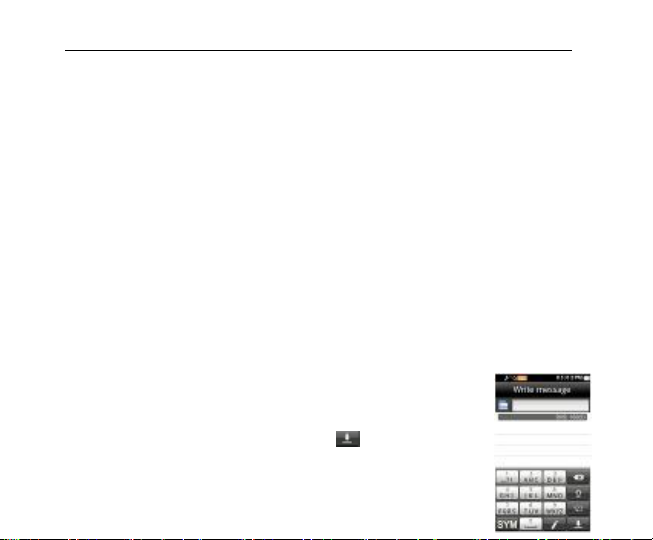
Using Virtual keyboard
As the slide is not opened, you could use the virtual
keyboard to input.
Show virtual keyboard: Click any place in
the text input area to show the virtual
keyboard.
Hide virtual keyboard: Click icon.
56
Page 67
Change input method: Click icon to change the input
method.
Input Letters: In abc method, click the corresponding
letters to input your desired letter. Each key is used to input
multiple letters. Click the key quickly and repeatedly until
your desired letter appears.
Input Words: In Smart abc method, click each key only
once for every letter. The word changes after each key
stroke. When you finish writing the word correctly, click the
word to confirm. If the word displayed on the screen is not
what you want, click the arrow to view other matching words,
and then click the word to confirm. Predictive text input is
based on a built-in dictionary.
Switch caps lock : Click icon.
Input numbers: In 123 method, click the corresponding
numbers on the screen to input your desired numbers.
Input symbols: Click icon to open the virtual keypad
and select the corresponding symbols to input.
57
Page 68
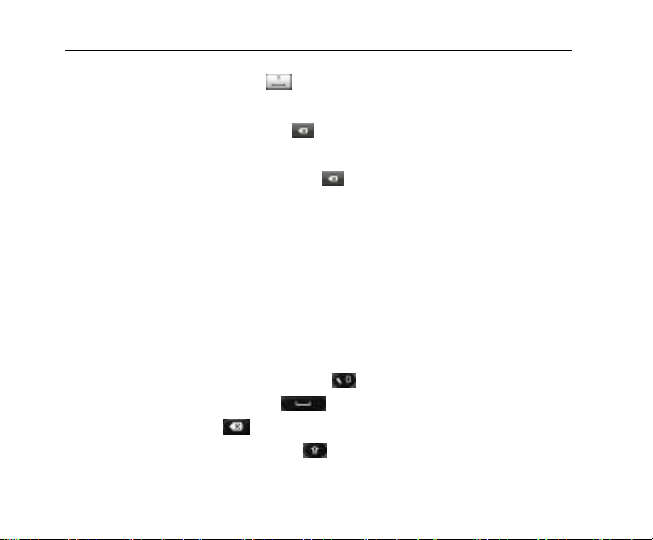
Insert a space: Click to input the space. It does not
work in 123 method.
Delete Character: Click to delete the previous
character before the cursor.
Delete all Characters: Hold to delete all characters.
Move Cursor: Among the text, tap in the position you want
to move.
Using the keypad
As the slide is opened, you could use the keypad to input.
Switch input method: Press the key
Insert a space: Press the key.
Delete: Press the key to delete the input before the cursor.
Switch caps lock: Press the key.
58
Page 69
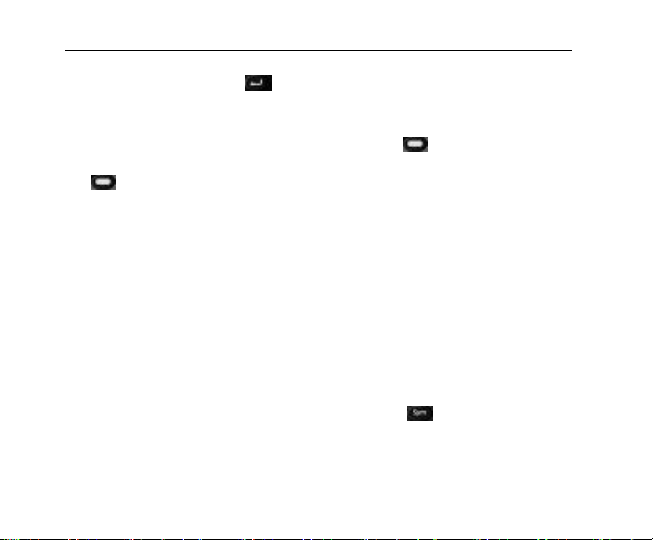
Line feed: Press the key.
Input letters and common symbols: There are two symbols on
the keys. In abc/Abc/ABC method, press the key to input the symbol
located on the left part of the key; press the key and then press the
key to input the symbol located on the right part of the key; press the
key twice and then press the key to continuously input the symbol
located on the right part of the key.
In Smart abc/Abc/ABC method, your phone predicts the
word as you enter it, so you need input only the first few
letters of the word.
Input numbers: In 123 method, press the numeric keys to input the
corresponding numbers.
Input symbols: During the text input, press key to display symbol
lists, press the Navigation keys to select the symbol, and press OK to
confirm.
59
Page 70

60
Page 71

Appendix
Care and maintenance
Your phone is a delicate device. The following advice will
help you to keep it looking good and performing well…
Use a soft dry cloth to clean your phone, battery and charger. Don‟t use
liquids such as alcohol, dilution agents or benzene.
From time-to-time, clean the socket where the charger cable connects
to the phone. Dust tends to gather there. This will ensure a really good
connection.
Don‟t use needles, pen points or other sharp objects on the keypad or
screen.
Don‟t use your phone with wet hands – it could injure you and damage
the phone.
Don‟t use your phone in dusty or dirty environment.
61
Page 72

Keep your phone away from extremes of heat – like radiators or ovens.
It may explode if it gets too hot.
If your phone gets wet and the color of the label on it changes, the
warranty will be void, even if the warranty period hasn‟t expired.
If there‟s anything wrong with the phone, battery, charger, or any
accessory, please send them to your nearest service centre for
inspection.
62
Page 73

FCC Regulations
This mobile phone complies with part 15 of the FCC Rules. Operation is subject to
the following two conditions: (1) This device may not cause harmful interference,
and (2) this device must accept any interference received, including interference
that may cause undesired operation.
This mobile phone has been tested and found to comply with the limits for a Class B
digital device, pursuant to Part 15 of the FCC Rules. These limits are designed to
provide reasonable protection against harmful interference in a residential installation.
This equipment generates, uses and can radiated radio frequency energy and, if not
installed and used in accordance with the instructions, may cause harmful
interference to radio communications. However, there is no guarantee that
interference will not occur in a particular installation If this equipment does cause
harmful interference to radio or television reception, which can be determined by
turning the equipment off and on, the user is encouraged to try to correct the
interference by one or more of the following measures:
-Reorient or relocate the receiving antenna.
-Increase the separation between the equipment and receiver.
-Connect the equipment into an outlet on a circuit different from that to which the
receiver is connected.
63
Page 74

-Consult the dealer or an experienced radio/TV technician for help.
Changes or modifications not expressly approved by the party responsible for
compliance could void the user„s authority to operate the equipment.
The antenna(s) used for this transmitter must not be co-located or operating in
conjunction with any other antenna or transmitter.
RF Exposure Information (SAR)
This mobile phone meets the government‟s requirements for exposure to radio
waves.
This phone is designed and manufactured not to exceed the emission limits for
exposure to radio frequency (RF) energy set by the Federal Communications
Commission of the U.S. Government.
The exposure standard for wireless mobile phones employs a unit of measurement
known as the Specific Absorption Rate, or SAR. The SAR limit set by the FCC is
1.6W/kg. *Tests for SAR are conducted using standard operating positions accepted
by the FCC with the phone transmitting at its highest certified power level in all tested
frequency bands. Although the SAR is determined at the highest certified power level,
the actual SAR level of the phone while operating can be well below the maximum
value. This is because the phone is designed to operate at multiple power levels so as
64
Page 75

to use only the poser required to reach the network. In general, the closer you are to a
wireless base station antenna, the lower the power output.
The highest SAR value for the model phone as reported to the FCC when tested for
use at the ear is 0.830 W/kg and when worn on the body, as described in this user
guide, is 0.921 W/kg (Body-worn measurements differ among phone models,
depending upon available accessories and FCC requirements.)
While there may be differences between the SAR levels of various phones and at
various positions, they all meet the government requirement.
The FCC has granted an Equipment Authorization for this model phone with all
reported SAR levels evaluated as in compliance with the FCC RF exposure
guidelines. SAR information on this model phone is on file with the FCC and can be
found under the Display Grant section of http://www.fcc.gov/oet/fccid after searching
on FCC ID: Q78-X931.
For body worn operation, this phone has been tested and meets the FCC RF
exposure guidelines for use with an accessory that contains no metal and the
positions the handset a minimum of 1.5 cm from the body. Use of other accessories
may not ensure compliance with FCC RF exposure guidelines. If you do no t use a
body-worn accessory and are not holding the phone at the ear, position the handset a
minimum of 1.5m from your body when the phone is switched on.
65
Page 76

This device is compliance with SAR for general population /uncontrolled exposure
limits in ANSI/IEEE C95.1-1999 and had been tested in accordance with the
measurement methods and procedures specified in OET Bulletin 65 Supplement C.
66
Page 77

Declaration of RoHS compliance
We‟re determined to reduce the impact we have on the environment and take
responsibility for the earth we live on. So this document allows us to formally declare
that the X990, manufactured by ZTE CORPORATION, fully complies with the
European Parliament‟s RoHS (Restriction of Hazardous Substances) Directive
2002/95/EC, with respect to all the following substances:
(1) Lead (Pb)
(2) Mercury (Hg)
(3) Cadmium (Cd)
(4) Hexavalent Chromium (Cr (VI))
(5) Polybrominated biphenyl (PBB)
(6) Polybrominated diphenyl ether (PBDE)
Our compliance is witnessed by written declaration from our suppliers. This confirms
that any potential trace contamination levels of the substances listed above are below
the maximum level set by EU 2002/95/EC, or are exempt due to their application.
67
Page 78
The X990 manufactured by ZTE CORPORATION, meets all the requirements of EU
2002/95/EC.
Disposal of your old phone
1. When the wheelie bin symbol is attached to a product, it
means the product is covered by the European Directive
2002/96/CE.
2. All electrical and electronic products should be disposed of
separately from normal household waste via designated
collection points provided by government or local authorities.
3. The correct disposal of electrical and electronic products will
help protect the environment and human health.
68
Page 79
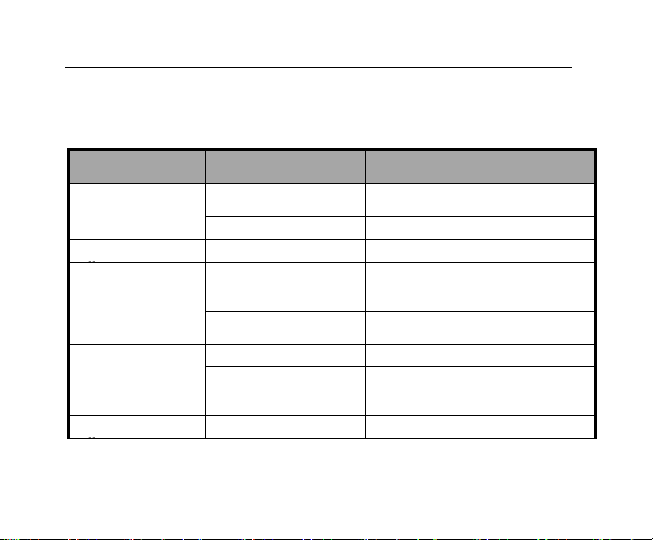
Problems and their solutions
Symptoms
Possible Causes
Solutions
Phone won‟t turn
on
The battery is flat
Charge the battery
Poor contact
Reinstall the battery
Phone turns itself
Battery very low
Charge the battery
Poor standby time
Deceasing of battery
performance
Replace the battery
Weak network signal
Turn off the phone
Can‟t connect to
the network
Weak network signal
Move to where the signal is
Out of the service
area
Make sure you‟re in a network
service area.
Calls keep cutting
Weak network signal
Move to where the signal is
69
Page 80
Phone doesn‟t
ring when I
receive incoming
calls
Phone is set to „Mute‟
or minimum volume.
Enter „User Profiles‟ to select a
Non-silent mode, or increase the
ring volume.
Received prompt
asking me to input
„PUK‟
SIM locked because
wrong PIN entered
three times.
Contact your provider and ask for
a PUK.
70
 Loading...