

Page 1

ZTE BLADE 521
User Manual
2
LEGAL INFORMATION
Thank you for choosing this ZTE mobile device. In order to
keep your device in its best condition, please read this
manual and keep it for future reference.
Copyright
Copyright © 2017 ZTE CORPORATION
All rights reserved.
No part of this publication may be quoted, reproduced,
translated or used in any form or by any means, electronic or
mechanical, including photocopying and microfilm, without
the prior written permission of ZTE Corporation.
Notice
ZTE Corporation reserves the right to make modifications on
print errors or update specifications in this guide without prior
notice. This manual has been designed with the utmost care
to ensure the accuracy of its content. However, all
statements, information and recommendations contained
therein do not constitute a warranty of any kind, either
expressed or implied. We offer self-service for our
smartphone users. Please visit the ZTE official website (at
www.ztedevice.com
) for more information on self-service and
supported product models. Information on the website takes
precedence.
Disclaimer
ZTE Corporation expressly disclaims any liability for faults
3
and damages caused by unauthorized modifications of the
software.
Images and screenshots used in this manual may differ from
the actual product. Content in this manual may differ from the
actual product or software.
Trademarks
ZTE and the ZTE logos are trademarks of ZTE Corporation.
Google and Android are trademarks of Google, Inc.
The Bluetooth
®
trademark and logos are owned by the
Bluetooth SIG, Inc. and any use of such trademarks by ZTE
Corporation is under license.
microSDXC Logo is a trademark of SD-3C, LLC.
Other trademarks and trade names are the property of their
respective owners.
Version No.: R1.0
Edition Time: April 12, 2017
4
Contents
For Your Safety ........................................................ 8
General Safety ................................................................ 8
Distraction ....................................................................... 9
Product Handling ........................................................... 10
Electrical Safety ............................................................. 13
Interference ................................................................... 14
Explosive Environments ................................................ 16
Getting Started ....................................................... 17
Overview ....................................................................... 17
Keys Explained .............................................................. 19
Starting up ..................................................................... 20
Powering On/Off ............................................................ 25
Getting Around Your Phone .......................................... 26
Phone Calls ............................................................ 29
Making Calls .................................................................. 29
Receiving Calls .............................................................. 30
Call settings ........................ ...... ...... ...... ......................... 31
Contacts ................................................................. 33
Creating a Contact ........................................................ 33
Searching for a Contact ................................................. 33
Messaging .............................................................. 34
Opening the Messaging Screen .................................... 34
Sending a Message ....................................................... 34
Page 2

5
Message Settings .......................................................... 35
Connecting to Networks and Devices .................. 36
Set Access Point Names ............................................... 36
Turn Wi-Fi On and Connect to a Wi-Fi Network ............ 36
Bluetooth ........................................................................ 37
Tethering & portable hotspot ......................................... 38
Browser .................................................................. 40
Opening the Browser ..................................................... 40
Using Multiple Browser Tabs ......................................... 40
Downloading Files ......................................................... 41
Changing Browser Settings ........................................... 41
Using Multimedia Apps ......................................... 41
Taking Pictures with Your Camera ................................ 41
Recording Videos with Your Camcorder ........................ 42
Listening to Your FM Radio ........................................... 43
Playing Your Music ........................................................ 43
Opening Your Gallery .................................................... 43
Making Voice Memos ................................................ .... 44
Using Your Google Applications .......................... 44
Gmail .............................................................................. 44
Google Play™ Store ...................................................... 45
Other Applications ................................................. 45
Clock .............................................................................. 45
Mi-Moment ..................................................................... 45
6
FileManager .................................................................. 46
Settings ................................................................... 46
Wi-Fi .............................................................................. 46
Bluetooth ....................................................................... 47
Wi-Fi hotspot ................................................................. 47
Cellular networks ........................................................... 47
More .............................................................................. 47
Themes & Wallpapers ................................................... 48
Display ........................................................................... 48
Sound ............................................................................ 48
Notifications ................................................................... 48
Features ........................................................................ 49
Apps .............................................................................. 49
Default Apps ............................. ............ ............ ............ . 49
Power Manager ............................................................. 49
Security ......................................................................... 50
Accounts ........................................................................ 50
Languages & Input ........................................................ 50
Date & Time .................................................................. 51
Backup & reset .............................................................. 51
Memory.......................................................................... 51
Storage .......................................................................... 51
Connect to PC ............................................................... 52
Scheduled power on/off ................................................. 52
Users ............................................................................. 52
Location ......................................................................... 52
7
Accessibility ................................................................... 53
Printing ........................................................................... 53
System Update .............................................................. 53
Google ........................................................................... 54
About Phone .................................................................. 54
For Y
o
Gener
a
D
oha
dr
iwh
K
eleayocaSma cYoproKepaele
d
e
A
v
te
m
ur Safet
y
l Safety
n’t make or recei
v
ndheld calls whil
e
ving. And never t
e
ile driving.
ep your phone a
t
st 10 mm away f
r
ur body while ma
lls.
all parts may ca
u
hoking.
ur phone can
duce a loud sou
n
ep away from
cemakers and ot
h
ctronic medical
vices.
oid extreme
peratures.
8
v
e
xt
D
o
st
a
om
king
Y
oa b
se
D
opho
d.
Av
an
y
er
To
he
a
lis
t
le
v
S
w
in
hfac
n’t use at petrol
tions.
ur phone may pr
o
right or flashing l
i
n’t dispose of yo
u
ne in fire.
oid contacting wit
thing magnetic.
prevent possible
ring damage, d
o
en at high volum
e
els for long perio
d
itch off when ask
ospitals and me
d
ilities.
duce
ght.
r
h
not
s.
ed to
ical
Page 3

9
Avoid contacting with
liquids. Keep your
phone dry.
Switch off when told to in
aircrafts and airports.
Don’t take your phone
apart.
Switch off when near
explosive materials or
liquids.
Only use approved
accessories.
Don’t rely on your phone
for emergency
communications.
Distraction
Driving
Full attention must be given to driving at al l ti mes in order to
reduc e the ris k of an accide n t . Using a phone while driving
(even with a hands free kit) can cause distraction and lead to
an accident. You must comply with local laws and
regulations restricting the use of wireless devices while
driving.
Operating Machinery
Full attention must be given to operating the machinery in
order to reduce the risk of an accident.
10
Product Handling
General Statement on Handling and Use
You alone are responsible for how you use your phone and
any consequences of its use.
You must always switch off your phone wherever the use of a
phone is prohibited. Use of your phone is subject to safety
measures designed to protect users and their environment.
Always treat your phone and its accessories with care
and keep it in a clean and dust-free place.
Do not expose your phone or its accessories to open
flames or lit tobacco products.
Do not expose your phone or its accessories to liquid,
moisture or high humidity.
Do not drop, throw or try to bend your phone or its
accessories.
Do not use harsh chemicals, cleaning solvents, or
aerosols to clean the device or its accessories.
Do not paint your phone or its accessories.
Do not attempt to disassemble your phone or its
accessories, only authorized personnel can do so.
Do not expose your phone or its accessories to extreme
temperatures, minimum - [20] and maximum + [60]
degrees Celsius.
11
The phone's normal operating temperature is 0℃ ~
45℃ .In order to ensure the normal phone functions, do
not use this phone outside the temperature range.
Please check local regulations for disposal of electronic
products.
Do not carry your phone in your back pocket as it could
break when you sit down.
Use careful with the earphone maybe possible excessive
sound pressure from earphones and headphones can
cause hearing loss
.
Small Children
Do not leave your phone and its accessories within the reach
of small children or allow them to play with it.
They could hurt themselves or others, or could accidentally
damage the phone.
Your phone contains small parts with sharp edges that may
cause an injury or may become detached and create a
choking hazard.
Demagnetization
To avoid the risk of demagnetization, do not allow electronic
devices or magnetic media close to your phone for a long
time.
12
Electrostatic Discharge (ESD)
Do not touch the nano-SIM card’s metal connectors.
Antenna
Do not touch the antenna unnecessarily.
Normal Use Position
When placing or receiving a phone call, hold your phone to
your ear, with the bottom towards your mouth.
Air Bags
Do not place a phone in the area over an air bag or in the air
bag deployment area.
Store the phone safely before driving your vehicle.
Seizures/ Blackouts
The phone can produce a bright or flashing light.
Repetitive Motion Injuries
To minimize the risk of RSI when texting or playing games
with your phone:
Do not grip the phone too tightly.
Press the buttons lightly.
Use the special features which are designed to minimize
the times of pressing buttons, such as Message
Page 4

13
Templates and Predictive Text.
Take lots of breaks to stretch and relax.
Emergency Calls
This phone, like any wireless phone, operates using radio
signals, which cannot guarantee connection in all cond i ti on s.
Therefore, you must never rely solely on any wireless phone
for emergency communications.
Loud Noise
This phone is capable of producing loud noises, which may
damage your hearing. Turn down the volume before using
headphones, Bluetooth stereo headsets or other audio
devices.
Phone Heating
Your phone may become warm during charging and during
normal use.
Electrical Safety
Accessories
Use only approved accessories.
Do not connect with incompatible products or acc essories.
Take care not to touch or allow metal objects, such as
coins or key rings, to contact or short-circuit in the battery
14
terminals.
Connection to a Car
Seek professional advice when connecting a phone interface
to the vehicle electrical system.
Faulty and Damaged Products
Do not attempt to disassemble the phone or its accessory.
Only qualified personnel can service or repair the phone or
its accessory.
If your phone or its ac cesso ry ha s been su bme rged in water,
punctured, or subjected to a severe fall, do not use it until
you have taken it to be checked at an authorized service
centre.
Interference
General Statement on Interface
Care must be taken when using the phone in close
proximity to personal medical devices, such as pacemakers
and hearing aids.
Pacemakers
Pacemaker manufacturers recommend that a minimum
separation of 15 cm be maintained between a mobile phone
and a pacemaker to avoid potential interference with the
15
pacemaker. To achieve this, use the phone on the opposite
ear to your pacemaker and do not carry it in a breast pocket.
Hearing Aids
People with hearing aids or other cochlear implants may
experience interfering noises when using wireless devices or
when one is nearby.
The level of interference will depend on the type of hearing
device and the distance from the interference source,
increasing the separation between them may reduce the
interference. You may also consult your hearing aid
manufacturer to discuss alternatives.
Medical Devices
Please consult your doctor and the device manufacturer
to determine if operation of your phone may interfere with
the operation of your medical device.
Hospitals
Switch off your wireless device when requested to do so in
hospitals, clinics or health care facilities. These requests are
designed to prevent possible interference with sensitive
medical equipment.
Aircraft
Switch off your wireless device whenever you are instructed
to do so by airport or airline staff.
16
Consult the airline staff about the use of wireless devices on
board the aircraft. If your device offers a ‘flight mode’, this
must be enabled prior to boarding an aircraft.
Interference in Cars
Please note that because of possible interference to
electronic equipment, some vehicle manufacturers forbid
the use of mobile phones in their vehicles unless a
hands-free kit with an external antenna is included in the
installation.
Explosive Environments
Petrol Stations and Explosive Atmospheres
In locations with potentially explosive atmospheres, obey all
posted signs to turn off wireless devices such as your phone
or other radio equipment.
Areas with potentially explosive atmospheres include fuelling
areas, below decks on boats, fuel or chemical transfer or
storage facilities, areas where the air contains chemicals or
particles, such as grain, dust, or metal powders.
Blasting Caps and Areas
Power off your mobile phone or wireless device when in a
blasting area or in areas posted power off “two-way radios”
or “electronic devices” to avoid interfering with blasting
operations.
Page 5

17
Getting Started
Overview
Proximity & light
sensor
Earpiece
Indicator light
Front camera
Volume key
Power key
Home ke
y
Back key
Recent apps key
Front flash
18
Flash
Charging
/
micro-USB
jack
Headset
jack
Back
camera
Speaker
Back cover
Microphone
Keys
Key
Power K
e
Home K
e
Back Ke
y
Recent
a
Key
Volume
K
NO
T
The posi
t
intercha
n
keys.
Explained
Functio
n
y
Pres
s
mod
e
pow
e
Pres
s
y
Tou
c
any
a
Tou
c
Touch t
o
pps
Touch t
o
ey
Press o
r
volume
u
E:
ions of the Re
c
geable throug
h
19
and hold to tu
, restart, selec
t
r off.
to turn off or
o
h to return to t
h
pplication or s
c
h and hold to u
s
go to the prev
i
see recently u
hold either en
d
p or down.
ent apps key
a
Settings > Fe
rn on or off airp
phone modes,
n the screen di
s
e home screen
reen.
e Google Sea
r
ous screen.
sed apps.
of the key to t
u
nd the Back k
e
atured > Navi
g
lane
or
play.
from
ch.
rn the
y are
ation
20
Starting up
Installing the nano-SIM Card and the microSDXC™ Card
The nano-SIM card can be installed or removed while the
phone is turned on.Power off your phone before removing or
replacing the battery
.
The microSDXC card (optional, not included) can be installed
or removed while the phone is turned on. You need t o
unmount the microSDXC card before removing it.
WARNING!
To avoid damage to the phone, do not use any other kind of
SIM cards, or any non-standard nano-SIM card cut from a
SIM card. You can get a standard nano-SIM card from your
service provider.
1. Place your finger in the slot at the bottom of the back
cover to lift and remove the cover.
Page 6
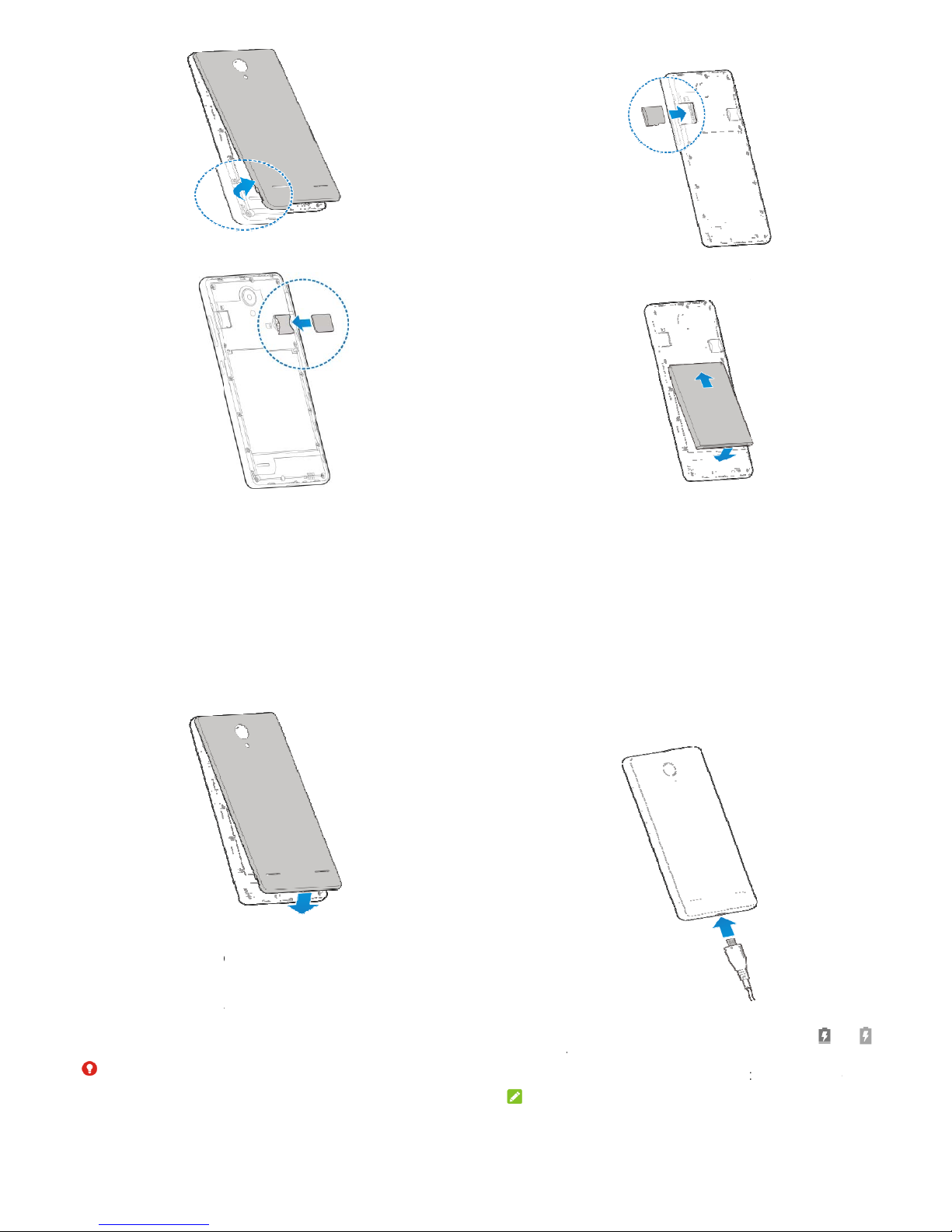
2. Hold
t
show
n
he nano-SIM c
and slip it int
o
21
ard with their c
u
the card hold
e
t corner orient
e
r.
d as
3. Hold y
o
down
a
4. Insert t
battery
push d
o
ur microSDXC
nd slide it into
t
he battery by al
and those in th
wn on the batt
22
card with the
m
he microSDXC
igning the gold
e
e battery comp
a
ery until it click
s
etal contacts f
a
card slot.
n contacts on
t
rtment. Gentl
y
into place.
cing
he
5. Repl
a
Ali
①
Pr
e
②
Chargin
g
Your ph
o
phone to
should f
u
If the bat
screen.
A
you the
e
WA
R
Use only
ce the back co
v
gn the back co
v
ss the cover b
a
the Battery
ne’s battery sh
o
turn on, find a
s
lly charge the
b
tery is low, the
r
s you charge
y
xact battery le
v
NING!
ZTE-approved
23
er.
er with the bot
t
ck into place.
uld have eno
u
ignal, and ma
k
attery as soon
e will be a pop-
our phone, the
el on the statu
s
chargers and
c
om of the phon
gh power for th
e a few calls.
Y
as possible.
up message o
n
lock screen wil
l
bar.
ables. The use
e.
e
ou
the
show
of
unapprov
e
the batter
y
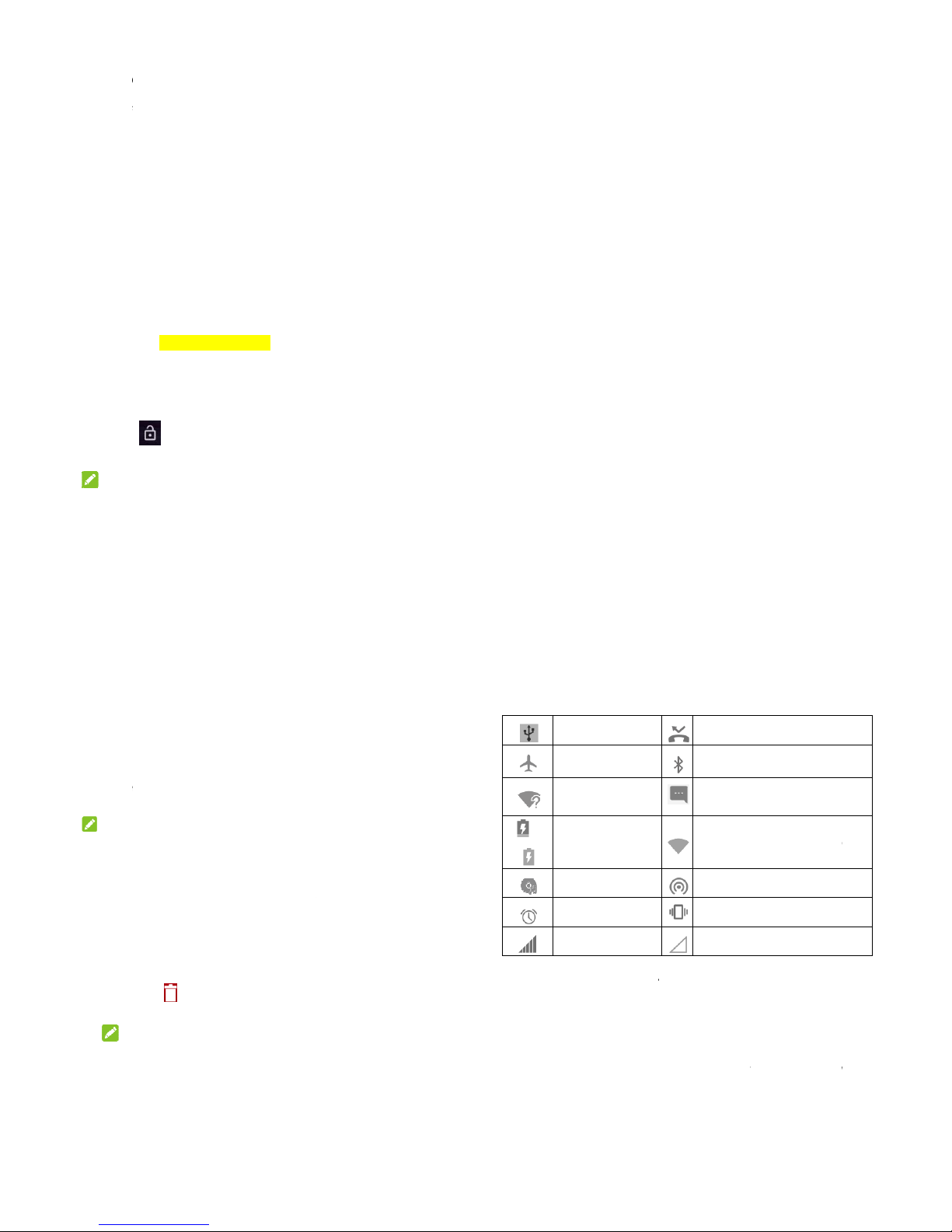
1. Conne
c
adapte
force t
h
2. Conne
c
phone
i
appear
3. Discon
NOTE
d accessories
c
to explode.
t the adapter t
o
r is inserted wit
h
e connector in
t
t the charger t
o
s on, you’ll see
on the status
b
nect the charg
e
:
24
ould damage
y
the charging j
a
the correct or
i
o the charging
j
a standard A
C
a charging ico
n
ar.
r when the bat
t
our phone or c
a
ck. Ensure th
a
entation. Do n
o
ack.
power outlet.
I
, such as
o
ery is fully char
g
use
t the
t
f the
r ,
ed.
Page 7
If the bat
on the p
h
again aft
e
Contact
t
phone a
f
Powe
r
Pres
s
To s
w
and t
o
Setting
U
When y
o
reset it t
o
before u
s
Touch th
use and
t
set up
W
options.
Waking
1. Pres
s
2. Swip
e
NO
T
tery is extremel
one even whe
n
r charging the
he customer s
e
ter prolonged c
ing On/O
f
and hold the
P
itch it off, hold
uch
power of
f
p for the Firs
t
u first power o
n
factory setting
ing it.
e language fiel
d
hen touch
LE
T
i-Fi, Date&time
Up Your Phon
e
the
Power
ke
y
up to unlo
c
ES:
25
y low, you may
it is being cha
phone for at le
a
rvice if you still
harging.
f
ower
key to tu
r
Power
key to o
.
Time
your phone af
t
s, you need to
d
to select the l
a
'S GO
. Then fo
,NAME, Googl
e
to turn the scr
e
k your phone.
be unable to p
o
rged. In this ca
s
st 20 minutes.
cannot power
o
n on your pho
n
pen the option
s
er you purchas
o some settin
g
nguage you w
a
llow the promp
t
services, and
en on.
wer
e, try
n the
e.
menu
e it or
s
nt to
s to
other
26
If you have set an unlock pattern, PIN or complex
password for your phone, you’ll need to draw the pattern
or enter the PIN/password to unlock your screen.
Getting Around Your Phone
Touch Control
You can use finger gestures to control your phone. The
contr ols on your to uch-screen change dynamically
depending on the tasks you’re performing.
Touch the buttons, icons, or applications to select items
or to open applications.
Flick the screen to scroll up, down, left or right.
Hold and drag to move particular items across the screen.
Double-tap the screen to zoom in/out an image. Pinch on
with two fingers to zoom in/out a web page.
Home Screen
The home screen is the starting point for your phone’s
applications, functions, and menus. You can customize your
home screen by adding folders, widgets, and more.
Extended Home Screen
Your home screen is extendable, providing more space for
shortcuts, folders, widgets, and more. Simply swipe left or
right on the screen to see the extended panels.
Choosi
n
You can
screen.
1. Touc
h
Setti
n
2. Touc
h
wall
p
Gall
e
wallp
a
NO
T
Other w
a
screen
w
Touch a
n
select
C
u
built-in i
m
touch
C
a
Removi
1. Touc
h
2. Drag
3. If the
N
Som
e
g Your Wall
p
set the wallpap
the
Home
ke
y
gs > Themes
Home scree
n
aper
and sele
c
ry
to select a p
per.
E:
y to set the ho
m
allpaper:
d hold an emp
t
stomize laun
c
age or an ima
g
mera
to take a
ng Items fro
m
and hold the
it to to del
e
item is an appli
OTE:
preinstalled a
p
27
aper
er for the hom
e
and slide on t
h
& wallpapers
>
wallpape
r
or
L
t a built-in stati
c
icture, crop it,
a
e screen wall
p
y area of the h
o
her > Wallpa
p
e from your g
a
photo as the w
Your Home
S
item you want
t
te it.
cation, touch
O
ps cannot be
u
screen and lo
c
e screen to sel
Wallpapers
.
ock screen
wallpaper, or
t
nd use it as th
e
aper and the l
o
me screen an
d
e
r
tab. Then s
e
llery. You can
a
allpaper.
creen
o delete.
K
to uninstall it
.
ninstalled.
k
ect
ouch
ck
lect a
lso
Status an
d
Your phon
you simpl
e
U
S
Ai
r
N
ede
/
B
aSo
Al
a
Si
g
Open/Clo
s
Notificatio
n
events, an
you've co
n
open the
n
To ope
from th
Notification
I
e will tell you e
x
icons. Here’s
w
B tethering on
plane mode
w Wi-Fi network
tected
ttery charge
ng playing
rm set
nal strength
e the Notifica
t
s report the ar
r
d alarms, as w
e
figured your p
h
otification pan
e
n the notificatio
e top of the scr
e
28
cons
actly what’s g
o
hat they mea
n
Missed ca
l
Bluetooth
i
New mes
s
Connecte
d
Portable
W
Vibration
o
No signal
ion Panel
ival of new me
s
ll as ongoing e
v
one as a Wi-Fi
l to view the d
e
n panel, swipe
y
en.
ing on by sho
w
.
l
con
age
to a Wi-Fi® netw
o
i-Fi hotspot is on
n
sages, calend
a
ents, such as
w
hotspot. You c
a
tails of notificat
our finger do
w
ing
rk
r
hen
n
ions.
n
Page 8

29
To close the notification panel, swipe your finger up on
the screen or touch the Back key.
Phone Calls
Making Calls
You can place calls from the Phone a pp, the Contacts app,
or other apps or widgets that display contact information.
Wherever you see a phone number, you can usually touch it
to dial.
Calling from the Phone
1. Touch the Home key >
.
2. Enter the phone number with the dialpad. Touch to
delete incorrect digits.
3. Touch below the keypad to dial.
NOTE:
To make an international call, touch and hold the 0 key to
enter the plus (+) symbol. Next, enter the country code,
followed by the city/area code and then the phone number.
Calling from Your Contacts
1. Touch the Home key and slide on the screen to select
Contacts.
30
2. Touch next to a contact to place the call.
Calling from Your Call History
1. Touch the Home key >
> Phone.
2. Touch a listing to call back.
NOTE:
You can touch All calls, Incoming calls, Outgoing calls,
Missed calls, or Rejected calls to filter the records by
call type.
Calling from a Text Message
If a text message contains a phone number that you want to
call, you can make the call while viewing the text message.
1. Touch the Home key >
.
2. Touch the conversation and then find the message that
contains the phone number you need.
3. Touch the number and touch Call.
Receiving Calls
Answering a Call
When you receive a phone call, slide down to answer
the call.
Rejectin
When y
o
call.
Muting
a
During a
person y
o
hear the
m
Touch
microph
o
Turning
Touch
agai
Ending
a
Touch
Call s
Touch th
Spee
dialer
t
Auto
-
autom
a
g a Call
u receive a ph
o
Call
call, you can
m
u are speakin
g
.
to turn your
m
ne back on, to
u
the Speakerp
h
during a call
n to turn off the
Call
to finish a
ettings
e
Home
key >
d Dial:
Touch
a
o call the corre
s
Answer:
Confi
tically when y
o
31
ne call, slide
ute your micro
p
to cannot hea
icrophone off.
T
ch again.
one On/Off
to turn the spe
speakerphone
call.
> >
C
nd hold the 1
~
ponding spee
d
gure your pho
n
u are not in a
c
up to reject
t
hone so that t
h
r you, but you
c
o turn your
akerphone on.
T
all settings
.
9 keys from th
dial number.
e to answer cal
all.
he
e
an still
ouch
e
ls
32
Accessibility: Touch to choose TTF mode .Or check
Hearing aids to turn on hearing aid compatibility .
Carrier settings: Touch to configure other call settings.
Include the following four items:
► Voicemail: Touch to configure voicemail settings.
► Fixed Dialing Numbers: Fixed Dialing Numbers (FDN)
allows you to restrict outgoing calls to a limited set of
phone numbers.
► Call forwarding: Call forwarding feature allows you to
forward your incoming calls to another phone number.
► Call barring: Touch to restrict specific types of calls
from your phone.
► Additional settings: Touch Caller ID to choose
whether your number is displayed when someone
receives your outgoing call. Or check Call waiting to
get notified of incoming calls during a call.
Ringtone and keypad sound: Touch Phone ringtone to
select the default ringtone for incoming calls. Or check
Vibrate when ringing touch to enable vibration when the
phone is ringing.
You can else check Dialpad touch
sounds
option to enable the phone dial pad sound.
DTMF tones: Touch to set the length of dual-tone
multi-frequency (DTMF) signal tones: Normal or Long.
Operations for a call not answered: Enable operations
for a call not answered to send a message or call another
number after the call ends.
Page 9

33
Contacts
You can add contacts on y our ph one an d synch roniz e them w ith
the contacts in your Google accoun t or othe r acco unts th at
support contact sy ncing.
To see your contacts, touch the Home key and slide on the
screen to select
.
Creating a Contact
1. Press the Home key and slide on the screen to select
.
2. Touch to add a new contact.
3. Touch the account field near the top of the screen to
choose where to save the contact. You can save the
contact on the phone, a nano-SIM card, or a web account
you have added on the phone.
4. Enter the contact name, phone numbers, email
addresses, and other information.
5. Touch Save.
Searching for a Contact
1. Press the Home key and slide on the screen to select
.
34
2. Enter the contact name or any information the contact has
to search for it at the top.
The contacts matched will be listed.
Messaging
You can use Messaging to exchange text messages (SMS)
and multimedia messages (MMS).
Opening the Messaging Screen
Touch the Home key > .
The Messaging screen opens, where you can create a new
message, search for messages, delete messages, or open
an ongoing message thread.
Touch to write a new text or multimedia message.
Touch to search for a message using keywords.
Touch to select messag e threads for deletion.
Touch an existing message thread to open the conversation
you’ve had with a certain number.
Sending a Message
1. On the Messages screen, touch at the bottom.
2. Add recipients by one of the following ways.
T
onufew
S
e
to
u
3. Touc
h
text.
4. If you
add
a
5. Touc
h
N
You
c
multi
m
N
Do n
want
char
g
Mess
a
Touch
the mes
s
uch the To fiel
d
mber or the co
suggestions,
lect recipients
f
ching .
the
Enter a
m
want to send
a
subject or atta
c
.
OTE:
an also include
edia messag
e
OTE:
ot add a mess
a
to send a text
m
ed for a multi
m
ge Settin
g
> Settings
i
aging settings.
35
and manually
tact name. If t
h
touch the one
y
f
rom your cont
a
essage
field a
n
multimedia m
e
h a file to the
m
email address
e
.
ge subject or a
essage. Othe
r
edia message.
s
n the Message
s
enter the recipi
e
e phone pres
e
ou want to add
cts or call log
b
d enter the m
e
ssage, touch
essage.
s as recipients
ny attachment i
wise you may
b
screen to cha
nt’s
nts a
.
y
ssage
to
for a
f you
e
nge
Conn
e
Devic
e
Set Ac
c
To conne
c
Point Nam
please co
n
informatio
n
1. Touch
t
Settin
g
2. Touch
A
3. Touch
e
your s
e
4. Touch
NOT
E
To set the
default
.
Turn
W
Netwo
r
1. Touch
t
Settin
g
cting to
s
ess Poin
t
t to the Interne
t
es (APN). And
tact the servic
e
.
he
Home
key
a
s > Cellular n
e
ccess Point
N
ach item to en
rvice provider.
> Save
to c
o
:
APN to default
i-Fi On a
n
k
he
Home
key
a
s > Wi-Fi
.
36
Network
s
Names
you can use t
h
if you want to a
provider to ge
t
nd slide on th
e
tworks
.
ames >
.
ter the informa
t
mplete.
settings, touch
d Conne
c
nd slide on th
e
and
e default Acce
s
dd a new APN,
the necessary
screen to sele
c
ion you get fro
m
> Reset to
t to a Wi-
F
screen to sele
c
s
t
i
t
Page 10

2. Slide
3. Touc
h
4. If the
Con
n
NO
T
Your ph
o
network
s
Bluet
o
Bluetoot
h
technolo
g
capabiliti
distance
devices
m
perform
e
1. Touc
h
Setti
n
2. Slide
Bluet
o
Whe
n
bar.
the switch next
a network na
m
network is sec
u
ect
.
E:
ne automatical
when they are
oth
®
is a short-ra
n
y. Phones or
o
es can exchan
g
of about 10 m
e
ust be paired
d.
the
Home
ke
y
gs > Bluetoot
the switch next
oth.
Bluetooth is o
n
37
to
Wi-Fi
to tur
n
e to connect t
o
red, enter the
p
ly connects to
p
in range.
ge wireless co
m
ther devices wi
e information
w
ters (32.8 feet)
.
before the com
m
and slide on t
h
h.
to
Bluetooth
t
o
, the icon
a
on Wi-Fi.
it.
assword and t
o
reviously used
munication
th Bluetooth
irelessly withi
n
The Bluetooth
unication is
e screen to sel
turn on or off
ppears in the
s
uch
Wi-Fi
a
ect
tatus
Tether
i
You can s
h
tethering
o
a portable
Share Yo
u
You cann
o
computer
v
1. Conne
c
2. Touch
t
Settin
g
3. Switch
be cre
a
NOT
E
To stop s
h
tethering
o
Share Yo
u
1. Pair yo
2. Config
u
via Blu
e
compu
t
3. Touch
t
Settin
g
4. Switch
ng & port
a
are your phon
e
r by activating
t
Wi-Fi hotspot.
r Mobile Data
t transfer files
b
ia USB while t
h
t your phone t
o
he
Home
key
s
s > More
.
on
USB tether
ted on your co
m
:
aring your data
r disconnect t
h
r Mobile Data
ur phone with
y
re your compu
tooth. For mo
r
er's document
s
he
Home
key
s
s > More
.
on
Bluetooth
t
38
ble hots
p
’s data capabi
l
he mobile hots
p
Connection v
i
etween your p
h
e phone is US
your compute
r
lide on the scr
e
ing
. A new net
w
puter.
connection, s
w
e USB cable.
Connection v
i
our computer
v
ter to obtain its
e information,
p
.
lide on the scr
e
ethering
. Your
ot
ities through
ot feature to c
r
a USB
one and your
B tethered.
with a USB c
a
en to select
ork connectio
n
itch off
USB
a Bluetooth
ia Bluetooth.
network conne
c
lease see your
en to select
computer is n
o
eate
ble.
will
tion
w
shari
n
NO
T
To stop
s
tetherin
g
Share Y
o
When th
e
cannot u
s
Internet.
mobile d
a
1. Touc
h
Setti
n
2. Switc
After
netw
o
3. On a
n
conn
e
NO
T
To stop
hotspot
.
g your phone'
s
E:
haring your da
t
.
ur Mobile Da
t
portable Wi-F
e your phone’
s
You still remai
n
ta network.
the
Home
ke
y
gs > Wi-Fi ho
t
h on
Wi-Fi hot
s
a moment, the
rk name (SSI
D
other device, l
o
ct with it to sta
E:
sharing your
39
data connecti
o
a connection,
s
a Connection
a
i hotspot featur
e
Wi-Fi capabili
t
connected to
t
slide on the s
c
spot.
pot.
phone starts br
o
).
cate your pho
n
rt using the ph
o
data connecti
o
n.
witch off
Bluet
o
s a Wi-Fi Hot
s
is enabled, y
o
y to access th
e
he Internet via
y
reen to select
adcasting its
W
e via Wi-Fi an
d
ne’s mobile da
t
n, switch off
oth
pot
u
our
i-Fi
a.
Wi-Fi
40
Browser
Use Browser to view web pages and search for information.
Opening the Browser
Touch the Home key > to launch the web browser.
You can also open the browser by touching a web link - for
example, in an email or a text message.
1. Open the Browser app.
2. Touch the address box.
3. Enter the address (URL) of a web page or enter terms
you want to search for.
4. Touch a URL or search suggestion or touch on the
keyboard to open the web page or search results.
Using Multiple Browser Tabs
You can open several web pages at the sam e time (one page
in each tab) and switch between them f reely.
To open a new browser tab:
Touch > New window. A new browser tab opens.
To switch between tabs:
1. Touch . Titles of opened tabs appear as a list.
2. Touch the title you want to open.
Page 11
41
NOTE:
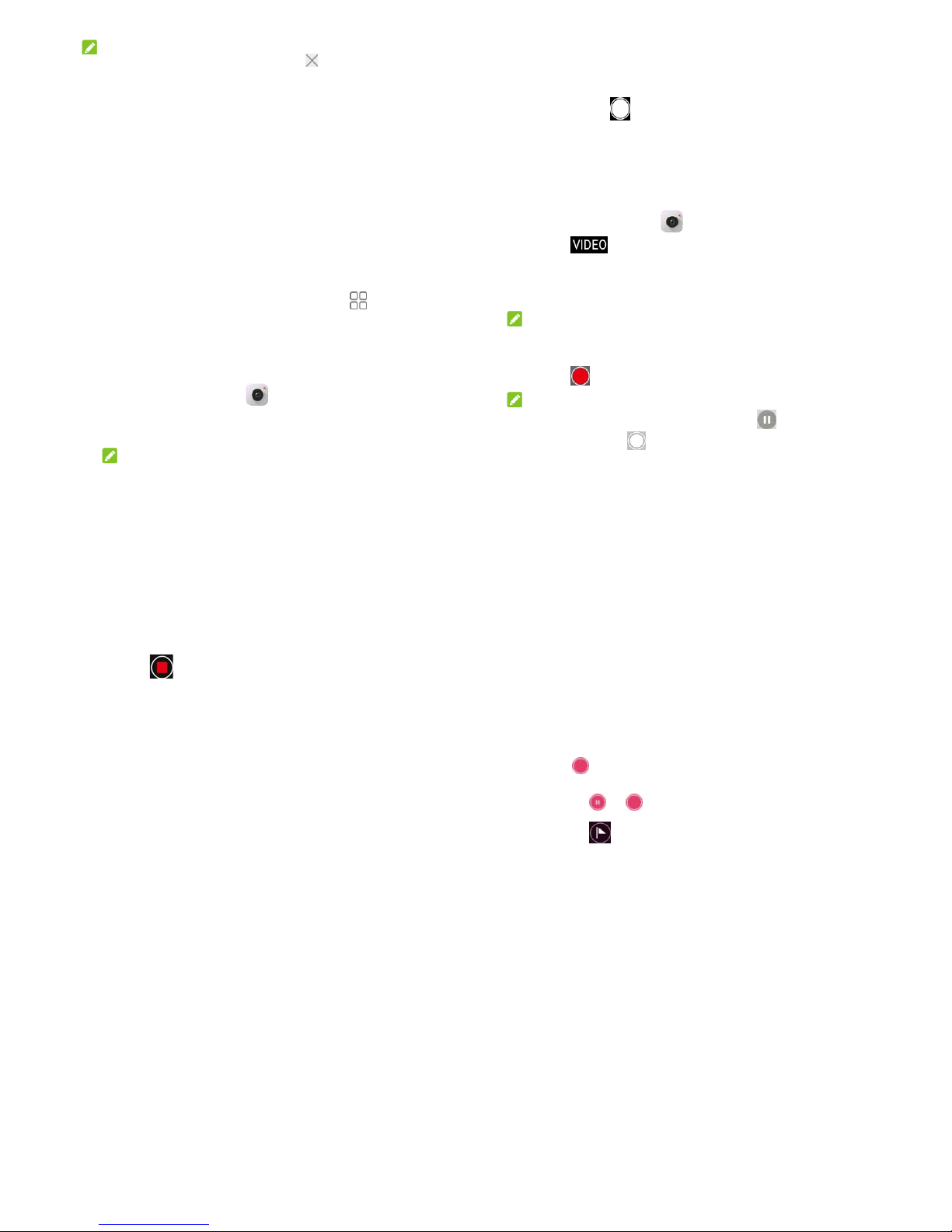
Swipe a title horizontally or touch its to close the tab.
Downloading Files
1. Touch and hold an image or a link to a file or to another
web page.
2. In the menu that opens, touch Save image or Save link.
The downloaded files are saved to your phone. You can view
or open them in the Downloads app.
Changing Browser Settings
You can configure a number of settings to customize the way
you browse the web, including several that you can use to
control your privacy.
To open the browser settings screen, touch > Settings.
Using Multimedia Apps
Taking Pictures with Your Camera
1. Touch the Home key > .
2. Aim the camera at the subject and make any necessary
adjustment.
NOTE:
You can spread or pinch on the screen to zoom in or out
42
before taking pictures.
3. Touch the area where you want the camera to focus, or
leave the camera to autofocus on the center of the image.
4. Lightly touch . The Volume key can also be used to
take a photo.
Recording Videos with Your
Camcorder
1. Touch the Home key > .
2. Touch .
3. Aim the camera at the subject. You can touch any area on
the screen that you want the camcorder to focus on
before and during recording.
NOTE:
You can spread or pinch on the screen to zoom in or out
before and during recording.
4. Touch to start recording a video.
NOTE:
While the recording is in progress, touch to pause the
recording, or touch to save the frame as a separate
photo.
43
5. Touch
to stop recording.
Listening to Your FM Radio
With the FM Radio, you can search for radio channels, listen
to them, and collect them to your phone. Note that the quality
of the radio broadcast depends on the coverage of the radio
station in your area. The wired headset works as an antenna,
so always connect the headset when using the radio.
1. Plug your headset into your phone.
2. Touch the Home key and slide on the screen to select FM
Radio.
Playing Your Music
Music supports a wide variety of audio formats, so it can play
music you purchase from online stores, music you copy from
your CD collection, and so on.
1. Touch the Home key and slide on the screen to touch
Music > All songs to see the music library.
2. Touch a song in any list.
Opening Your Gallery
Touch the Home key and slide on the screen to select
Gallery to view albums of your pictures and videos.
44
Making Voice Memos
Recorder enables you to record voice memos and listen to
them whenever you like.
1. Press the Home key and slide on the screen to select
Recorder.
2. Touch to start recording. During recording, you can
do the following:
Touch / to pause or continue the recording.
Touch to add time tags to the recording.
3. Touch Done to stop recording.
4. Edit the file name and touch Done to save the recording.
If you don’t want to save the memo after recording it, touch
Delete to cancel it.
Using Your Google Applications
Signing in to your Google Account lets you synchron ize
Gmail, Calendar, and Contacts between your phone and the
web. And if you don’t have an account, you can easily create
one.
Gmail
Gmail is a web-based email service t hat’s configured when
Page 12

45
you sign in to your Google account. Depending on your
synchronization settings, the Gmail on your phone can be
automatically synchronized with your Gmail account on the
web. This is how to enter Gmail:
To open Gmail by touching the Home key > Google> Gmail.
Google Play™ Store
Touch the Home key > . You can buy or rent music,
books, movies, apps, and download them to your phone.
NOTE:
The content you can access in Google Play Store depends
on your region and your service provider.
Other Applications
Clock
Touch the Home key and slide on the screen to select Clock.
The Clock app allows you to check local time in places
around the world, set alarms, and use timers.
Mi-Moment
Touch the Home key and slide on the screen to select
Tools > Mi-Moment to save and view your text notes.
Touch to create a new note. Then enter your text and
46
touch SAVE.
Touch a note to view its entire contents. T ouch or to
edit, delete, share, export, lock, move it to folder, or view
its details.
FileManager
Quickly access all of your images, videos, audio clips, and
other types of files on your phone storage.
Touch the Home key and slide on the screen to select
System Management > FileManager. You can touch a file
category to find the file you need, or touch Phone, SD Car d,
or External devices to browse folders and files on the phone
storage, the microSDXC card, or the connected OTG device.
Settings
The Settings app contains most of the tools for customizing
and configuring your phone.
Wi-Fi
Touch the Home key and slide on the screen to select
Settings > Wi-Fi. You can turn Wi-Fi on or off and configure
your Wi-Fi connections.
47
Bluetooth
Touch the Home key and slide on the screen to select
Settings > Bluetooth. You can turn Bluetooth on or off and
configure your Bluetooth connections.
Wi-Fi hotspot
Touch the Home key and slide on the screen to select
Settings > Wi-Fi hotspot to share your phone’s mobile data
connection with PCs or other devices via Wi-Fi.
Cellular networks
Touch the Home key and slide on the screen to select
Settings > Cellular networks. You can configure your
mobile network settings.
More
Touch the Home key and slide on the screen to select
Settings > More. You can slide Airplane mode to turn it on
or off. Touch Data usage to manage mobile data use. Touch
VPN to set up and connect to virtual private networks. Check
USB tetheri ng to share your phone’s mobile data connection
with PCs or other devices via USB. Touch Bluetooth
Tethering to share your phone’s mobile data connection with
PCs or other devices vi a B lu et oo th. T ou ch Network settings
48
reset to reset all network settings ,including Wi-Fi, Cellular
data, Bluetooth.
Themes & Wallpapers
Touch the Home key and slide on the screen to select
Settings > Themes & wallpapers. You can select a different
theme for the phone display, or change the home/lock screen
wallpaper.
Display
Touch the Home key and slide on the screen to select
Settings > Display to configure the display options.
Sound
Touch the Home key and slide on the screen to select
Settings > Sound. You can adjust different types of volume,
toggle ring, vibrate and silent, have phone also vibrate for
calls, enable do not disturb mode on or off, set up ringtones
and select touch sounds.
Notifications
Touch the Home key and slide on the screen to select
Settings > Notifications to control the display of
notifications.
Page 13

49
Features
Touch the Home key and slide on the screen to select
Settings > Features. You can interchange the position of the
Recent apps key and the Back key through Navigation
keys.
You can turn Mi-POP on or off and configure the Gestures&
motions settings.
Apps
Touch the Home key and slide on the screen to select
Settings > Apps to see apps installed on your phone and
manage them.
Default Apps
Touch the Home key and slide on the screen to select
Settings > Default apps to set the default application for
certain operation. For example, you can set Email or Gmail
as the default email app. Touch > Restore defaults to
return to the default settings.
Power Manager
Touch the Home key and slide on the screen to select
Settings > Power manage r to vie w the battery leve l, select
different mode of power plan, set power-save policy for each
50
app individually, check what has been using the battery, and
enable remind user when battery temperature over 45
。
C.
Security
Touch the Home key and slide on the screen to select
Settings > Security to configure options that help keep your
phone and data safe.
Accounts
Touch the Home key and slide on the screen to select
Settings > Accounts to manage your web accounts and
synchronization. Touch Add account to sign in to or create
accounts on your phone.
Touch an account type to see that type of accounts you have
added and adjust the accounts settings.
Languages & Input
Touch the Home key and slide on the screen to select
Settings > Advanced settings > Languages & input to
configure options rela ted to sy stem l angu ag e, i nput me tho ds,
speech input and output as well as mouse/trackpad input.
51
Date & Time
Touch the Home key and slide on the screen to select
Settings > Advanced settings > Date & time to set date,
time, time zone, time format and more.
Backup & reset
Press the Home key, slide on the screen and touch
Settings > Advanced settings > Backup & reset to
manage data backup and restoration options, and to reset
the network setting or the phone to factory status.
Memory
Touch the Home key and slide on the screen to select
Settings > Advanced settings > Memory to monitor the
average memory use and performance of your phone. You
can also check which apps use the most memory.
Storage
Touch the Home key and slide on the screen to select
Settings > Advanced settings > Storage to view the
memory information of the internal phone storage and the
microSDXC card.
Touch Phone memory to get a detailed breakdown of space
usage by type. Touch a data type to see more information or
delete the files you do not need .
52
Connect to PC
Touch the Home key and slide on the screen to select
Settings > Advanced settings > Connect to PC to select
your USB connection type between your phone and PC.
Scheduled power on/off
Touch the Home key and slide on the screen to select
Settings > Advanced settings > Scheduled power on/off
to set the day and time when the phone automatical ly powers
on or off.
Users
Touch the Home key and slide on the screen to select
Settings > Advanced settings > Users to add user to share
your phone and create their own space.
Location
Touch the Home key and slide on the screen to select
Settings > Advanced settings > Location to manage
location services, which help your phone and apps determine
your location. To use location-related applications, such as
finding your location on Google Maps, you must have
location services turned on on your phone.
Slide the switch at the top to turn location services on or off.
Page 14

53
When location is enabled, touch Mode to select loca tion
sources you want to use.
In the Location menu, touch Google Location History to
configure Google location options.
Accessibility
Touch the Home key and slide on the screen to select
Settings > Advanced settings > Accessibility to configure
accessibility plug-ins and services on your phone, such as
using Color inversion or High contrast text for users with
sight problems.
Printing
Touch the Home key and slide on the screen to select
Settings > Advanced settings > Printing to manage
Google Cloud Print service or other printer plug-ins installed
from the Google Play Store or your printer manufacturer.
System Update
Touch the Home key and slide on the screen to select
Settings > System Update to check, download and install
system updates.
54
Google
Touch the Home key and slide on the screen to select
Settings > Google to easily manage settings for Google
apps and features. You can set the options for Google
account and services.
About Phone
Touch the Home key and slide on the screen to select
Settings > About phone to view important phone
information and legal information. You can also touch My
phone name to give your phone a name for easy
identification when others want to connect to your phone via
Bluetooth or Wi-Fi hotspot.
55
FCC RF Exposure Information (SAR)
This phone is designed and manufactured not to exceed the emission limits for
exposure to radio frequency (RF) energy set by the Federal Communications
Commission of the United States.
During SAR testing, this device was set to transmit at its highest certified power
level in all tested frequency bands, and placed in positions that simulate RF
exposure in usage against the head with no separation, and near the body with
separation of 10 mm. Although the SAR is determined at the highest certified
power level, the actual SAR level of the device while operating can be well below
the maximum value. This is because the phone is designed to operate at multiple
power levels so as to use only the power required to reach the network. In general,
the closer you are to a wireless base station antenna, the lower the power output.
The exposure standard for wireless devices employing a unit of measurement is
known as the Specific Absorption Rate, or SAR.
The SAR limit set by the FCC is 1.6W/kg. This device is complied with SAR for
general population /uncontrolled exposure limits in ANSI/IEEE C95.1-1992 and
had been tested in accordance with the measurement methods and procedures
specified in IEE E 1528.
The FCC has granted an Equipment Authorization for this model phone with all
reported SAR levels evaluated as in compliance with the FCC RF exposure
guidelines. SAR information on this model phone is on file with the FCC and can
be found under the Display Grant section of www.fcc.gov/oet/ea/fccid after
searching on FCC ID: SRQ-ZTEBLADEA521.
56
For this device , th e highest reported SAR value for usage ag ainst the head is
0.606 W/kg, for usage near the body is 1.405 W/kg.
While there may be differences between the SAR levels of various phones and at
various positions, they all meet the government requirements.
SAR compliance for body-worn operation is based on a separation distance of 10
mm between the unit and the human body. Carry this device at least 10 mm away
from your body to ensure RF exposure level compliant or lower to the reported
level. To support bodyworn operation, choose the belt clips or holsters, which do
not contain metallic components, to maintain a separation of 10 mm between this
device and your body.
RF exposure compliance with any body-worn accessory, which contains metal,
was not tested and certified, and use such body-worn accessory should be
avoided.
FCC Regulations
This mobile phone complies with part 15 of the FCC Rules. Operation is subject to
the following two conditions: (1) This device may not cause harmful interference,
and (2) this device must accept any interference received, including interference
that may cause undesired operation.
This mobile phone has been tested and found to comply with the limits for a Class
B digital device, pursuant to Part 15 of the FCC Rules.
These limits are designed to provide reasonable pr o t ection against ha rm ful
interference in a residential installation. This equipment generates, uses and can
radiate radio frequency energy and, if not installed and used in accordance with
Page 15

57
the instructions, may cause harmful interference to radio communications.
However, there is no guarantee that interference will not occur in a particular
installation. If this equipment does cause harmful interference to radio or
television reception, which can be determined by turning the equipment off and on,
the user is encouraged to try to correct the interference by one or more of the
following measures:
• Reorient or relocate the receiving antenna.
• Increase the separation between the equipment and receiver.
• Connect the equipment into an outlet on a circuit different from that to which the rece iver
is connected.
• Consult the dealer or an experienced radio/TV technician for help.
CAUTION: Changes or modifications not expressly approved by the party
responsible for compliance could void the user’s authority to operate the
equipment.
The antenna(s) used for this transmitter must not be co-located or operating in
conjunction with any other antenna or transmitter.
 Loading...