

Page 1

Table of Contents
The Basics 4
Getting Started 5
VZAccess Manager Overview 7
Wireless Device Overview 14
Assistance 16
May we help you? 17
The My Verizon Advantage 17
Loss or Theft 21
Toll-free Calls and Emergency Services 22
Fraud Prevention 22
Assistive Communication Devices 23
Optional Services 24
Safety and Protection 25
Wireless Device Protection 25
International Services 25
Other Products and Services 27
More information 28
TABLE OF CONTENTS
2
QRGPCGlobal708
Page 2
Welcome
Thank You for Choosing Verizon Wireless
You’re now connected to the power of America’s most reliable
wireless network. This guide will help you understand your
new wireless device and all the things you can do with it at
home or abroad. So let’s get started.
For more details, please refer to the User Guides located on
your installation CD.
The Basics
• Getting Started
• VZAccess Manager Over view
• Wireless Device Overview
THE BASICS
3 4
Page 3
5
6
THE BASICS
Getting Started
THE BASICS
Just the basics; we’ll get into the fun stuff later on.
1
3
4
2
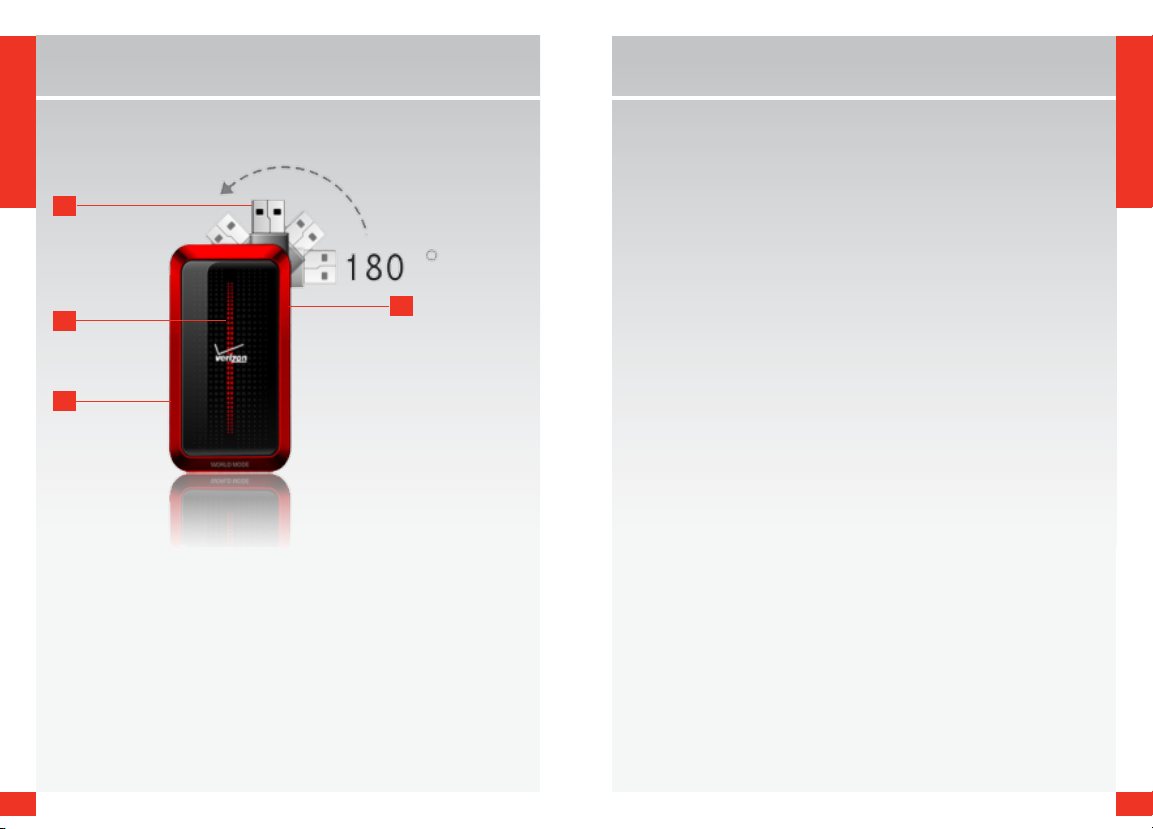
1. USB Interface
2. Antenna Jack
3. LED
4. Insert SIM Card
Installing the SIM Card*
Your GlobalAccess wireless devices comes with a SIM card
installed which along with a Global Feature on your account,
enables you to access data while outside the U.S. Should your
SIM card be lost or damaged, please follow these instructions
for the installation of your new SIM:
1. Remove SIM card from the outer card being careful not to
touch the gold contacts.
2. Insert SIM card into the slot by opening the SIM card cover
located underneath USB modem. Hold the card so the
writing on the back of the card is facing you and the gold
contact points are properly aligned with the SIM card slot.
3. Insert SIM card with the Verizon Wireless/Vodafone logo
facing you into the slot.
The SIM card may remain in the wireless device permanently
once installed (No need to remove).
[SPACE SHOULD BE LEFT TO INSERT AN IMAGE OF THE SIM
BEING INSERTED INTO THE DEVICE (1” x 1” placeholder)]
NOTE: Should your SIM card be lost or damaged please call 1-80 0-922-0204 to speak with a Customer Service
Representative. From outside the U.S. call + 1-908-559-4899 for 24/7 Global Support.
*Your SIM (Subscriber Identity Module) card is a small rectangular plastic card that stores your phone number
and important information about your wireless service.
CAUTION: Do not bend or scratch your SIM card. Avoid exposing your SIM card to static electricity, water or dirt.
Page 4

7
8
THE BASICS
Getting Started
THE BASICS
VZAccess ManagerSM CD
Getting the most out of your wireless device couldn’t be
any easier than with the enclosed VZAccess Manager CD.
By inserting the VZAccess Manager CD you will find all the
software you need to get started and also learn all about
setting up your GlobalAccess wireless device. You’ll be online
and making the most out of your GlobalAccess wireless device
before you know it.
IMPORTANT: Prior to using GlobalAccess service outside of
the U.S., you must:
1. Install VZAccess Manager GlobalAccess as provided with
your VZAccess Manager CD.
2. Activate service using your Mobile Broadband/
NationalAccess wireless device.
VZAccess Manager Overview
VZAccess Manager is a powerful application tool designed
to make piloting your remote office a breeze. It allows you
to manage, monitor and customize your wireless network
activity through an easy-to-use interface. VZAccess Manager
also makes it easy to connect to the Internet or your corporate
intranet, send email or TXT Messages* — virtually anything
you can do using a land-based Internet connection. You’ll also
be able to time your network sessions, see the amount of data
being transferred, view your usage history, connect to Verizon
Wireless for product and account information, receive help
and support, plus much more.
*TXT Messaging-c apable device required.
Ways to Access
With VZAccess Manager, you can leave the office without
leaving your broadband connection. With wireless Internet
solutions such as Mobile Broadband, NationalAccess, and
GlobalAccess along with Verizon Wireless devices or Mobile
Office Kits, it’s easier and faster than ever to stay connected.
• Mobile Broadband — Need to leave the office but don’t
want to leave your broadband behind? With Verizon
Wireless Mobile Broadband, you can work outside the
office at broadband speeds. With access to America’s most
reliable broadband network, you can download complex
files and view email attachments at typical speeds of 600
to 1400 Kbps (download) and 500 to 800 Kbps (upload).*
*Speed claim based on our network tests with 5 MB FTP data files without compression. Verizon Wireles s is
rapidly adding Rev. A capability to your Mobile Broadband service area. Your Mobile Broadband Rev. A-enabled
device will indicate coverage when you are in a Mobile Broadband Rev. A service area. When outside the Rev.
A service area, your wireless device will rever t to Mobile Broadband Rev. 0 (typical download speeds will be
400–700 Kbps and upload speeds will be 60–80 Kbps) or NationalAccess coverage areas, where available. Actual
throughput speed and coverage may vary. Speed claims not applicable when roaming.
• NationalAccess — NationalAccess is the Verizon Wireless
national wireless Internet service. With the power of
Verizon Wireless, users can browse the Internet and view
email attachments and business applications from a
notebook computer at typical speeds of 60 to 80 Kbps and
bursts up to 144 Kbps.*
NationalAccess is available in thousands of cities and towns
across the nation.
*Speed claim based on our network tests with 101 kilobyte FTP data files. Actual throughput speed and coverage
may var y. Speed claim n ot applicable when roaming .
Page 5

9
10
THE BASICS
Getting Started
THE BASICS
• GlobalAccess — GlobalAccess, an extension of Mobile
Broadband and NationalAccess, is a high-speed global
remote access service, available in more than 135
destinations worldwide. Providing a secure notebook
connection to the Internet, corporate Intranet and email
abroad.
Supported Connection Types
• Mobile Broadband
• NationalAccess
• GlobalAccess*
*SIM Card required. For more information, a complete list of coverage areas and network providers, visit
verizonwireless.com/vzglobal.
VZAccess Manager Installation
Getting started with your new wireless device is simple.
All you have to do is insert the installation CD into your
notebook computer’s CD-ROM drive. The Setup Wizard
will guide you through the simple installation process and
help you set up your user preferences. And with the new
VZAccess Manager software automatically included with
your installation, you’ll find that your wireless device is just
as easy to use as it is to install.
IMPORTANT: VZACCESS MANAGER SOFTWARE MUST BE INSTALLED BEFORE
YOU INSERT T HE WIRELESS DEVICE INTO THE NOTEBOOK COMPUTER FOR THE
FIRST TIME. ONLY AFTER THE SOFTWARE HAS BEEN INSTALLED CORRECTLY CAN
THE NOTEBOOK COMPUTER’S OPERATING SYSTEM SUCCESSFULLY DETECT AND
CONFIGURE THE WIRELESS DEVICE.
IMPORTANT: Please wait until the Setup Wizard tells you to insert your wireless device. Inserting it at any other time
may cause your wireless device to install incorrectly and fail to work properly on the net work.
In most operating s ystems, the VZAccess Manager will launch automatically on your screen once the soft ware
is prop erly install ed. (If the VZAccess Manager does not open automatically, you can launch it from your Start
menu. Refer to User Guide for complete de tails.)
System Requirements
In order to set up VZAccess Manager, you will need the following minimum system requirements:
• Windows® 2000 Professional, or XP (Home, Professional or
Tablet) and Window Vista
• Verizon Wireless device (PC Card, ExpressCard or USB
Mod em)
• Optional Wi-Fi adapter for Wi-Fi access
• Internet browser software for Internet access, or the
software used by your company for network access
• Verizon Wireless data service
• One Type-A USB Port
• Memory (RAM): 32MB
• Hard Disk Space: 14MB
• C D - R O M
NOTE: Please wait until the Setup Wizard tells you to inser t your wireless device. Inserting it at any other time
may cause your device to install incorrectly and fail to work properly on the network.
Page 6

11
12
THE BASICS
Getting Started
THE BASICS
STEP 1: Install VZAccess Manager
1. Insert the installation CD into your notebook computer; the
CD front end runs and presents you with several options.
At this point, you can proceed with the VZAccess Manager
setup or exit the setup process.
2. Choose the “Install VZAccess Manager” option to begin
the installation process. The VZAccess Manager installation
program opens. Click “Next.”
3. A License Agreement dialog box appears. If you agree
to be bound by it, click “I agree…” followed by “Next”
to continue.
4. It is recommended that you leave the default path as is
and press “Next.”
5. Click “Next” to start the installation process.
After the files are copied to your notebook computer, the
Installation Complete dialog box appears. When you press
“Finish,” VZAccess Manager automatically starts.
Note: On most compute rs, VZAccess Manager launches automatically on your screen once the software is
proper ly installed . If VZAccess Manager does not open automatically, you can launch it from your “Start ” menu.
(Refer t o the VZAccess Manager Software User Guide on your installation CD for complete details.)
STEP 2: VZAccess Manager Setup Wizard
1. Launch VZAccess Manager from your notebook computer’s
programs/applications list, or from the desktop/dock, if you
created a shortcut to VZAccess Manager.
2. On the first run of VZAccess Manager, the Setup Wizard
automatically launches. You are presented with a Welcome
screen. Click “Next” to continue.
3. Specify the type of wireless device you intend to use with
VZAccess Manager. Select either “Detect both Wi-Fi and
WWAN” or “Detect WWAN device only.” For the purposes
of this guide, “Detect both Wi-Fi and WWAN” will be used.
(Your experience in Step 4 may be different, depending on
your selection.) Click “Next” to continue.
4. VZAccess Manager detects Wi-Fi adapters on your
notebook computer. If your notebook computer has a
built-in Wi-Fi adapter, proceed to Step 5. Otherwise, insert
your Wi-Fi wireless device now and click “Next.”
NOTE: Drivers for your Wi-Fi wireless device are required, if they are not installed on your computer.
5. VZAccess Manager begins configuration for use of
your wireless device on the wireless networks (Mobile
Broadband/NationalAccess/GlobalAccess). Click “Next.”
6. Select “PC Card,” “ExpressCard” or “USB Modem” and
click “Next.”
7. Insert your wireless device (with the Verizon Wireless
label facing up) when prompted by VZAccess Manager
and click “Next.”
8. VZAccess Manager attempts to complete configuration.
A. If the wireless device is detected, a screen appears
stating that VZAccess Manager is configured to use
the Verizon Wireless Modem. Click “Next” to continue
and “Finish” to complete and exit the Setup Wizard.
Page 7

13
14
THE BASICS
Getting Started
THE BASICS
B. If a screen appears stating that your wireless device is
not activated yet, click “Activate” for the Over-The-Air
(OTA) activation process to take place. Once activation
is completed, click “Next” and “Finish” to complete and
exit the Setup Wizard.
Outside of the U.S. and Canada
1. Ensure VZAccess Manager and activation are complete per
‘Getting Started’ section prior to leaving the U.S.
2. I nsert GlobalAccess wireless device together with SIM card.
See section ‘Installing the SIM Card’.
3. Launch VZAccess Manager, if not already running.
4. A message appears to confirm ExpressCard. Click Yes.
VZAccess Manager now searches for a network (may take a
few minutes).
5. Verify that you are in a suitable coverage area. Click
‘Options’ tab, select ‘Test WWAN device’.
6. Select VZGlobal link in the Wireless Networks window.
Double click on this or click Connect. The word ‘Connected’
appears at the bottom left of the VZAccess Manager
window when a connection is established. If not within
coverage, a ‘No Service’ message appears. Please ensure
you are in a suitable coverage area. For other issues refer
to the troubleshooting section of the VZAccess Manager
User Guide.
Wireless Device Overview
With your new wireless device and your notebook computer,
a wireless Internet connection is virtually always at your
fingertips. Refer to the User Guide on the installation CD to
see how easy it is to get connected.
Inserting Your Wireless Device
After you get your software up and running, open VZAccess
Manager and you’re ready to begin using your wireless device.
Start by holding it along the edges and insert it into your
notebook computer’s USB port. If your wireless device comes
equipped with an antenna, then fully extend the antenna.
Your computer’s operating system will signal that it’s ready
to make a network connection.
Establishing Conne ctions
You’re ready to take off once your wireless device is properly
inserted. Launch VZAccess Manager by double-clicking
the VZAccess Manager icon on your notebook computer’s
desktop. The VZAccess Manager application window displays
the connection options. Select the connection: “Verizon
Wireless — VZAccess.” Then just click the “Connect” button
when it becomes enabled. VZAccess Manager may take a
moment to establish a connection, but will show a connection
message when enabled.
Page 8

THE BASICS
Getting Started
Terminating Connections
Once you’re connected, the “Connect” button will change to
say, “Disconnect.” To end your session, simply click this button.
VZAccess Manager will return to its “ready” state.
IMPORTANT: Once you have inserted your wireless device, never attempt to remove it until you have terminated
the connection. Doing so could damage your notebook computer.
Removing Your Wireless Device
After your session is over and you disconnect from the
network, you’re ready to safely remove your wireless device,
until your next session. First, click on the VZAccess Manager
icon in your computer’s system tray and select “Exit” to
completely exit the application. Then, click on the “Unplug/
Eject Hardware” icon in the system tray and find the selection
from the menu that matches your computer’s operating system.
• Microsoft® Windows® 2000: Standard Open HSB
USB Host Controller
• Microsoft® Windows® XP: Lucent USB Open
Host Controller
• Microsoft Windows Vista: (XXXXXXXX)
After you select the appropriate operating system, a message
will pop up on the screen to notify you that it is safe to remove
the hardware. Click “OK.” Now you can remove your wireless
device, either by using your card-ejector tool (if available) or
by gently gripping the device by the edges.
Page Title
Assistance
AS SIS TANC E
• May We Help You?
• The My Verizon Advantage
• Loss or Theft
• Toll-free Calls and Emergency Services
• Fraud Prevention
• Assistive Communication Devices
AS SIS TANC E
15 16
16
Page 9

Assistance
May We Help You?
AS SIS TANC E
Online Assistance
Main website: verizonwireless.com
Other helpful websites and information:
verizonwireless.com/welcome
• Information on your wireless device, coverage, Calling Plan,
billing and payment information
• FAQs, interactive demos for your wireless device and how
to read your bill
• My Verizon registration for online account management
verizonwireless.com/myverizon
Use My Verizon to:
• Check your balance, minutes or make payments
• Add or remove features
• Reset Voice Mail passwords and more
verizonwireless.com/vzglobal
• Information on Global Phone, GlobalEmail, Global Travel
Program, GlobalAccess, rates, destinations, and coverage.
The My Verizon Advantage
Get these added benefits for registering for My Verizon:
• View your New Every Two® Meter.
Sign in to My Verizon and click on My Services/My Phone
to check your upgrade status and see if you are eligible for
the New Every Two® discount.
• You can get a new wireless device every year with
Annual Upgrade.
Sign up for a 2-year agreement on a Calling Plan of at least
$49.99 and you can purchase a new wireless device at its
promotional price through My Verizon every year with a
2-year renewal (upgrade fee applies).
• If you’re using more minutes than your Calling Plan
includes, we’ll let you know with Minute Check.
Minute Check will periodically notify you through My
Verizon if you’re exceeding your plan allowance and let
you know of other Calling Plan options that may save you
money.
See verizonwireless.com/myverizon for details. Back-Up Assistant, Annual Upgrade and Minute Check are
available for accounts with up to 10 lines that are enrolled in My Verizon.
verizonwireless.com/data
• Demos and tutorials on products and services
• Online technical support for products and services
Customer Service Assistance
Customer Service Representatives are also available at your
local Verizon Wireless Communications Store during normal
business hours. For Customer Service, call 1-800-922-0204
(toll-free in the U.S., 6am–11pm). If traveling outside the U.S.,
call + 1-908-559-4899 for 24/7 Global Support.
AS SIS TANC E
1817
Page 10

Assistance
Address or Account Changes
AS SIS TANC E
It’s important that we have your most current information so
we’re able to reach you for any reason. There are 3 ways to
update your information:
• Online — Go to verizonwireless.com/contactus and
follow these instructions:
Select the appropriate choice from the drop-down 1.
menu in the “Send an Email” section.
Fill out the online form.2.
Select “Topic” and “Subtopic” from the 3.
drop-down menu.
Hit “Send” to submit email.4.
• U.S. Mail — Use the change-of-address form on the
back of your bill.
• Telephone — Call Customer Service at 1- 800-922-02 04
from any phone (toll-free in the U.S.) or *611 and SEND
from your wireless device (airtime-free).
Billing Options
Your service comes with a streamlined bill that you’ll receive
each month at no additional cost. Your bill includes all
applicable charges, but will not contain any call details (e.g.,
date, time, and wireless device number called).
Detailed Billing
Call details are available for free online at verizonwireless.
com under My Verizon. A monthly fee applies to receive call
details on your paper bill.
Going Paperless
You have the option of eliminating your paper bill and receiving bill notification via email. To eliminate your paper statement, or to make manual or automatic bill payments, register
for My Verizon at verizonwireless.com/myverizon and then
select the quick link under the “Billing” tab for “Go Paperless.”
Paying your Bill
Verizon Wireless gives you several convenient options to pay
and manage your monthly bill. Some of those options are:
• At verizonwireless.com/myverizon — Make one-time
or recurring payments using your debit card, credit card,
ATM card, electronic check/ACH or enroll in our Auto
Pay Program.
• With the Auto Pay Program — Allows you to choose
to have automatic payment deductions taken from your
bank account. To enroll, you can fill out the back of your
remittance slip and mail it in, call 1-866-868-3882, or log
on to verizonwireless.com/myverizon.
• By calling from your wireless device — Press #768
and SEND and follow the prompts to enter your
payment information.
AS SIS TANC E
2019
Page 11

21
22
Assistance
• Using My Verizon from your wireless device — Make
AS SIS TANC E
a one-time payment by credit card, debit card, and/or
electronic check directly from your wireless device as
long as your wireless device is Mobile Web-capable.* To
make a payment, simply launch your web browser, then
select “My Verizon.” If you don’t subscribe to Mobile Web,
you will see an option to view My Verizon for free once
you launch the browser.
• Home banking — Verizon Wireless and CheckFree®
have teamed together to give you the option to pay your
wireless bill online at your choice of more than 1,700
financial services locations across the Internet. You will
be able to schedule payments using a designated bank
account and arrange for monthly bill payments via your
preferred home-banking service provider.
• Check payment via mail — Allows you to mail in a
personal or business check, along with the remittance slip
and envelope provided with your billing statement.
• I n p e r s o n — Payments can be made at your local
Verizon Wireless Communications Store using our Bill
Payment Kiosks.
*See Wireless Device User Guide for details.
Loss or Theft
If your wireless device is lost or stolen, please contact
Customer Service at 1-800-922- 0204 to suspend your service.
From outside the U.S., call + 1-908-559-4899. If your wireless
device is malfunctioning, please bring it to a Verizon Wireless
Communications Store.
Toll-free Calls and Emergency Services
Calls to 800, 855, 866, 877 and 888 numbers are toll-free, but
airtime charges do apply. Calls to Verizon Wireless Customer
Service and emergency calls (911) are toll- and airtime-free.
Fraud Prevention
Verizon Wireless wants to protect your privacy and works
hard to prevent unauthorized phone usage or fraud. Wireless
device numbers and calls are capable of being intercepted
by someone with specialized equipment. We use antifraud
technology to make fraudulent calling very difficult,
particularly on digital calls.
• Report a lost or stolen wireless device to the police and
Verizon Wireless immediately.
• Never leave your wireless device unattended, especially in
your office or car.
• When not in use, lock the wireless device using your
lock code.
• Review your bill and report any suspicious calling activity.
If we conclude that the calls are fraudulent, you will not be
held responsible for the charges.
• Record your wireless device’s electronic serial number in
the back of this guide and keep it safe.
AS SIS TANC E
Page 12

Assistance
• Have your wireless device serviced only at a Verizon
AS SIS TANC E
Wireless Communications Store or by an Authorized Agent,
retailer, manufacturer’s service center or other repair
center.
Assistive Communication Devices
TTY (Text Telephony) and TDD (Telecommunications Device
for the Deaf) allow individuals who are deaf, hard of hearing,
or have speech or language disabilities to communicate by
telephone.
When a user types his or her conversation on a TTY keyboard,
it is transmitted as tones through the telephone. Tones are
received by the other person’s TTY, translated into text and
displayed on the screen. In order to use the TTY network, you
must have a TTY-compatible phone and be in the TTY mode
to place or receive calls. Note that most digital wireless devices
are TTY-compatible.
Optional Services
OPTIONAL SERVICES
• Safety and Protection
• Wireless Device Protection
• International Services
• Other Products and Services
23 24
Page 13

Optional Services
Work wirelessly. Protect your wireless device against
damage or, even more importantly, protect yourself on the
road. You can find it all in Verizon Wireless plan enhancements.
OPTIONAL SERVICES
Call 1-800 -922- 0204 or speak to your Verizon Wireless
Sales Representative to find out more. Or just visit
verizonwireless.com.
Safety and protection
Roadside Assistance — Roadside Assistance can provide
you with emergency roadside services anywhere in the United
States and Canada, 24 hours a day, 365 days a year. You may
sign up for this feature on MyVerizon or by calling Verizon
Wireless directly.
Equipment protection
Receive total protection for your wireless device and limited
accessories. If your wireless device is lost, stolen, damaged or
malfunctioning — you’re covered. Just choose a service plan
that’s right for you (must be added within 15 days of activation
or upgrade):
• Total Equipment Coverage
• Asurion Wireless Protection
• Extended Warranty
NOTE: Insurance offered by third-part y provider s.
International services
• International Long Distance - You can call over 190
destinations from the U.S. with your Verizon Wireless phone.
25 26
Simply add IDIAL to your account and for reduced rates,
select our International Long Distance Value Plan for. Or for
occasional international calls, use our Per-Minute Rates.
• International Text Messaging - You can text message
non-U.S. numbers of participating carriers with no
additional setup required. These text messages do not
count against your text messaging monthly bundled
allowances.
• International Roaming - Traveling outside of the US? With
your Verizon Wireless device you can stay connected in over
40 destinations including, Canada, Mexico, China, Israel,
Brazil and Jamaica. Dial *611 from your phone or call (800)
899-4249 and speak with a Verizon Wireless representative
to enable International Roaming. A full list of destinations
and rates can be found at www.verizonwireless.com/
internationalroam.
• Global Travel Program - Available in over 200 destinations,
this is the perfect short-term solution for the occasional
or infrequent global traveler who needs to stay in touch
when travelling internationally to GSM locations. This
program is ideal when your travel duration is less than 21
days. There are no rental fees or security deposit, and all
charges will be applied to your current Verizon Wireless
Bill. For more information on the Global Travel Program,
visit verizonwireless.com/globaltravel. To place an
order, contact our Gloal Services Activation Specialists
at 1.800.711.8300.
OPTIONAL SERVICES
Page 14

Optional Services
For Up-To-Date Information on destinations and rates, please
visit verizonwireless.com/vzglobal and select International
Long Distance, International Text Messaging, International
OPTIONAL SERVICES
Roaming, or Occasional Global Traveler to see additional
details on what services and programs are available with your
Verizon Wireless device.
Other products and services
Whether it’s business or personal, Verizon Wireless offers a
variety of wireless solutions for your notebooks, Personal
Digital Assistants (PDAs) and/or Smartphones.
• Office Message Alert — When a Voice Mail is left on
your office phone’s Voice Mail, a Text Alert is sent to your
wireless device.
• Wireless Sync — Allows synchronization of your email,
calendar, contacts, etc., between your office computer and
your Verizon Wireless device.
• VZAccess — PC Card, ExpressCard or USB Modem that
allows you to download files, open email attachments,
access office data and applications, and browse the
Internet.
More Information
MORE INFORMATION
27
28
Page 15

More Information
How Wireless Works
Your wireless service is different from your home or business
phone service. On a wireless device, you must press the SEND
button to alert the network to connect your call. Unlike the
MORE INFORMATION
calls you make on a home or business phone, wireless communications travel over the air and can react to the environment.
Rain, snow, fog, falling leaves, water, mountains, canyons and
even buildings may affect service. All wireless service is subject
to “dead zones,” or no-coverage areas.
Verizon Wireless Network Technology
Verizon Wireless offers CDMA (Code Division Multiple Access)
digital network technology to most of its customers. CDMA
digital technology offers many benefits compared to analog,
such as less static, enhanced voice clarity, increased privacy
and longer battery life. A CDMA digital phone is necessary to
subscribe to our digital service. Verizon Wireless only sells
digital wireless devices that are E911 compatible and either
all-digital or tri-mode, which means you may use analog or
CDMA digital services on different frequencies.
Worry Free Guarantee®
Subject to the Customer Agreement and Calling Plan.
Please read and understand them before activating.
Verizon Wireless calling areas, rates, coverage, agreements,
provisions, business practices, procedures and policies are
subject to change as specified in the Customer Agreement.
Our liability is significantly limited.
Certain conditions and restrictions apply. For complete
details on the Worry Free Gurantee, visit verizonwireless.
com. Best network claim based on our reliability studies. See
verizonwireless.com/bestnetwork for details.
Security Deposit
You may have been asked to leave a security deposit at the
time you activated your wireless service. You are eligible to
receive your security deposit back at the end of 1 year of
uninterrupted service, or upon termination of your contract.
You will automatically be refunded your deposit after 1
year, including interest, provided that you have kept your
account in “good standing” (this means that you paid your bill
continuously for one year in a timely manner). This refund may
take up to 3 billing cycles to be processed. Should you be
disconnected at any time during the first year for lack of
payment, you forfeit any interest accrued during that time
frame. If you terminate your service, but have not paid your
final bill, the deposit will be applied to your account, and you
will receive any remaining funds. If your service is terminated
MORE INFORMATION
29
30
Page 16

More Information
after the initial 30-day Worry Free Guarantee period but
before the end of your minimum term, your deposit will be
applied against the $175 early termination fee in addition to
any outstanding balance before a check is processed.
MORE INFORMATION
Federal Communications Commission (FCC) Rules
and Regulations
The FCC requires that wireless devices be operated in
accordance with FCC rules and regulations and under
supervision of the licensee. Severe punishment can result from
failure to comply with the following regulations:
• No person shall knowingly utter or transmit any false or
fraudulent signal or distress communication.
• No person shall willfully or maliciously interfere with, or
cause interference to, any radio communication or signal.
• It is unlawful to “listen in” on conversations intended for
others or to divulge any information thereby obtained.
• No person shall utter any obscene, indecent or profane
language by means of radio communication.
National Do Not Call Registry
Protect yourself from unwanted calls with the National Do Not
Call Registry Program.
• FCC regulations prohibit telemarketers from using
automated dialers to call wireless numbers.
• Personal wireless device users can add their wireless
numbers to the National Do Not Call Registry.
• The federal government does not maintain a national
wireless device registry.
You can register by either of the following methods:
By wireless device: 1. 1-888-382-1222 from the number
you wish to register.
Online at: 2. www.donotcall.gov.
Your registration becomes effective within 31 days of
signing up and is active for five years. There is no cutoff date
or deadline for registering.
Radio Frequency Emissions
Your wireless device, which contains a radio transmitter
and receiver, emits radio frequency energy during use. The
following consumer information addresses commonly asked
questions about the health effects of wireless devices.
MORE INFORMATION
31
32
Page 17

More Information
Are wireless devices safe?
Scientific research on the subject of wireless devices and radio
frequency (“RF”) energy has been conducted worldwide for
many years, and continues. In the United States, the Food and
MORE INFORMATION
Drug Administration (“FDA”) and the Federal Communications
Commission (“FCC”) set policies and procedures for wireless
devices. The FDA issued a website publication on health issues
related to cell phone usage where it states, “The scientific
community at large … believes that the weight of scientific
evidence does not show an association between exposure
to radiofrequency (RF) from cell phones and adverse health
outcomes. Still the scientific community does recommend
conducting additional research to address gaps in knowledge.
That research is being conducted around the world and FDA
continues to monitor developments in this field.” You can
access the FDA website at http://www.fda.gov/cellphones.
You can also contact the FDA toll-free at (888) 463-6332
or (888) INFO-FDA. The FCC issued its own website
publication stating that “[t]here is no scientific evidence that
proves that wireless telephone usage can lead to cancer or
other problems, including headaches, dizziness or memory
loss.”
This publication is available at http://www.fcc.gov/cgb/
consumerfacts/mobilephone.html or through the FCC at
(888) 225-5322 or (888) CALL-FCC. The National Cancer
Institute (“NCI”) states that concerns about the potential
health effects of using cellular phones – “and specifically the
suggestion that using a cell phone may increase a person’s risk
of developing brain cancer – are not supported by a growing
body of research on the subject.” You can access NCI’s review
of the research at http://www.cancer.gov/ncicancerbulletin/
NCI_Cancer_Bulletin_092308/page7.
What does Specific Absorption Rate (SAR) mean?
In 1996, the FCC, working with the FDA, the U.S. Environmental
Protection Agency (EPA) and other agencies, established RF
exposure safety guidelines for wireless devices in the United
States. Before a wireless device model is available for sale
to the public, it must be tested by the manufacturer and
certified to the FCC that it does not exceed limits established
by the FCC.
One of these limits is expressed as a Specific Absorption
Rate, or “SAR.” SAR is a measure of the rate of absorption of
RF energy in the body. Tests for SAR are conducted with the
wireless device transmitting at its highest power level in all
tested frequency bands. Since 1996, the FCC has required that
the SAR of handheld wireless devices not exceed 1.6 watts
per kilogram, averaged over one gram of tissue. Although the
SAR is determined at the highest power level, the actual SAR
value of a wireless device while operating can be less than the
reported SAR value. This is because the SAR value may vary
from call to call, depending on factors such as proximity to a
cell site, the proximity of the wireless device to the body while
in use, and the use of hands-free devices.
MORE INFORMATION
33
34
Page 18

35
36
More Information
For more information about SARs, see the FCC’s OET
Bulletins 56 and 65 at www.fcc.gov/Bureaus/Engineering_
Technology/Documents/bulletins, w ww.fcc.gov/oet/ea.
You may also wish to contact the manufacturer of your
MORE INFORMATION
wireless device.
Can I minimize my RF exposure?
If you are concerned about RF, there are several simple steps
you can take to minimize your RF exposure. You can, of course,
reduce your talk time. You can place more distance between
your body and the source of the RF, as the exposure level
drops off dramatically with distance. The FDA/FCC website
states that “[h]ands-free kits can be used with wireless devices
for convenience and comfort. These systems reduce absorption of RF energy in the head because the phone, which is a
source of the RF emissions, will not be placed against the head.
On the other hand, if the phone is mounted against the waist
or other part of the body during use, then that part of the
body will absorb more RF energy. Wireless phones marketed
in the U.S. are required to meet safety requirements regardless
of whether they are used against the head or against the body.
Either configuration should result in compliance with the
safety limit.”
Also, if you use your wireless device while in a car, you can
use a wireless device with an antenna on the outside of the
vehicle. You should also read and follow your wireless device
manufacturer’s instructions for the safe operation of your
wireless device.
Do wireless devices pose any special risks to children?
The FDA website states that “[t]he scientific evidence does not
show a danger to any users of cell phones from RF exposure,
including children and teenagers.” The FDA website further
states that “[s]ome groups sponsored by other national governments have advised that children be discouraged from
using cell phones at all. For example, the Stewart Report from
the United Kingdom [“UK”] made such a recommendation
in December 2000. In this report a group of independent
experts noted that no evidence exists that using a cell phone
causes brain tumors or other ill effects. [The UK’s] recommendation to limit cell phone use by children was strictly
precautionary; it was not based on scientific evidence that
any health hazard exists.” A copy of the UK’s leaflet is
available at http://www.dh.gov.uk (search “mobile”), or you
can write to: NRPB, Chilton, Didcot, Oxon OX11 0RQ, United
Kingdom. Copies of UK’s annual reports on mobile phones
and RF are available online at http://www.iegmp.org.uk and
http://www.hpa.org.uk/radiation/ (search “mobile”).
Parents who wish to reduce their children’s RF exposure
may choose to restrict their children’s wireless device use.
MORE INFORMATION
Page 19

37
38
More Information
Where can I obtain further information?
For further information, see the following additional resources
(websites current as of April 2005).
MORE INFORMATION
U.S. Food and Drug Administration
FDA Consumer Magazine,
November–December 2000
Telephone: 1-888-INFO-FDA
www.fda.gov/fdac/features/2000/
600_phone.html
American National Standards Institute
1819 L Street, N.W., Suite 600, Washington, D.C. 20036
Telephone: 1-202 -293-802 0
www.ansi.org
Implantable Medical Devices
A minimum separation of six (6) inches should be maintained
between a wireless phone and an implantable medical device,
such as a pacemaker or implantable cardioverter defibrillator,
to avoid potential interference with the device. Persons who
have such devices:
• Should ALWAYS keep the wireless phone more than six (6)
inches from their implantable medical device when the
wireless phone is turned ON;
• Should not carry the wireless phone in a breast pocket;
• Should use the ear opposite the implantable medical
device to minimize the potential for interference;
• Should turn the wireless phone OFF immediately if there is
any reason to suspect that interference is taking place.
• Should read and follow the directions from the
manufacturer of your implantable medical device.
If you have any questions about using your wireless phone
with such a device, consult your health care provider.
For additional information, see www.fda.gov/cellphones/.
MORE INFORMATION
Page 20

39
40
More Information
Caution: Avoid Potential Hearing Loss
Prolonged exposure to loud sounds (including music) is the
most common cause of preventable hearing loss. Some
scientific research suggests that using portable audio devices,
MORE INFORMATION
such as portable music players and cellular telephones,
at high volume settings for long durations, may lead to
permanent noise-induced hearing loss. This includes the use
of headphones (including headsets, earbuds, and Bluetooth®
or other wireless devices). Exposure to very loud sound has
also been associated in some studies with tinnitus (a ringing
in the ear), hypersensitivity to sound, and distorted hearing.
Individual susceptibility to noise-induced hearing loss and
other potential hearing problems varies.
The amount of sound produced by a portable audio device
varies depending on the nature of the sound, the device, the
device settings, and the headphones. You should follow some
commonsense recommendations when using any portable
audio device:
• Set the volume in a quiet environment and select the
lowest volume at which you can hear adequately.
• When using headphones, turn the volume down if you
cannot hear the people speaking near you or if the person
sitting next to you can hear what you are listening to.
• Do not turn the volume up to block out noisy surroundings.
If you choose to listen to your portable device in a noisy
environment, use noise-cancelling headphones to block
out background environmental noise.
• Limit the amount of time you listen. As the volume
increases, less time is required before your hearing could
be affected.
• Avoid using headphones after exposure to extremely loud
noises, such as rock concerts, that might cause temporary
hearing loss. Temporary hearing loss might cause unsafe
volumes to sound normal.
• Do not listen at any volume that causes you discomfort. If
you experience ringing in your ears, hear muffled speech
or experience any temporary hearing difficulty after
listening to your portable audio device, discontinue use,
and consult your doctor.
MORE INFORMATION
Page 21

41
42
More Information
You can obtain additional information on this subject
from the following sources:
American Academy of Audiology
11730 Plaza American Drive, Suite 300
MORE INFORMATION
National Institute on Deafness and Other
Communication Disorders
National Institutes of Health
31 Center Drive, MSC 2320
Bethesda, MD USA 20892-2320
Voice: (301) 496-7243
Email: [email protected]
Internet: www.nidcd.nih.gov/health/hearing
National Institute for Occupational Safety and Health
Hubert H. Humphrey Bldg.
200 Independence Ave., SW
Washington, DC 20201
Voice: 1 800 CDC INFO (1 800 232 4636)
Internet: www.cdc.gov/niosh/topics/noise/default.html
Drive Responsibly
When behind the wheel, safe driving is your responsibility and
it should always be your first priority.
Scientific research on the subject of wireless phone use and
driving has been conducted worldwide for several years.
According to the National Highway Traffic Safety Administration (NHTSA), the available research indicates that using a wireless phone while driving degrades a driver’s performance,
whether it is a hands-free or hand-held wireless phone. NHTSA
advises that the “safest course of action is to refrain from using
a cell phone while driving.” NHTSA’s policy on “Cell Phone
Use While Driving,” as well as Frequently Asked Questions on
the subject, are available at www.nhtsa.gov (click on “Traffic
Safety” then on “Drowsy and Distracted Driving”).
For your well being and the well being of those around you,
you should consider turning your phone off and allowing calls
to go to Voice Mail while you are driving.
If you choose to use your wireless phone while driving, several
jurisdictions have adopted “hands-free” and other restrictions
on the use of wireless devices while driving. It is your responsibility to know and to comply with the law in your area.
MORE INFORMATION
 Loading...