

Page 1
CDMA2000 1X EV-DO Wireless Data Terminal User Guide
CDMA2000 1X EV-DO
Wireless Data Terminal
User Guide
This User Guide is used for Wireless Data Terminal of AC2766.
ZTE Corporation http://www.zte.com.cn
Page 2
CDMA2000 1X EV-DO Wireless Data Terminal User Guide
Copyright Statement
Copyright © 2009 by ZTE Corporation
All rights reserved.
No part of this publication may be excerpted, reproduced, translated or utilized in any form or by
any means, electronic or mechanical, including photocopying and microfilm, without the prior
written permission of ZTE Corporation.
ZTE Corporation reserves the right to make modifications on print errors or update specifications
in this manual without prior notice.
ZTE Corporation http://www.zte.com.cn
Page 3
CDMA2000 1X EV-DO Wireless Data Terminal User Guide
Table of Contents
1. Introduction.............................................................................................................................1
2. Precautions..............................................................................................................................1
3. Appearance .............................................................................................................................2
3.1 Introduction.........................................................................................................................2
3.2 Insert R-UIM Card ..............................................................................................................2
3.3 Operation Guide of Data Cable...........................................................................................2
4. Install and Uninstall................................................................................................................3
4.1 System Requirements..........................................................................................................3
4.2 Installation Guide...............................................................................................................3
4.2.1 Install........................................................................................................................3
4.2.2 Uninstall...................................................................................................................4
5. Run the Application................................................................................................................4
6. Connect/Disconnect................................................................................................................5
7. Connection Records................................................................................................................5
8. Voice Call...................................................................................................................................6
9. Call History ...............................................................................................................................7
10. Short Message..........................................................................................................................8
11. Phone Book..............................................................................................................................9
12. Setting....................................................................................................................................10
13. Help .......................................................................................................................................11
14. Trouble-shooting....................................................................................................................12
15. FCC Regulations....................................................................................................................13
16. RF Exposure Information (SAR)...........................................................................................14
ZTE Corporation http://www.zte.com.cn
Page 4
CDMA2000 1X EV-DO Wireless Data Terminal User Guide
1. Introduction
Thank you for choosing ZTE Corporation’s CDMA2000 Wireless Data Terminal (hereinafter
referred to as Data Terminal).
Data Terminal supports both CDMA2000 1X EV-DO and CDMA2000 1X network. In the area
where there is signal, it allows you to go surfing on the Internet, send & receive short messages,
and make & receive phone calls.
The pictures in this help are only used to demonstrate your Data Terminal’s functions, so they are
maybe different from what you see on your Data Terminal. Please refer to your Data Terminal if
they are differences.
2. Precautions
z Use the original accessories or those authenticated by the manufacturer. Using any
unauthenticated accessories may affect the data terminal’s performance, violate the warranty
provisions or relevant national regulations about telecom terminals, or even cause body
injury.
z Do not disassemble, modify, frequently pull/plug the antenna, stretch, rotate or bend the
antenna with great force.
z Before pulling out the data terminal, please use Windows safely removing the hardware and
make sure to exit the application. Do not directly pull out the terminal to avoid the damage of
data terminal or the influence on the normal operation of operating system.
z Do not forcefully plug/pull the data terminal to avoid the damage of connector.
z Do not use your data terminal near weak signal or high-precision electronic devices. Radio
wave interference may cause misoperation of electronic devices or other problems.
z Turn off your data terminal on airplane where it’s forbidden to use it. The data terminal may
affect the normal operation of electronic devices, therefore please follow the relevant
regulations when using your mobile phone on airplane.
z Turn off your data terminal in hospital where it’s forbidden to use it. The data terminal may
affect the normal operation of medical apparatus, therefore please follow the relevant
regulations when using your mobile phone in hospital.
z Please do not use the data terminal near flammable or explosive materials; otherwise it might
cause failure or fire.
z Keep your data terminal away from water. This may cause overheating or failure if water or
any other kind of liquid enters your mobile phone. Please do not use your data terminal near
high temperature, damp or dusty place.
z Keep your data terminal away from children to avoid shock, plunge or impact. It may cause
body injury when the data terminal is used as a toy.
ZTE Corporation 1 http://www.zte.com.cn
Page 5
CDMA2000 1X EV-DO Wireless Data Terminal User Guide
3. Appearance
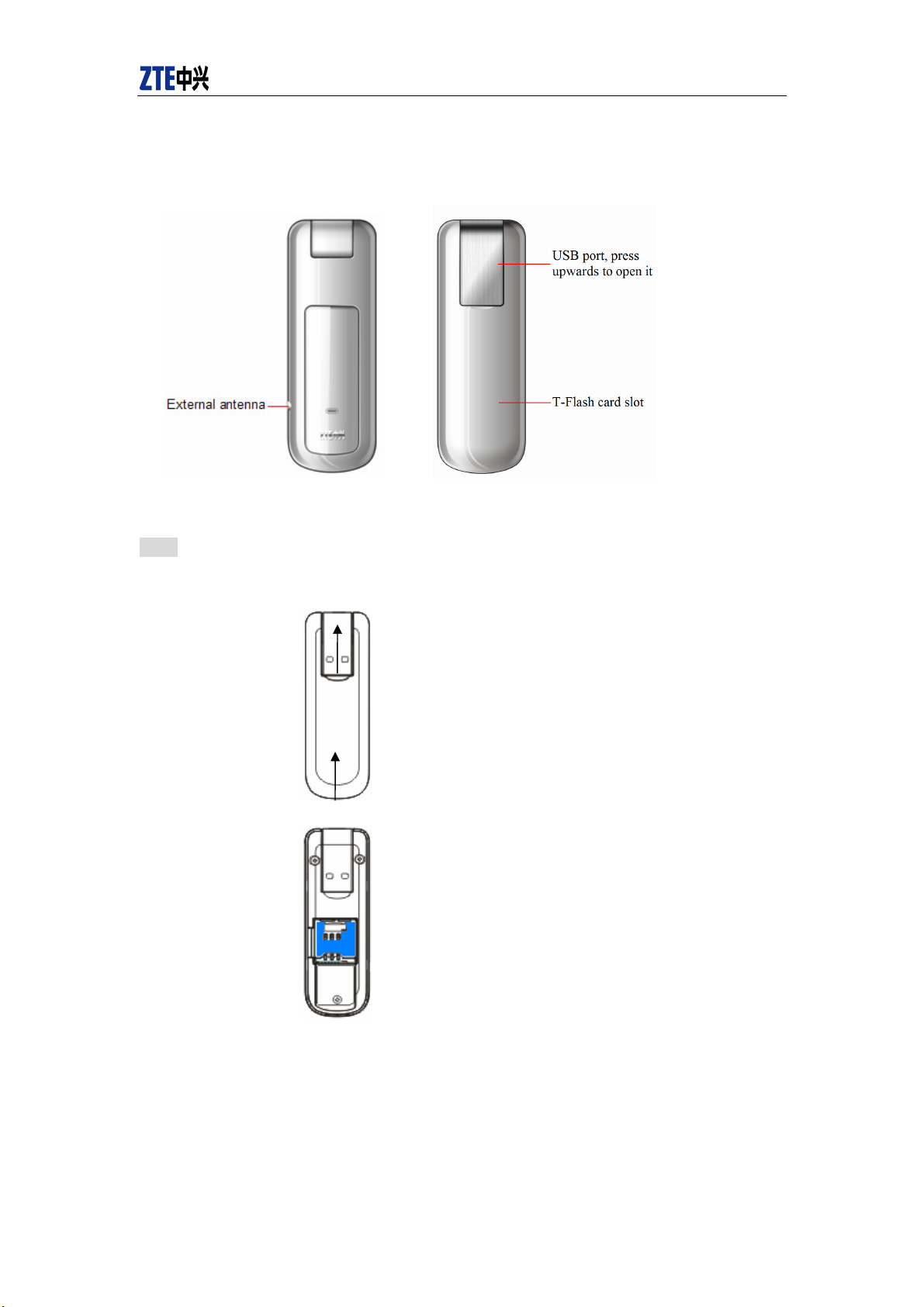
3.1 Introduction
3.2 Insert R-UIM Card
Note: If your data terminal doesn’t need R-UIM card, please skip this section.
1. Take
out USB interface and R-UIM card cover in the direction indicated by the arrow.
2. Insert R-UIM card as below
3. Push back R-UIM card cover.
3.3 Operation Guide of Data Cable
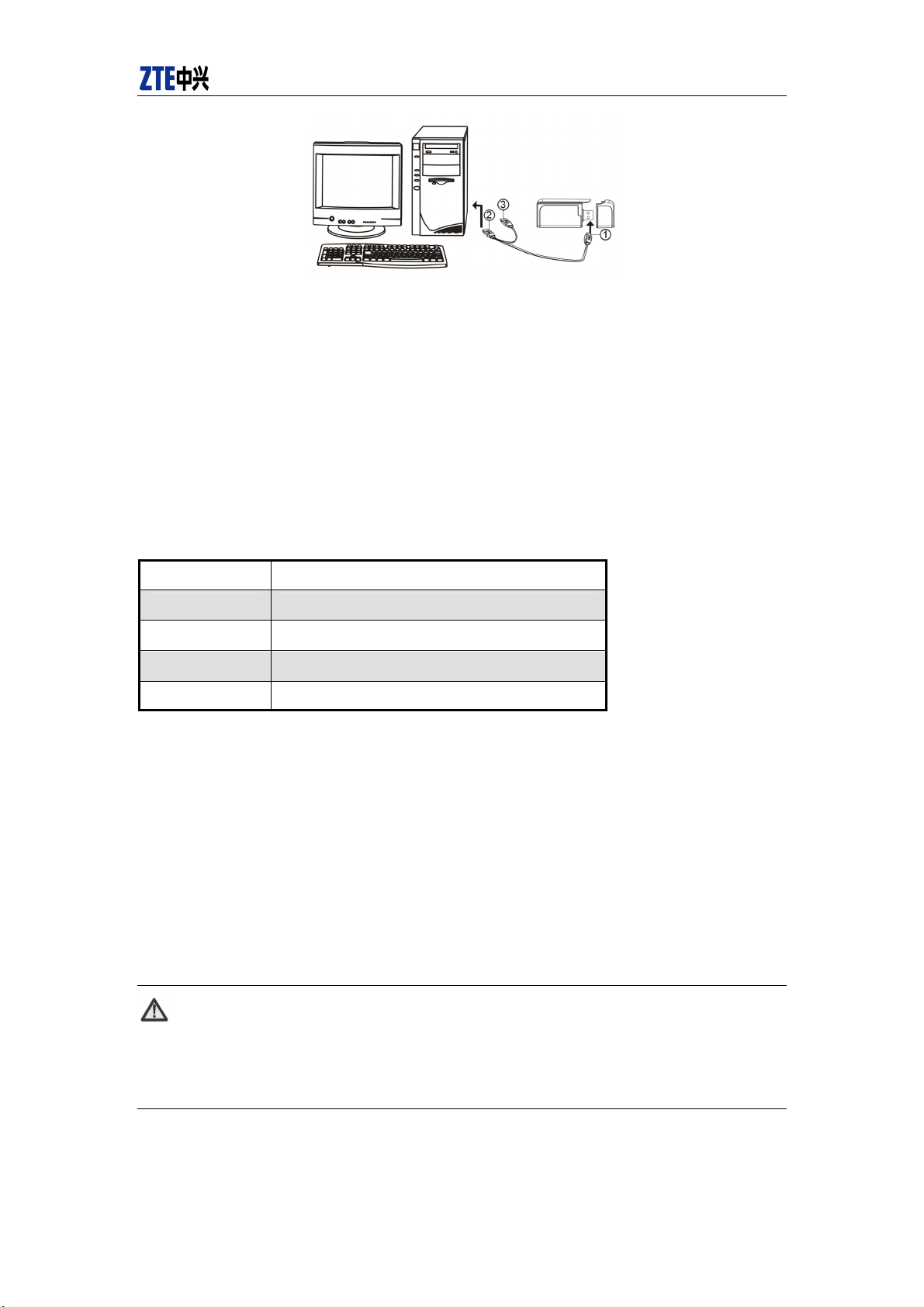
Generally, the Data Terminal could be directly connected with USB port. You could also connect
the Data Terminal with PC by using the accompanying data cable, as shown in the following
figure. Connect Interface ① with Data Terminal, and interface ② with PC's USB port. If the
power supply from USB port is insufficient, connect both interface ② and ③ with USB port
together.
ZTE Corporation 2 http://www.zte.com.cn
Page 6
CDMA2000 1X EV-DO Wireless Data Terminal User Guide
4. Install and Uninstall
4.1 System Requirements
The Data Terminal supports the following operating system:
¾ Windows 2000
¾ Windows XP
¾ Windows Vista
PC minimum configurations:
CPU Pentium-II/233MHz
USB interface
2.0 (USB1.0 and 1.1 compatible)
Optical Drive CD-ROM (for installation only)
Memory 64 MB
Disk Space 50 MB (used for installation of application)
4.2 Installation Guide
4.2.1 Install
1. Please connect Data Terminal to PC through USB interface. You could use the data cable to
connect.
2. The installation driver will automatically run. Please install according to the installation wizard.
3. The system will automatically find new hardware and install the driver. Wait for a while. Click
"Finish" after the installation is completed.
Note:
Please connect the Data Terminal and PC with USB extension cable under weak
signal to obtain the optimal performance. If necessary, adjust the Data Terminal's
position.
ZTE Corporation 3 http://www.zte.com.cn
Page 7
CDMA2000 1X EV-DO Wireless Data Terminal User Guide
4.2.2 Uninstall
1. Select Start
All Programs ZTEMT Uninstall ZTEMT UI, and you will be asked if
you want to remove the program. Click “Yes”.
2. Please wait and then click “OK” when un-installation is completed.
5. Run the Application
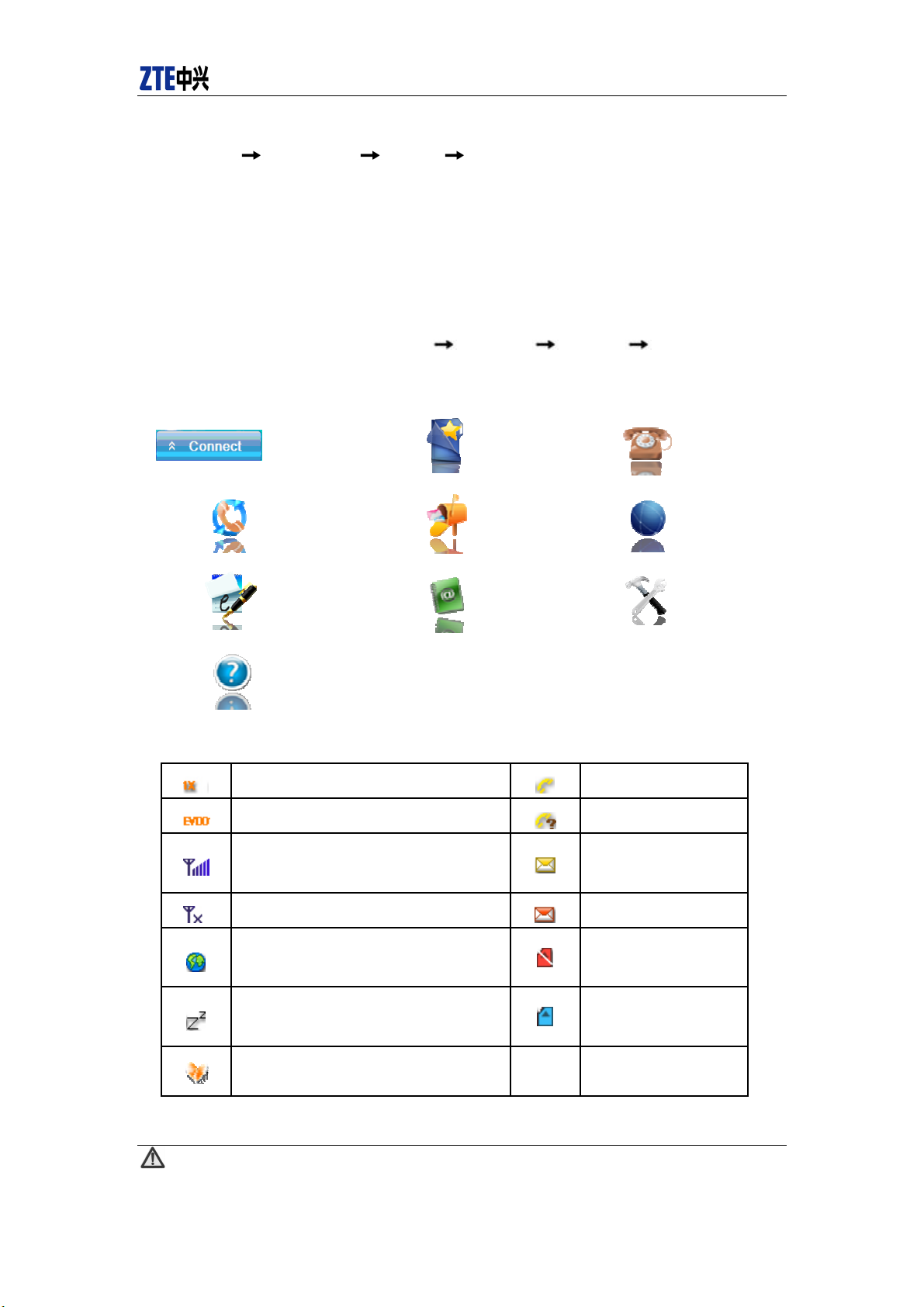
After the application is installed successfully, the application icon will appear on your desktop.
Double-click this icon or select from Start
application to display the user interface.
The icons on the interface are used to access the function, which indicate as below:
Connect
Voice Log
Net Log
Programs ZTEMT ZTEMT UI run the
Value Add
Short
Message
Phone Book
Voice Call
Connect
Setting
Net
Status Bar:
Help
1X indication
EV-DO indication
Signal strength indication. The more
bars there are, the stronger signals are.
CDMA network unavailable
Connection indication
Sleep indication
Roaming indication
Call indication
Missed call indication
Unread message
indication
Inbox full indication
No R-UIM card
inserted indication
R-UIM card inserted
indication
Note:
Some features like Voice Call, Call History, Short Message, and Phone Book may
ZTE Corporation 4 http://www.zte.com.cn
Page 8
CDMA2000 1X EV-DO Wireless Data Terminal User Guide
not be supported by your Data Terminal; the corresponding icons will not appear in
the main window.
6. Connect/Disconnect
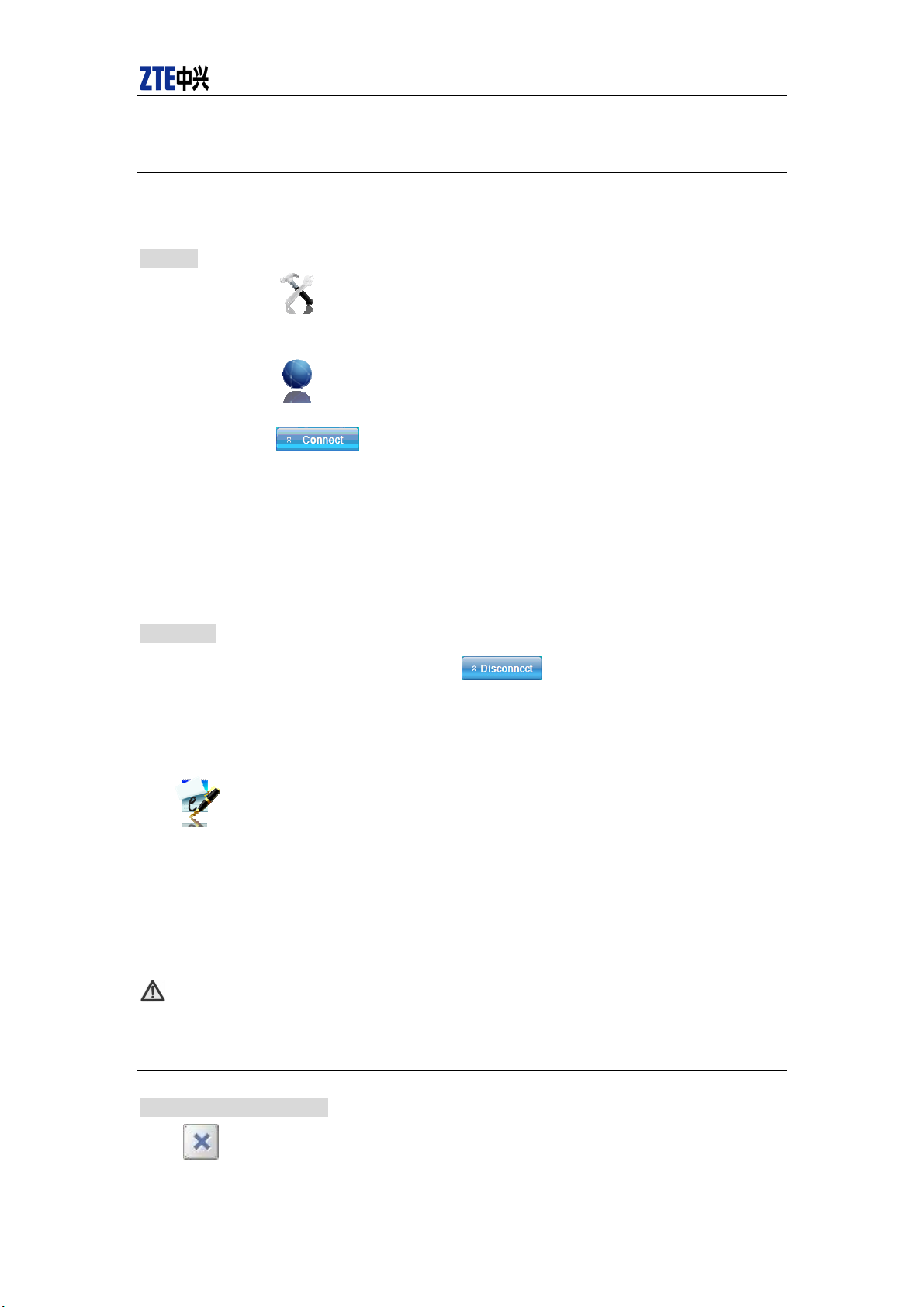
Connect
Click
“Setting” for details.
Click
Click
After connecting to Internet, the current network information will appear on the
interface. Double-click any place in the display area to view the connection
drawing.
Please connect the Data Terminal and PC with USB extension cable under weak
signal to obtain the optimal performance. If necessary, adjust the Data Terminal's
position and the antenna's direction.
Disconnect
After connecting to Internet, click
icon to set the relevant parameters. For details, please refer to 12
to enter the interface.
7. Connection Records
.
.
Click icon to view connection records. Connection records save the previous relevant
information including Start at, Duration and Transmit bytes, which will help you know the status
easily.
By switching among “List”, “Monthly” and “Statistic”, you could inquire the records every time,
by month or by time.
Note:
The relevant information contained in connection records are just for user’s
reference rather than the charging basis.
Delete Connection Records
Click
ZTE Corporation 5 http://www.zte.com.cn
button to delete the records you have selected on the interface.
Page 9
CDMA2000 1X EV-DO Wireless Data Terminal User Guide
Clear Connection Records
Click
button to delete all the records.
Note: If your data terminal doesn’t support Voice Call, Call History, Short Message, and Phone
Book features, please skip 8-11 sections.
8. Voice Call
(If this feature is not supported by your Data Terminal, please skip over this chapter.)
Click
Make a call
to enter voice call interface.
Click the digits in the right side of the interface, or input the digits directly from
keyboard. Press
button or press “Backspace” to delete the previous input digit;
press button or press “Esc” to clear all the inputs.
Click button in the right side of the interface or press “Enter” to make a call.
Receive a call
When there is an incoming call, your computer will alert and the incoming caller ID will
appear on the interface.
Click button in the right side of the interface or press “Enter” to receive the call.
Press button or press “Esc” to reject the call.
Redial the latest outgoing call
Click button in the right side of the interface.
Call Waiting
During a call, you could select to answer the second incoming call, and then you could switch
between the two incoming calls.
ZTE Corporation 6 http://www.zte.com.cn
Page 10
CDMA2000 1X EV-DO Wireless Data Terminal User Guide
Please firstly apply for this service from your local telecom operator.
During a call, if there is a new incoming call; a pop-up window will prompt you that
you have the second incoming call.
If you select to answer, please click “Accept waiting call” button. The previous call
won’t be ended, but temporarily paused.
You could switch between two incoming calls by clicking “Switch call”.
Three-way Call
This function allows for the call among three parties. Please firstly apply for this service from
your local telecom operator.
Note:
You need set “Show 3 way call button during calling”. Please perform the setting
according to “Setting”.
You could click “Dial second call” button during a call, input the third-party number in
the pop-up window, and then press “OK” button to call the third party. In this case, the
original call won’t be ended, but temporarily paused.
If the third party answers the call, click “Start conference” to enter the conference call.
During three-way conference call, click “Hangup second call” button to end the
conference call, and return to the original call.
9. Call History
(If this feature is not supported by your Data Terminal, please skip over this chapter.)
Click
including missed calls, incoming calls, outgoing calls, and talk duration. You could select the type
you want to view.
Missed/Accepted/Called Calls
icon to view the call history. The outgoing/incoming calls are saved in call history,
Click button to delete your selected record.
Click button to delete all records in Missed/ Accepted/Called catalog.
Click button to dial the number.
Click button to send a short message to this number.
ZTE Corporation 7 http://www.zte.com.cn
Page 11
CDMA2000 1X EV-DO Wireless Data Terminal User Guide
Click button to save this number to the phone book.
Statistic
Click button to clear the talk duration.
10. Short Message
(If this feature is not supported by your Data Terminal, please skip over this chapter.)
Click
icon to enter Short message interface.
Send a Message
Input the text and the recipient’s number.
Input the recipient’s number or click button to select the recipient from phone
book.
Add more recipients if you like.
Select priority.
Click button to send a message.
Click button to save the text into Draftbox.
The received messages will be saved in the Data Terminal In-box.
You could copy the messages from the Data Terminal In-box to PC In-box by selecting Copy or
Copy All; you could also copy the messages from PC In-box to the Data Terminal In-box by
selecting Copy.
Take Data Terminal In-box as an example:
Reply
Click to reply to the sender.
Forward
Click to forward this message to other recipients.
Dial Sender’s Number
Click to dial the sender’s phone number.
ZTE Corporation 8 http://www.zte.com.cn
Page 12
CDMA2000 1X EV-DO Wireless Data Terminal User Guide
Save Sender’s Number
Click to save the sender’s number into phone book.
Delete
Click to delete your selected records.
Clear
Click to delete all the records in the inbox..
Copy
Click to copy your selected record into PC.
Copy All
Click to copy all the records from the data terminal to PC.
11. Phone Book
(If this feature is not supported by your Data Terminal, please skip over this chapter.)
Click
(Data Terminal), R-UIM and Emergent.
Take “Save the call history in PC” for example in the following:
Add
Click then input the contents and select “OK” to add a new contact.
Edit
Click then edit the contents and select “OK” to edit the contact information.
Search for contacts
Click to search for the contacts by name or number.
to view the Phone book. You could select to save the contacts in the PC, Normal
Delete
Click to delete your selected contact.
Delete All
Click to delete all the contacts.
ZTE Corporation 9 http://www.zte.com.cn
Page 13
CDMA2000 1X EV-DO Wireless Data Terminal User Guide
Send messages from the phone book
Click to compose the text. You could send the message to multiple recipients.
Dial from the phone book
Click to dial your selected phone number.
Copy
Click to copy your selected contacts to other storage location.
Copy All
Click to copy all contacts to other storage location.
Import the call history
Click to import the phone book (*.txt format) in PC to the terminal.
Export the call history
Click to export the phone book (*.txt format) in the terminal to PC.
12. Setting
Click to enter the setting interface.
Network Connection Setting
Set the network parameters (phone number, username, password), work mode, etc.
After the setting, click “Apply” button to save the settings on the current interface.
Click “Default” button and then “Apply” button to restore the settings on the current
interface to factory default.
Note:
The default network setup parameters are as below. Different regions may have
different network setup parameters, so please consult your local telecom operator.
Phone: #777
User: card
Password: card
If your Data Terminal does not support some following functions, please neglect relevant
ZTE Corporation 10 http://www.zte.com.cn
Page 14
CDMA2000 1X EV-DO Wireless Data Terminal User Guide
description.
Other Setting
Click “Options” to switch the interface, and you could set URL and language, etc. If
you want to use conference call, please select “Show 3 way call button during calling”;
After the setting, click “Apply” button to save the settings on the current interface.
Click “Change Password” button to set lock device. The password is required when
you start the application. The setting has nothing to do with "Default" button.
Click the button “Enable Pin”. PIN code is needed when the application is started. The
setting has nothing to do with "Default" button.
Click “Default” button and then “Apply” button to restore the settings on the current
interface to factory default.
Select ring tone
After clicking “Ring”, you could set different ring tones for Unconditional forwarding,
No answer forwarding, Busy forwarding and Call waiting.
After the setting, click “Apply” button to save the settings on the current interface.
Click “Default” button and then “Apply” button to restore the settings on the current
interface to factory default.
Supplementary Services
After clicking “Service”, you could set “Busy Forwarding”, “No answer forwarding”,
“Unconditional forwarding”, “Call waiting”, etc. Double-click the selected option to
modify the service number and forwarding number.
After the setting, click “call” button to send the corresponding request to the network
system.
After the setting, click “Apply” button to save the settings on the current interface.
Click “Default” button and then “Apply” button to restore the settings on the current
interface to factory default.
Update
Select Manual Upgrade or Auto Upgrade for the software.
13. Help
Click button to view the help file.
Click “Help” button to view the relevant help file; click “Online service” to enter our
company’s website.
ZTE Corporation 11 http://www.zte.com.cn
Page 15
CDMA2000 1X EV-DO Wireless Data Terminal User Guide
You could view the software version information under “About”.
14. Trouble-shooting
Failures Causes Solutions
Error occurs during
the program
installation.
Open port failed.
No R-UIM card.
No signal indicated.
Dialing failed
Internet connection
failure.
The installation
program can't auto
set up. (If the Data
Terminal supports
auto setup function.)
The setup file may be damaged.
Directly run the software before the
Data Terminal is plugged in.
The port is occupied by other
applications, such as “Hyper
terminal”, or the software is already
run.
R-UIM card is not inserted. Insert R-UIM card.
R-UIM card is not inserted properly.
Sometimes the front side and back
side are confused.
R-UIM card is damaged. Validate by
using a CDMA terminal.
Antenna is not connected to the
Access Box.
Out of the network service area.
The antenna or RF component is
damaged.
Wrong setting of parameters. (Phone,
User, Password.)
Not enough money. Consult your service provider for details.
Network congestion or failure. Try again later.
The Data Terminal is being
connected. (It usually occurs when
the Internet connection is
immediately made after the call is
dialed.)
Poor network signal.
The program has already been
installed in current system.
Autorun function in CD-ROM is
disabled because of installation of
anti-virus software in the system, or
Windows Vista system itself disabled
Autorun function in CD-ROM in
Please download the program on our website
WWW.ZTEMT.COM
Close the software, plug in the Data Terminal and
run it again.
Close relevant software and run the software
again.
Please refer to User Guide. Properly insert R-UIM
card.
Replace R-UIM card.
Insert the antenna into the Data Terminal.
Make sure it is in the CDMA network service
area.
Replace relevant damaged parts.
Correct the parameter settings. Consult your
service provider for details.
Reconnect.
View signal strength indication and check if the
antenna is properly inserted.
Firstly remove the original program and insert the
terminal again.
Open "My Computer" to enter CD-ROM disk
ordinal, and double-click Setup.exe to install
manually.
and reinstall it.
ZTE Corporation 12 http://www.zte.com.cn
Page 16
CDMA2000 1X EV-DO Wireless Data Terminal User Guide
default.
CD-ROM will automatically
disappear once the program is
No CD-ROM disk
ordinal in "My
Computer".
The driver might be
unable to work and
the application is
unable to run
normally if the
terminal is pulled
out and plugged in
again when the
application is being
used under Win2000
(SP4) operating
system .In this case,
the device in device
manager will be
marked with yellow
exclamation mark,
and the system must
be restarted to run
normally.
installed successfully.
The program is not yet installed, and
no other previous version was
installed in the system.
The operating system needs installing
Update Roll 1 patch for Win2K SP4.
This is normal. If you want to display CD-ROM
disk ordinal, you could firstly remove the program
and then insert the terminal again.
Please restart your computer. Please contact your
local operator or product technical support center
if CD-ROM disk ordinal doesn't appear after your
computer is restarted.
Please download the patch from the following
web site and install it.
http://www.microsoft.com/downloads/details.aspx
?familyid=B54730CF-8850-4531-B52B-BF28B3
24C662&displaylang=en
15. FCC Regulations
zThis USB Dongle complies with part 15 of the FCC Rules. Operation is subject to the condition
that this device does not cause harmful interference.
zThis USB Dongle complies with part 15 of the FCC Rules. Operation is subject to the following
two conditions: (1) This device may not cause harmful interference, and (2) this device must
accept any interference received, including interference that may cause undesired operation.
zThis USB Dongle has been tested and found to comply with the limits for a Class B digital
device, pursuant to Part 15 of the FCC Rules. These limits are designed to provide reasonable
protection against harmful interference in a residential installation. This equipment generates, uses
and can radiated radio frequency energy and, if not installed and used in accordance with the
instructions, may cause harmful interference to radio communications. However, there is no
guarantee that interference will not occur in a particular installation If this equipment does cause
harmful interference to radio or television reception, which can be determined by turning the
ZTE Corporation 13 http://www.zte.com.cn
Page 17
CDMA2000 1X EV-DO Wireless Data Terminal User Guide
equipment off and on, the user is encouraged to try to correct the interference by one or more of
the following measures:
-Reorient or relocate the receiving antenna.
-Increase the separation between the equipment and receiver.
-Connect the equipment into an outlet on a circuit different from that to which the receiver is
connected.
-Consult the dealer or an experienced radio/TV technician for help.
Changes or modifications not expressly approved by the party responsible for compliance could
void the user‘s authority to operate the equipment.
zThe antenna(s) used for this transmitter must not be co-located or operating in conjunction with
any other antenna or transmitter.
16. RF Exposure Information (SAR)
This device meets the government’s requirements for exposure to radio waves.
This USB Dongle is designed and manufactured not to exceed the emission limits for exposure to
radio frequency (RF) energy set by the Federal Communications Commission of the U.S.
Government.
The exposure standard for wireless device employs a unit of measurement known as the Specific
Absorption Rate, or SAR. The SAR limit set by the FCC is 1.6W/kg.
conducted using standard operating positions accepted by the FCC with the device transmitting at
its highest certified power level in all tested frequency bands. Although the SAR is determined
at the highest certified power level, the actual SAR level of the USB Dongle while operating can
be well below the maximum value. This is because the device is designed to operate at multiple
power levels so as to use only the poser required to reach the network. In general, the closer you
are to a wireless base station antenna, the lower the power output.
The highest SAR value for the device as reported to the FCC when tested for body, as described in
this user guide, is 0.874 W/kg for WCDMA band V , and 1.14 W/kg for WCDMA band II.
While there may be differences between the SAR levels of various USB Dongles and at various
positions, they all meet the government requirement.
The FCC has granted an Equipment Authorization for this device with all reported SAR levels
evaluated as in compliance with the FCC RF exposure guidelines. SAR information on this
device is on file with the FCC and can be found under the Display Grant section of
http://www.fcc.gov/oet/fccid
after searching on FCC ID: Q78-AC2766.
For body operation, this device has been tested and meets the FCC RF exposure guidelines for use
the positions the device a minimum of 0.5 cm from the body. Use of other enhancements may not
ensure compliance with FCC RF exposure guidelines.
This USB dongle transmitter is approved for use in typical laptop computers. To comply with FCC
RF exposure requirements, this USB dongle should not be used in other devices or certain laptop
and tablet computer configurations where the USB connectors on the host computer are unable to
provide or ensure the necessary operating configurations intended for the device and its users or
bystanders to satisfy RF exposure compliance requirements. This transmitter must not be
collocated or operating in conjunction with any other antenna or transmitter.
*
Tests for SAR are
ZTE Corporation 14 http://www.zte.com.cn
 Loading...