

Page 1
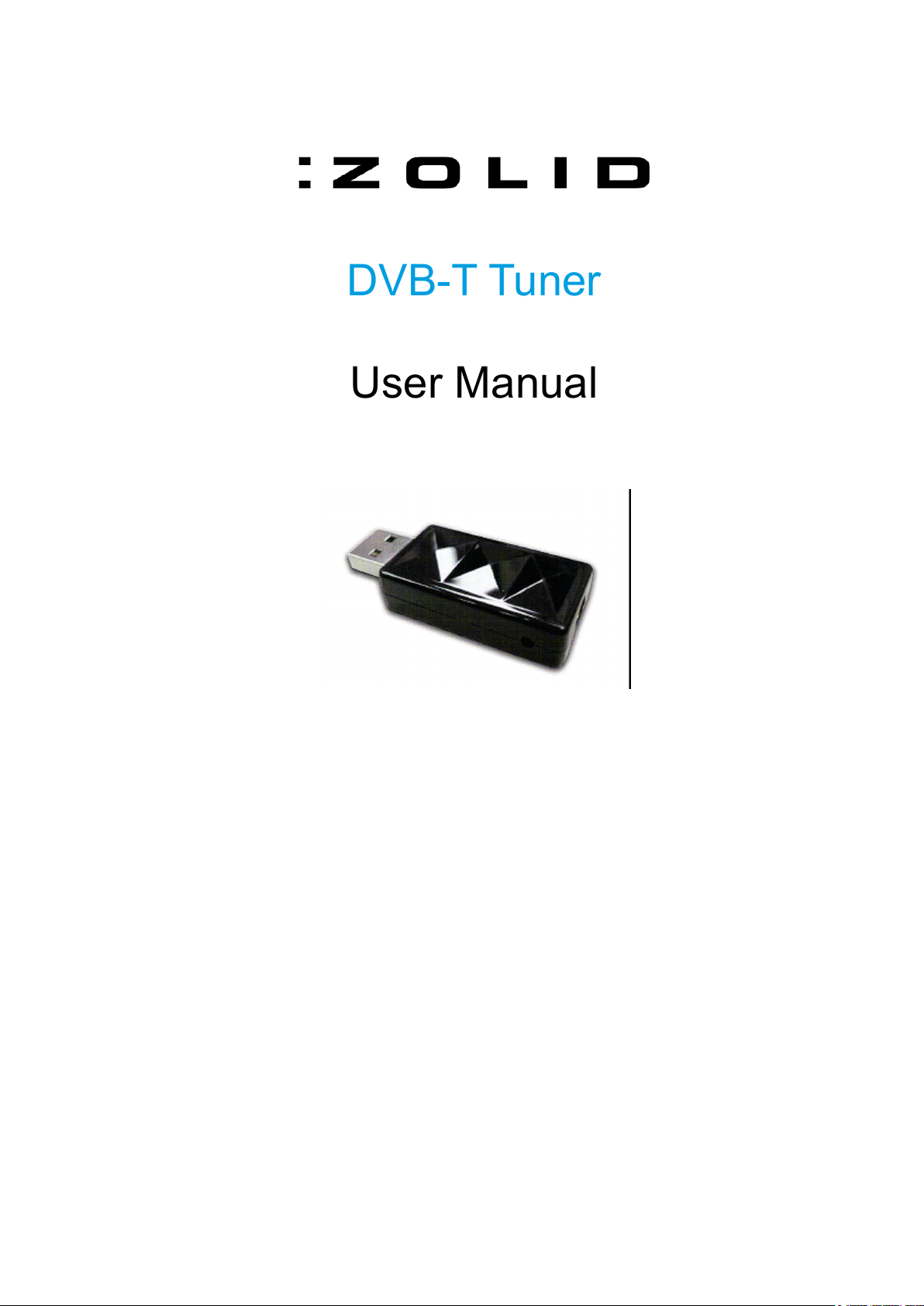
DVB-T Tuner
User Manual
Page 2
Helpline No.: UK/N. Ireland: 08 458 684 540 Rep. of Ireland: 076 60 600 29
2
Web Support: www.unisupport.net P50582
CONTENTS
Page
03
Introduction
03
General Information and Safety Instructions
03
Assembly and Parts List
03
Getting Started
03
Quick Installation Guide
04
Driver Installation
07
Software Installation
10 Arcsoft Total Media User Manual
10 Arcsoft Total Media Theatre
13 Arcsoft Total Media 3.5
14
Arcsoft Media Converter
16
Hardware Installation
19
Features
20
Instructions
20
FAQ
20
Other Useful Information
20
Minimum System Requirements
20 Disposal
Page 3
Helpline No.: UK/N. Ireland: 08 458 684 540 Rep. of Ireland: 076 60 600 29
3
Web Support: www.unisupport.net P50582
INTRODUCTION
With this ZOLID USB DVB-T Tuner you can watch digital TV directly on your PC/Laptop in a
window or full screen. Digital TV gives you a better picture and CD quality sound. Freeview digital
TV does not require Pay TV subscriptions! The ZOLID DVB-T Tuner is bundled with a rich
software package; Arcsoft TotalMedia3.5 、 Arcsoft TotalMedia Theatre and Arcsoft Media
Converter.
GENERAL INFORMATION AND SAFETY INSTRUCTIONS
Keep this User Manual for future reference.
Keep this item away from small children.
ASSEMBLY AND PARTS LIST
Pack Contents
Tevion DVB-T Tuner
Installation CD (Driver / Arcsoft TotalMedia 3.5 / Arcsoft Media Converter / TotalMedia Theatre /
Manual)
Quick Installation Guide
Portable passive antenna
Remote Control with battery
GETTING STARTED
Quick Installation Guide
Special Notes
1. This device requires Microsoft Windows™ XPSP2 or Vista, as well as Microsoft DirectX™
9.01a or above. Before driver and software installation, download DirectX™ 9.01a from
Microsoft website www.microsoft.com (if not already installed).
2. The power consumption of a USB port is limited; therefore, please disconnect all other USB
devices when using your USB Digital TV device (DTV). If the “USB Device Not Recognized”
error message pops up while connecting the USB DTV device, please disconnect all USB
devices and try to reconnect.
3. Please note that each USB port has a unique ID; therefore, when the USB DTV device is
connected to a USB port, which has never been connected with this device before, the
system will promptly re-install the driver. Please follow the procedures of Driver Installation to
install the drivers properly (as below). This is particularly obvious when using a USB Hub.
Page 4
Helpline No.: UK/N. Ireland: 08 458 684 540 Rep. of Ireland: 076 60 600 29
4
Web Support: www.unisupport.net P50582
Driver Installation
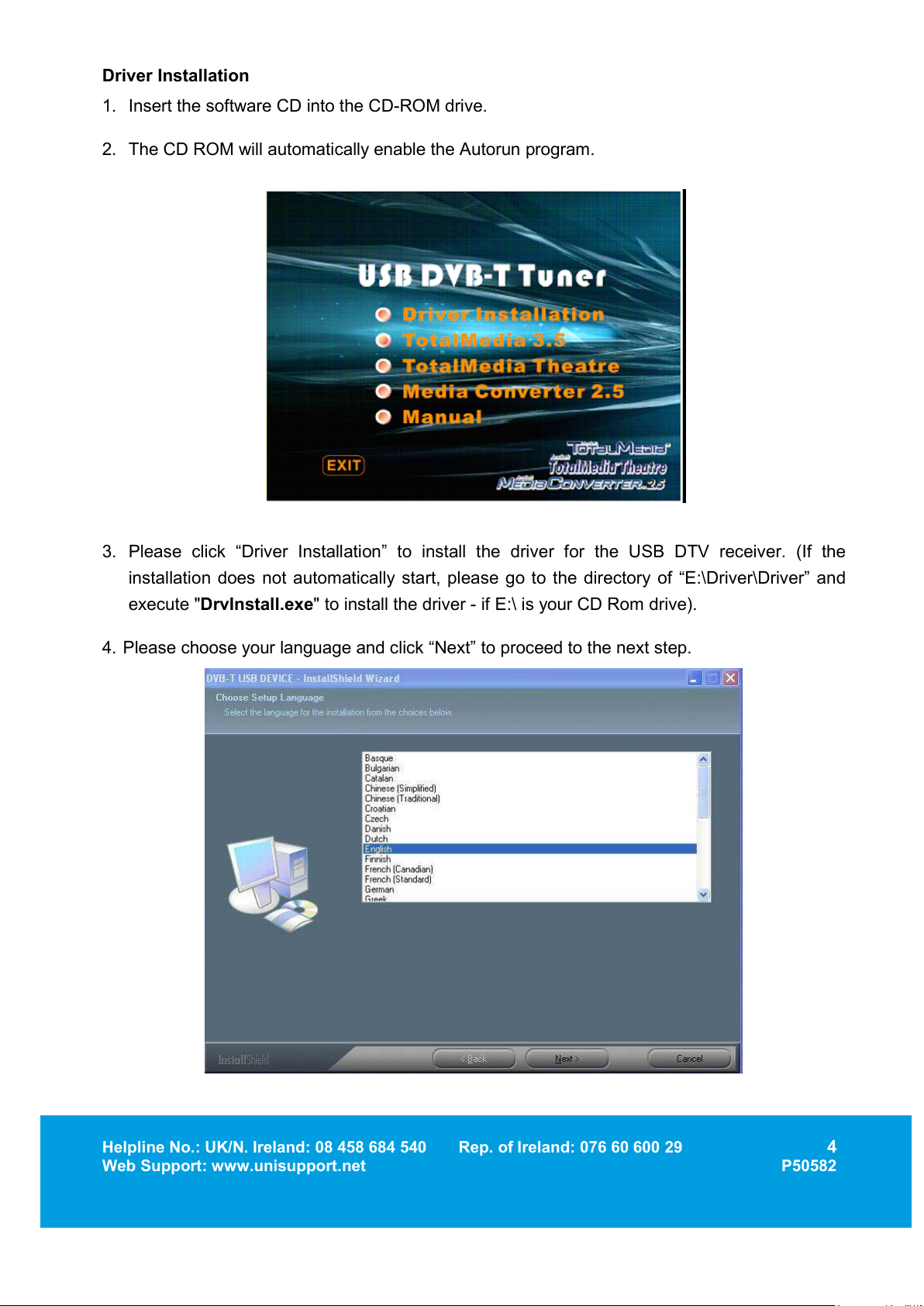
1. Insert the software CD into the CD-ROM drive.
2. The CD ROM will automatically enable the Autorun program.
3. Please click “Driver Installation” to install the driver for the USB DTV receiver. (If the
installation does not automatically start, please go to the directory of “E:\Driver\Driver” and
execute "
DrvInstall.exe
" to install the driver - if E:\ is your CD Rom drive).
4. Please choose your language and click “Next” to proceed to the next step.
Page 5
Helpline No.: UK/N. Ireland: 08 458 684 540 Rep. of Ireland: 076 60 600 29
5
Web Support: www.unisupport.net P50582
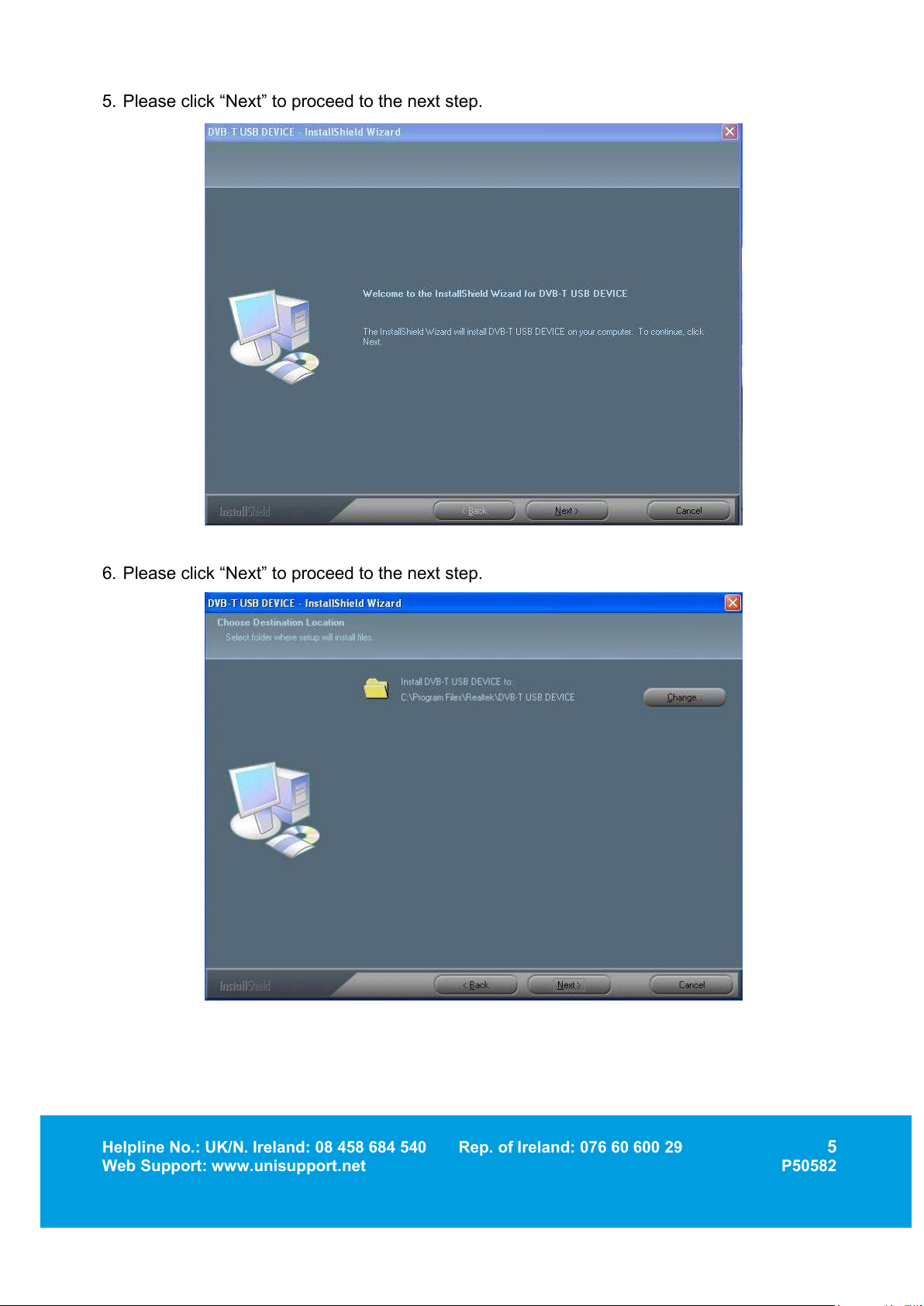
5. Please click “Next” to proceed to the next step.
6. Please click “Next” to proceed to the next step.
Page 6
Helpline No.: UK/N. Ireland: 08 458 684 540 Rep. of Ireland: 076 60 600 29
6
Web Support: www.unisupport.net P50582
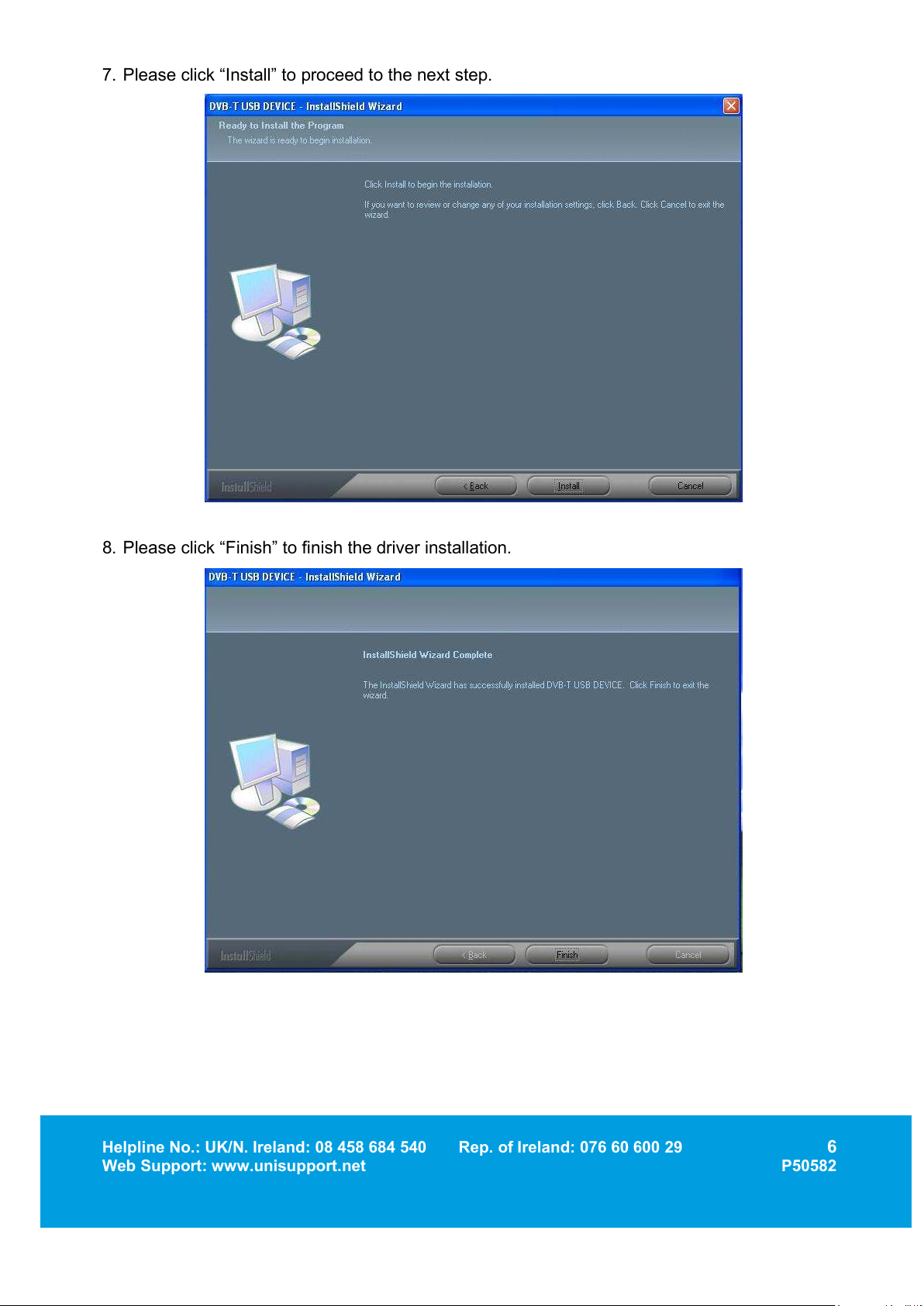
7. Please click “Install” to proceed to the next step.
8. Please click “Finish” to finish the driver installation.
Page 7
Helpline No.: UK/N. Ireland: 08 458 684 540 Rep. of Ireland: 076 60 600 29
7
Web Support: www.unisupport.net P50582
Software Installation
1. Click the “Arcsoft Total Media” option on the Autorun page to install Total Media software. If
the installation does not automatically start, please go to the directory of “E:\TotalMedia
3.5” and execute "
setup.exe
" to install the software - if E:\ is your CD Rom drive.
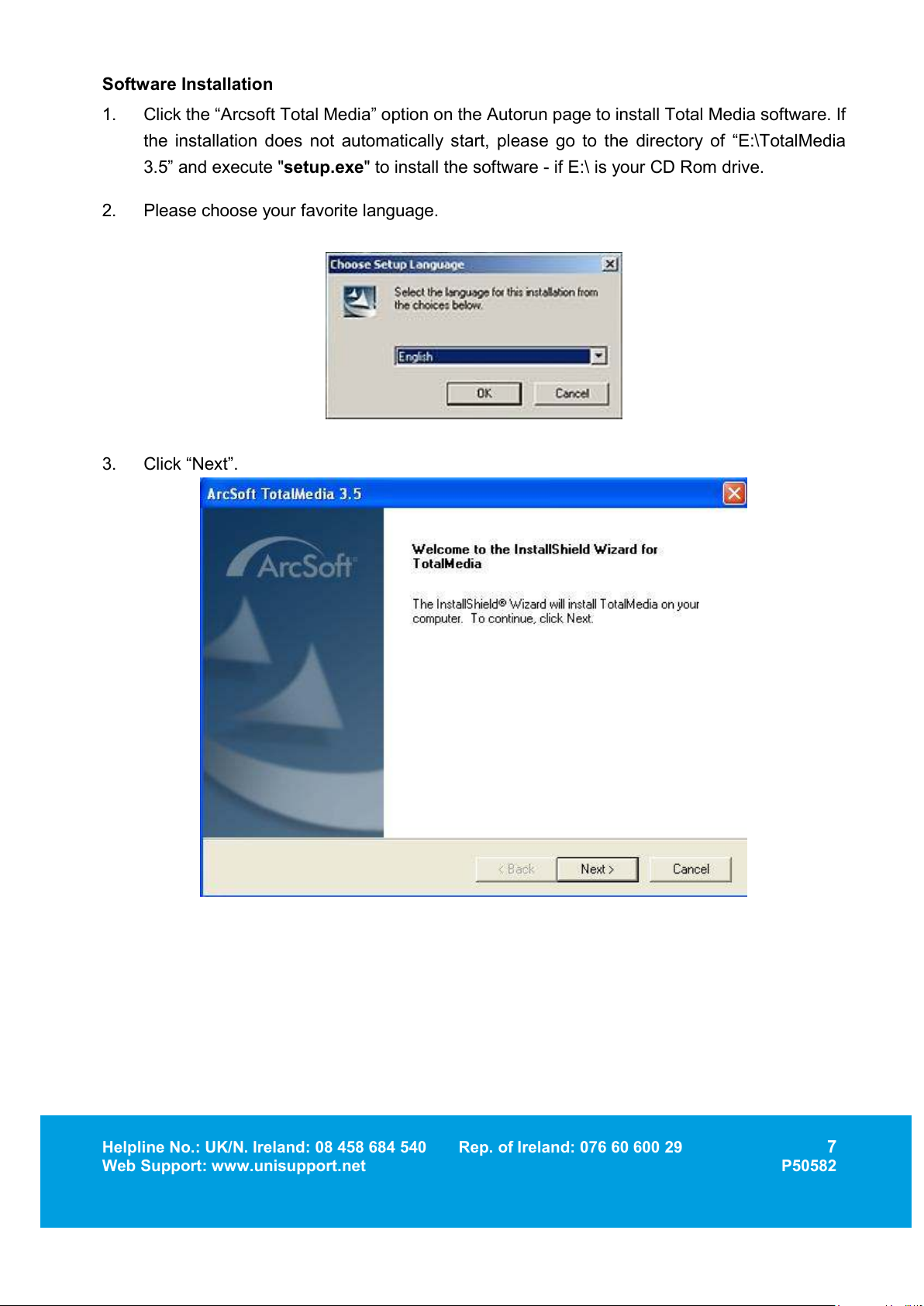
2. Please choose your favorite language.
3. Click “Next”.
Page 8
Helpline No.: UK/N. Ireland: 08 458 684 540 Rep. of Ireland: 076 60 600 29
8
Web Support: www.unisupport.net P50582
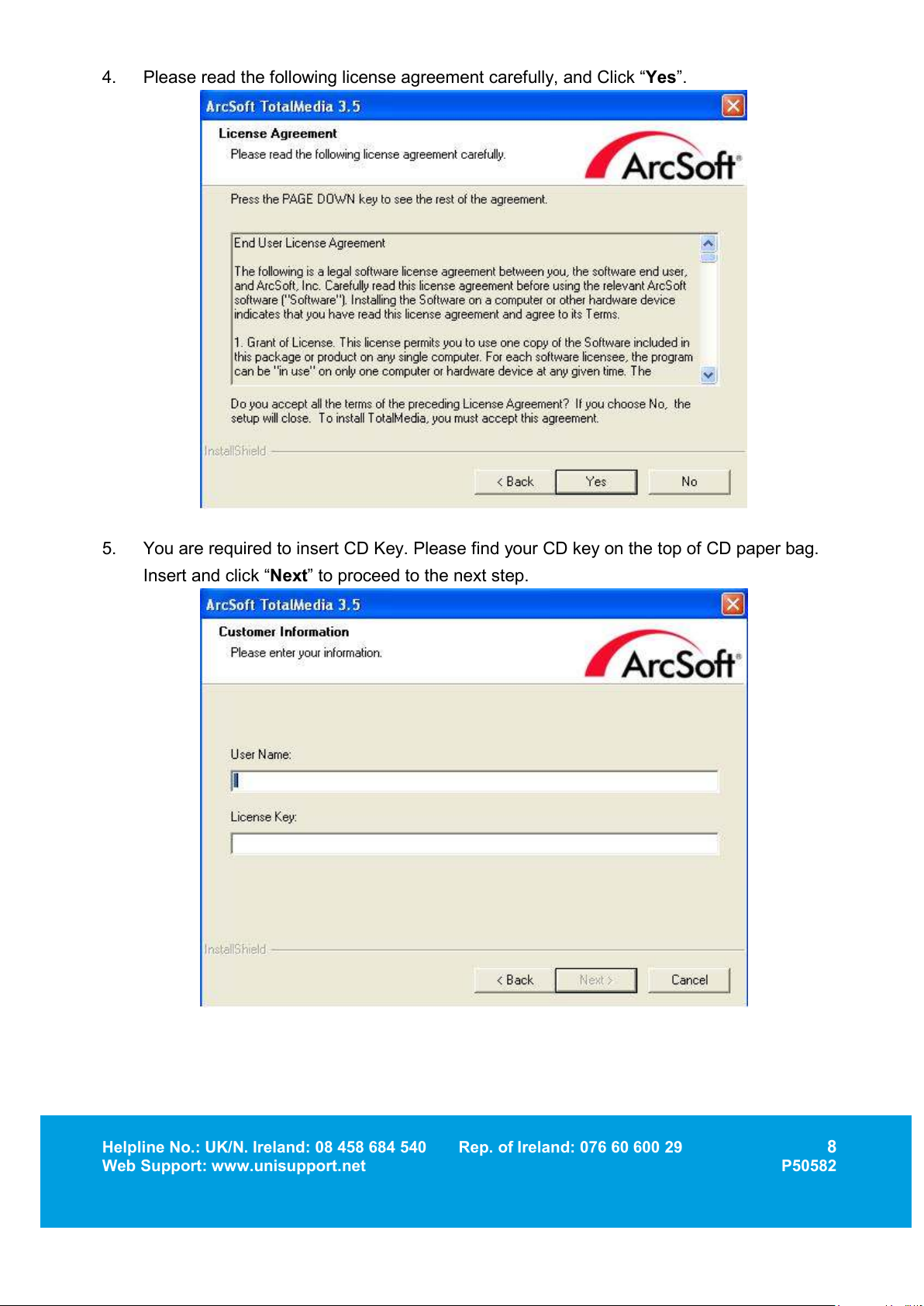
4. Please read the following license agreement carefully, and Click “
Yes
”.
5. You are required to insert CD Key. Please find your CD key on the top of CD paper bag.
Insert and click “
Next
” to proceed to the next step.
Page 9
Helpline No.: UK/N. Ireland: 08 458 684 540 Rep. of Ireland: 076 60 600 29
9
Web Support: www.unisupport.net P50582
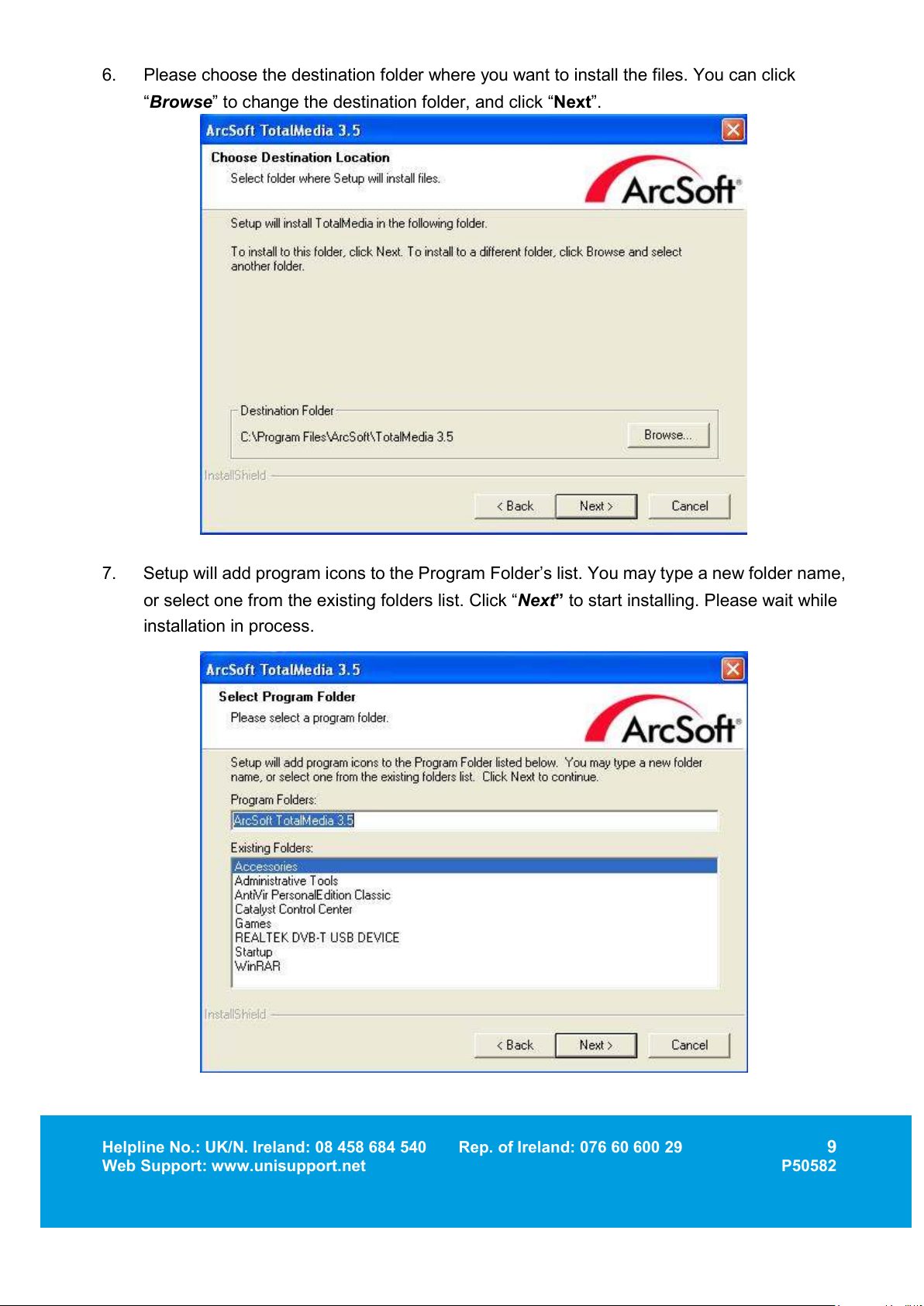
6. Please choose the destination folder where you want to install the files. You can click
“Browse” to change the destination folder, and click “Next”.
7. Setup will add program icons to the Program Folder’s list. You may type a new folder name,
or select one from the existing folders list. Click “Next” to start installing. Please wait while
installation in process.
Page 10
Helpline No.: UK/N. Ireland: 08 458 684 540 Rep. of Ireland: 076 60 600 29
10
Web Support: www.unisupport.net P50582
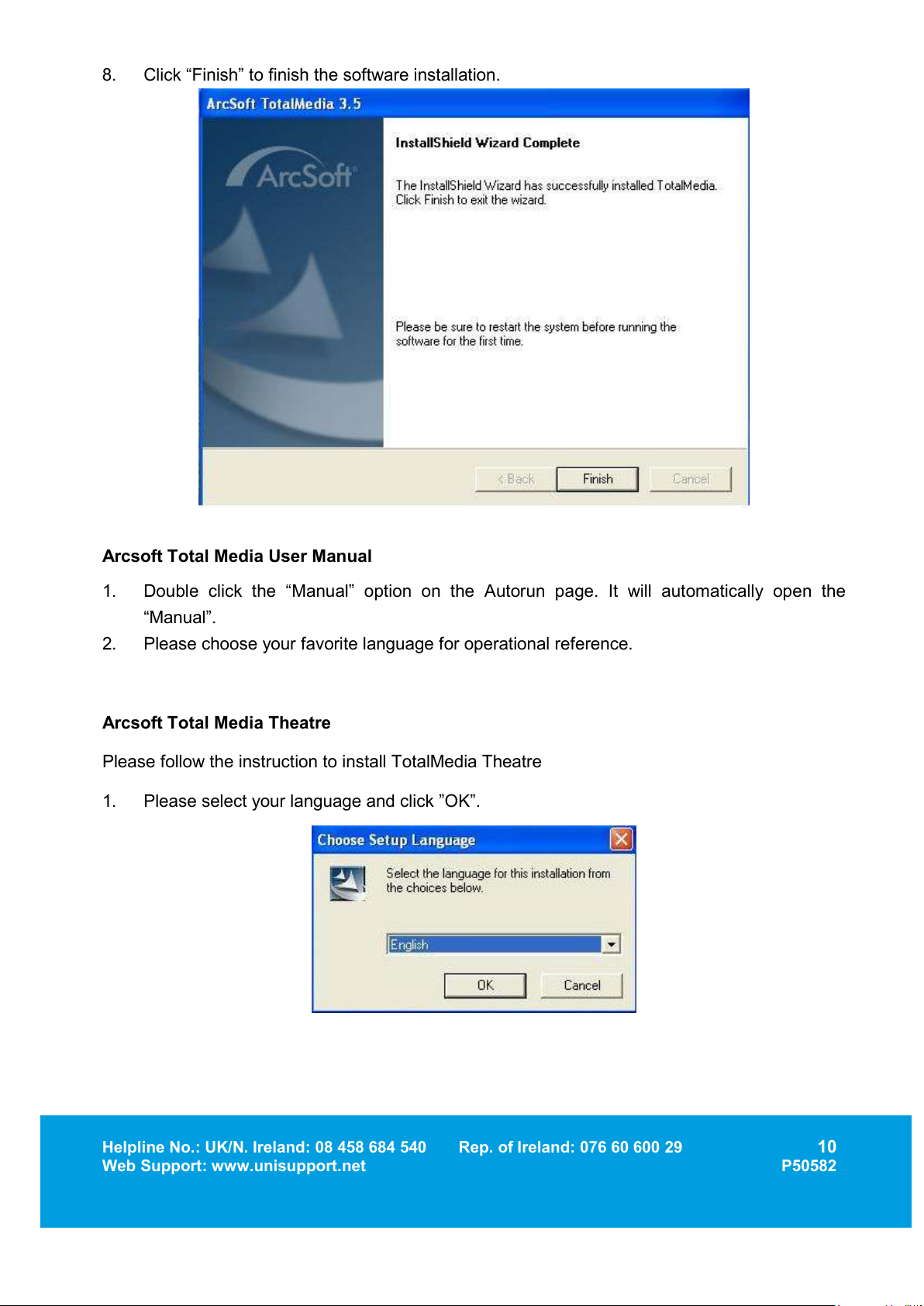
8. Click “Finish” to finish the software installation.
Arcsoft Total Media User Manual
1. Double click the “Manual” option on the Autorun page. It will automatically open the
“Manual”.
2. Please choose your favorite language for operational reference.
Arcsoft Total Media Theatre
Please follow the instruction to install TotalMedia Theatre
1. Please select your language and click ”OK”.
Page 11
Helpline No.: UK/N. Ireland: 08 458 684 540 Rep. of Ireland: 076 60 600 29
11
Web Support: www.unisupport.net P50582
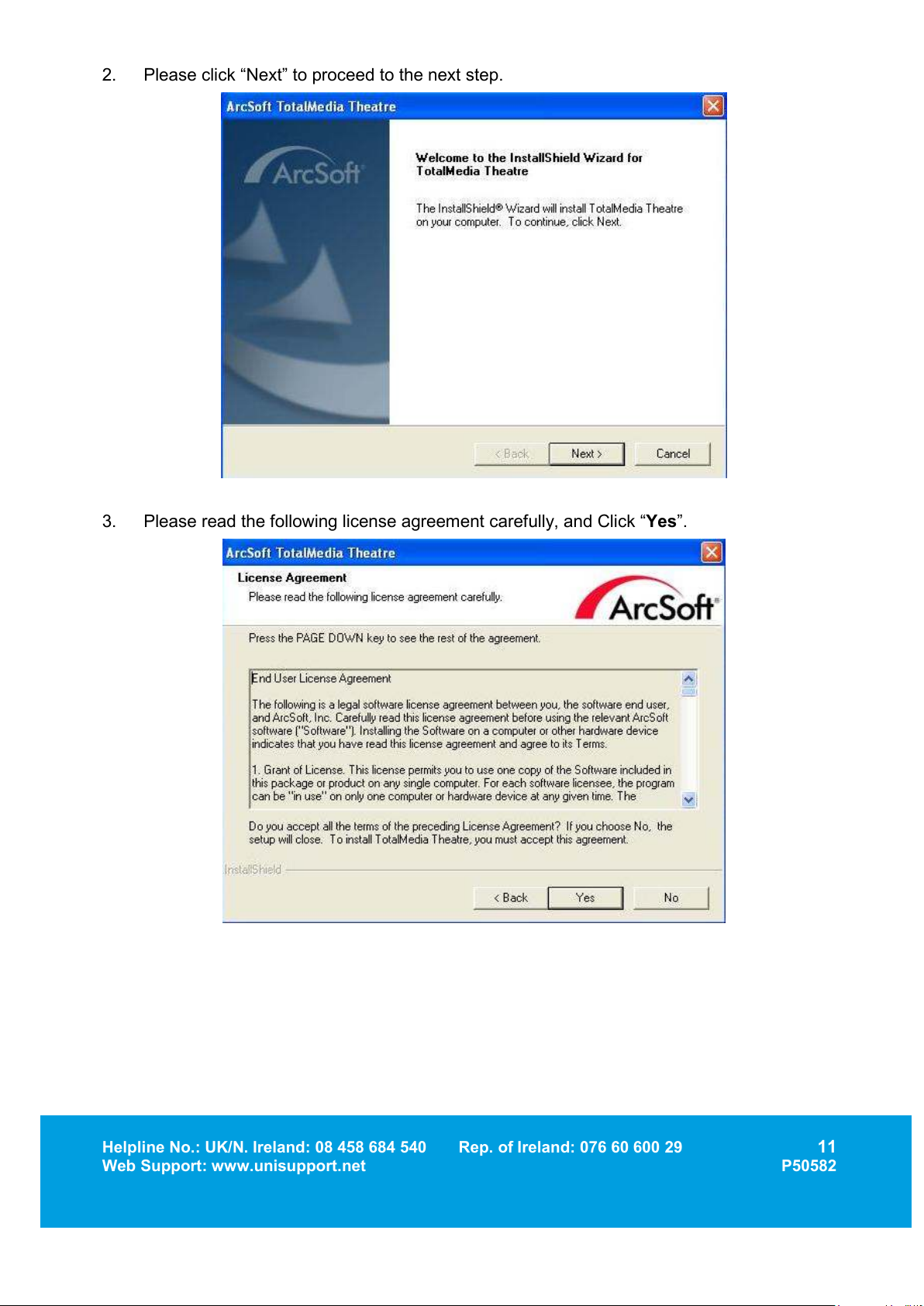
2. Please click “Next” to proceed to the next step.
3. Please read the following license agreement carefully, and Click “Yes”.
Page 12
Helpline No.: UK/N. Ireland: 08 458 684 540 Rep. of Ireland: 076 60 600 29
12
Web Support: www.unisupport.net P50582
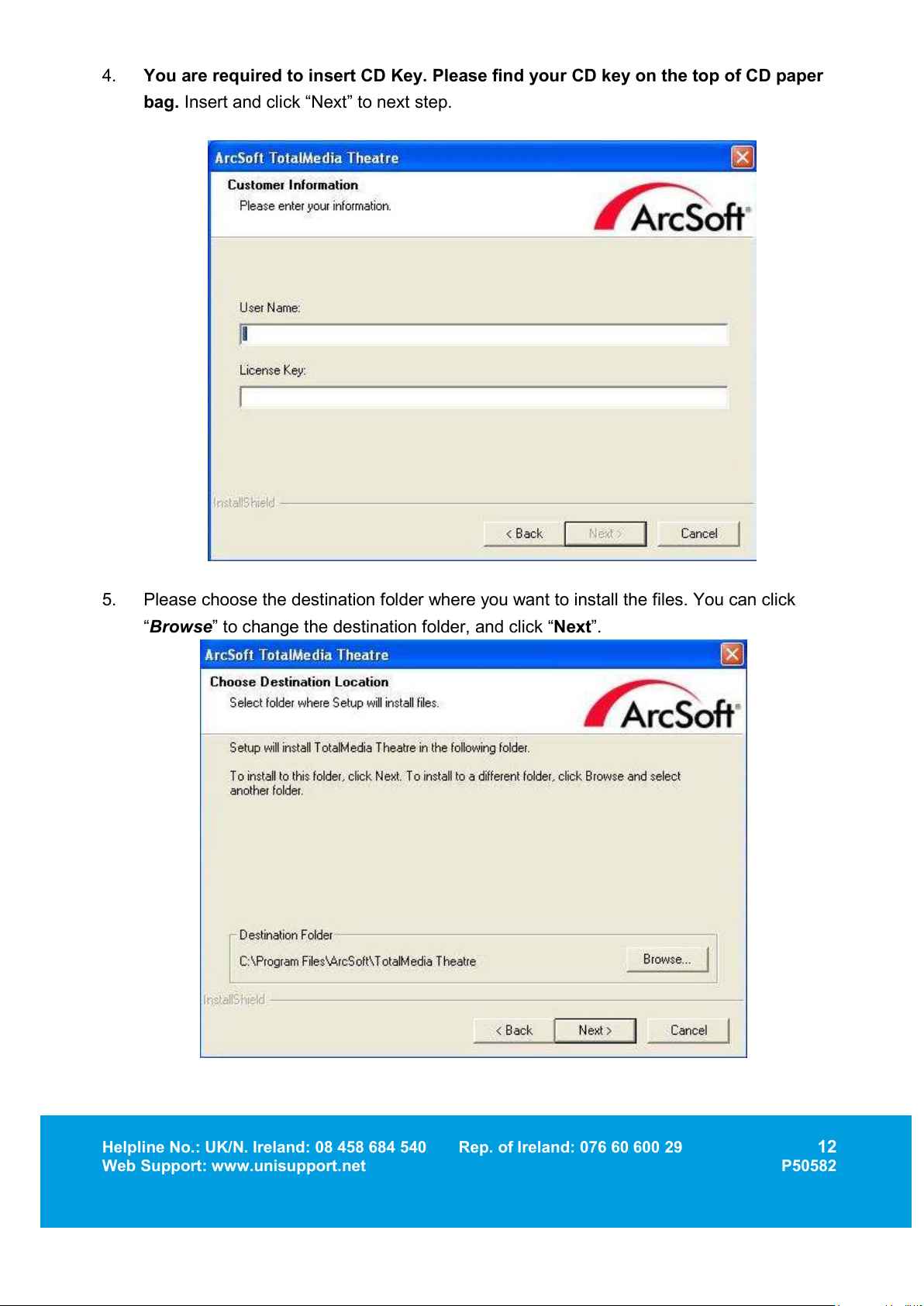
4. You are required to insert CD Key. Please find your CD key on the top of CD paper
bag. Insert and click “Next” to next step.
5. Please choose the destination folder where you want to install the files. You can click
“Browse” to change the destination folder, and click “Next”.
Page 13
Helpline No.: UK/N. Ireland: 08 458 684 540 Rep. of Ireland: 076 60 600 29
13
Web Support: www.unisupport.net P50582
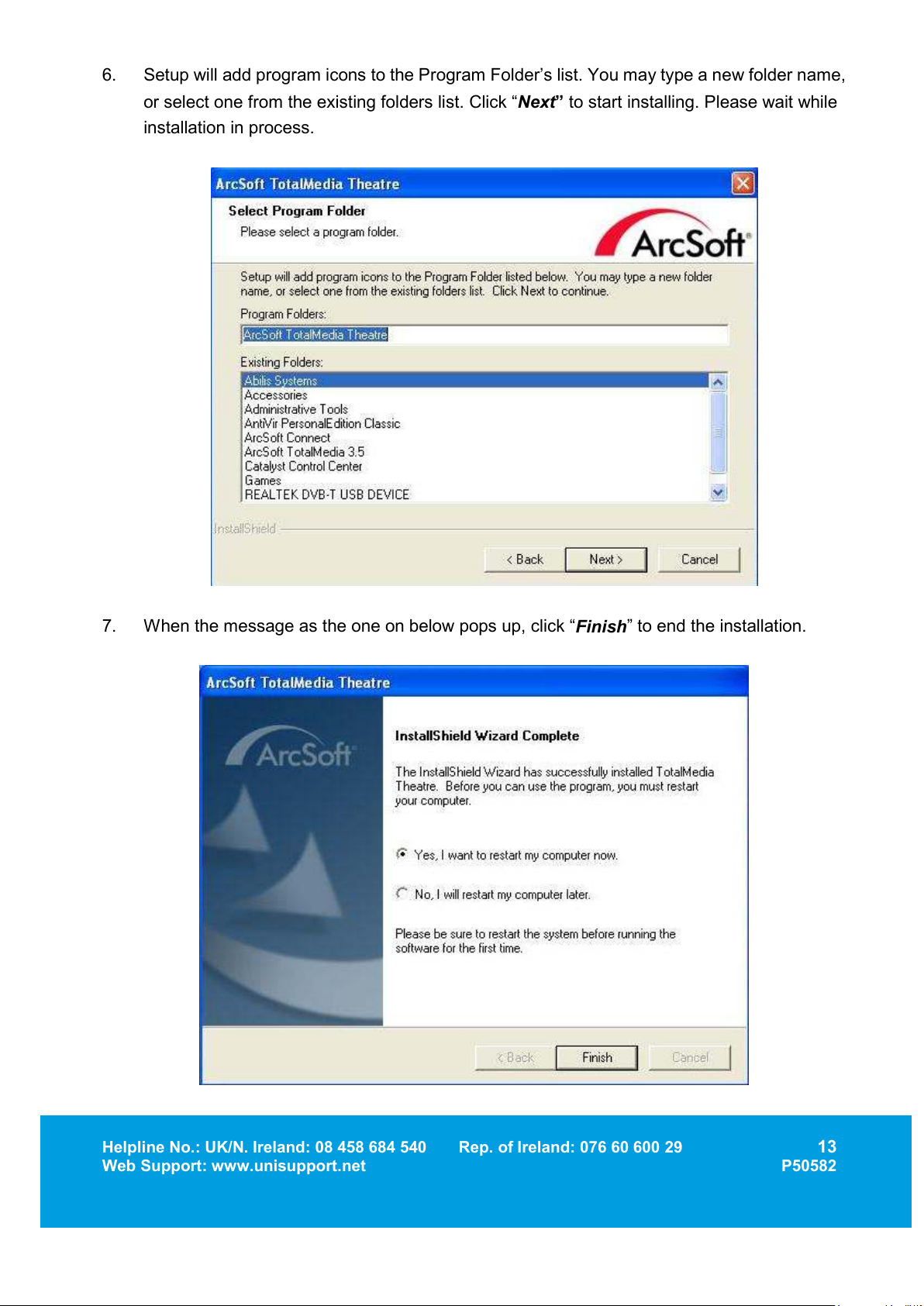
6. Setup will add program icons to the Program Folder’s list. You may type a new folder name,
or select one from the existing folders list. Click “Next” to start installing. Please wait while
installation in process.
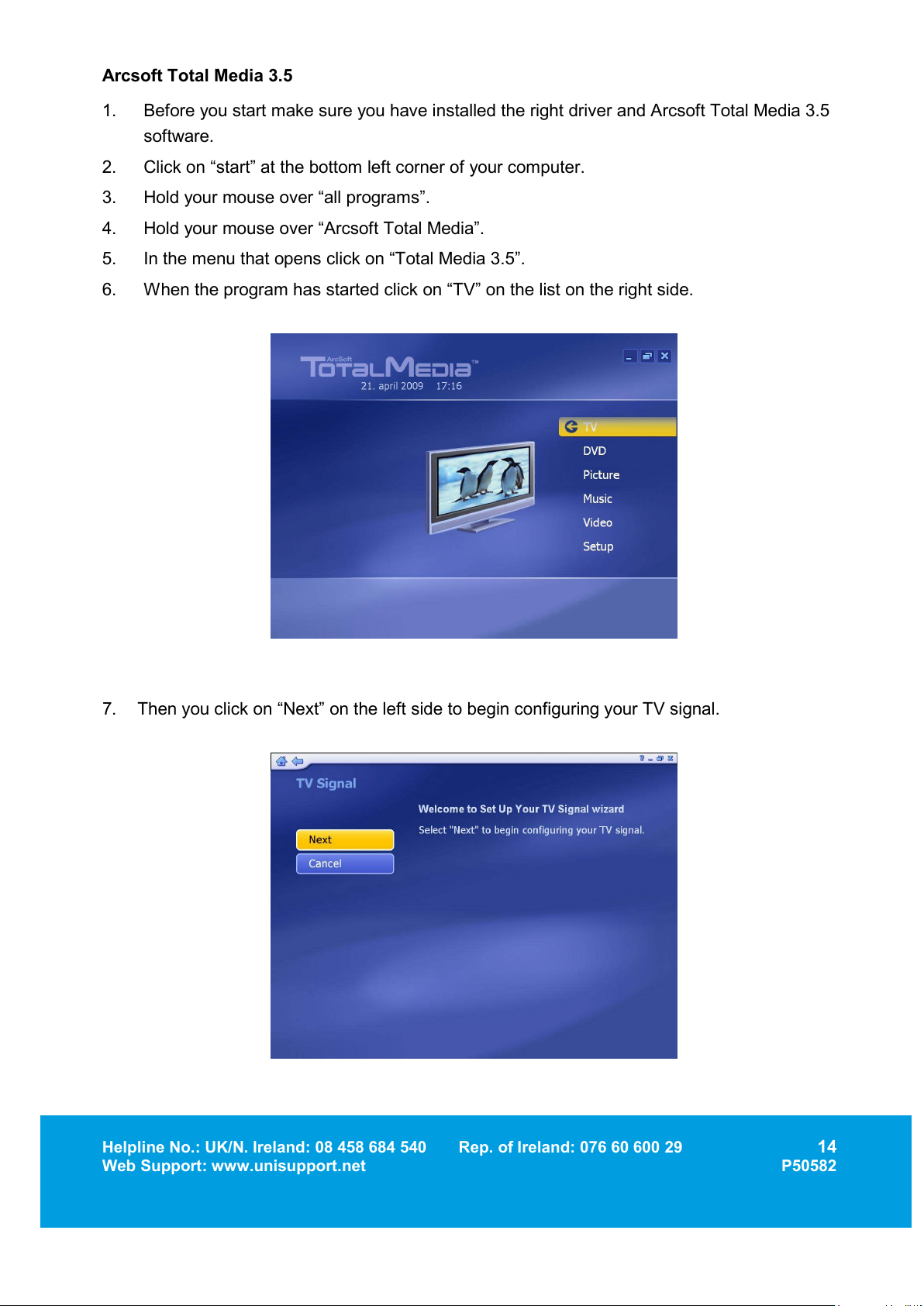
7. When the message as the one on below pops up, click “
Finish
” to end the installation.
Page 14
Helpline No.: UK/N. Ireland: 08 458 684 540 Rep. of Ireland: 076 60 600 29
14
Web Support: www.unisupport.net P50582
Arcsoft Total Media 3.5
1. Before you start make sure you have installed the right driver and Arcsoft Total Media 3.5
software.
2. Click on “start” at the bottom left corner of your computer.
3. Hold your mouse over “all programs”.
4. Hold your mouse over “Arcsoft Total Media”.
5. In the menu that opens click on “Total Media 3.5”.
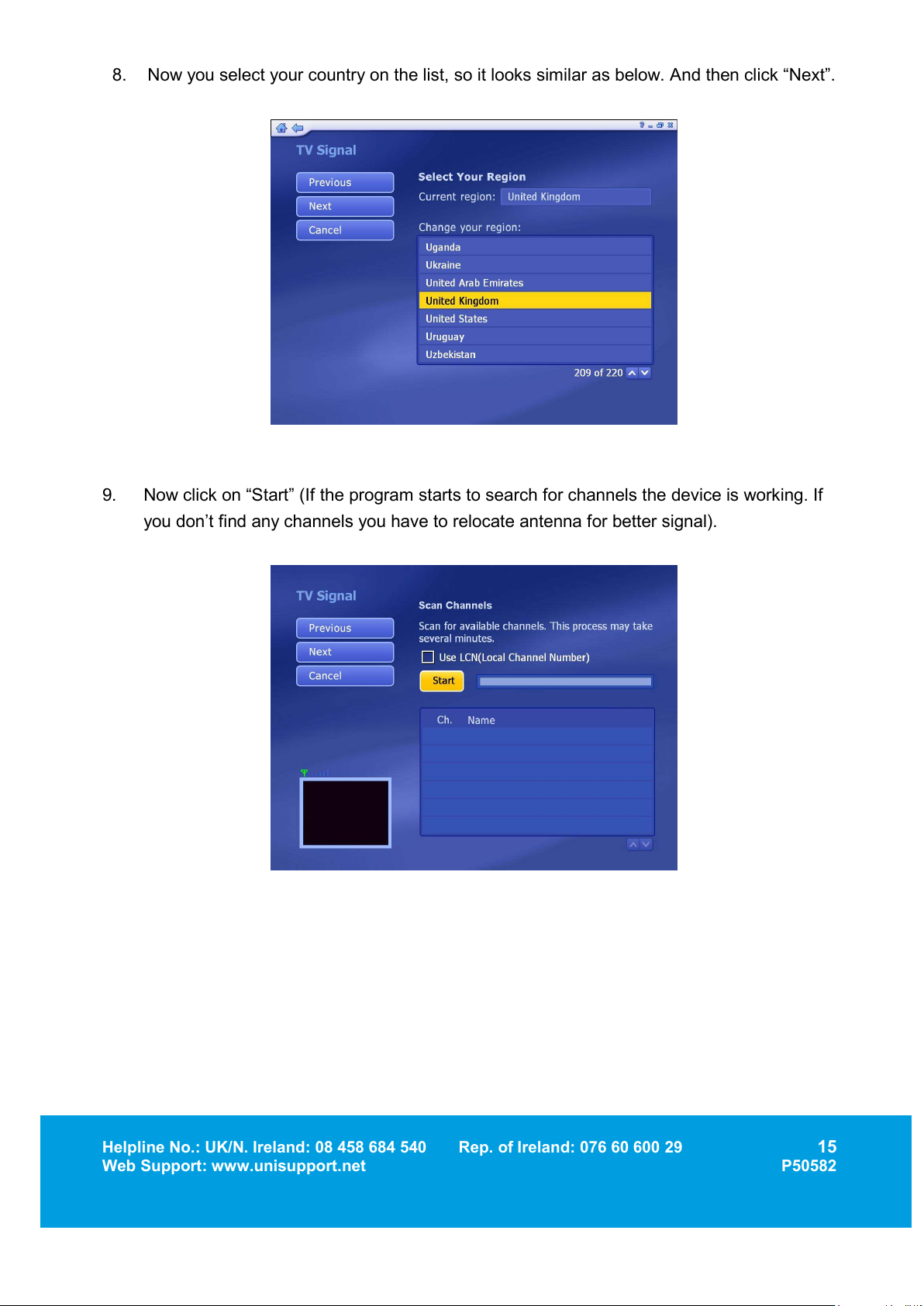
6. When the program has started click on “TV” on the list on the right side.
7. Then you click on “Next” on the left side to begin configuring your TV signal.
Page 15
Helpline No.: UK/N. Ireland: 08 458 684 540 Rep. of Ireland: 076 60 600 29
15
Web Support: www.unisupport.net P50582
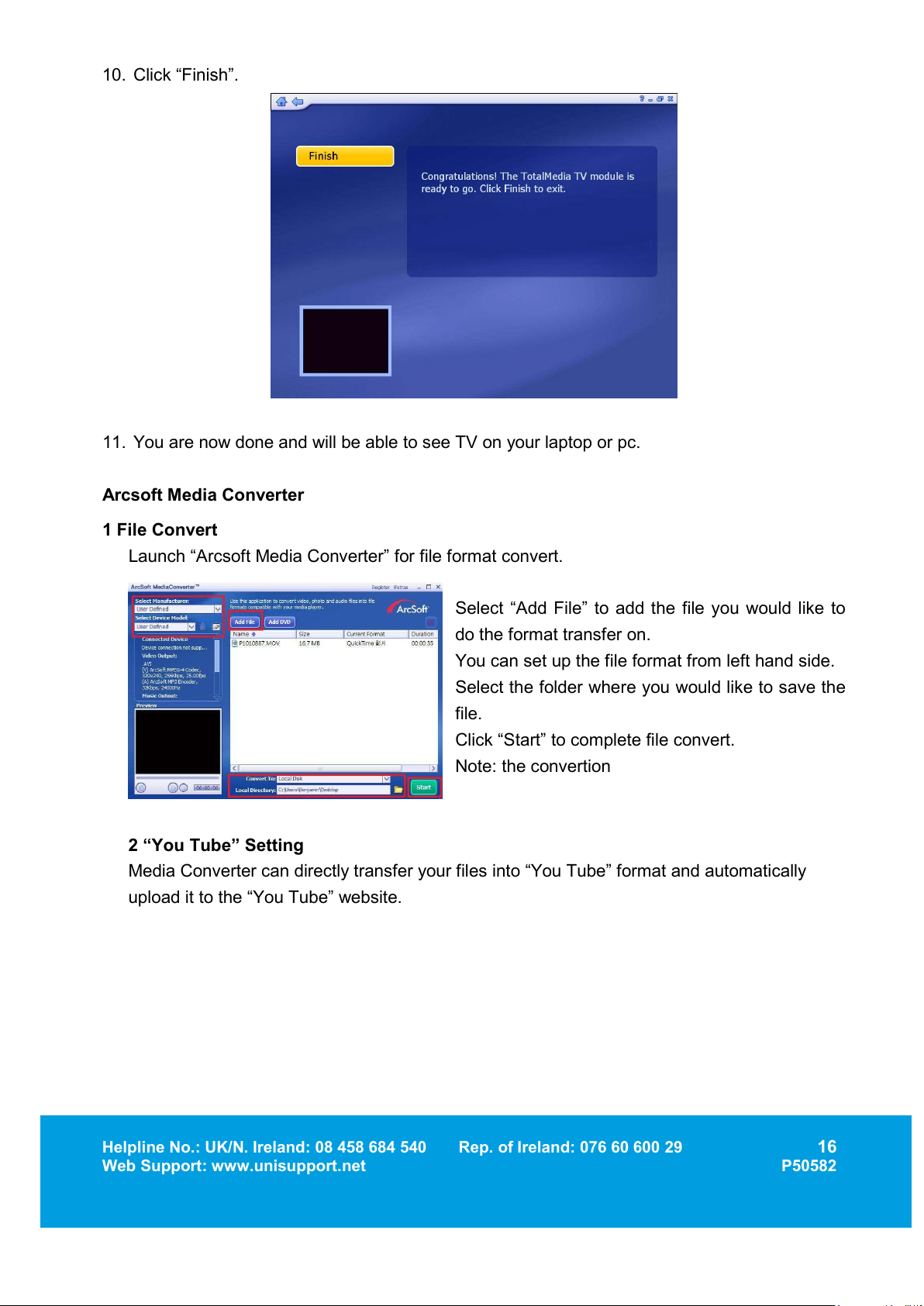
8. Now you select your country on the list, so it looks similar as below. And then click “Next”.
9. Now click on “Start” (If the program starts to search for channels the device is working. If
you don’t find any channels you have to relocate antenna for better signal).
Page 16
Helpline No.: UK/N. Ireland: 08 458 684 540 Rep. of Ireland: 076 60 600 29
16
Web Support: www.unisupport.net P50582
10. Click “Finish”.
11. You are now done and will be able to see TV on your laptop or pc.
Arcsoft Media Converter
1 File Convert
Launch “Arcsoft Media Converter” for file format convert.
Select “Add File” to add the file you would like to
do the format transfer on.
You can set up the file format from left hand side.
Select the folder where you would like to save the
file.
Click “Start” to complete file convert.
Note: the convertion
2 “You Tube” Setting
Media Converter can directly transfer your files into “You Tube” format and automatically
upload it to the “You Tube” website.
Page 17
Helpline No.: UK/N. Ireland: 08 458 684 540 Rep. of Ireland: 076 60 600 29
17
Web Support: www.unisupport.net P50582
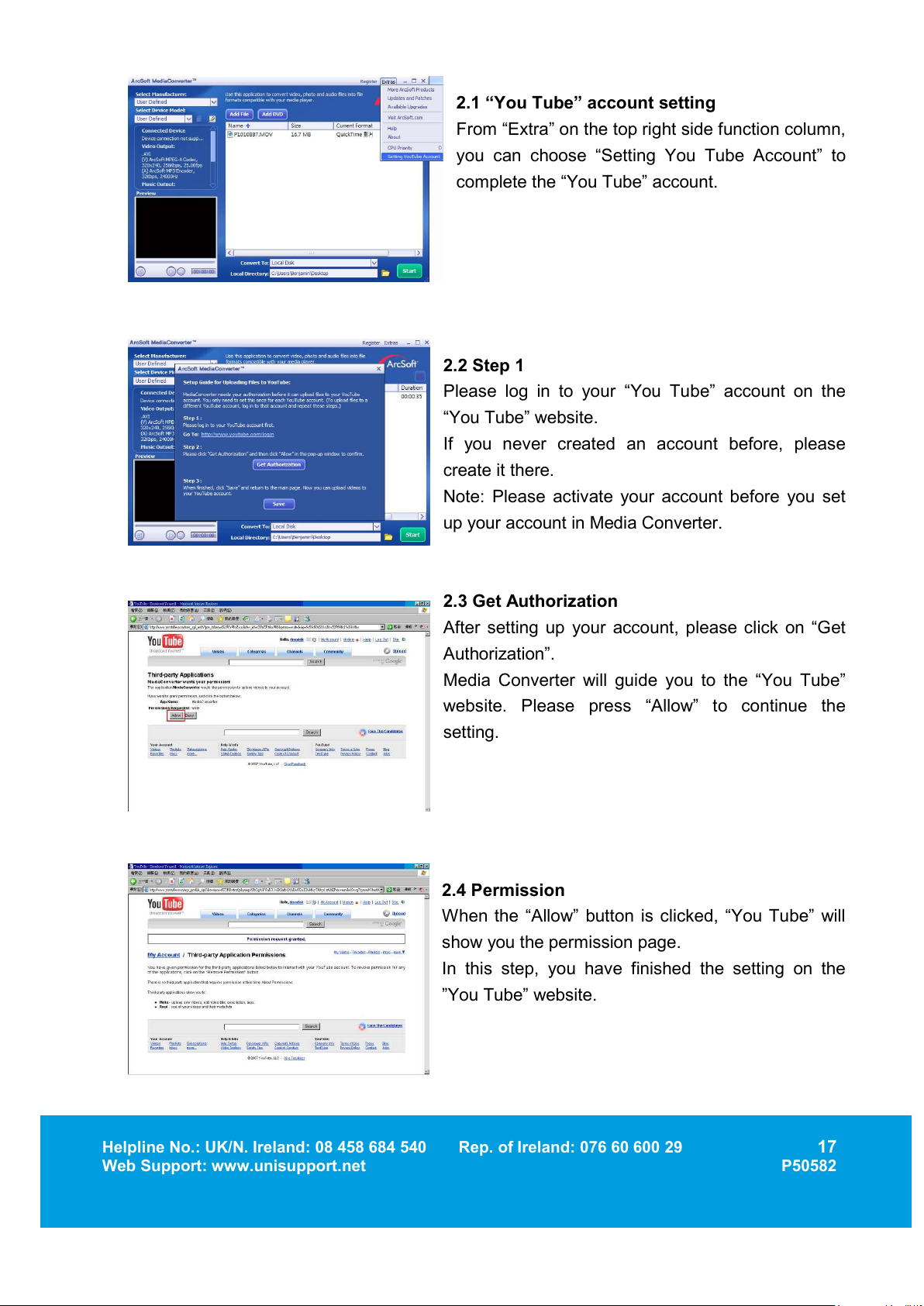
2.1 “You Tube” account setting
From “Extra” on the top right side function column,
you can choose “Setting You Tube Account” to
complete the “You Tube” account.
2.2 Step 1
Please log in to your “You Tube” account on the
“You Tube” website.
If you never created an account before, please
create it there.
Note: Please activate your account before you set
up your account in Media Converter.
2.3 Get Authorization
After setting up your account, please click on “Get
Authorization”.
Media Converter will guide you to the “You Tube”
website. Please press “Allow” to continue the
setting.
2.4 Permission
When the “Allow” button is clicked, “You Tube” will
show you the permission page.
In this step, you have finished the setting on the
”You Tube” website.
Page 18
Helpline No.: UK/N. Ireland: 08 458 684 540 Rep. of Ireland: 076 60 600 29
18
Web Support: www.unisupport.net P50582
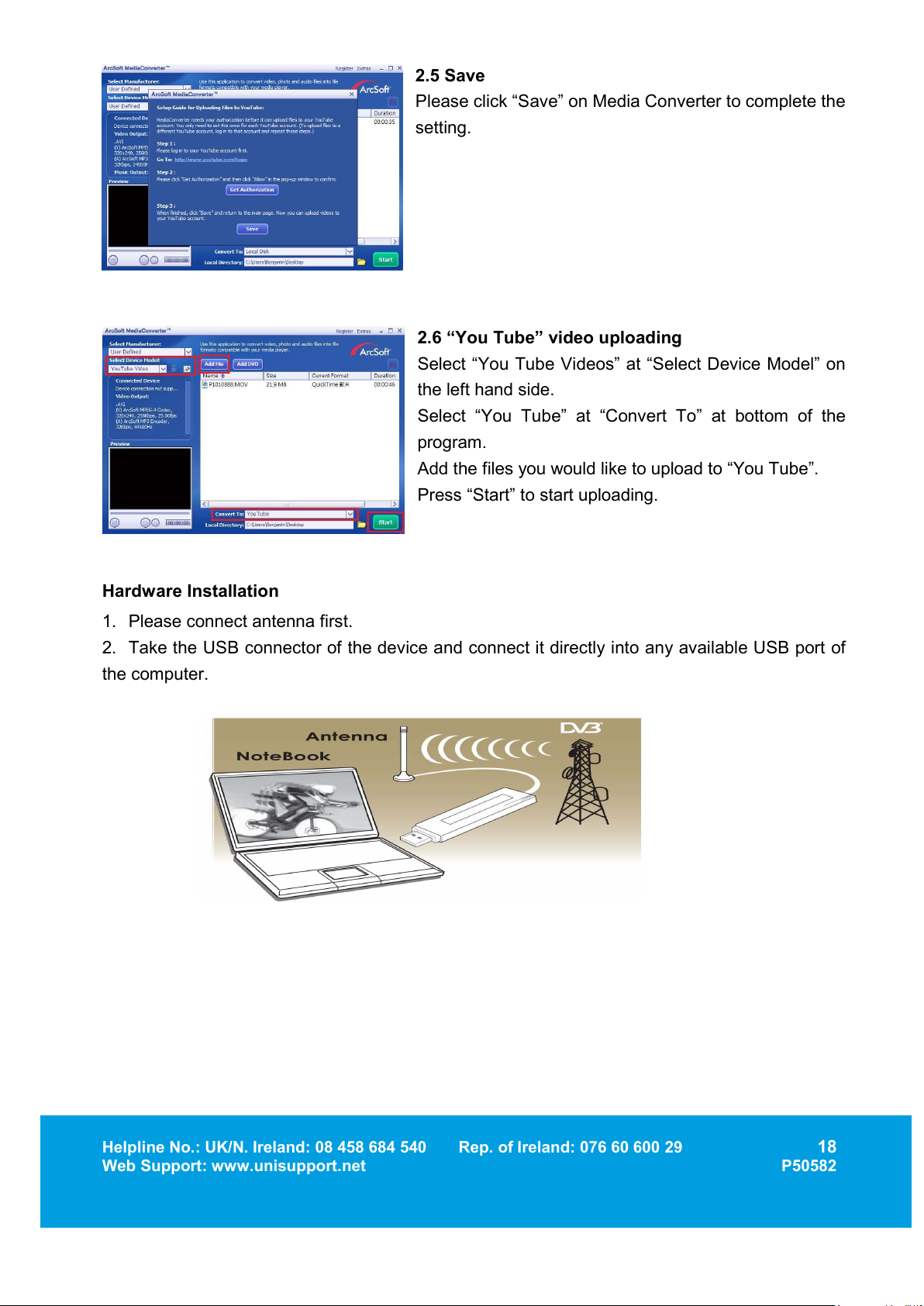
2.5 Save
Please click “Save” on Media Converter to complete the
setting.
2.6 “You Tube” video uploading
Select “You Tube Videos” at “Select Device Model” on
the left hand side.
Select “You Tube” at “Convert To” at bottom of the
program.
Add the files you would like to upload to “You Tube”.
Press “Start” to start uploading.
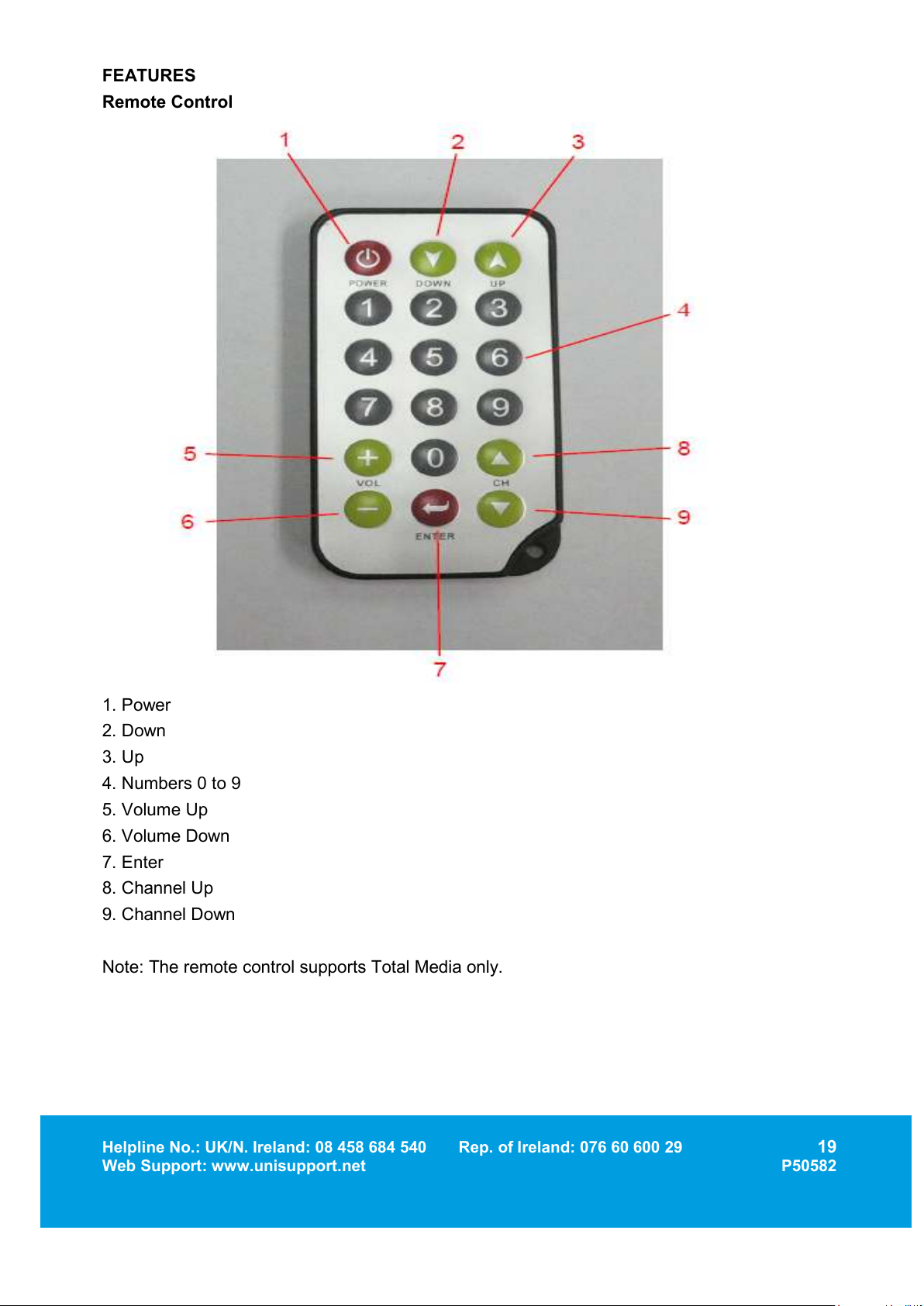
Hardware Installation
1. Please connect antenna first.
2. Take the USB connector of the device and connect it directly into any available USB port of
the computer.
Page 19
Helpline No.: UK/N. Ireland: 08 458 684 540 Rep. of Ireland: 076 60 600 29
19
Web Support: www.unisupport.net P50582
FEATURES
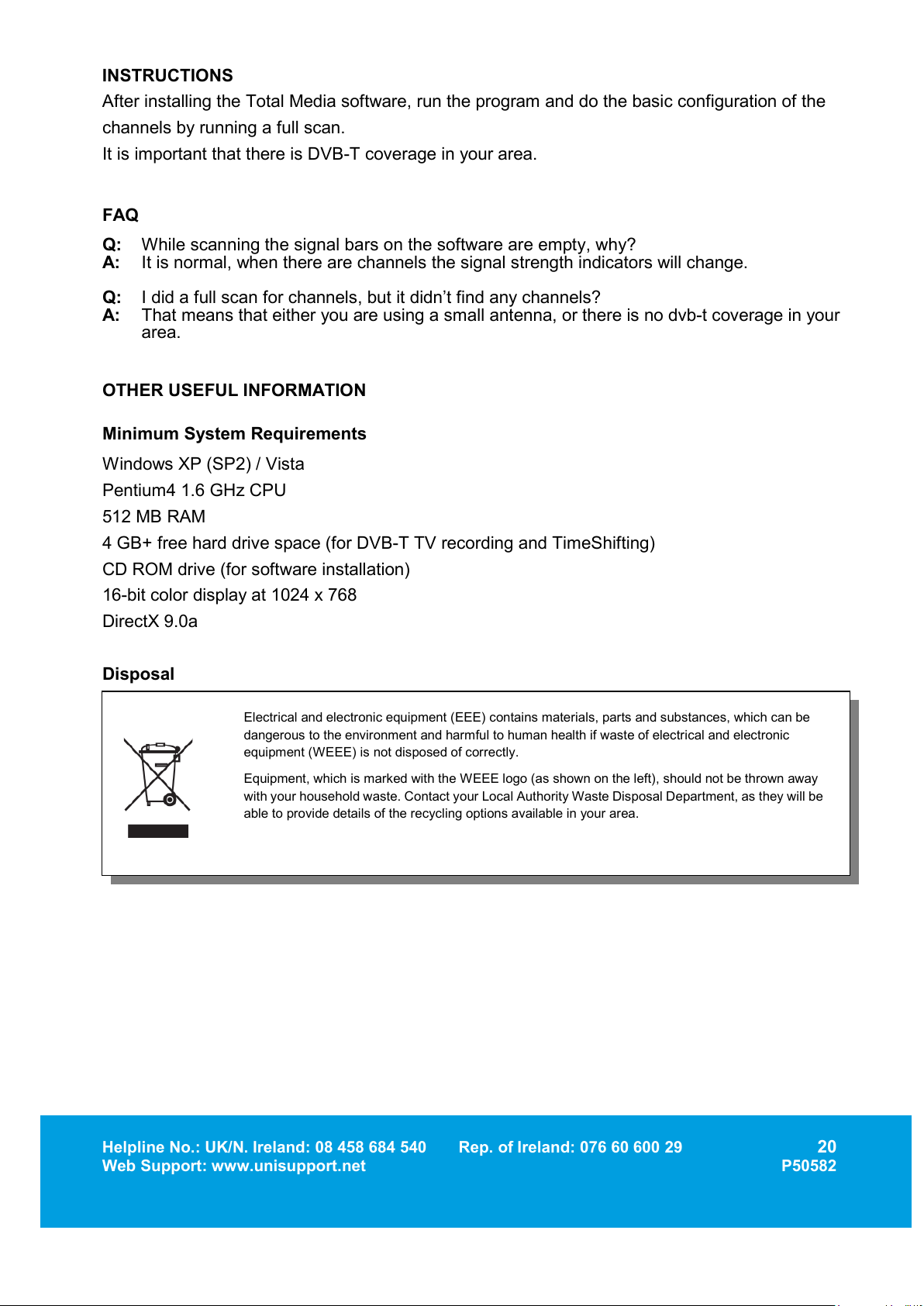
Remote Control
1. Power
2. Down
3. Up
4. Numbers 0 to 9
5. Volume Up
6. Volume Down
7. Enter
8. Channel Up
9. Channel Down
Note: The remote control supports Total Media only.
Page 20
Helpline No.: UK/N. Ireland: 08 458 684 540 Rep. of Ireland: 076 60 600 29
20
Web Support: www.unisupport.net P50582
INSTRUCTIONS
After installing the Total Media software, run the program and do the basic configuration of the
channels by running a full scan.
It is important that there is DVB-T coverage in your area.
FAQ
Q: While scanning the signal bars on the software are empty, why?
A: It is normal, when there are channels the signal strength indicators will change.
Q: I did a full scan for channels, but it didn’t find any channels?
A: That means that either you are using a small antenna, or there is no dvb-t coverage in your
area.
OTHER USEFUL INFORMATION
Minimum System Requirements
Windows XP (SP2) / Vista
Pentium4 1.6 GHz CPU
512 MB RAM
4 GB+ free hard drive space (for DVB-T TV recording and TimeShifting)
CD ROM drive (for software installation)
16-bit color display at 1024 x 768
DirectX 9.0a
Disposal
Electrical and electronic equipment (EEE) contains materials, parts and substances, which can be
dangerous to the environment and harmful to human health if waste of electrical and electronic
equipment (WEEE) is not disposed of correctly.
Equipment, which is marked with the WEEE logo (as shown on the left), should not be thrown away
with your household waste. Contact your Local Authority Waste Disposal Department, as they will be
able to provide details of the recycling options available in your area.
Page 21

 Loading...